Vancomycin Quick Reference Guide: A Step-by-Step Walkthrough
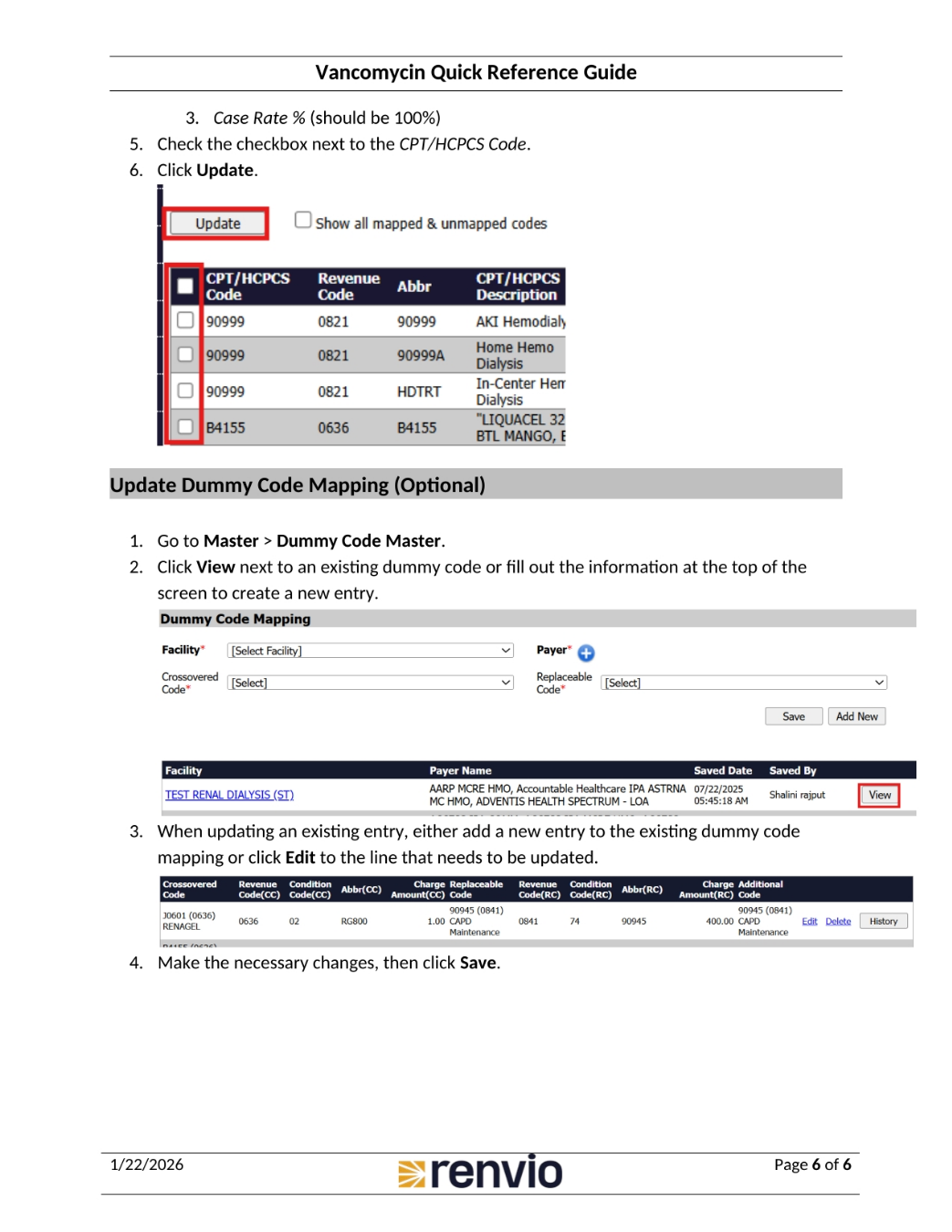
1. Finding Vancomycin in Dialysis Manager
To find Vancomycin in Dialysis Manager, first navigate to Admin Options, then Masters, and finally Master List. Next, click Meds on the left side of the screen. Search for the medication by pressing CTRL + F and typing 'vancomycin' in the search bar. Click into Vancomycin, then review the Charges dropdown and select Billable through ML. Review the Category for the medication, selecting all applicable categories, and click Save. To associate the medication with a specific facility, click Item Mapping, select the facility, and click Save.
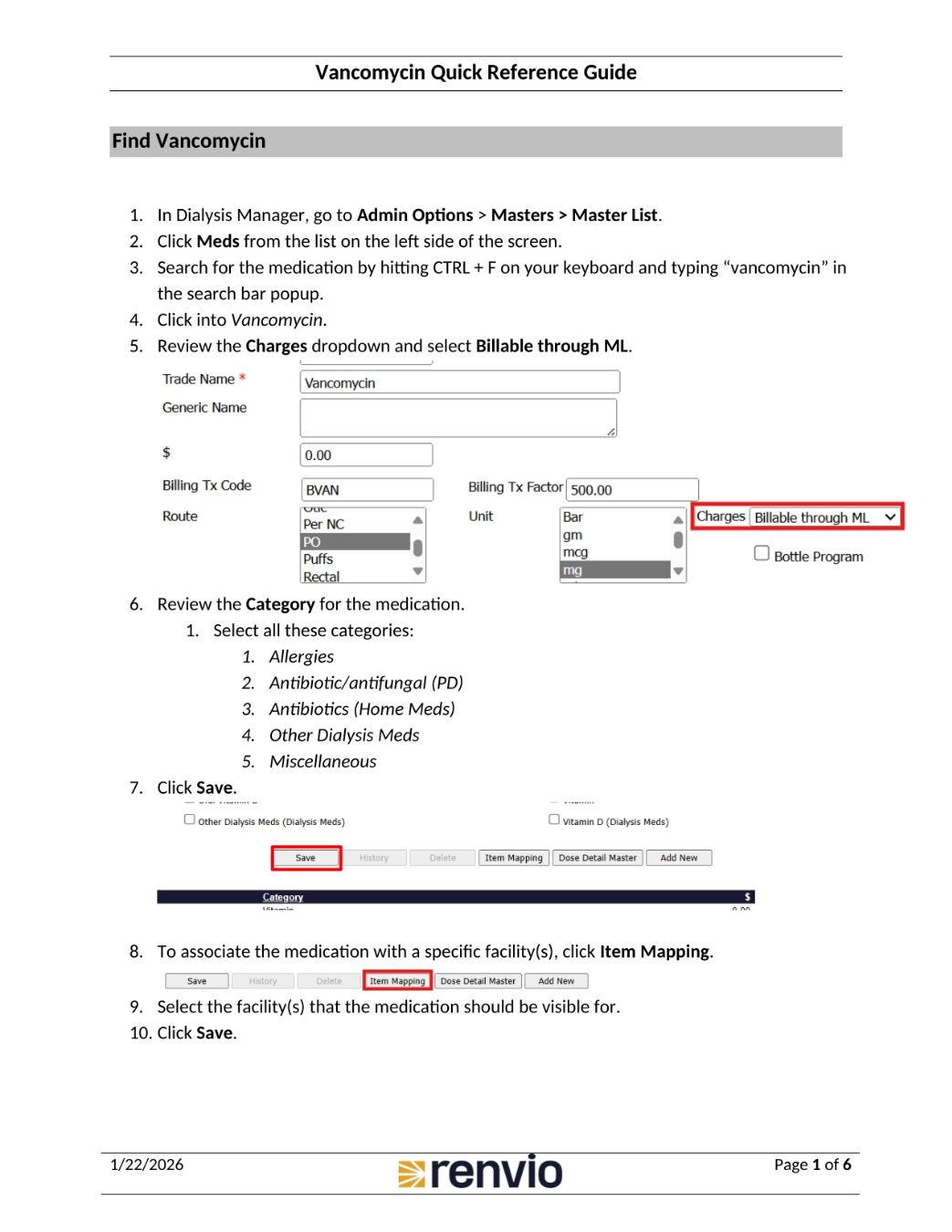
2. Updating Billing Setup for Vancomycin
To update the billing setup in Dialysis Manager, go to Import/Export, then Export Treatment Billing, and click Billing Setup. Click Edit next to Export to MBRS. Under Medications (FT Segments), find Vancomycin and check the Billable box. Finally, click Sign & Save at the top of the screen. To create special conditions, go to Vancomycin under Medications (FT Segments) and click Special Conditions.
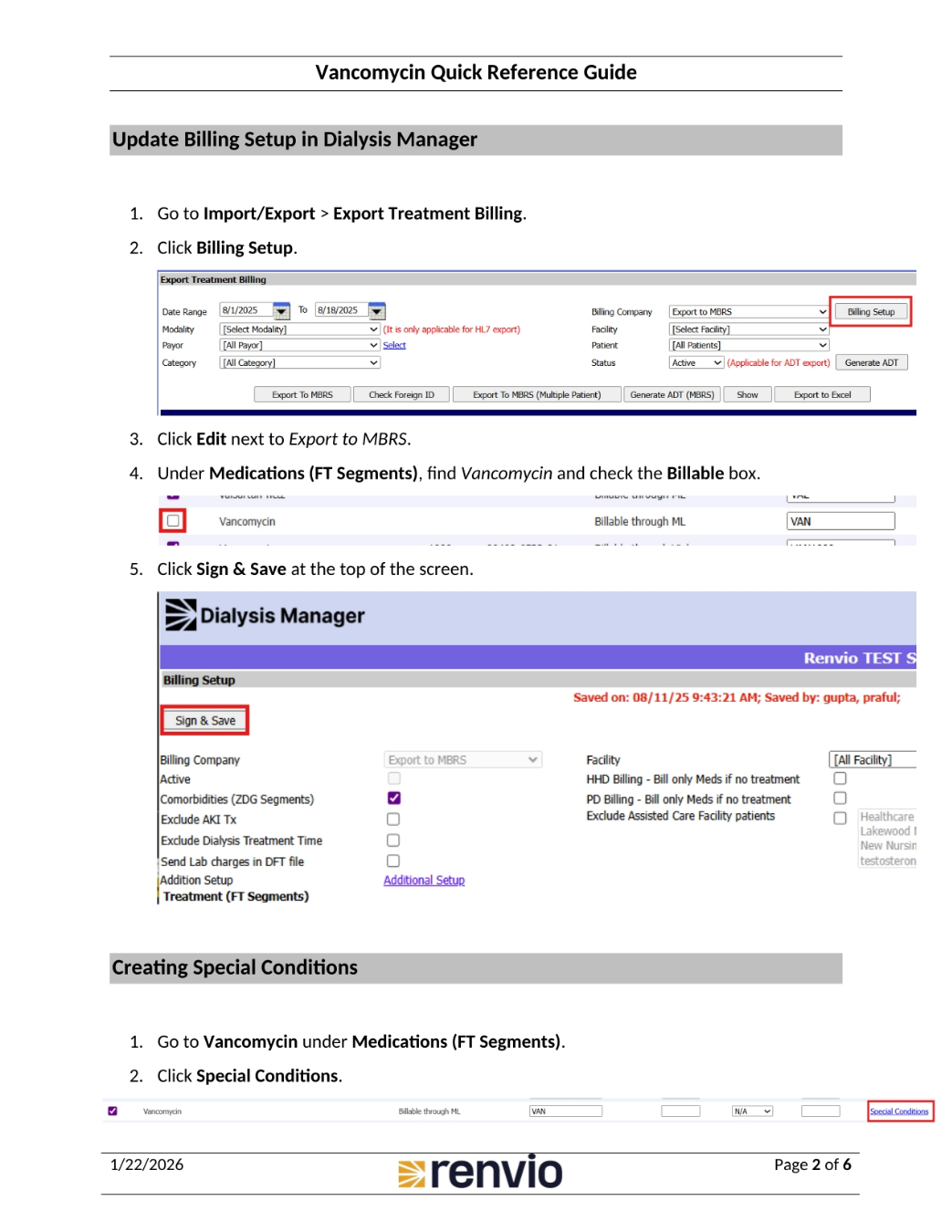
3. Setting Dose Ranges for Vancomycin
Under Condition Type, select Dose Range. Enter the following Dose Ranges, ensuring that the abbreviations match the Charge Master's abbreviations. This includes setting ranges for 0-1, 1.1-500, 500.1-750, and 750.1-1000. Ensure that the abbreviations match the Charge Master's abbreviations for each range.
4. Adding Modifiers and Updating Revenue Master
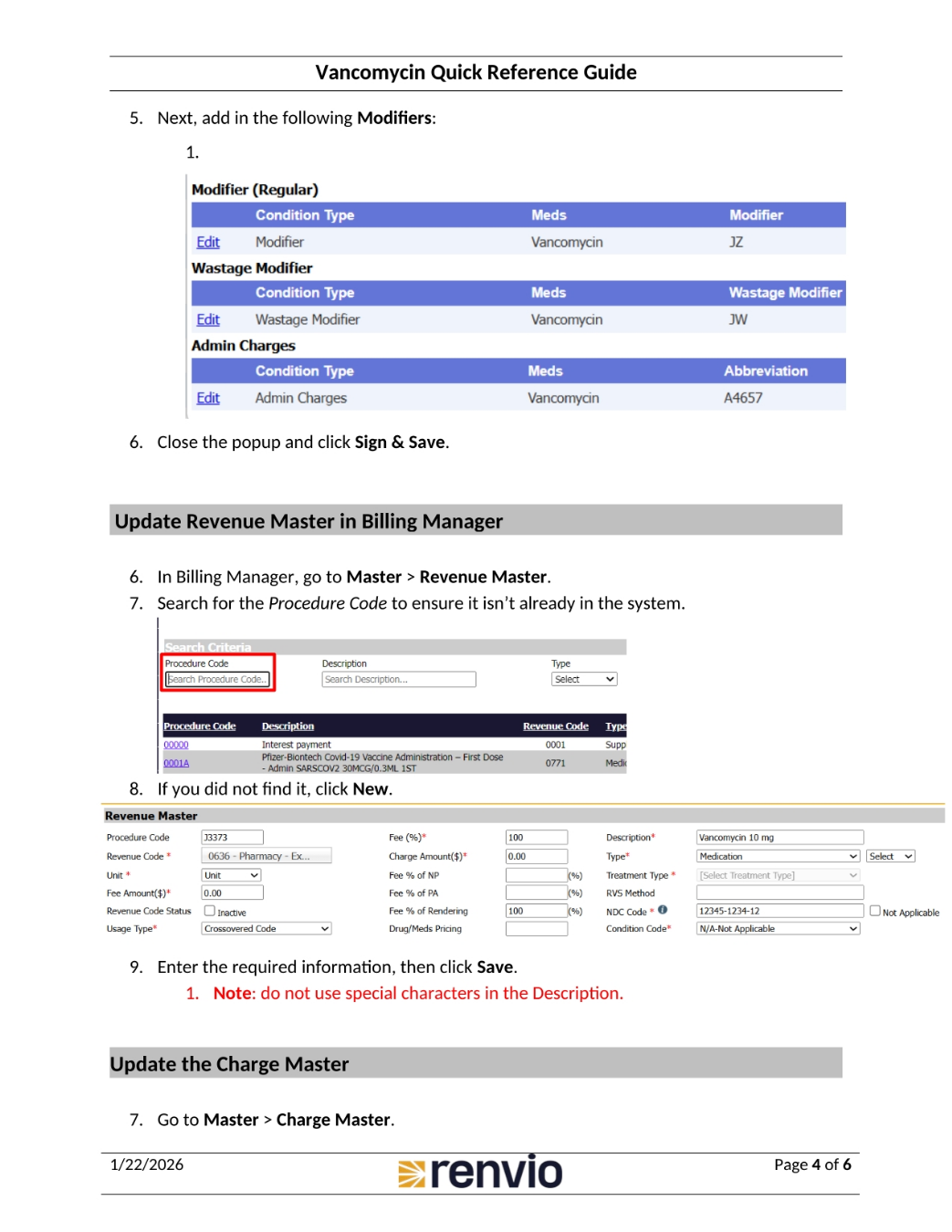
Next, add the following Modifiers, including Modifier (Regular), Wastage Modifier, and Admin Charges. Close the popup and click Sign & Save. To update the Revenue Master in Billing Manager, go to Master, then Revenue Master. Search for the Procedure Code to ensure it isn't already in the system. If you don't find it, click New. Enter the required information, then click Save, noting not to use special characters in the Description. To update the Charge Master, go to Master, then Charge Master.
5. Configuring Billing Entity and Case Rate Mapping
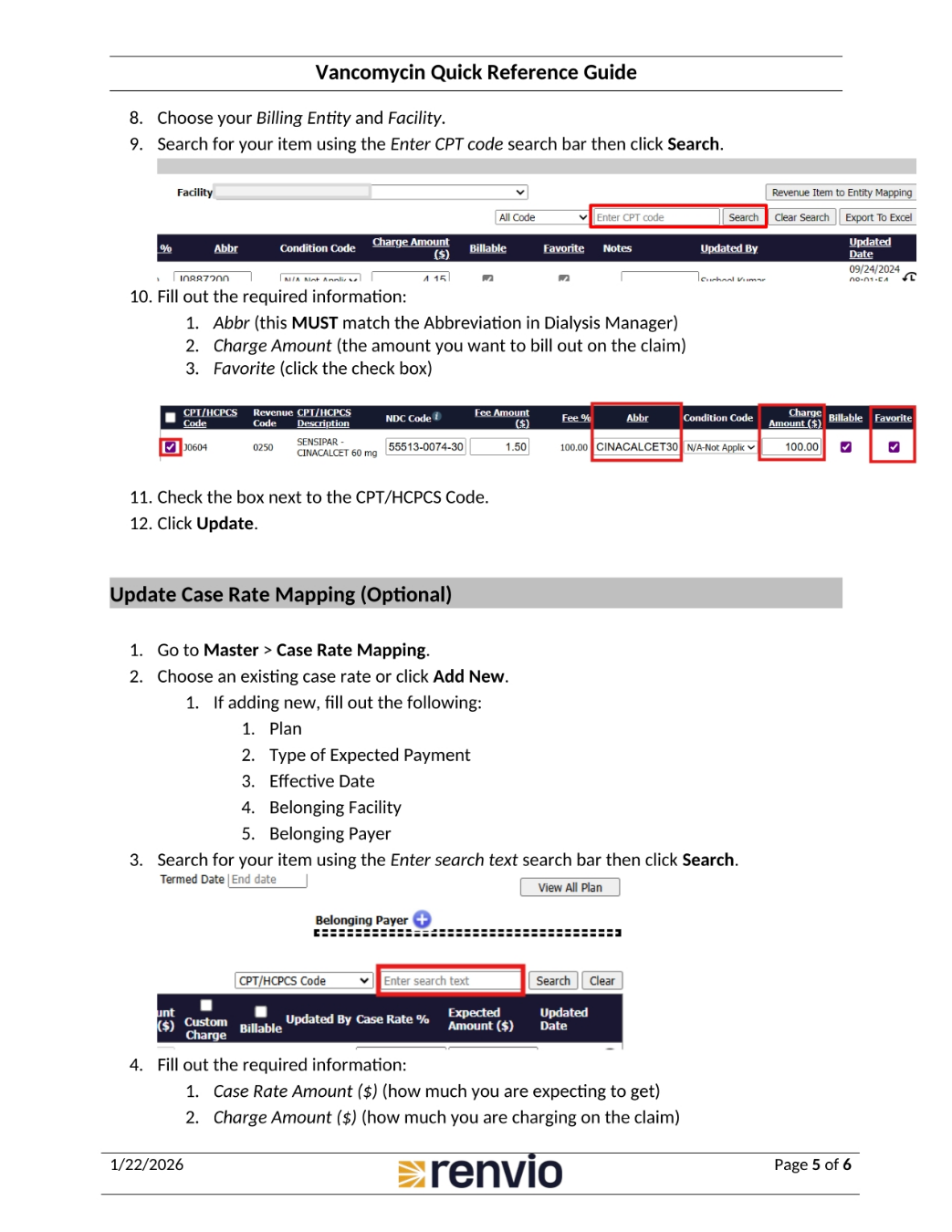
Choose your Billing Entity and Facility. Search for your item using the Enter CPT code search bar, then click Search. Fill out the required information, including Abbr, Charge Amount, and Favorite. Check the box next to the CPT/HCPCS Code and click Update. To update Case Rate Mapping, go to Master, then Case Rate Mapping. Choose an existing case rate or click Add New. Search for your item using the Enter search text search bar, then click Search. Fill out the required information, including Case Rate Amount and Charge Amount.
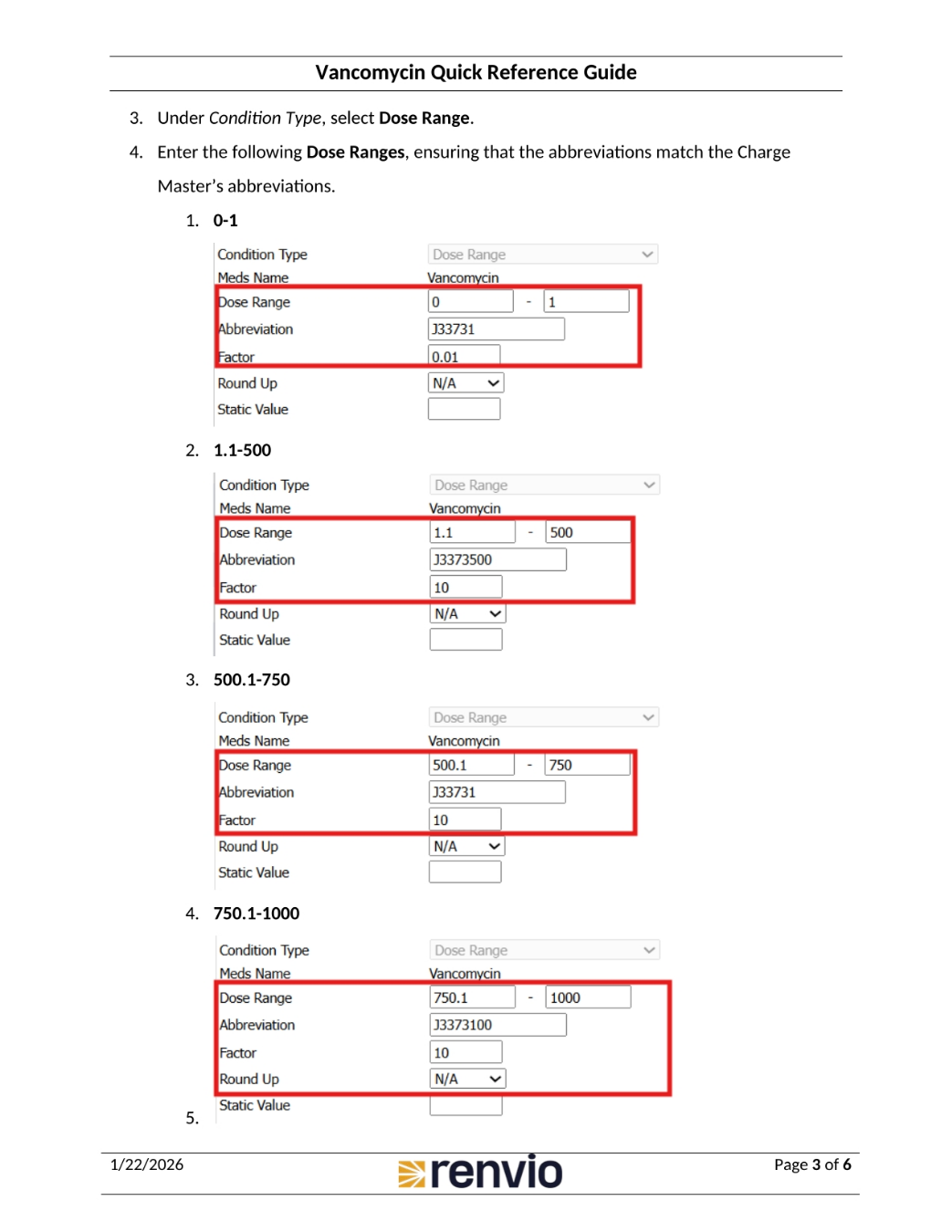
6. Dummy Code Mapping and Final Updates
Set the Case Rate percentage to 100%. Check the checkbox next to the CPT/HCPCS Code and click Update. To update Dummy Code Mapping, go to Master, then Dummy Code Master. Click View next to an existing dummy code or fill out the information at the top of the screen to create a new entry. When updating an existing entry, either add a new entry to the existing dummy code mapping or click Edit to the line that needs to be updated. Make the necessary changes, then click Save.