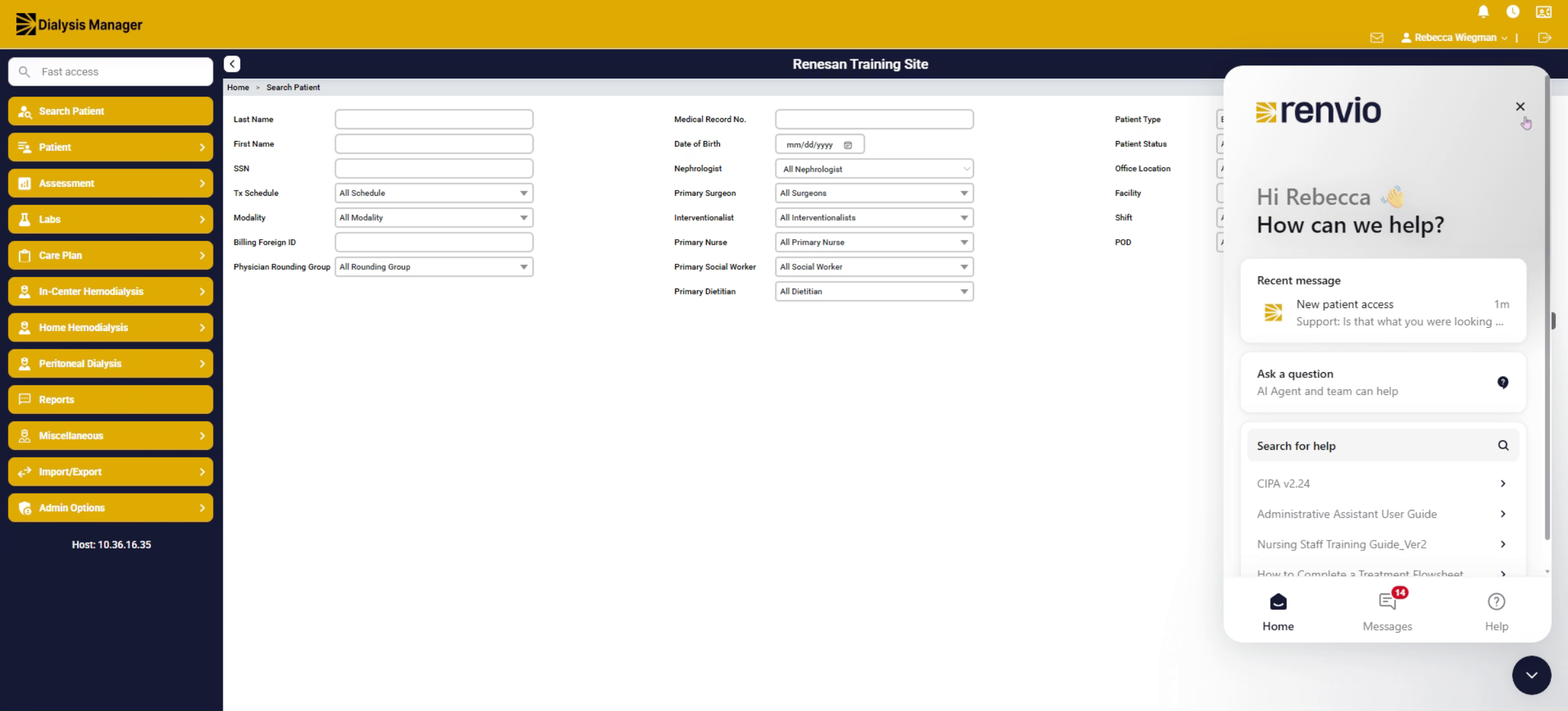
Using the Chatbot to ask questions or search our QRGs and training videos.
1. Chatbot Location Overview
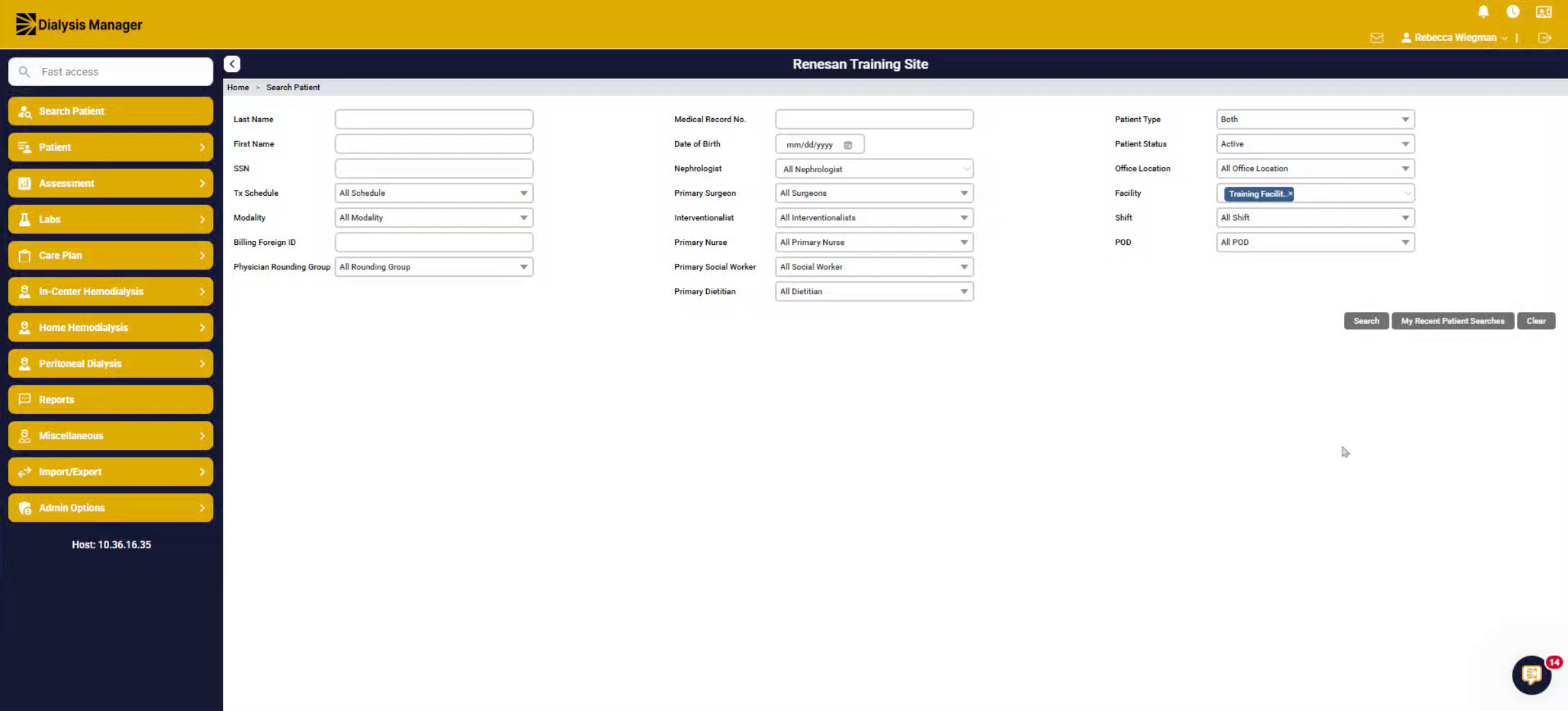
2. Chatbot Home Page Features
When opening the chatbot, it will bring you to the home page, where you can see recent messages pulled from your asked questions.
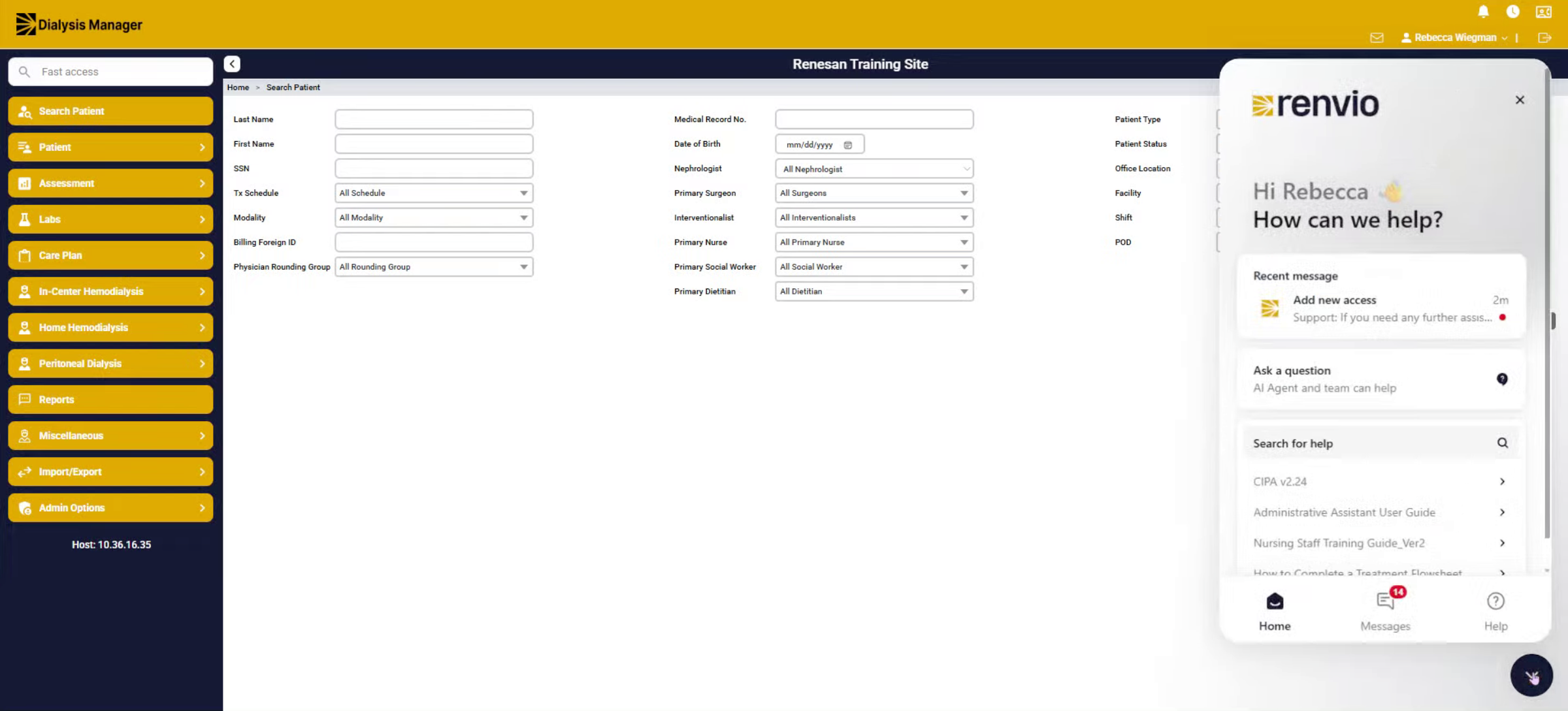
3. Ask A Question Functionality
The ask a question is AI-generated, which can also lead you to our help team when entering "Human" or search for help.
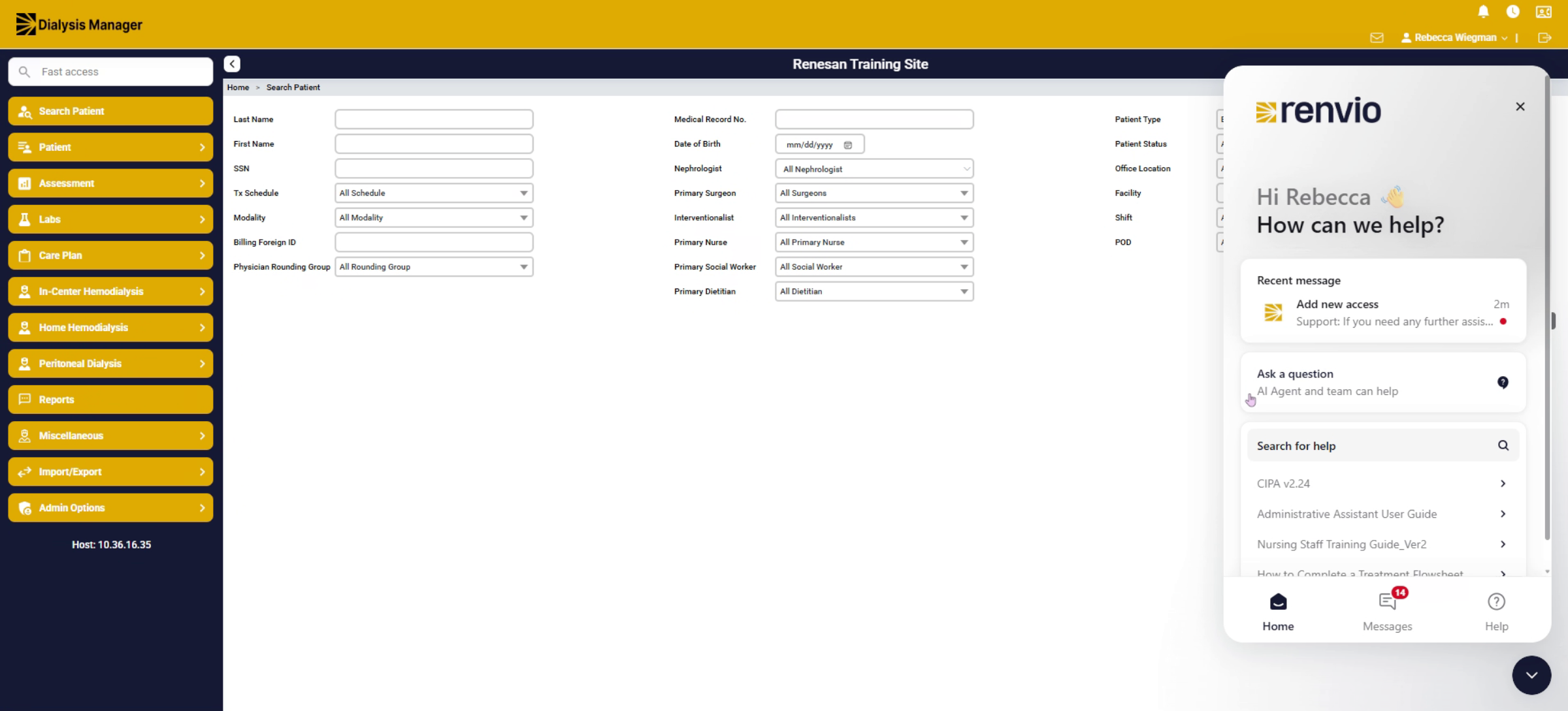
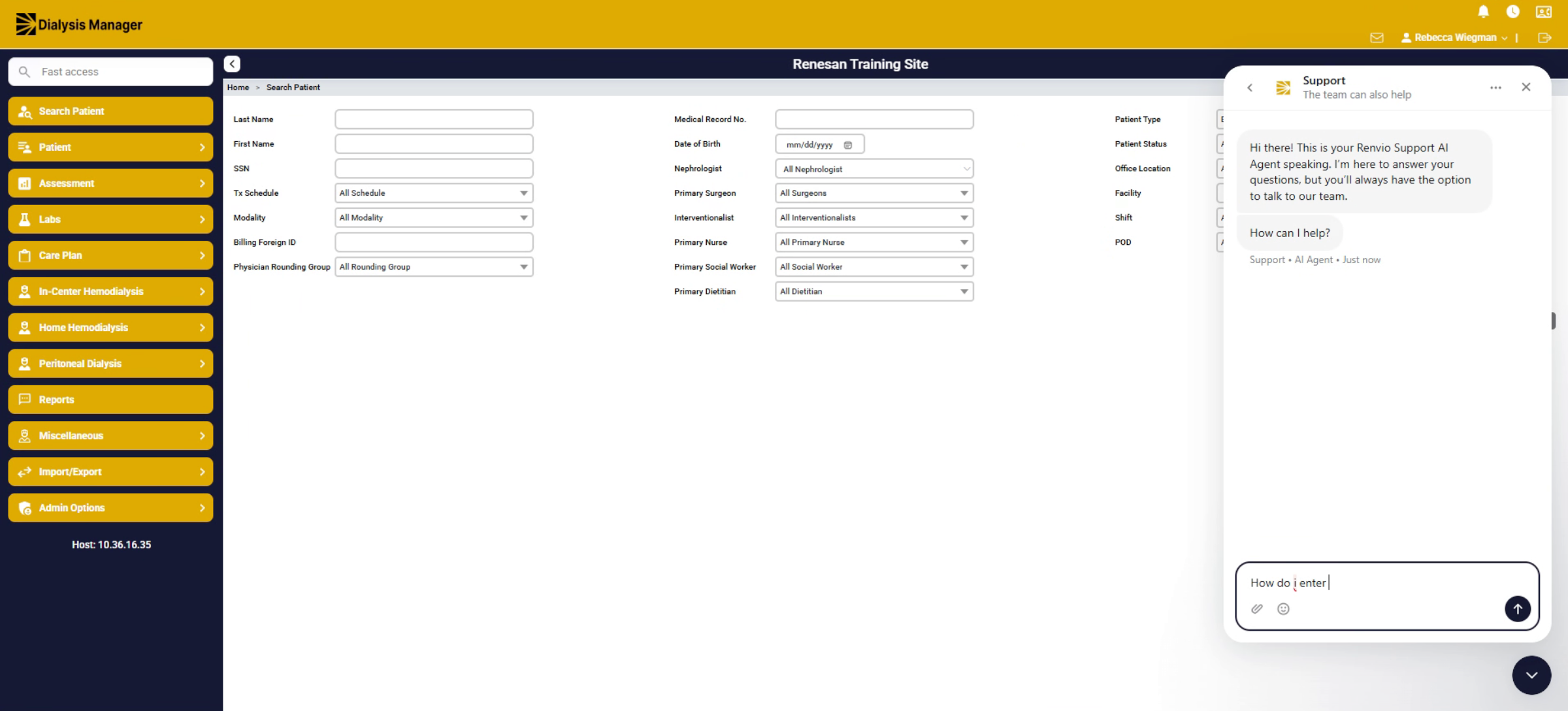
4. Typing Specific Questions
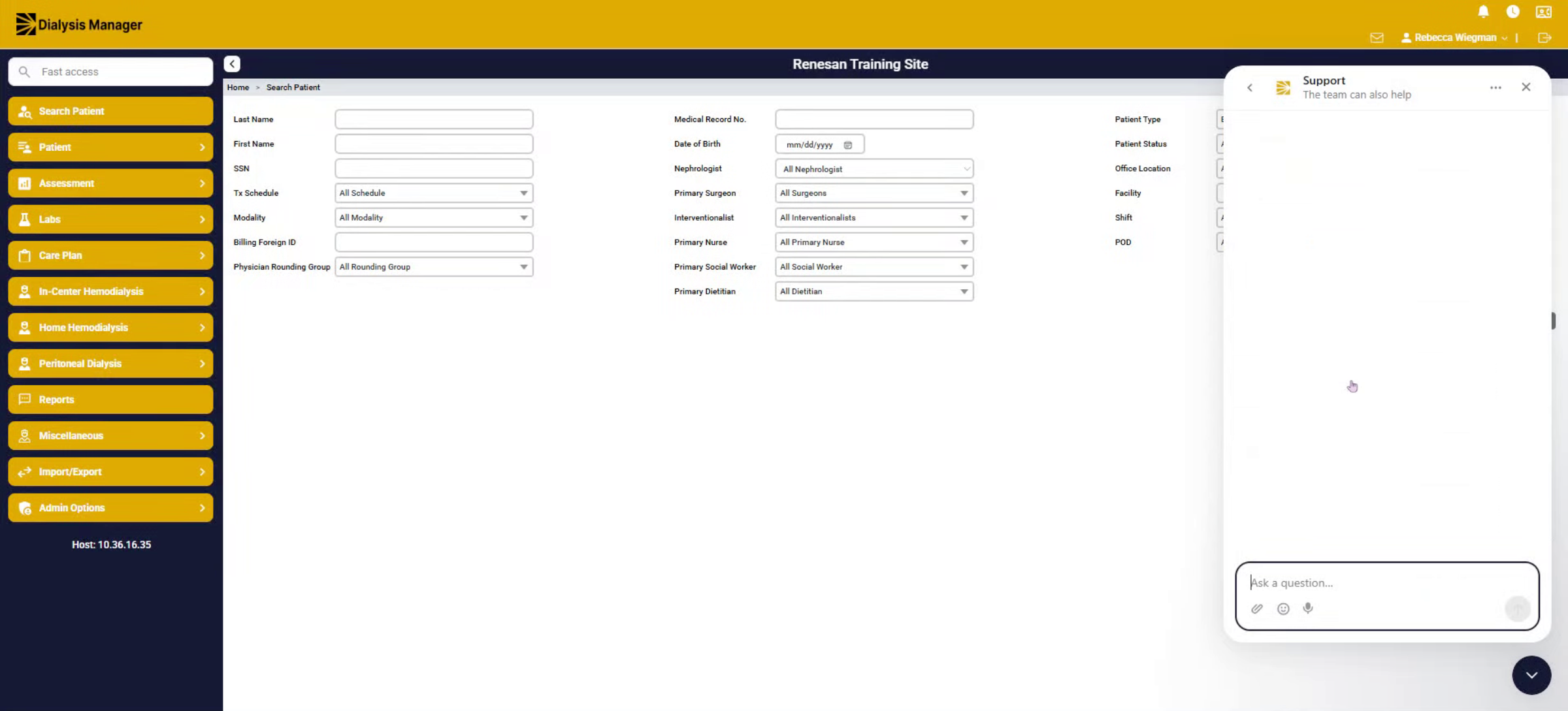
5. Dialysis Manager Search Scope
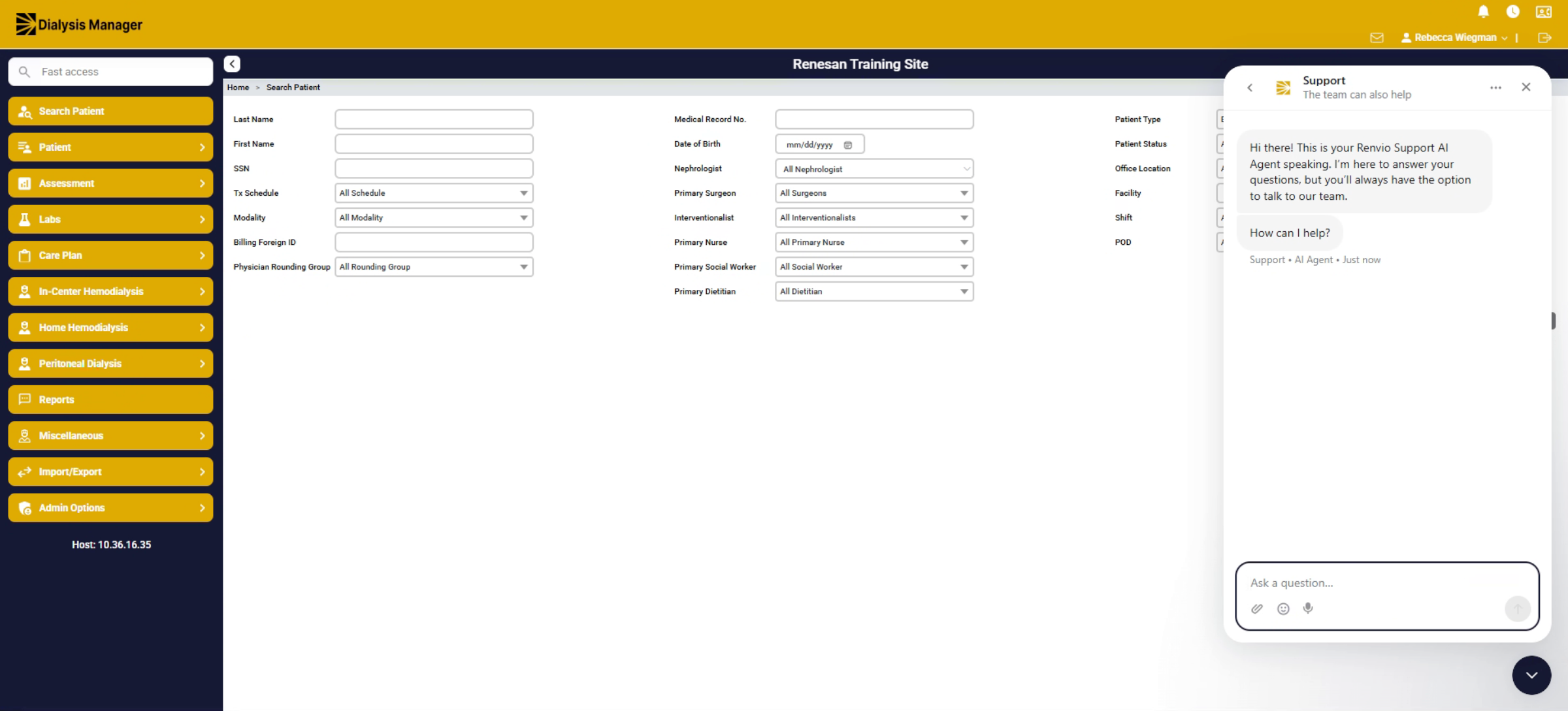
6. Answer Population And Navigation
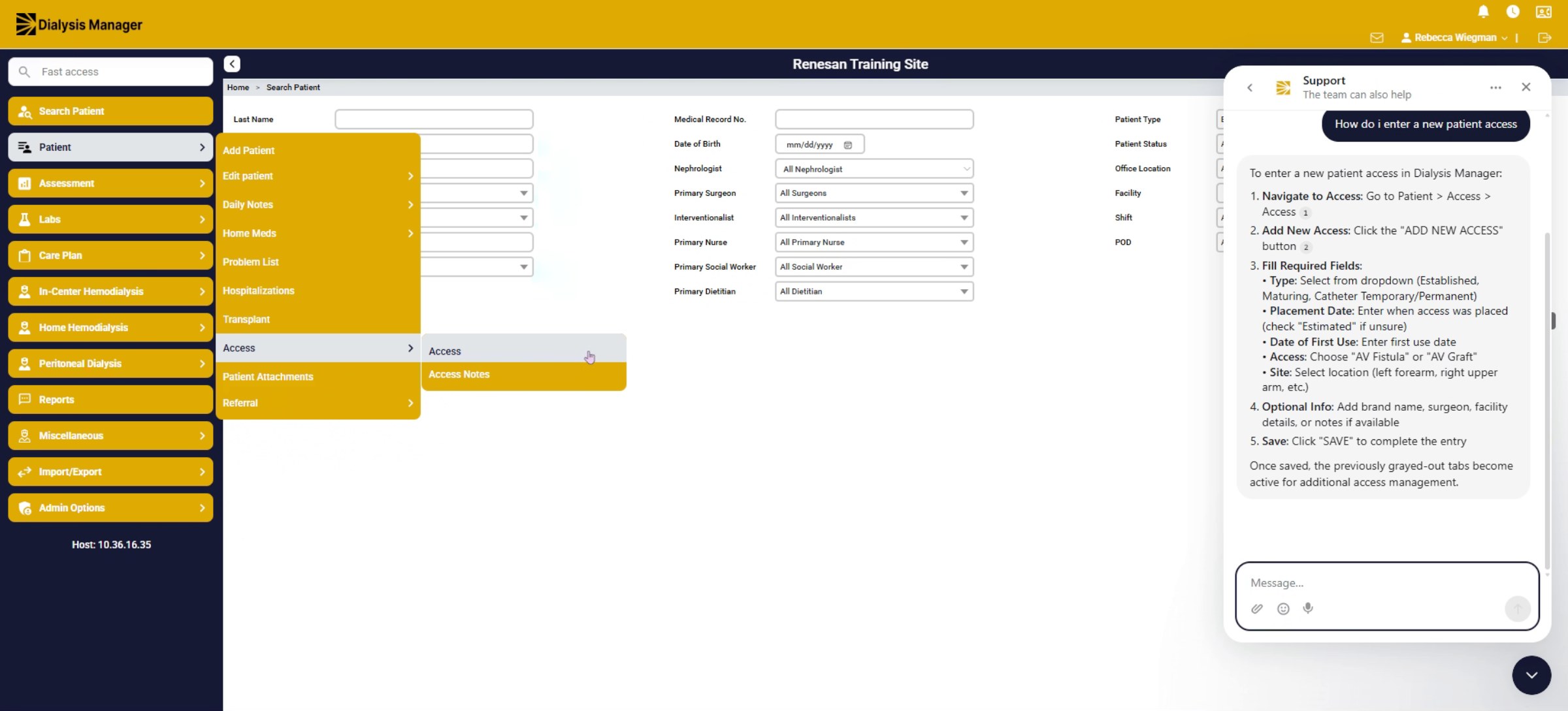
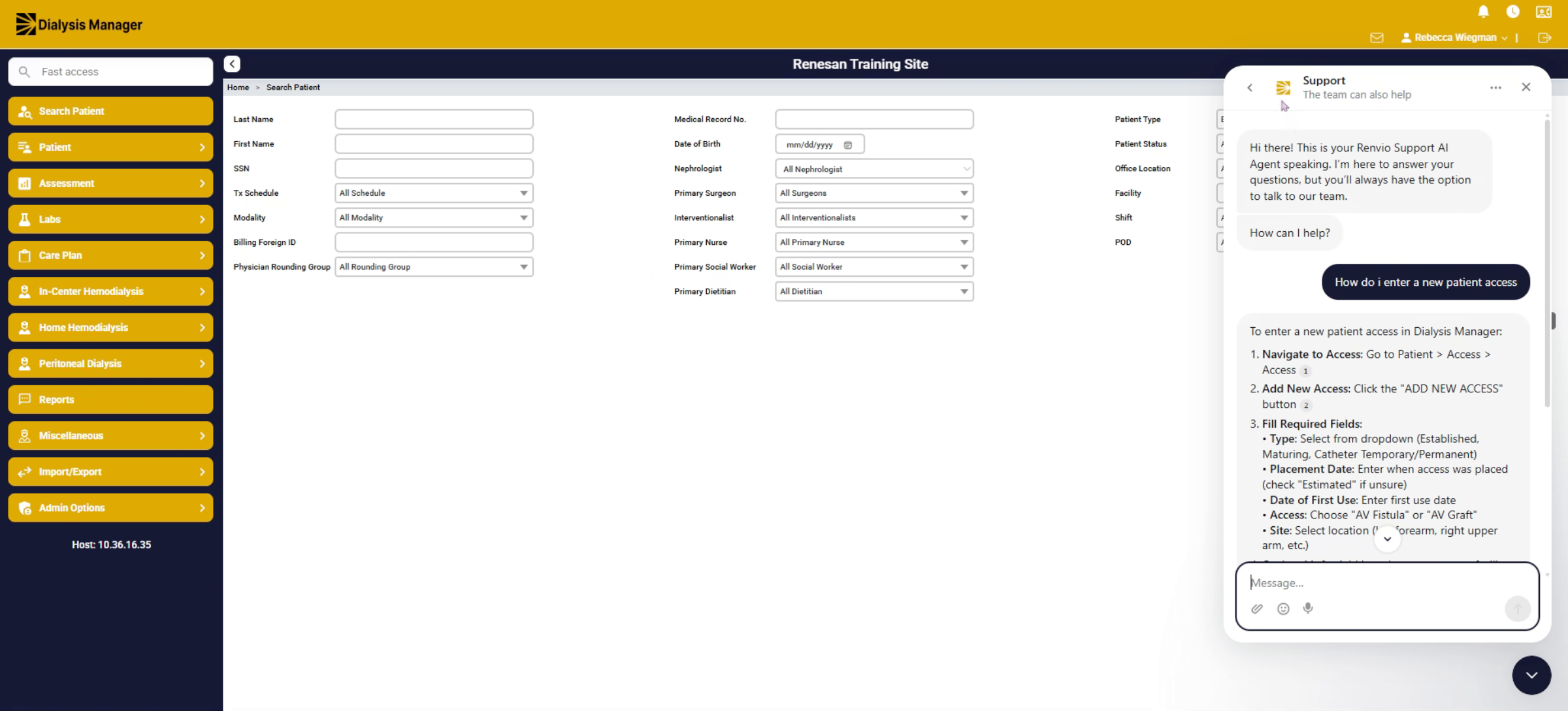
When entering your question, it will populate answers where you can then read through and navigate to complete.
7. Article Selection And Hover
Please note that you are also going to see the number at the end of a step where you can hover and select that specific article to view.
8. Feedback On Answer Helpfulness
If you read through and it is helpful, please go ahead and answer if it was helpful. If it is not, enter no, where it will then generate additional information.
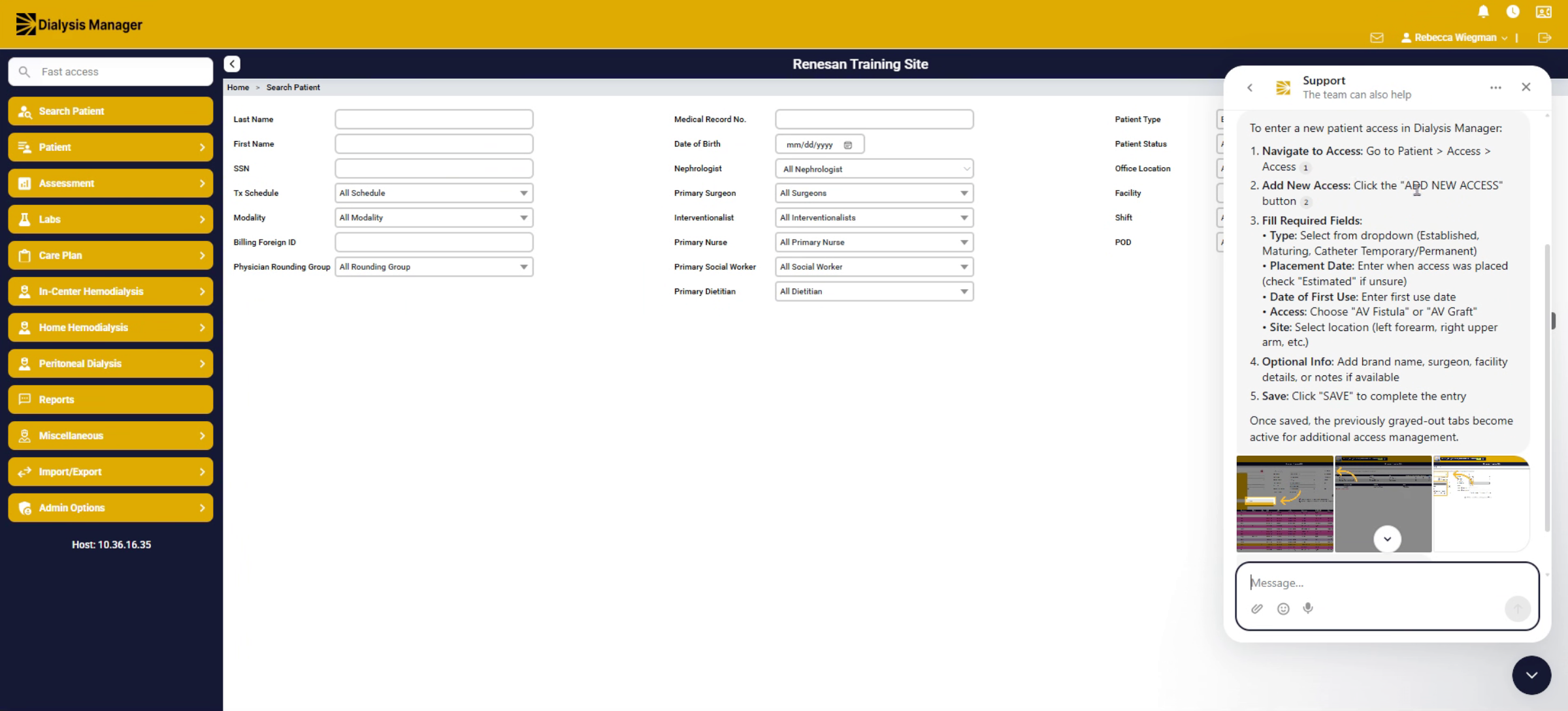
9. Back Button To Home Screen
10. Recent Messages Review
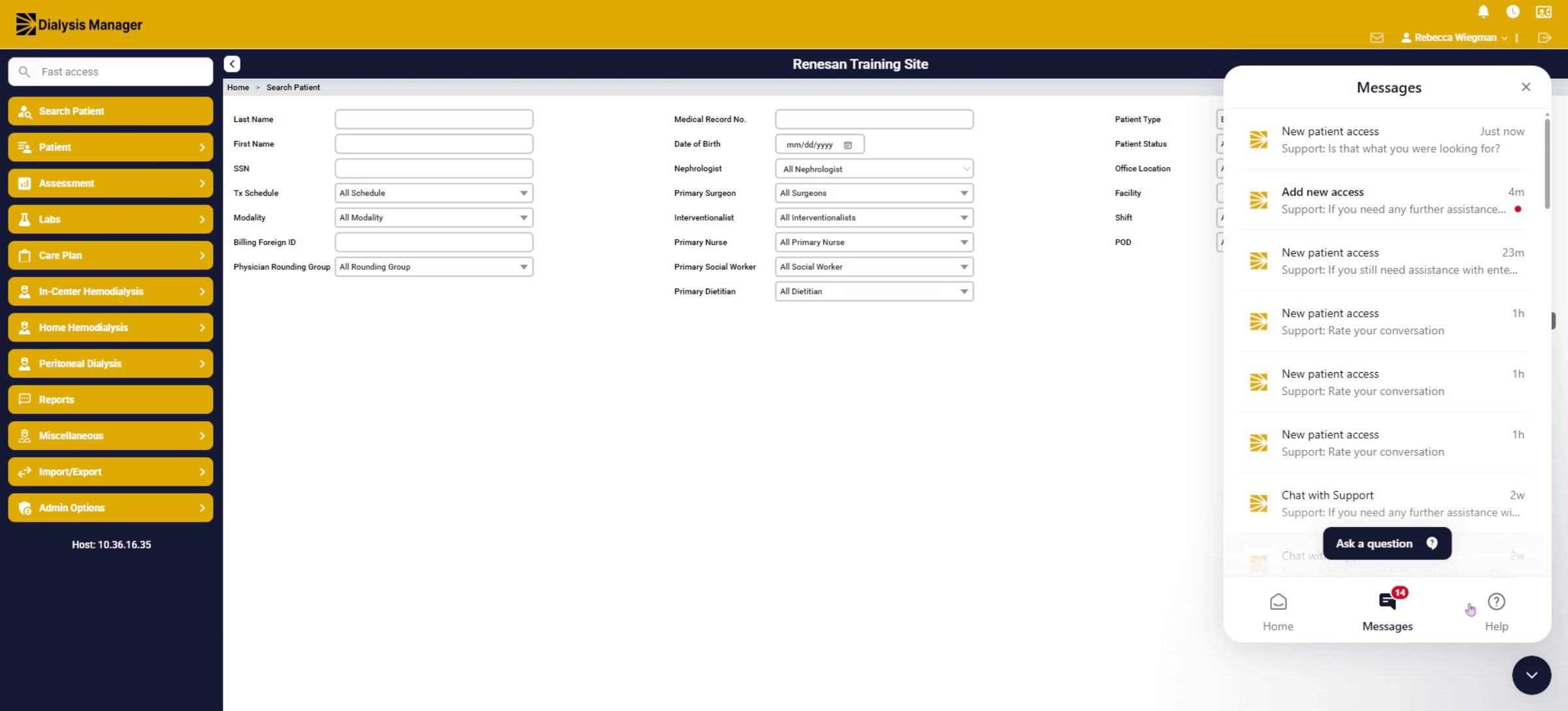
If we go into messages, these are all the recent questions that you have asked. Clicking into it, you'll be able to go ahead and review that information.
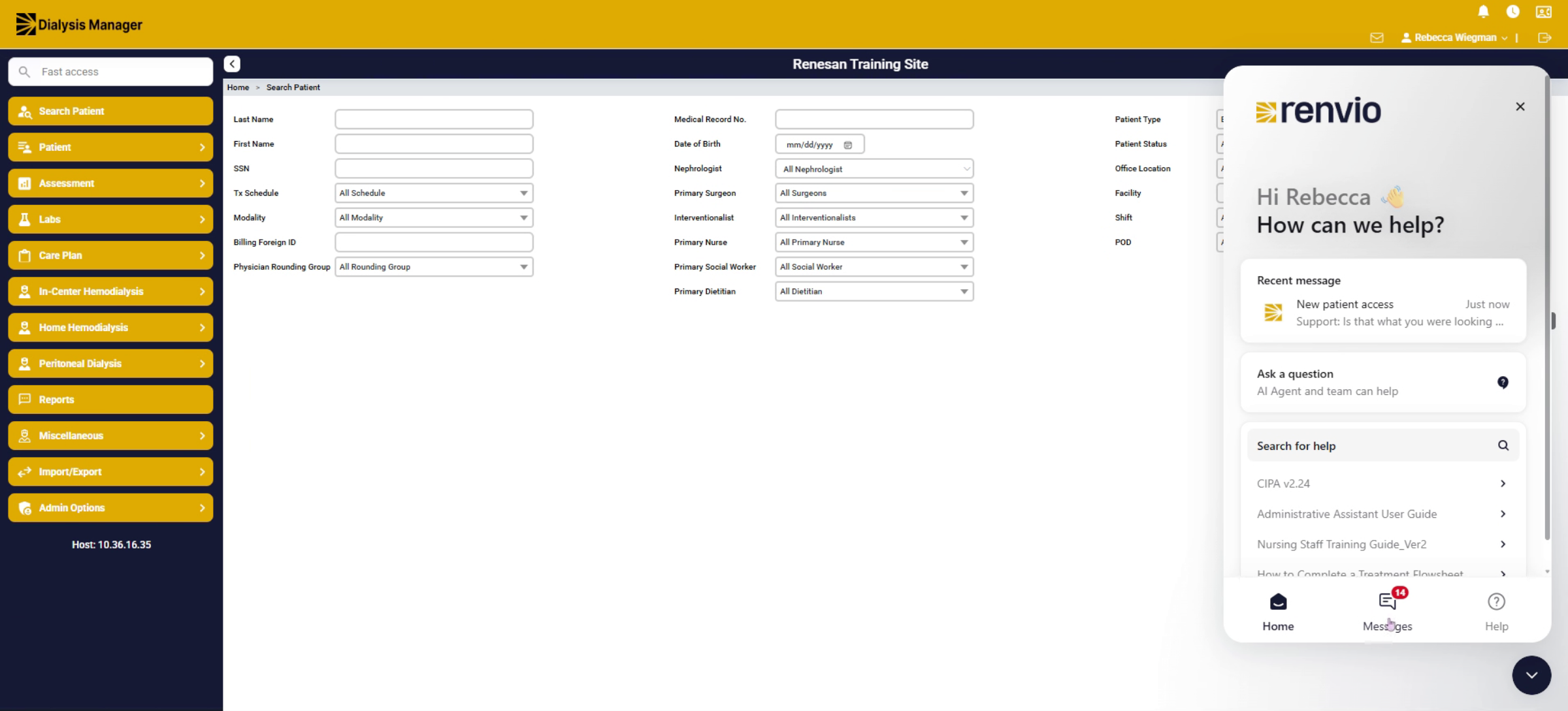
11. Support Desk Communications
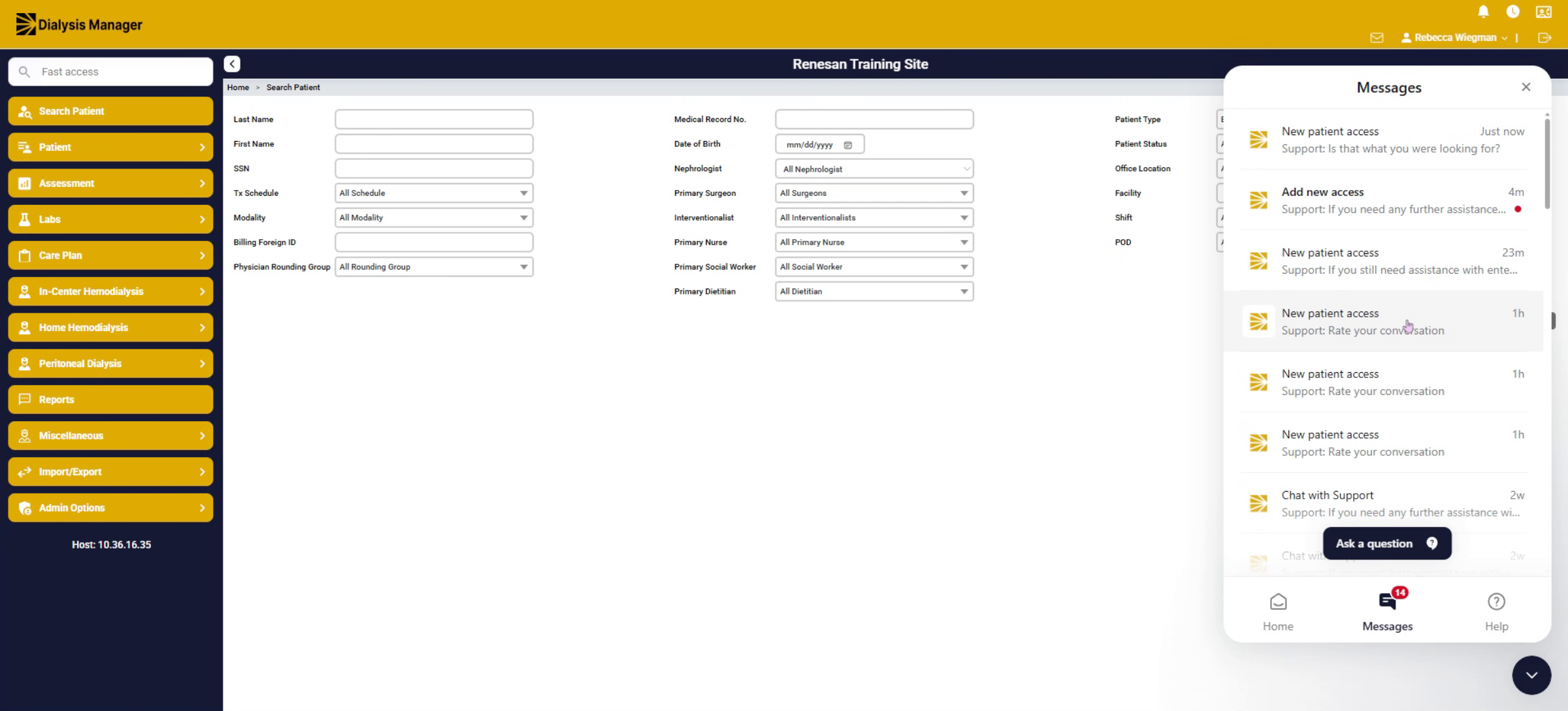
12. Help Section Search Options
13. Keyword Search And Topic Selection
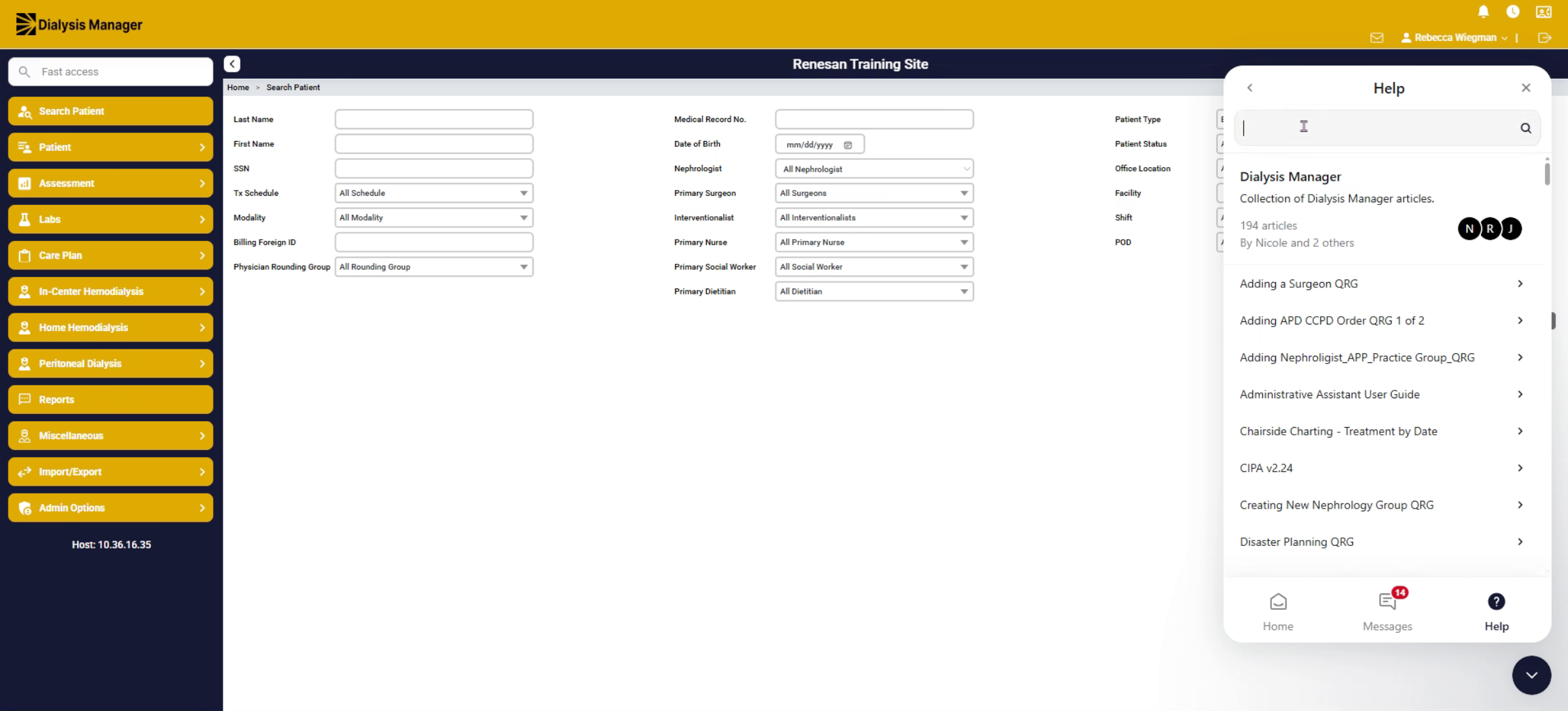
14. Scrolling Through Steps
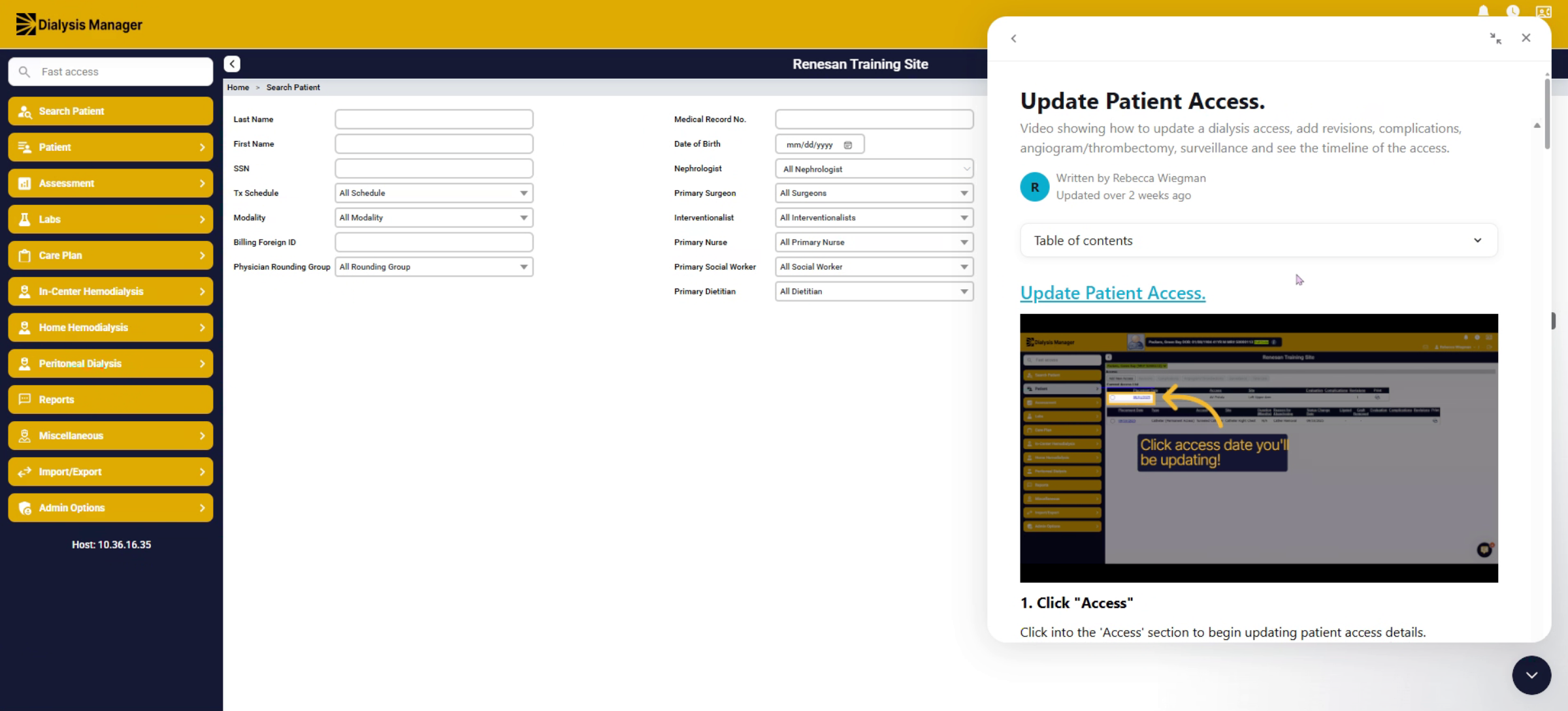
15. Opening Video And Steps
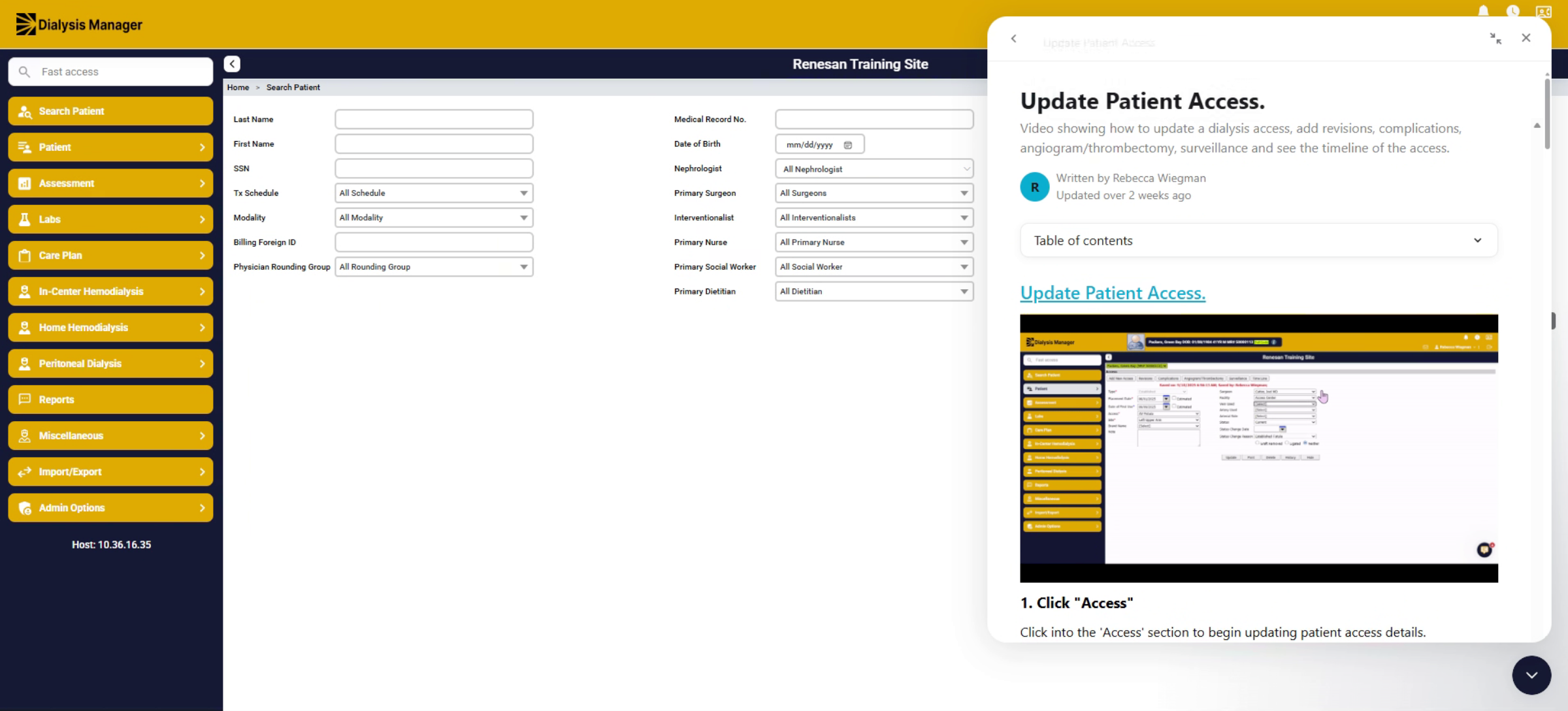
16. Back Button To Search Menu
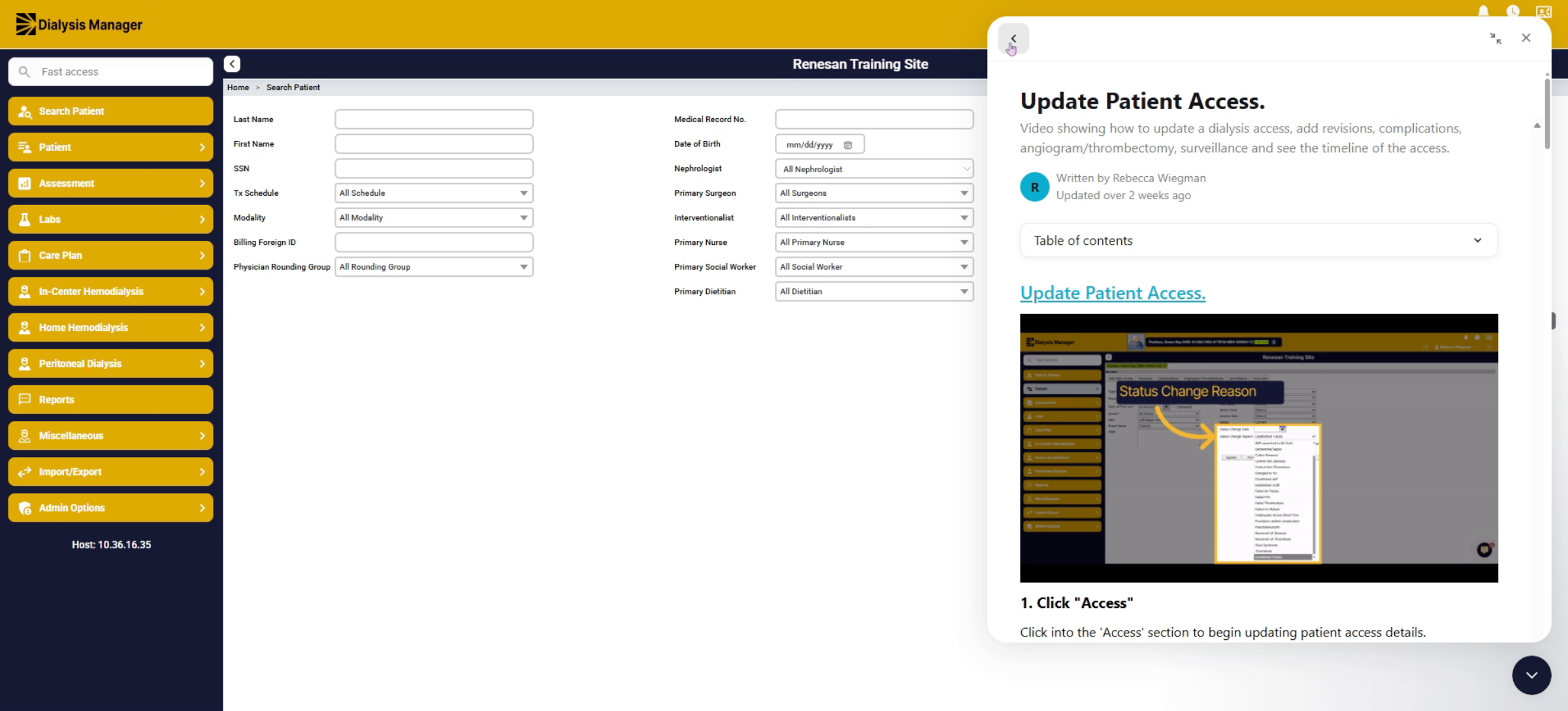
17. Home Button To Main Screen
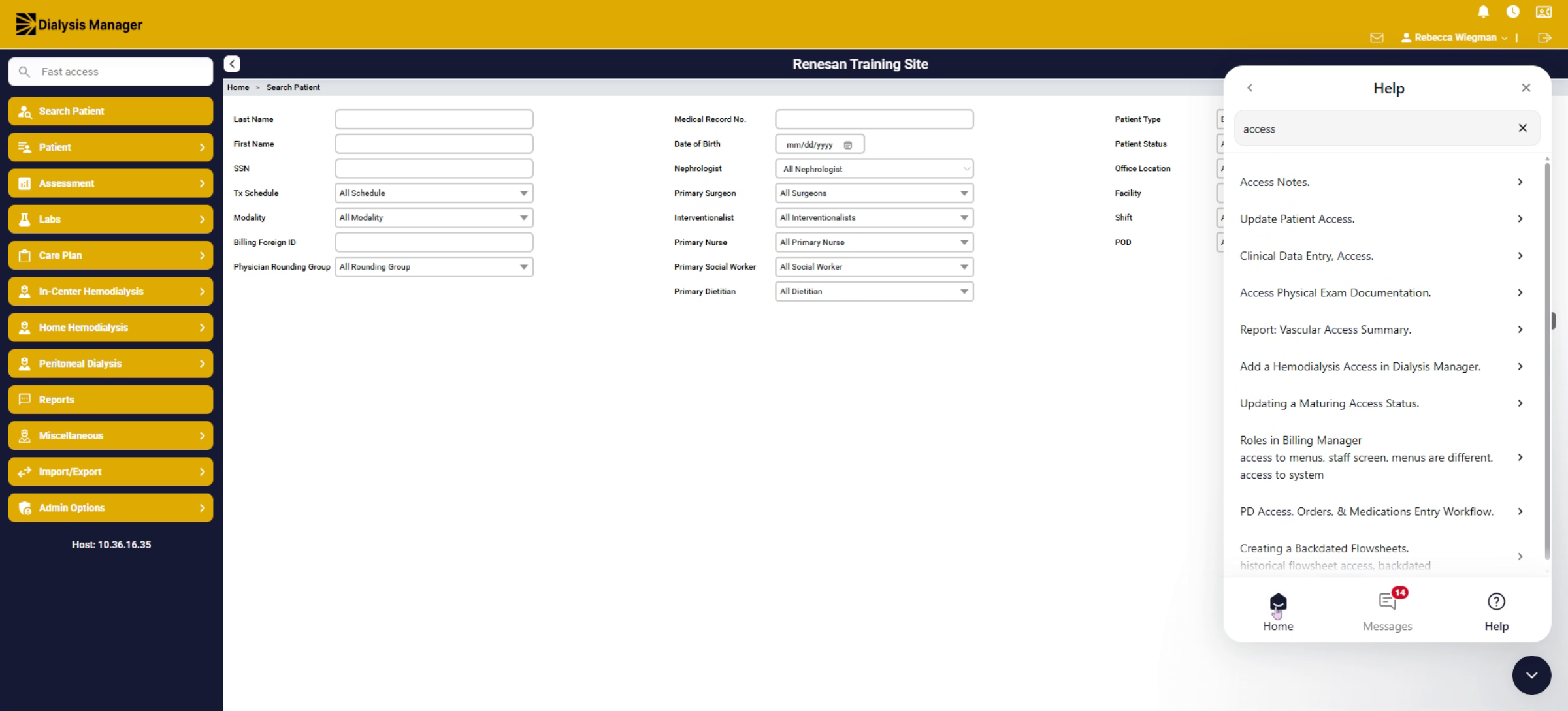
18. Minimize Or Complete Actions