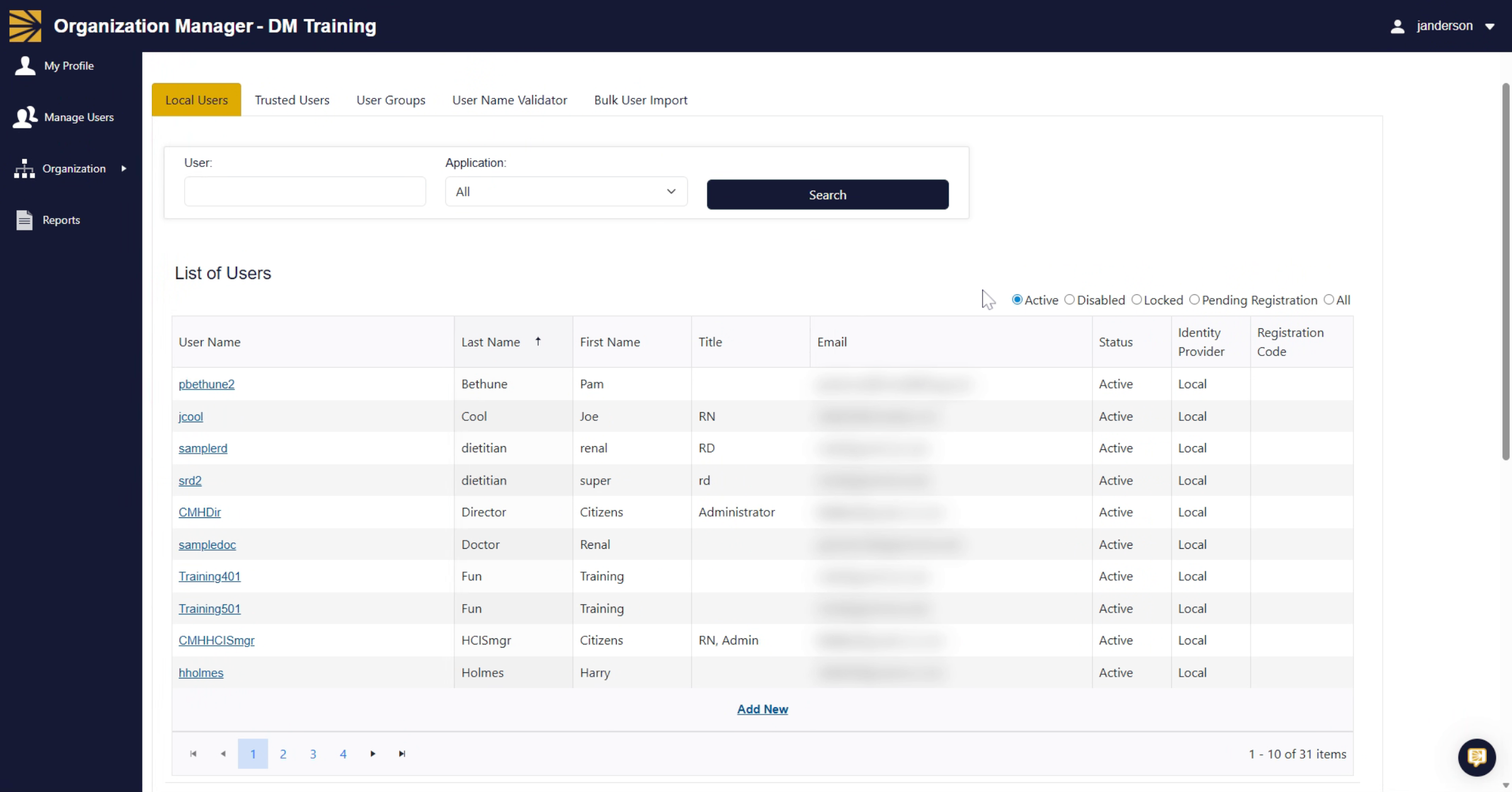
User Account Management Add/Edit Roles and Permissions.
1. Open Manage Users Section
This guide will help you add and deactivate users, assign permissions and roles to each specific user, and update them as necessary. A user with Organization Management Access needs to log in and click "Manage Users"
2. Initiate Adding New User
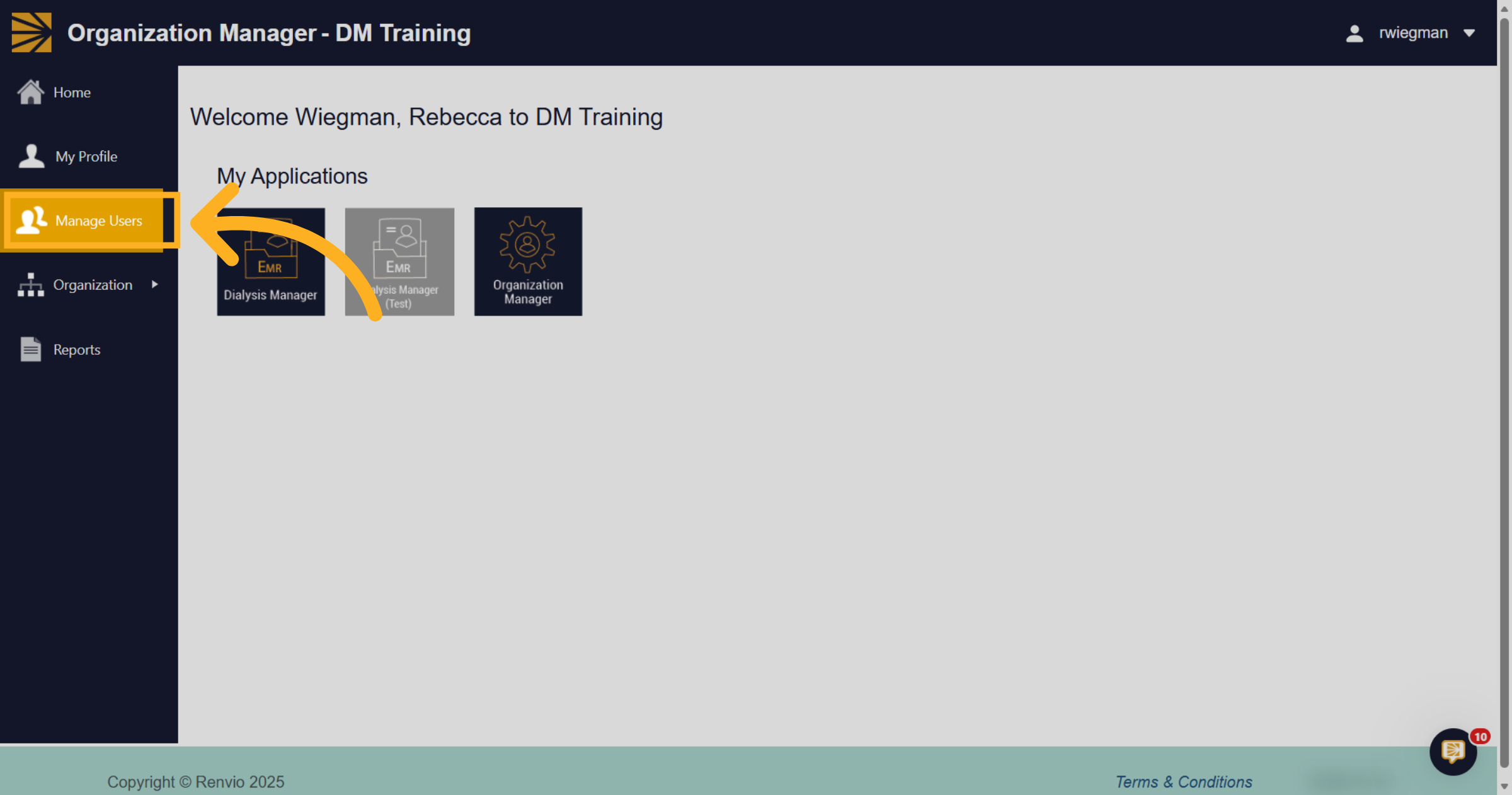
Click the Add New button towards the bottom to start creating a new user account. It’s always advisable to search for the user before creating a new account. You might find you can reactivate their existing account and update permissions instead.
3. Add User Details
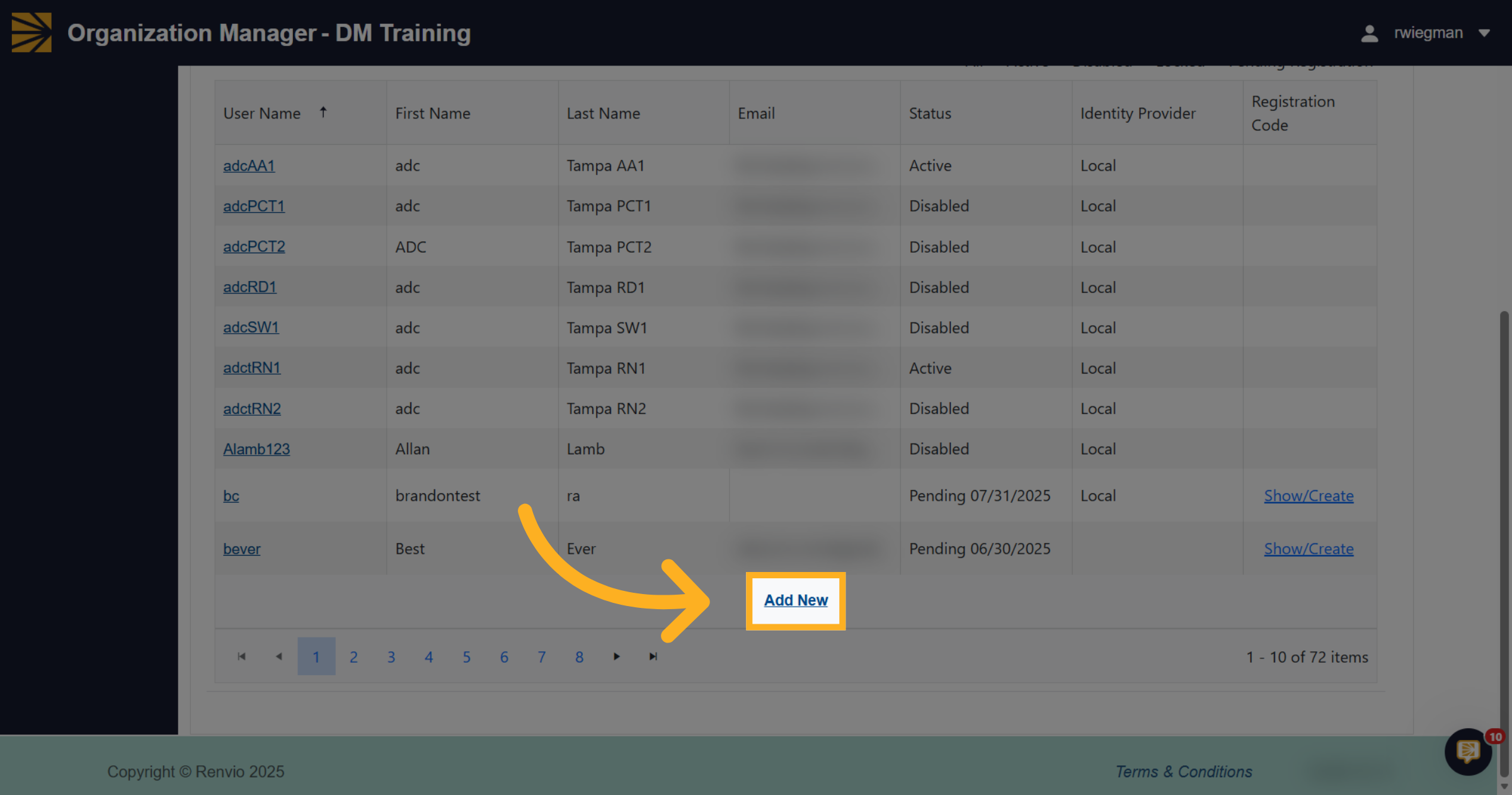
Enter the users first and last name, user initials, birth date and time zone. Click "Add" if the username is already in use, you will see a message related and will need to choose a different username.
4. Open Role Selection Menu
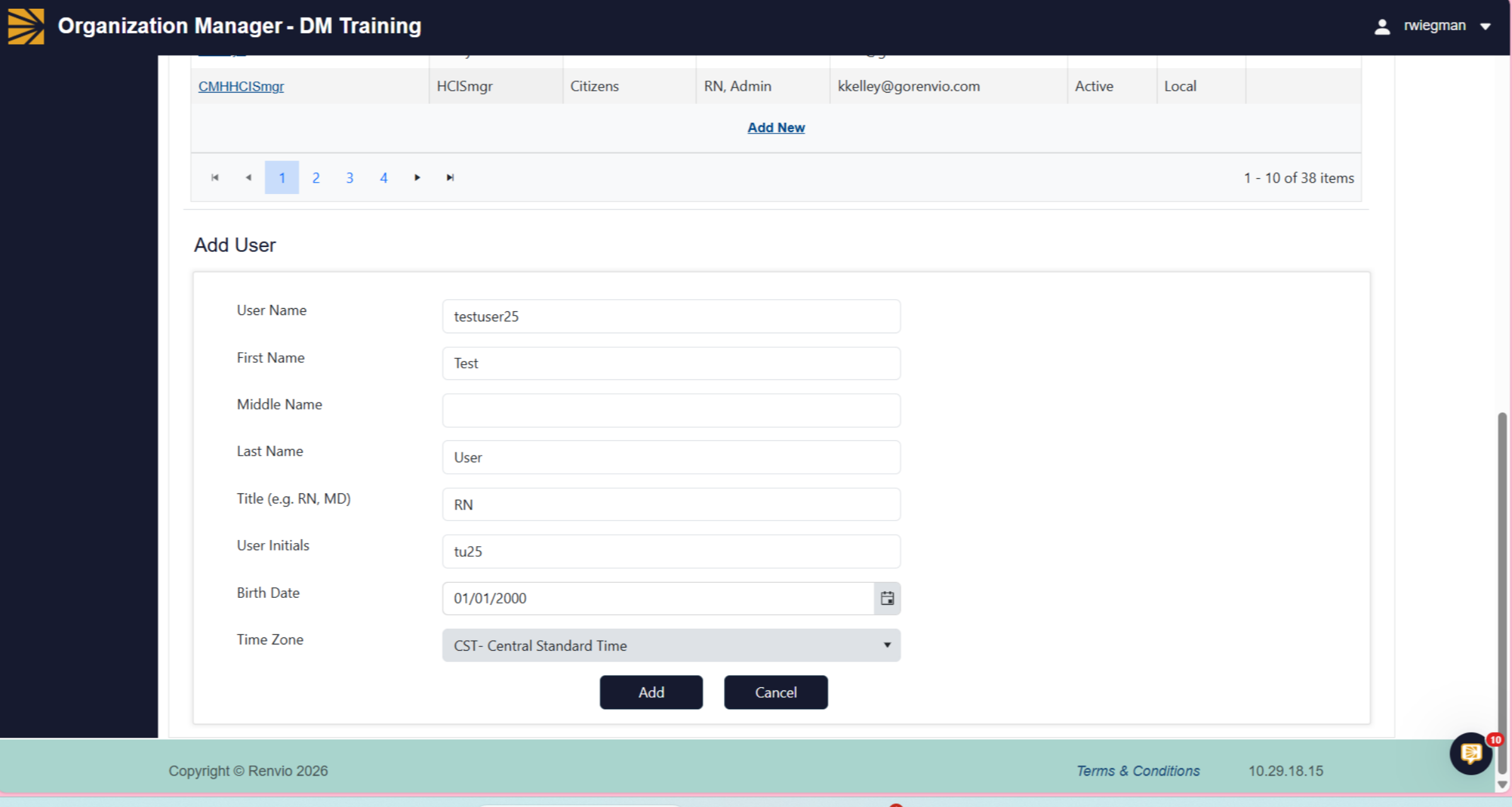
When clicking add, another window will open, where roles have to be selected from available roles, those would be Dialysis Manager for users, and Organization Manager for admin purposes, select the appropriate role and move it to selected roles box.
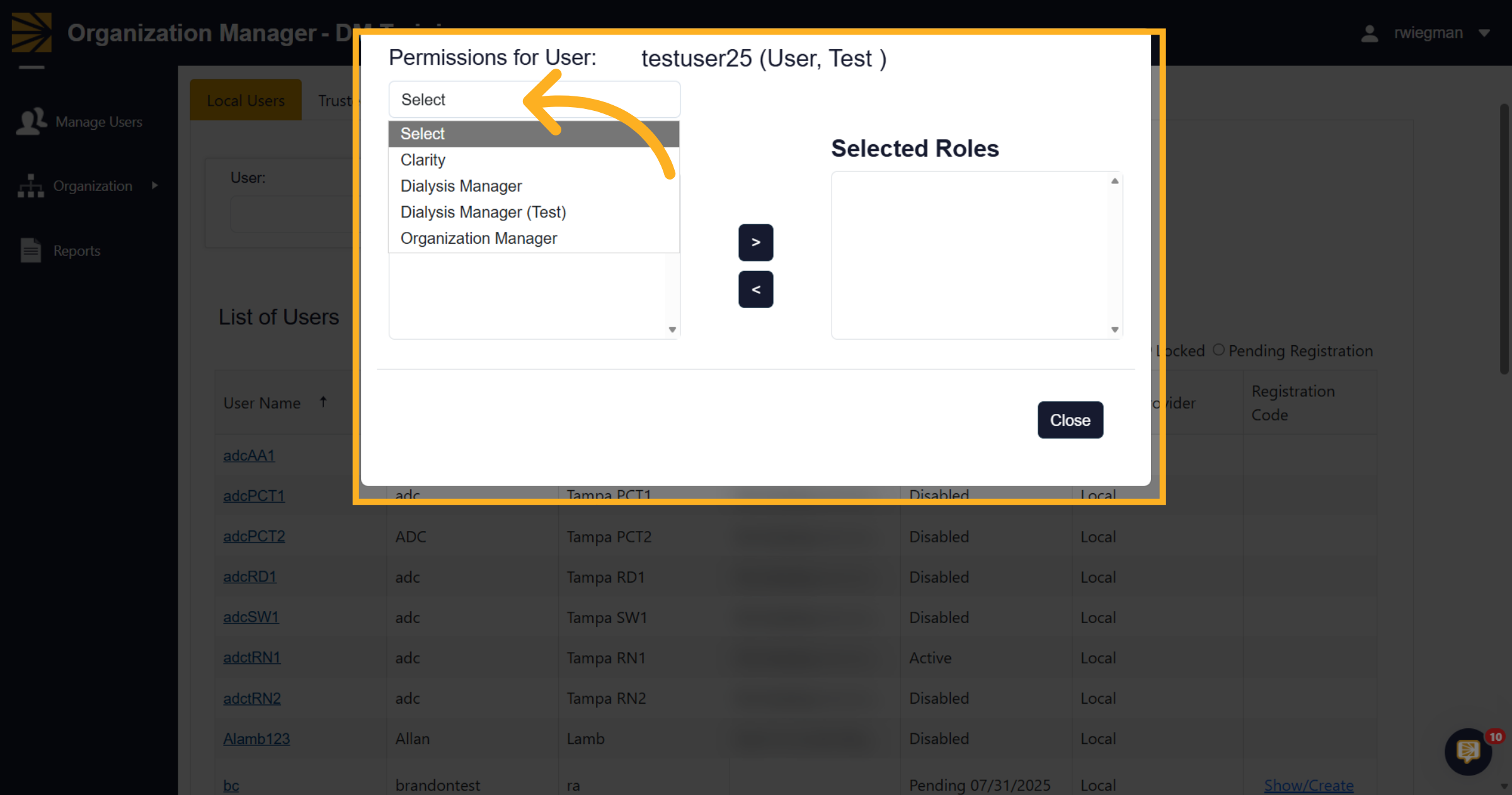
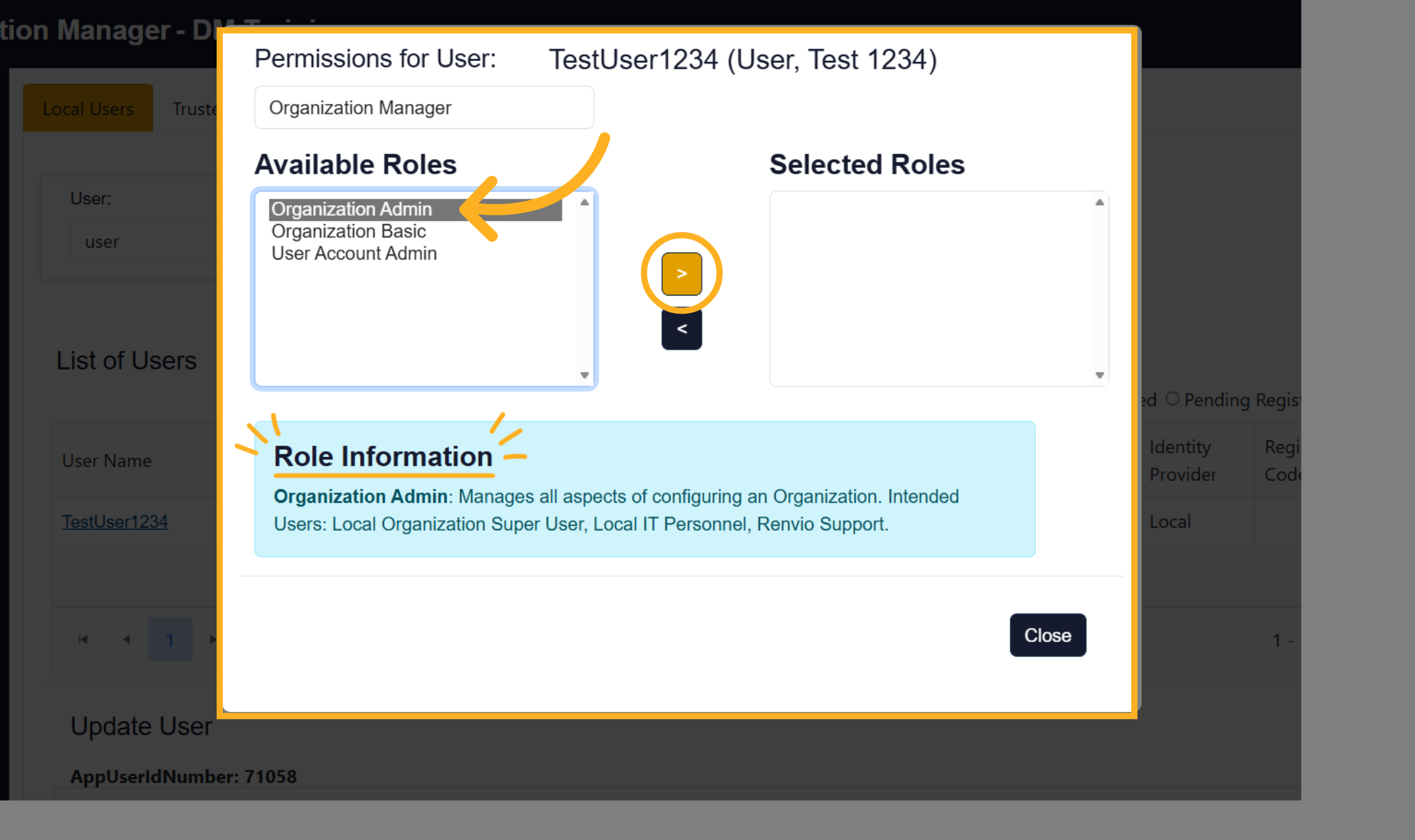
5. Available Roles
You will need to select the role under "Available Roles" and click the arrow to move to the "Selected Roles" Please note the "Role Information below! It provides you a description of the role in the blue box.
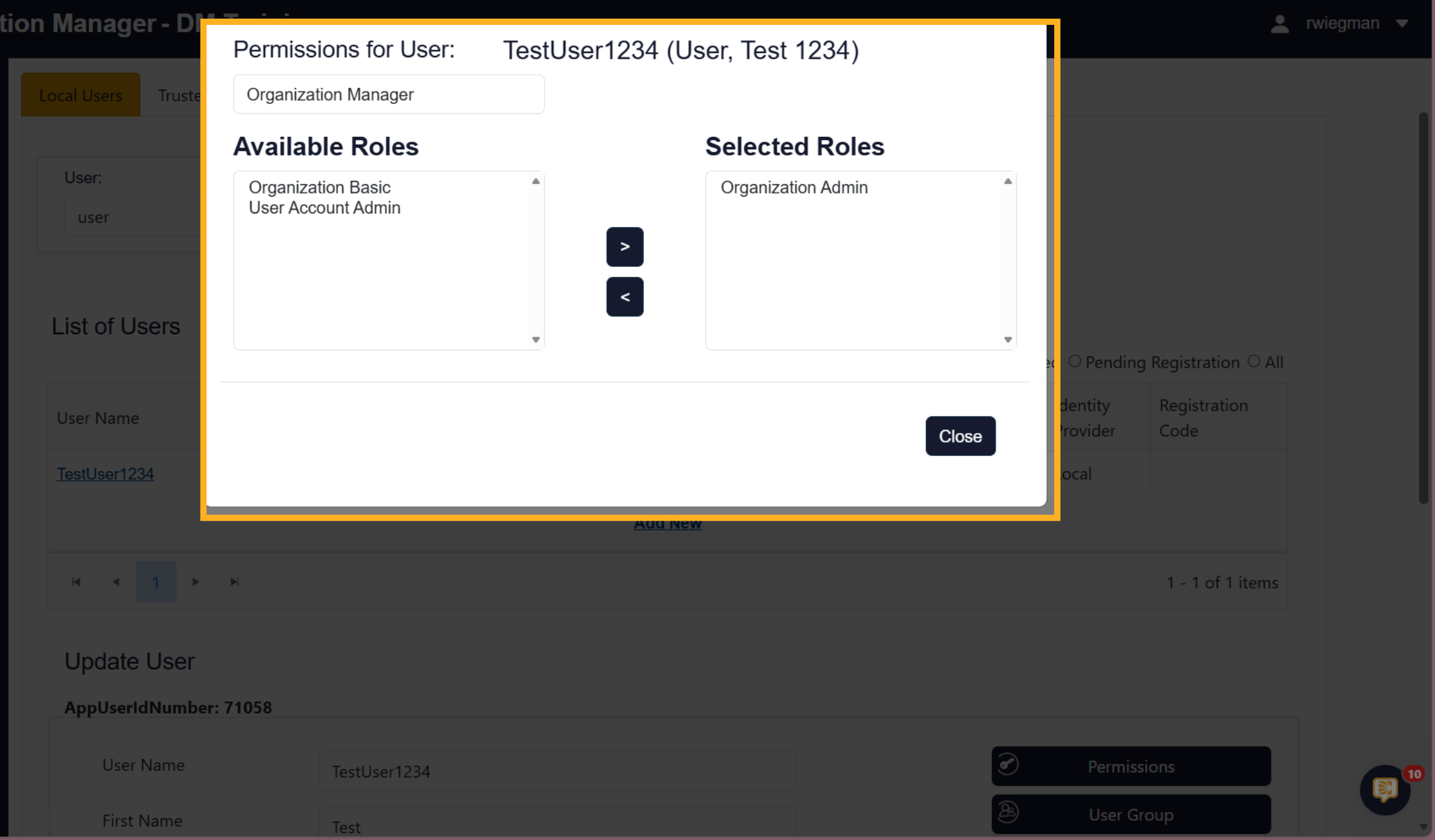
6. Selected Roles
Here you'll see that we had select Organization Admin and selected the arrow in the middle of the screen which moved the role to the "Select Roles". Please note, all users will see My Profile and do not need special organization management permissions. Organization Manager roles are considered high level, involve user confidential information, and should be given to only a select few at the organization.
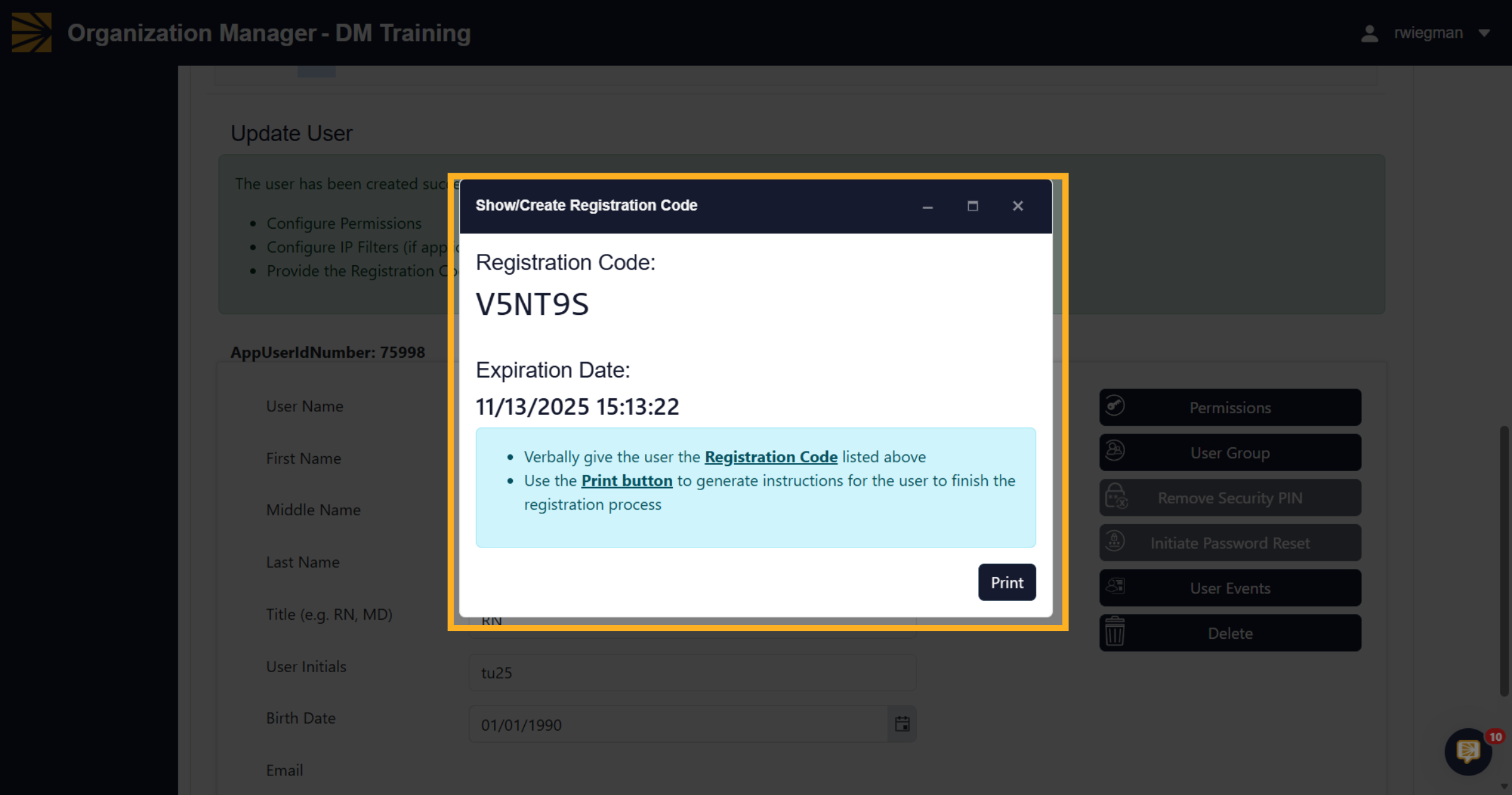
7. Registration Code
Once the roles have been selected, the updated new user ID window will pop up with a Registration Code. You'll need to provide this code to the new user.
8. The User
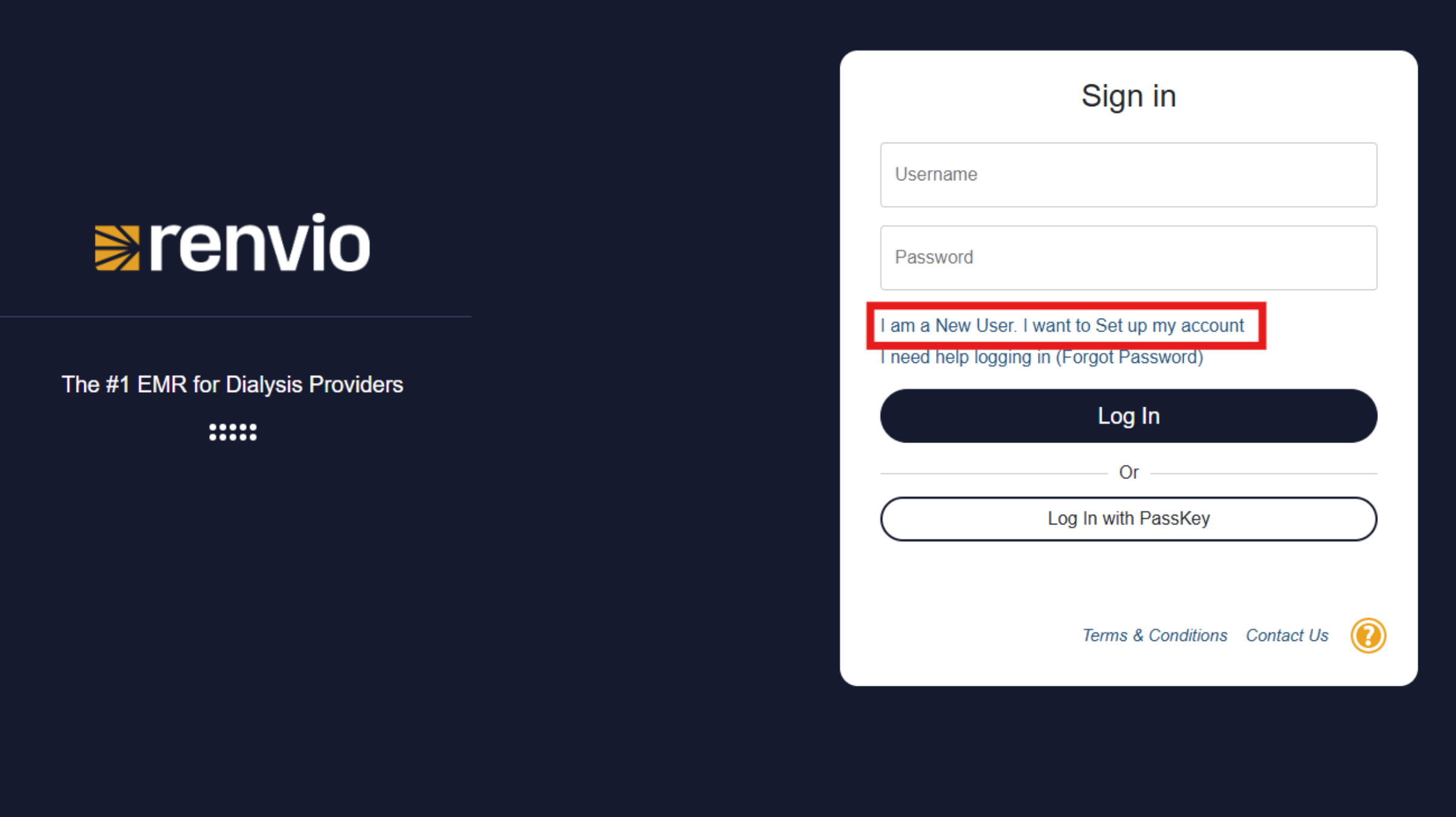
The user will need to go to emr.renvio.com and click on "I am a New User, I want to Set up my account". From there they will be asked their username and the registration code. They will continue to registration process before receiving an email to verify their account.
9. Show Registration Code
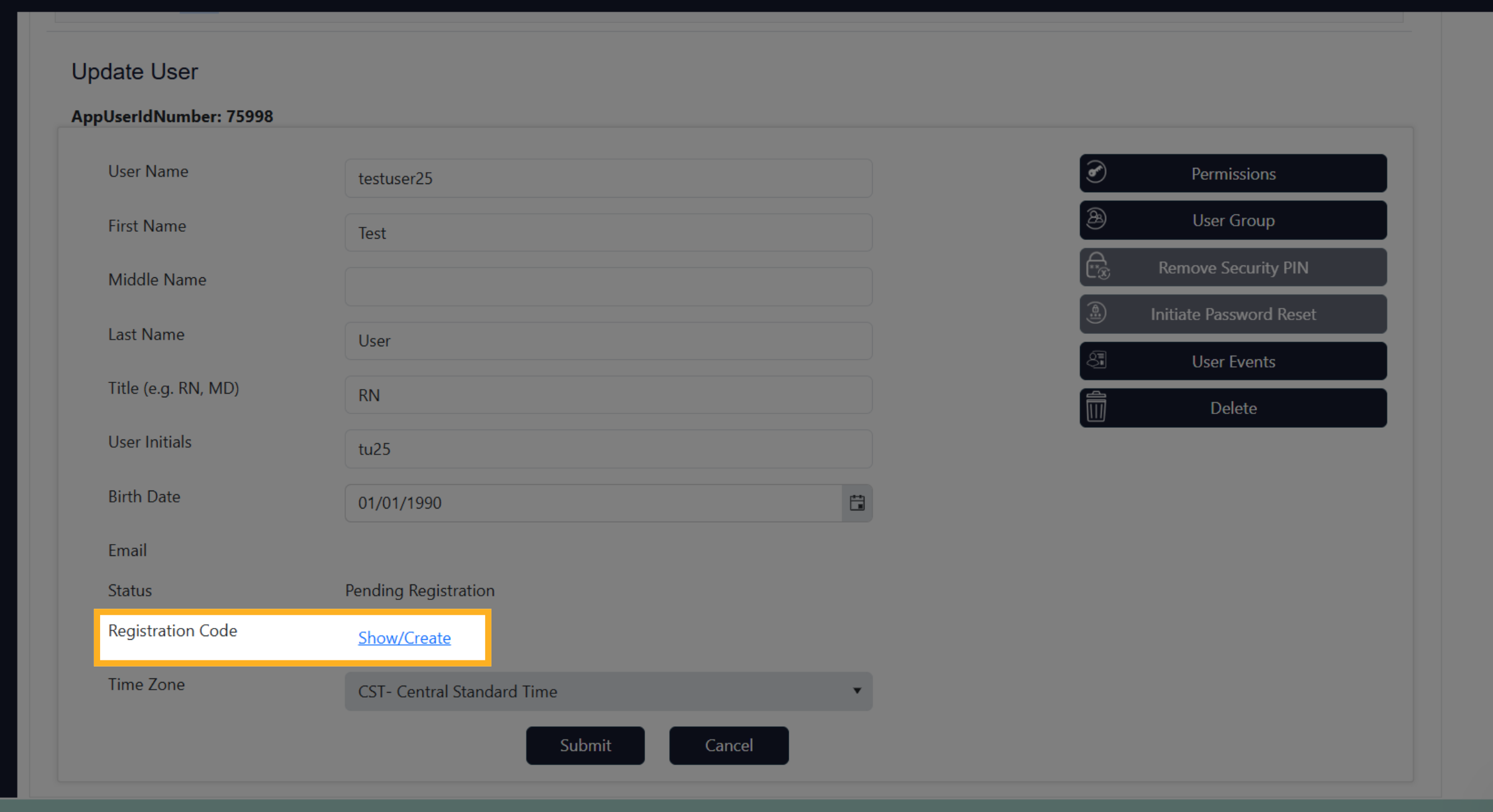
If users forget their code, your able to search for their username and click Show/Create Registration Code.
10. Expiration Date
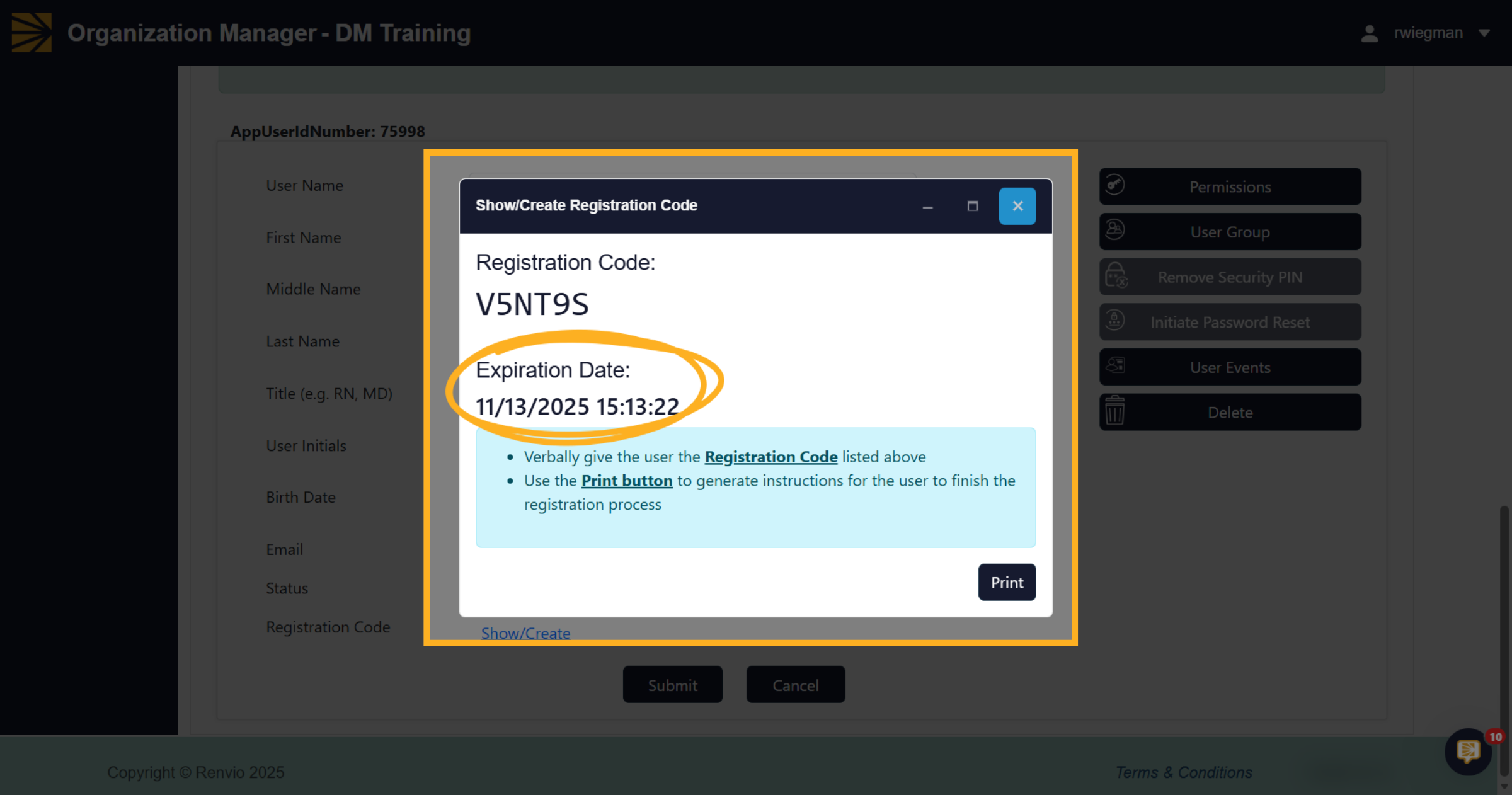
Please note that the Registration Codes do have an Expiration date, typically for 3 days. You will be able to generate a new code if users do not register their account in time. You'll see a create rather than a Show/Create on the previous screen.
11. Updating Permissions
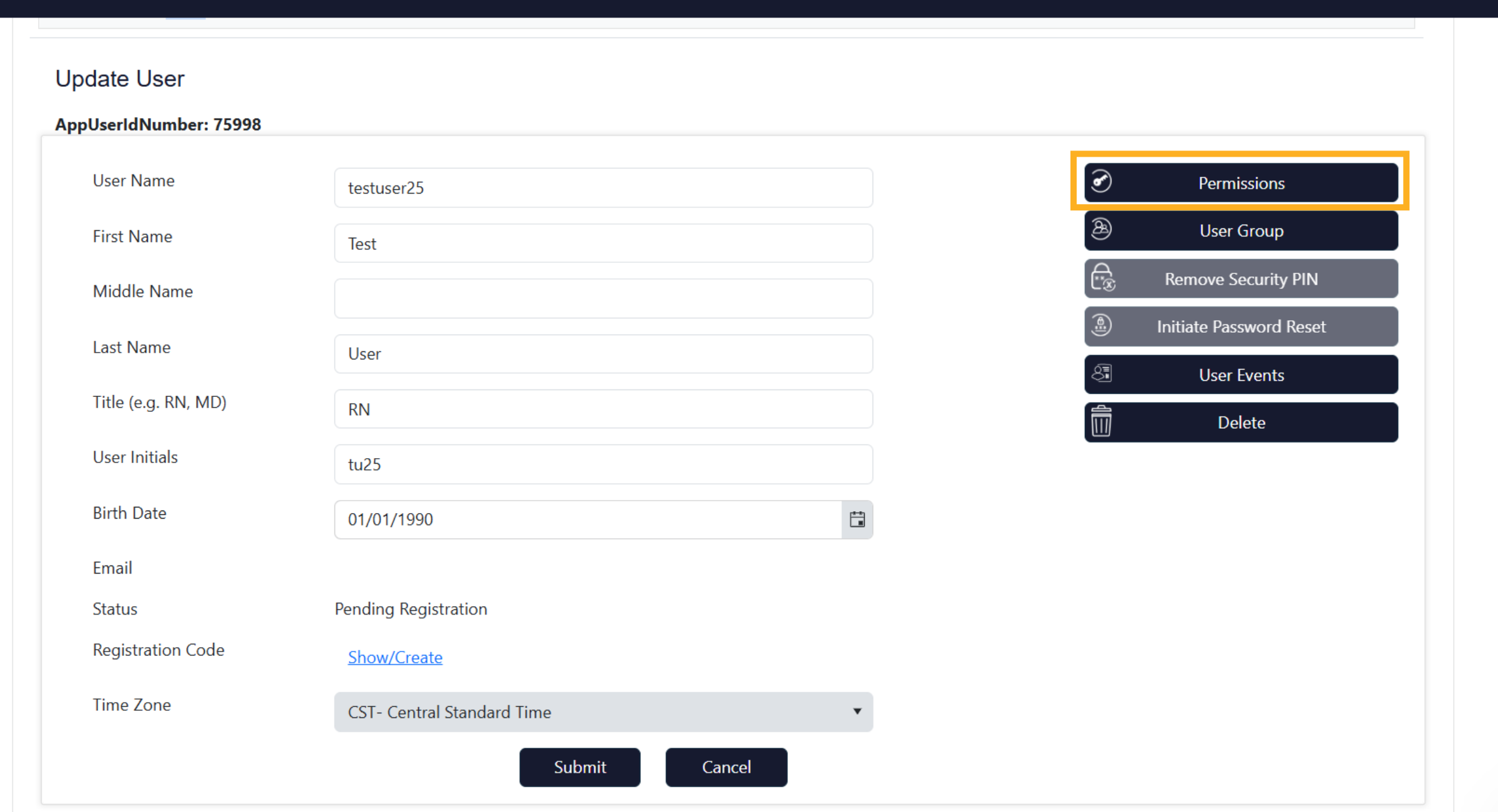
If you need to update permissions and give a user Organization Manager, you will again search for their username and click into permissions and move Organization Manager to the select role!
12. Open Add/Edit Users
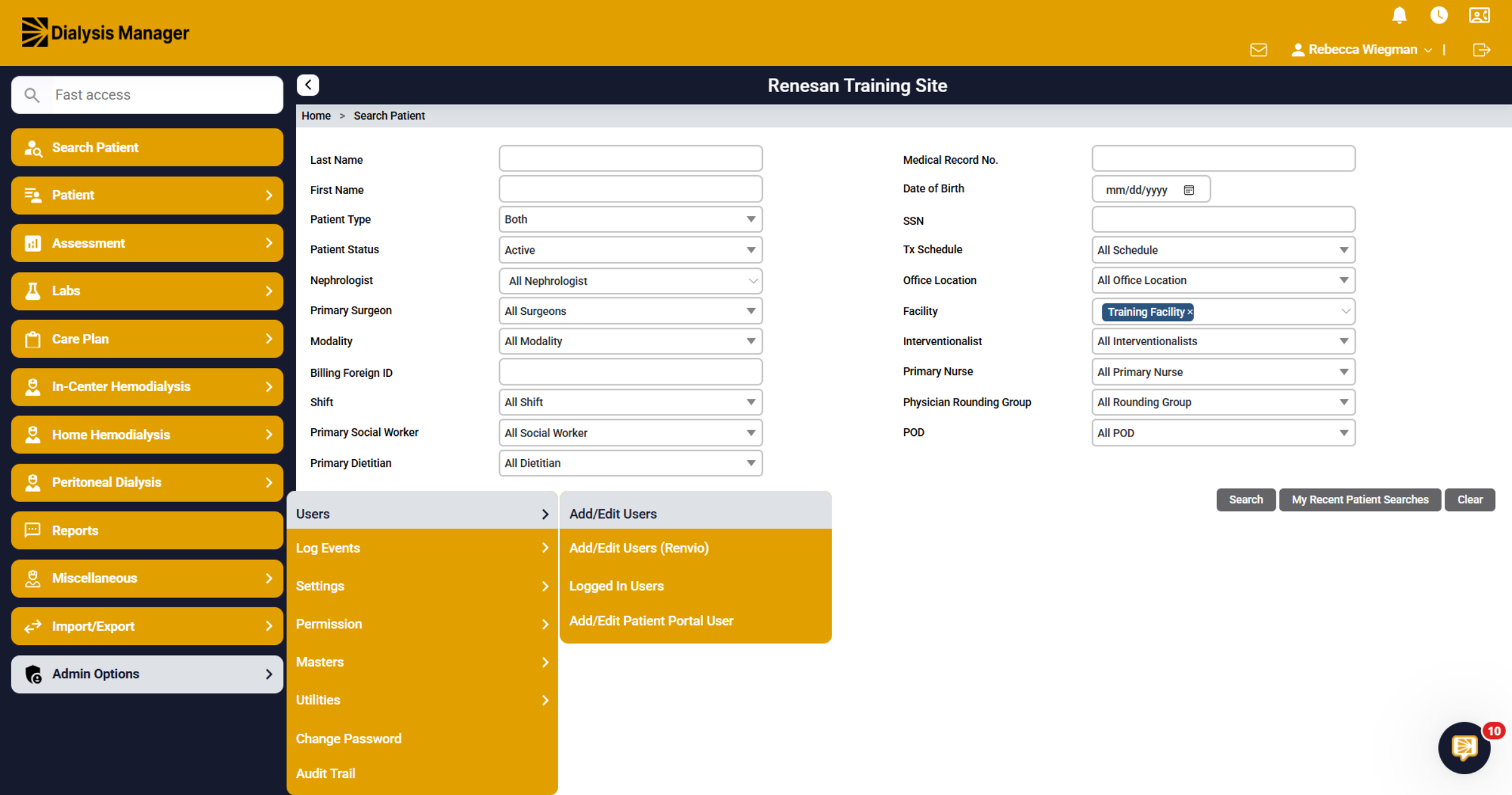
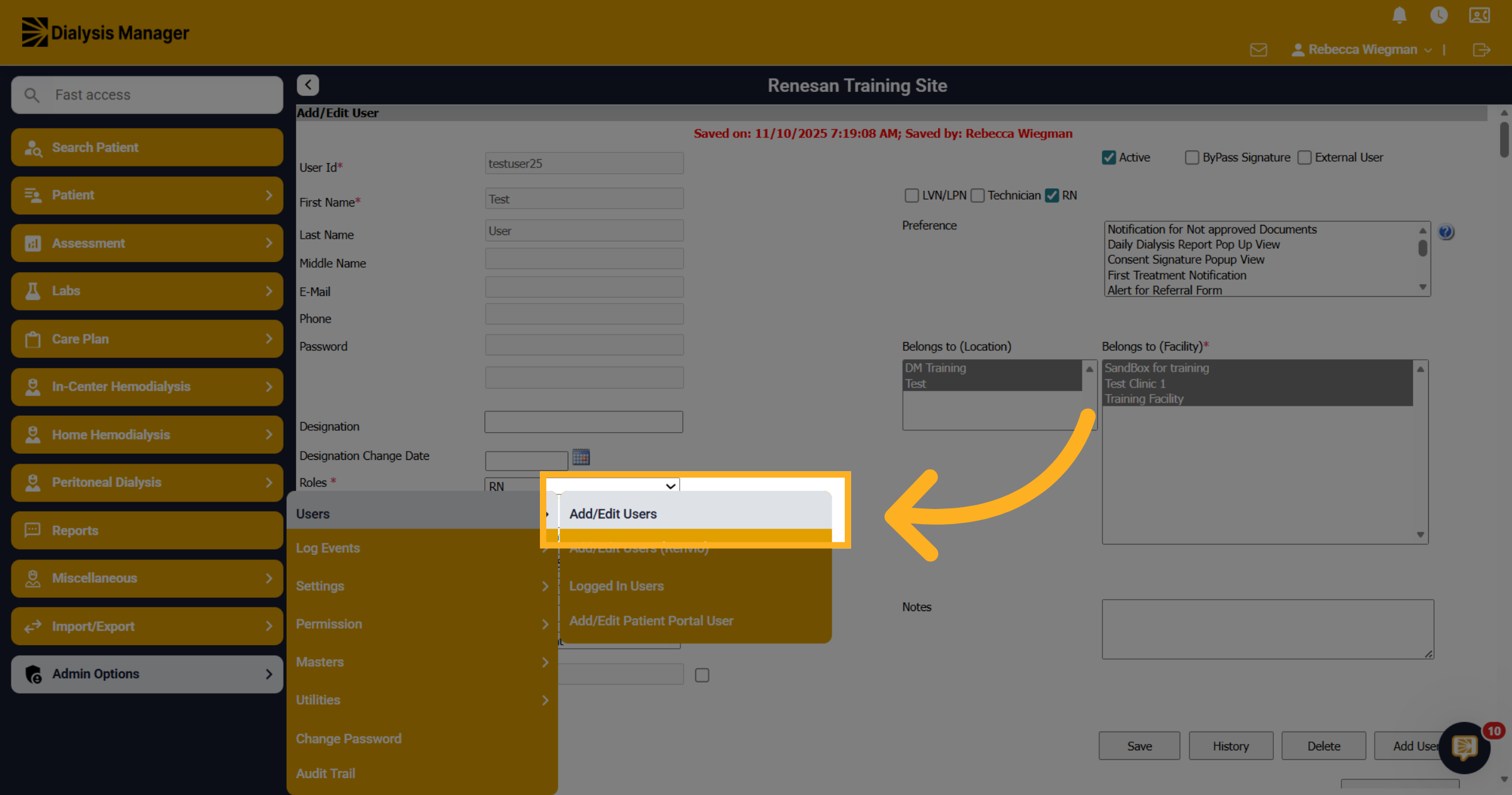
Now that the user has been created, you'll need to give them specific roles. Inside Dialysis Manager, click Admin Options tab, then Users and finally Add Edit Users
13. Enter Username
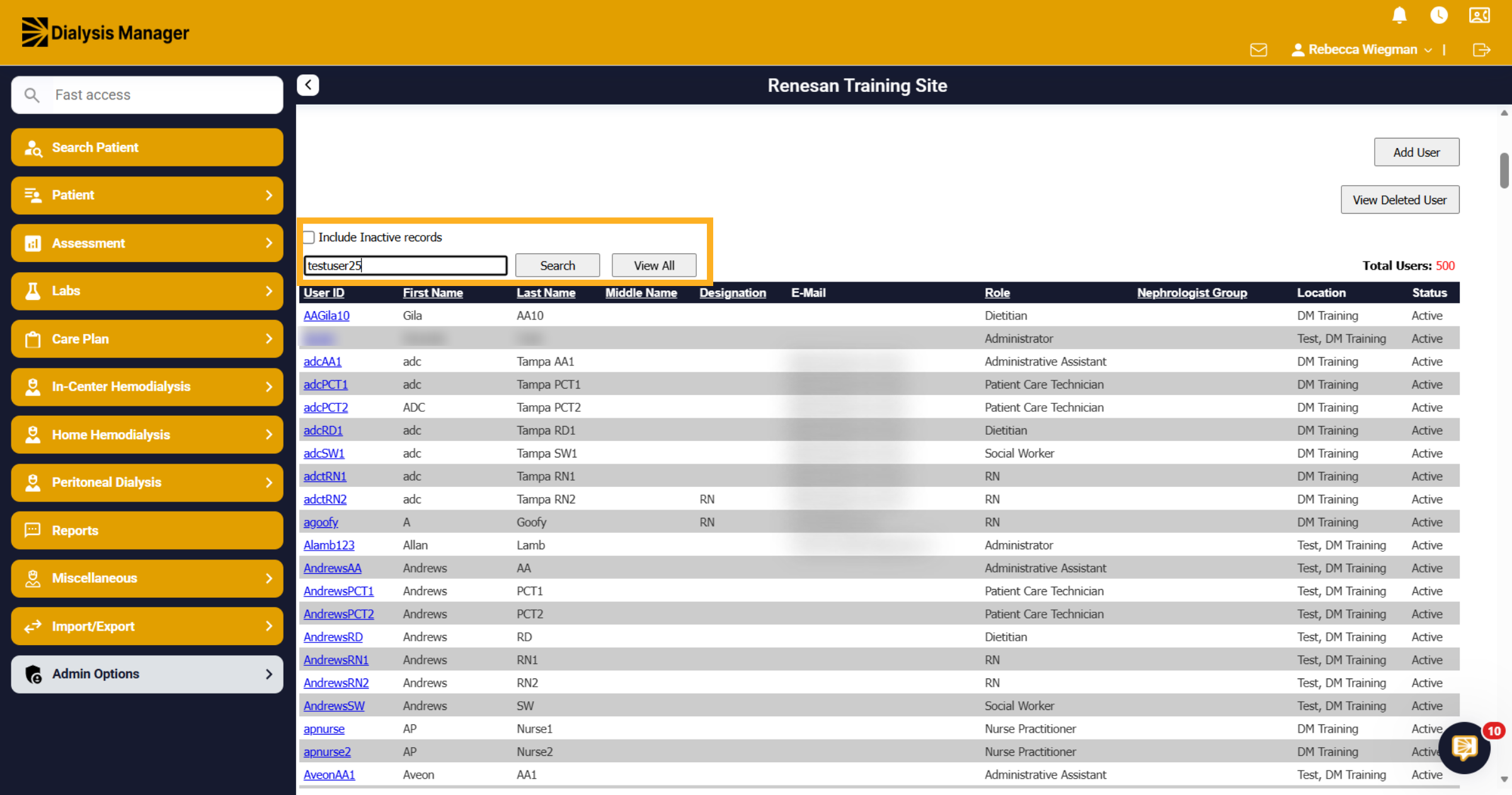
Enter the username and click search
14. Select User
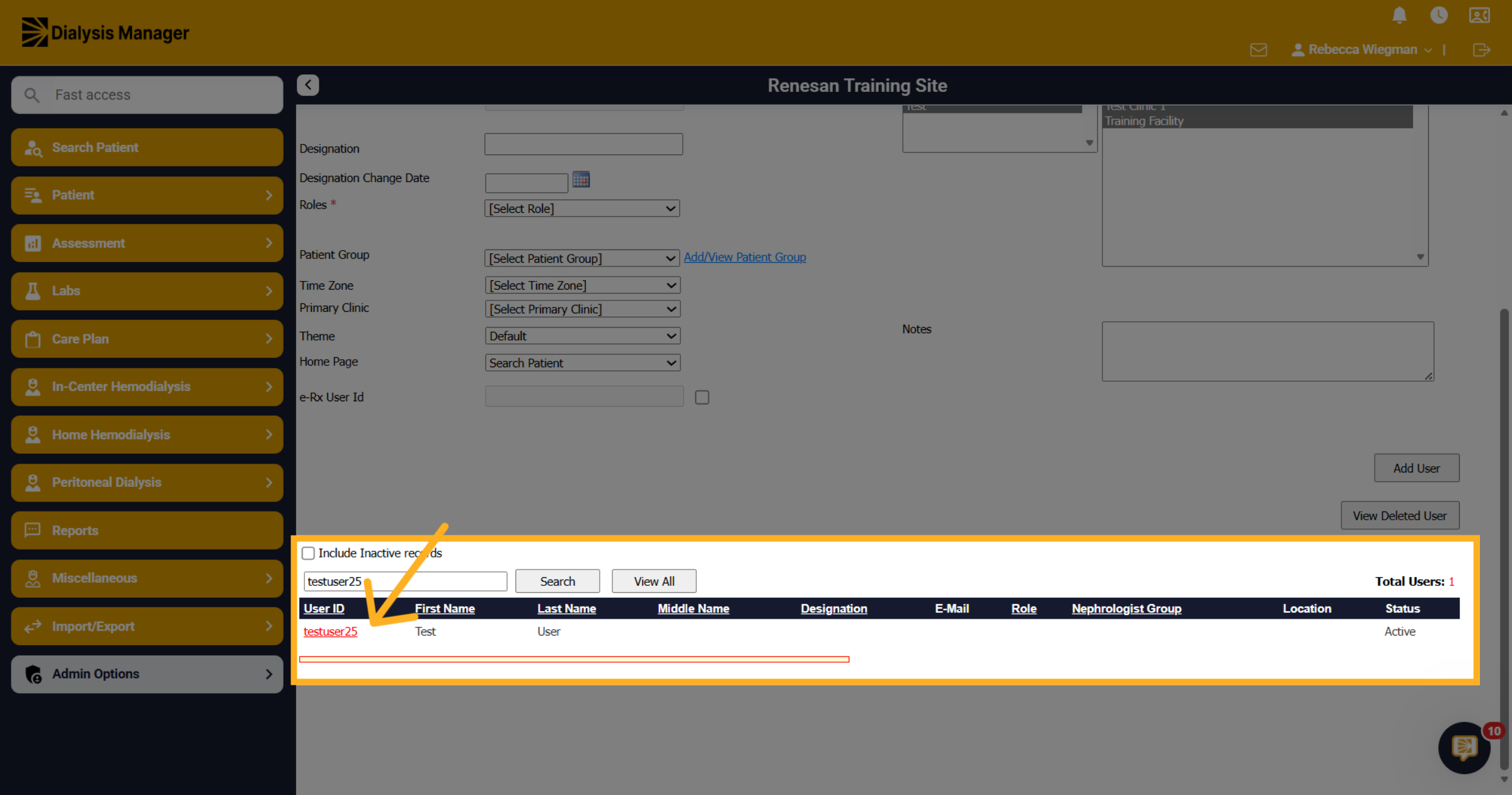
The user should appear, select the username to open the Add/Edit User screen.
15. Assign the appropriate roles
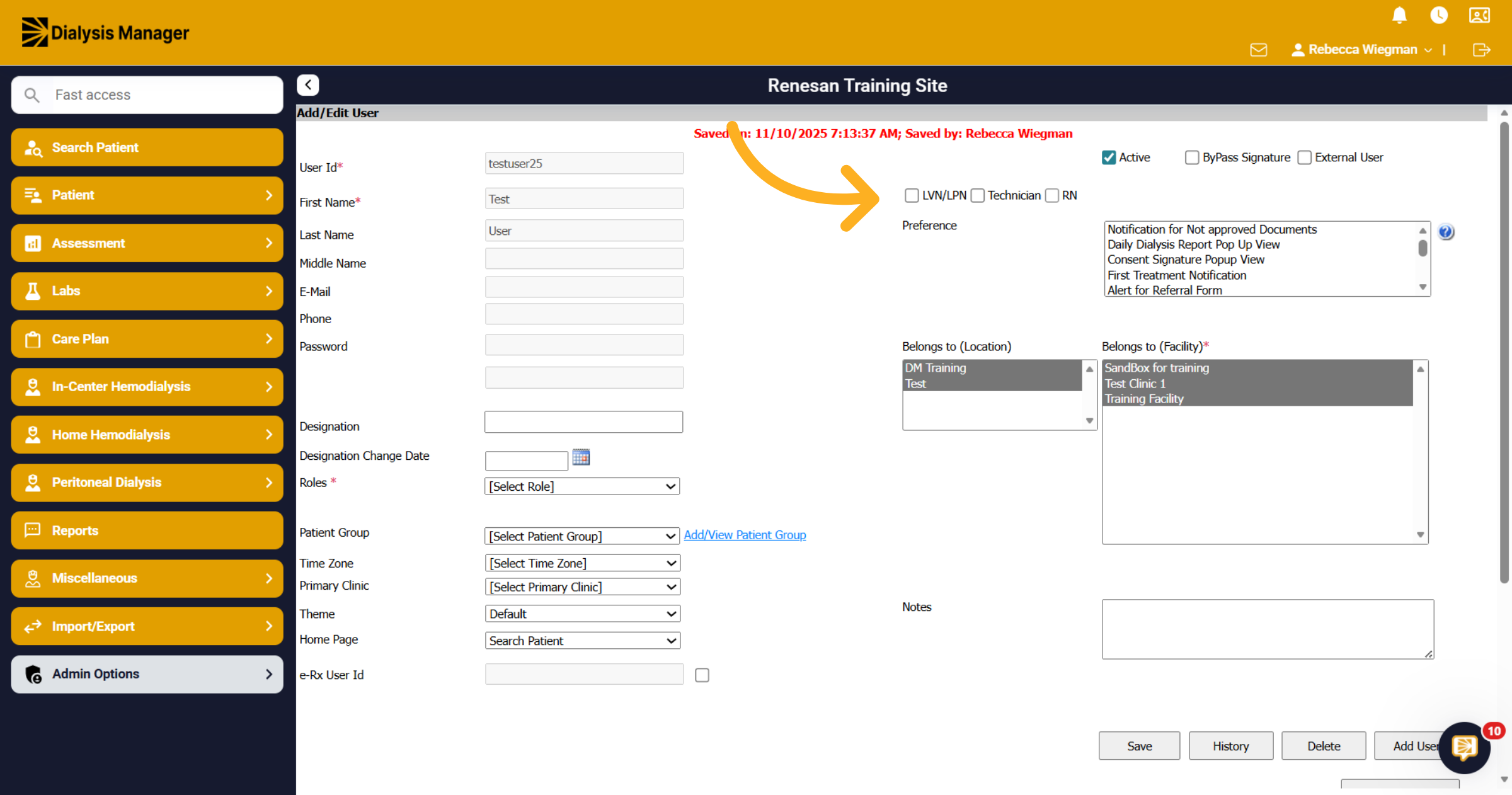
First verify the User you have selected is accurate. Specify if the user is an LVN/LPN, Technician or a RN.
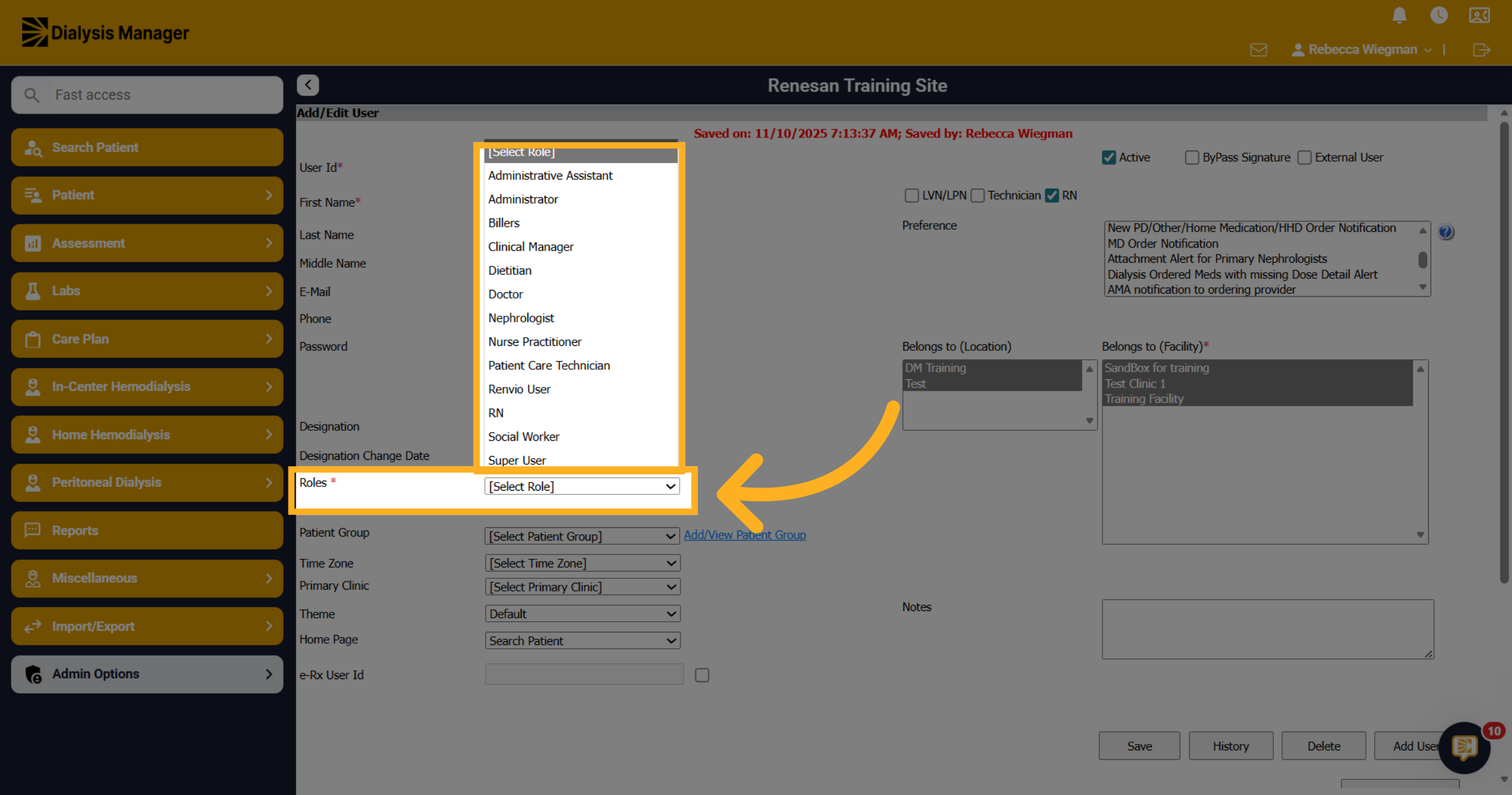
16. Roles
Enter the selected user role in the field weather the user is an Administrator, Dietitian, Nephrologist, PCT, RN, Social Worker, etc.
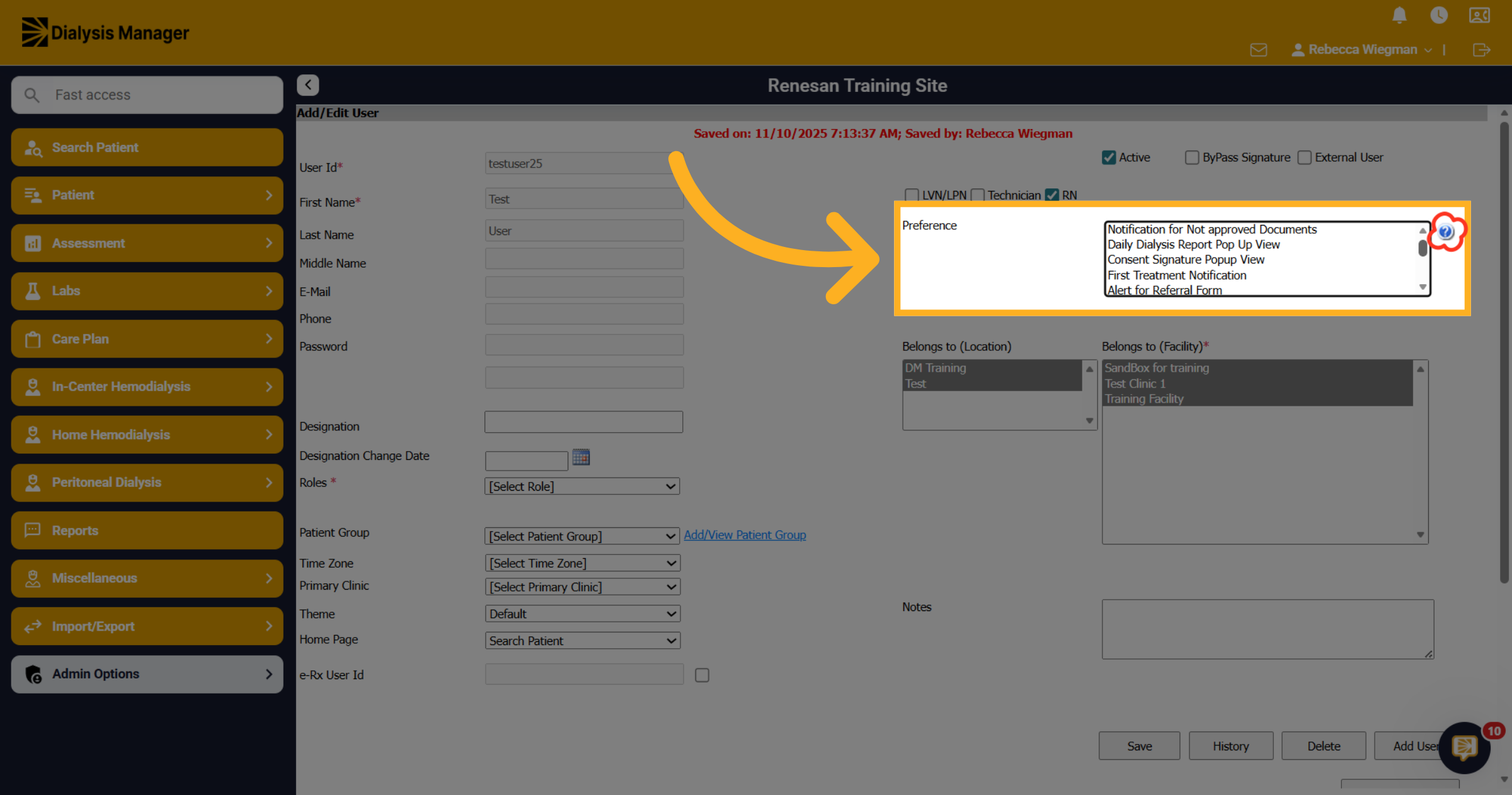
17. Preferences
If your organization uses preferences, select the preference specific to the role of the user. An example of this is for RN, some organizations use: New Order Alert or MD Order Alerts. Use your control key to select multiple preference options. Clicking the question mark next to the preference box for detailed description of each!
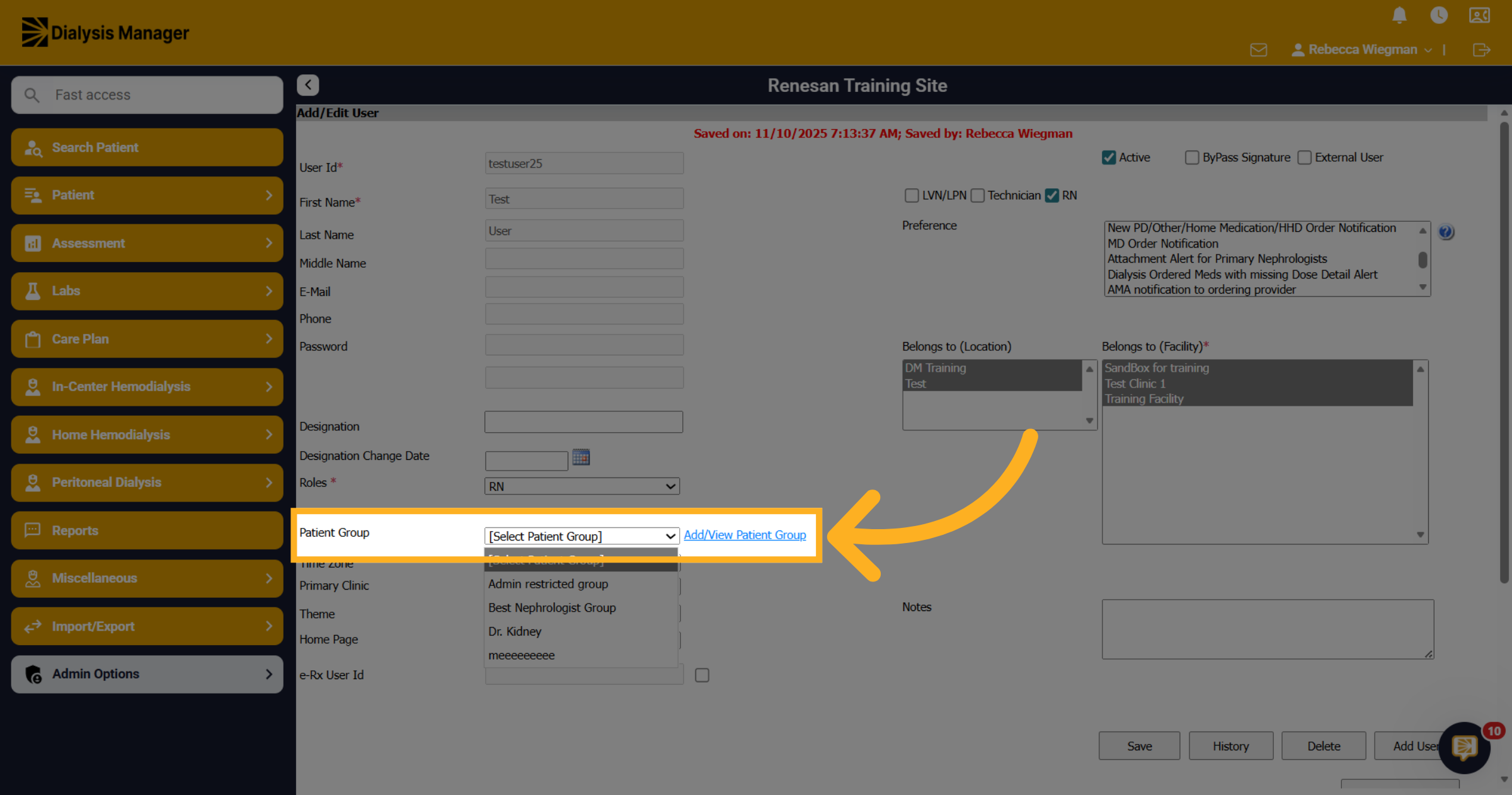
18. Patient Group
Select the relevant patient group for the user, if applicable
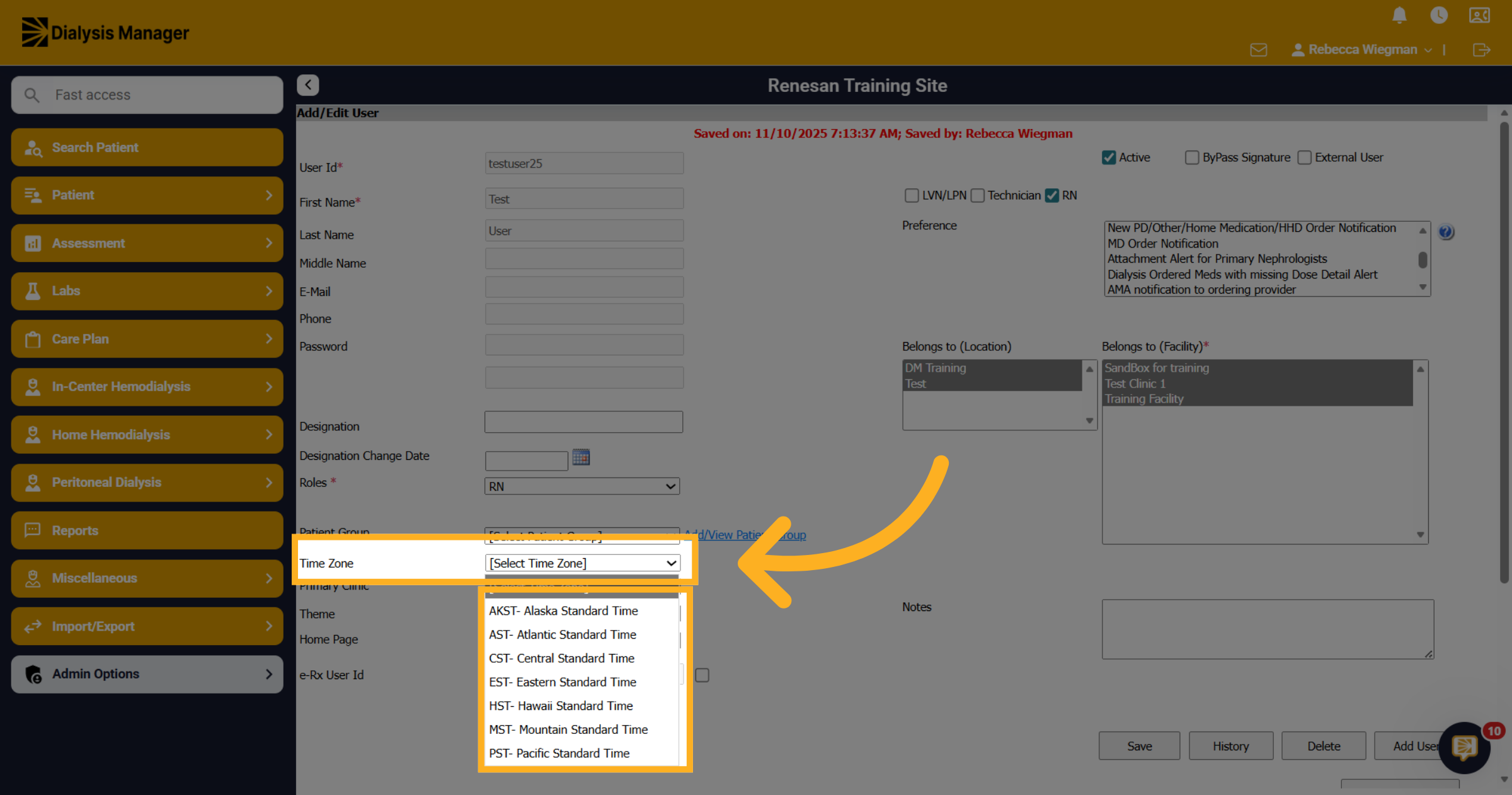
19. Time Zone
Verifying that a Time Zone has been entered. Selecting a Time Zone is extremely important! This will sync with the servers and facility time zone which will help staff see correct times under the Treatment by Date and Station Availability screen.
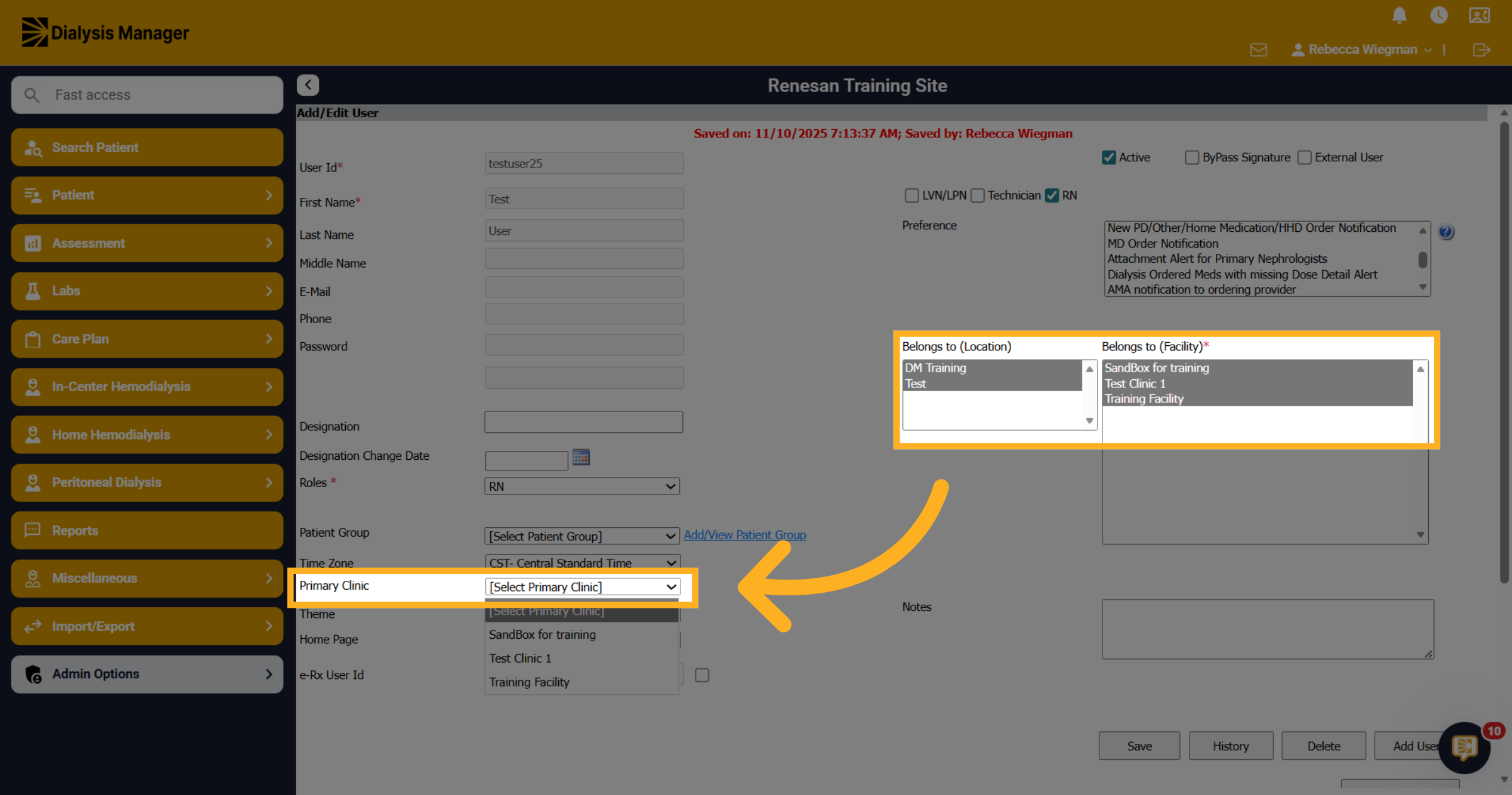
20. Primary Clinic
If your facility is associated with multiple clinics your able to select a primary clinic.
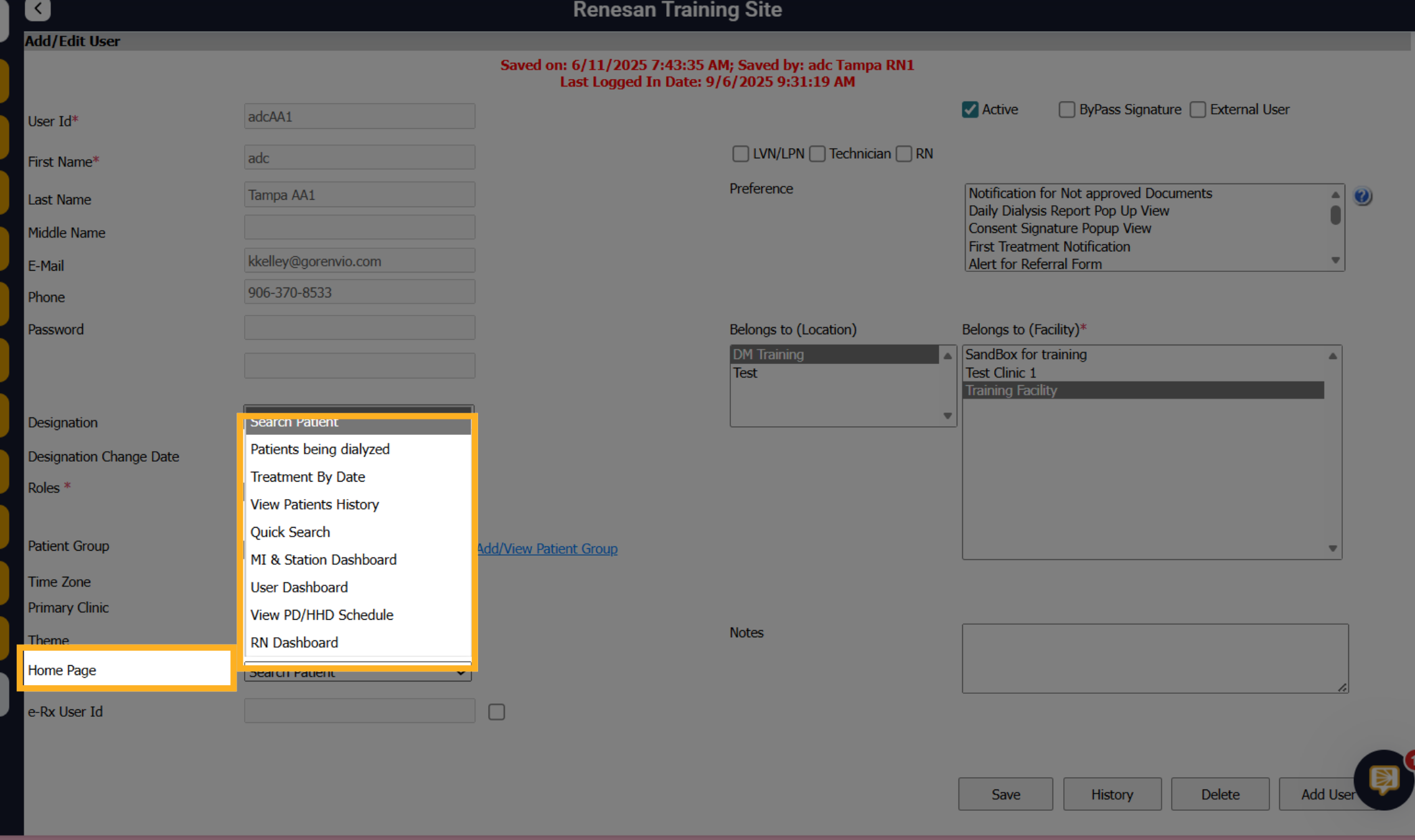
21. Home Page
You can choose a designated home page that users will be redirected to upon logging in. Typically, we recommend that Technicians navigate to the Treatment by Date screen, Physicians or Advanced Practitioners access the Patients being Dialyzed, and RNs proceed to the Search Patient screen.
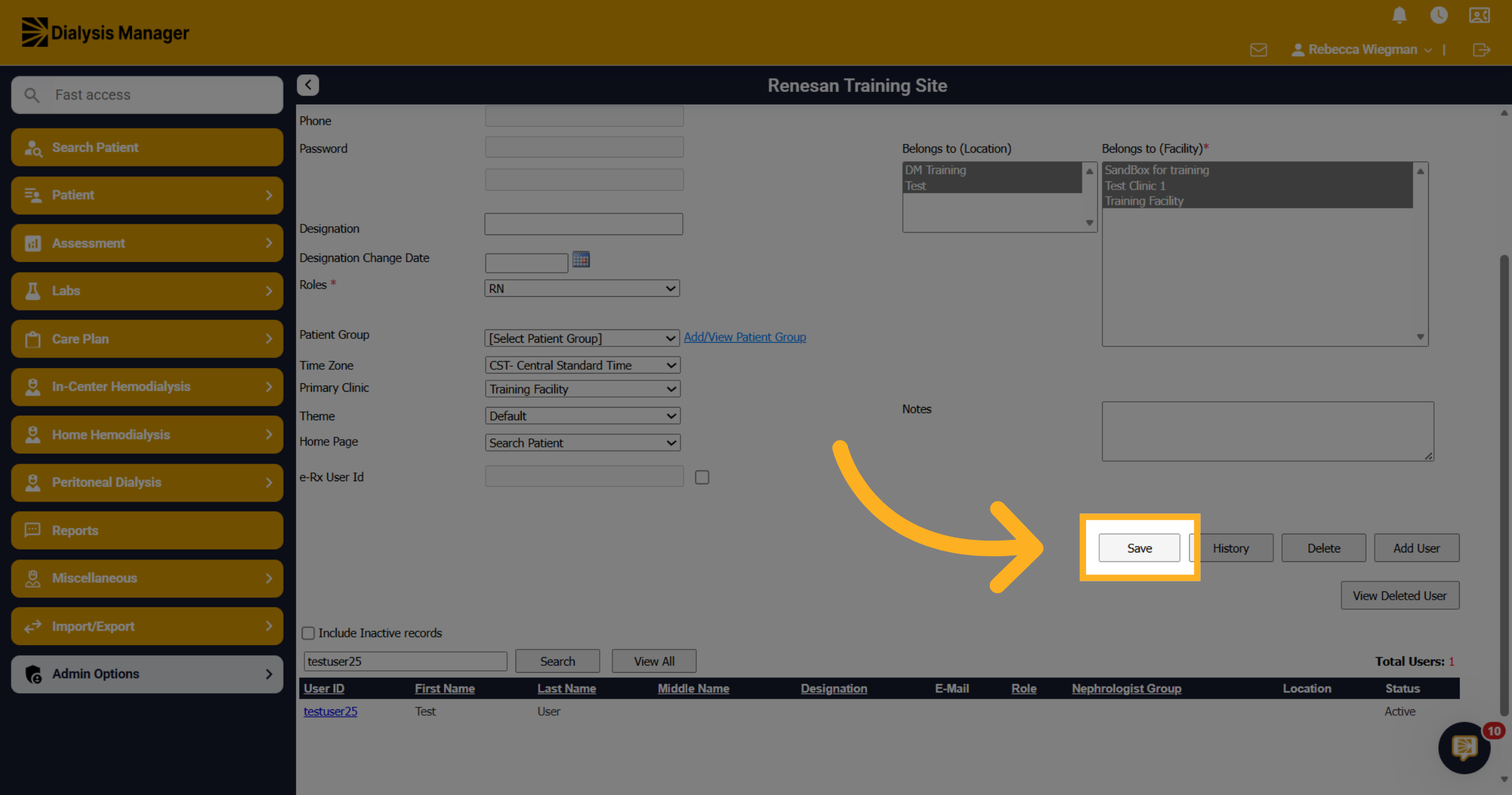
22. Save User Changes
After entering all appropriate information click the Save button.
23. DeActivating a User
To deactivate a user, you'll need to go into Admin Options, Users and Add Edit Users.
24. Select Specific User
Search for the user you'll be deactivating.
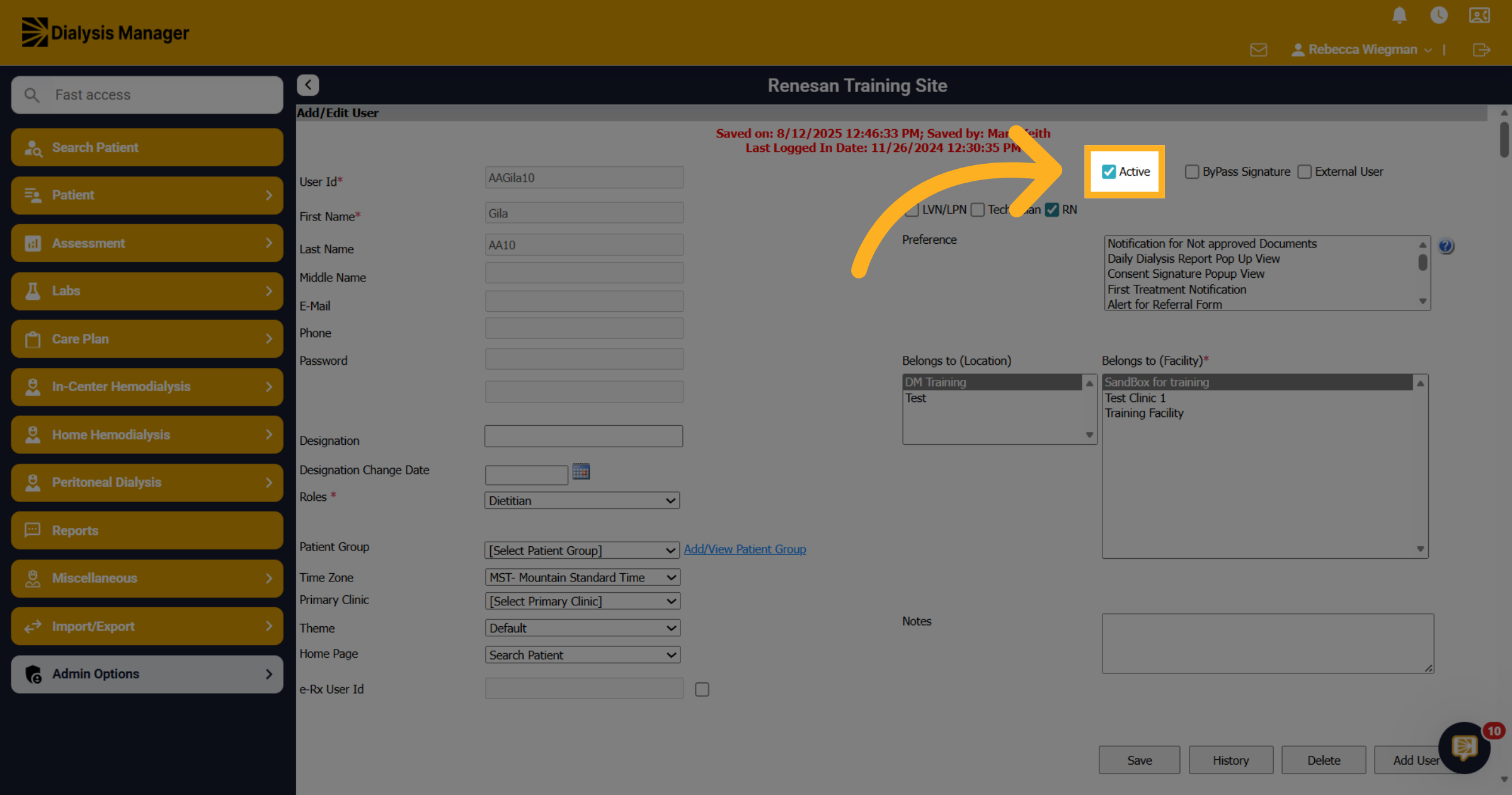
25. Change User Status
Unmark the Active status to modify user activity.
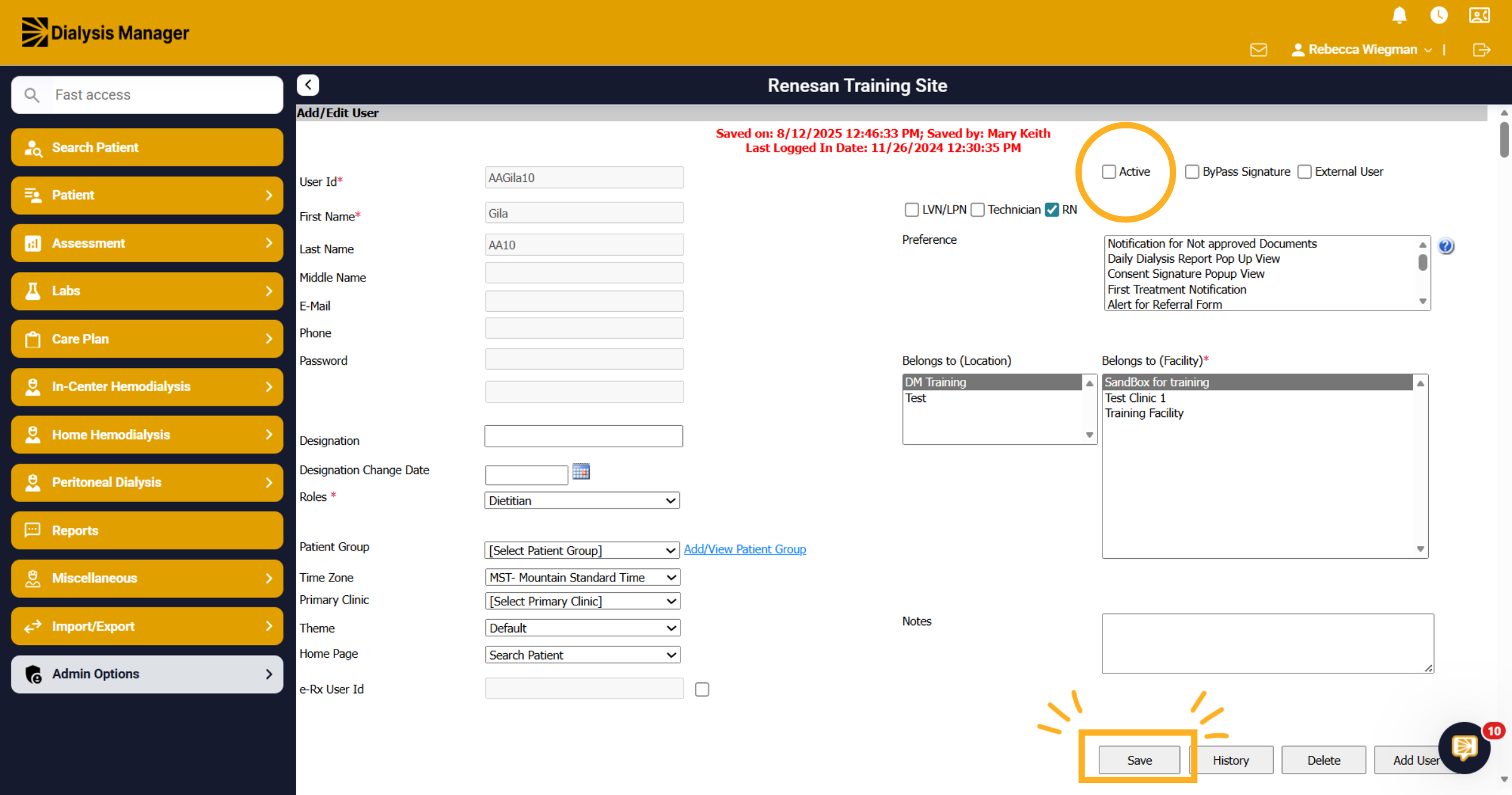
26. Deactivating
The "Active" checkbox is now blank, and the user will no longer be active. Make sure you select Save!
27. Disable The User Account
To disable a user account, you'll need to go back into Organization Manager and click on the username. Then you'll simply choose disabled.