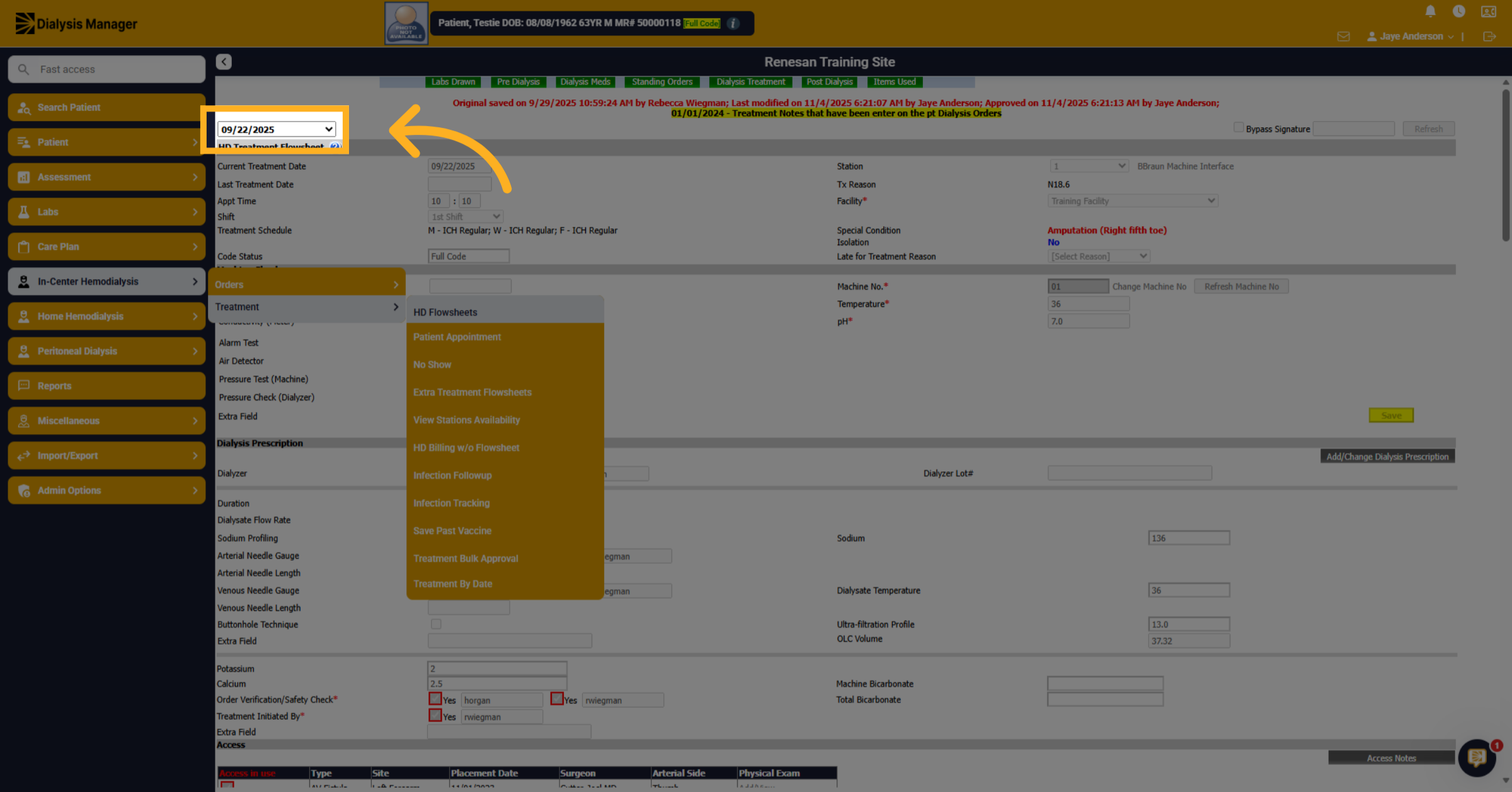
Update Past Treatment Using Order Change in Dialysis Manager
1. Introduction
Select your patient to begin updating a past treatment using the Order Change feature. This process allows you to modify existing orders efficiently.
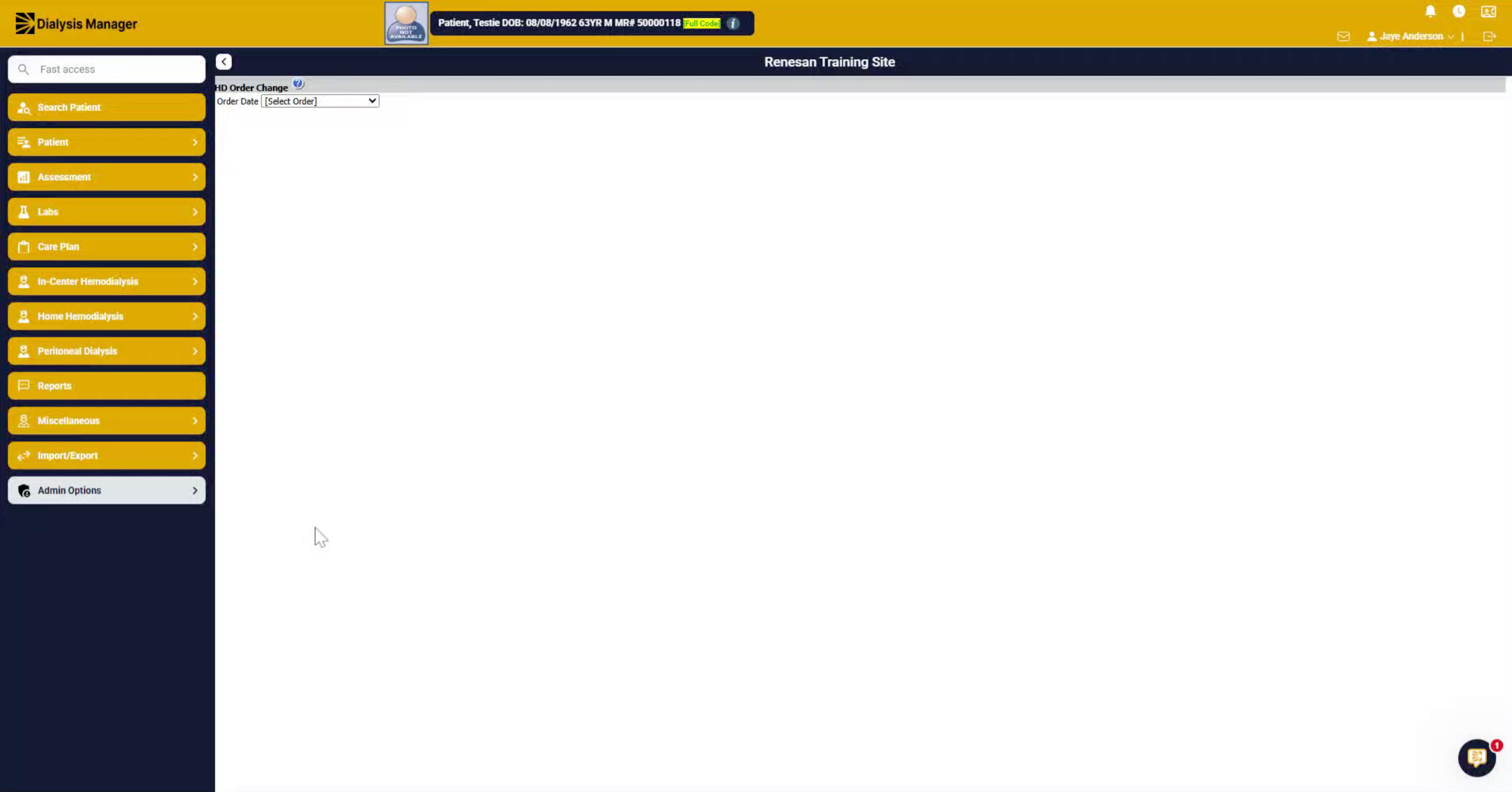
2. Click Admin Options
Select your patient.
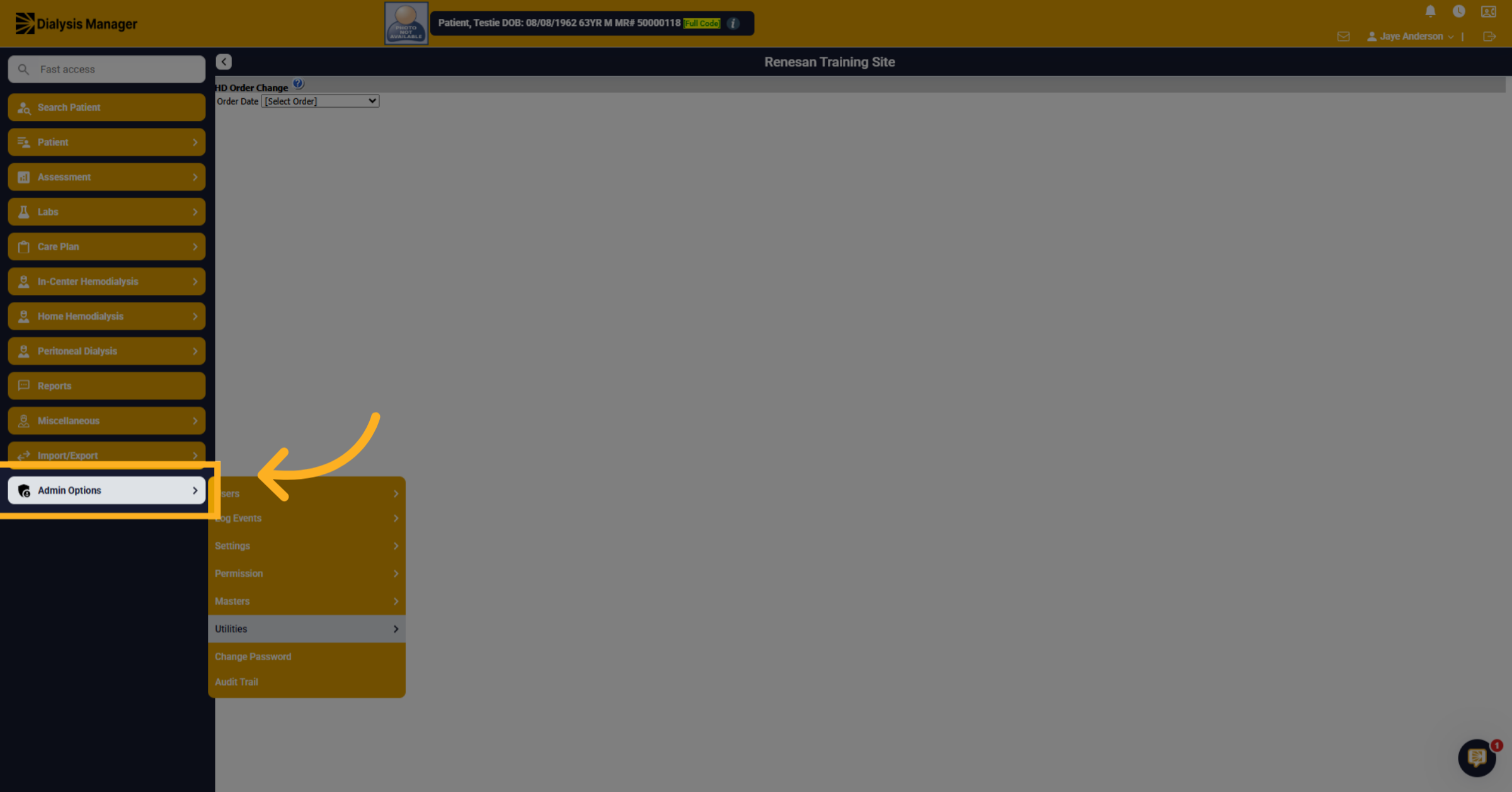
3. Click Utilities Menu
Choose admin options, then utilities.
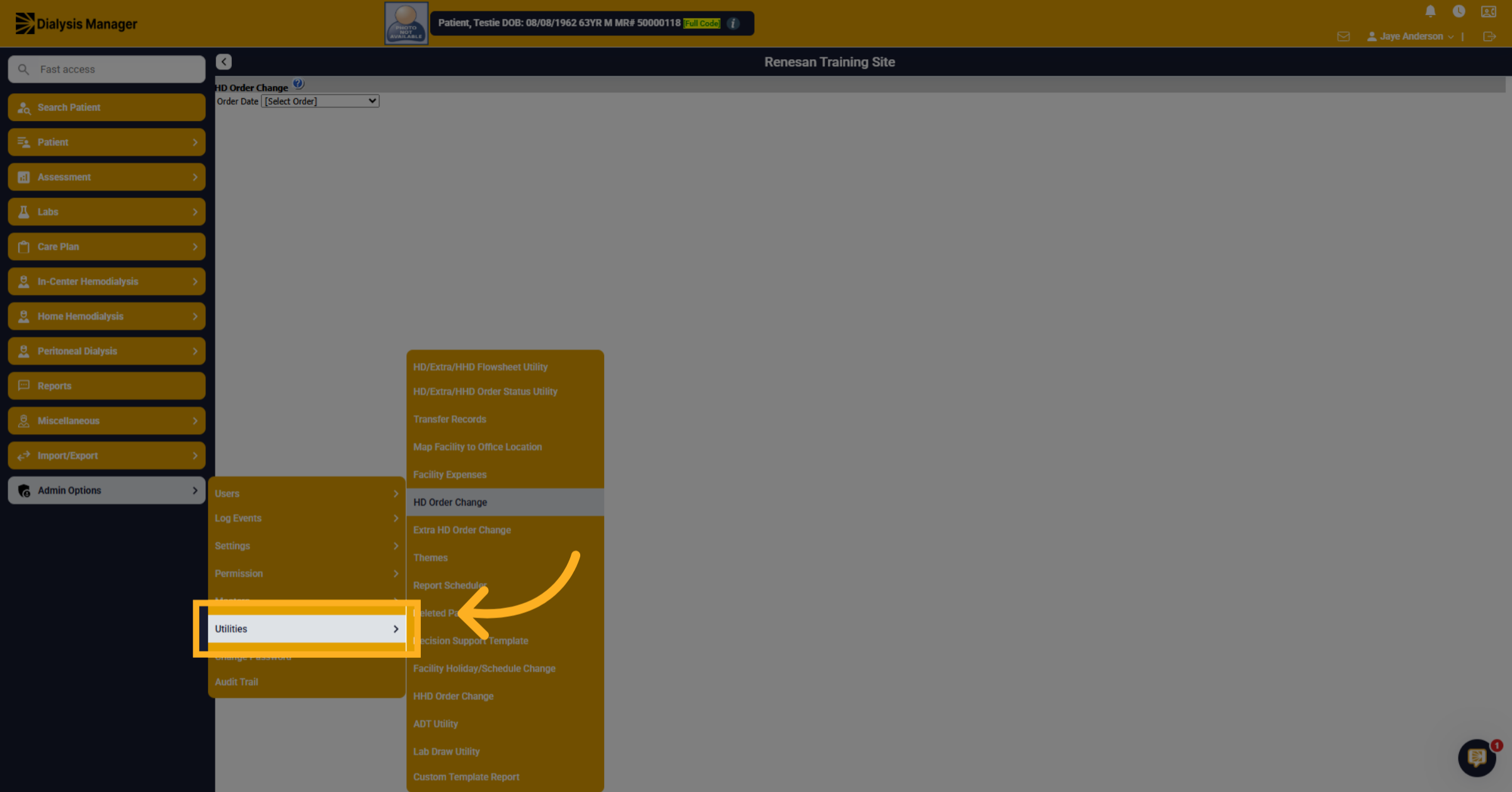
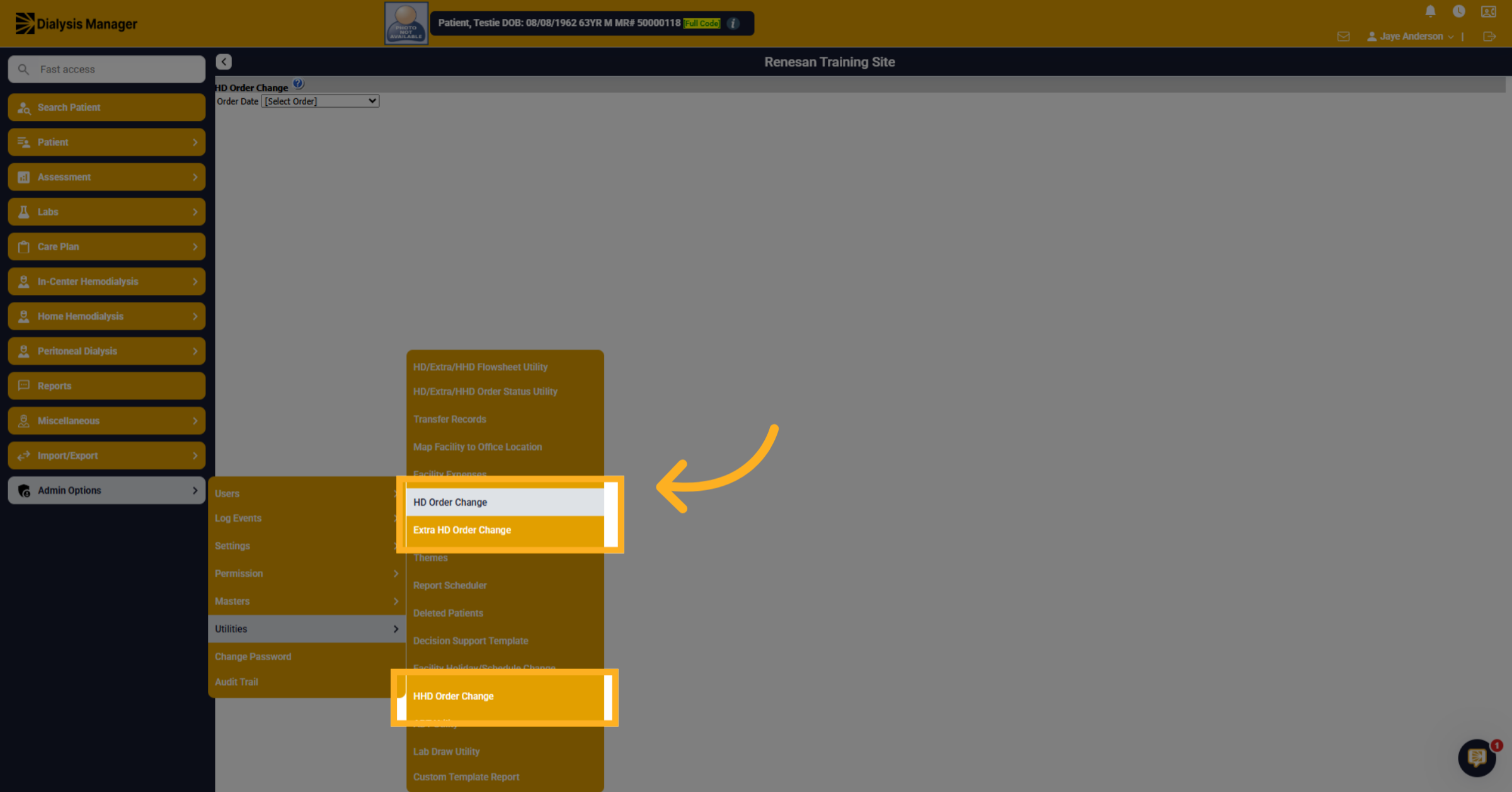
4. Select HD Order Change
Now select the appropriate Order Change option. For example, HHD order change, Extra HD Order change or, most commonly HD order change.
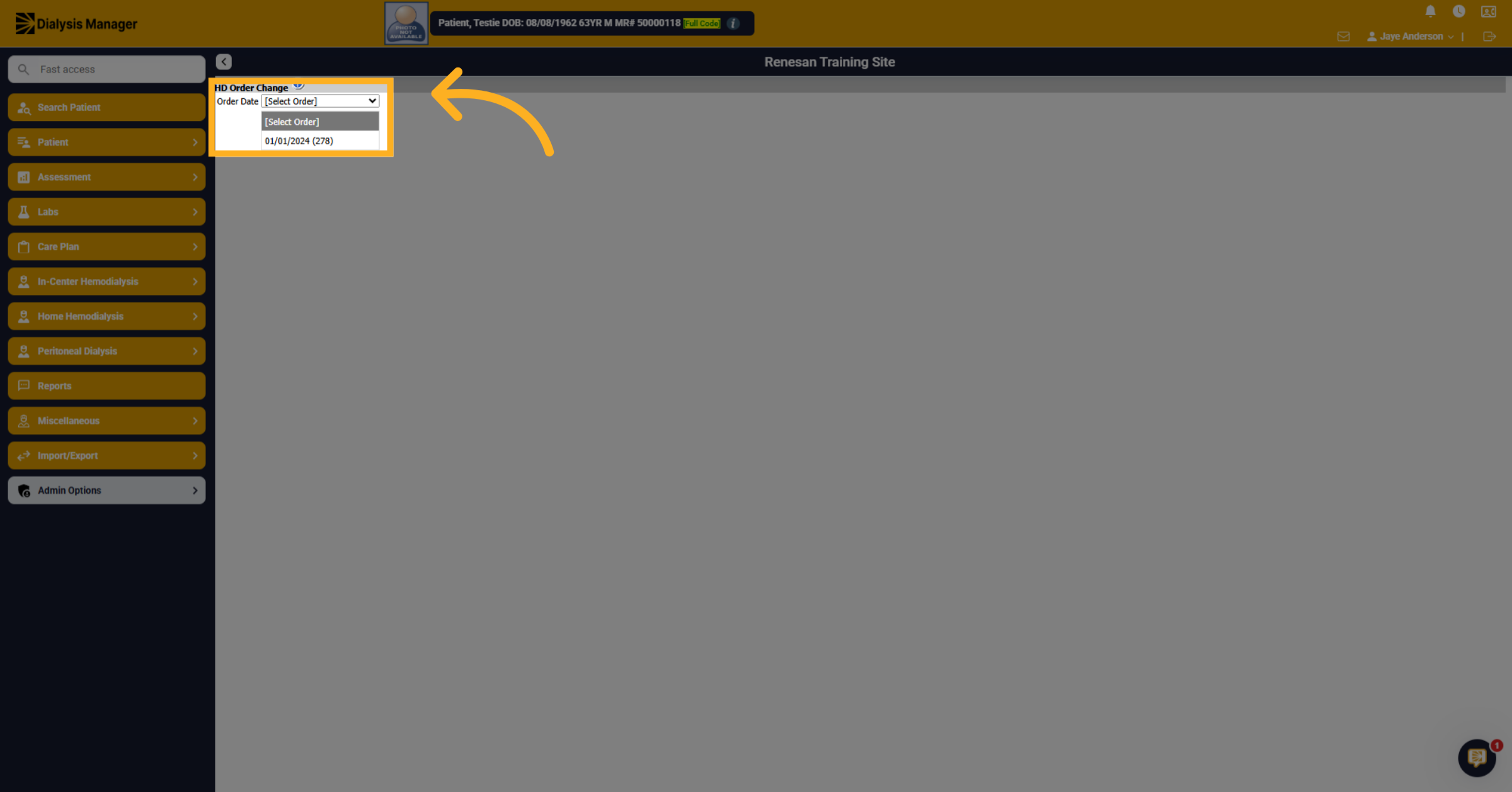
5. Choose Order Date
Choose the date from the drop-down box of the order dated prior to the treatment date that needs adjusting.
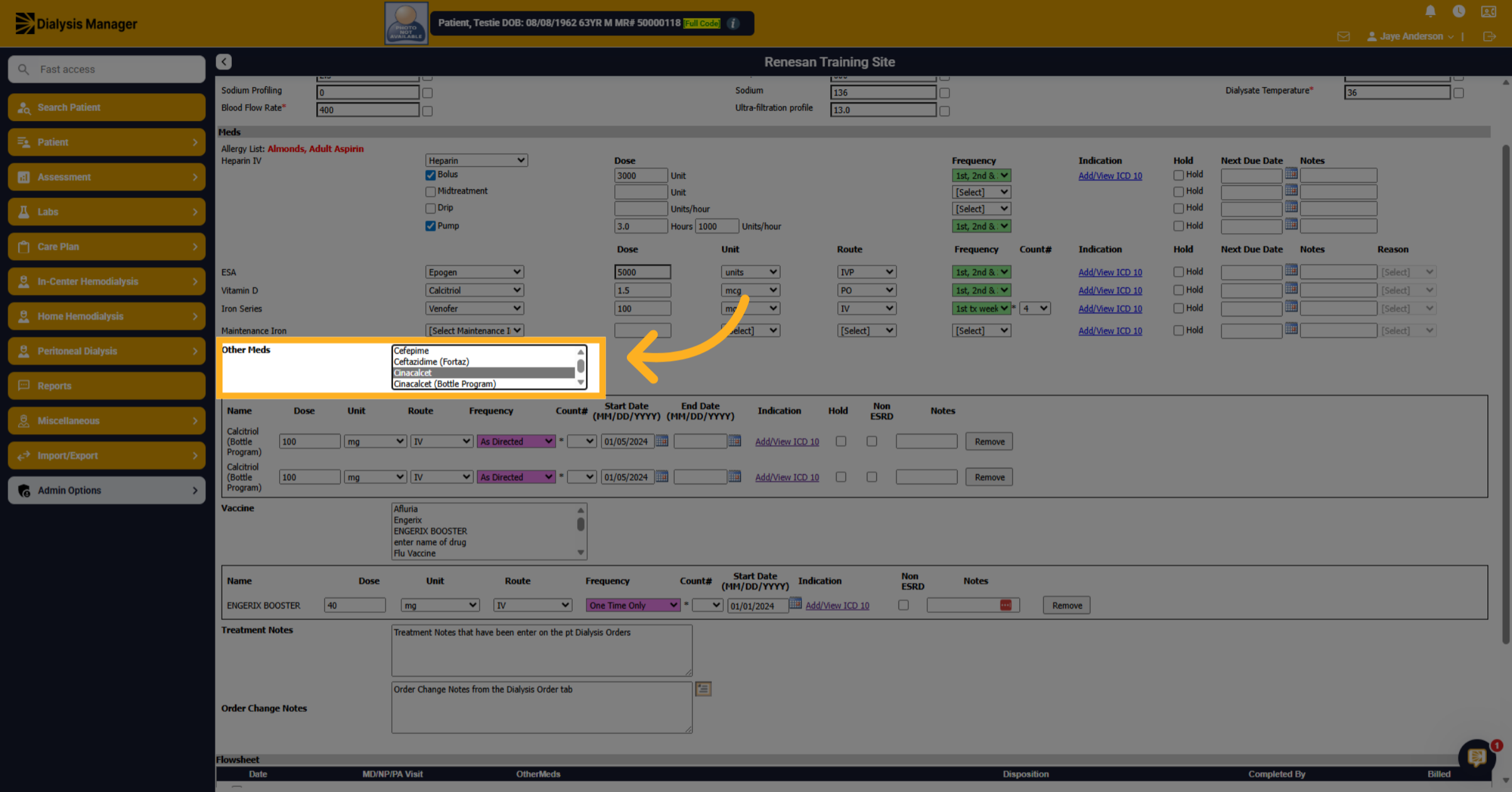
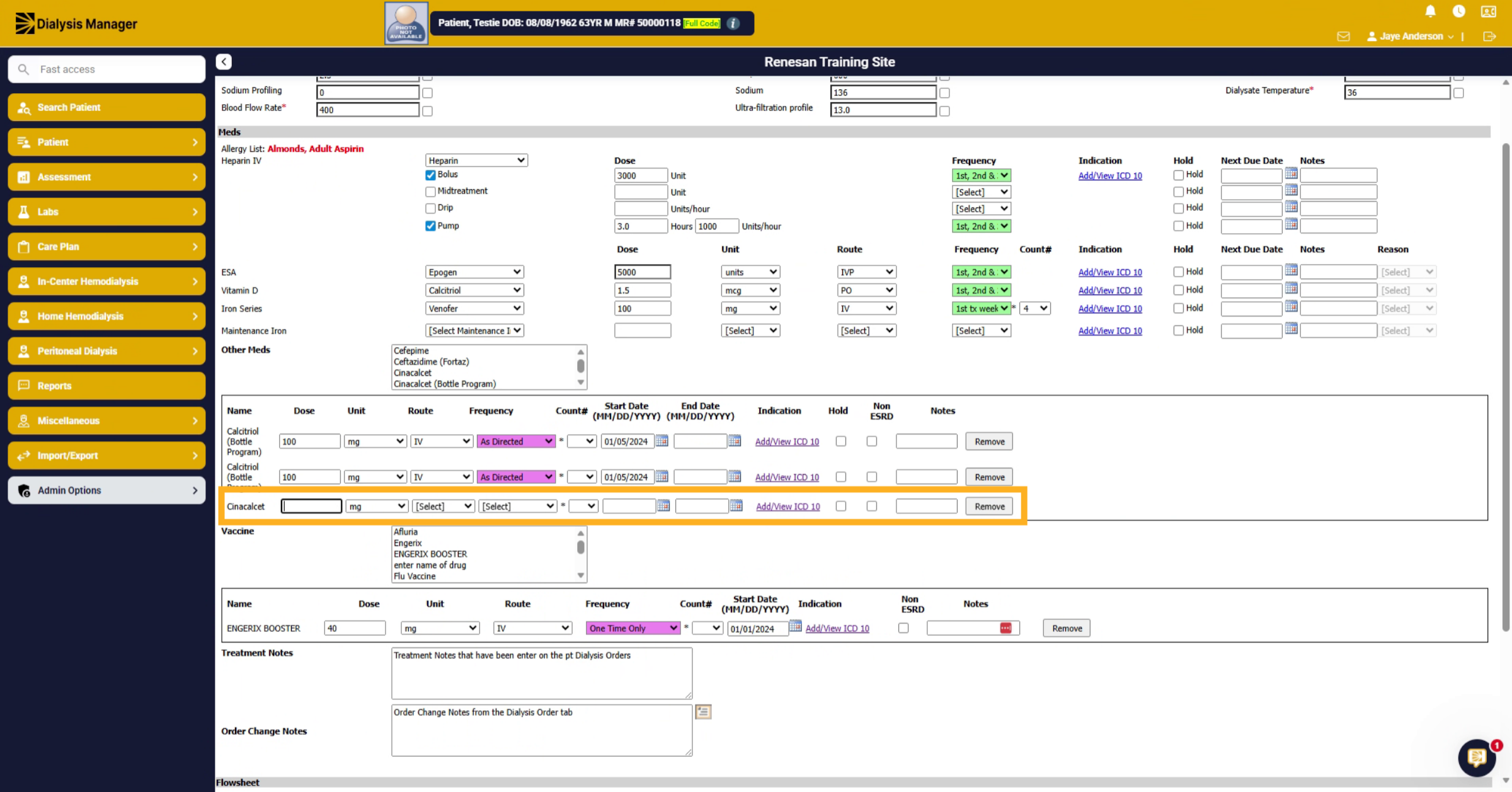
6. Select Medication Cinacalcet
Add or update order items need correcting. Here we are adding a medication named Cinacalcet.
7. Click Medication Field
Enter the amount.
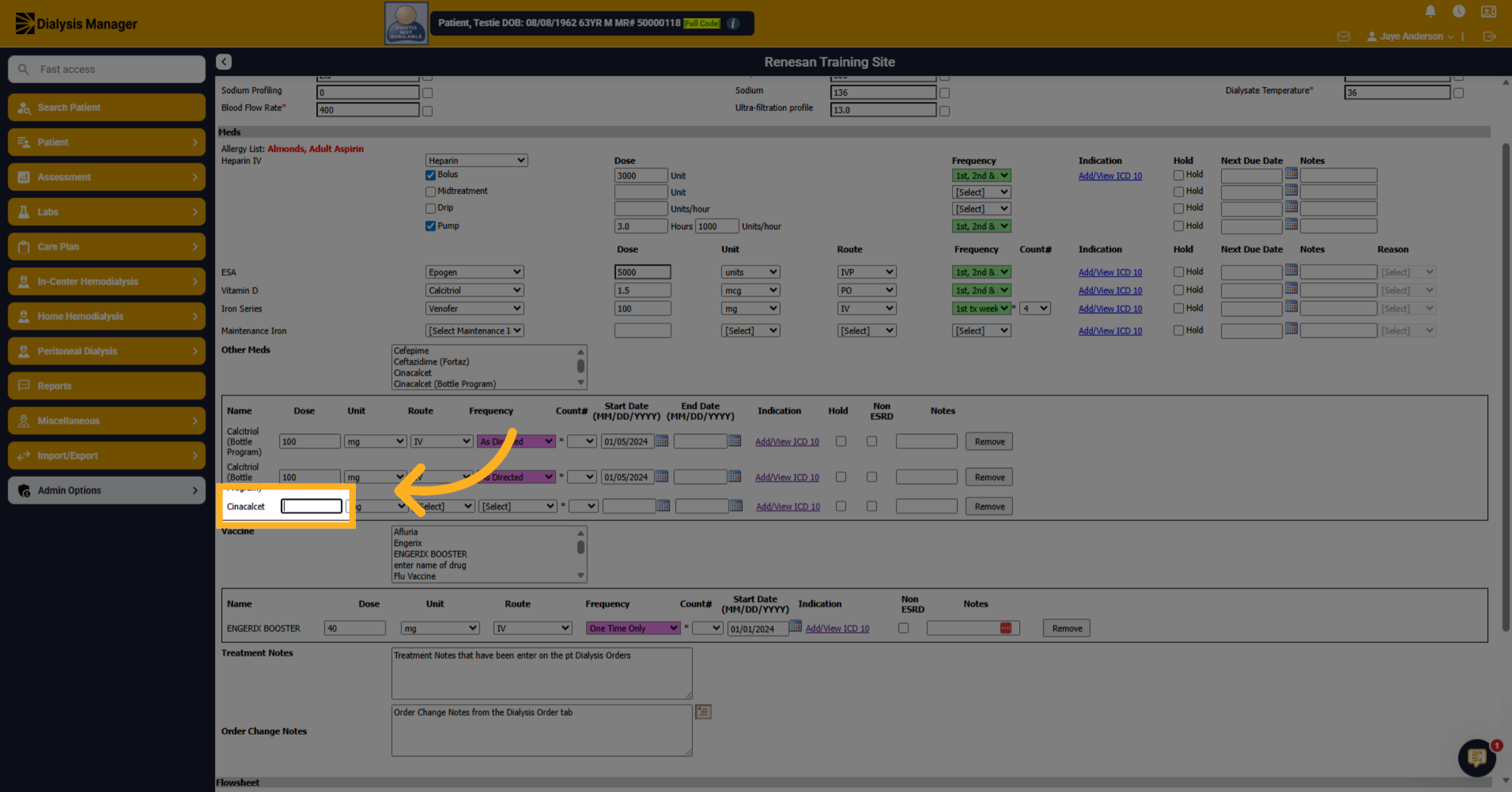
8. Enter Dosage Amount
continue to complete the medication order information
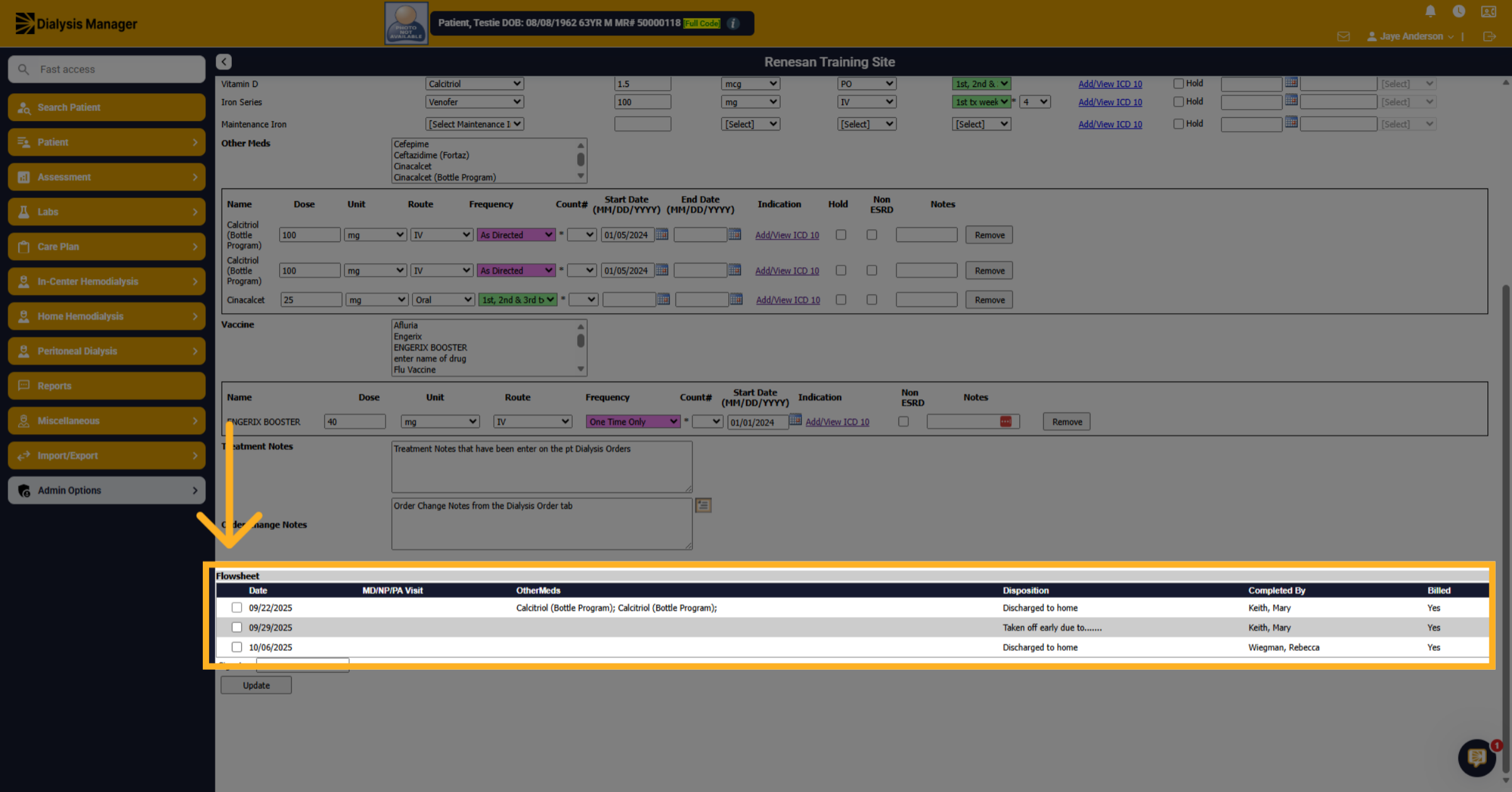
9. Select dates of flowsheets to update
Select dates of flowsheets you are updating with the changes above.
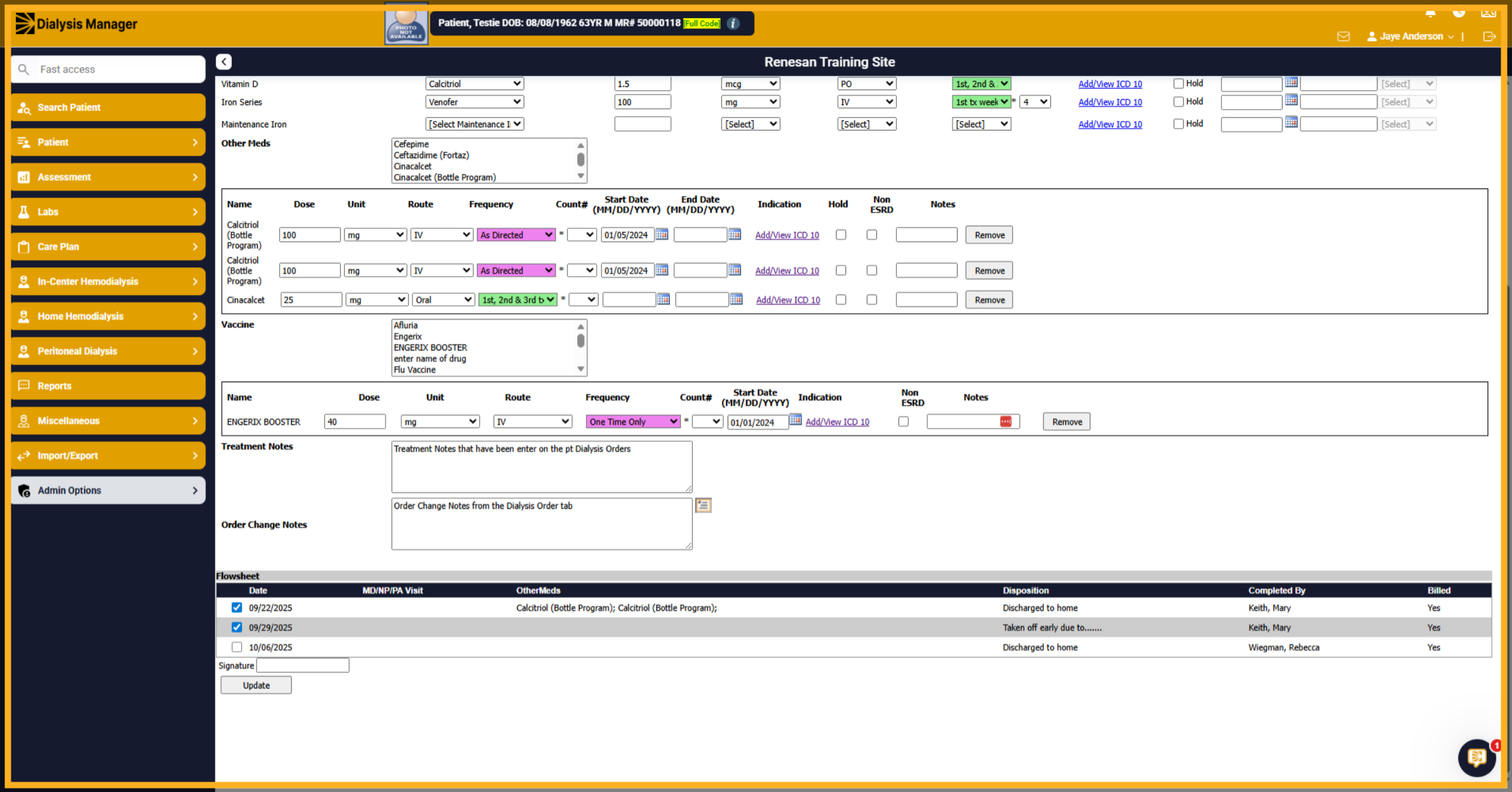
10. Fill Another Field
Select all appropriate dates.
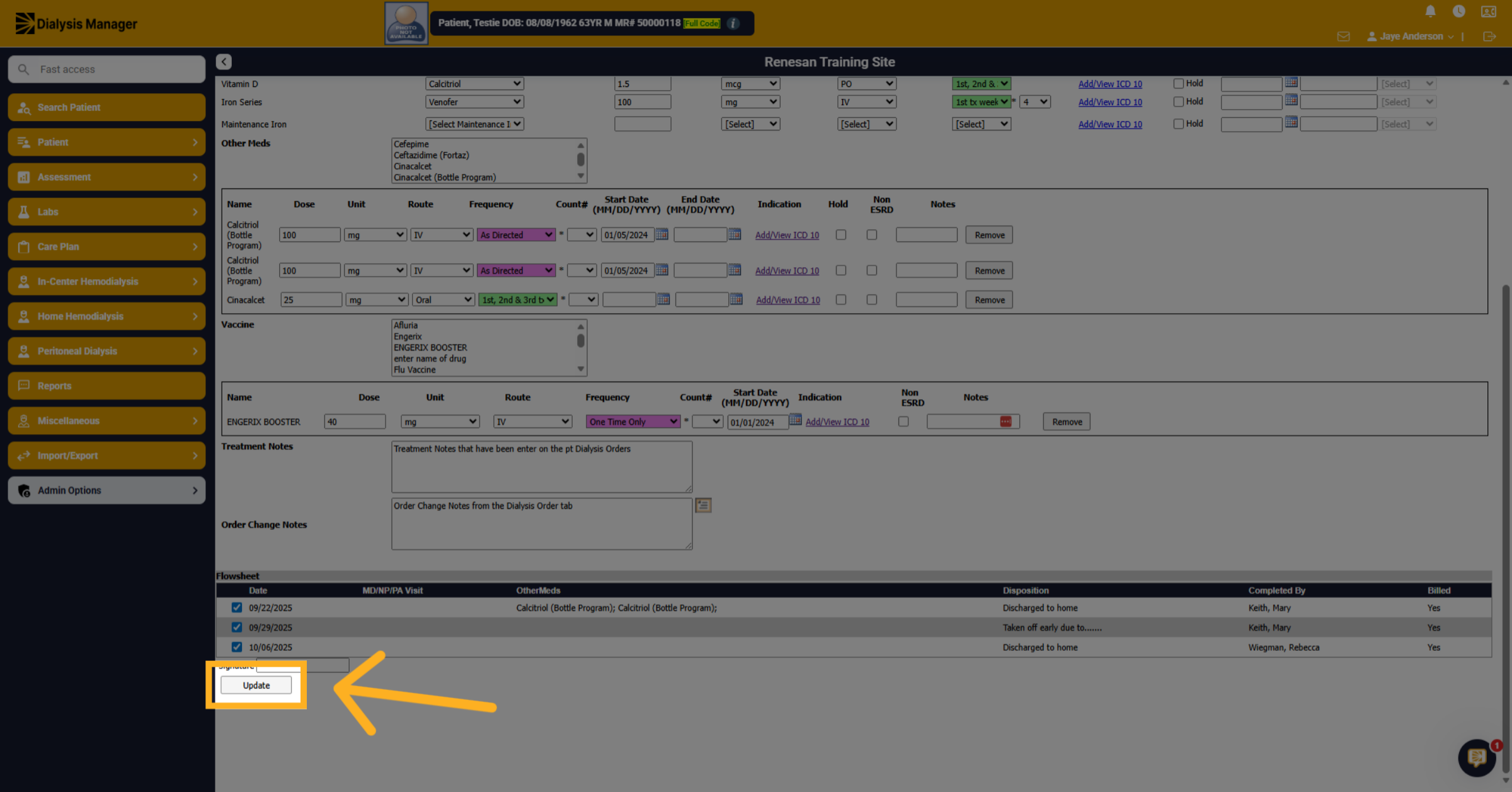
11. Click Update Button
Click Update and Enter in your password or pin.
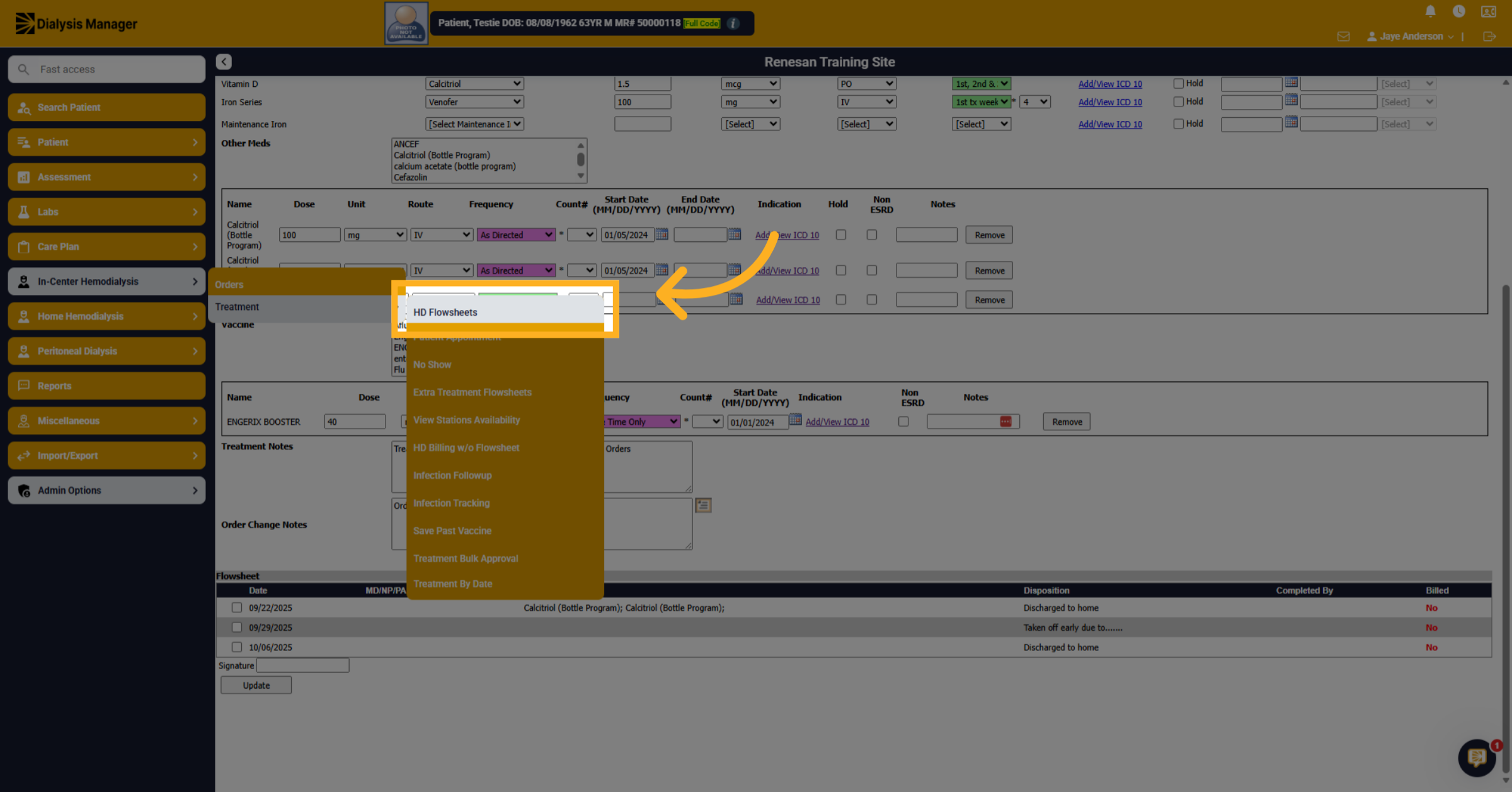
12. Click HD Flowsheets
Now, you'll need to go to the flow sheets and update the days that you selected.
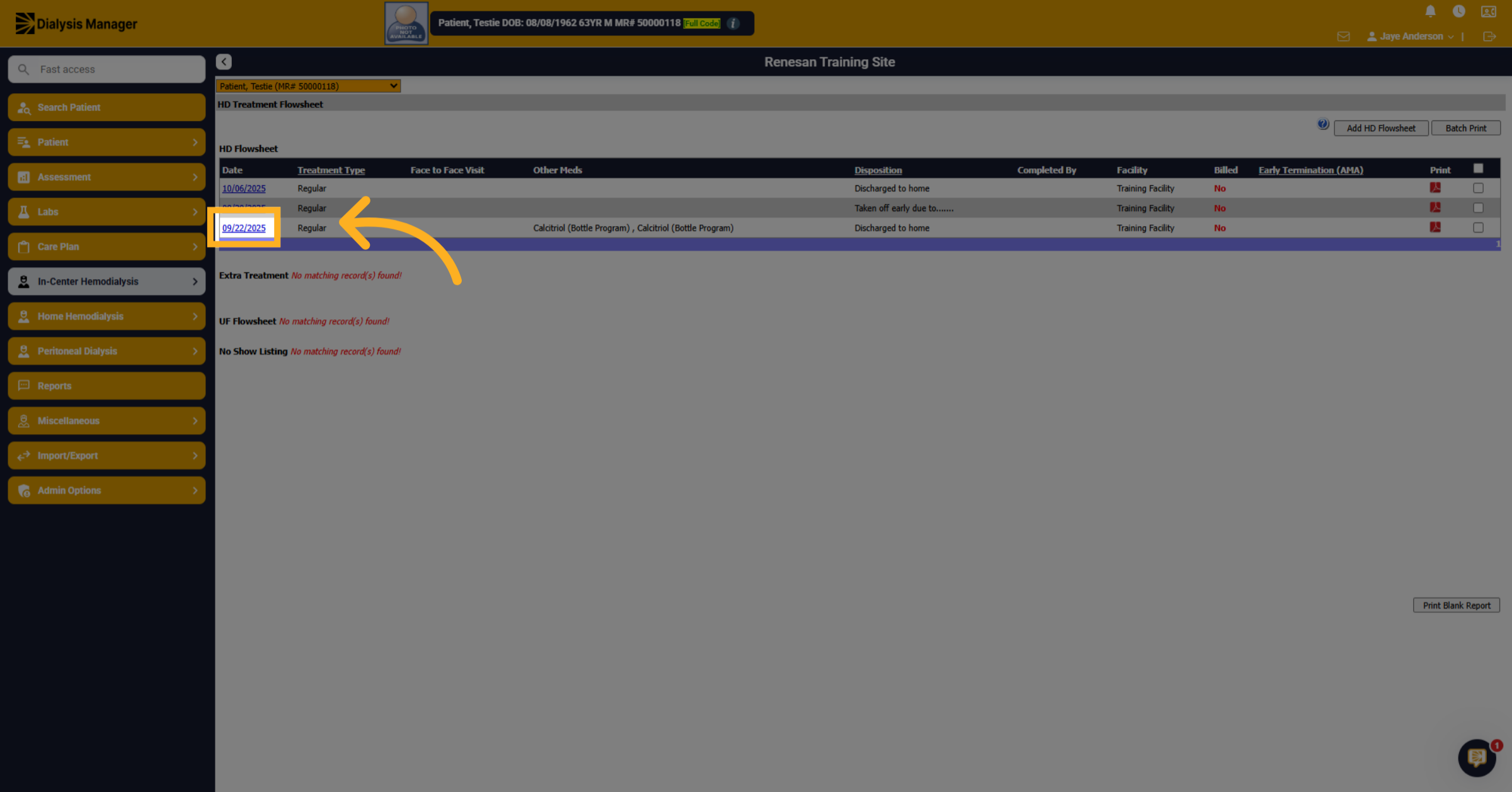
13. Select Flow Sheet Date
Select the date hyperlink.
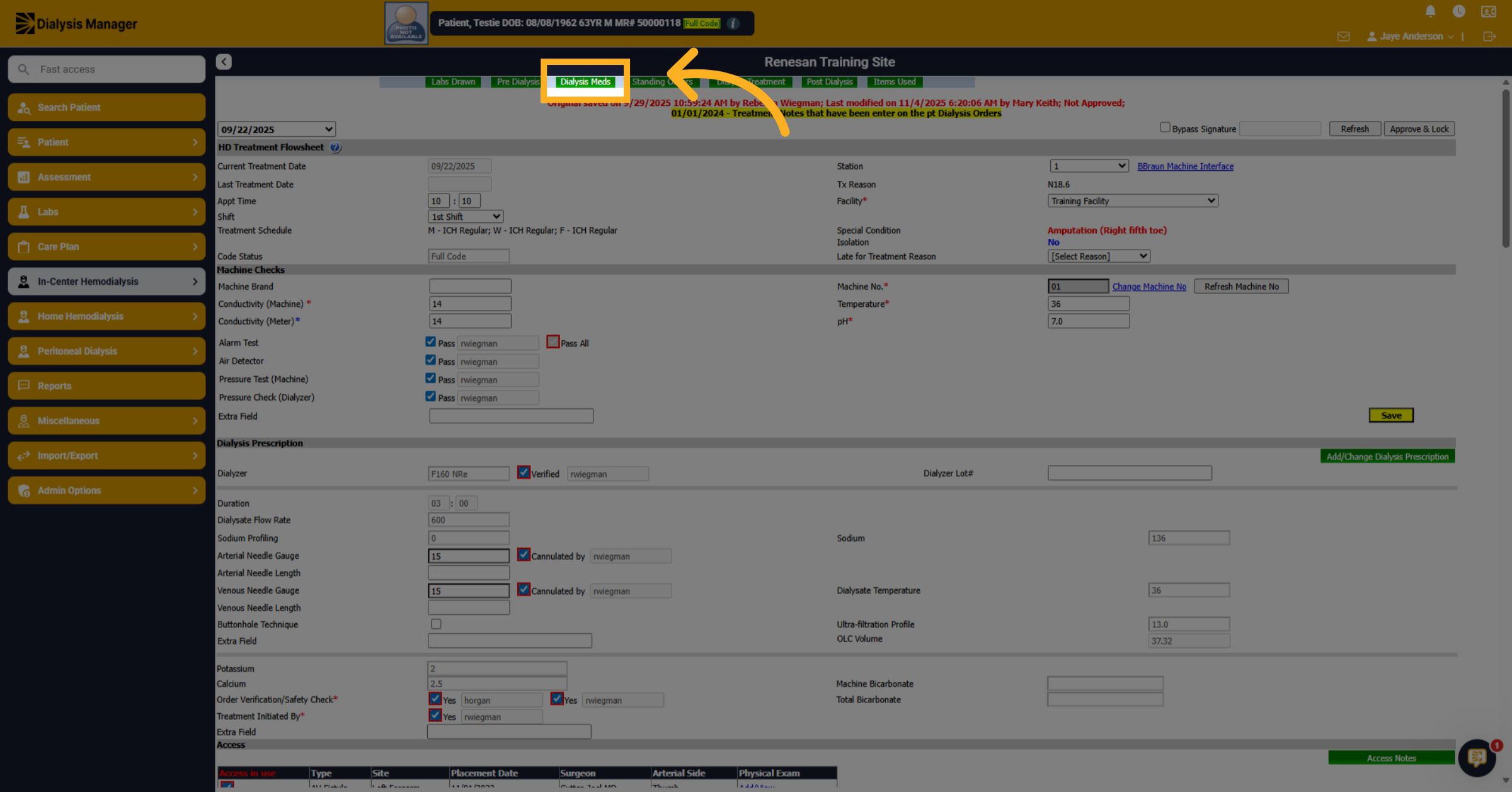
14. Click Dialysis Medications
Click "Dialysis Meds" to Update the medications section we adjusted.
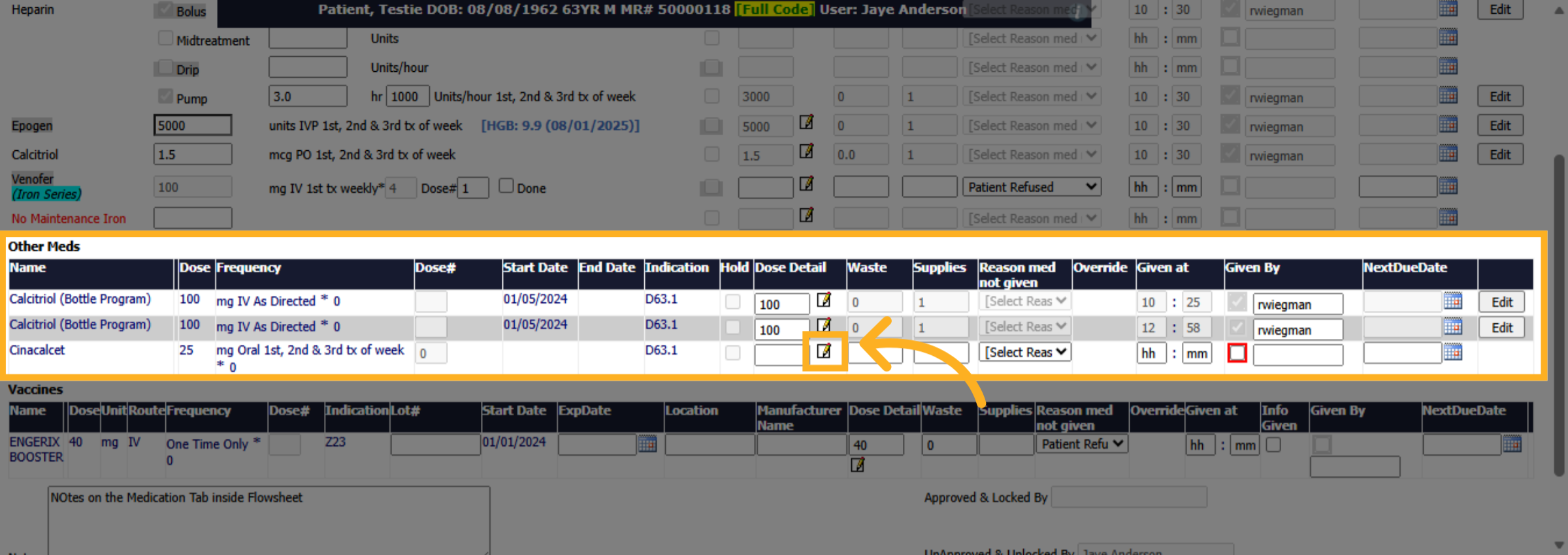
15. Click Medication Field
Enter your Dose Detail.
16. Click HH Option
Enter the time given.
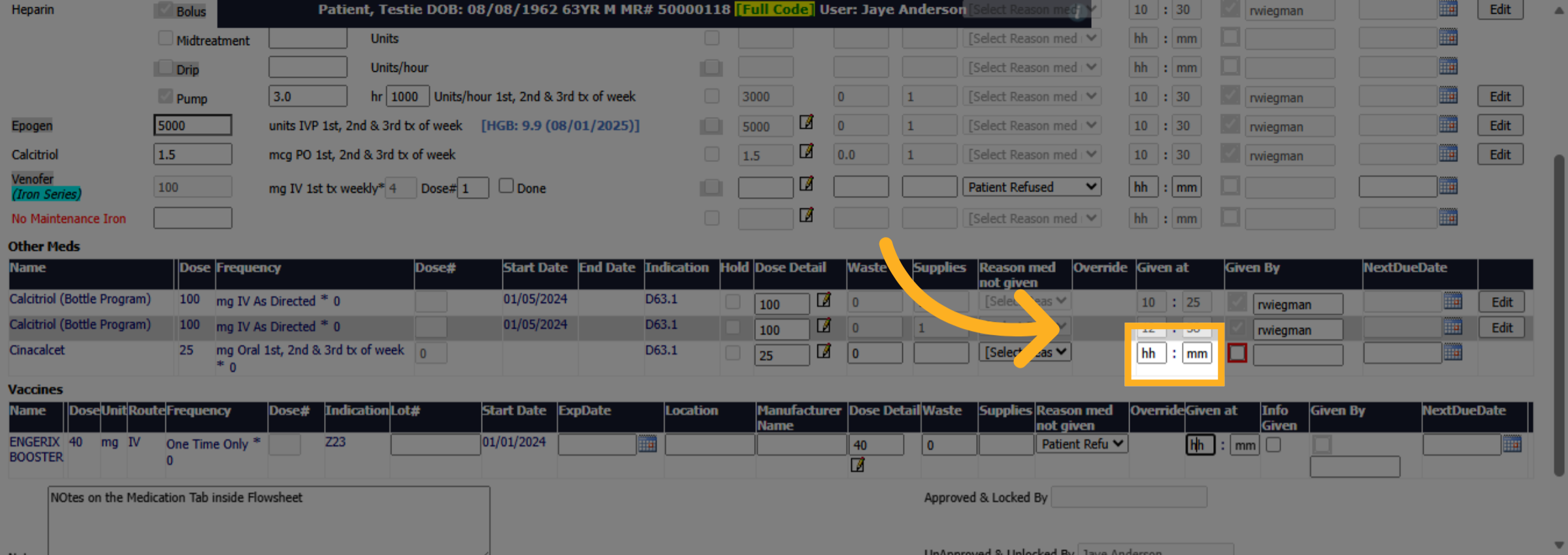
17. Click Approve & Lock
Mark the Given By and enter your password or pin in the pop up box.
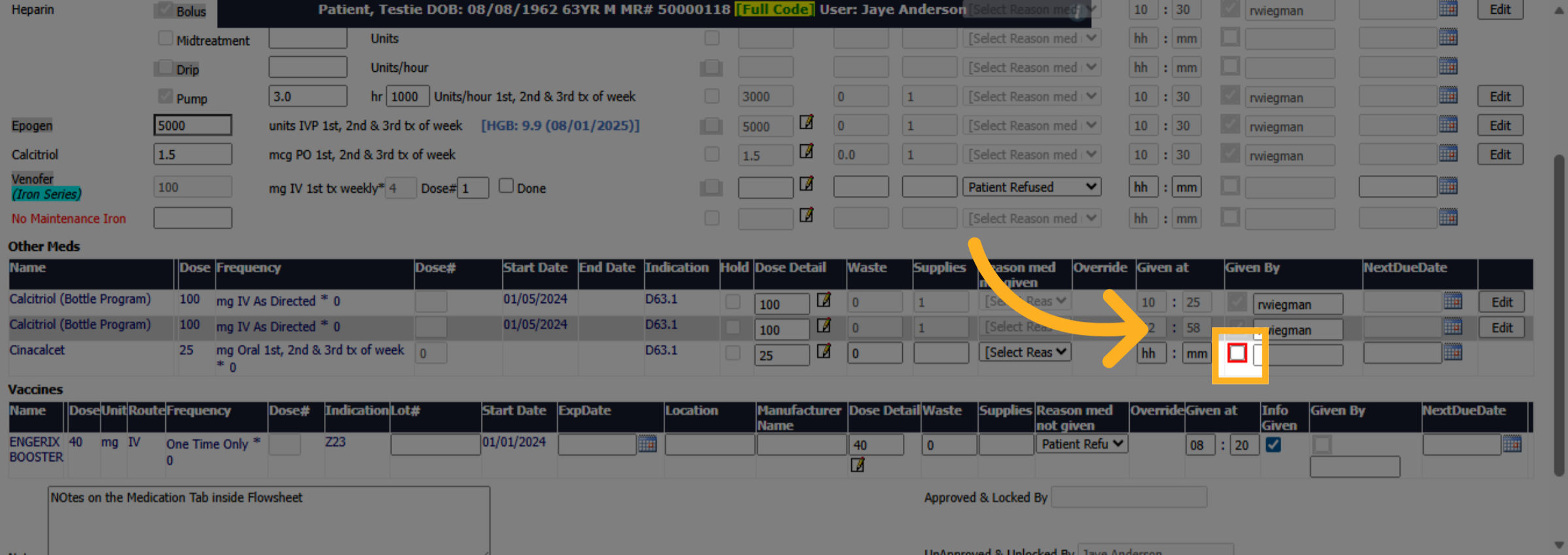
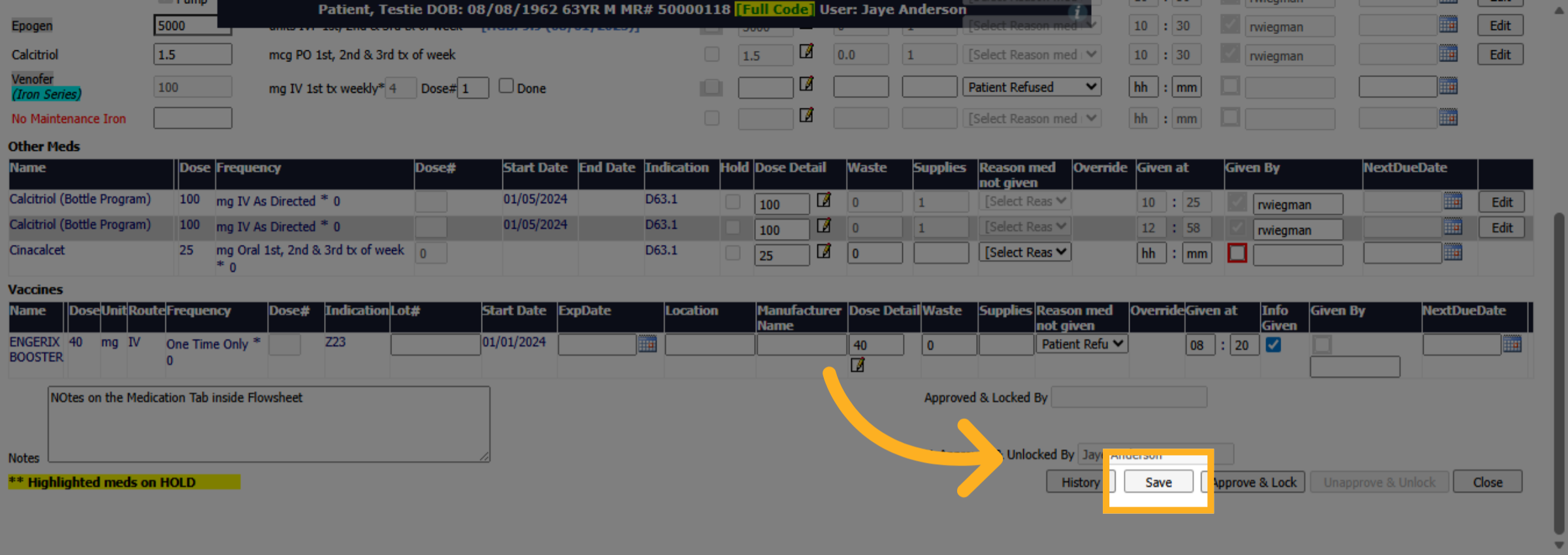
18. Click Save
Click Save
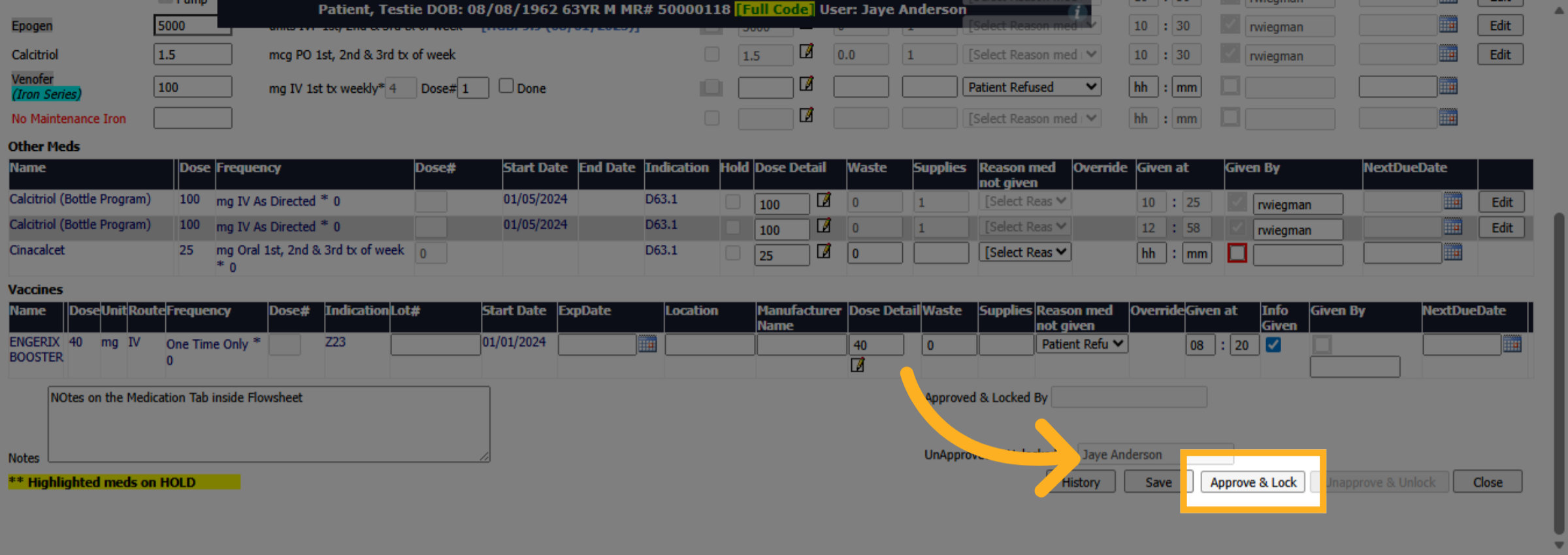
19. Approve and Lock
Click Approve and Lock
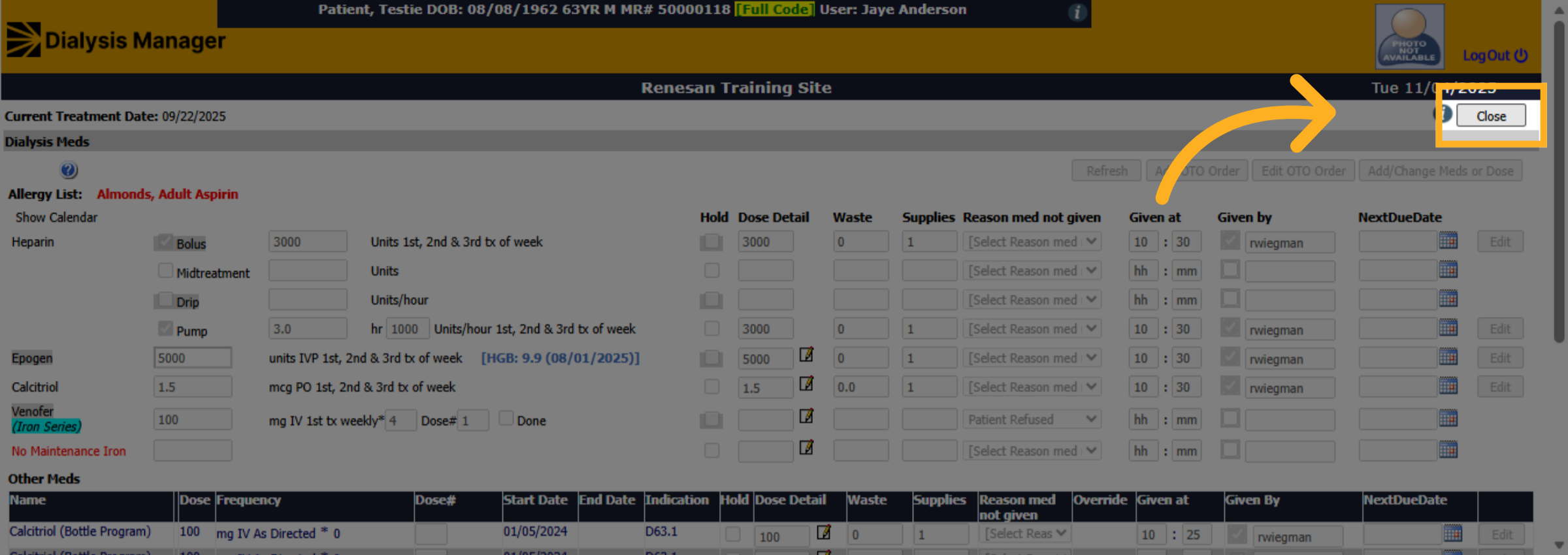
20. Click Close Flowsheets
Click Close
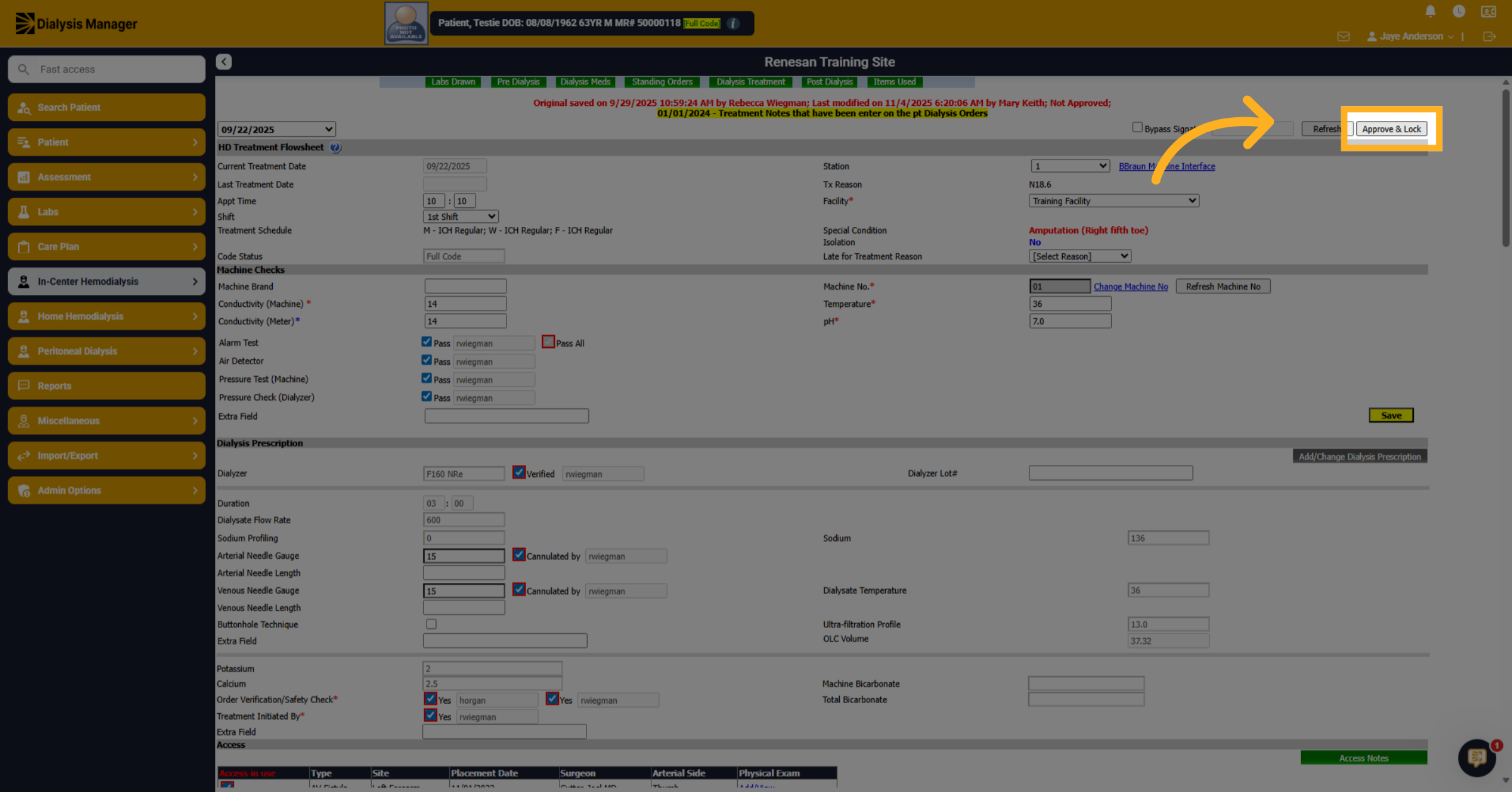
21. Approve and Lock Flowsheet
Click Approve and Lock to complete and close the flowsheet. It is now ready for billing.
22. Click "HD Flowsheets"
Click on the "HD Flowsheets" field and then repeat process for the next flow sheet.
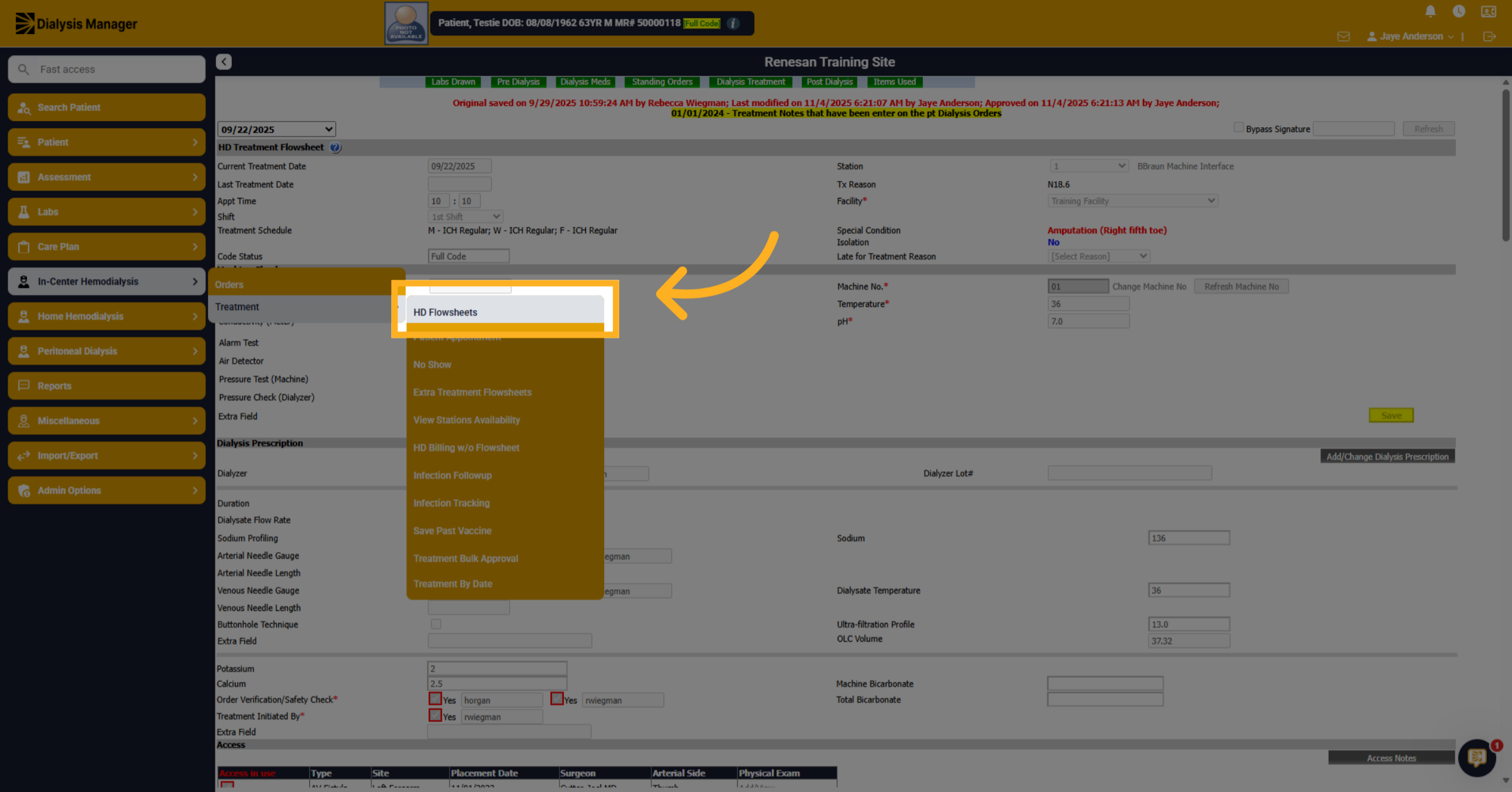
23. Click "HD Flowsheets"
Or you can also select the date from the drop down.