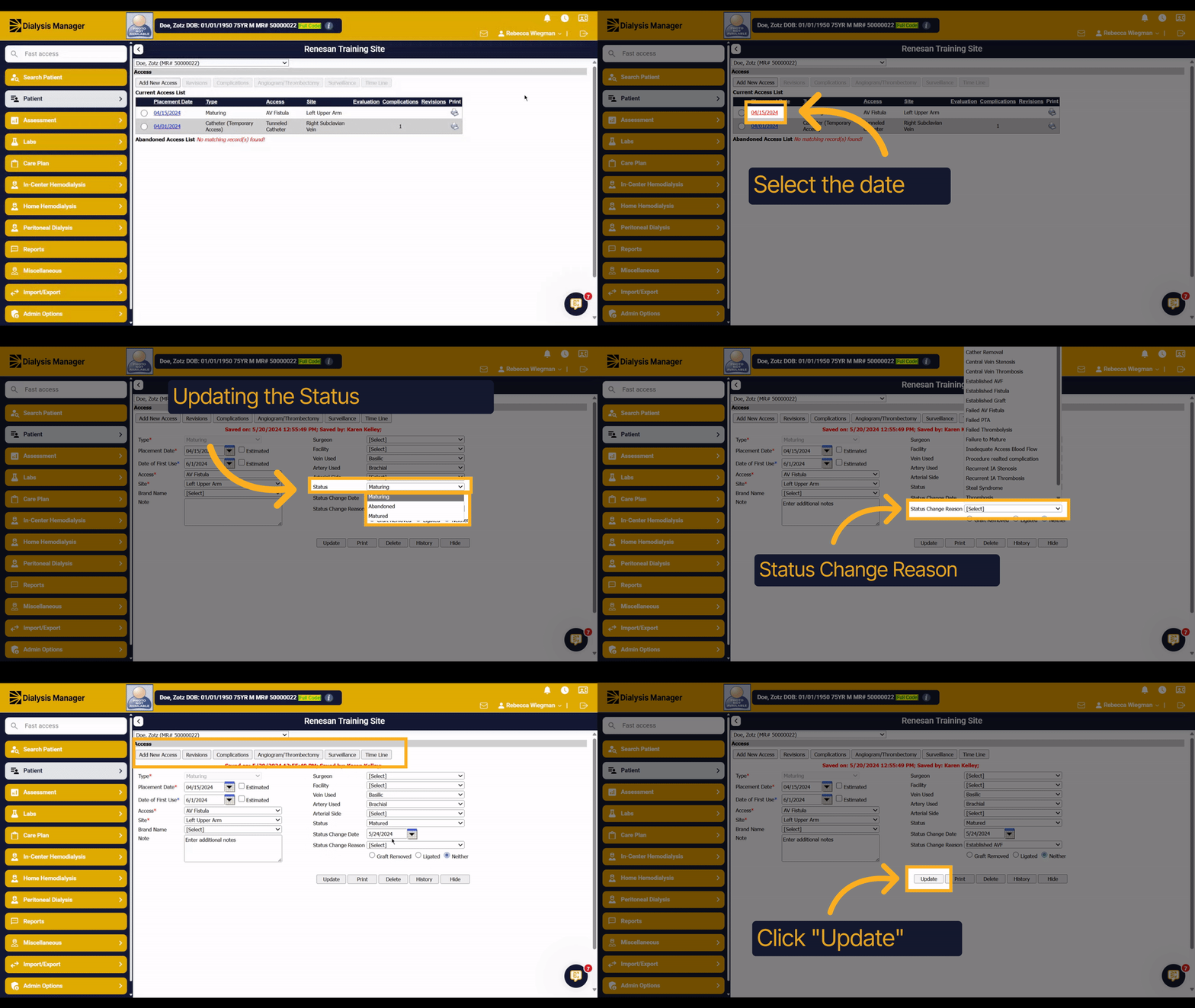
Updating a Maturing Access Status.
1. Introduction
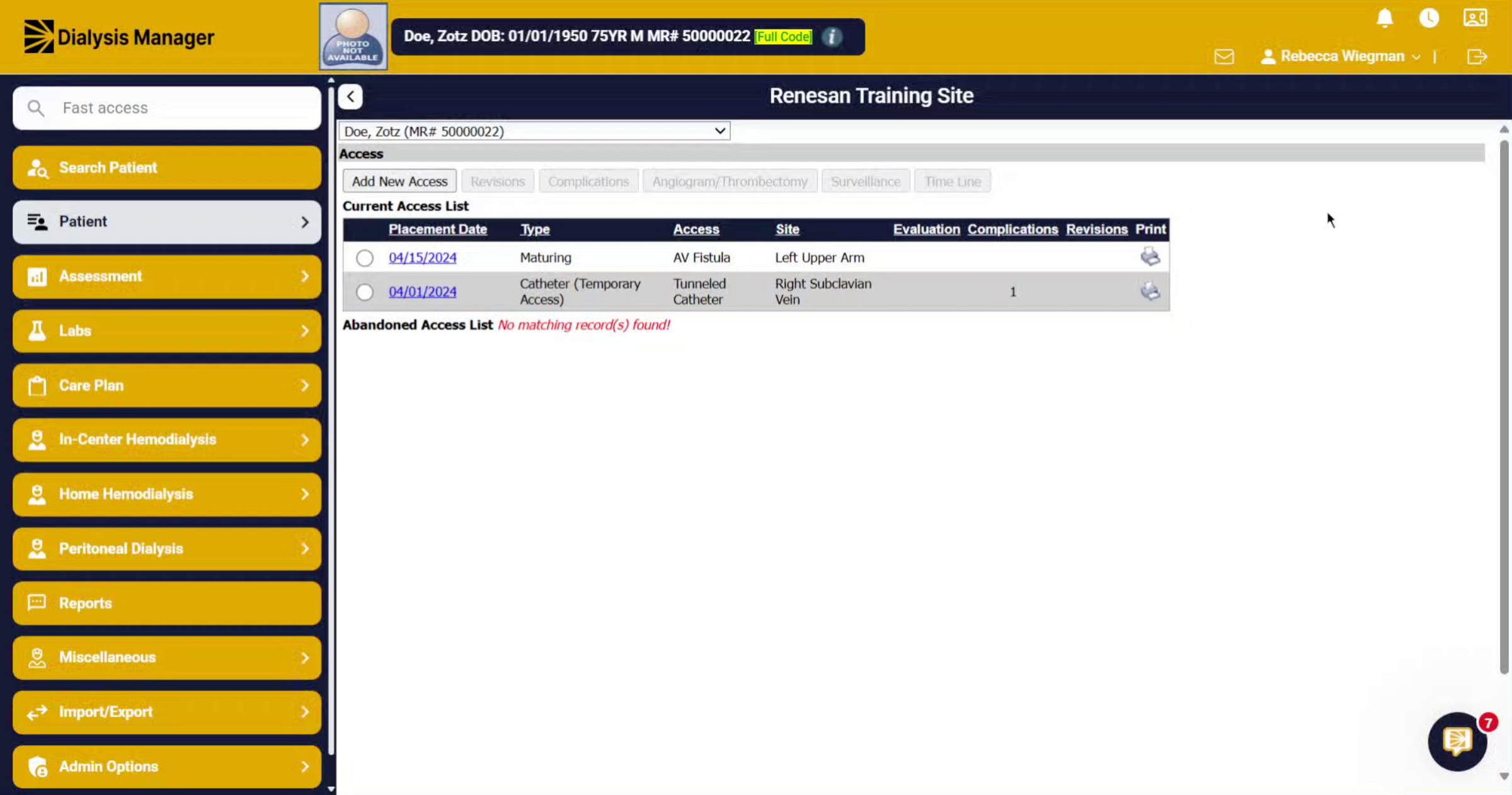
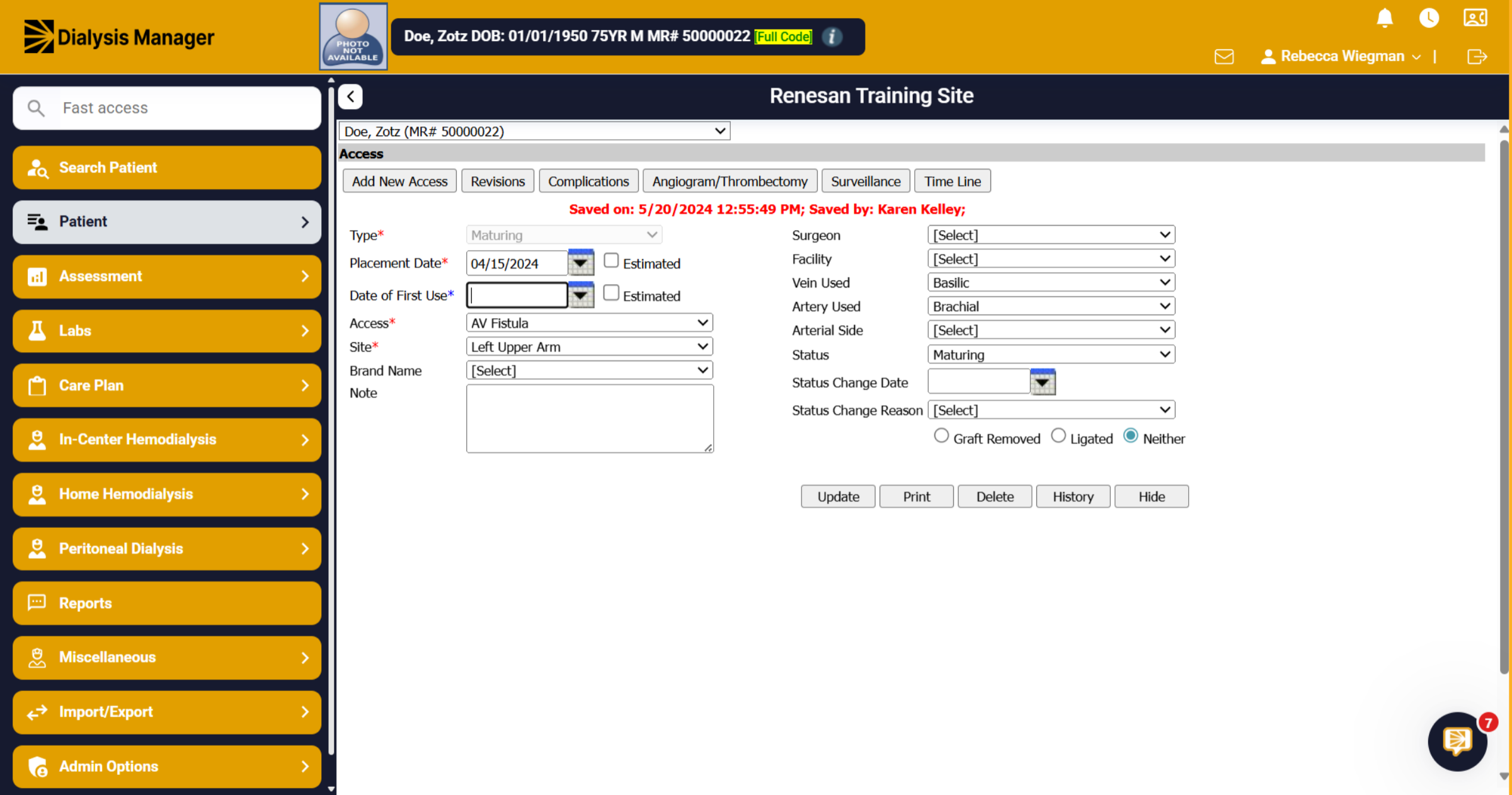
This tutorial guides you through updating an access. Have your patient selected and go to the Patient Menu, Access and Access.
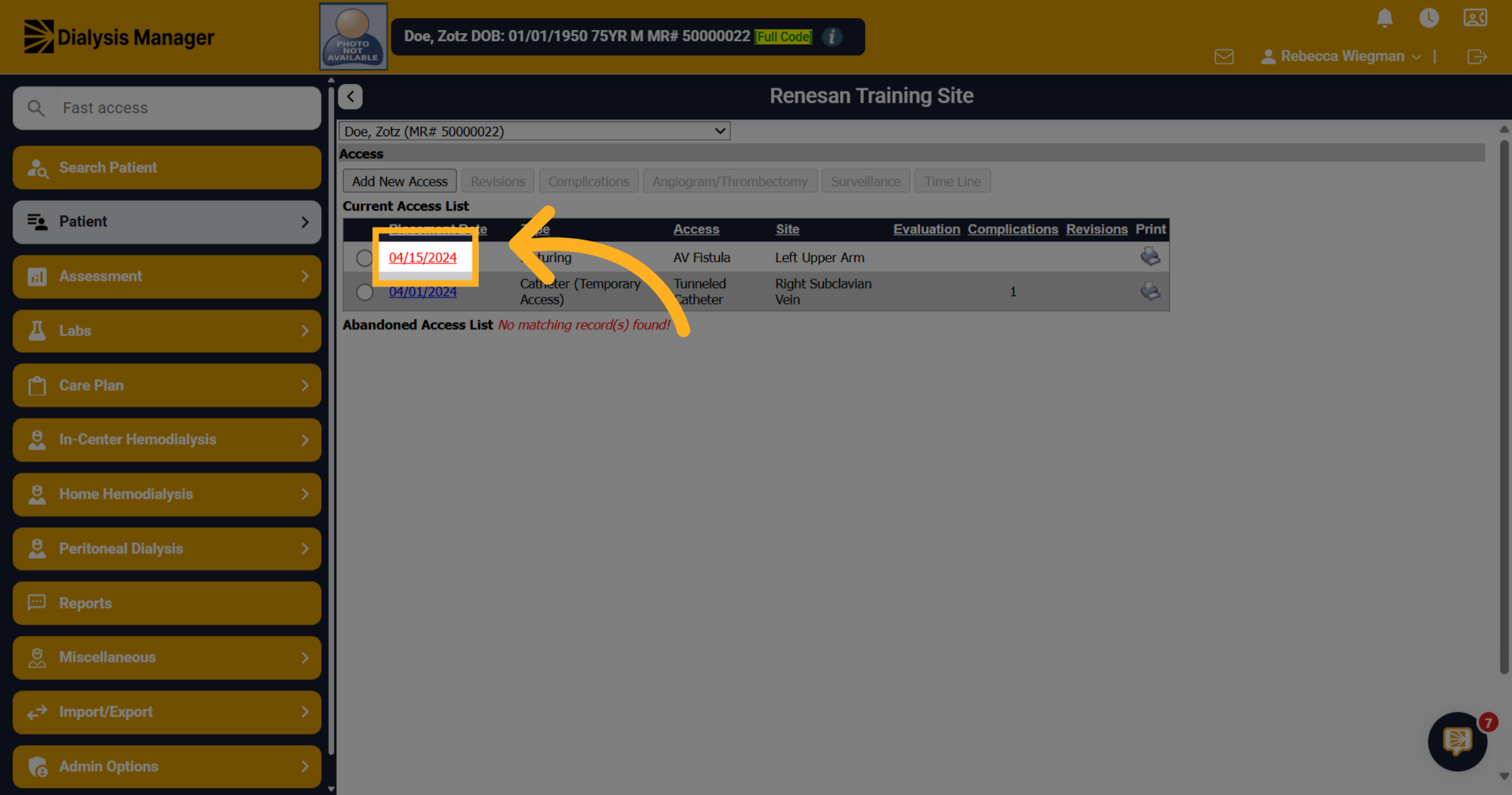
2. Select the access
Select the correct access by clicking the blue date hyperlink.
3. Update any information
If here you'll be able to update any information such as the Brand Name, Surgeon or entering notes.
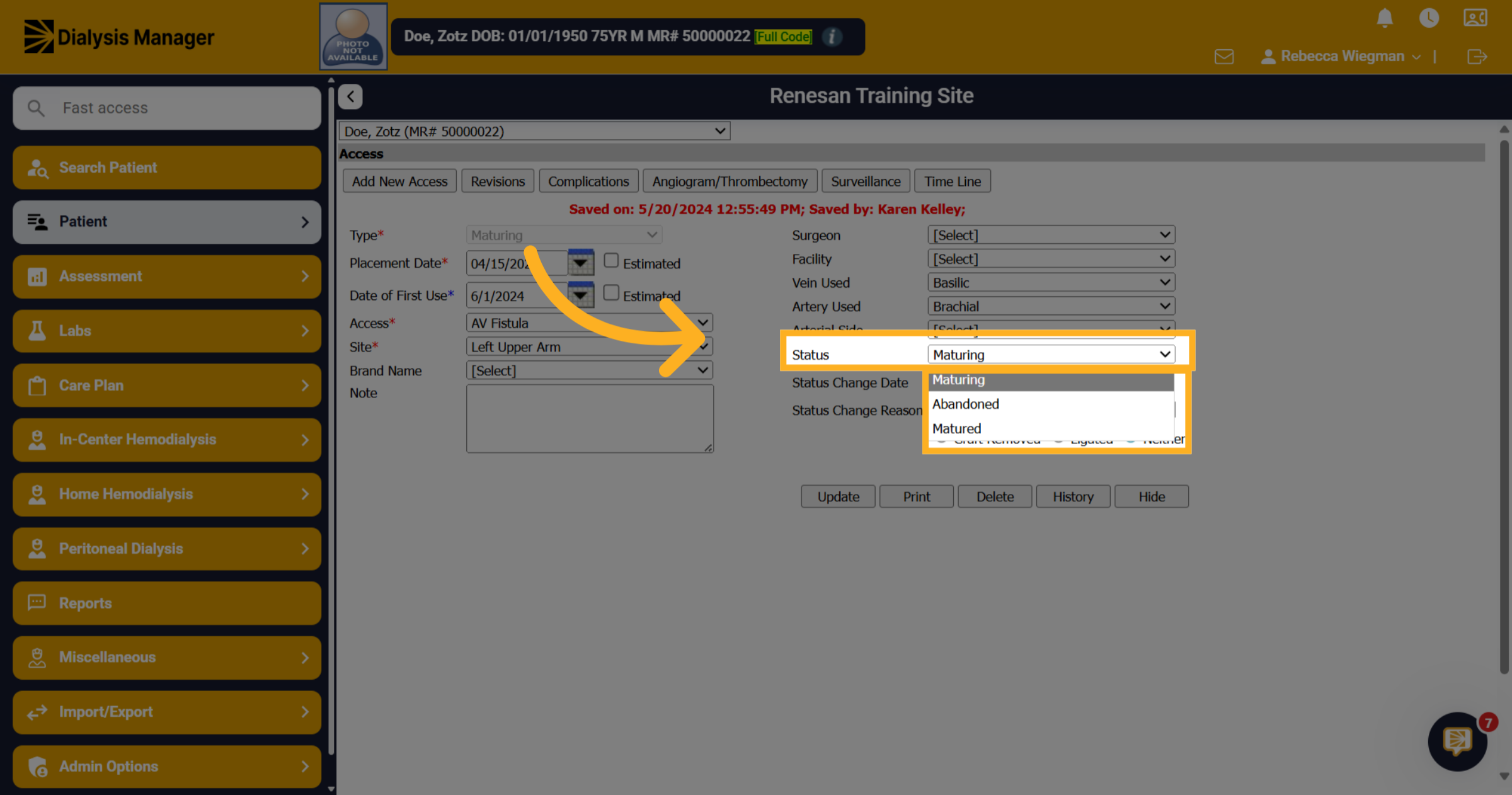
4. Update the Status
When the patients access status is set to Maturing but your documenting that the access is now Matured you would update the Status.
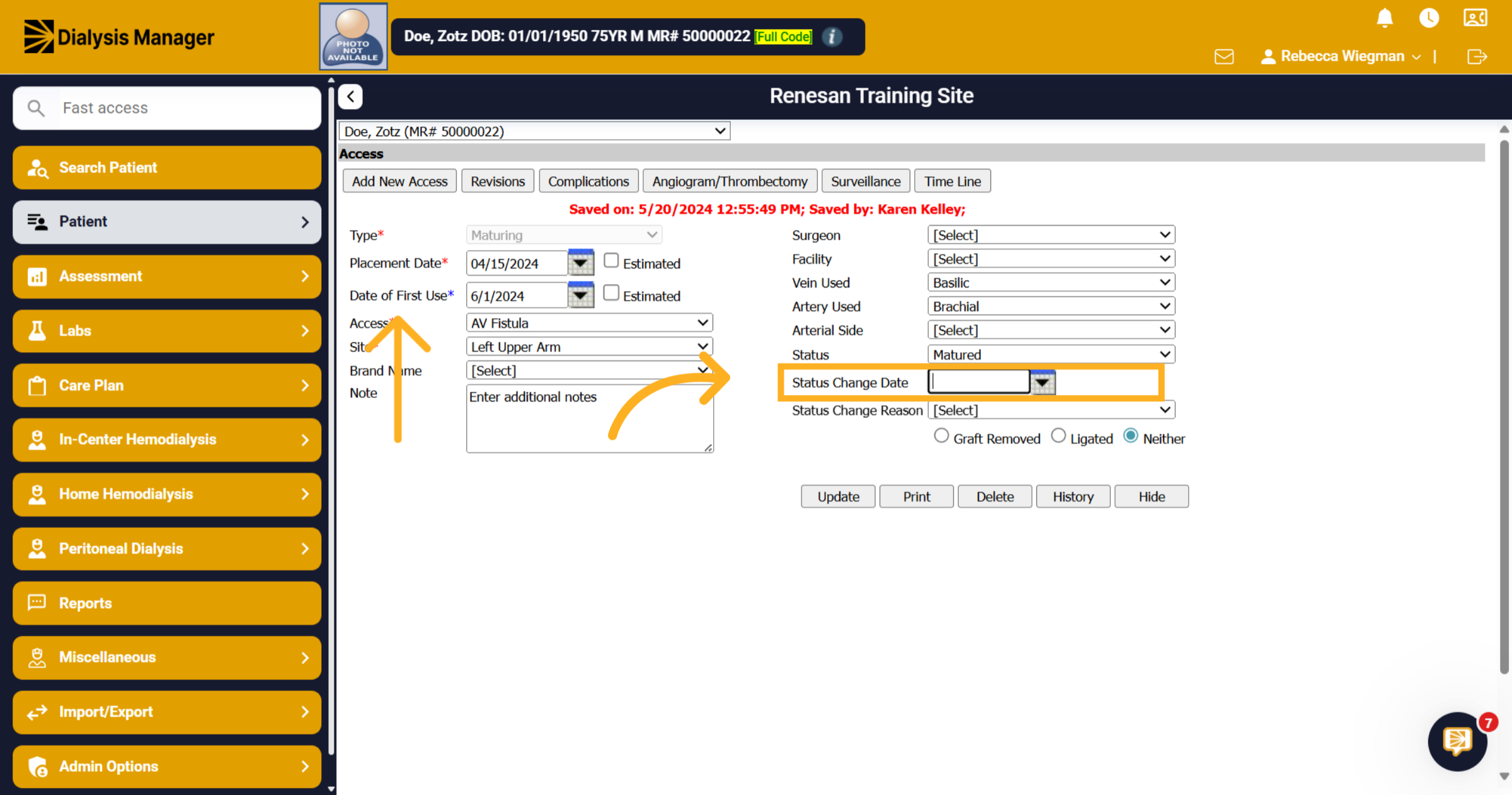
5. Status Change Date
Enter the Status Change Date Also the Date of First Use is required.
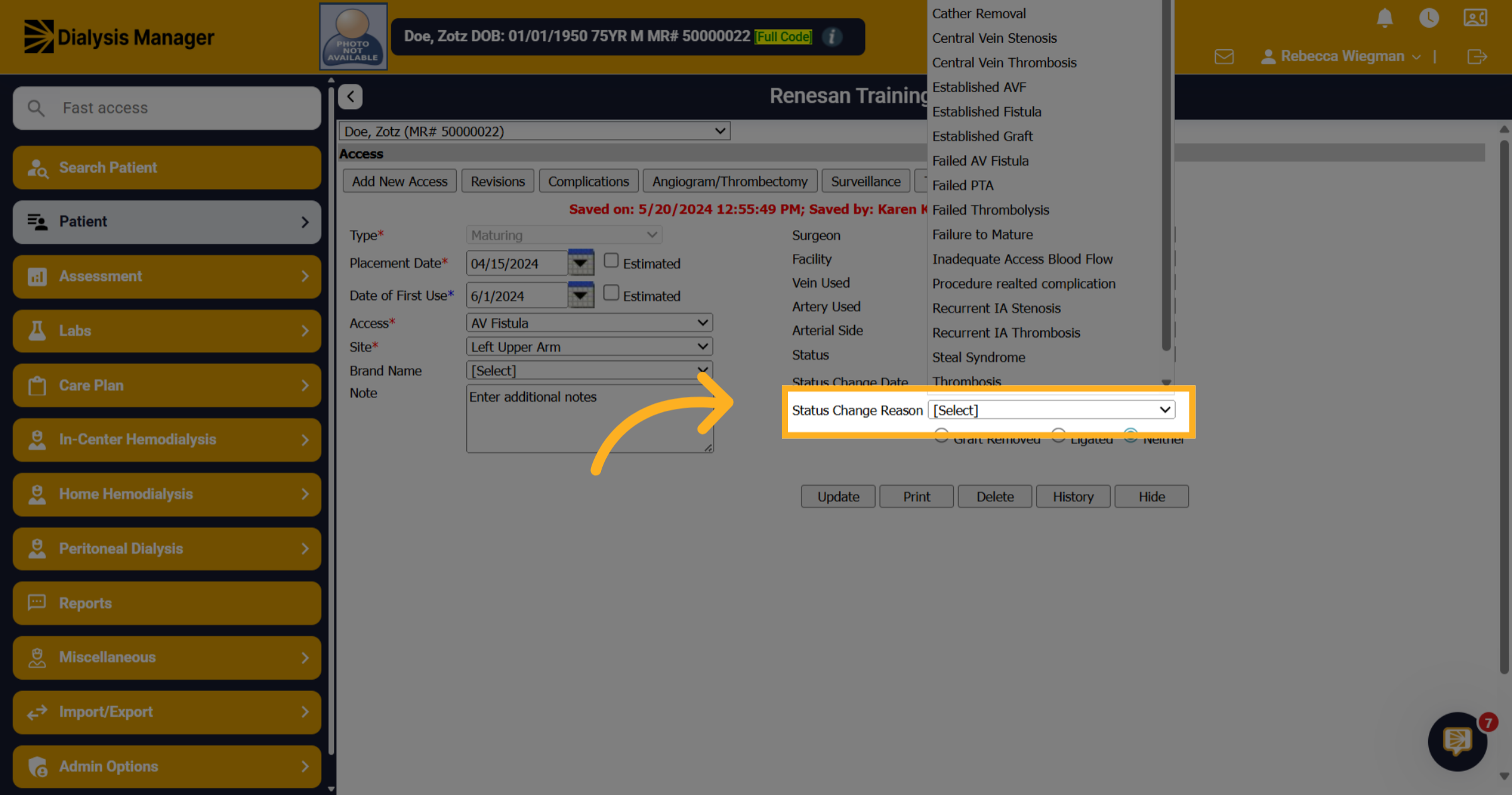
6. Status Change Reason
Select a status change reason such as Established, Failed, Removed, etc.
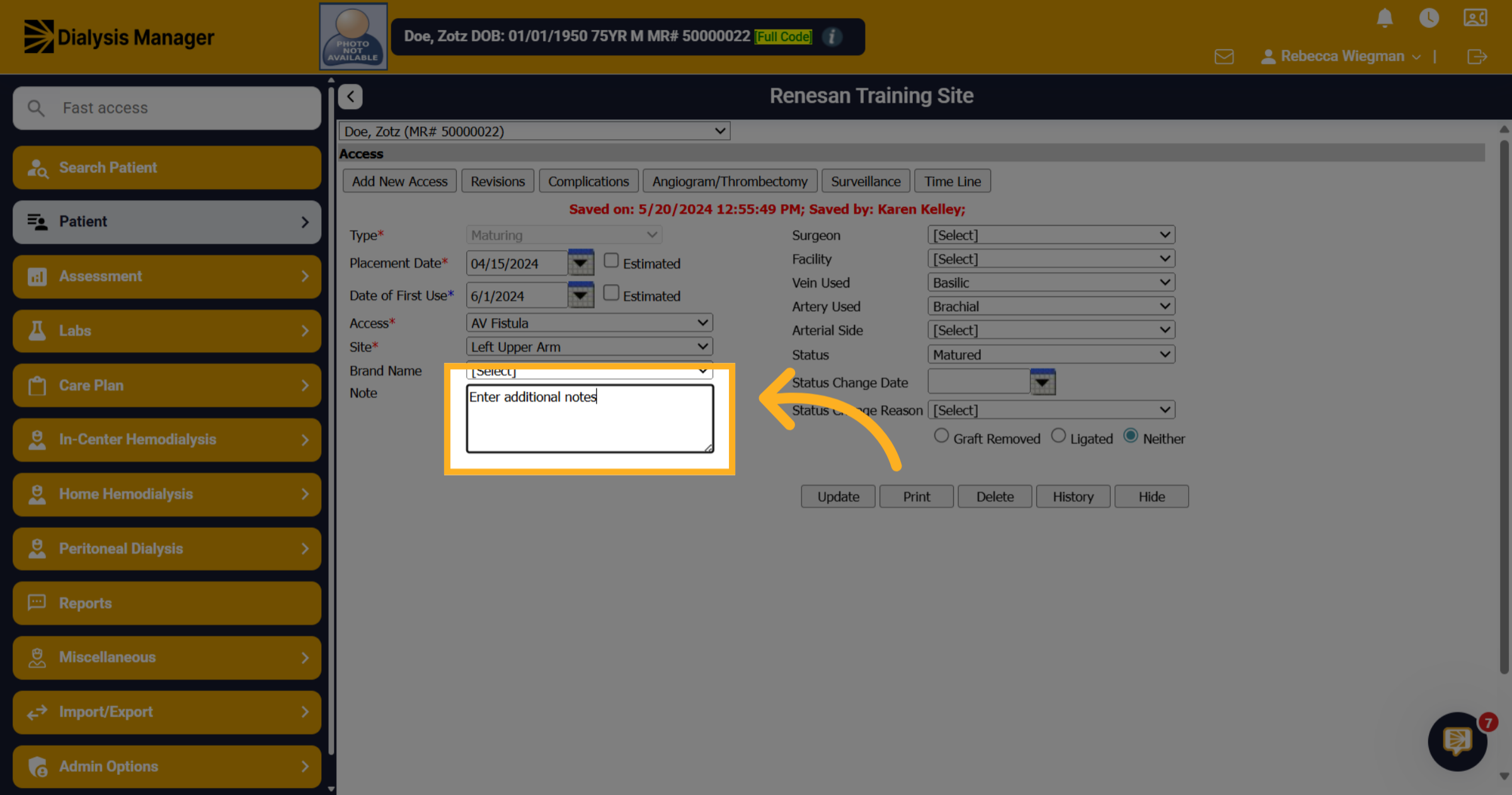
7. Click "Enter additional notes"
Enter any additional notes you may have!
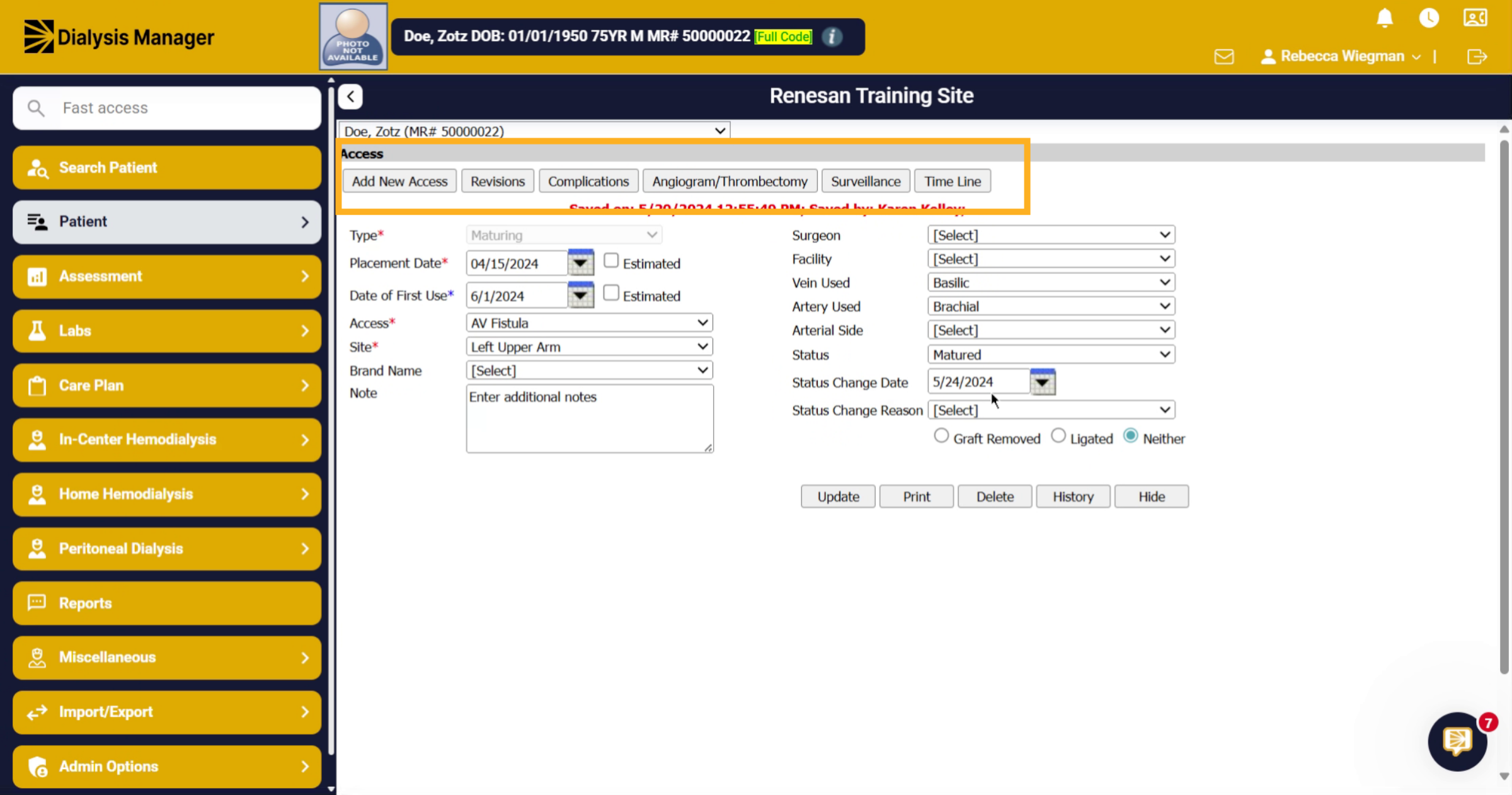
8. Additional Info
Please note the additional tabs across the top. You can also add revisions, complications, angiogram/thrombectomy, surveillance and show the time line of the access.
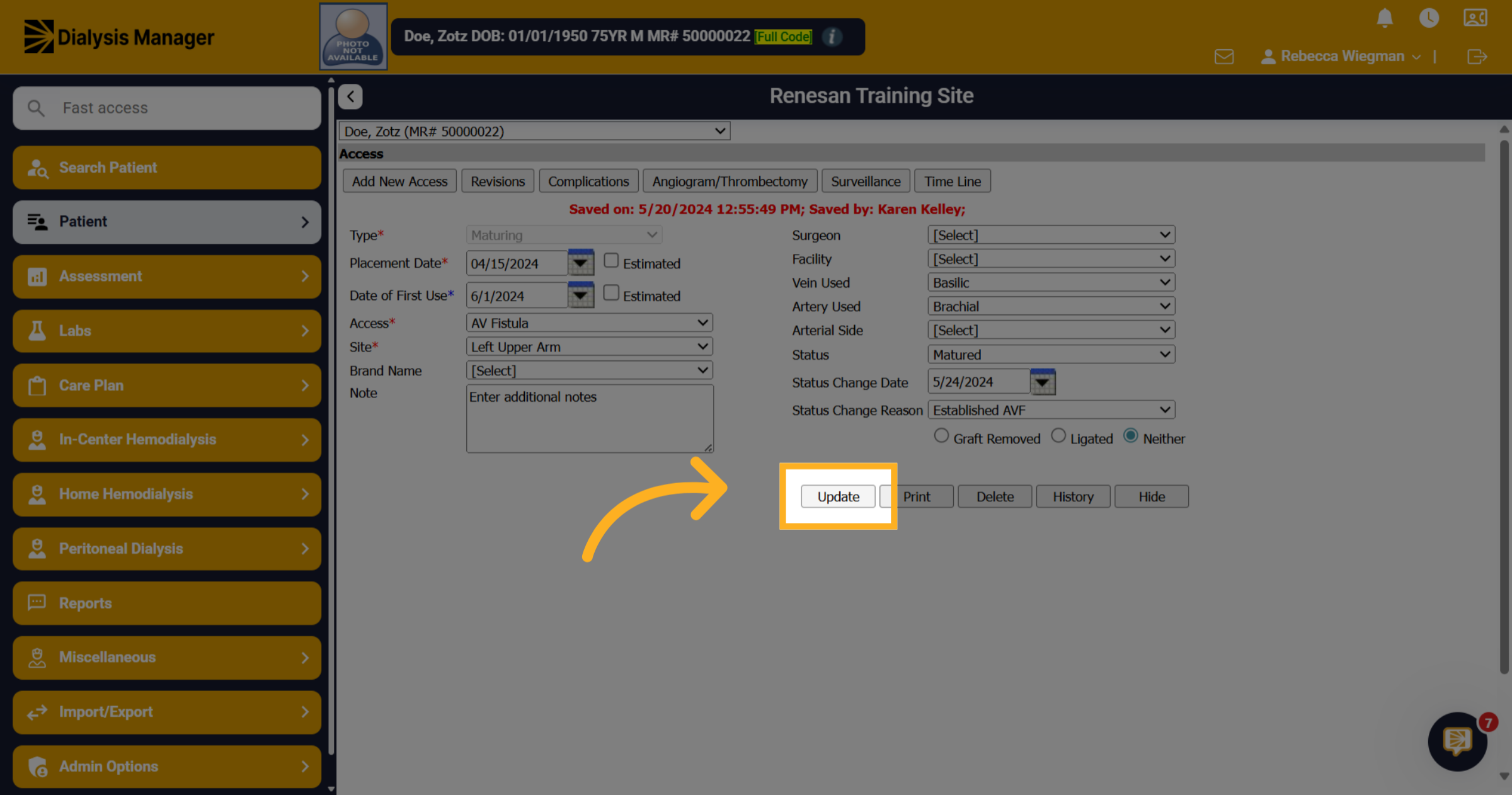
9. Click "Update"
Click the "Update" button to finalize and save all updates to the access record.