Update User Email Address in Renvio Platform
1. Introduction
This tutorial explains how to update an existing user's email address within the Renvio platform. You will learn to navigate user profiles and manage contact information effectively.
2. Access User Profile
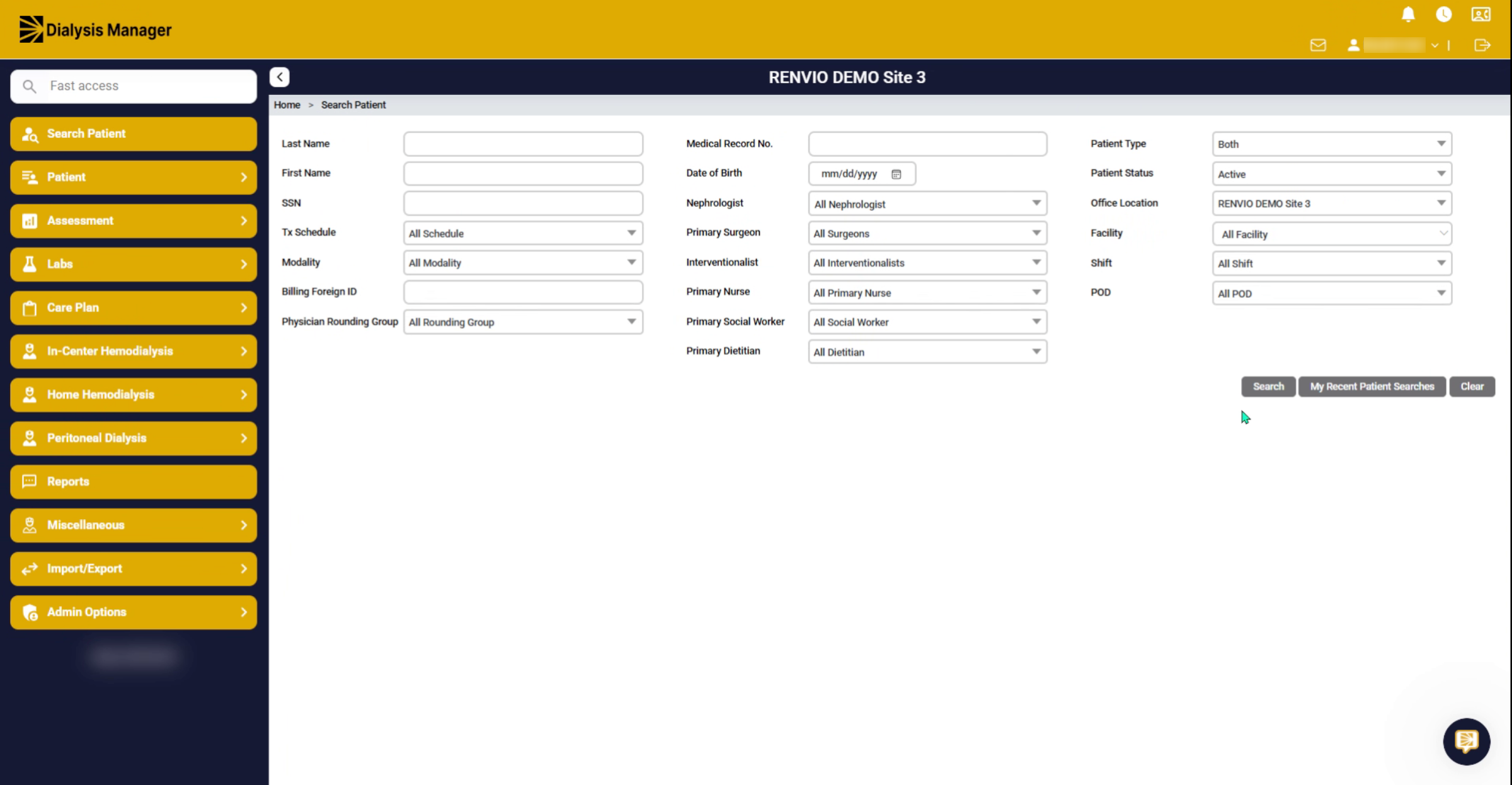
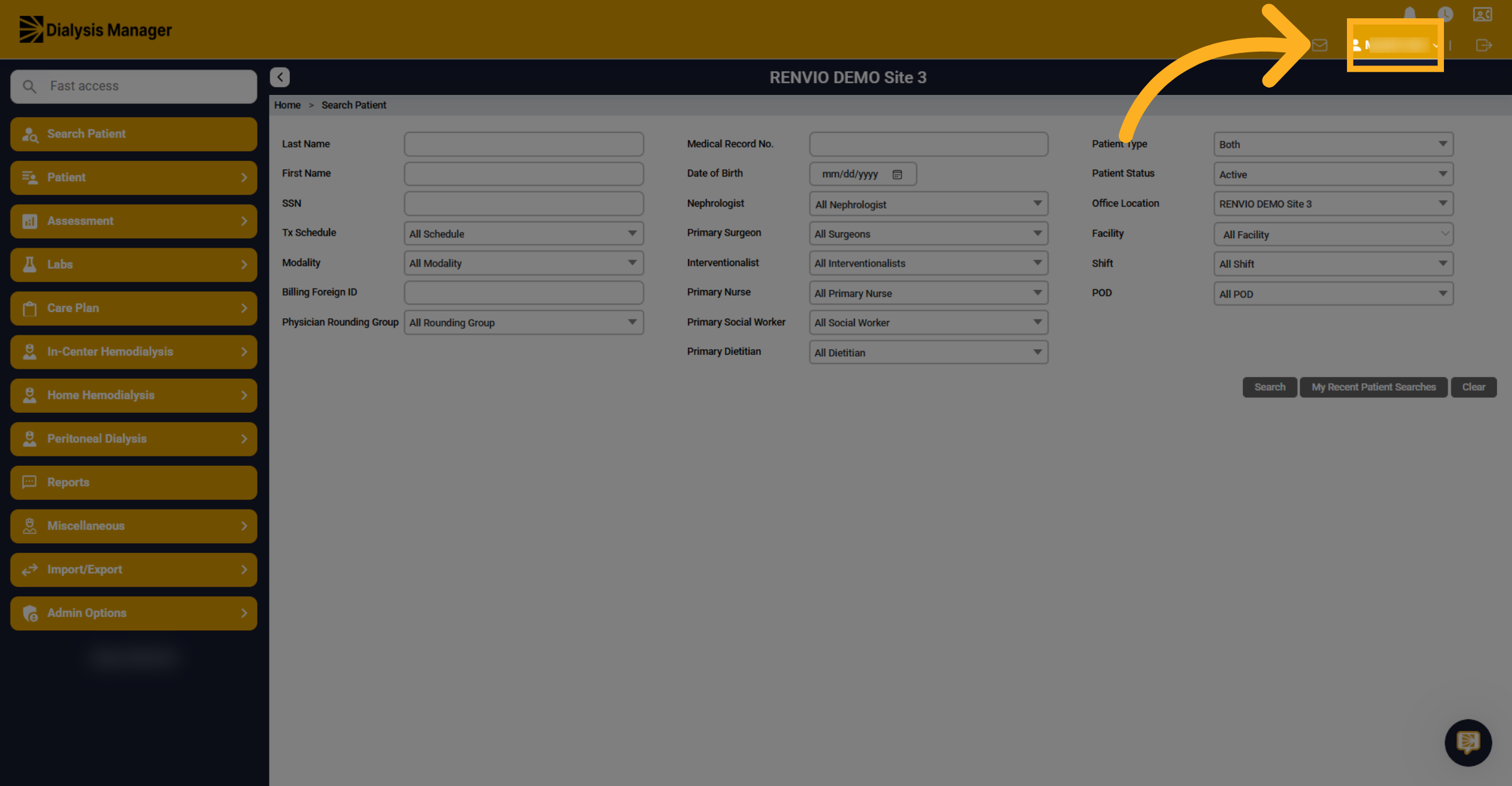
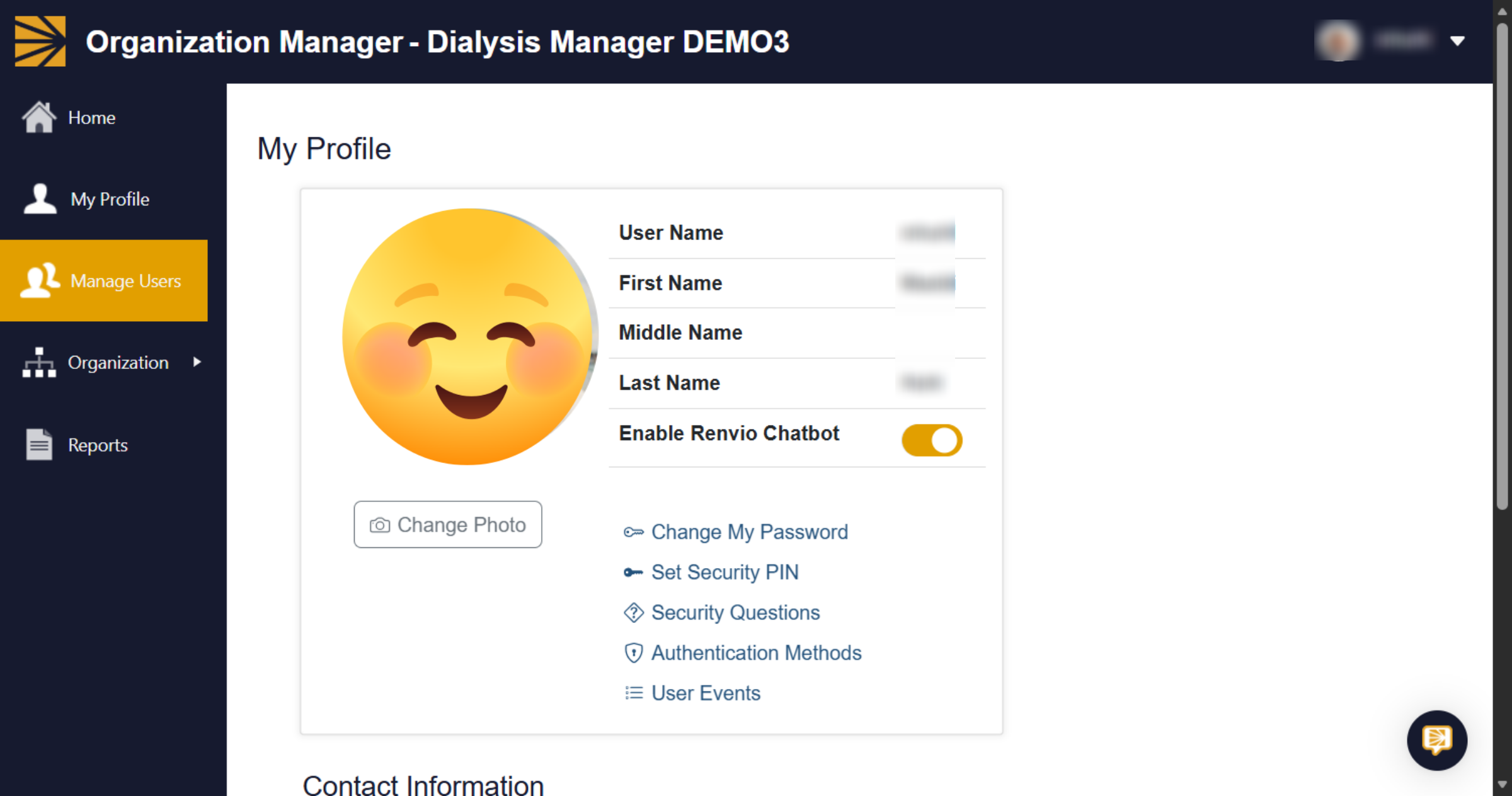
To update an existing user's email, click your name in the top right corner.
3. Open Profile Settings
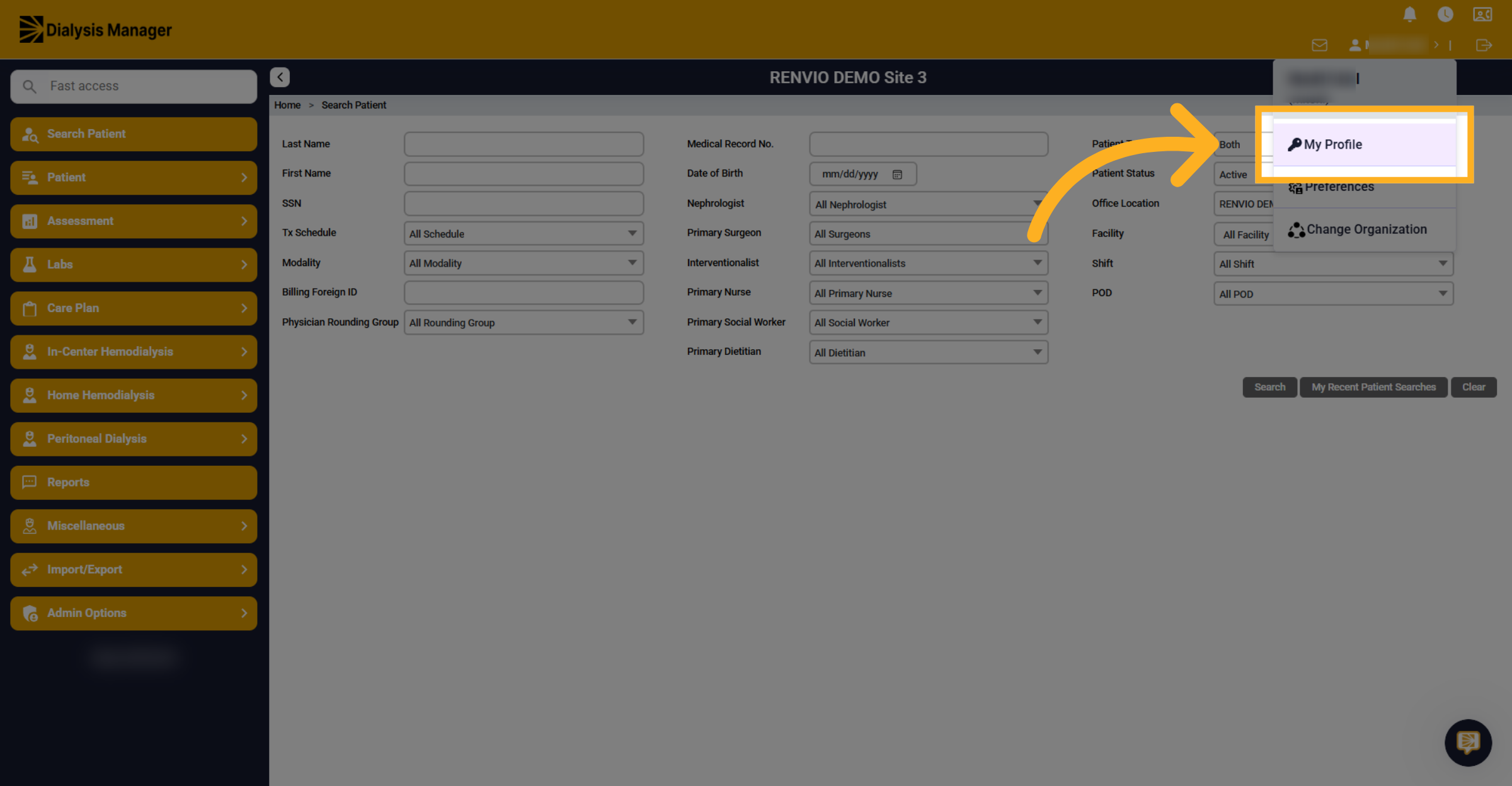
Then click My Profile.
4. Switch to Organization Manager
A popup with appear.
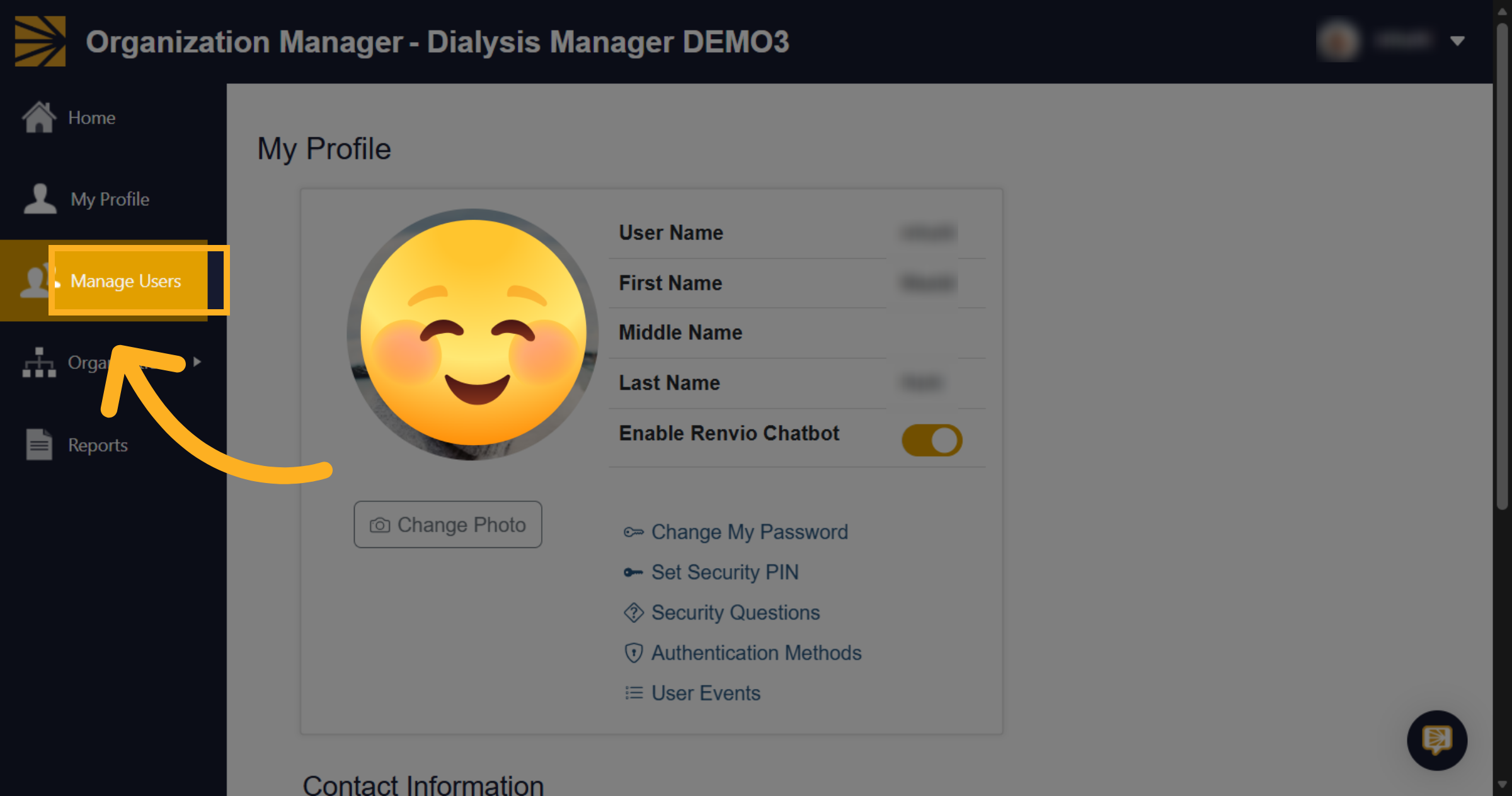
5. Open Manage Users
Click Manage Users.
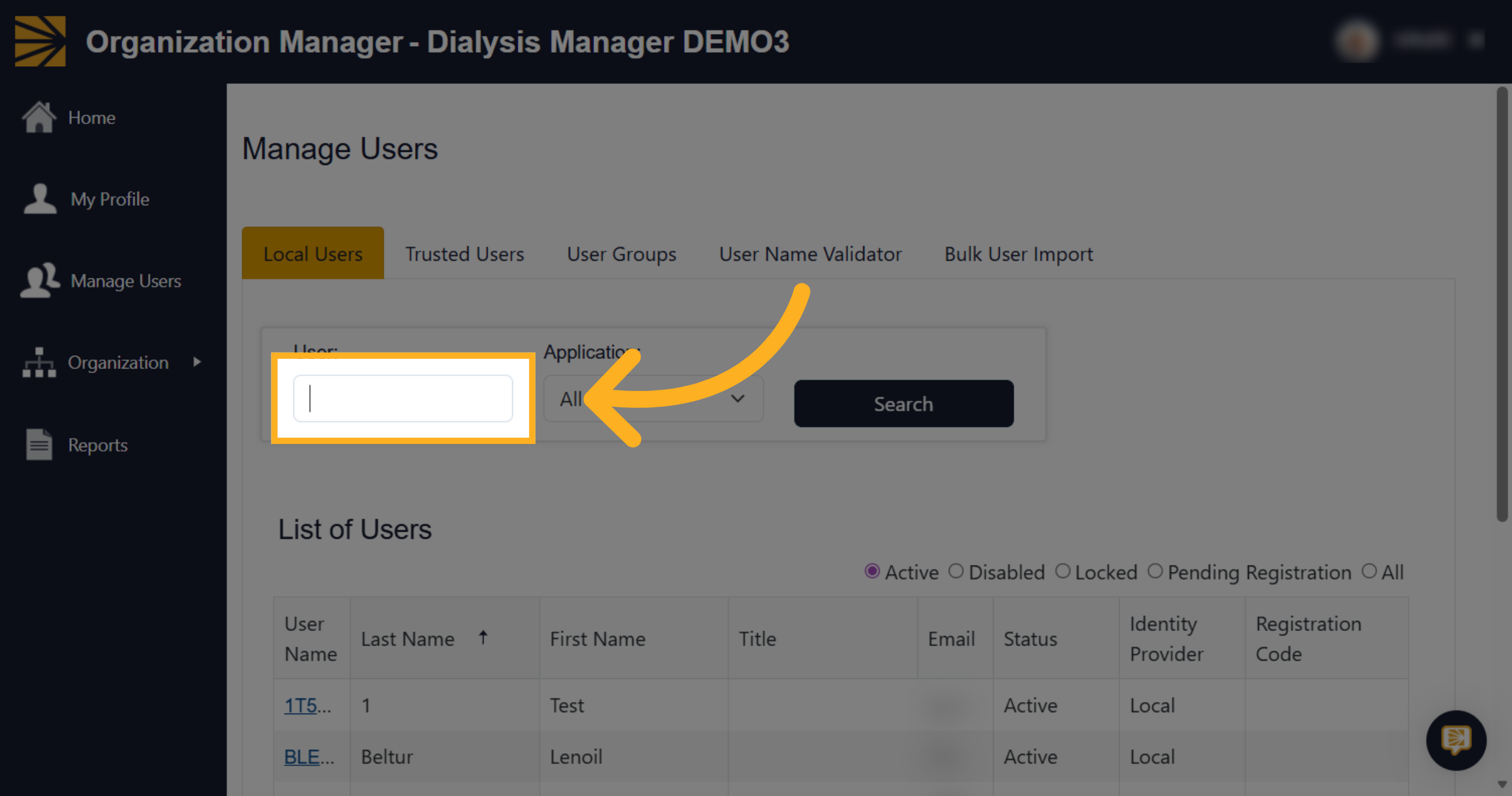
6. Initiate User Search
Find the user in the list below by using the search bar.
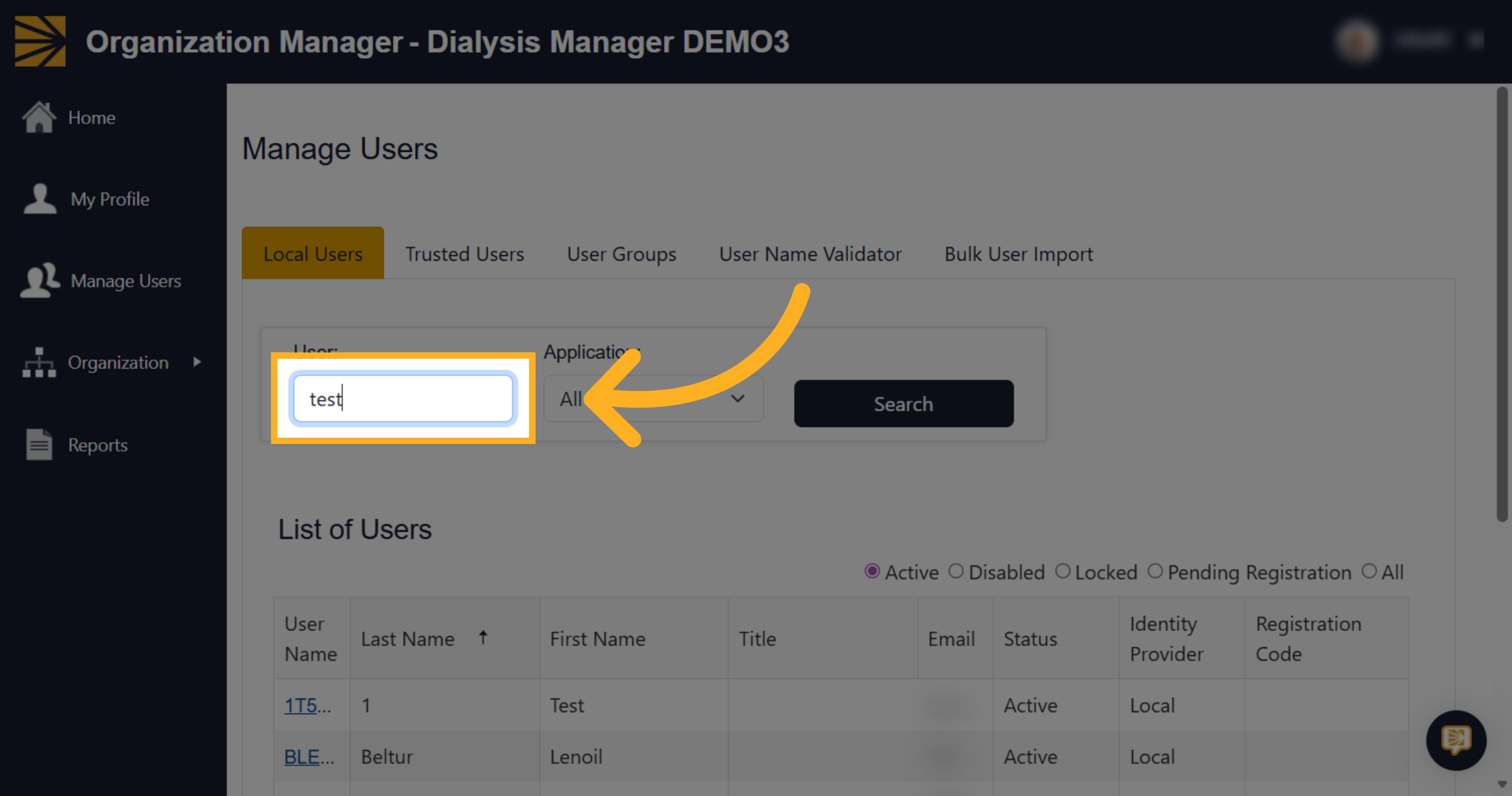
7. Enter Search Criteria
Fill the user's name.
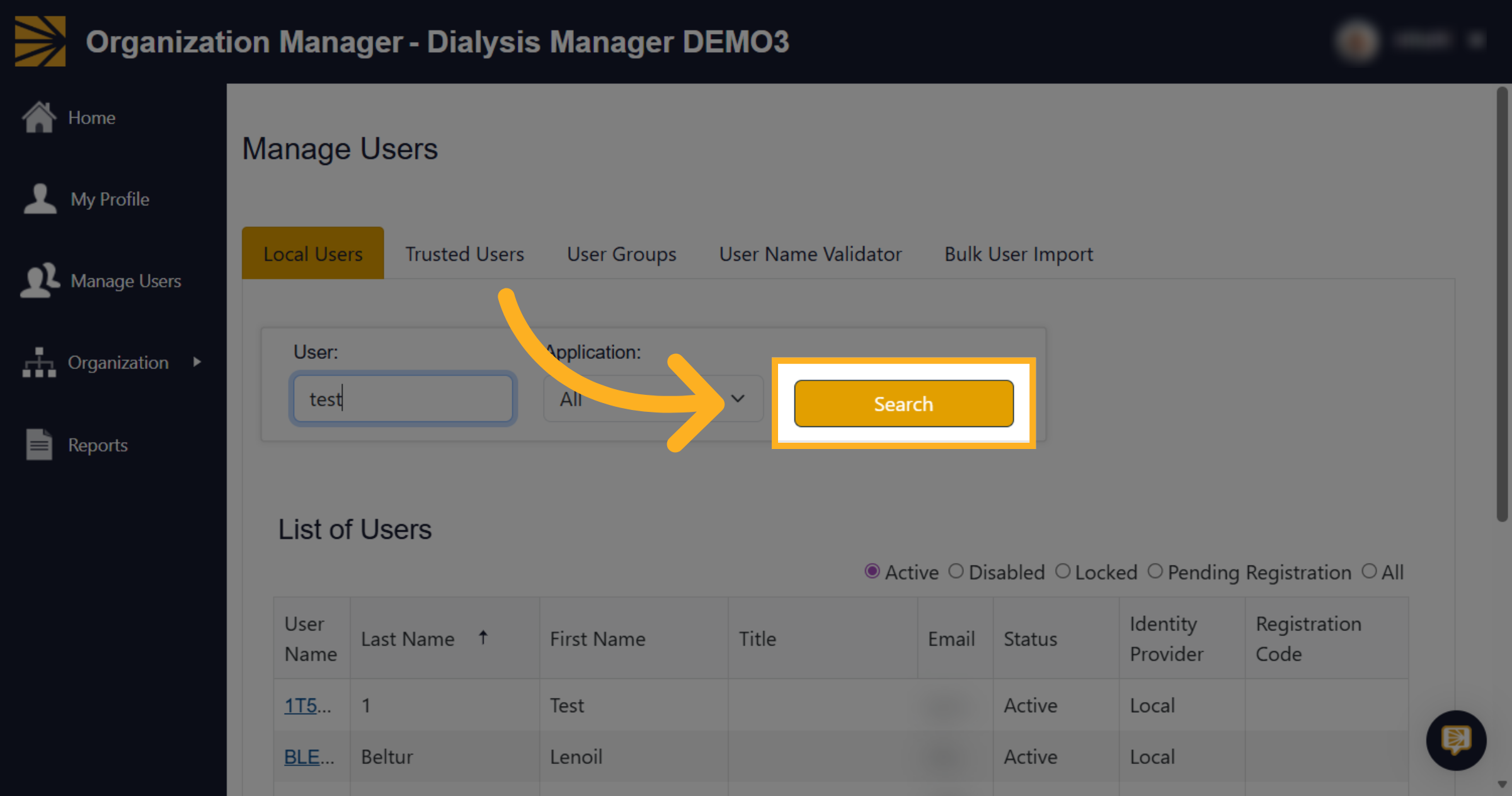
8. Execute User Search
Click Search.
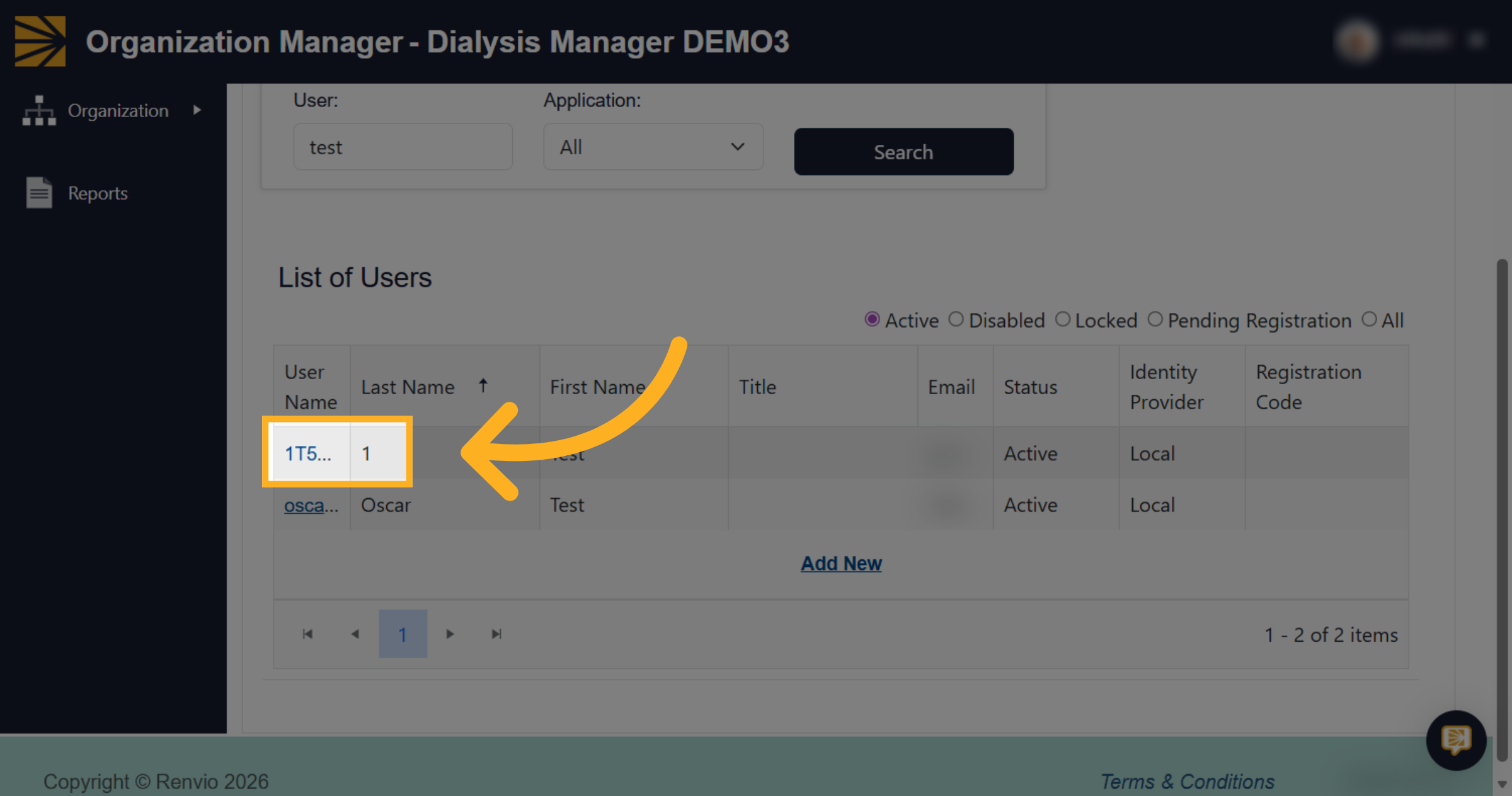
9. Select User Account
Click the user's username.
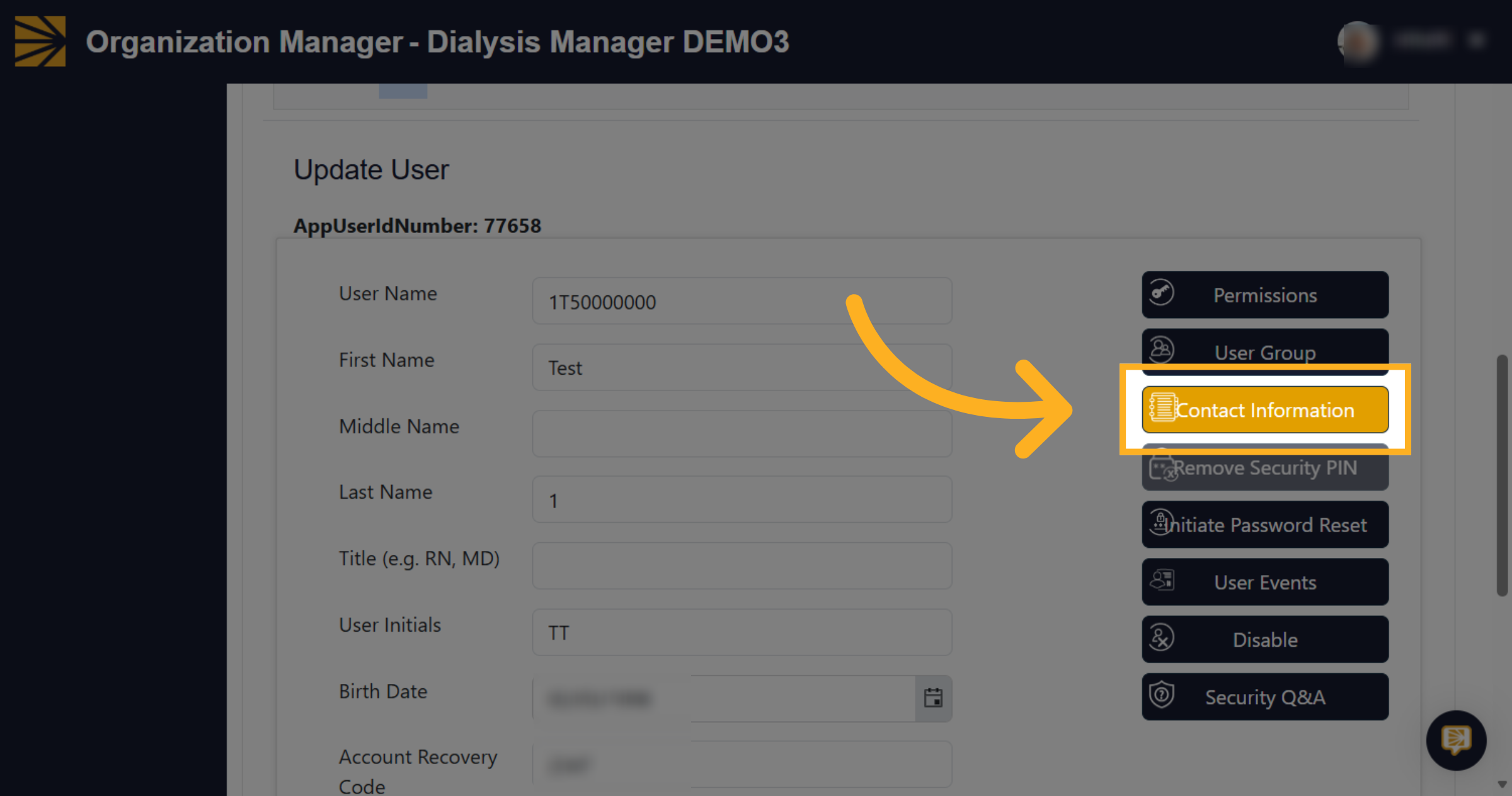
10. Access Contact Information
Then click contact information.
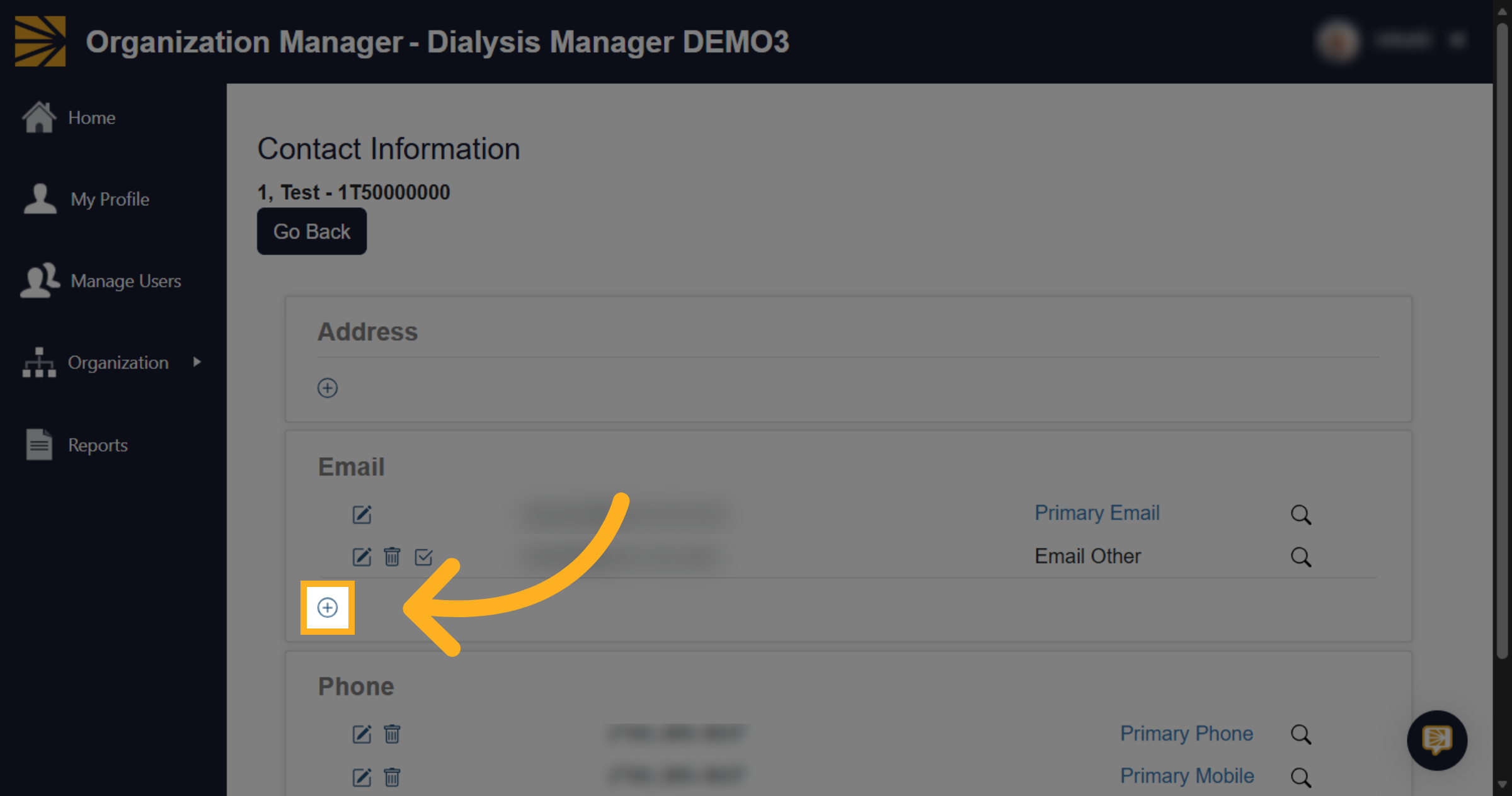
11. Add New Email
From here we can click this plus icon.
12. Enter New Email
And enter in an email.
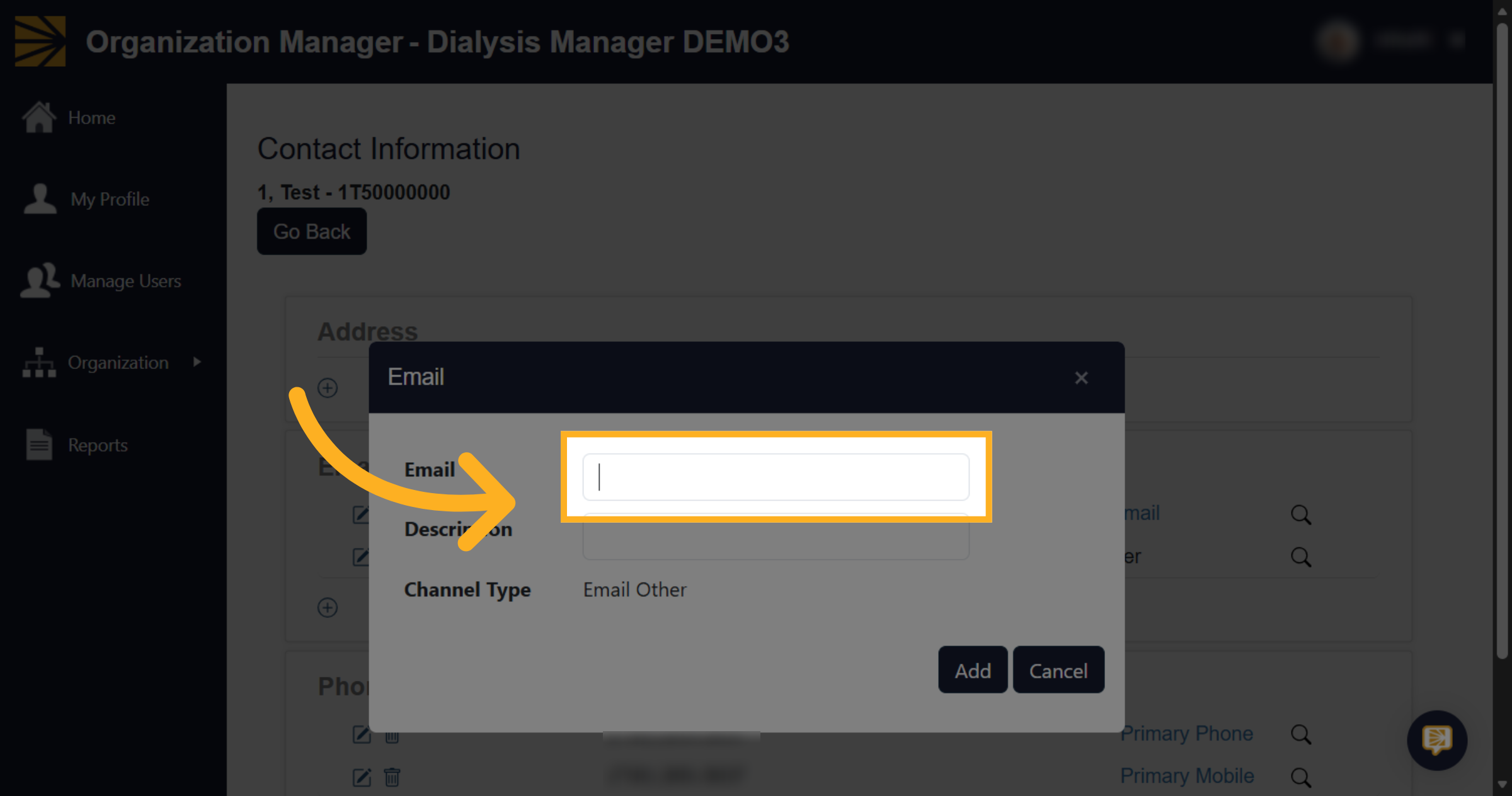
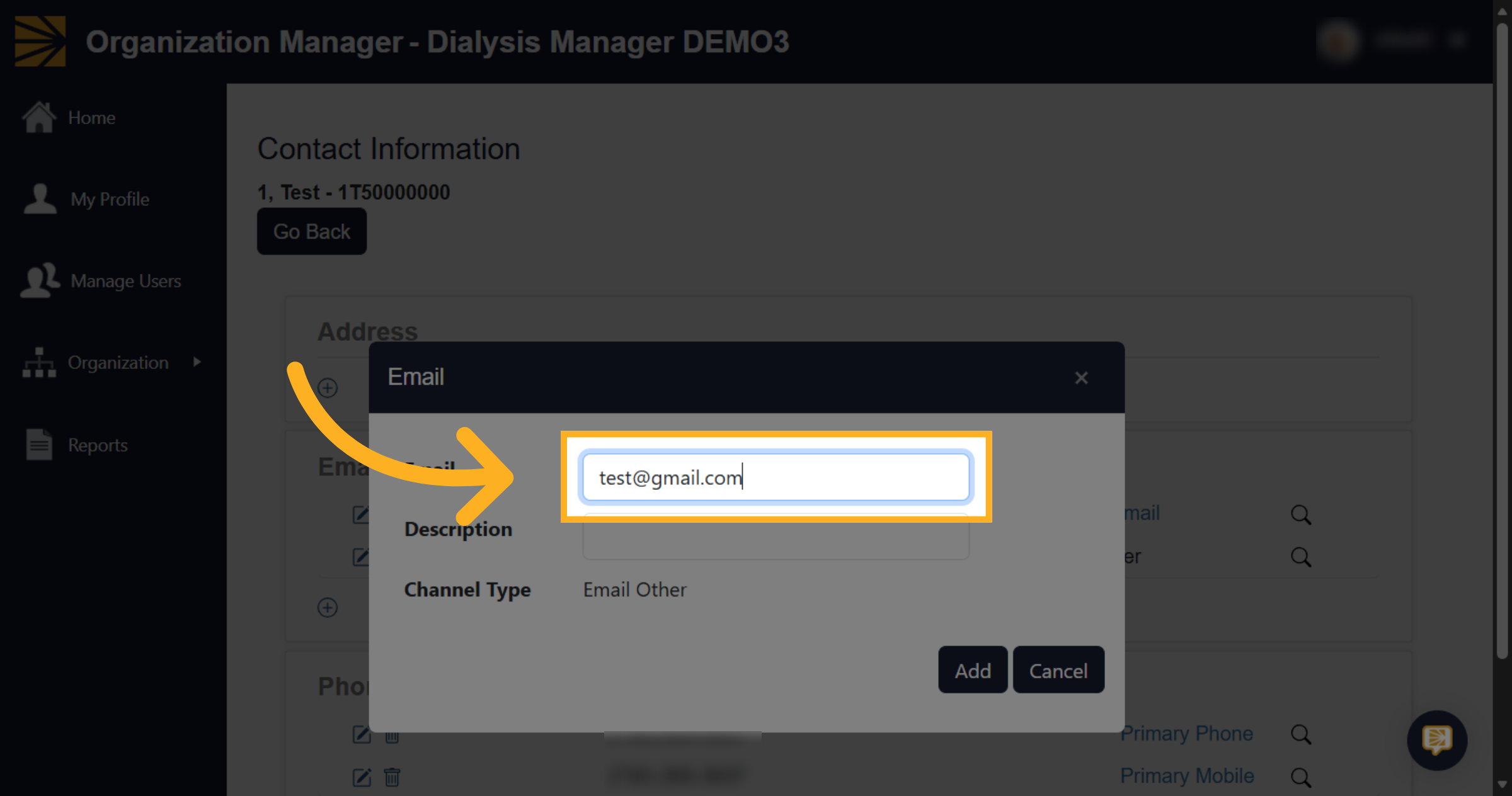
13. Fill Email Address
Fill the user's new email.
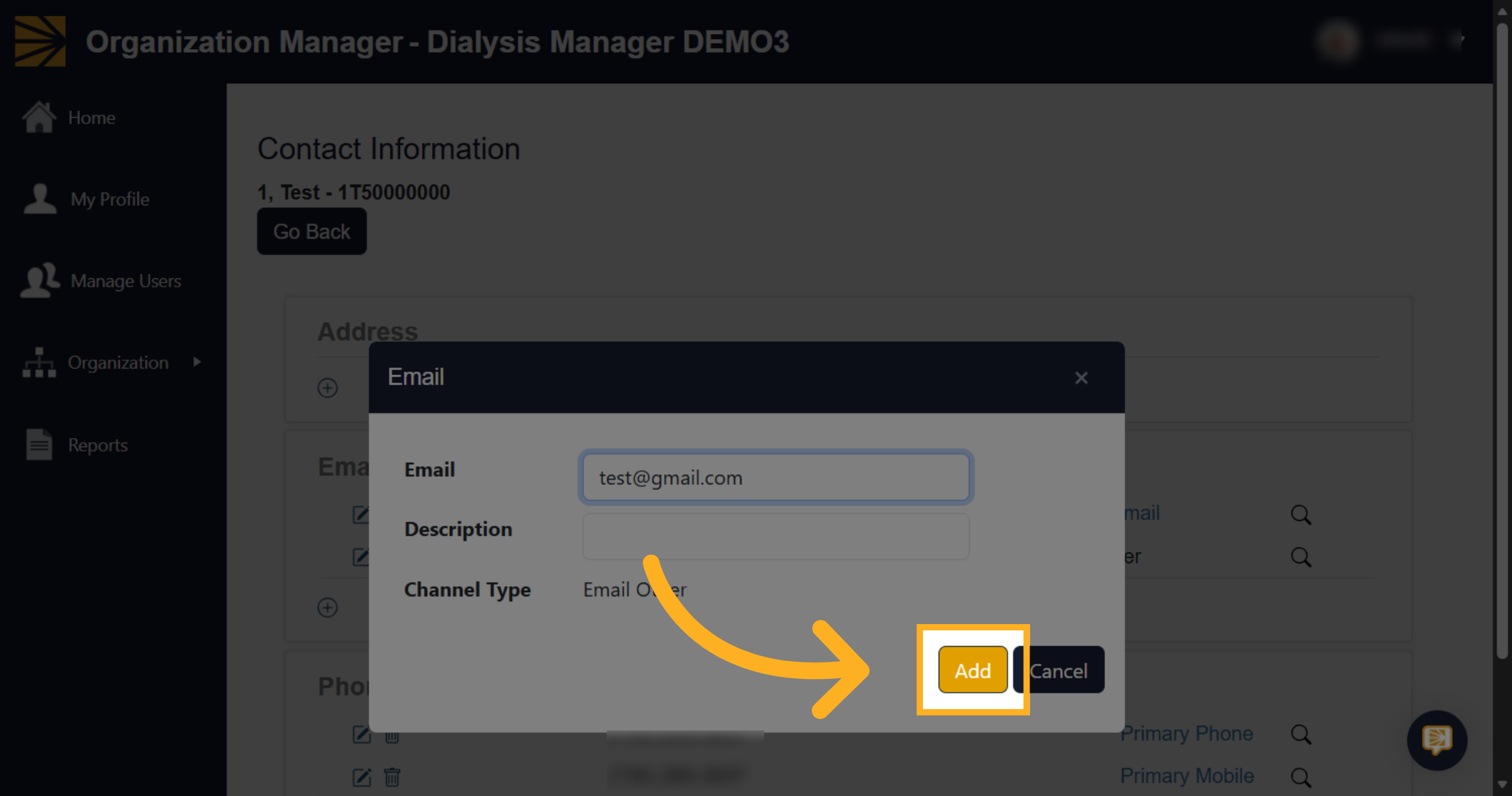
14. Add Email Entry
Then click Add.
15. Set Primary Email
You will need to mark the new email as primary so click this icon right here.
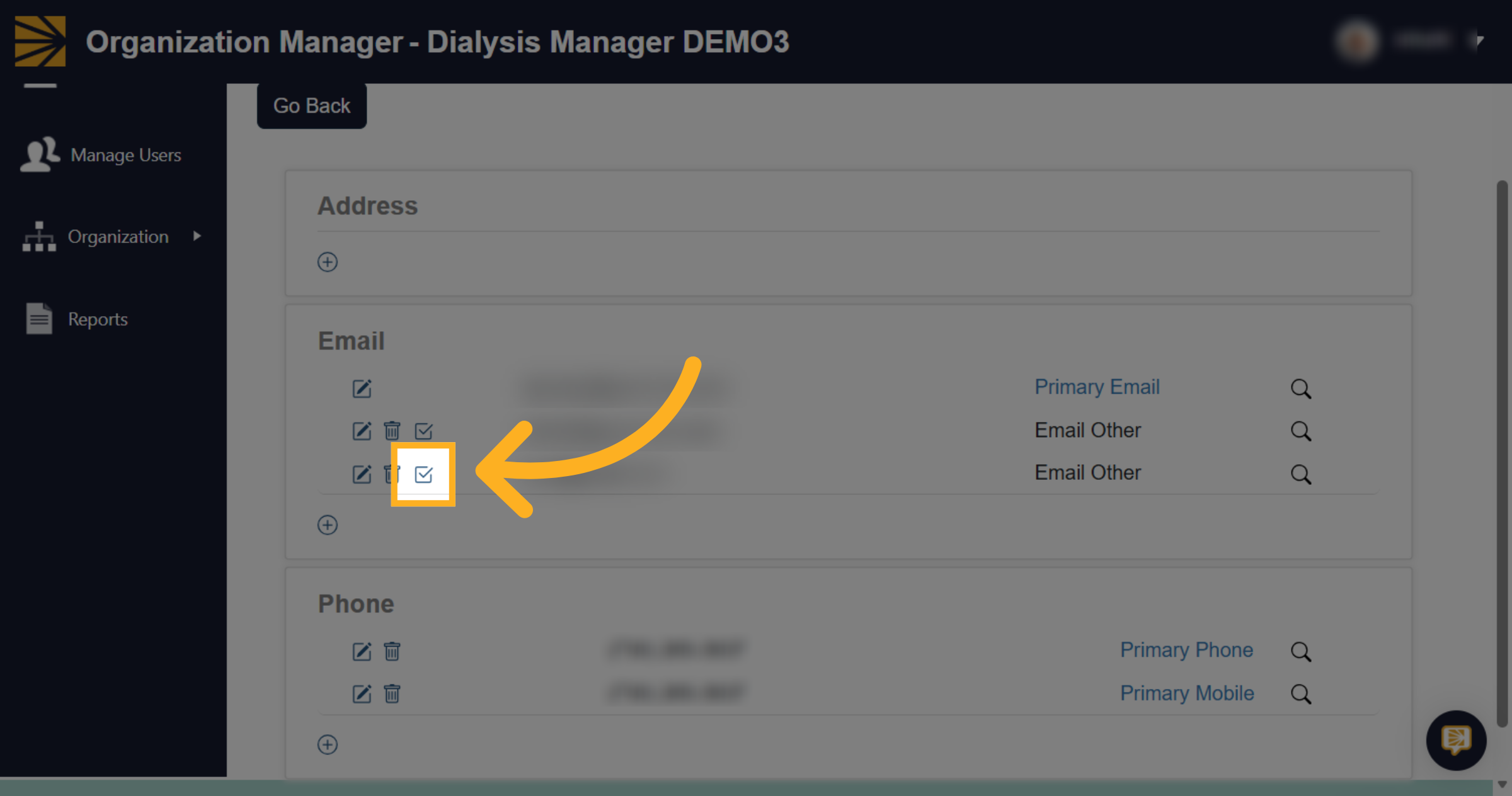
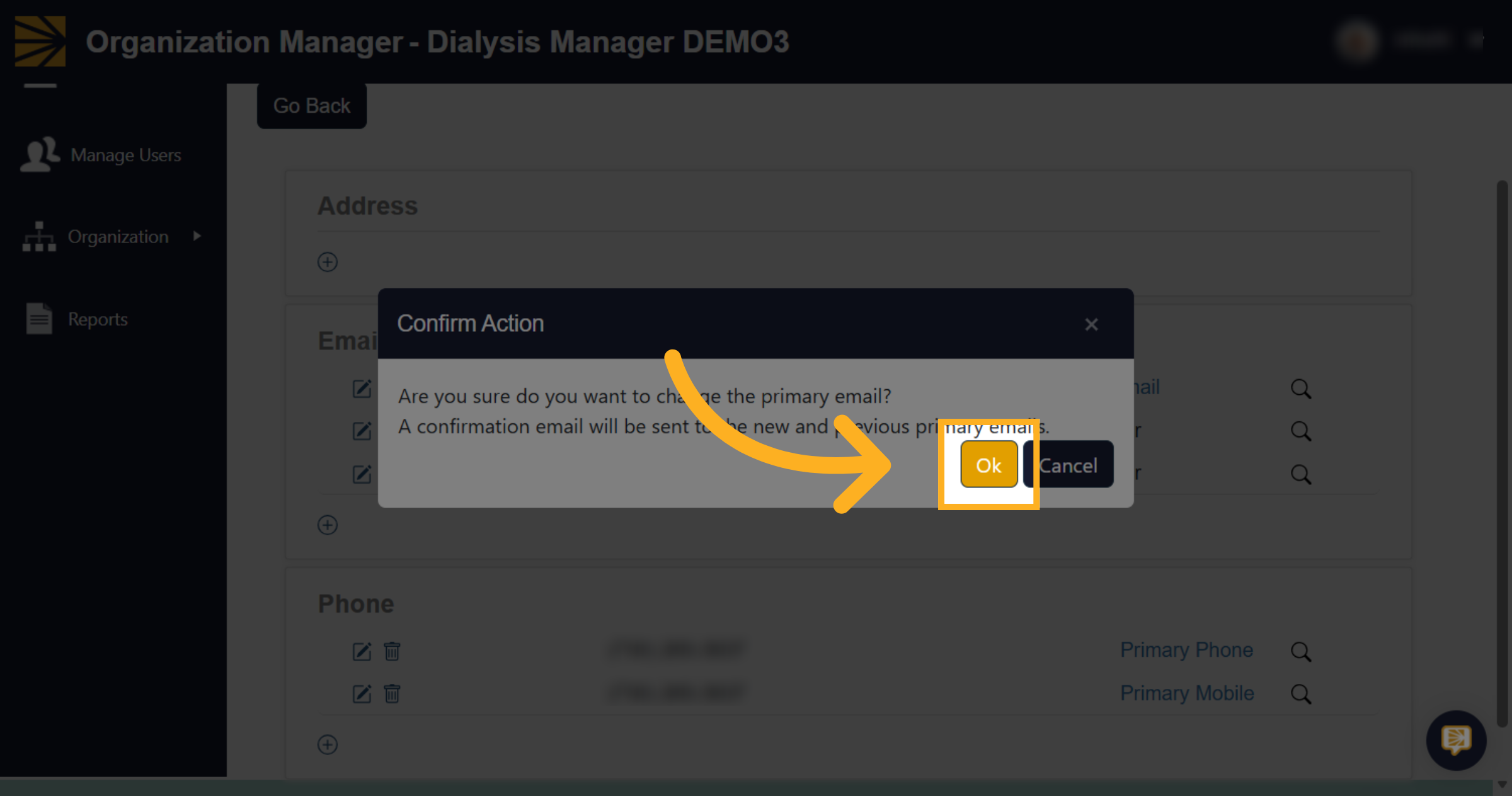
16. Confirm Email Change
And it will ask you if you want to do that and you will say okay.
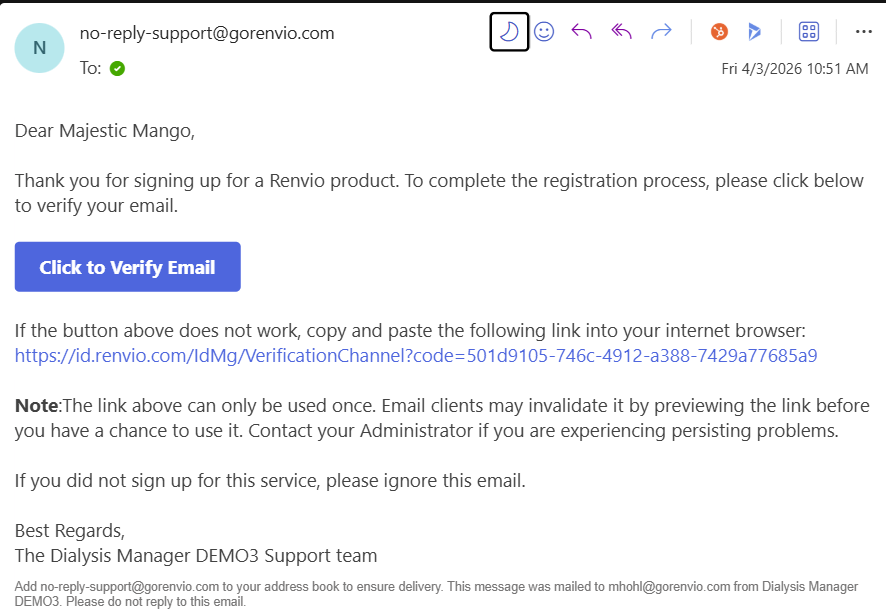
17. Verify Email
Renvio will send a no-reply email to your inbox. Please verify your email. You will not be able to log into Renvio until the new email is verified.