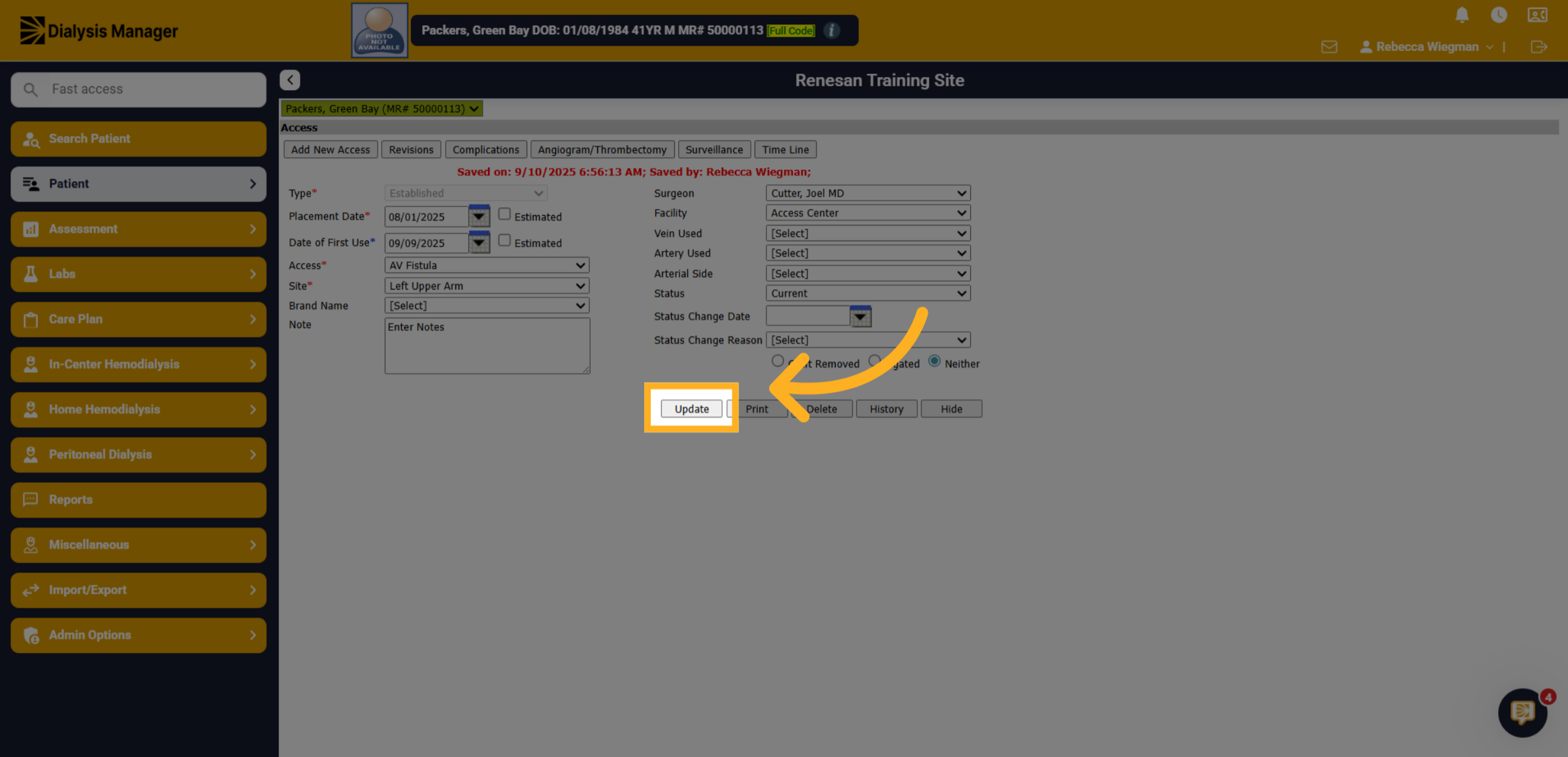
Update Patient Access.
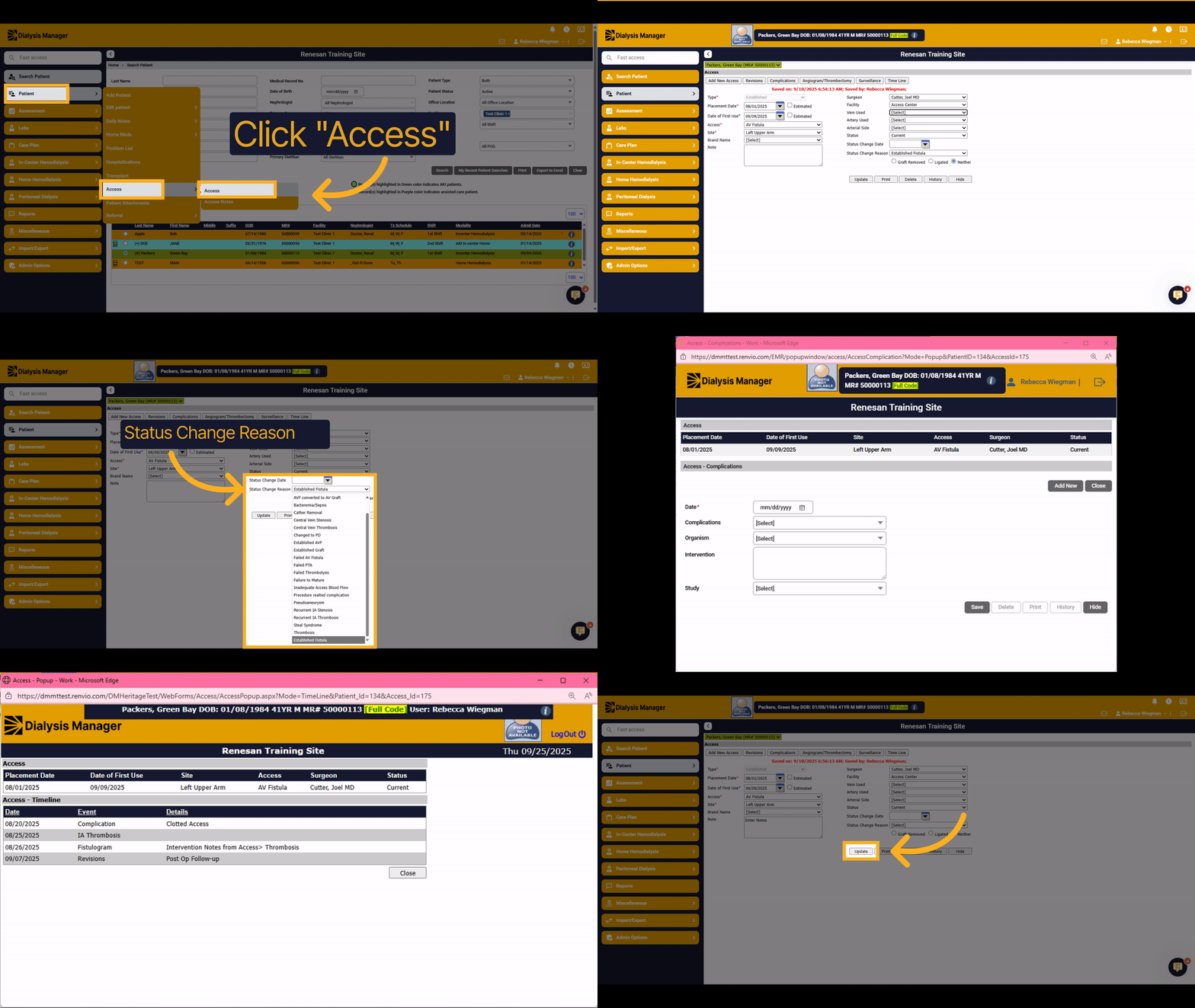
1. Click "Access"
Click into the 'Access' section to begin updating patient access details.
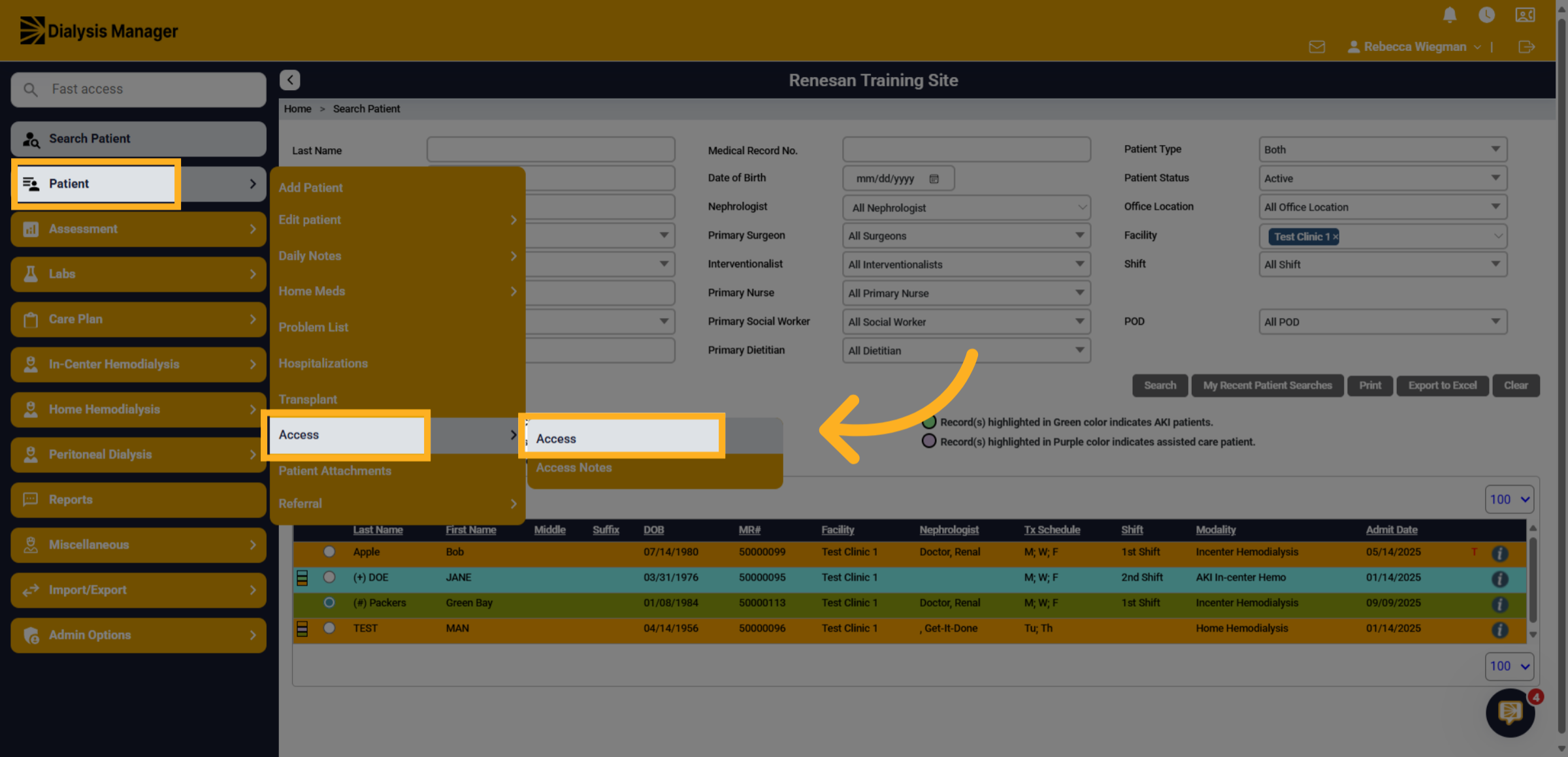
2. Select your access date
Select the access to be updated by clicking the blue hyper link date under the placement date column.
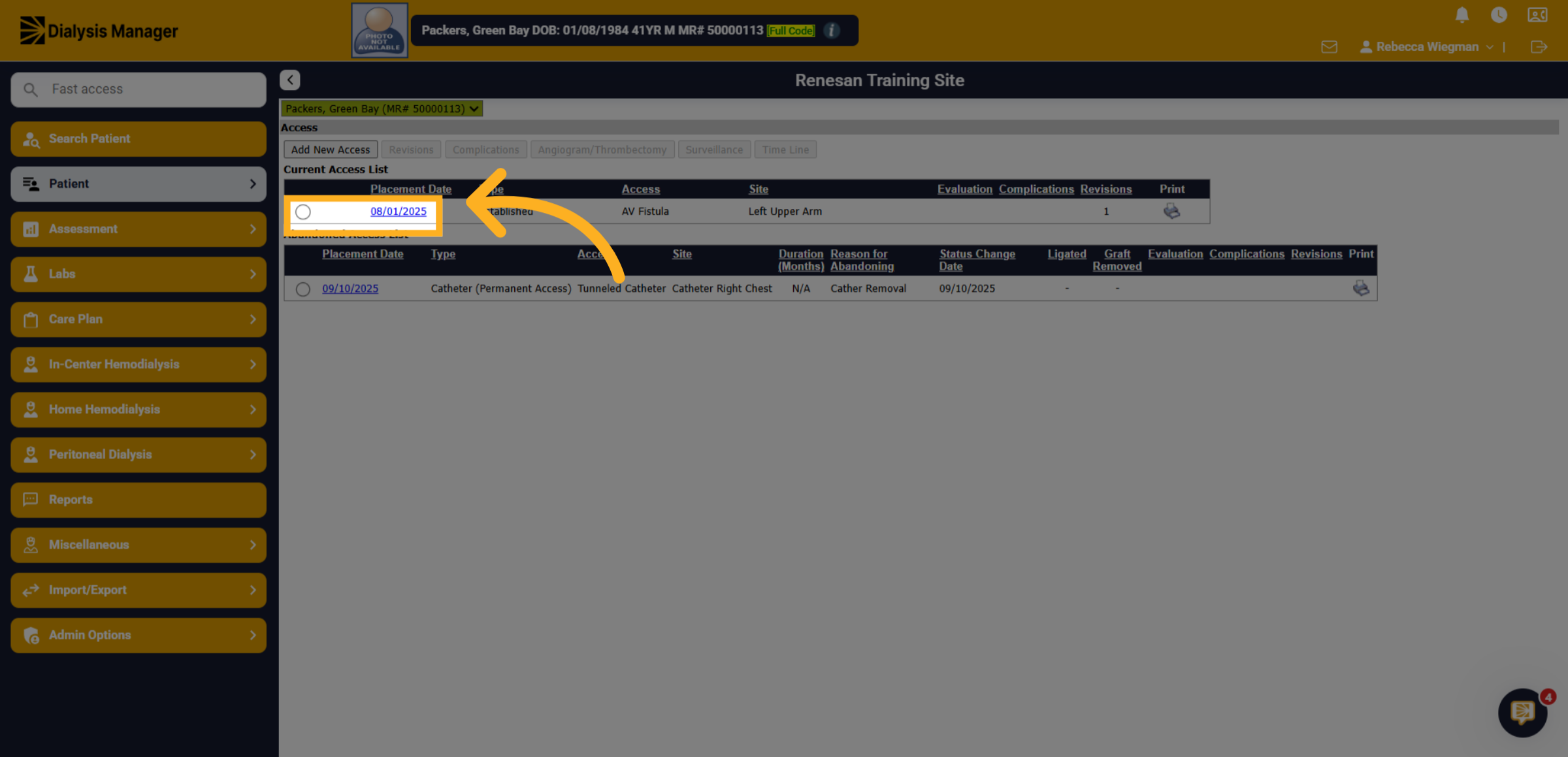
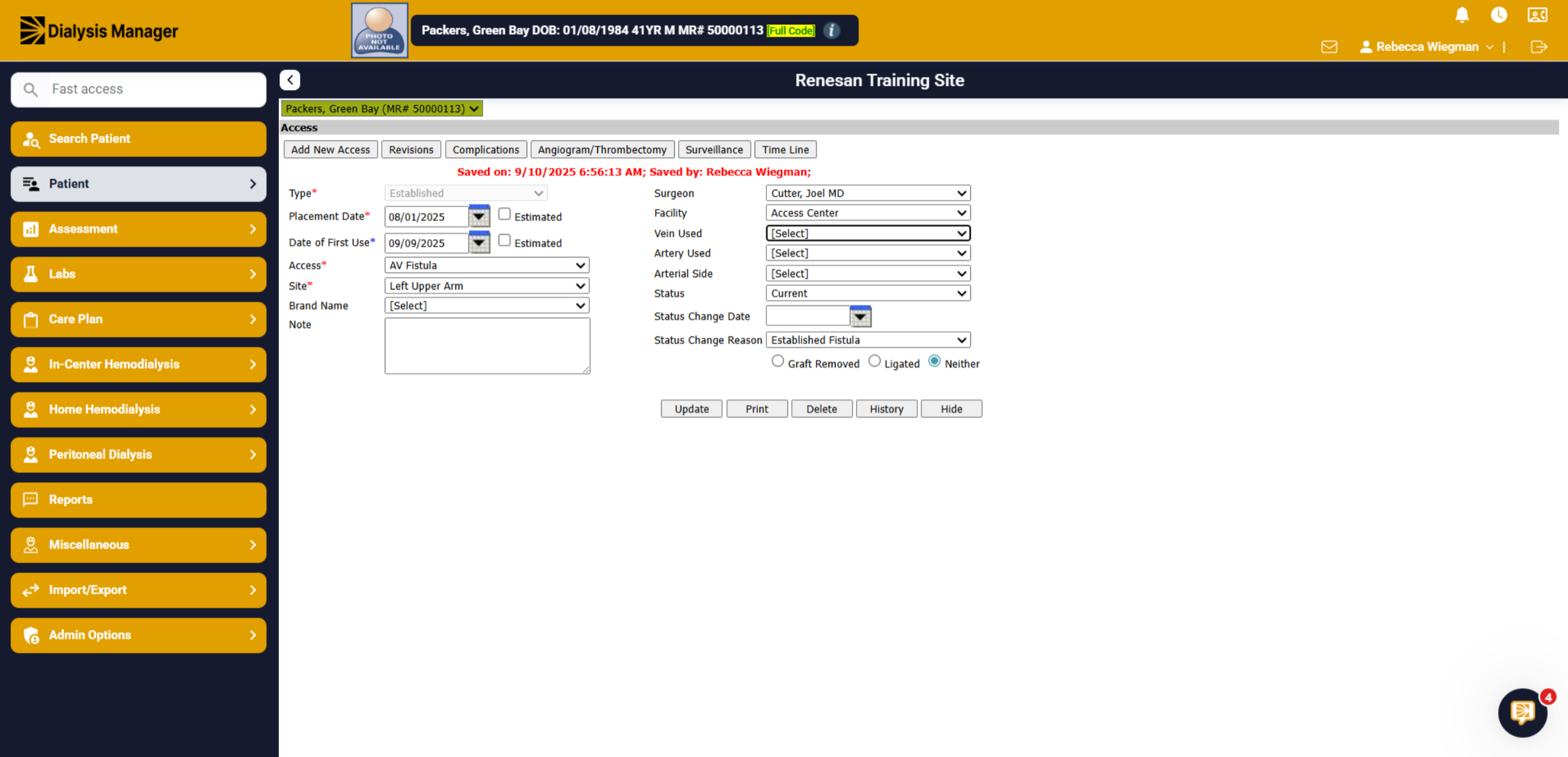
3. Update Fields
From here you'll be able to select the information you're looking to update.
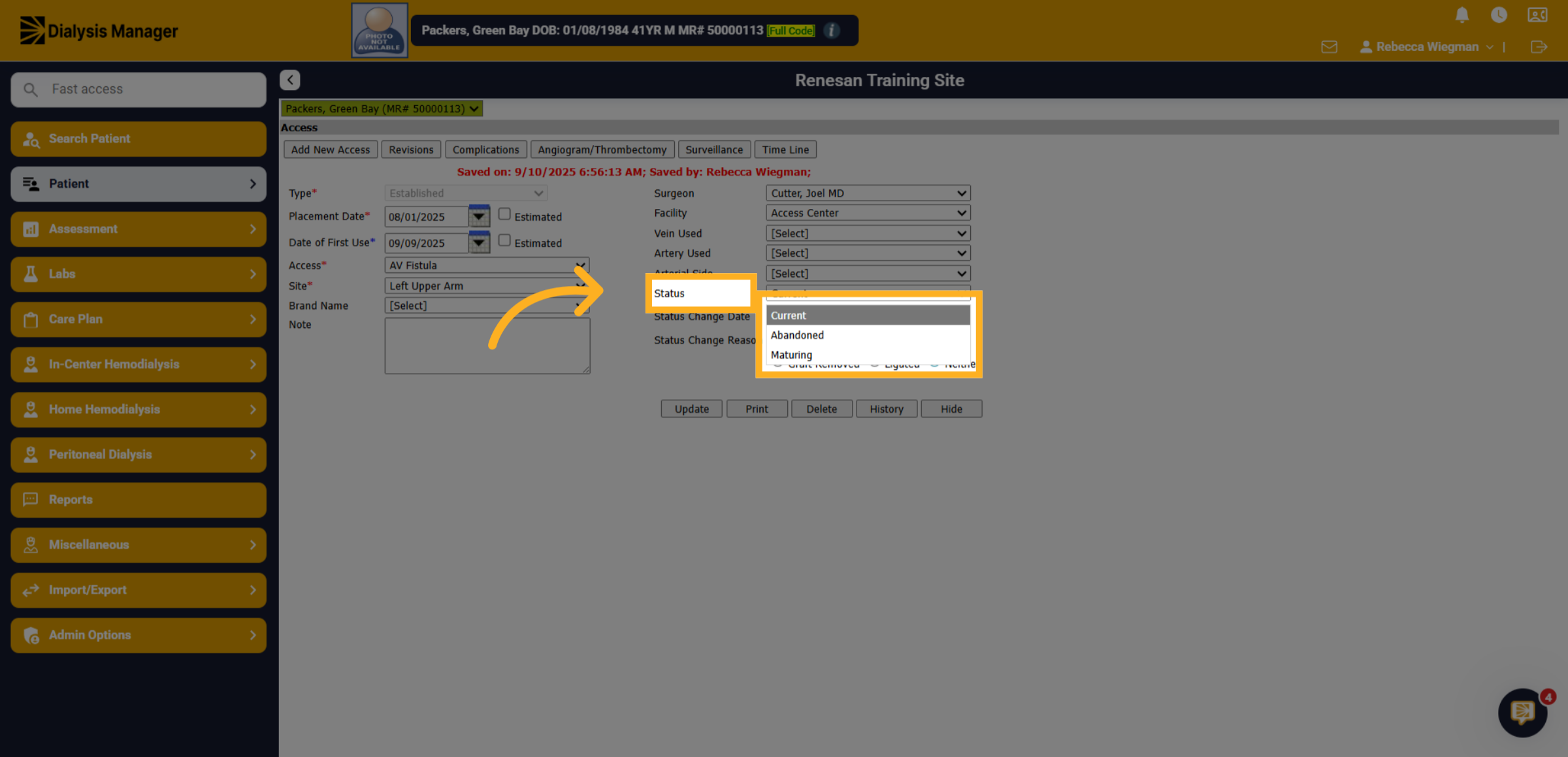
4. Updating the Status
To update the status of the access select abandoned, maturing or current from the dropdown.
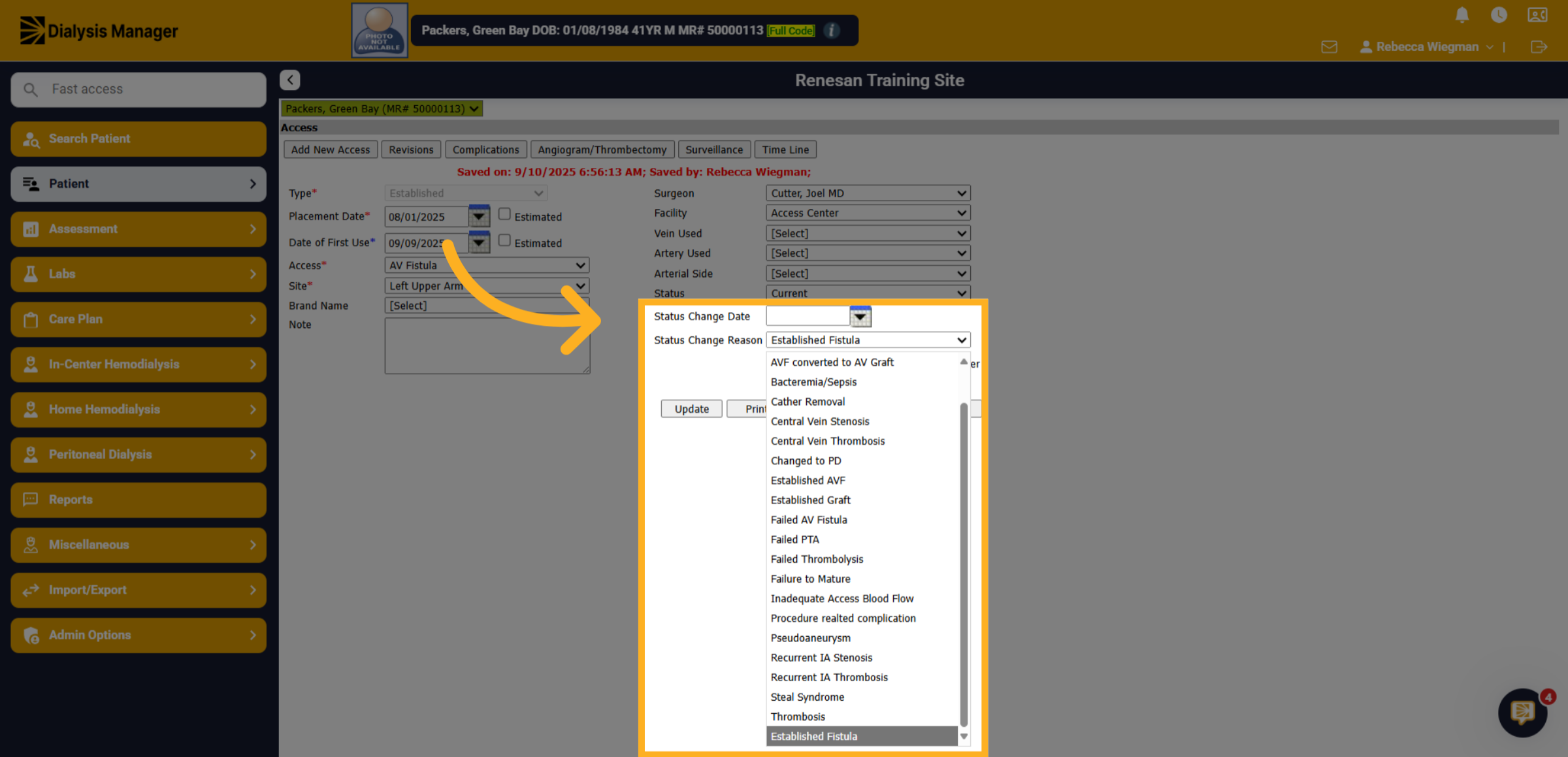
5. Status Change Reason and Data
Select the status change reason from the dropdown and enter the date of the status change.
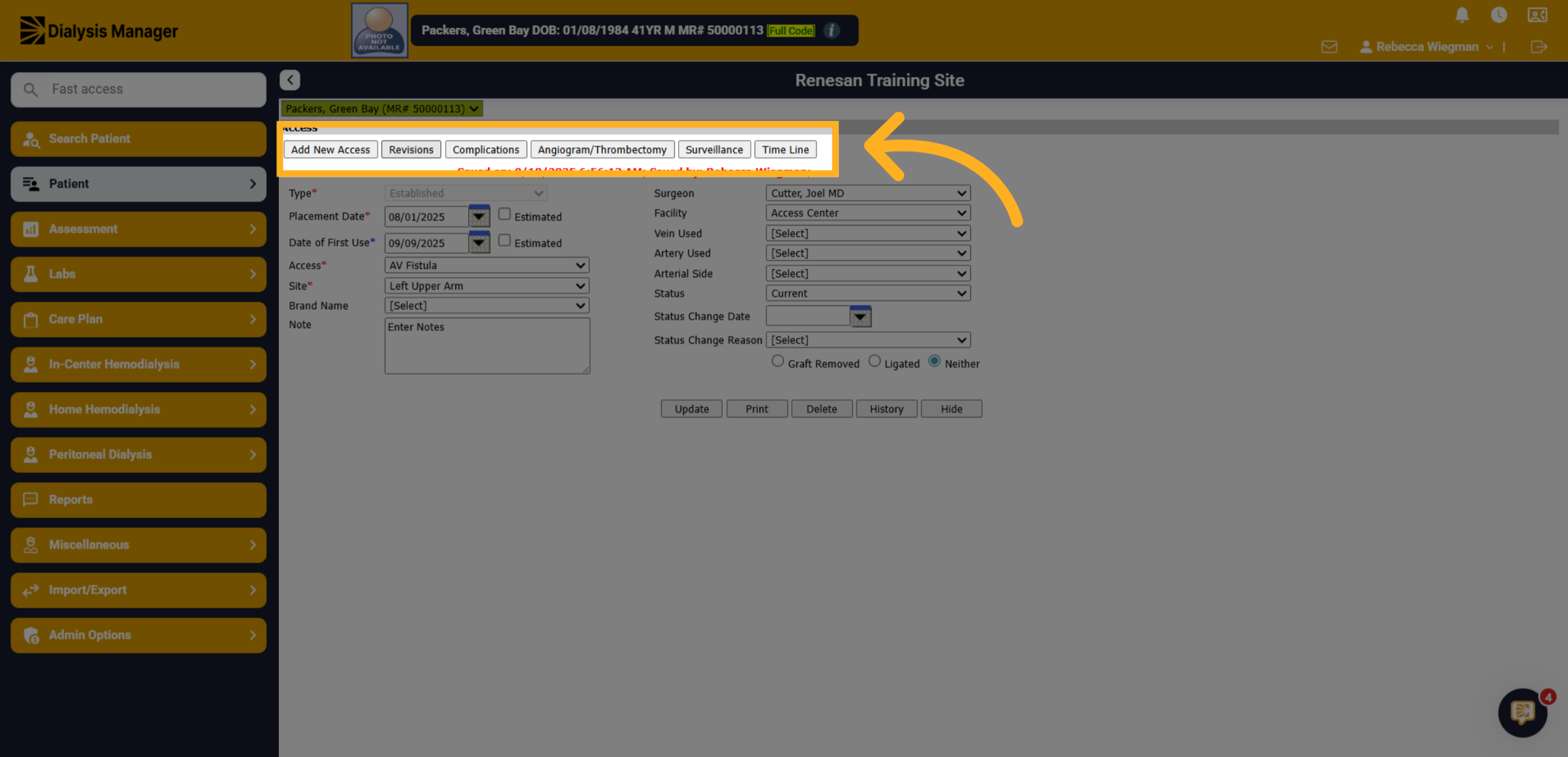
6. Shortcuts across the top
Towards the top of the access screen you'll have the option to Add a new access, or enter in revisions complications, angiogram and thrombectomy, surveillance and see the time line of the access.
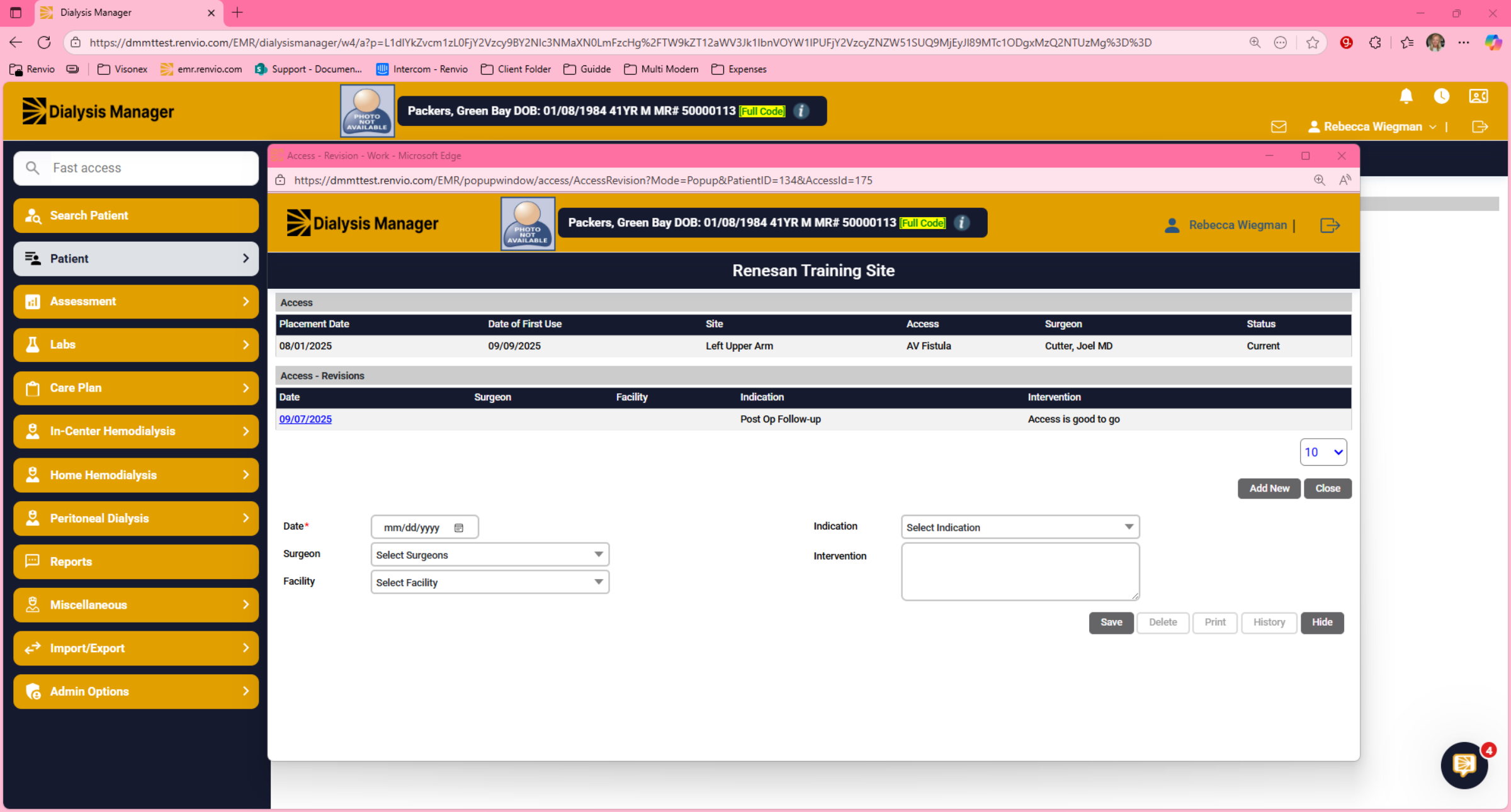
7. Revisions
When selecting Add New under Revisions, you'll have the ability to document indications of access clotting, low blood flow rates, and post op follow ups. If completed click save.
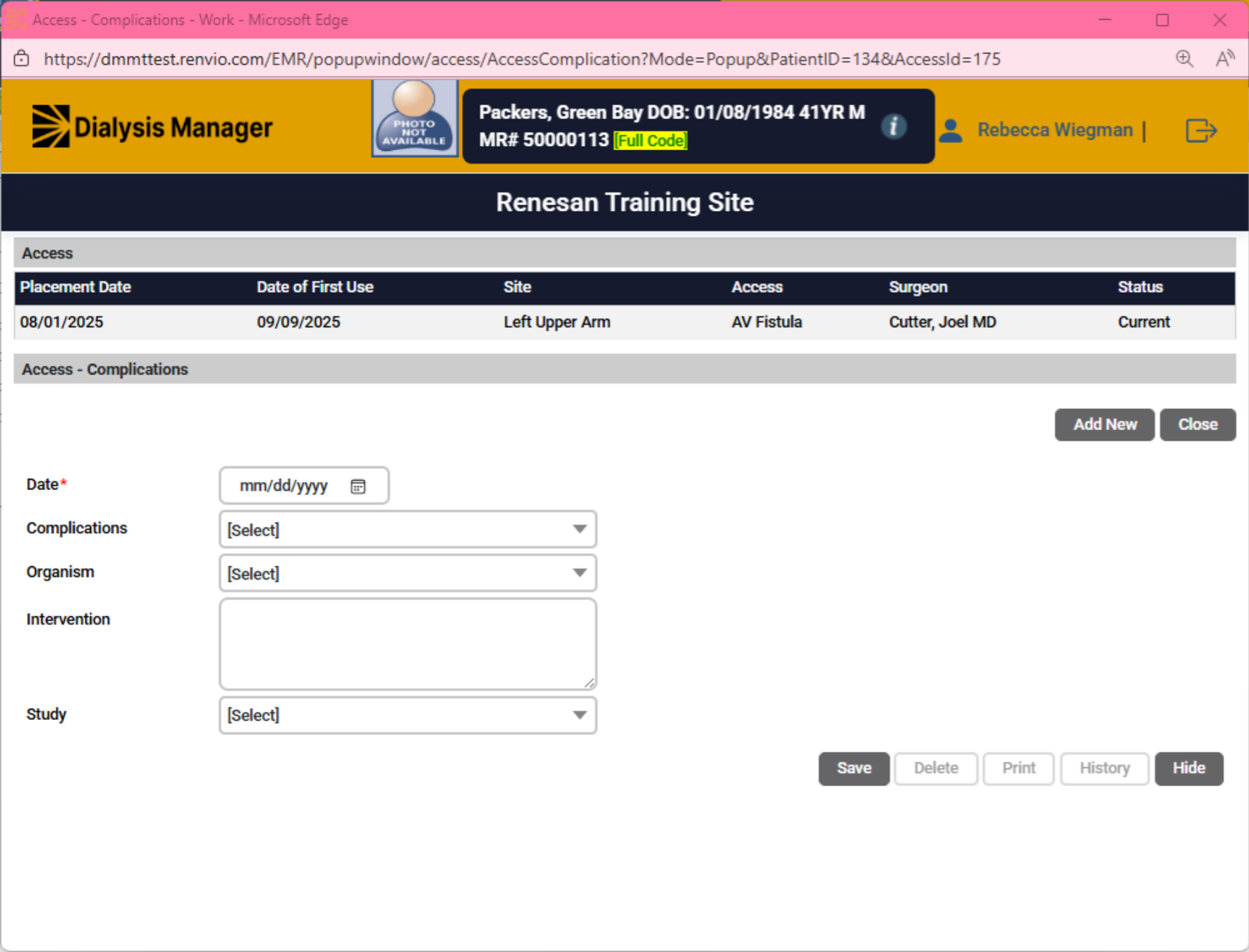
8. Complications
Same with Complications; select add new to document complications, any organism, studies and intervention plans.
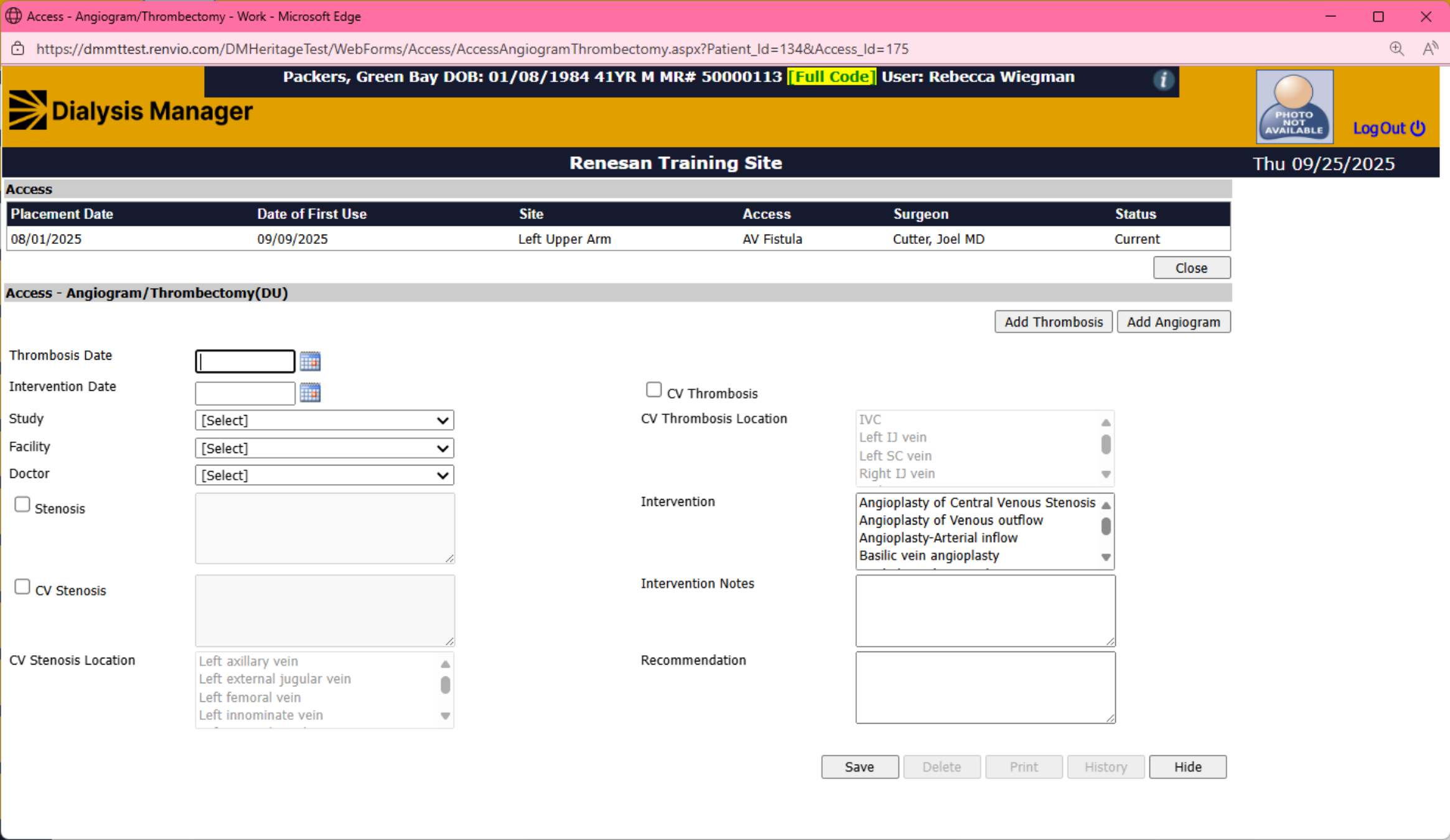
9. Angiogram/Thrombectomy
Under the Angiogram and Thrombectomy tab you'll be able to select either Angiogram or Thrombectomy and enter that information before saving.
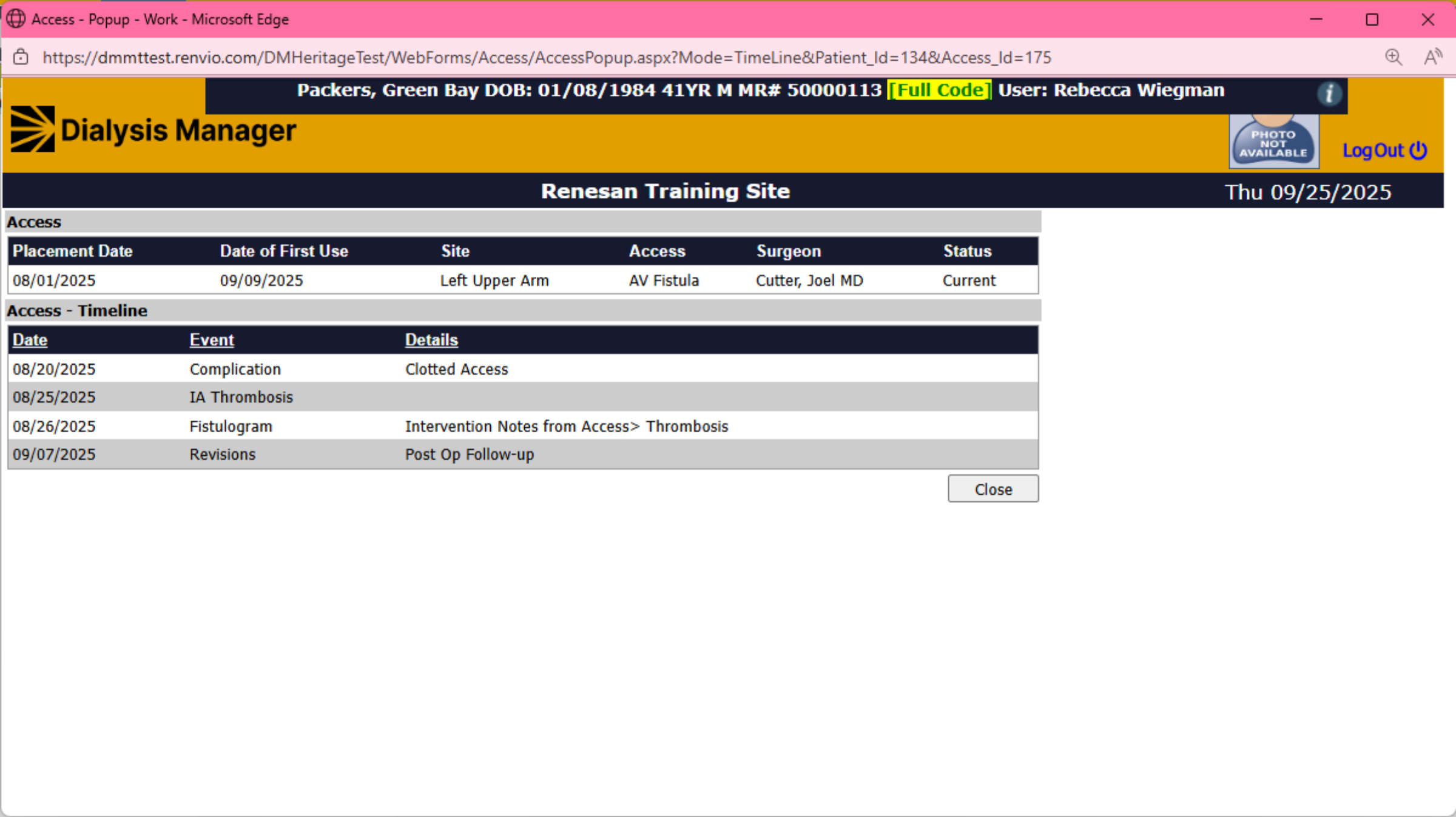
10. Time Line
The Time Line tab will show you all events entered.
11. Click "Close"
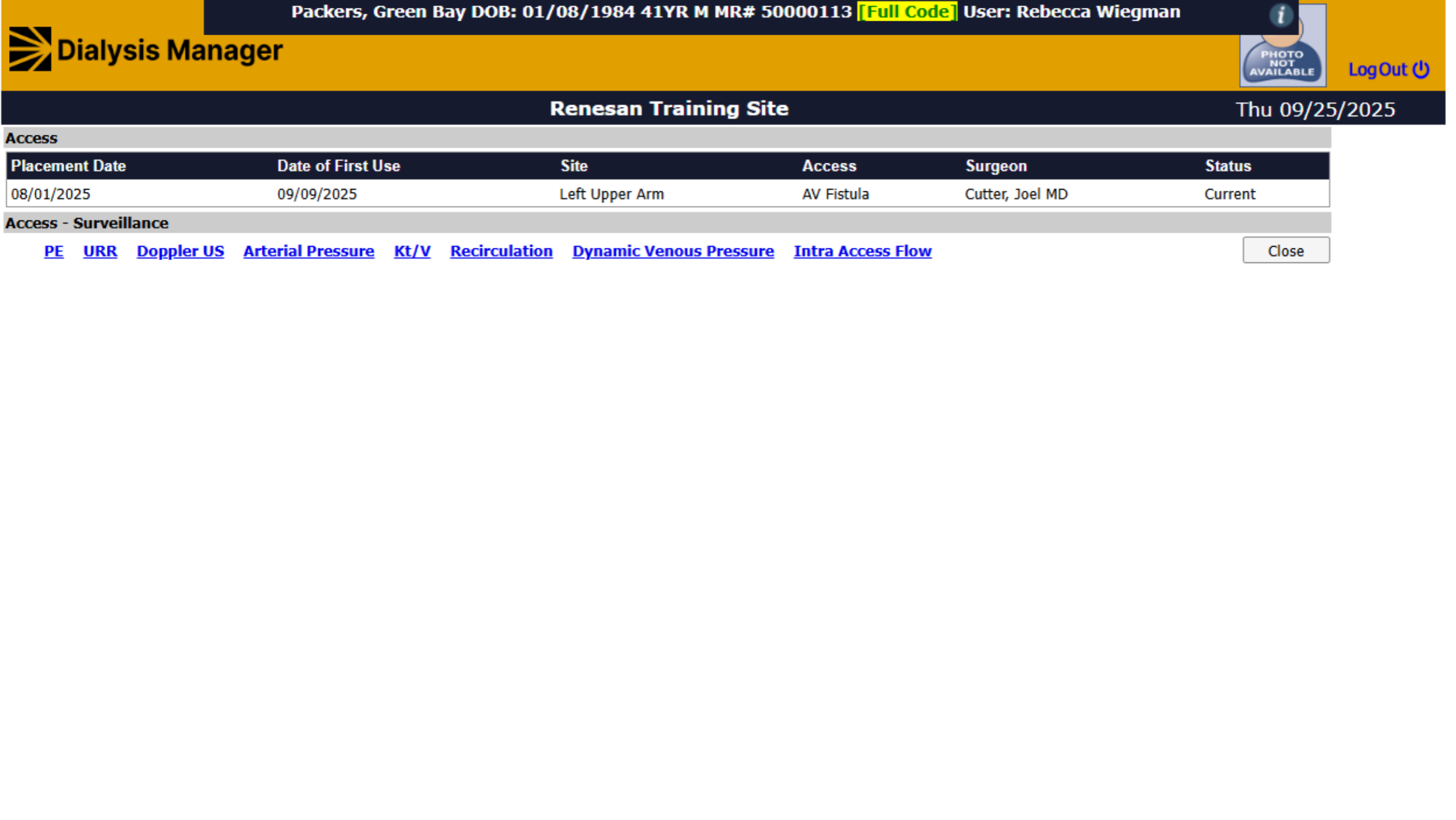
When selecting Surveillance you'll see additional blue hyper links that your able to select. You'll need to manually enter the value. Most clinics enter this information directly from the flowsheet.
12. Update and Save
Please be sure you are always Updating or saving information.