How to unlock a flowsheet in Dialysis Manager
1. Introduction
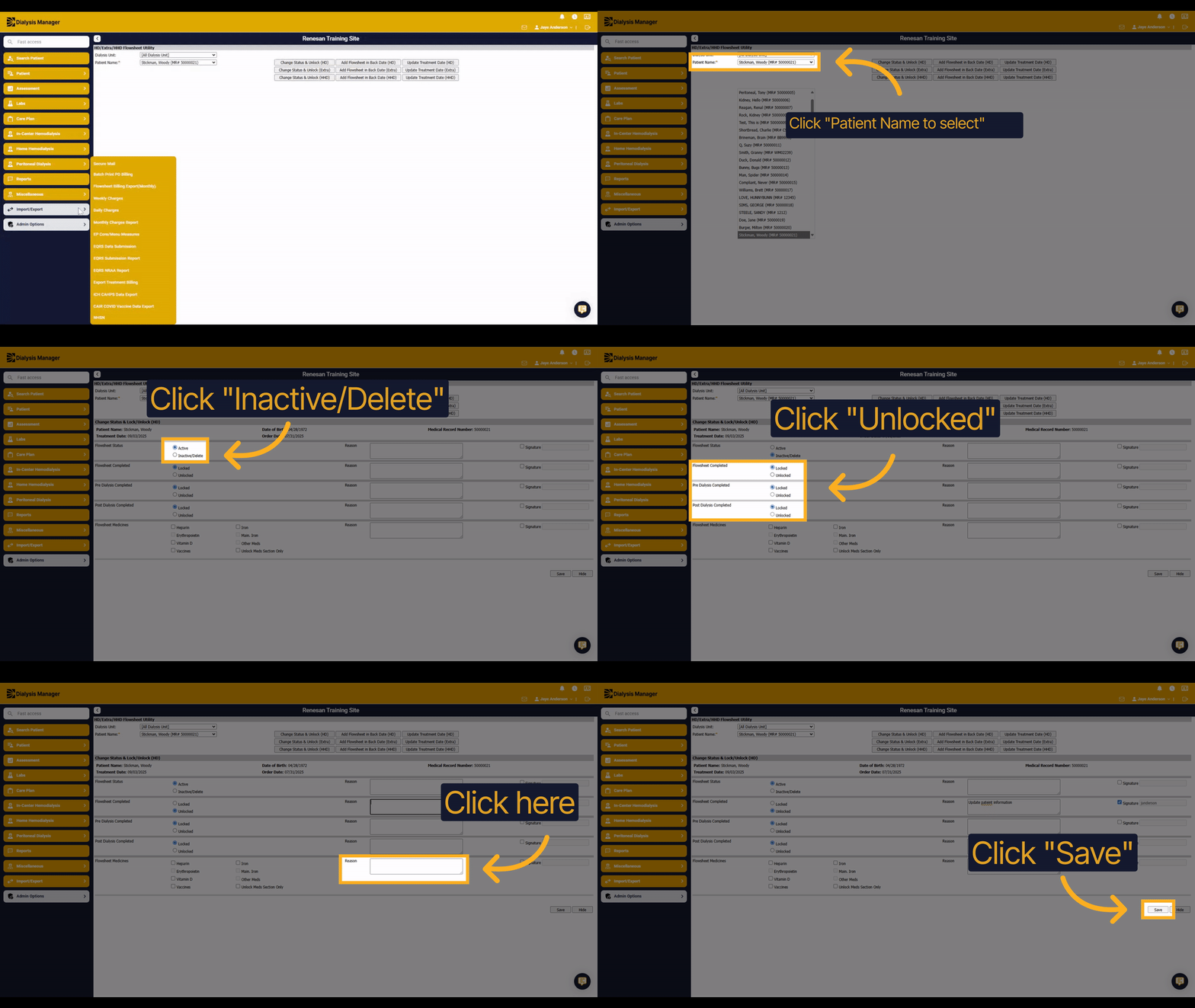
This guide will show you how to delete or unlock a flowsheet in Dialysis Manager. You will learn how to select the correct patient, change the flowsheet status, unlock sections, and save your updates. Discrepancies in flowsheet statuses may occur, such as related entries appearing open despite the main flowsheet being locked or approved. This guide also considers these scenarios, helping users maintain accurate reporting and addressing related issues effectively.
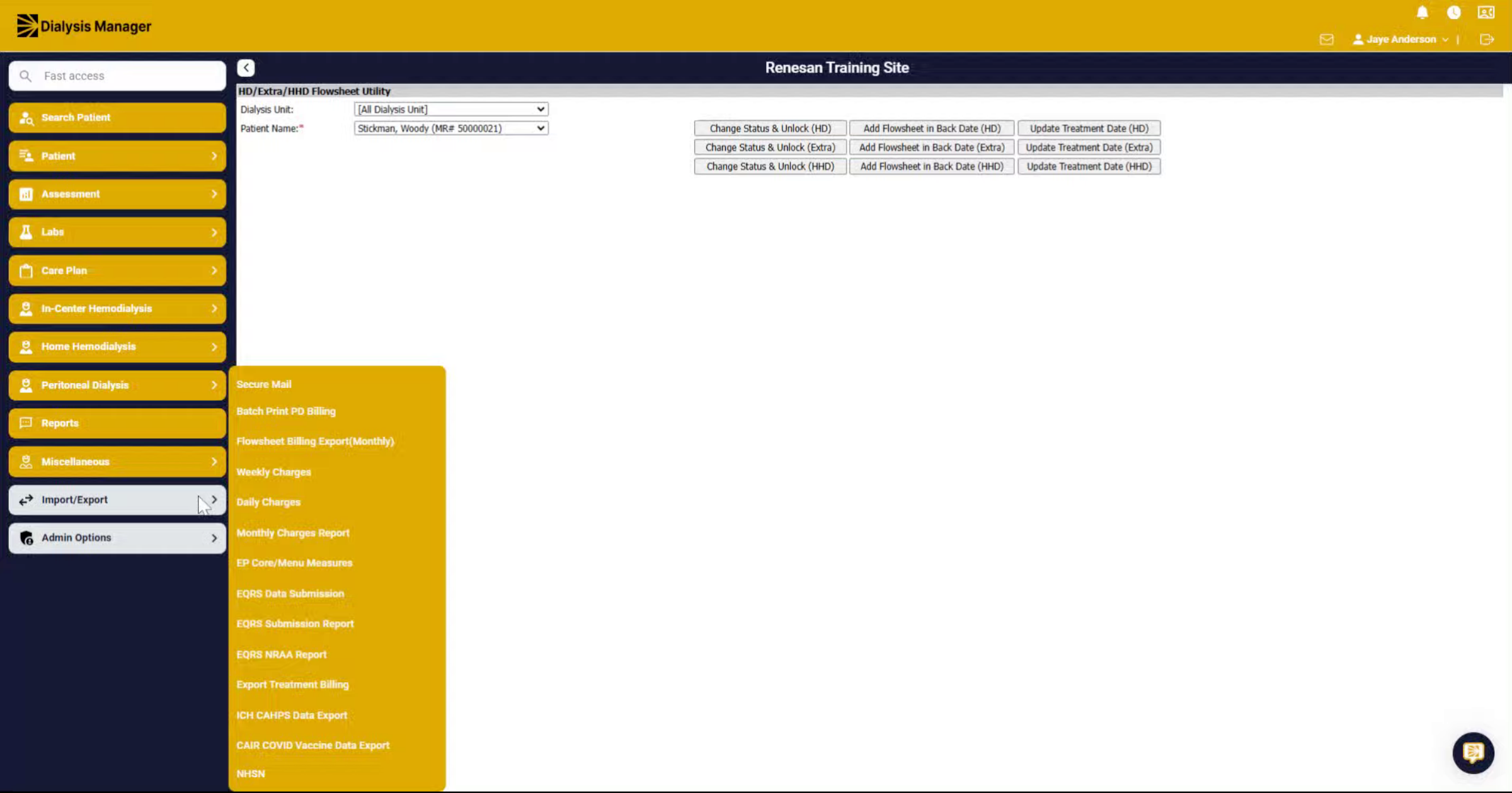
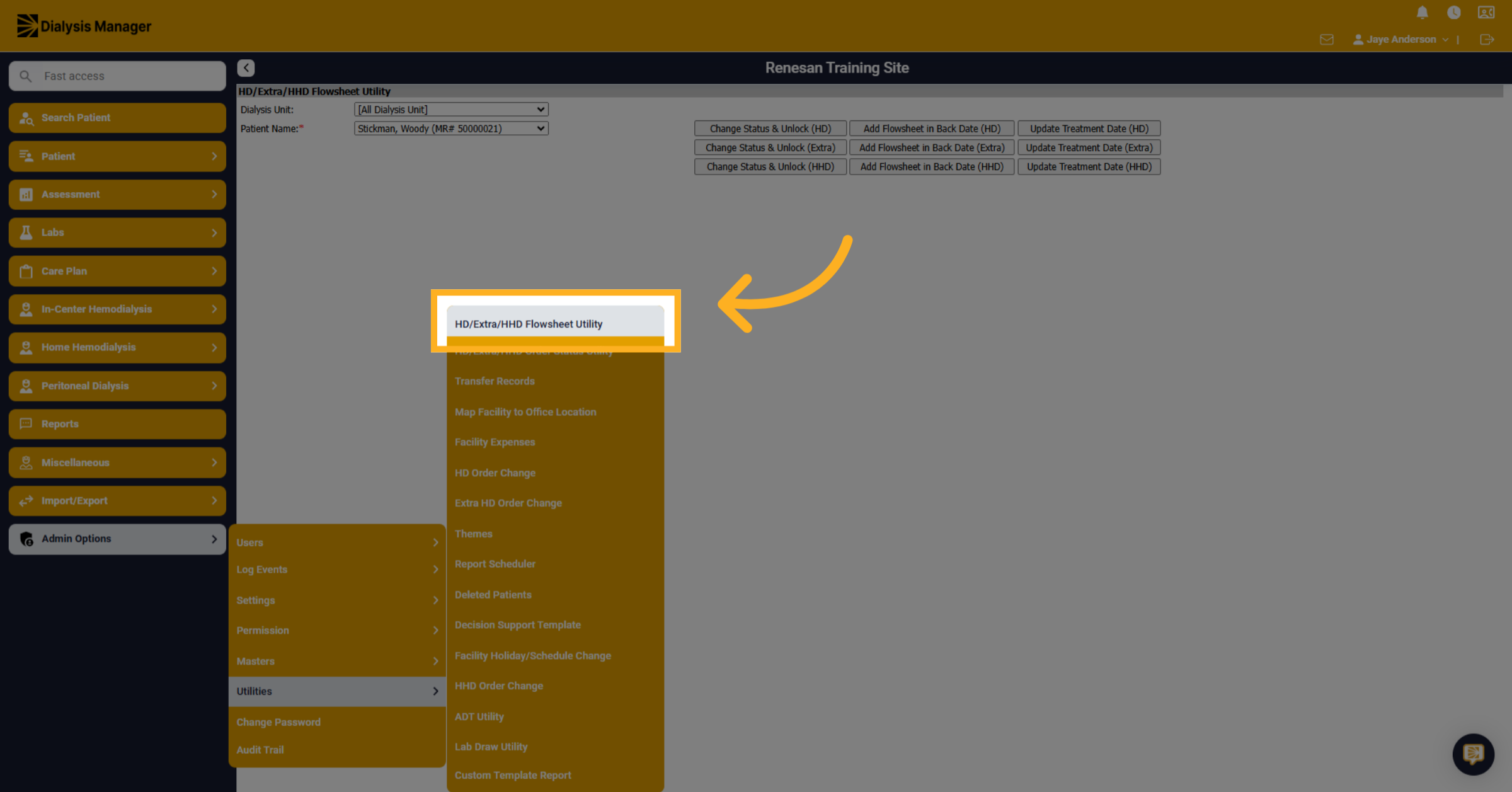
2. Click "HD/Extra/HHD Flowsheet Utility"
Click on Admin Options, then Utilities and finally "HD/Extra/HHD Flowsheet Utility" to begin managing flowsheets.
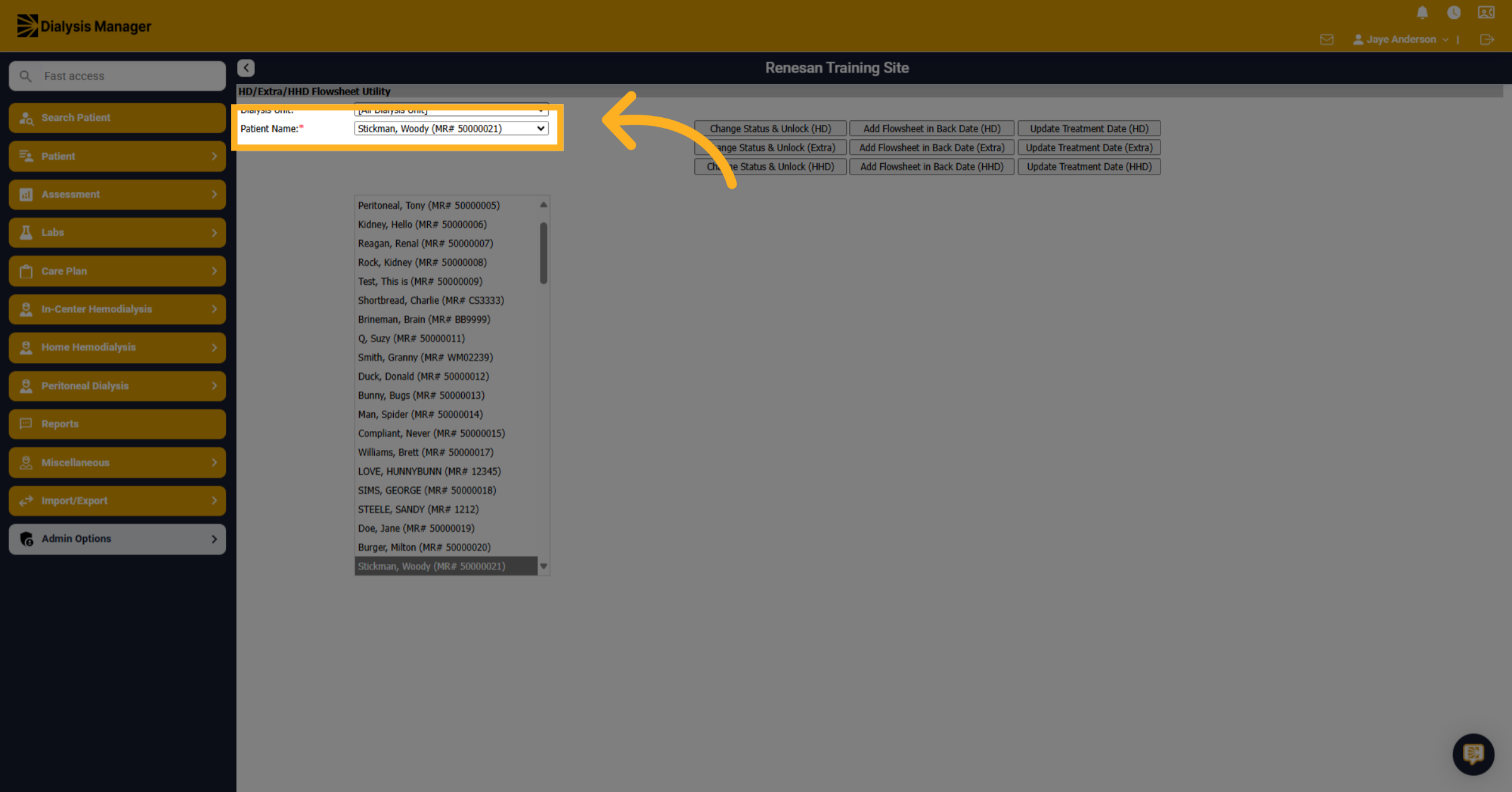
3. Select a patient name
Select the correct patient from the list to ensure you are working on the right record.
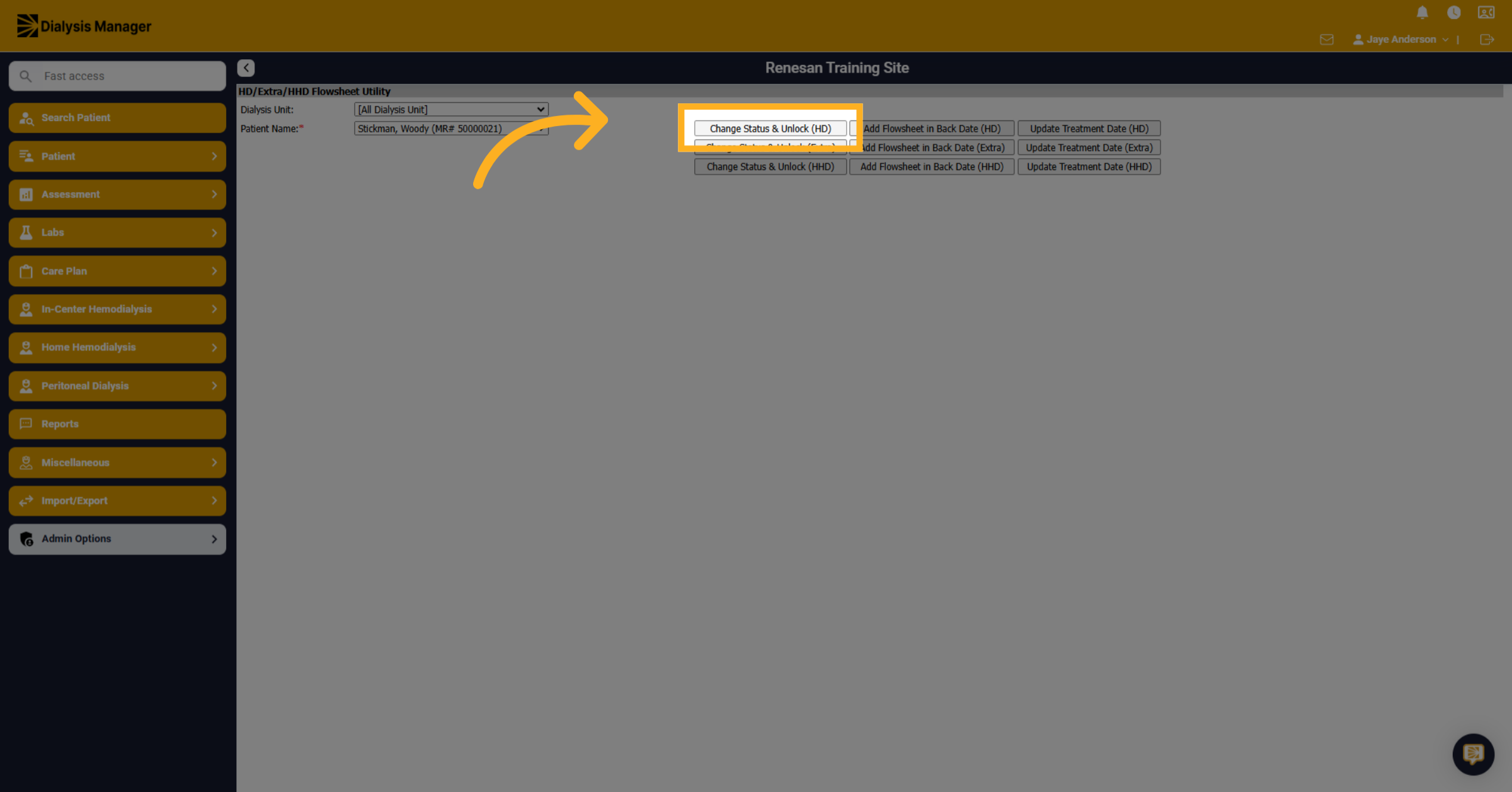
4. Change Status & Unlock (HD)
Click on "Change Status & Unlock (HD)" to modify the status of the patient's HD flowsheet.
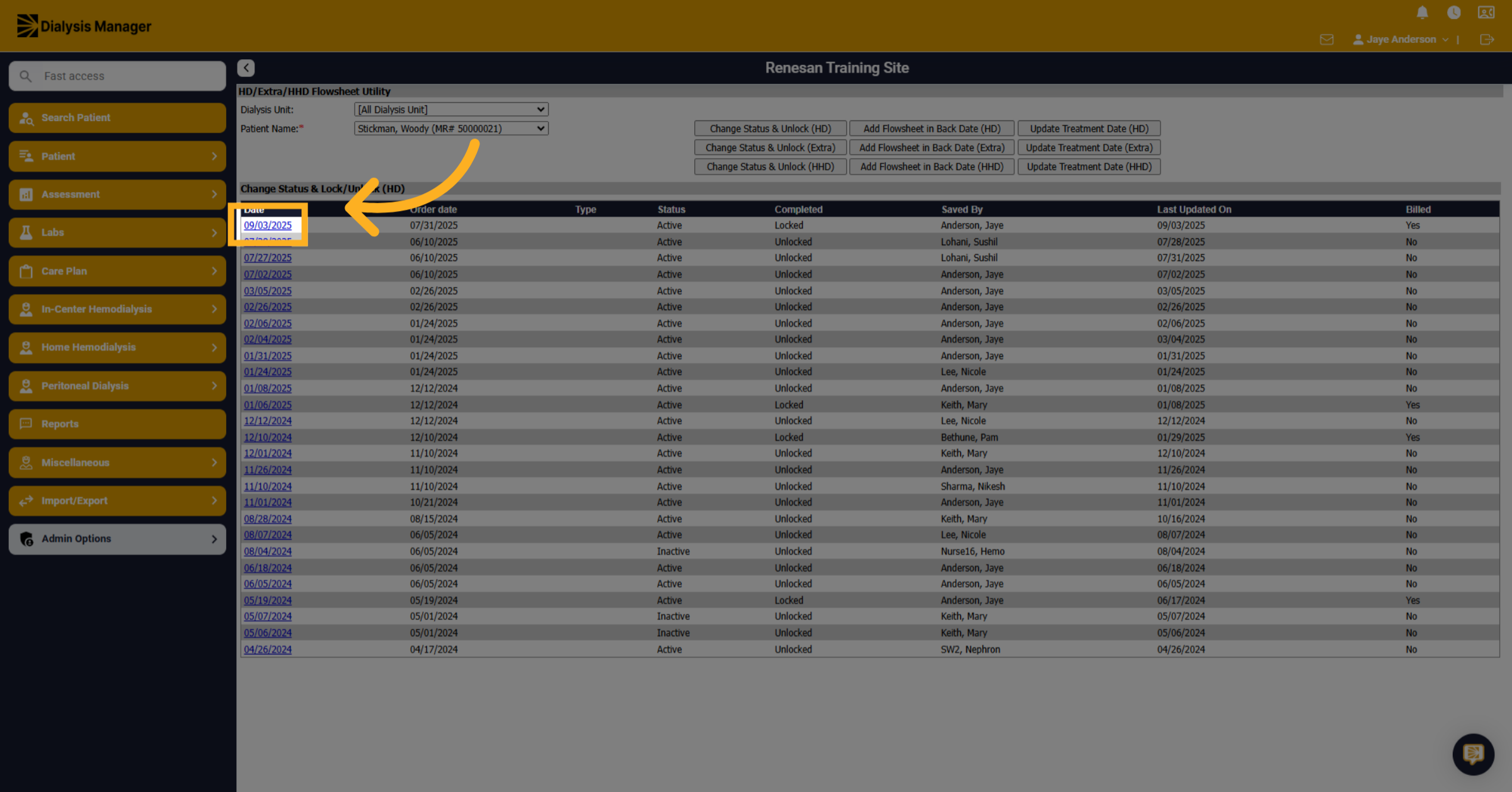
5. Select the date
Select the date for the flowsheet you want to unlock or delete.
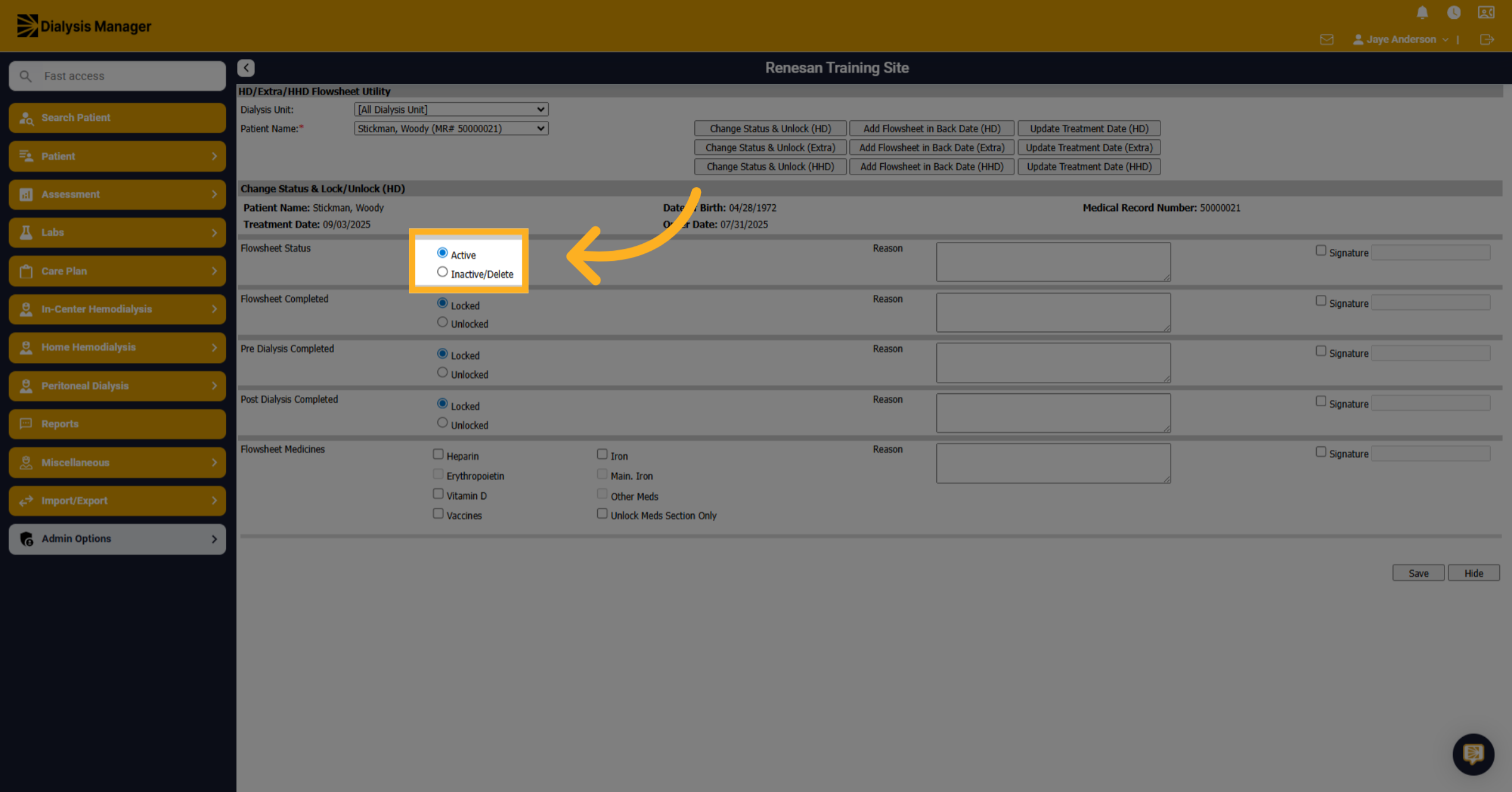
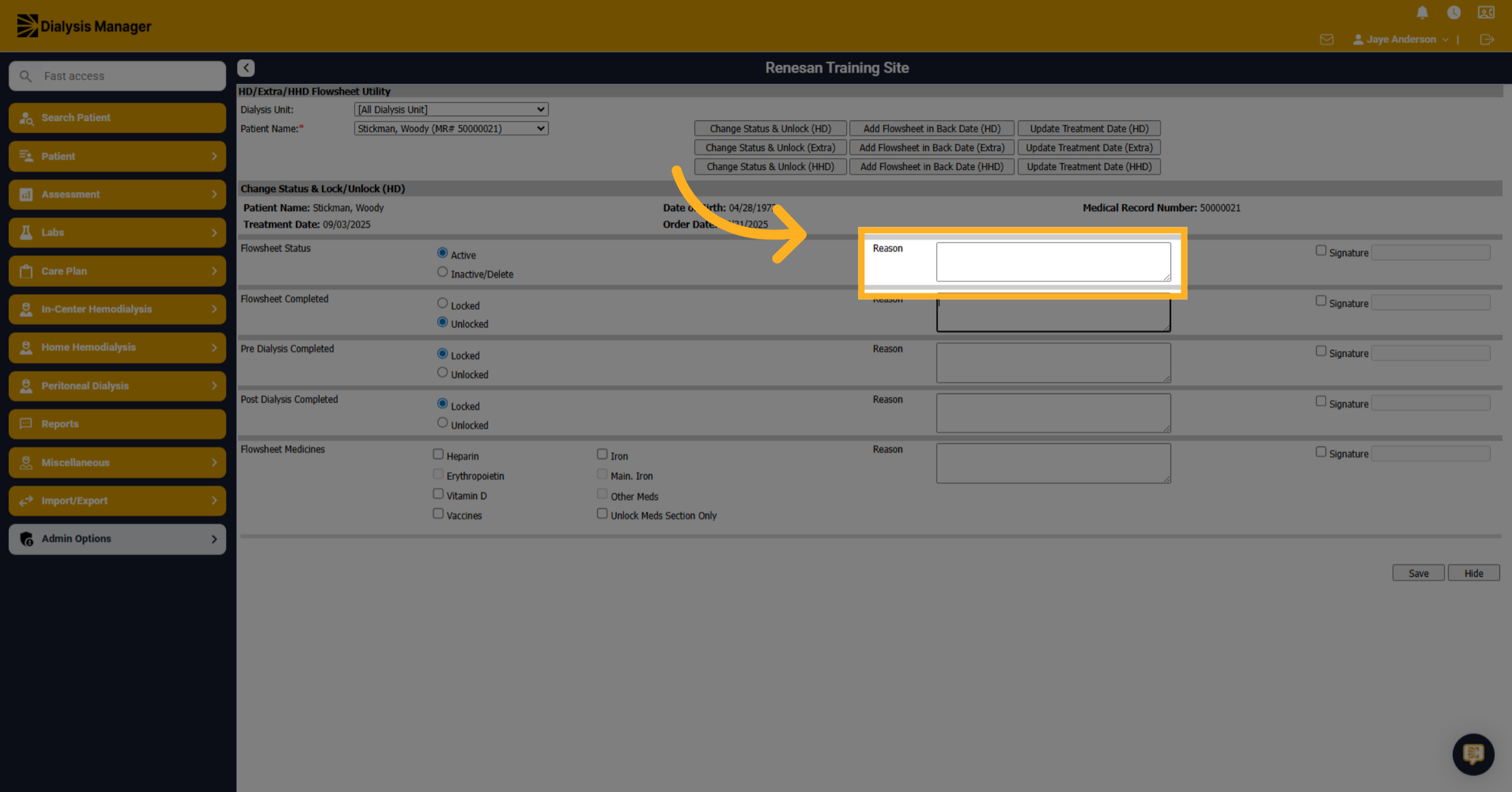
6. Click "Inactive/Delete"
If you need to Delete a flowsheet. Choose the "Inactive/Delete" option to proceed with deleting the flowsheet. Caution: this will DELETE the flowsheet.
7. Enter a Reason
Click on the indicated area and fill in the reason for deleting patient flowsheet in the provided field.
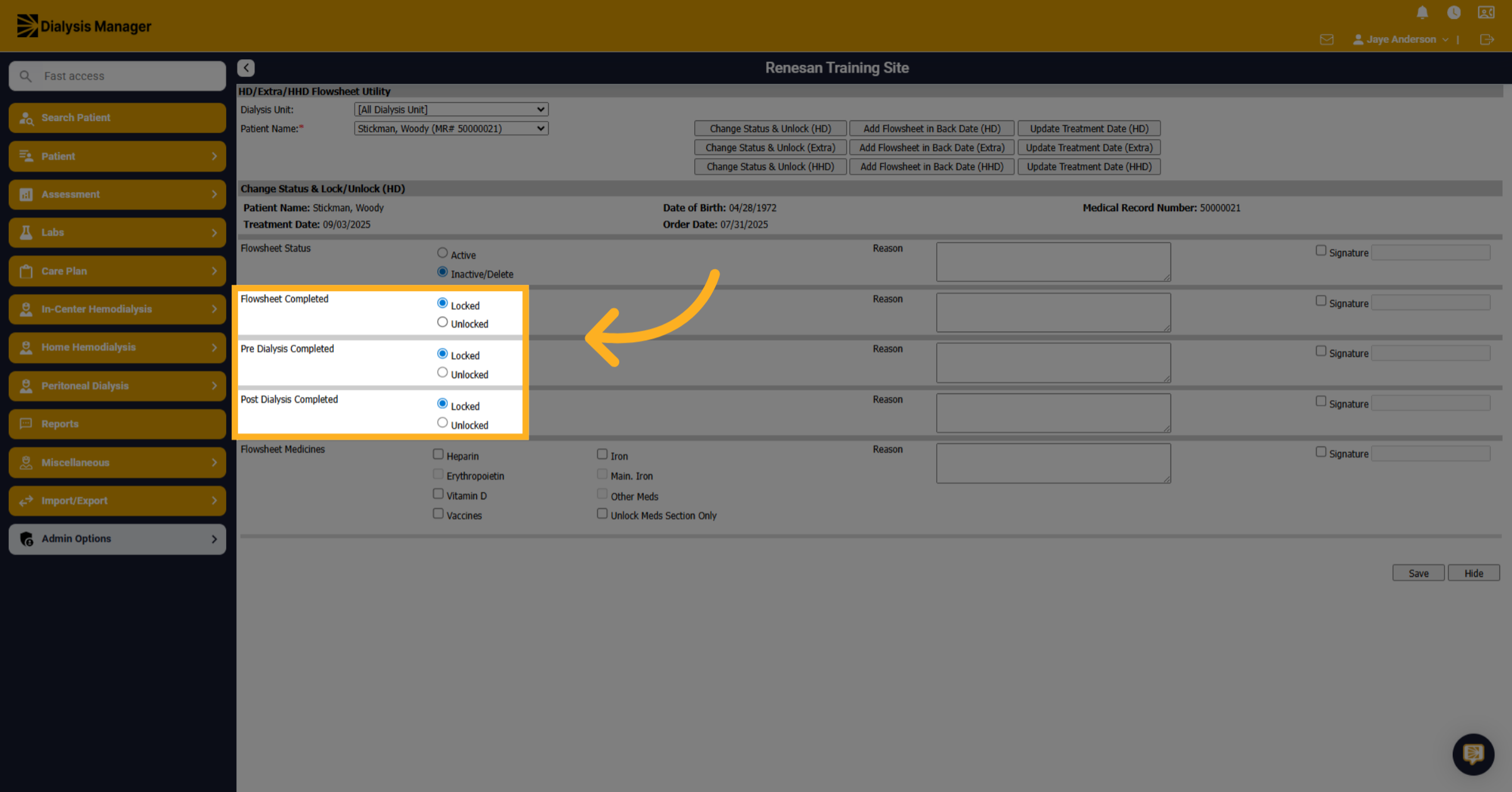
8. Click "Unlocked"
If you simply need to unlock a section of the flowsheet. Click on the "Unlocked" status option to unlock a specific section of the flowsheet. For example, Flowsheet Completed section allows you to open a locked flowsheet. Or you can open the just the Pre or Post Dialysis sections.
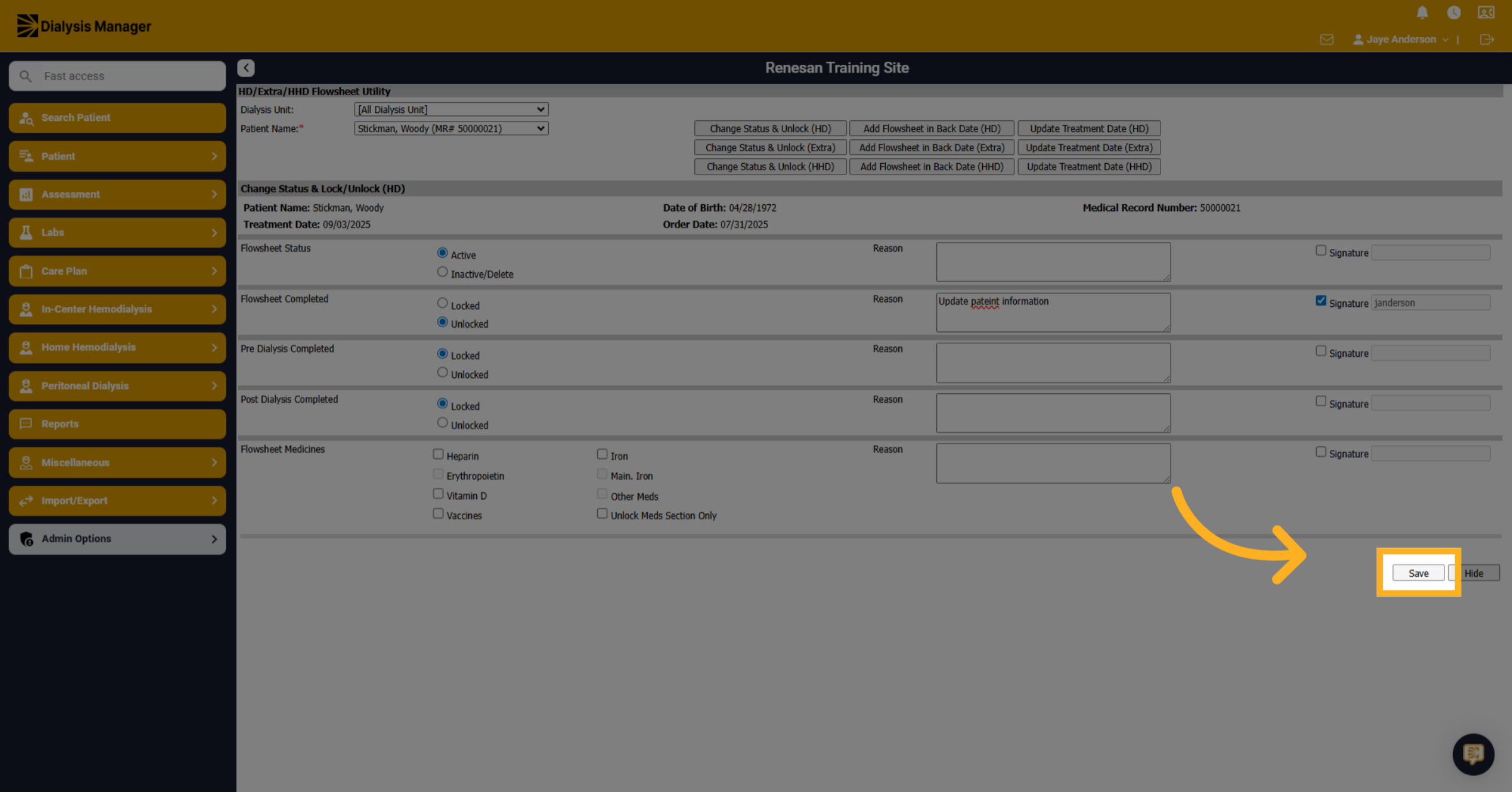
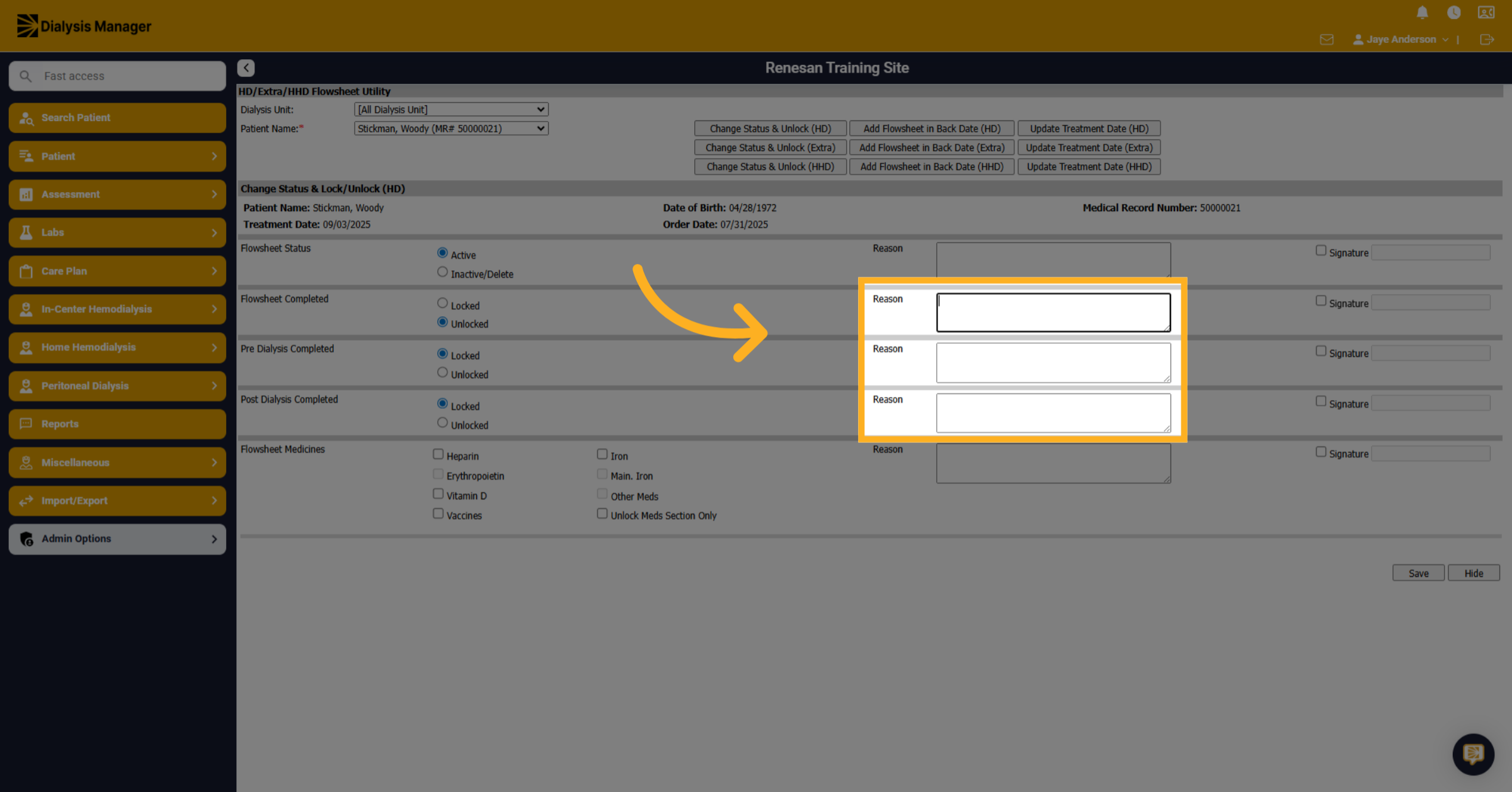
9. Enter Reasons
Click on the indicated area and fill in the reason for unlocking a section of the patient flowsheet in the provided field.
10. Click "Flowsheet Medicines"
Click on "Flowsheet Medicines" to open the specific sections within the medication screen.
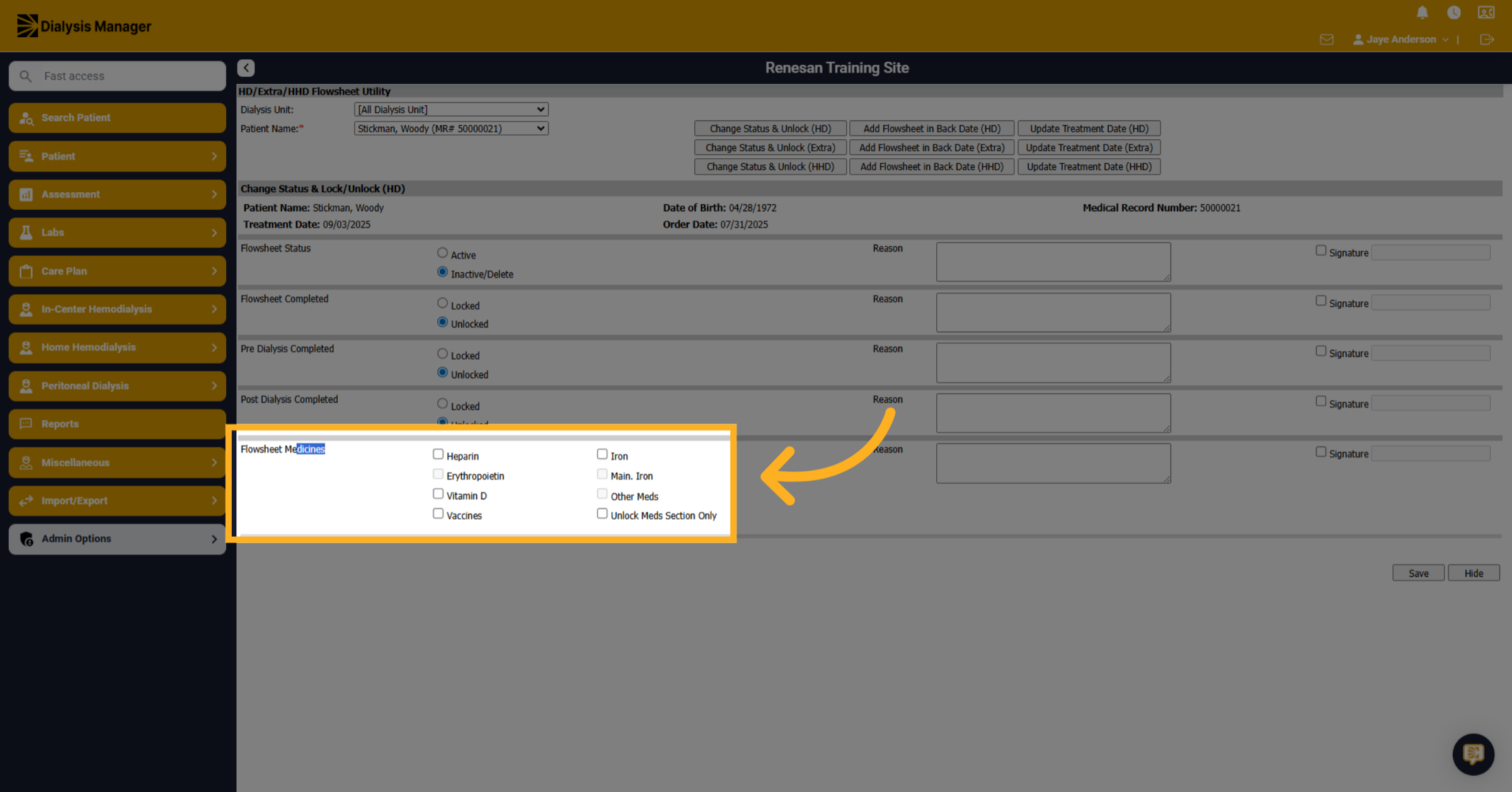
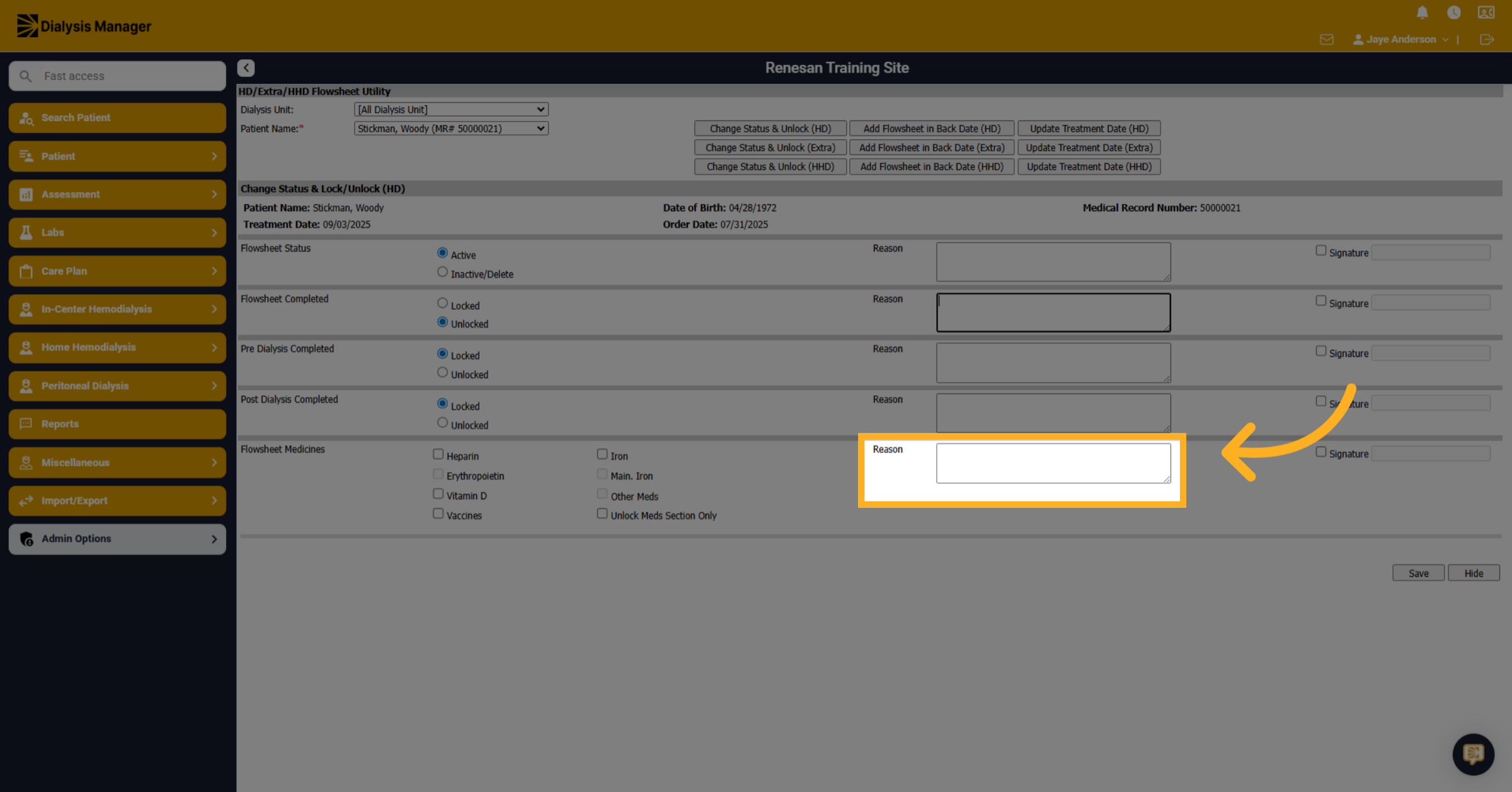
11. Enter Reasons
Click on the Reason box and fill in the reason for unlocking patient medications information in the provided field.
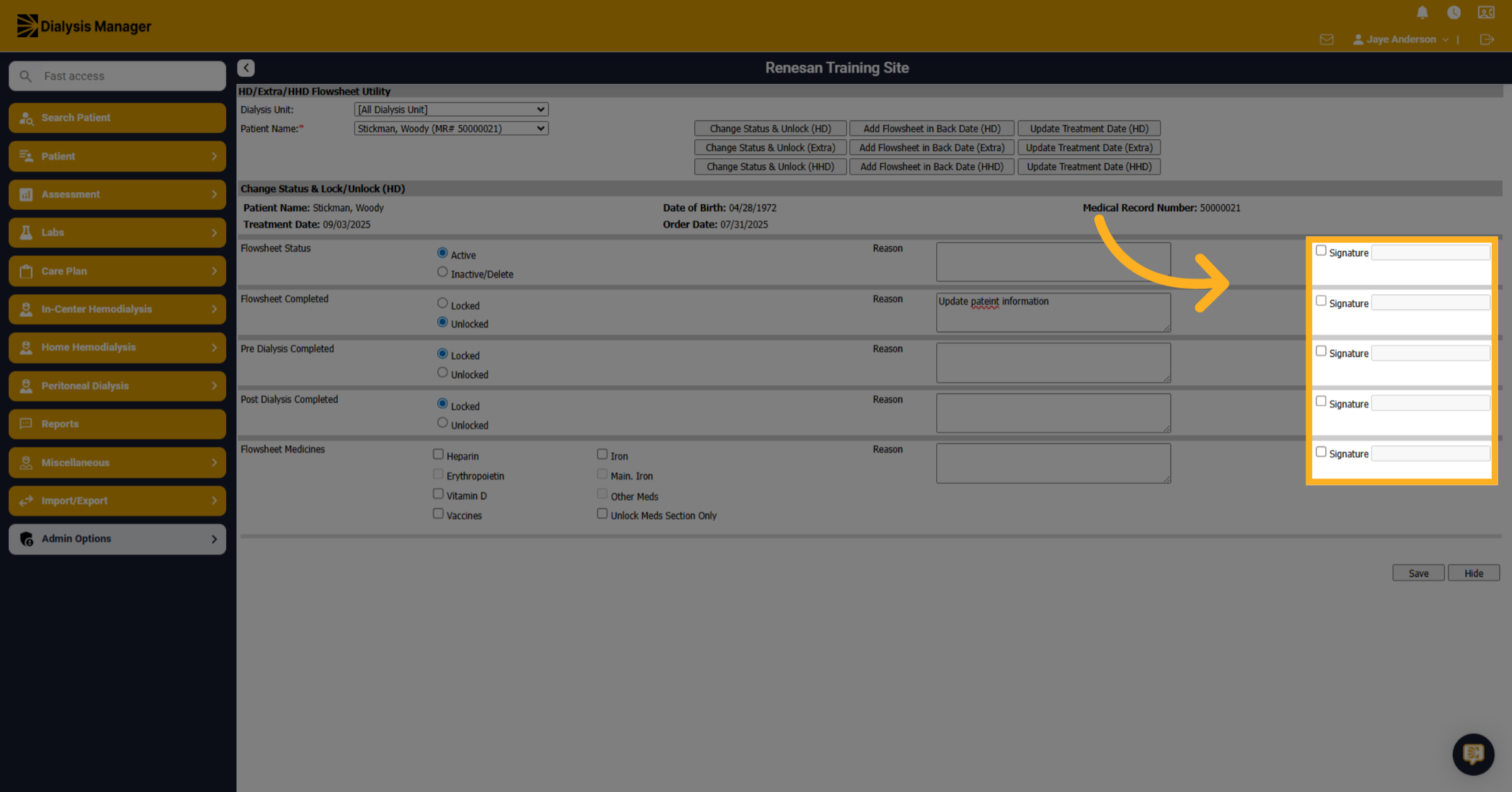
12. Click "Signature"
Depending on the section you are updating. Click on the associated "Signature" field to add your authorization. Enter and save the information with your username and PIN or password.
13. Click "Save"
Finally, click on the "Save" button to save changes and finish unlocking or deleting the flowsheet.