Treatment Documentation..
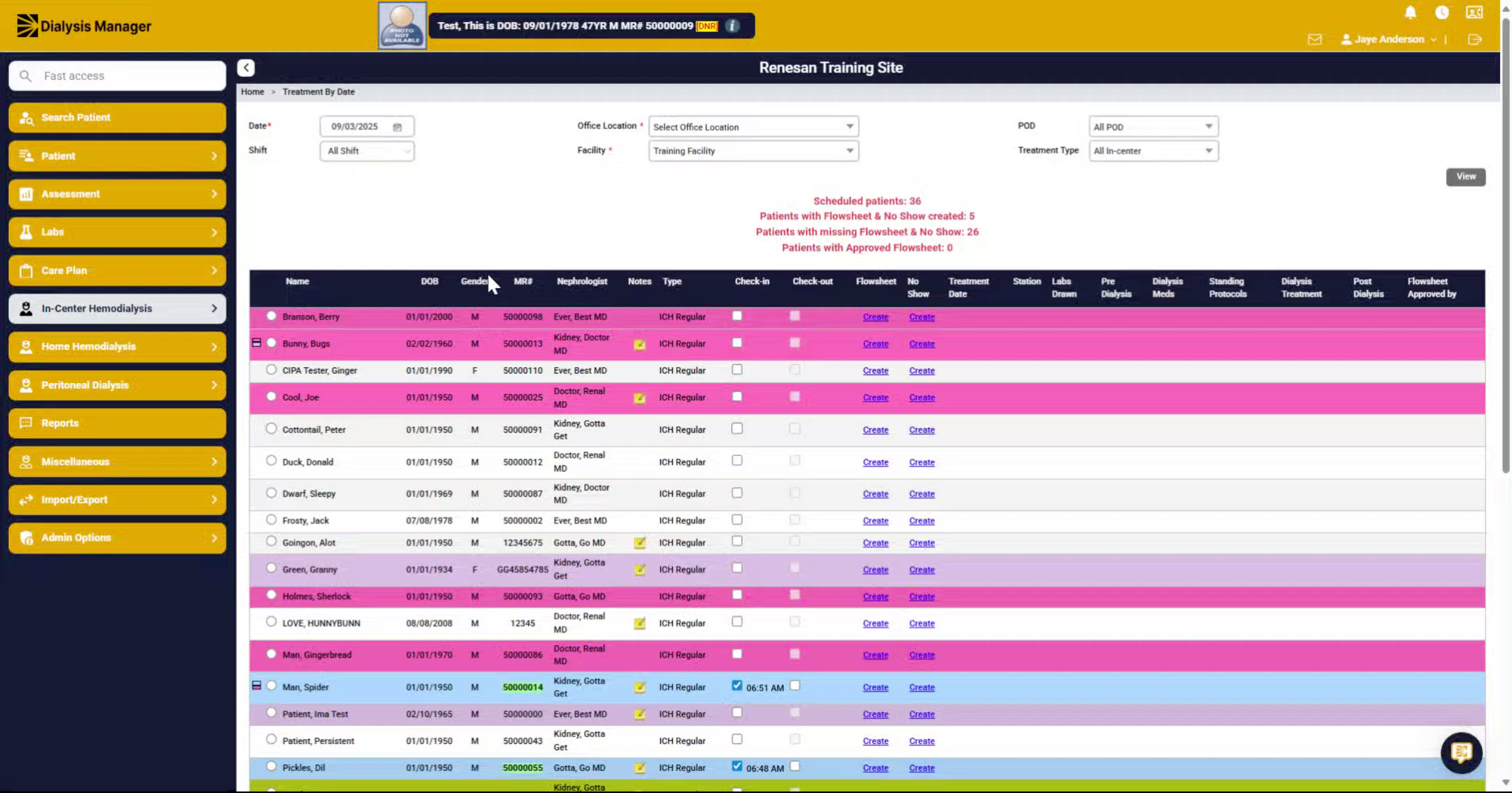
1. Treatment by date intro
On the Treatment By Date screen, there is a variety of information available. You can see patients who were scheduled, how many have no shows created, and other treatment-related details.
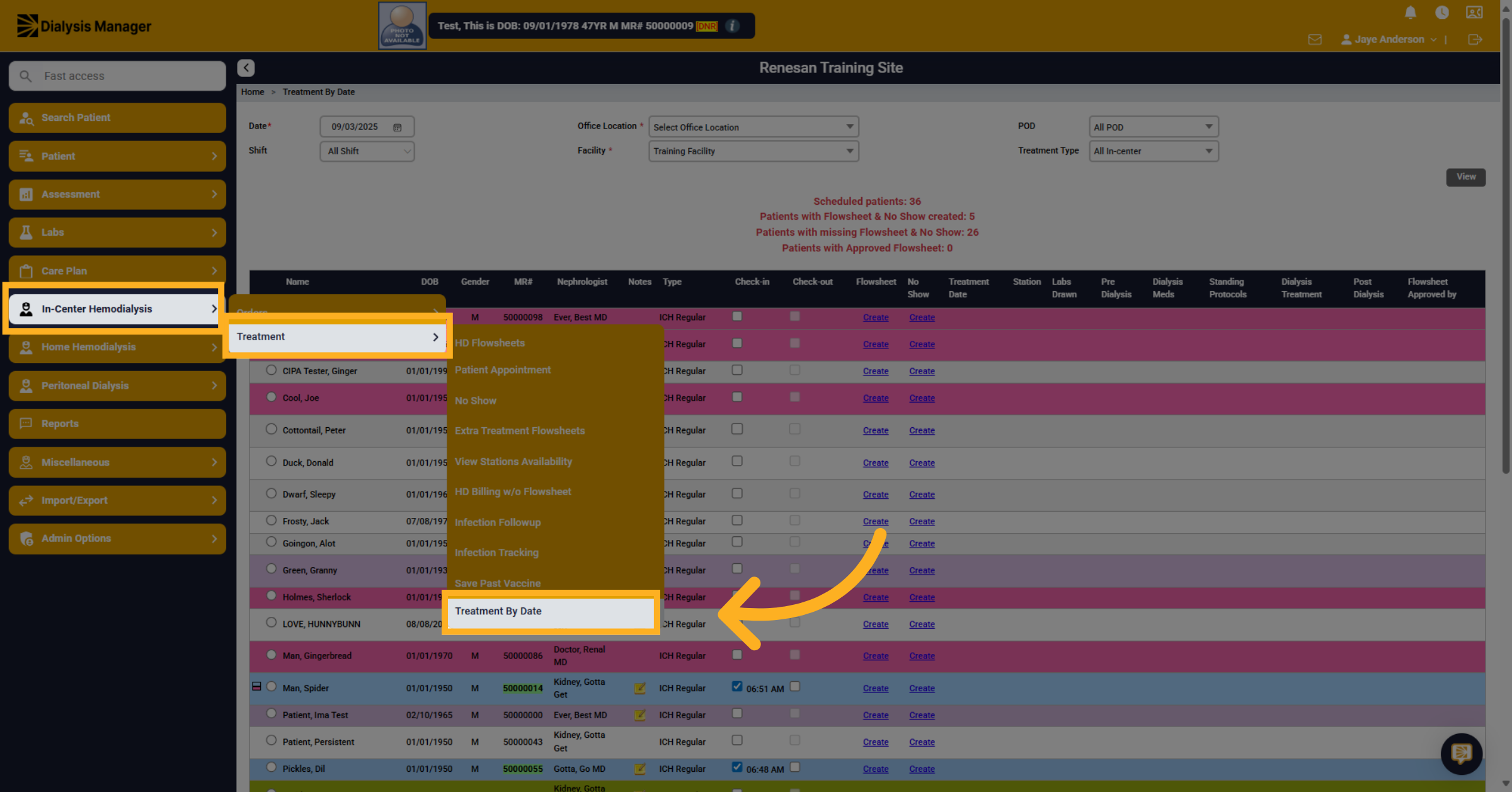
2. Click "Treatment By Date"
Click on In-Center Hemodialysis, then Treatment, and then the 'Treatment By Date' option to access the daily treatment overview.
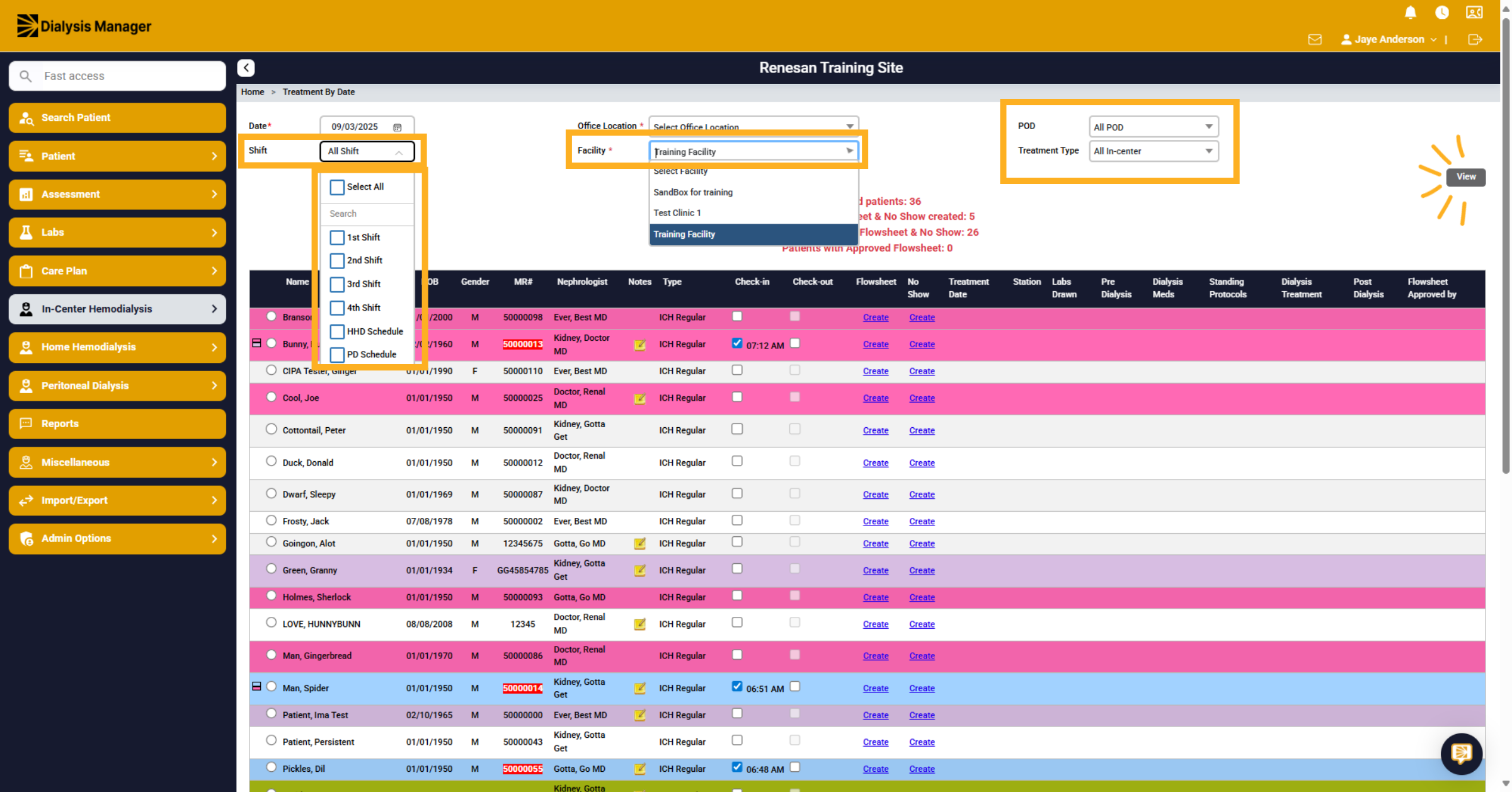
3. Filter
You'll have the ability to search per shift, facility or treatment types, if your associated with multiple, and Pods if your facility utilizes them. Now click View! Depending on your filters, those patients will appear in the list
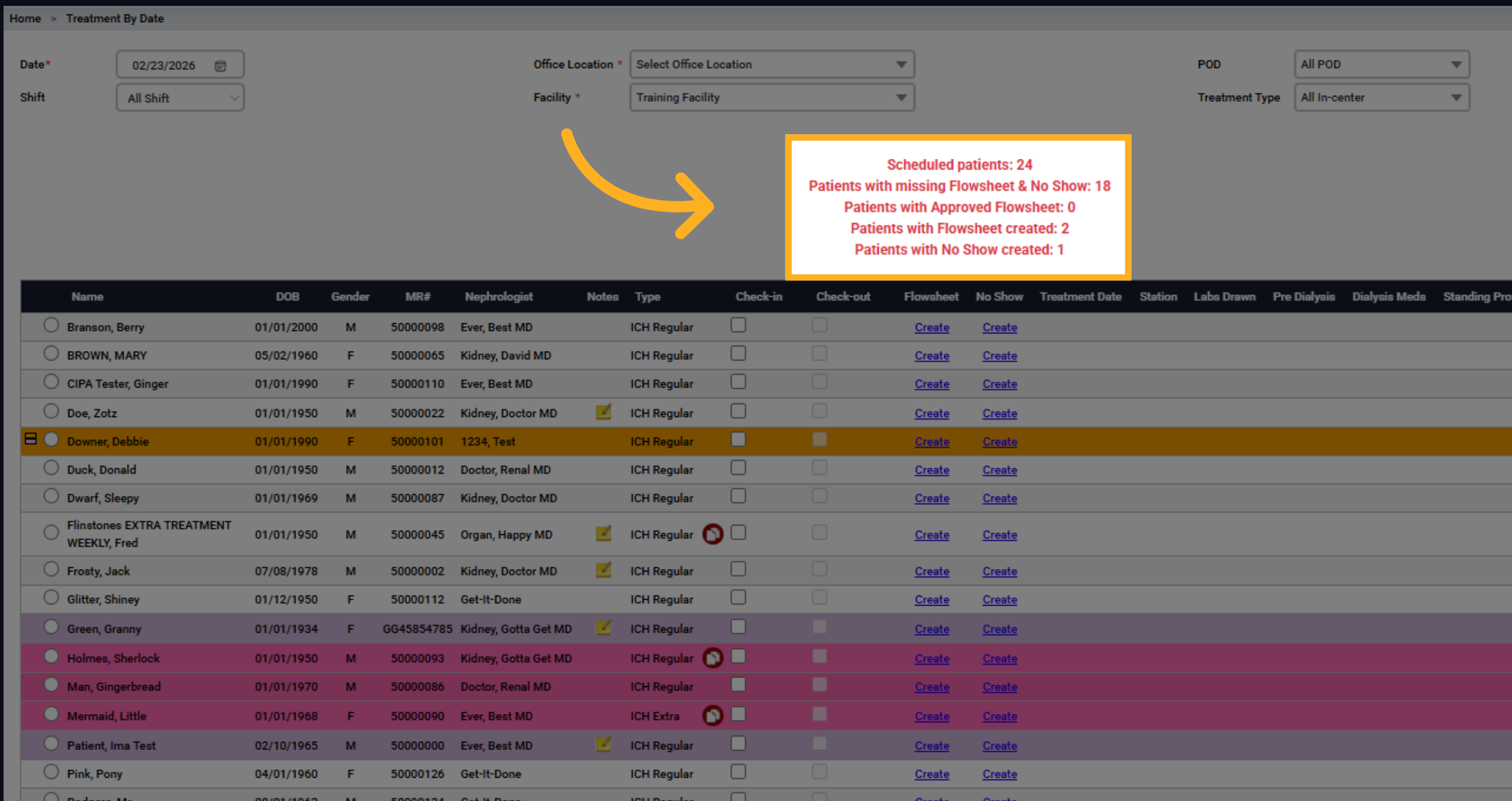
4. Some textView "Scheduled/No Show/Approved Flowsheets"
Review the section showing scheduled patients, patients with flowsheets and no shows created, patients with missing flowsheets and no shows, and patients with approved flowsheets.
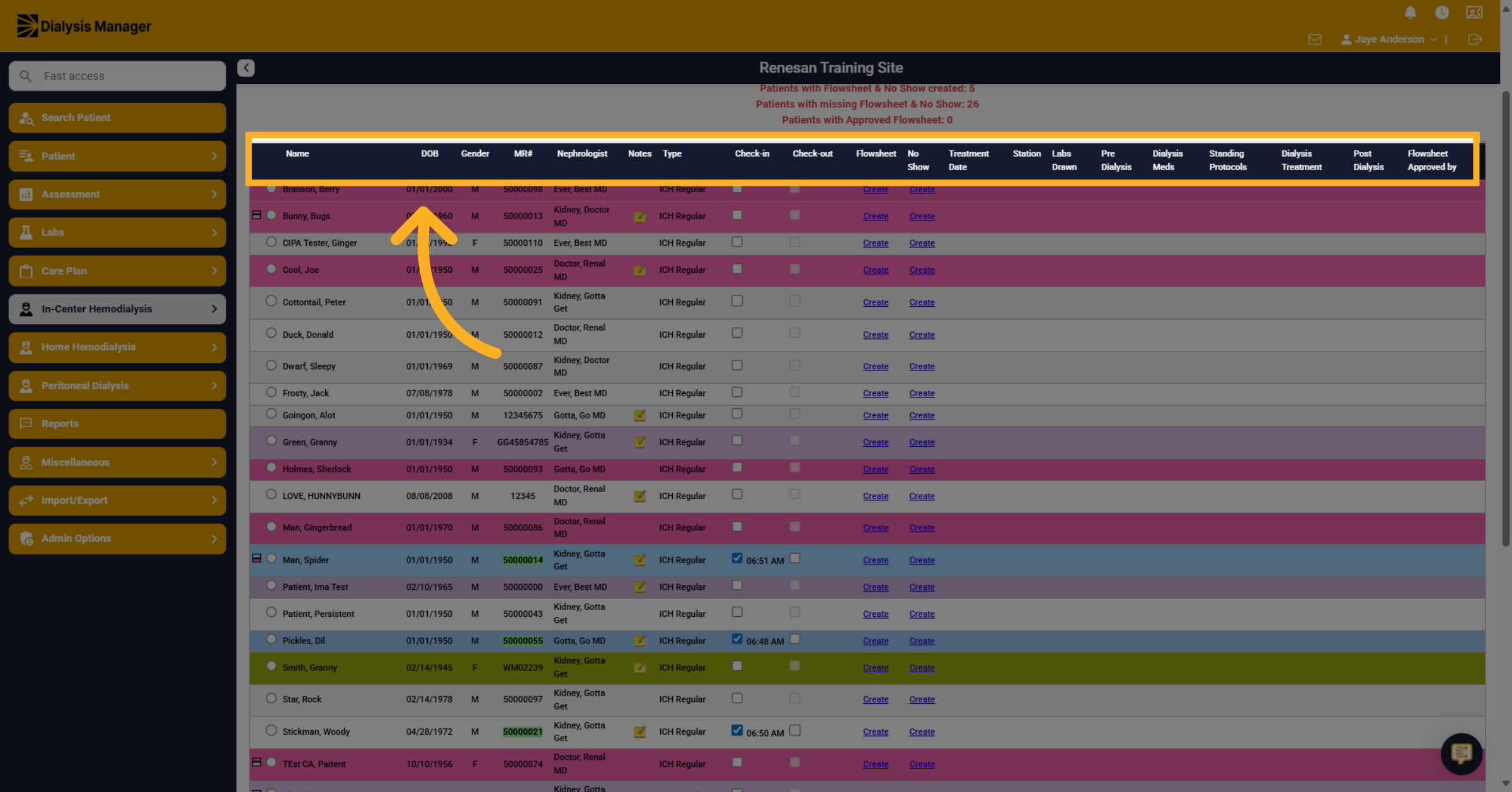
5. Additional Information listed
Review the additional information provided by the headers listed here.
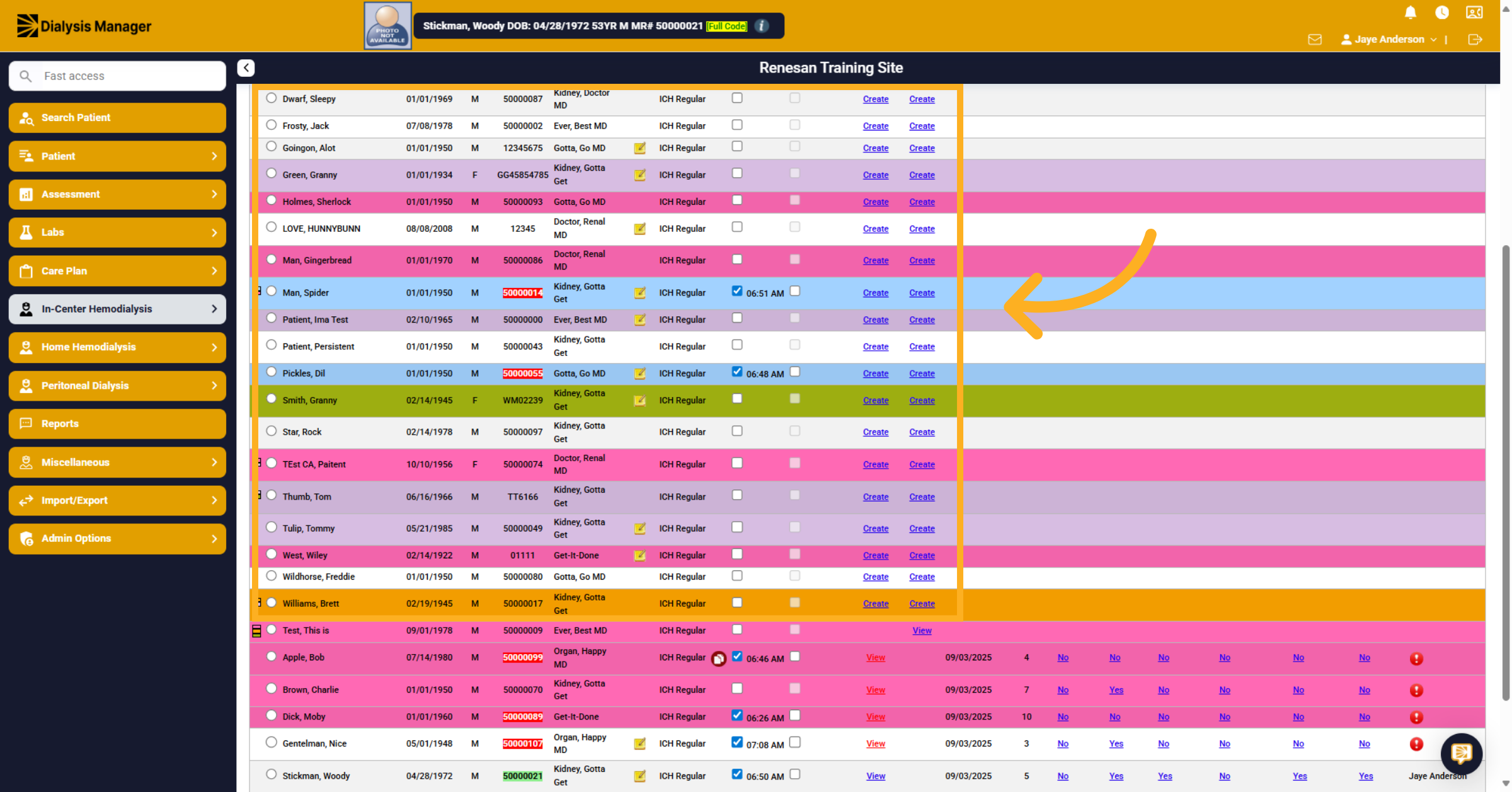
6. Alphabetic unopened
The list is shown in alphabetic order. First sorted by unopened flowsheets.
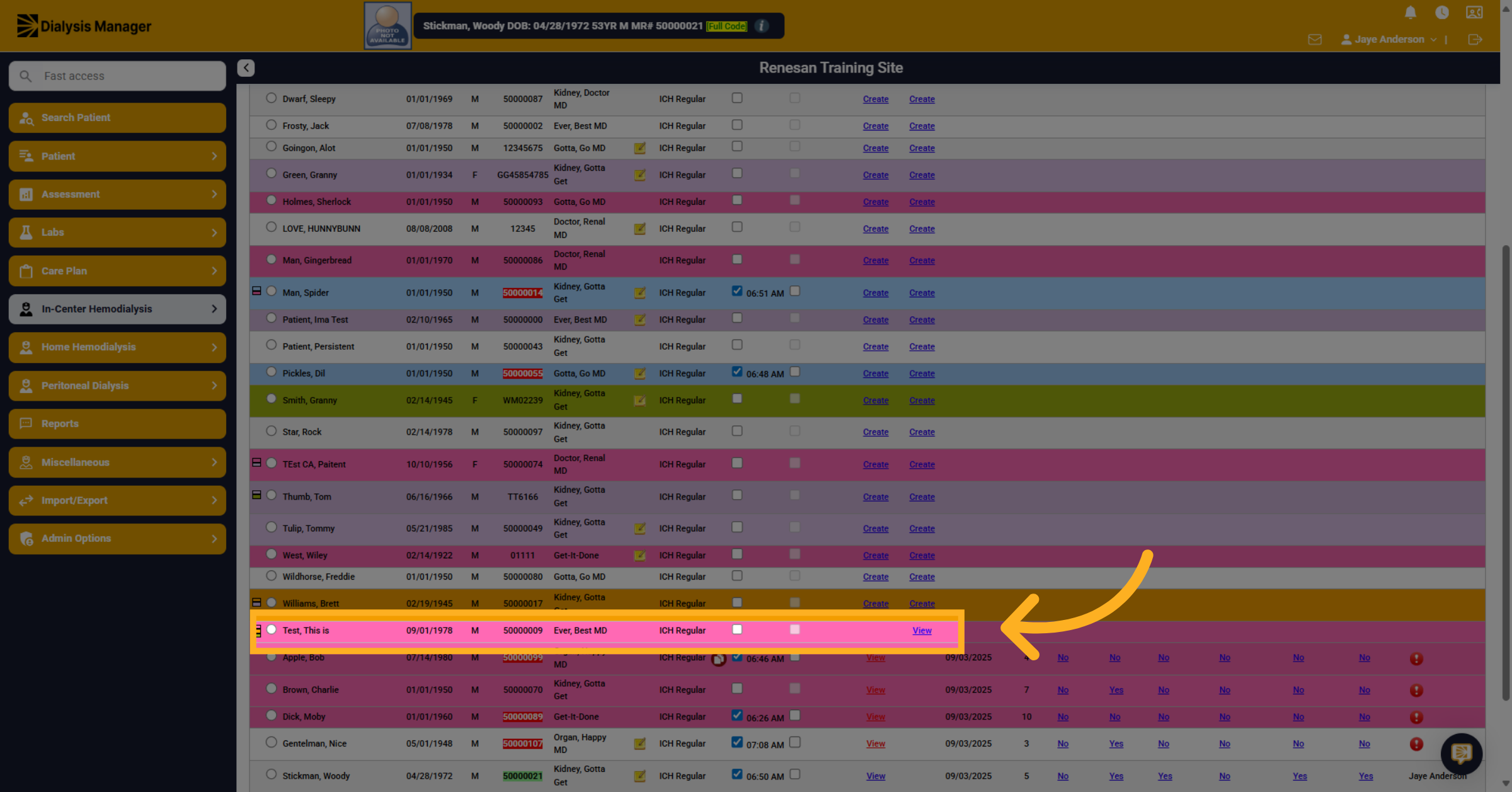
7. No Shows
Then in alphabetical order sorted by No Shows documented.
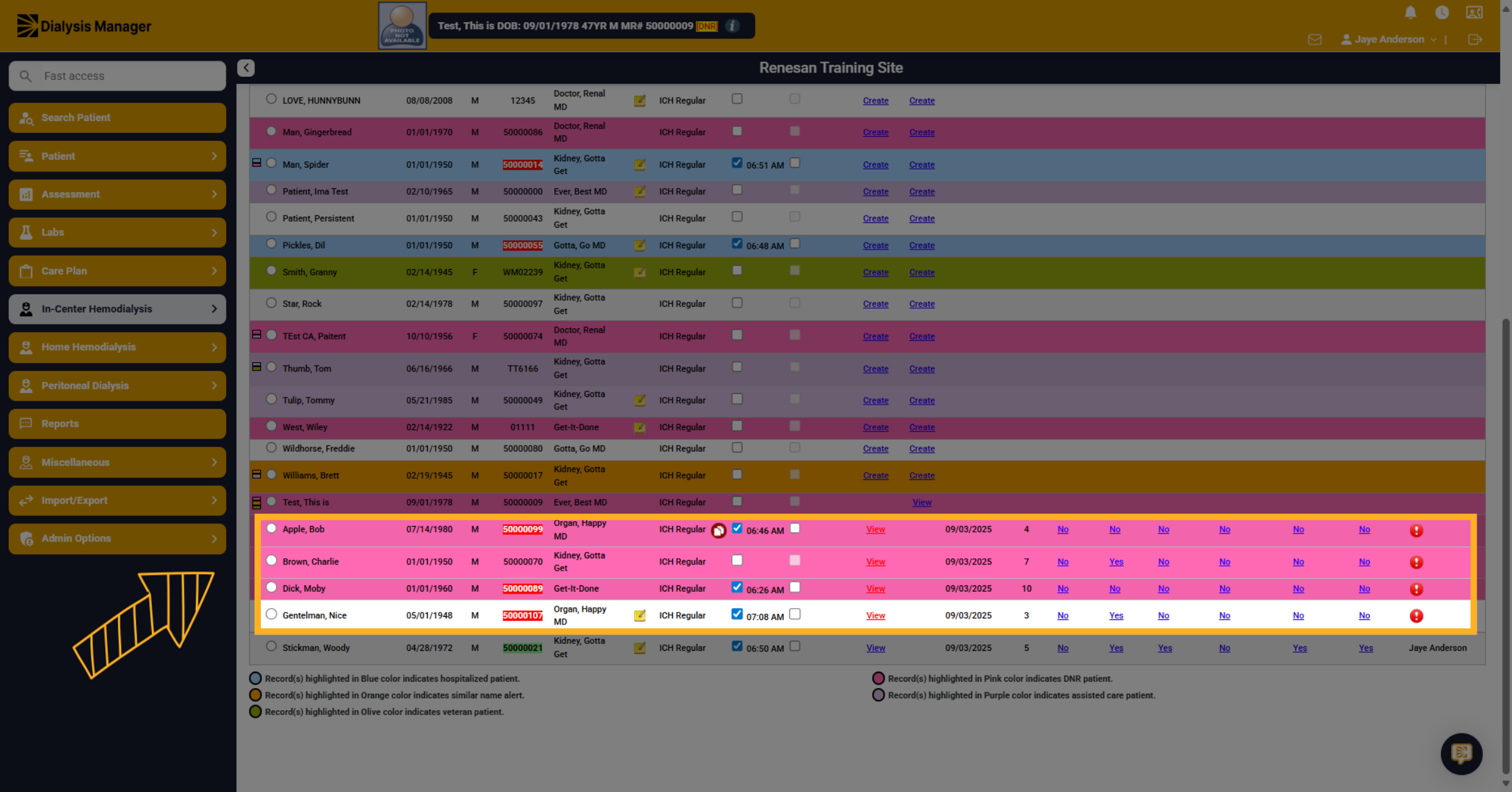
8. Open Flowsheets
The next list of patients is grouped in alphabetical order showing all open Flowsheets.
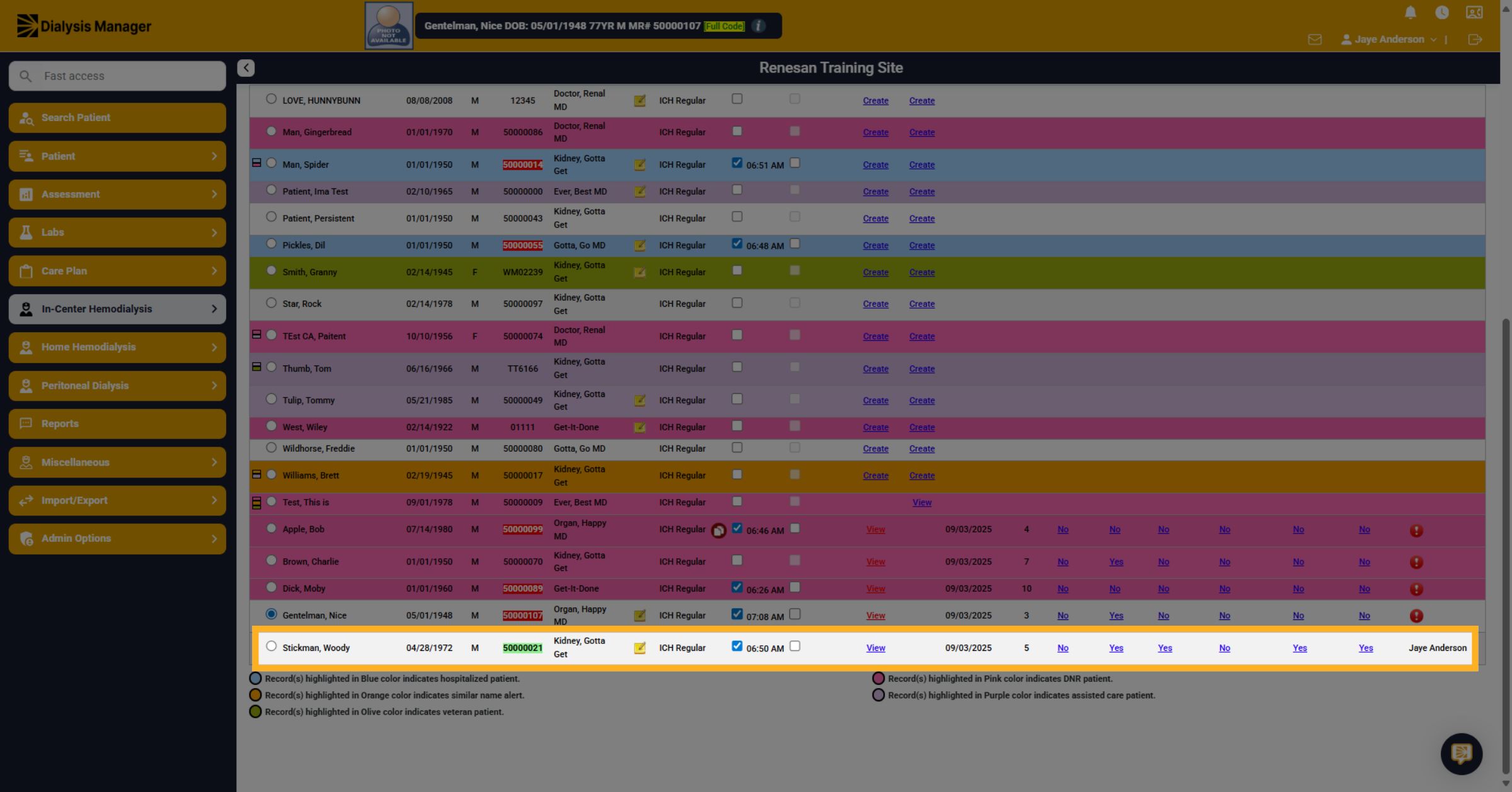
9. Final/Completed Flowsheet
At the very bottom of the list, you'll see patients whose flowsheets have been finalized and closed. You can see that the View is now blue and a user who approved and locked the flowsheet.
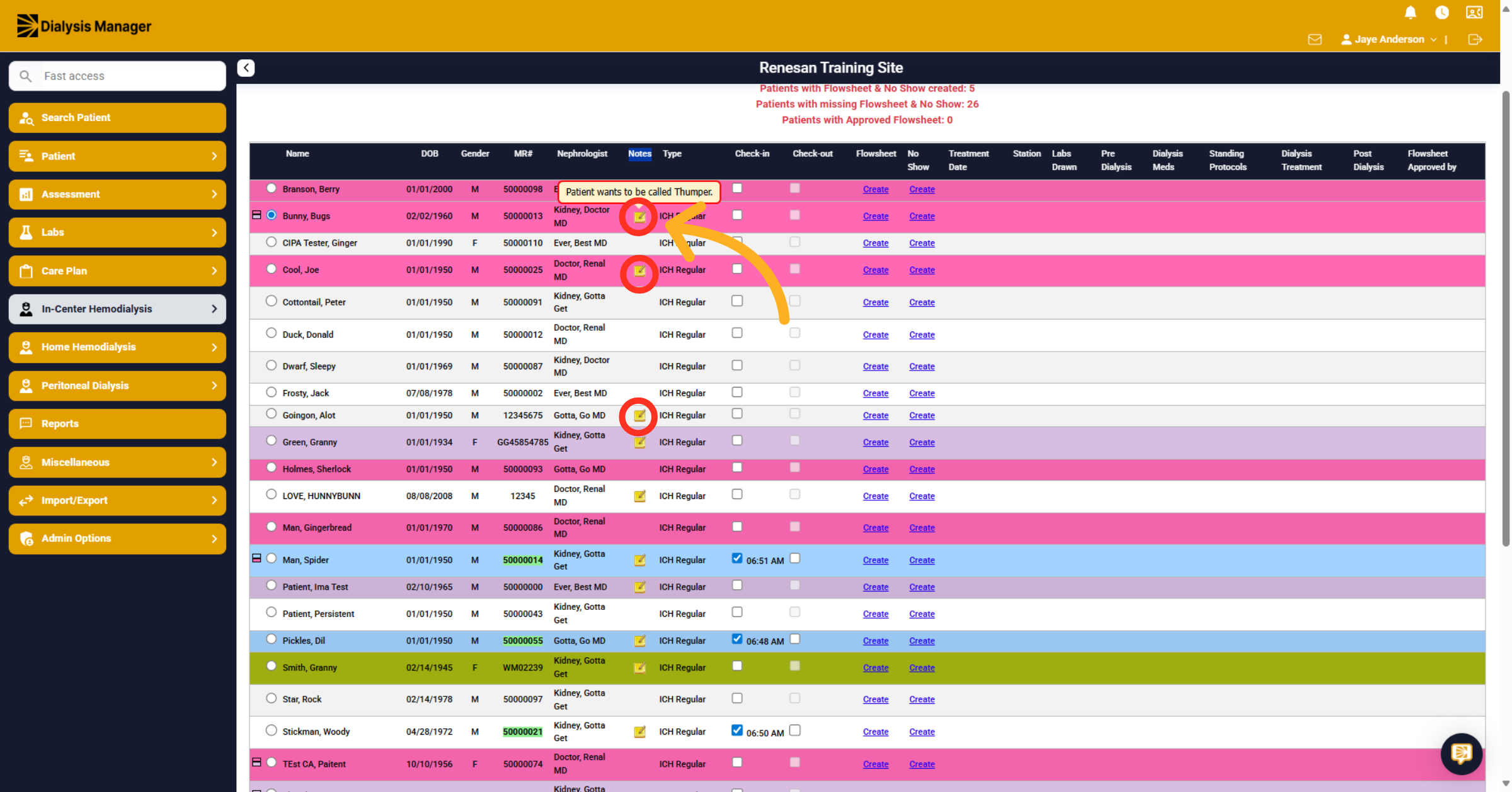
10. Hover
When hovering over the notepad in the note's column, it'll display additional information.
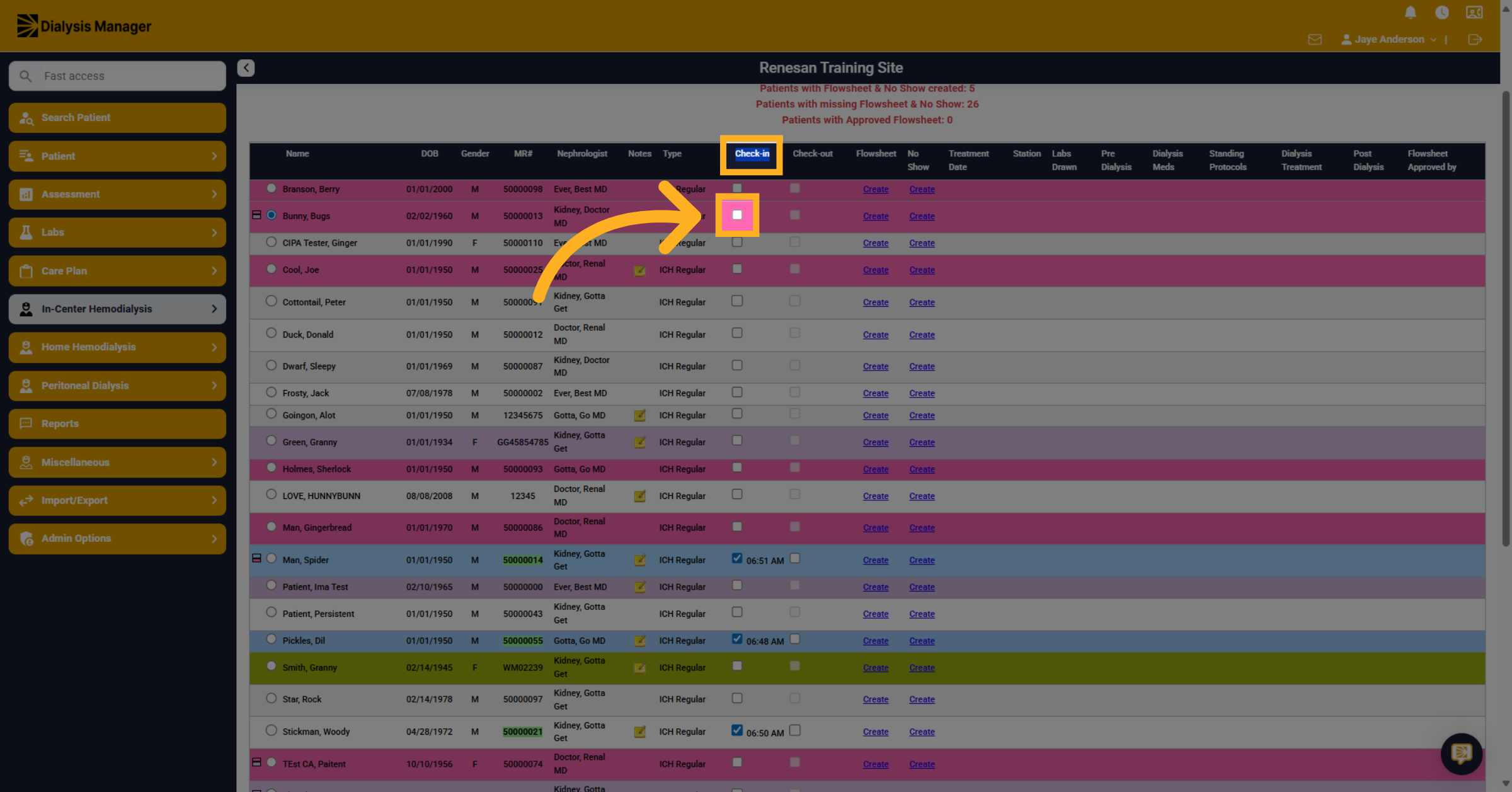
11. Click "Check In"
To Check a patient in. Click the 'Check-in' button to mark the patient as arrived and to specify the check-in time.
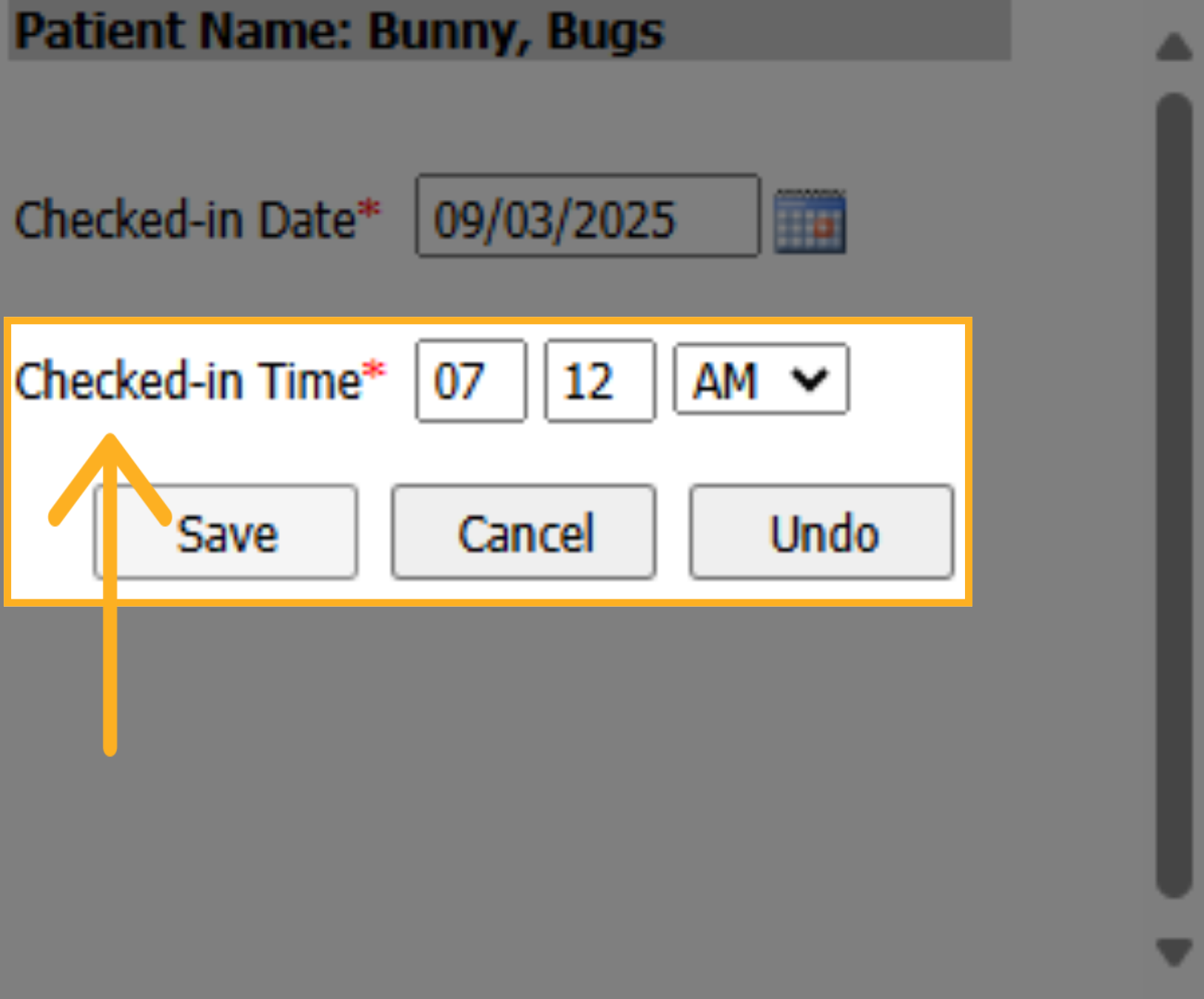
12. Click "Save"
Click the 'Save' button to record the check-in information.
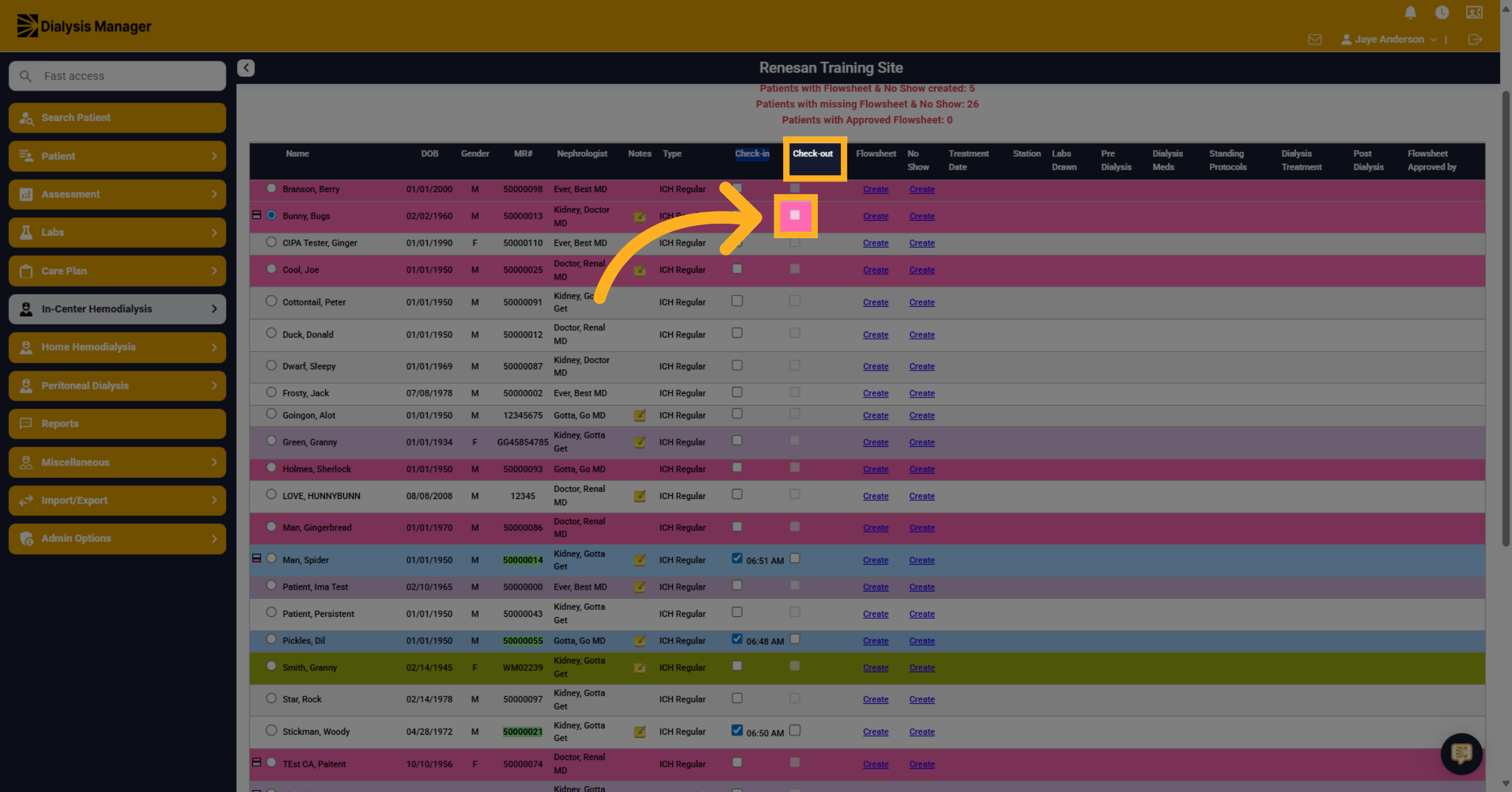
13. Click "Check In"
Alternately, to Check a patient out. Click the 'Check out' option to mark the time the patient has left the facility.
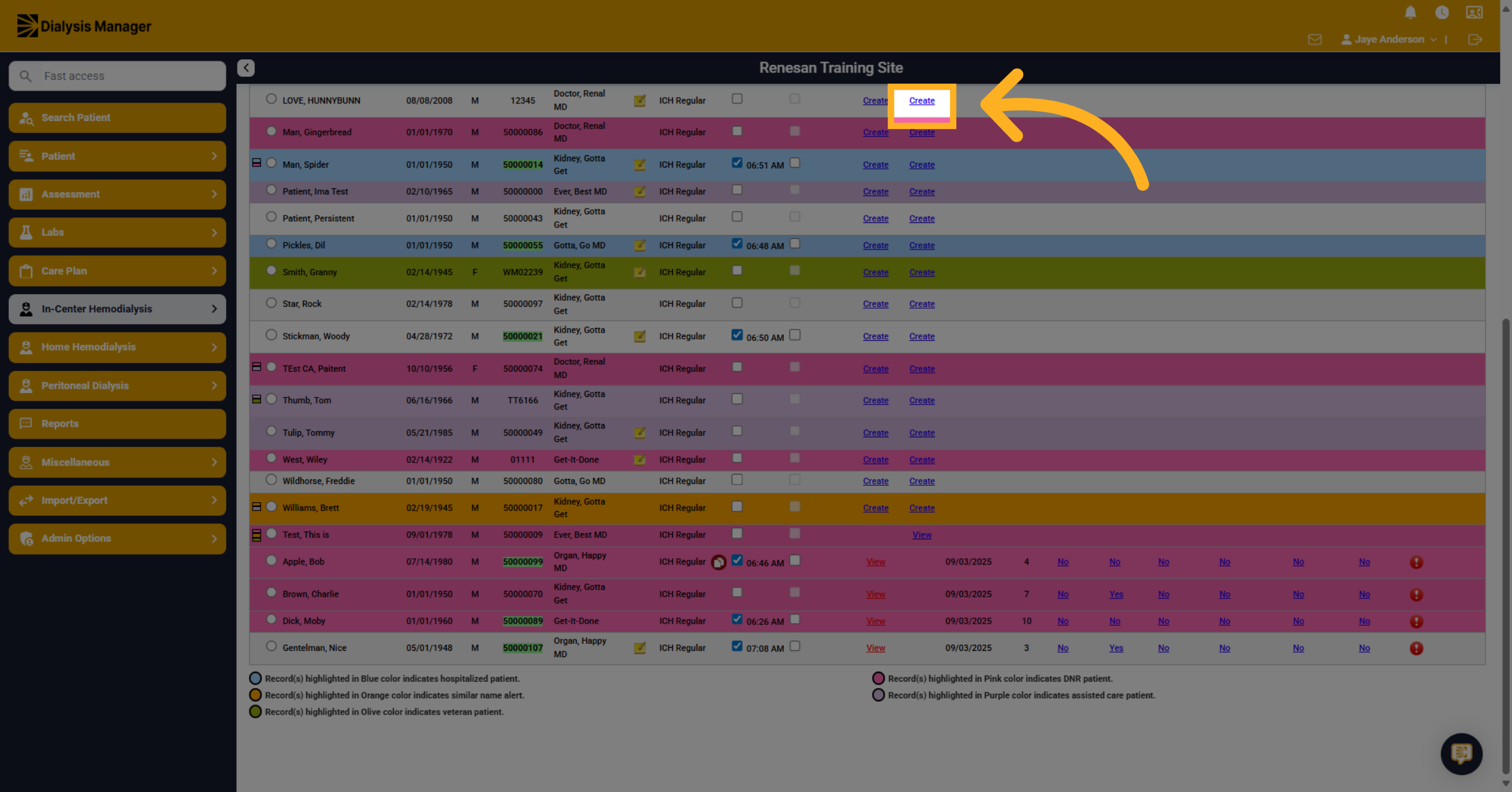
14. Create No Show
Choose the 'Create' button in the "No Show" column to document a patient's 'no show'.
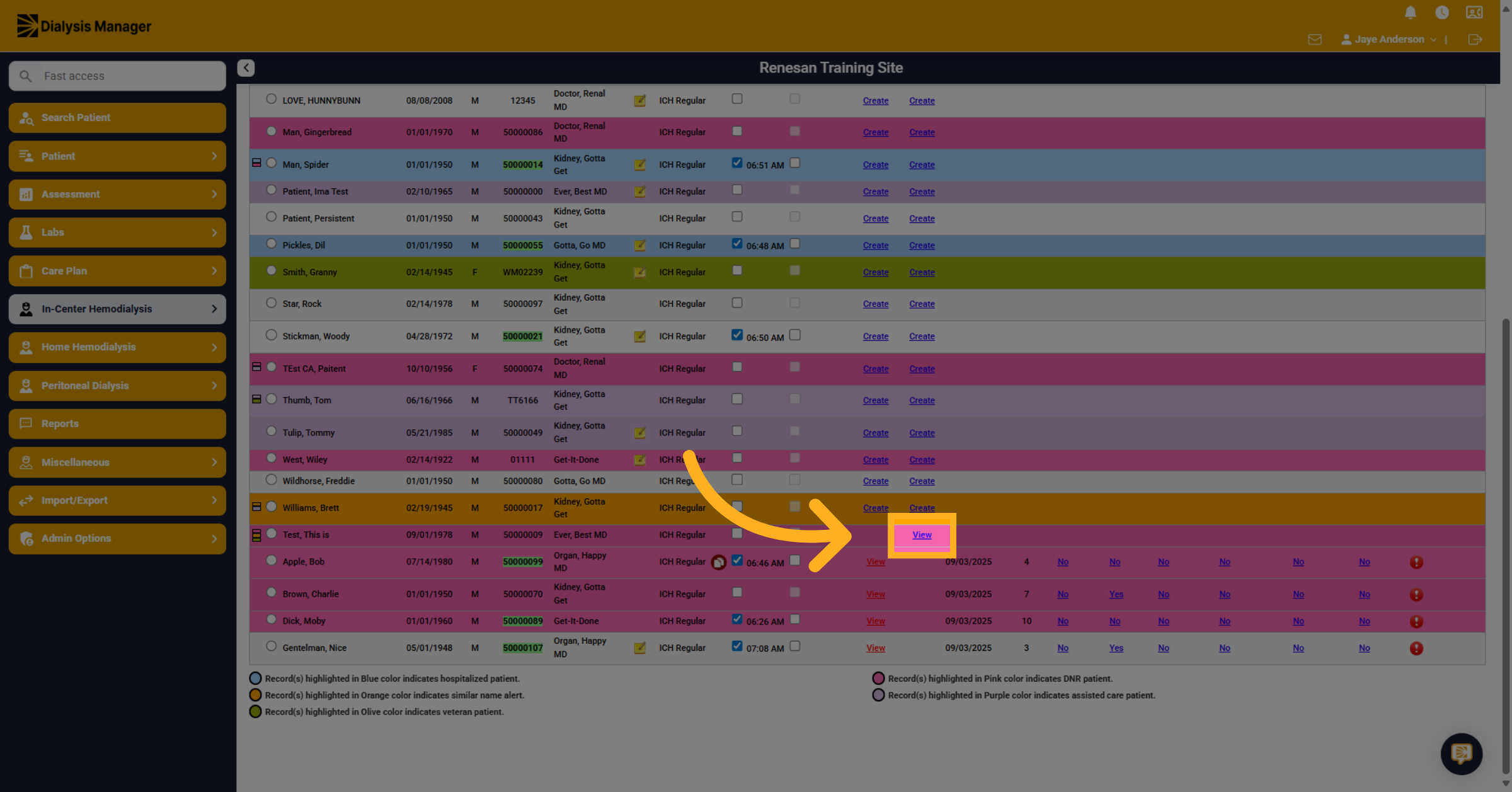
15. View No Show
The 'View' button in the "No Show" column shows this patient has a 'no show' created. Click on view to see more detailed information.
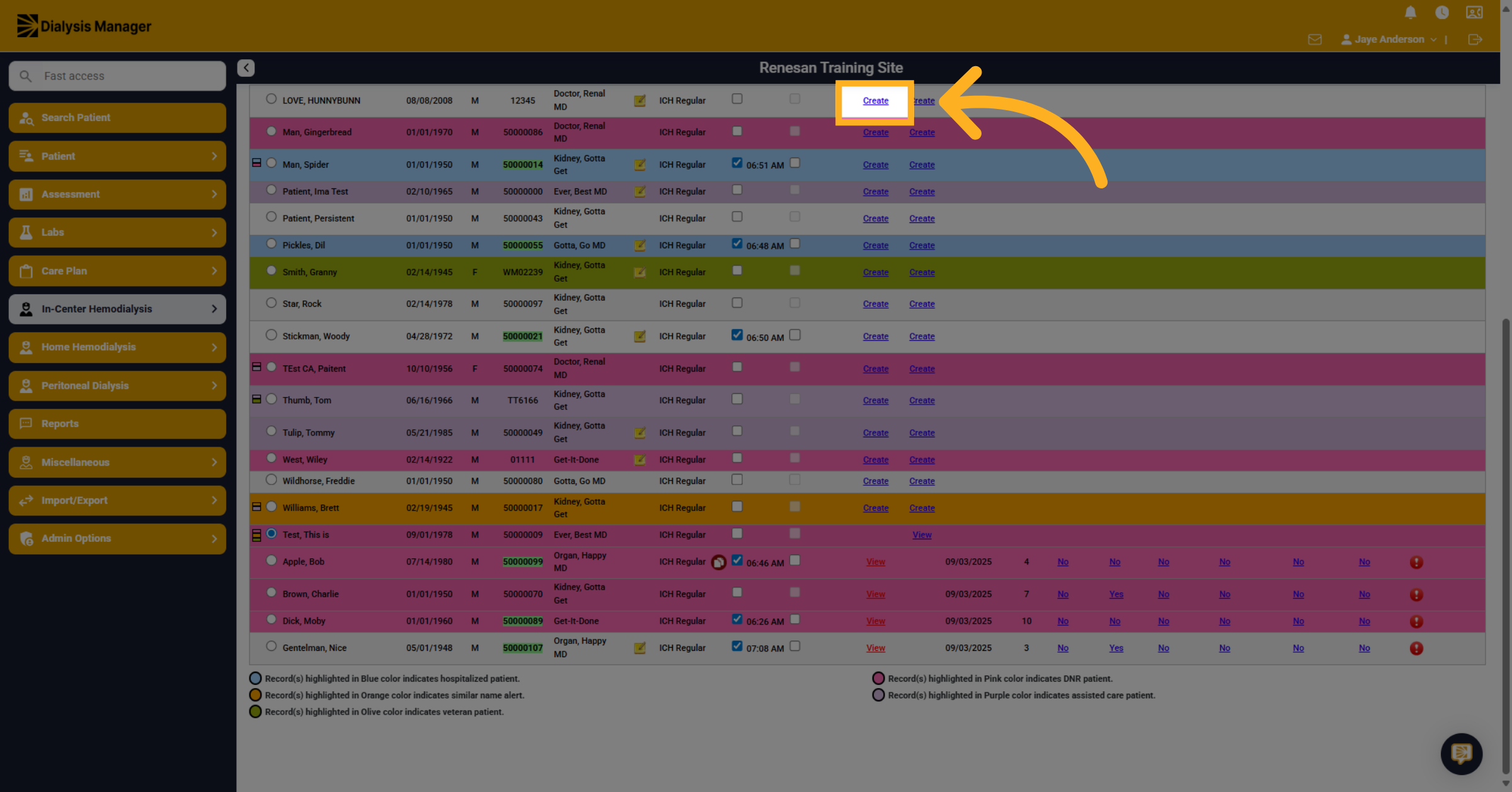
16. Create Flowsheet
Clicking the 'Create' button in this column will start the initiation of creating a 'treatment flowsheet'.
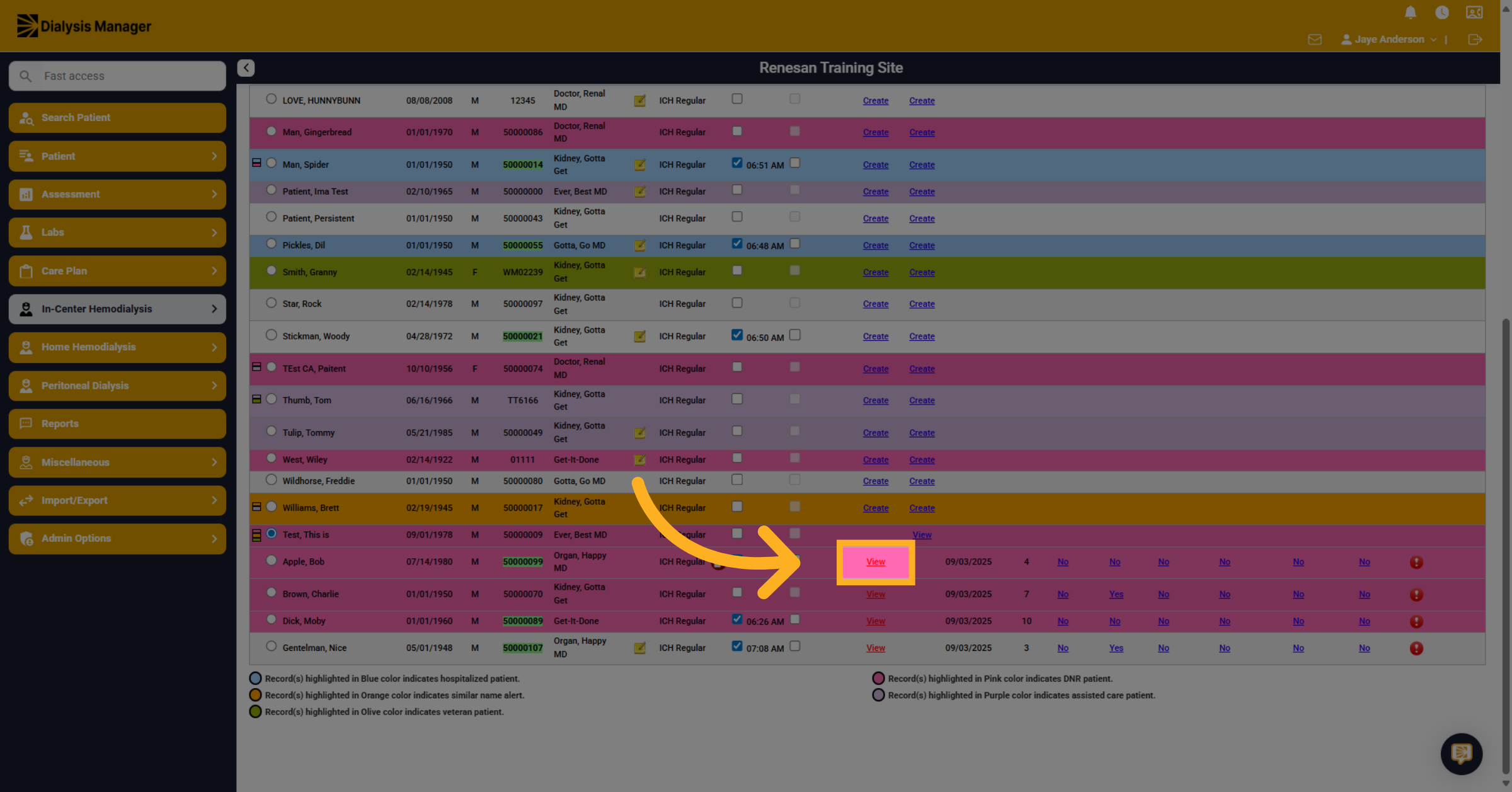
17. View to open Flowsheet
The 'View' button in the "Flowsheet" column shows patients that have a 'flowsheet' created. Clicking on view will open the patient's flowsheet.
18. View different tabs
Click the 'Yes or No' buttons to open specific tabs within the patient's flowsheet.
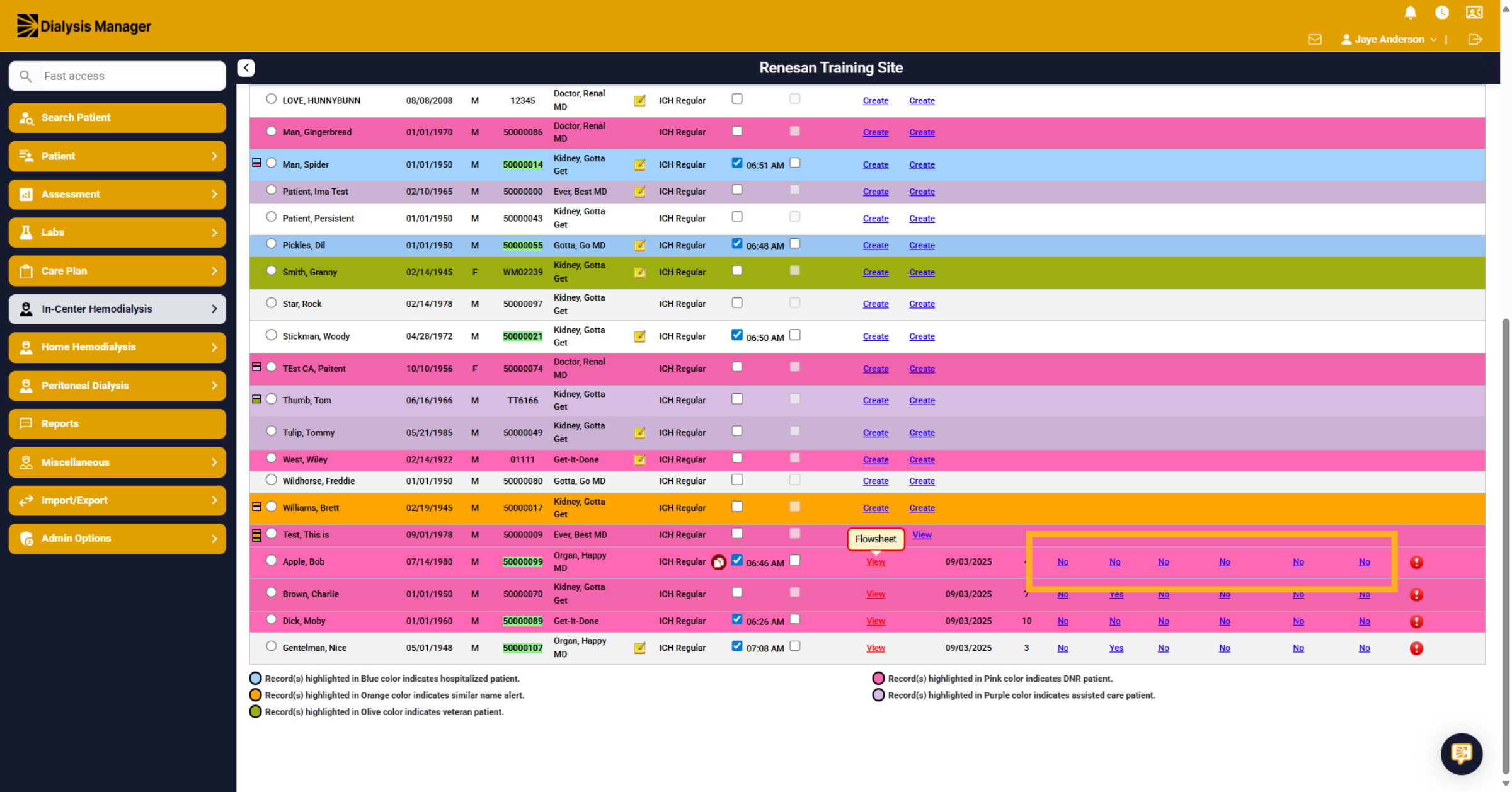
19. Hover to view
The differences between the hyperlinks of the yes and no sections. First, if you hover over, you can see where the item will bring you within the flowsheet.
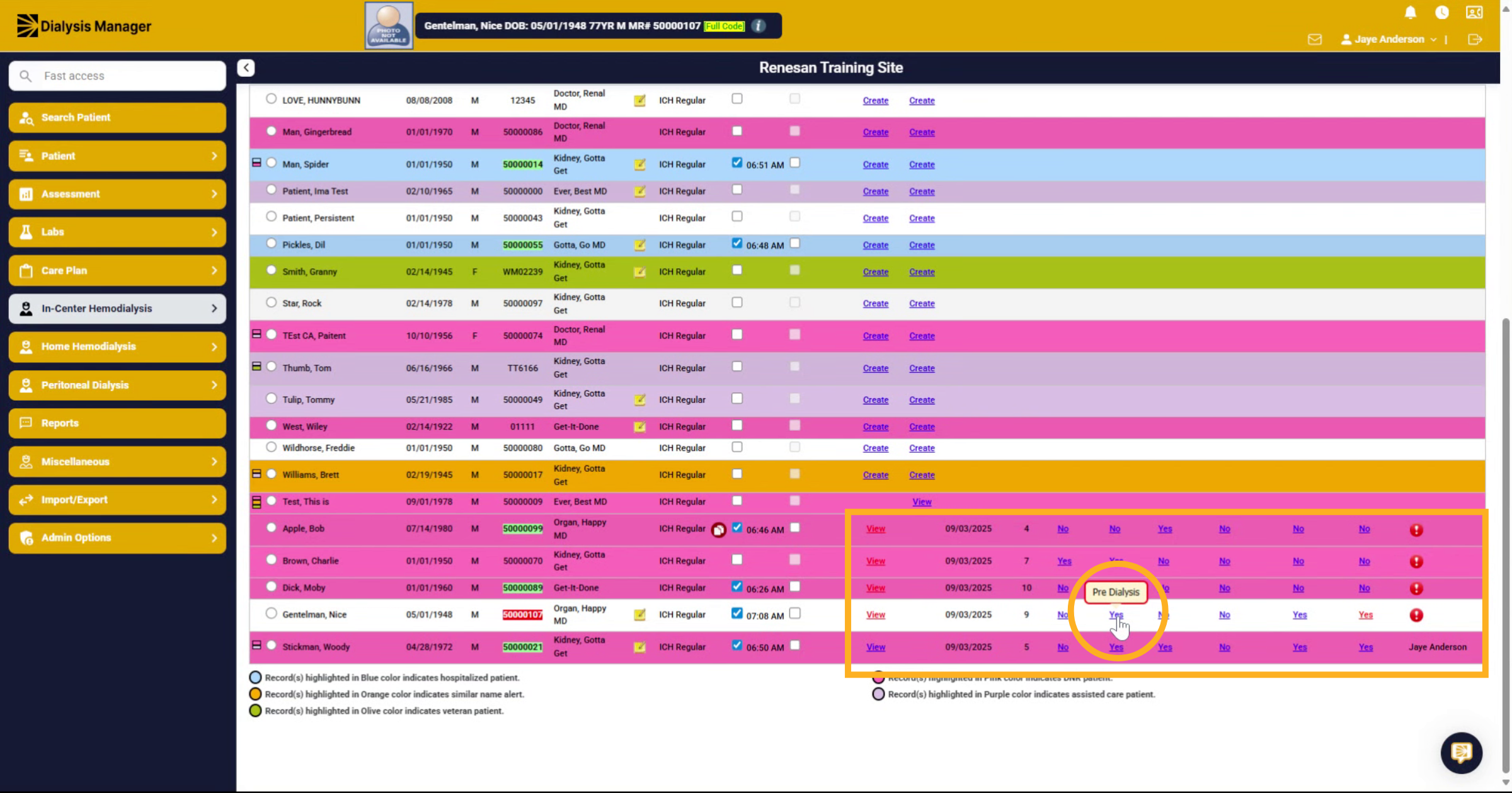
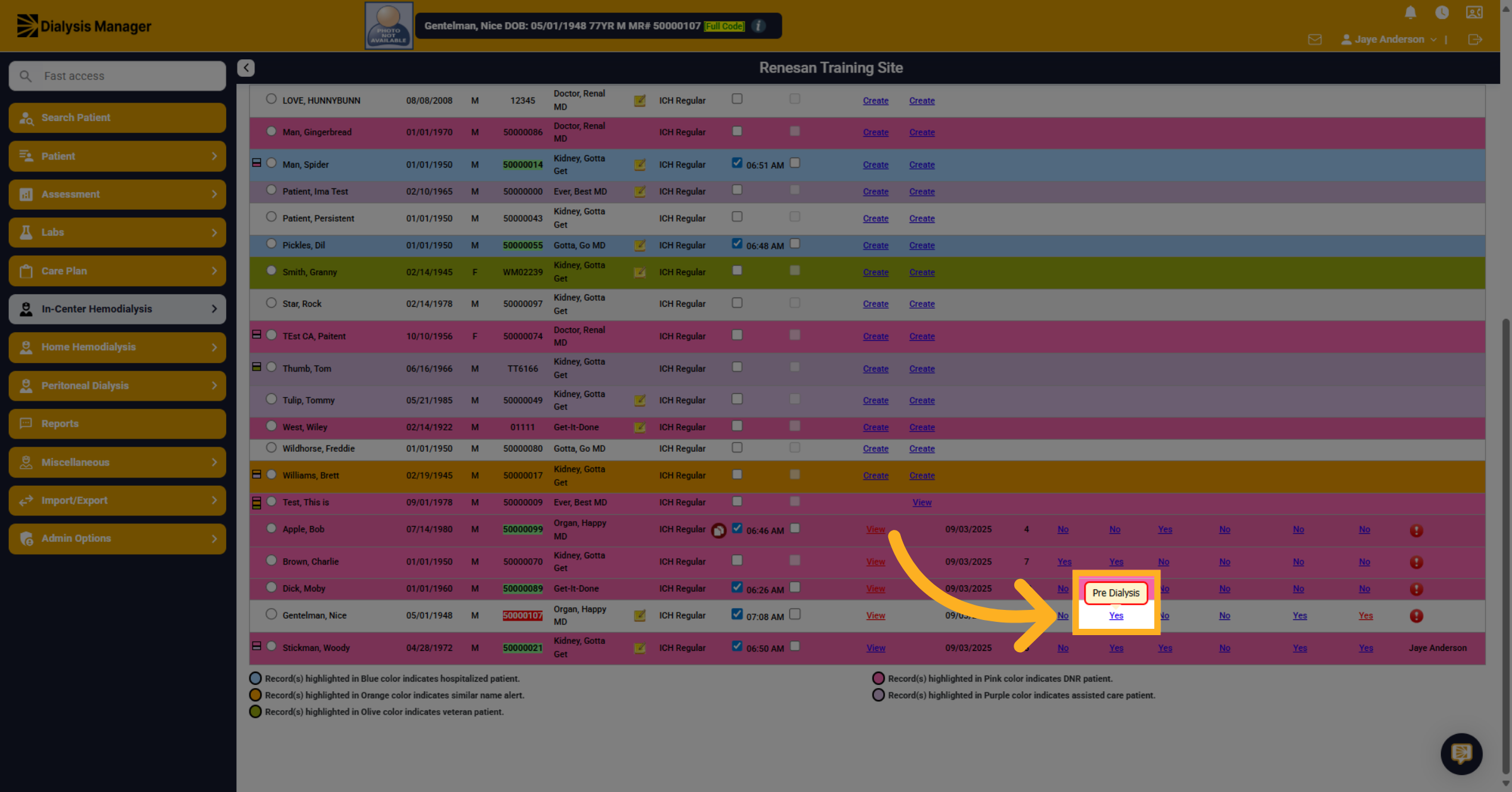
20. Blue Yes
Let's explore the differences between the hyperlinks of the yes and no sections on the Treatment by date screen. If the item is a yes in a blue underline, it means it has been approved and locked. As you can see here, the Pre Dialysis section has been approved and locked.
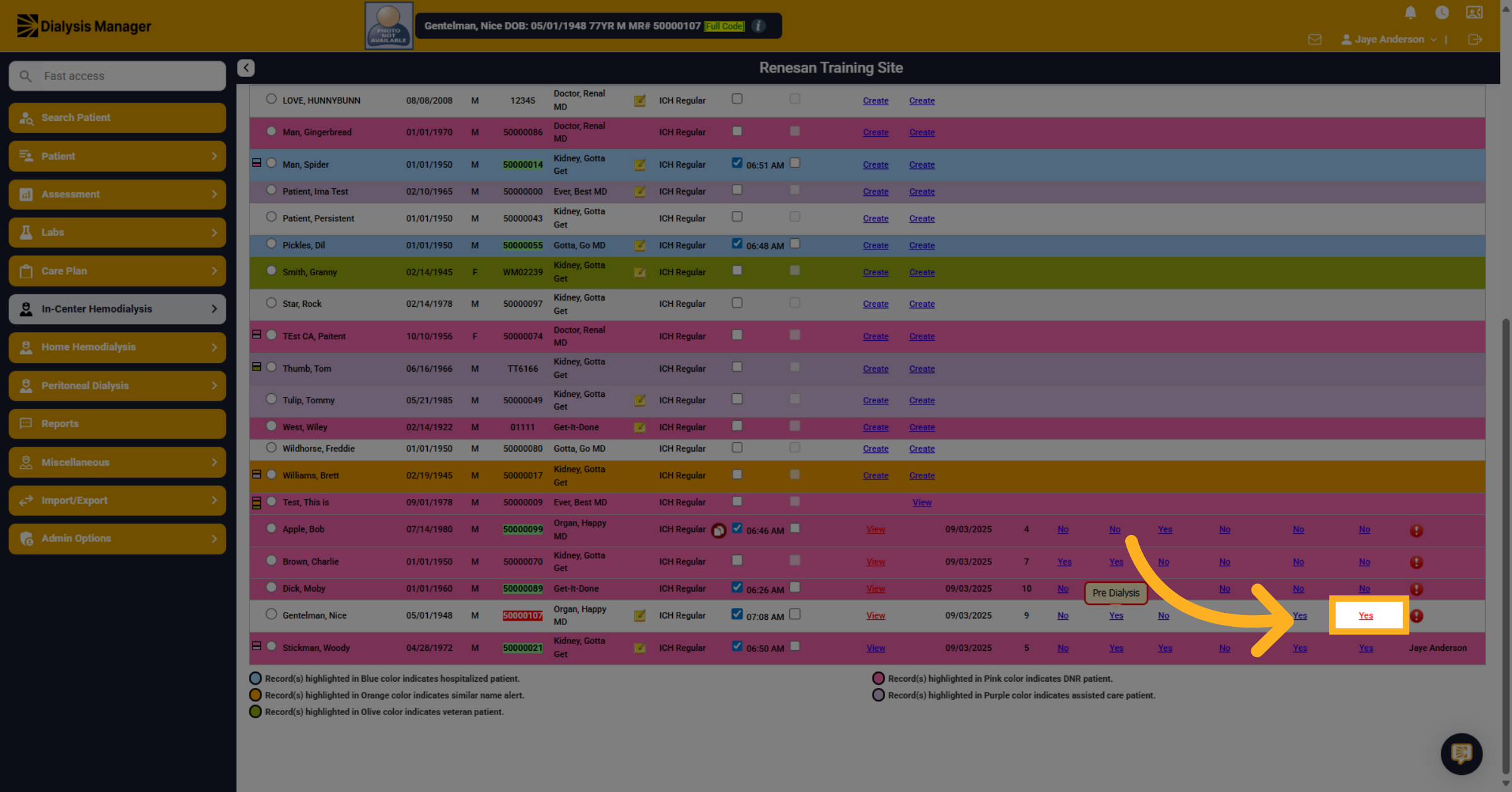
21. Red Yes
If it is a yes with a red hyperlink, some items have been documented but it has not been approved and locked.
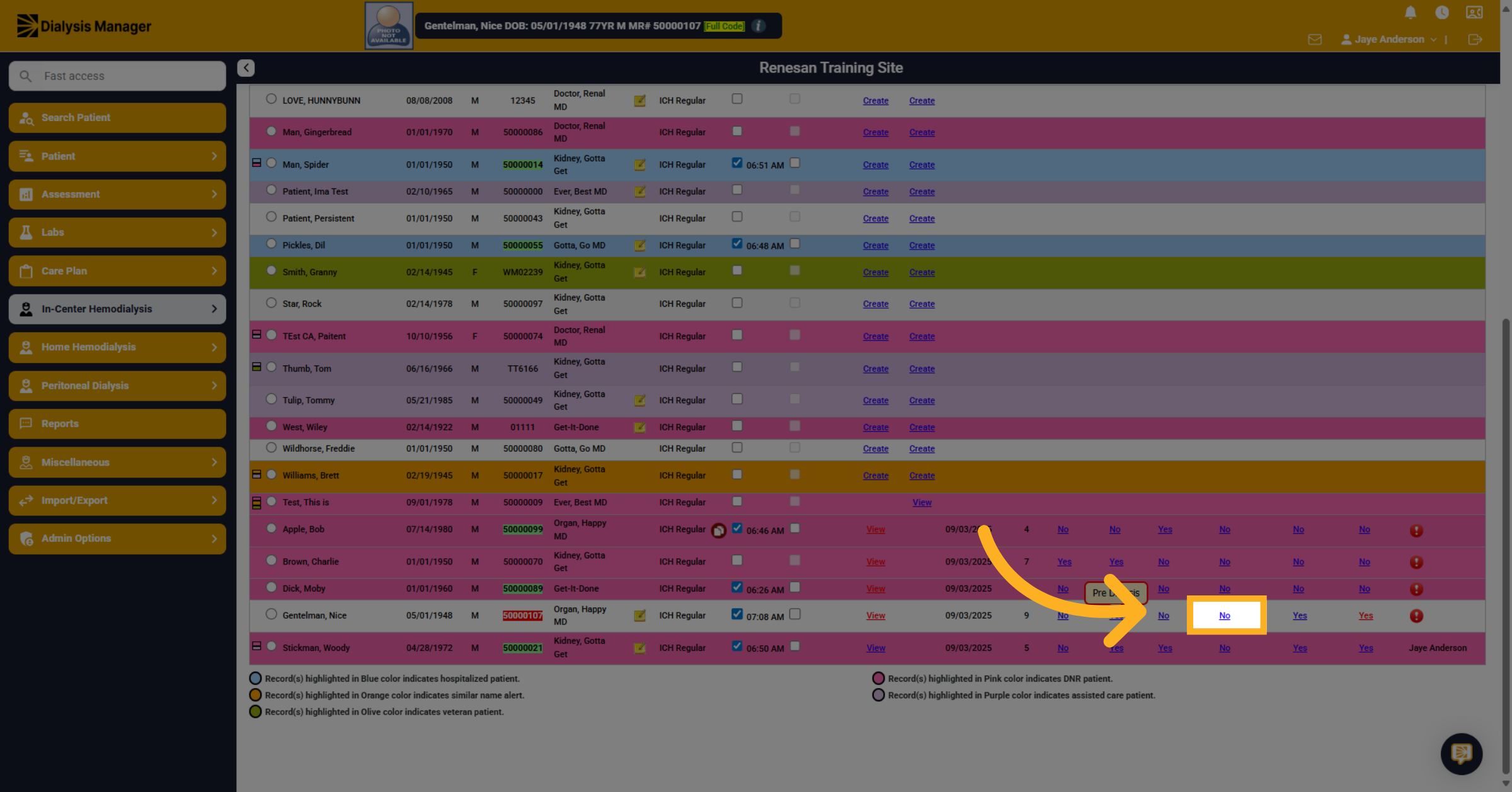
22. Nothing has been documented
If it is a no with a blue hyperlink, it means nothing has been documented within this section.
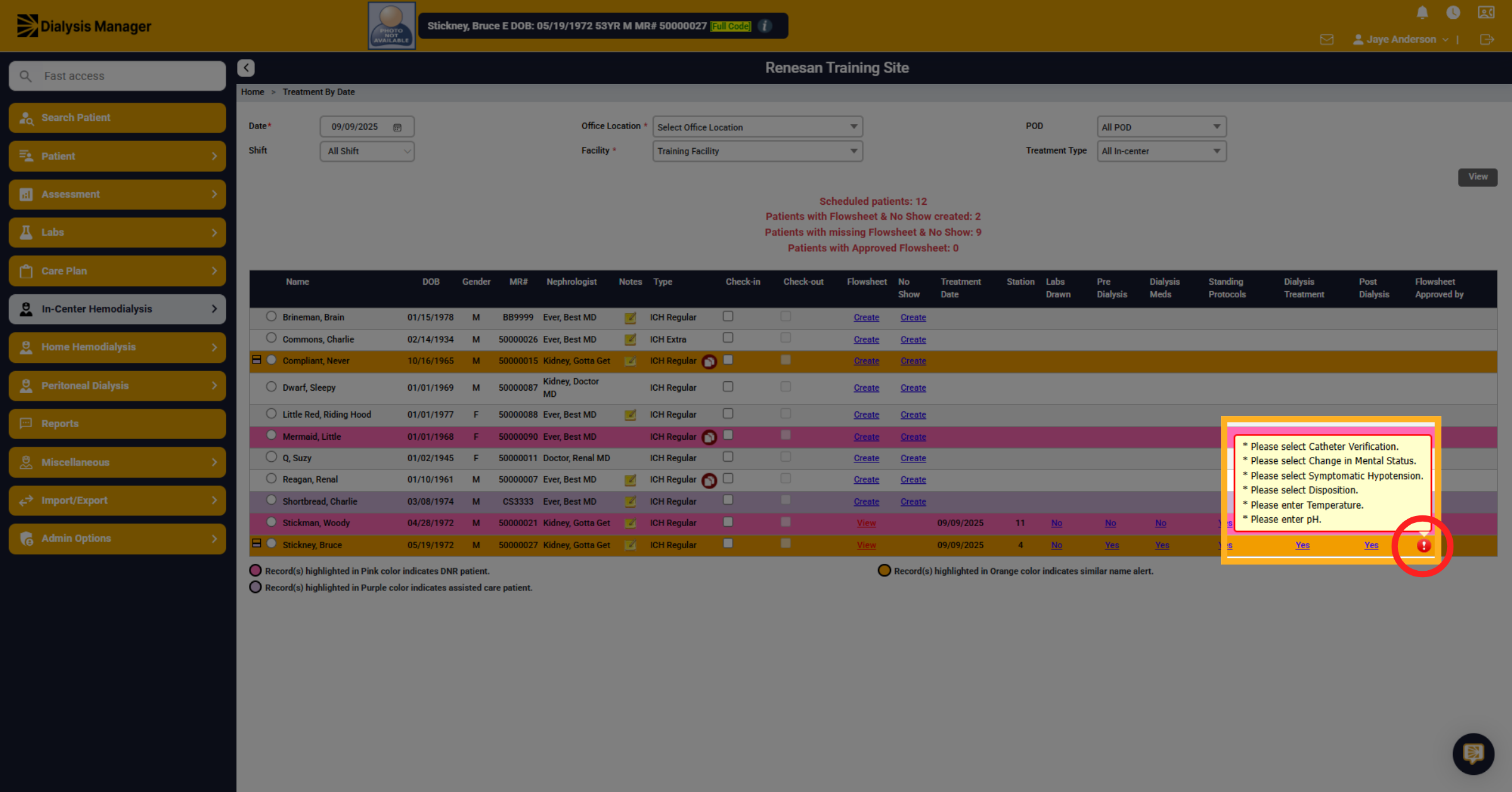
23. Hover here
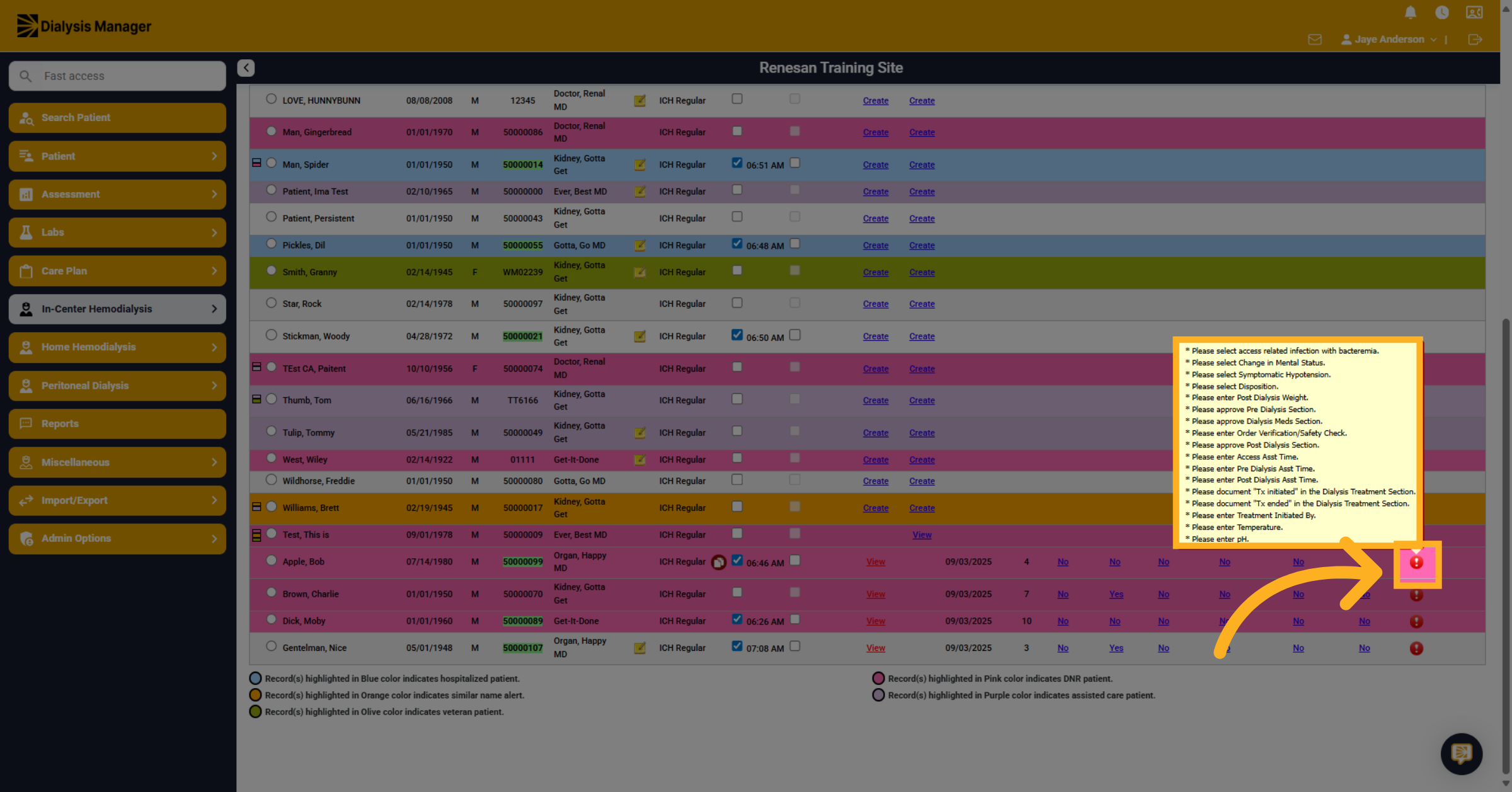
Hover over the Red Exclamation mark to view information that still needs to be completed before closing the patient flowsheet.
24. Creating a flowsheet
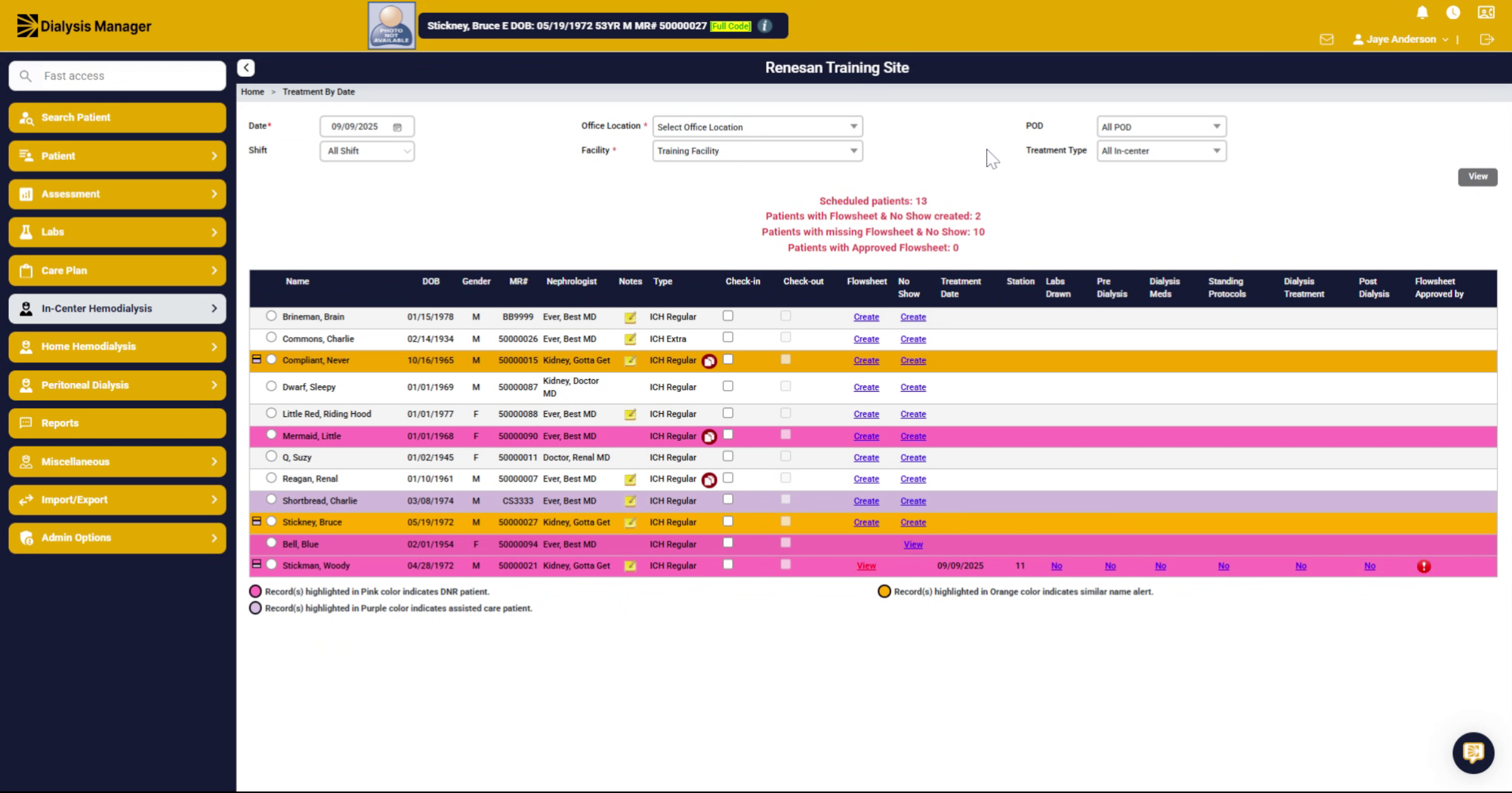
From the Treatment by Date screen, we will create a Flowsheet
25. Click "Create"
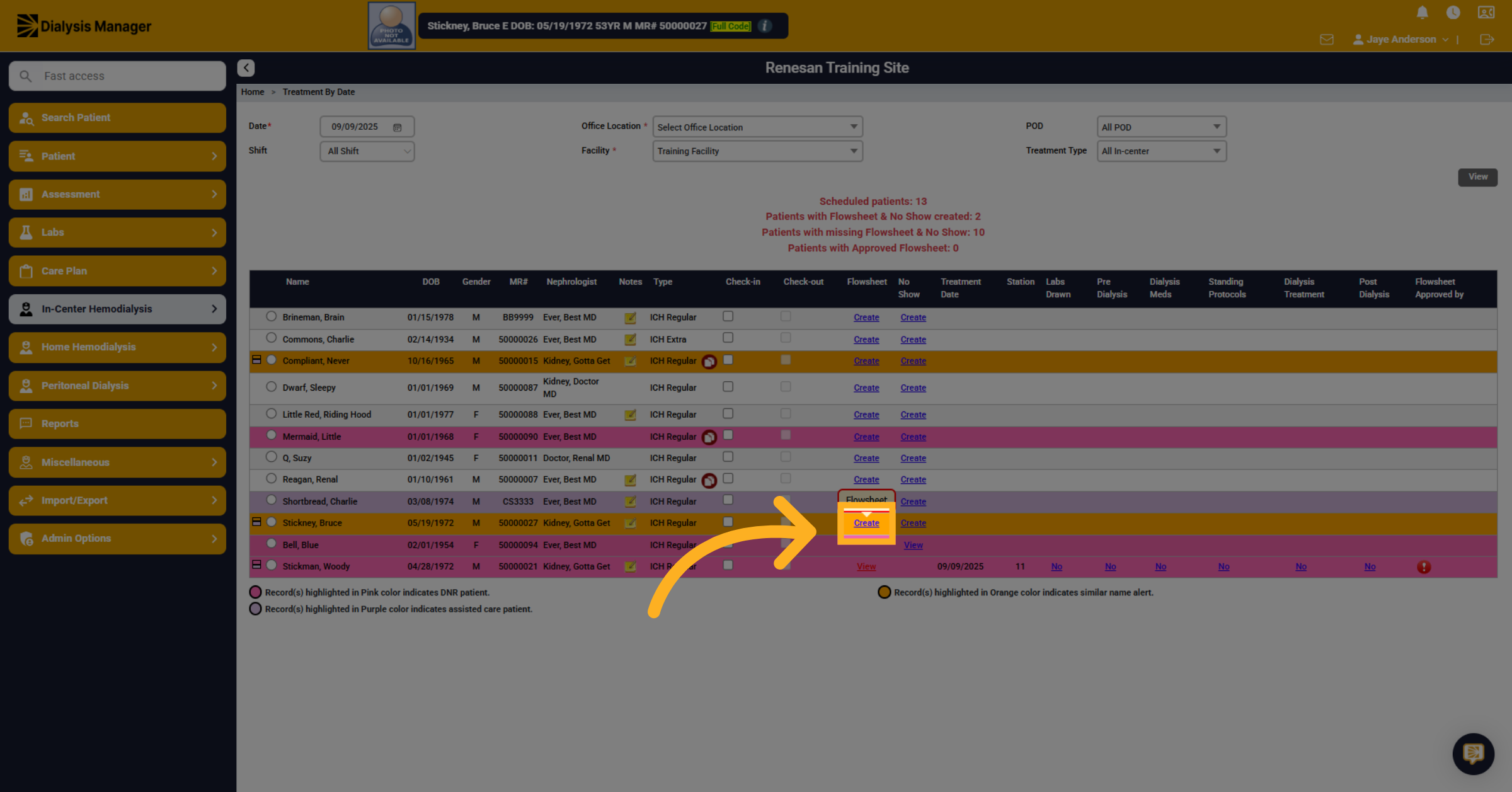
Click "Create" under the flow sheet section for the patient of the flowsheet you want to create.
26. Click "Add HD Flowsheet"
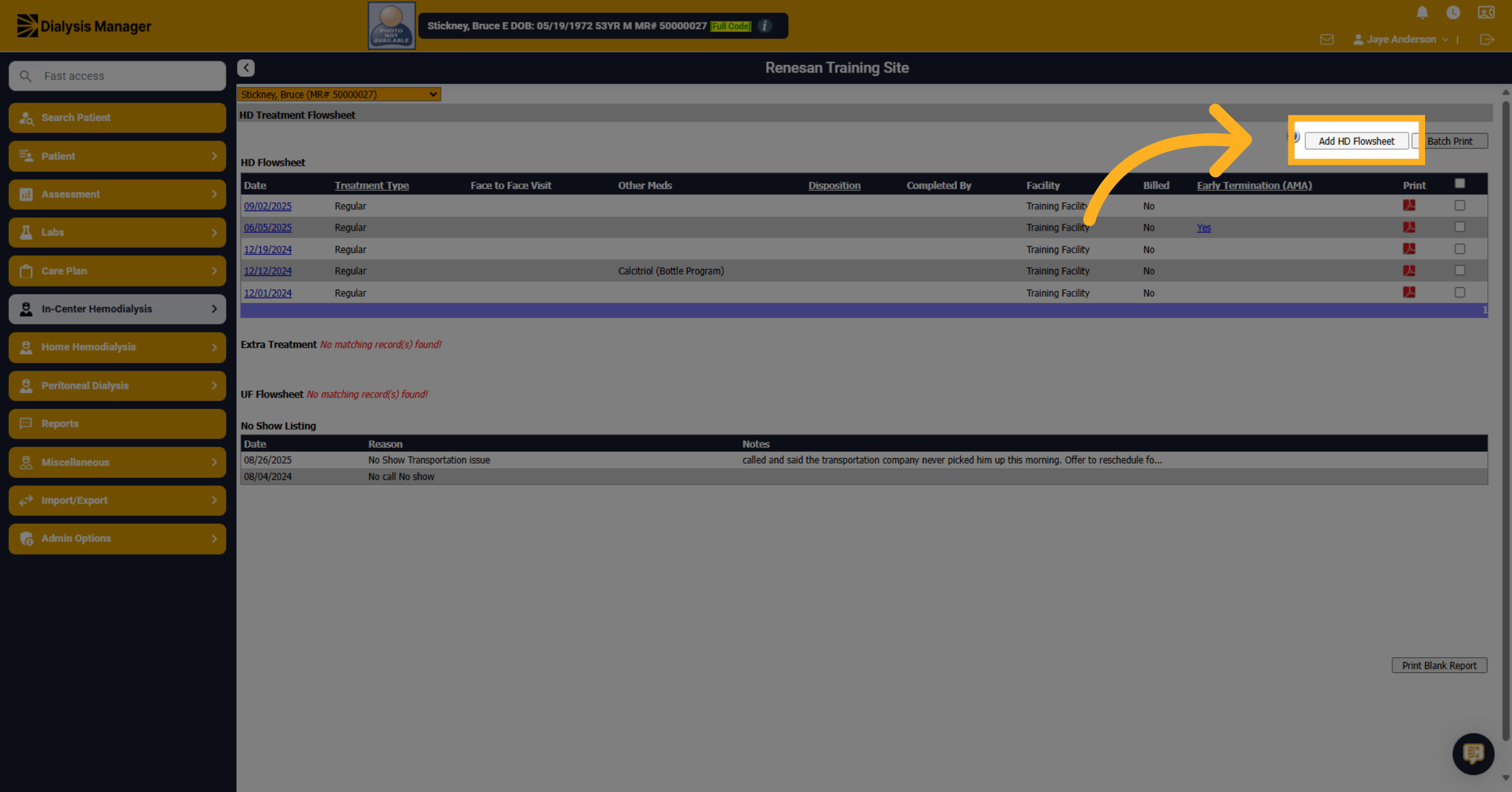
Click "Add HD Flowsheet". Please note that if this is the patients first treatment at your facility the HD Flowsheet will automatically open. You will not need to select Add HD Flowsheet.
27. Click "HD Treatment Flowsheet"
Here we'll look at the HD treatment flow sheet section. In this section, you will want to focus on the station number. We'll look at the Machine Interface link momentarily.
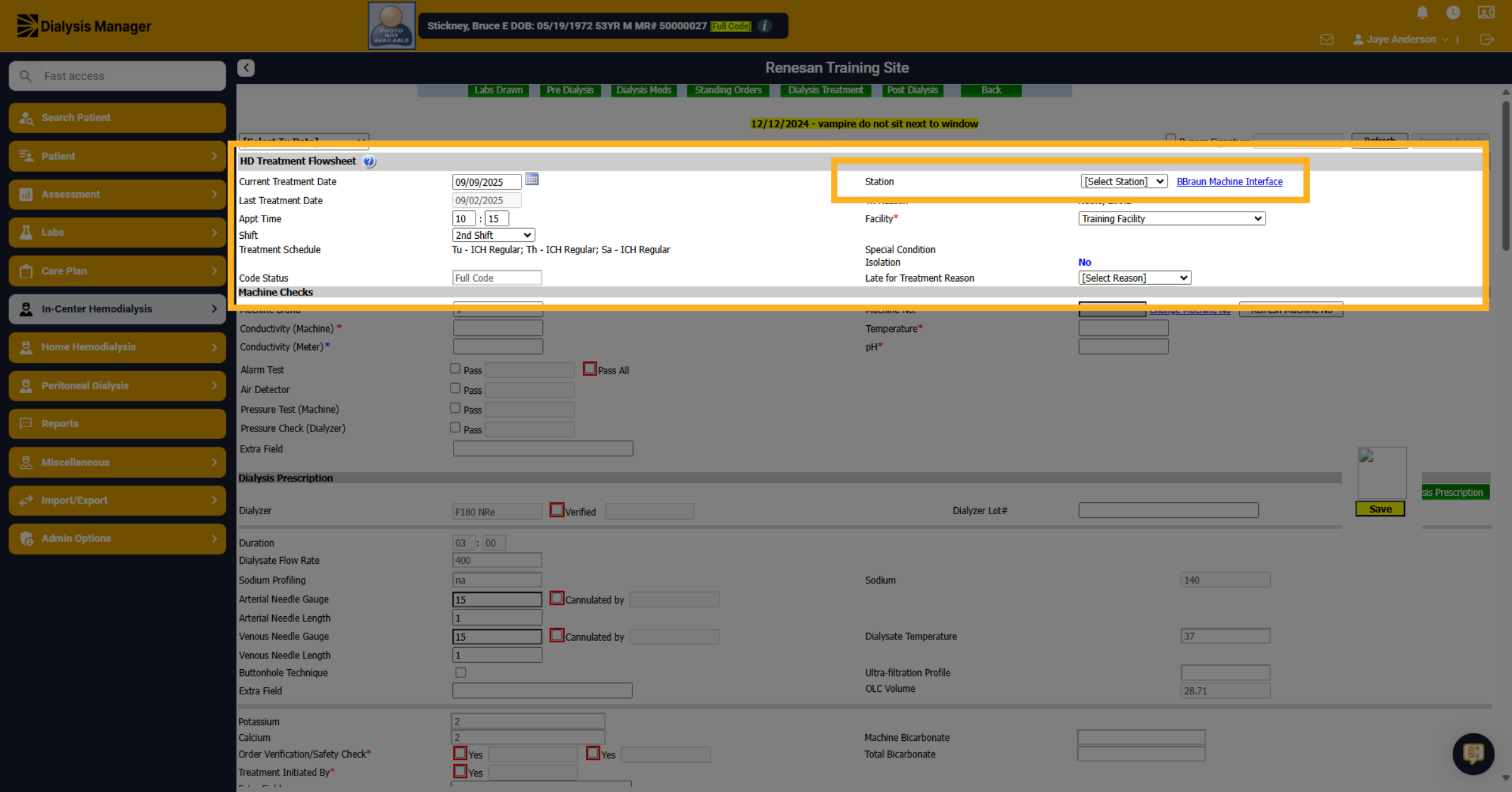
28. Select a Station
Click "[Select Station]" to specify the station number.
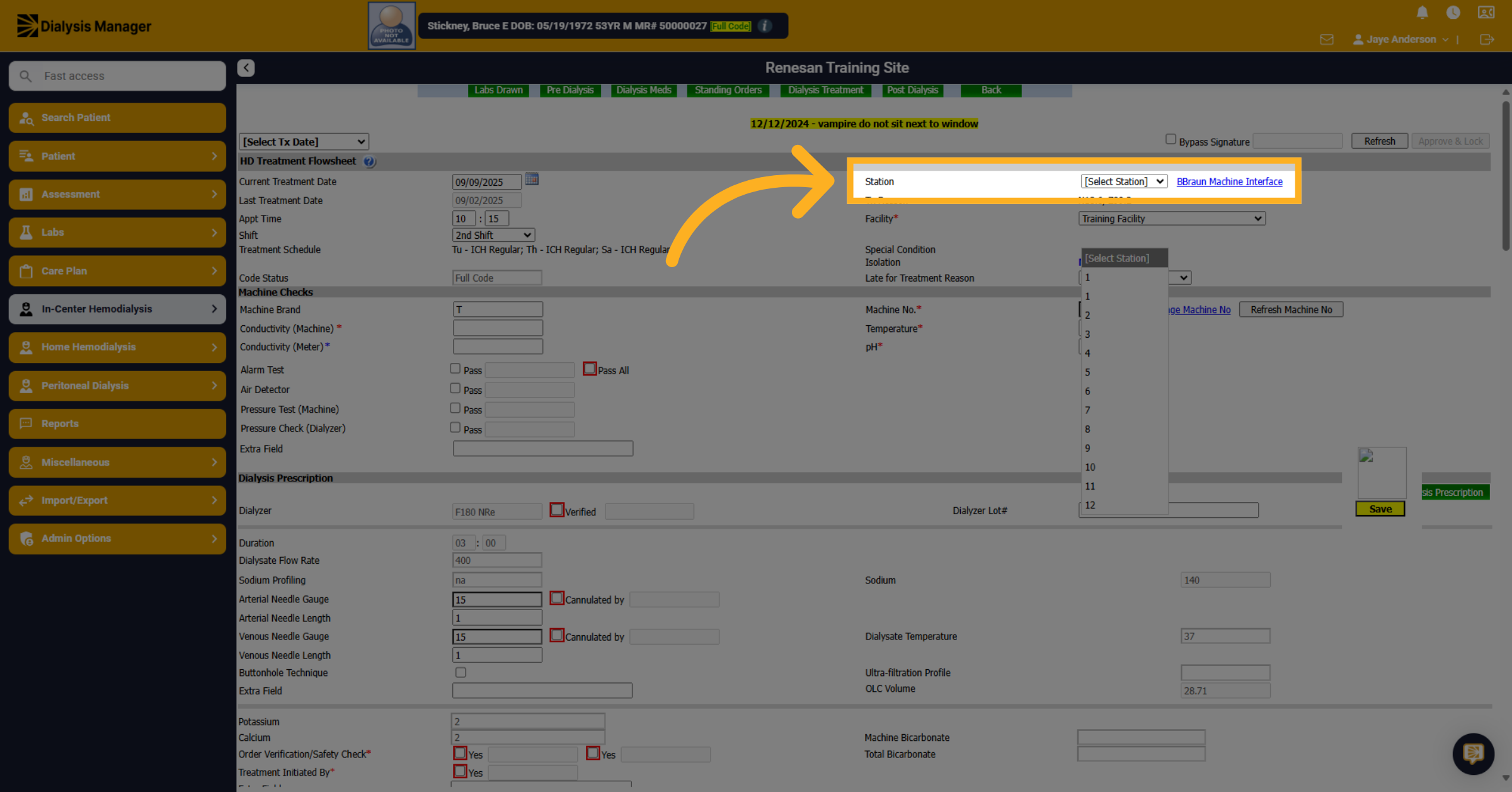
29. Click "Machine Checks"
Here we'll look at our machine checks and fill out as much information as known. Keeping in mind that anything with a red asterisk is a required field. Now we're going to document that all of our machine's alarms have passed. Clicking "Pass All" to indicate all machine checks have passed. Then click save.
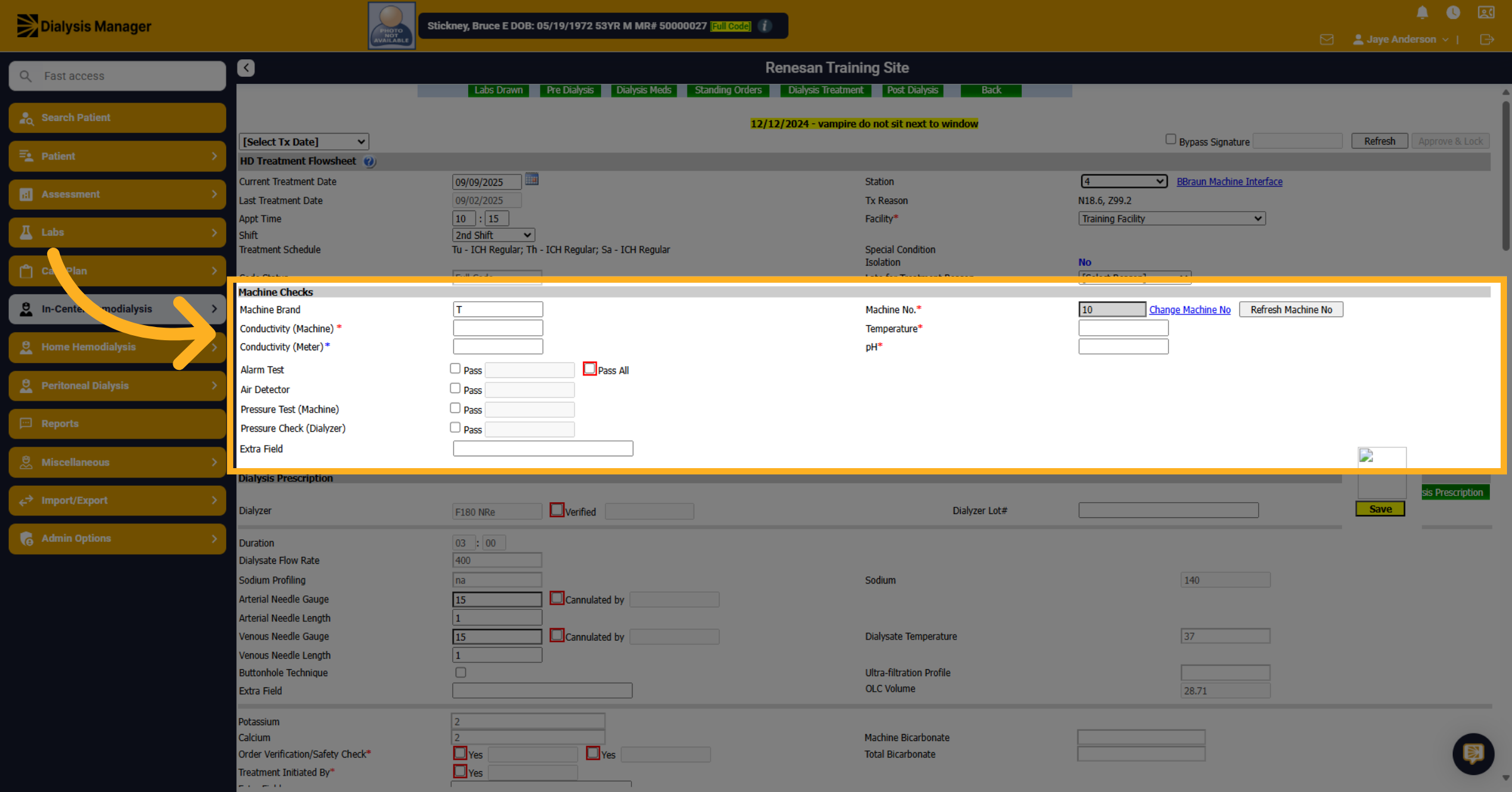
30. Enter PIN or Password
Verify your username and enter your PIN or password then click OK.
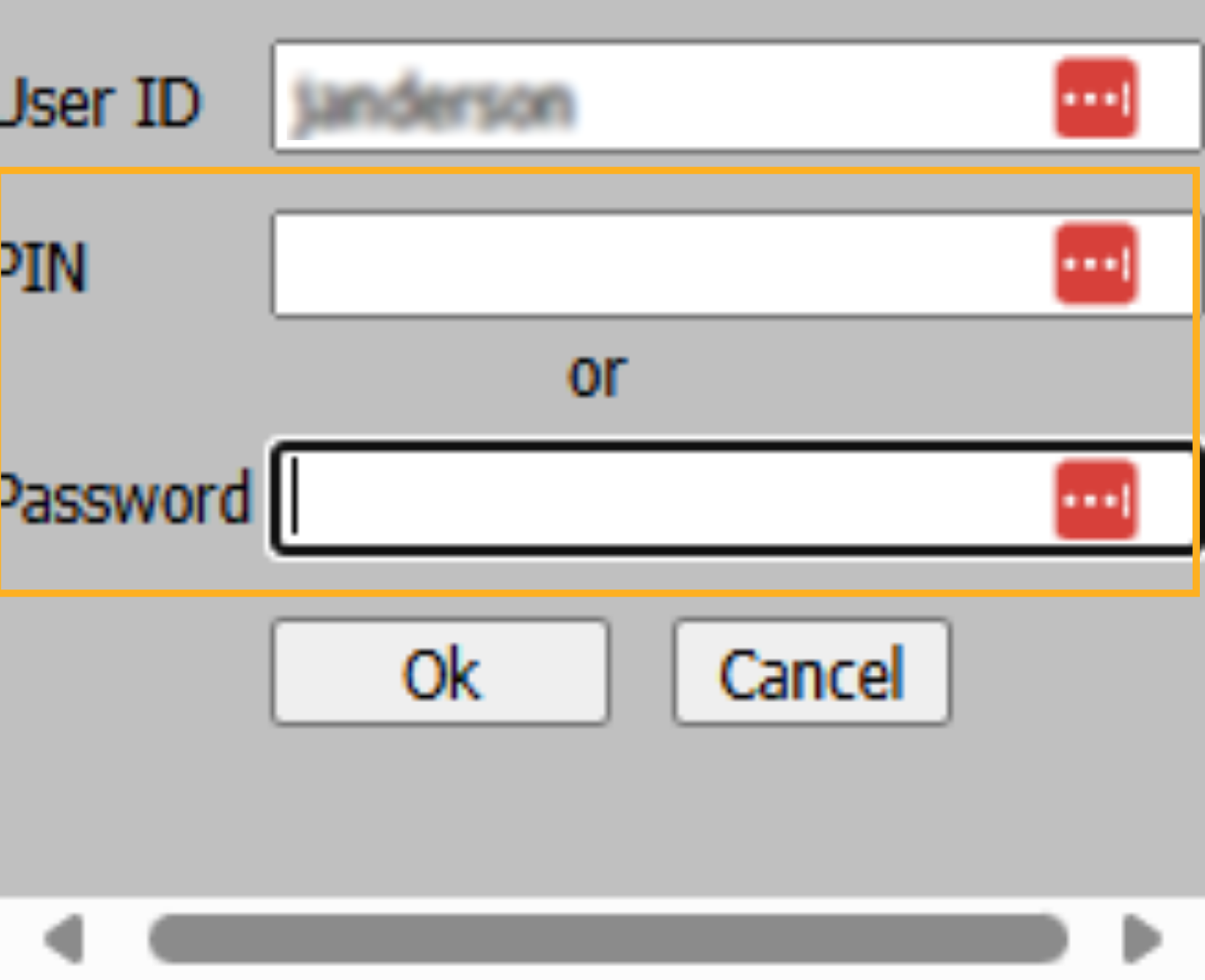
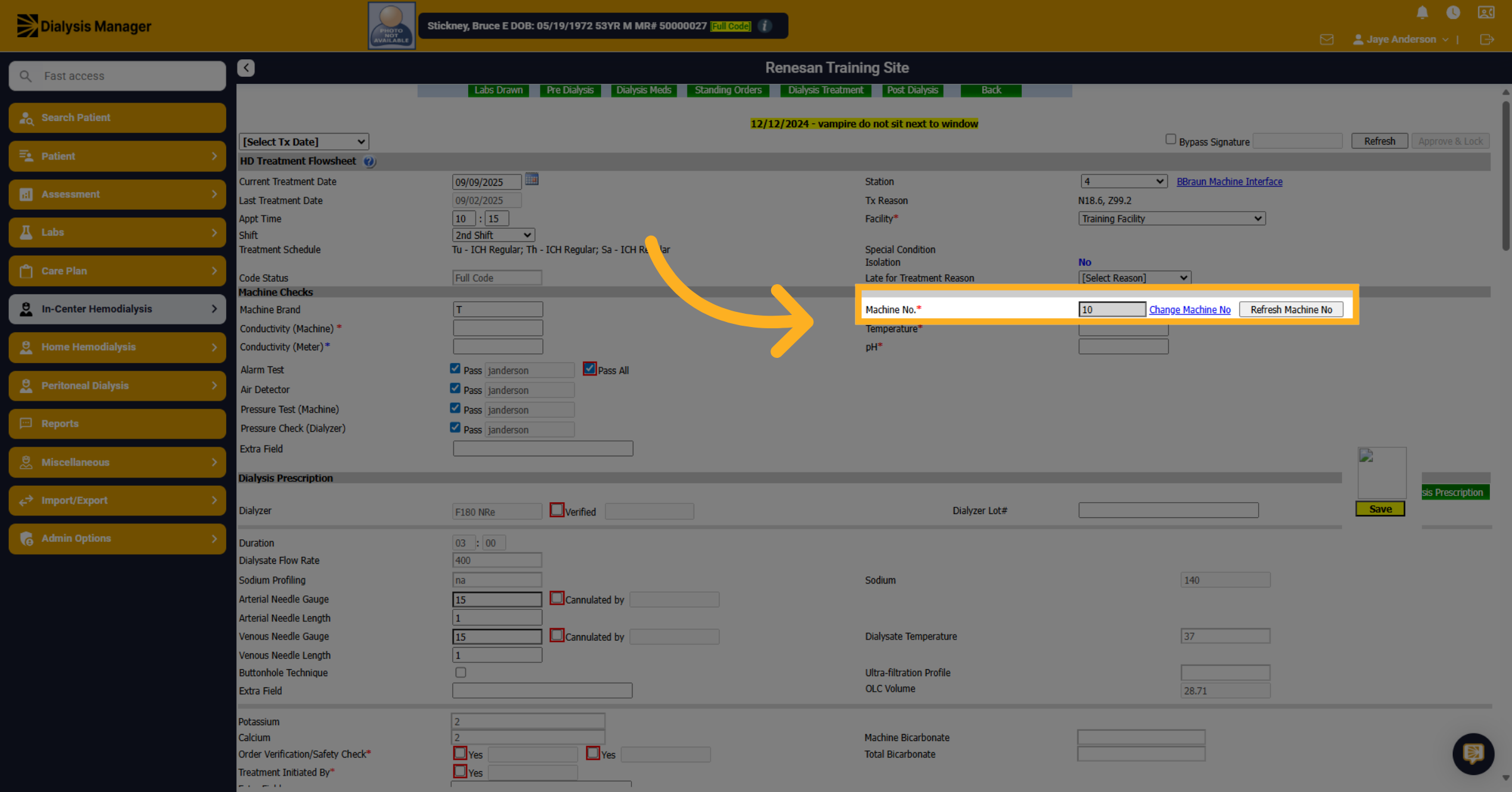
31. Verify Machine No.
Verify that the machine number is accurate and remember that anything with a red asterisk would be required field.
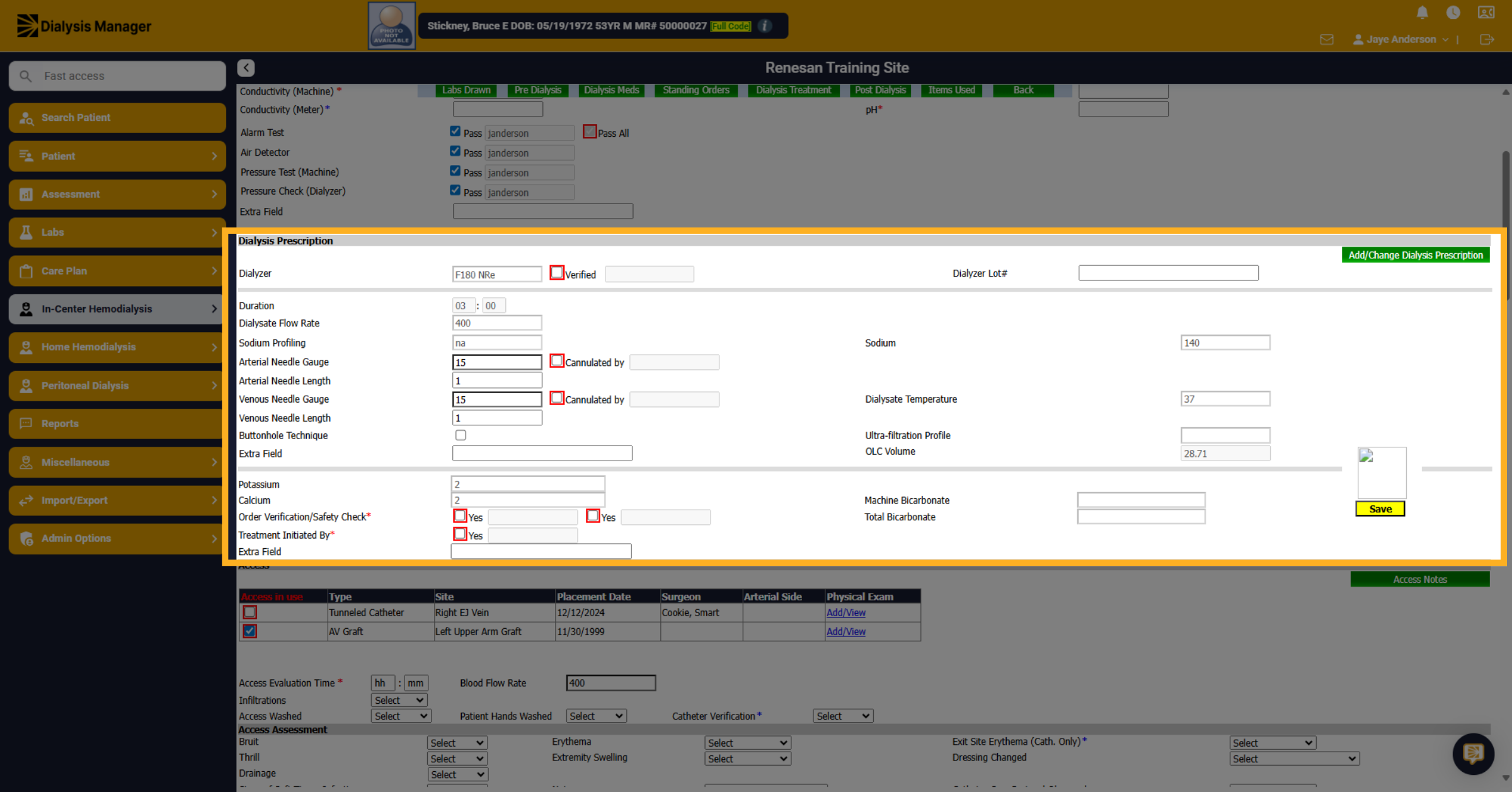
32. Click "Dialysis Prescription"
Next, we're going to look at our dialysis prescription section.
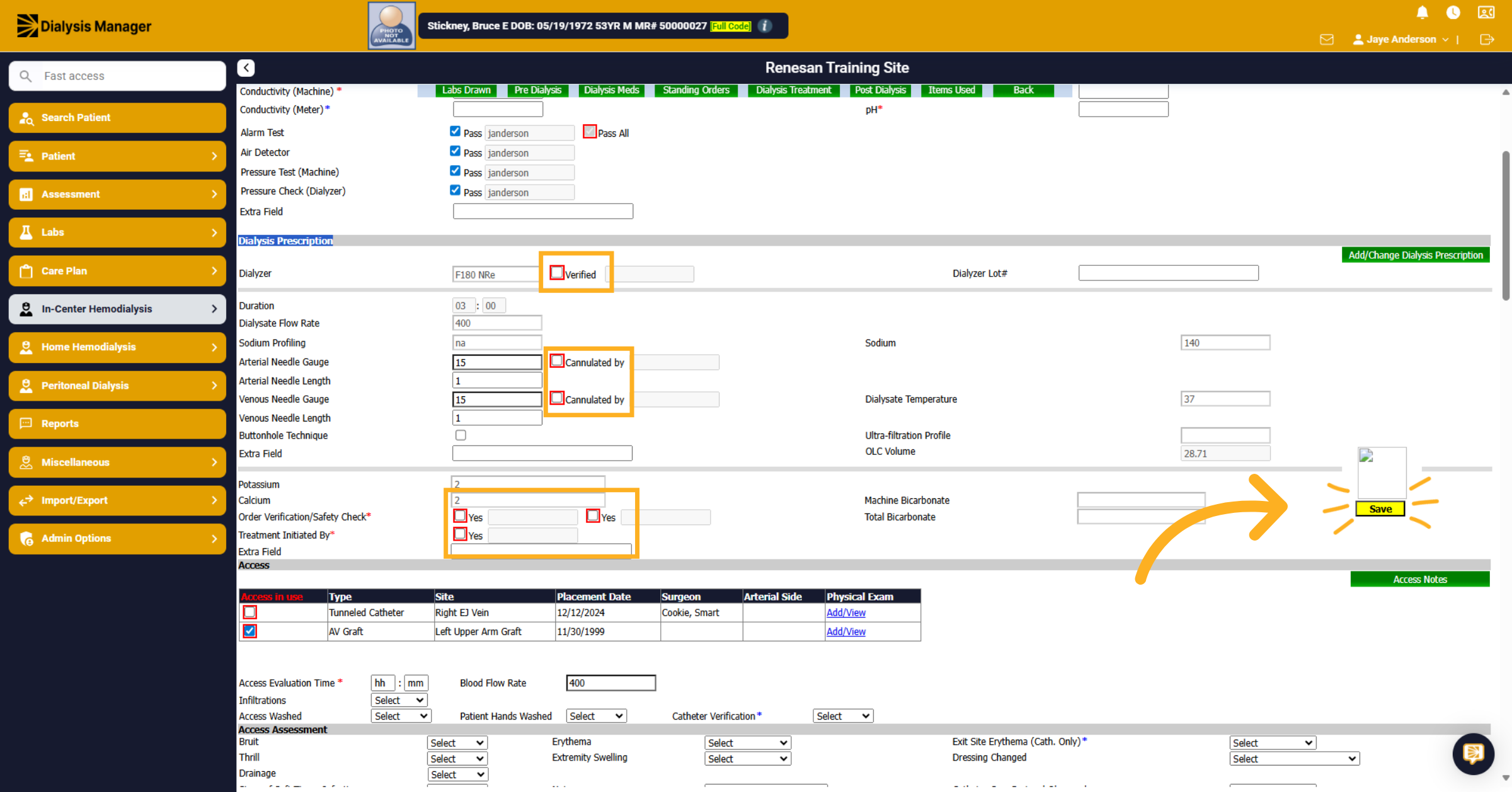
33. Click "Verified"
Again, anything with a red box will be required and you'll have to enter your PIN or your password. Keep in mind: Even though it displays your verified user initials you will still need to click the SAVE button to save the information.
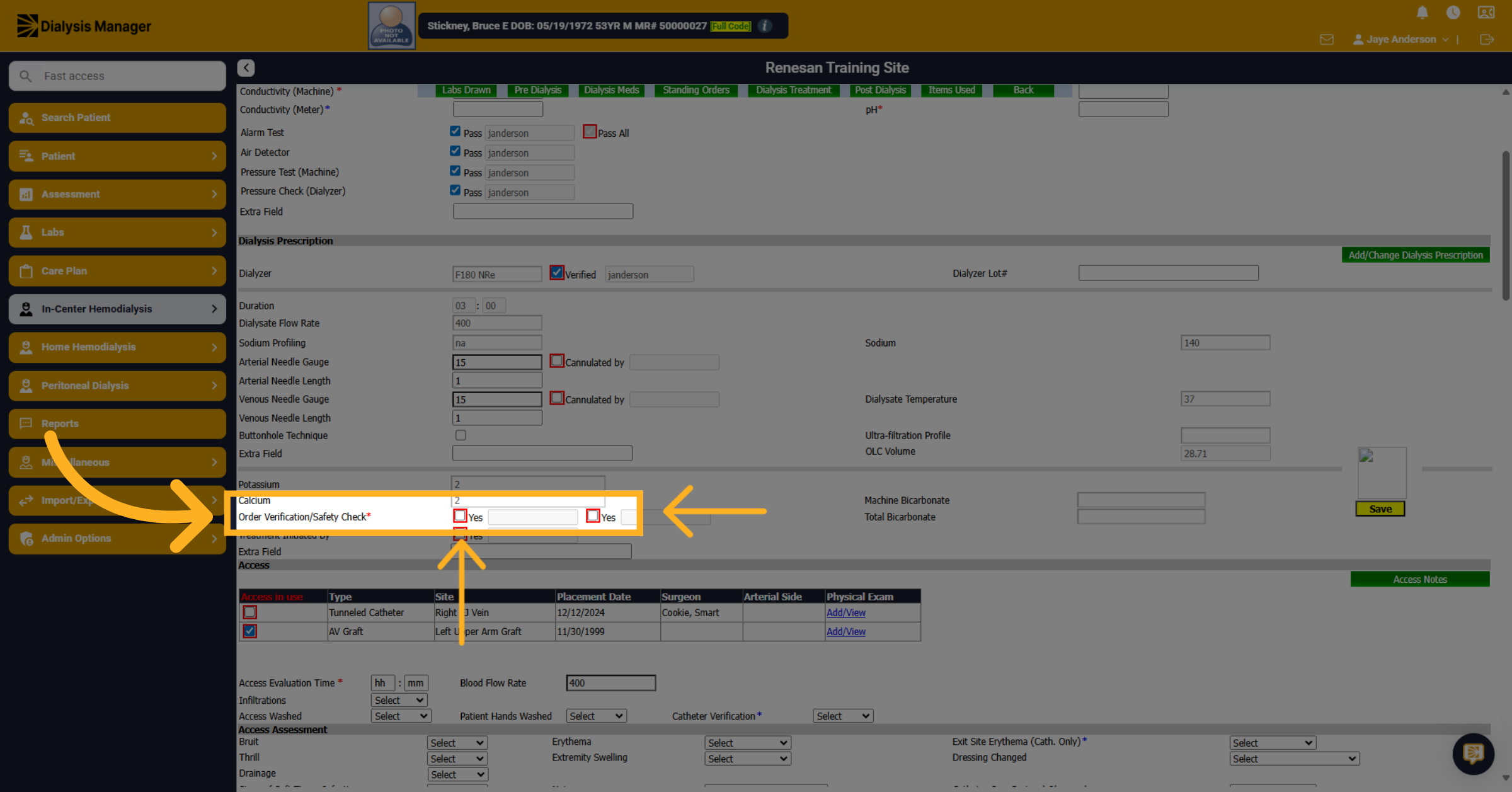
34. Click "Order Verification/Safety Check*"
Click "Order Verification/Safety Check". For the order, verification and safety options you will want to choose the second check box first. This will allow you to save the flowsheet while waiting for a second verification person. The system will NOT allow you to save if the first option only is chosen. Reminder: you will need a second person to sign and save the First check box for order verification. Hint, this can be completed at another workstation.
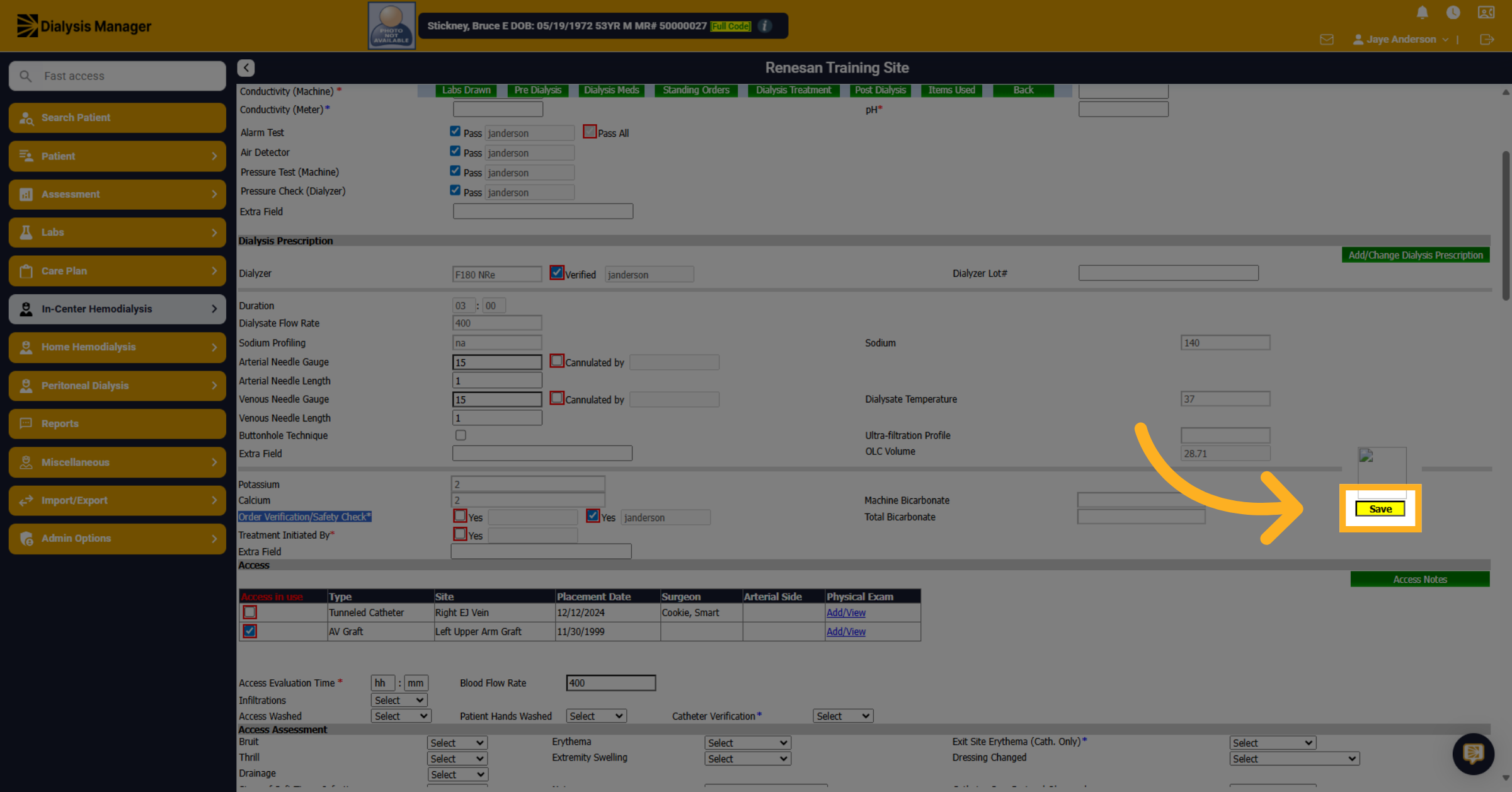
35. Click "Save"
Click "Save" to save the order verification information. Good habit to save often so you do not lose any work
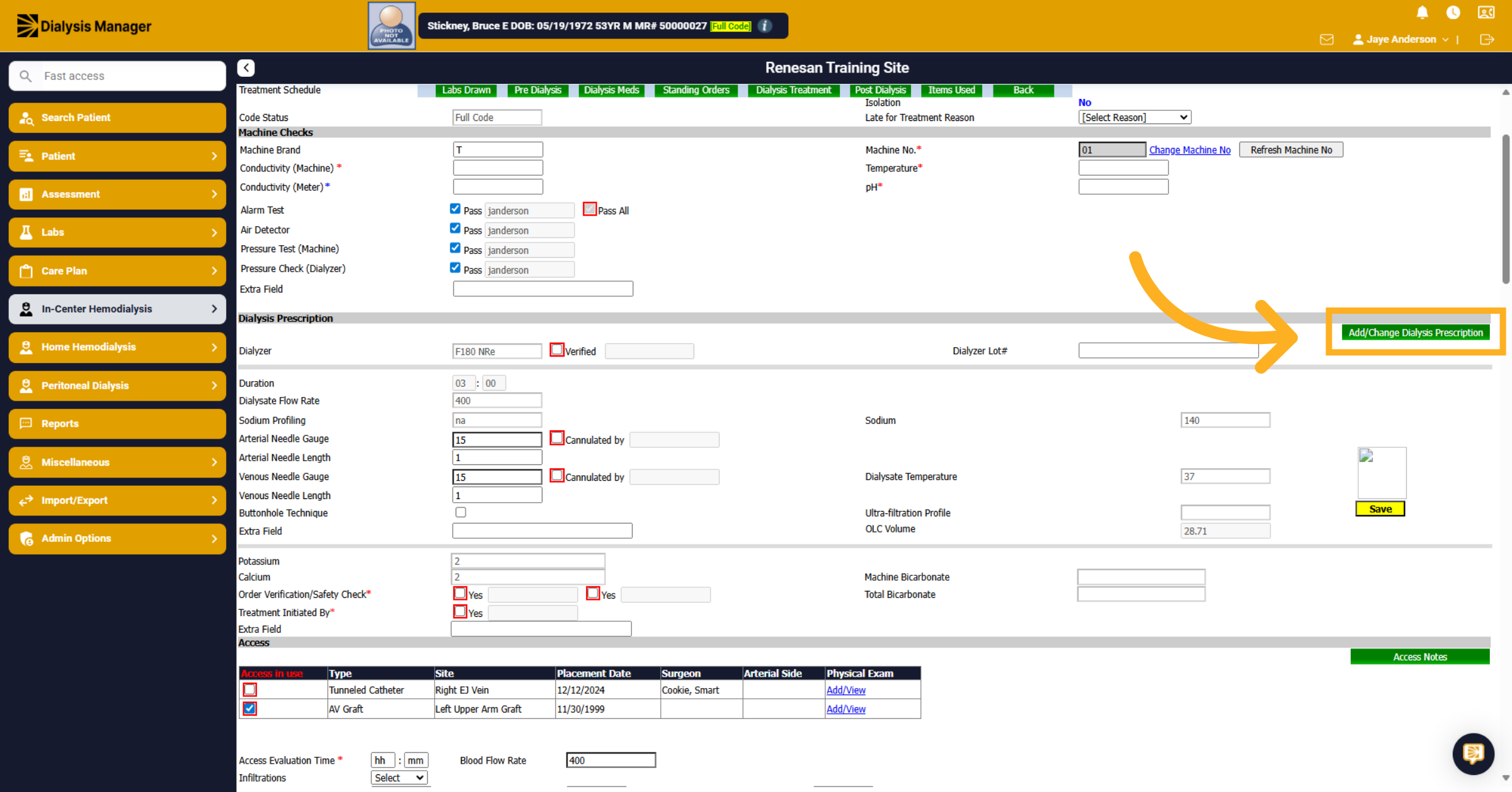
36. Add/Change Dialysis Prescription
Click "Add/Change Dialysis Prescription" to initiate the process of adding or modifying the dialysis prescription for treatment. Doing so will automatically populate the fields with the updated prescription. Since the treatment is already in progress, updating the order from here will update for the current treatment and moving forward. If you need to make a change for this treatment only, for example a dialyzer was unavailable and you need to substitute for something else, enter a Note to support this in the Machine Set up section. Also note that updating orders from the orders menu will update the prescription for the next treatment moving forward.
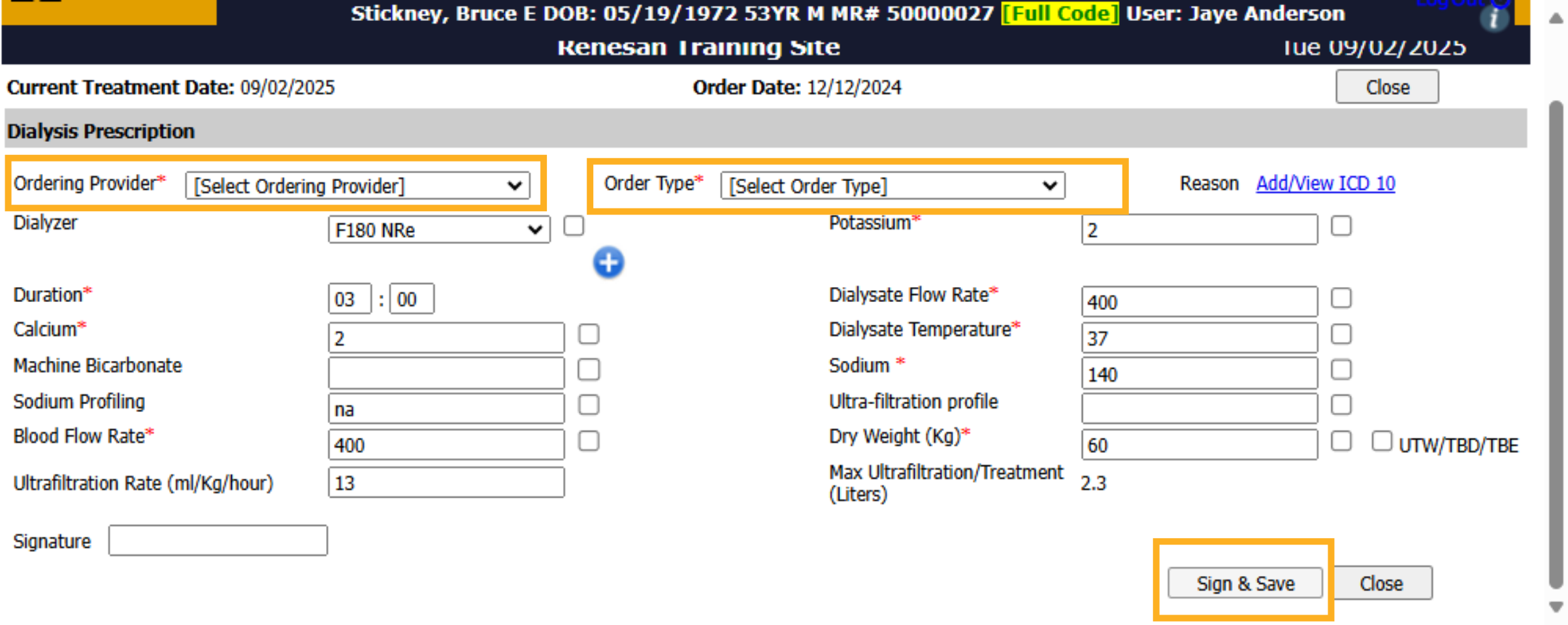
37. Click "Sign & Save"
Information from the current dialysis order will populate where you'll be able to update the information needed. Please note that you'll need to select the Ordering Provider and Order Type prior to saving!
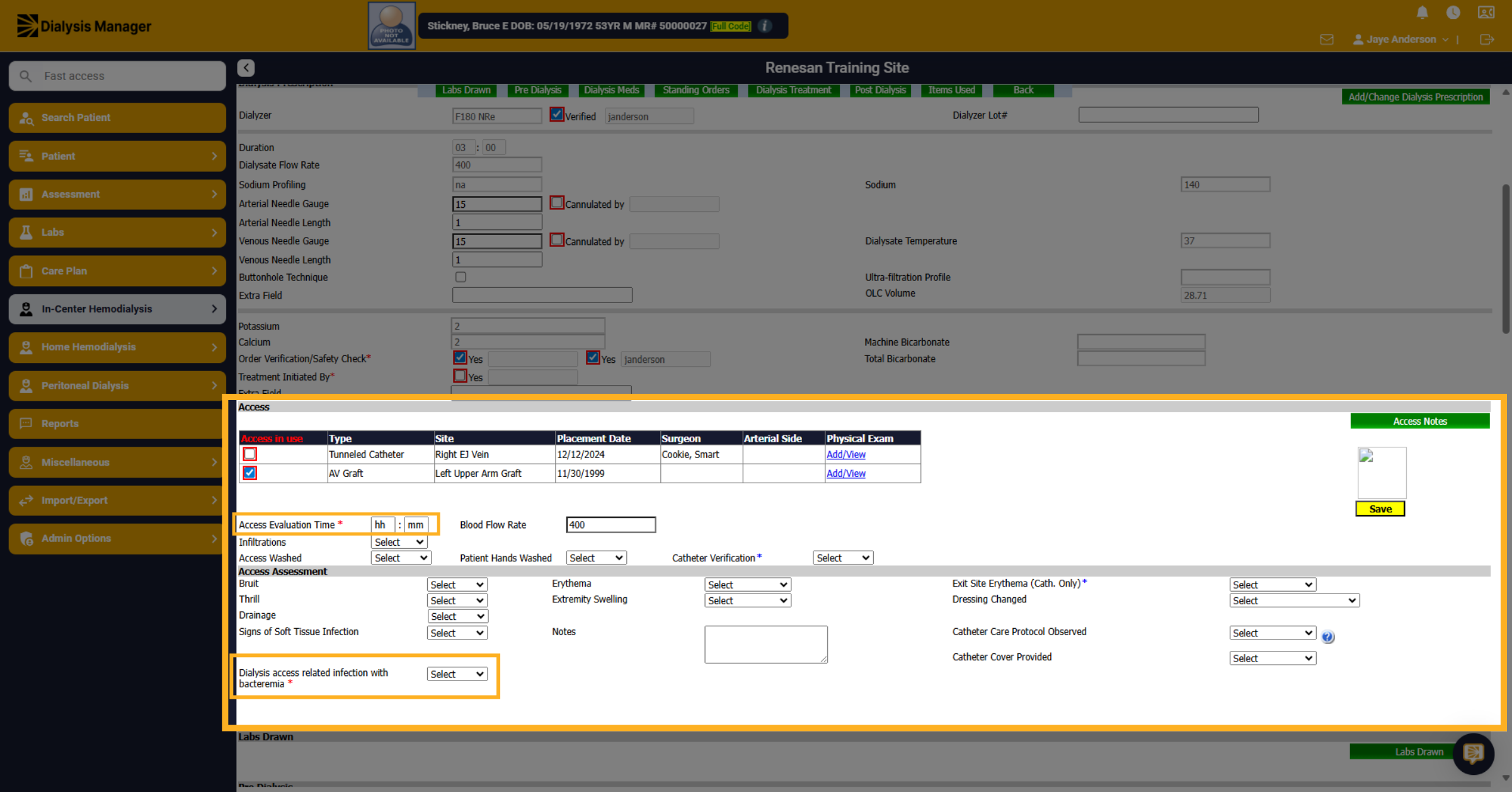
38. Click "Access"
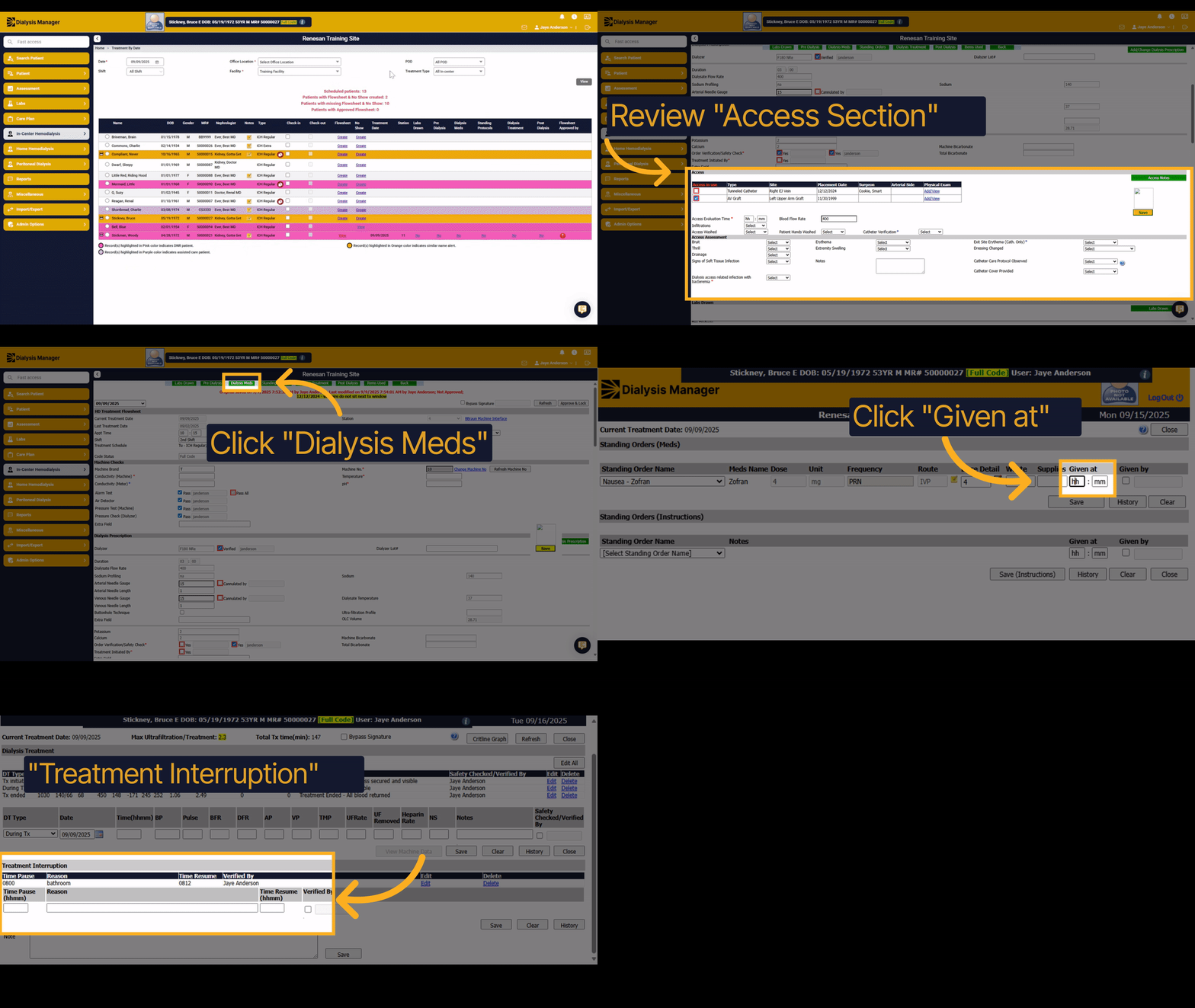
Next section is our access section. Here you will document your access evaluation time, access related infections and any other required information. If you have a catheter, the catheter section would be required. Enter the Access Evaluation Time and click Save!
39. Click "Cannulated by"
Click "Cannulated by" to specify who performed cannulation. If you have a catheter patient, the "cannulated by" section would not be required.
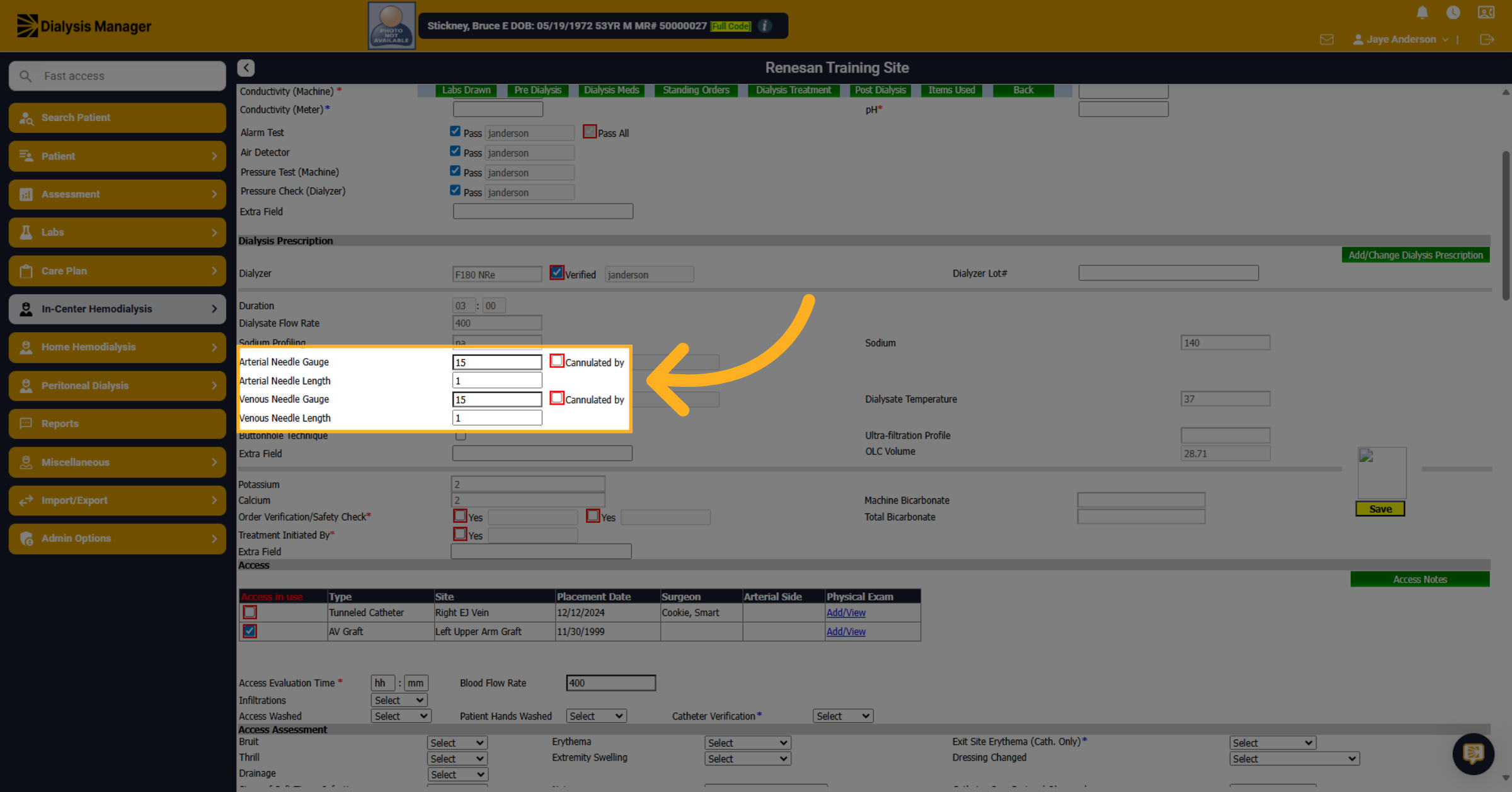
40. Pre Dialysis tab
Click on the pre-dialysis bar, a button at the top of the screen.
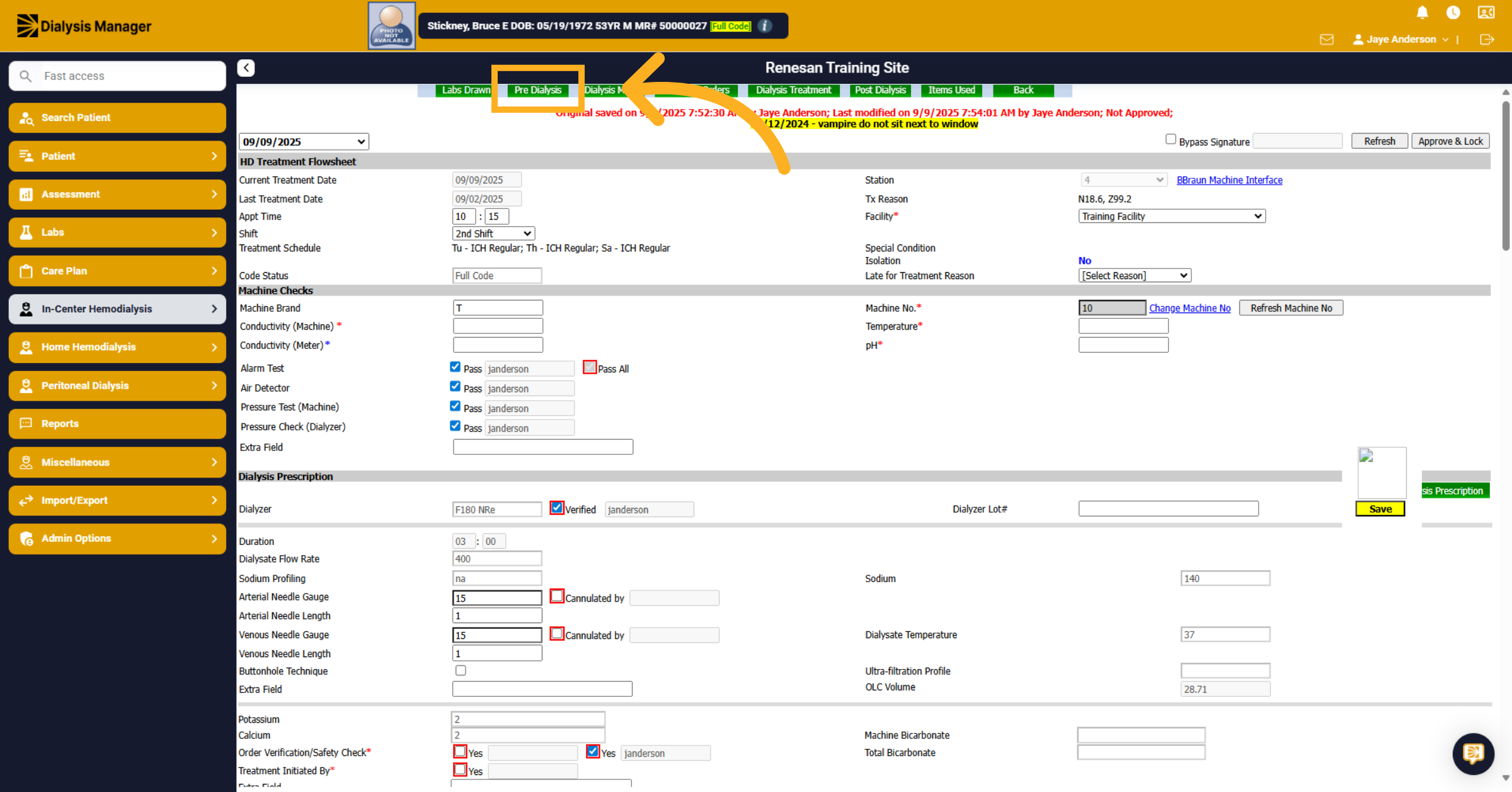
41. Pre Dialysis PCT area
This top RED section is typically completed by the dialysis technician. Keeping in mind anything with a red asterisk is required before the nurse is able to complete and lock the flowsheet. Each section has its own "Sign and Save" button. Click this 'Sign and Update (Vitals)' to save the top red section.
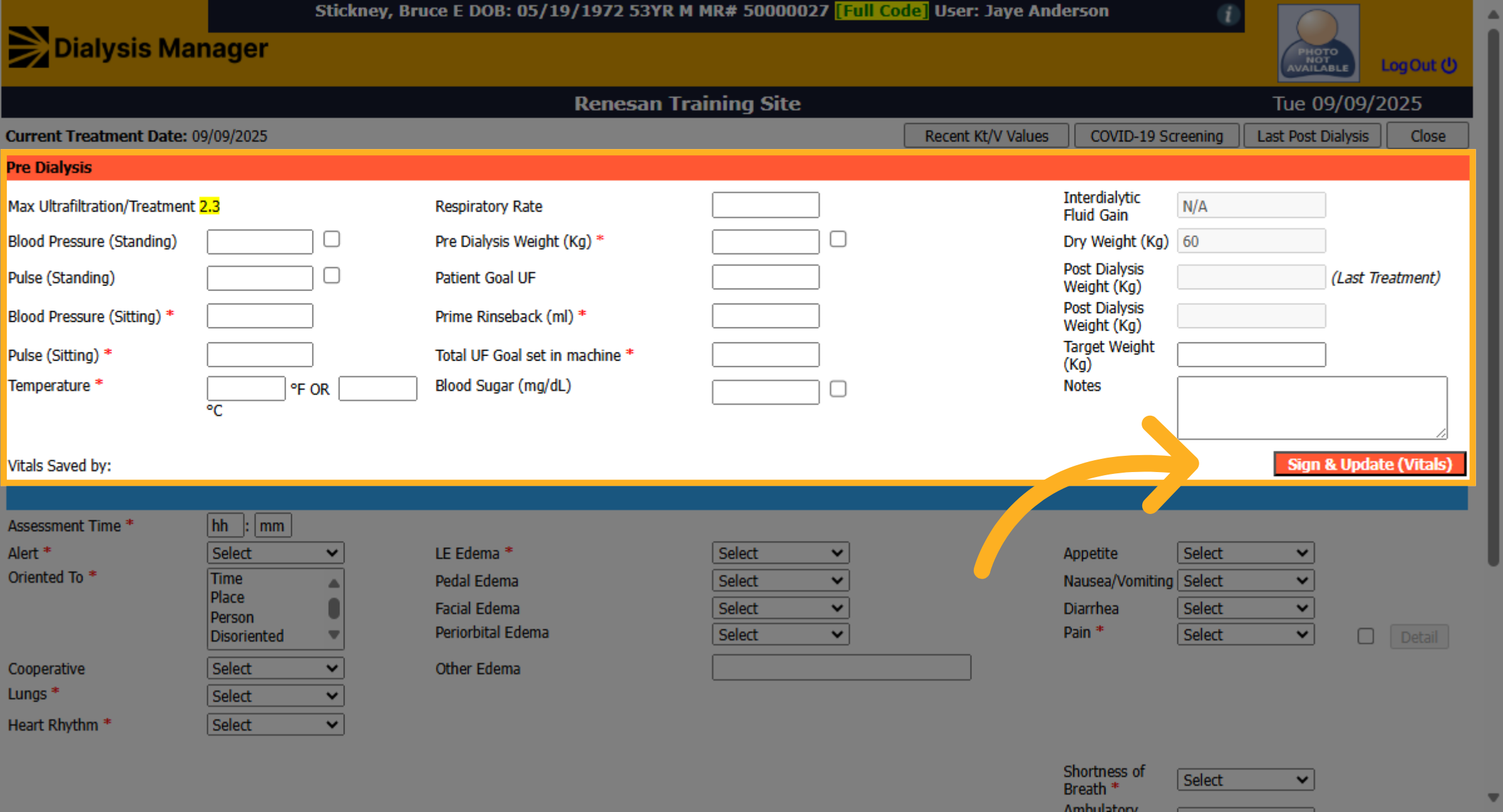
42. Other options
NOTE: You can hover over or click the bars along the top to review other additional information.
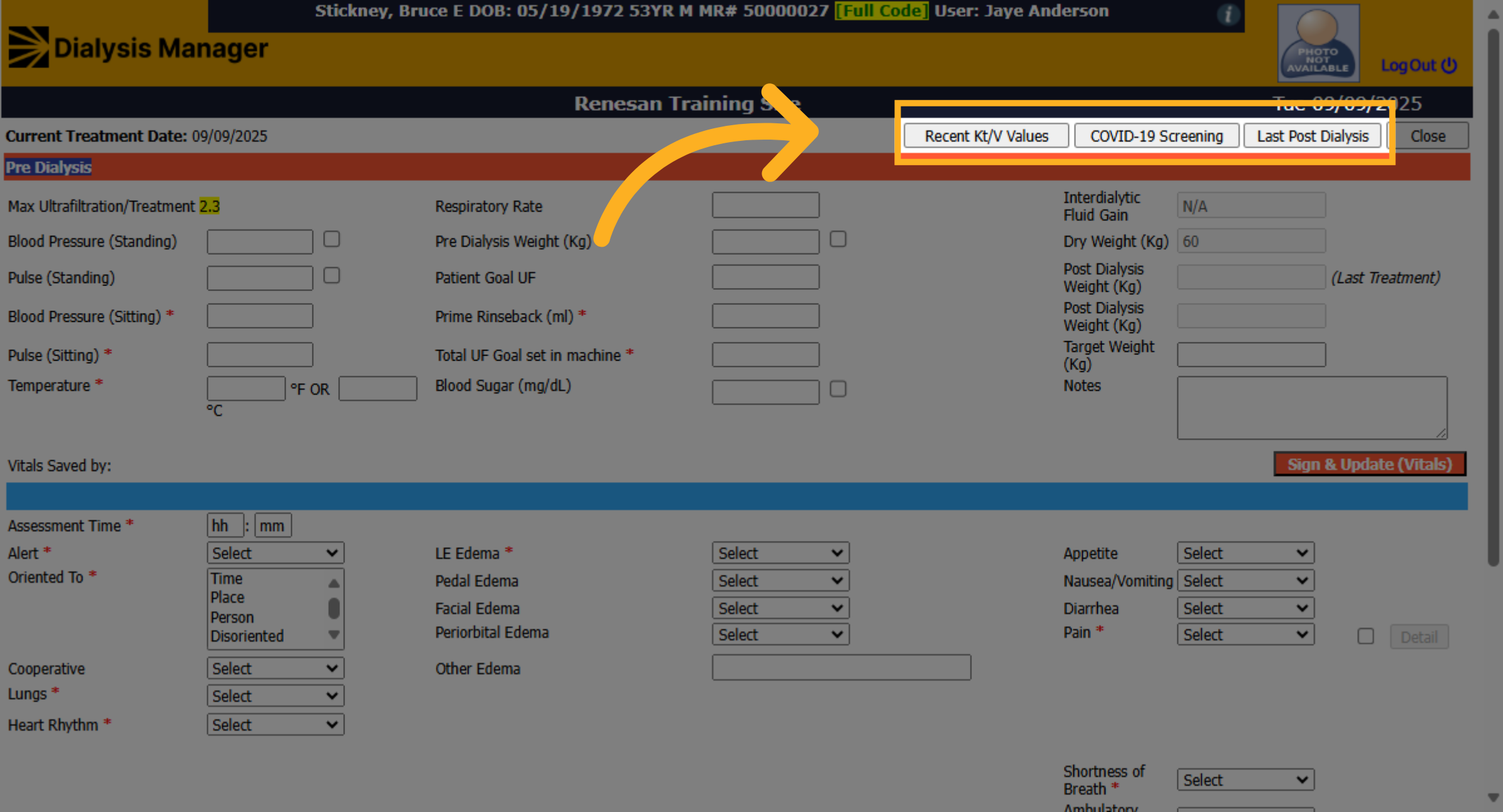
43. Pre Dialysis Nurse area
This bottom BLUE section is typically completed by the Nurse. Again, keeping in mind anything with a red asterisk is required before the flowsheet can be locked.
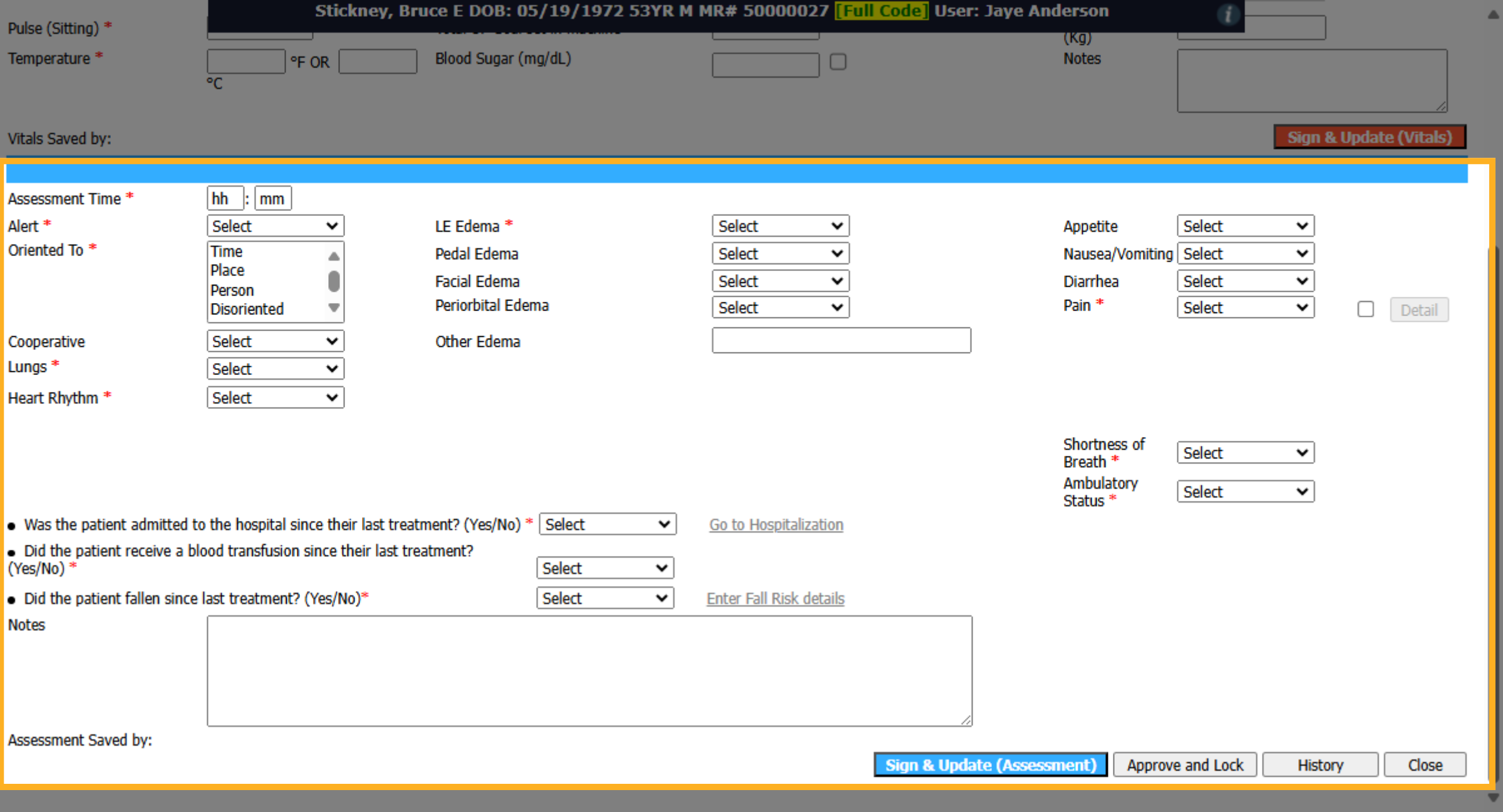
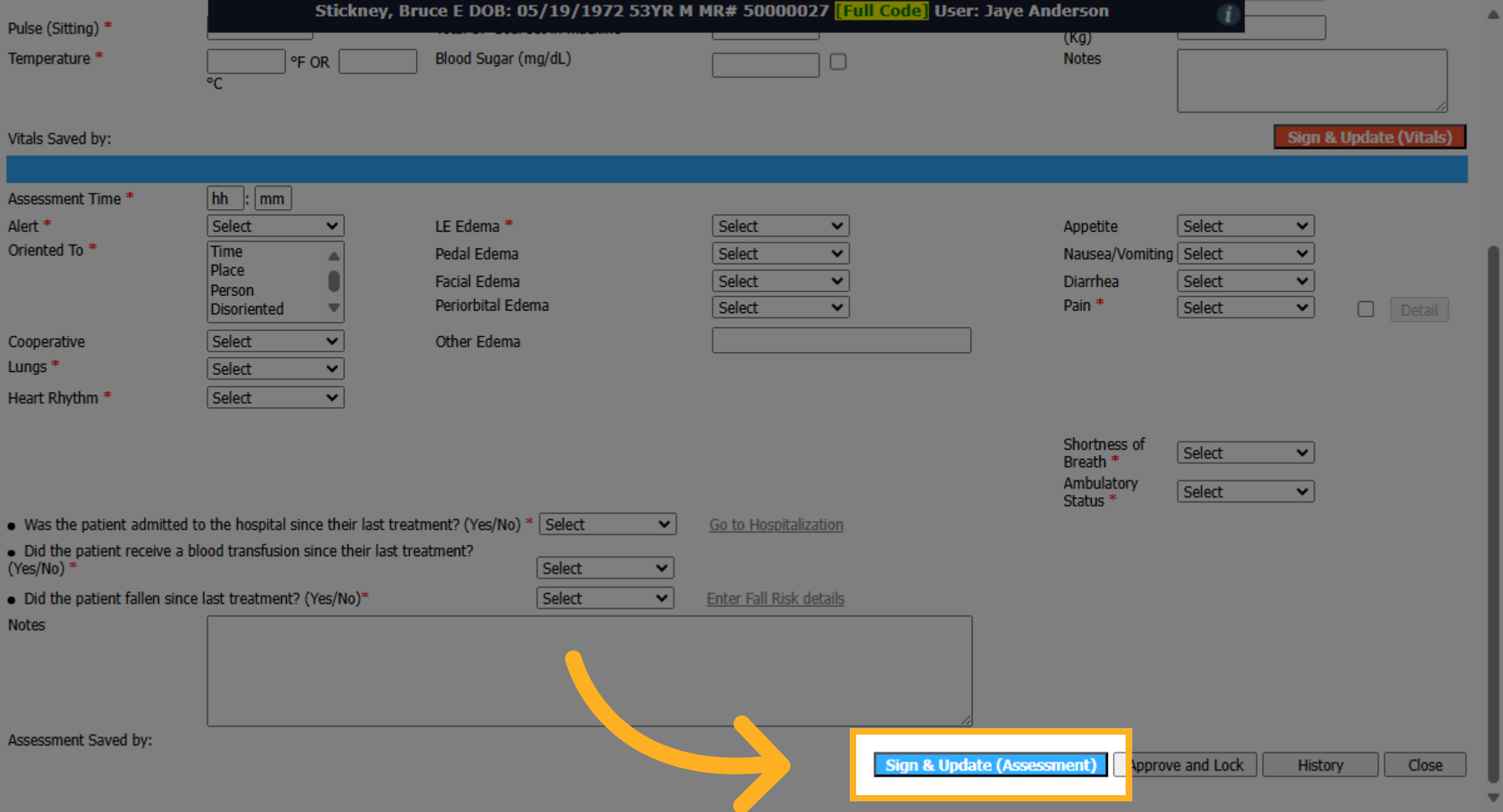
44. Click "Sign & Update (Assessment)"
Each section has its own "Sign and Save" button. Click this 'Sign and Update (Assessment)' to save the bottom blue section. The different colored buttons save each section separately.
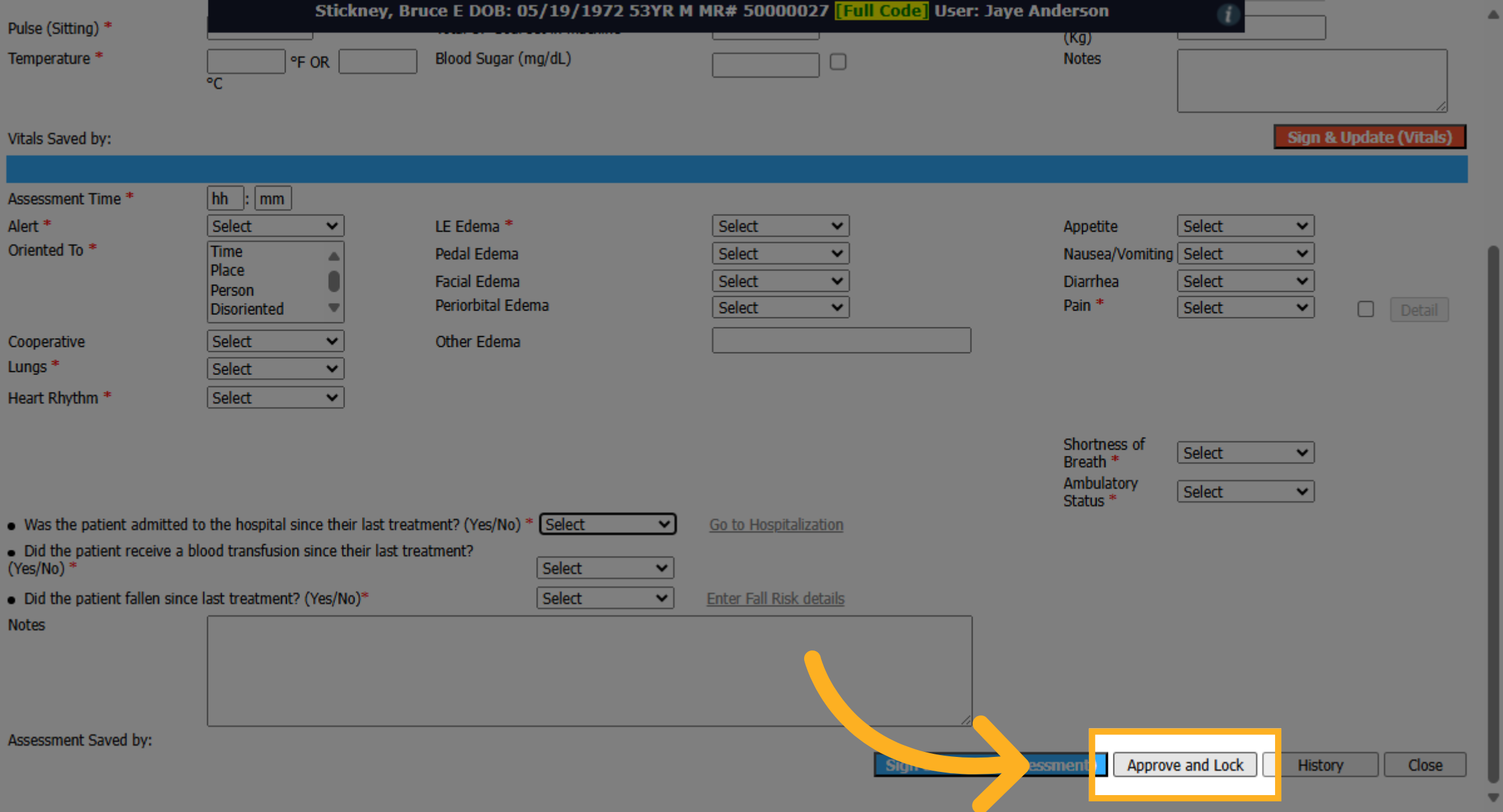
45. Click "Approve and Lock"
Click Approve and Lock to add and save the Pre Treatment section. Next you can click Close!
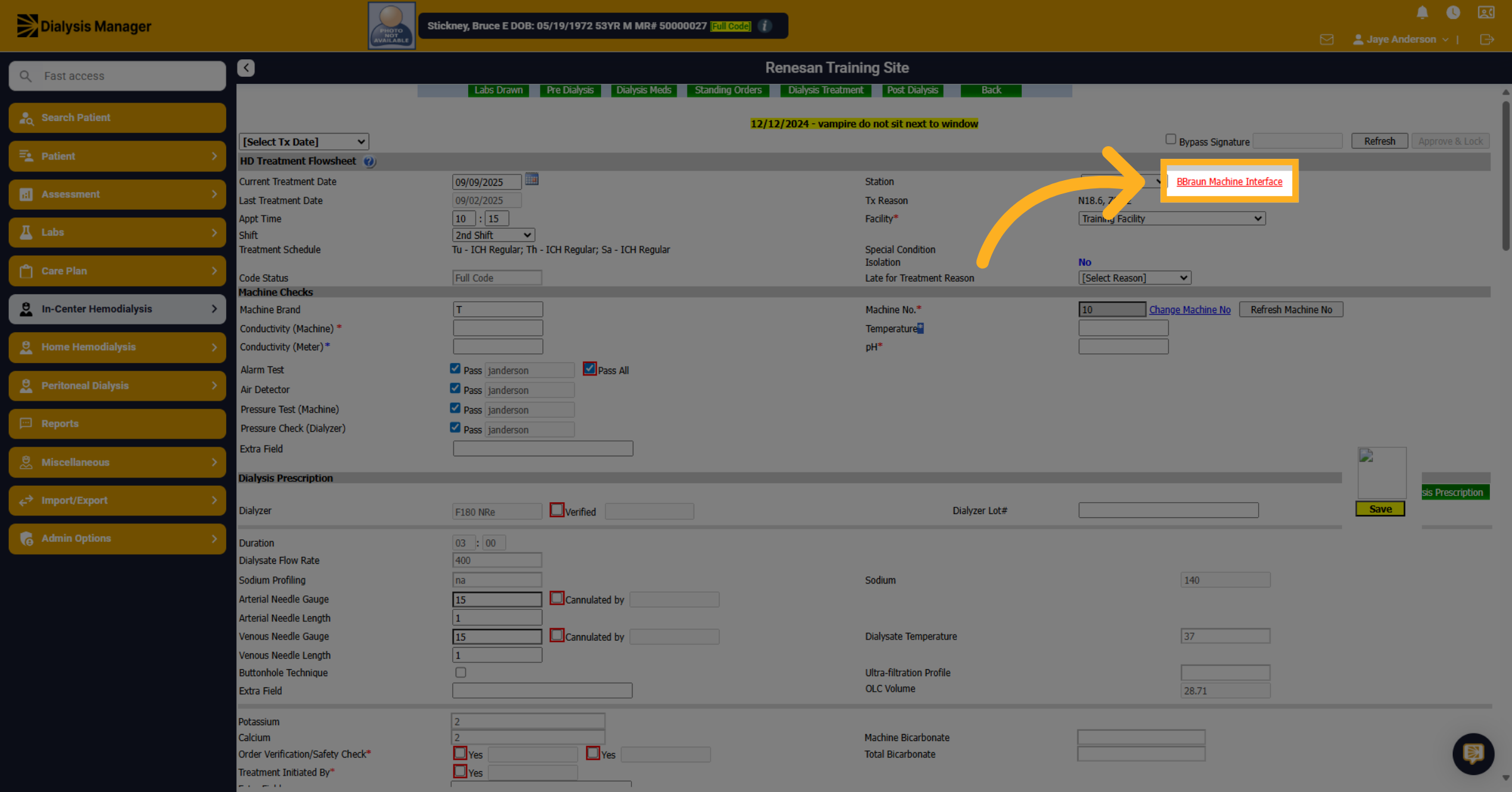
46. Click "Machine Interface"
Now that the pre treatment has been completed and the machine checks have been done you canw click "Machine Interface" hyperlink to access the machine interface.
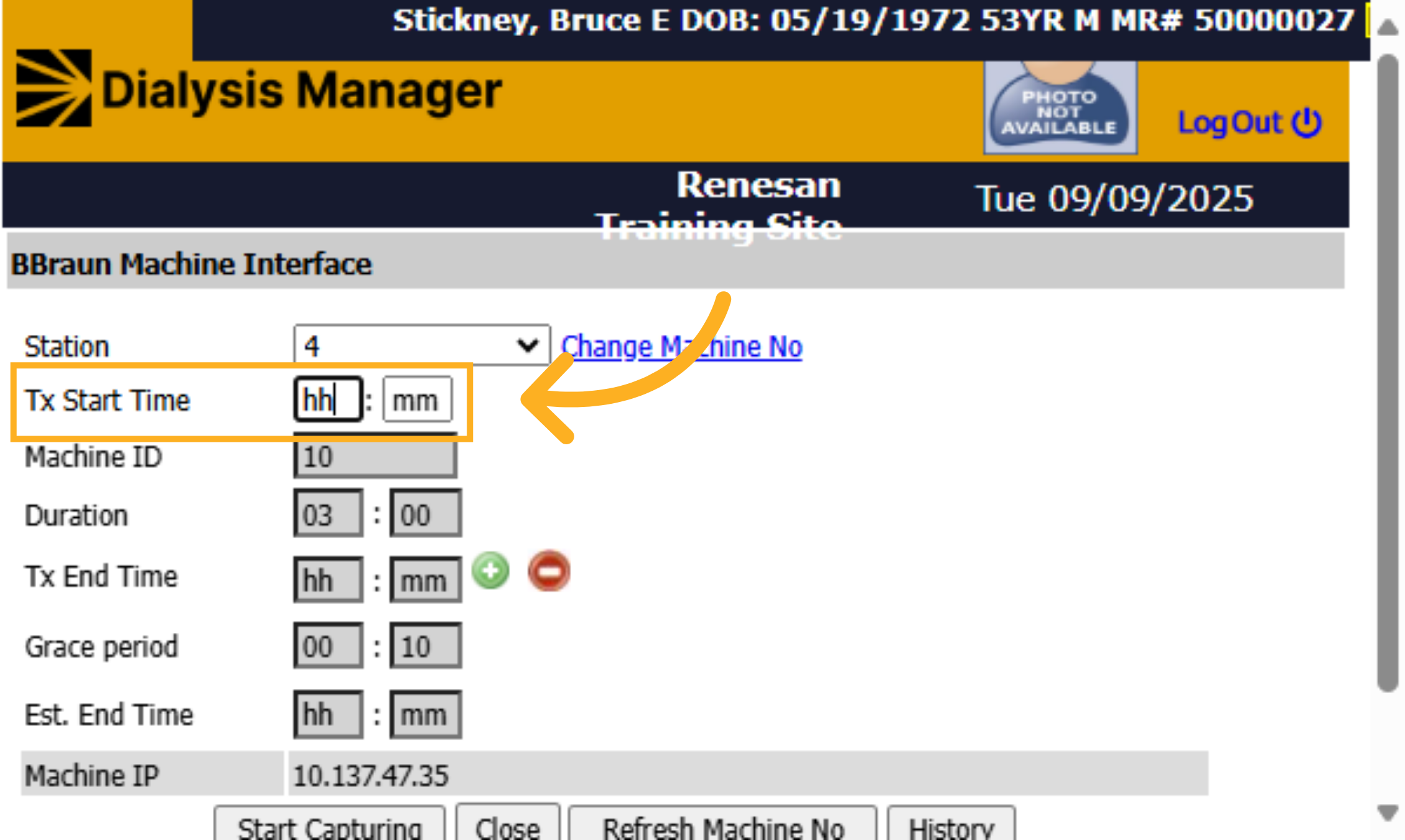
47. Enter time
A new box will pop up. Enter the Tx Start Time. This can be done manually or by clicking the F 2 option on your keyboard will automatically enter the current time.
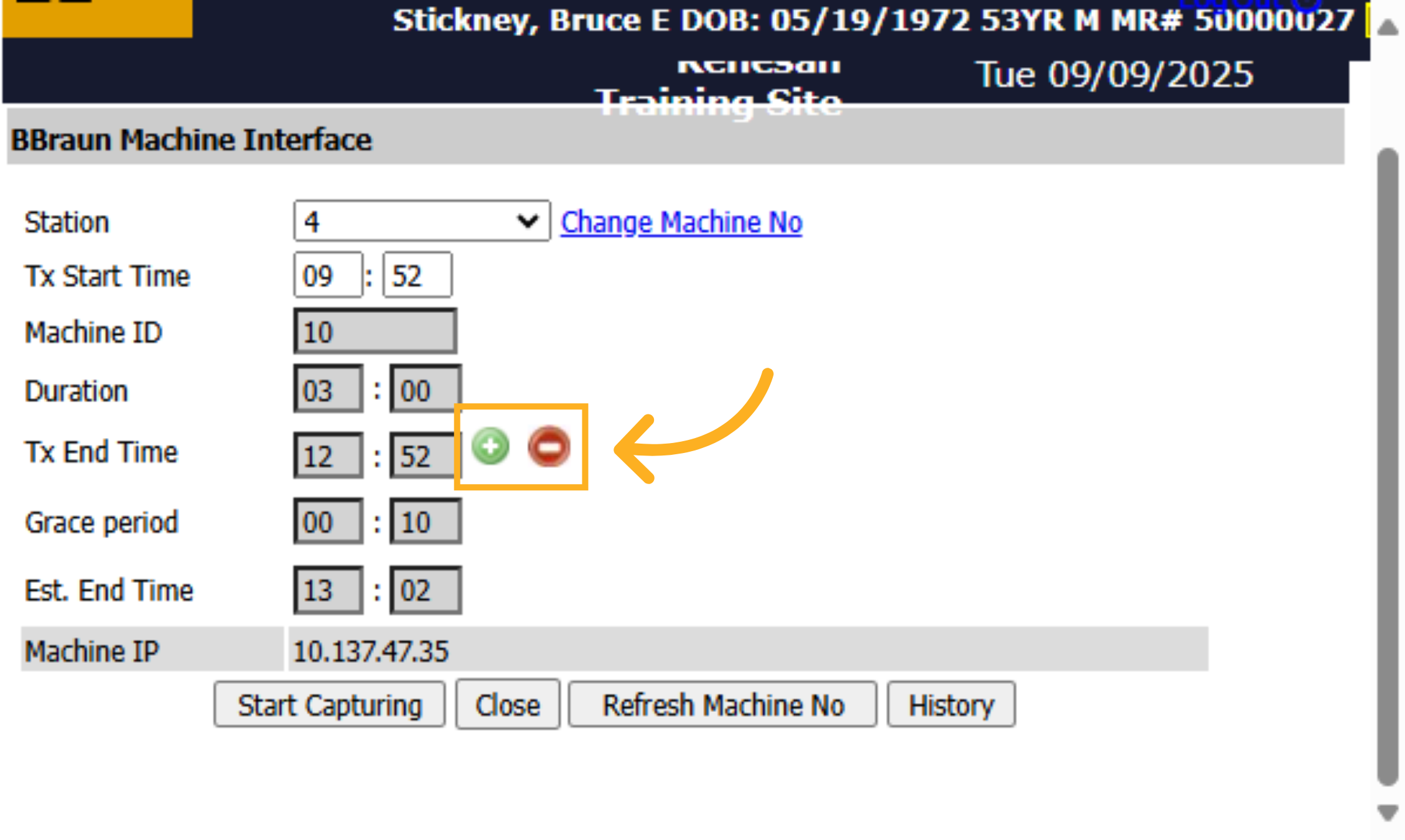
48. Increase or decrease tx time
You can increase or decrease the time by 5-minute intervals, if needed. This will adjust the estimated end time of capture from the machine and allow the vitals to populate the patient's dialysis treatment section.
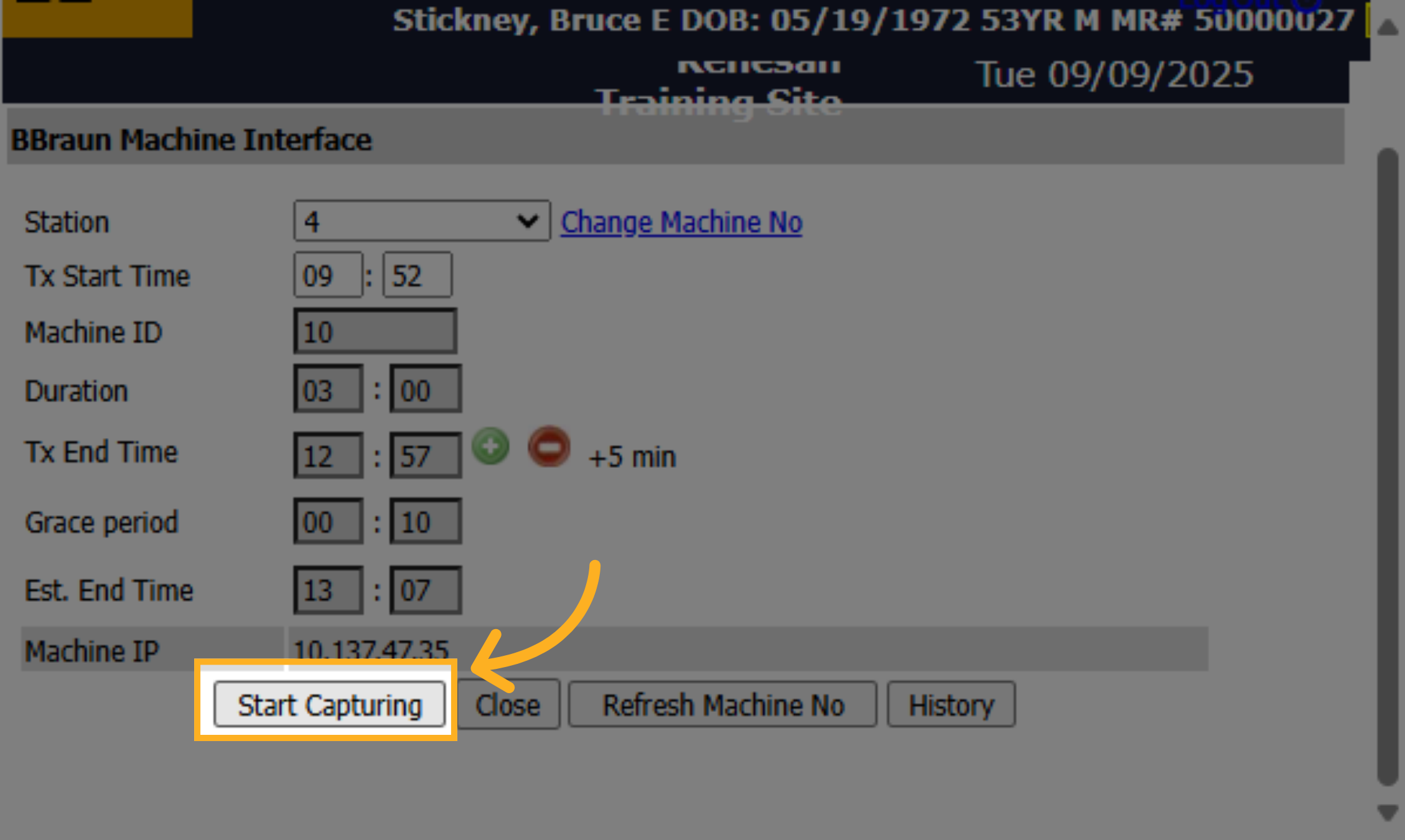
49. Click "Start Capturing"
Click "Start Capturing" to begin capturing machine data. If this step is missed, vitals will not cross from the machine to Dialysis Manager. Once completed you can select Close to bring you back to the flowsheet!
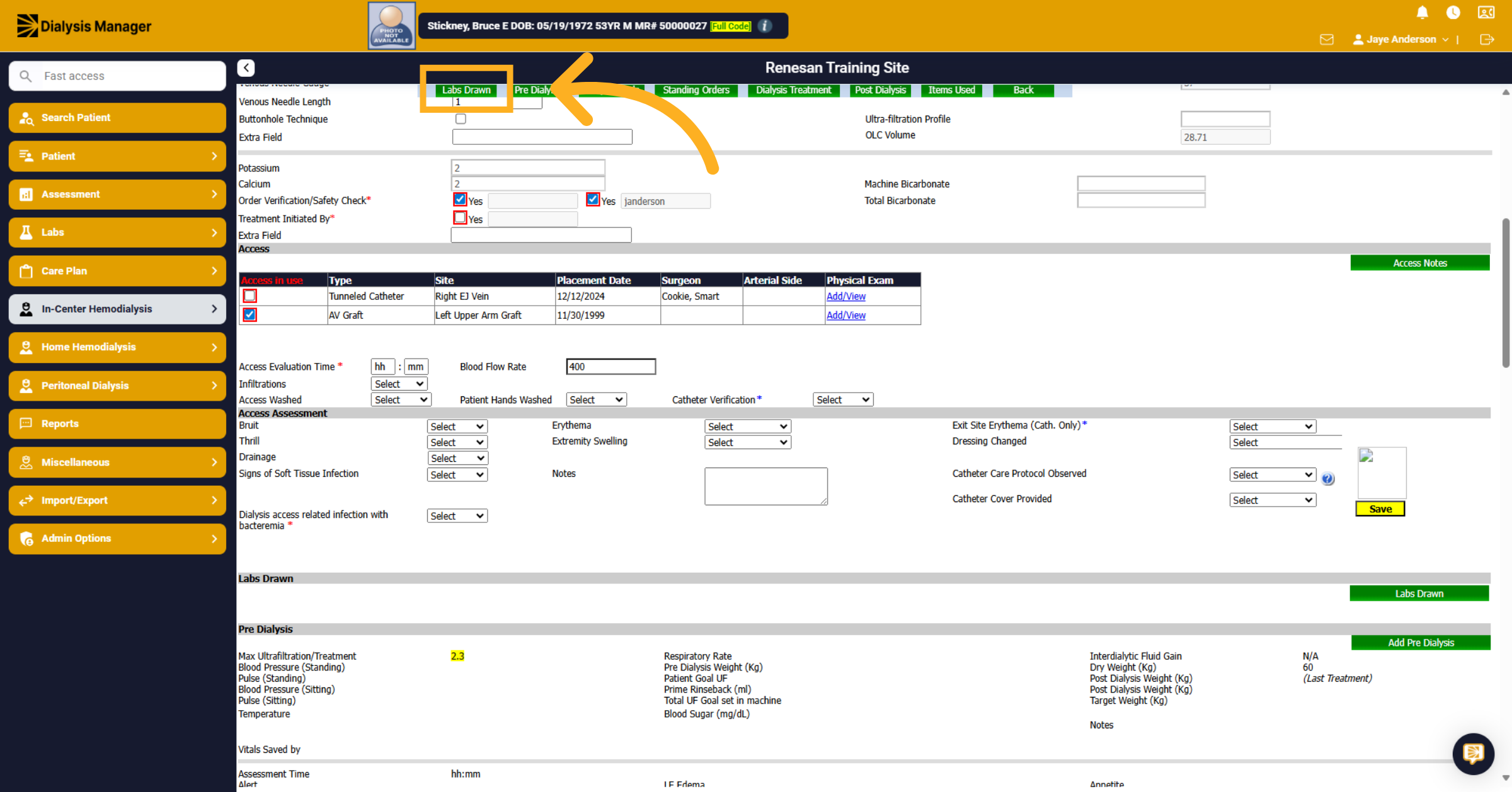
50. Click "Labs Drawn"
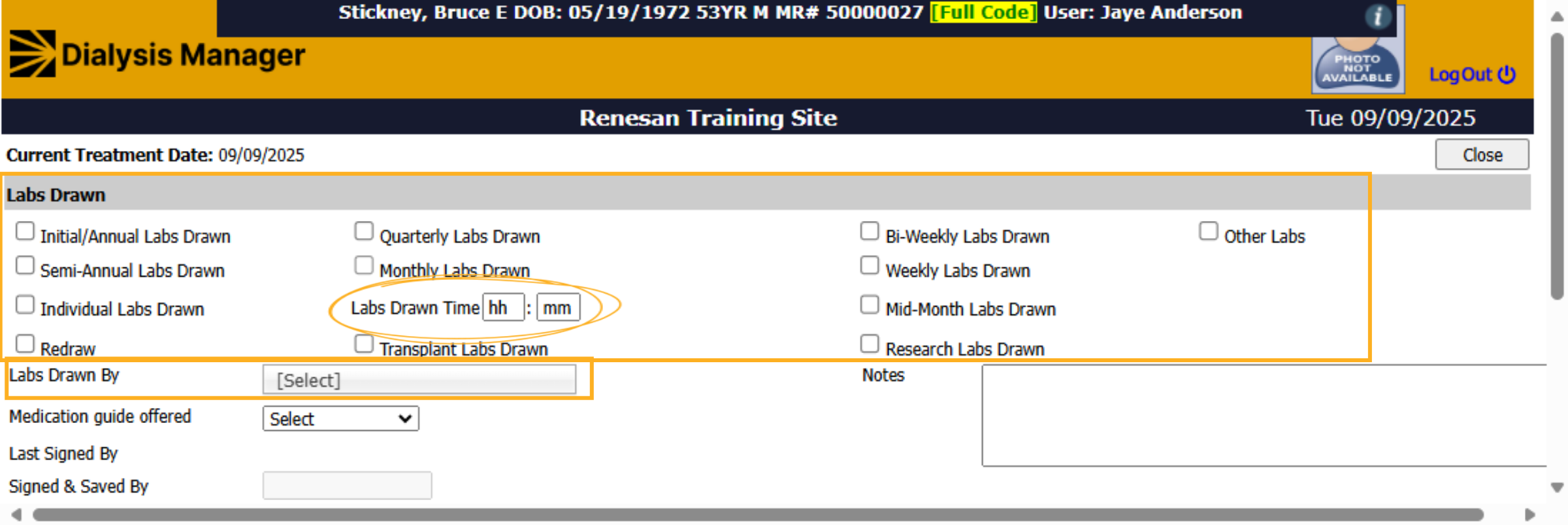
If applicable, click "Labs Drawn" within the treatment flowsheet to document any Labs drawn.
51. Click "Monthly Labs Drawn"
Click "Monthly Labs Drawn" to specify monthly lab draws, this option will provide an option for Pre and Post draw times or select another suitable option. Enter the labs drawn time, reminder the F2 button on your keyboard will enter the current time. You must also select a user from the Labs Drawn By dropdown efore clicking Sign and Save and closing! Please note that the "Redraw" box should be marked so the lab company knows only to expect limited samples.
52. Click "Dialysis Meds"
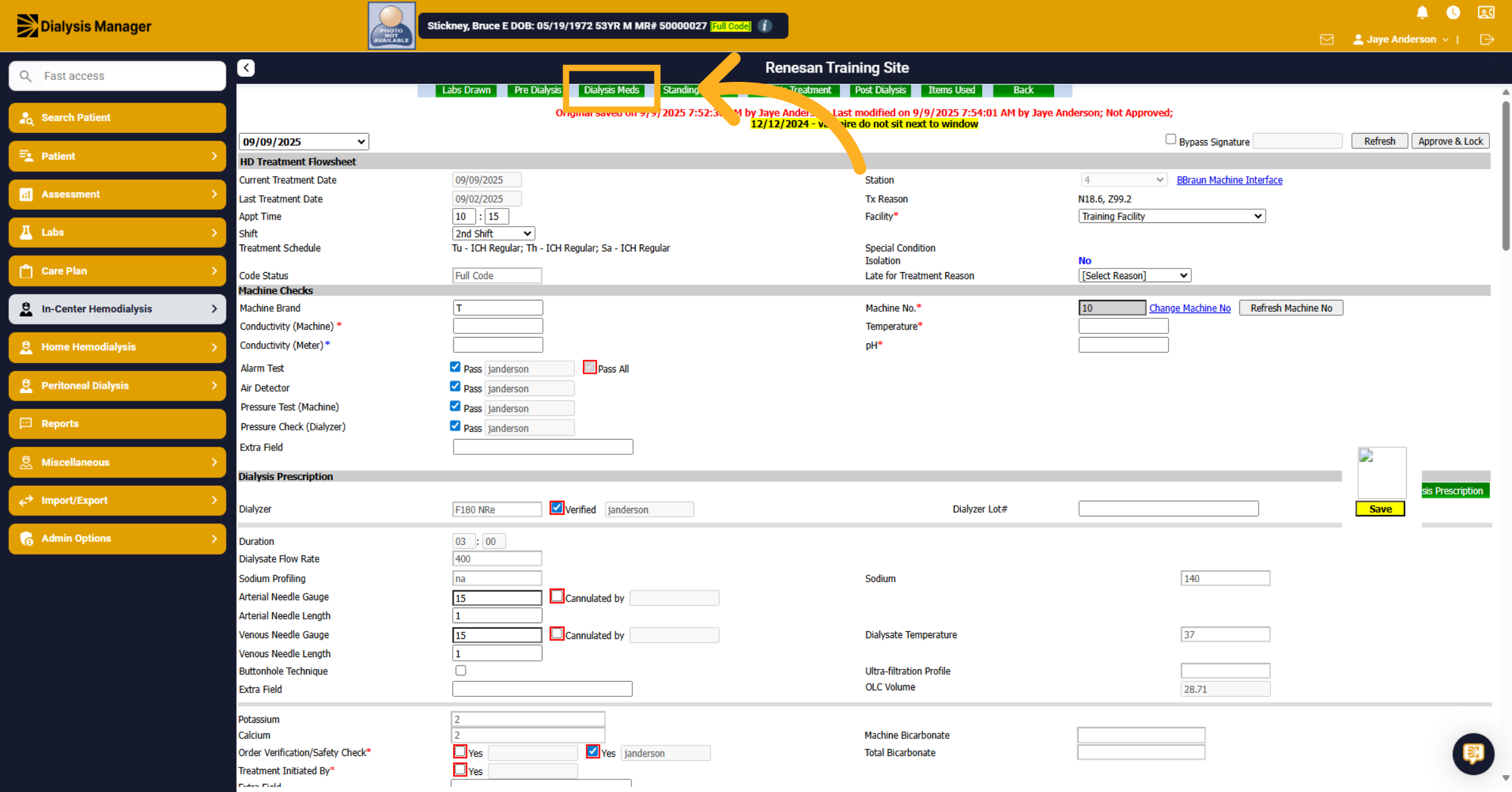
Click "Dialysis Meds" within the treatment by date screen to access the dialysis medications section.
53. "Medication Section"
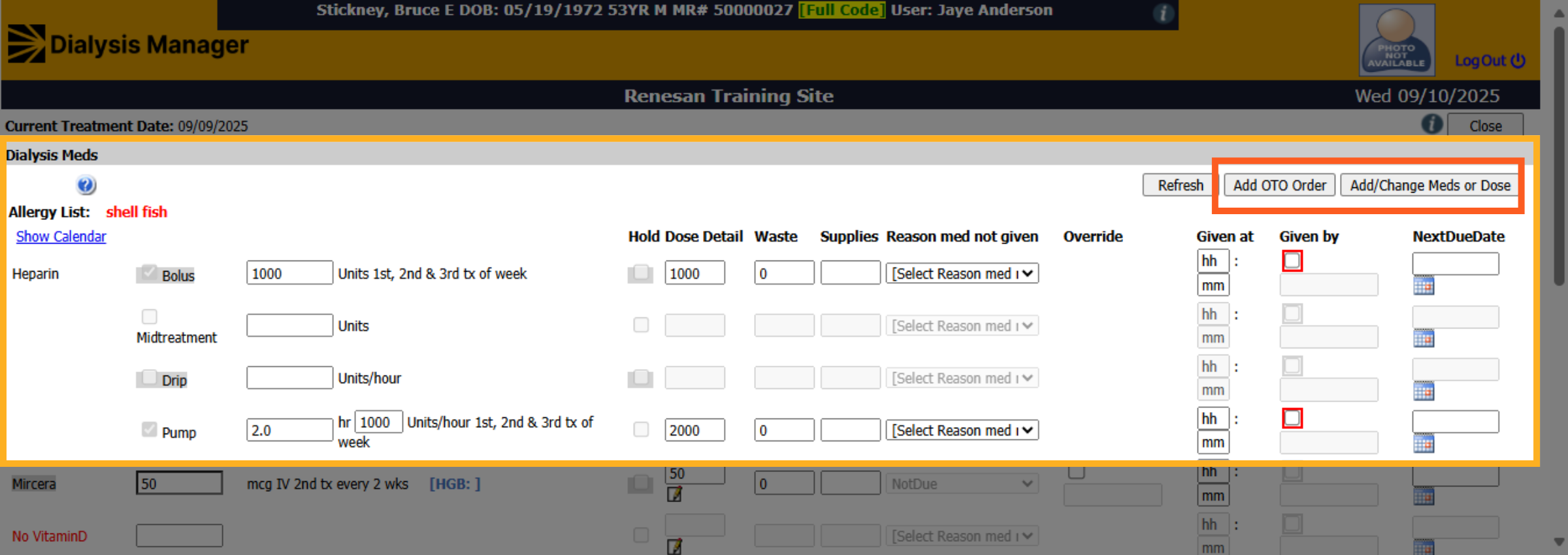
Using the buttons along the top, you can add a one-time order. Or you can also add or change any meds or doses. Since the treatment is already in progress, you will want to update the order from here. Updating orders from the orders menu will update the prescription for the next treatment. For our Heparin, we just simply need to document either it was not given...
54. "Medication Section - not given"
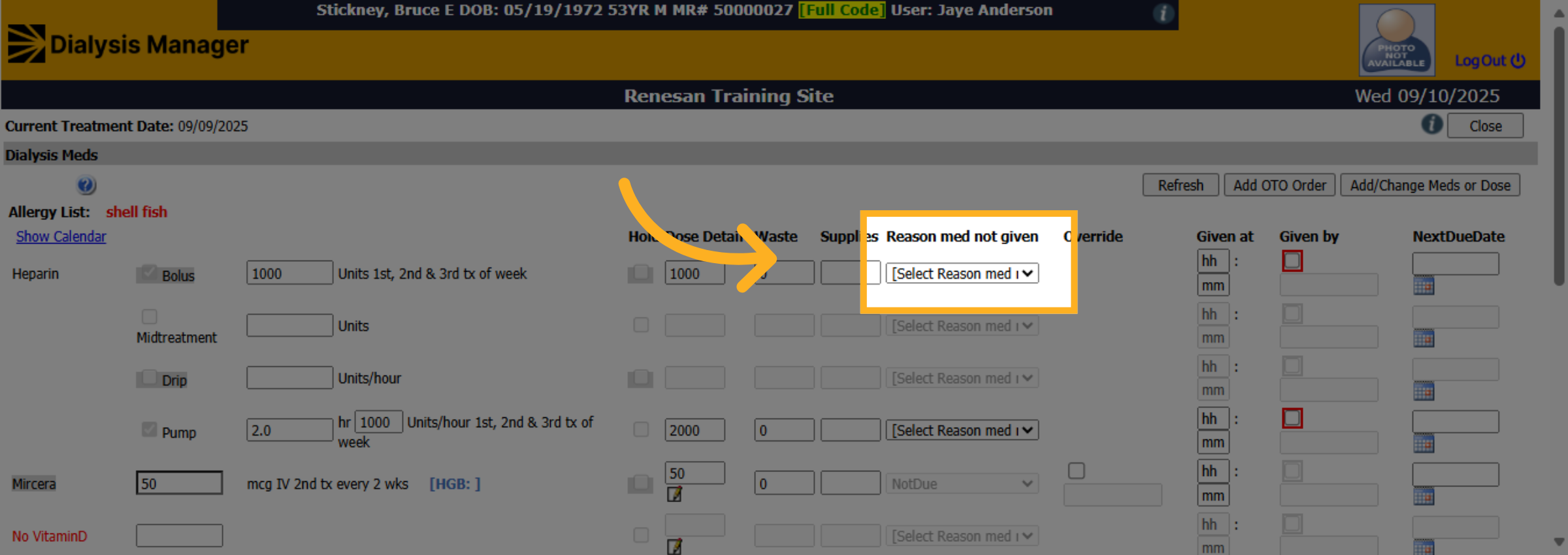
You can do this by clicking the "reason for medication not given" dropdown box to select an appropriate reason such as Discontinued by MD, Duplicate Order, Given at other facility, Held due to Lab Values, or any other relevant options.
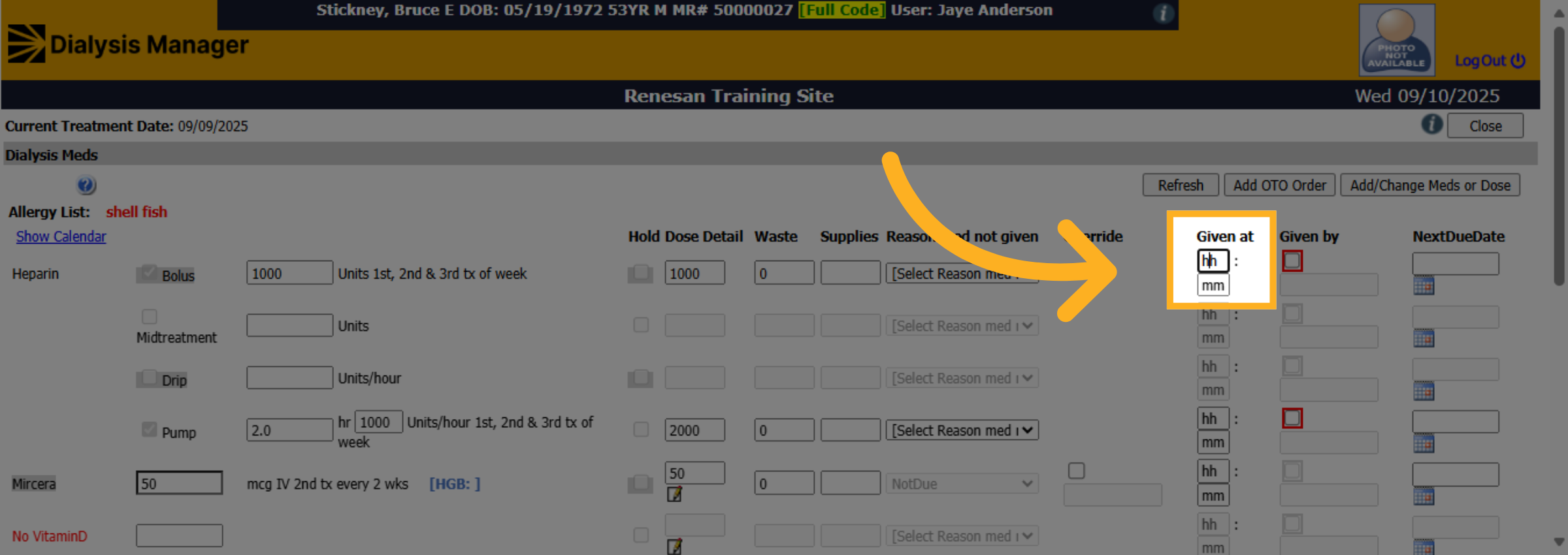
55. Given at
Or to document that it was given, Click the "hh" field to specify the time when the medication was given.
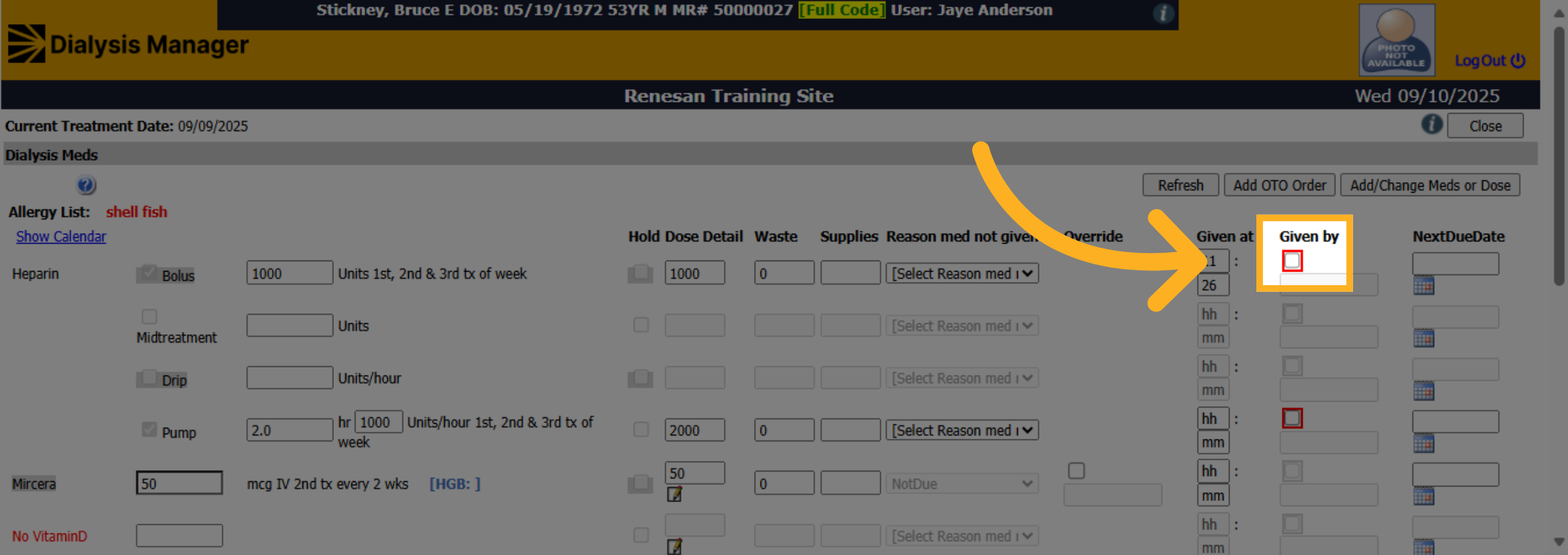
56. Click "Given by"
Click the "Given by" checkbox to specify the person who administered the medication. You will then be asked to enter your username and PIN or Password.
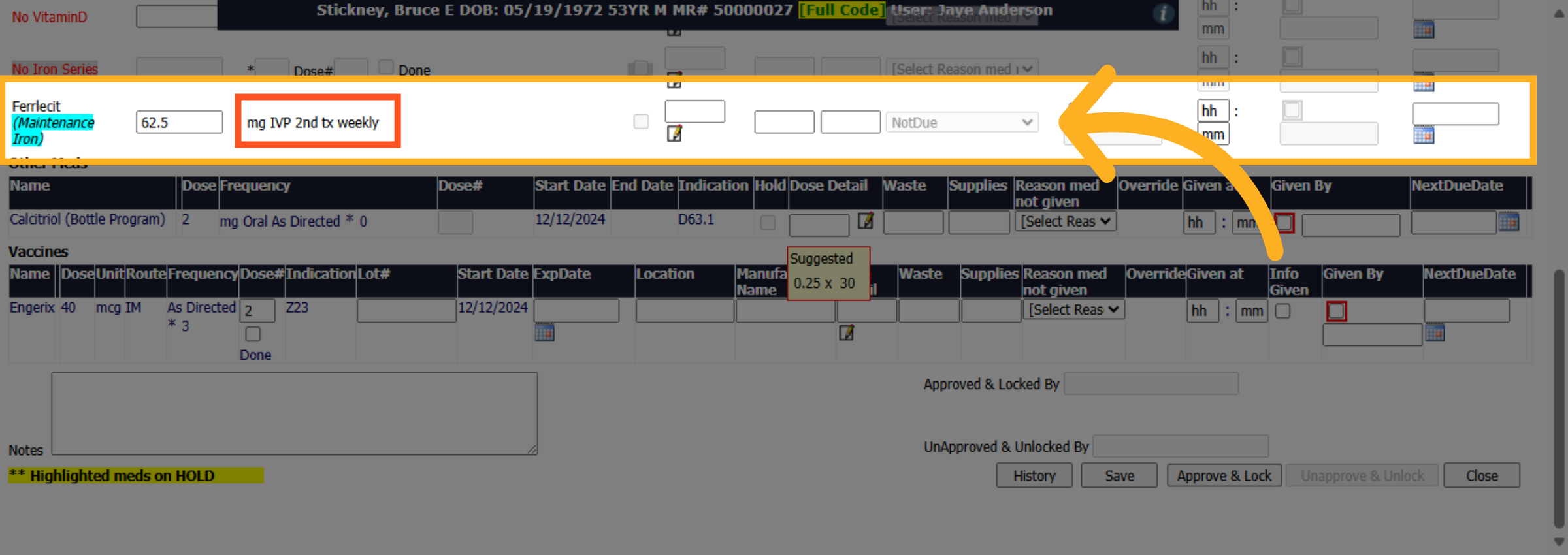
57. Med not due
As you can see this medication is set as Not Due because it is scheduled with the Smart Frequency of "Second Treatment Weekly" No need to do anything here
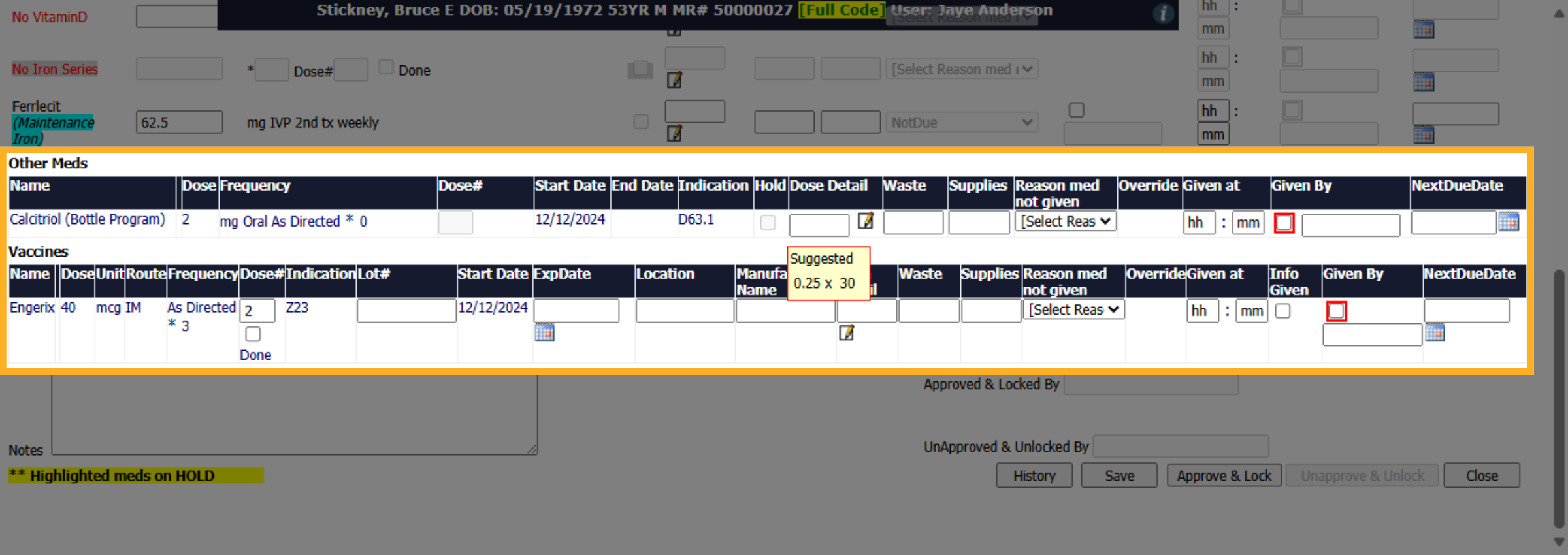
58. Other Meds Section
Above the other meds section, you have your Heparin (that we just reviewed), your ESA's, Vitamin D's, and Iron. The 'Other Meds' Section holds just those, Other Medications and below this is Vaccines.
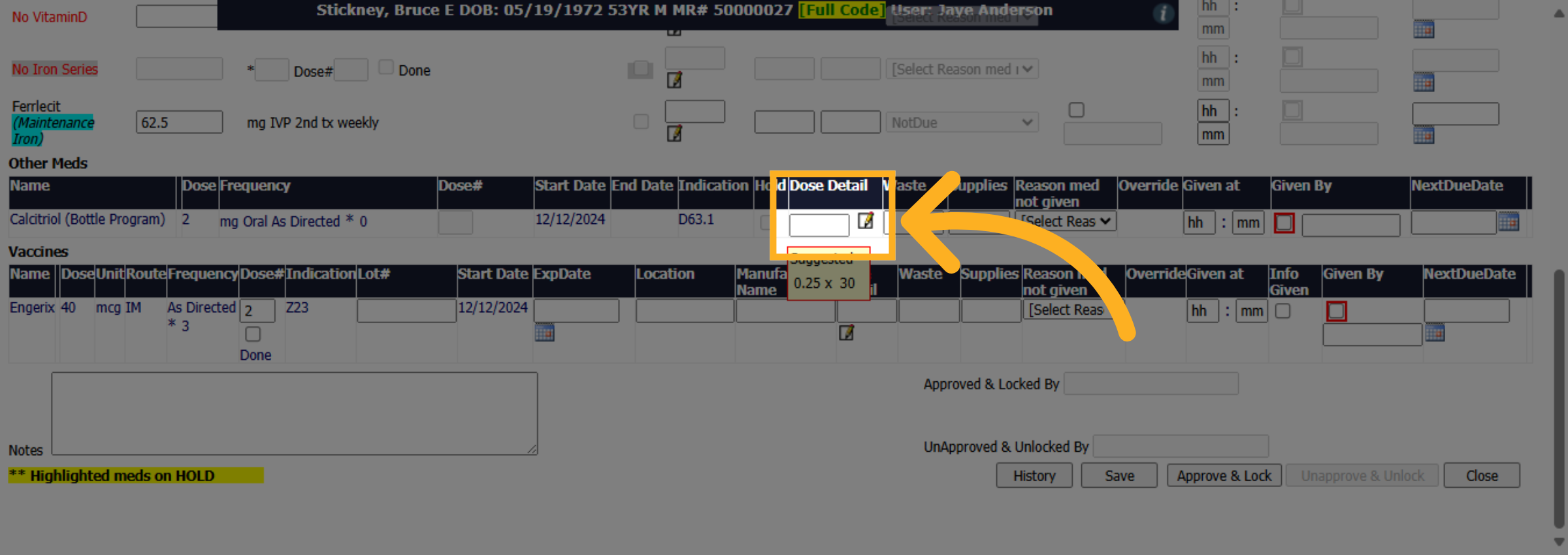
59. Dose Detail
Click the Dose Detail area to proceed with documenting the medication details.
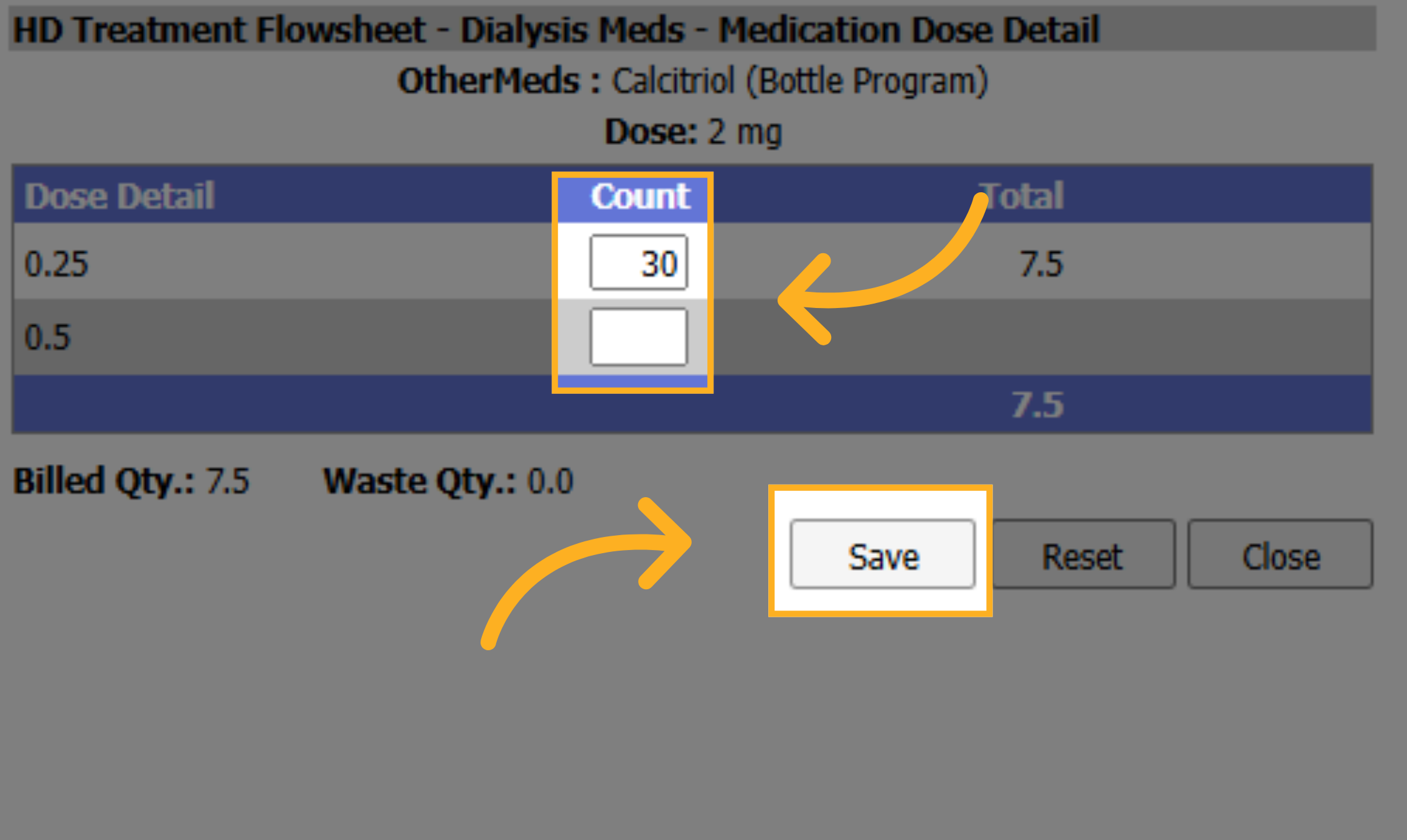
60. Click "Save"
This pop up will appear. Enter amount or Quantity of the total dose amount used noting the correct vial detail. Click "Save".
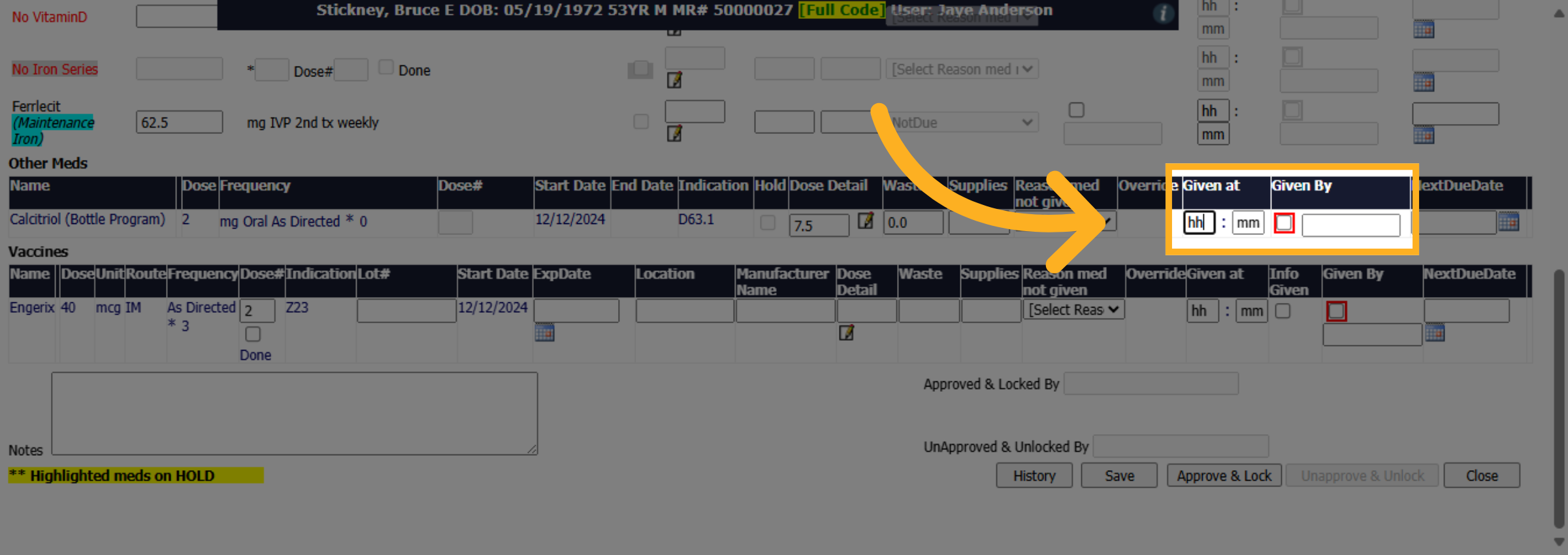
61. Given at and By
Enter the time the medication was given at and click the given by to specify the person who administered the medication.
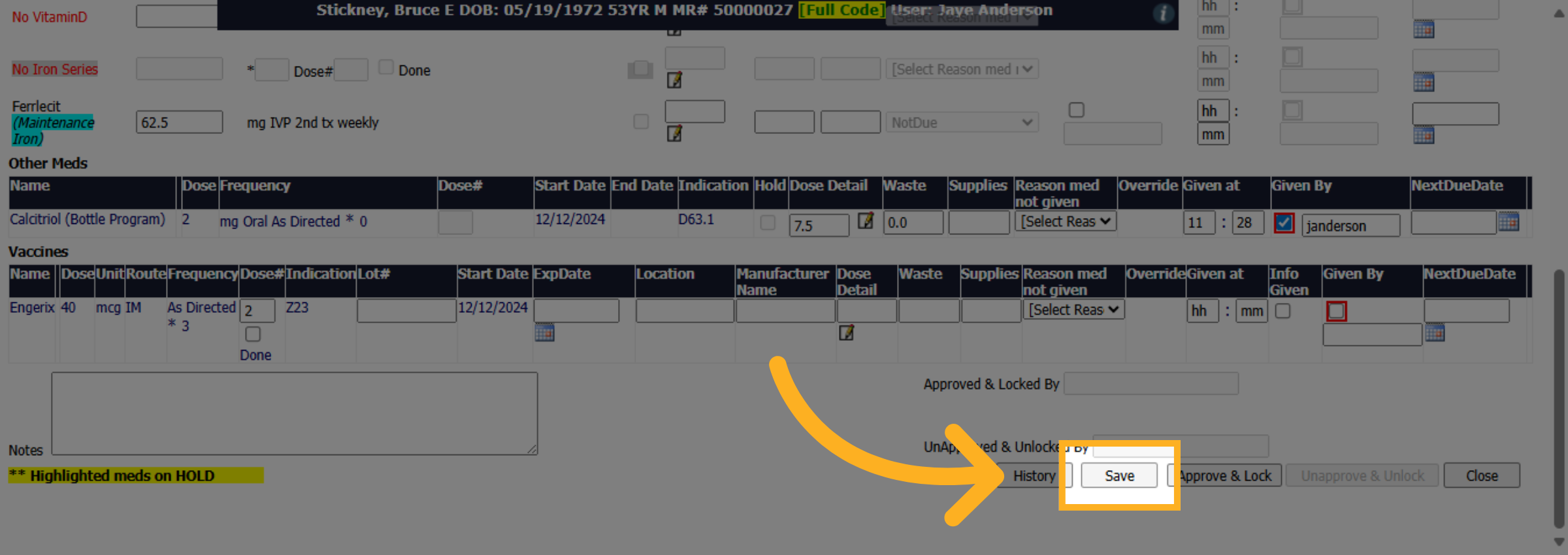
62. Click "Save"
Click "Save" to save all entered information. Reminder: entering your PIN or password previously is not saving your entries.
63. Click "Approve & Lock"
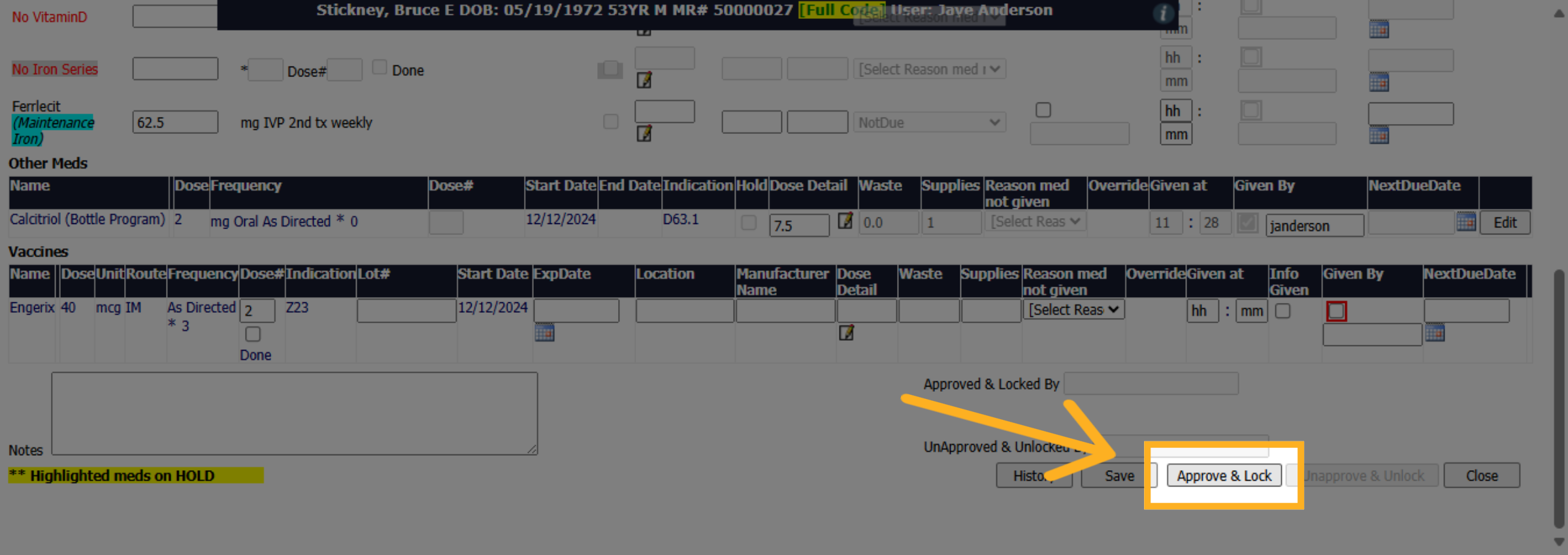
Click "Approve & Lock" to finalize and lock the medication documentation, preventing further edits. All medications must be marked prior to completing this step. Then click close!
64. Click "Standing Orders"
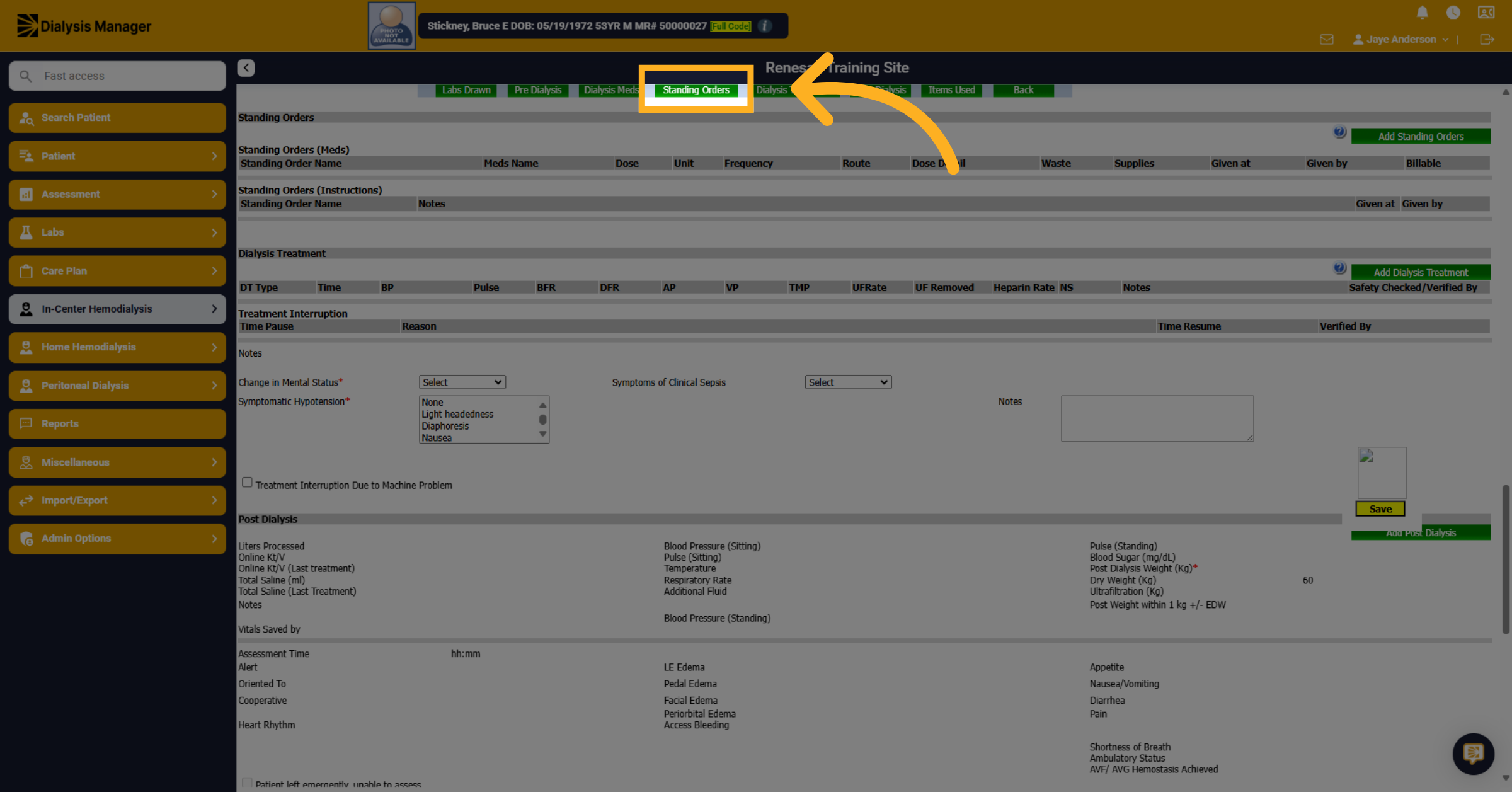
Click "Standing Orders" option, if applicable along the top. You'll see there are standing order meds and standing order instructions.
65. Standing Order Name
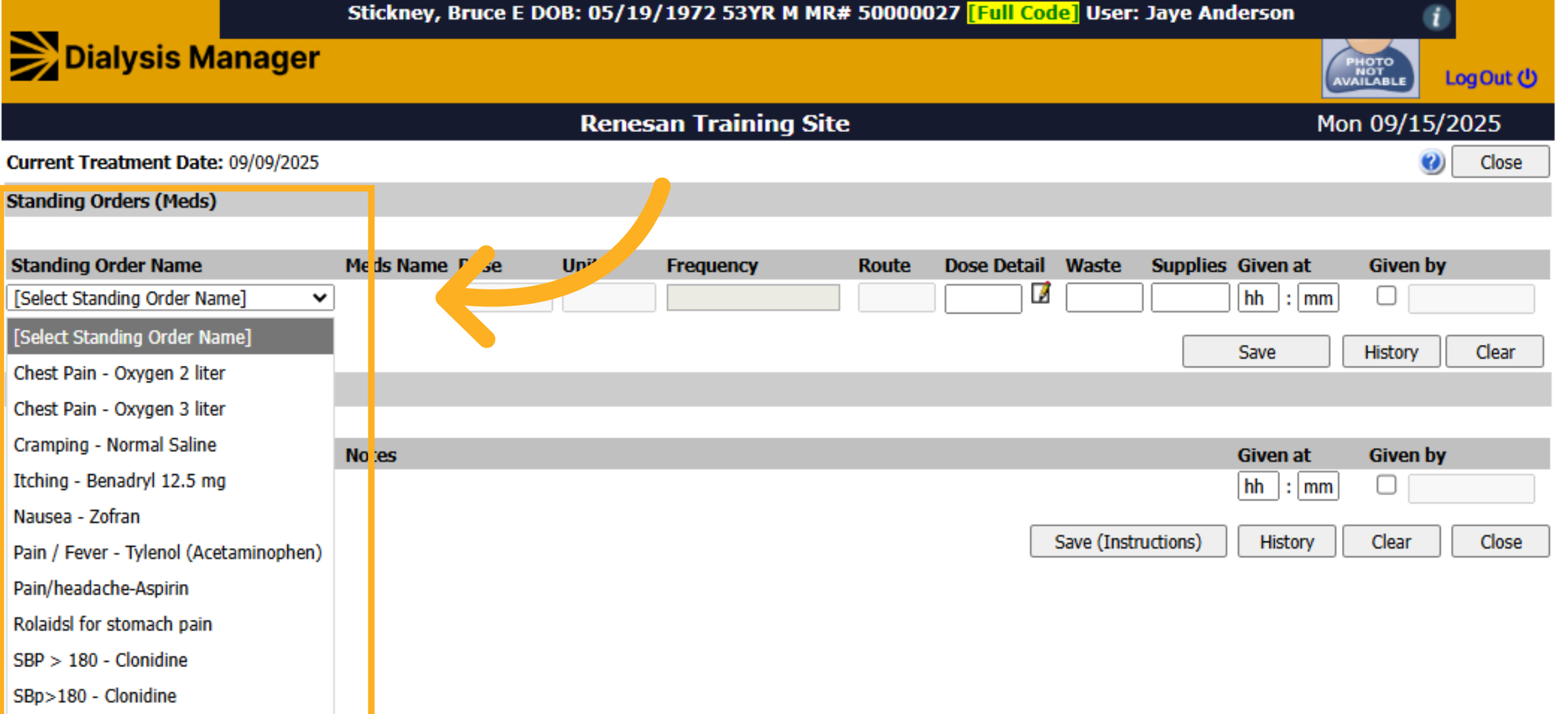
Click the desired standing order name, such as "Chest Pain - Oxygen 2 liter" or "Pain / Fever - Tylenol."
66. Given at and by
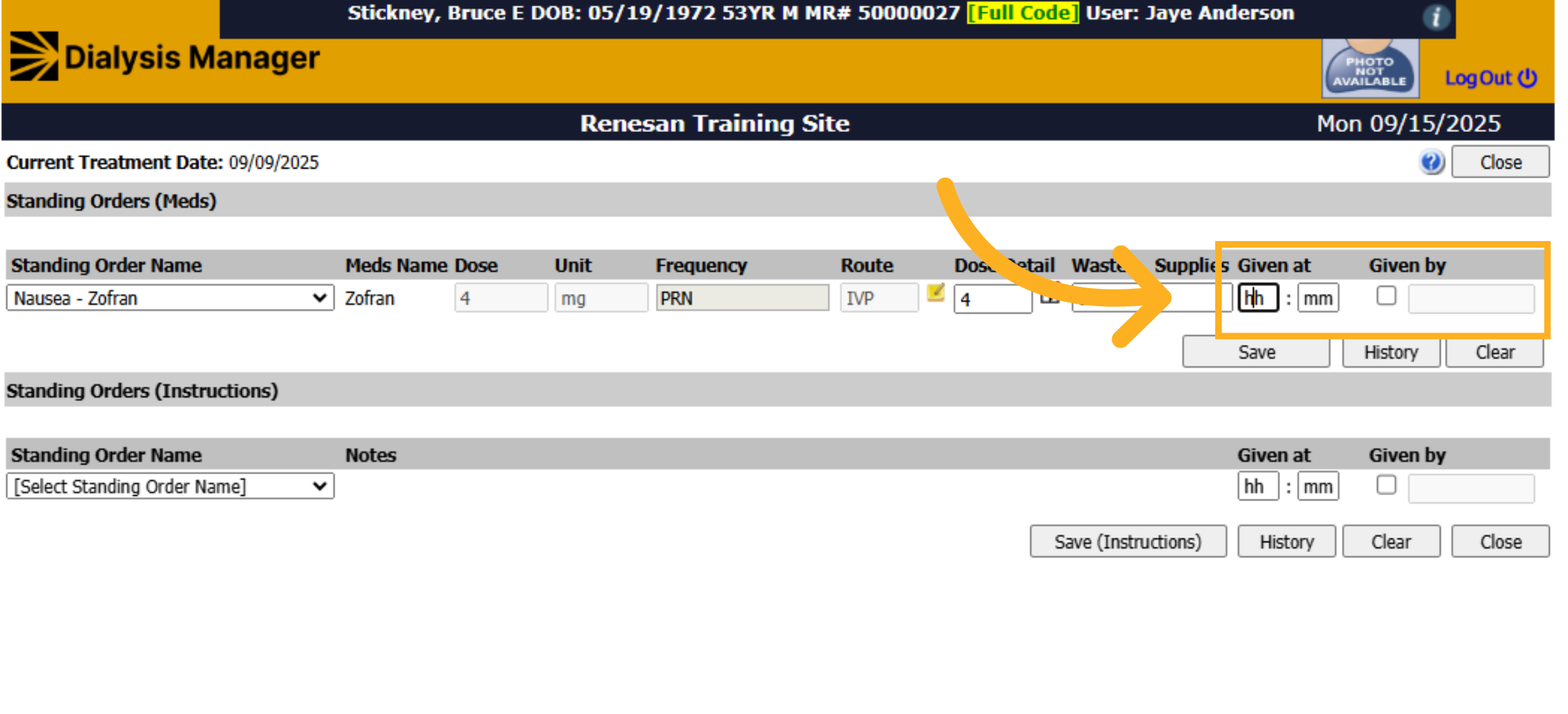
Enter the time the medication was given and check who it was given by. Again, you'll need to enter your username and PIN or password.
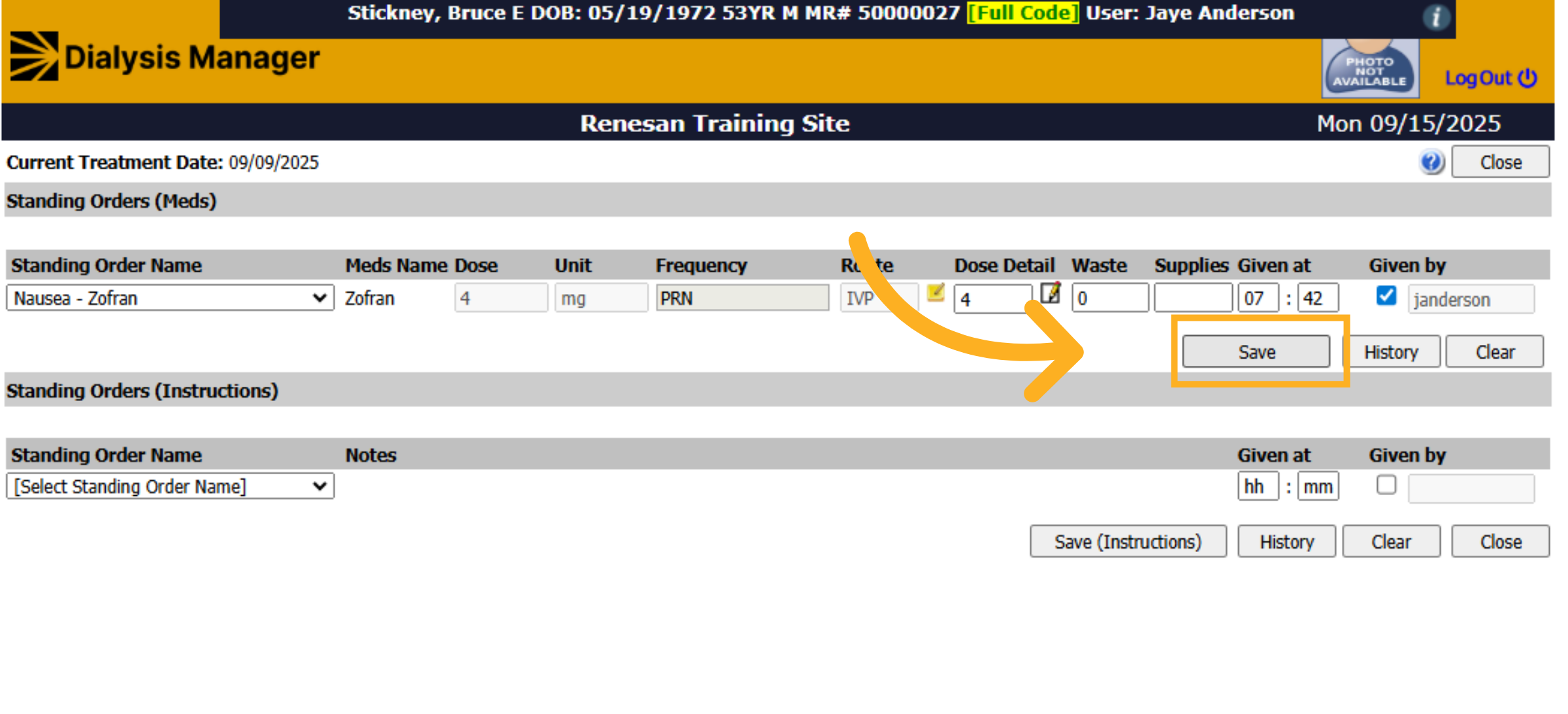
67. Click "Save"
Click "Save." to save the information.
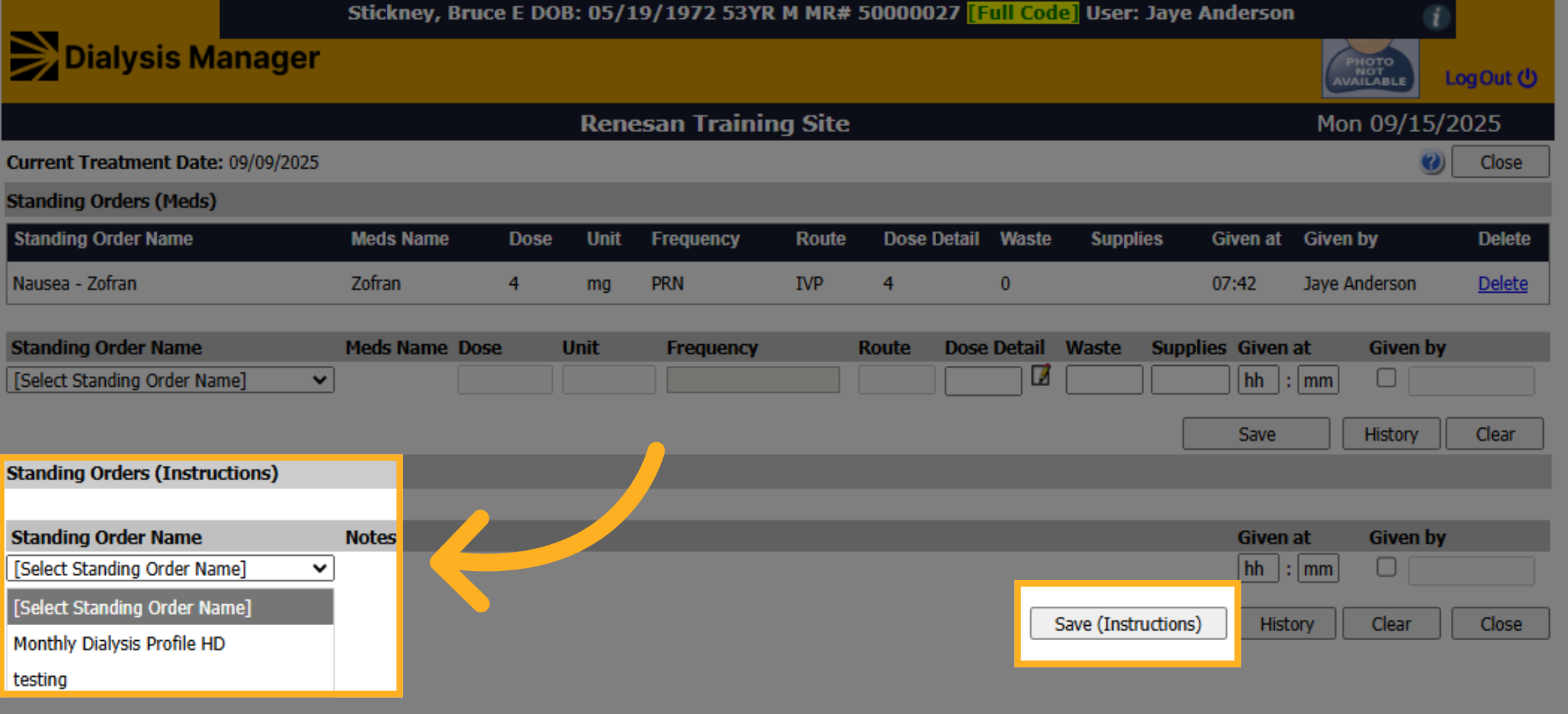
68. Standing Orders Instructions
You can do the same thing for the Standing Order instructions. Select the Standing Order Instruction Name, then complete the "Given At" and "Given By" information. Don't forget to click Save (Instructions) before closing!
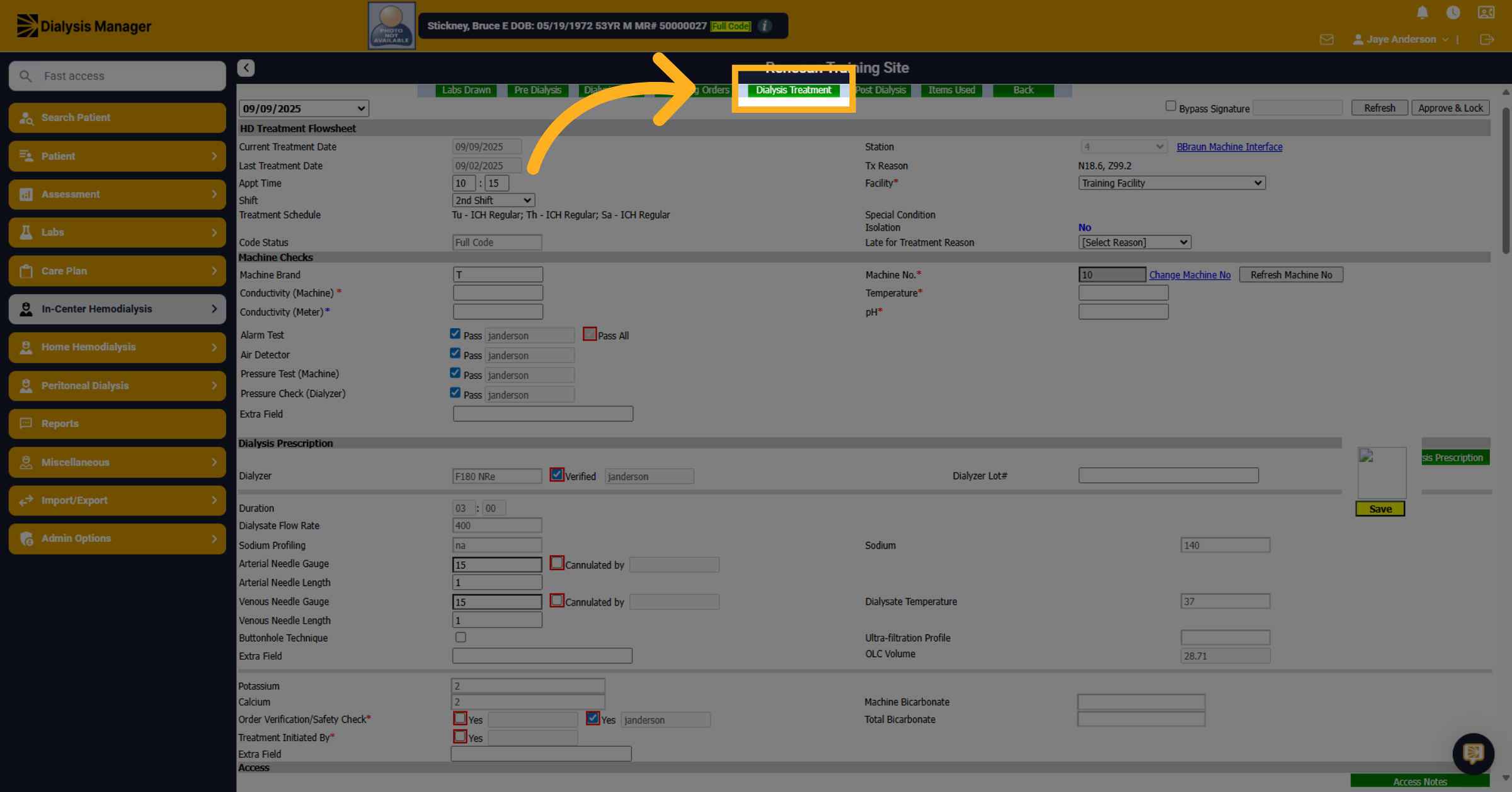
69. Click "Dialysis Treatment"
Click on the dialysis treatment to begin documenting patient vitals.
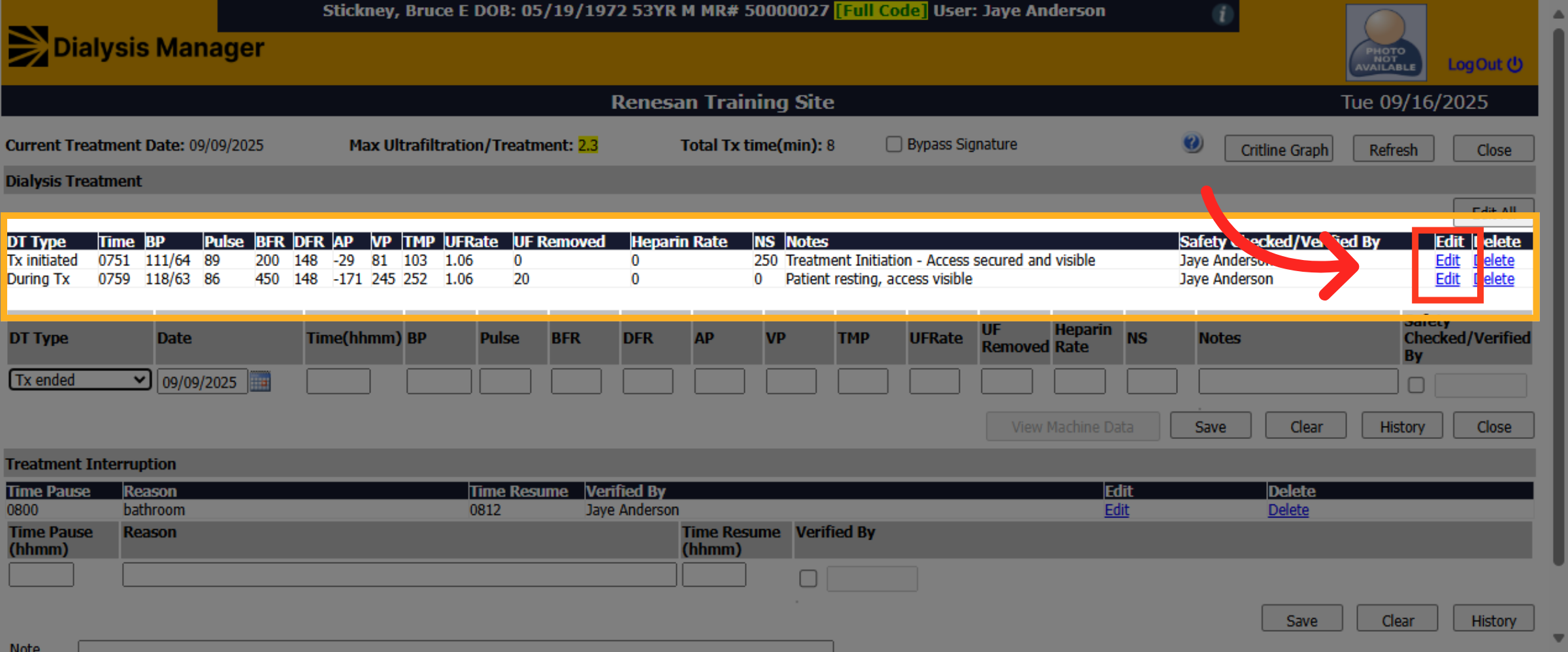
70. Vitals
If vitals crossed from the machine interface they would be listed with a Yellow highlight. Red means the information was not charted timely and white is a manual entry. Click Edit.
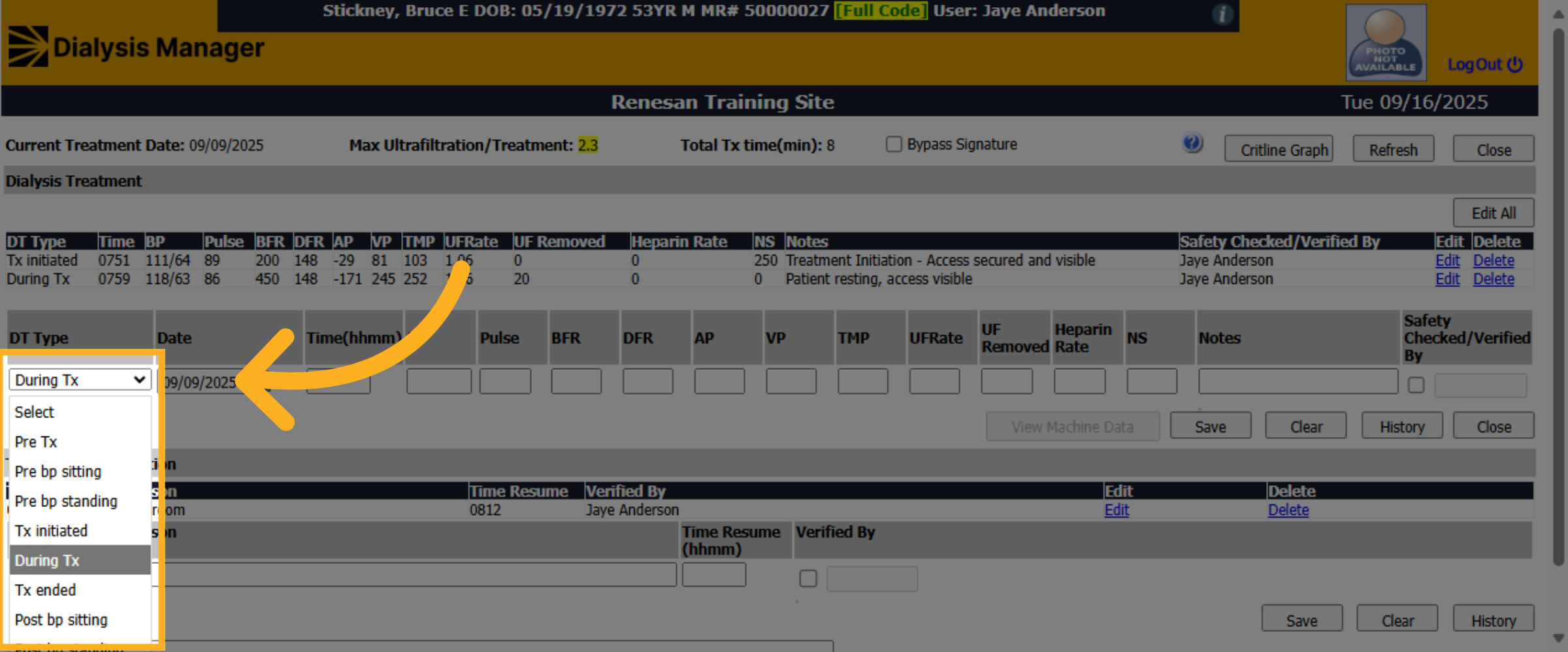
71. Treatment Type
Choose or change the treatment type, if applicable; reminder, you must have a "treatment initiated" and you also must have a "treatment ended" to finalize and lock your patient flowsheet. This also tracks the total treatment time.
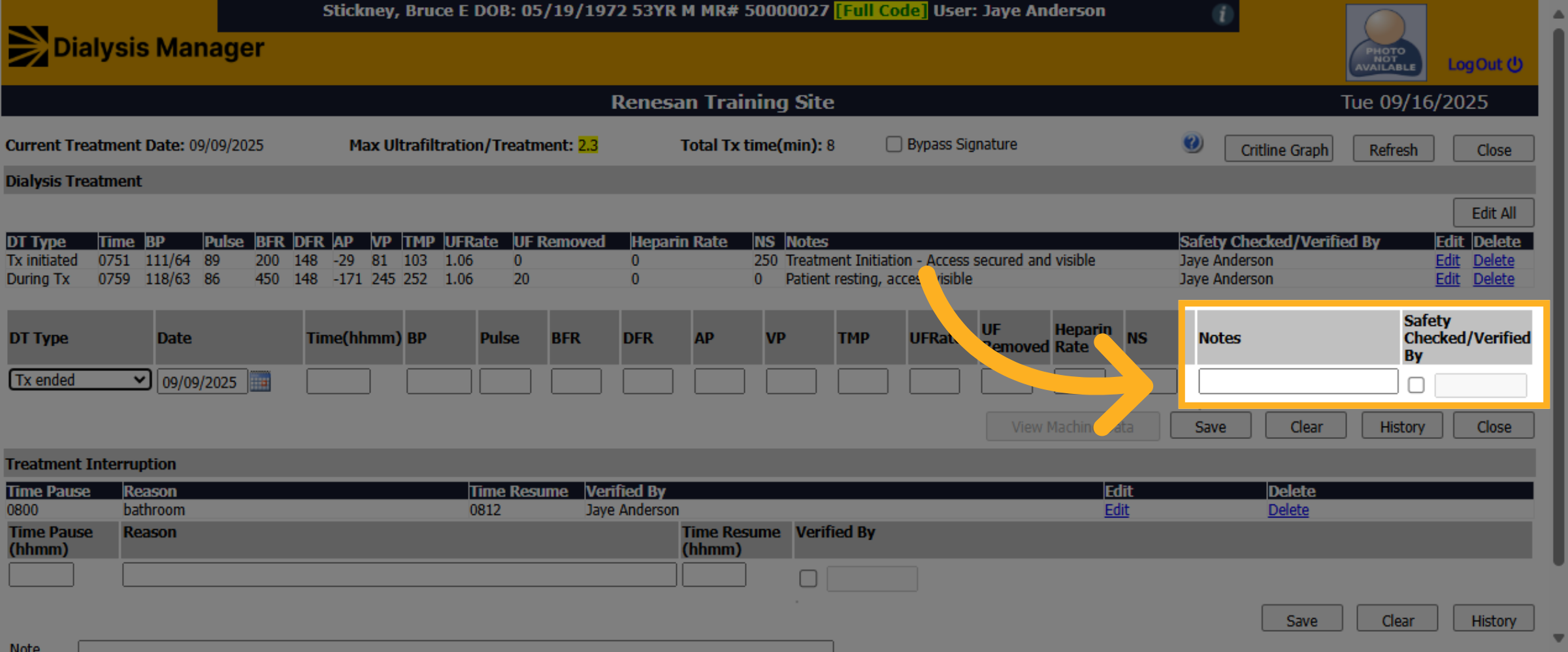
72. Notes
If this is a manual entry all fields are required unless your treatment type is listed as a note. Complete the treatment note accordingly. Hint: if you type in the letter 'p' all predetermined notes that start with p will display. Or you can free type your own notes.
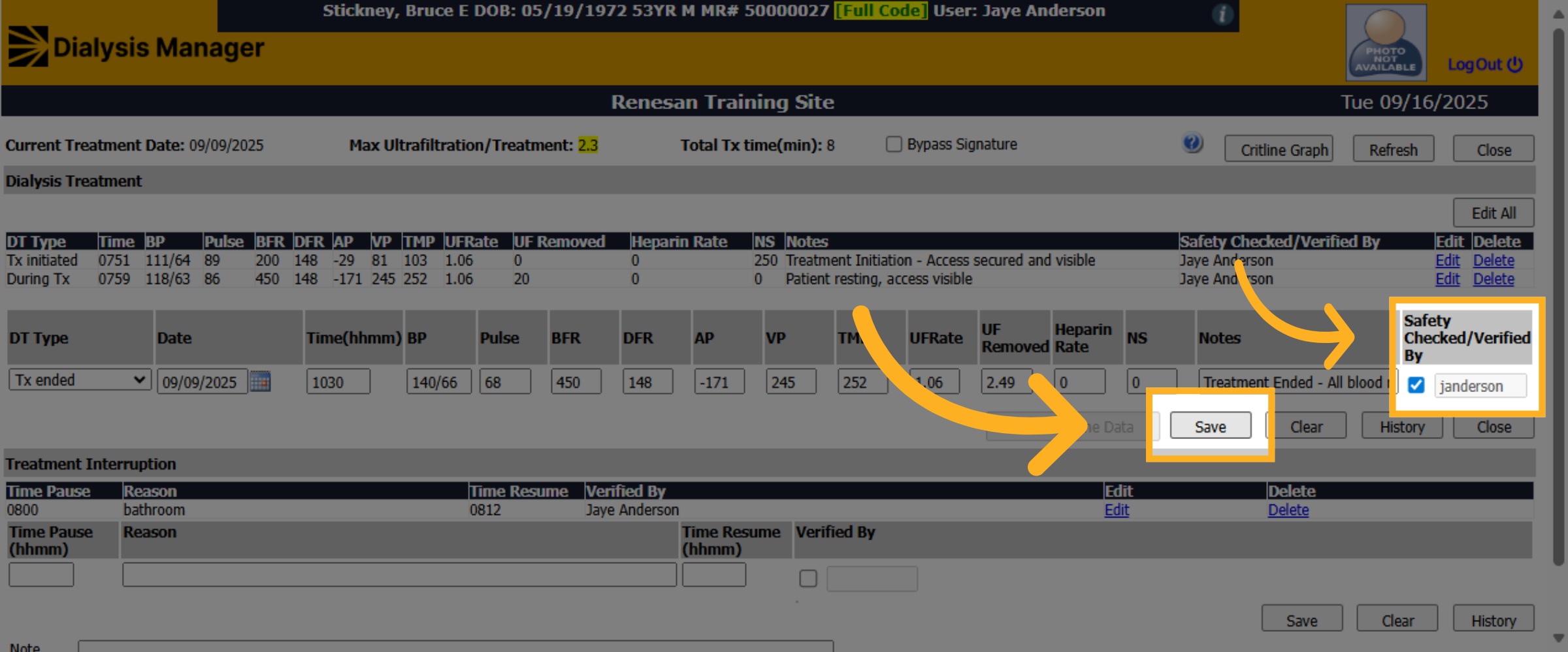
73. Click "Save"
Click on the safety check and enter your PIN or Password then click on the save option.
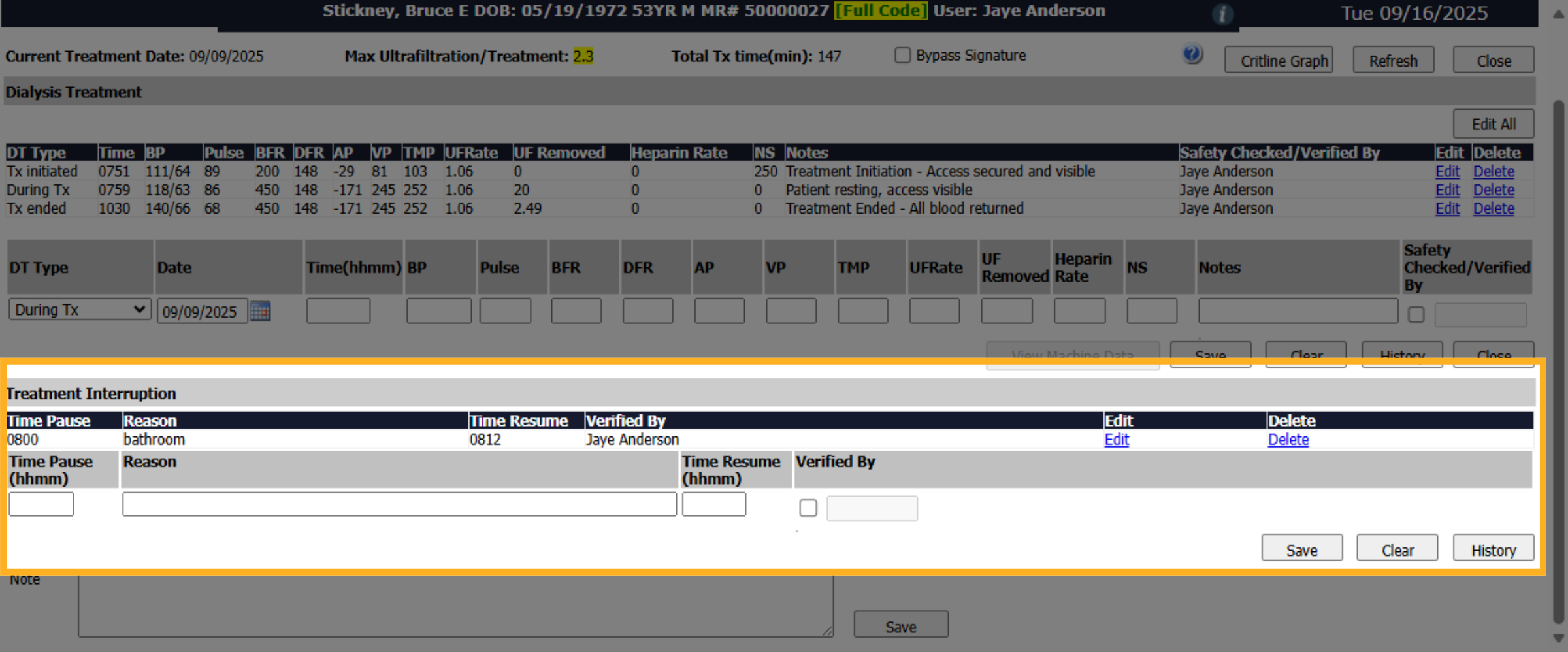
74. Treatment Interruption
Click Treatment Interruption if there was a pause in the treatment. Enter the pause time, reason and time resumed! Then click verified by and enter your username, PIN or password. Then click save and close!
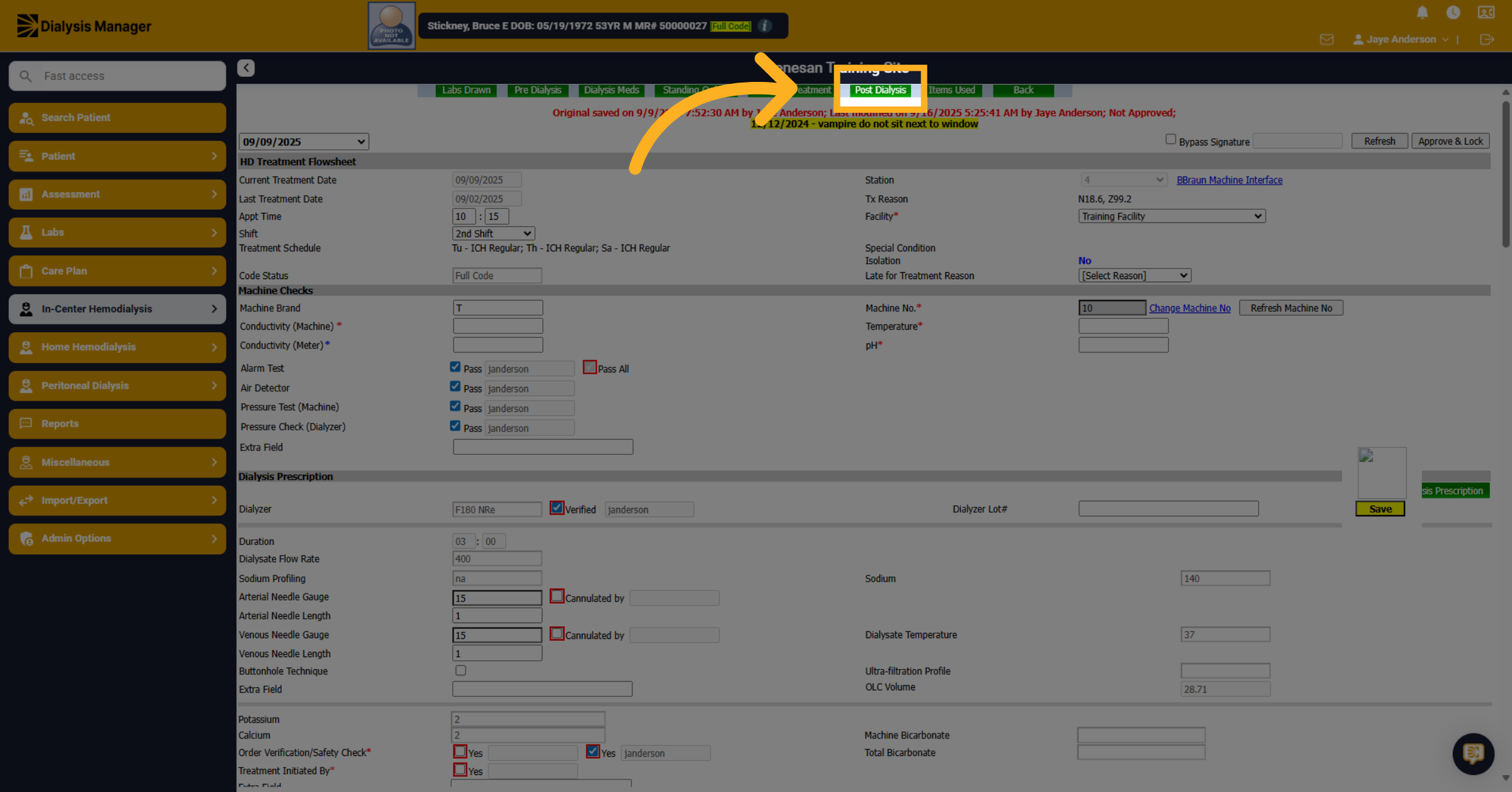
75. Click "Post Dialysis"
Click "Post Dialysis" to access the post dialysis section.
76. Post Treatment PCT area
The top Red section is typically completed by the dialysis technician. Keep in mind, anything that has a red asterisk will be required before the nurse is able to Approve and lock the flow sheet.
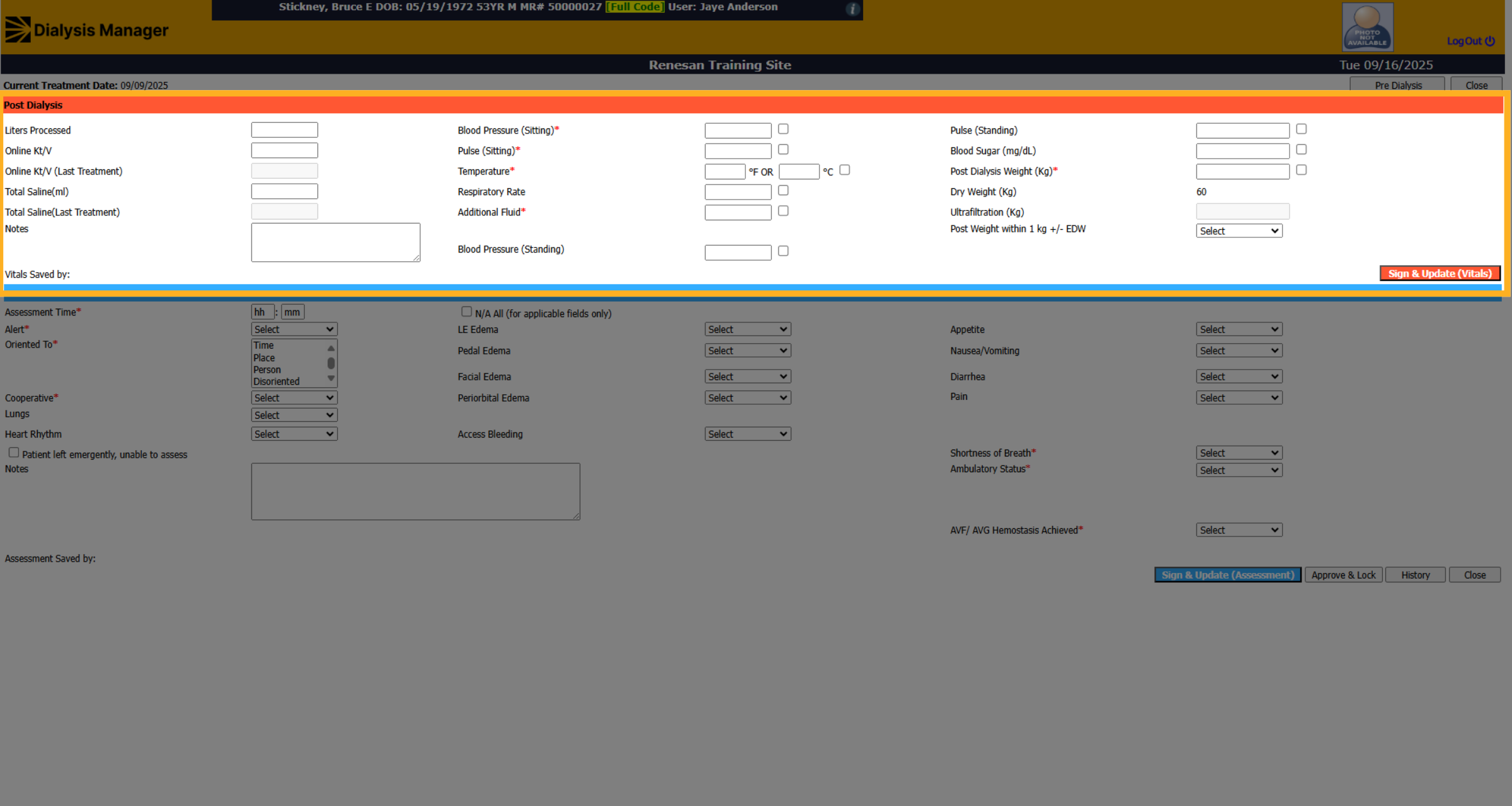
77. Click " Pre Dialysis"
Click or hover over the " Pre Dialysis" button to review the pre-dialysis information.
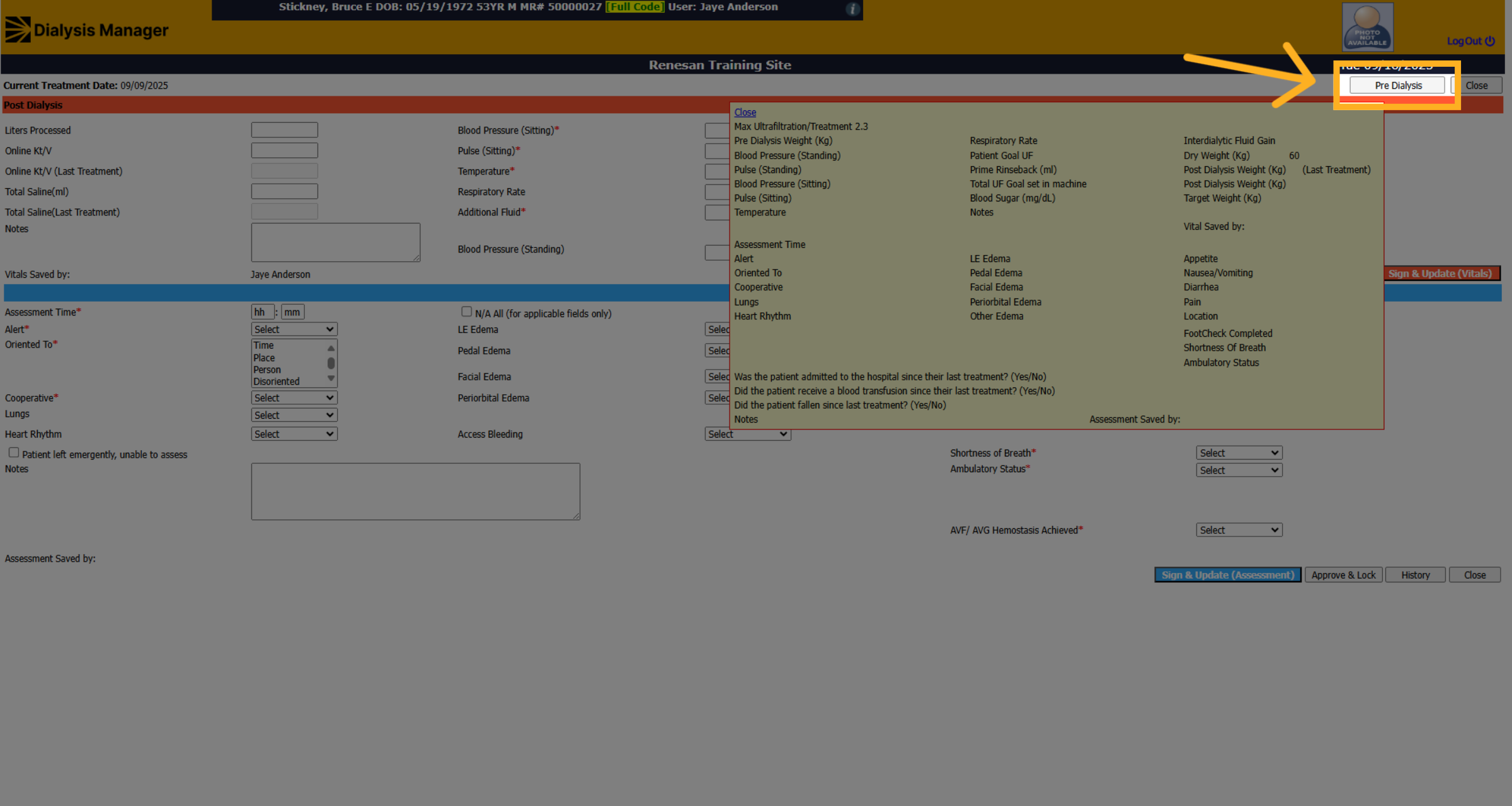
78. Click "Sign & Update (Vitals)"
Click "Sign & Update (Vitals)" to sign and save the top red section.
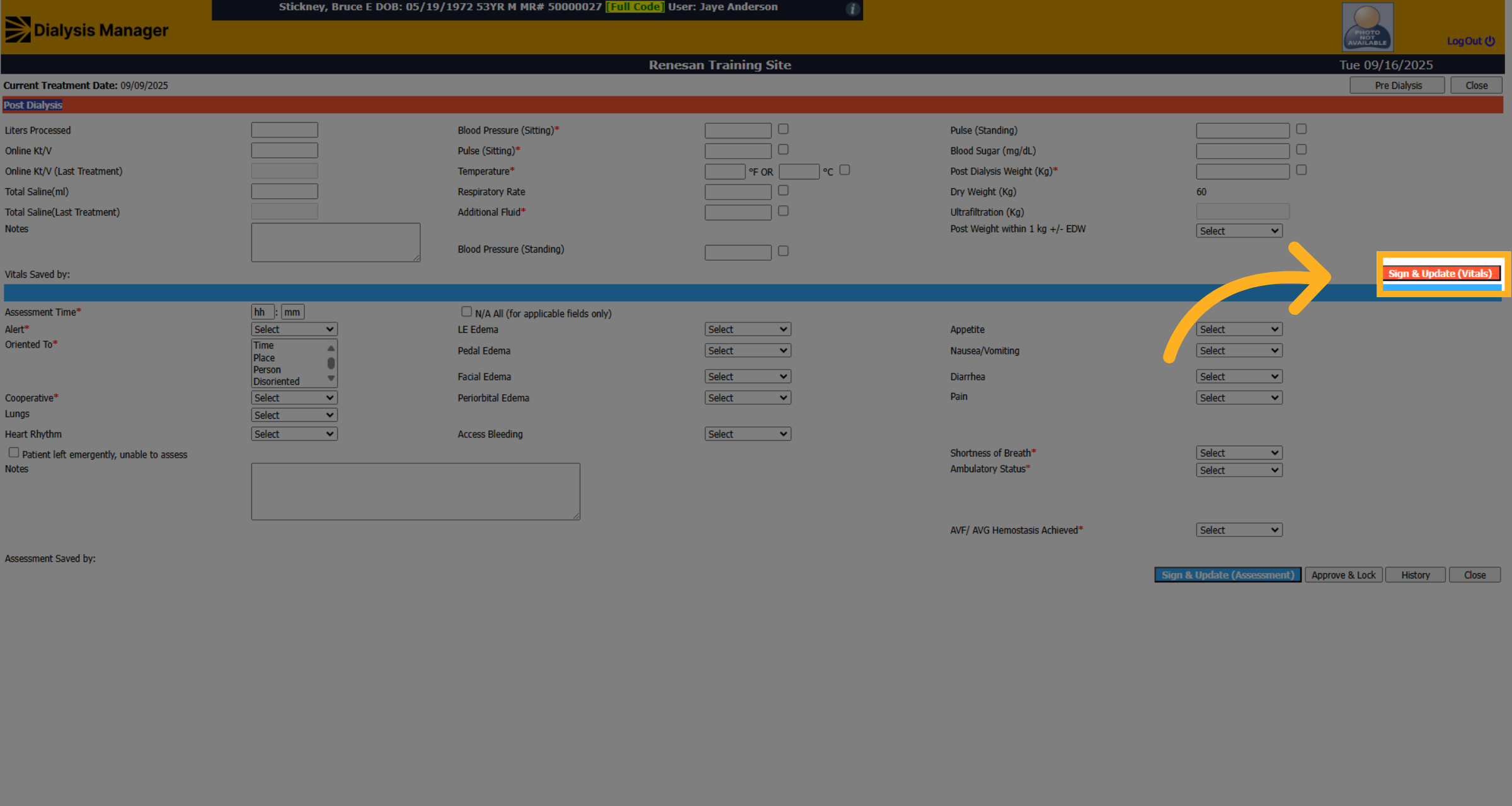
79. Post Treatment Nurse area
The bottom section, marked in blue, is typically completed by a nurse. Again, anything with a red asterisk is required before the flow sheet can be approved and locked.
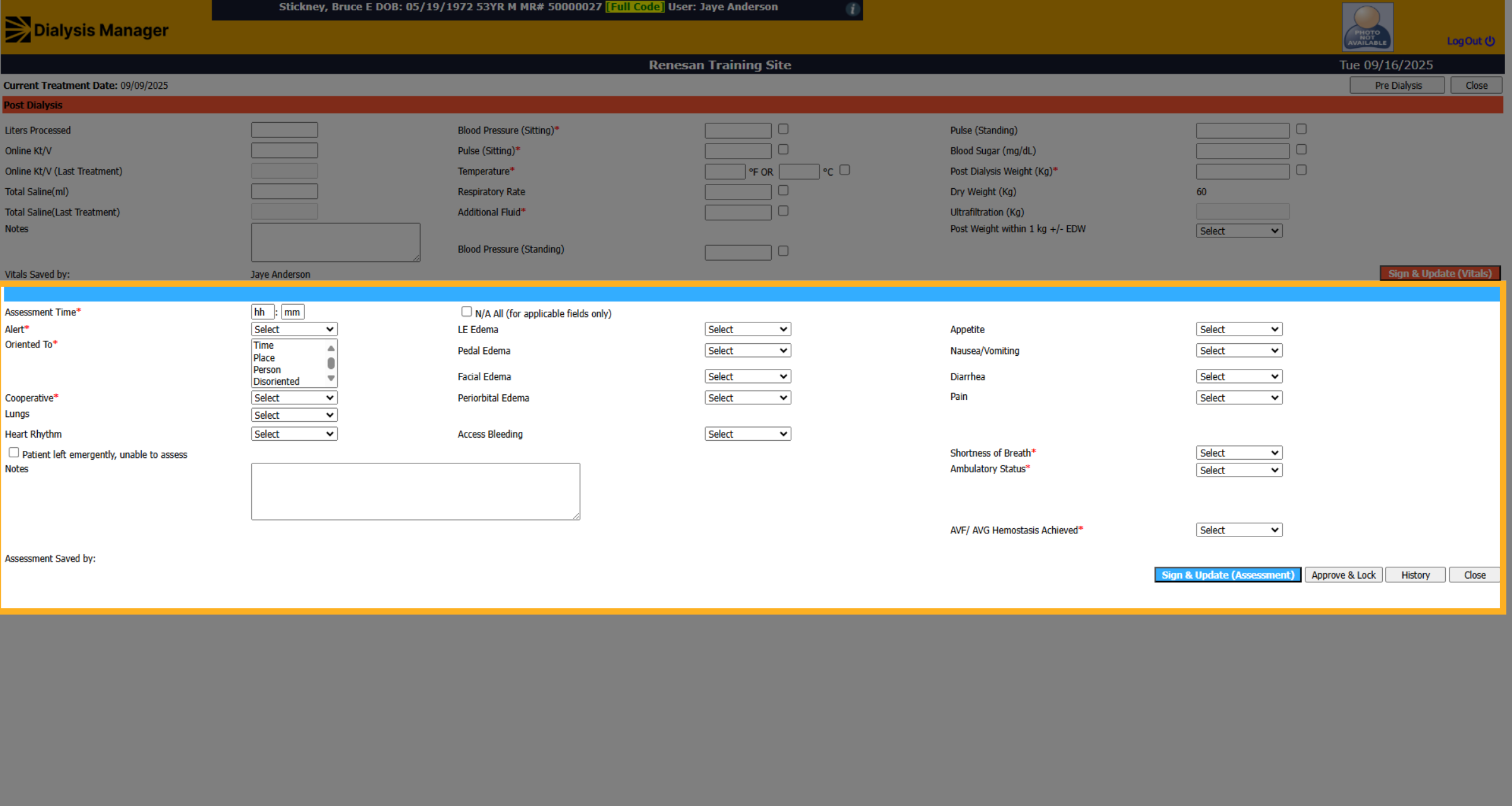
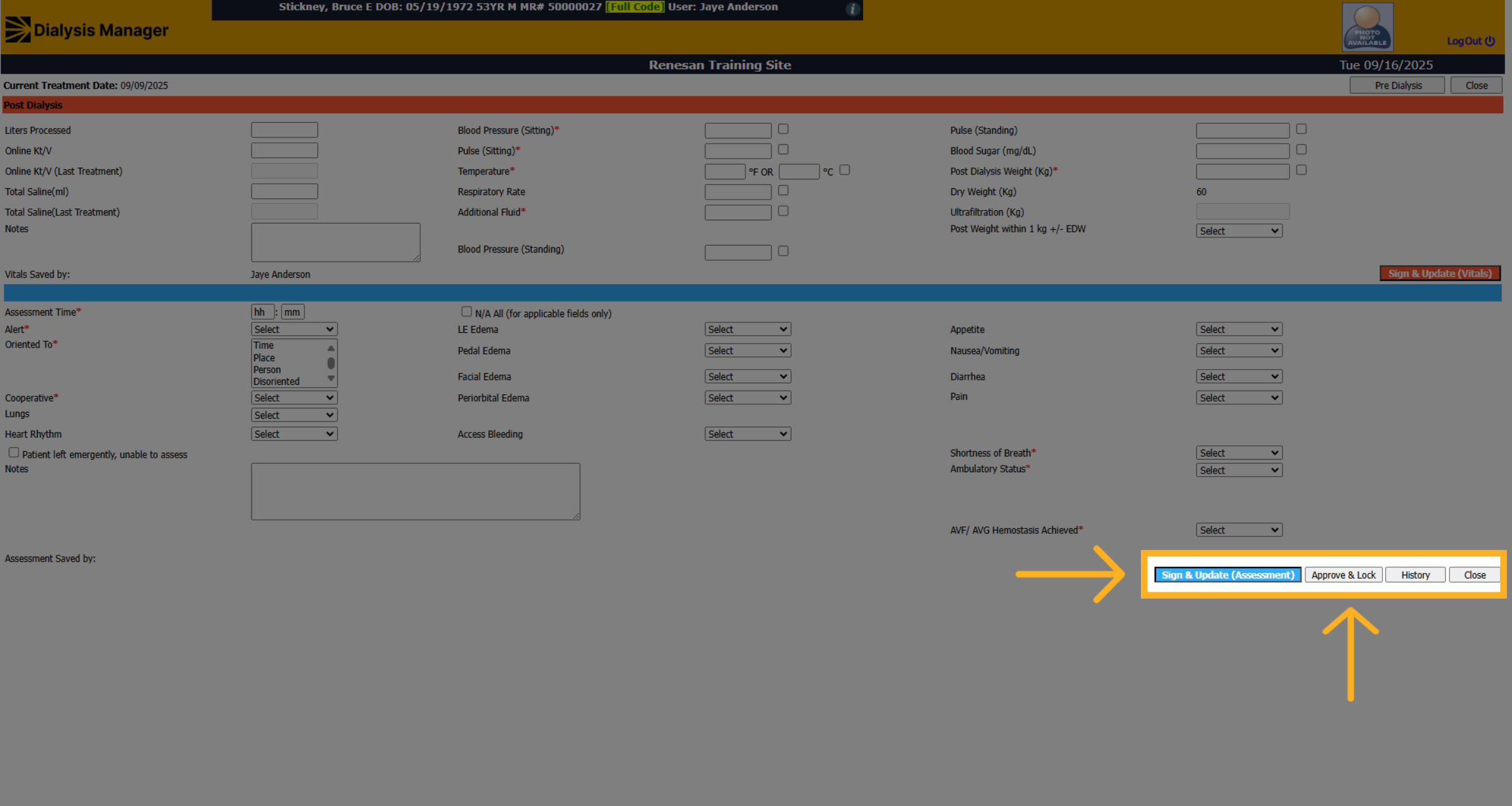
80. Click "Sign & Update (Assessment)"
Click the Blue "Sign & Update (Assessment)" to sign and save the blue assessment section. Then Click "Approve & Lock" to finalize and secure the Post Dialysis Section. This ensures no further changes can be made without proper authorization. Once completed click close.
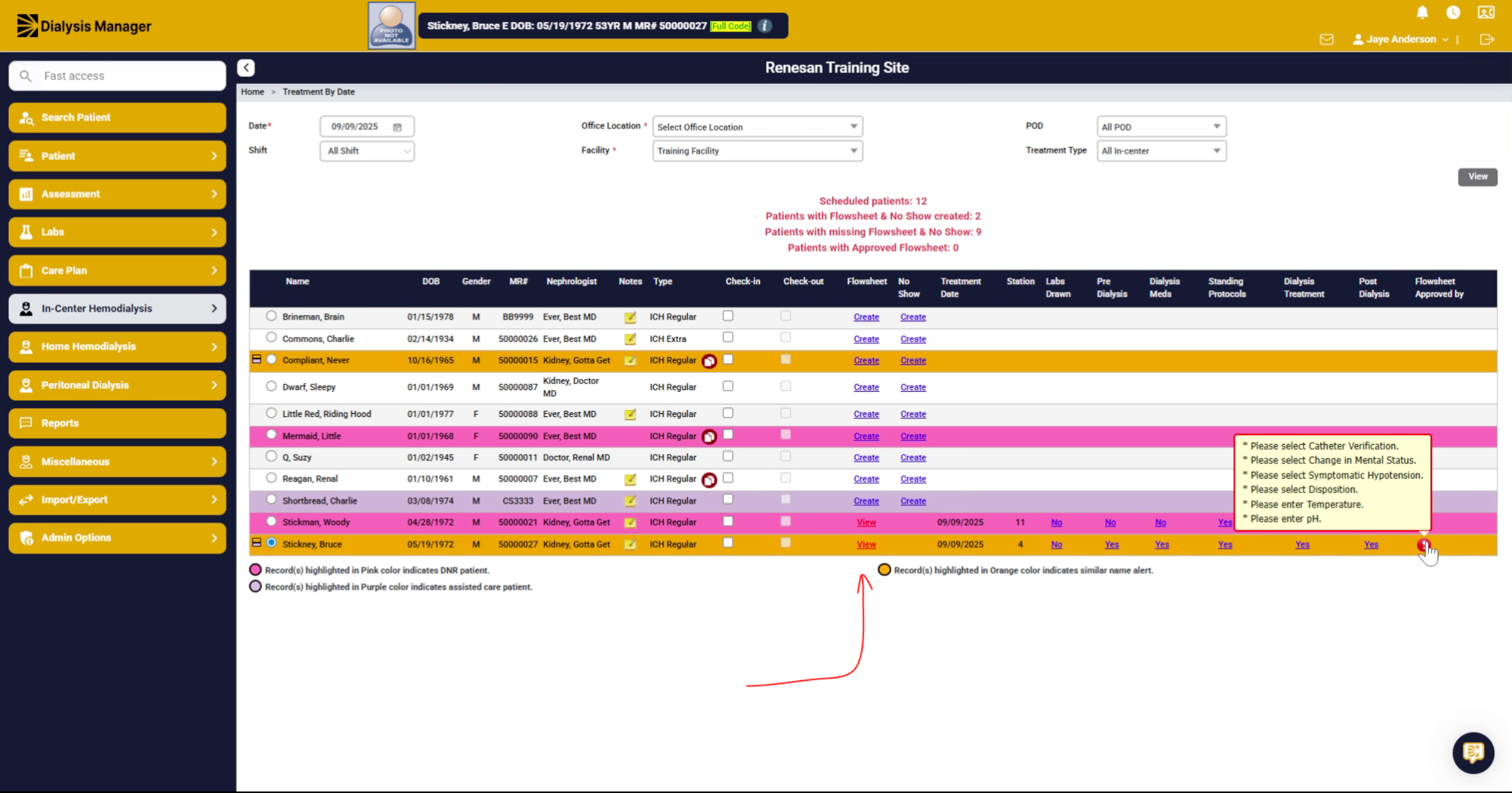
81. Open Treatment Flow Sheet
Hover over the red exclamation mark to review information that still needs charting.
82. View Remaining Flow Sheet Tasks
As you can see, we've got a little bit left in order to complete the flow sheet. Click on View under the Flow sheet column.
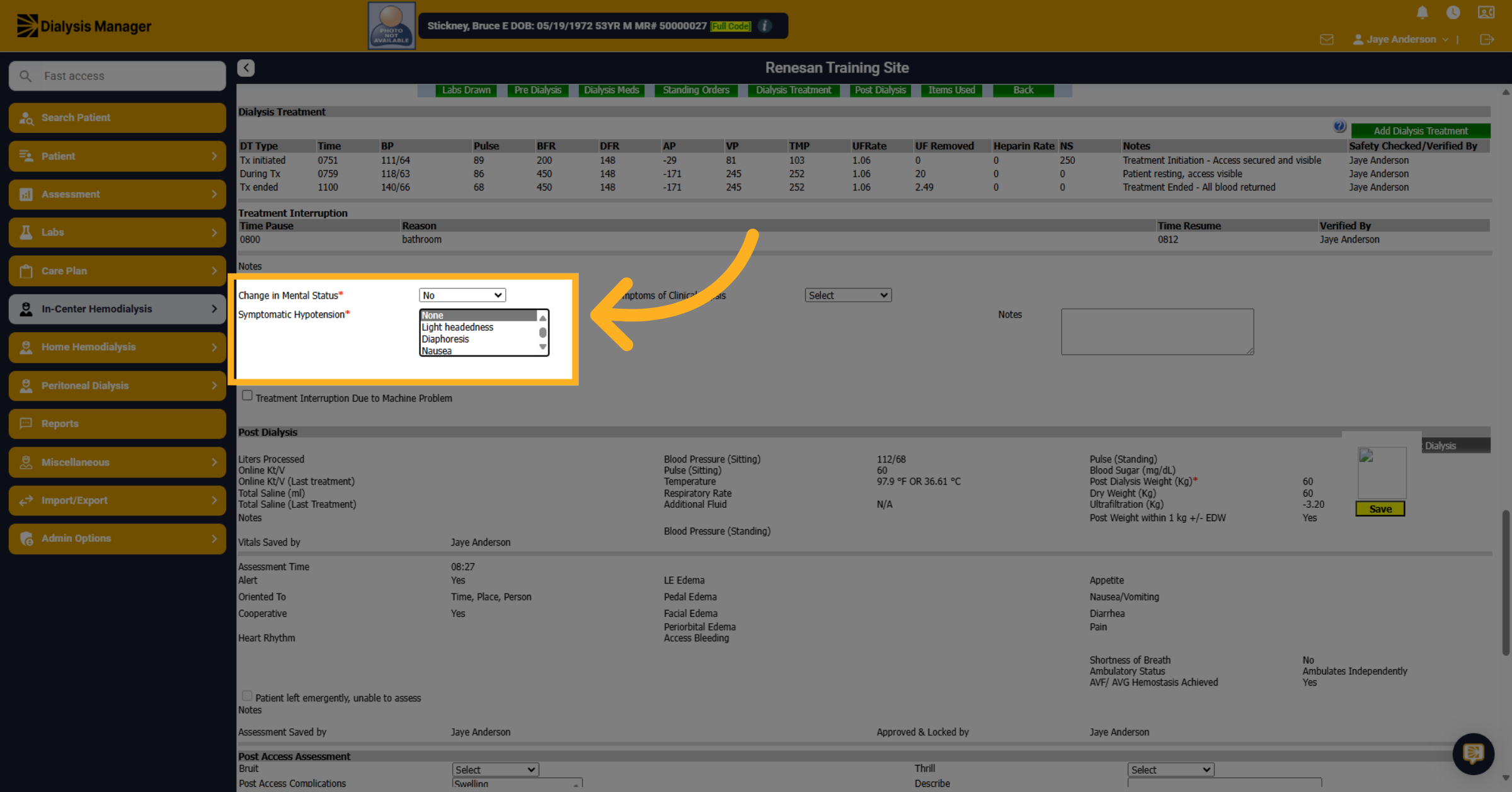
83. Select 'None' for Mental Status
Scroll down to the post dialysis section. Within here. Choose if there are any changes in mental status? or if there's any Hypotension.
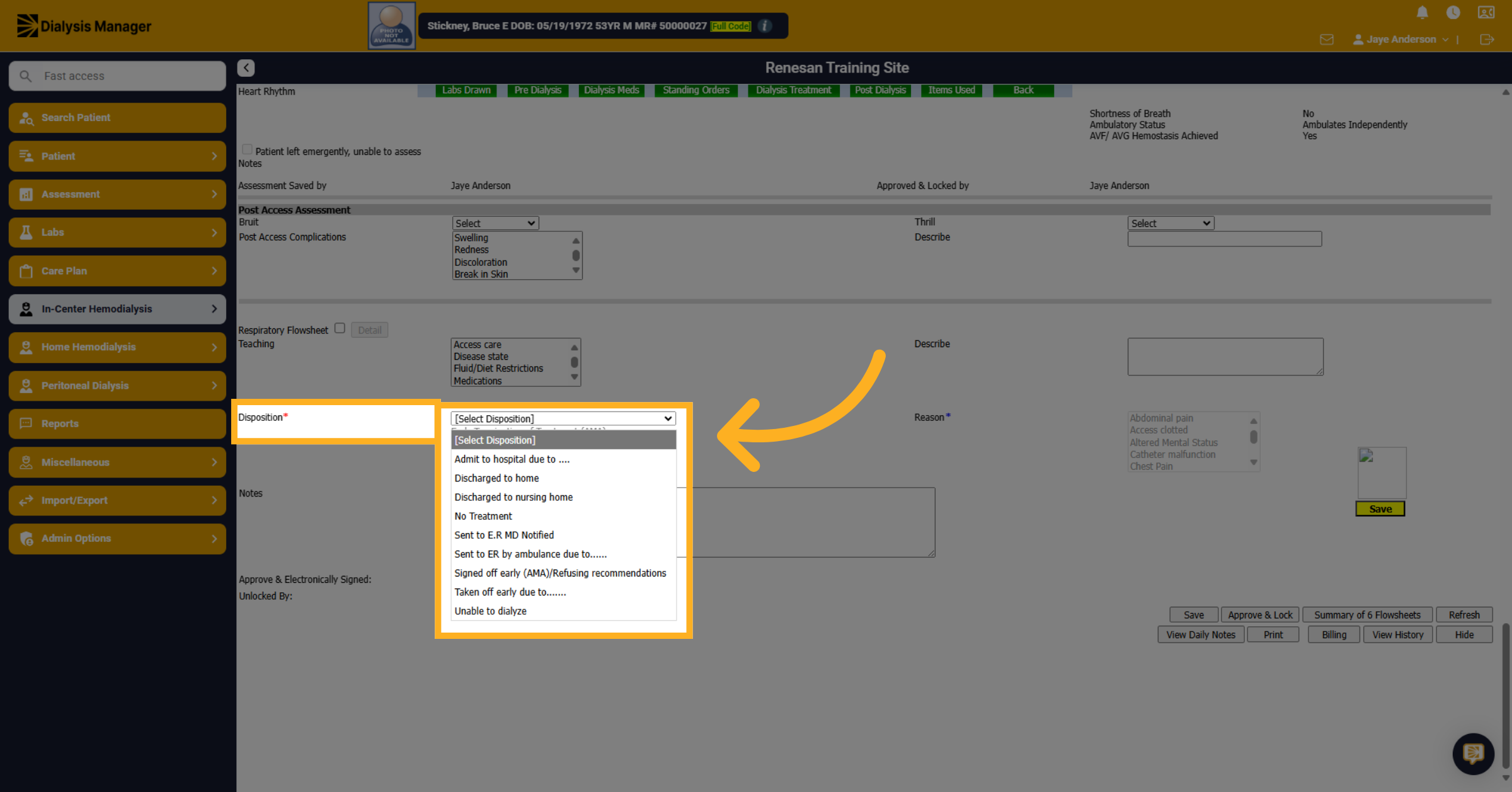
84. Choose Patient Disposition
Choose the patients Disposition. If they signed off early you will be required to complete the reason. You will also have the ability to create an A M A .
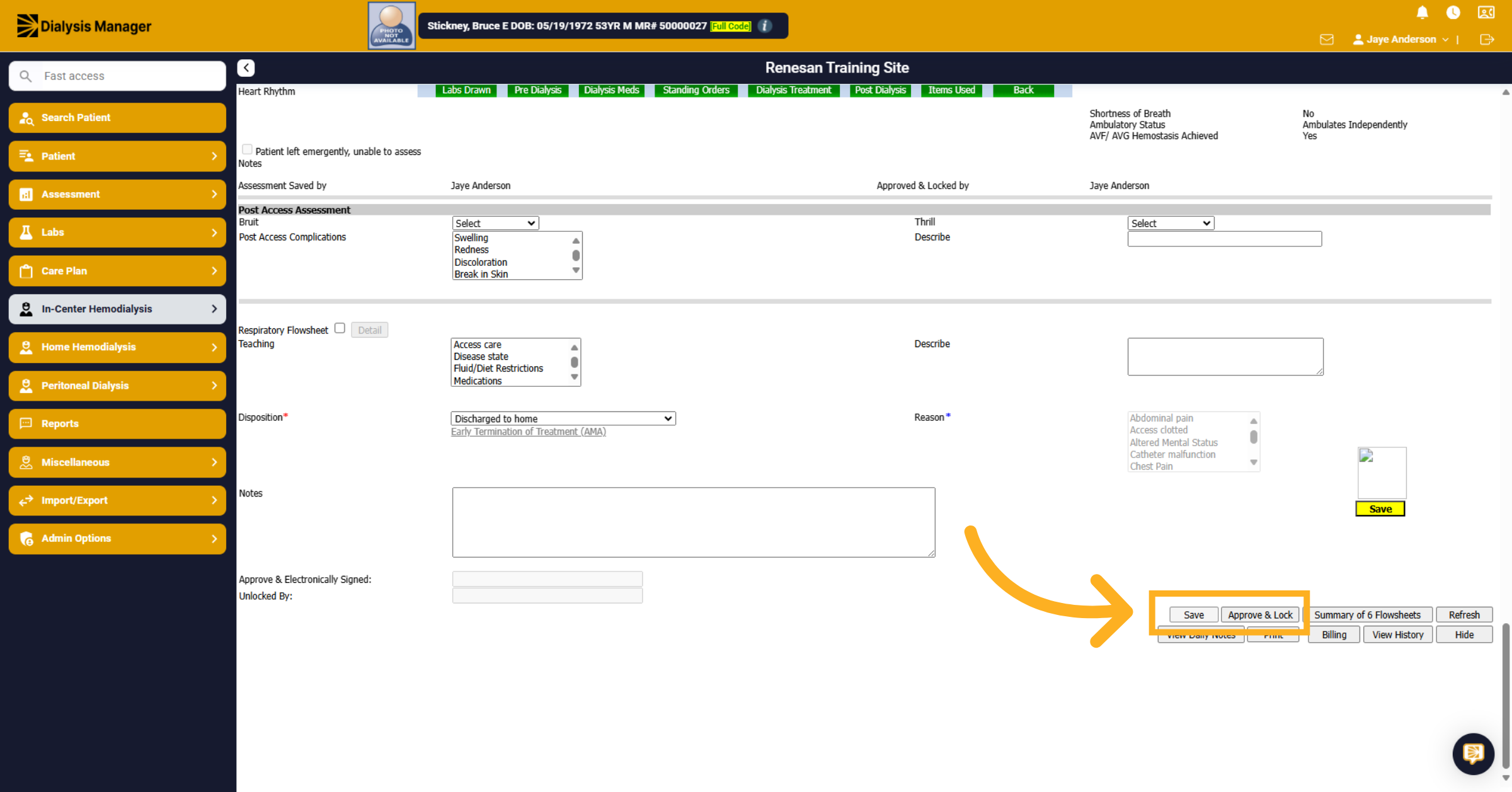
85. Save - Approve and Lock
After reviewing and completing all required fields, click Save and then Approve and Lock!
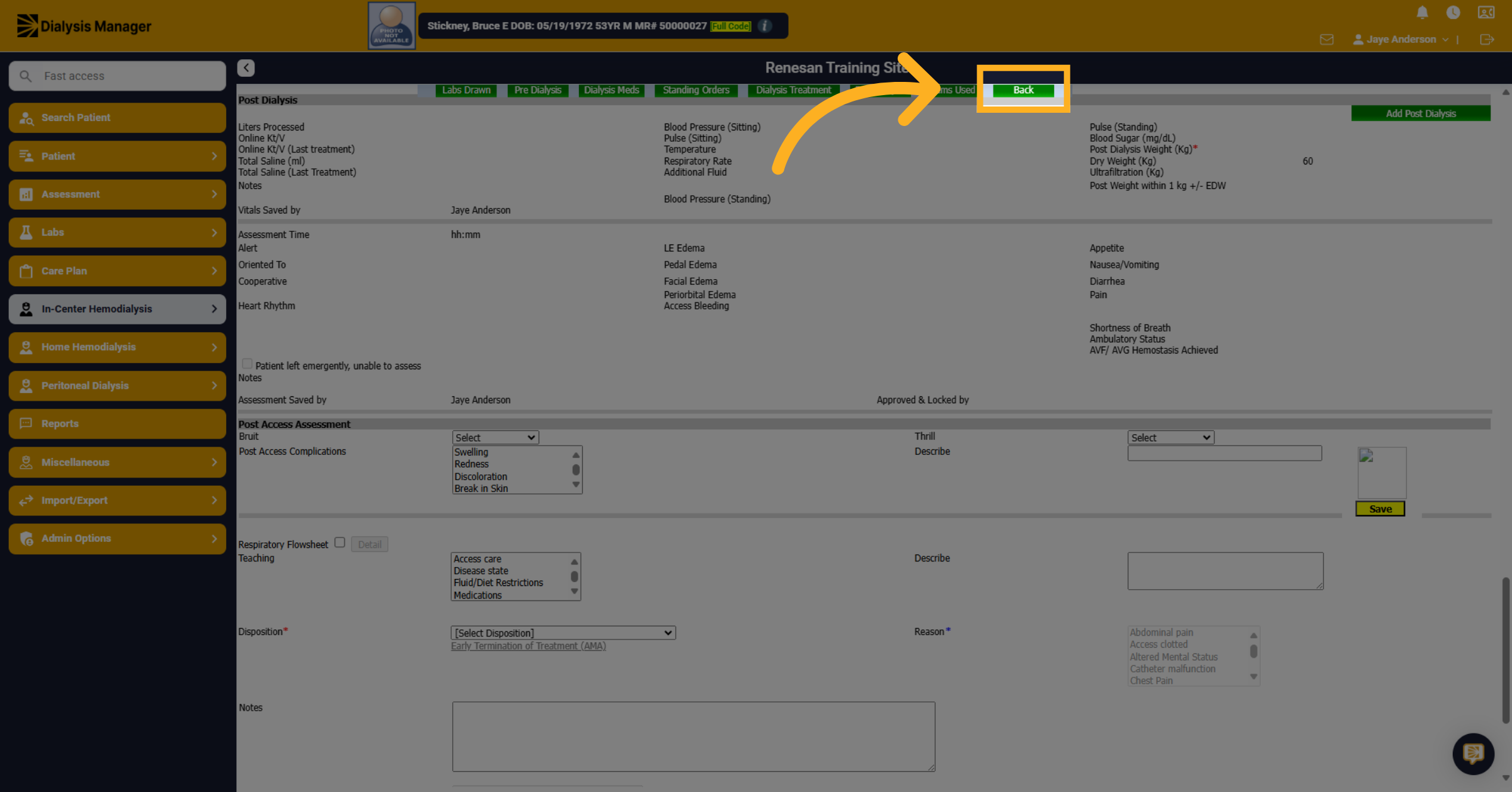
86. Click "Back"
Click "Back" to return to the treatment by date screen.
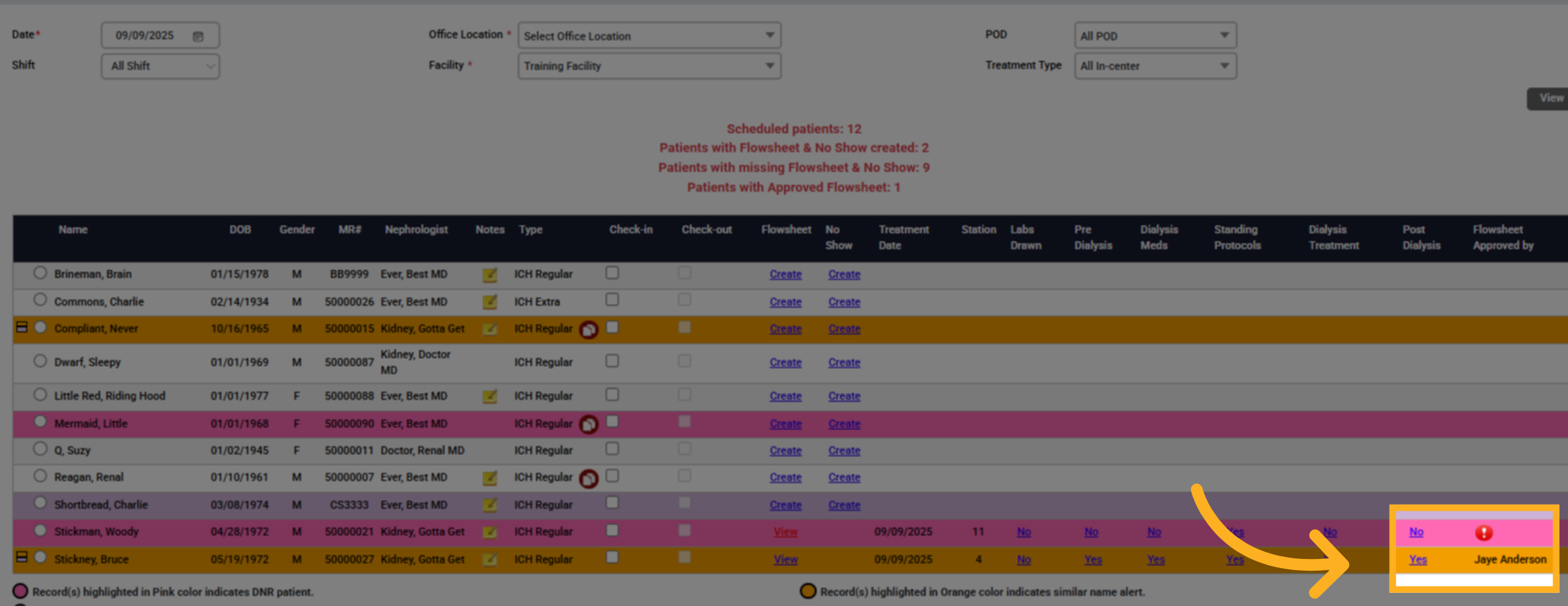
87. Closed Chart
Approved or completed charts will appear at the bottom, showing the name of the user who completed them.
88. Unlocking a flowsheet
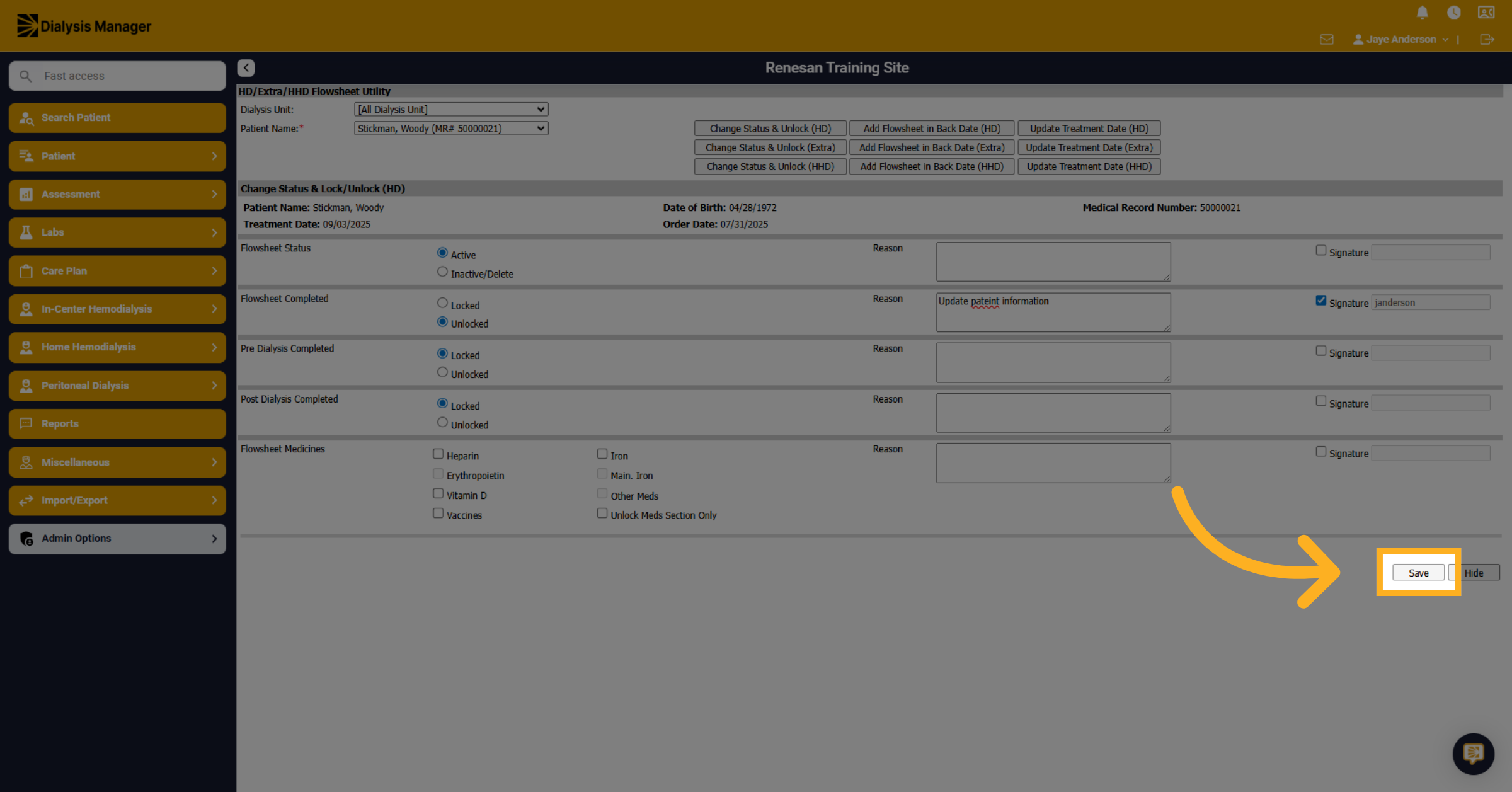
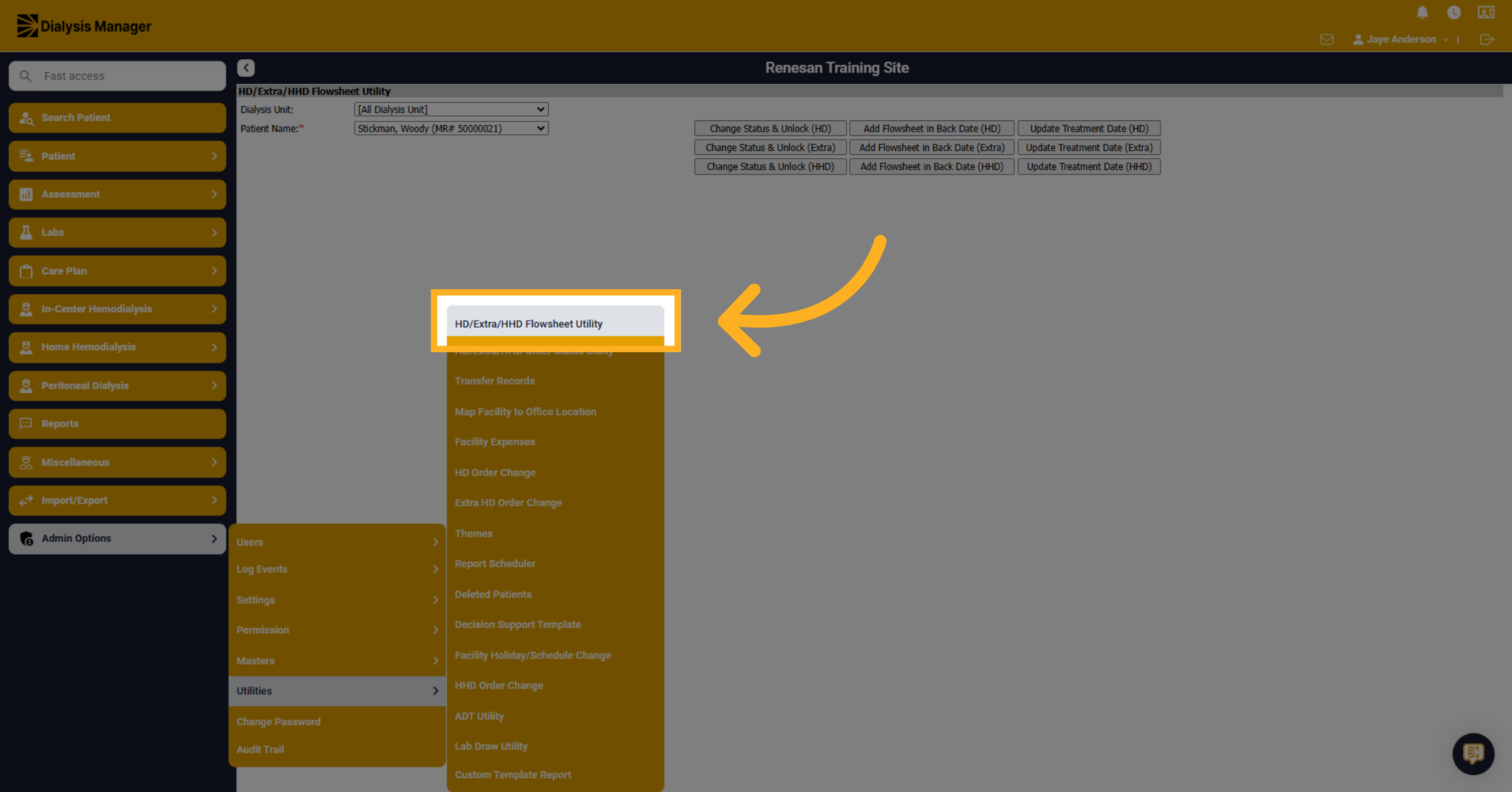
Please note that Charge Nurses or Admin will have the ability to unlock, delete, or change flowsheet status. You will need to click on Admin Options, then Utilities and finally "HD/Extra/HHD Flowsheet Utility" to begin managing flowsheets.
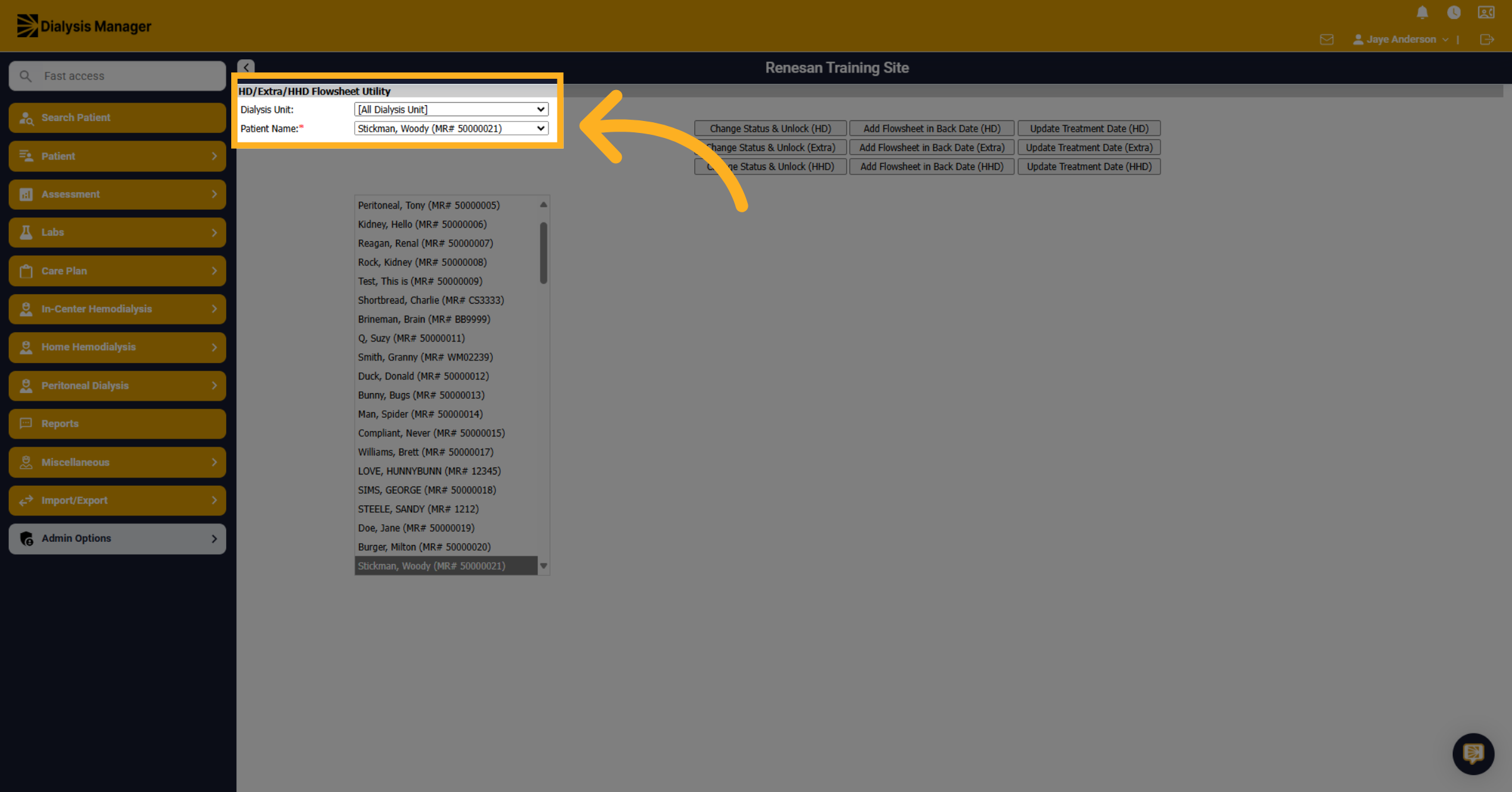
89. Select a patient name
Select the correct patient from the list to ensure you are working on the right record.
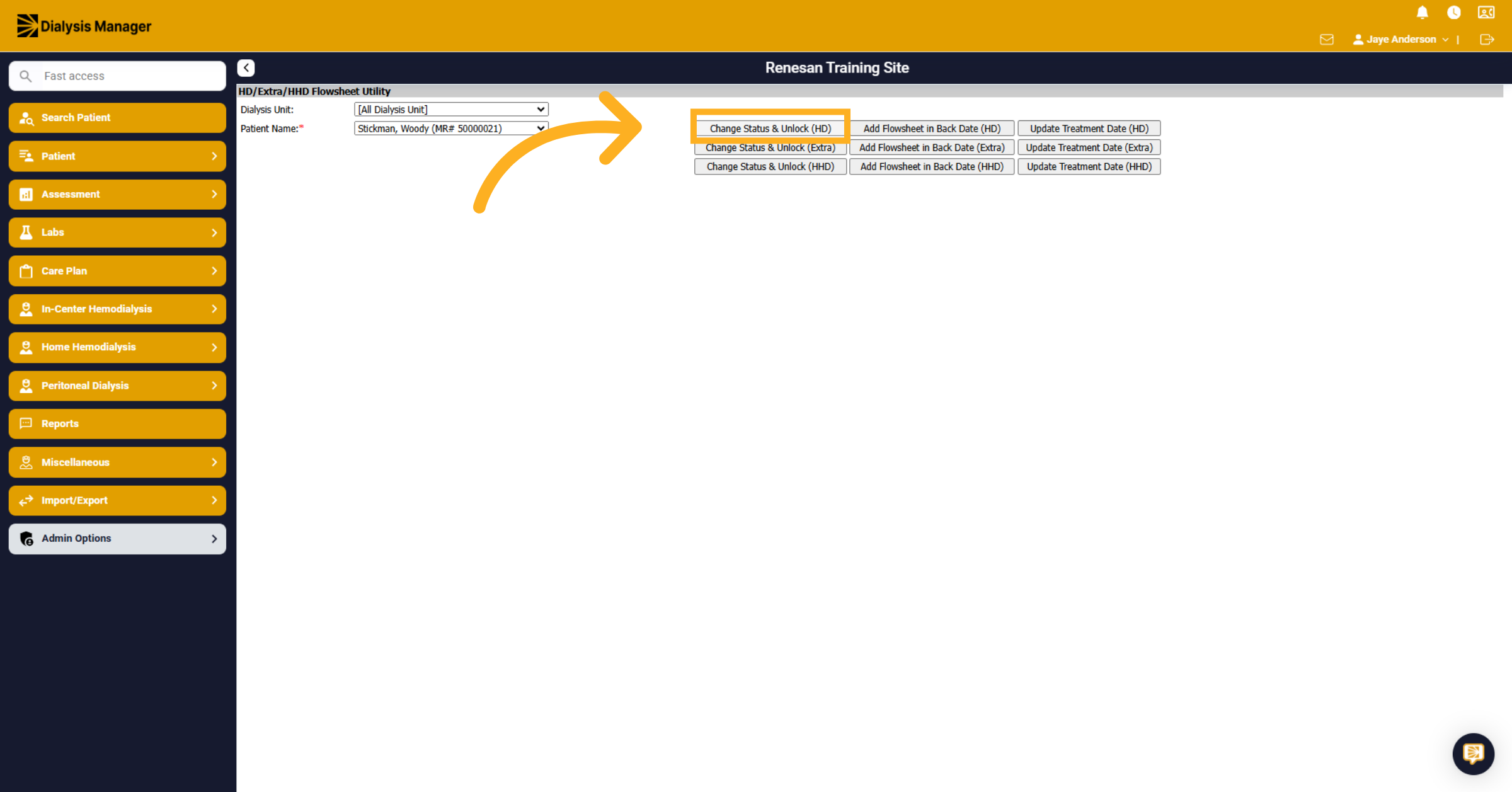
90. Change Status & Unlock (HD)
Click on "Change Status & Unlock (HD)" to modify the status of the patient's HD flowsheet.
91. Select the date
Select the date for the flowsheet you want to unlock or delete.
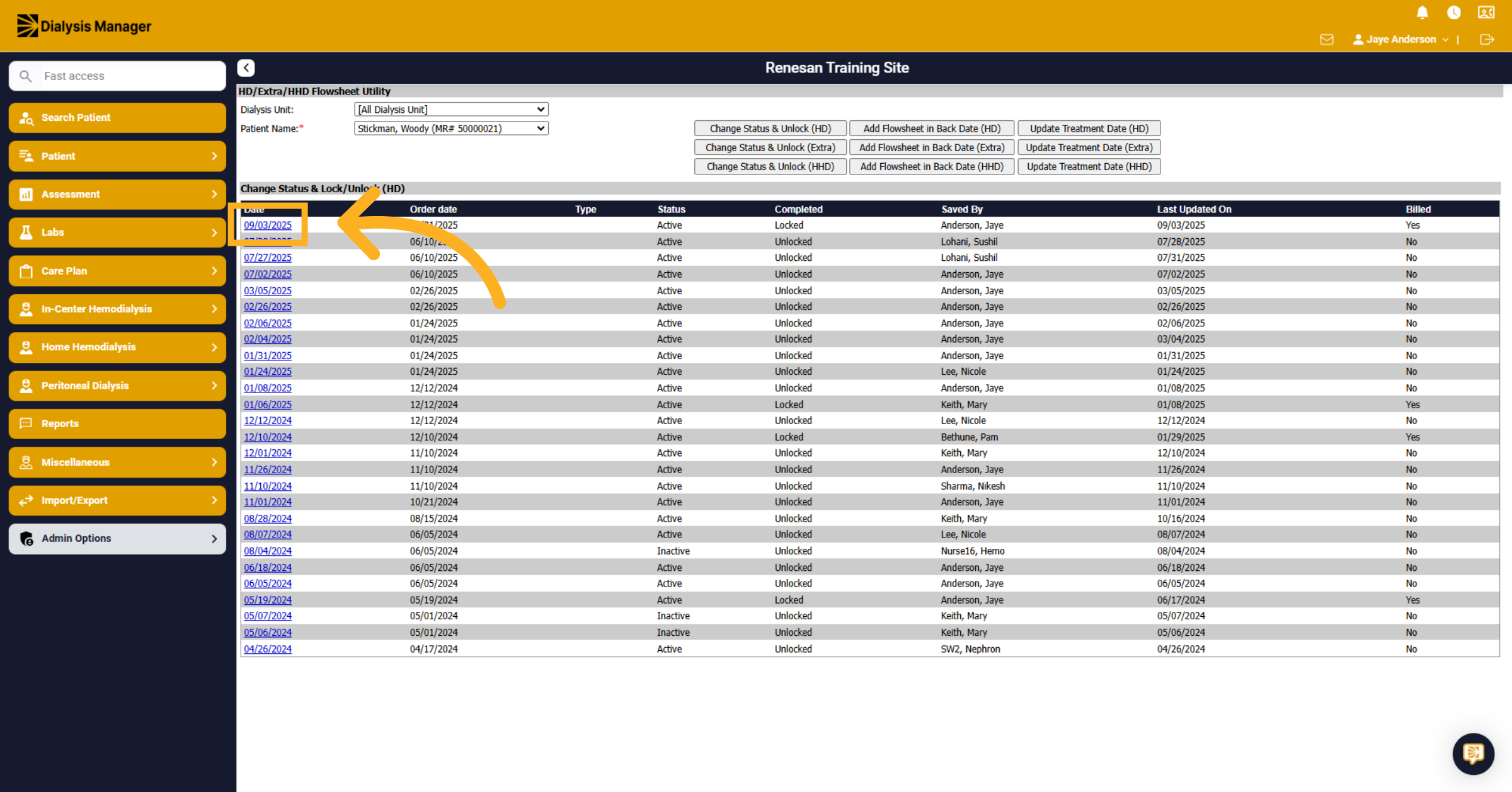
92. Click "Inactive/Delete"
If you need to Delete a flowsheet. Choose the "Inactive/Delete" option to proceed with deleting the flowsheet. Caution: this will permanently DELETE the flowsheet.
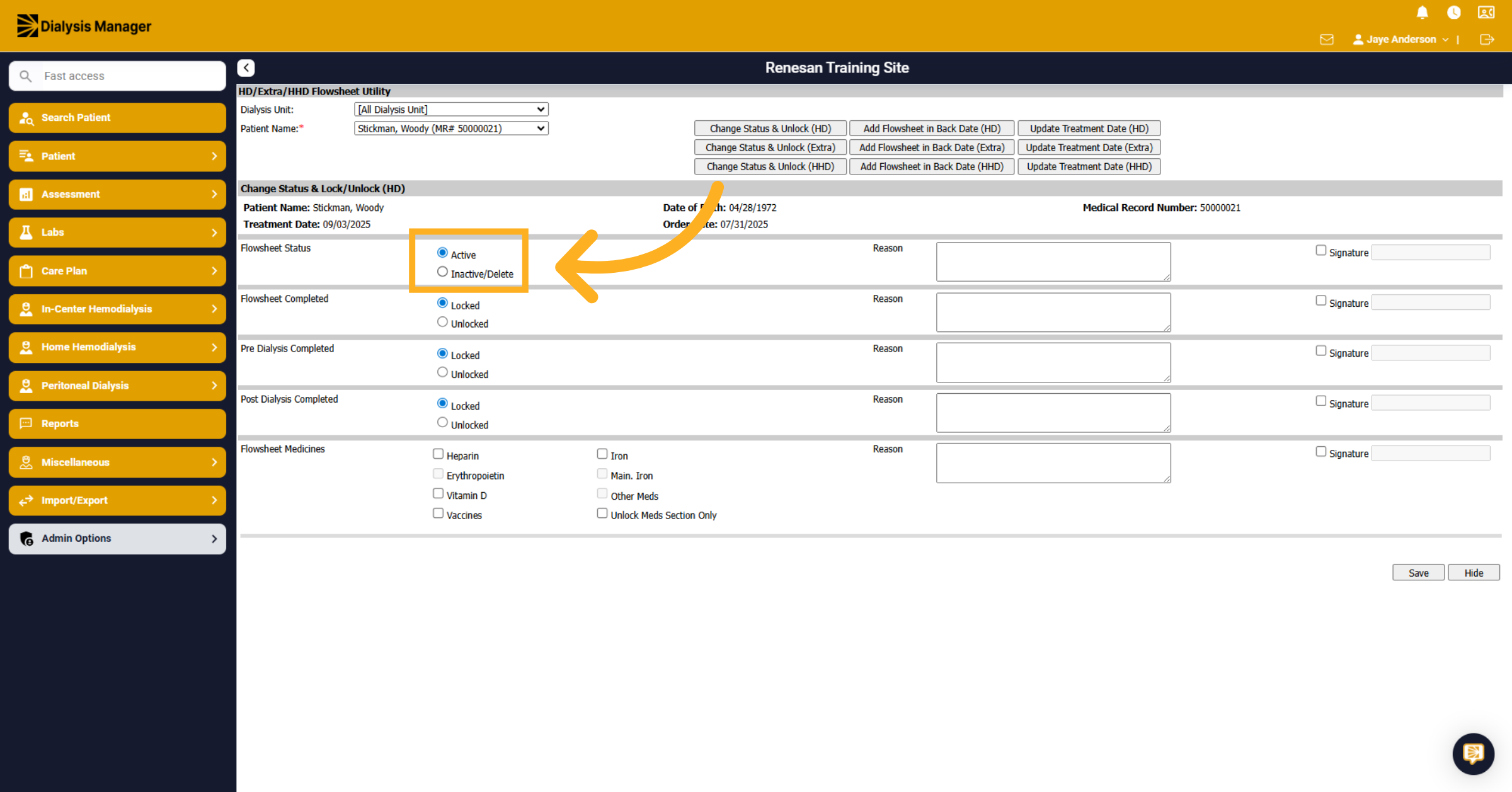
93. Enter a Reason
Click on the indicated area and fill in the reason for deleting patient flowsheet in the provided field.
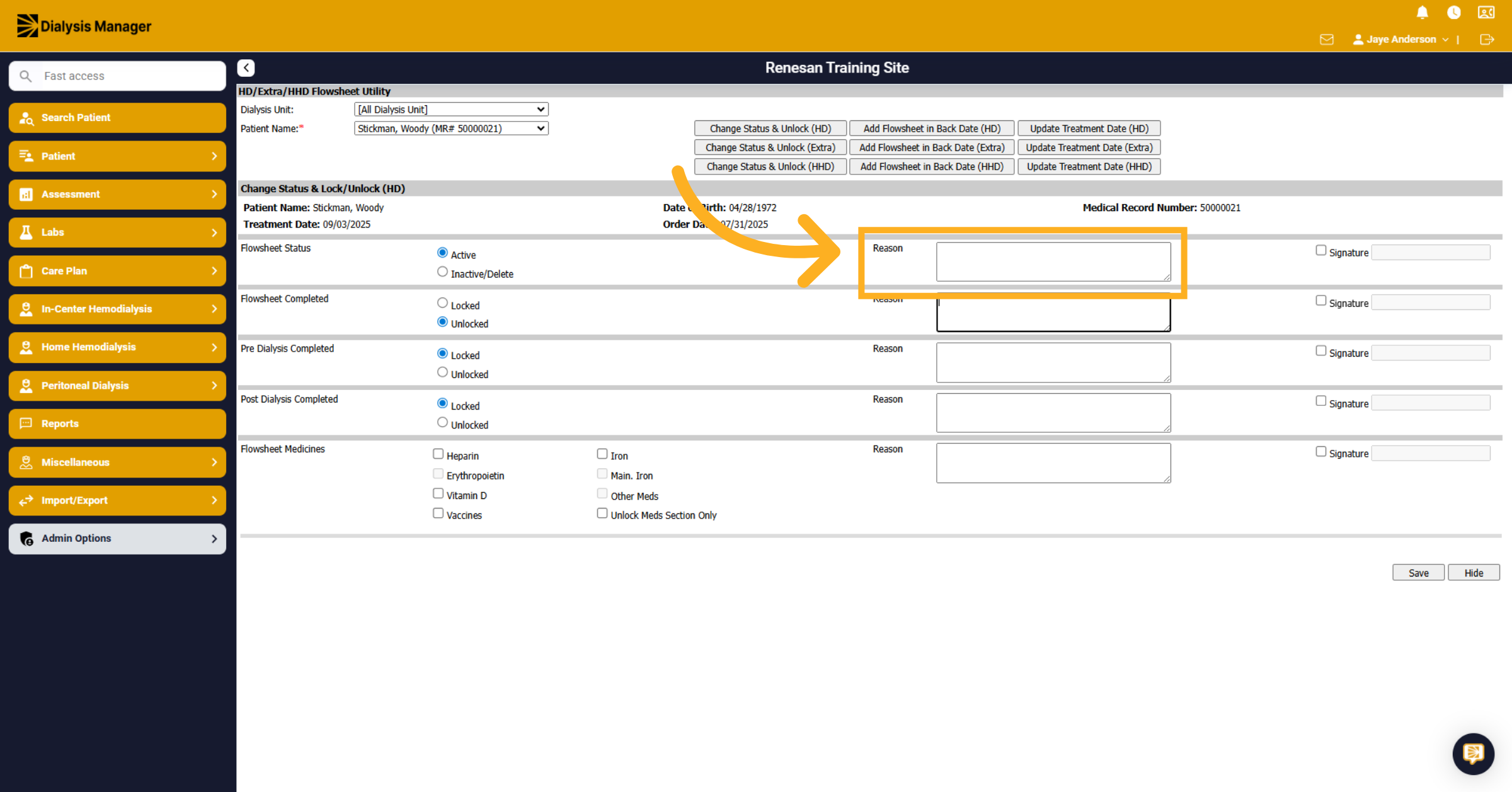
94. Click "Unlocked"
If you simply need to unlock a section of the flowsheet. Click on the "Unlocked" status option to unlock a specific section of the flowsheet. For example, Flowsheet Completed section allows you to open a locked flowsheet. Or you can open just the Pre or Post Dialysis sections.
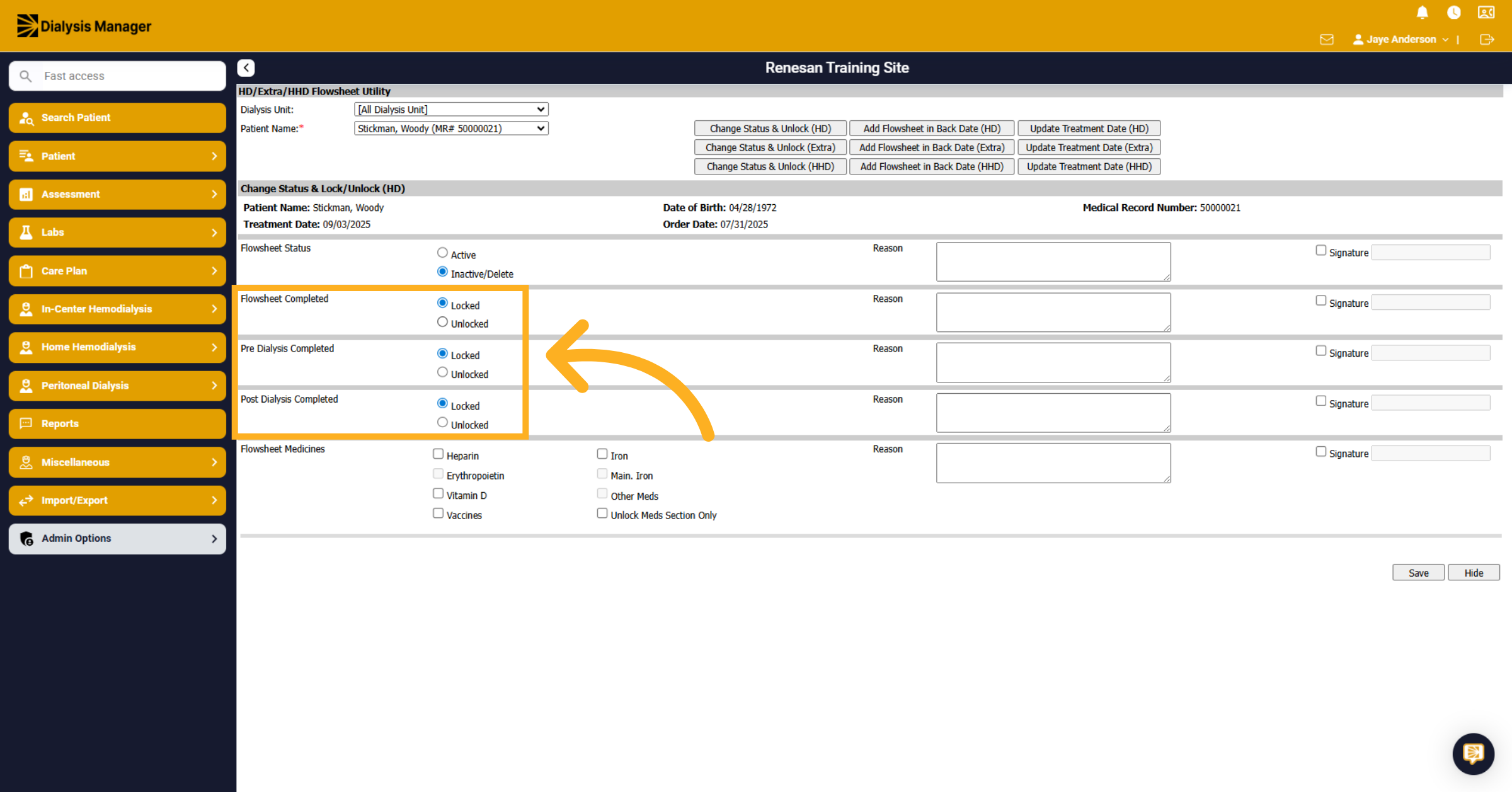
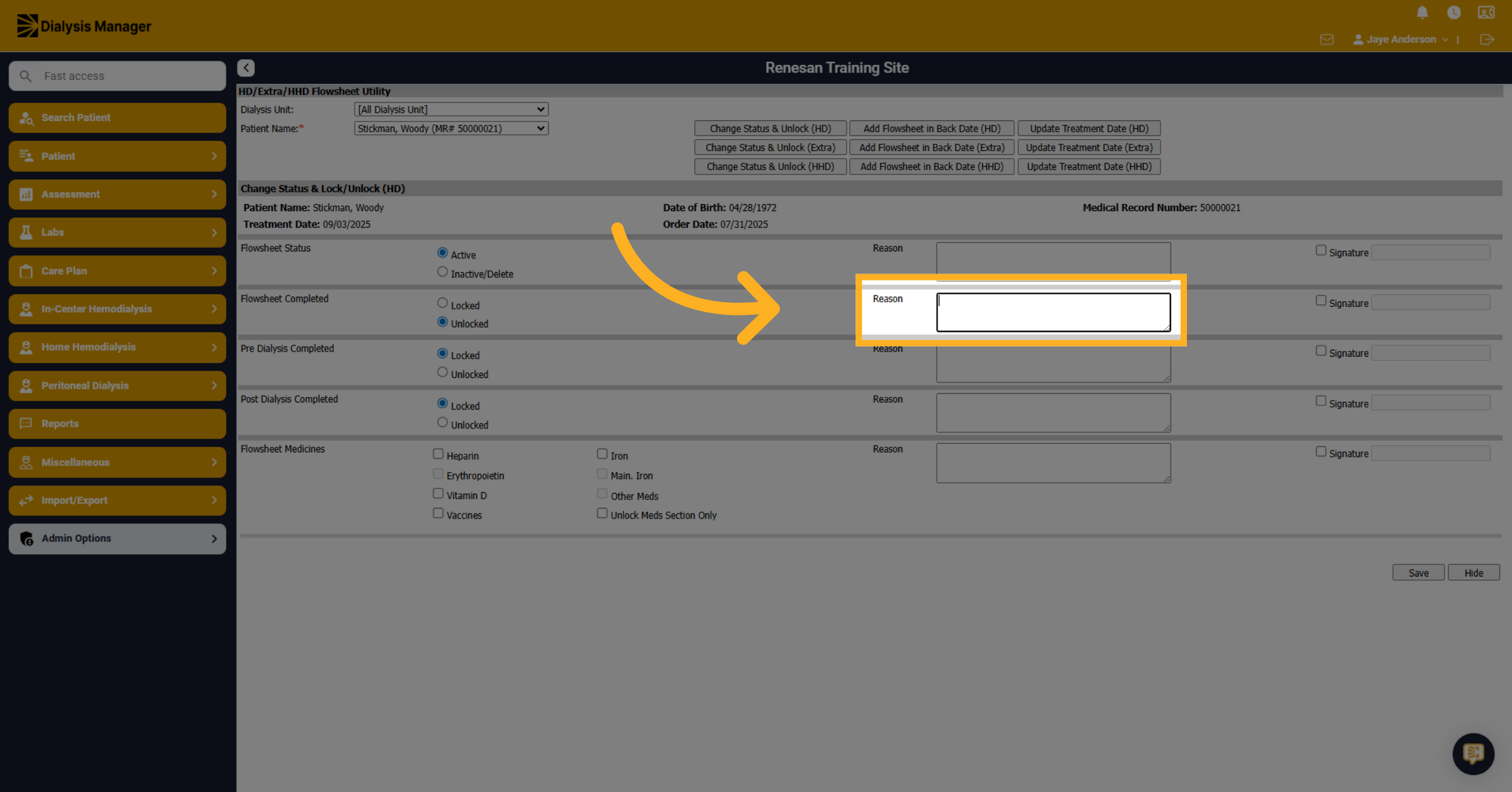
95. Enter Reasons
Click on the indicated area and fill in the reason for unlocking a section of the patient flowsheet in the provided field.
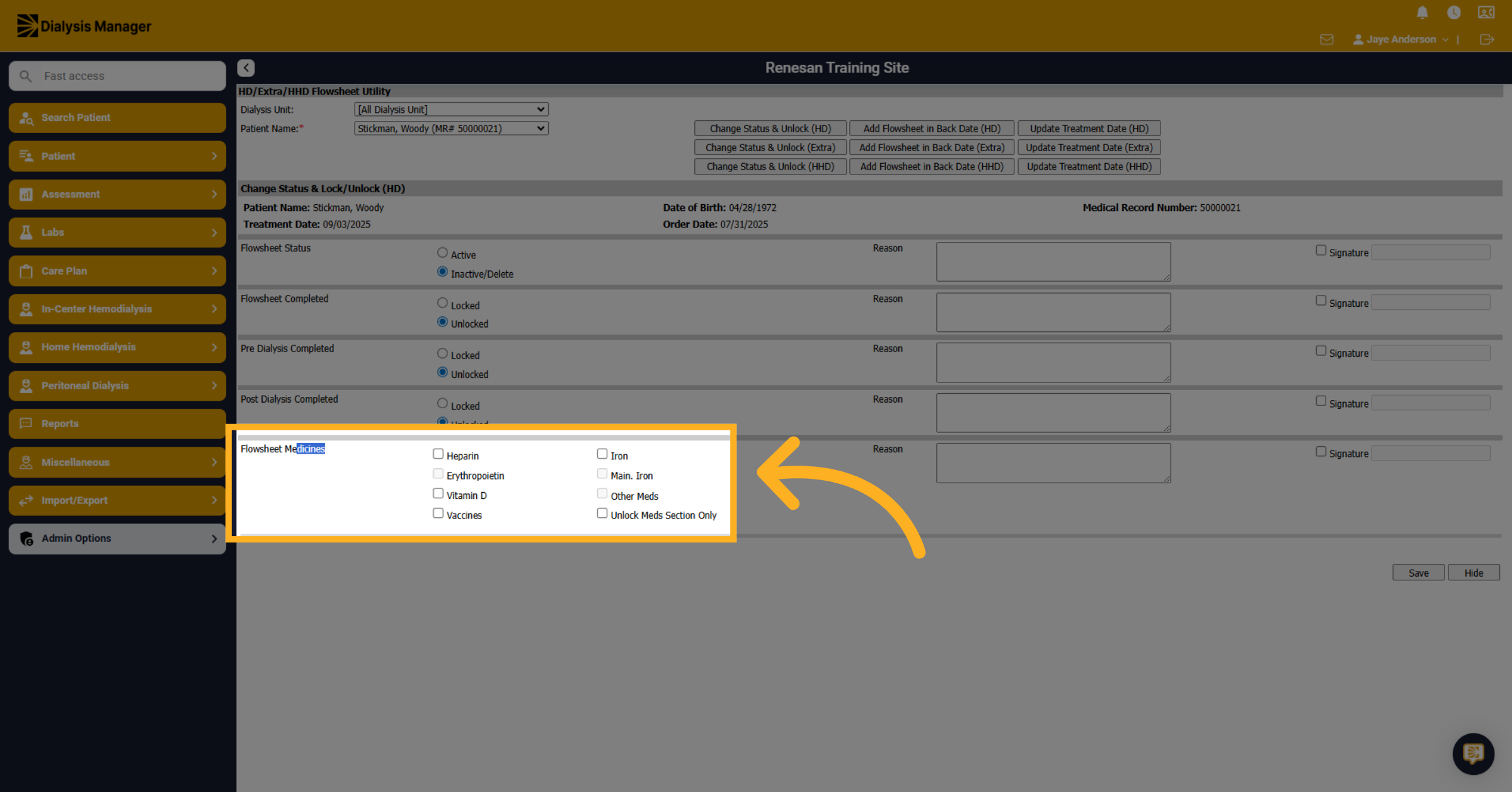
96. Click "Flowsheet Medicines"
Click on "Flowsheet Medicines" to open the specific sections within the medication screen.
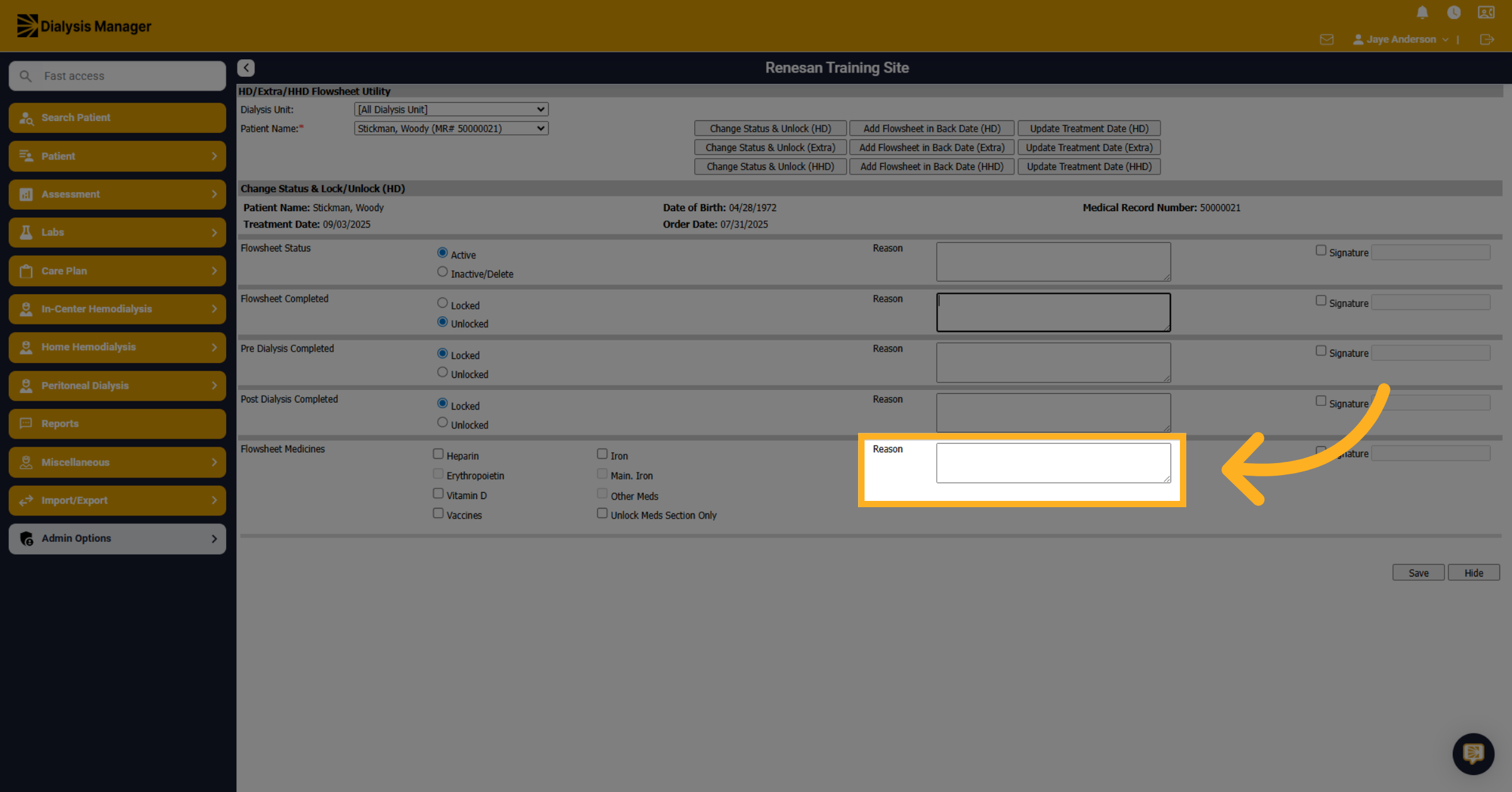
97. Enter Reasons
Click on the Reason box and fill in the reason for unlocking patient medications information in the provided field.
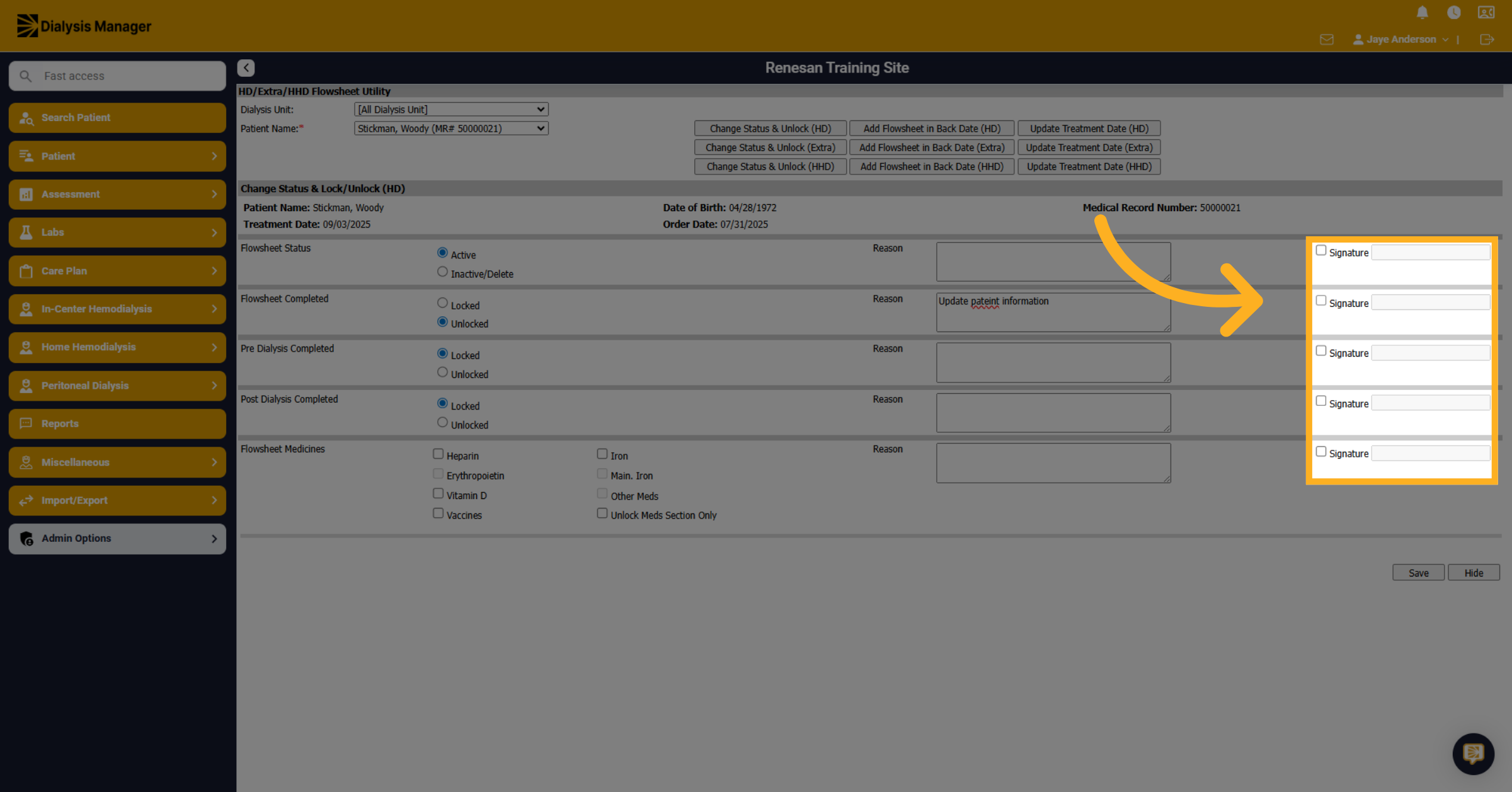
98. Click "Signature"
Depending on the section you are updating. Click on the associated "Signature" field to add your authorization. Enter and save the information with your username and PIN or password.
99. Click "Save"
Finally, click on the "Save" button to save changes and finish unlocking or deleting the flowsheet.