Transfer Extra Treatment Occurring Occasionally.
1. Introduction
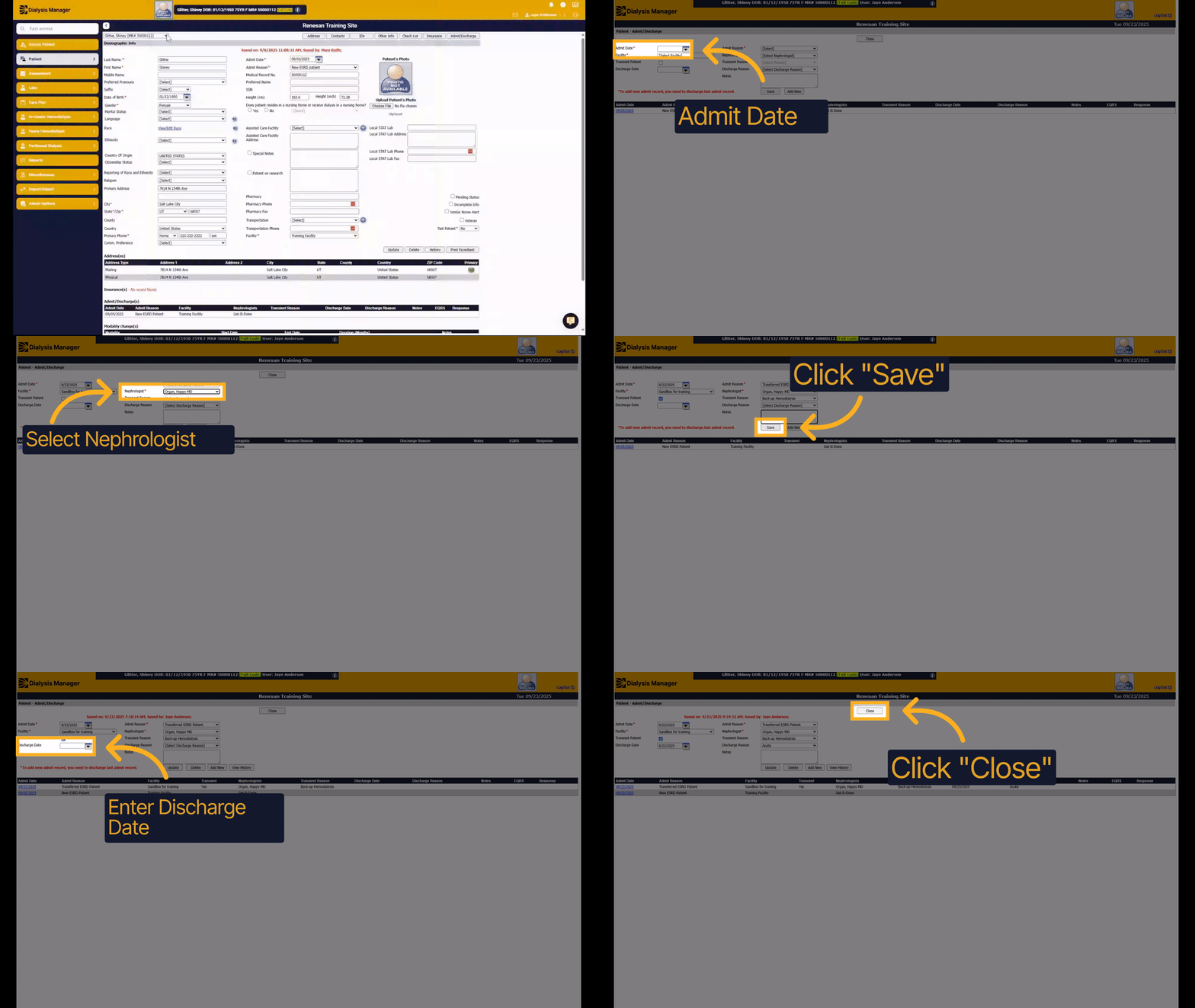
We are going to walk through the process of a patient who occasionally transfers for an extra treatment.
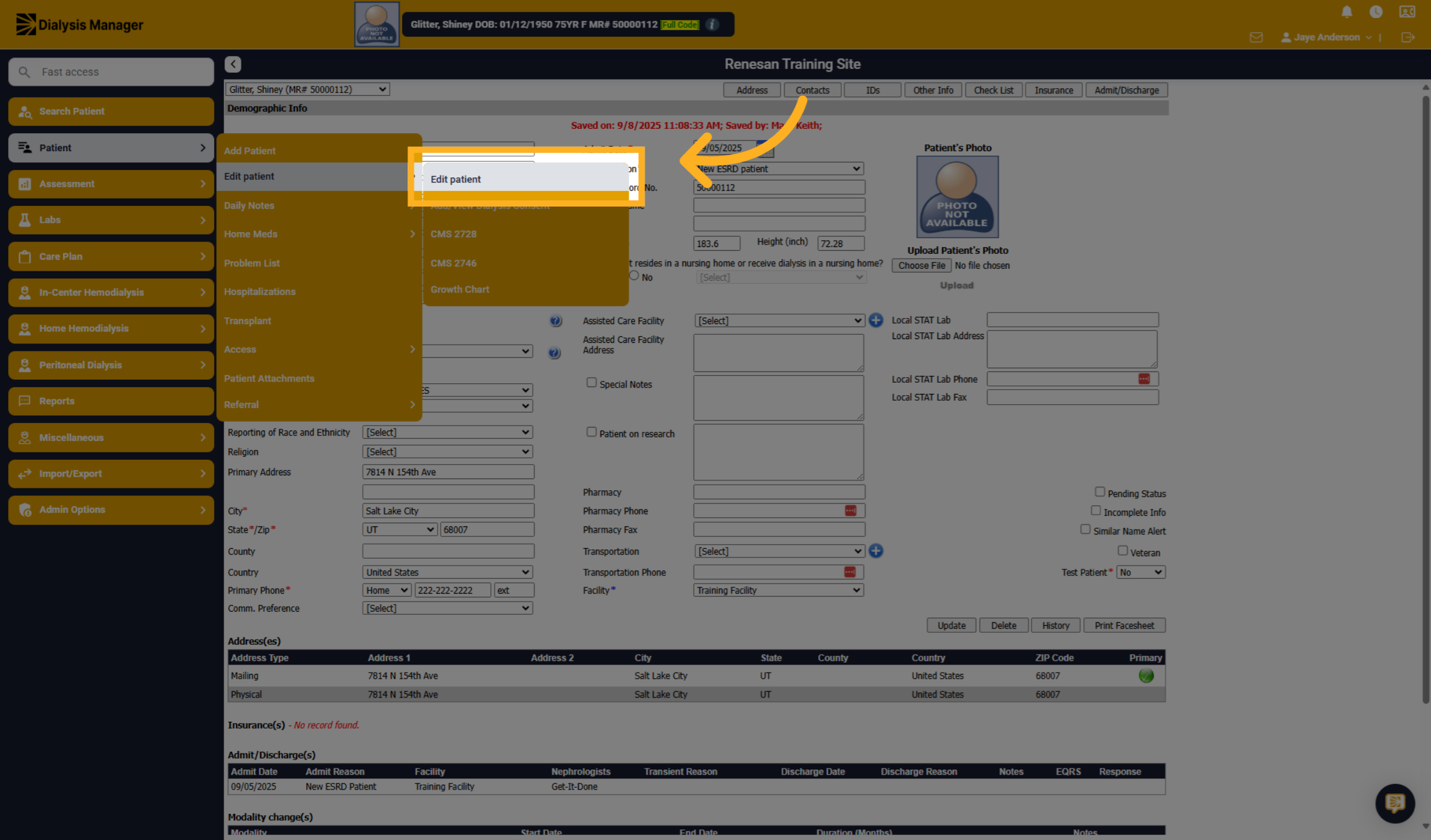
2. Click "Edit patient"
Once your patient is selected go to Patient, Edit Patient and Edit Patient.
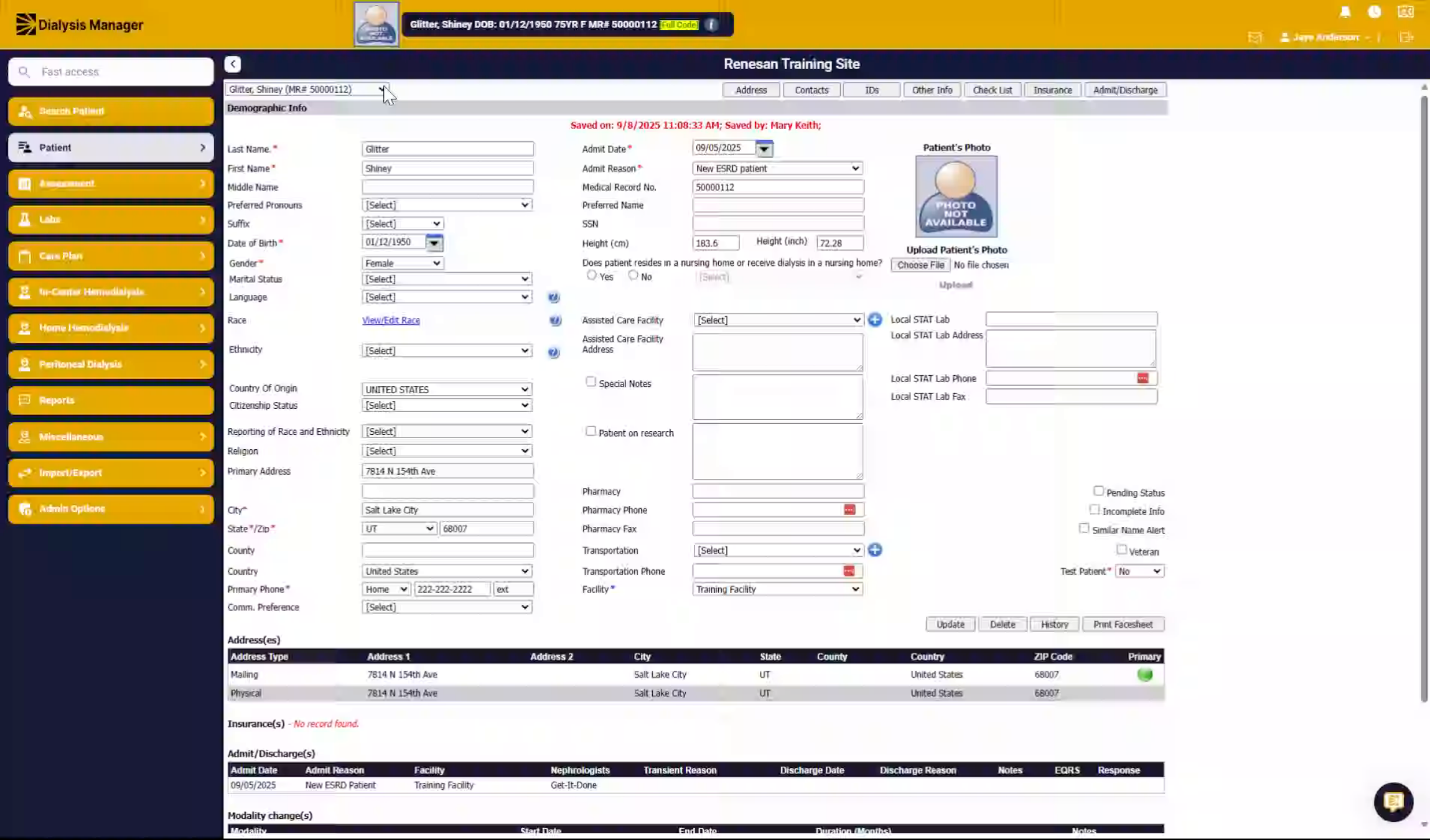
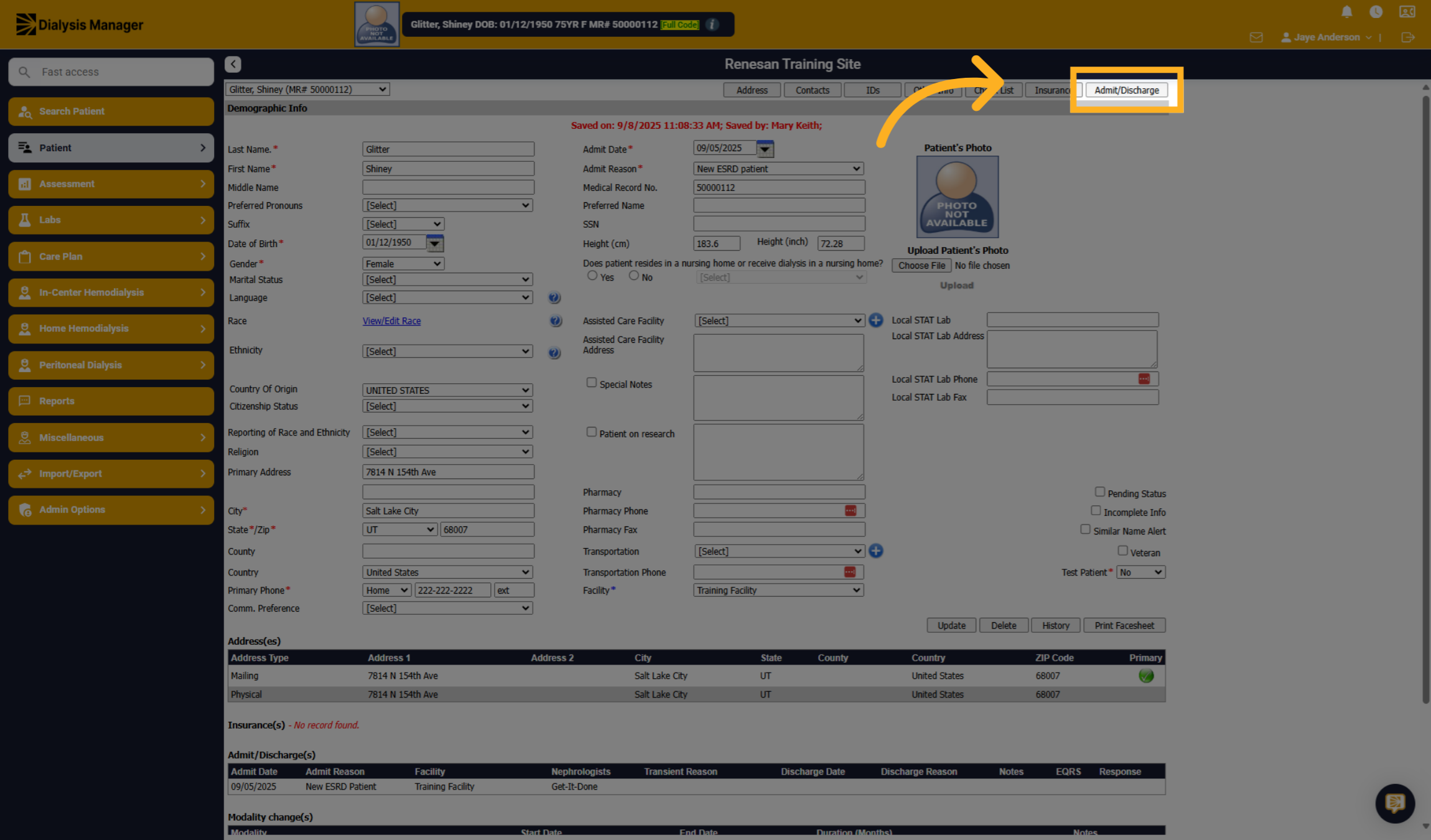
3. Click "Admit/Discharge"
Click "Admit/Discharge" to manage the patient's admission and discharge details.
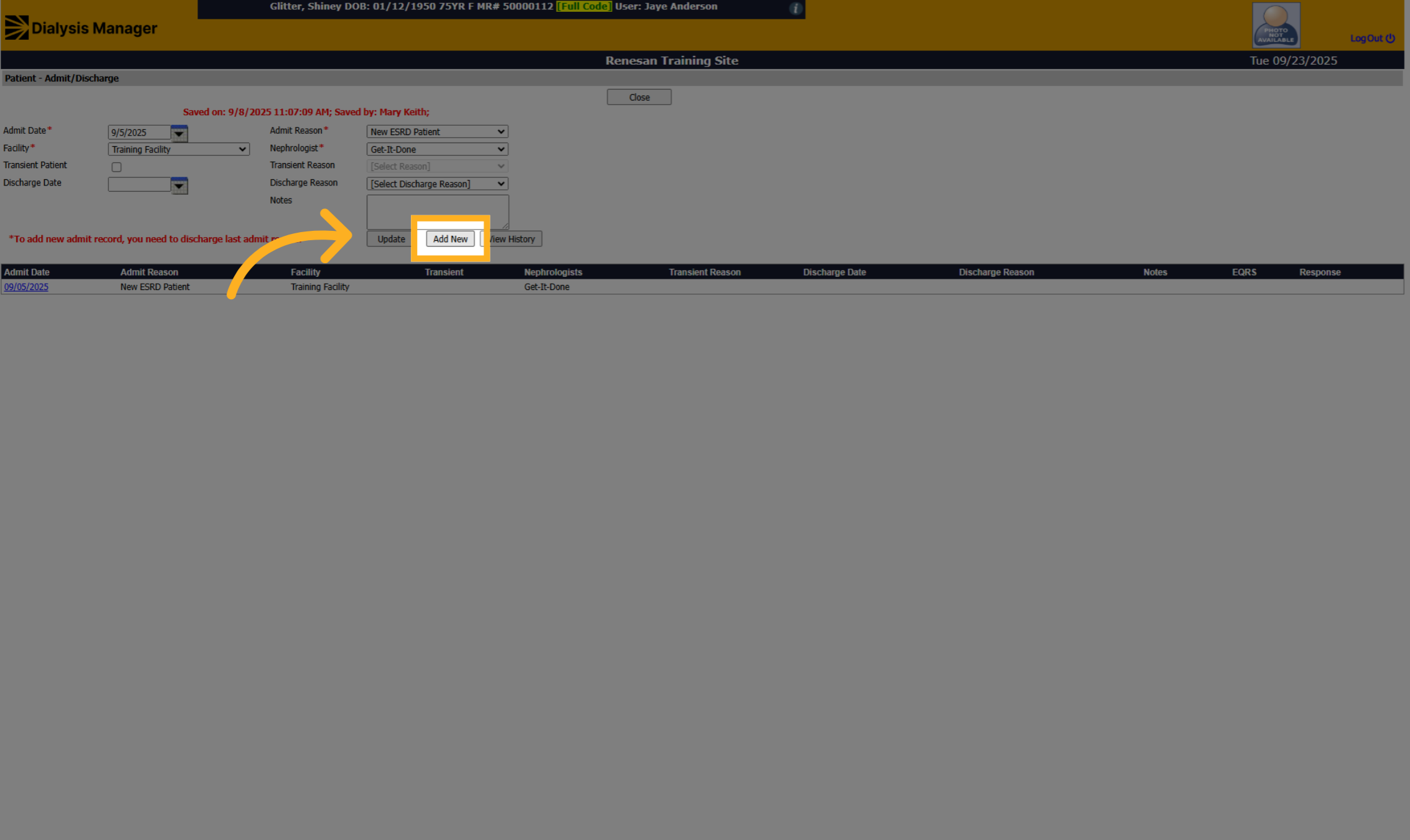
4. Click "Add New"
Click "Add New" to create a new admission record.
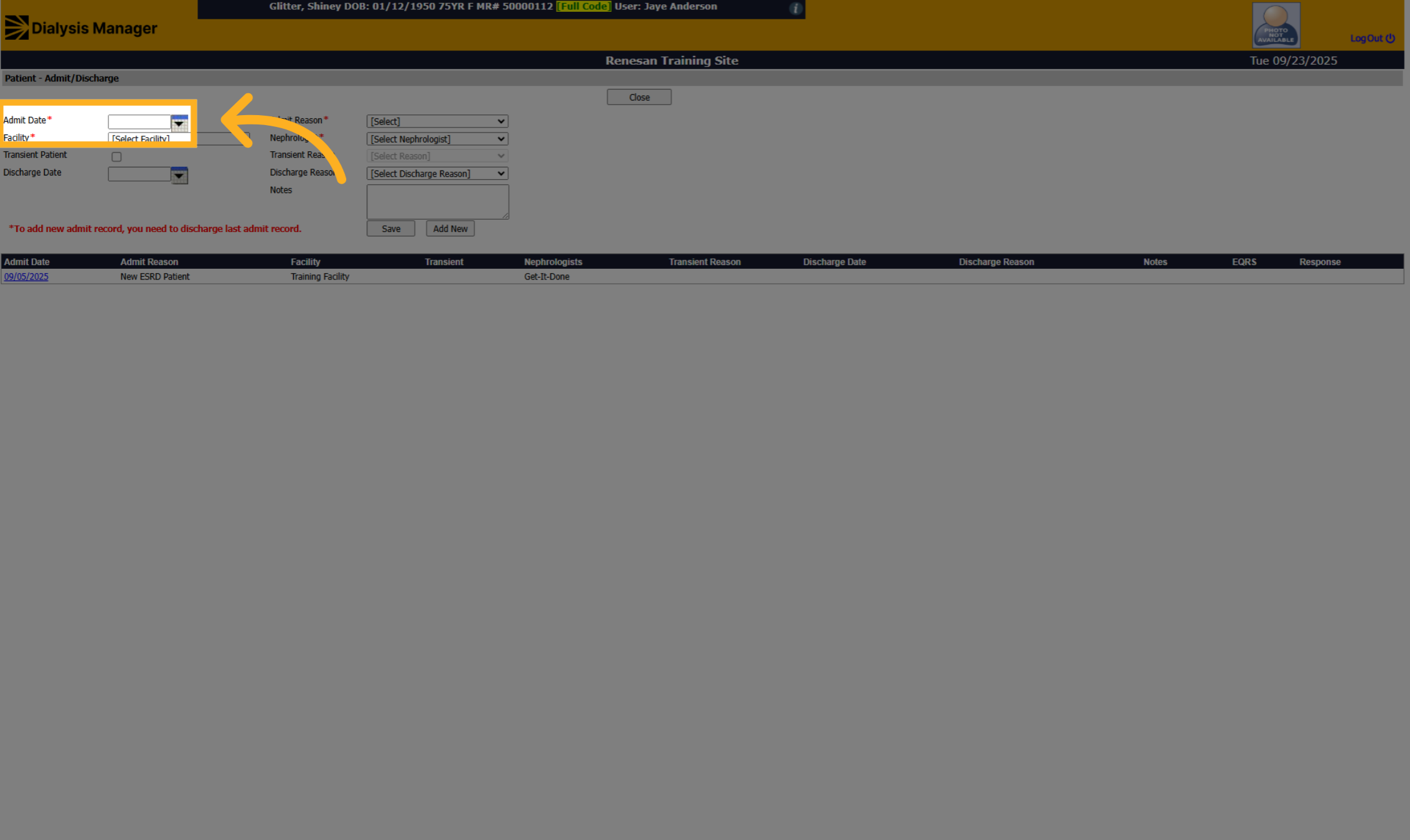
5. Enter Admit Date
Click the date field to specify when the extra treatment will start.
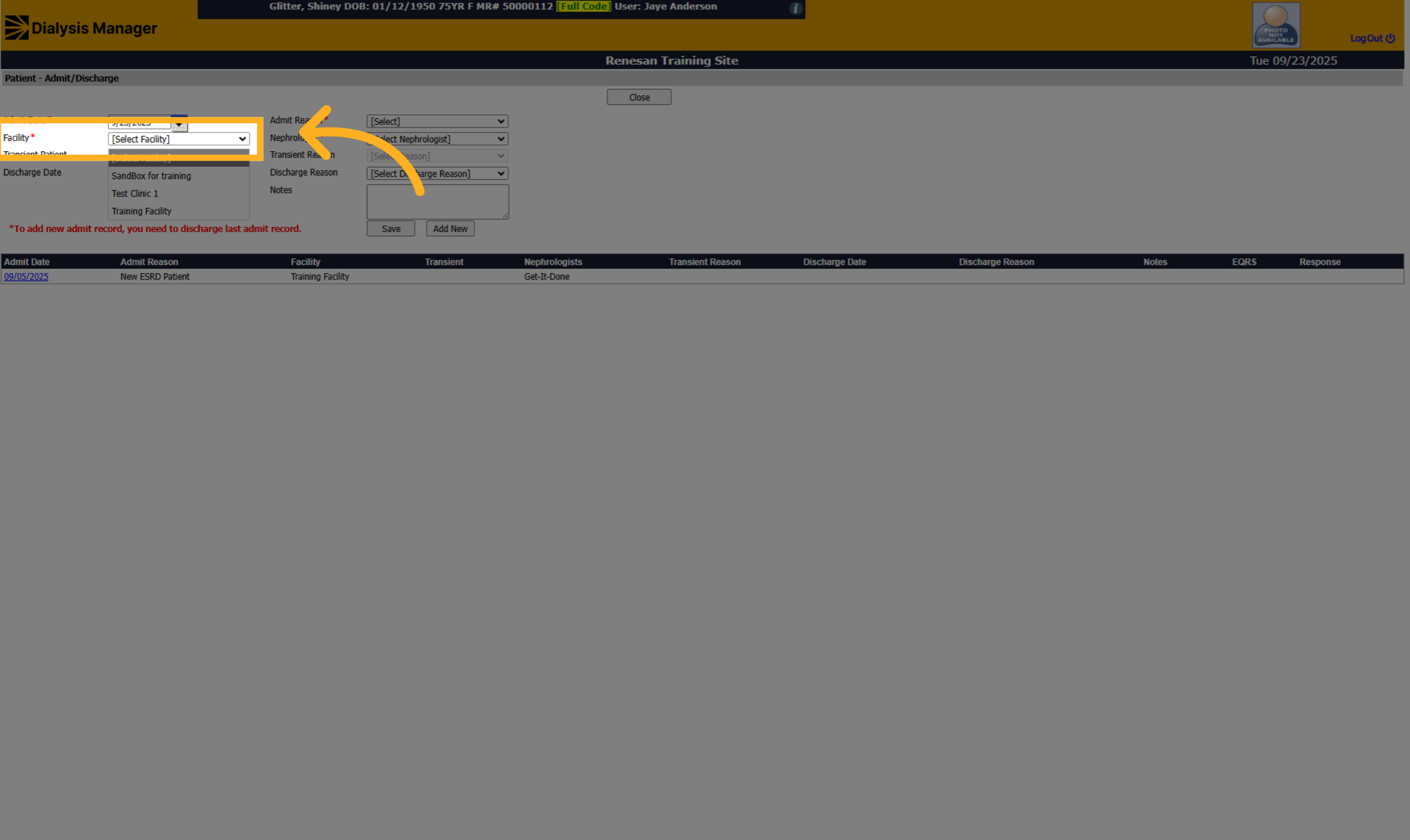
6. Select a Facility
Click the facility dropdown to select the facility where the extra treatment will occur.
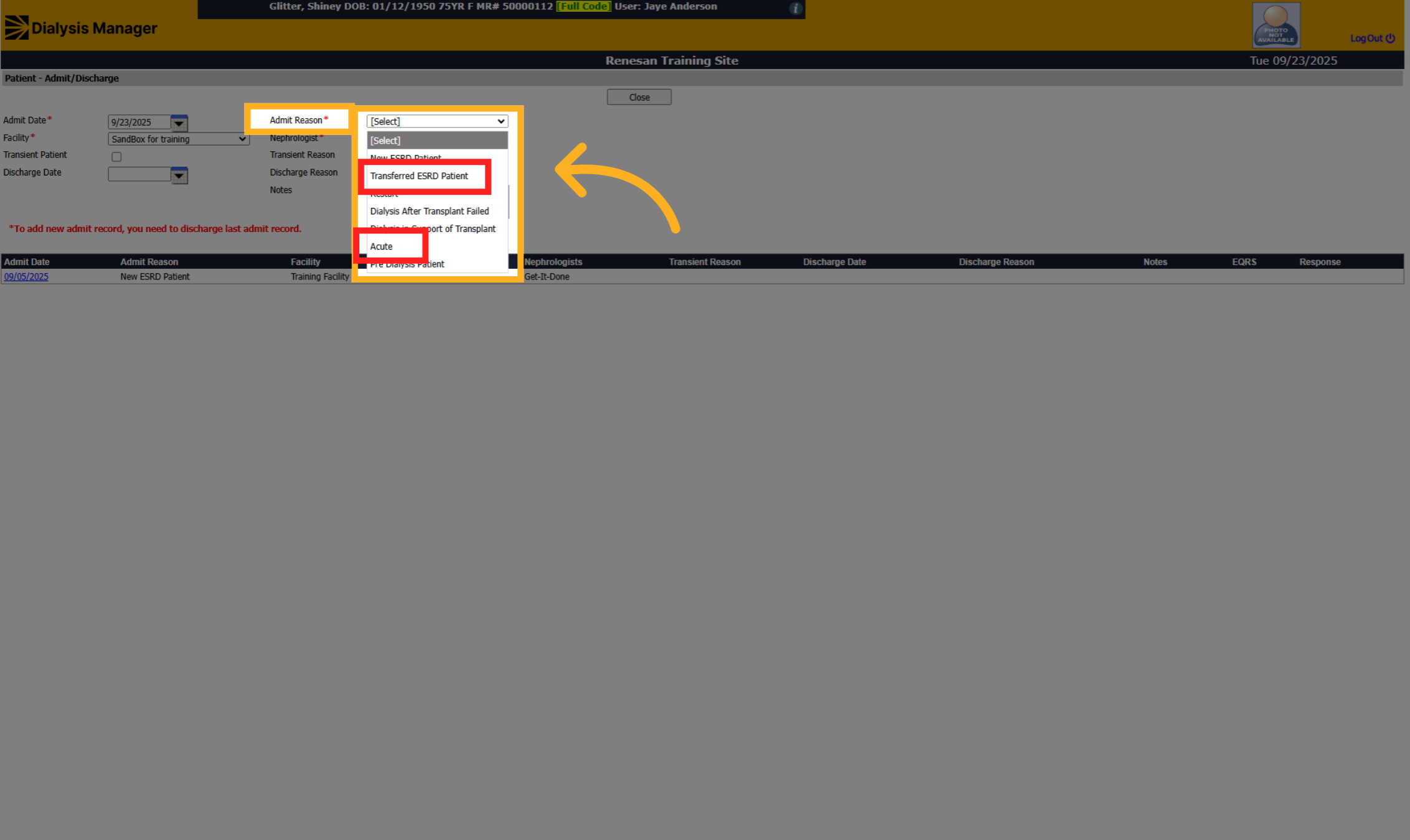
7. Select Admit Reason
Click the Admit Reason dropdown and select the appropriate status like Transferred ESRD Patient or Acute.
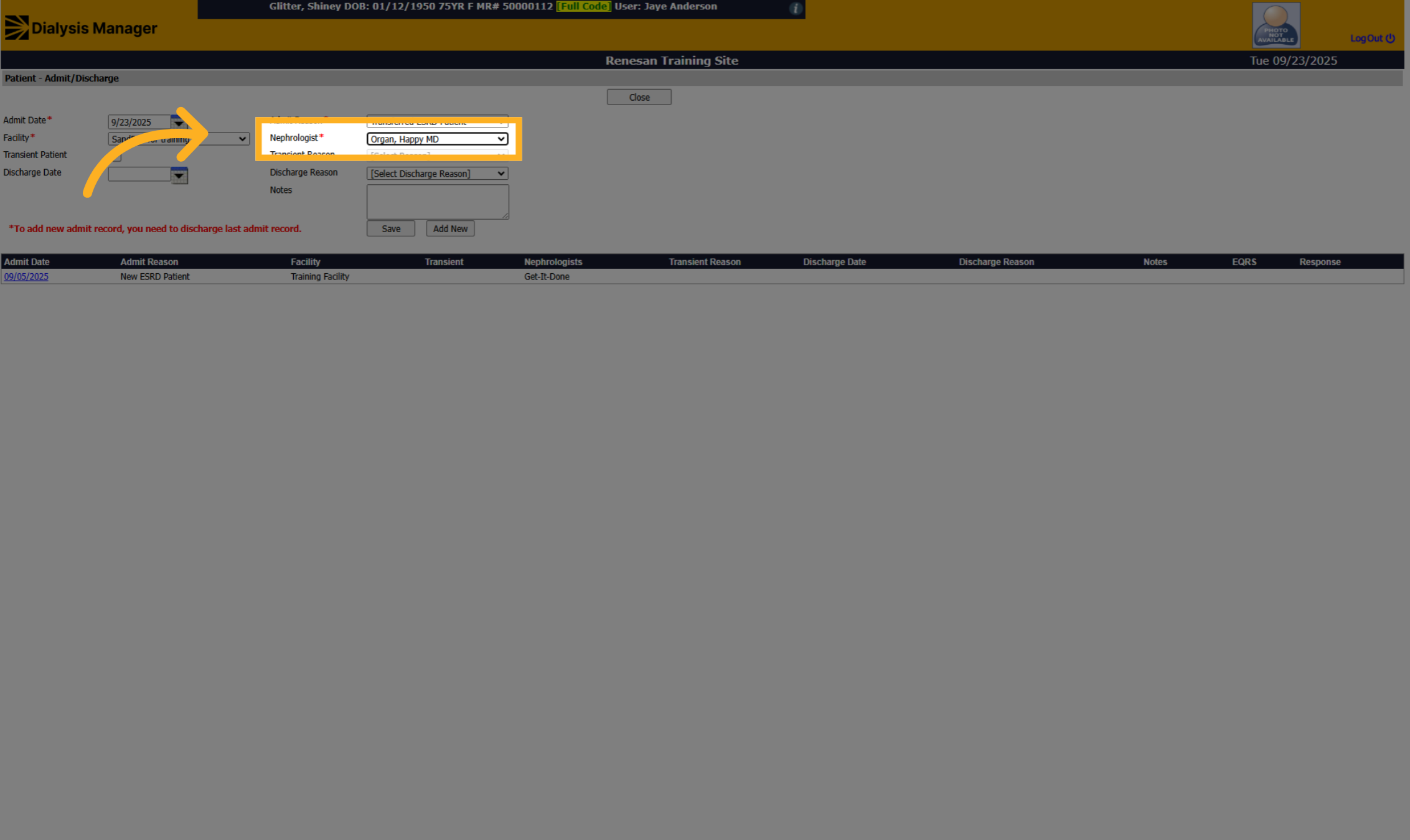
8. Select Nephrologist
Click the nephrologist dropdown to assign the patient's nephrologist.
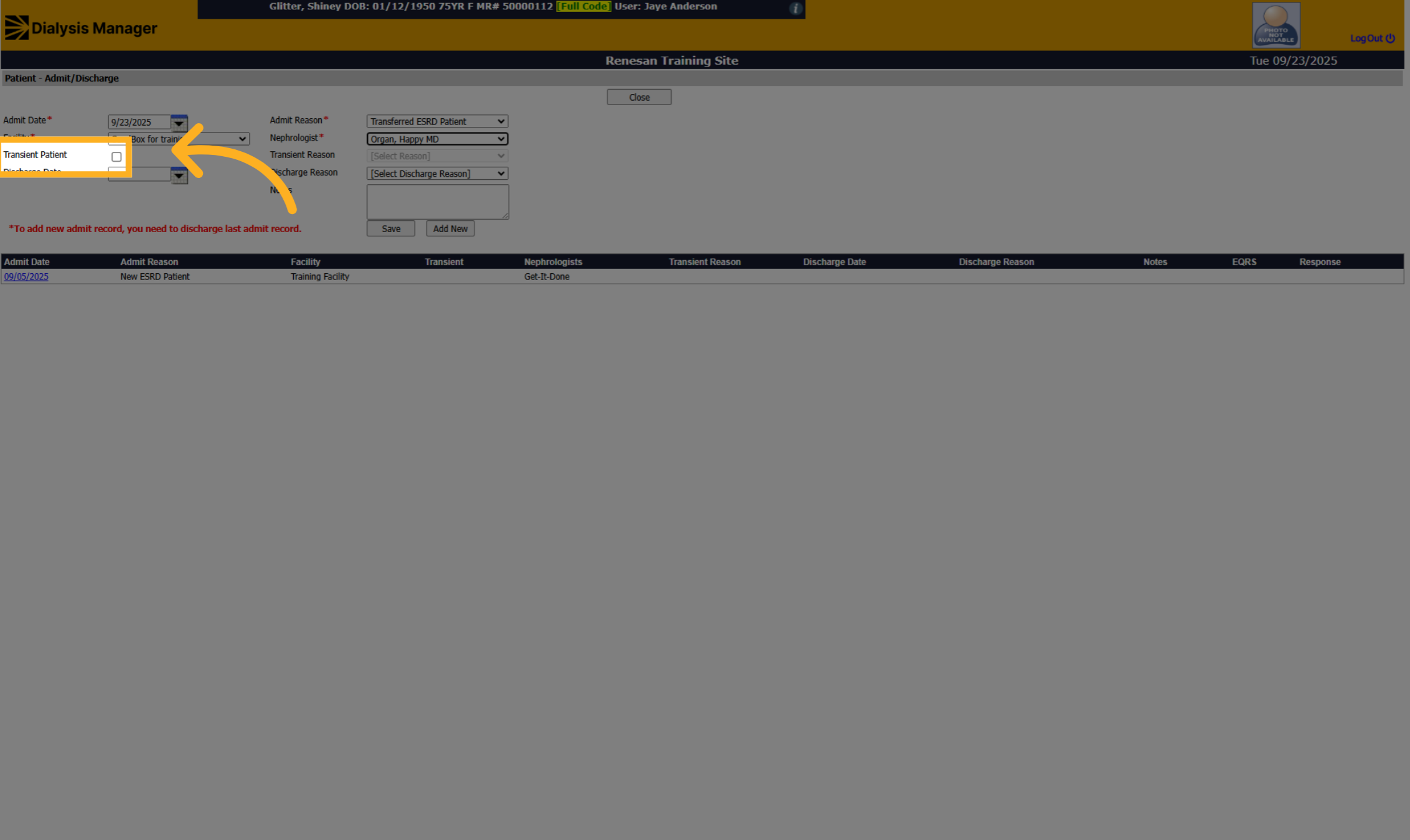
9. Click "Transient Patient"
Click the "Transient Patient" toggle to activate the transit patient status.
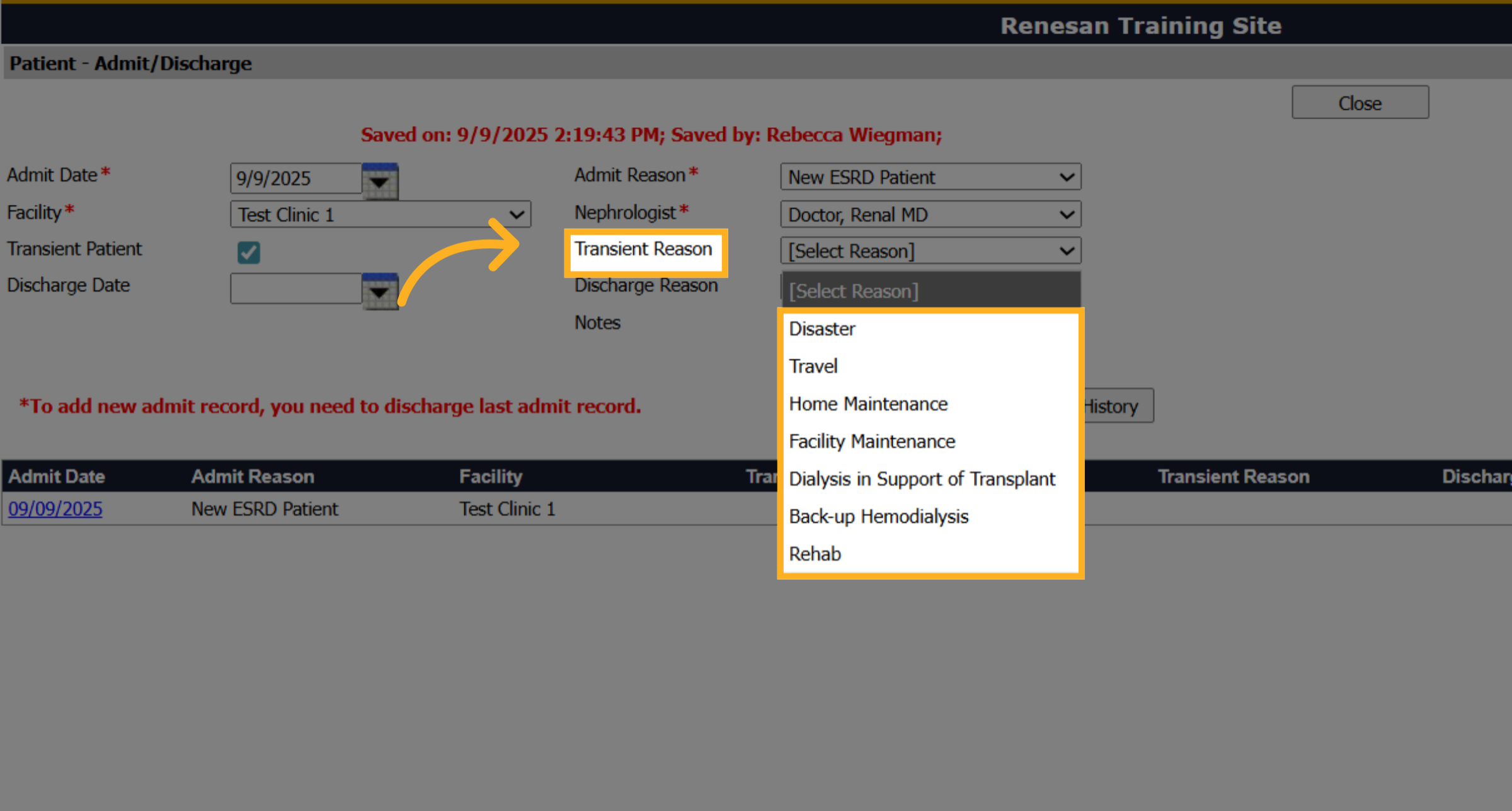
10. Select Transient Reason
Please select the reason for the transfer. Is the patient traveling to visit family or receiving an extra treatment. Is there a natural disaster necessitating evacuation? Also, consider scenarios where a patient has fallen, broken a hip, and remains in a rehabilitation facility. Or is your PD patient backing up to Hemodialysis?
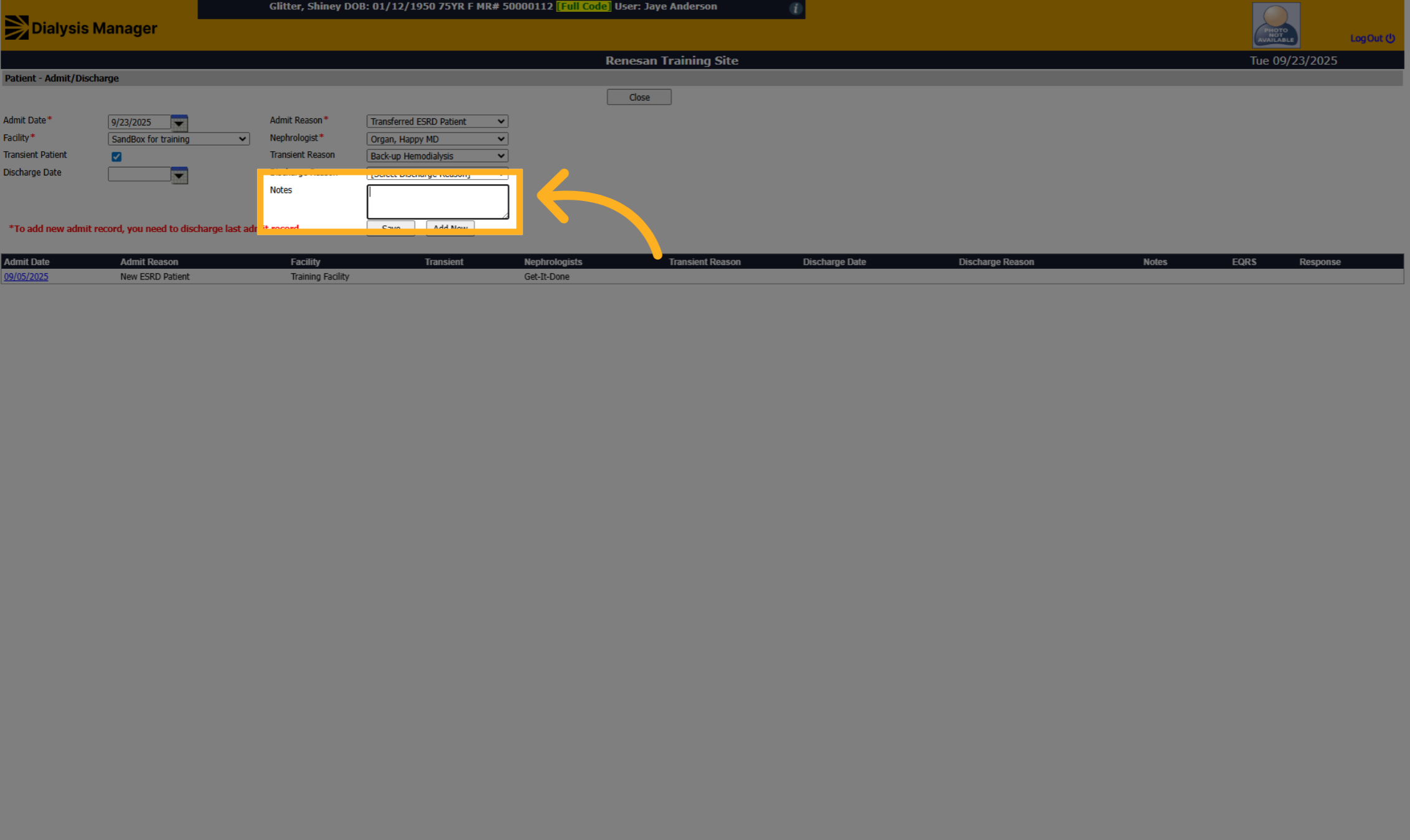
11. Click "Notes"
Click "Notes" to add any additional information regarding the transfer.
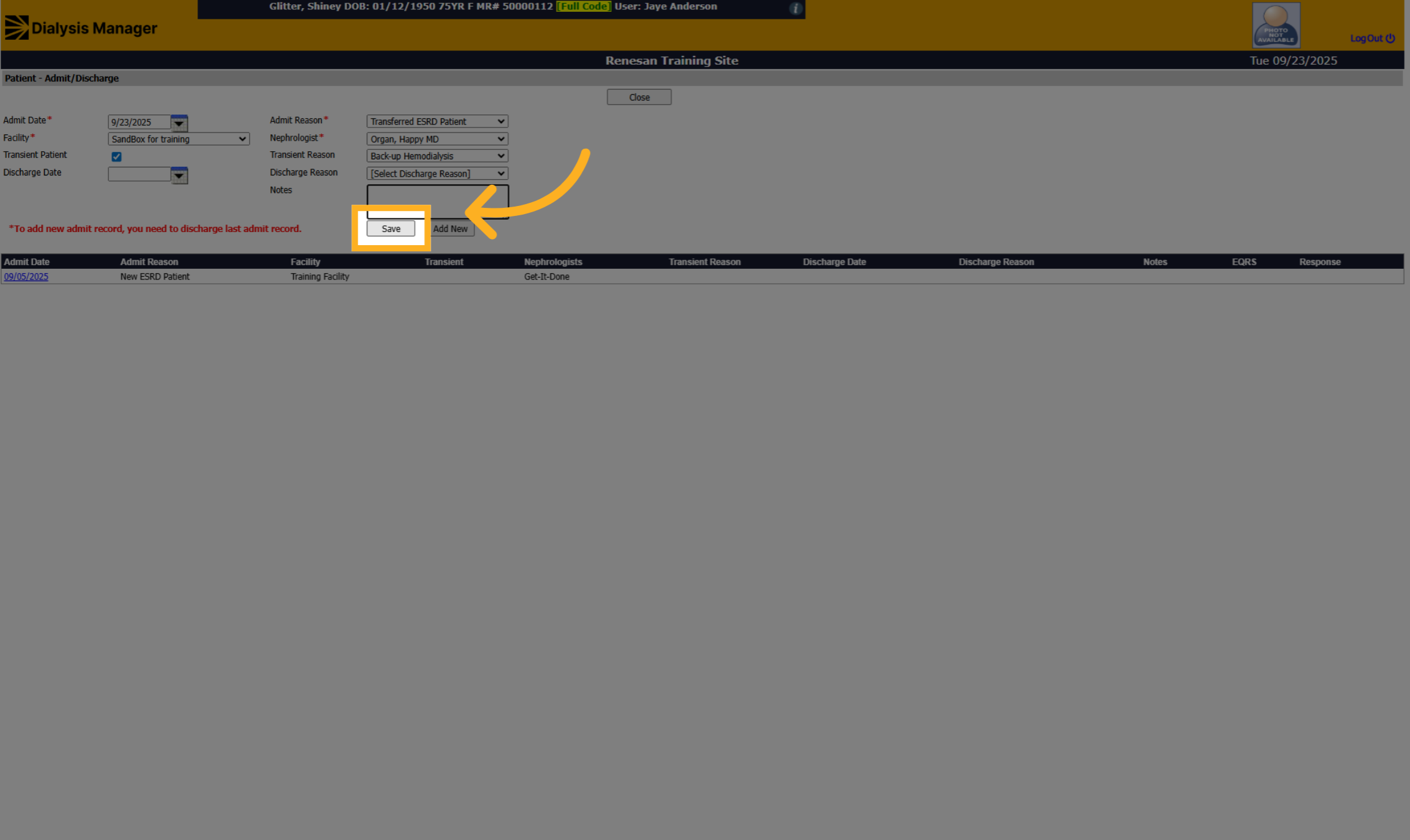
12. Click "Save"
Click "Save" to confirm and save all admission and transfer details.
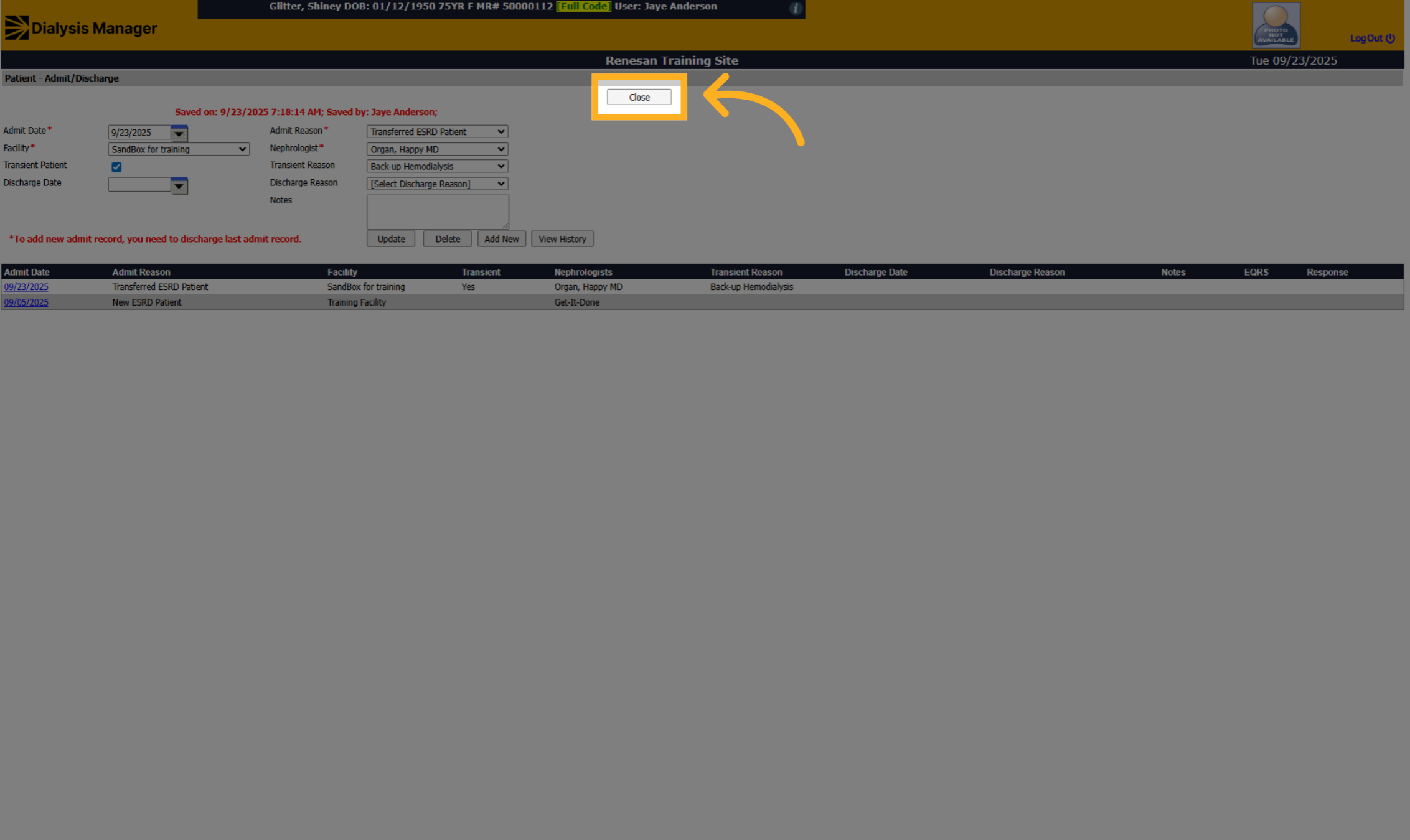
13. Click "Close"
Click "Close" to exit the admission and discharge screen.
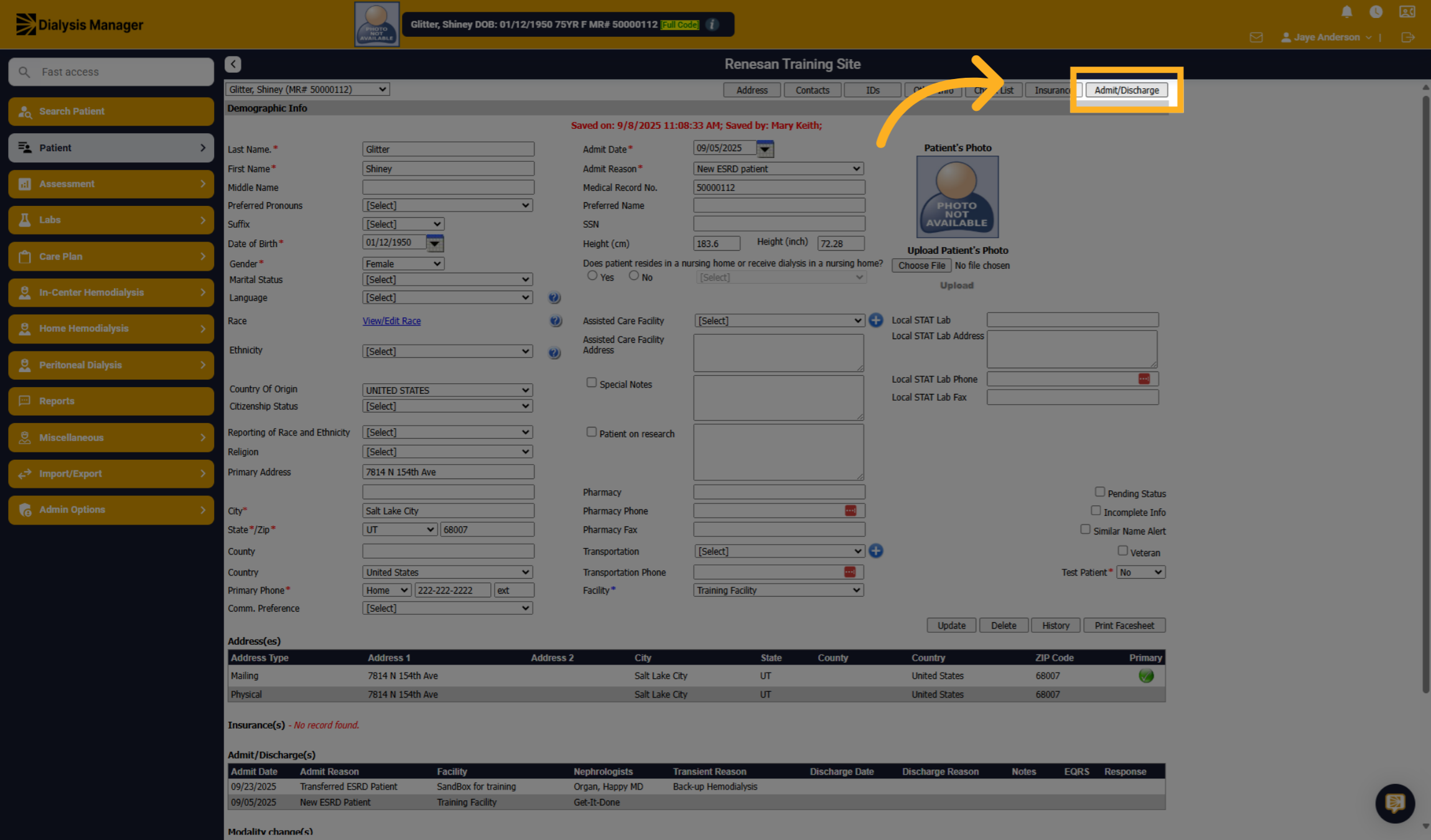
14. Click "Admit/Discharge"
There are two options for discharging the patient from the transient facility. The transient facility can discharge the patient once treatment is complete, or the staff at the primary facility can discharge the transient event once the patient returns. Click “Admit Discharge” to begin the discharge process.
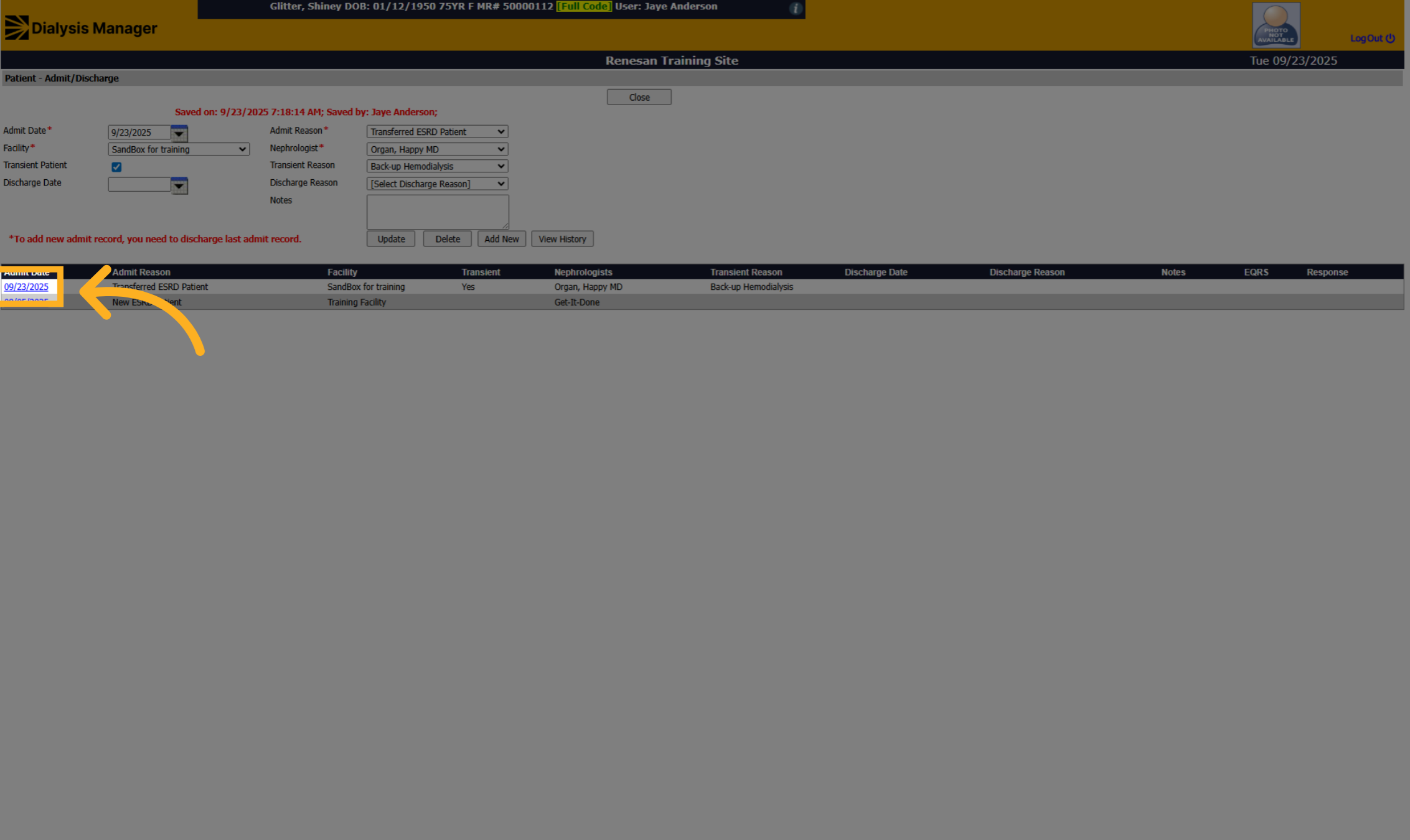
15. Click "date"
Click "Hyperlink Date field" to select the discharge date for the patient we want to discharge.
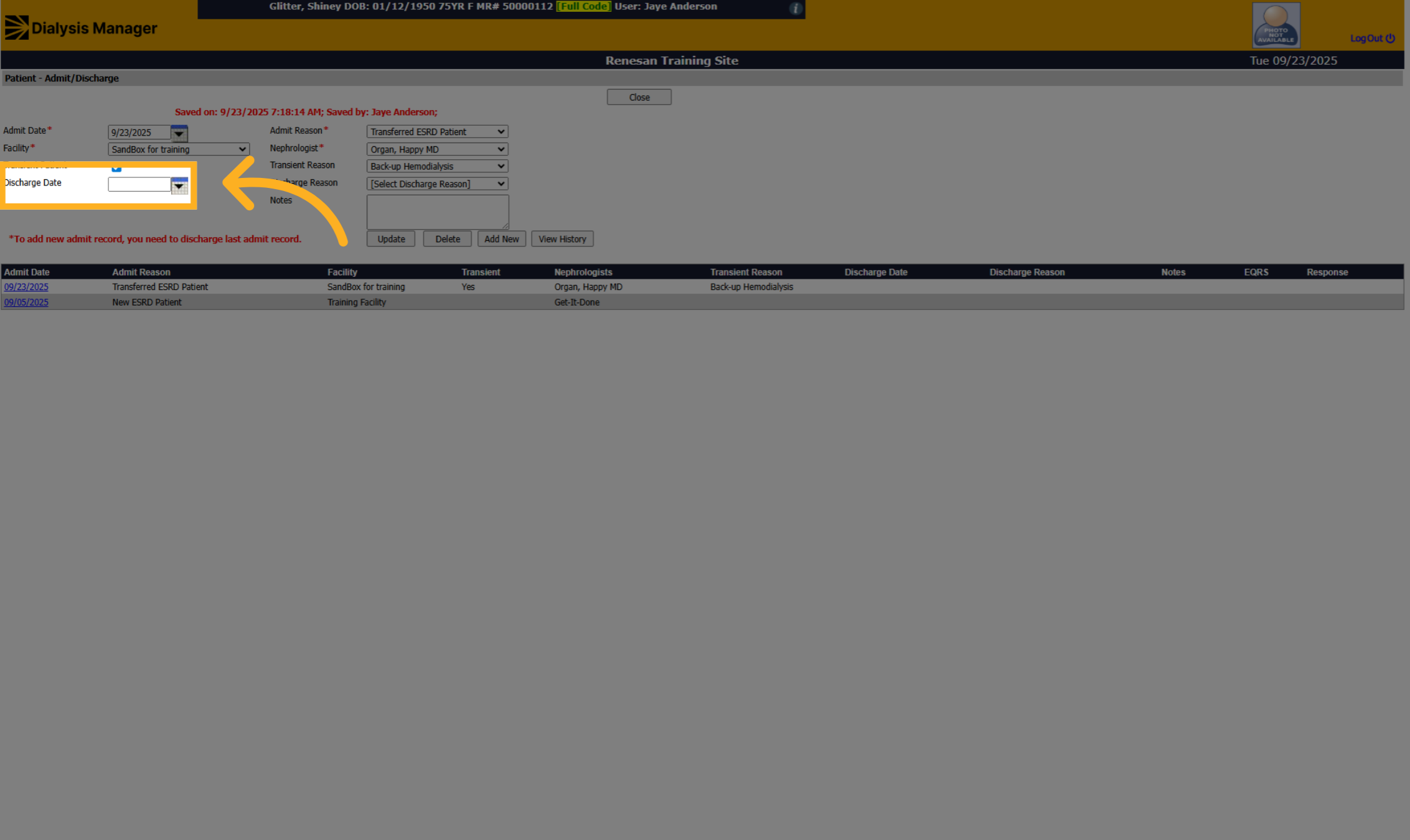
16. Enter Discharge Date
Click here to access the discharge details and specify the day of discharge within the selected month.
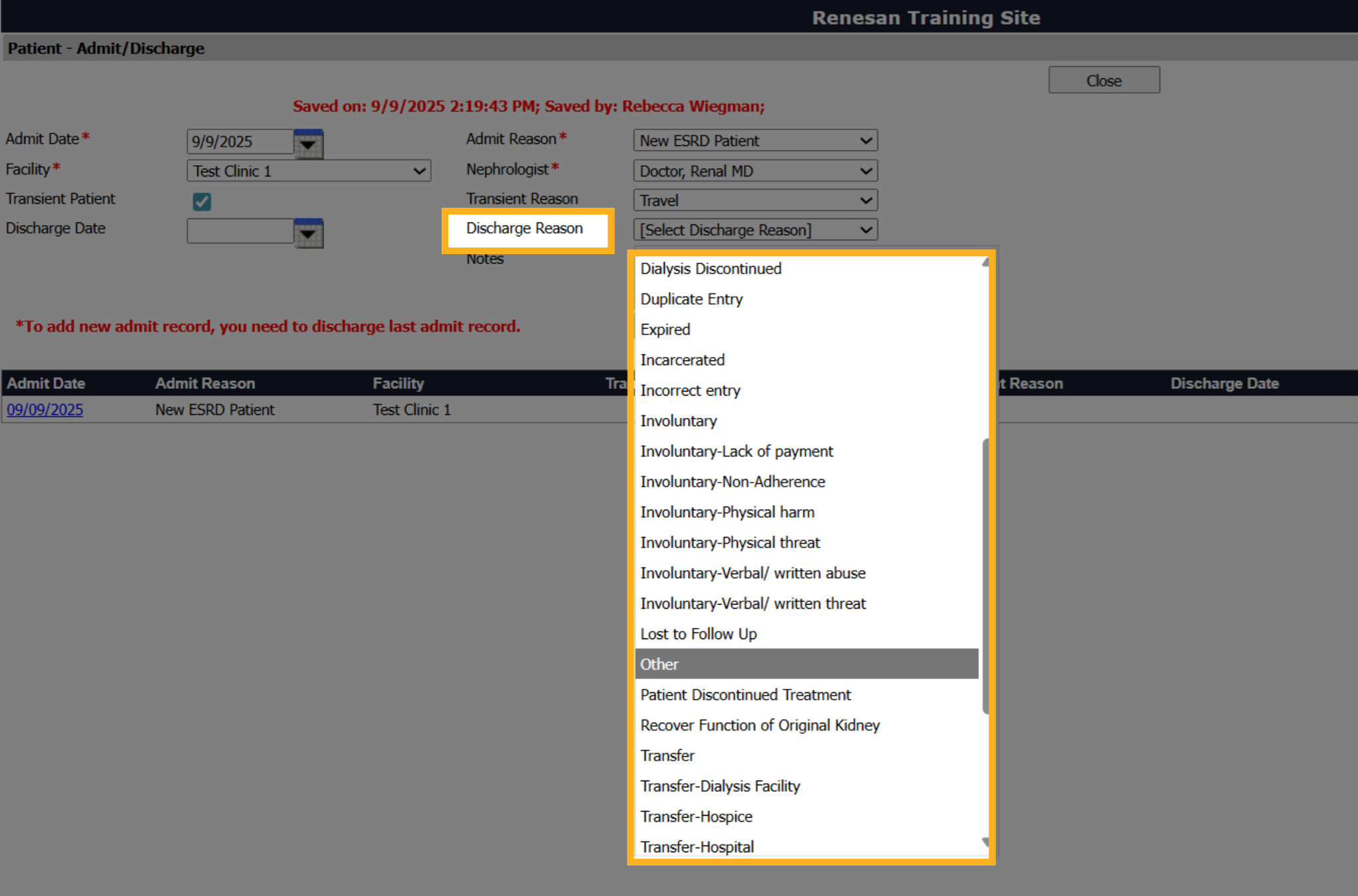
17. Discharge Reason
Select a discharge reason that reflects the patients discharge reason.
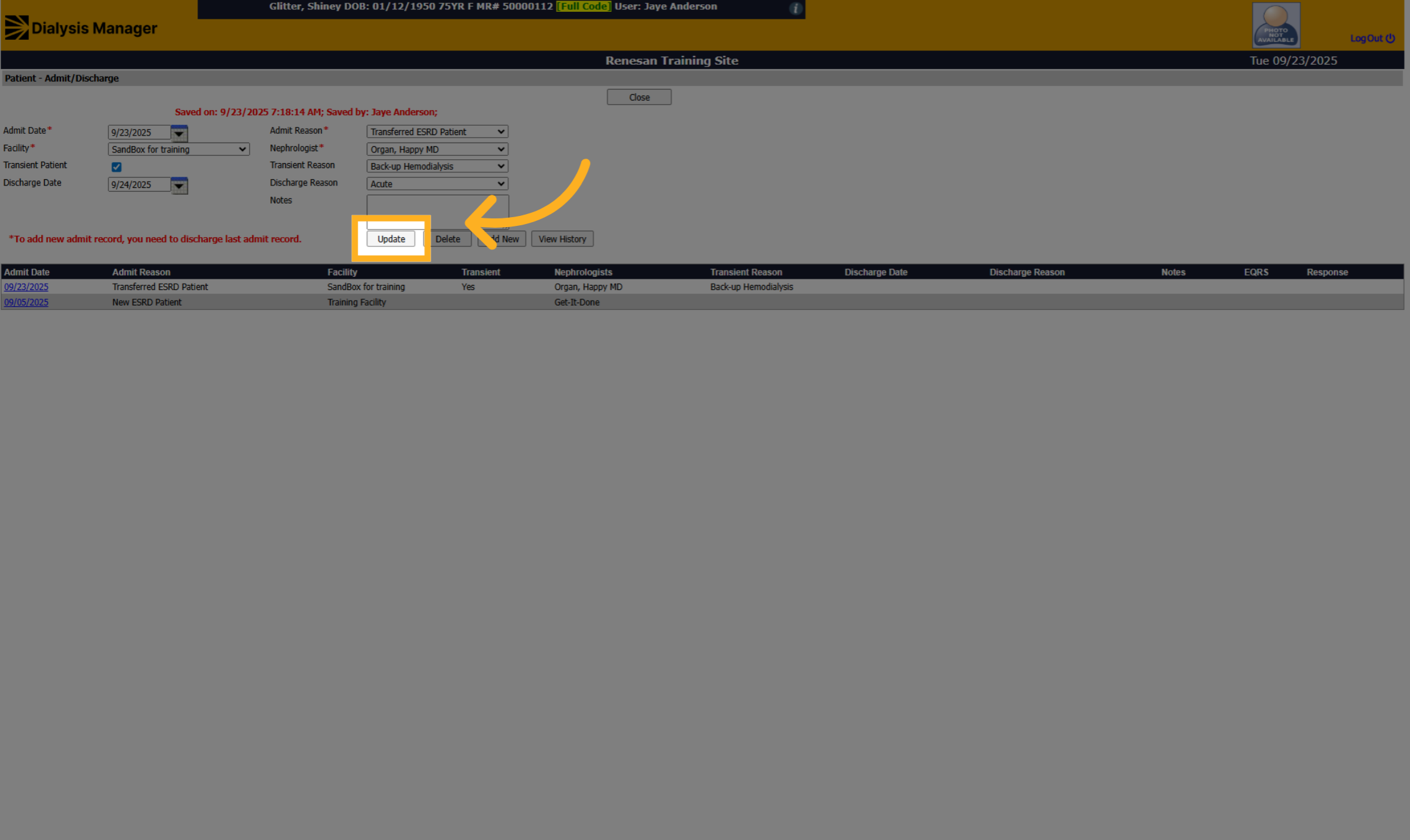
18. Click "Update"
Click "Update" to save the selected discharge reason and apply changes.
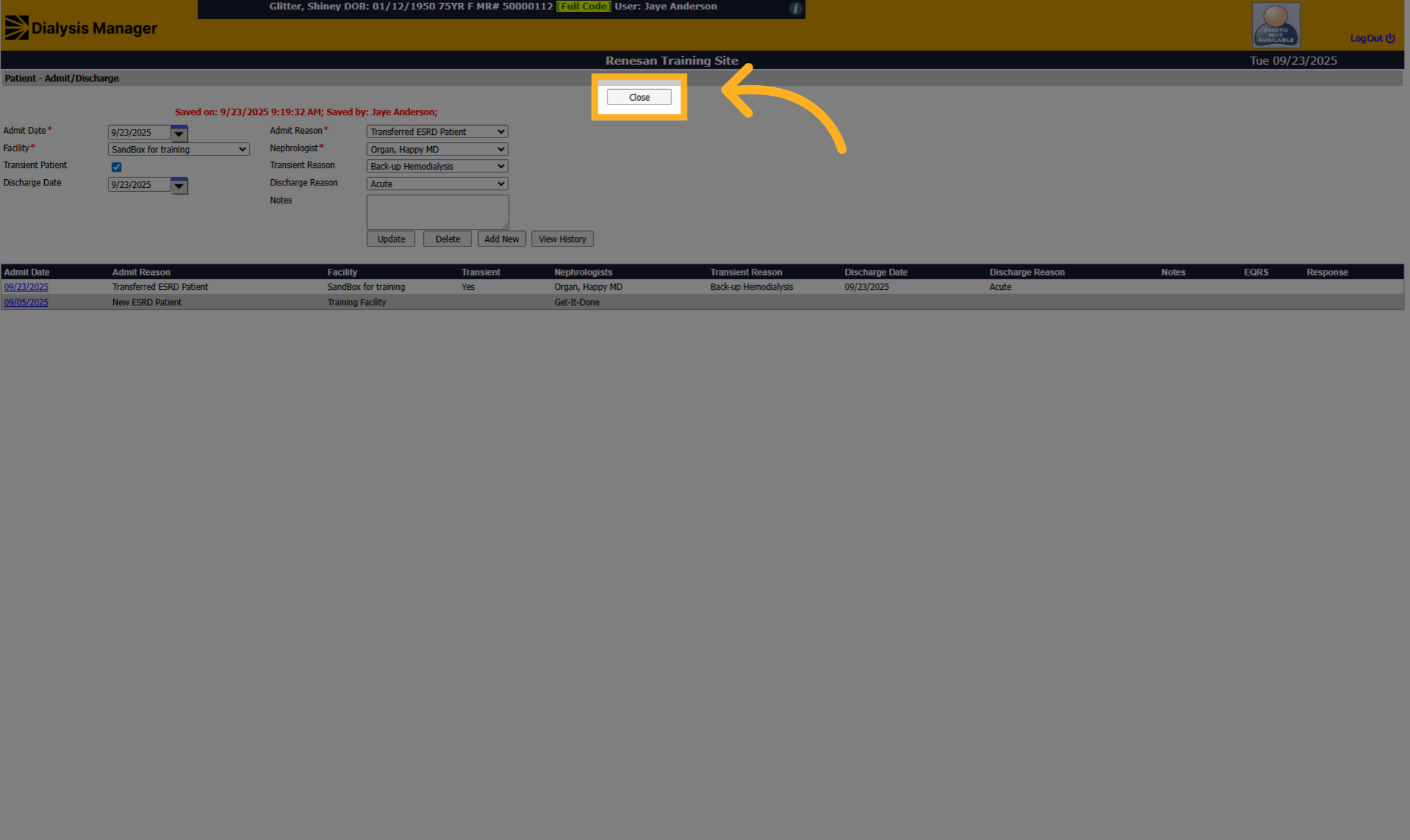
19. Click "Close"
Click "Close" to complete the discharge process and exit the admit/discharge section.