Transfer Extra Treatment Occurring Chronically.
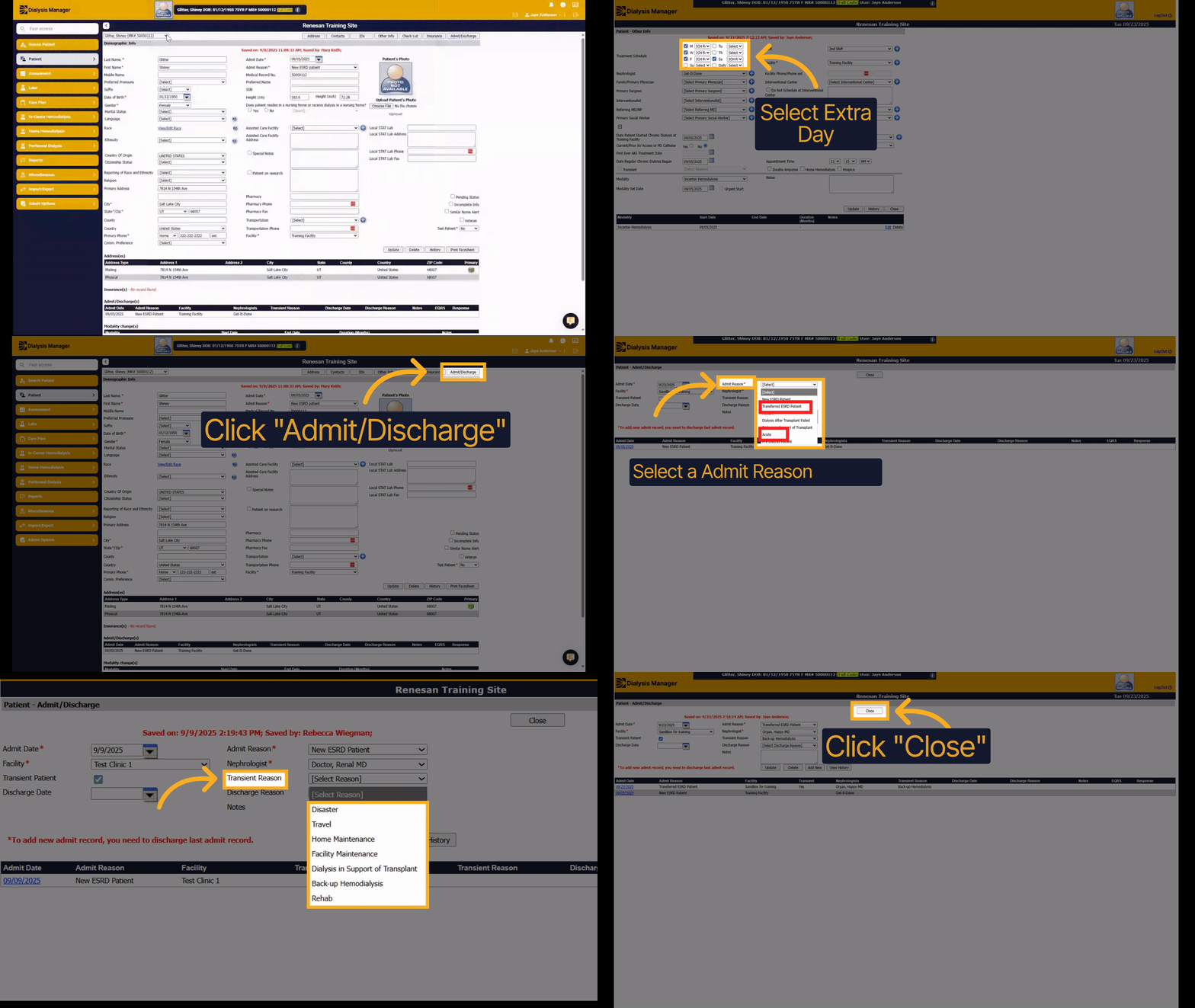
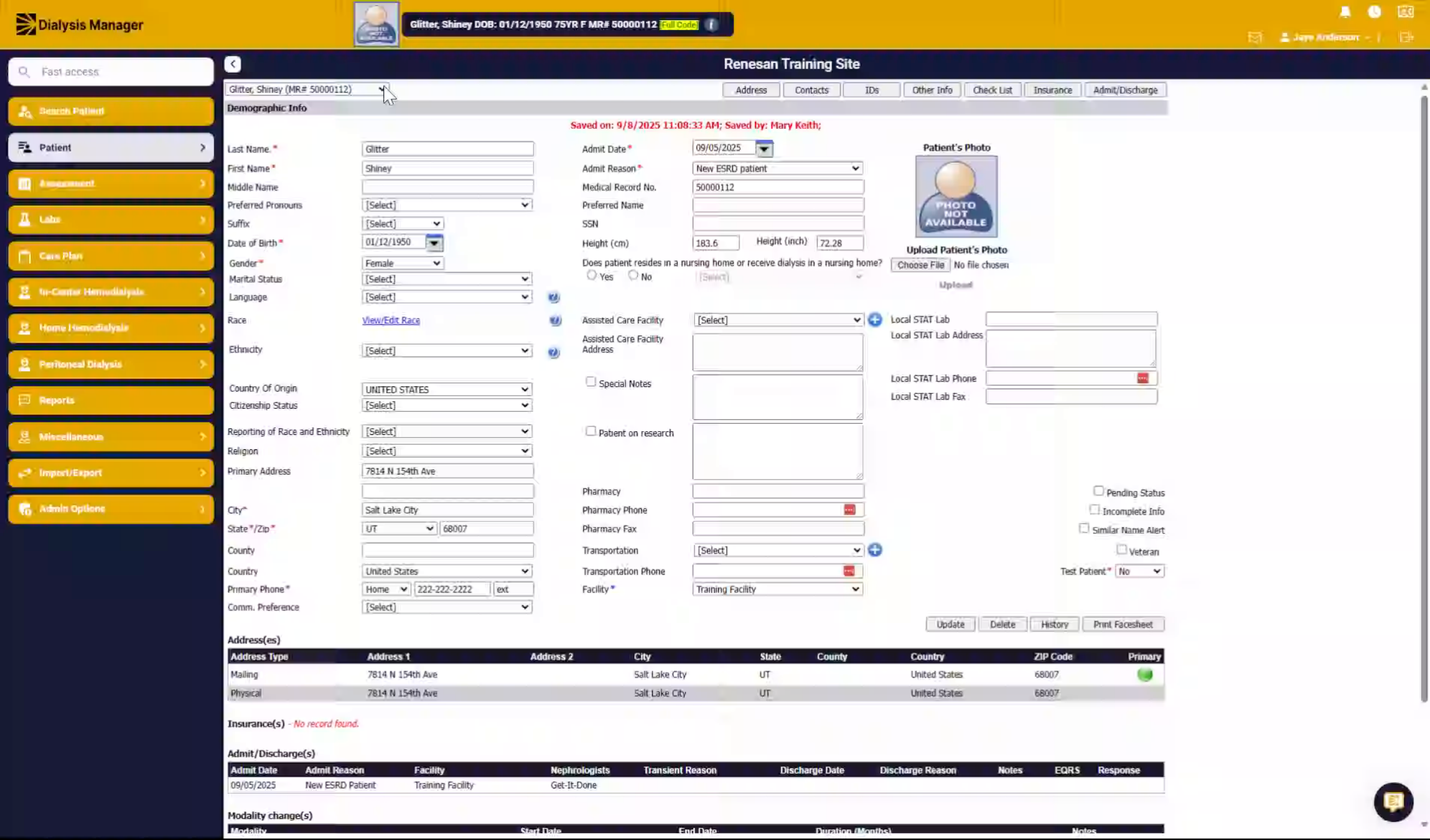
1. Introduction
First, we're going to choose your patient and then go to the edit patient screen. For our chronic reoccurring extra treatments, you'll need to start by updating their schedule.
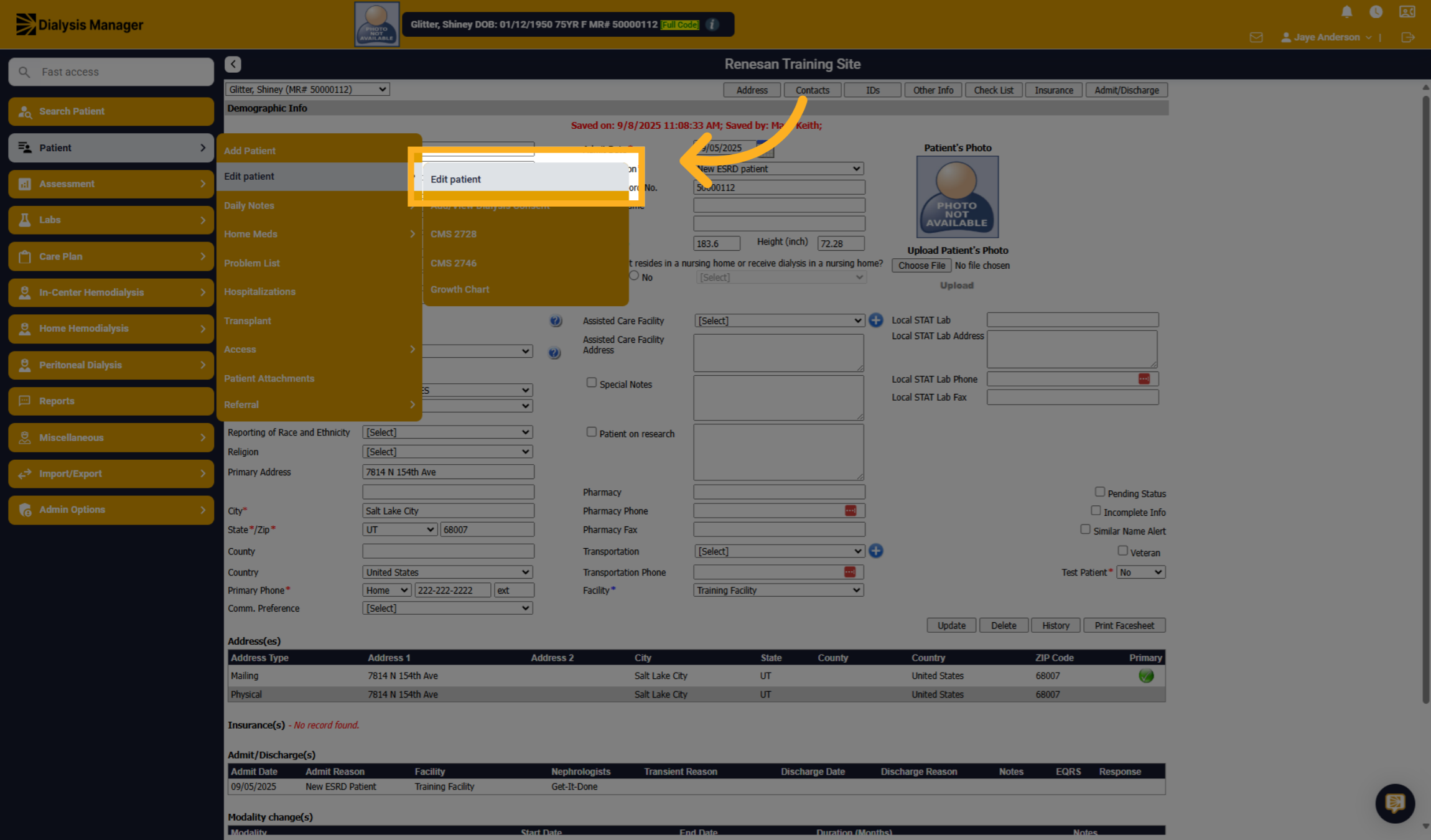
2. Click "Edit patient"
Click the "Patient" menu then "Edit patient" and "Edit Patient" to open the patient's details for modification.
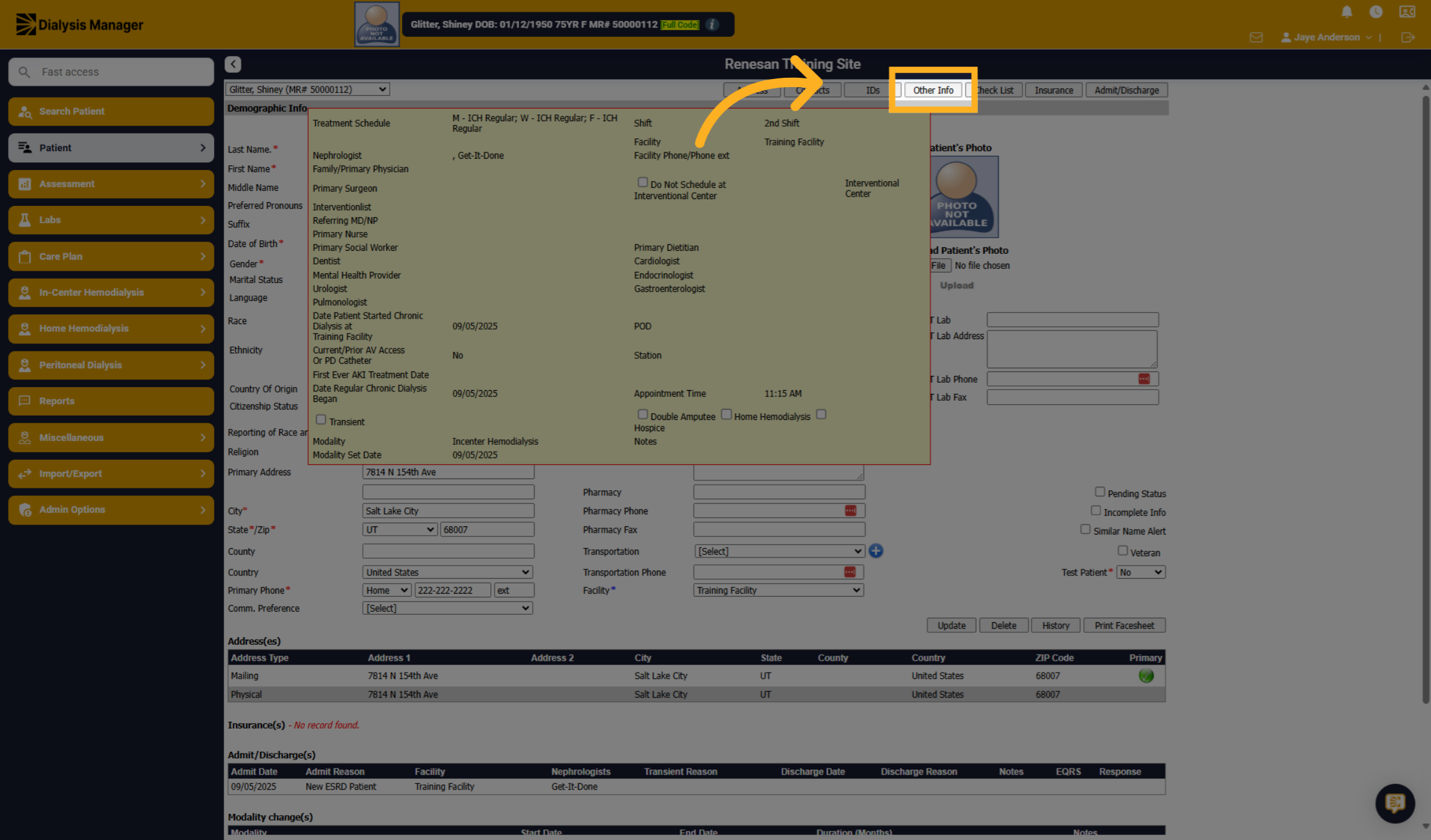
3. Click "Other Info"
Click "Other Info" to access patient's schedule information.
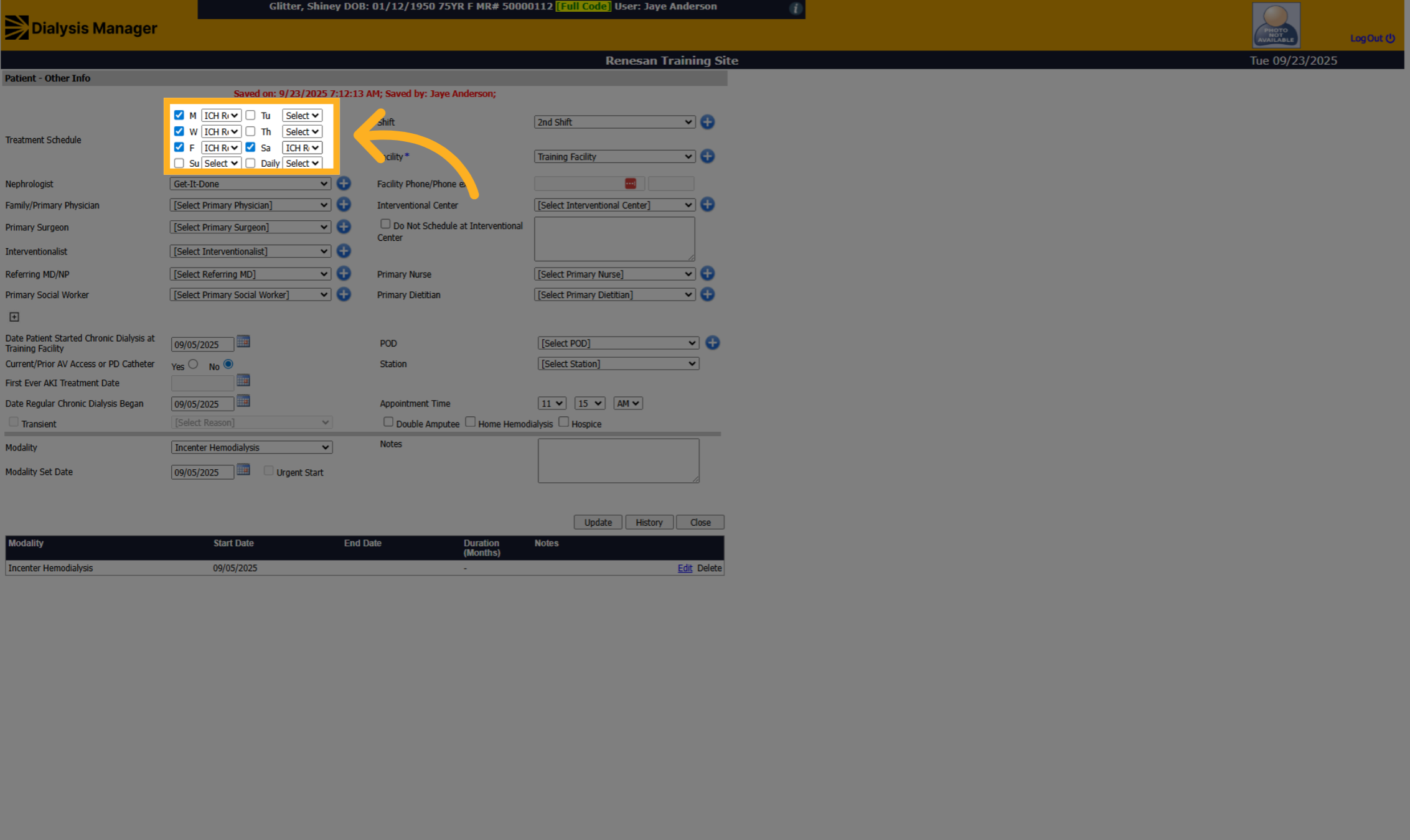
4. Select the Extra Treatment Day
Fill in the selected day for the extra treatment.
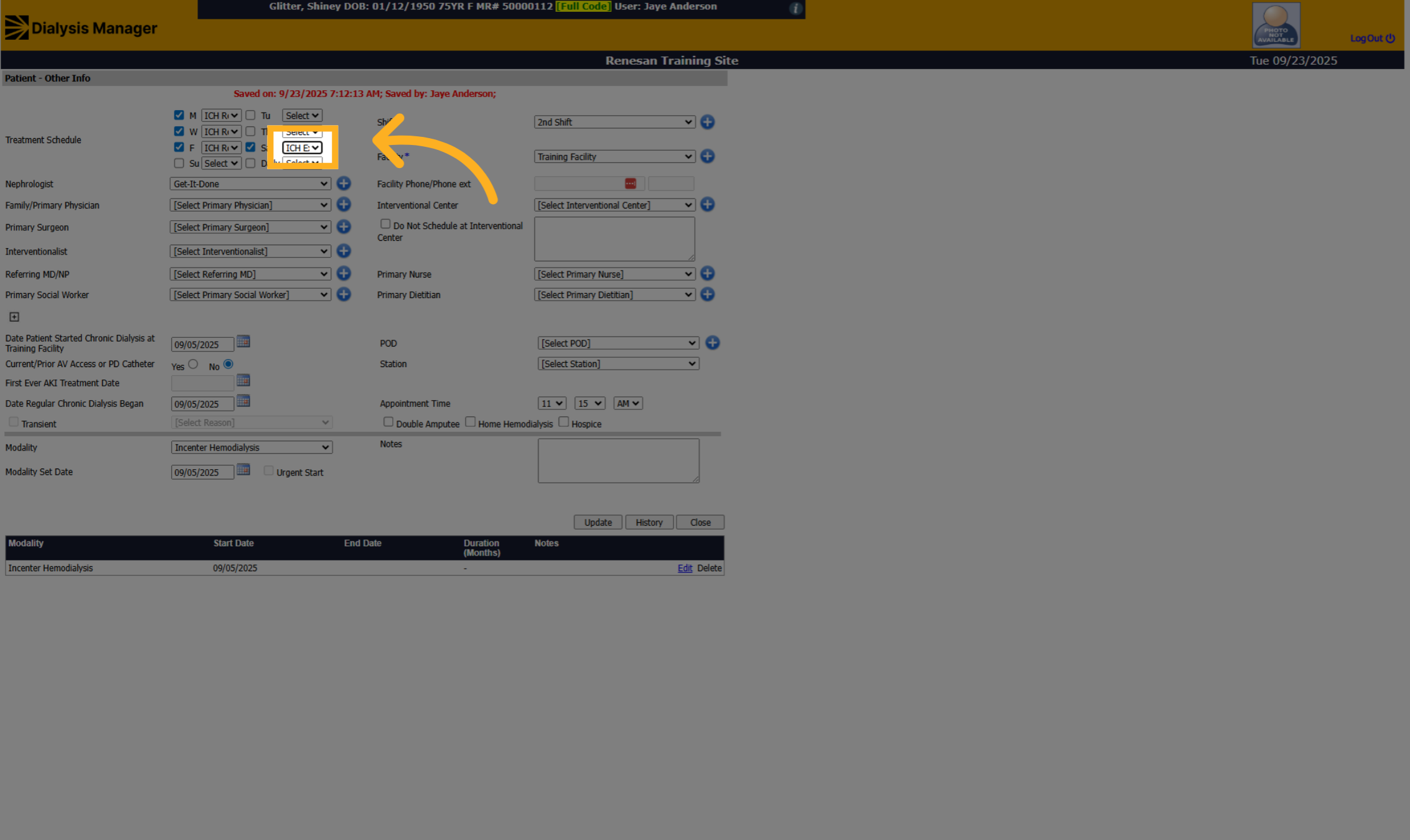
5. Select the Treatment Type
Select the appropriate treatment type from the options, such as ICH Extra, HHD Staff Assisted Extra, or HHD Normal Extra.
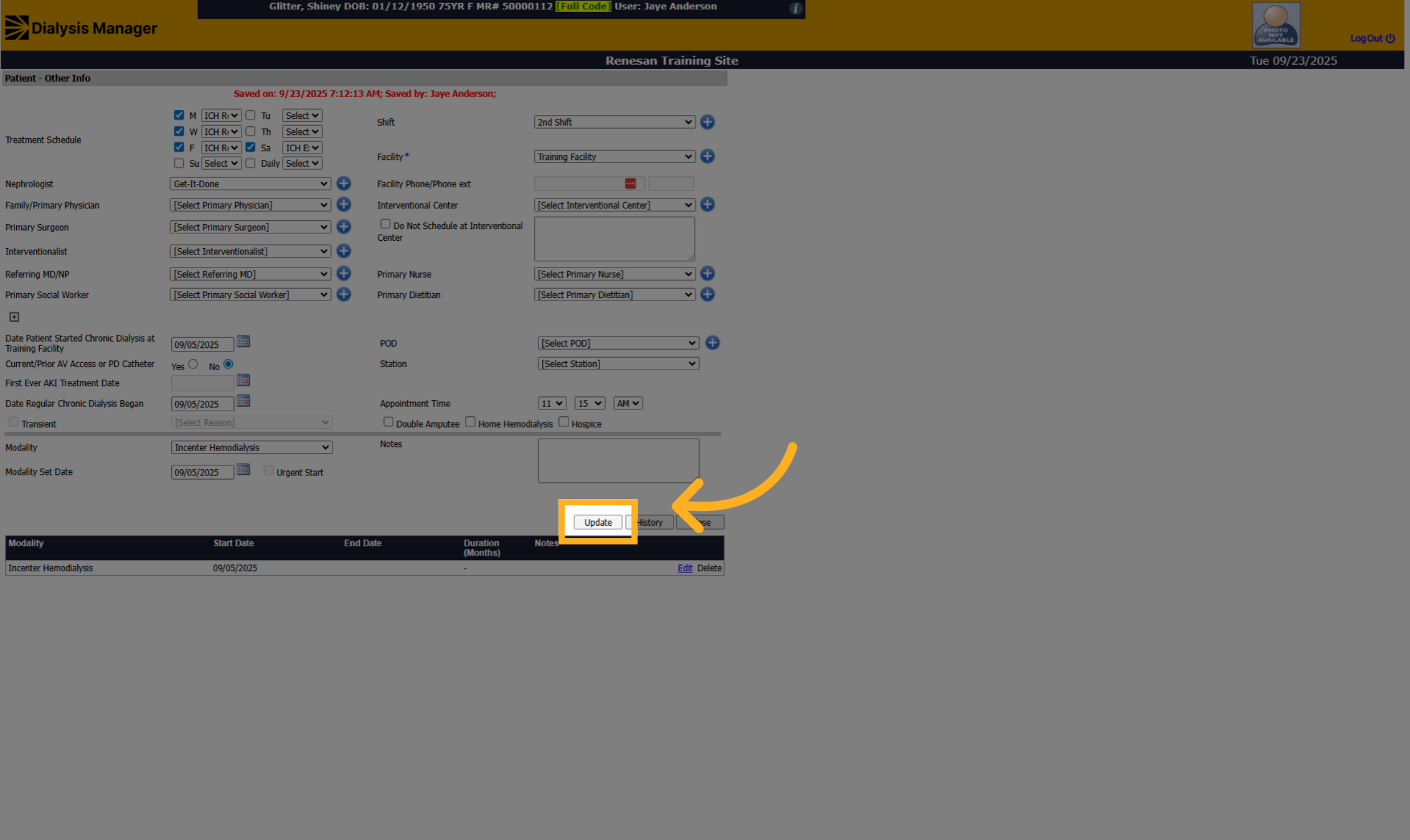
6. Click "Update"
Click "Update" to save the changes to the patient's schedule.
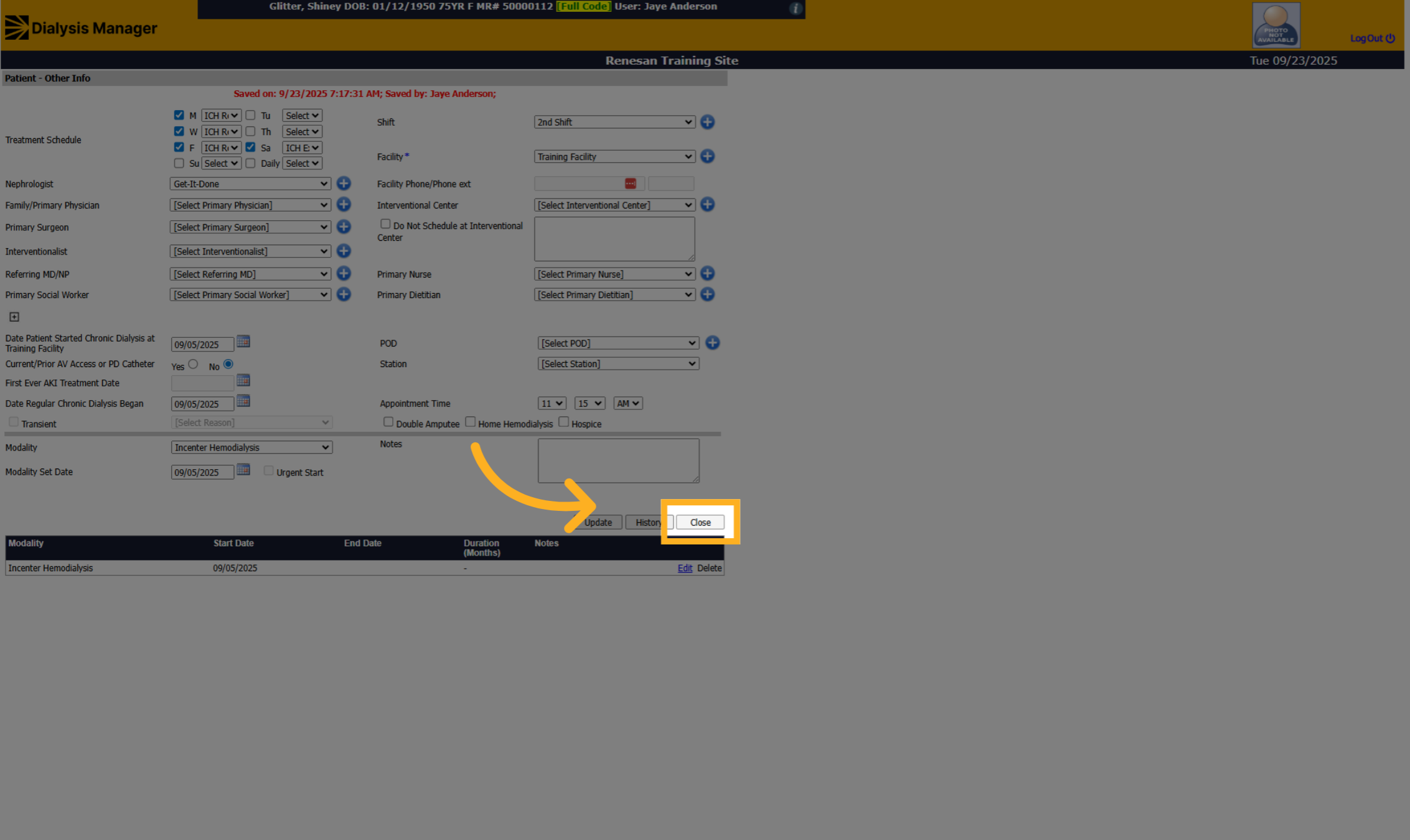
7. Click "Close"
Click "Close" to exit the edit Other Info screen.
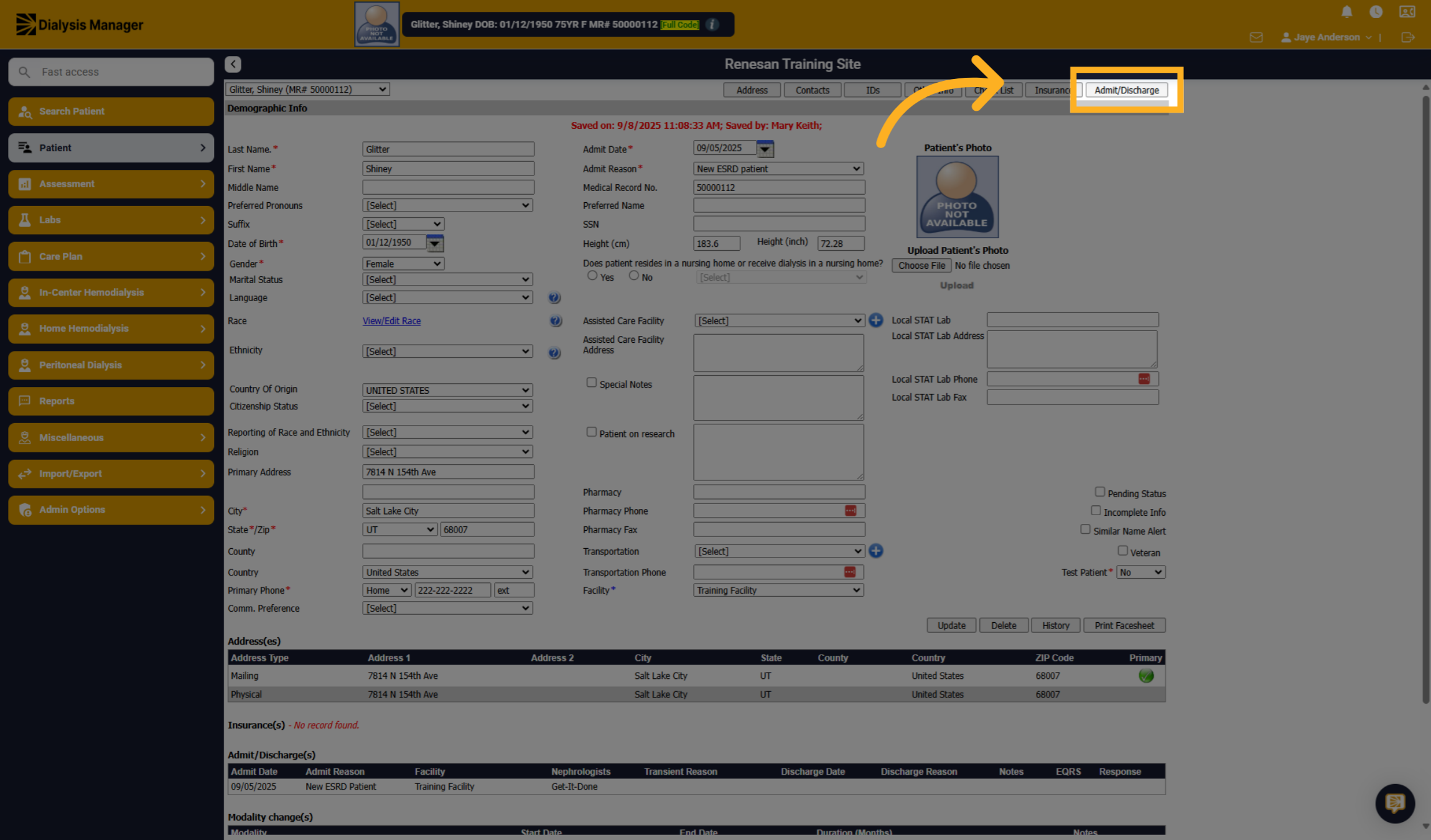
8. Click "Admit/Discharge"
Click "Admit/Discharge" to manage the patient's admission and discharge details.
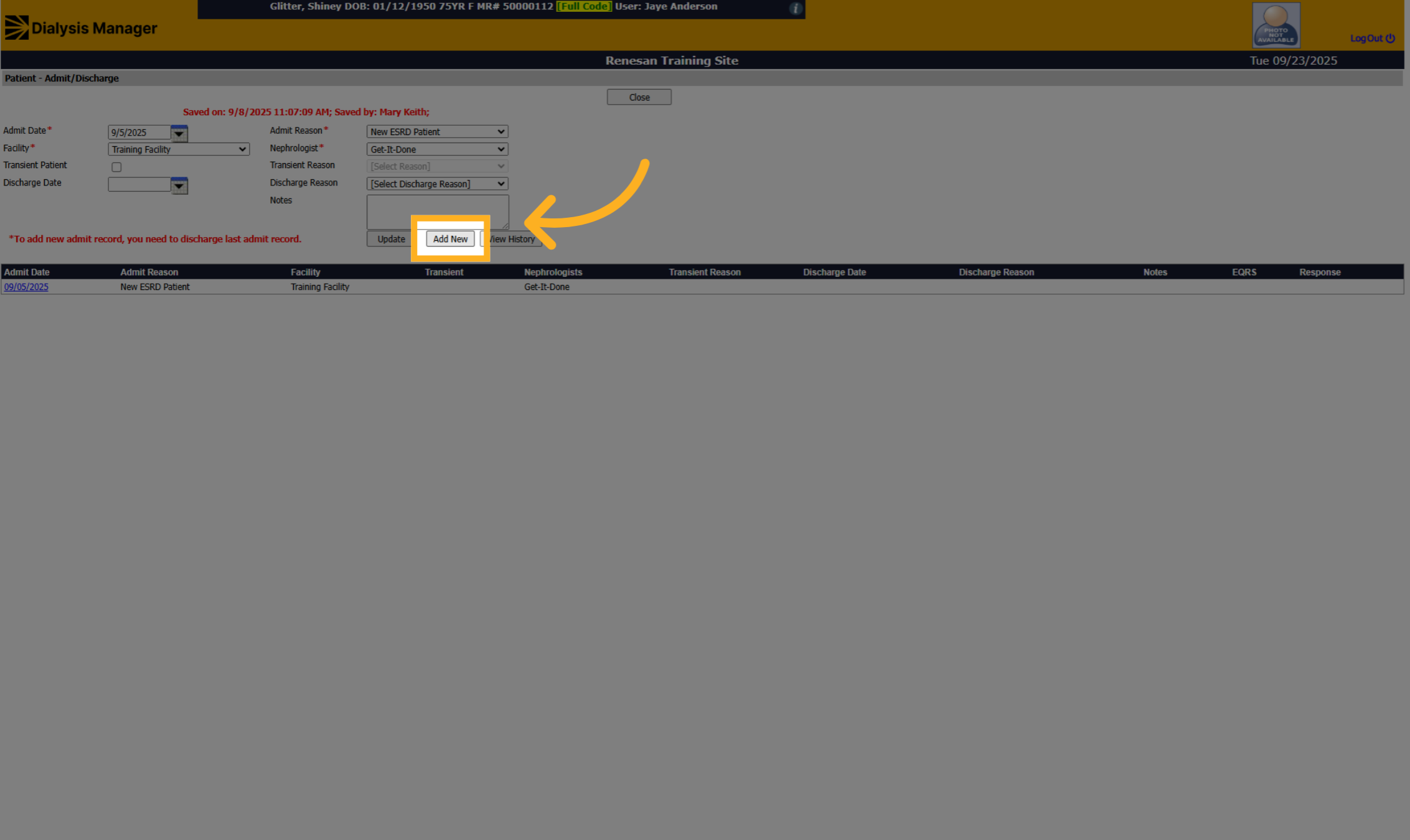
9. Click "Add New"
Click "Add New" to create a new admission record.
10. Admit Date
Click the date field to specify when the extra treatment will start.
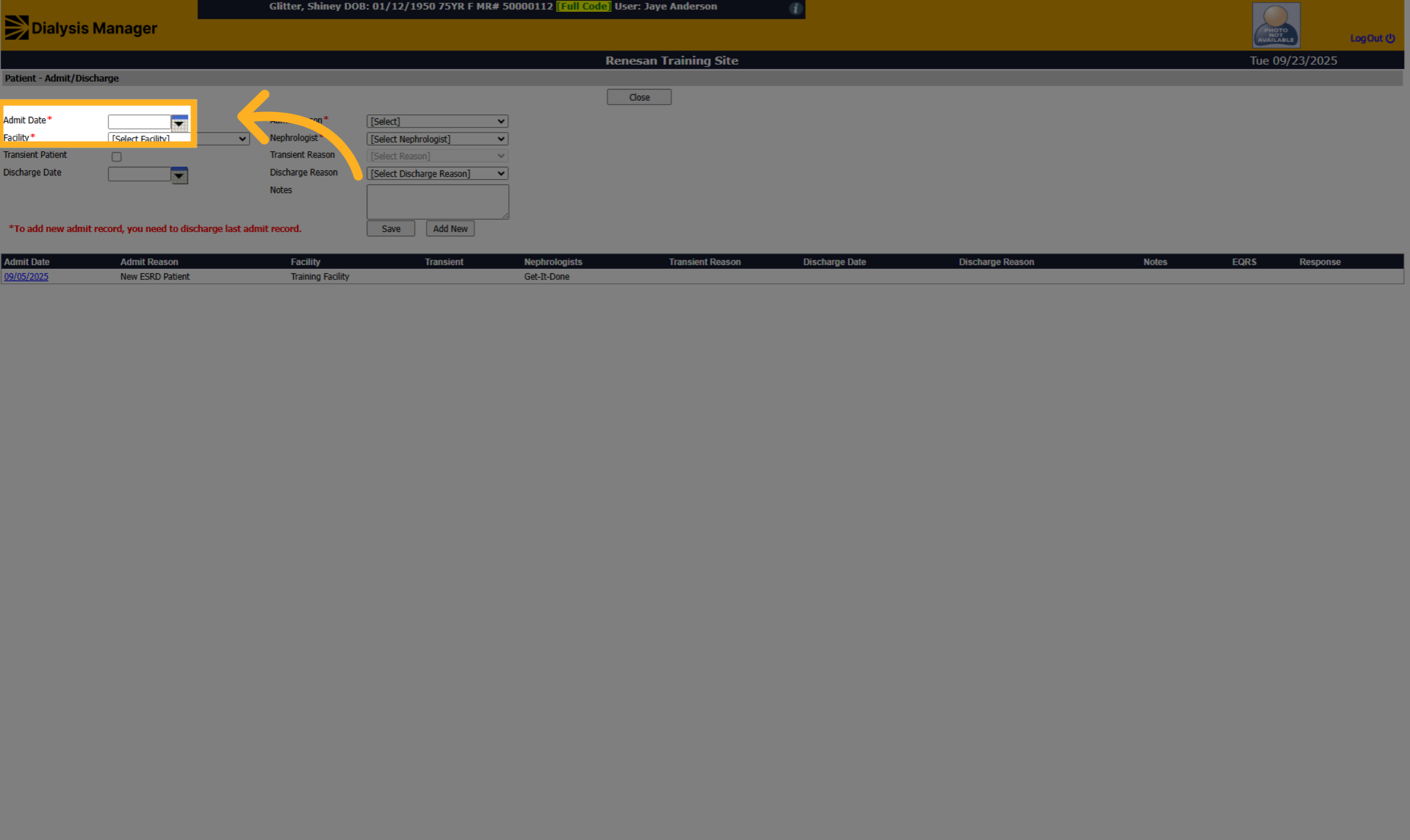
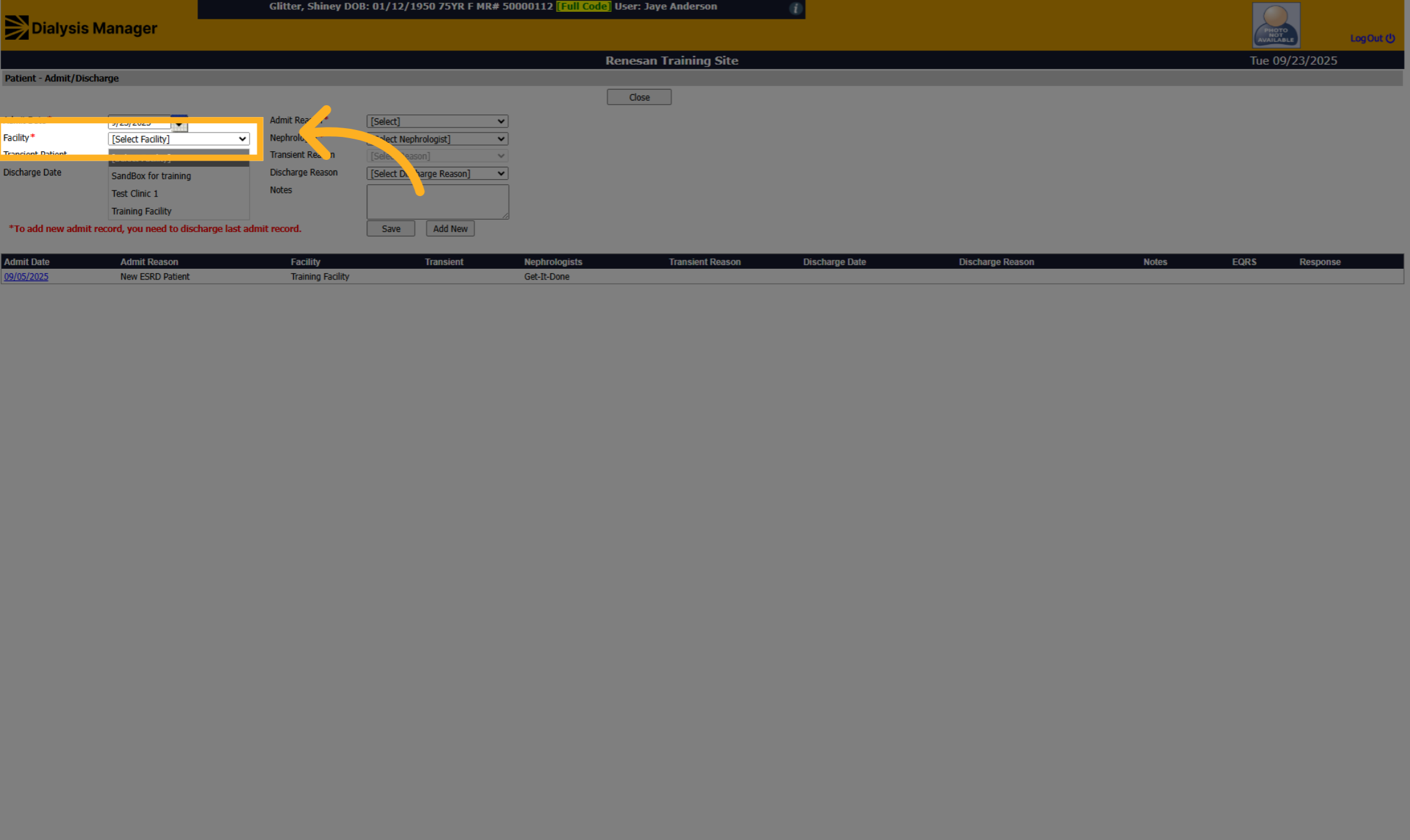
11. Select the Facility
Click the facility dropdown to select the facility where the extra treatment will occur.
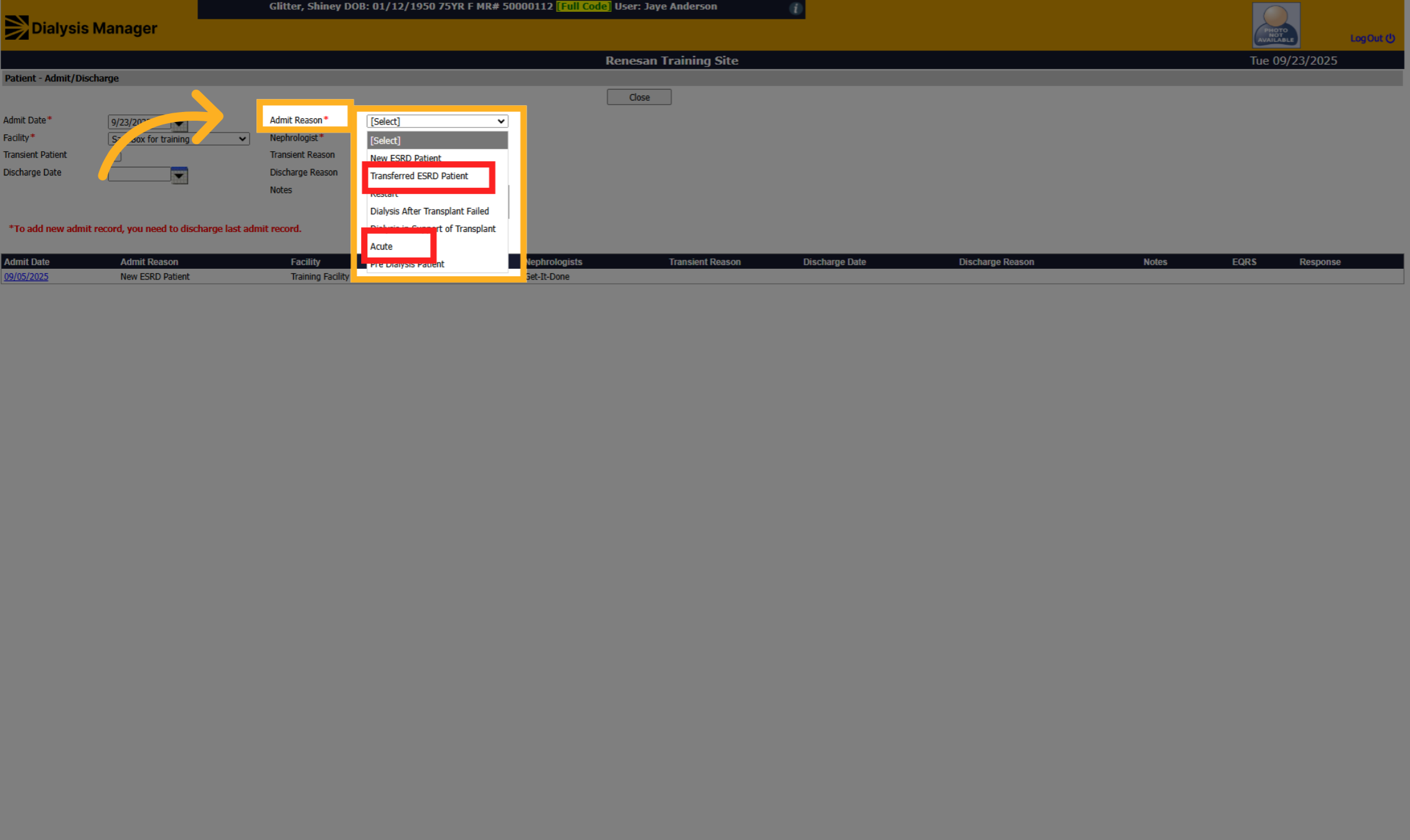
12. Select the Admit Reason
Click the admit reason dropdown and select the appropriate status like Transferred ESRD Patient or Acute.
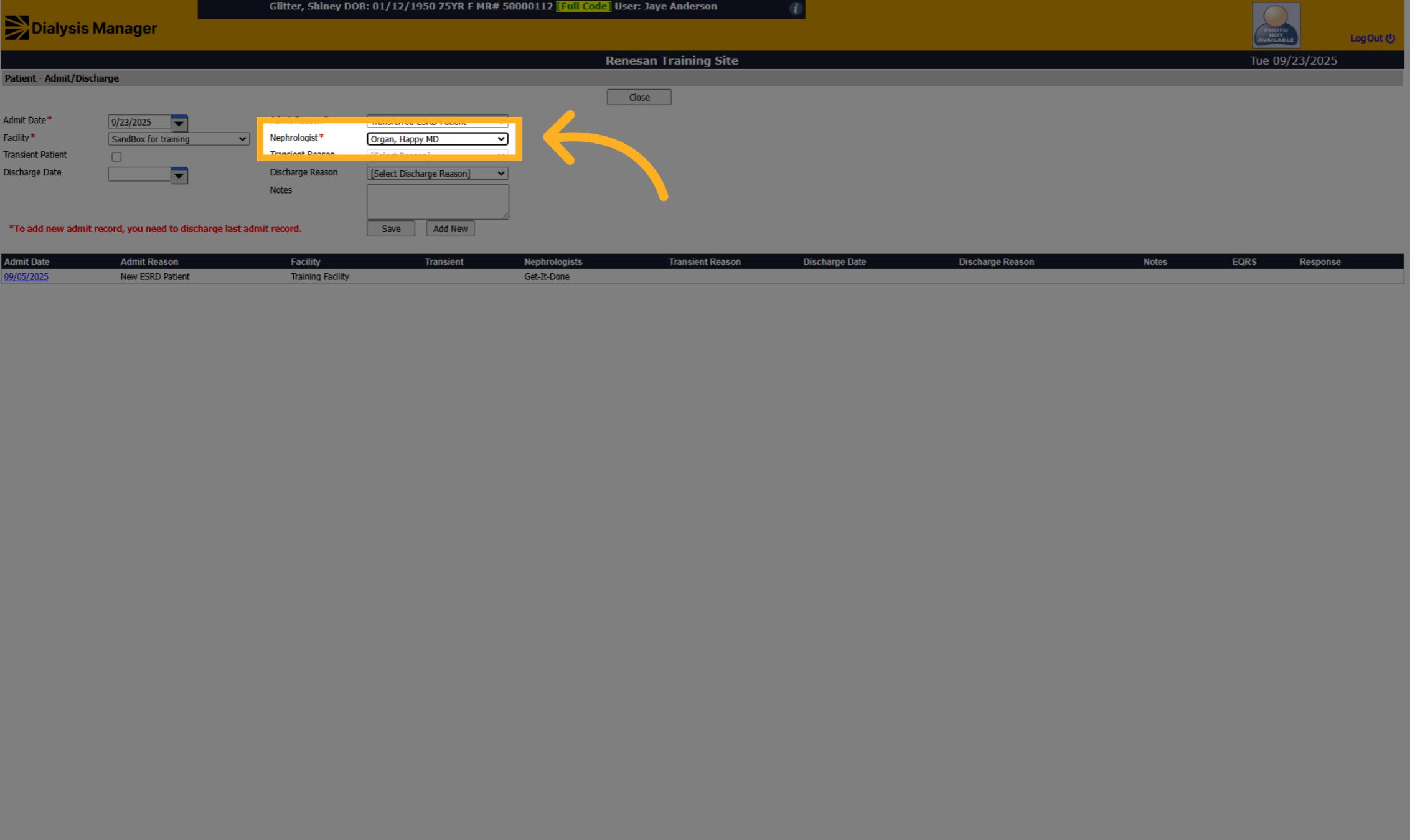
13. Select a Nephrologist
Click the nephrologist dropdown to assign the patient's nephrologist. Fill in the nephrologist selection with the appropriate doctor from the list.
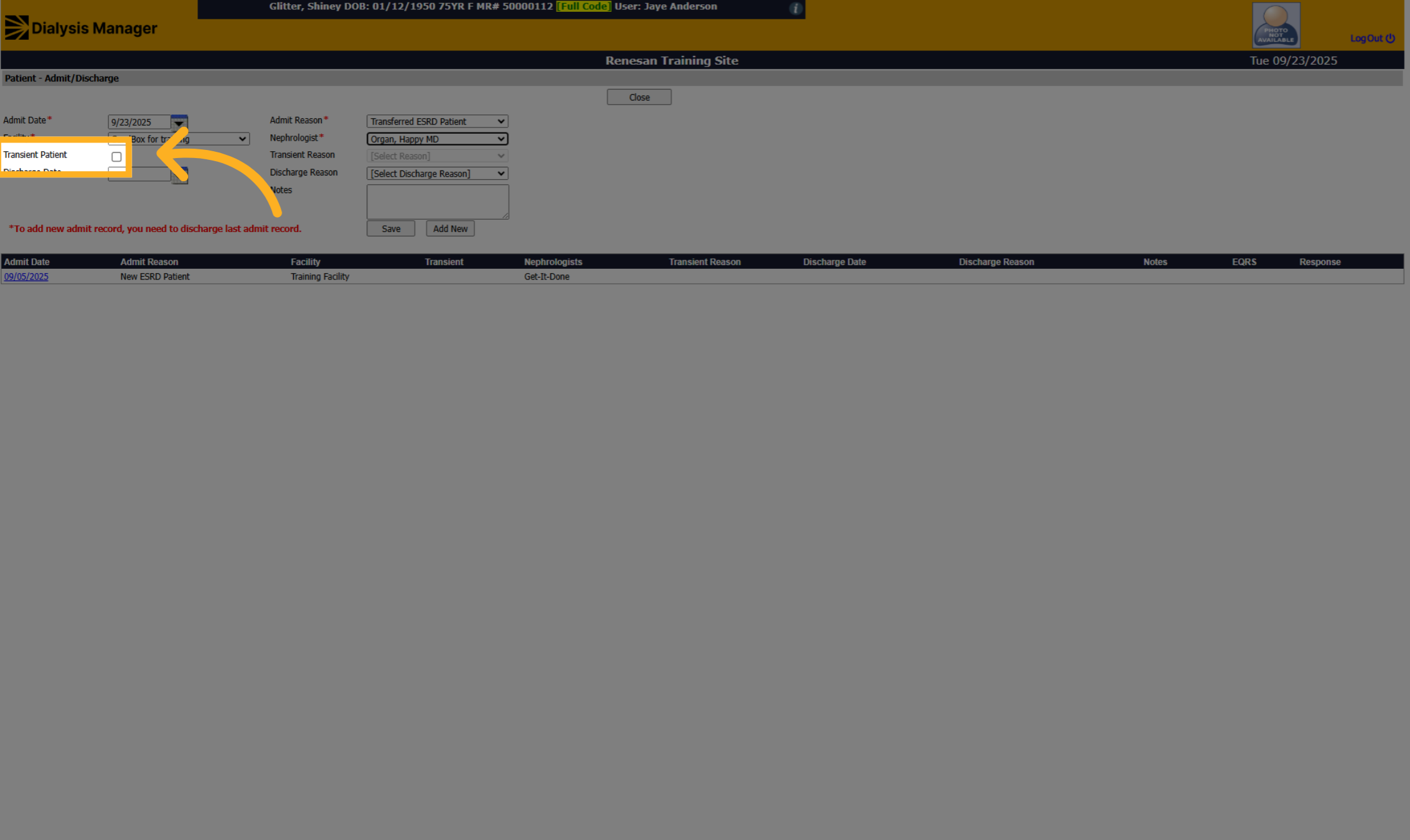
14. Click "Transient Patient"
Click the "Transient Patient" toggle to activate the transit patient status.
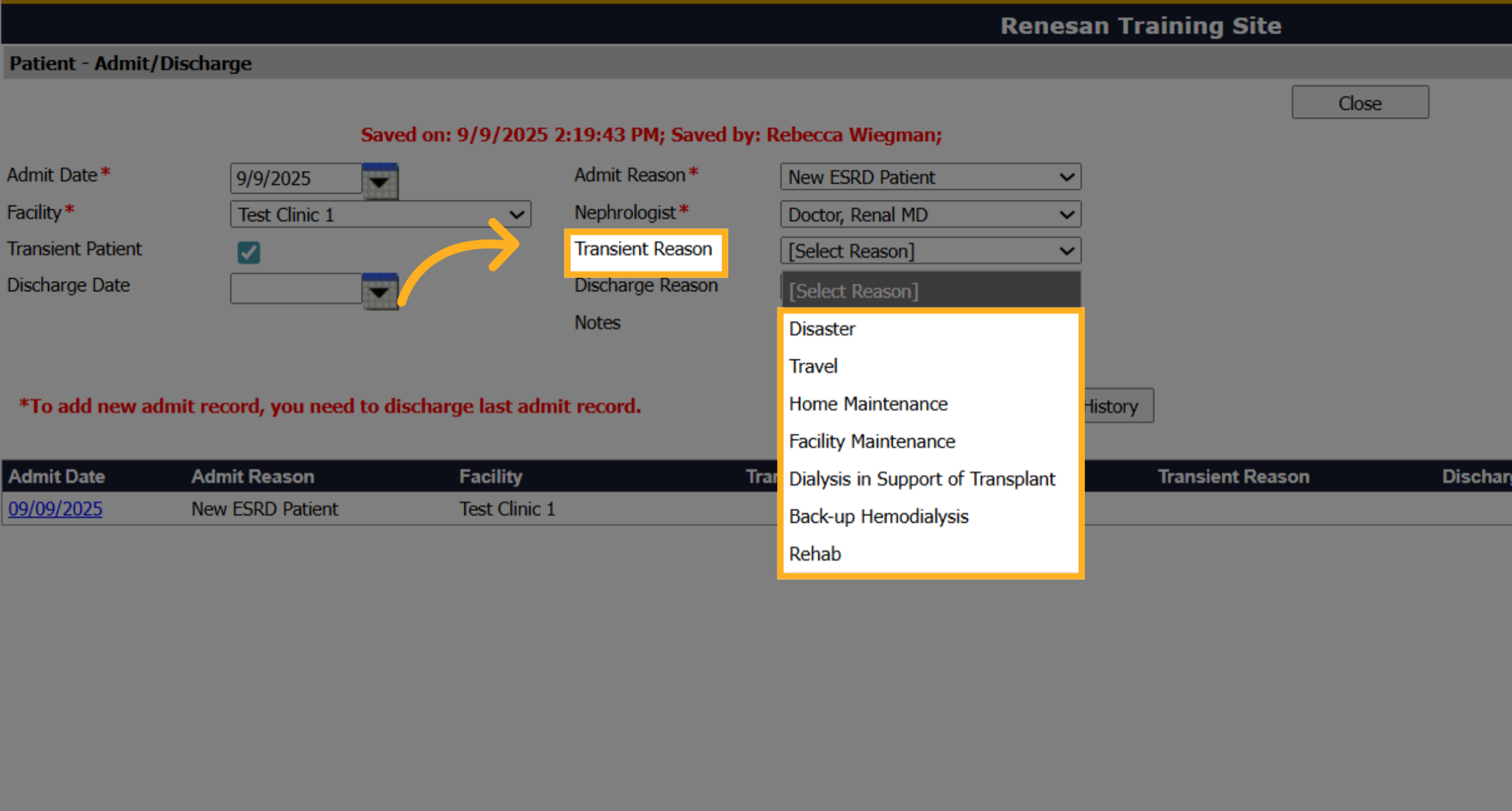
15. Select Transient Reason
Please select the reason for the transfer. Is the patient traveling to visit family or receiving an extra treatment. Is there a natural disaster necessitating evacuation? Also, consider scenarios where a patient has fallen and remains in a rehabilitation facility. Or is your PD patient backing up to Hemodialysis?
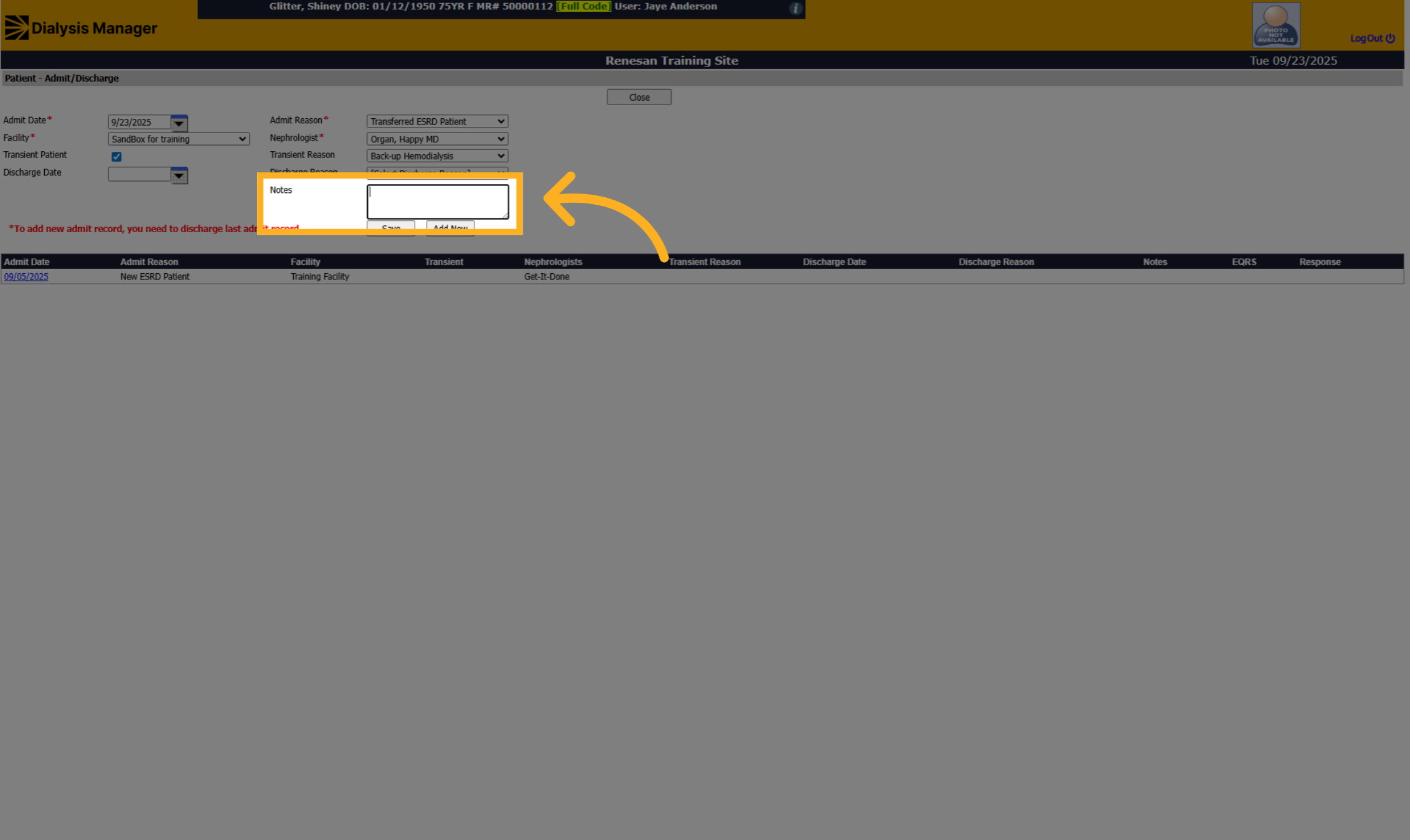
16. Click "Notes"
Click "Notes" to add any additional information regarding the transfer.
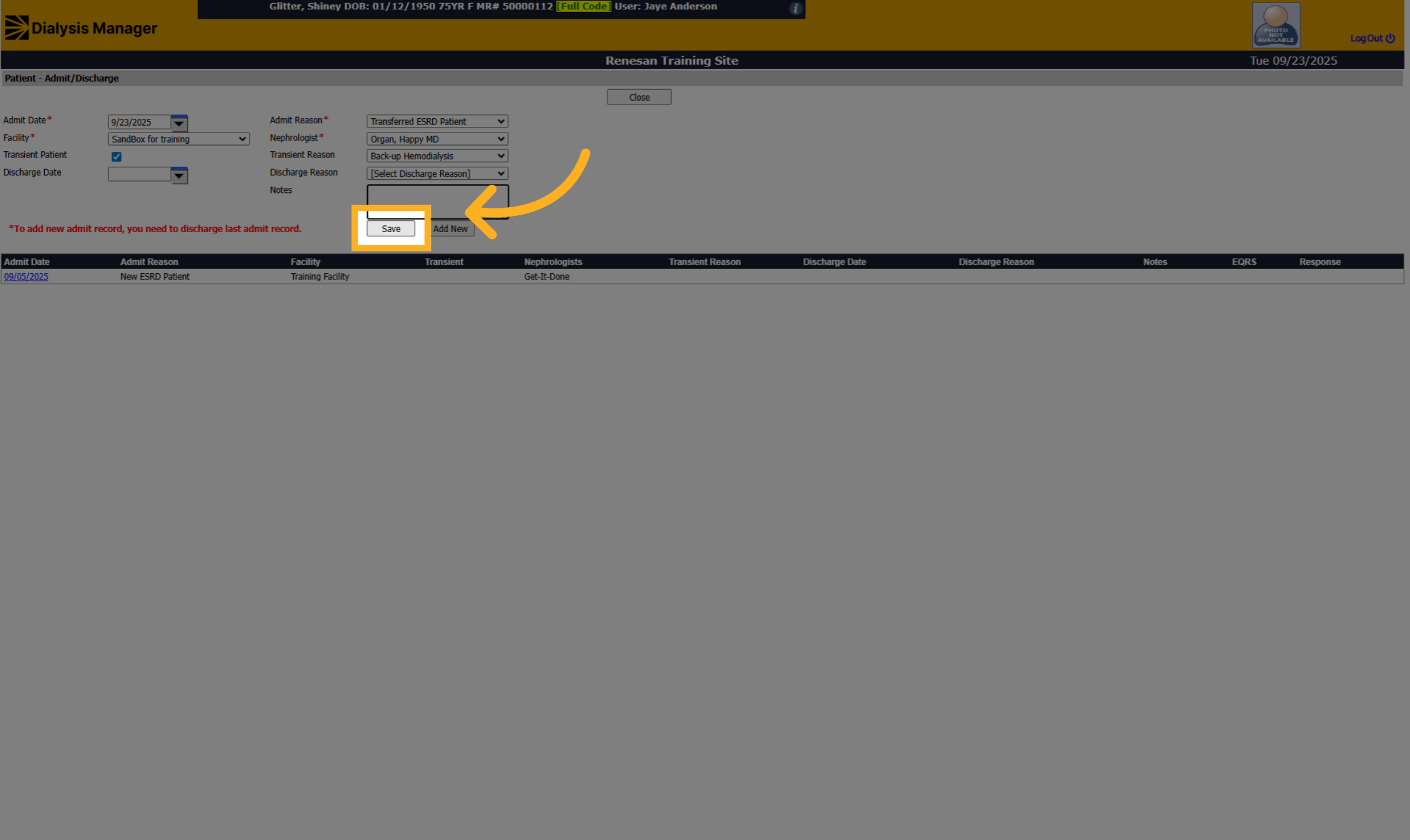
17. Click "Save"
Click "Save" to confirm and save all admission and transfer details.
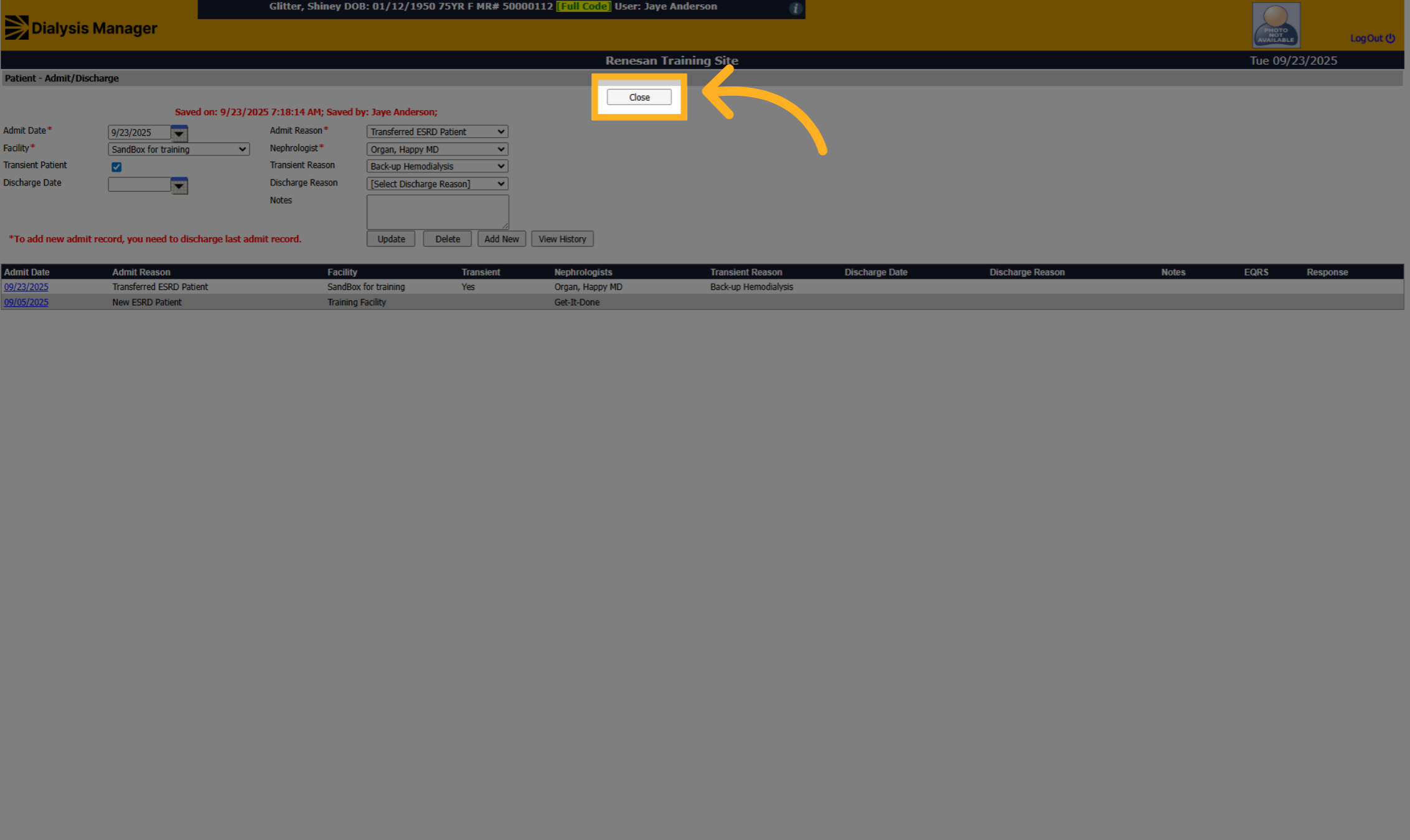
18. Click "Close"
Click "Close" to exit the admission and discharge screen.