TB Skin Test documentation, observation and tracking
1. Introduction
This tutorial guides you through entering a PPD Tubersol test otherwise known as a TB Skin Test. Entering the order through the dialysis order, marking as given, documenting the screening and what report to run to view readings.
2. Access Dialysis Orders Section
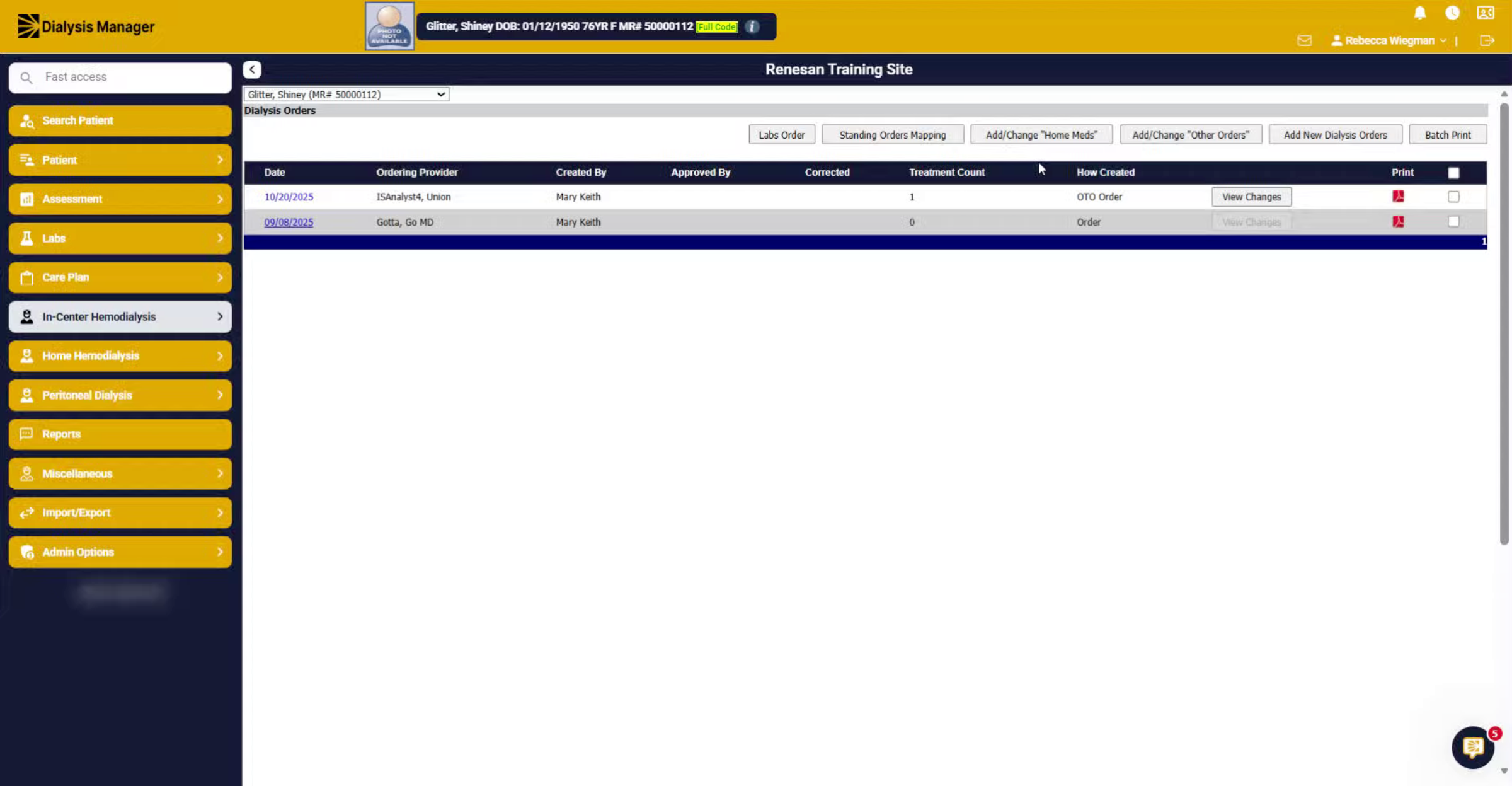
Start by selecting the In-Center Hemodialysis Menu, then Orders and finally Dialysis Orders.
3. Initiate New Dialysis Order
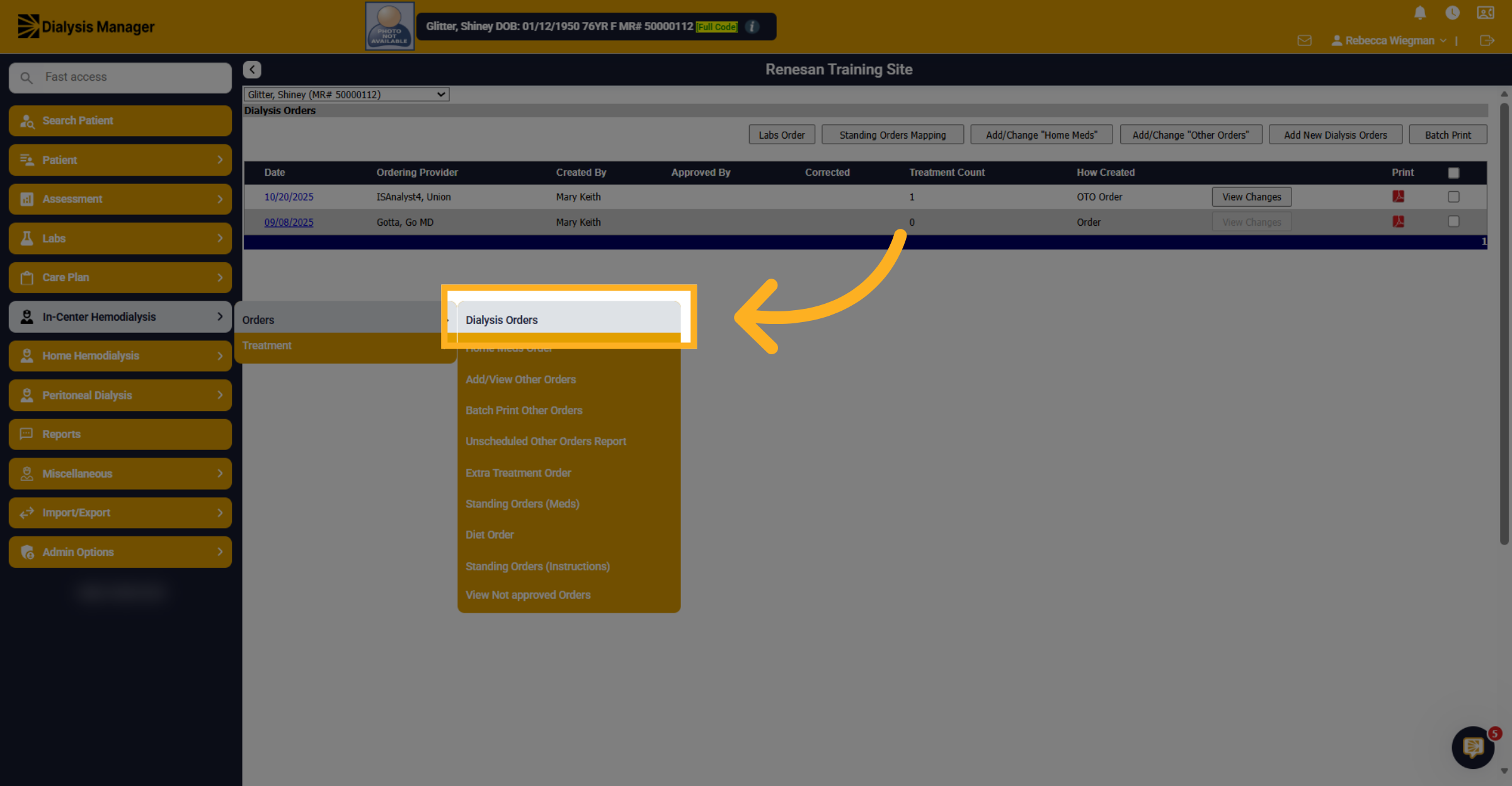
Click "Add New Dialysis Orders" to start creating a new dialysis order for a patient.
4. Select PPD Tubersol Option
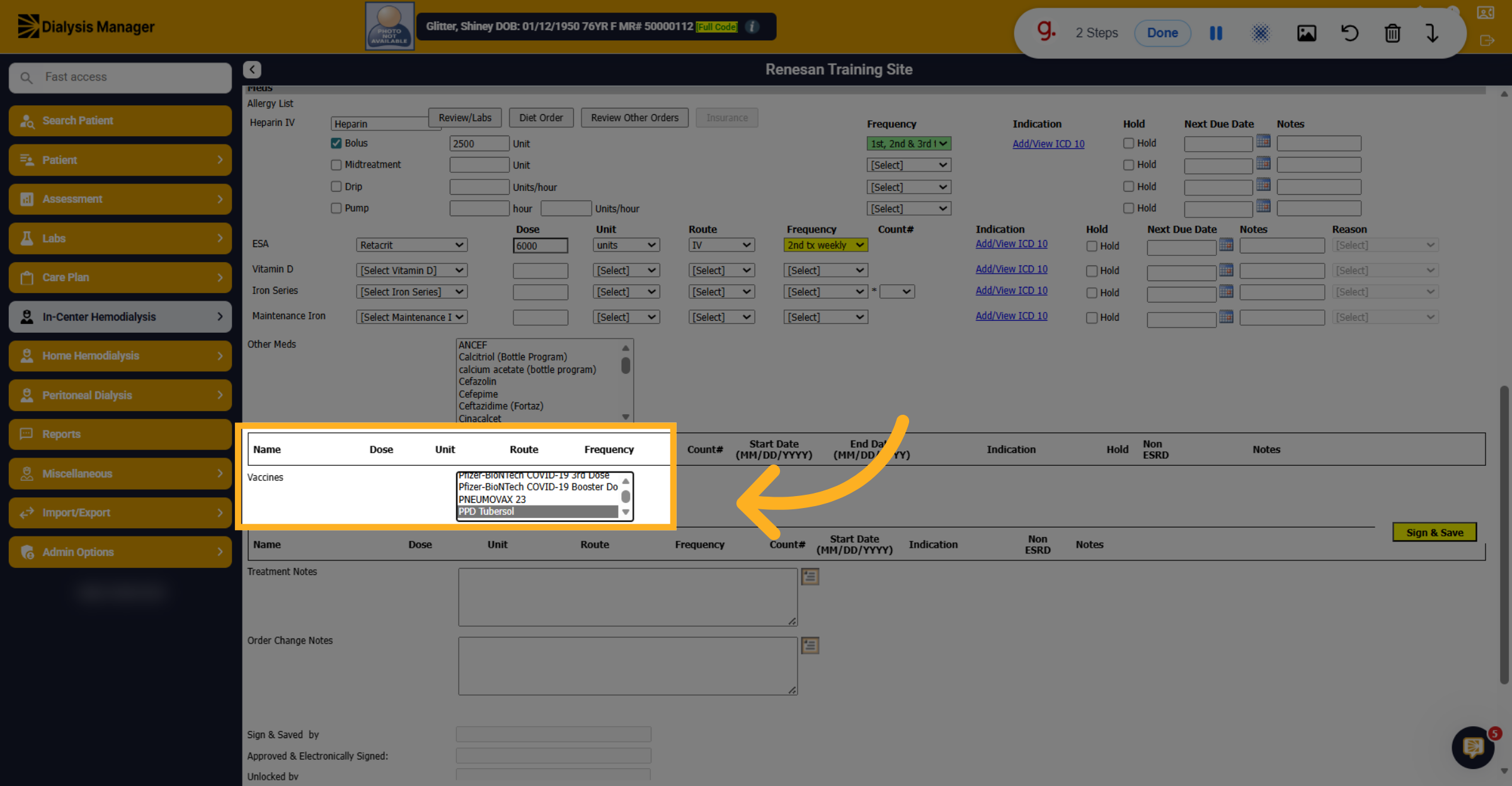
Once the order opens complete the required fields displayed with a red asterisk. Towards the bottom you'll see Vaccines, click "PPD Tubersol" which will drop below for further documentation.
5. PPD Tubersol
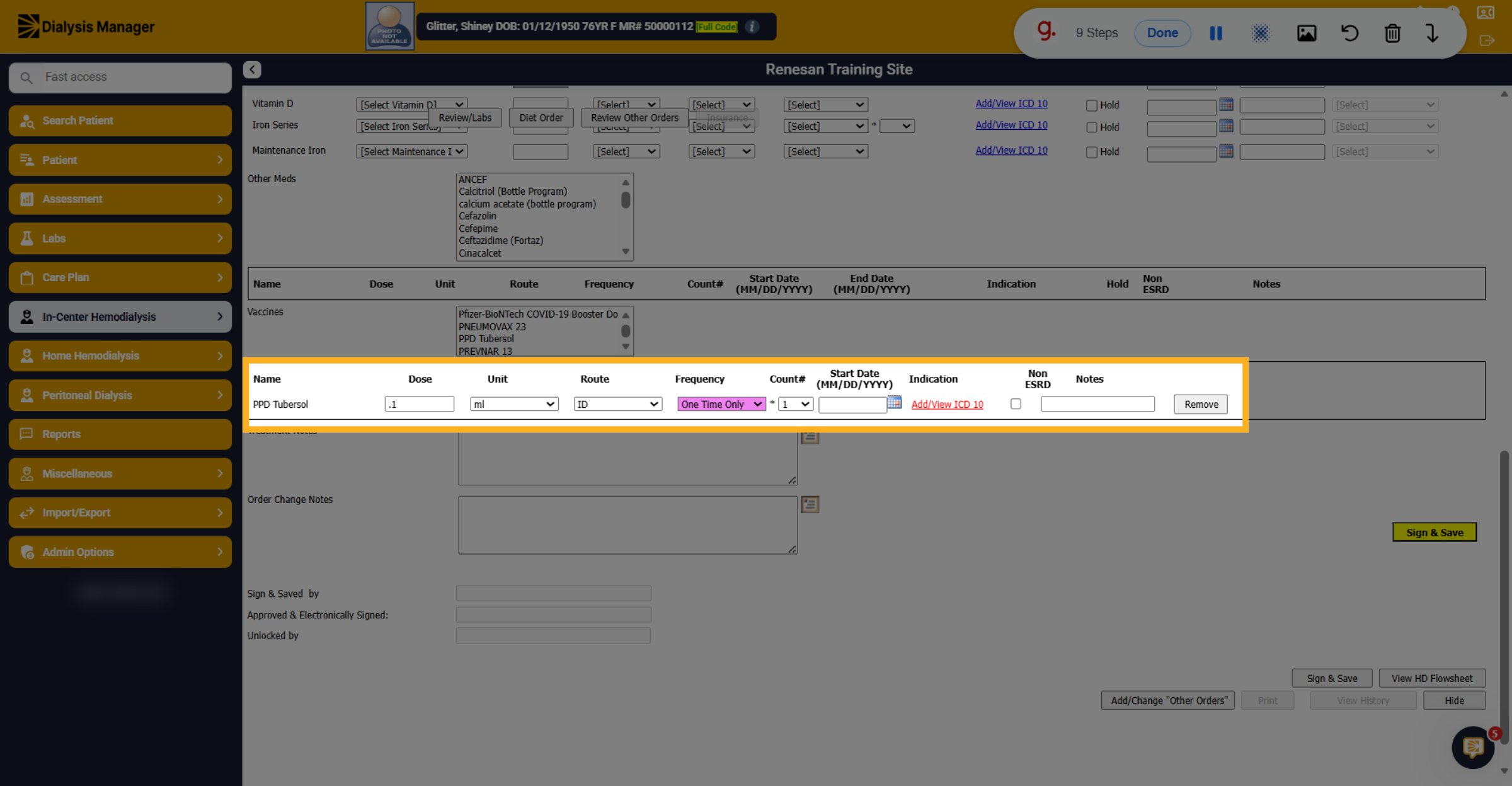
You'll need to enter the Dose, Unit & Route (if it doesn't auto populate) Frequency, Count and the ICD-10.
6. Enable ICD 10 Code
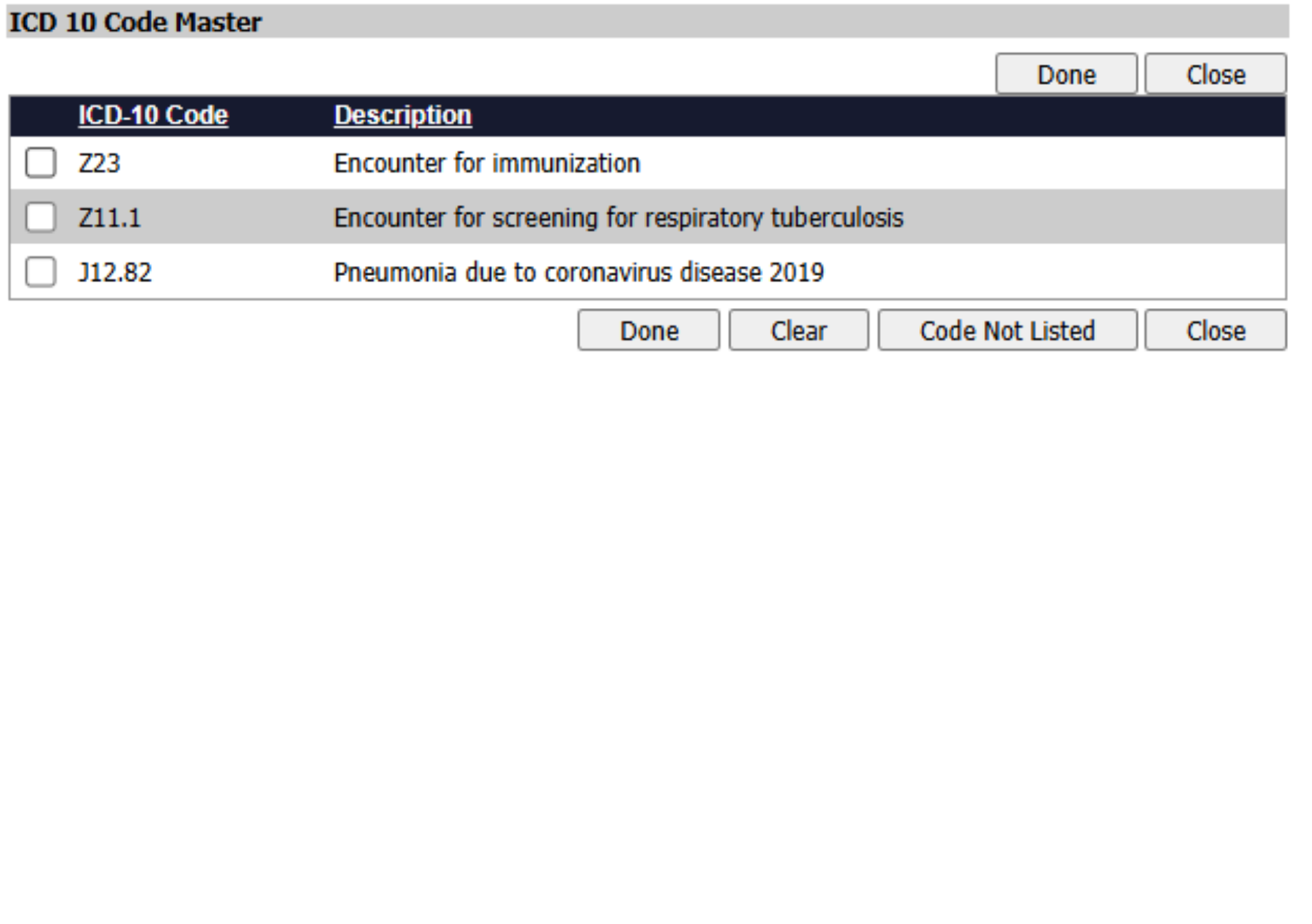
Please note that the common ICD-10 codes will populate. Select the checkbox and click Done.
7. Record TB Skin Test Reading
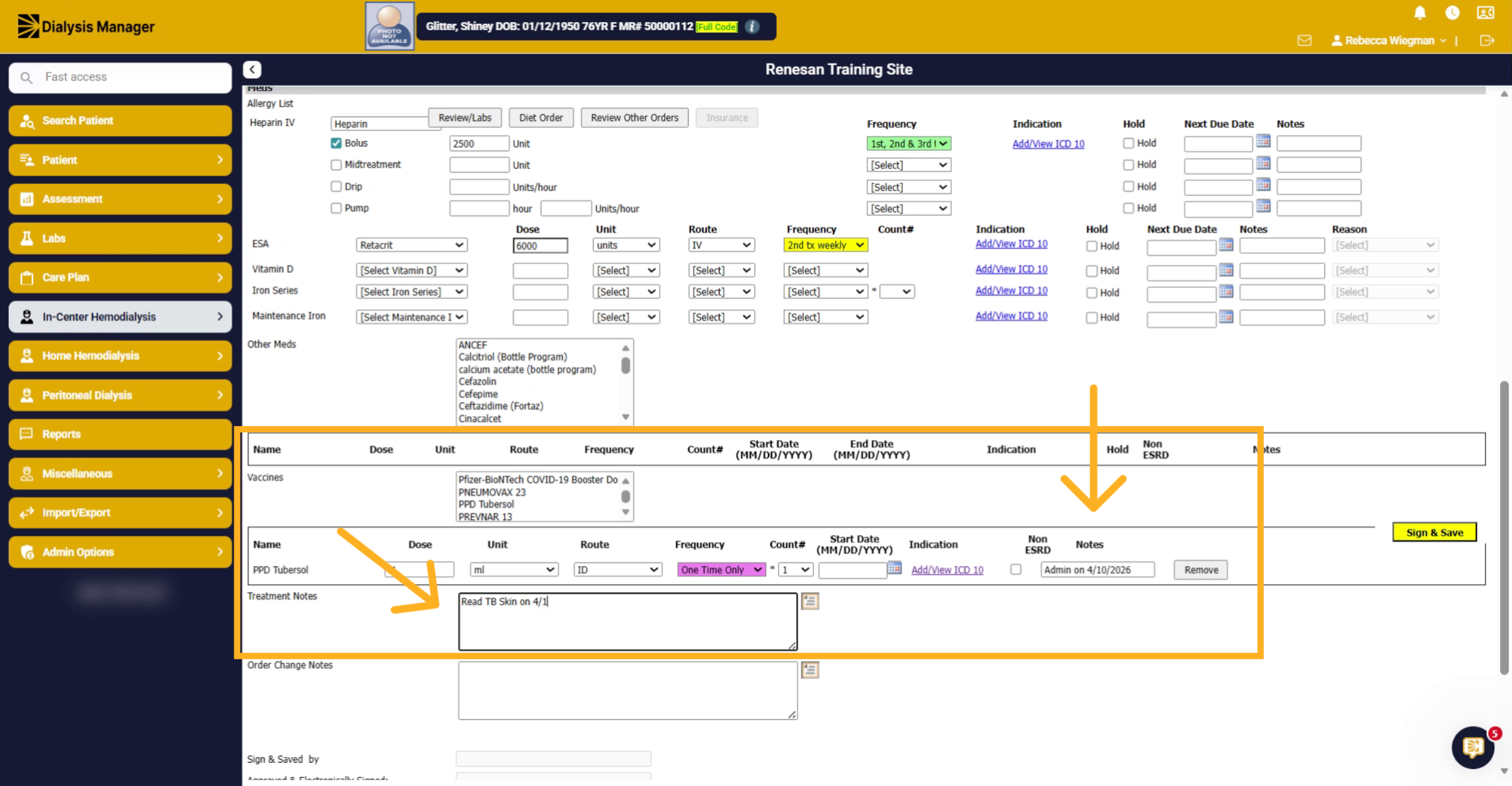
Entering "Notes" will display inside the Flowsheet when you hover over the yellow plus symbol. The Treatment Notes will display on the Treatment by Date Screen when hovering over the yellow pad and pencil as well as on the top of the flowsheet highlighted in yellow.
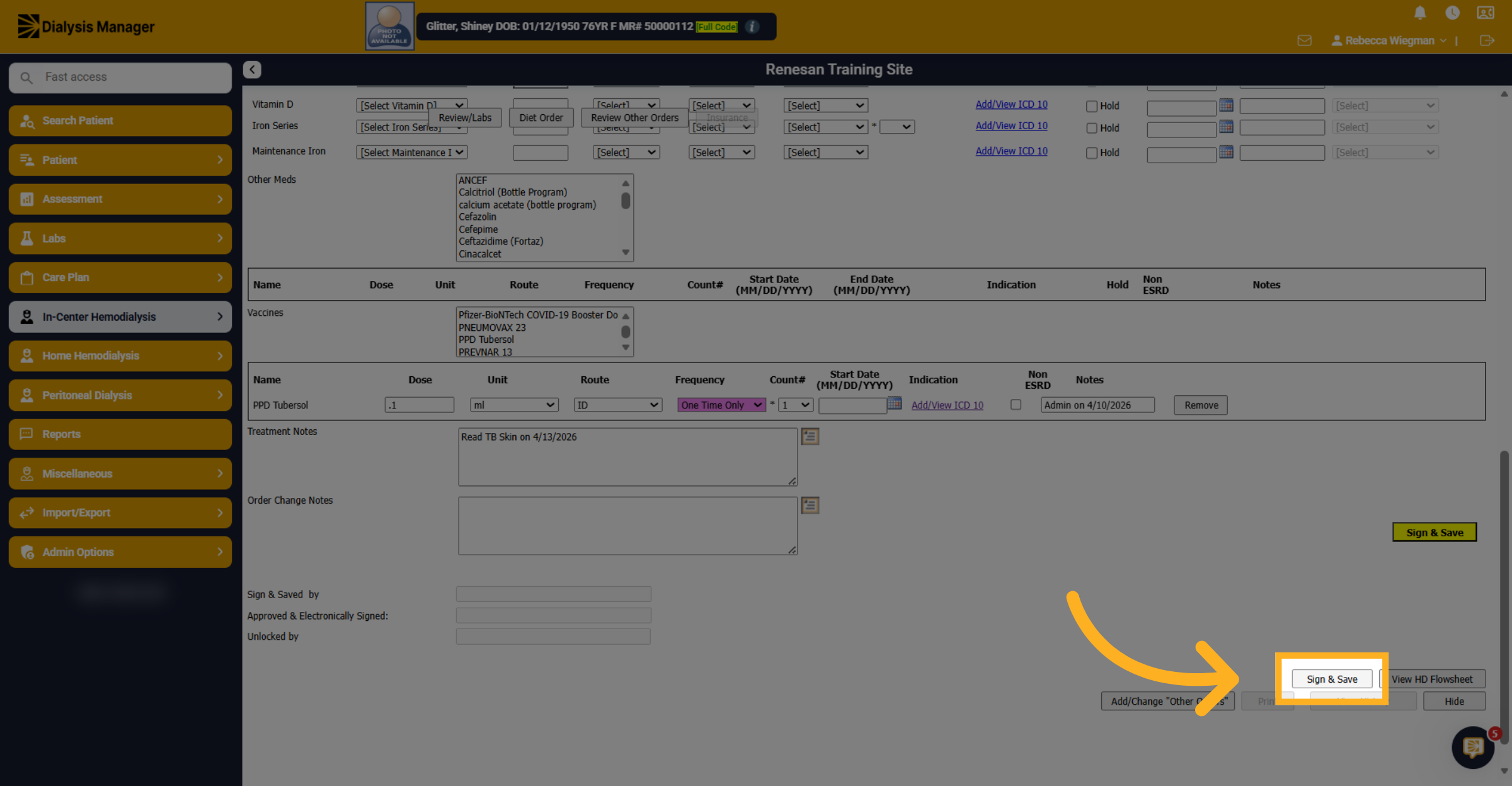
8. Sign And Save Order
Click "Sign & Save" to finalize and save the dialysis order and enter your Username, PIN or Password,
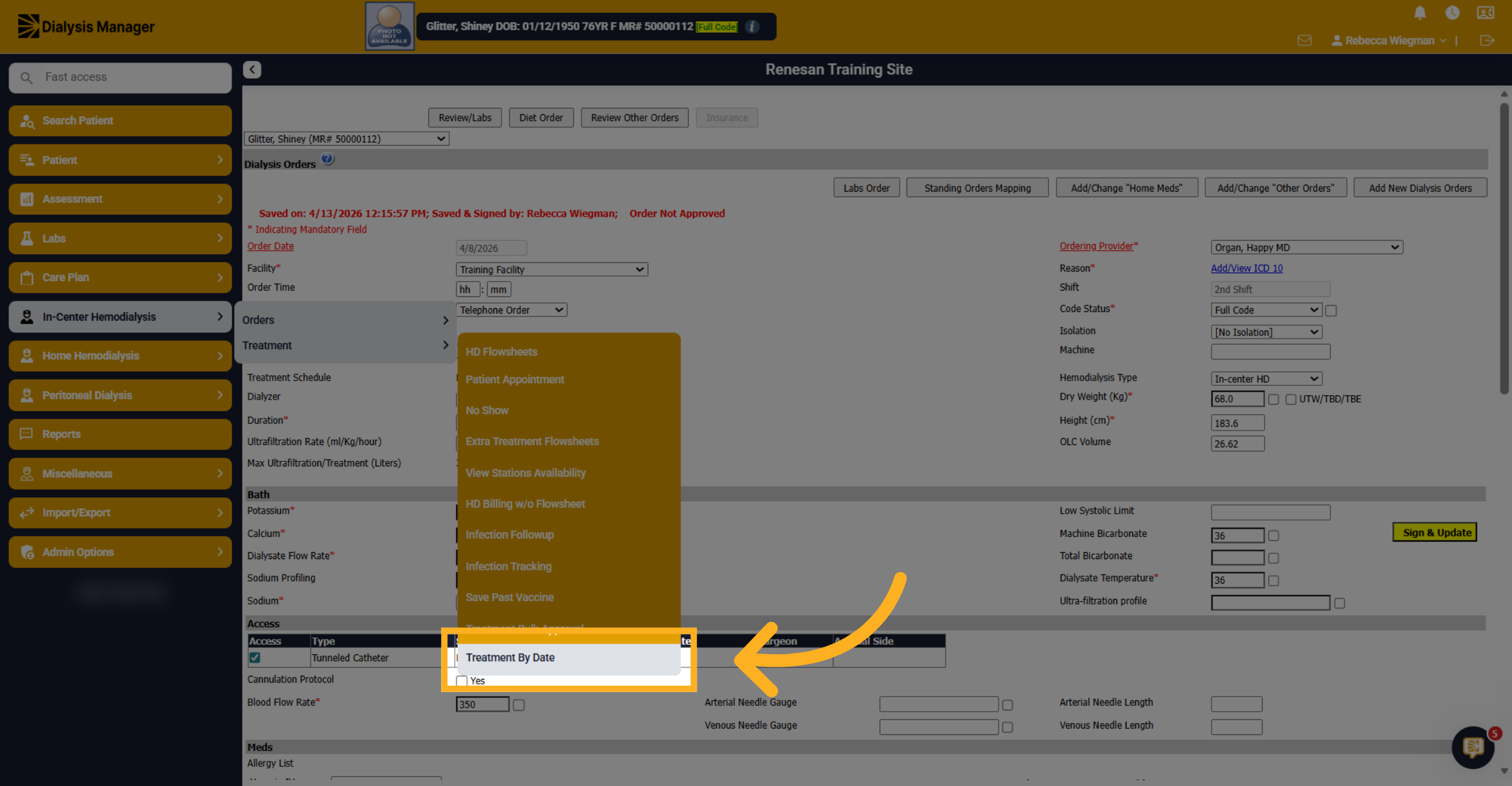
9. Documenting the TB Skin
Now that an order has been entered, when you go to the Treatment By Date screen from the Treatment Tab
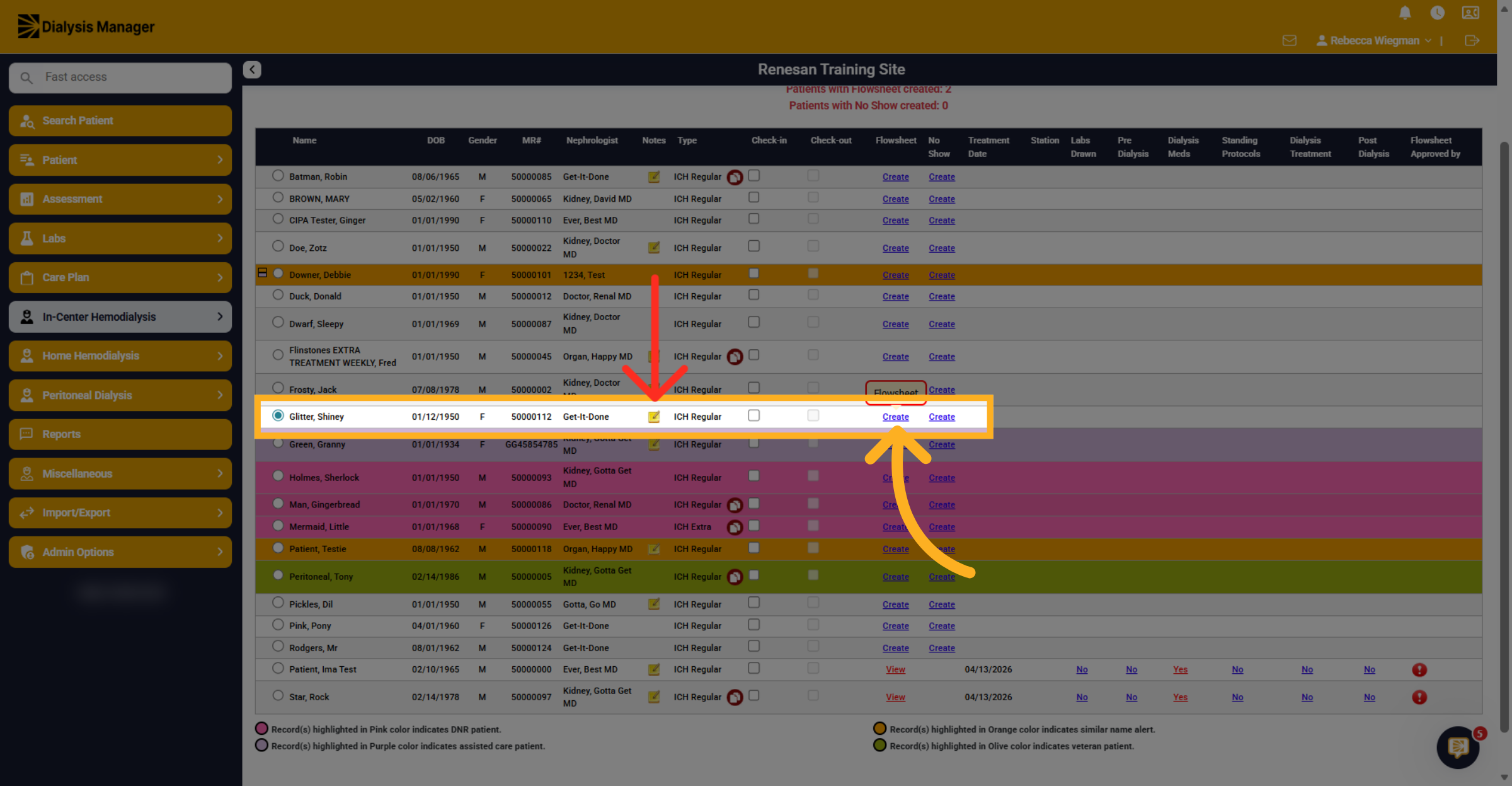
10. Find your patient
You'll need to find your patient, reminder that hovering over the yellow notepad will display the notes entered into the Treatment Notes box from the dialysis order. Select Create to open the flowsheet.
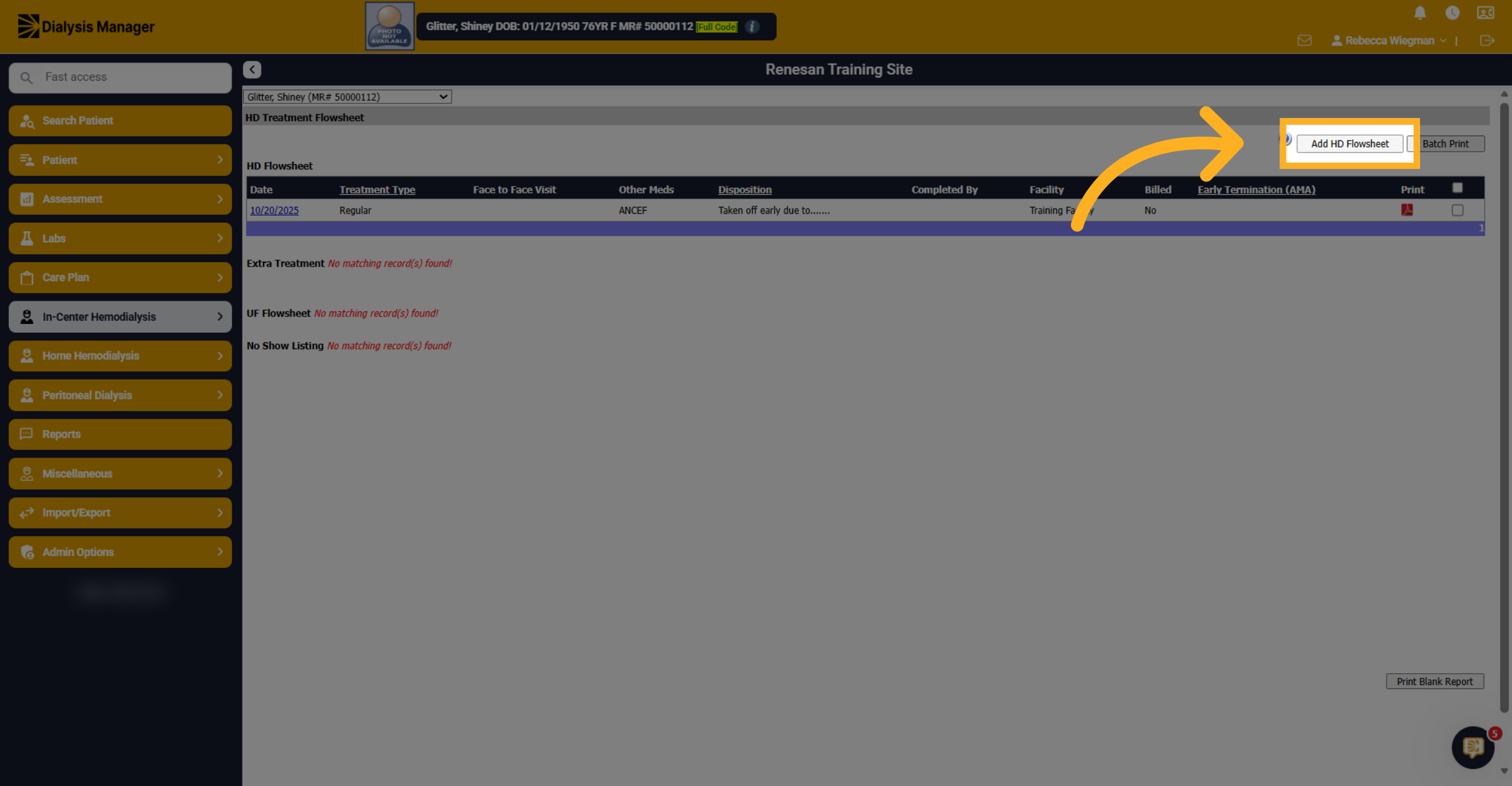
11. Add HD Flowsheet
Click "Add HD Flowsheet" to include a new hemodialysis flowsheet for the patient.
12. Access Dialysis Medications
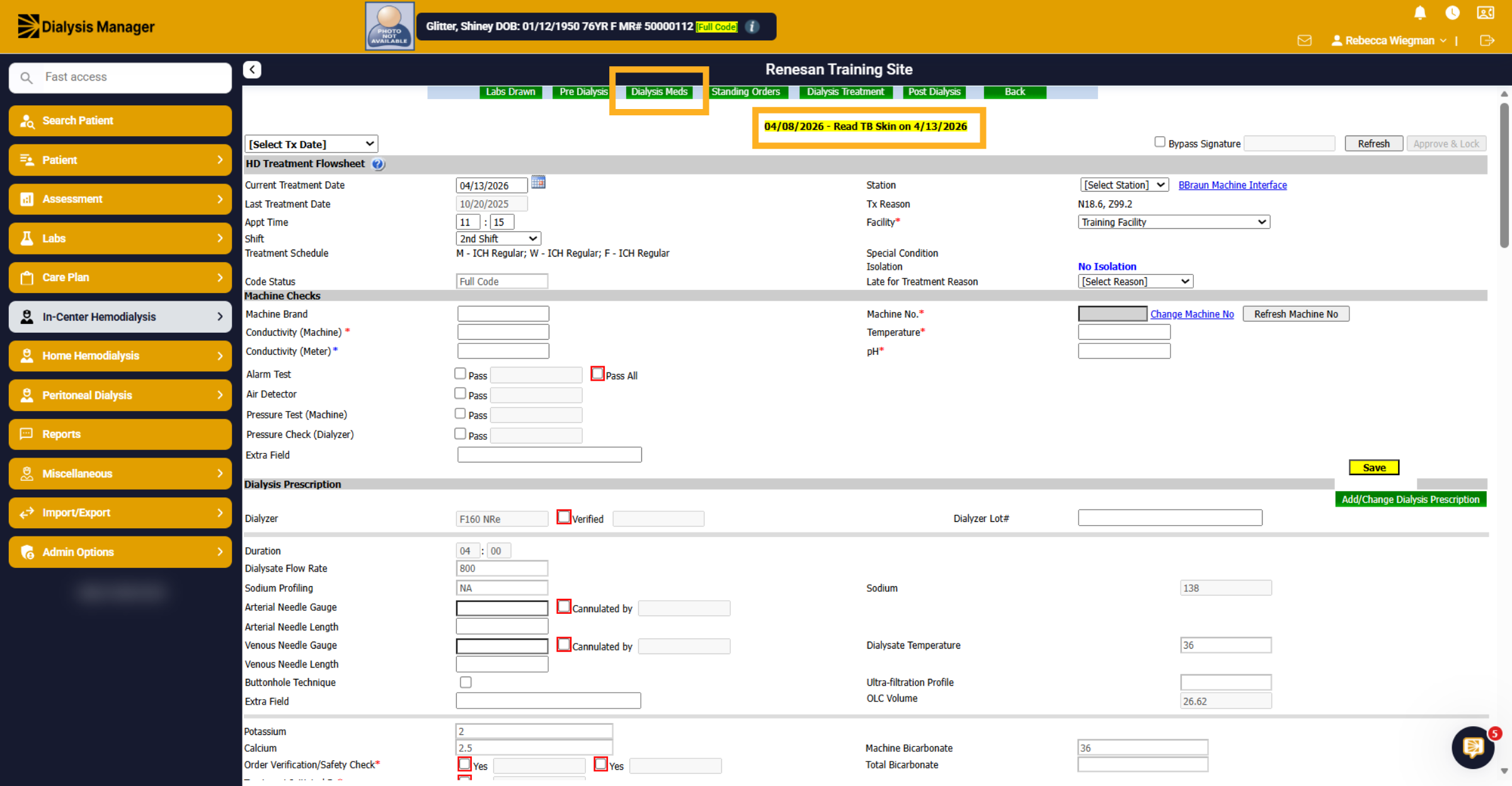
Towards the top of the Flowsheet you'll see the Treatment Notes entered from the Dialysis Order highlighted. Once you have worked your way through the Flowsheet and ready to enter Medication or vaccines select Dialysis Meds.
13. Administrating the TB Test
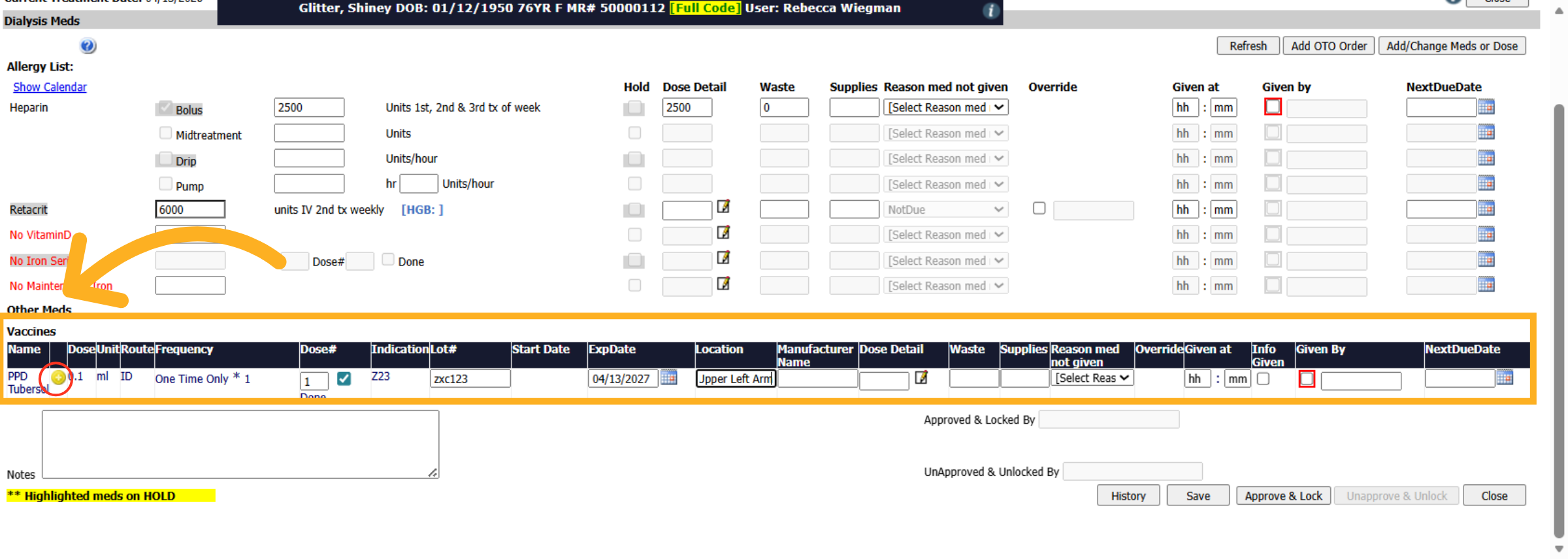
Under Vaccines, you'll see the PPD Tubersol, please note that hovering over the yellow plus symbol will display notes from the Dialysis Order. Work your way through entering the Lot Number, Expiration Date, and Location.
14. Dose Detail
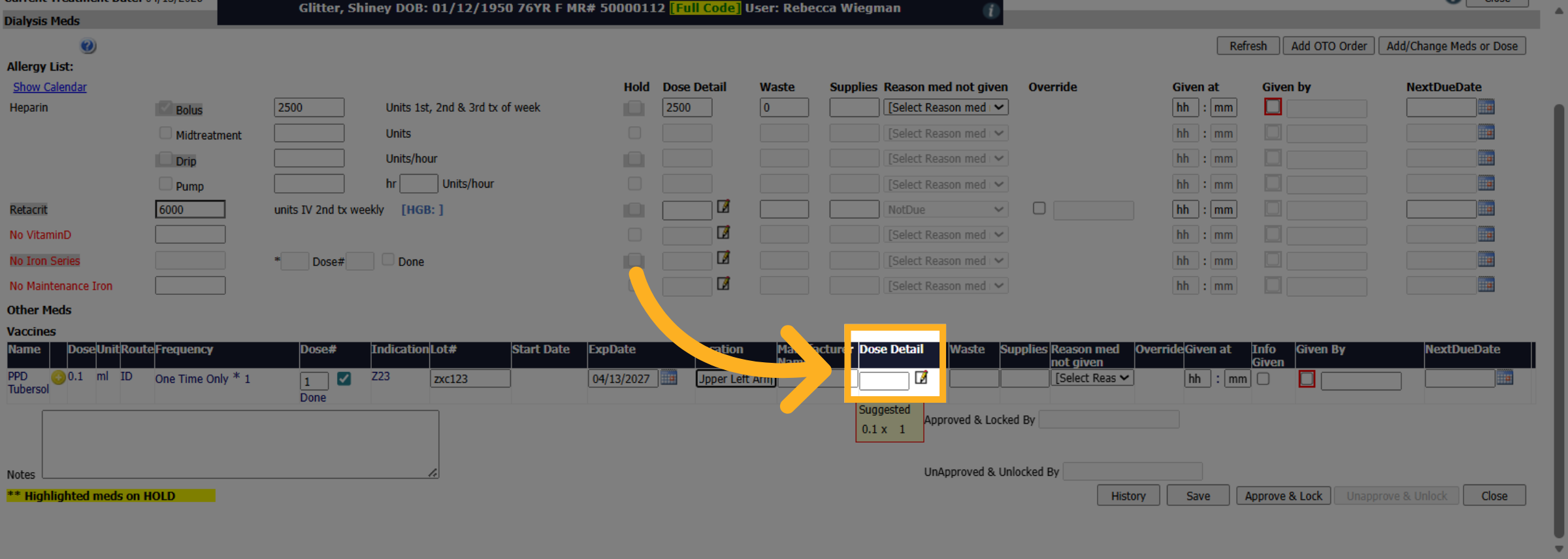
Select the notepad to enter the Dose Details.
15. Save Medication Details
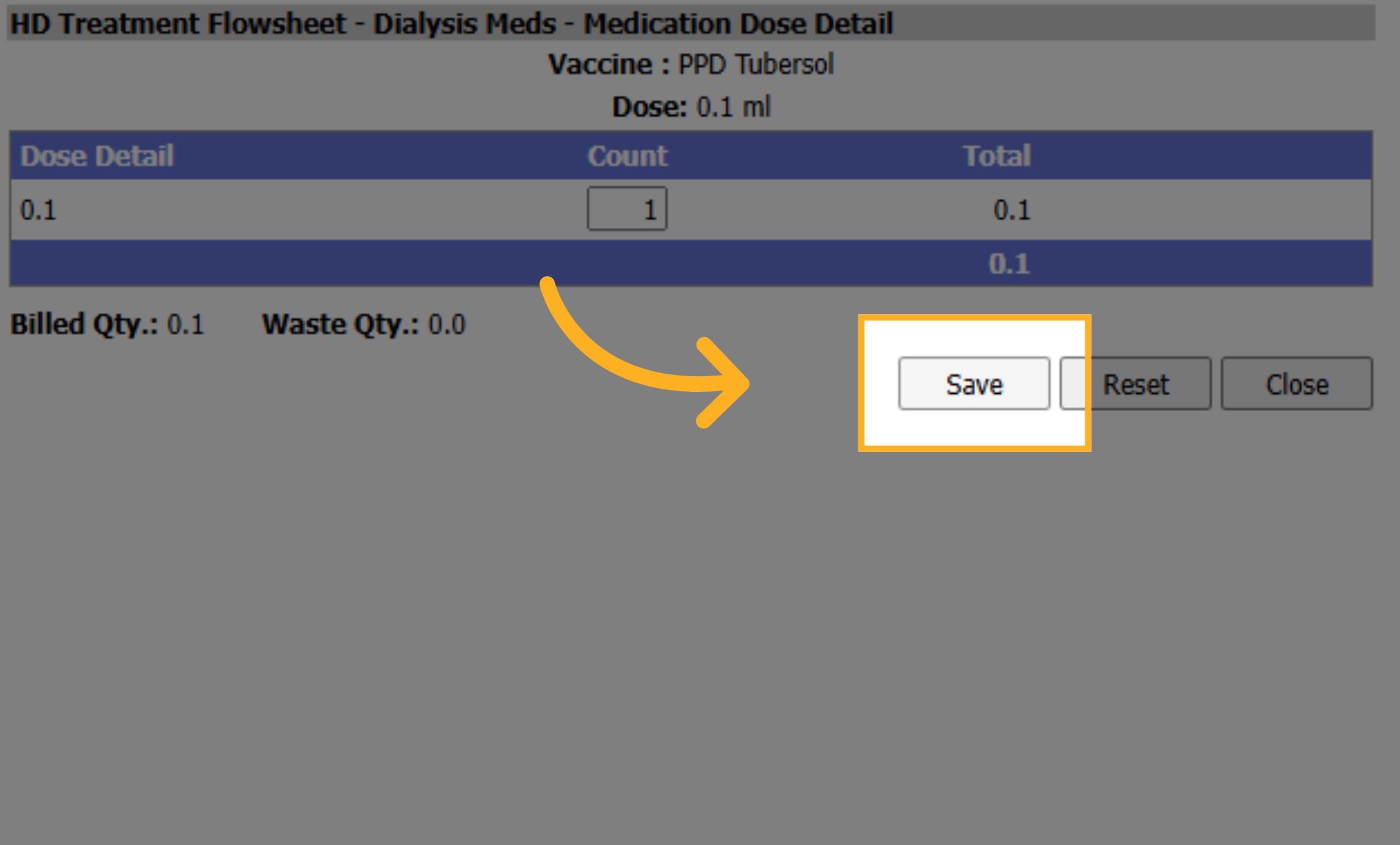
Click "Save" to store the entered dose details. Then click "Close".
16. Given at and By
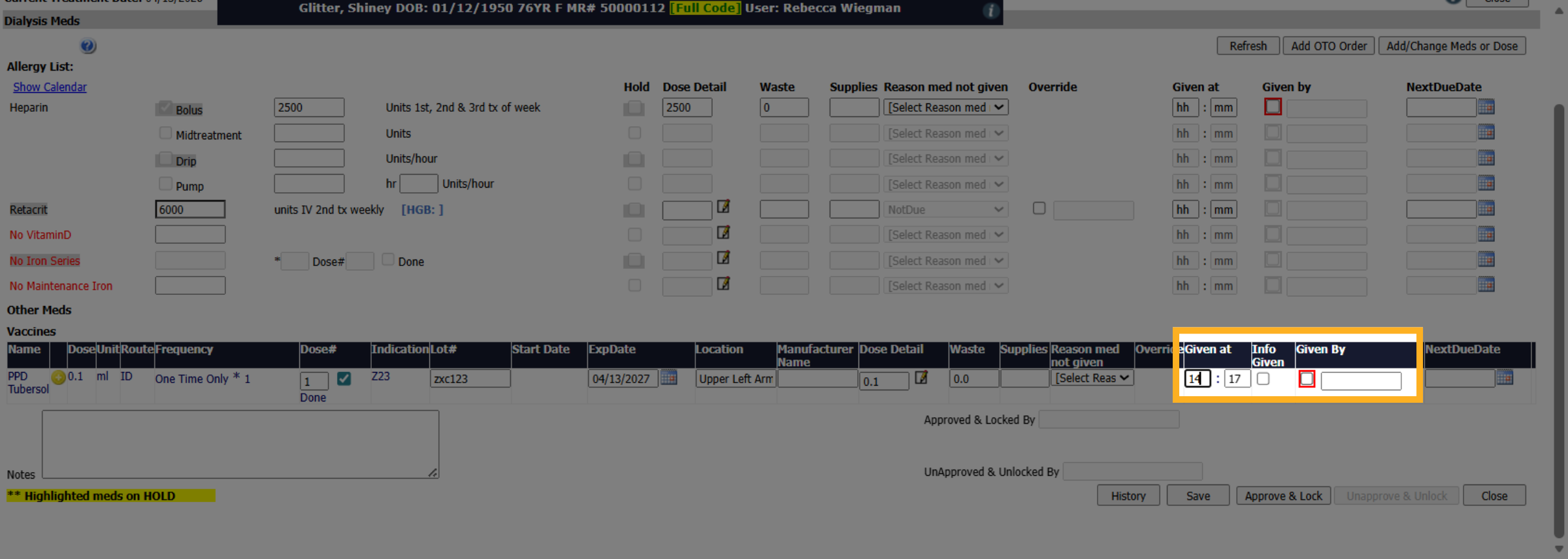
You'll then document when the vaccine was given. Please note that selecting the F2 key on your keyboard will enter the current time. Then click the Given By checkbox to enter your username, PIN or Password.
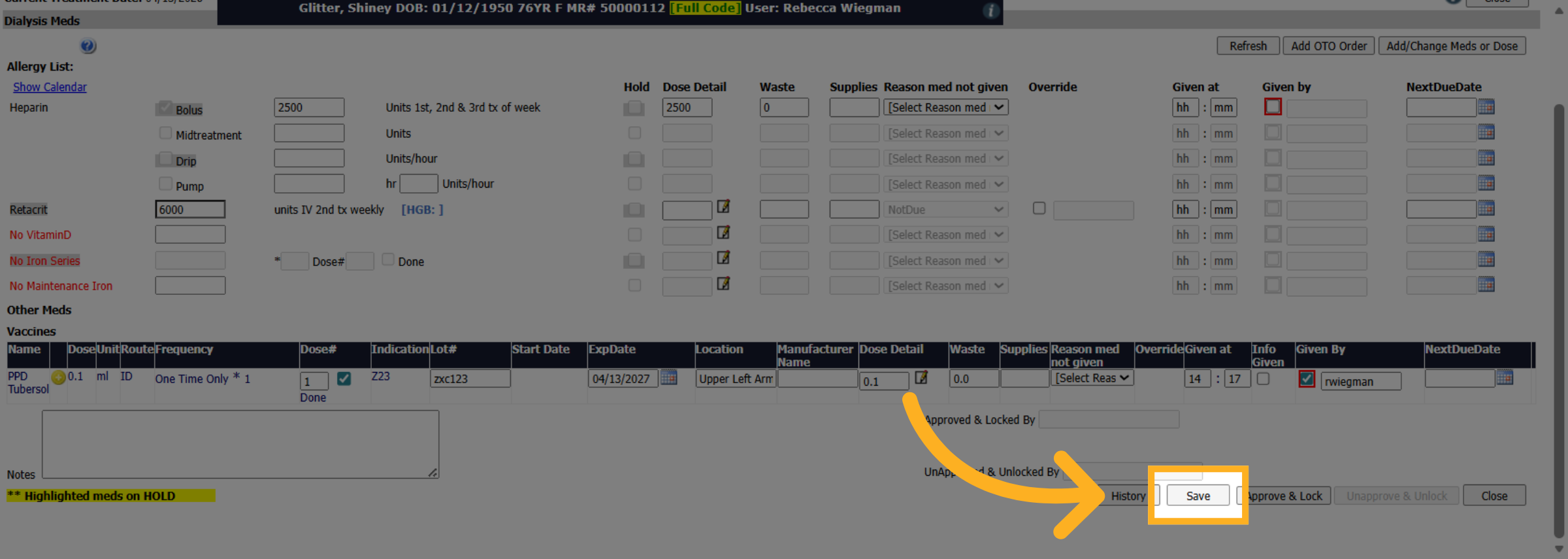
17. Save Changes
Click "Save" to apply and save all medication or vaccine changes made. Then "Close" to bring you back to the Flowsheet.
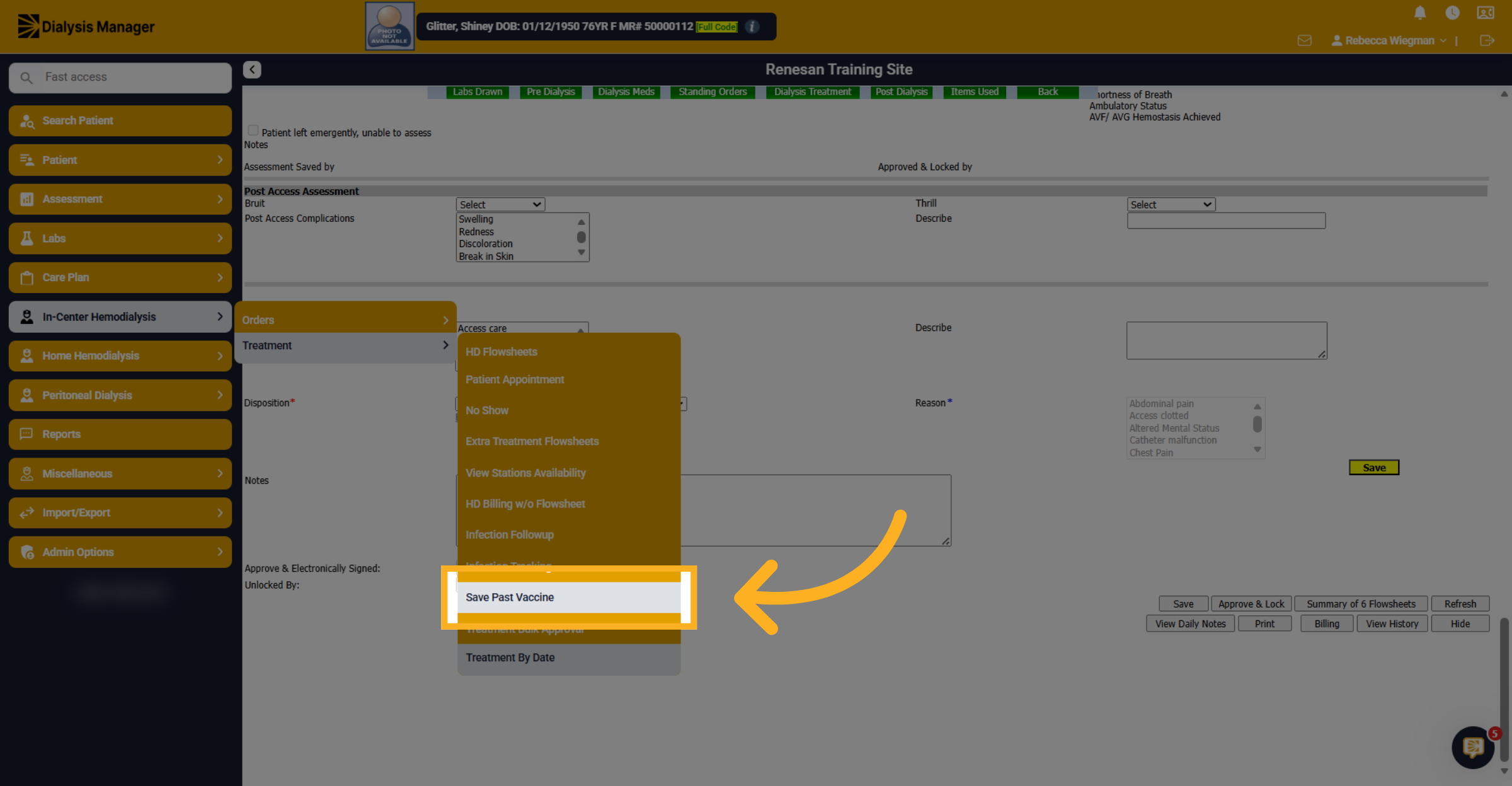
18. Save Past Vaccine Record
Once the patient returns to have the TB Skin Test read you'll want to go into the Treatment Tab and click "Save Past Vaccine" to store historical vaccination information.
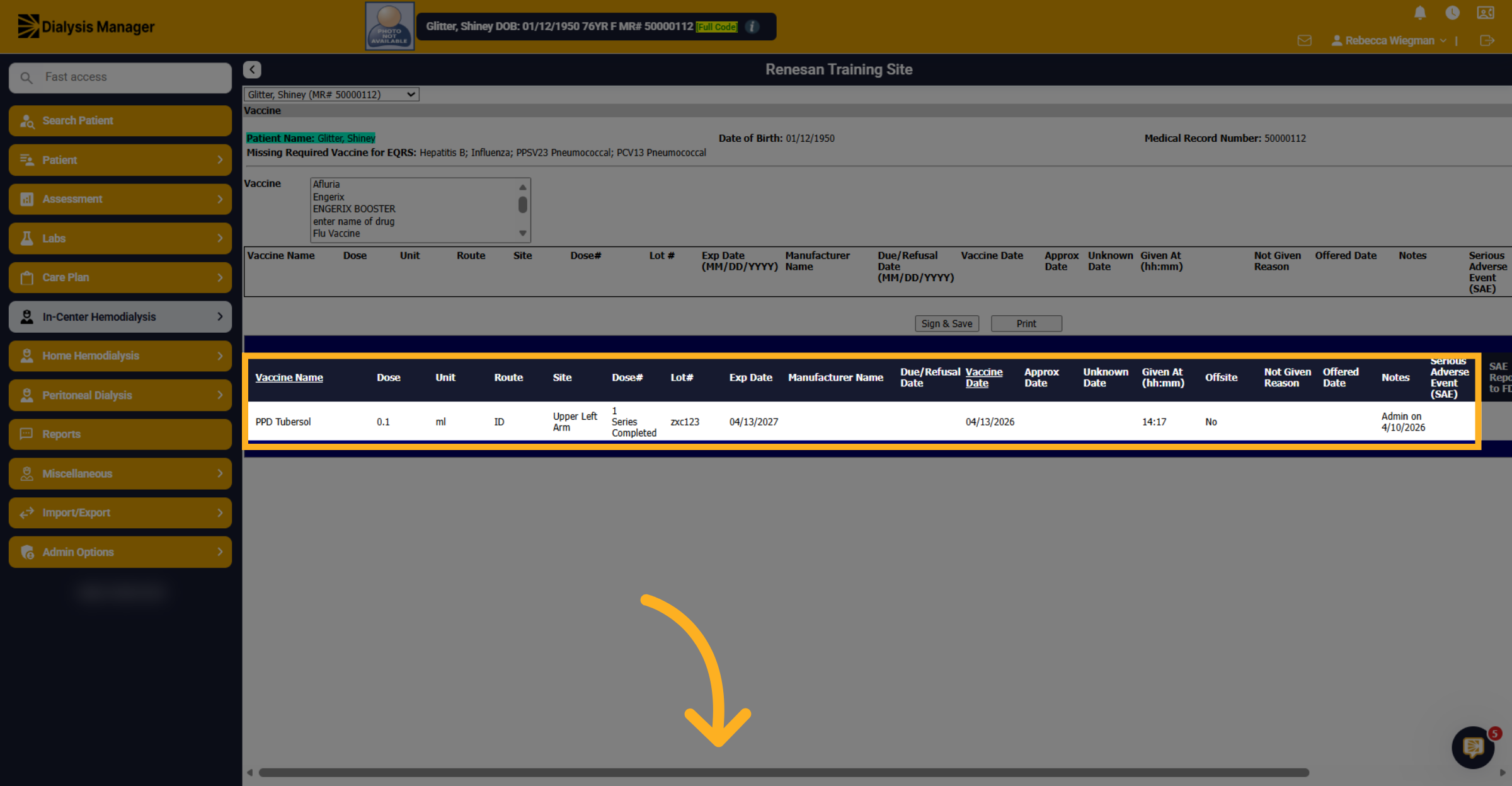
19. Select PPD Tubersol Again
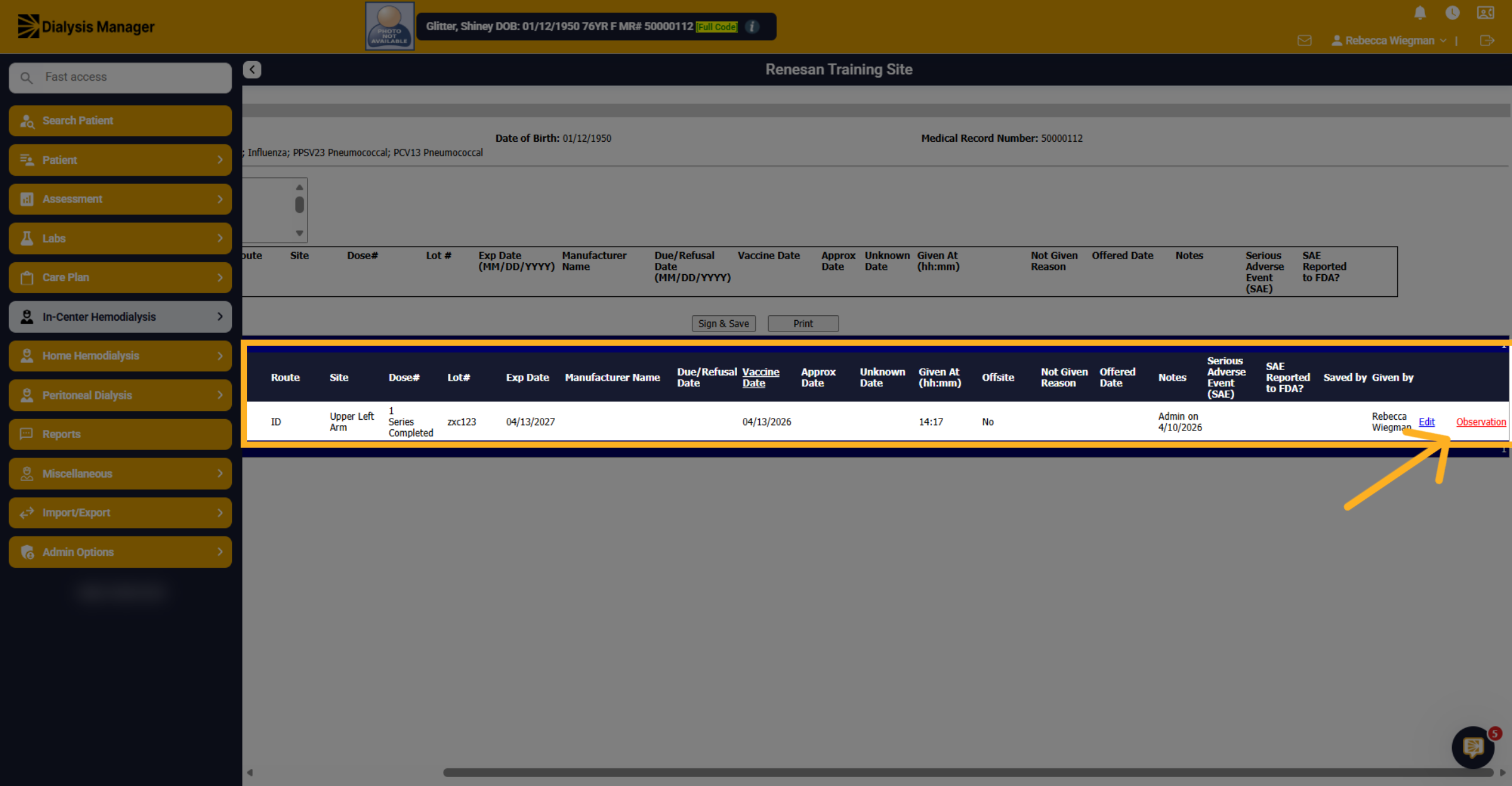
You'll see the PPD Tubersol with a "Vaccine Date" of when it was administered. Using the scroll bar at the bottom of the page you want to move it to the right.
20. Open Observation Section
Click "Observation" to view or add notes related to the vaccination or treatment.
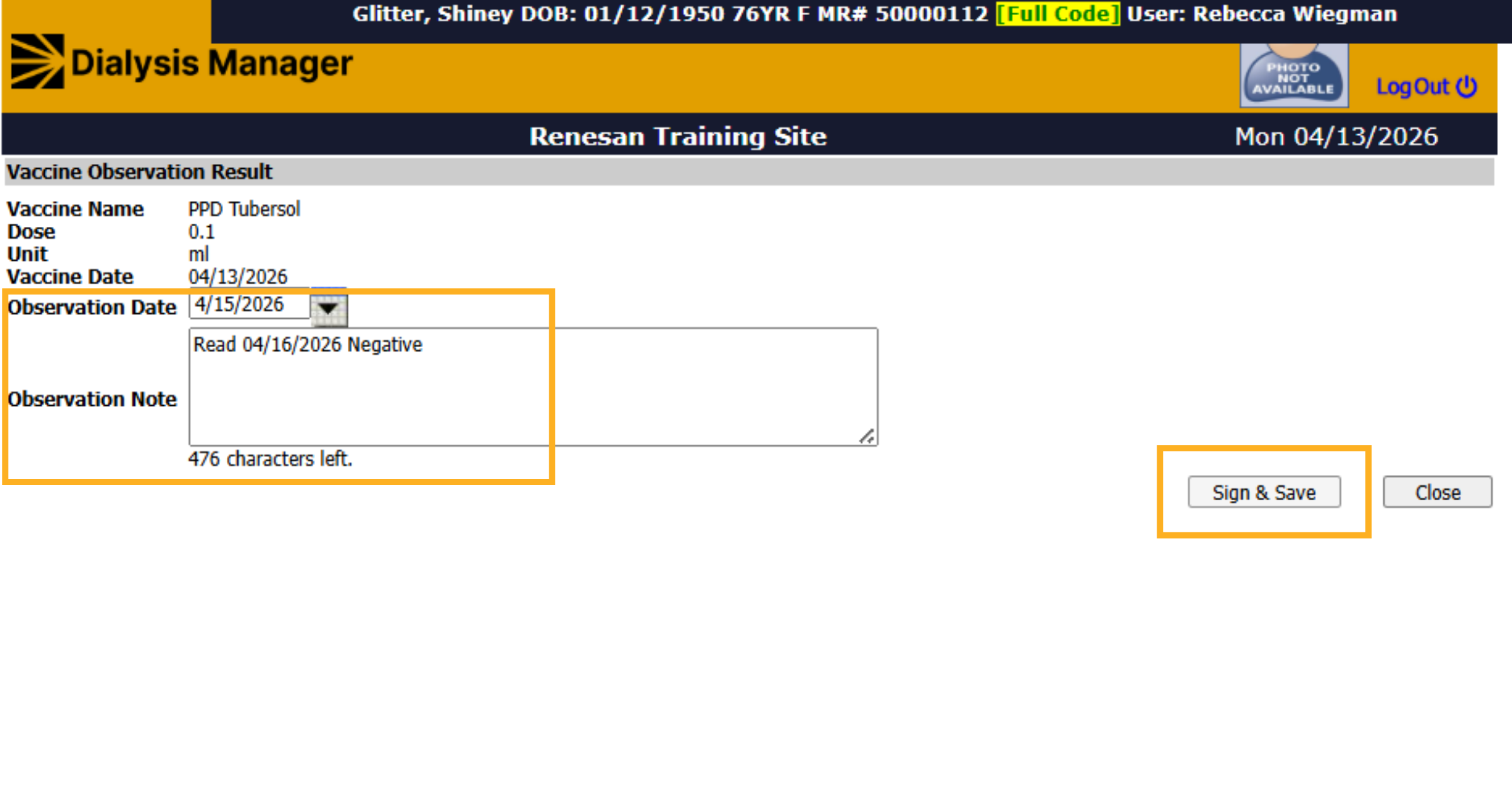
21. Observation Date and Notes
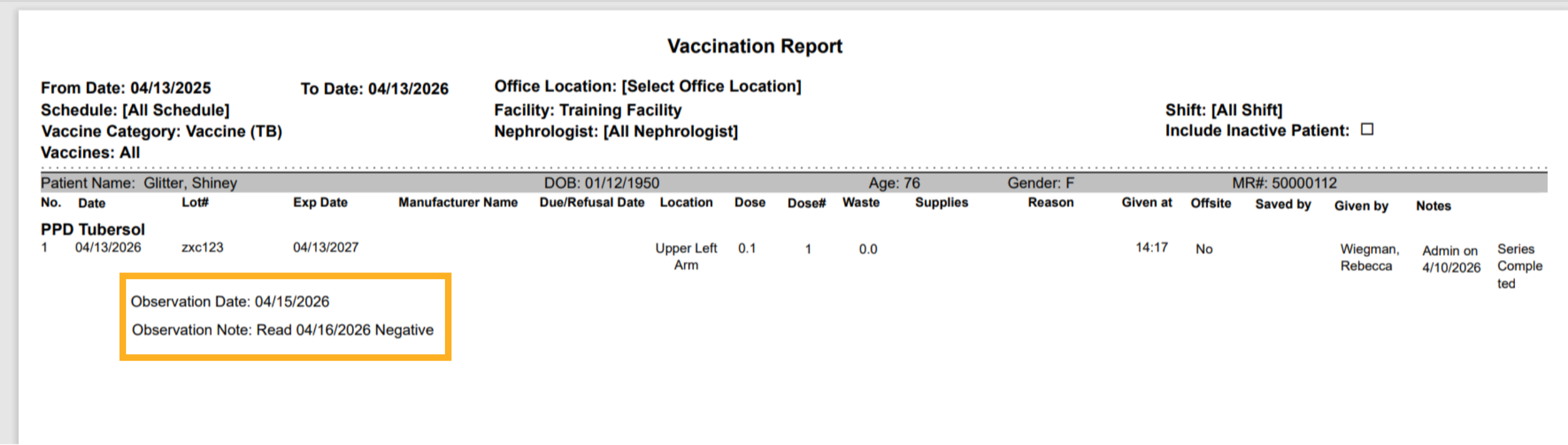
Verify the Observation Date and enter any Observation Notes. The date and notes will display on the Vaccine Report. Once completed click Sign & Save before closing.
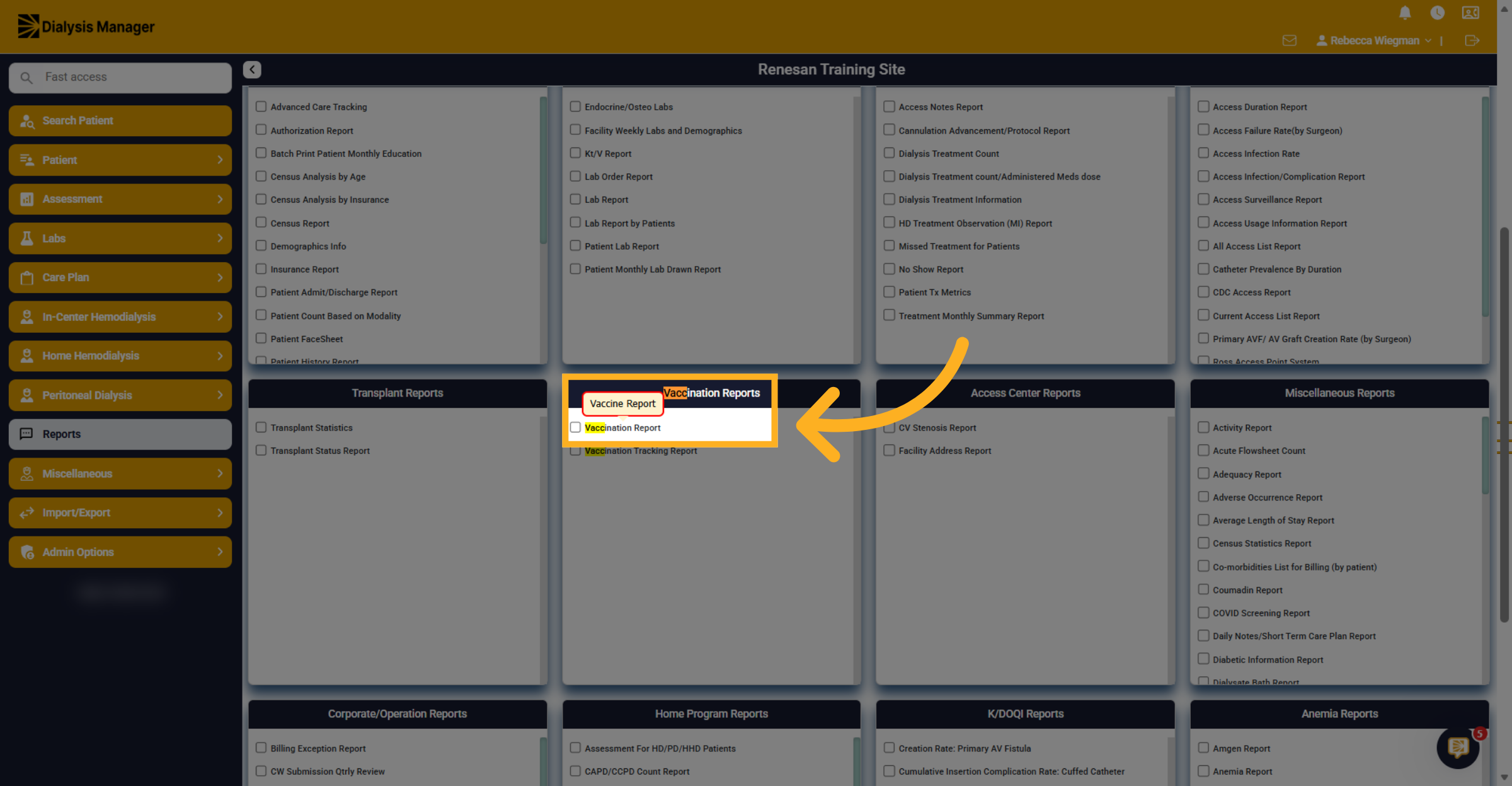
22. Access Vaccination Report
Now let's take a look at the Vaccination Report through the Reports Menu.
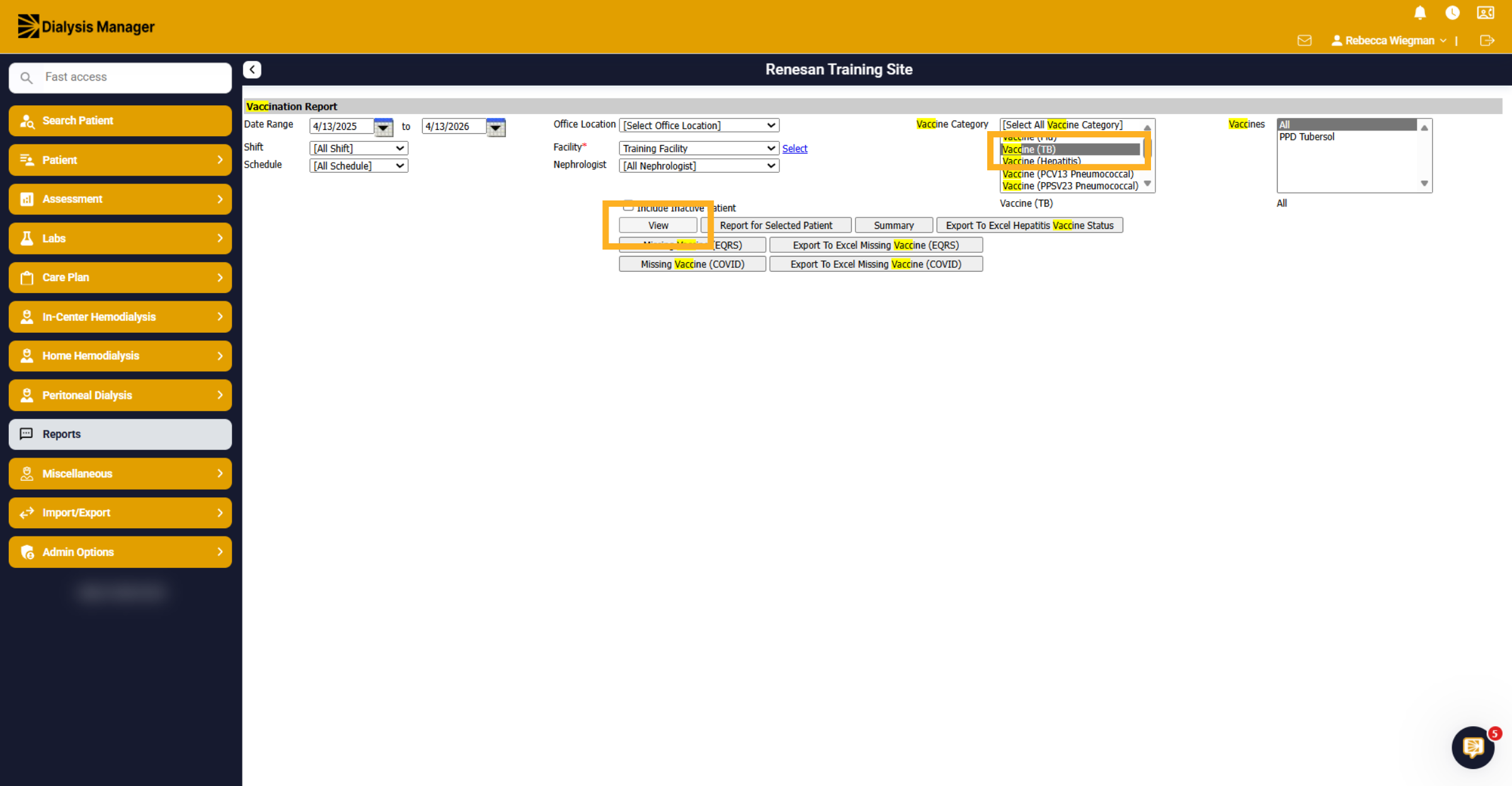
23. View Vaccination Report
The Date will automatically default for the past year. You'll need to select a facility and select Vaccine (TB) from the Vaccine Category dropdown. Then click "View"
24. Confirm Report View
Your patient who received a TB Vaccine within the date range will display. You can Batch Print for multiple patients or selected patients. You can also select "View" if you're looking for one patient.
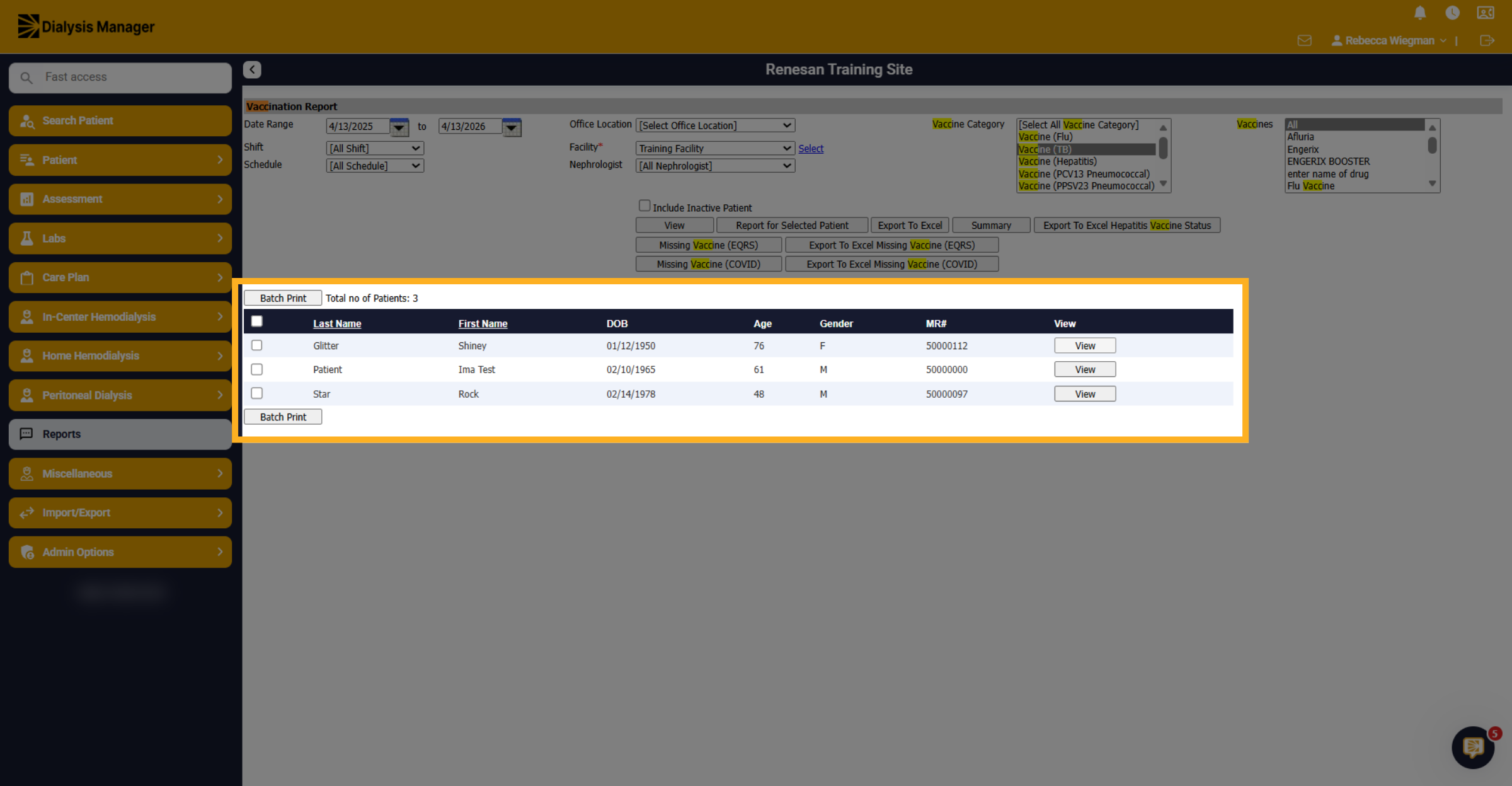
25. Vaccincation Report
Once the report opens, you'll be able to see the PPD Tubersol vaccine along with any information entered. Below you'll see the Observation Date and notes if entered.