Submit EQRS Data Using Dialysis Manager.
1. Open Import Export Menu
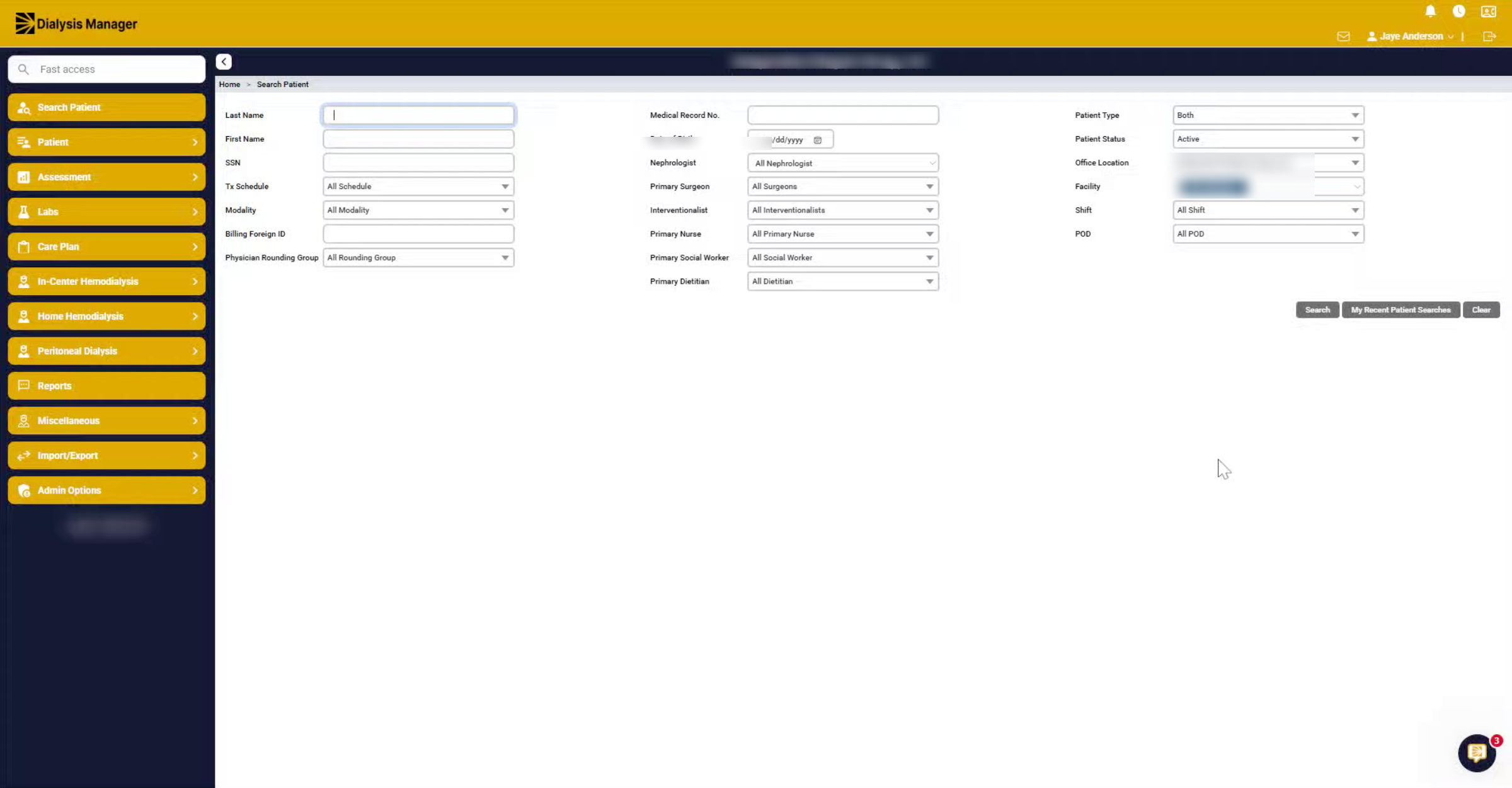
In this video we will show how to submit information to EQRS. First go to import export, and then we're going to click on EQRS data submission.
2. Select Period And Facility
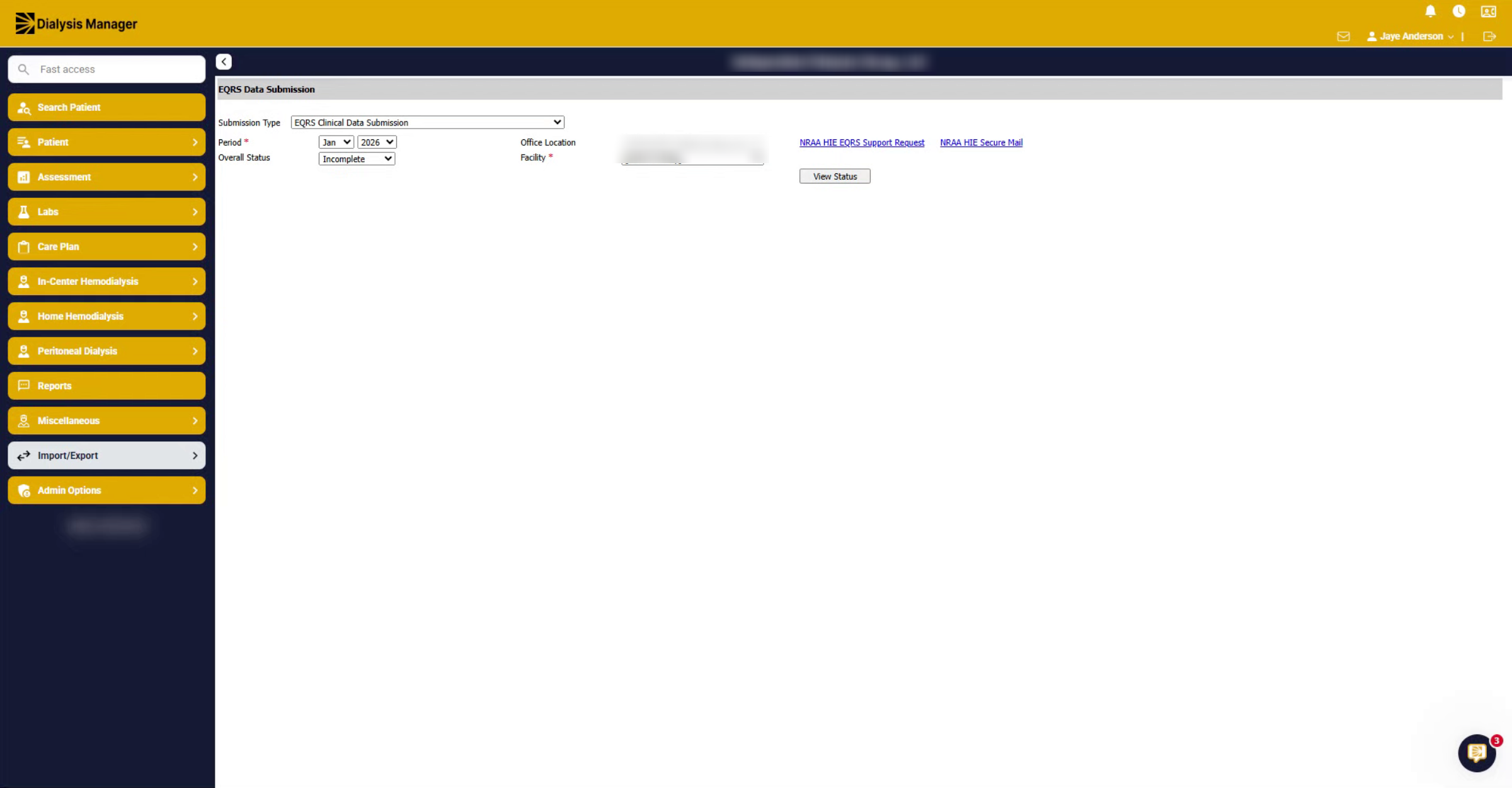
In order to submit the data, first, it defaults to the Clinical Data Submission. Ensure you have the correct period, then select the correct facility, and click on view.
3. Access Demographics File
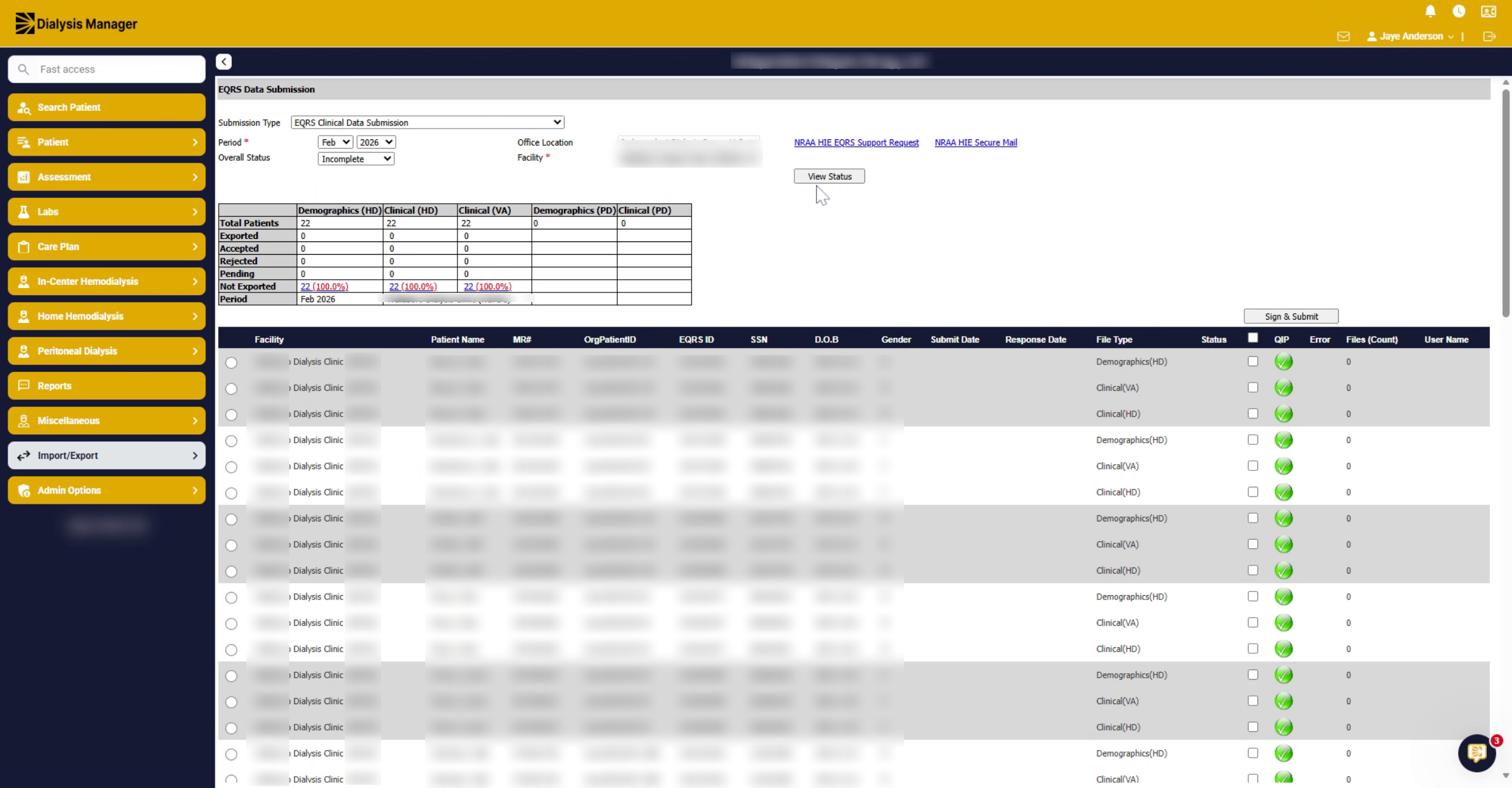
After clicking view status, click on the demographics file.
4. View Submission Percentage
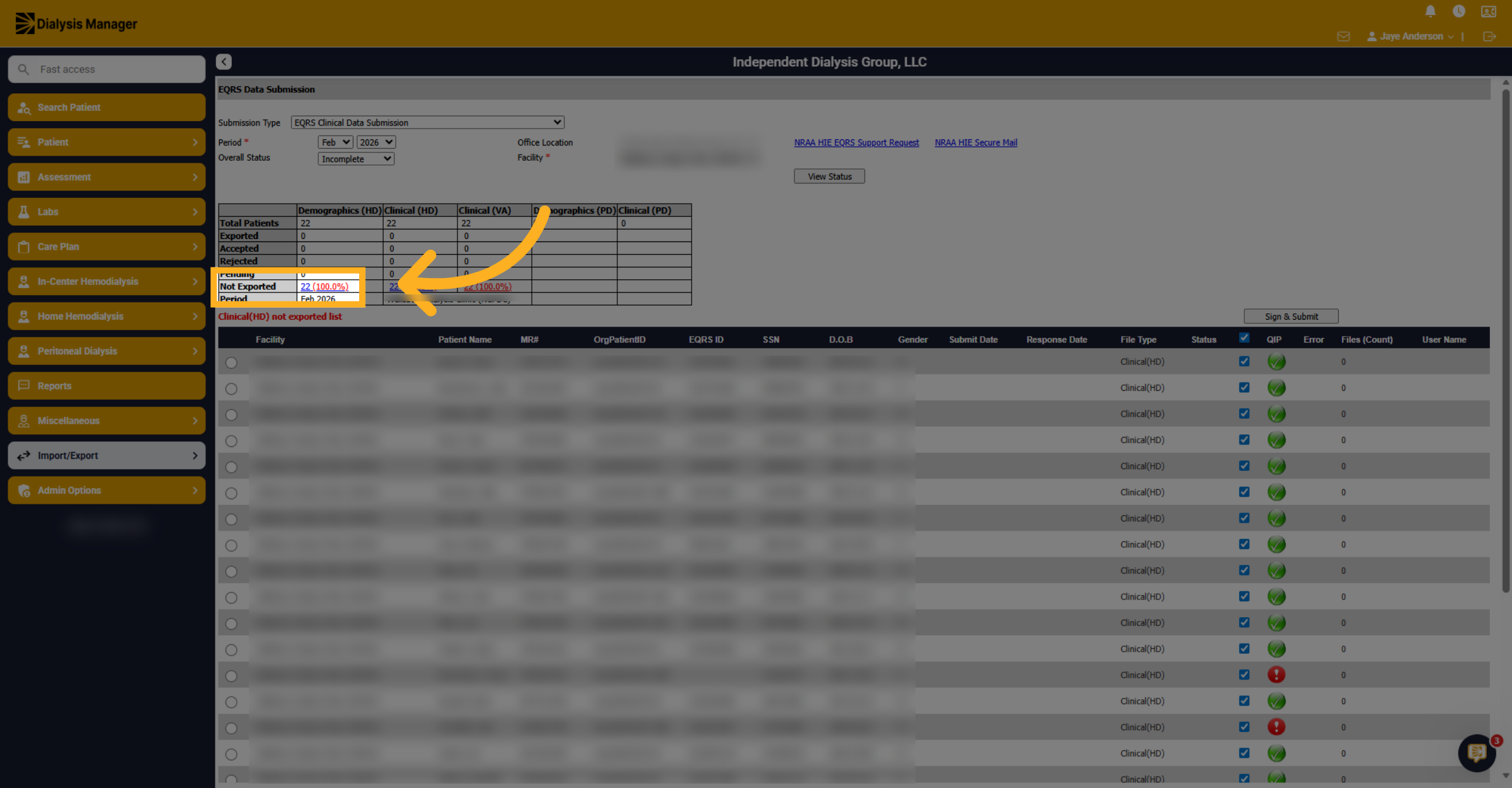
The Demographic HD Not Exported hyperlink seen here.
5. Verify QIP Information Status (1)
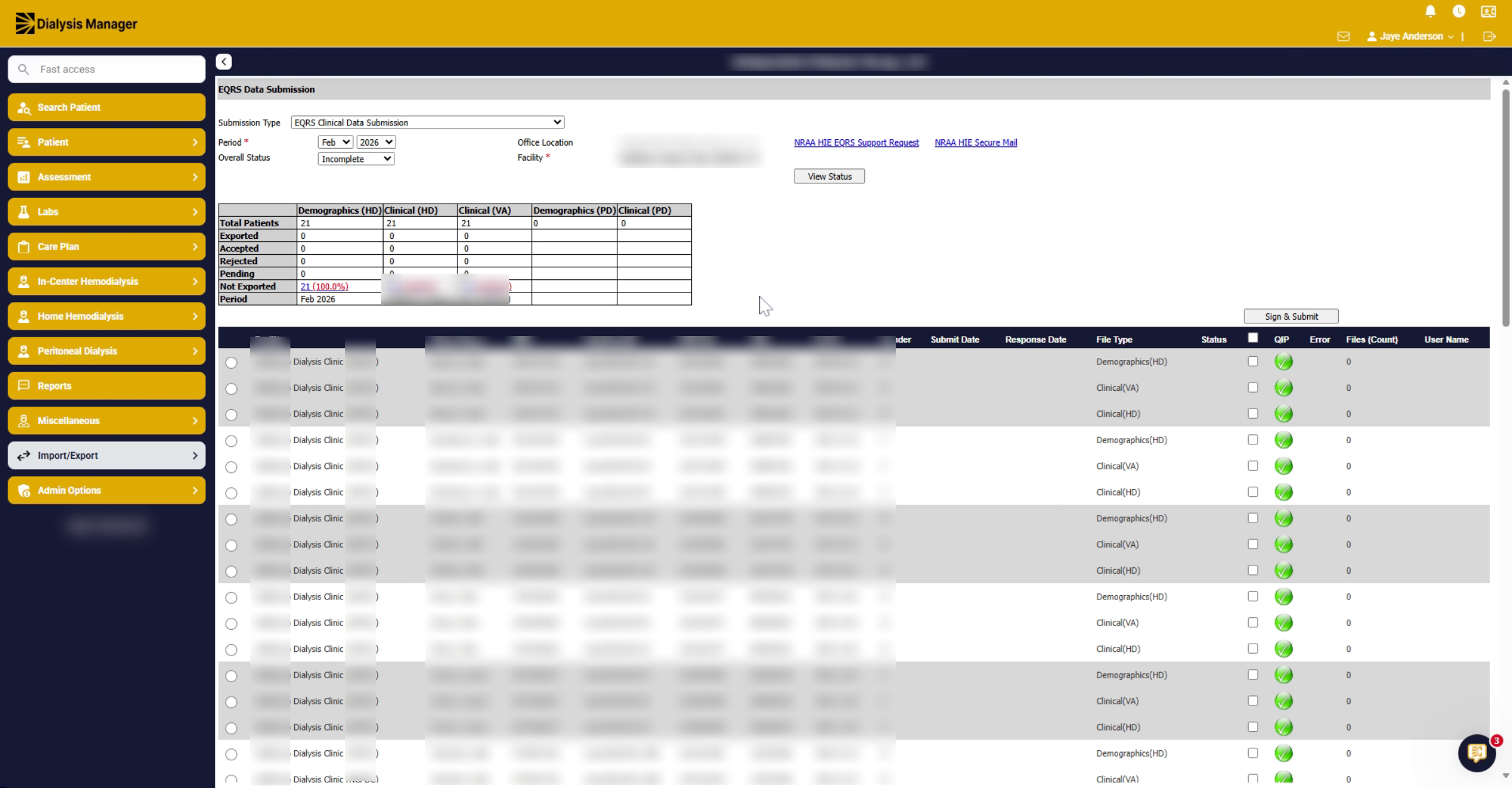
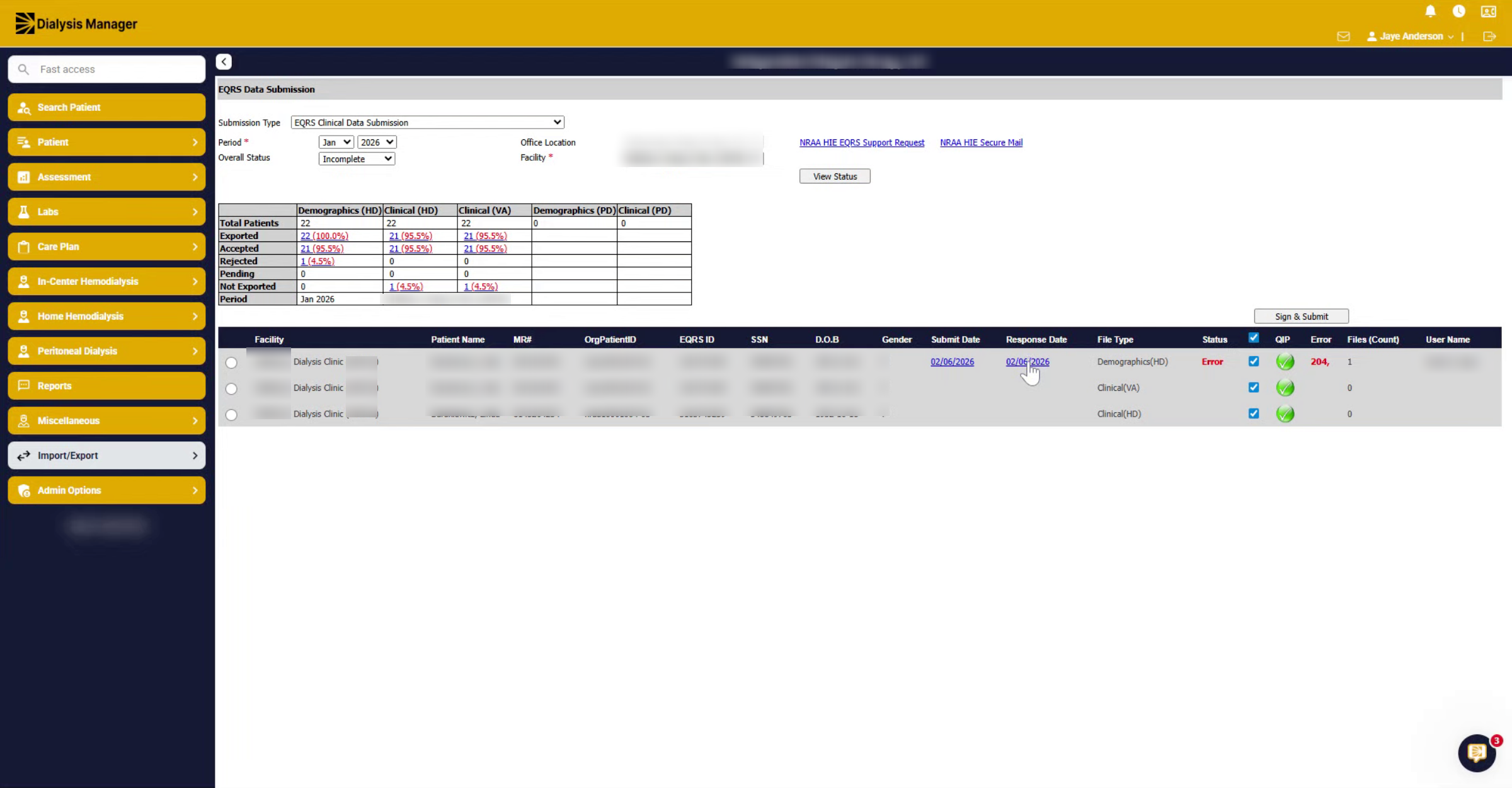
Before submitting any clinical data, you'll review your QIP information. Notice it is green. This is good and means it's ready to send.
6. Verify QIP Information Status (2)
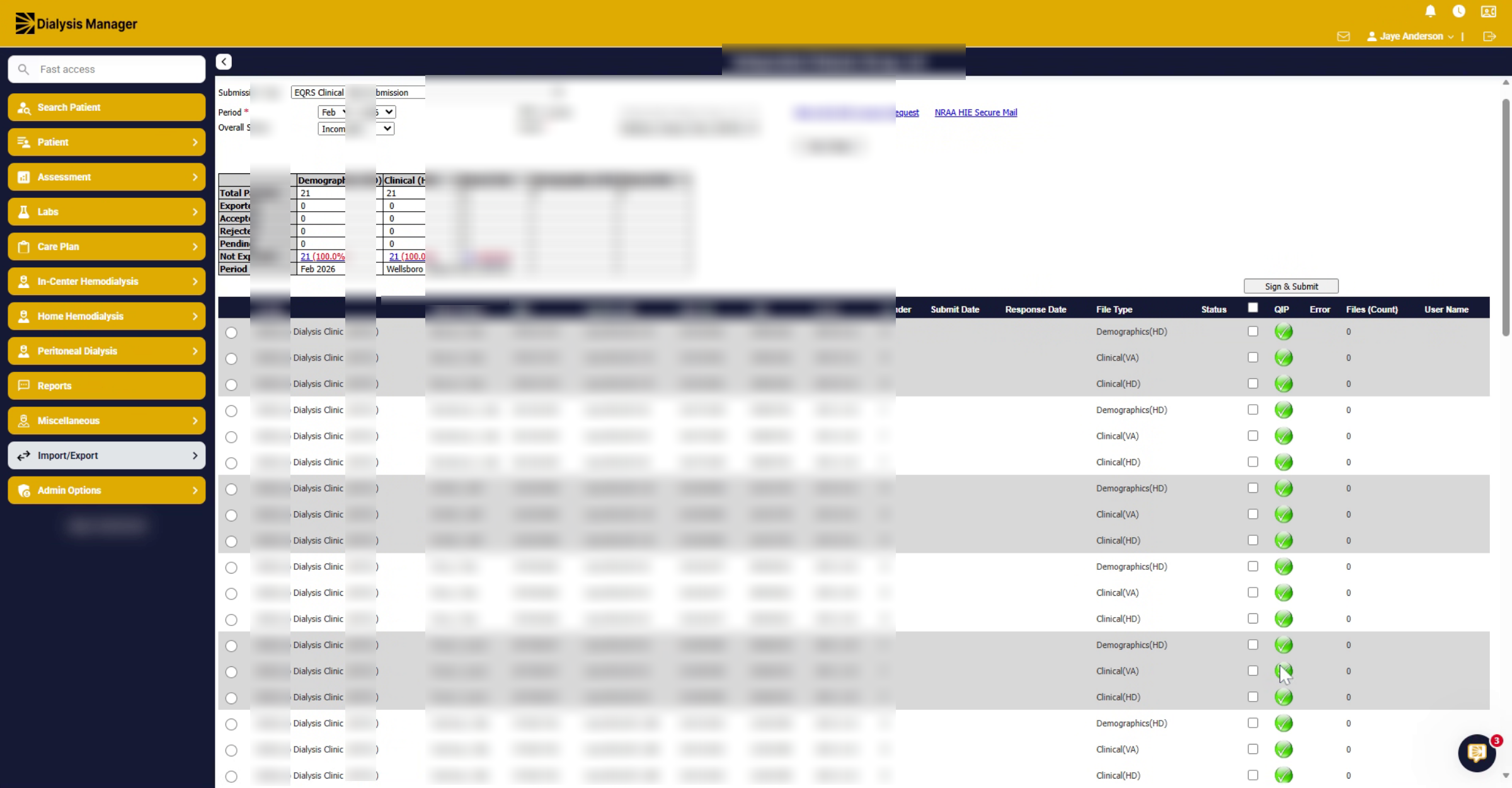
If there are missing items, such as a medication reconciliation, you will see those listed in Red. Hovering will show the error. You will want to review and correct any errors prior to submission.
7. Choose Patient Data Files
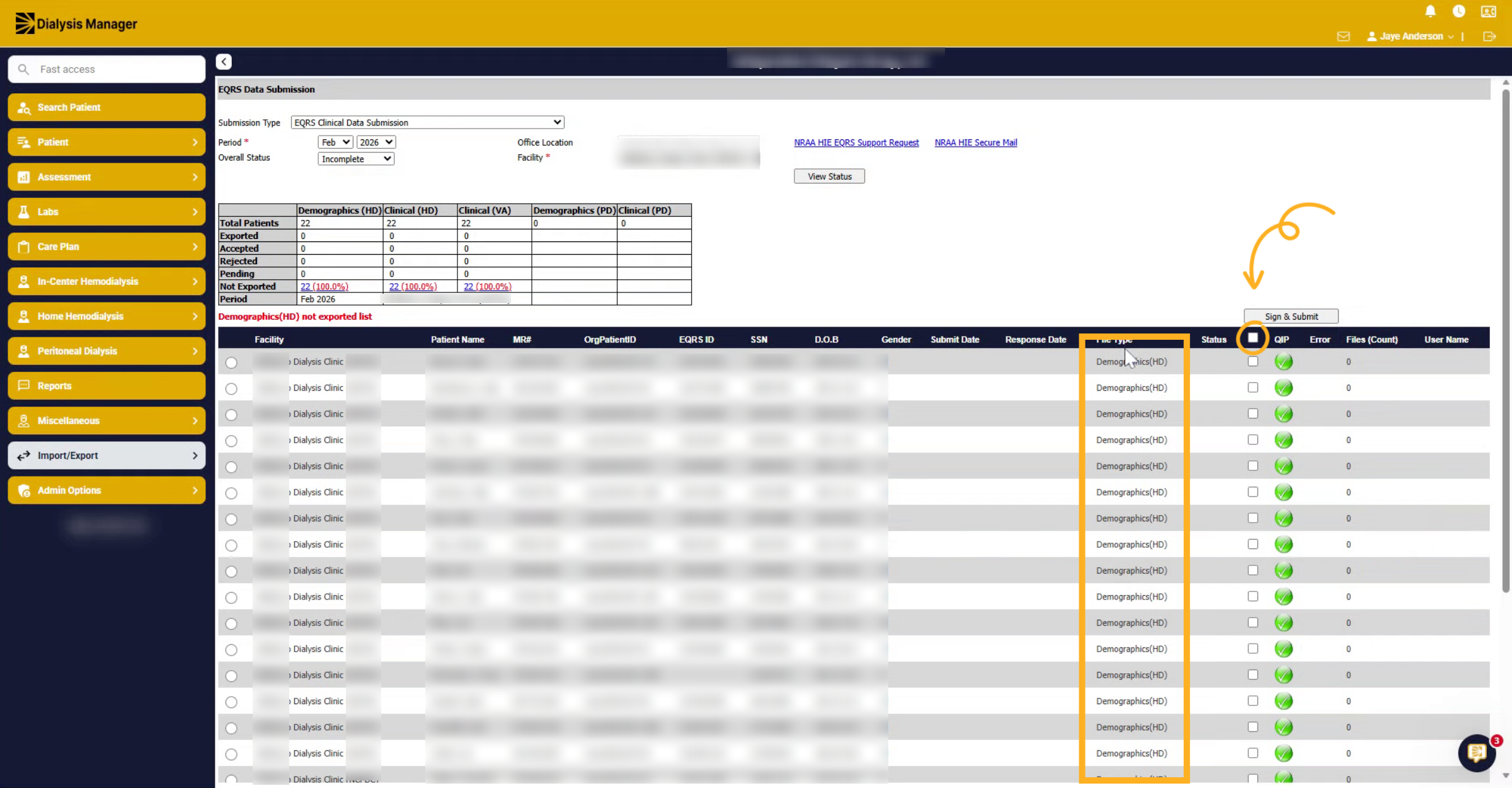
You can select all the information by using the toggle along the top, you can also individually select or deselect any patients that you want to include or exclude. You can see the file types that are being transmitted are listed here. It's the demographic HD information which is what you want to submit first.
8. View Submission Percentage
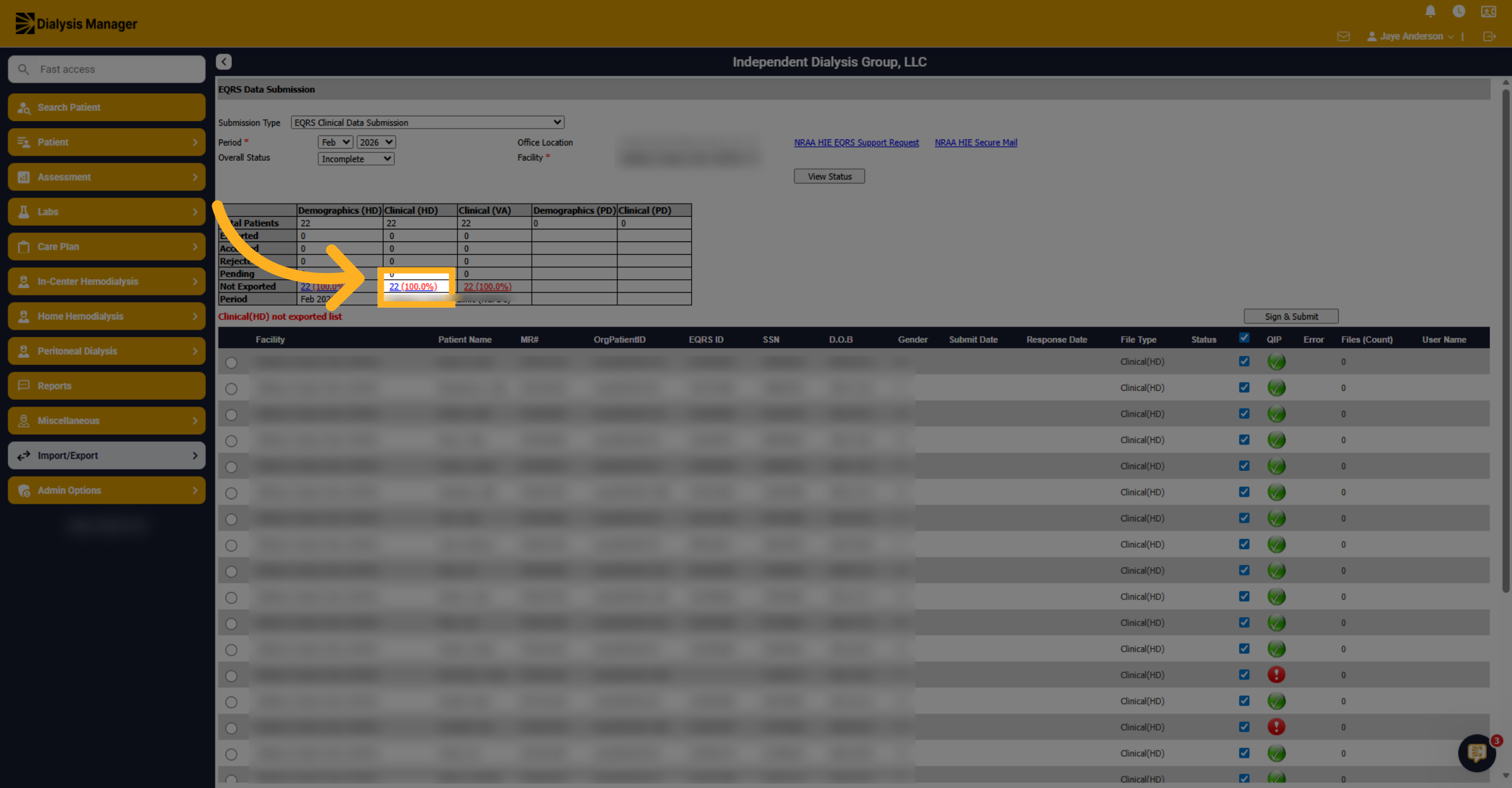
Next, Click Clinical HD Not Exported hyperlink.
9. Choose Clinical Data Files
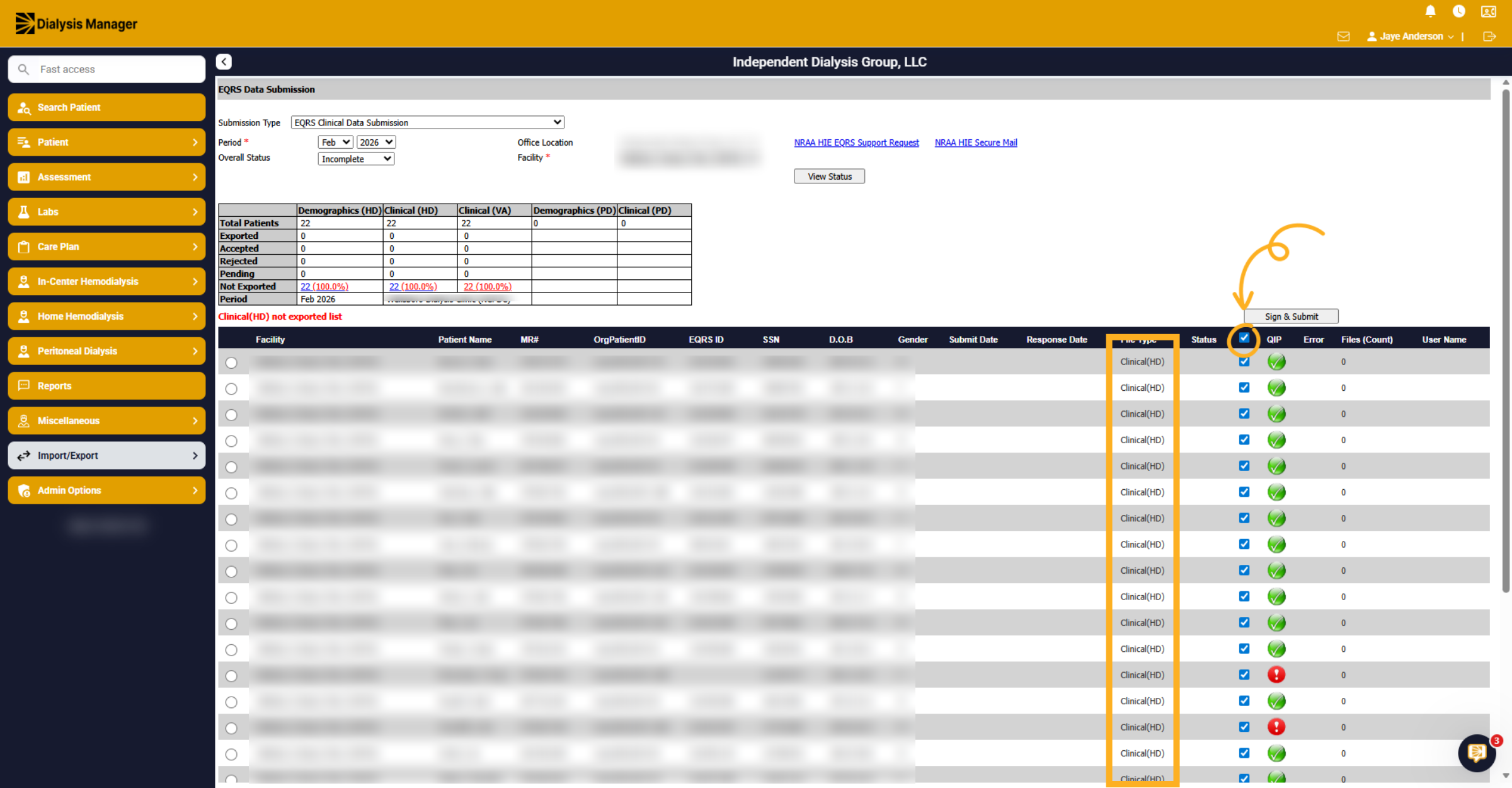
Correct any errors then, select all the information by using the toggle along the top or individually select or deselect patients that you want to include or exclude. Don't forget to review the file types that are being transmitted. It's the Clinical HD information this time.
10. Submit Clinical Portion
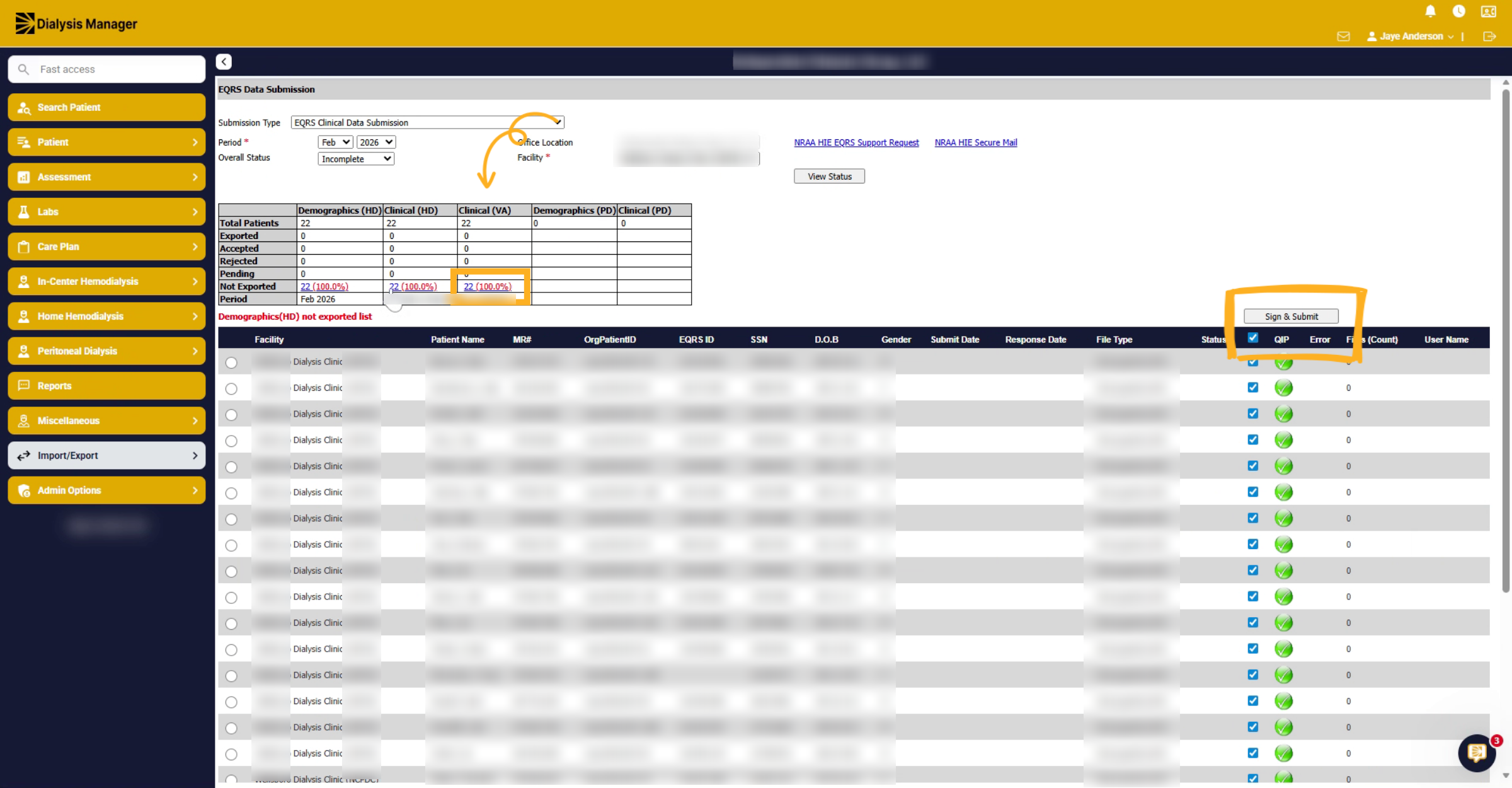
Once completed with that, select your Clinical VA portion and again, select files you want to submit, click sign and submit.
11. Submit Clinical PD Data
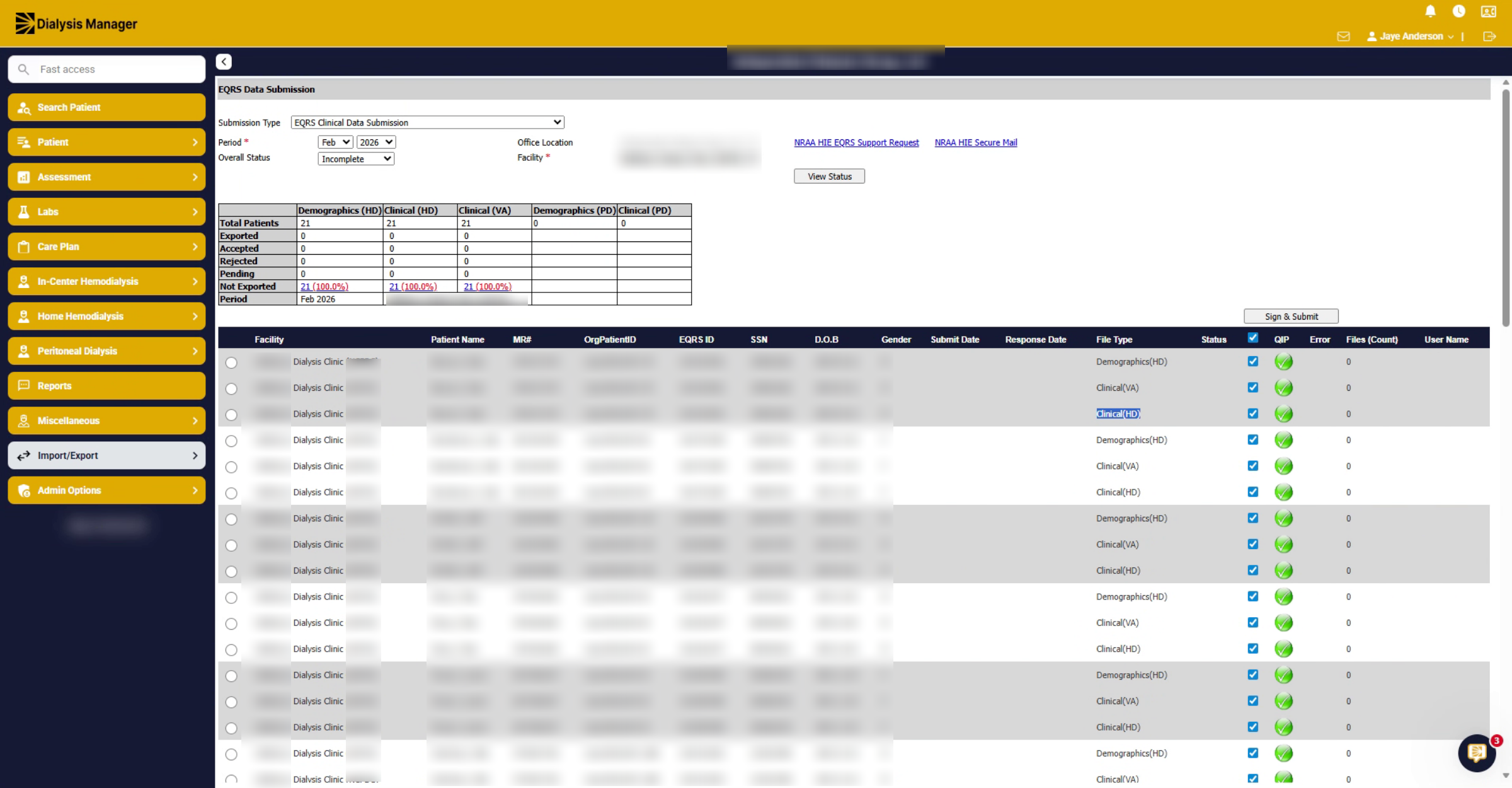
If you have PD patients, you will see a clinical PD version. Submit the demographics first before the PD clinical. Similar to what you have seen previously you'll select the files and click on sign and submit to send the information.
12. Select Submission Month
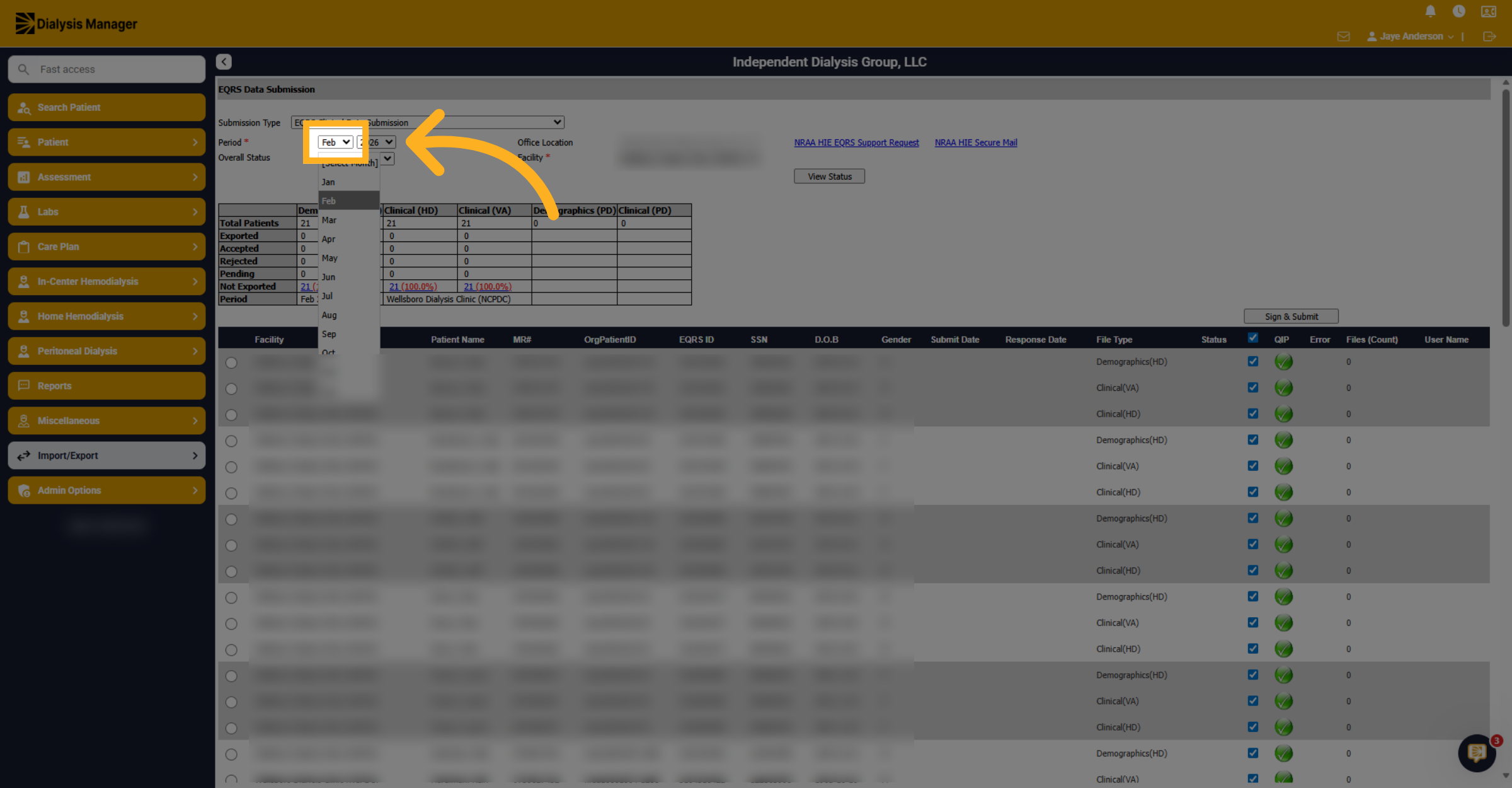
After submission you will want to review. Select the month for the data submission from the dropdown menu to specify the reporting period you want to review.
13. Review And Correct Submission Errors
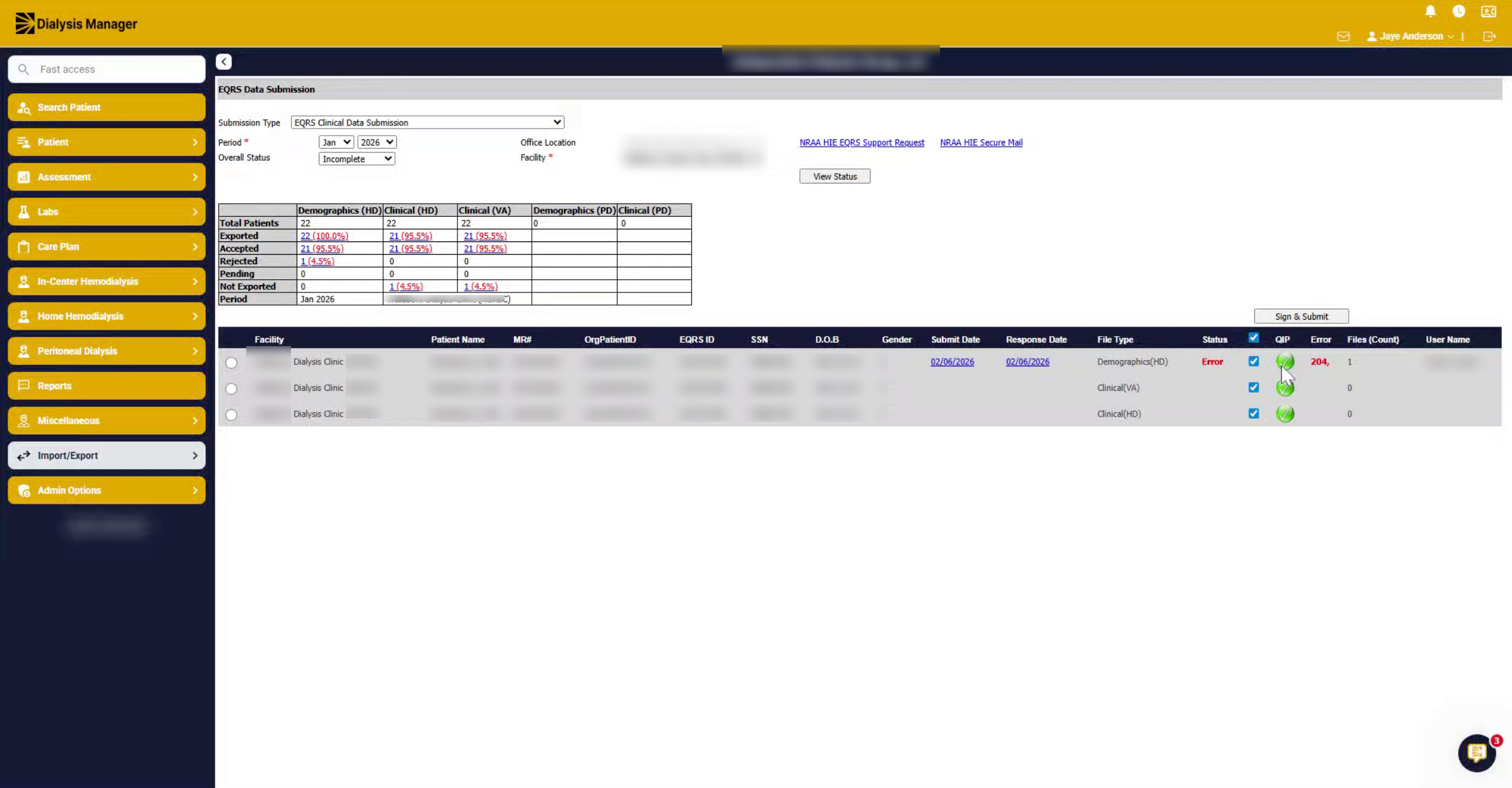
Once the data returns, if there are any errors, you will see them listed in the status section. You can hover over the error to view it. From here you will correct the information, and then select all or the corrected information to resend, then click sign and submit.
14. View QIP Submission Details
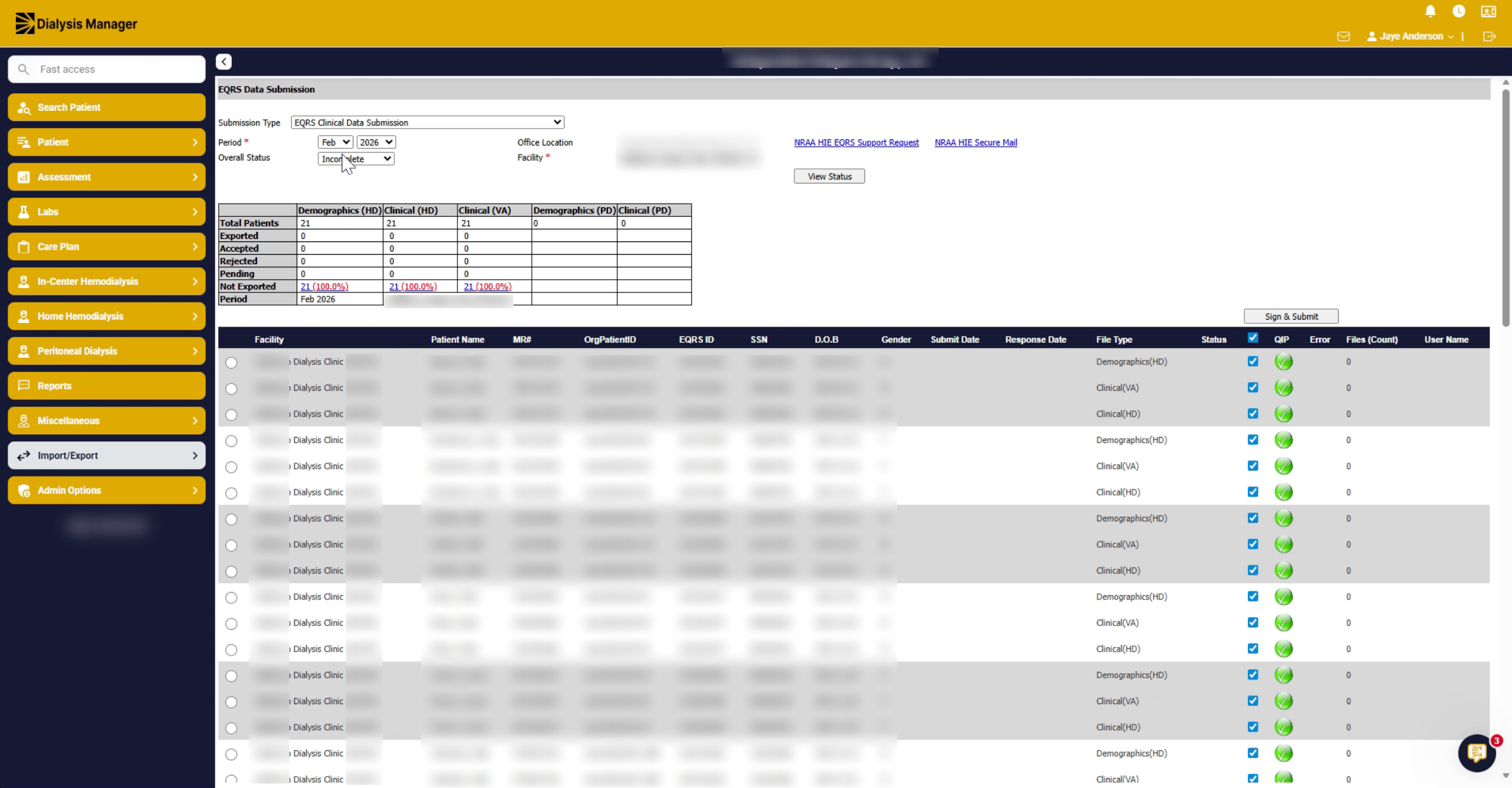
You can also click on the quip information. It will open a new window and show the information that was being submitted across.
15. Access Raw Submission Files
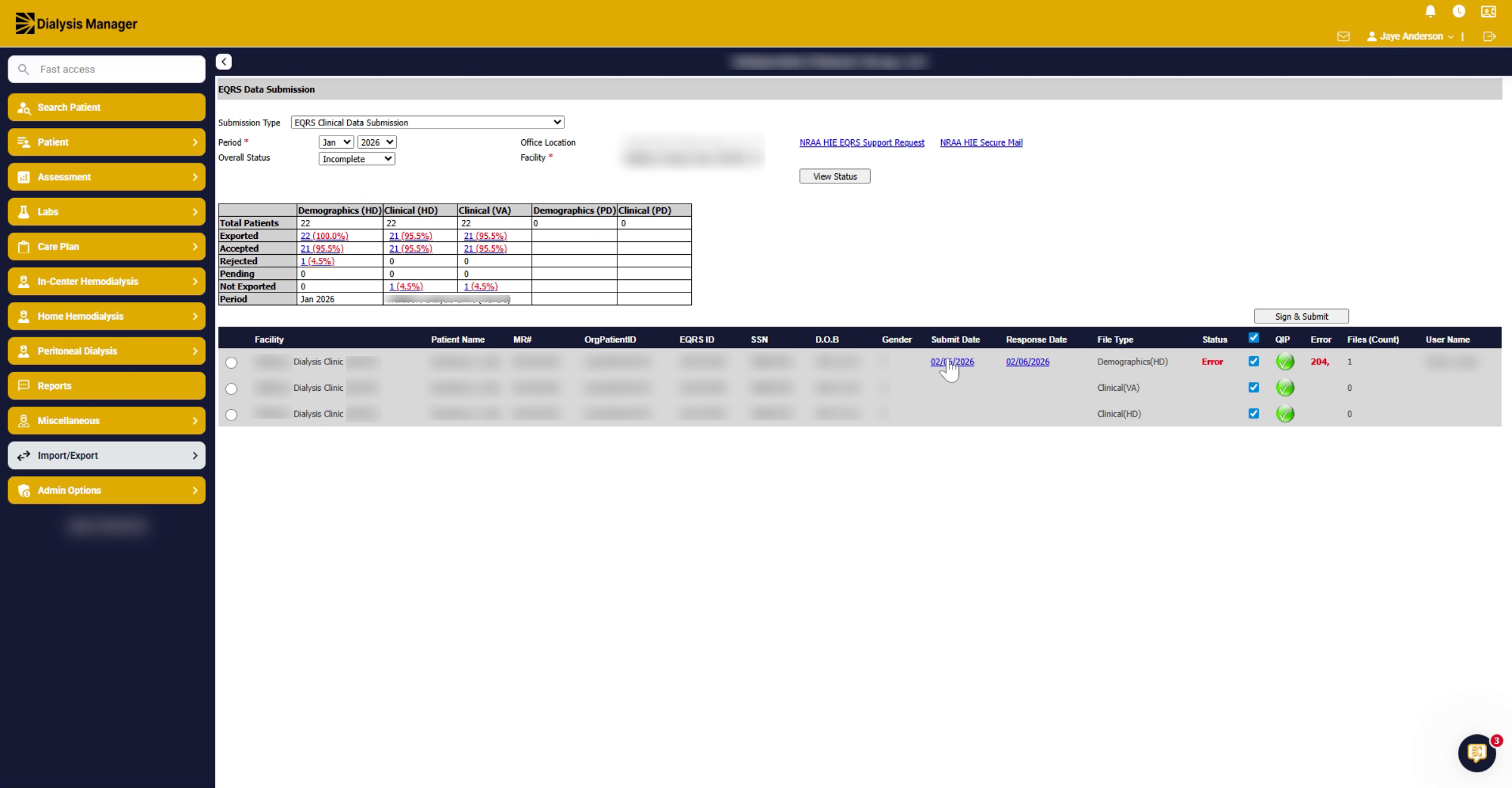
Also notice the submission files with the blue hyperlink here. This is the raw data file that we are sending. If you need to contact the HIE support desk, if requested, you can provide this file to them.
16. Understand Error Response Format
The response is also a raw data format and is essentially the error information that we're reviewing here. Or the approved or warning information...
17. Review Warnings And Successful Submissions
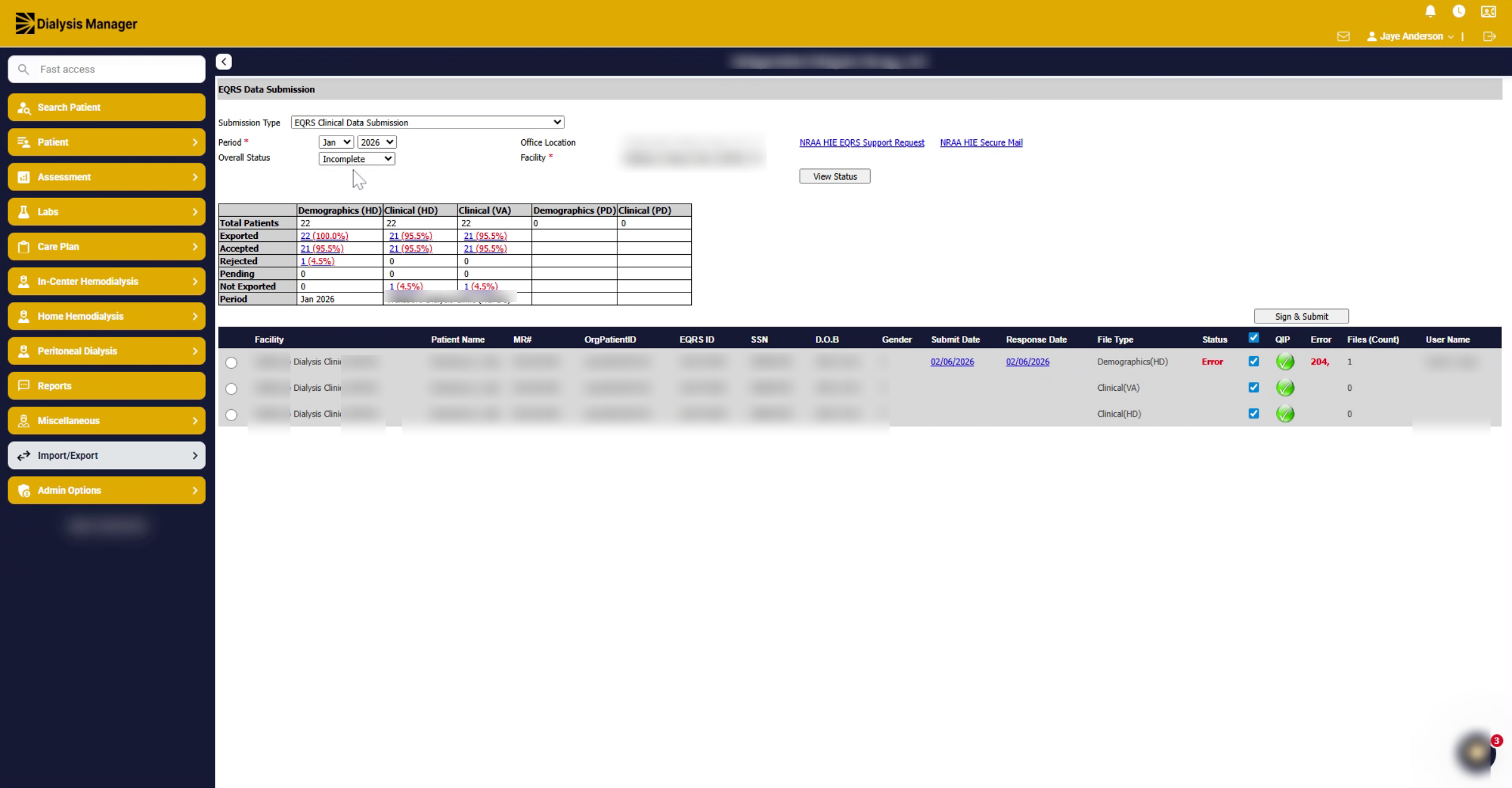
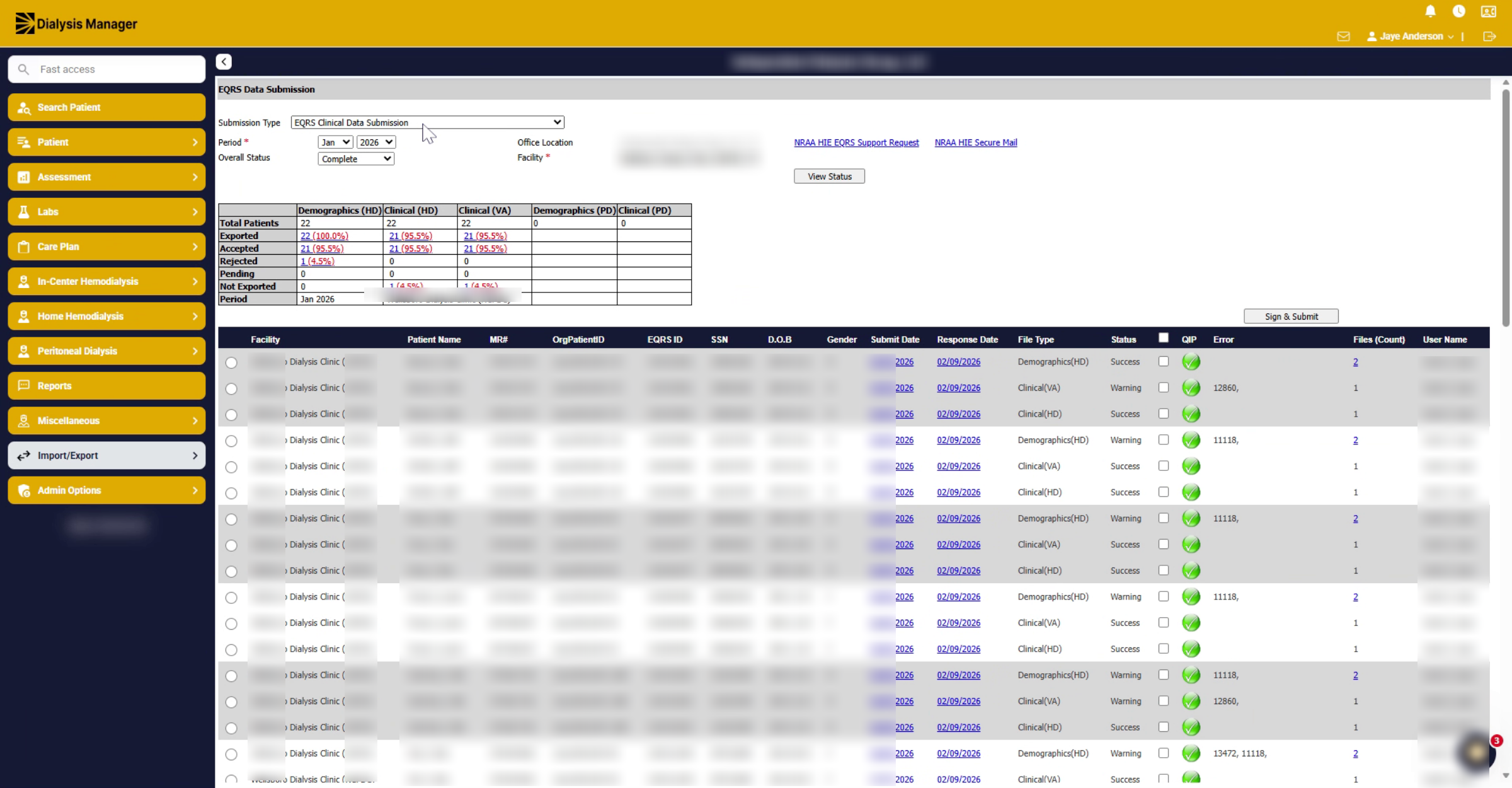
You can also view any of the complete data that was transferred across. And if there are any warnings, you can see any warning errors that have been returned. These have been successfully submitted to EQRS, just with warnings.
18. Choose EQRS Submission Type
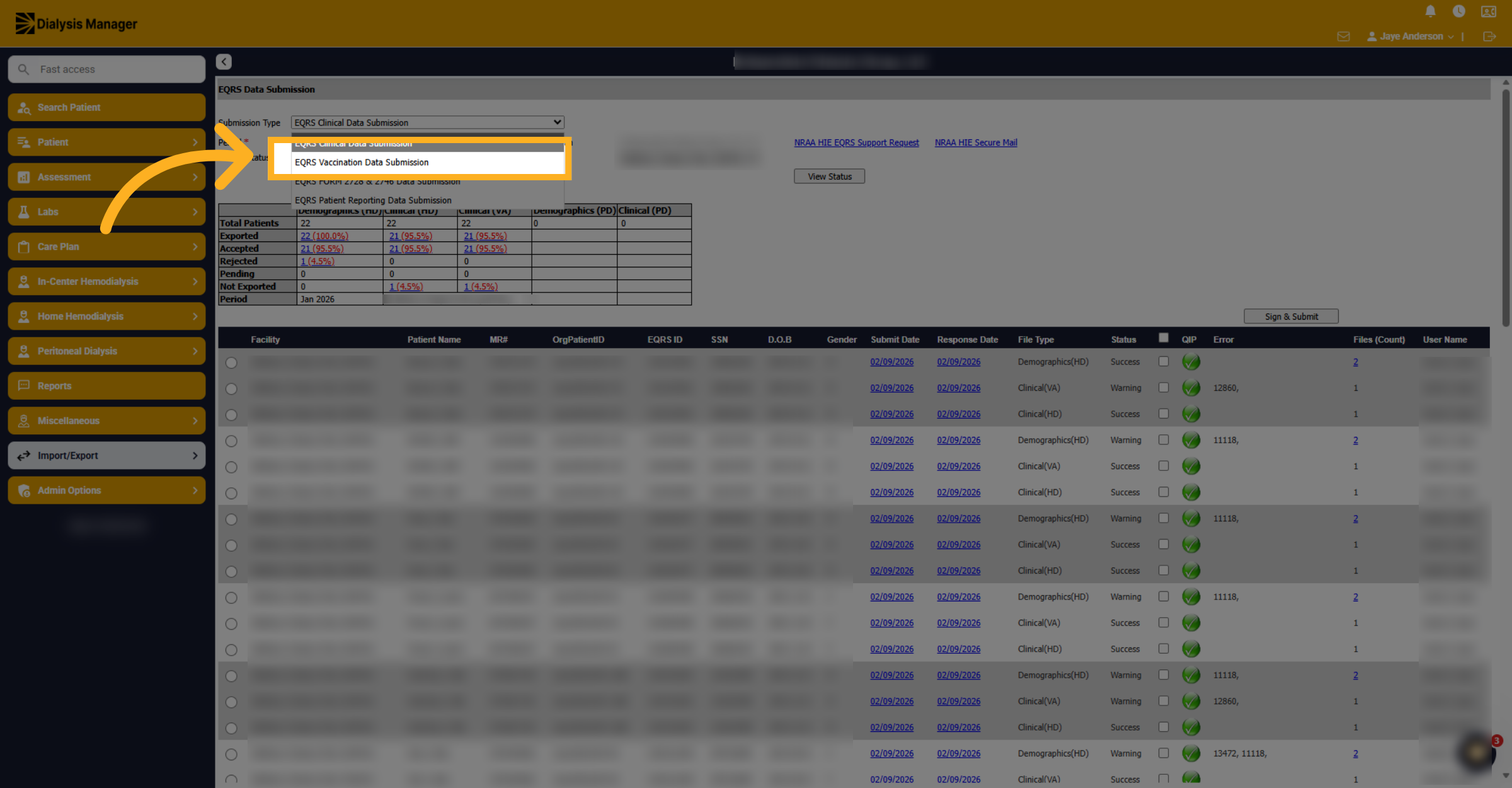
Select EQRS vaccination data submission from the drop down.
19. Submit Vaccine Data
Right after you've done your clinical data, you can then look at submitting any of your vaccine data across. To send any of the information, you can select all or select specific information and then sign and submit to send the data.
20. Correct Vaccine Submission Errors
Once finished you can review the completed, completed with warnings, or errors. If you do see any errors, they will be listed with the information provided. Correct the errors, review, then sign and submit. Make sure you're within your submission period.
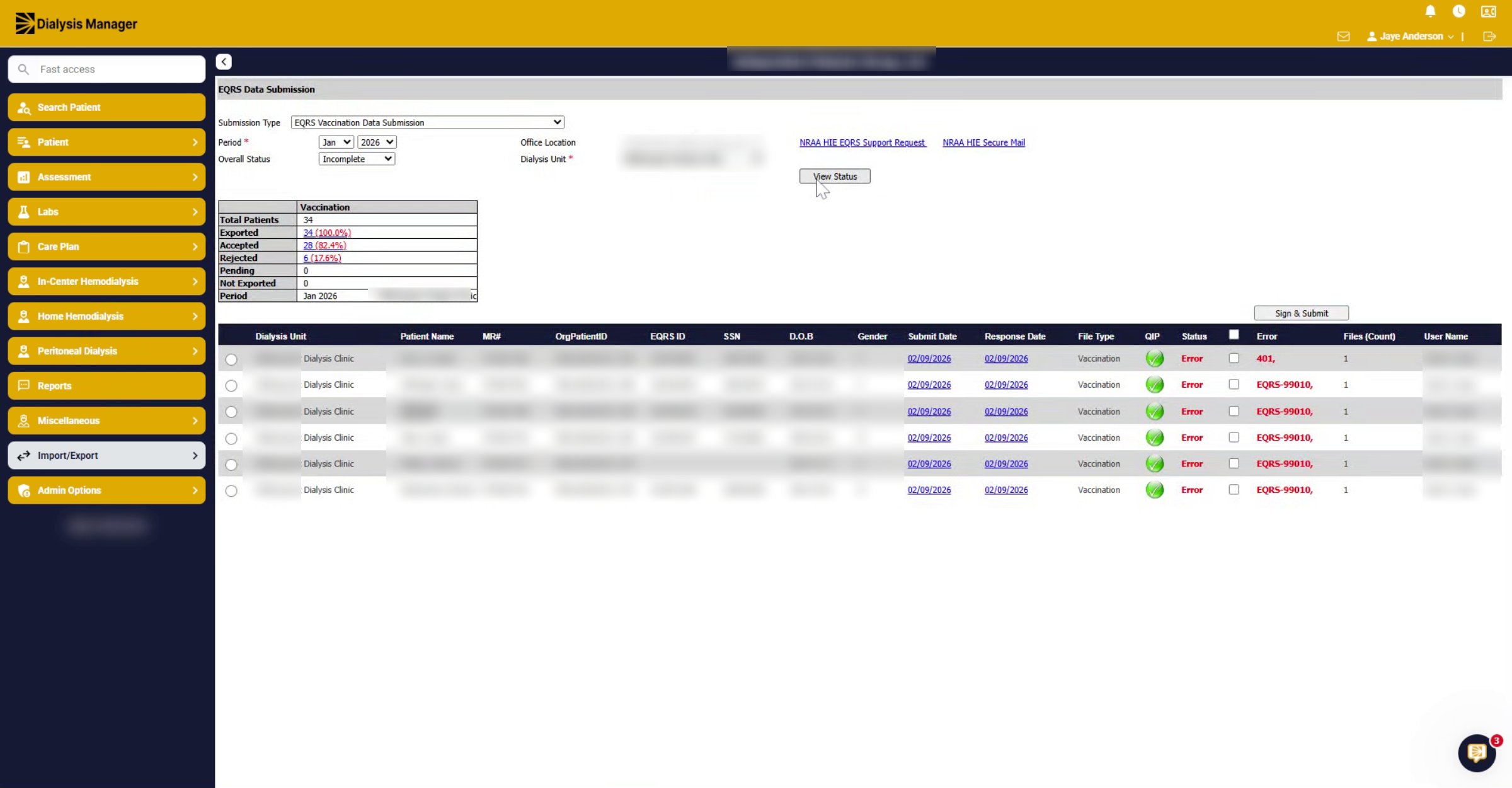
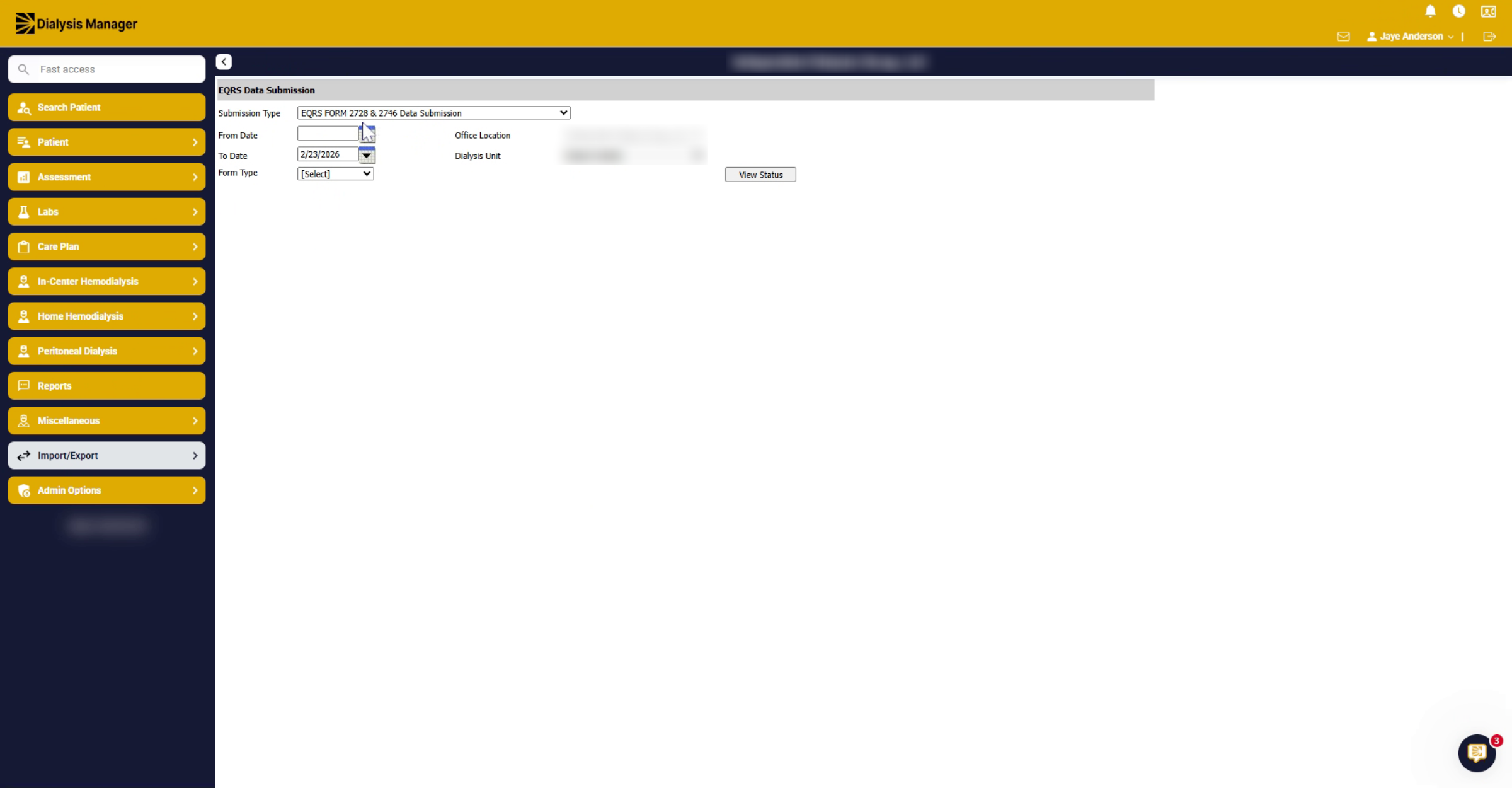
21. Submit 2728 And 2746 Forms
Next, you can submit the 2728 or 2746 forms. Click View Status to access the form submission section for 2728 and 2746 forms.
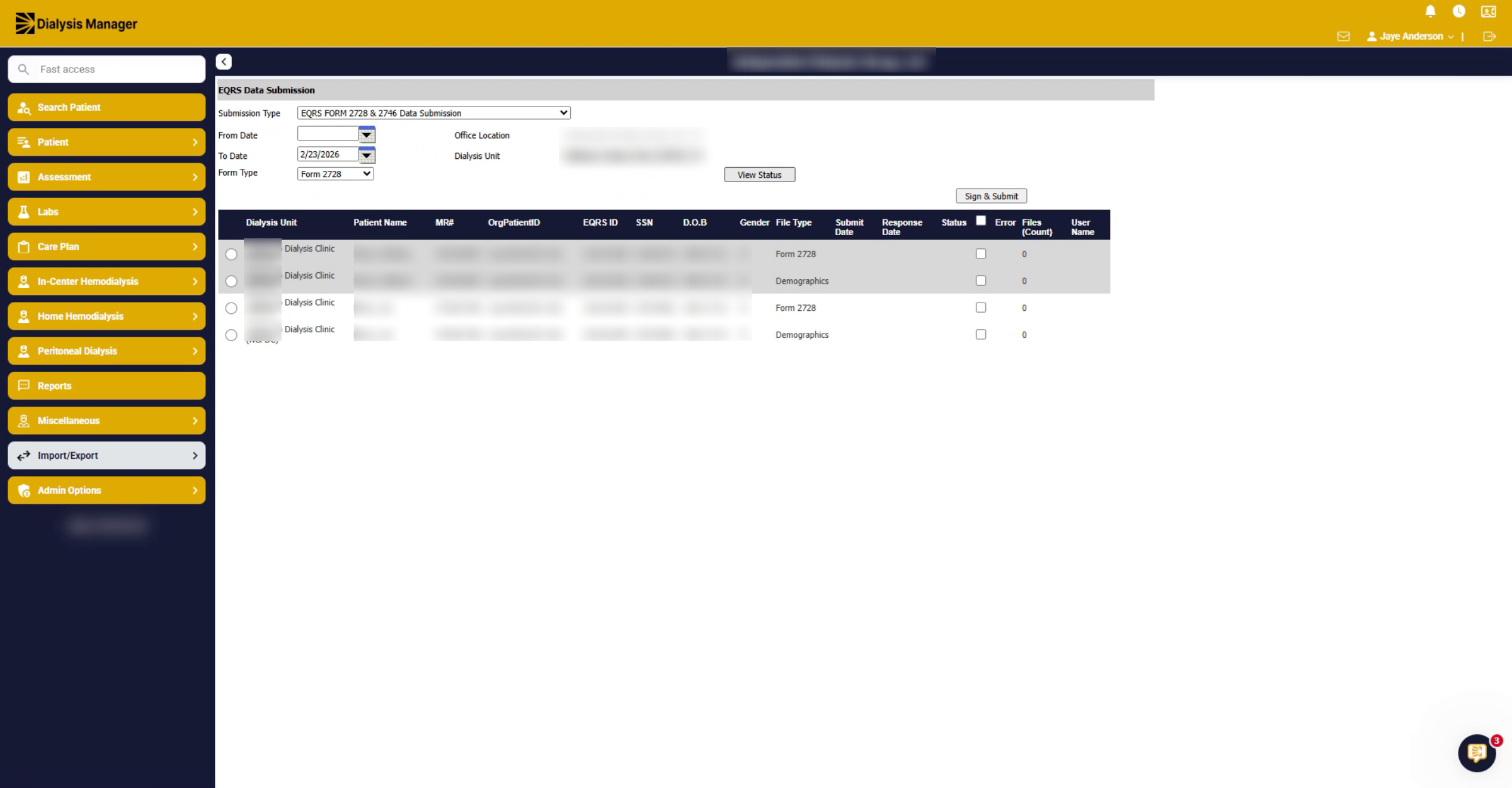
22. Select And Submit Forms
Again, select the demographic and specific forms information you want to send and click sign and submit.
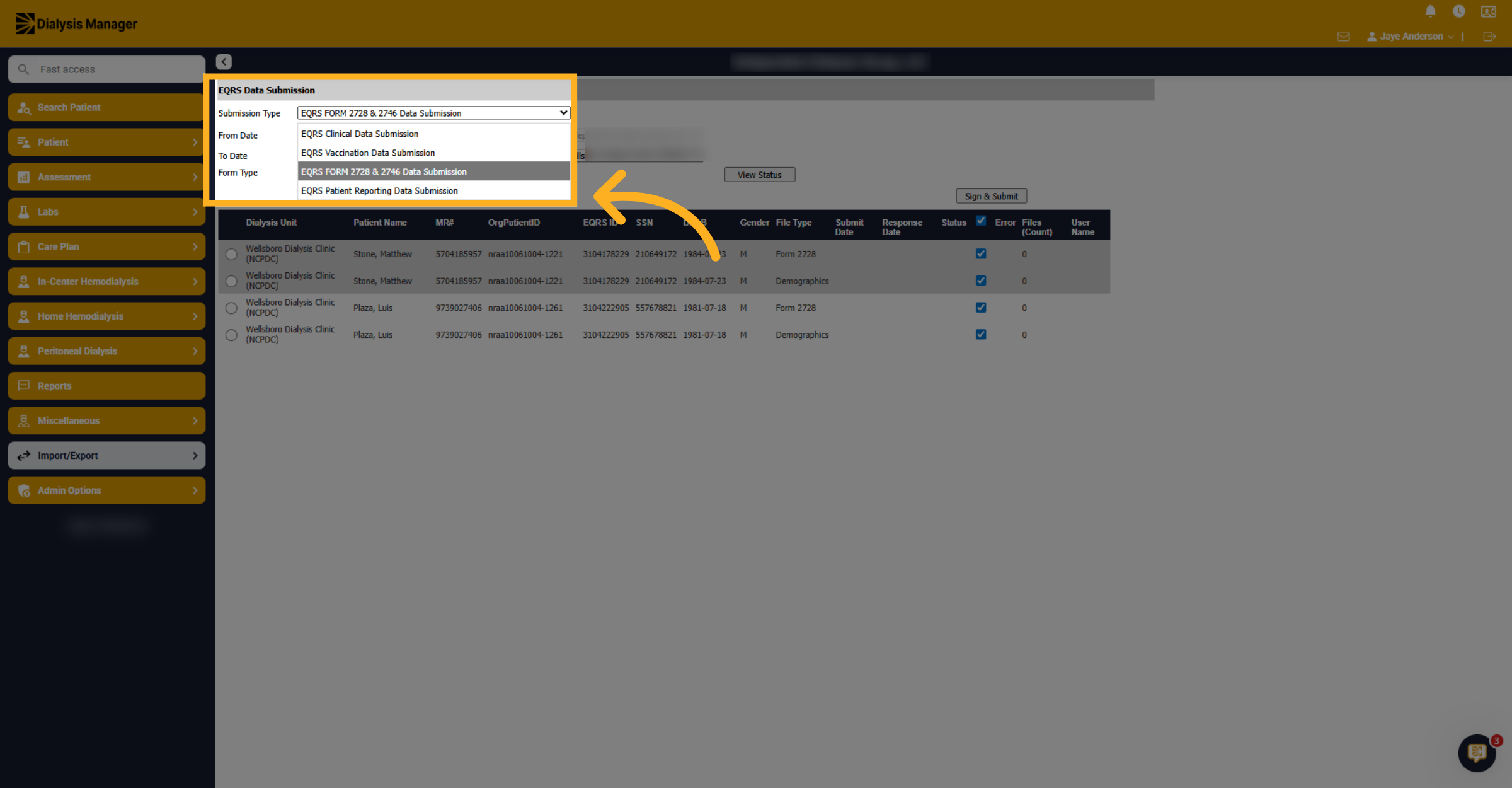
23. Choose EQRS Submission Category
Select the EQRS submission category of EQRS patient reporting data submission.
24. Submit Clinical Depression Data
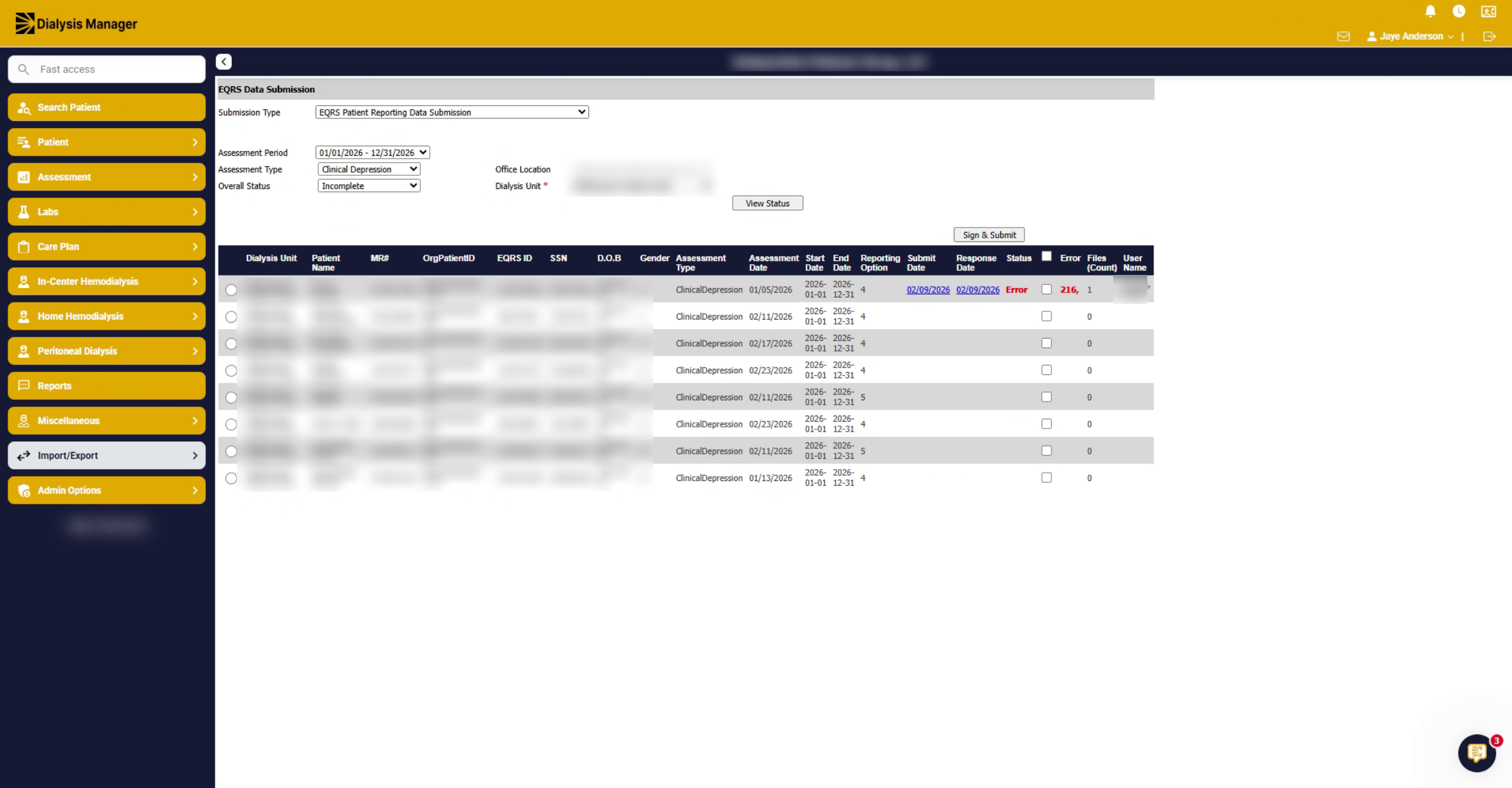
Here you can submit the clinical depression information. Select Facility and click View Status.
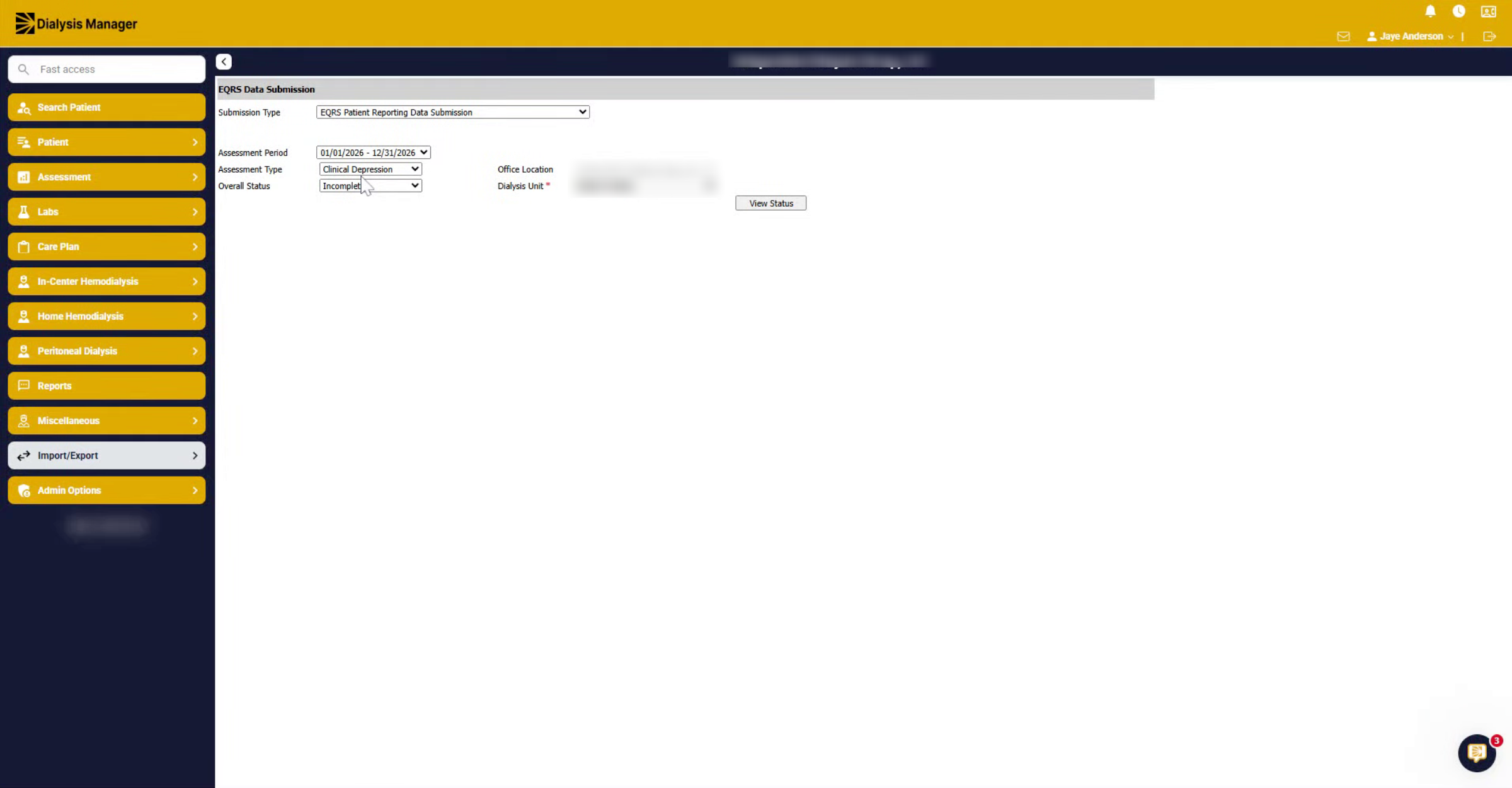
25. Manage Annual Submission And Resubmission
Notice this is for the entire year of the assessment period. If there are errors, you can see them listed below by hovering over the error. Similar to the other forms, correct the errors, then select them to submit or resubmit the information. Repeat this process until there are no errors. If the submission period is about to close, you may need to manually enter information into EQRS.