Notes: Standing orders are created by the ORGANIZATION. Orders, by default, are active for one year.
Associating Standing Order to use during Treatment
1. Select your Patient using the Search Patient
2. Select In-Center Hemodialysis > Orders > Dialysis Order
3. Choose Standing Orders Mapping button

4. Select the orders that will apply to the patient
Note: Allergies and Special conditions appear at the top of the screen.
5. If you only want a few orders to apply, select individual orders.
6. If you want all orders to apply, select top box to choose all orders.
Note: What is chosen in this screen will be available in Standing Orders inside the Treatment Flowsheet for Nurses to select when needed. This will eliminate orders being entered multiple times.
5. Sign & Save
Using Standing Orders during Treatment
1. Once the flowsheet is open, on the right side of the flowsheet where green navigational buttons appear, Add Standing Orders will be visible.
2. Click Add Standing Orders when you need to provide a standing prn to a patient during the current treatment.
3. You will have the choice of Meds or Instructions in drop downs.
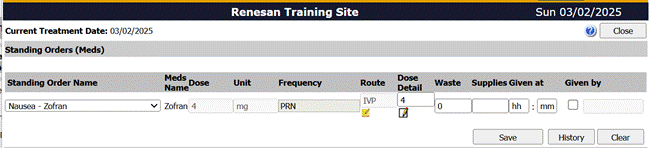
4. Select the Medication/Indication/Instruction you want to use
5. Enter in the information regarding administration:
a. Dose detail if needed
b. Given at
c. Given by
d. Click Save
6. The medication will appear in the medication section of the treatment flowsheet as given.