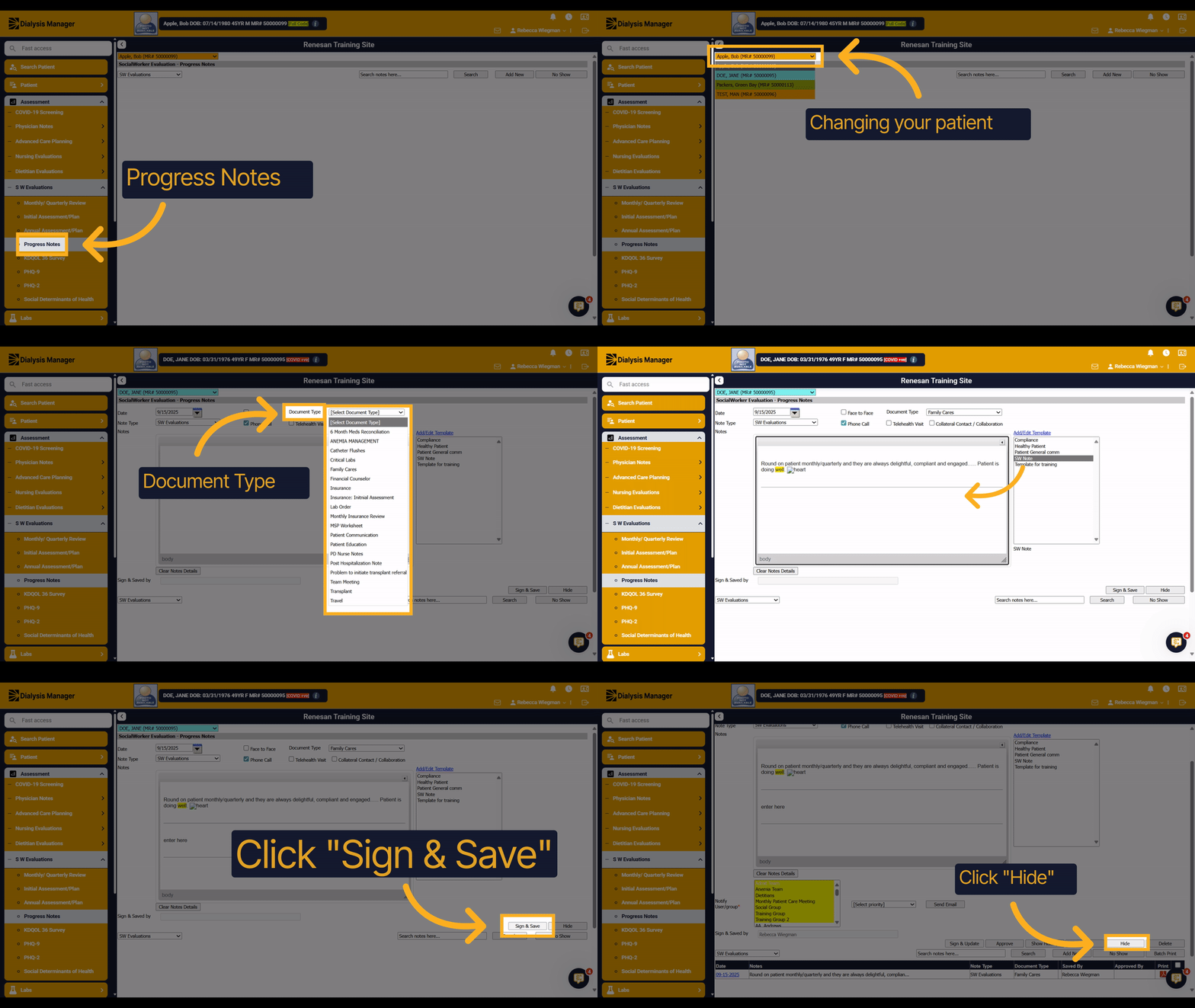
Social Worker Progress Notes
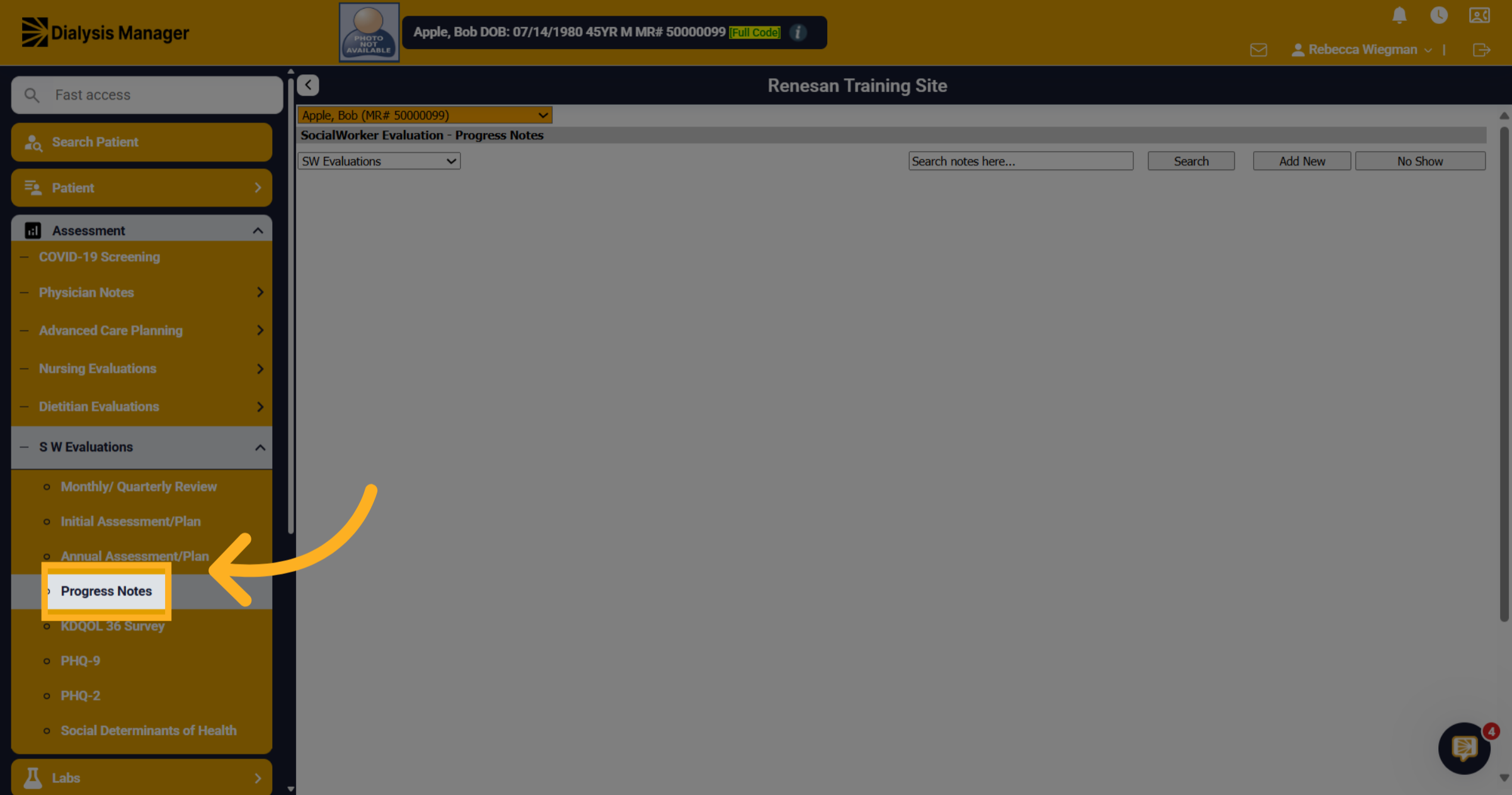
1. Click "Progress Notes"
Now we are going to walk through the process of entering in a progress note. Click into Assessment, Social Worker Evaluation and Progress Notes
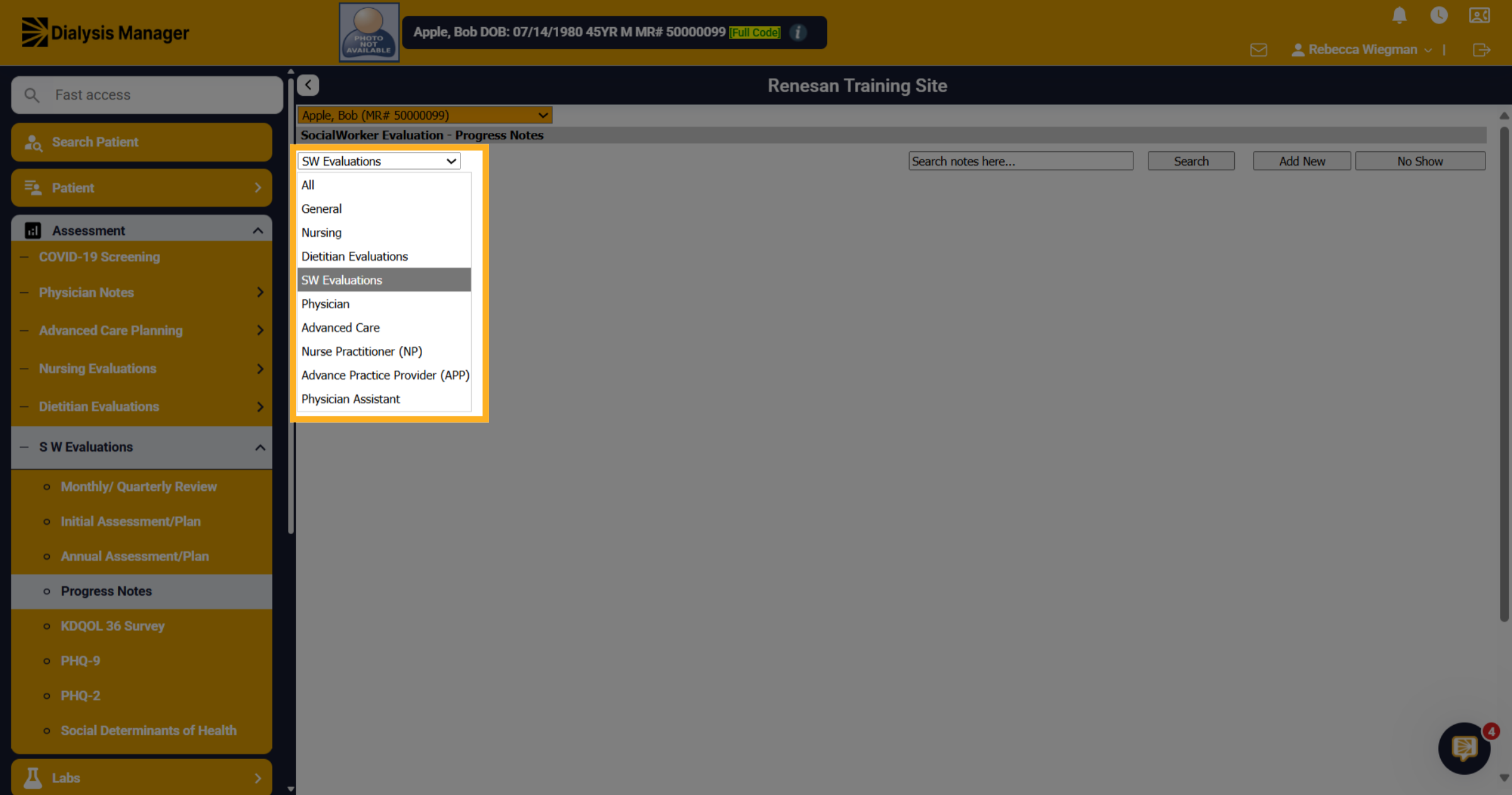
2. Progress Notes from other providers
The progress note will default to Social Workers but your able to populate all other notes by selecting the dropdown arrow to view General, Nursing, Dietitian Evaluations, Social Worker Evaluations, Physician, Advanced Care, Nurse Practitioner, Advance Practice Provider, or Physician Assistant to filter progress notes.
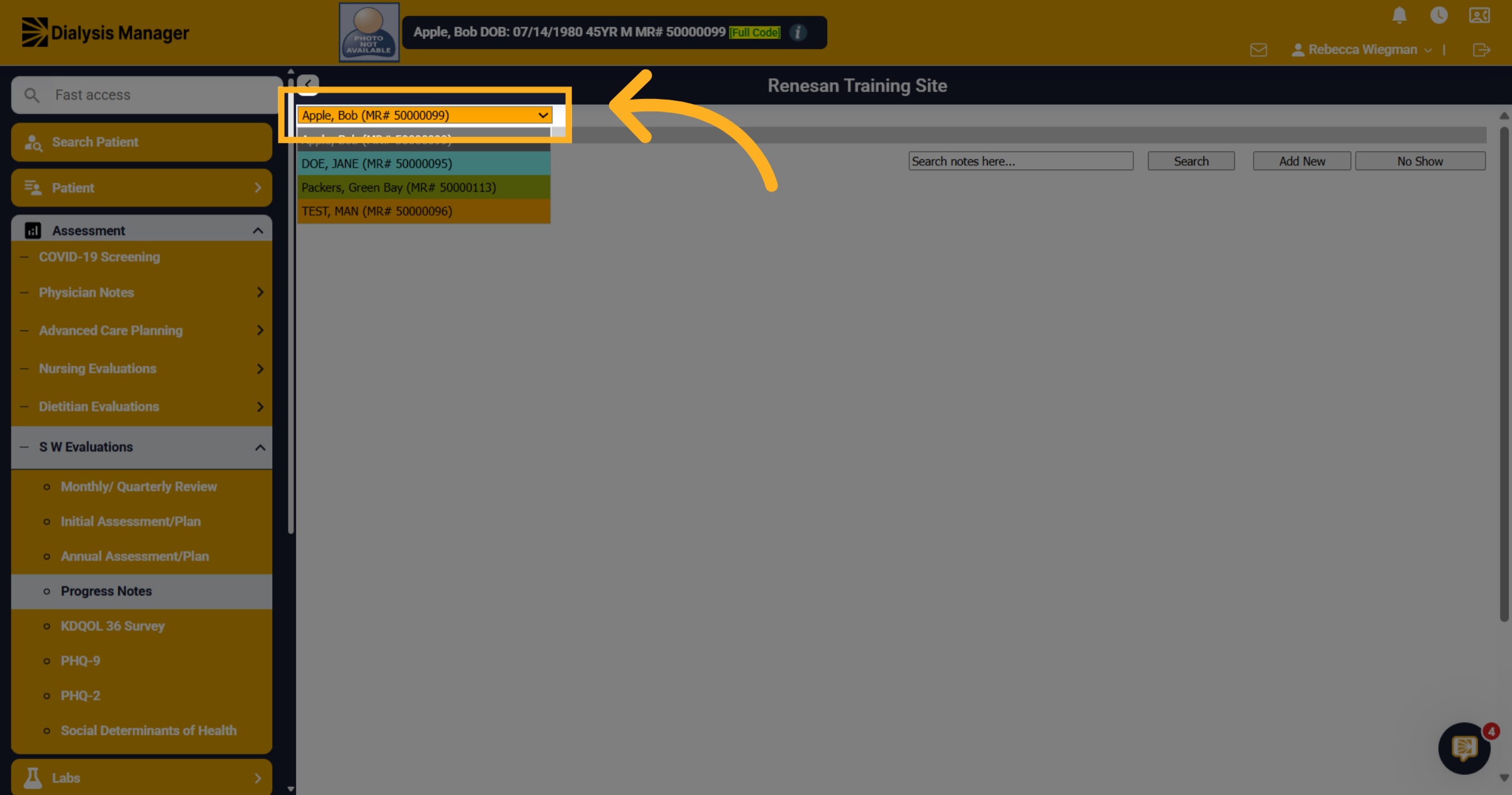
3. Additional pt
Please Note: because we filtered our search patient screen to a specific facility when selecting the patient dropdown we are able to see all patients associated with that facility. Your able to select or change patients from here.
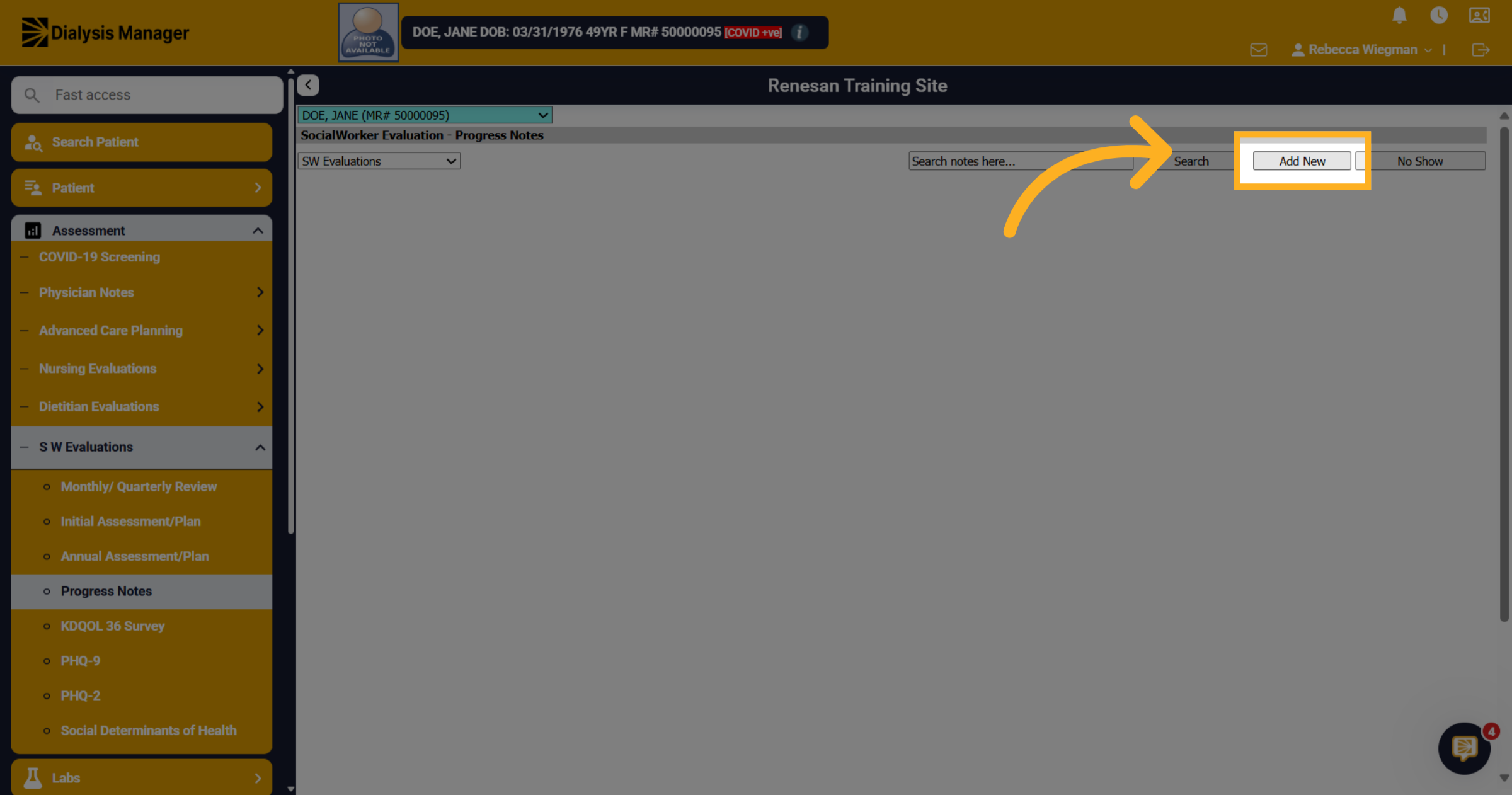
4. Click "Add New"
Click "Add New" to start creating a new progress note.
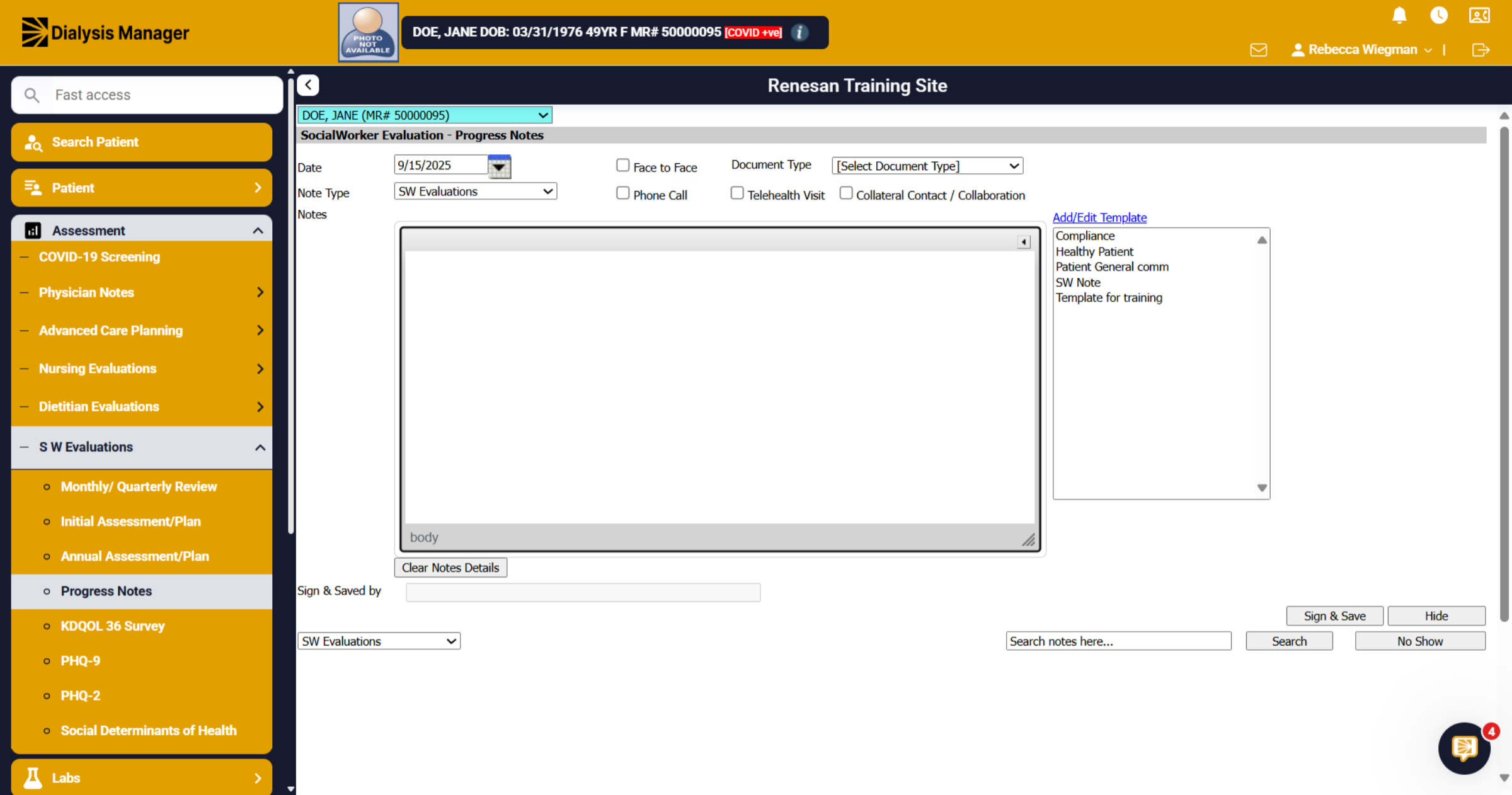
5. Click Date
When inside the Progress Note you'll be able to confirm the date, Note Type, Document type and enter the Note!
6. Click "[Select Document Type]
You'll be able to select a document type from the dropdown. Please note: that this list can be customized by your super user who has permissions to the masters!
![Click '[Select Document Type]](https://knowledgetest.renvio.com/hubfs/Intercom%20knowledge%20base/qg-2Fu0GlpTxg3KQGmZcWU2NCVw7aI4i1-2FuRG5aMwbDpmT2WzogHSafX-2F59o1GxTvrKn2VGadr4TJJb_doc.png)
7. Click "Add/Edit Template"
When entering in your note there is the option to select a template rather than typing generic notes into each patient.
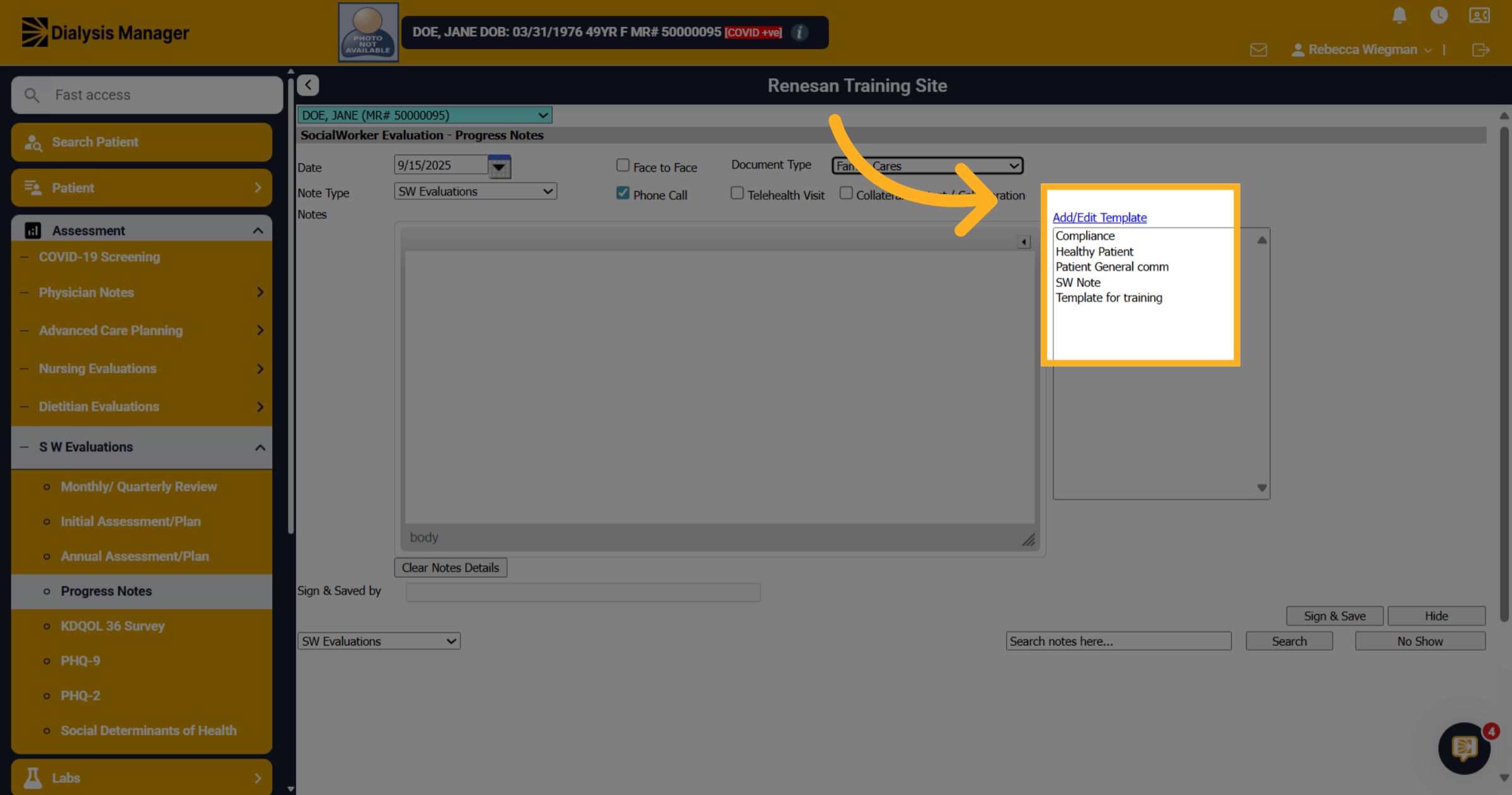
8. Click "Healthy Patient"
Your able to select multiple note templates into the body of the notes section and type additional comments if needed.
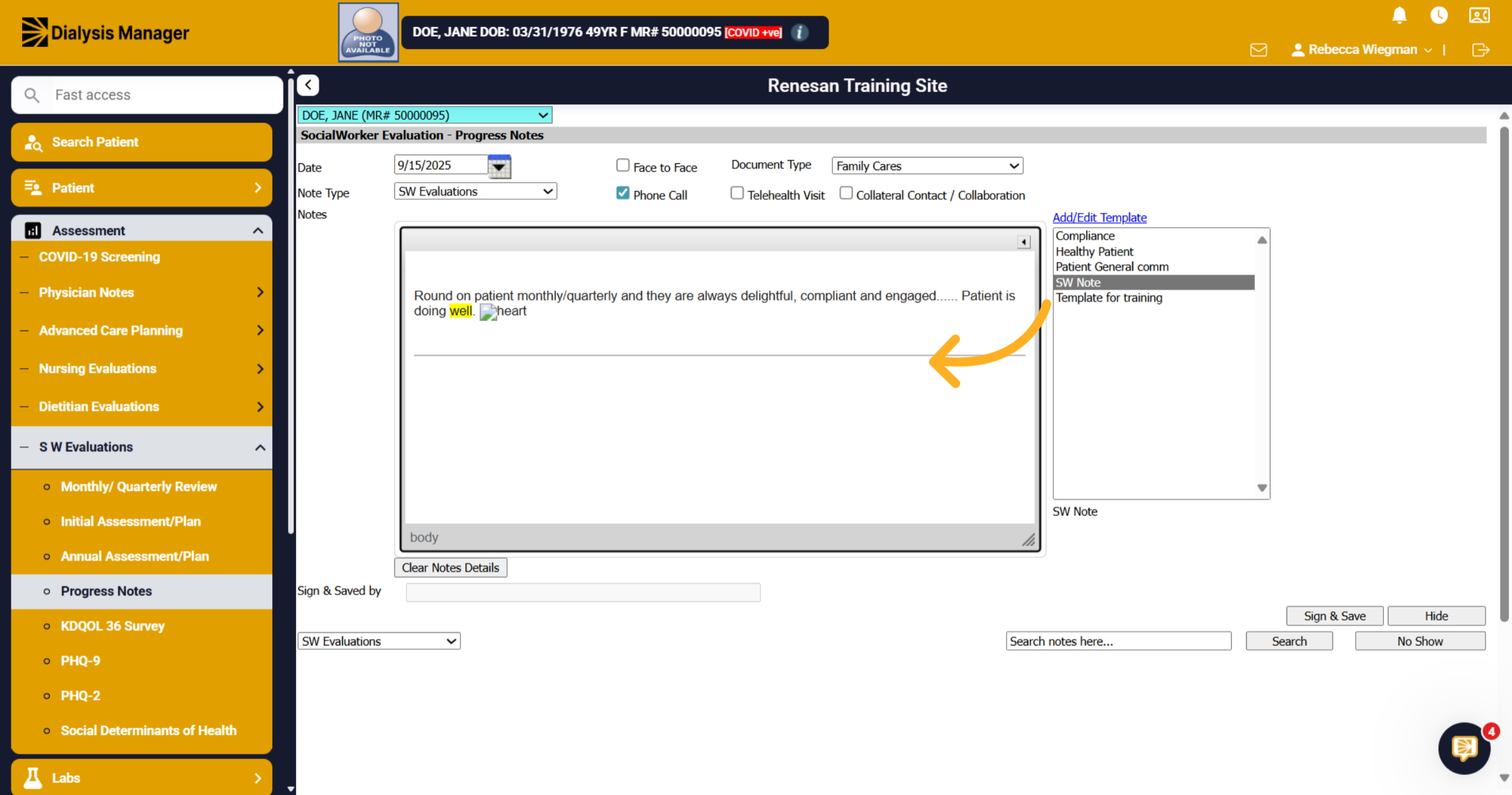
9. Click "Add/Edit Template"
Click "Add/Edit Template" again to modify or add templates as needed.
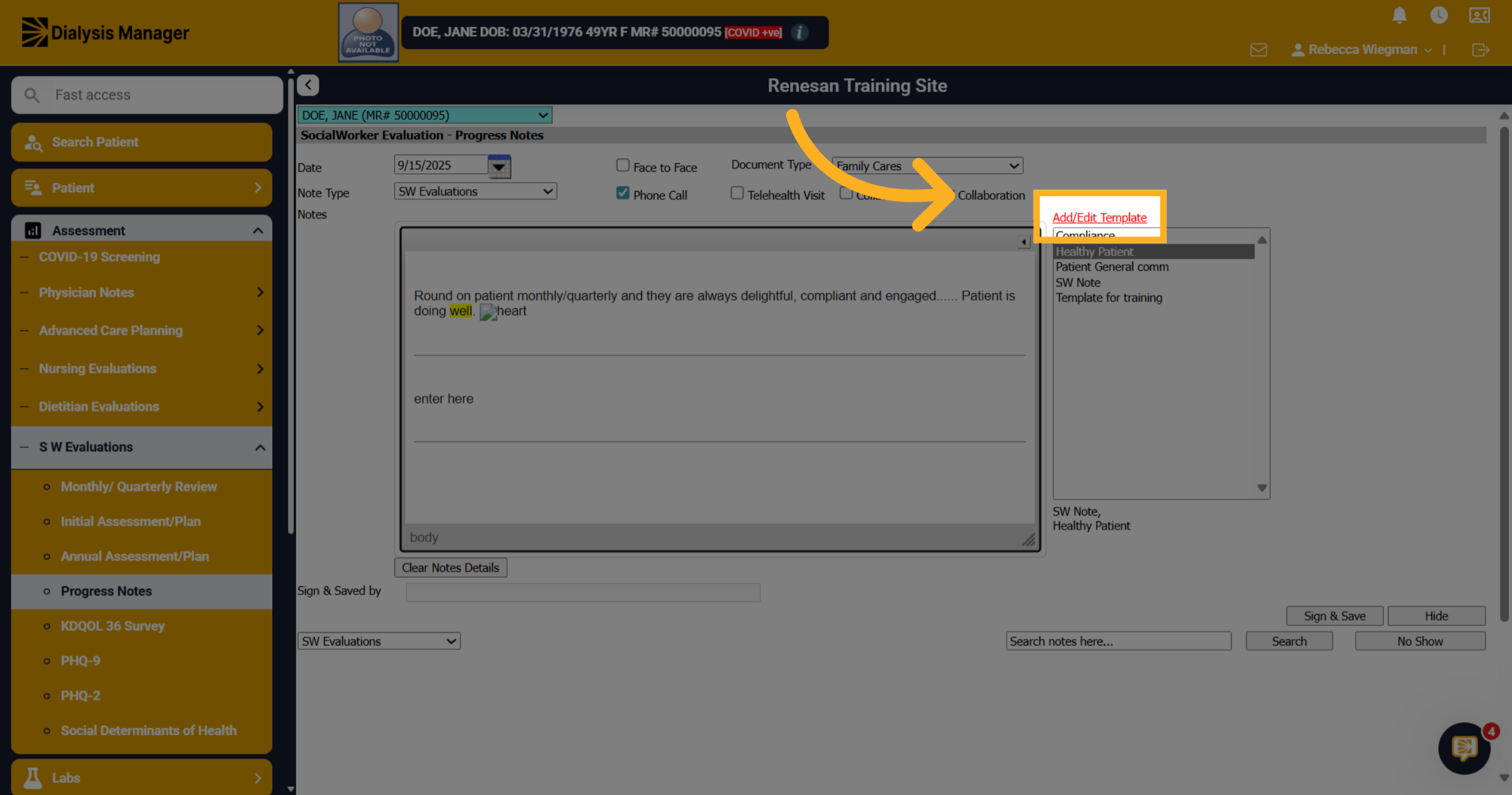
10. Click "Close"
Your able to give the template a name, enter the note into the template text and mark this template as Public View where others are able to view and use or Private View where the person who created will be the only one who can use the template. Click save! Please Note: that you'll probably need to log in and log back in to use the newly created Template Note.
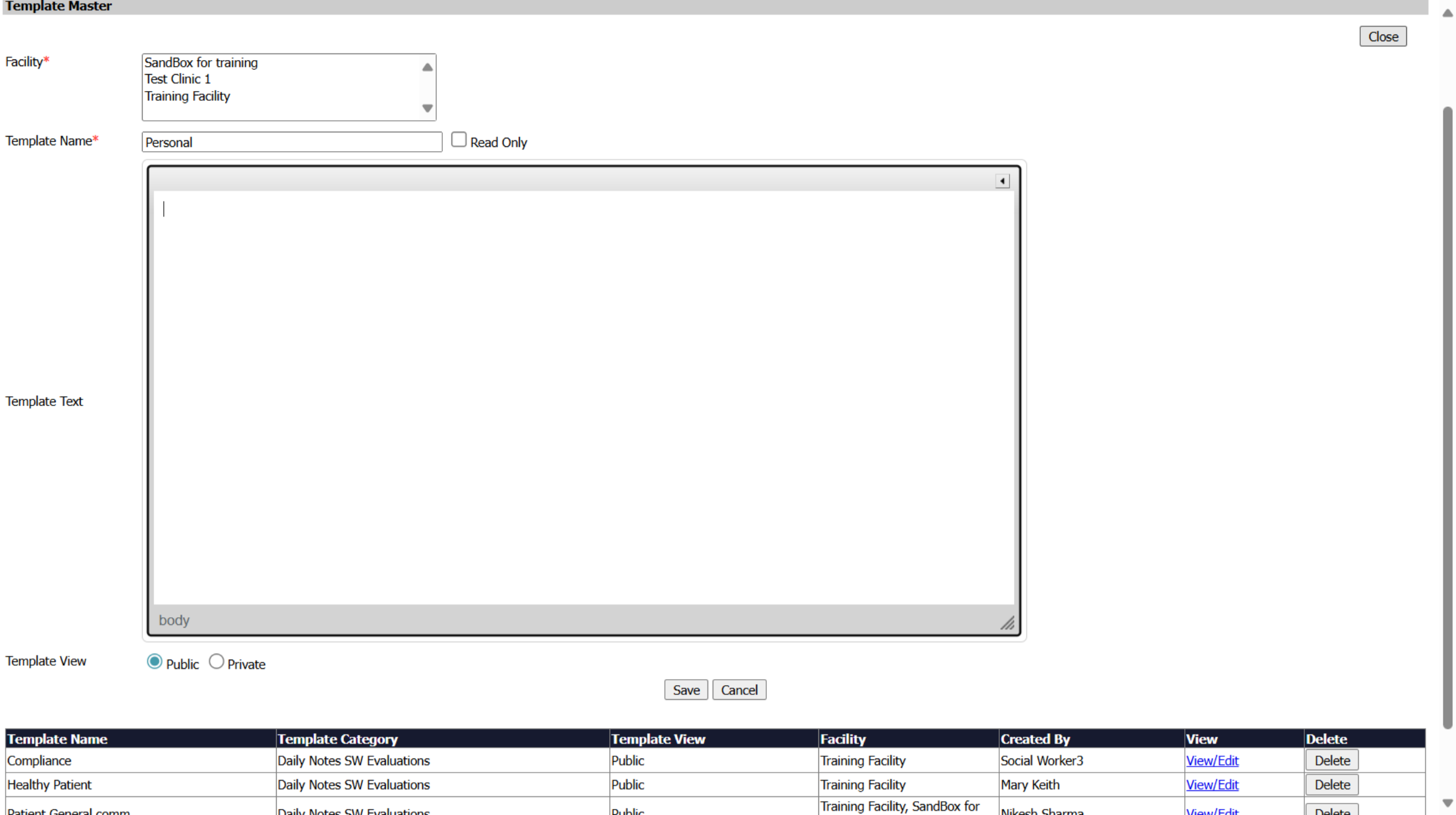
11. Click "Sign & Save"
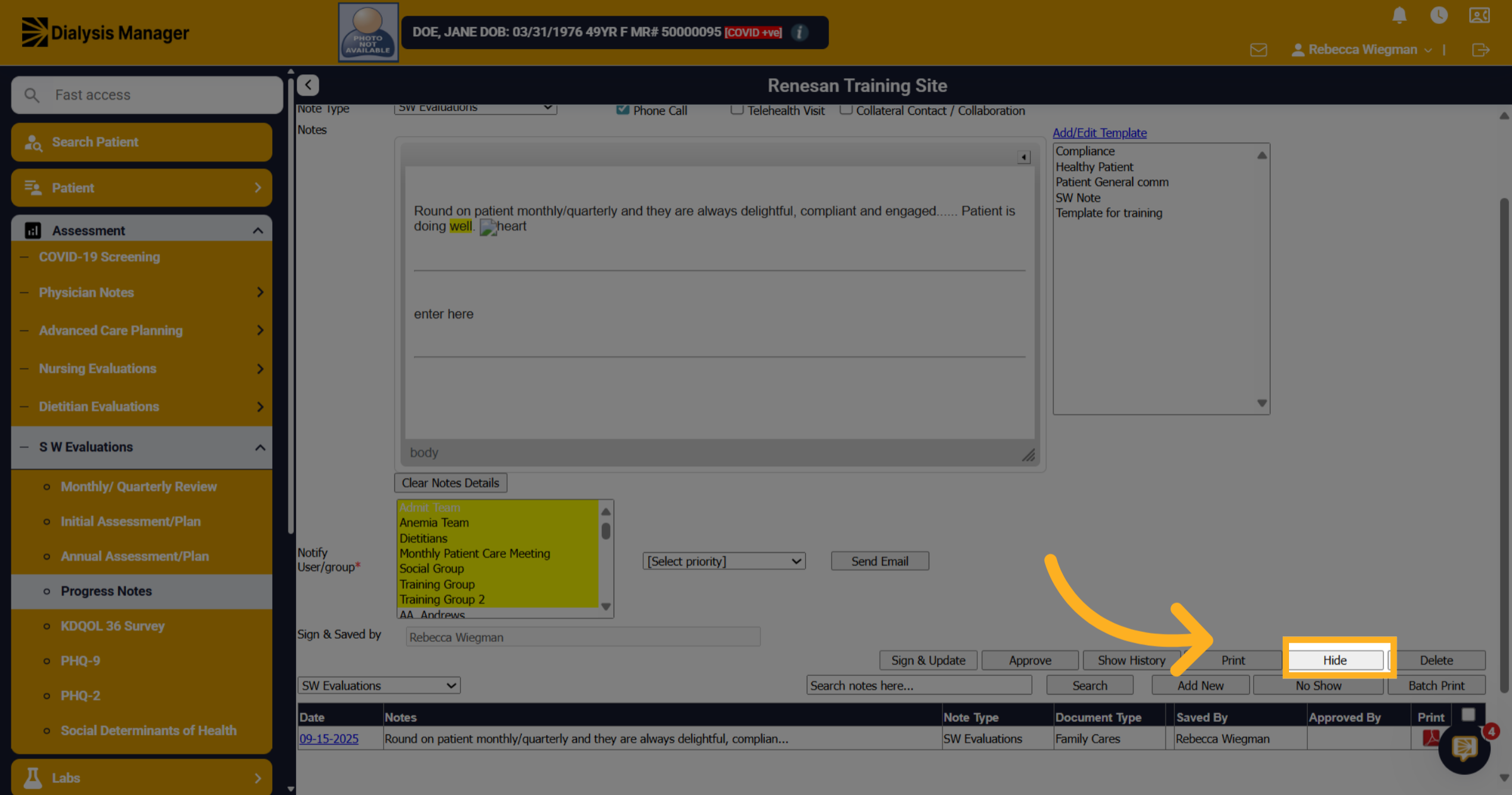
Click "Sign & Save" to finalize and save the progress note.
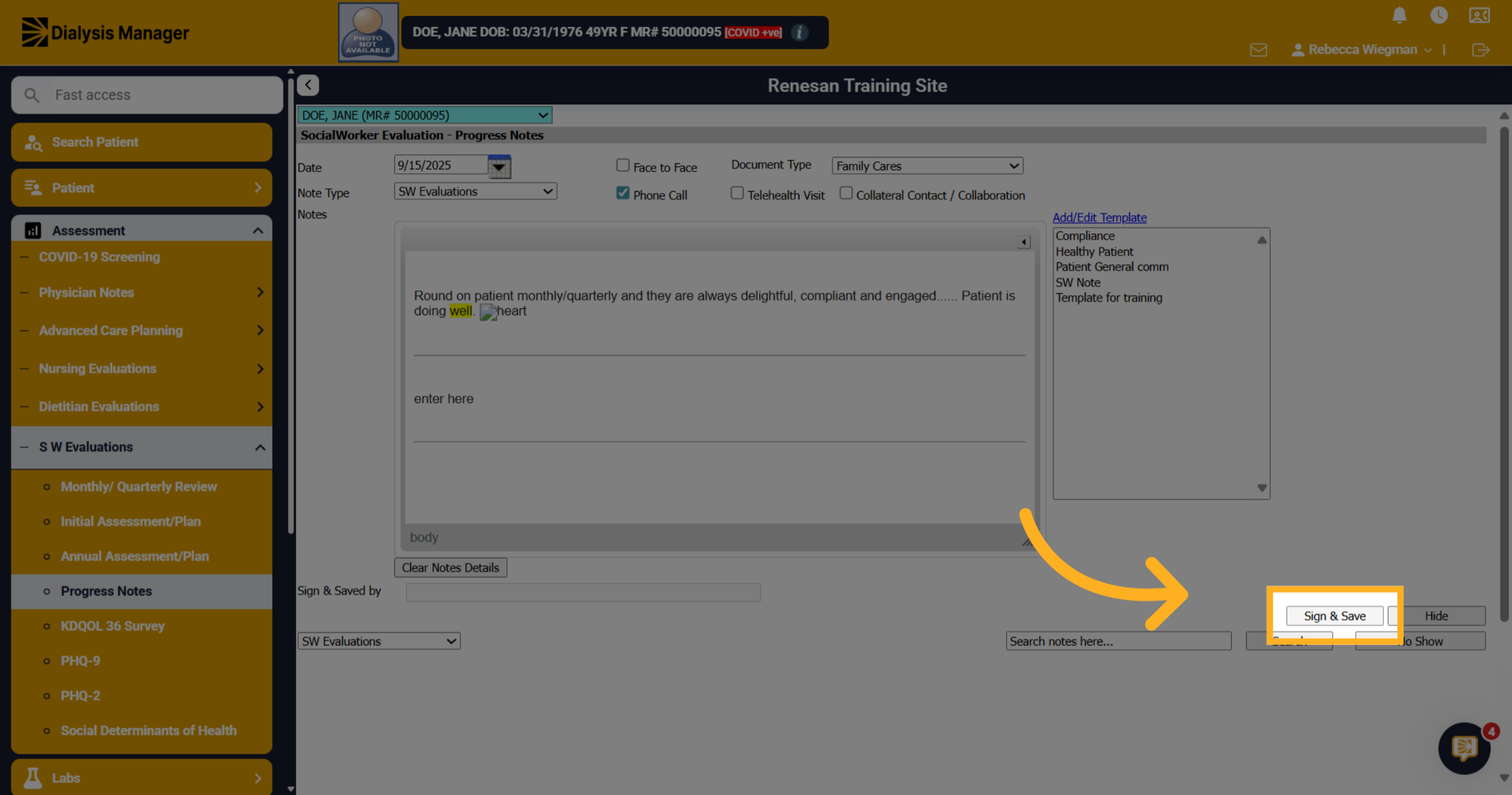
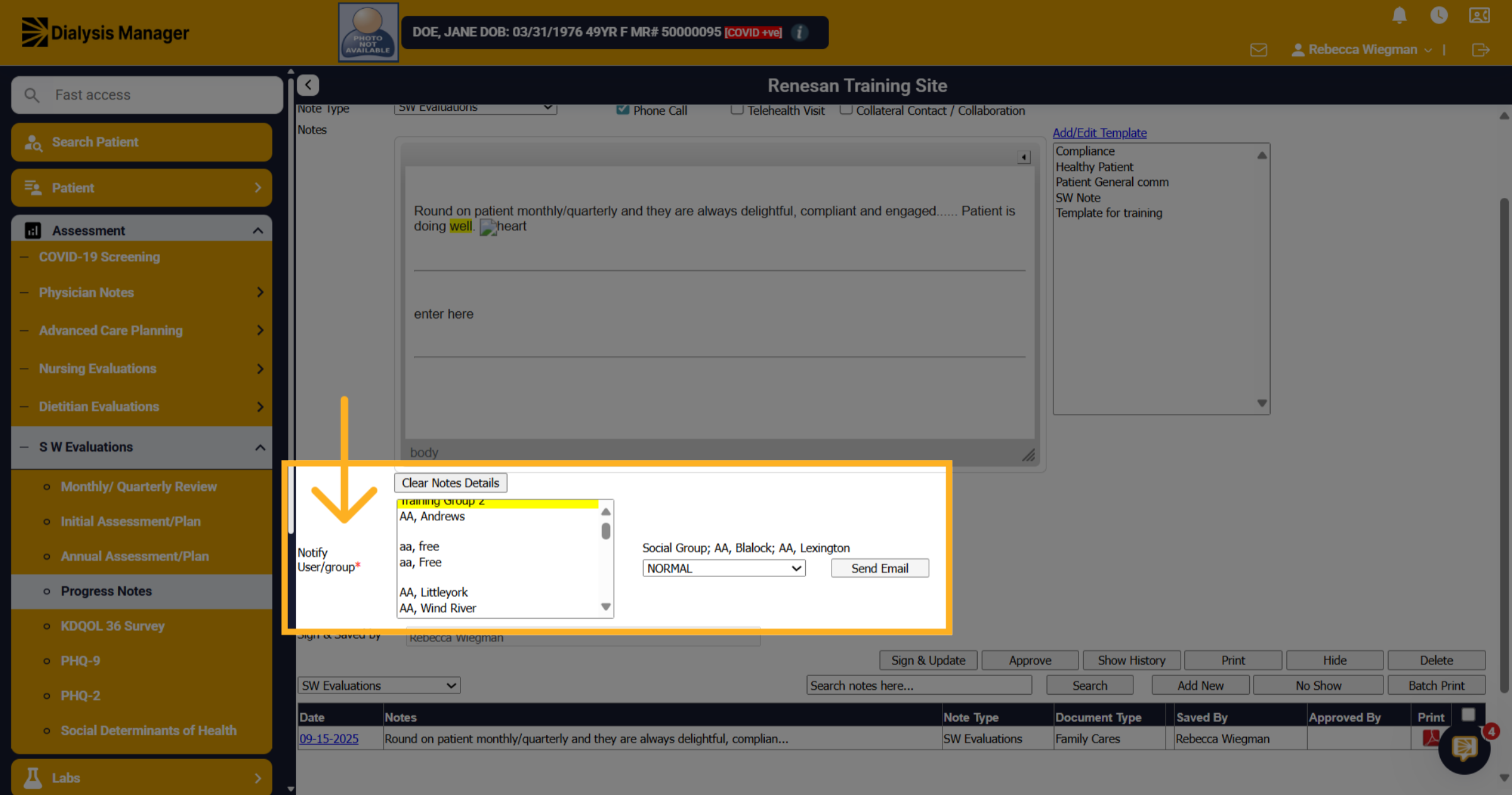
12. Notify Others
After saving the note you'll have the option to Notify others. You can select multiple users by holding the "Alt" key and be able to select a Priority. Click Send Email! This note will now appear in the users "MailBox"
13. Click "Sign & Update"
Click Hide to go back to the Progress Note Screen.