Social Worker Monthly/Quarterly Assessment
1. Introduction
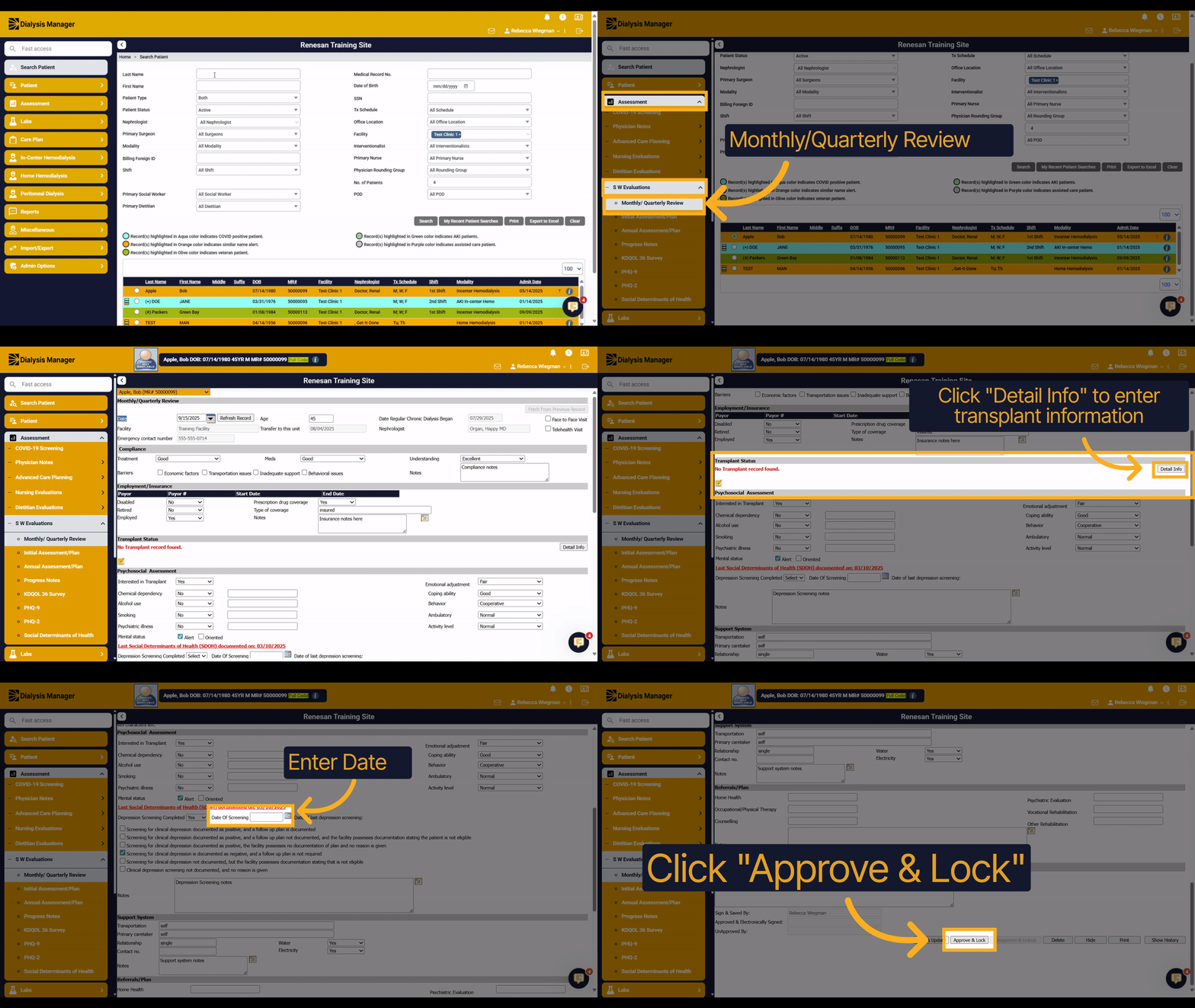
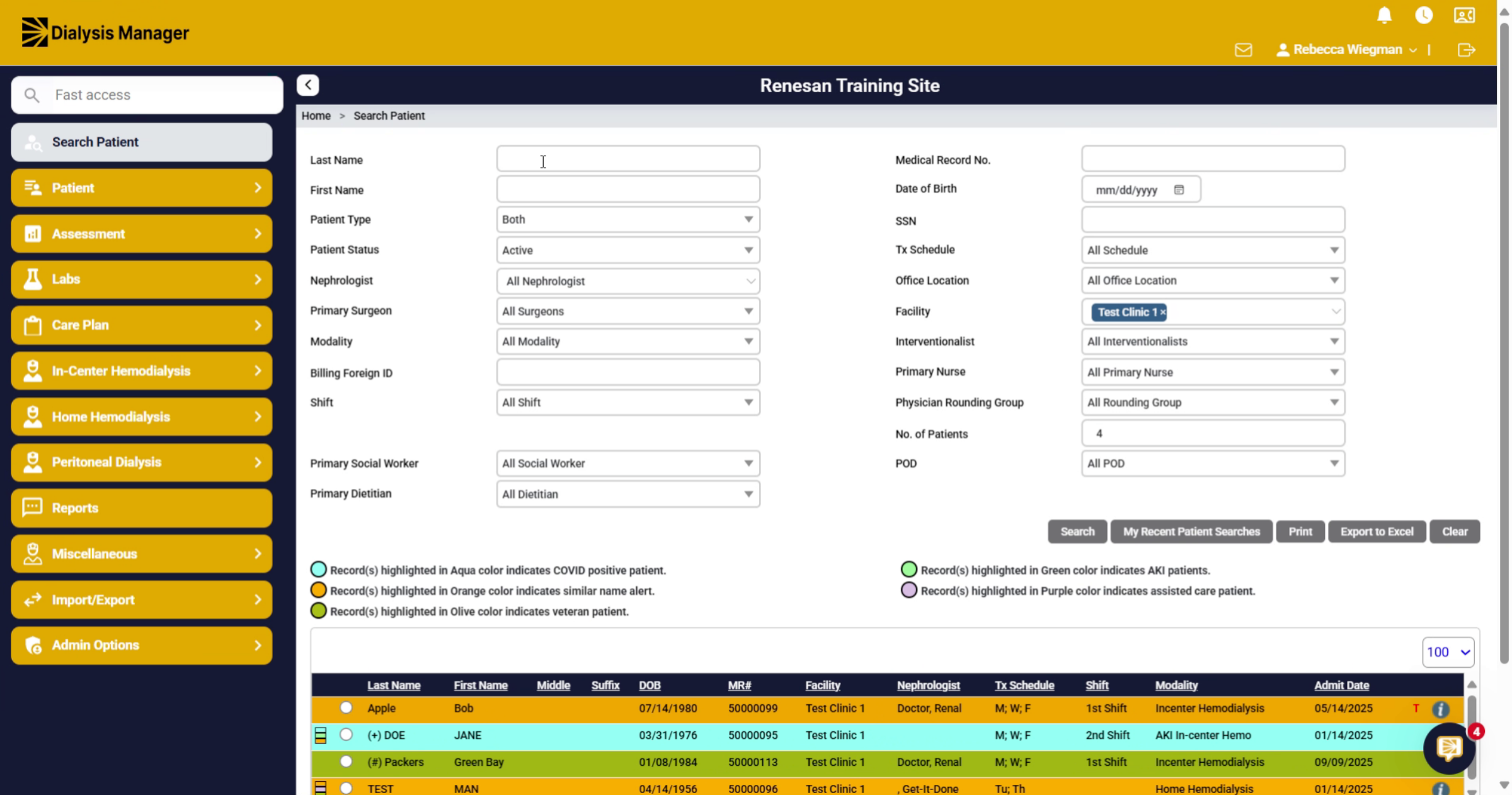
This training is addressing the use of dialysis manager for social workers. The social workers land on the search patient screen. Where we are currently at. Based on your filter, you can minimize the patient list by either the facility, their modalities, or even searching by their first or last name.
2. Click here
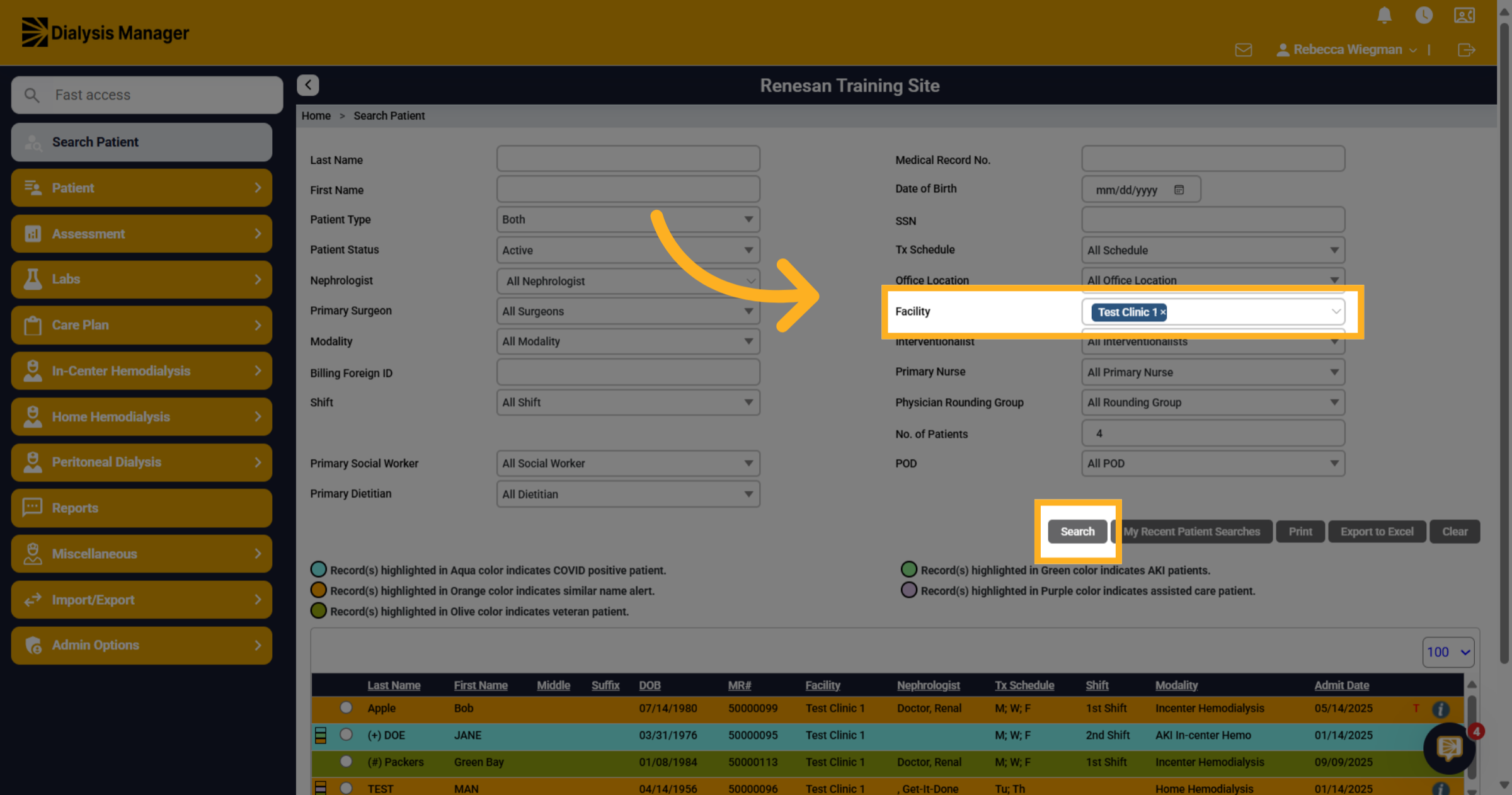
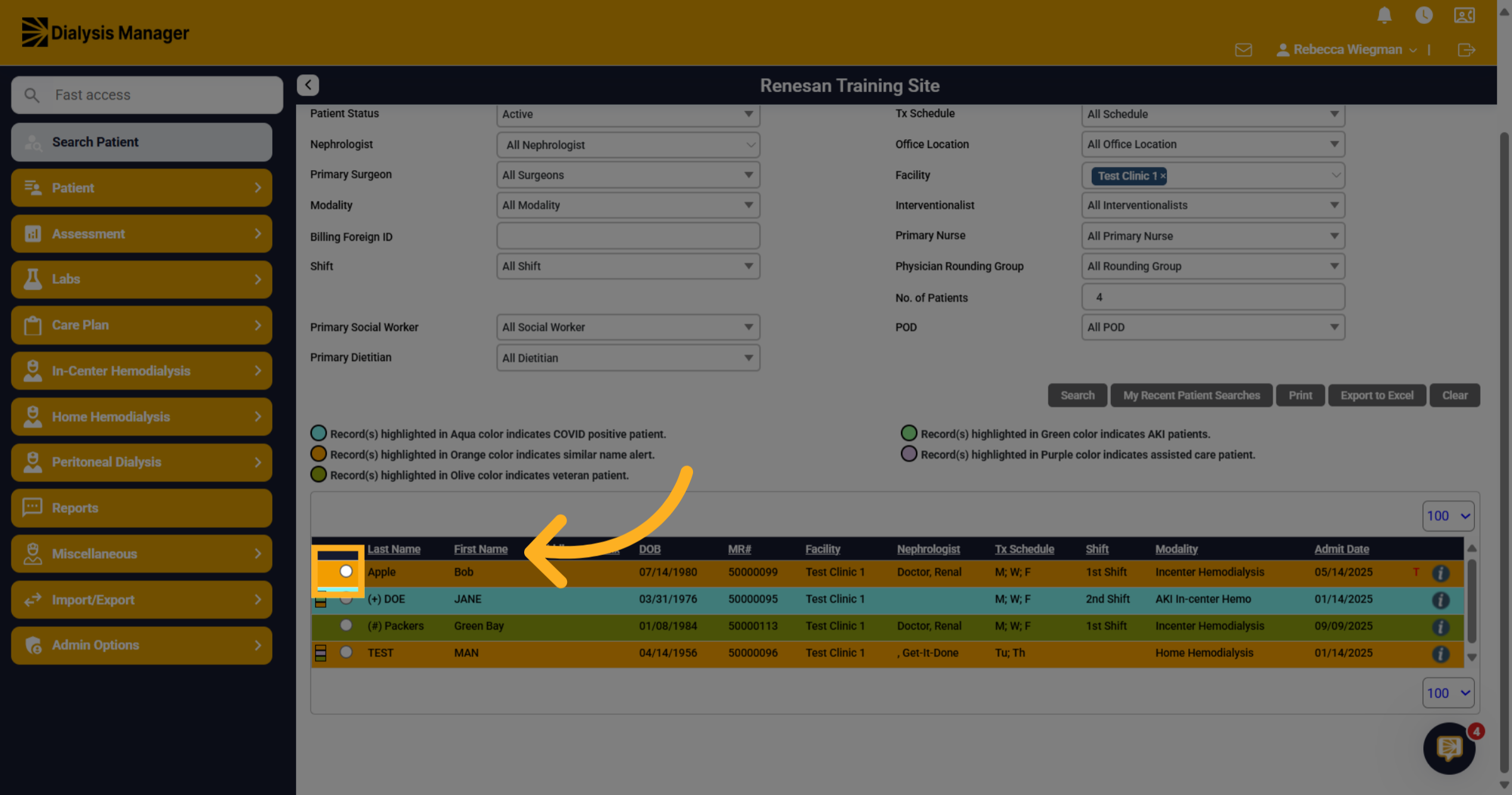
For this video we are going to search patients per facility. Then click search!
3. Click "on"
The patients associated with that facility will now appear towards the bottom. Your able to select the radio button to the left of the patients name to select that specific patient.
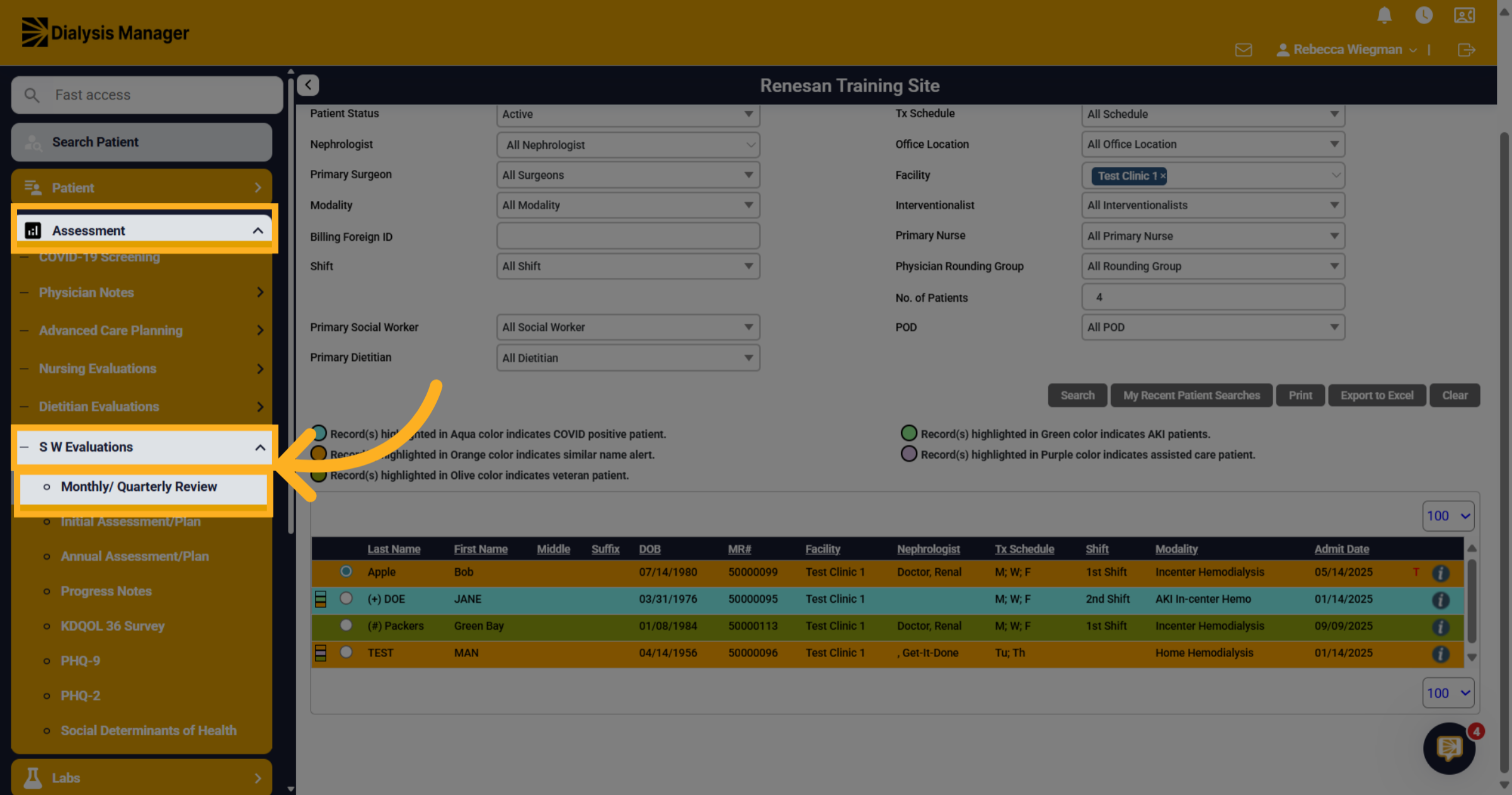
4. Click "Monthly/ Quarterly Review"
Click into Assessment > Social Worker Evaluations Then Monthly Quarterly Review. Please note that I'm using the dropdown menu option rather than the flyout menu. Your able to change the menu bar view by going to My Profile and Preference.
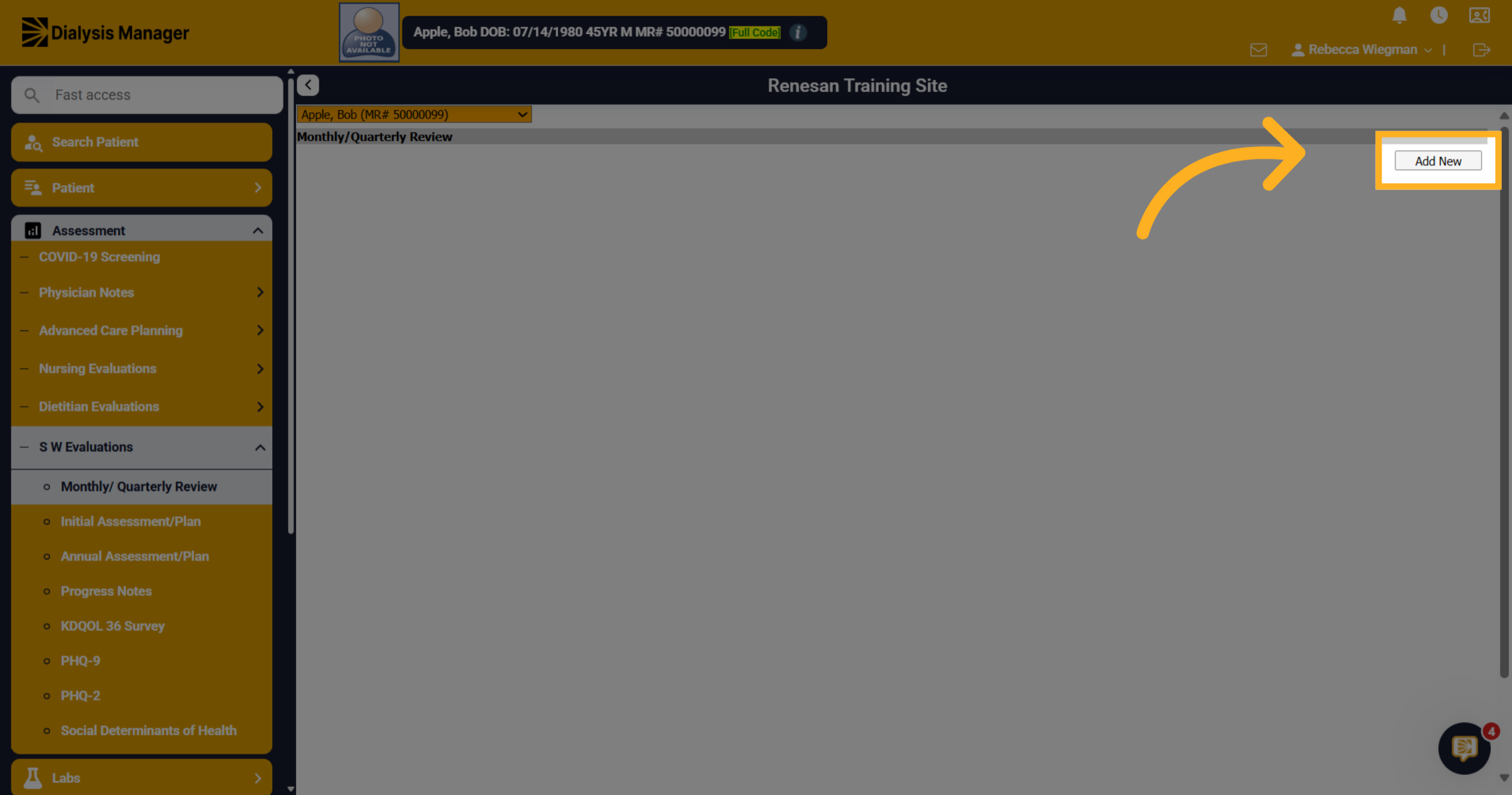
5. Click "Add New"
Click "Add New" to create a new Monthly or Quarterly assessment for the patient.
6. Click "Date"
Click "Date" to select the assessment date.
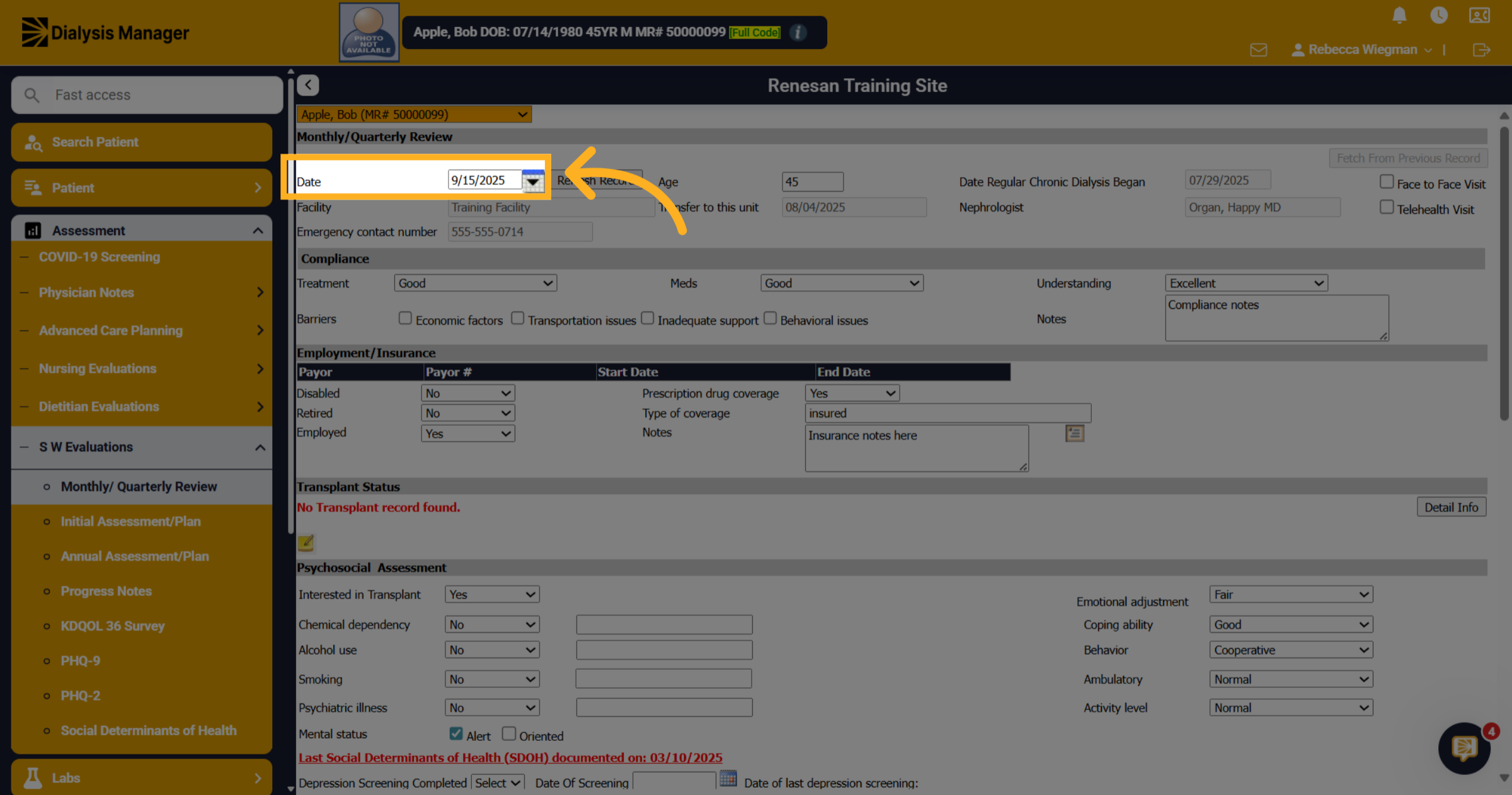
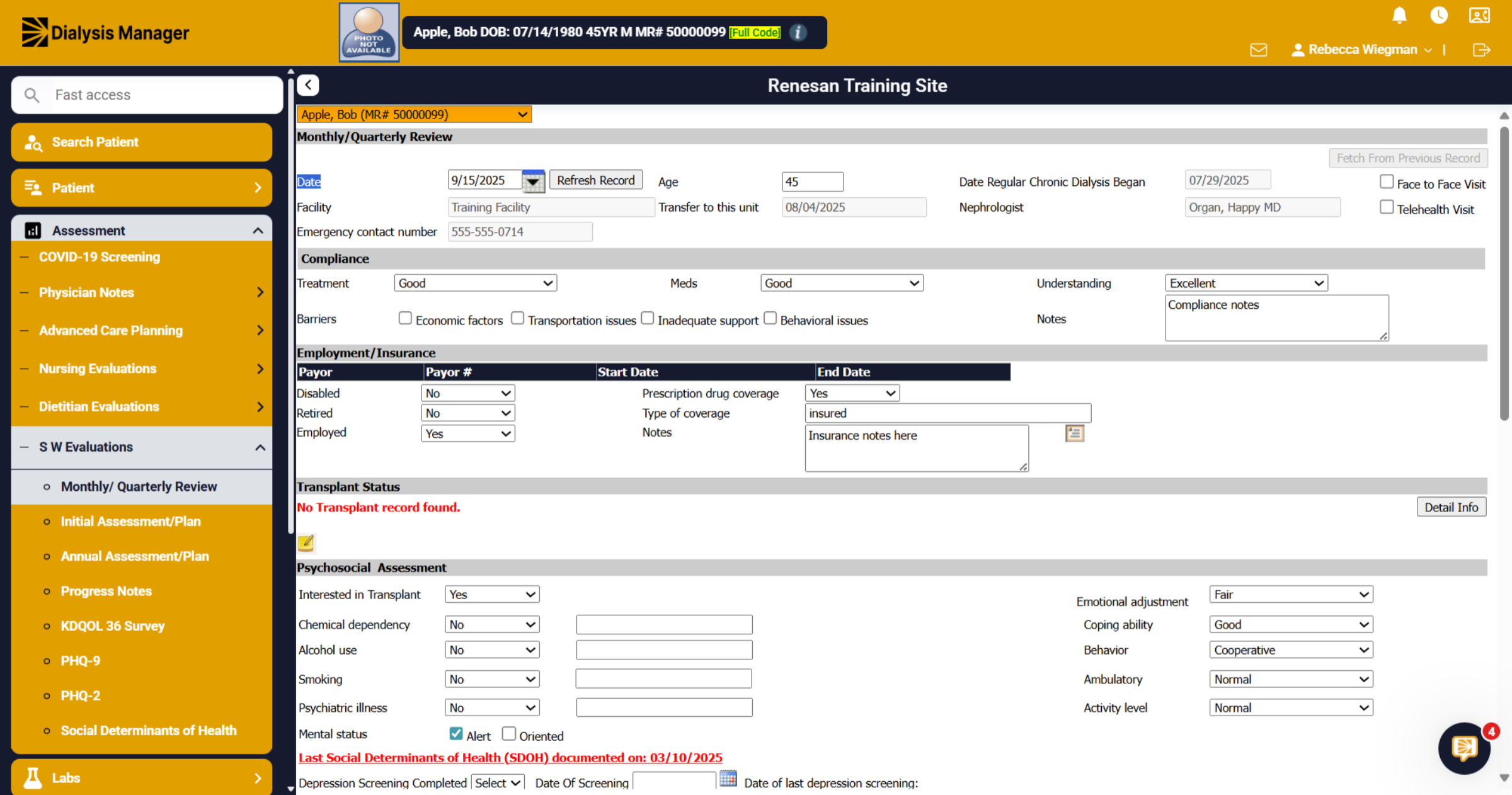
7. Grayed out info
Any information that is grayed out is being pulled from other areas of Dialysis Manager.
8. Click here
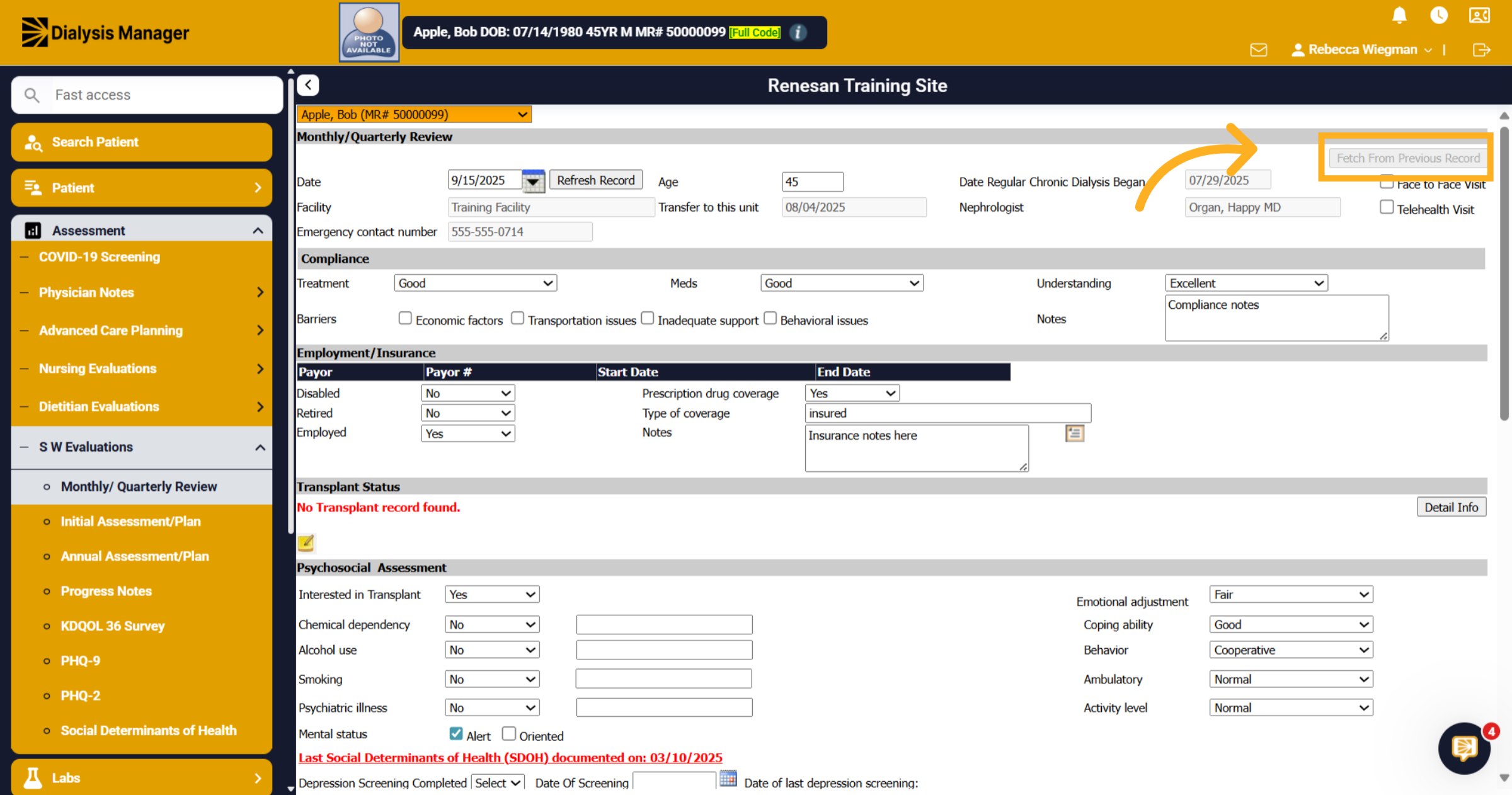
Continue through the assessment completing as much as possible. We have a Fetch from Previous record button that will pull in the previous assessment information that your able to update rather than completing the entire assessment.
9. Click "Compliance"
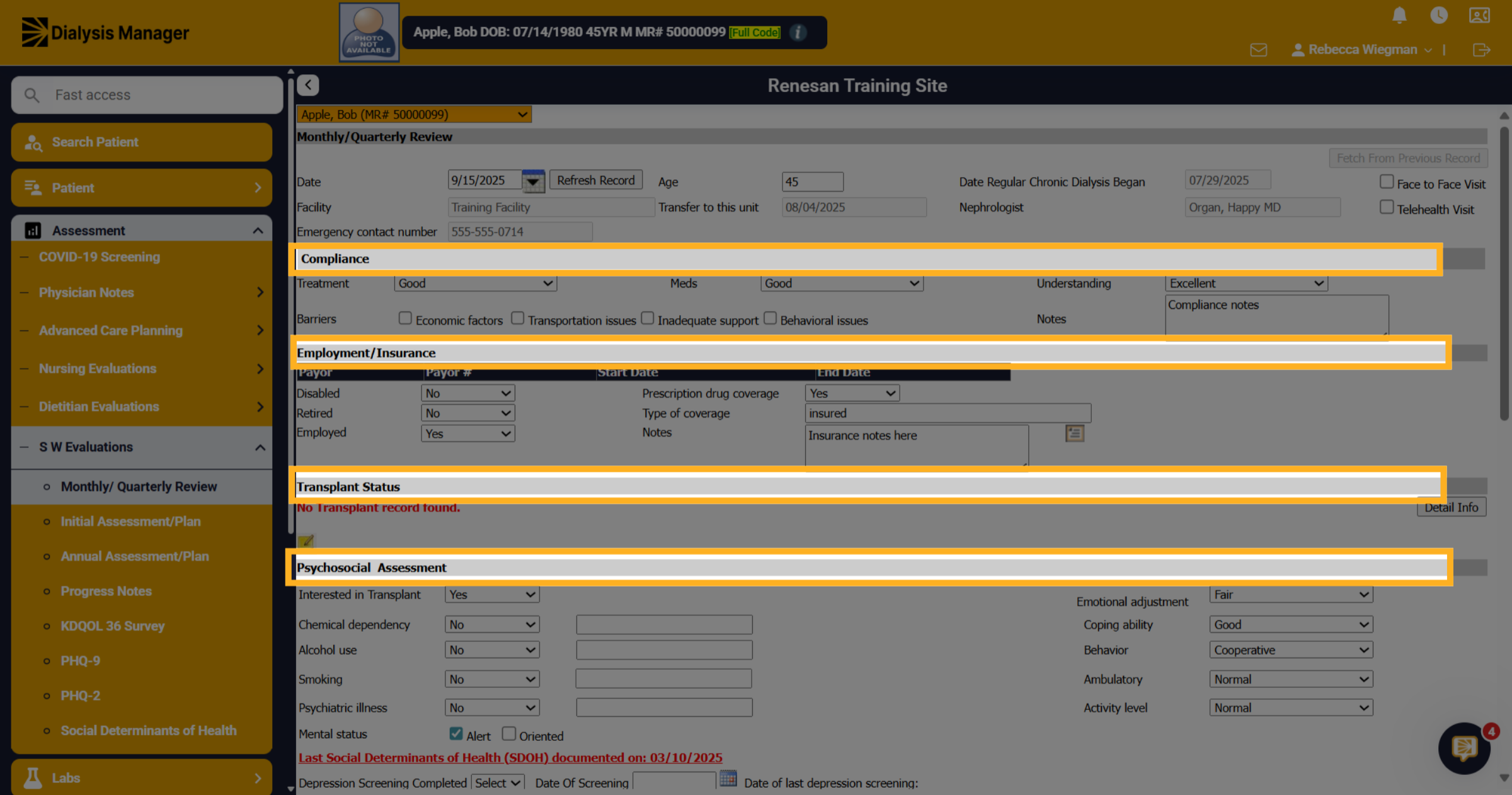
The assessment is divided by sections with a gray banner. You'll see Compliance, Employment & Insurance, Transplant Status, Psychosocial Assessment,
10. Click "Transplant Status"
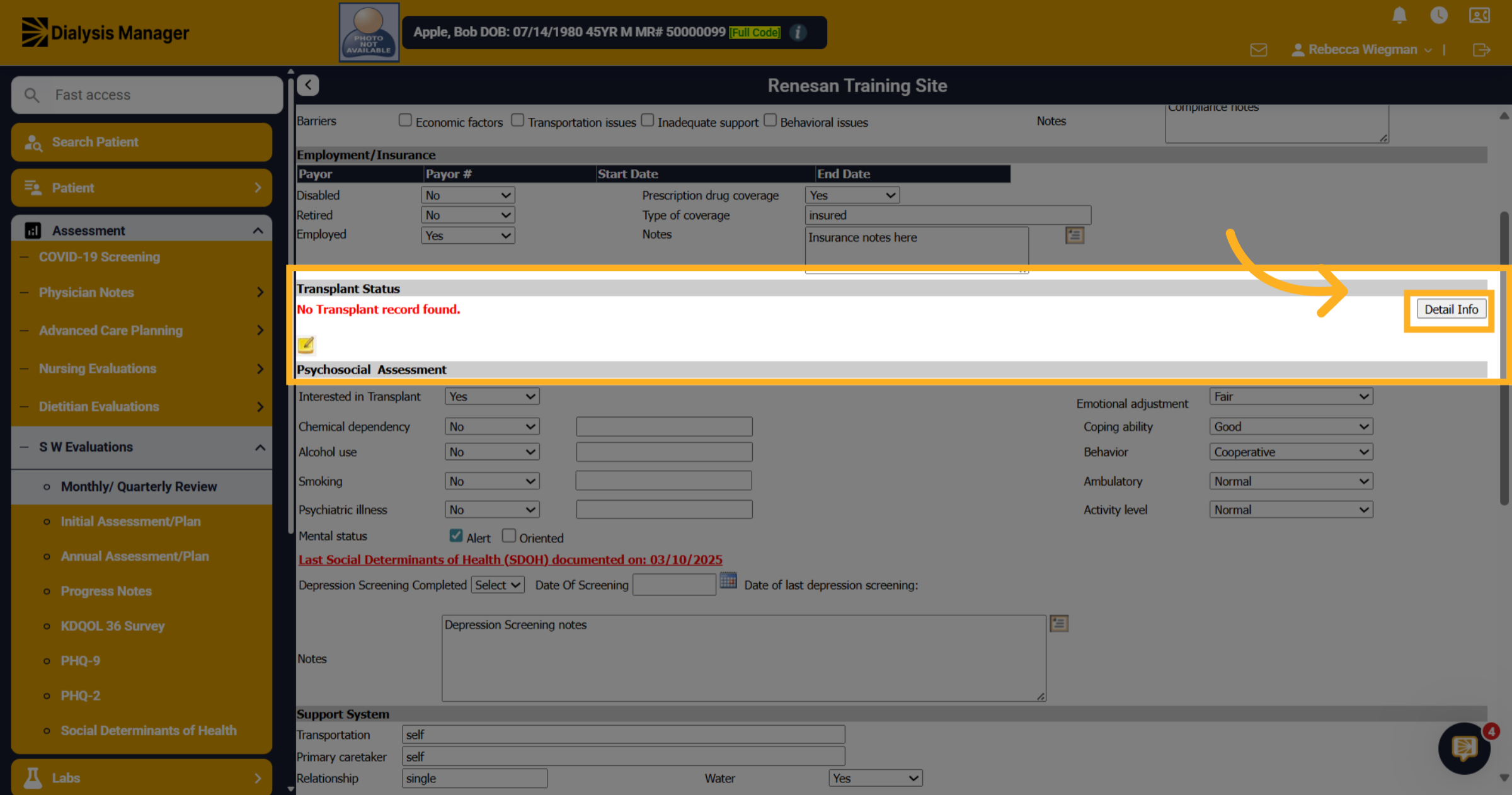
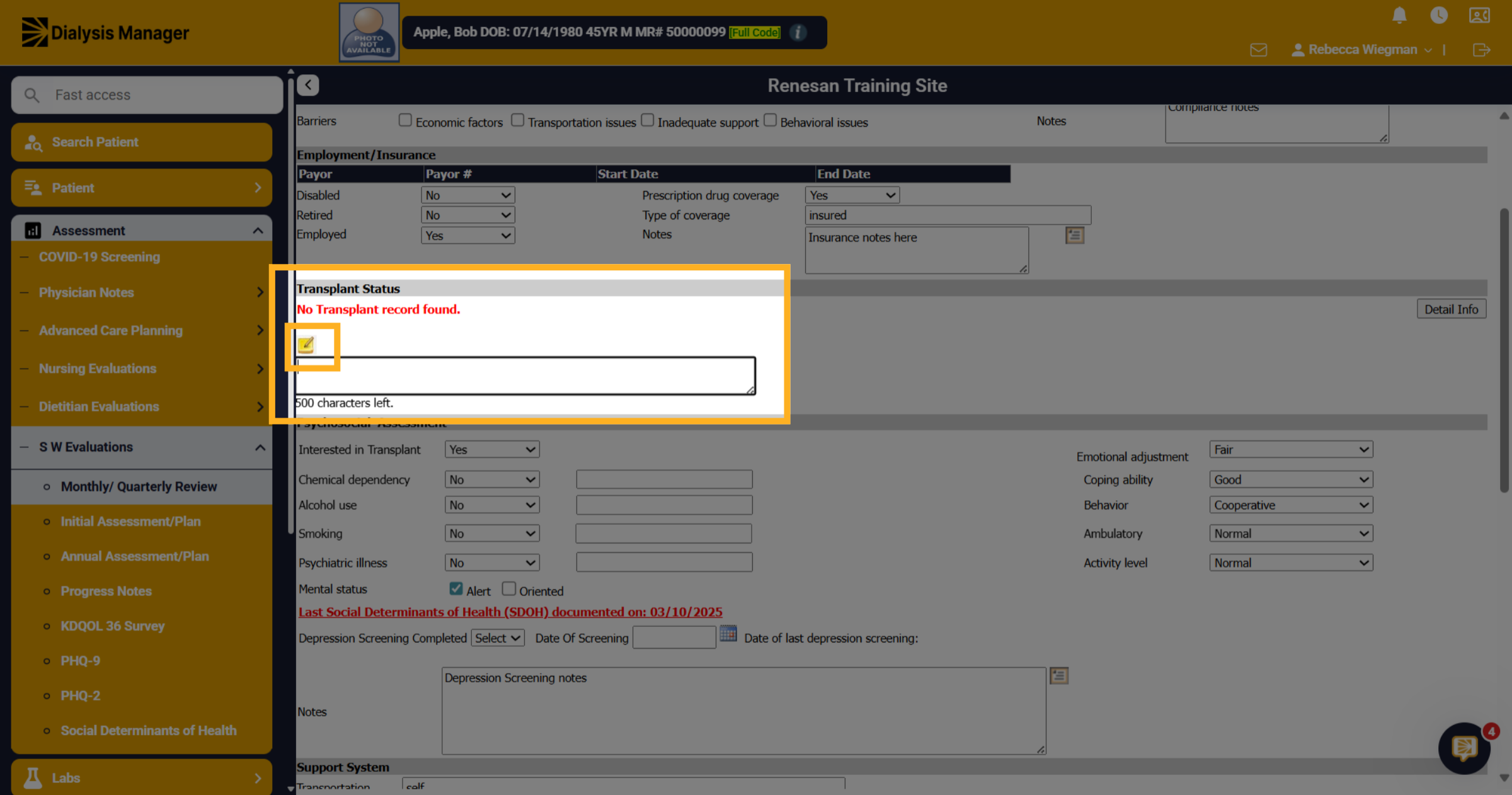
Currently this patient does not have any transplant information entered into the system. Your able to select the "Detail Info" to bring you to the transplant screen where your able to enter that information and save.
11. Note Pad
When selecting the note pad, it'll open a notes section.
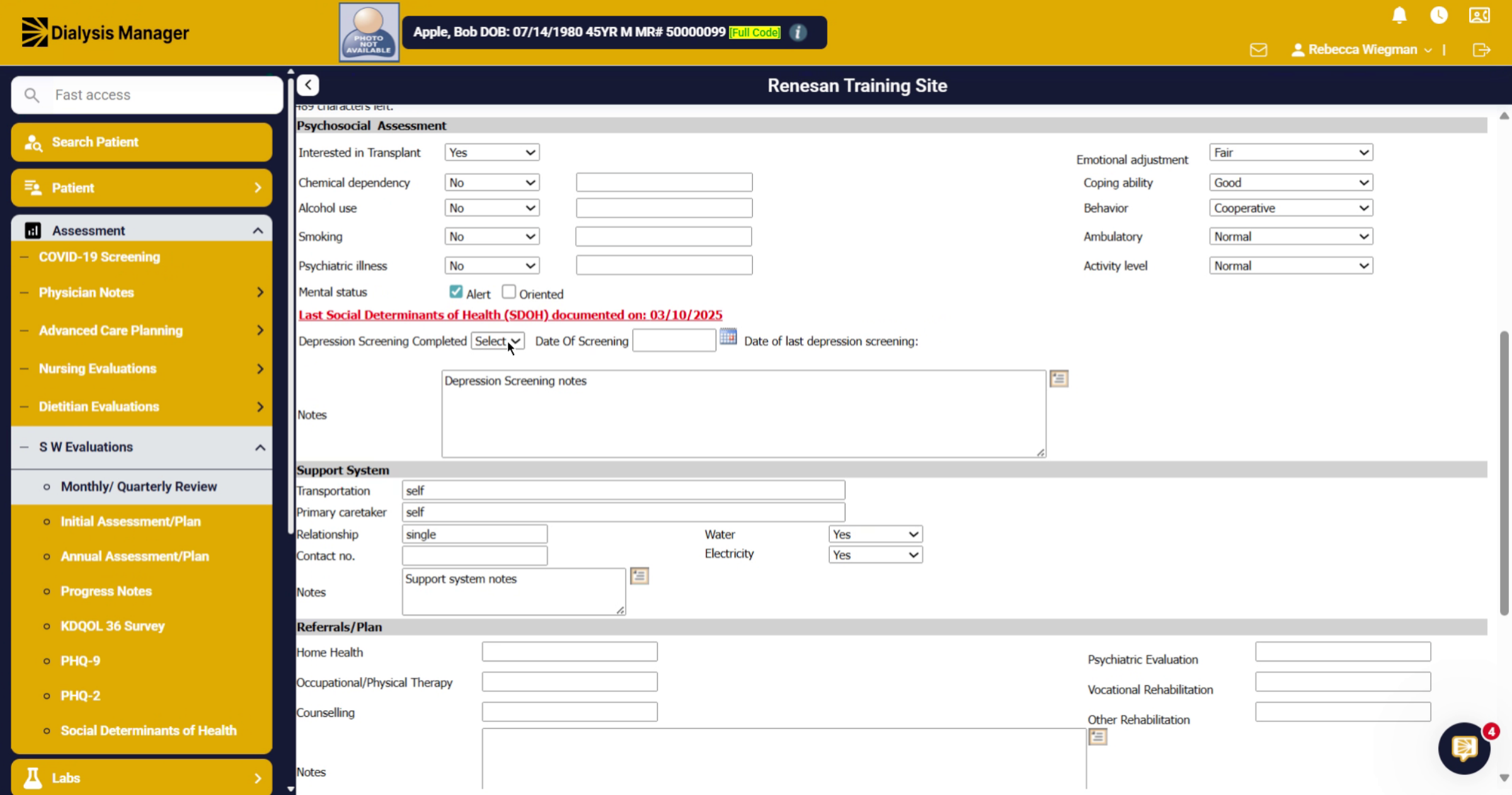
12. Depression Screening Completed?
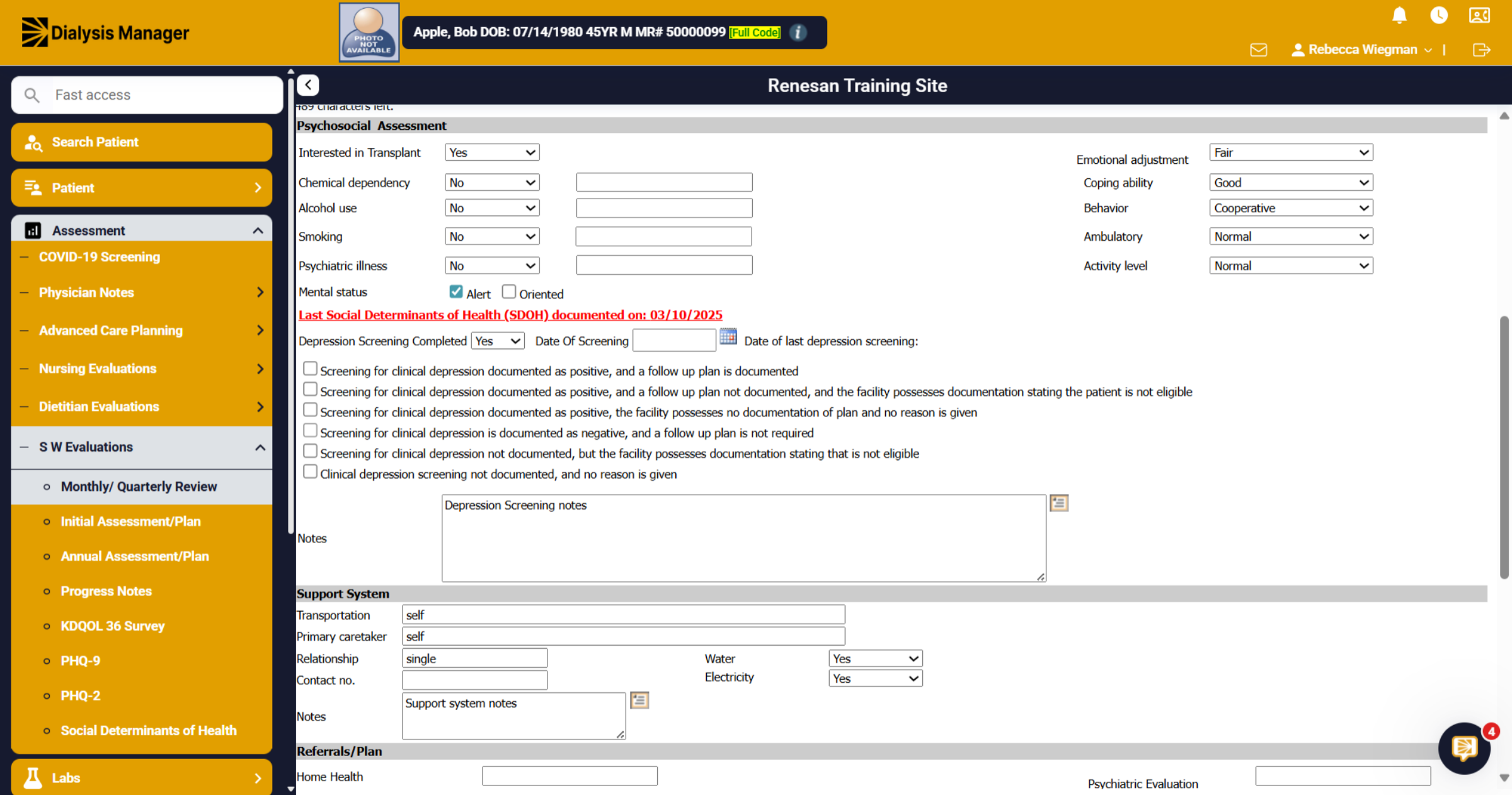
Inside the Psychosocial Assessment areas you'll be able to mark if a Depression Screening was Completed. No will leave you a notes box. But when you select Yes you'll see the PHQ-2 responses.
13. Depression Screening Completed
Please note: this does not complete the depression screening. This is just mirroring the depression screening that would have already been done or needs to be completed.
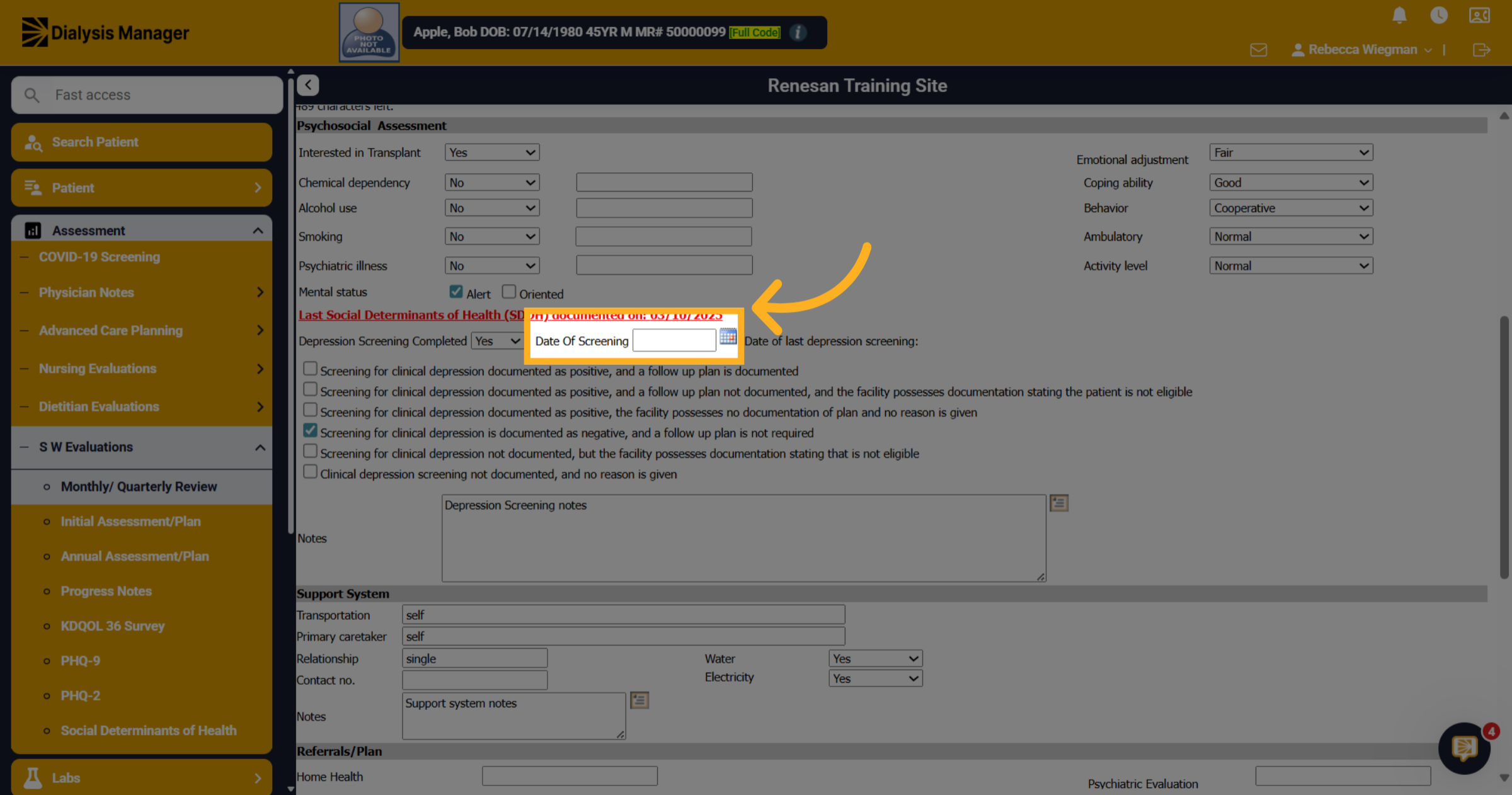
14. Click here
Be sure you're always entering in a date!
15. Click "Transportation"
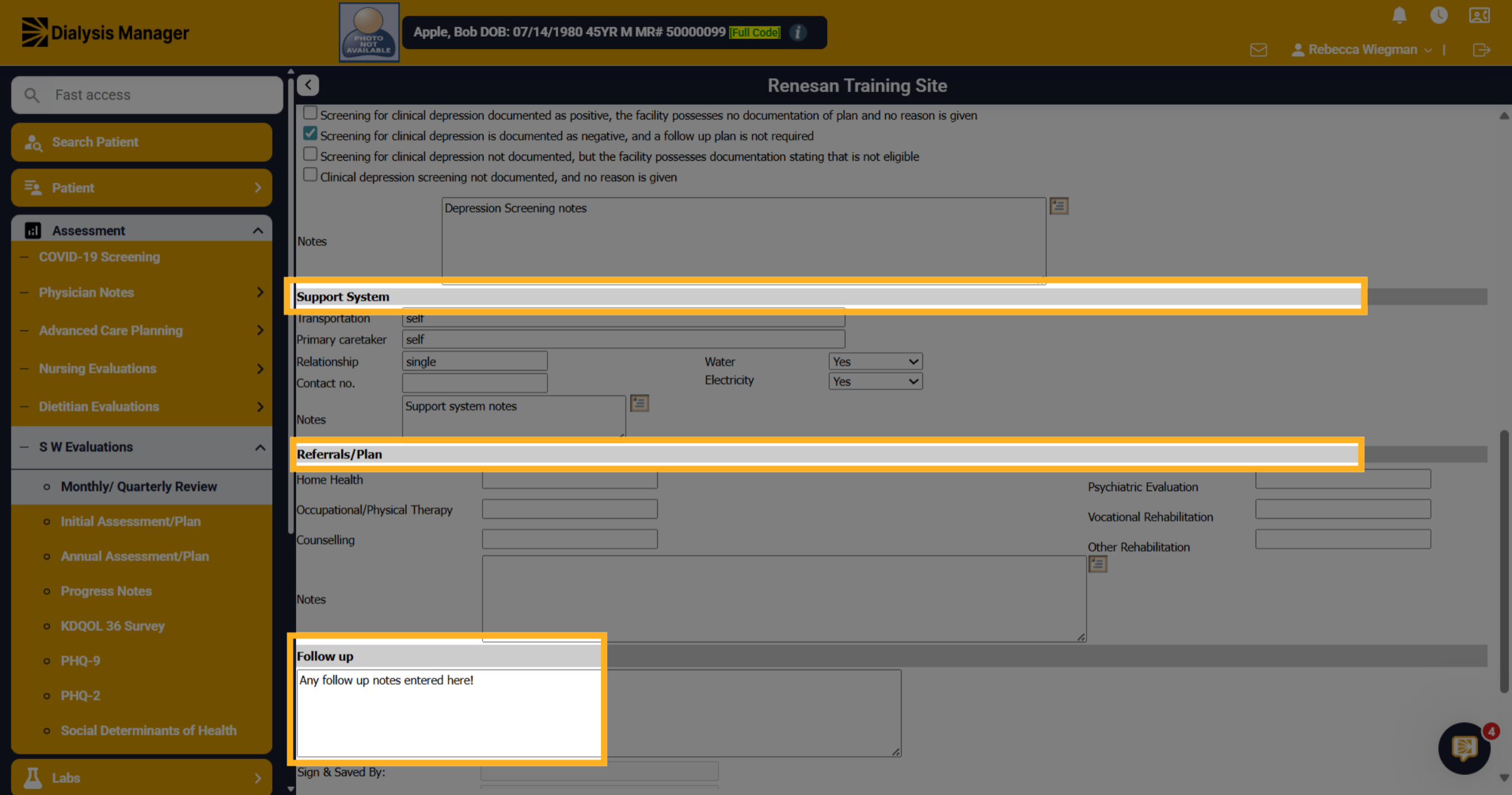
You'll also see sections for Support System, Referrals/Plan and Follow Up notes box.
16. Click "Sign & Save"
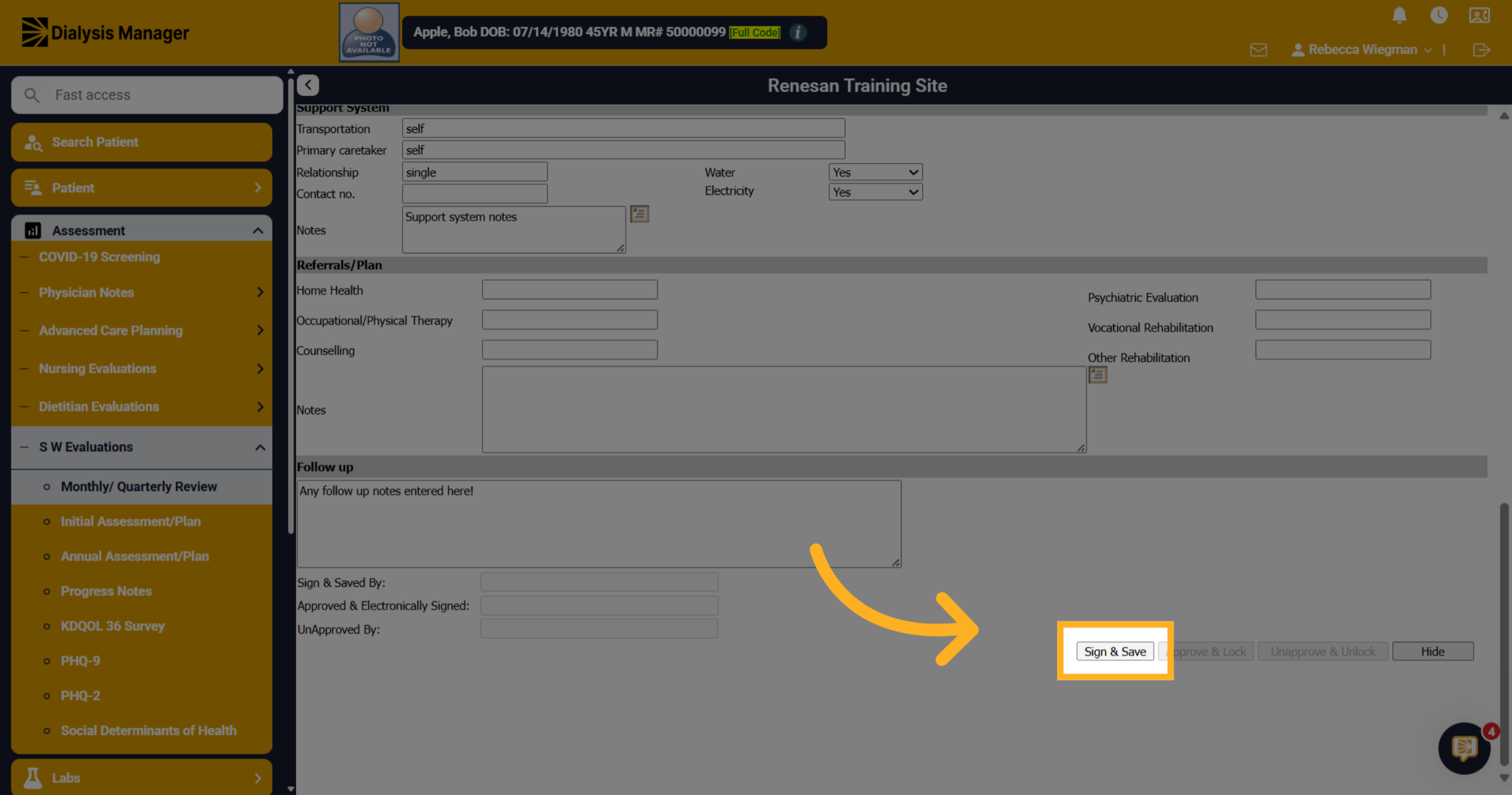
Click "Sign & Save" to sign and save the assessment.
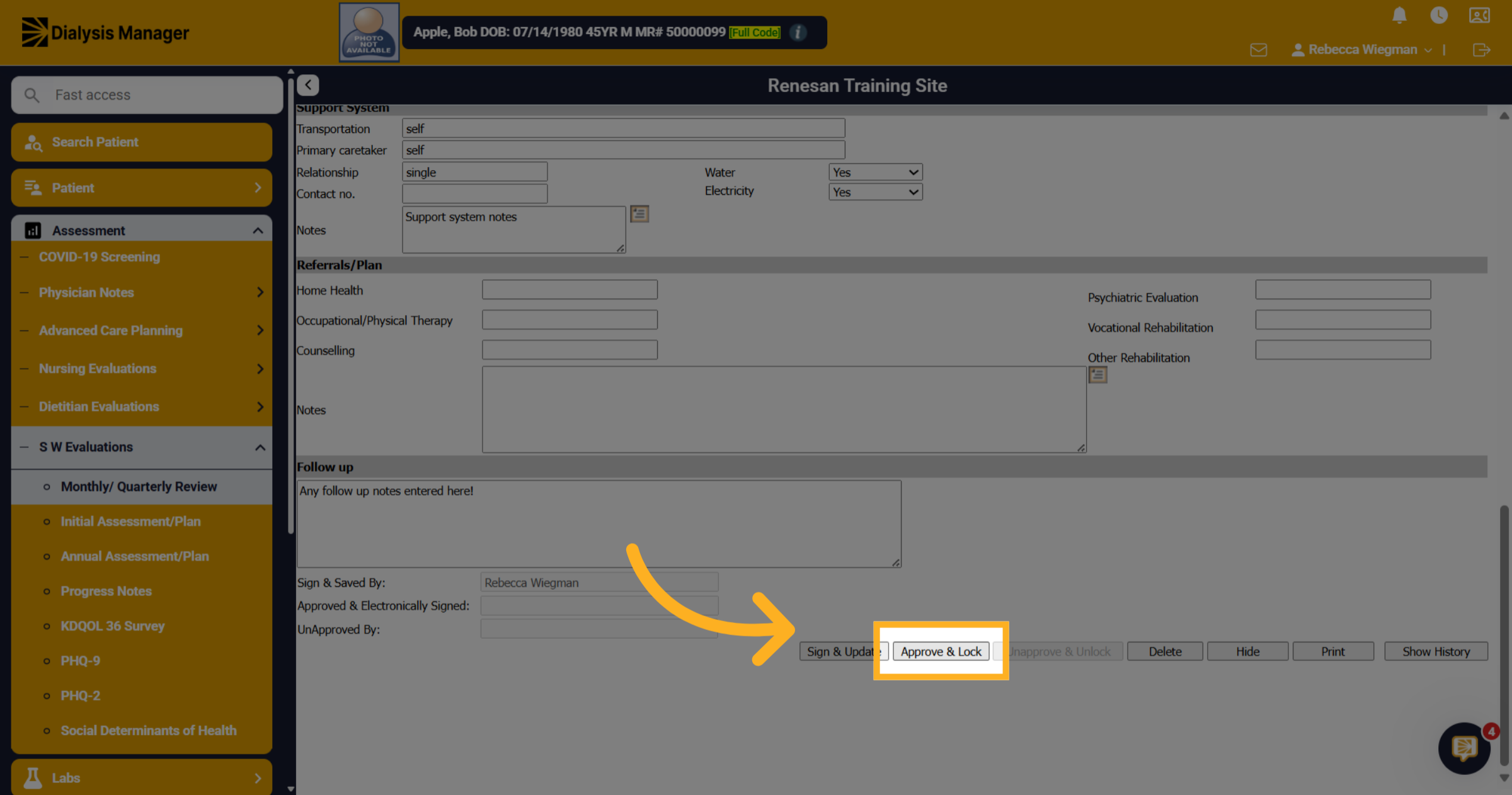
17. Click "Approve & Lock"
Click "Approve & Lock" to finalize and lock the assessment.