Social Workers Assessments.
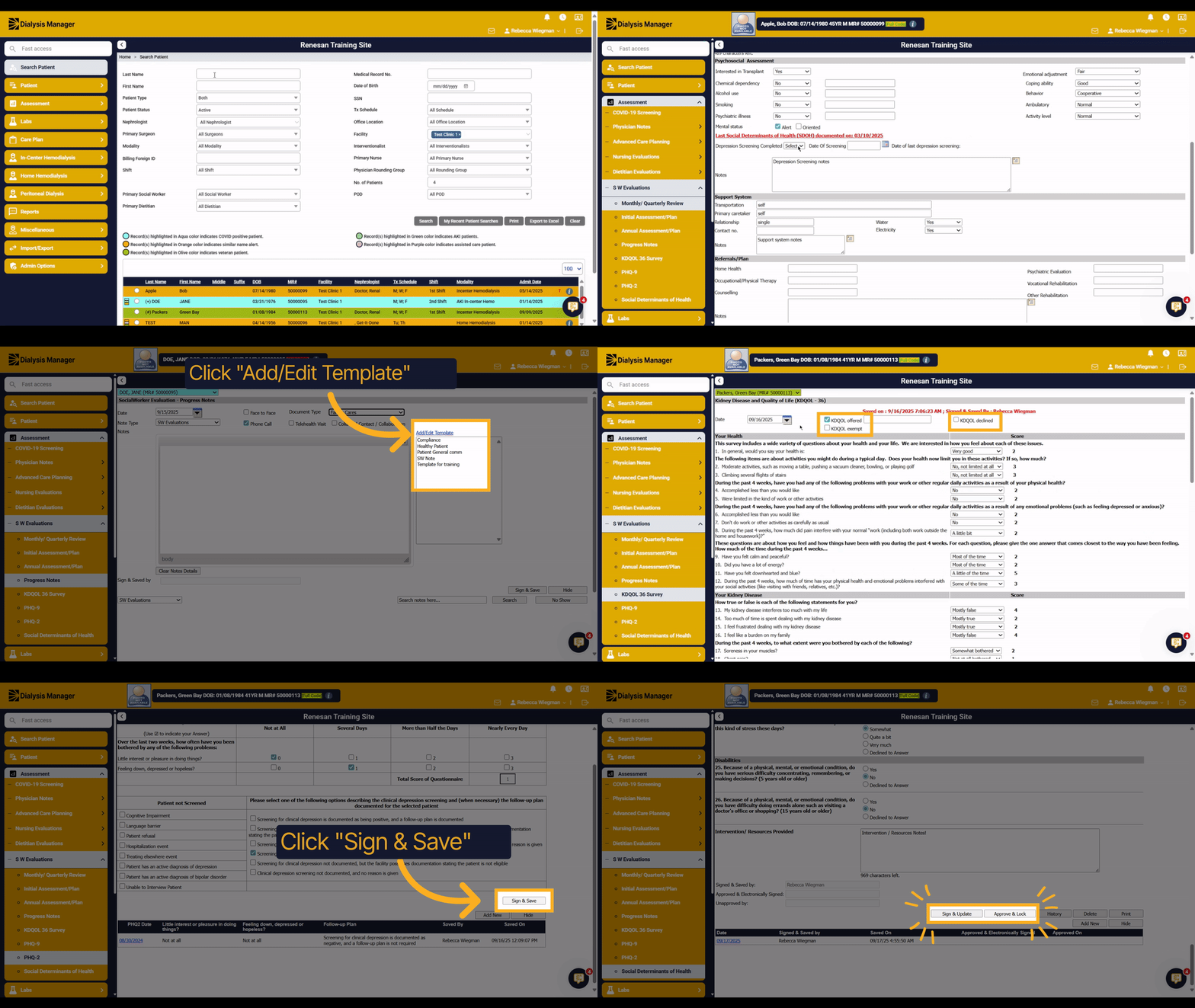
1. Introduction
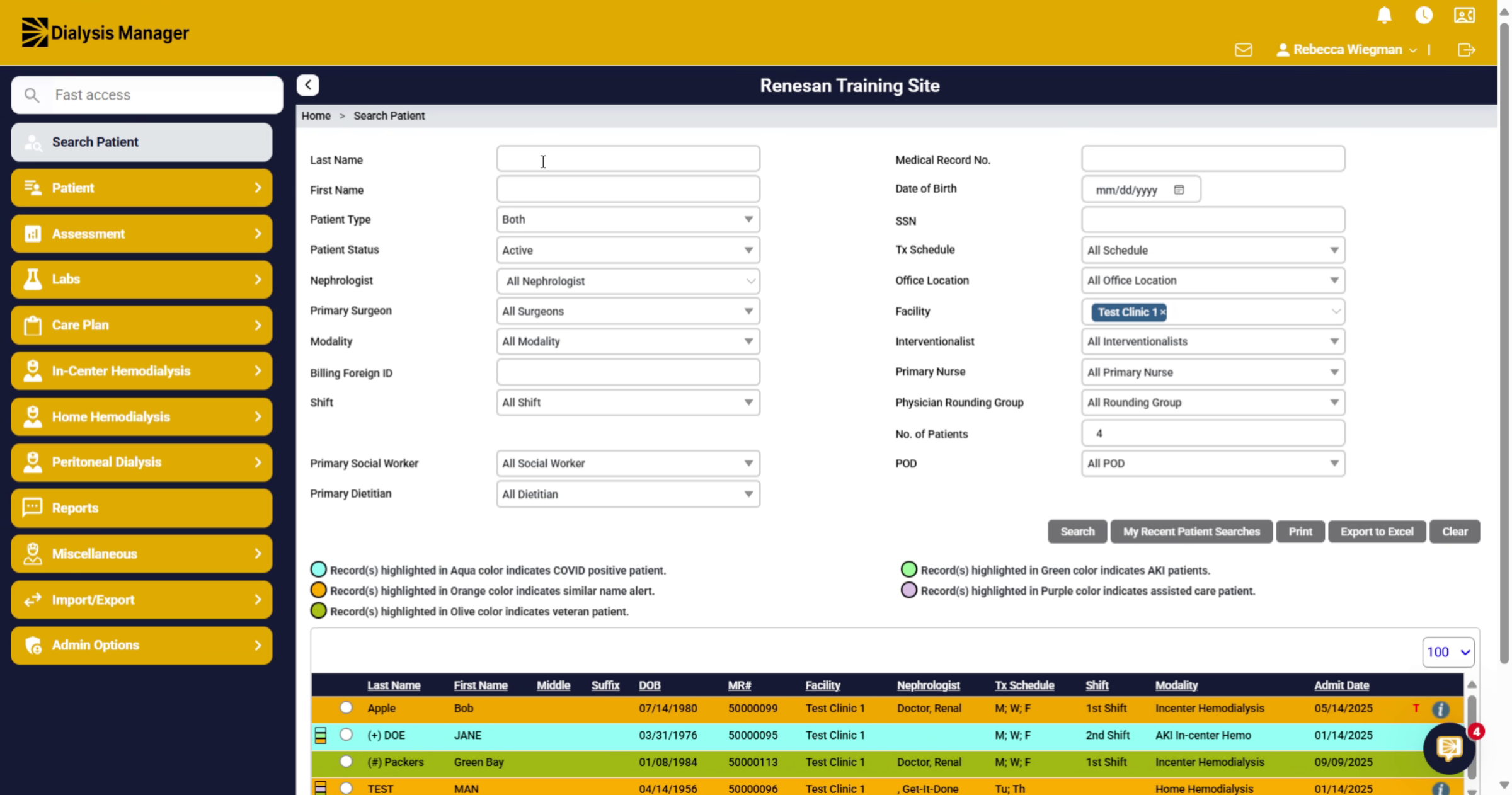
This training is addressing the use of dialysis manager for social workers. The social workers land on the search patient screen. Where we are currently at. Based on your filter, you can minimize the patient list by either the facility, their modalities, or even searching by their first or last name.
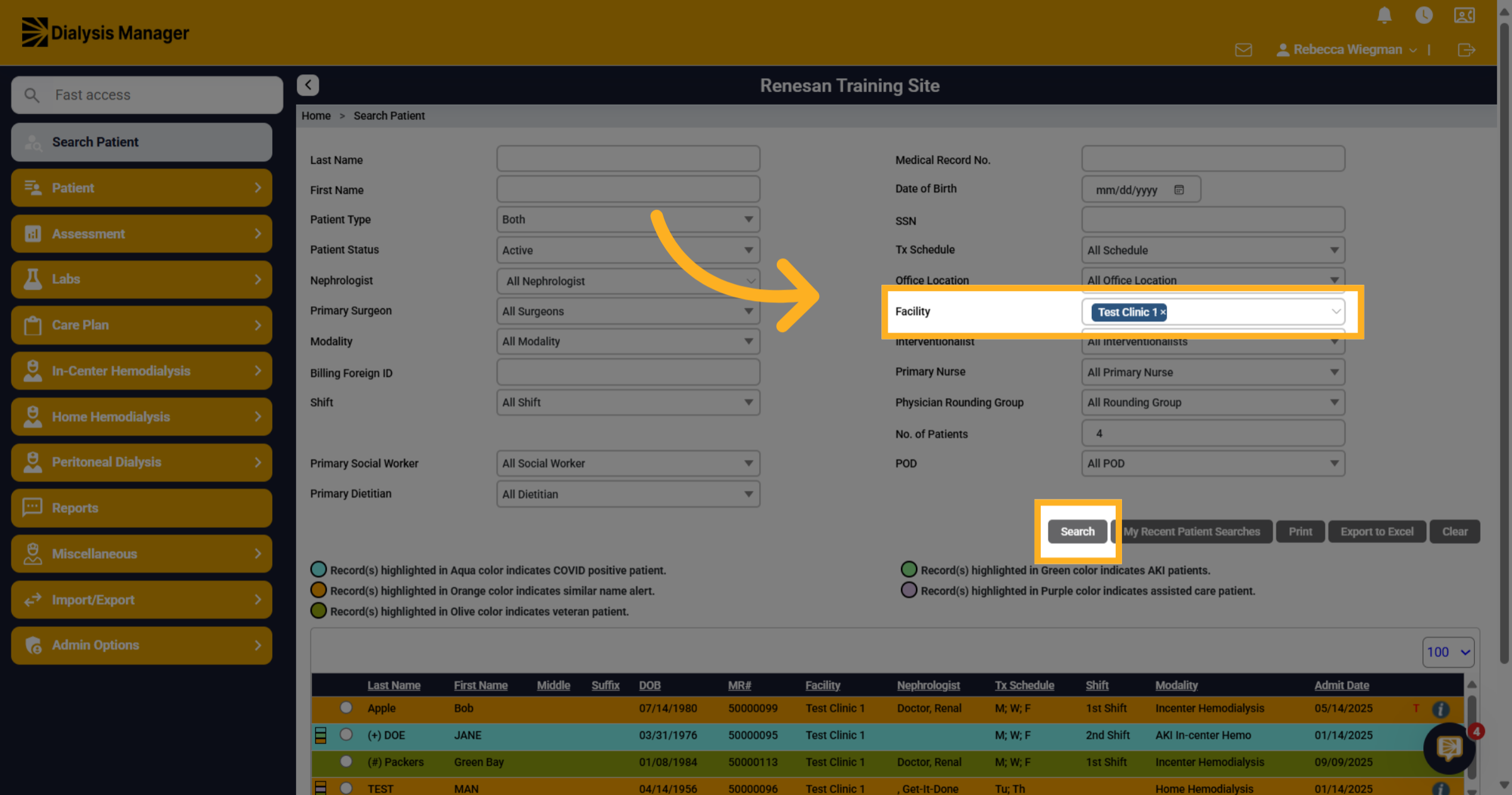
2. Click Facility to search by facility
For this video we are going to search patients per facility. Then click search!
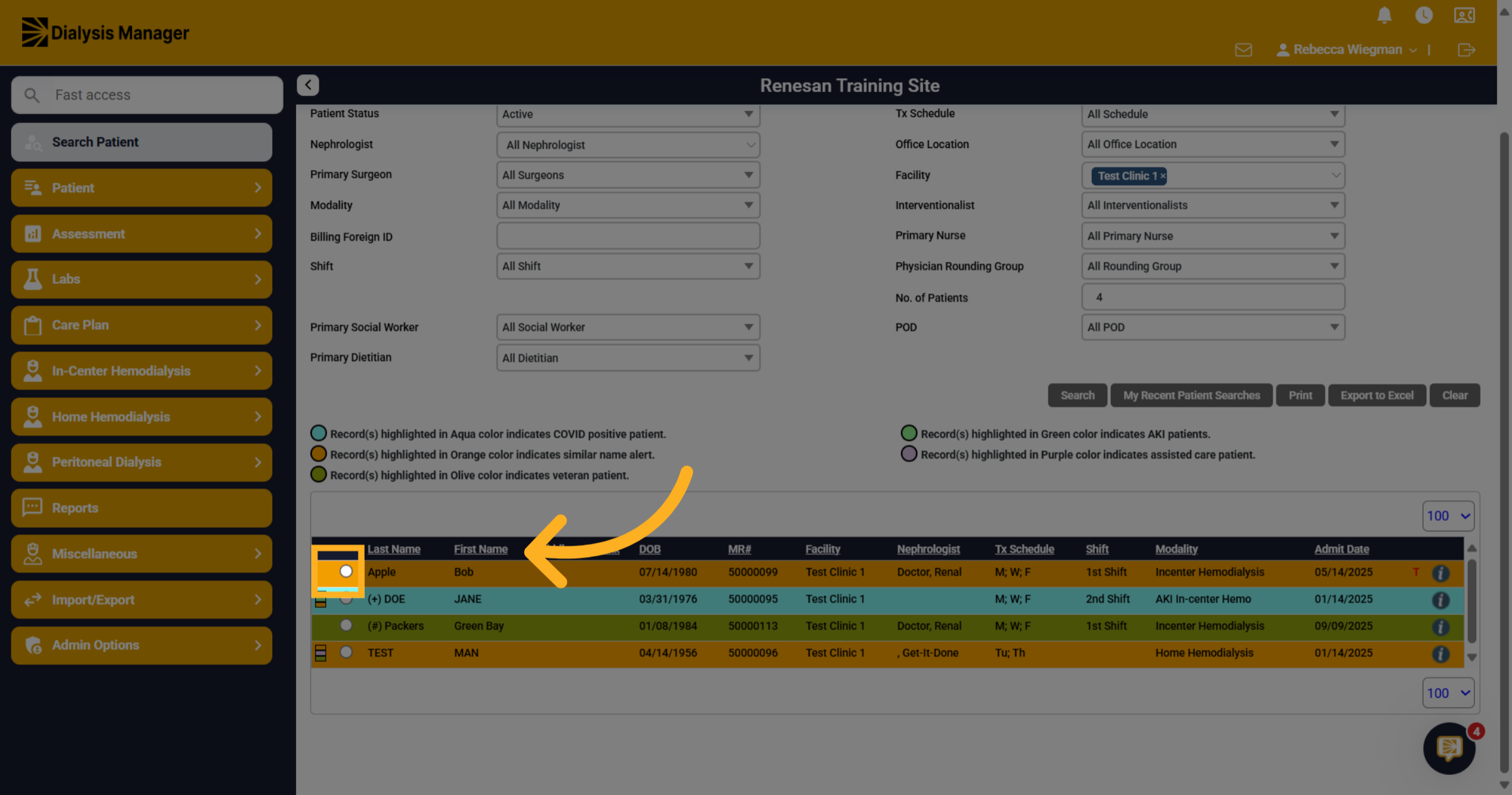
3. Click "on" Radio button
The patients associated with that facility will now appear towards the bottom. Your able to select the radio button to the left of the patients name to select that specific patient.
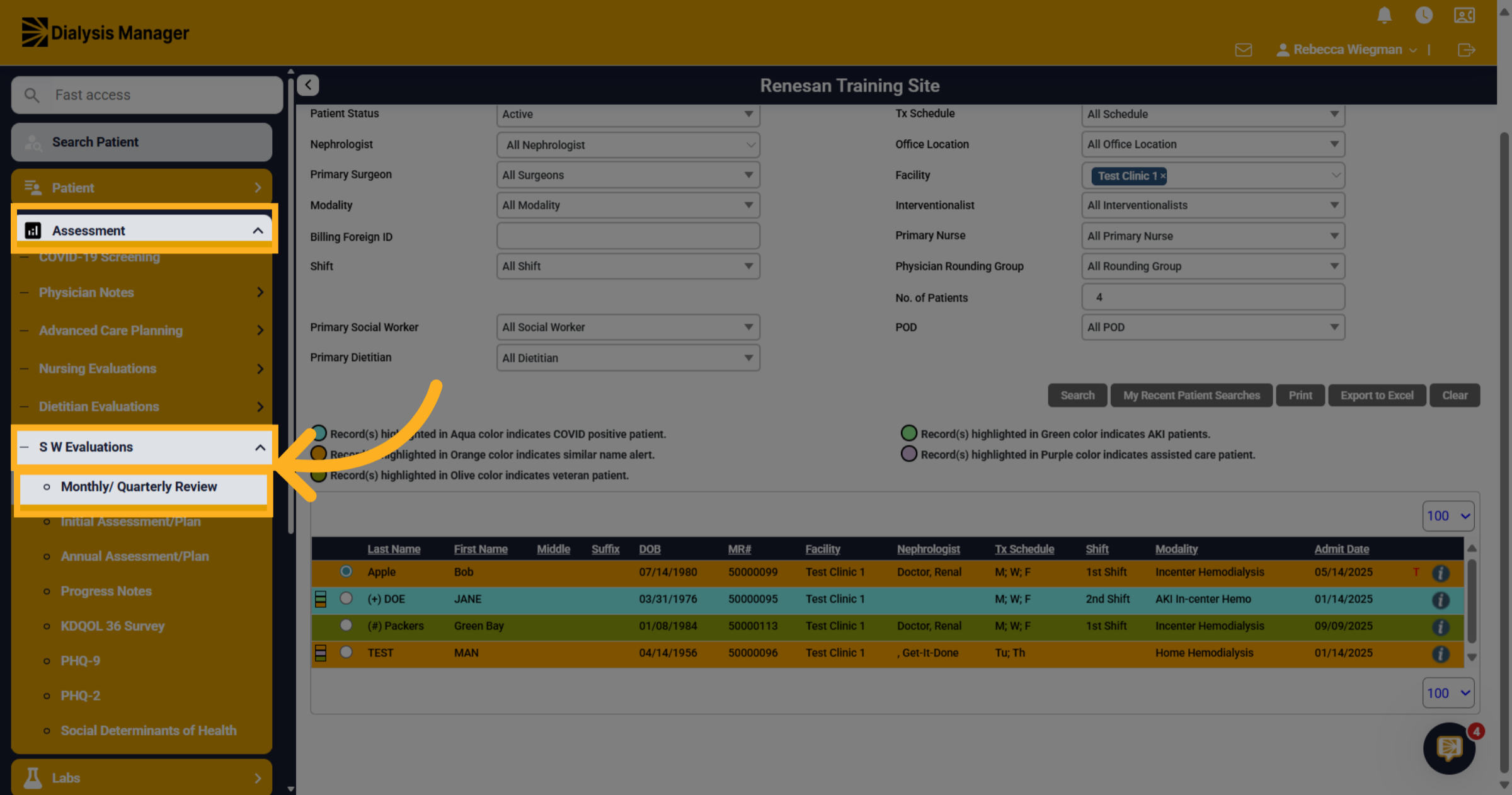
4. Click "Monthly/ Quarterly Review"
Click into Assessment > Social Worker Evaluations Then Monthly Quarterly Review. Please note that I'm using the dropdown menu option rather than the flyout menu. Your able to change the menu bar view by going to My Profile and Preference.
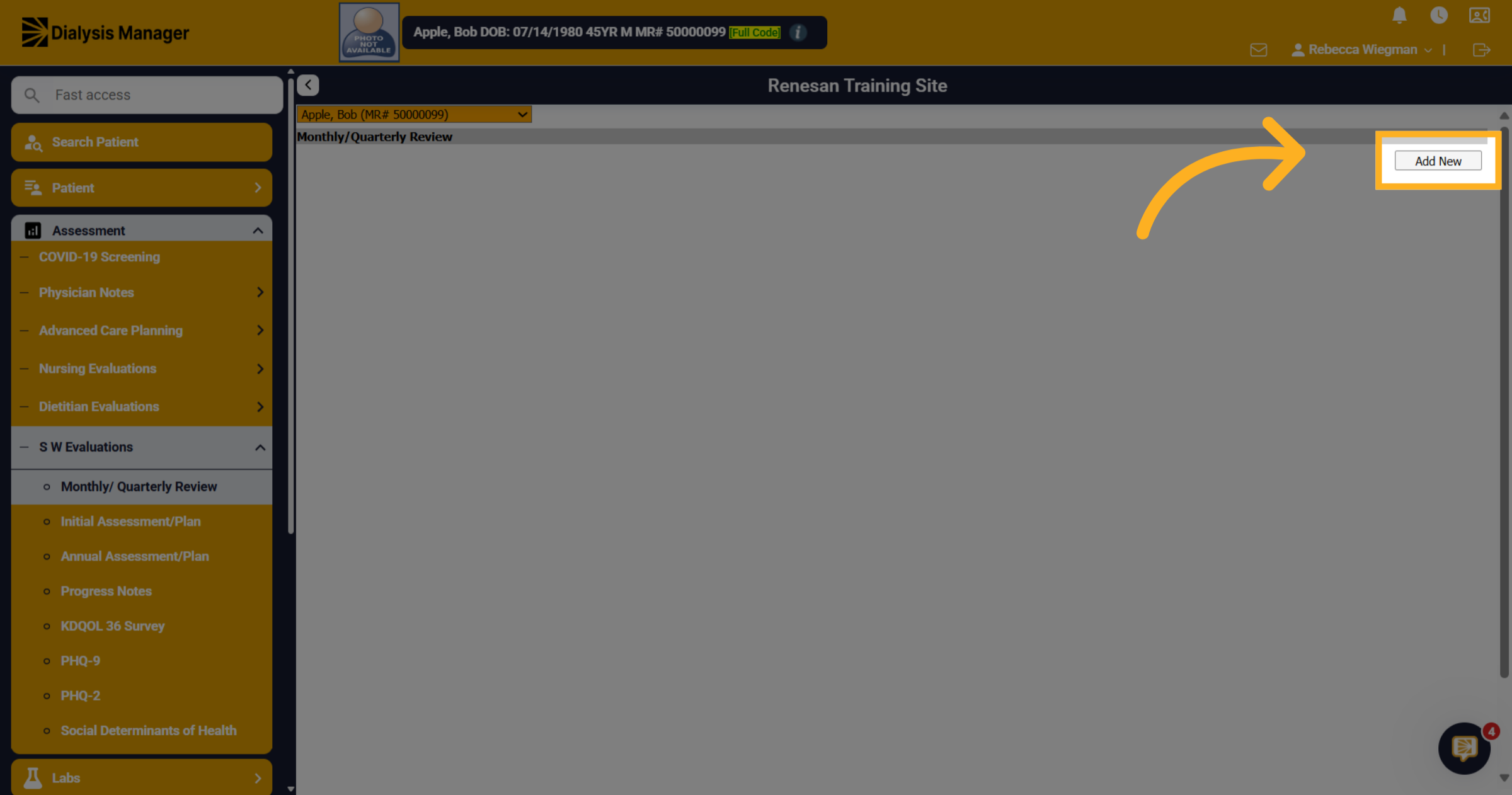
5. Click "Add New"
Click "Add New" to create a new Monthly or Quarterly assessment for the patient.
6. Click "Date"
Click "Date" to select the assessment date.
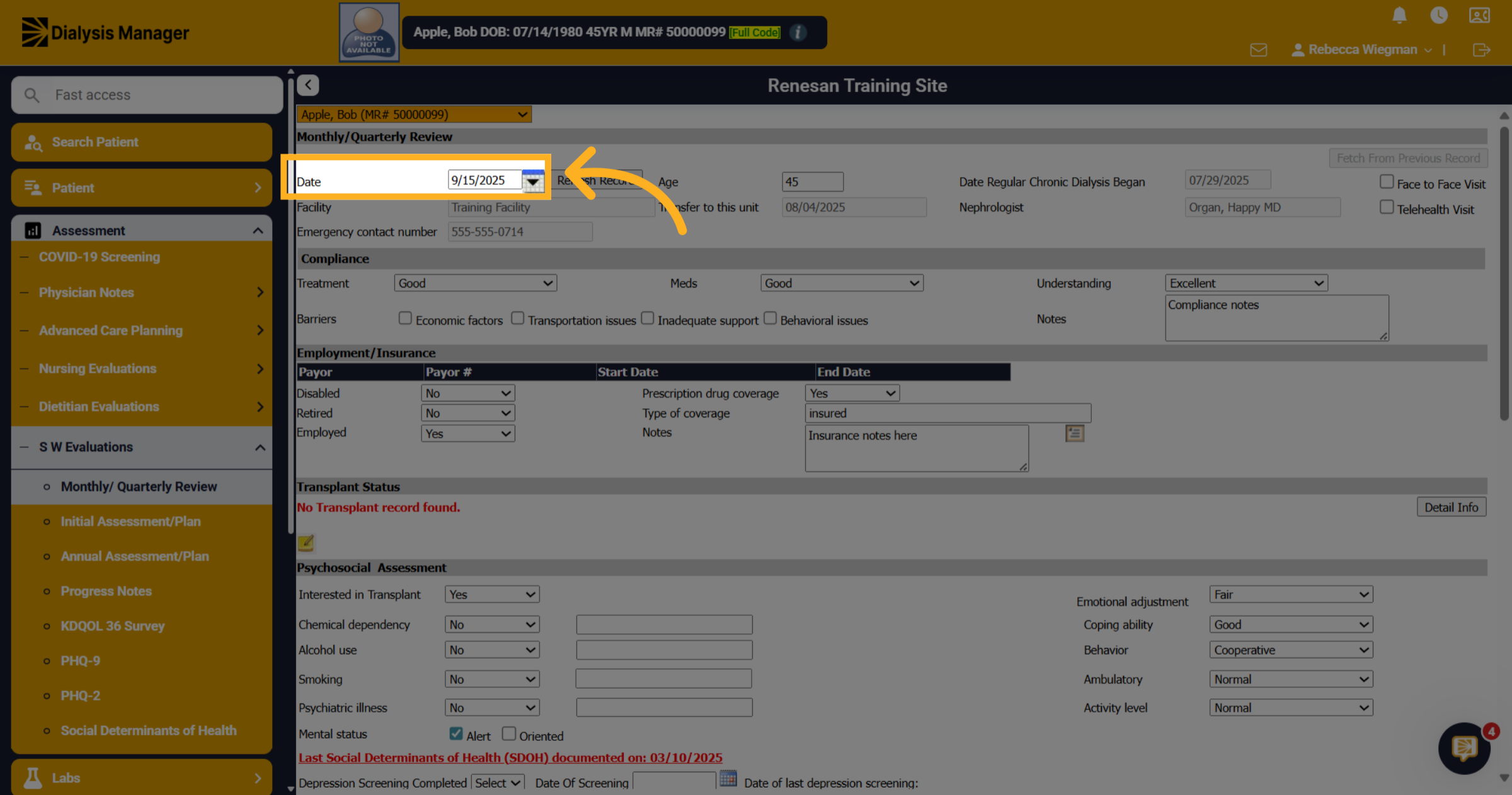
7. Grayed out info
Any information that is grayed out is being pulled from other areas of Dialysis Manager.
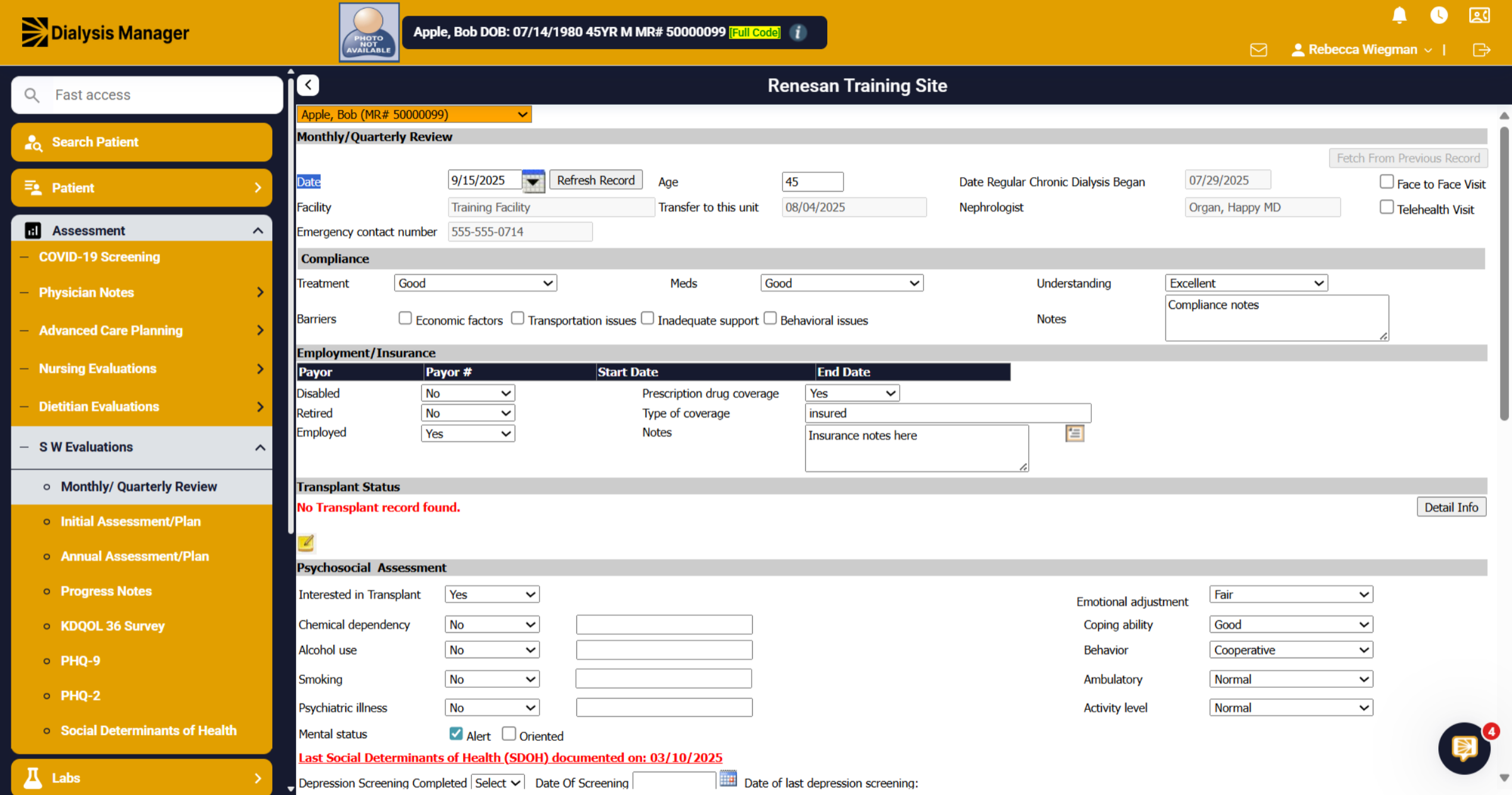
8. Click here
Continue through the assessment completing as much as possible. We have a Fetch from Previous record button that will pull in the previous assessment information that your able to update rather than completing the entire assessment.
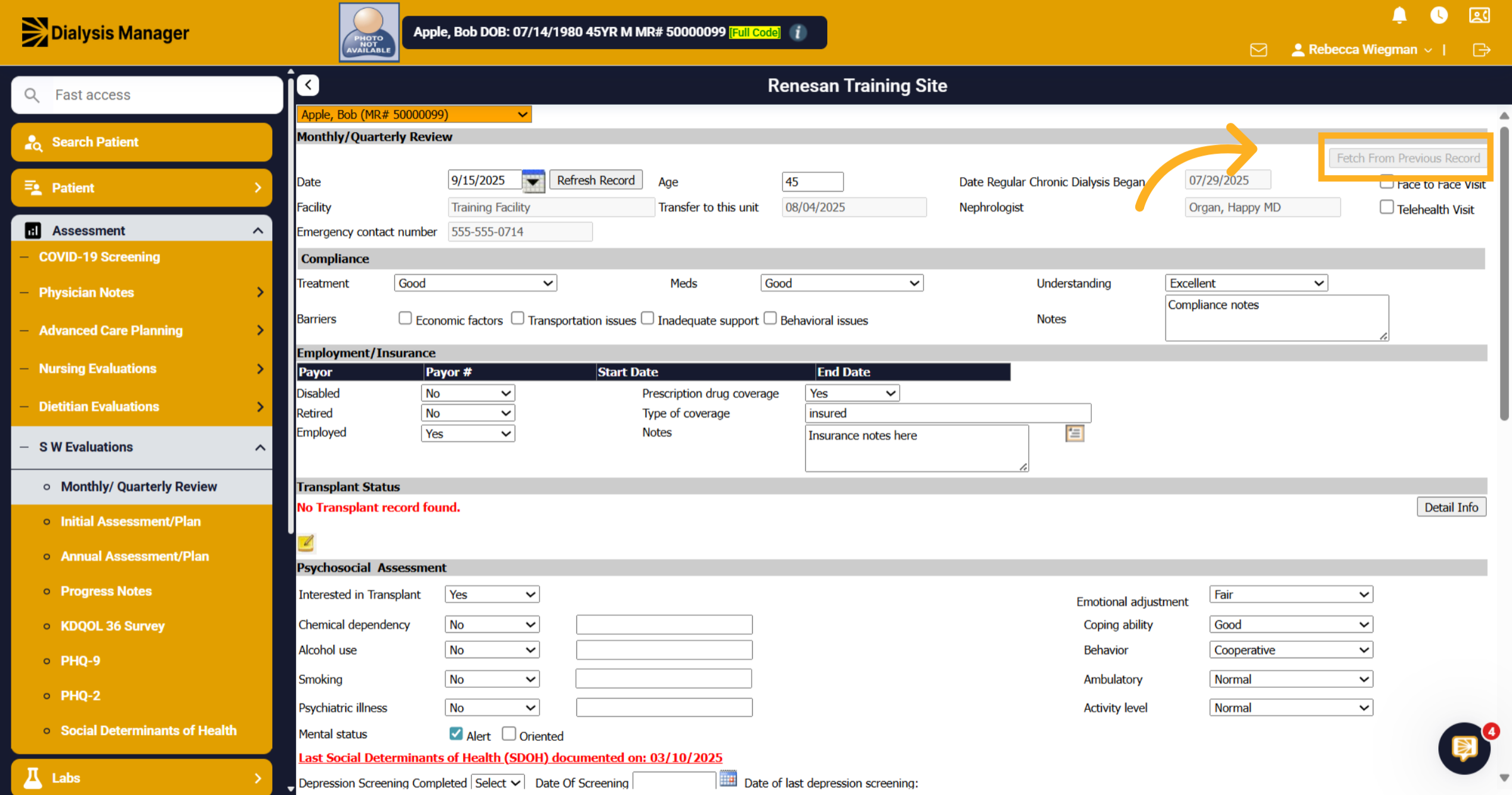
9. Click "Compliance"
The assessment is divided by sections with a gray banner. You'll see Compliance, Employment & Insurance, Transplant Status, Psychosocial Assessment,
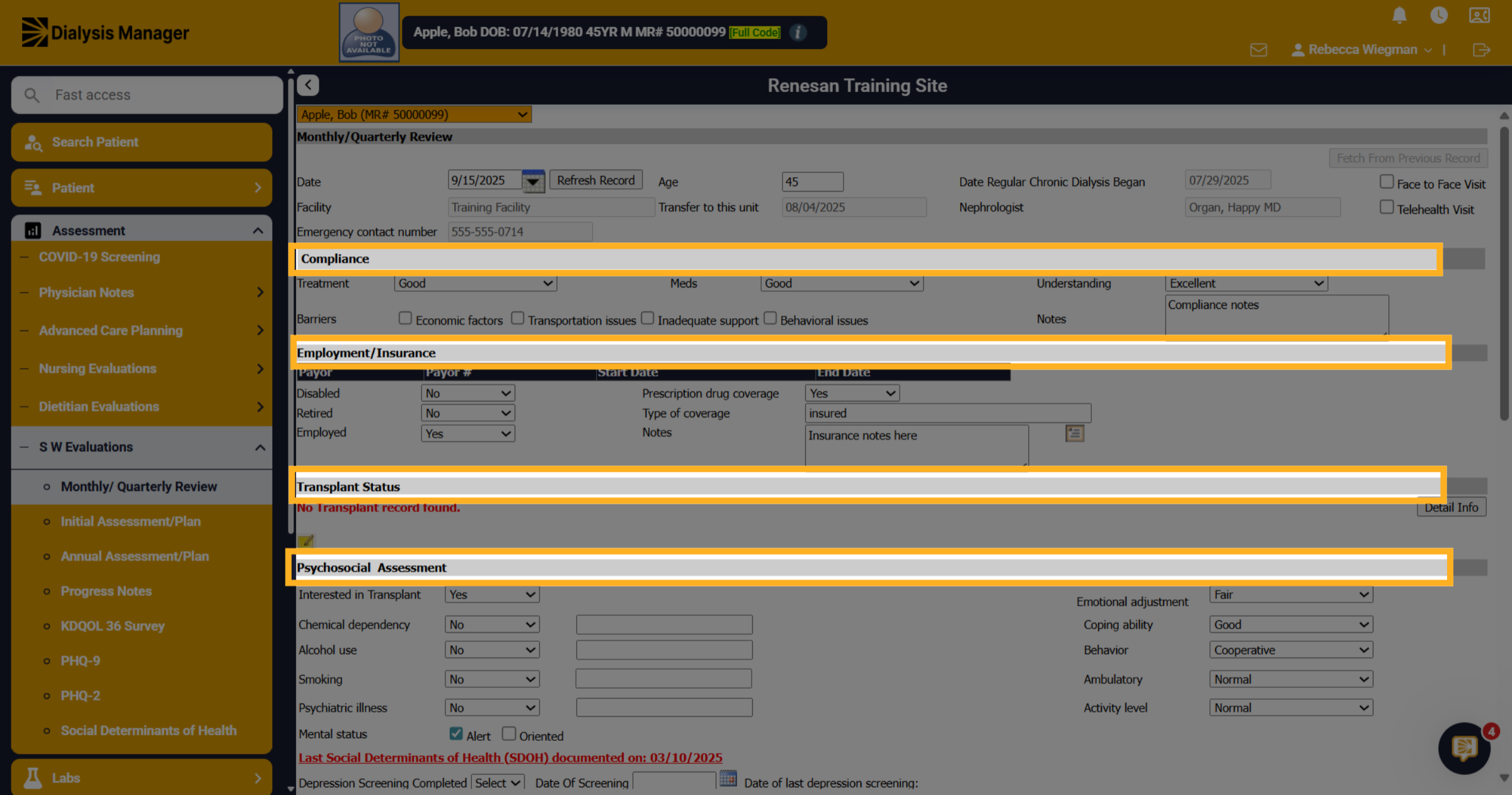
10. Click "Transplant Status"
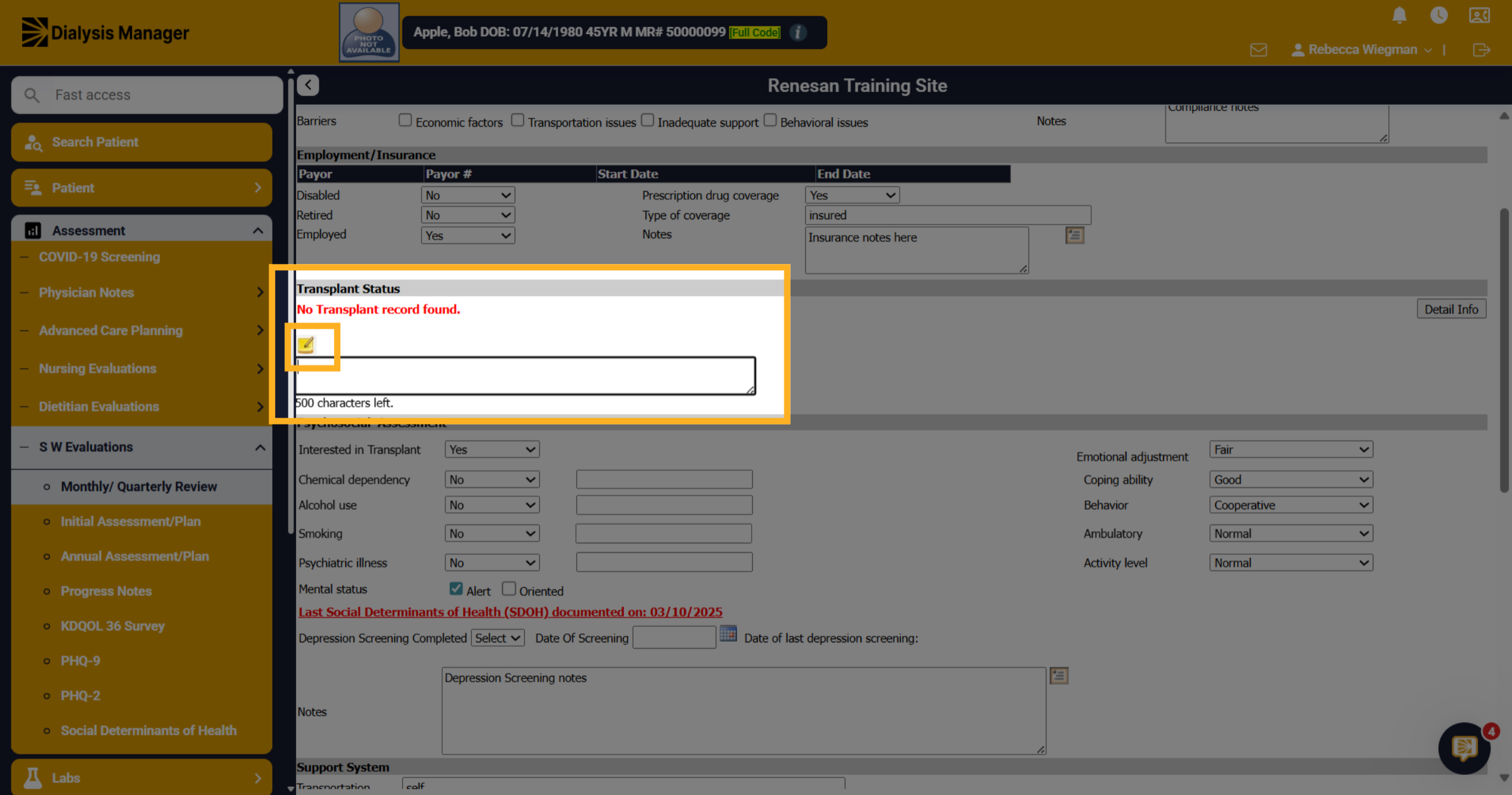
Currently this patient does not have any transplant information entered into the system. Your able to select the "Detail Info" to bring you to the transplant screen where your able to enter that information and save.
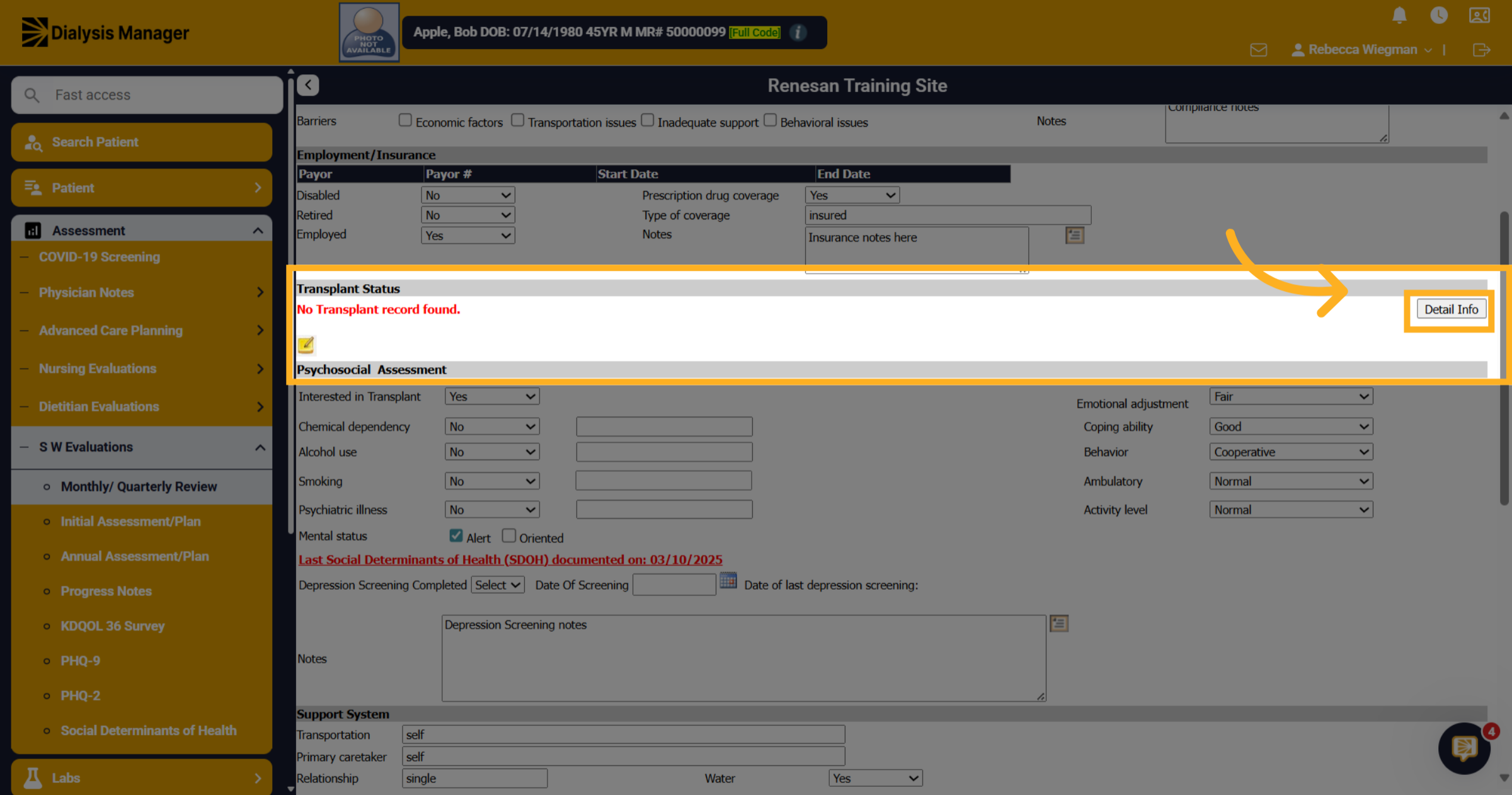
11. Note Pad
When selecting the note pad, it'll open a notes section.
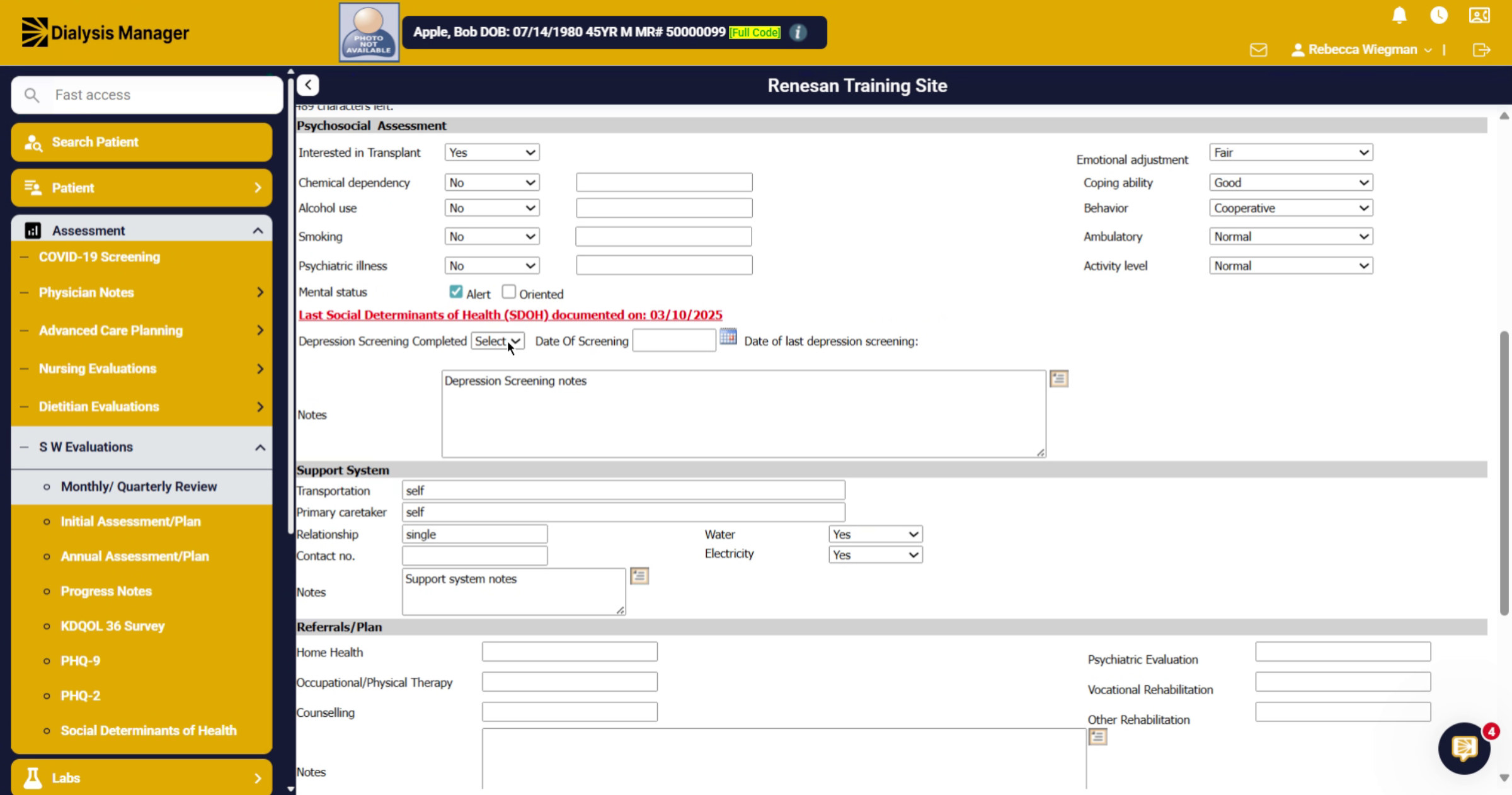
12. Depression Screening Completed?
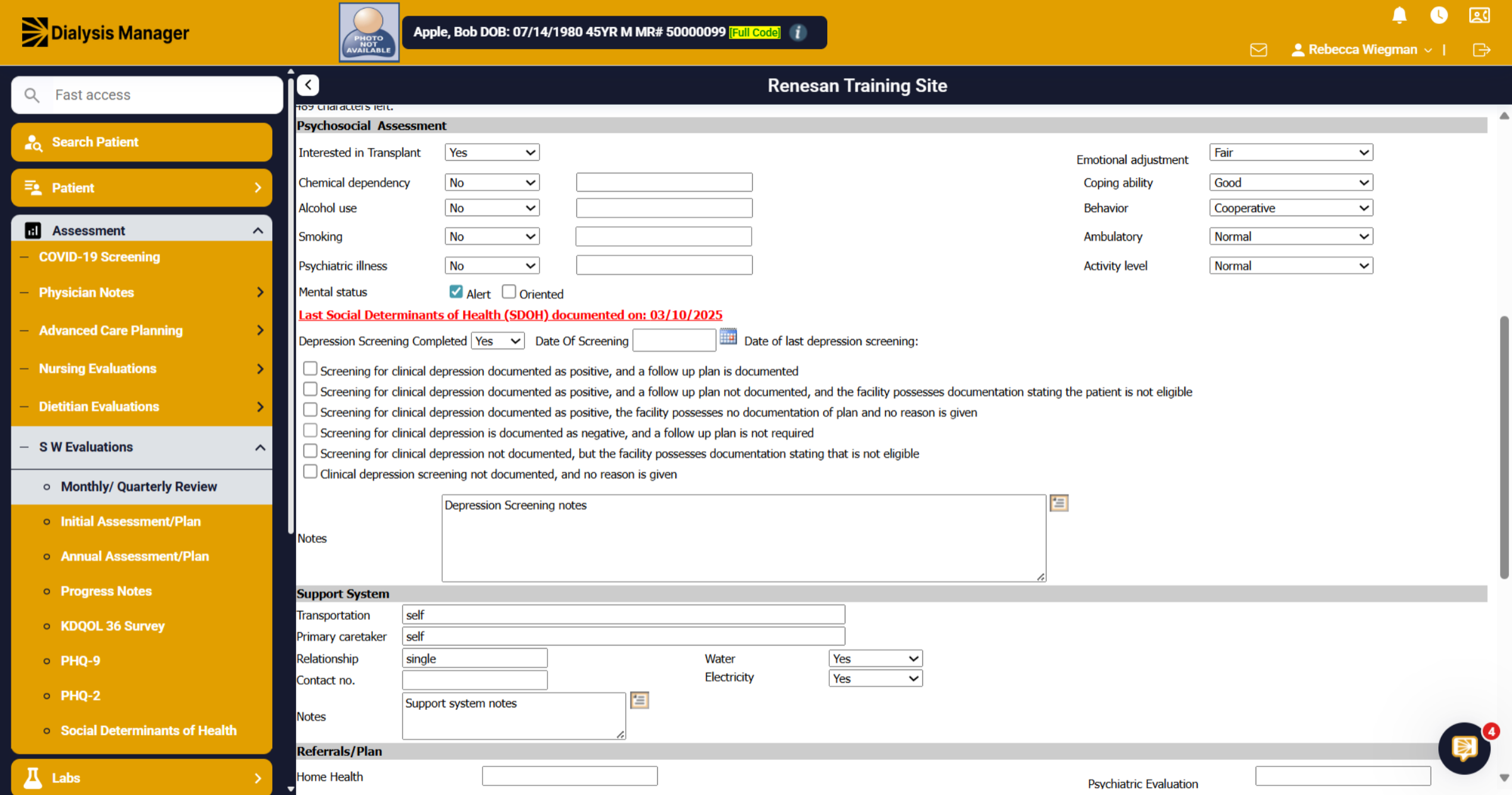
Inside the Psychosocial Assessment areas you'll be able to mark if a Depression Screening was Completed. No will leave you a notes box. But when you select Yes you'll see the PHQ-2 responses.
13. Depression Screening Completed
Please note: this does not complete the depression screening. This is just mirroring the depression screening that would have already been done or needs to be completed.
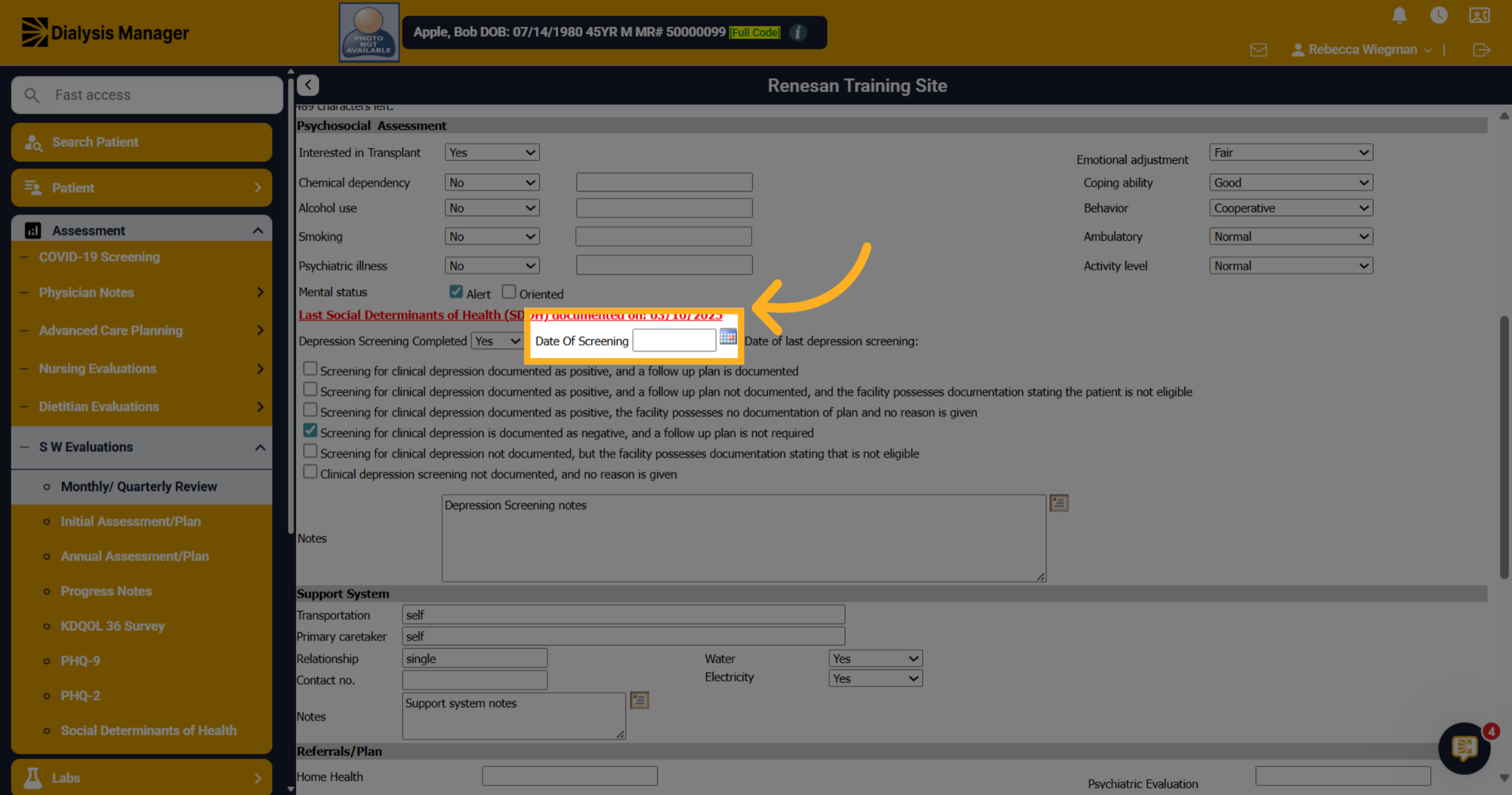
14. Click here
Be sure you're always entering in a date!
15. Click "Transportation"
You'll also see sections for Support System, Referrals/Plan and Follow Up notes box.
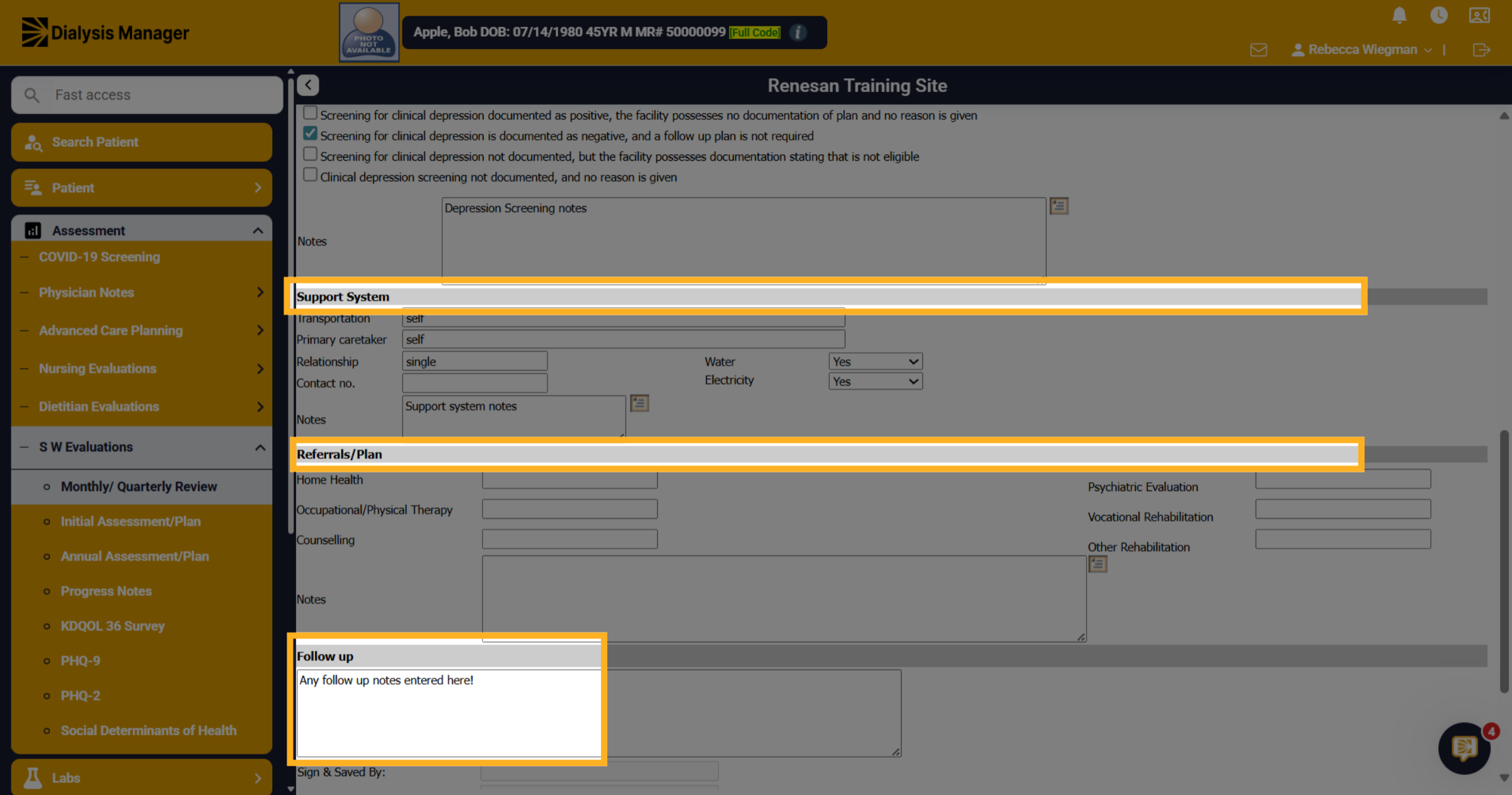
16. Click "Sign & Save"
Click "Sign & Save" to sign and save the assessment.
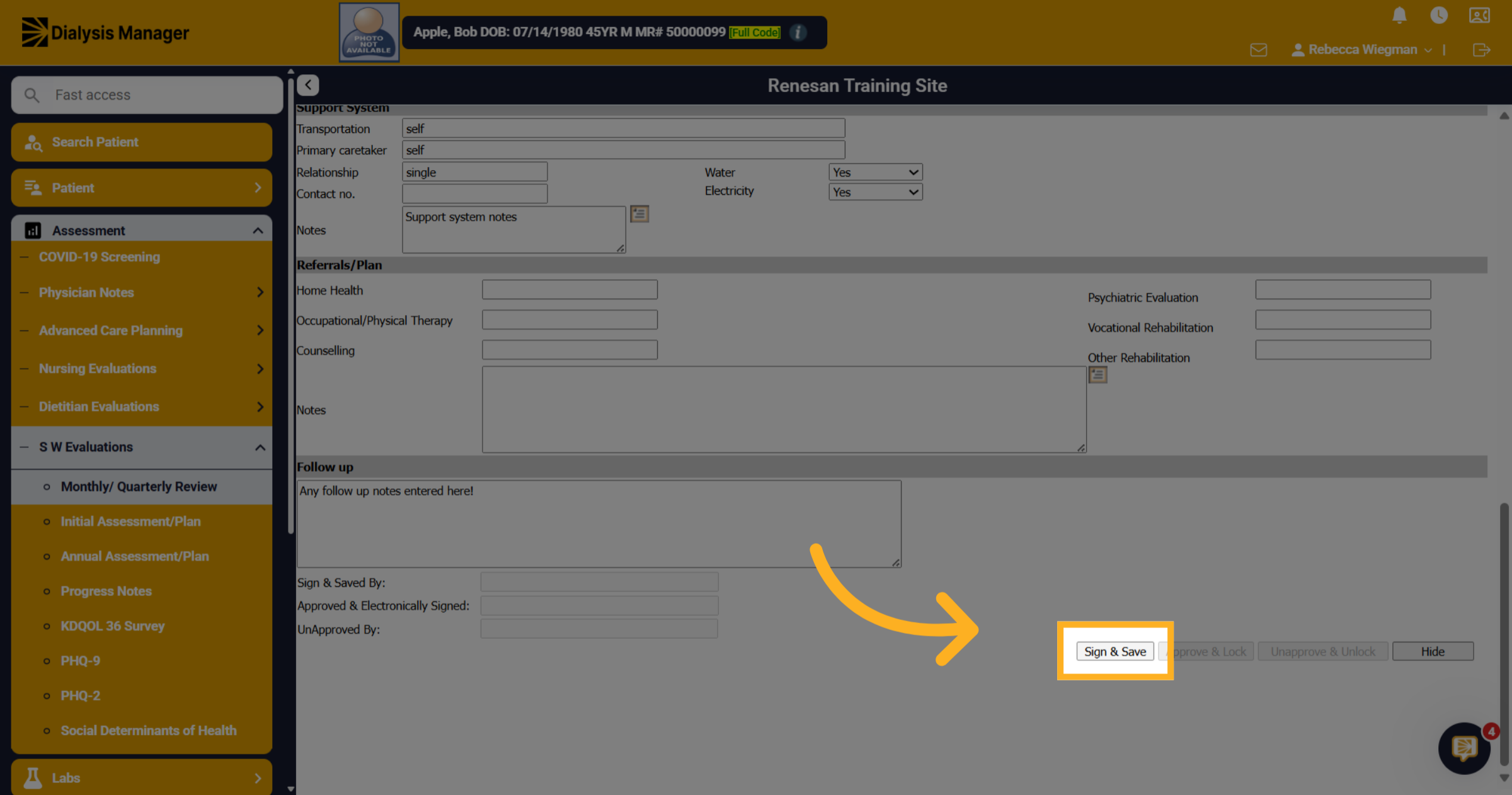
17. Click "Approve & Lock"
Click "Approve & Lock" to finalize and lock the assessment.
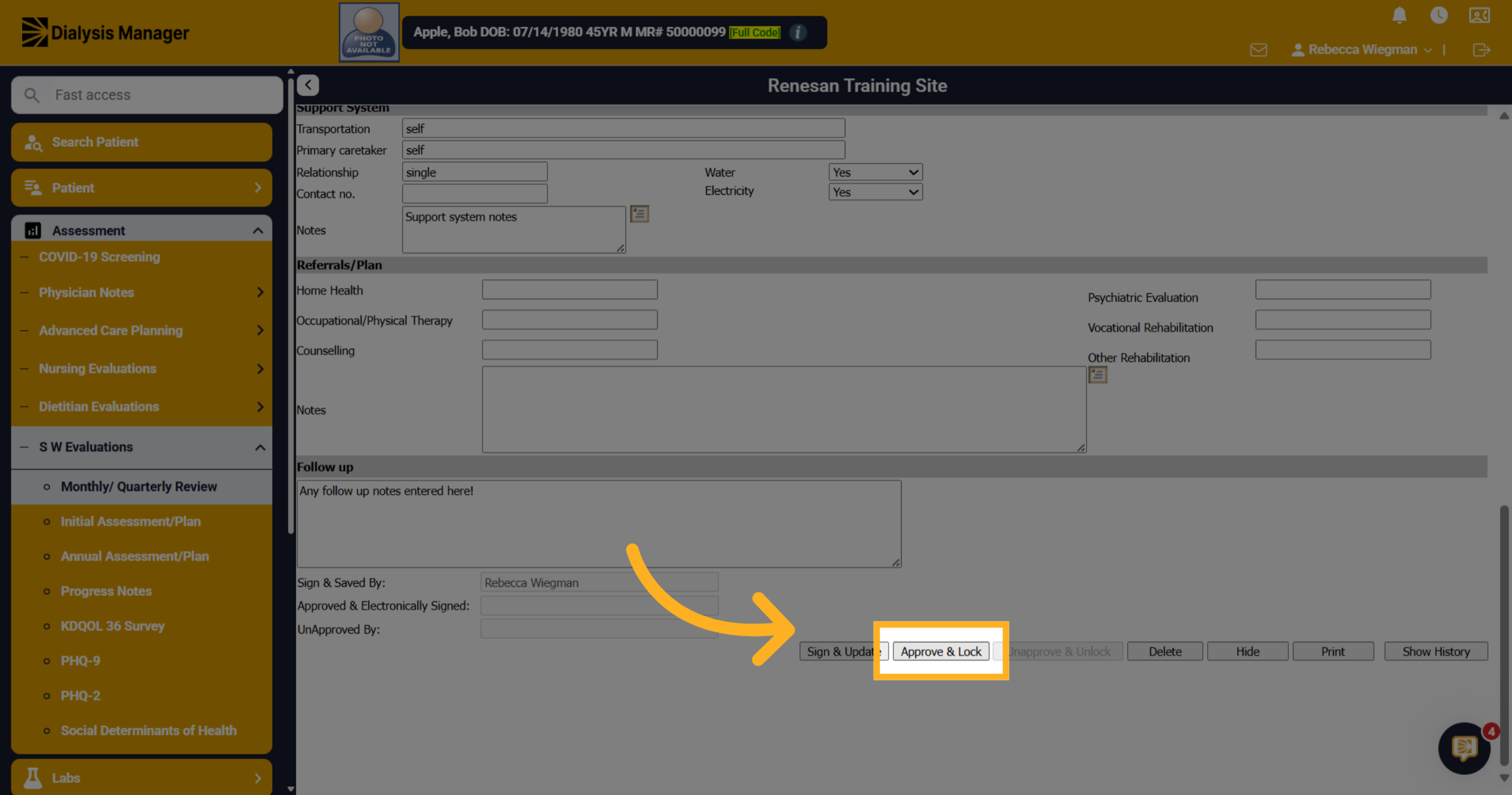
18. Click "Progress Notes"
Now we are going to walk through the process of entering in a progress note. Click into Assessment, Social Worker Evaluation and Progress Notes
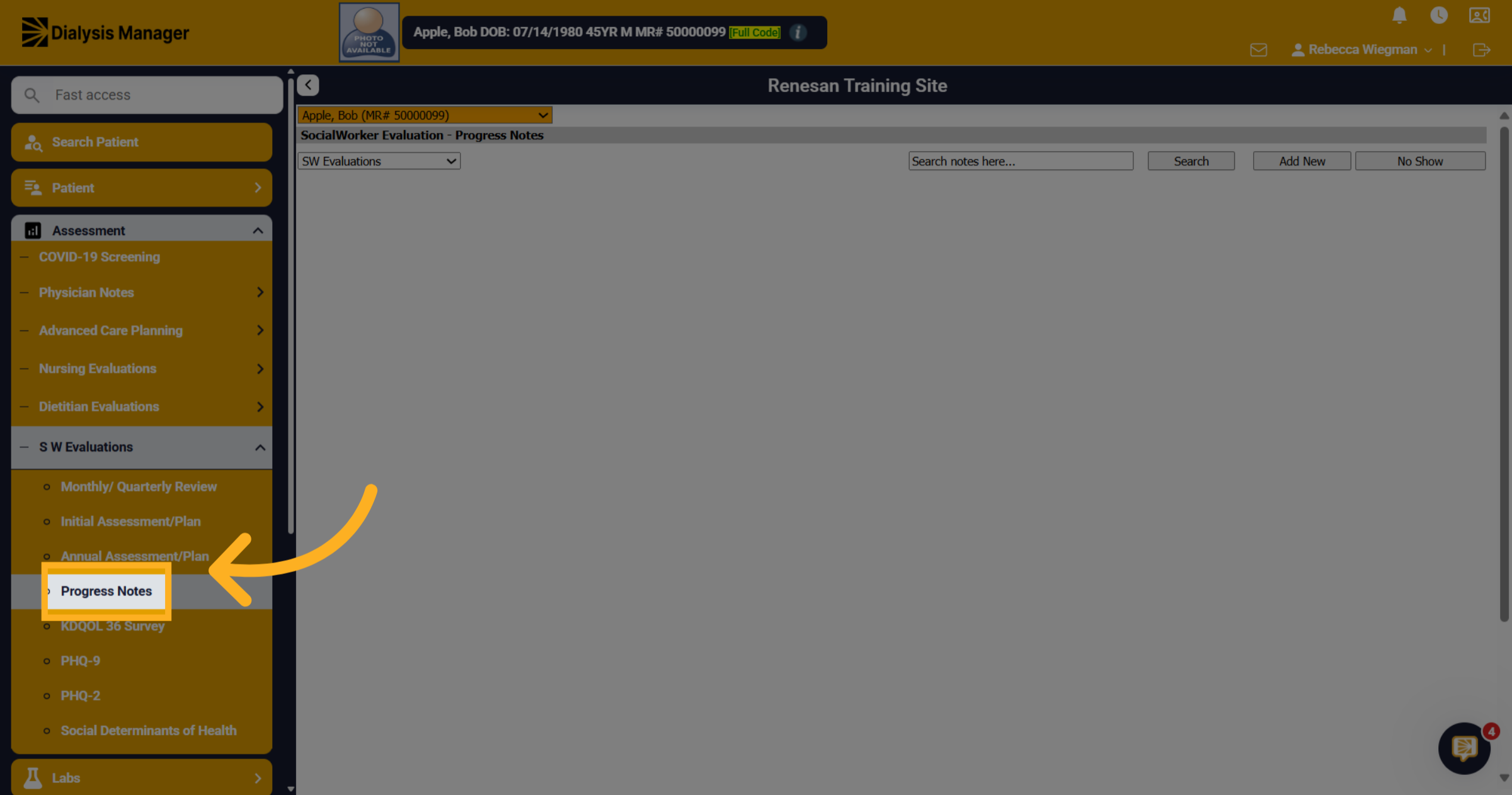
19. Progress Notes from other providers
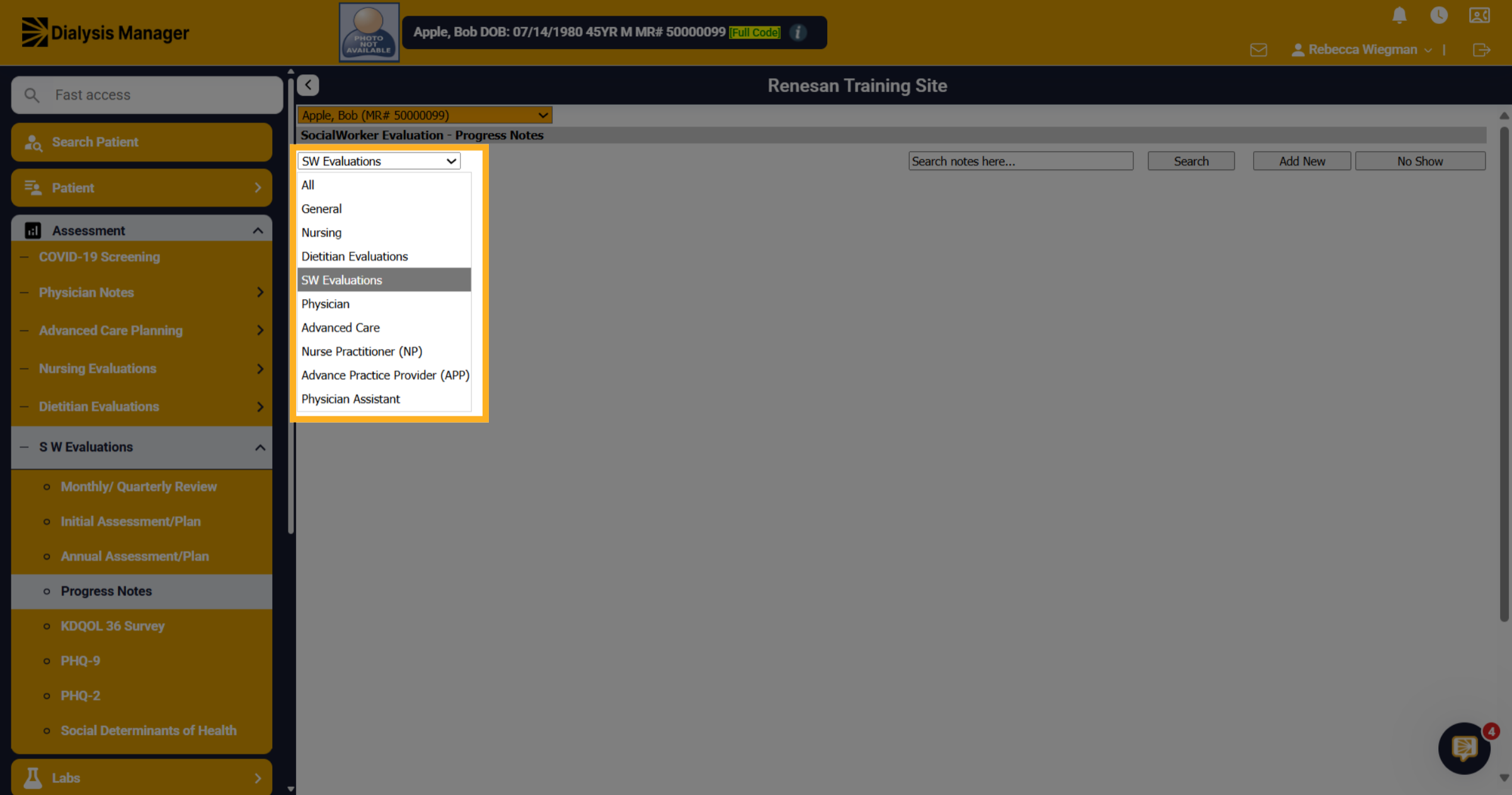
The progress note will default to Social Workers but your able to populate all other notes by selecting the dropdown arrow to view General, Nursing, Dietitian Evaluations, Social Worker Evaluations, Physician, Advanced Care, Nurse Practitioner, Advance Practice Provider, or Physician Assistant to filter progress notes.
20. Additional pt
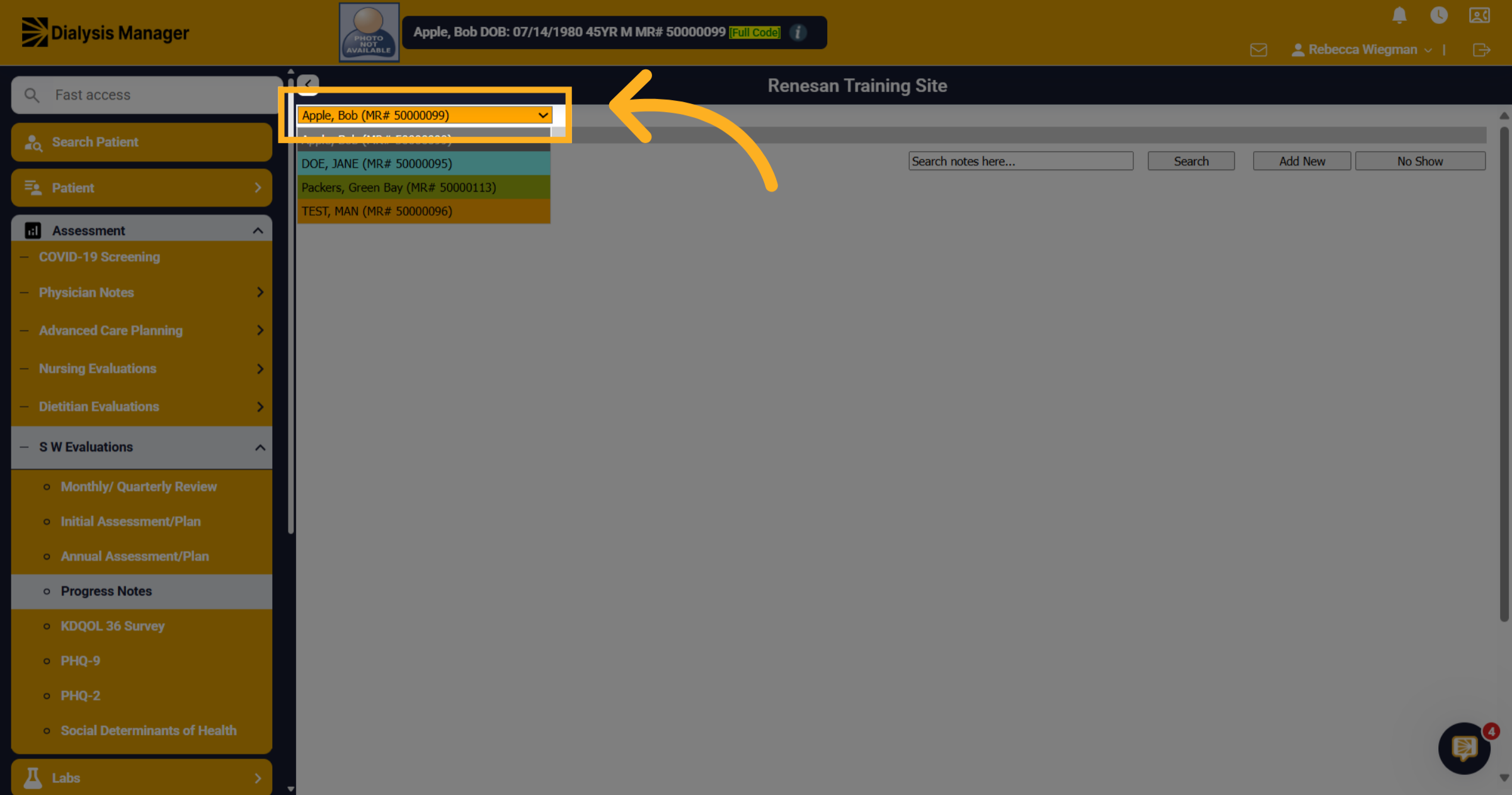
Please Note: because we filtered our search patient screen to a specific facility when selecting the patient dropdown we are able to see all patients associated with that facility. Your able to select or change patients from here.
21. Click "Add New"
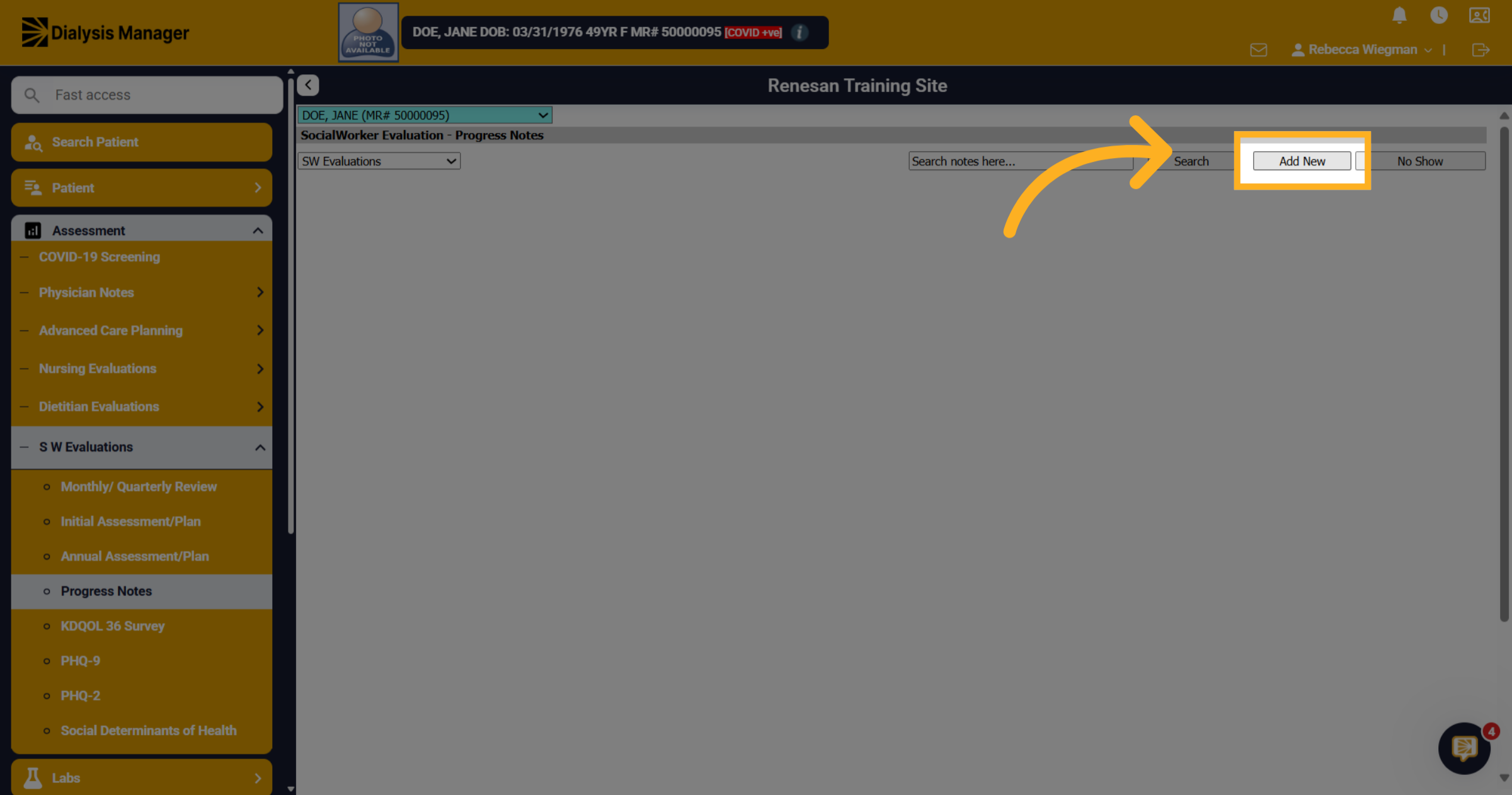
Click "Add New" to start creating a new progress note.
22. Click Date
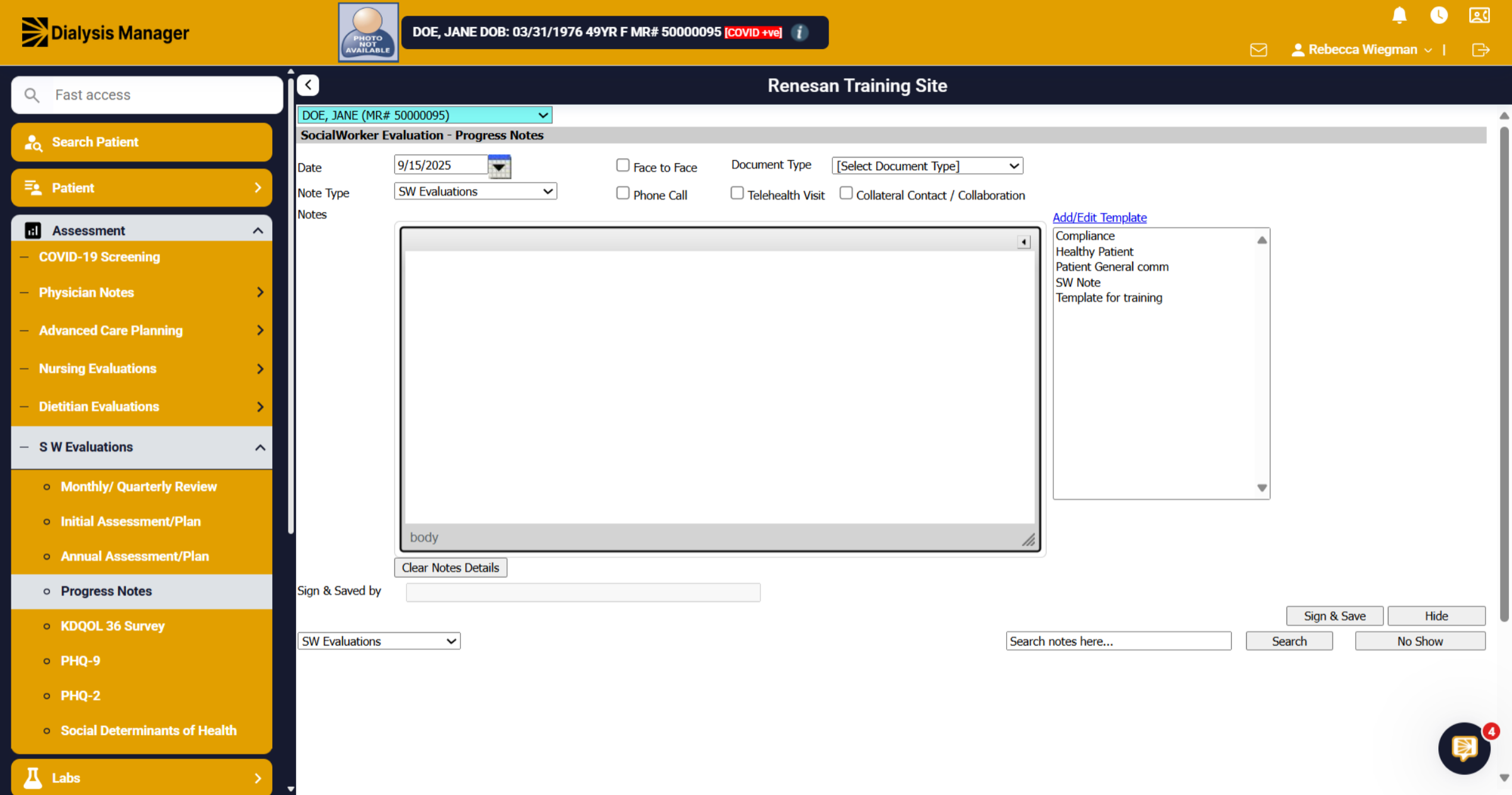
When inside the Progress Note you'll be able to confirm the date, Note Type, Document type and enter the Note!
23. Click "[Select Document Type]
You'll be able to select a document type from the dropdown. Please note: that this list can be customized by your super user who has permissions to the masters!
![Click '[Select Document Type]](https://knowledgetest.renvio.com/hubfs/Intercom%20knowledge%20base/qg-2Fu0GlpTxg3KQGmZcWU2NCVw7aI4i1-2Fwtk4R7H4FkFXABAHo7HNCU-2FwQQ88RHXtTaXUnZjjvPKX5_doc.png)
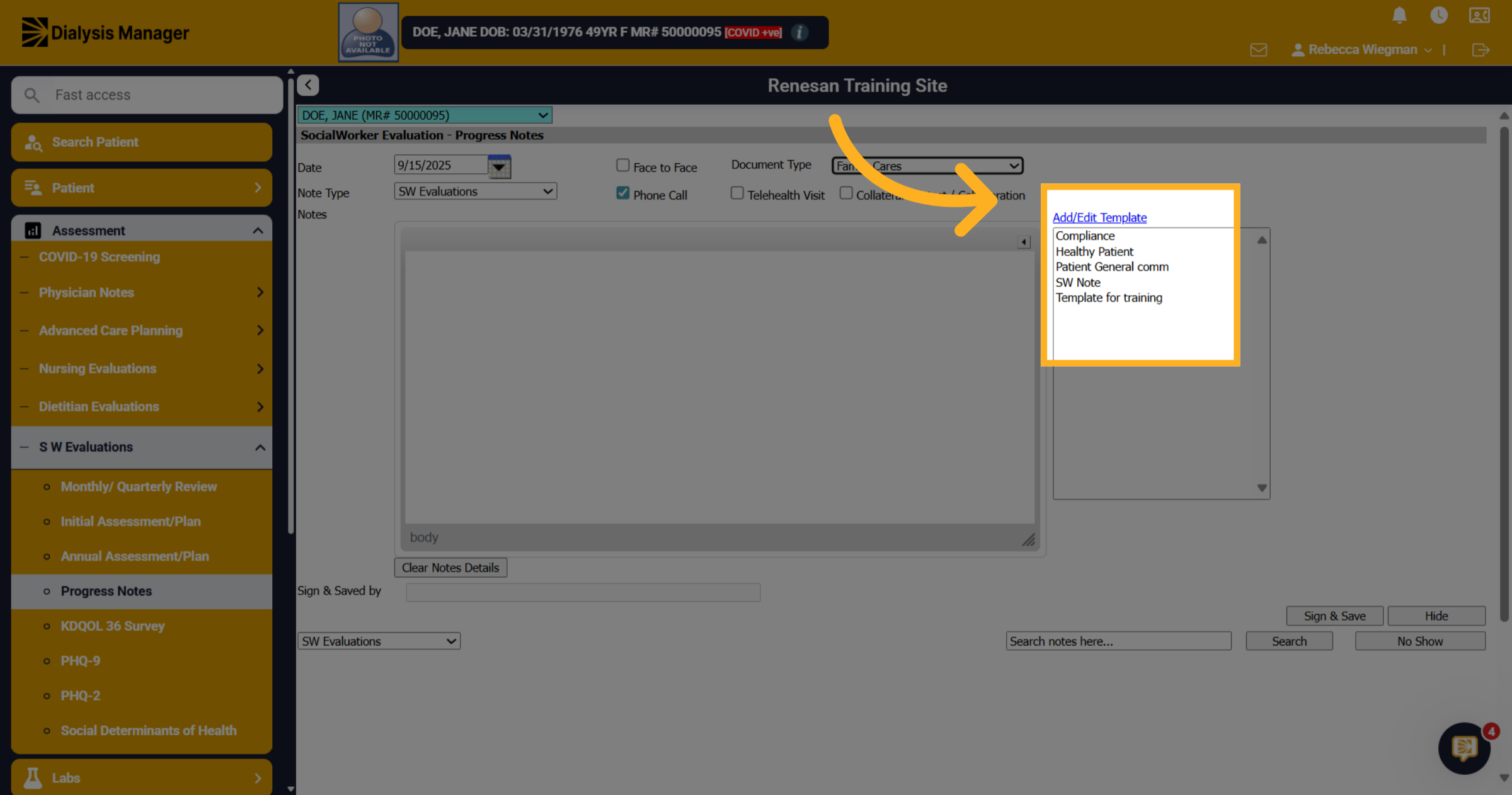
24. Click "Add/Edit Template"
When entering in your note there is the option to select a template rather than typing generic notes into each patient.
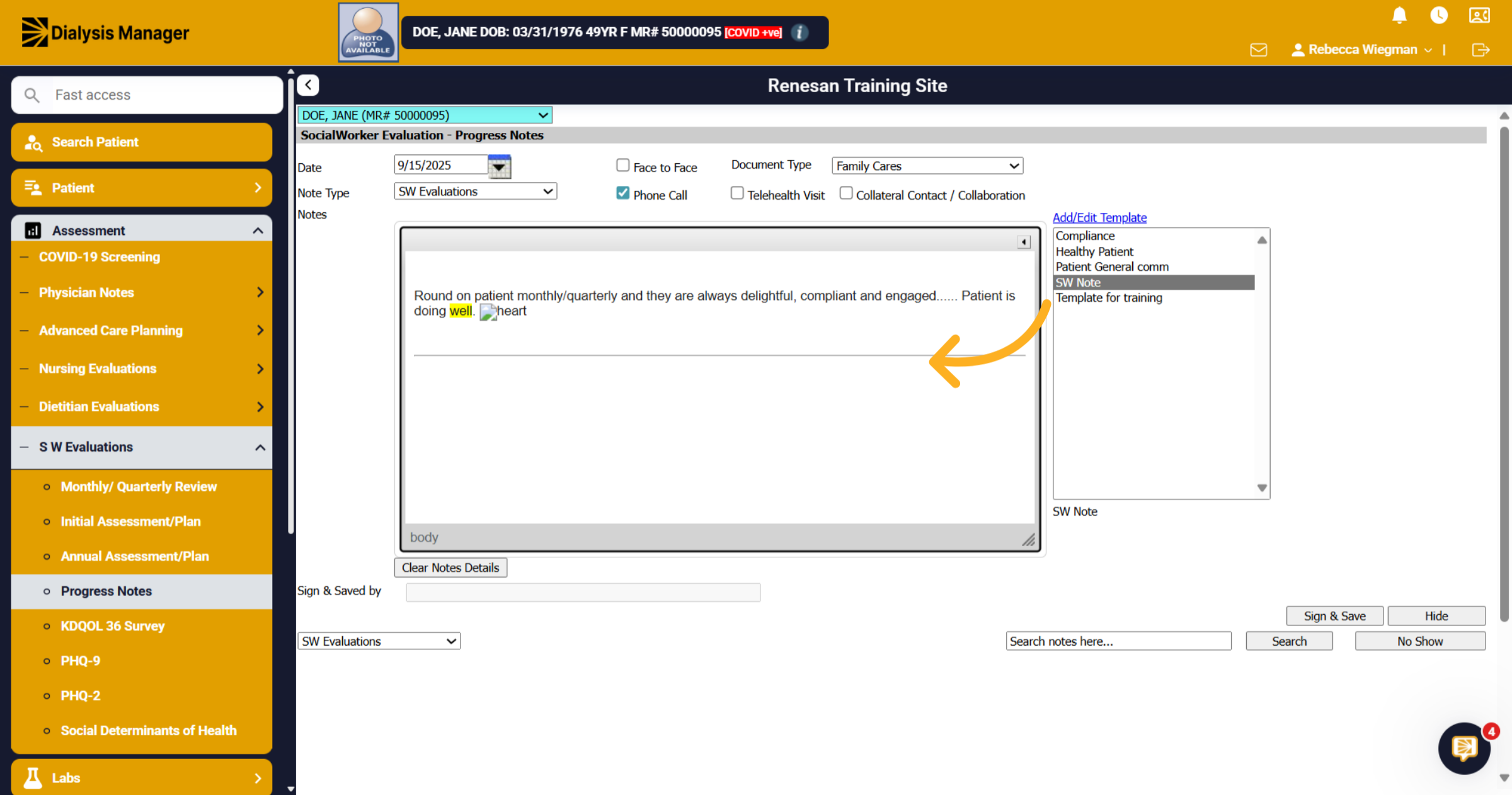
25. Click "Healthy Patient"
Your able to select multiple note templates into the body of the notes section and type additional comments if needed.
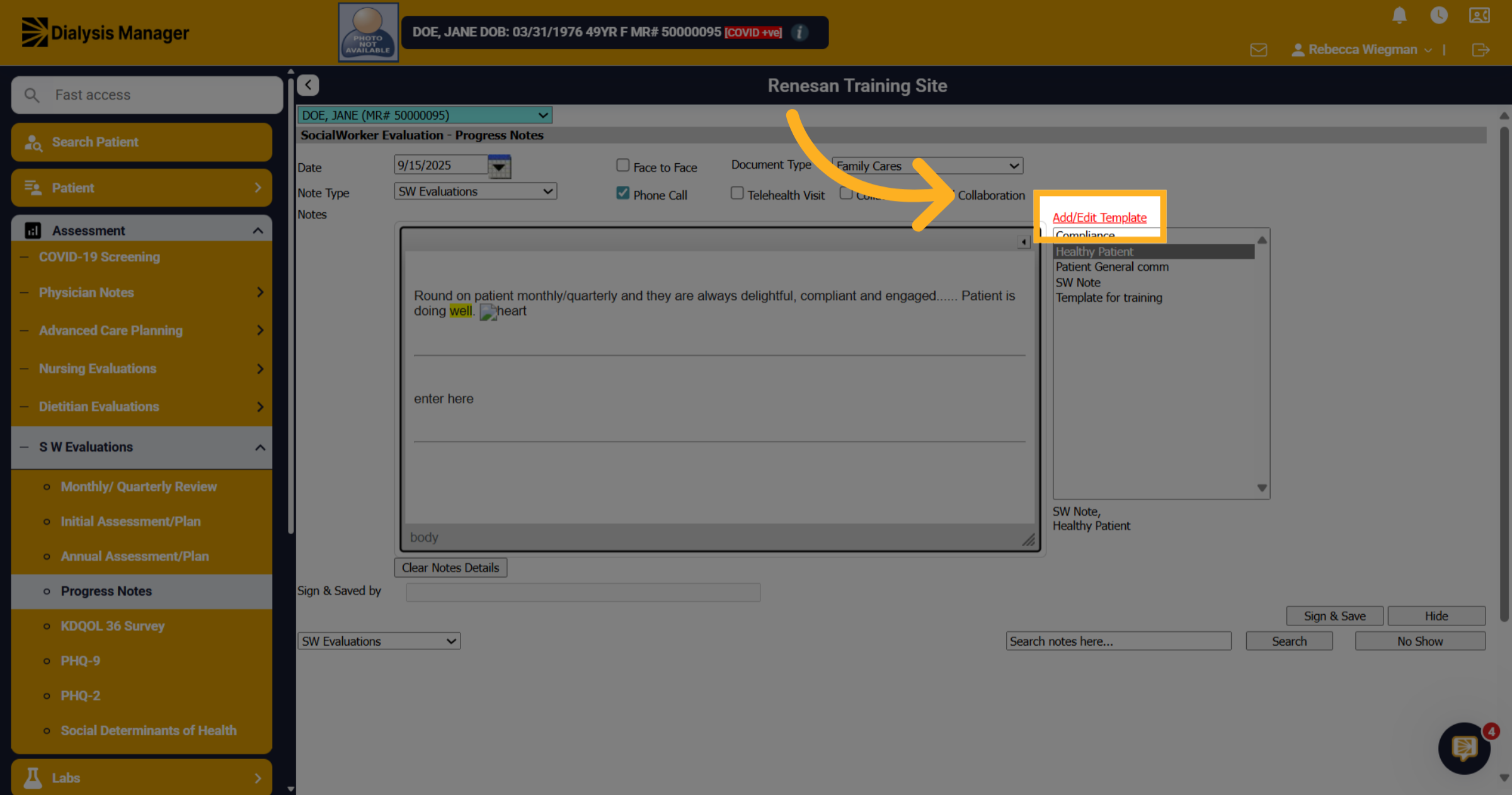
26. Click "Add/Edit Template"
Click "Add/Edit Template" again to modify or add templates as needed.
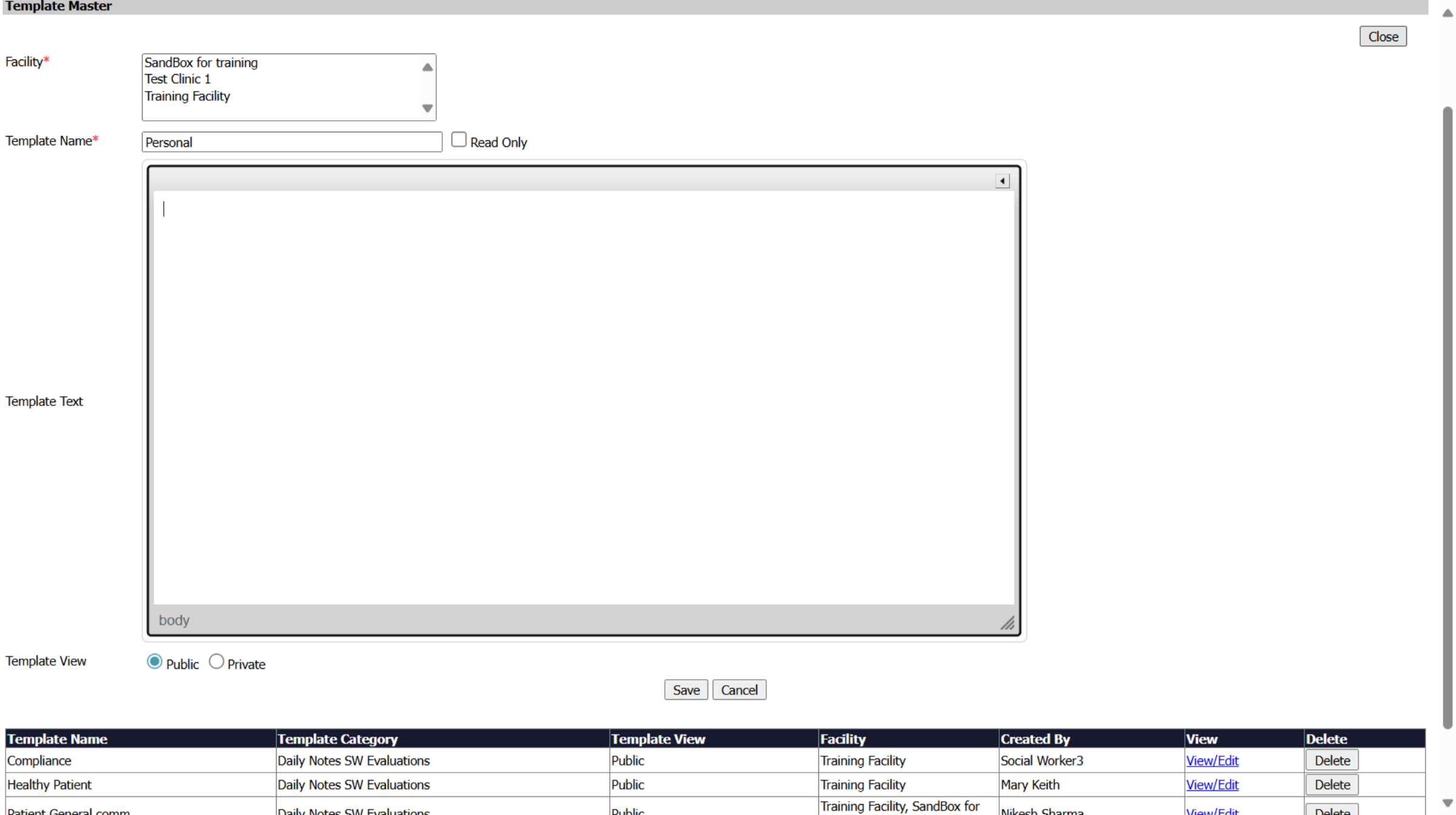
27. Click "Close"
Your able to give the template a name, enter the note into the template text and mark this template as Public View where others are able to view and use or Private View where the person who created will be the only one who can use the template. Click save! Please Note: that you'll probably need to log out and log back in to use the newly created Template Note.
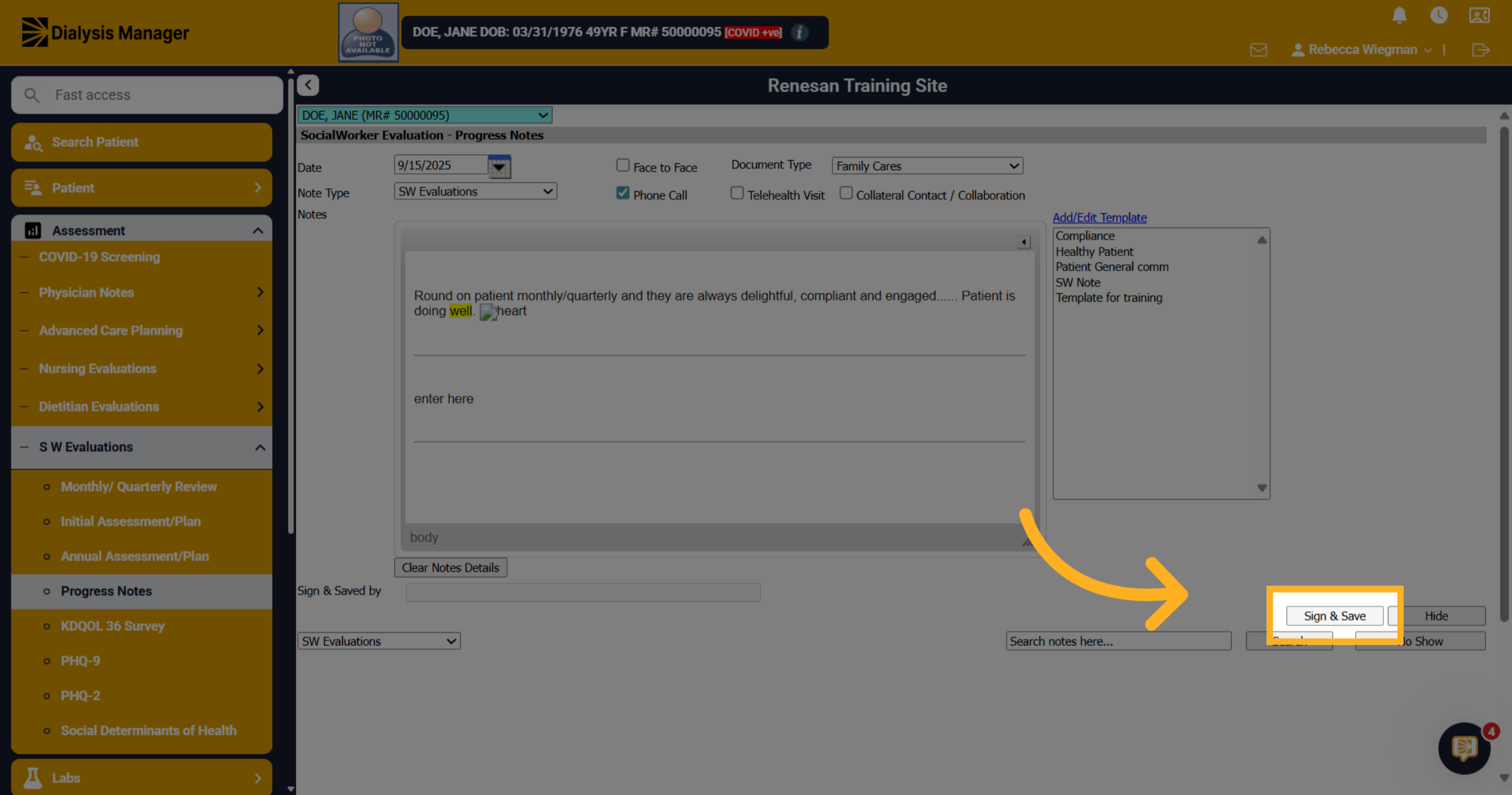
28. Click "Sign & Save"
Click "Sign & Save" to finalize and save the progress note.
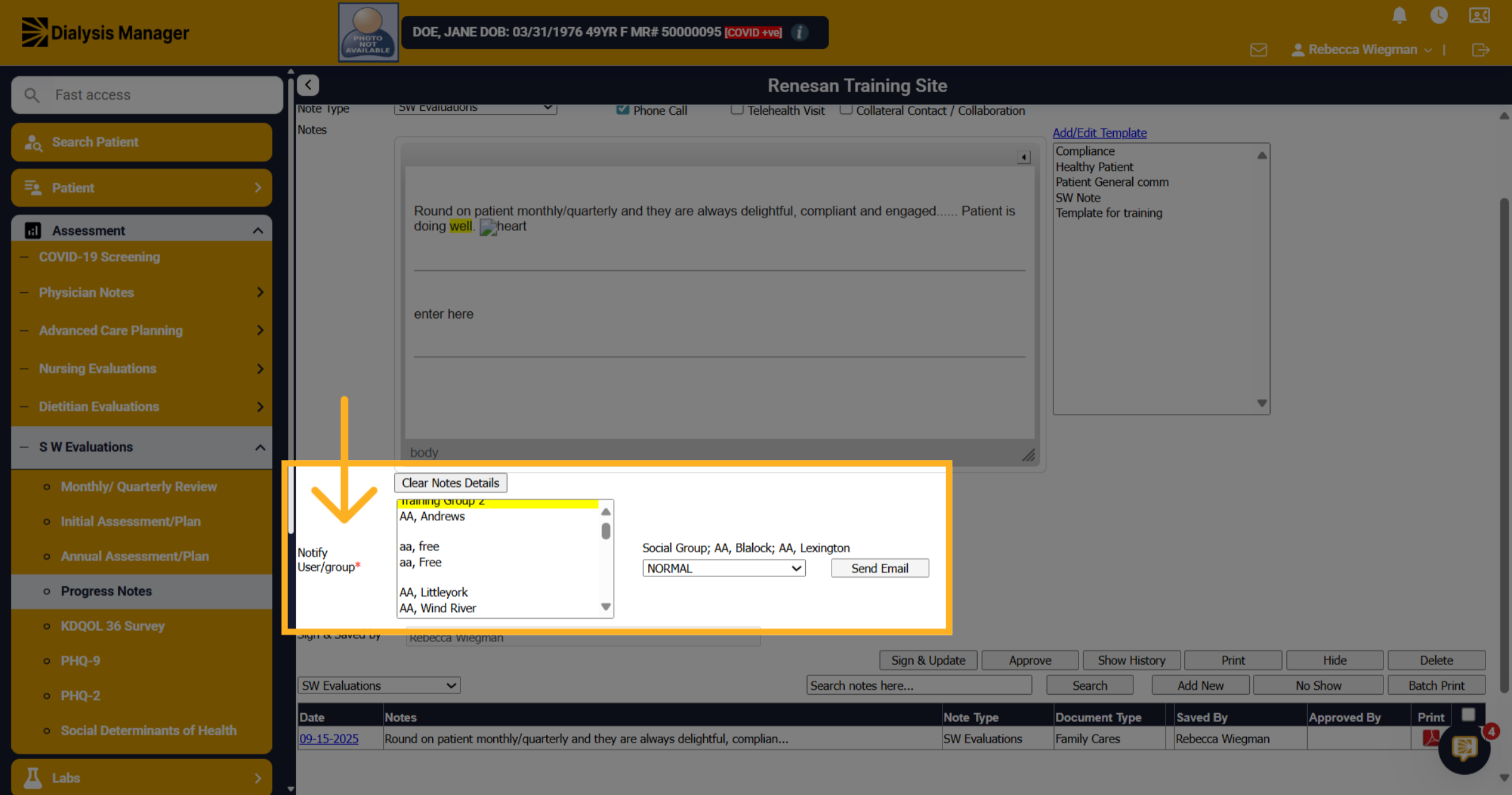
29. Notify Others
After saving the note you'll have the option to Notify others. You can select multiple users by holding the "Alt" key and be able to select a Priority. Click Send Email! This note will now appear in the users "MailBox"
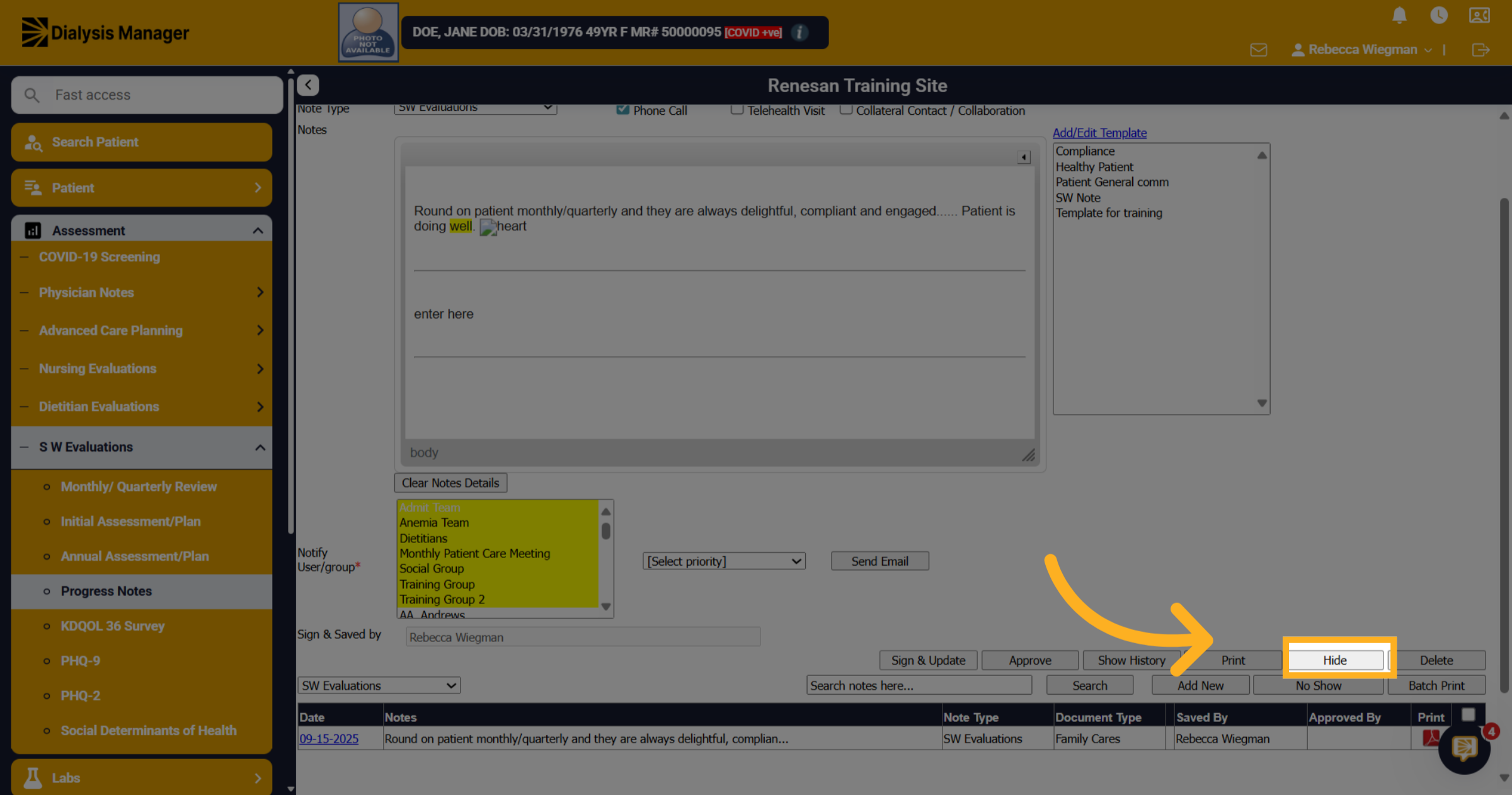
30. Click "Sign & Update"
Click Hide to go back to the Progress Note Screen.
31. KDQOL-36 Survey
We are going to walk through how to complete a K.D.Q.O.L - 36 Survey. Start by going to Assessment, Social Worker Evaluation and K D Q O L 36 Survey.
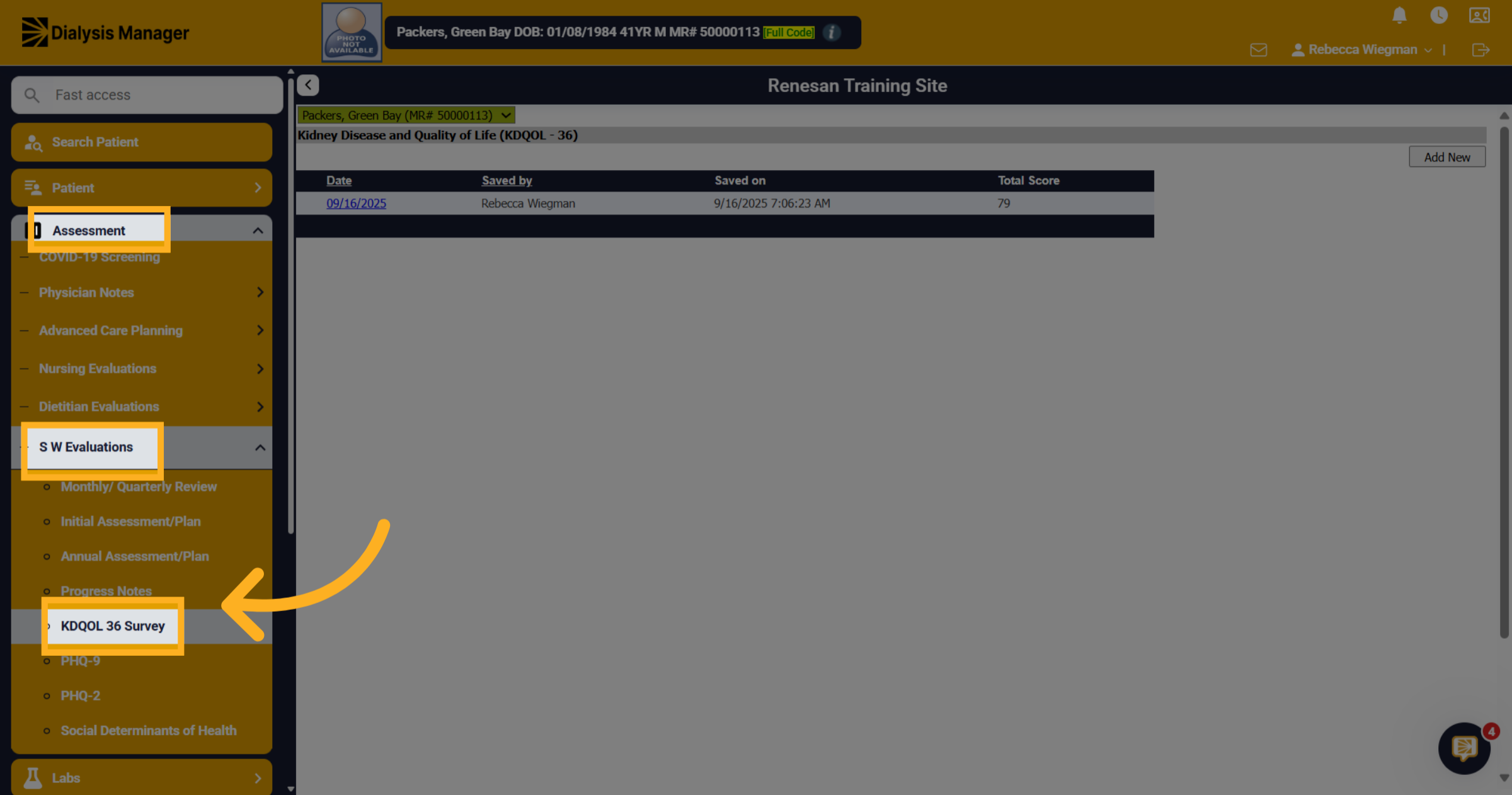
32. View Previous KDQOL Documents
If there's been a historical survey you would see them in this area.
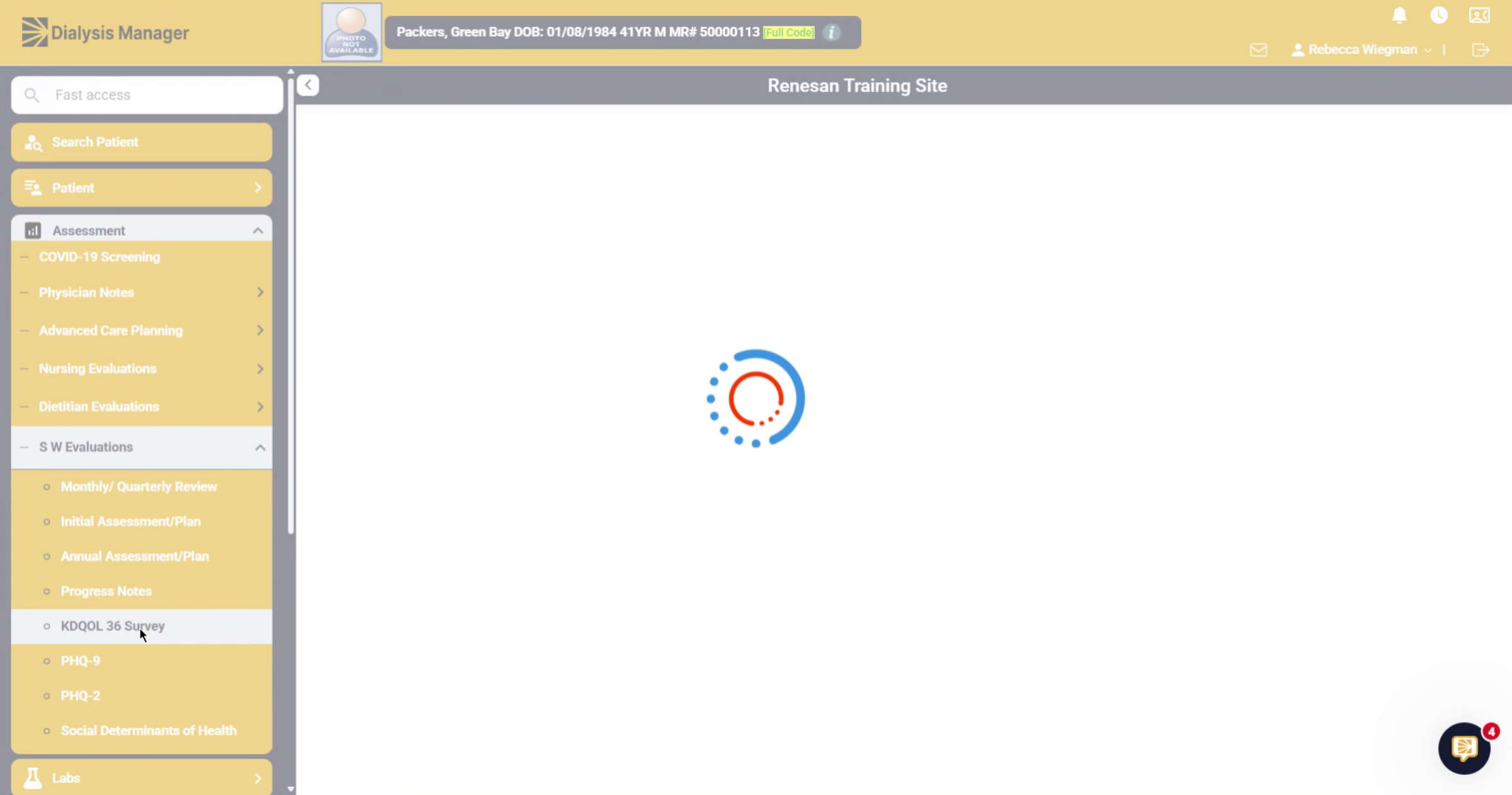
33. Add New Survey Entry
Or we can go ahead and click on add new.
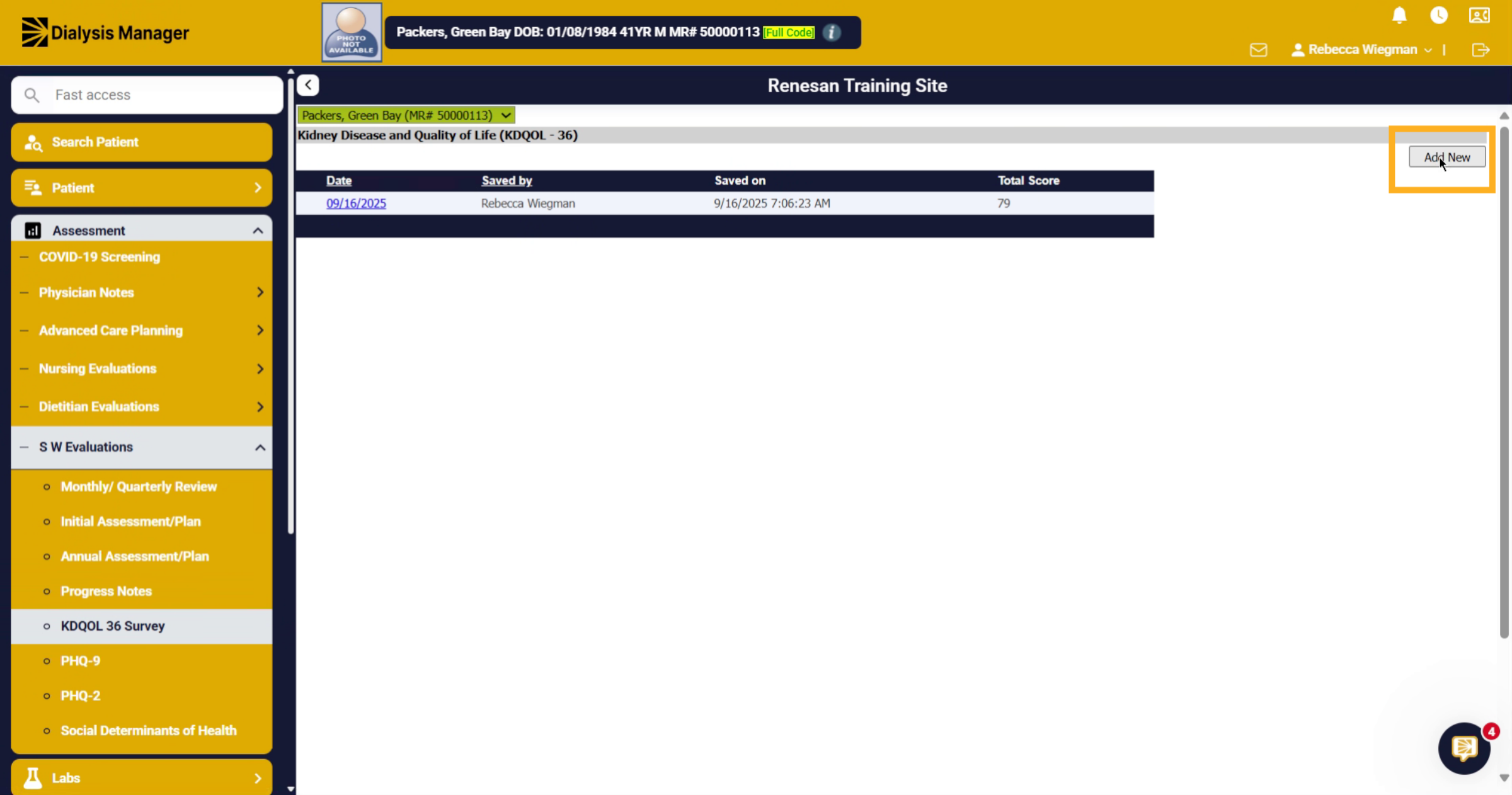
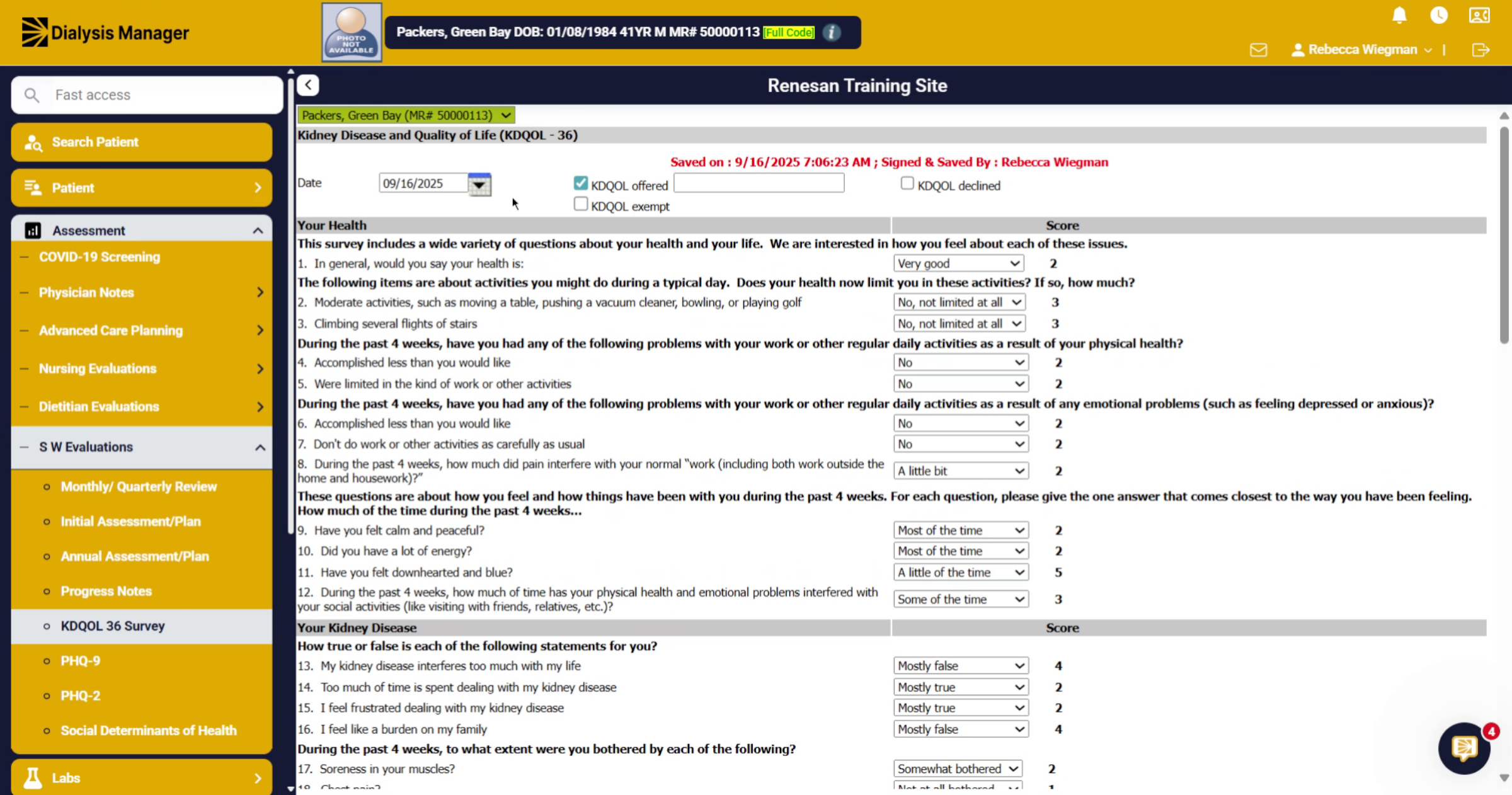
34. The Look
The K. D. Q. O. L 36 inside Dialysis Manager looks similar to the online version. The only difference is we don't have reports available for you that suggest interventions based on results. But this information will pull into different assessments inside Dialysis Manager and into the Plan of Cares for their Comprehensive Interdisciplinary meetings.
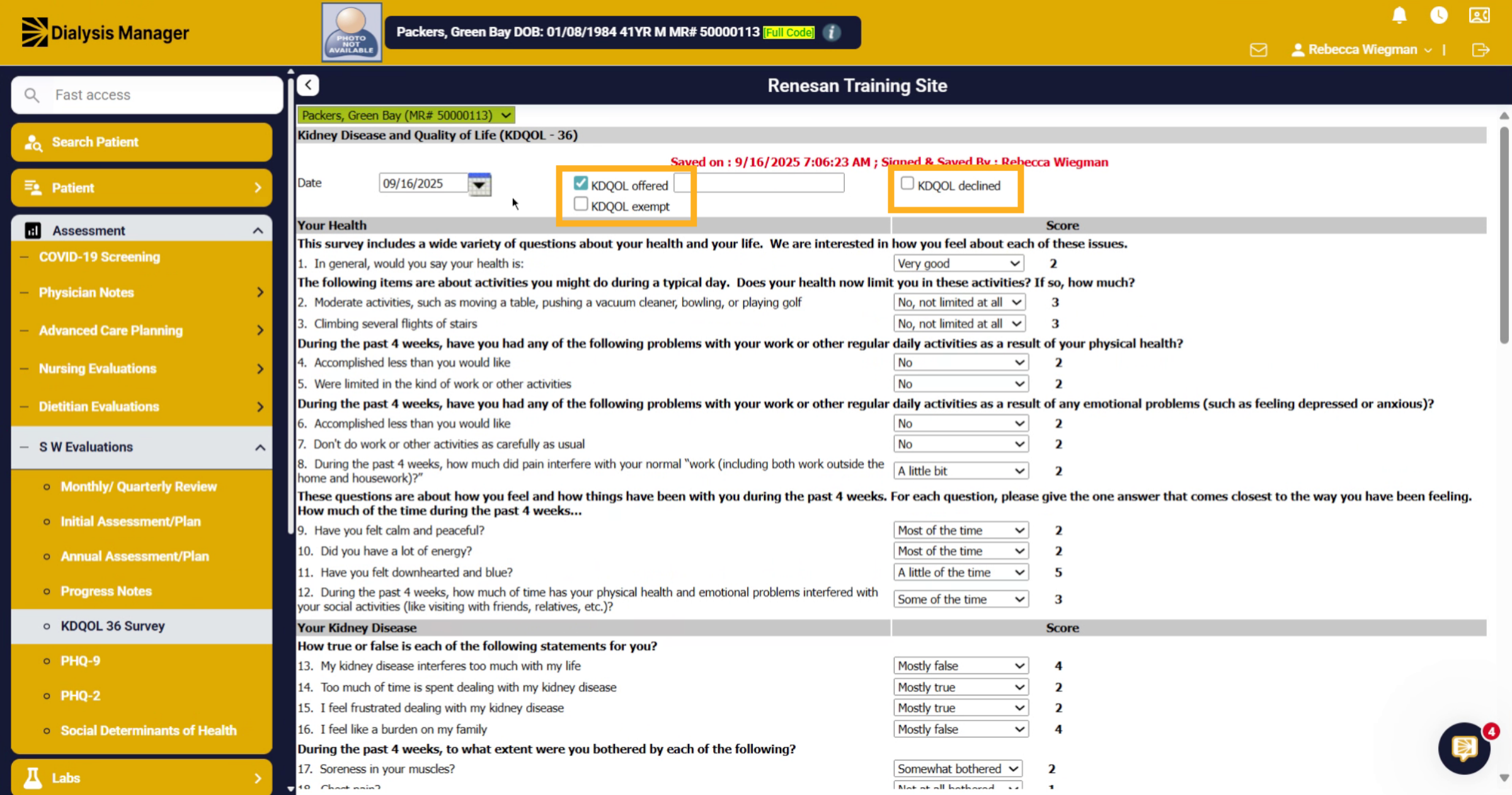
35. Understand Survey Groupings
You'll need to confirm the date of the K D Q O L was completed. And check if the survey was offered, exempt, or declined.
36. Select Your Health Section
Each section is divided by the gray banner. You can see that as you go through the questions.
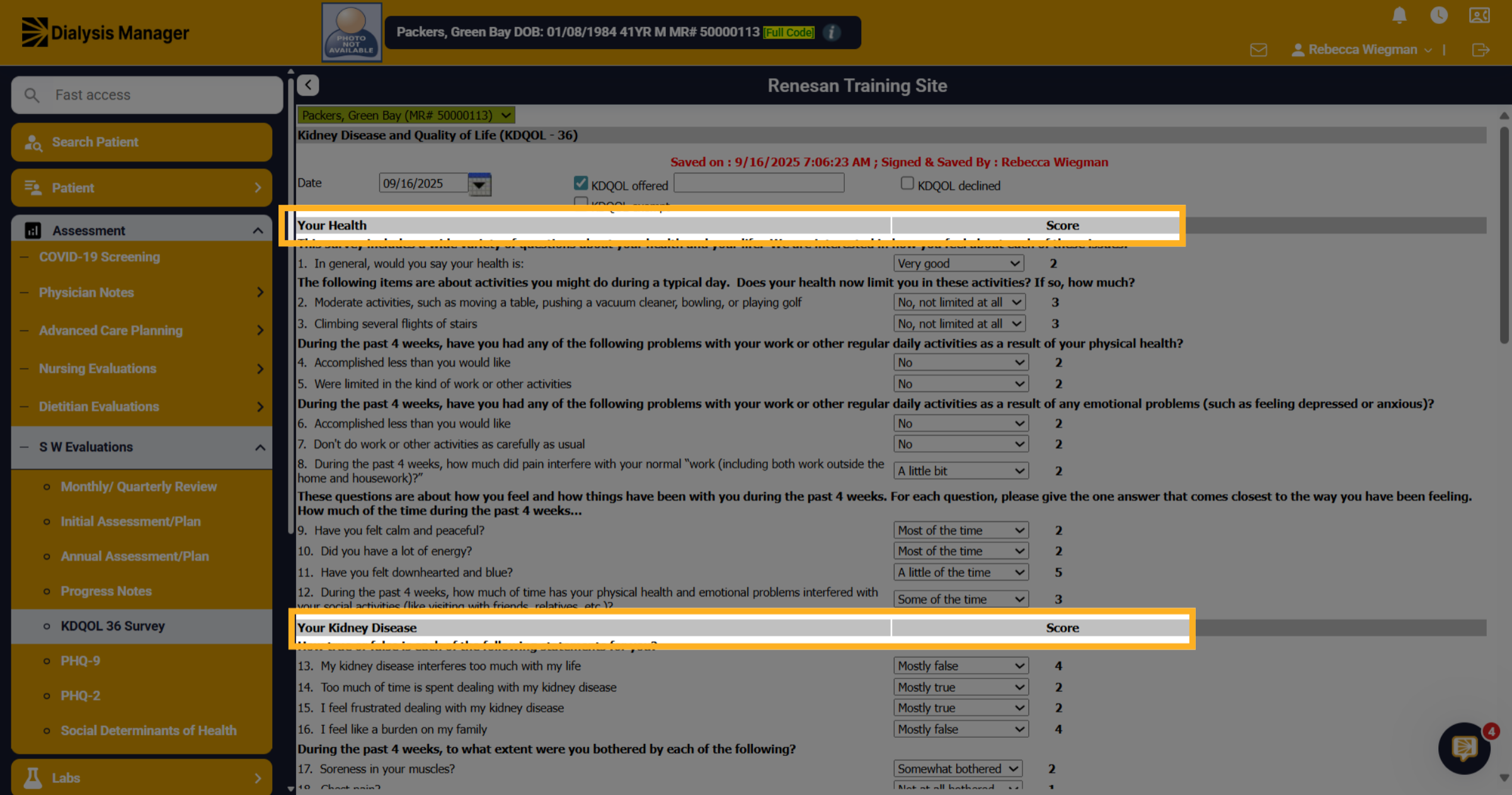
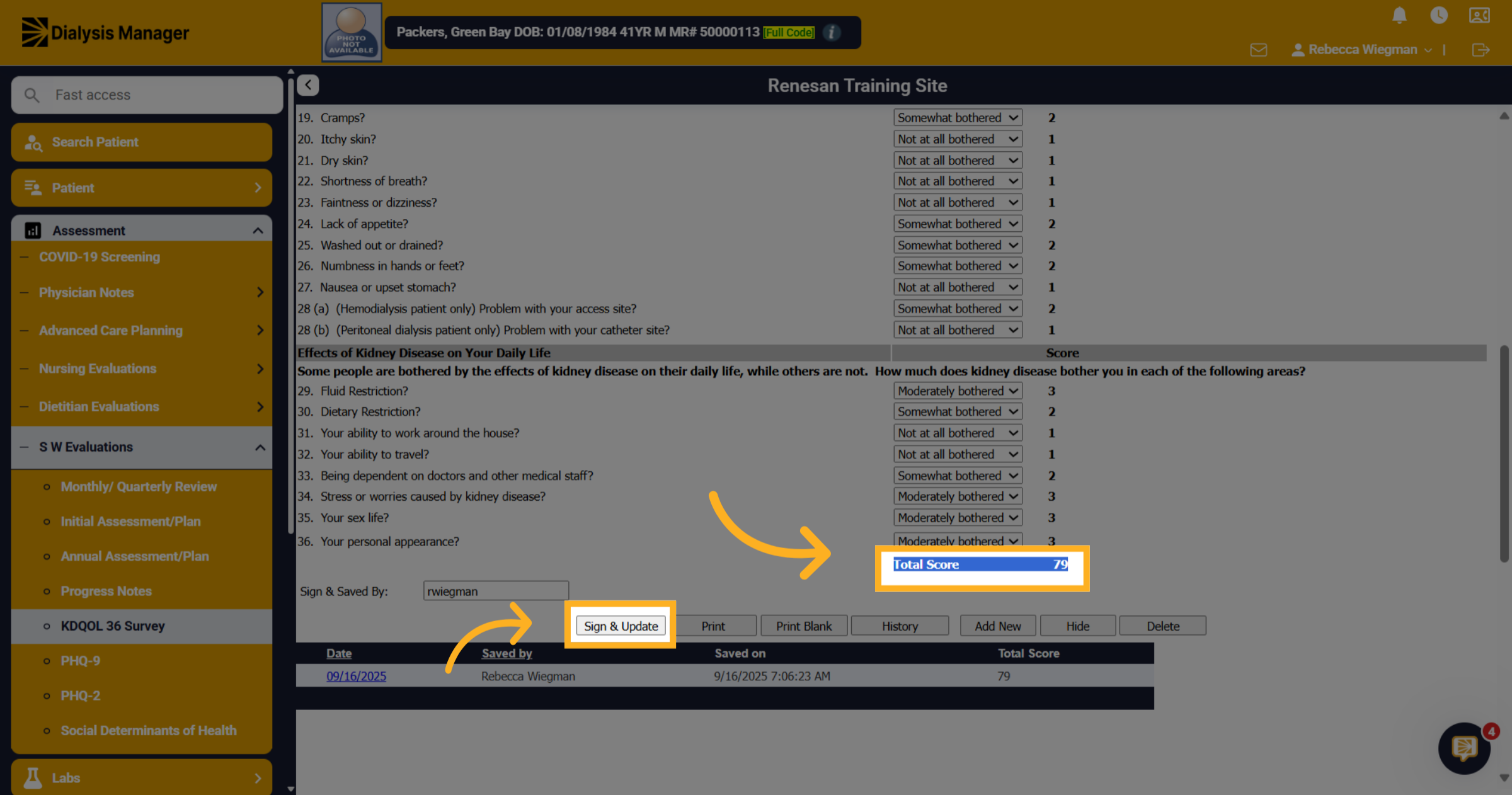
37. Proceed with Survey Section
Once all questions have been answered the Total Score will calculate. You can go ahead and sign & update. If you do not have a subscription and manually entering the surveys online inside E Q R S you'll be able to use your social worker discipline knowledge and create your own action plan and suggestions for the patient.
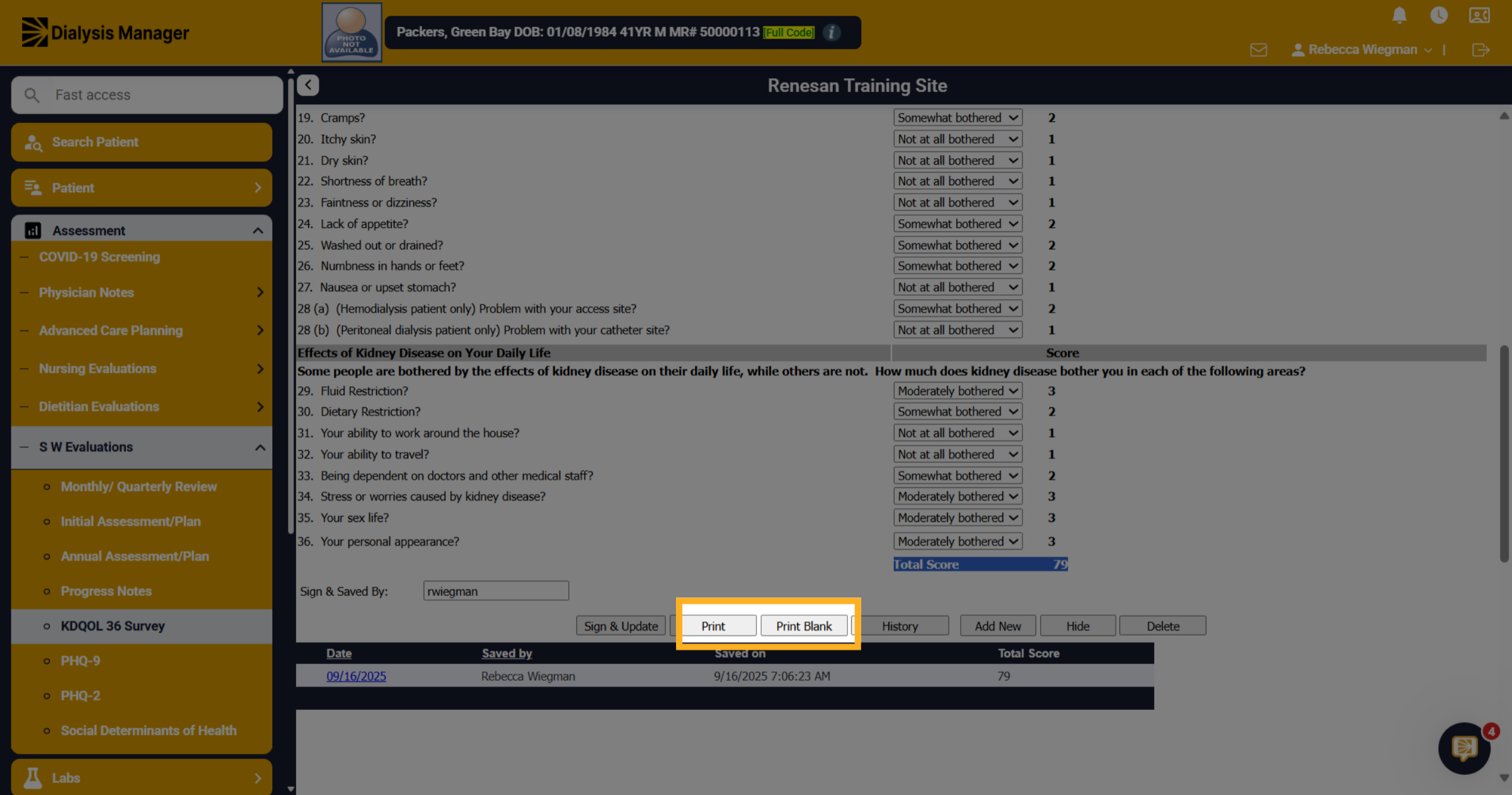
38. Print options
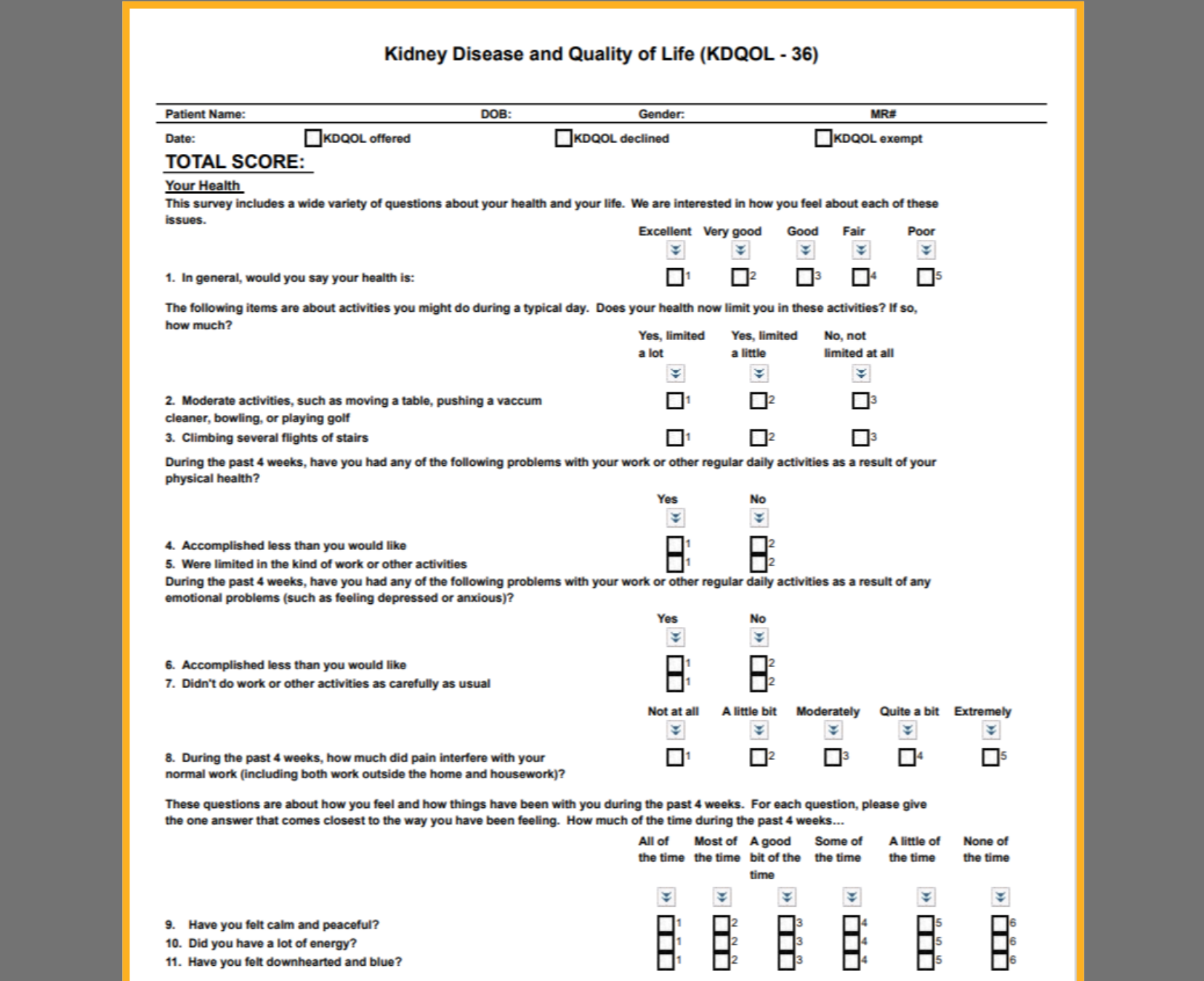
You can also print a blank copy of the K.D.Q.O.L 36 if patients would rather complete on their own time or if completed in person, your able to print after saving for physician if they request.
39. Blank KDQOL
Your blank print out will look like this
40. Introduction
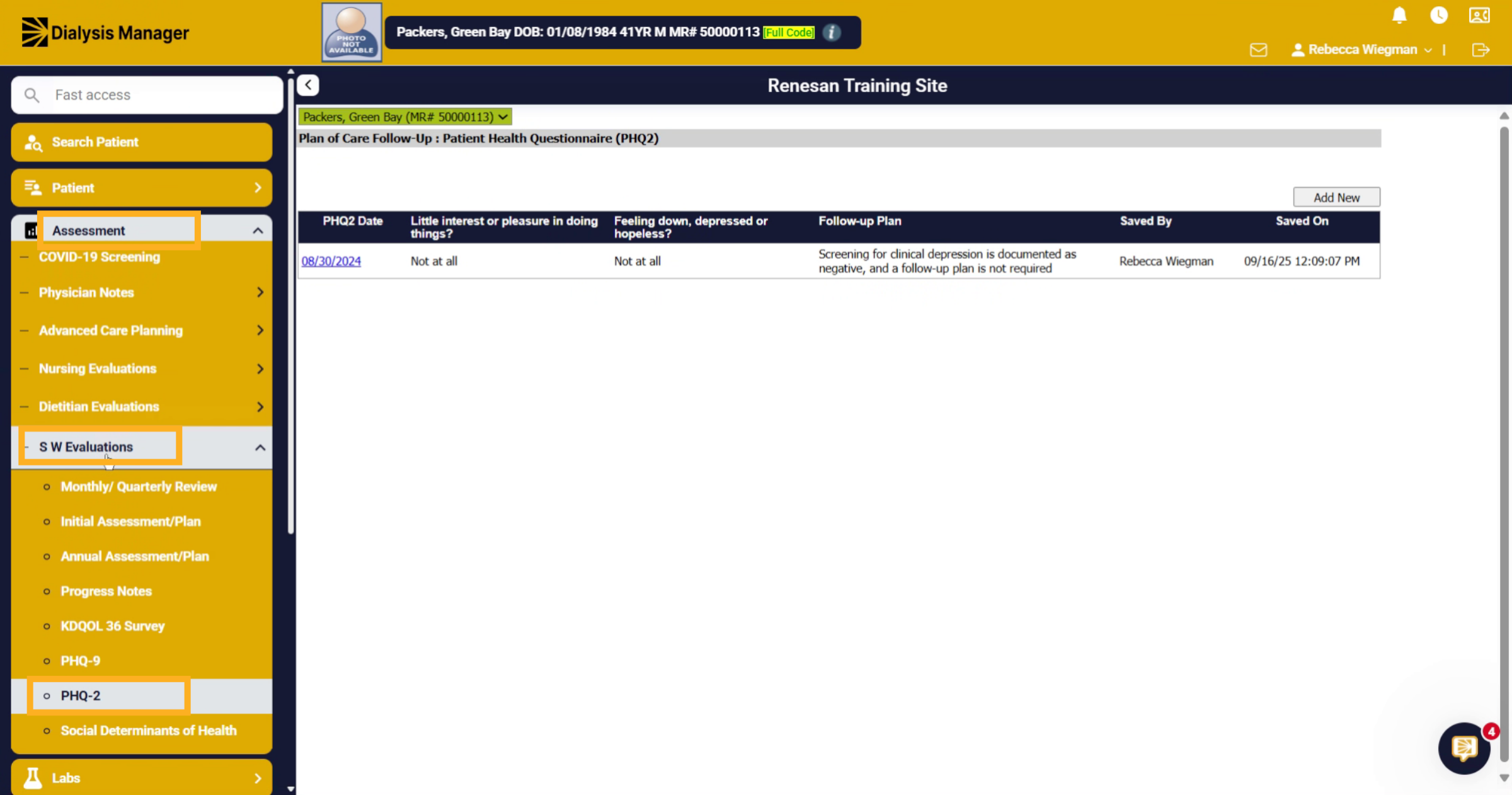
Now, we are going to walk through the PHQ-2 form. You're going to go to assessments, social worker evaluations, and the PHQ-2 form. Down here, you will see all your previous assessments completed.
41. Click "Add New"
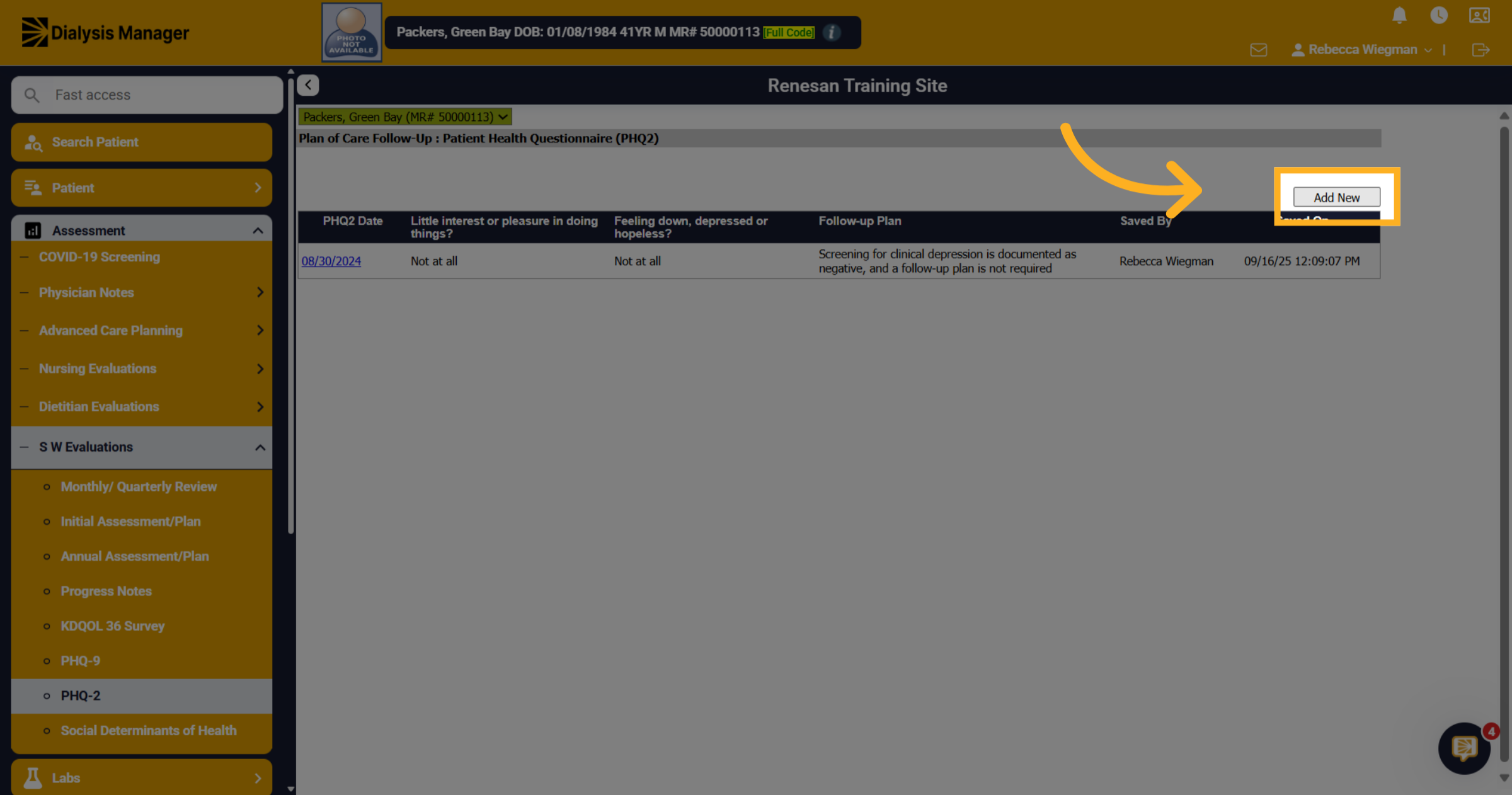
Click "Add New" to start a new assessment.
42. PHQ-2
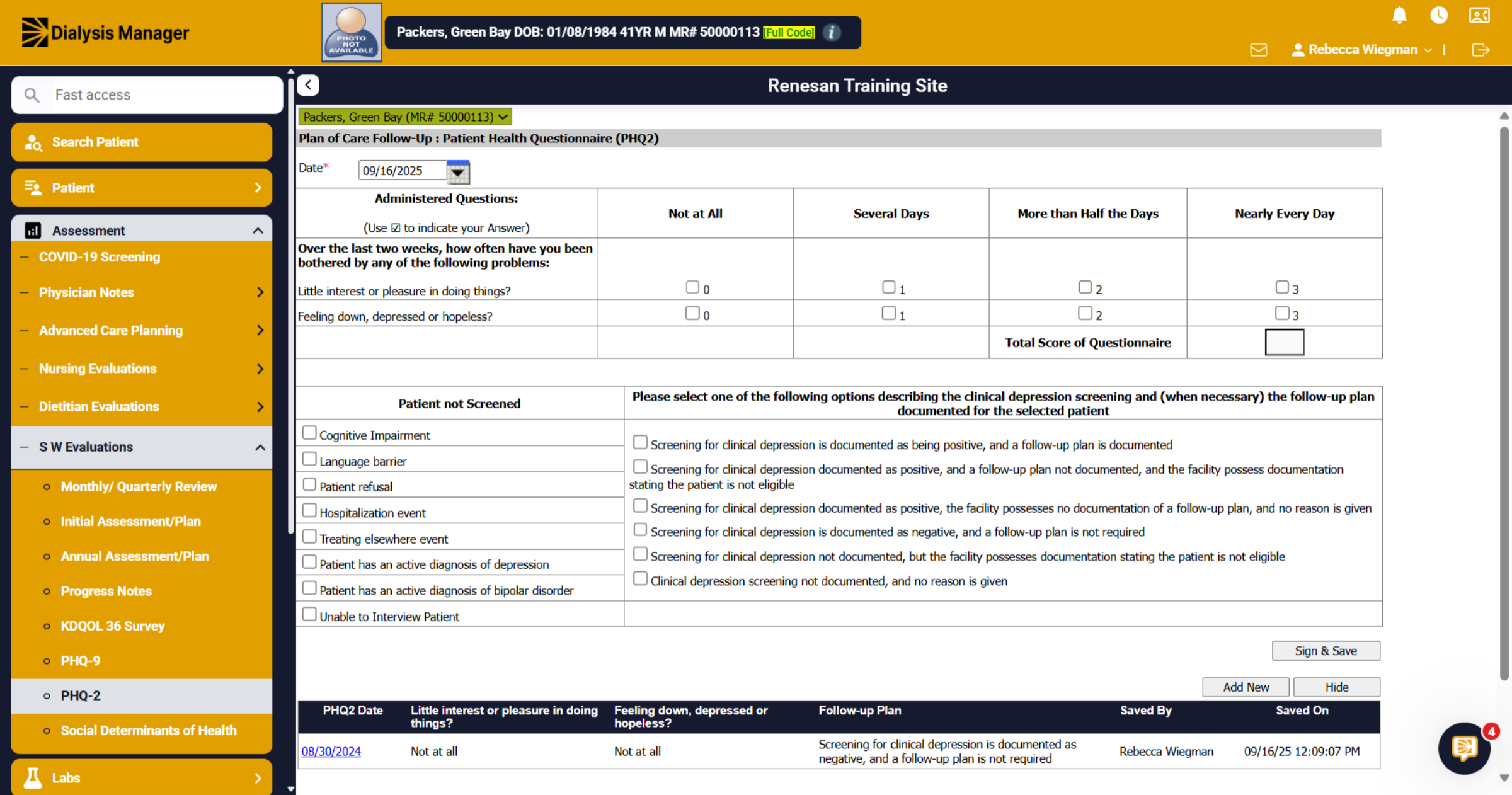
The Date will default to today, verify when the assessment was completed. Because this is the tool that is submitted to EQRS, you'll always want to make sure that you're following regulatory requirements with regards to the frequency of completion and the submission.
43. Administered Questions
The top section will calculate a score.
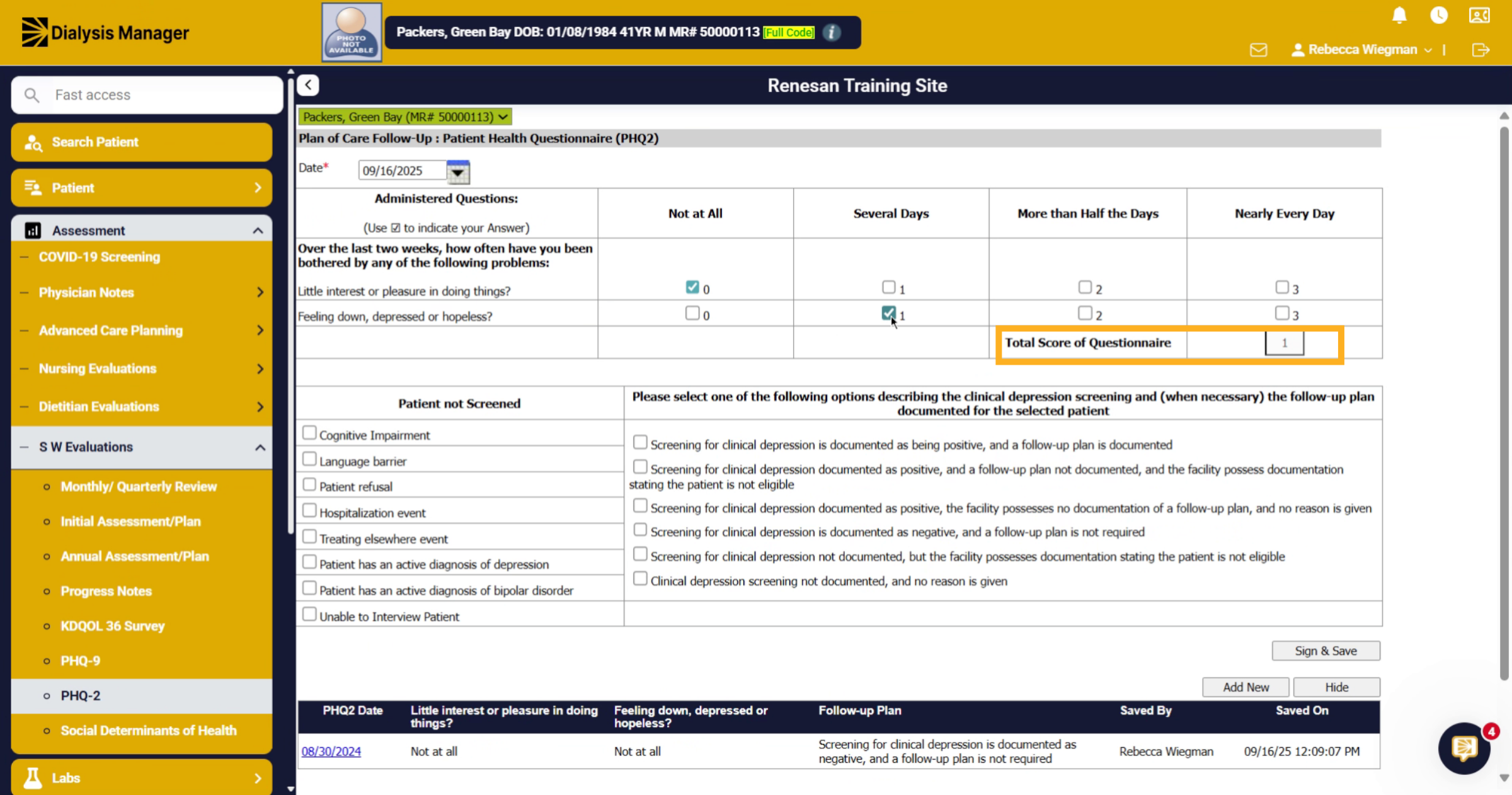
44. Click "Screening for clinical depression
Select the best option for the patient.
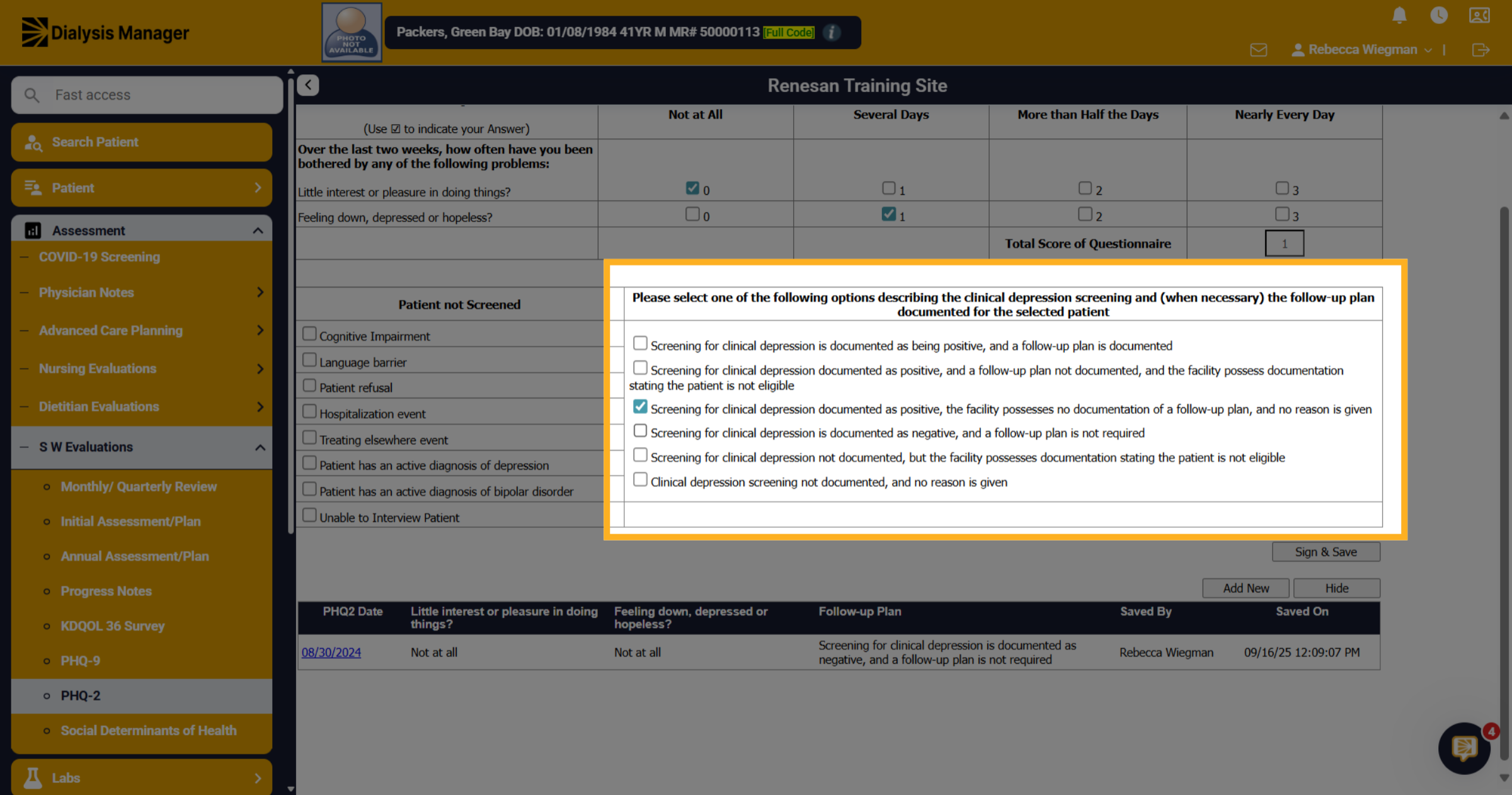
45. Depressed with Document
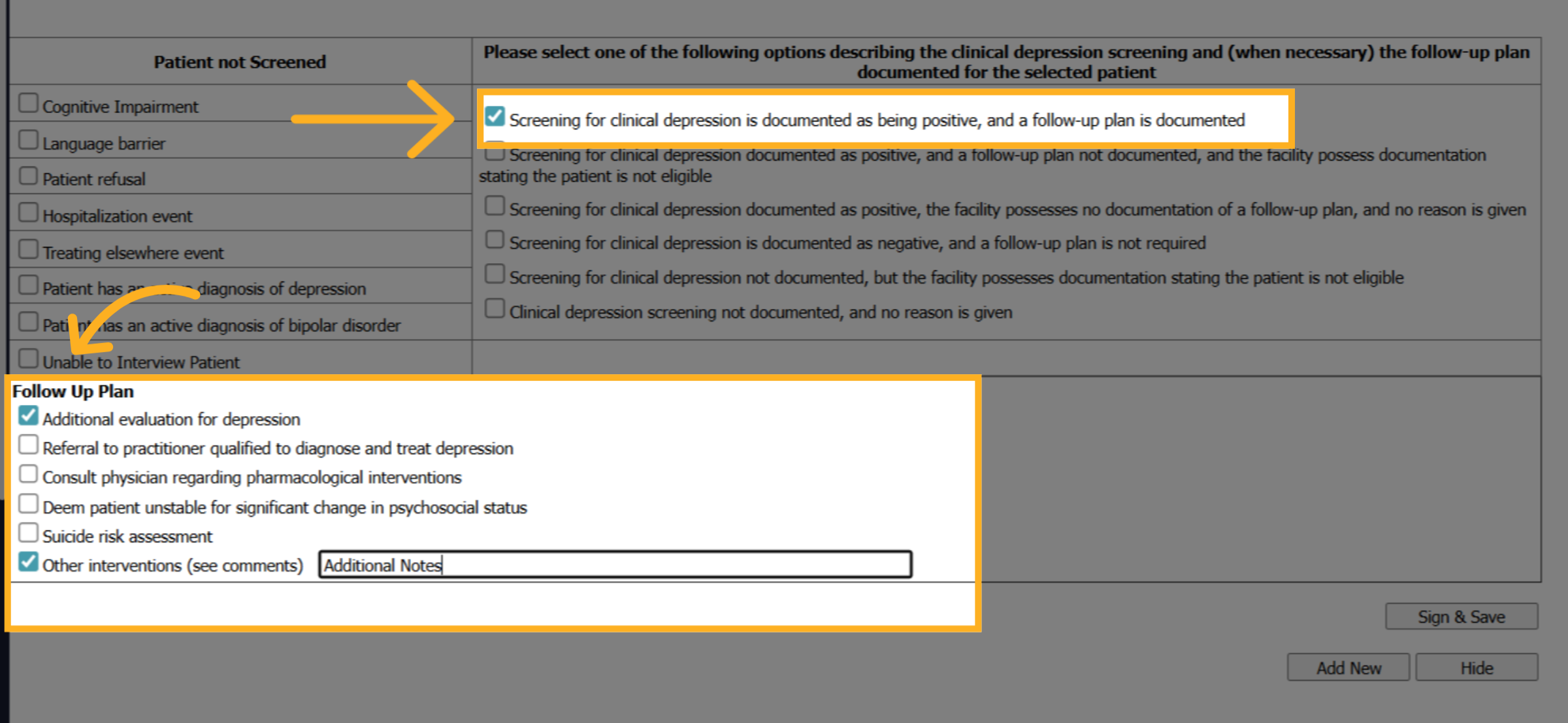
When selecting Screening for clinical depression is documented as being positive, and a follow up plan is documented. You'll get an additional box for Follow Up Plans where your able to select more than one check box!
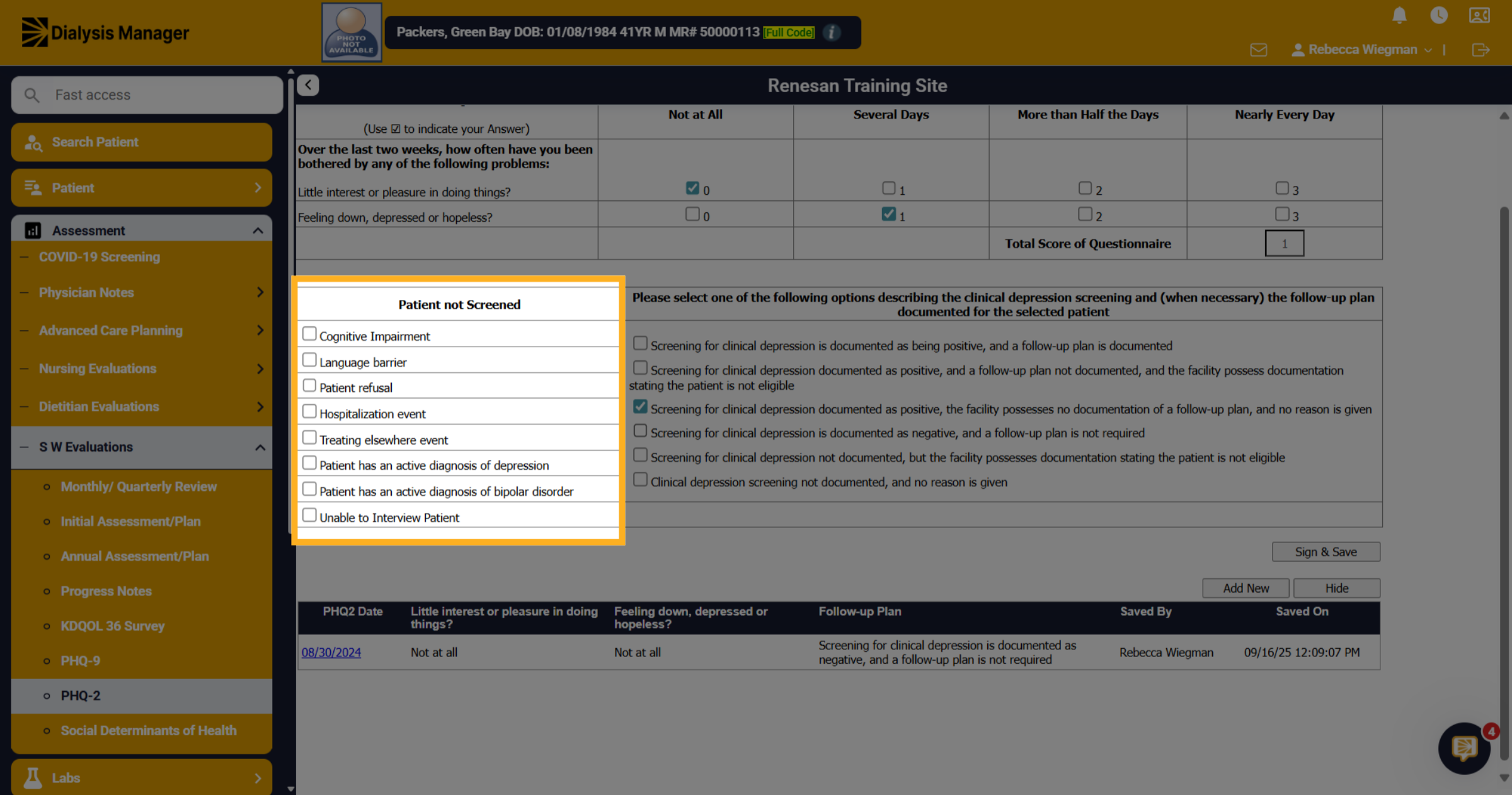
46. Patient Not Screened
If you are unable to complete the PHQ-2 on a patient your able to specify why inside the Patient Not Screened box. Please Note that your able to select more than one option.
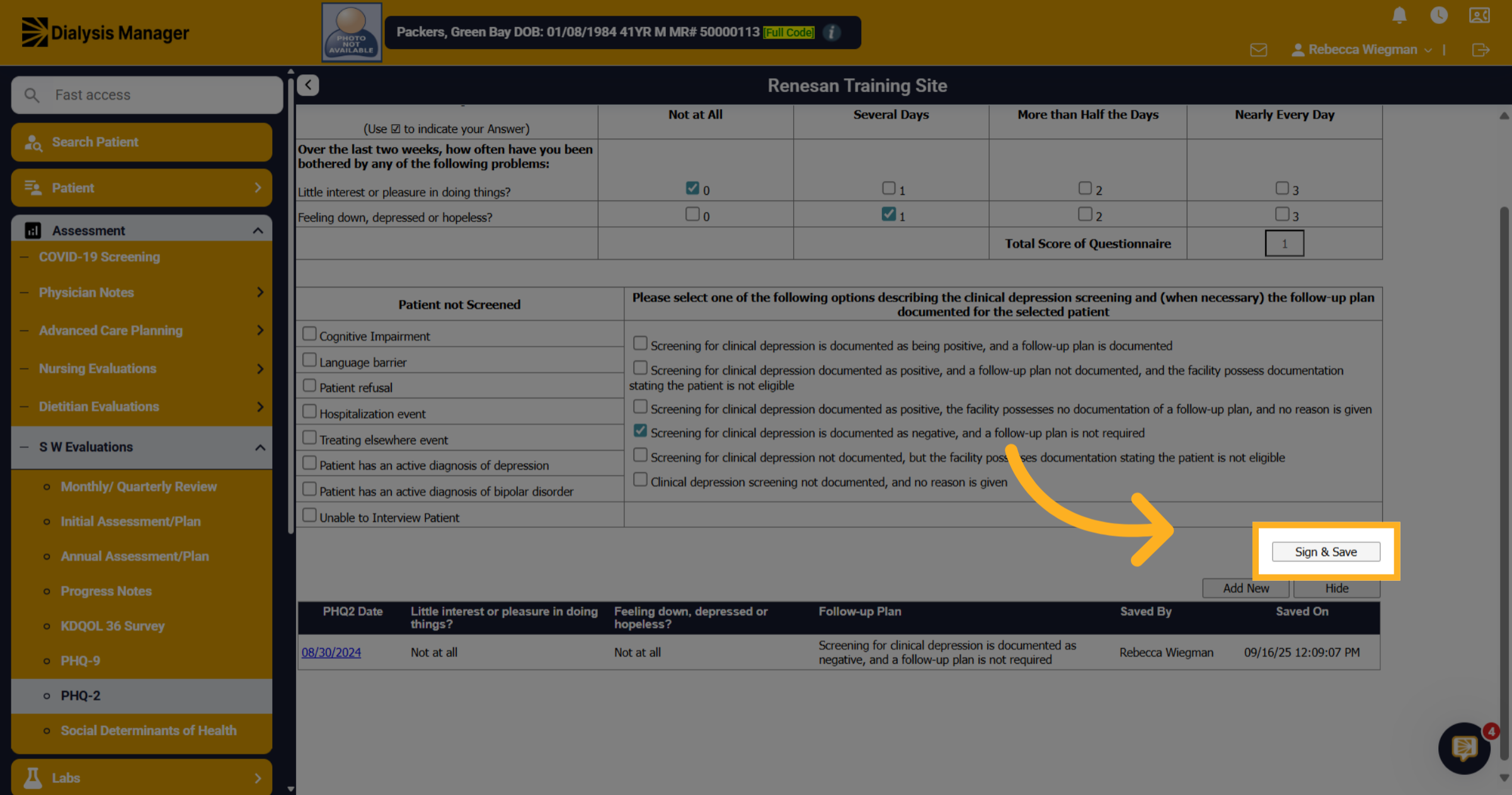
47. Click "Sign & Save"
Click "Sign & Save" and enter your PIN to save the completed form.
48. Click "Approve & Lock"
Also if you are completely done you can Click "Approve & Lock" to finalize and secure the assessment.
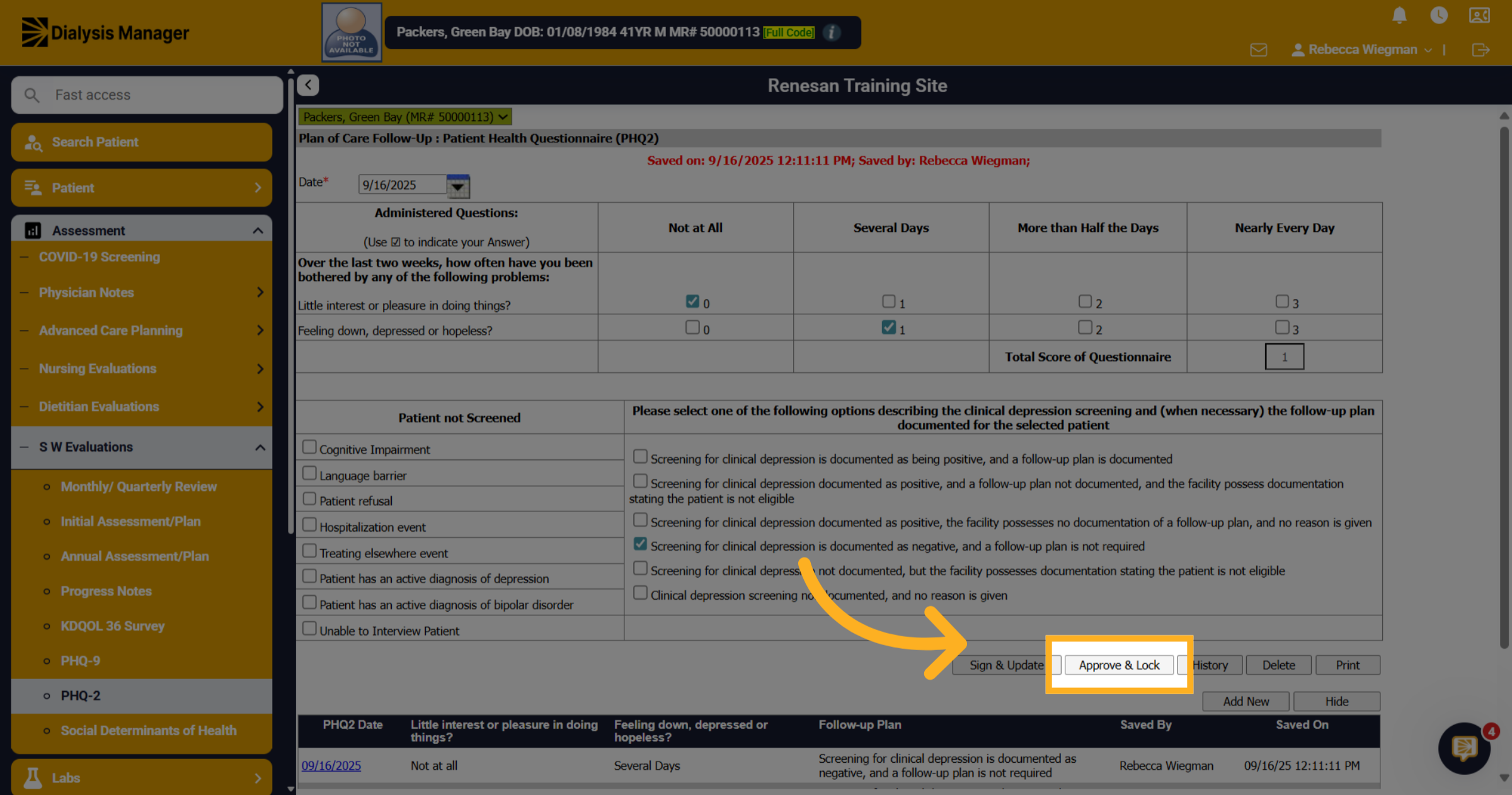
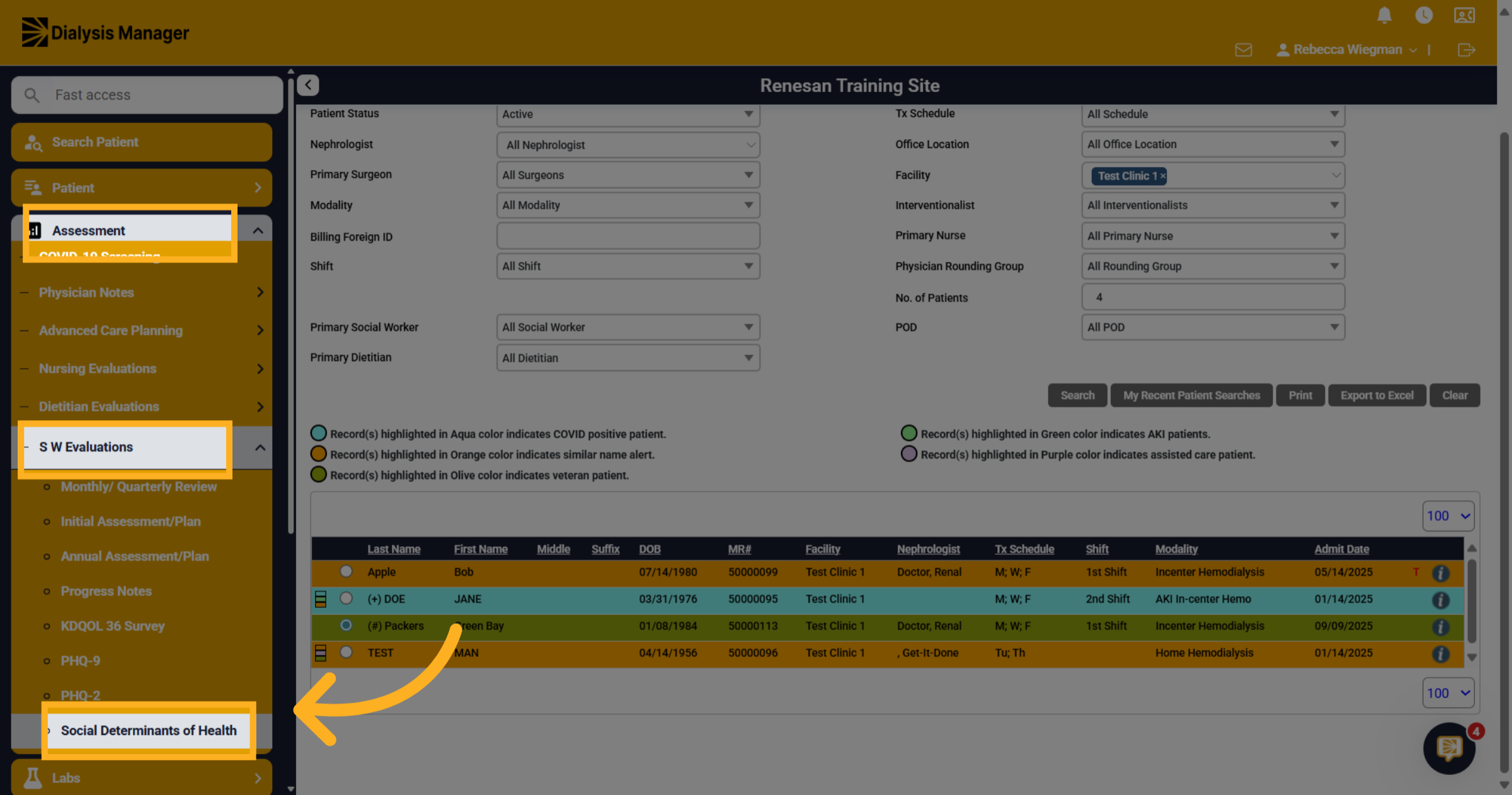
49. Click "Social Determinants of Health"
Last, we are going to walk through Social Determinants of Health Assessment. Click into Assessments, Social Worker Evaluations and Social Determinants of Health.
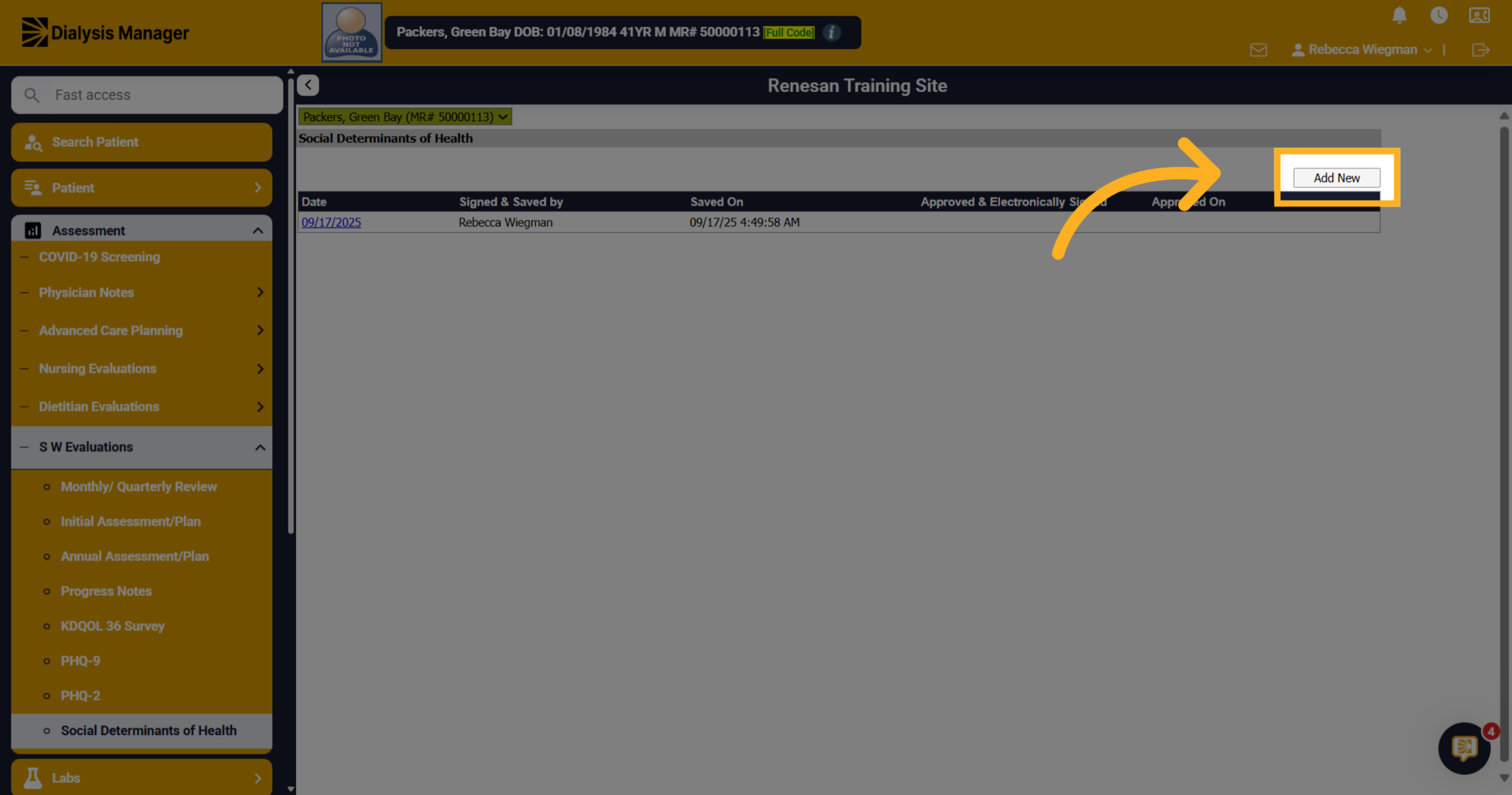
50. Click "Add New"
All prior assessments will display here but for todays video we are going to select Add New.
51. Click "9/17/2025"
The date will auto populate to todays date. You'll be able to check the box that pertains to the patient. Each section such as Living Situation, Food, Safety, Physical Activity is divided by a gray bar.
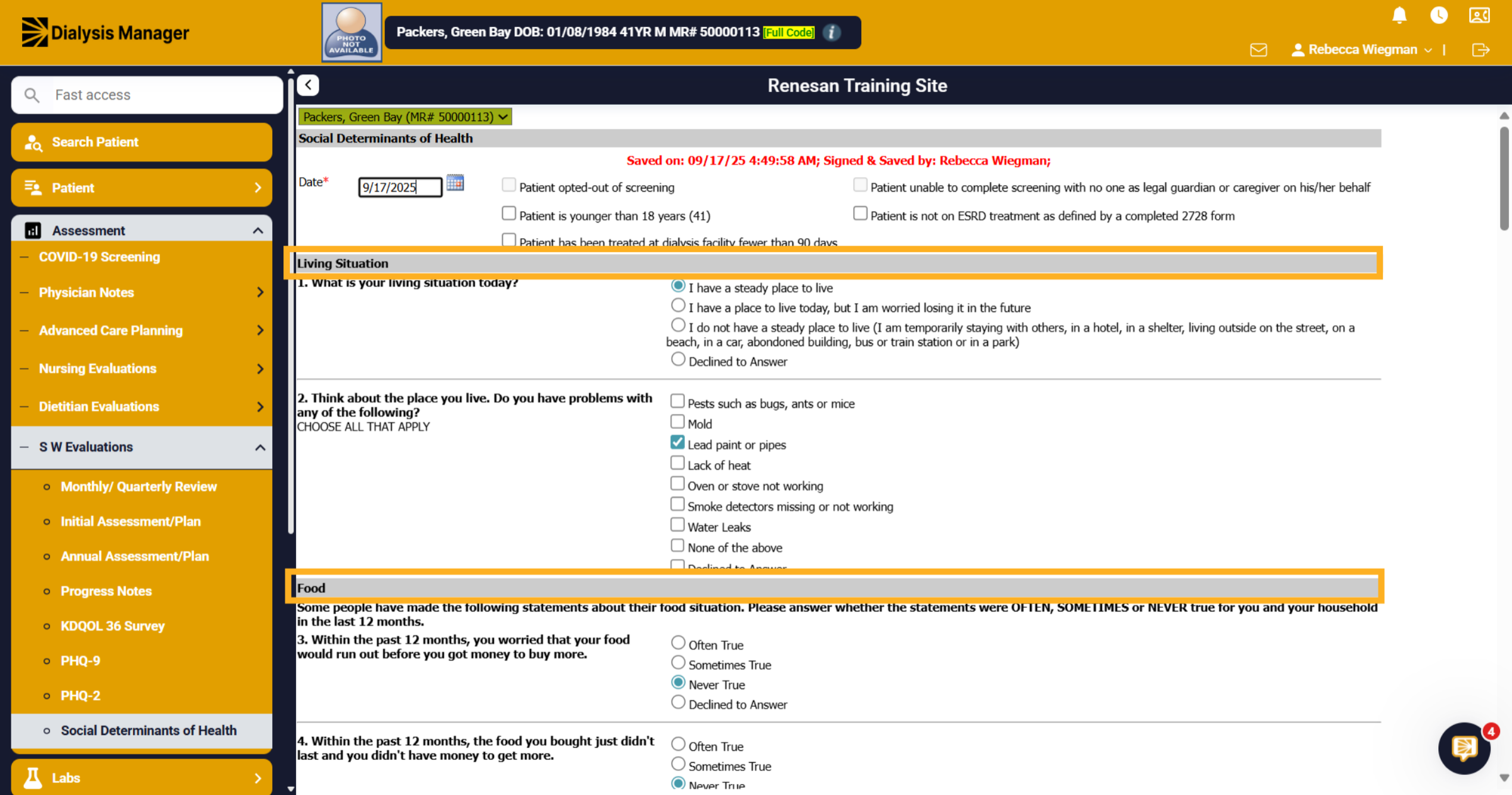
52. Click "Patient is not on ESRD treatment as defined by a completed 2728 form"
The Patient is not on ESRD Treatment as defined by a completed 2728 form maybe the patient is AKI so they don't have a 2728.
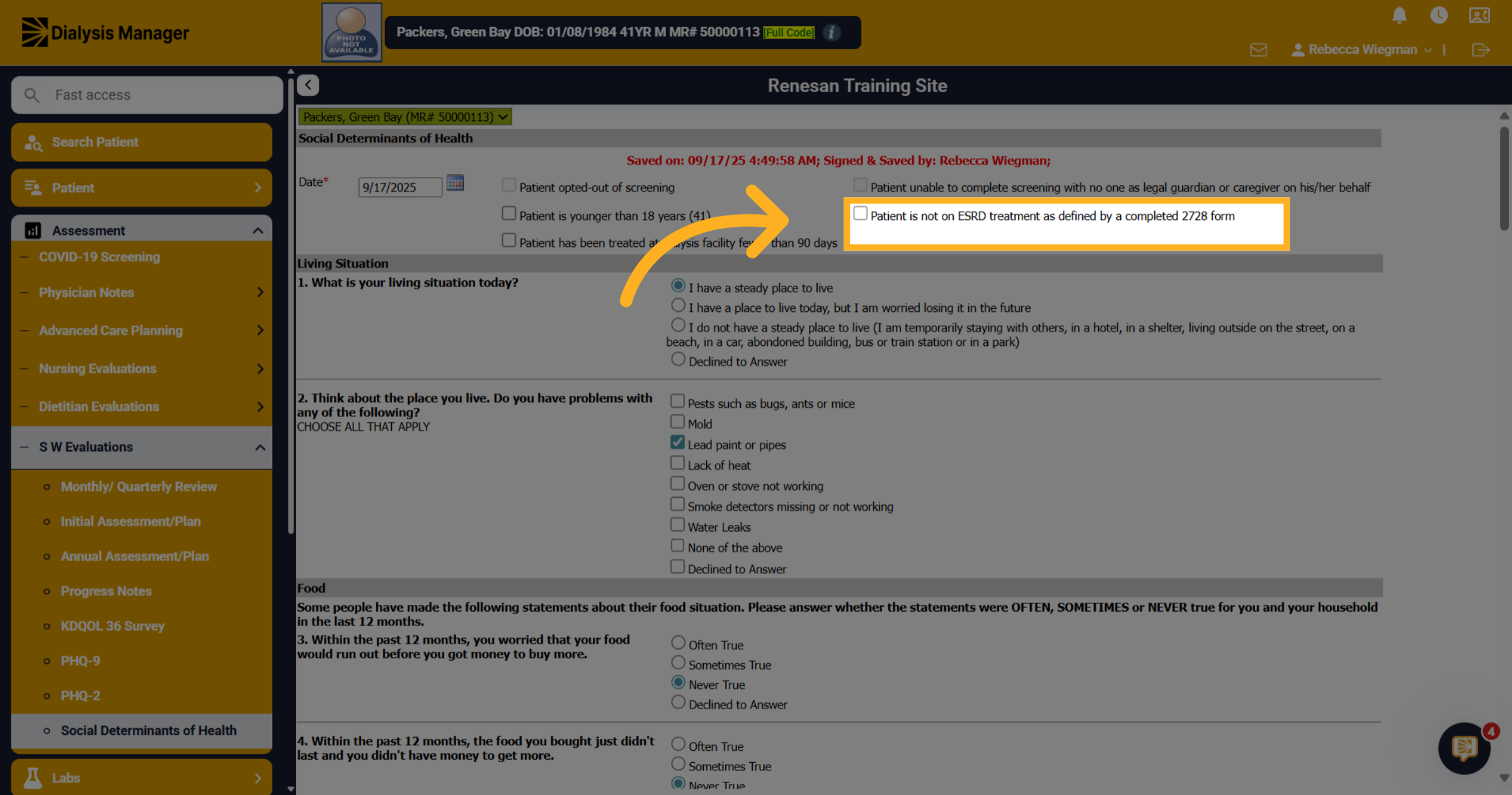
53. Think about the place you live
Please note that on some questions your able to select more than one answer.
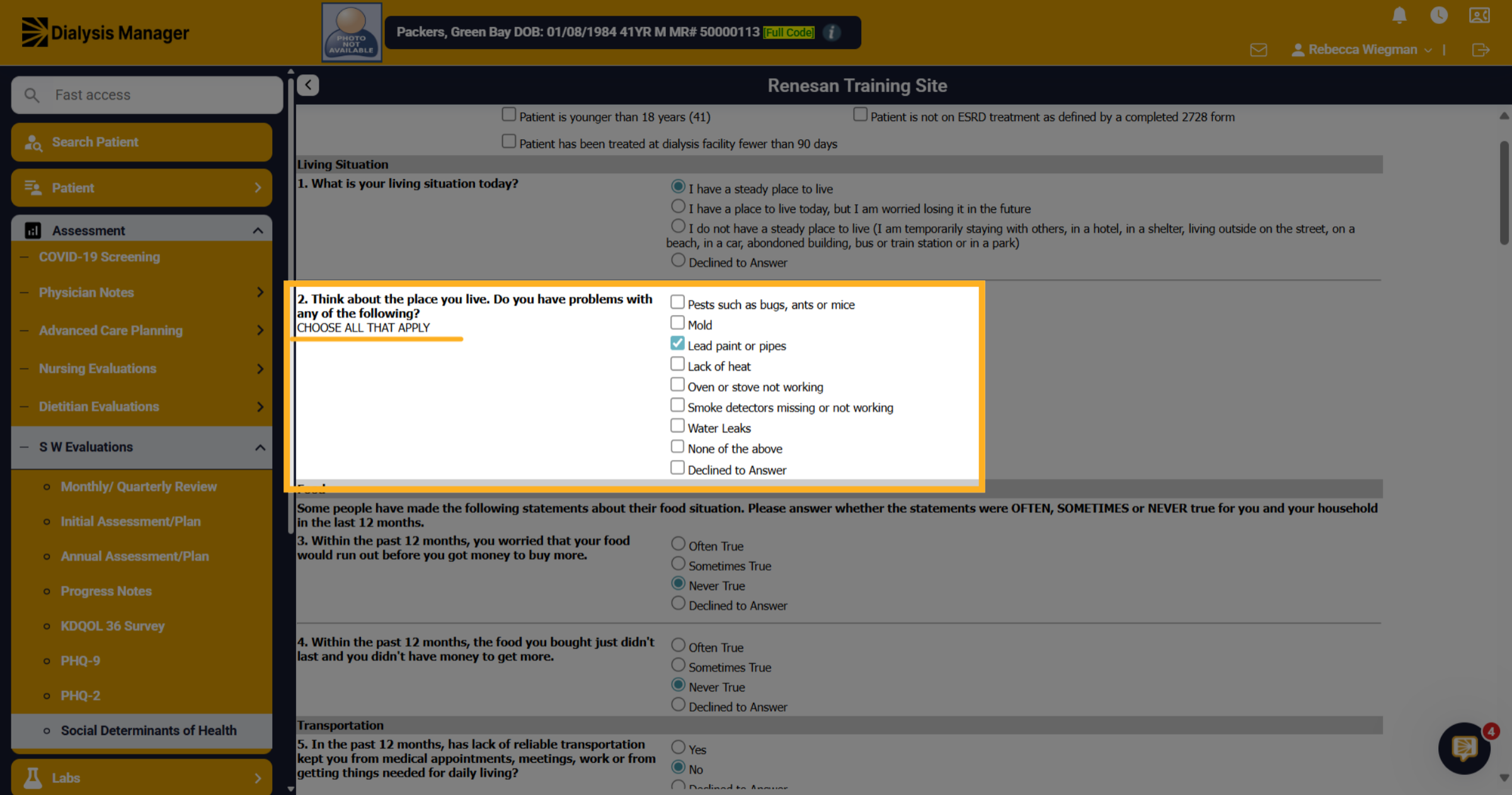
54. Safety Count
You will see the patient's total safety count populated at the end of the section.
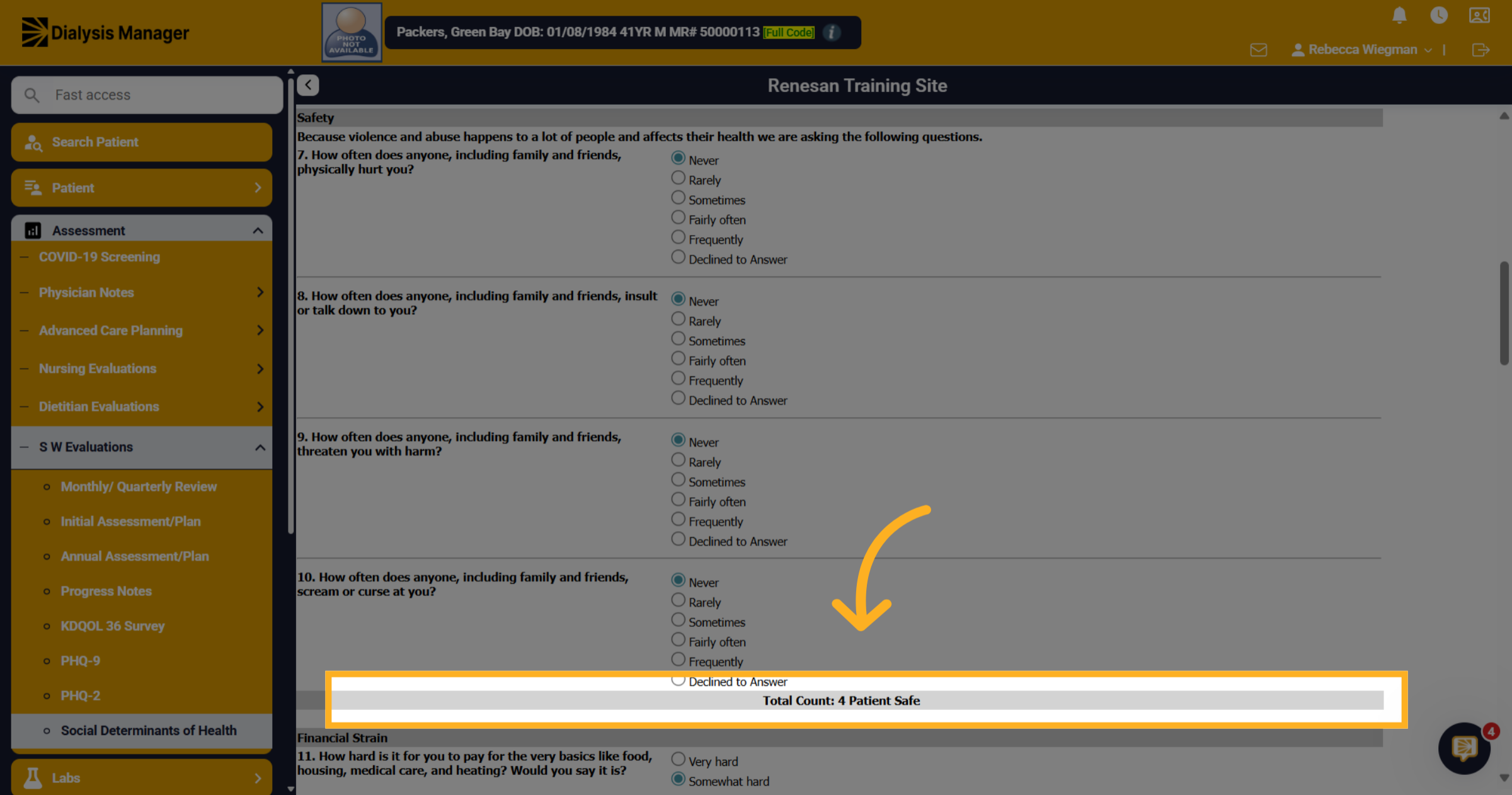
55. Activity Count
It will also calculate the total minutes of exercise per week for the patient.
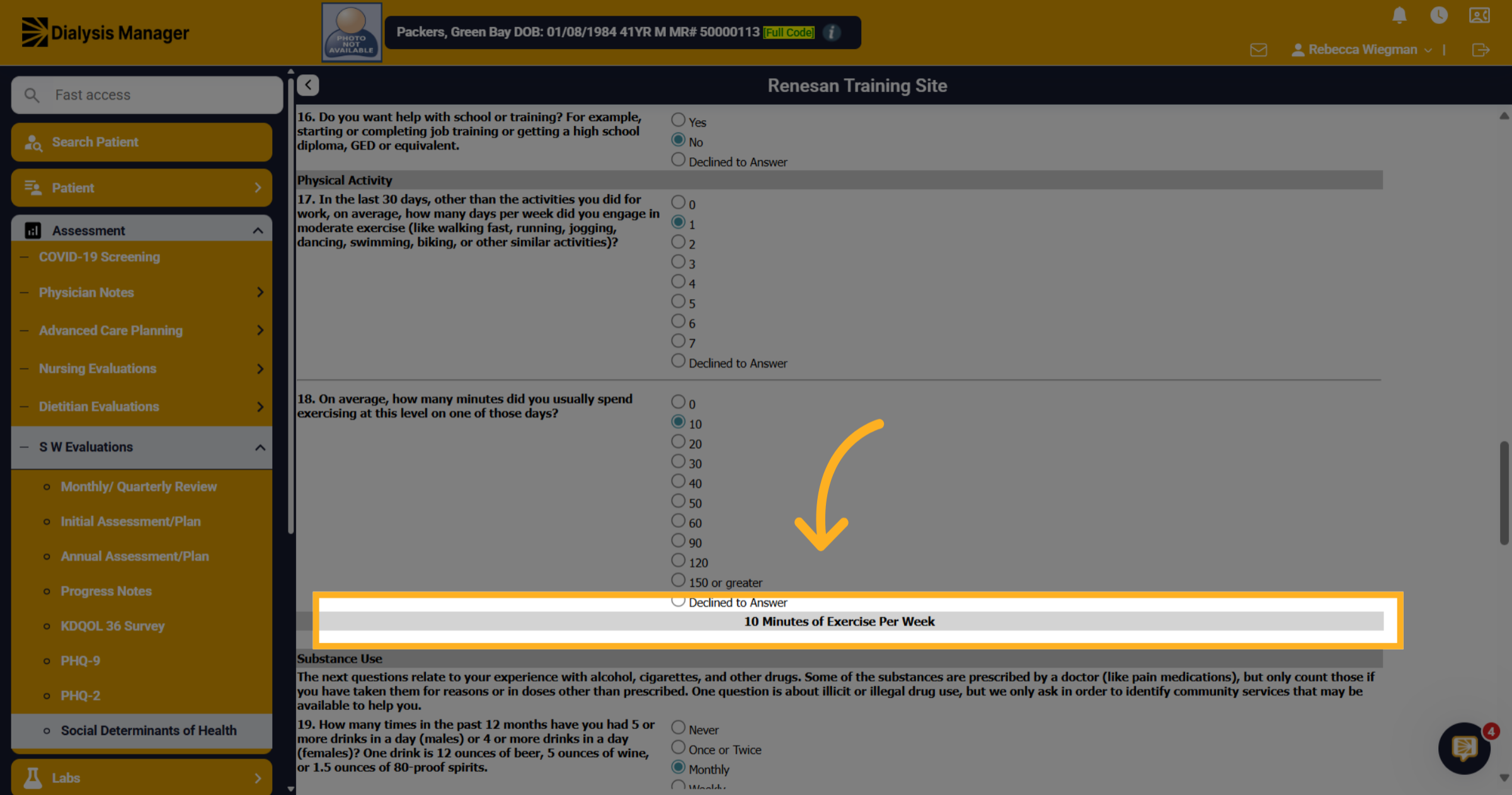
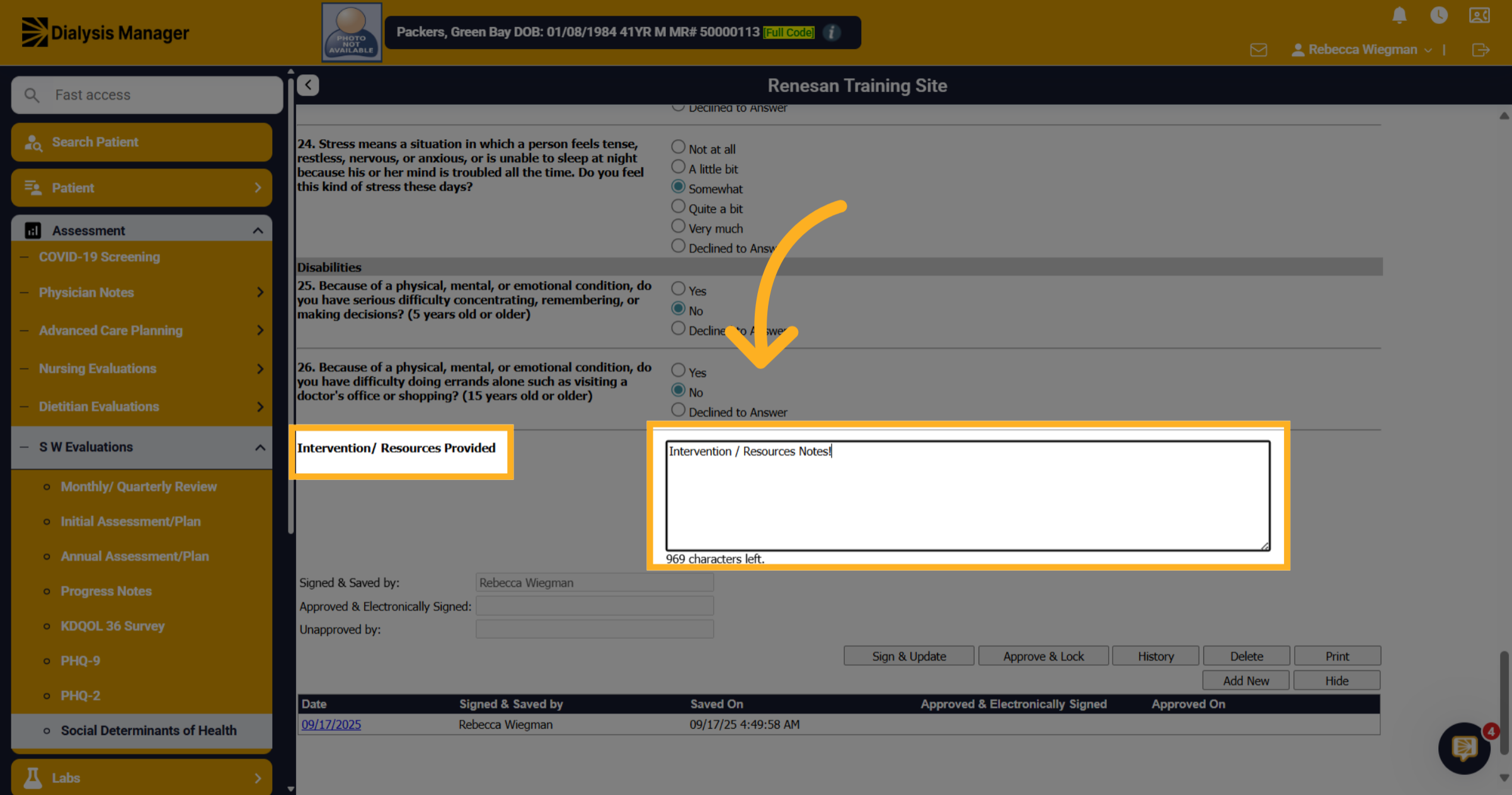
56. Click "Intervention / Resources Notes!"
Enter Interventions or resources provided to the patient.
57. Click "Intervention / Resources Notes!"
Renvio works hard to make sure that we are keeping up with regulatory requirements and adding the things as they are required by C M S. This information will be available on your monthly or quarterly reviews and will also populate if you utilize the QAPI tool in Renvio.
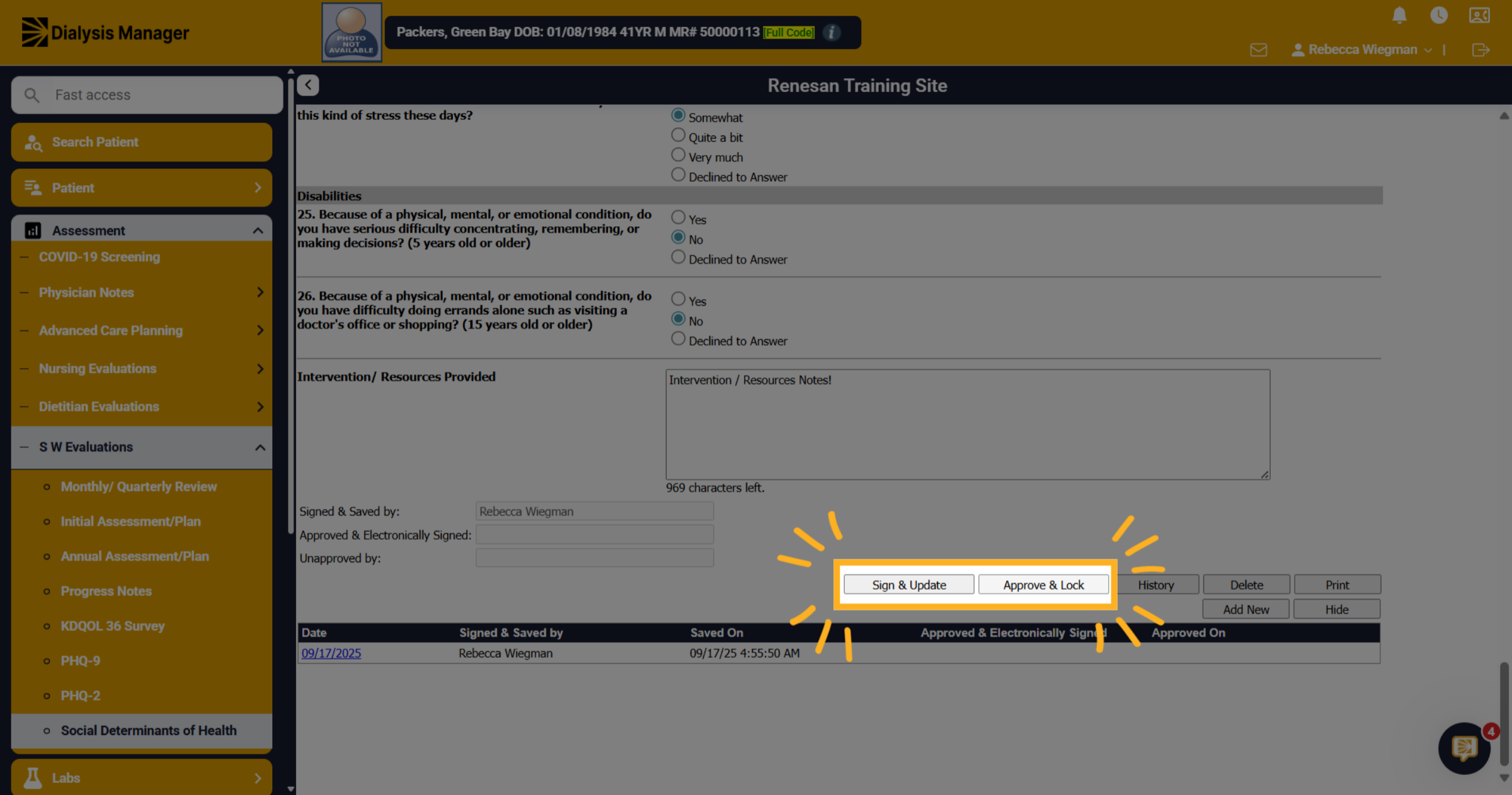
58. Click "Approve & Lock"
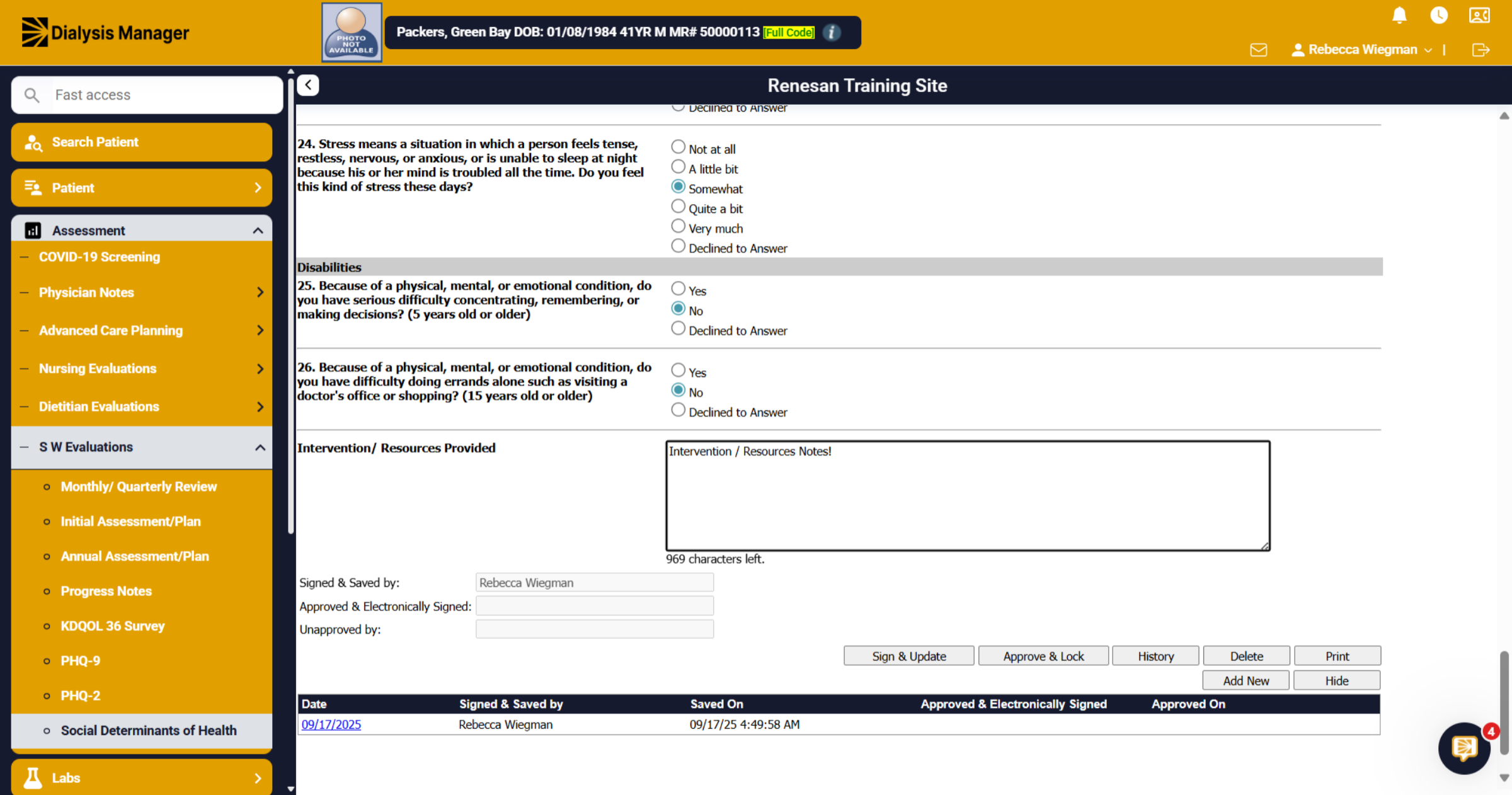
Be sure to always Sign & Update then Approve & Lock