Reset User Password
1. The Approved User needs to log in to Organization Management
2. Alternatively, users can also click on the hyperlink "I need help resetting my password" which will allow users to answer security questions or send themselves a reset code.
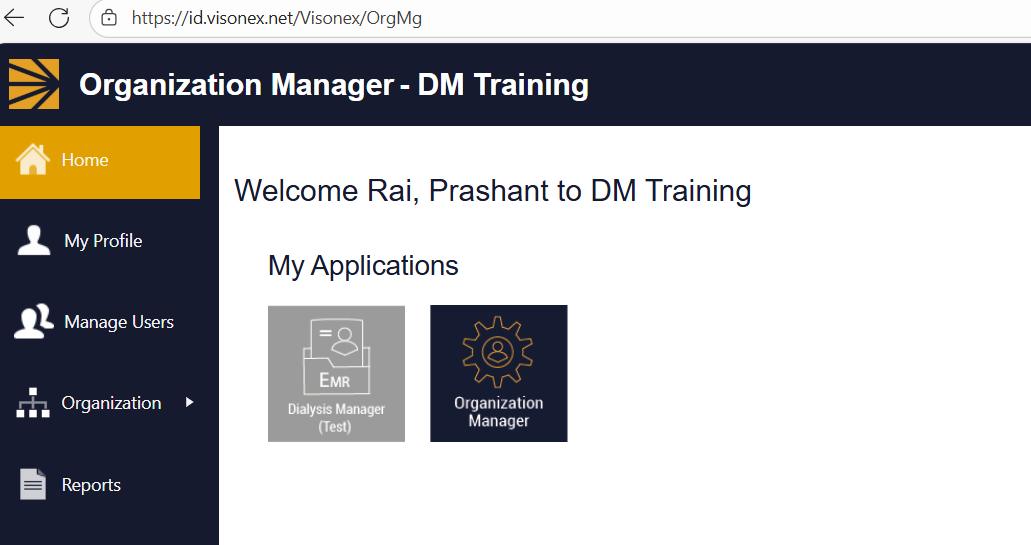
2. Click Manage Users and select Local Users

3. Search for the User.
4. Click on the Username of the user.
5. If the user account is set to Locked, unlock the account.
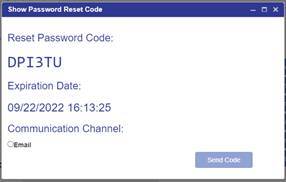
6. Click Show/Create next to Reset Password Code.
7. Give the Reset Password Code to the user OR click Email and Send Code
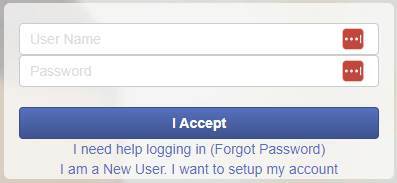
8.On the login page, click I need help logging in (Forgot Password)
9. Select I have a password reset code. Click Next.
10. Enter the User Name and Password Reset Code (given to user by Super User/Manager or located in the email, if code was sent to email.). Click Next.
11. Enter the new password in Type Your New Password, then retype the password in under Retype Your New Password. Click Reset Password.
Note: Your password cannot be the same as the last 4 of passwords, must contain at least 8 characters, a capital letter, lowercase letter, a number, and a special character.
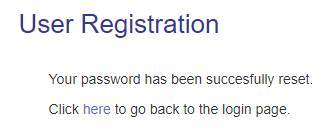
12. You will receive a password reset confirmation.