Report: Vaccination Tracking.
1. Introduction
This tutorial guides you through generating a vaccination tracking report using Renvio. You will learn how to select report options and view detailed vaccination data.
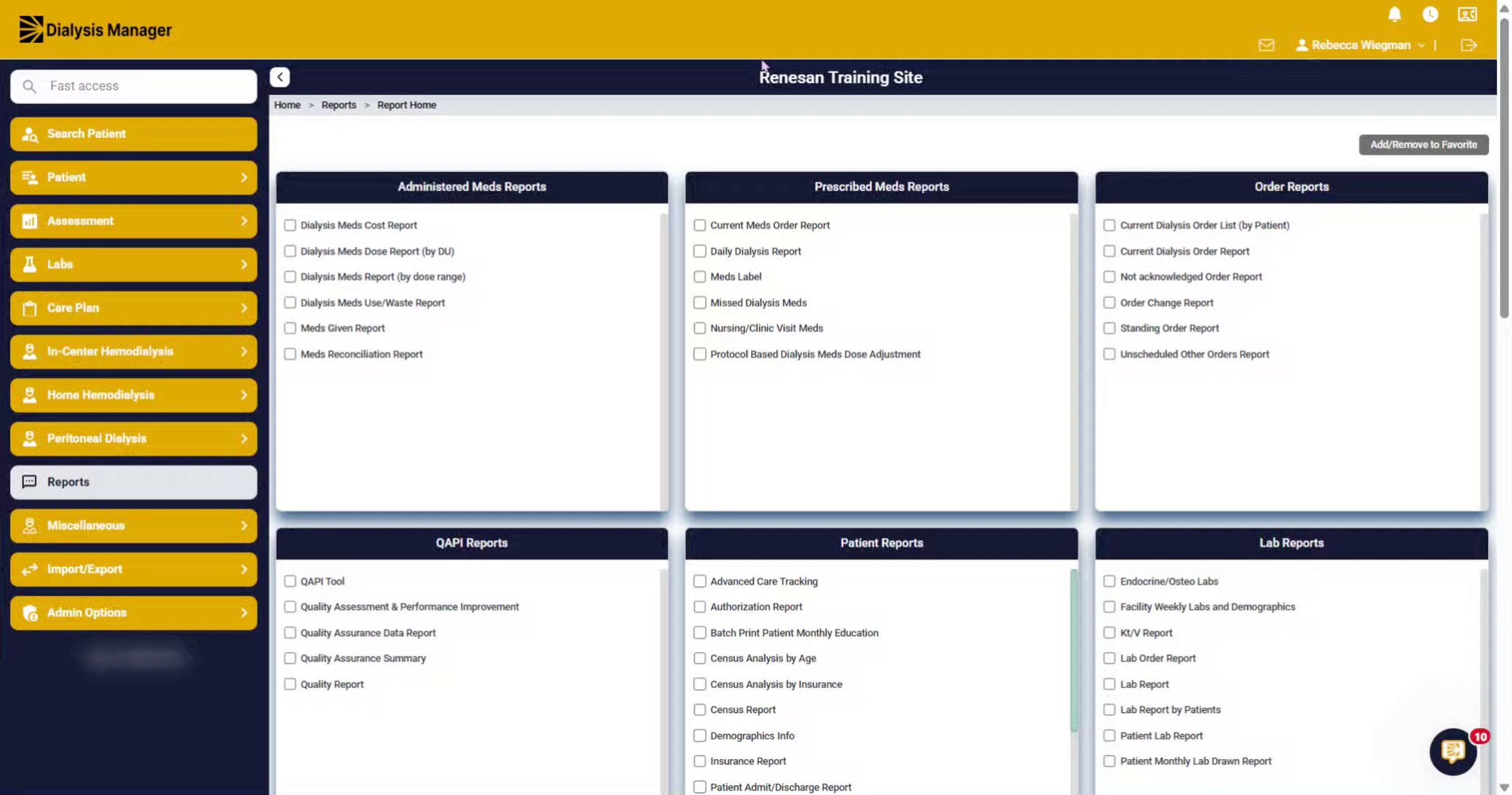
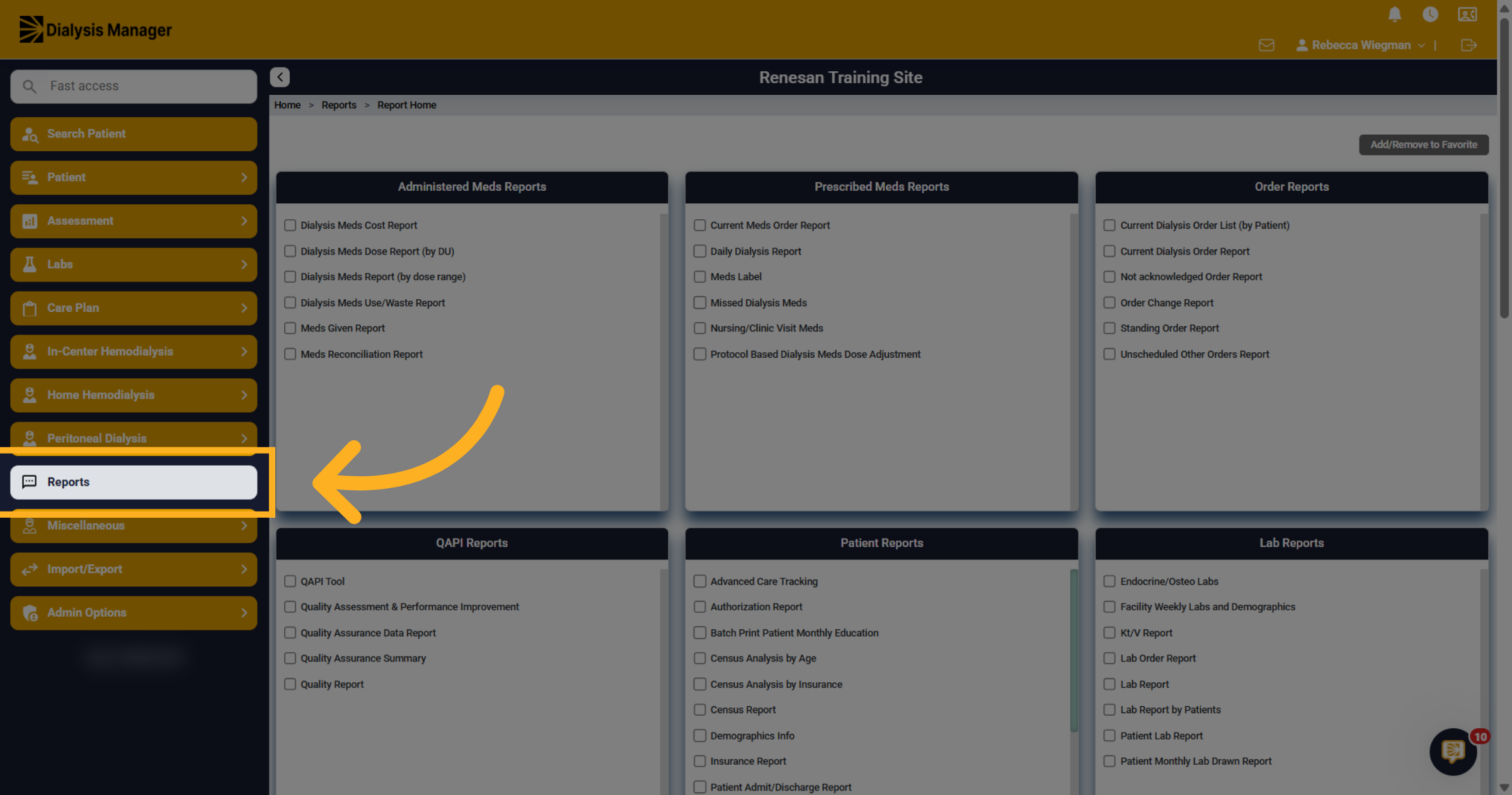
2. Navigate to Reports Section
Click the Reports section to access available report options within Renvio.
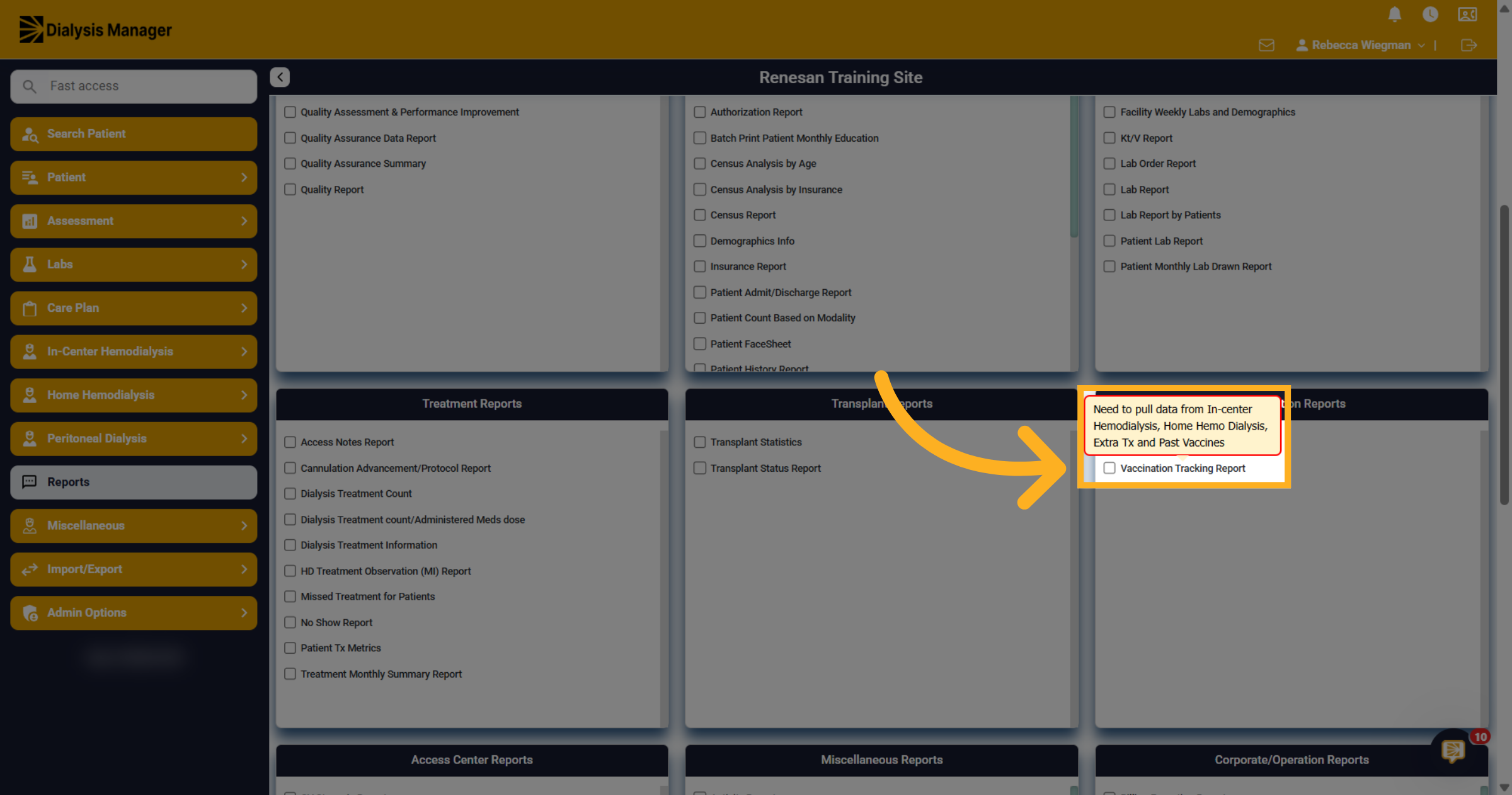
3. Open Vaccination Tracking Report
Click Vaccination Tracking Report to begin configuring the vaccination data report.
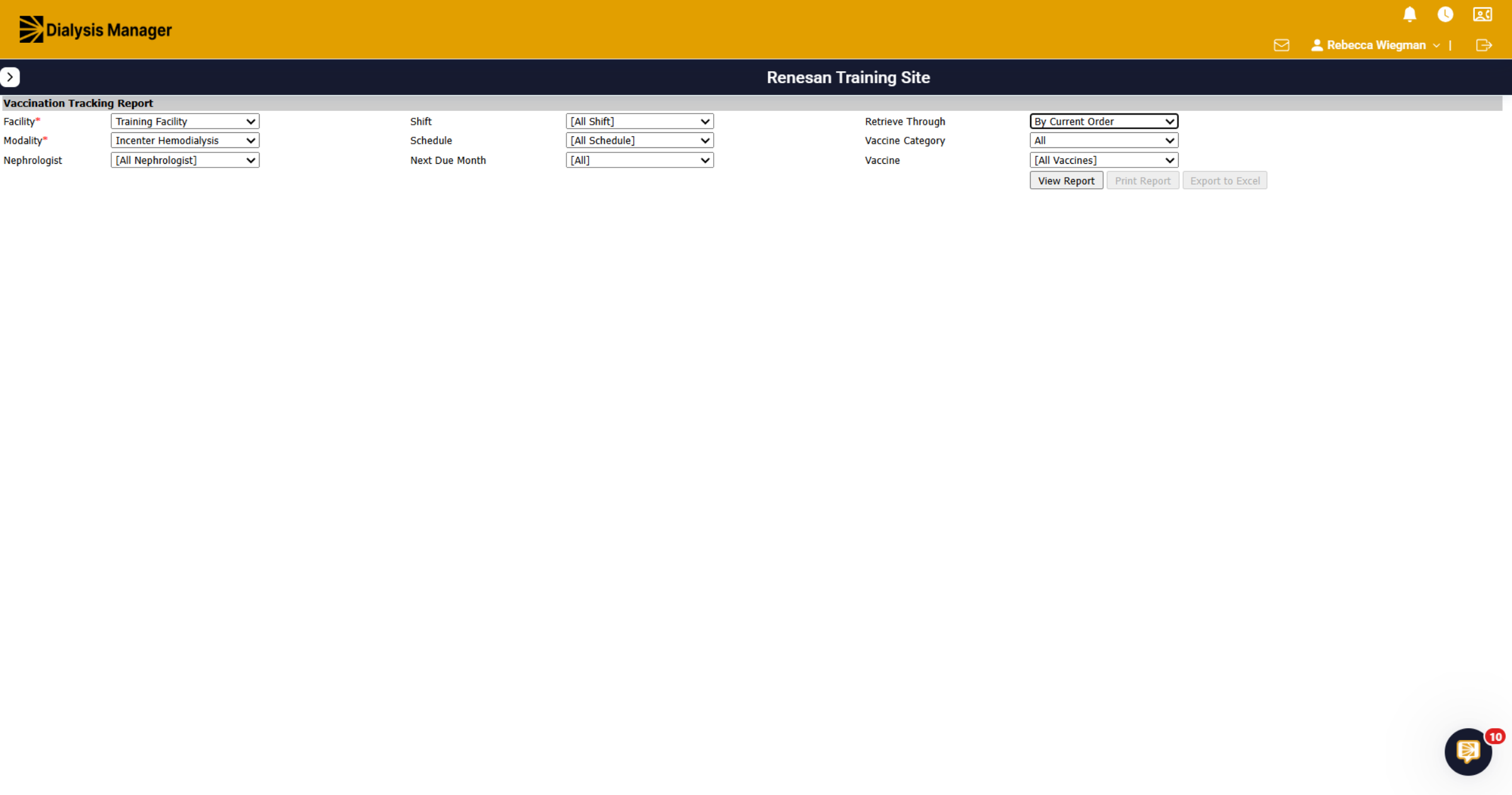
4. Confirguation
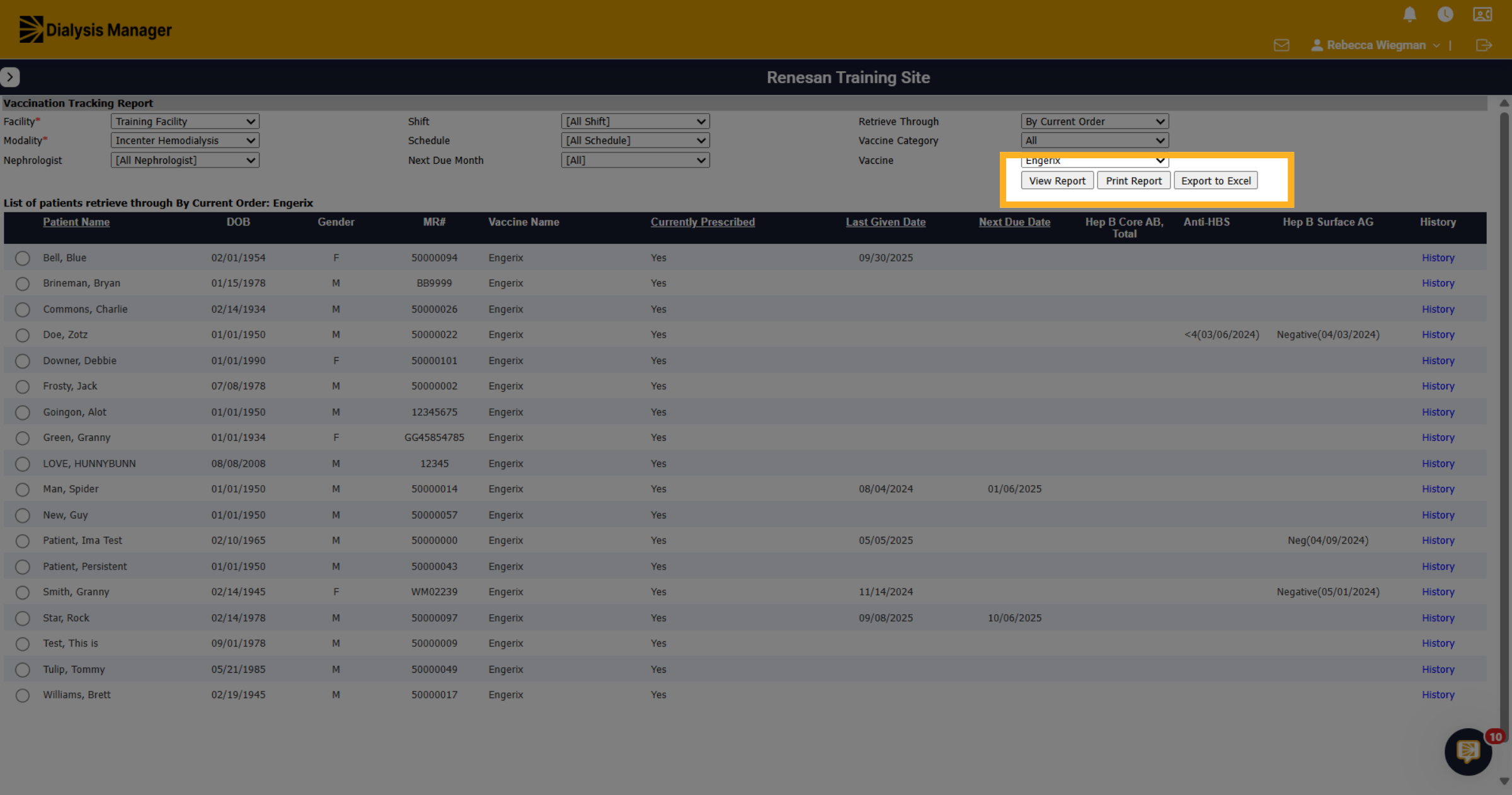
You have the ability to search for specific criteria. Please note that anything with a red asterisk is mandatory.
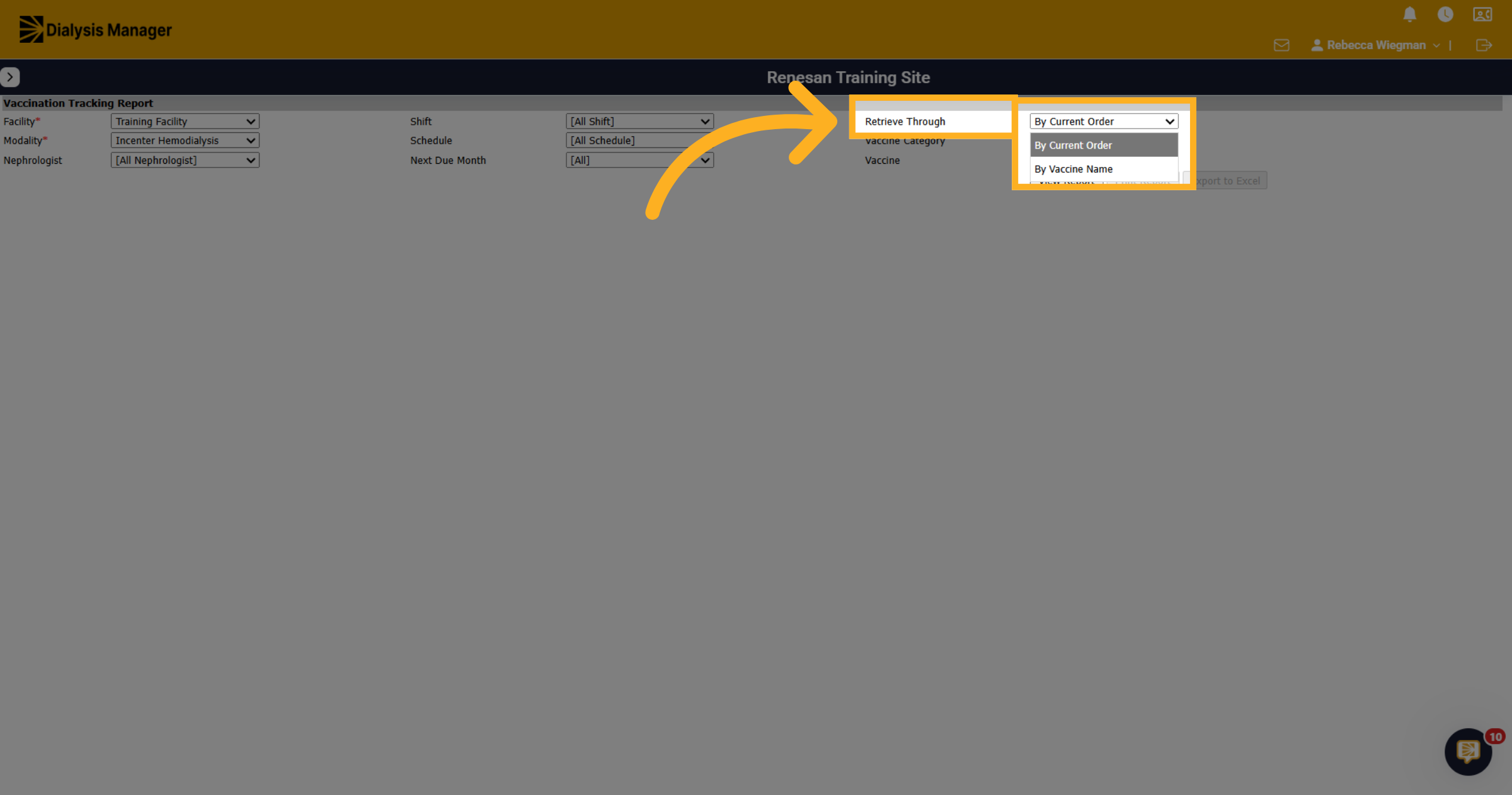
5. Retrieve Through
In the Retrieve through dropdown, you'll have the option of "By Current Order" or By Vaccine Name".
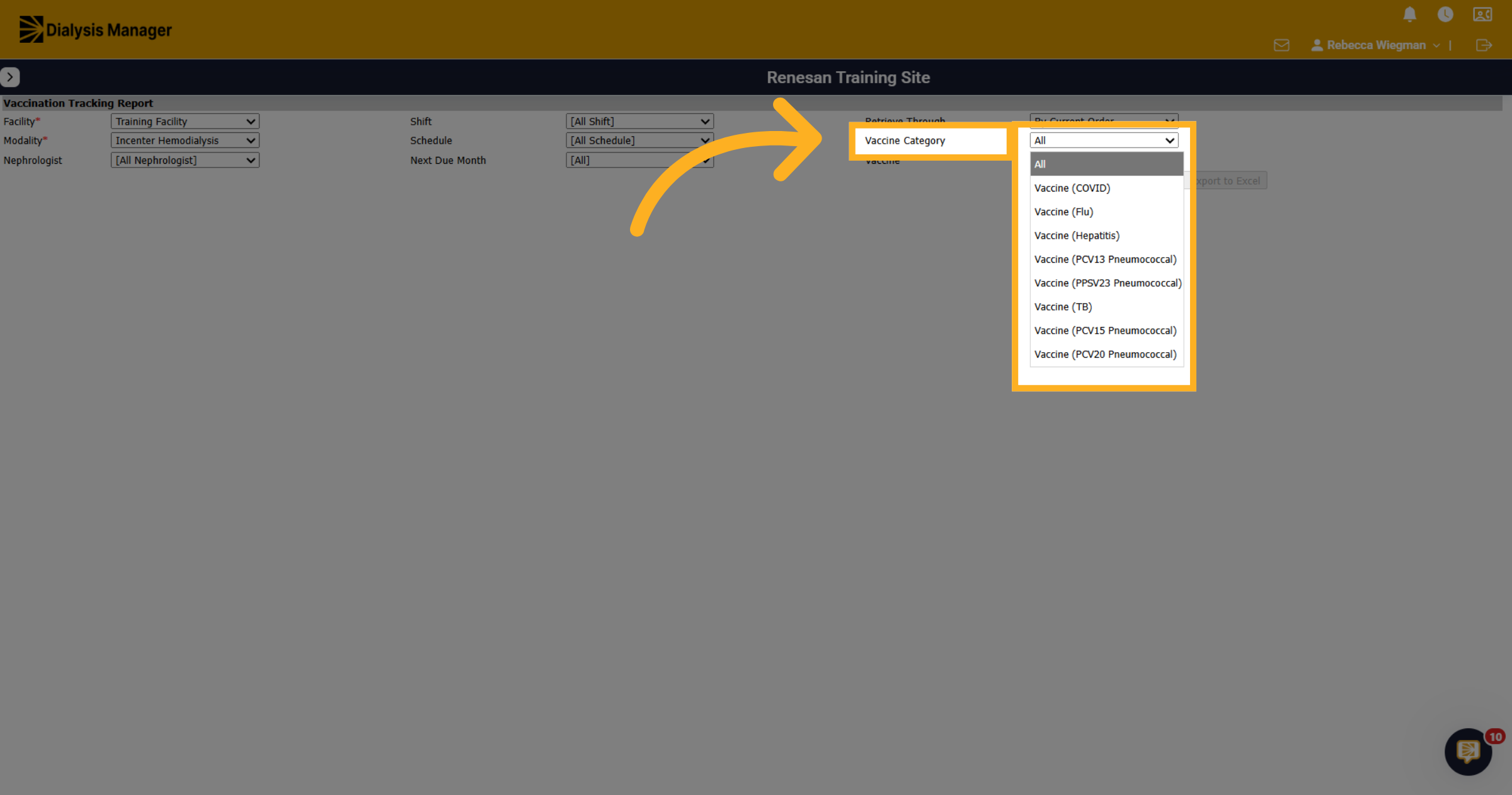
6. Vaccine Category
For the Vaccine Category dropdown, you can search for All or COVID, Flu, Hepatitis, Pneumococcal, or TB.
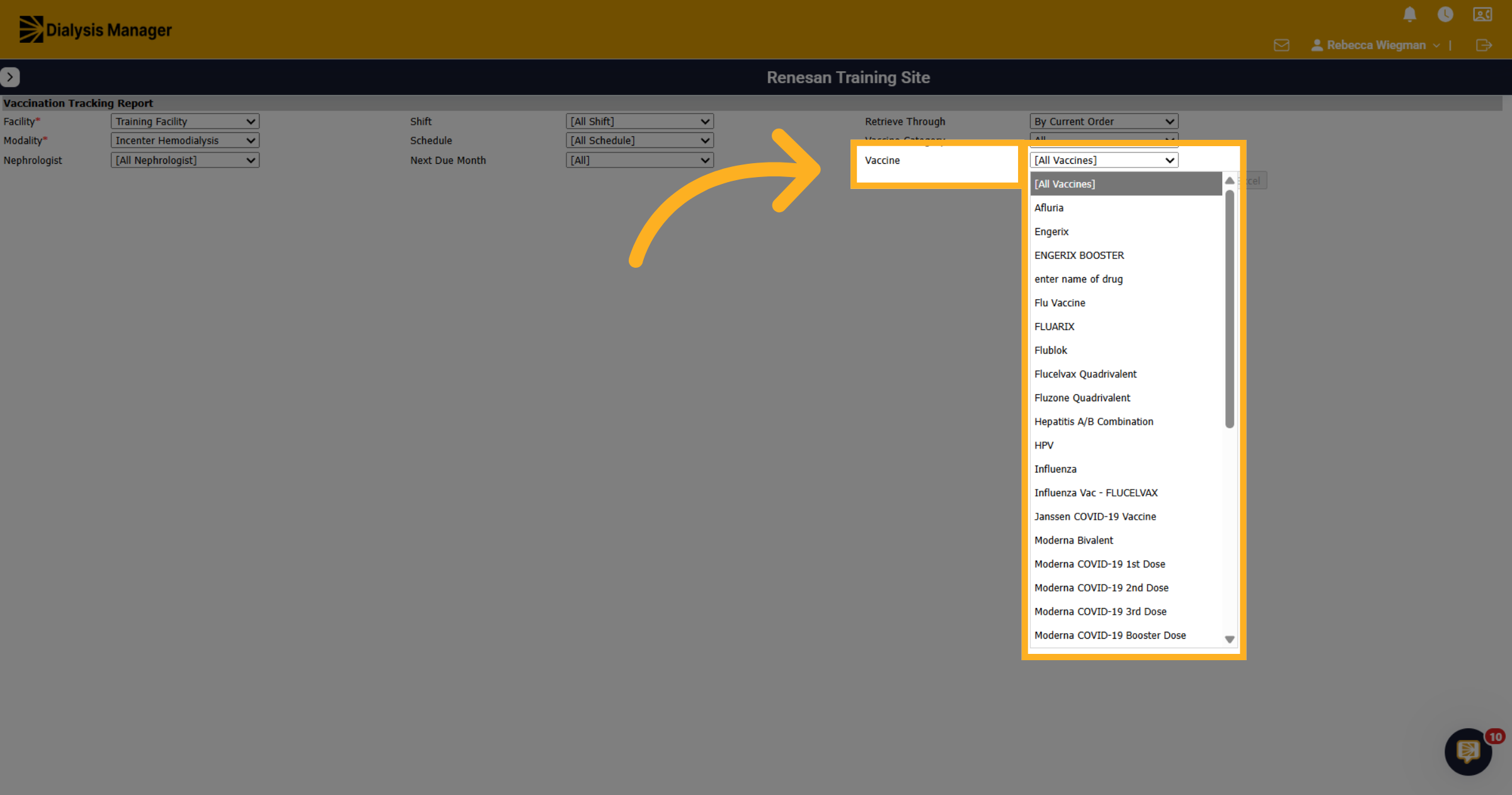
7. Vaccine
In the Vaccine dropdown, again you'll have the option to search for All, or by a specific vaccine.
8. Generate the Report
When clicking View Report, your list of patients will appear per the criteria you selected.
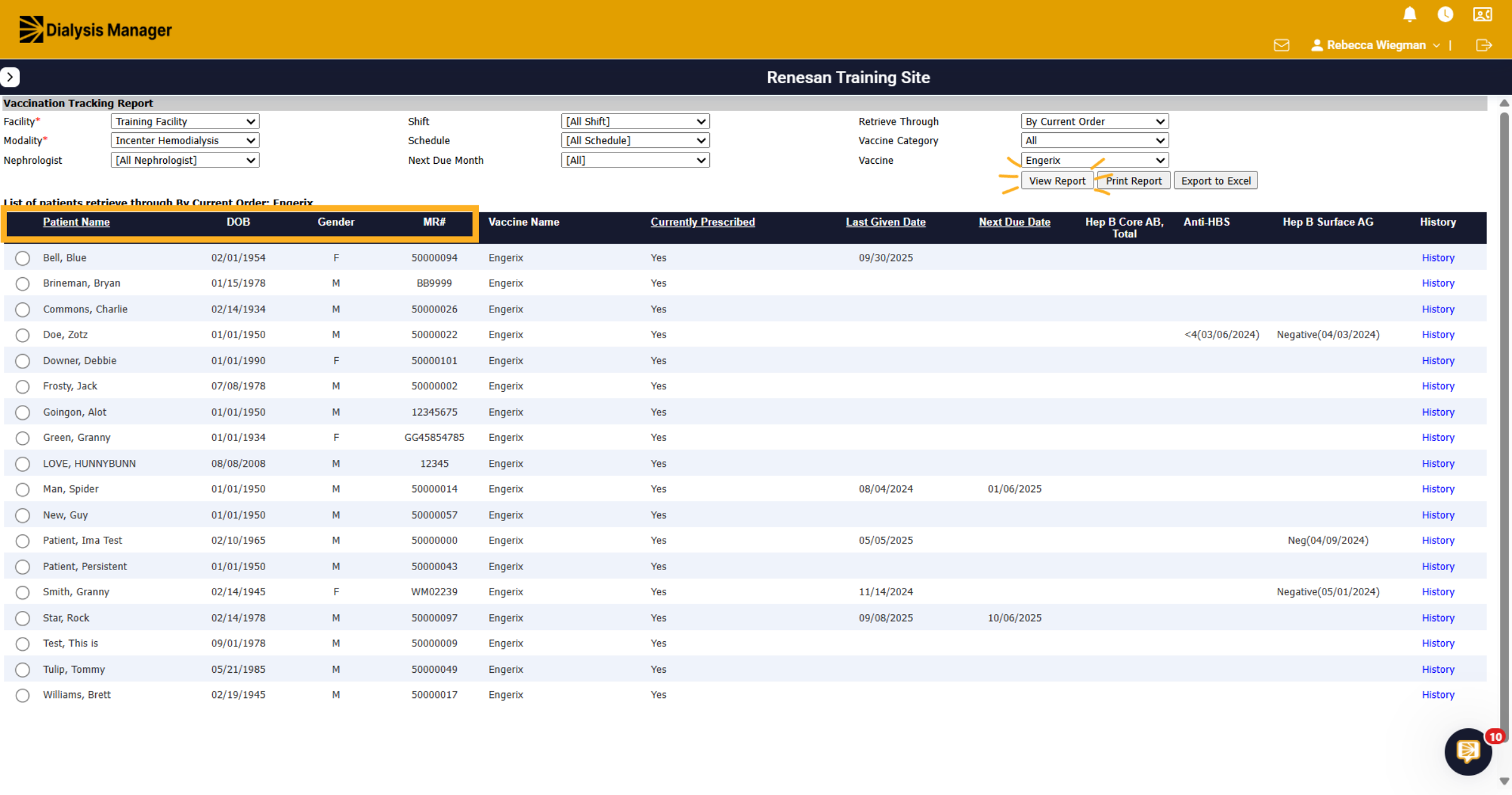
9. Information
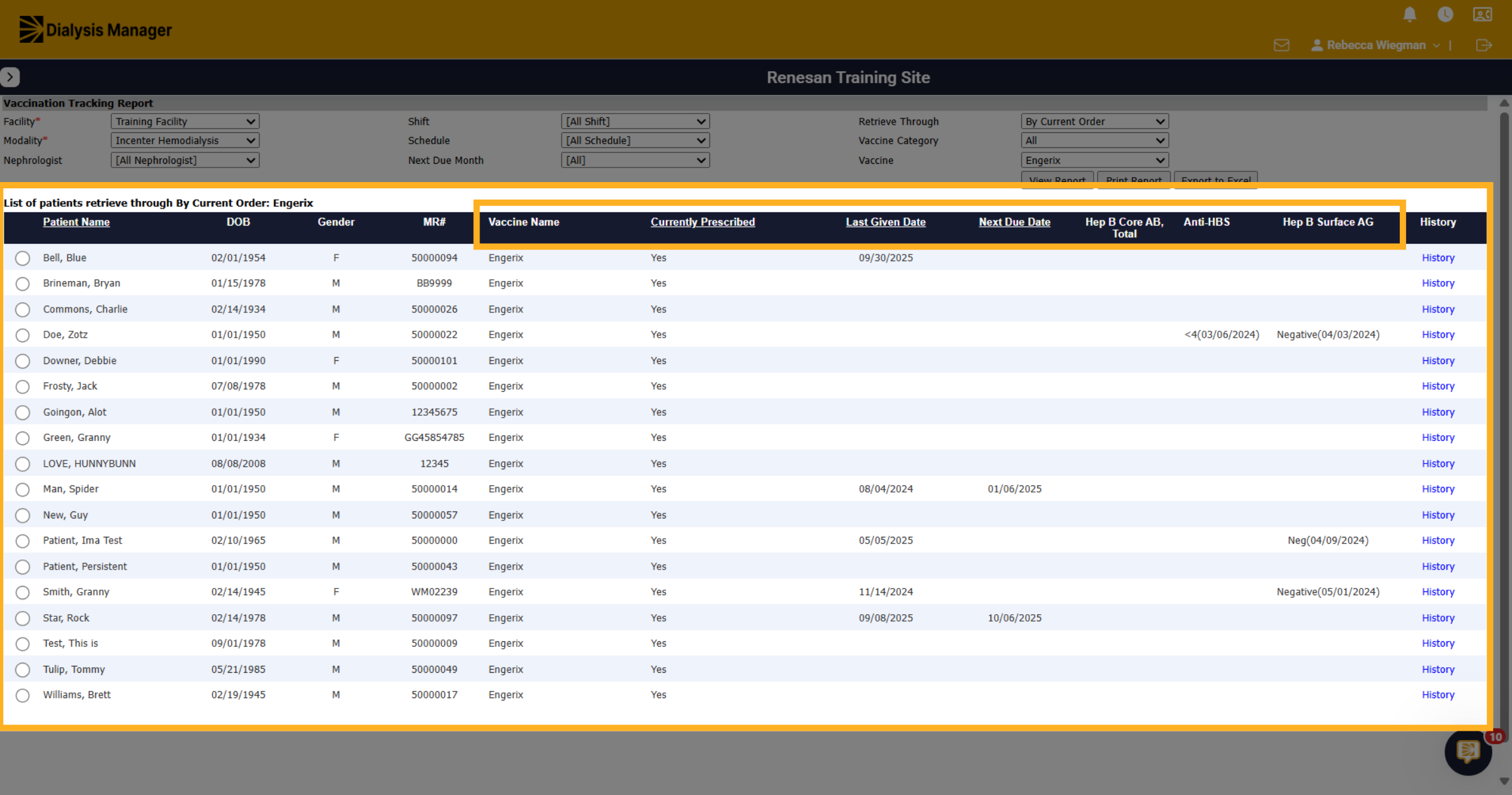
Columns for Vaccine Name, Currently Prescribed, Last Given Date, Next Due Date and labs results will appear.
10. History
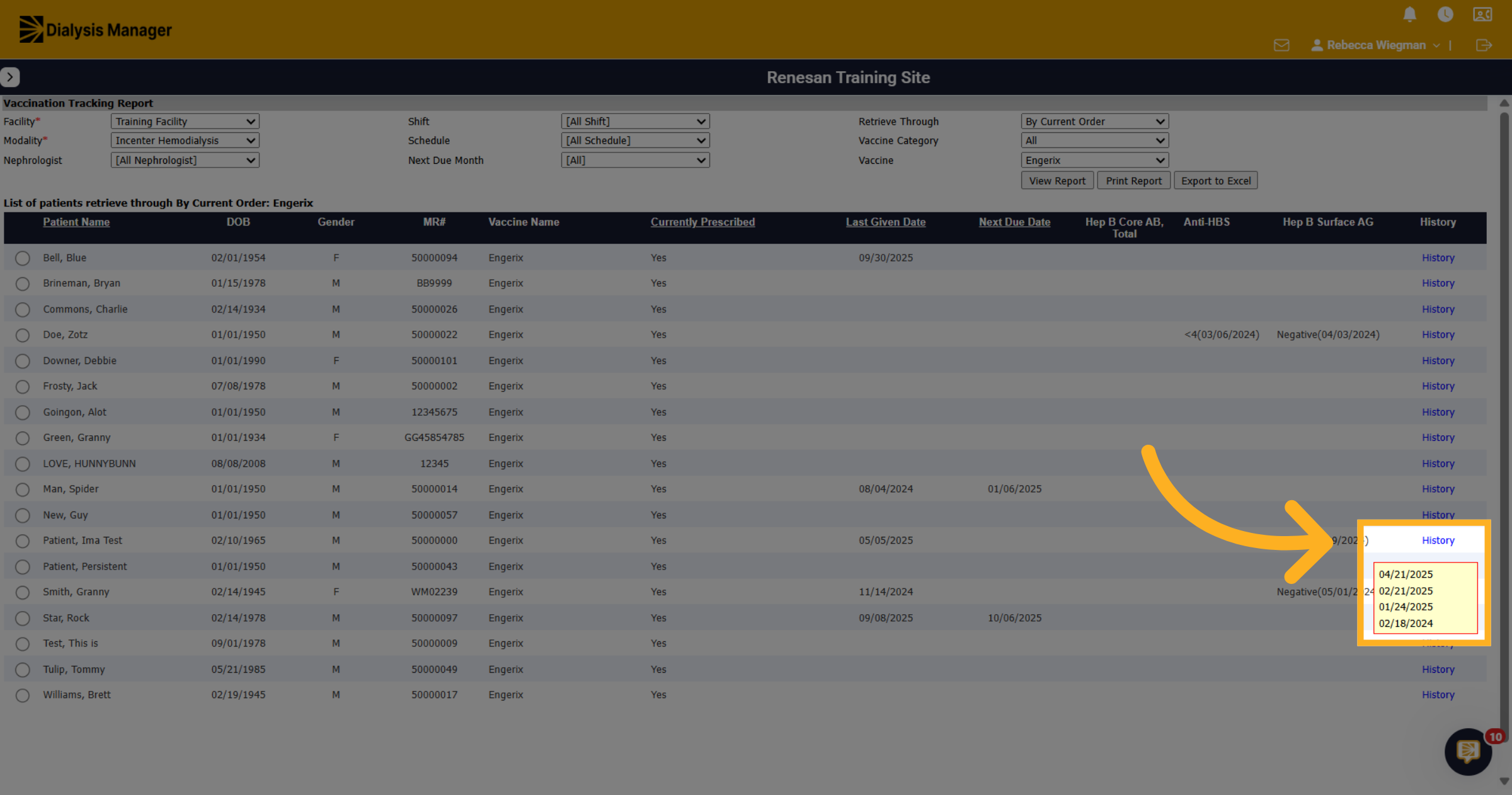
Hovering over the blue hyperlink "History" will display when the patient received the vaccination.
11. Additional
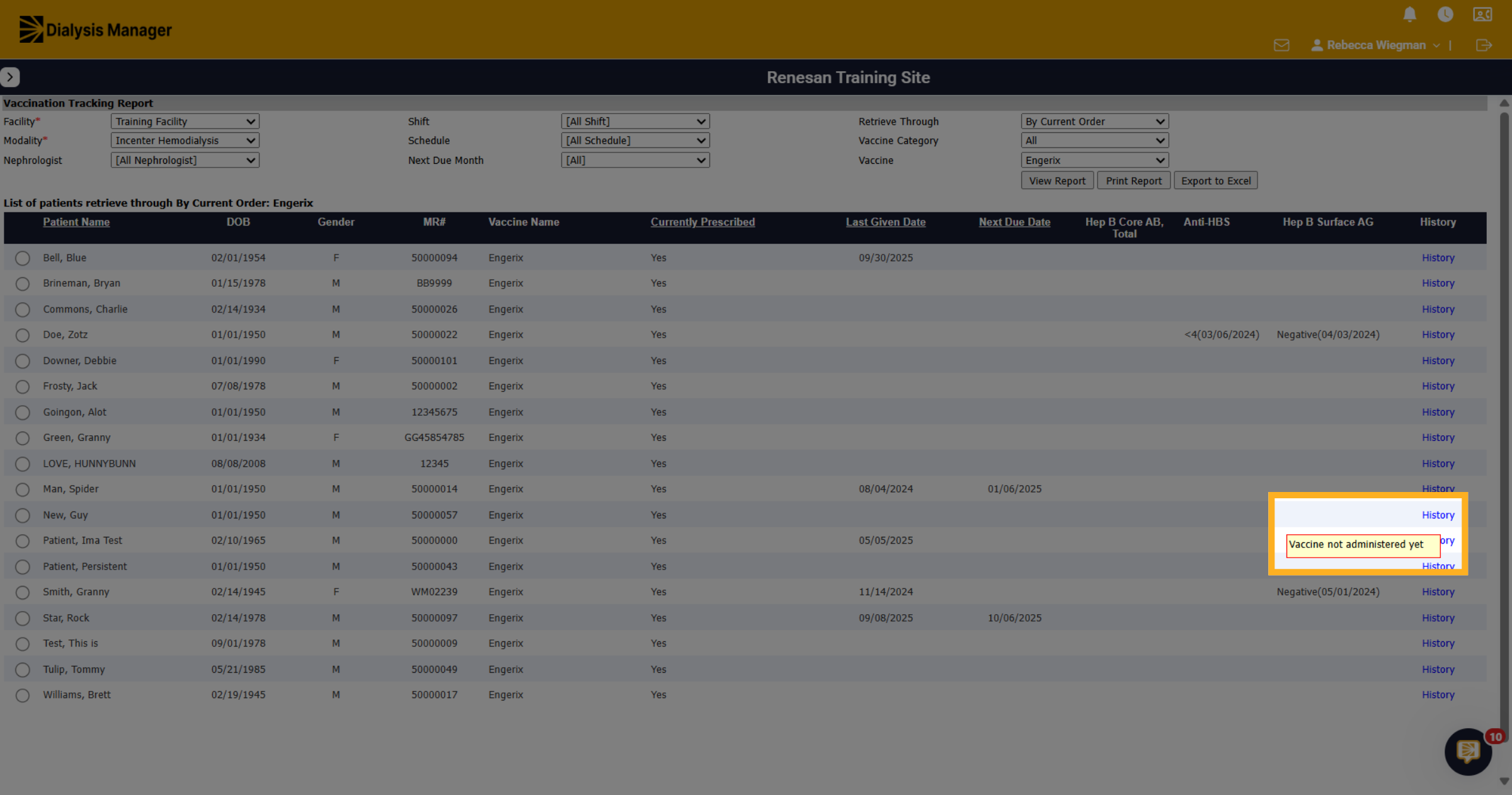
You may also hover over History and see that the vaccine was not administered yet.
12. Complete Report Review
Please note that your able to Export to Excel or Print Report!