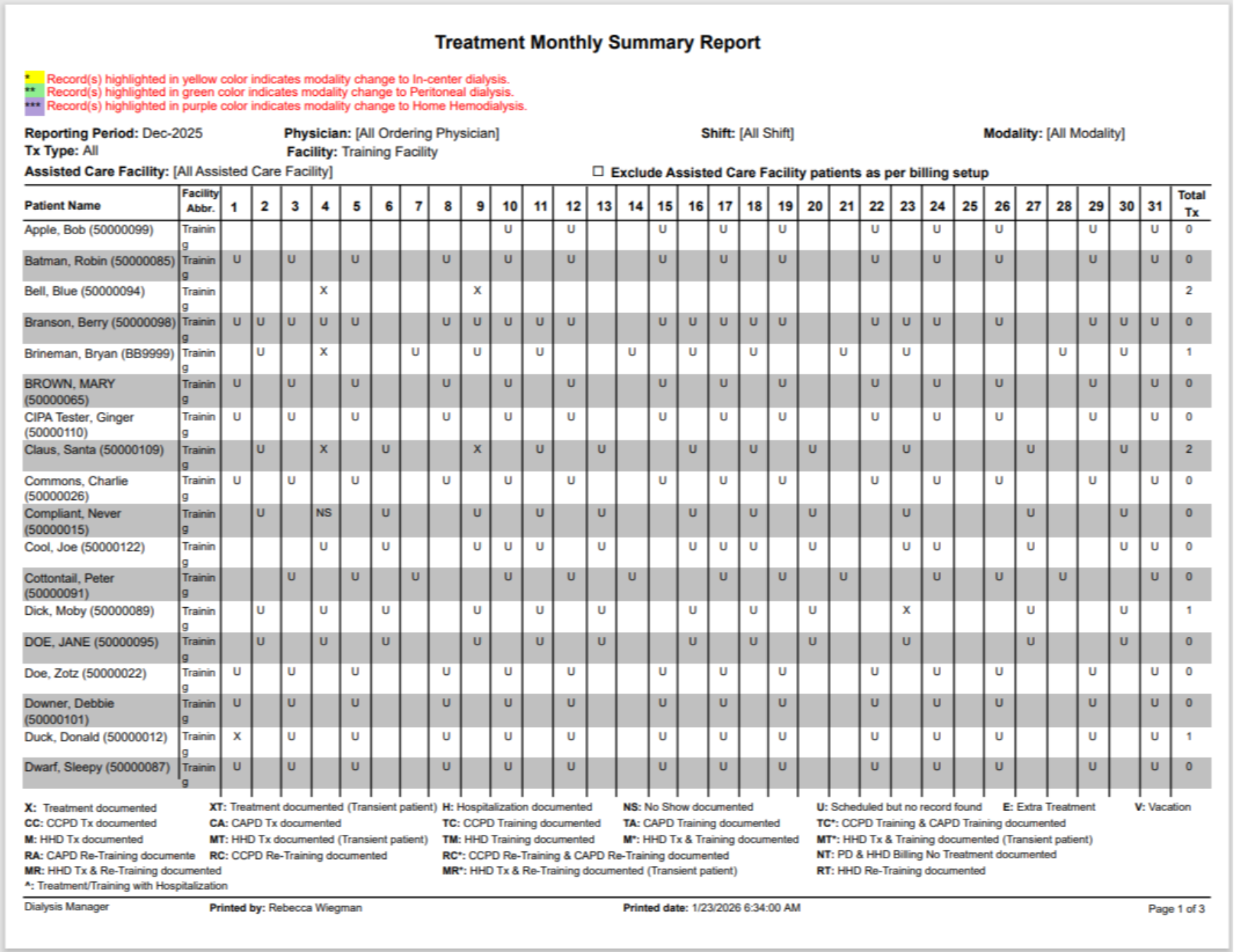
Report: Treatment Monthly Summary.
1. Introduction
In this video we will walk through running the Treatment Monthly Summary report to view detailed treatment data efficiently.
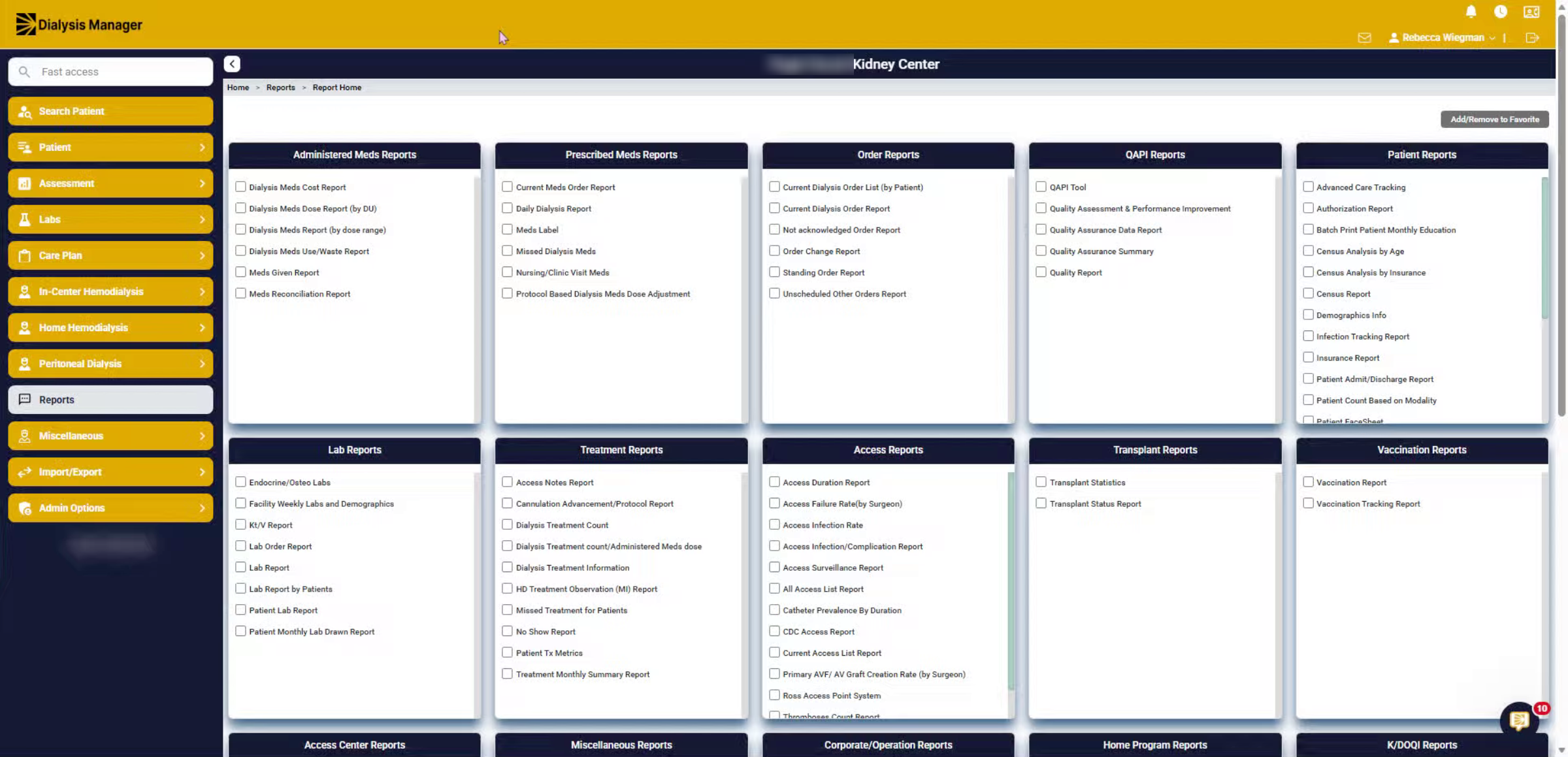
2. Report Menu
Under the Report menu select the Treatment Monthly Summary Report to review monthly treatment data. Please note that hovering over any report name will display a description of the report.
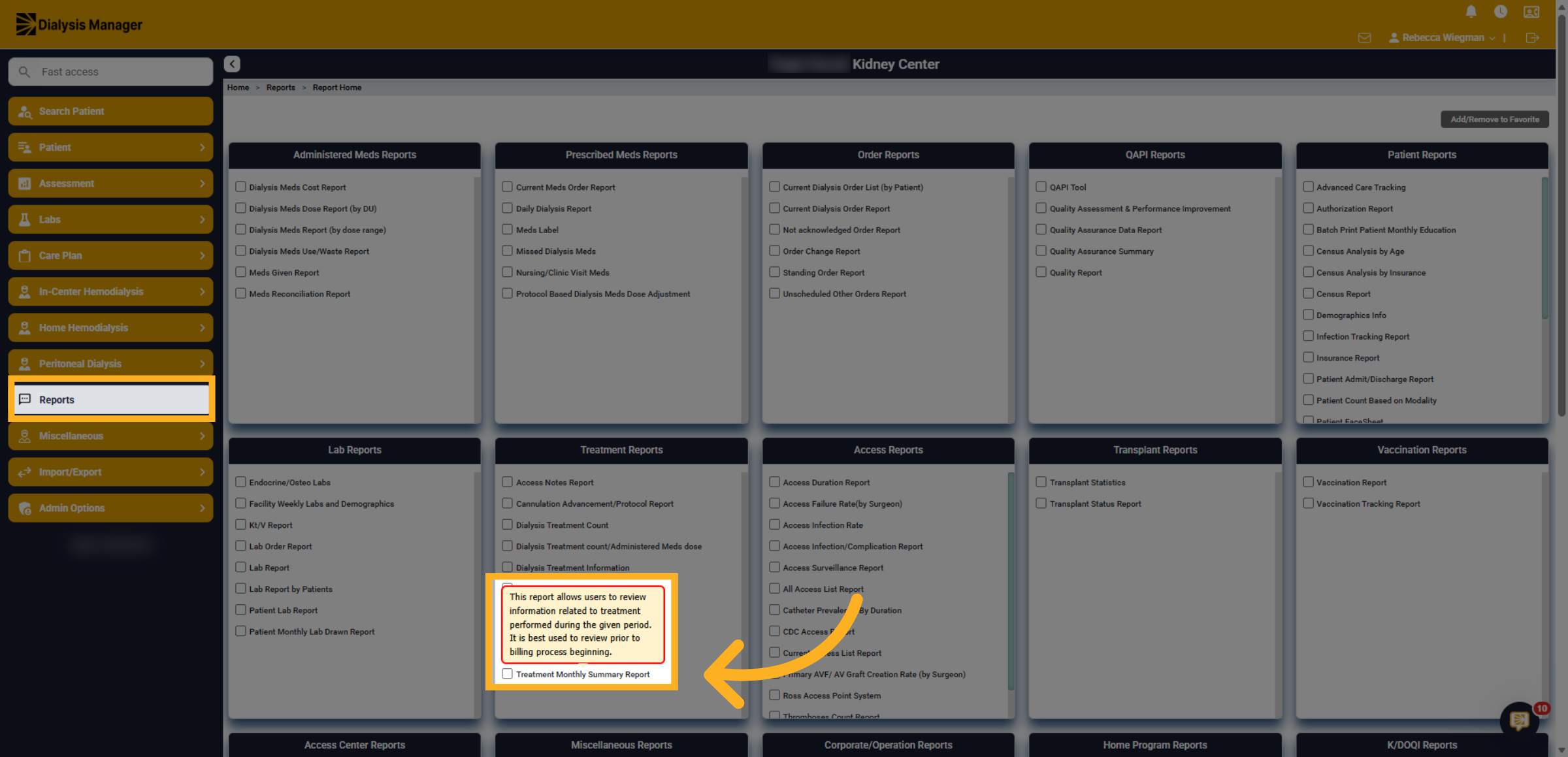
3. Treatment Monthly Summary Report Filters
Filter the report by the reporting Month and year and select a facility. All other filters such as ordering physician, modality, treatment type, etc. are optional.
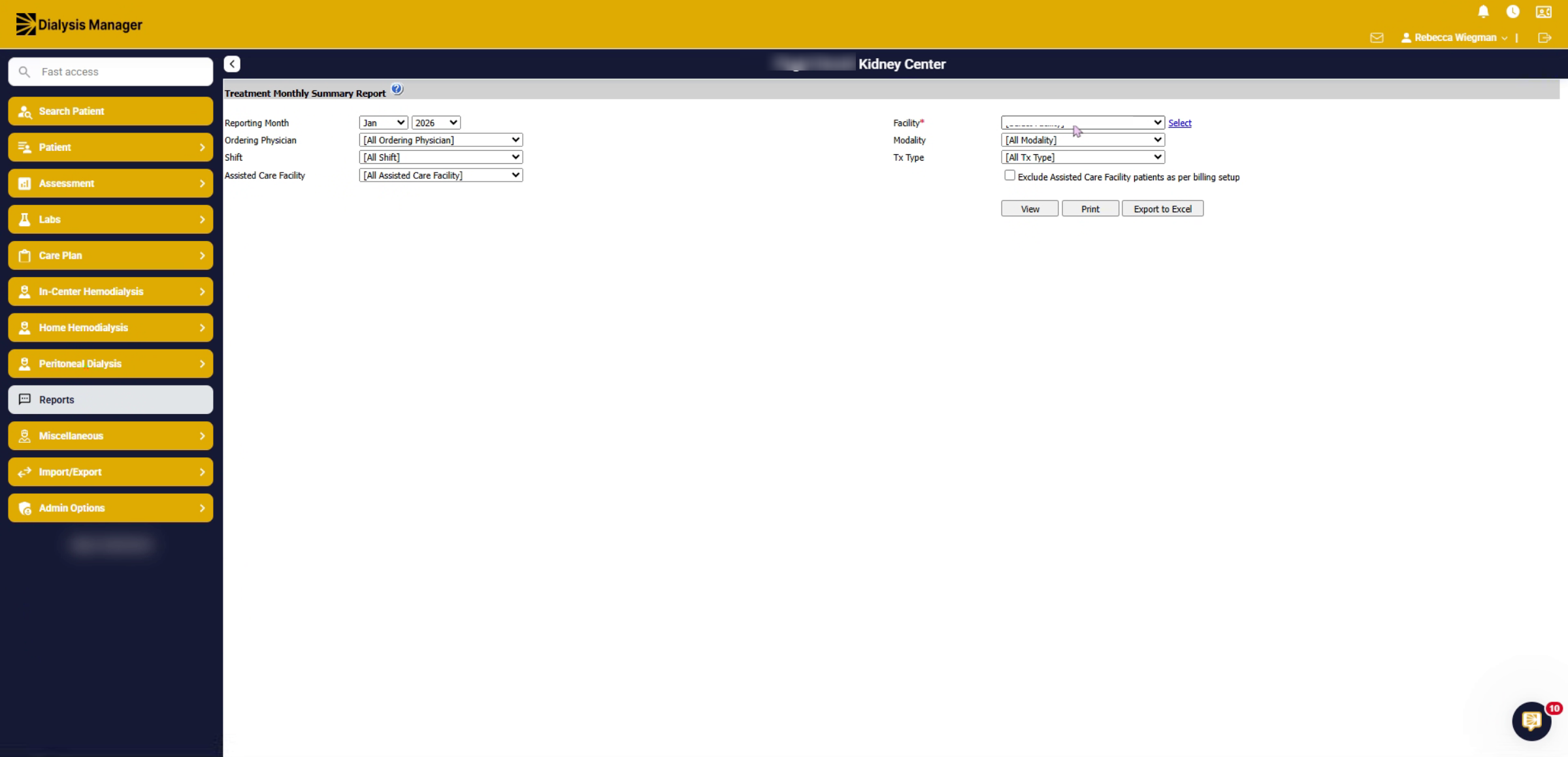
4. Treatment Monthly Summary
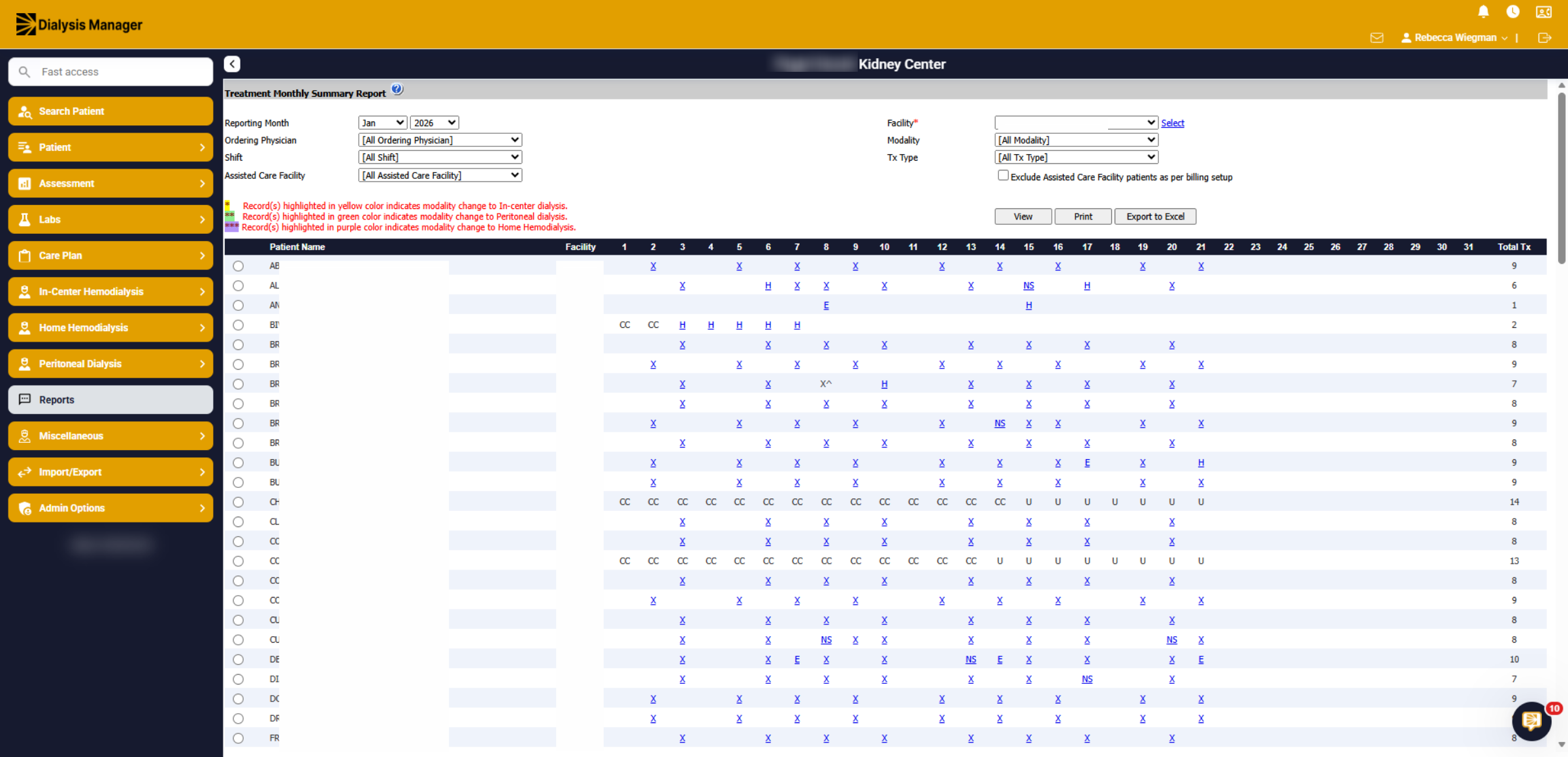
You'll see a list of patient names down the left column. Across the top will be the day along with abbreviations. On the far-right hand side you'll see the total treatment count for that specific patient for the month selected.
5. Legend Key
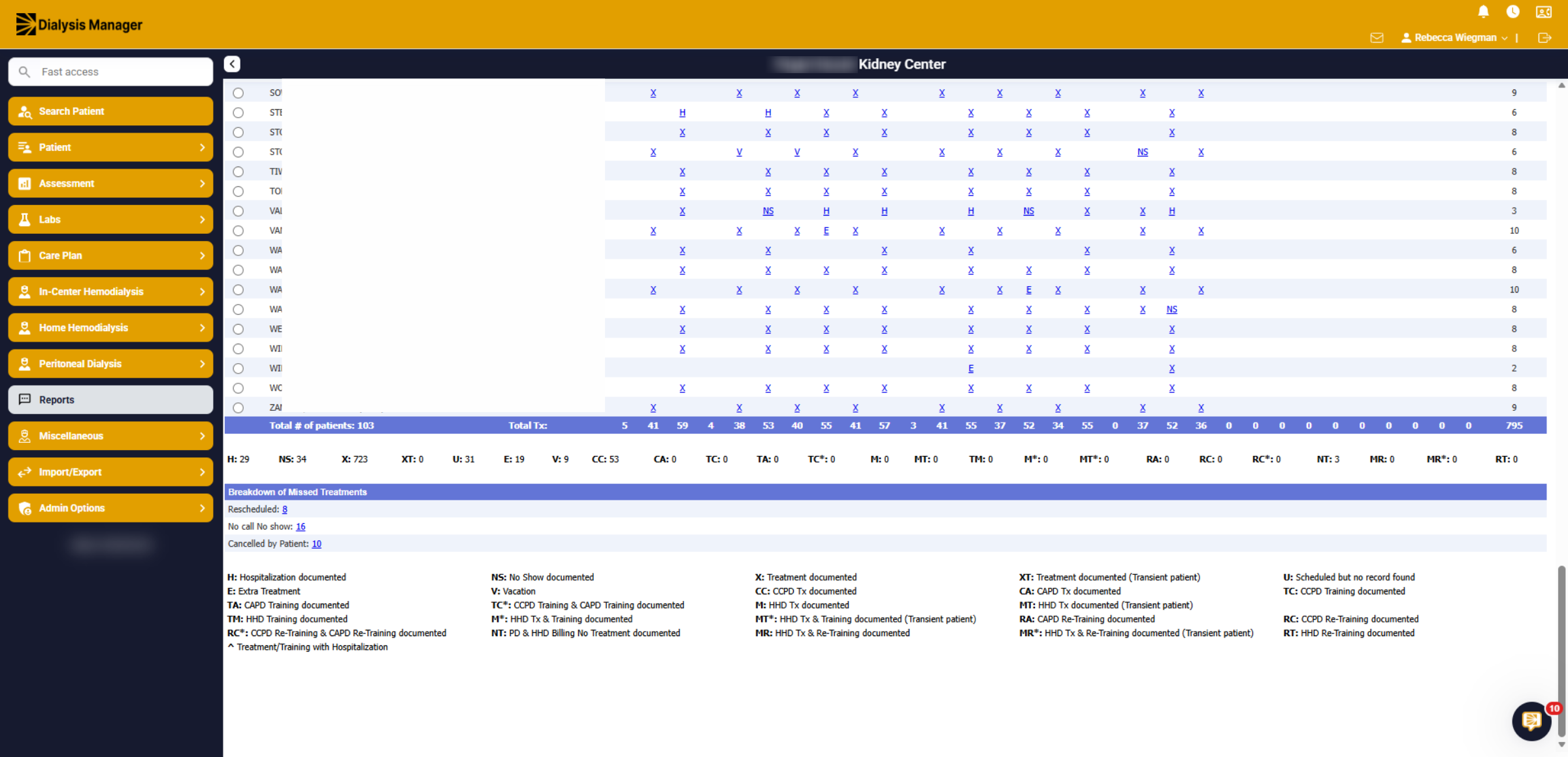
Towards the bottom of the graph, you'll see the legend key to explain the abbreviations in the graph above.
6. Hovering
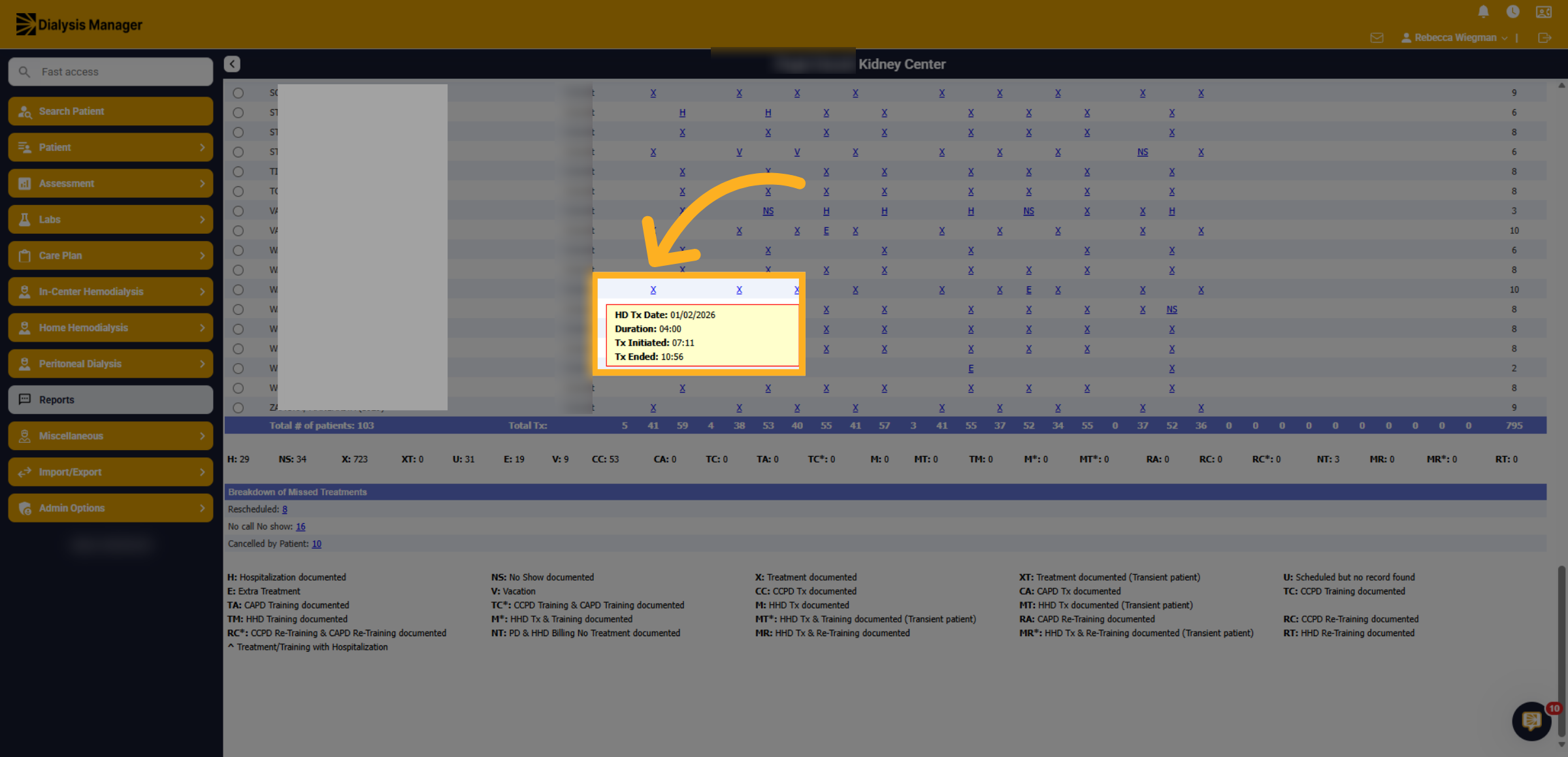
Hovering over the blue hyperlinks will display additional information. You are also able to select the hyperlink to open specific information regarding that day such as treatment flowsheets, hospitalizations, no shows documented, etc.
7. Totals
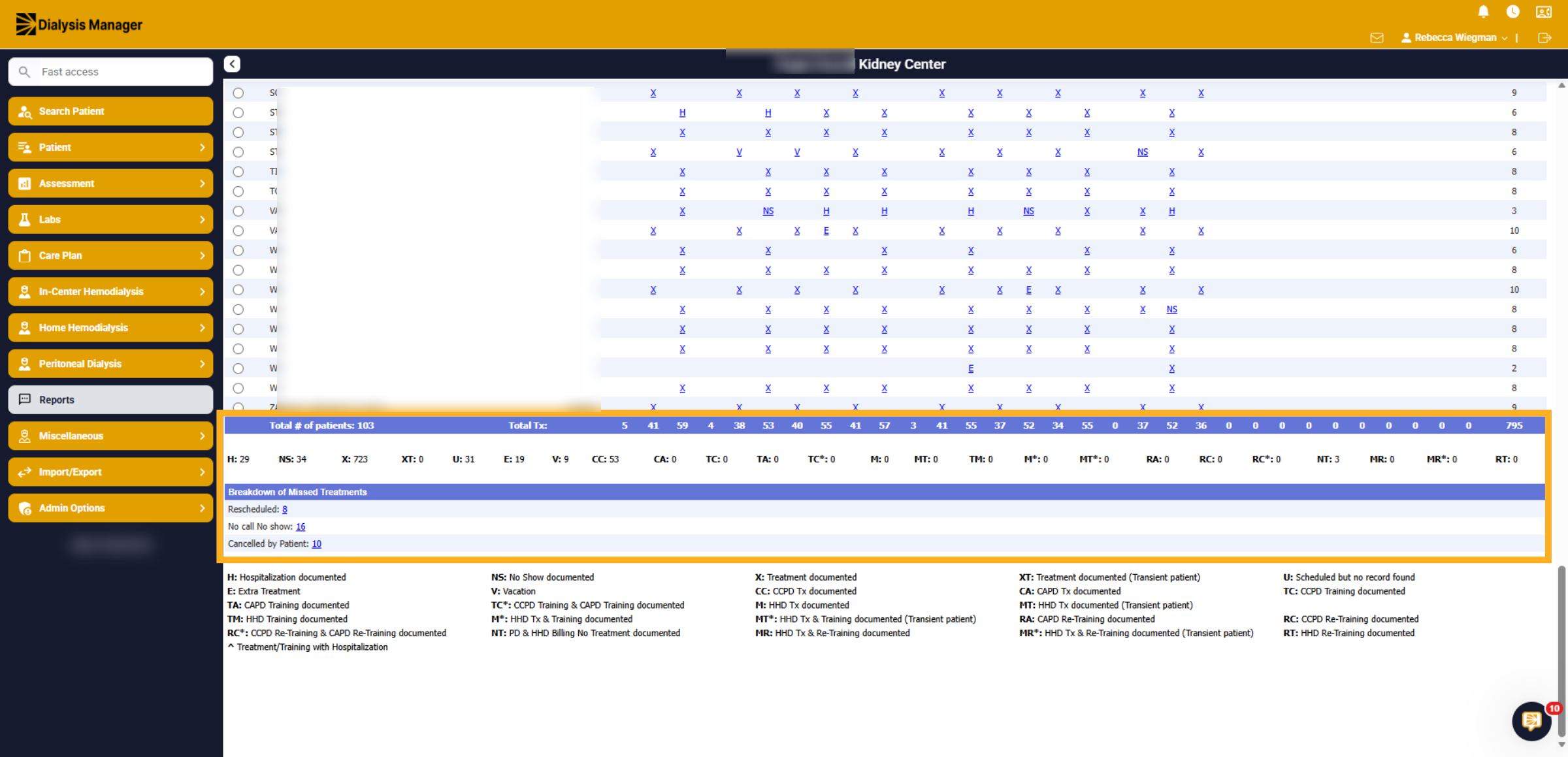
Towards the bottom, you'll see the totals per the date selected. The total patient count, treatment count, along with the breakdown of missed treatments. To the far right you'll see the total treatment per patient.
8. Print Report
You do have the option to Print the report or Export to Excel.