Report: Transplant Status.
1. Introduction
This video will walk you through the Transplant Status Report.
2. Select Transplant Status Report
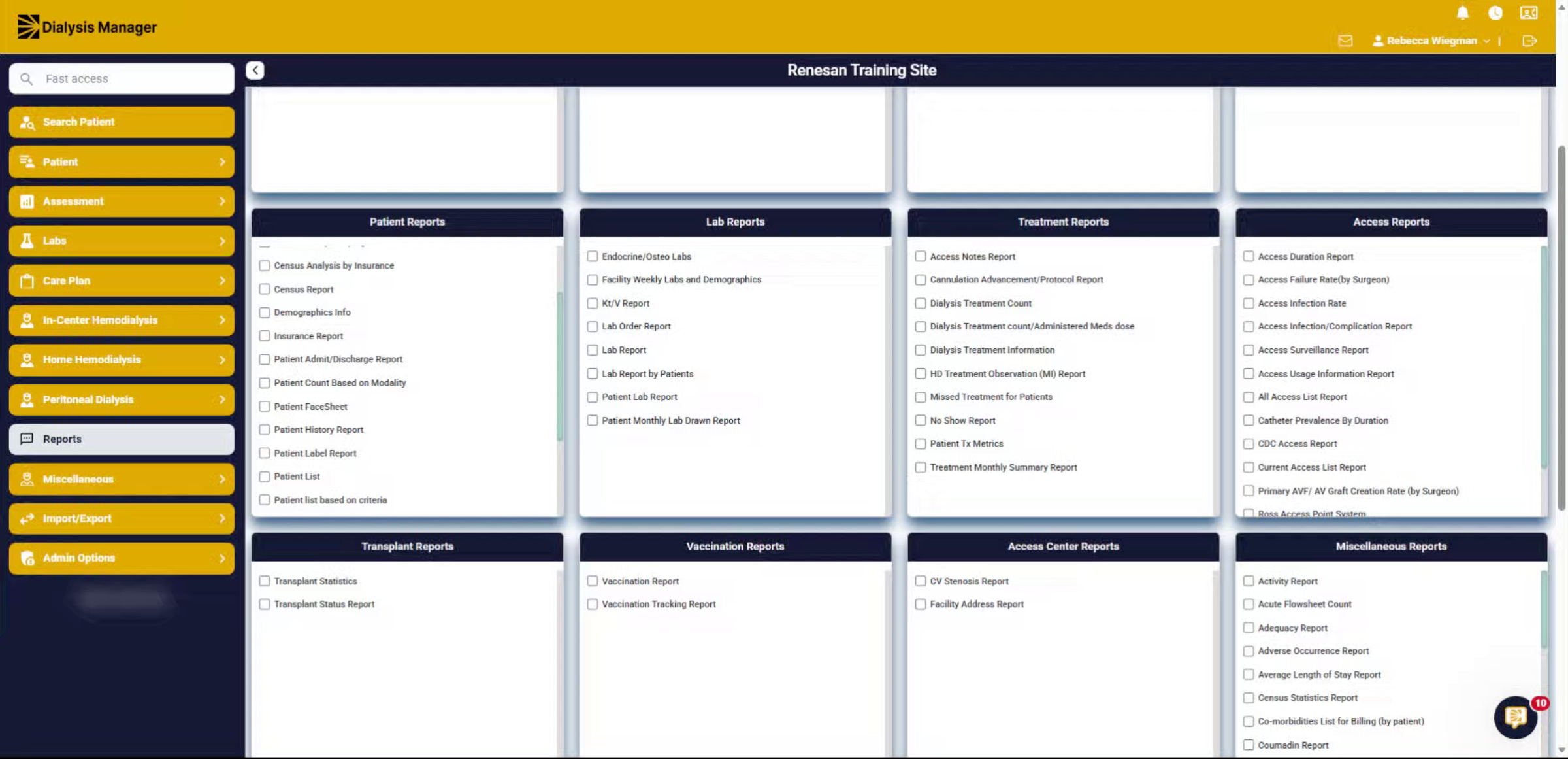
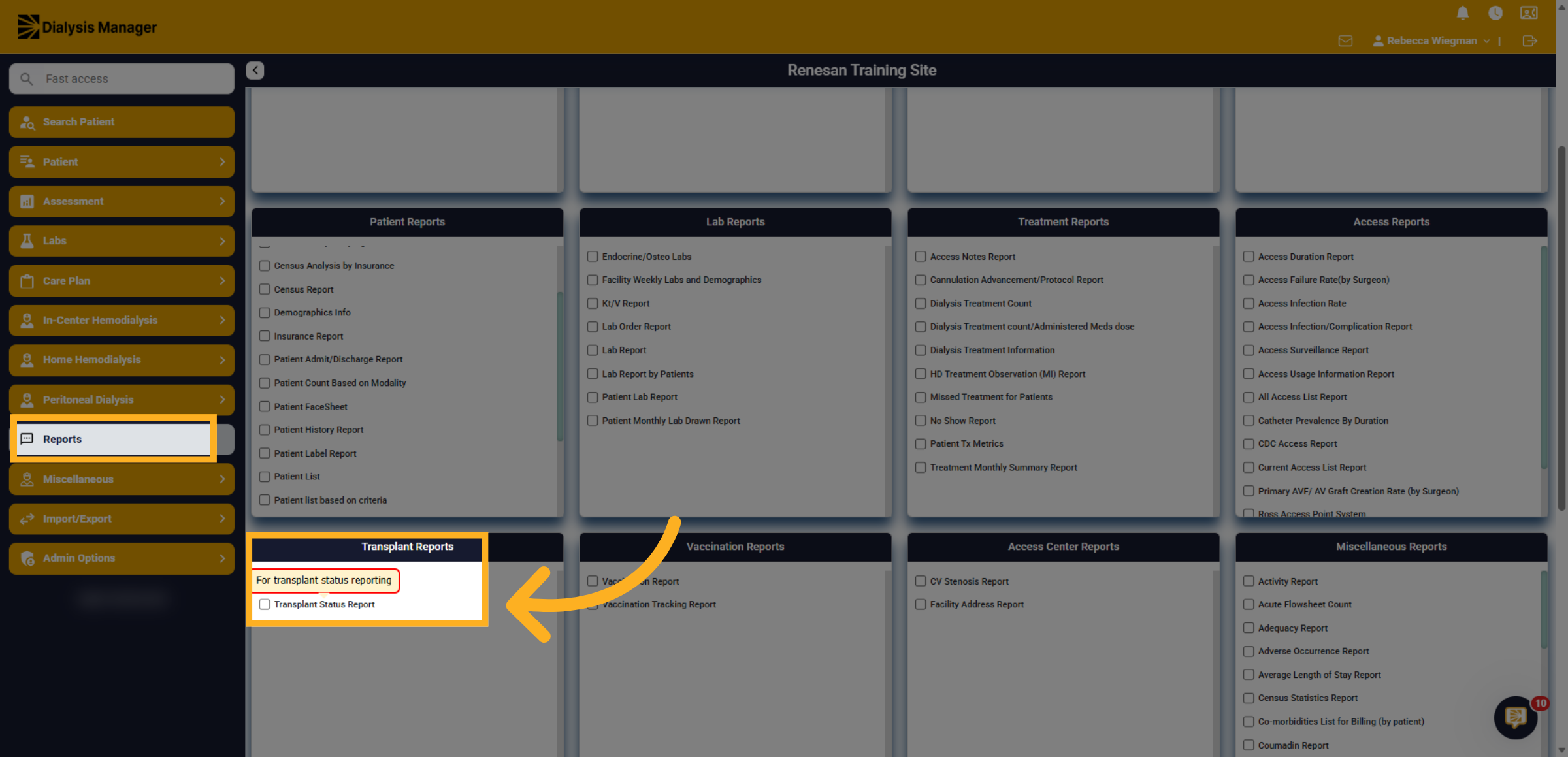
Inside the Report Menu, search for Transplant Status Report.
3. Open Report Filters
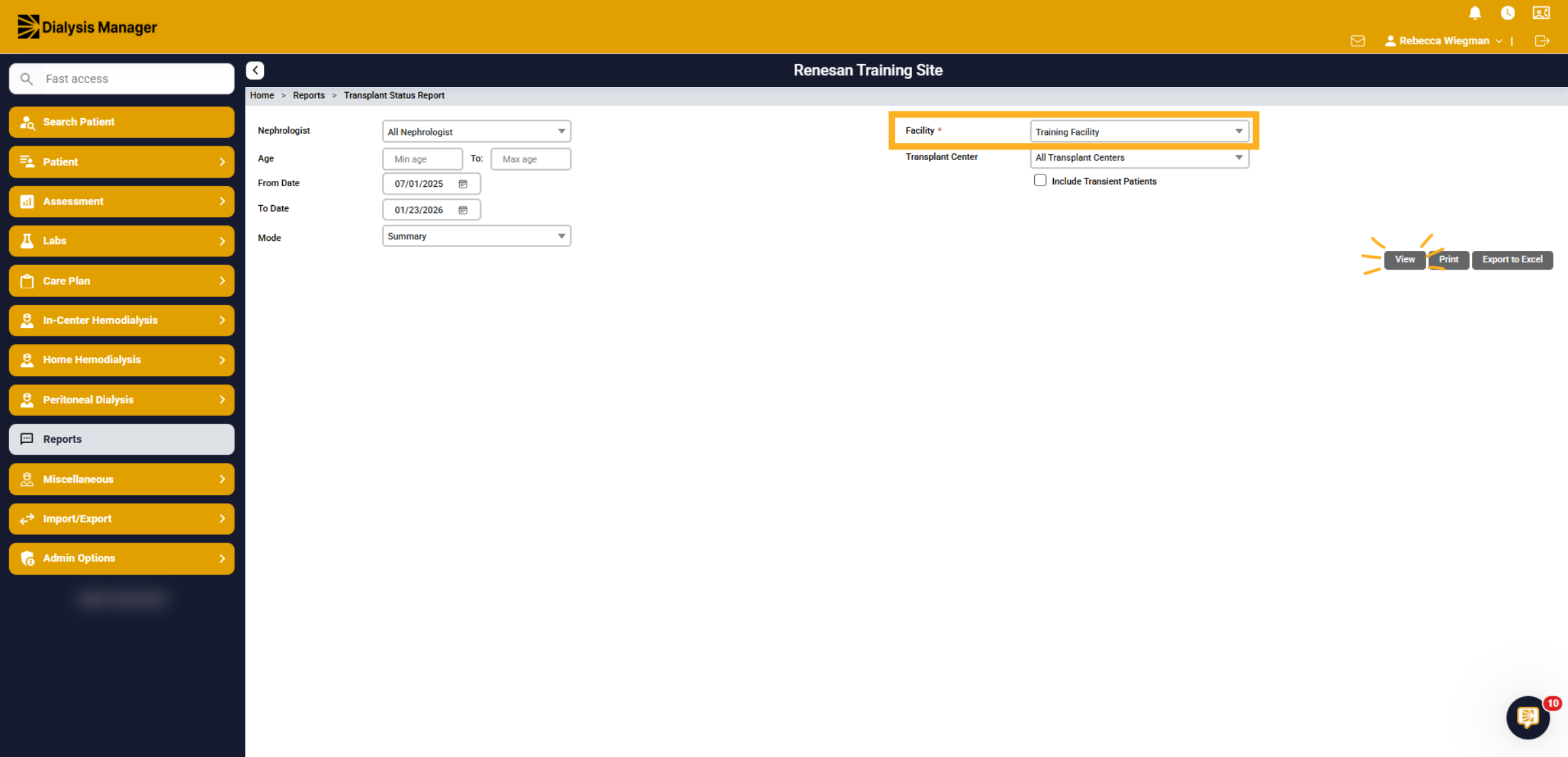
You have the ability to filter per nephrologist, age range, date range and transplant center. You can select to include transient patients and a Mode of Summary or Detail. Detailed mode will allow you to see any notes associated. If your associated with multiple facilities, you would need to select a specific one as it is a mandatory field. Once you have selected your filters click View!
4. Transplant Statue
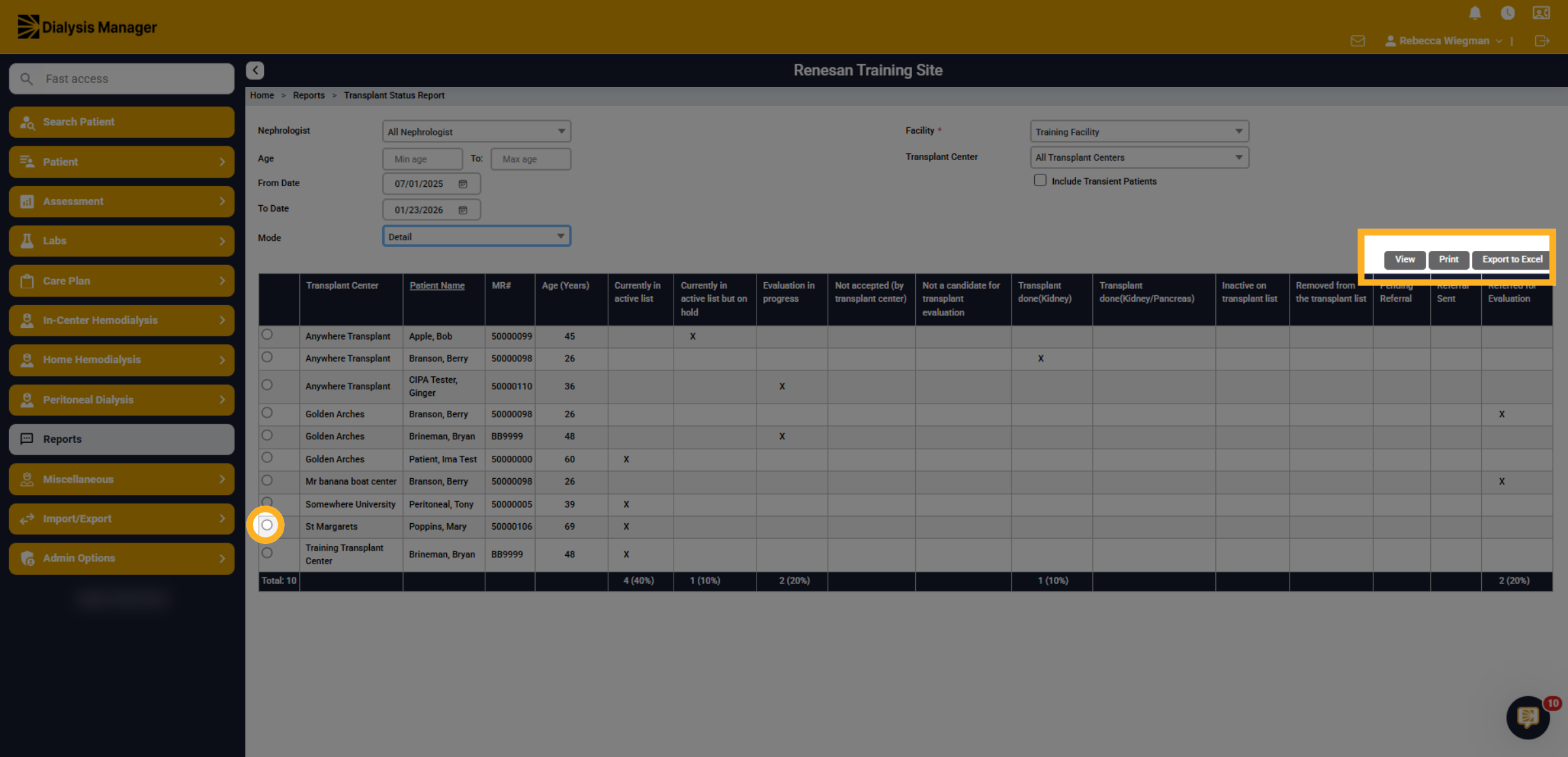
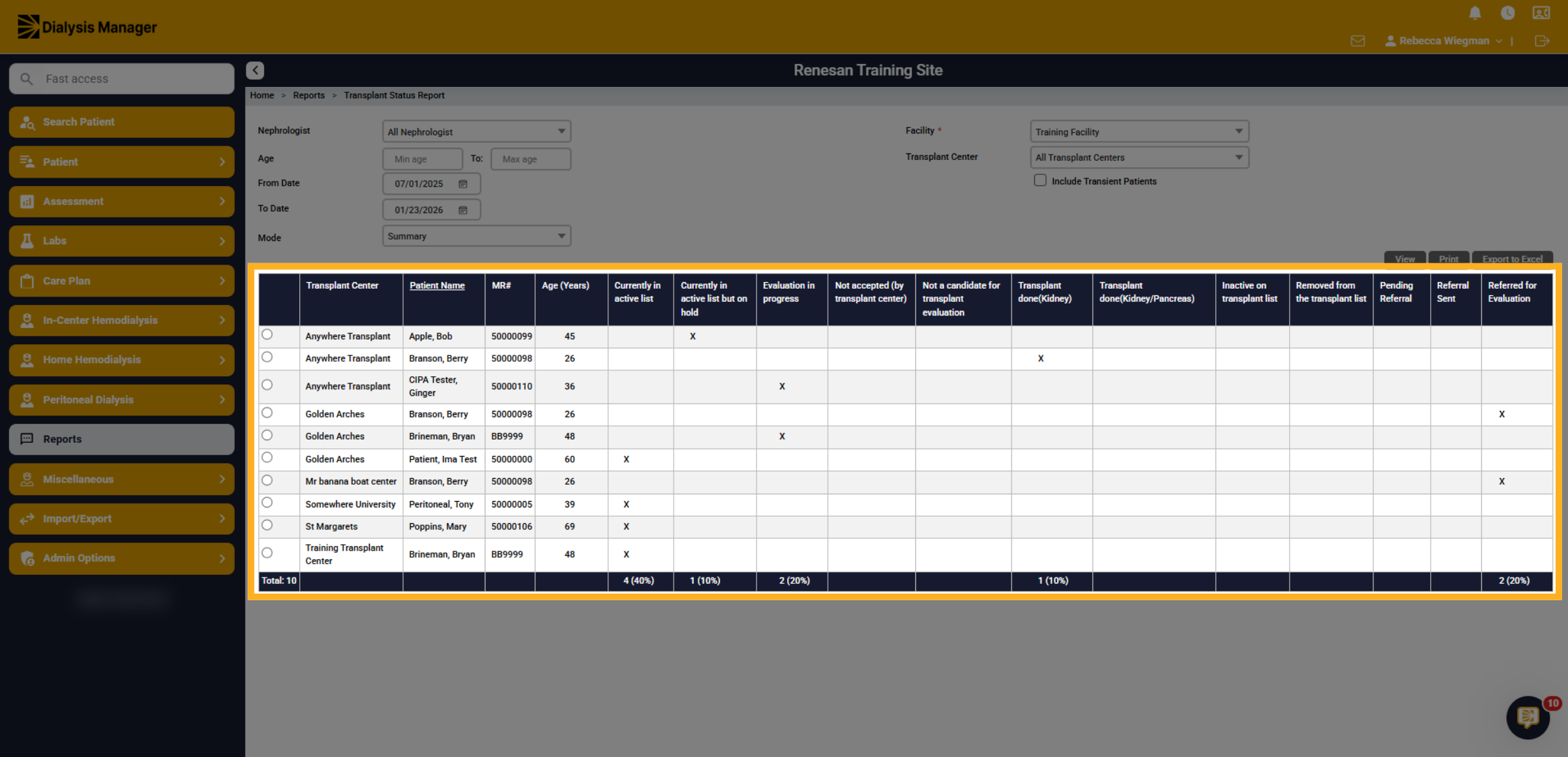
Your list of patients will populate, displaying their medical record number, age and if they are associated with a Transplant Center. You will also see if they fall in the category of, currently in active list, active list but on hold, evaluation in progress, not accepted by transplant center, not a candidate for evaluation, transplant done for Kidney or pancreas, inactive on transplant list, removed from the transplant list, pending referral, referral sent or referred for evaluation.
5. Patient Count
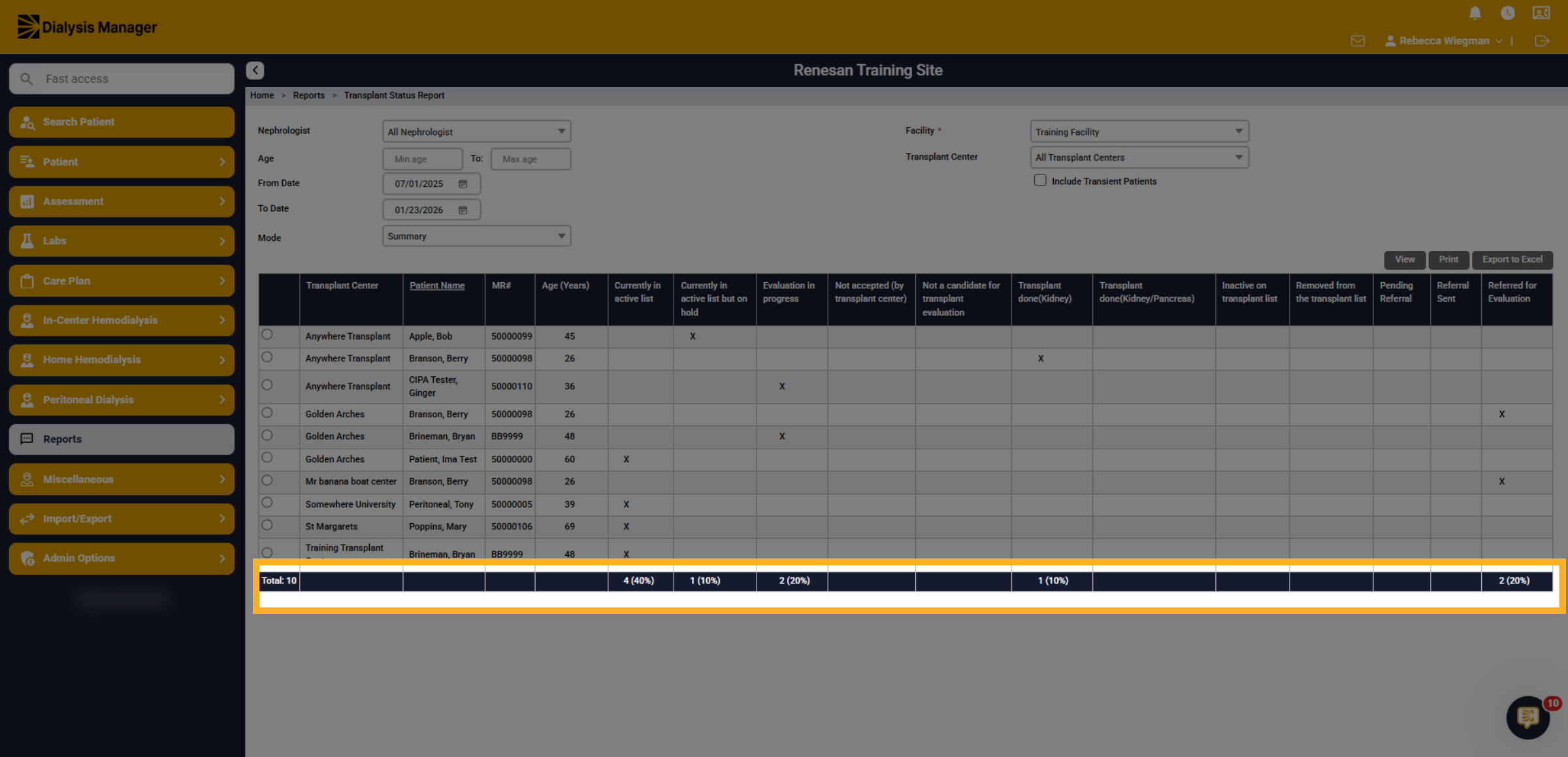
Towards the bottom you'll see the patient count along with the percentage for each category.
6. View Option
Please note that you always have the ability to view the report, print or export to excel! Also selecting the radio button to the left of the patient's name will select that patient, you'll then be able to drill into the Patient menu and select transplant if you would like additional information or need to make updates!