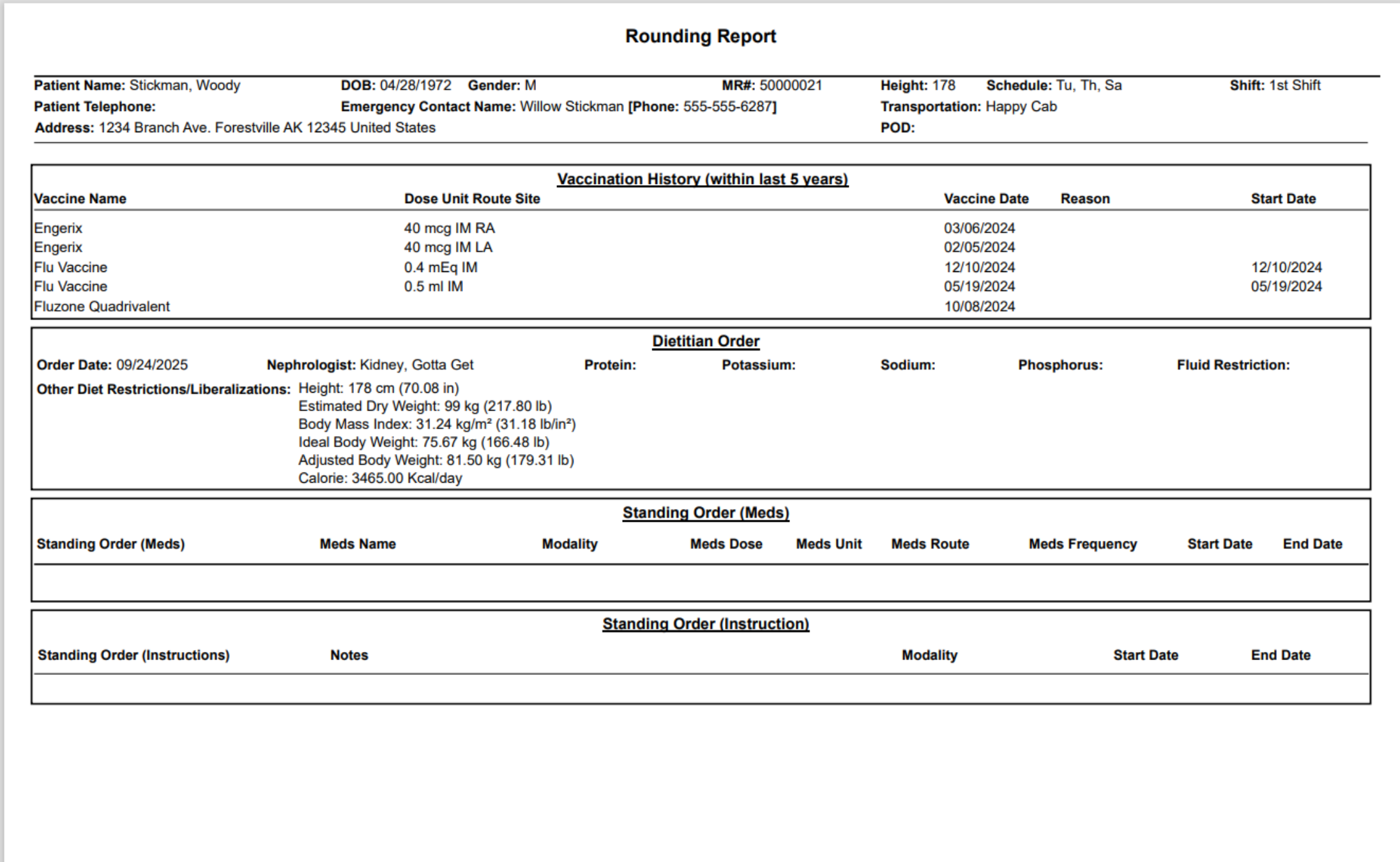
Report: Rounding Report.
1. Introduction
This tutorial guides you through generating a Rounding Report in Renvio.
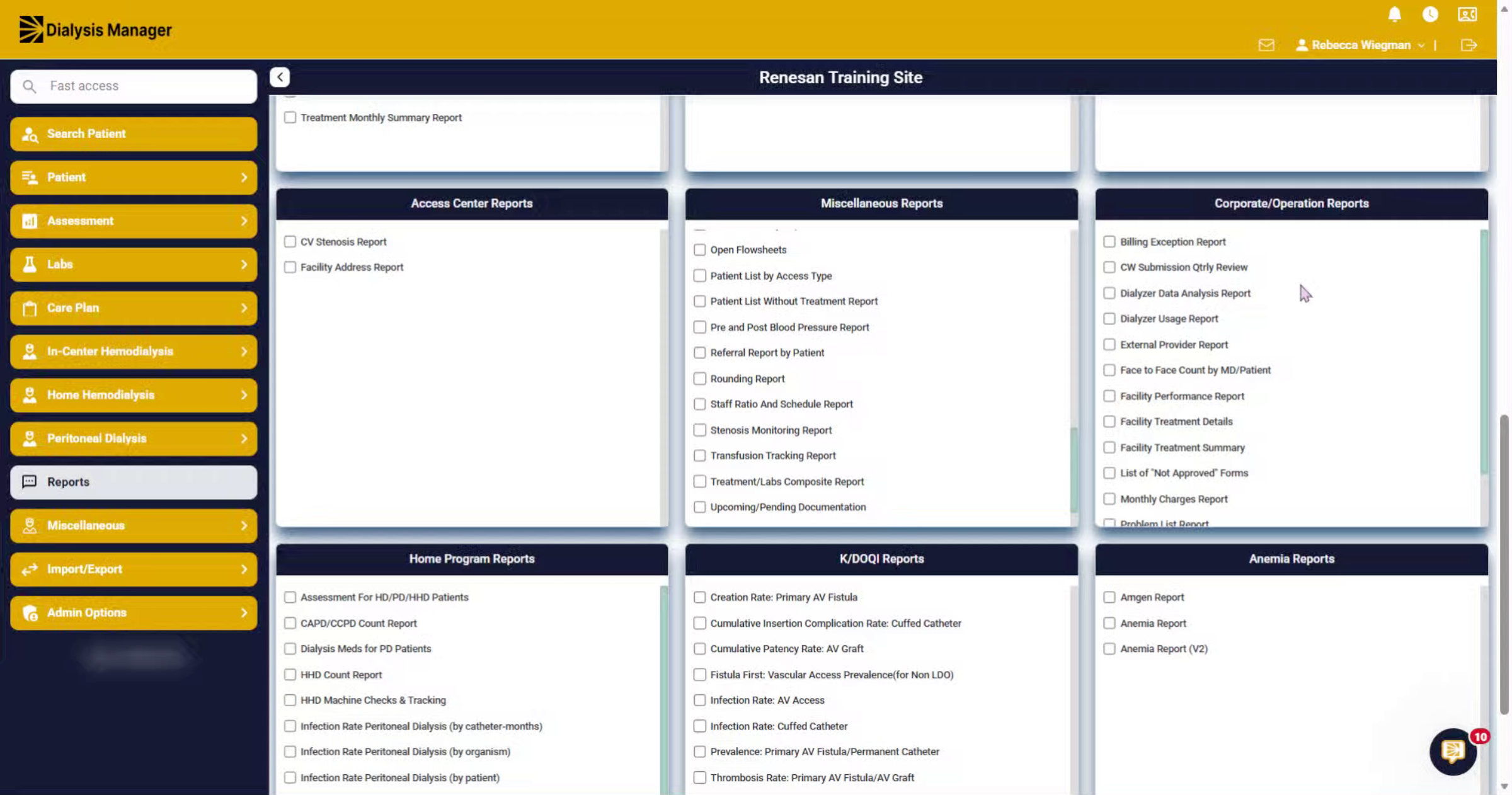
2. Navigate to Reports Section
Click the Reports section in Renvio to access available report options.
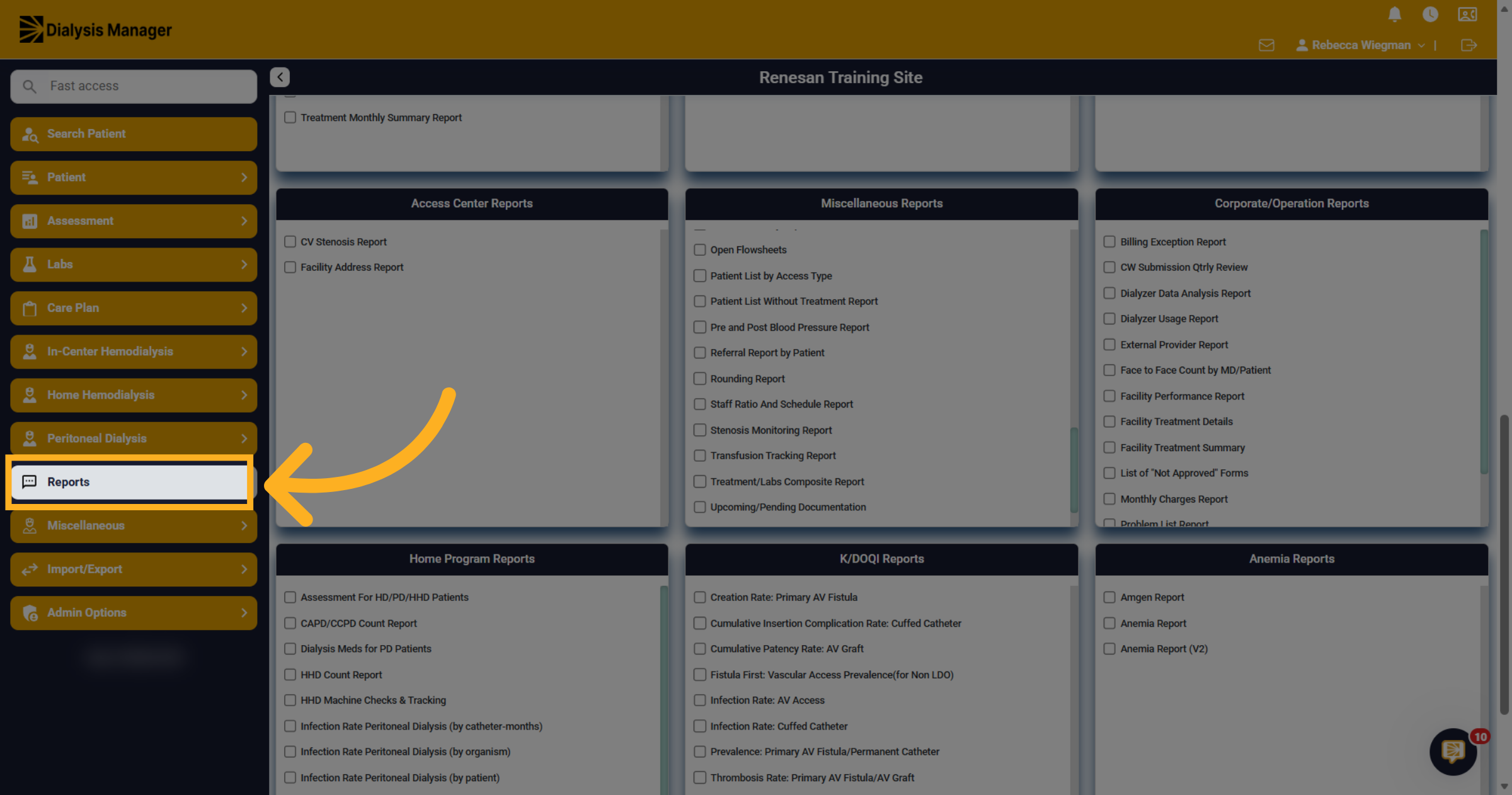
3. Select Rounding Report
Under the Miscellaneous Report section select Rounding Report.
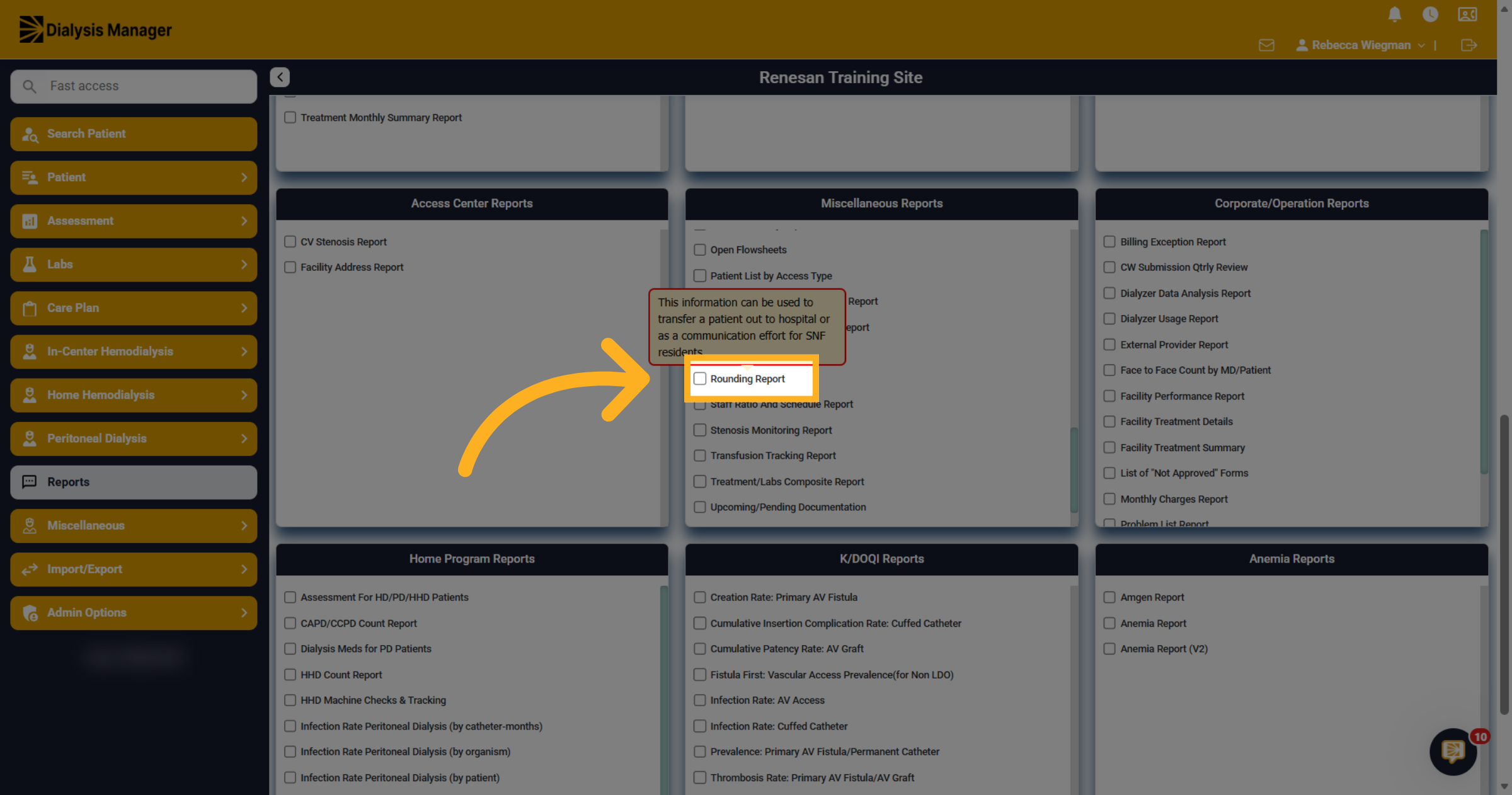
4. Access Dialysis Manager Interface
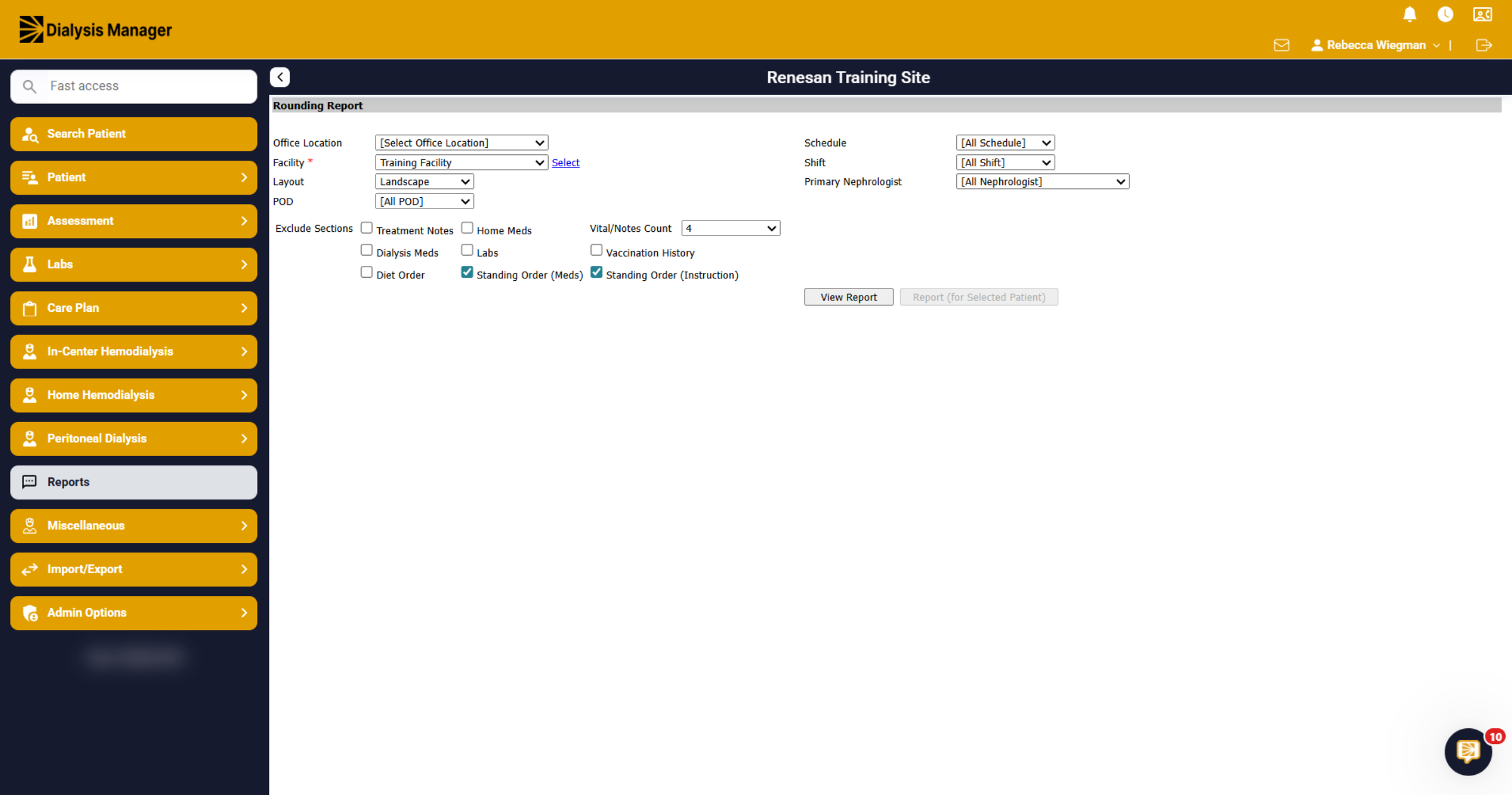
You are able to configure the report by schedule, shift or nephrologist. The ability to view in a specific layout such as landscape or portrait and exclude specific sections such as Standing Order, which is defaulted, or medications, diet orders, etc. You can select Vitals and Notes count or customize per date range.
5. View Report, patient list
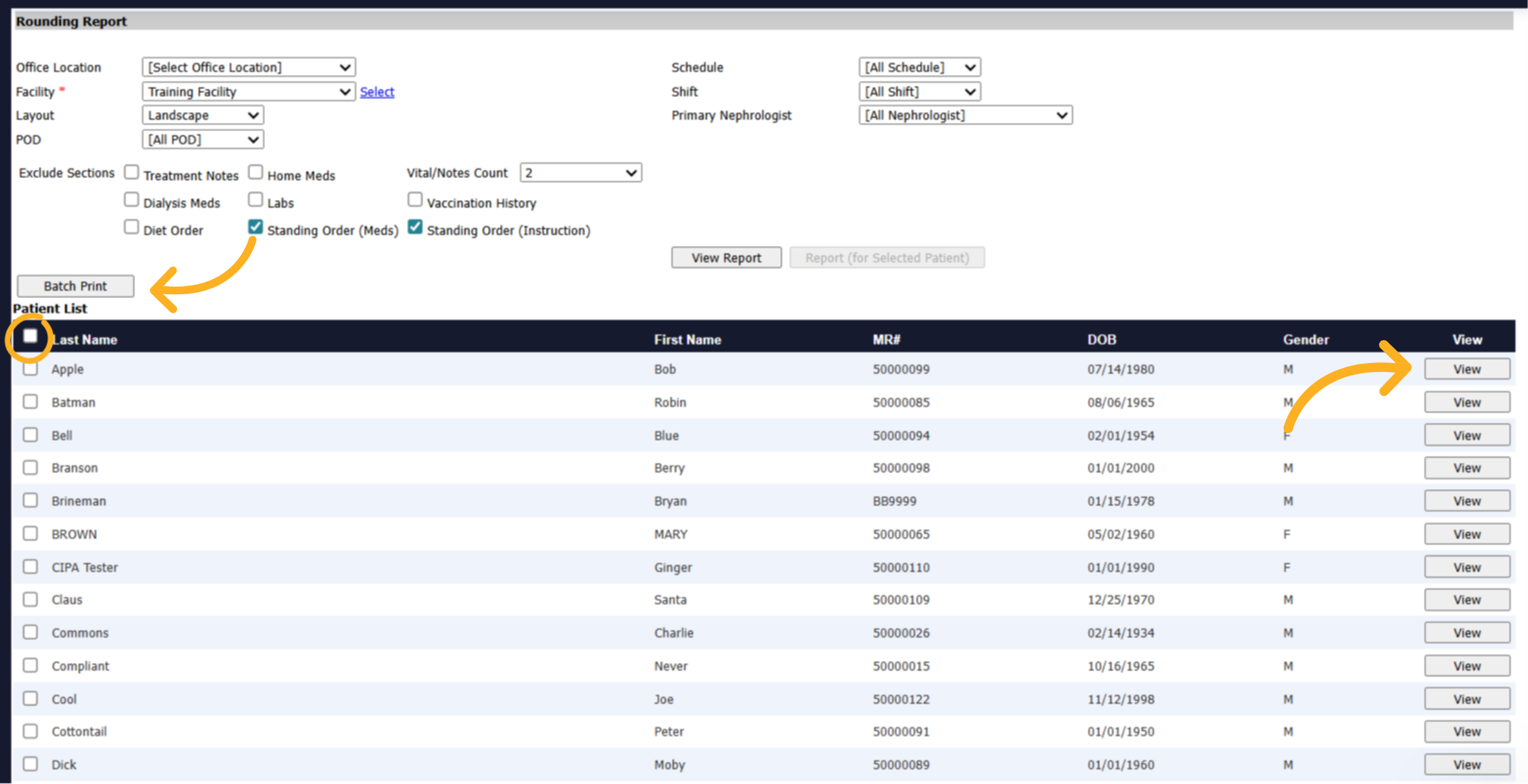
When clicking View Report, your list of patients will appear. Like all report function your able to select all patients to Batch Print or view individual patient information by selecting "View"
6. Rounding Report page 1
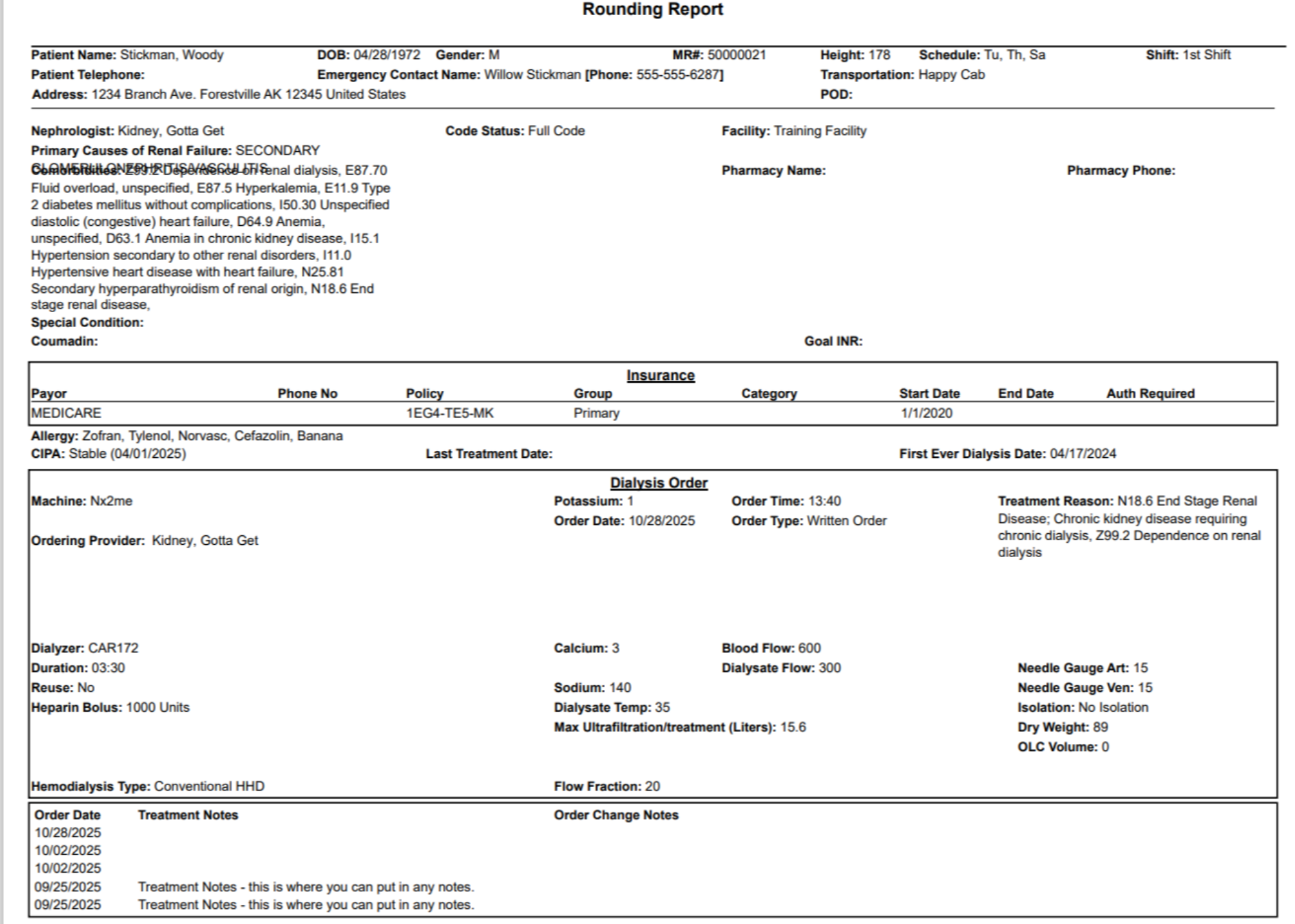
When viewing the report for an individual patient you will typically receive a 3-5 page report displaying patient demographics across the top. Patient's insurance information, dialysis order with medications and Treatment notes and orders.
7. Rounding Report page 2
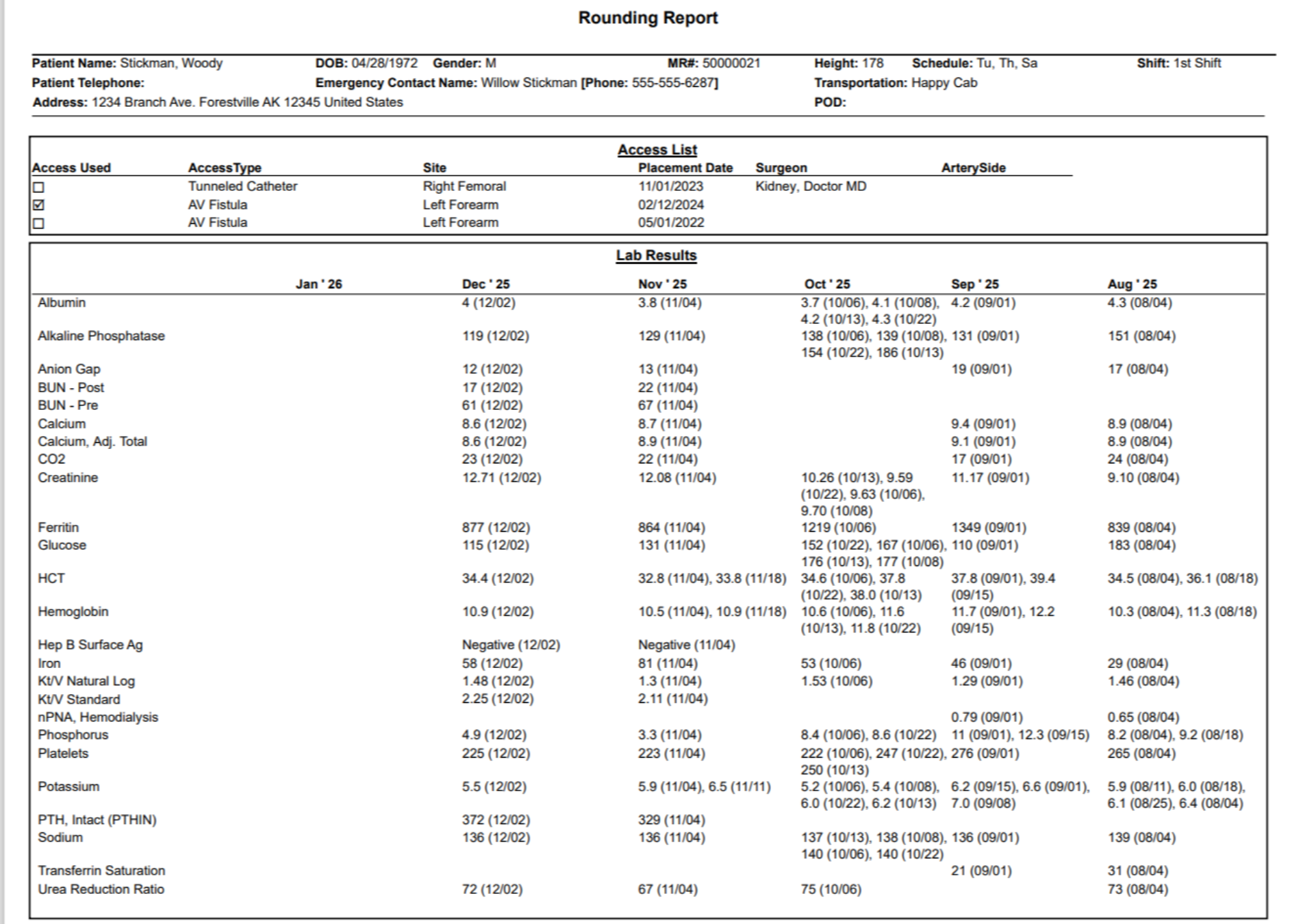
Access list, along with lab results over the last 6 months.
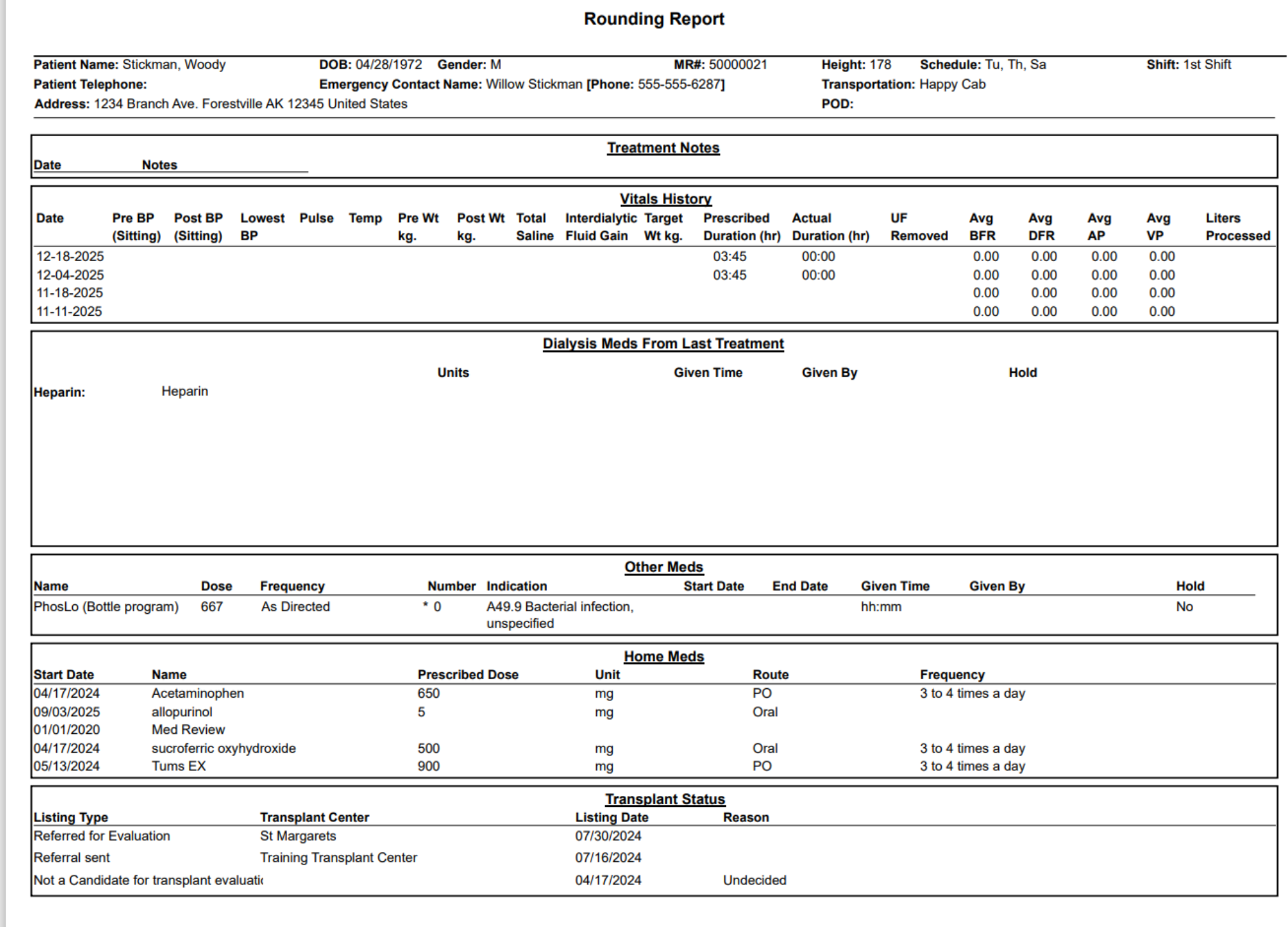
8. Rounding Report page 3
Vital history, other medication administrated along with home medications and transplant status.
9. Rounding Report page 4
Vaccination history within the last 5 years, dietitian order, standing order medication and instructions; again if you selected to show this information.