Report: Nurses Monthly Report.
1. Introduction
This tutorial guides you through generating the Nurses Monthly Report in Renvio.
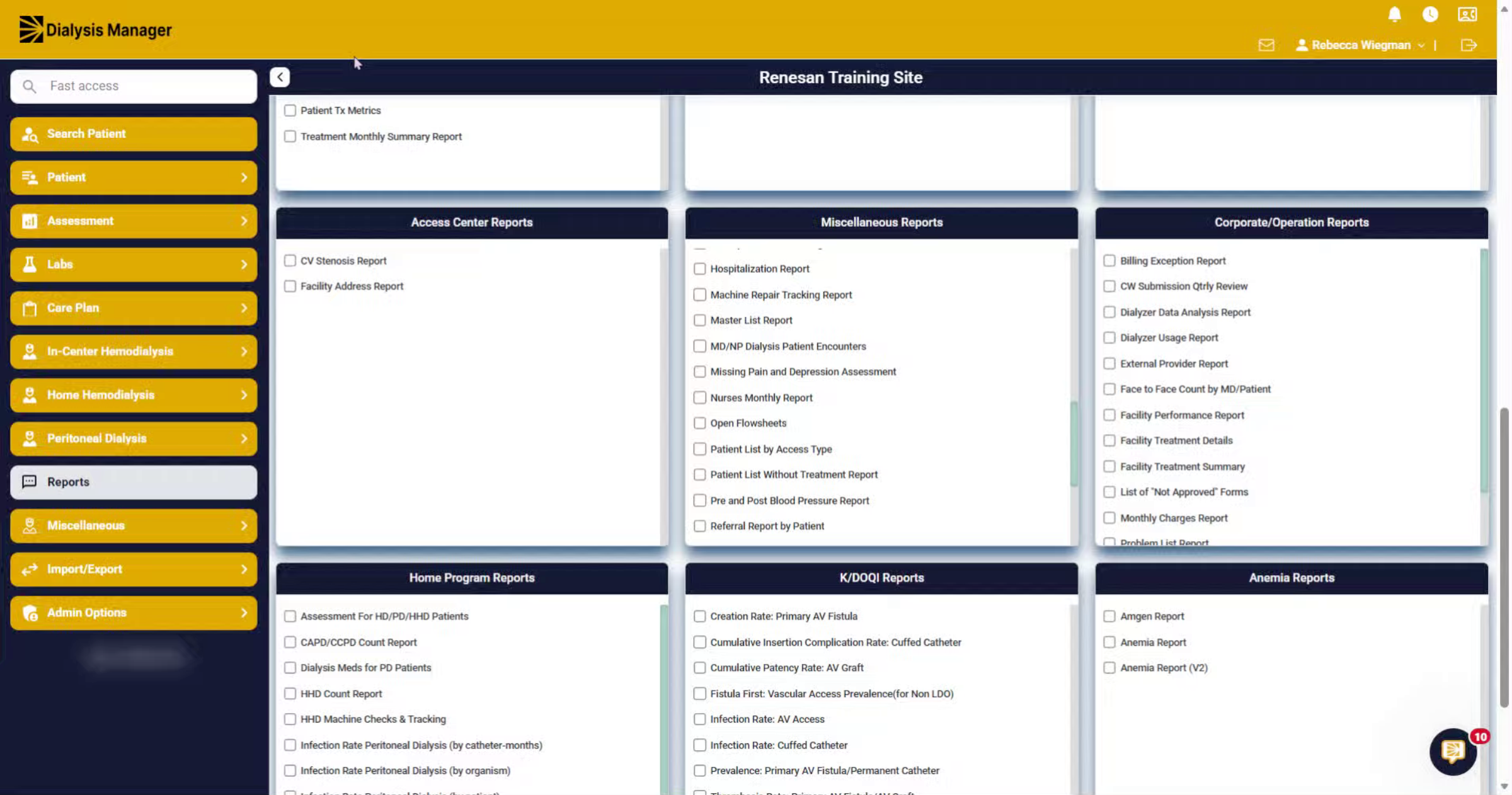
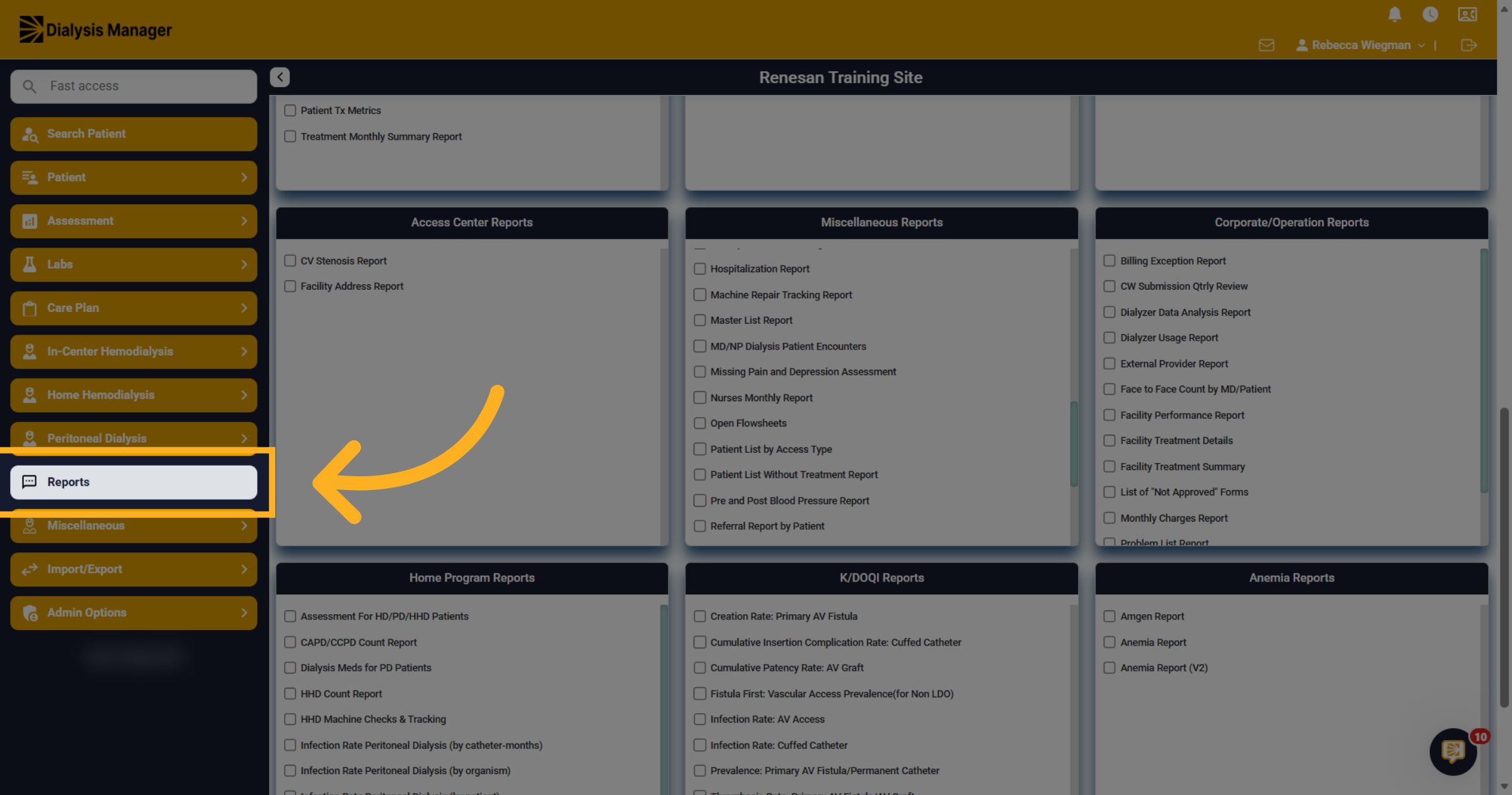
2. Navigate to Reports Section
Click the Reports section in the Renvio application to access available report options.
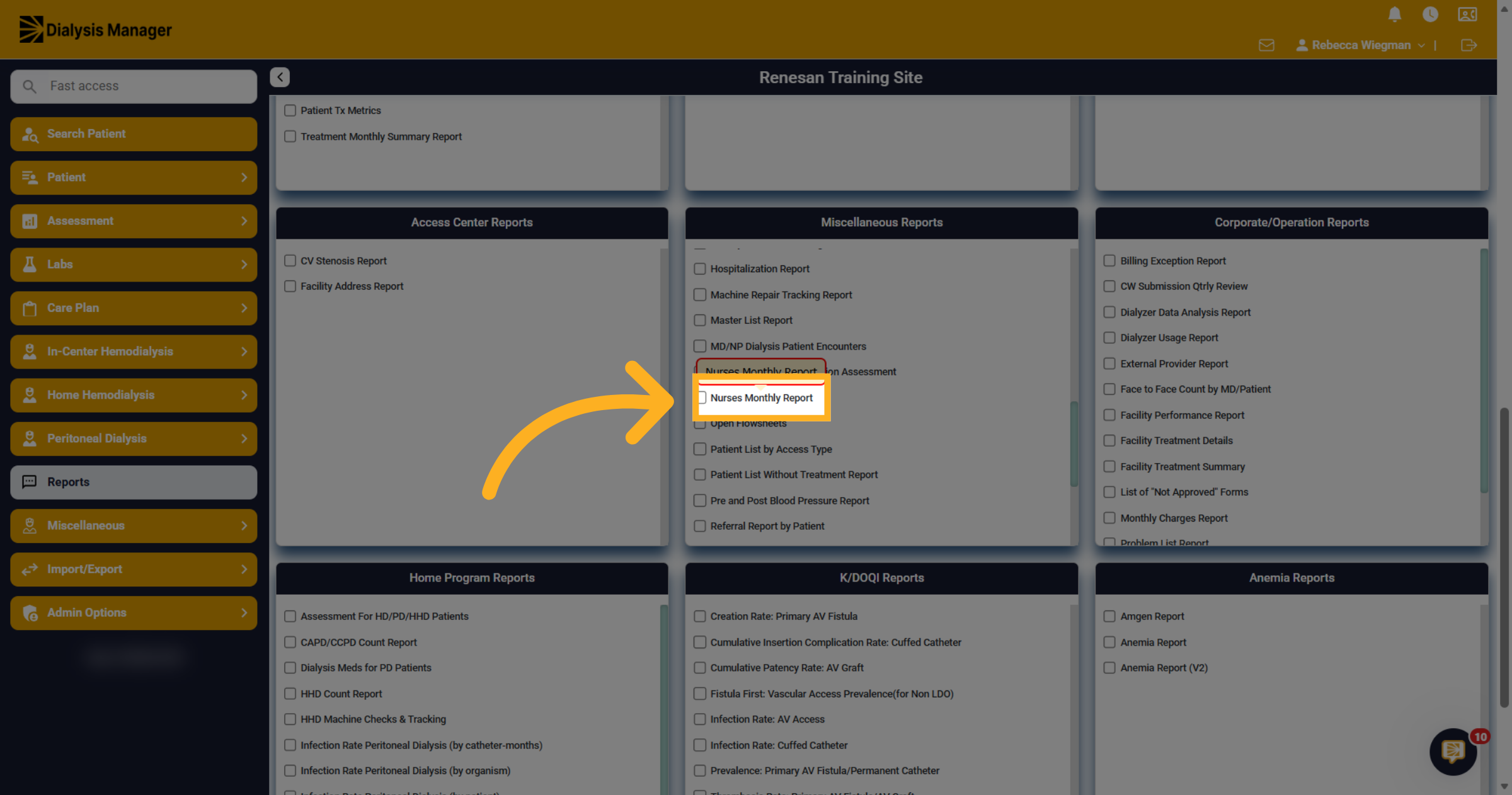
3. Select Nurses Monthly Report
Under the Miscellaneous menu select Nurses Monthly Report.
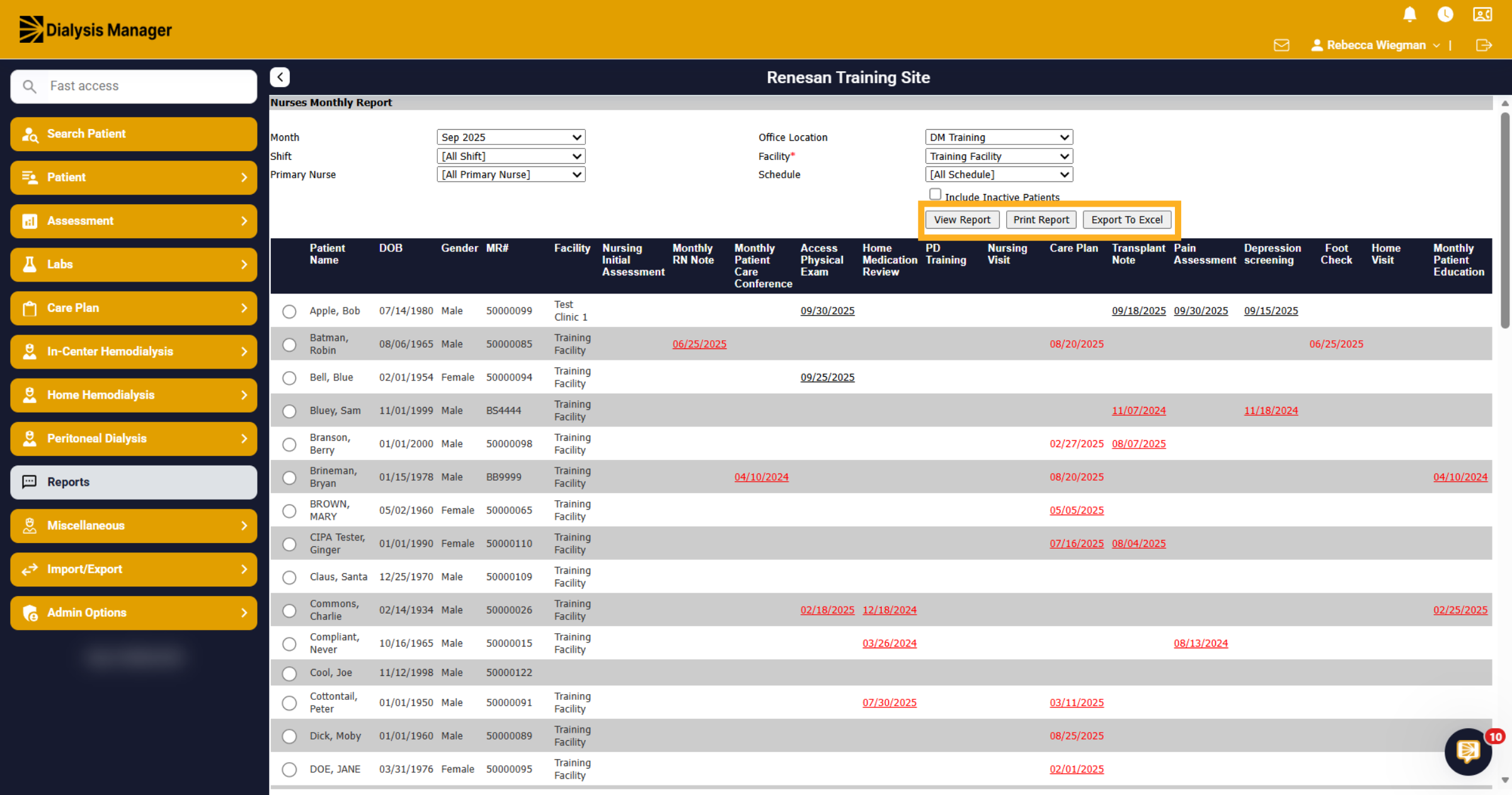
4. Reporting filters
You can select the month to view the opened nursing assessments, filter by shift or schedule, and choose a primary nurse. Please note that selecting a Facility is mandatory. Once all criteria is selected click View Report.
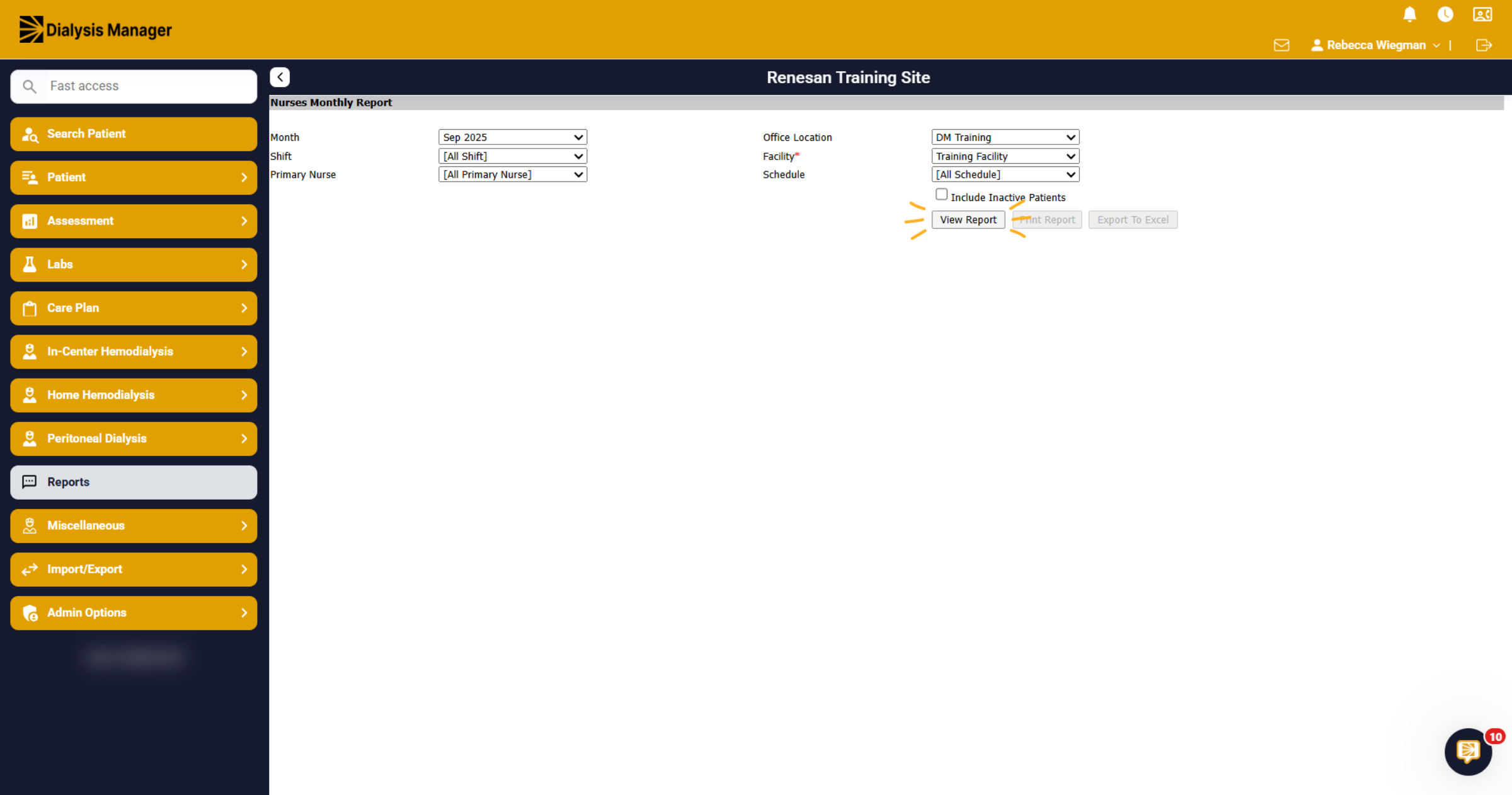
5. Access Date Selection
Patient demographics will be displayed along the blue header. Additionally, you will find a list of assessments, including Initial Assessment, Monthly RN Notes, Home Med Review, Care Plan, Monthly Patient Education, etc.
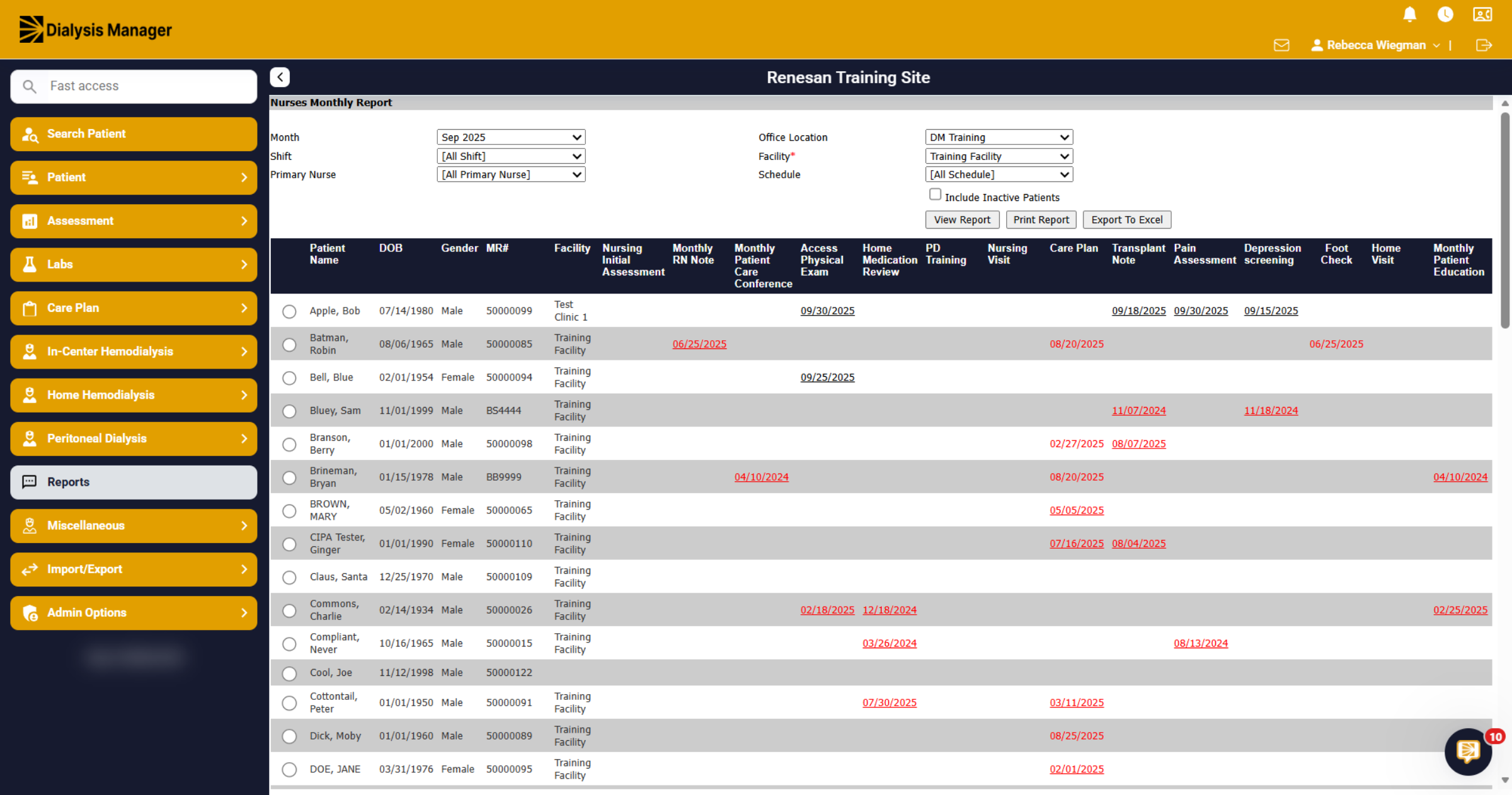
6. Assessments
You will find dates in the Assessment columns; black, indicating that the assessment has been locked. The Red dates, indicating that the assessment has been saved. You can also click on the date to open the assessment.
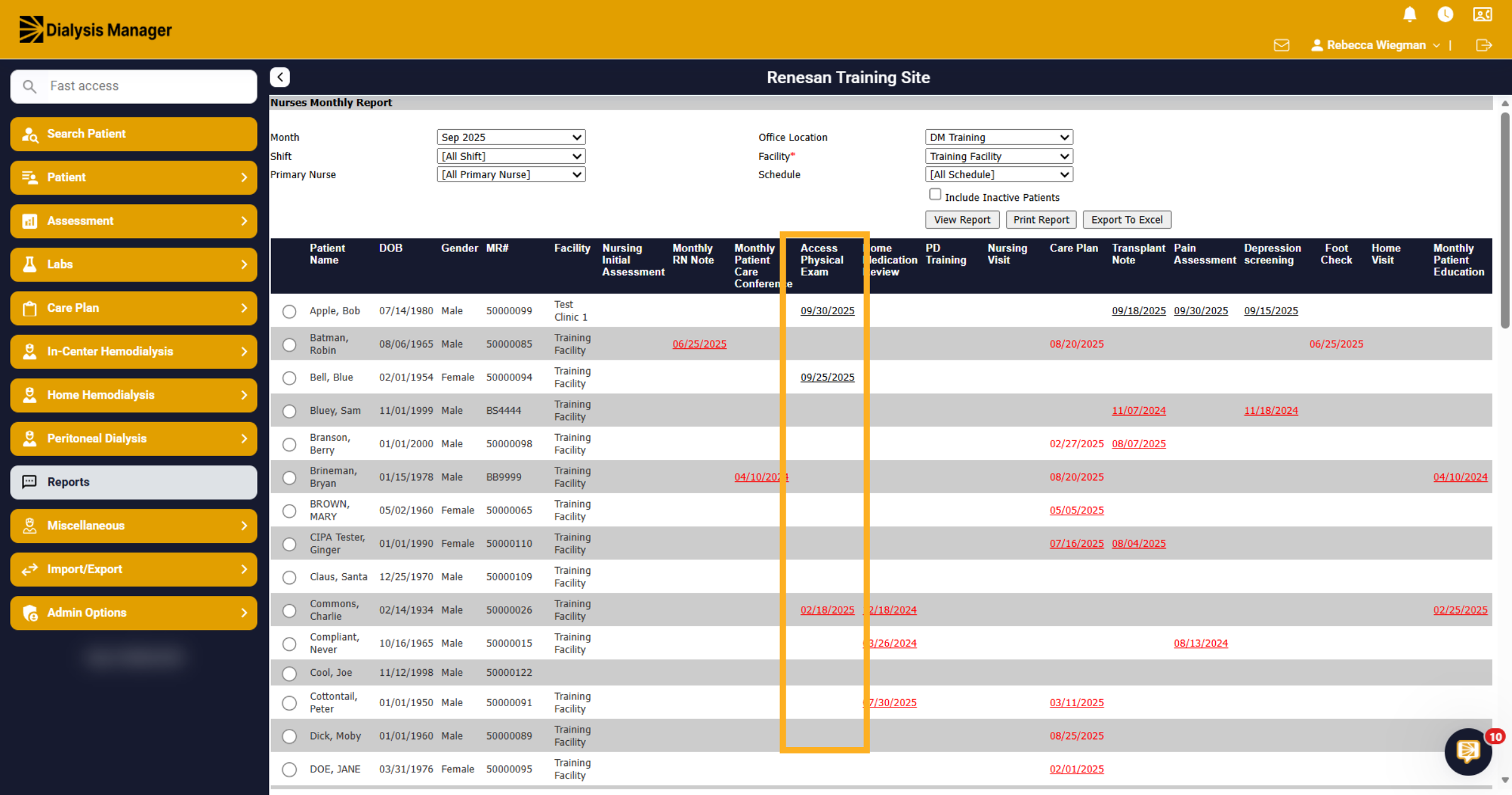
7. View Options
This is a reminder that you can also export to Excel or print a report. Please verify the information to ensure you are not printing unnecessary details.