Report: Dry Weight.
1. Introduction
This tutorial guides you through generating a Dry Weight Report in Renvio.
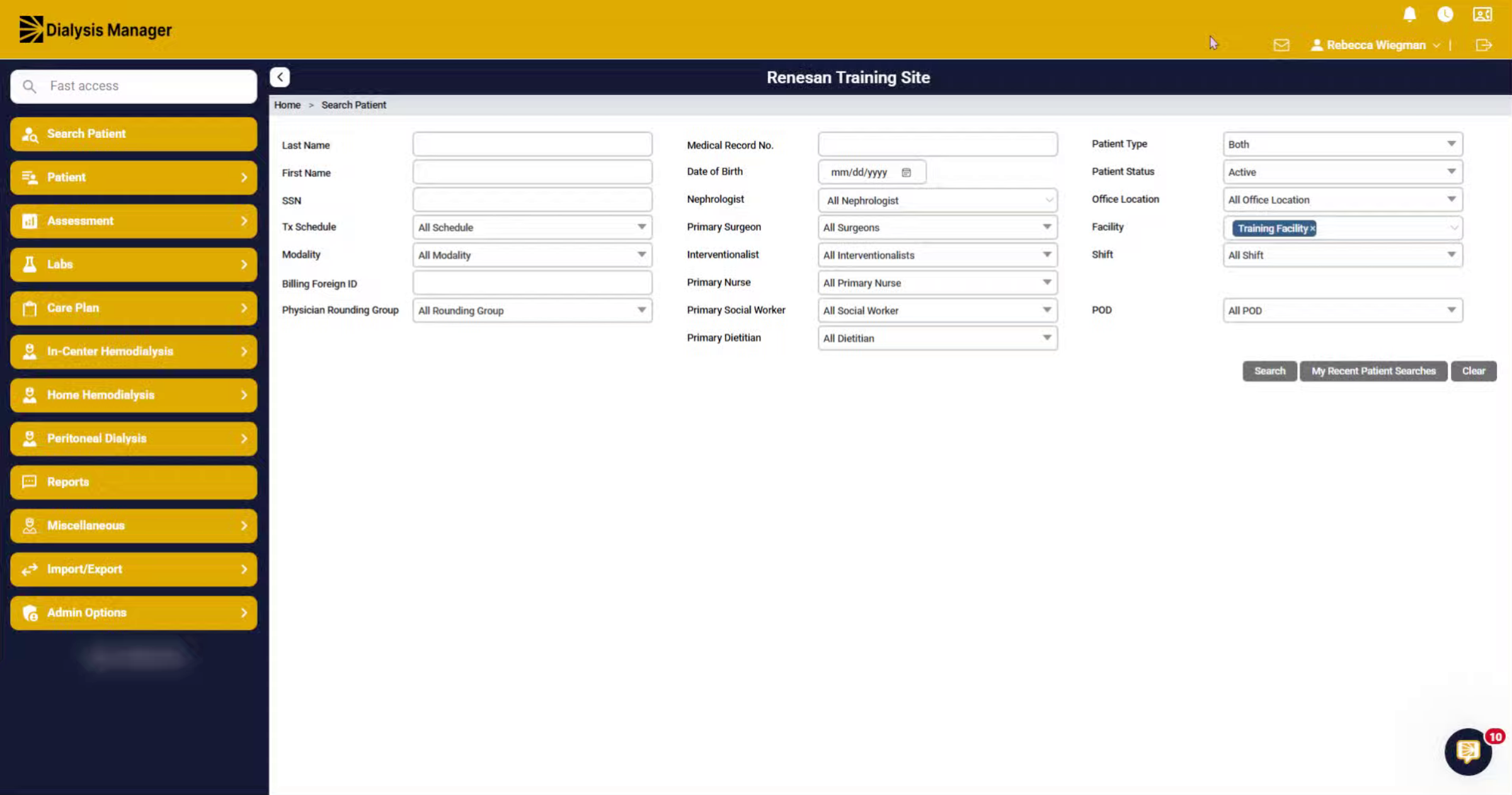
2. Navigate to Reports Section
Click the Reports section to access available report options.
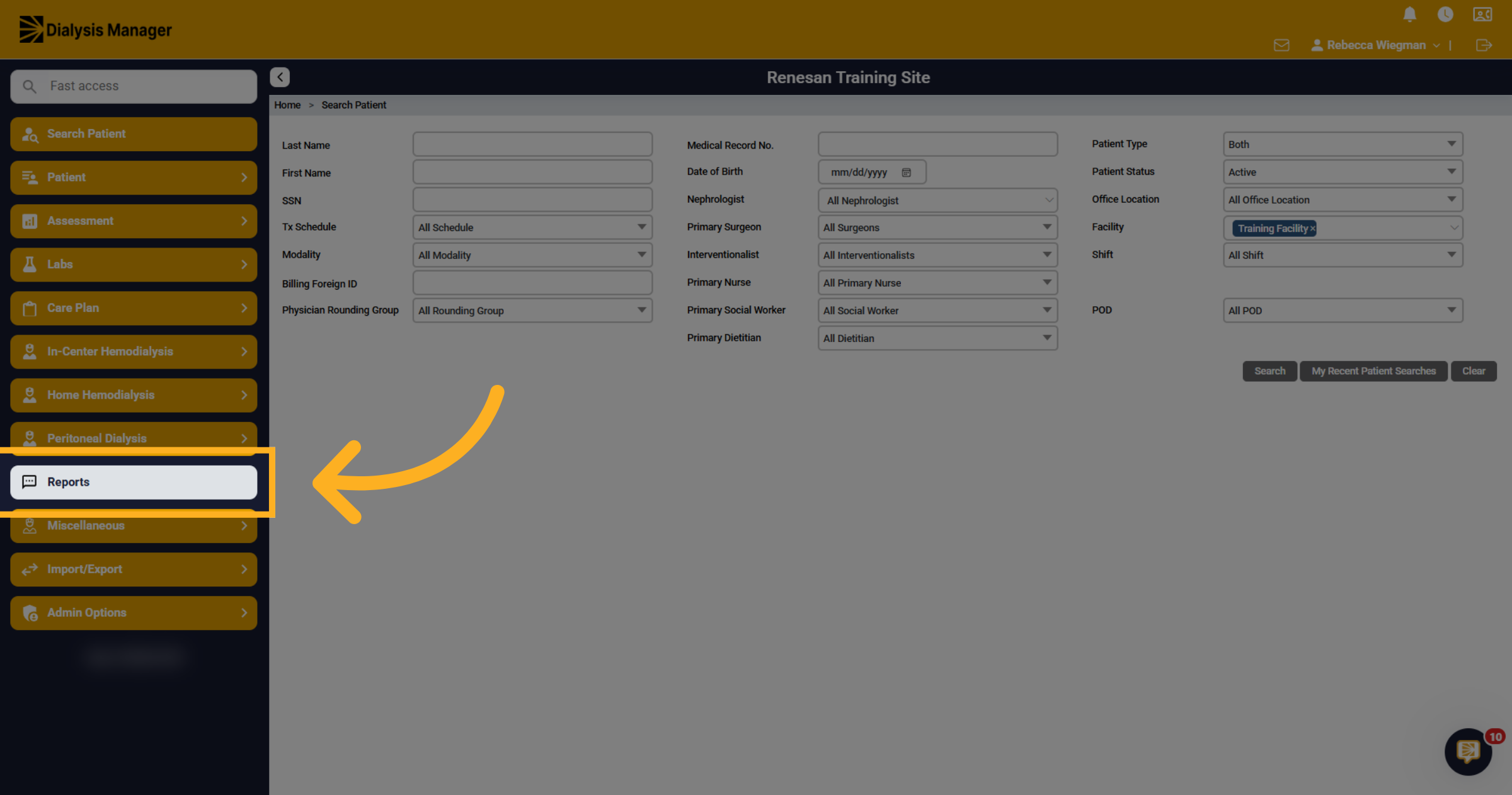
3. Open Dry Weight Report
In the Miscellaneous Reports section, you will find the Dry Weight report. Hovering over the report name reveals a brief description. To add it to your favorites, check the box and click "Add/Remove to Favorites."
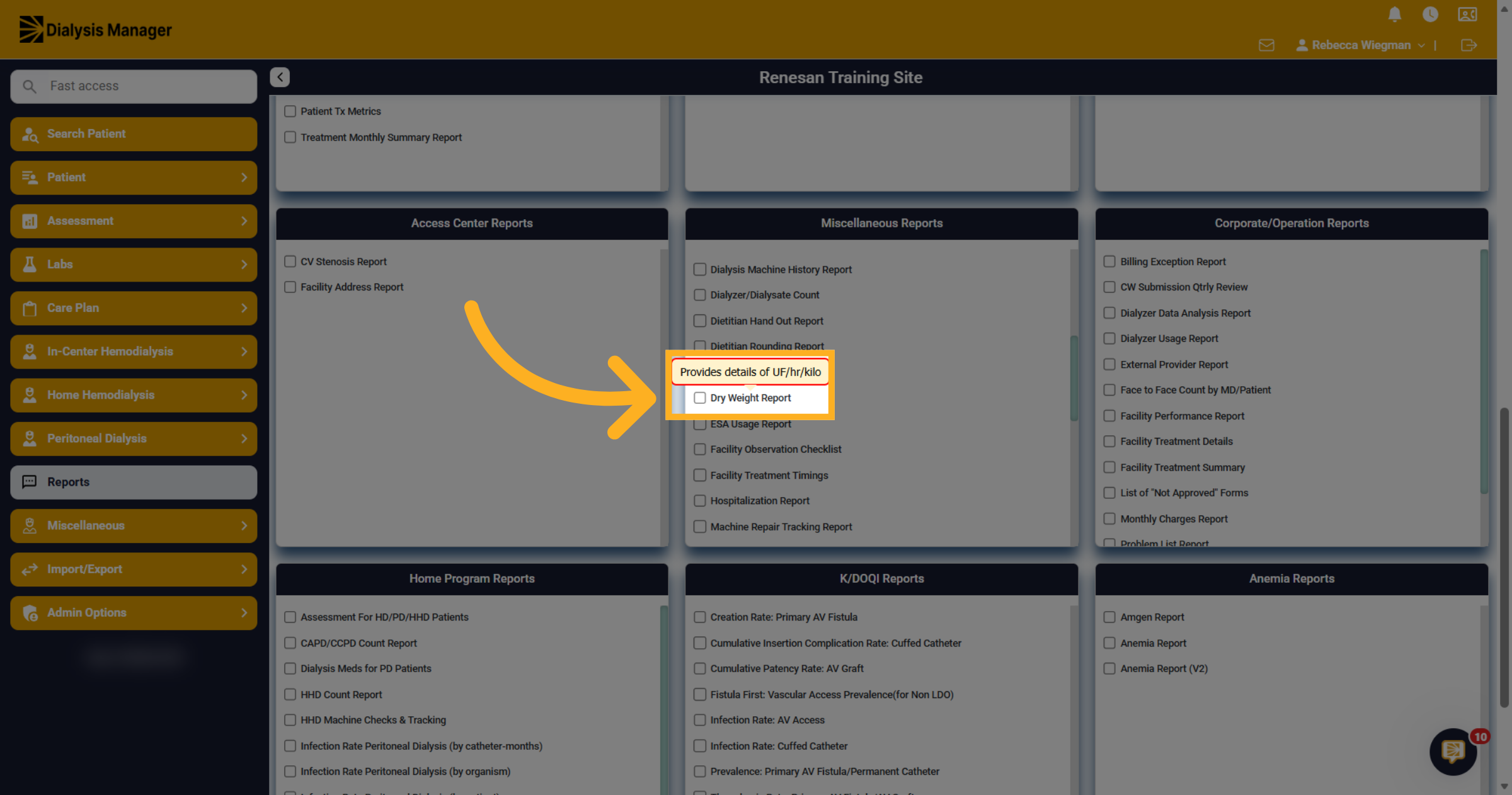
4. Access First Report Option
You'll have the ability to select Date Range, Flowsheet, Monthly Trend or Average Post Weight Monthly Trends. Each option will display different filtering options.
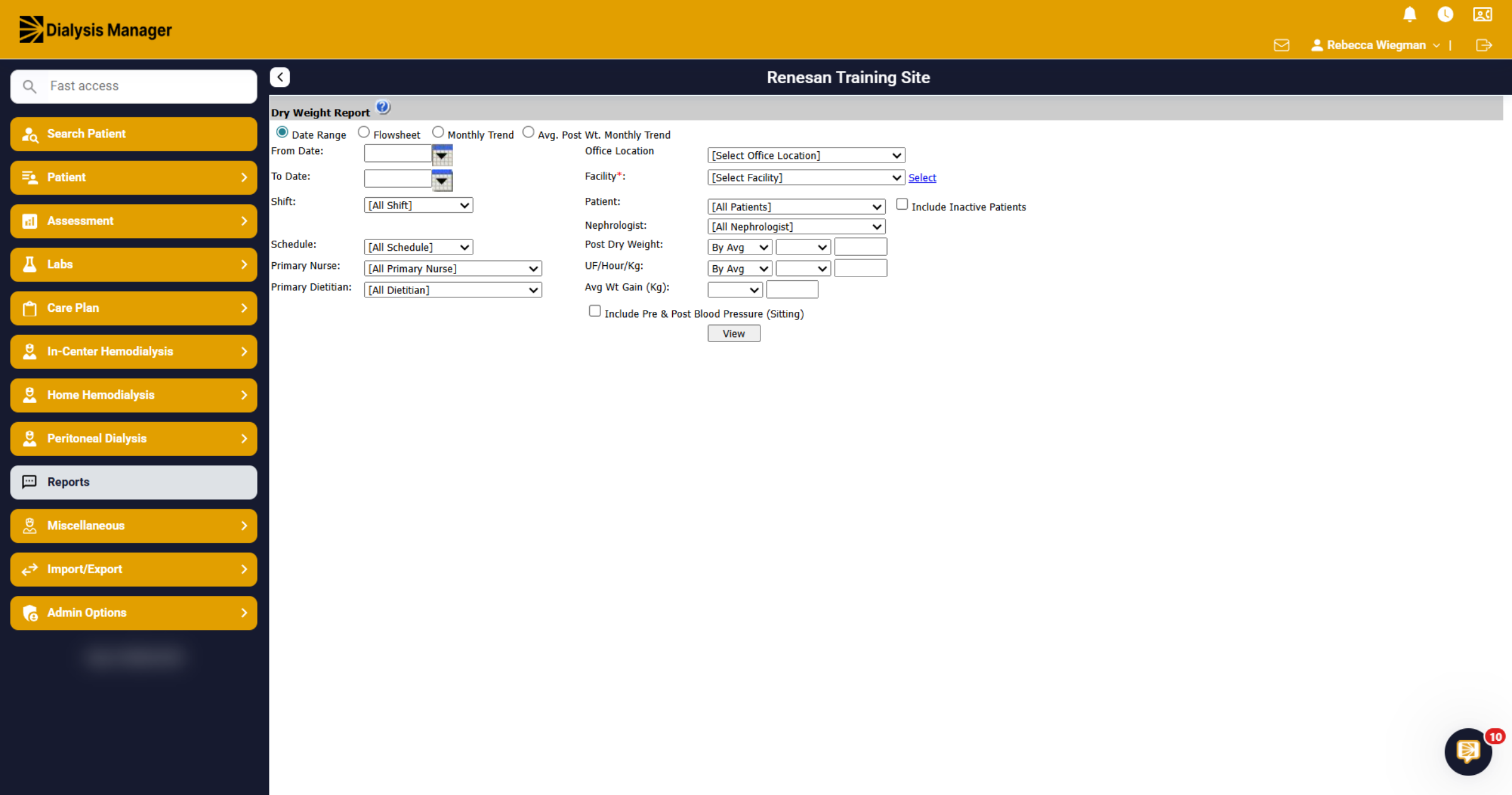
5. Date Range
When selecting a Date Range, you can choose a span of up to one year. While selecting a Facility is mandatory, if you are affiliated with multiple facilities, you can choose additional ones! In the Post Dry Weight and UF/Hour/Kg dropdown, you can search by Average or by Treatment and then select values that are greater than, less than, or equal to your specified criteria.
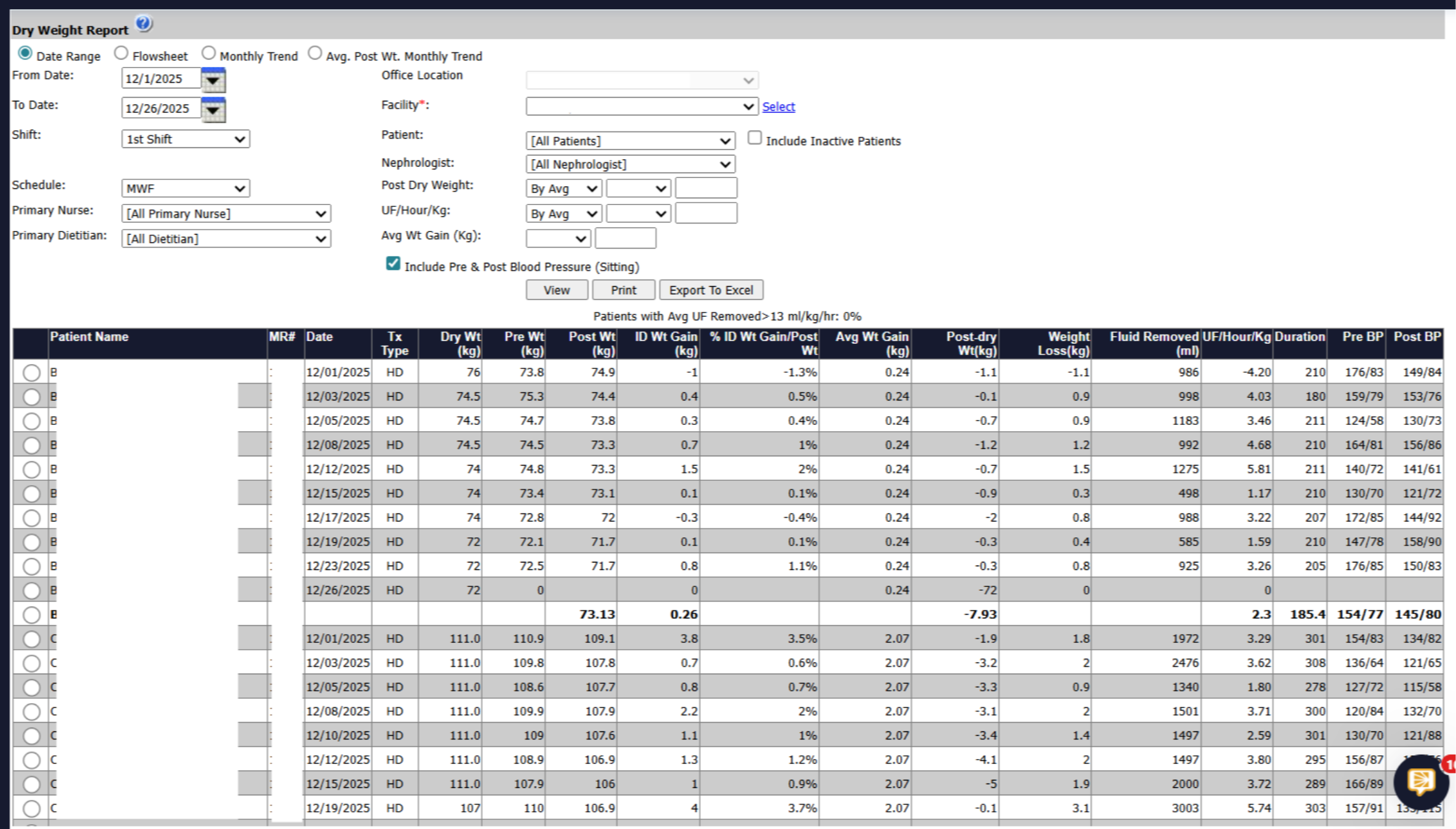
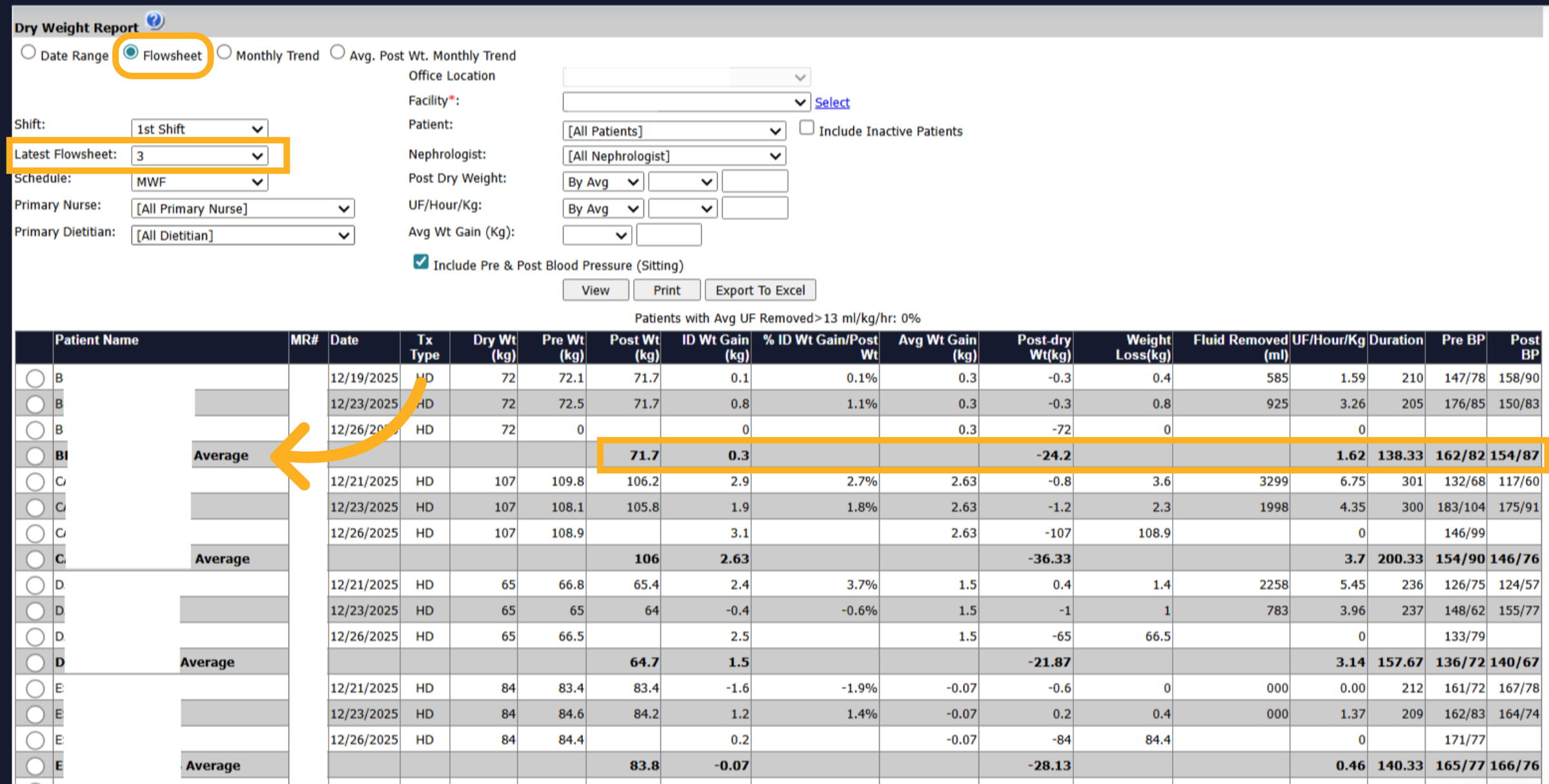
6. Flowsheet
When selecting the Flowsheet, be sure to choose the Latest Flowsheet option, which determines the number of flowsheets included in the report for average calculations. Additionally, you will need to select a facility. Upon clicking View, you'll see the patient's name displayed alongside a bolded Average.
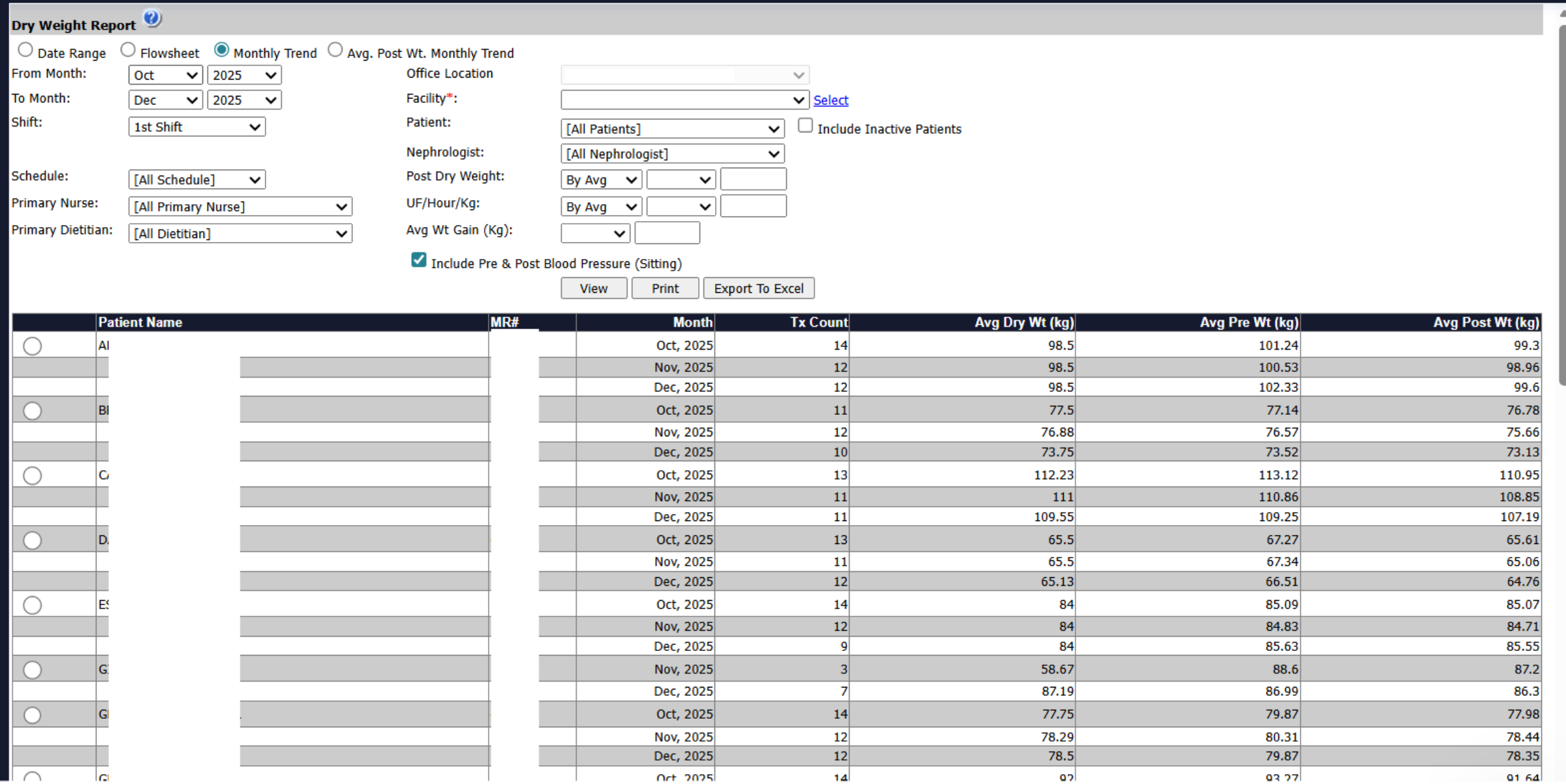
7. Monthly Trend
By selecting the Monthly Trend option, you can choose a date range within the past 12 months. For each month, you'll see the number of treatments conducted, as well as the average dry weight and pre- and post-treatment weights in kilograms.
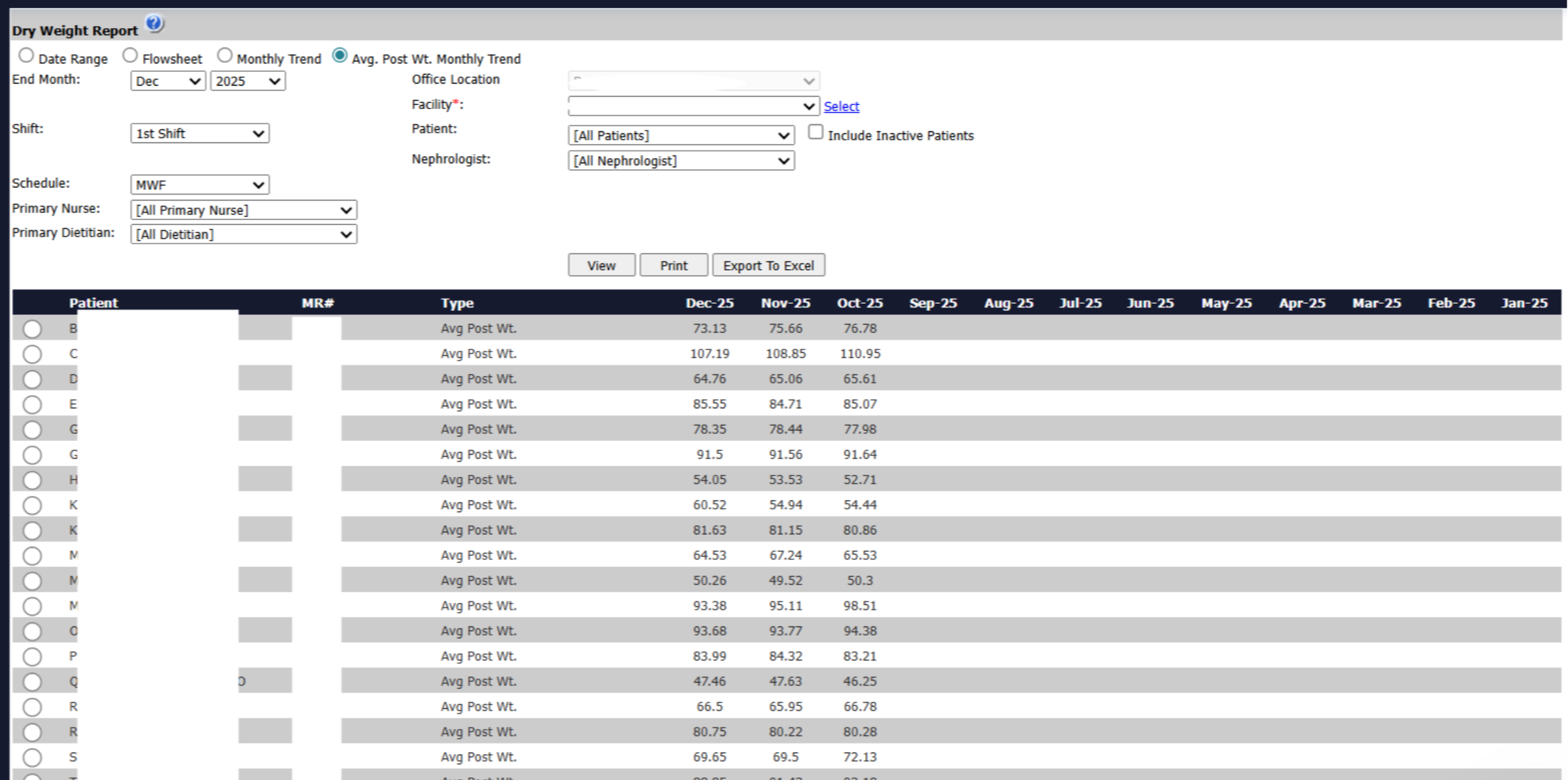
8. Avg. Post Wt. Monthly Trend
When you select the Average Post Weight Monthly Trend, you'll observe the averages for the past 12 months. Please be aware that while viewing any of the Dry Weight reports, you can choose specific patients, print the report, or export it to Excel.