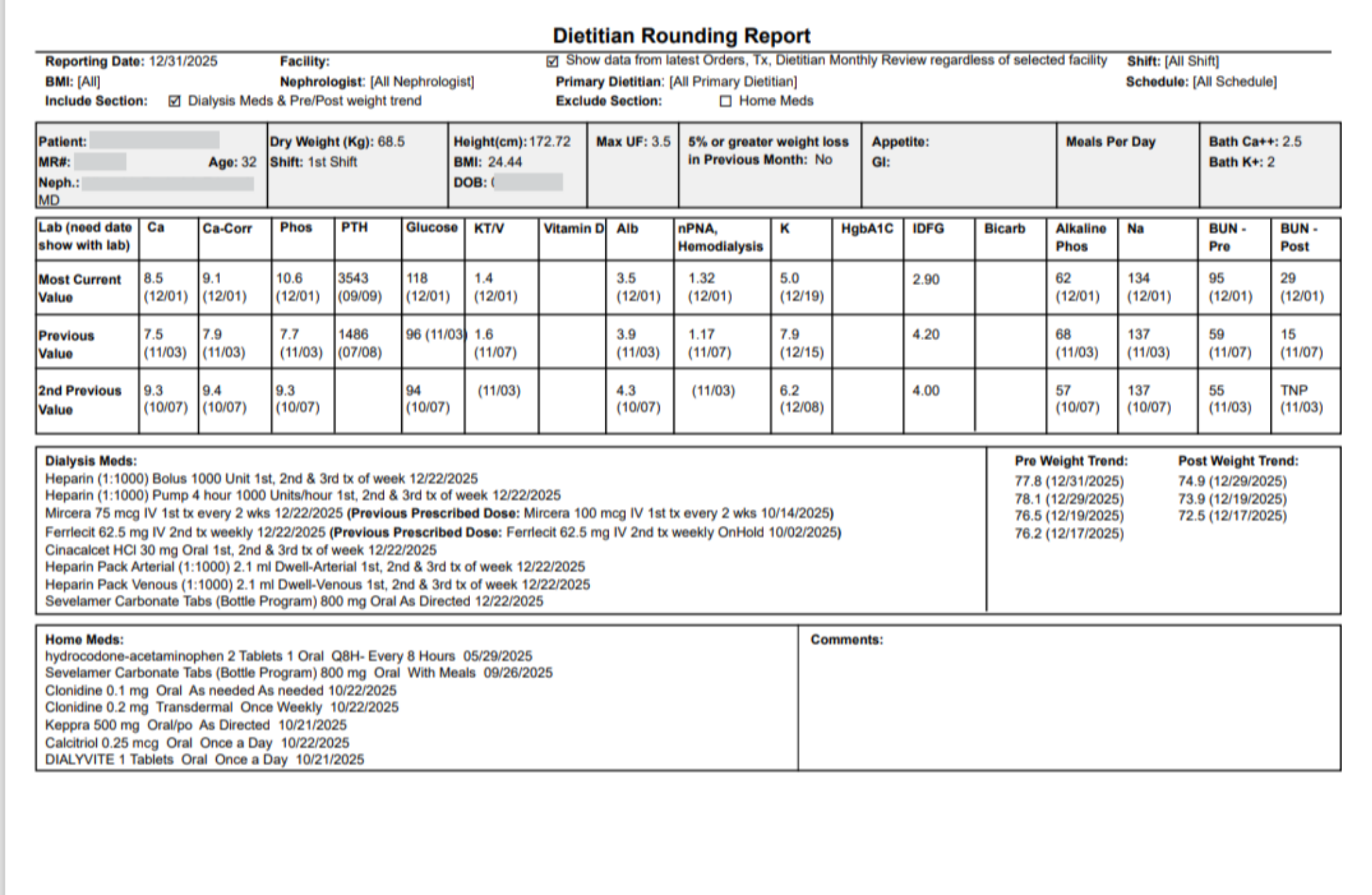
Report: Dietitian Rounding Report.
1. Introduction
This tutorial guides you through generating the Dietitian Rounding Report in Renvio.
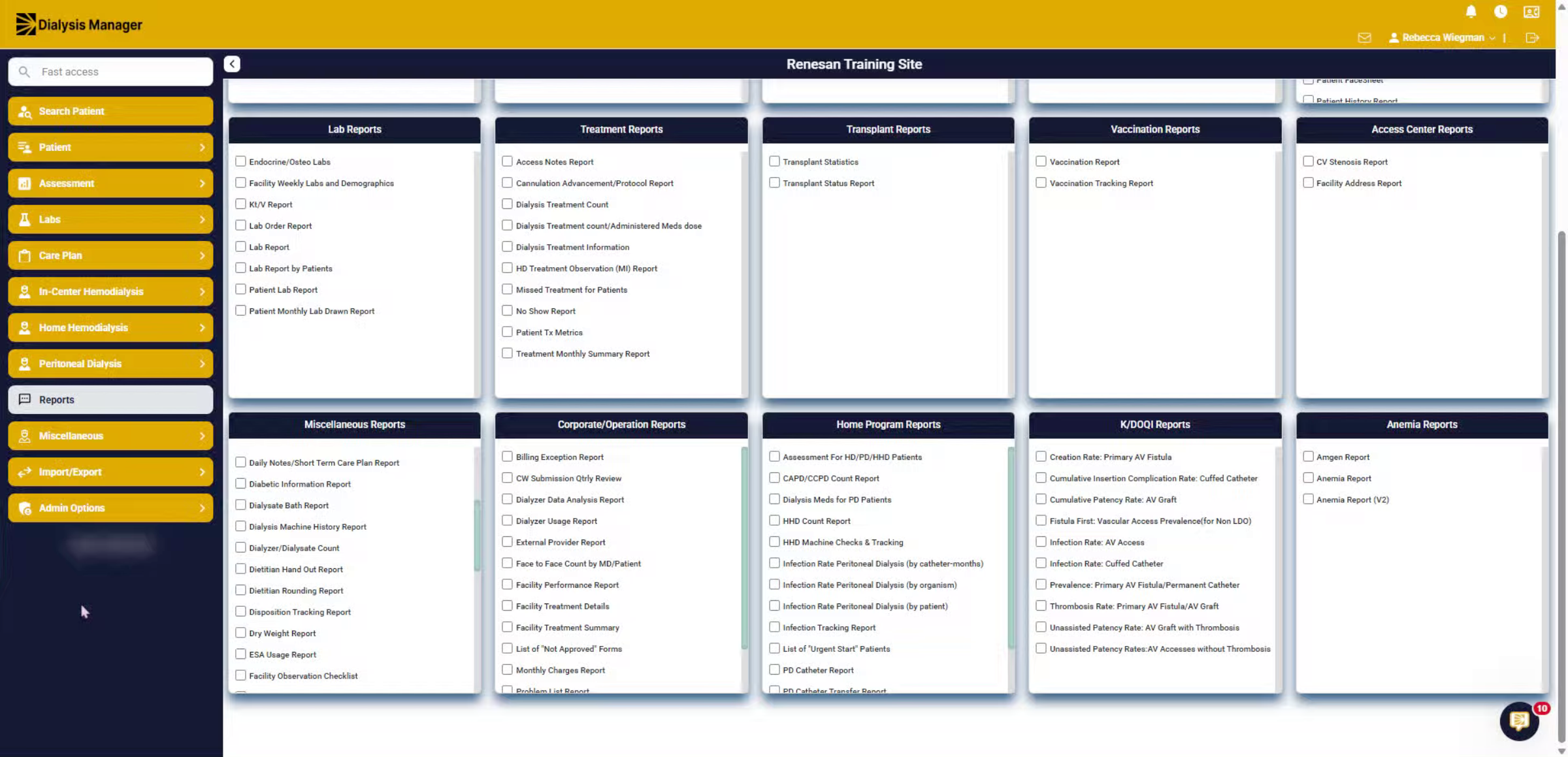
2. Click Reports Menu
Click the Reports menu to access available report options within Renvio.
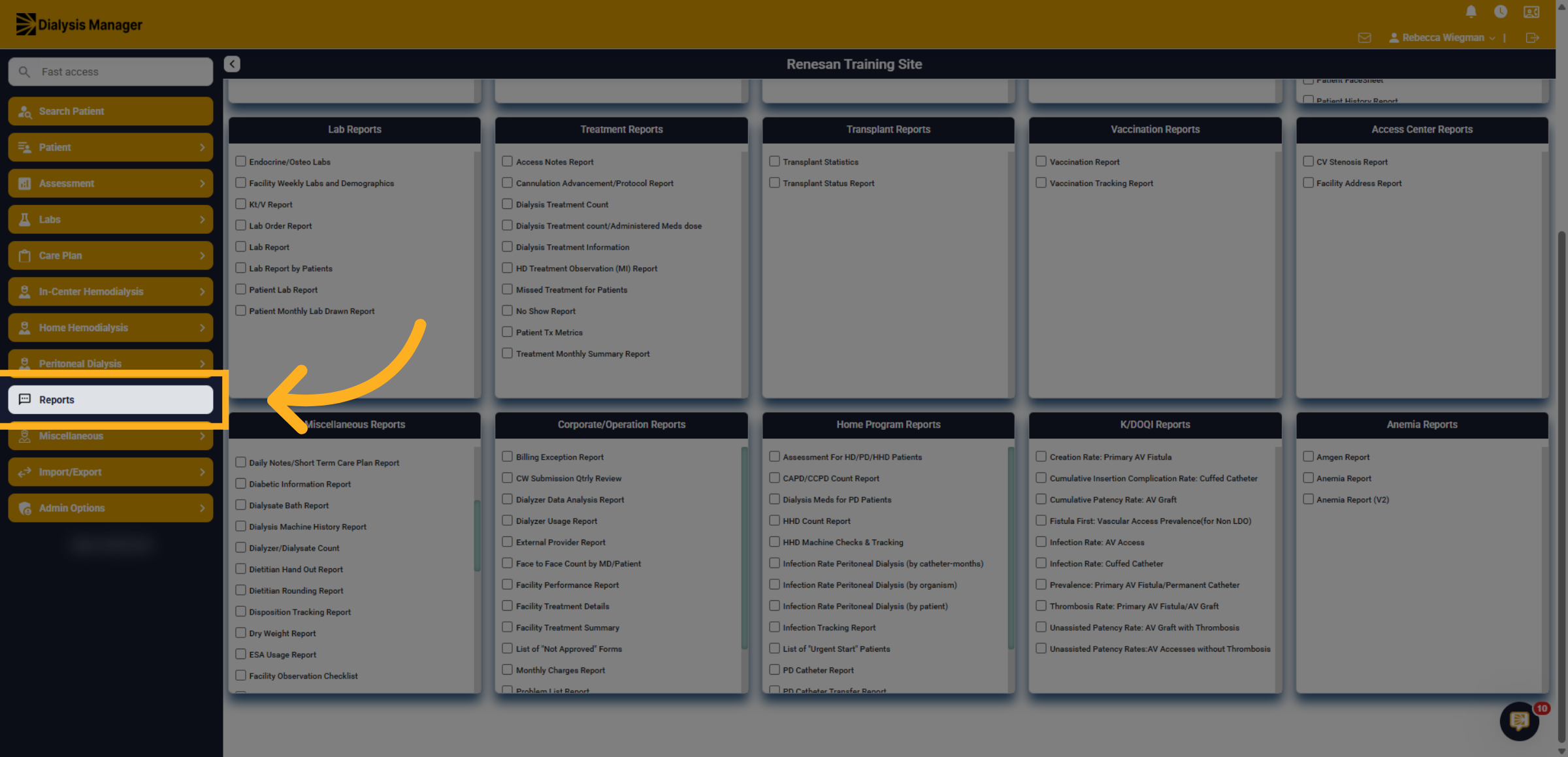
3. Select Dietitian Rounding Report
Select the Dietitian Rounding Report from the list to begin generating this specific report.
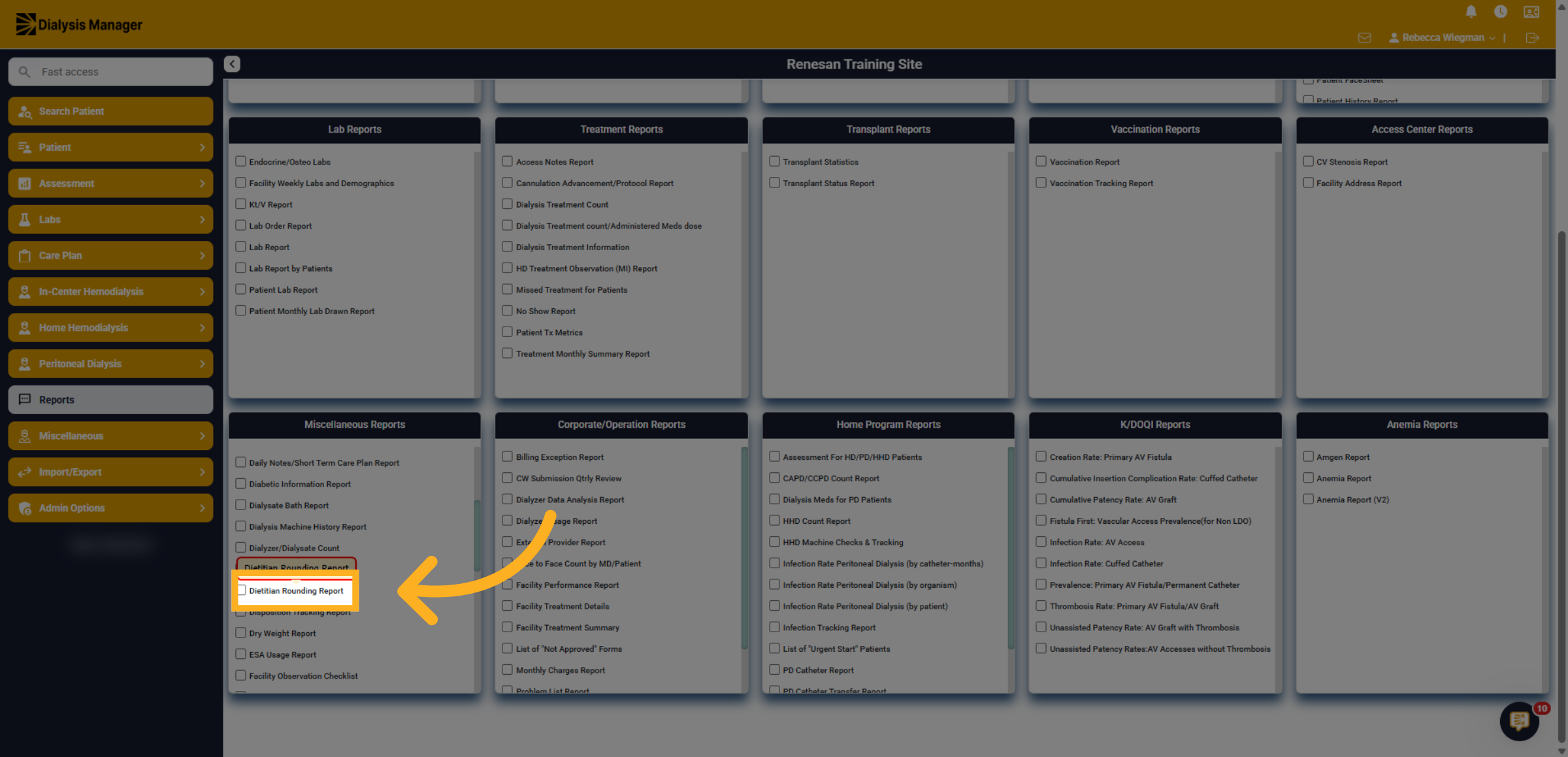
4. Filter
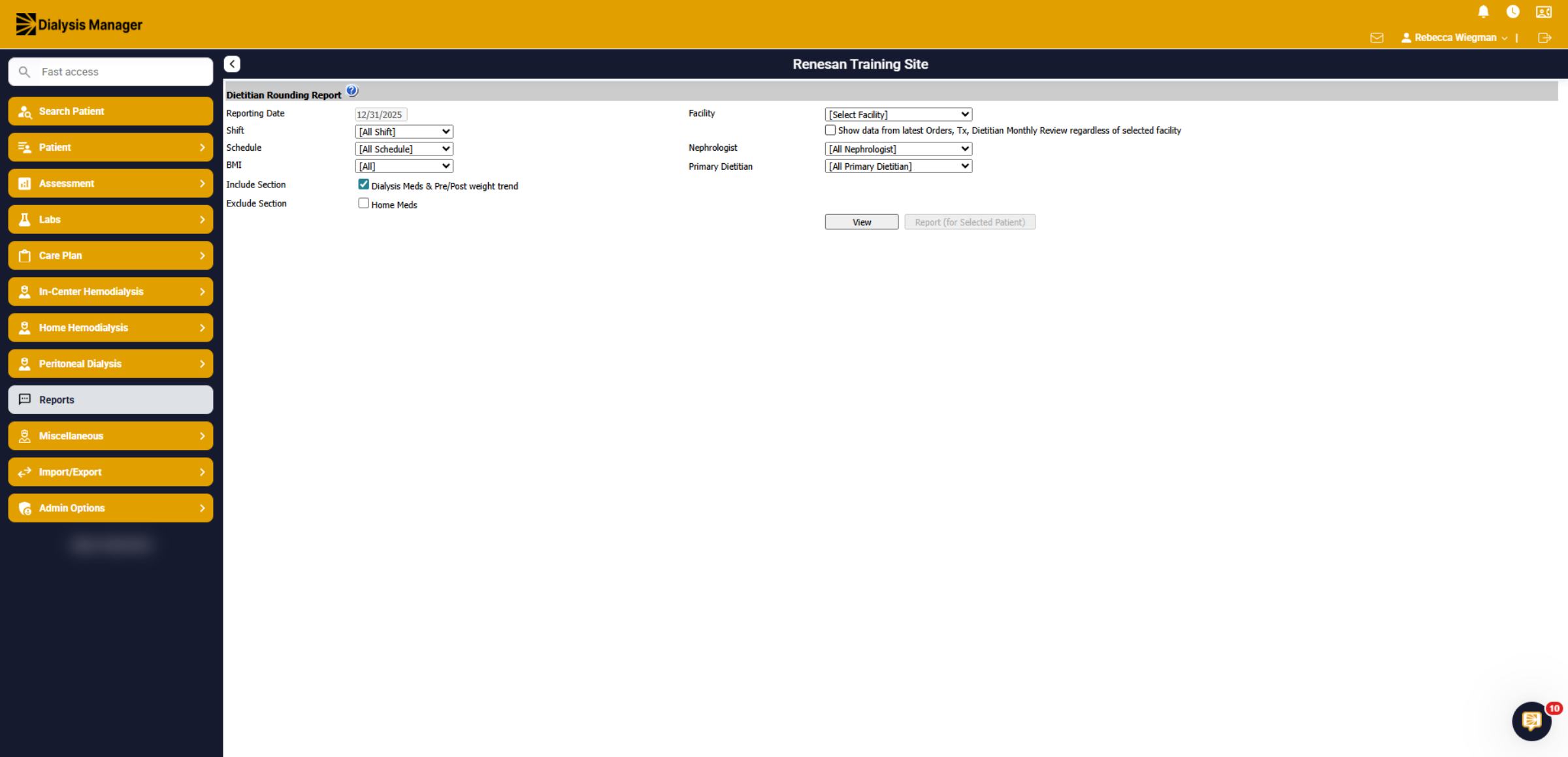
You'll be able to filter by the normal criteria such as shift, schedule, and nephrologist but you'll also have the option to Include Dialysis Meds & Pre and Post weight trends which is defaulted. You can exclude Home Medications and select to show data from latest orders, treatments, dietitian monthly review. Click View!
5. Patient Data
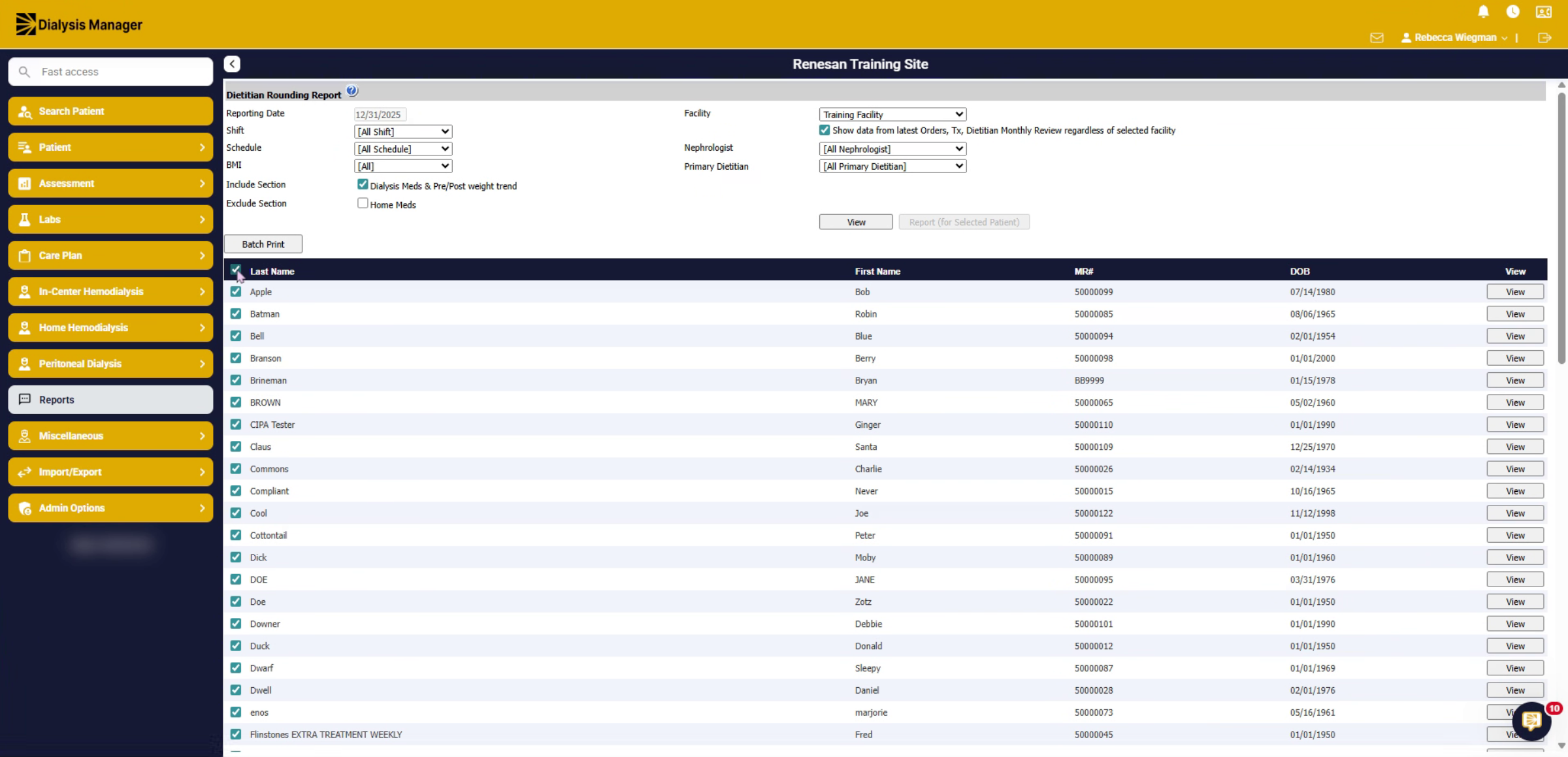
Once selecting View, you'll see the list of patients. Selecting the checkbox in the blue header will select all patients for Batch Printing.
6. Specific Patients
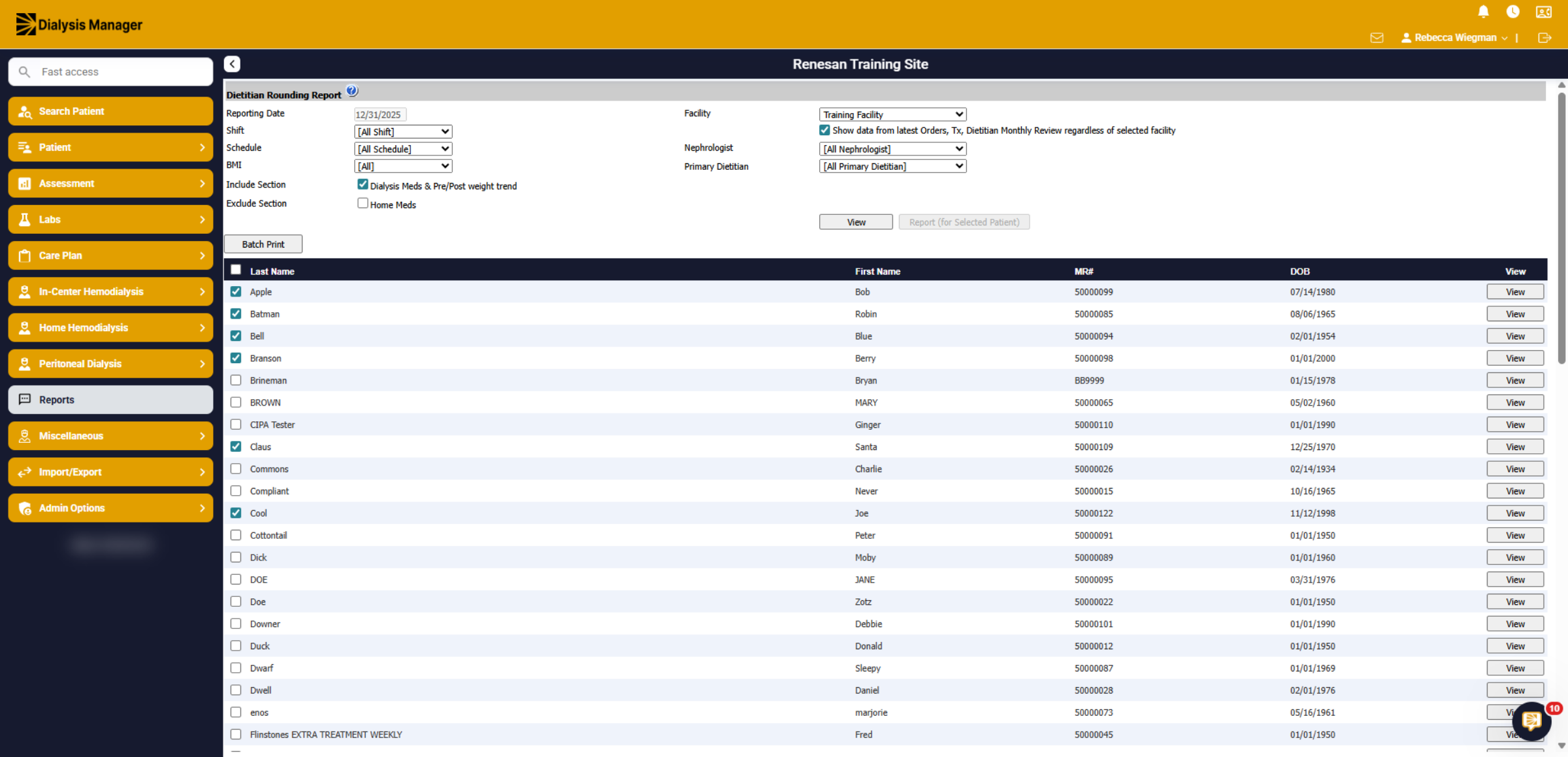
You can also select the checkbox next to the patient's name to choose specific patients for Batch Printing instead of the entire list.
7. View
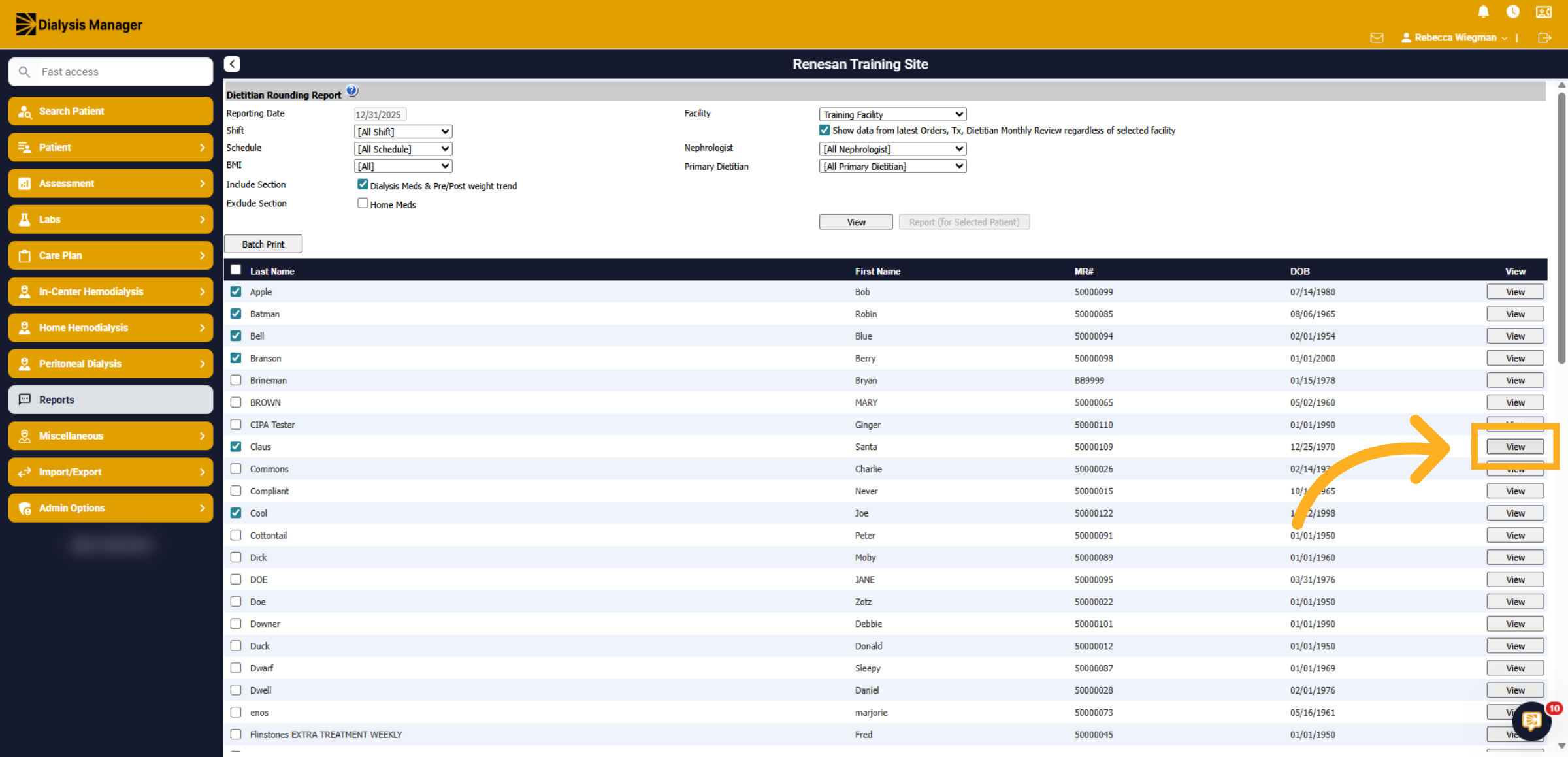
Click the View button will display that specific patients Dietitian Rounding Report.
8. Dietitian Rounding Report
When the report opens you see the patient's information along the top. The current and two previous lab results, Dialysis Medication and if you selected to run the report with Home Medications and Pre and Post Weight trends you will see that here.