Report: Current Dialysis Order Report & Current Dialysis Order List (by Patient).
1. Introduction
This tutorial demonstrates how to generate the Current Dialysis Order Report and the Current Dialysis Order List by patient. You will learn to navigate the Renvio application to access, customize, and view these reports effectively.
2. Open Dialysis Order Report
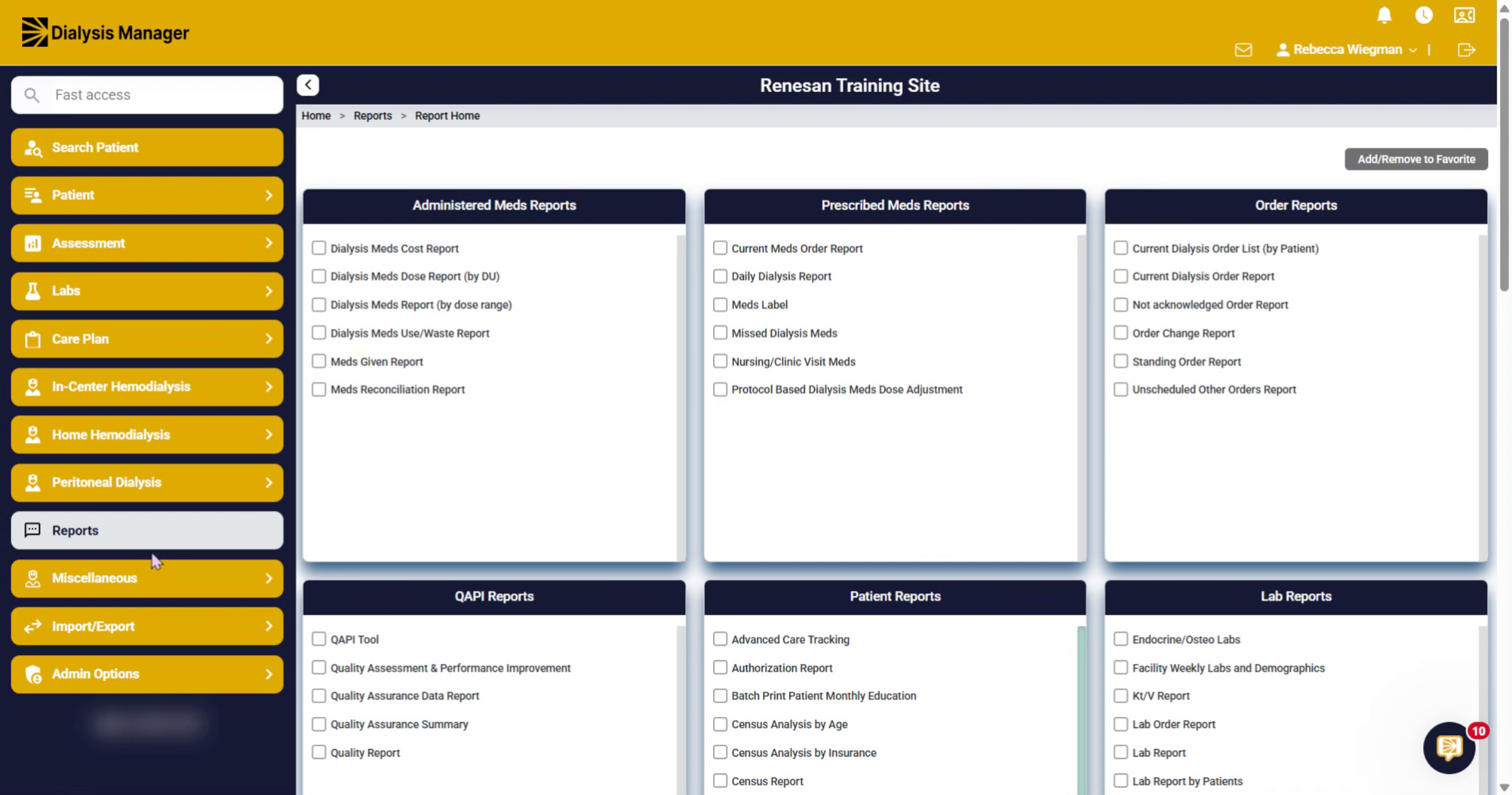
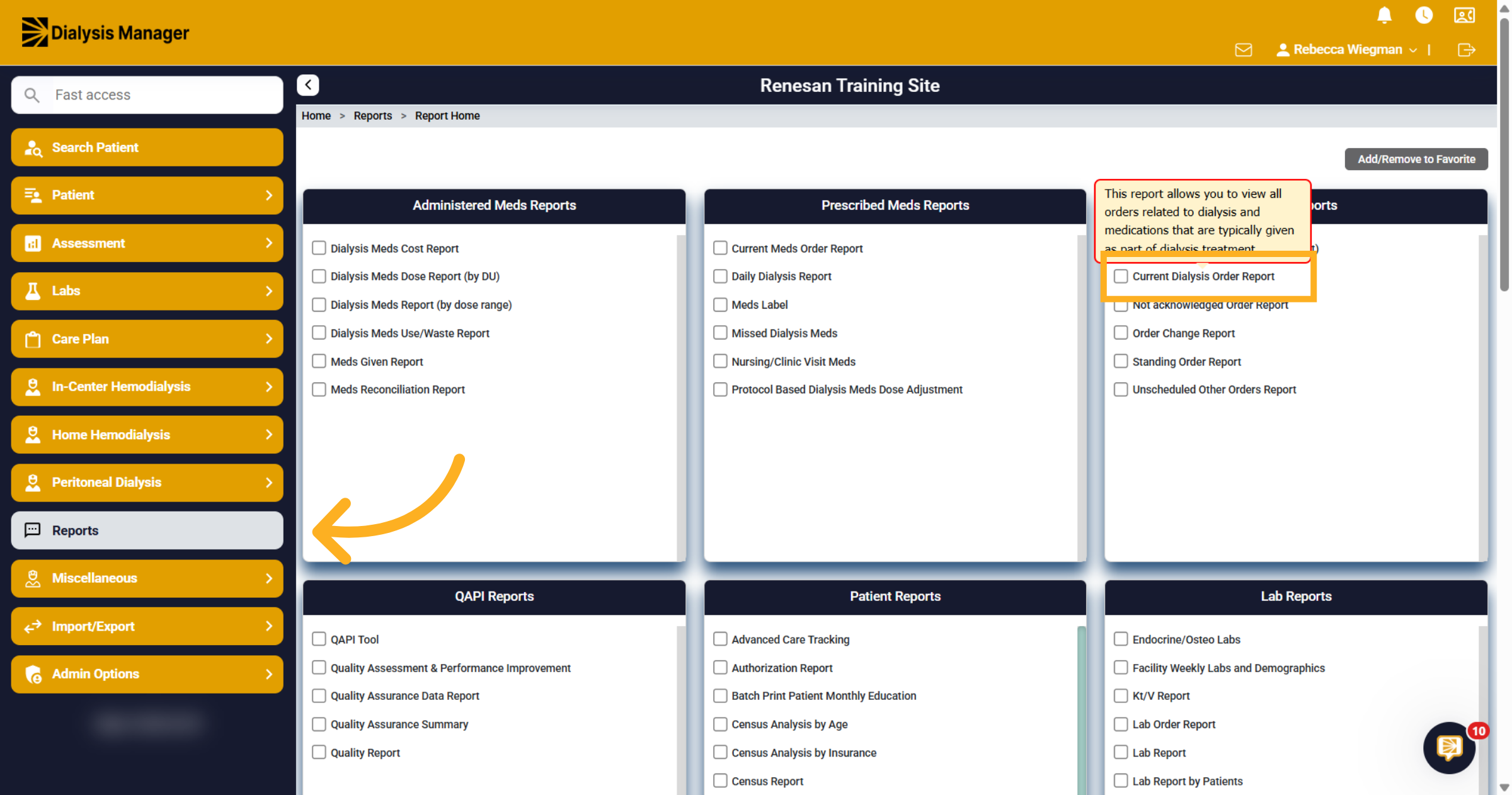
Inside Reports, click Current Dialysis Order Report to begin generating the report.
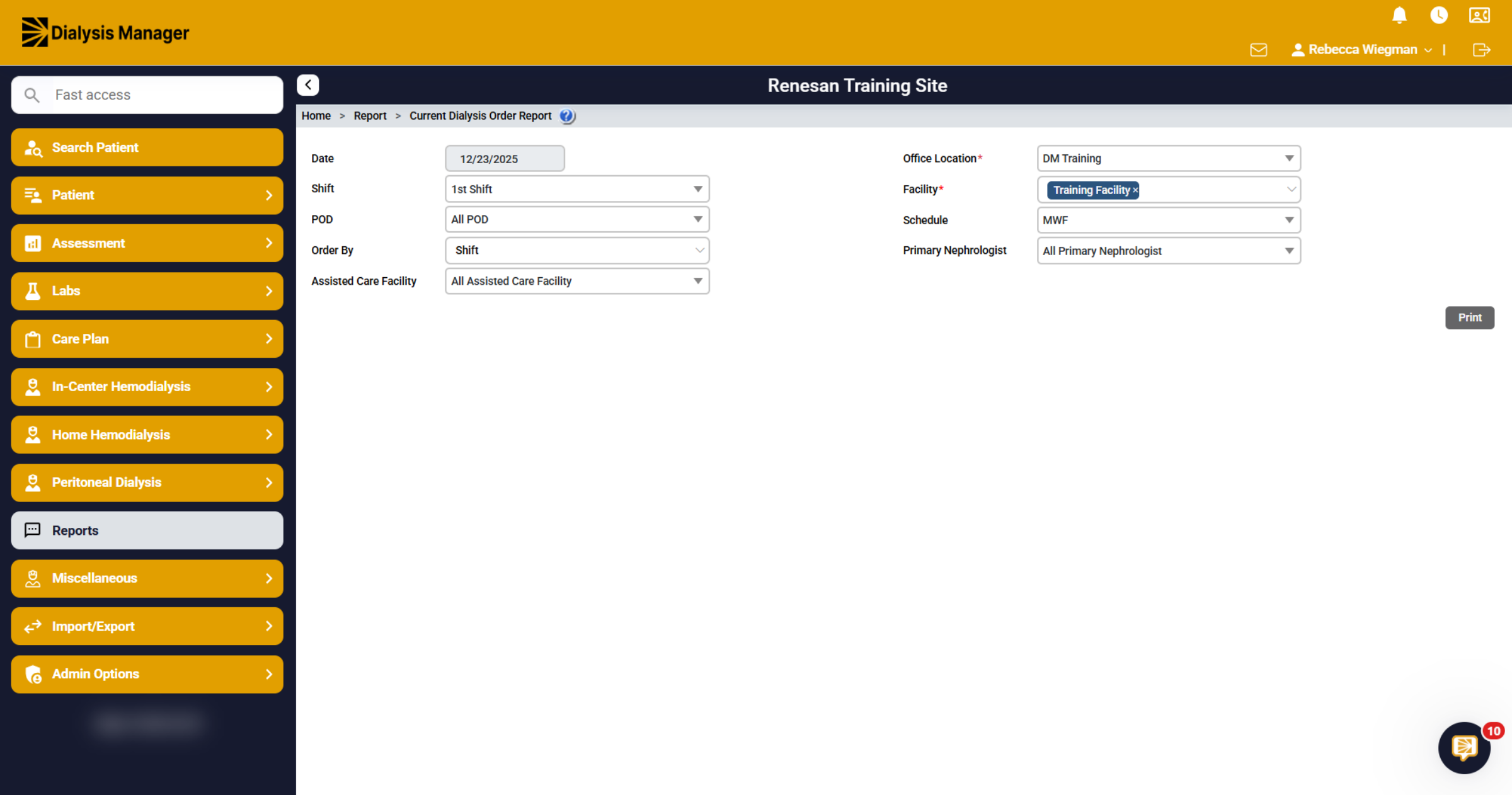
3. Filters
The date will automatically default to today. You can also filter by additional criteria such as Shift, Schedule, Nephrologist, and more. Mandatory fields will be indicated with a red asterisk. Click Print!
4. Current Dialysis Order Report
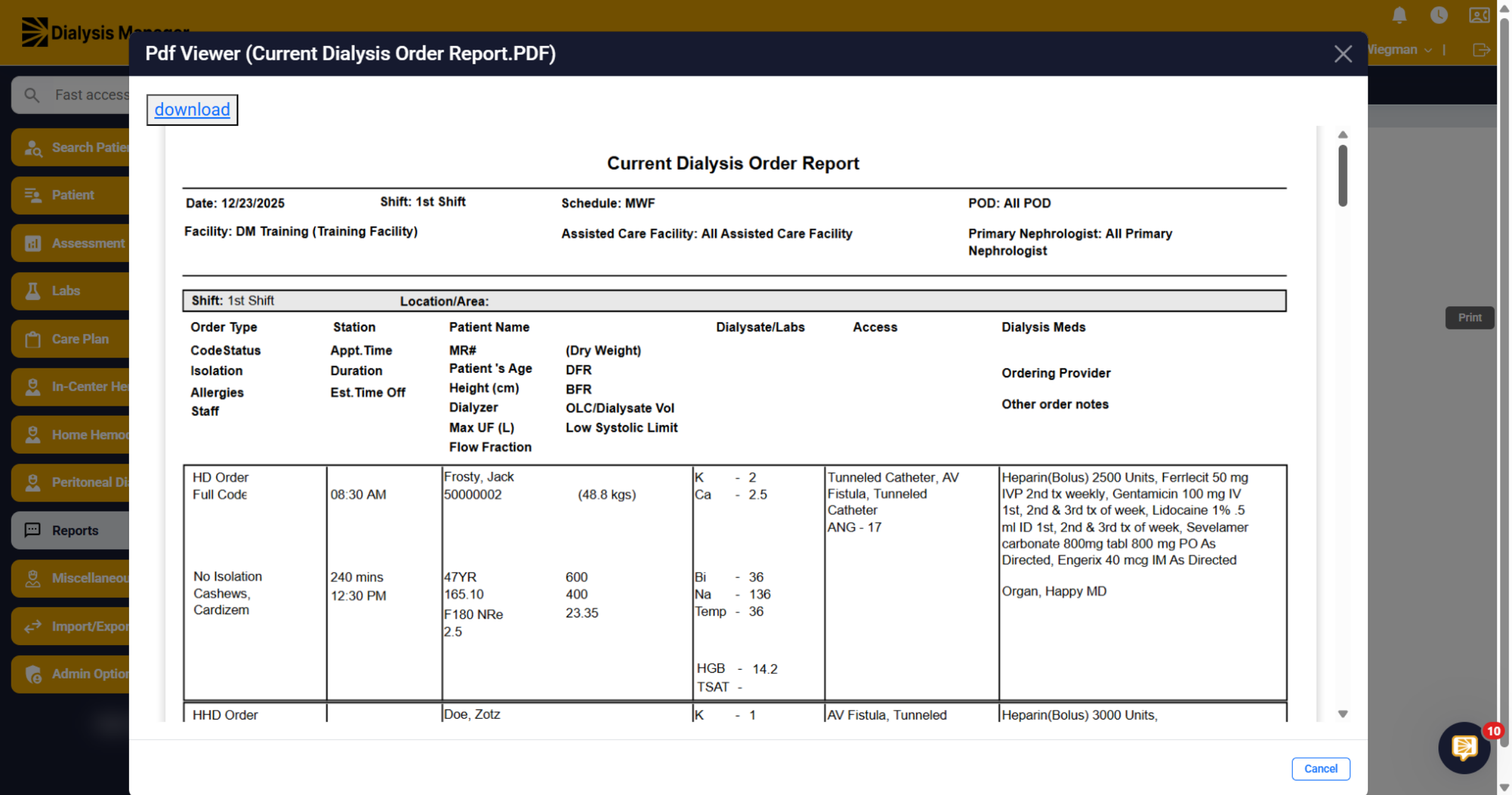
When the report opens, each patient is organized into distinct sections. The first section displays the order type, code status, and other relevant details. The second section includes duration and estimated time off, while the third highlights patient demographics. The fourth presents dialysate and lab information. The fifth covers access information, and the sixth details dialysis medications, provider notes, and order notes.
5. Download
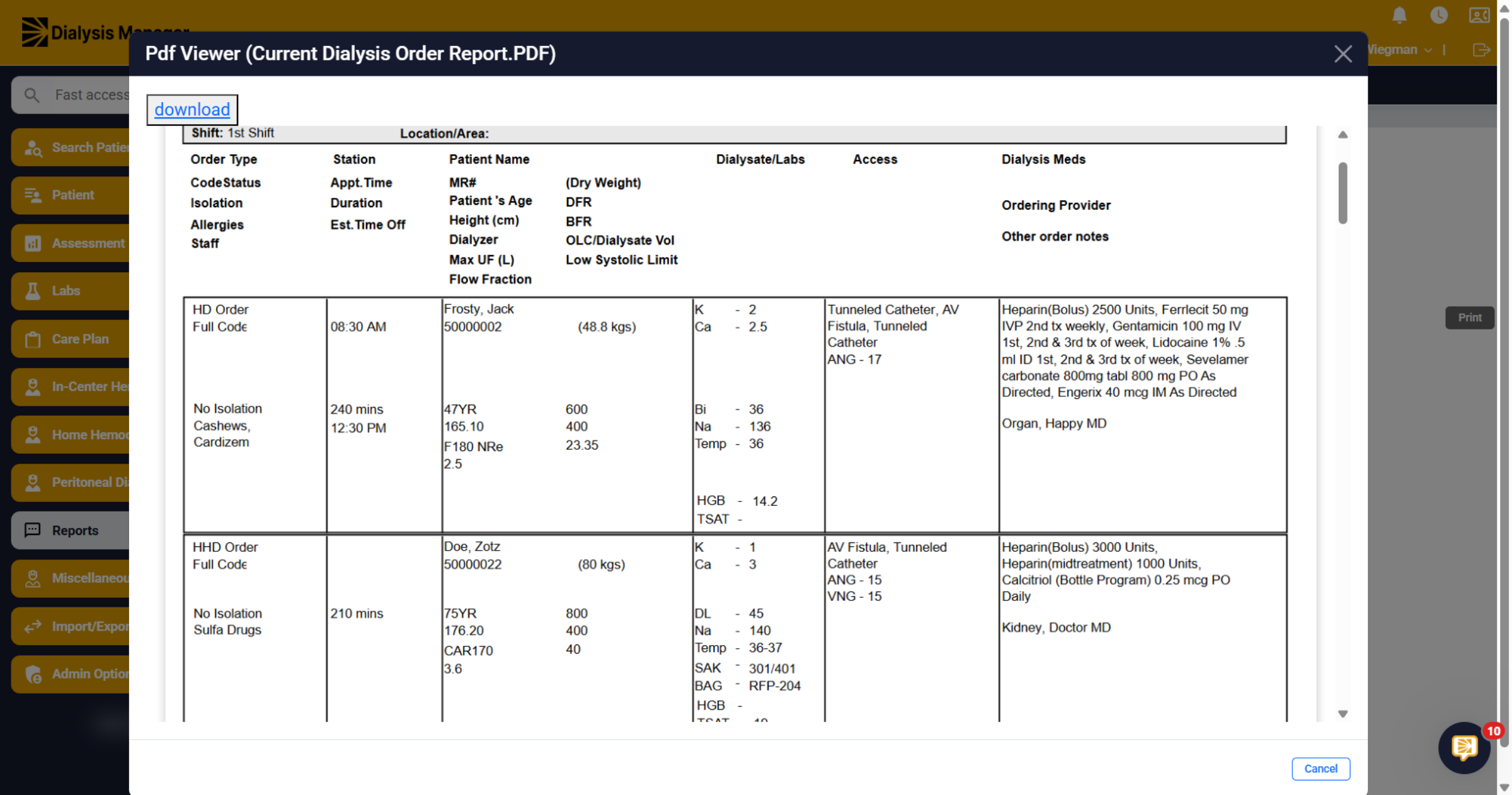
You'll have the ability to Download the report to print and select cancel to bring you back to reports.
6. Current Dialysis Order List (by Patient)
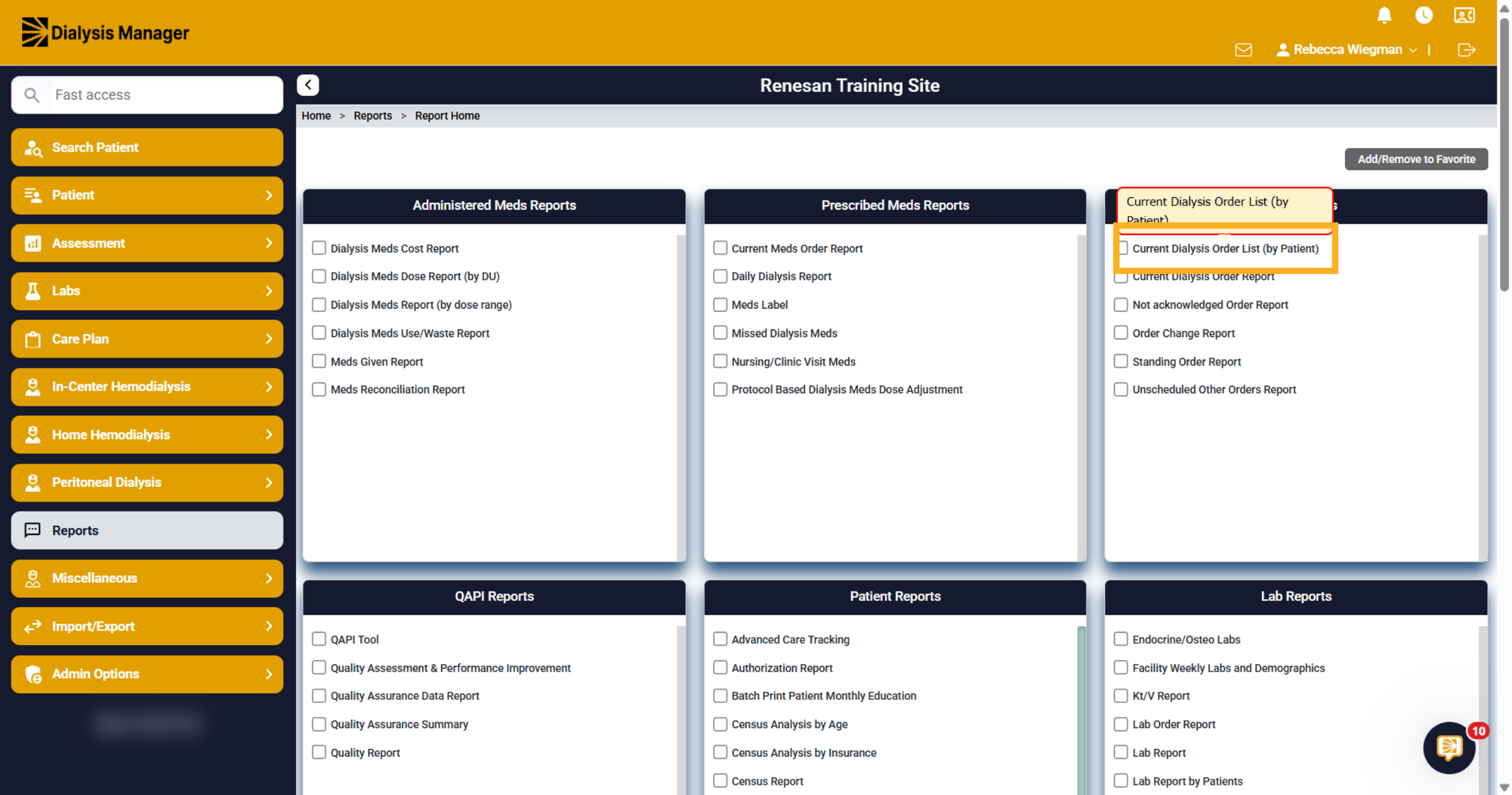
Back inside the Report menu, click Current Dialysis Order List (by Patient) to view dialysis orders organized by individual patients.
7. Filter
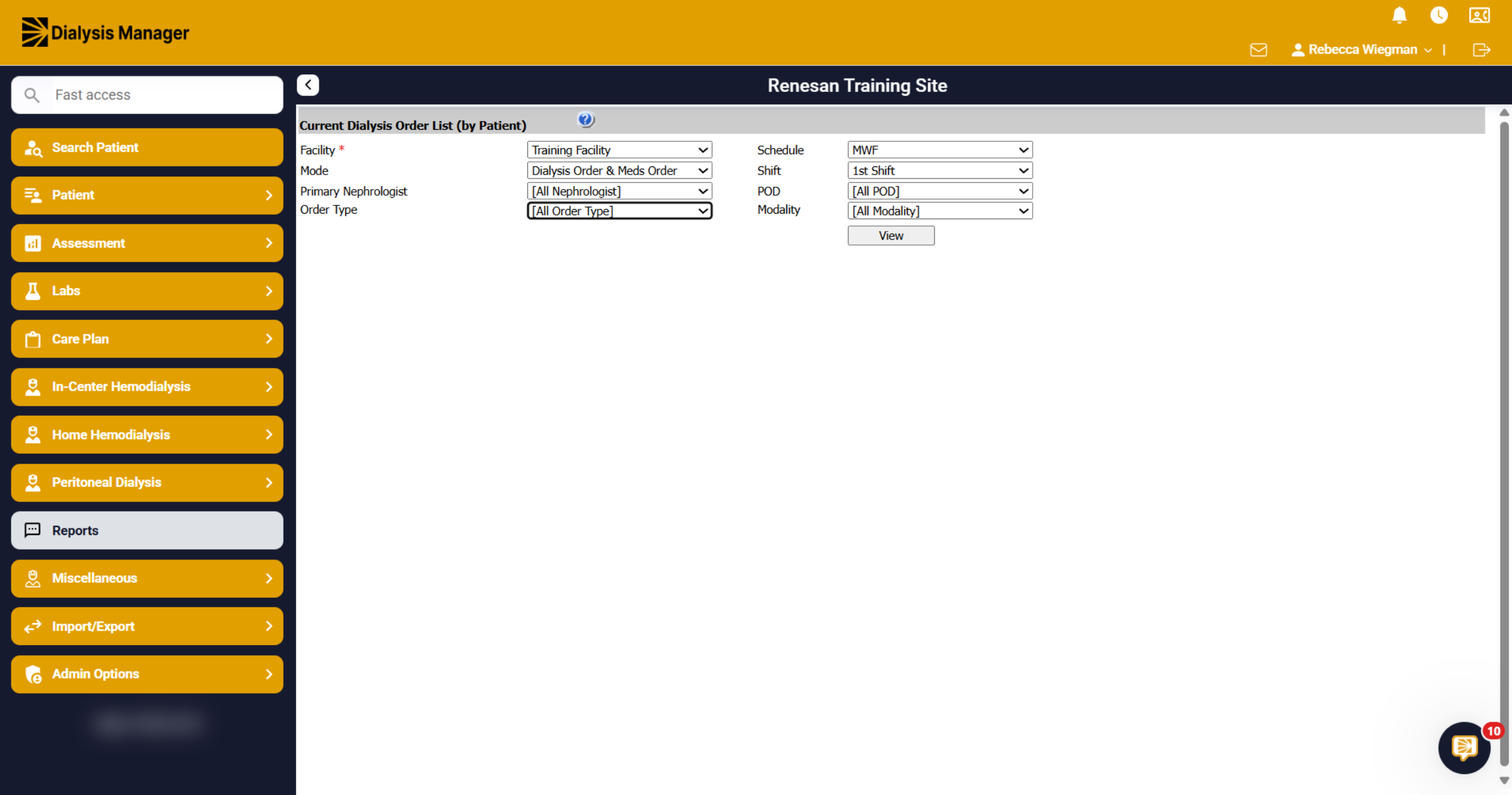
You'll be able to select specific criteria such as Schedule, Shift, Modality, etc. Please remember that anything with an asterisk is required.
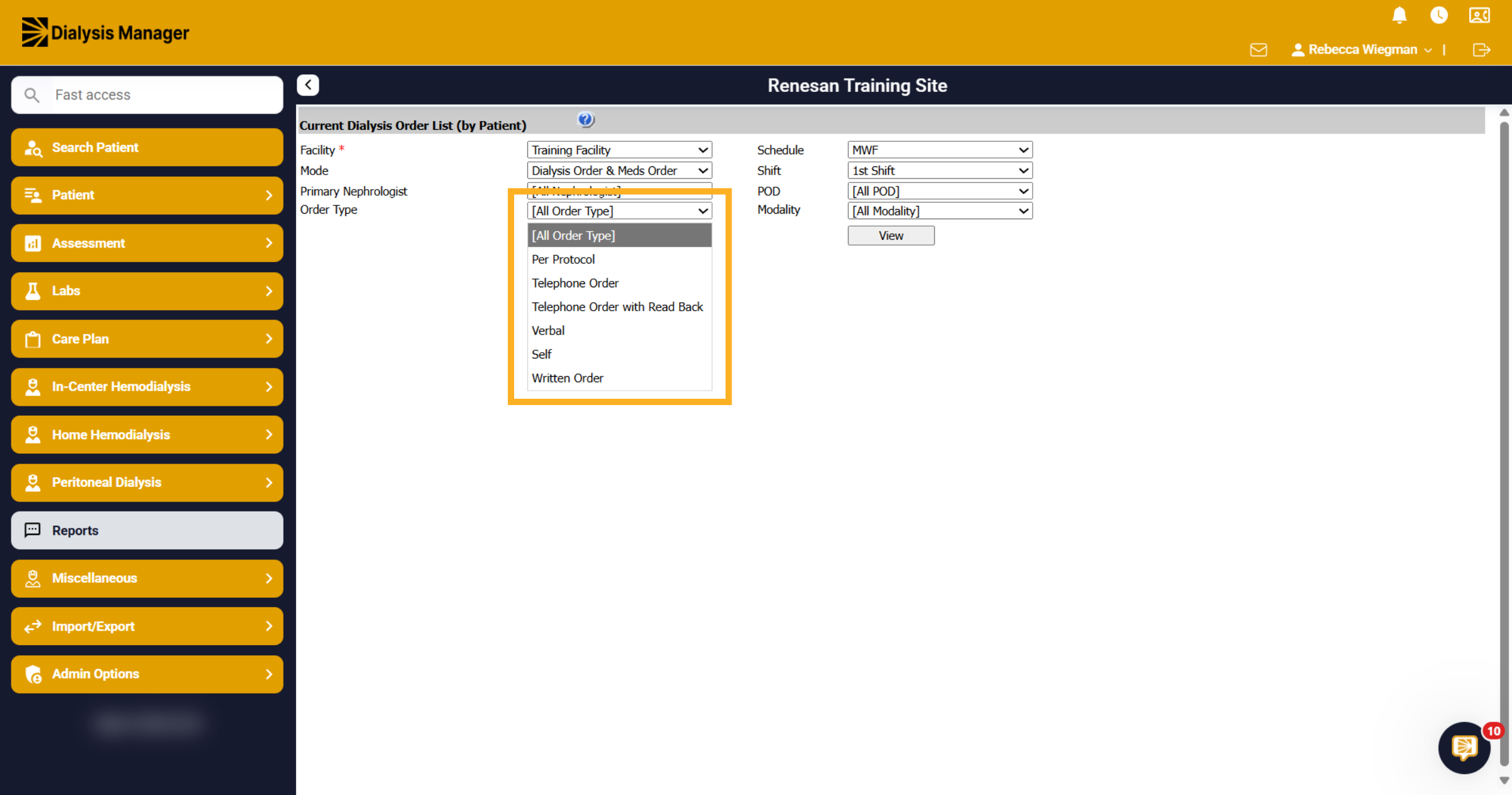
8. Order Type
In the Order dropdown, you'll have the option to select All Order Type or choose Per Protocol, Telephone Order, Telephone Order with Read Back, Verbal, Self, or Written Order types.
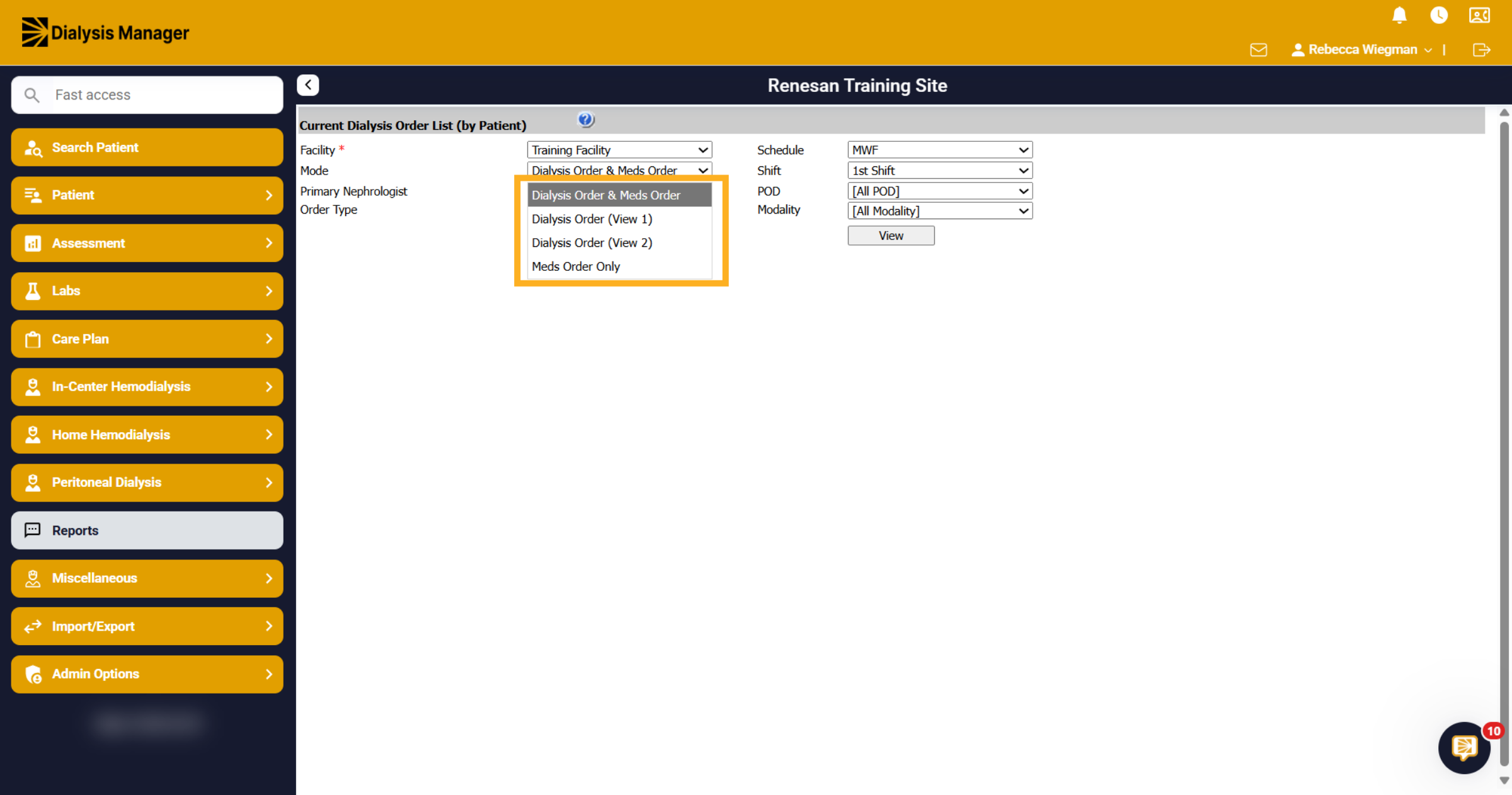
9. Mode options
In the dropdown for Mode, you'll have the ability to run Dialysis Order & Meds Order, Dialysis Order (View 1), Dialysis Order (View 2), or Meds Order Only. Each mode will display a different view and information
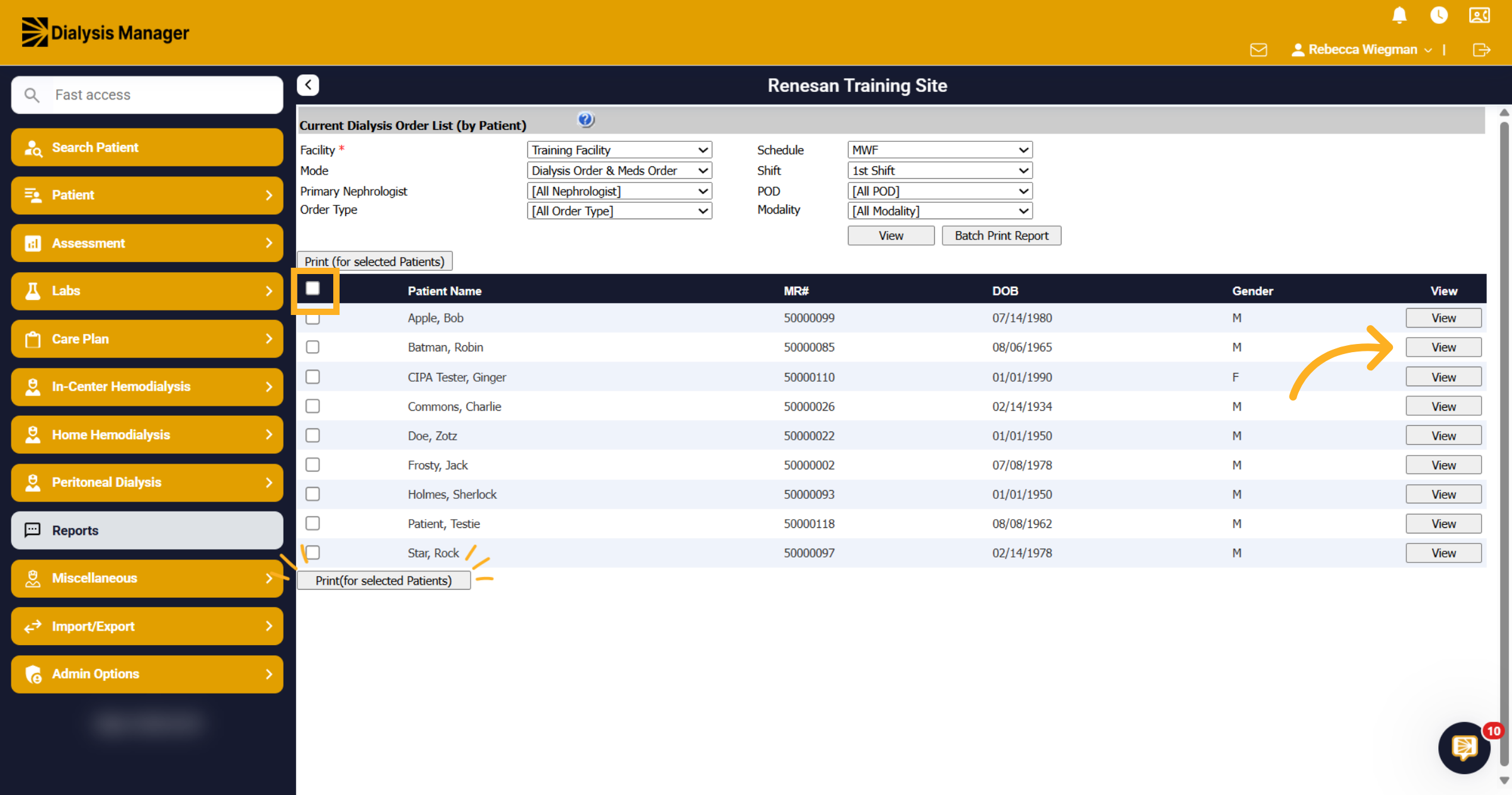
10. Dialysis Order & Meds Order
When viewing the report for Dialysis Order and Meds Order you will see your list of patients were your able to run for all patients, selected patients or individual patients. Reminder that selecting the checkbox in the header will select all patients then click Print (for selected Patients).
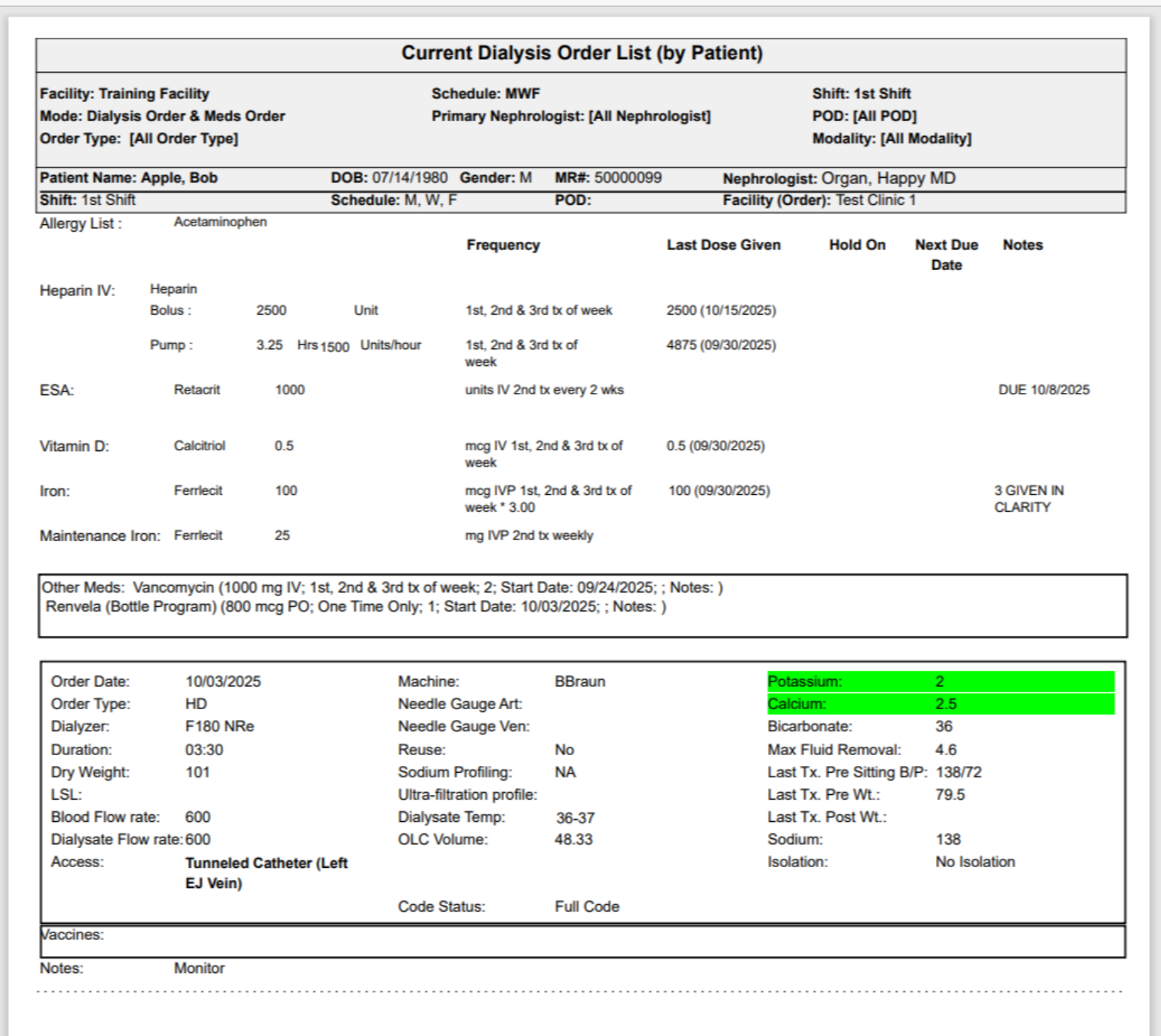
11. Current Dialysis Order List by Patient
The report will show patient demographics, all medications and dialysis order along with other information.
12. Dialysis Order (View 1)
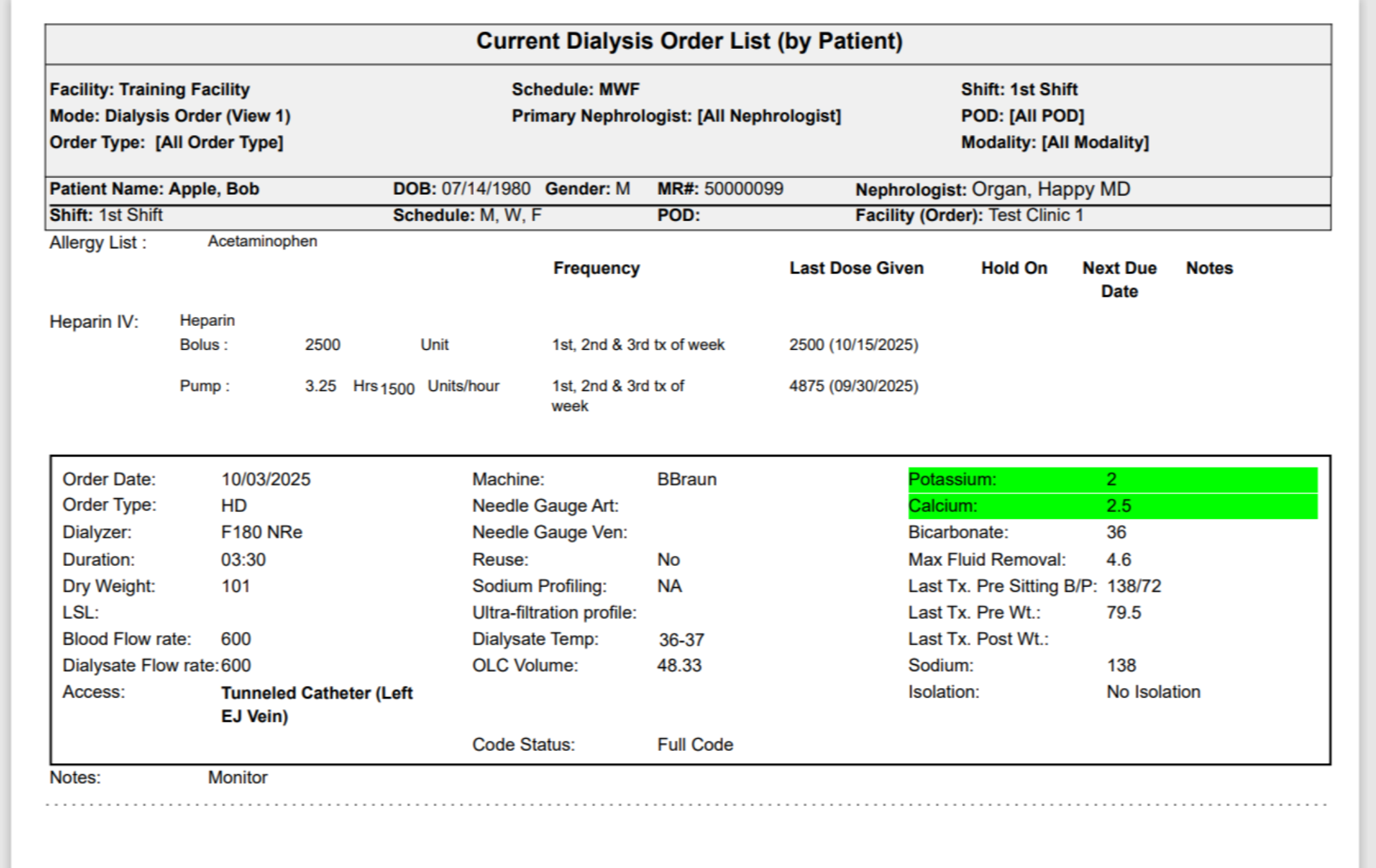
If running the report for Dialysis Order View 1, you will only see the patients Heparin Orders.
13. Dialysis Order (view 2)
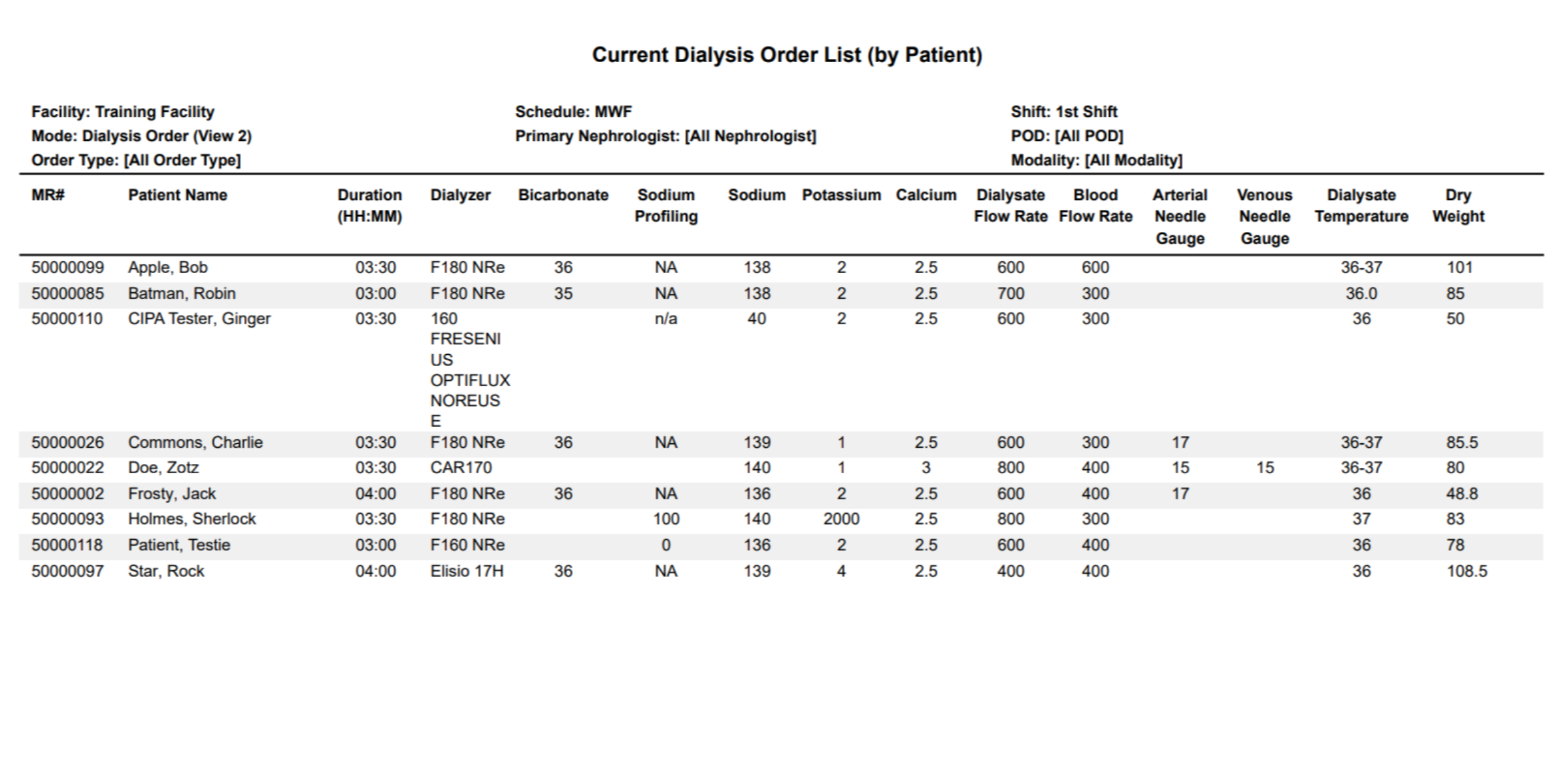
When running the Dialysis Order View 2, you will see a list of patients displaying treatment duration, dialyzers, machine setup, needle gauge and dry weights.
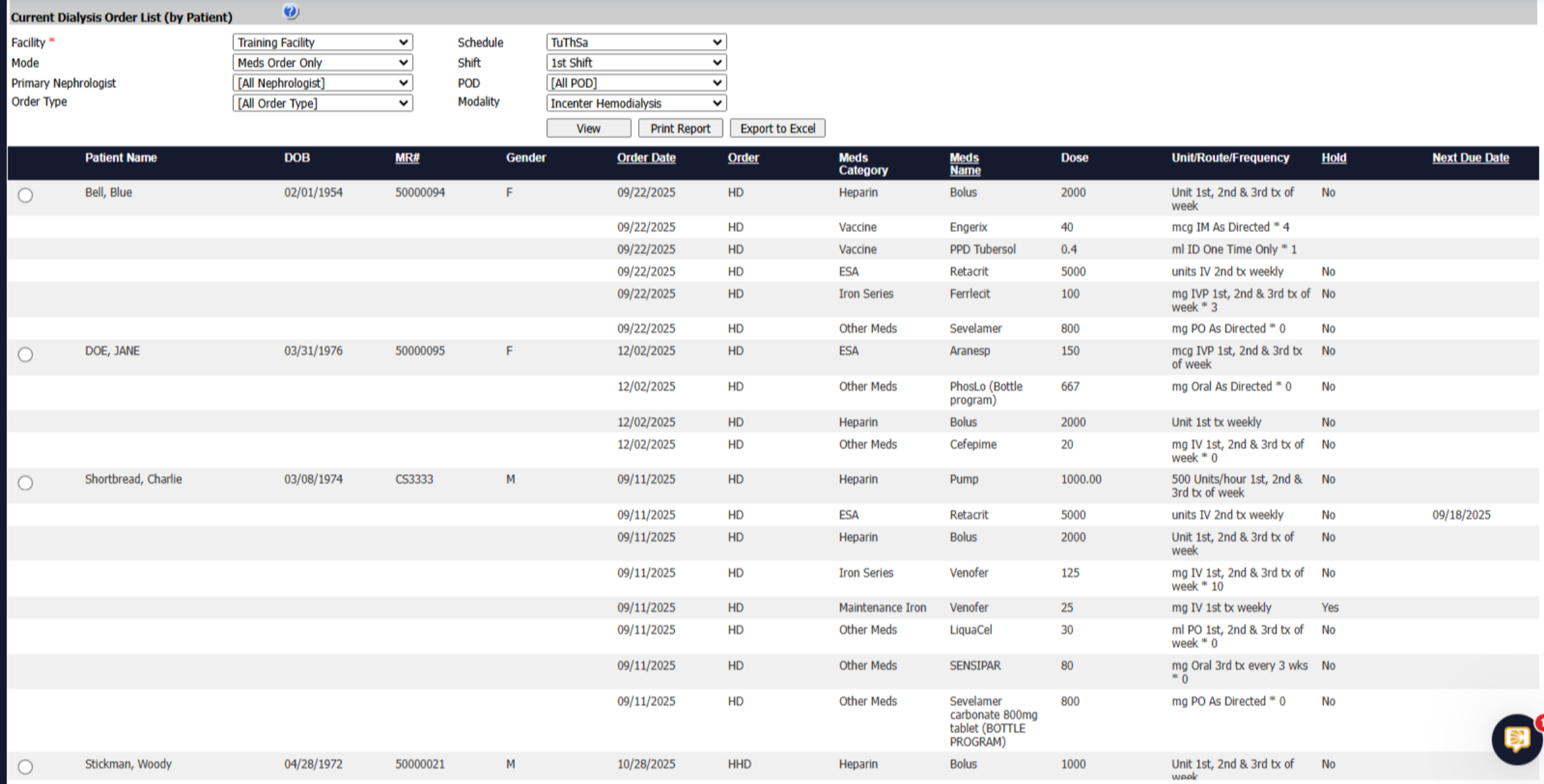
14. Meds Order Only
When viewing the Meds Order Only, you'll see the patient names, order date, medication category and name, along with the dose, unit, route, and frequency and if the medication is on hold or has a date of next dose. Again, you are able to Print Report or Export to Excel.