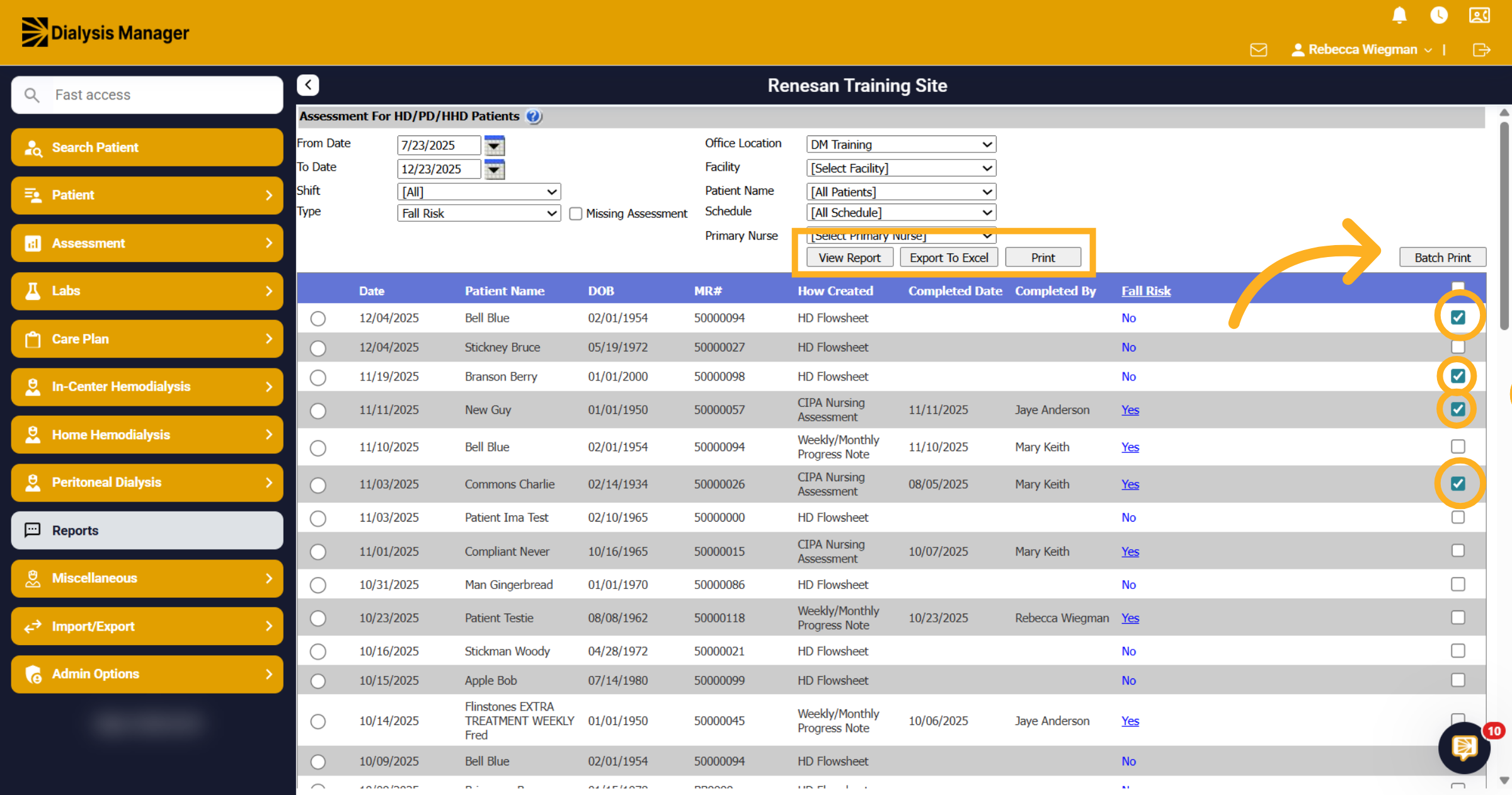
Report: Assessment HD/PD/HHD Patients.
1. Introduction
This tutorial guides you through generating the report Assessment HD/PD/HHD Patients. Assessment to include Pain, Depression, Foot Checks, Dressing Changed, Medication Reconciliation, Fall Risk, etc.
2. Open Reports Section
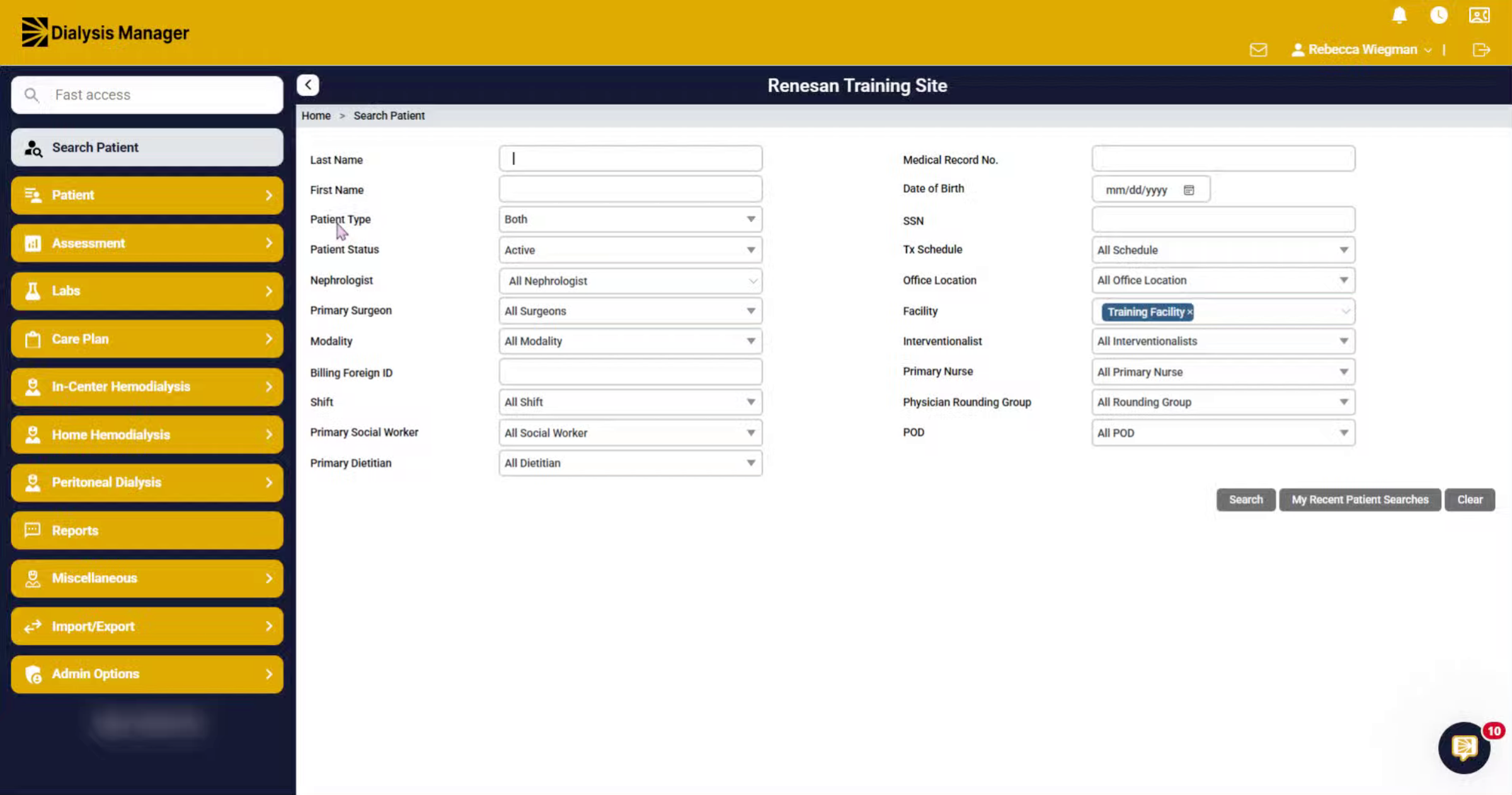
Click the Reports section to access available report options.
3. Access Home Program Reports
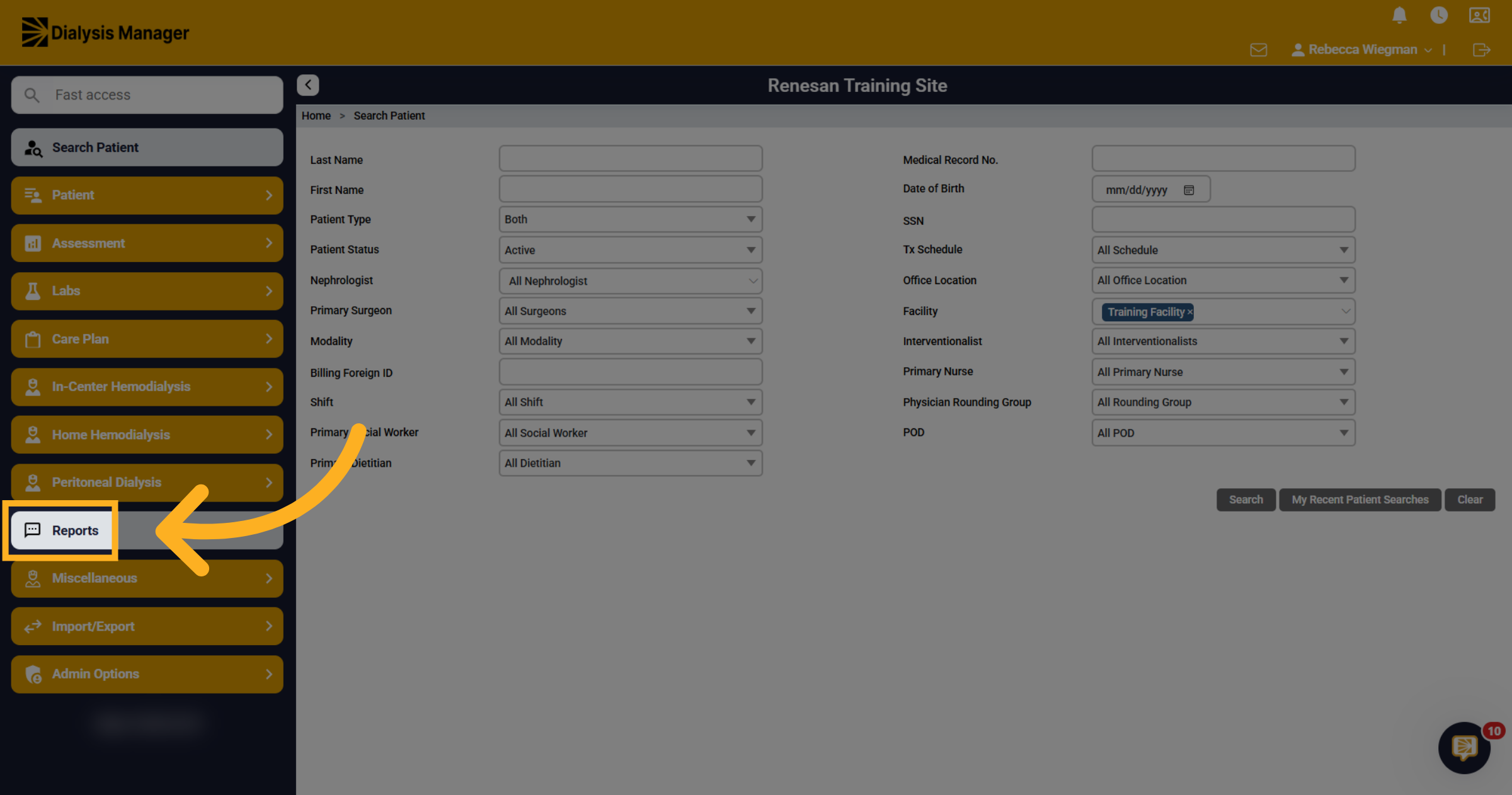
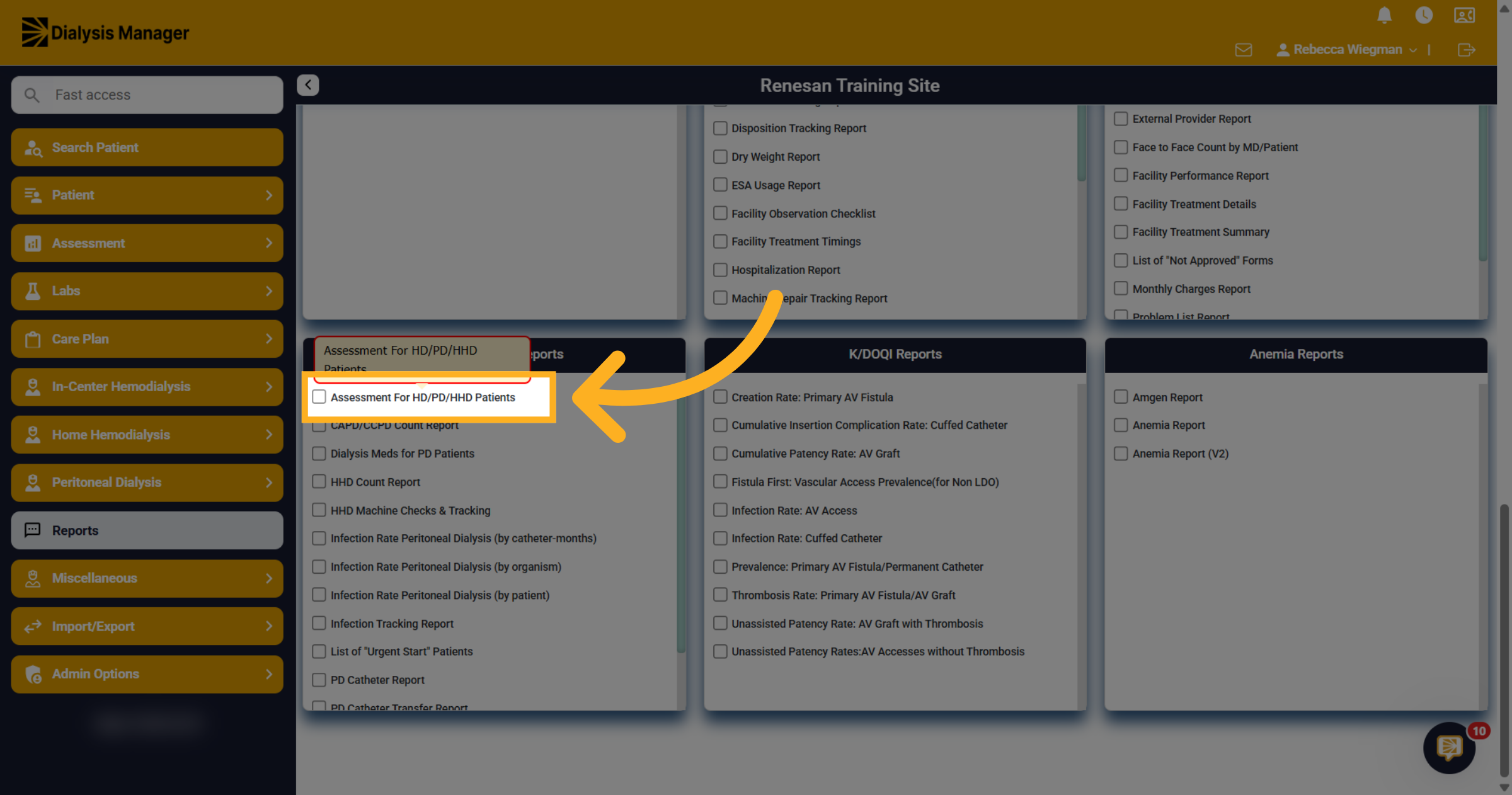
The Assessment for HD/PD/HHD patients will be under the Home Program Reports header.
4. Select Assessment Report
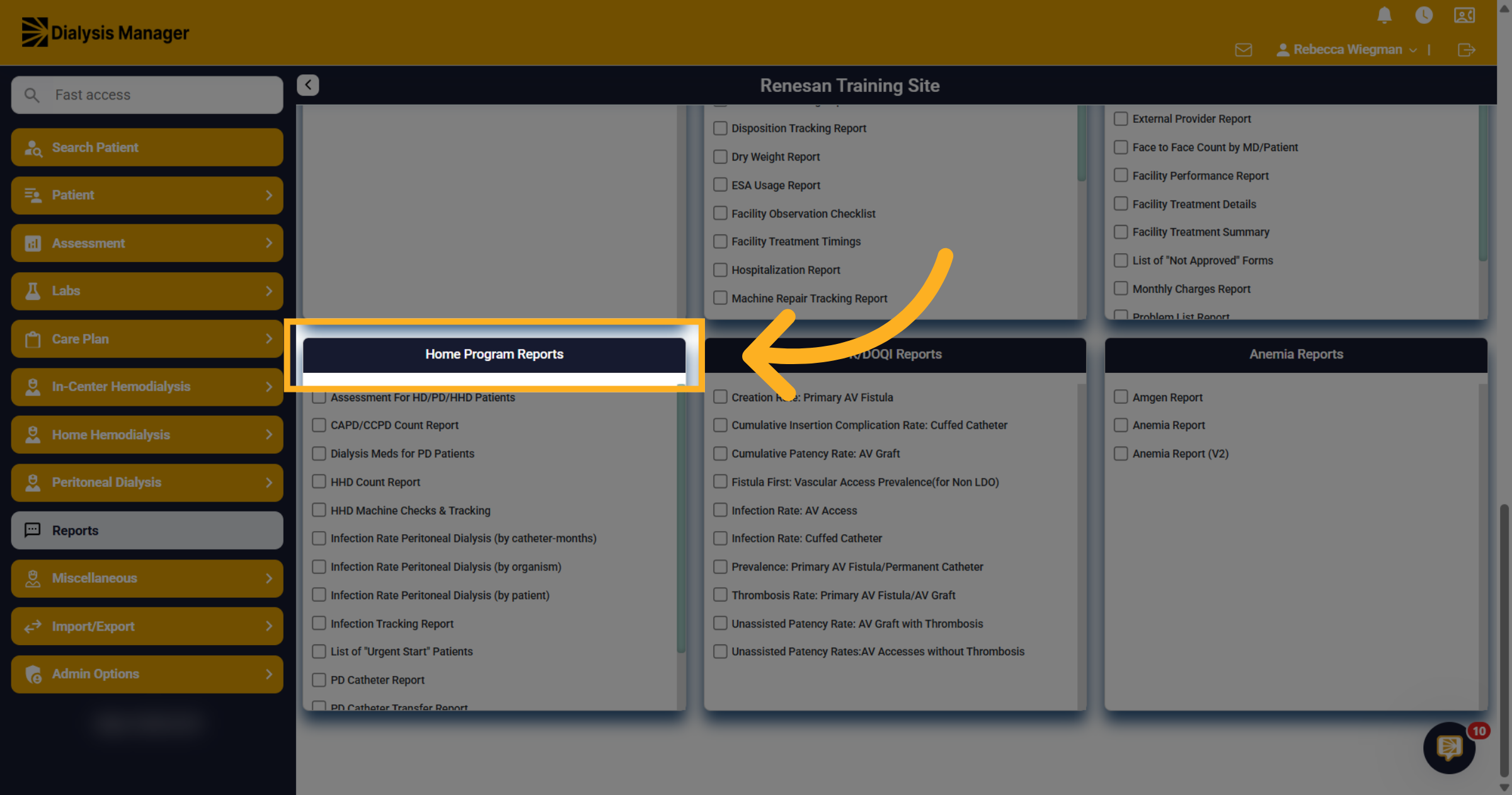
Click Assessment For HD/PD/HHD Patients to open the specific patient assessment report.
5. Open From Date Selector
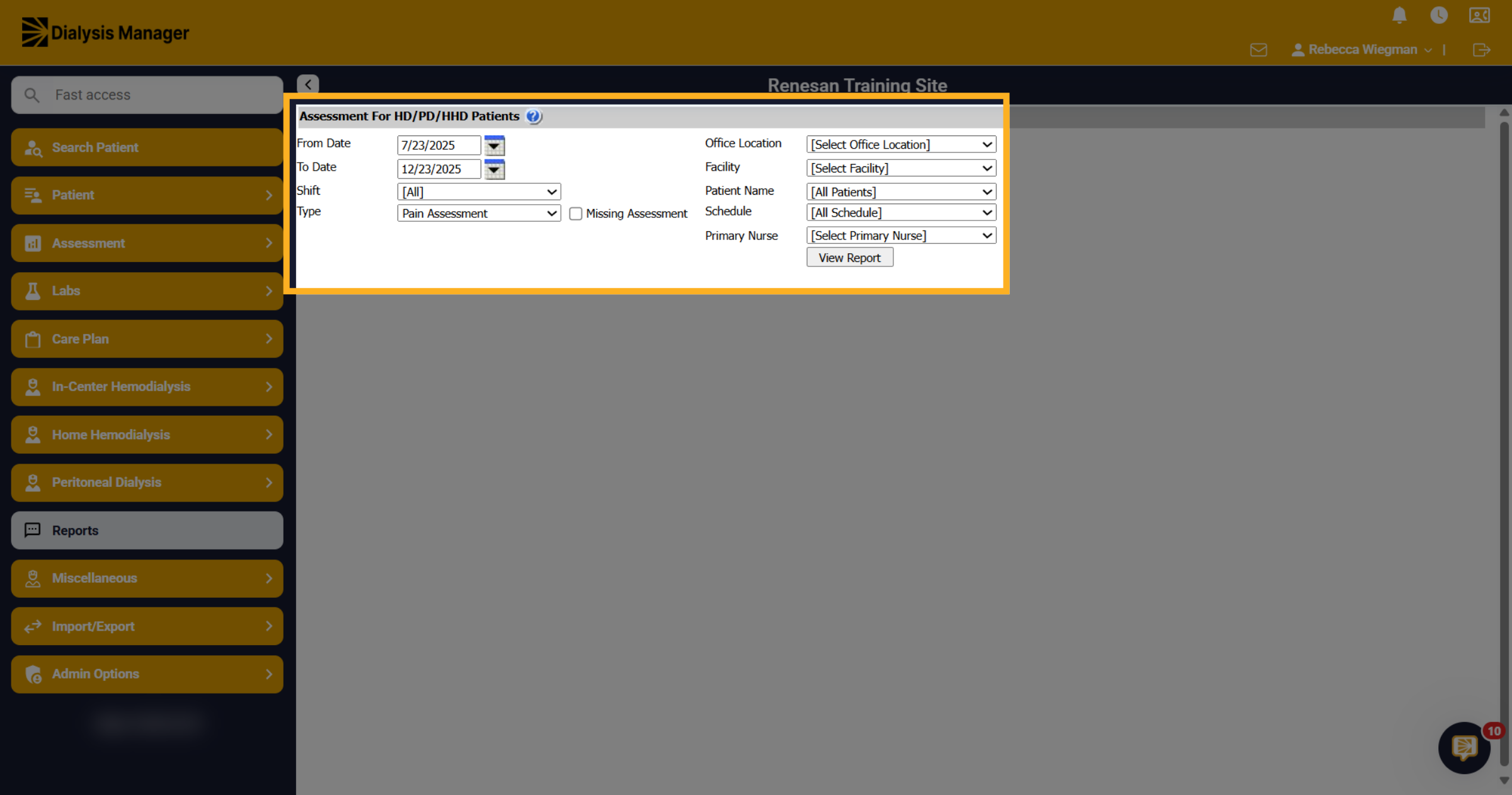
You can filter this report based on various criteria. The default date range is set to the last 5 months, but you can customize it as needed. Additionally, you will need to select the office location or facility.
6. Choose Assessment Criteria
In the Type dropdown, you will find options for Pain Assessment, Depression Screening, Foot Check, Dressing Changed, Tego Connector Changed, Infection with Bacteremia, Medication Reconciliation, Fall Risk, Immobilization, and Social Determinants of Health.
7. View Selected Report
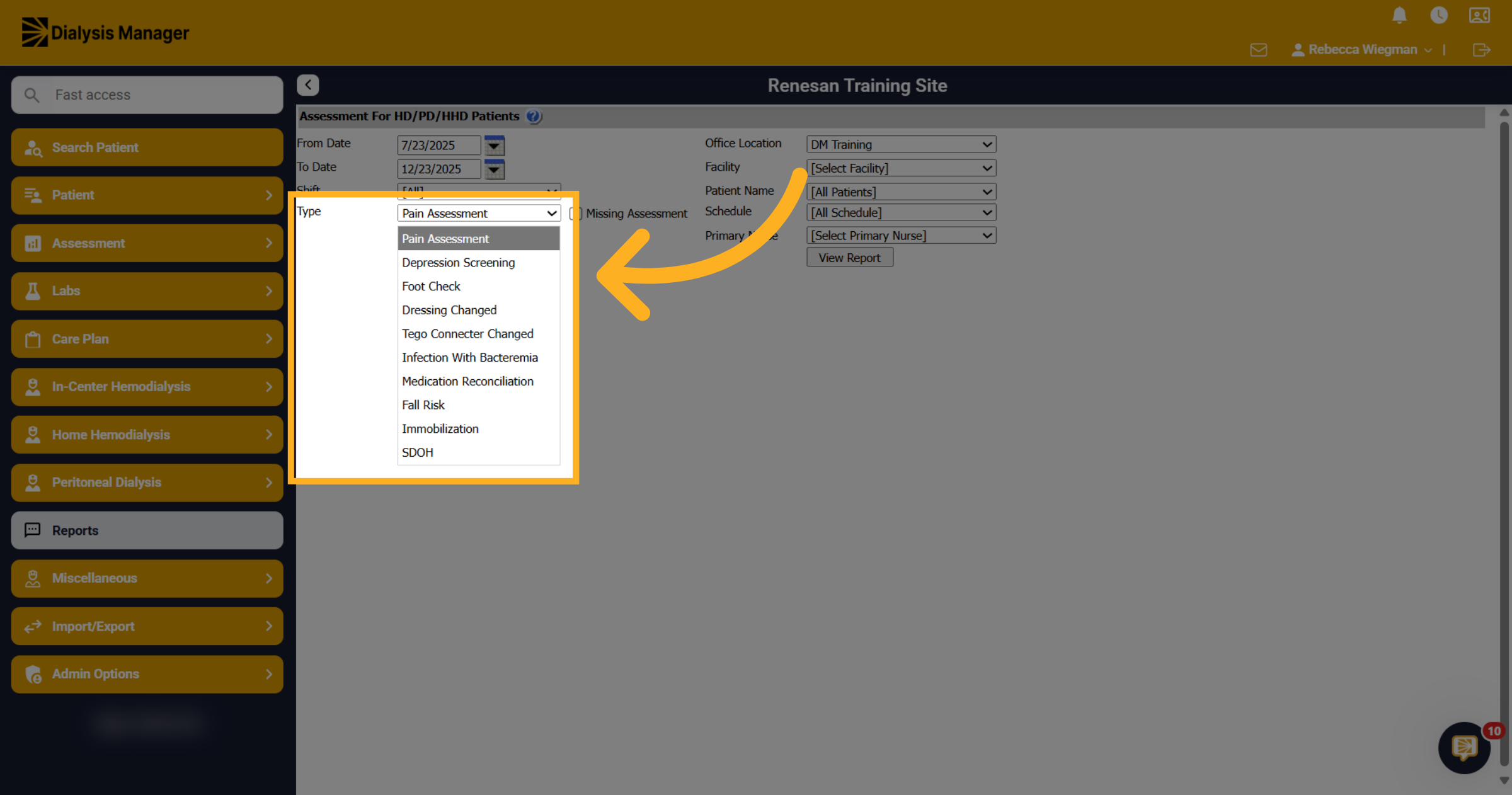
Click View Report to generate the report based on the selected criteria and date range.
8. Pain Assessment
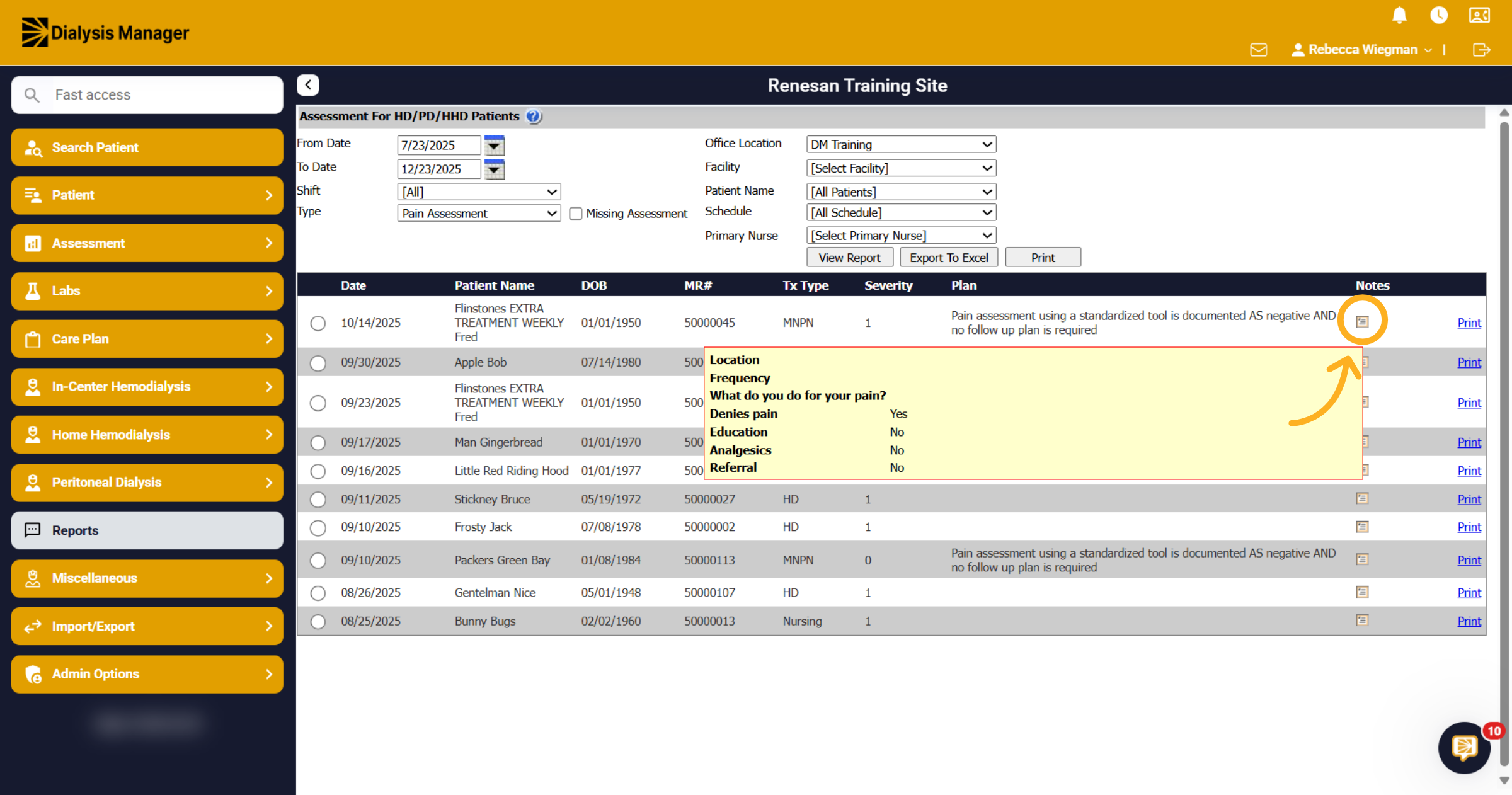
When you open the Pain Assessment Report, you'll find the assessment Date, Patient Name, Date of Birth, Medical Record Number, Treatment Type, Severity of Pain, and the Plan. You can hover over the Notes icon for additional details! To manage reports, select "Print" for individual patients, or choose to Export to Excel or Print as needed.
9. Missing Pain Assessments
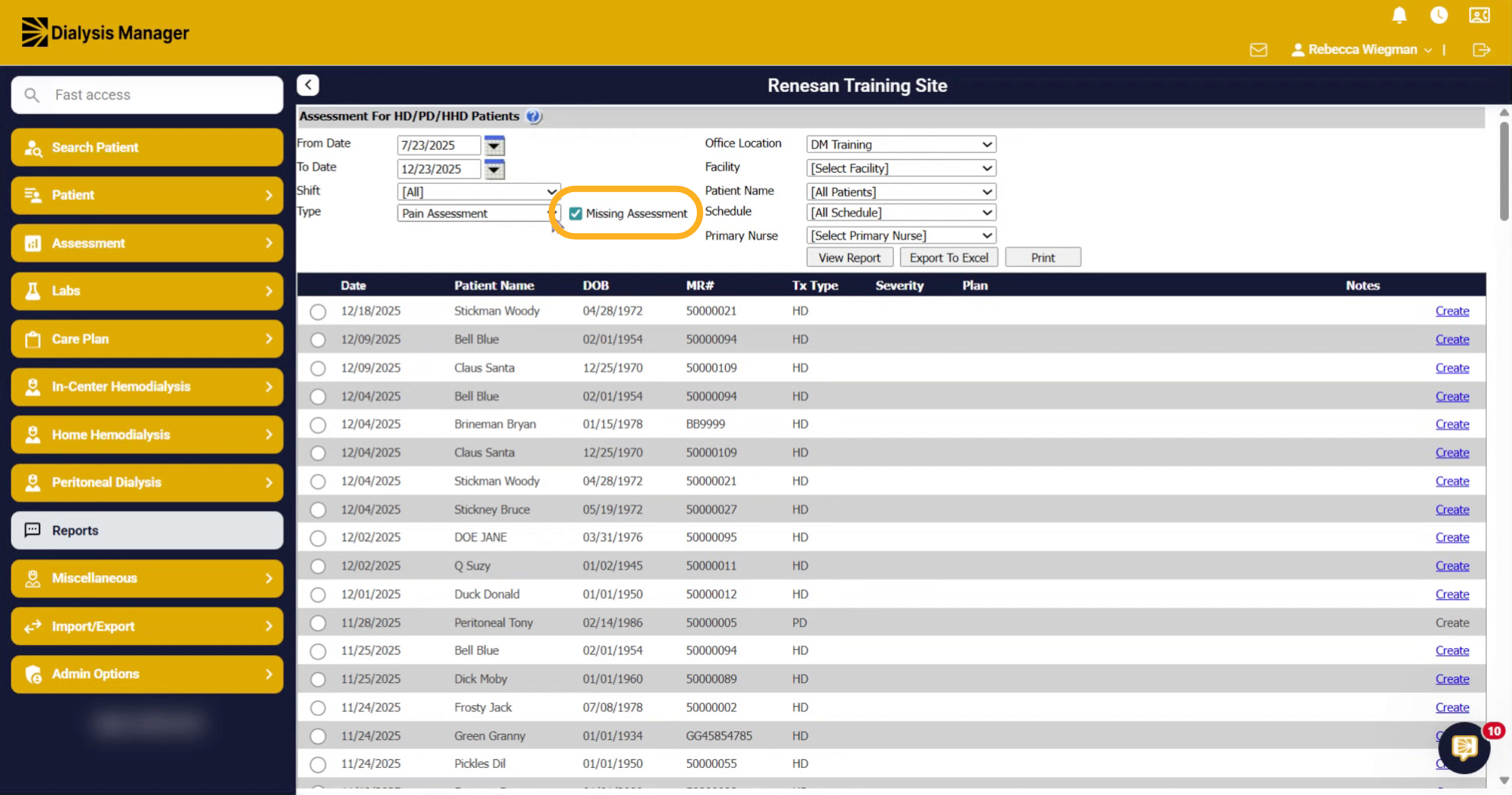
For each assessment, you can view "Missing Assessment" for patients. Just select the Missing Assessment checkbox after choosing the Assessment Type, and then click "View Report."
10. Depression Screening
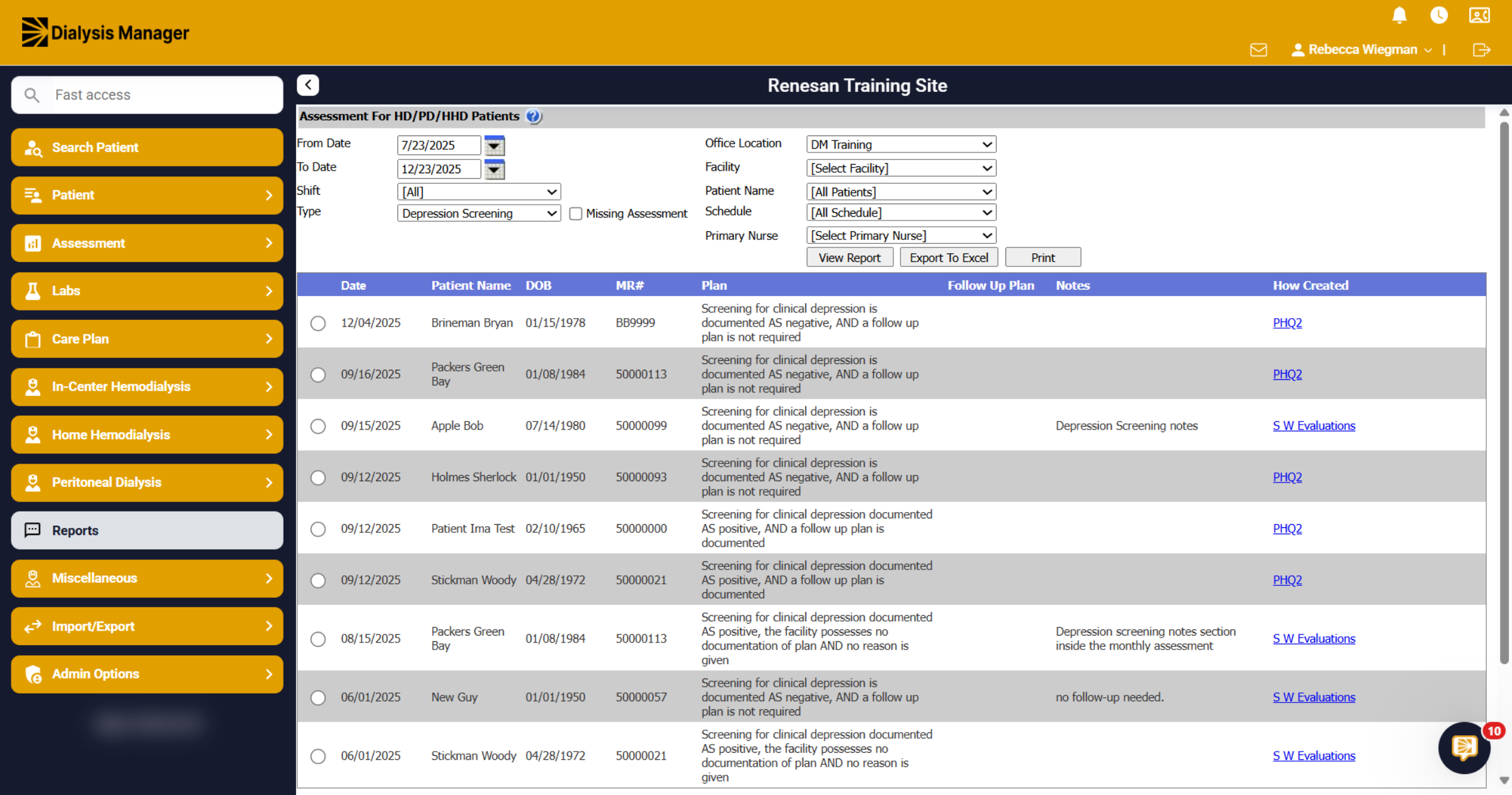
When you generate the report for Depression Screening, you will find the assessment date, patient demographics, and any necessary plans or follow-ups. The report will also include notes from the screening and details on how the depression screening was conducted.
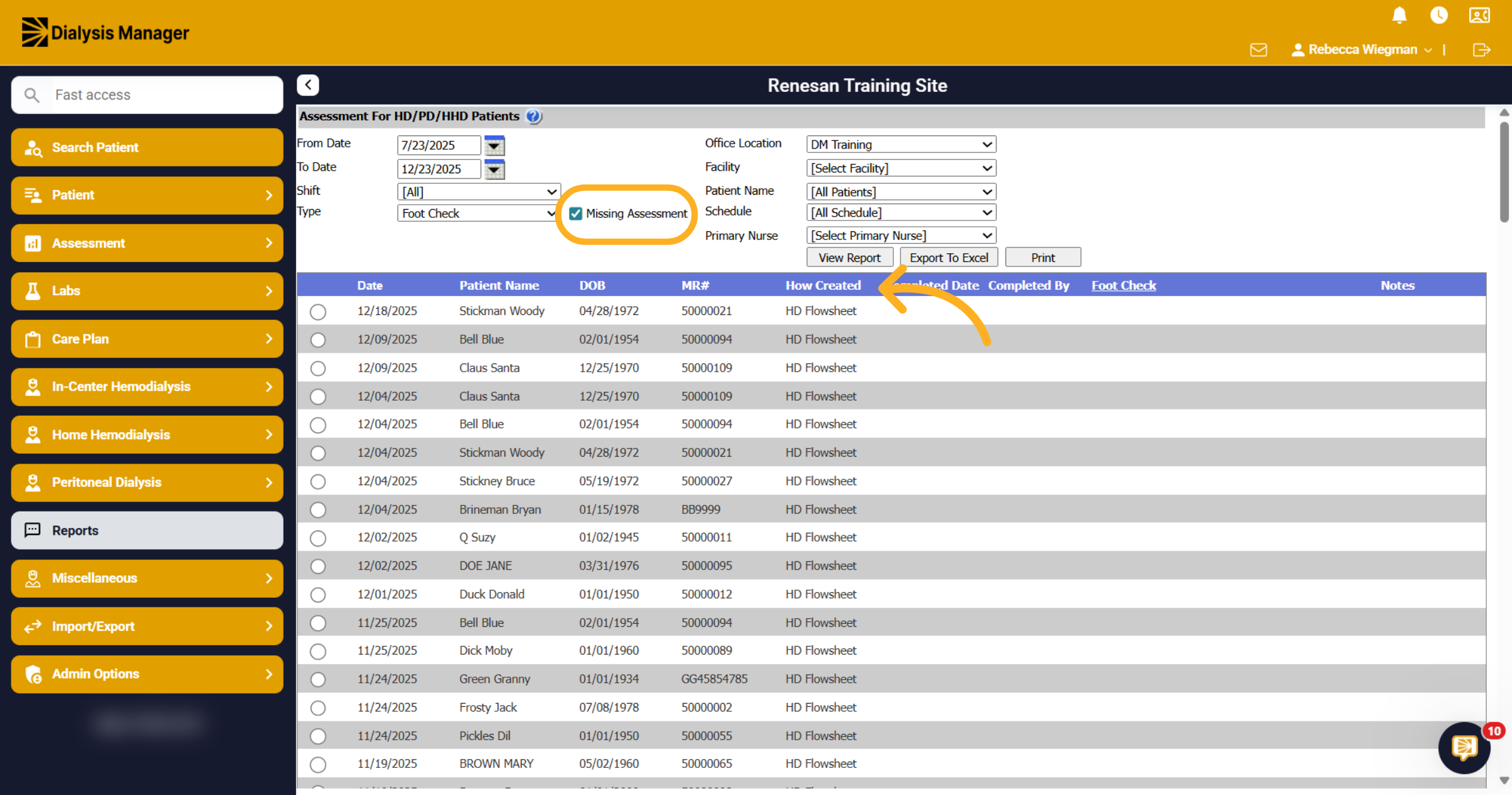
11. Foot Check
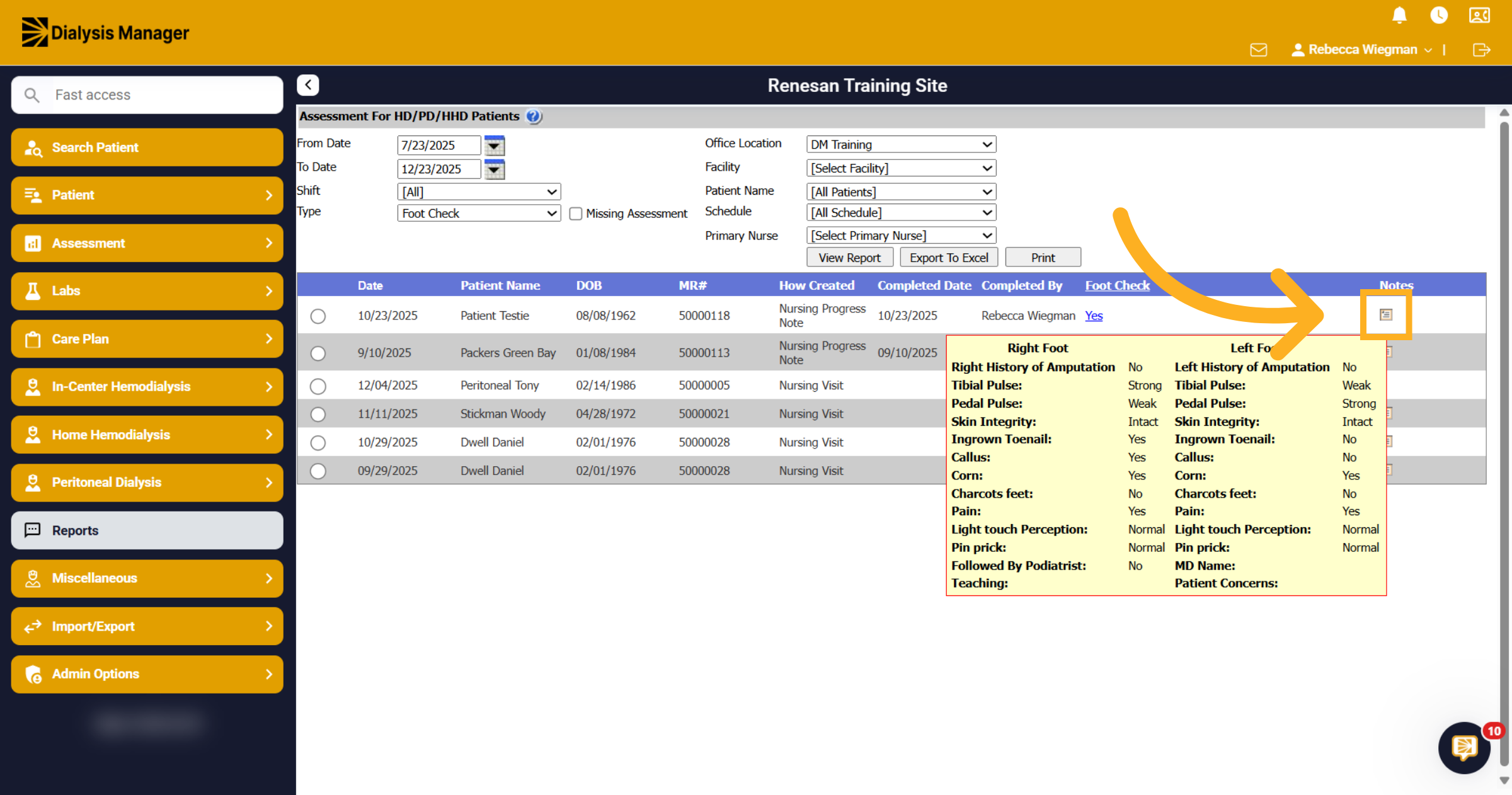
When you choose Foot Check as your report type, you'll see details such as the assessment date, patient demographics, the location of the assessment, and the person who completed it. Hovering over the notes icon will reveal additional information!
12. Missed Foot Checks
During the Missing Foot Check Assessments, you'll notice that most of your patients have a created HD Flowsheet, yet the Foot Check remains incomplete. This occurs because the Foot Check is not a mandatory field on the Flowsheet
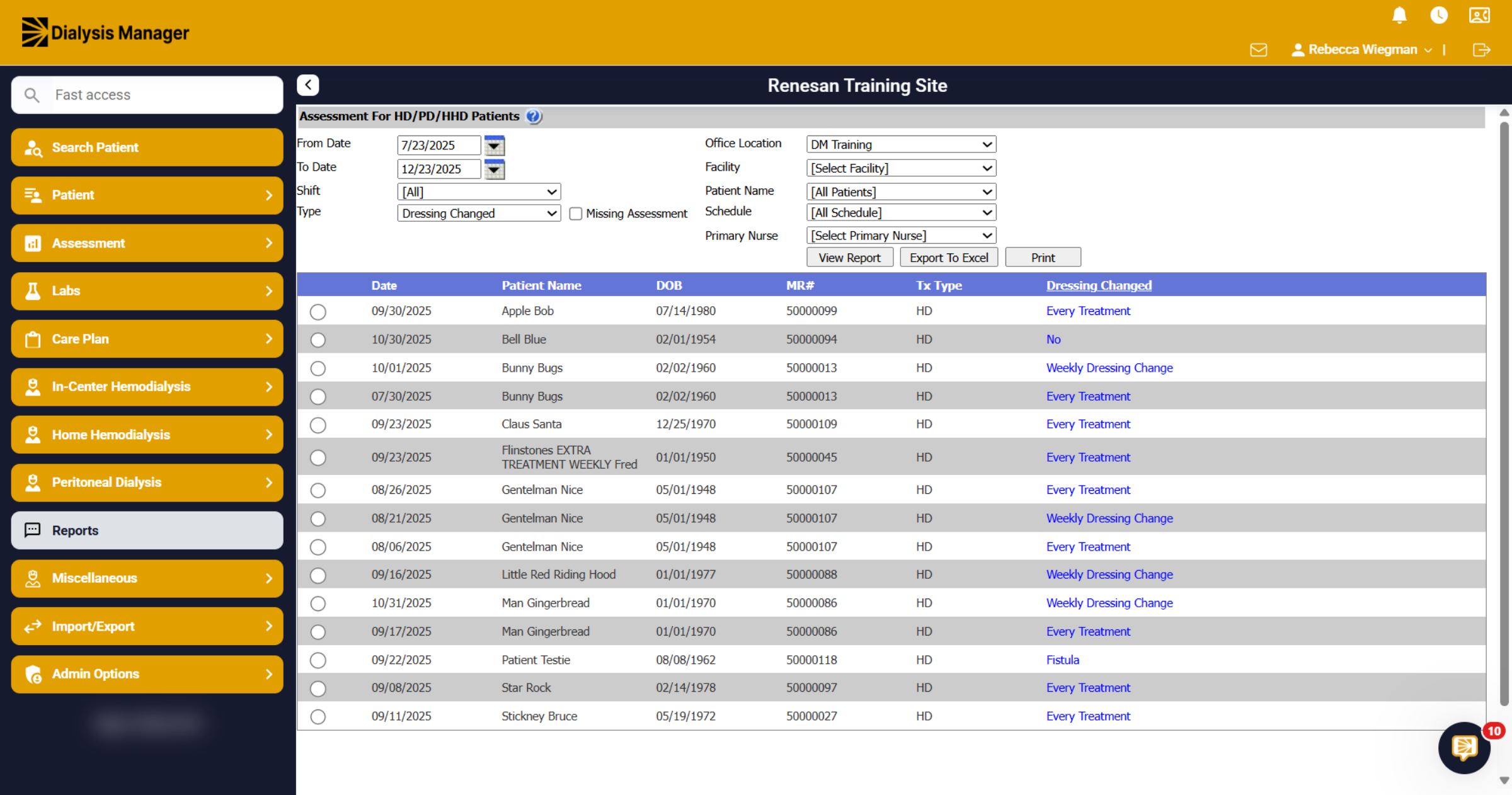
13. Dressing Changed
The Dressing Changed entry is retrieved from the HD Flowsheet, showcasing the selected date and option from the flowsheet. Additionally, when generating the Missing Assessment report, you'll encounter patients with an open or created Flowsheet, but staff may not have addressed the Dressing Changed questions.
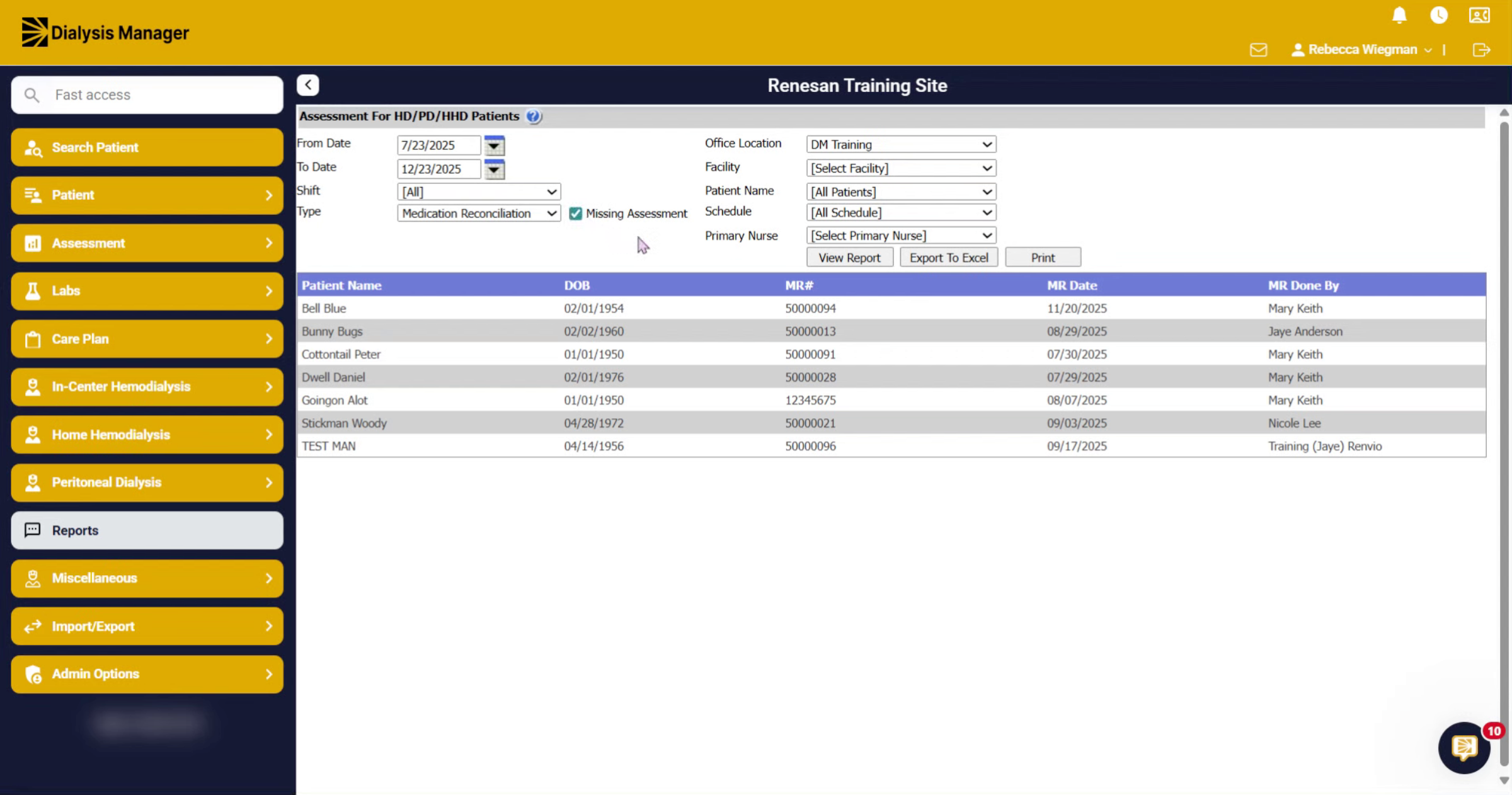
14. Medication Reconciliation
When you run the Medication Reconciliation report, you'll see the patient's demographics, the Med Reconciliation date, and the name of the person who completed it. Additionally, selecting Missing Assessment will display patients who lack a med reconciliation within the chosen date range.
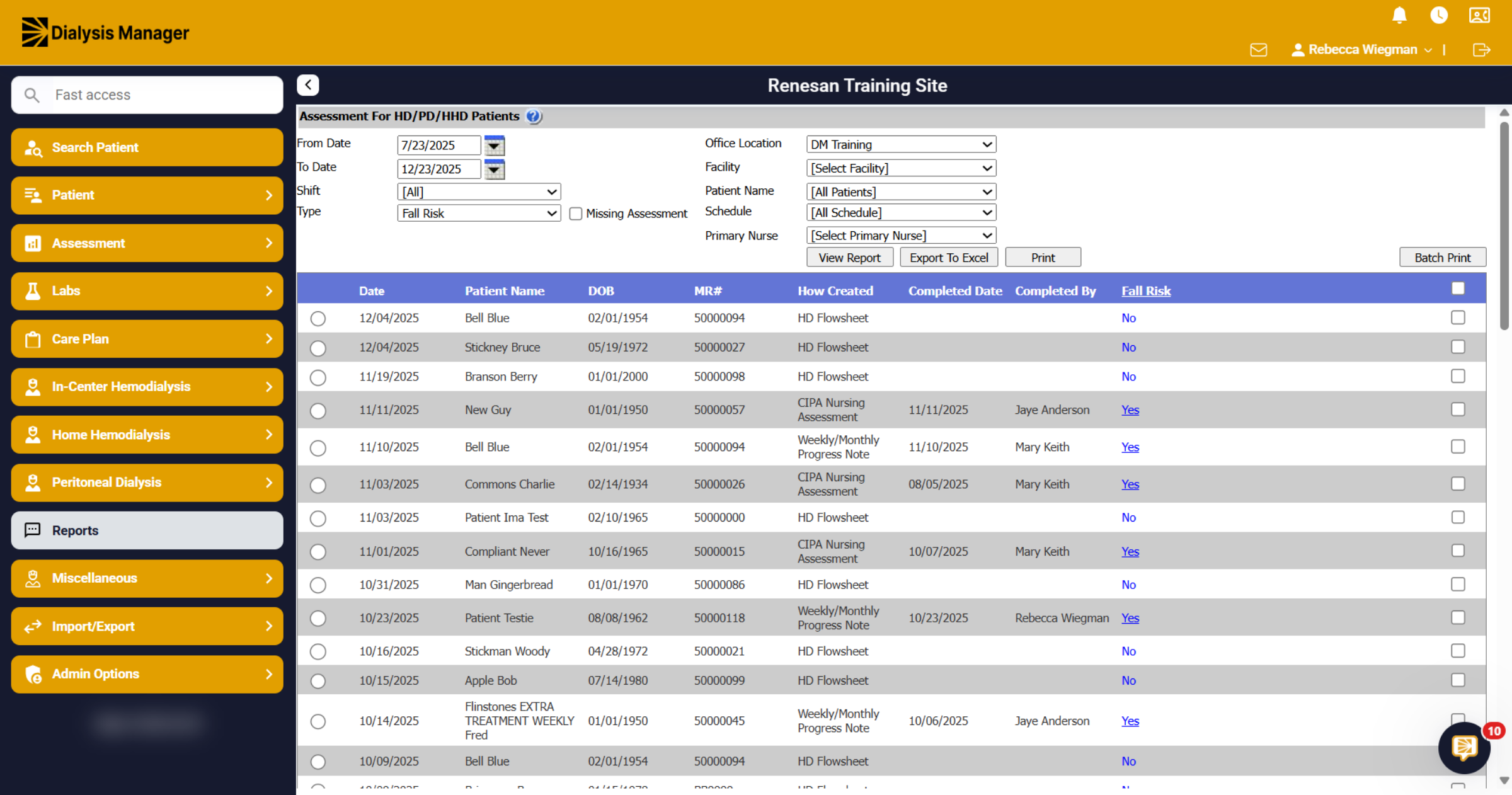
15. Fall Risk
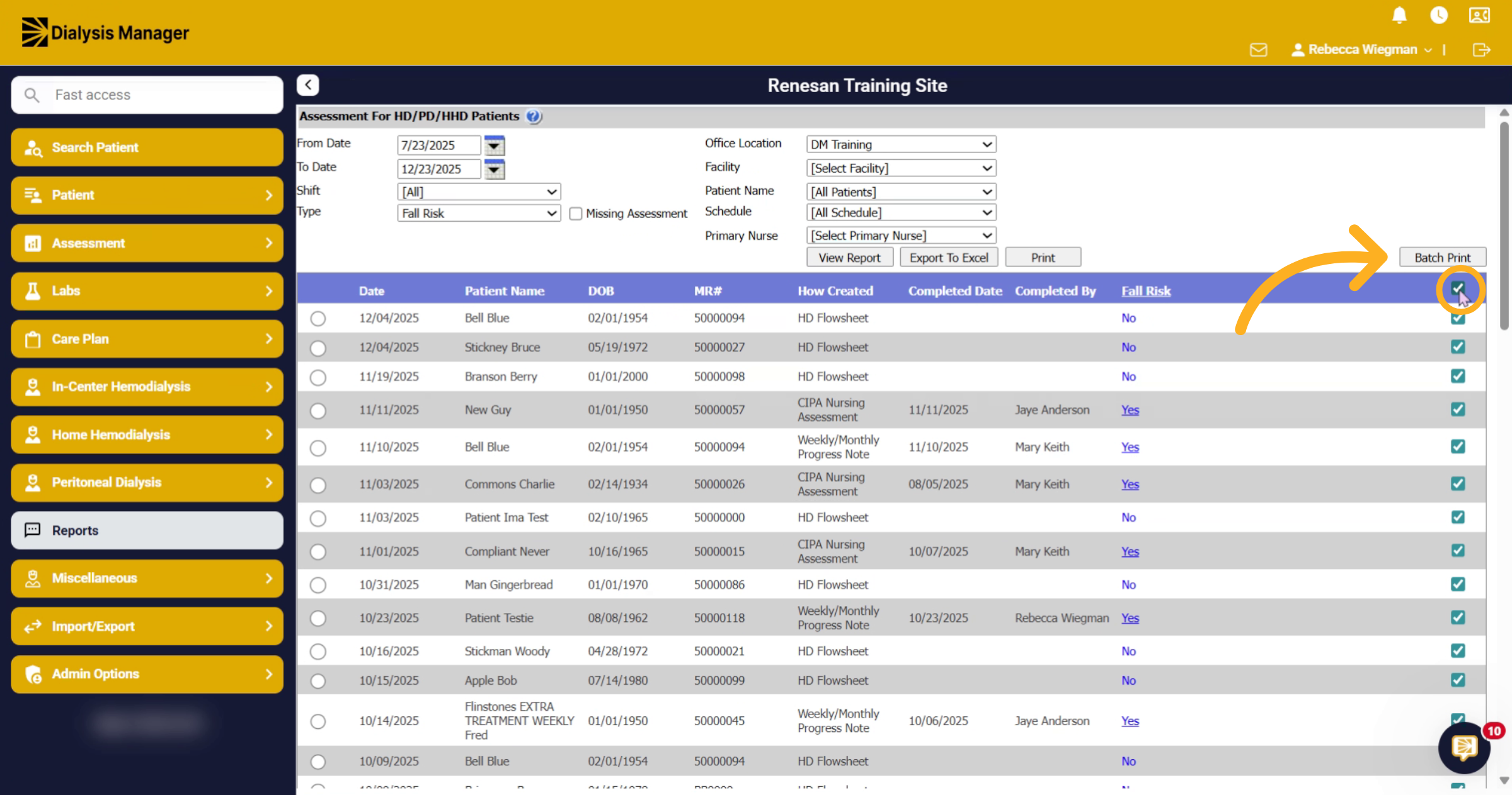
The Fall Risk Assessment can be conducted in various sections of Dialysis Manager, including assessments and flowsheets. When you run the report for Fall Risk, you'll see where it was completed, when it occurred, and who conducted it.
16. Batch Print
You can batch print most assessments. To select all patient assessments, check the box in the header. Clicking "Batch Report" will open a new window with a PDF attachment.
17. Selected Assessments
You can choose specific patients by selecting the checkbox and clicking on Batch Print. Additionally, you have the option to Export to Excel or print the report. We recommend reviewing the report before printing to confirm it meets your needs, ensuring that you avoid printing excessive information.