Remove AX Modifier in Dialysis Manager Billing Setup

This tutorial explains how to remove the AX modifier from TdapA drugs on all claims in Dialysis Manager.
1. Introduction
Effective July 1st, 2026 CMS no longer wants the AX modifier. Please note: If a charge from before 07/01/2026 is billed after these changes are made, the AX modifier must be added manually to the claim.
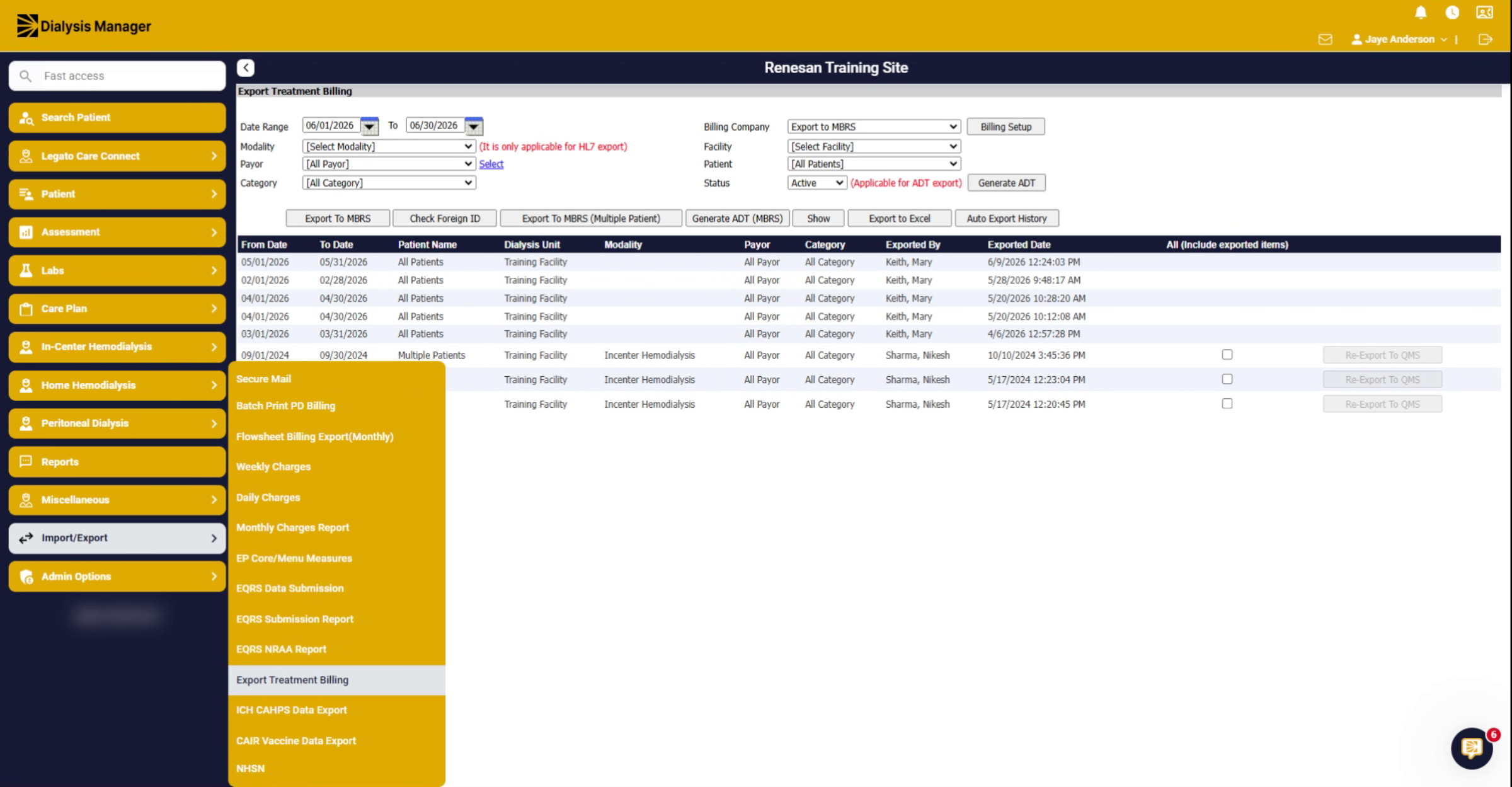
2. Access Import/Export Section
Click "Import/Export" to begin the process of removing the AX modifier from claims.
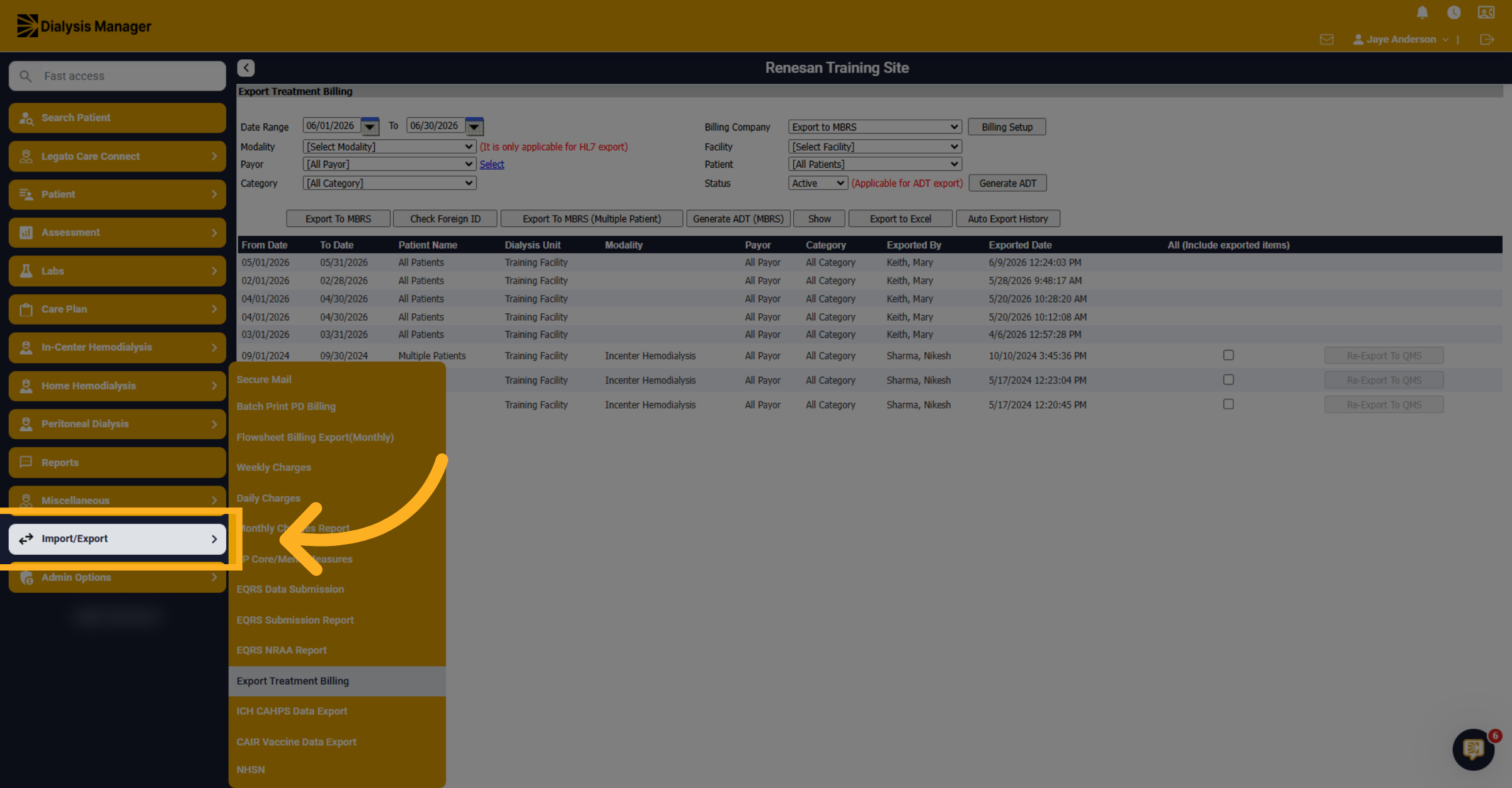
3. Open Export Treatment Billing
Click "Export Treatment Billing" to access the billing export options.
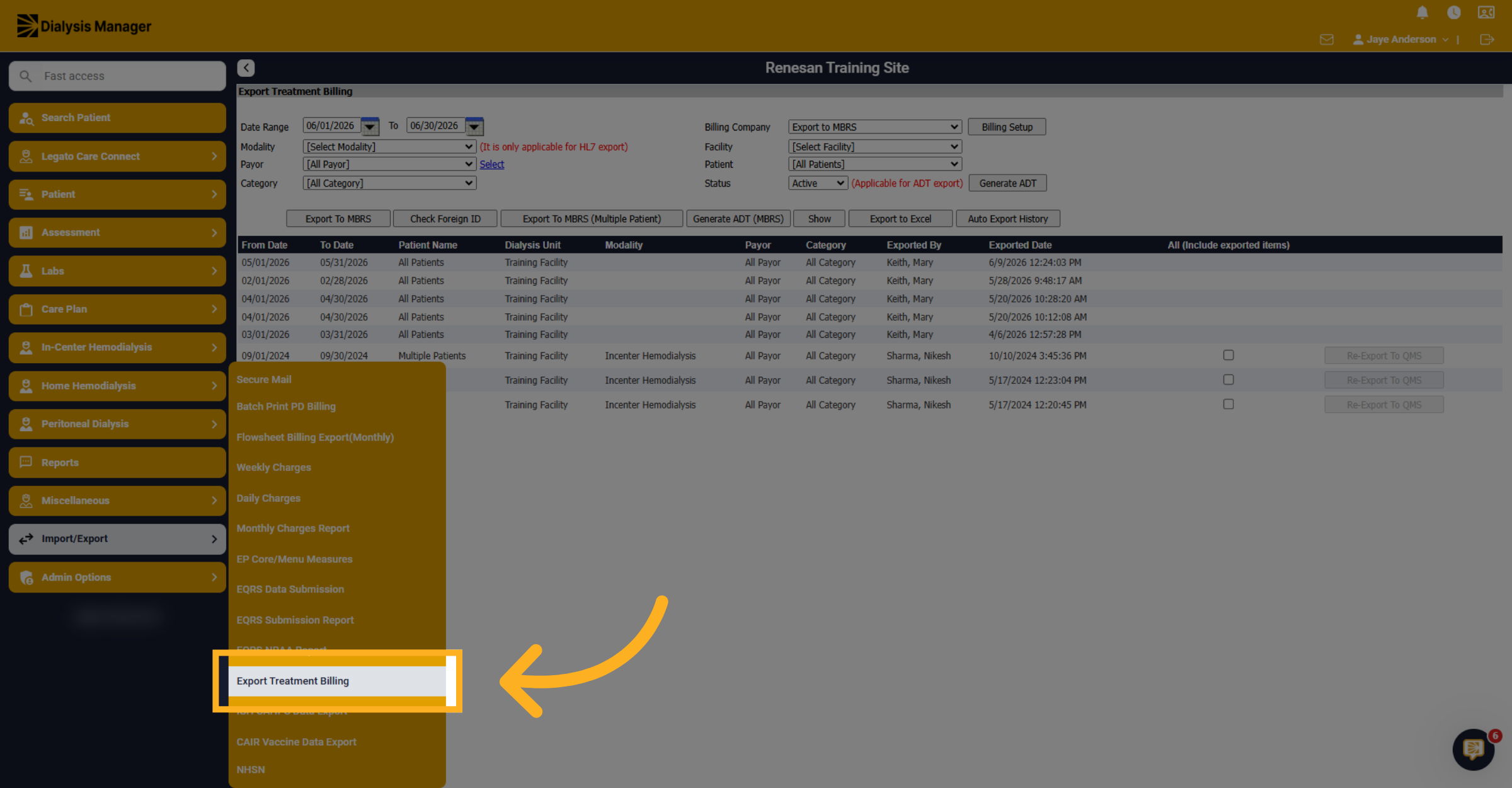
4. Navigate to Billing Setup
Click "Billing Setup" to configure billing parameters related to treatment claims.
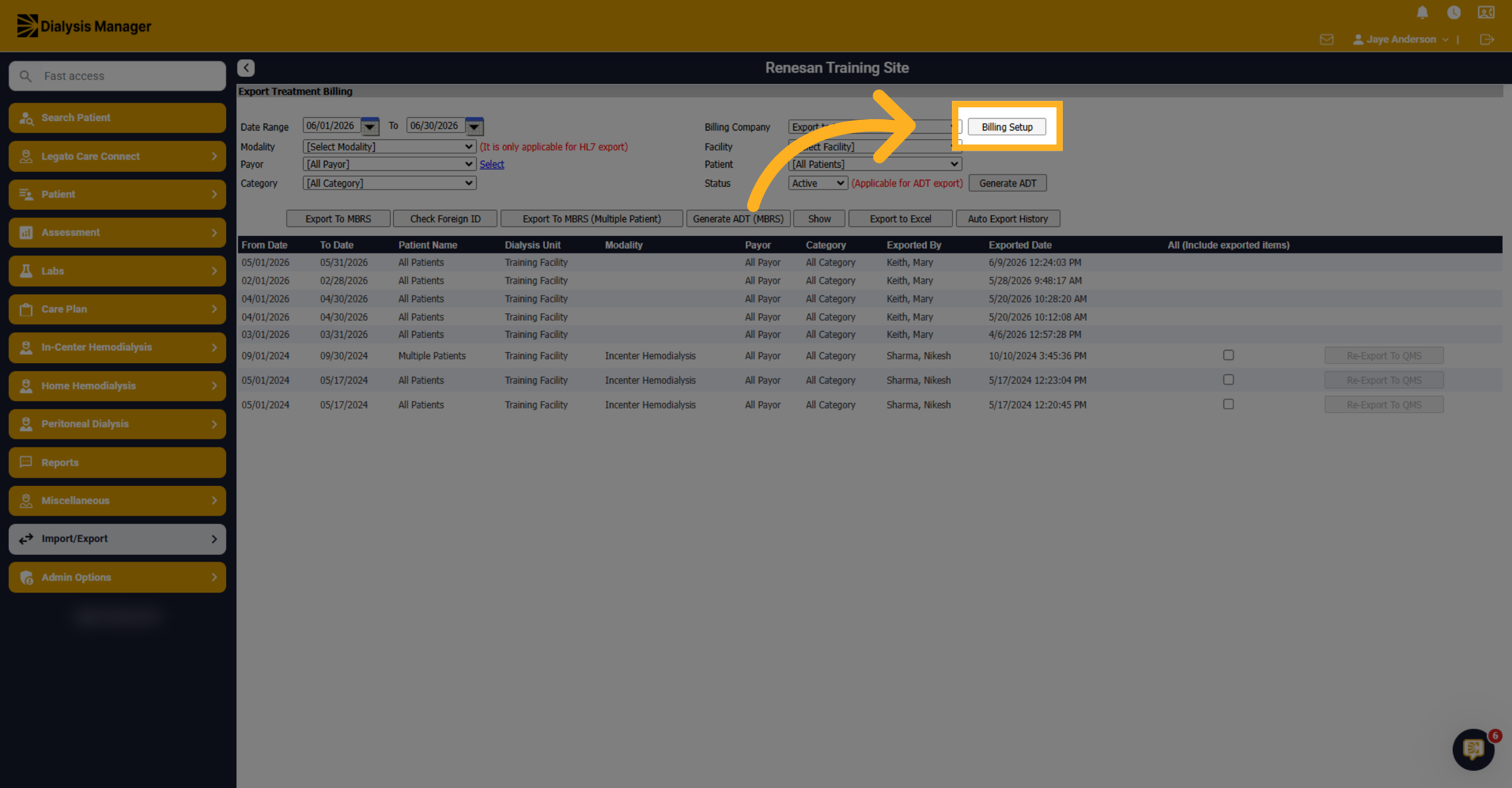
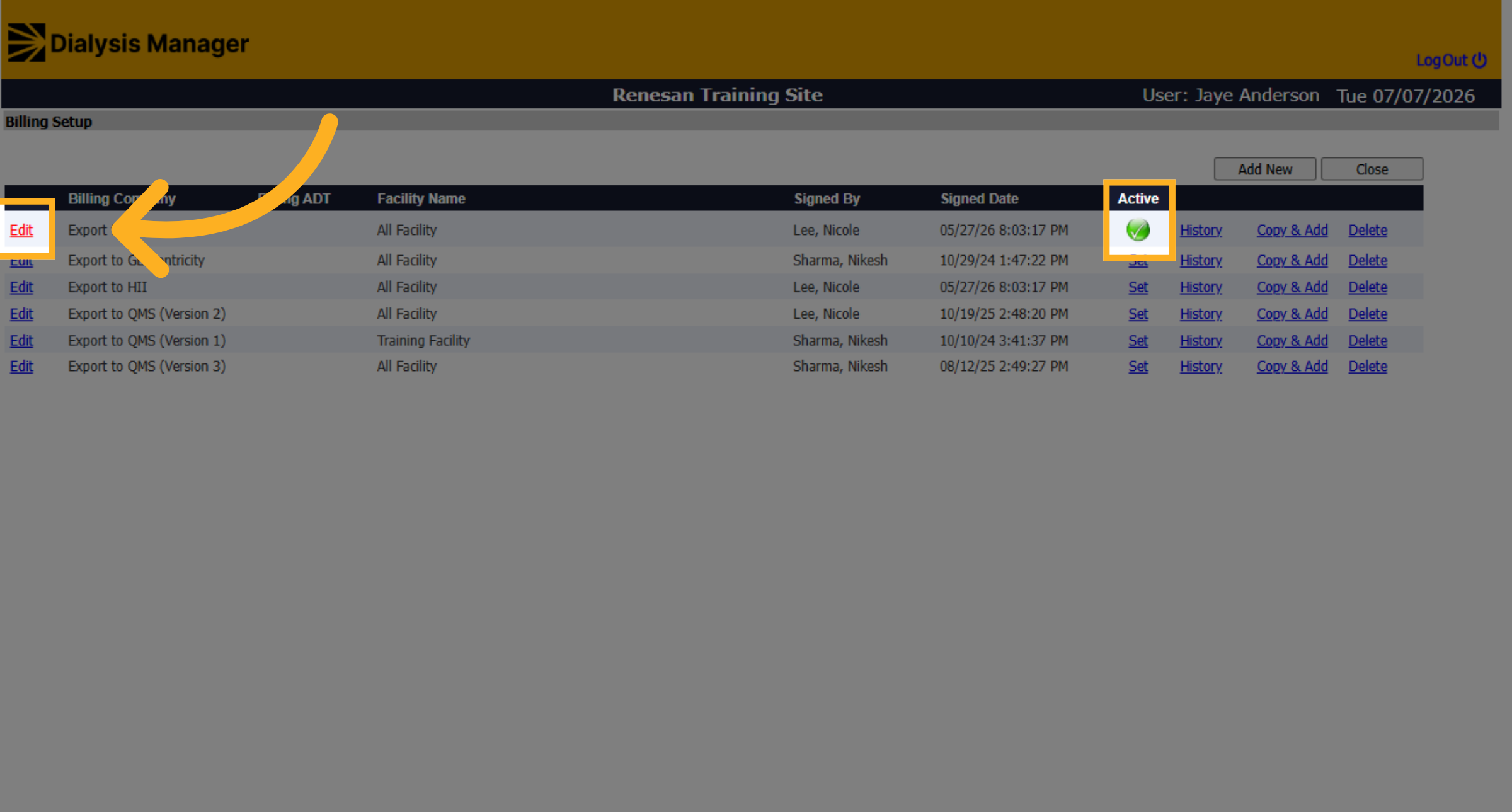
5. Choose Active Edit Option
Choose the active edit option to modify billing settings.
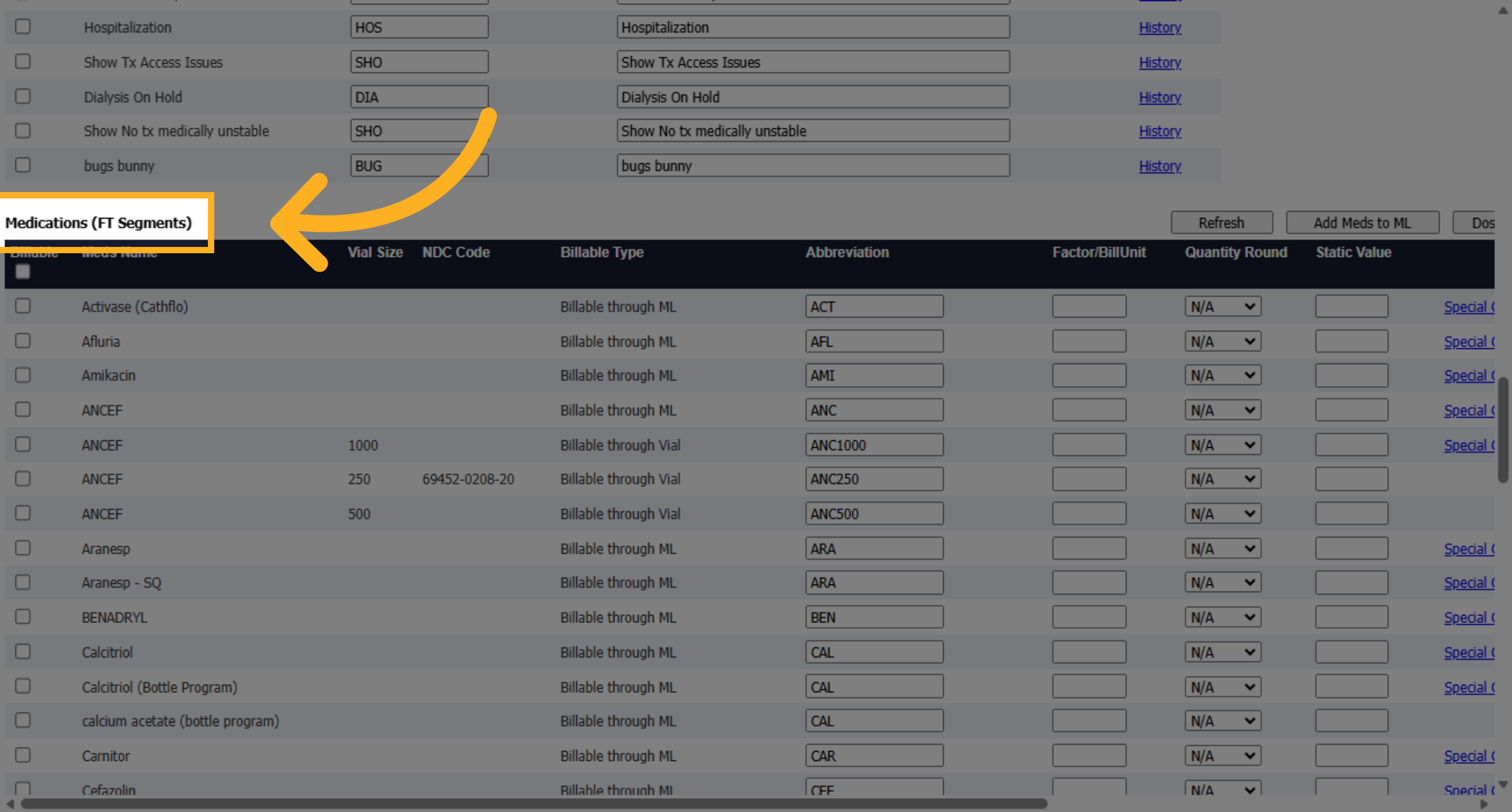
6. Select TdapA Medication
Find the medications FT segments and select the TDAPA medication.
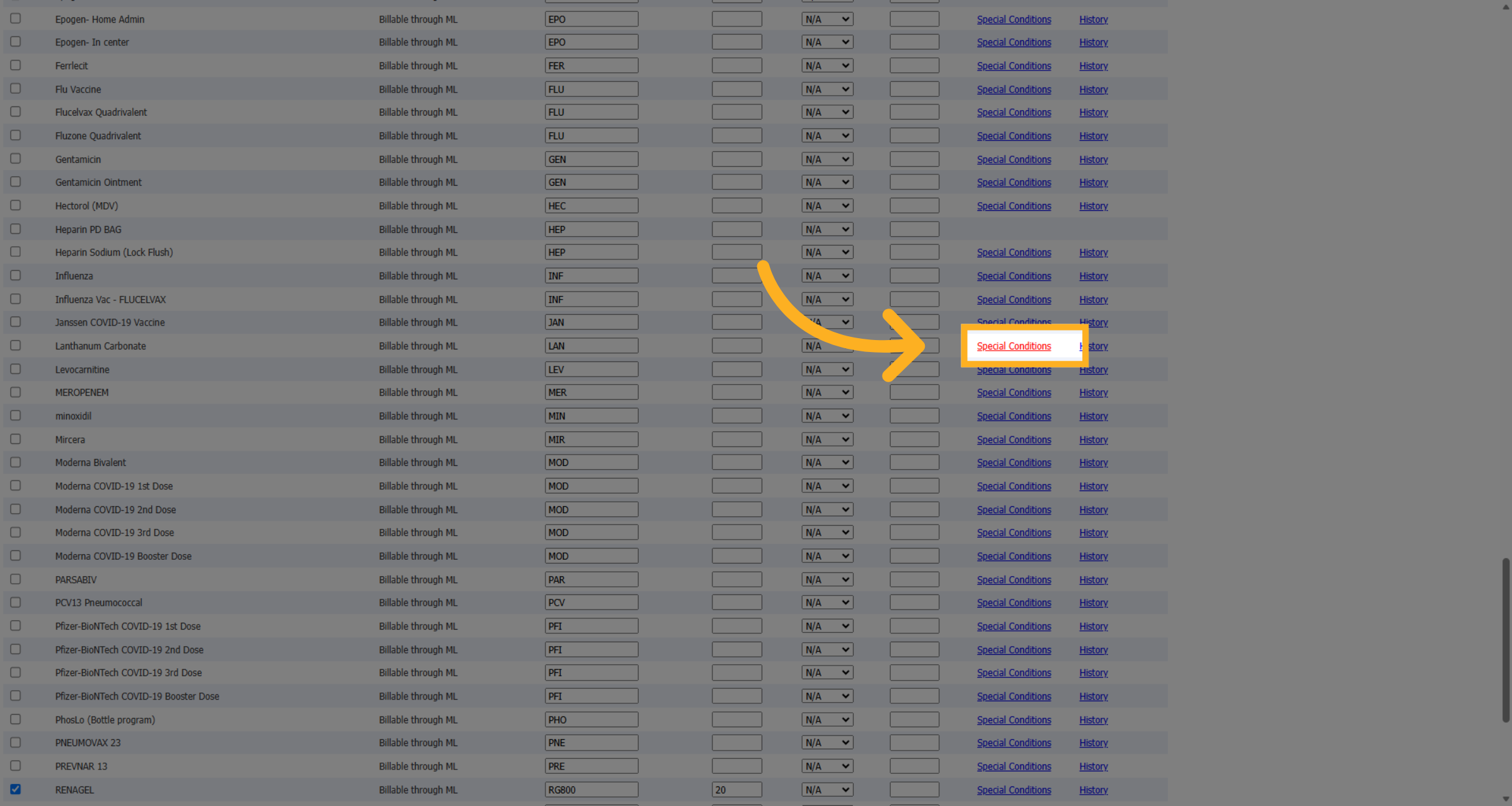
7. Access Special Conditions
Click on the special conditions to view modifiers associated with the medication.
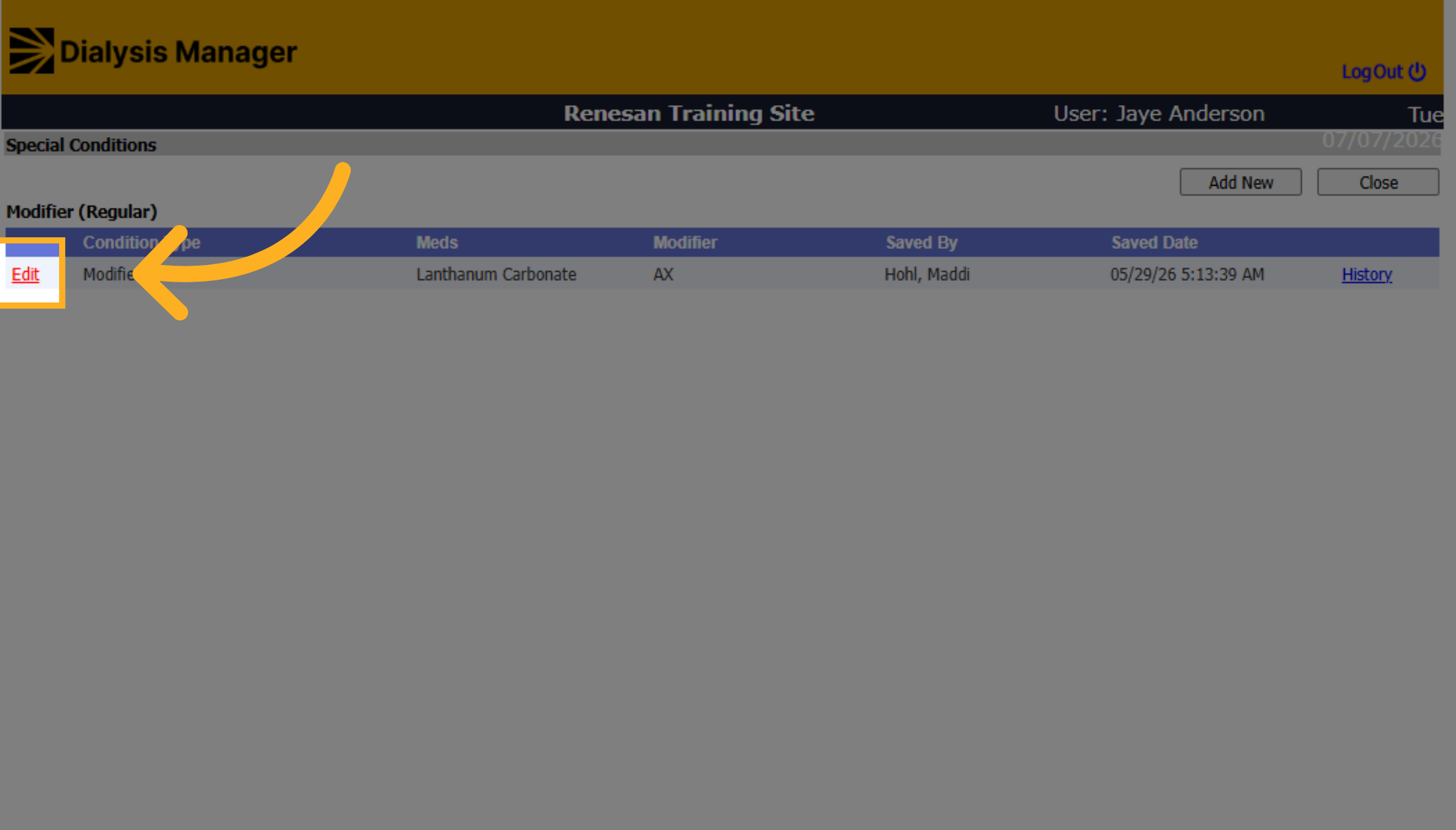
8. Edit Special Conditions
Click on edit to modify the special conditions for the selected medication.
9. Delete AX Modifier
Click "Delete" to remove the AX modifier from the special conditions.
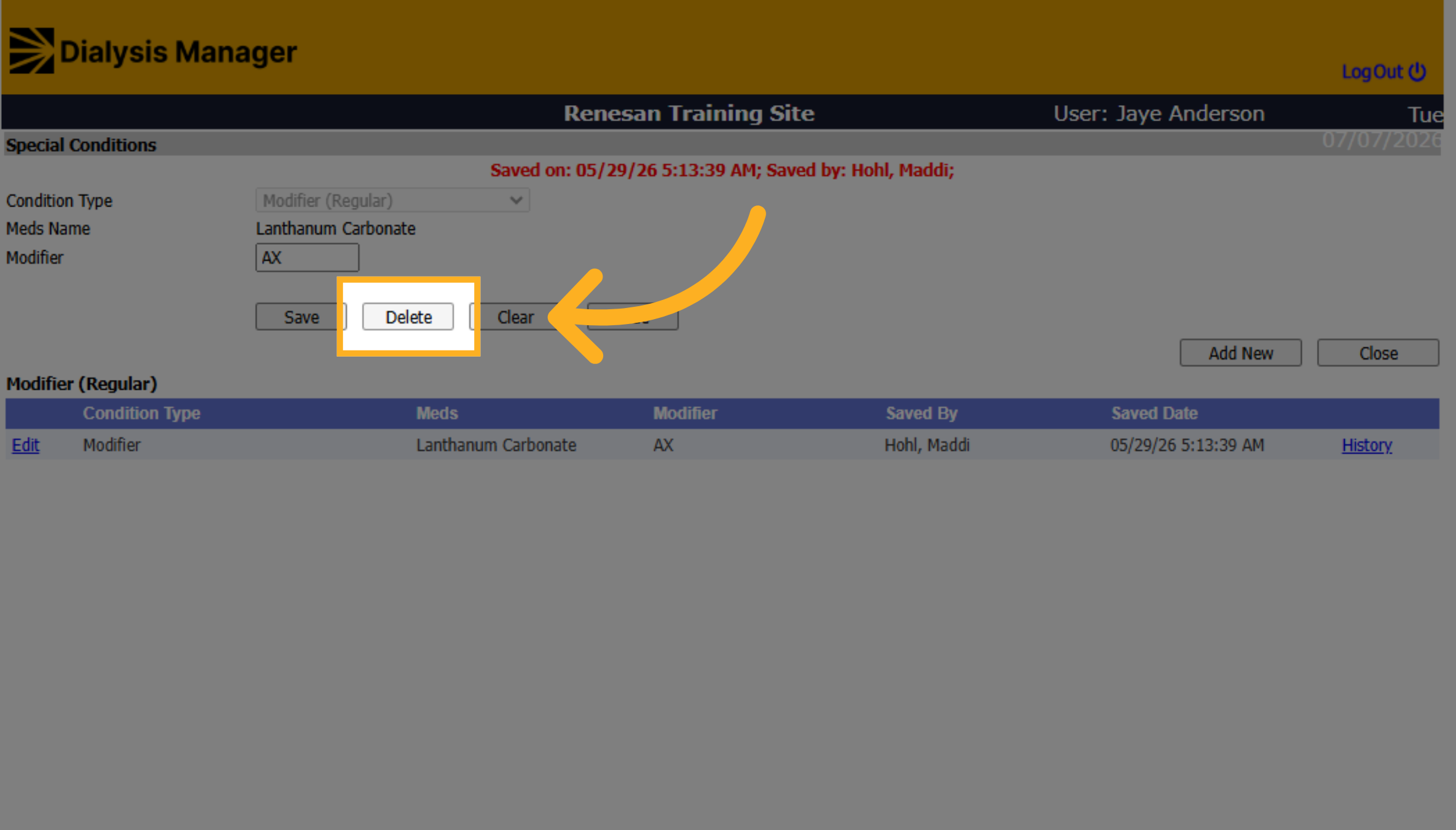
10. Select Observation Segments
Repeat this process for all your TDAPA drugs.
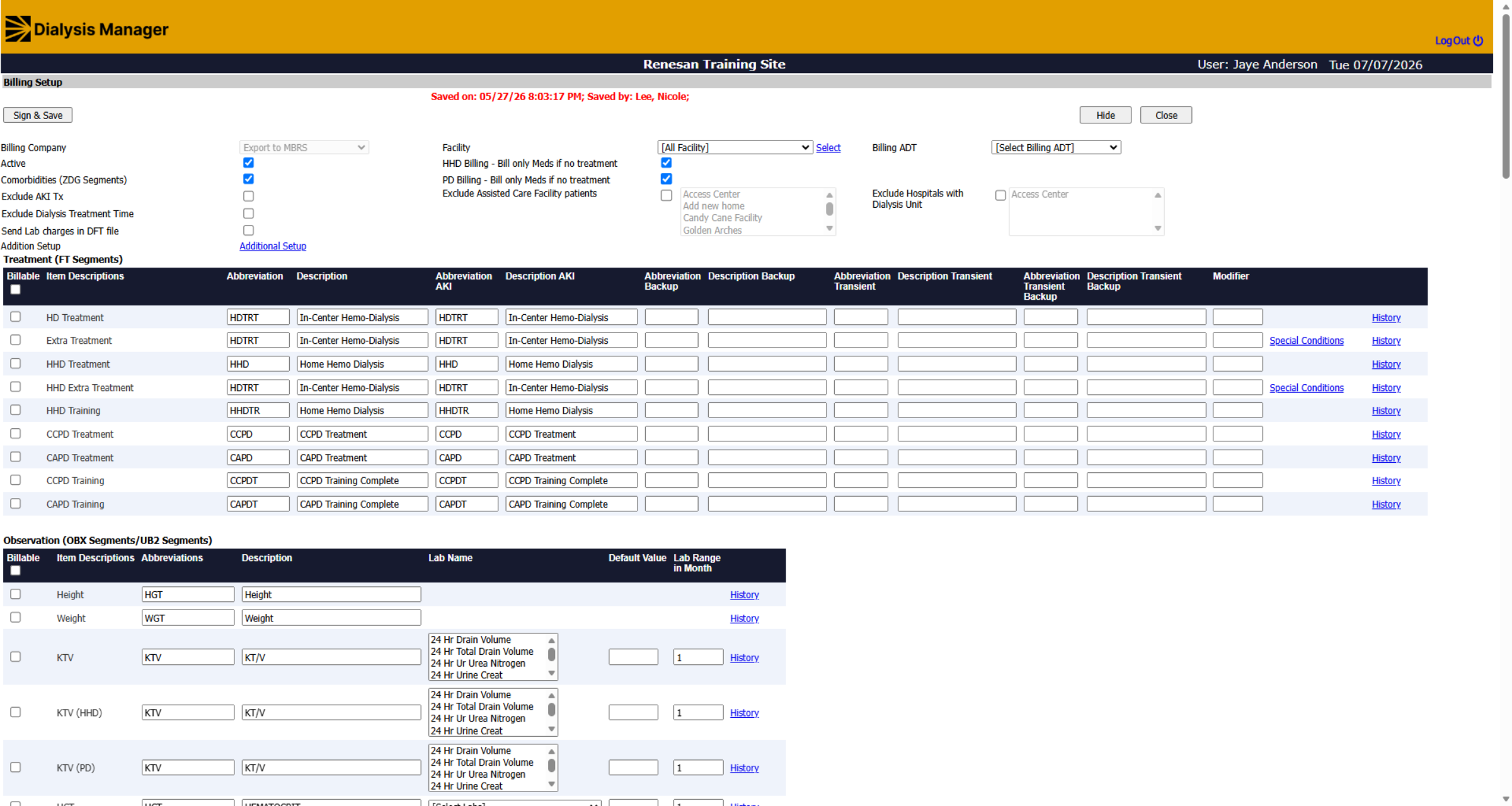
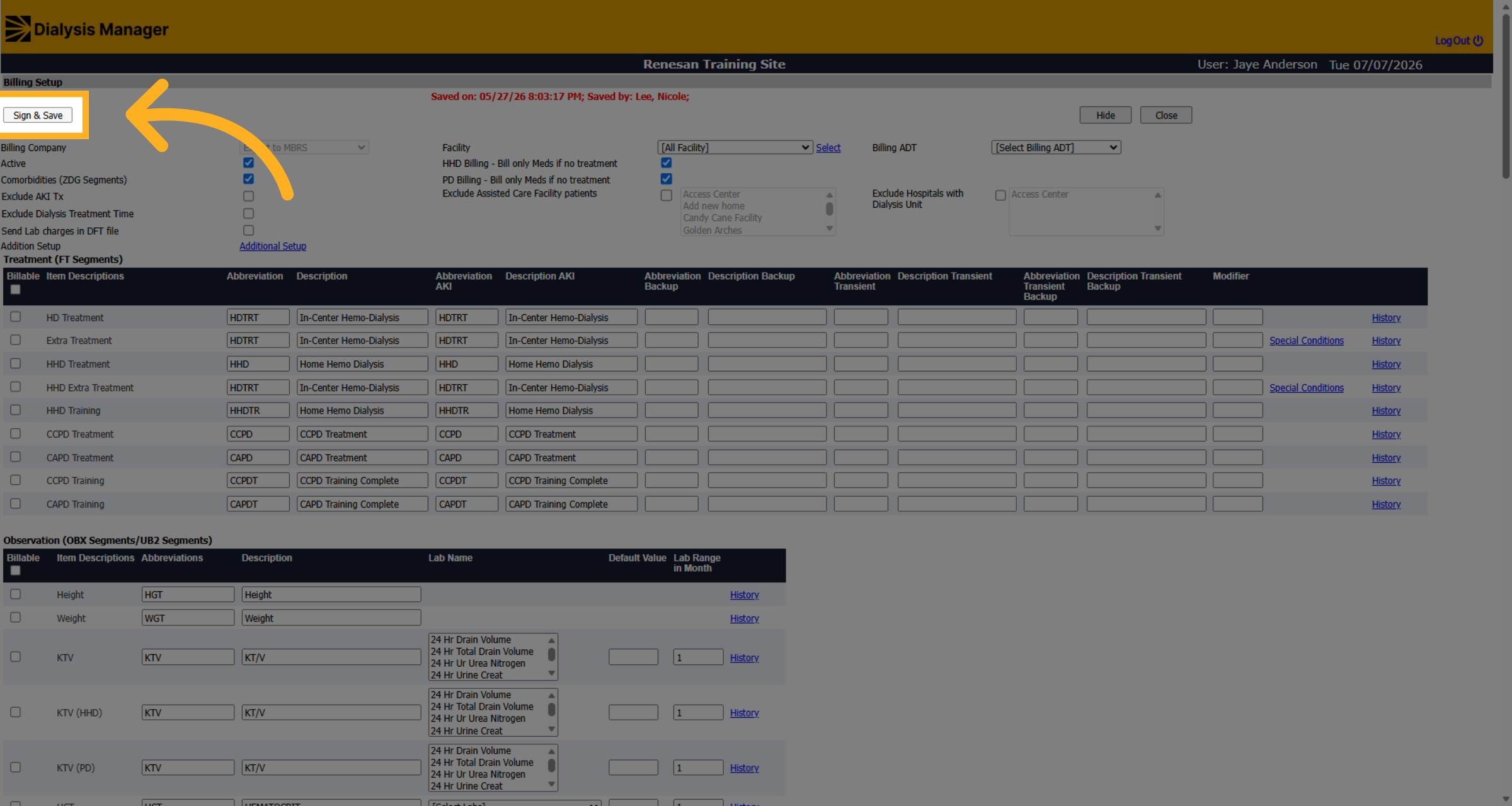
11. Sign and Save Changes
Click "Sign & Save" to apply and save all changes made to the billing setup.
12. Close Billing Setup
Click "Close" to exit the billing setup after completing the modifier removal process.
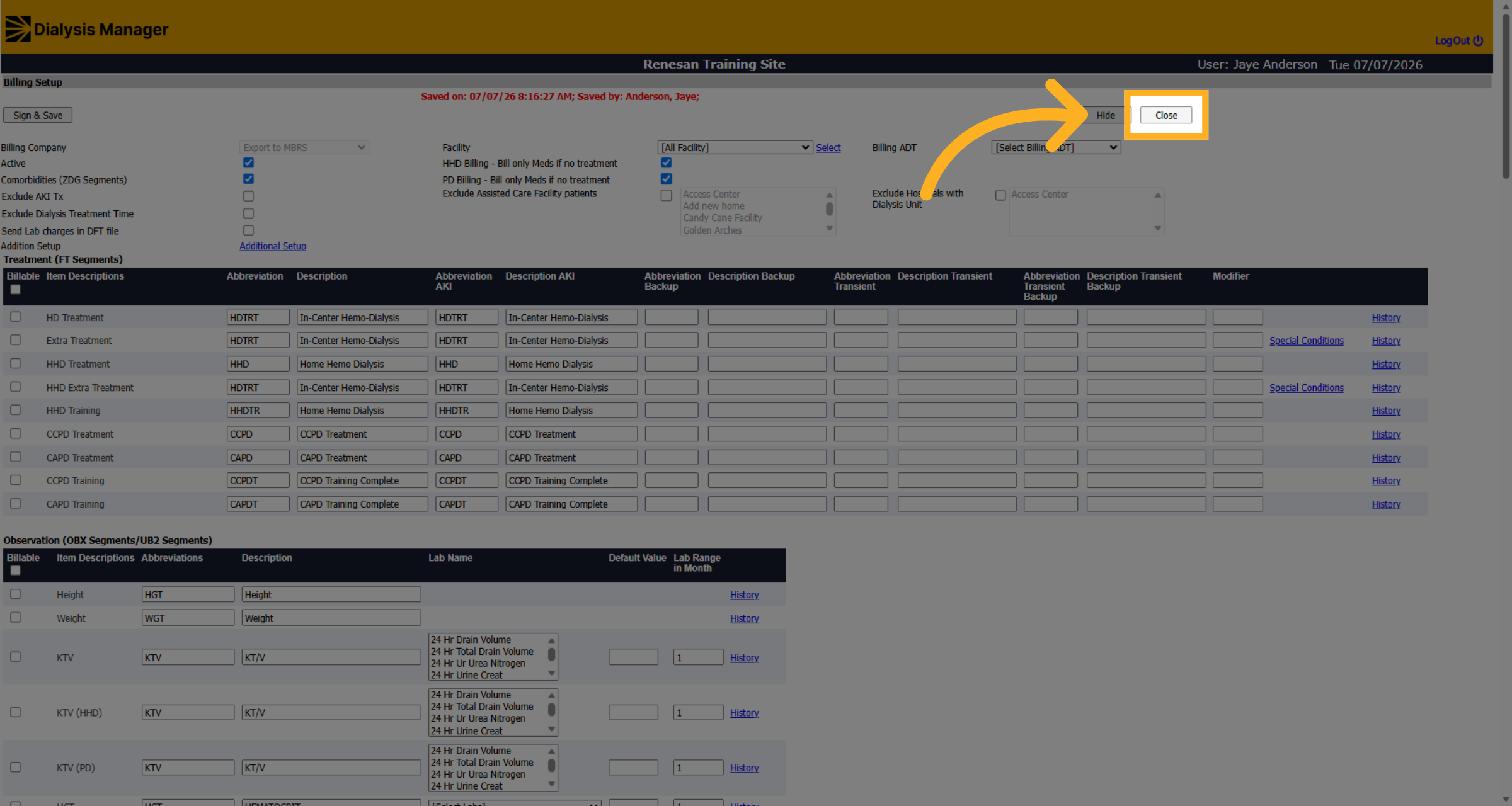
You have successfully removed the AX modifier from all TDAPA medication claims in Dialysis Manager.