1. Search Patient > select your patient.
2. Go to In-Center Hemodialysis > Treatment > HD Flowsheets.
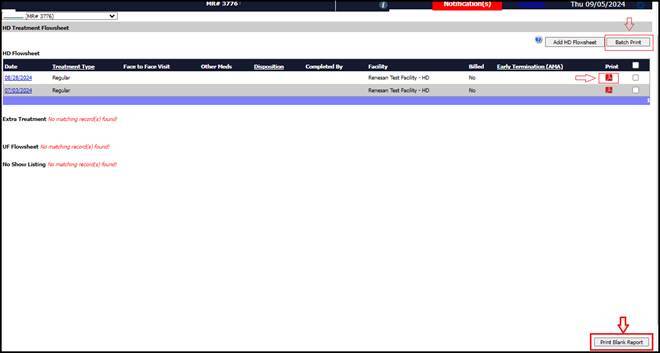
3. Click on the red Print symbol.
4. If multiple flowsheets need to be printed, then select the required checkboxes and then click on Batch Print option to print multiple flowsheets.
Note: User can't batch print until first treatment documented. Troubleshooting Tip: If a patient is missing from the batch of blank HD flowsheets, verify that their HD Schedule filter settings correspond to the intended treatment days. Incorrect settings can lead to missing entries.
If a Blank flowsheet needs to be printed, then click on Print Blank Report option. Next, set the HD Schedule filter to match the patient's specific treatment schedule (e.g., their assigned days). Then, click on
View Reportto display a list of patients for the selected schedule, check the box next to the desired patient’s name, select a report format - either Compact for a one-page flowsheet or Detailed for a more comprehensive version - and clickReport for Selected Patientto generate and print the flowsheet.
Select HD Schedule, Facility and click on Report for selected patient (if the blank flowsheet needs to be printed for a selected patient). Otherwise select View Report option if the user needs to select the Patient and then click on View option. Additionally, users can select a report format before generating the flowsheet: choose Compact for a concise version or Detailed for a more comprehensive report. This choice ensures the report is tailored to user preferences.
