Medication Label Report
1. Introduction
This tutorial guides you through generating a medication label report. You will learn how to select the date, facility, treatment modality, and patient options to create a comprehensive report.
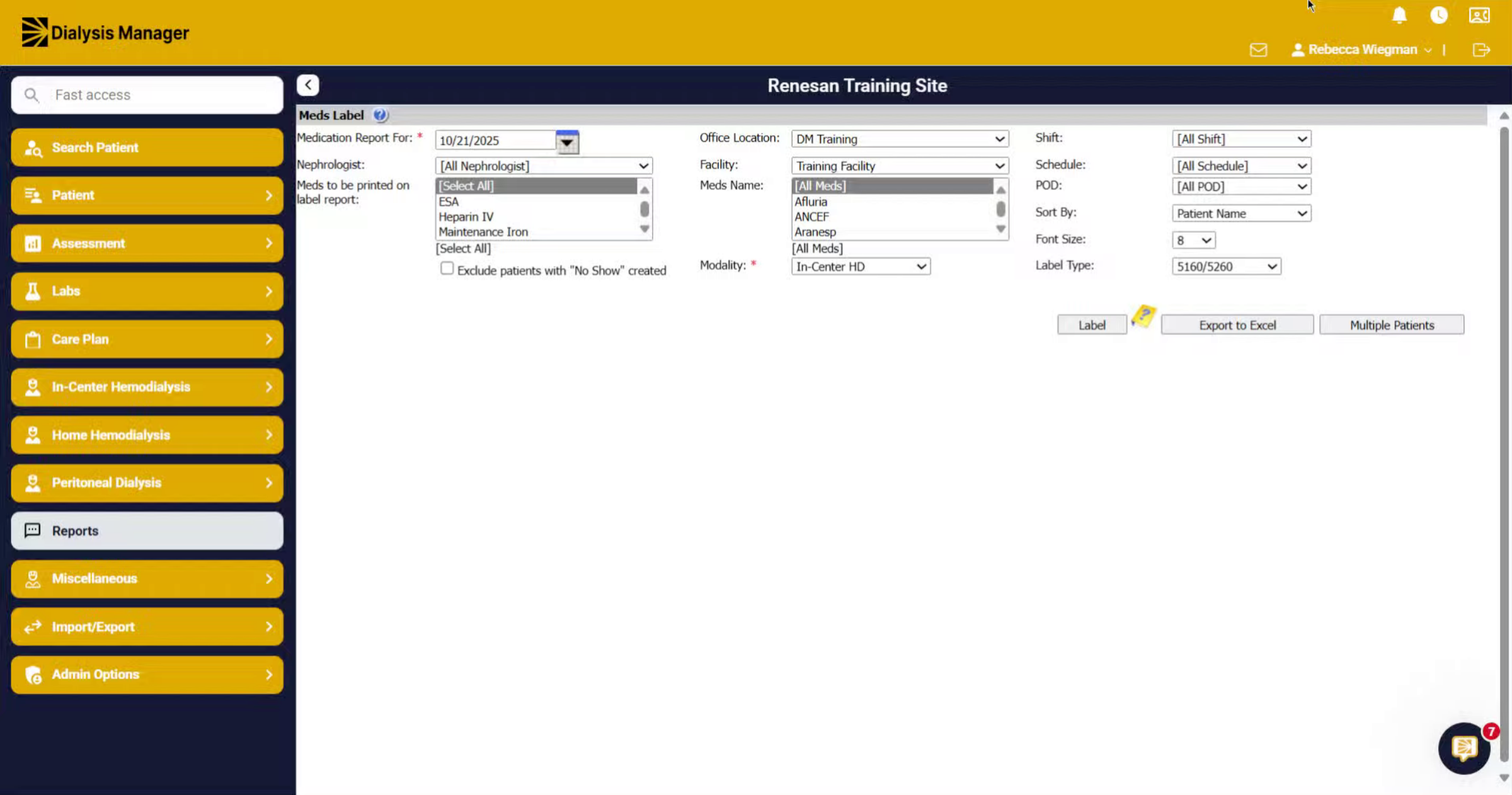
2. Open Reports Section
Click the Reports section to access available report options.
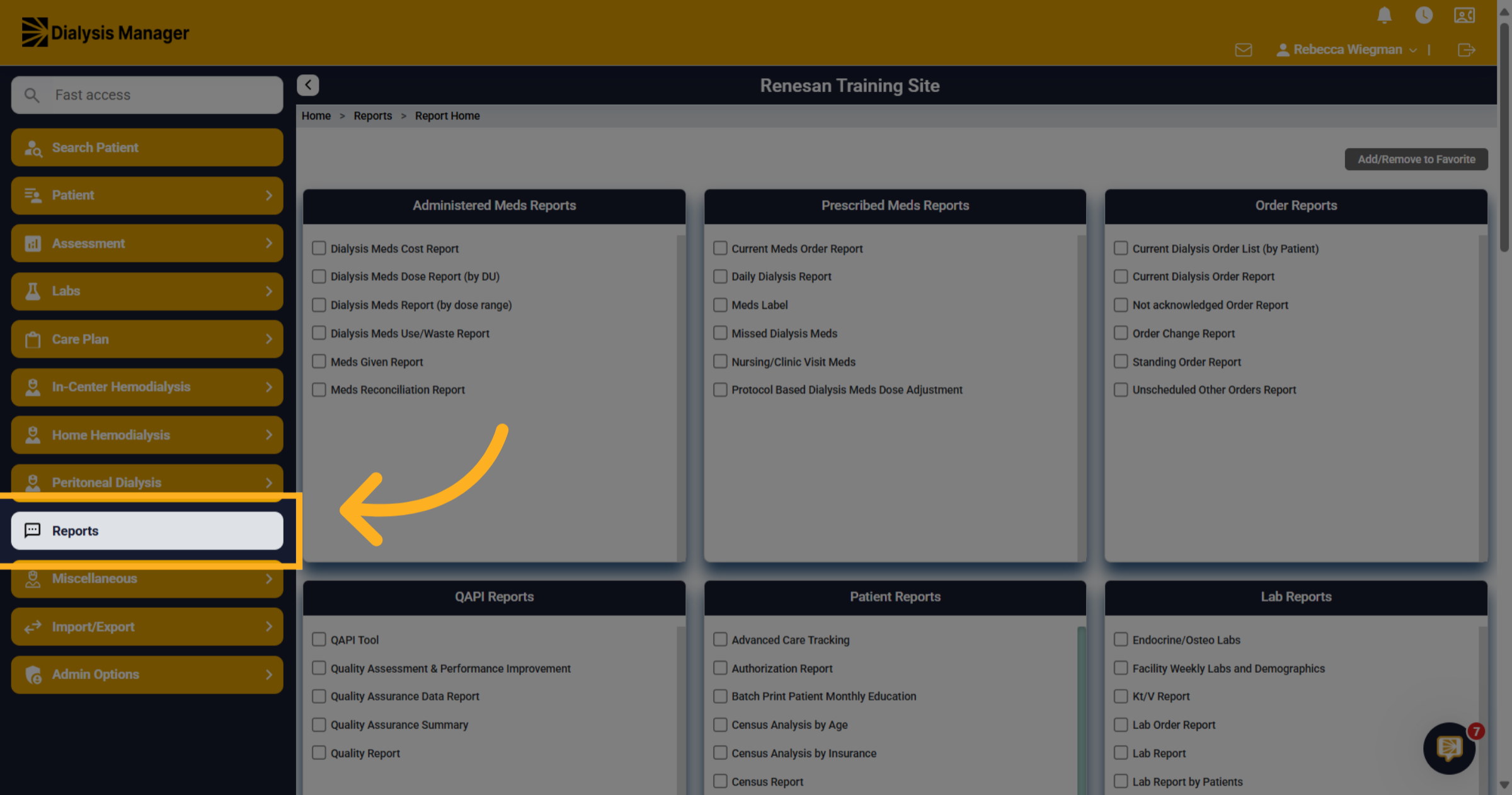
3. Select Medication Label Report
Click Meds Label to open the medication label reporting feature. Please note when hovering over any report name a description of the report will appear!
4. Filter your search
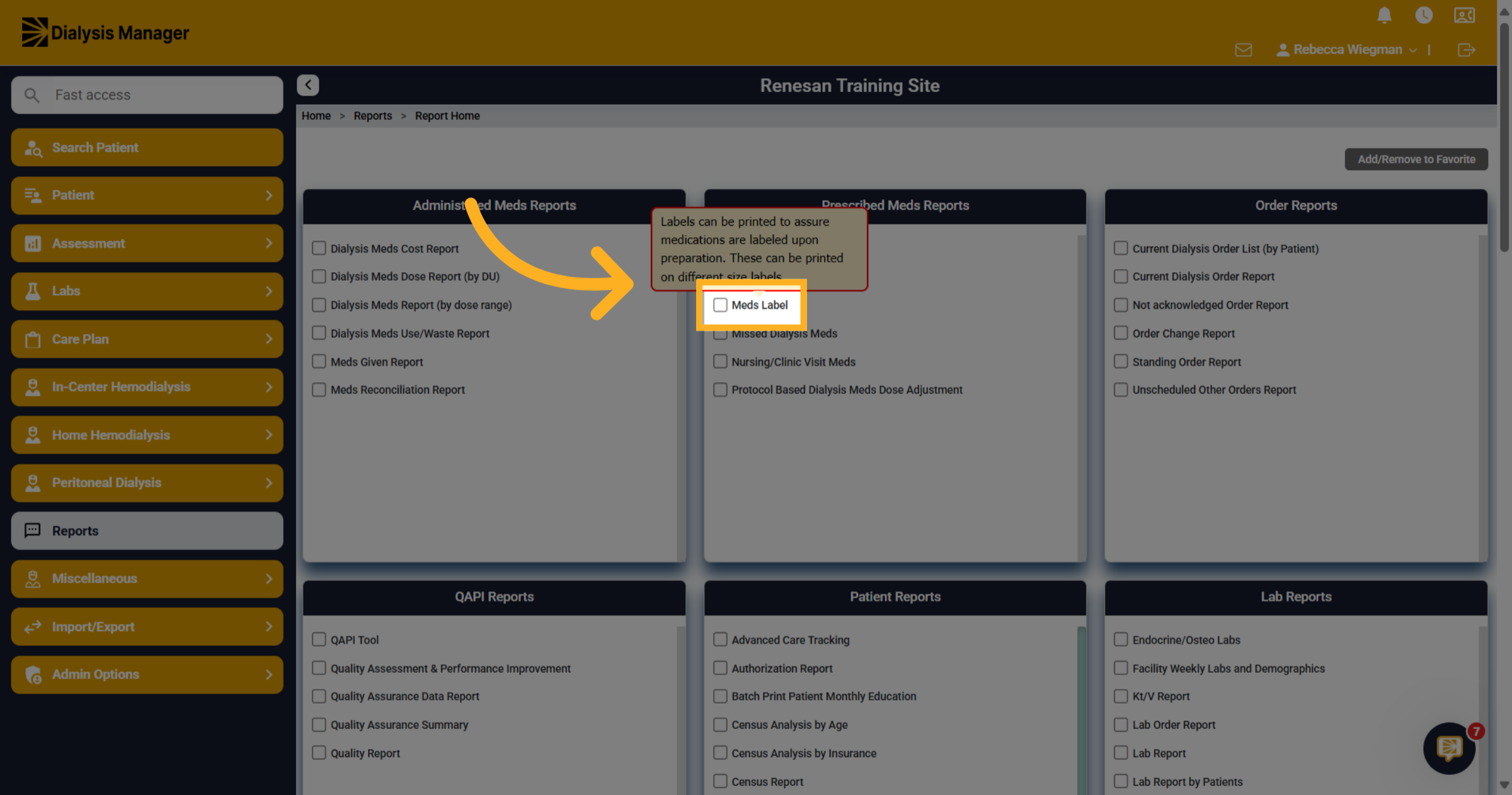
The default date will be set to the current date. You can select a specific medication, but please ensure you always choose the office location, facility, and modality.
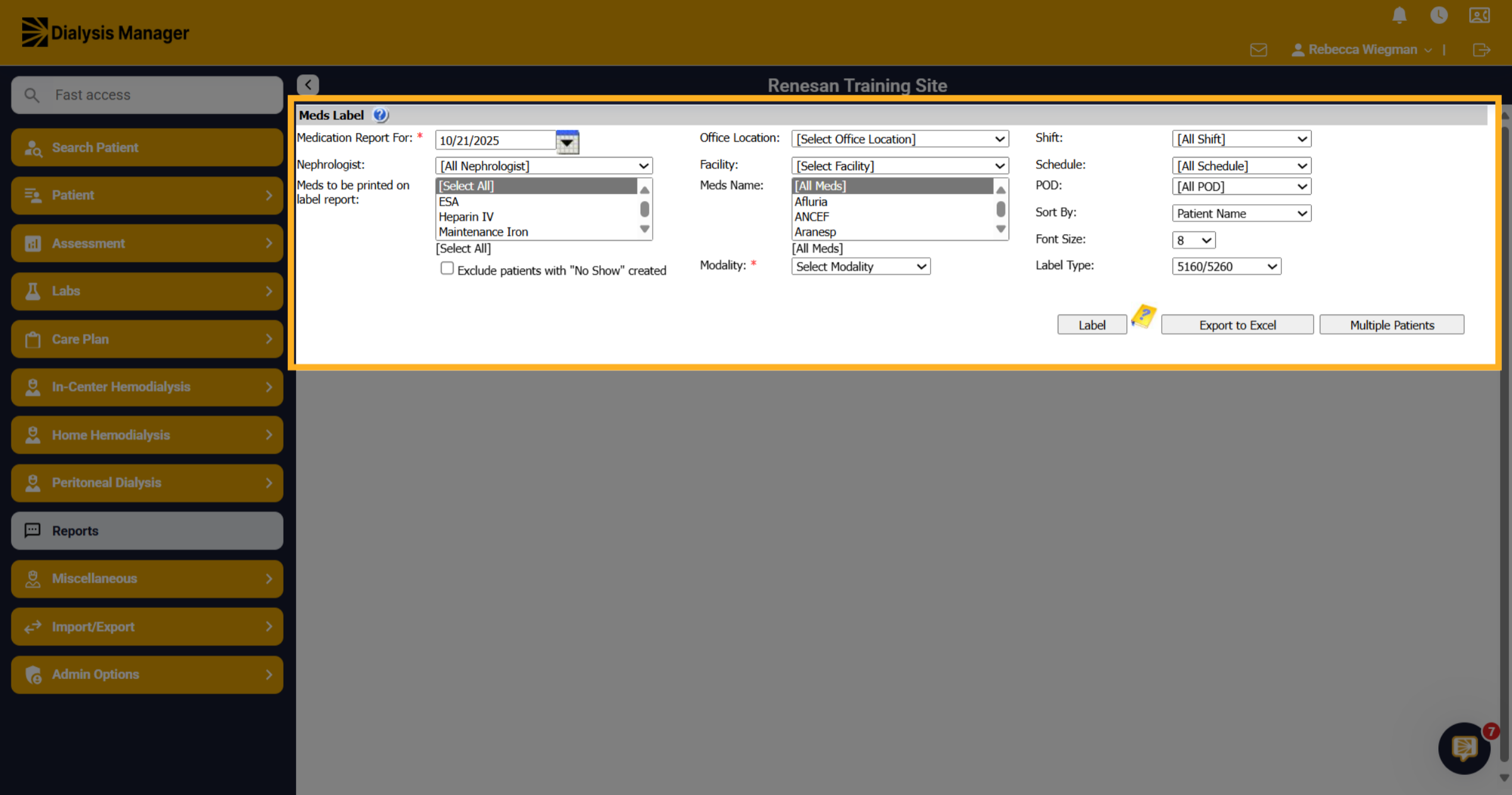
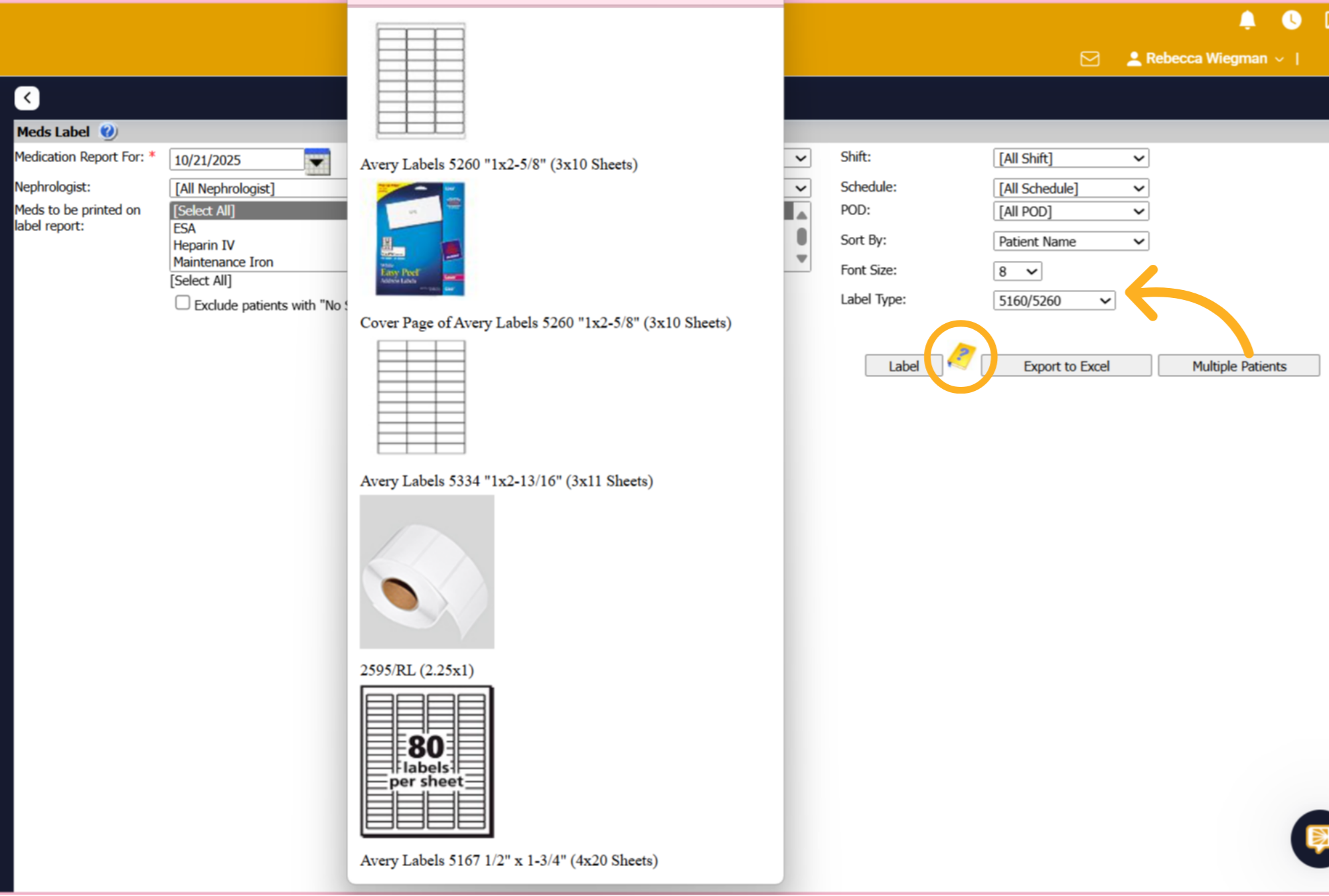
5. Label Type
When selecting the yellow notebook featuring a question mark, a screen will display your available label sizes. You can then choose your preferred option from the Label Type dropdown menu.
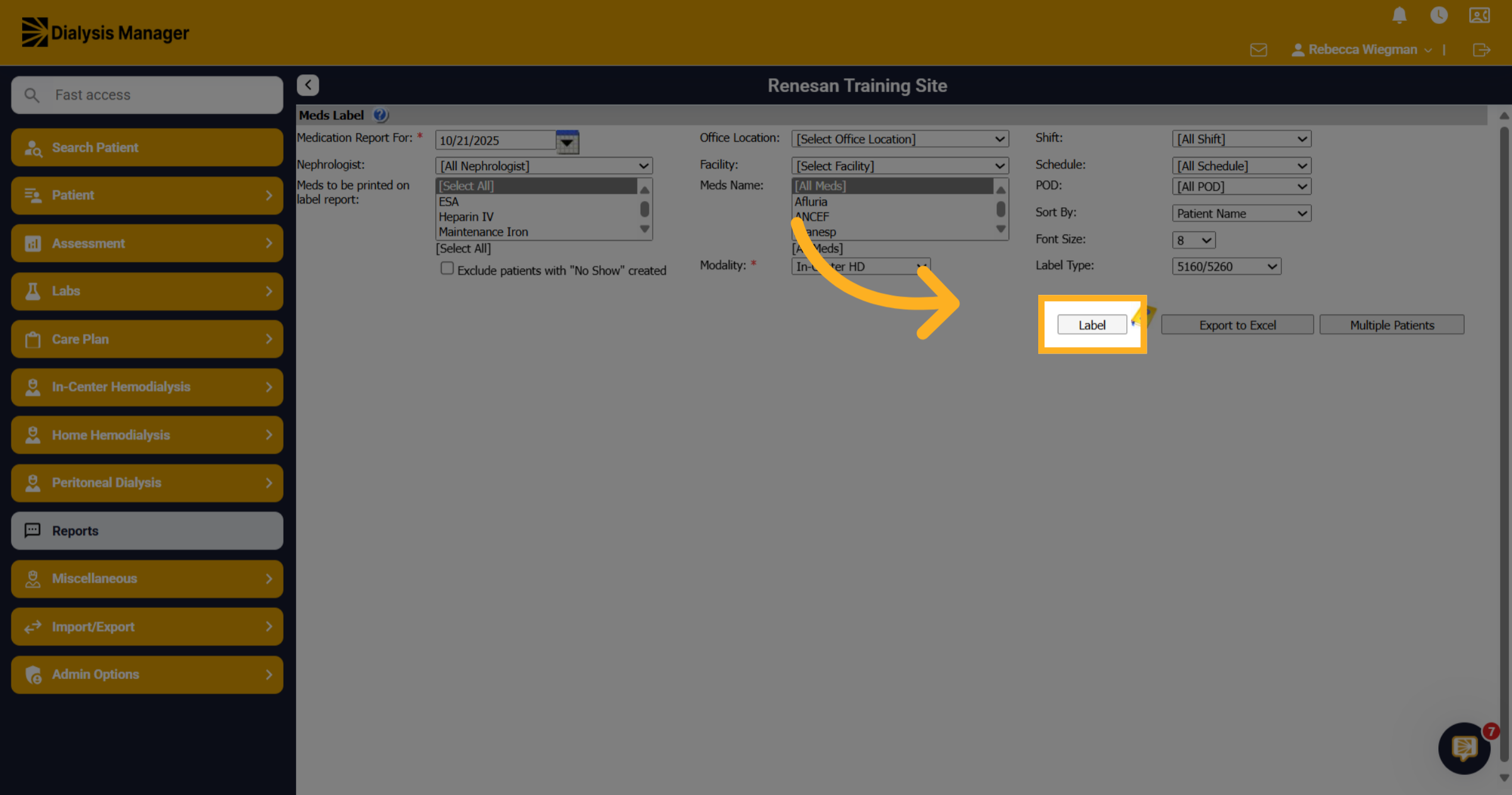
6. Open Label Settings
Click Label to run the report!
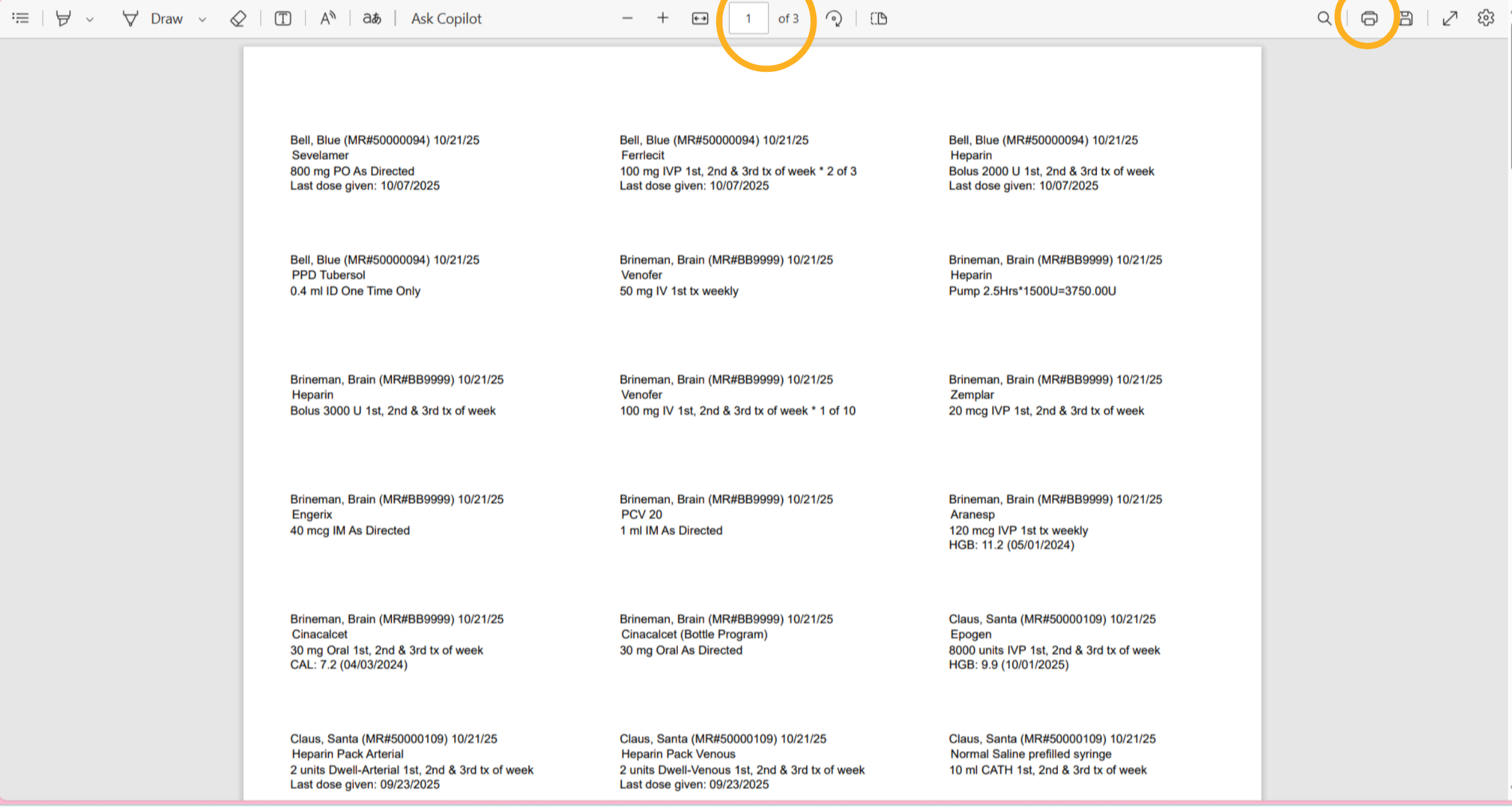
7. Medication Labels
The report displays the total number of pages generated, along with a Print option at the top. It includes the patient's name, Medical Record number, date, medication details, dosages, and the last dose given.
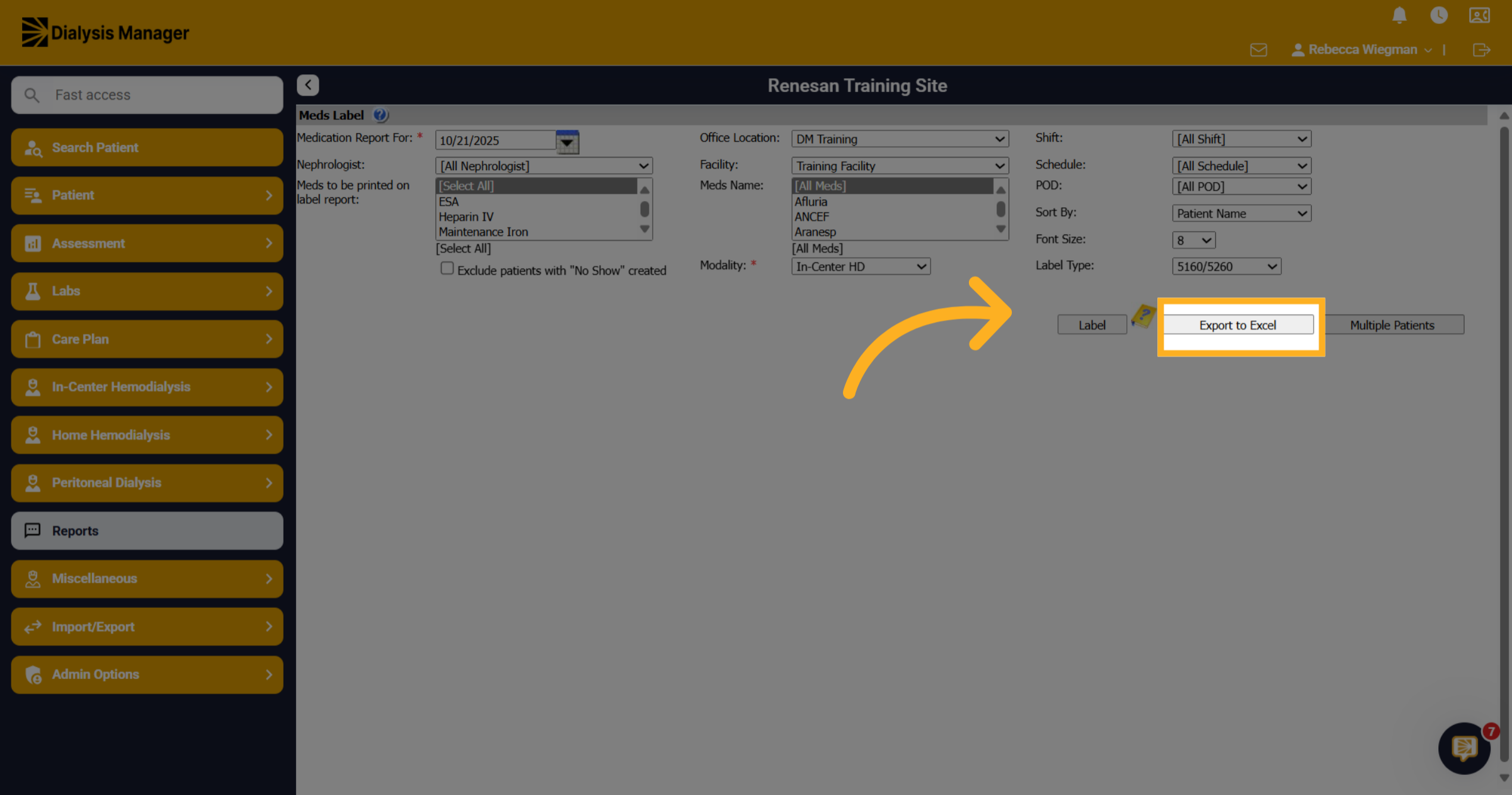
8. Export to Excel
You also have the option to open the report in Excel.
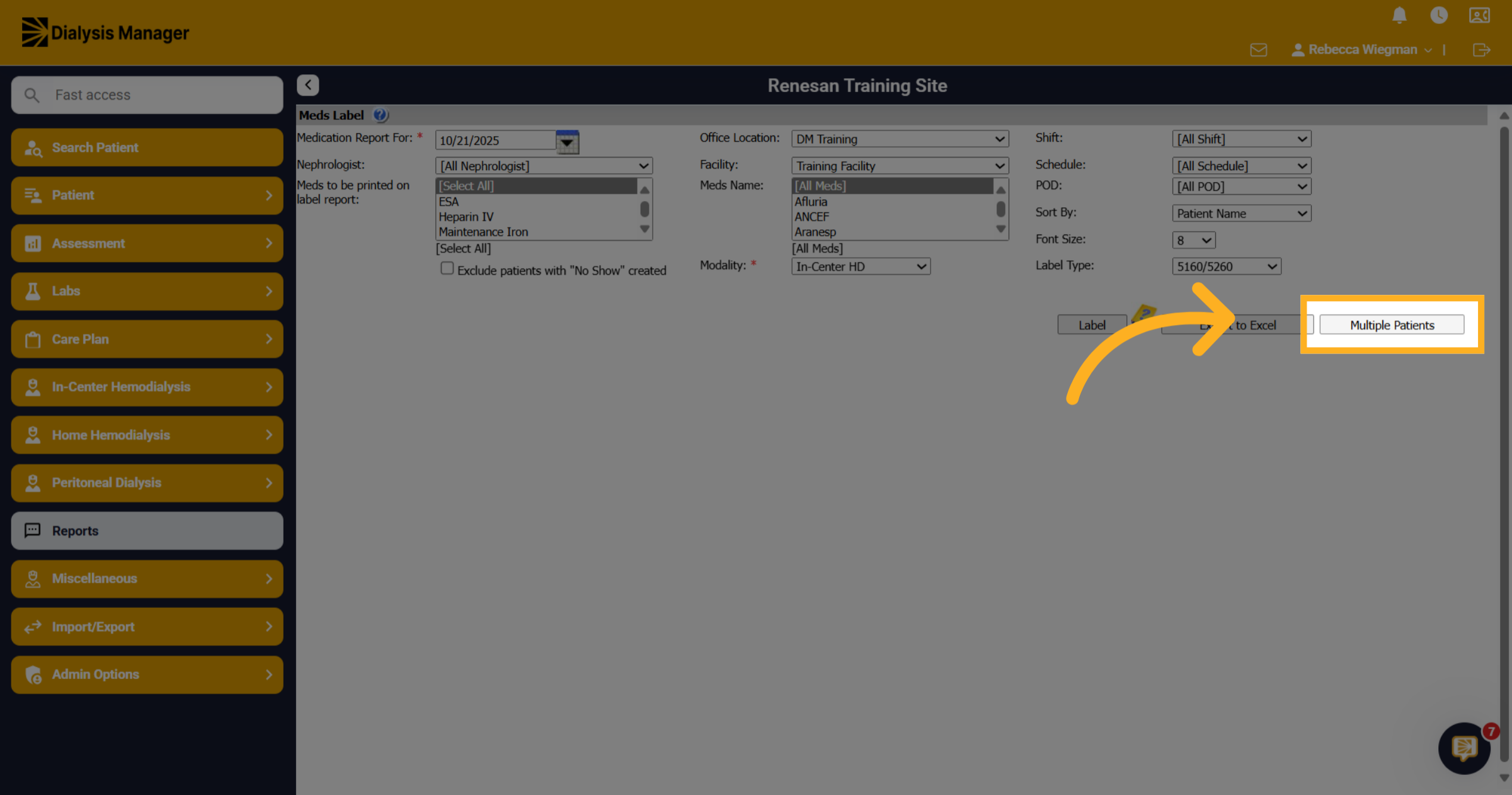
9. Multiple Patients
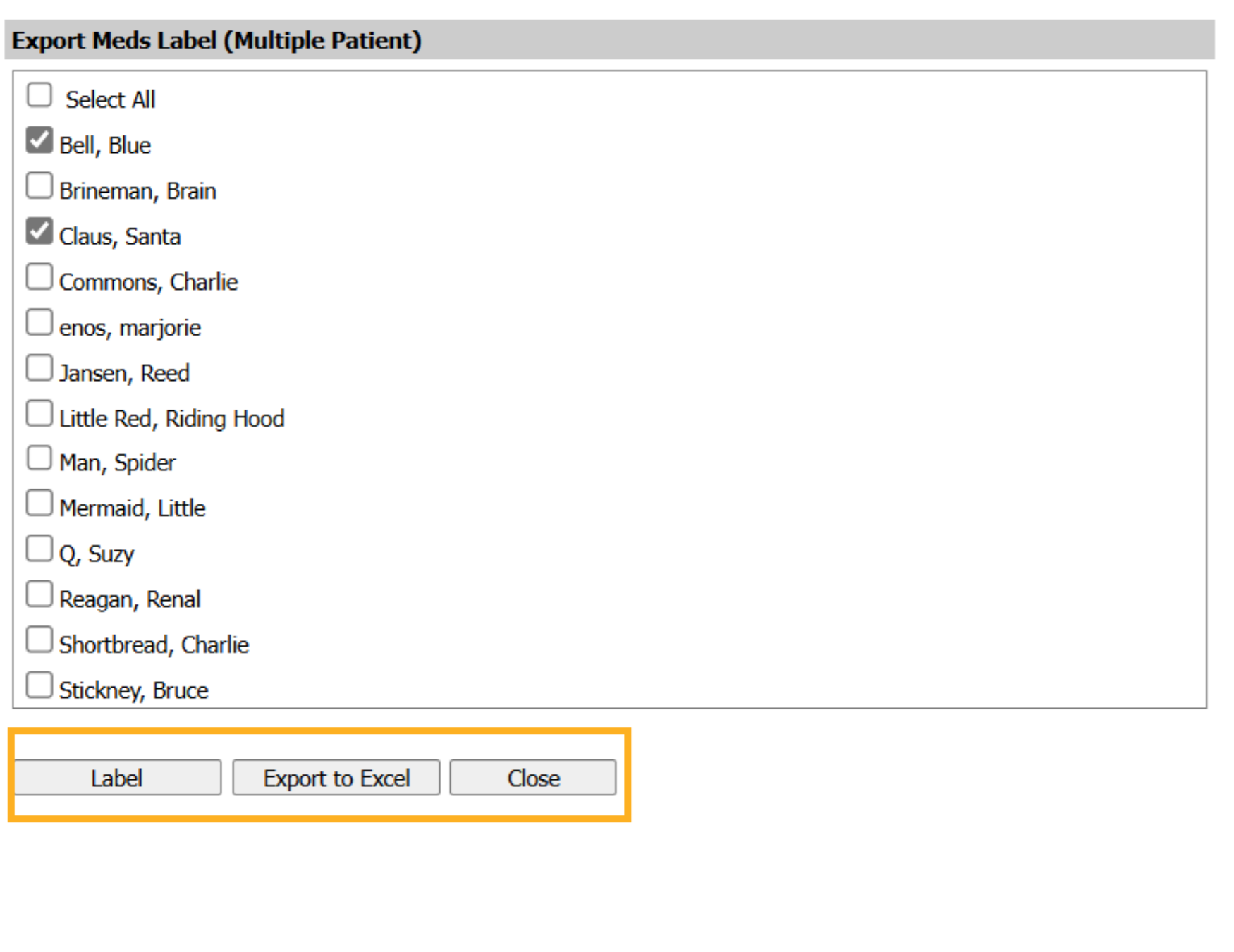
When selecting multiple patients, you can choose specific individuals instead of selecting all patients in the clinic.
10. Specific Patients
Choose the patients you want to include in the report, then click "Label" or open in Excel and continue to print as shown previously.