Capturing Pre Treatment information in the Treatment Flowsheet
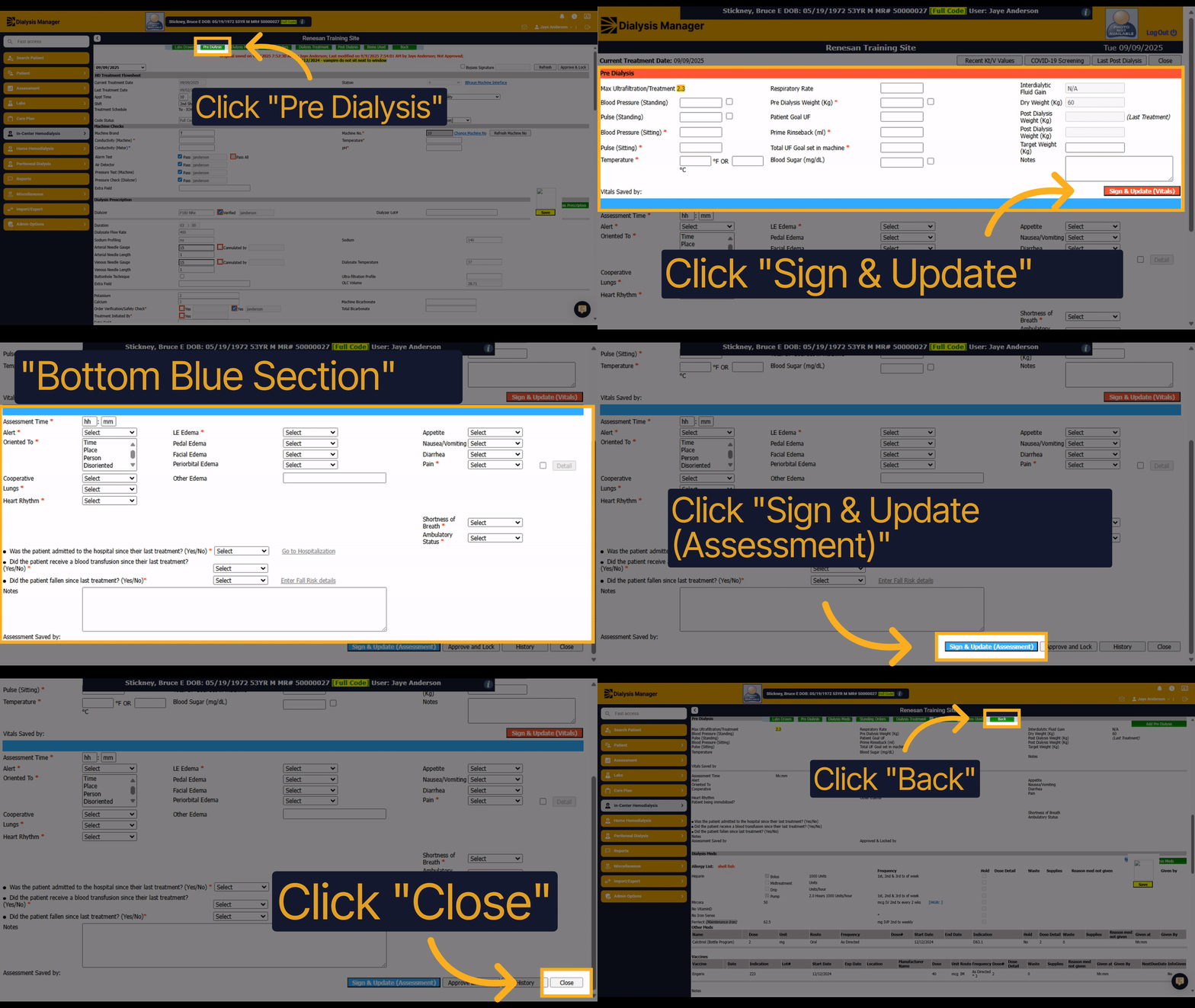
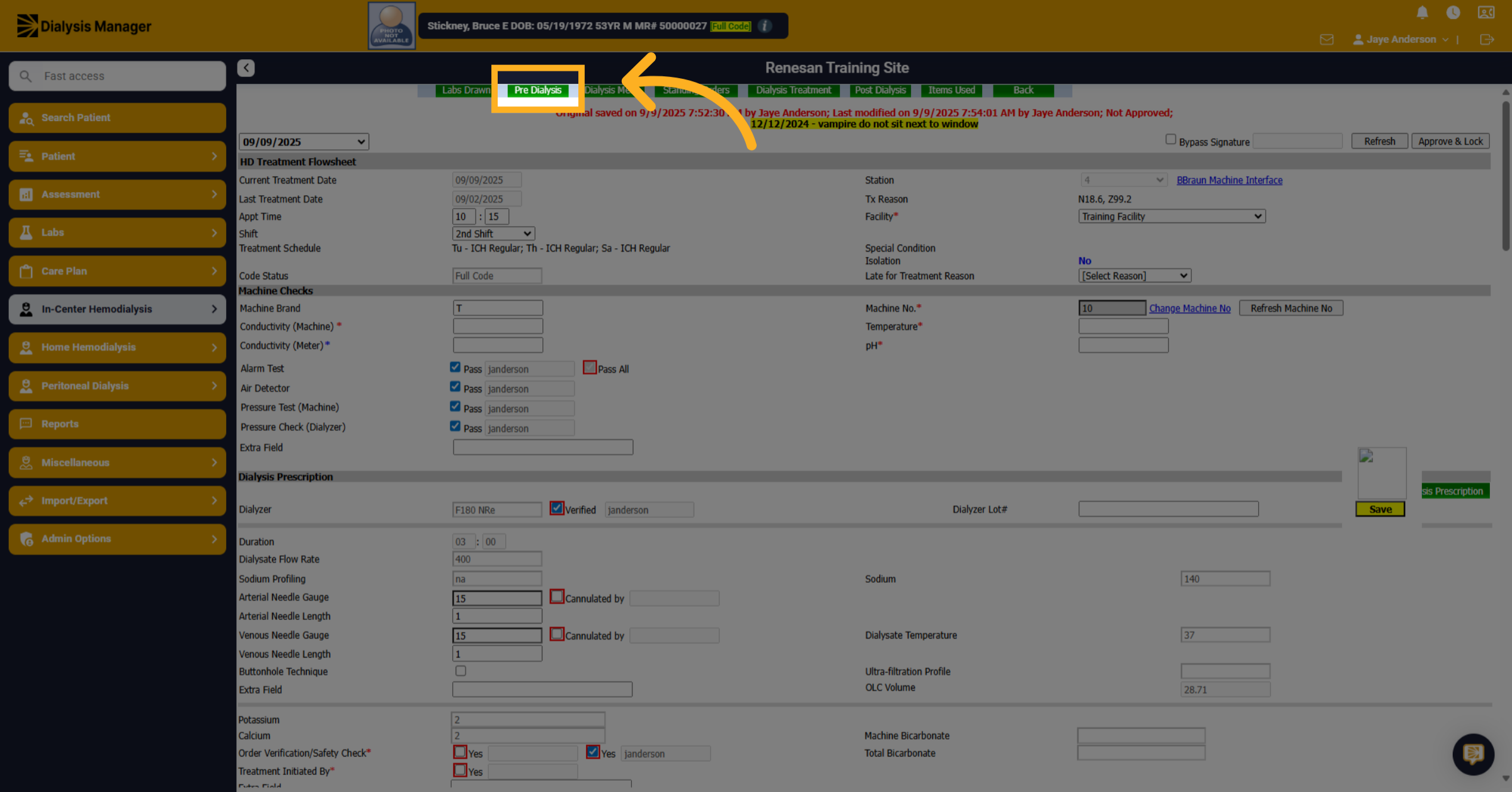
1. Click "Pre Dialysis"
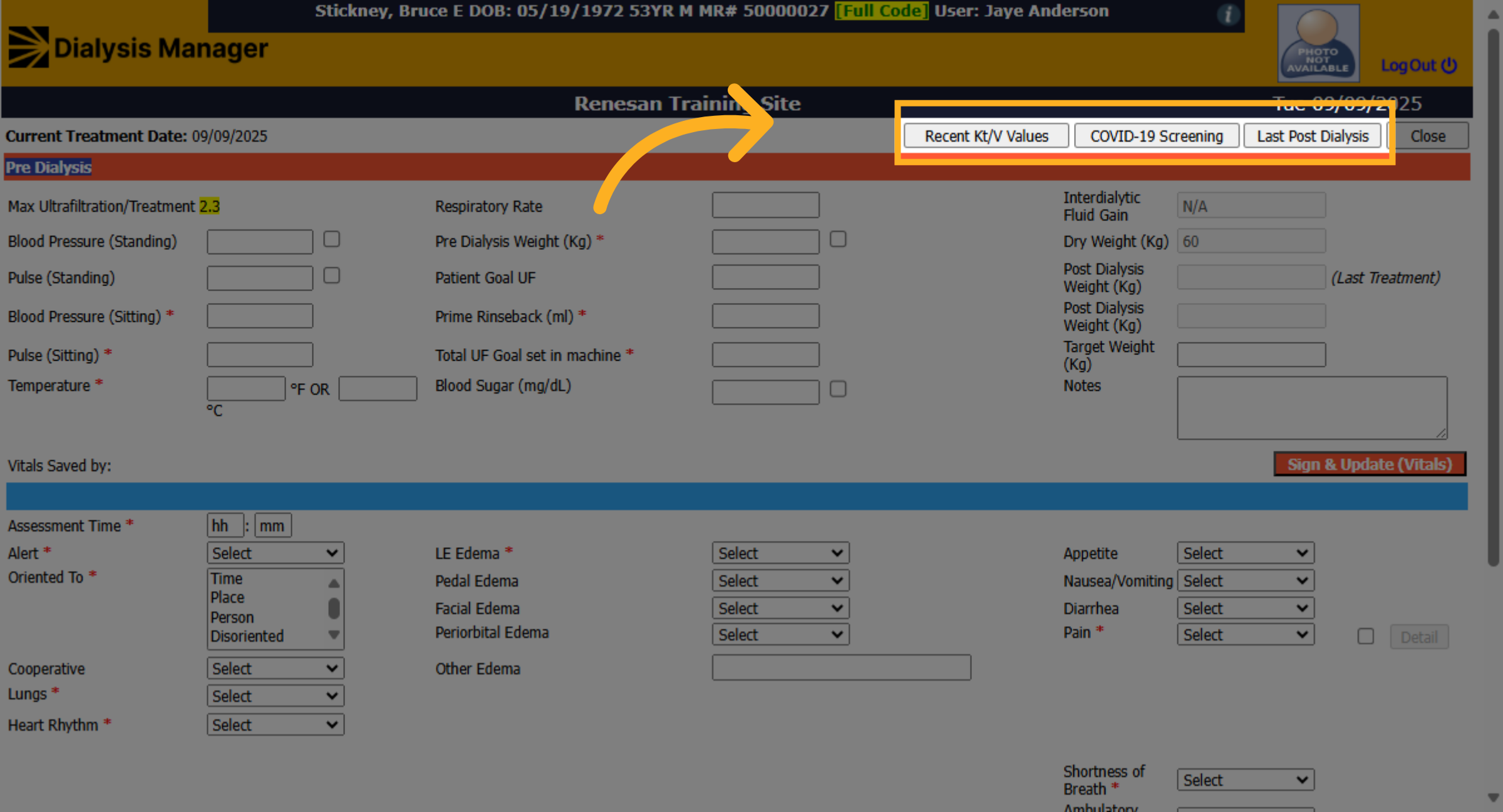
Click on the pre-treatment bar, a button at the top of the screen.
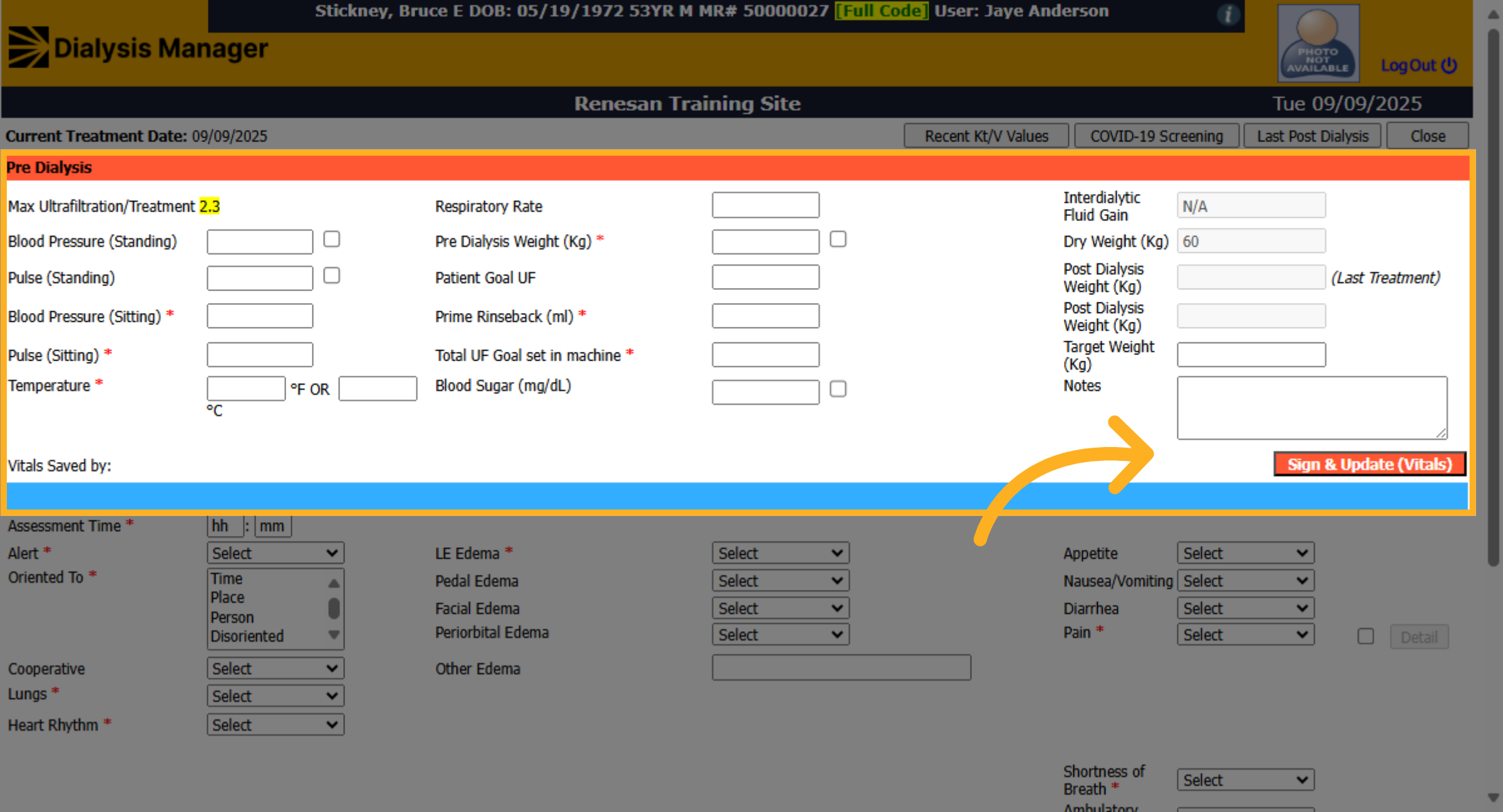
2. Click "Pre Dialysis"
This top RED section is typically completed by the dialysis technician. Keeping in mind anything with a red asterisk is required before the nurse is able to complete and lock the flowsheet. Each section has its own "Sign and Save" button. Click this 'Sign and Update (Vitals)' to save the top red section.
3. Click "Pre Dialysis"
NOTE: You can hover over or click the bars along the top to review other additional information.
4. Click "Assessment Time *"
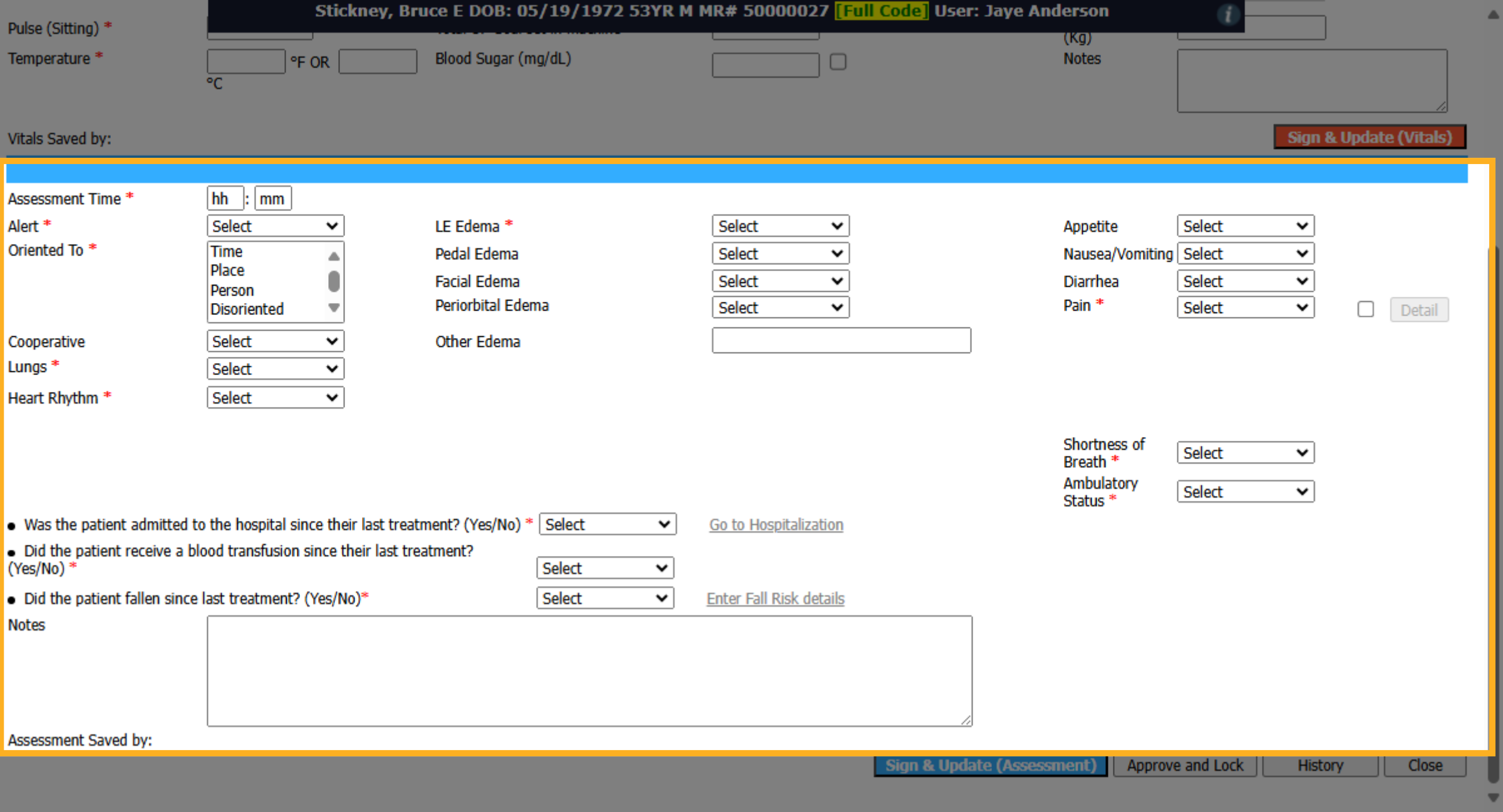
This bottom BLUE section is typically completed by the Nurse. Again, keeping in mind anything with a red asterisk is required before the flowsheet can be locked.
5. Click "Sign & Update (Assessment)"
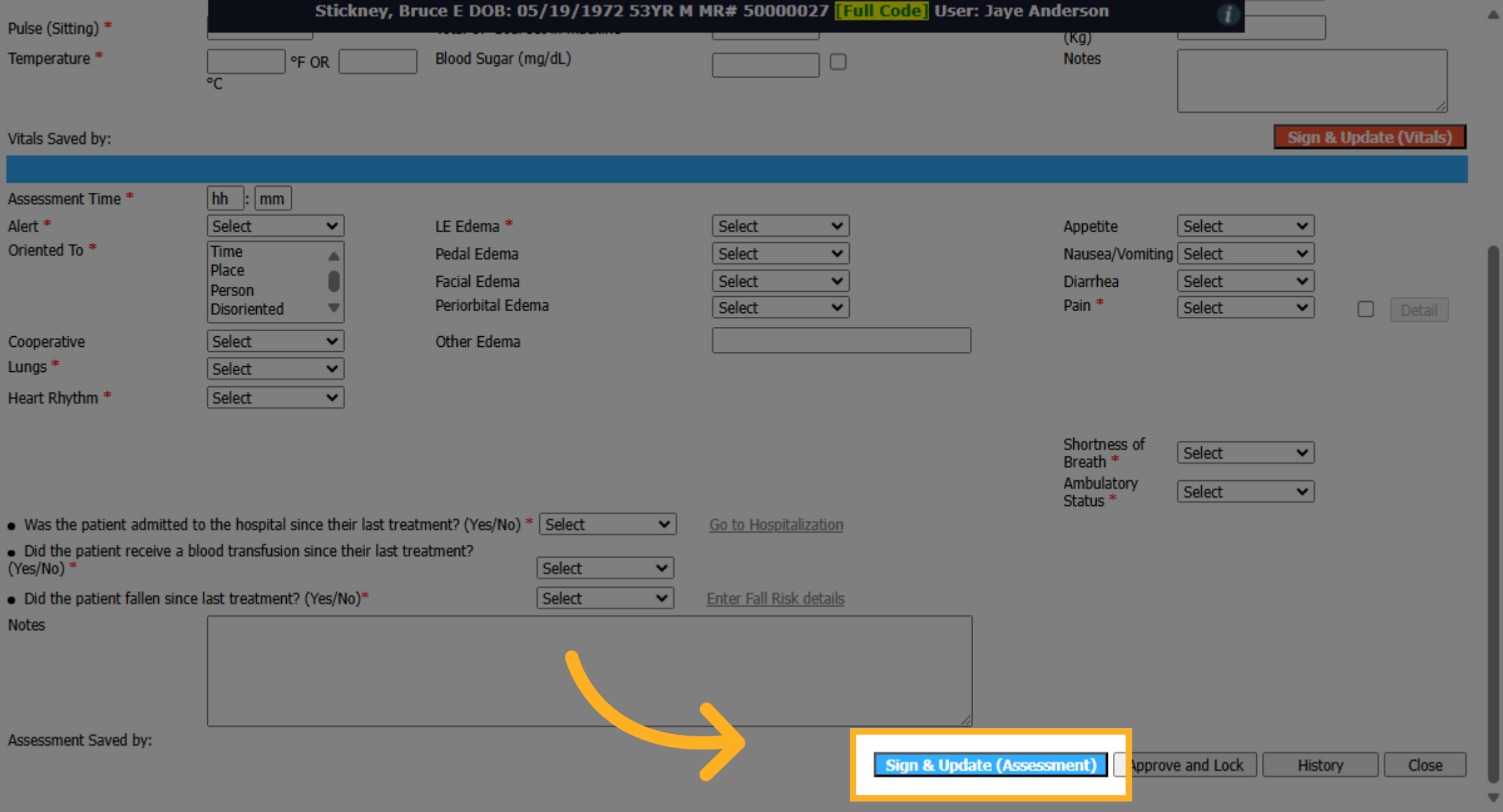
Each section has its own "Sign and Save" button. Click this 'Sign and Update (Assessment)' to save the bottom blue section. The different colored buttons save each section separately.
6. Click "Approve and Lock"
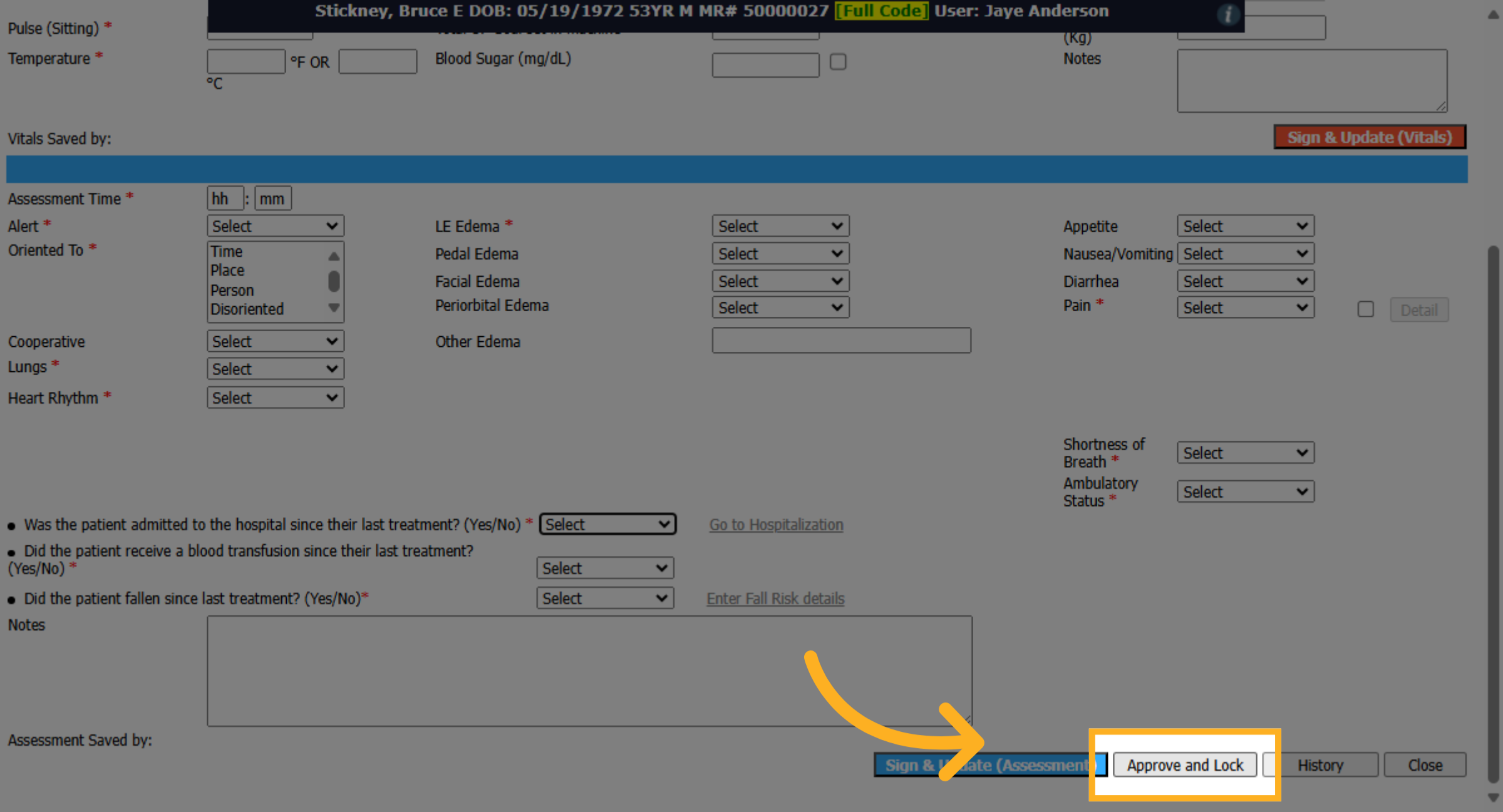
Click Approve and Lock to add and save the Pre Treatment section.
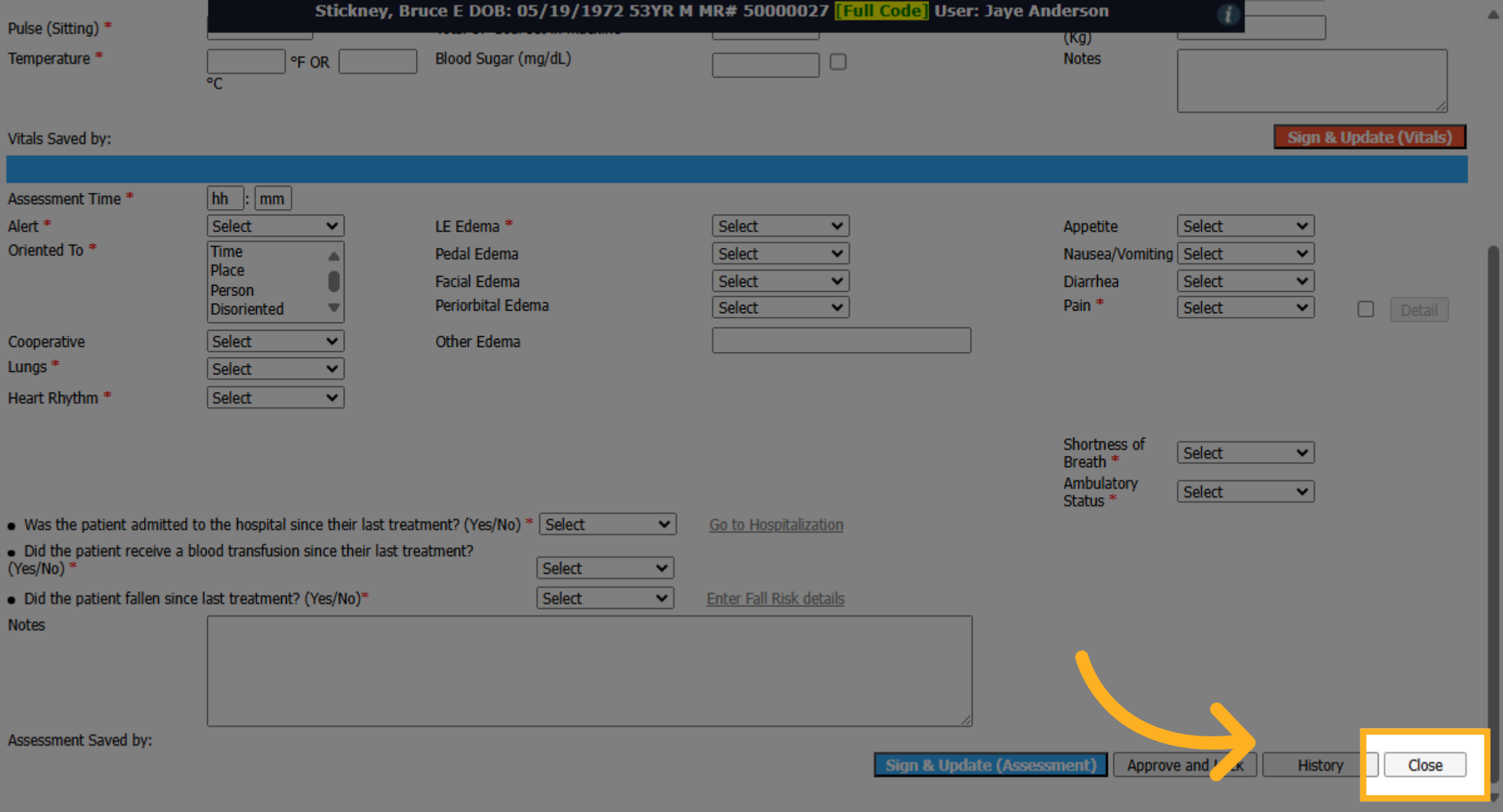
7. Click "Close"
Click Close to close the pre-dialysis screen once you have completed the entries.
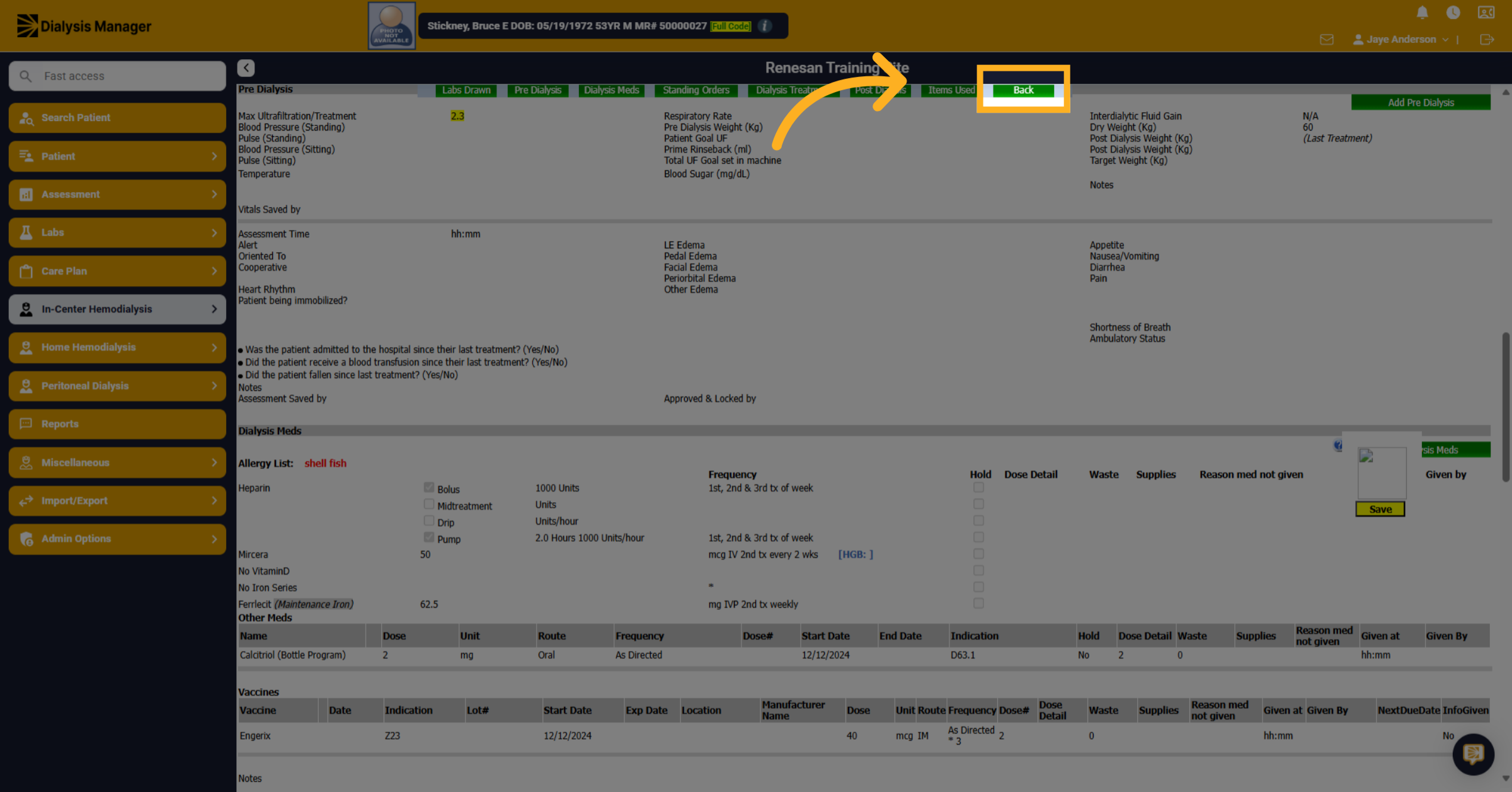
8. Click "Back"
Click Back to go back to the treatment by date screen after completing the pre-treatment information.