Physician Workflow.
1. Introduction - Physicians
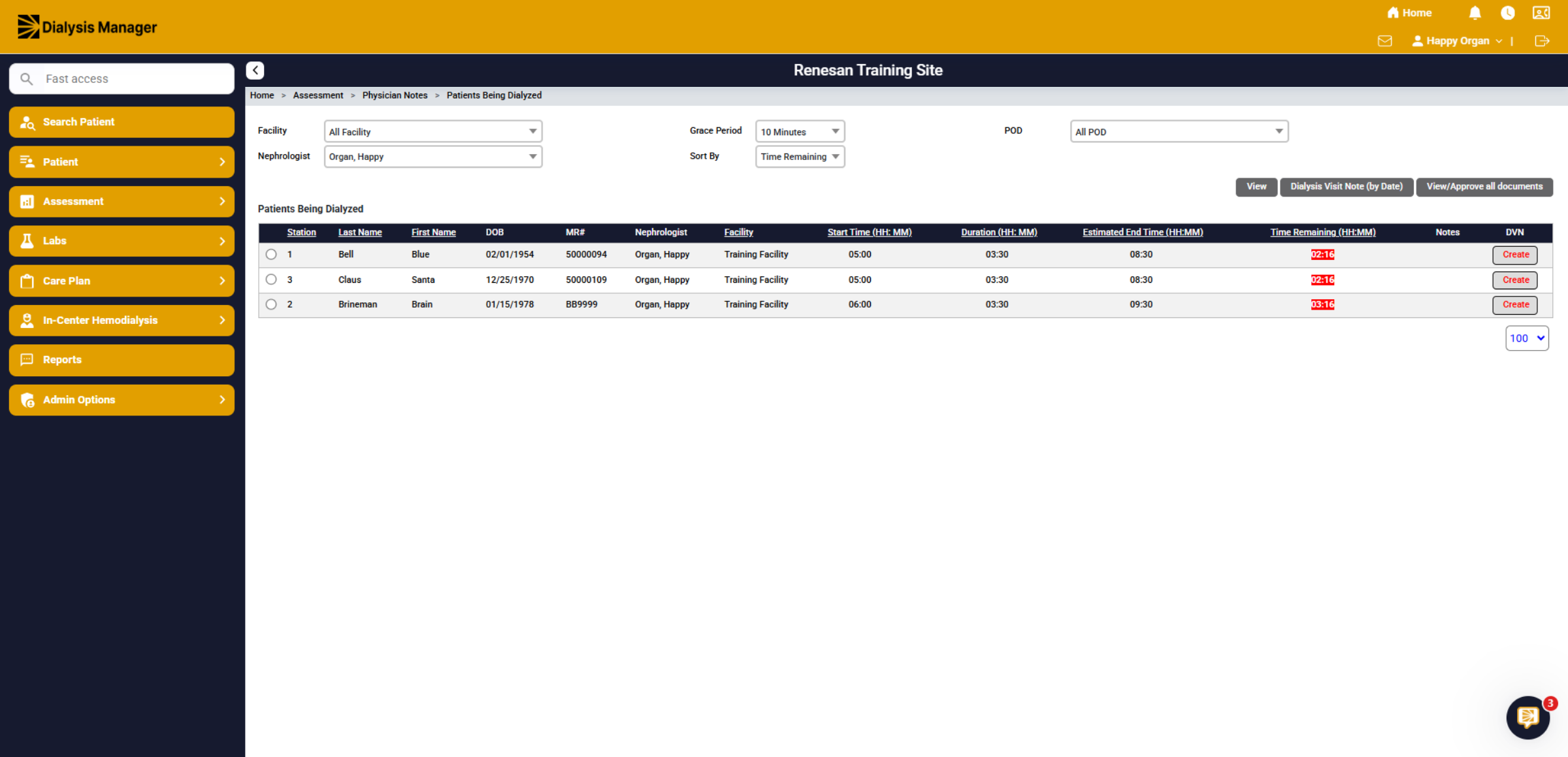
When physicians log into Dialysis Manager, they are usually directed to the Patients Being Dialyzed screen.
2. Filter by Facility
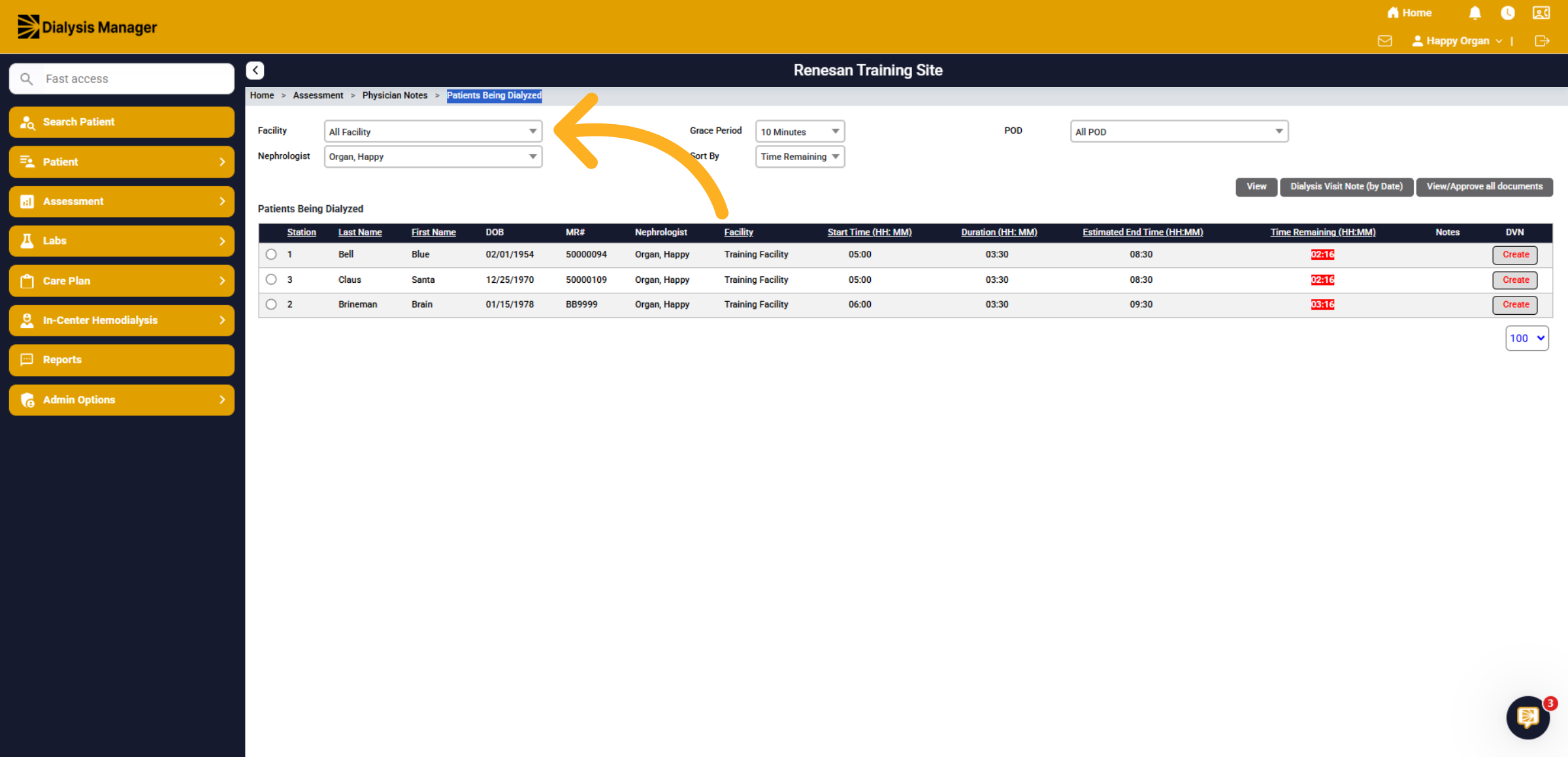
You can filter by facilities if you are associated with multiple locations.
3. Nephrologist
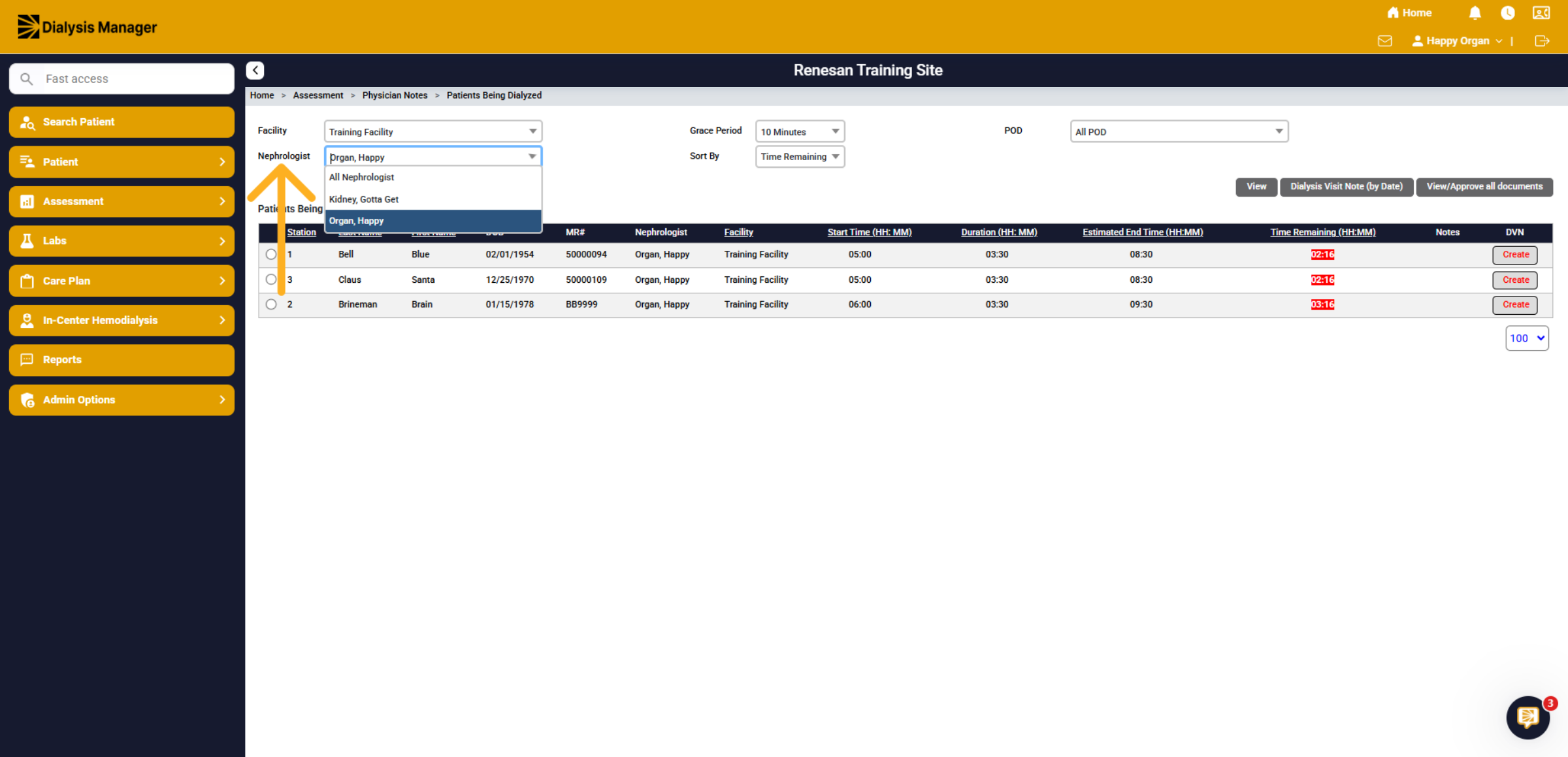
The nephrologist will default to the physician who is signed in. If you are associated with a rounding group, those physicians will also display in the dropdown. If you are rounding on all patients who have a different primary nephrologist select "All Nephrologist" to view all patients.
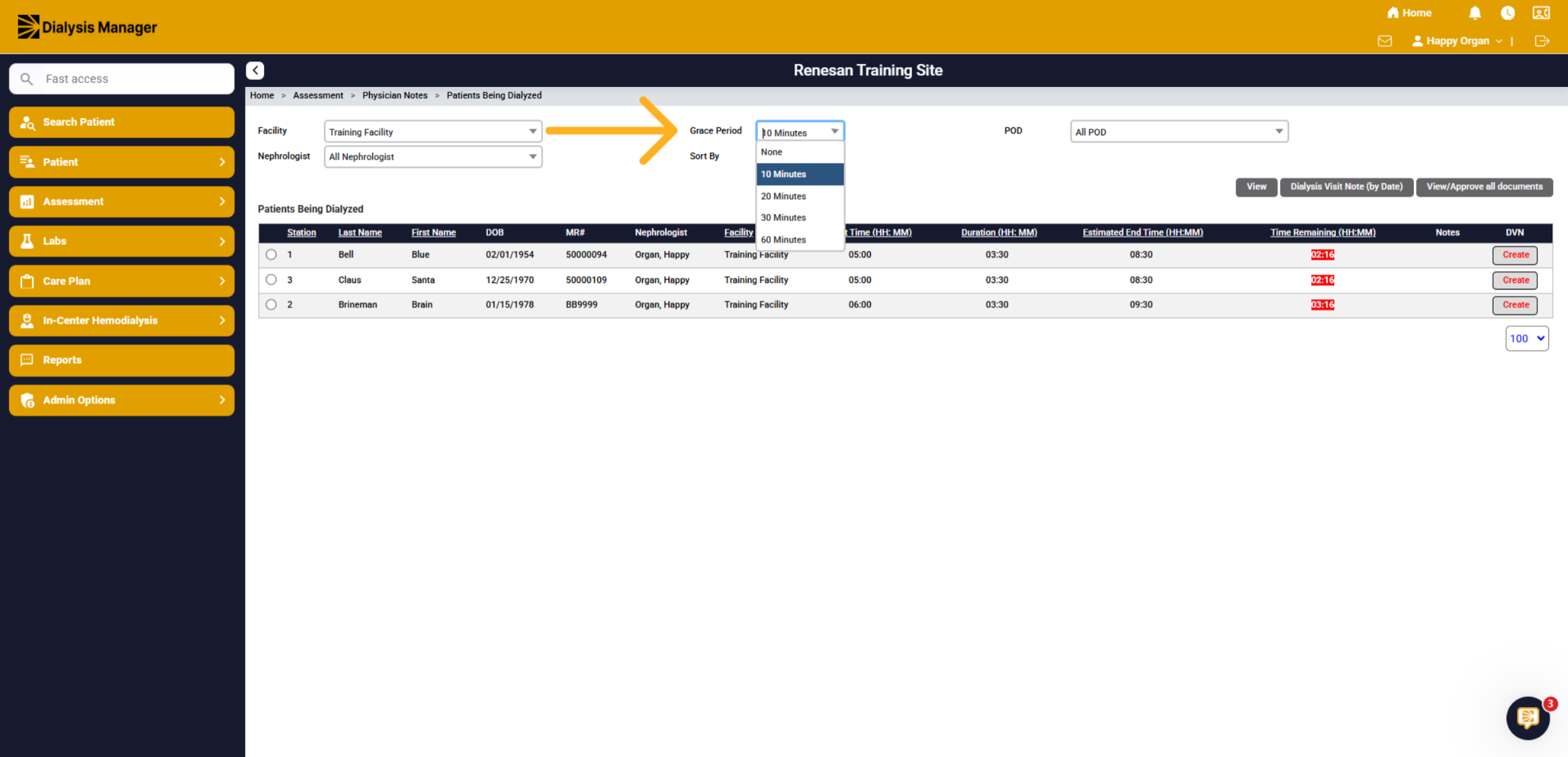
4. Grace Period
The Grace Period of 10, 20, 30, or 60 minutes specifies how long a patient will remain visible in the list below after completing their treatment.
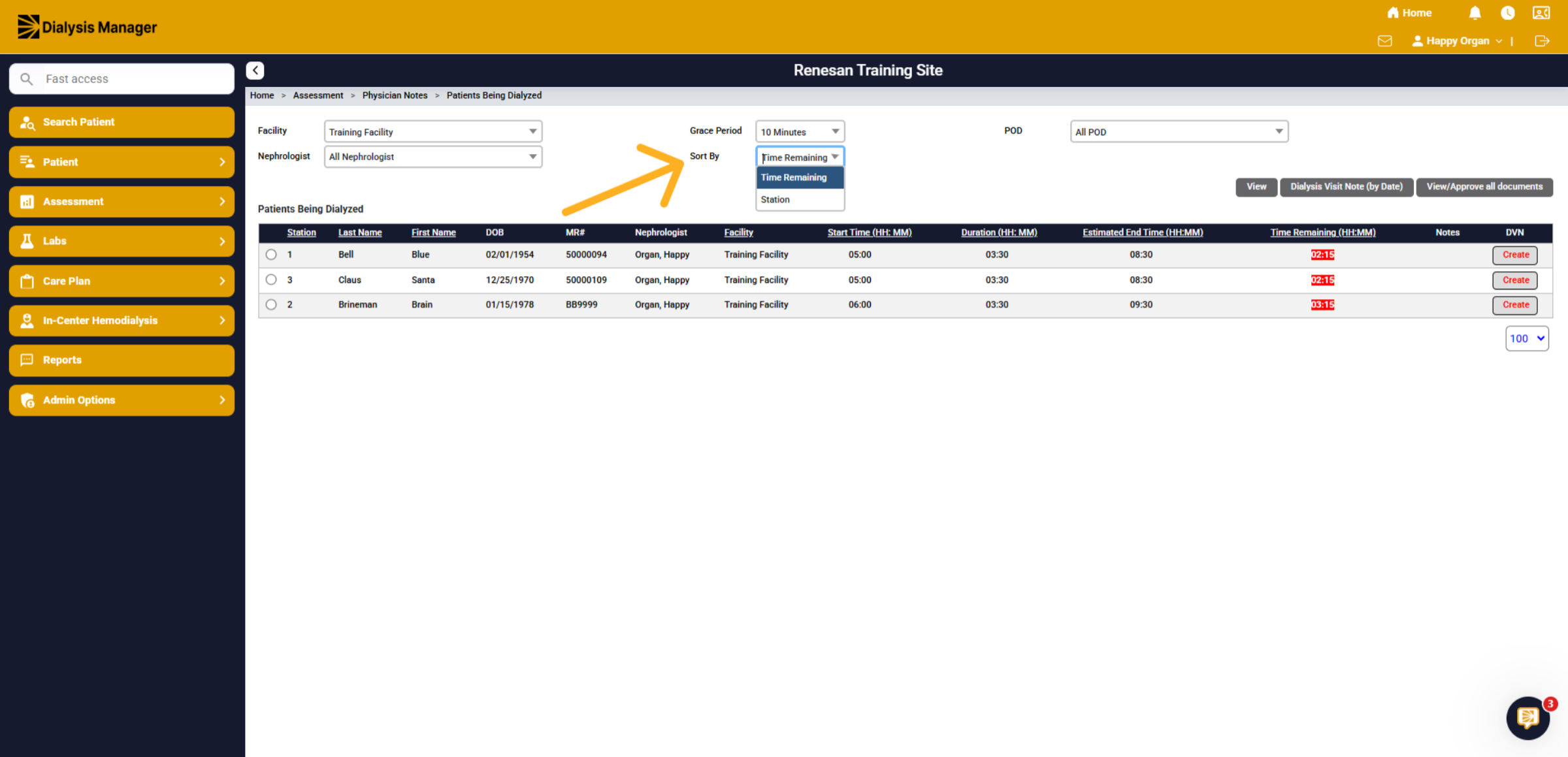
5. Sort By
You can sort by Time Remaining, which is the default option, or by Station.
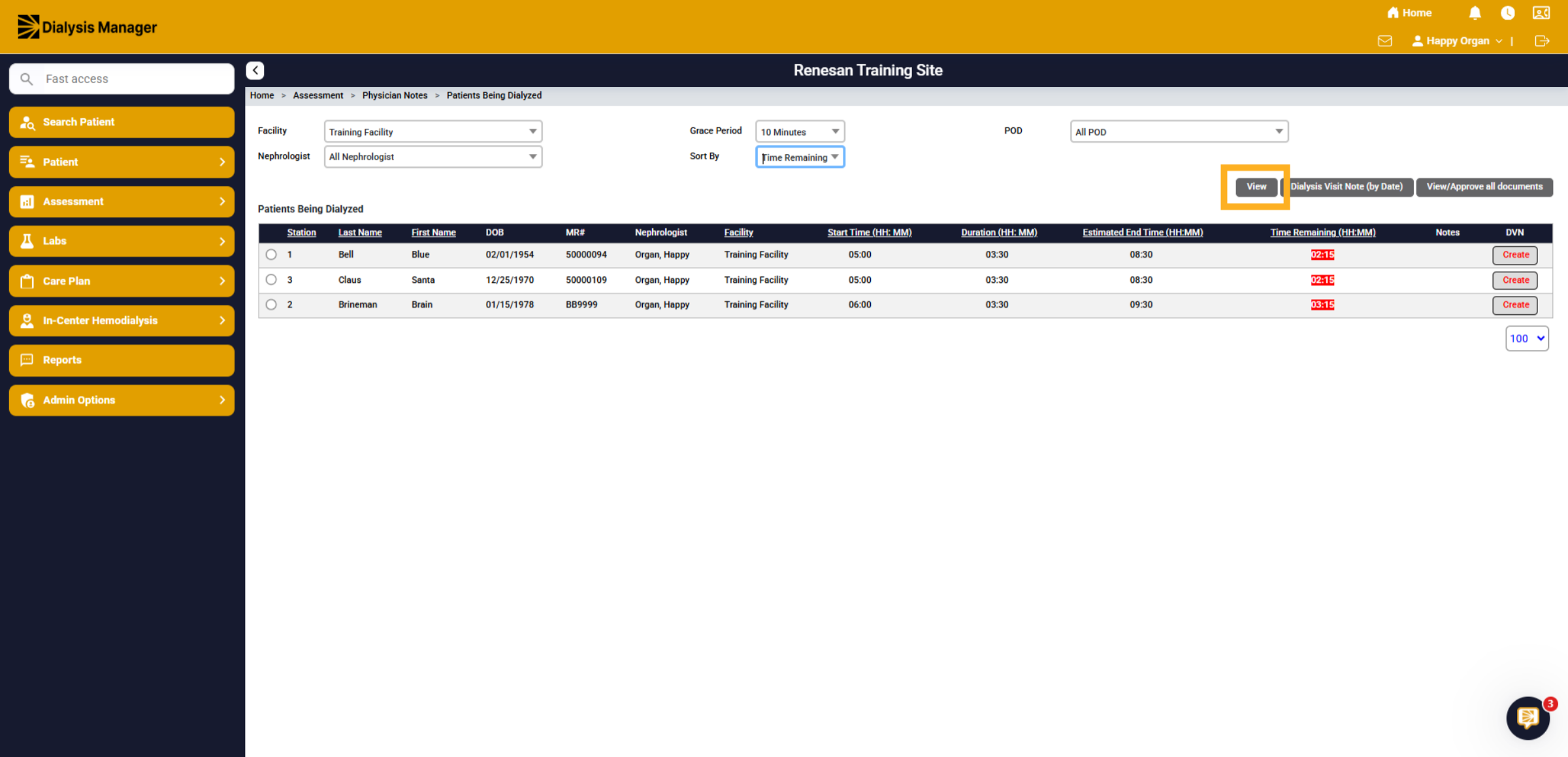
6. Click View Button
Click "View" to display your filtered selection!
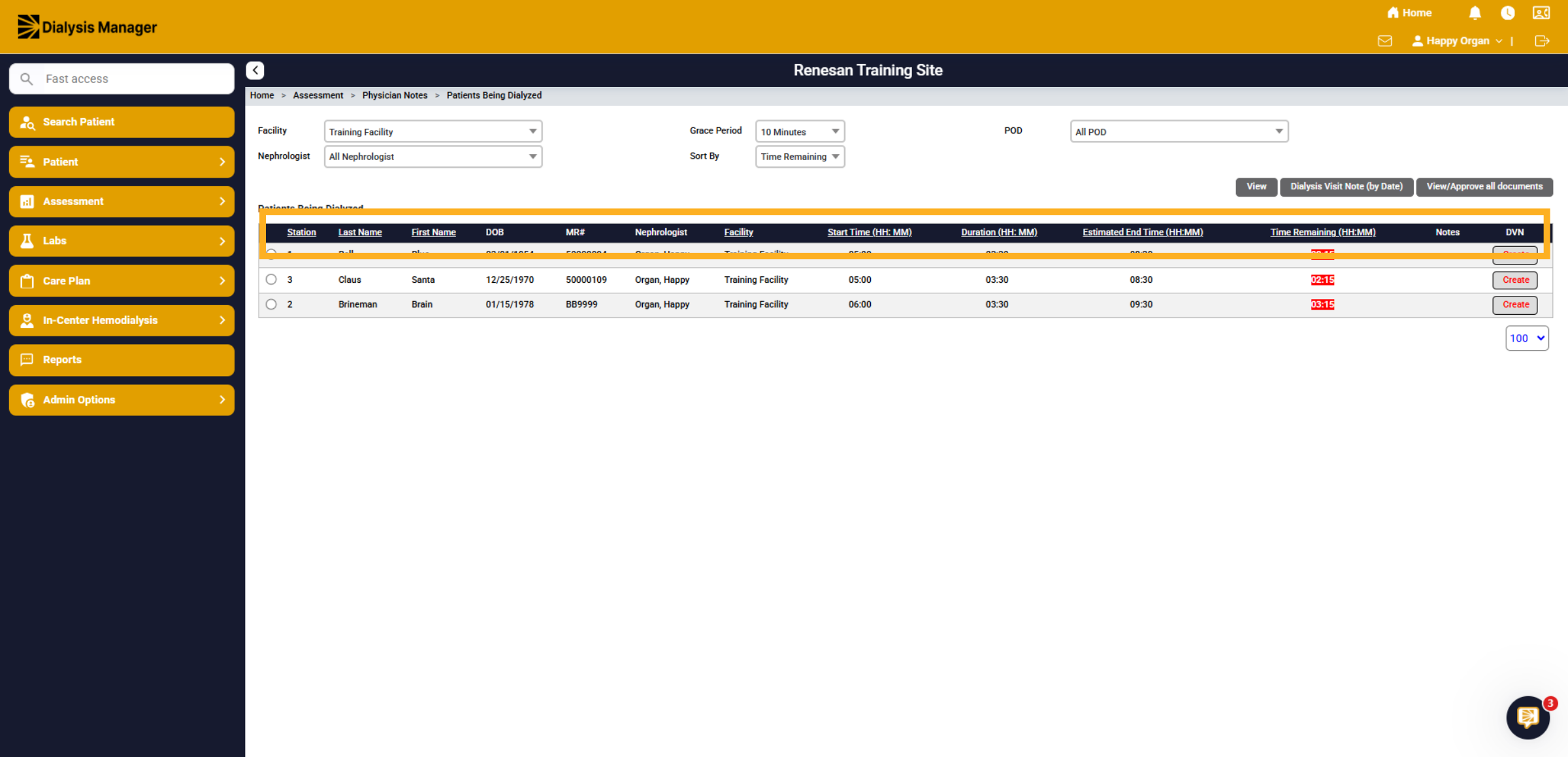
7. Patients Being Dialyzed
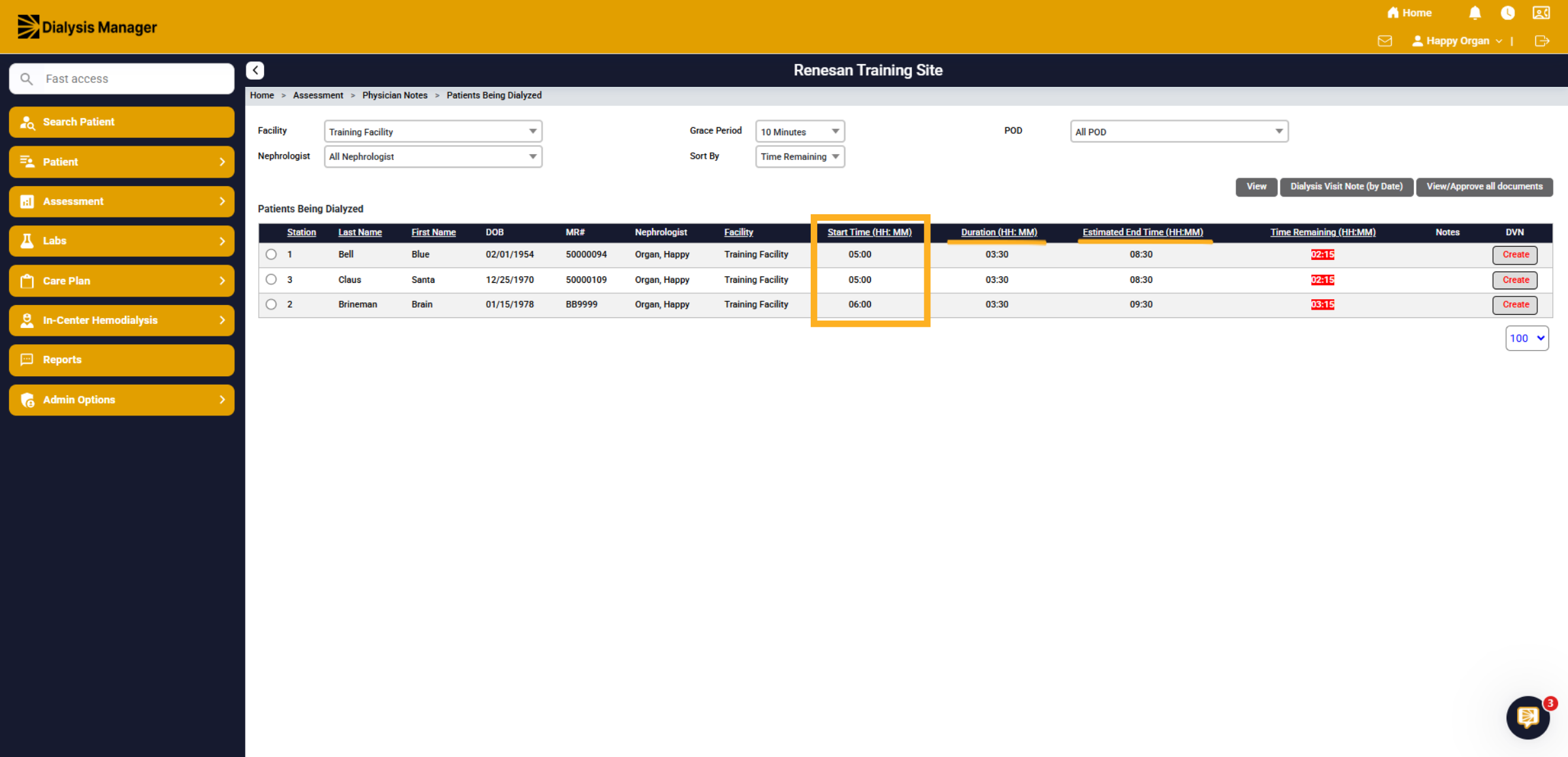
Across the black header you'll see the stations, patient names, Date of Birth, Medical Record number, Primary Nephrologist, Facility, Start/End Time, along with the duration of the treatment which is pulling from the patient's dialysis order.
8. Treatment Times
The Start Time will reflect when staff initiated the treatment. The system uses the Duration from the patient’s dialysis order to calculate the Estimated End Time.
9. DVN
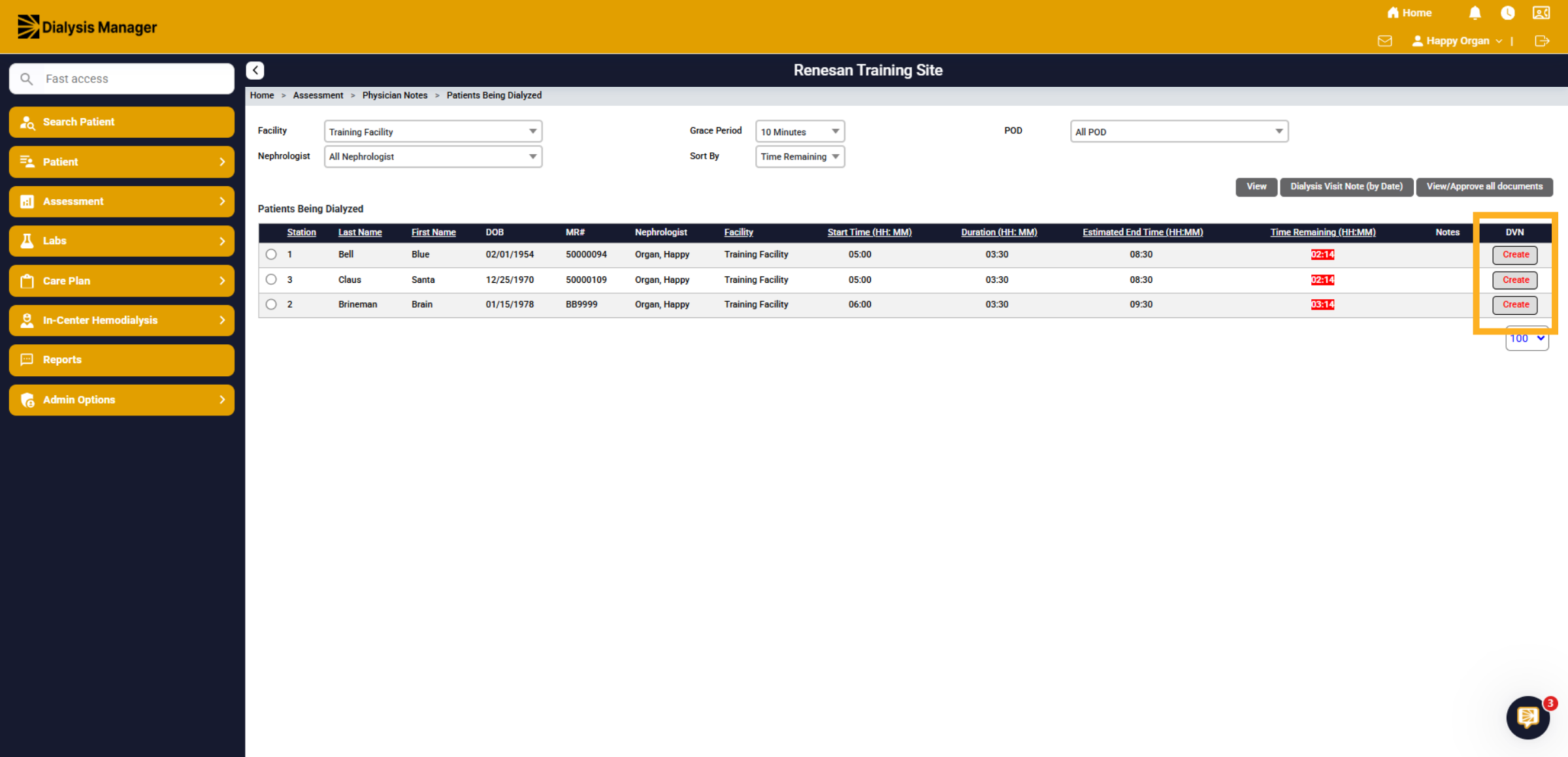
In the Dialysis Visit Note (DVN) section, a red "Create" indicator signifies that no dialysis visit note has been generated. Conversely, a black "View" indicator shows that a note has been created and saved.Renvio provides two types of Dialysis Visit Notes (DVN):
Dialysis Visit Note: This is used for documenting comprehensive or regular rounding visits. It serves as the primary tool for recording patient interactions during dialysis sessions.
Dialysis Visit Note (by date): This feature offers a visual representation of rounds by date over a defined period. It is particularly useful for assisting with practice billing and reviewing historical data.
10. Inside the DVN
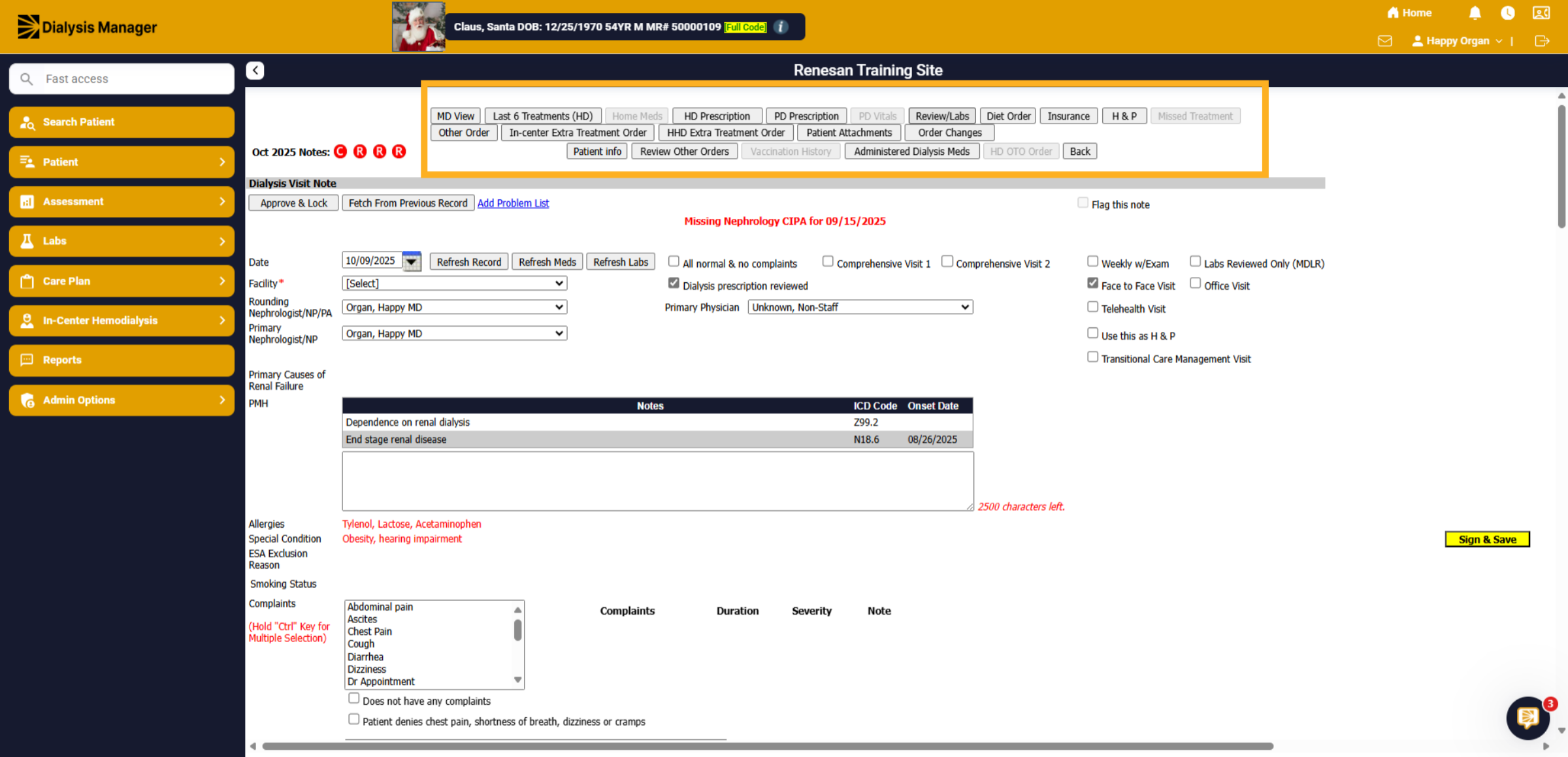
After you click create and inside the Dialysis Visit Note you'll see tabs across the top of the page. You are able to hover over the tabs to see information or click into the tab to open another screen displaying that information without closing the Dialysis Visit Note.
11. Completed Assessments
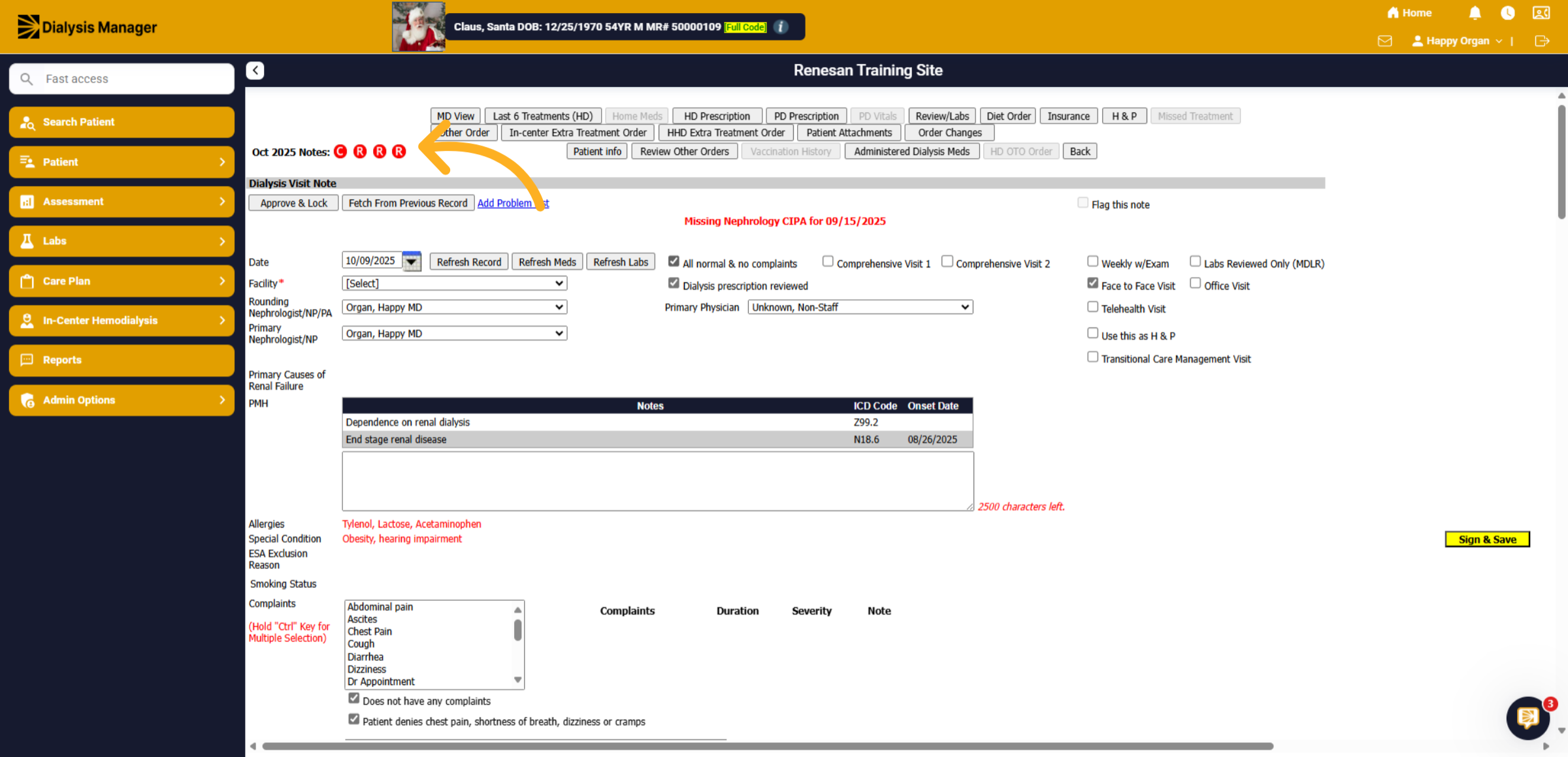
In this section, you will see either a red or green "C" or "R." The "C" represents Comprehensive Notes for the current month, while the "R" stands for Regular Visit Notes. A red indicator signifies that the task is incomplete, whereas green indicates completion.
12. Fetch From Previous Record
If a patient has had a Dialysis Visit Note completed in the past, you'll be able to select Fetch From Previous Record. The information will replicate on this note. You can edit information and sign and save!
13. Refresh
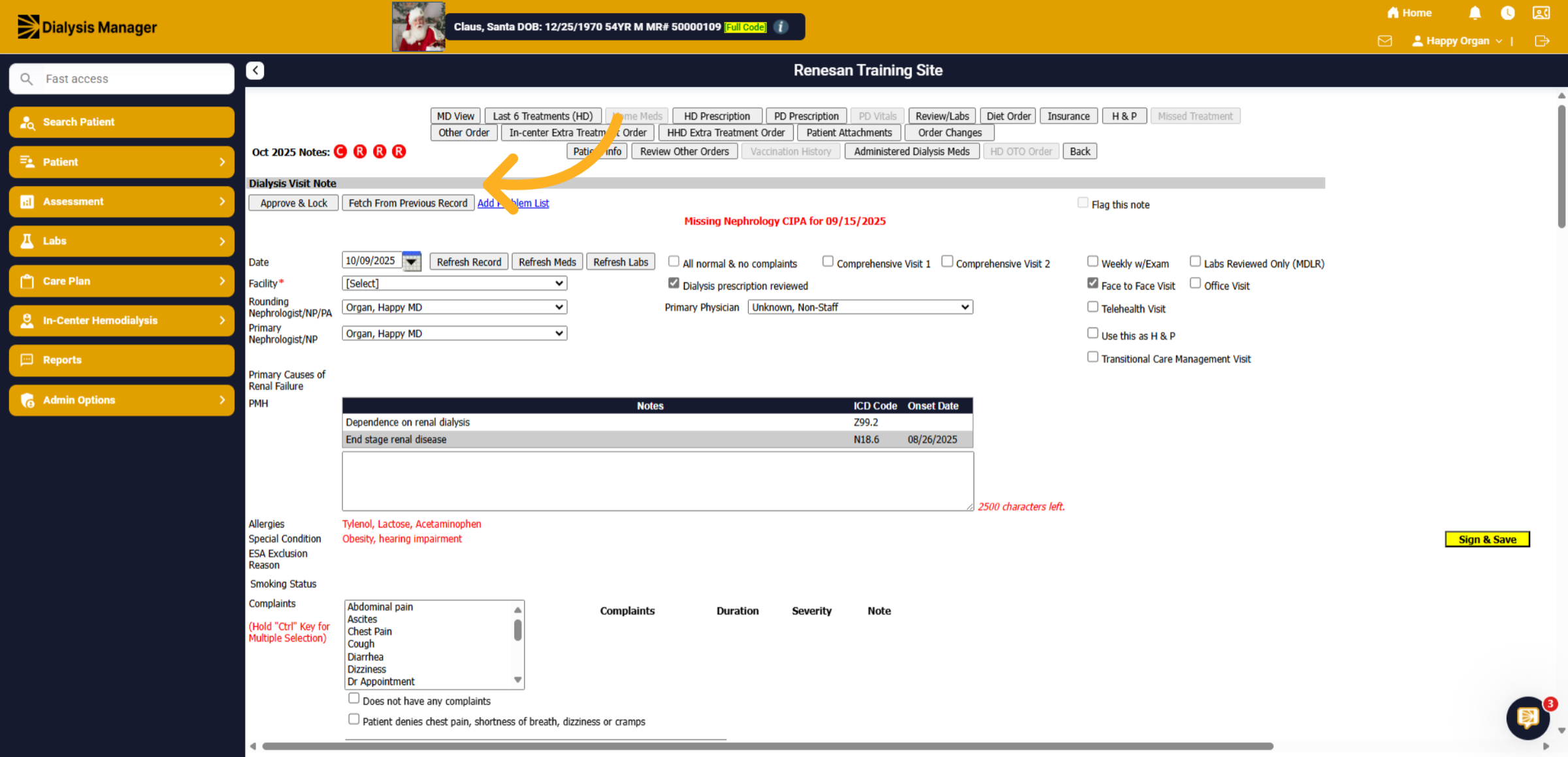
Our application provides the ability to Refresh Records, Medications, and Labs. For instance, if you are documenting a patient on the first of the month and their lab results have not yet appeared in the system, or a redraw is being done, you can enter your documentation, sign it, and save it. Then, simply return the next day to click "Refresh Labs" and update your documentation with the current month's lab results! You would then want to Approve and Lock your Dialysis Visit Note.Additionally, you can use the "Refresh/Refresh Record" option to populate a newly added diagnosis after updating fields in the note.
14. Note Type
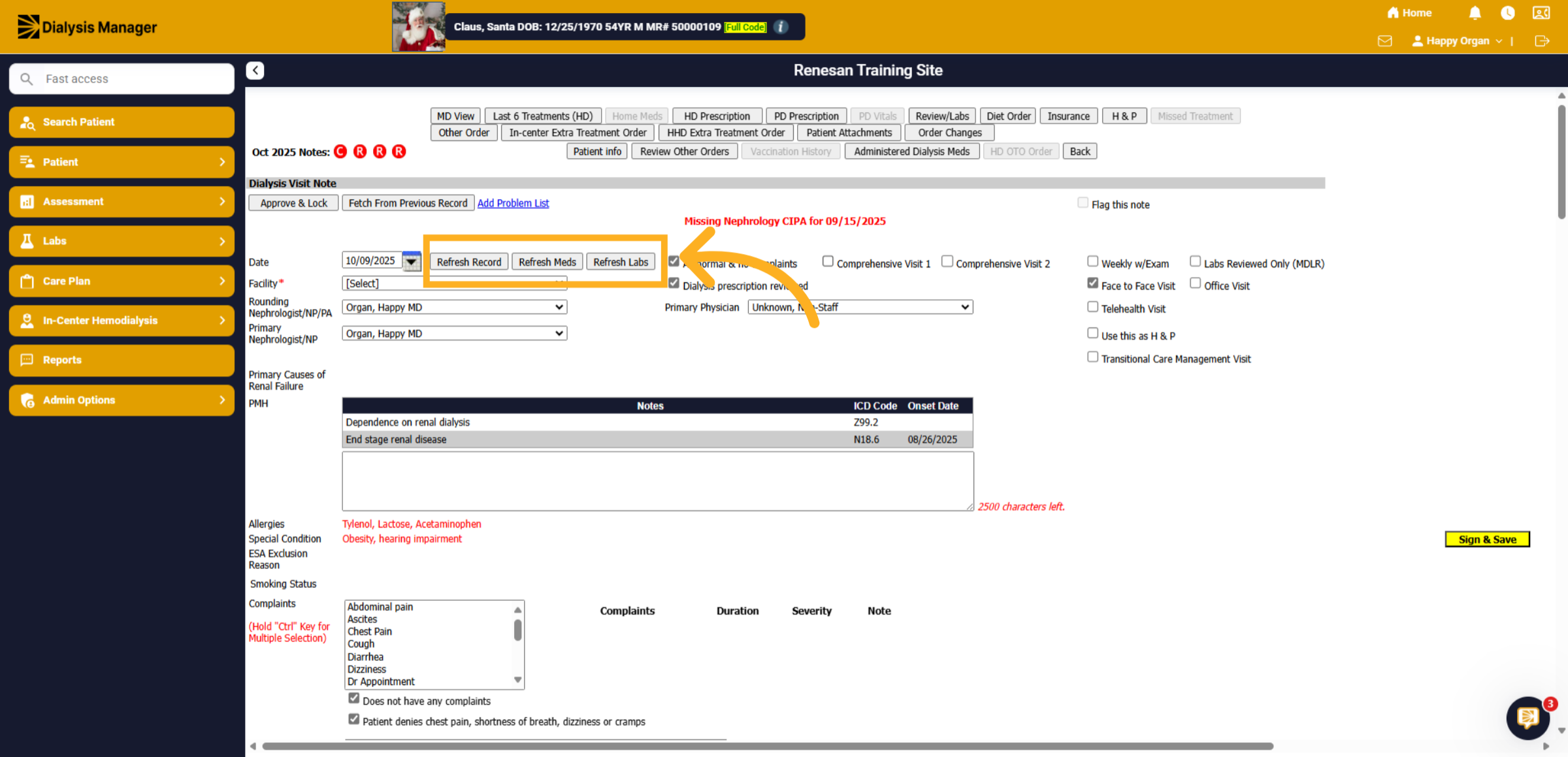
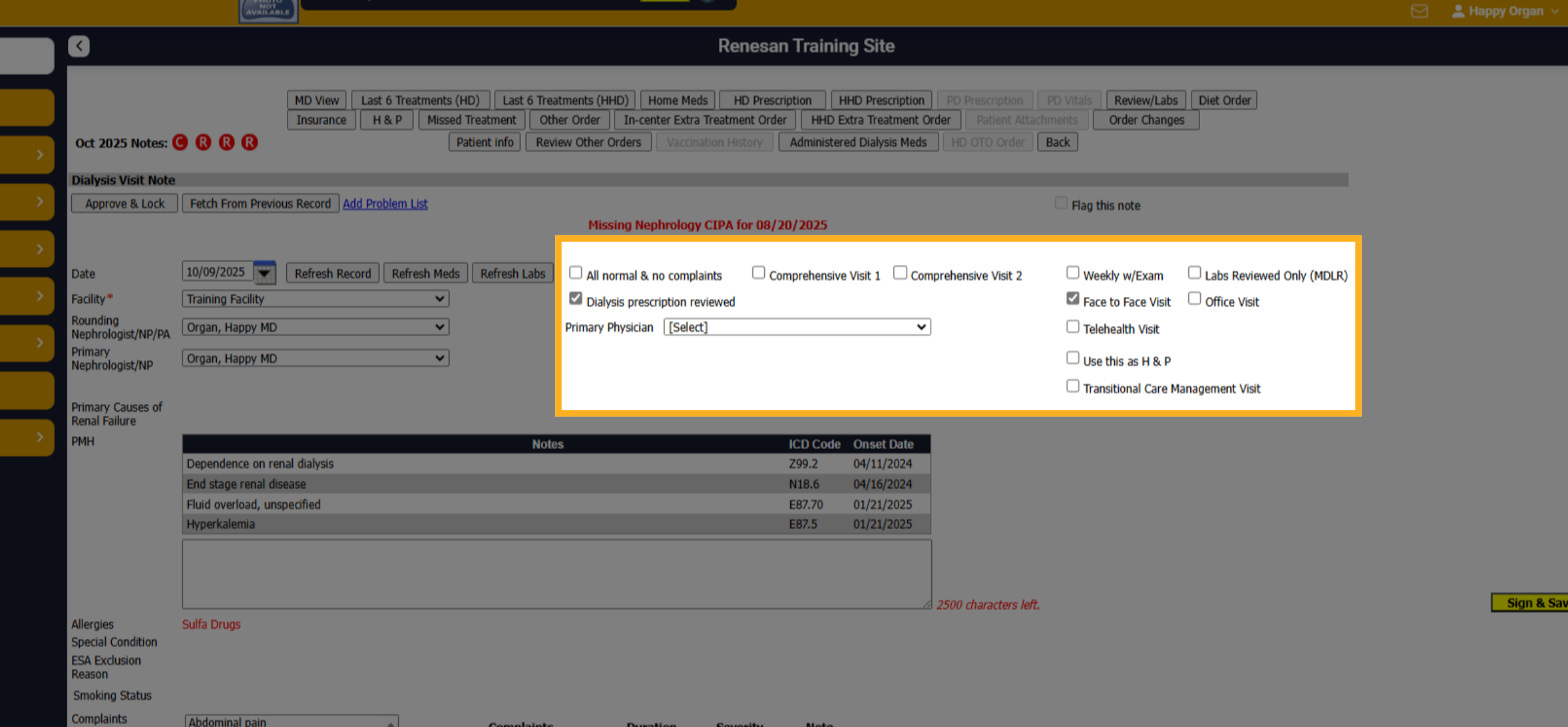
You'll have the options for All normal & no complaints, Comprehensive Visit 1 or 2, and Weekly with exam. The difference between Comprehensive 1 and 2 are the views. Comp 1 displays lab information horizontally and Comp 2 vertically.
15. Use this as a Care Plan and POC
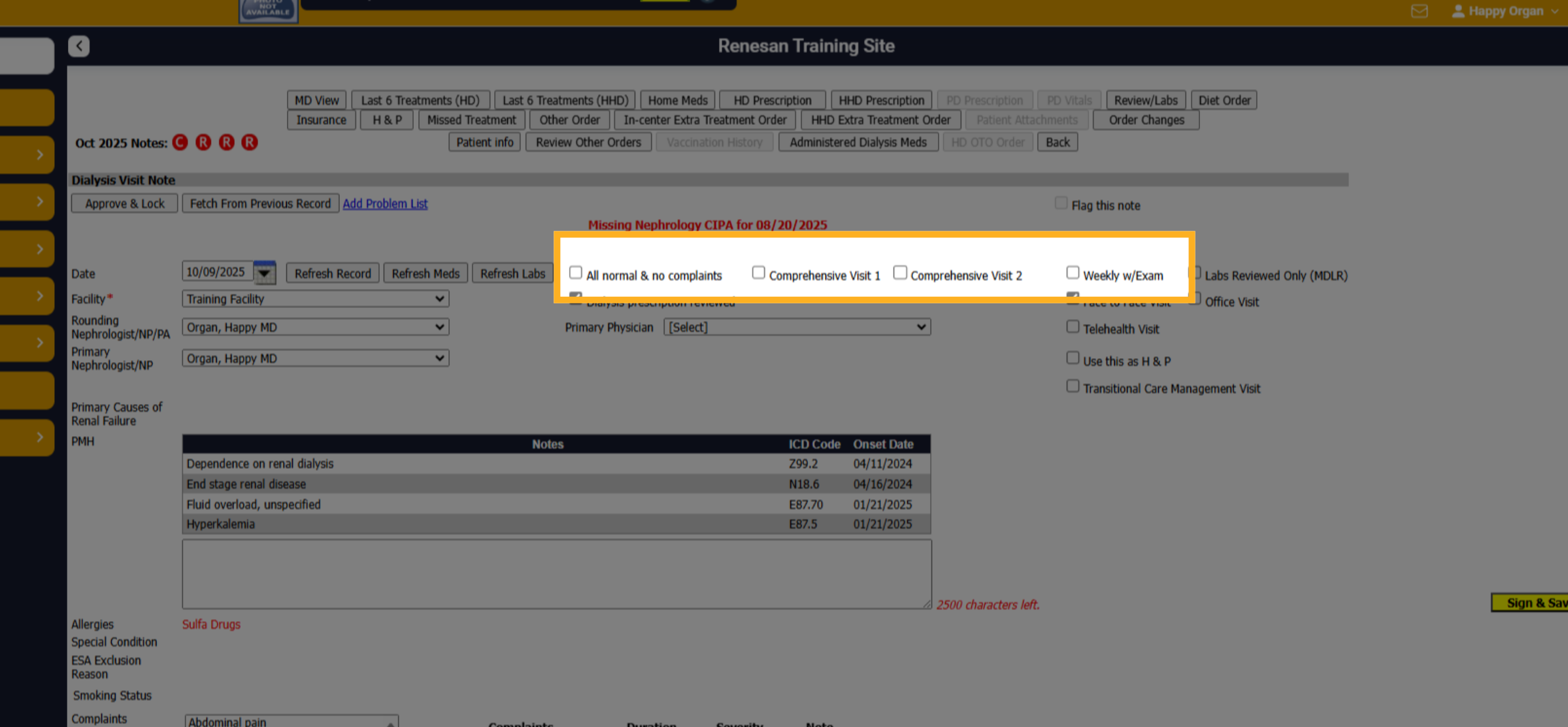
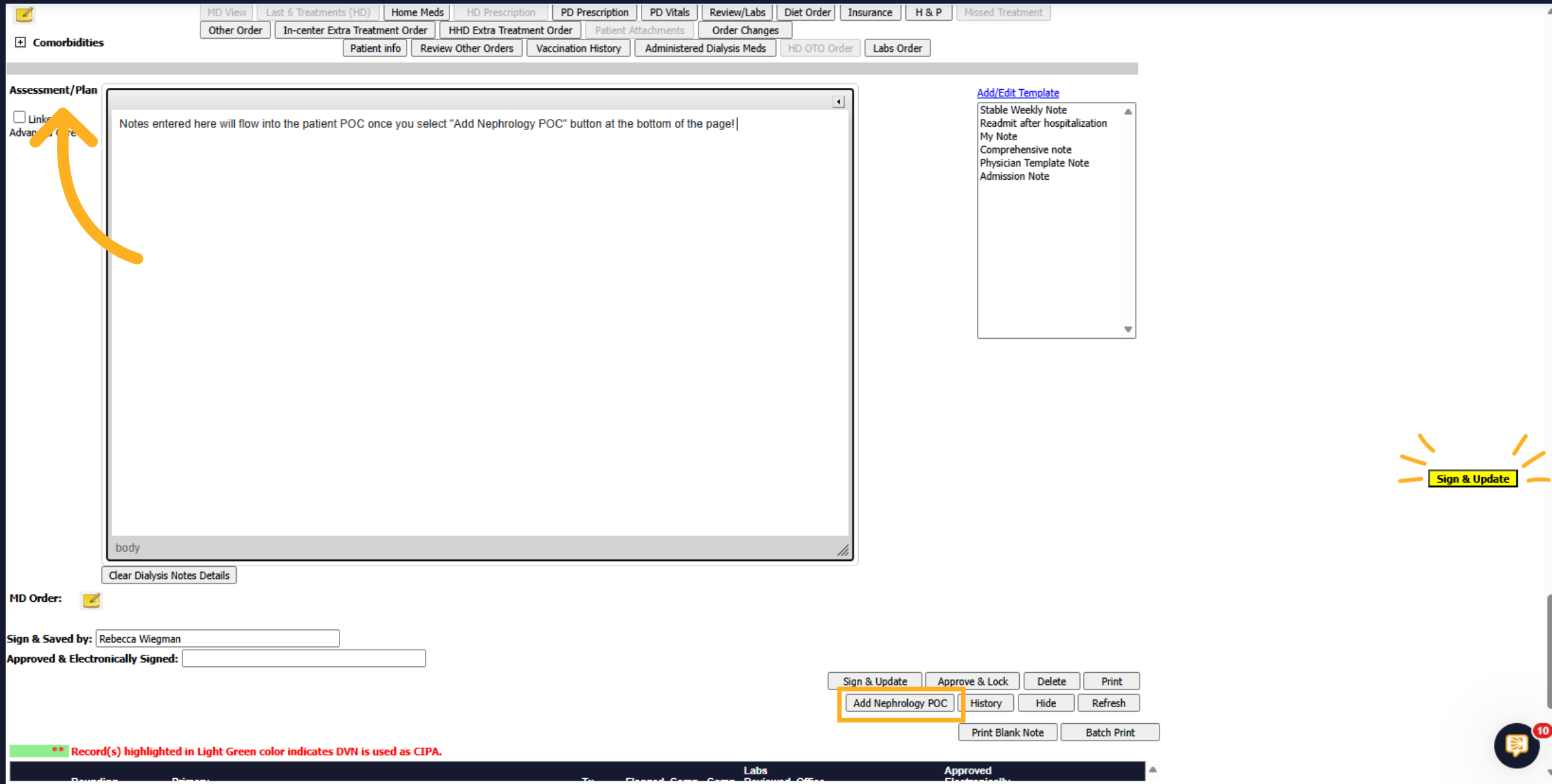
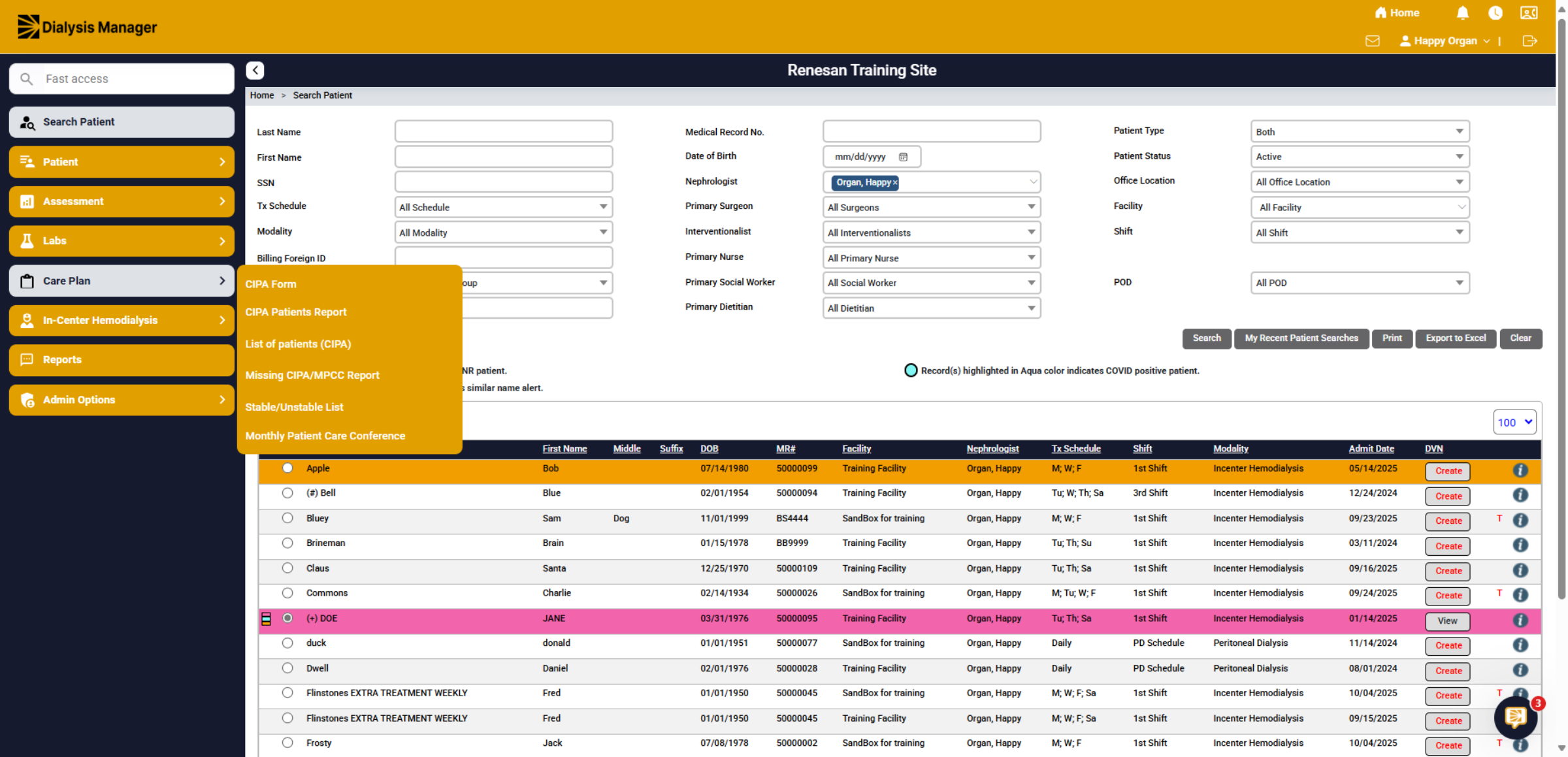
When selecting Comprehensive Visit, you'll see a "Use this as a Care plan and POC", select the CIPA Date from the drop down. Then click Sign and Update.
16. Add Nephology POC
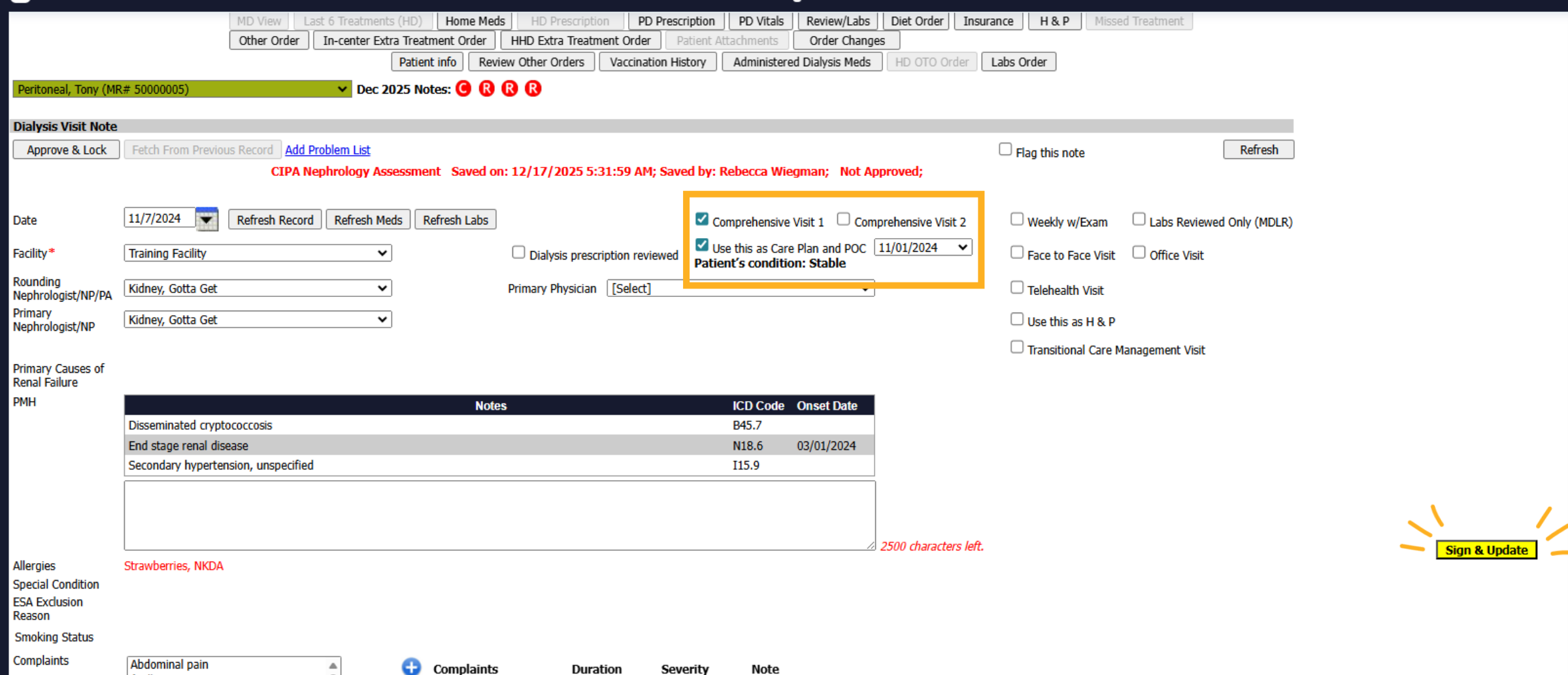
When you work towards the bottom of the Dialysis Visit Note you'll now be able to enter your Assessment/Plan. You'll need to select Sign and Save and you'll see a "Add Nephrology POC button.
17. CIPA - Plan of Care
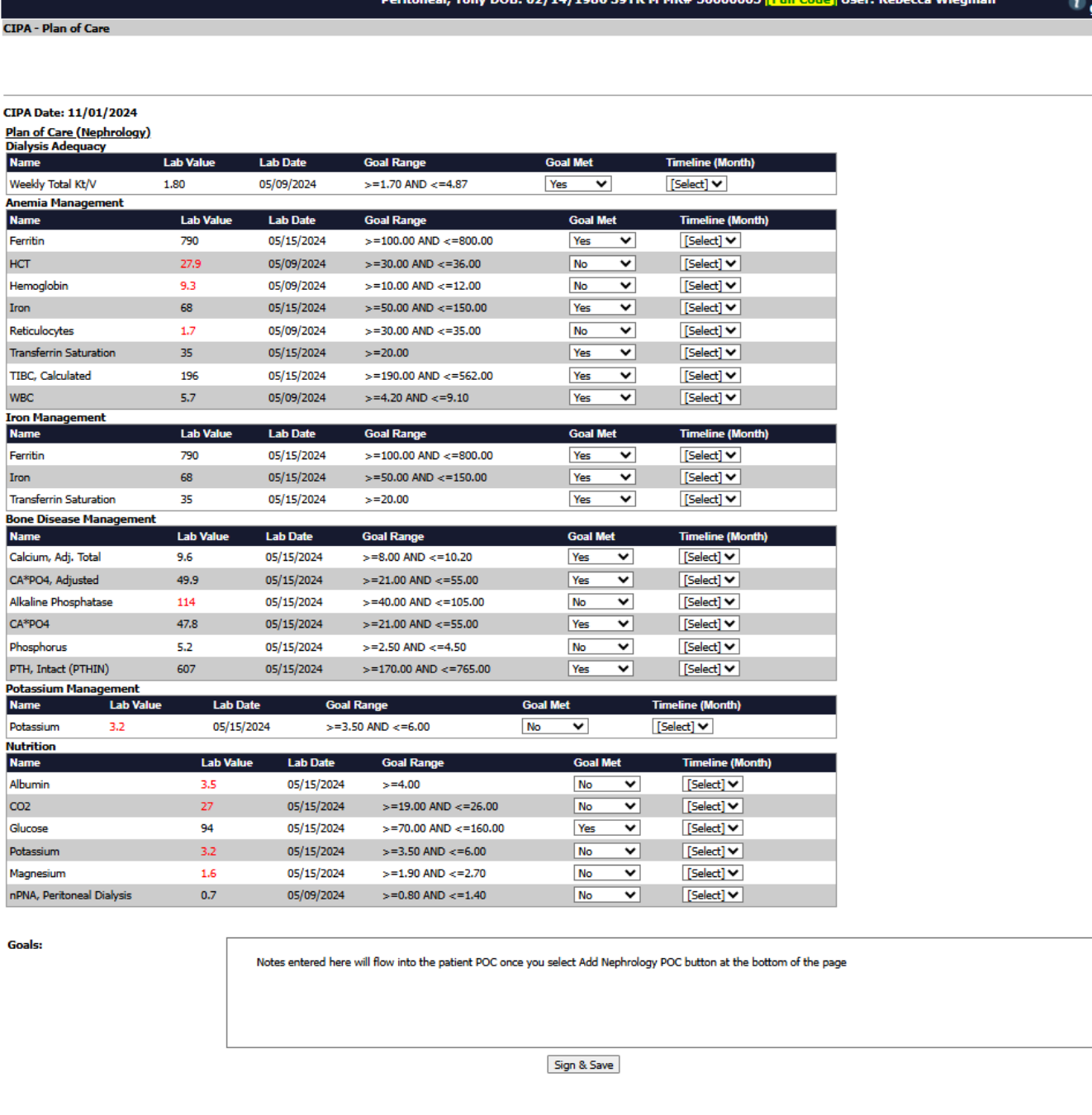
When selecting Nephrology POC, it will open the CIPA - Plan of Care showing you Anemia, Iron, Bone Disease, Potassium Management and Nutrition lab results. The Assessment Plan entere on the prior page will now display in the Goals box! Add additional Goal after reviewing the lab values and click Sign and Save, then closing this page to bring you back to the Dialysis Visit Note.
18. Other Components
Upon selecting your note type, you can further specify whether it relates to a Prescription Reviewed, Labs Reviewed, Face-to-Face encounter, Office Visit, or Telehealth Visit and Transitional Care Management. Additionally, you can choose “Use this as H&P,”.
19. H&P
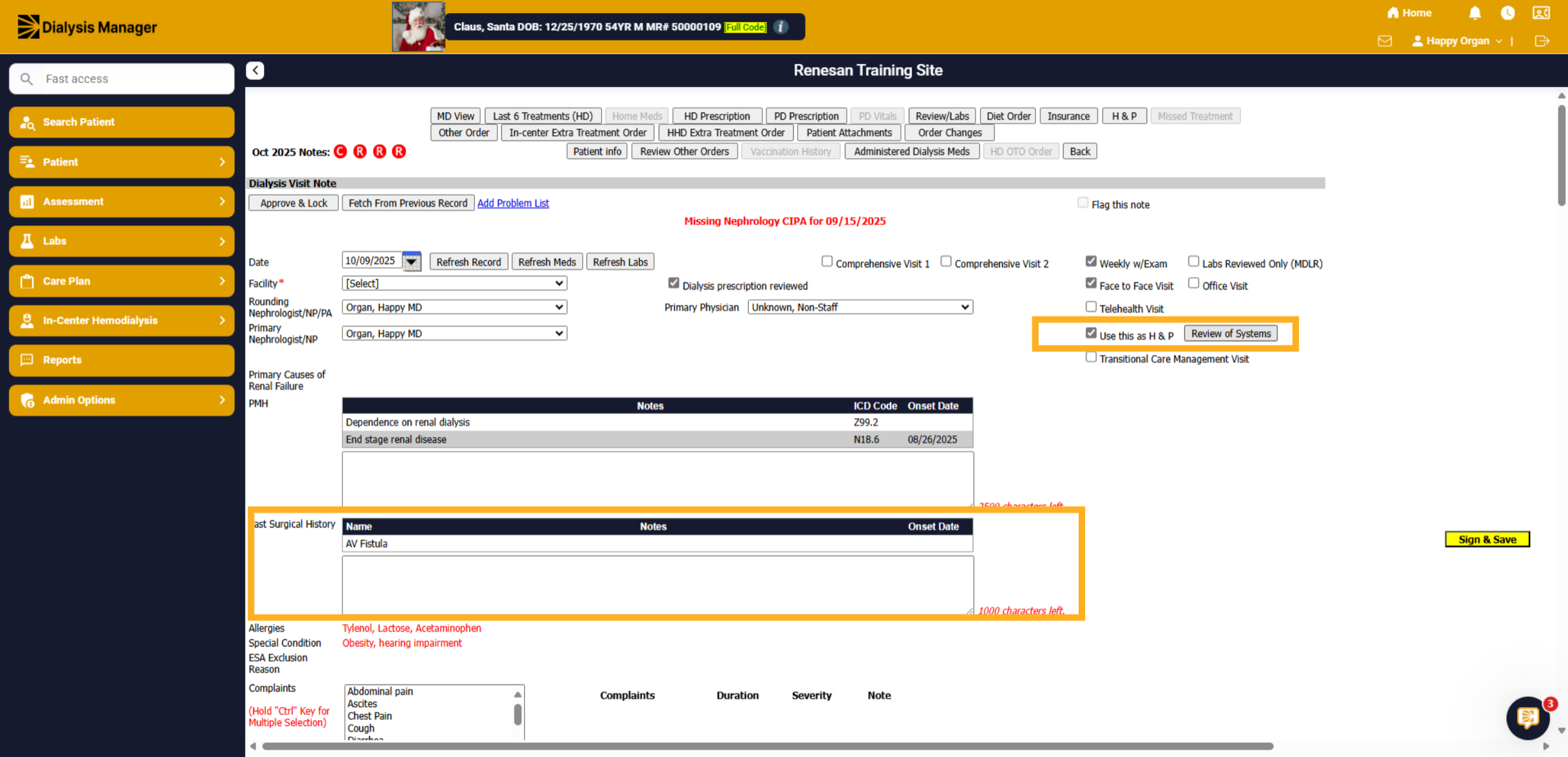
This will then show the button to complete the assessment. Clicking "Review of System" will open the H&P assessment for further documentation. Also, if you select H&P, additional fields will appear in the note section below
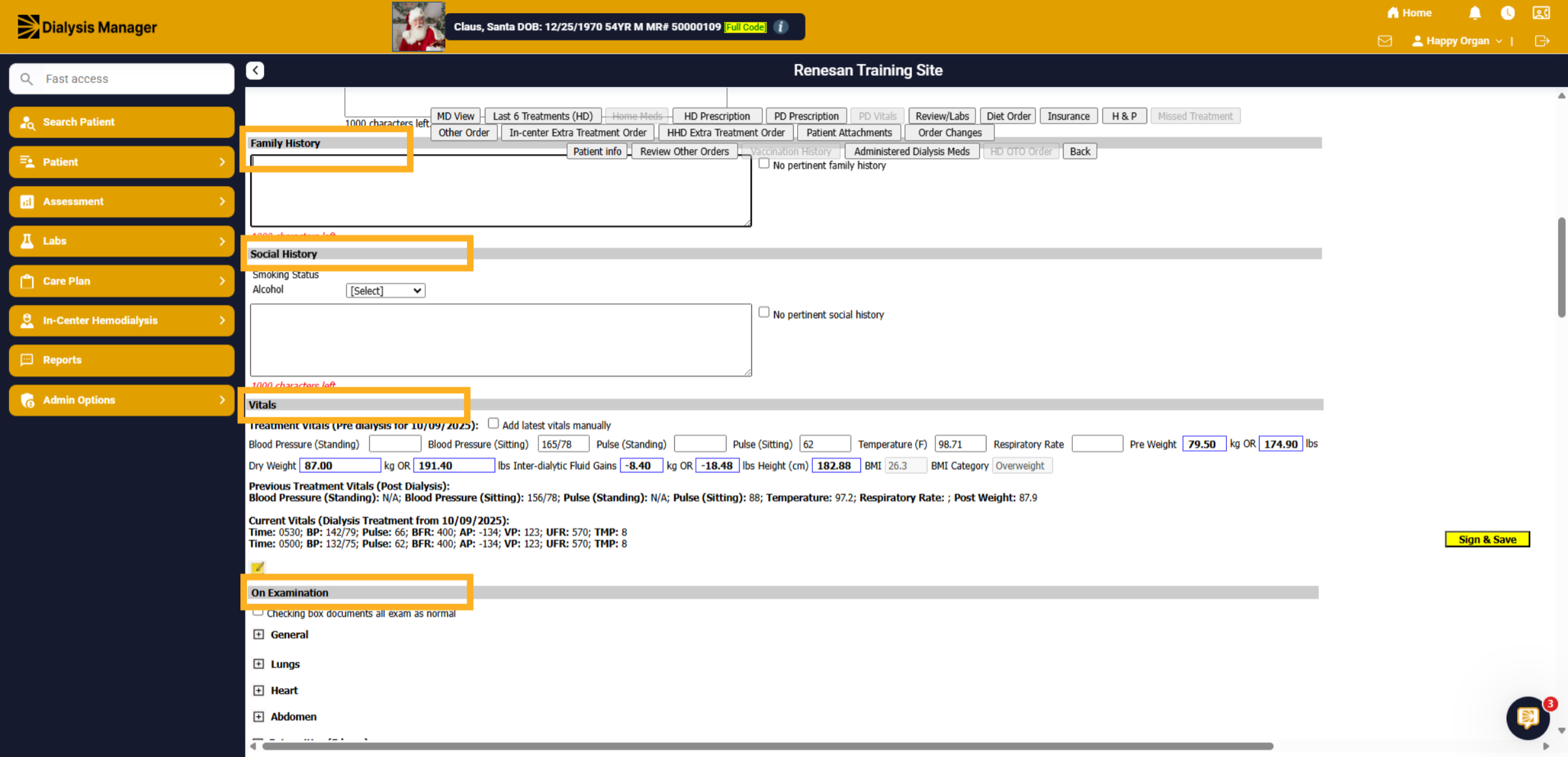
20. Gray Headers
Each section is divided by gray headers, including Family History, Social History, Vitals, On Examination, Access, Home Medications, Vaccination History, Current Dialysis Medications, Hospitalization, Missed Treatments in the last three months, Transplant Status, Labs, Assessment & Plan, and the final Assessment. Please be aware that depending on the assessment selected, you may encounter additional headers, such as Family History and Social History.
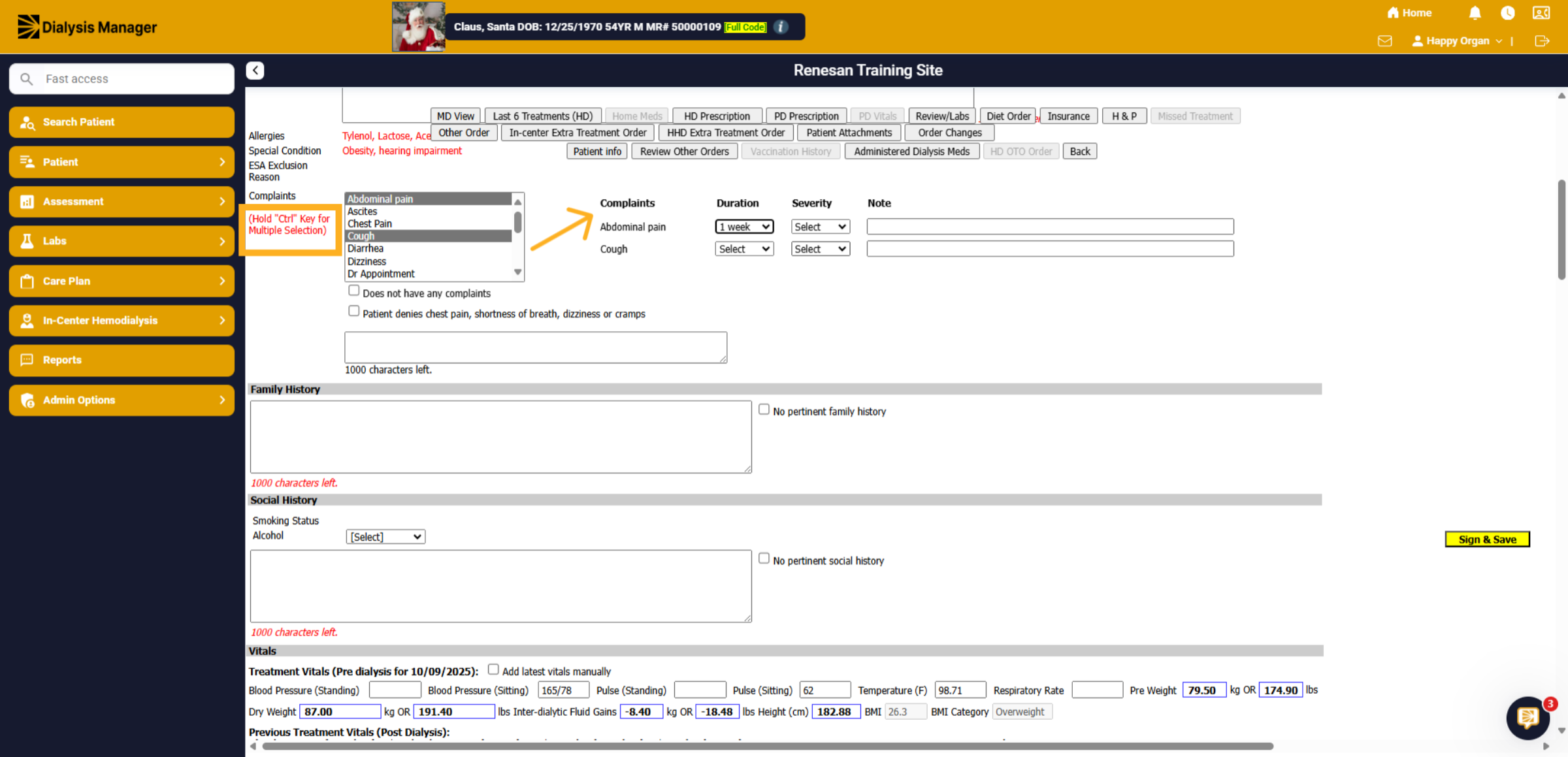
21. Selecting Multiple
Throughout the Note, you'll encounter boxes that allow you to select multiple options. To select several at once, hold down the "Ctrl" key. Your selections will shift to the right, and you may also have a designated area for comments.
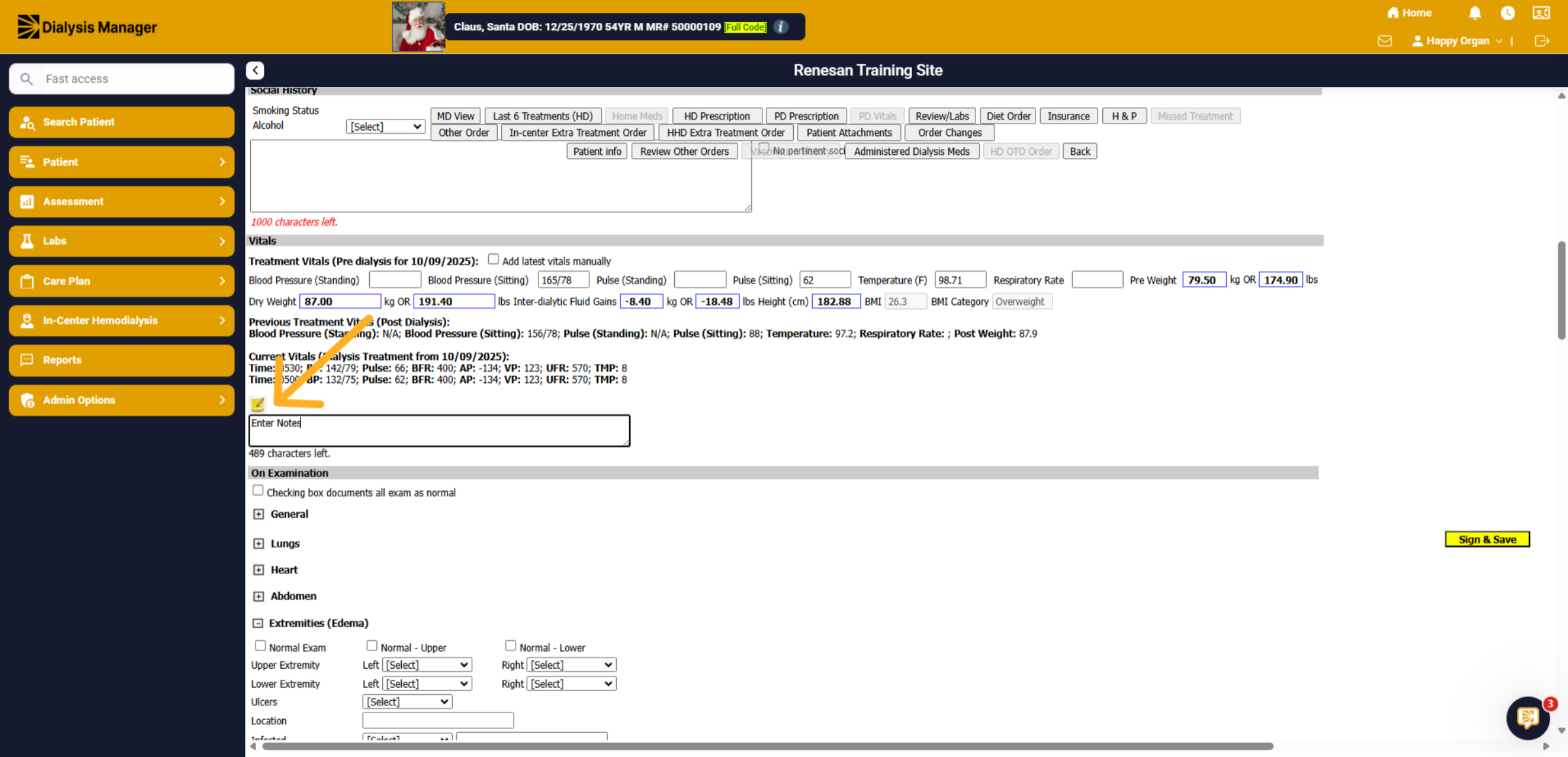
22. Yellow Notepad
Selecting a yellow notepad will prompt a text box where you can enter additional notes.
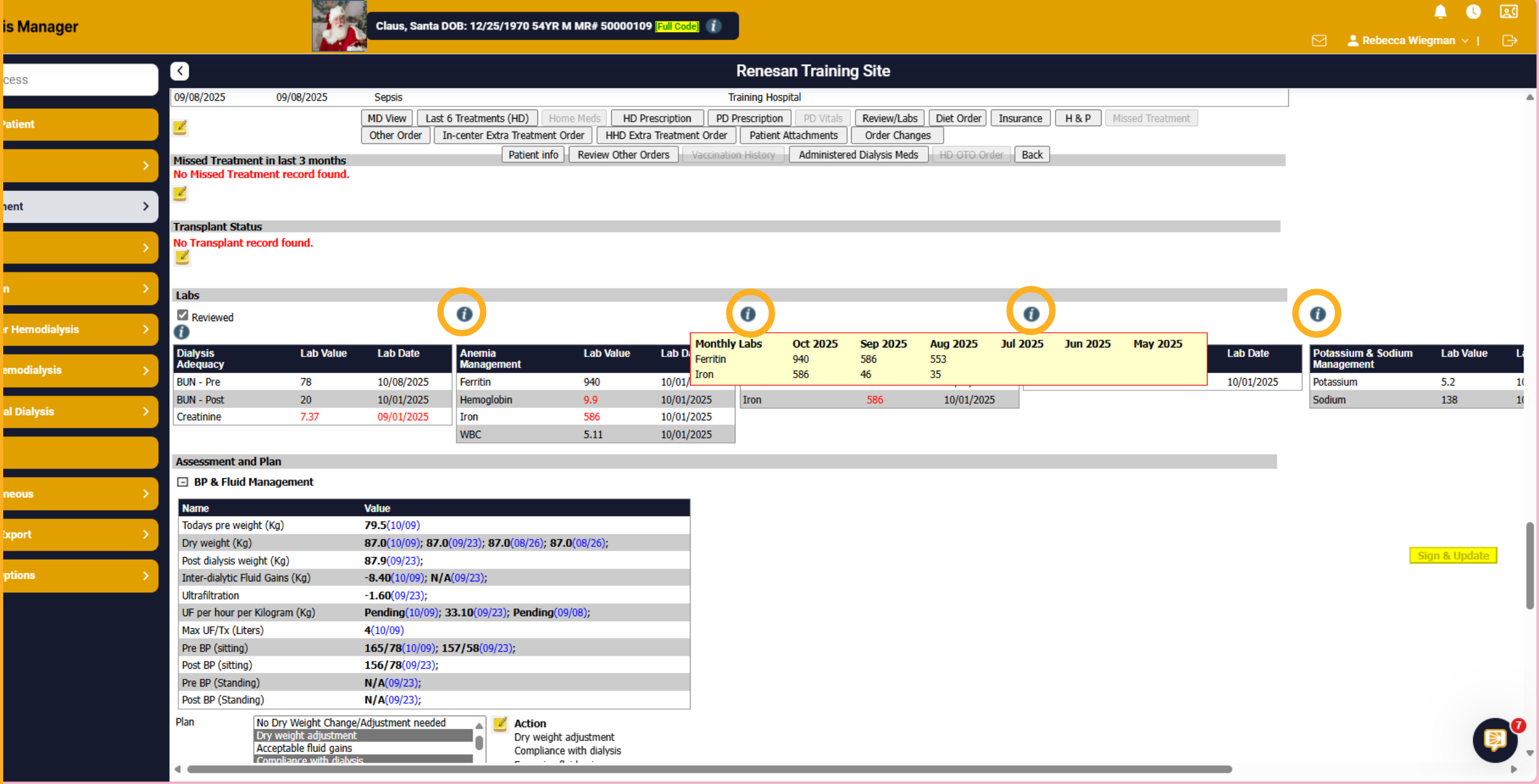
23. I Icons
Hovering over the "I" icons will reveal additional information, including six months of lab data.
24. On Examination
In the "On Examination" section, when you choose "All Exam as Normal," each topic will automatically display with "Normal" selected. You can edit individual sections as needed.
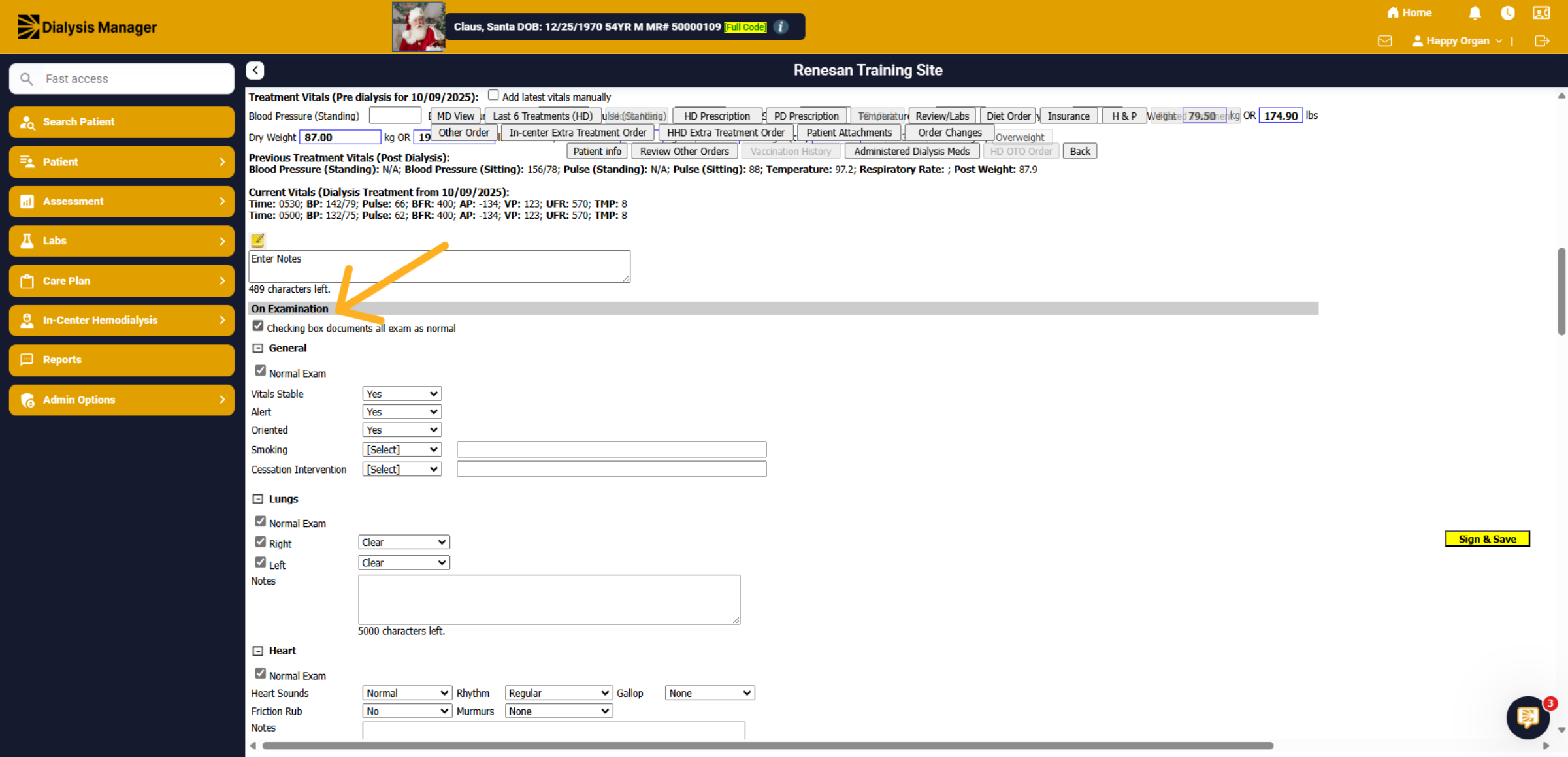
25. Expanding Topics
You can expand topics by clicking the plus symbol or collapse them by selecting the minus symbol.
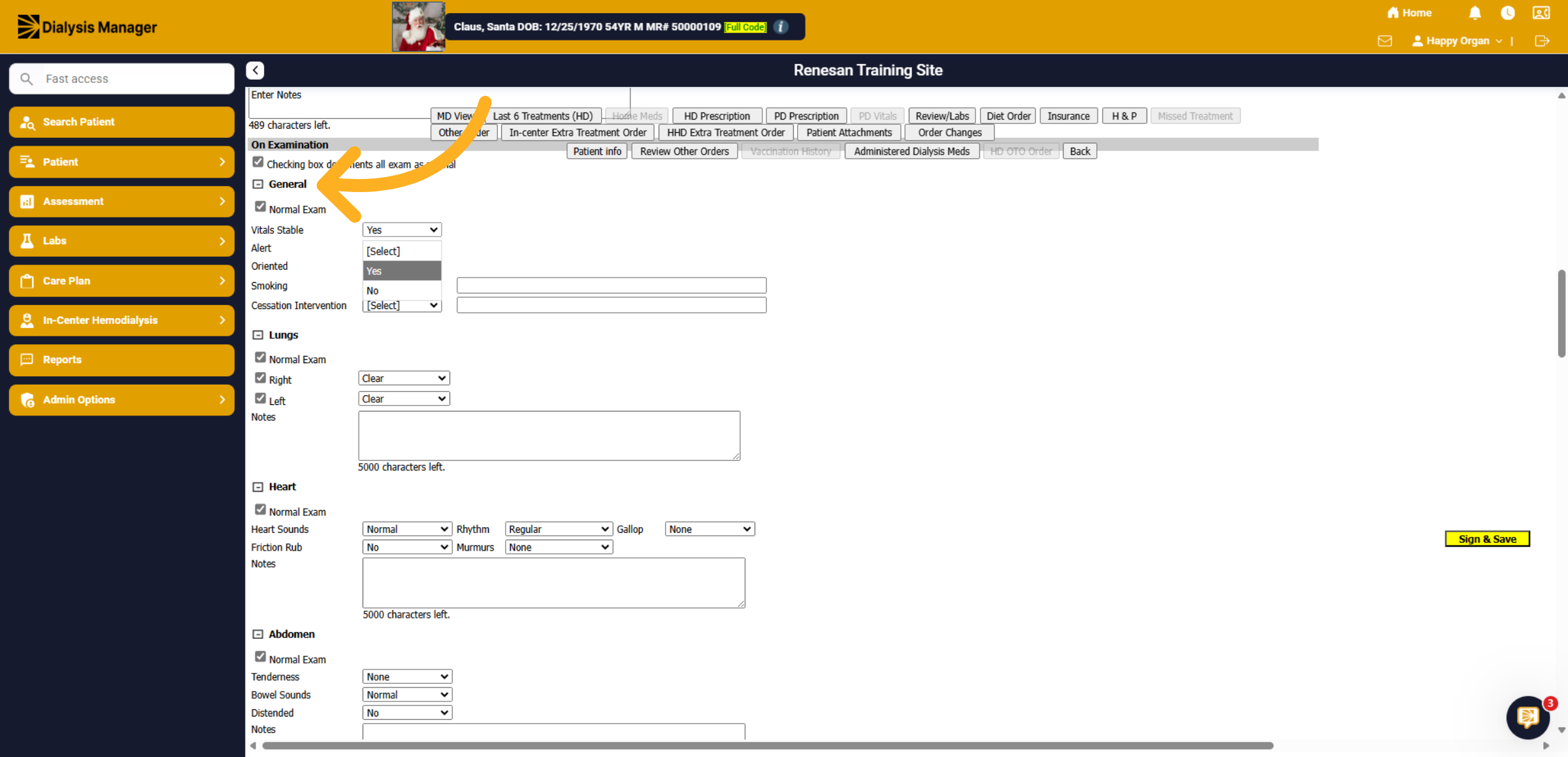
26. BP & Fluid Management
In the Plan section, as previously shown, you are able to hold down the "Ctrl" key to select multiple options. When clicking the Action (yellow pad) it'll open the notes tab!
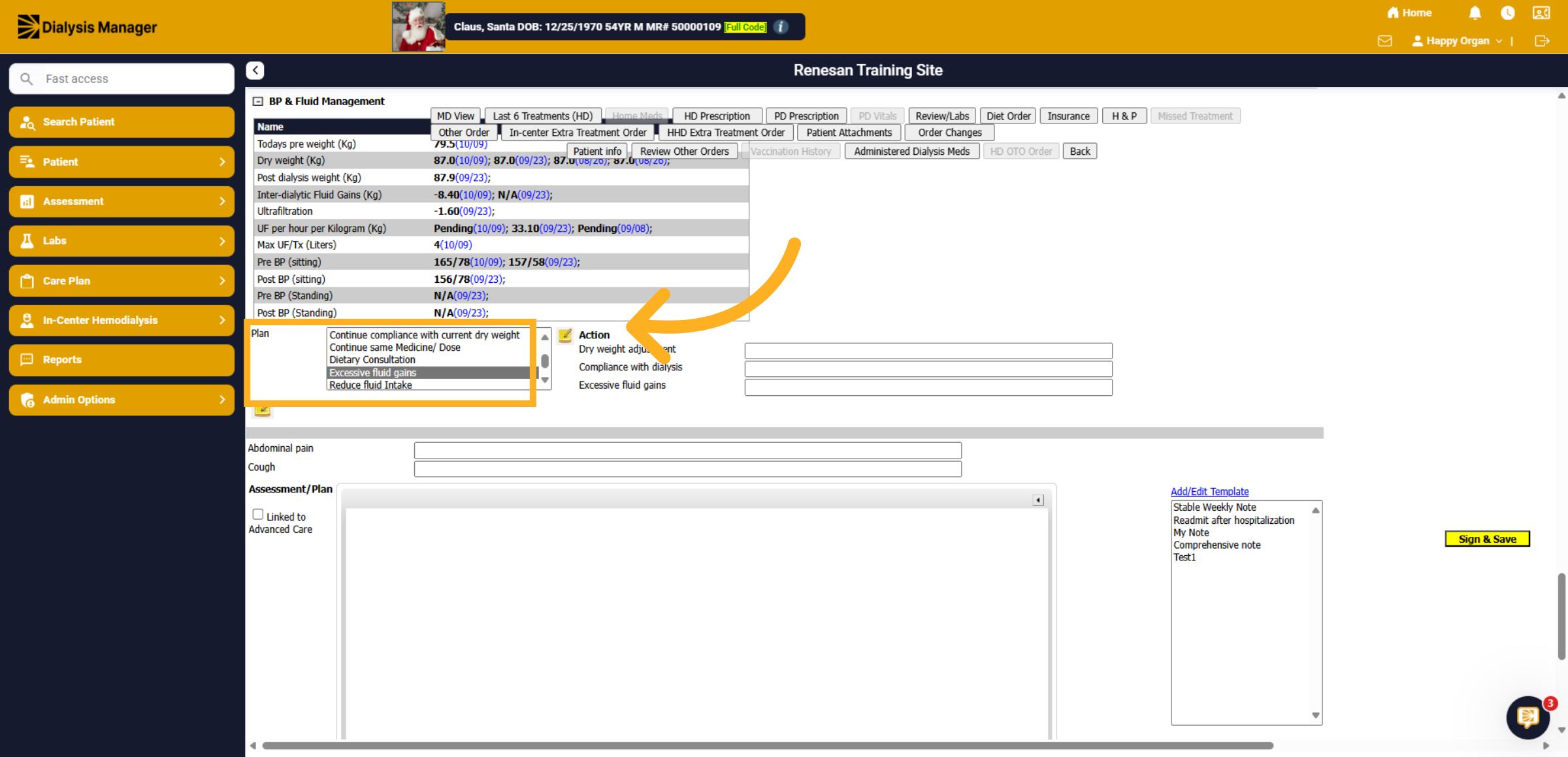
27. Assessment / Plan
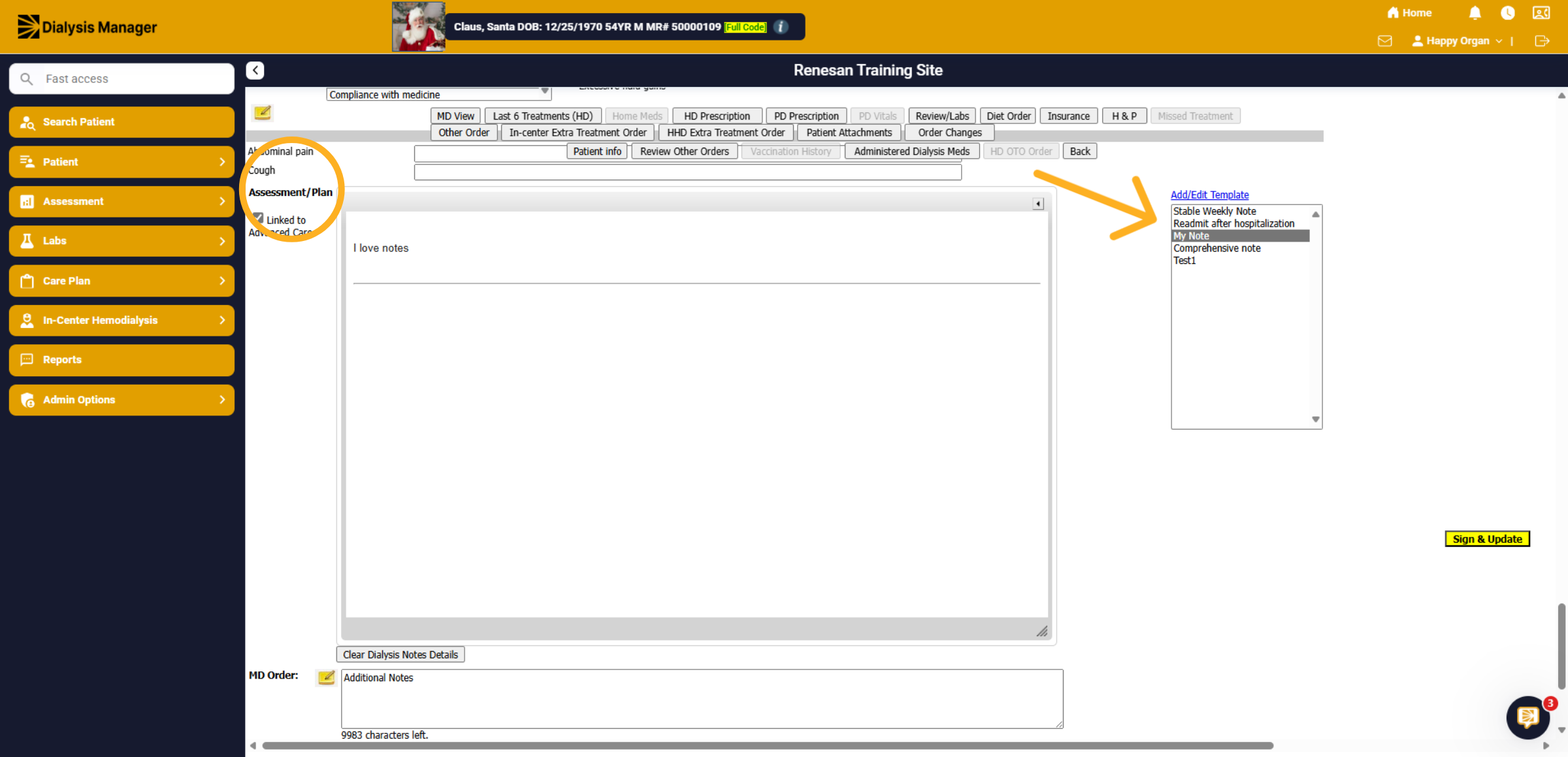
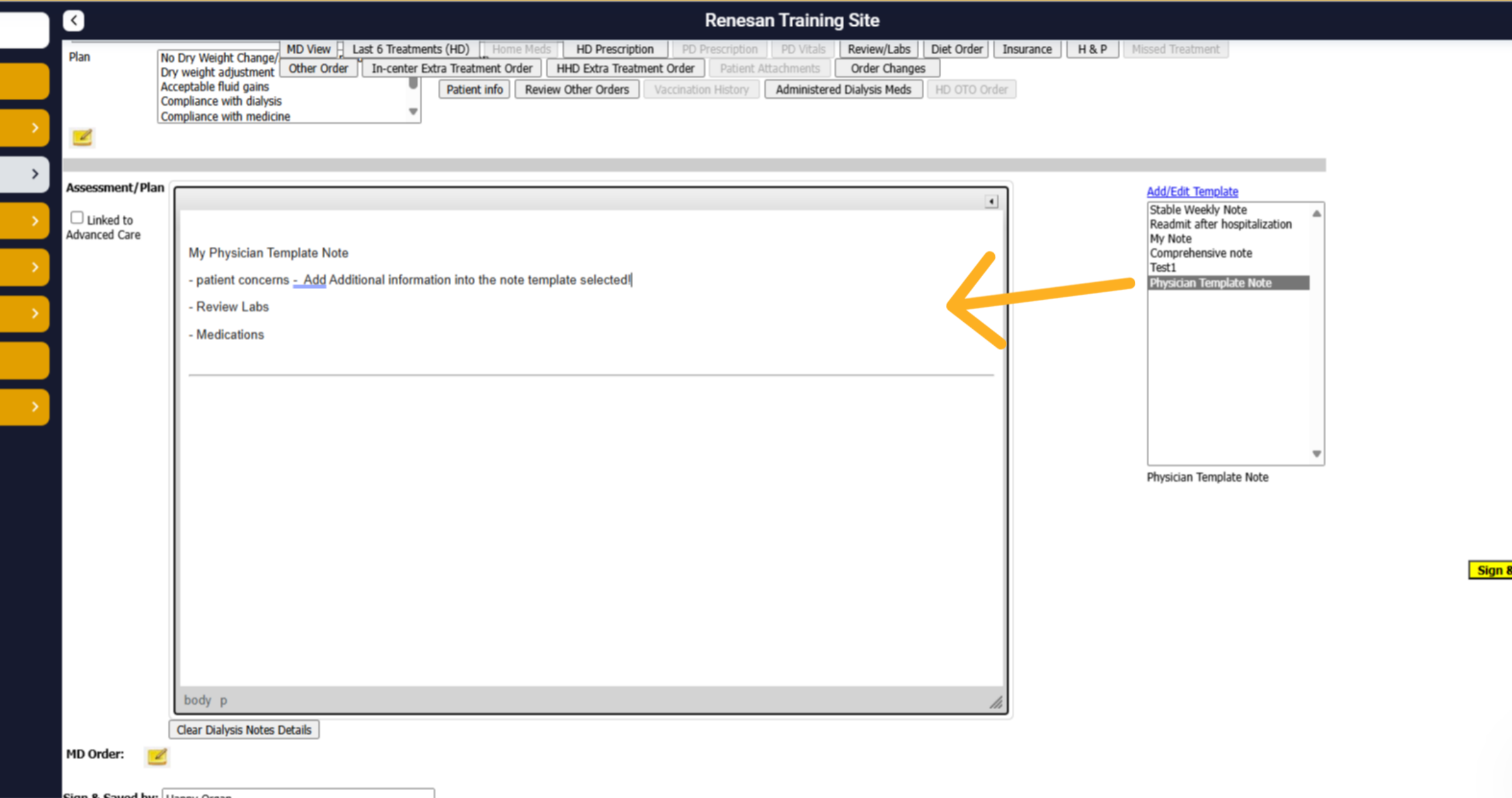
Please enter your assessment notes or treatment plan for the patient. Alternately, you can select a note template to auto-fill specific entries for ease. Select the Template name to auto create. By clicking "Add/Edit Template," you will be taken to a new screen where you can design a personalized note template.
28. Note Template
To create a note, select one or more facilities where the note will be visible, enter a Template Name, and choose whether the note will be Private (for your use only) or Public (accessible to everyone). Tips: By clicking the dropdown arrow, you can access a ribbon similar to that in word document, allowing you to update fonts, adjust sizes, add bullets, and more. Don't forget to save your template before clicking Close.
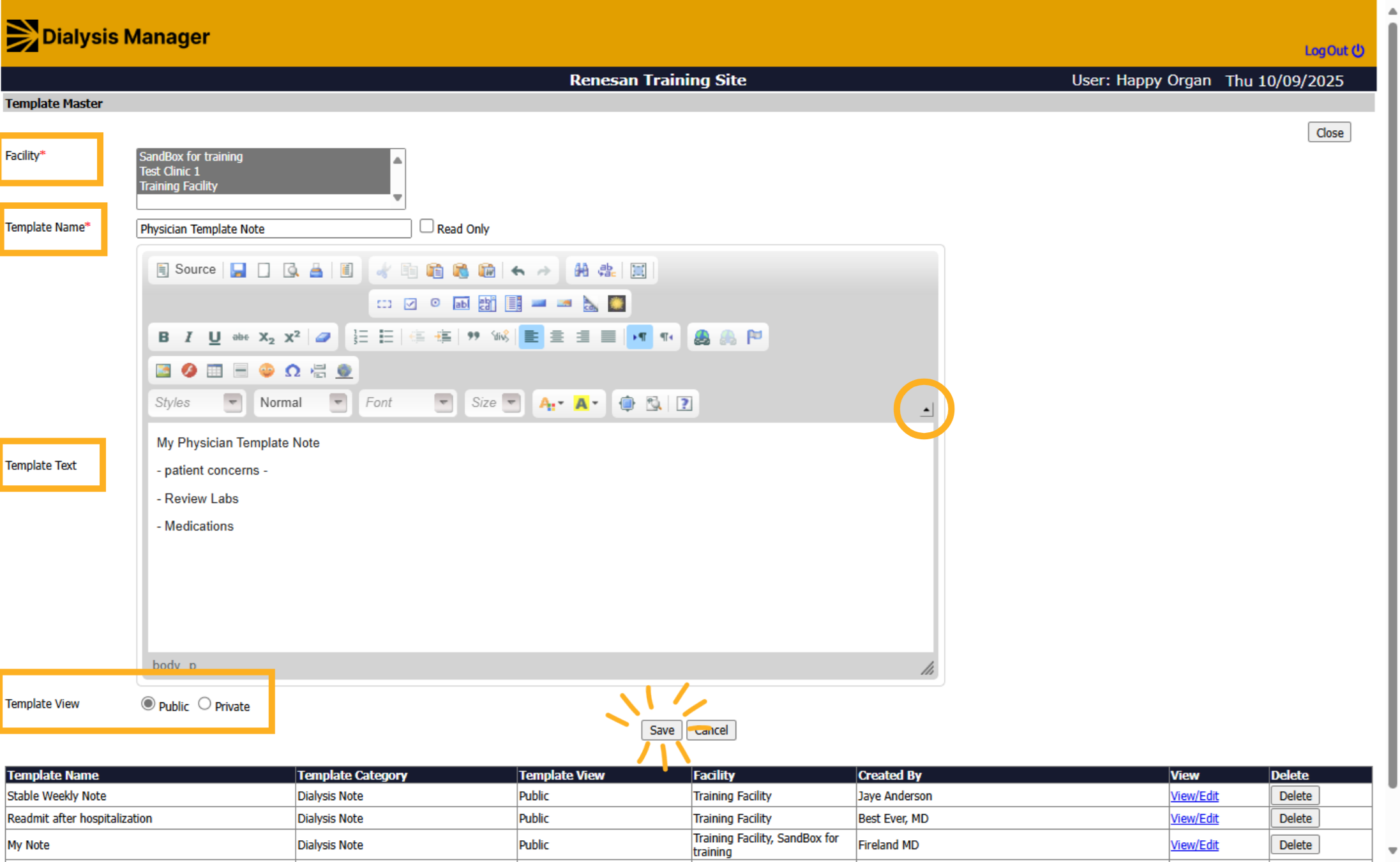
29. Using a Note Template
Please be aware that you may need to refresh or log out and log back into Dialysis Manager to view the newly created template. Once it appears in the Template box, you can select the title, which will then populate in the body of the note, allowing you to add any additional information as needed.
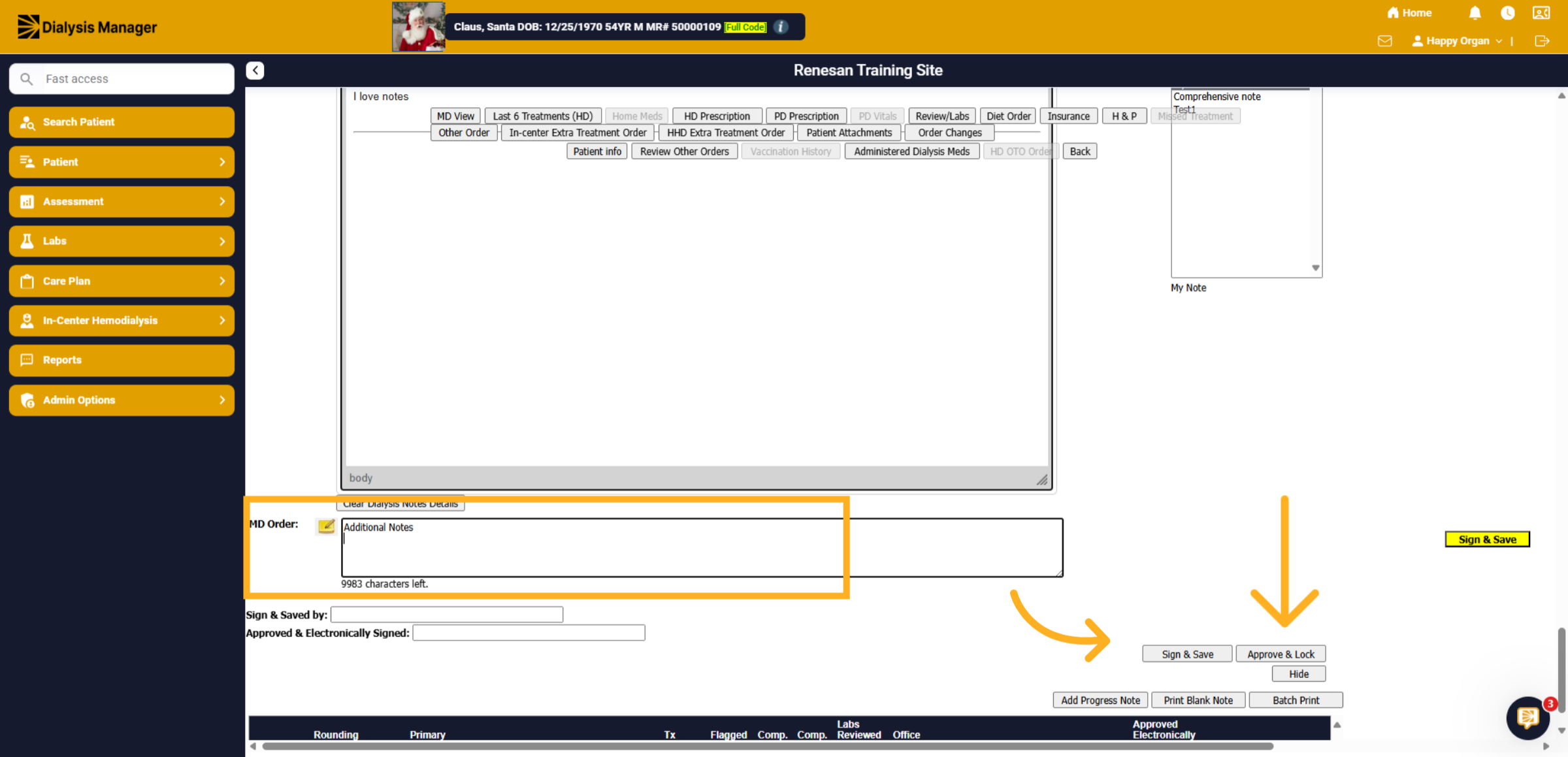
30. MD Order
You can enter the MD Order, which will alert the nurse in their notifications. Once you have completed all the necessary information in the patient note, select 'Sign & Save,' and remember to always 'Approve & Lock!' Reminder, if you selected to use this Dialysis Visit Note as a POC you'll see the "Add Nephrology POC", once entering your Assessment Plan you'll sign and save then click Add Nephrology POC which will open another screen with labs!
31. Click Back Button
The Dialysis Visit Note has been successfully saved and locked, and a green Regular Visit Note is now documented. Click "Back" to return to the Patients Being Dialyzed screen and select your next patient.### Troubleshooting Incomplete Notes If a Dialysis Visit Note cannot be saved due to a missing diagnosis or other required information, follow these steps to reopen and complete the note:
Open the patient’s chart in Renvio.
Navigate to the Assessment tab.
Select Physician Notes, then choose Dialysis Visit Notes (DVN).
Close any informational alerts and locate the incomplete note by its date.
Open the note and ensure all required fields are completed:
For example, select the Primary Cause of Renal Failure from the dropdown menu and assign the appropriate ICD-10 code.
Click Update to ensure the diagnosis is added to the note/problem list.
Refresh the record by clicking Refresh/Refresh Record to populate the diagnosis.
Save the note using Sign and Update, then finalize it with Approve and Lock. By following these steps, you can ensure that all required information is included, allowing the note to be saved and finalized successfully.
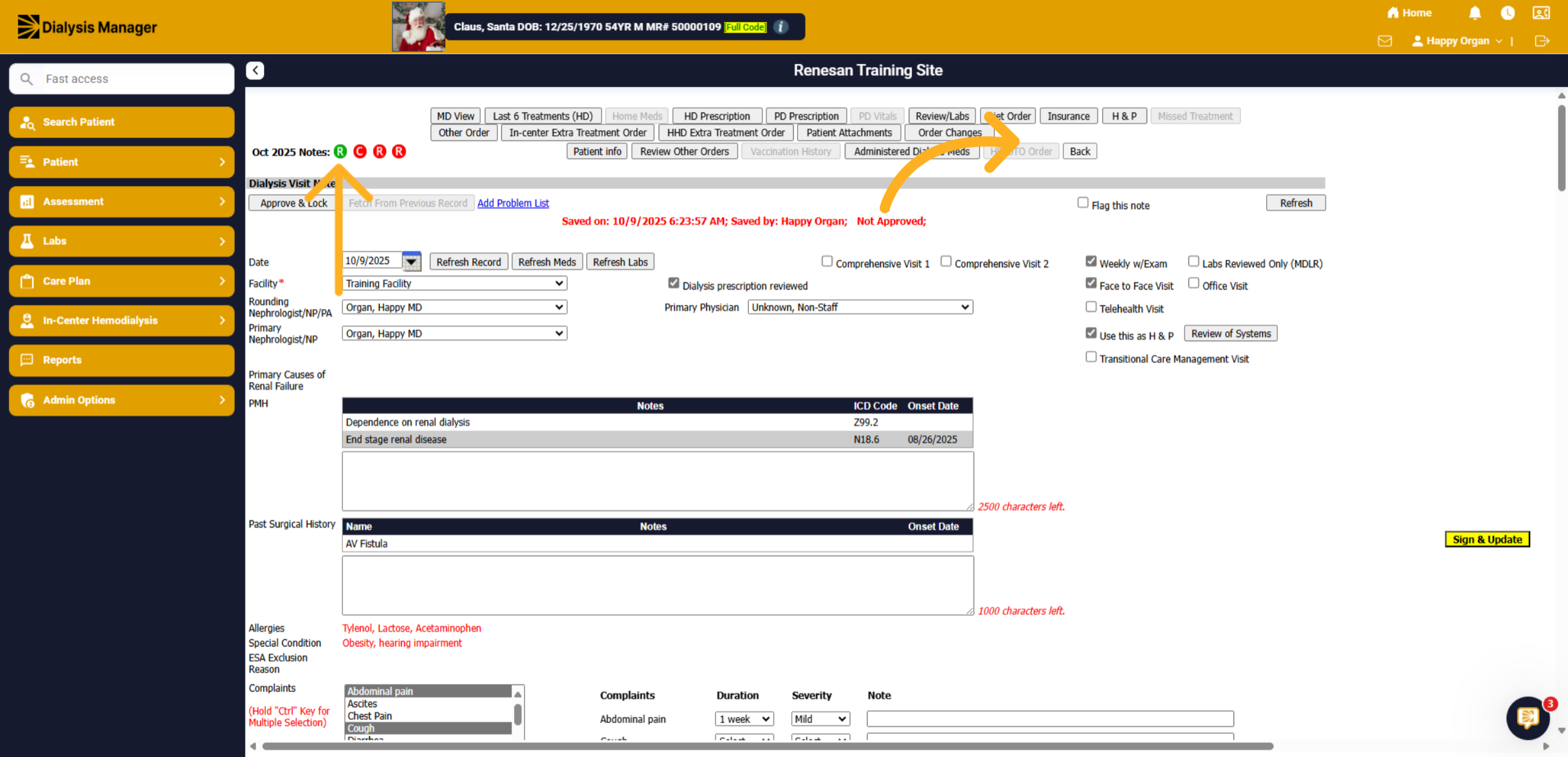
32. View and Create
The Red Create has now changed to a Black View due to the completion of the Dialysis Visit Note for this patient.
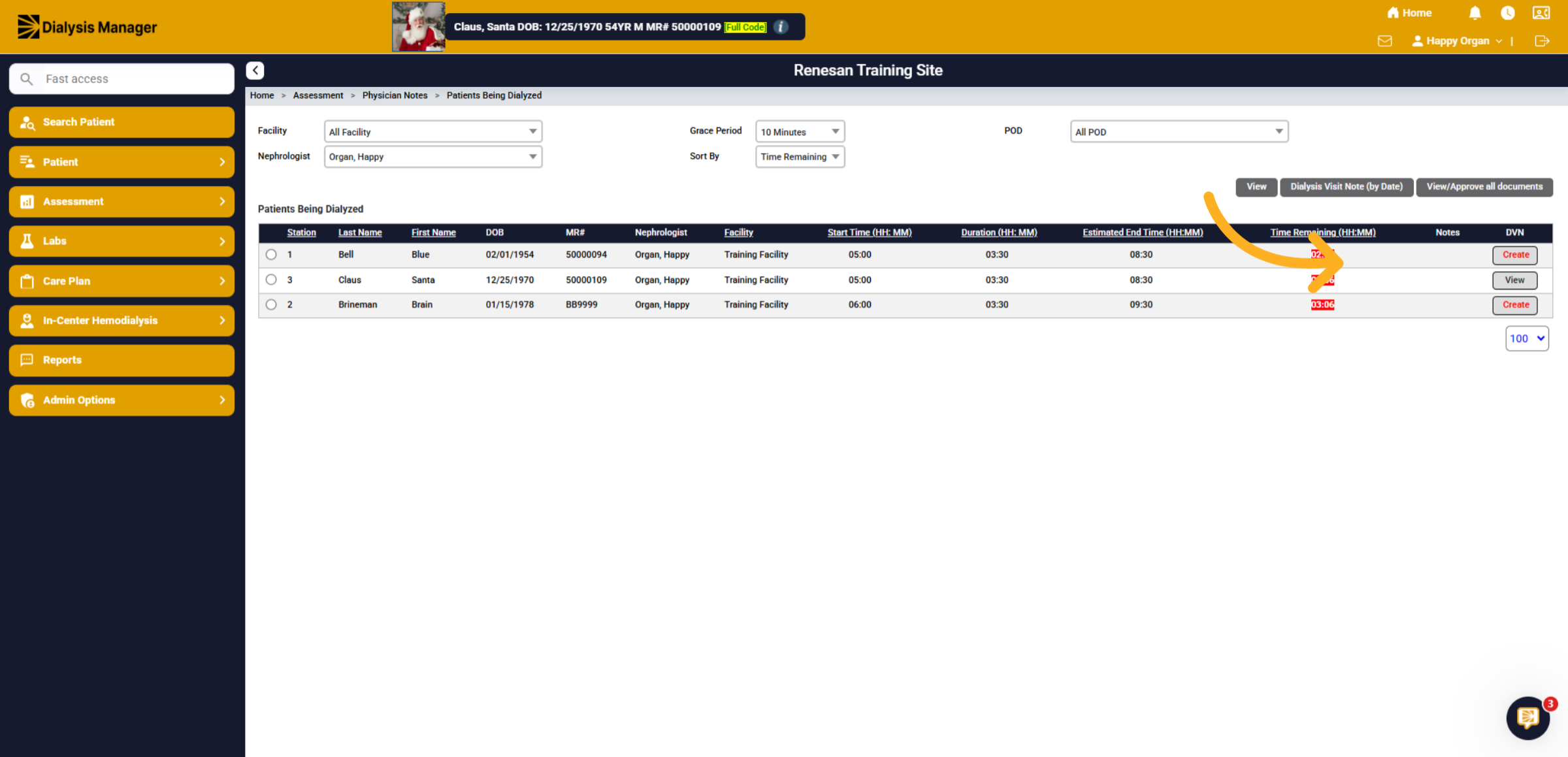
33. Dialysis Visit Notes by Date
Now select Dialysis Visit Notes (by Date).
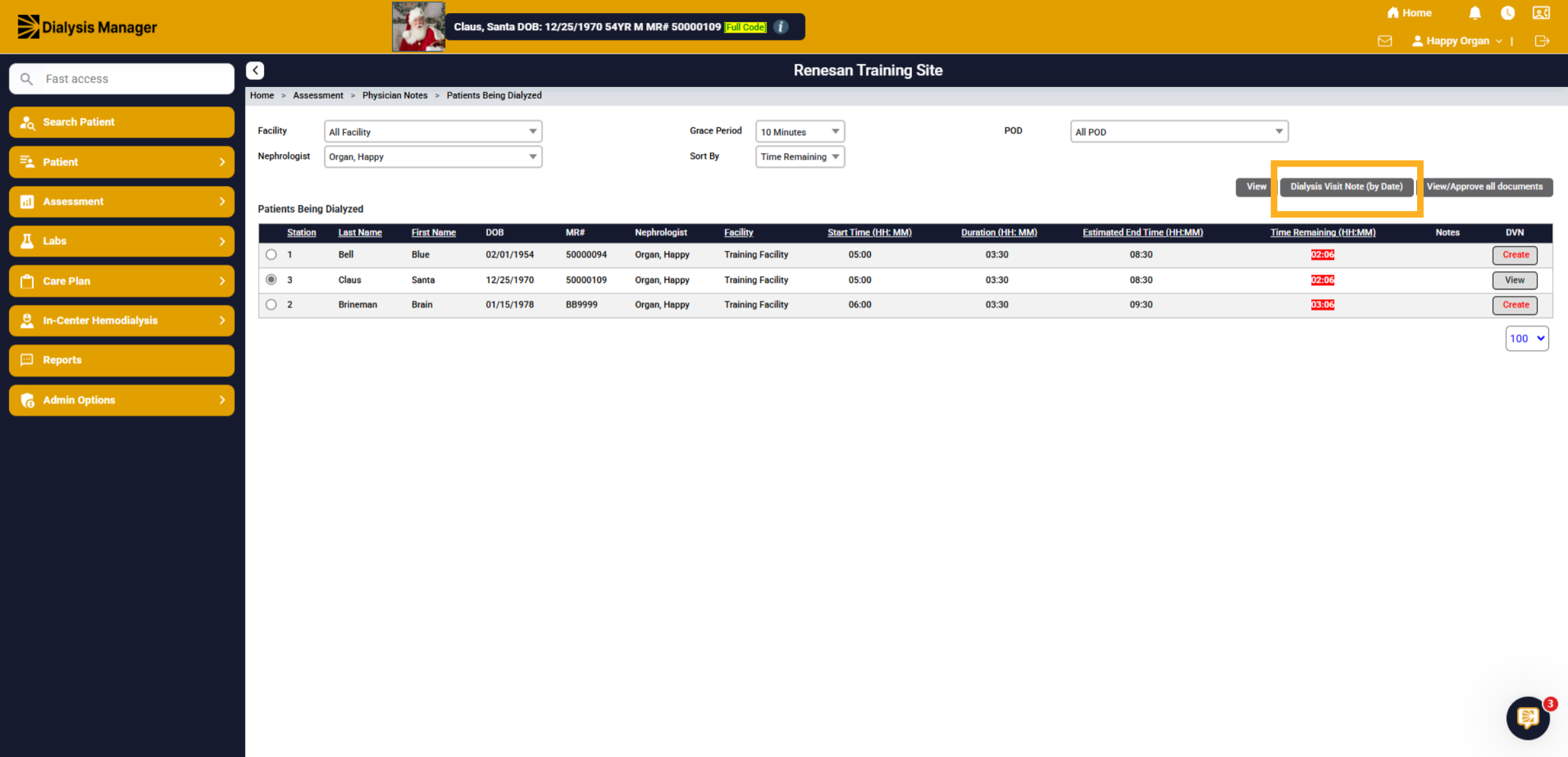
34. Dialysis Visit Notes (by Date)
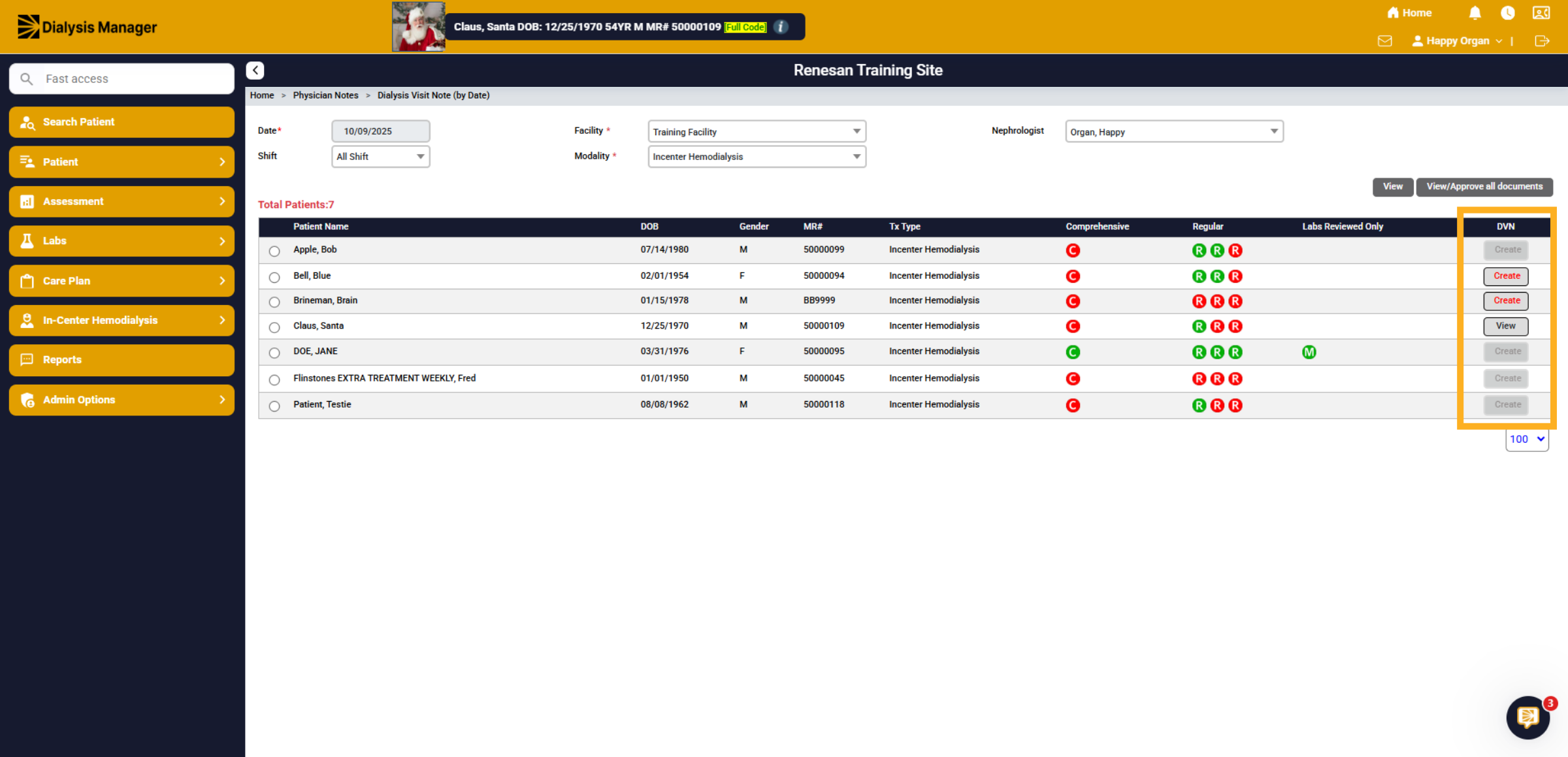
The date will automatically be set to today's date. Please select the facility and click "View." You will then see your list of patients.
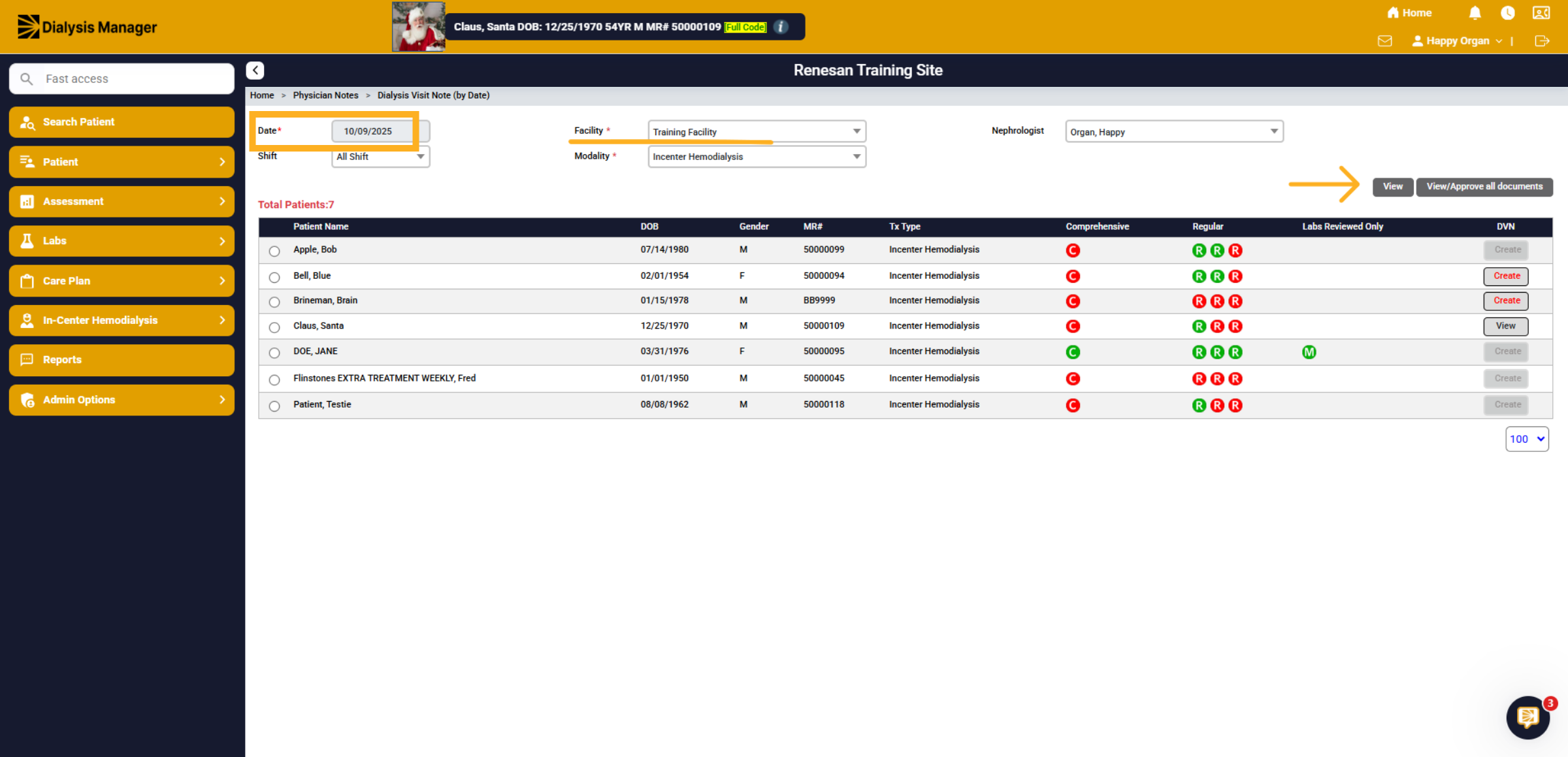
35. Dialysis Visit Notes (by Date)
The red circles indicate incomplete records, and green circles signify completion.
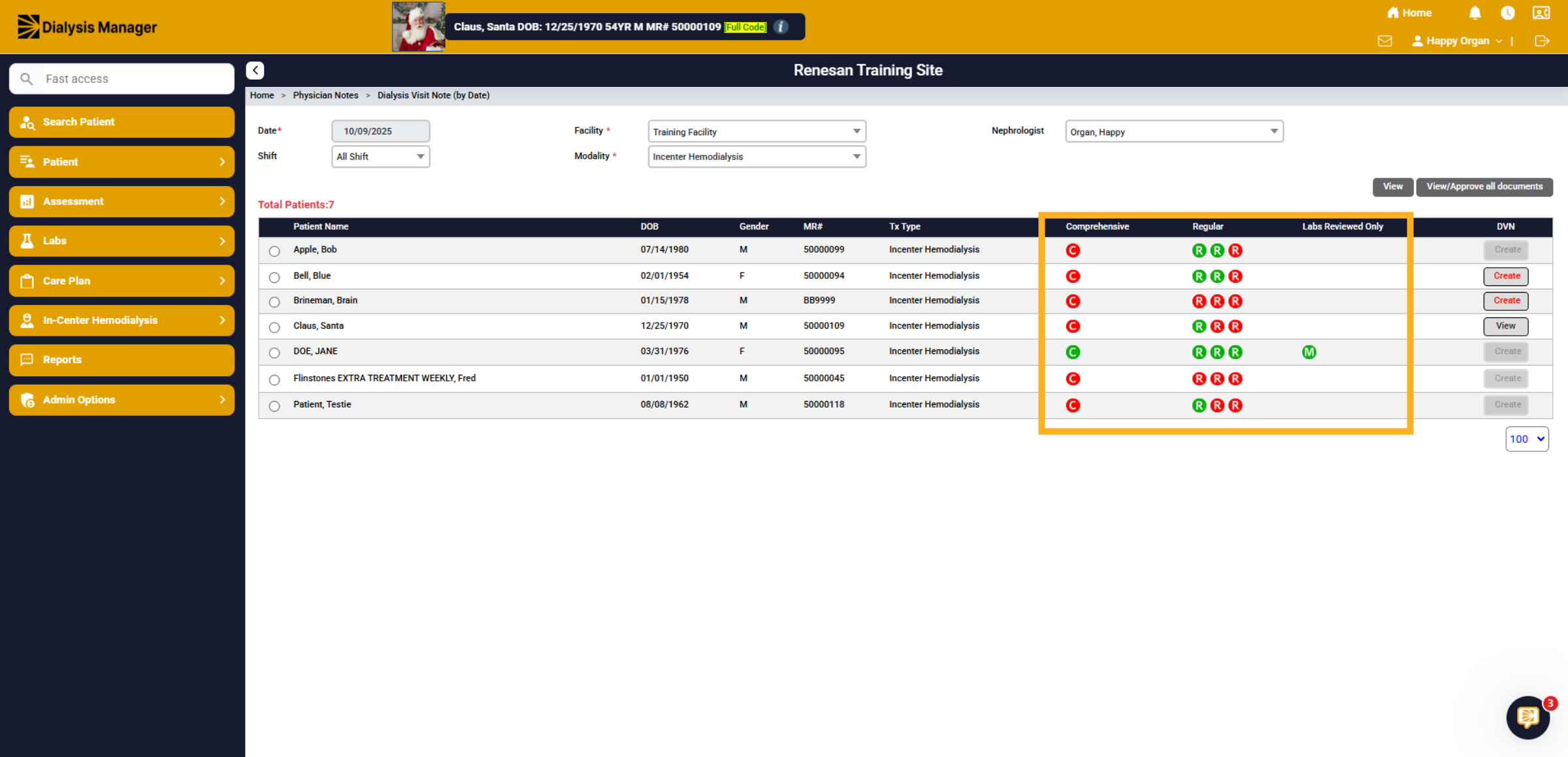
36. Dialysis Visit Notes (by Date)
Here under the DVN section A red "Create" means a Dialysis Visit note still needs to be created while the black "View" indicates that a note has already been created. A grayed-out "Create" option signifies that the patient is not currently at the facility or a treatment flowsheet has not been opened for them.
37. Keeping Track
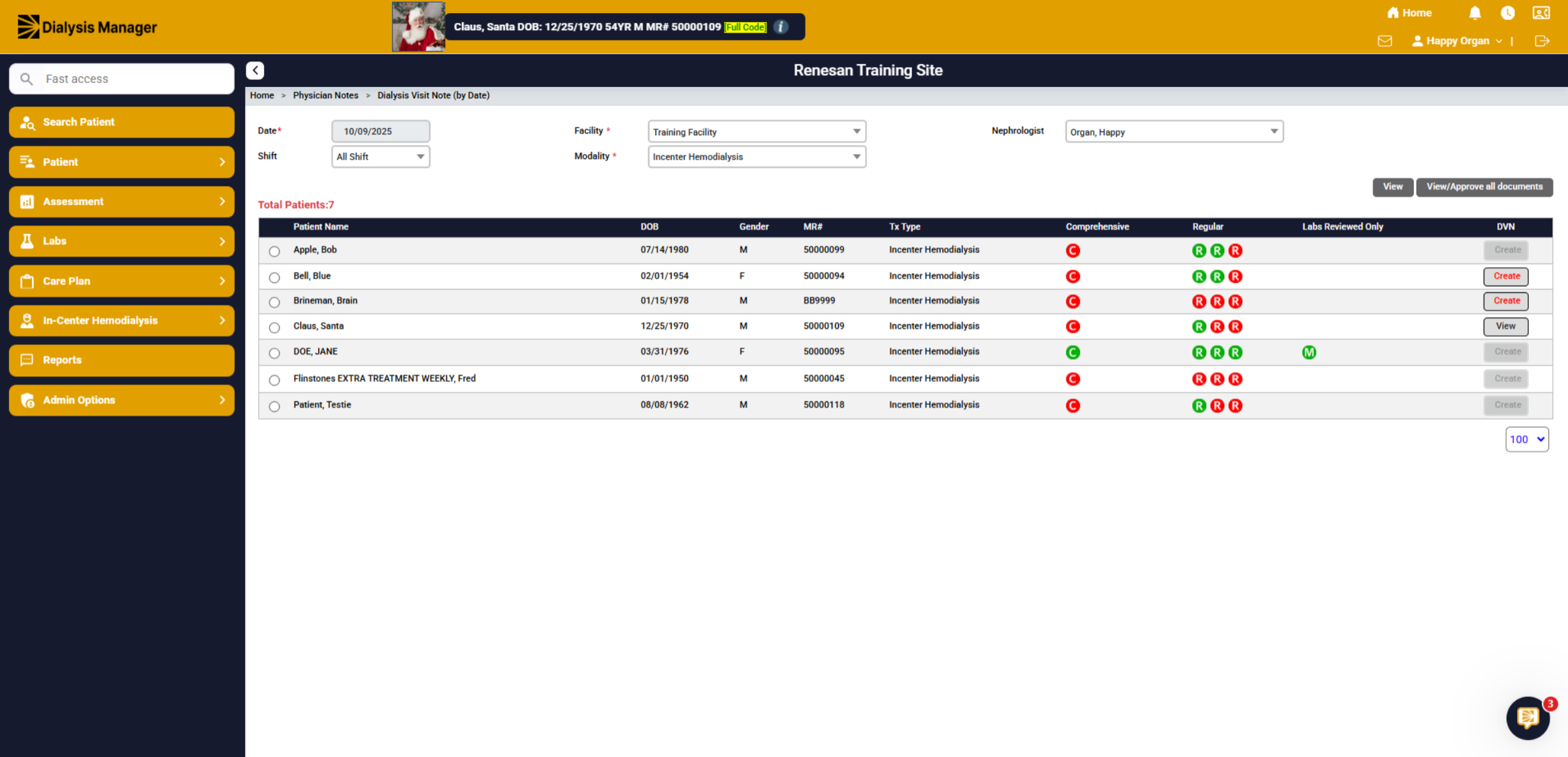
This feature offers a straightforward way to visually track the status of your patients' notes. Don't forget to utilize the hover function! By hovering over a green "R," you can view the completion date, and hovering over the "View" will display additional details.
38. View/Approve All Documents
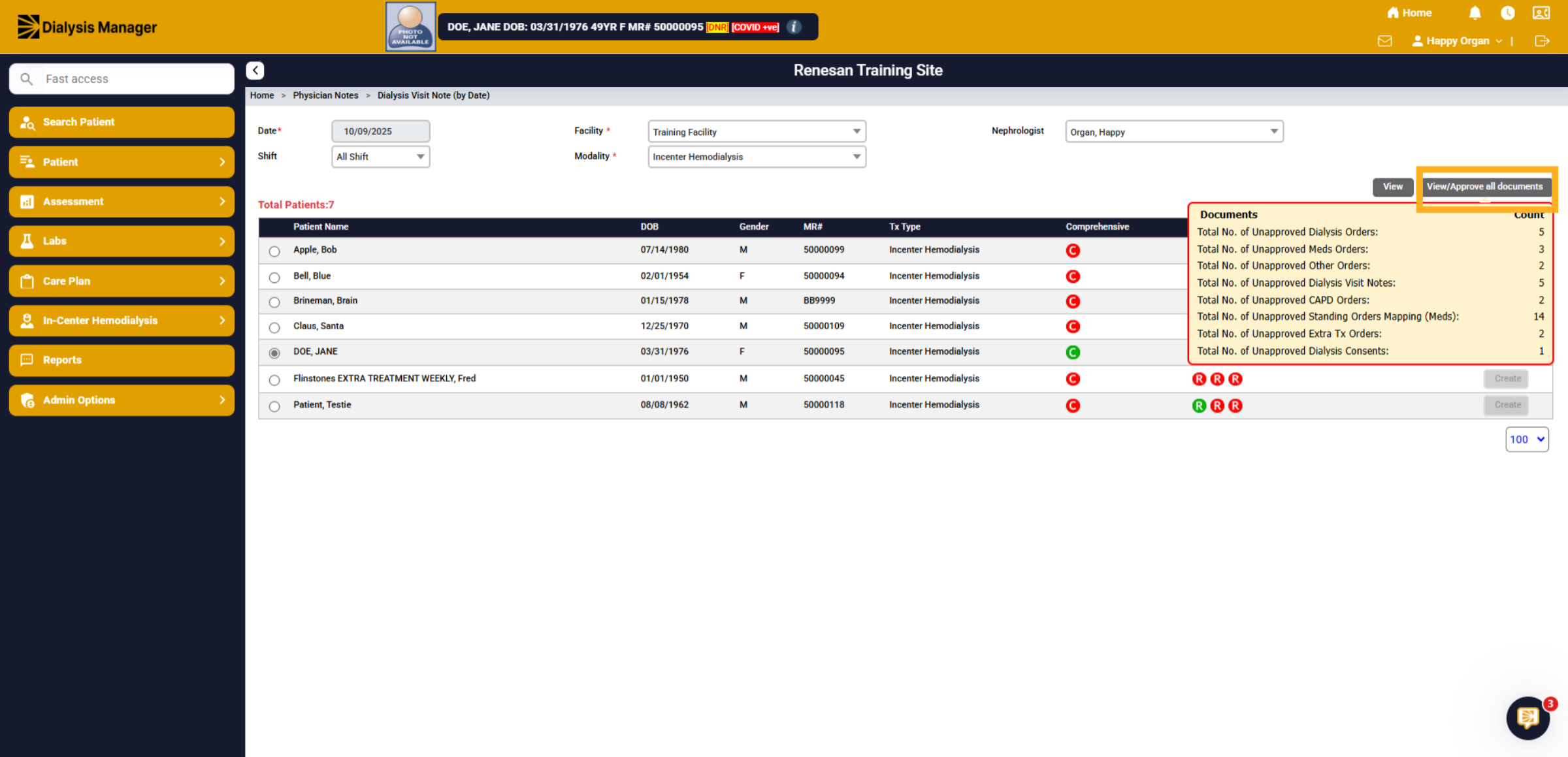
Hover over "View/Approve All Documents" to see the total number of unapproved orders. If you have orders requiring your signature, please click to proceed!
39. Unapproved Orders
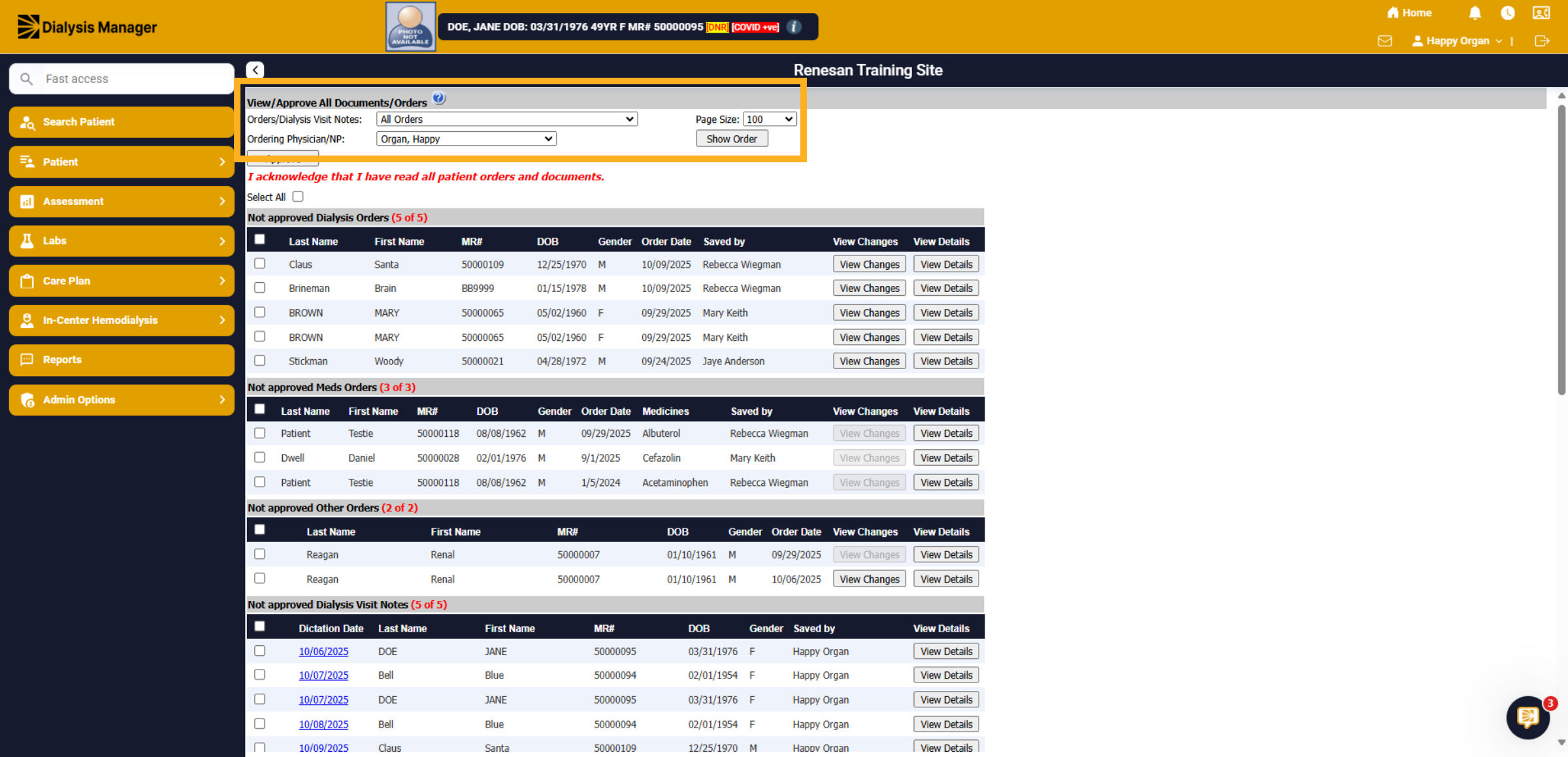
You can filter by Orders or Dialysis Visit Notes and select a specific Ordering Physician. Please note that if you have more than 100 orders to sign, you will need to refresh the screen. To ensure no orders are overlooked, you can set the Page Size to 1500.
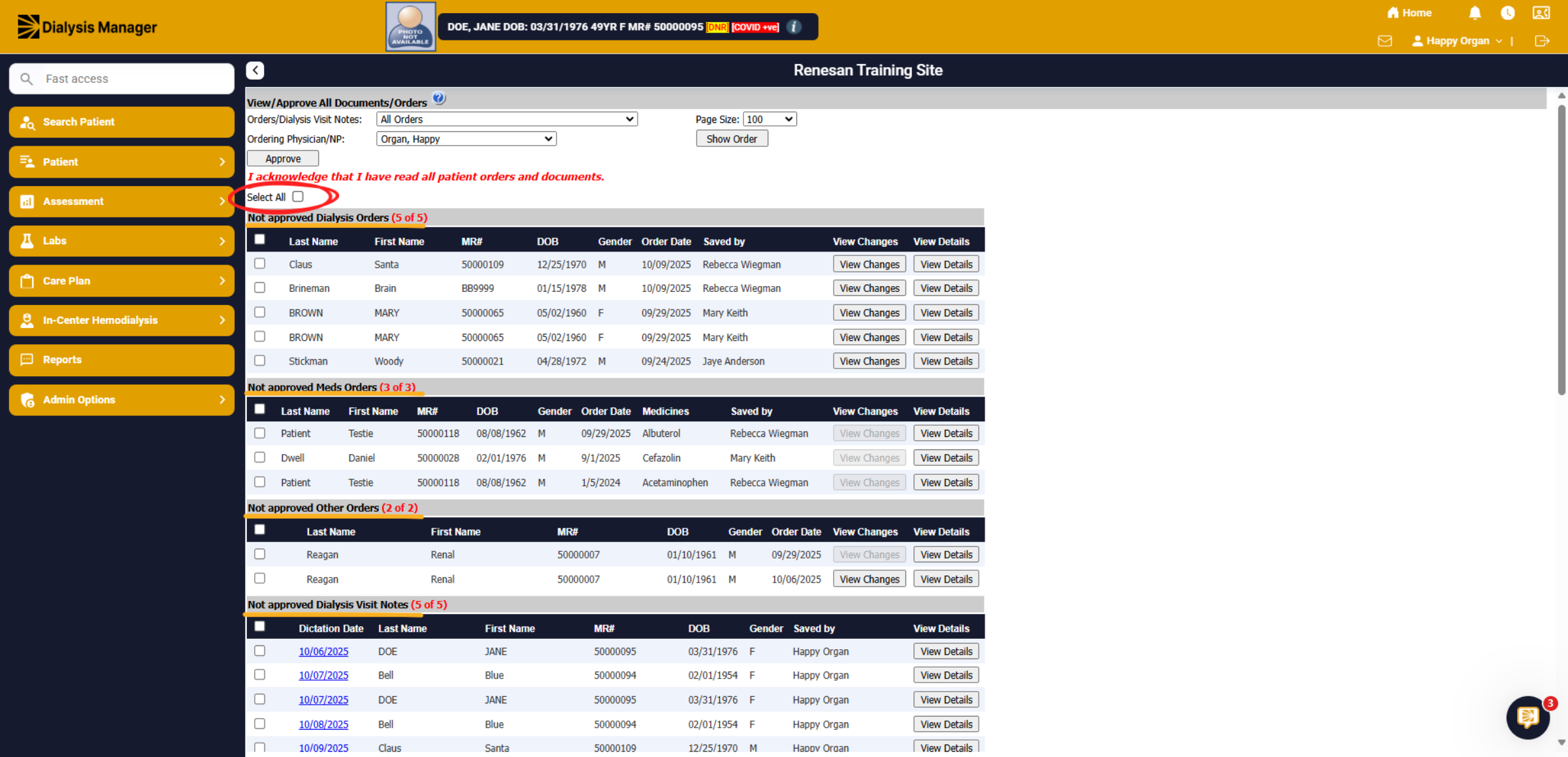
40. Selecting Orders
Each Order Type is separated by a gray header. You can select individual orders or use the "Select All" option. After selecting all, you can easily deselect any specific orders you do not wish to approve.
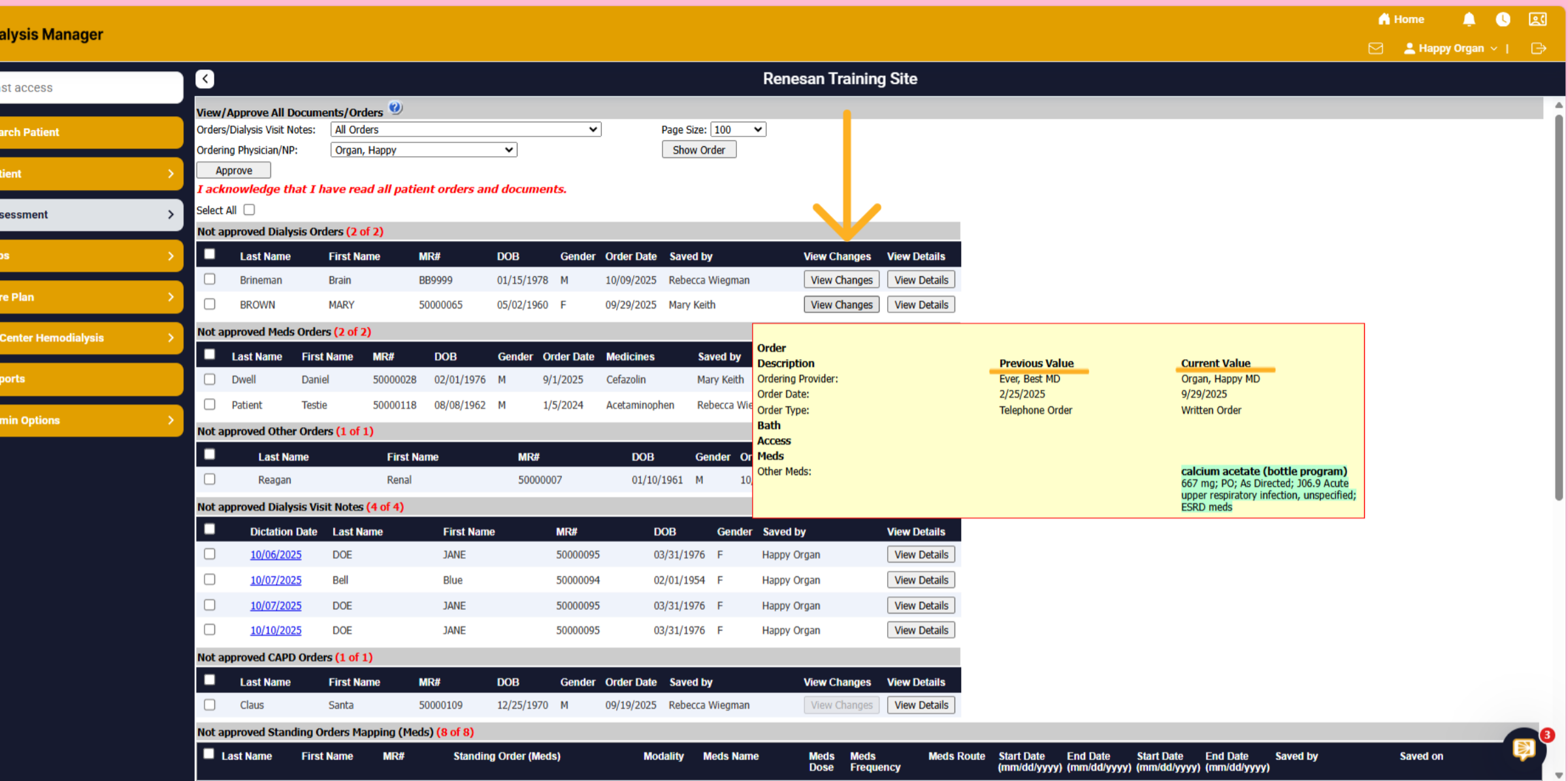
41. Hovering "View Changes
Again, hovering over the "View Changes" will display the Previous Value and the Current Value! Or you can select View Details to open that order!
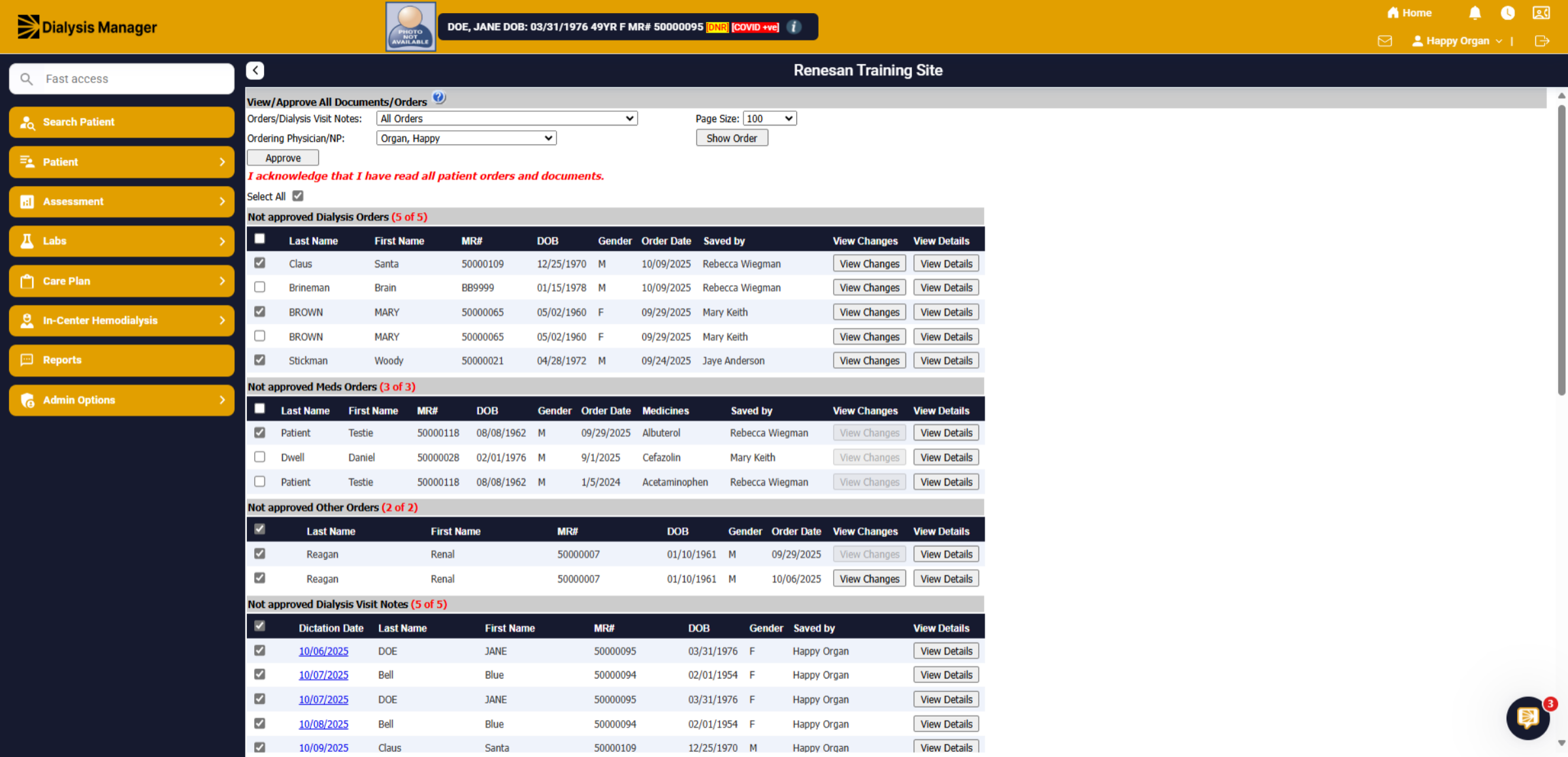
42. Unsigned Order
For the orders you prefer not to sign, please communicate with your nurse to discuss the necessary changes. To sign and approve the marked orders Scroll to the bottom of the page and click Sign and Save.
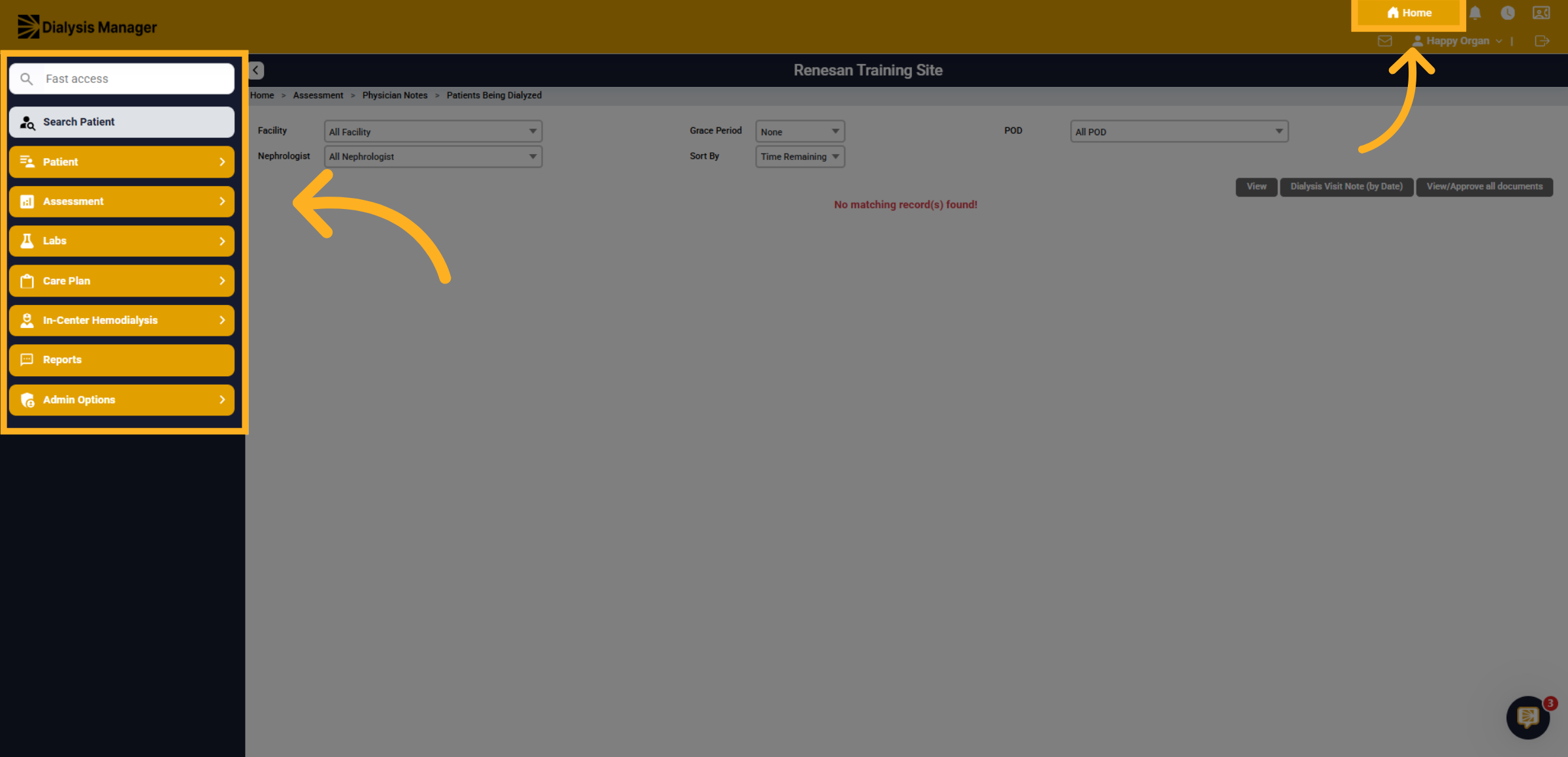
43. Home Icon
By selecting the Home Icon, you will navigate to your home page, typically Patients Being Dialyzed screen. You can also use the Menu Bar to search for information about patients who are not in-center that day.
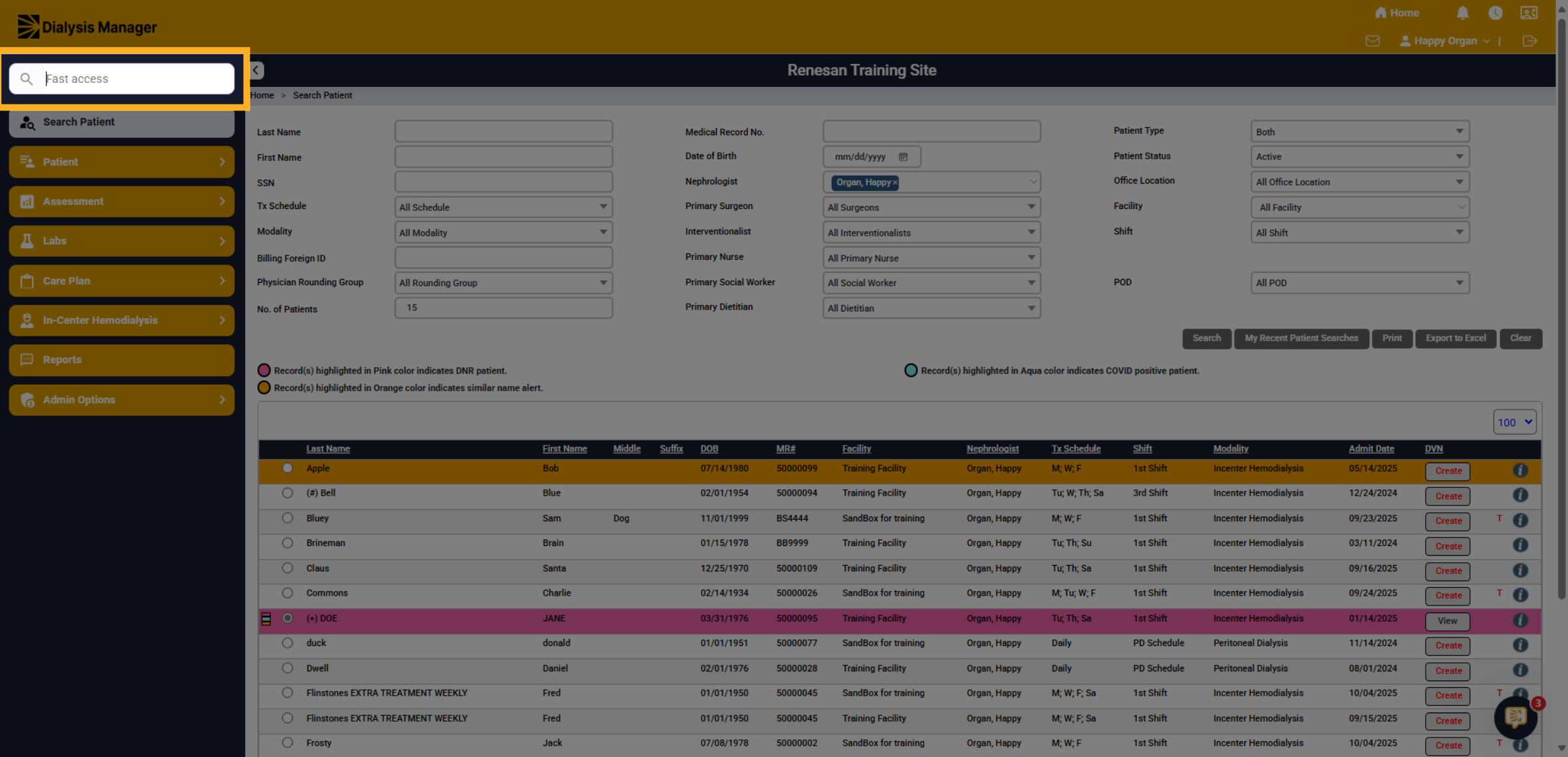
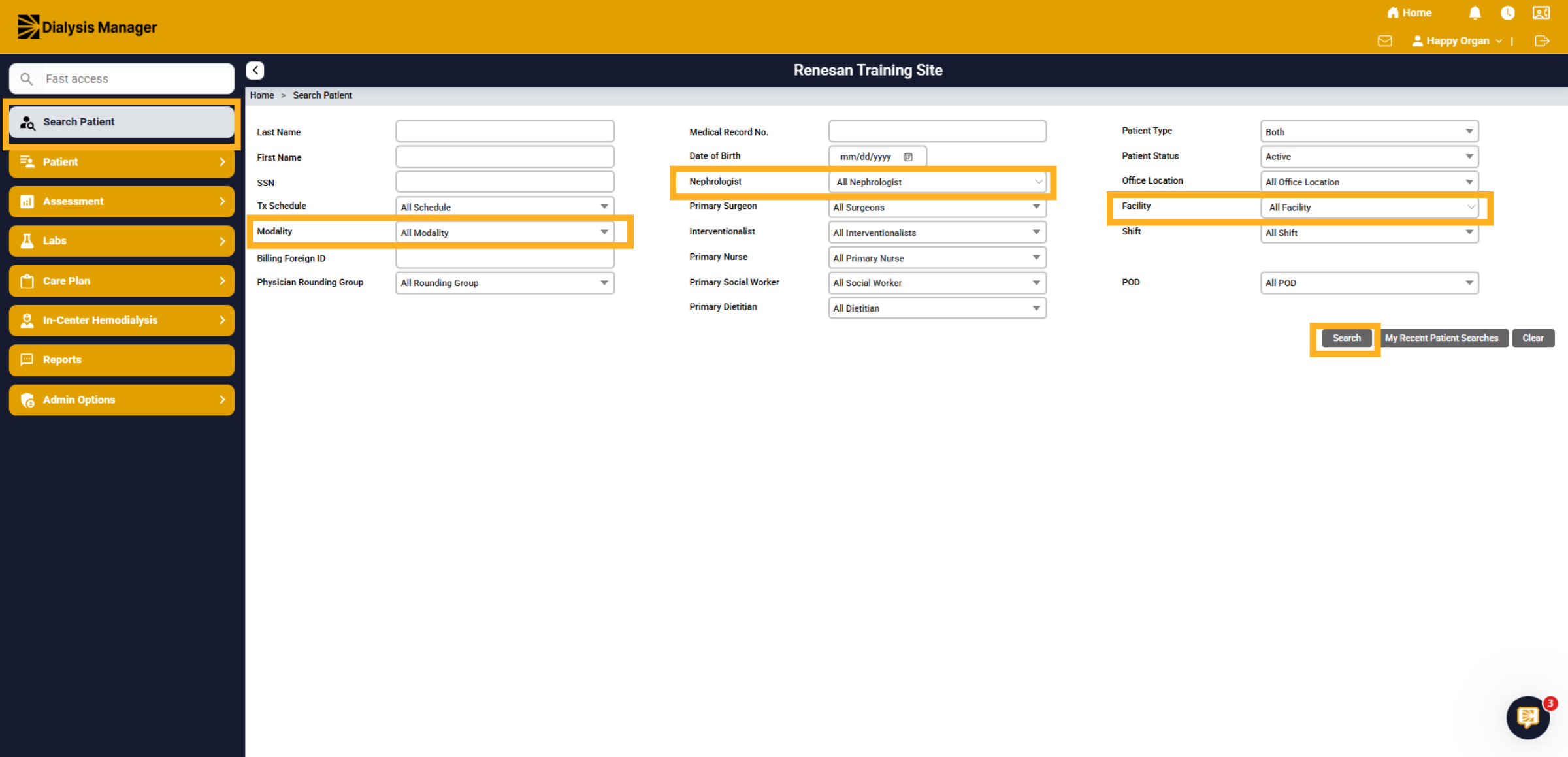
44. Search Patient Menu
In the "Search Patient" menu, you can filter your search using various criteria, including Modality, Nephrologist, or Facility. Additionally, you can search by entering the patient's first or last name and then clicking search.
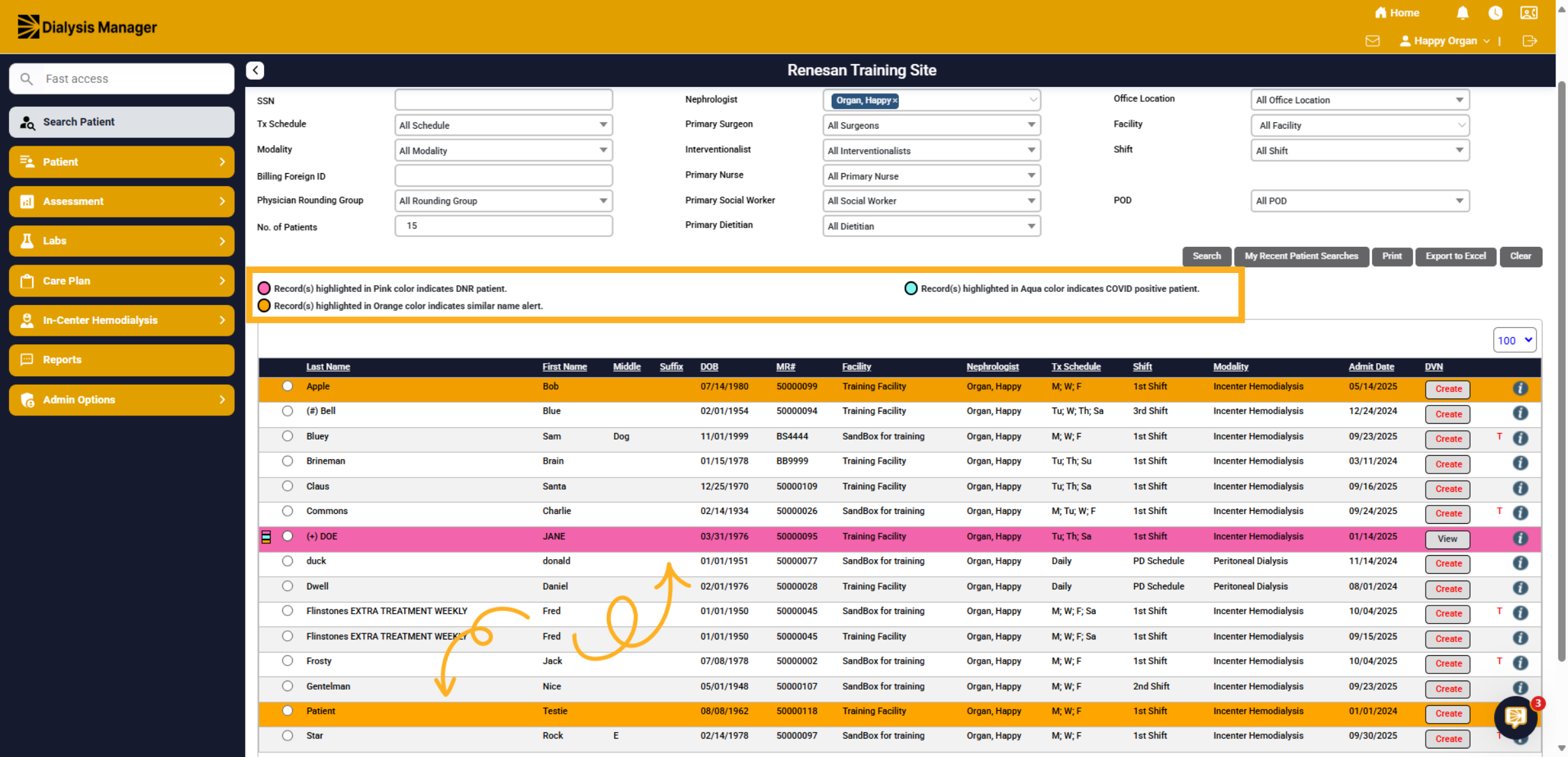
45. Patients
The patient list will display based on the selected criteria. Note the Color-code indicating DNR or similar name, etc.
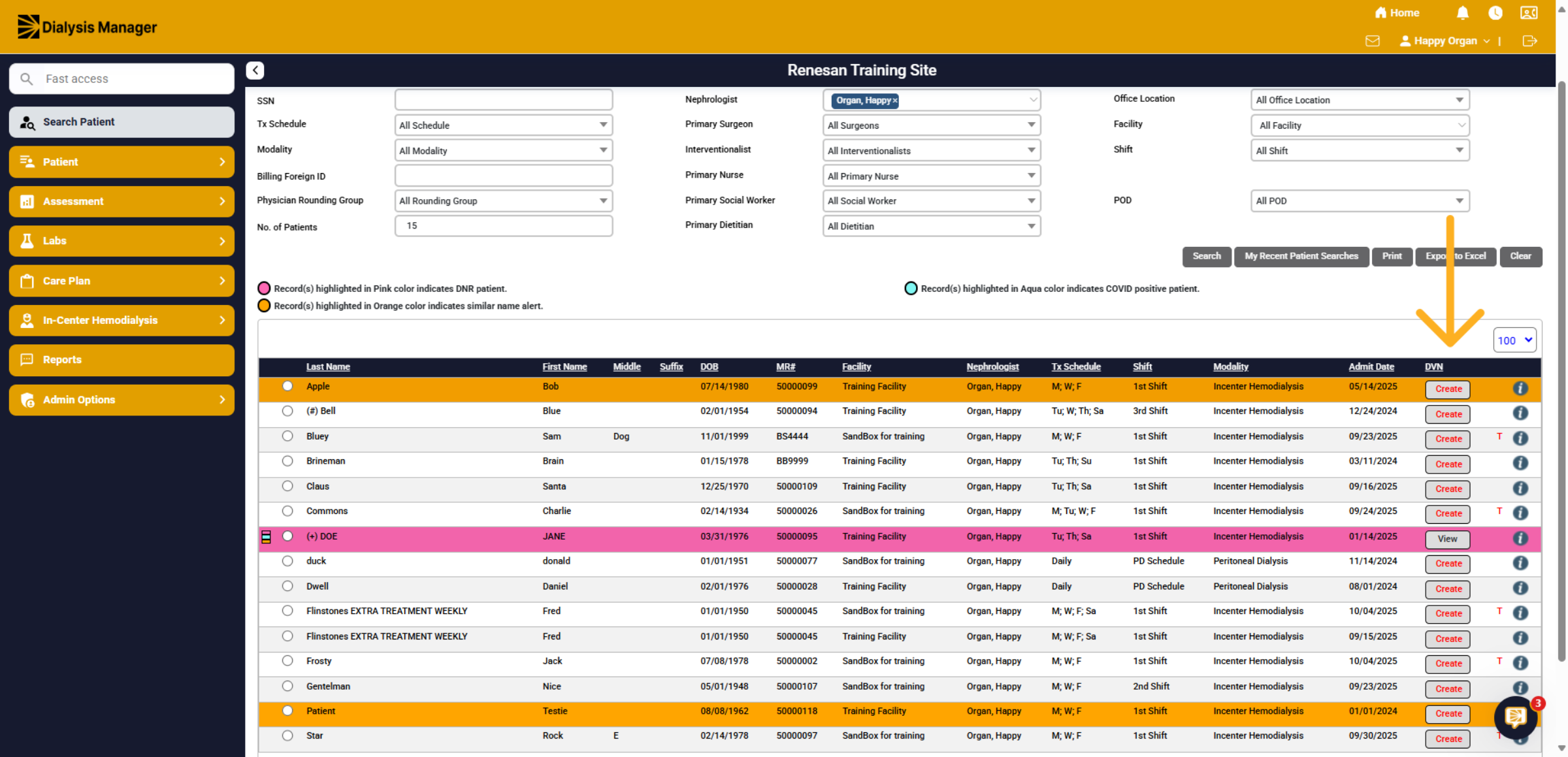
46. Patients
You will also see a column for Dialysis Visit Notes, indicating whether they have been completed with a "View" option, or you can click "Create" to initiate the process. Similar to the Dialysis Visit Notes (by Date) screen.
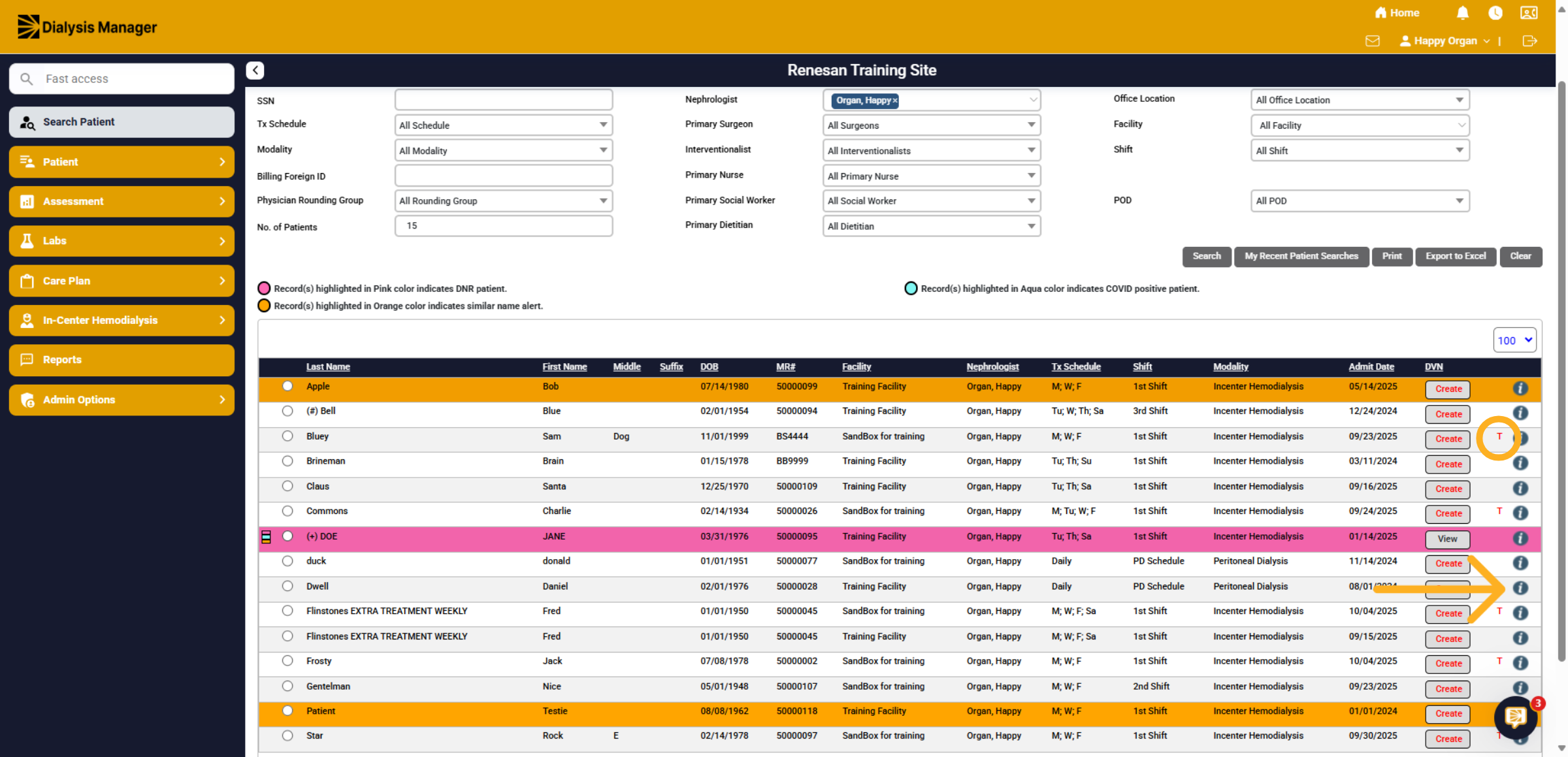
47. Patients
The red "T" signifies a transient patient. Hovering over the "i" icon provides additional patient information.
48. Patients
To select a patient, simply click the radio button next to their name.
49. Care Plan
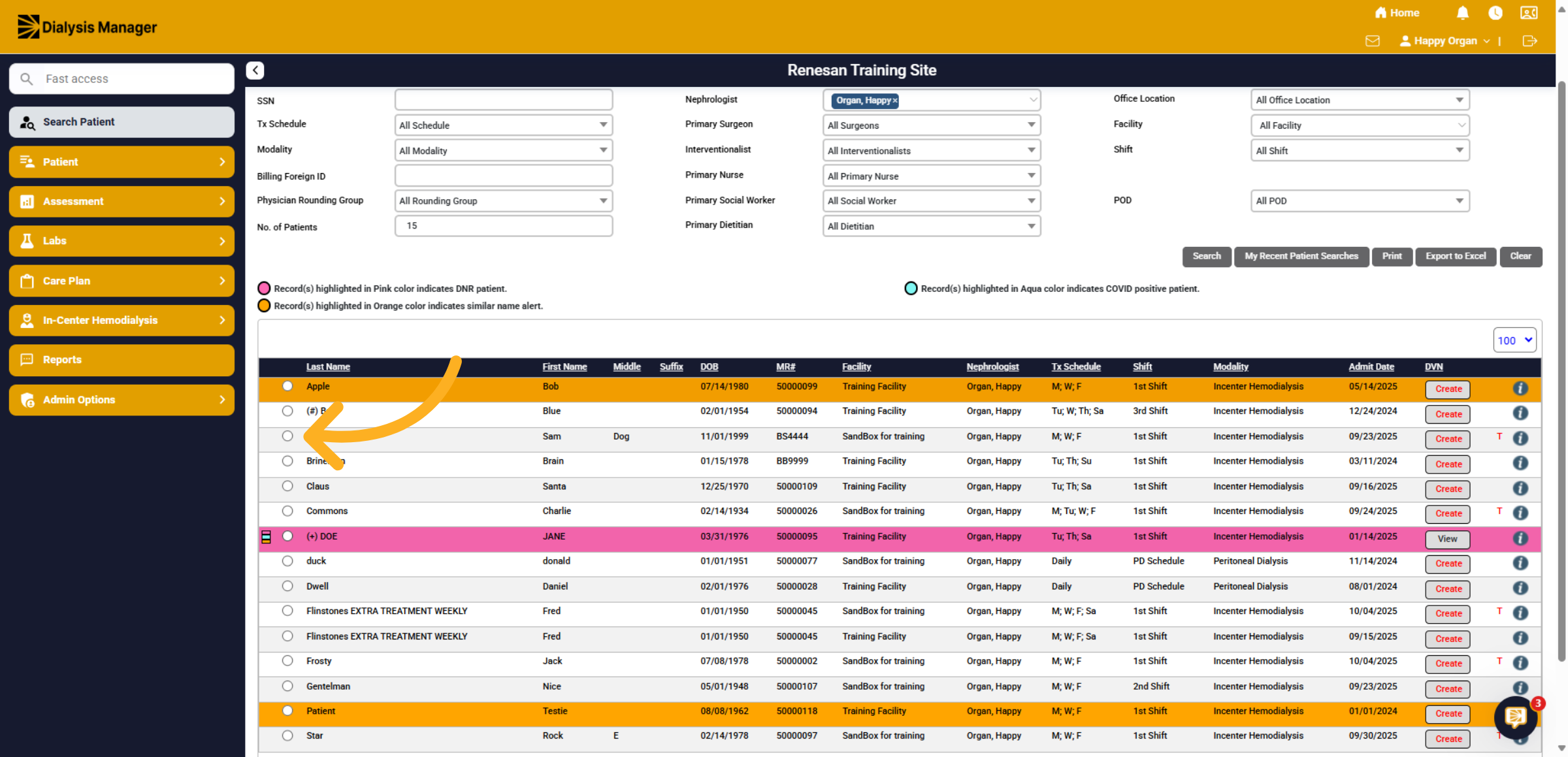
The Care Plan Menu features all CIPA related information. Please note that your Comprehensive Assessments and Plans of Care by physicians can be documented using the Dialysis Visit Note if the CIPA has been initiated.
50. Inside the Dialysis Visit Note
In the Dialysis Visit Note Assessment, select either Comprehensive Visit 1 or 2, then choose "Use this as Care Plan and POC" with your selected date.
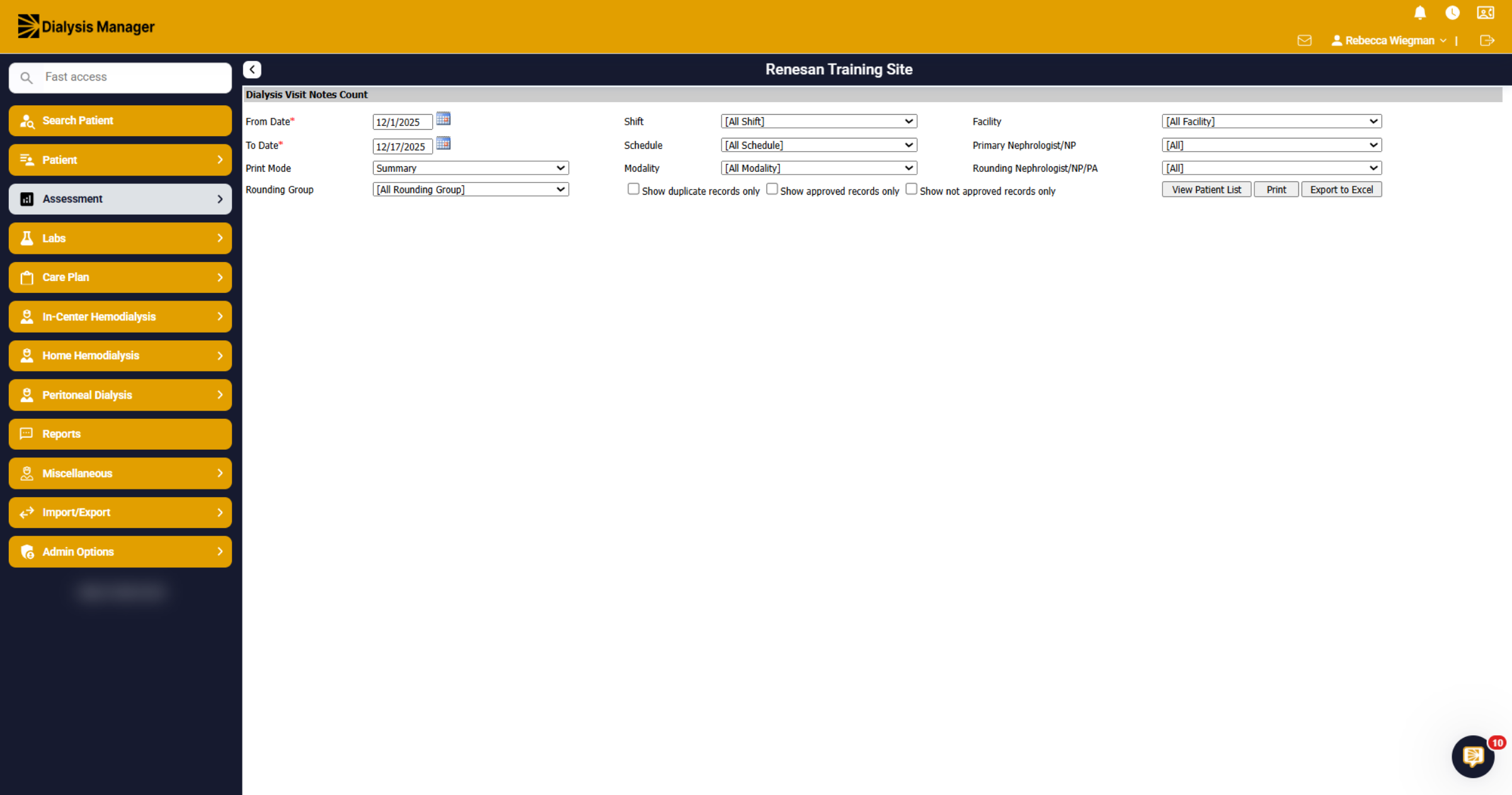
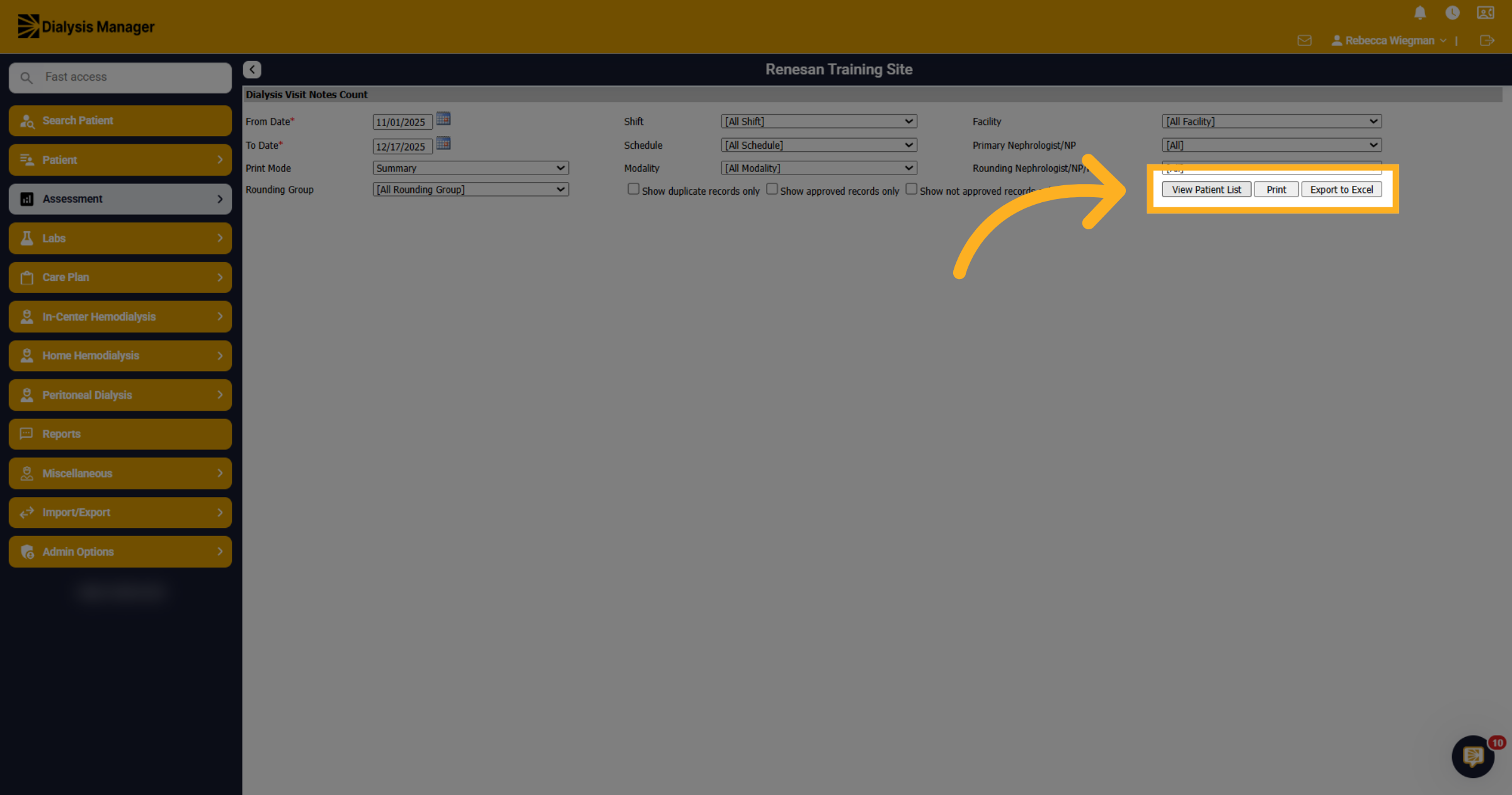
51. Open Dialysis Visit Notes Count
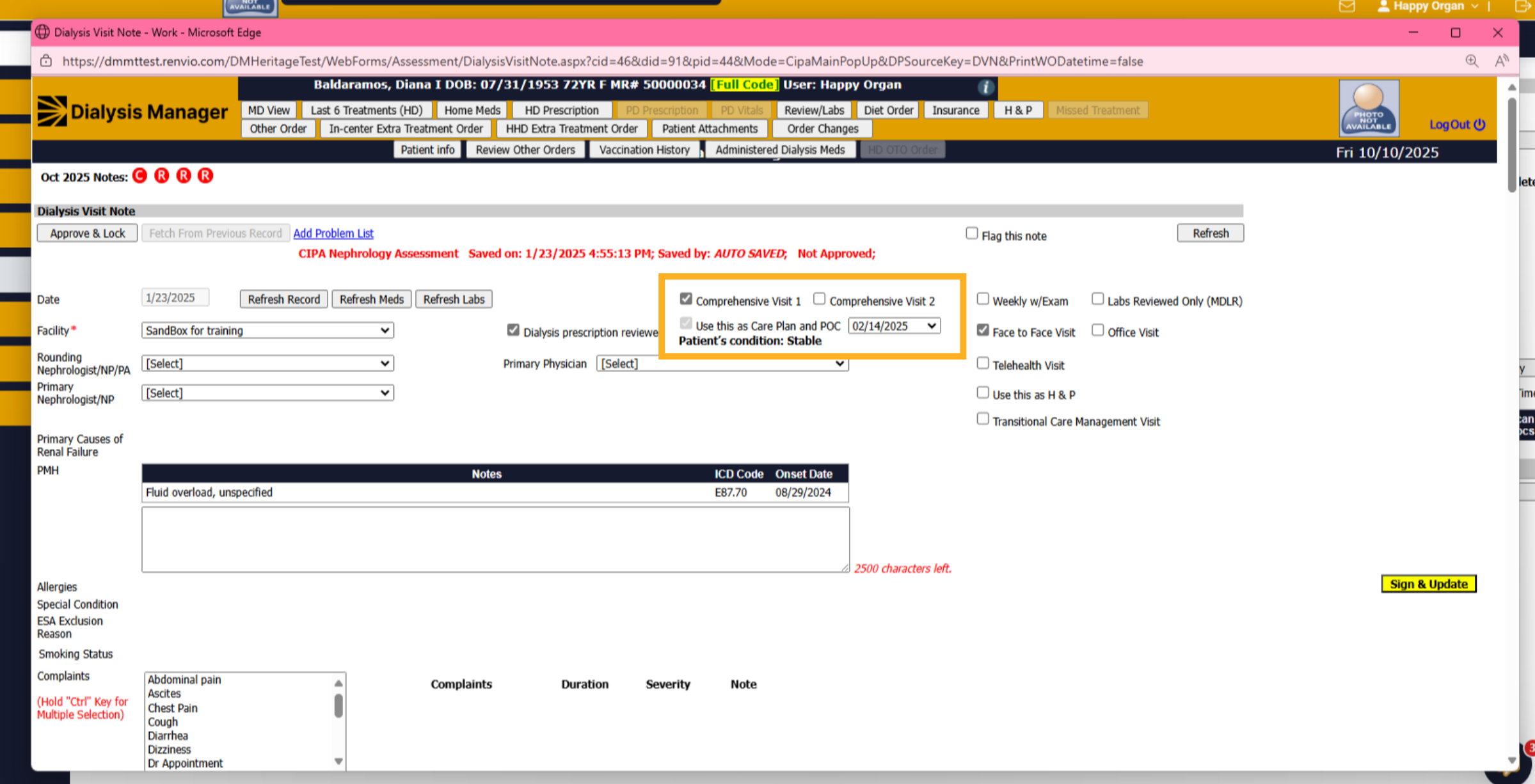
Now, lets take a look at Dialysis Visit Notes Count inside the Assessment enu and Physician Notes.
52. Access Additional Options
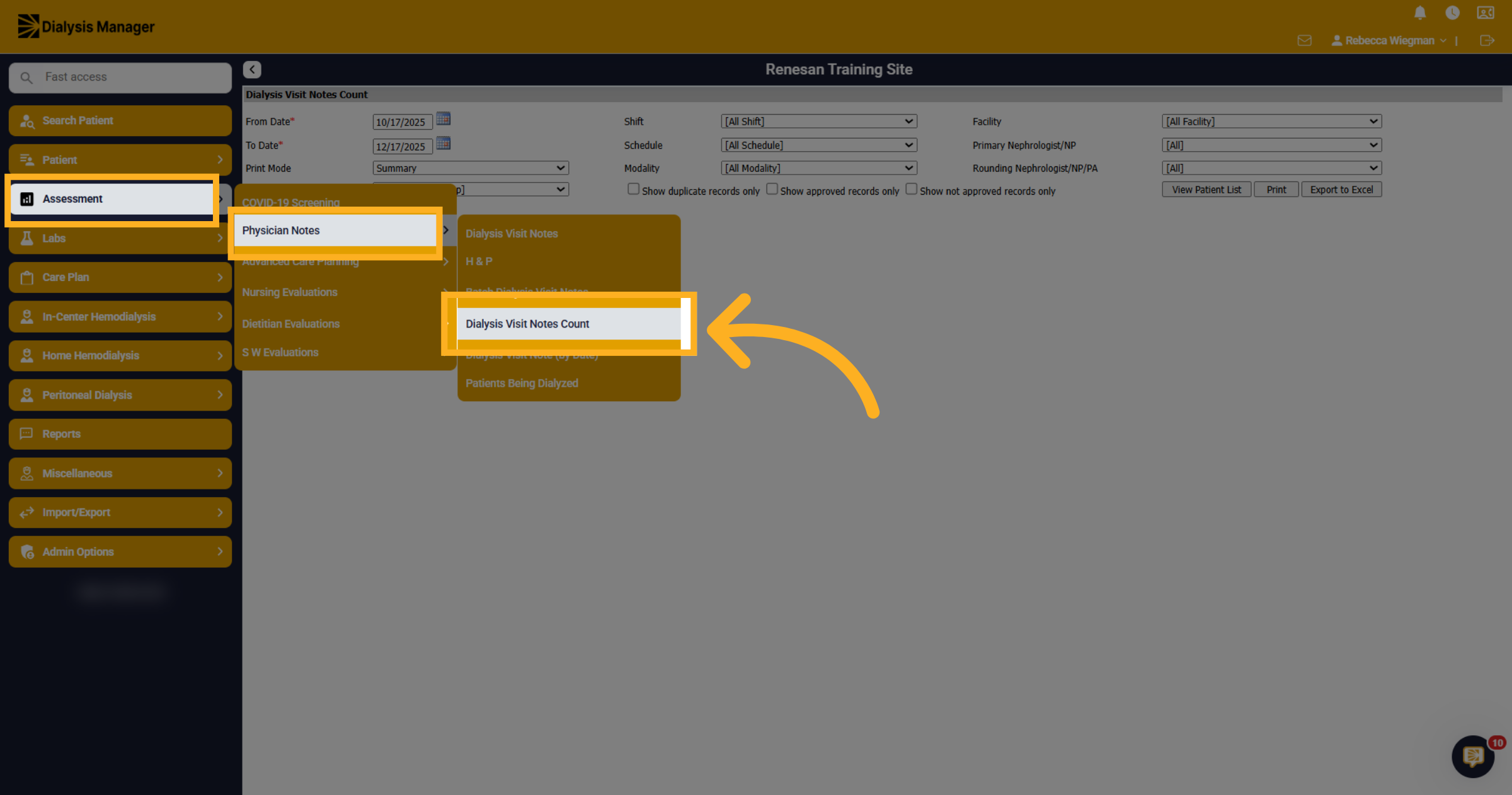
The Dialysis Visit Notes Count will give you the option to filter by different criteria. The date range can go back 2 months.
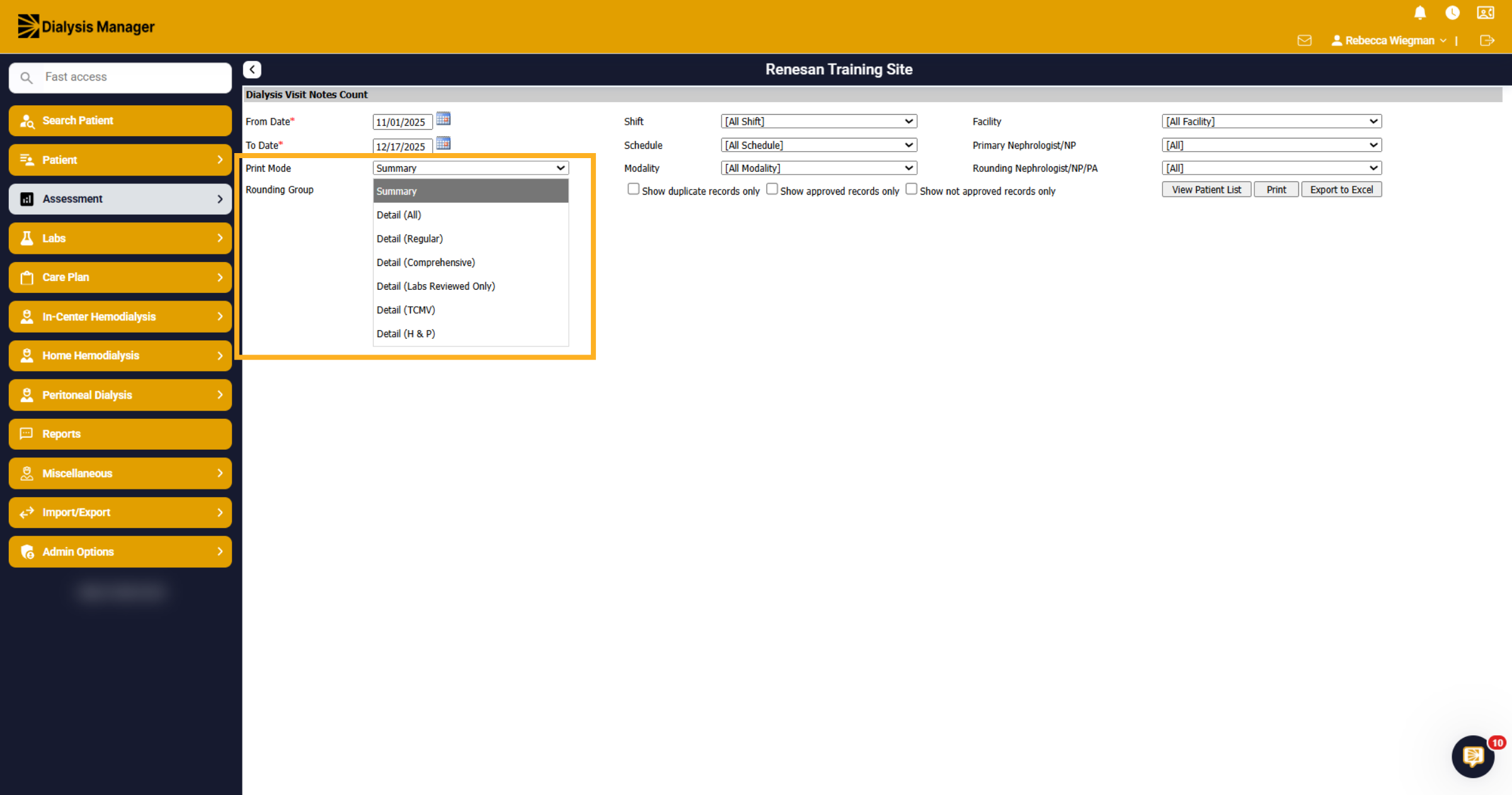
53. Print Mode
In the Print Mode dropdown, you'll have the option to view Regular, Comprehensive, Labs Reviewed Only, Transitional Care Management Visits, H & P or all Notes.
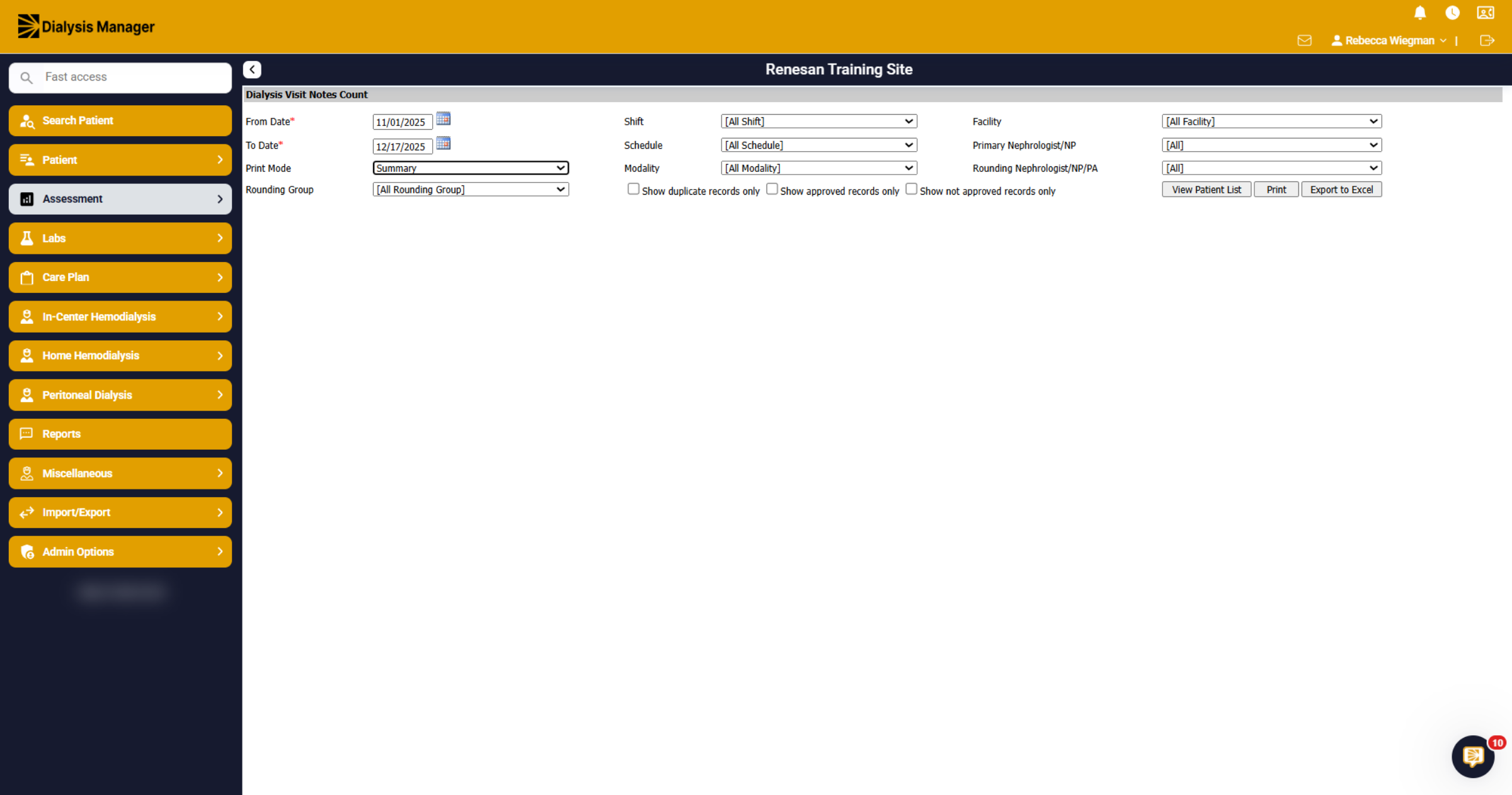
54. Other Filters
If you are looking for a specific Rounding Group, shift, schedule, facility, primary Nephrologist or even specific Modalities, you are able to set those parameters.
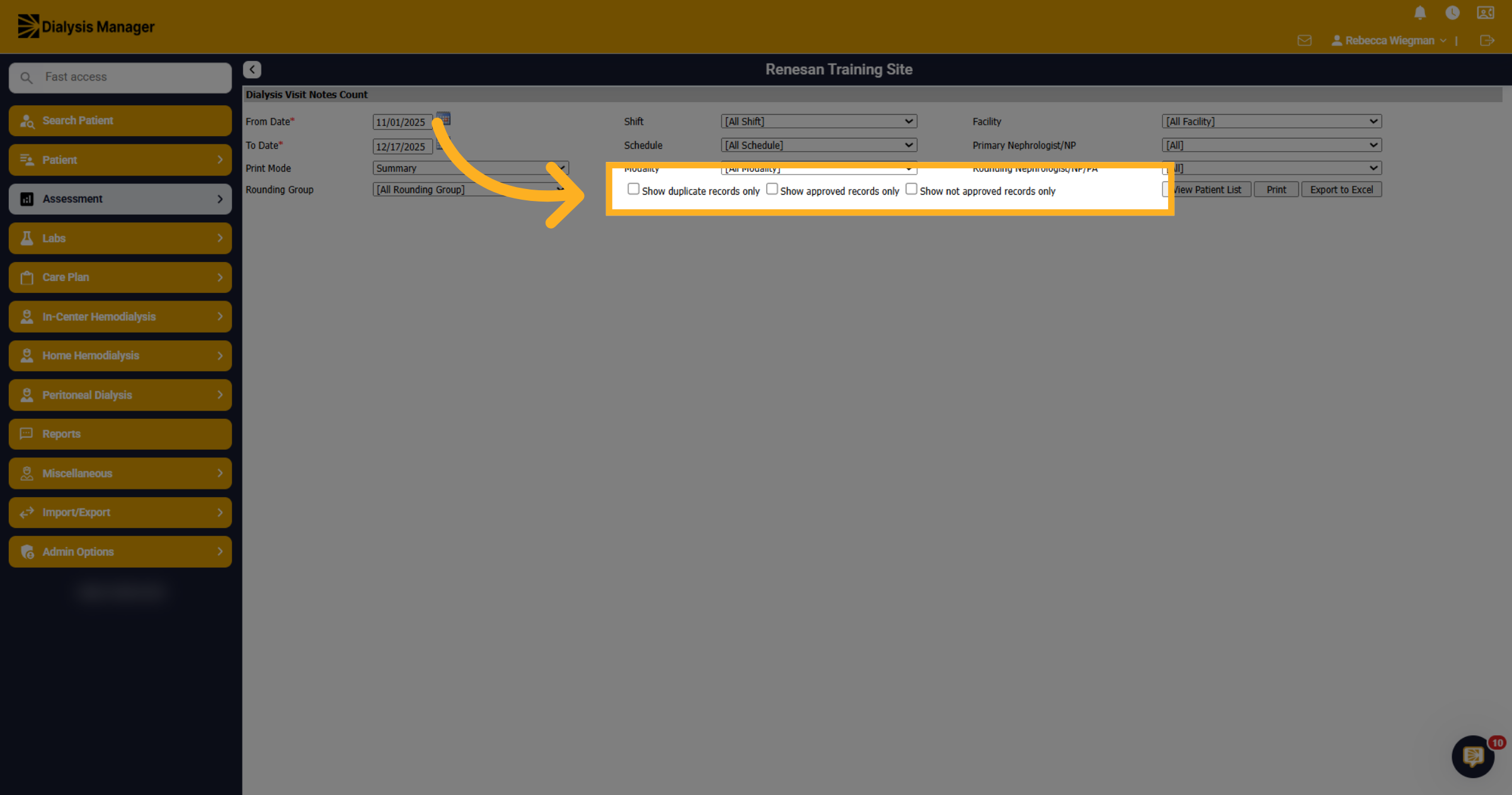
55. Additional filters
Also having the option to select Show Duplicate Records only, Approved Records or Not Approved Records.
56. View Patient List
Click View Patient List to display the list of patients matching your selected filters. But also having the option to select Print or Export to Excel.
57. Access Additional Patient Options
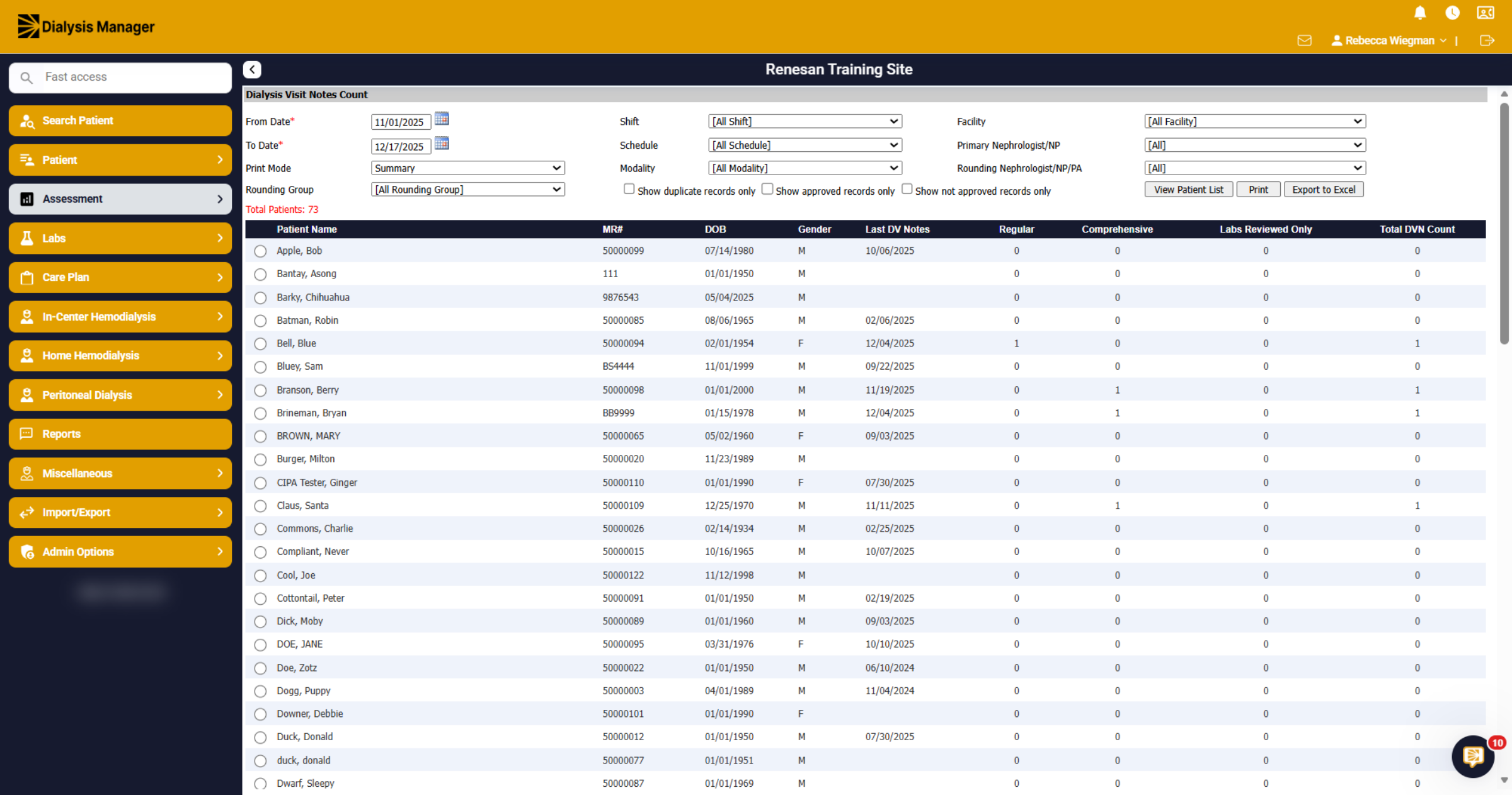
Based on the criteria selected, you'll see a total patient number in red above the blue header. The patients will display alphabetically with some demographic information.
58. Last Dialysis Visit Notes
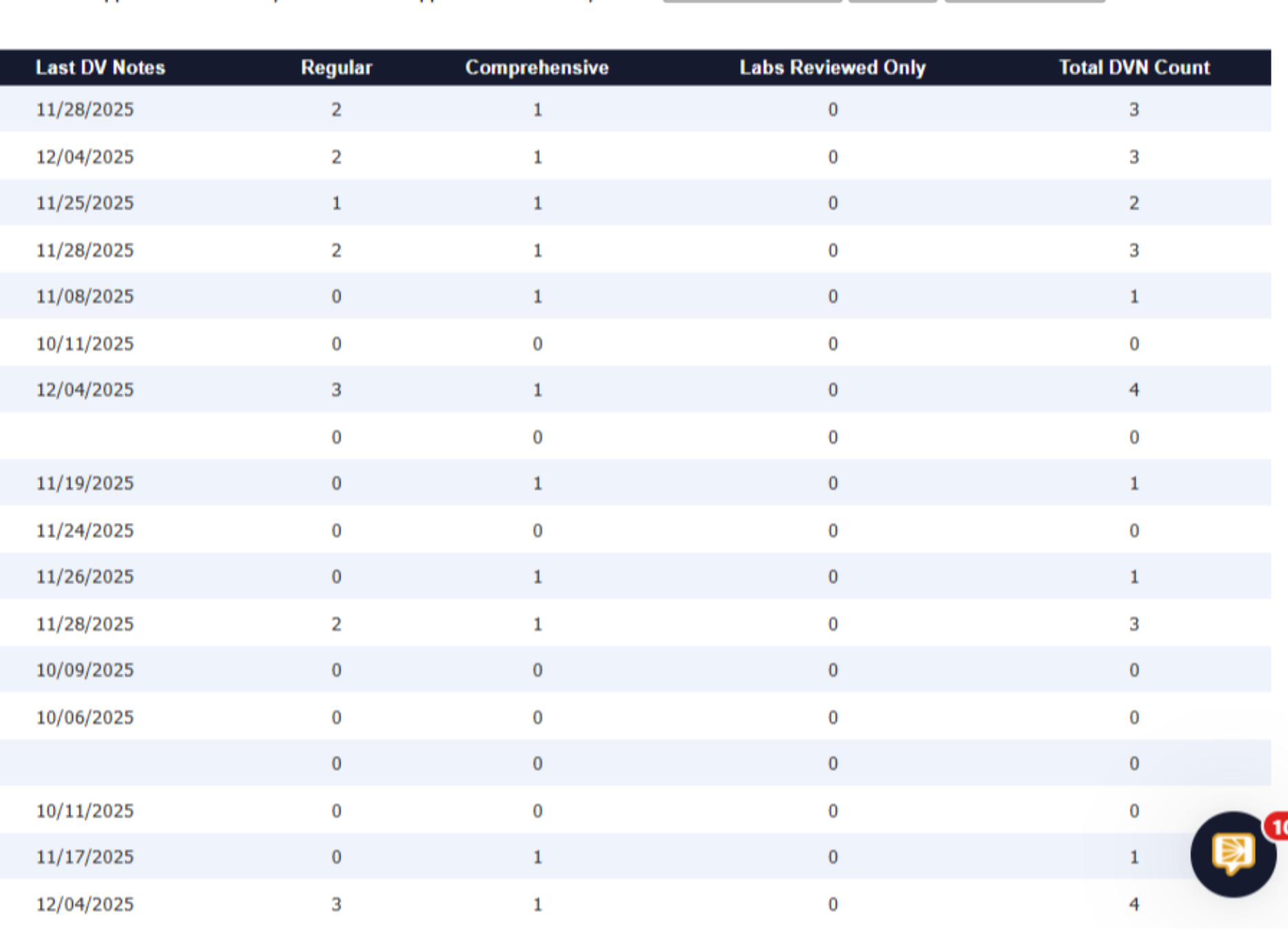
It will display the last Dialysis Visit Note for the patient and display how many Regular, Comprehensive, Labs Reviewed and Total Dialysis Visit Note Count. Please note that depending on the criteria you select within the Print Mode dropdown, will determine the information that is displayed. This report can be useful for verifying rounds were submitted and showing rounding dates.
59. Phyisician Notes
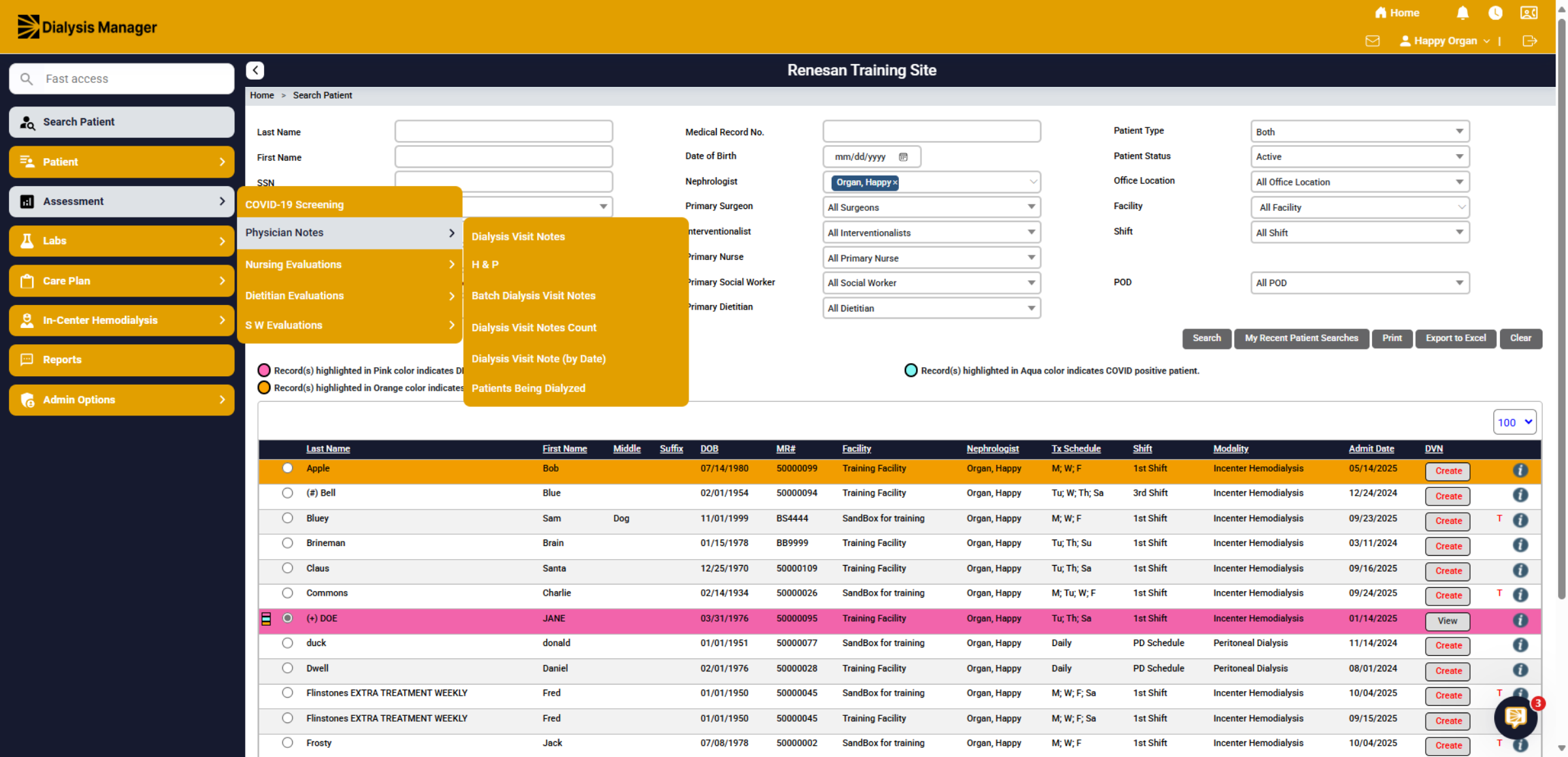
Now let's take a look at the Physician Notes Tab!
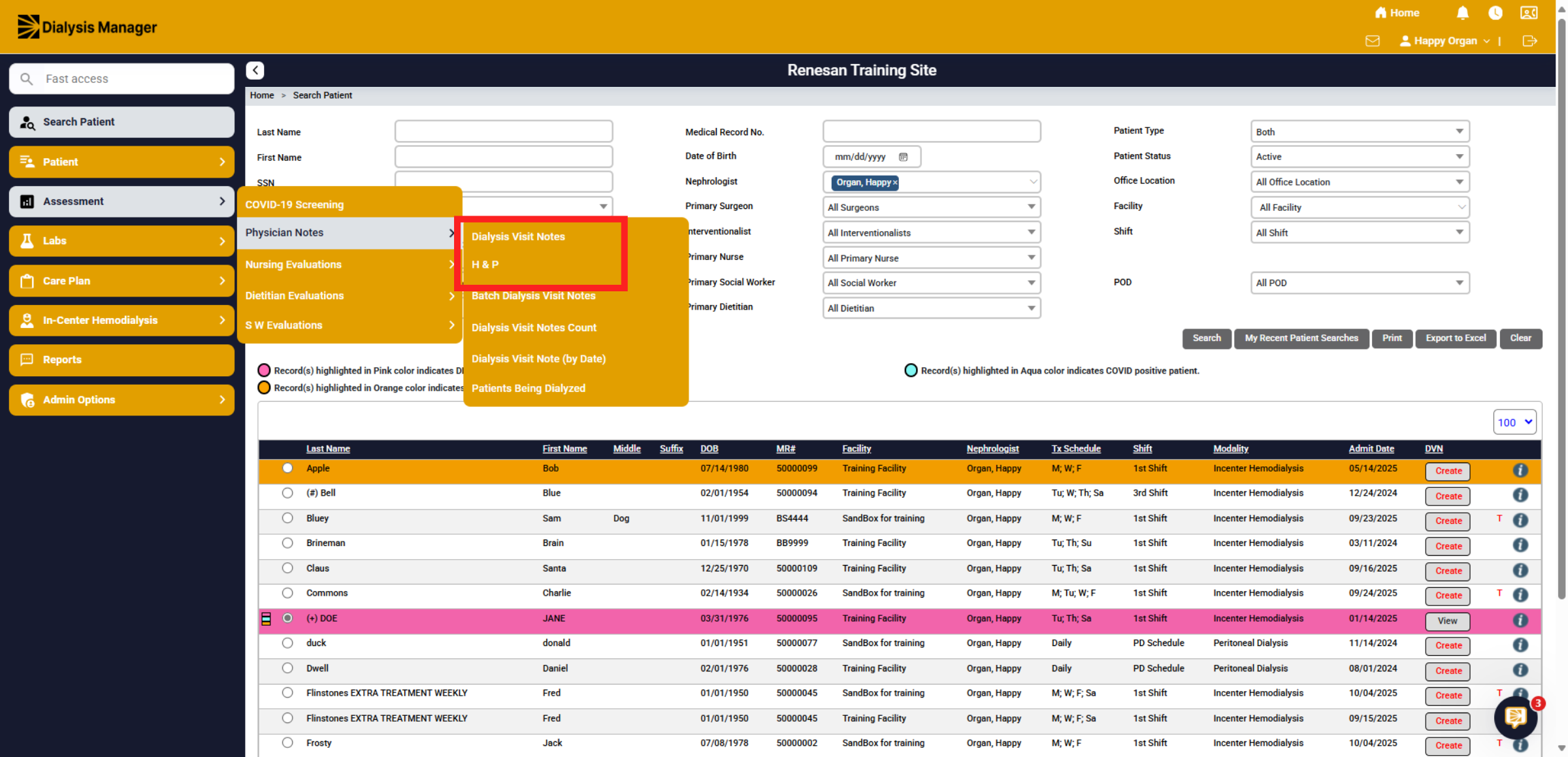
60. Phyisician Notes
First is the Dialysis Visit Notes or DVN. This is where you can review already created notes or create DVN's. You can create your notes in multiple areas. next is the H&P.
61. Open H & P
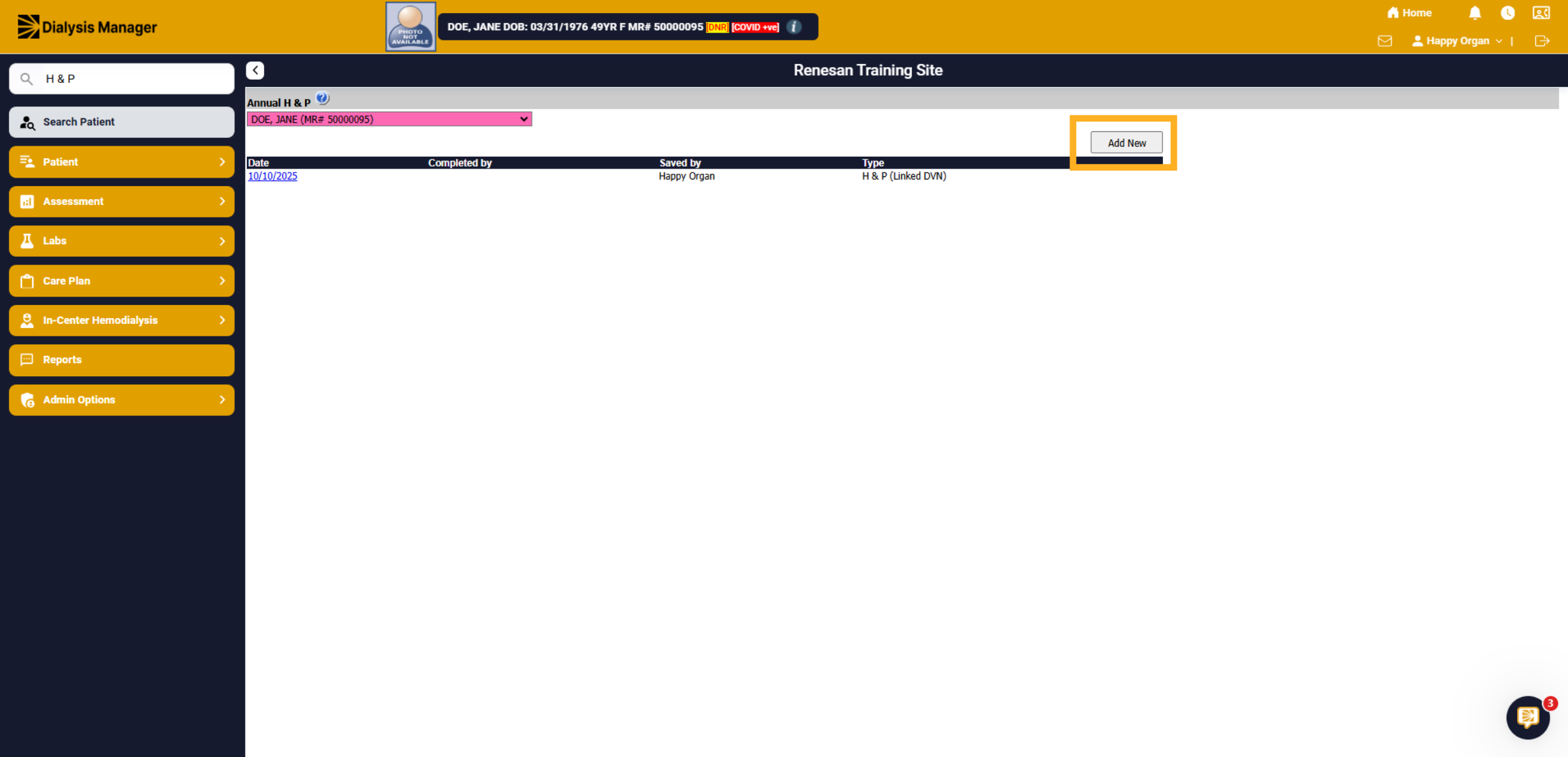
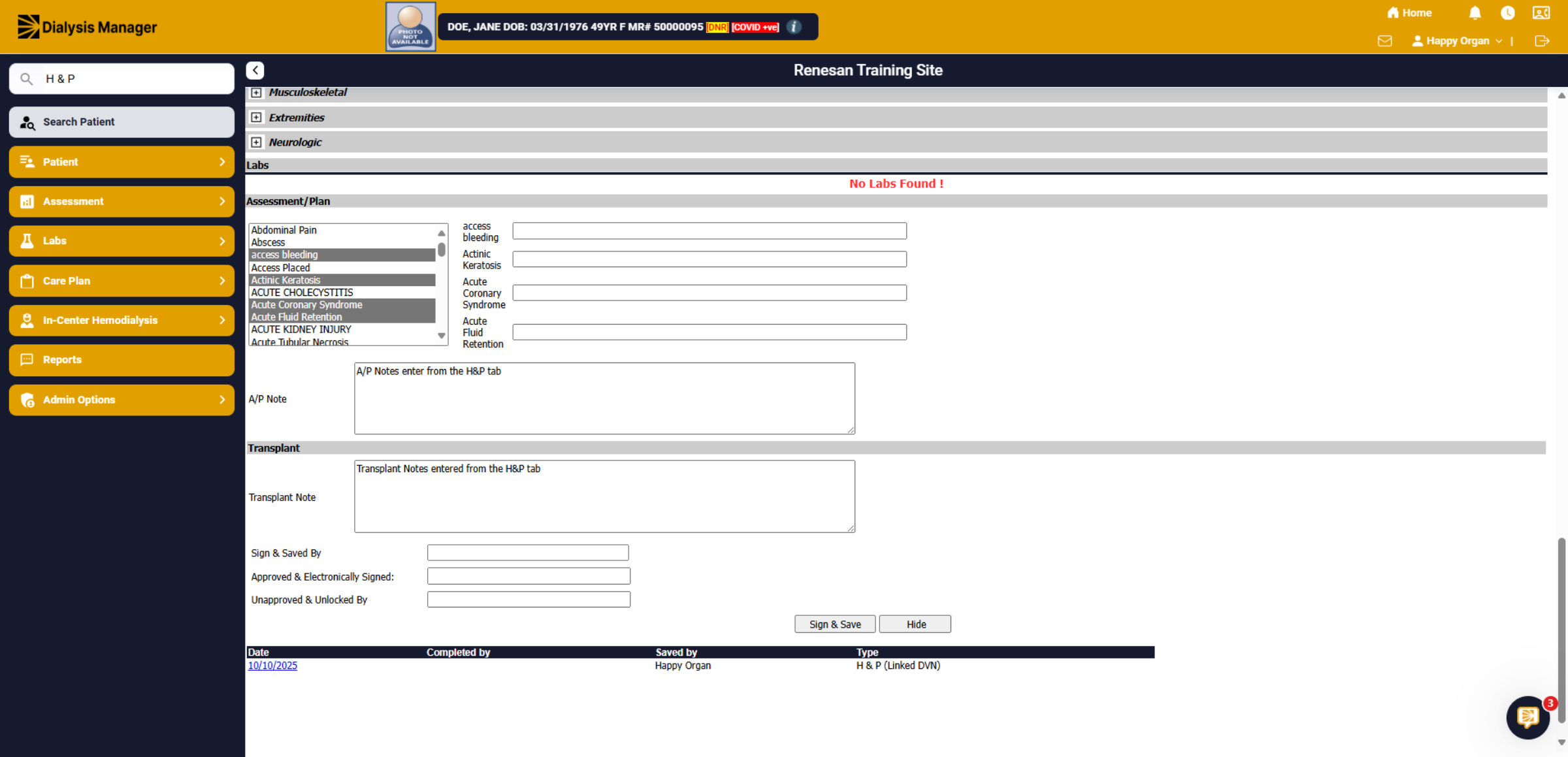
Within the H&P section All H&P entries documented for the patient will be visible here. You can see the date, completed by, who saved it, and a "Type" indicator to show if it was sourced from the Dialysis Visit Note or added manually. Click "Add New" to manually initiate a new H&P Assessment.
62. Patient dropdown
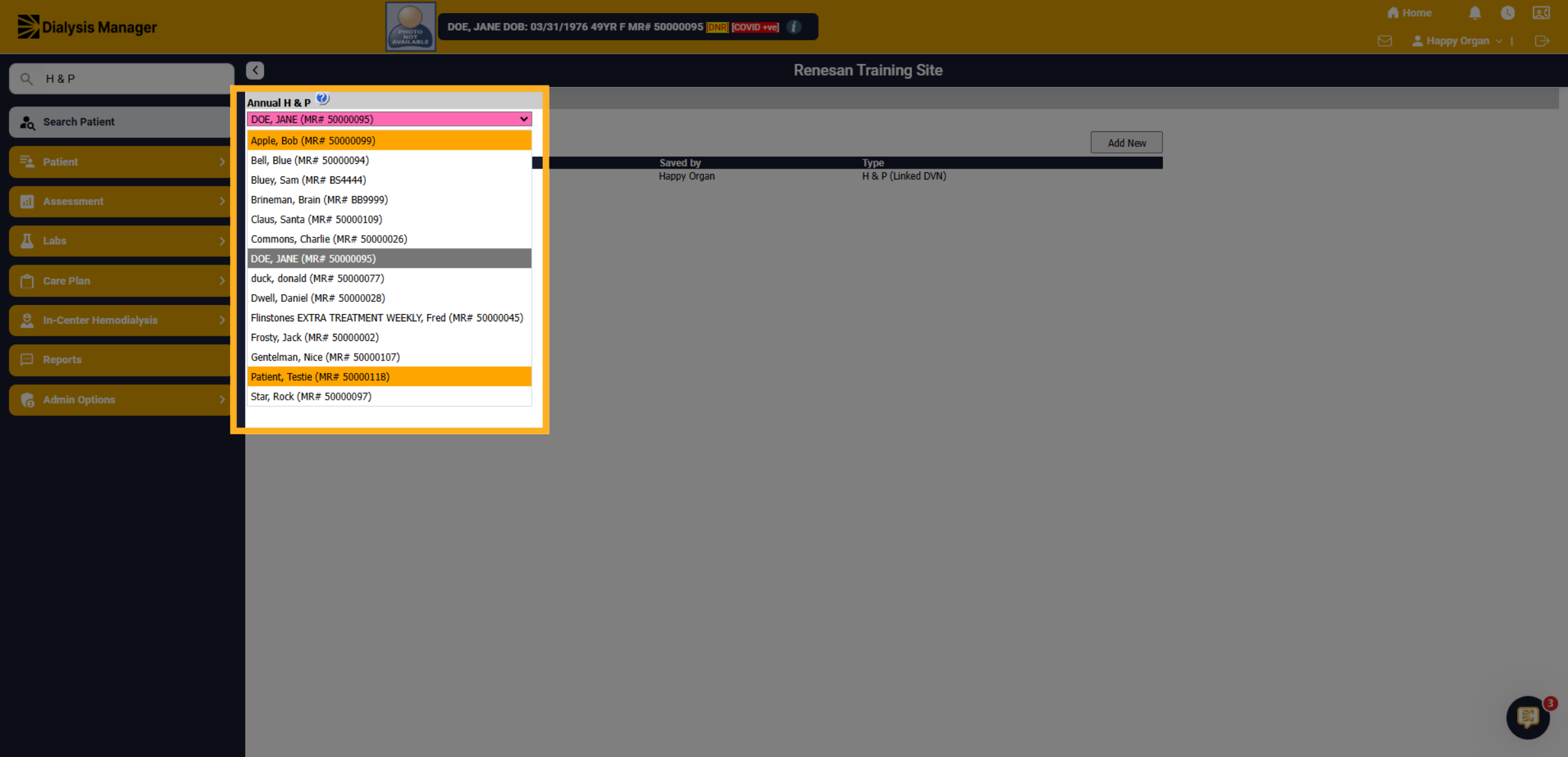
You can easily switch your patient using the dropdown menu here! Hint: the dropdown list here is reflecting your criteria from the Search a patient screen.
63. H&P
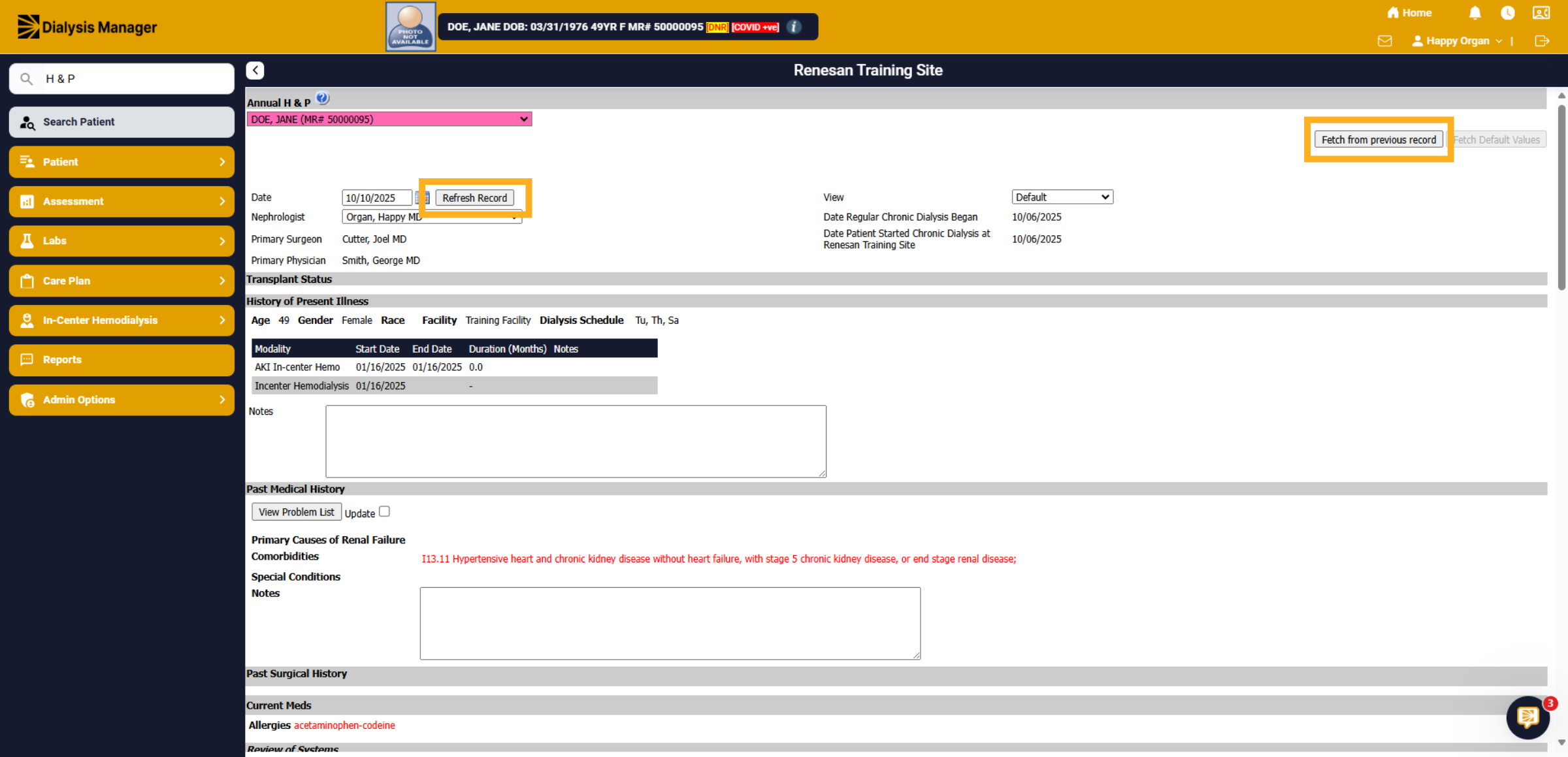
When opening the H&P it is similar to your Dialysis Visit Note. You have the option to Fetch from Previous Record and Refresh Record to update labs or medications.
64. Enter Notes and Sing and Save
Complete the assessment and, if necessary, add any additional notes. Then, click "Sign & Save," followed by, "Approve," and "Lock."
65. Home Icon
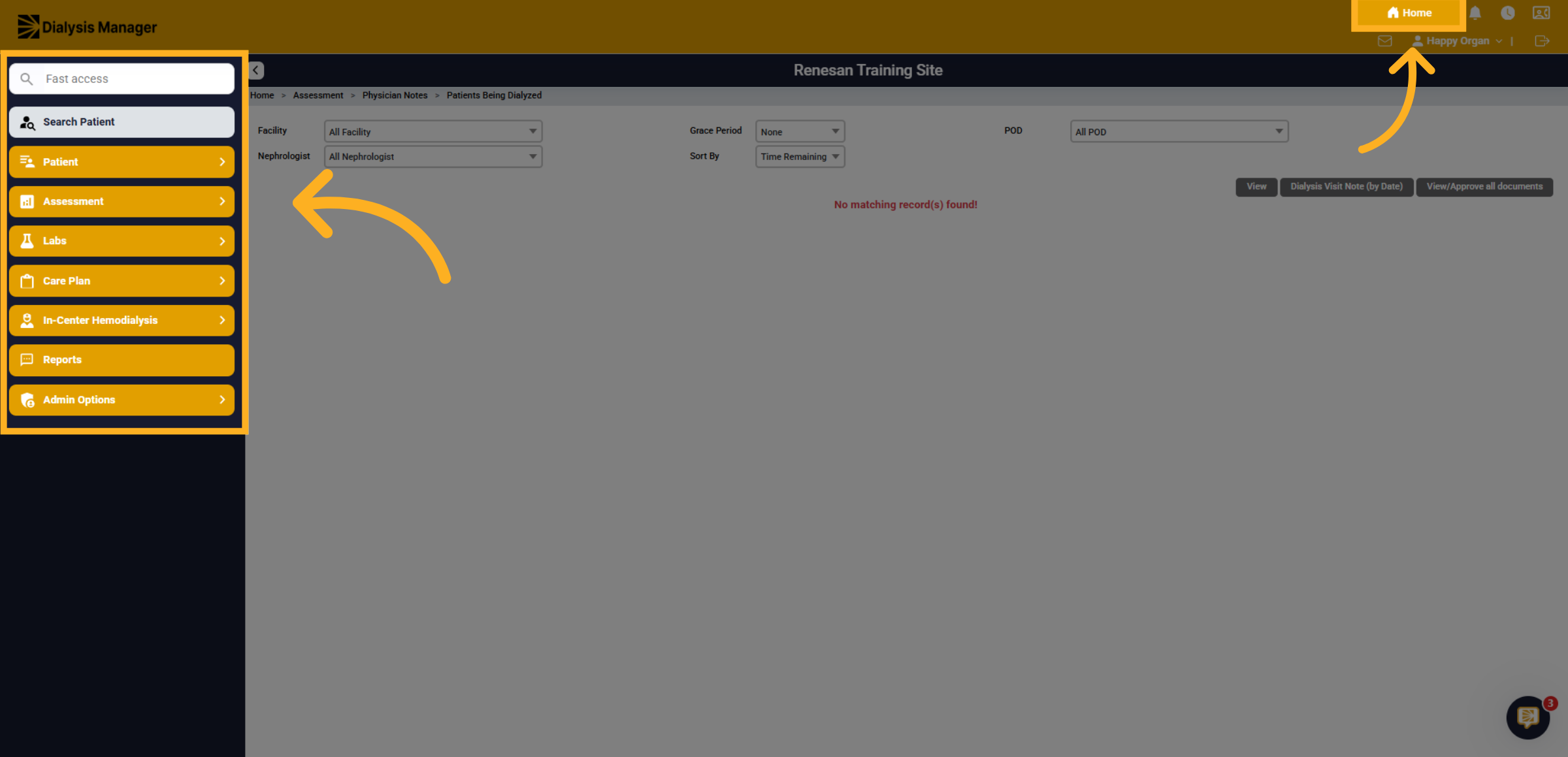
Remember selecting the Home Icon, will navigate to your home page, typically Patients Being Dialyzed screen. You can also use the Menu Bar to search for information about patients.
66. Open Fast Access Menu
If you can't find items using the menu you can Click "Fast access" to quickly search menus and find information fast.