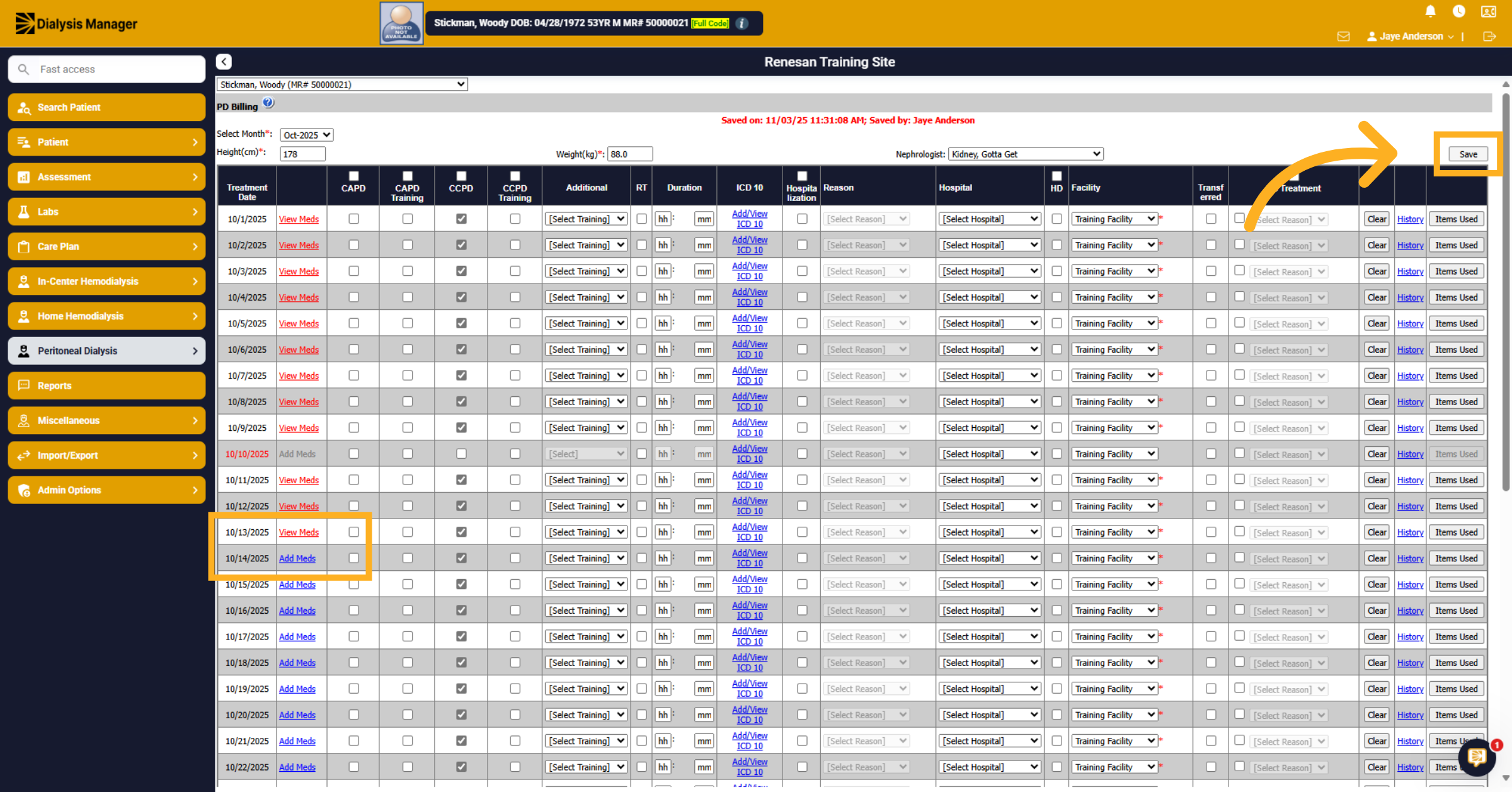
PD Treatment Documentation Workflow.
1. Introduction
This tutorial explains how to document a Peritoneal Dialysis nursing visit accurately. You will learn to navigate the system and complete all necessary documentation steps for patient care.
2. Select Peritoneal Dialysis
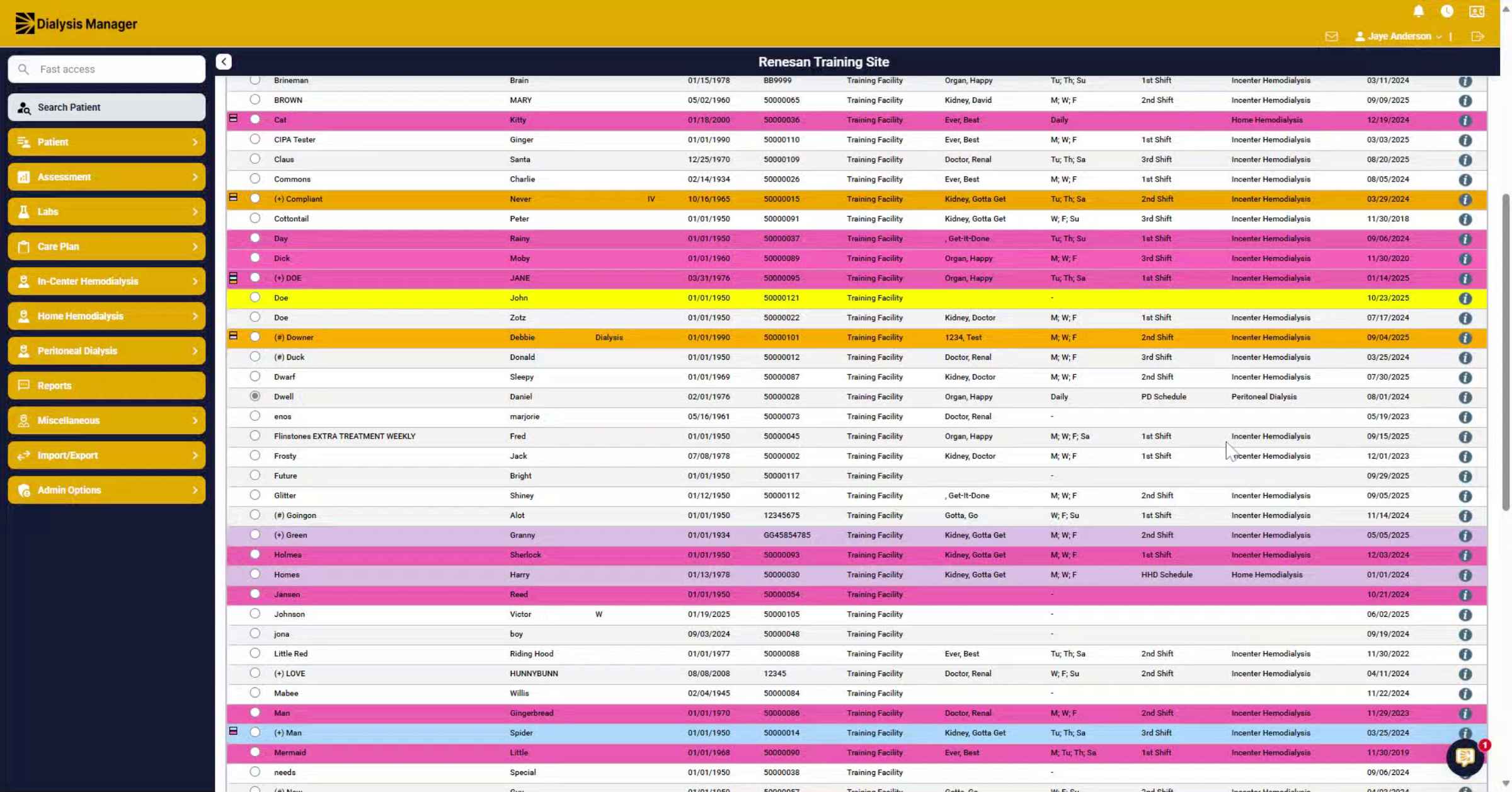
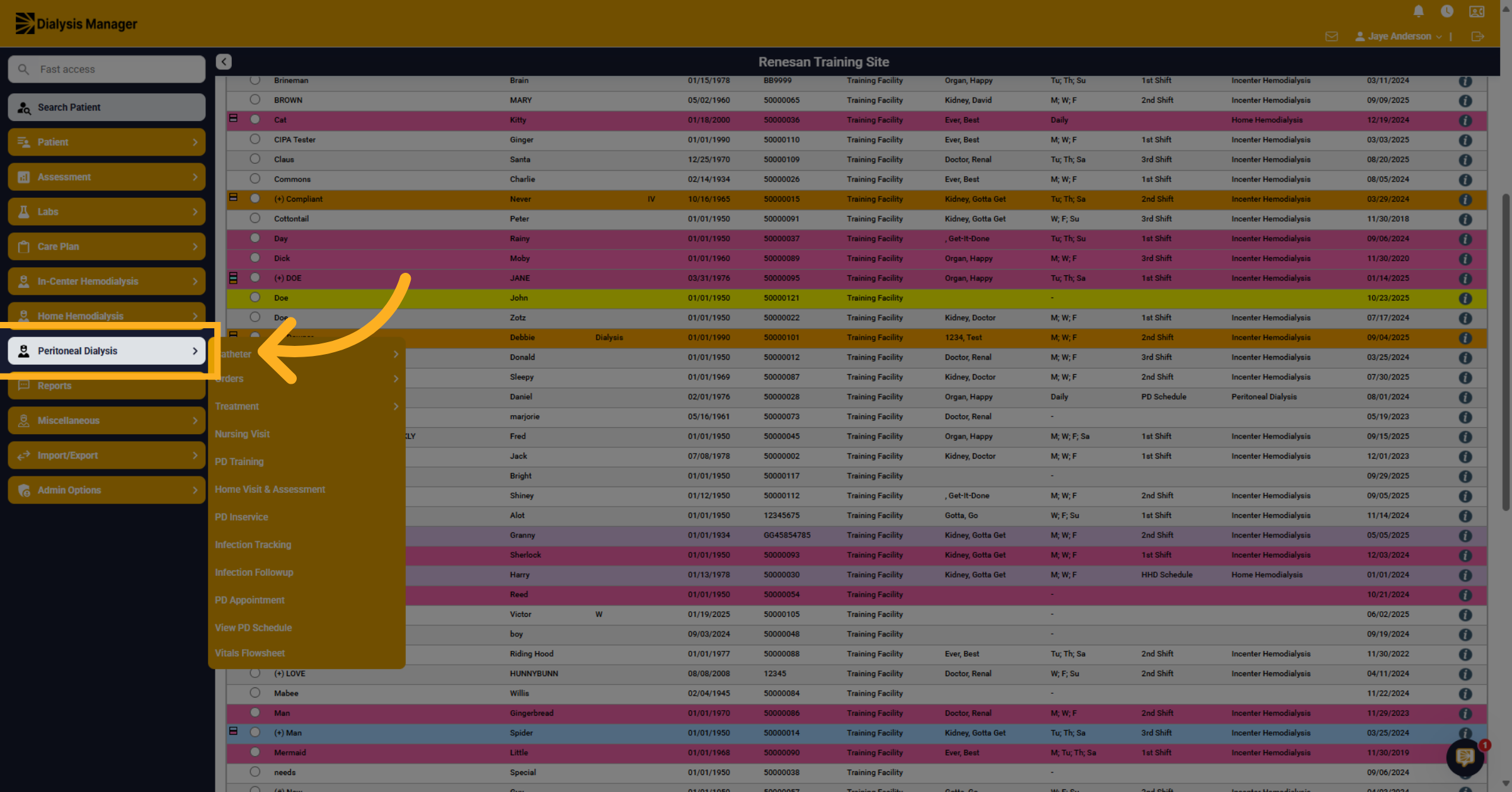
Select your patient and Click Peritoneal Dialysis.
3. Open Nursing Visit Section
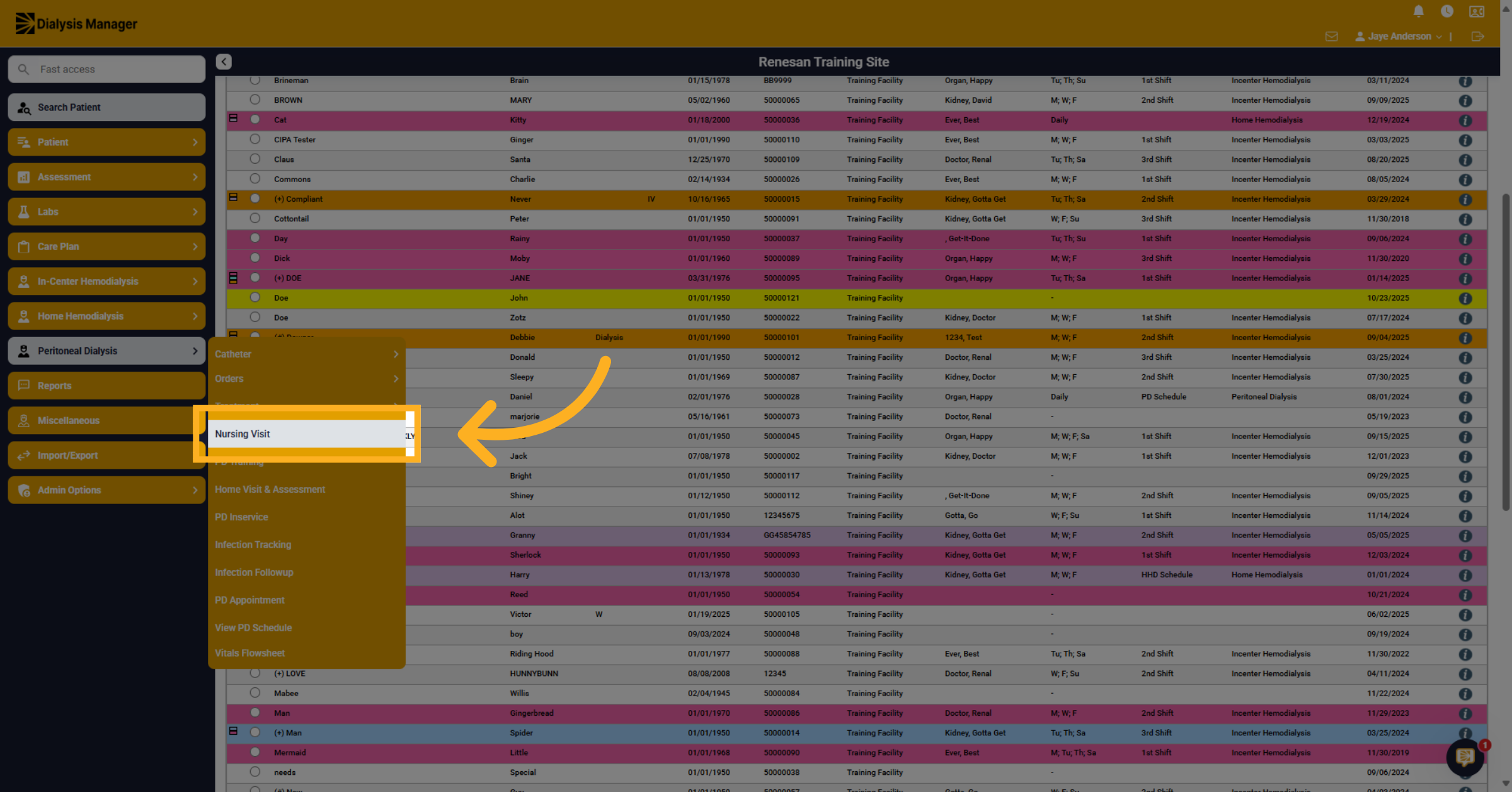
Click Nursing Visit.
4. Add New Nursing Visit
Click Add New Nursing Visit.
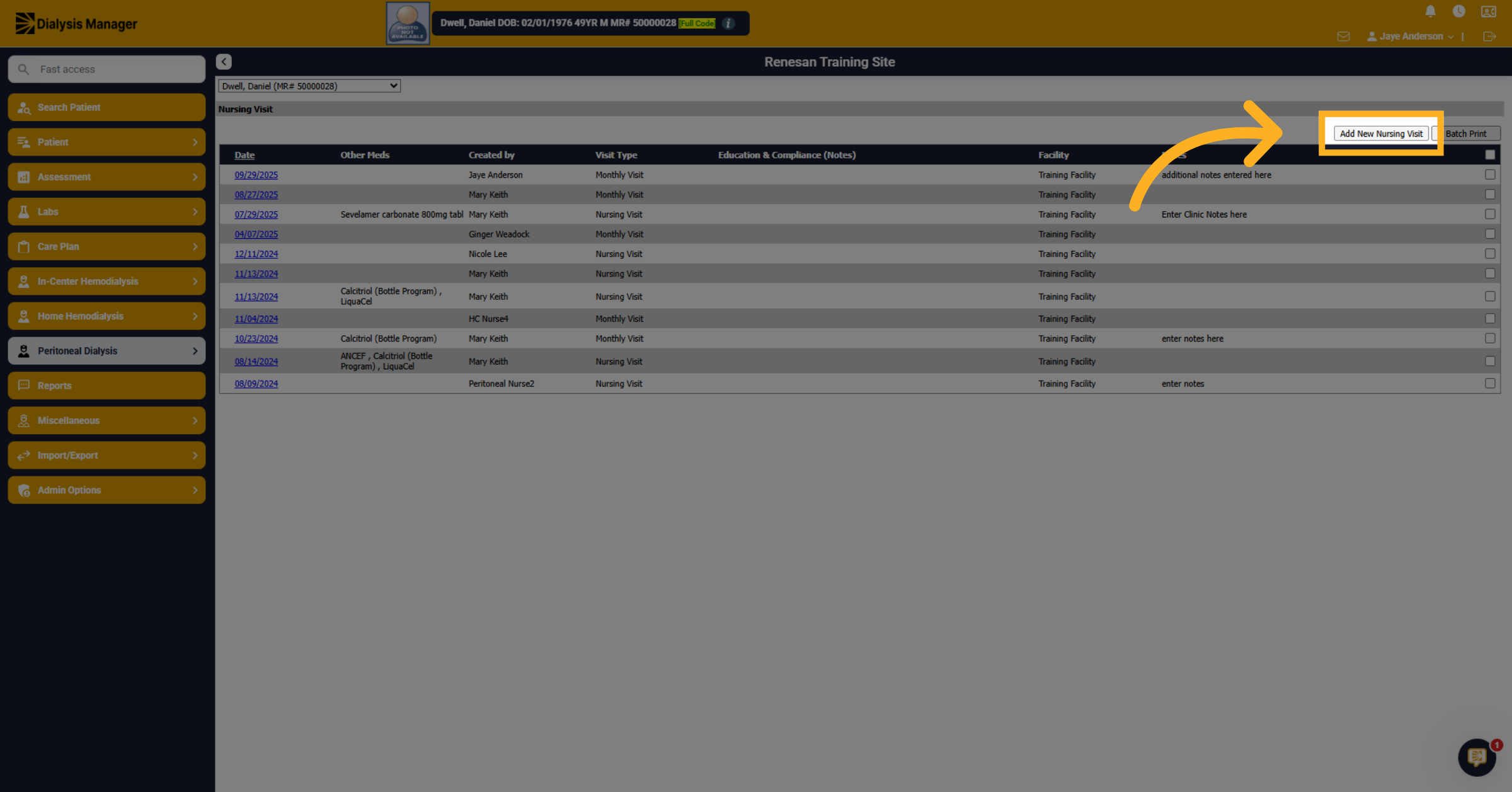
5. Select Sections
Notice the buttons along the top. You can choose any button and hover over some to view and go to those sections.
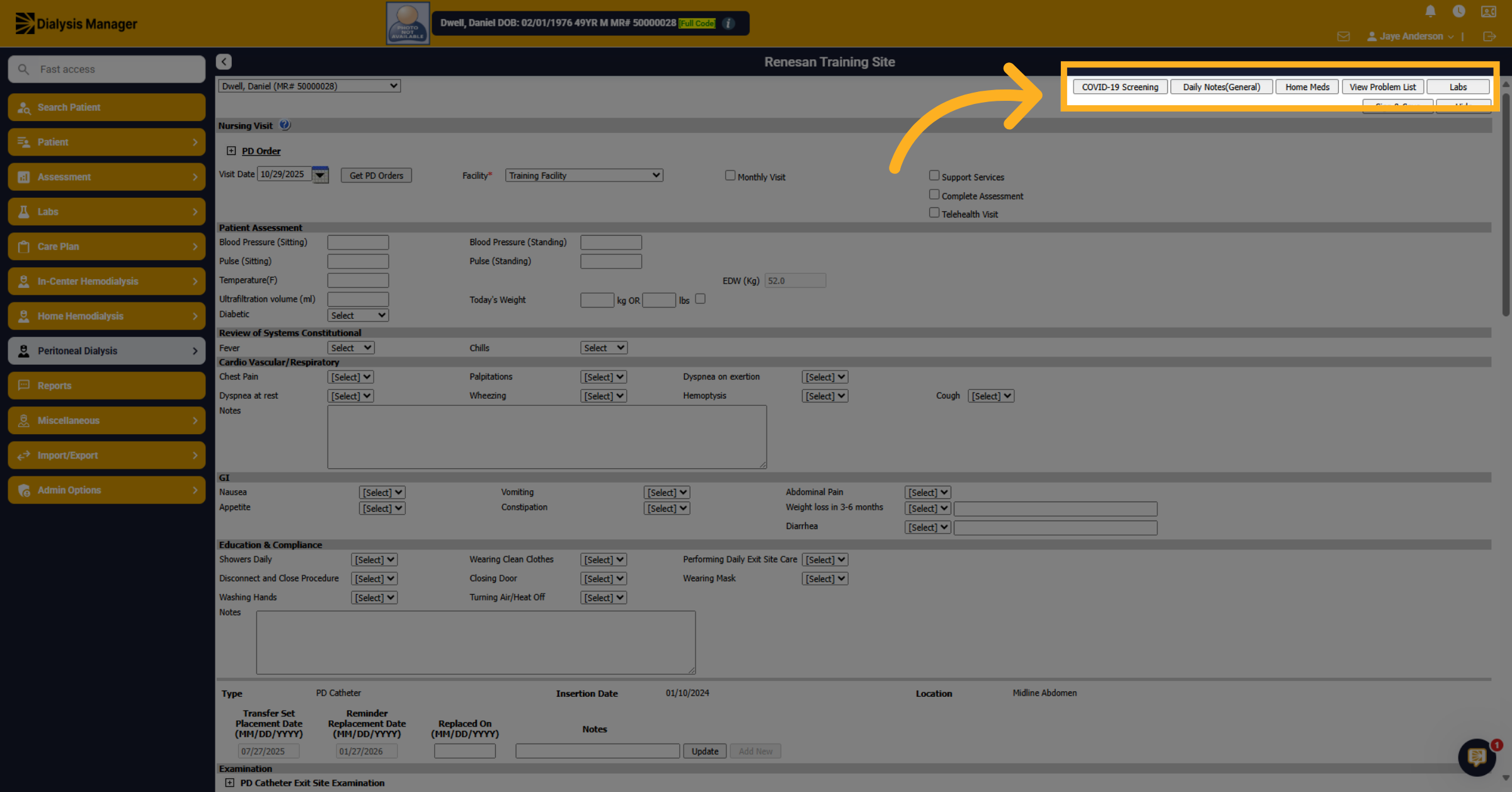
6. Expand Sections
Notice the plus sign within some sections. You can click to expand and view or chart different areas.
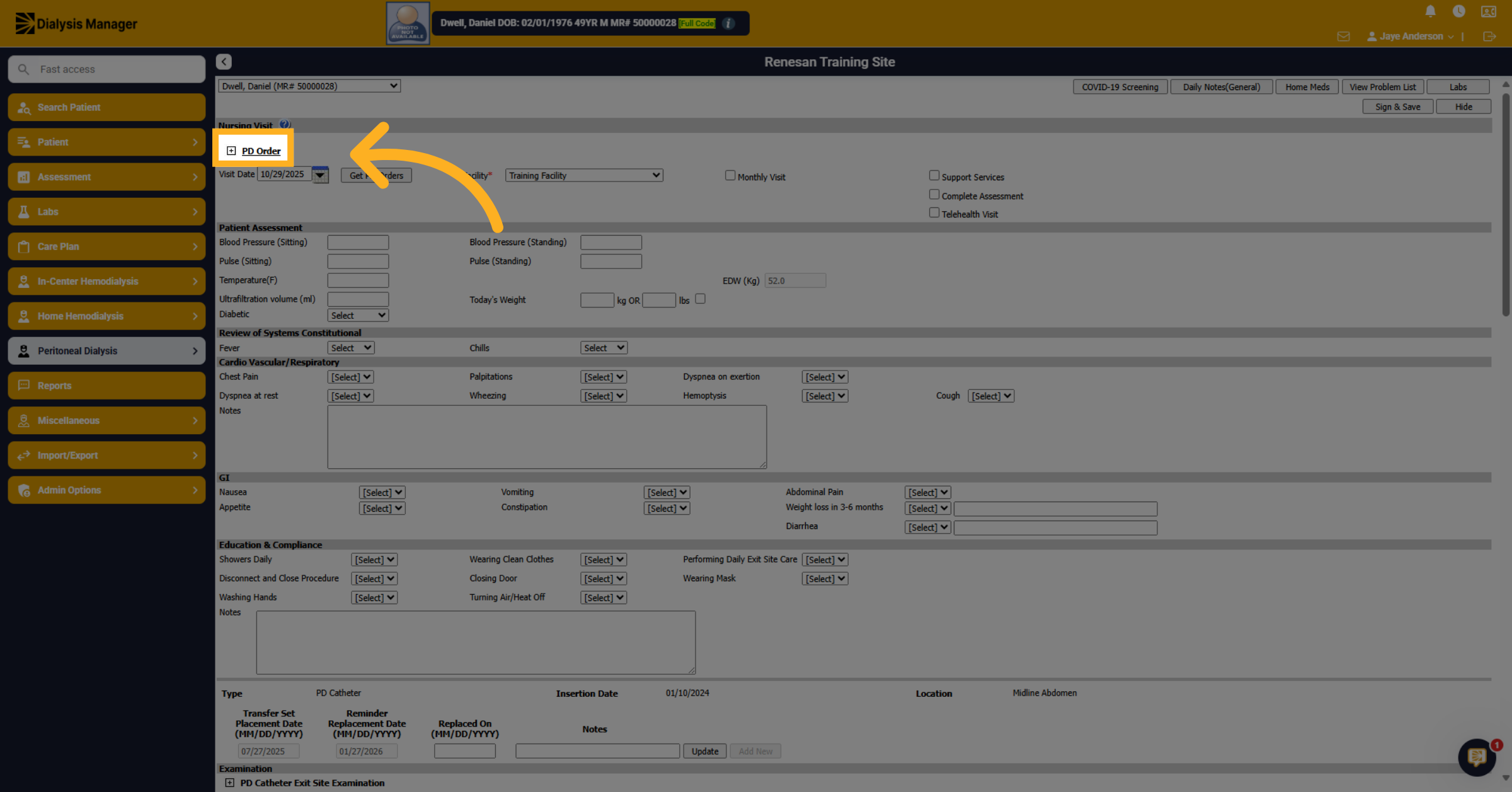
7. Expand Plus Signs
In this section it is a review of the PD Order.
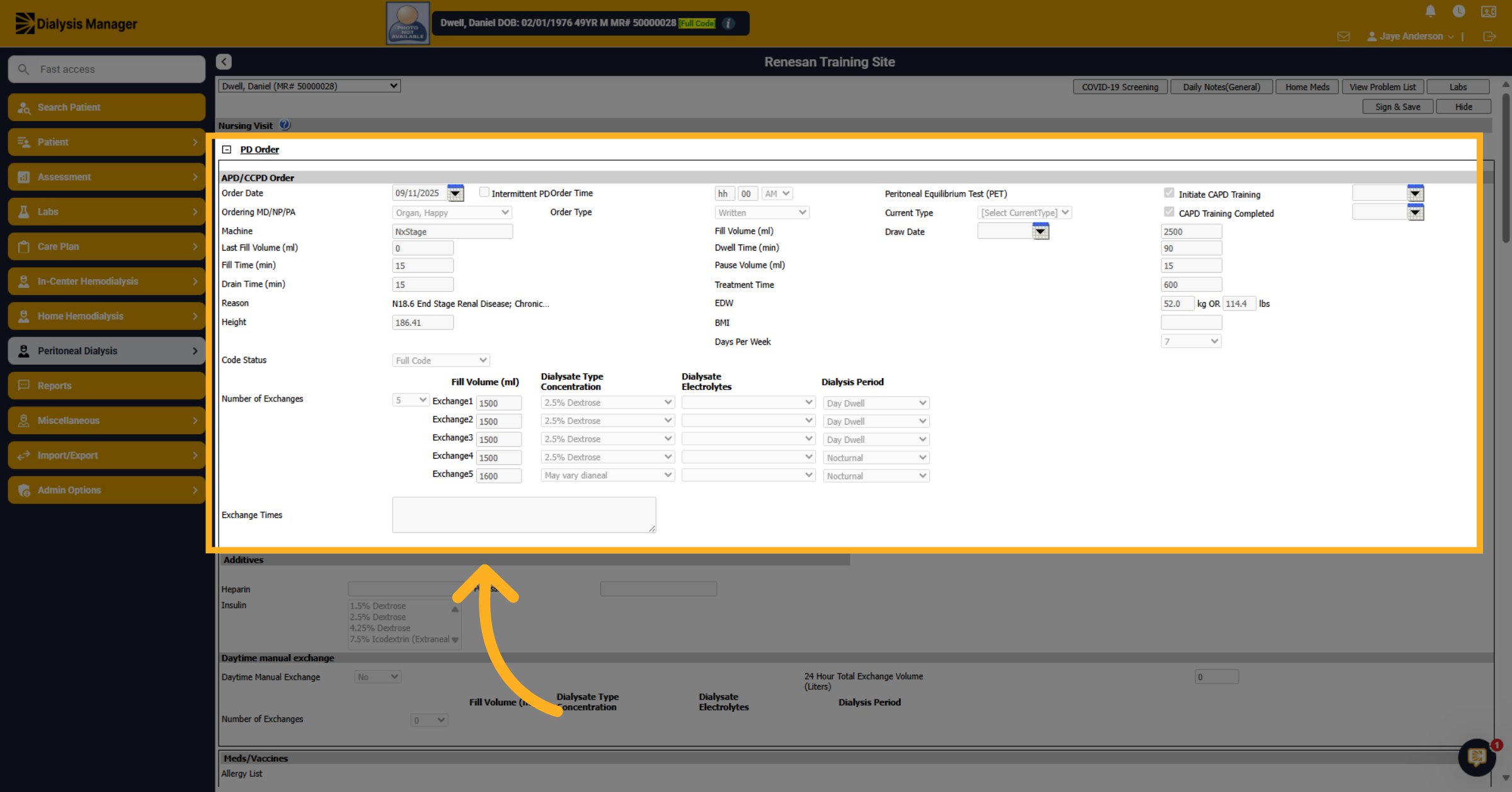
8. Choose Visit Type
Within this area, you have different options for your nursing visit.
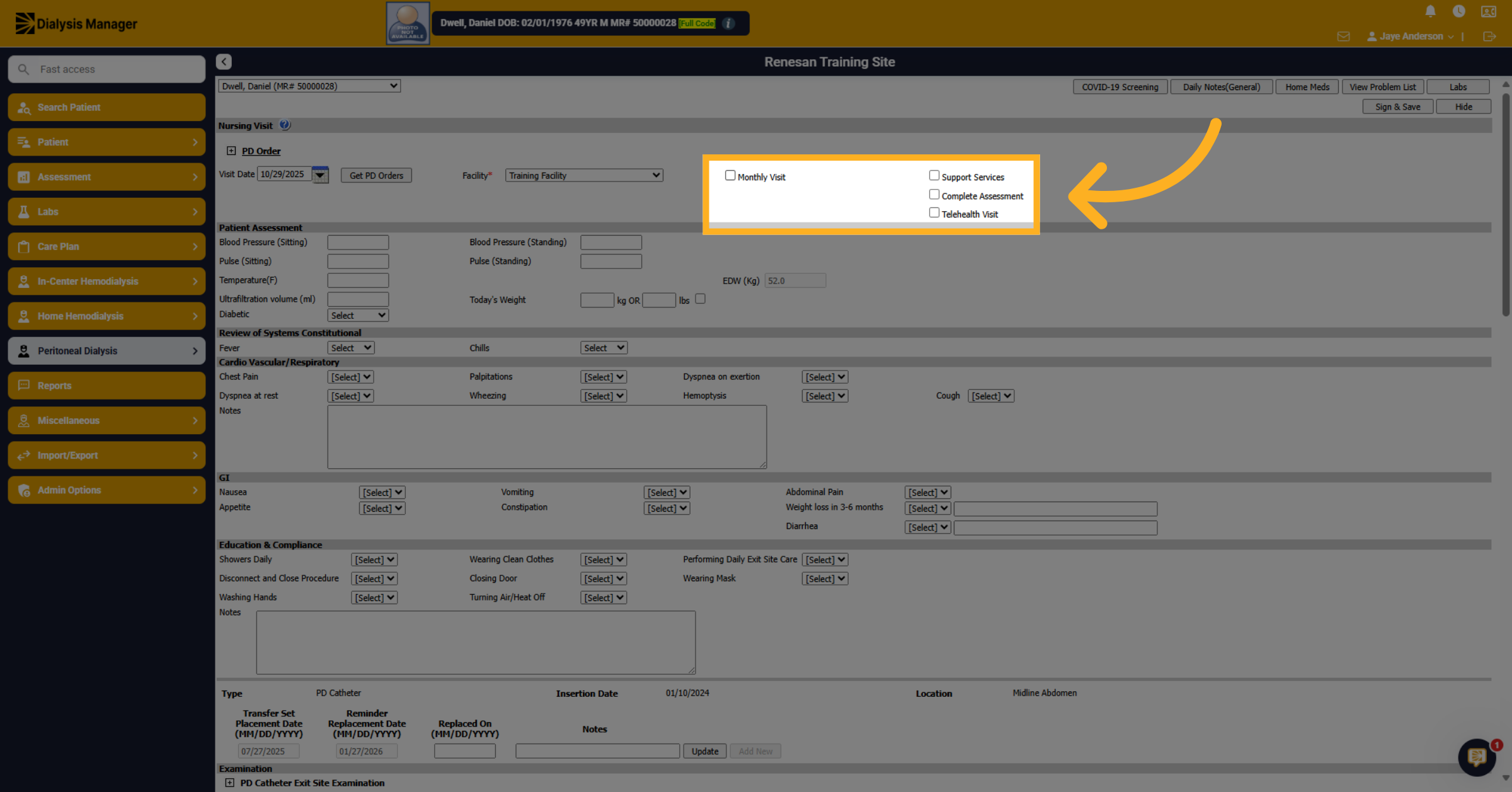
9. Select Monthly Visit
If you choose Monthly visit, it expands or opens other selection of options.
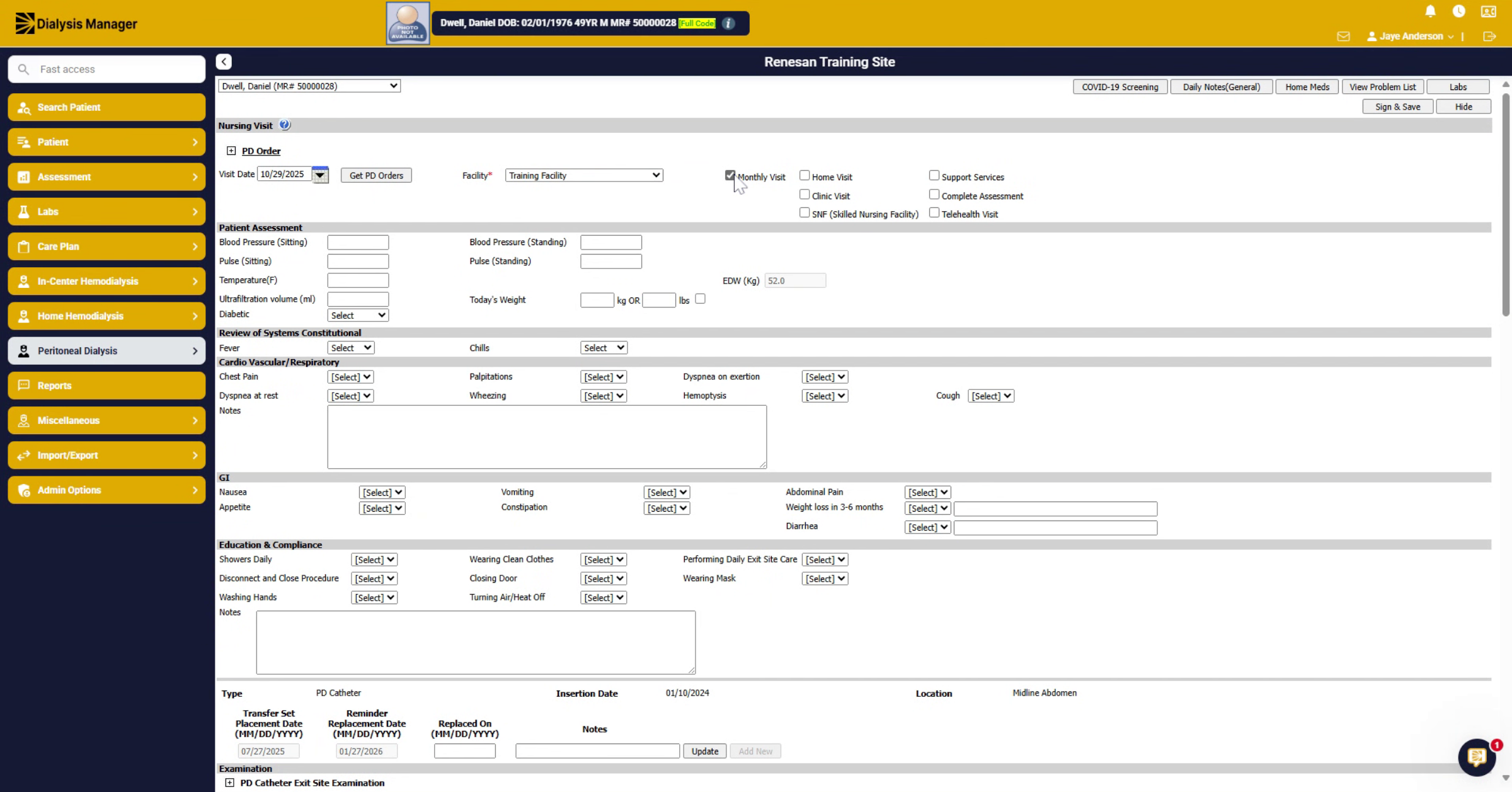
10. Fill Visit Details
Notice the different sections.
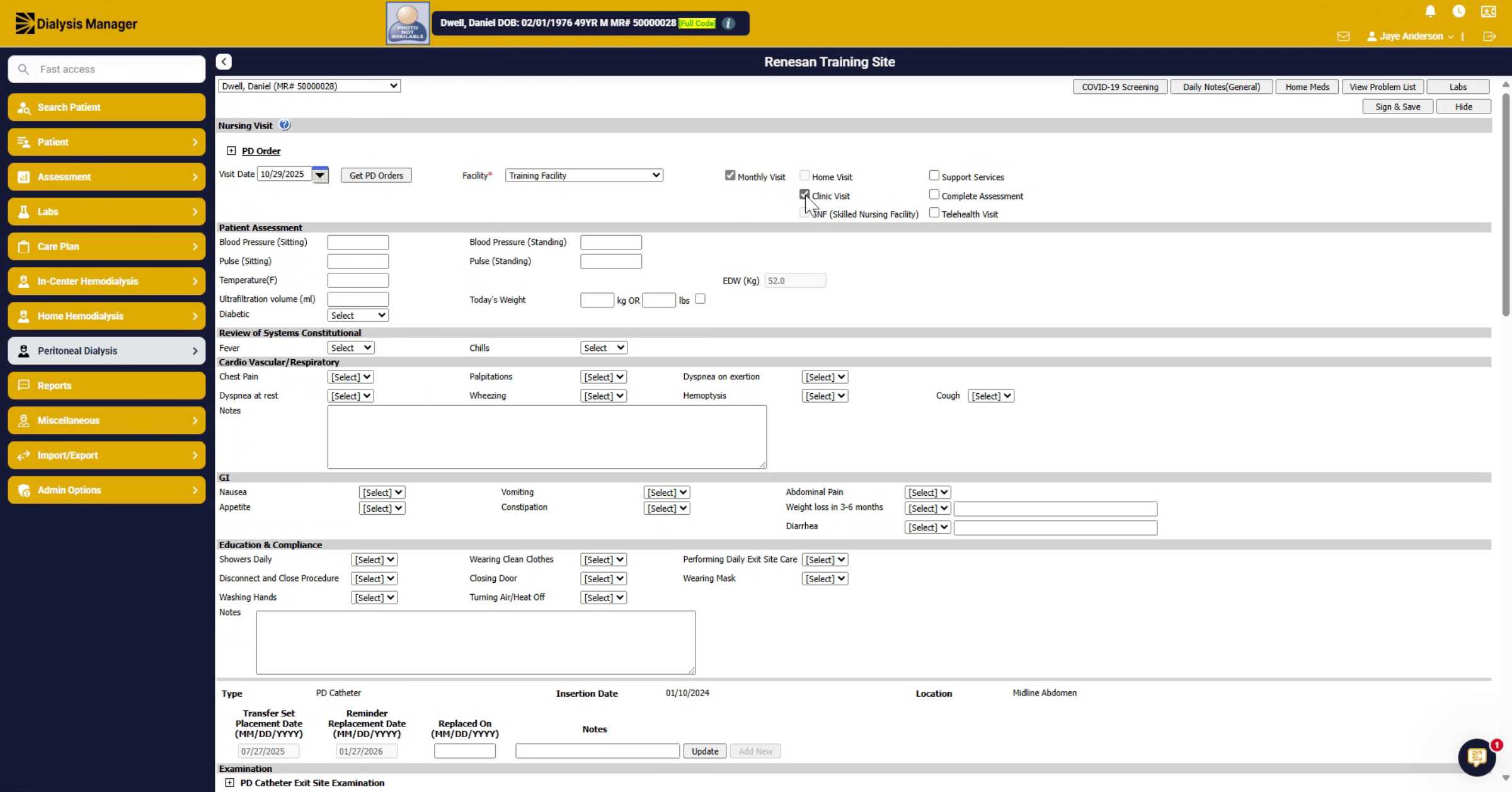
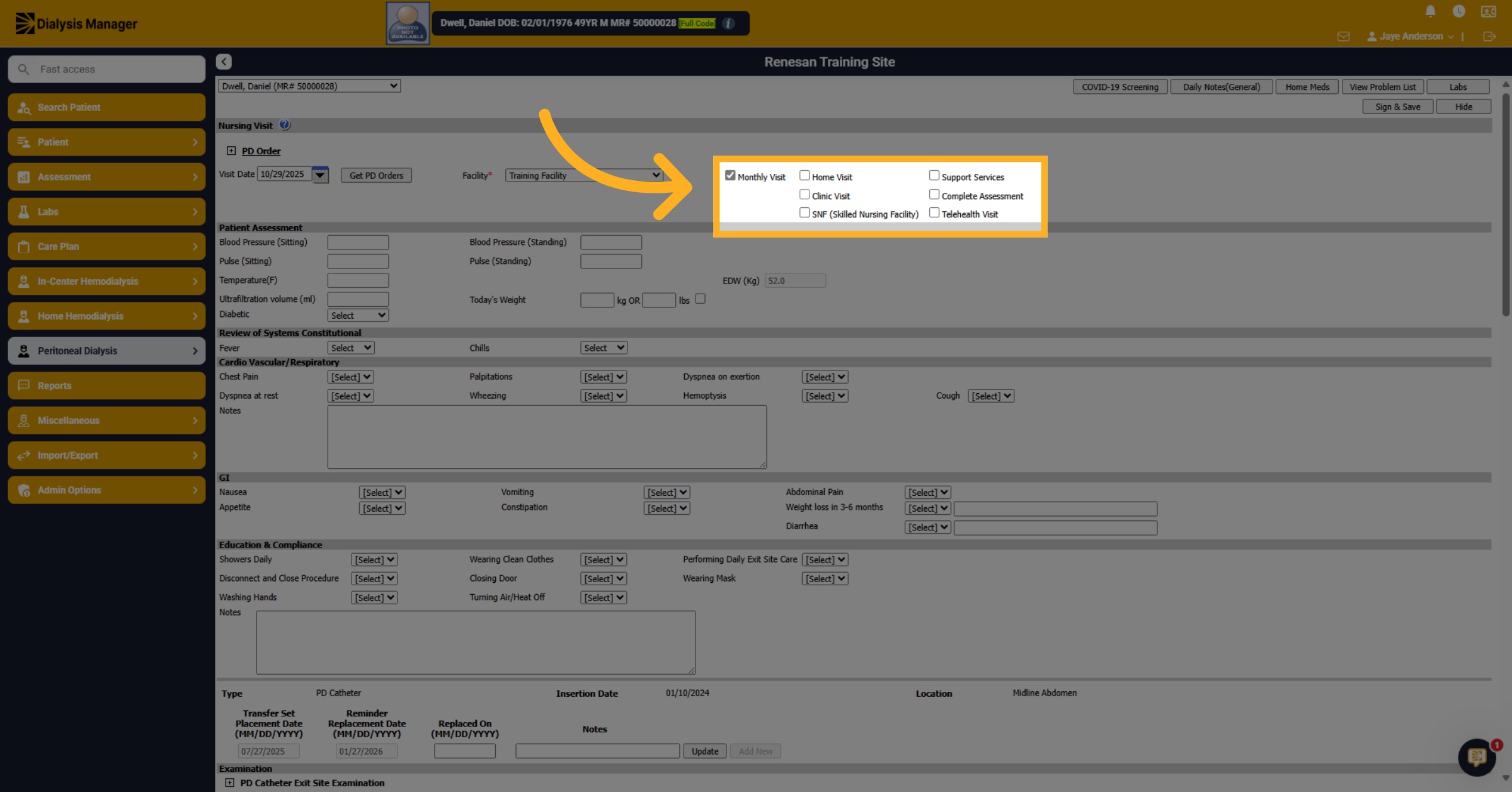
11. Monthly Visit Expanded
Or you can also mark that this is a support services visit or perhaps a telehealth visit.
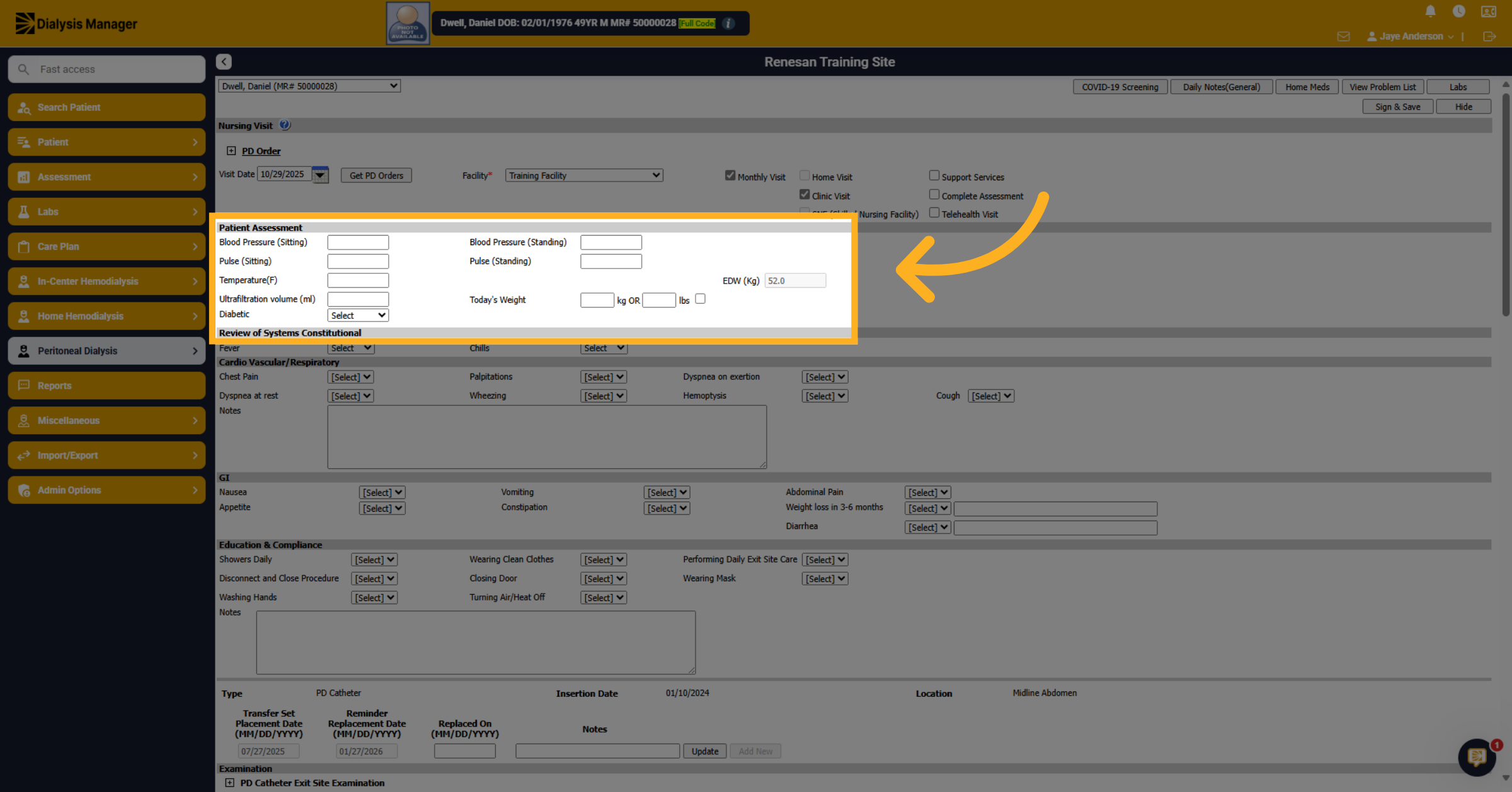
12. Patient Assessment Section
Here is the patient assessment section, if filled out, this will flow to the dialysis visit note for the physician, so they can view that information as well.
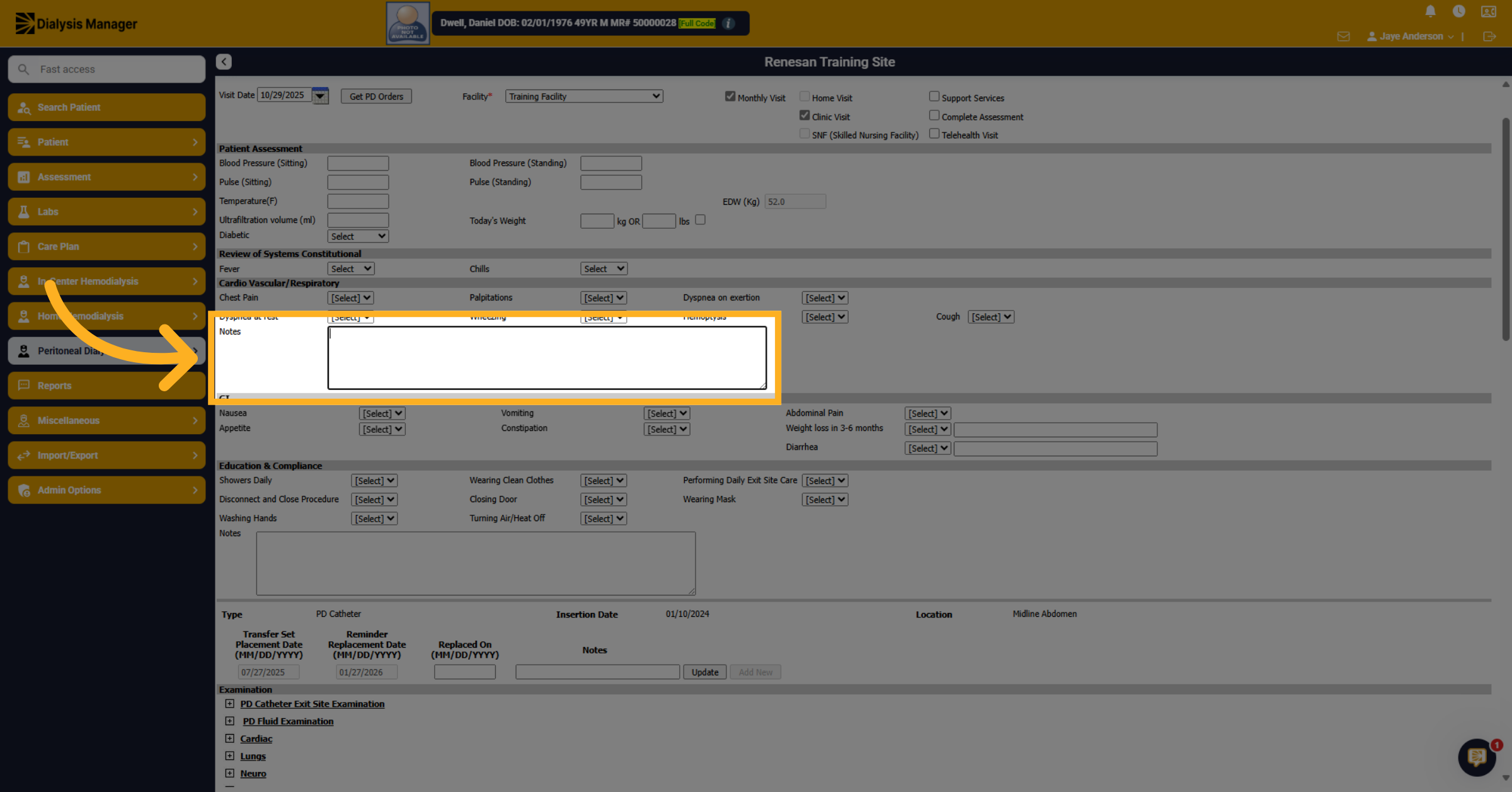
13. Enter Notes in Sections
Notice that some sections have notes; here is where you can enter notes for that particular section.
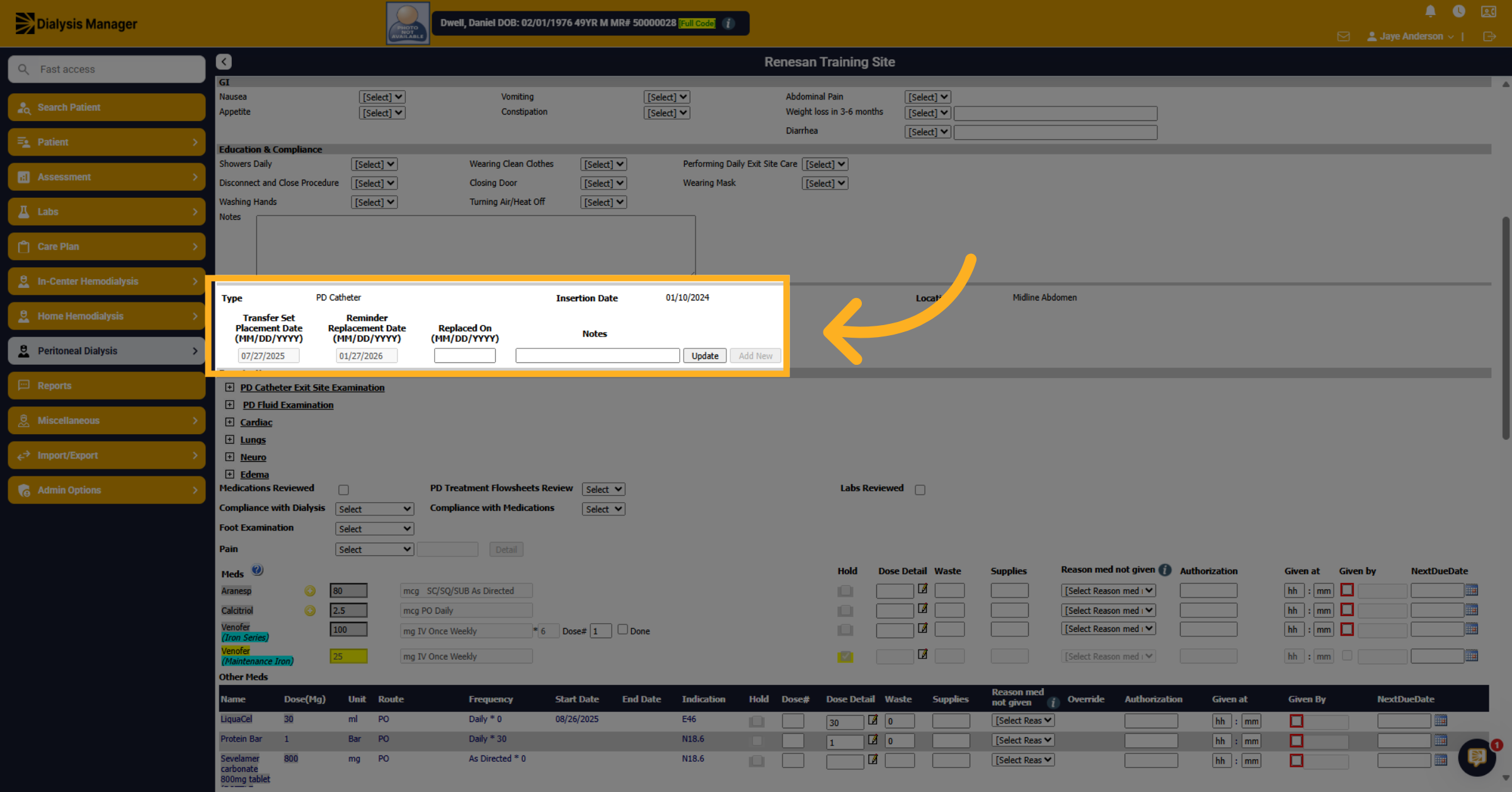
14. Access Transfer Set Placement Date
This transfer set placement date crosses from the PD Catheter documentation section.
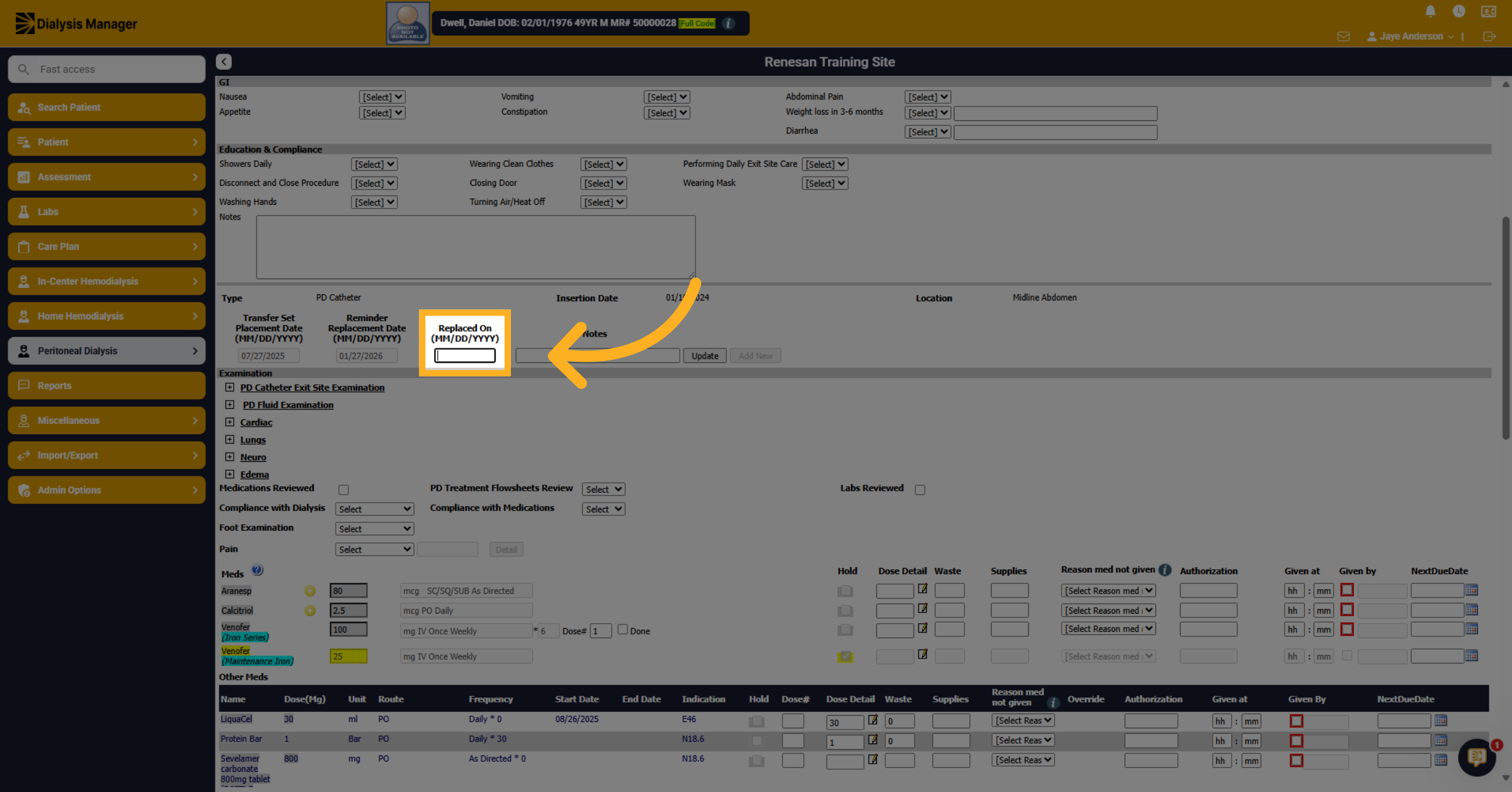
15. Enter Replacement Date
When entering the replaced-on date and clicking update; it will automatically update to the next 6 months. This can also be manually adjusted. You will also see a history listed below.
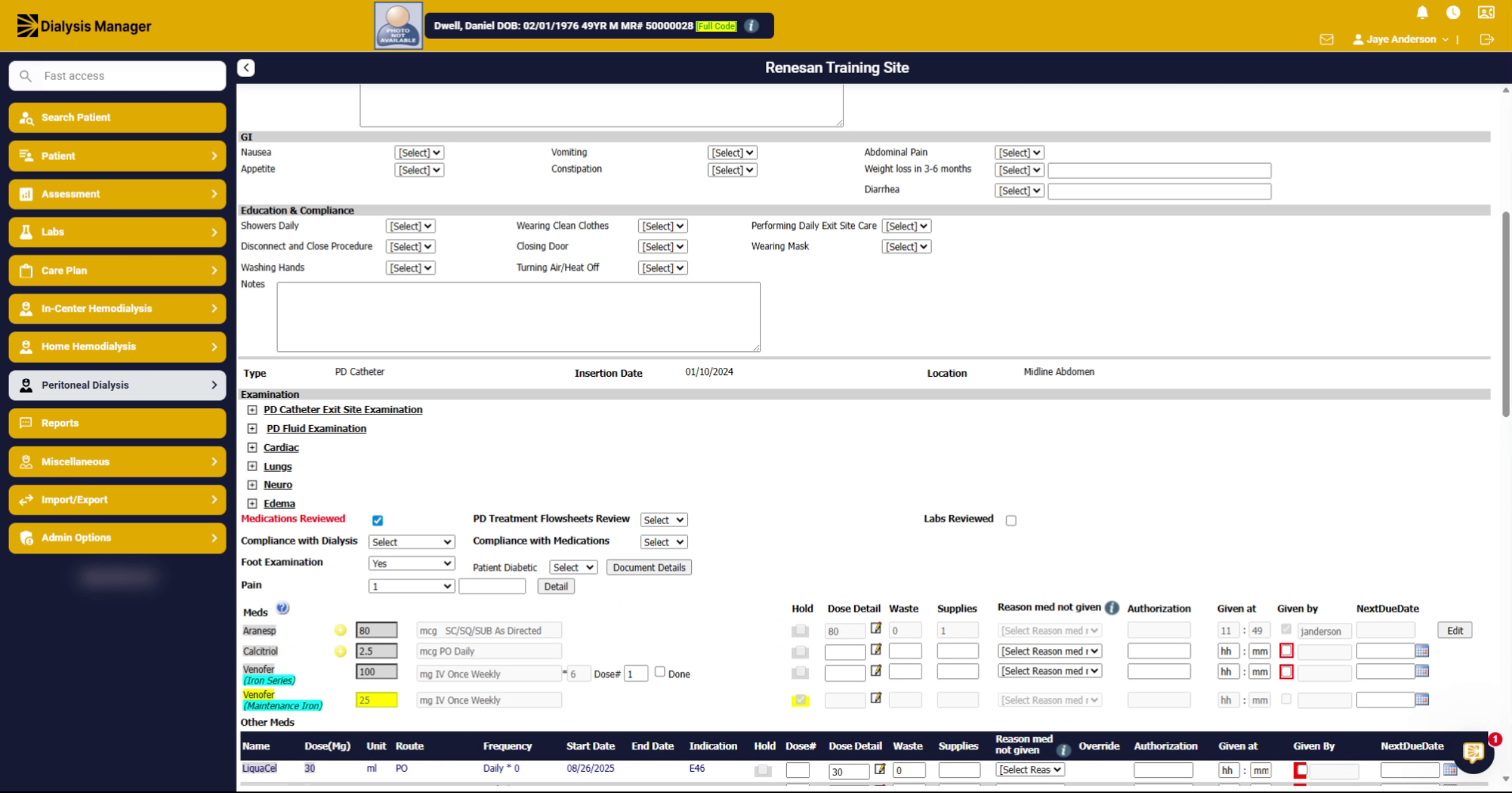
16. Document Examination Areas
Under the examination section, you can document different areas.
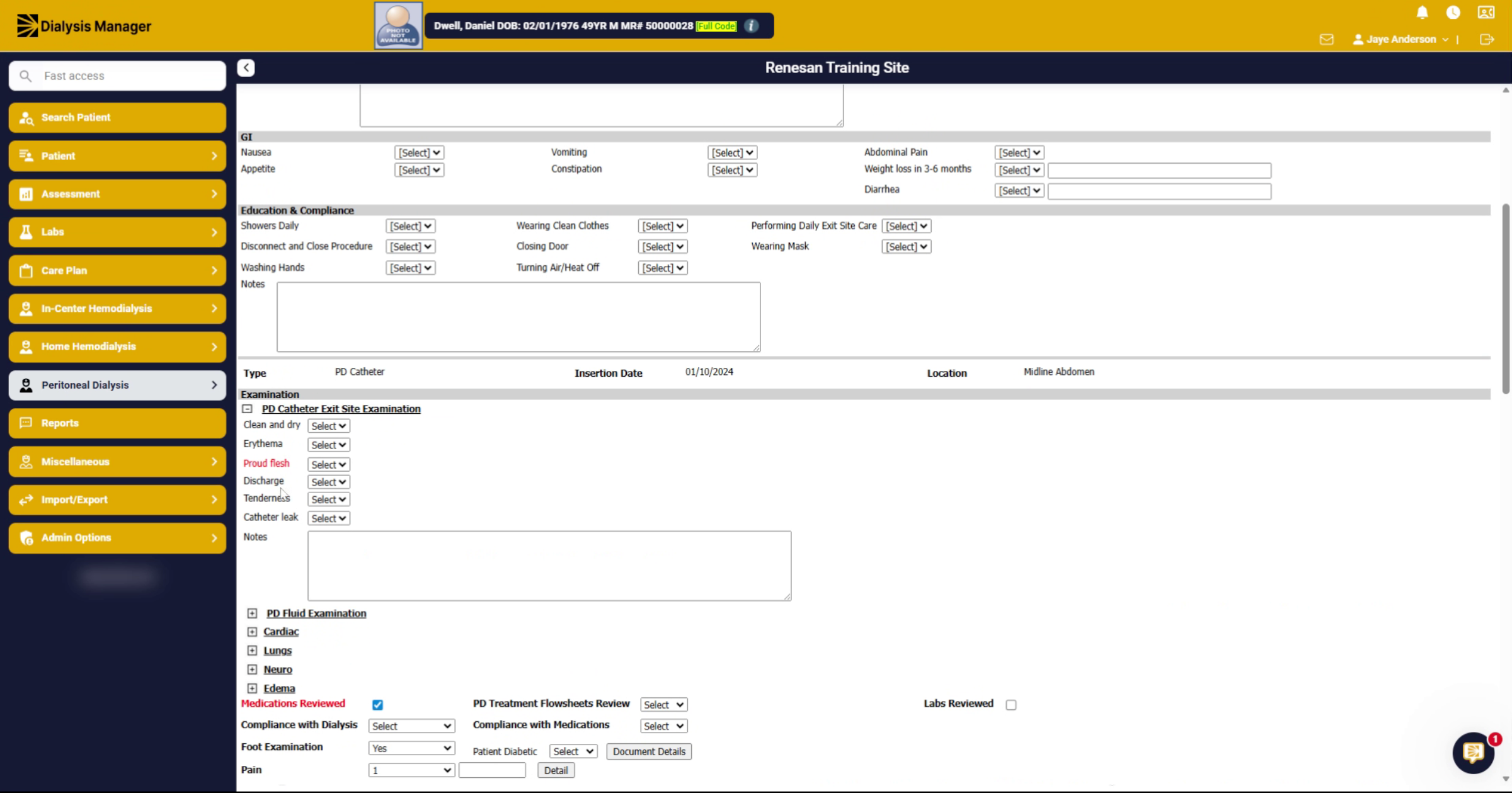
17. Respond to Examination Prompts
Depending on the question. Here, in this example, if you say yes, it will open additional options for you to either add notes or select a drop-down option.
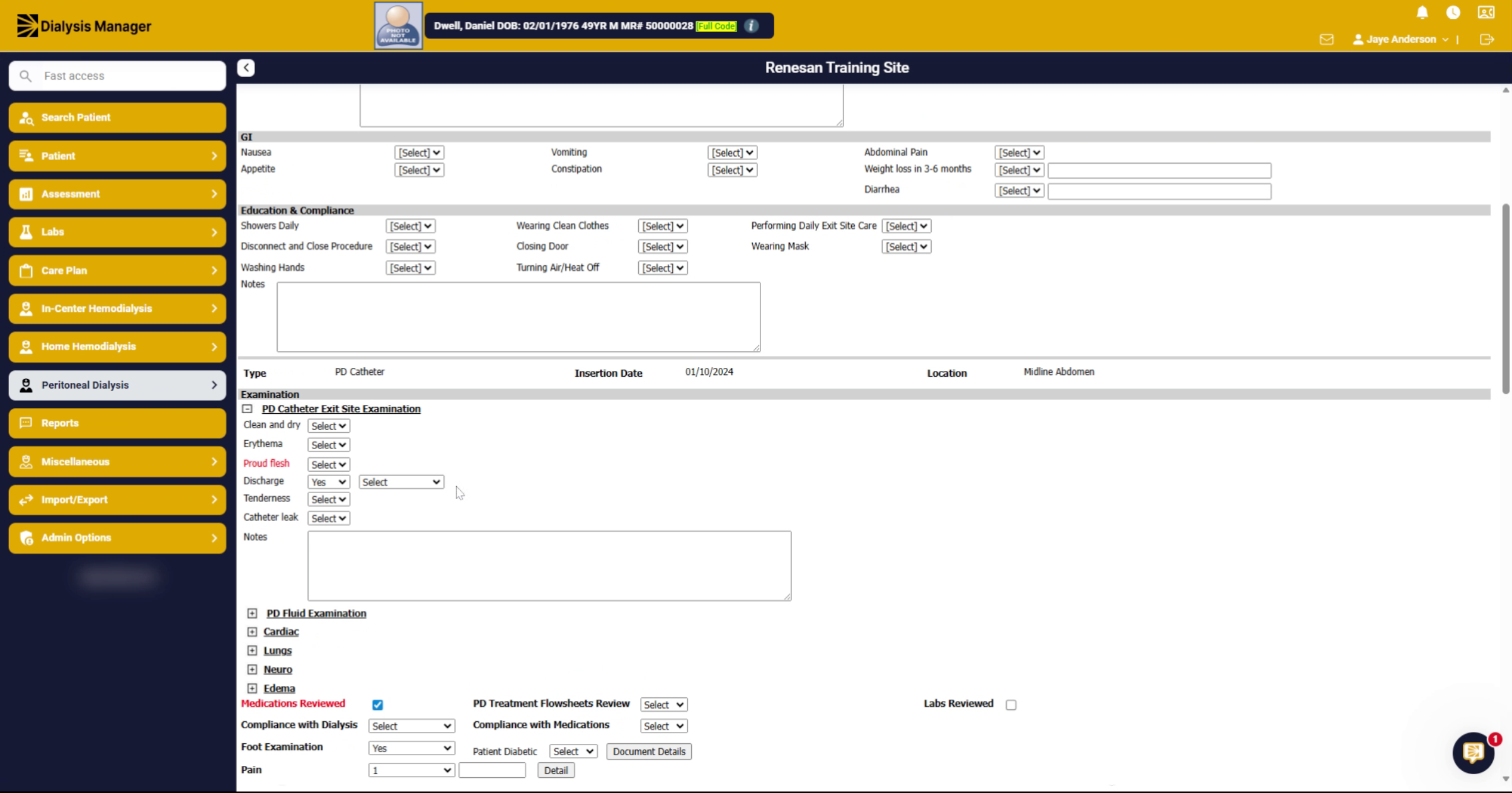
18. Access Examination Section
Here you can see the Discharge and Tenderness sections for the PD Catheter Exit Site Examination.
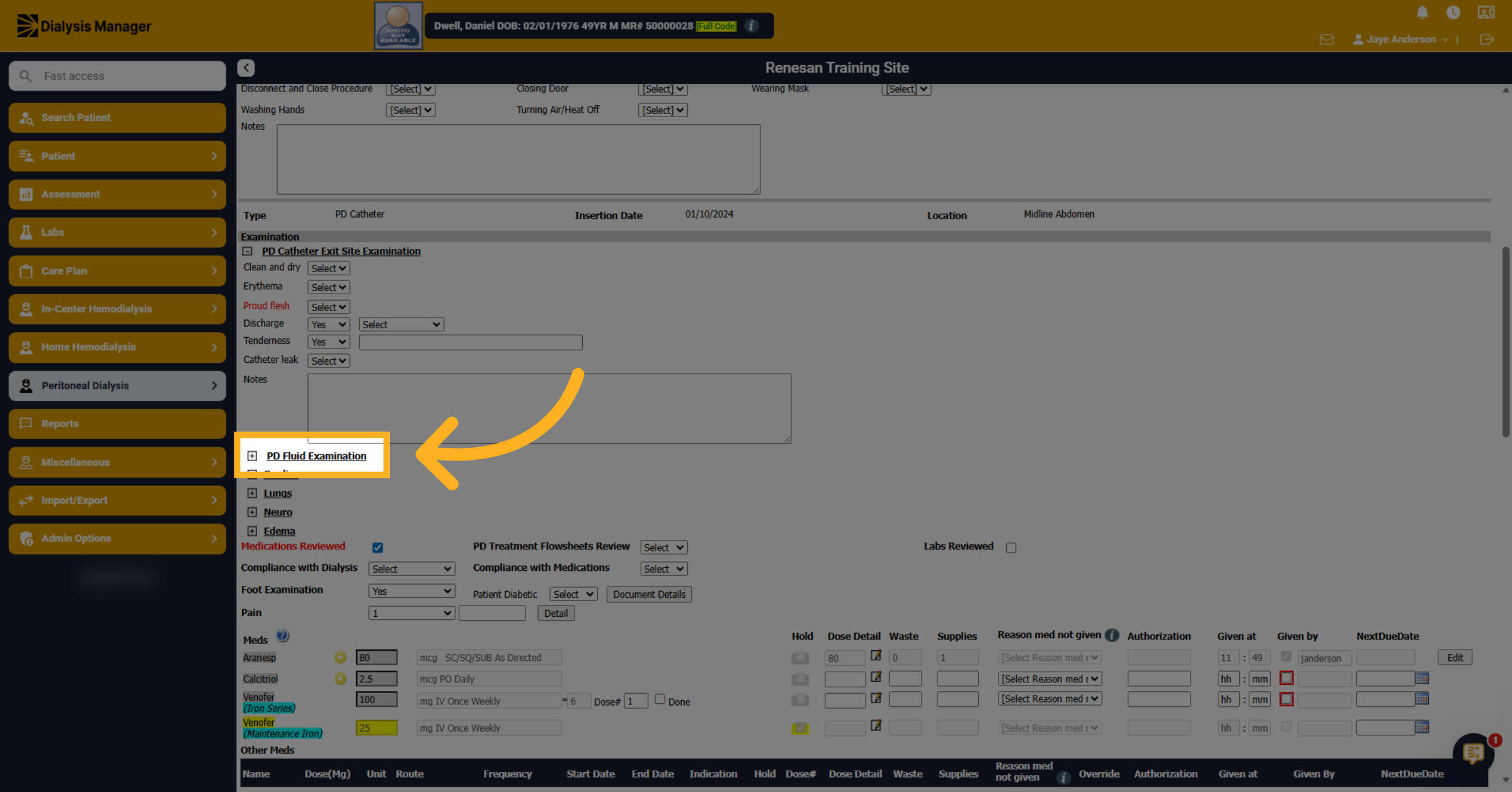
19. Review PD Fluid Exam Section
Click the plus sign to expand and document on the PD fluid examination section.
20. Select Yes or No Option
Select yes or no to indicate the presence of specific examination findings.
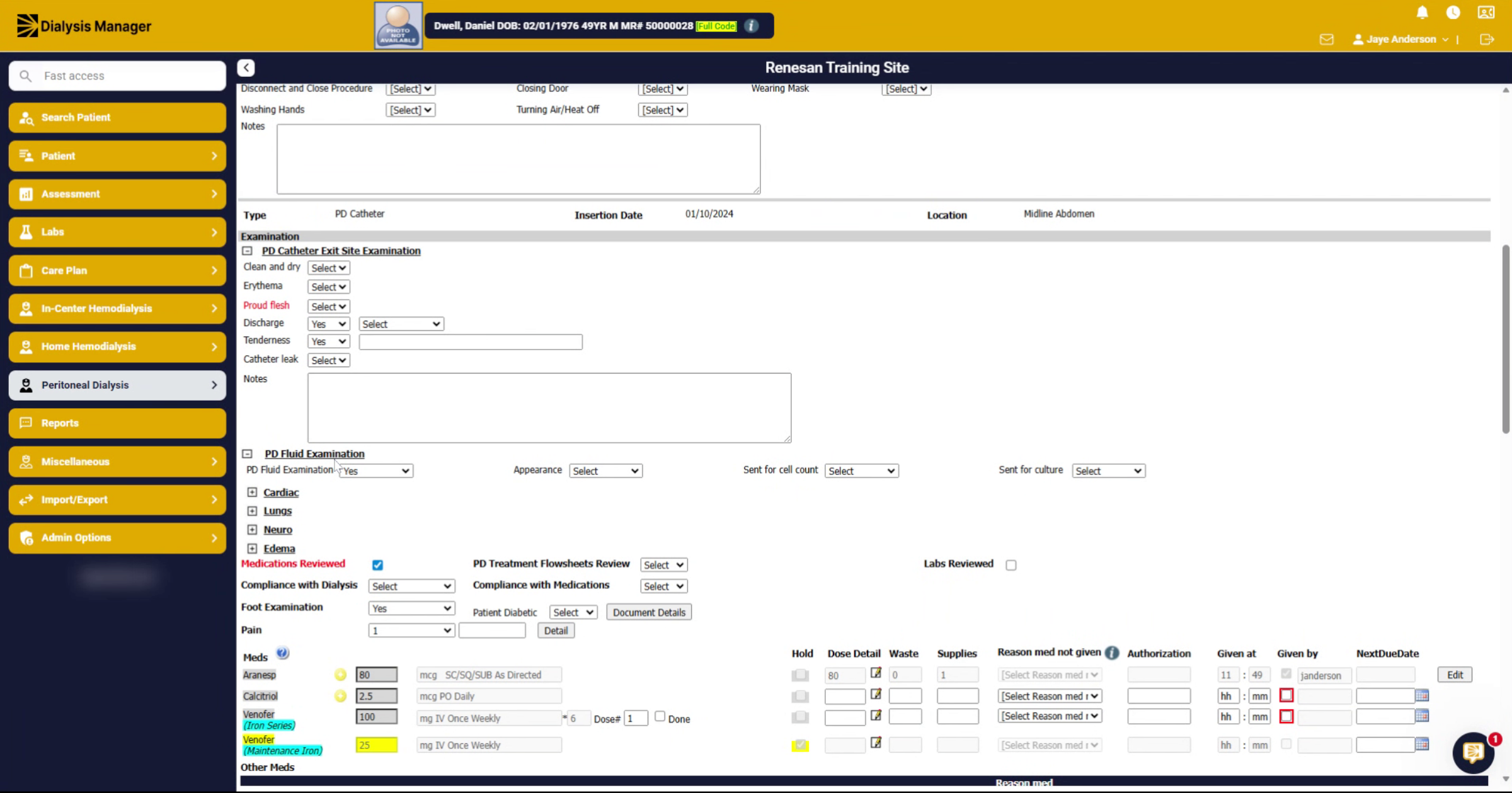
21. Choose Additional PD Fluid Appearance
Choose the appearance of the PD fluid from options like clear, cloudy, blood tinged, or other.
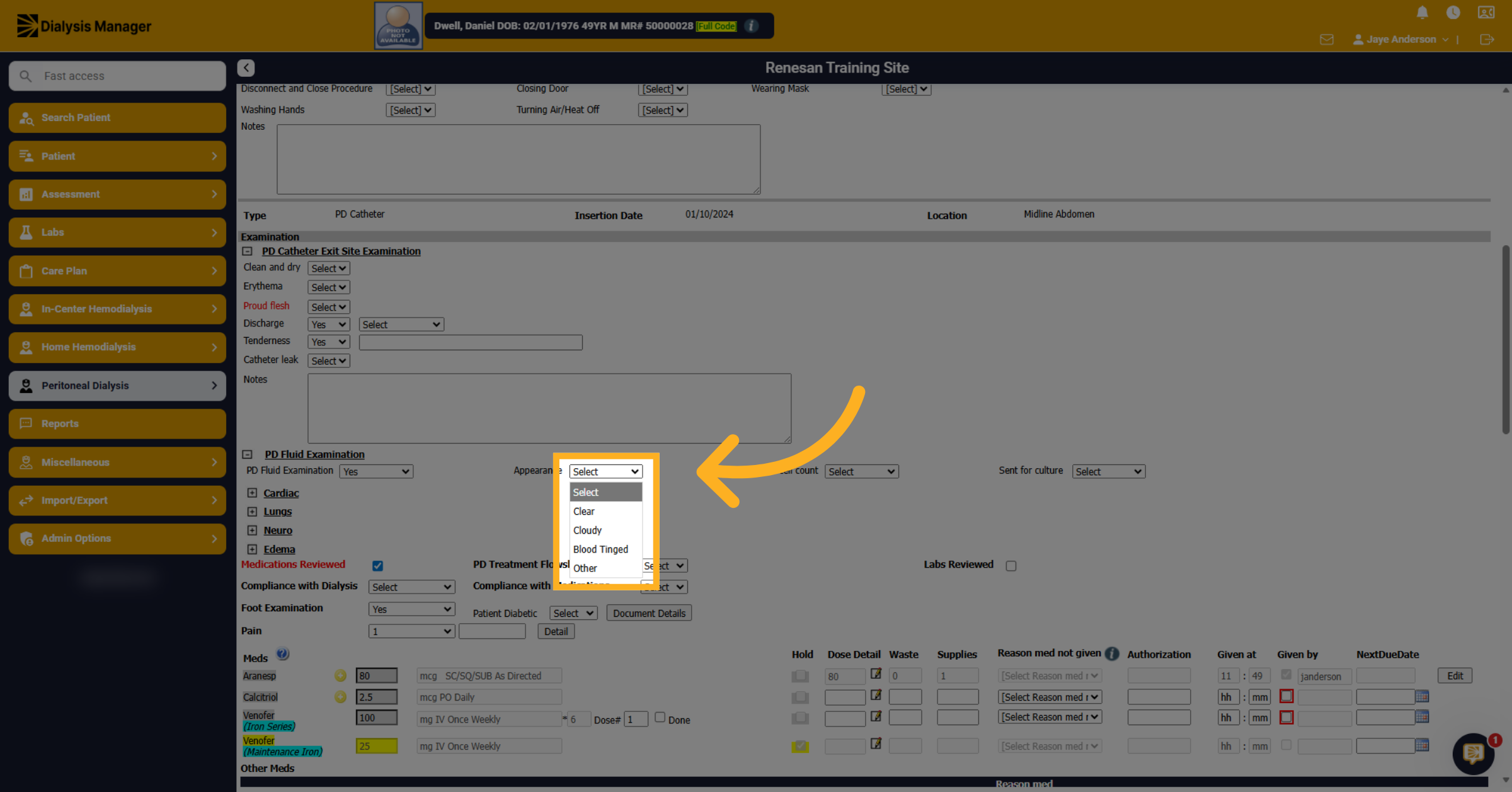
22. Choose Additional PD Fluid Appearance
Complete the additional sections using the available drop-down options.
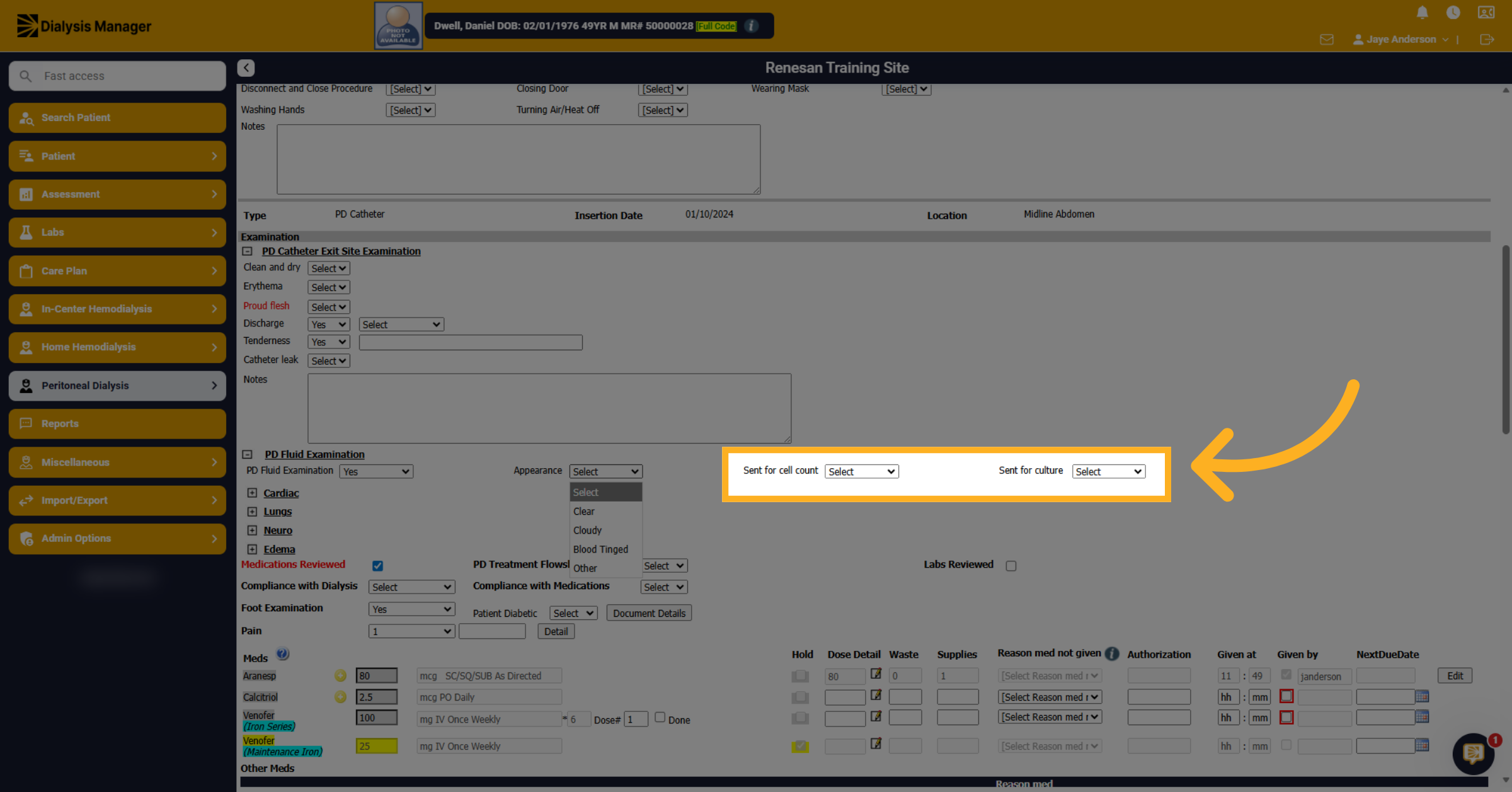
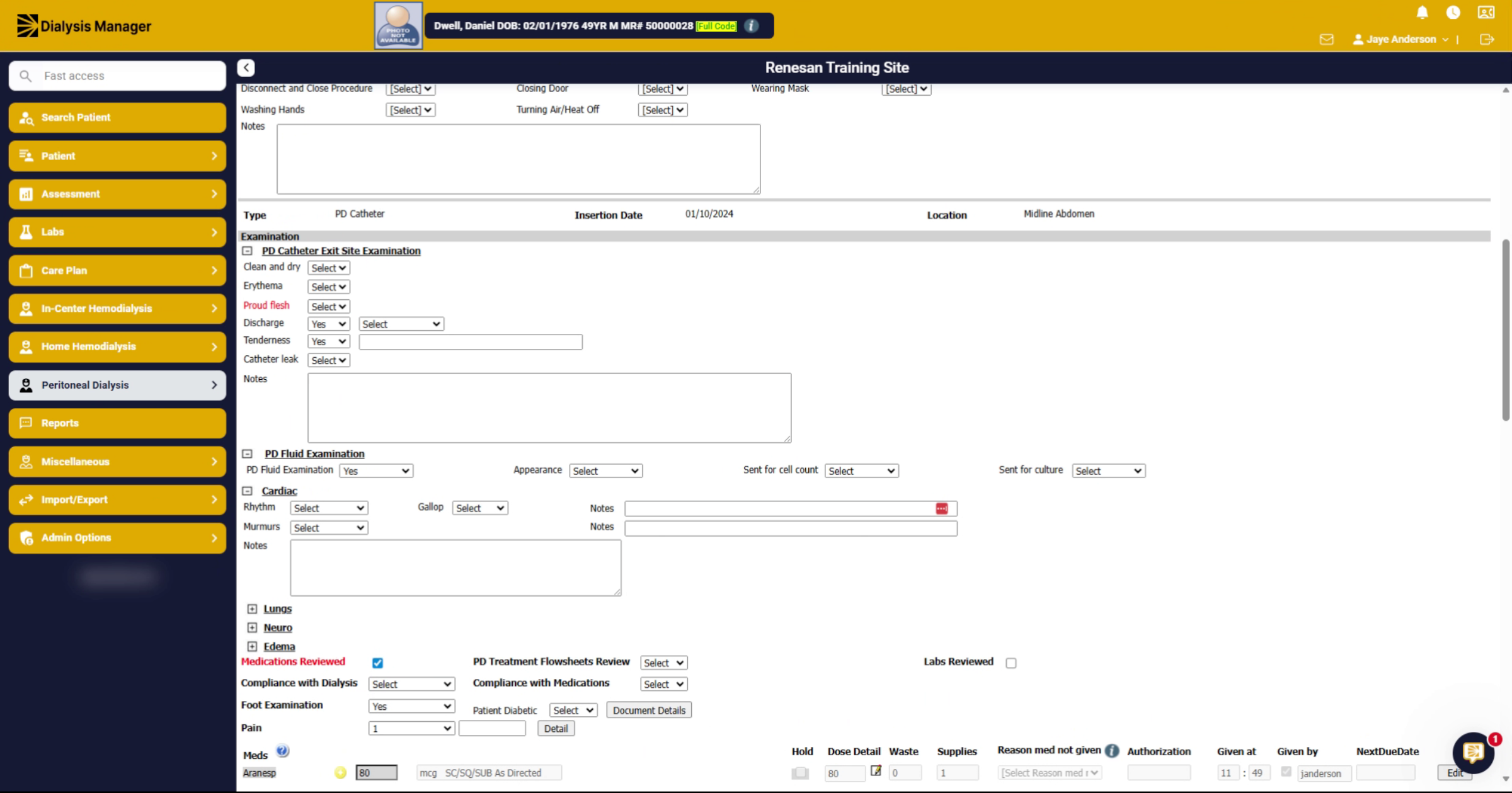
23. Access Cardiac Examination
Click here to proceed to the cardiac examination section.
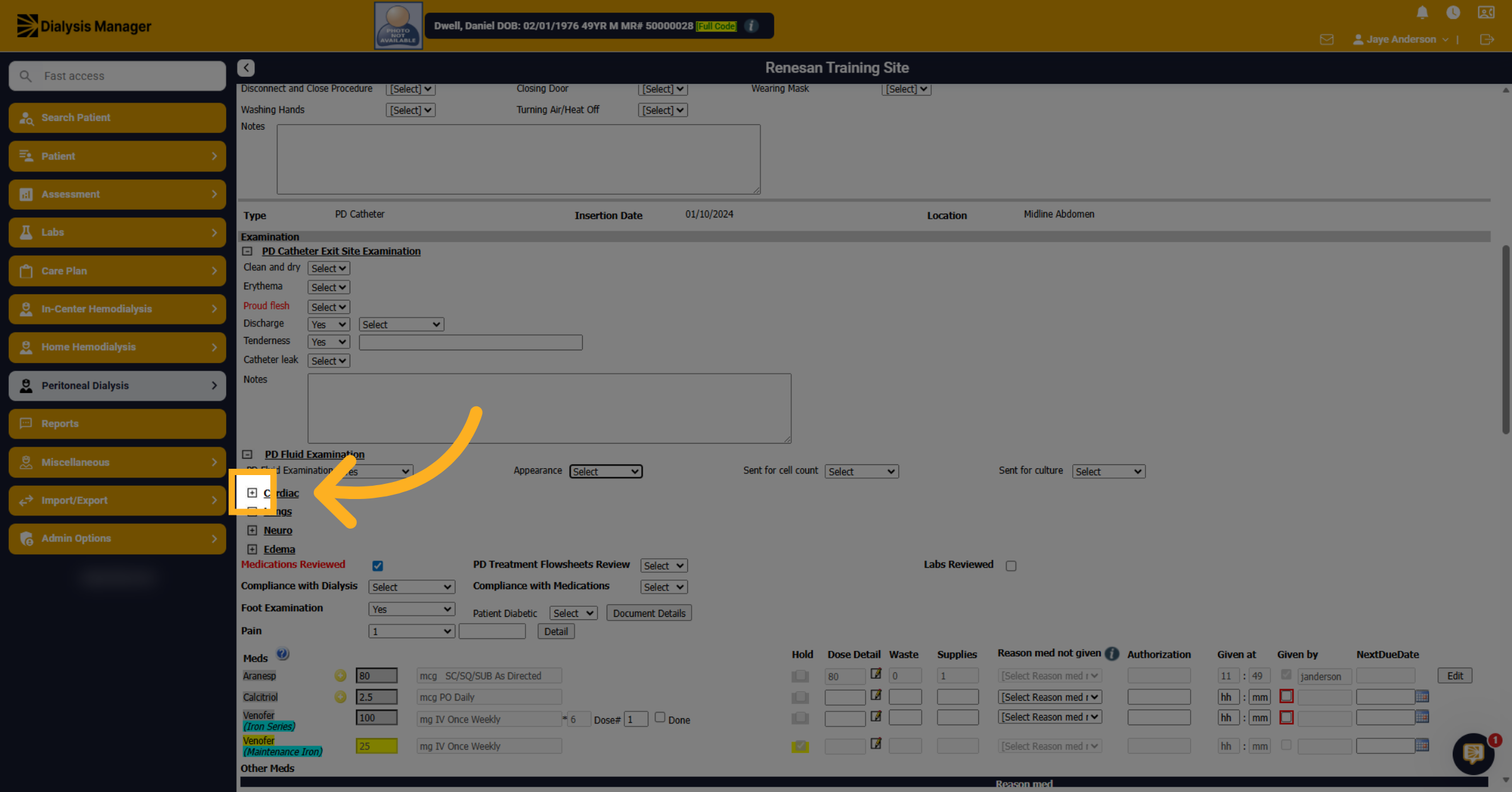
24. Access Lung and Edema Sections
Complete and fill out any notes related to the Cardiac section.
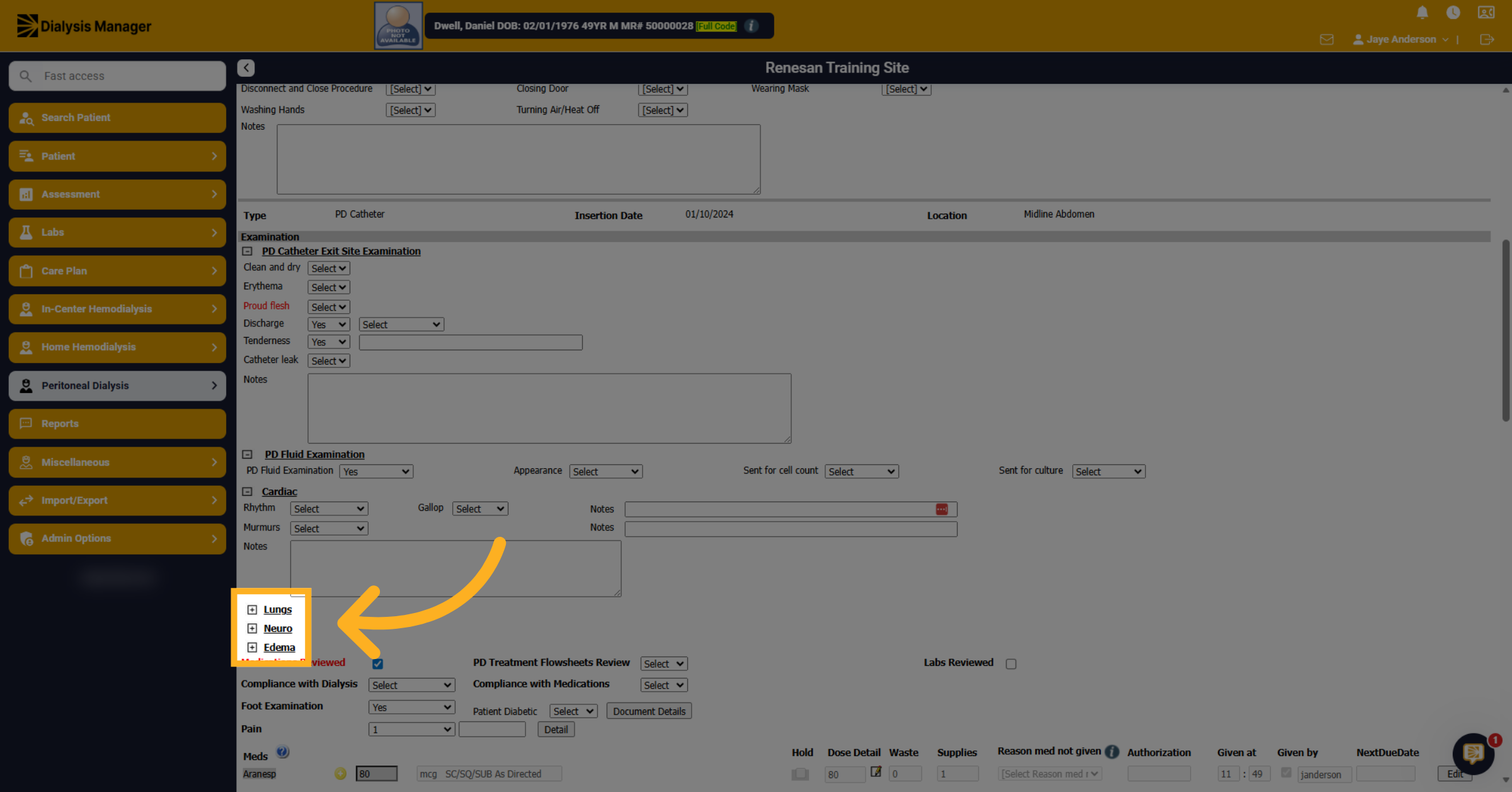
25. Access Lung and Edema Sections
Click here to expand and access the lungs, Neuro, and edema sections as well.
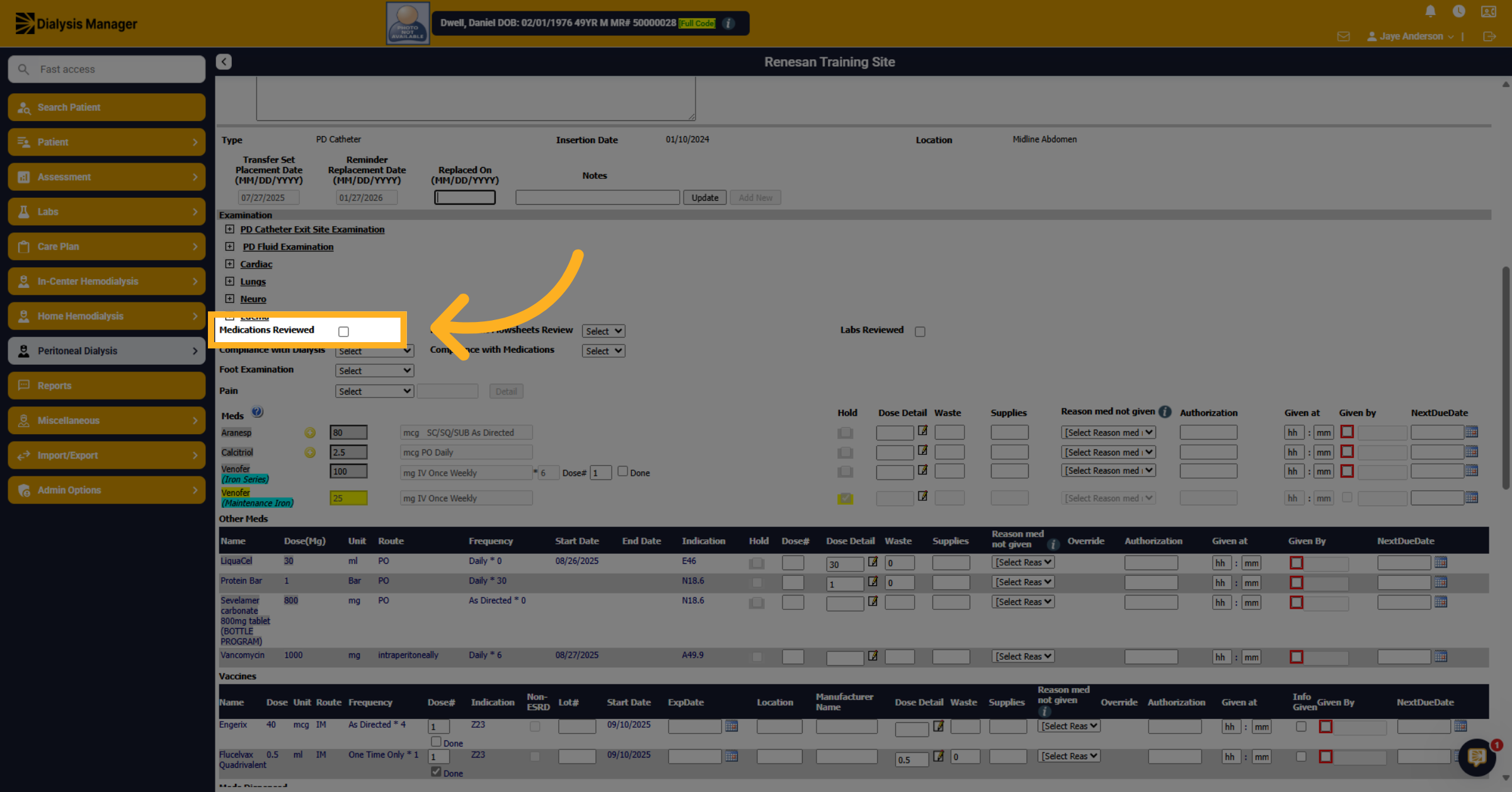
26. Medication Reviewed
The medications reviewed is simply stating that you've reviewed the dialysis medications.
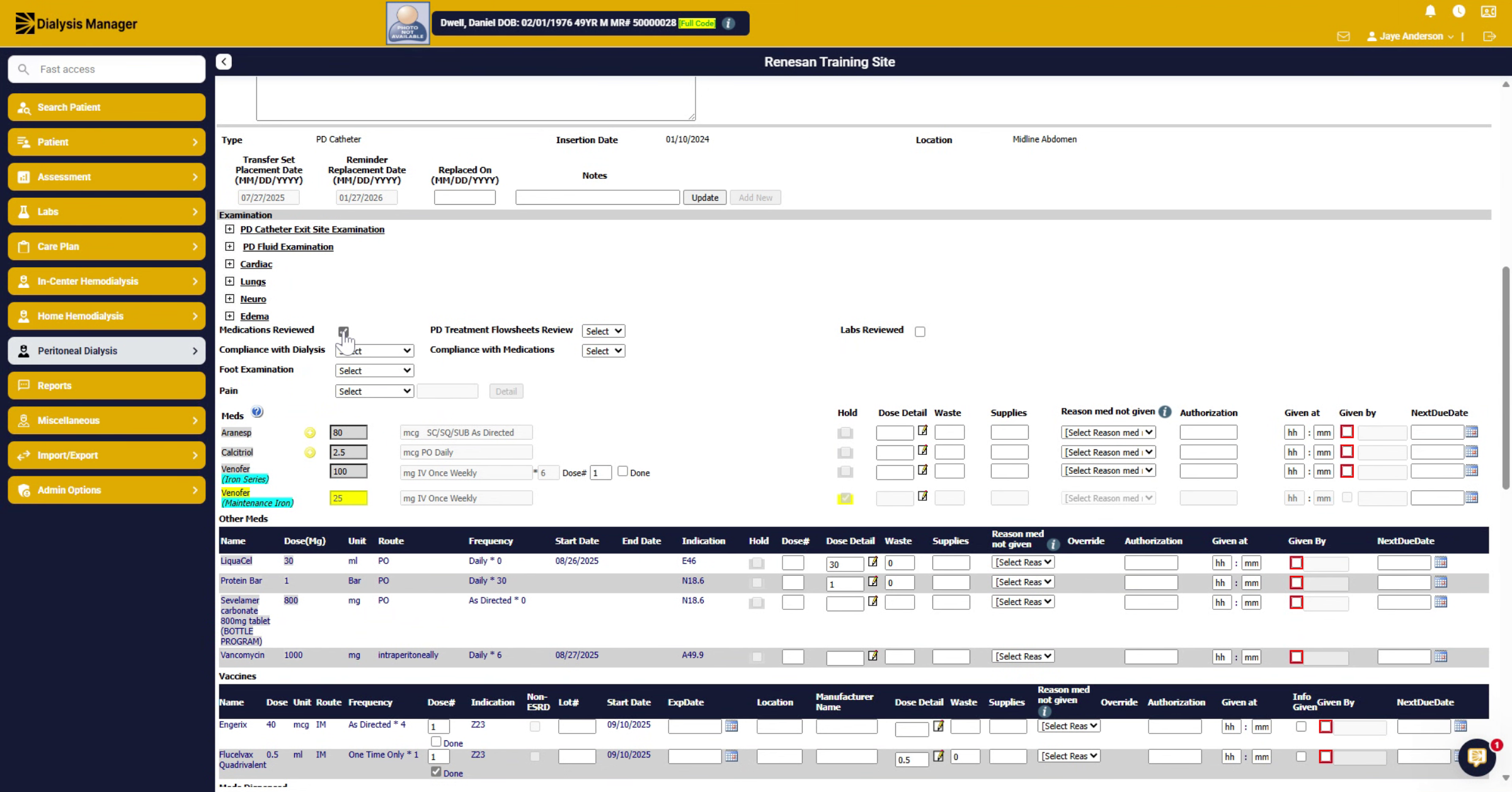
27. Review Medications
To document monthly med reviews, you will need to go to the Home Medications section.
28. Foot Exams
In Some areas, like the foot examination or pain level, if you answer yes, it will expand or open another section.
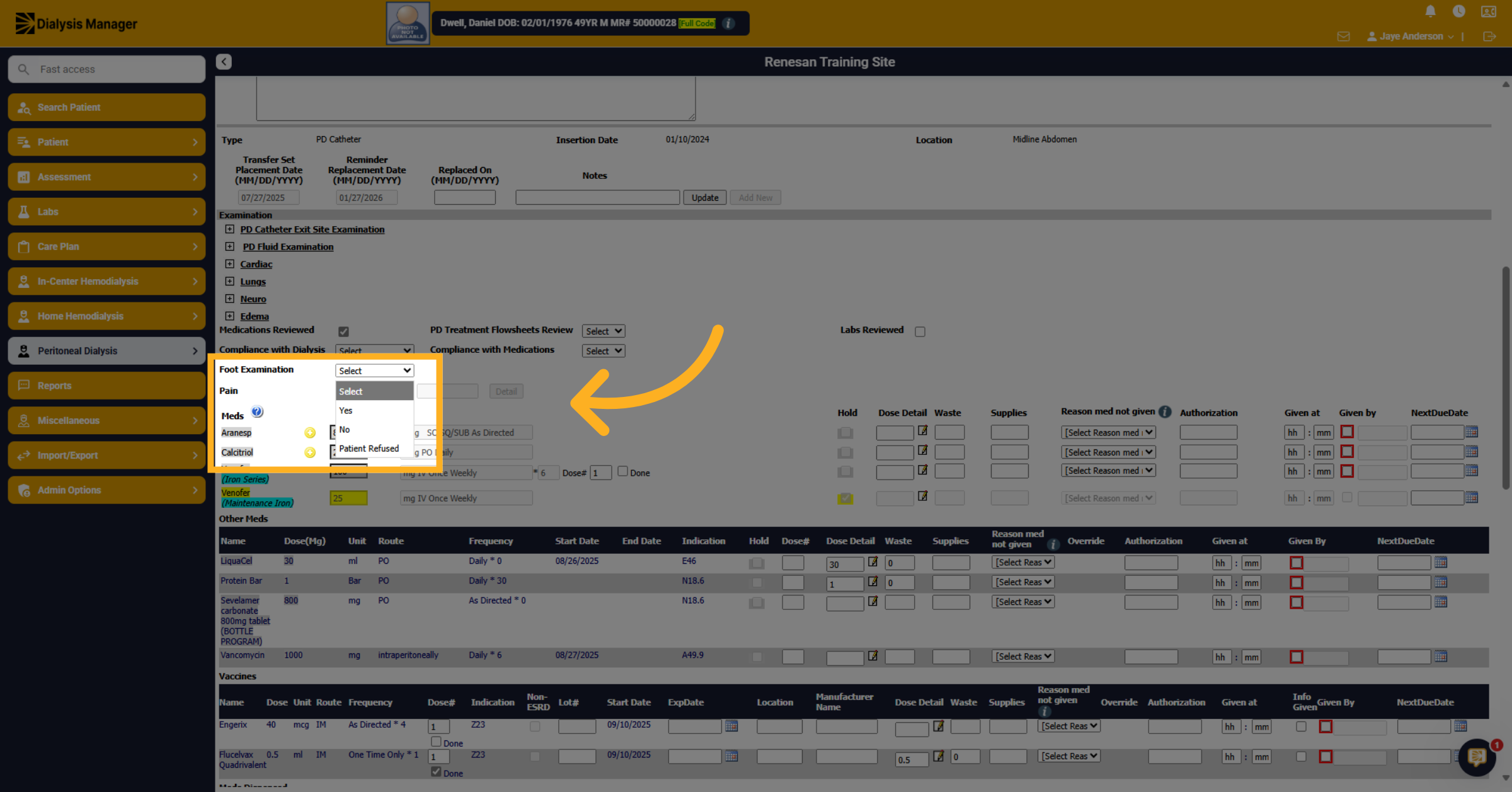
29. Click to enter details
This foot exam section, when yes is selected, you can answer if the patient is diabetic and click the document details button to open and document the detailed information.
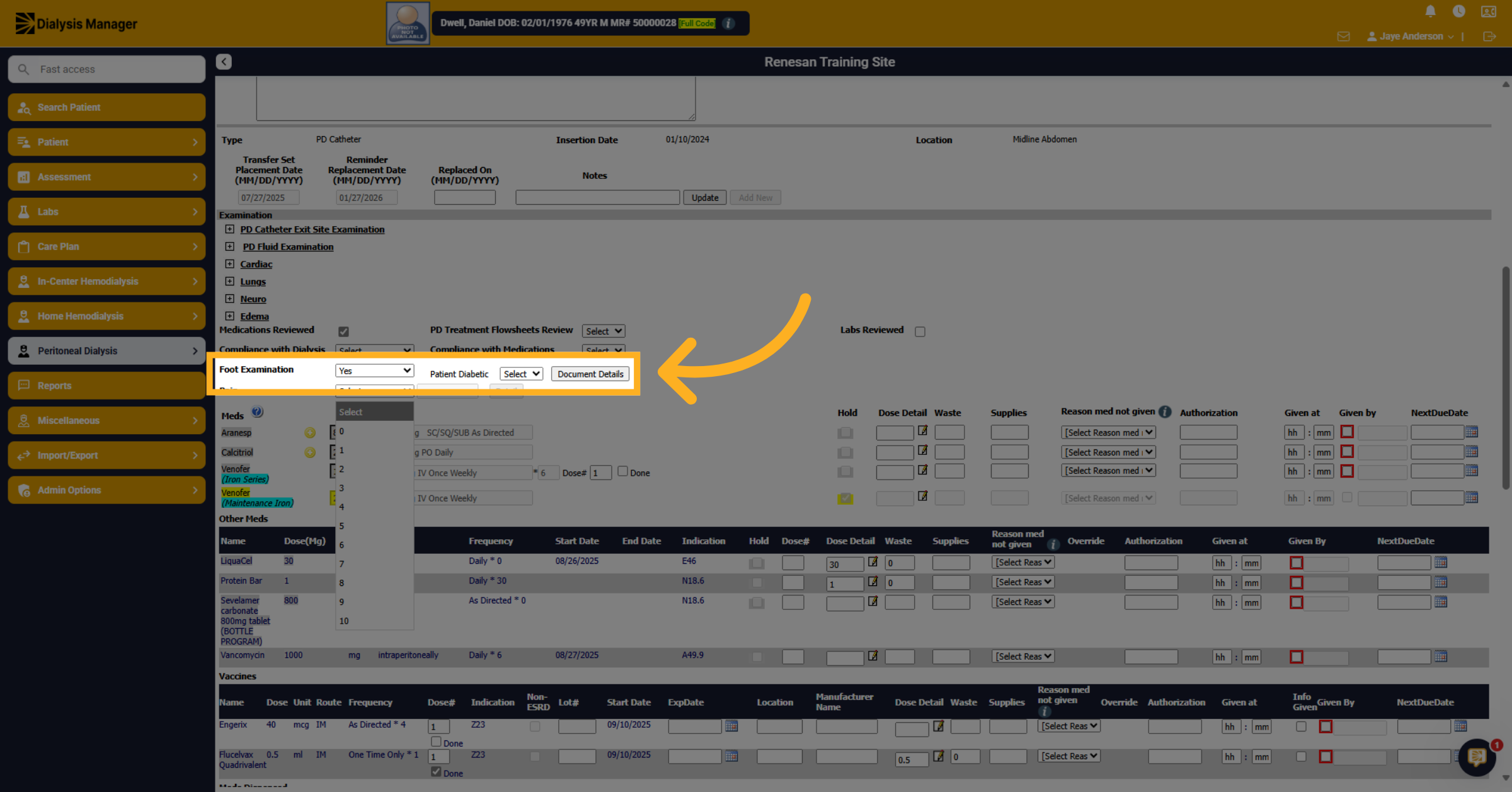
30. Hover for Medication Info
In the Medication section. If you hover over a medication dose amount, a pop up may display telling you the last time it was given. Hovering over the yellow plus symbol will display notes added from the order.
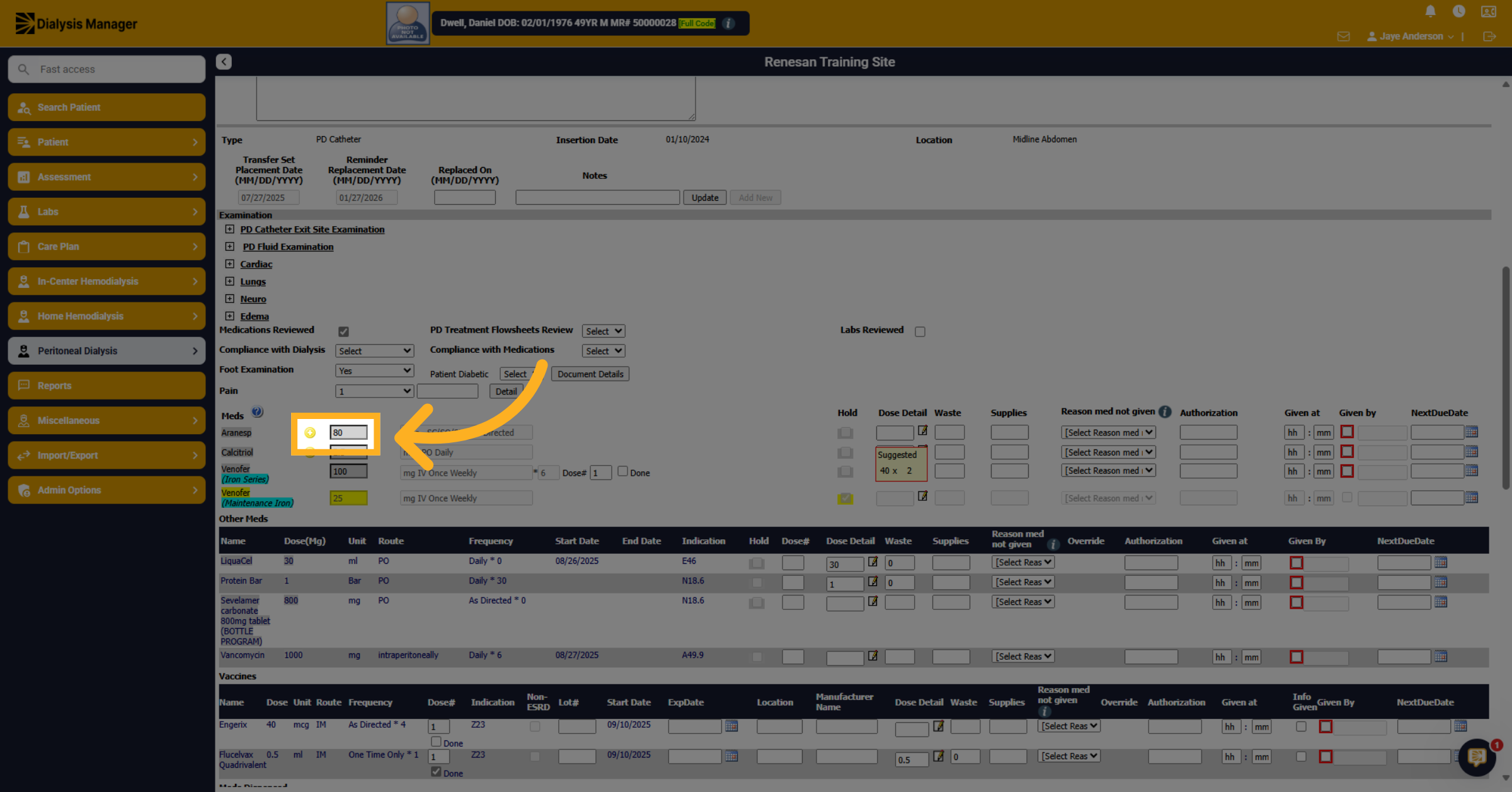
31. Click on the Dose Detail option
To document the amount of medication you have given. Click on the Dose Detail option, this looks similar to a pad and pencil. Hovering may also display a Suggested amount.
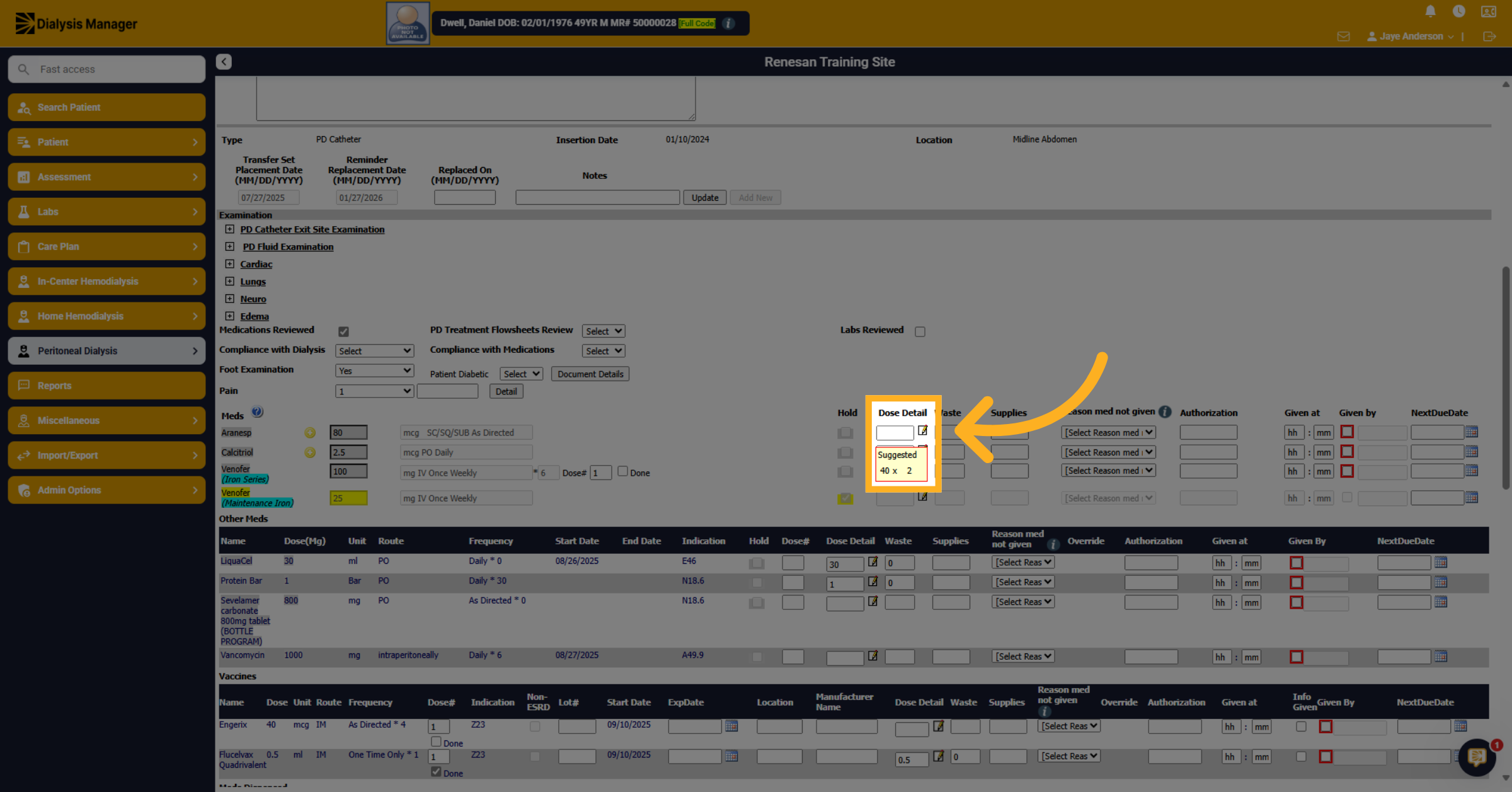
32. Document Medication Dose
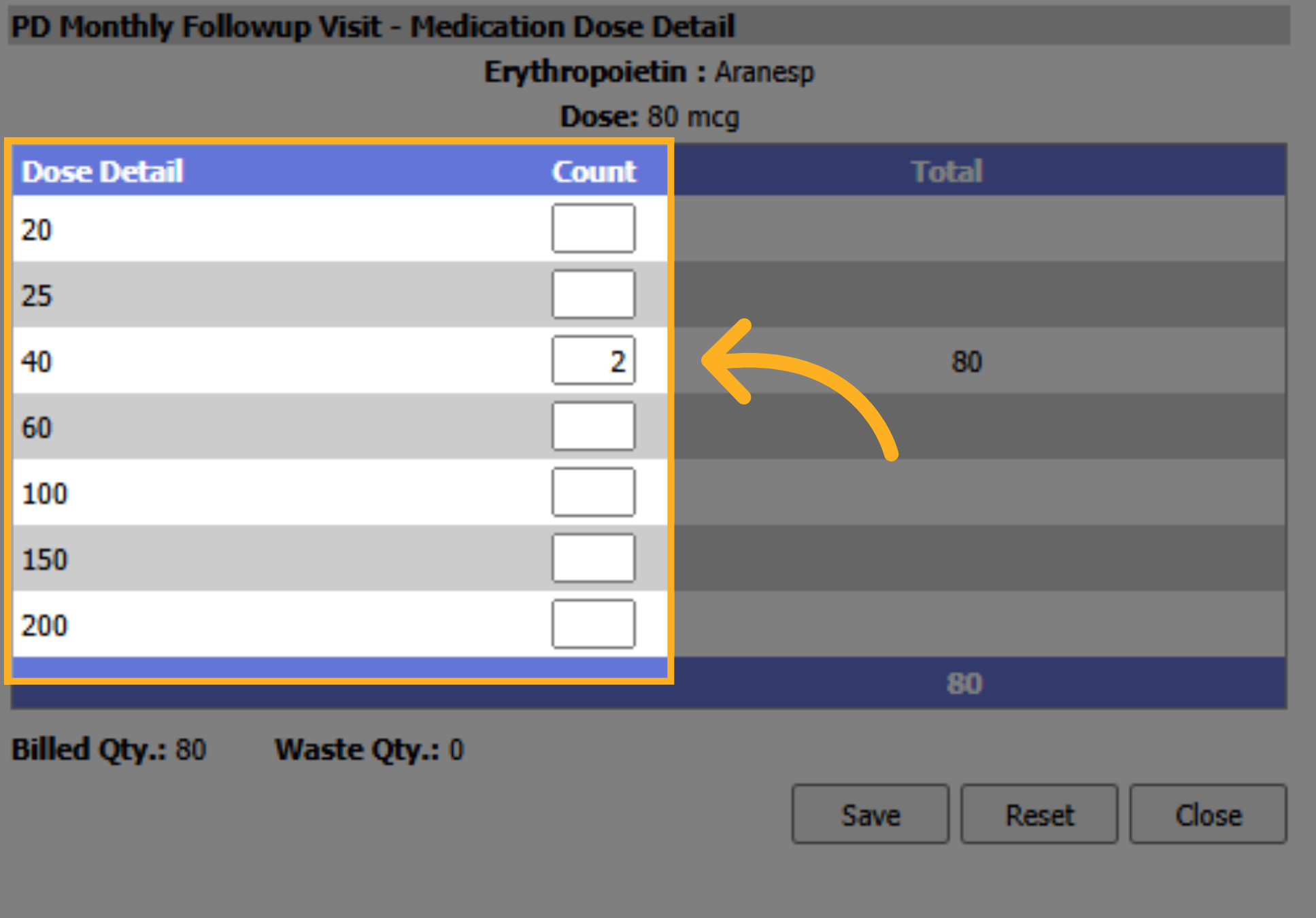
To document dose details, mark how many of each vial are you using to total, in this example, 80 micrograms.
33. Select Dose Amount
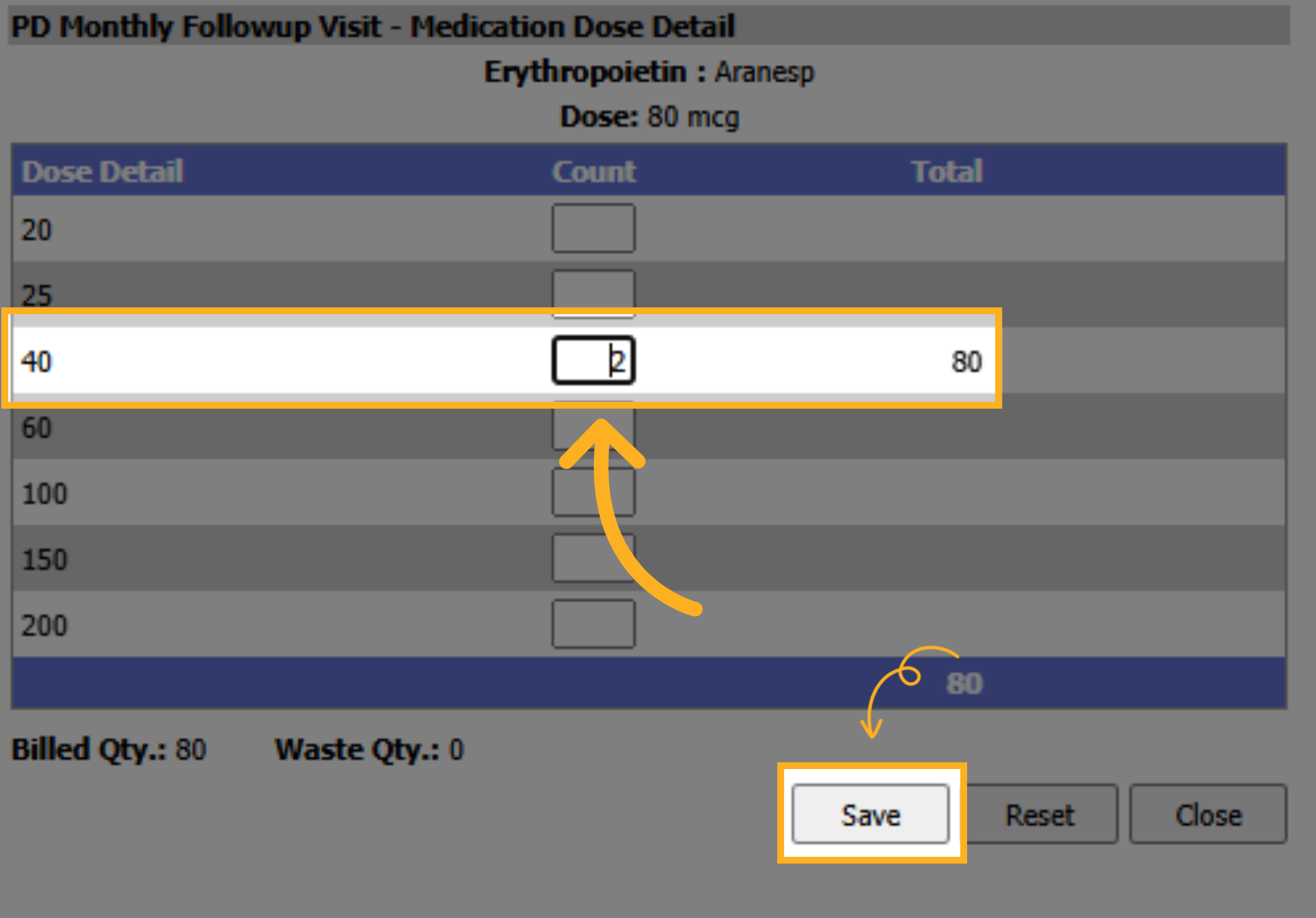
In this case, we're using two of the forty-microgram vials. Enter 2 in the count section And Click Save
34. Enter Time Given & Save Medication Entry
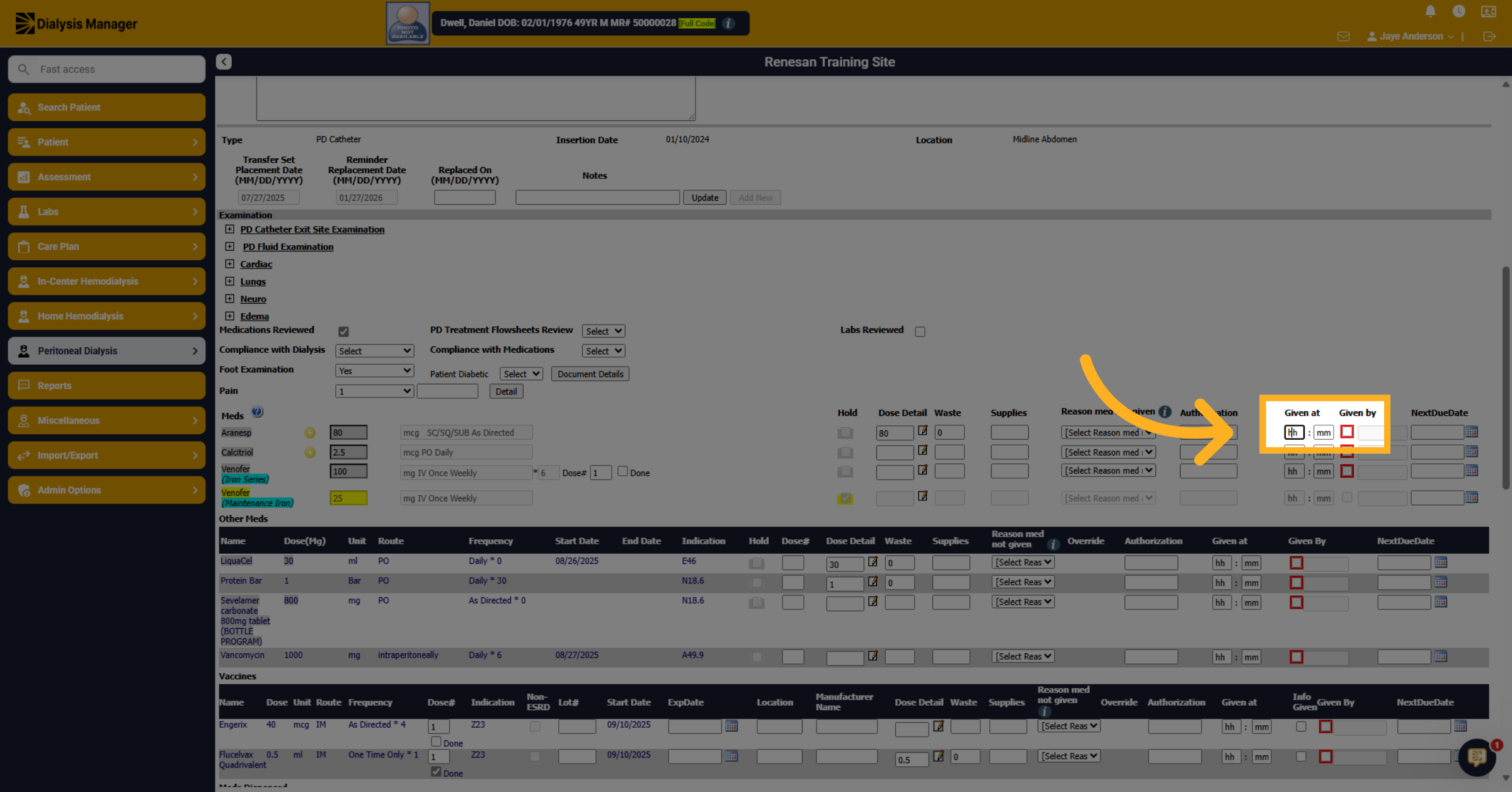
Enter the time you gave the medication. Reminder: F2 will enter the current time. Click Given By and enter your credentials. Don't forget to Save often.
35. Navigate to Medication Reason
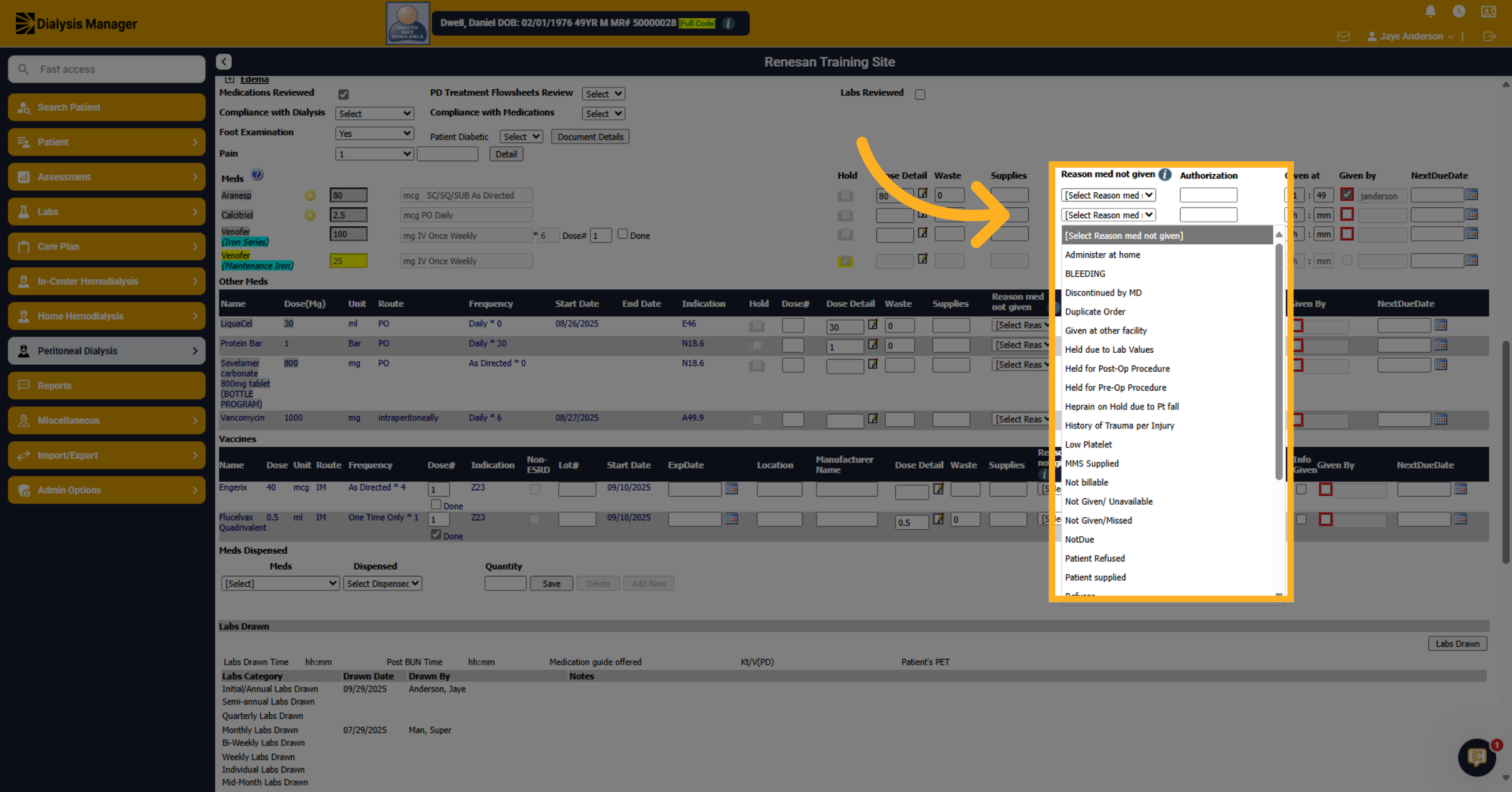
If a medication is NOT given during the Visit. Click Reason med not given drop down and select appropriate option if not giving a medication.
36. Select Vaccine
To document vaccines, it is a similar workflow as the medications. If the vaccine series is completed click on the Done box.
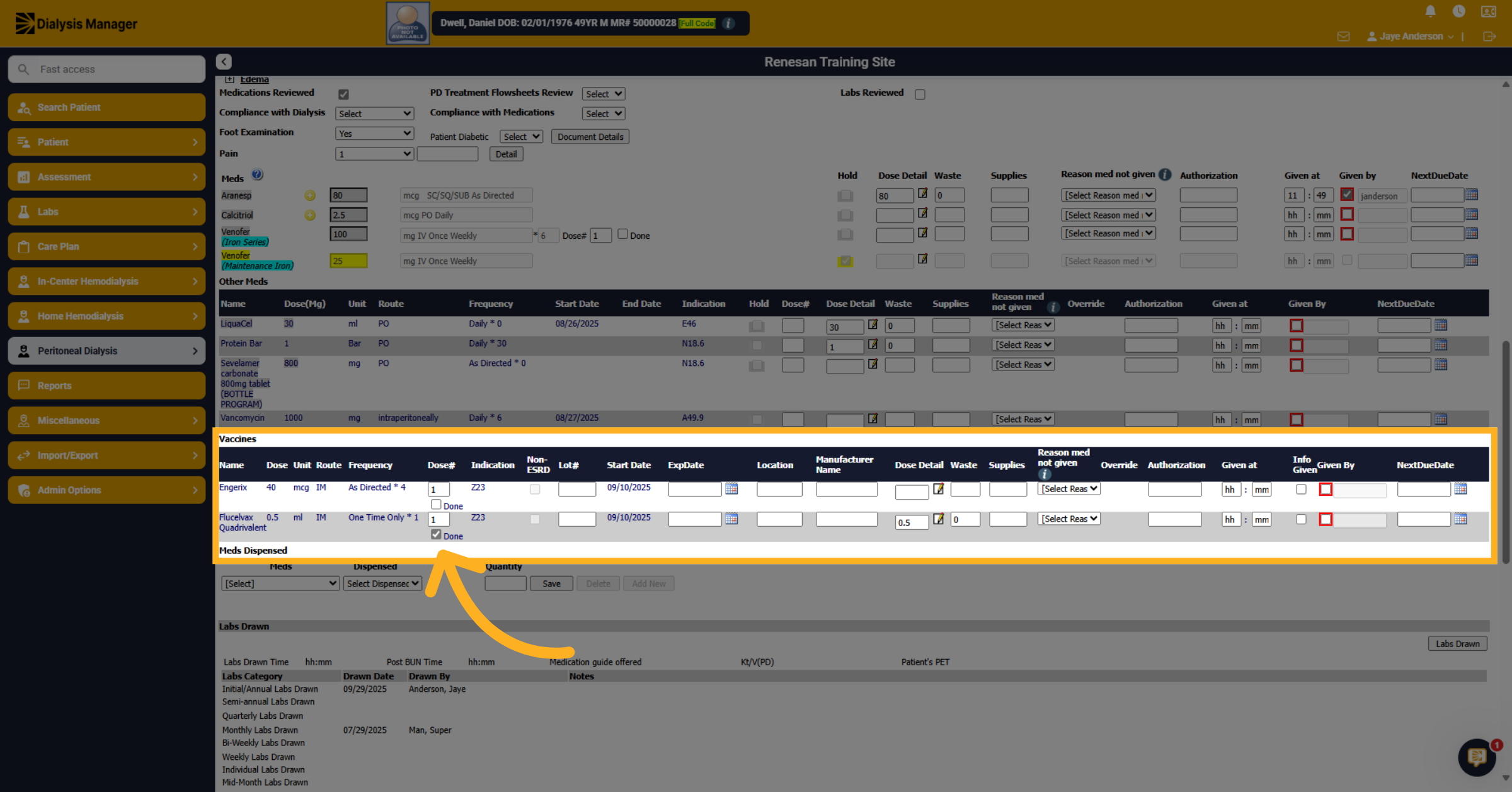
37. Given By or Next Due Date
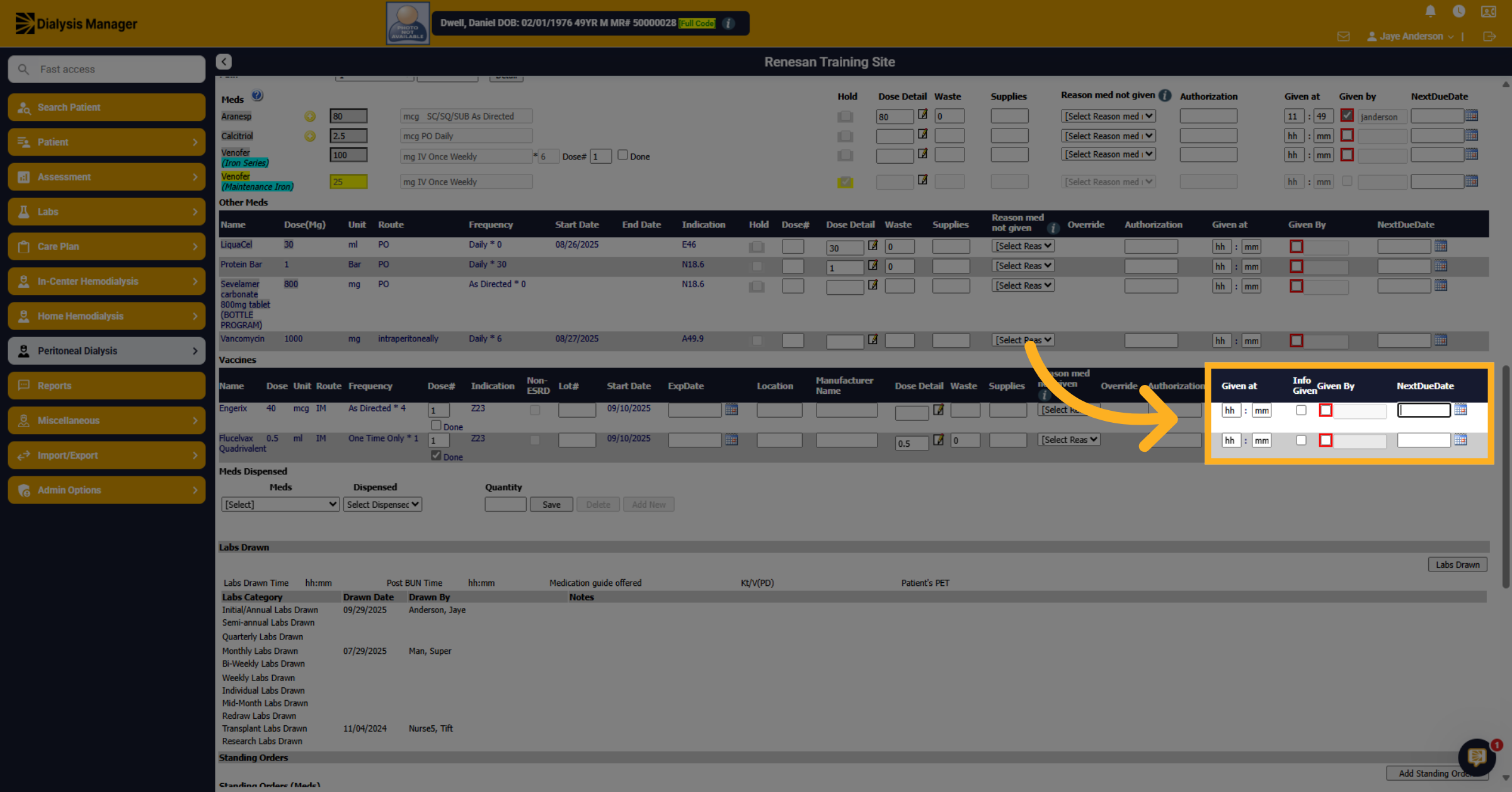
Mark the Given By and enter your PIN or password to sign off if you marked the Vaccine as given. Enter the next due date if the series is not completed.
38. Open Medication Dispensed
Click on Meds Dispensed drop down to document any medications you are providing the patient for at home use
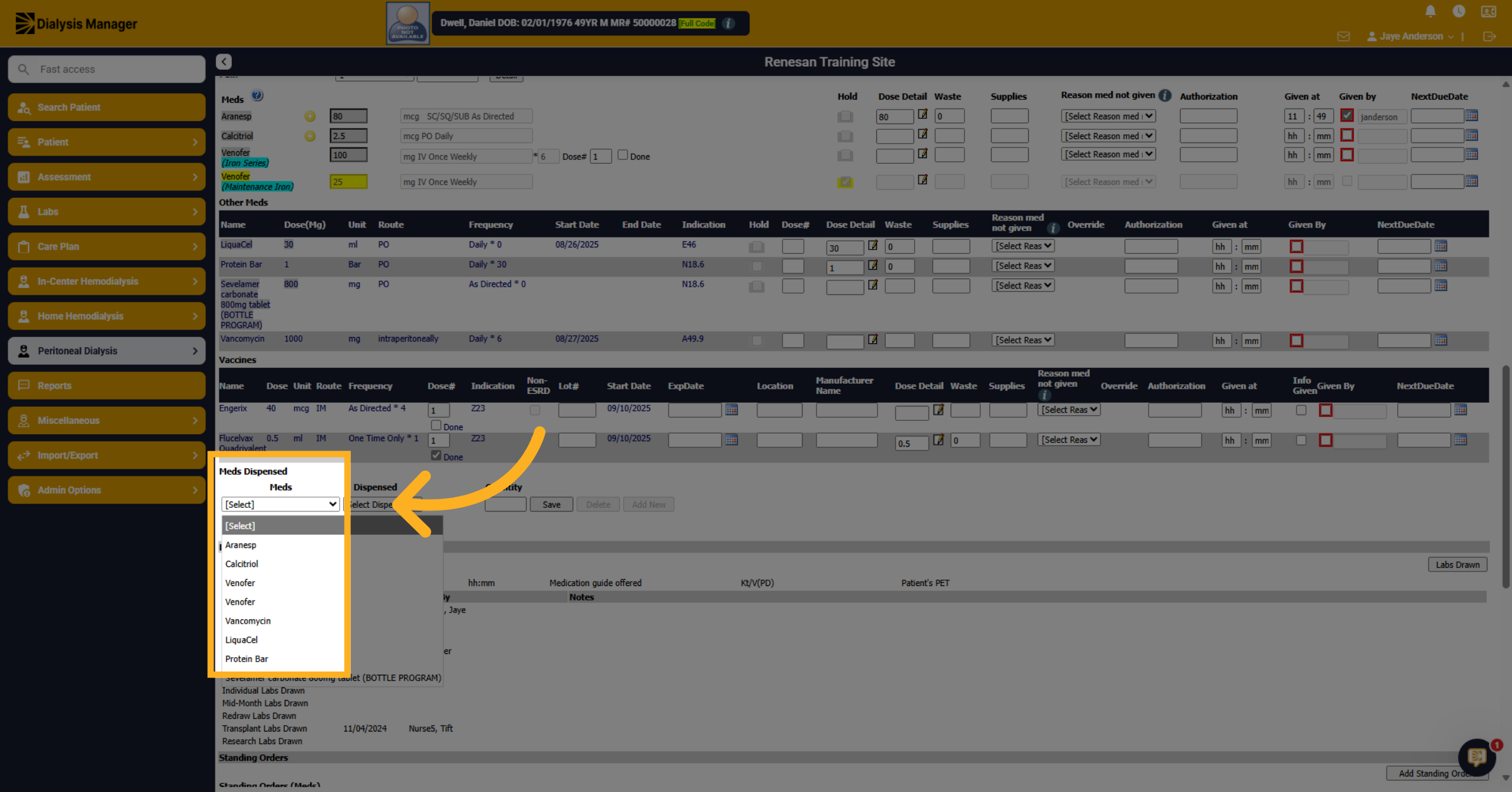
39. Fill Medication Type
Select the appropriate Dispensed amount days.
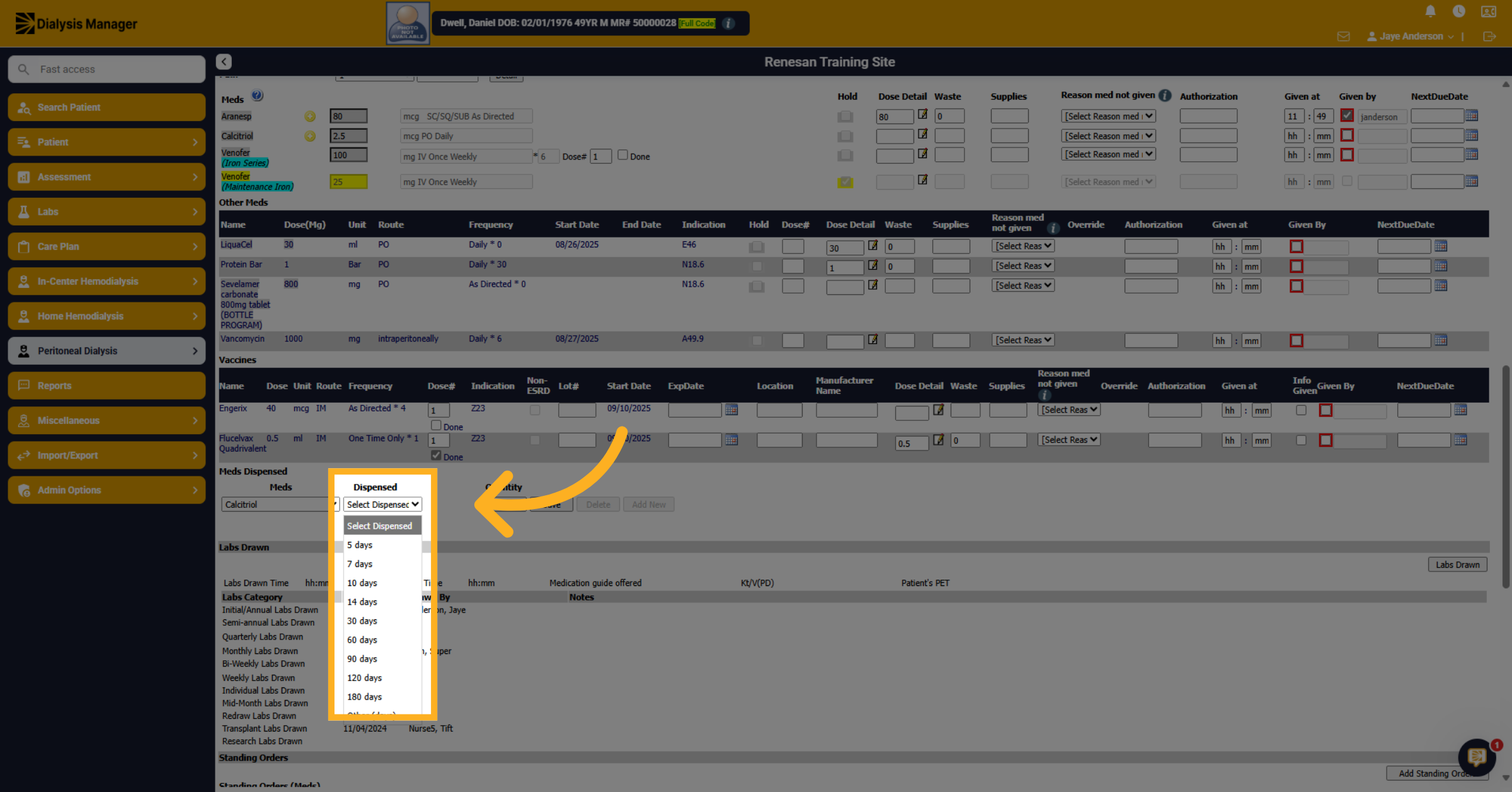
40. Enter Quantity Given
Enter the amount given. 60 pills for example.
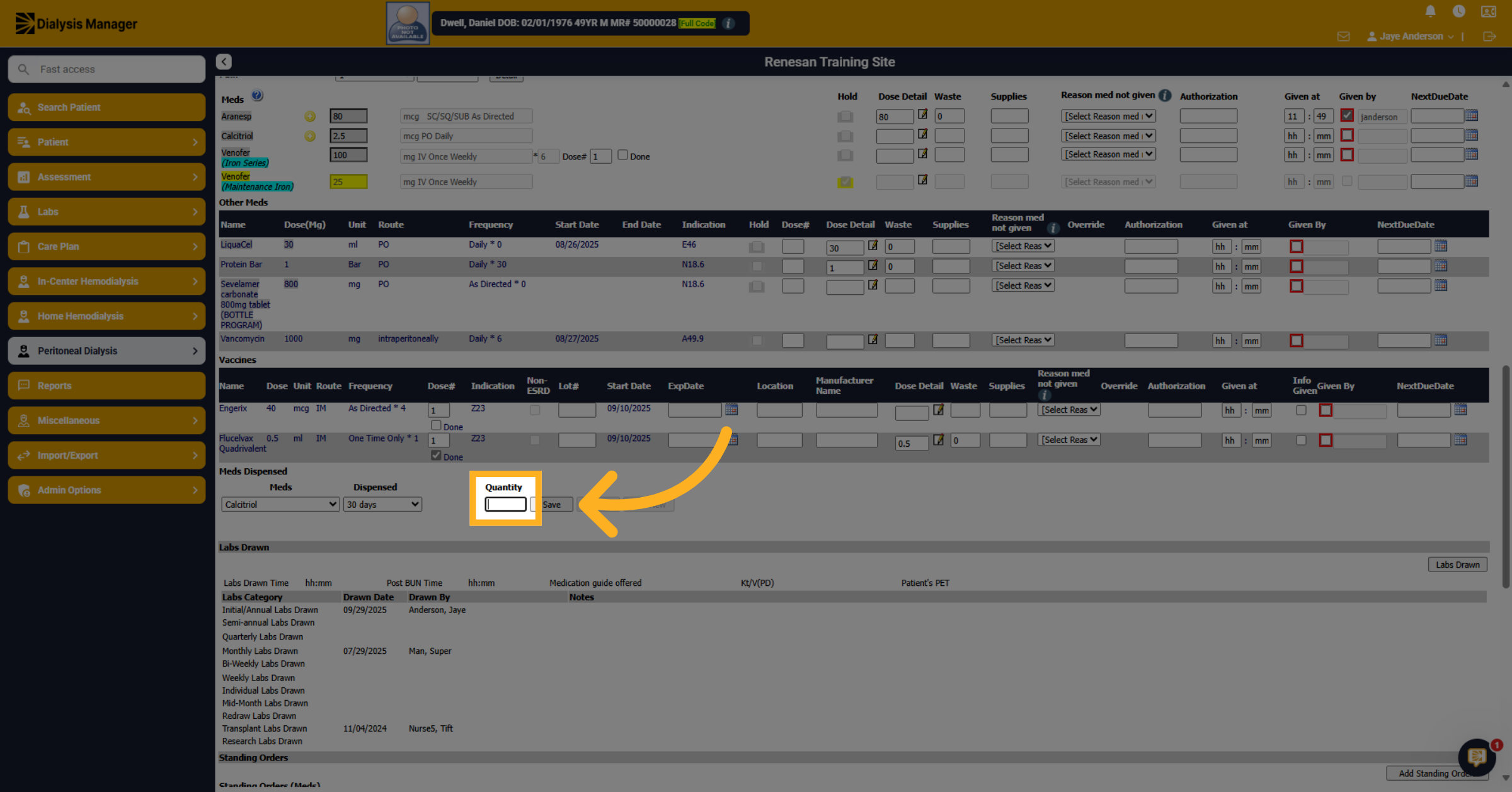
41. Click Save
Click Save to save the entry.
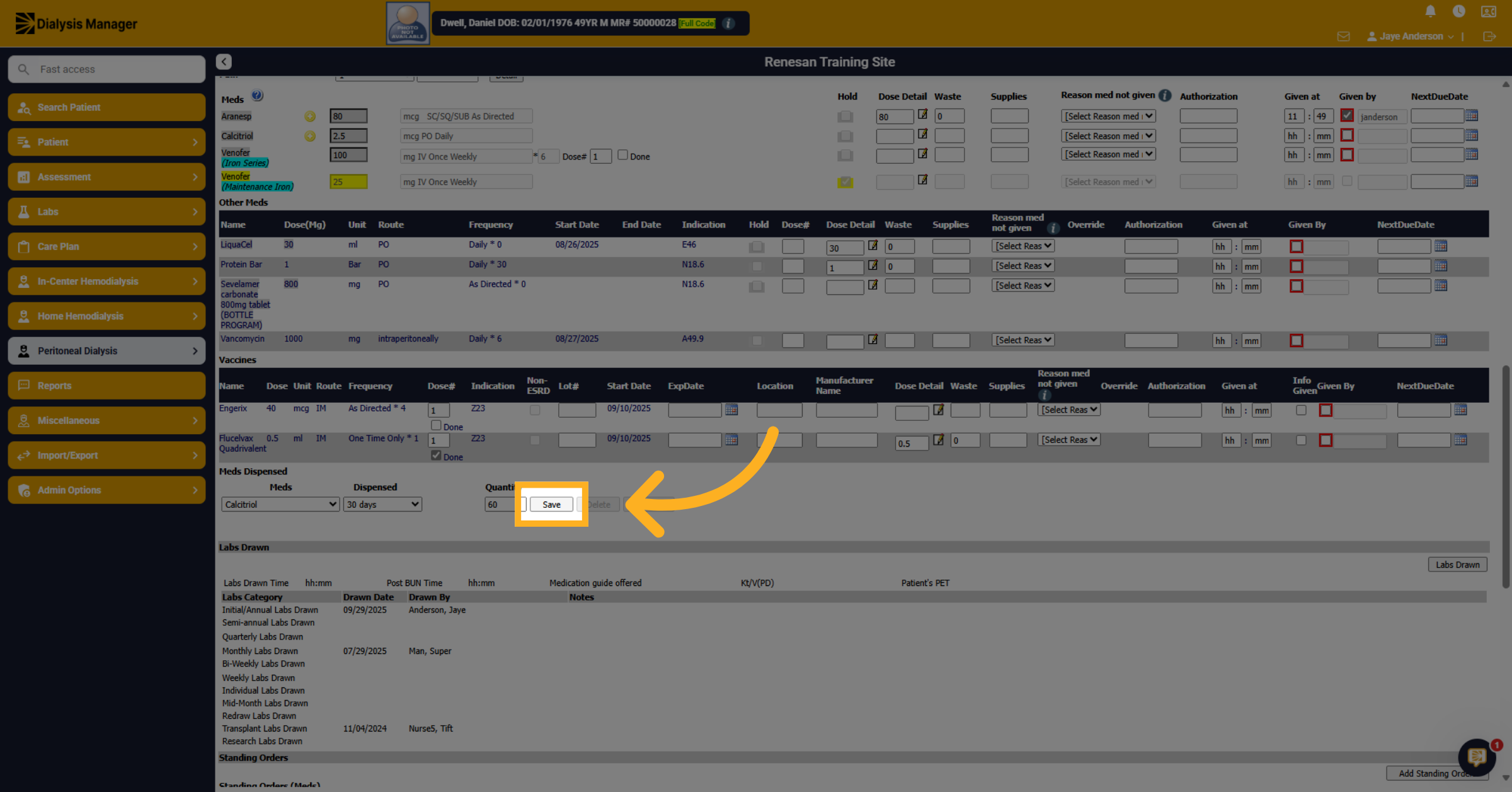
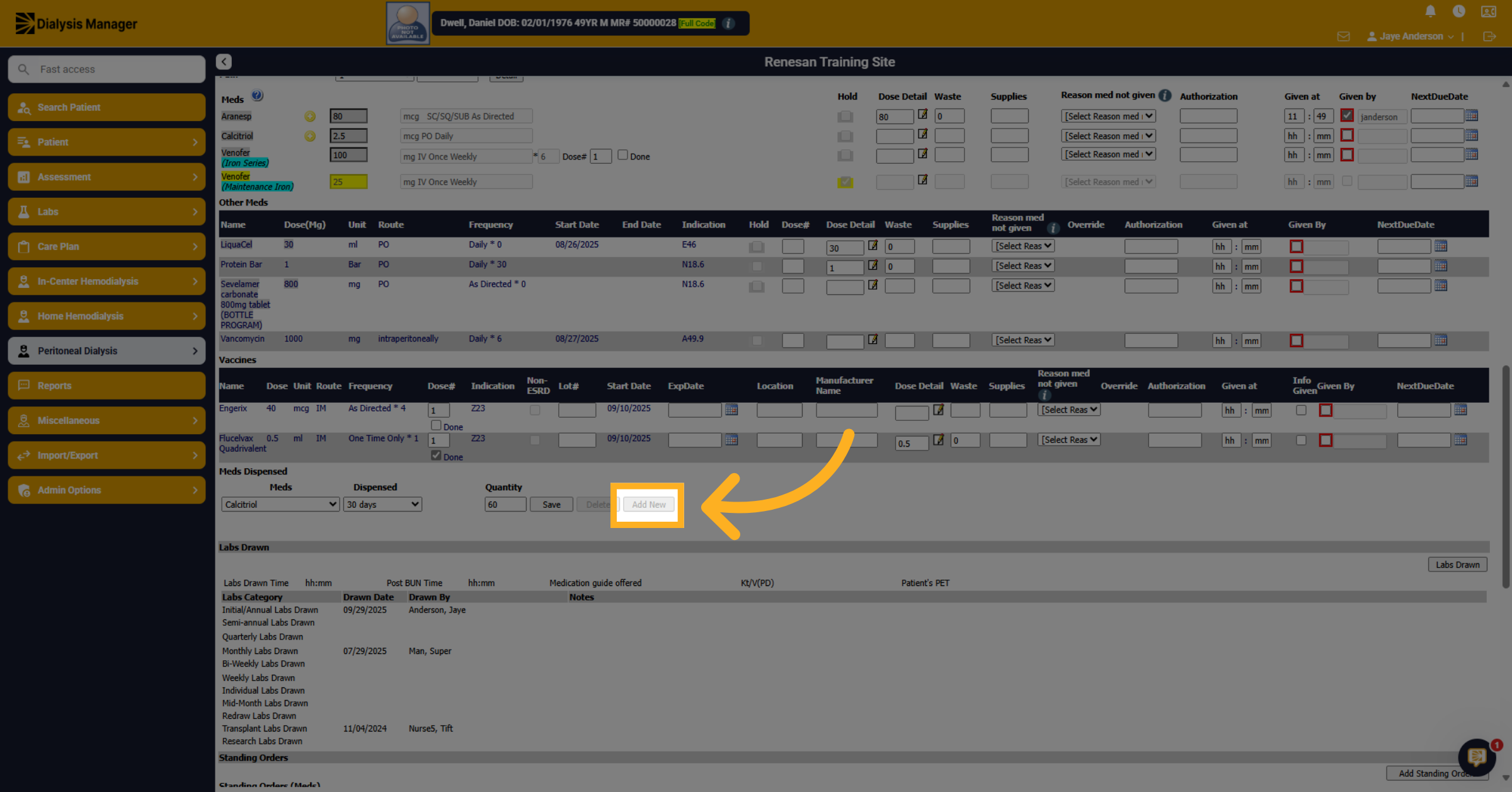
42. Click Save
Click Add New to add another entry.
43. Open Labs Drawn Section
Click Labs Drawn, if drawing labs.
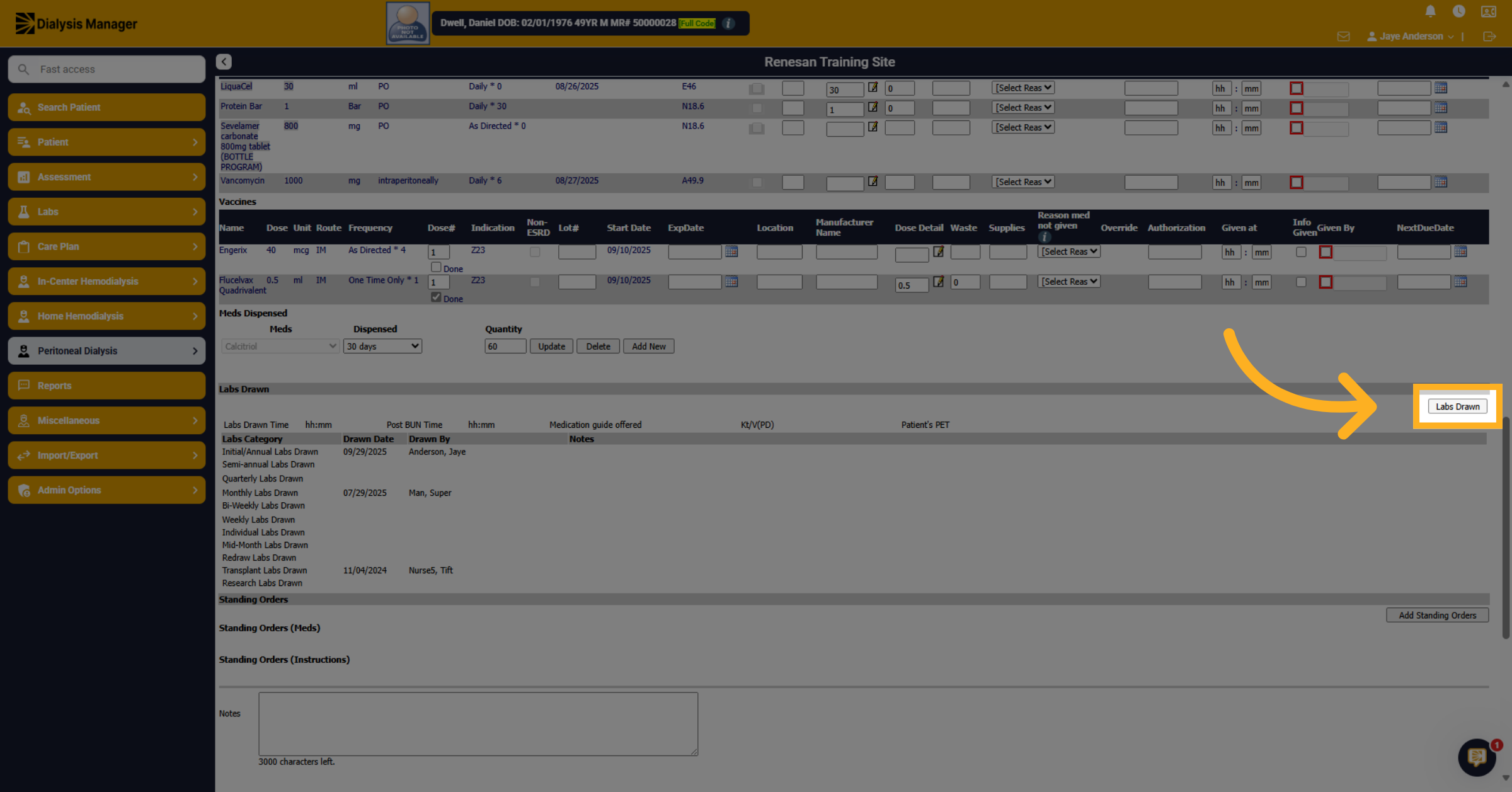
44. Select Monthly Labs Drawn
A new window will pop up. Click on the appropriate Labs Drawn option, for example monthly Labs. Enter the Pre and Post draw times.
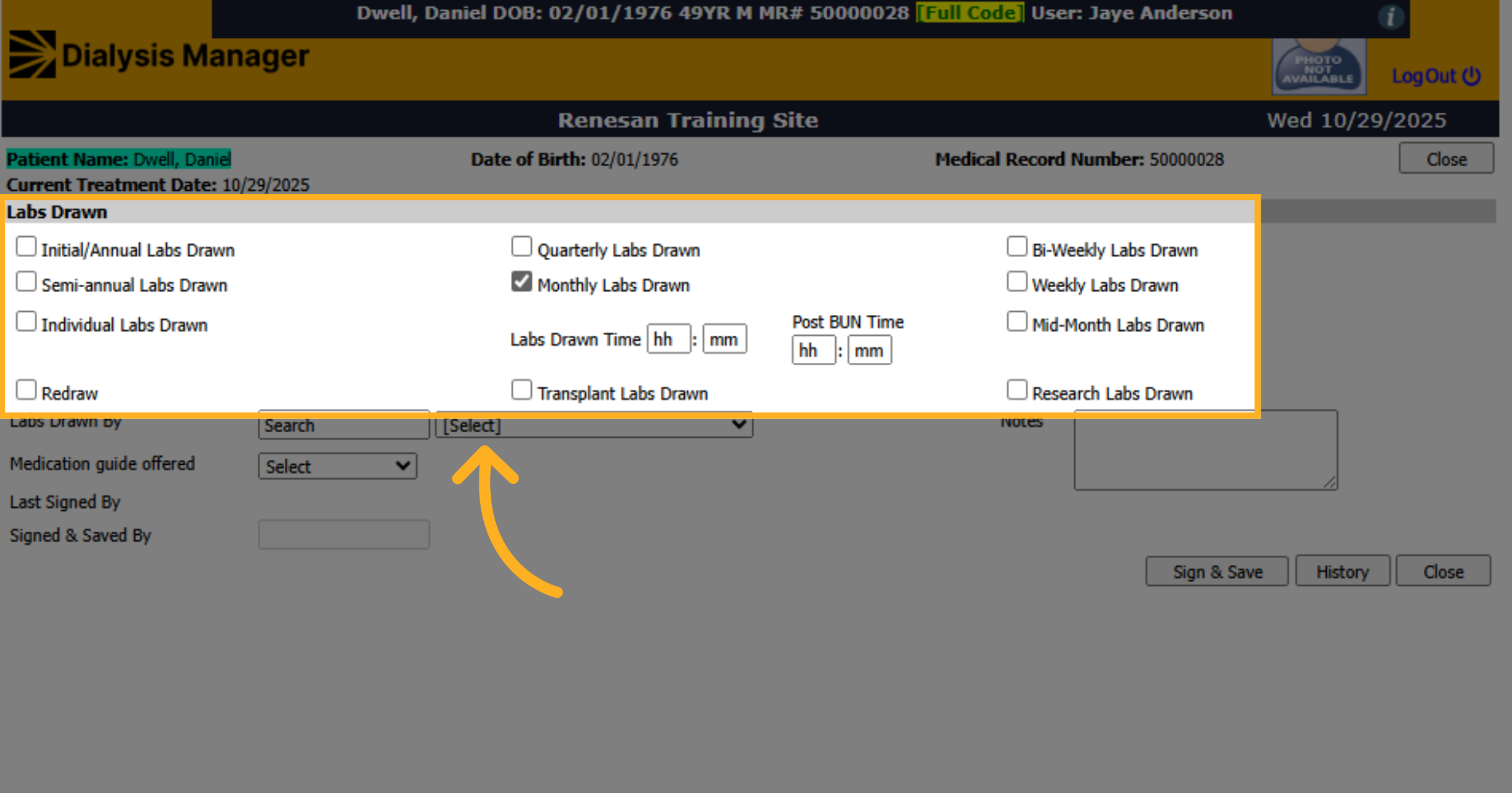
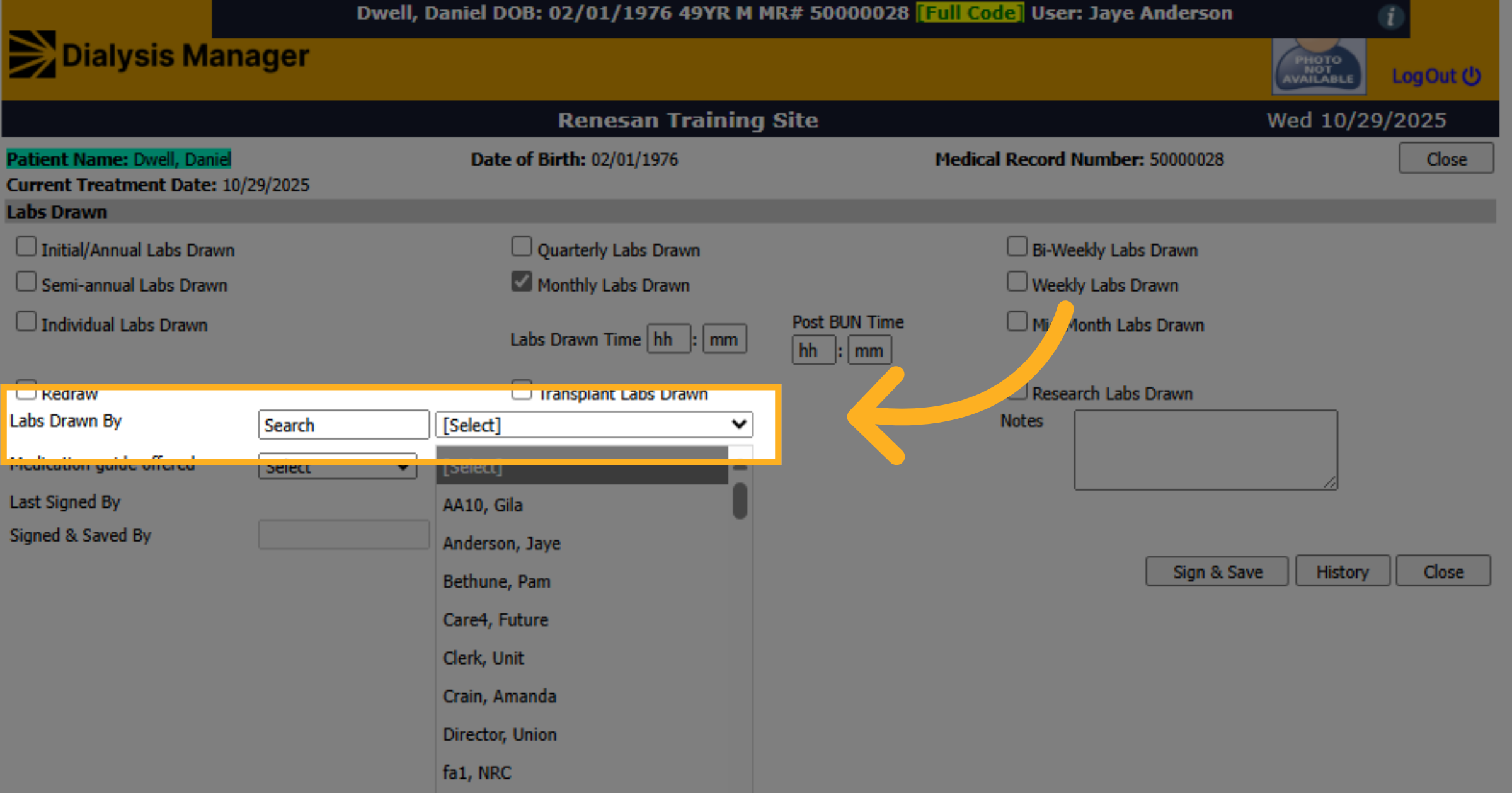
45. Fill Labs Drawn Date
Choose the appropriate name from Labs Drawn By dropdown.
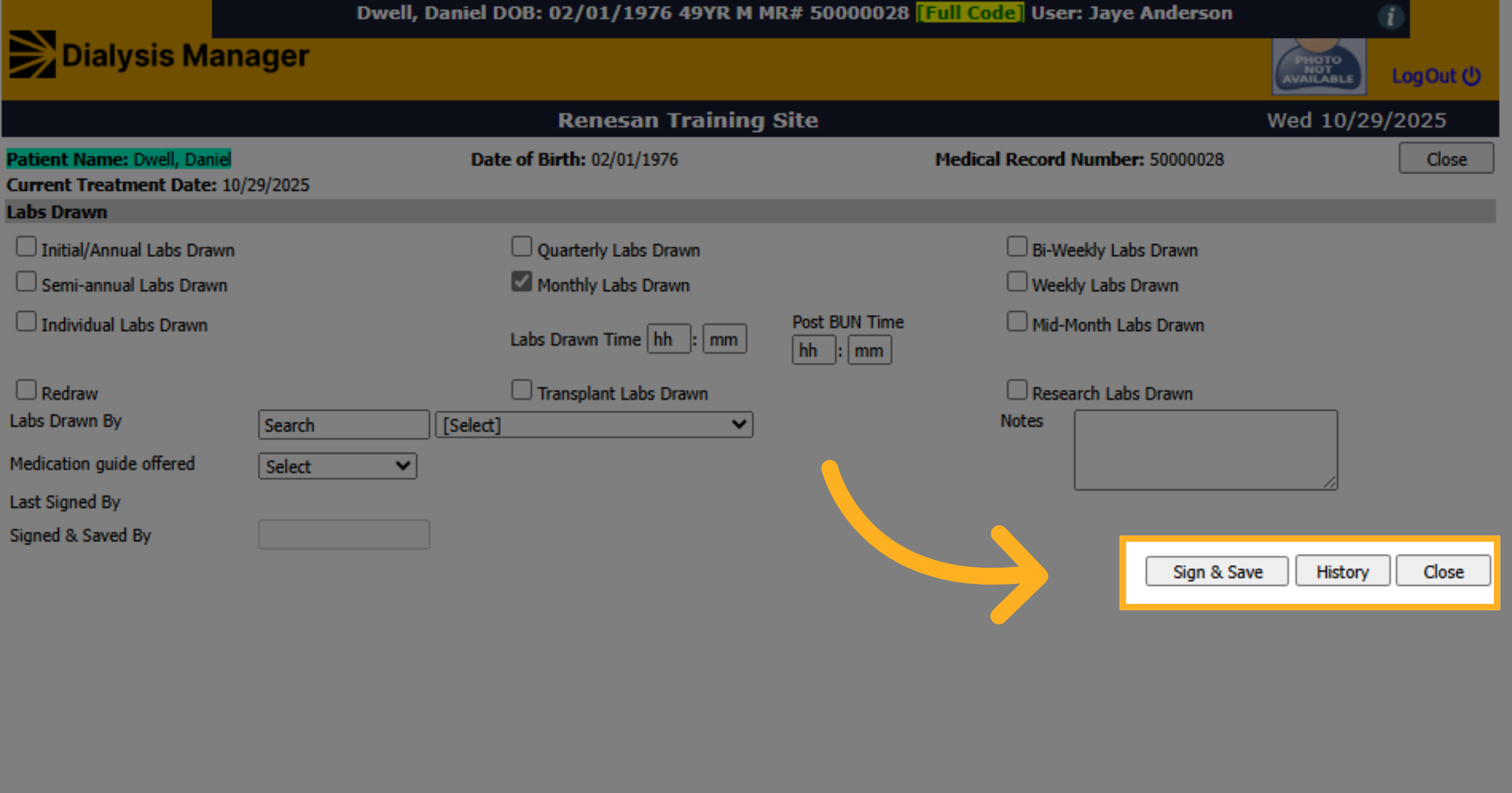
46. Click Sign & Save
Click Sign and Save and Click Close.
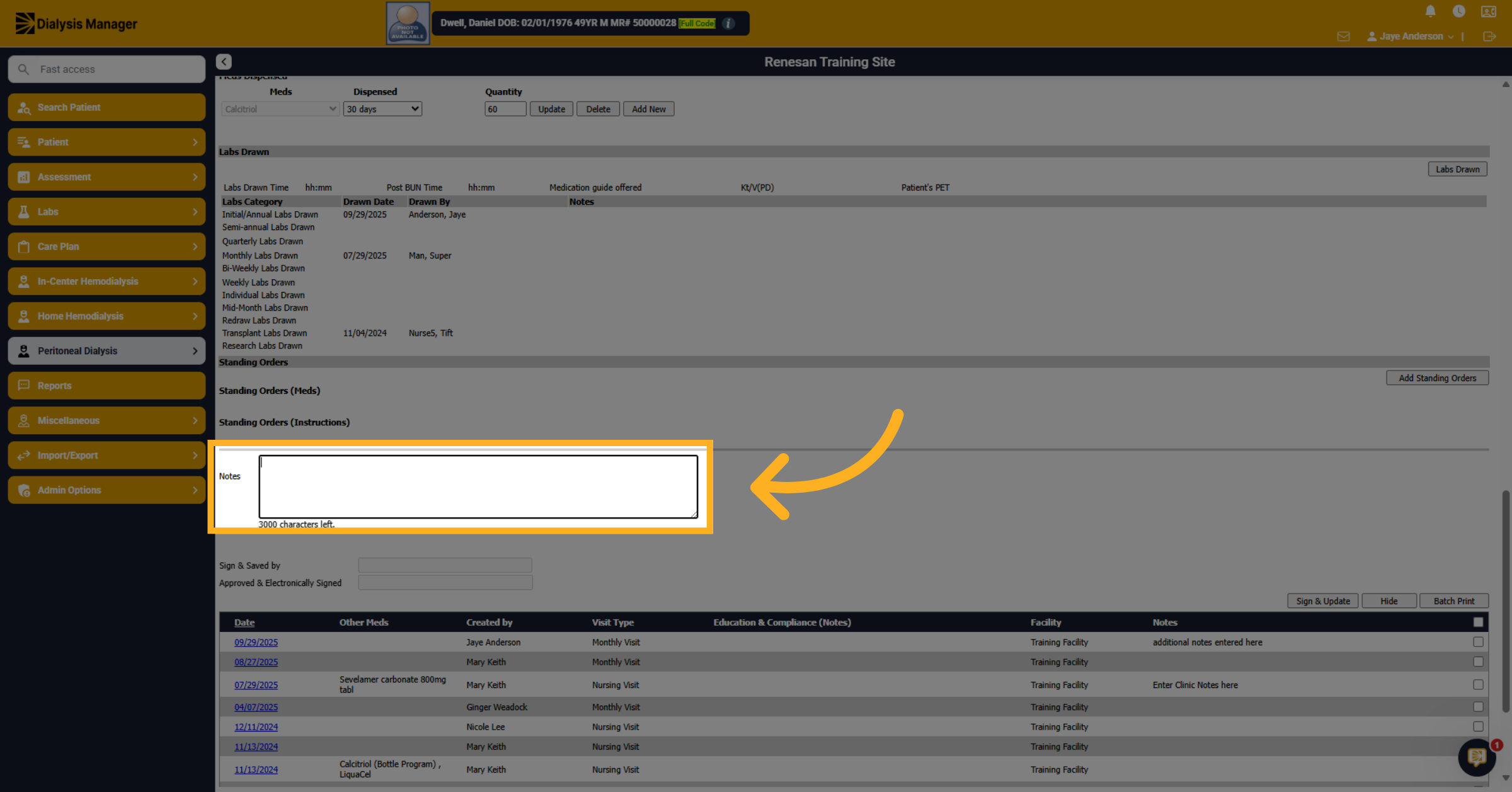
47. Add Additional Notes
Enter any additional notes here.
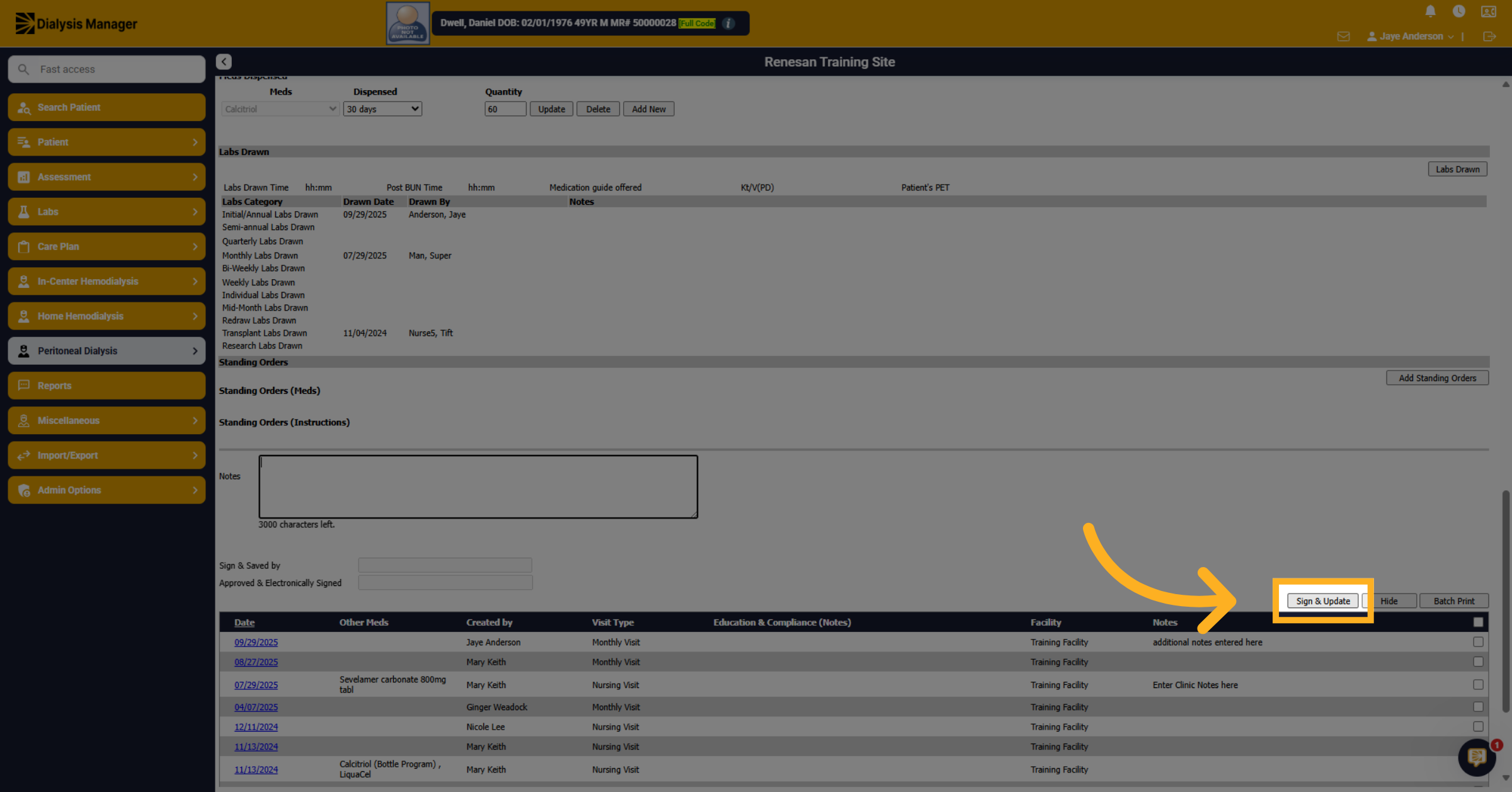
48. Sign and Update Record
Click here to Sign and Save.
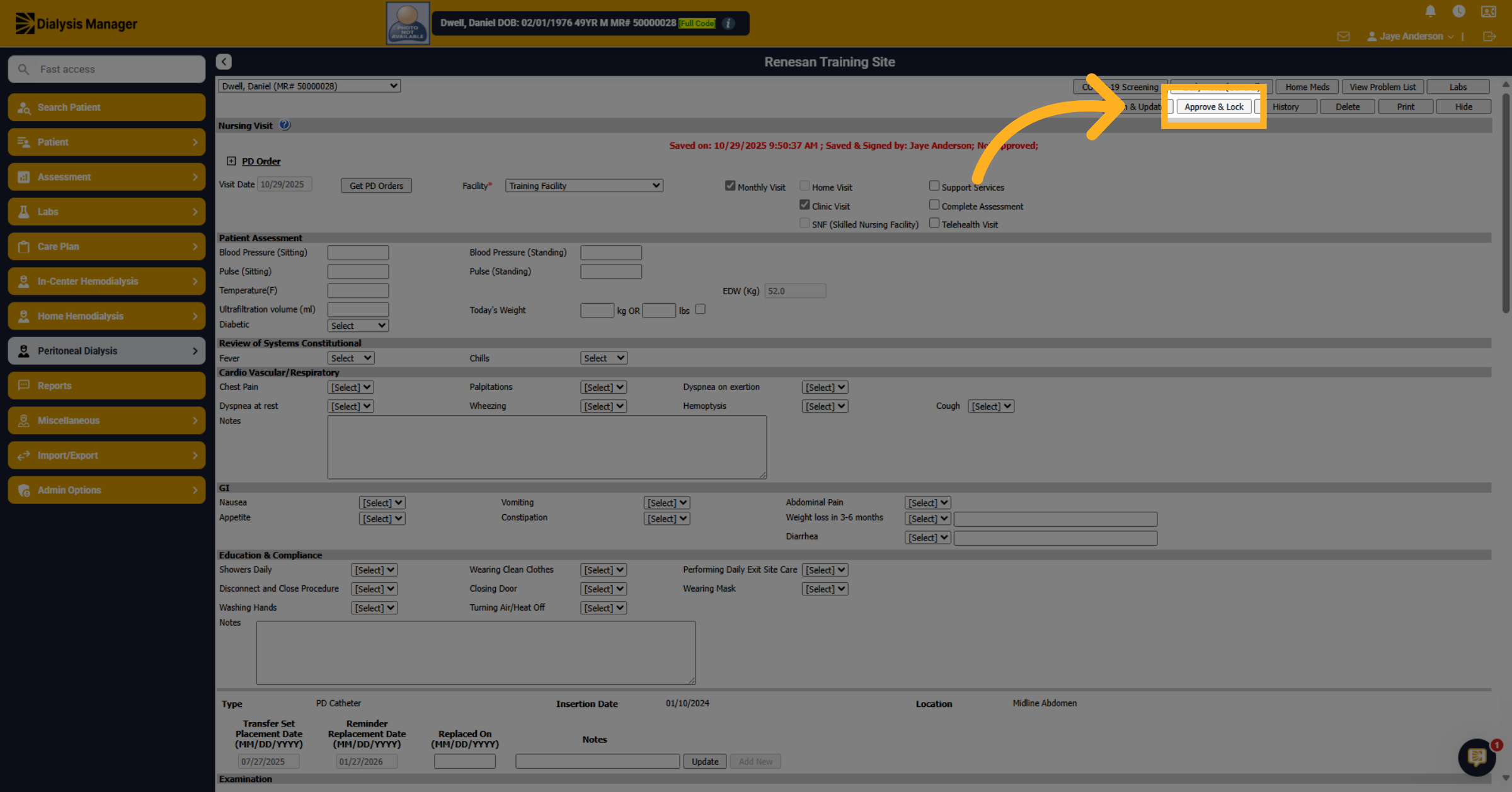
49. Approve and Lock Record
Click Approve and Lock to complete the Visit. If any required items are missing, you will be informed by a pop-up box. If needed, Complete the required items, Sign and save and Approve and Lock. Repeat process as needed.
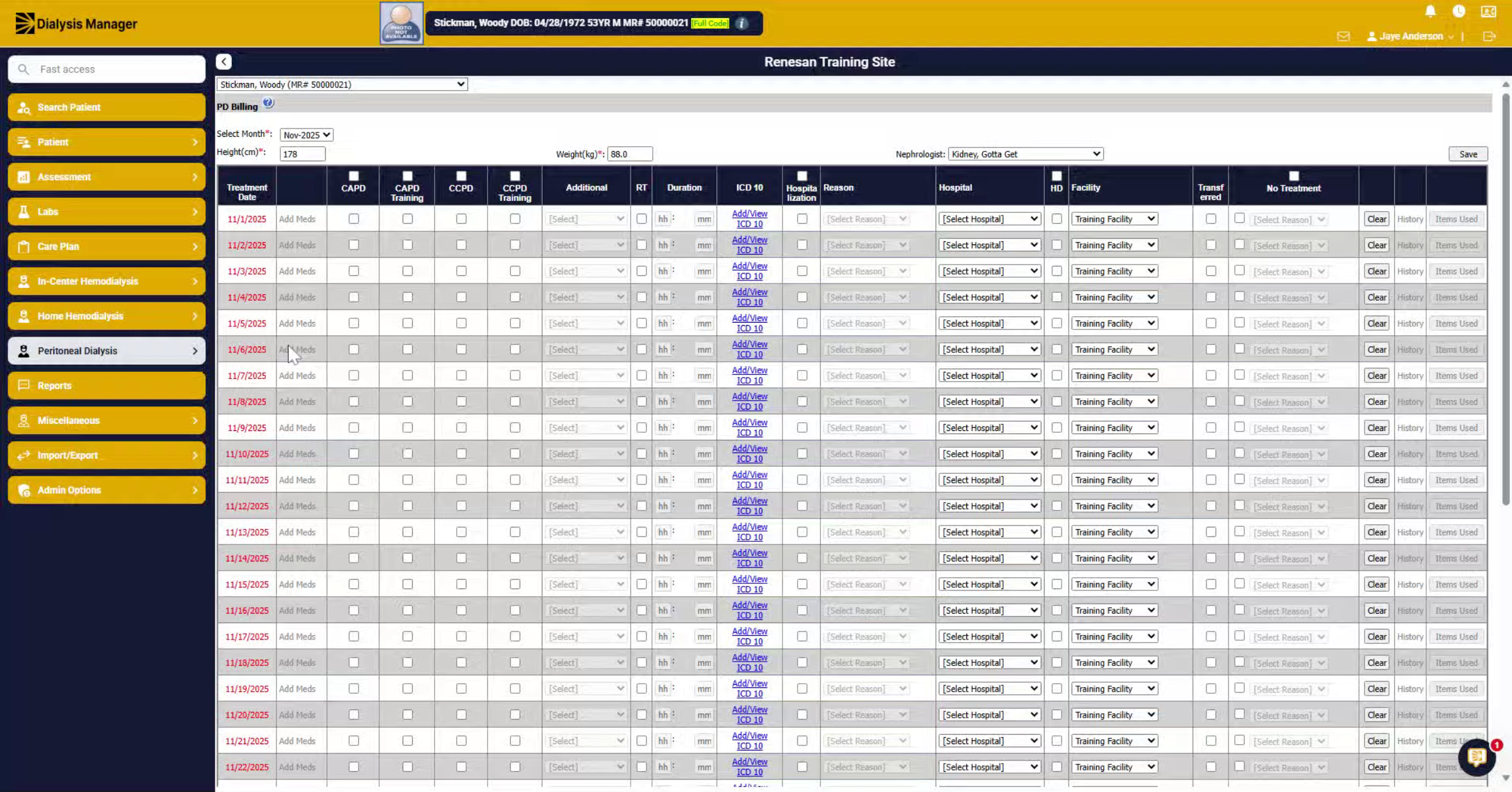
50. Introduction
Now we will demonstrate how to document your PD billing accurately. You will learn to navigate through the necessary sections and enter all relevant patient and treatment information for proper billing.
51. Select Peritoneal Dialysis
Select your patient. Click on Peritoneal Dialysis.
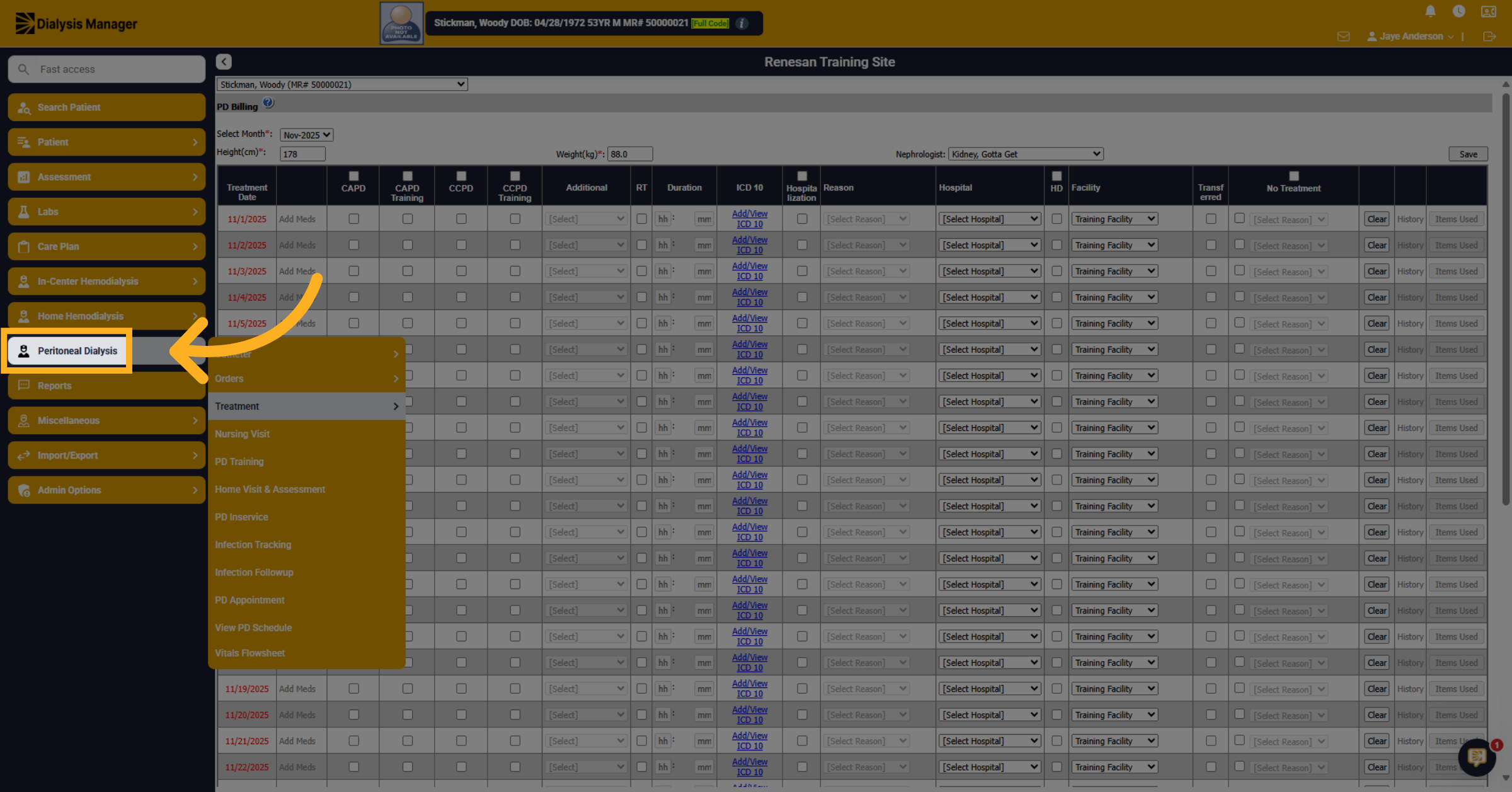
52. Click Treatment Section
Click on Treatment.
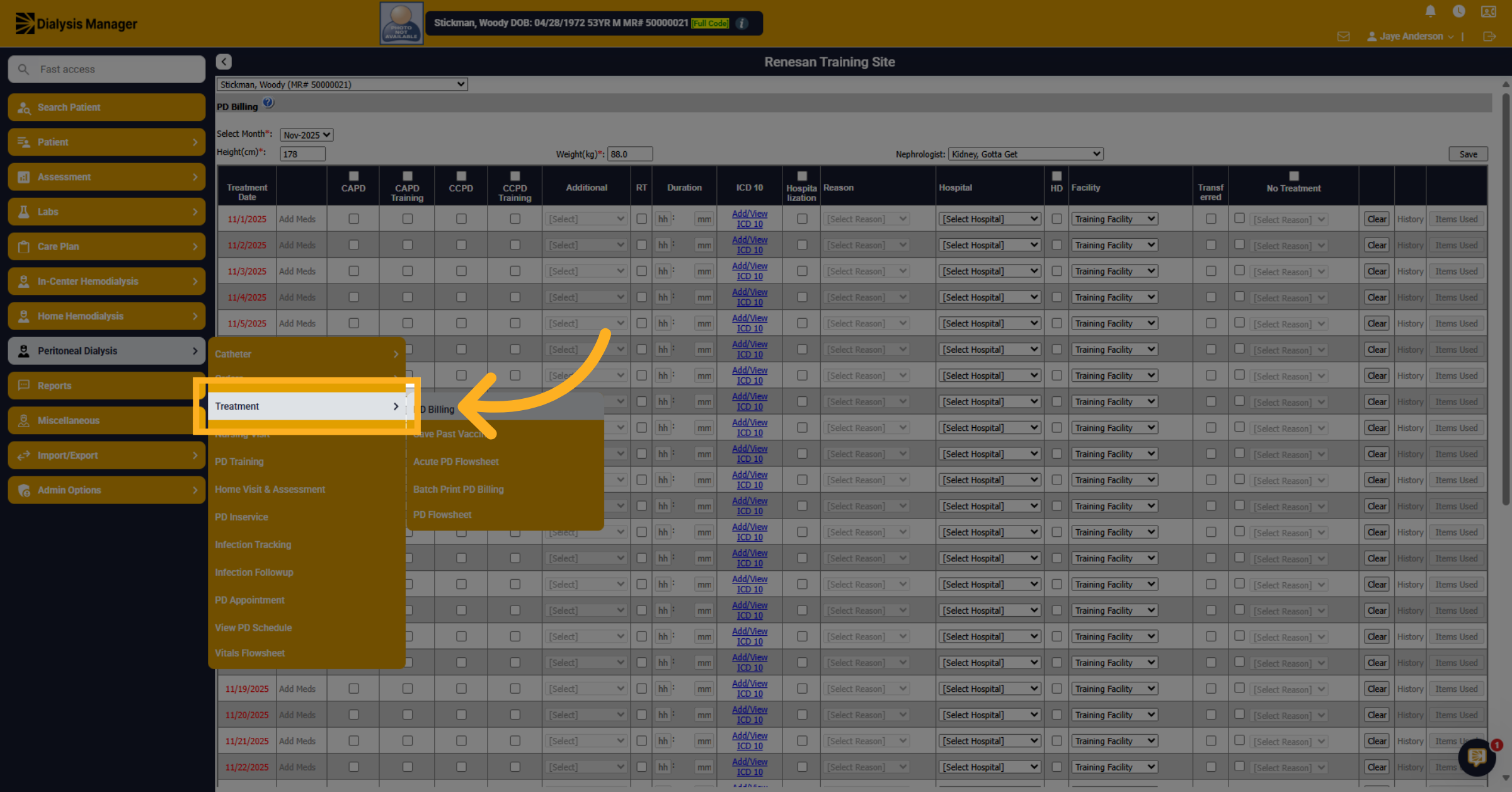
53. Access PD Billing
Click on PD Billing.
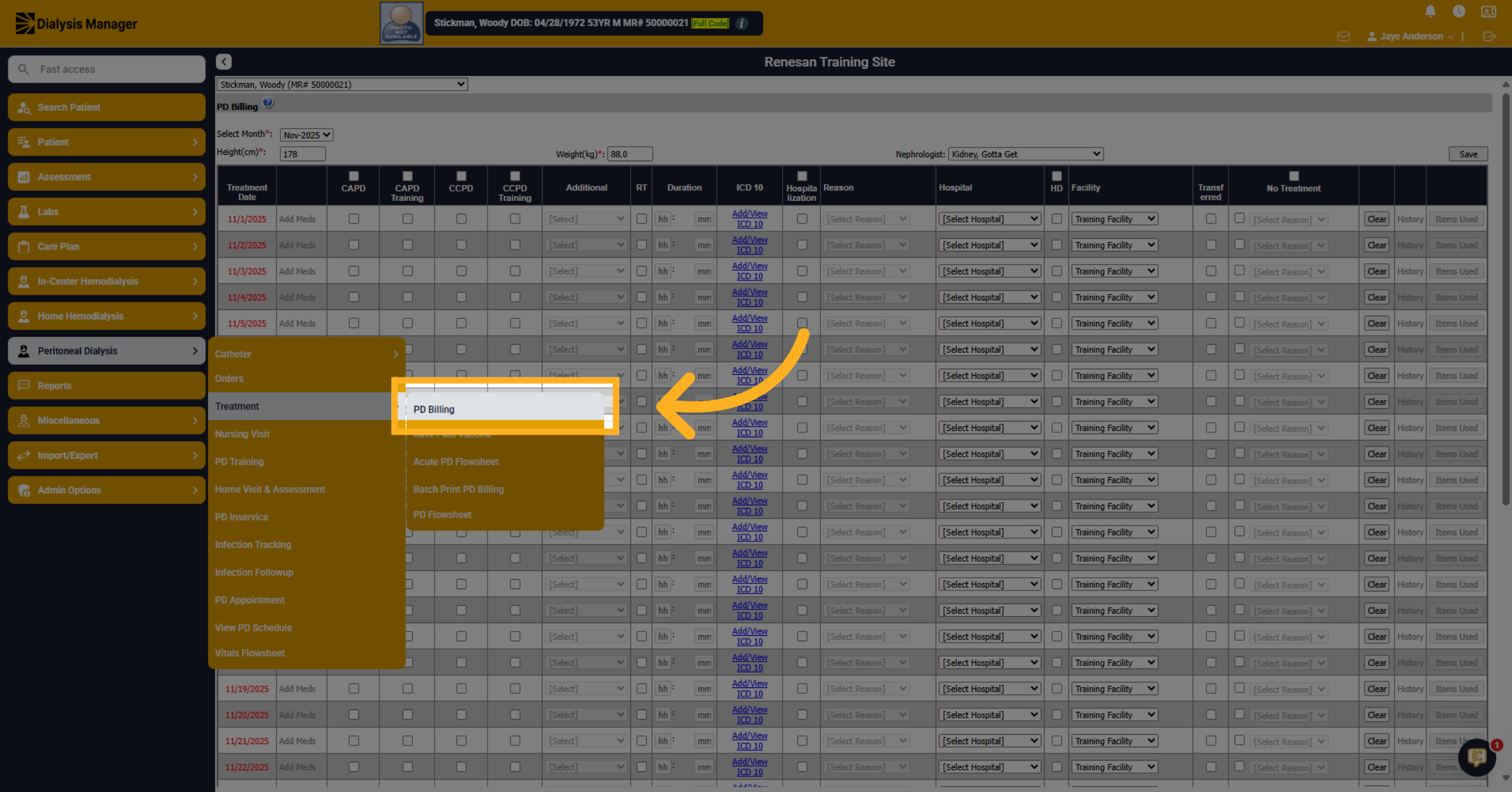
54. Select Month
Select the billing month in the dropdown.
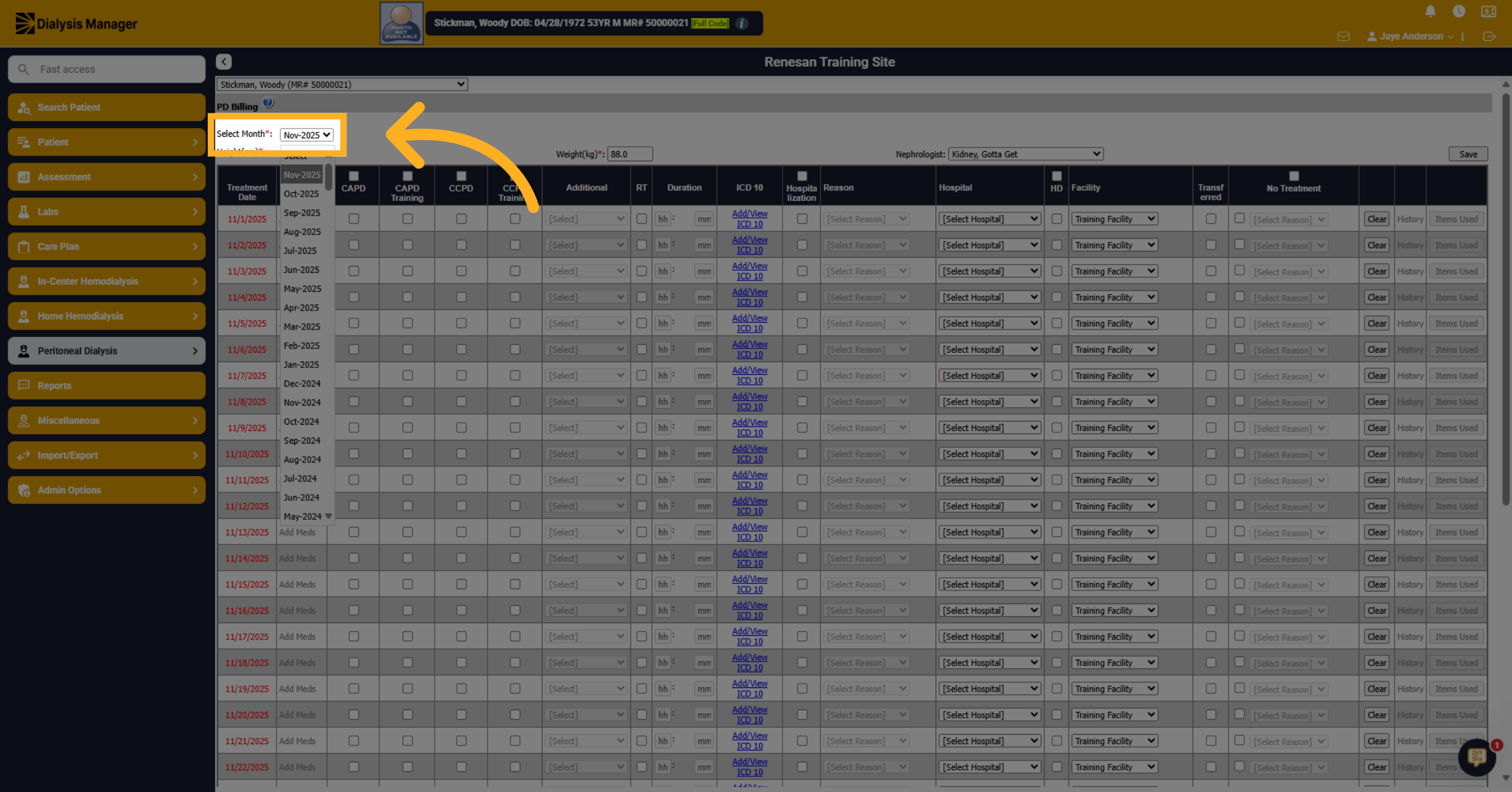
55. Height
If needed, update the height. This automatically flows across from the order.
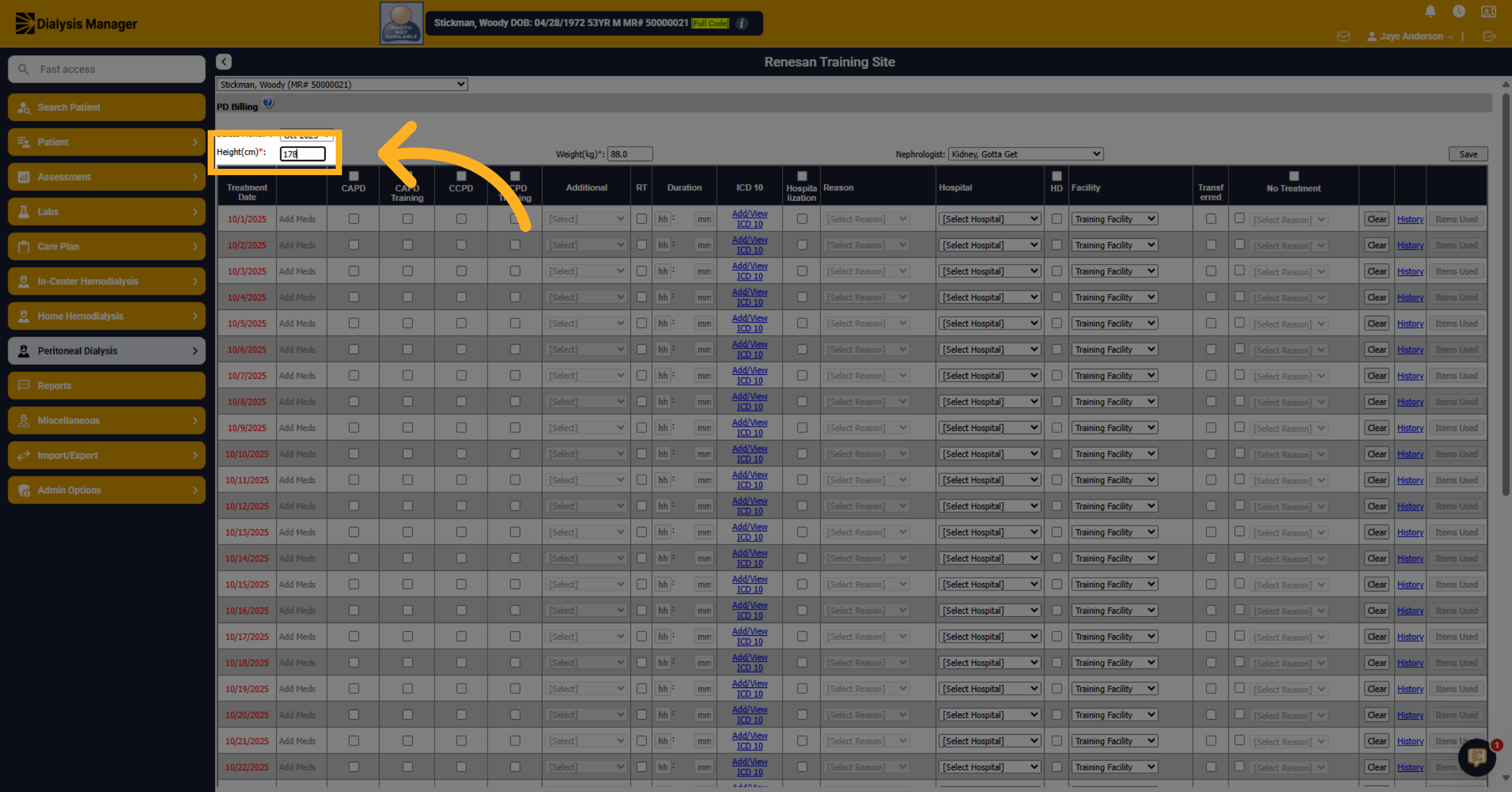
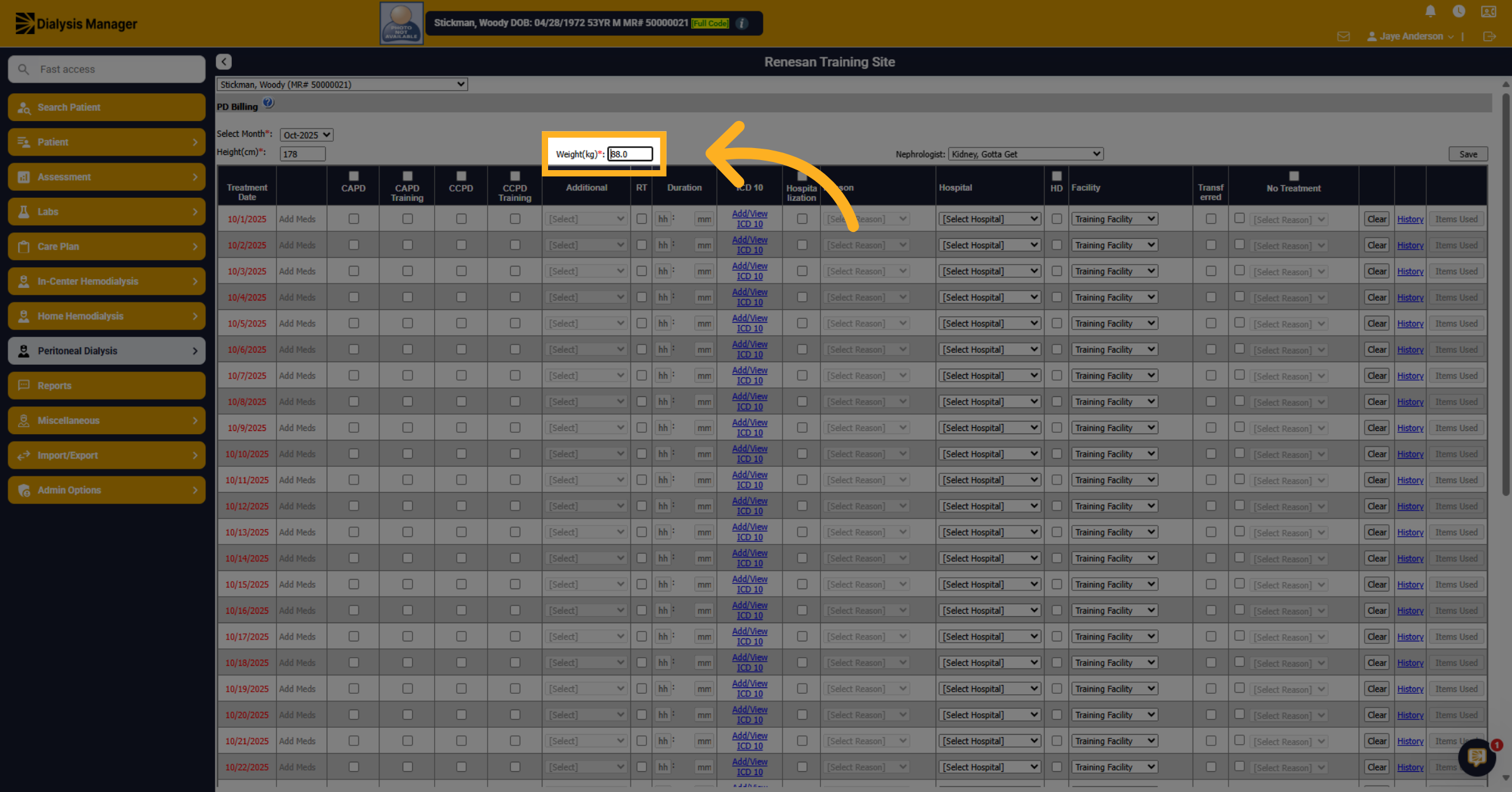
56. Update Patient weight
You can update the patient's weight if necessary.
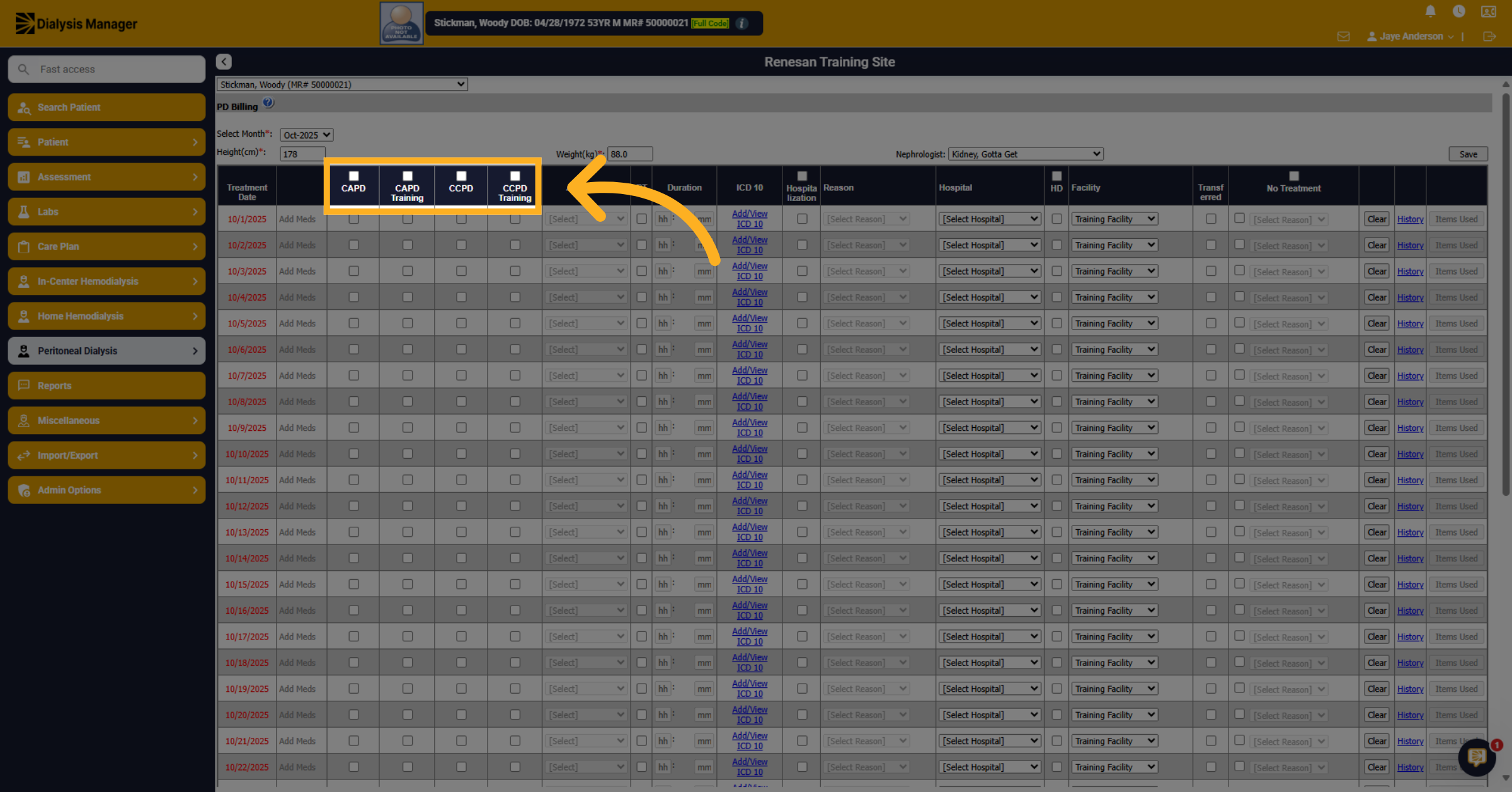
57. Select Treatment type
Select the treatment type along the top to select all. Or individually select for each date.
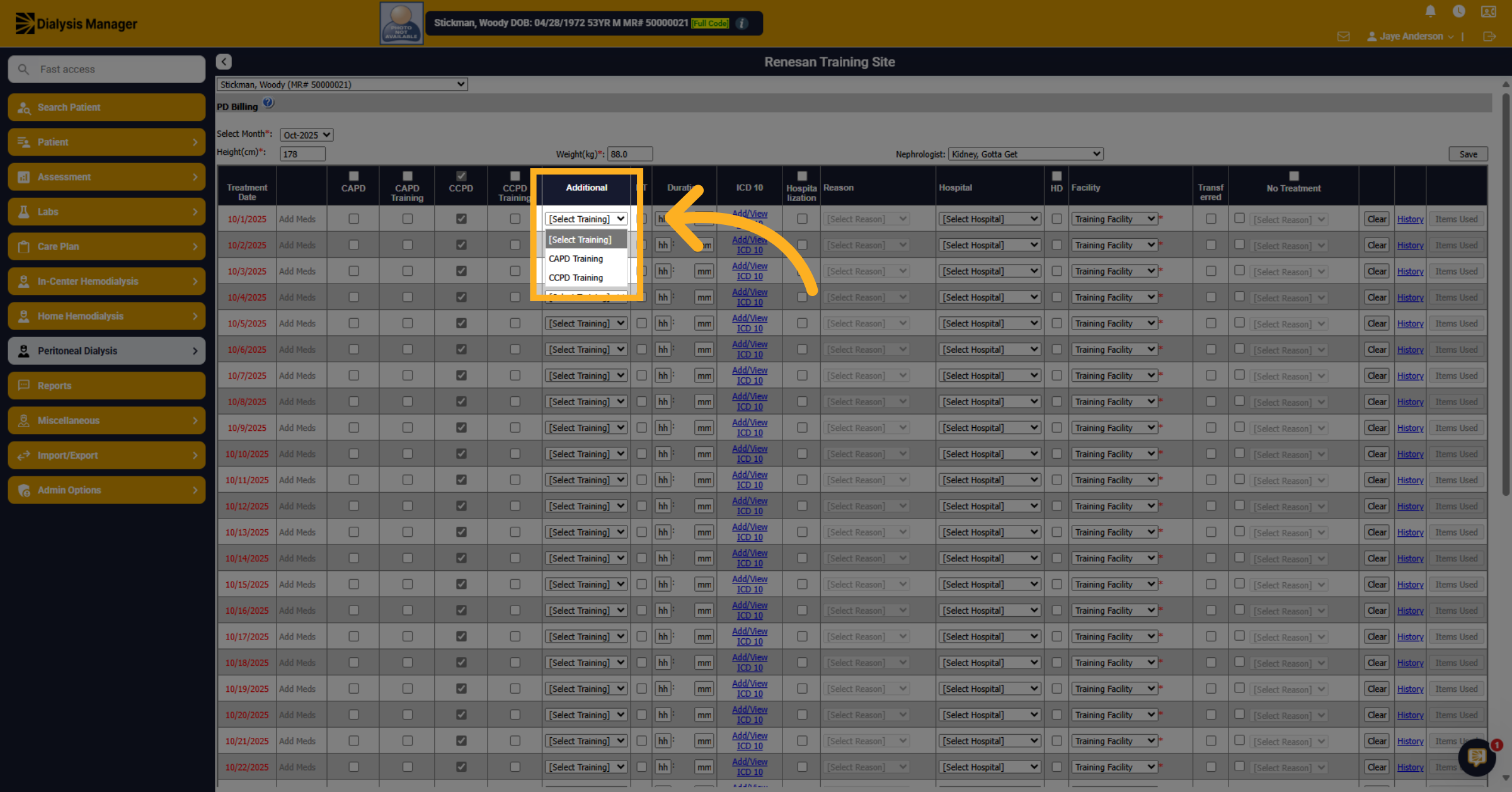
58. Choose Training Type
If there was any additional training, select the appropriate training type for the appropriate date.
59. Add or View ICD 10 Codes
To proceed, please select the appropriate ICD-10 code related to the treatment. After choosing the code from the first line, click ‘Save’ to store it for all subsequent treatments. If you overlook this step, you will be required to select an ICD-10 code for each treatment individually.
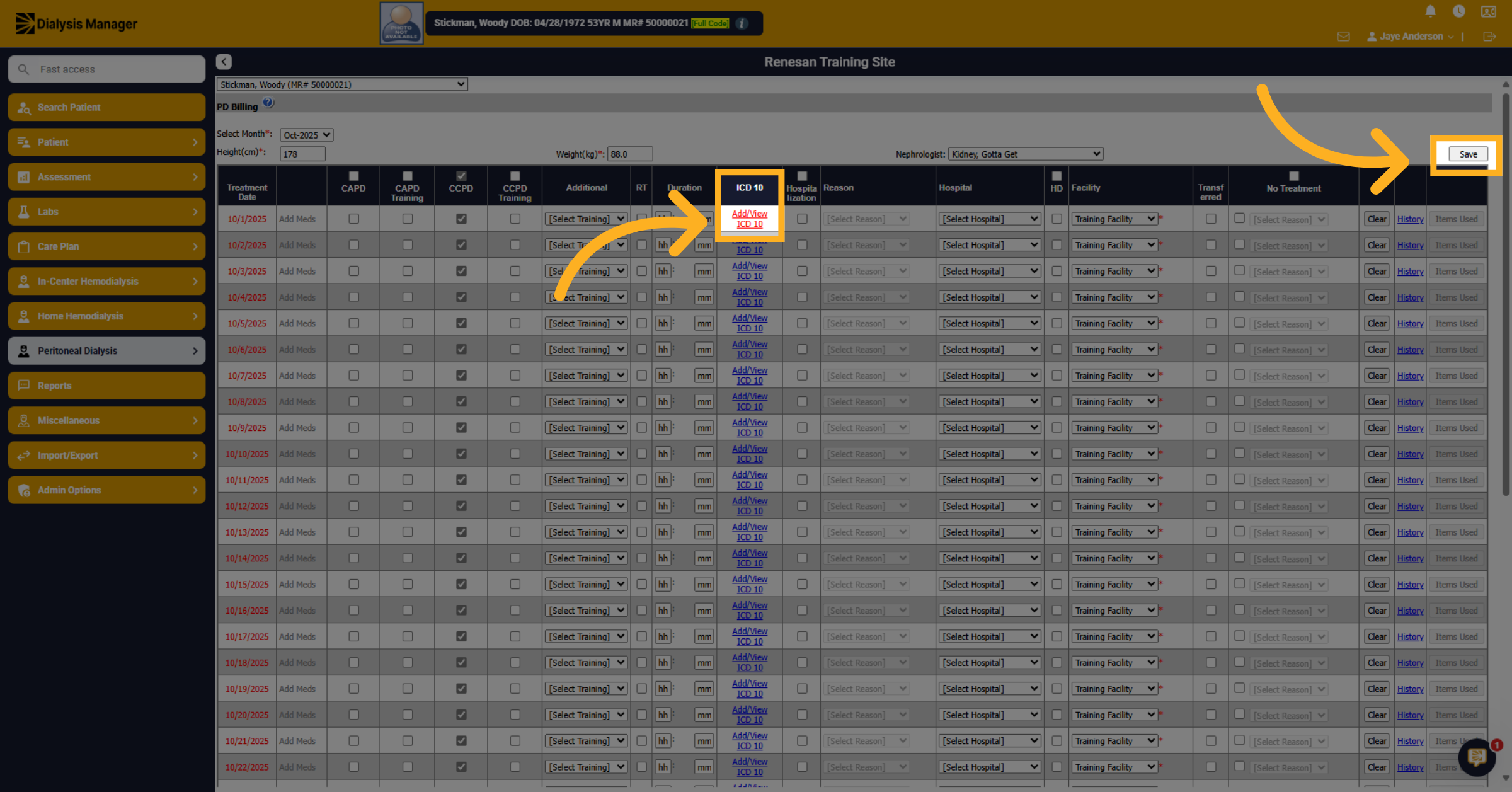
60. Select Additional Option
When clicking the hyperlink; a new pop-up box will appear. Select the additional ICD 10 code as required, if needed.
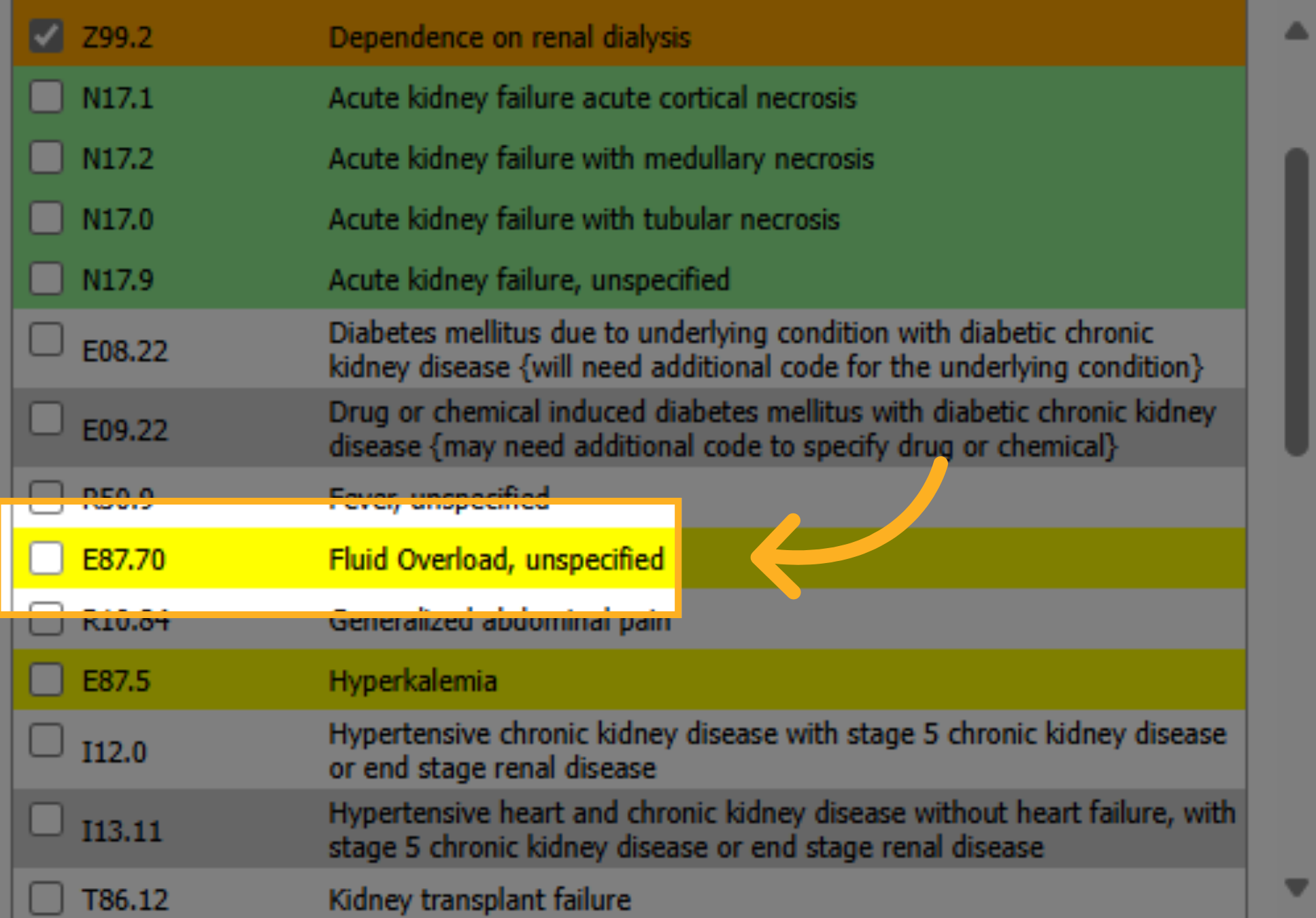
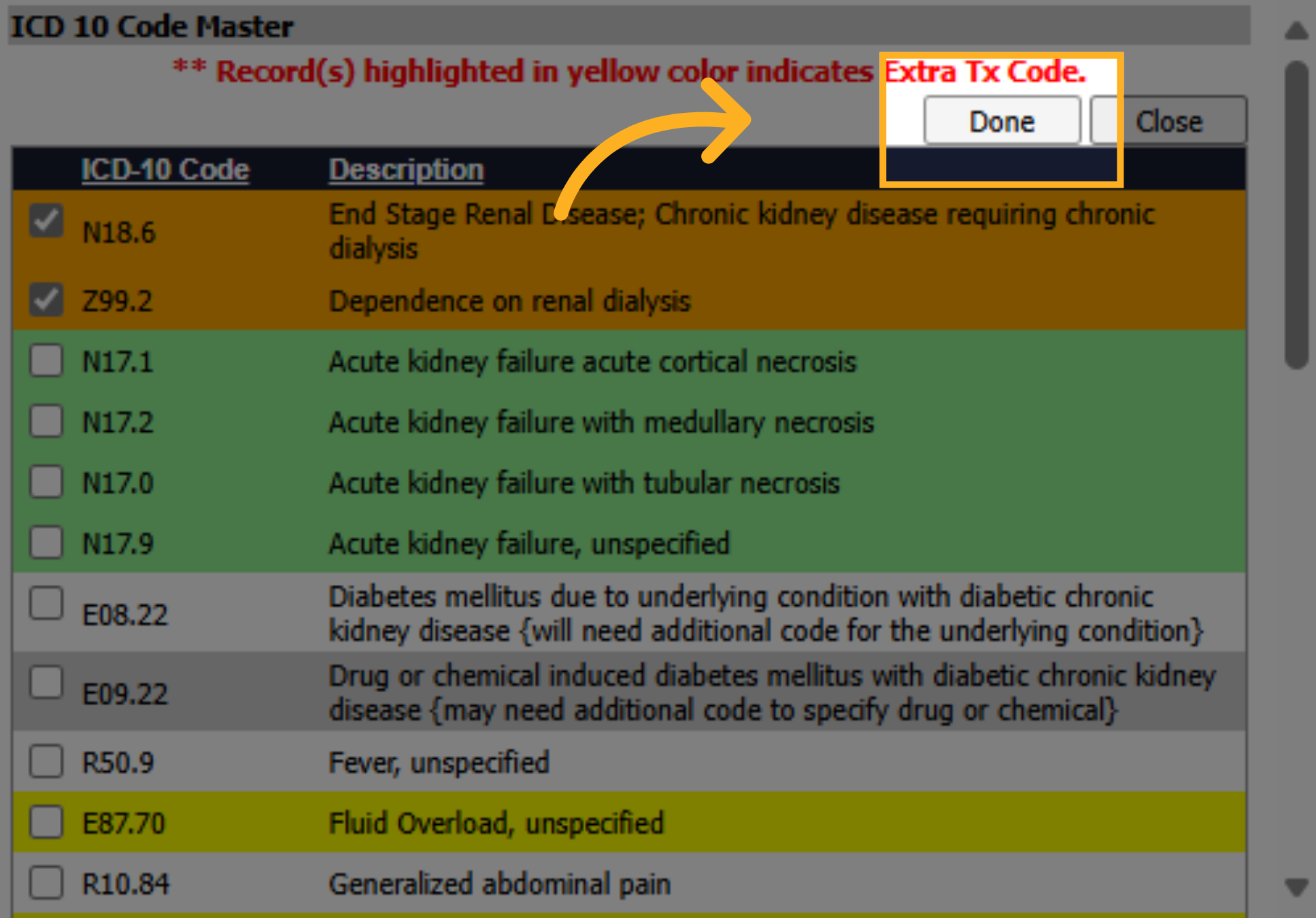
61. Confirm Completion
Click Done to confirm your entries.
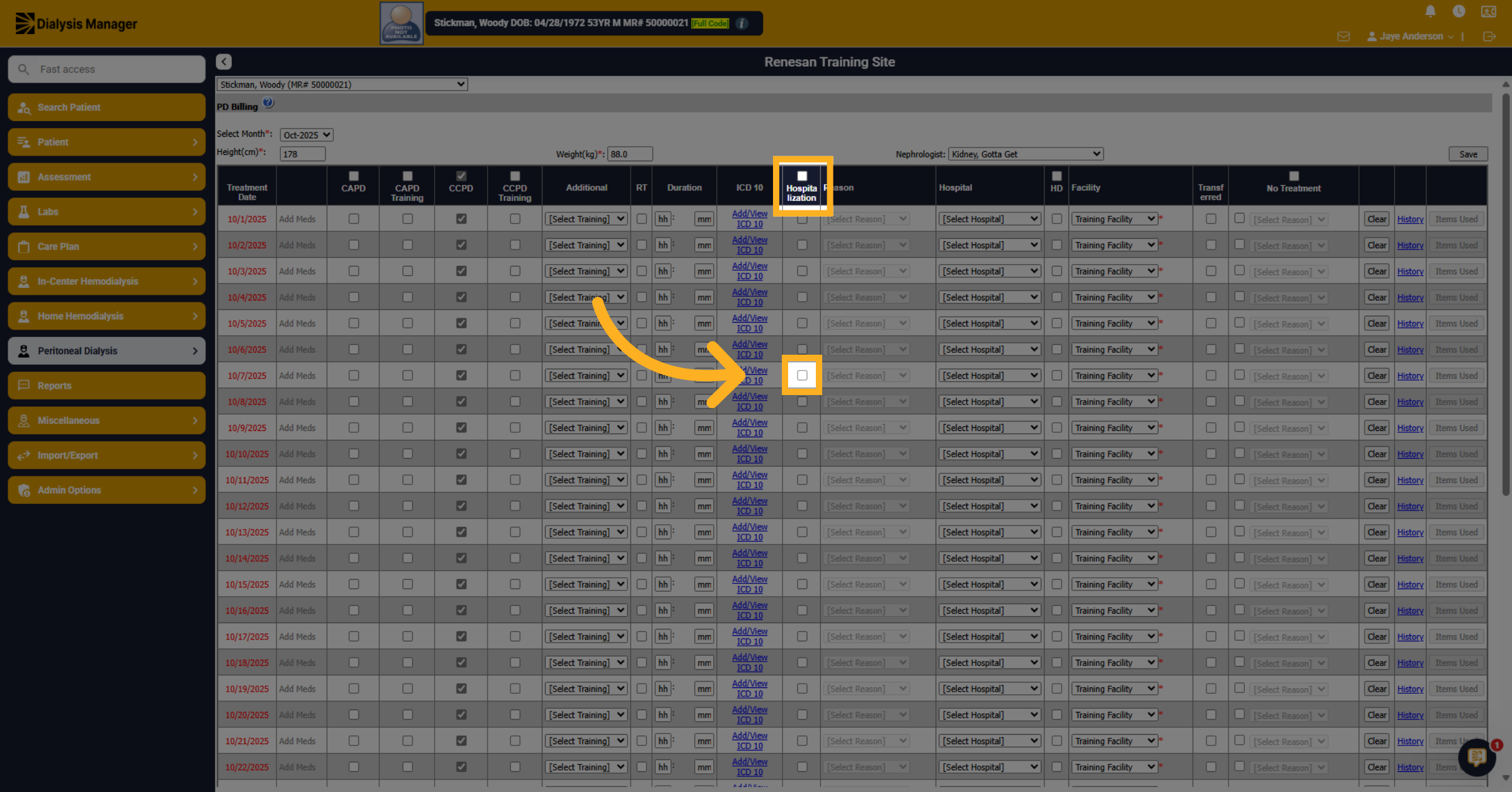
62. Select Hospitalization Status
If the patient was hospitalized during any day within the month, select the hospitalization check box status.
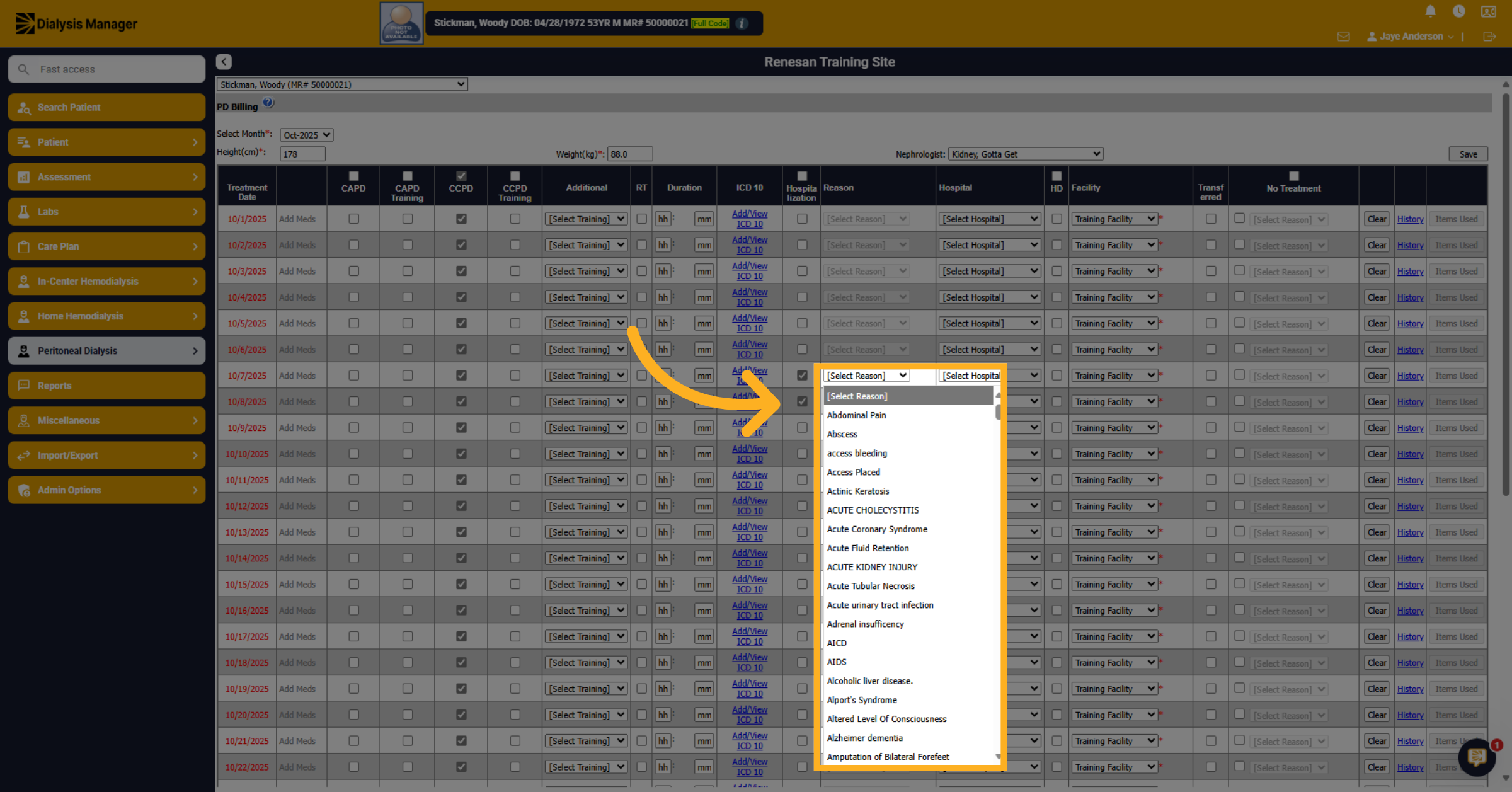
63. Choose Hospitalization Reason
Fill in the hospitalization details by choosing the appropriate reason from the list.
64. Confirm Facility Selection
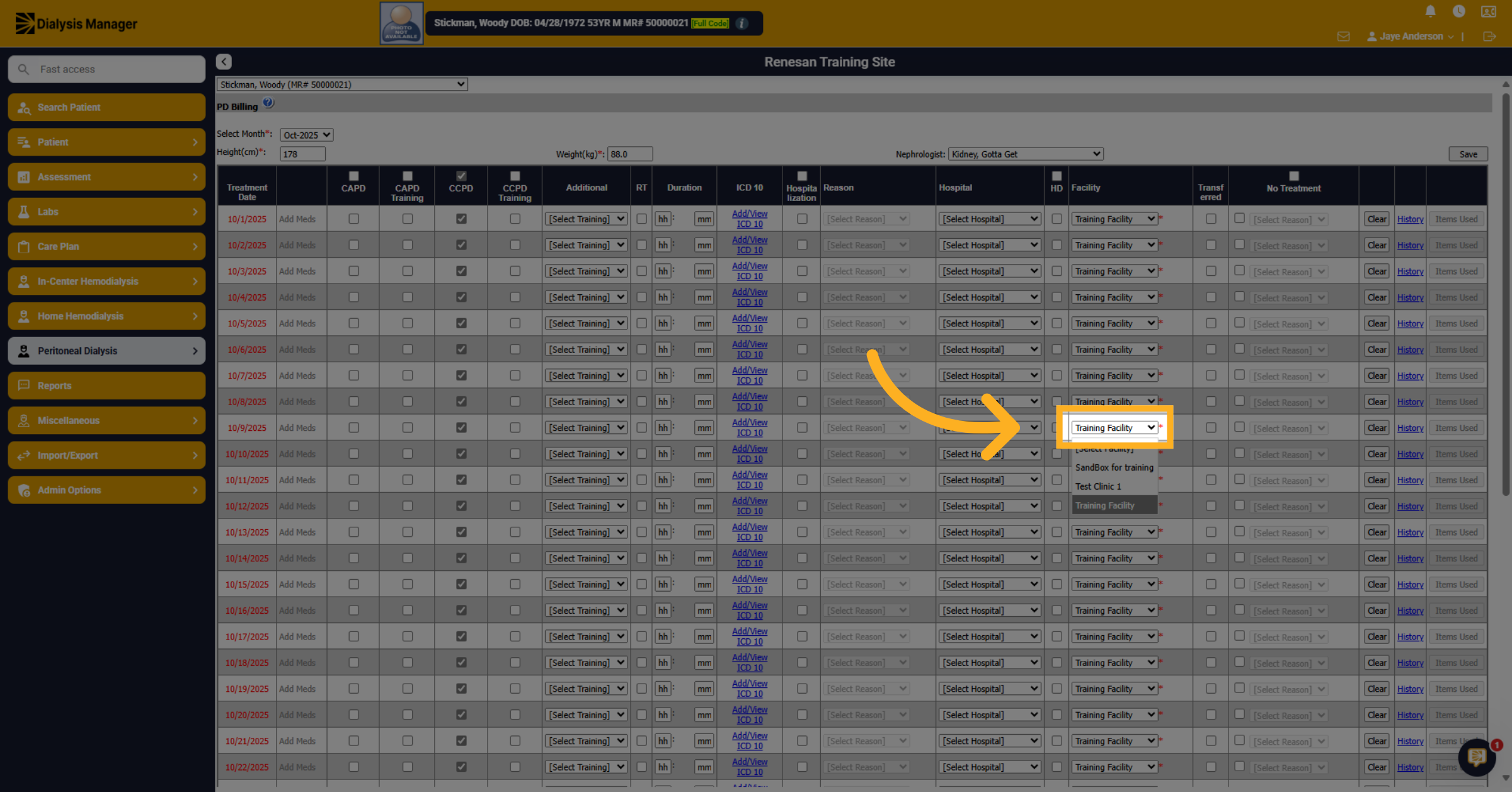
Confirm the selected billing facility.
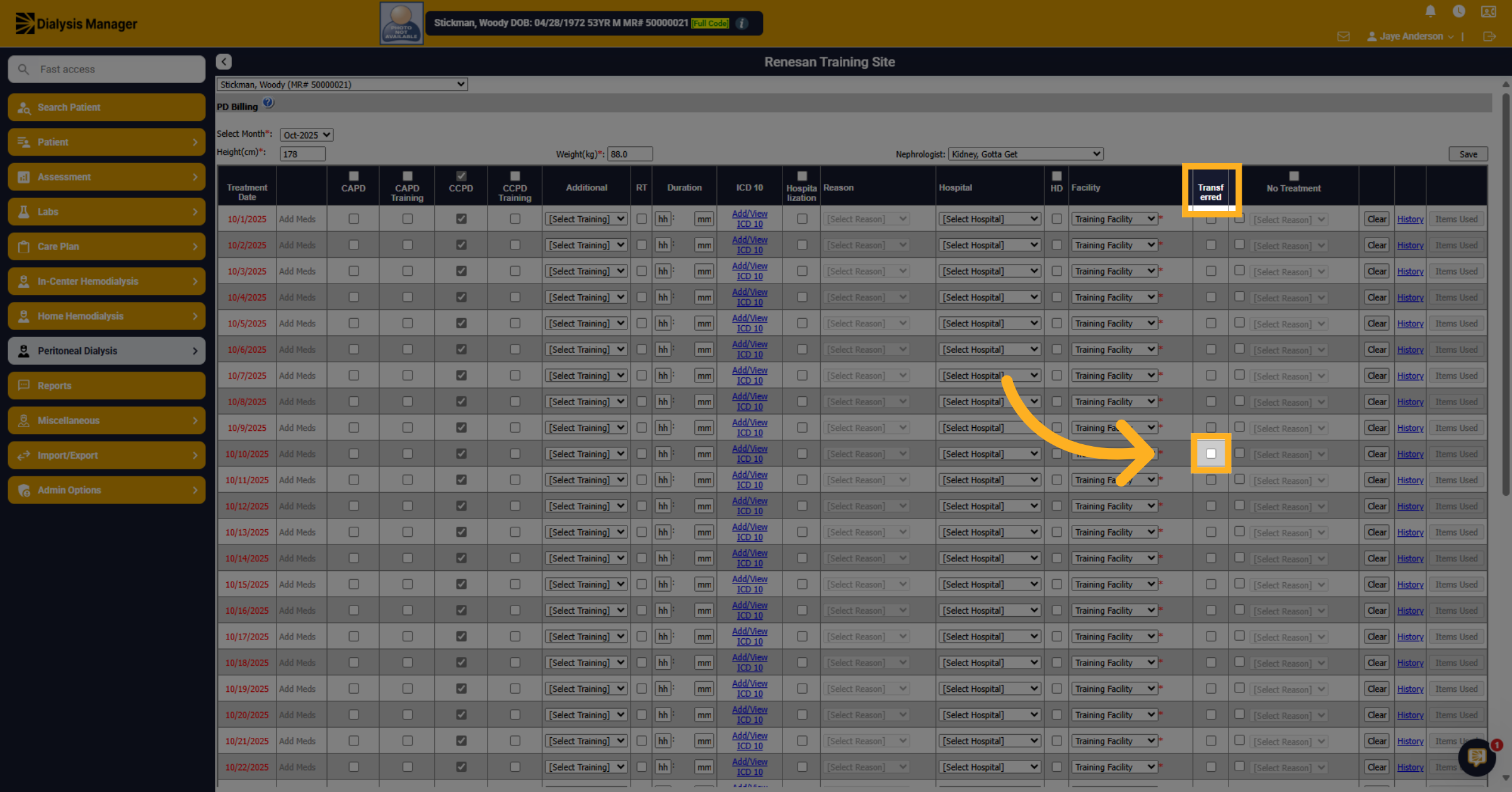
65. Fill Transfer Details
If the patient has been transferred, select the transfer status check box.
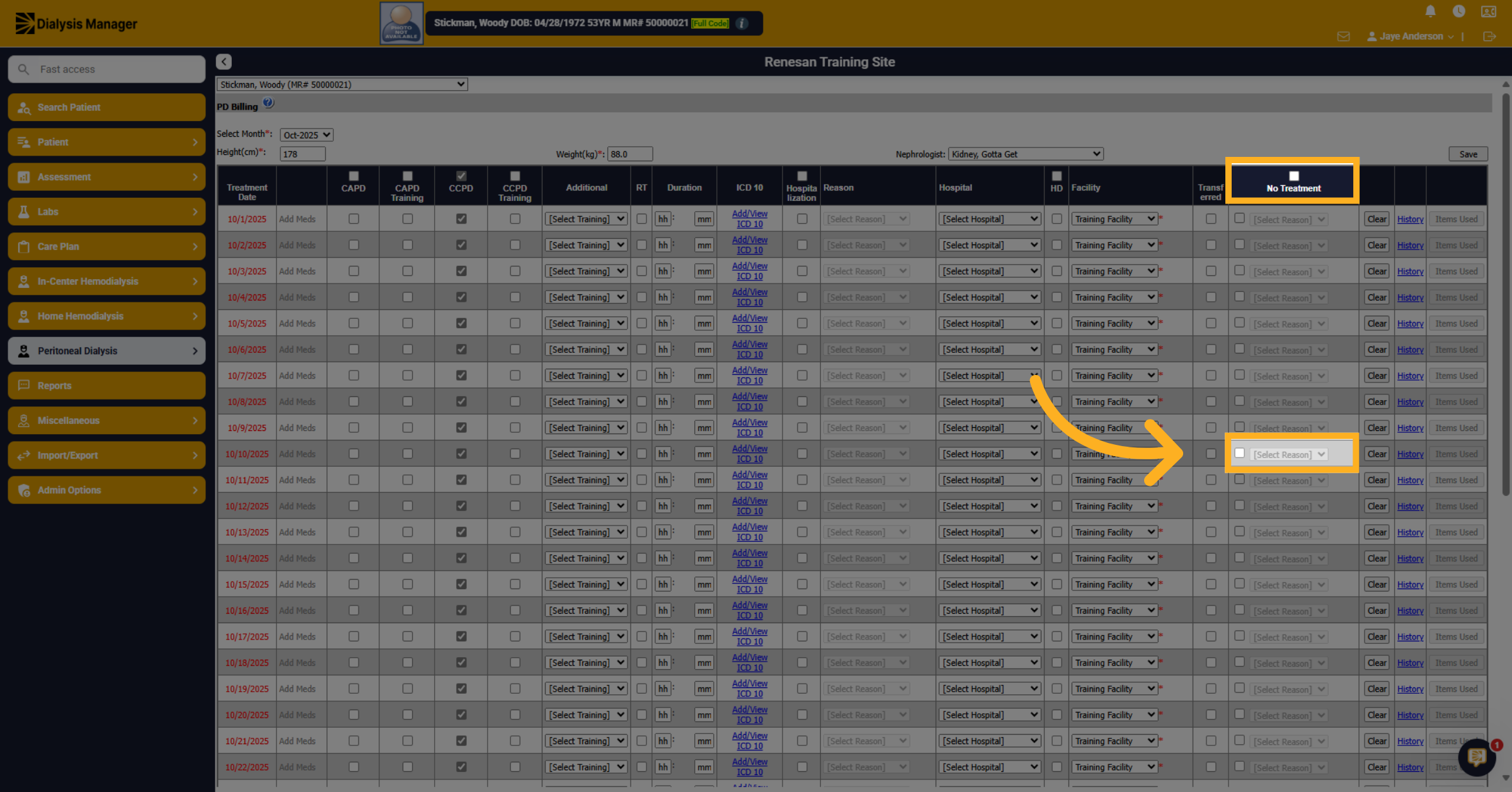
66. Select No Treatment Reason
If there is no treatment you can mark the check box and select the reason for no treatment from the drop-down list.
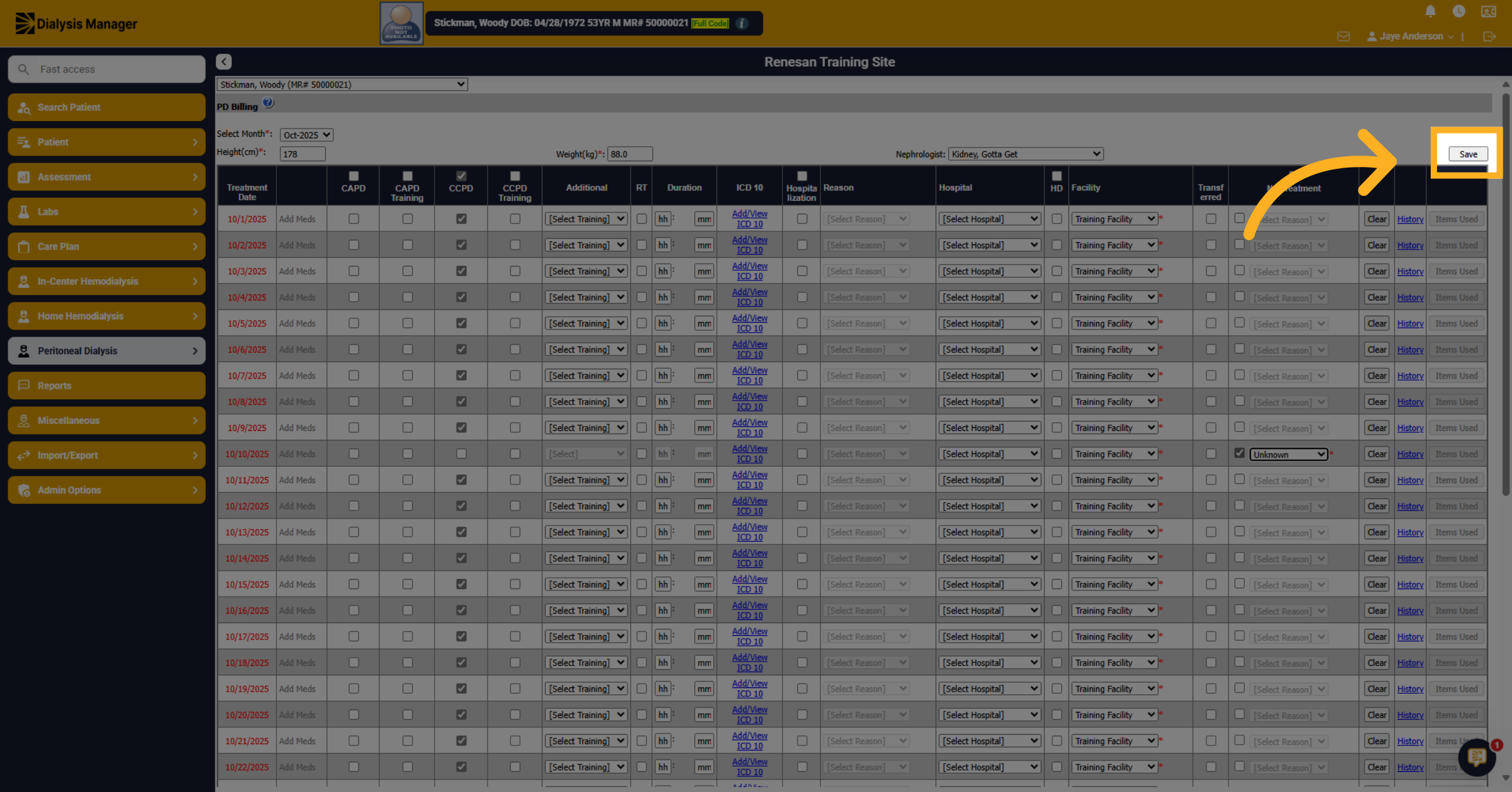
67. Click Save
Click Save. Wait for the system to confirm the save process.
68. Enter Medication Quantity
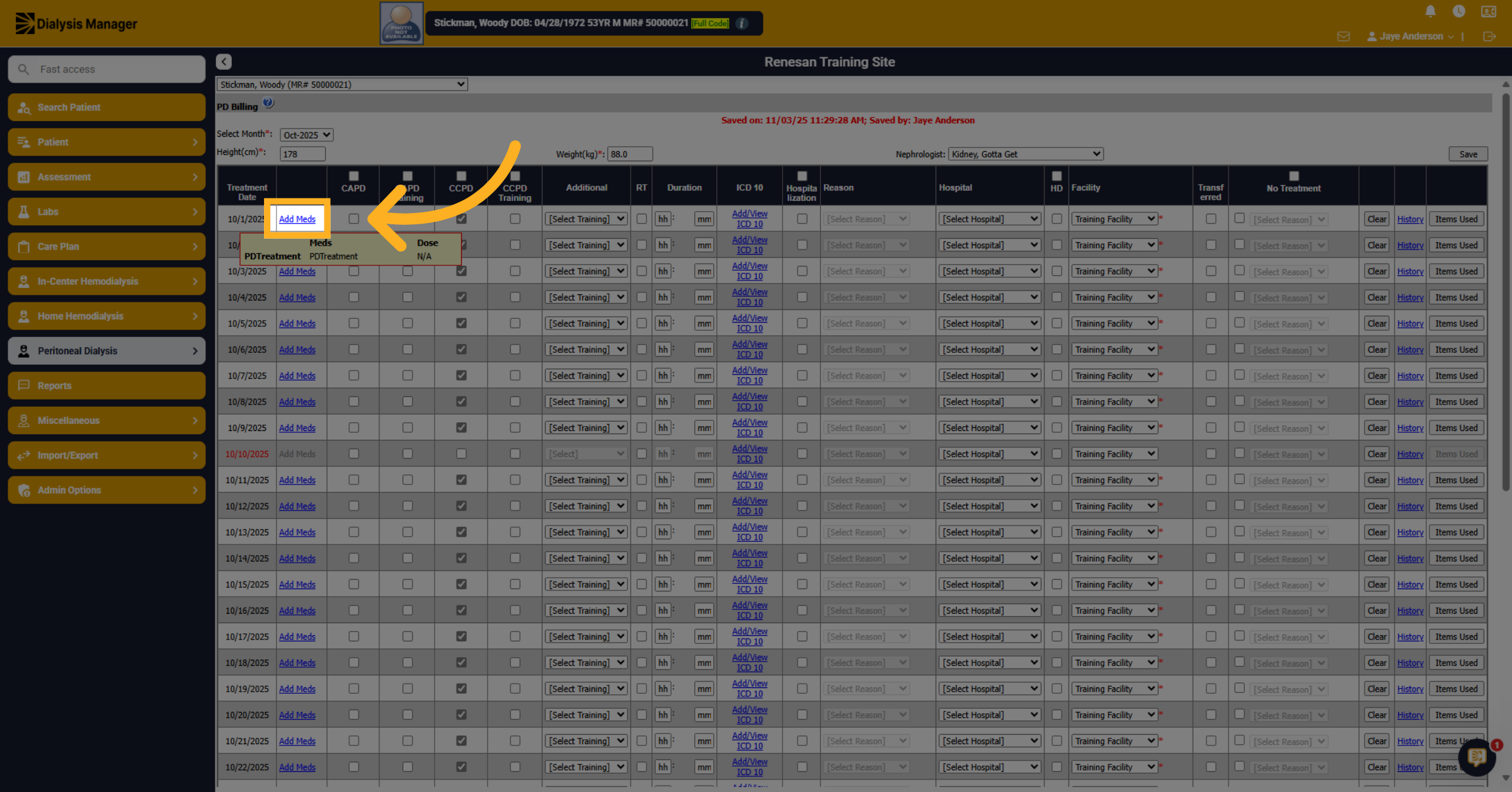
If you need to add any medications that the patient used during treatment. Choose the "Add Meds" hyperlink next to a particular date. Please note, any medications administered during a clinic visit will cross over once it has been approved and locked.
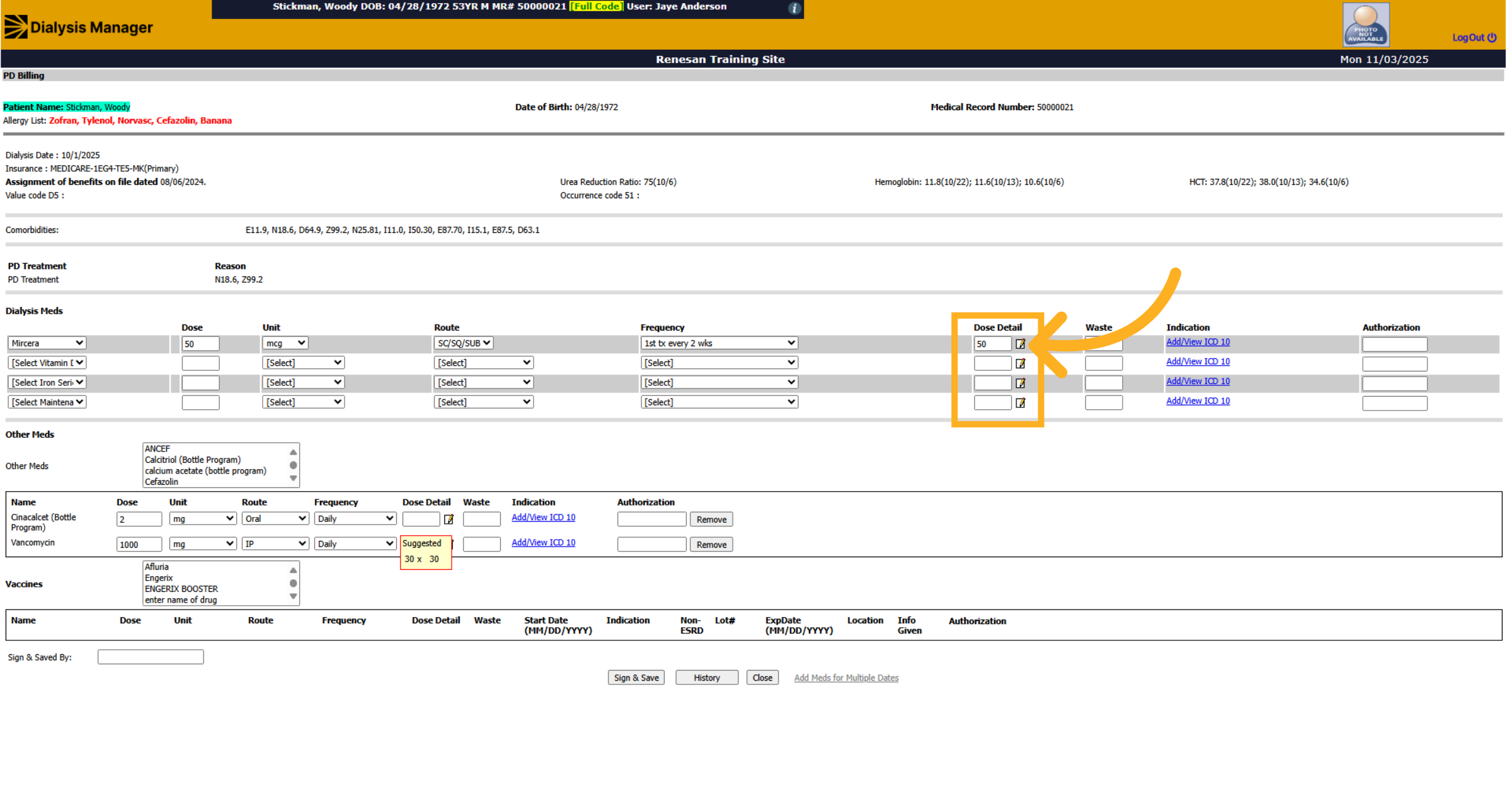
69. Open Medication Dose Detail
When opening the "Add Meds" you'll see the patients Dialysis Meds, Other Meds, and Vaccines. Select the notepad within the Dose Detail column.
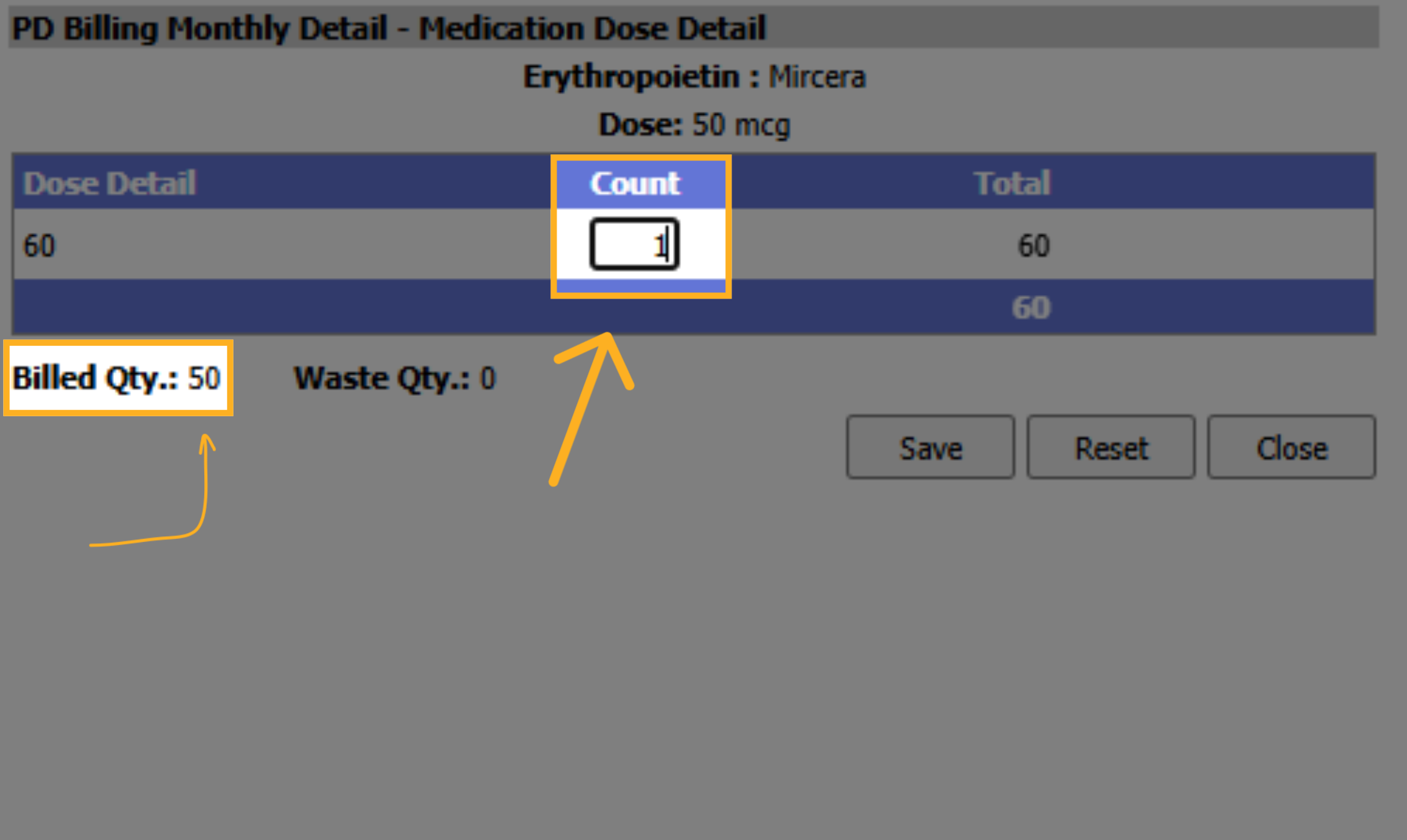
70. Select Medication Quantity
A new pop-up box will appear. Enter the quantity or vial size amount of medication administered. The total billed quantity should equal the amount administered.
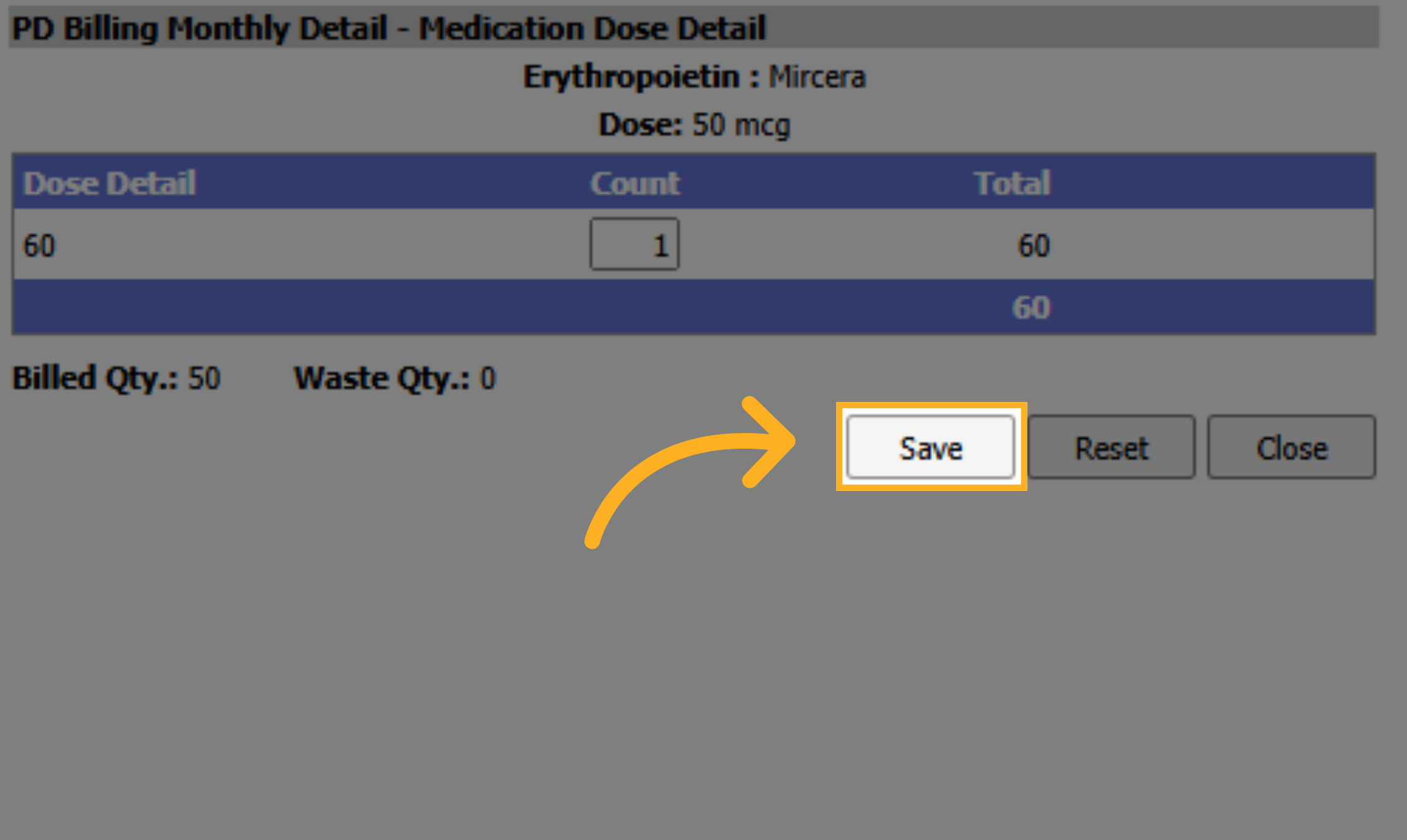
71. Save Medication Details
Click Save to confirm medication details.
72. Open Medication Summary
Click to open the medication dose detail for the next medication, enter the amount and click save.
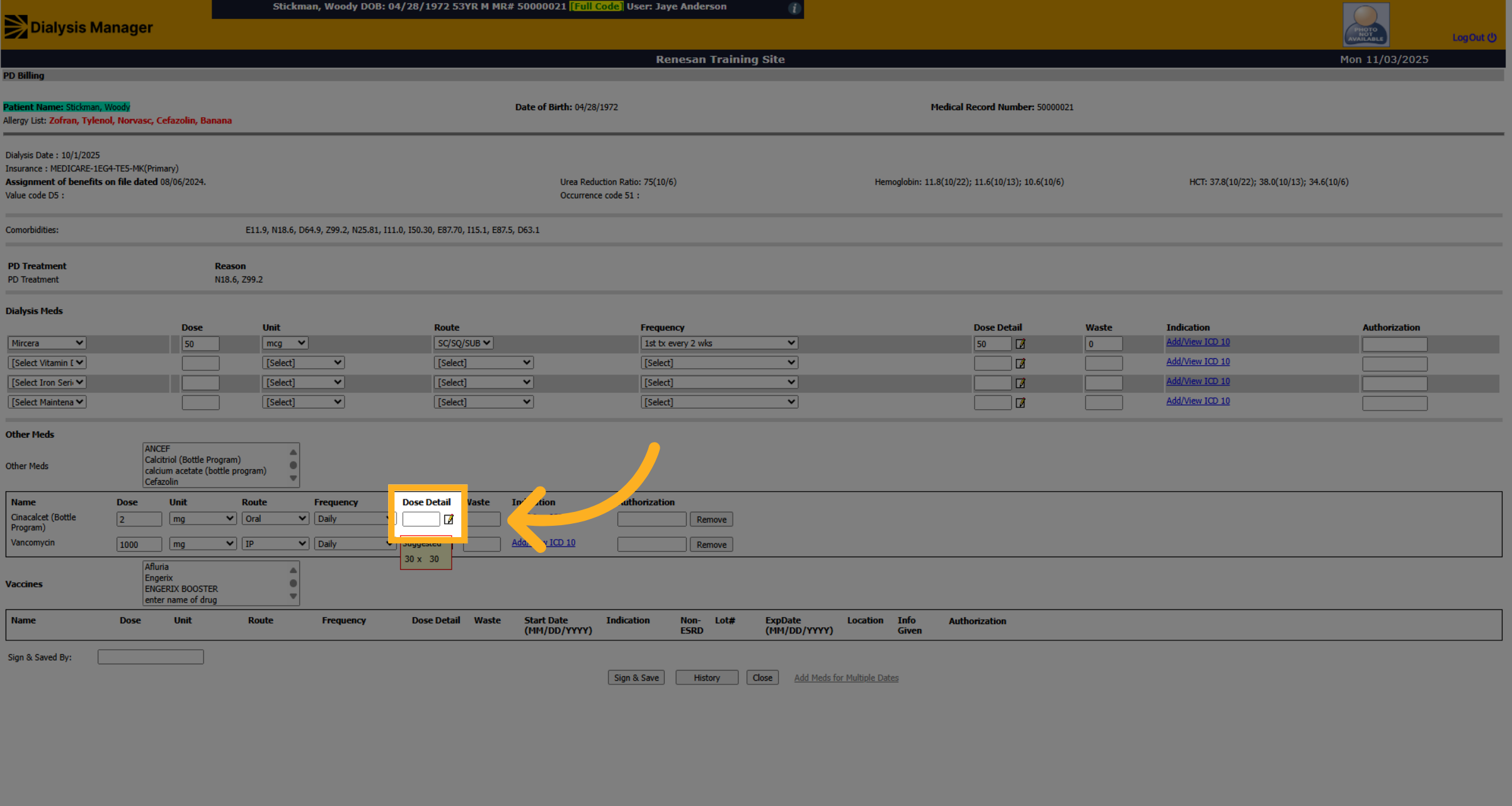
73. Add Medications for Multiple Days
If you need to remove a medication you can click "Remove".
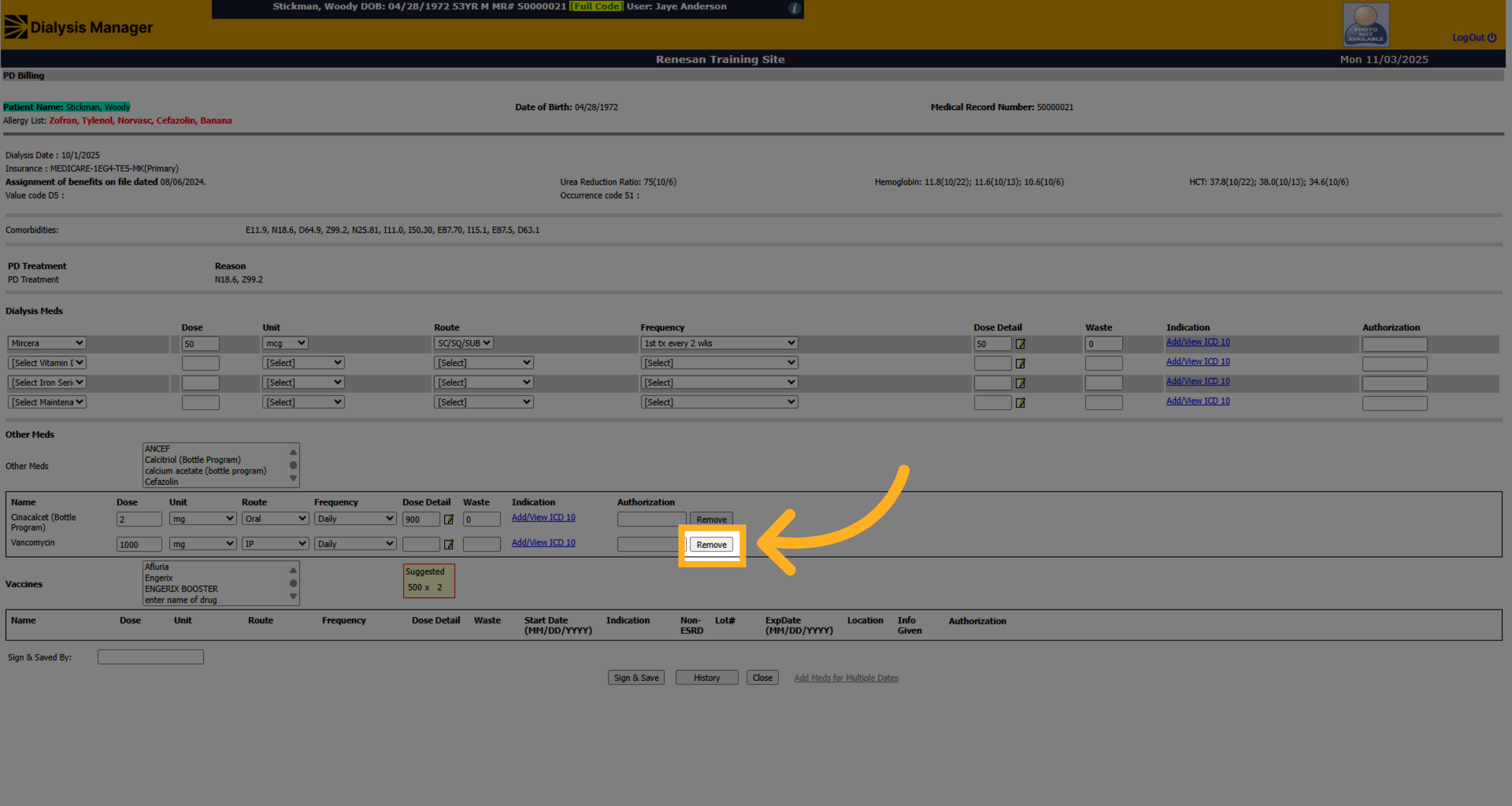
74. Fill Medication Details
Click Sign and Save
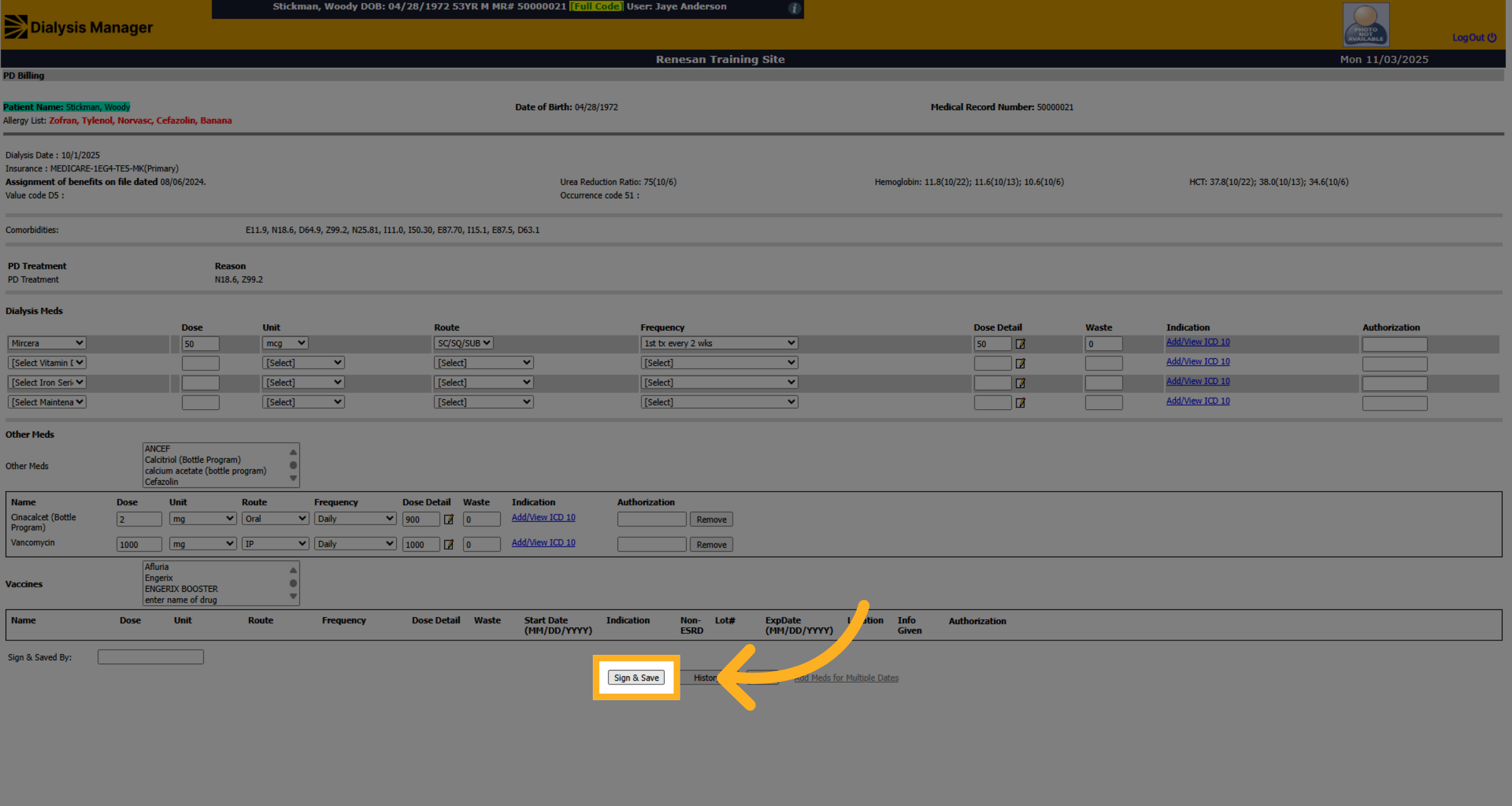
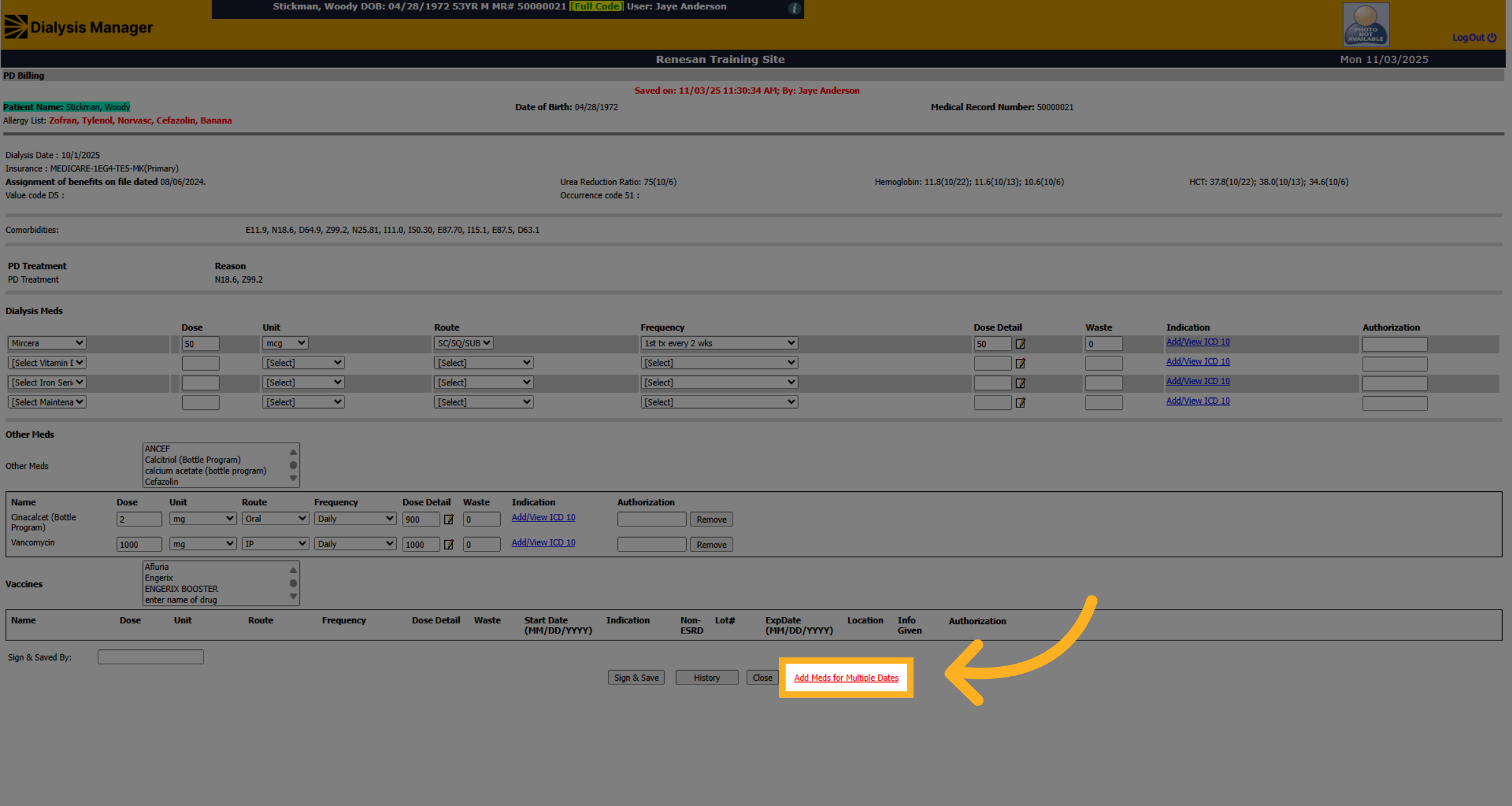
75. Add Meds for multiple dates
If you need to add medication information for multiple days, click "Add Meds for Multiple Dates".
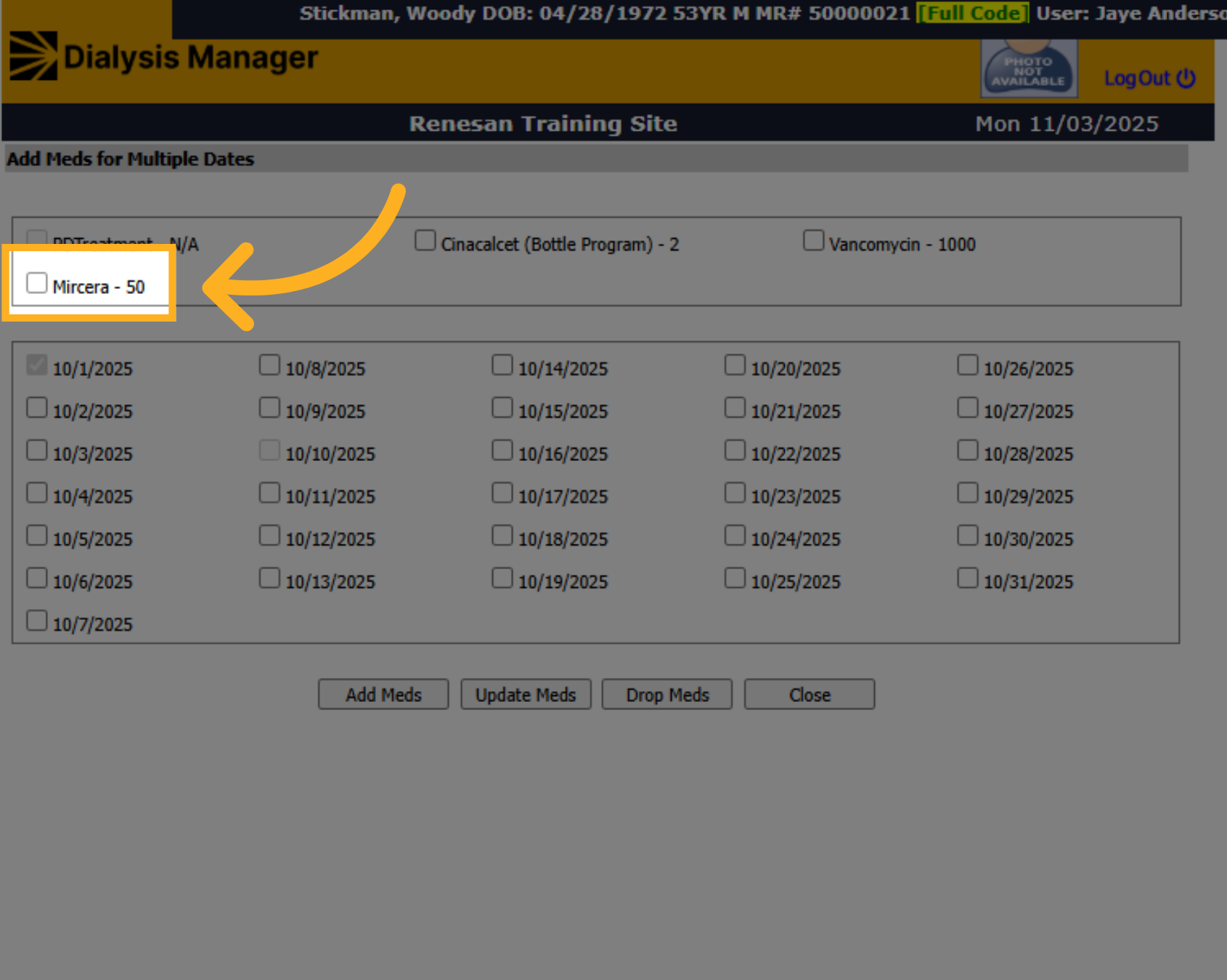
76. Select Medication
Select the administered medication.
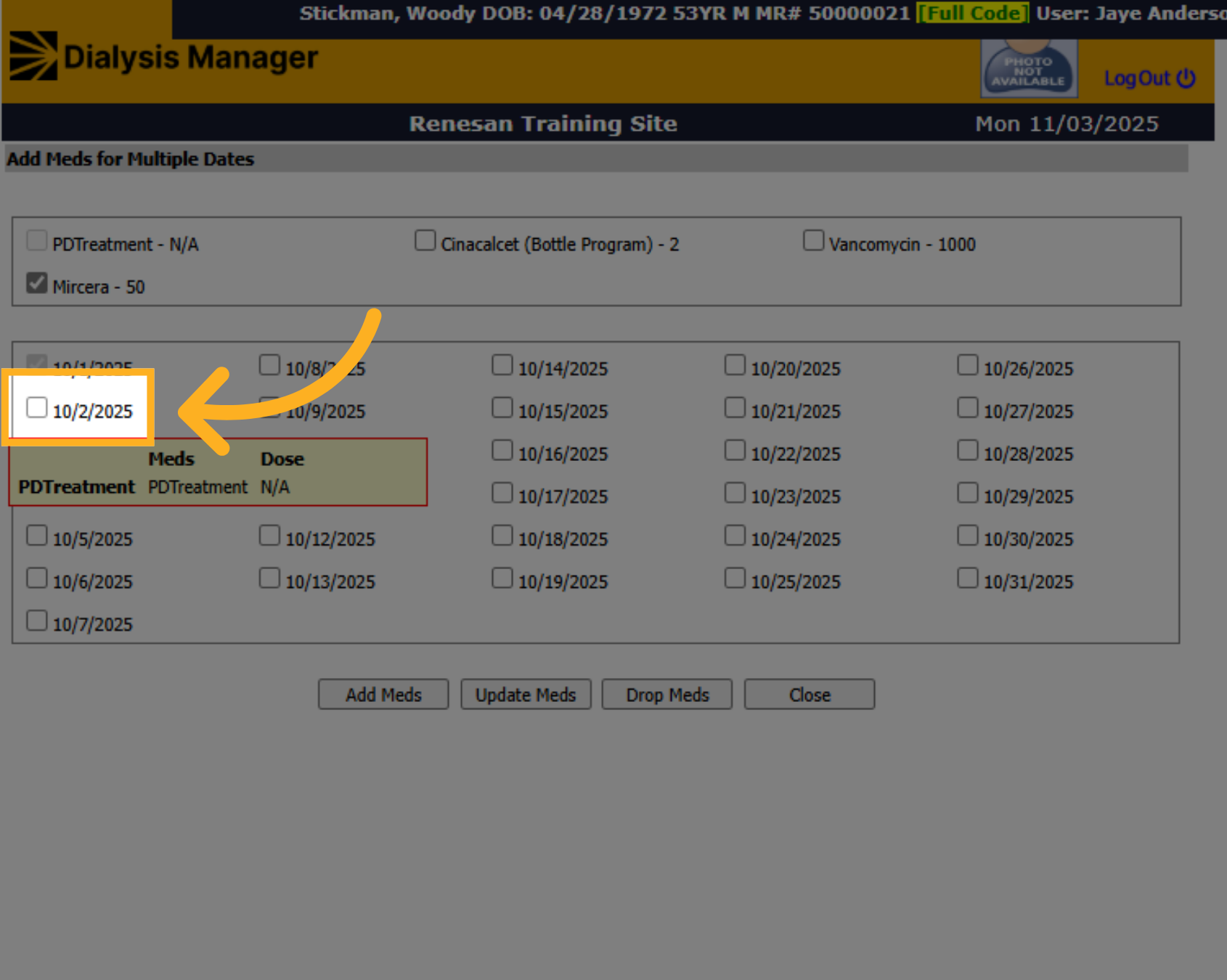
77. Select Dates
Select the additional dates of medication administration.
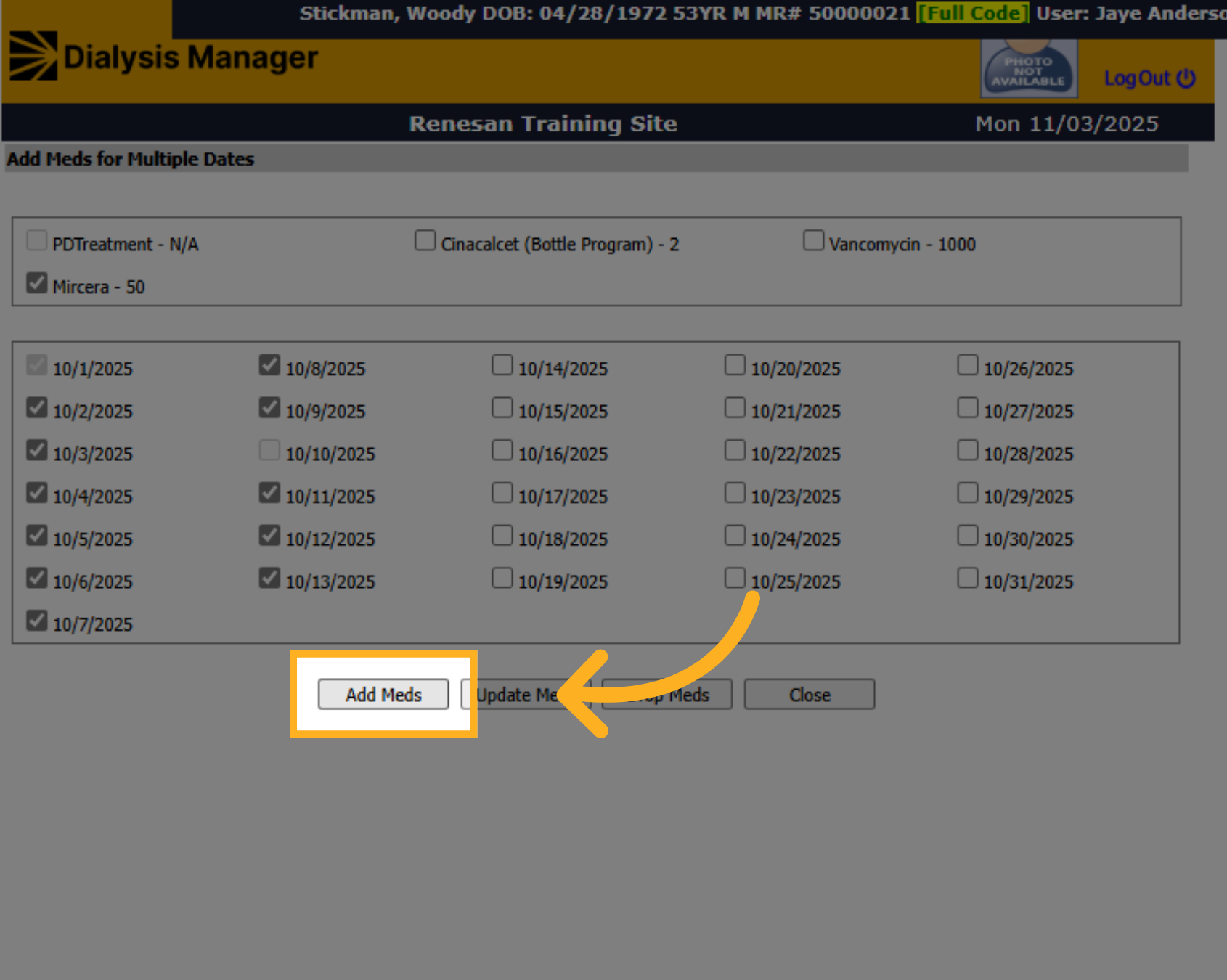
78. Click Add Meds
When complete, click "Add Meds" to add the medications for the selected dates.
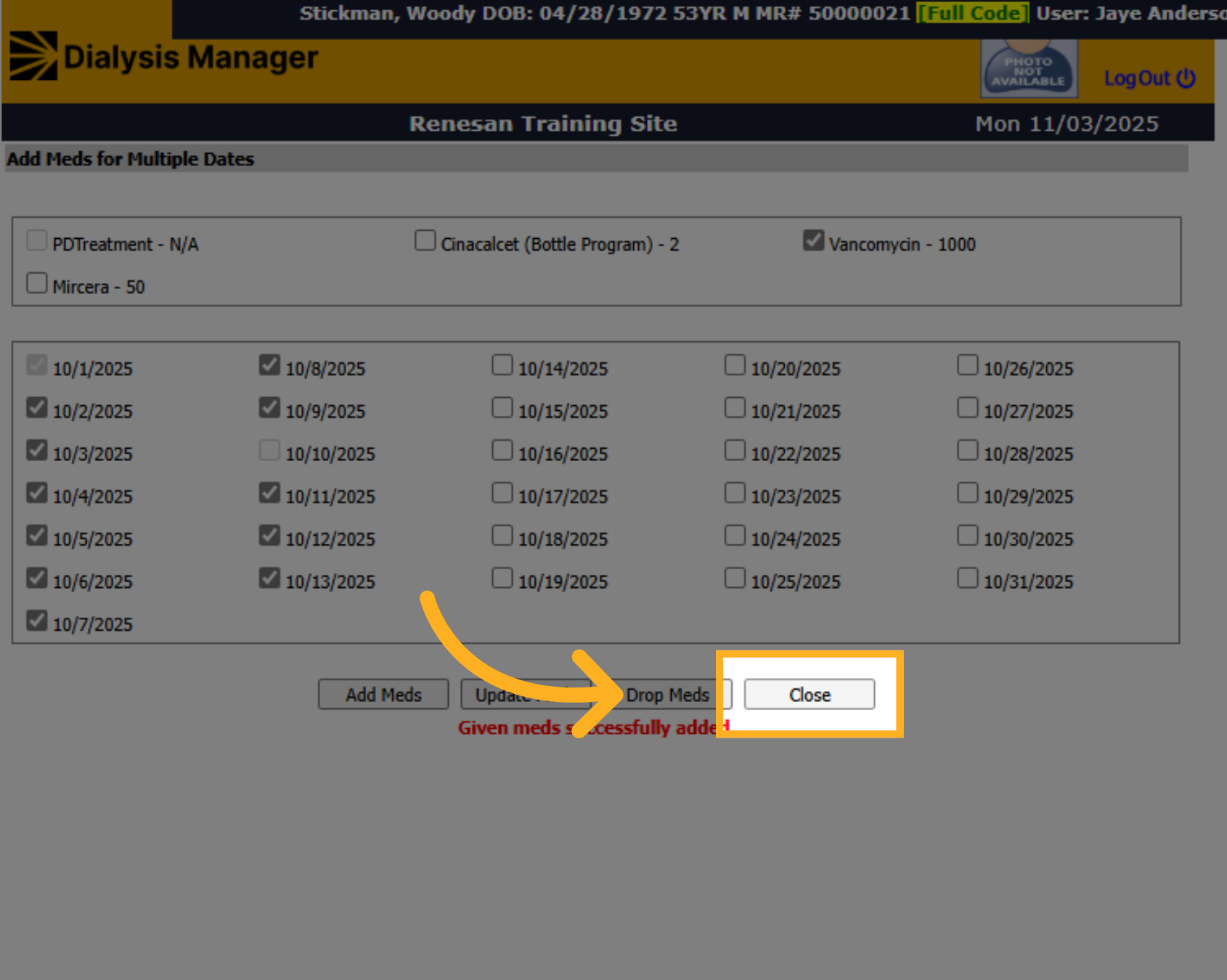
79. Close
Click Close to exit the billing window.
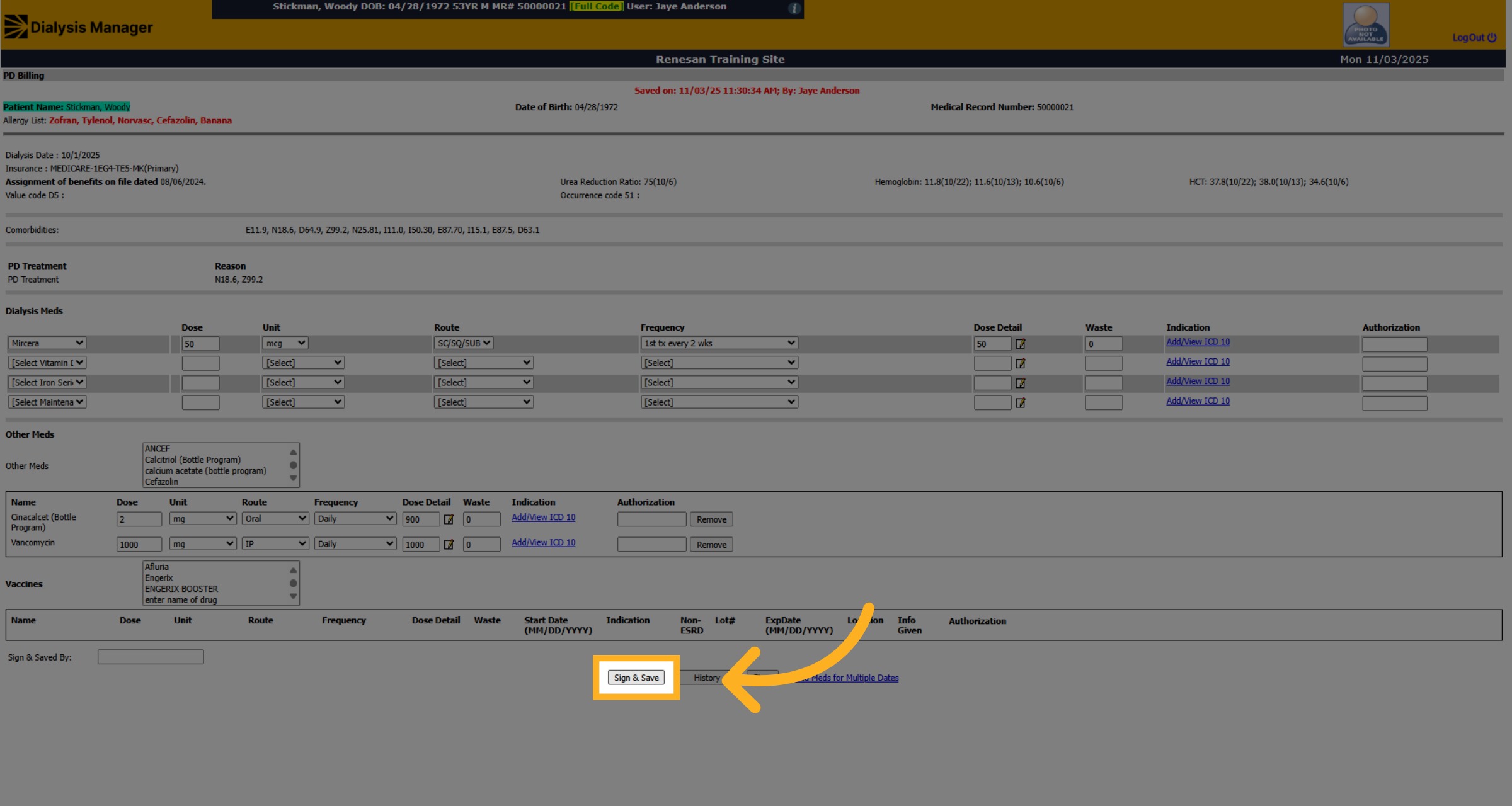
80. Click "Sign & Save"
Click Sign & Save to finalize and save the billing information.
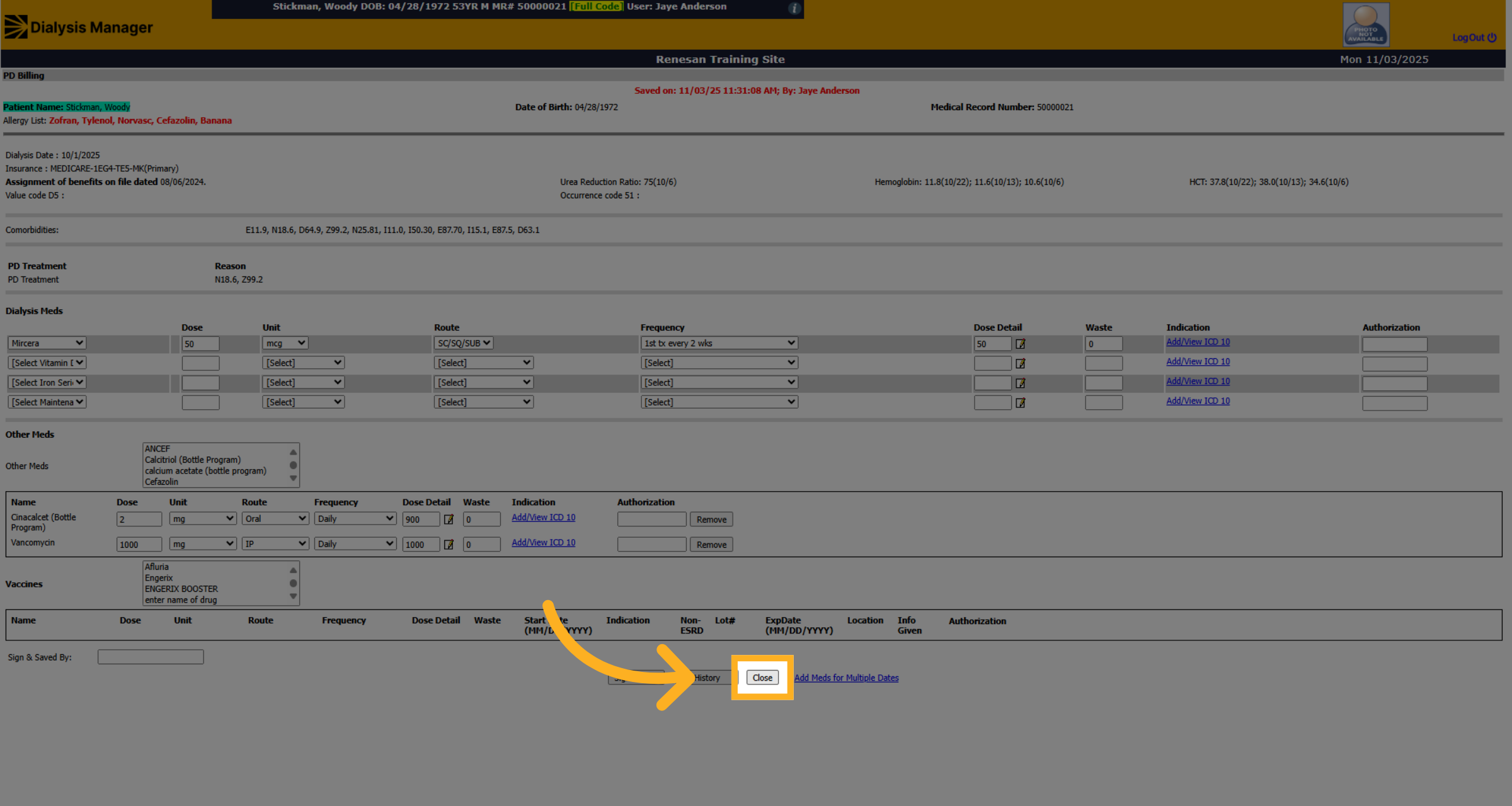
81. Click "Close"
Click Close
82. Review and Save
You can now see there is a Red View Meds which indicates medications were given. You can hover over to view the meds. Blue Add Meds means no medications were given that day! Review all information before Saving!