PD Flowsheet Entries in Dialysis Manager
1. Introduction
This tutorial guides you through entering vitals and additional information from the patients' paper PD flowsheet.
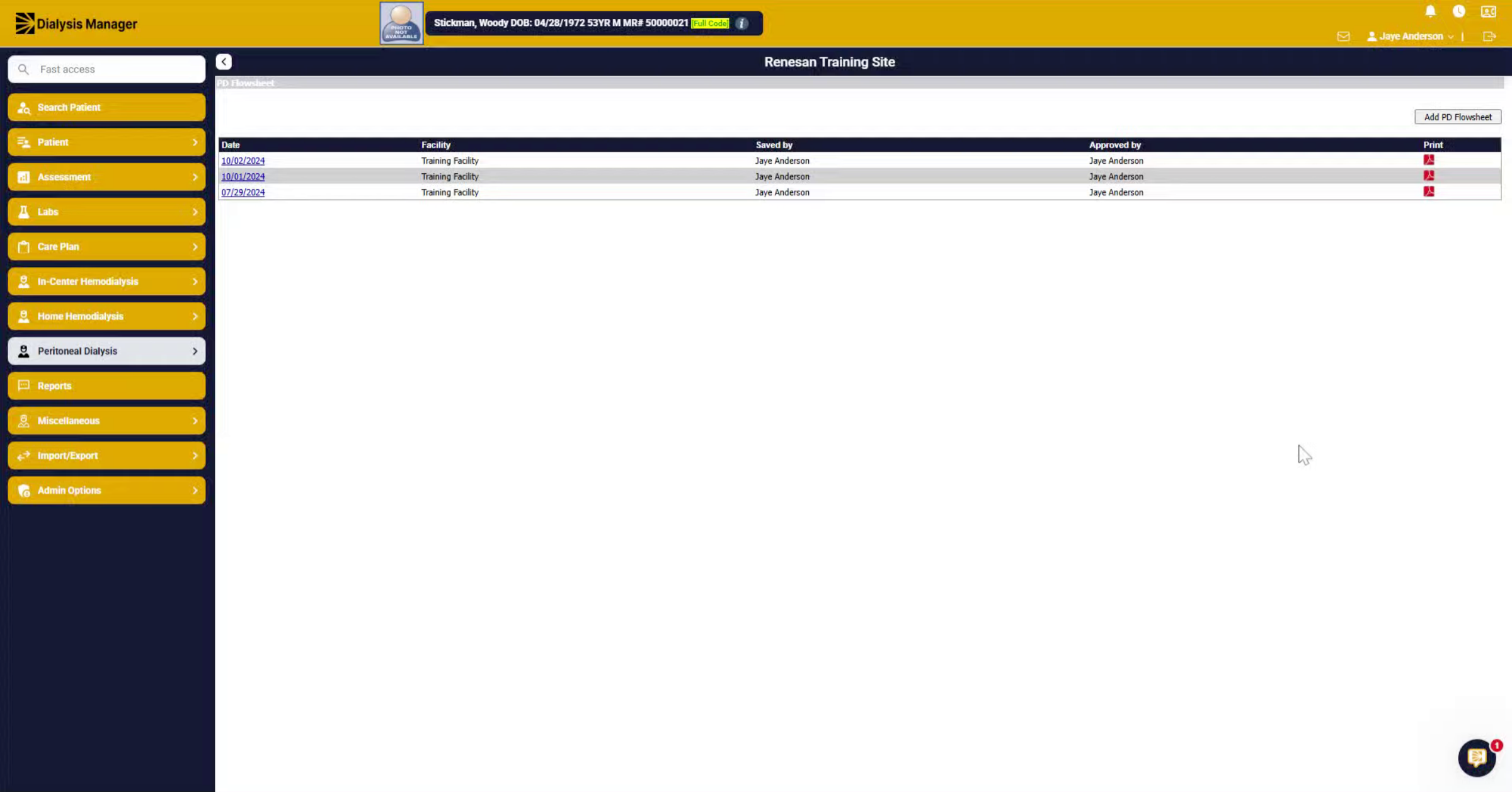
2. Select Peritoneal Dialysis
Select your patient.
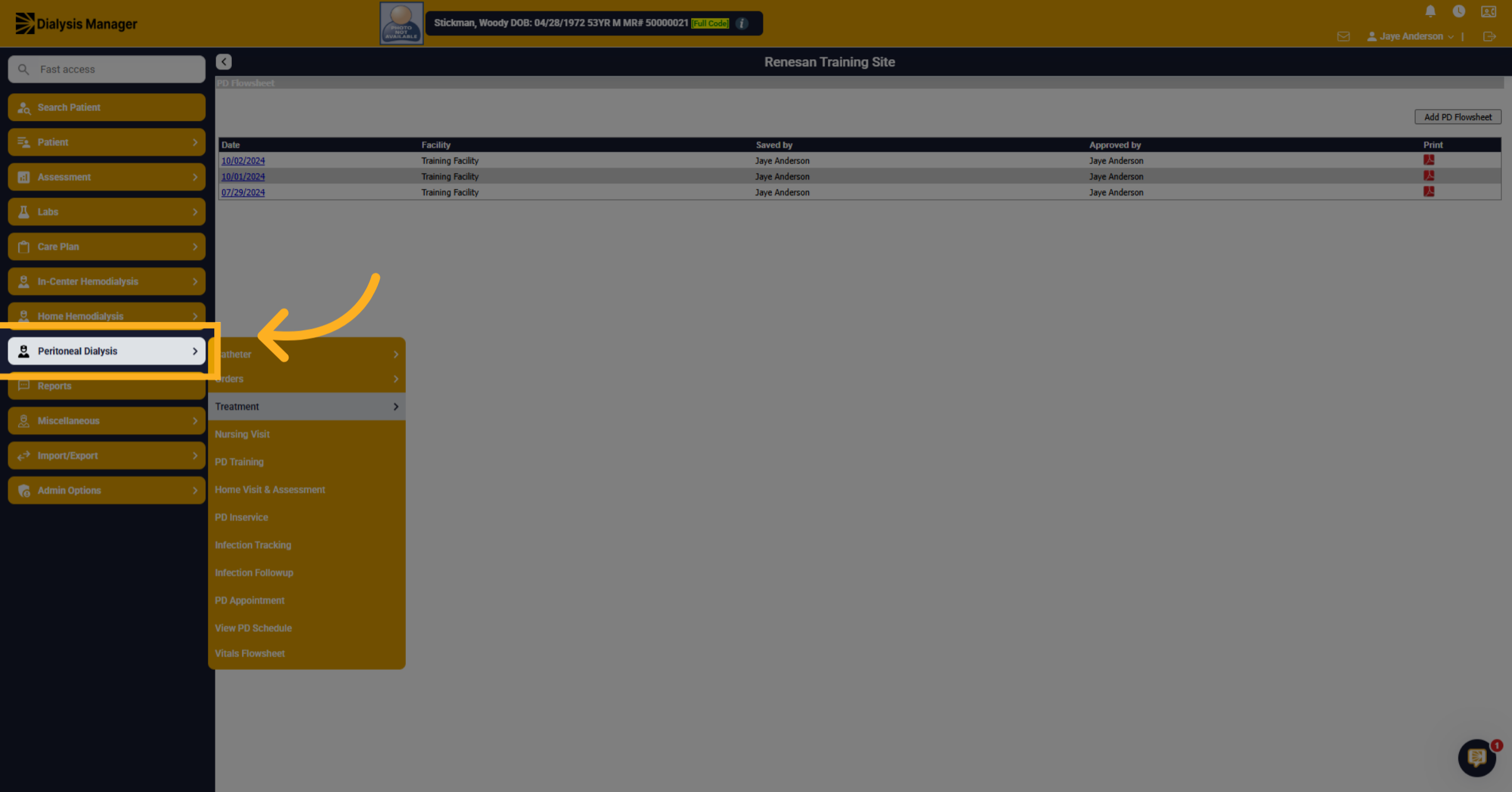
3. Click Treatment Tab
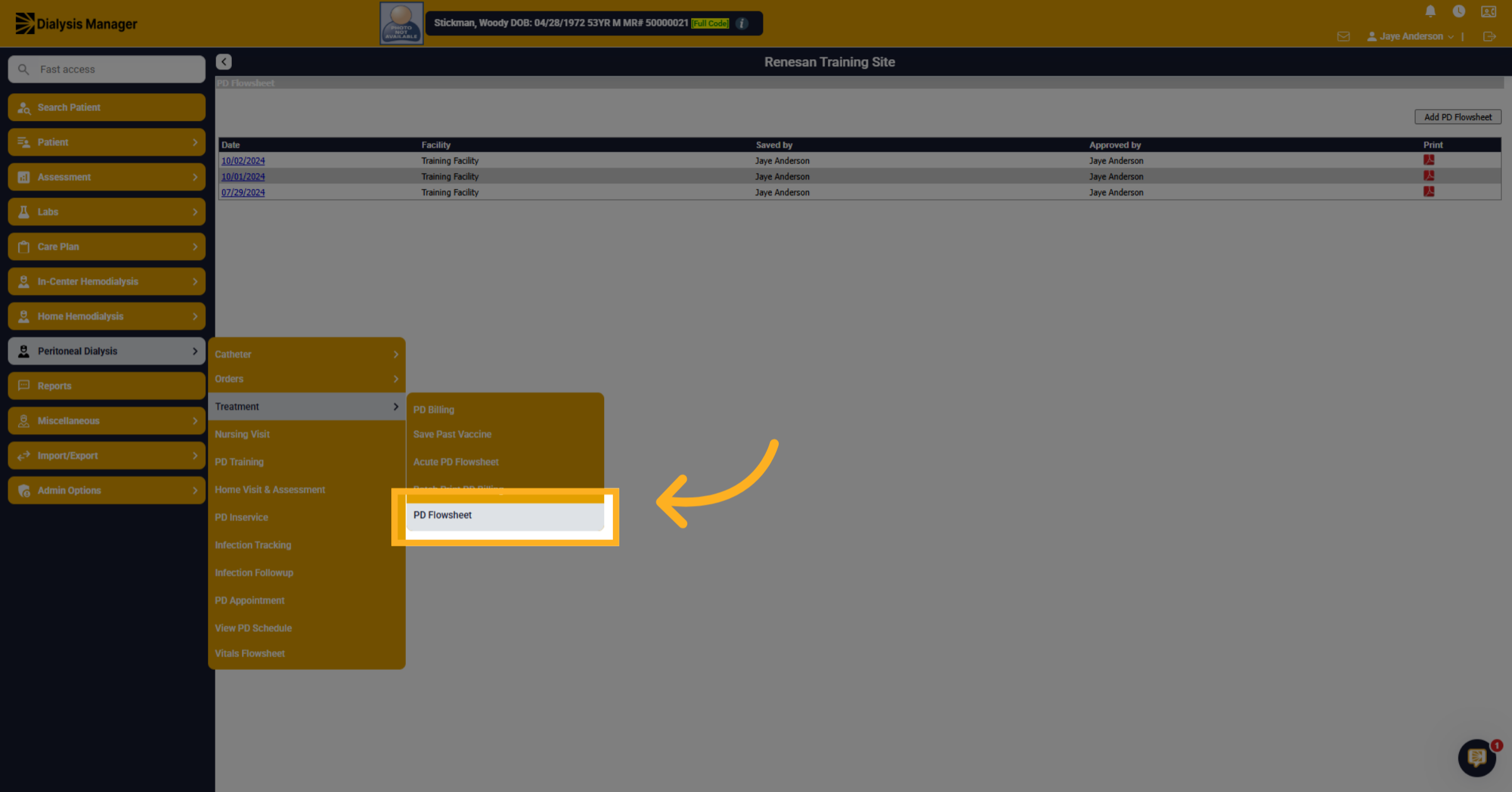
Click the "Peritoneal Dialysis" then the "Treatment" tab to access treatment options.
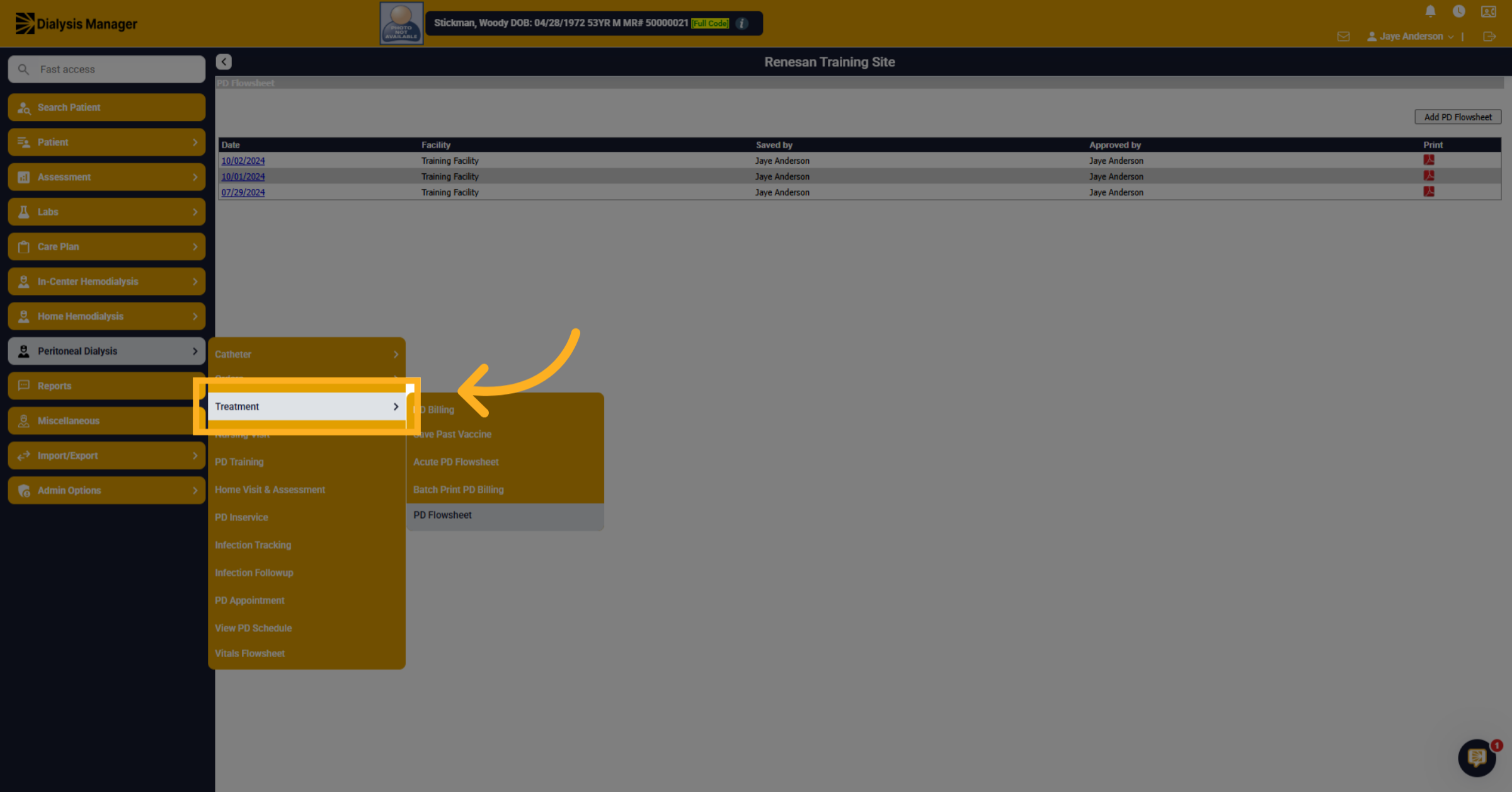
4. Open PD Flowsheet
Click PD Flowsheet to view historical peritoneal dialysis data and enter a new PD flowsheet.
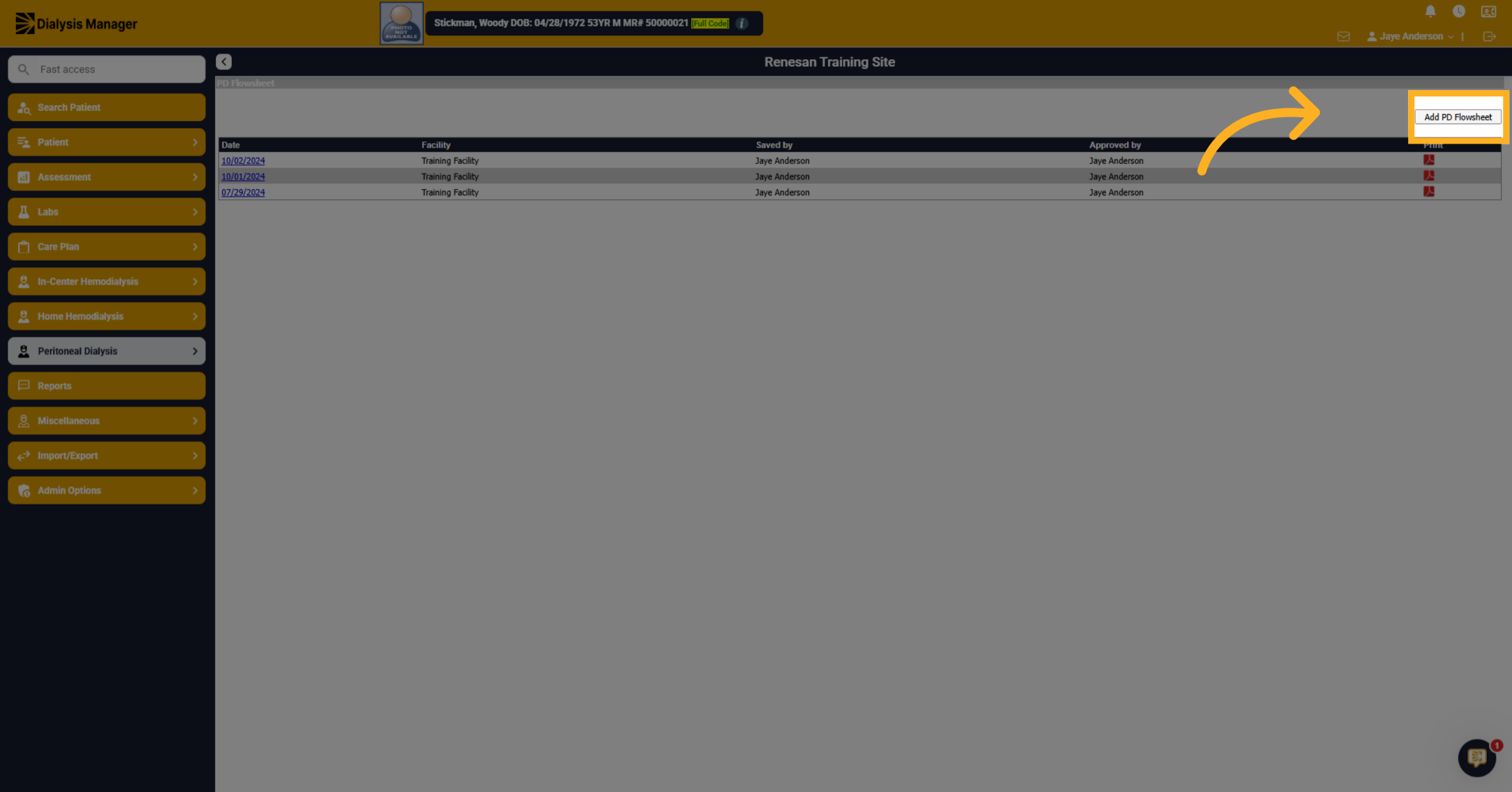
5. Add New PD Flowsheet
Click "Add PD Flowsheet" to create a new entry.
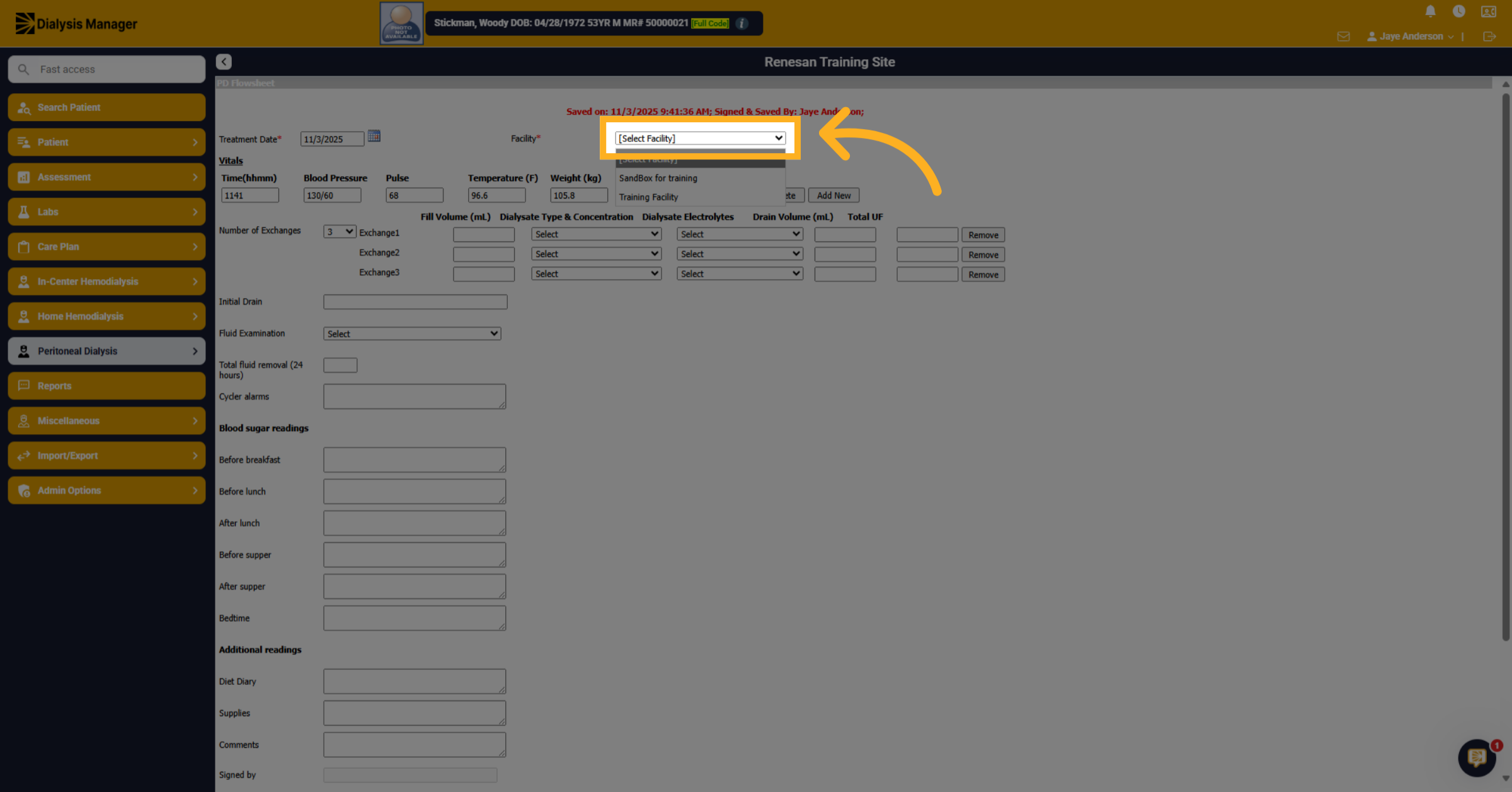
6. Choose Facility Dropdown
Choose the dropdown and select the facility.
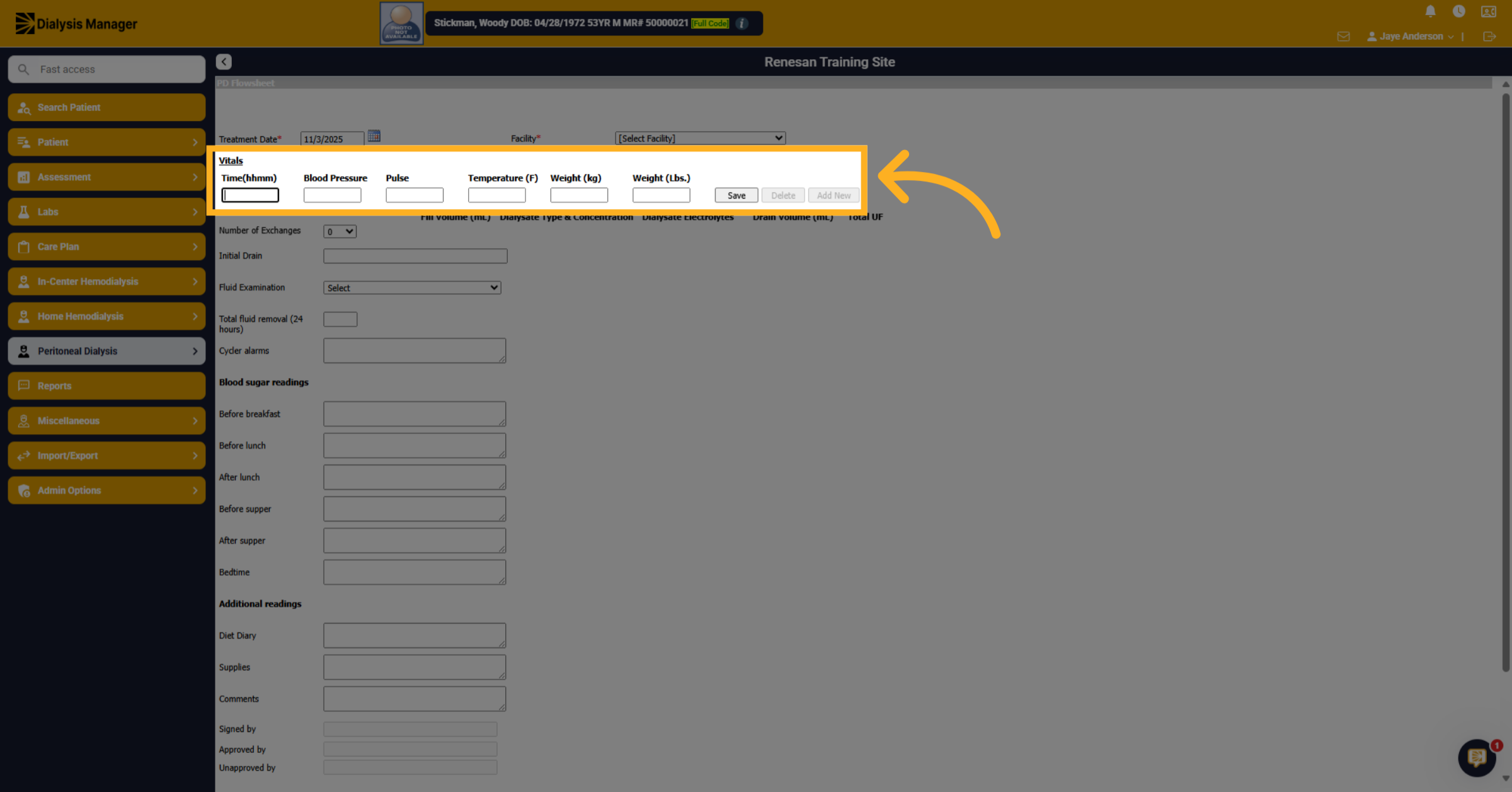
7. Enter Vitals
Click here to begin entering data pertaining to the patient's vitals.
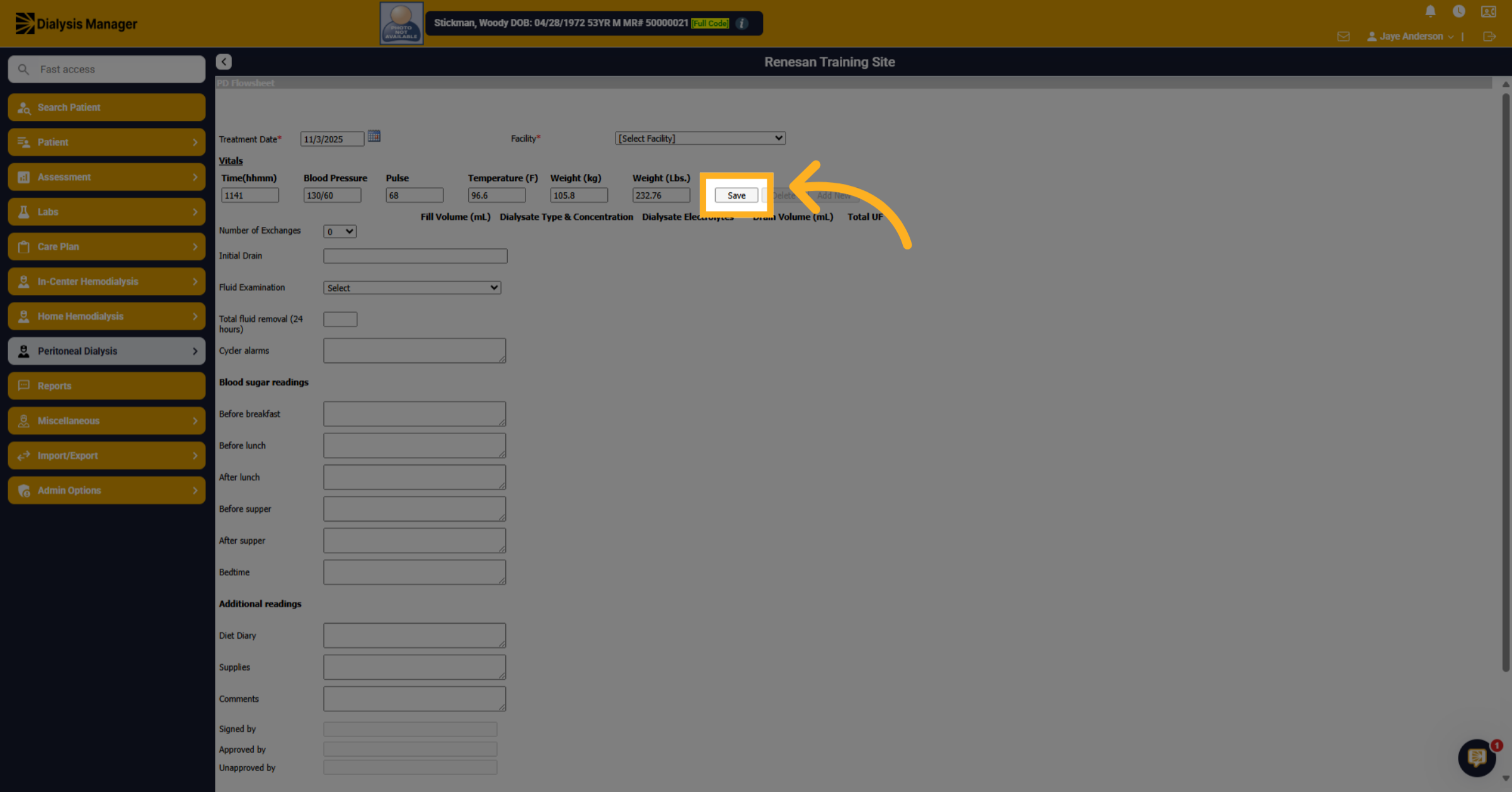
8. Save PD Flowsheet Entry
Click Save to store the entered Vitals data.
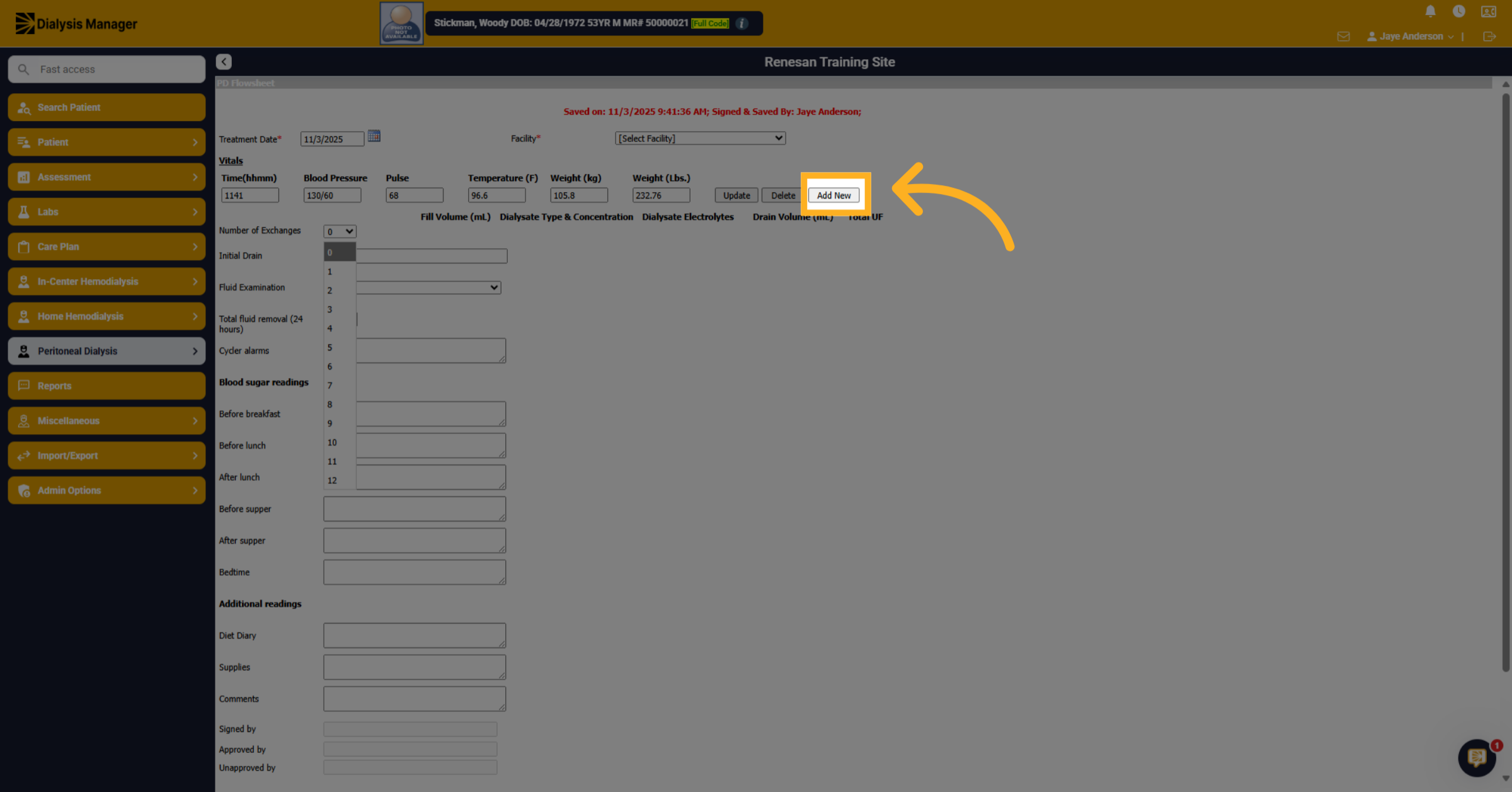
9. Add additional Vitals
Click Add New to add an additional row of Vitals.
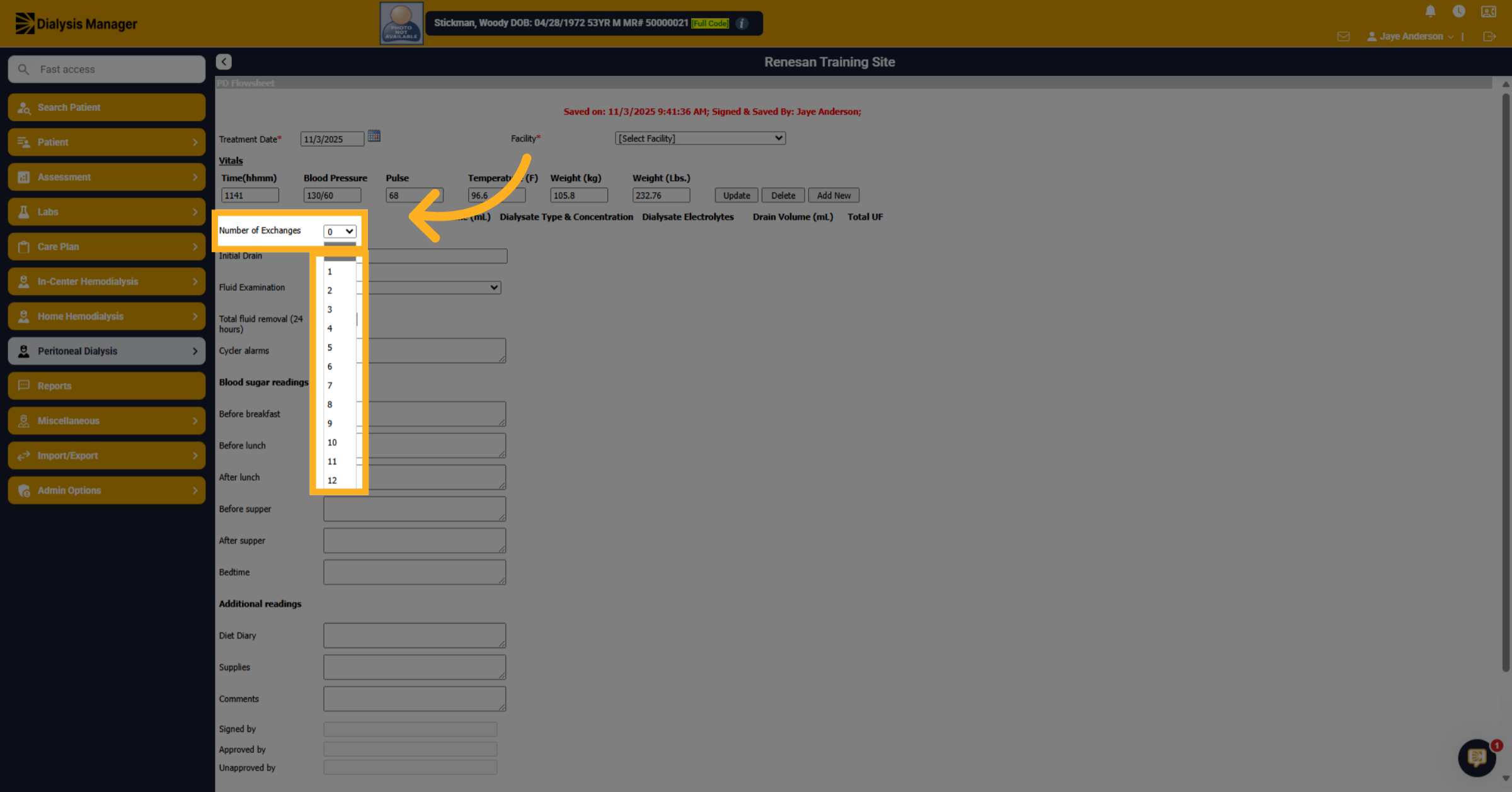
10. Select Numeric Option
Click dropdown and select the number of exchanges.
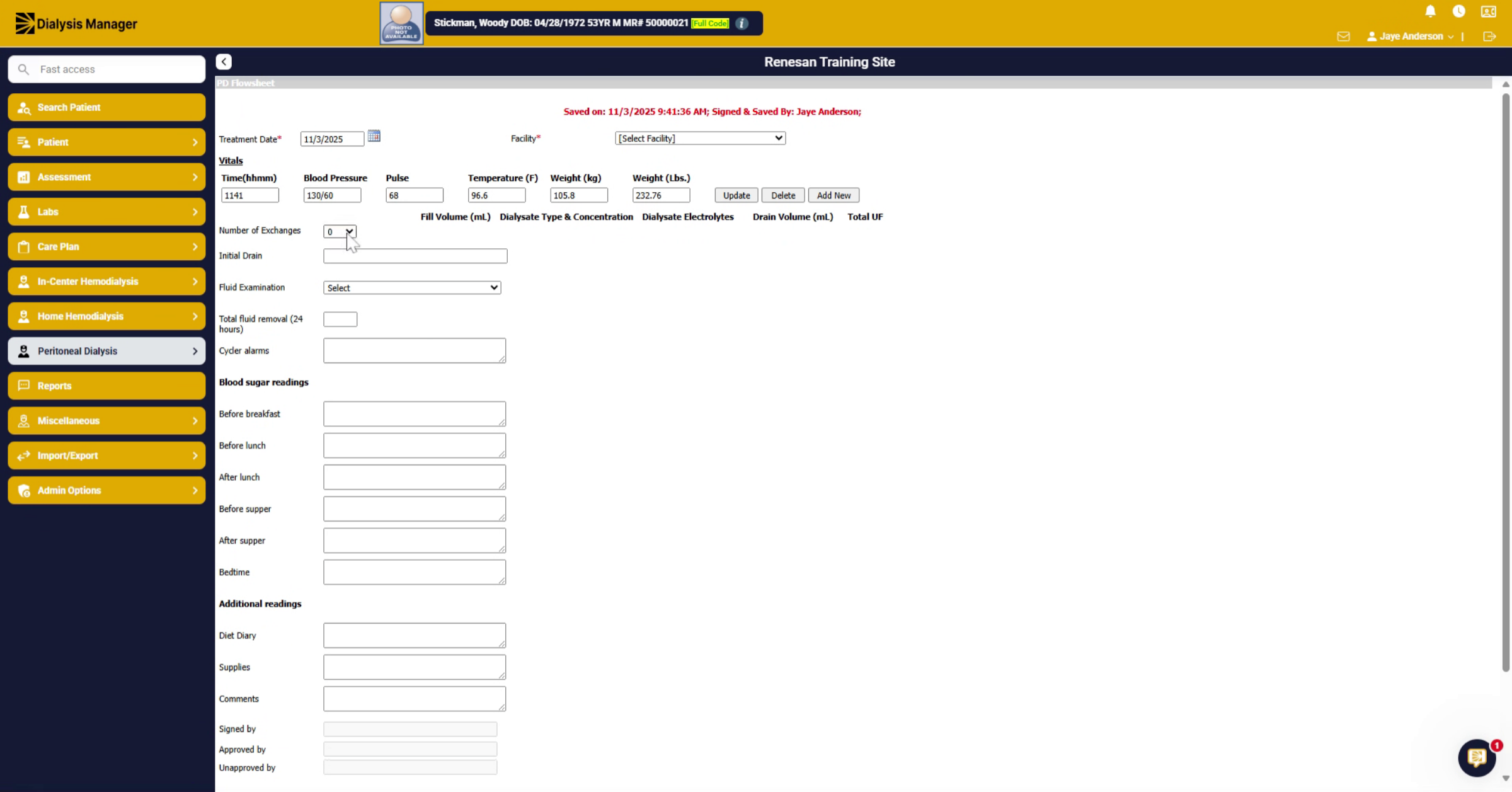
11. Other Information
Enter any additional information within this form.
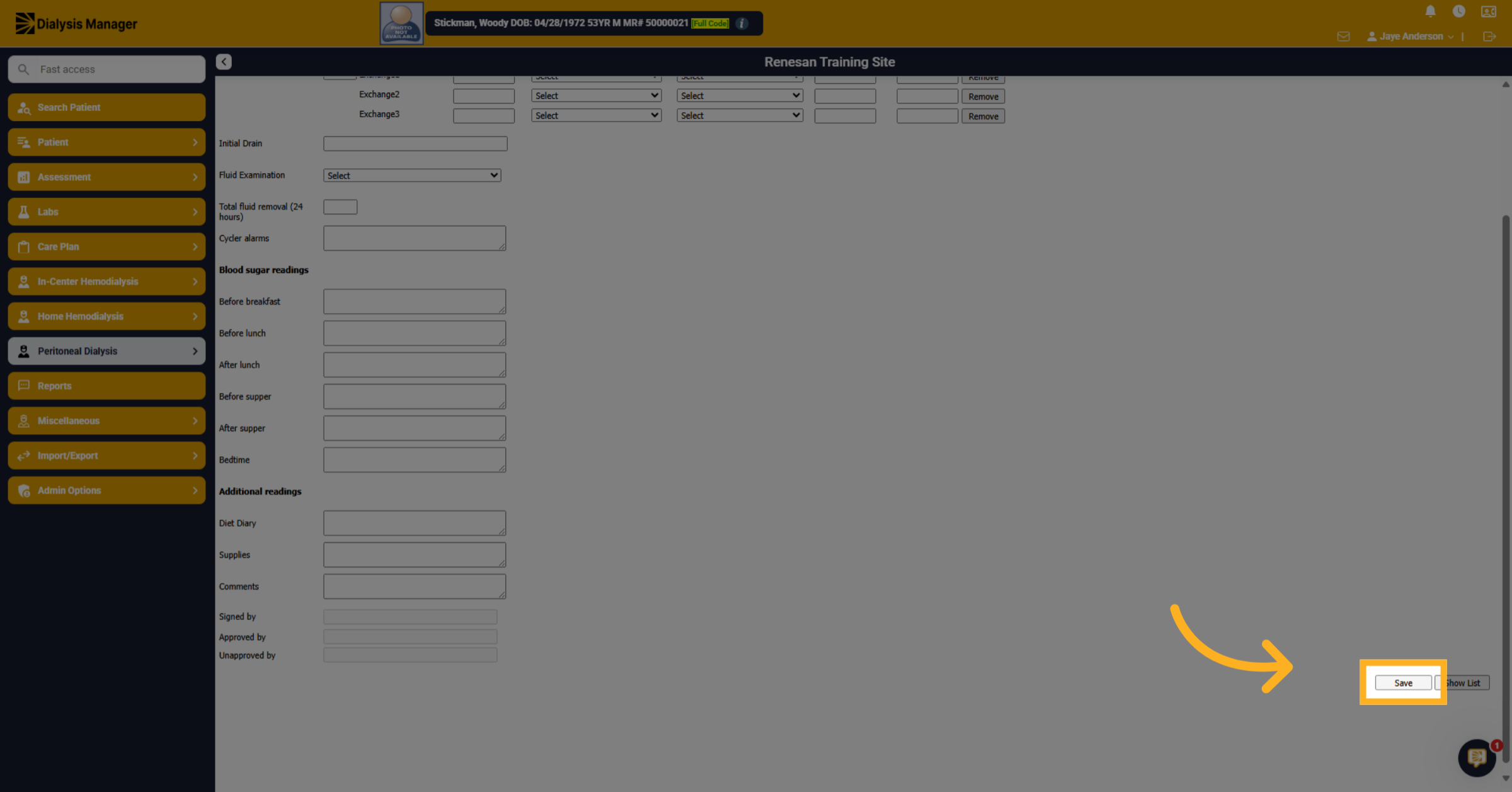
12. Save Entered Data
Once you're complete, you're going to click on Save.
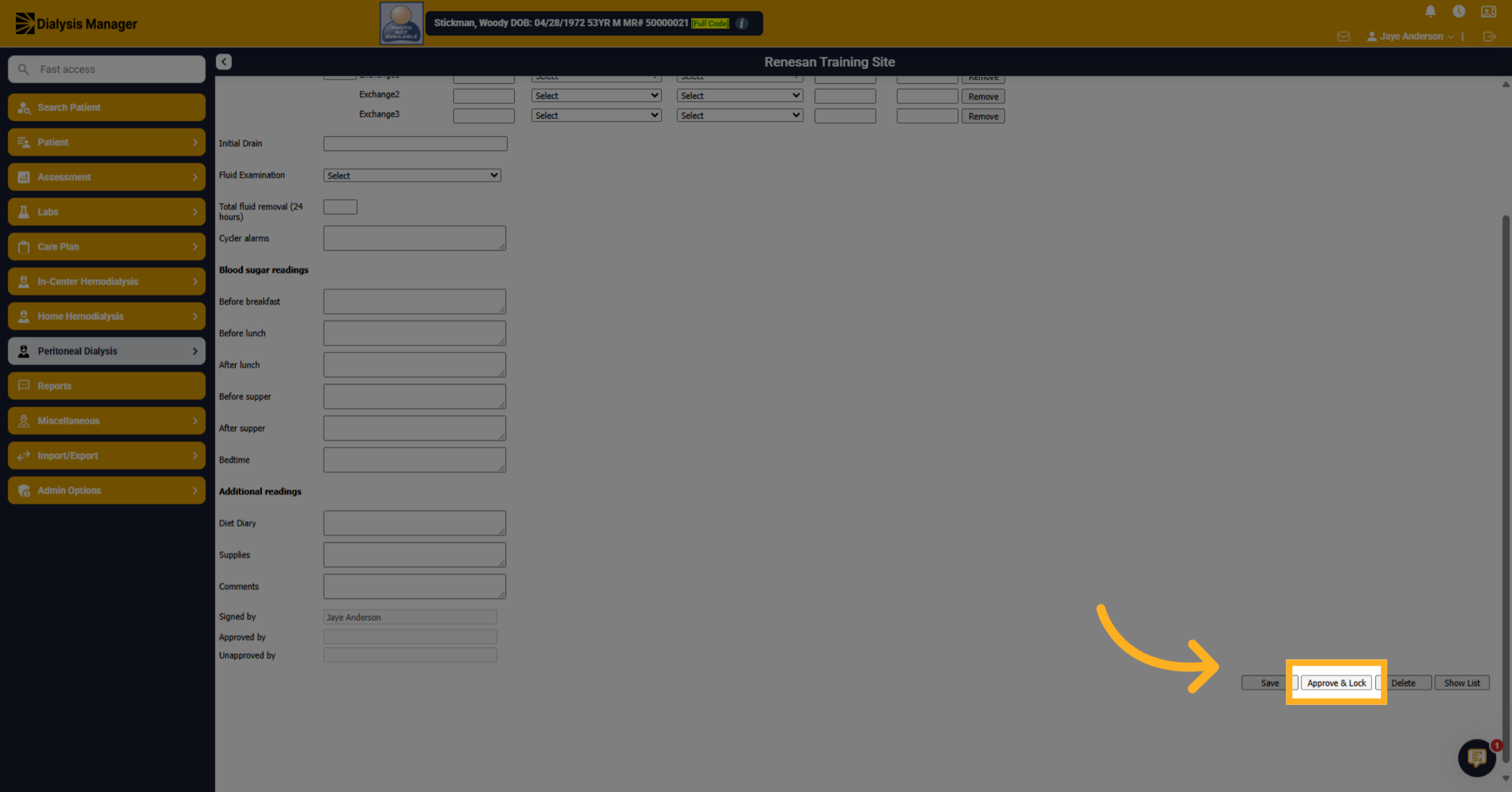
13. Approve and Lock Entry
Now click on approve and lock to lock the entry.
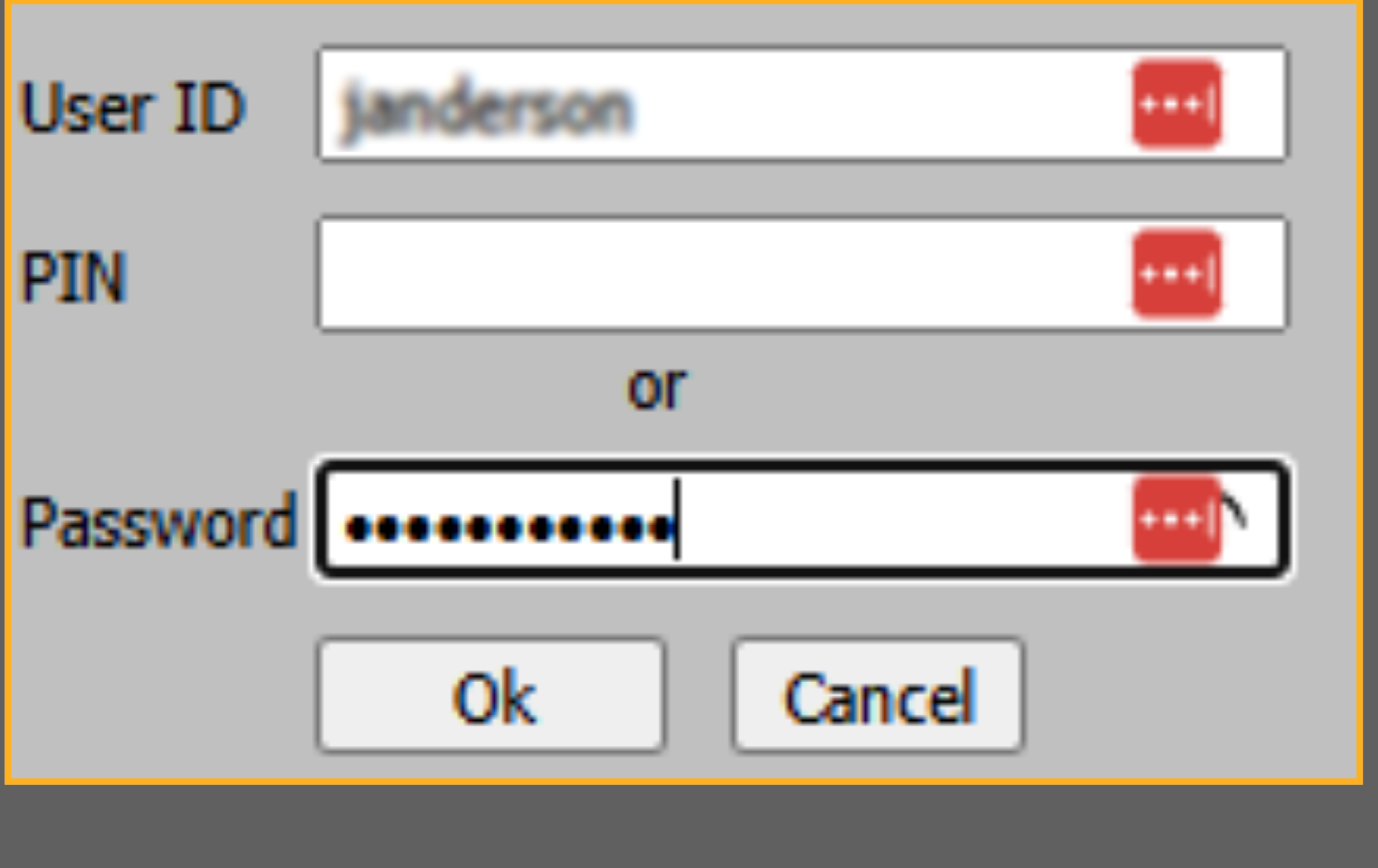
14. Confirm Password Entry
Enter your Pin or password and click OK.
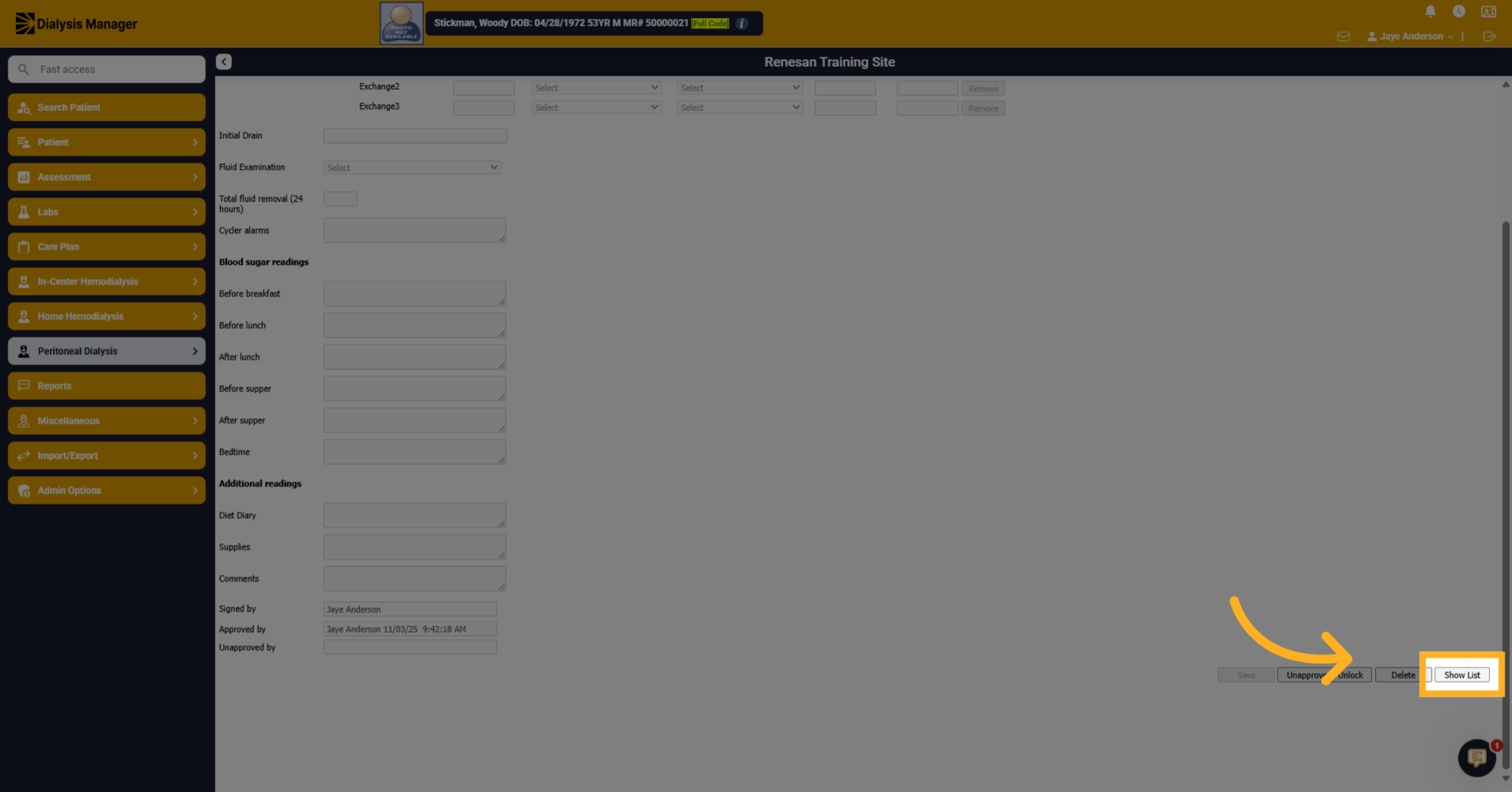
15. Show Patient List
Click Show List to display patient's flowsheet entries. Repeat to add more.
16. Select Patient
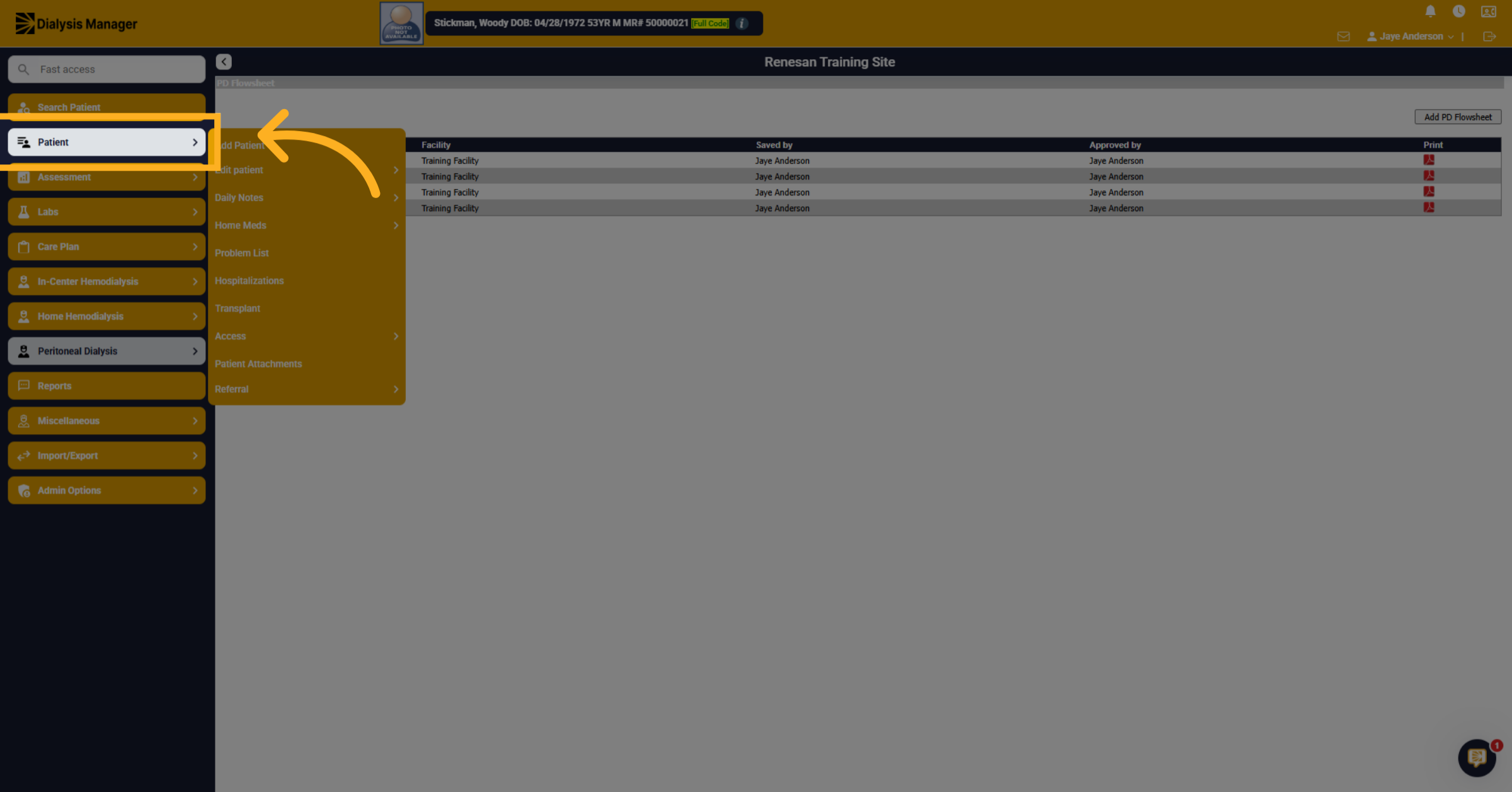
Or you can scan and upload the records into the Patient Attachments. Click Patient menu.
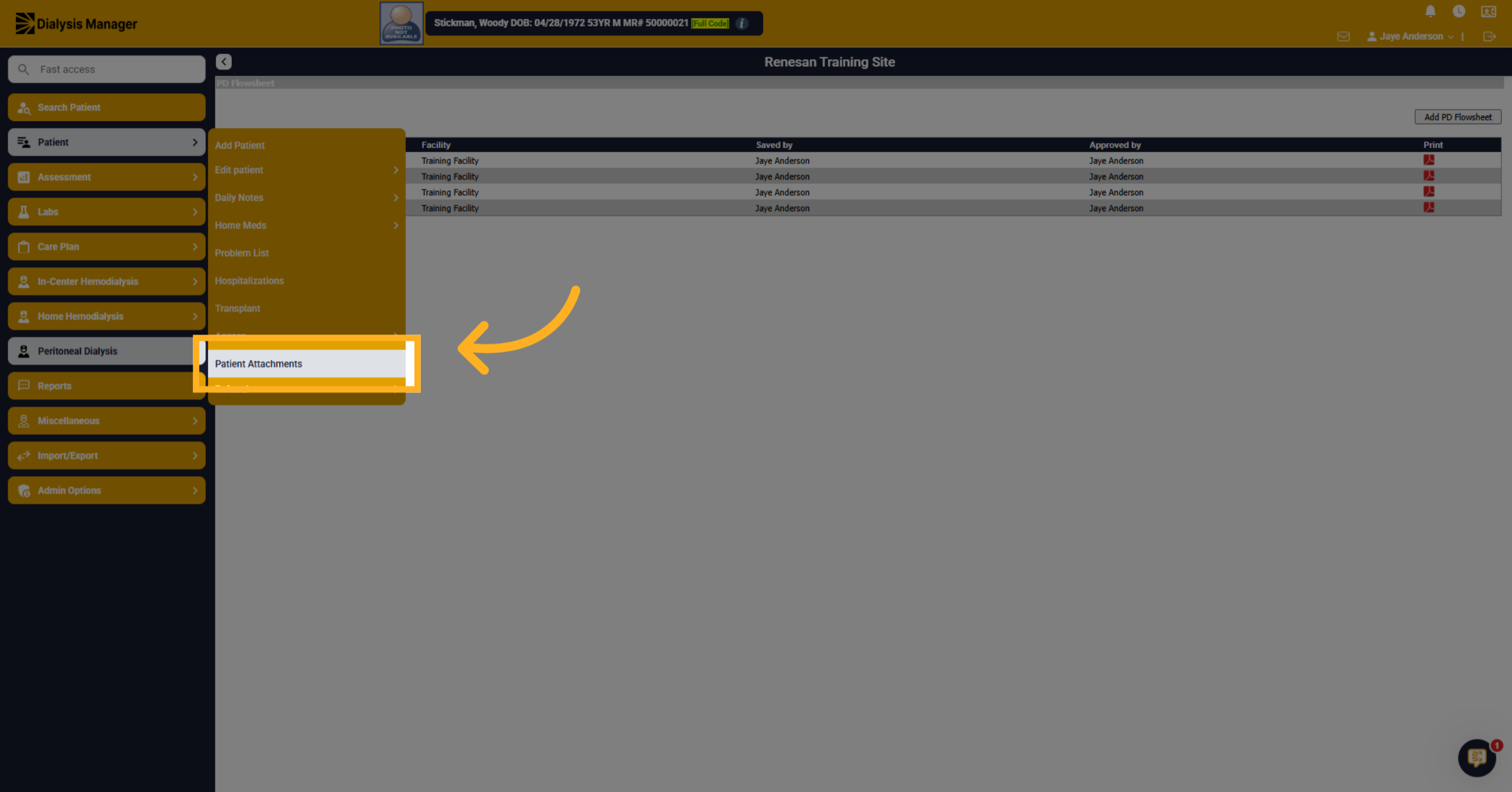
17. Open Patient Attachments
Click Patient Attachments to manage and view files.
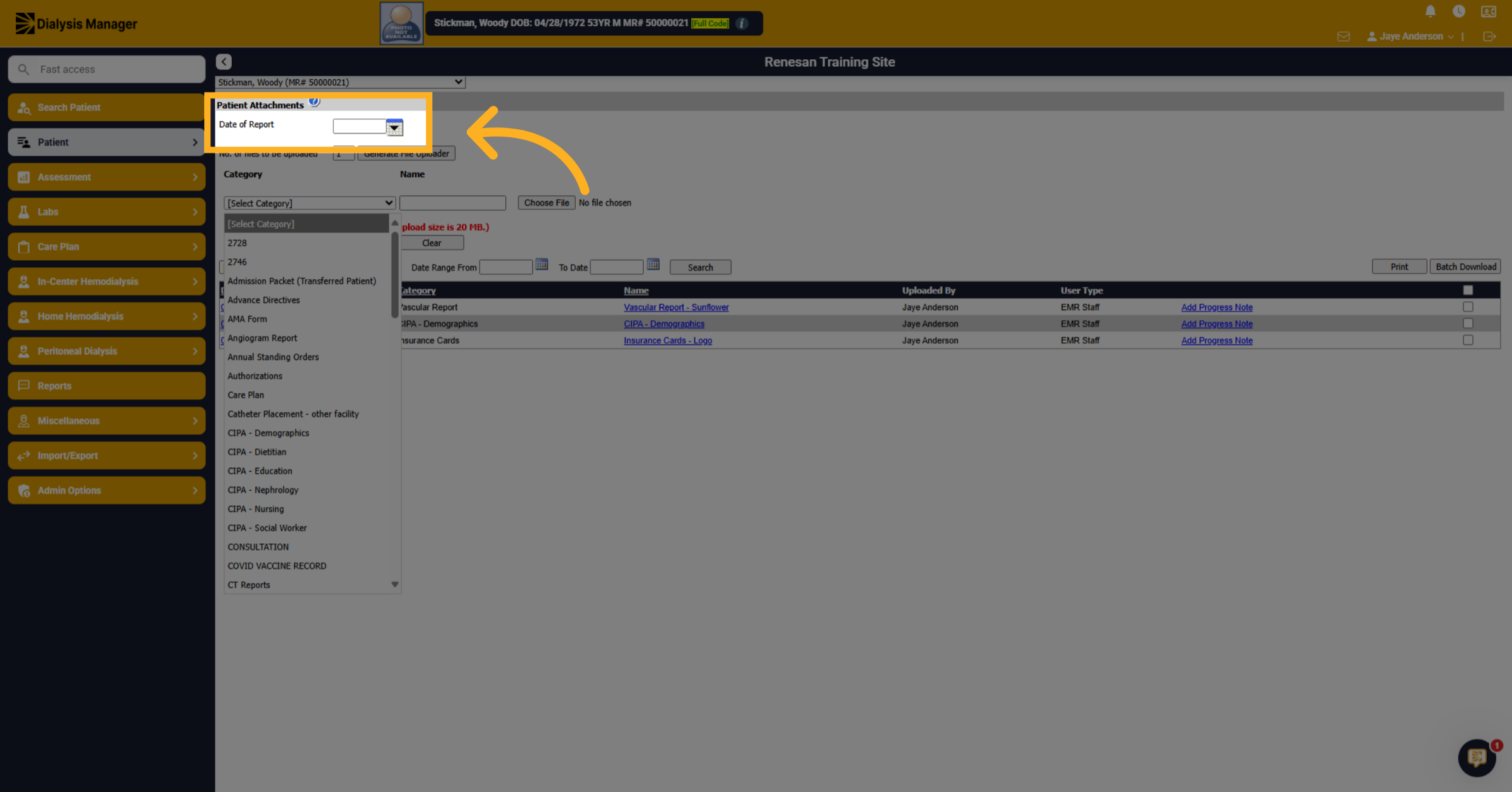
18. Enter Date
Enter the date for the attachment.
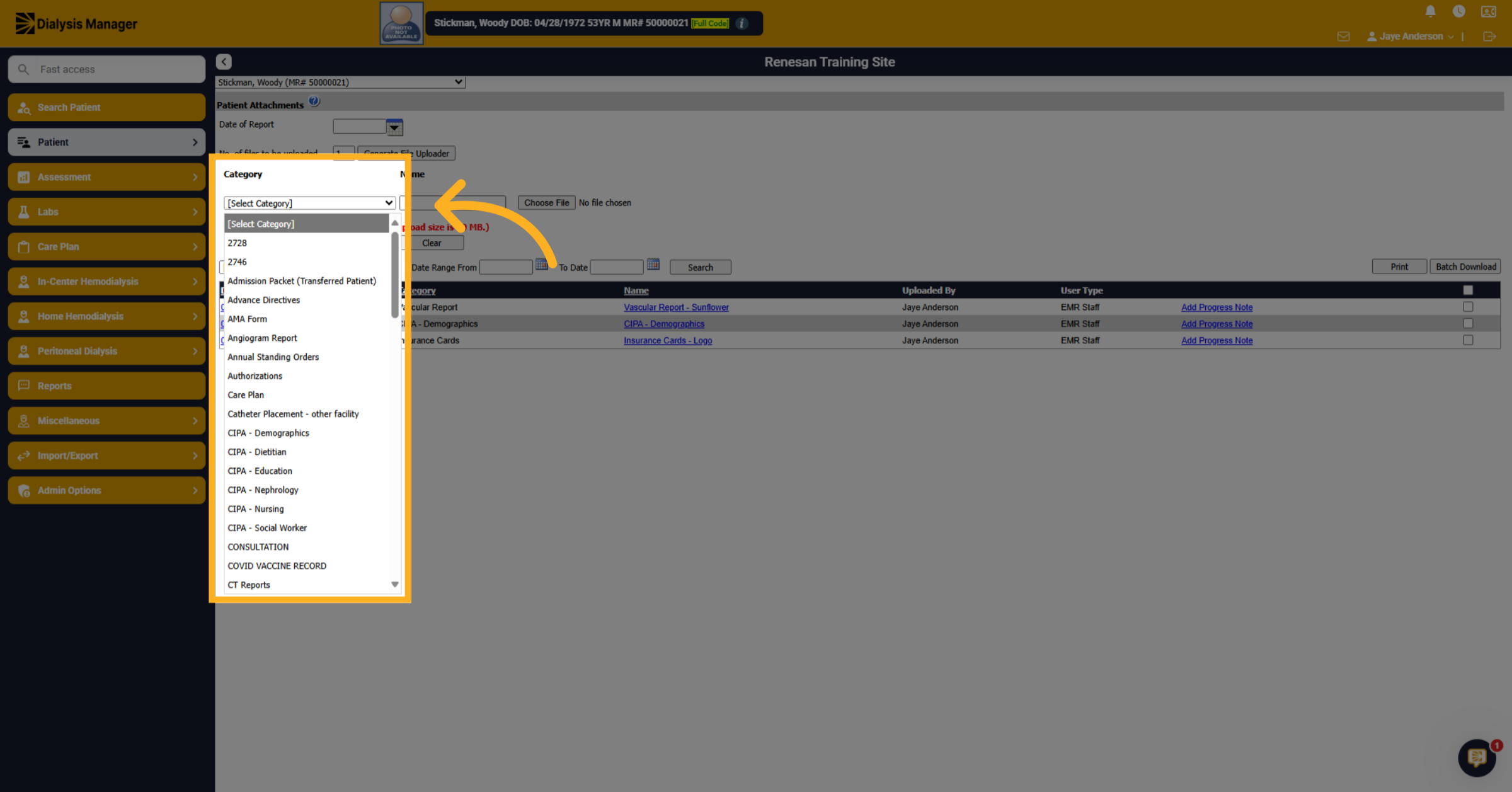
19. Select Attachment Category
Choose your category for the attachment.
20. Open File Upload
Click "Choose File" to browse for your file.
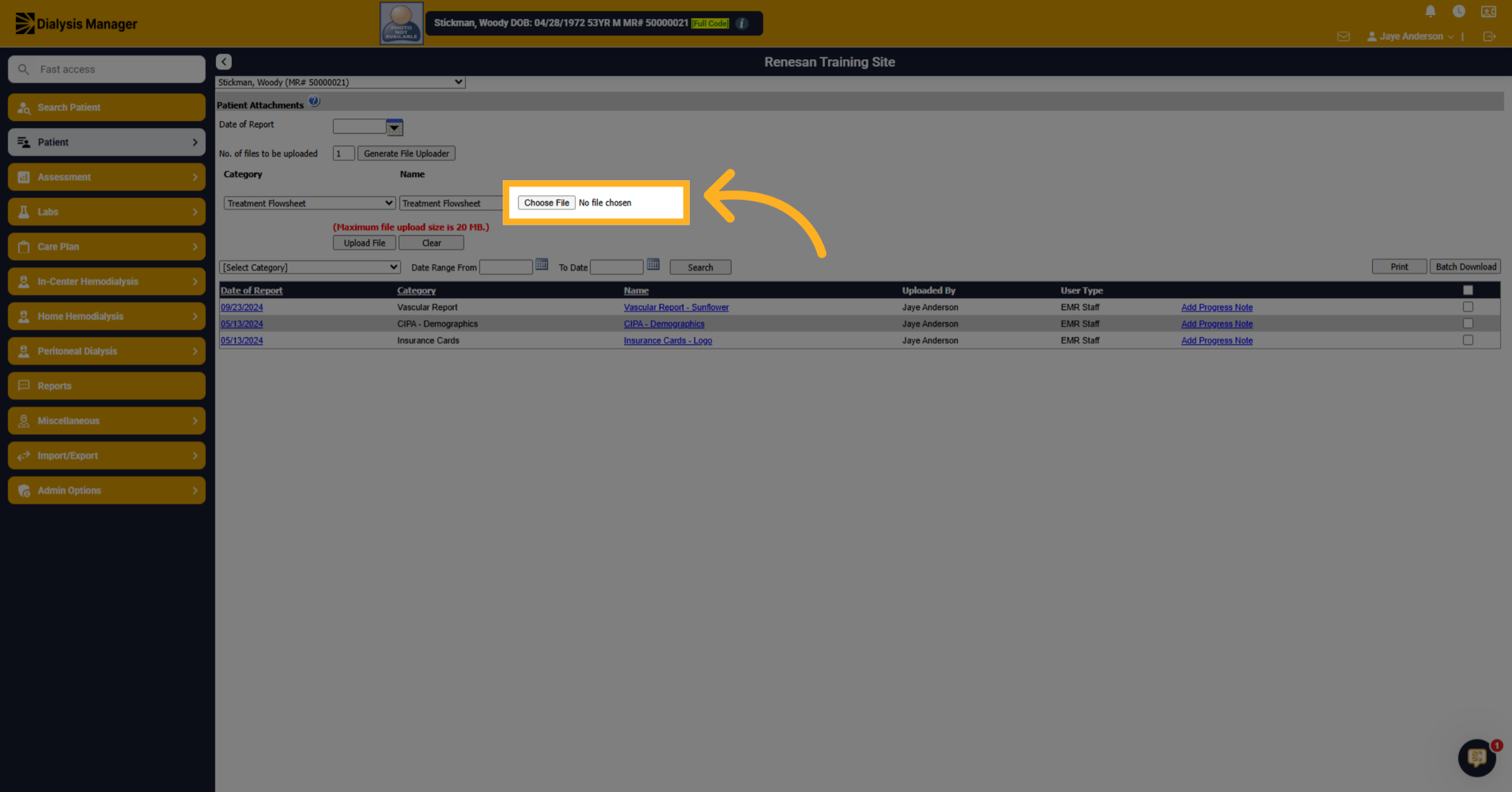
21. Choose File to Upload
Select your file to upload.
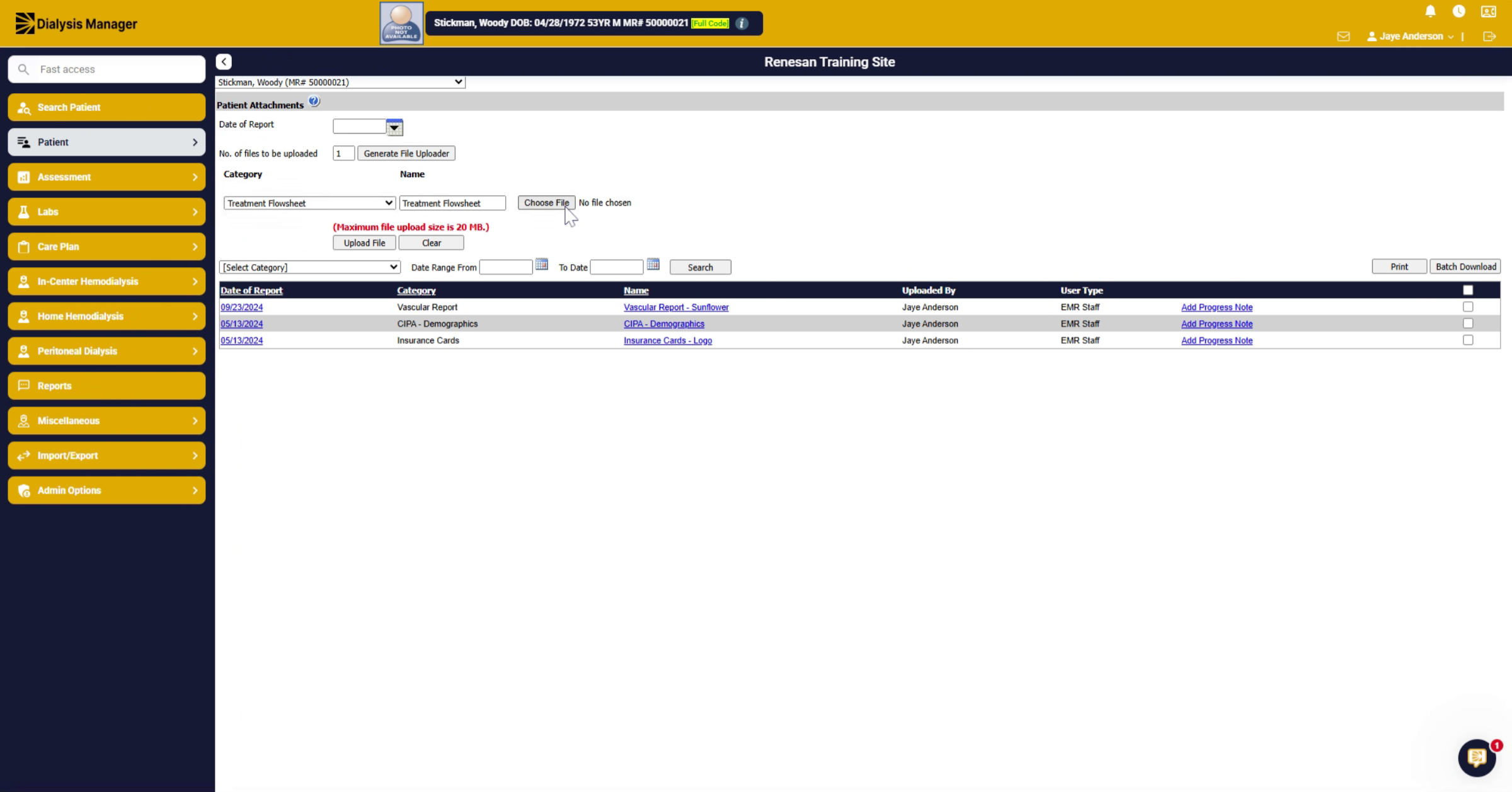
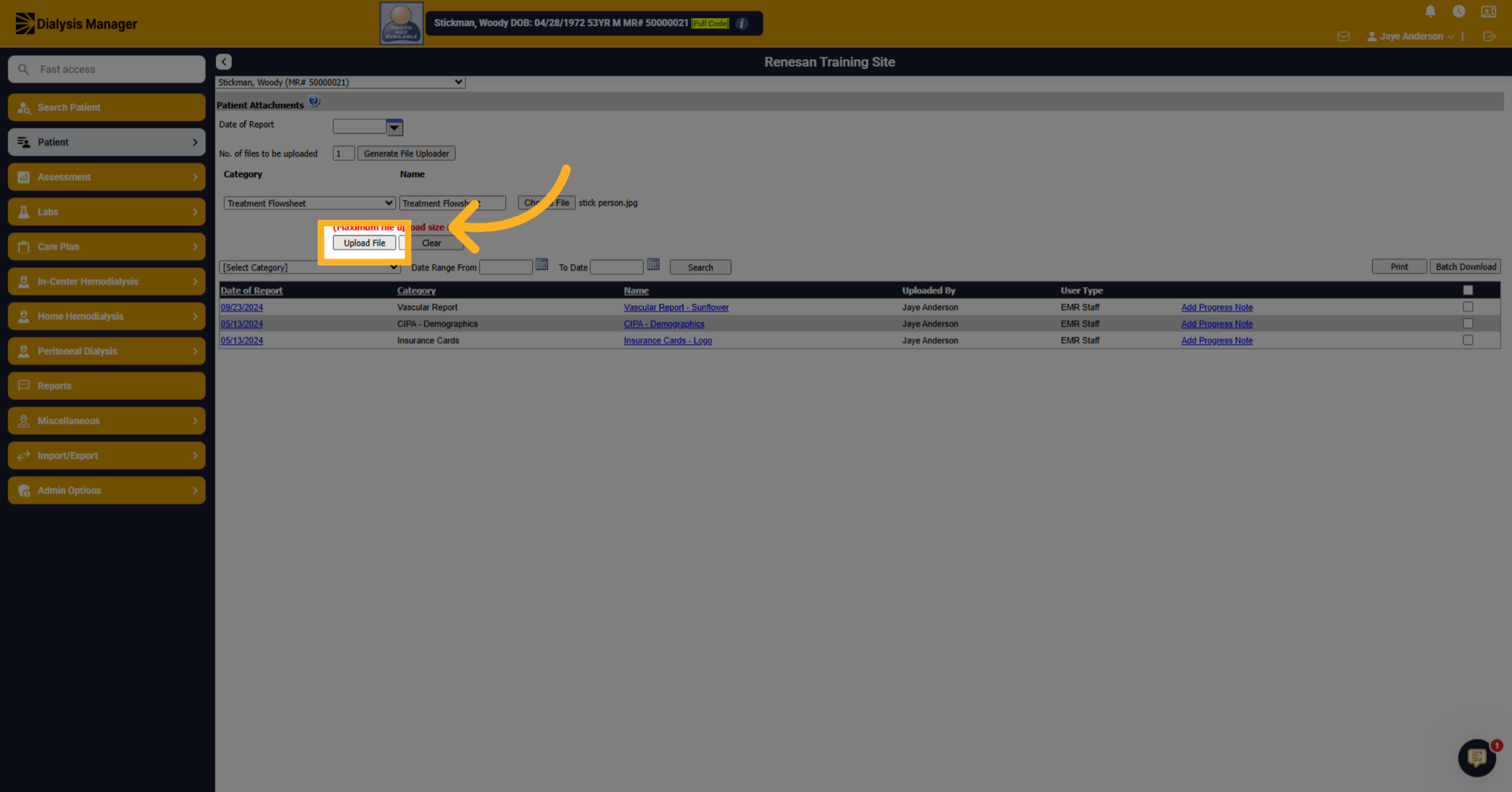
22. Upload Selected File
Click Upload File to add the document.