Home Therapy departments will often times administer some medications during clinic visits and yet other medications may be delivered to the patient's home for self-administration.
Enter the Medication Order
1. Go to Peritoneal Dialysis > PD Order
2. Select what order you are adding

3. This will populate the entire current prescription to the form. Areas marked with an asterisk must been filled out.
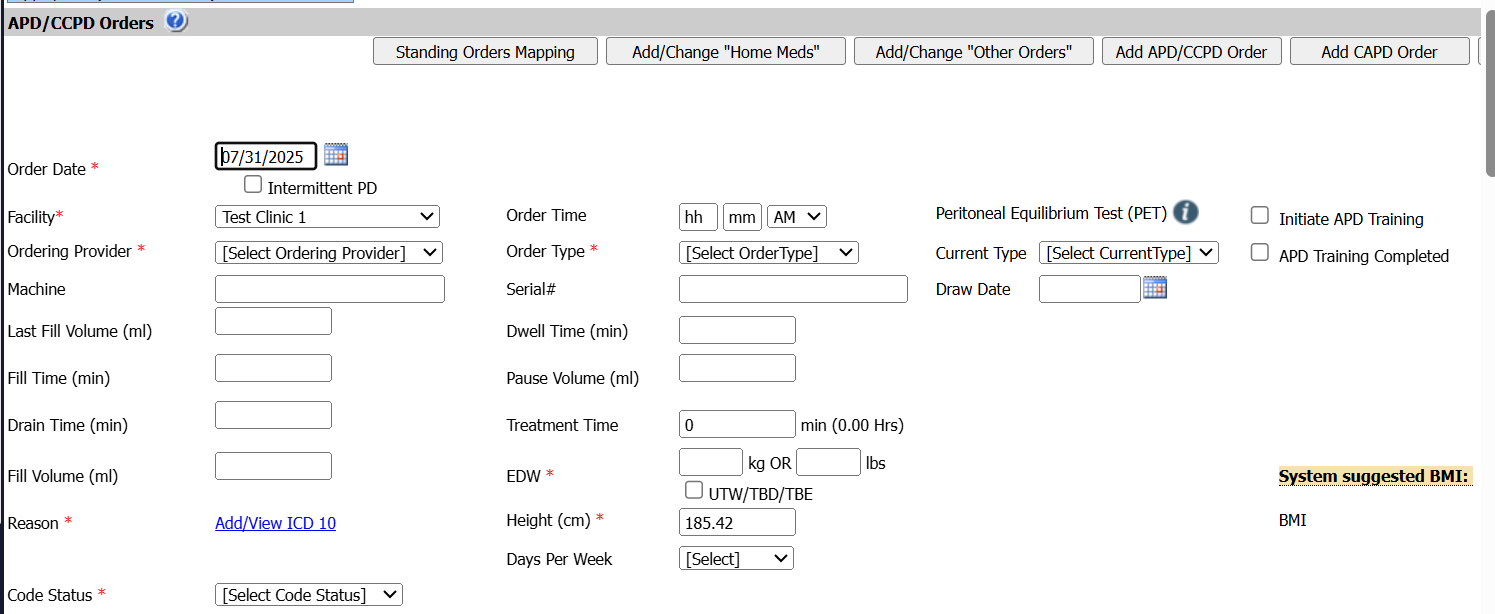
4. Update the specific information based on new order (update ESA dose)
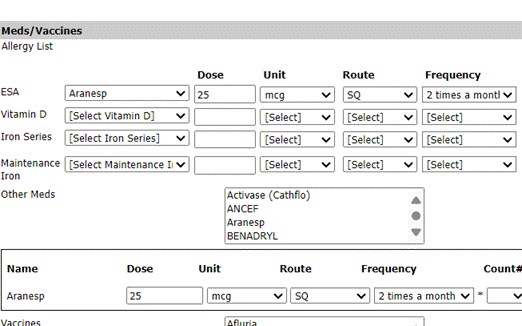
5. There are separate sections for medications to be entered under the Meds/Vaccine heading
6. Typical monthly dose is the first section to be given by the team while at clinic visit
7. OTHER MEDS this is any medication that is being shipped to the patient home or provided at the center to go home with the patient that you intend to have placed on the billing claim
8. Enter the appropriate order based on where the patient will be receiving the medication
4. Click Sign & Save.
Document Visit
1. Go to Peritoneal Dialysis > Nursing Visit
2. Click ADD NEW to begin documenting your patient encounter. Update information as it relates to your visit.
3. Navigate to medication section.
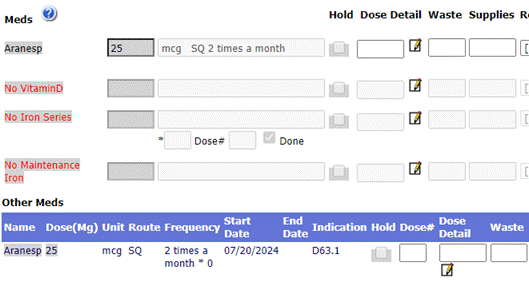
4. Medication section matches orders screen
Meds under bold heading are those given to the patient by the staff during the visit
Medications listed under OTHER MEDS are those medications that are shipped to the patient and/or given at the clinic to be self administered at home
**QUICK TIPS**
1. If medications do not appear here, notify your Super User for modifications or contact support.
2. The notes box is available to indicate any instructions given to the patient such as take next dose on specific date or day.
3. Click Sign and Save then Approve and Lock this allows information to flow billing once a treatment is opened in billing screen.
Billing Workflow
1. Go to Peritoneal Dialysis > Treatment> PD Billing.
2. NOTE Height and Weight will populate once entered. However, they are required to start noting treatments were completed.
3. To indicate a treatment or visit is being billed, click the box in the column related to the treatment type.
As long as the prescription has an ICD10 associated to it, you won't have to click any other information. However, there is a column additional if you need to associate additional information such as training.
4. At the top or the bottom of the screen click SAVE.
5. The ADD MEDS link will update to BLUE.
6. Click on the ADD MEDS link to note how the medications automatically pulled over to billing.
7. Clinicians can verify information in clinic visit as well as medications ordered or given at clinic for home administration are appropriately associated to a treatment.