PD Access, Orders, & Medications Entry Workflow.

1. Introduction
This tutorial guides you through entering new or updating existing peritoneal dialysis catheter records. You will learn how to input catheter details, manage status changes, and document complications to ensure accurate patient records and effective catheter management.
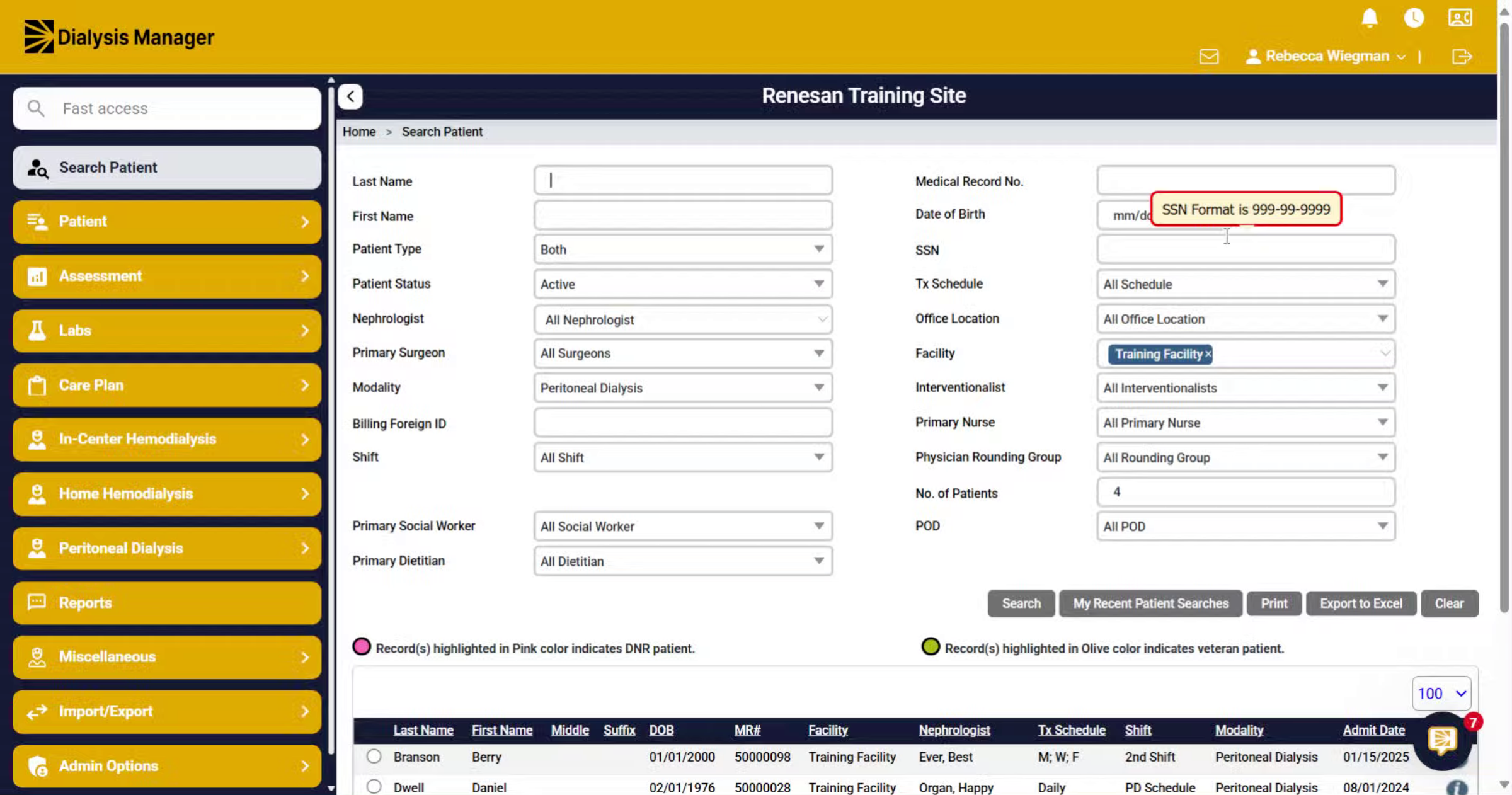
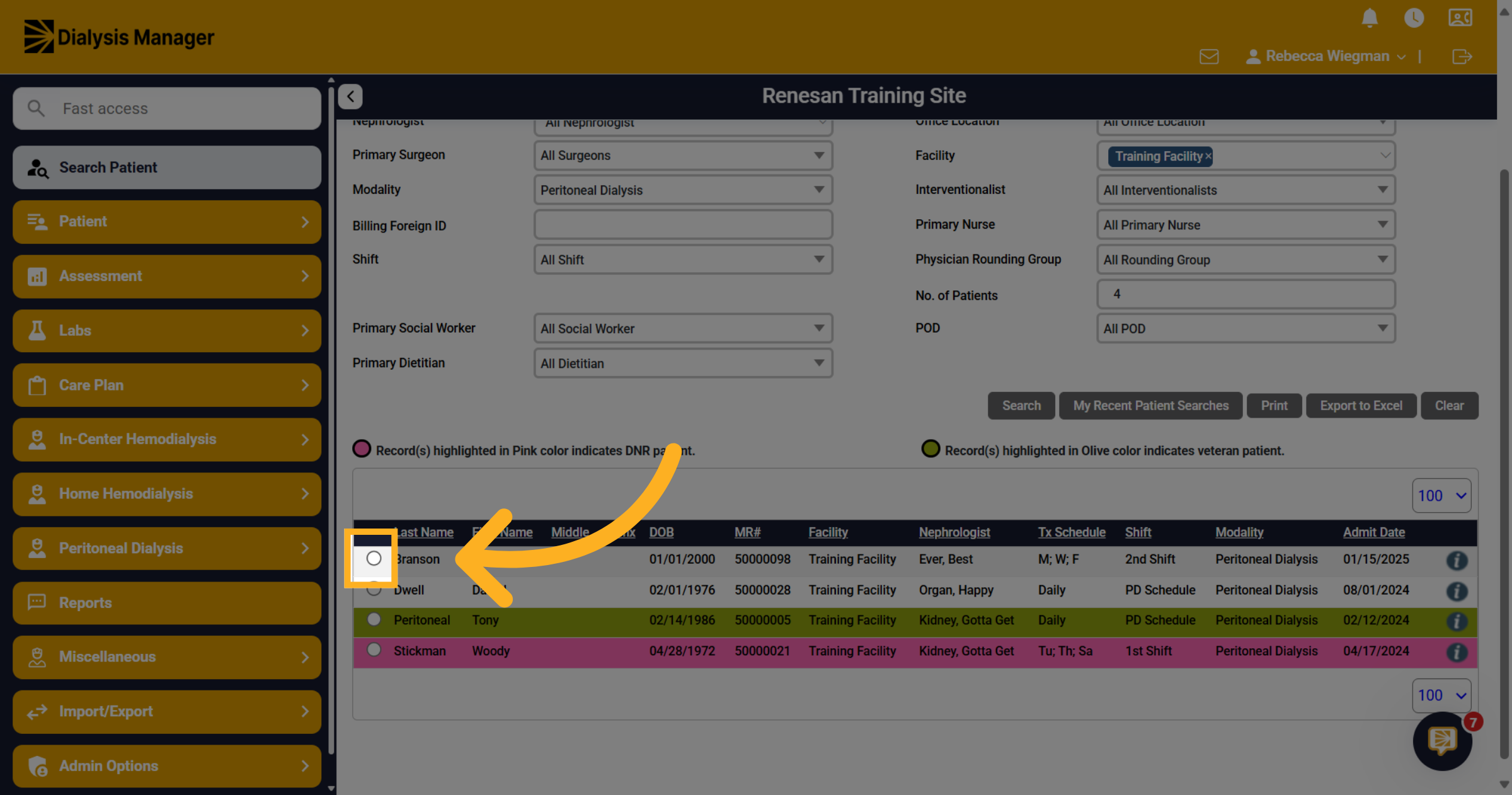
2. Select your Patient
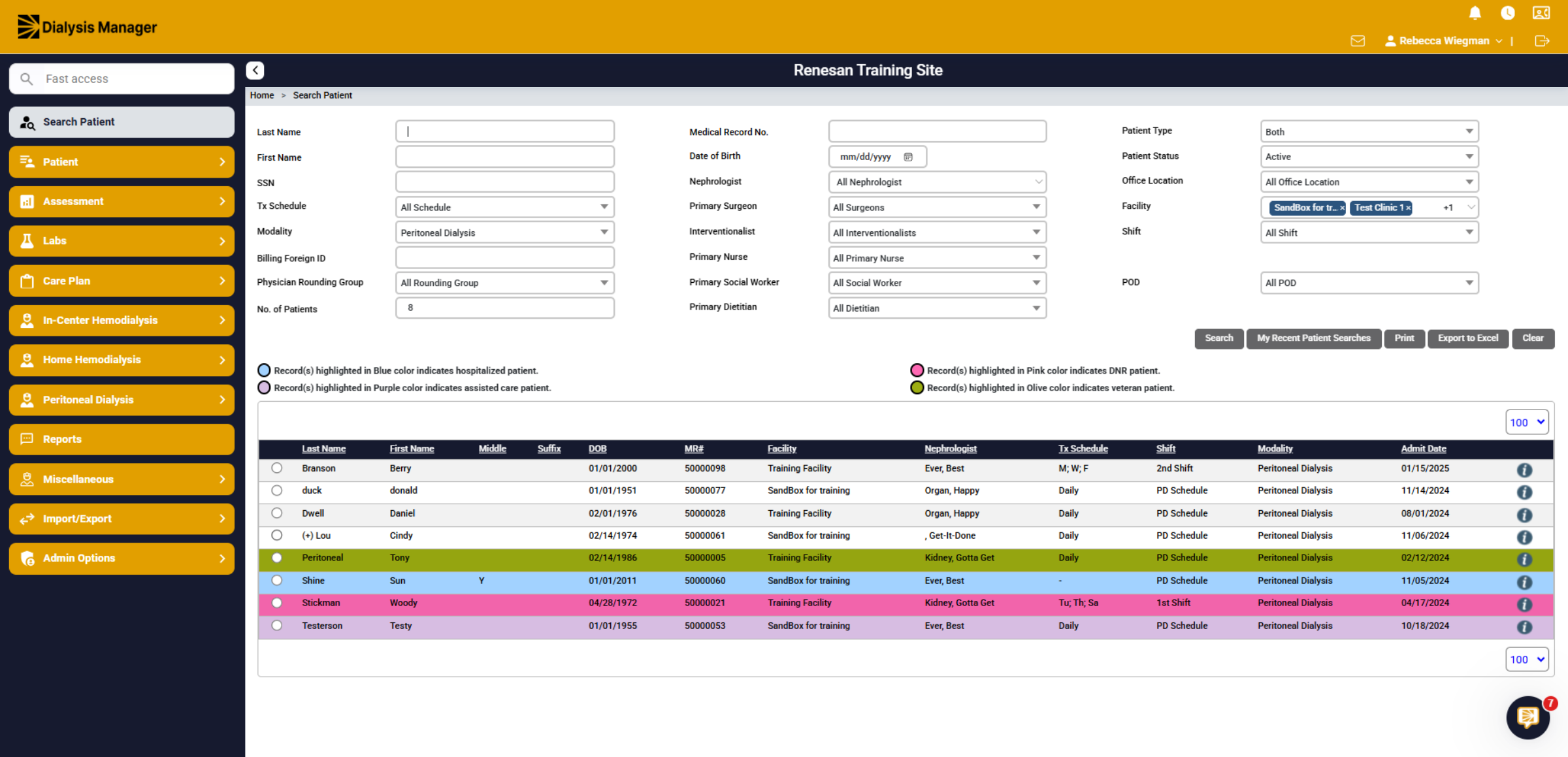
Search and select your patient by clicking on the radio button to the left of the patient's name.
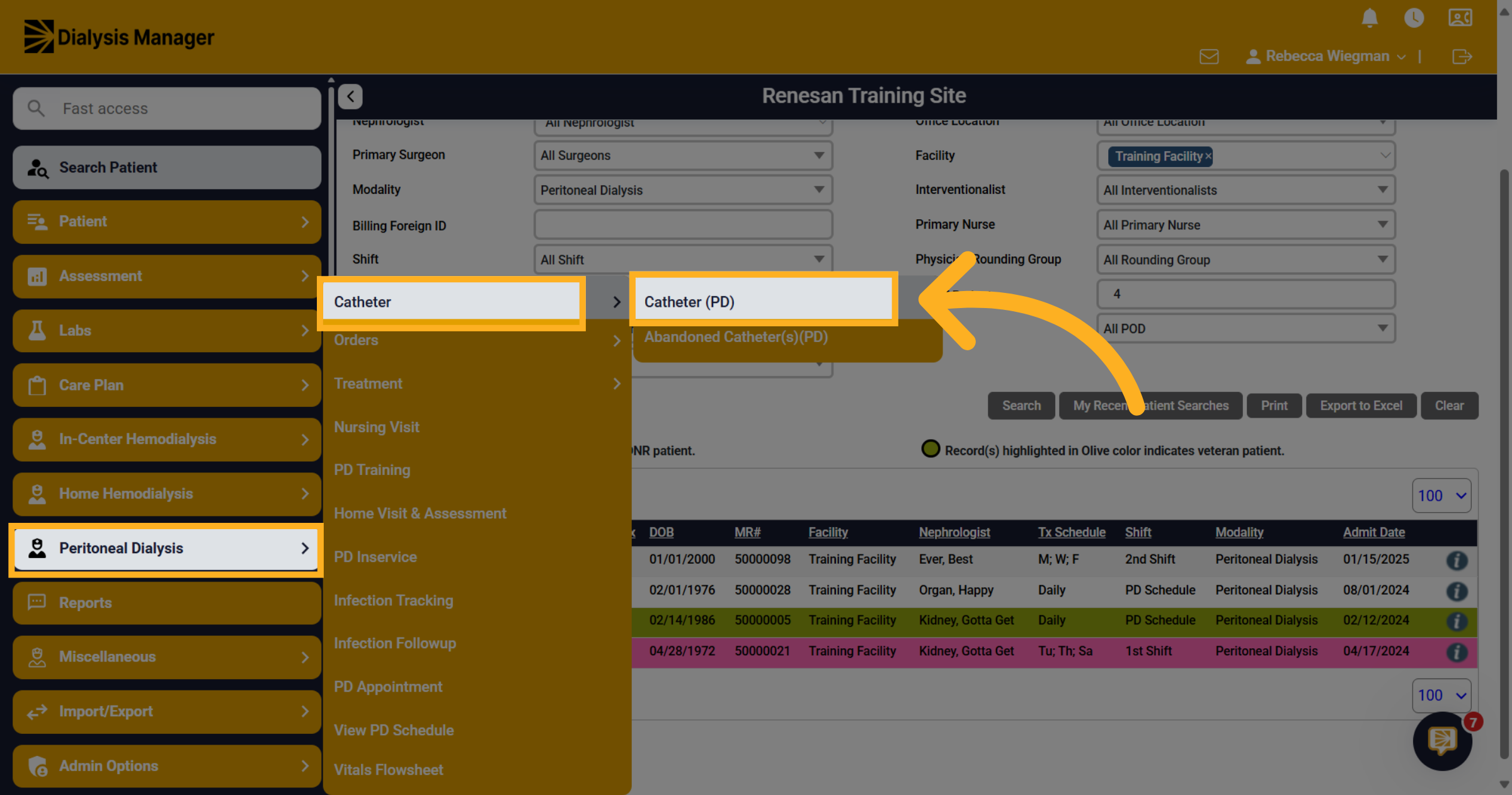
3. Click "Catheter (PD)"
Navigate to Peritoneal Dialysis, Catheter and Catheter (PD).
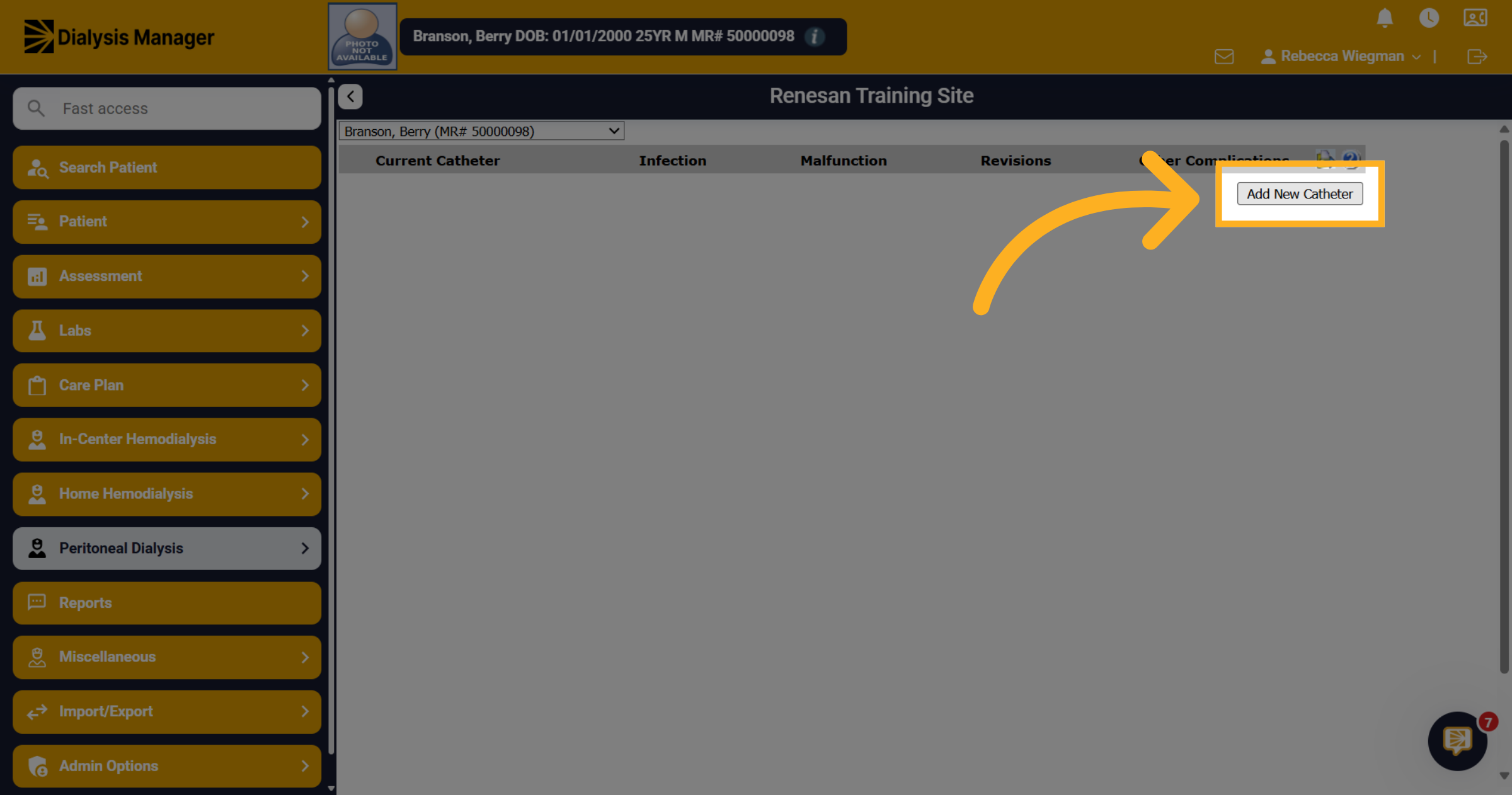
4. Click "Add New Catheter"
Select "Add New Catheter" to initiate the process of entering a new peritoneal dialysis catheter record.
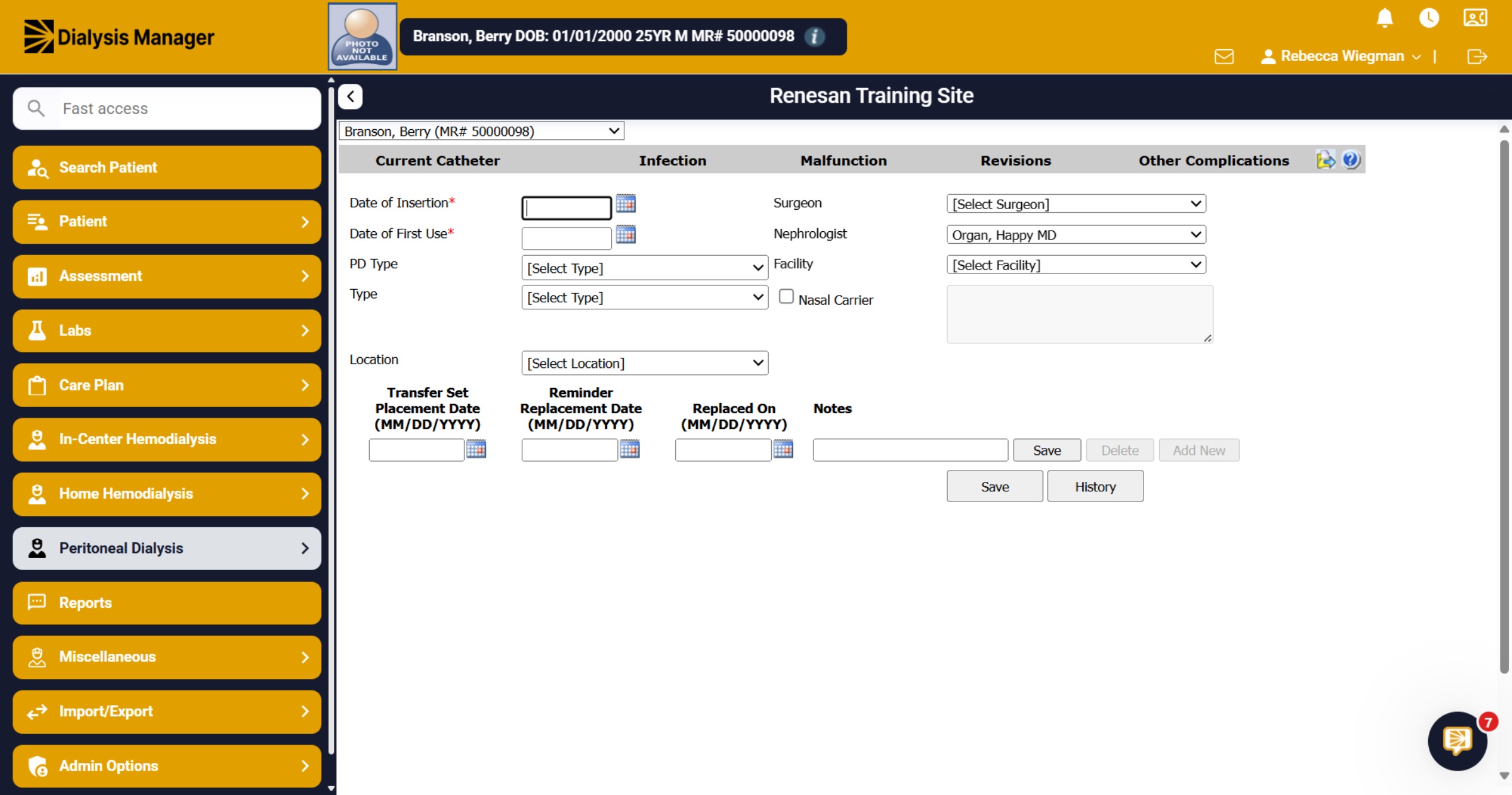
5. Enter Information
Enter the fields such as Date of Insertion, Date of First Use, PD Type and Location.
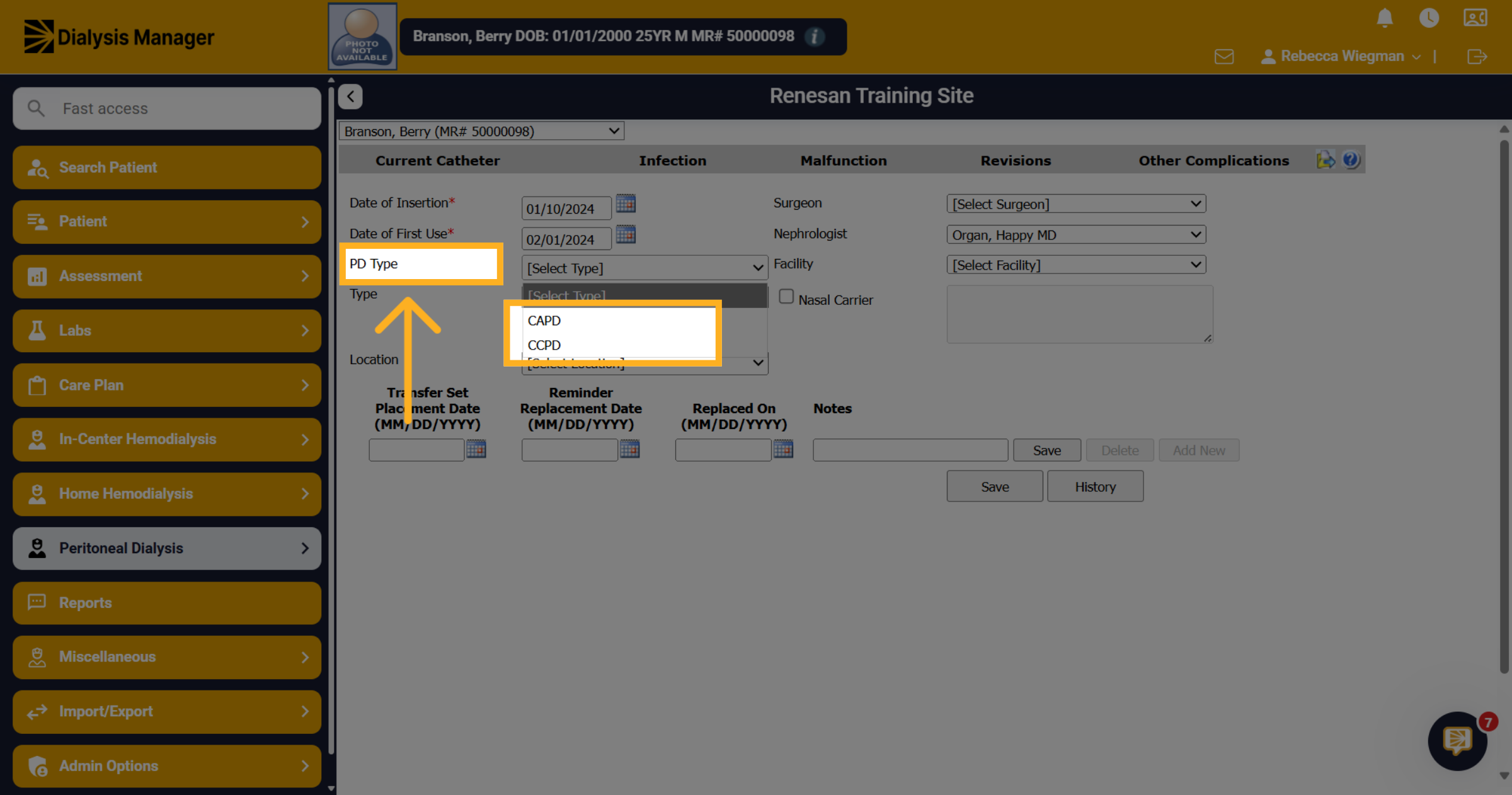
6. PD Type
Click the PD Type dropdown to choose the catheter options of CAPD and CCPD.
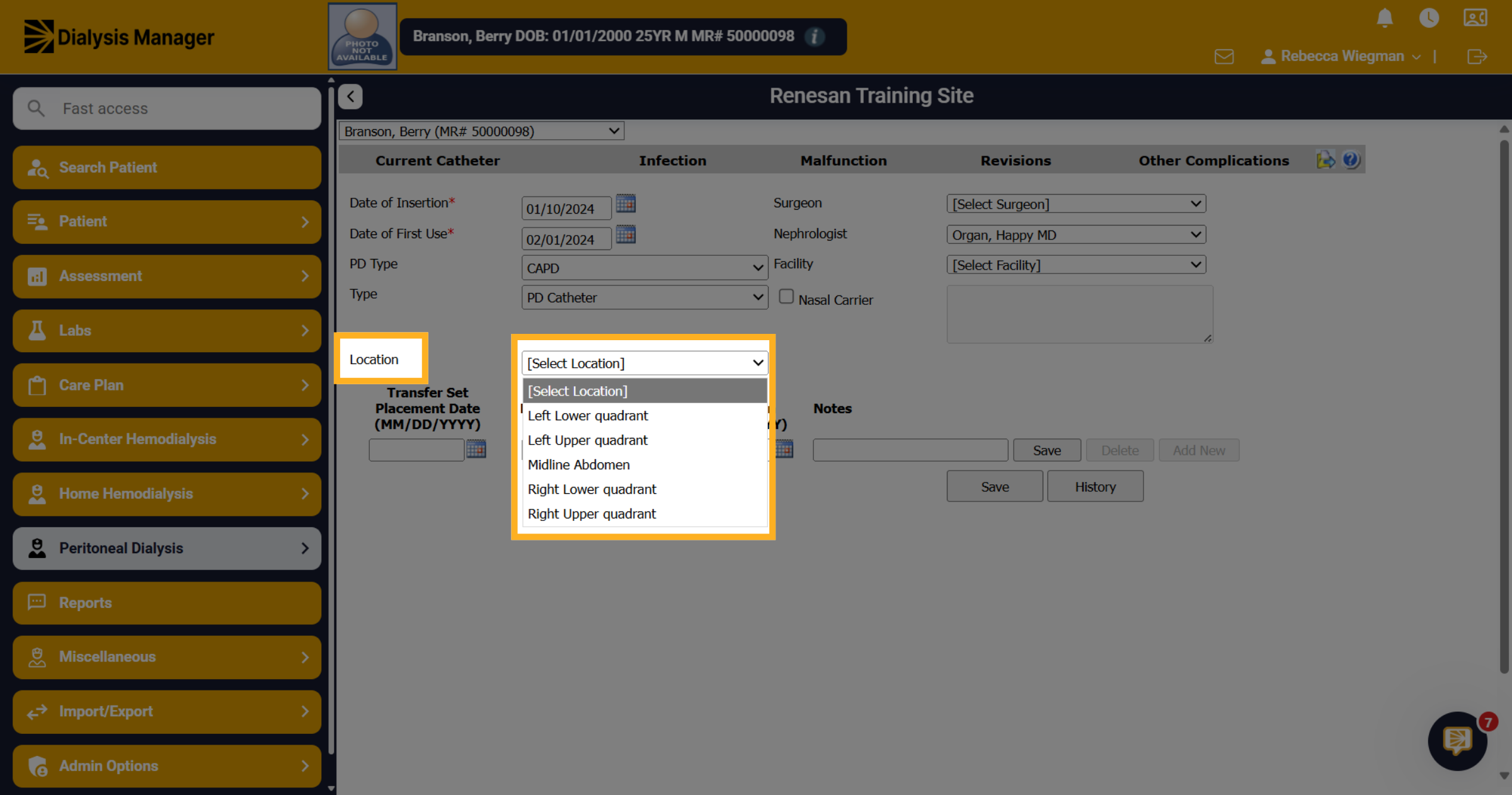
7. Select Location
Click the location dropdown to select the catheter placement site, options include various abdominal quadrants.
8. Transfer Set
Enter the Transfer Set Date. The Reminder Replacement date will automatically fill in for 6 months in advance. You can manually adjust that, if needed. Enter any Notes and click Save. This information will be displayed on your Nursing Visit Assessment.
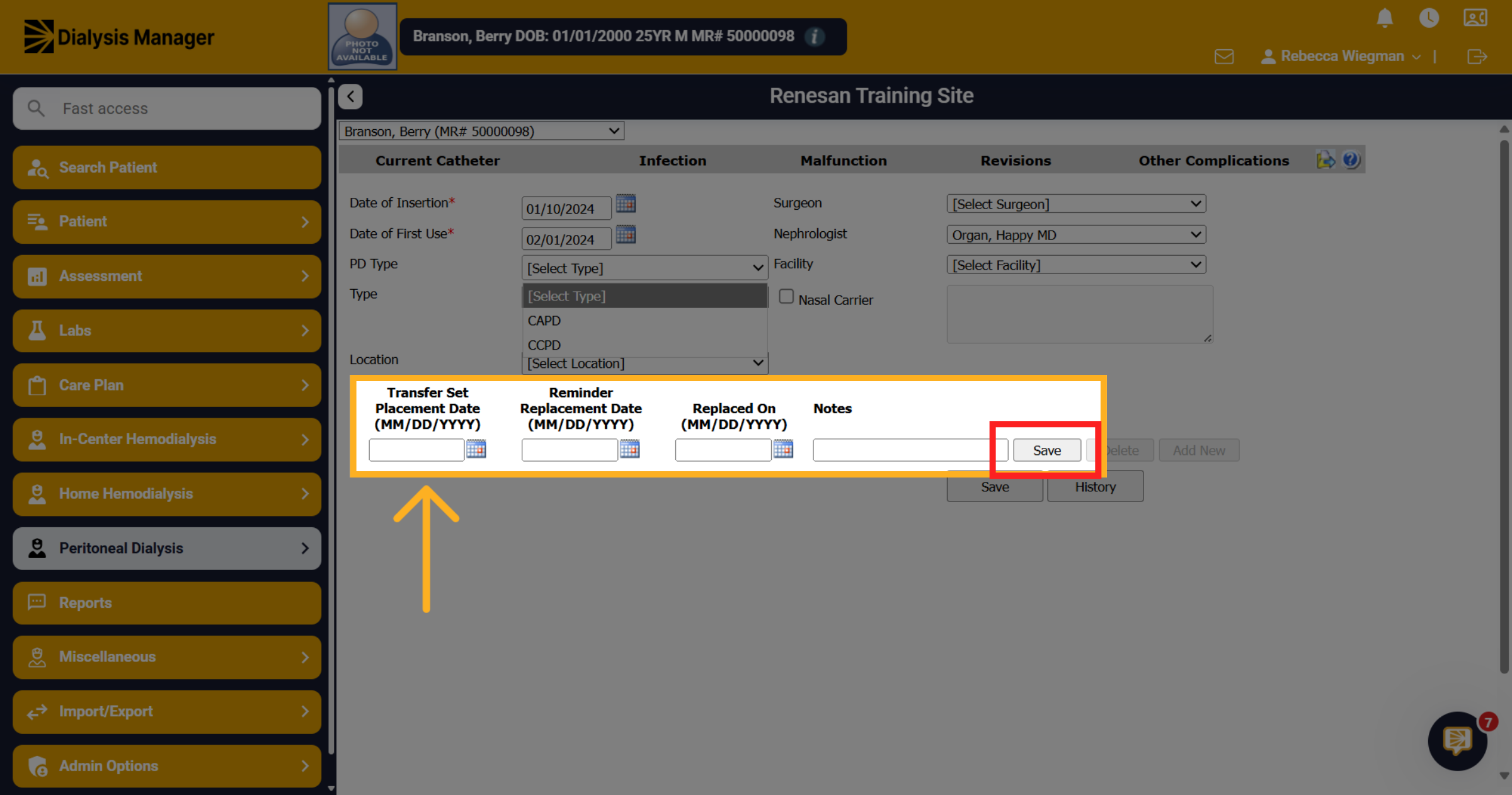
9. Click "Save"
Click the "Save" button to store the new catheter information securely in the system.
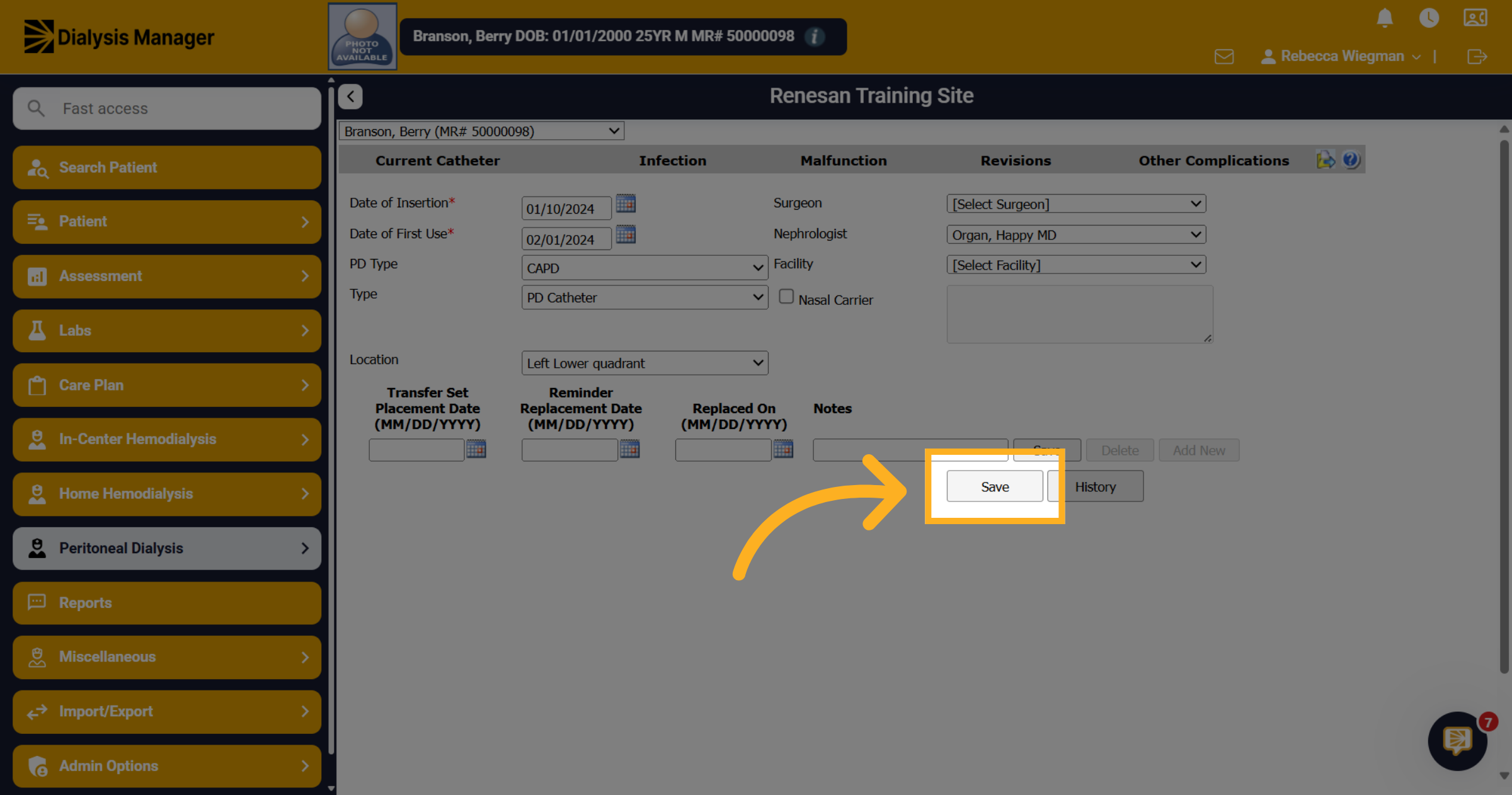
10. Select the Date
To update the catheter status or enter an infection, malfunction, revision or other complications you'll want to select the hyperlink date from the Catheter PD tab.
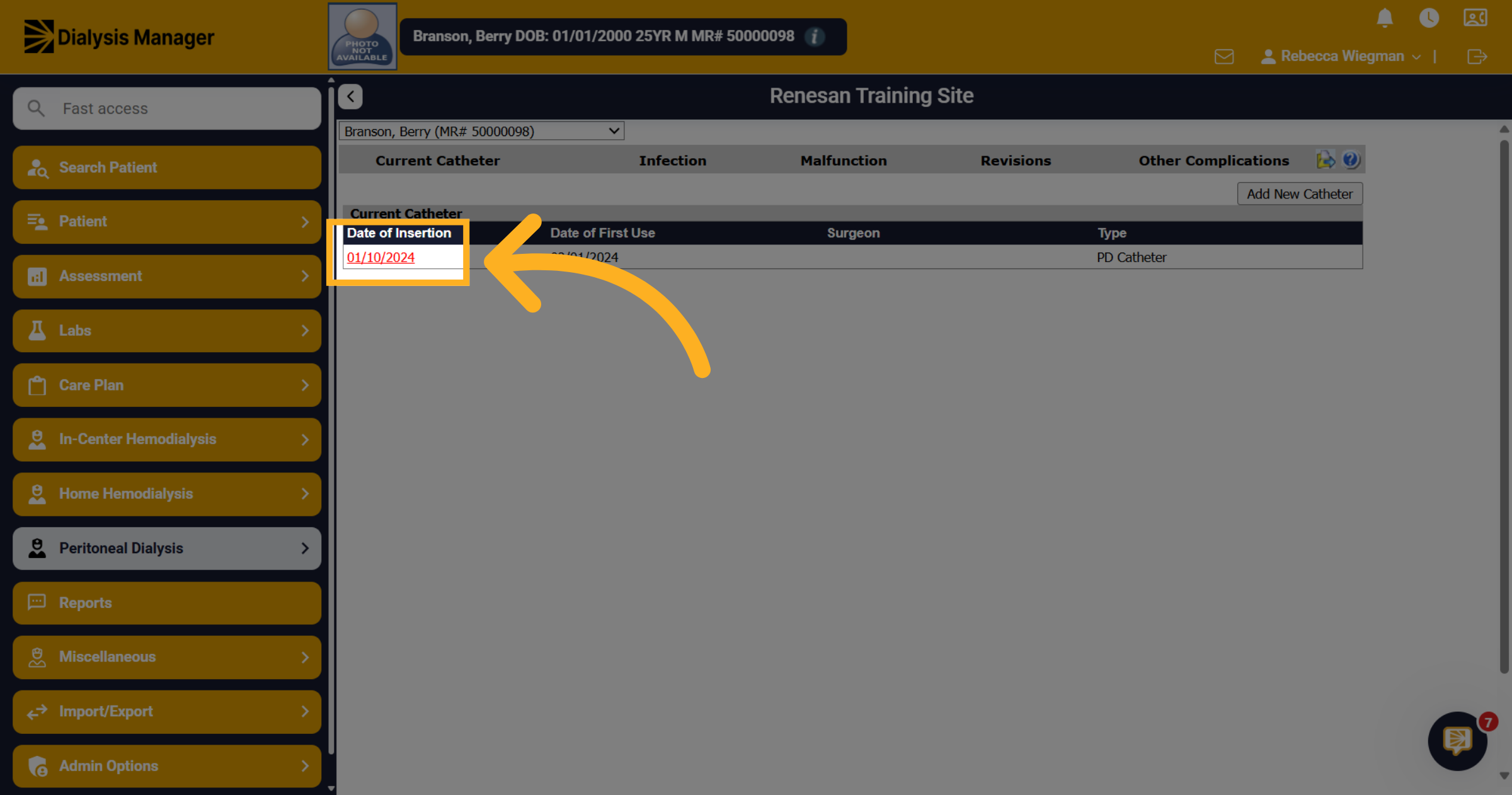
11. Catheter Status Change and Reason
Select the status field to reflect the catheters condition of Current or Abandoned. Enter the Date. Click the reason dropdown to specify why the catheter status changed, with options like Access Removed or Catheter Malfunction.
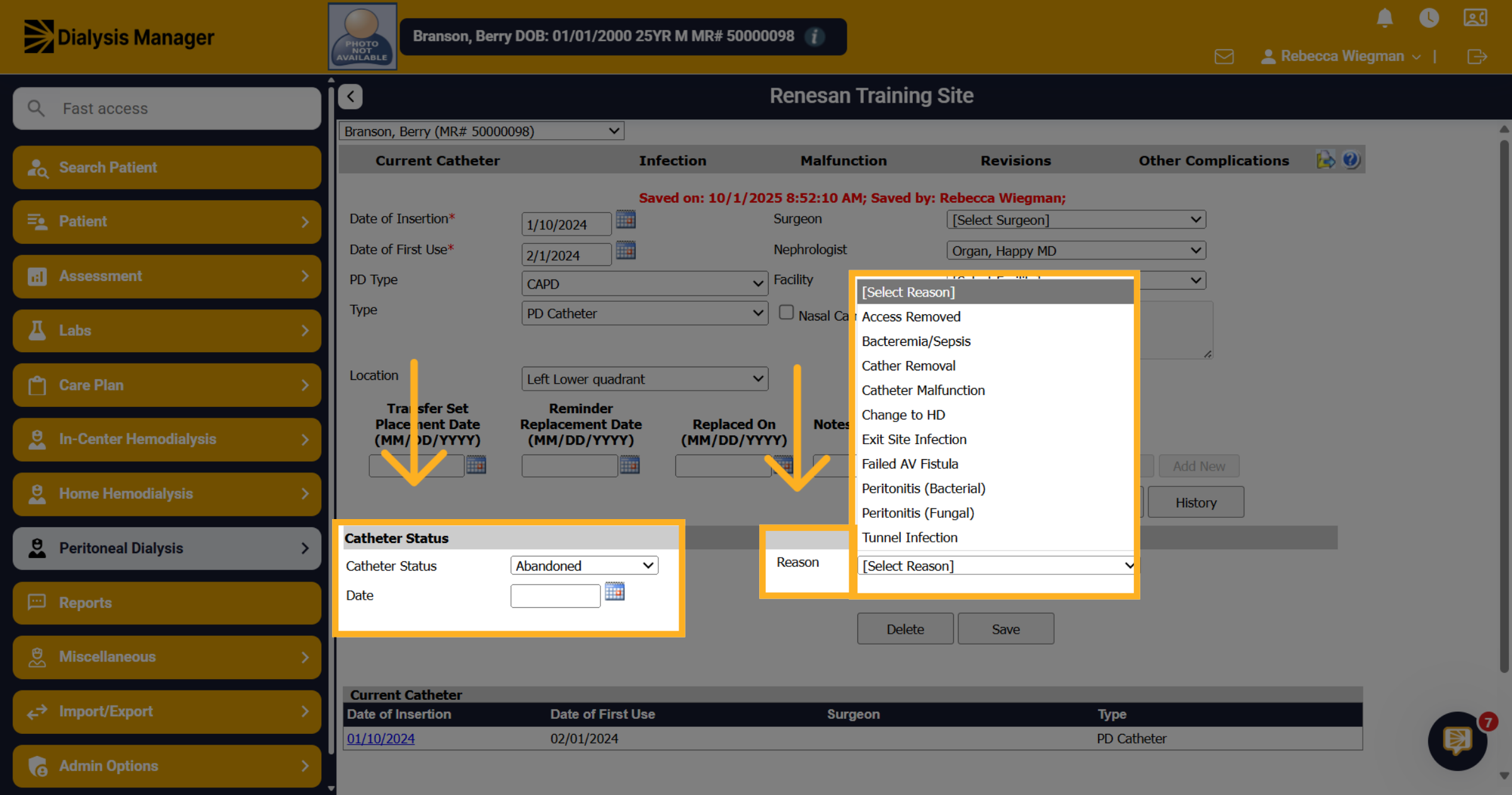
12. Save
Don't forget to always save your information!
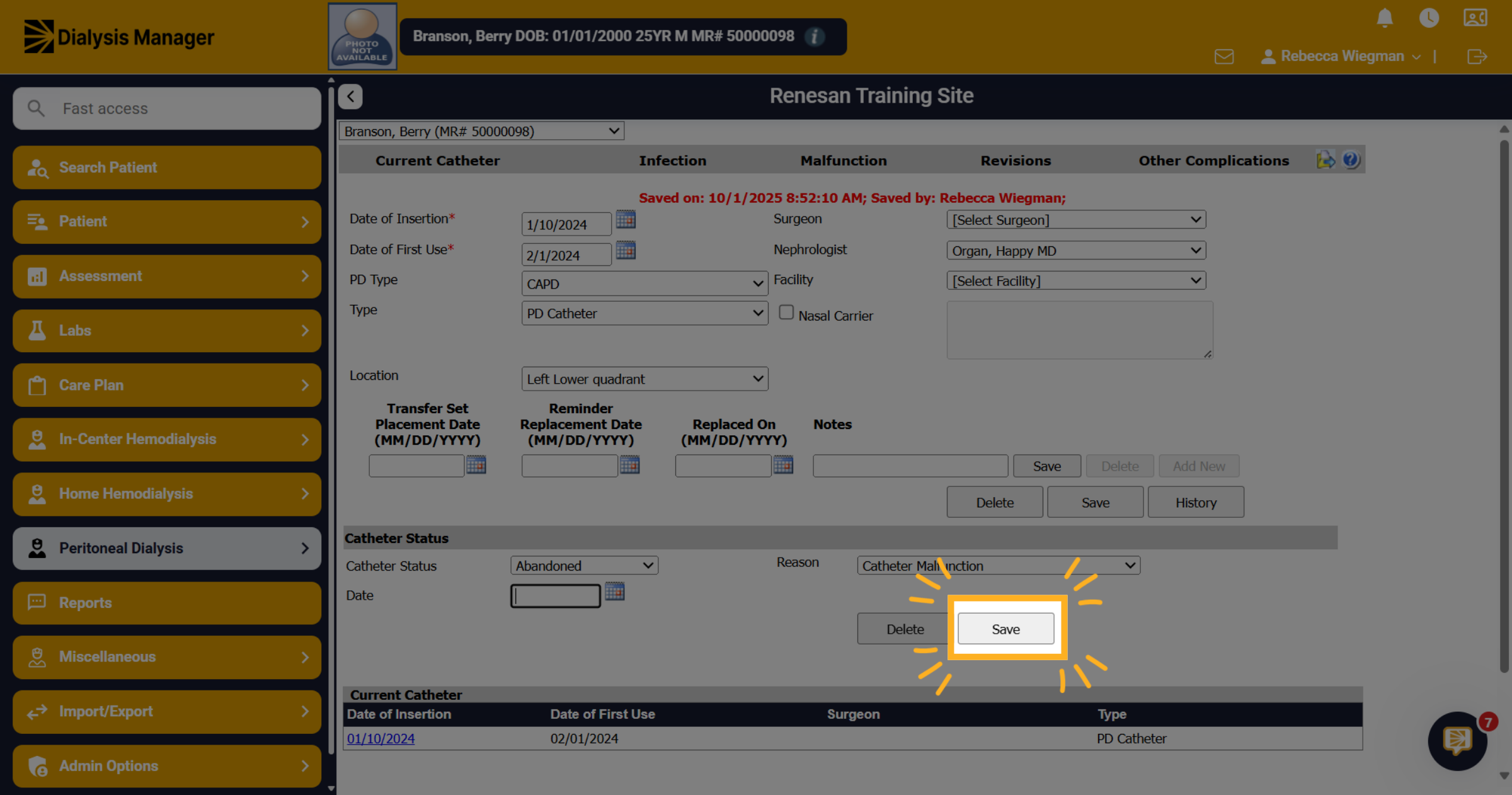
13. Additional Tabs
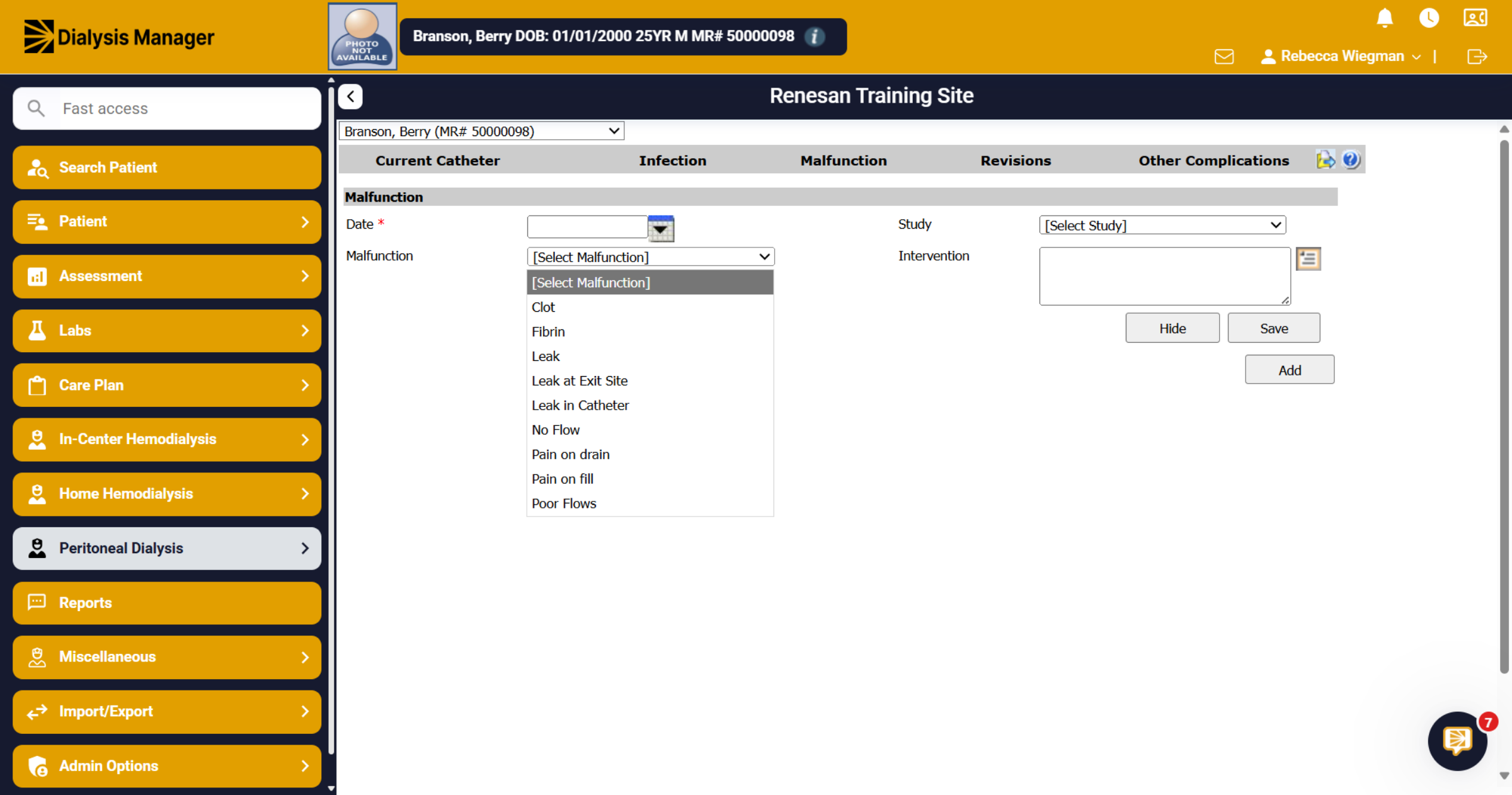
Across the top you'll have the options to view Current Catheter, enter Infections, Malfunction, Revisions, and Other Complications.
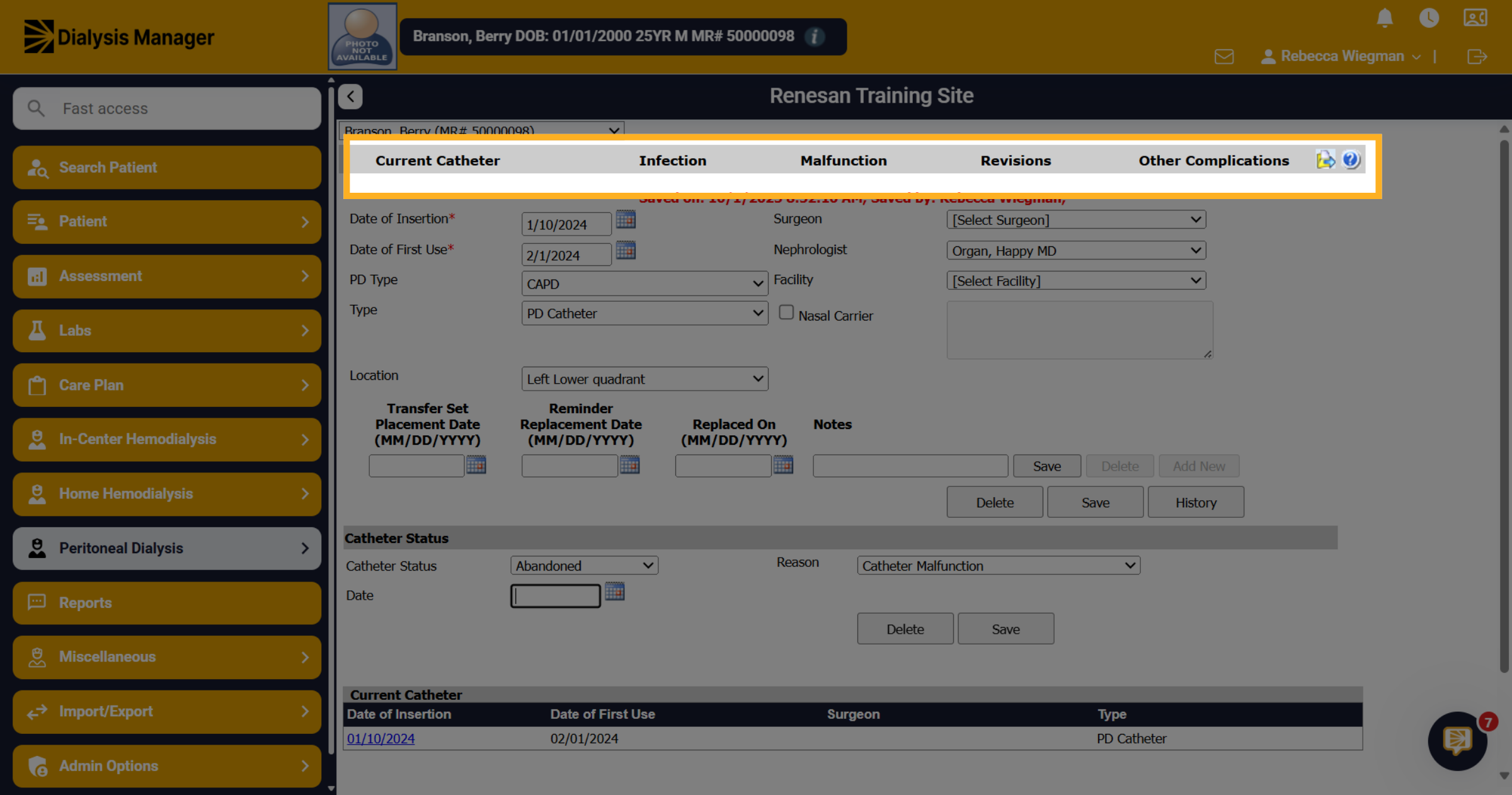
14. Select Infection
When selecting Infections and clicking "Add" you can input a new infection record associated with the catheter.
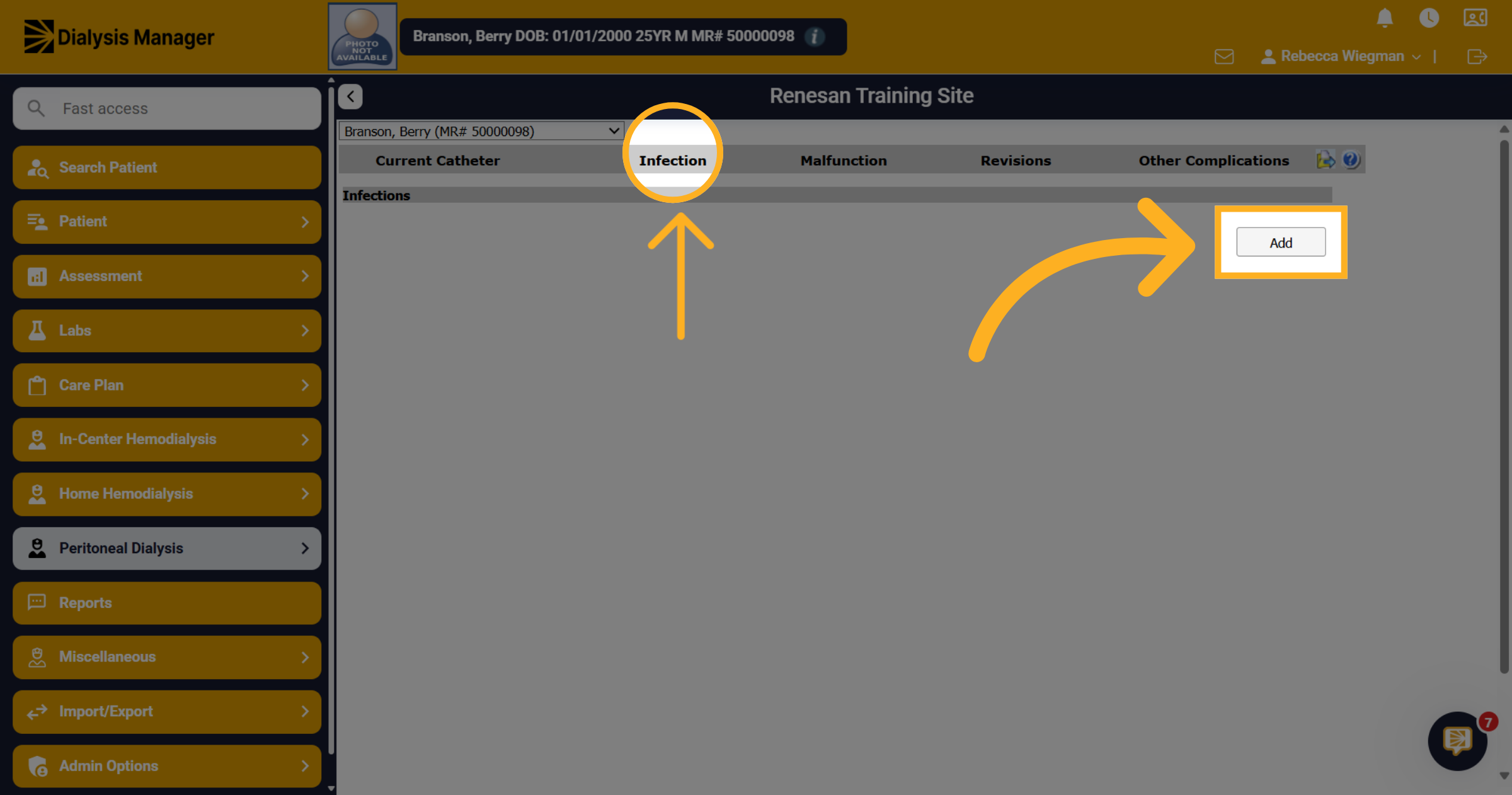
15. Infection Form
Note that any field with a red asterisk is mandatory before saving. Enter in as much information as possible before clicking Sign & Save. Your also able to go back into this infection record to document lab results. Information entered on infections will cross into PD Infection Reporting.
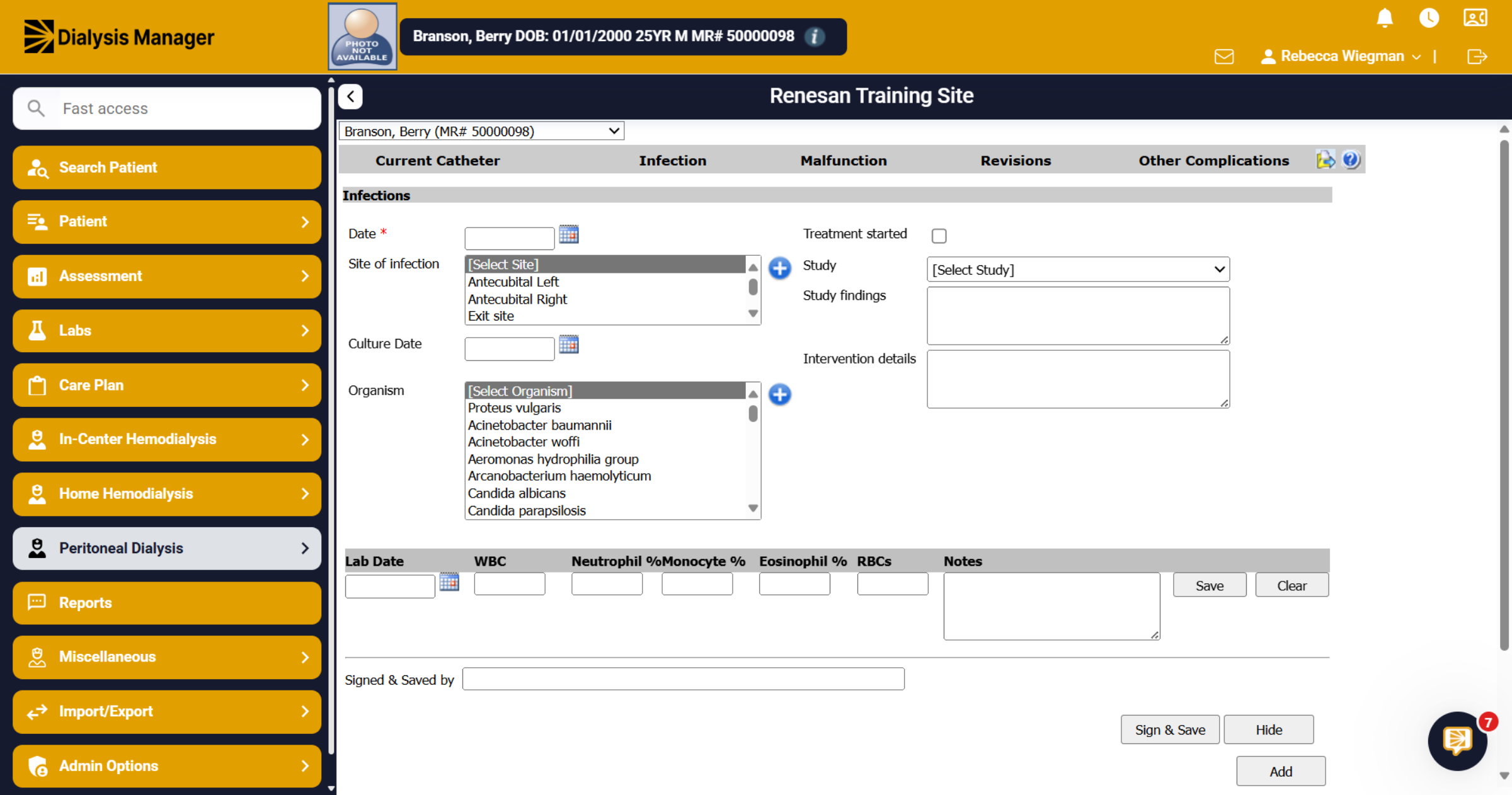
16. Other tabs
Each additional tab such as Malfunction, Revisions, Other Complications is addressed in the same manner. The staff will click the tab and "Add New" Enter the information to support each procedure then save.
17. Introduction
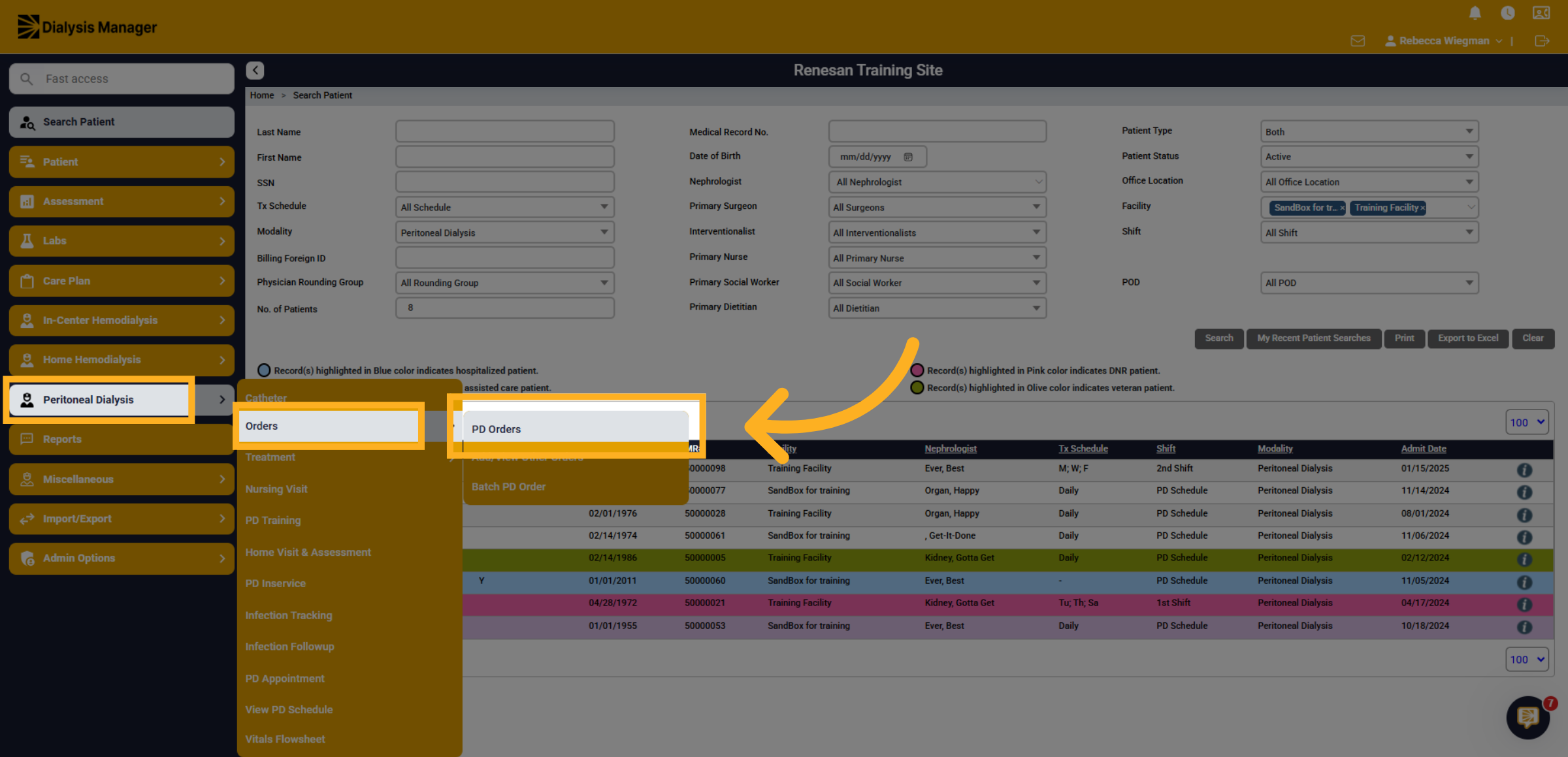
Now we will guide you through entering a PD Order. Once your patient is selected, go to the Peritoneal Dialysis Menu, Orders and PD Orders. Please note that Problem List, Comorbidities, Allergies, Special Conditions, etc. should be entered prior to submitting a PD Order for new patients.
18. Click "Add CAPD Order"
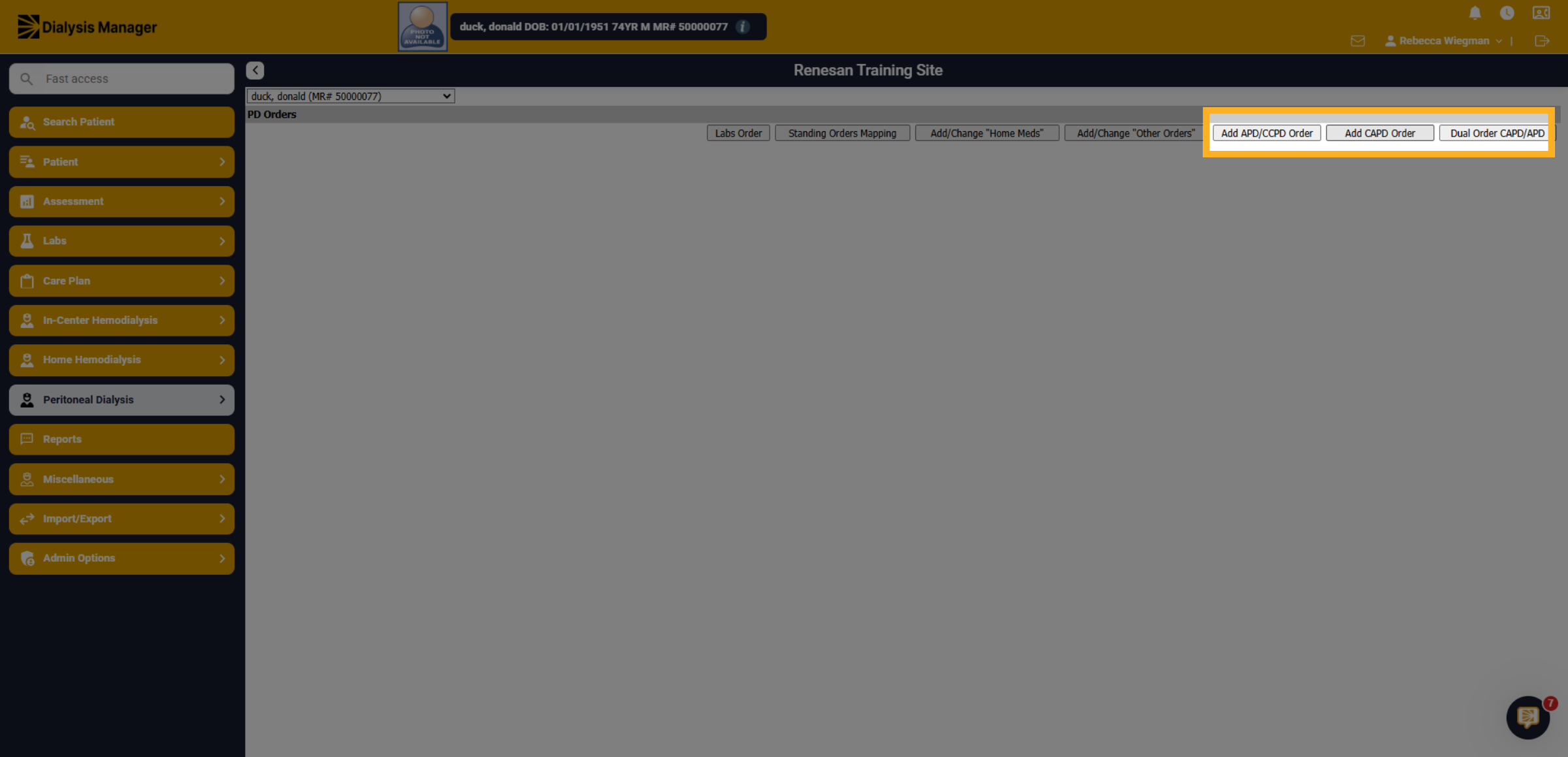
Click on the Appropriate Order such as APD/CCPD Order, CAPD Order or Dual Order (CAPD/APD). Sections may vary depending on the Order type selected.
19. Entering in the Order
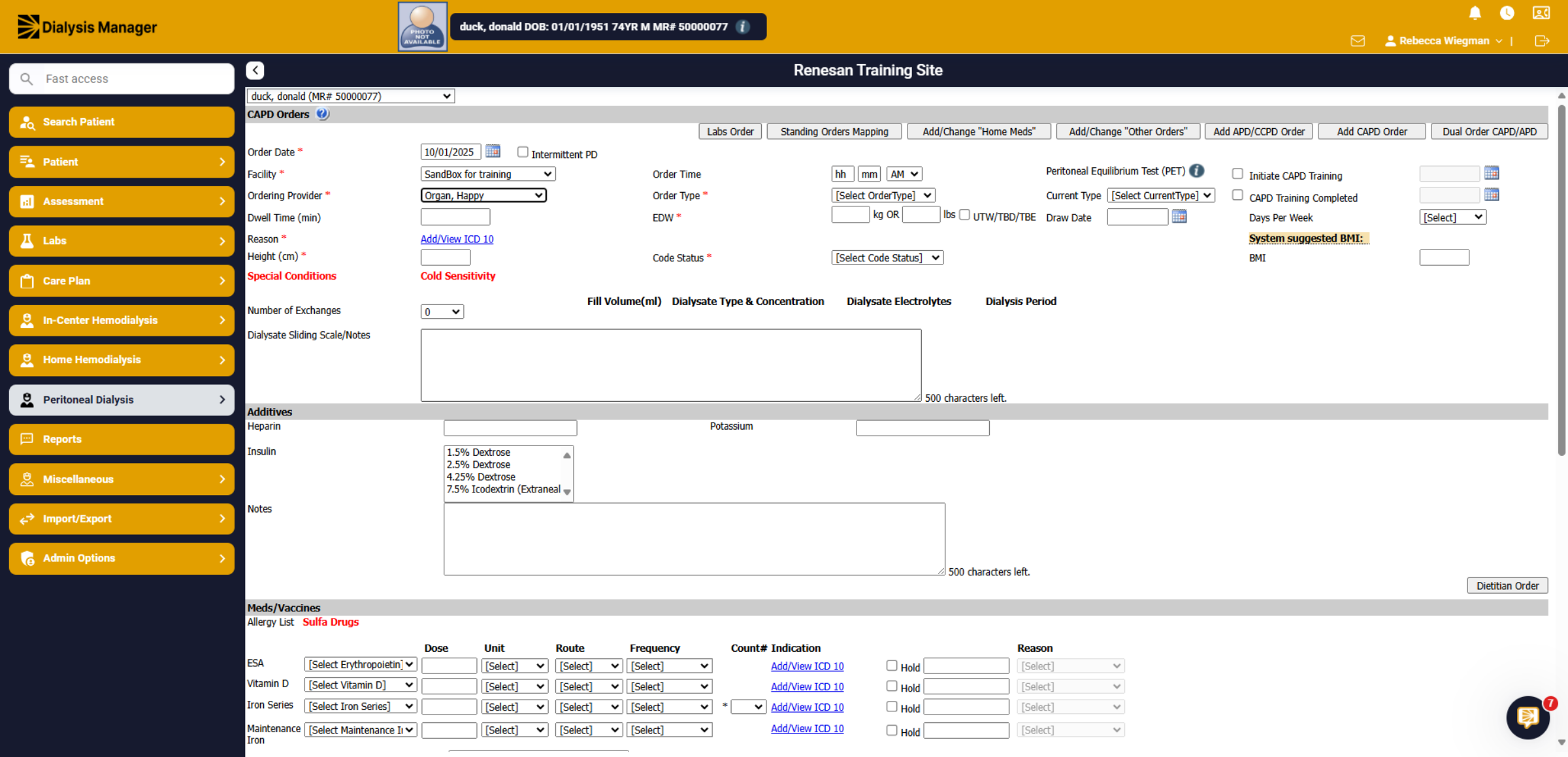
To complete your order, please fill out as much information as possible. Note that fields marked with a red asterisk are mandatory.
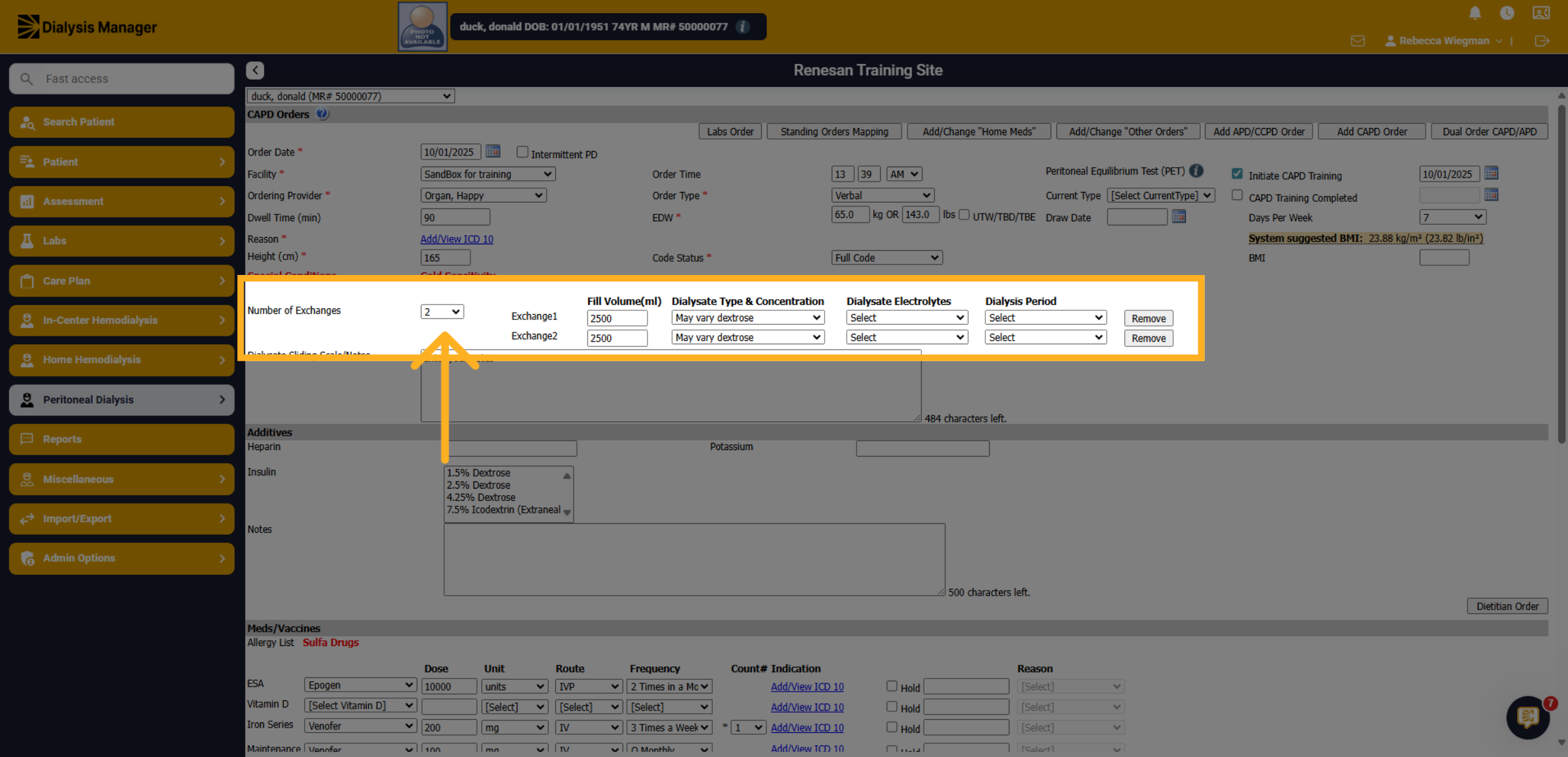
20. Number of Exchanges
When selecting the Number of Exchanges dropdown those exchanges will populate to the right!
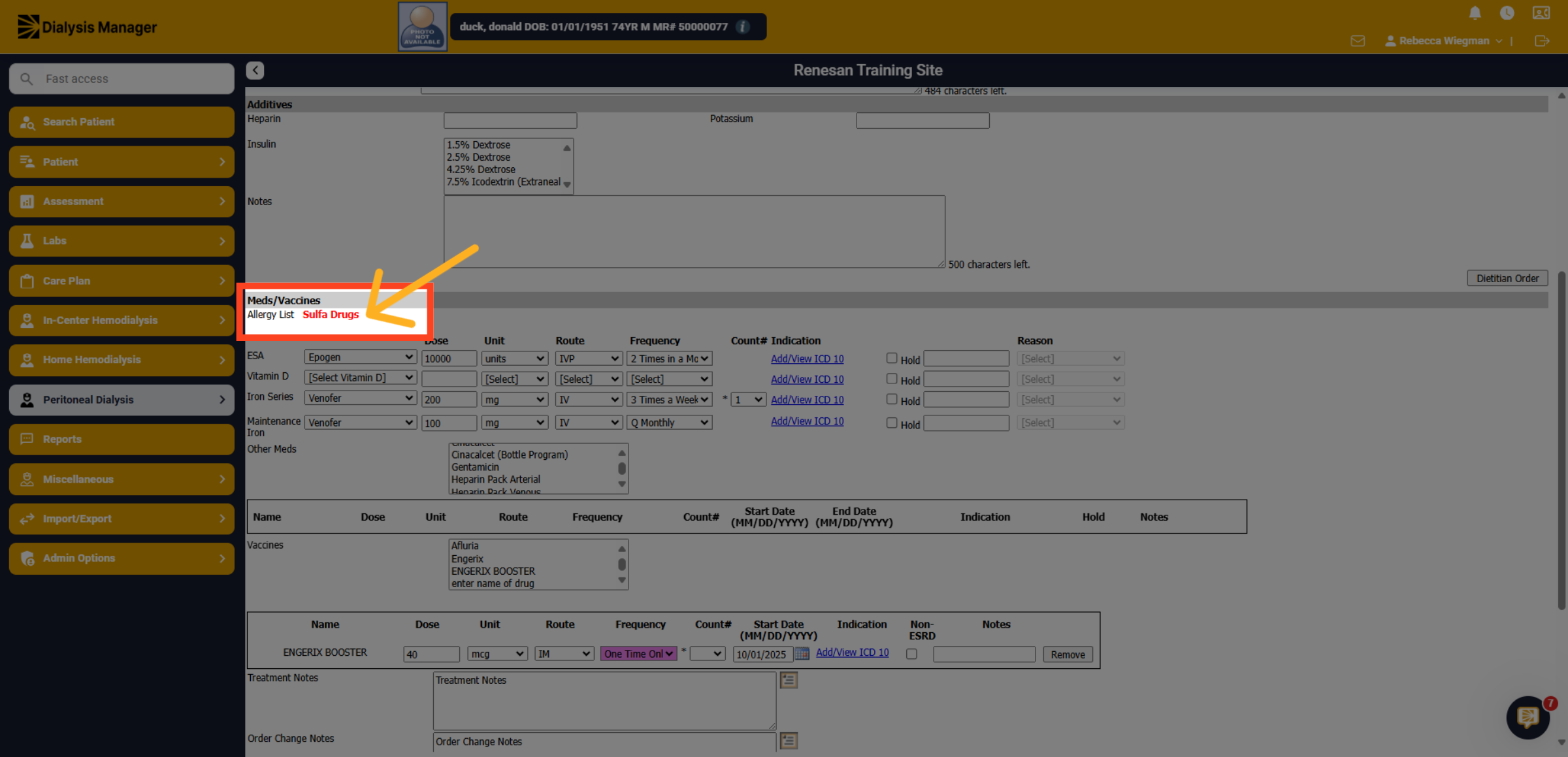
21. Allergy List
When Allergies are entered through Patient, Problem List, they will be visible on multiple screens throughout Dialysis Manager. If the patient has an allergy to a medication the system will not allow you to save the order.
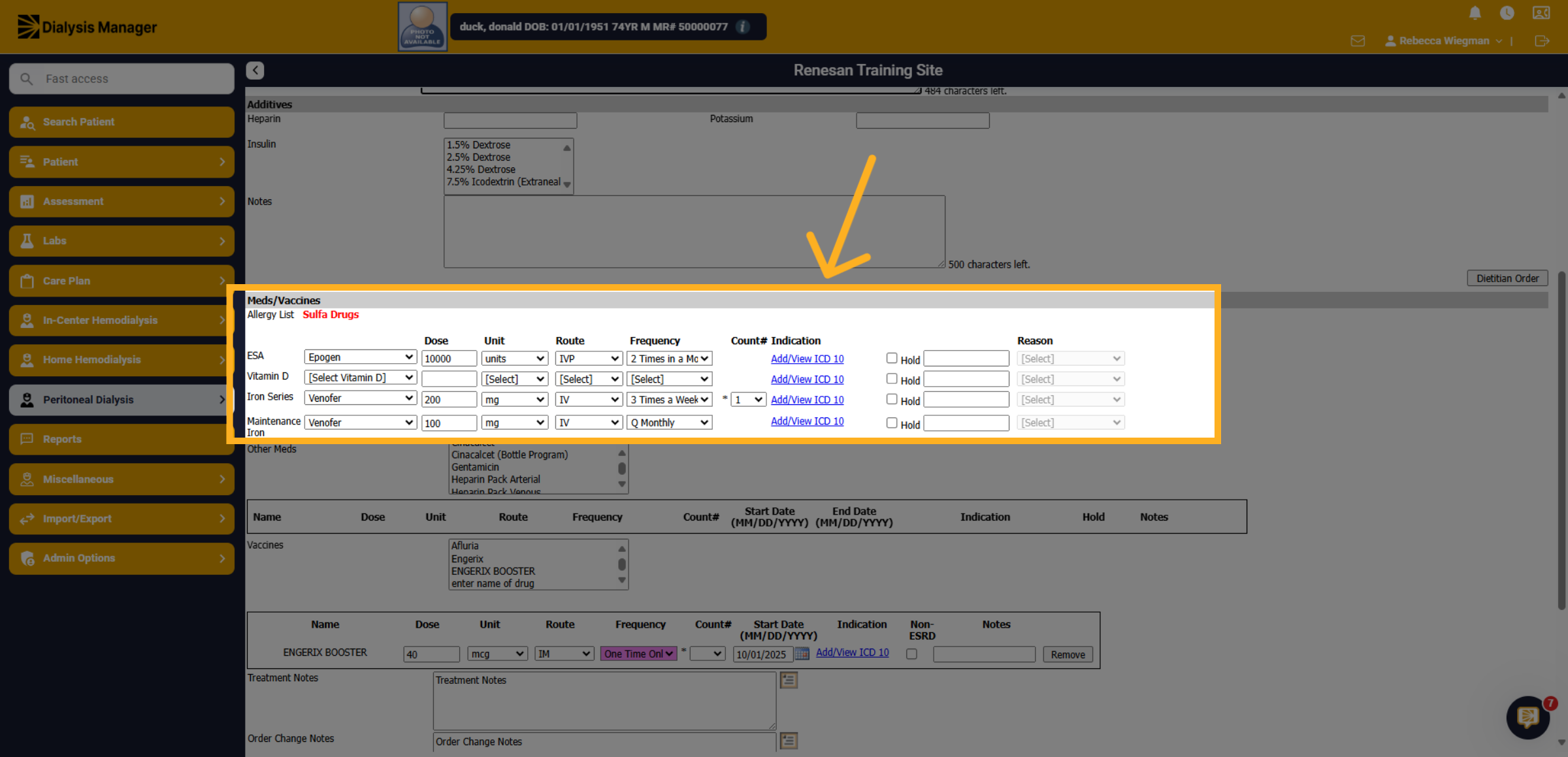
22. Medications
Select the medication the patient receives, enter the dose, unit, route frequency and select the blue hyperlink to select the ICD-10 Code for each medication selected.
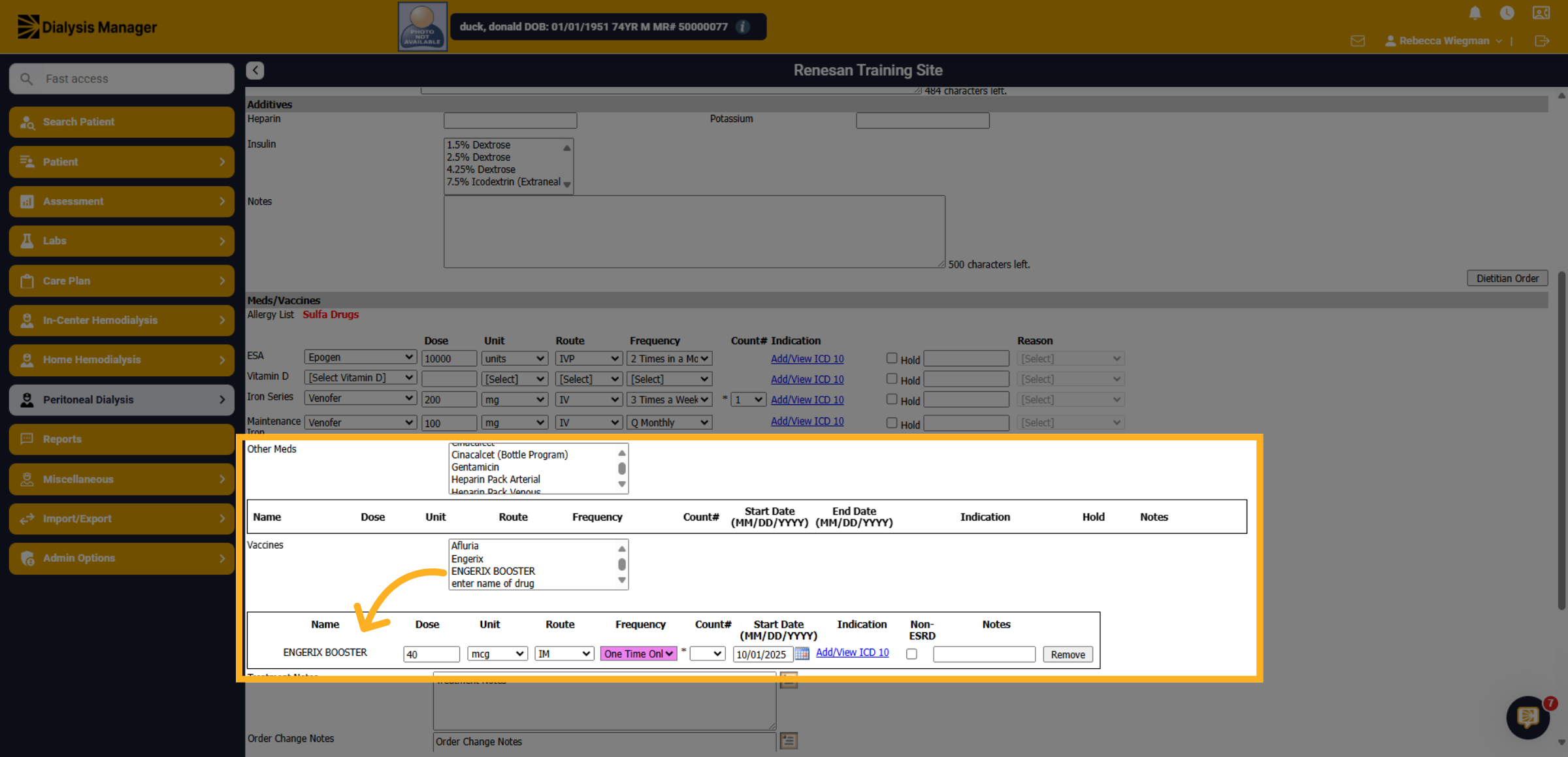
23. Other Meds and Vaccines
When selecting Other Meds or Vaccines from the box, they will drop down to enter the dose, unit, route, etc.
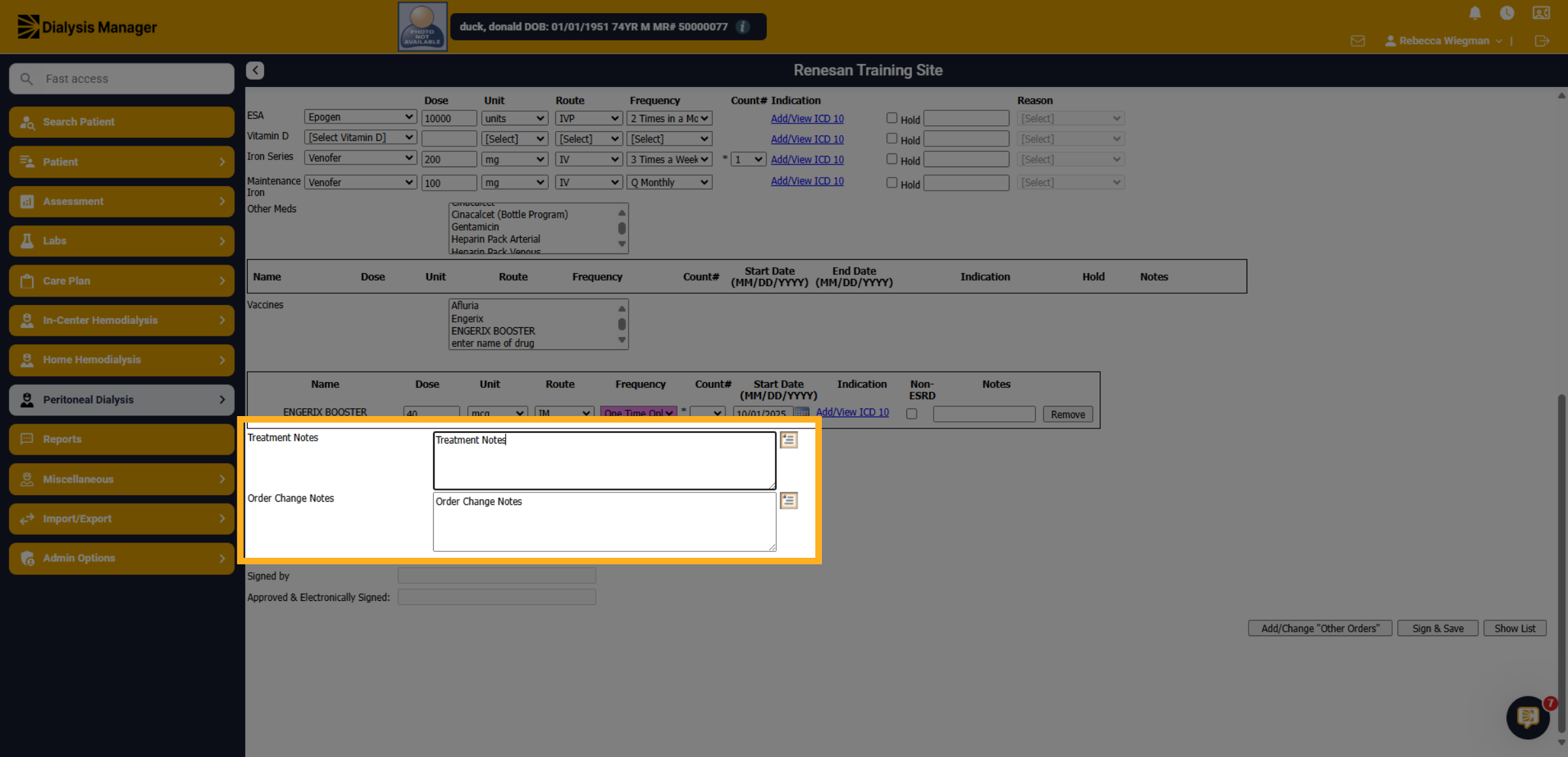
24. Click "Treatment Notes"
Click the Treatment Notes section to add any additional information regarding the patient's treatment plan or enter Order Change Notes.
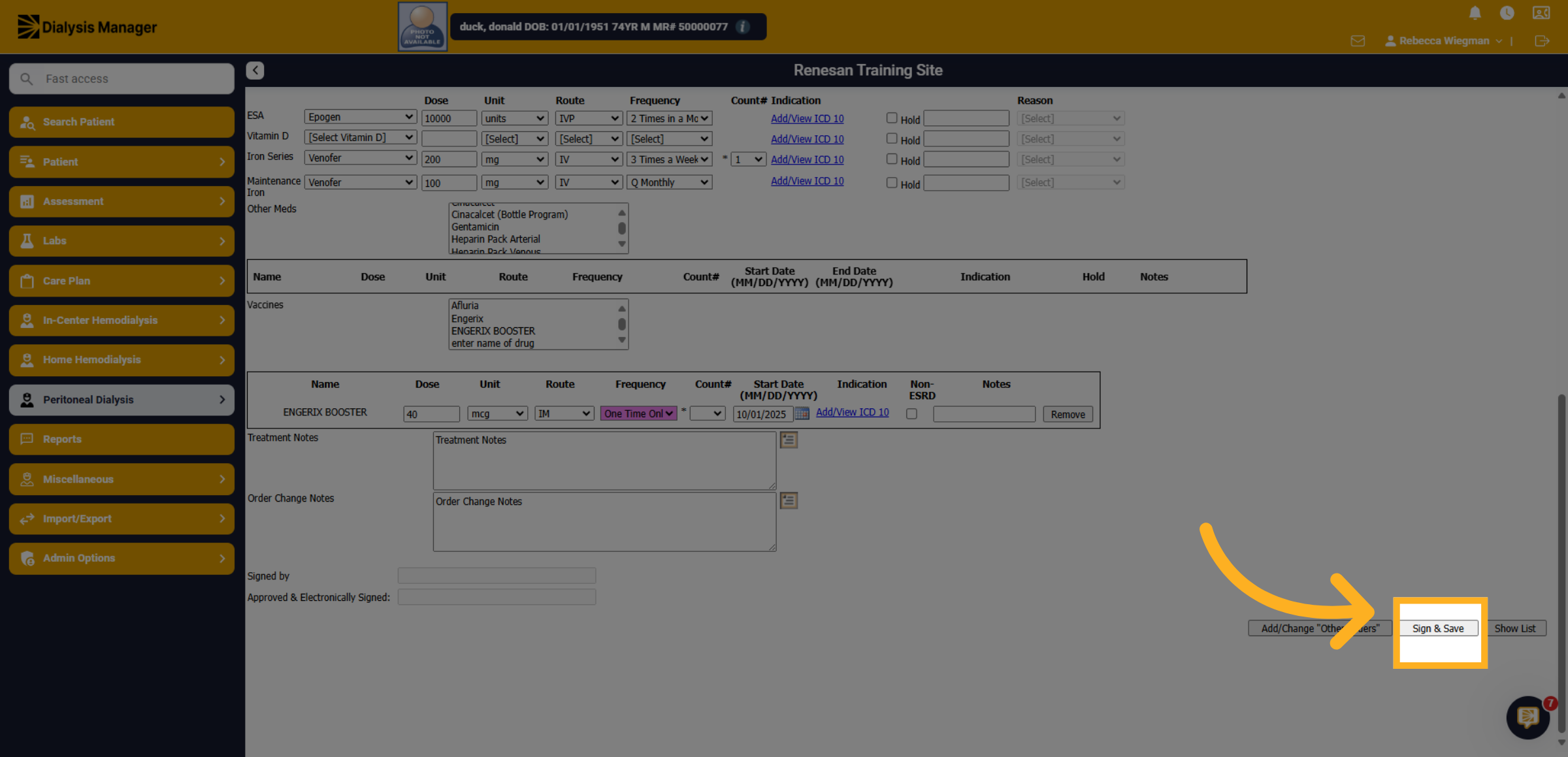
25. Click Sign & Save
Click Sign & Save to finalize and securely save the PD order.
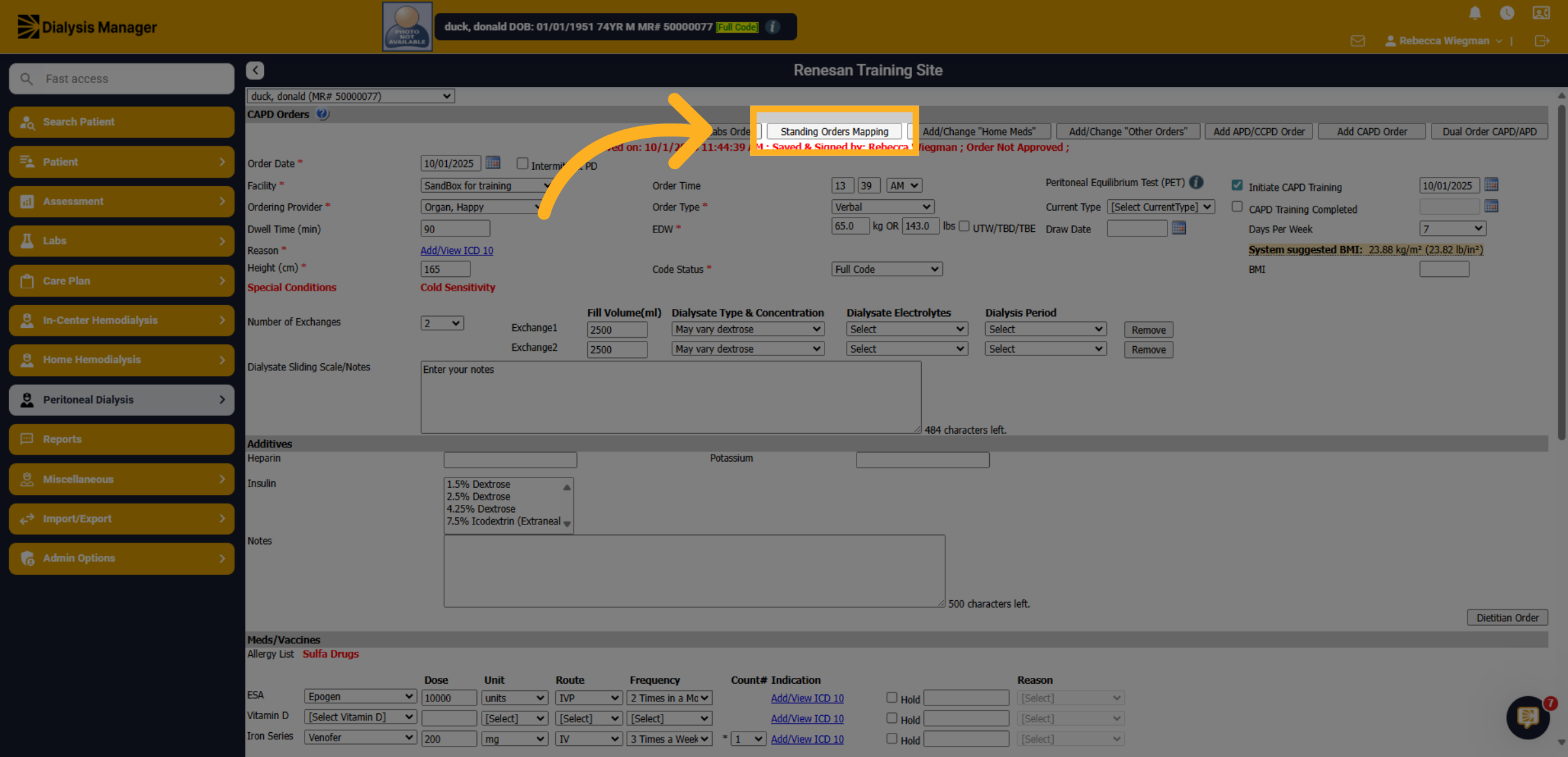
26. Click "Standing Orders Mapping"
Click Standing Orders Mapping before navigating to the next patient. Select applicable PRN medications and choose Sign & Save.
27. Introduction
This tutorial will walk you through changing or editing a PD Order that needs correcting due to order entry error.
28. PD Orders Screen
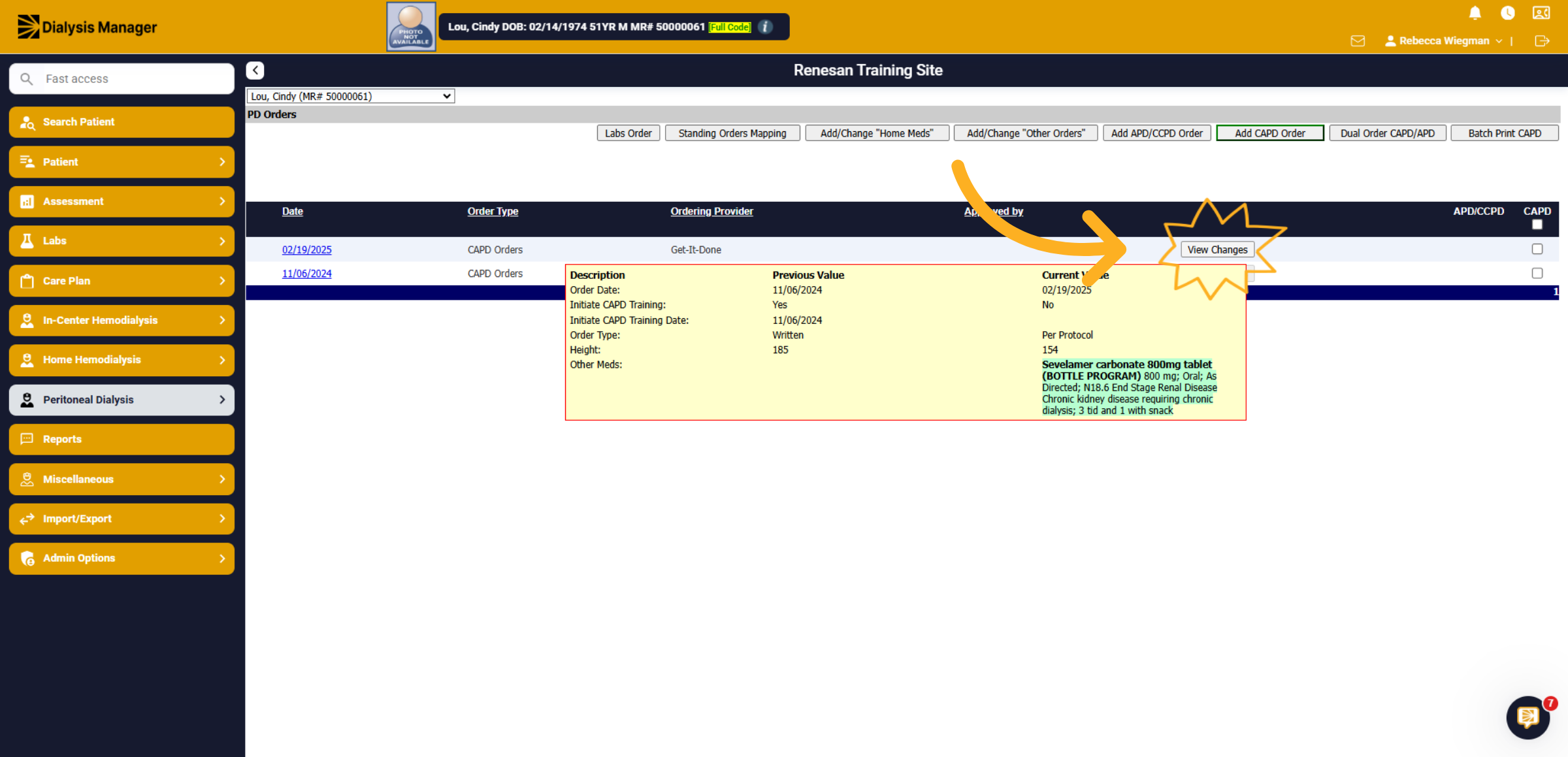
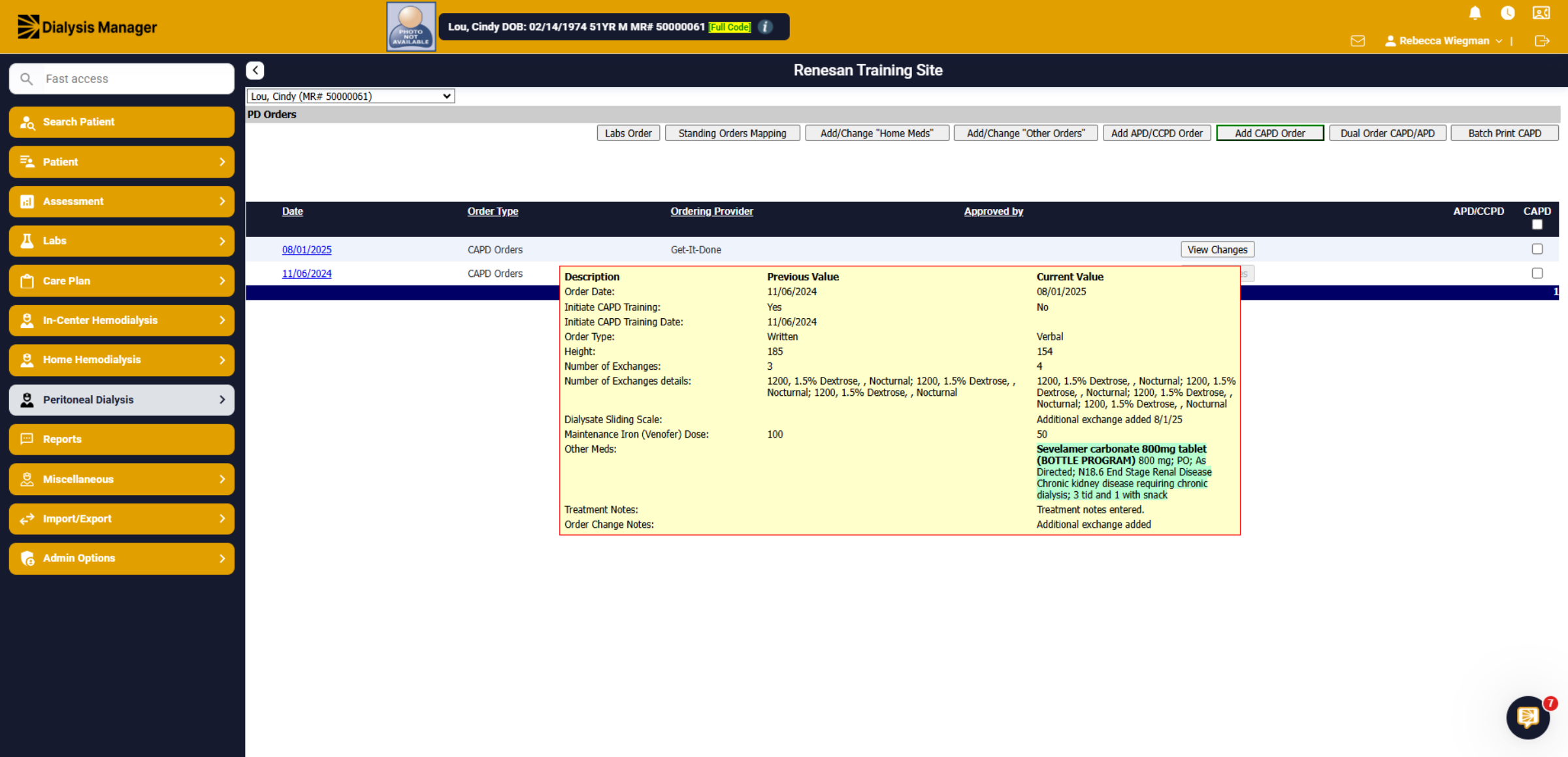
When entering the PD Order screen, you'll see all prior Orders for the patient. When hovering over the "View Changes" you'll see the Previous Value and Current Value". The "View Changes" button may be grayed out if it's the patients only order, indicating that the patient has not had any changes.
29. Additional Tabs
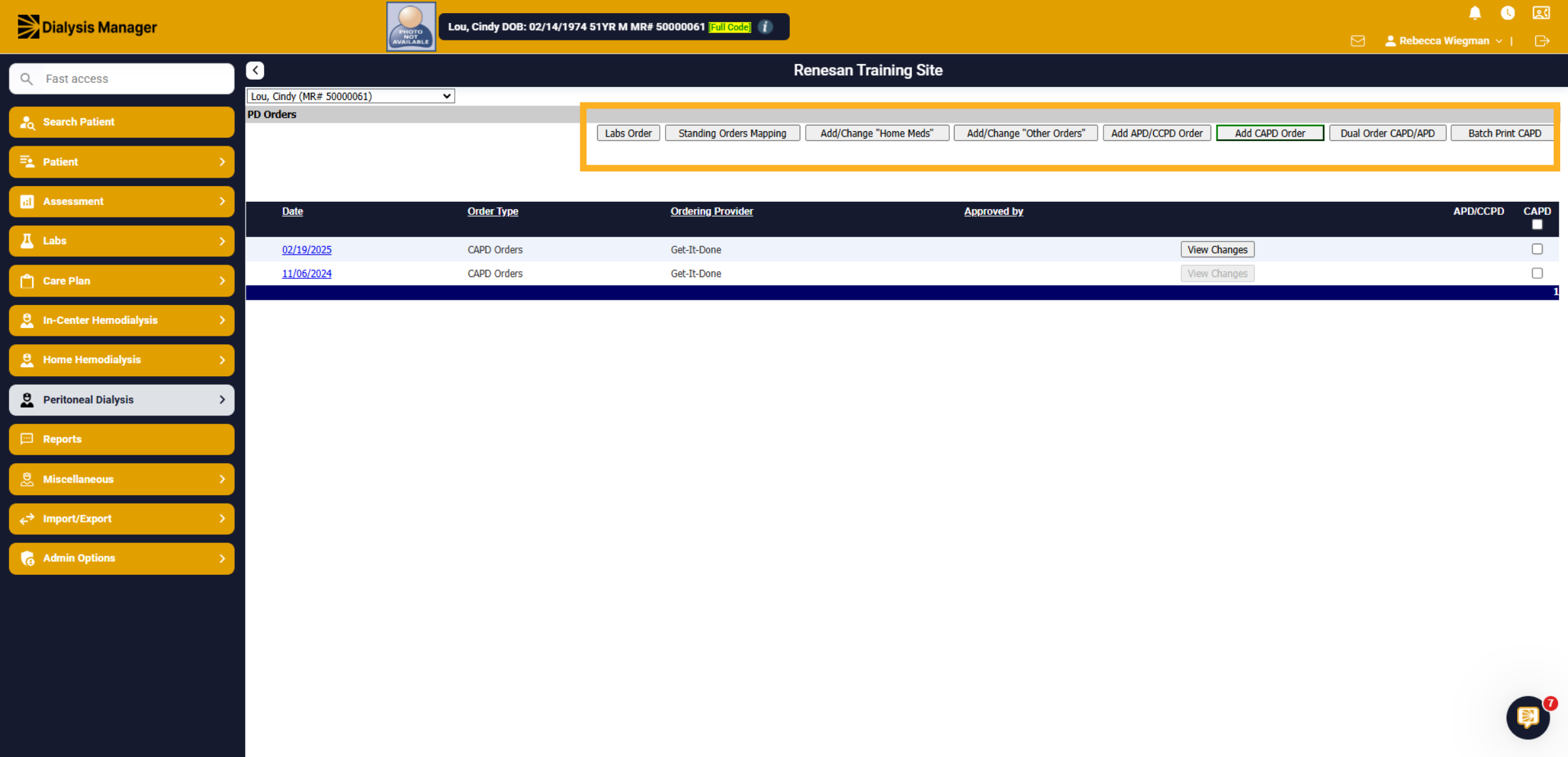
Across the top you'll see additional tabs such as Lab Order, Standing Orders Mapping, Add/Change "Home Meds", Add/Change "Other Orders", or Add New Orders. Hint: use the Add New Orders along the top to Add a new order.
30. Order Change Date
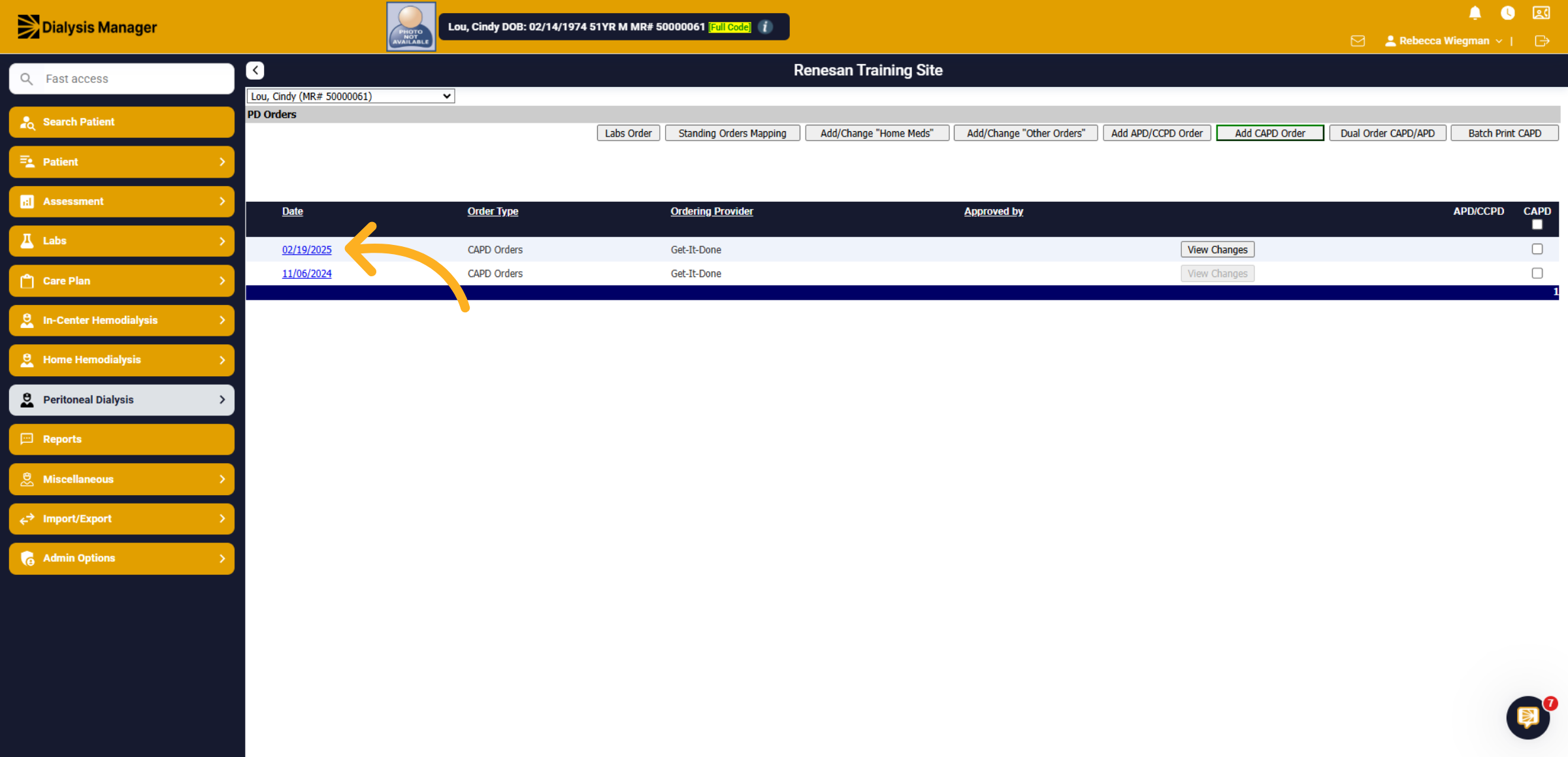
To correct or edit an existing Order, please select the most recent order date. Typically, if you are doing an order change you will choose the Add New Order along the top.
31. Update Information - Exchanges
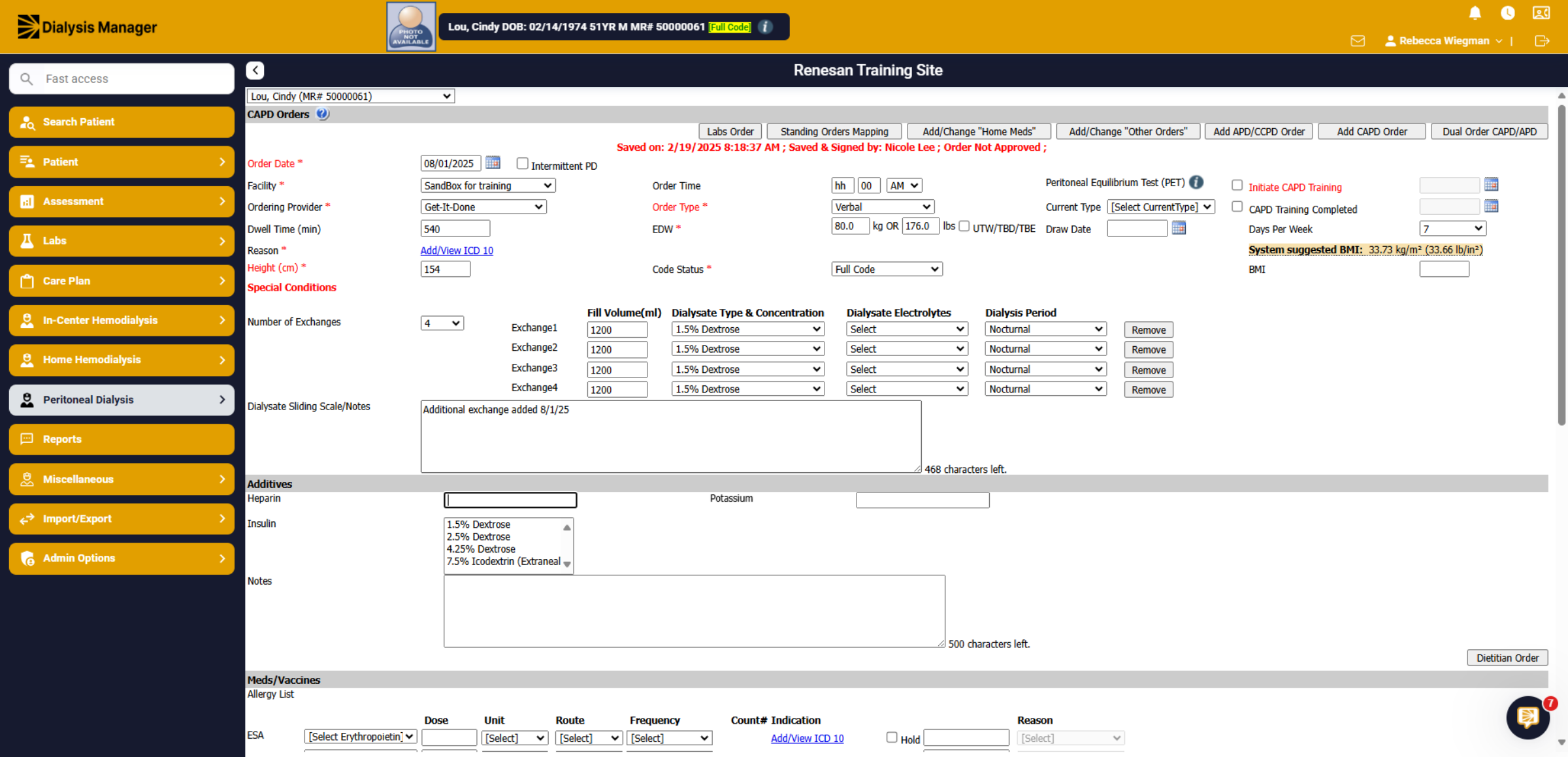
The patient currently has 3 exchanges, but we neede to add an additional exchange. Select "4" from the Number of Exchanges dropdown. Enter the Fill Volume, Dialysate Type & Concentration, Dialysate Electrolytes & Dialysis Period. Enter any Dialysate Sliding Scale or Notes.
32. Additional Updates
The nephologist also wante to update the patient's Venofer from 100 mg to 50 mg. edit the dose, frequency and verify the ICD 10 code, if need be. We may also want to add Treatment Notes and Order Change Notes.
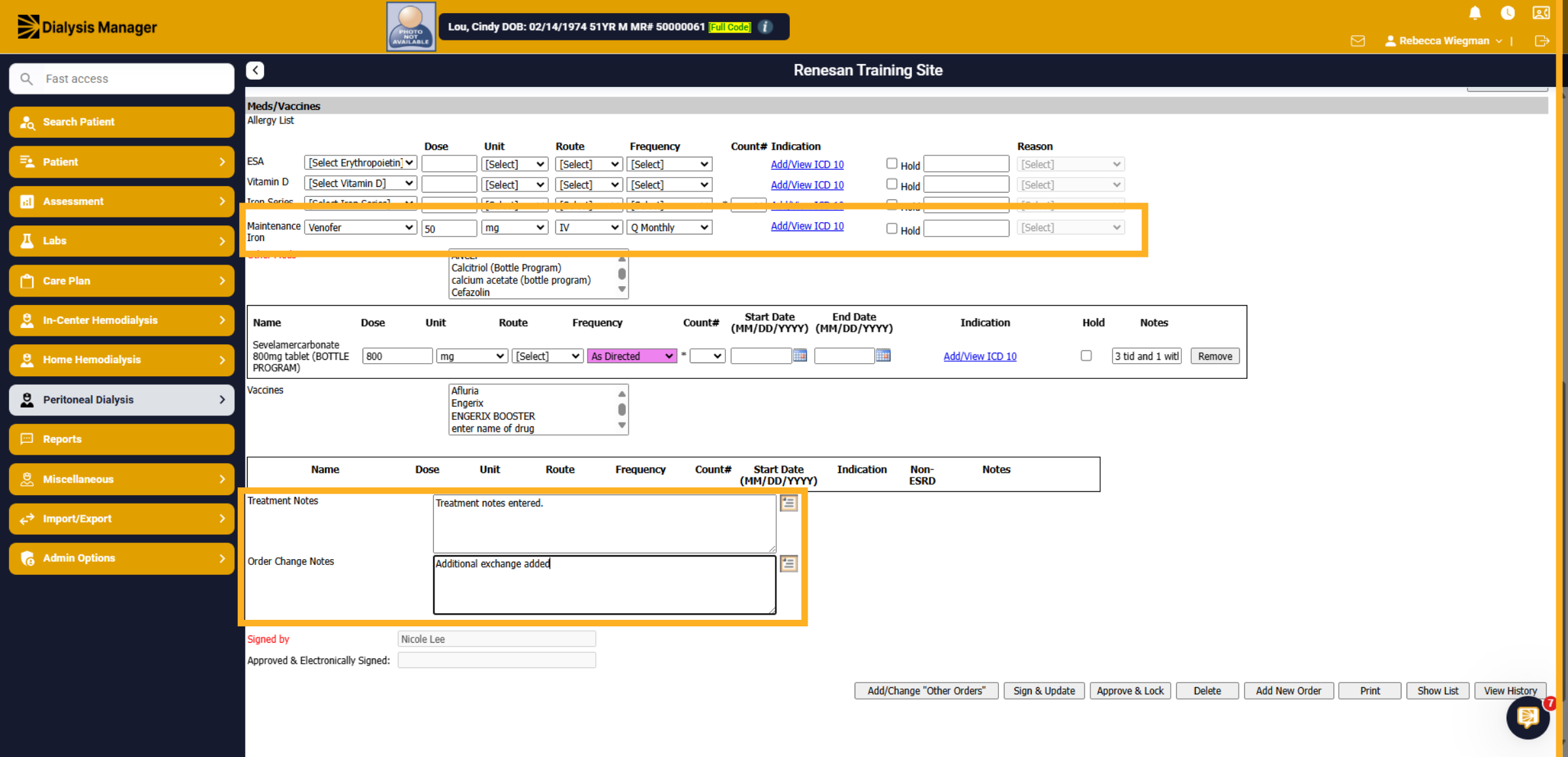
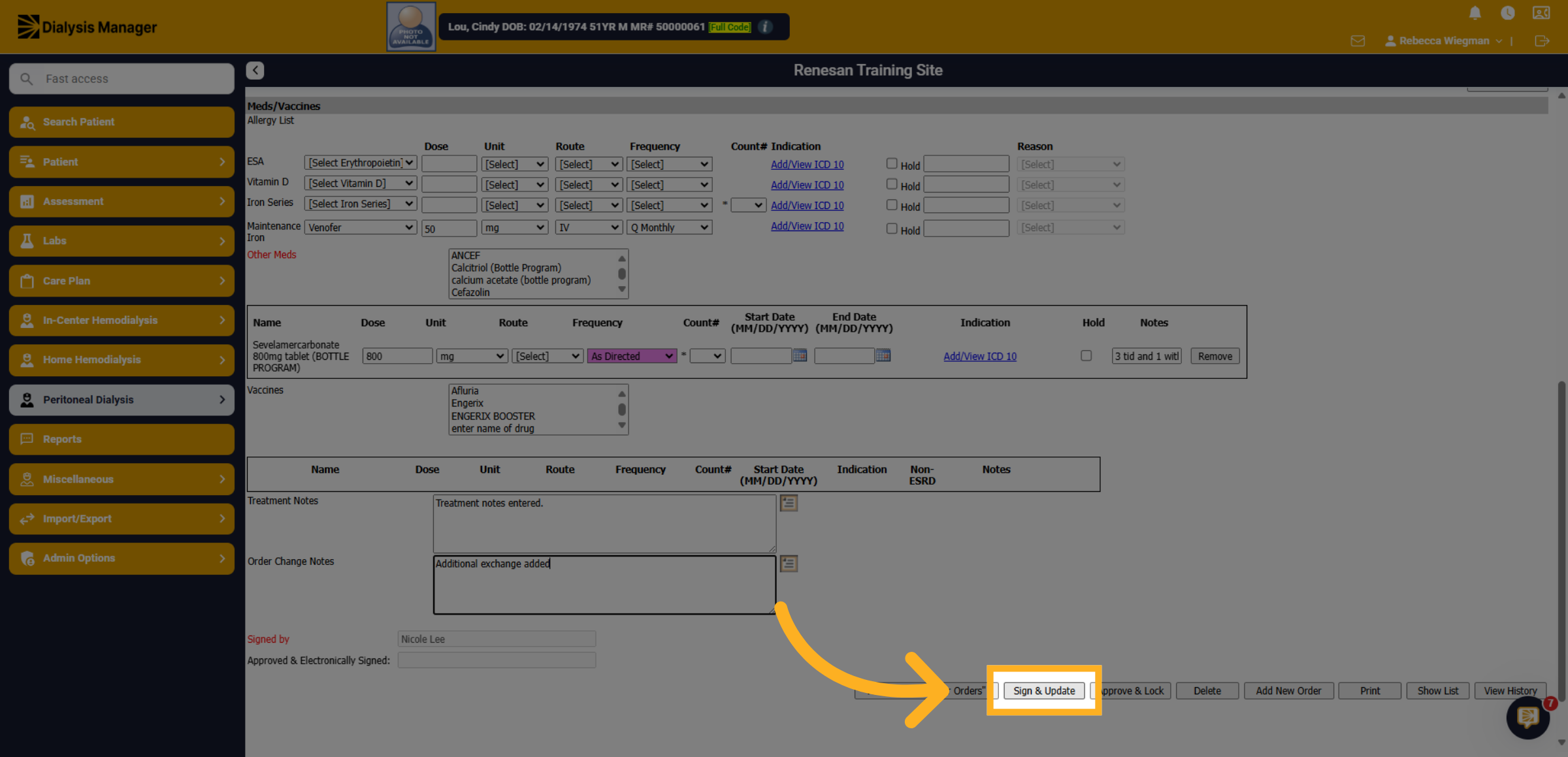
33. Click "Sign & Update"
Once all information has been updated and verified Click Sign and Update.
34. Click "View Changes"
Once back at the PD Order menu screen you'll be able to hover over the View Changes button to view changes recently made to that order!
35. Introduction
Learn how to add a new home medication to a patient's record.
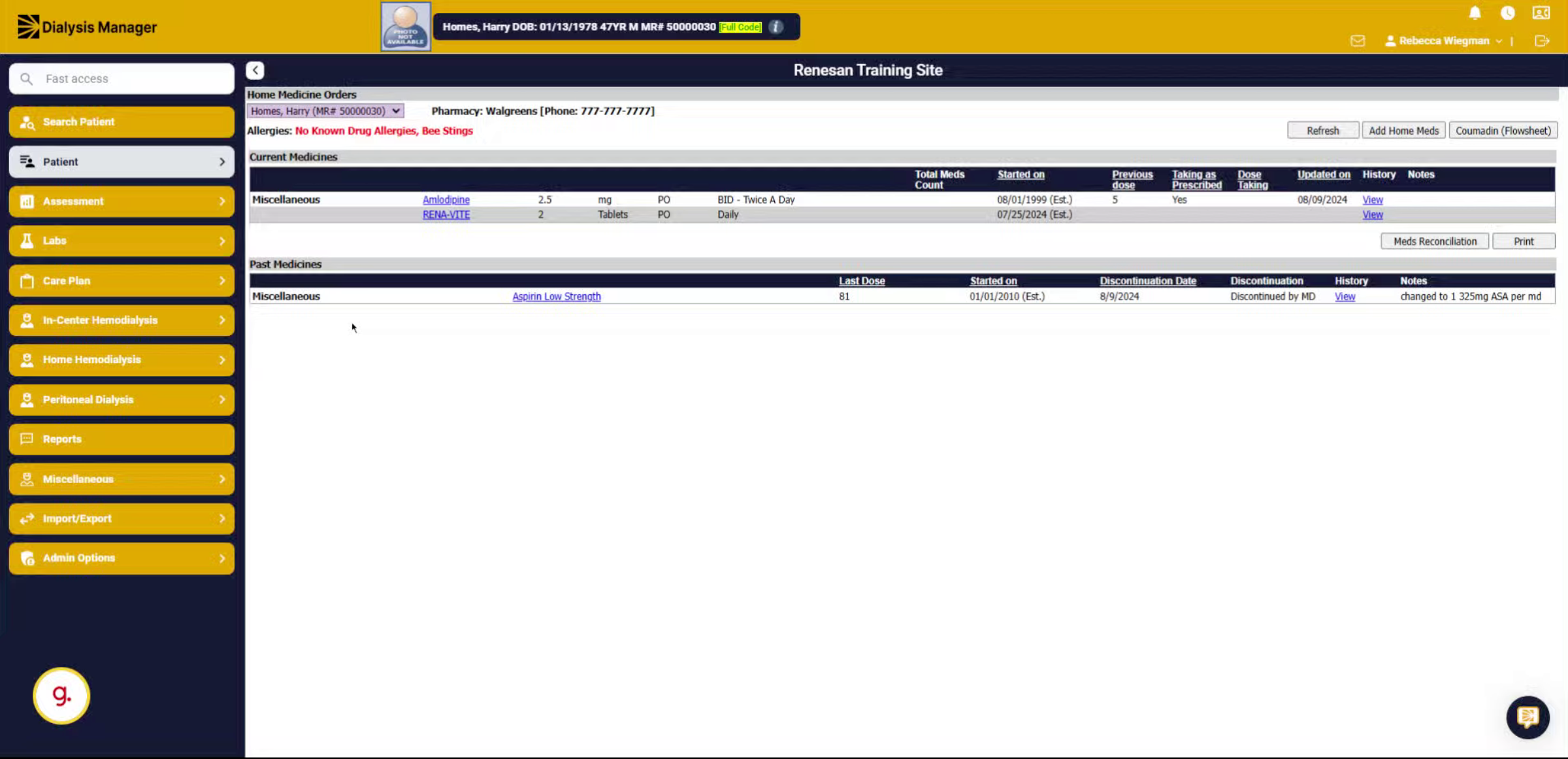
36. Click "Home Meds"
Navigate to Patient, Home Meds, and Home Medications section to begin adding a new medication.
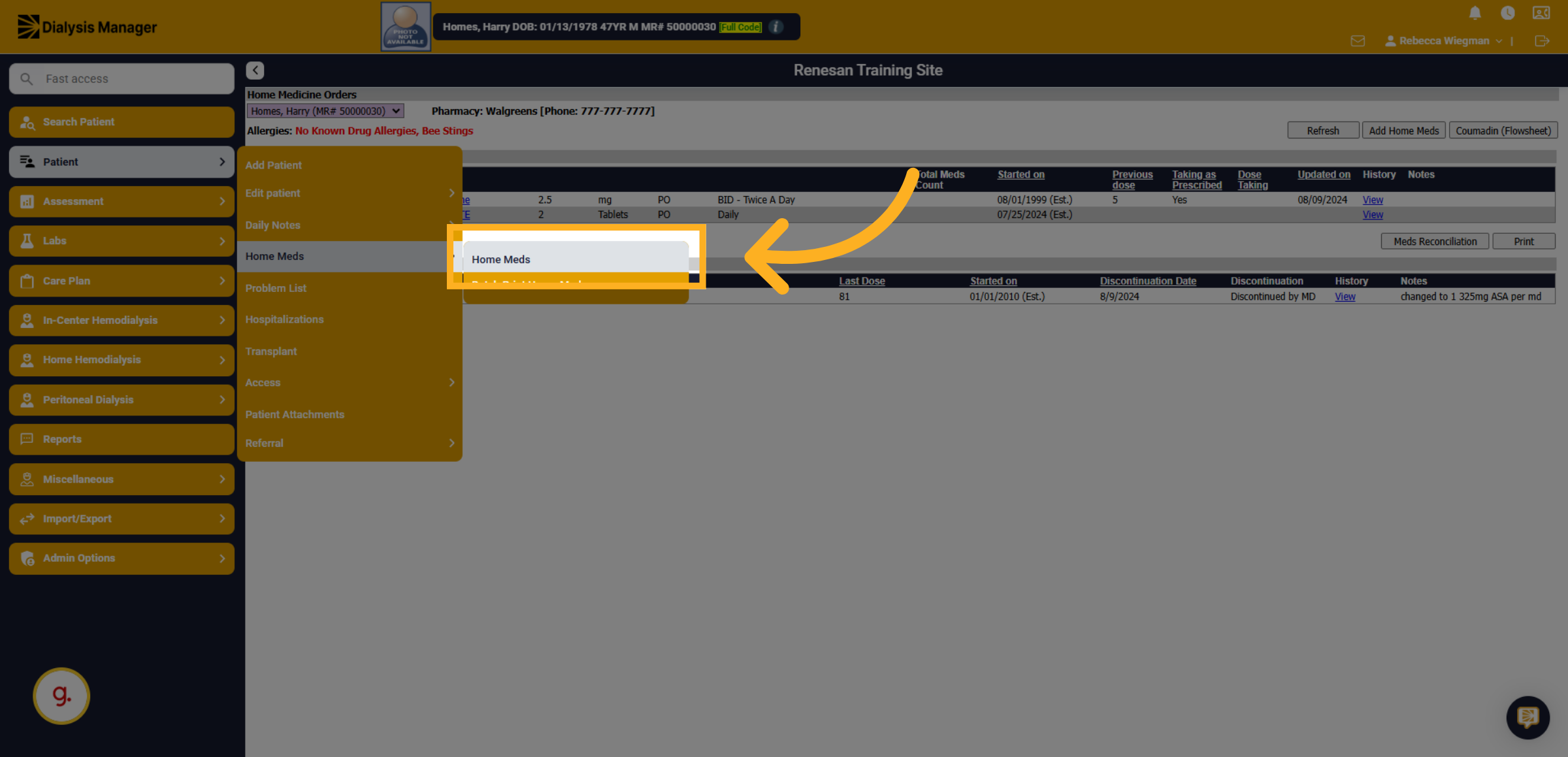
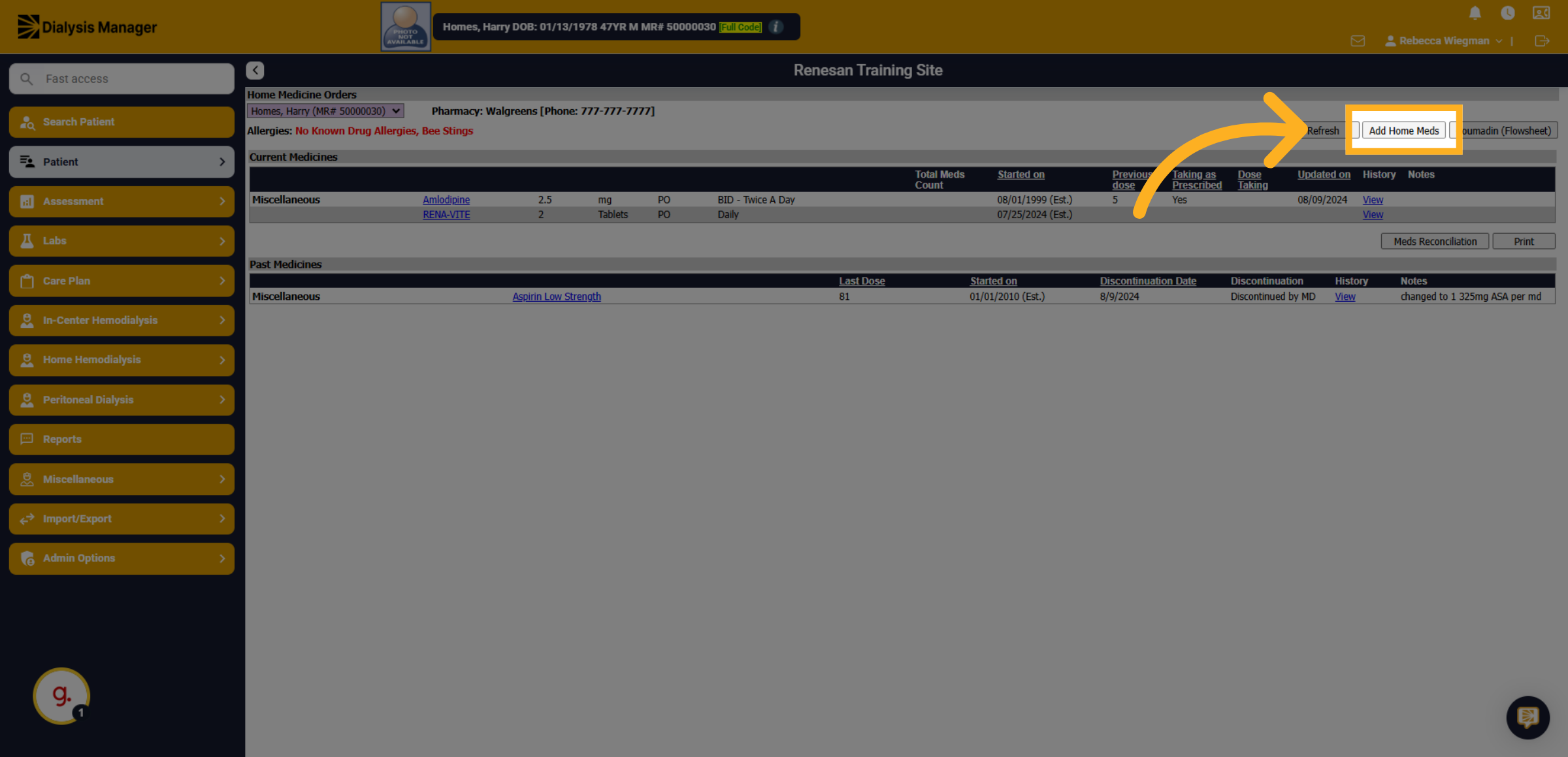
37. Click "Add Home Meds"
Select the option to add a new home medication entry.
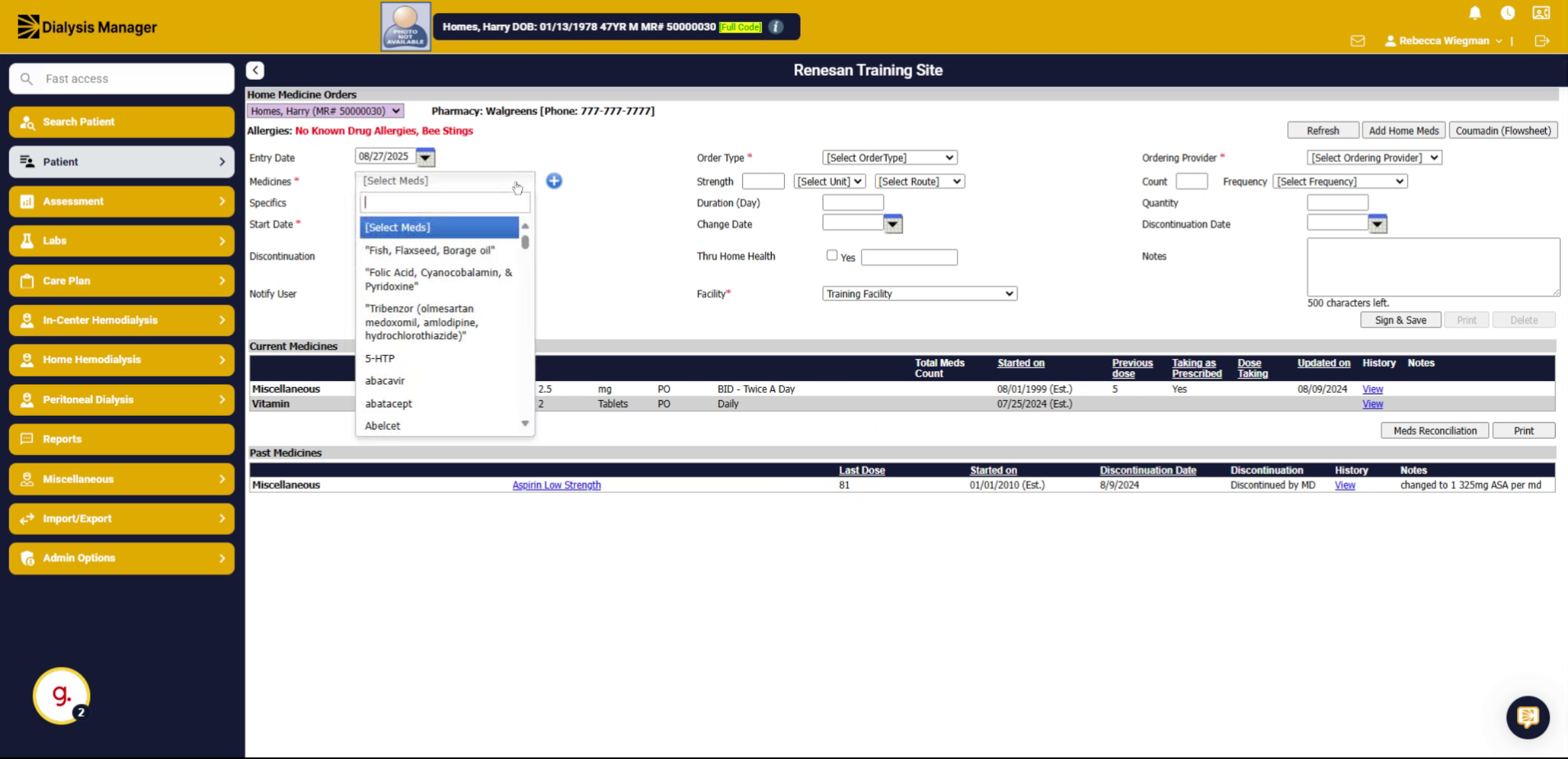
38. Click "[Select Meds]"
Open the medication selection menu to find the medication you want to add.
![Click '[Select Meds]'](https://knowledgetest.renvio.com/hubfs/Intercom%20knowledge%20base/qg-2FIroXeNJHrNYcFwtsPJSFDGN82g23-2FnRBDT5rRST1URS8yPpKfbi-2FtbJij4MAqUCHAQTWyH8ZnV_doc.png)
39. Fill "Medication Name"
Enter the name of the medication you wish to add to your home meds list.
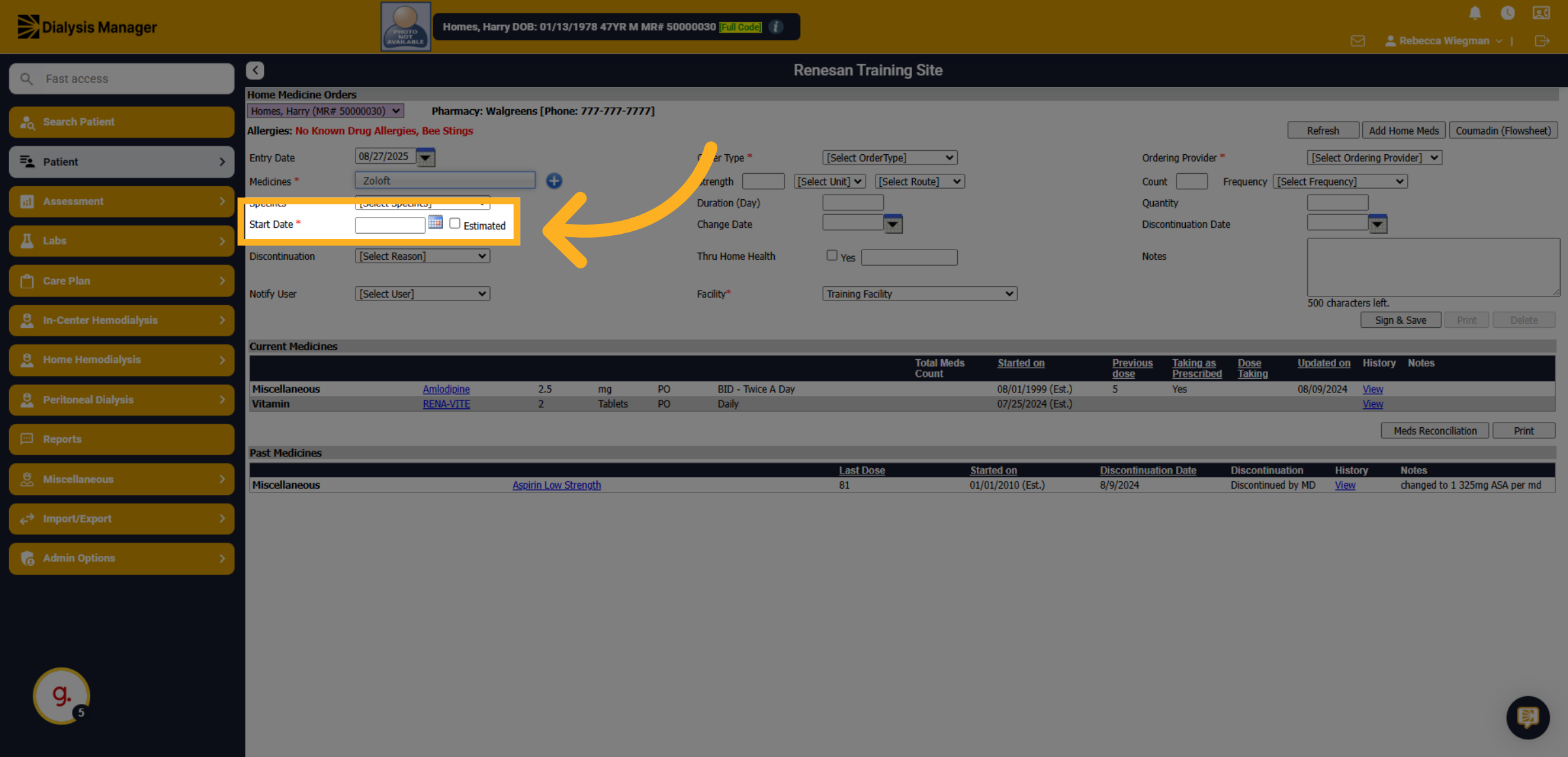
40. Start Date
Manually enter the start date OR select the calendar to pick a date.
41. Click "Order Type"
Open the order type dropdown to specify how the medication was ordered.
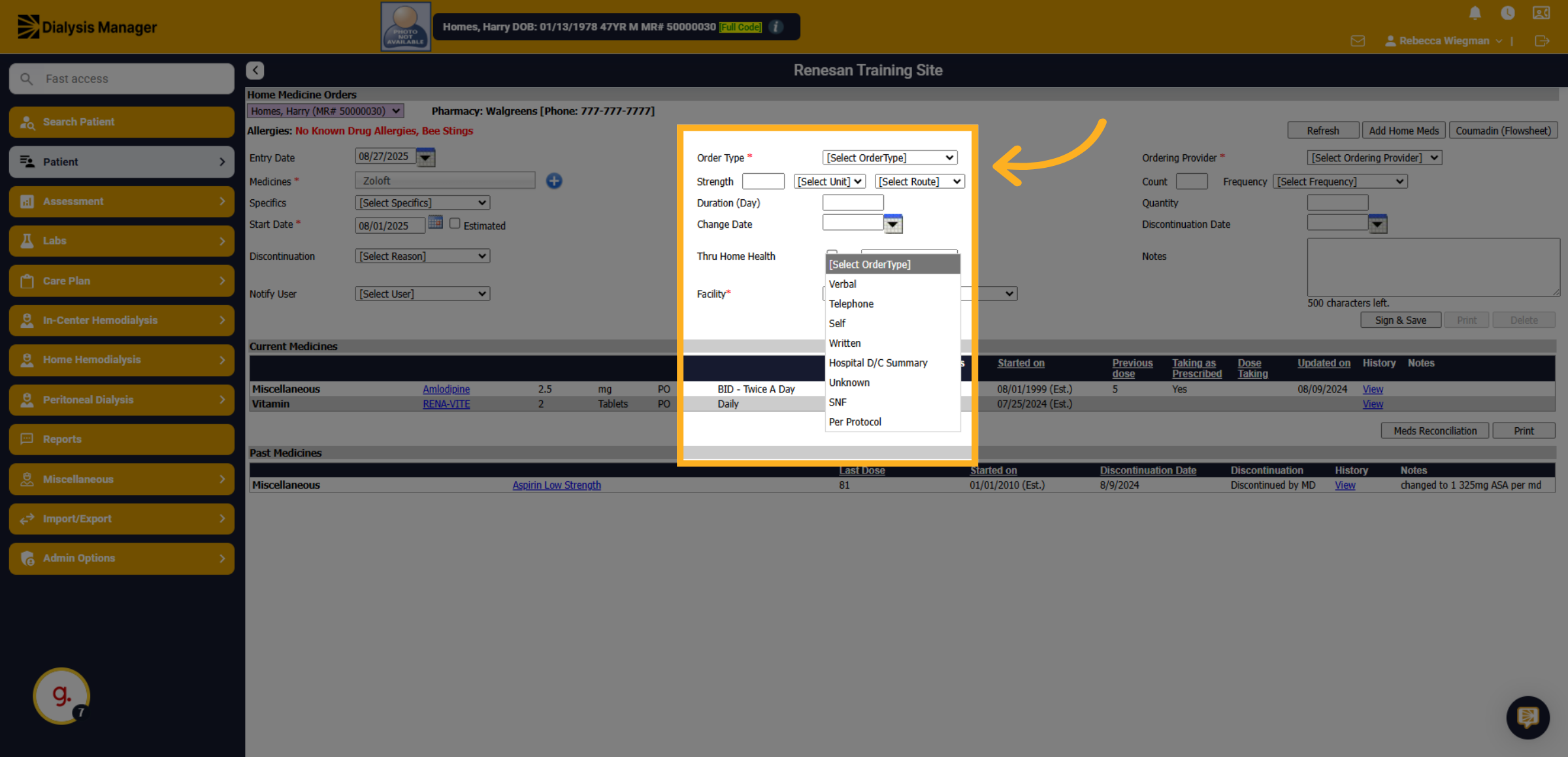
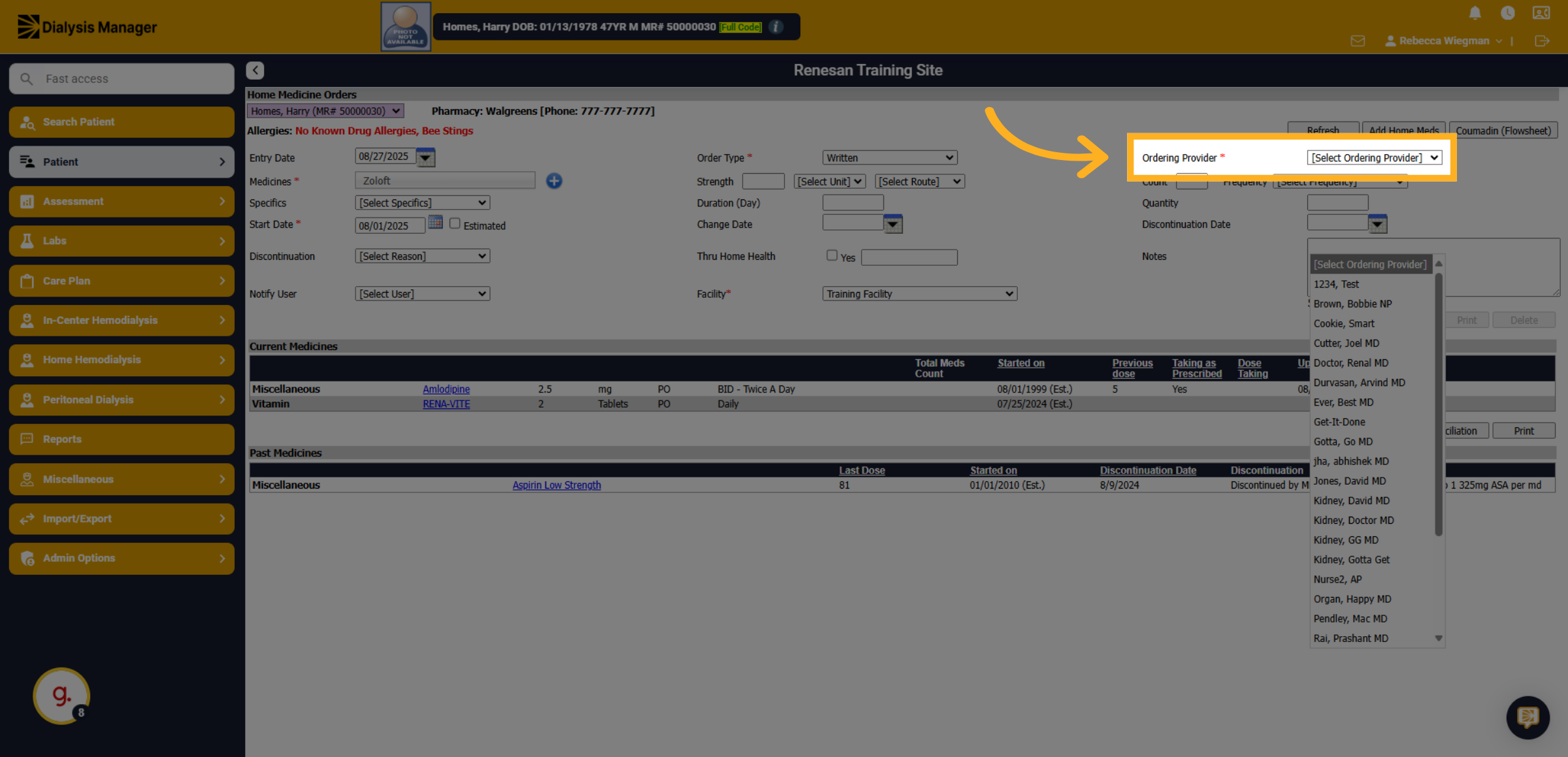
42. Select the ordering Provider
If the Nephrologist is not the ordering provider for the Home Med, select Non-Staff. This prevents the Nephrologist from signing off meds that they've not prescribed for the patient but still allows for the MD field to be addressed.
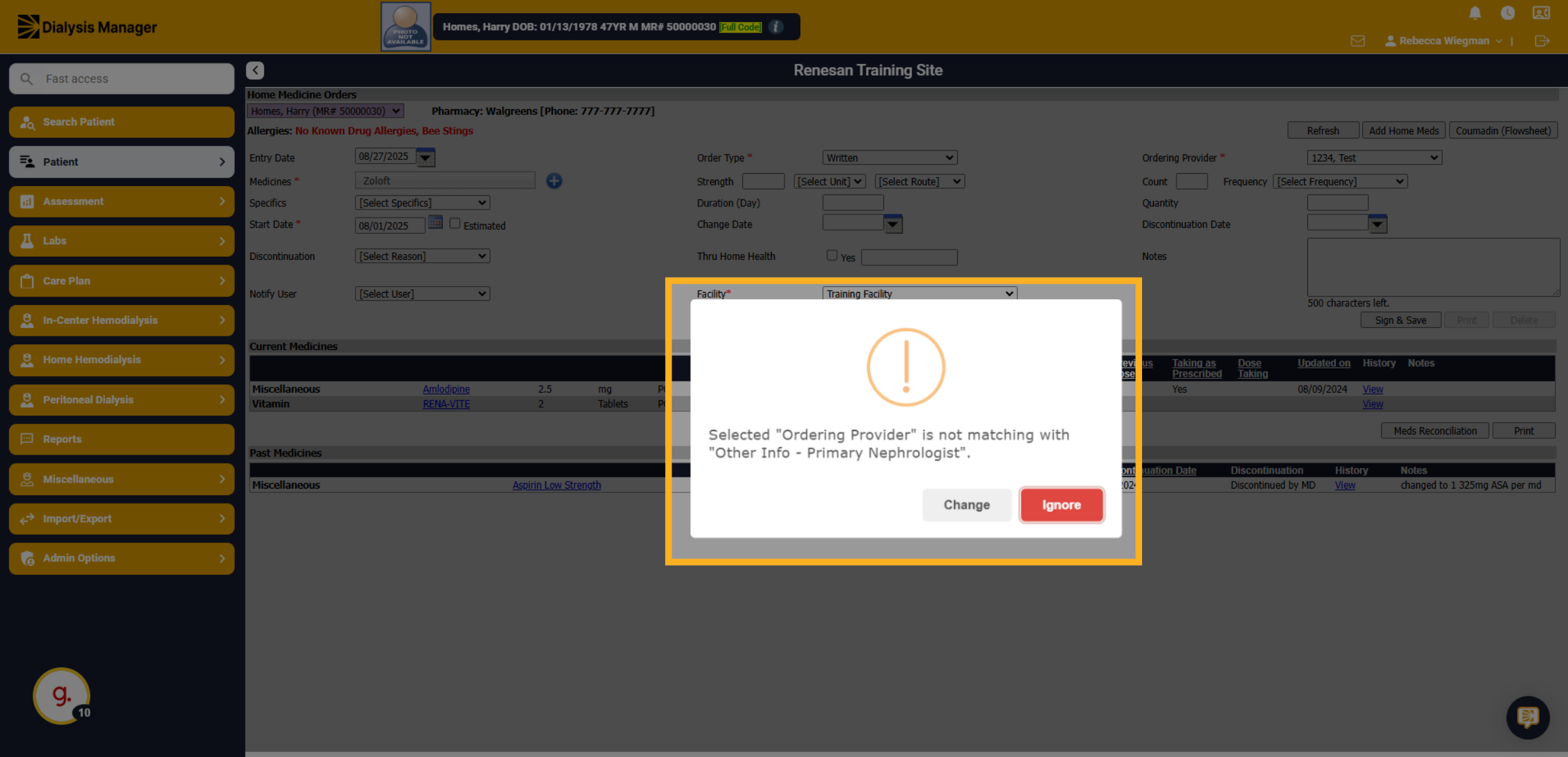
43. Click "Ignore"
If you receive this "Error" when selecting the ordering provider it is telling you that the provider selected is not the patients primary Nephrologist. Click Ignore if you use rounding groups or assigning to another physician.
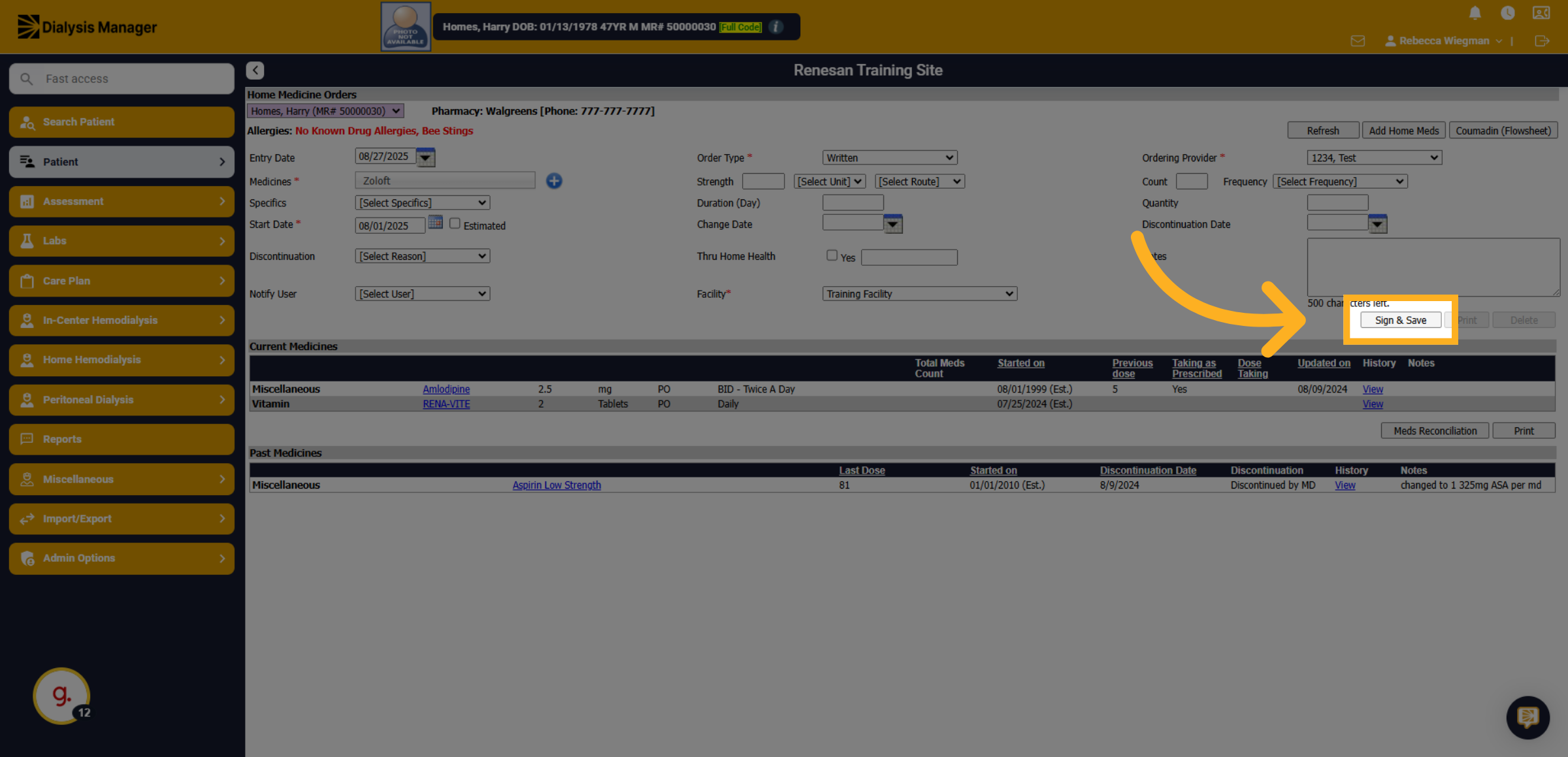
44. Click "Sign & Save"
Review the information added before clicking "Sign and Save"
45. Introduction
Here wewill learn how to discontinue a home medication in the system.
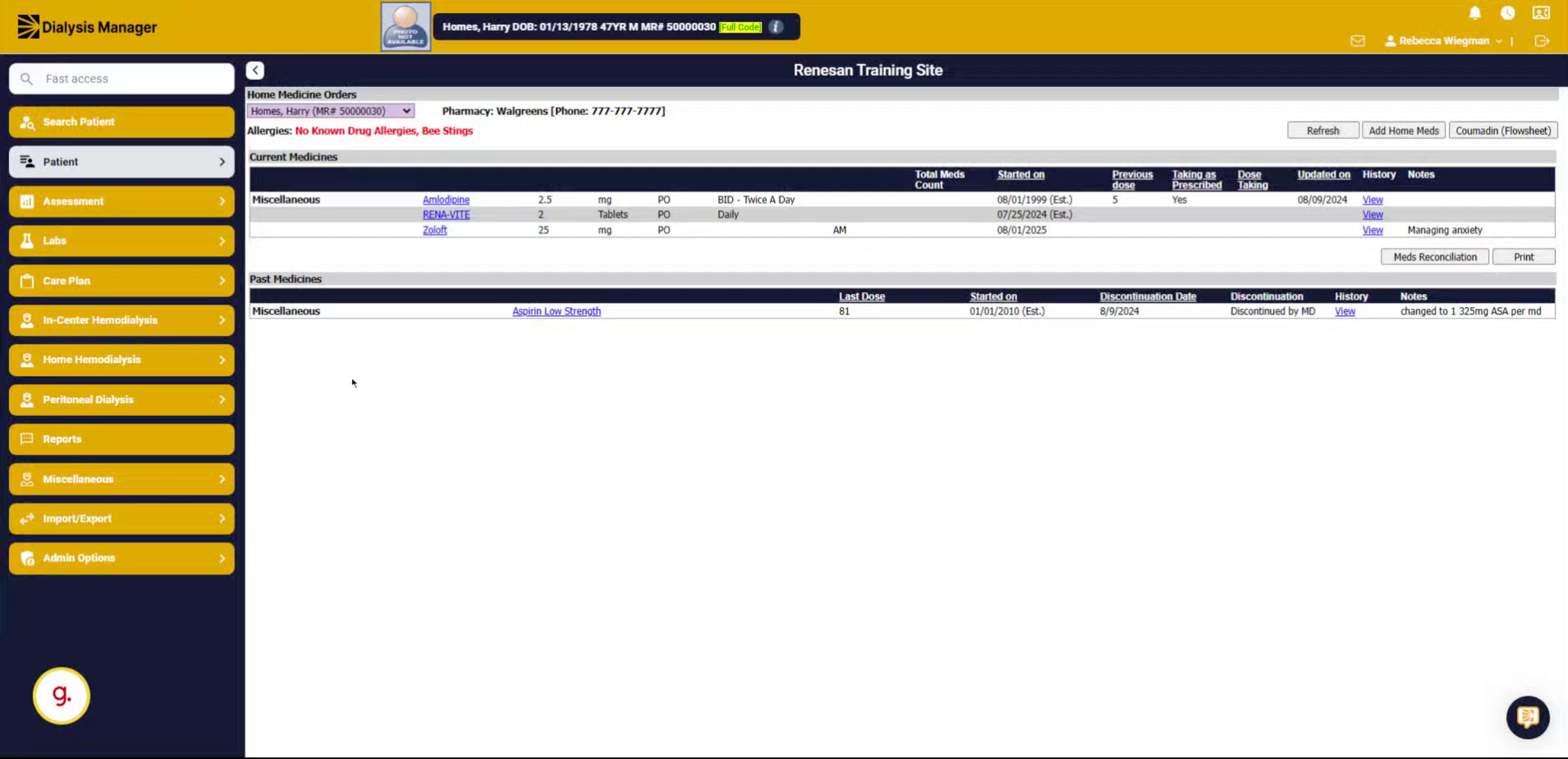
46. Click "Med name"
Select the medication you want to discontinue by clicking on the hyperlink medication name.
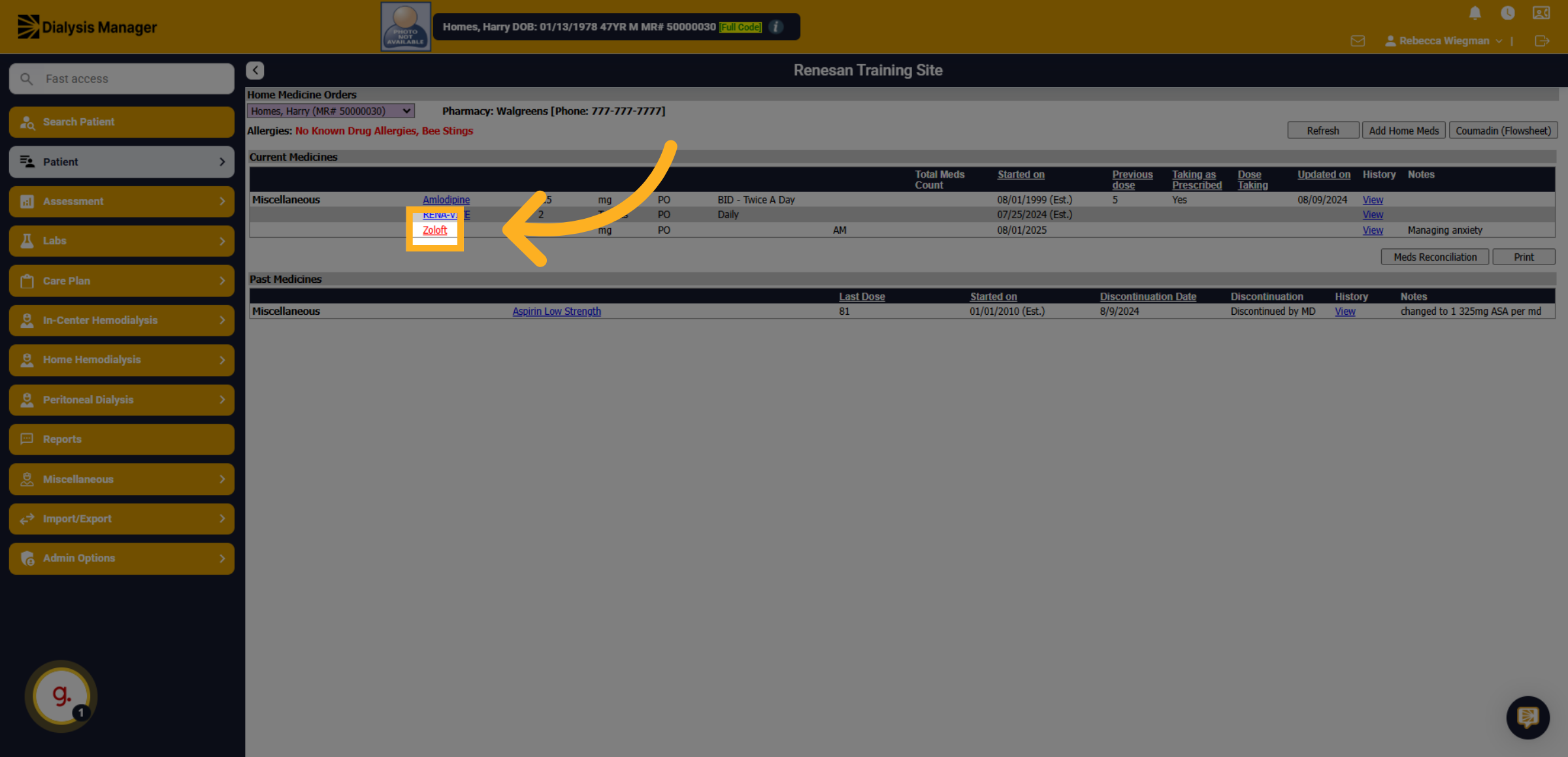
47. Click discontinuation date
Click on the designated area to begin the discontinuation process by manually entering the date or selecting the calendar icon.
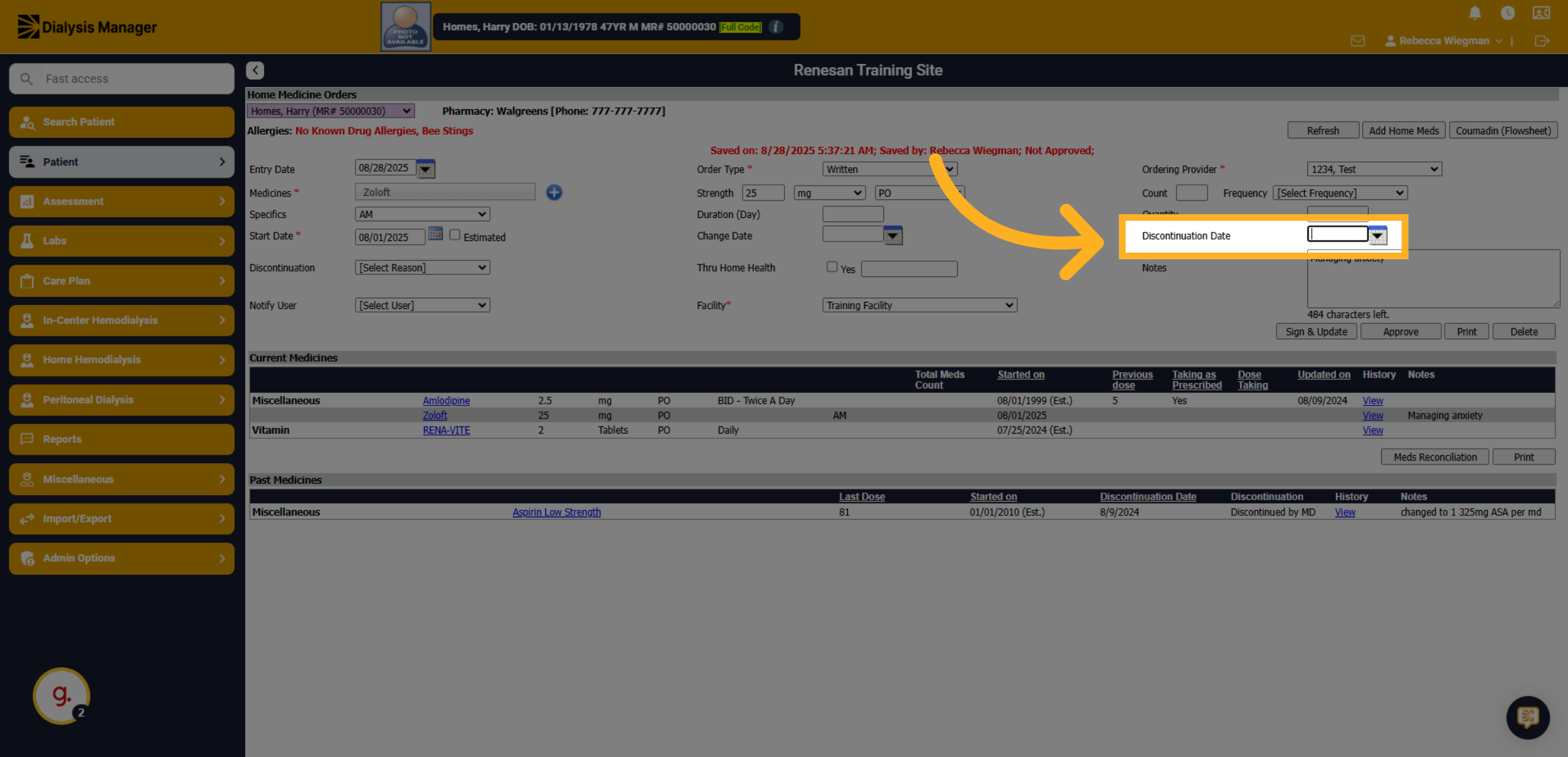
48. Click Discontinuation Reason
Click on the reason dropdown menu to choose why the medication is being discontinued.
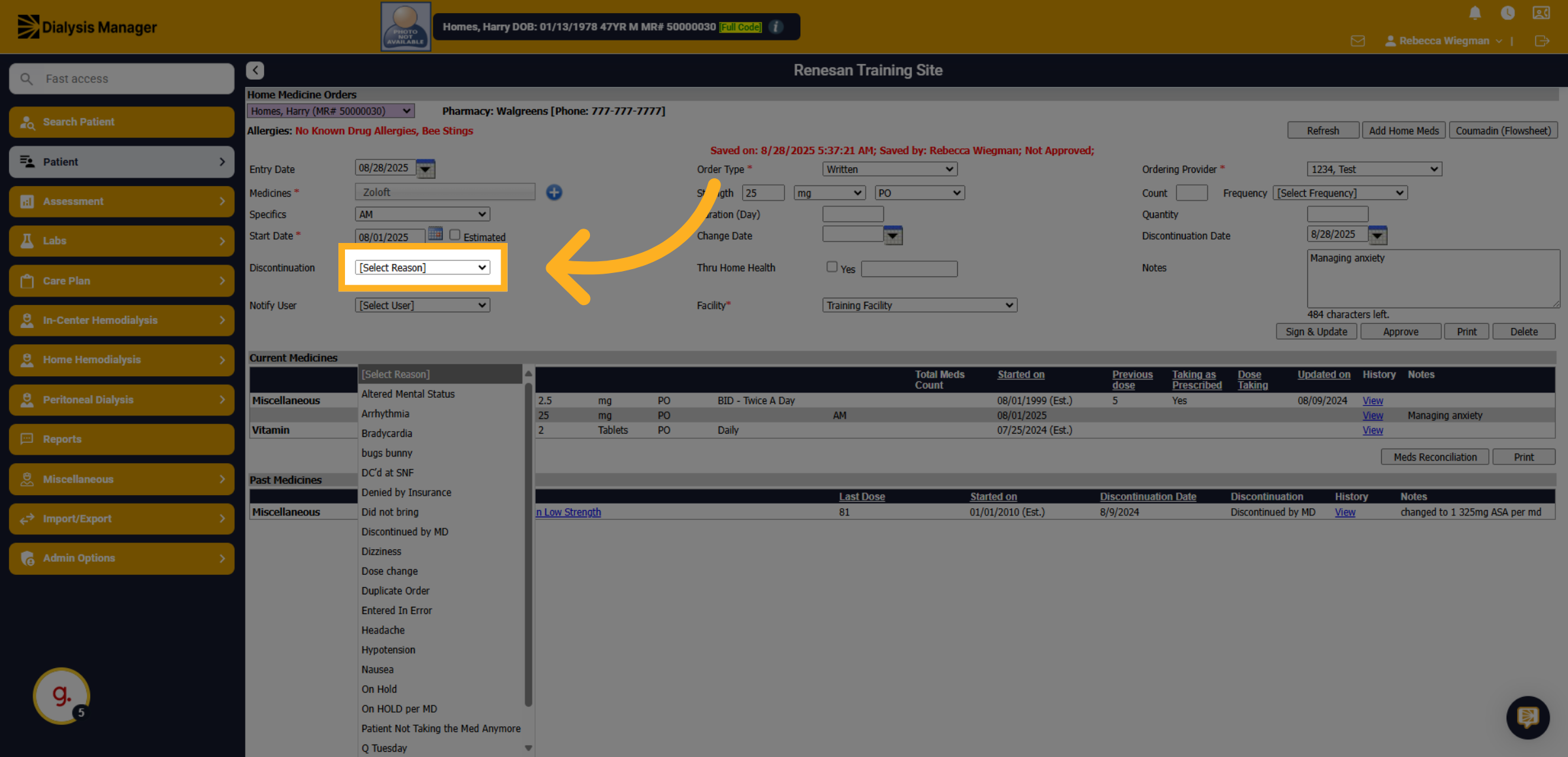
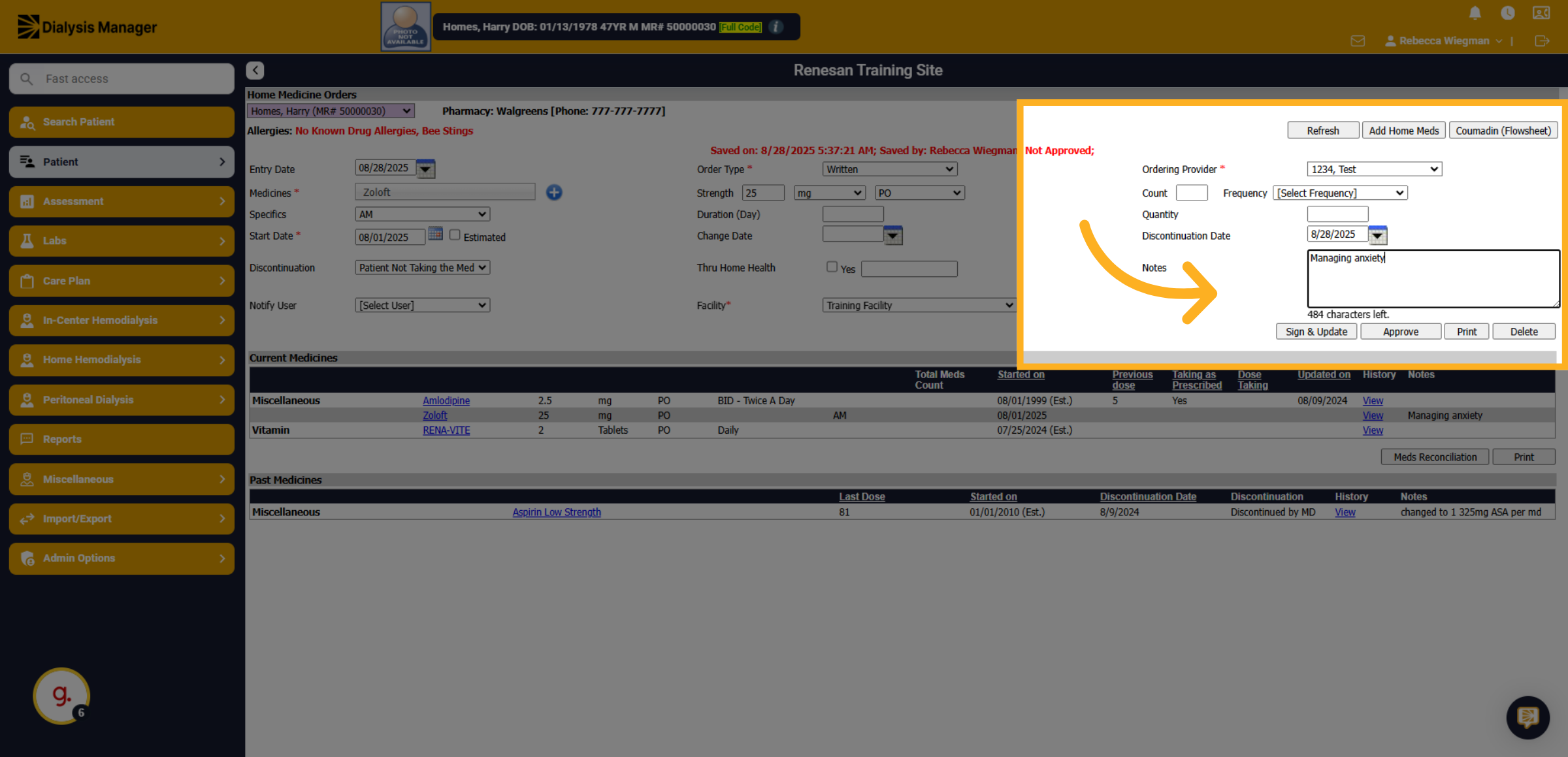
49. Notes
Enter additional notes to describe why the medication is being discontinued.
50. Click "Sign & Update"
Click the "Sign & Update" button to finalize and save the discontinuation of the medication.
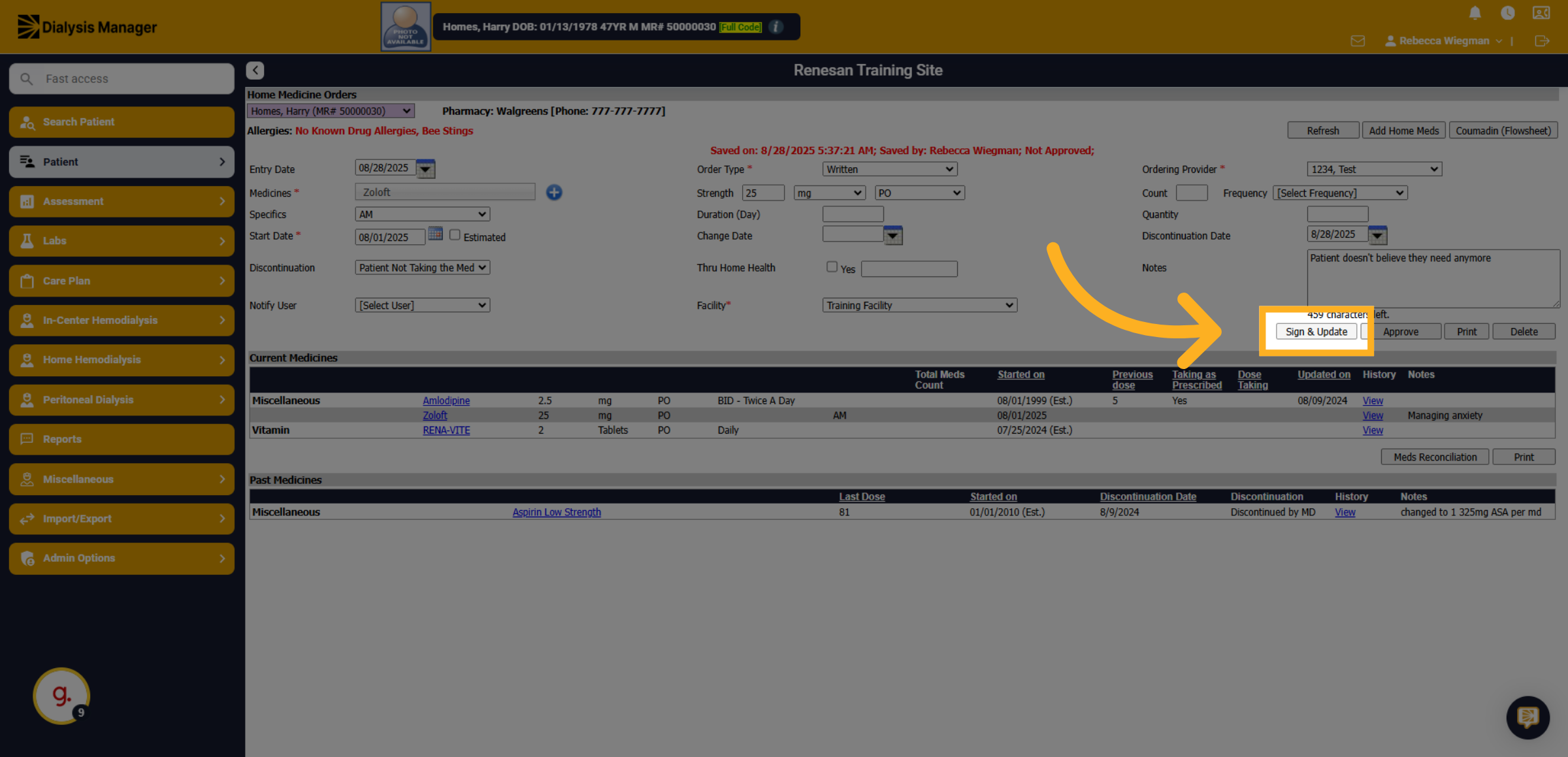
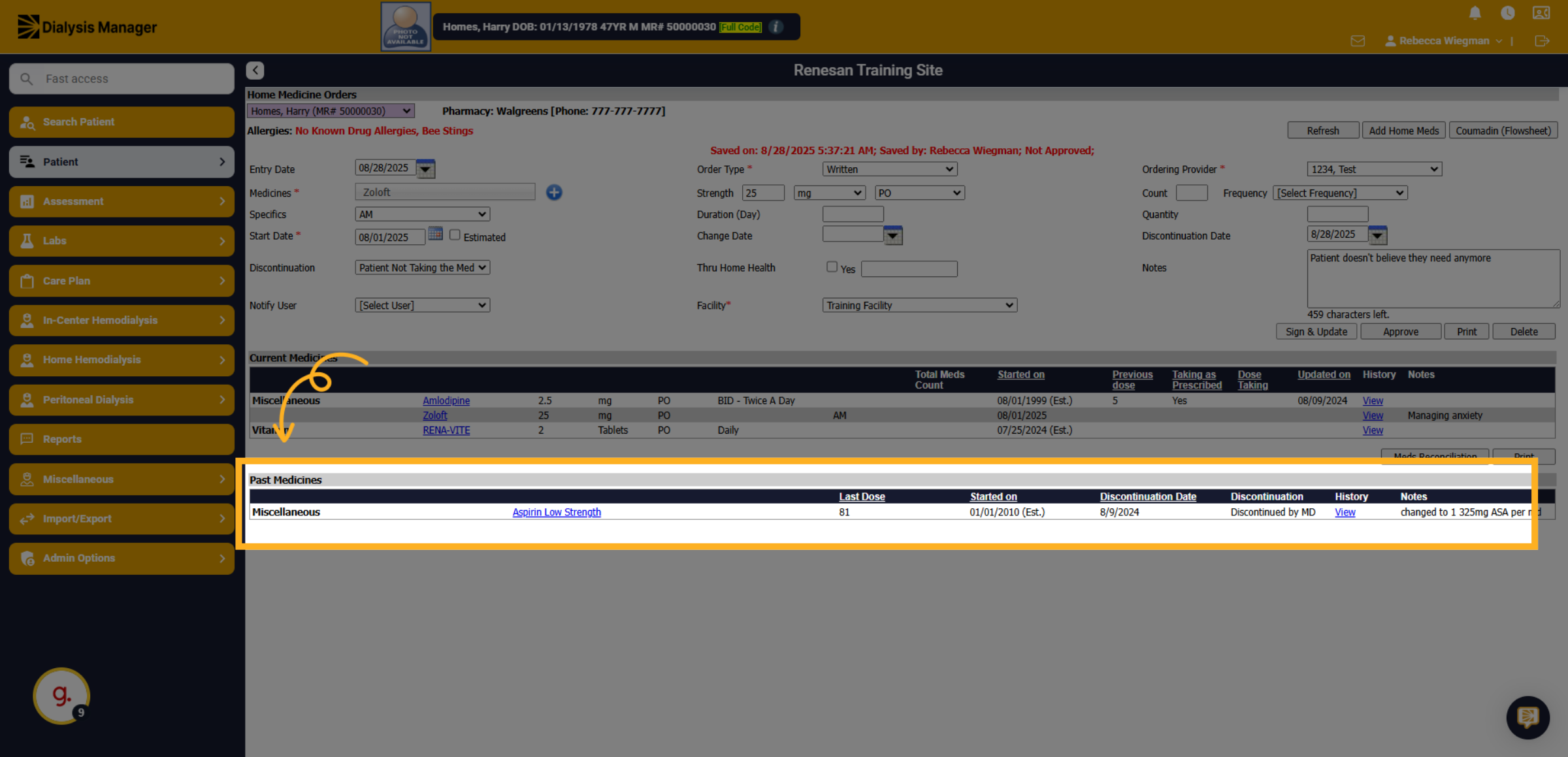
51. Past Medicines
Once the medication is ended it will flow to the Past Medicines section. Note: If the end date is today, it will display in the Past Medicines tomorrow.