Upload and View Patient Attachments in Patient Portal

1. Introduction to Attachment Management
Use this guide to be able to upload or view any patient attachments.
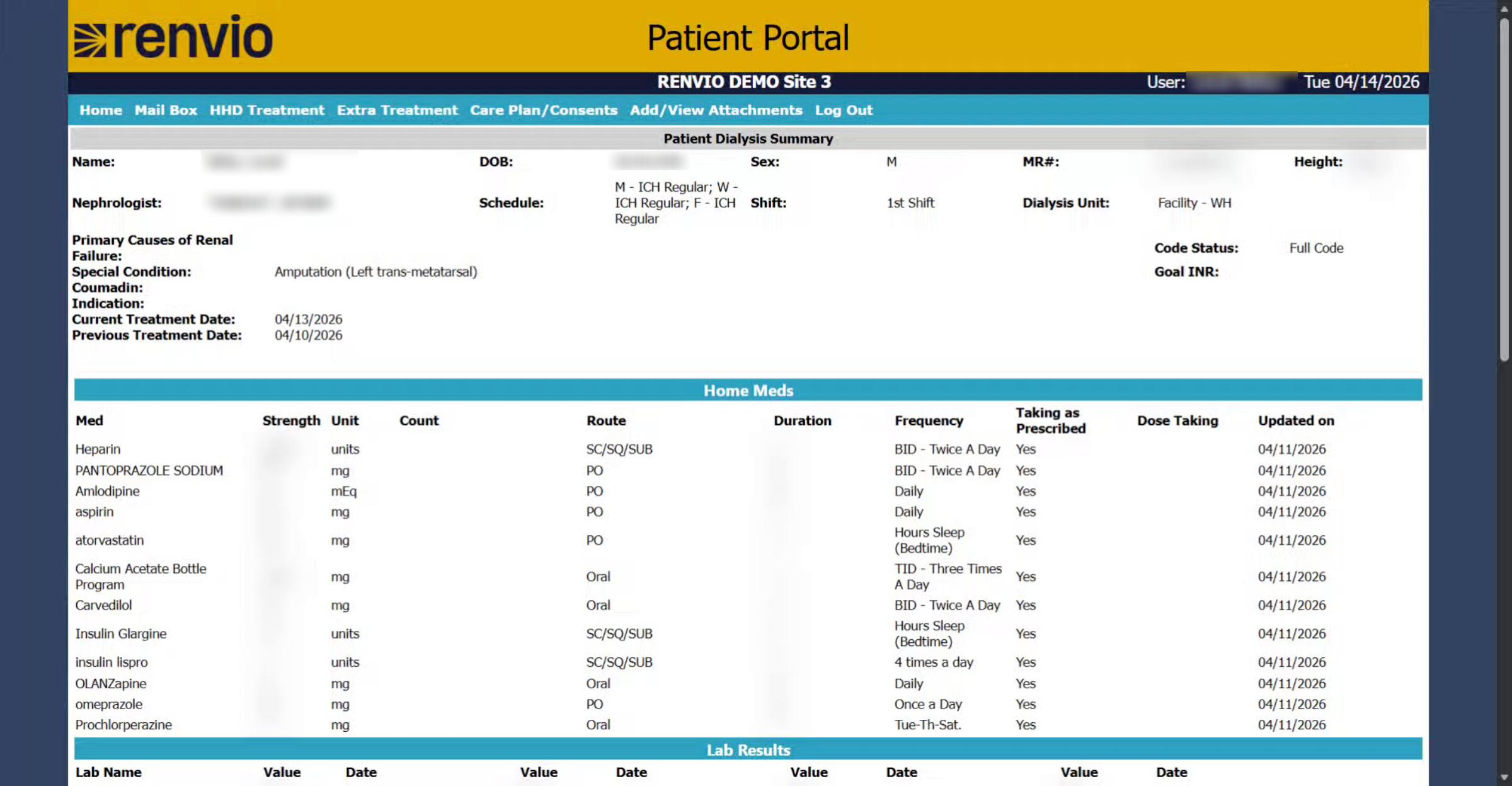
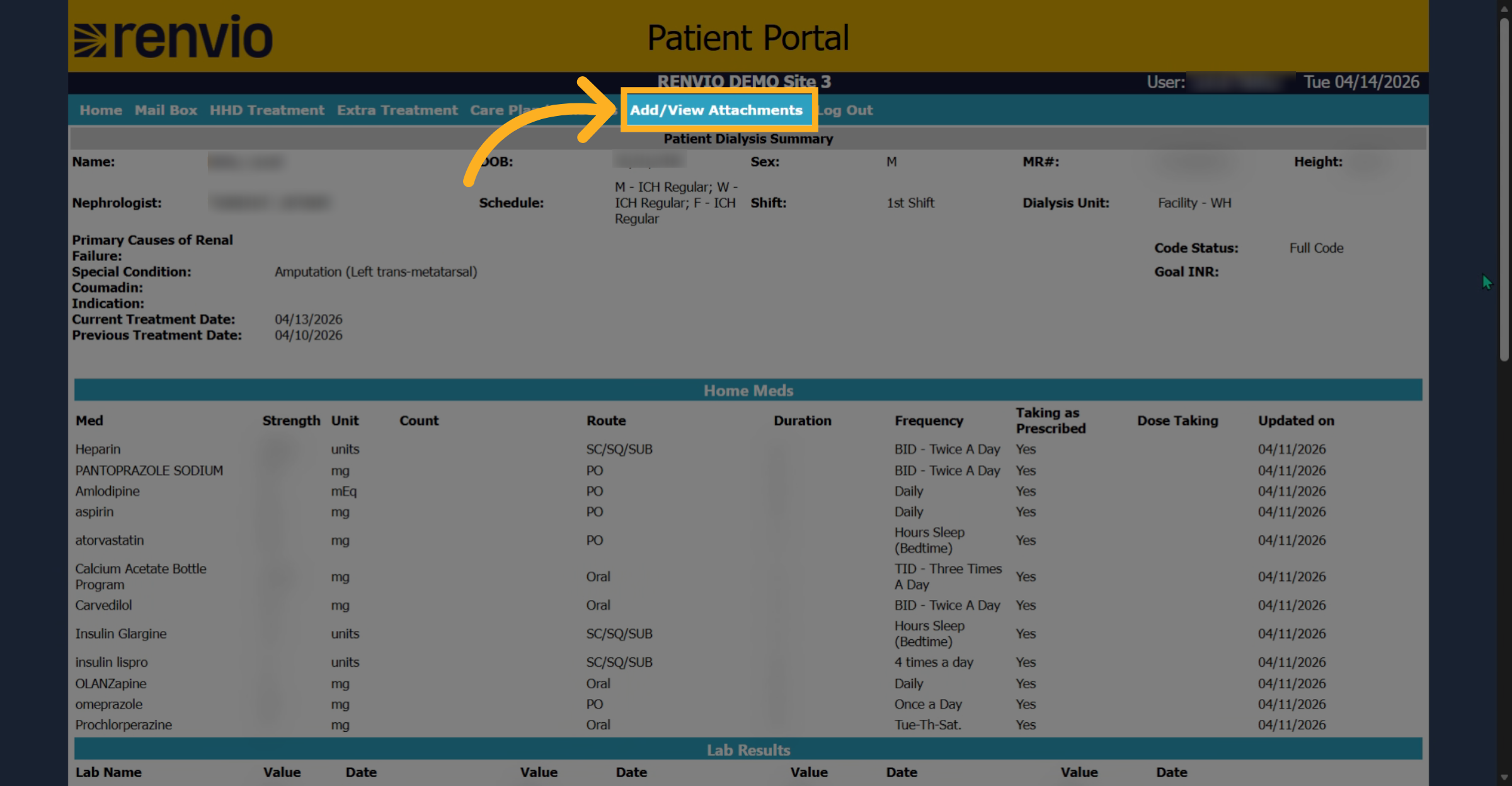
2. Open Attachment Viewer
Begin by clicking Add View Attachments.
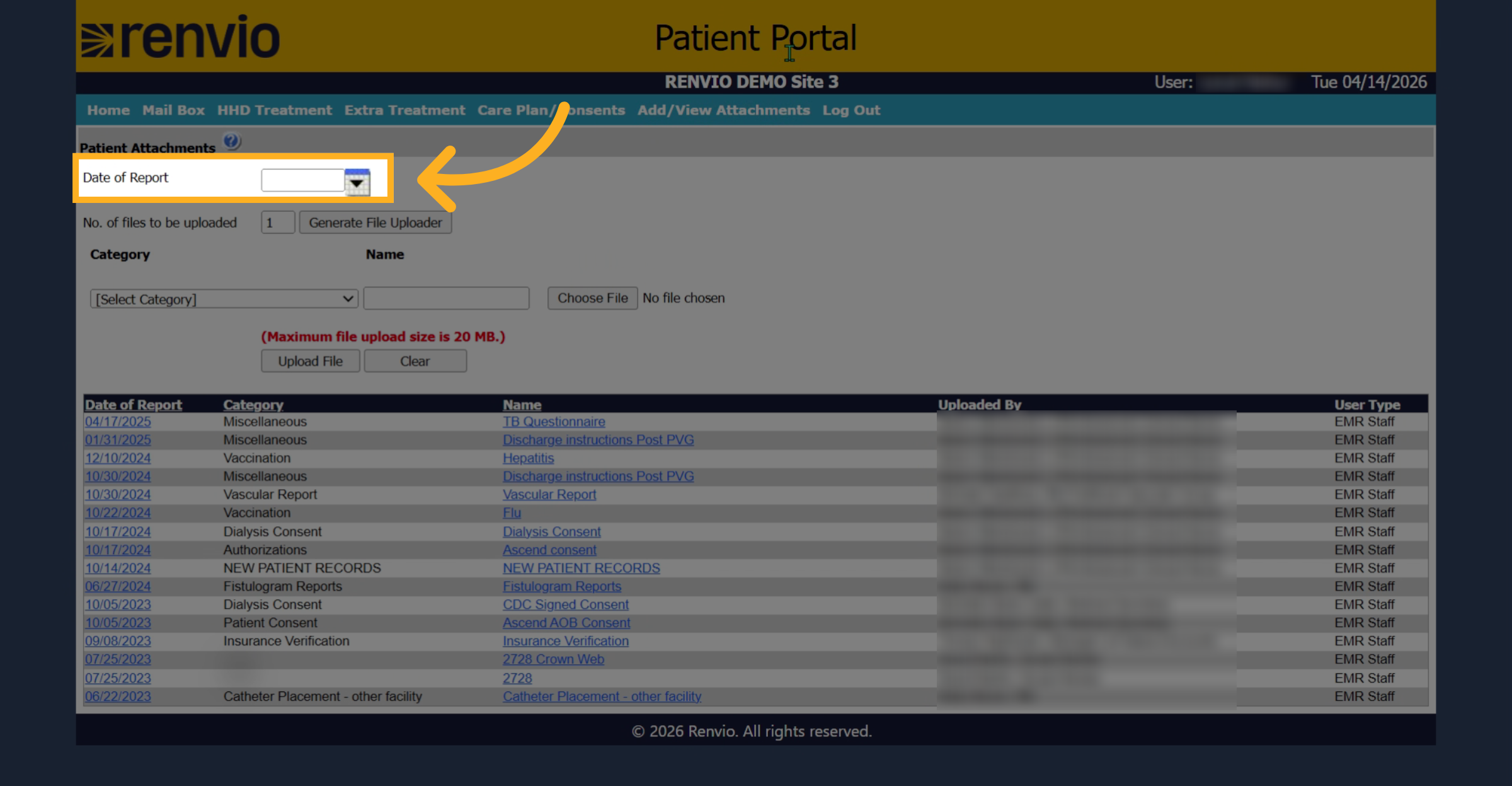
3. Select Report Date
When adding attachments, choose the date.
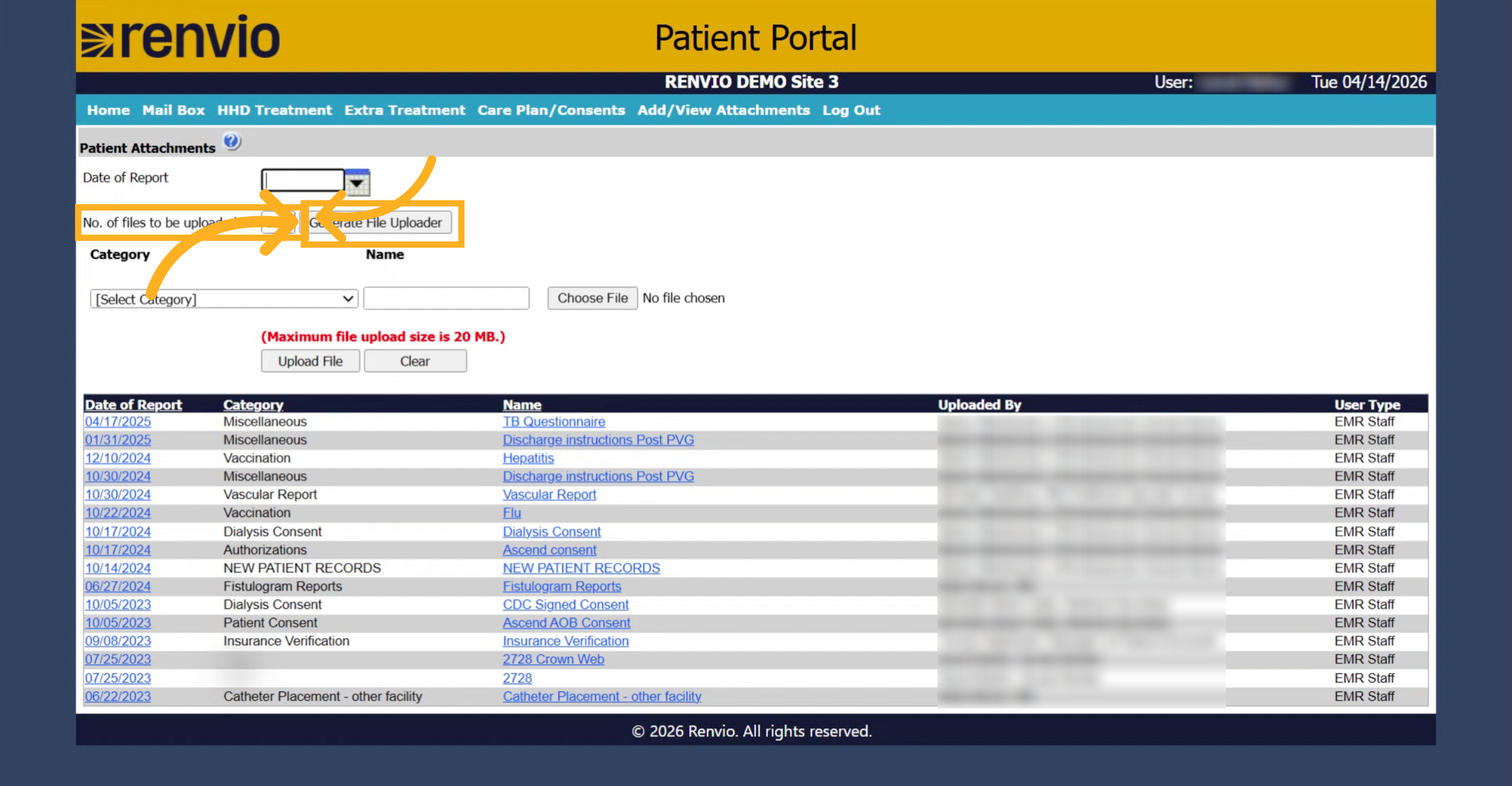
4. Specify File Quantity and Generate Uploader
Then choose how many files will be uploaded. Then click Generate File Uploader.
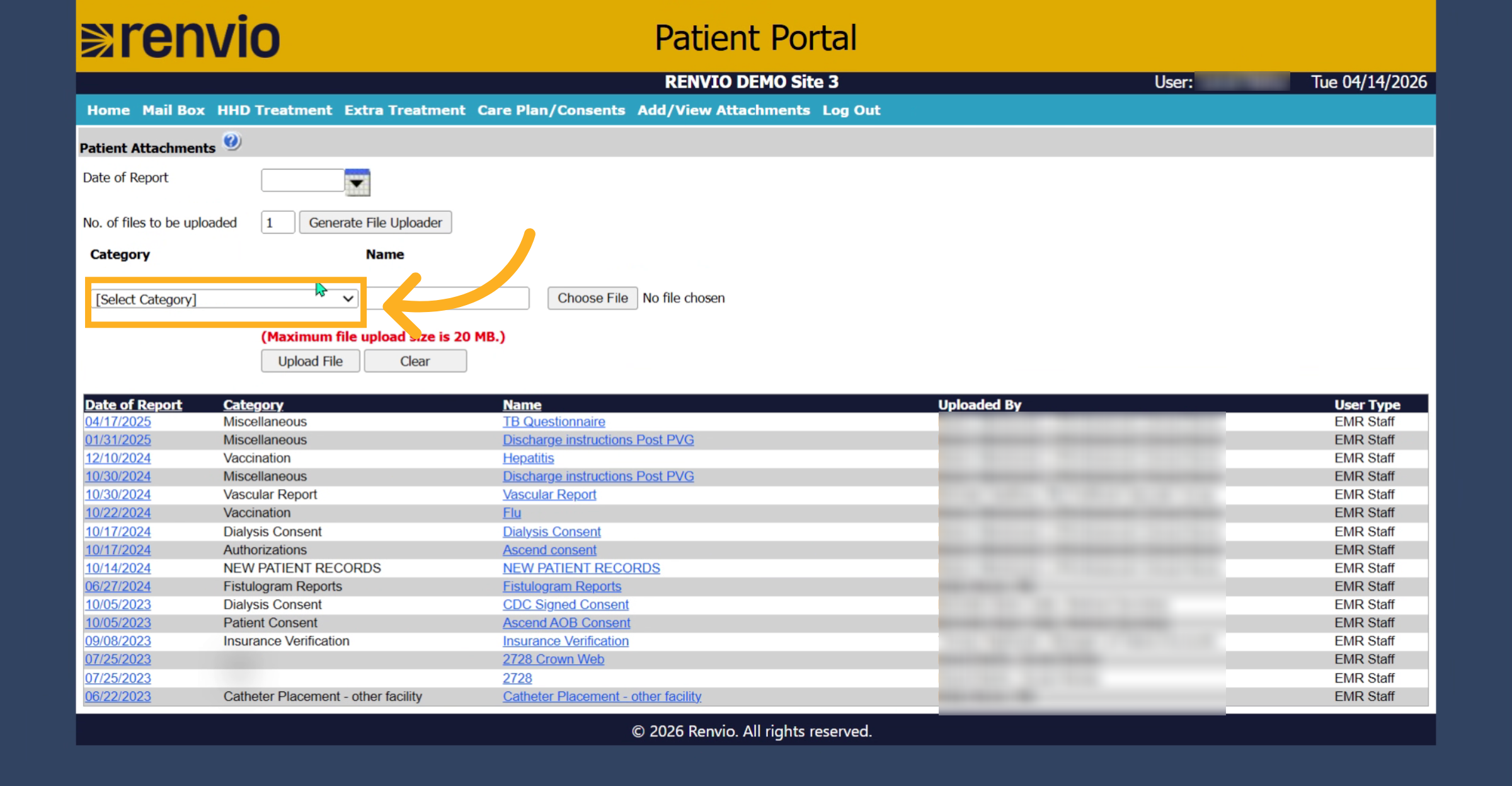
5. Select Document Category
Next, select the category that these documents will fall under.
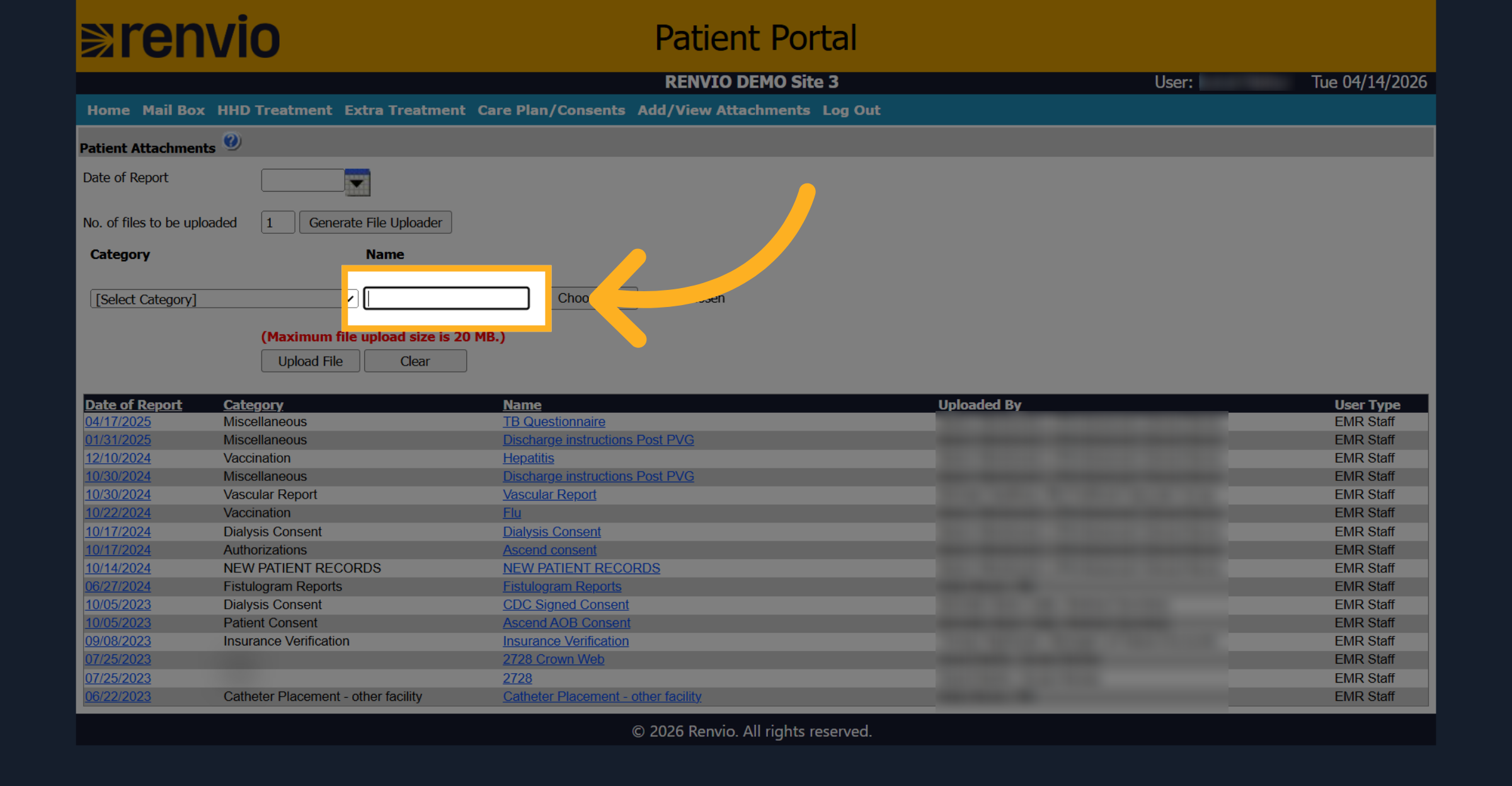
6. Proceed to Document Naming
Click here to proceed to the document naming section.
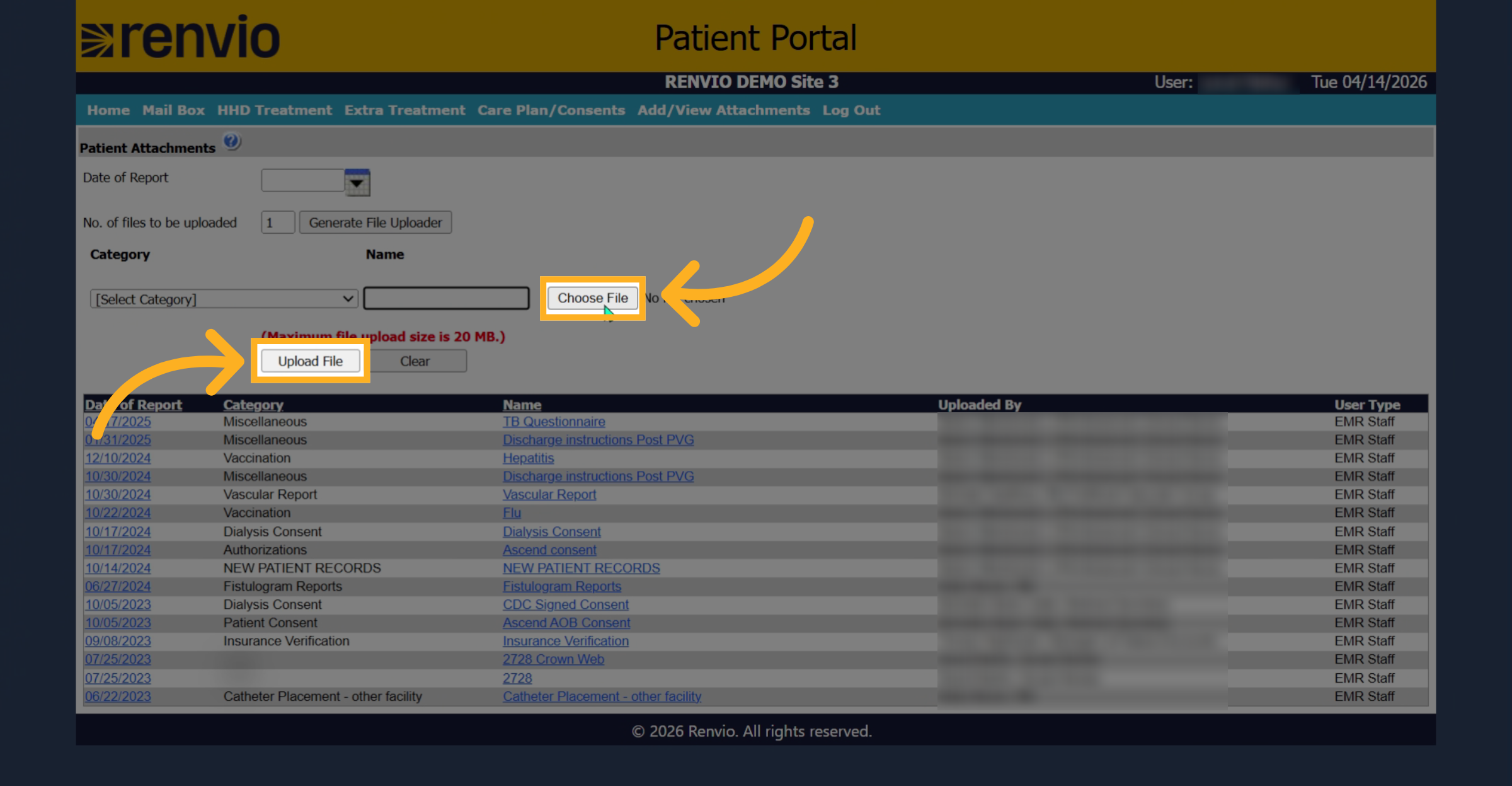
7. Choose and Upload Files
Click Choose File. After you chose your files, click Upload File.
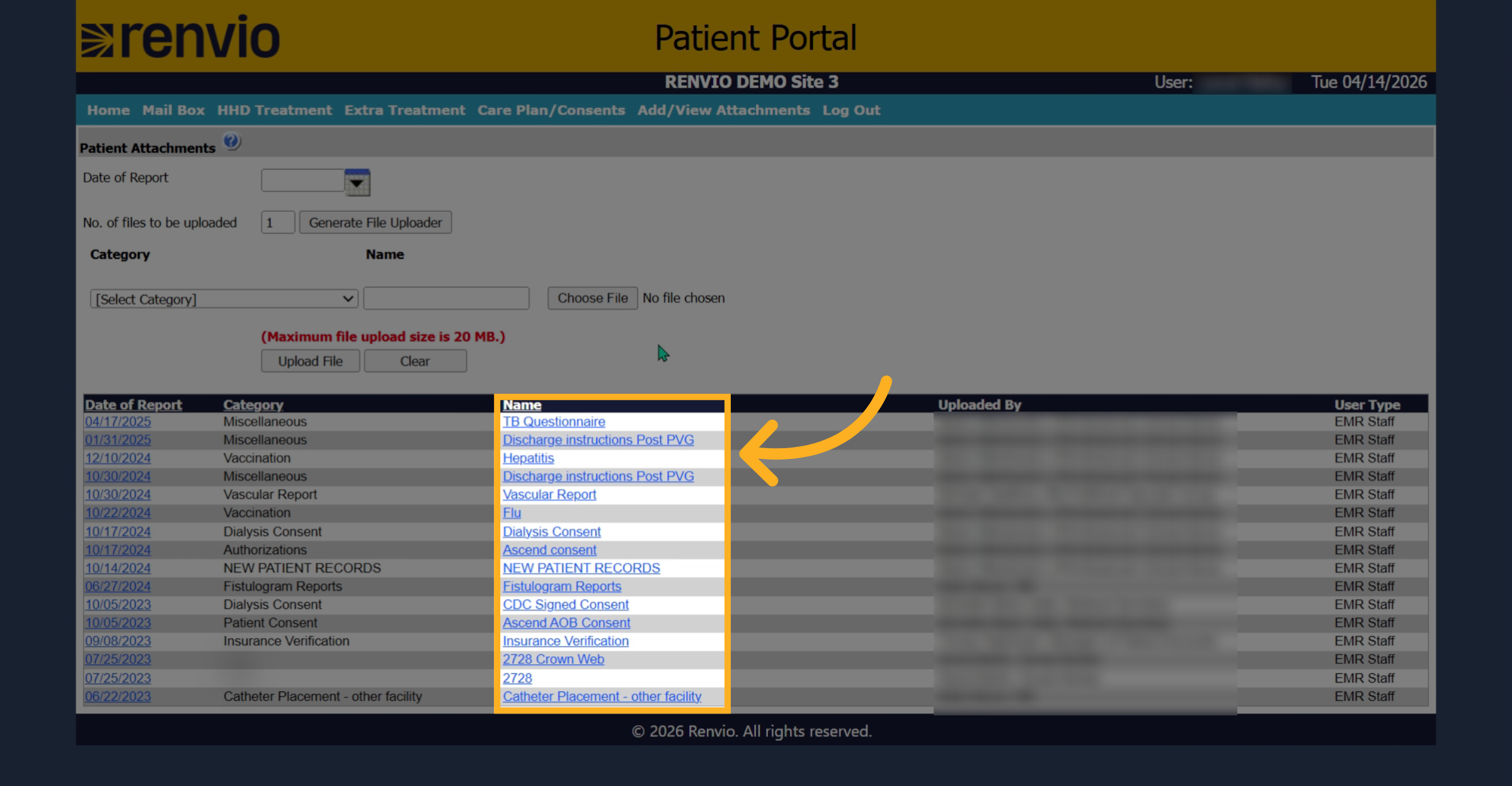
8. Review and Download Files
Then to review any uploaded files, click the name and it will download a file onto your PC.