Patient Demographic.
1. Introduction
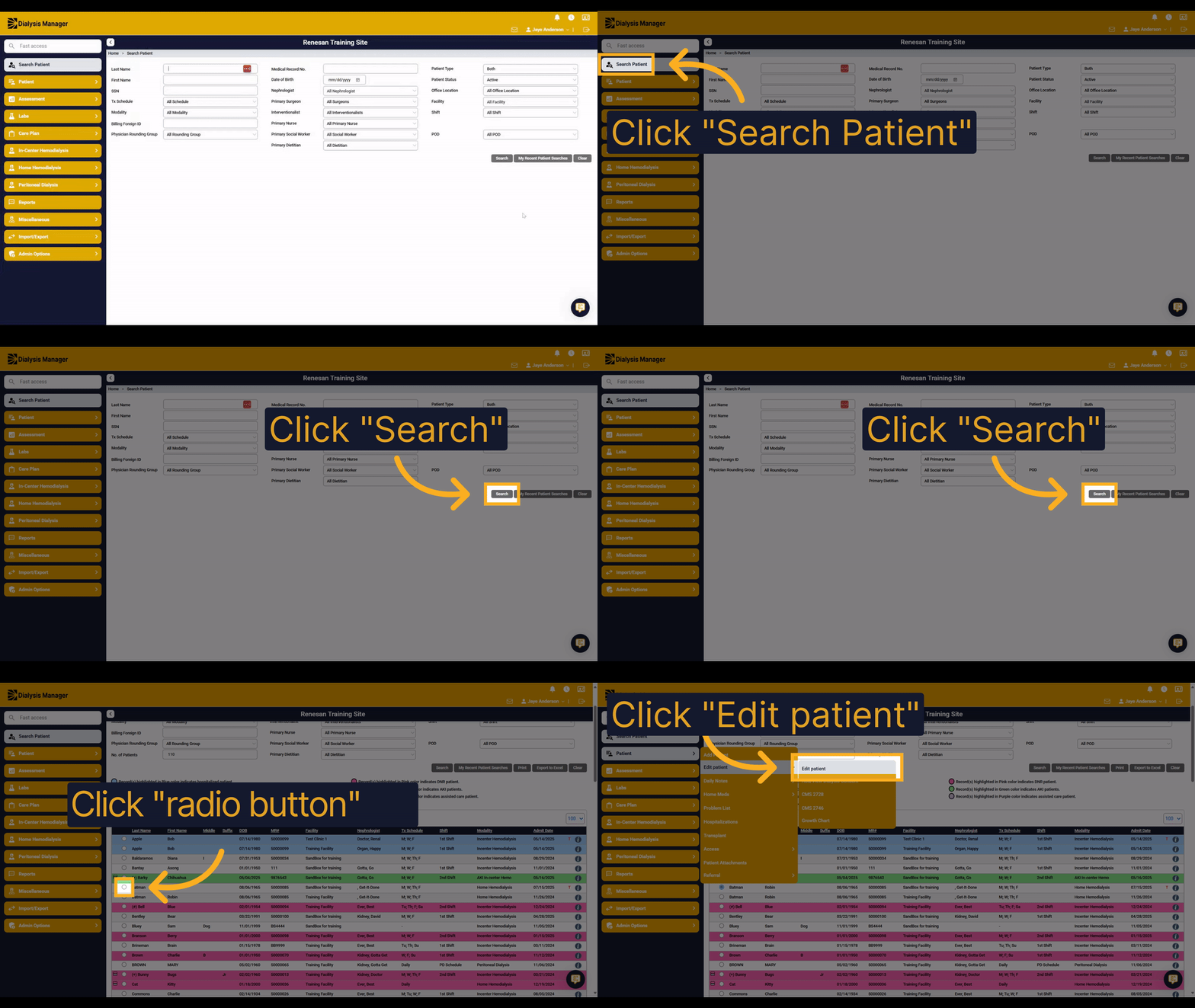
In this video we will be walking through Patient Management. Searching for a patient, adding a new patient into Dialysis Manager, adding or editing patient demographics such as emergency contacts, patient address , schedule, etc.
2. Click "Search Patient"
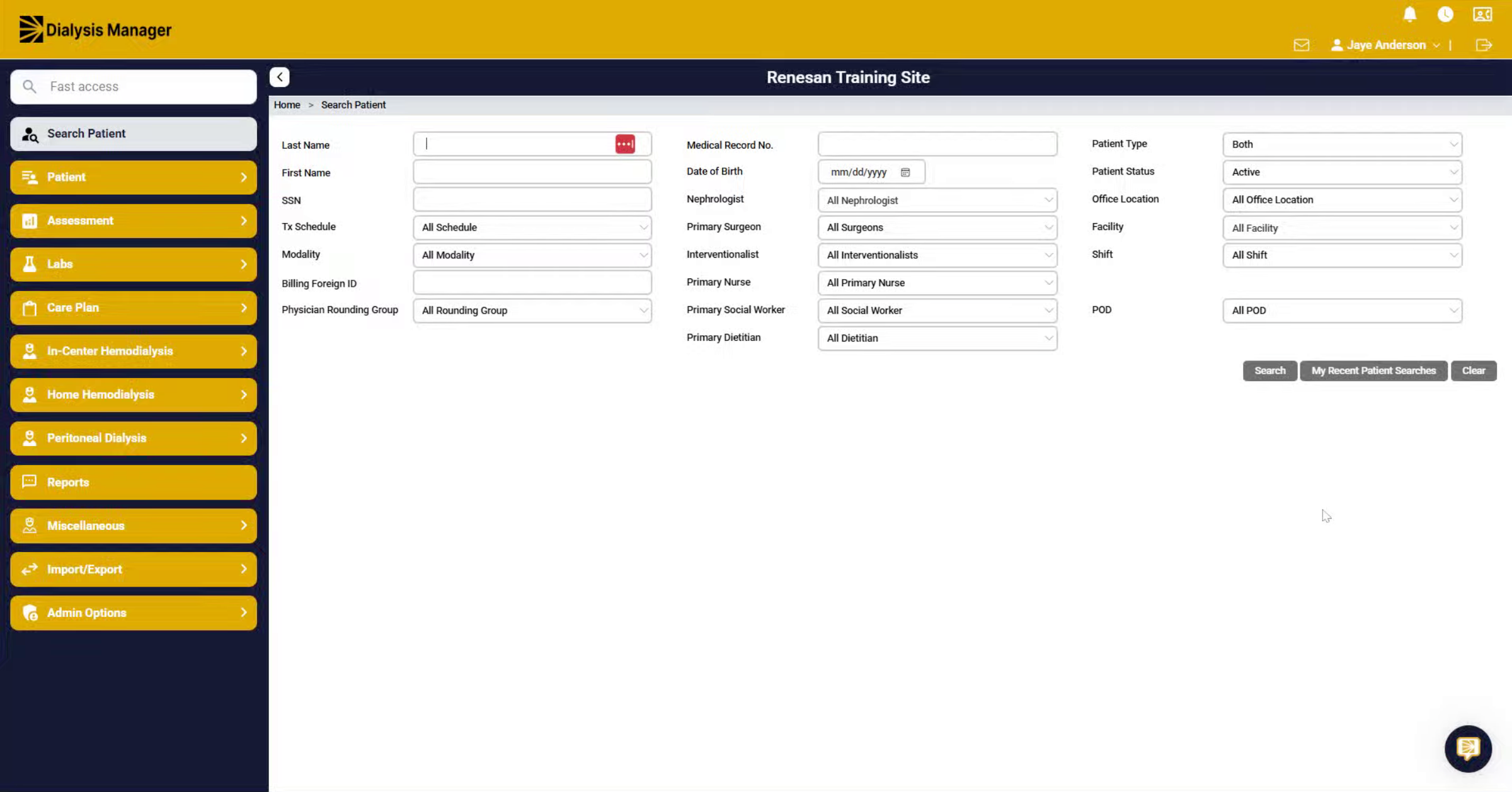
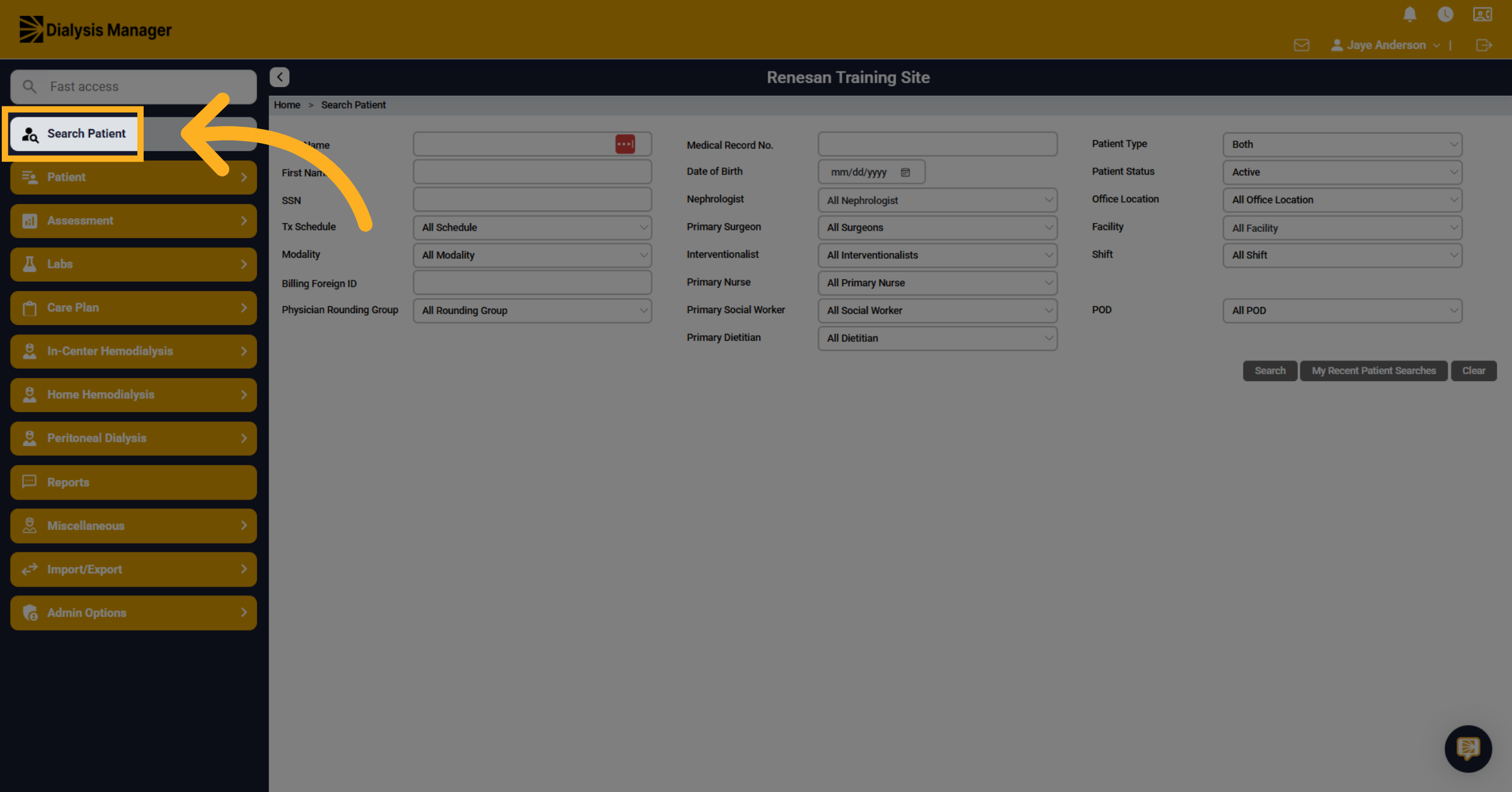
In Dialysis Manager, click on the Search Patient screen to begin searching for a patient.
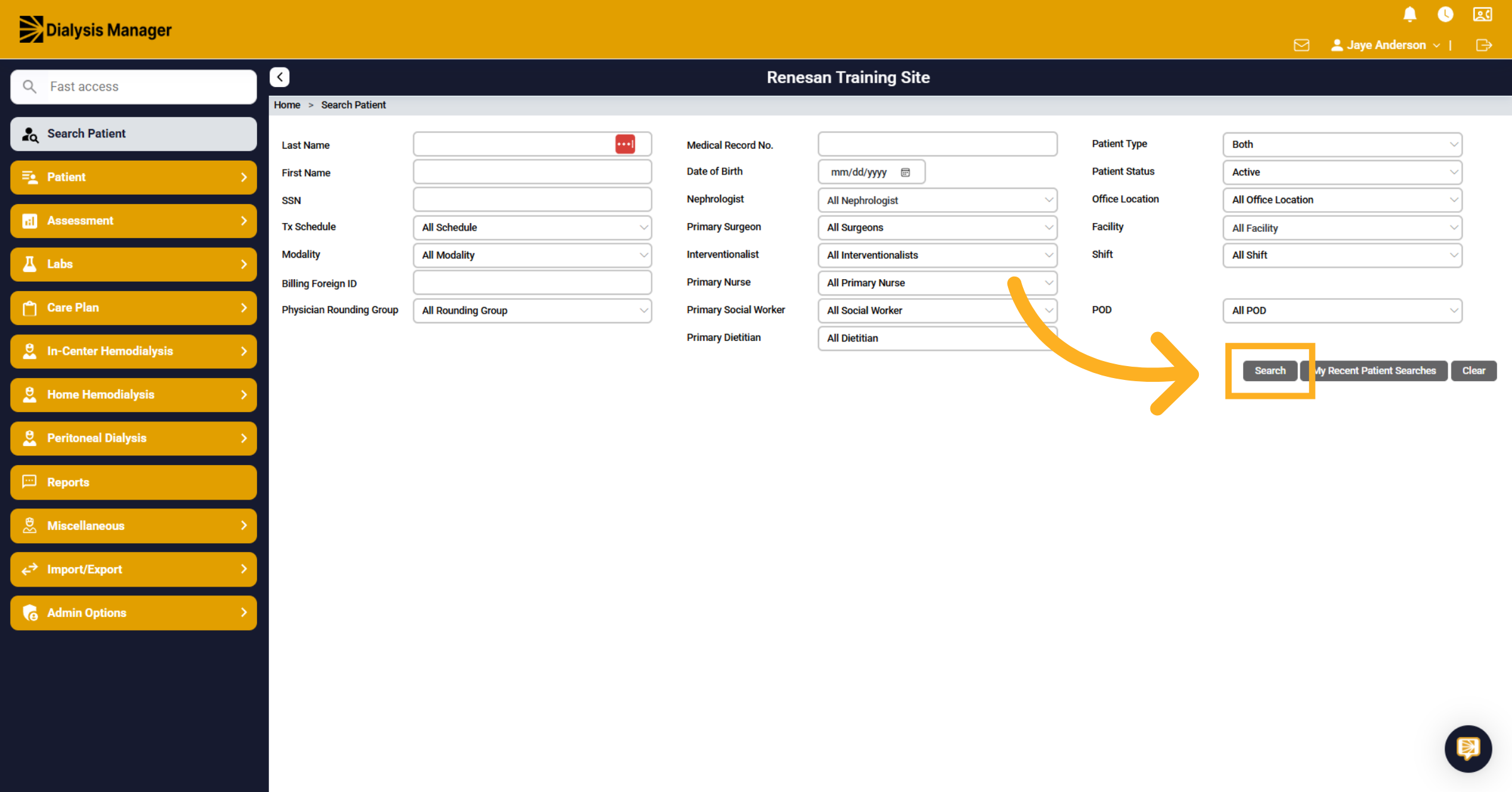
3. Click "Search"
On the search patient screen your able to enter the patients name or filter by modality, nephologist, facility, etc. and click search.
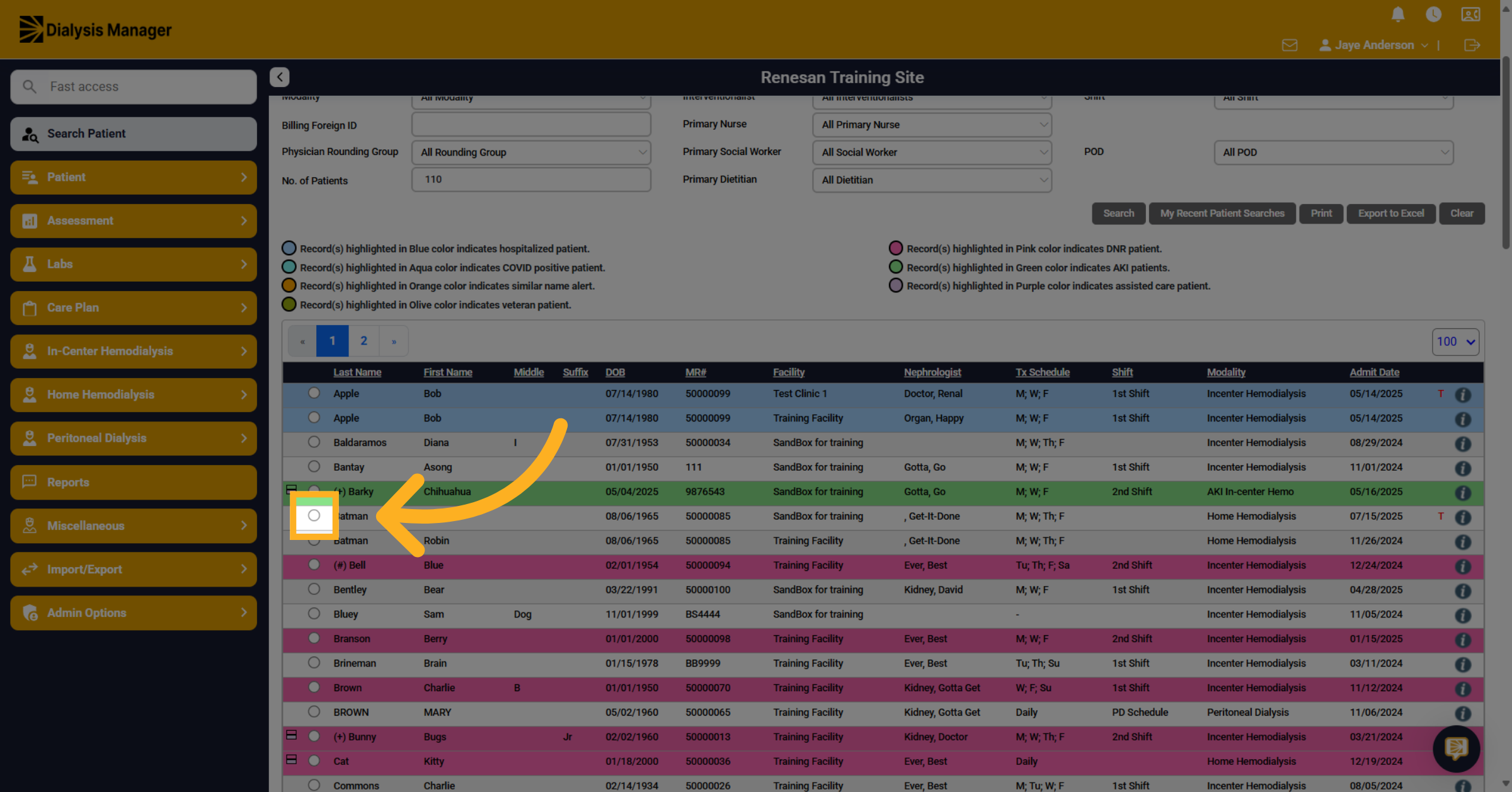
4. Select "Patient"
Find your patient in the list below and click the radio button to the left of the patients name.
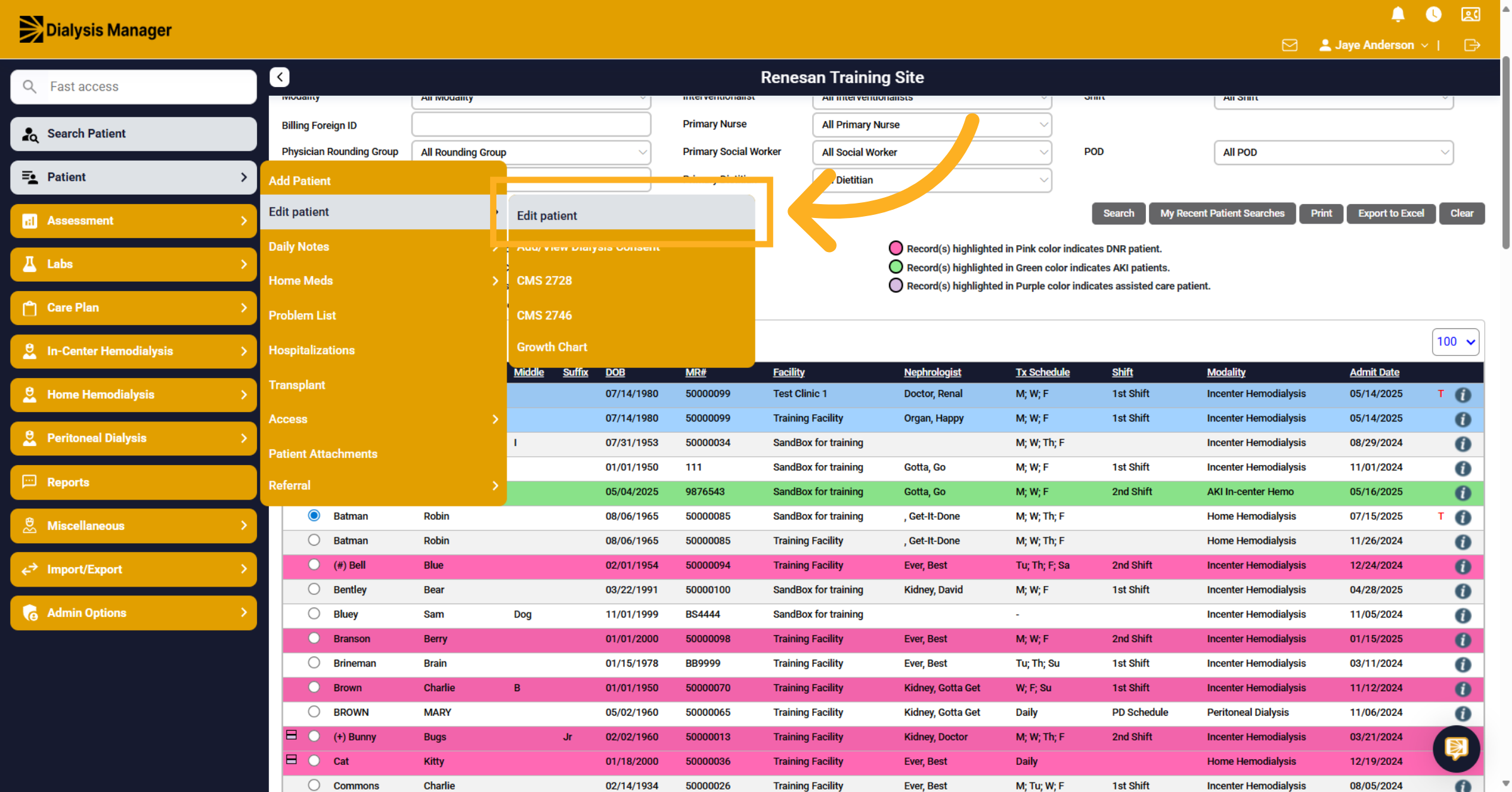
5. Click "Edit patient"
Go to the patient menu, then click Edit Patient to view or update any demographic information or navigate throughout Dialysis Manager.
6. Adding New Patient
Now that you know how to search for a patient lets walk through adding a new patient in Dialysis Manager. Please note that it is always best to search for the new patient in the search patient screen prior to adding to see if this patient already exists in Dialysis Manager. Filtering the status to all!
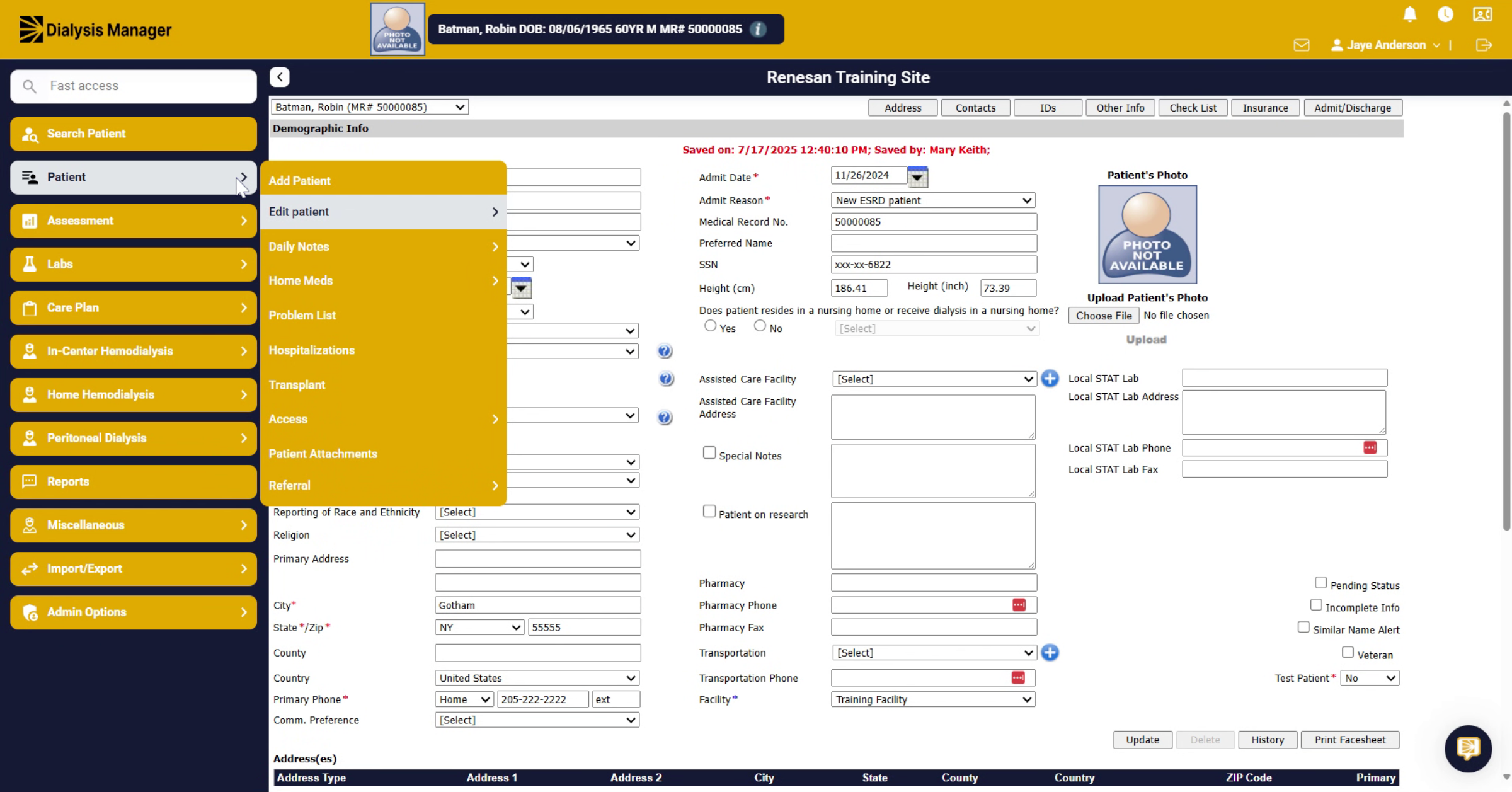
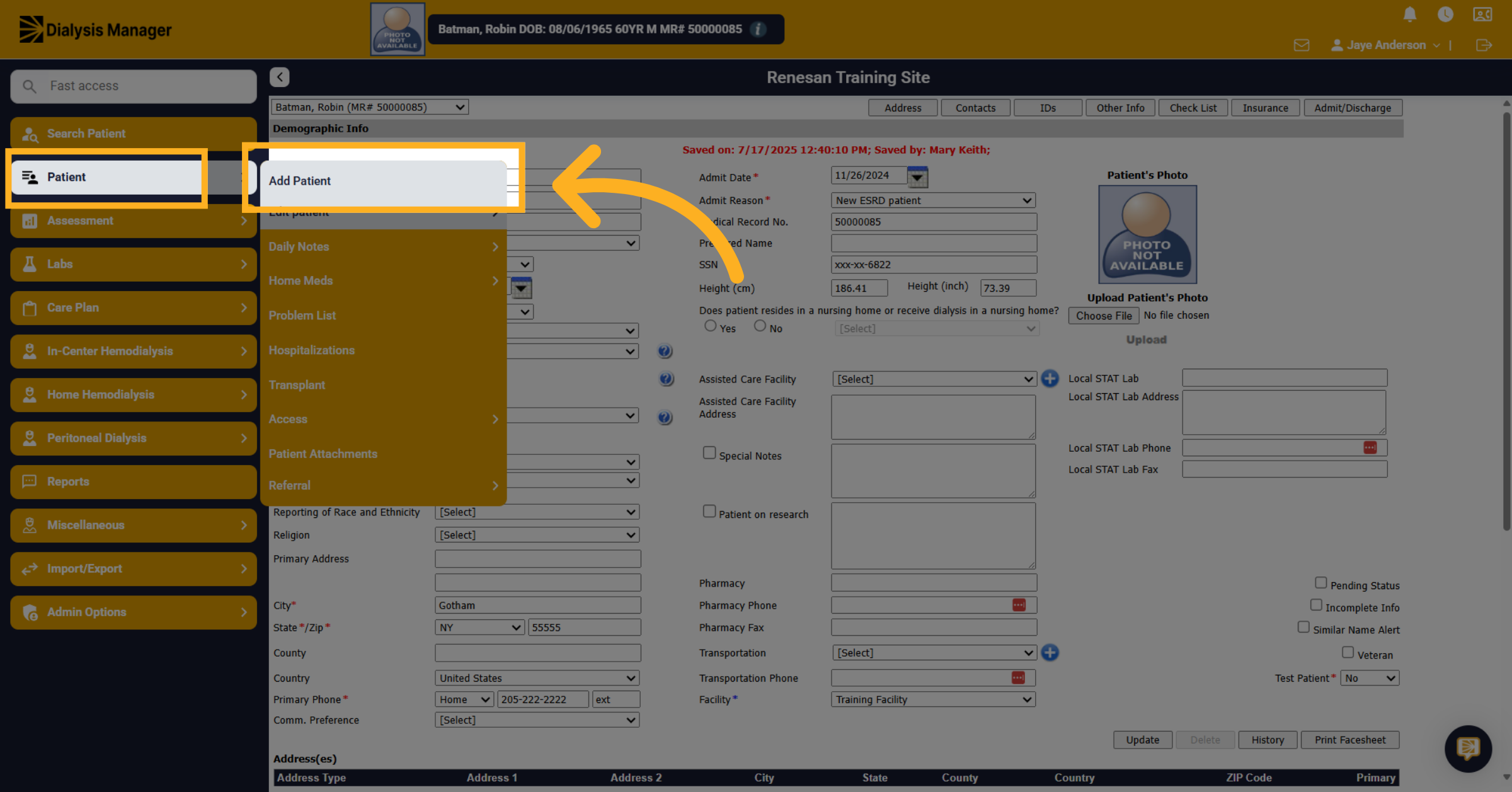
7. Click "Add Patient"
After you've tried searching for your patient, go to the patient menu and choose Add Patient.
8. Demographic Page
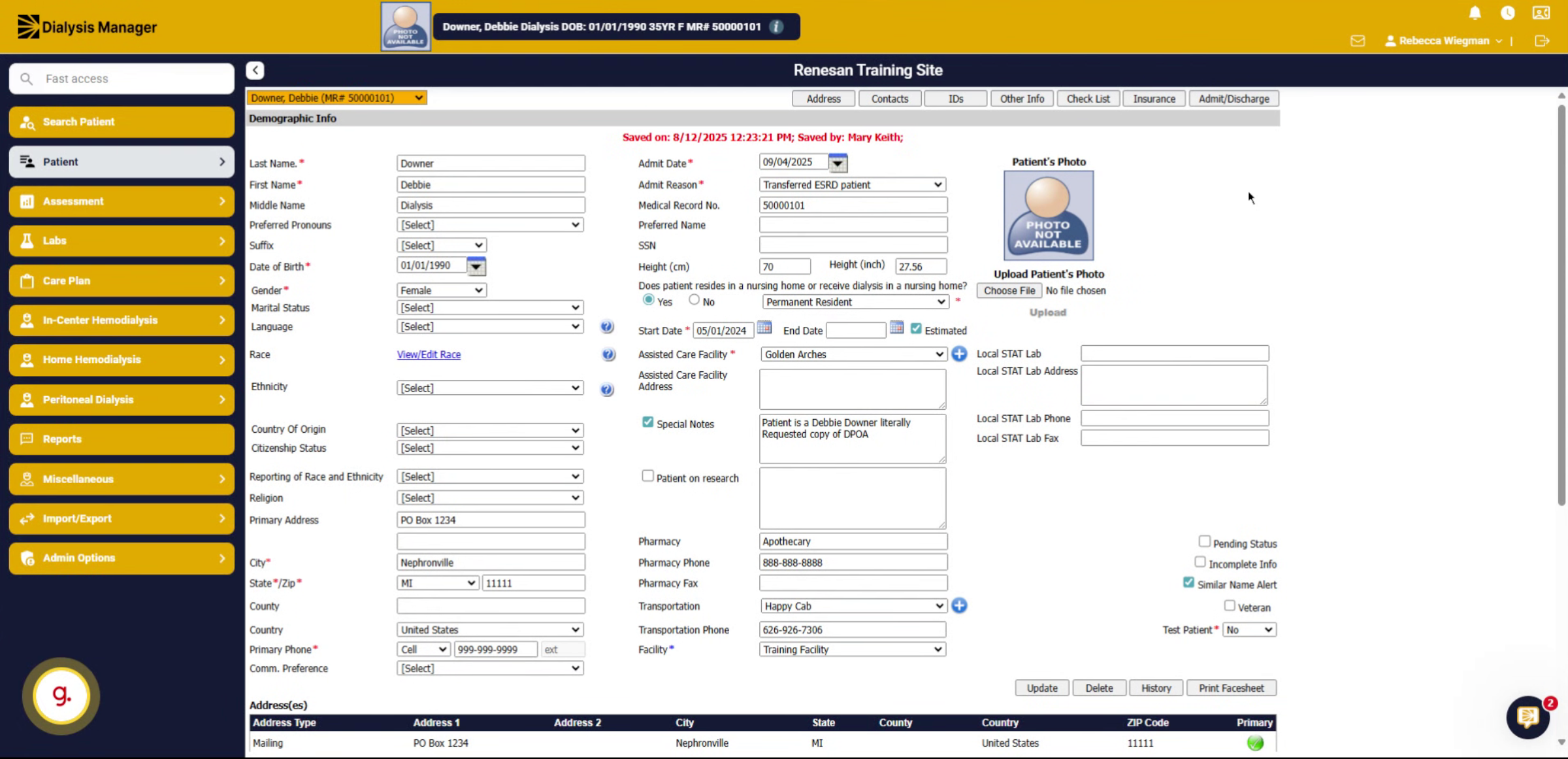
When the Demographic page opens you'll see information that needs to be entered.
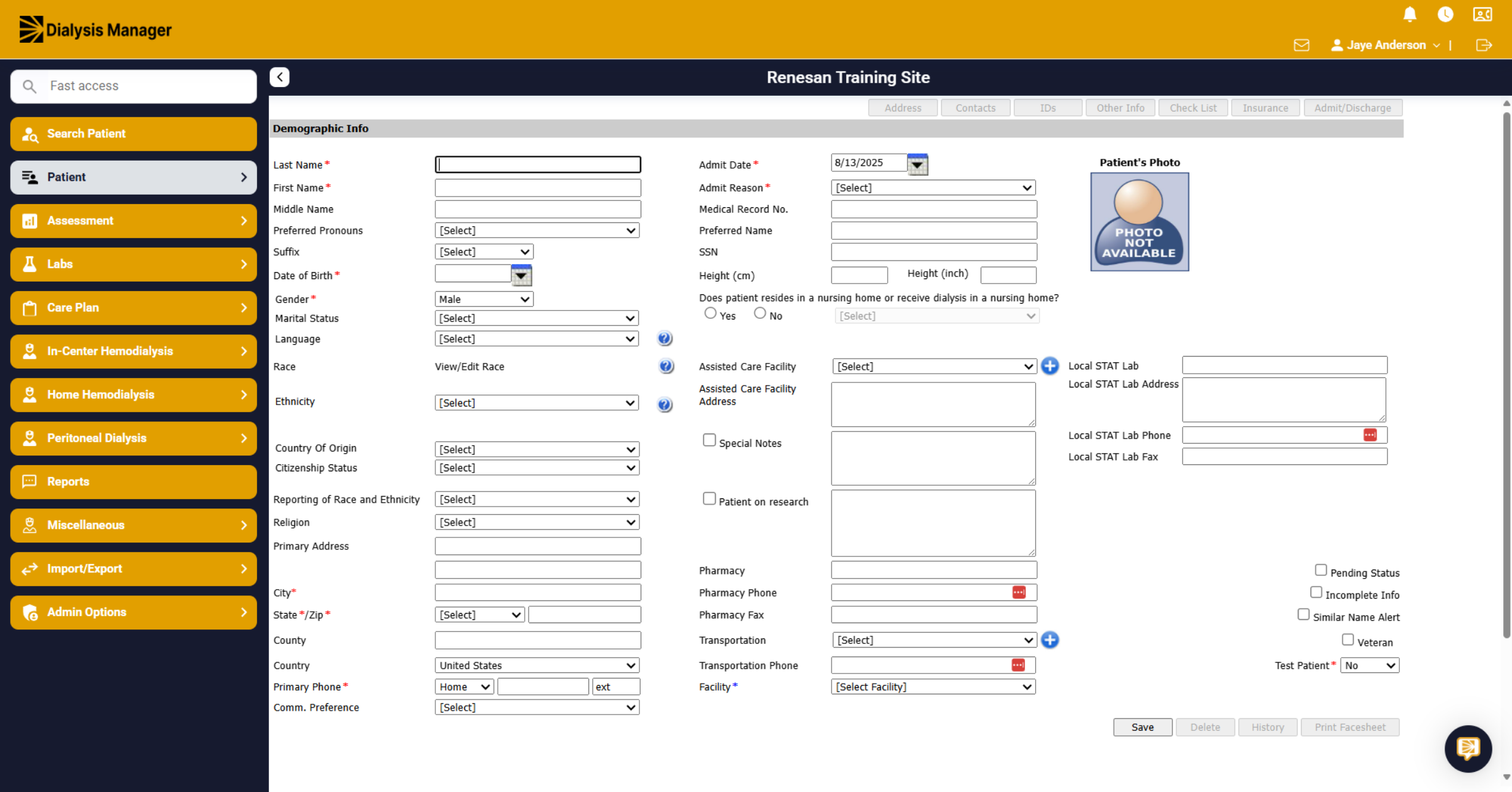
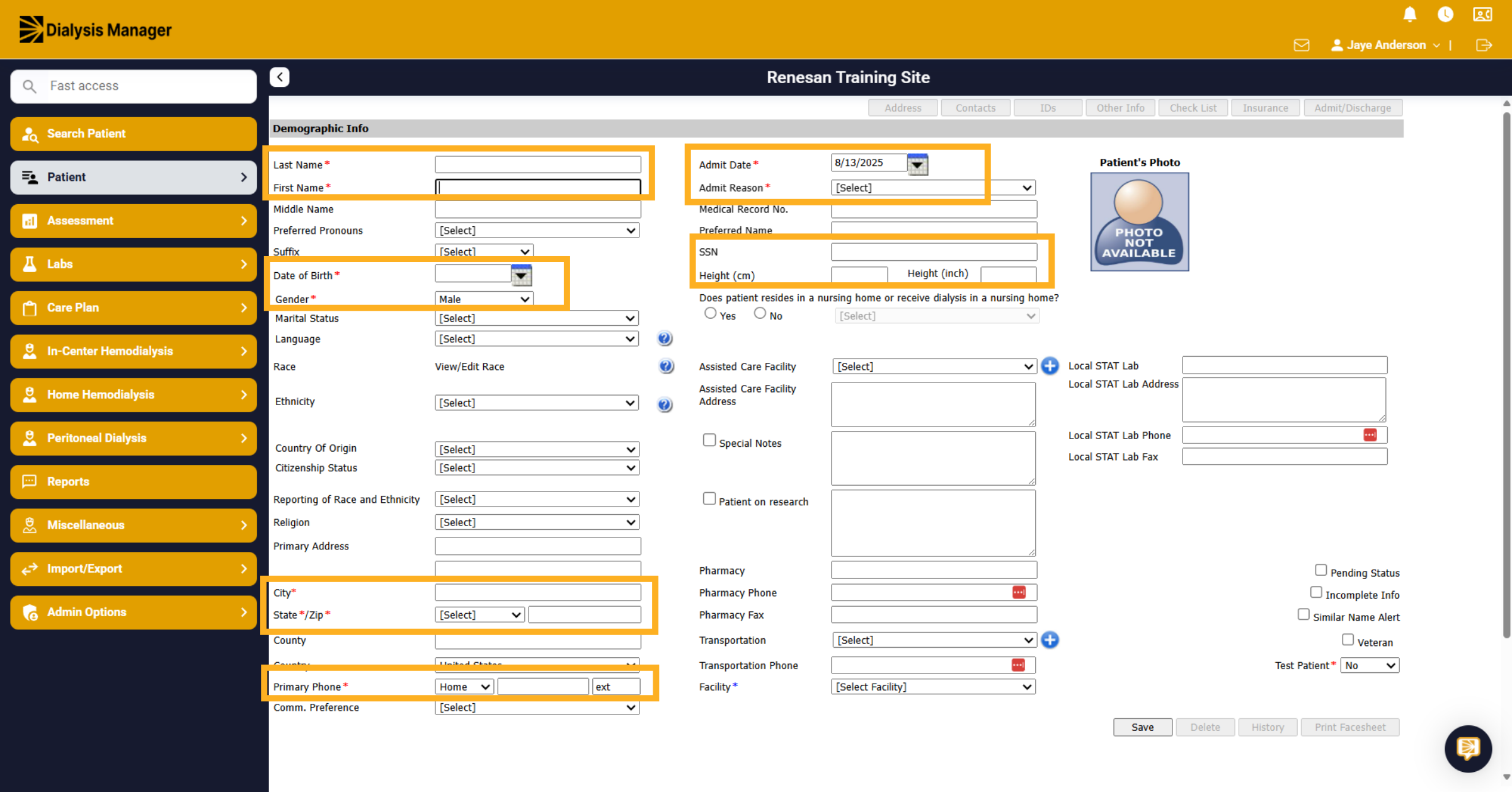
9. Required fields
Please note the areas with the red asterisk are mandatory fields and will need to be entered prior to saving!
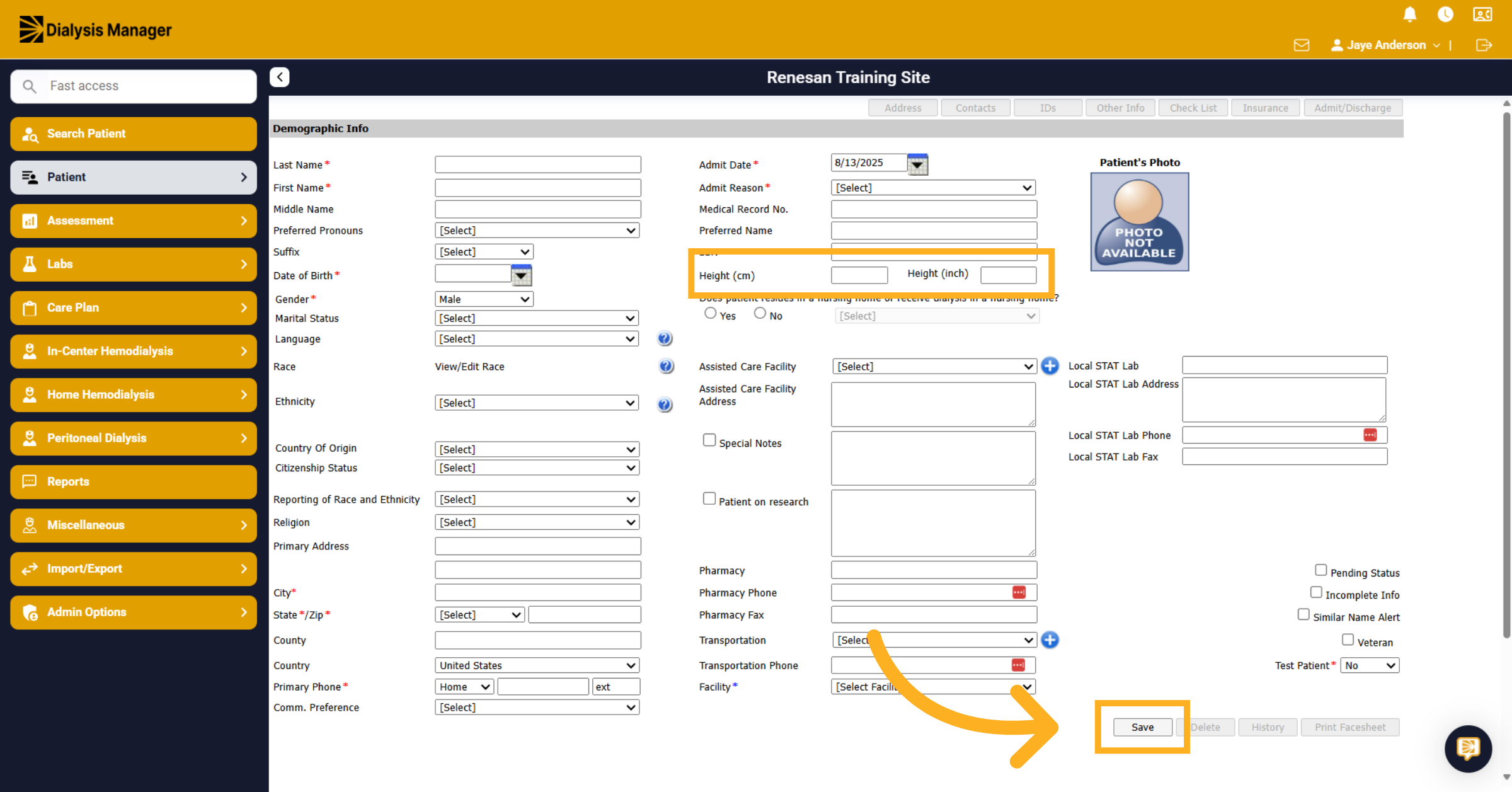
10. Height
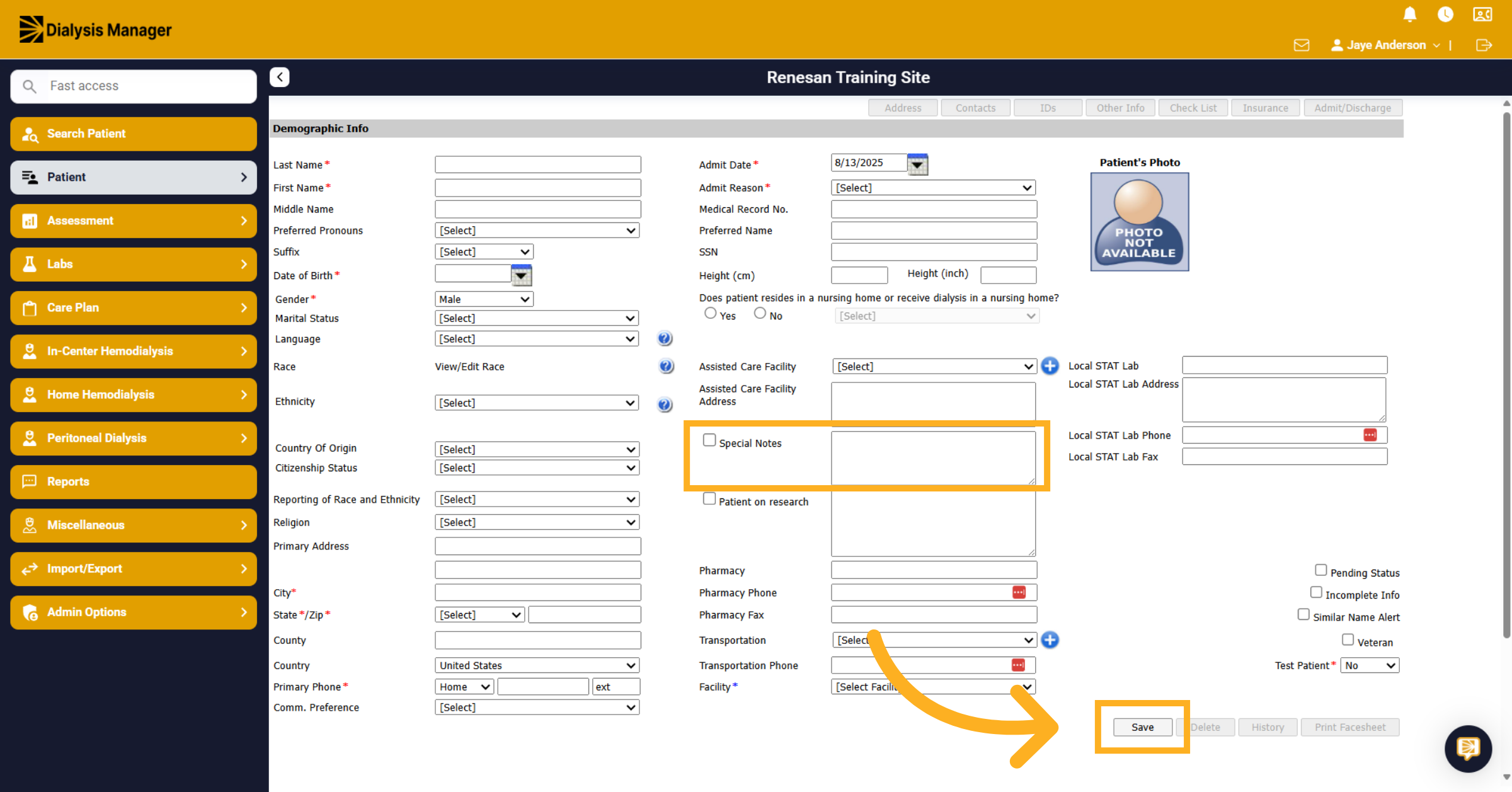
Also note that the Height is not a required field but entering it now will flow into other areas of Dialysis Manager such as the patient orders. Once all information has been entered and reviewed click on the Save button to add the patient.
11. Special Notes
When entering Special Notes you can select the checkbox to have it appear on the search patient screen, where you can hover over the hashtag symbol to display the notes. Once all information has been entered and reviewed click on the Save button to add the patient.
12. Additional Status
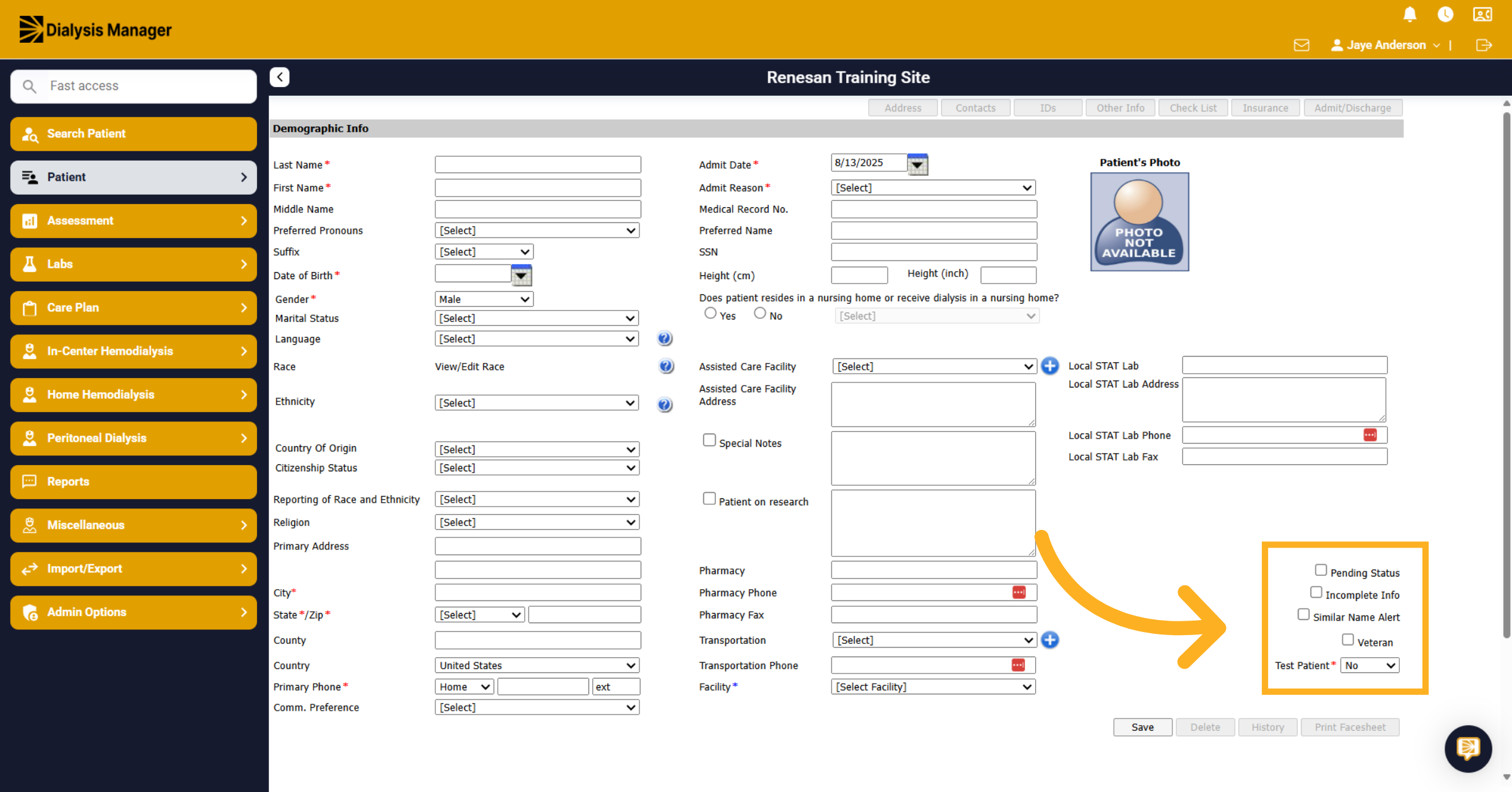
Please note the Pending Status, which can be selected when entering a new patient early. Selecting Pending Status will categorize them as pending. Incomplete Info indicates that your patient is missing details, such as height or possibly an address. Selecting Incomplete Info will also show on the search patient screen where your able to hover over the plus symbol. The Similar Name Alert or Veteran status will highlight the patient in a specific color on the search patient screen and notify you through Dialysis Manager.
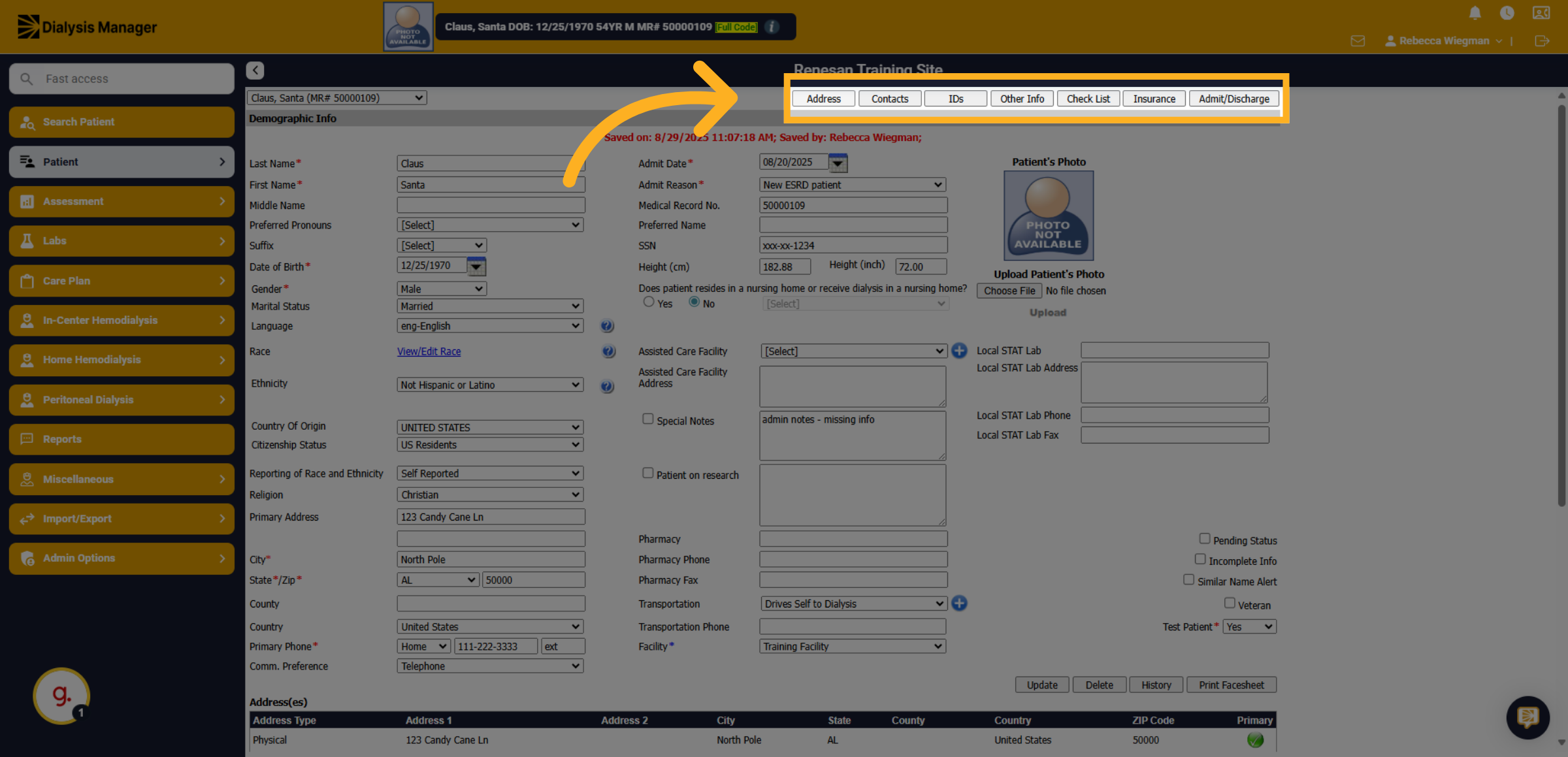
13. Demographic Tabs
Now that the patient has been entered, you'll see tabs at the top of the page for Address, Contacts, IDs, Other Info, Check List, Insurance and Admit/Discharge!
14. Click "Contacts"
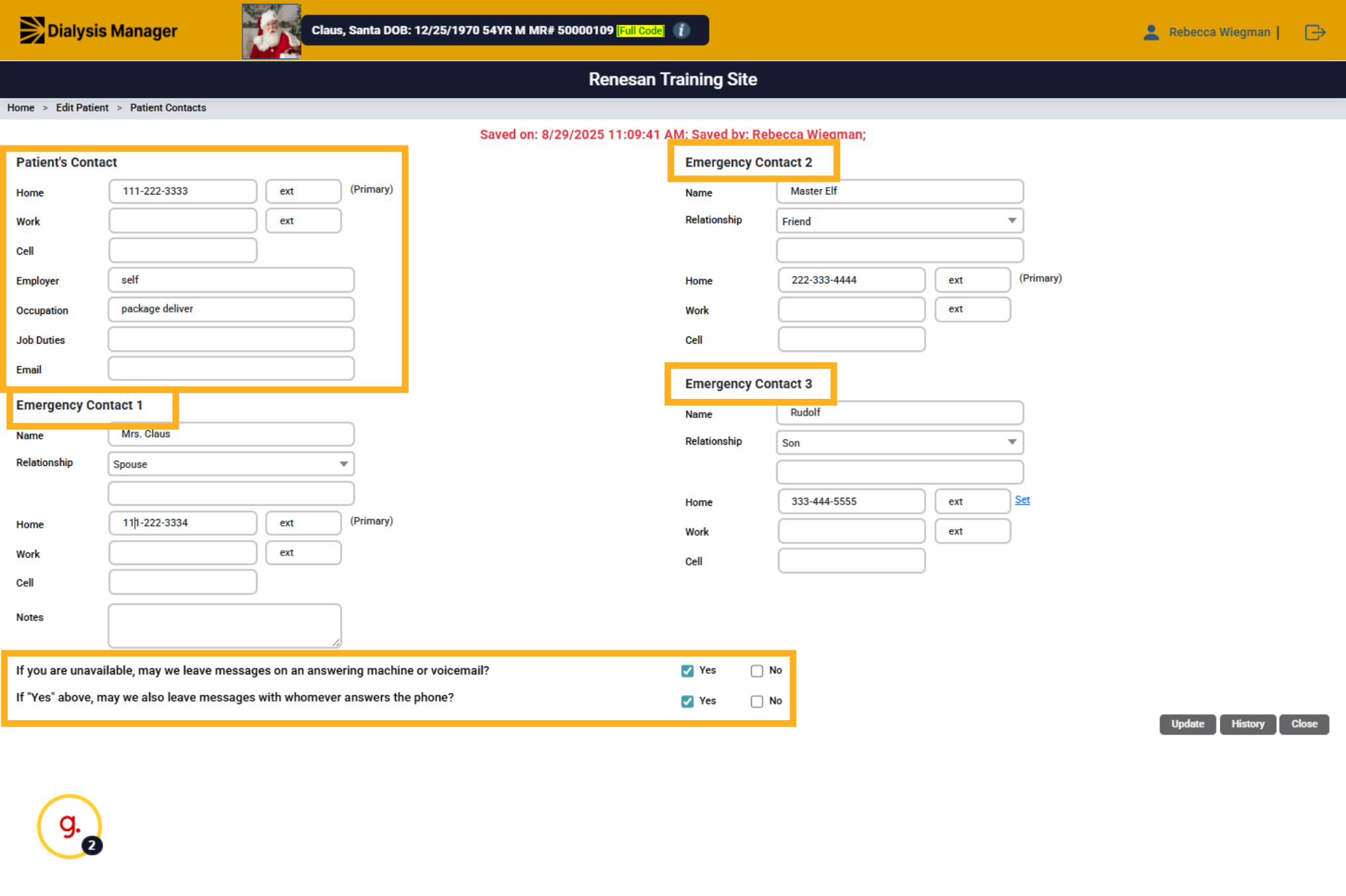
Navigate to the Contacts section within the patient profile to access patient contact and emergency contact information!
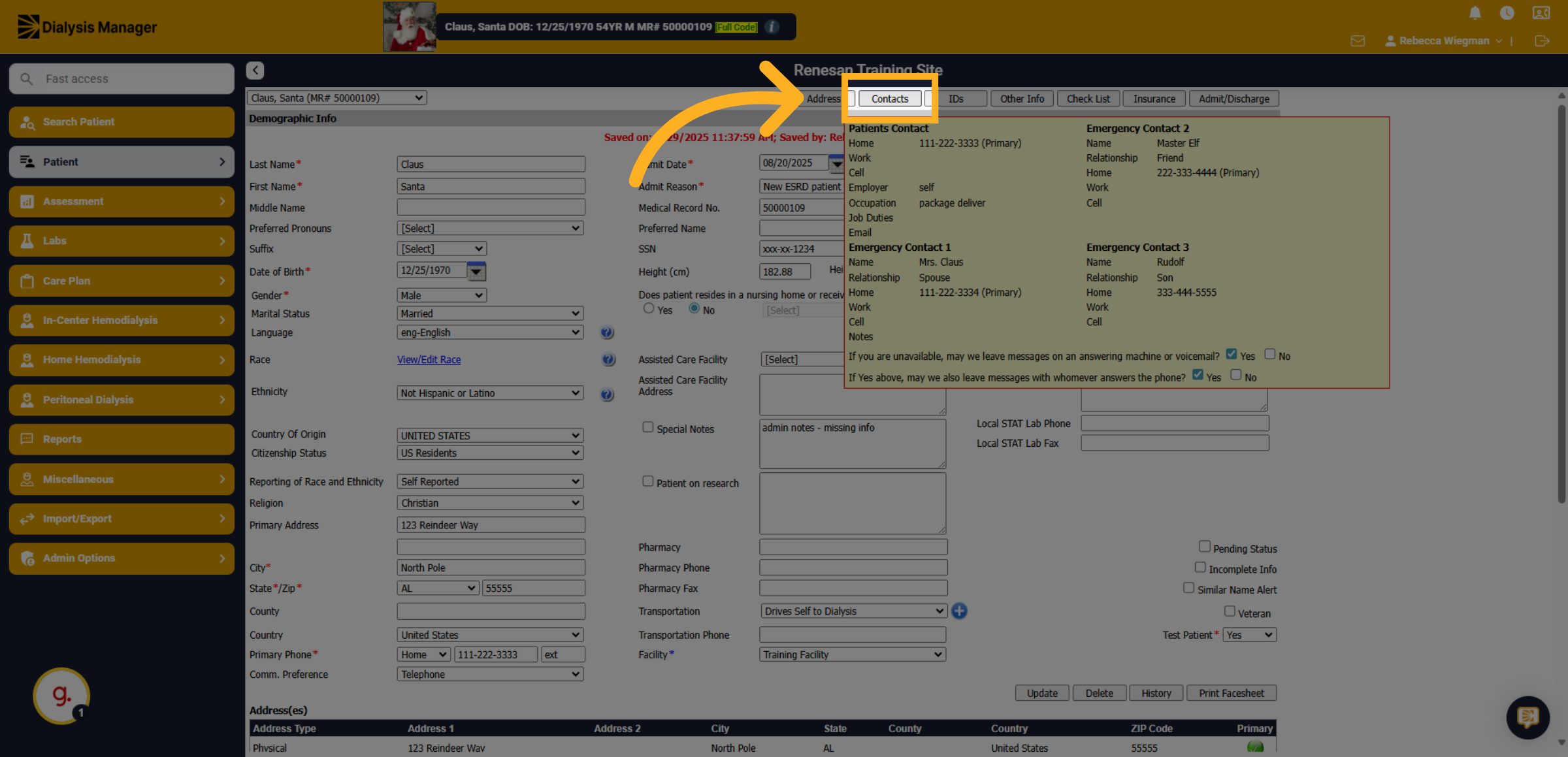
15. Emergency Contact
You'll be able to add additional contact numbers or emails for the patient as well as enter up to 3 emergency contacts for the patient. Please note the questions at the bottom! Review the information and update before closing!
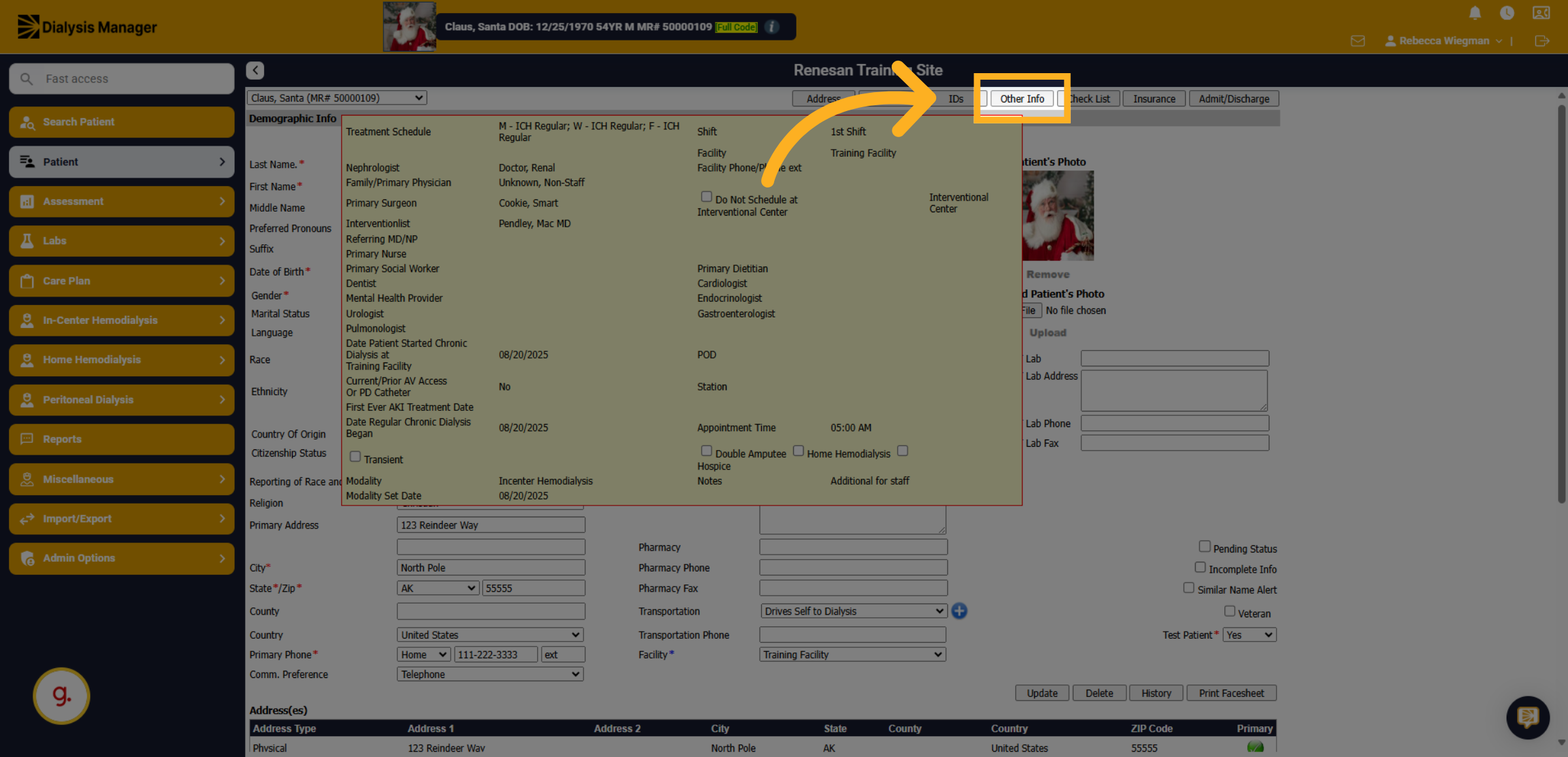
16. Click "Other Info"
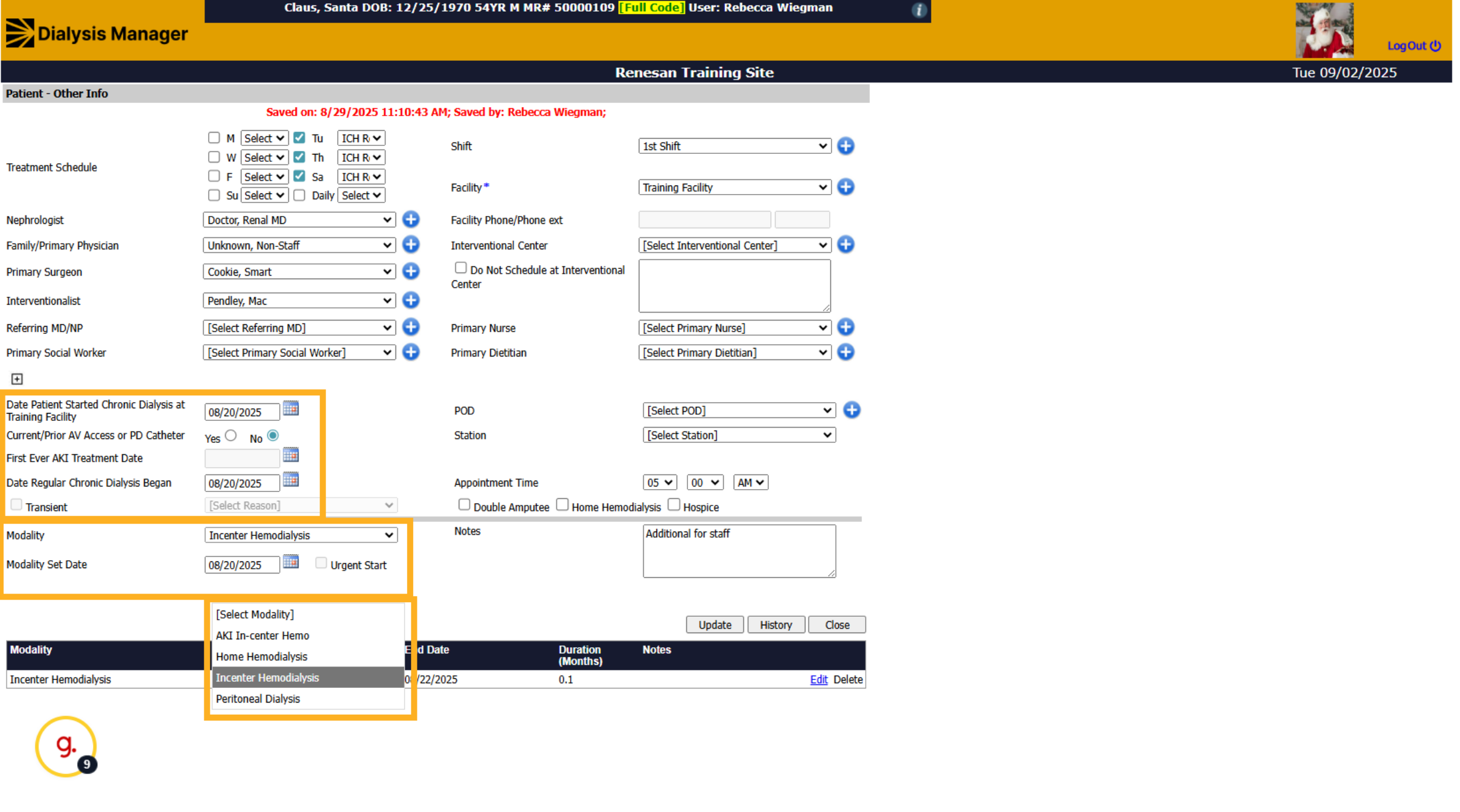
Now lets click into Other Info where we can add the patients schedule, care team members, set modality, etc.
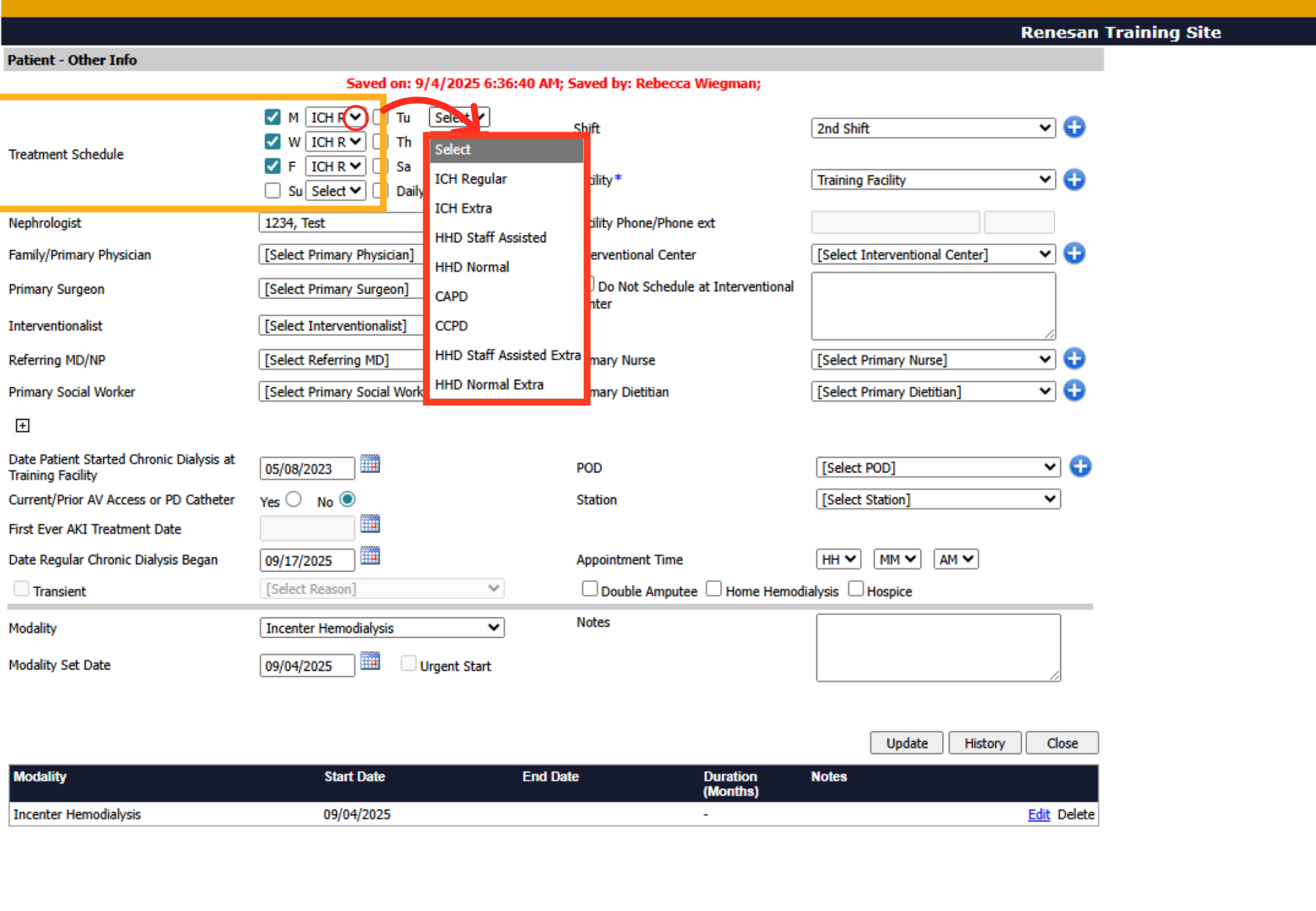
17. Treatment Schedule
Check the box next to the day that the patient will be treating. You'll also need to select if the treatment day is a In-Center Hemodialysis regular or extra, HHD Staff Assisted or Normal, a CAPD or CCPD schedule!
18. Care Team
You will also be able to select the patient care team. Selecting the plus symbol will open additional options.
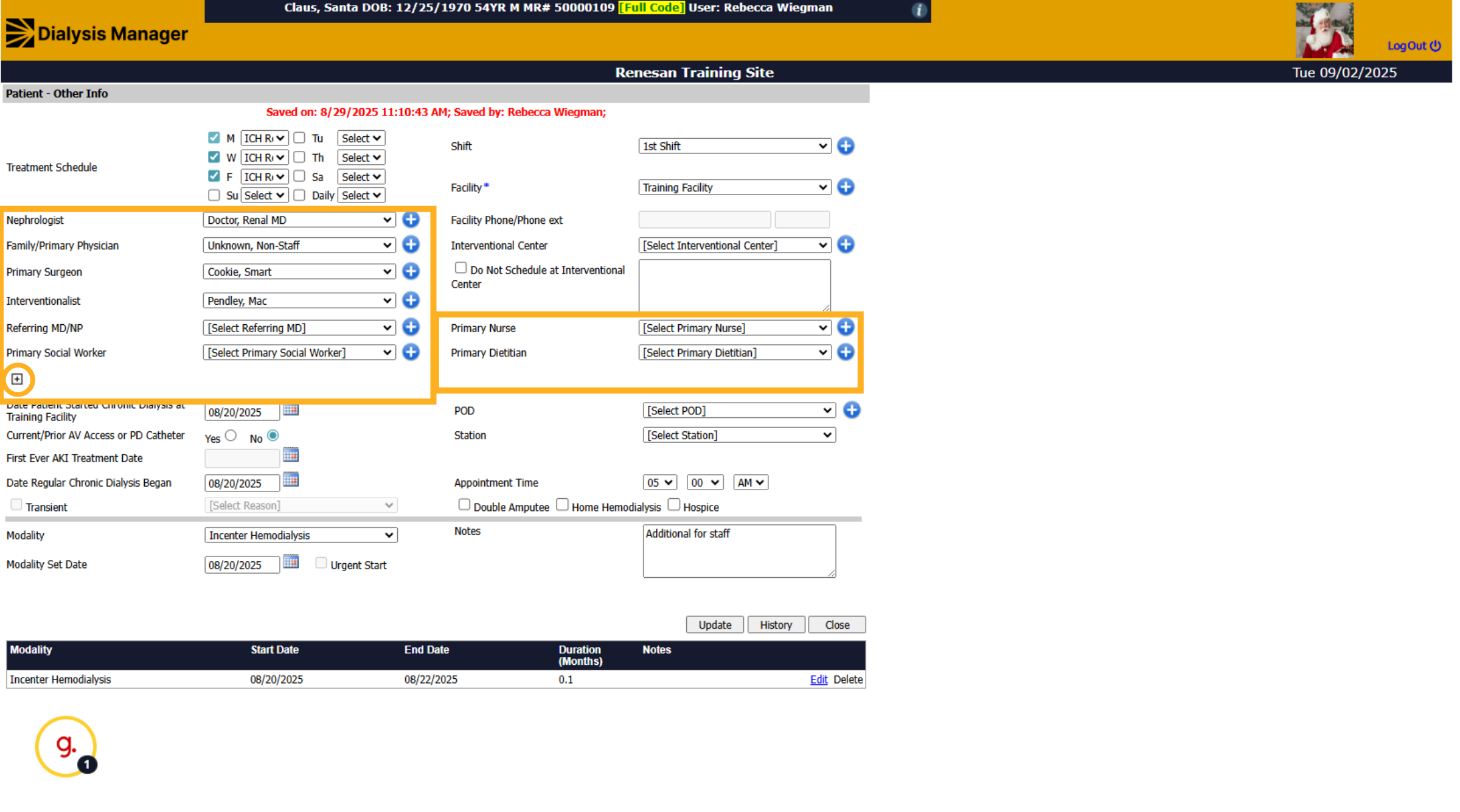
19. Chronic Dialysis began
Enter the dates for when the patient started at your facility, Date Regular Chronic Dialysis Began and selecting a Modality and the set date.
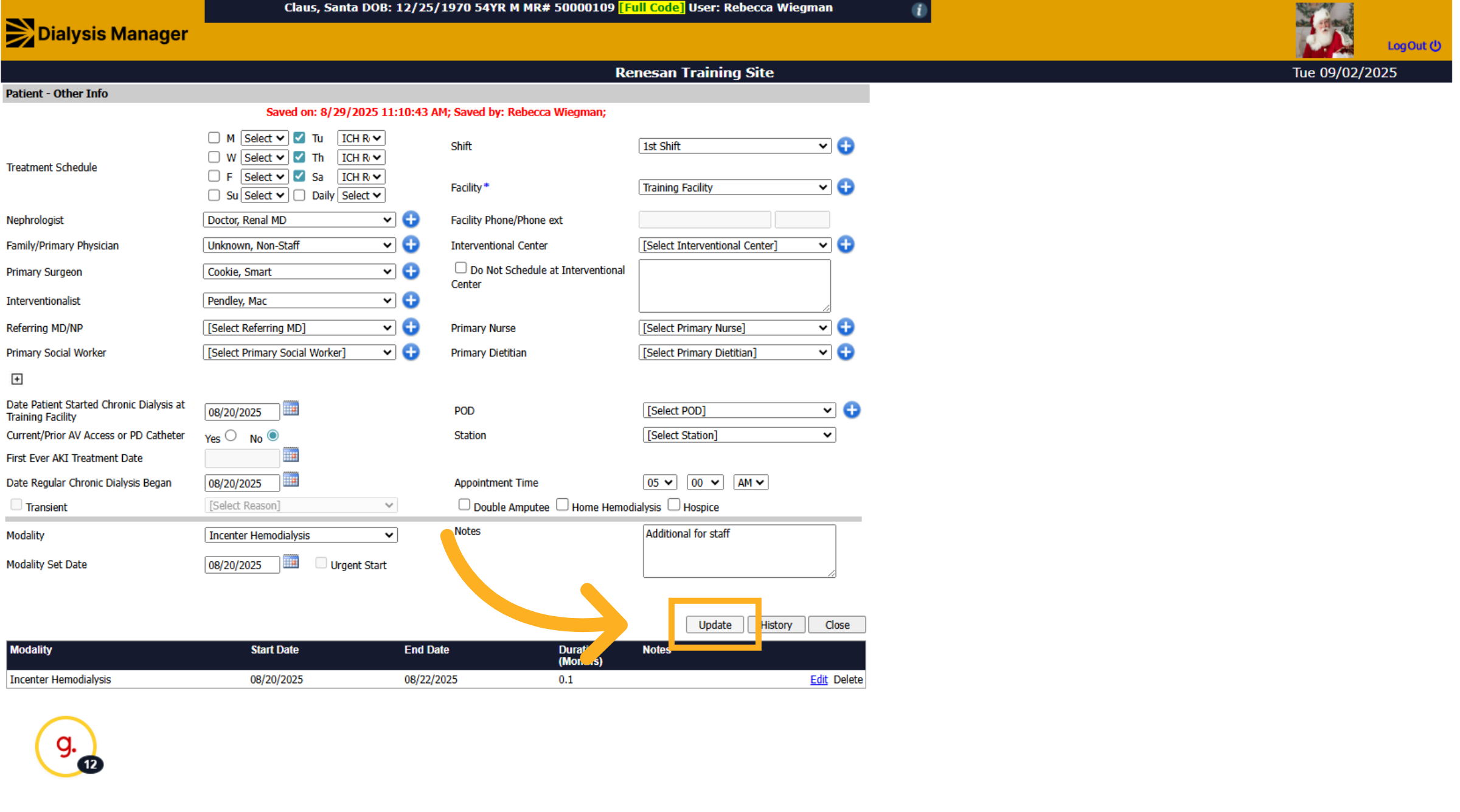
20. Click "Update"
Once all information has been entered and reviewed click Update and close to return to the demographics page!
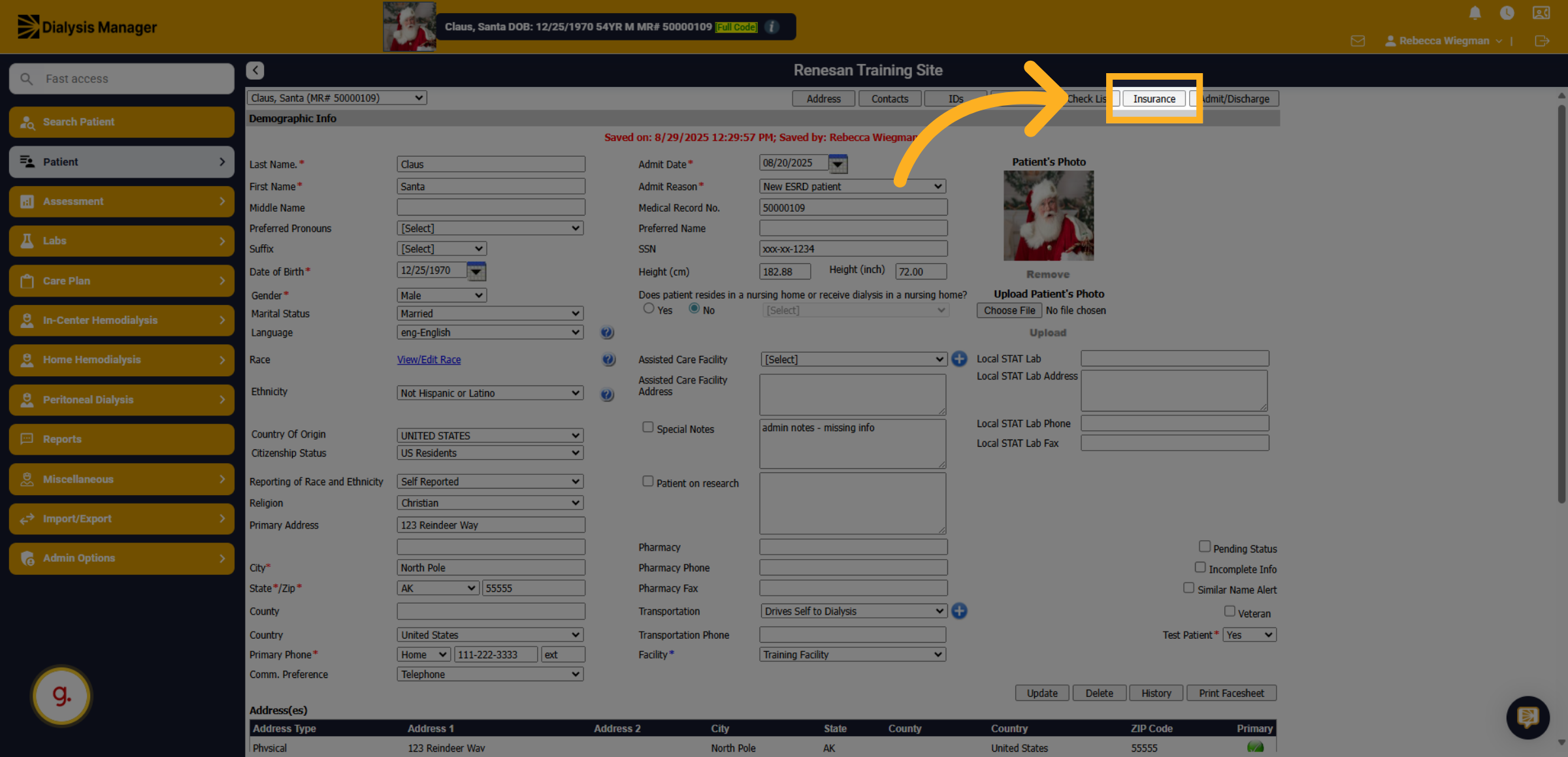
21. Click "Insurance"
Next lets enter the patient Insurance Information by selecting the Insurance Info tab!
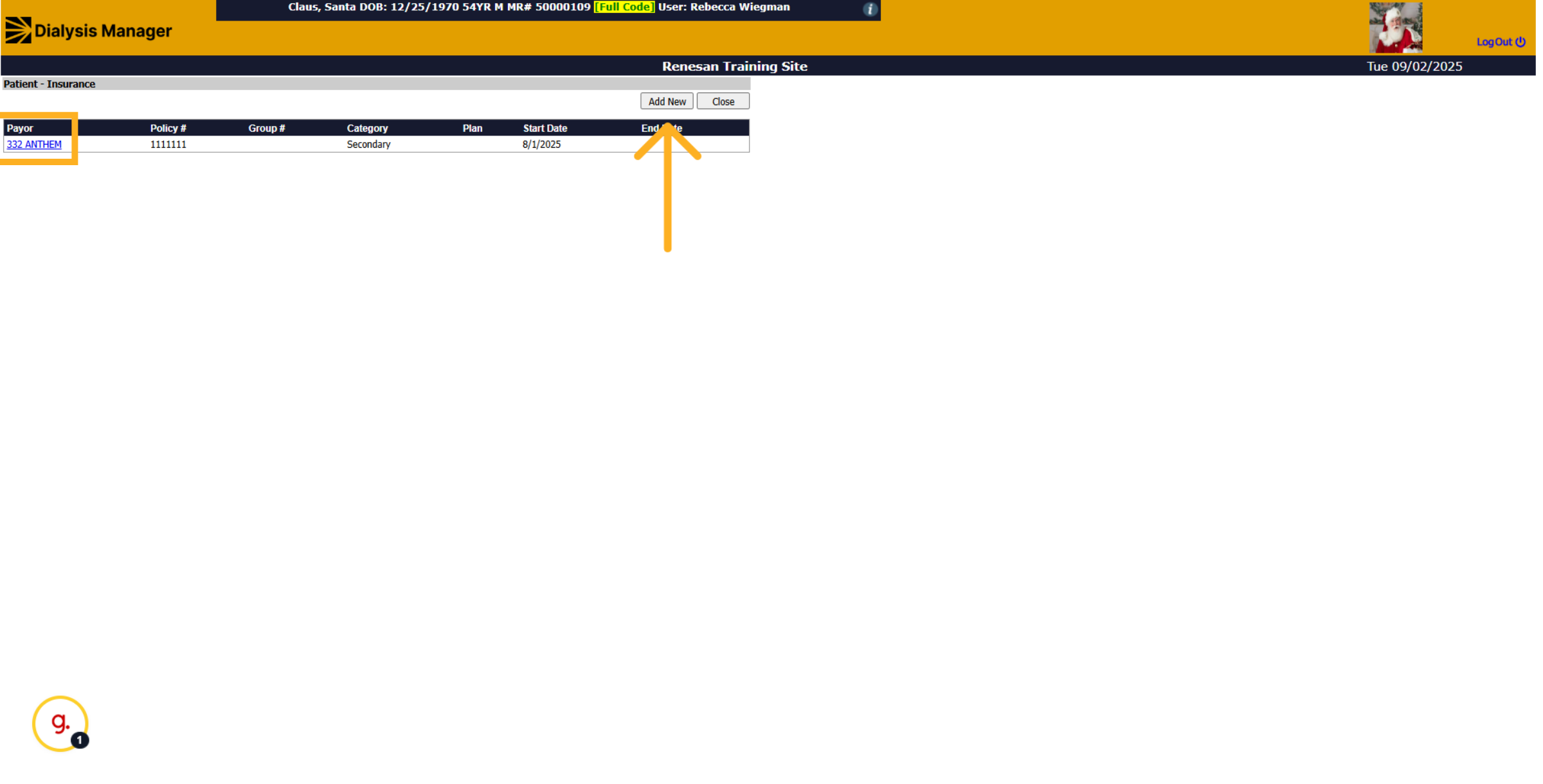
22. Insurance
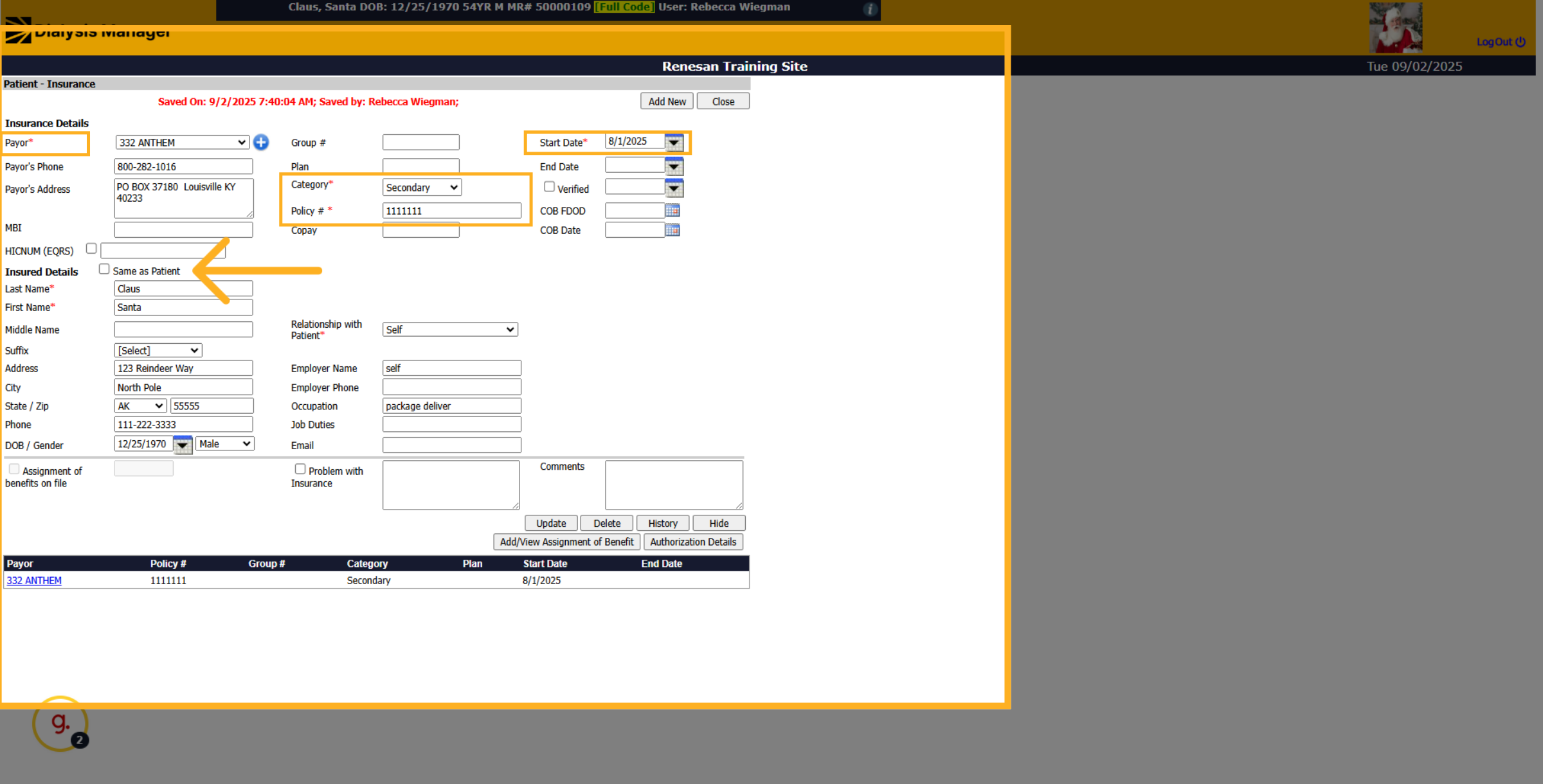
If the patient has any insurance information entered it will populate here. If you need to update the information select the blue hyperlink to open to make any adjustments! Or if you are entering a new insurance on the patient select Add New.
23. insurance info
When inside the insurance form select a payor which will auto populate the phone number and address. If not you can manually enter if you have that information. Enter if this is the patient's primary or secondary in the category drop down and the start date of the policy. Under the Insured Details you'll see a check box labeled "Same as Patient", selecting that checkbox is stating that the patient holds the insurance and the patient information entered on the demographic screen will auto populate. Enter any other information provided by the patient before saving!
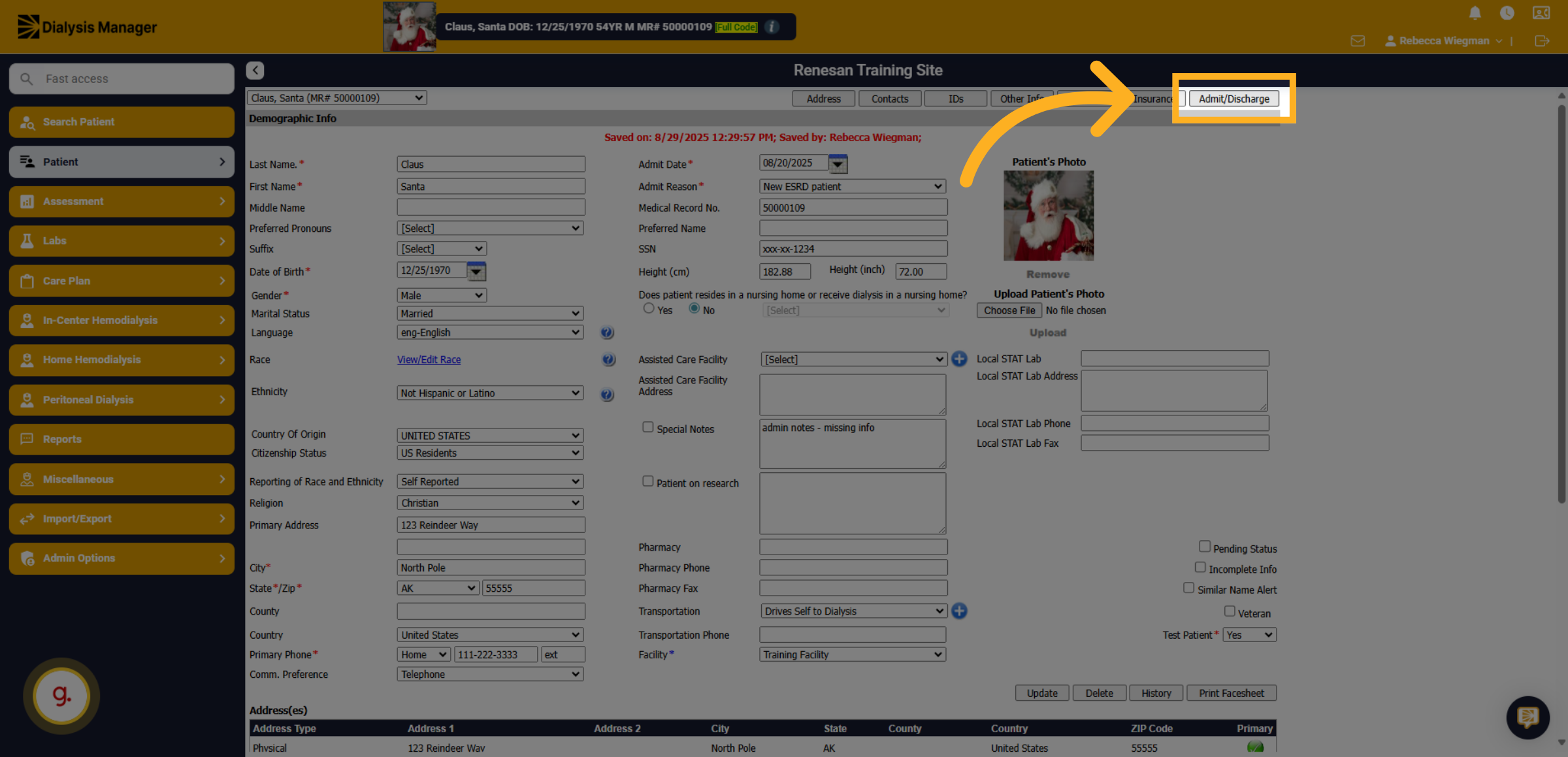
24. Click "Admit/Discharge"
Click the Admit/Discharge option to begin updating patient status.
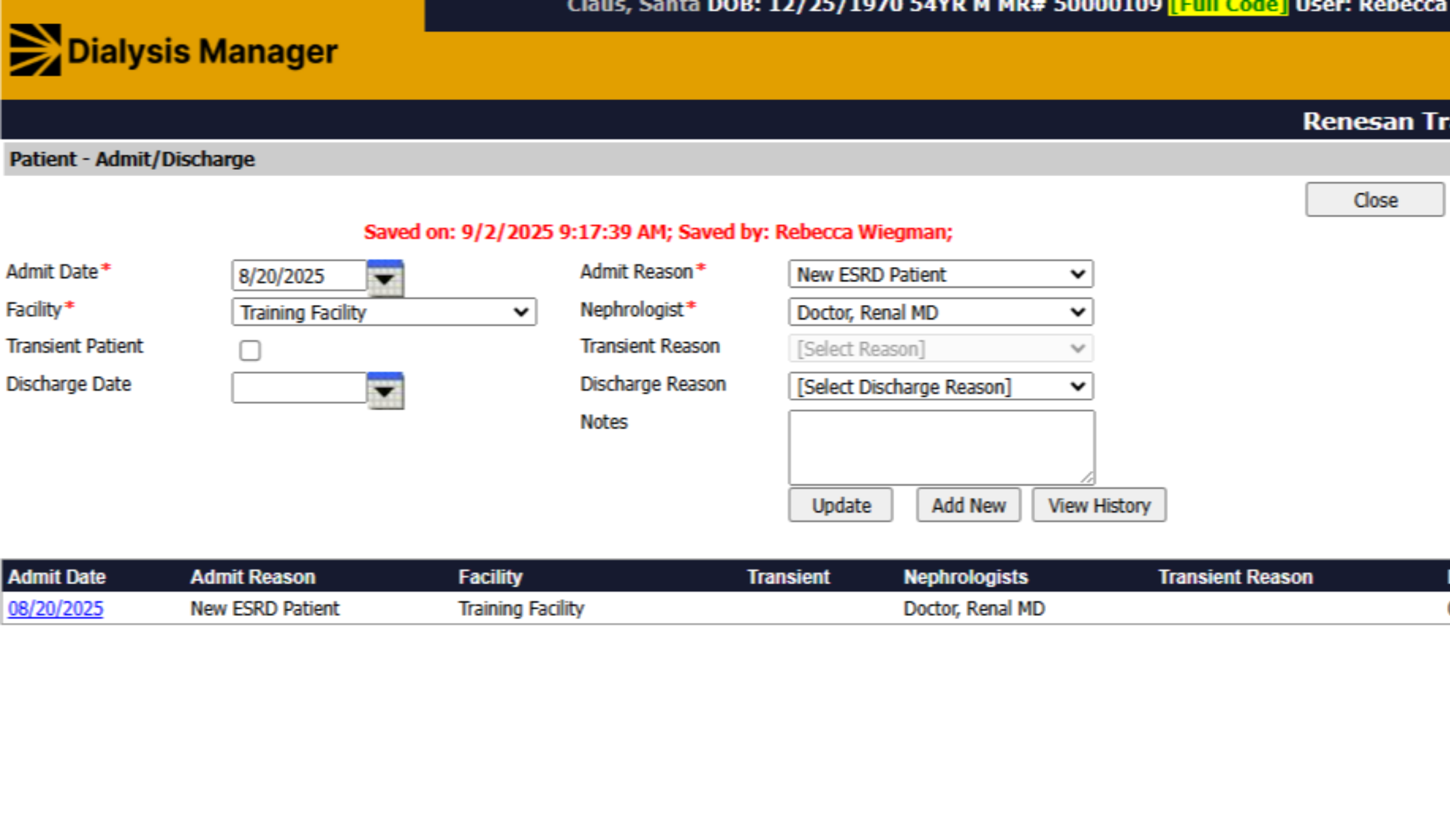
25. Page
When opening the Admit/Discharge page you'll see the patients admitting date, admit reason, facility, along with other information. This information is being pulled for Demographics page that was entered. You will not need to do anything with this page if your entered a new patient.
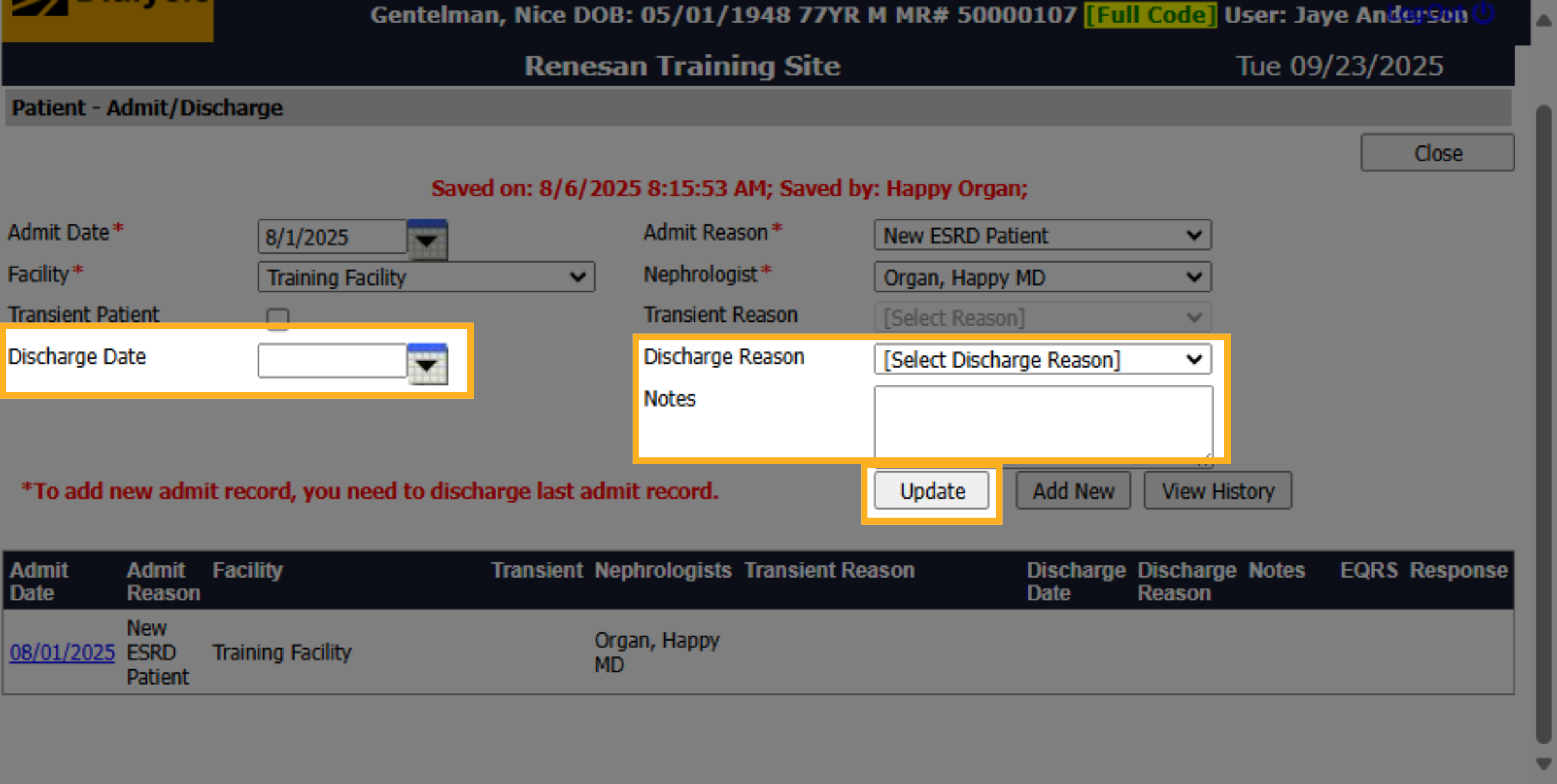
26. Enter Discharge Date
But, if the patient will be transferring, has expired, involuntary, etc. you will want to enter the discharge date, select a discharge reason and any notes you may have before clicking update
27. Admit Date
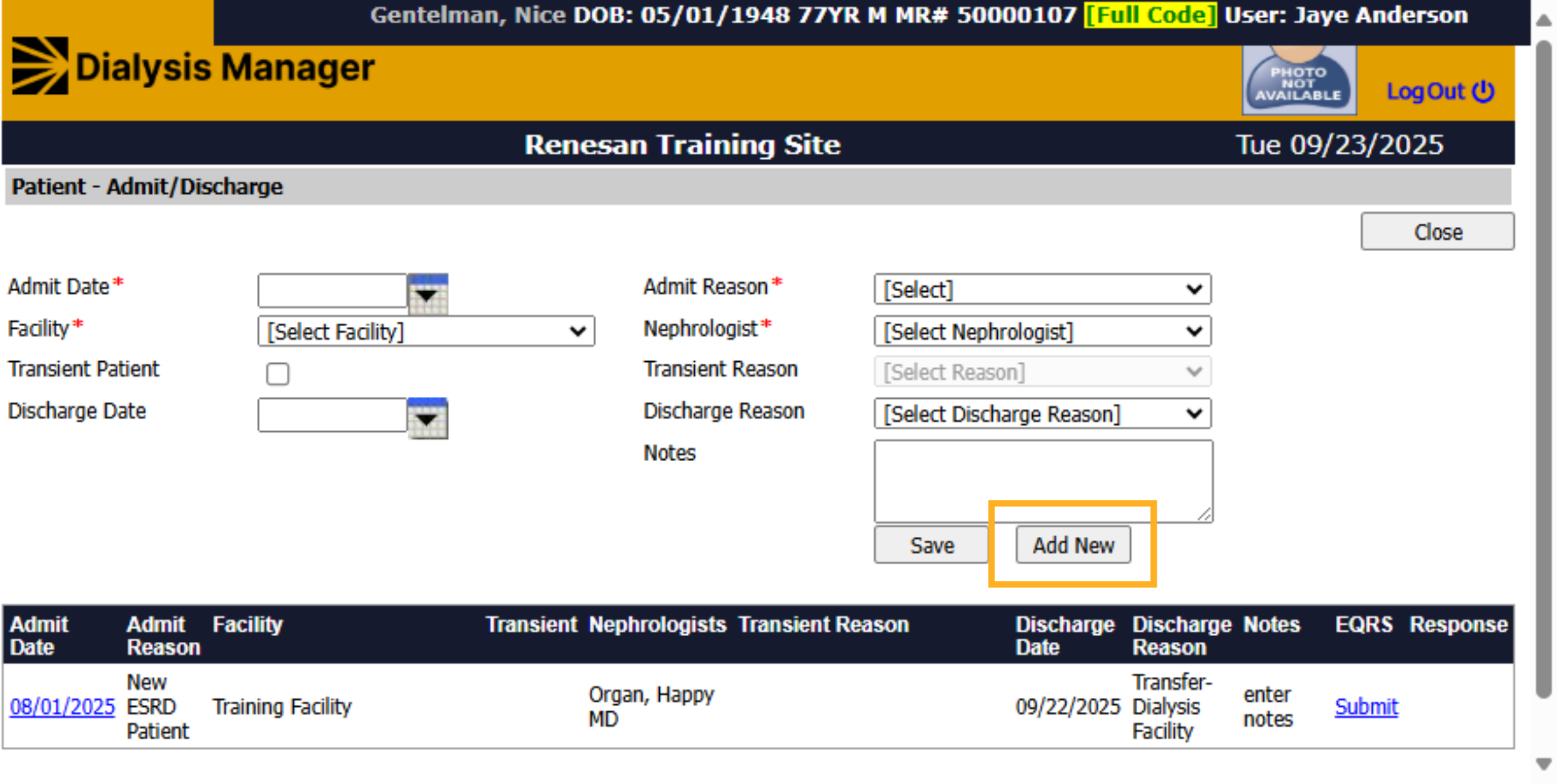
If the patient is being transferred to internal facility or is returning to your facility after a period of time, select Add New on the admit discharge tab. Enter the date that the patient will start at the facility, at which facility they will be at and the nephrologist.
28. Select Admit Reason
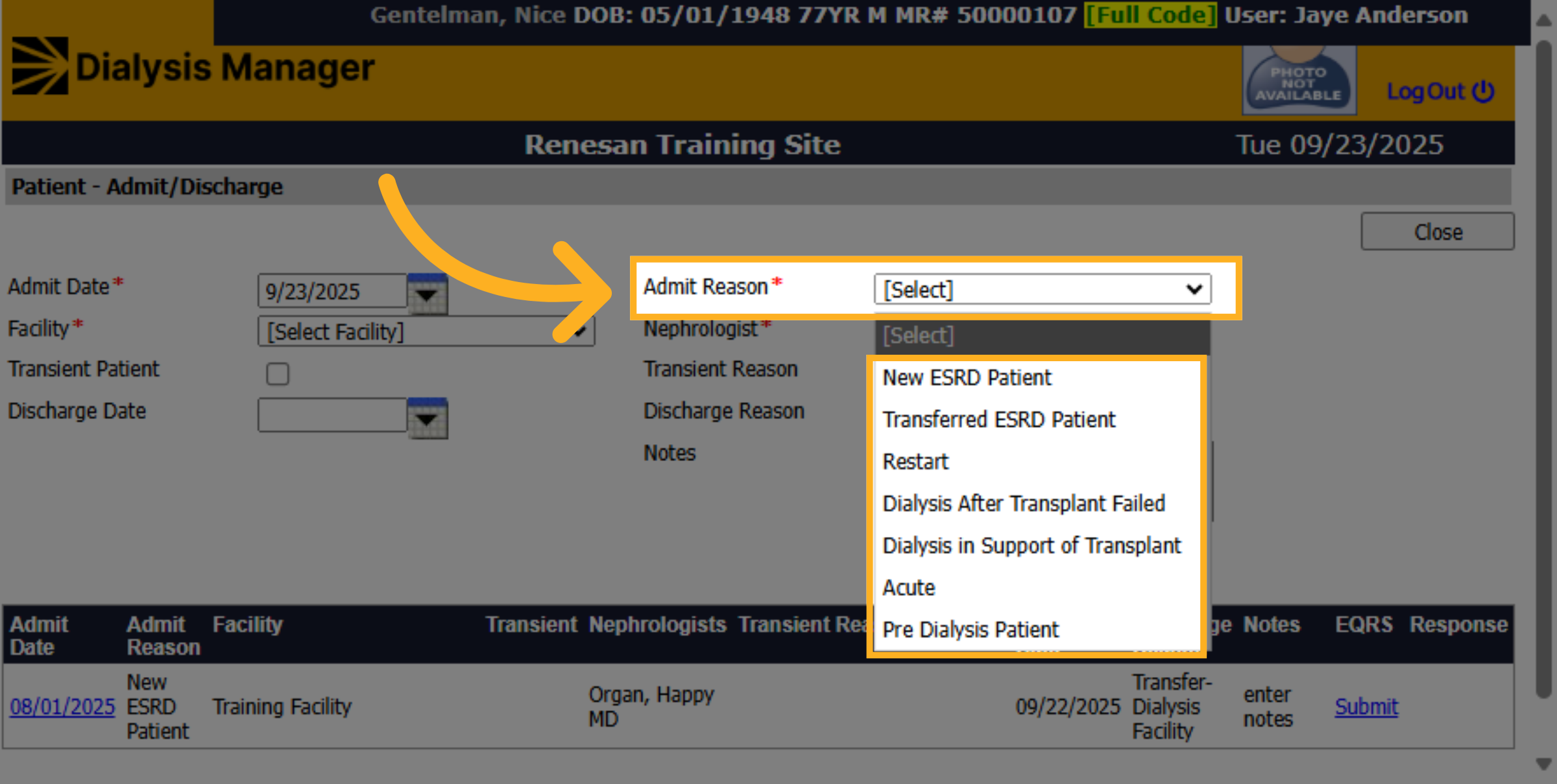
The dropdown options of Transferred ESRD Patient, Restart, Dialysis After Transplant Failed, Dialysis in Support of Transplant, Acute and Pre Dialysis Patient will appear in the Admit Reason. Once the information has been entered click Save
29. Review informtion
When admitting a previous patient into your facility make sure you are updating all relevant demographic information as well as dialysis orders and medication list.