Overview of Dialysis Manager.
1. Intro
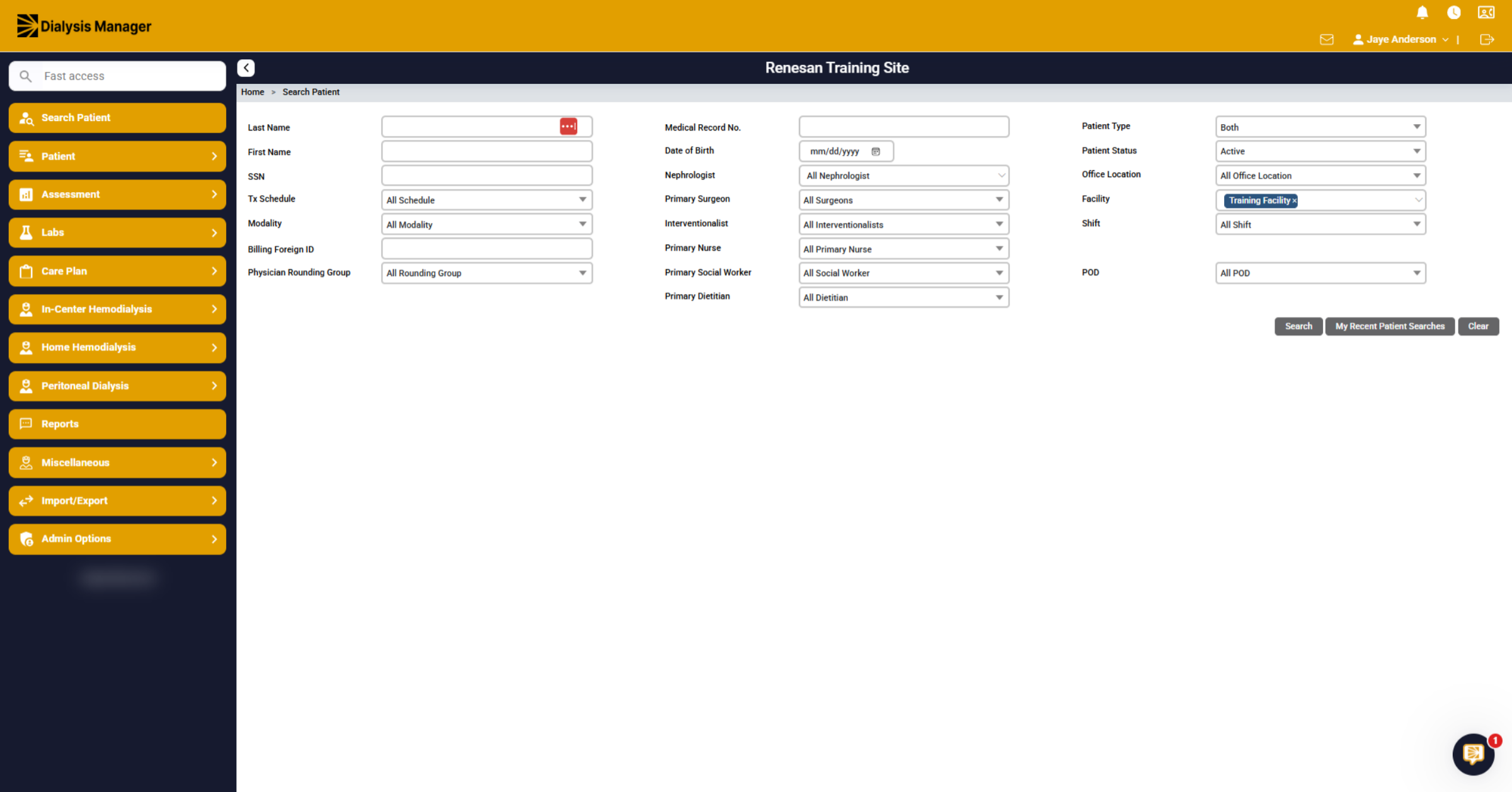
This is an overview of Dialysis Manager and is meant to provide a high-level review of the system. Some user accounts will default to the Search patient screen and others may default to the Treatment by date screen, or even patients being dialyzed. Today we are going to start from our Search Patient screen.
2. Open Search Function
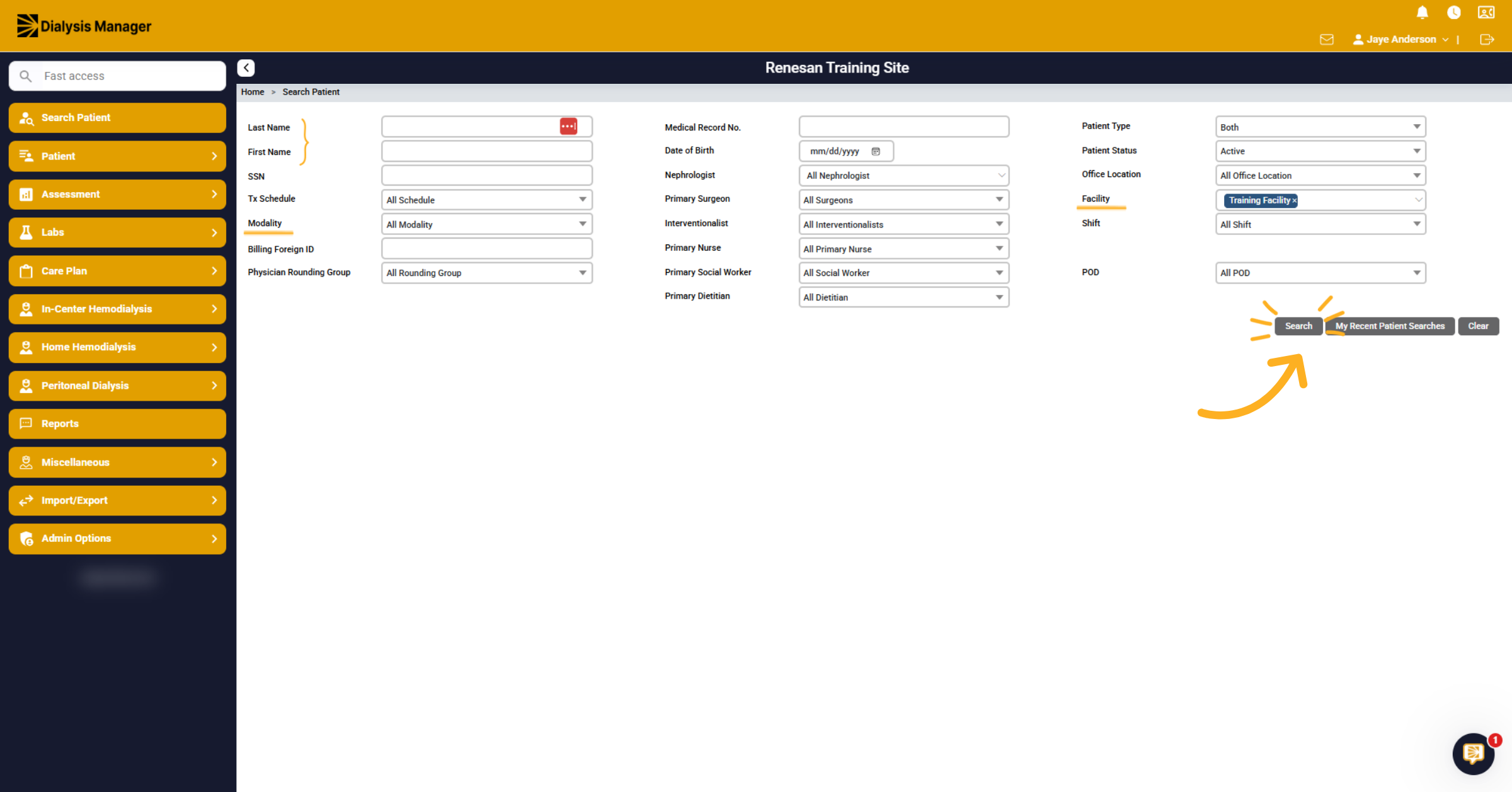
On the Search patient screen, you can search by last, first name, modality, facility, etc. Click the Search button to begin locating patient records.
3. Identify Hospitalized & DNR Patients
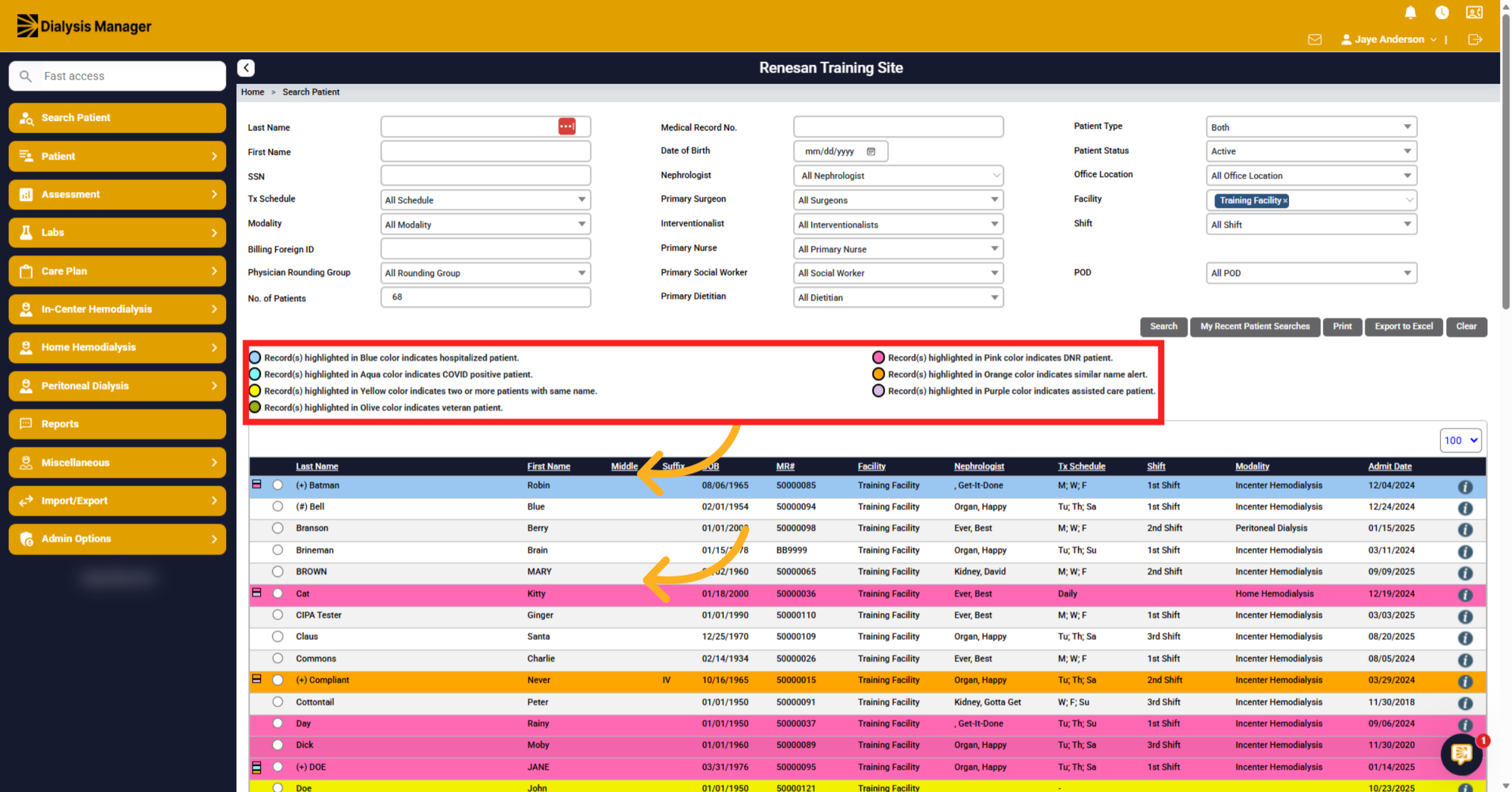
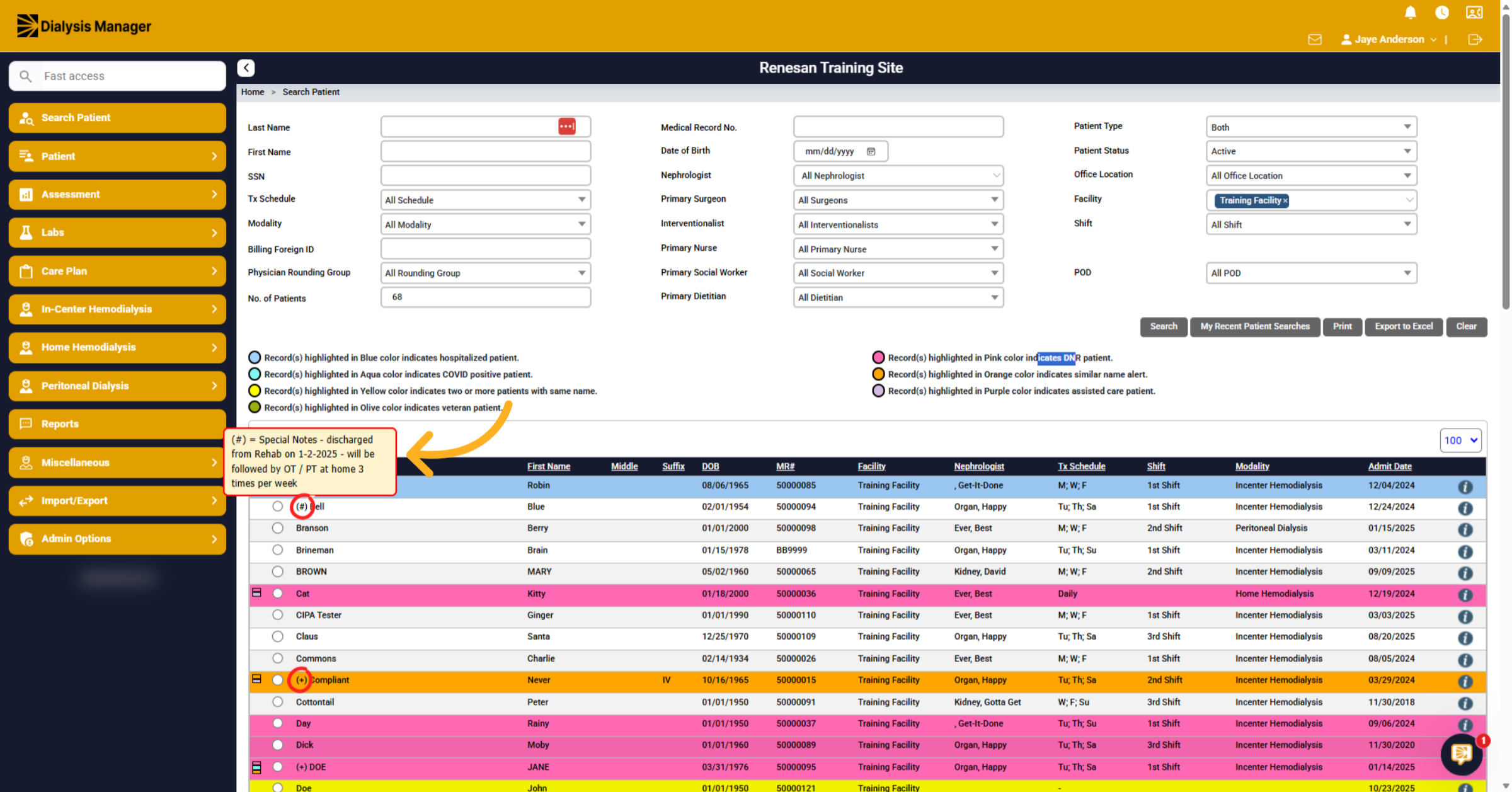
Above the patient list is a color key code noting the highlighted indicators. Notice the blue highlighted color identifying hospitalized patients. Also, records highlighted in pink color are identifying Do Not Resuscitate patients.
4. Access Notification symbol
Hover over the pound symbol or plus icon to view notifications related to a patient special notes or alerts.
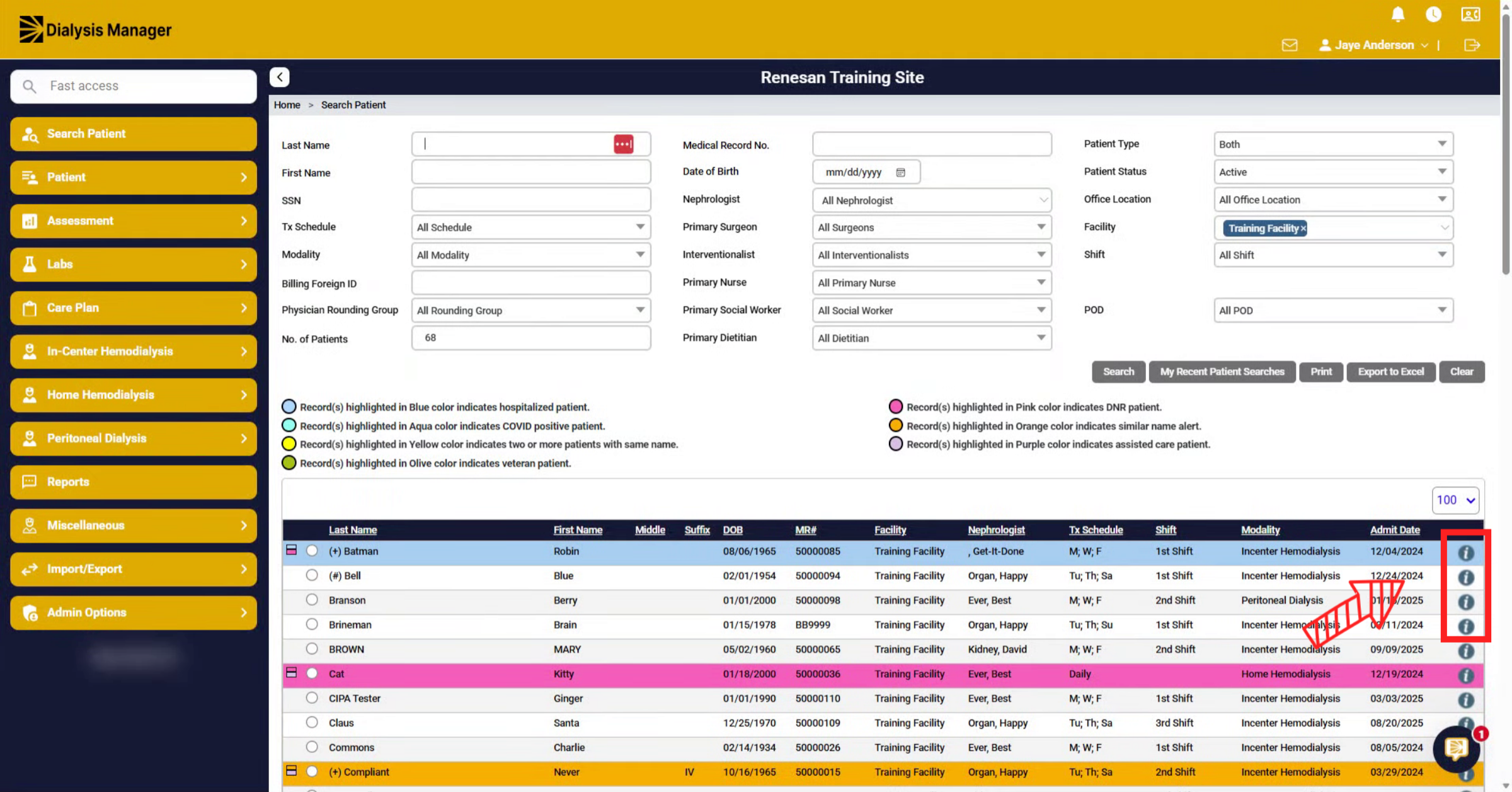
5. Hover Over 'i' Icon To View Info
When you hover over the "I" icon, a pop up will appear where you can view patient information.
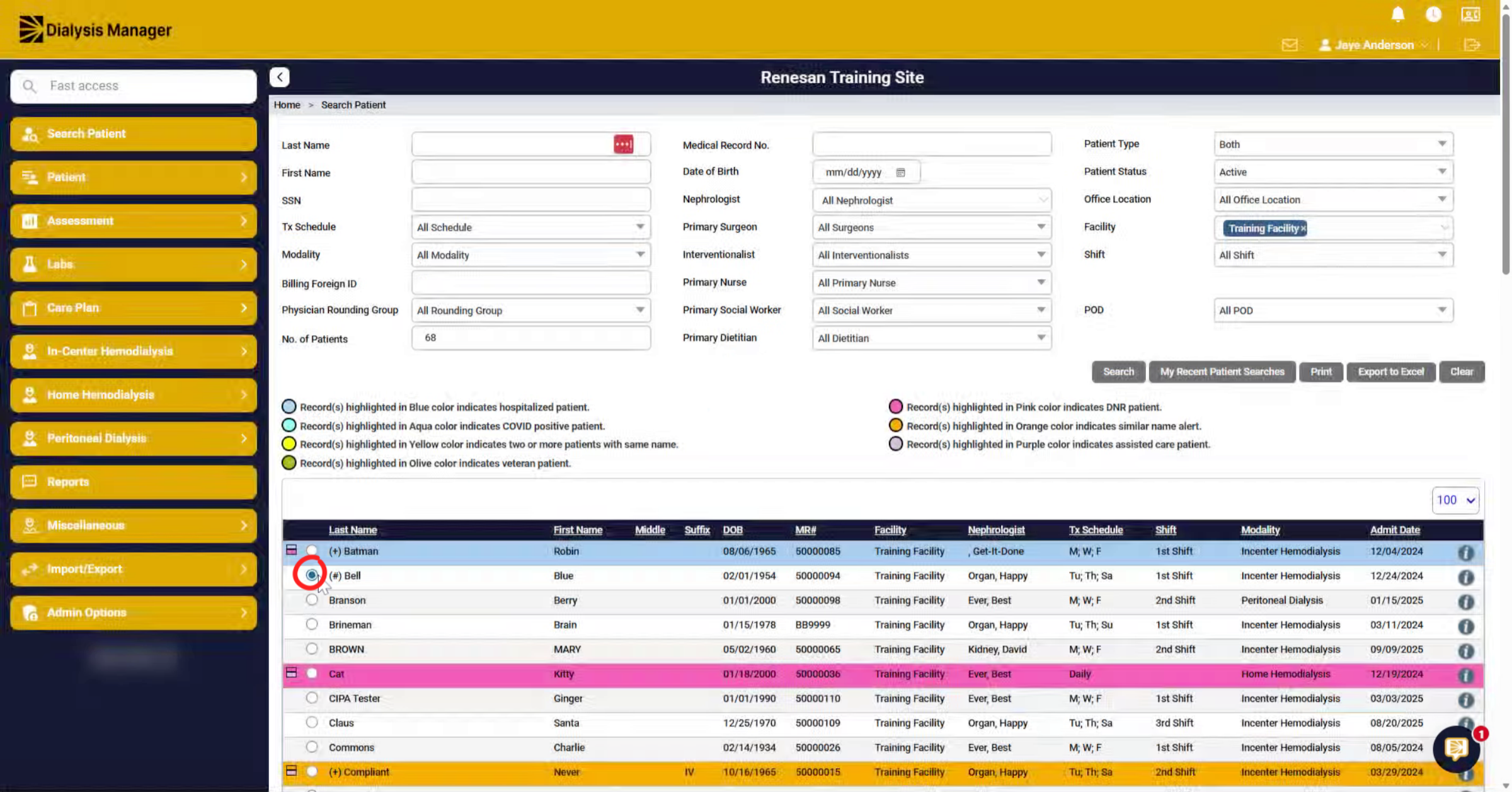
6. Monitor Patient Selection Indicator
After selecting a patient, the patient follows you, as you can see along the top.
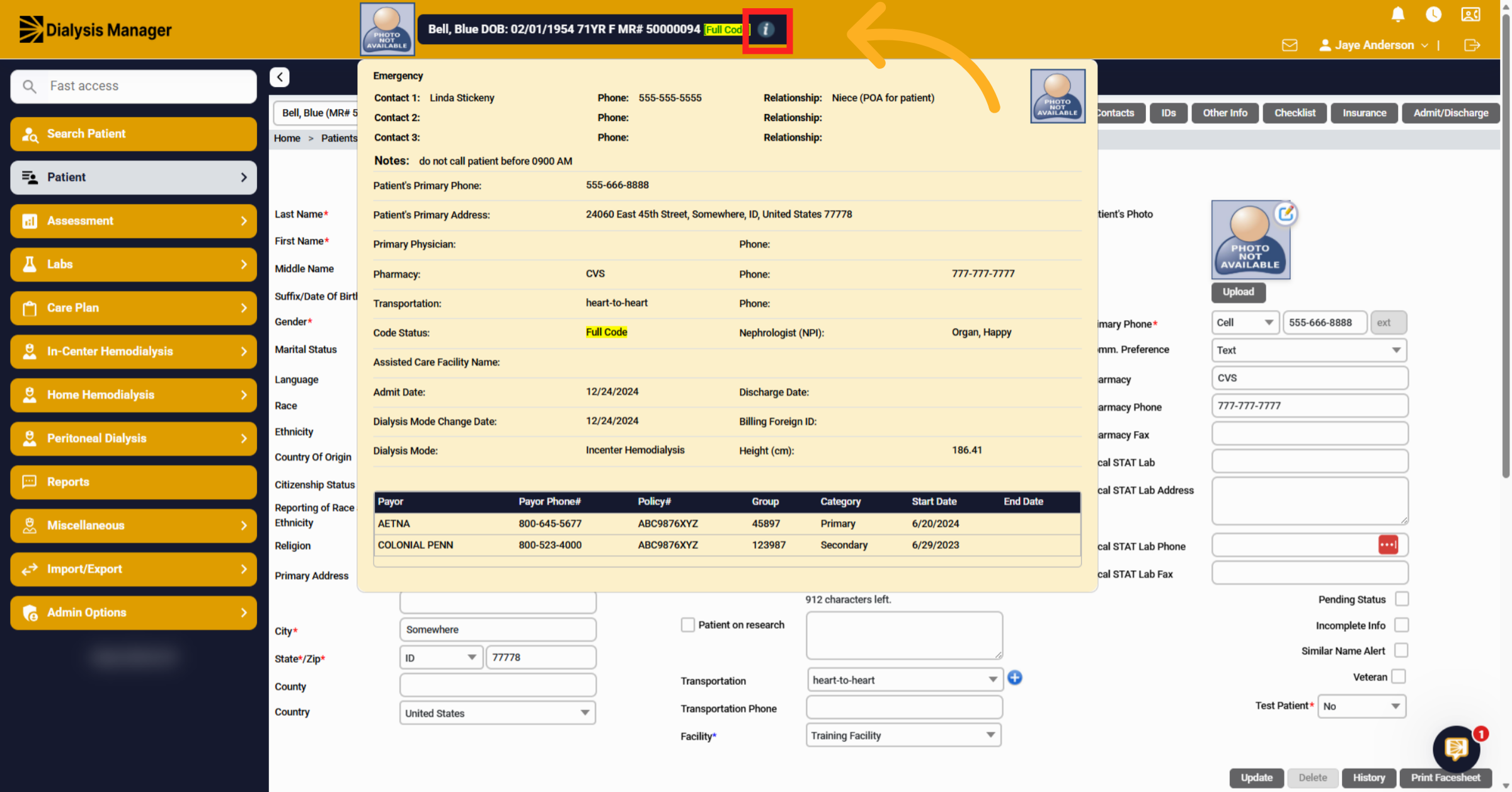
7. Access Patient Details Via Icon
Hovering here will also display detailed information about the selected patient using the "I" icon.
8. Access Contacts Tab
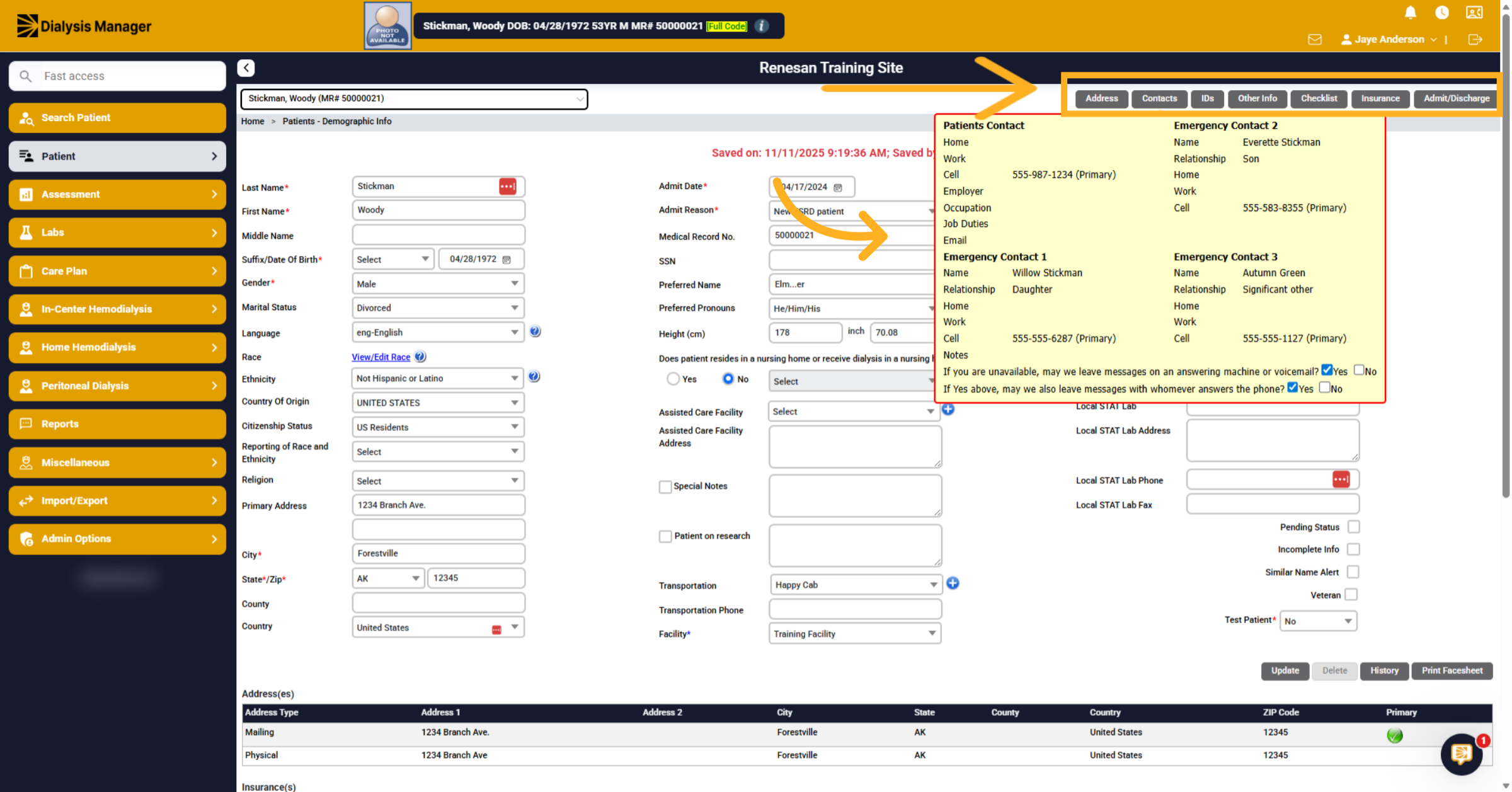
Within the Edit Patient screen are the demographic details. Also, notice the buttons along the top. You can Click Contacts (or other buttons) to open a new window and edit information. Or hover over the button to simply view information.
9. Select Note Categories
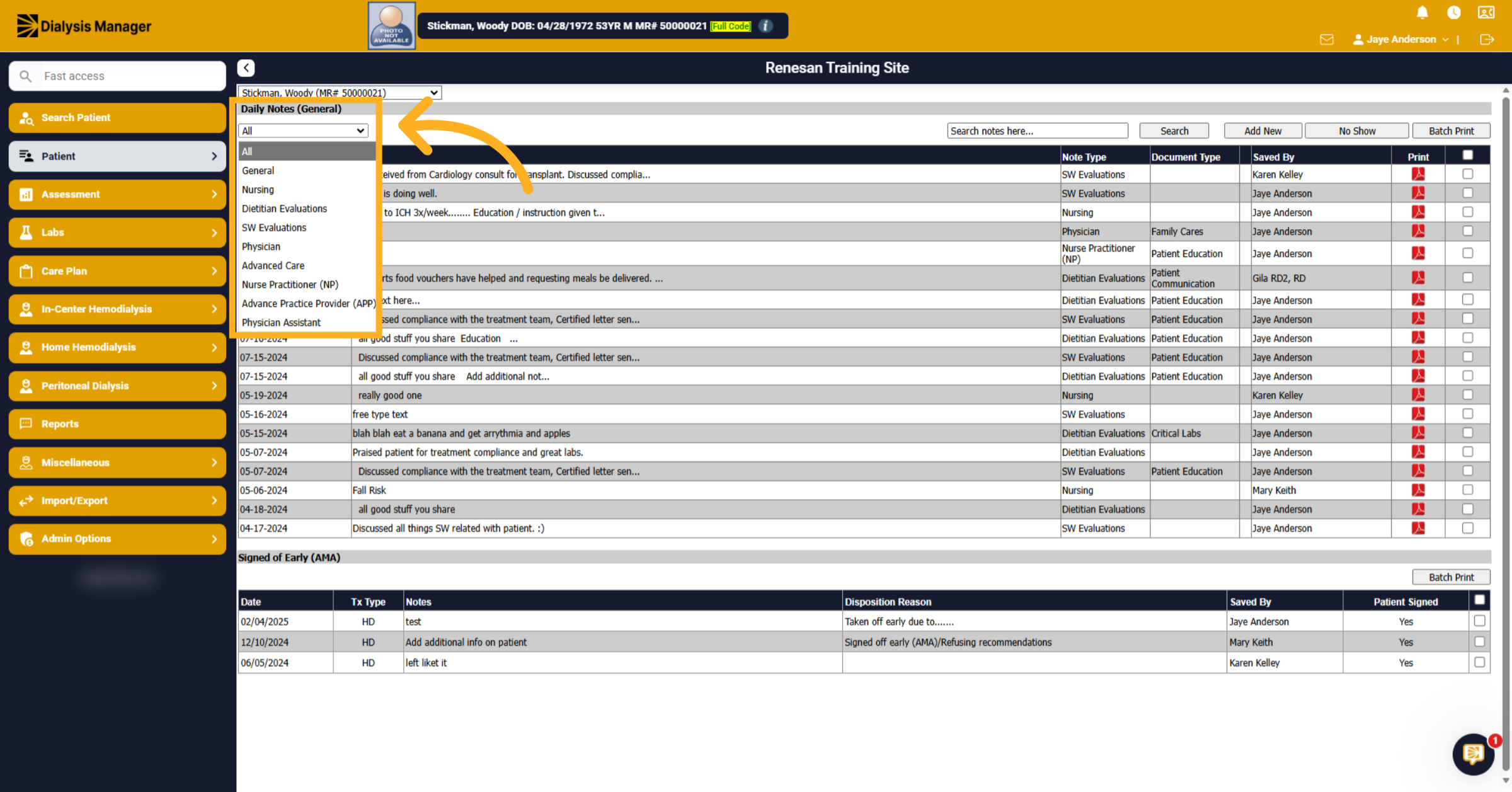
Click Patients, Daily Notes, and General Notes to access all patient notes. Click the All drop down option to view specific note categories including General, Nursing, Dietitian Evaluations, Social Work Evaluations, Physician, Advanced Care, Nurse Practitioner, Advance Practice Provider, and Physician Assistant notes.
10. Print Note Categories
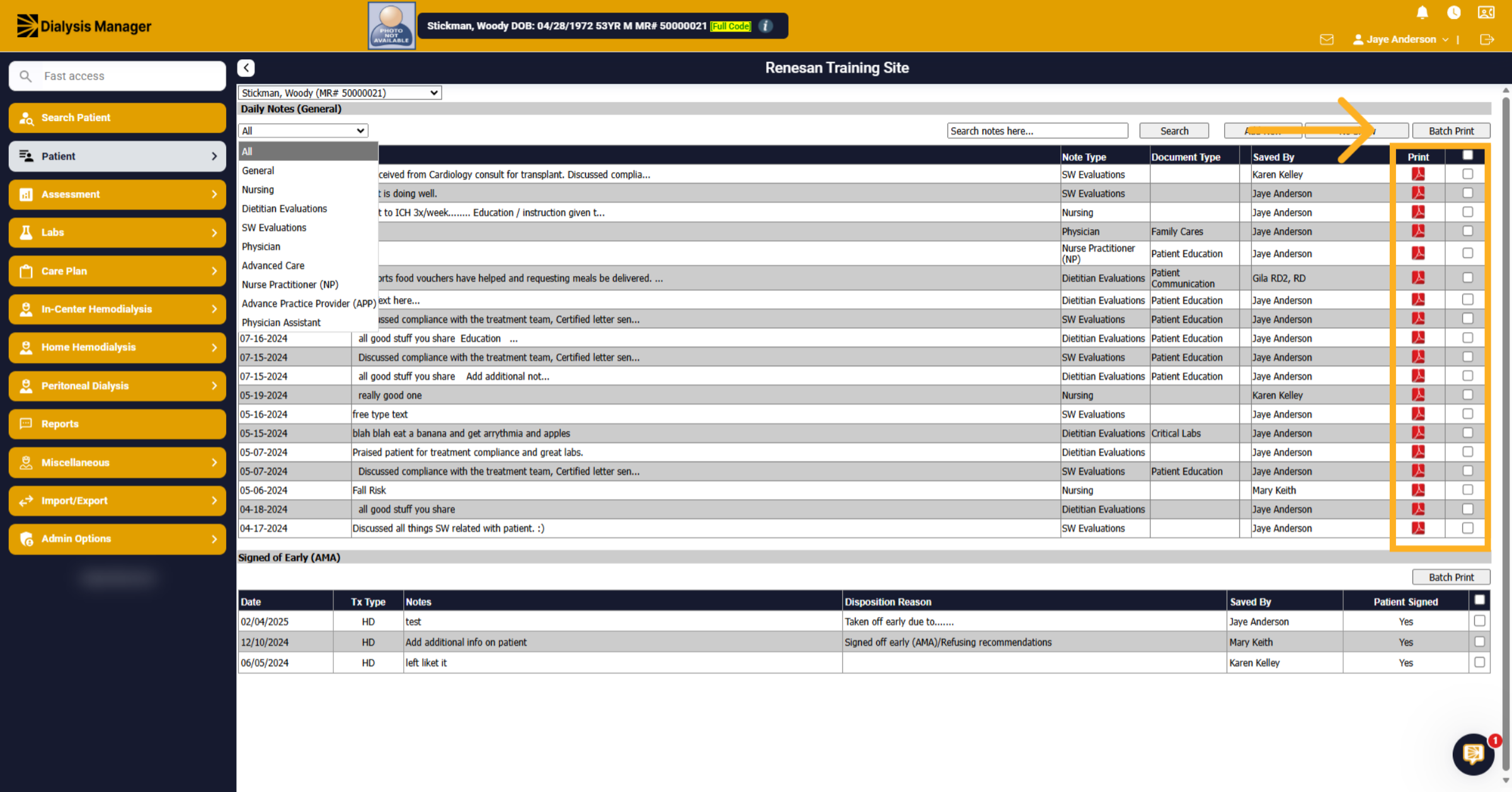
You can also click on the individual print option to print one note or select multiple and choose the batch print option.
11. Access Medication Reconciliation
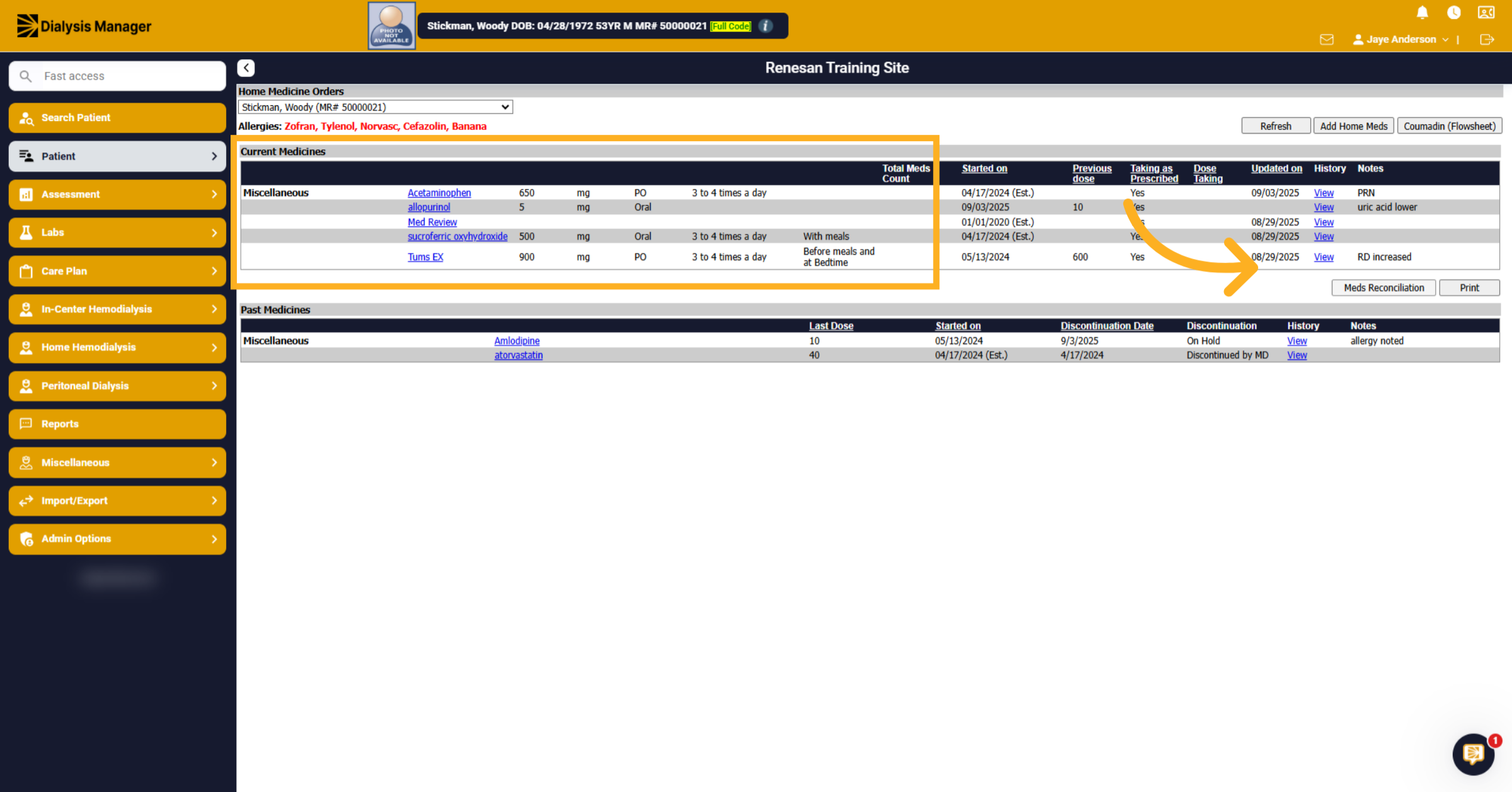
Click Patient menu and Home Meds to review the patient's current at home medications. Click Meds Reconciliation to complete your monthly medication reconciliation. This information will flow across to CMS.
12. Open Comorbidities Section
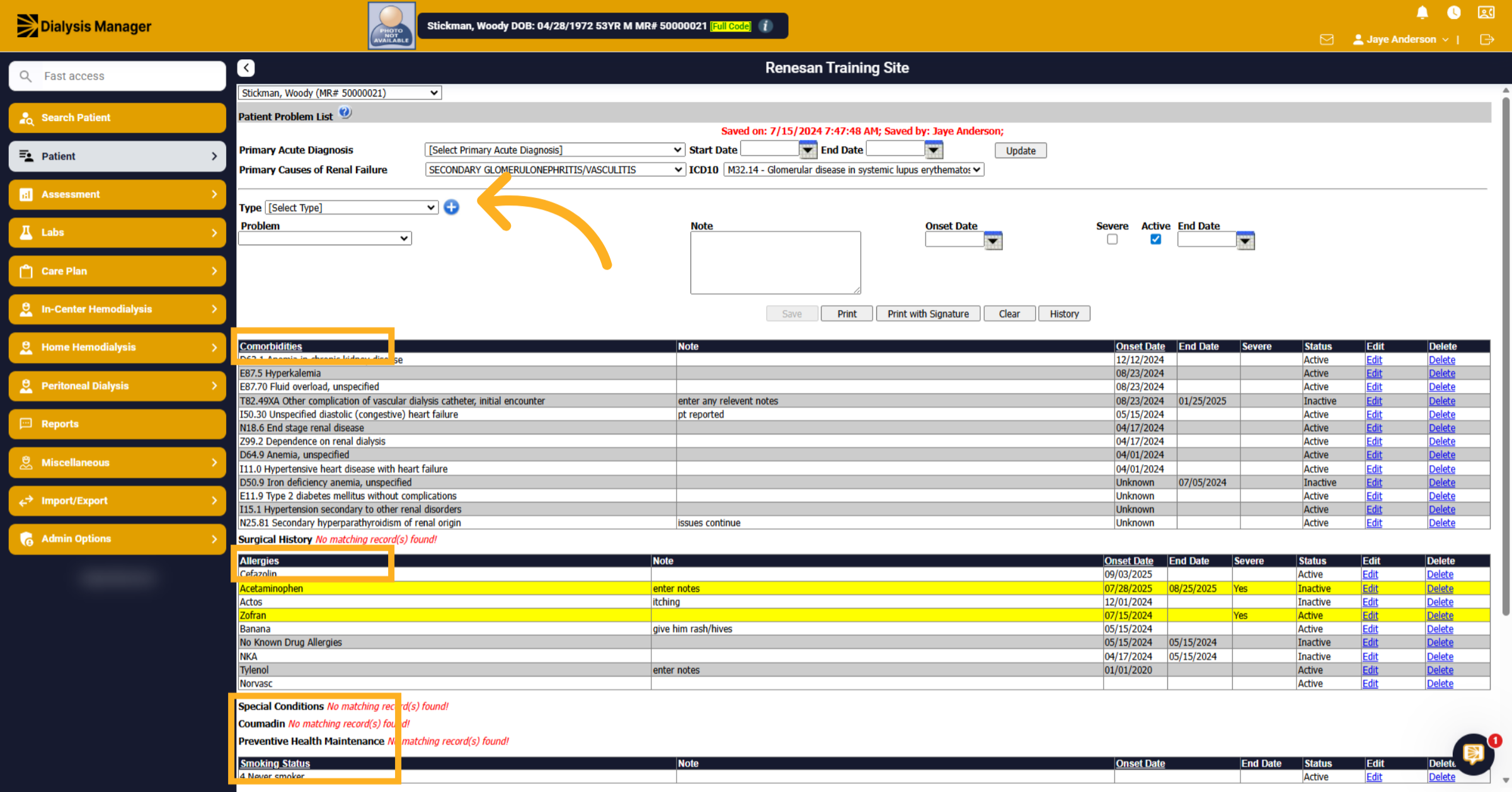
Click the Patient menu then Problem List to see the patient's active medical problems. Here you can add, edit, discontinue, delete, and review information related to Comorbidities, Surgical History, Allergies, Special Conditions, Coumadin, Preventive Maintenance, Smoking Status, Family Health History, Instructions, and ESA Exclusion Reason.
13. Access Transplant Information
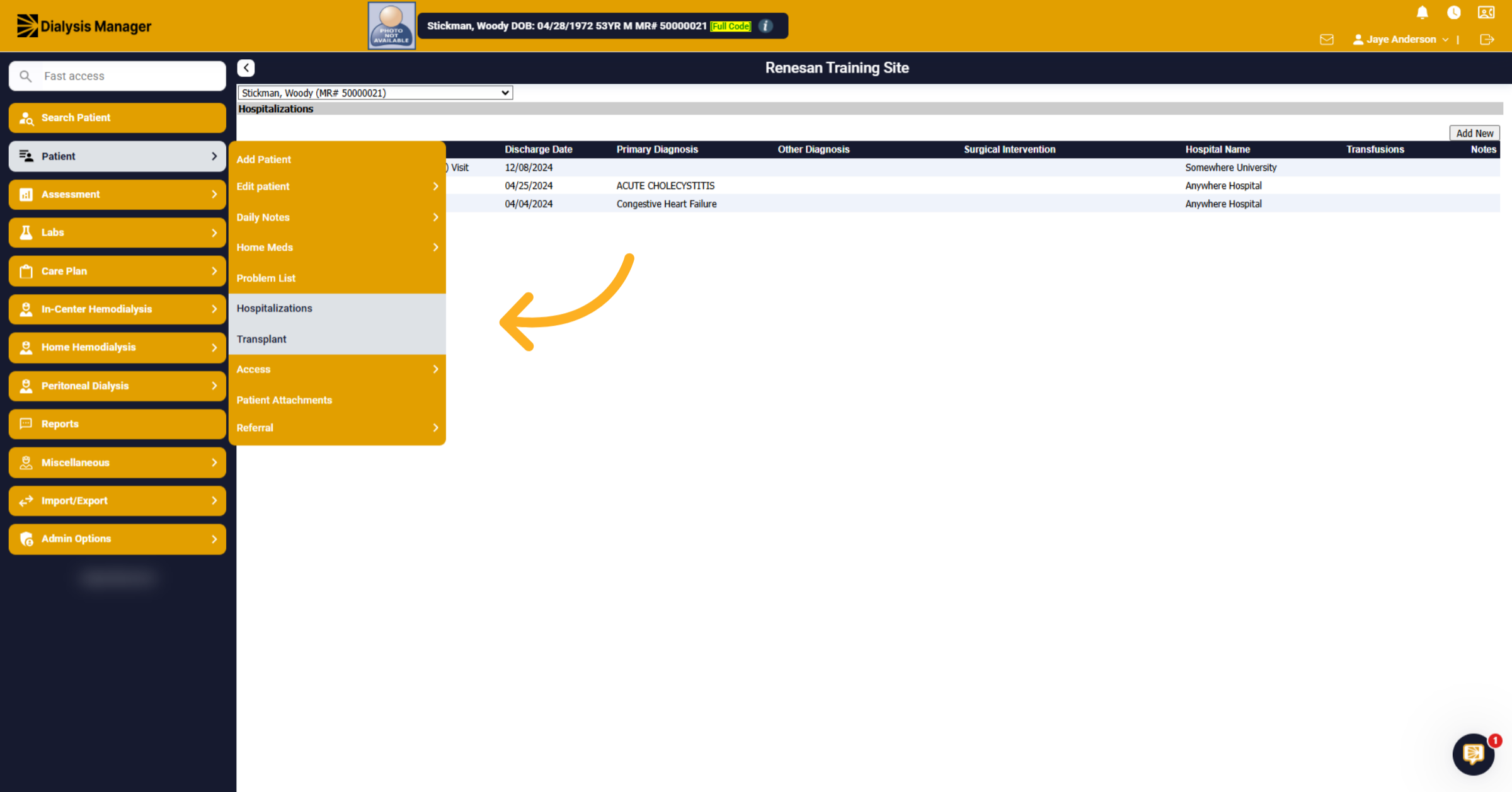
From the patient menu click Hospitalizations to review patient hospital admission and discharge history. Or click Transplant to review or add transplant-related data.
14. Select Date Entry
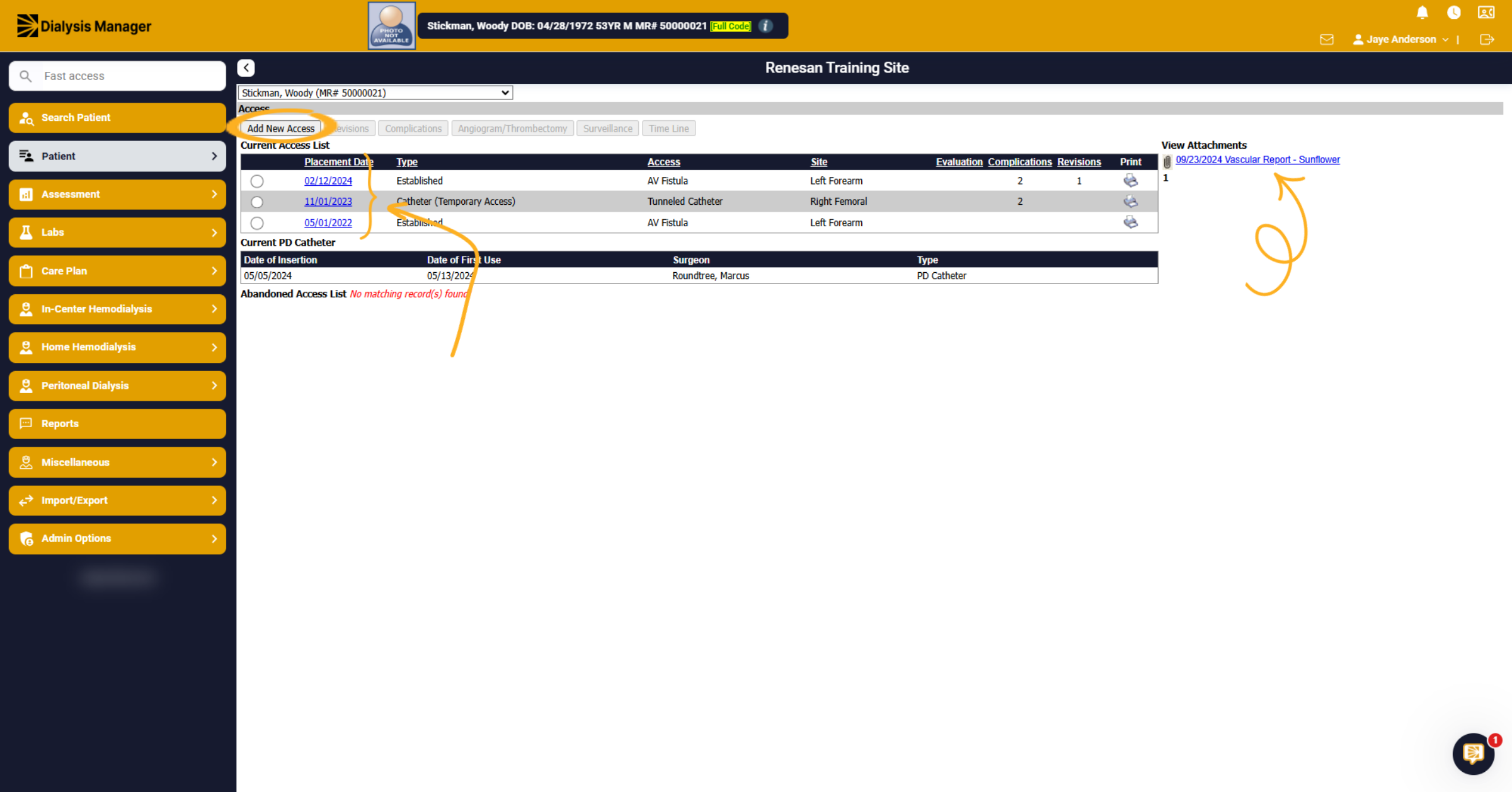
Click Patient menu then Access to add or view vascular or dialysis access details. Click the date to view detailed access records and add any Complications, evaluations, and revisions. Access related attachments are also listed on the right-hand side.
15. Patient Attachments
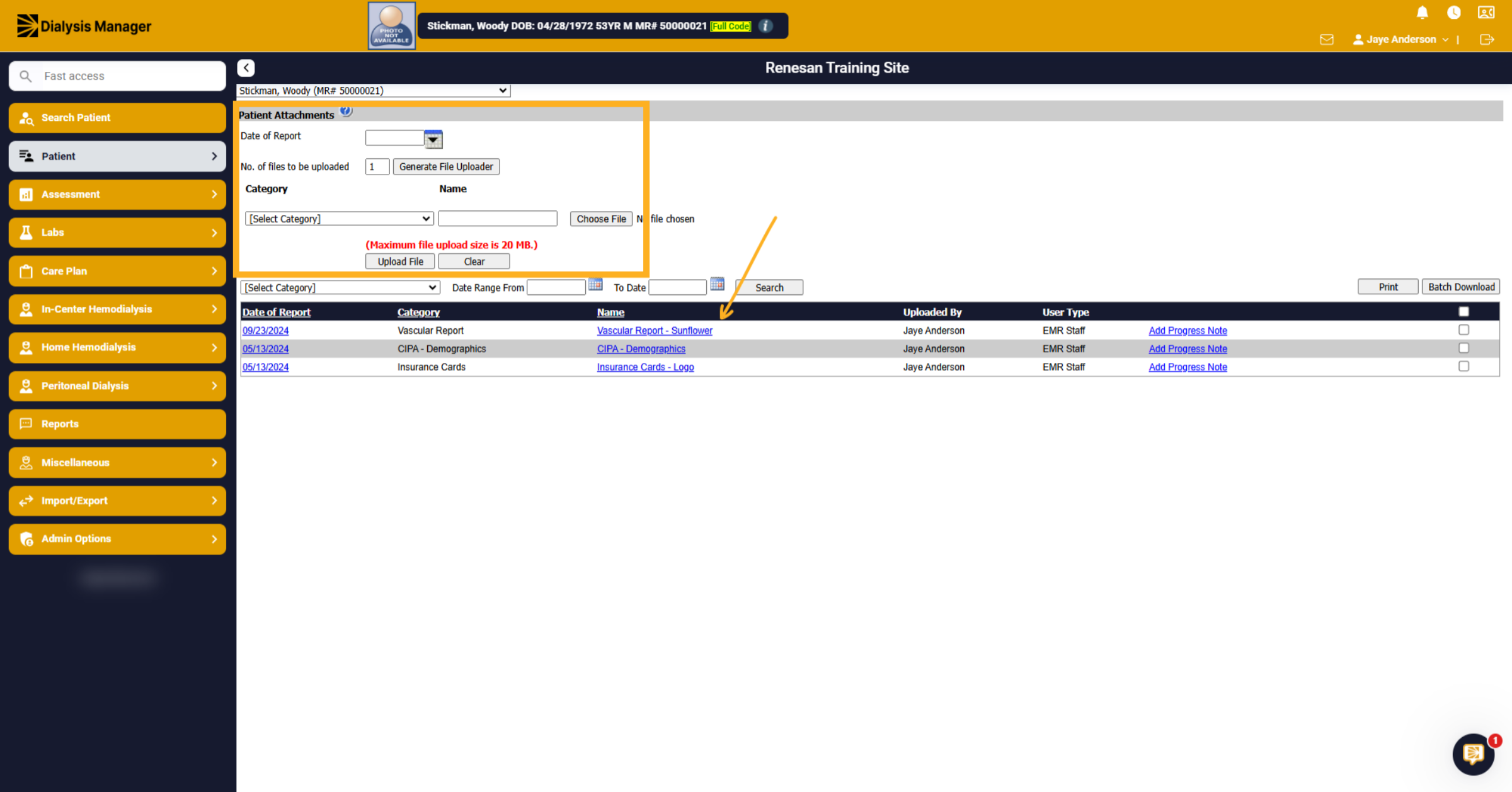
Click Patient and Patient Attachments to access and upload documents. Notice the Vascular Report we seen listed on the previous page. Within this section you can upload up to nine separate 20-megabit files at one time. The categories can also be modified.
16. Access Assessment Section
Under Assessment you'll see clinical evaluations.
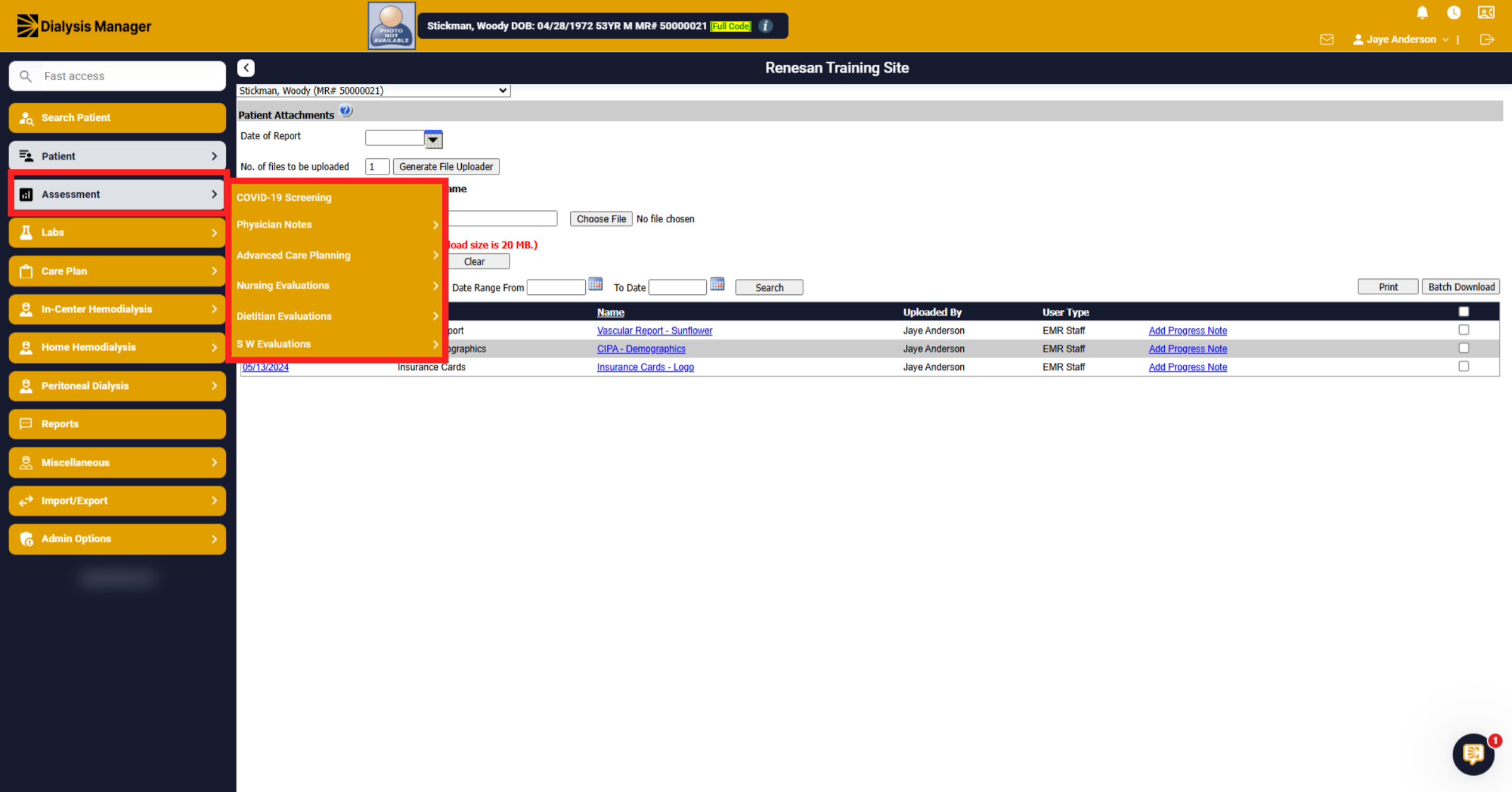
17. Open Nursing Evaluations
Click Nursing Evaluations to add or review nursing assessments including Initial, Annual, and Monthly Assessments.
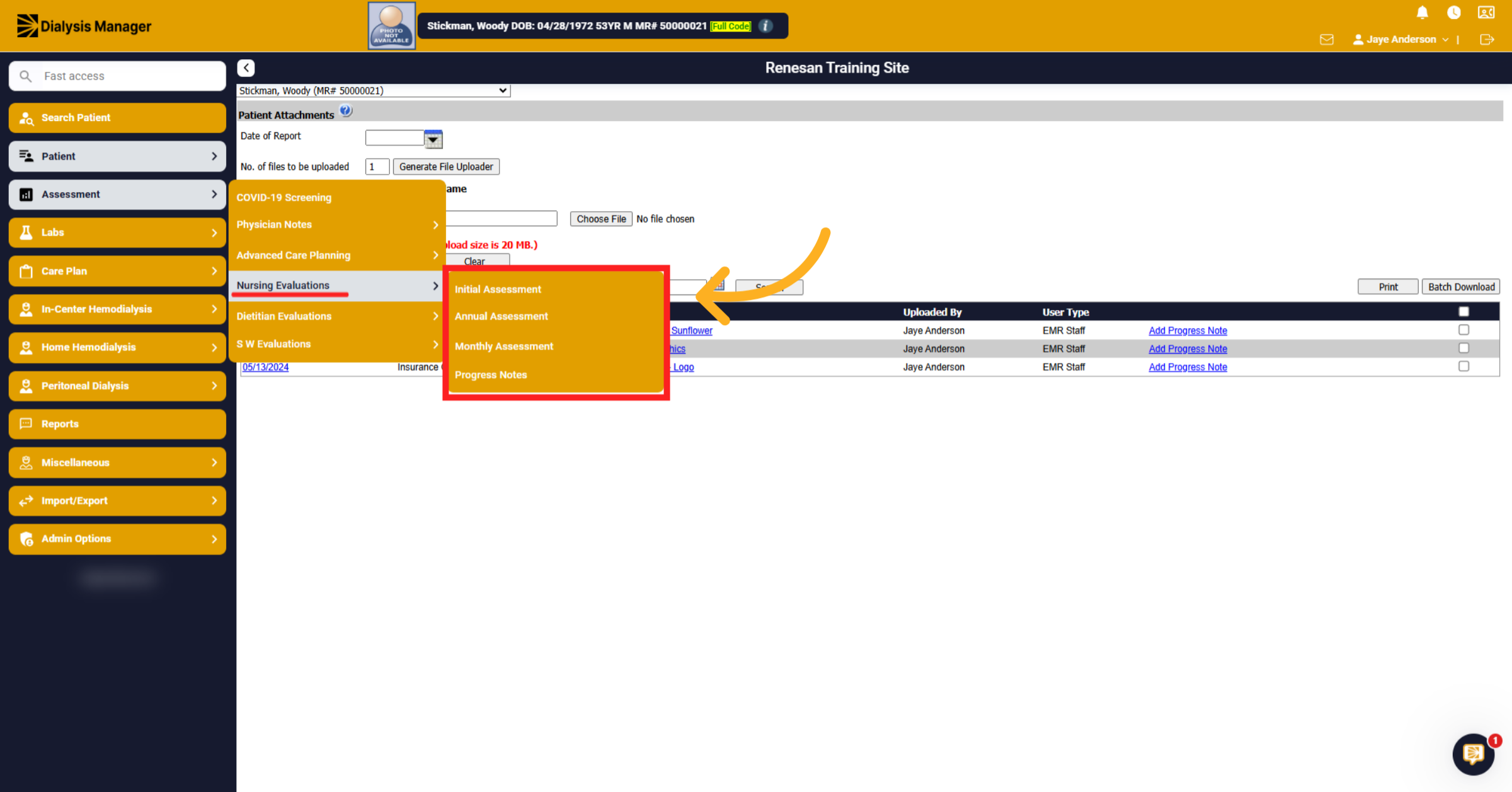
18. Access Dietitian Evaluations
Inside Dietitian Evaluations you'll see nutritional assessments including initial, annual and monthly/quarterly. There is also a Dietitian Hand out, also known as a monthly report card. The Dietary Recommendations are also listed in this menu.
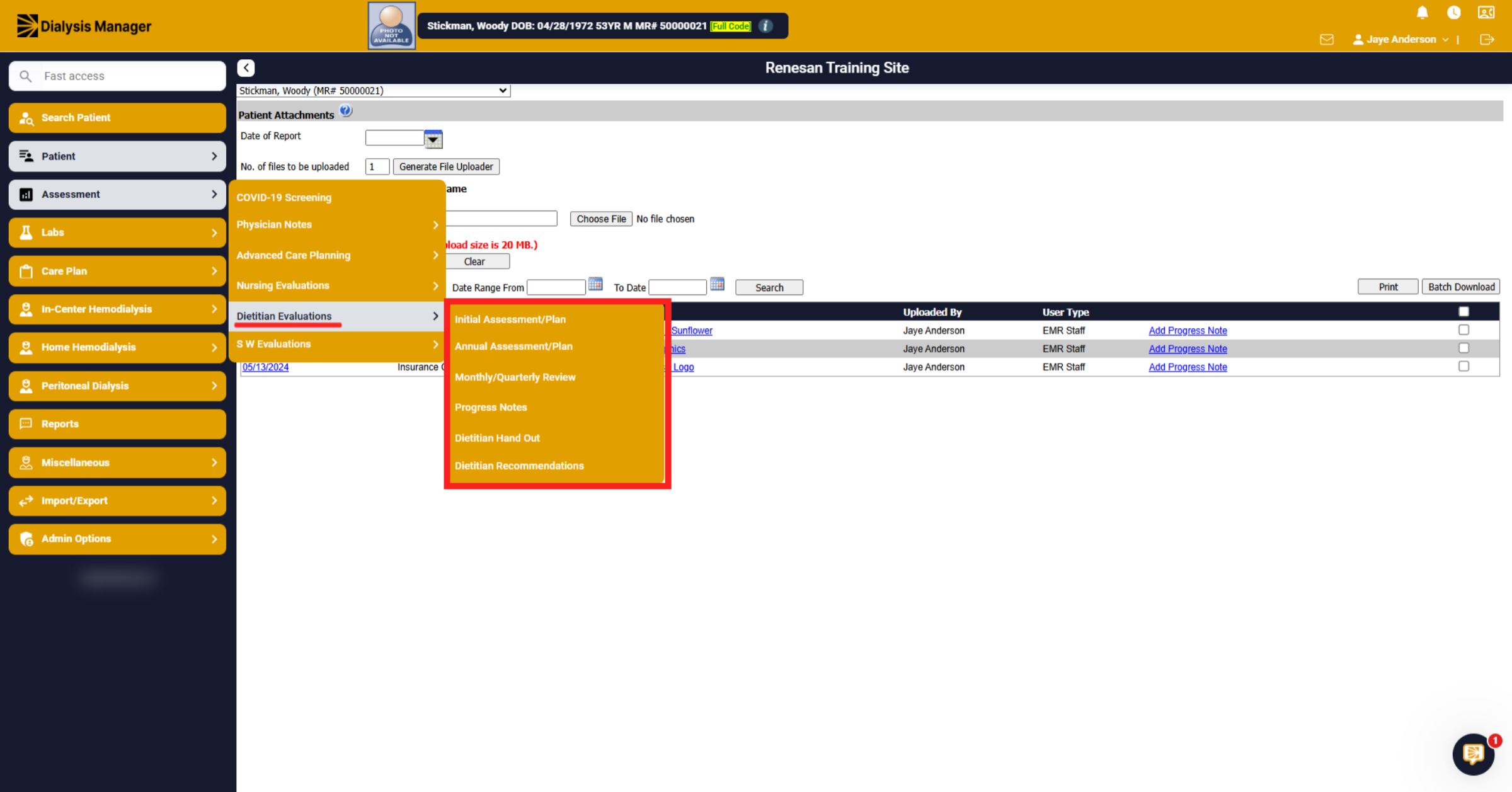
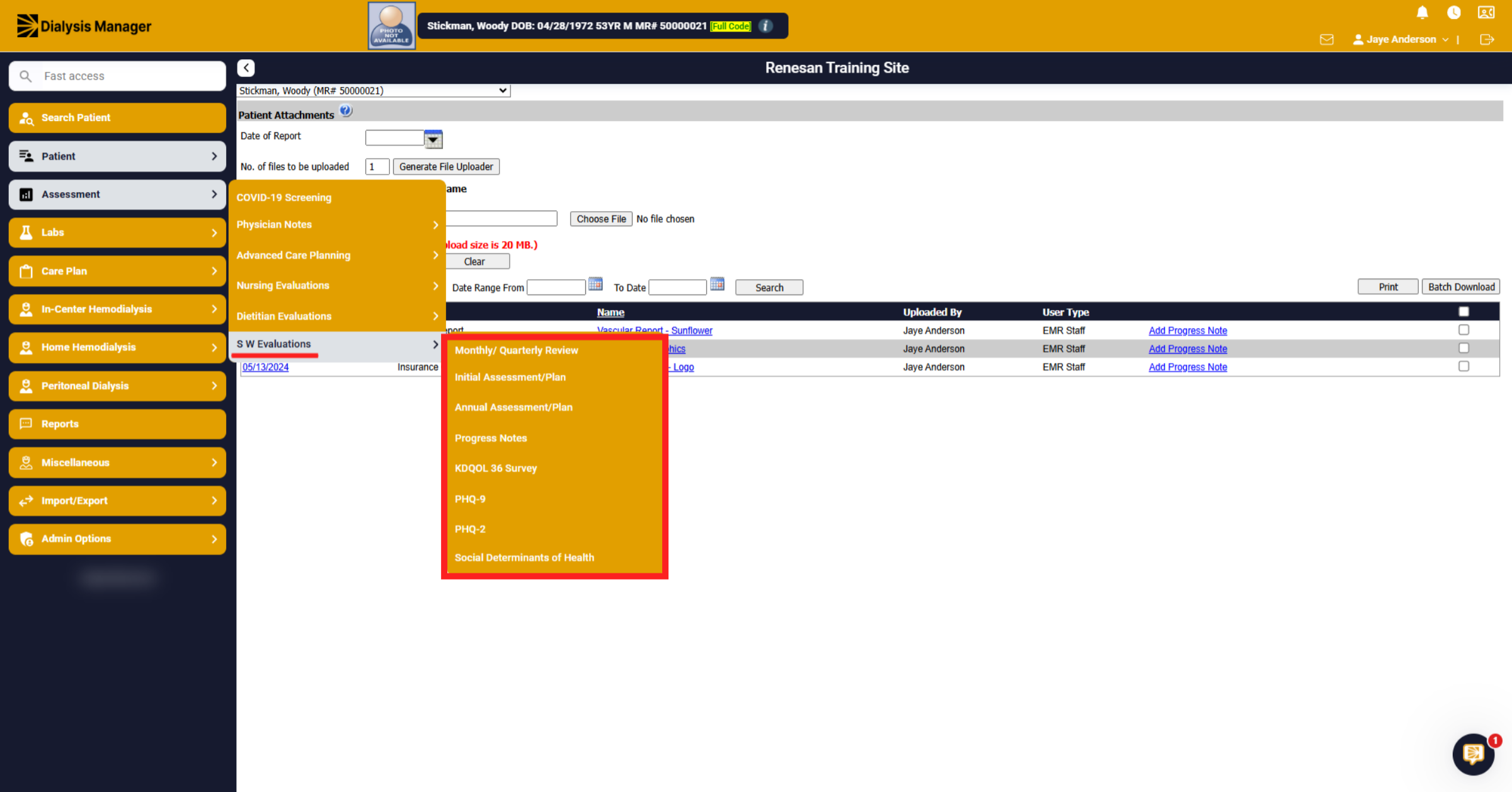
19. Open Social Work Evaluations
Under S W Evaluations you'll be able to add or review social work Assessments including Monthly/Quarterly and Annual. We also have a KDQOL Survey, the PHQ assessments and Social Determinants of Health.
20. Access Dialysis Visit Notes
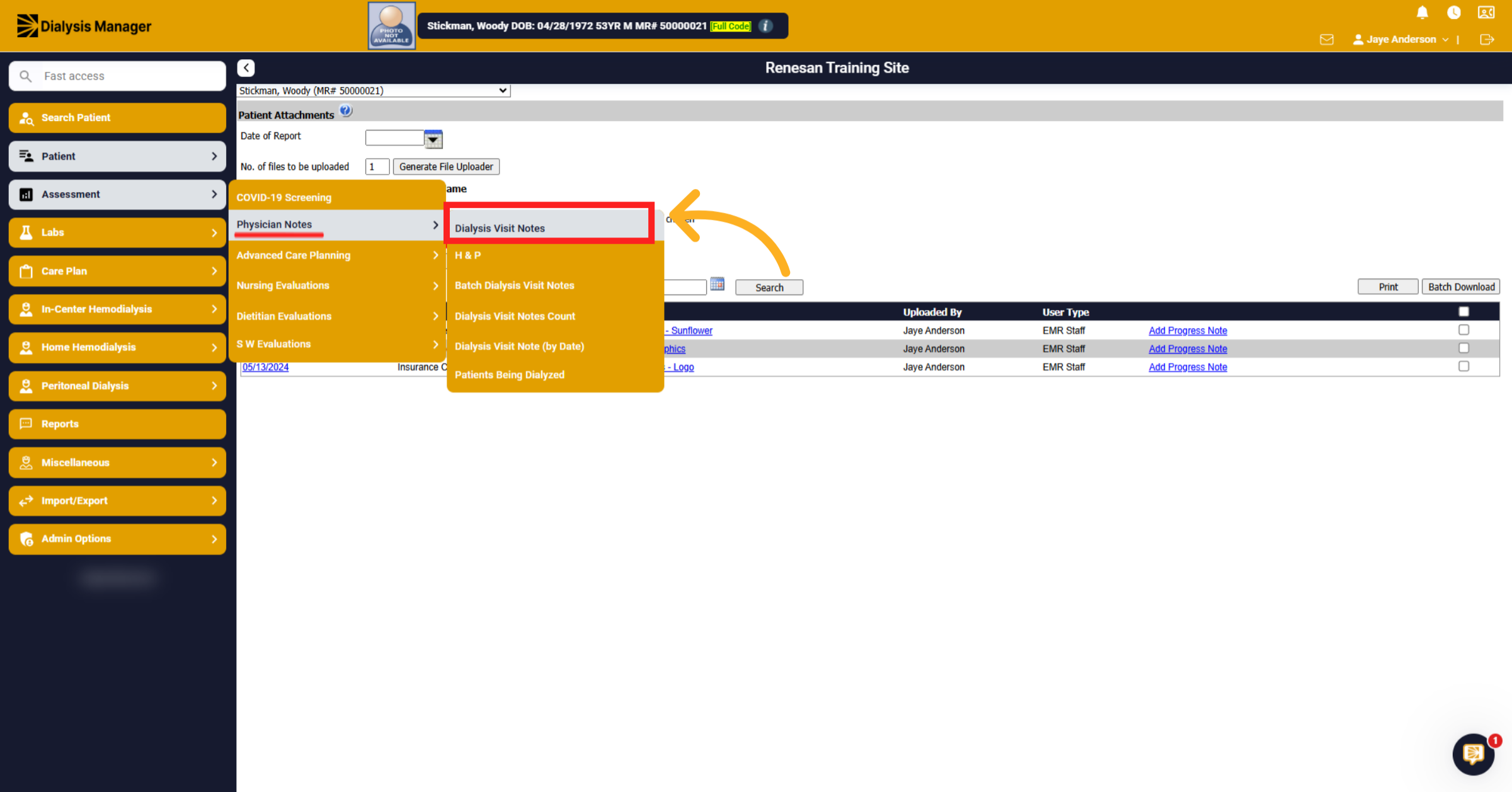
Under Physician Notes click Dialysis Visit Notes to view and enter physician notes from dialysis visits.
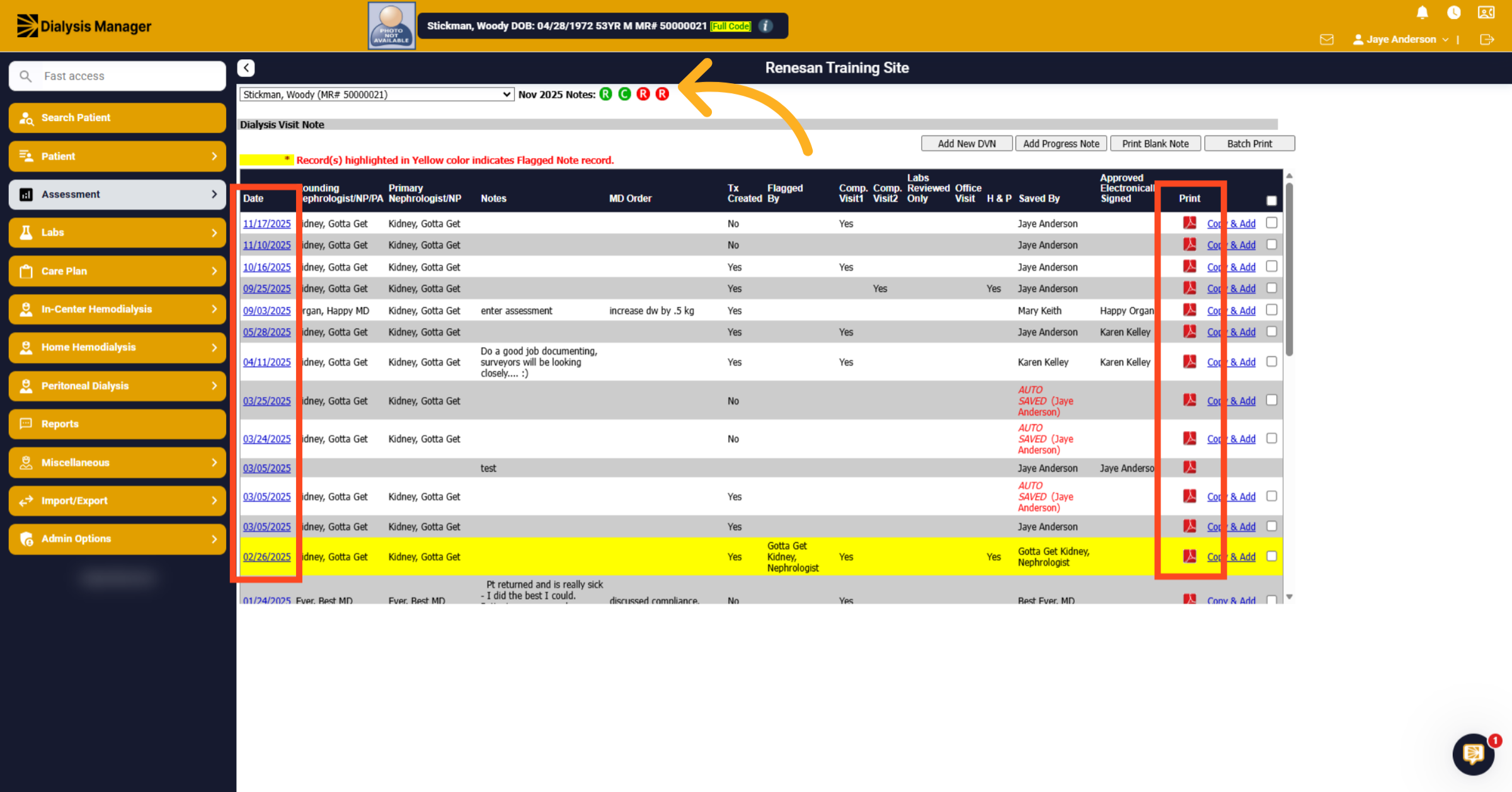
21. Select Designated Area
Notice for this particular patient, the indicators along the top. Red, stating not done, and green, stating complete. This is showing if the Monthly rounding has been completed or not for the current month. R symbols a regular visit while the C symbols a comprehensive visit. Clicking the date will open the visit. Or you can choose the Print icon to print a visit.
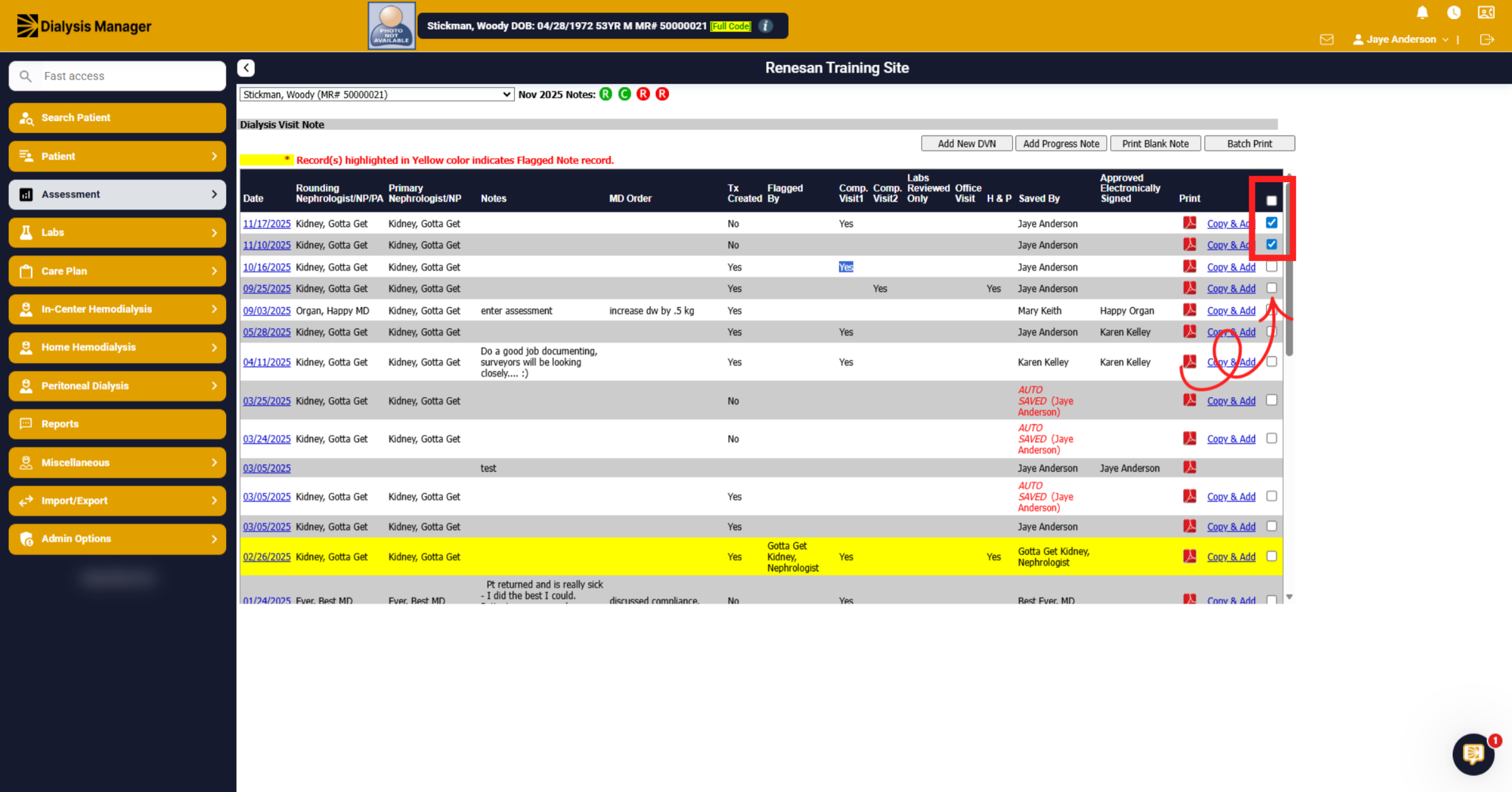
22. Batch Print
To batch print multiple visits, mark the dates to print.
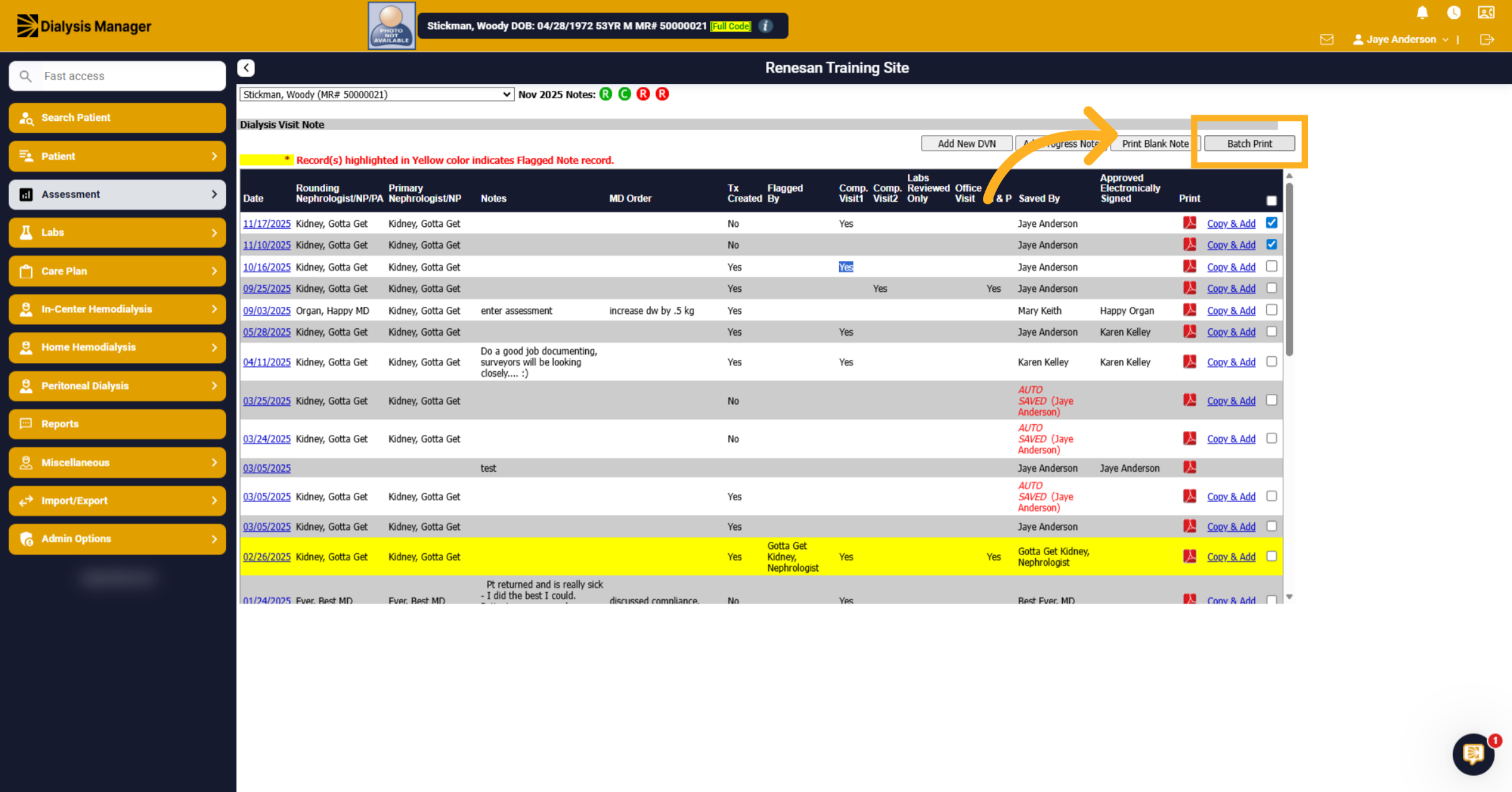
23. Initiate Batch Print
Click Batch Print to start printing multiple documents.
24. Select Future Date
Click the date to open and view or edit a specific treatment date. Or choose Add New DVN to start a new Dialysis Visit Note.
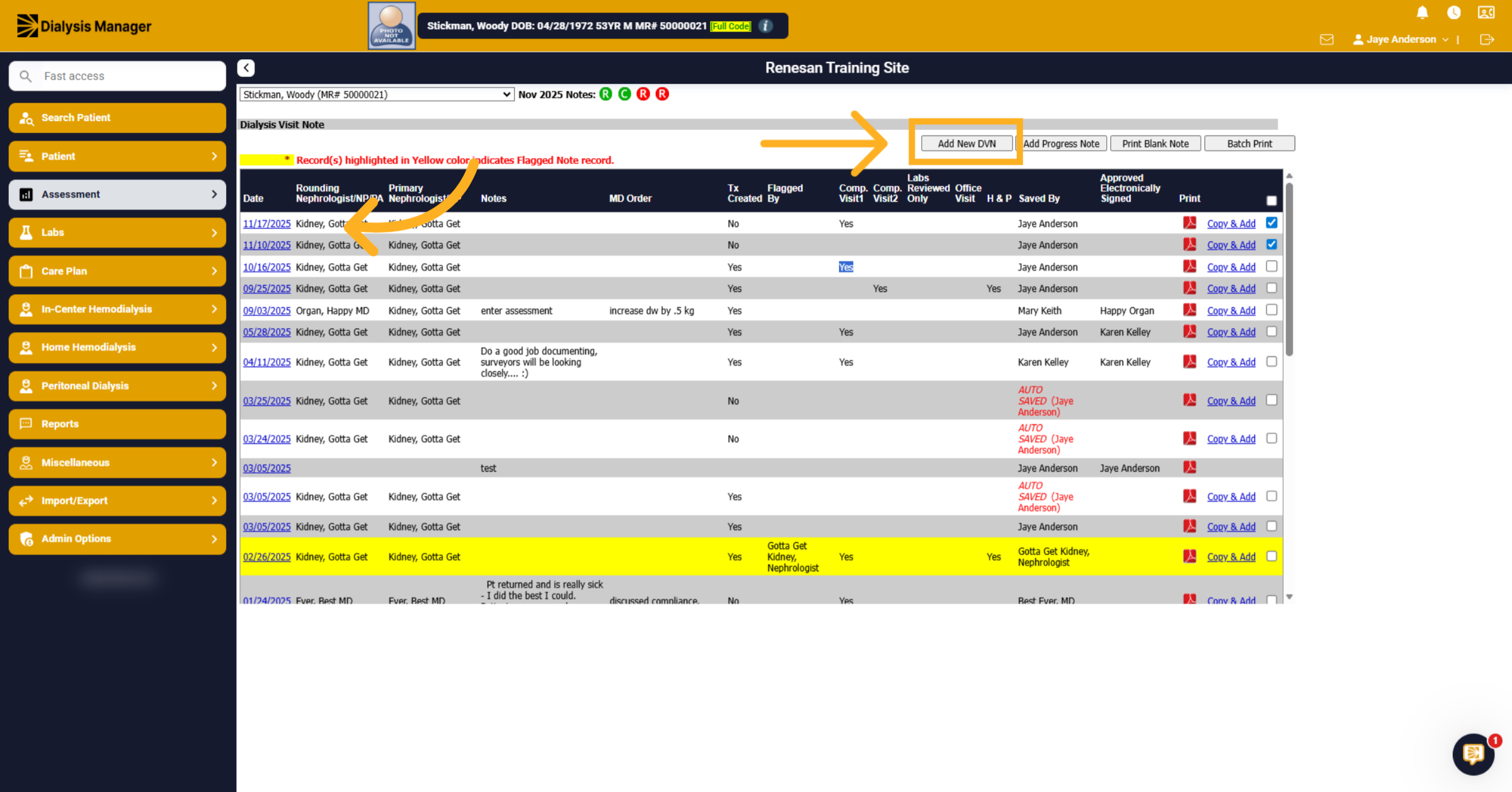
25. Inside the DVN
When clicking Add New, it will open a new assessment. Across the top of the page you'll have buttons. You are able to hover over the buttons to see information or click into the button to open another screen displaying that information without closing the Dialysis Visit Note.
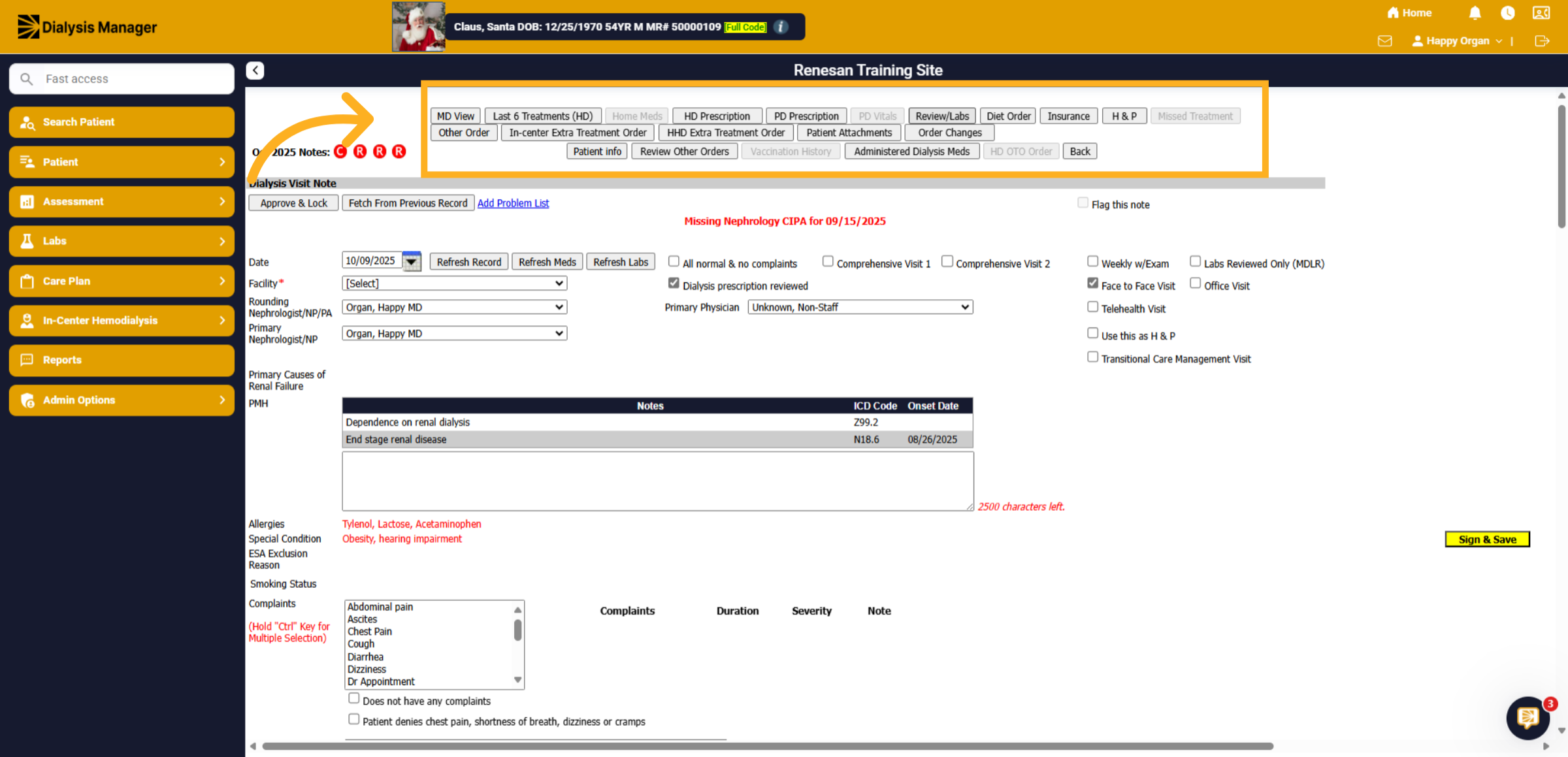
26. Note Type
You'll have the options for All normal & no complaints, Comprehensive Visit 1 or 2, and Weekly with exam. The difference between Comprehensive 1 and 2 are the views. Comp 1 displays lab details horizontally and Comp 2 lists them vertically.
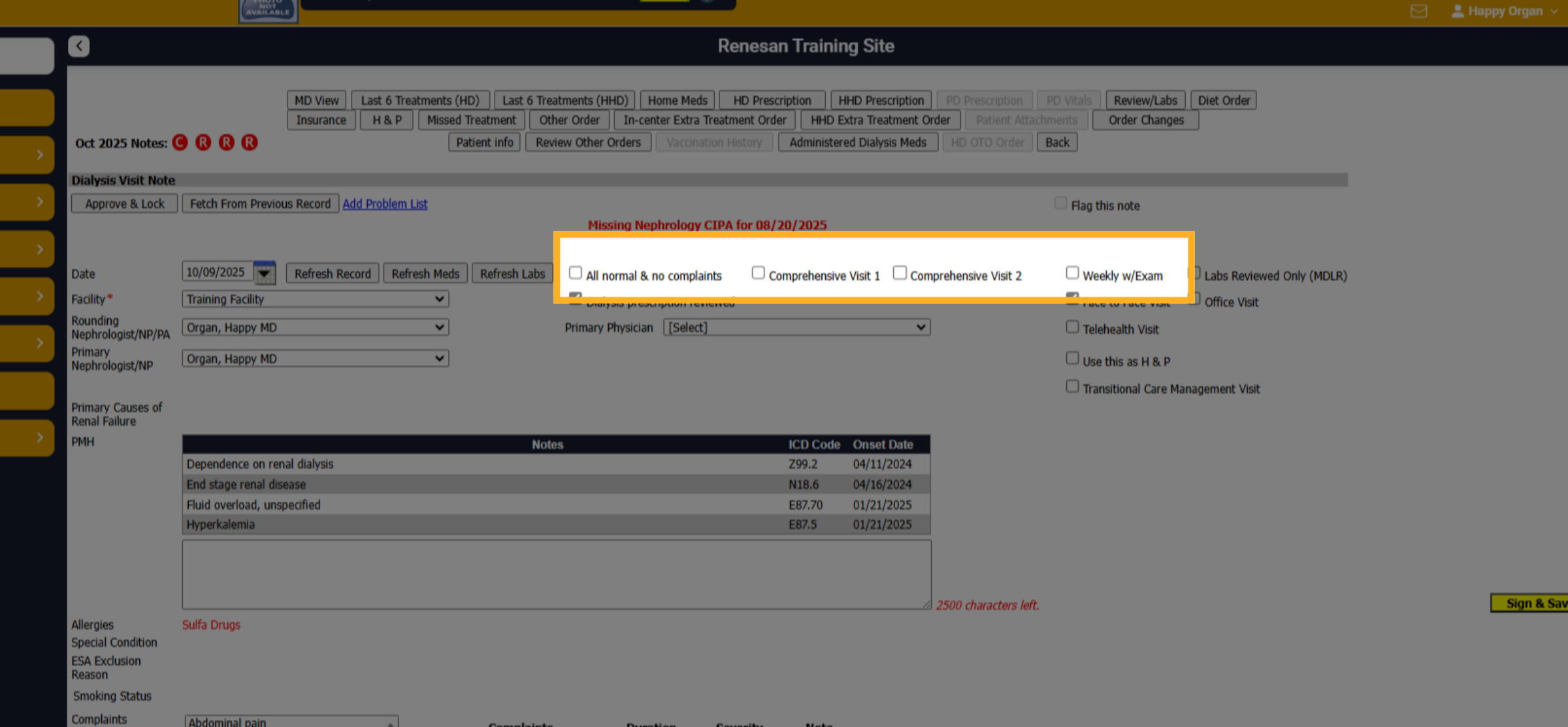
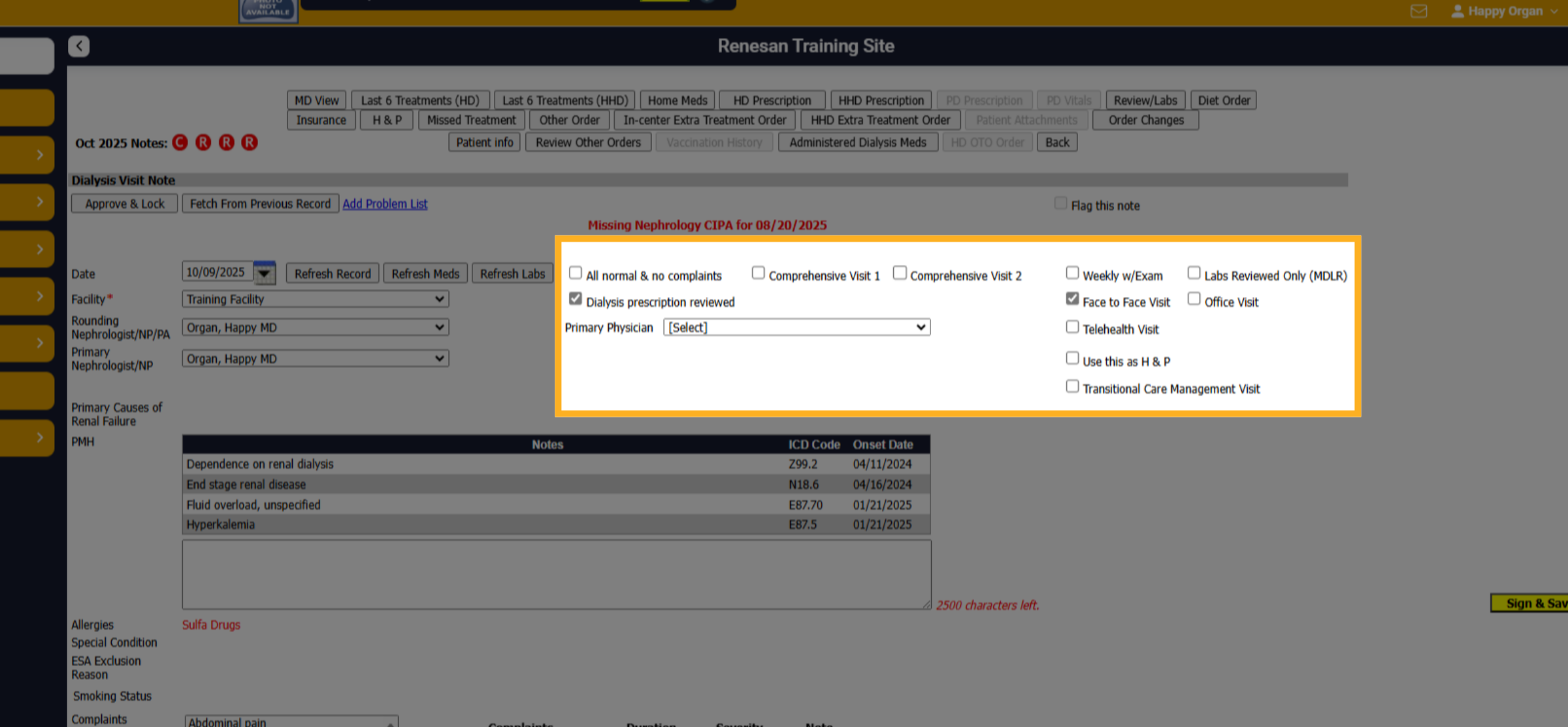
27. Other Components
Upon selecting your note type, you can further specify whether it relates to a Prescription Reviewed, Labs Reviewed, Face-to-Face encounter, Office Visit, or Telehealth Visit and Transitional Care Management. Additionally, you can choose “Use this as H&P,” which will connect the Dialysis Visit Note to the H&P Assessment.
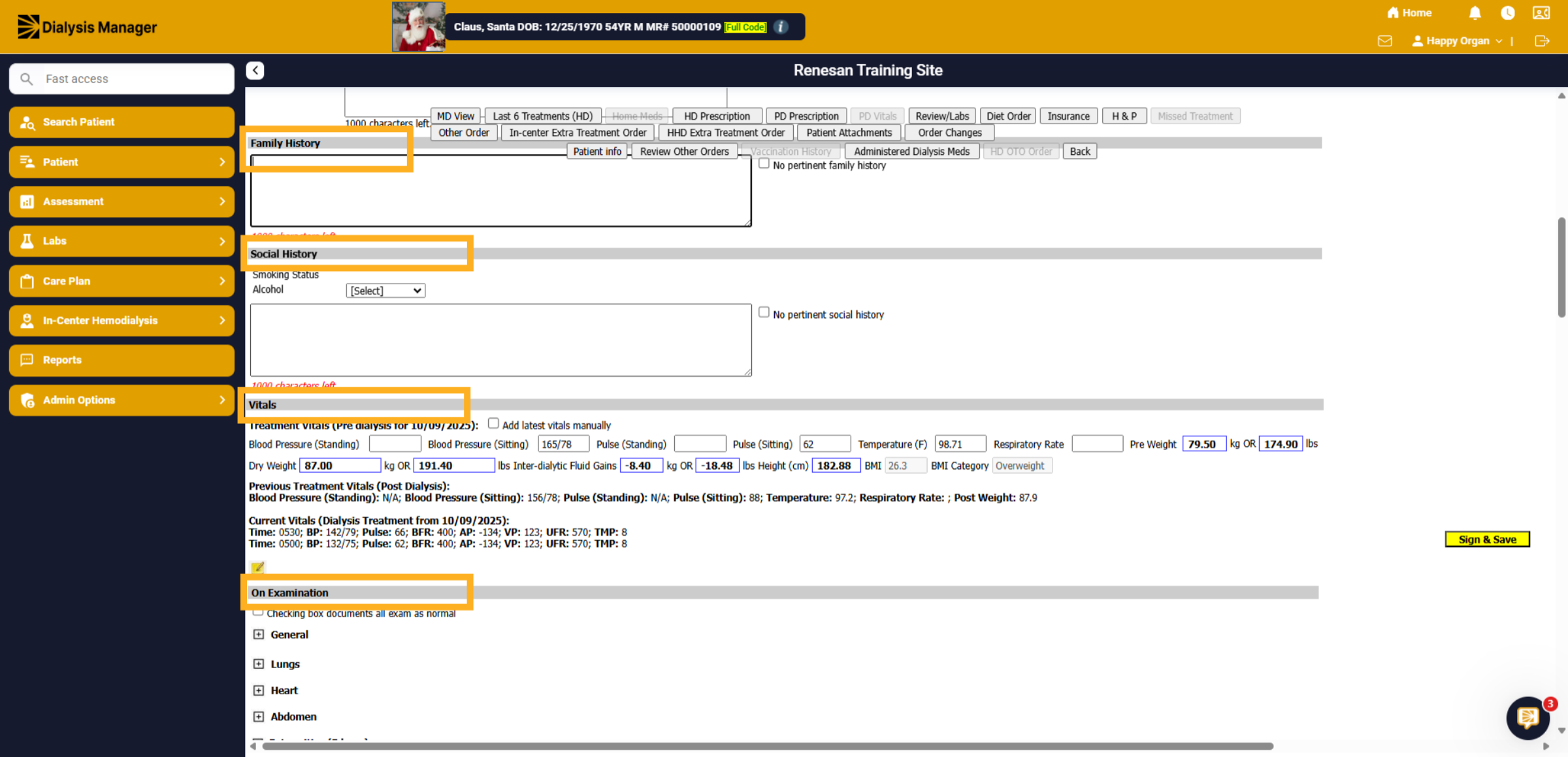
28. Gray Headers
Each section is divided by gray headers, including Vitals, On Examination, Access, Home Medications, Vaccination History, Current Dialysis Medications, Hospitalization, Missed Treatments in the last three months, Transplant Status, Labs, Assessment & Plan, and the final Assessment.
29. View Labs Again
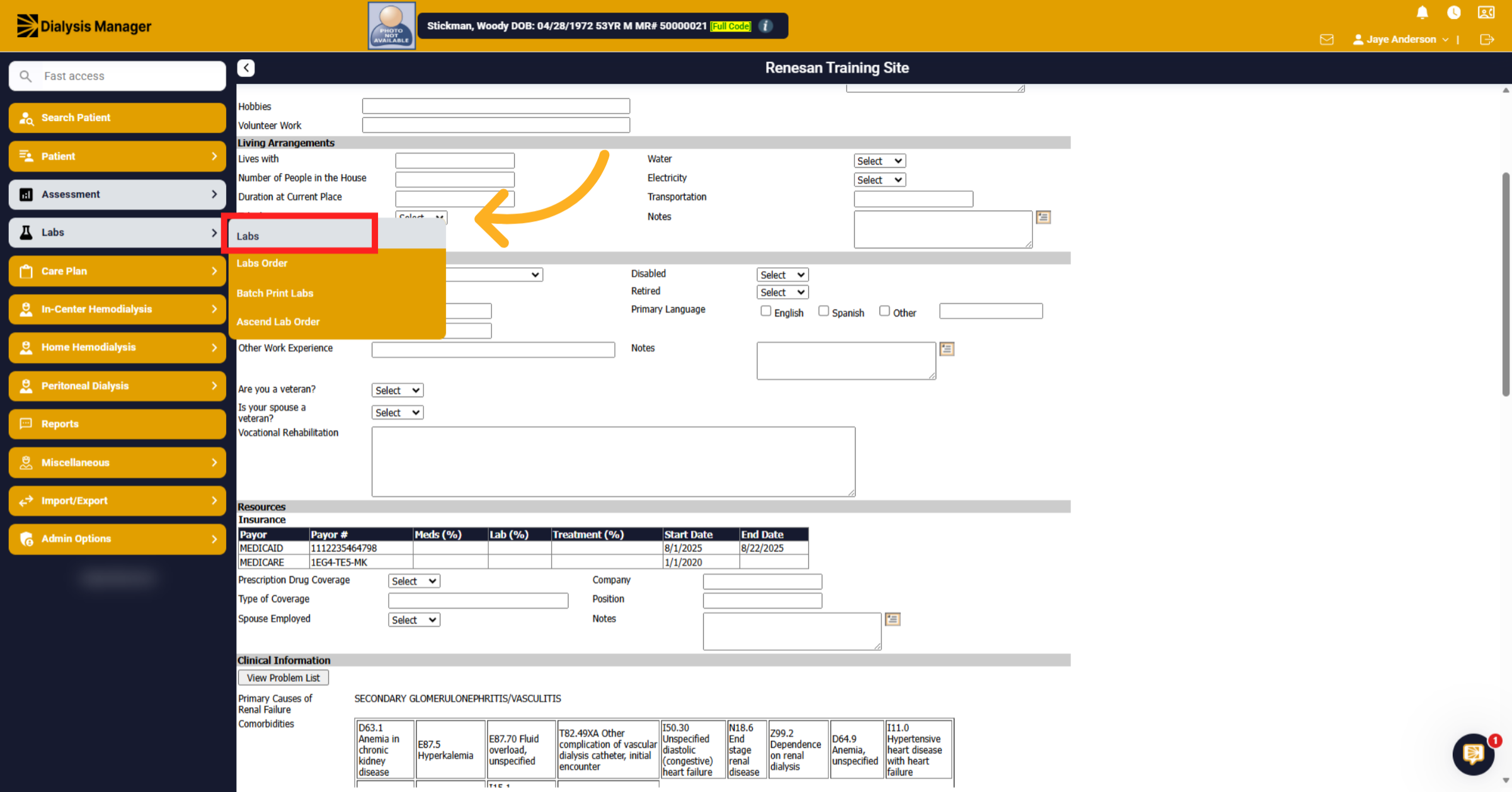
Let's review the Labs section. Click Labs to view lab data. Alot of additional information is also listed on the labs form.
30. Labs
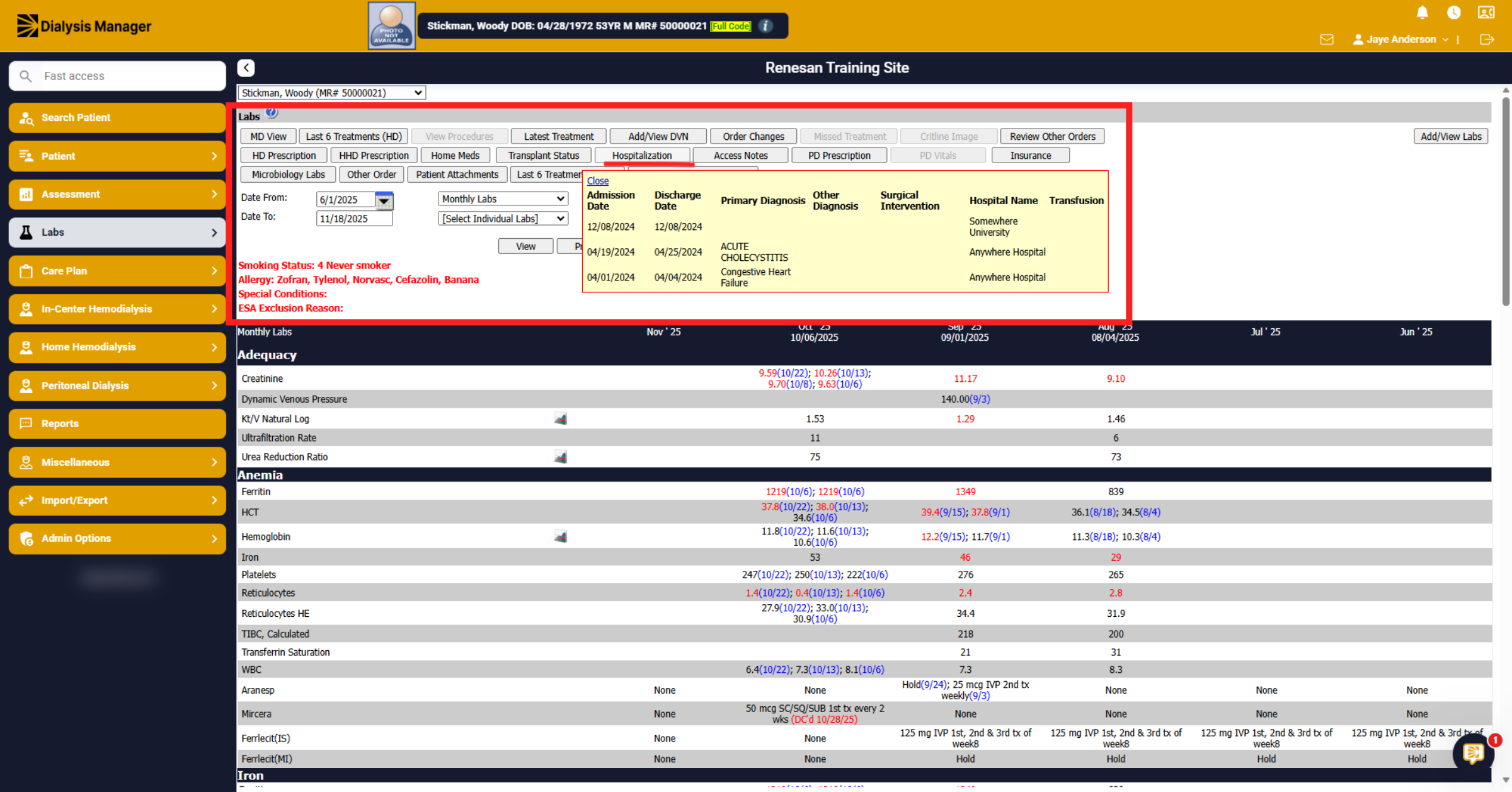
Here along the top of the screen, it shows buttons. You can hover or click on the button to review additional information. In this example we hovered over hospitalizations.
31. Select Start Date
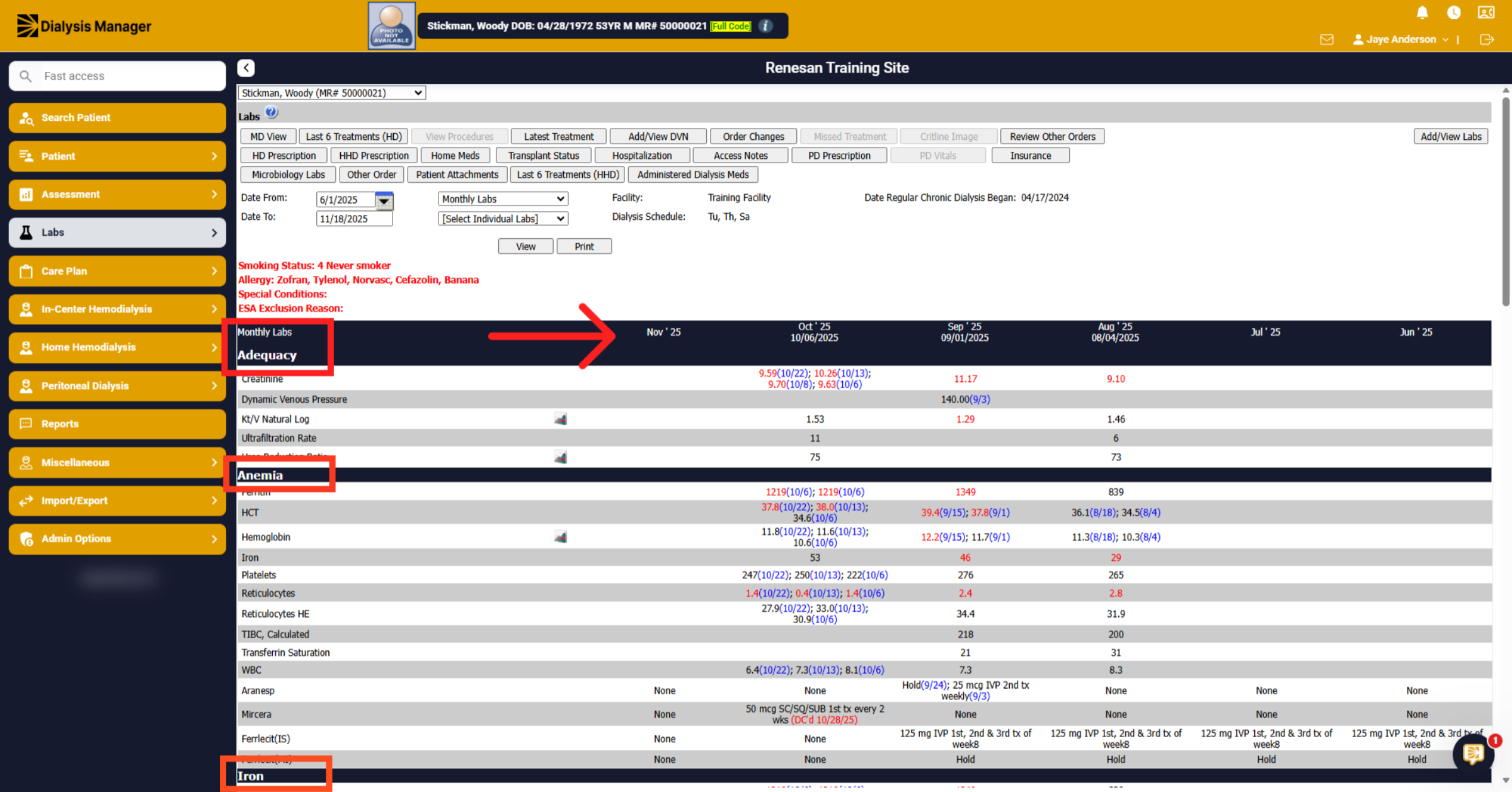
Below it sorts labs by categories (for example adequacy, anemia, and iron) and it display six-month's worth of data.
32. Open CIPA Form
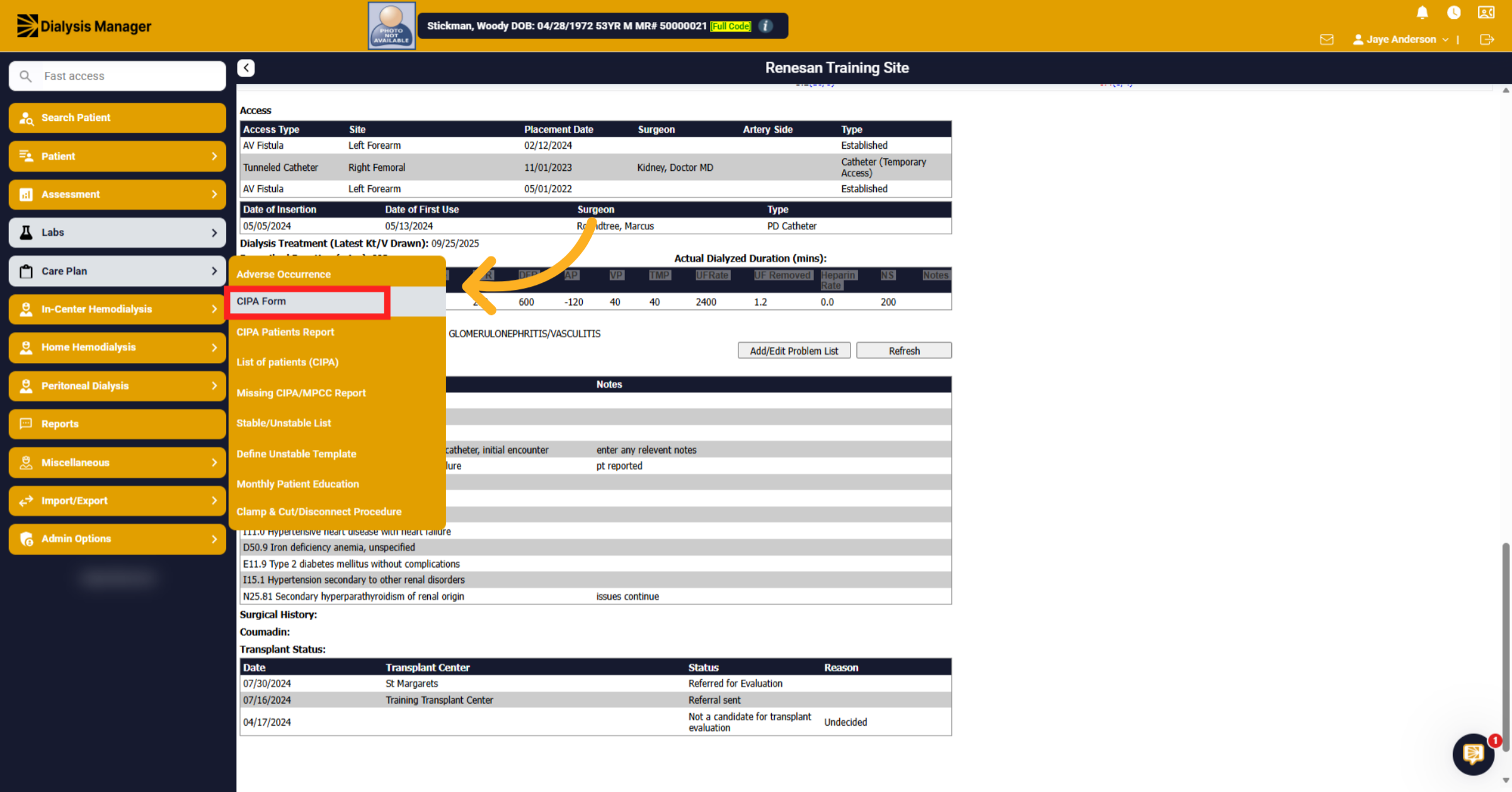
Click Care Plan and CIPA Form to access the Comprehensive Interdisciplinary Patient Assessment form and view patient care plans.
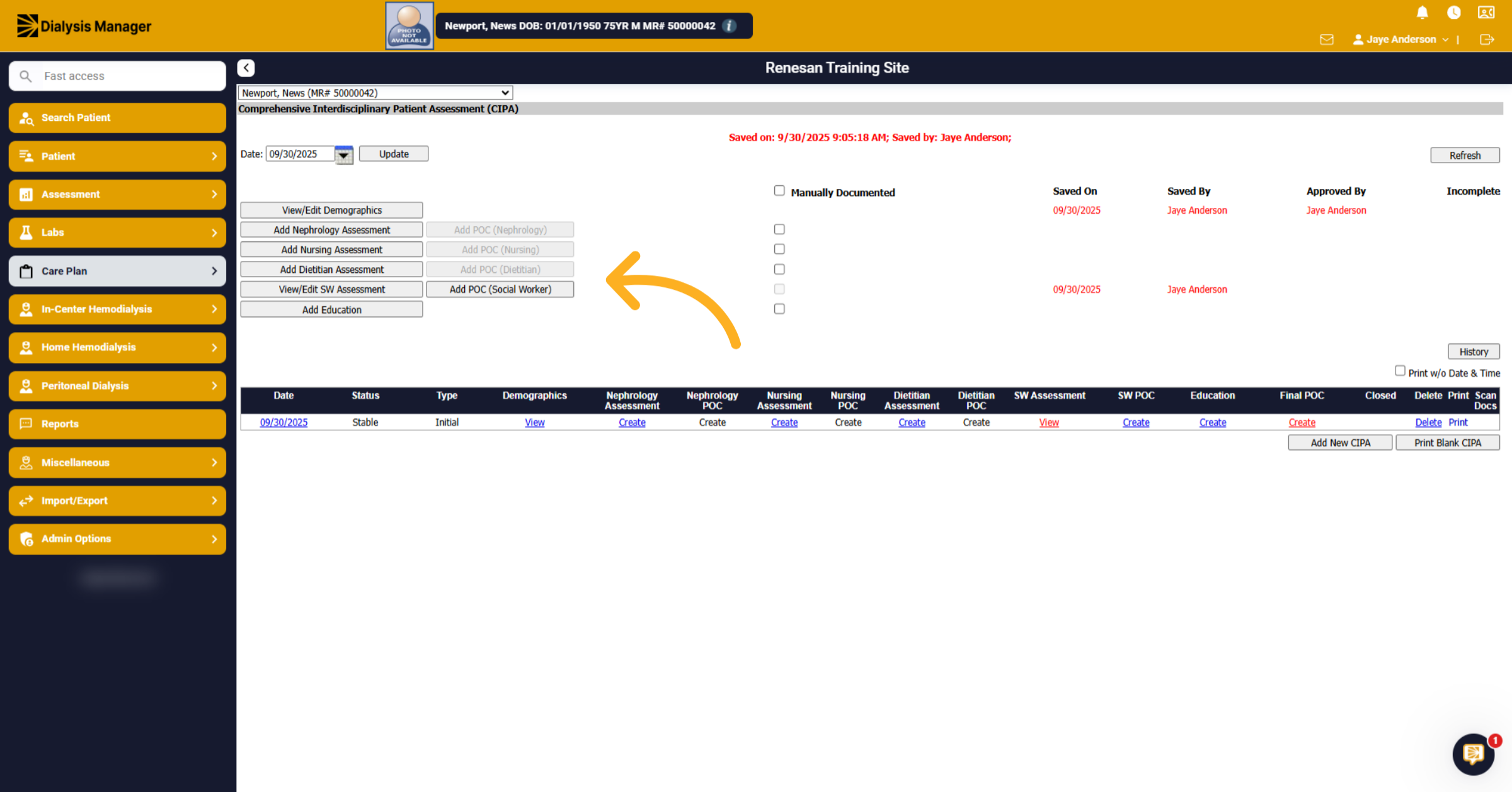
33. Create New Record
These are separate than the Monthly/Quarterly Assessments that was previously shown and is completed by all disciplines. Once the Assessment has been created it then opens the ability to create the Plan of Care.
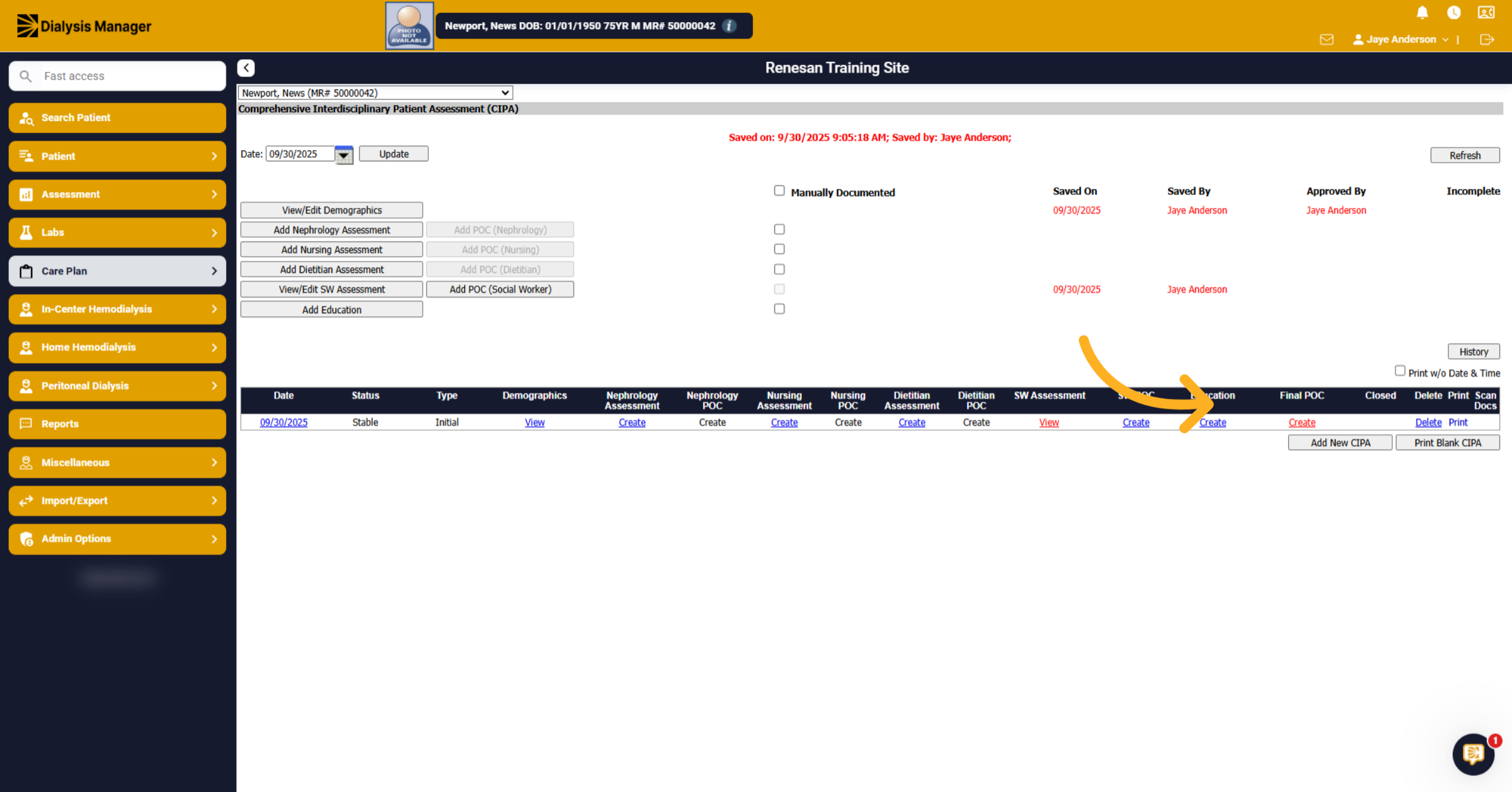
34. Create New Record
Once all disciplines are finished you can choose to create a final Plan of Care by using the Create under the Final POC option. This will pull together all the POC's to review as a care team.
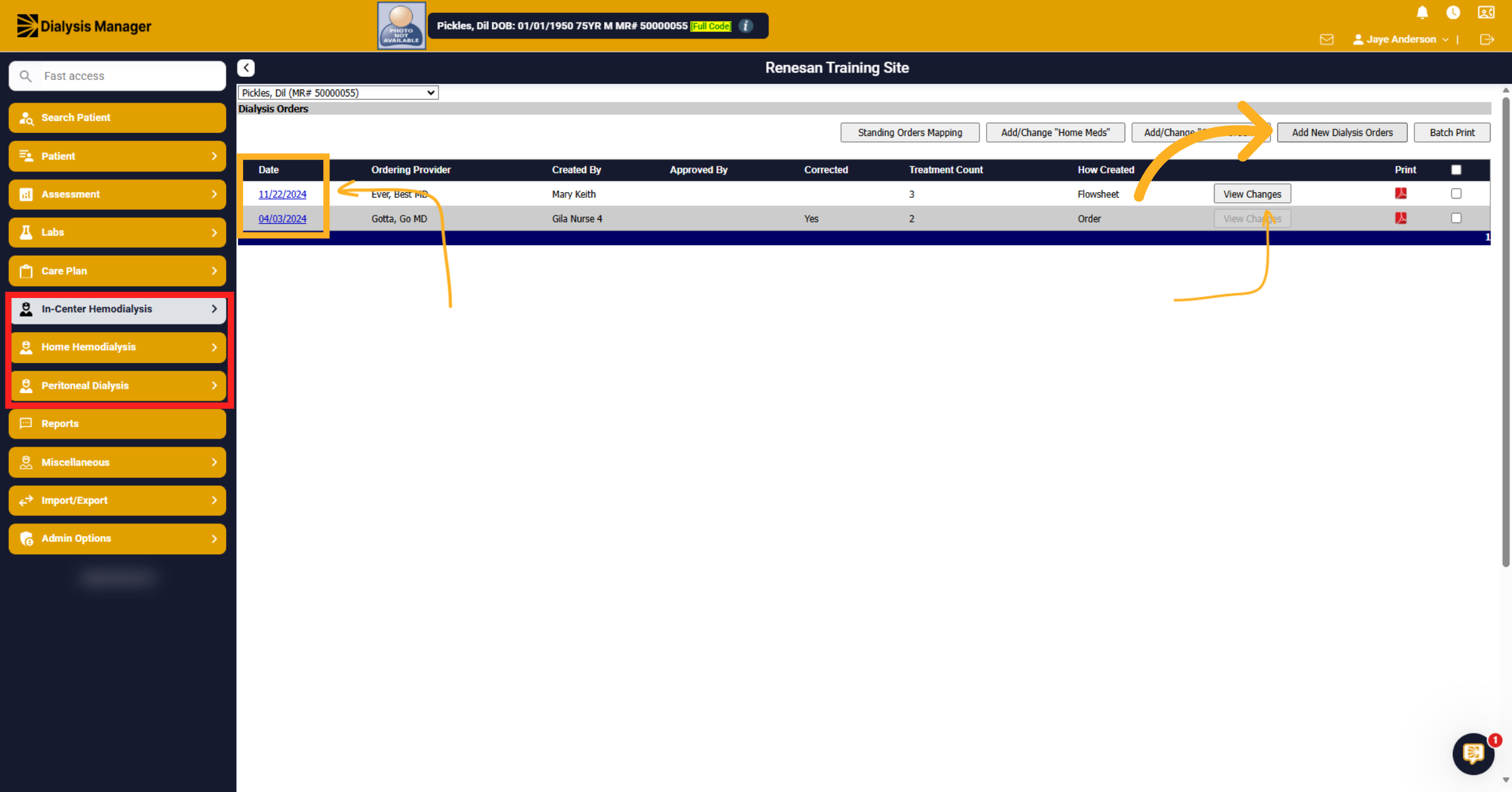
35. Add New Dialysis Order
Let's review orders. Click In-Center Hemodialysis or choose the dialysis treatment type of Home Hemodialysis or Peritoneal Dialysis. Then Click Orders to access dialysis-specific orders. Click the most recent treatment date hyperlink to view the current order. Hover over View Changes to see order changes. Click Add New Dialysis Orders to create a new order. If there are any previous orders this will pull those across, and users can simply make adjustments.
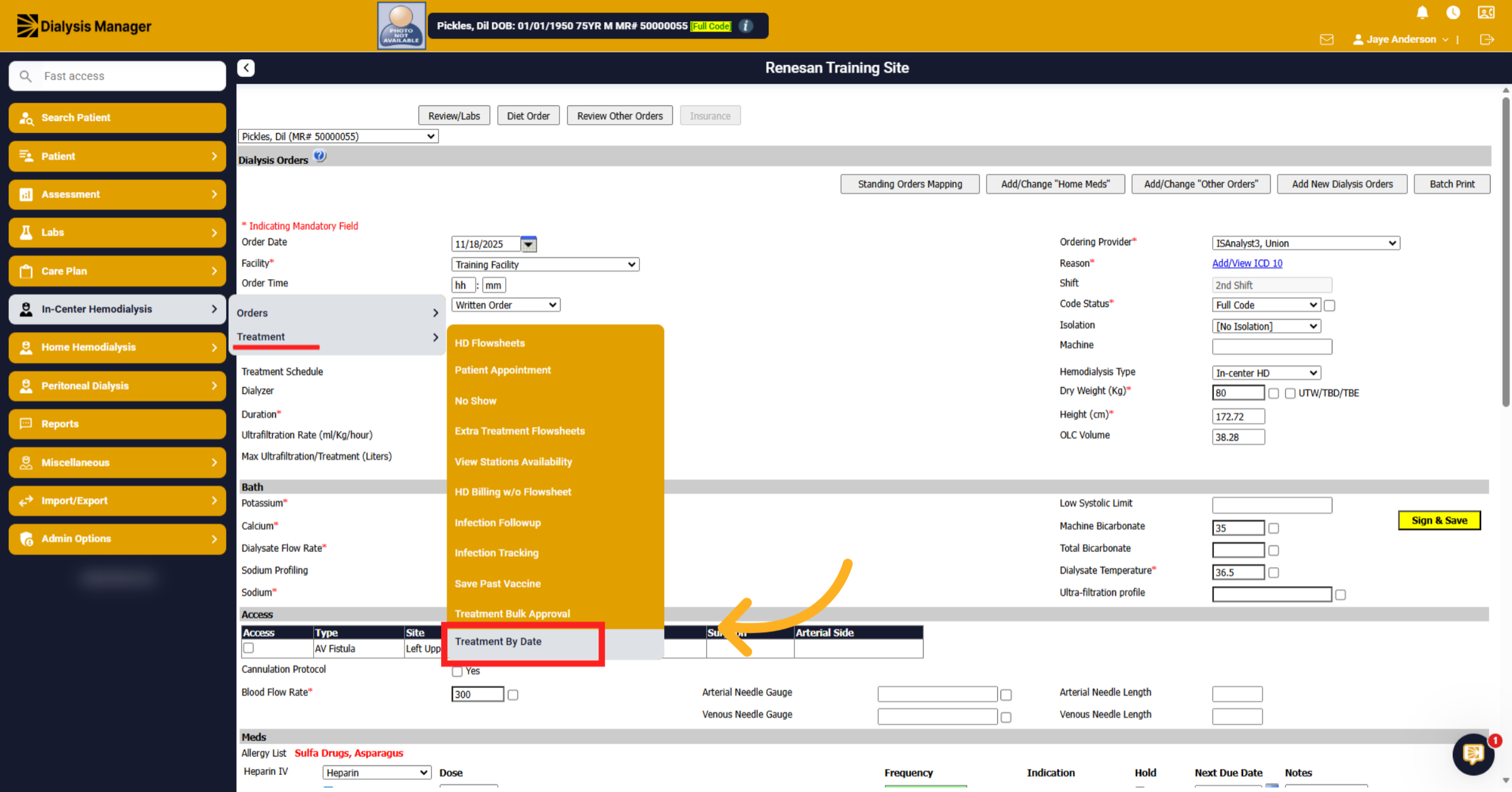
36. Access Treatment By Date
To review todays in center treatments. Click In Center Hemodialysis, Treatment, then Treatment by Date to filter treatments by date.
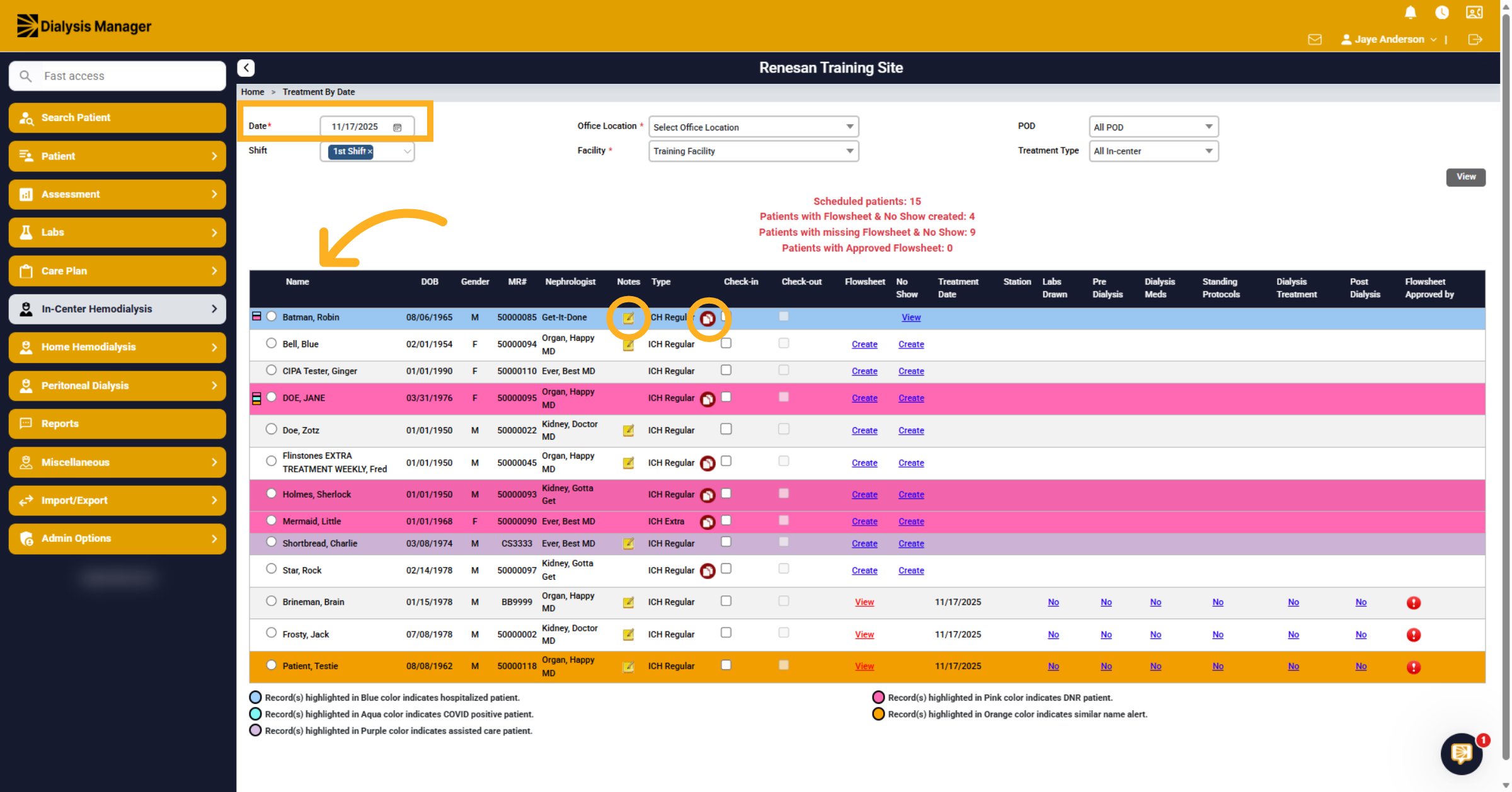
37. Treatment by Date
Select your parameters such as shift, facility and click View. You will see a list of patients schedule for the day. When hovering over the yellow notepad icon it will display treatment notes entered from the dialysis order. Hovering over the red circle with paper indicates that the patient has multiple admissions.
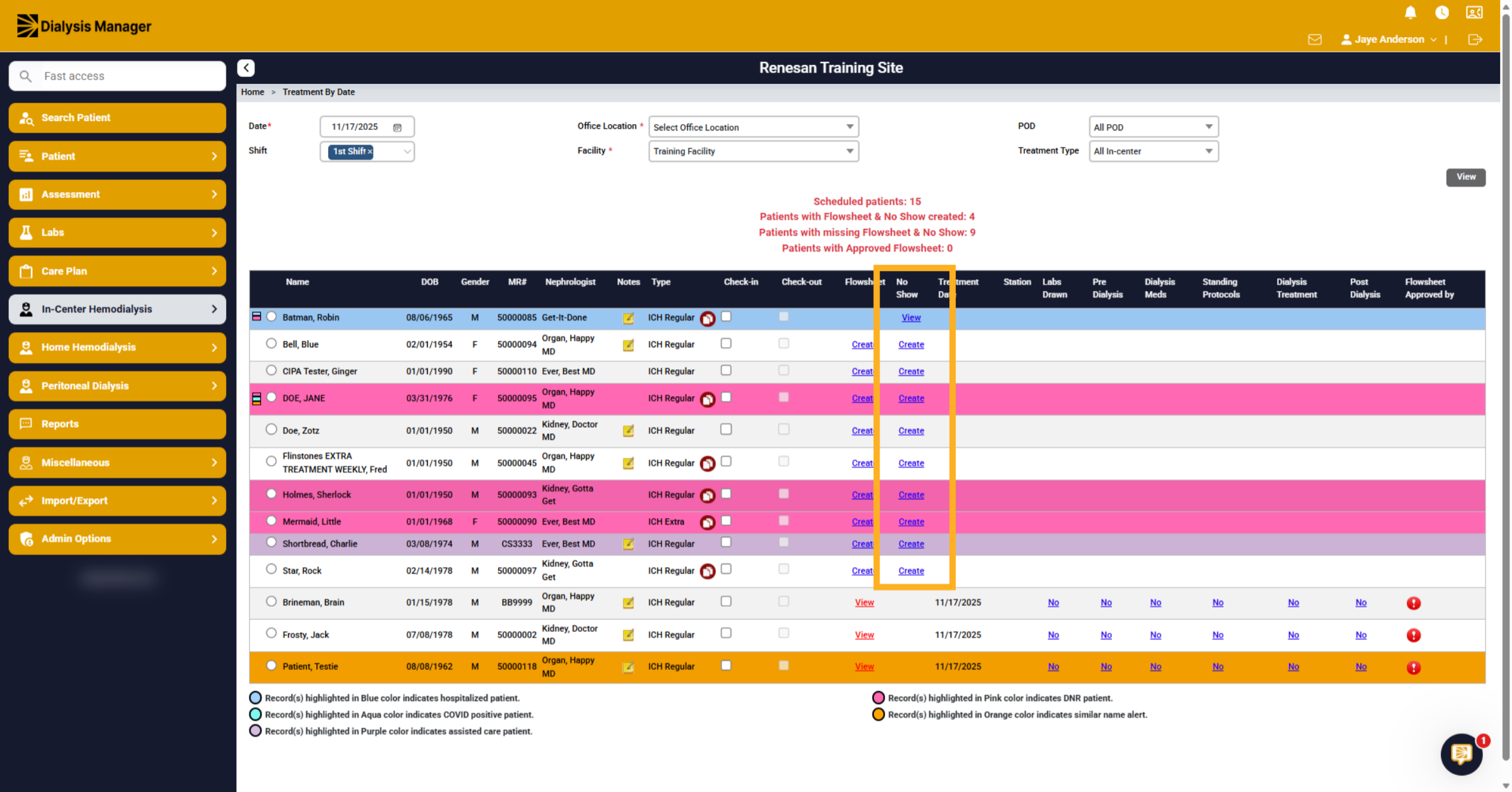
38. Access No Show Section
Click View to view a No Show or click Create to create to document a no show treatment
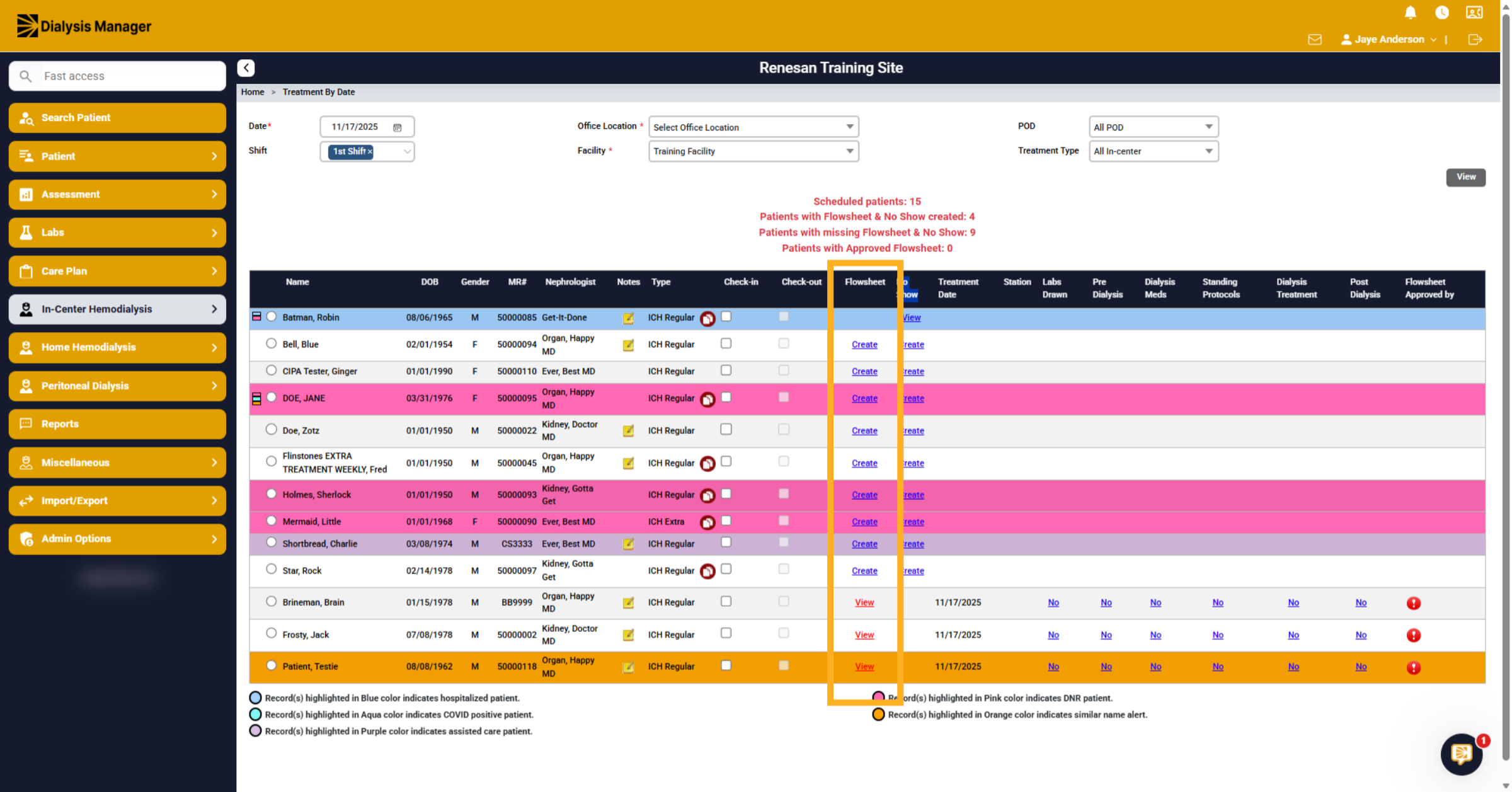
39. Create New Entry
Click View or Create to open a treatment flowsheet.
40. Open Pre Dialysis Section
Once you have viewed or created a flowsheet you can document treatment information with in here. Notice there are also buttons along the top.
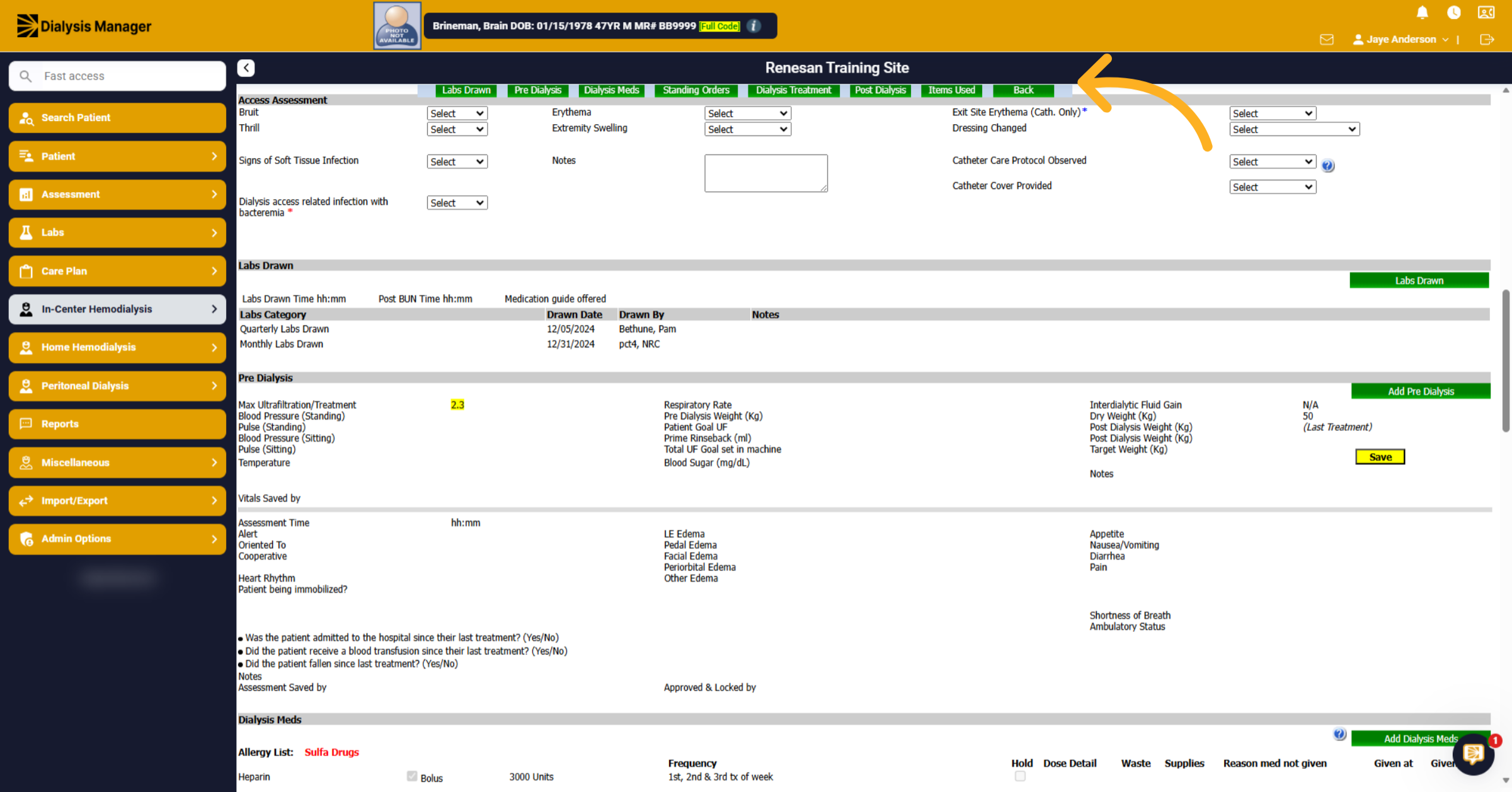
41. Pre Dialysis Window
When selecting the Pre Dialysis button at the top it opens a new window. Typically, a technician will document under the red section while the nurse enters information under the blue section.
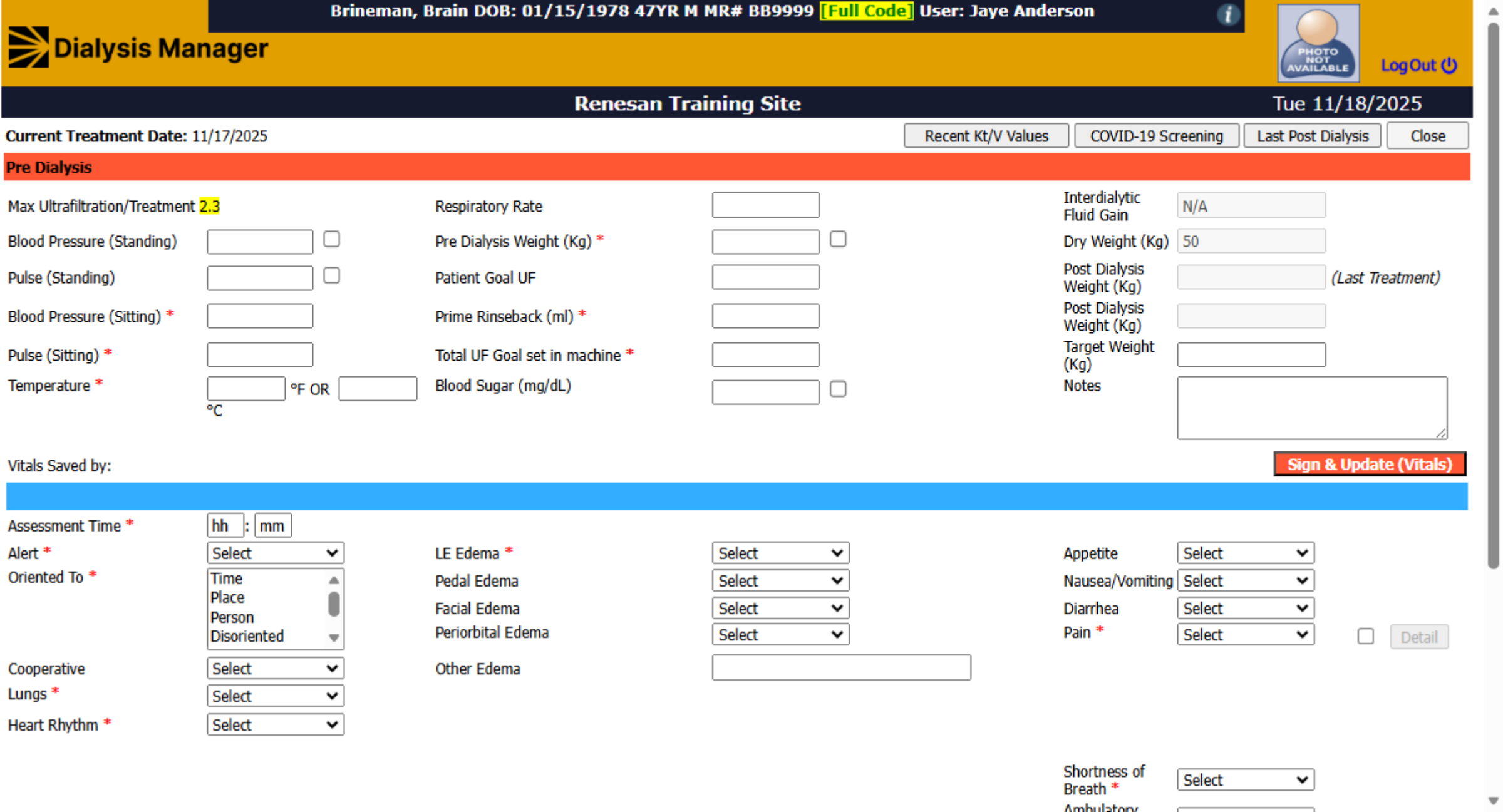
42. Access Dialysis Treatment Section
Click Dialysis Treatment to view treatment details.
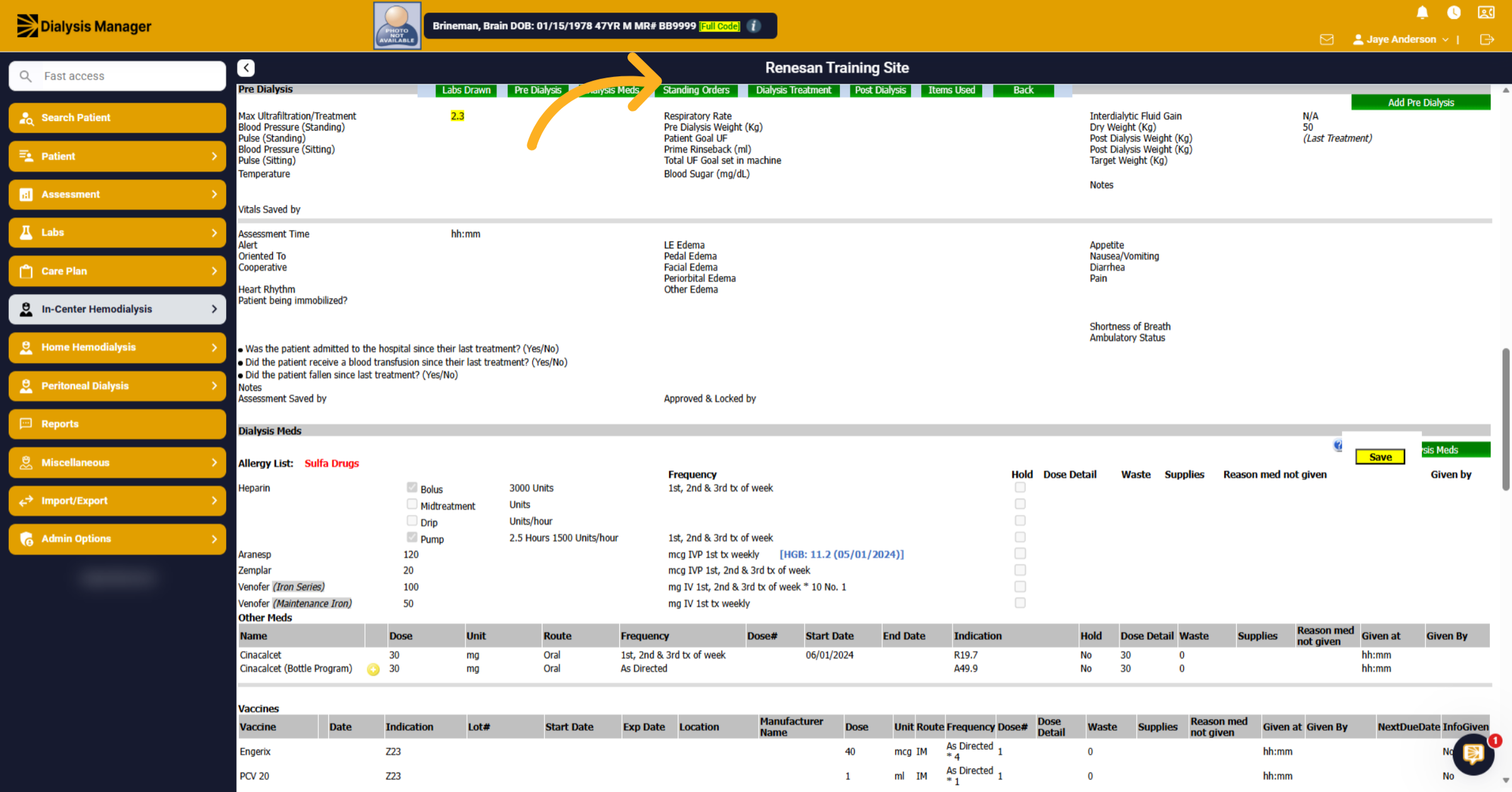
43. Close Dialysis Treatment Window
When clicking on the Dialysis Treatment button you can view treatment vitals in detail. This can automatically flow across from the dialysis machine via an interface, or this can be manually entered. Either way the staff will enter a note and enter a safety check.
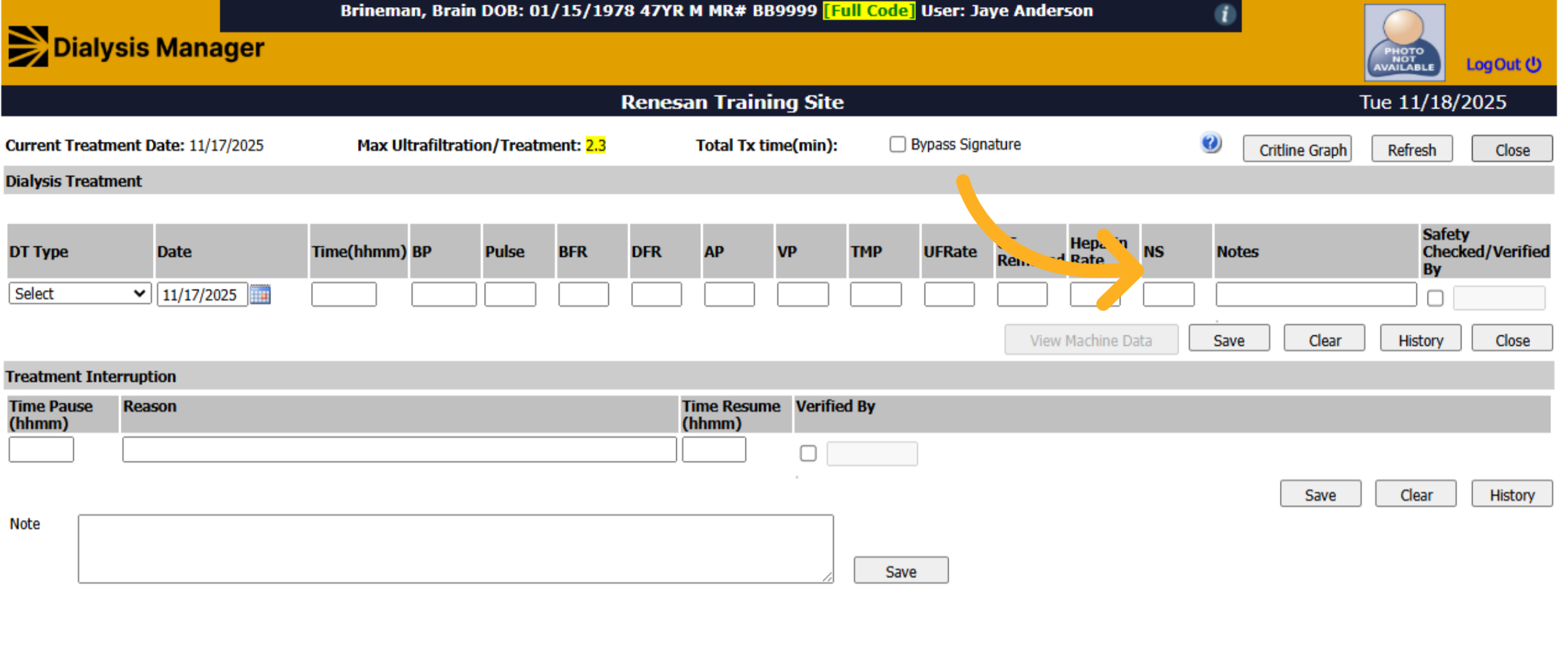
44. Close Post Dialysis Window
Click Post Dialysis to review post-treatment information. This works similar to the pre dialysis section where the PCT completes the top section, and the RN will focus on the bottom portion. After saving, staff will Click Close to exit the post dialysis screen.
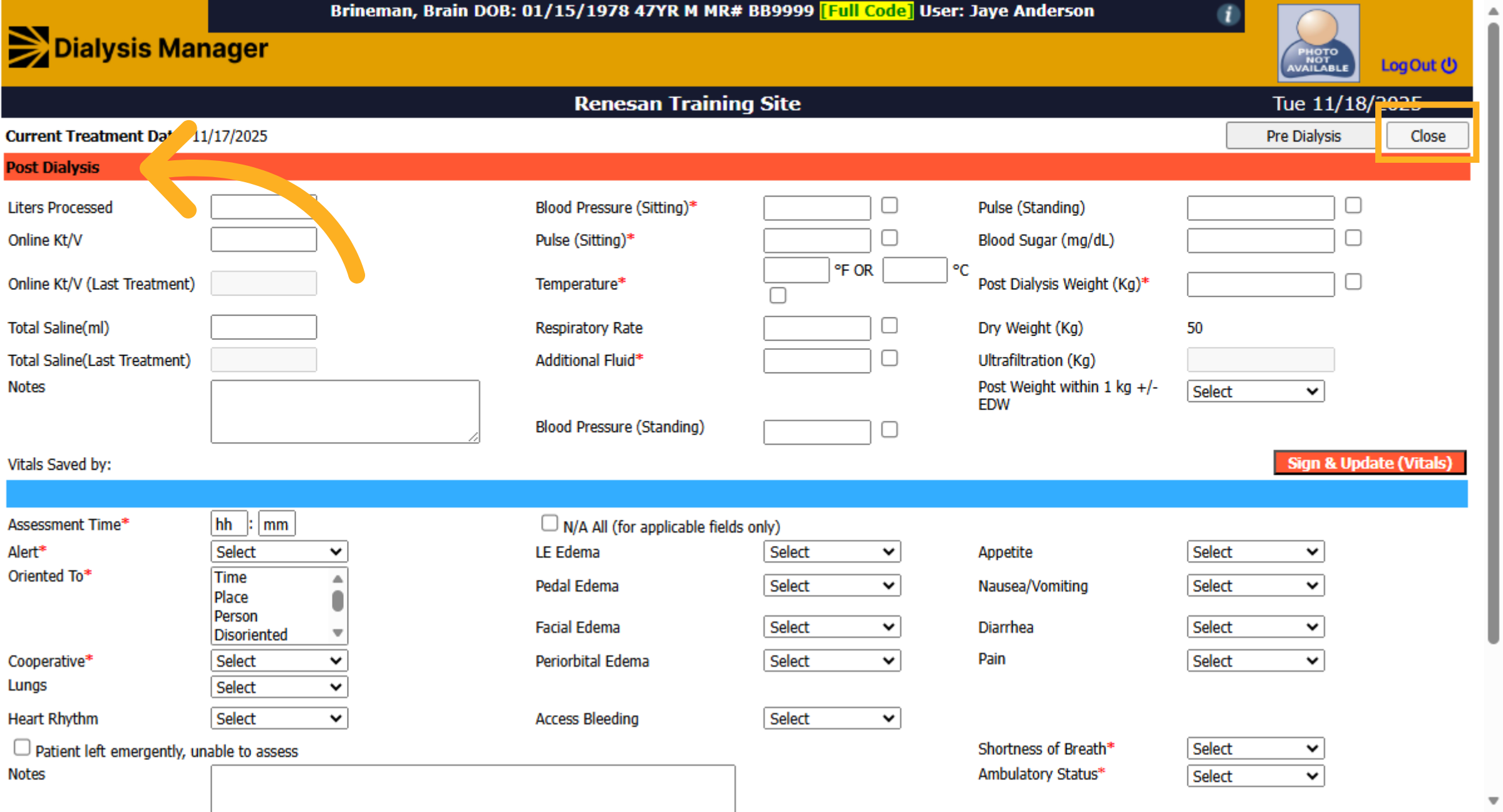
45. Open Home Hemodialysis Section
Home Hemodialysis has its own menu to document orders, treatments, etc. Although it's a different treatment modality the workflow is very similar to the In Center Hemodialysis.
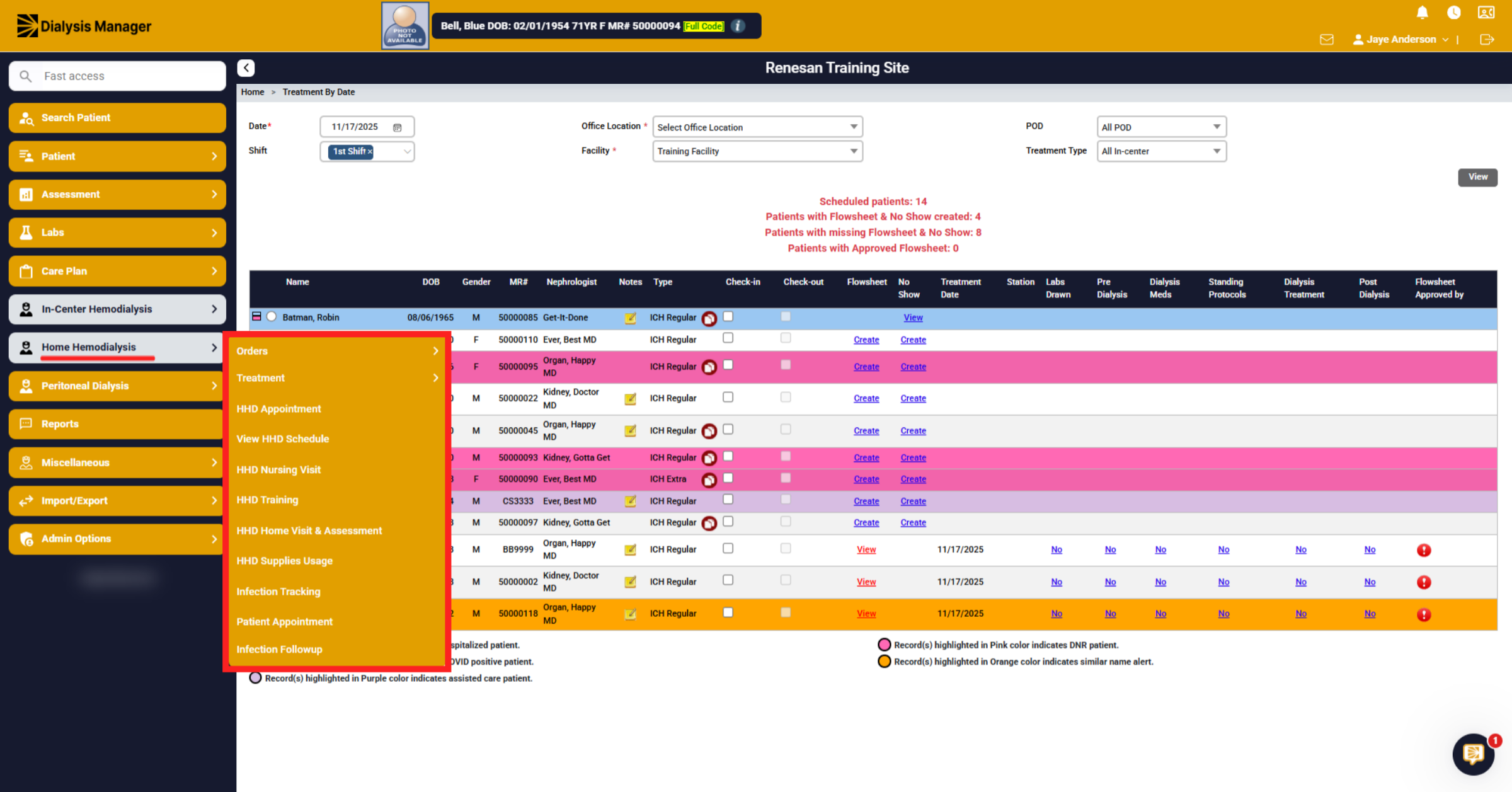
46. Select HHD Treatment Option
Go to Home Hemodialysis, Treatment, "HHD Treatment" to access the home hemodialysis treatment screen within the application.
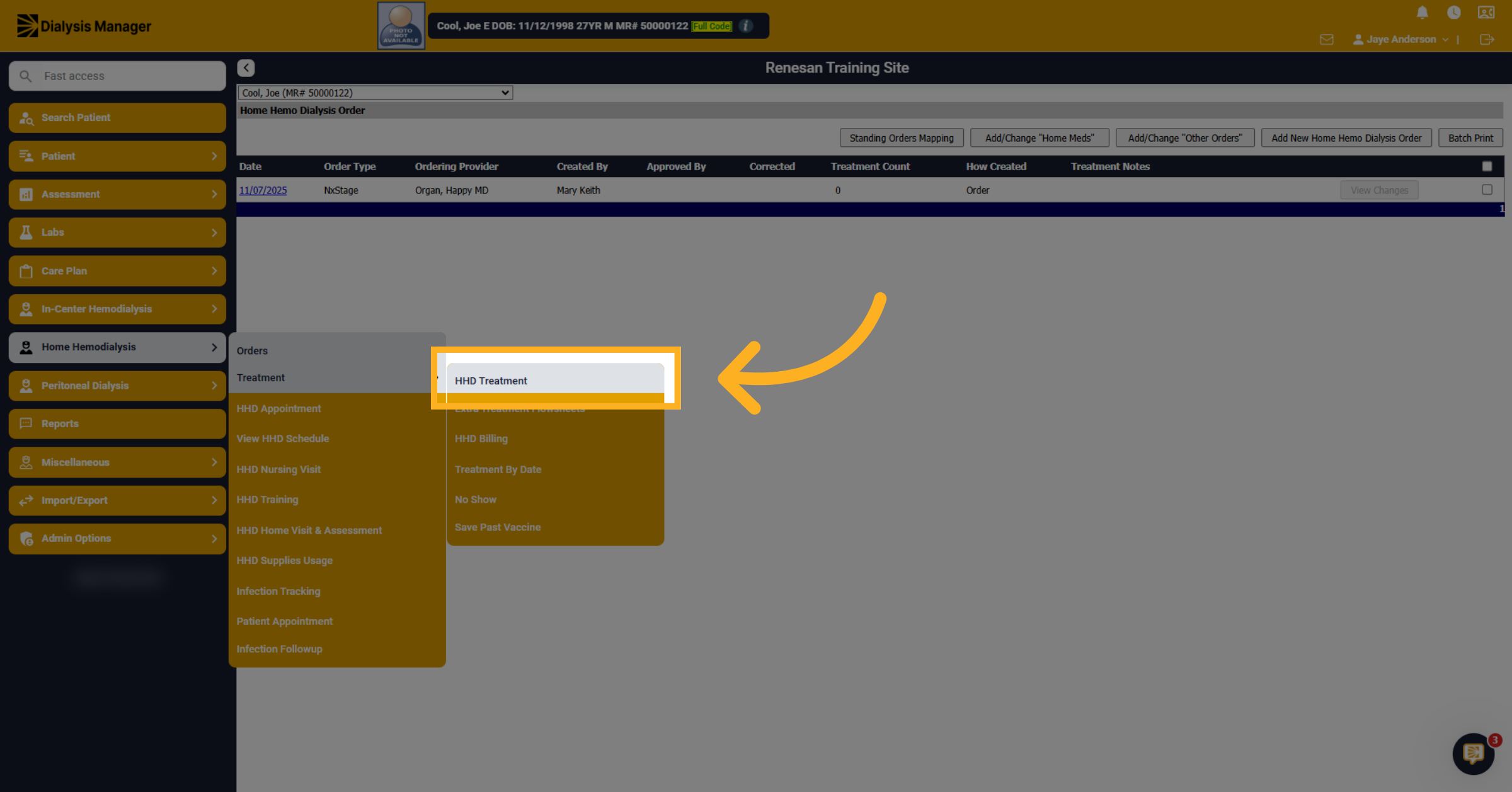
47. Add Staff Assisted HHD Flowsheet
Depending on whether you are performing a staff-assisted flow sheet or an HHD flow sheet will depend on what you choose here. For Staff Assisted let's choose "Add HHD Flowsheet (Staff Assisted)".
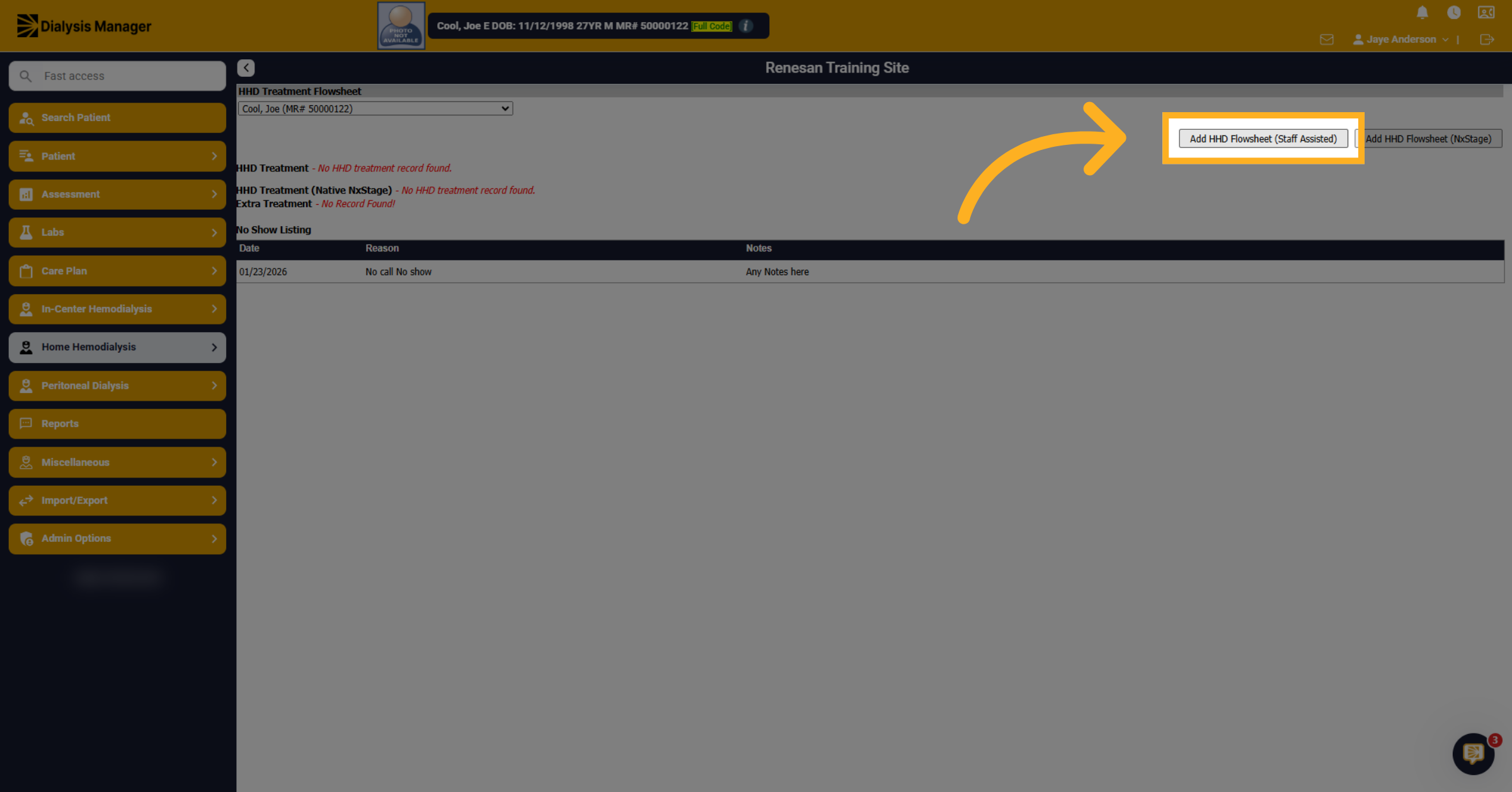
48. Access Pre Dialysis Tab
Notice the tabs along the top and the flowsheet itself are very similar to the In-Center Hemodialysis.
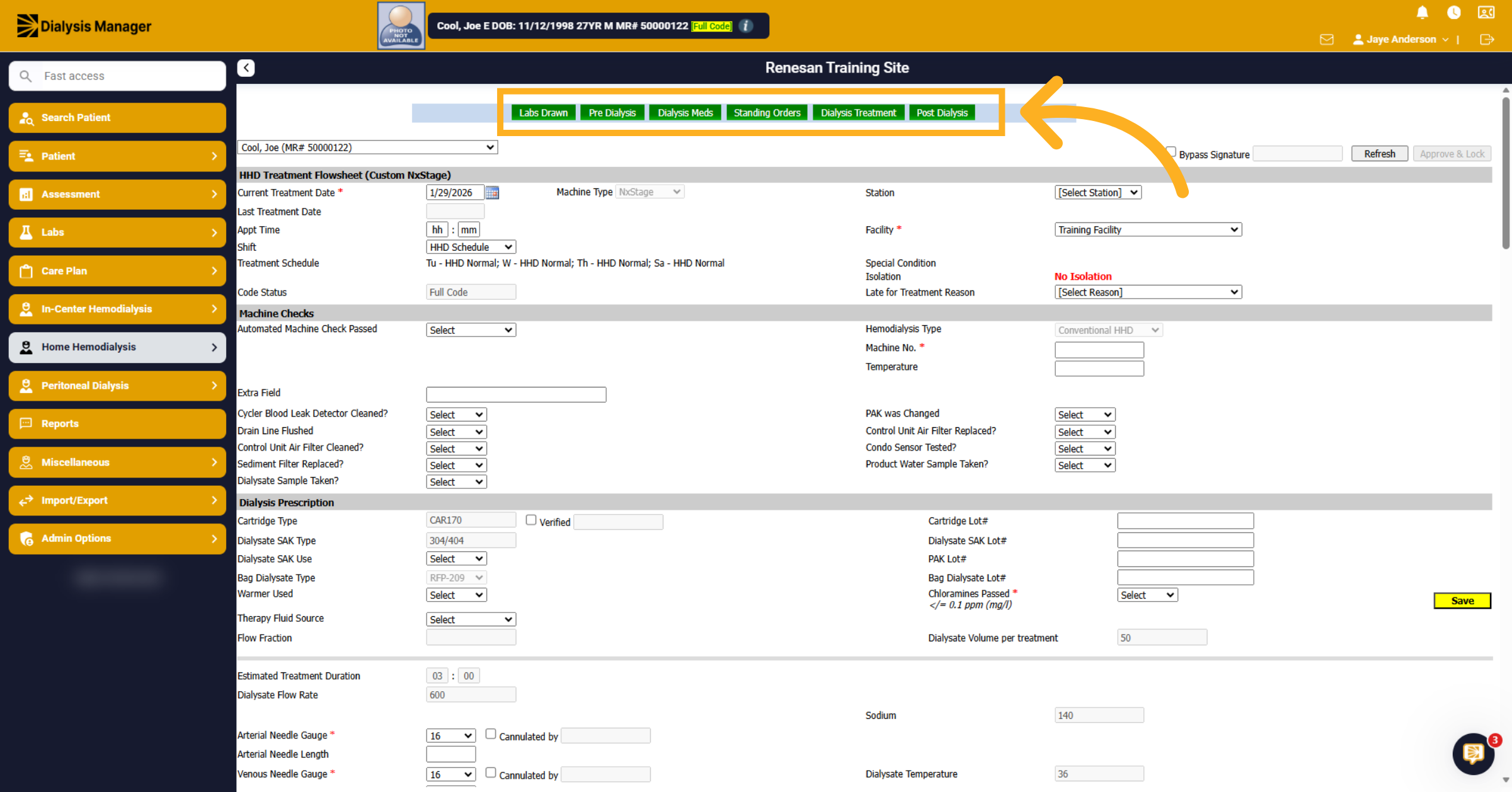
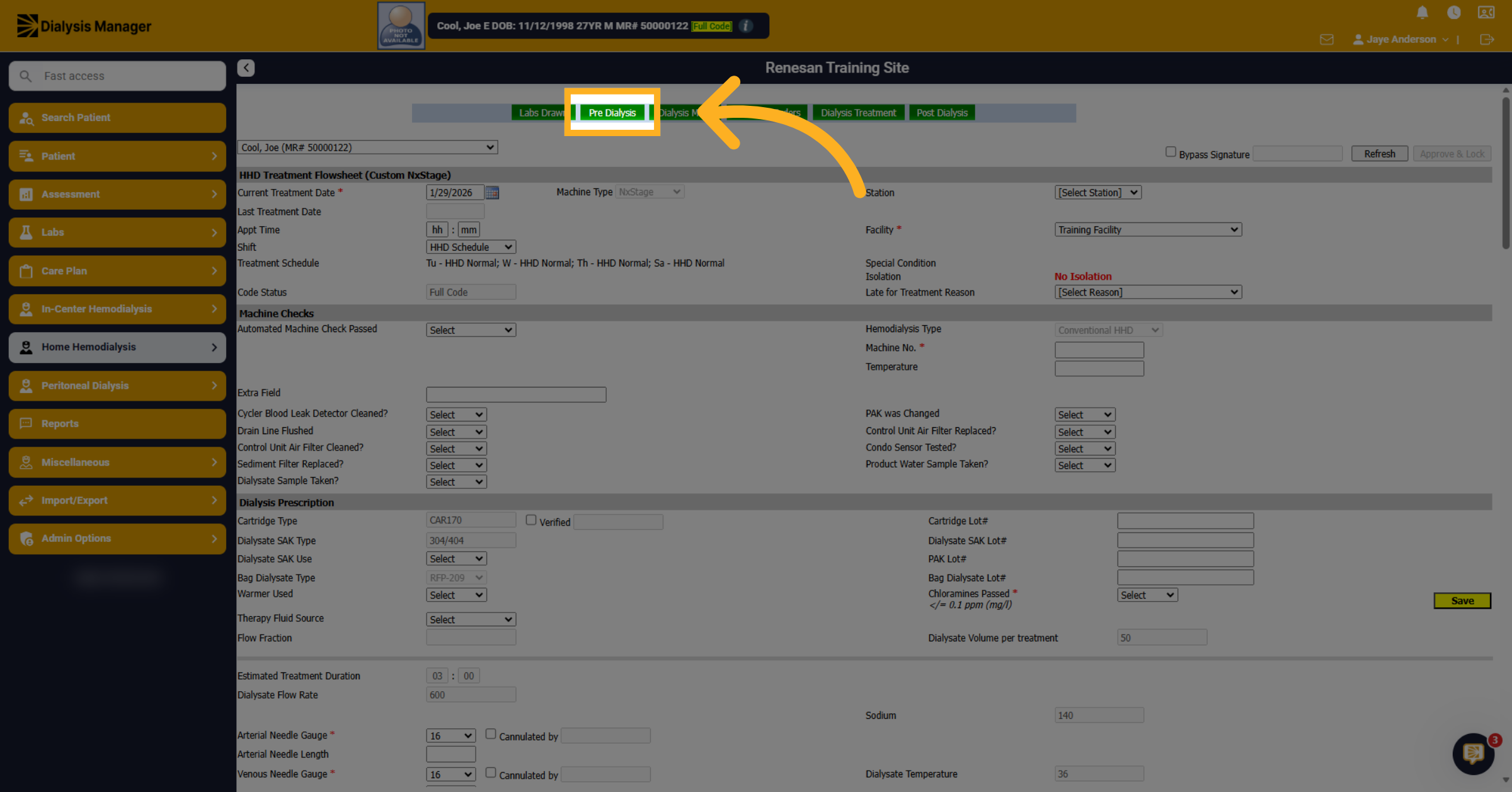
49. Access Pre Dialysis Tab
Click on Pre Dialysis tab to open the form
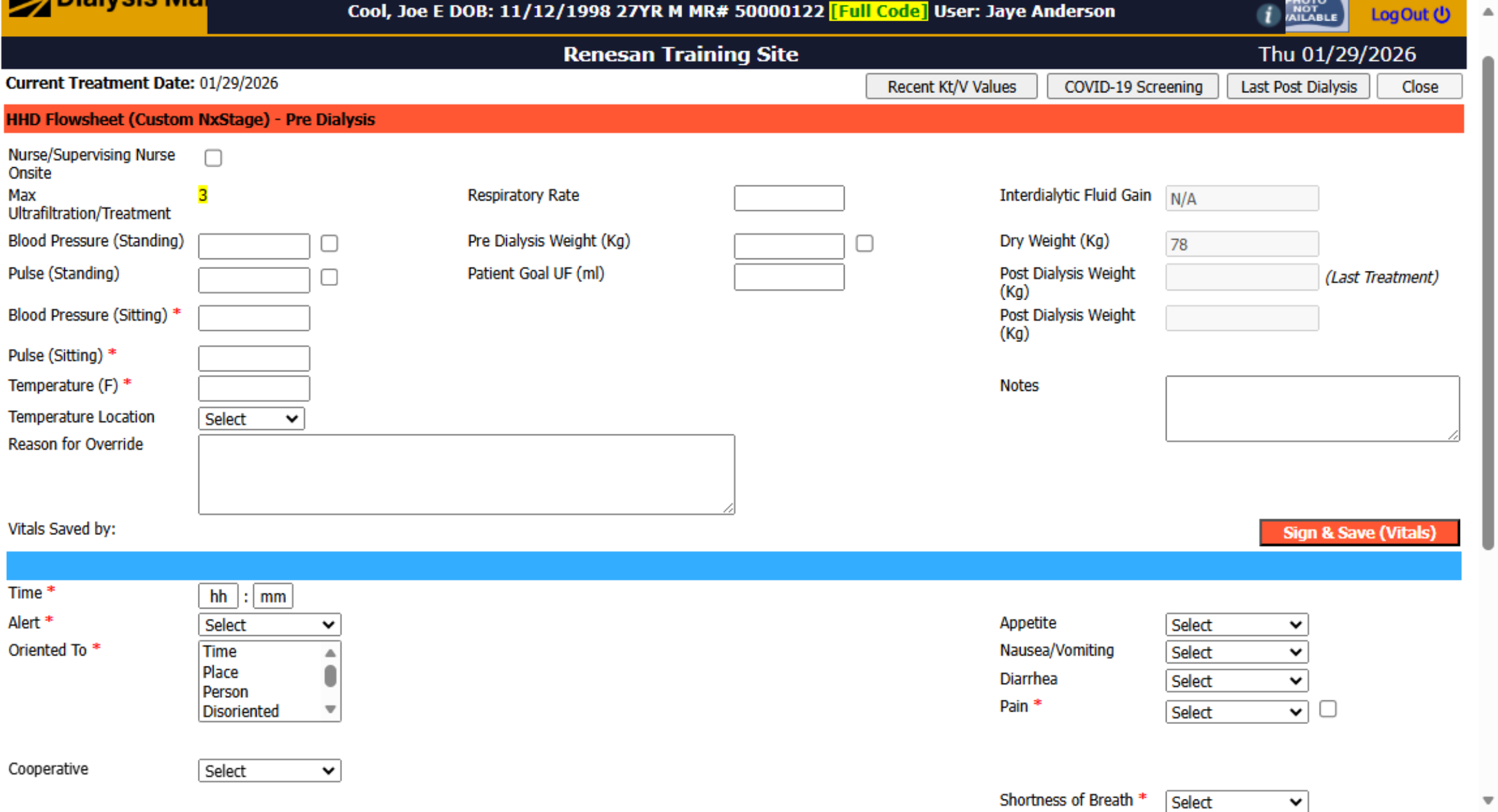
50. Red Blue Sections
This also has a similar flow with the red section typically being documented by the technicians and the nurses under the blue.
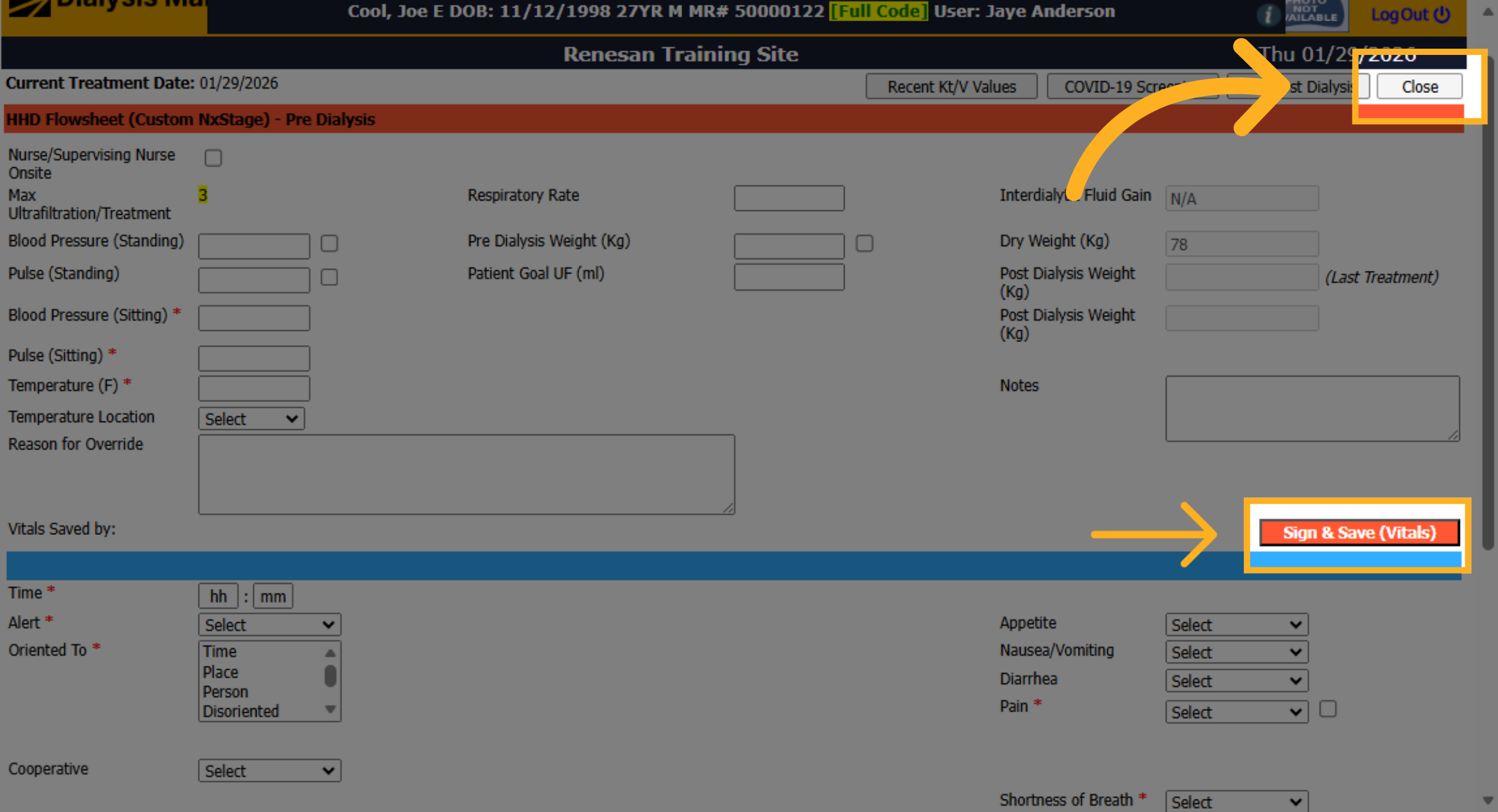
51. Close Pre Dialysis Flowsheet
Click Sign & Save then "Close" to exit the Pre Dialysis flowsheet after reviewingor entering necessary information.
52. Save Current Flowsheet
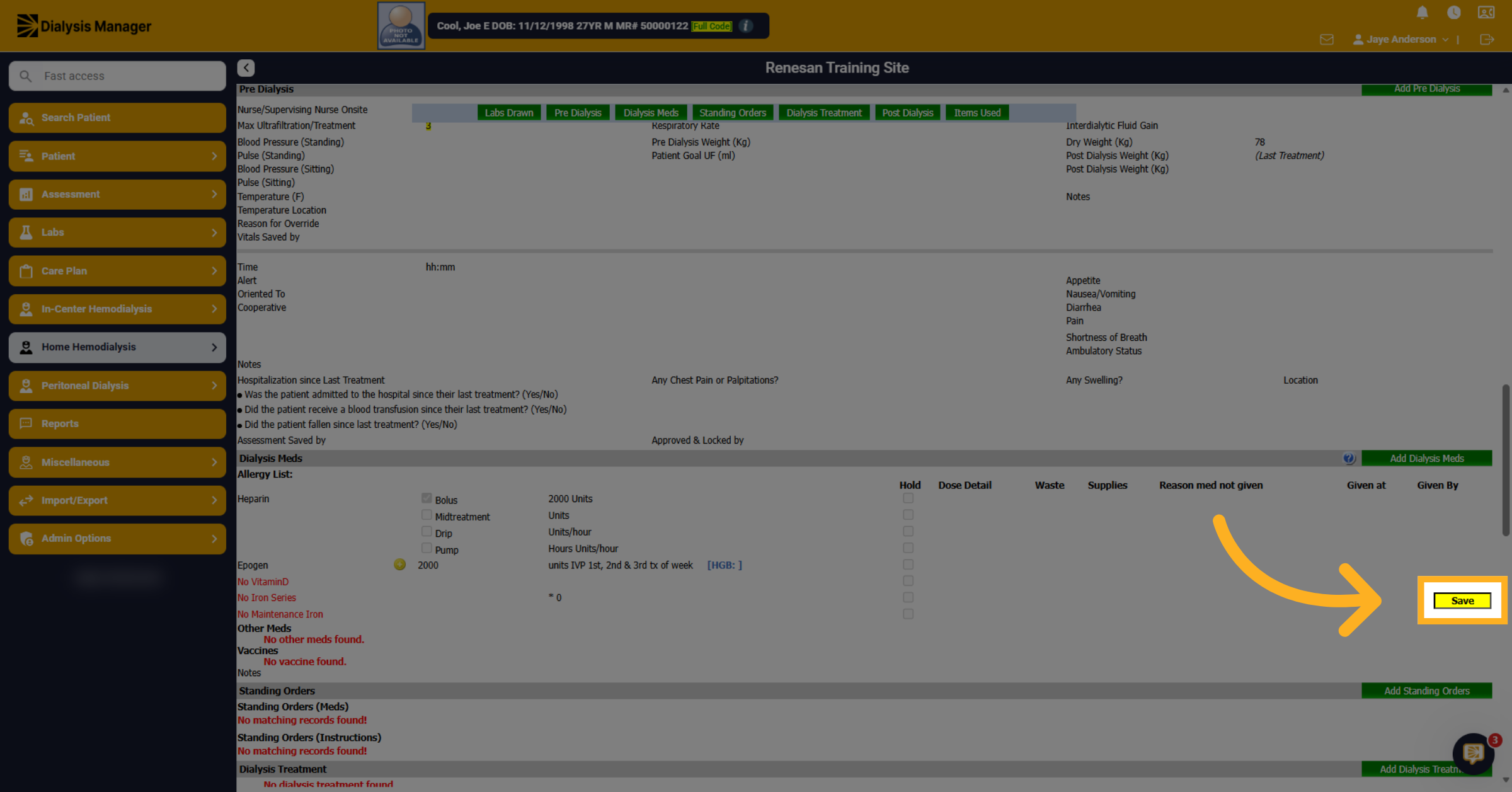
Remember to save as you go through the different areas by clicking "Save" to ensure your data is recorded.
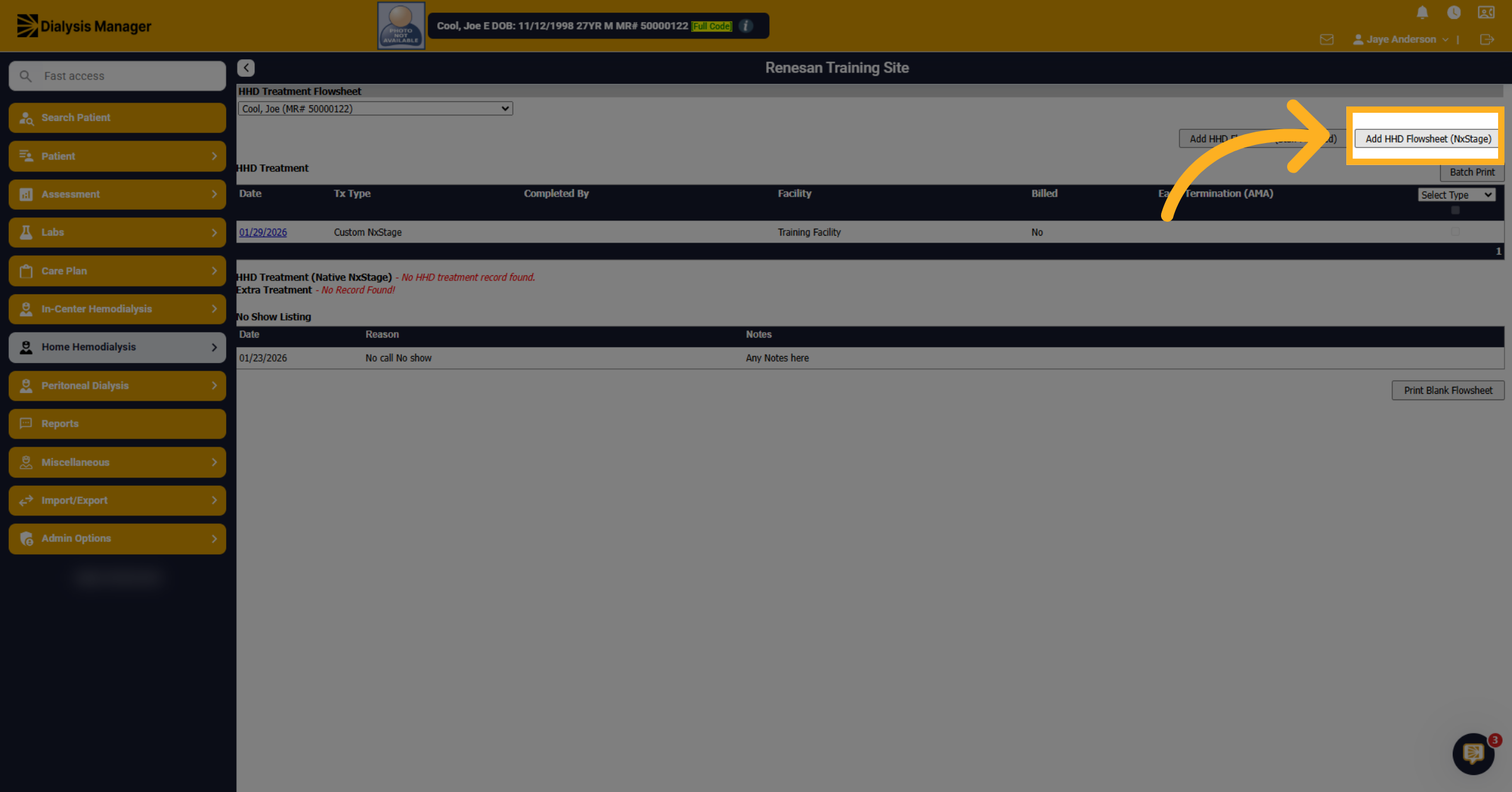
53. Reopen NxStage Flowsheet
Click "Add HHD Flowsheet (NxStage)" to open this flowsheet
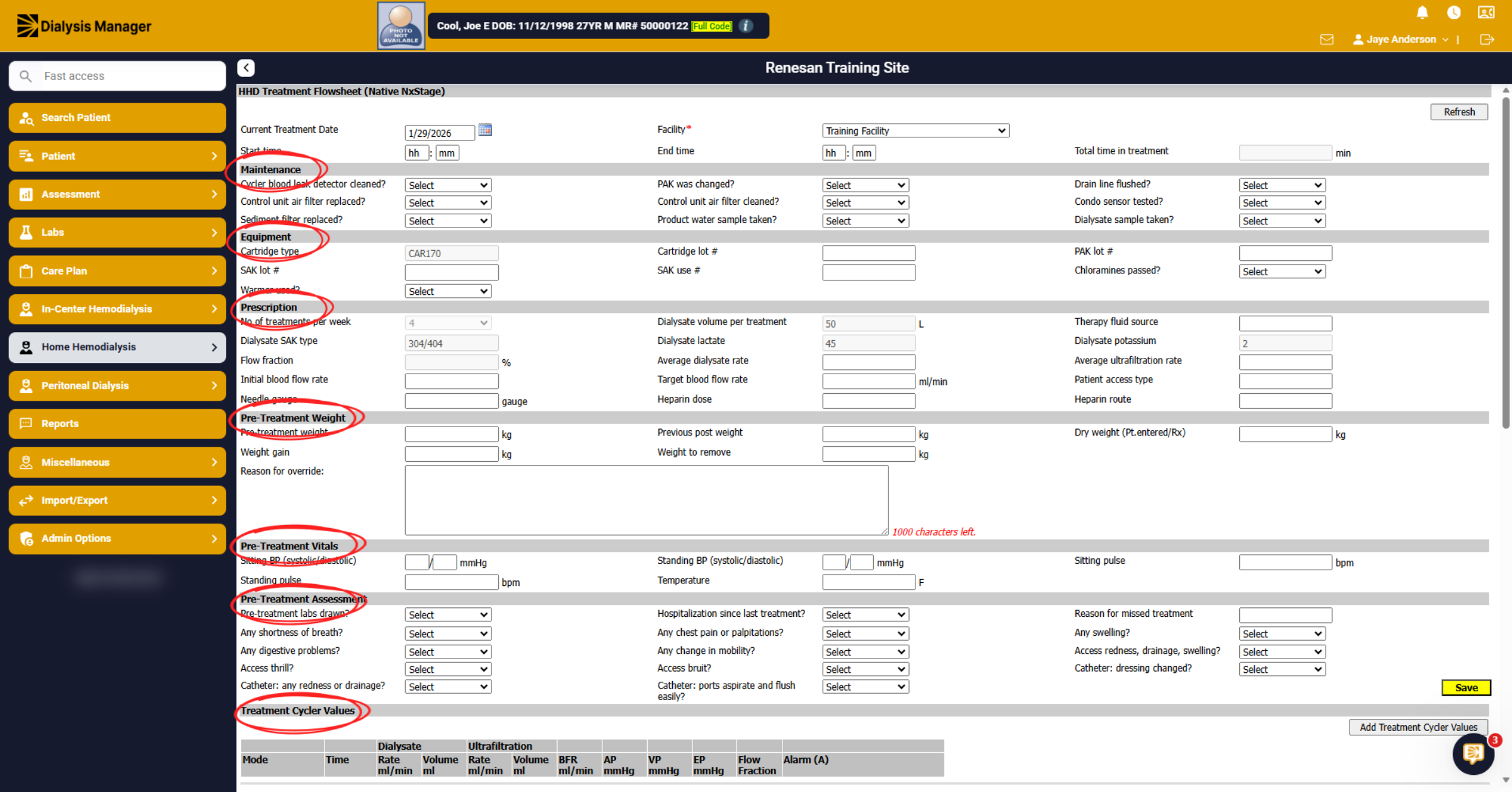
54. Select Maintenance Tab
Notice this flowsheet does not have tabs along the top but it is broken down in different sections.
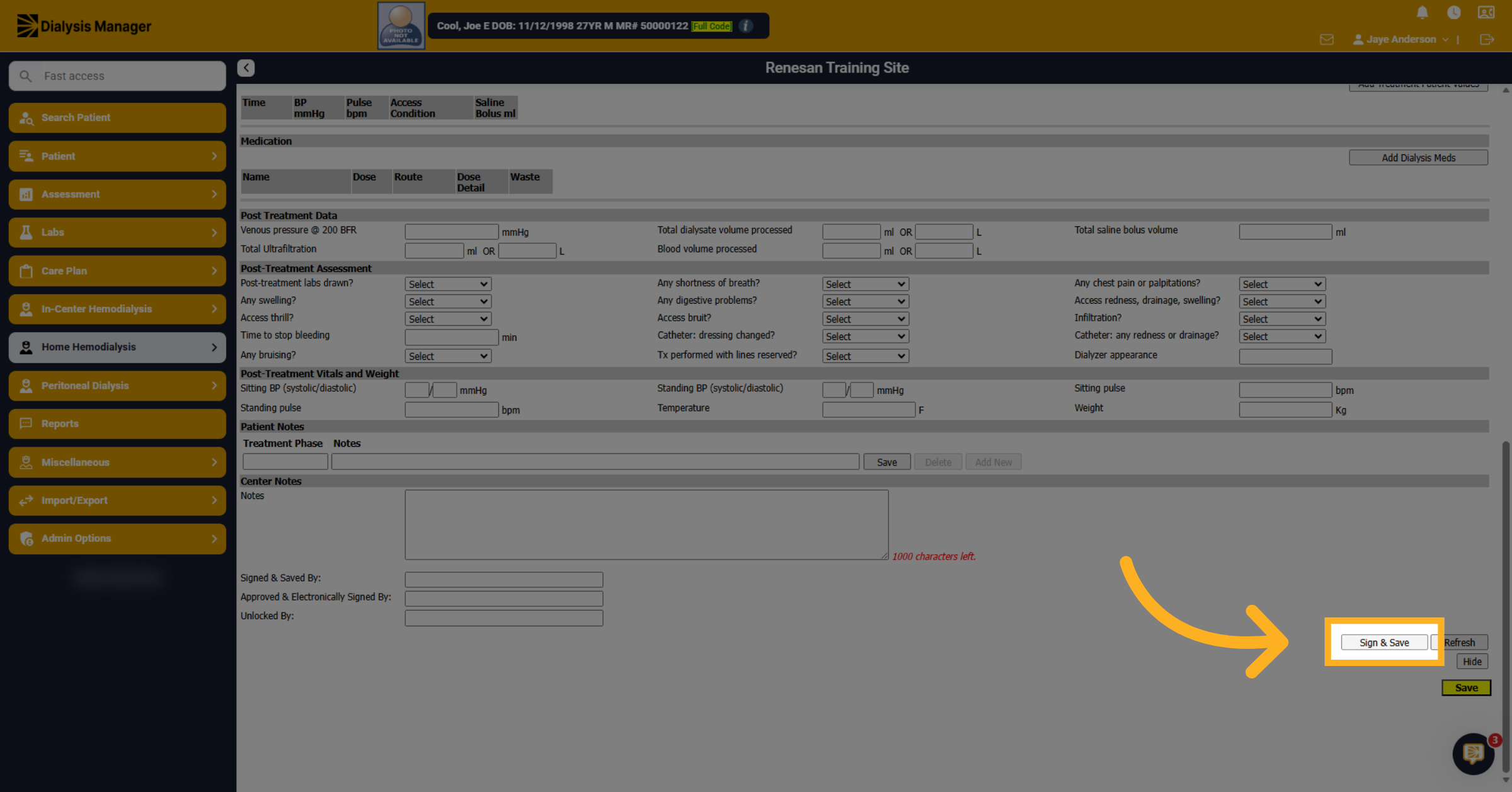
55. Sign and Save Flowsheet
Click "Sign & Save" to finalize and securely save the HHD treatment flowsheet. After signing and saving you will be able to approve and lock
56. Nx2Me Interface
If you have the Next to Me Interface the data can automatically cross and the nurse will need to review and approve & lock the flowsheet. The Treatment type will display as Manual if it was a manual entry or Automatic if it is from the interface.
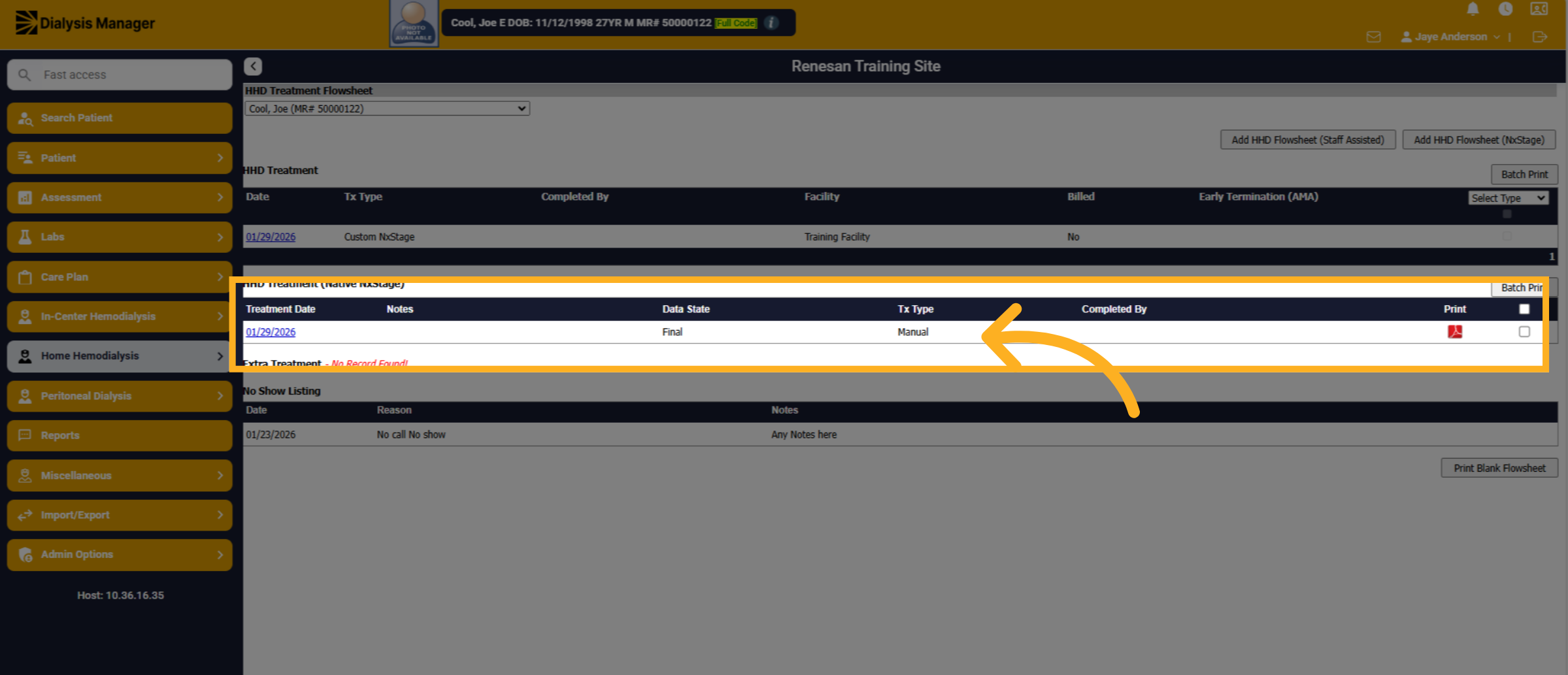
57. Open Peritoneal Dialysis Section
We also have a Peritoneal Dialysis section.
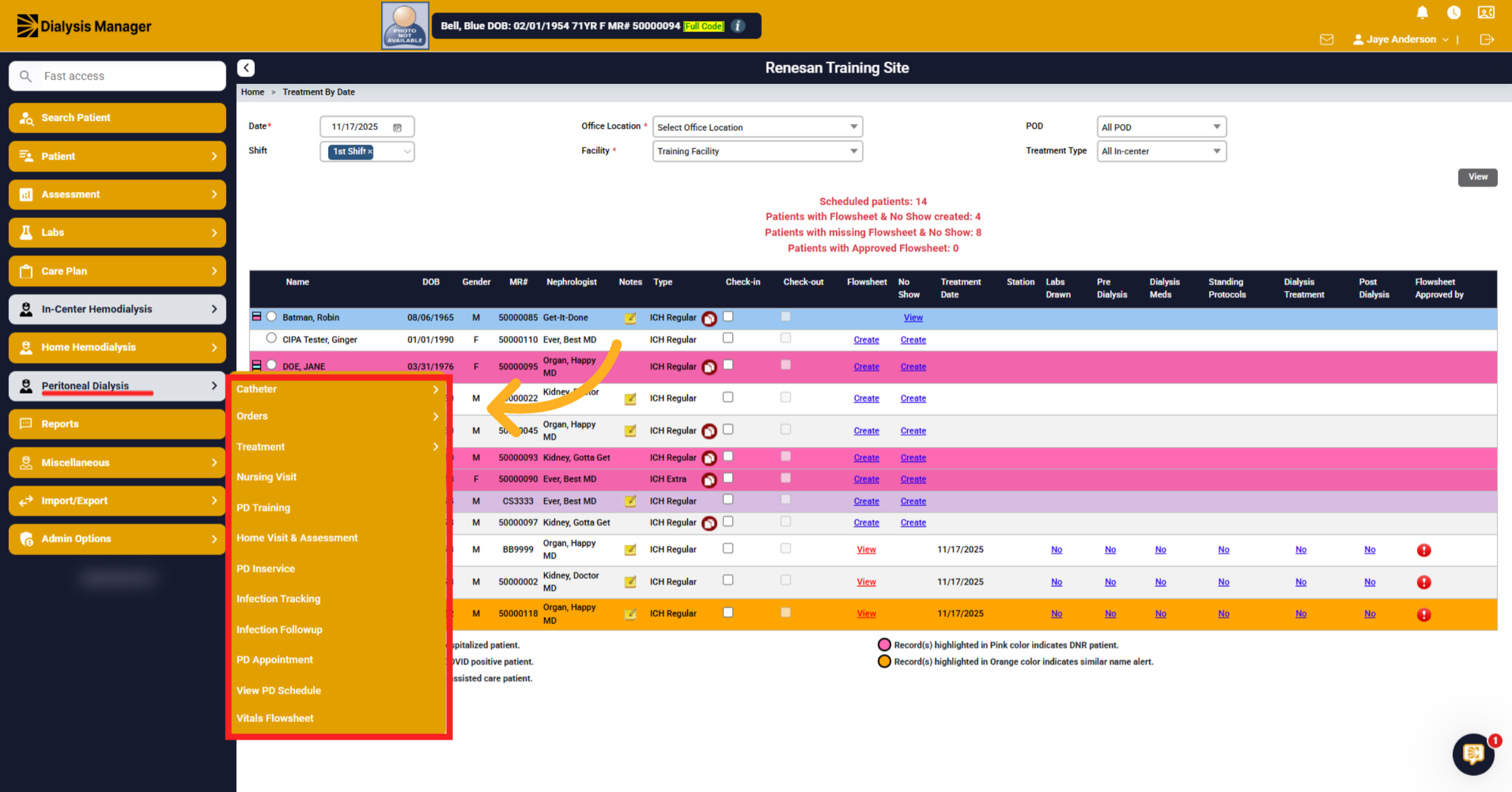
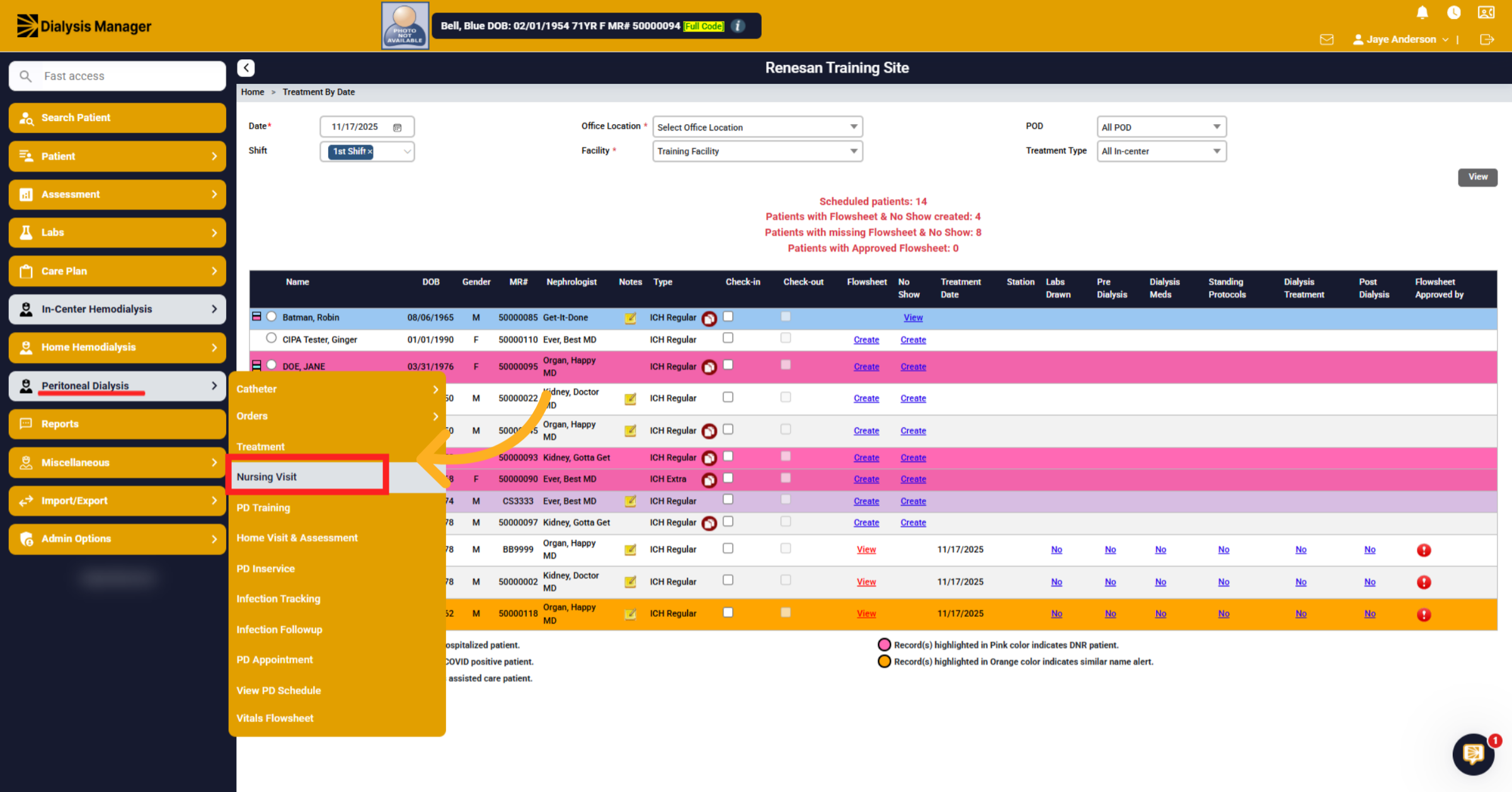
58. Access Nursing Visit Section
Click Peritoneal Dialysis, then Nursing Visit to review and create nursing visit records.
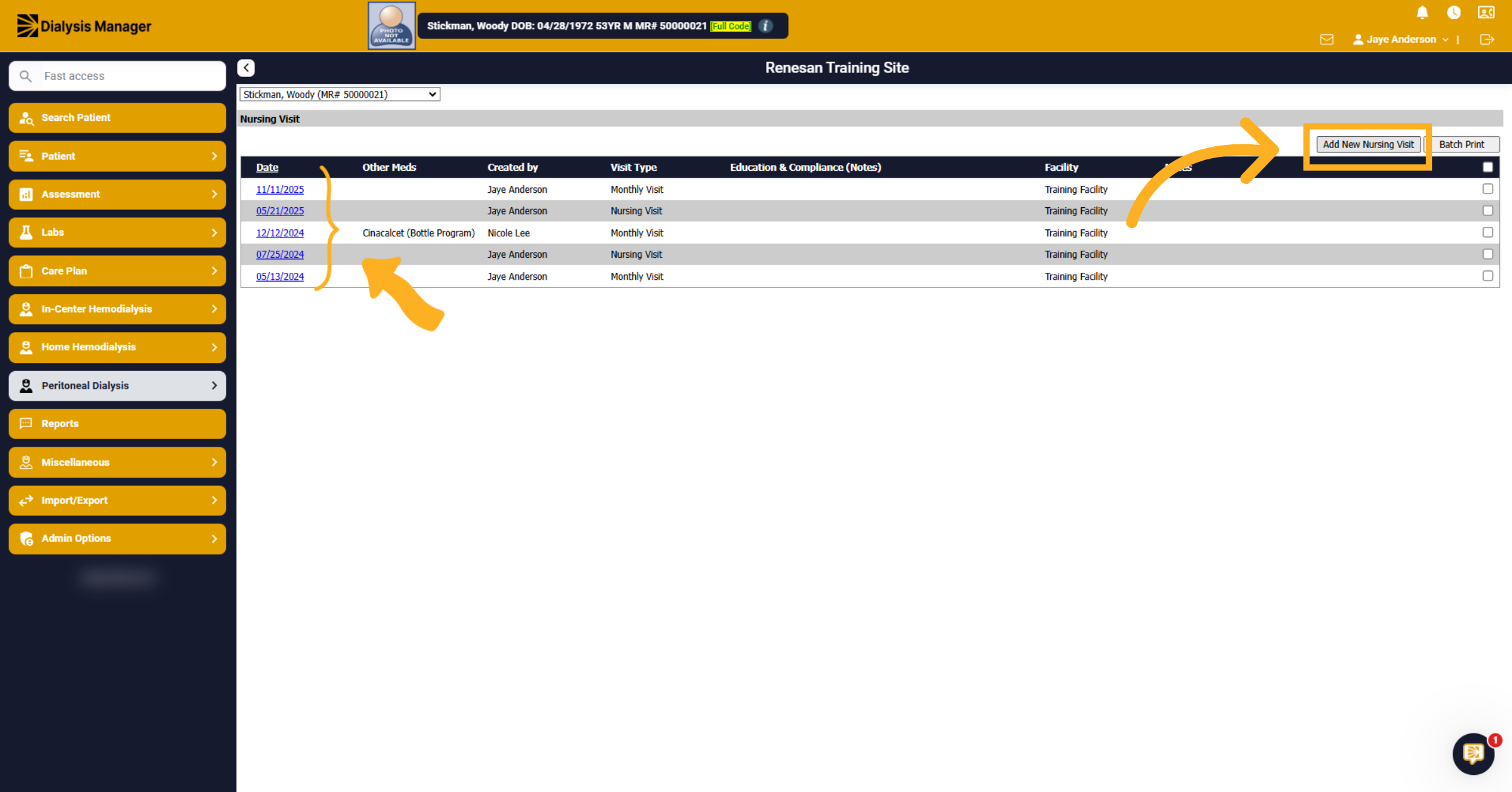
59. Add New Nursing Visit
Within our Peritoneal Dialysis section. Click the hyperlink date to view any previous nursing visits. Or Click Add New Nursing Visit to create a new nursing visit record.
60. Fill Visit Details
Click Monthly Visit to specify the visit frequency and complete the rest of the form.
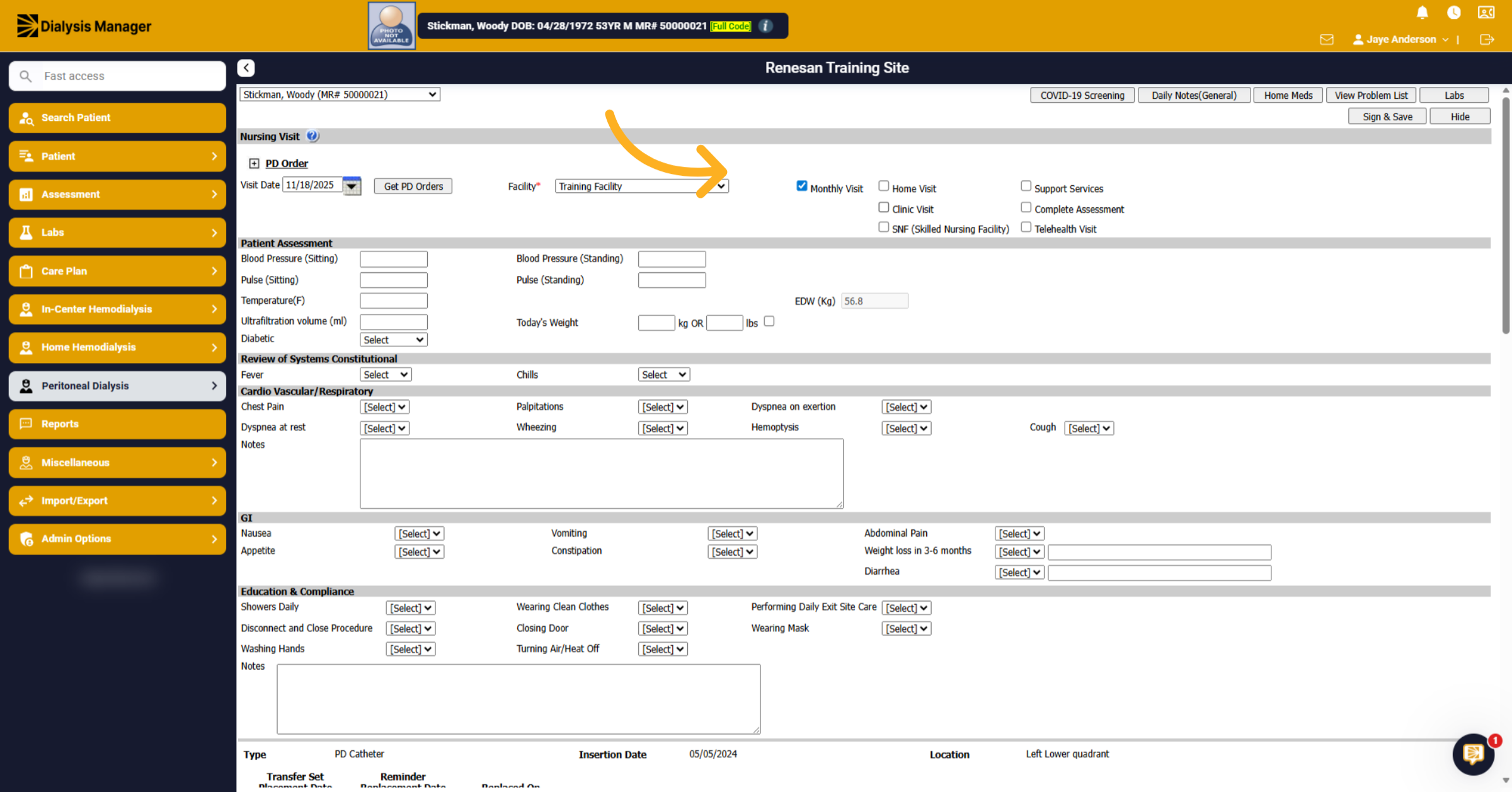
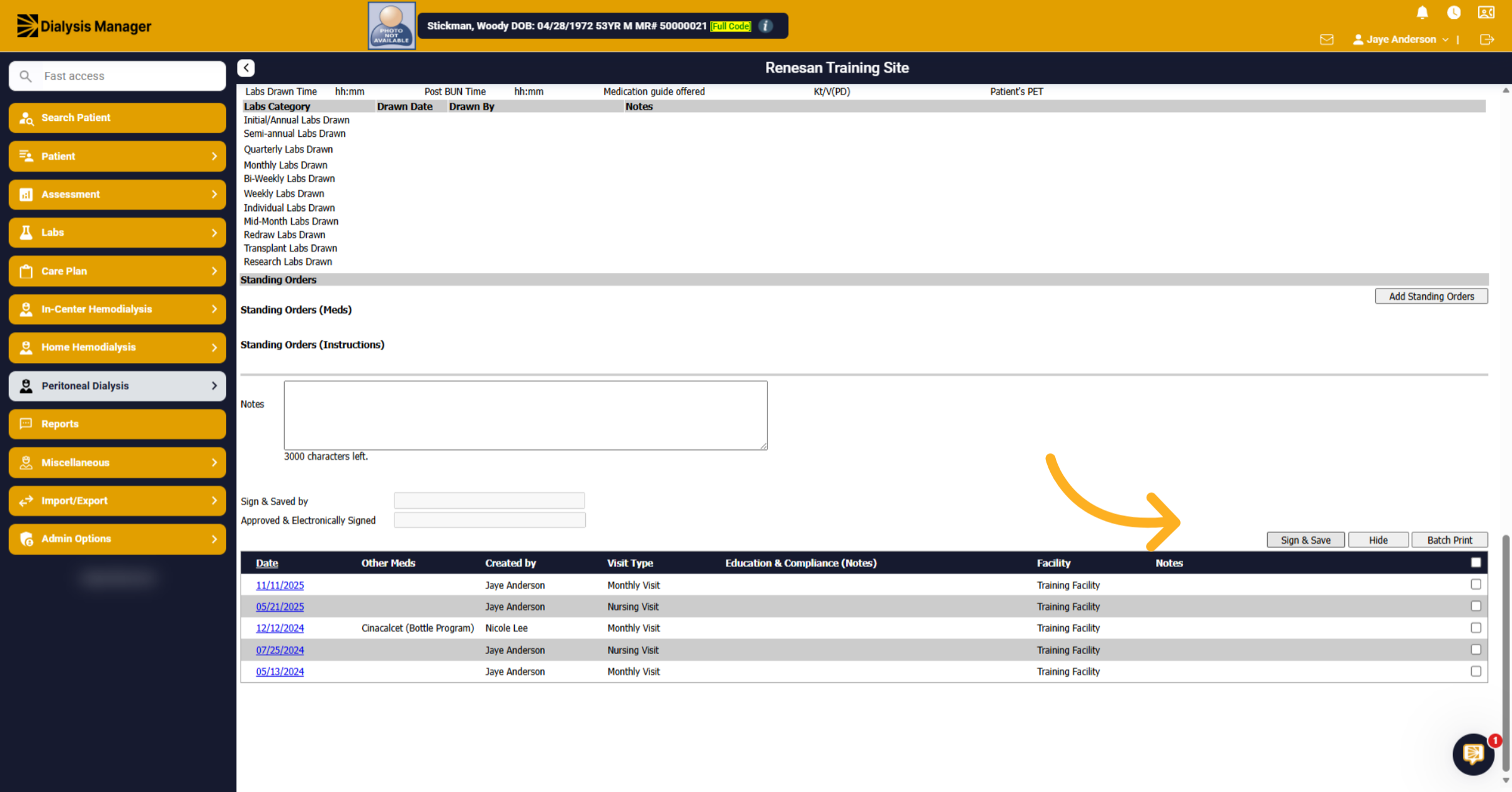
61. Save Nursing Visit
Click Sign & Save to save the nursing visit record.
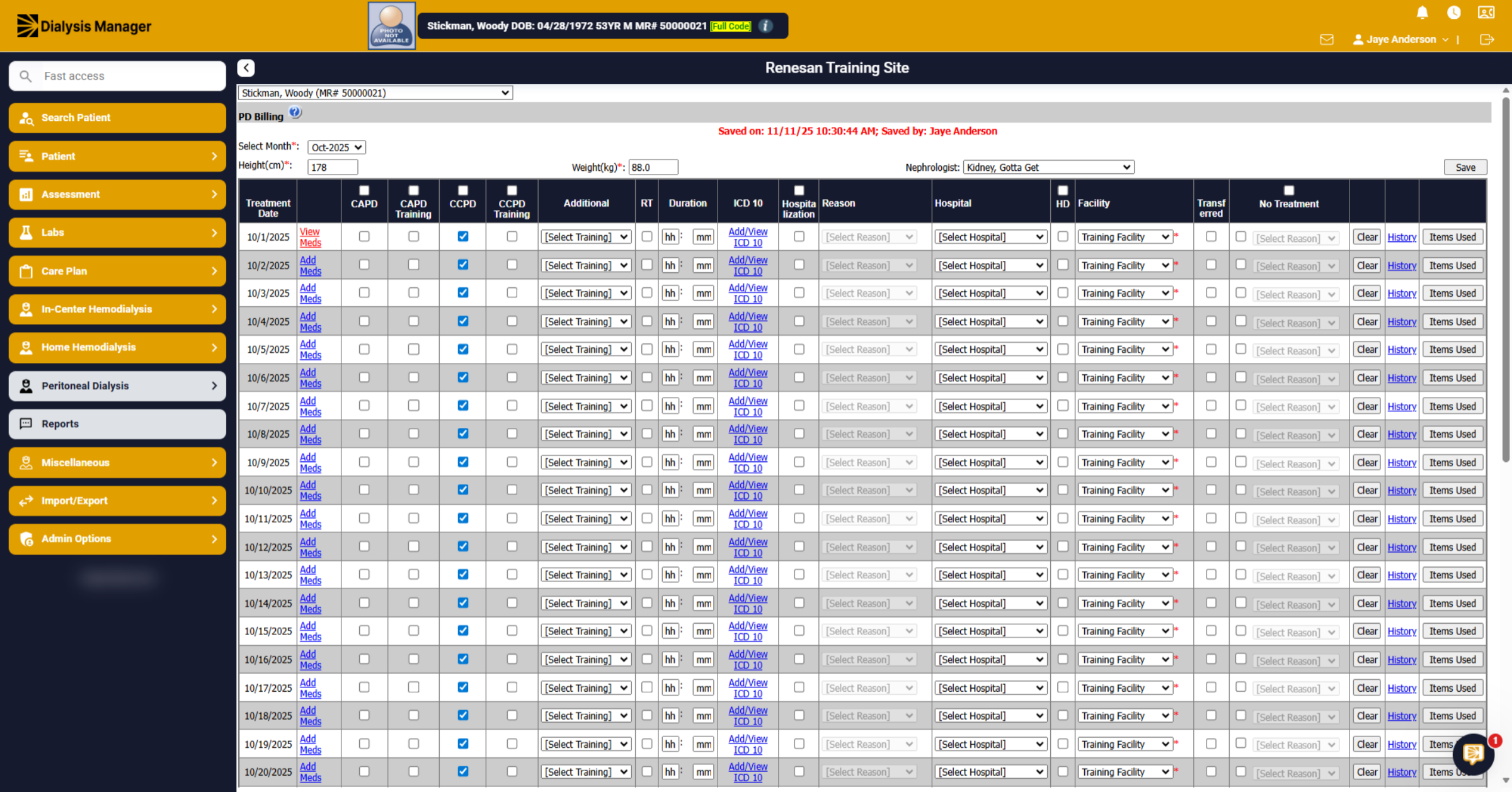
62. PD Billing Section
Click Peritoneal Dialysis, Treatment, and PD Billing to access peritoneal dialysis billing information. Medication Information from the Monthly nursing visit will flow across. Staff will complete the form and sign and save for PD monthly billing purposes
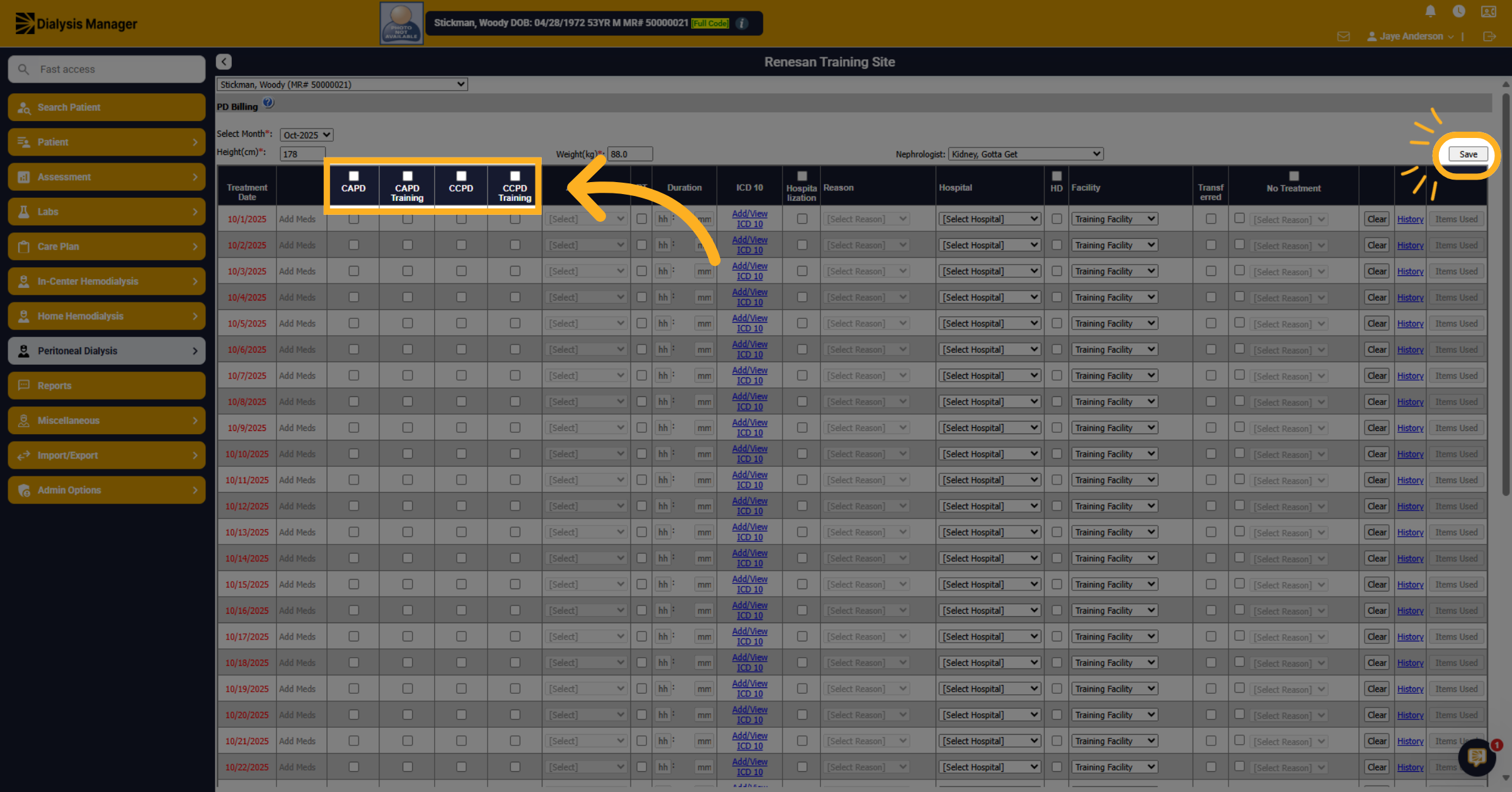
63. Select Treatment type
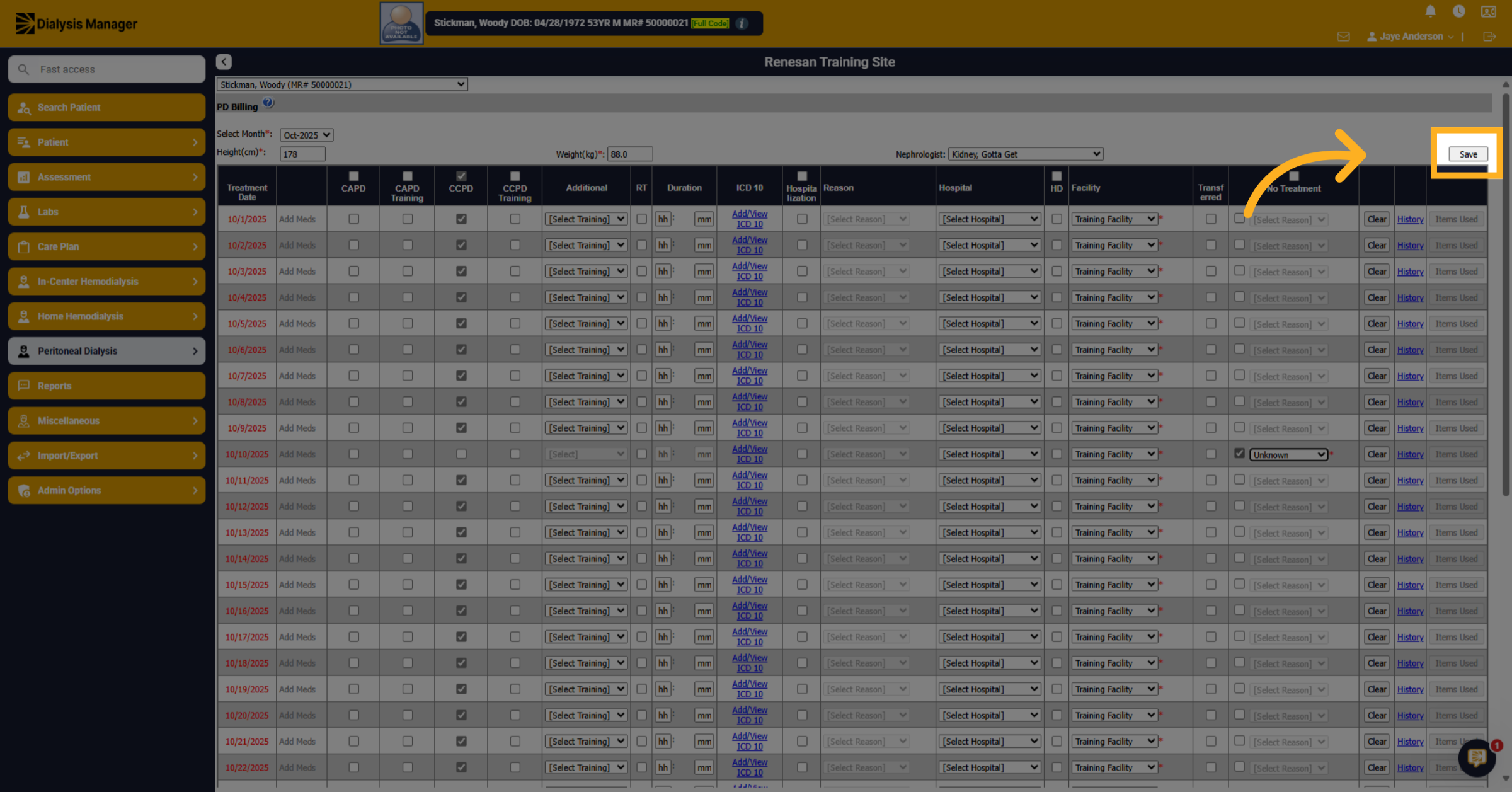
Select the treatment type along the top to select all. Or individually select for each date. Be sure to save often!
64. Select No Treatment Reason
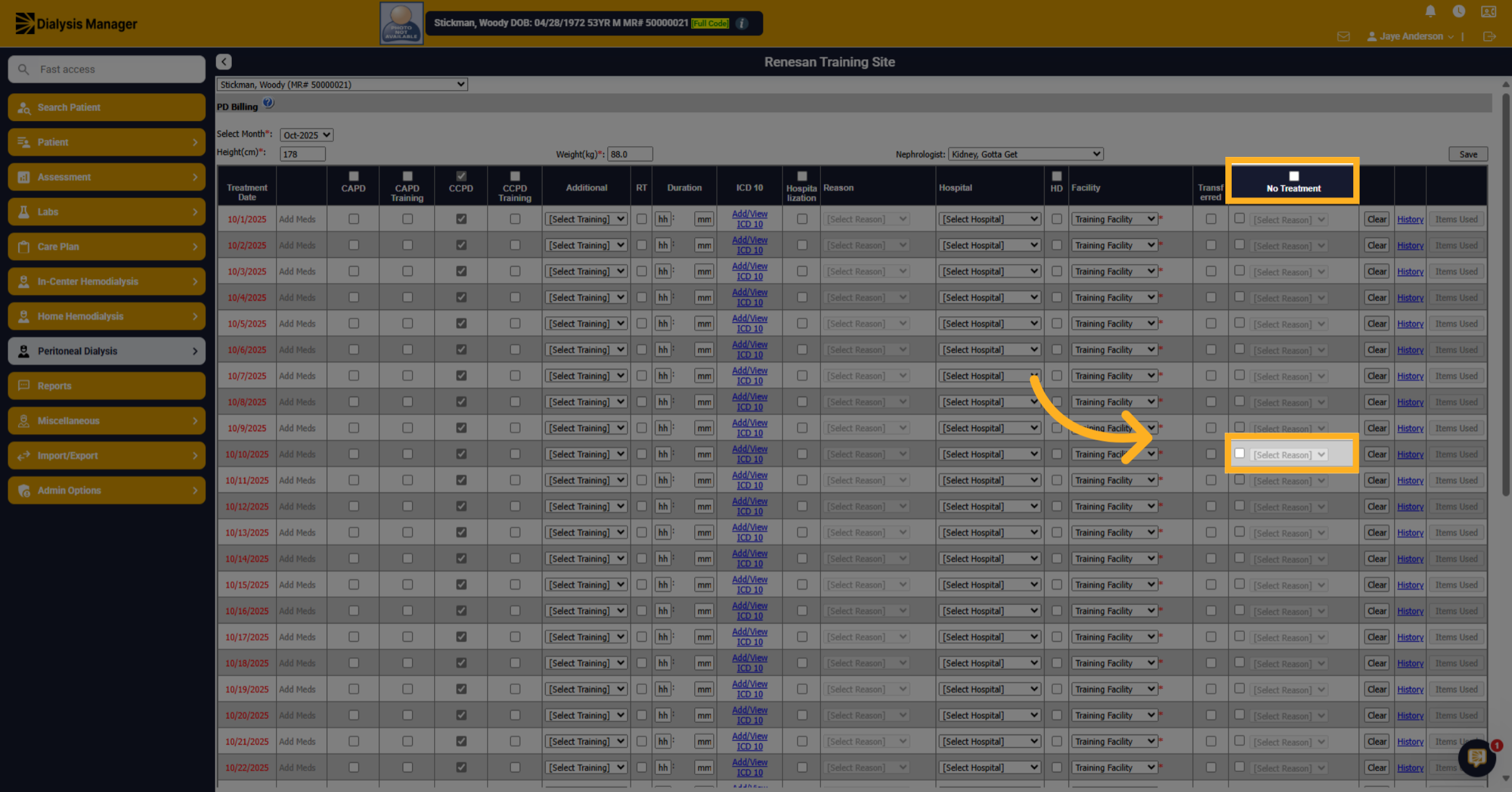
If there is no treatment you can mark the check box and select the reason for no treatment from the drop-down list.
65. Click Save
Click Save. Wait for the system to confirm the save process.
66. Reports
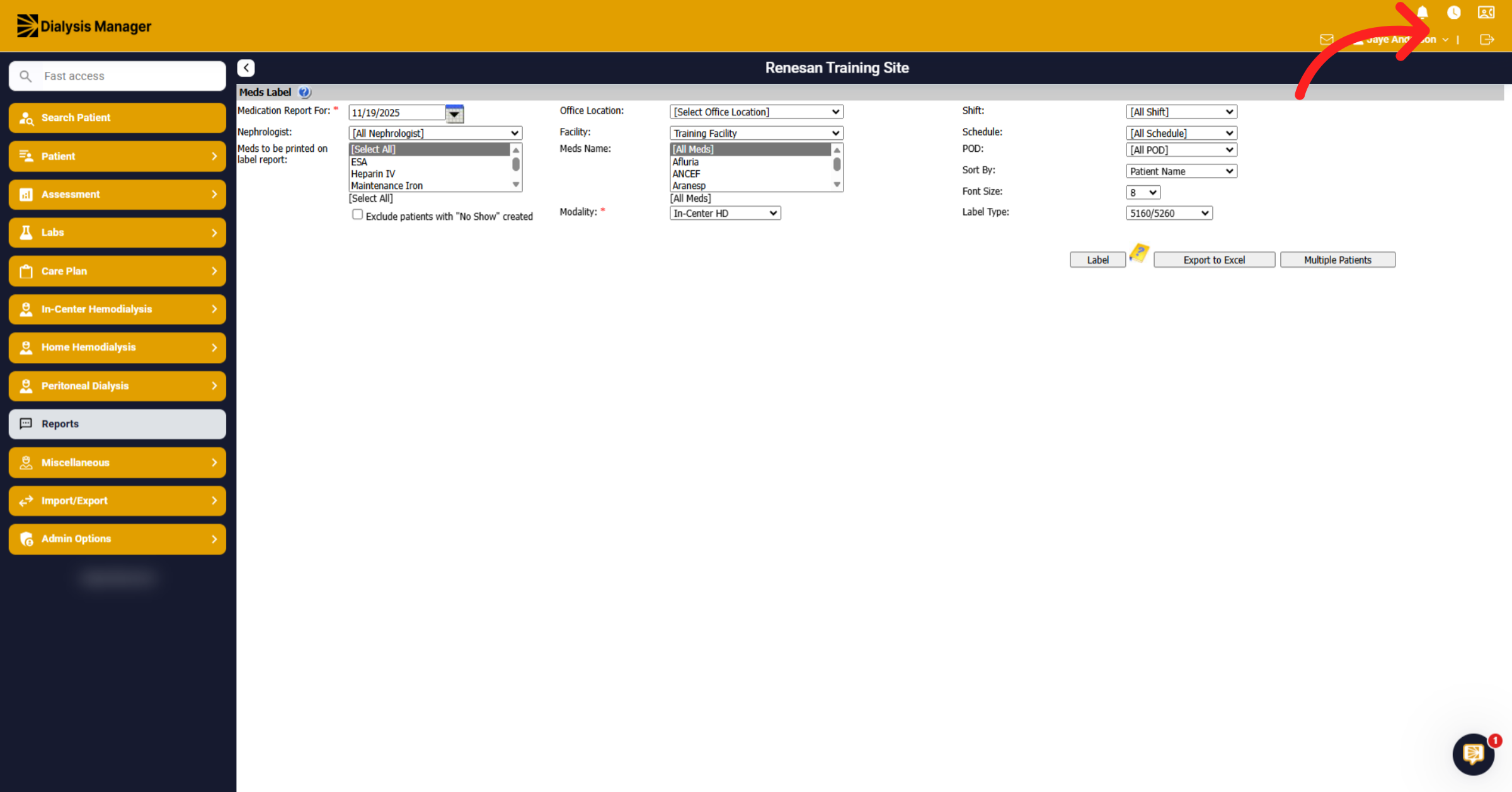
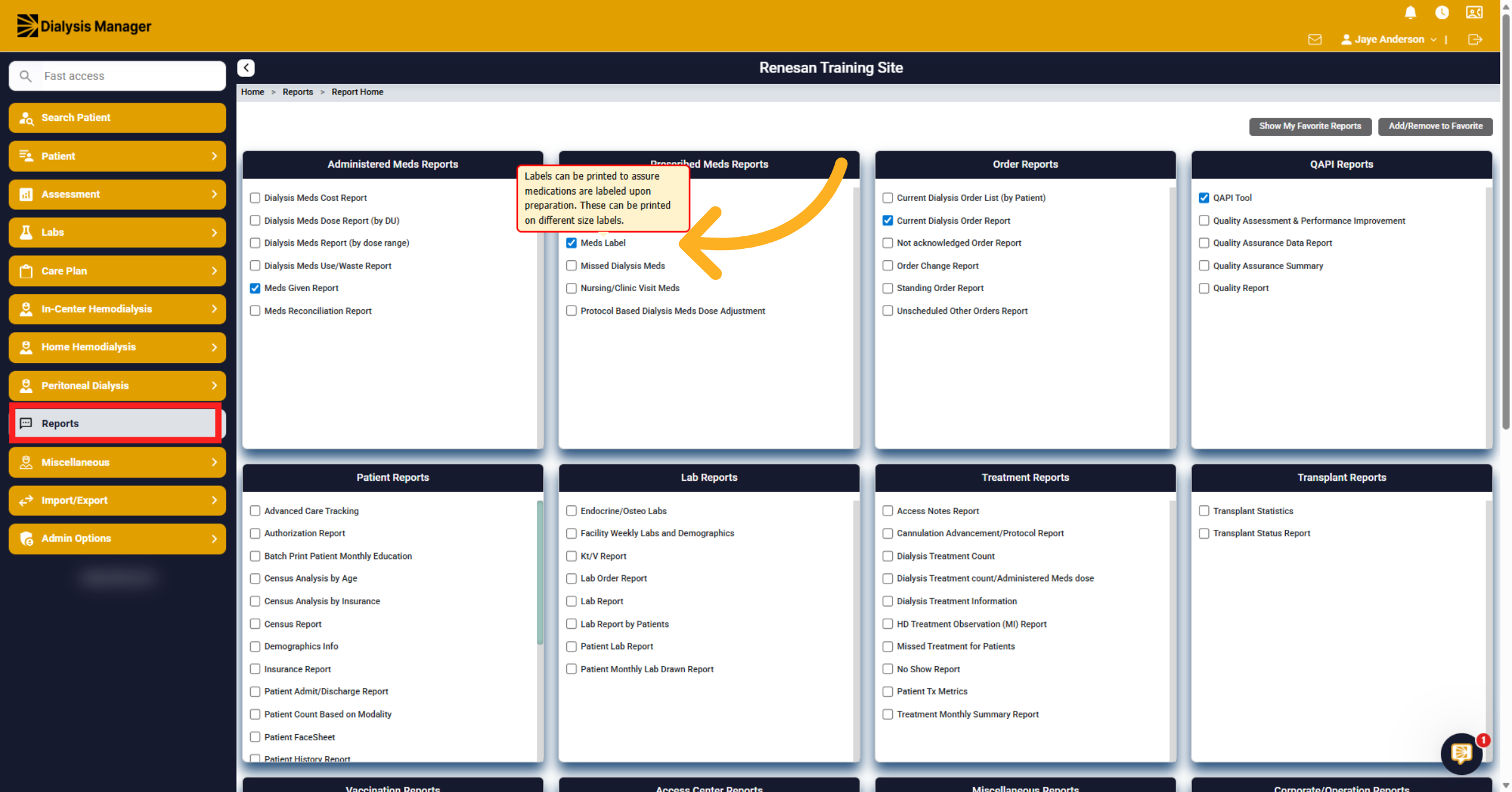
Inside the Report Menu, we have several different reports which are separated by different groups. For example, Medications, Labs, treatments and many other sections. To run a report, you simply click on the report name and complete any required filters. Here we'll click on the Meds Label report. Please note that hovering over a report will display details regarding the report.
67. Open Label Section
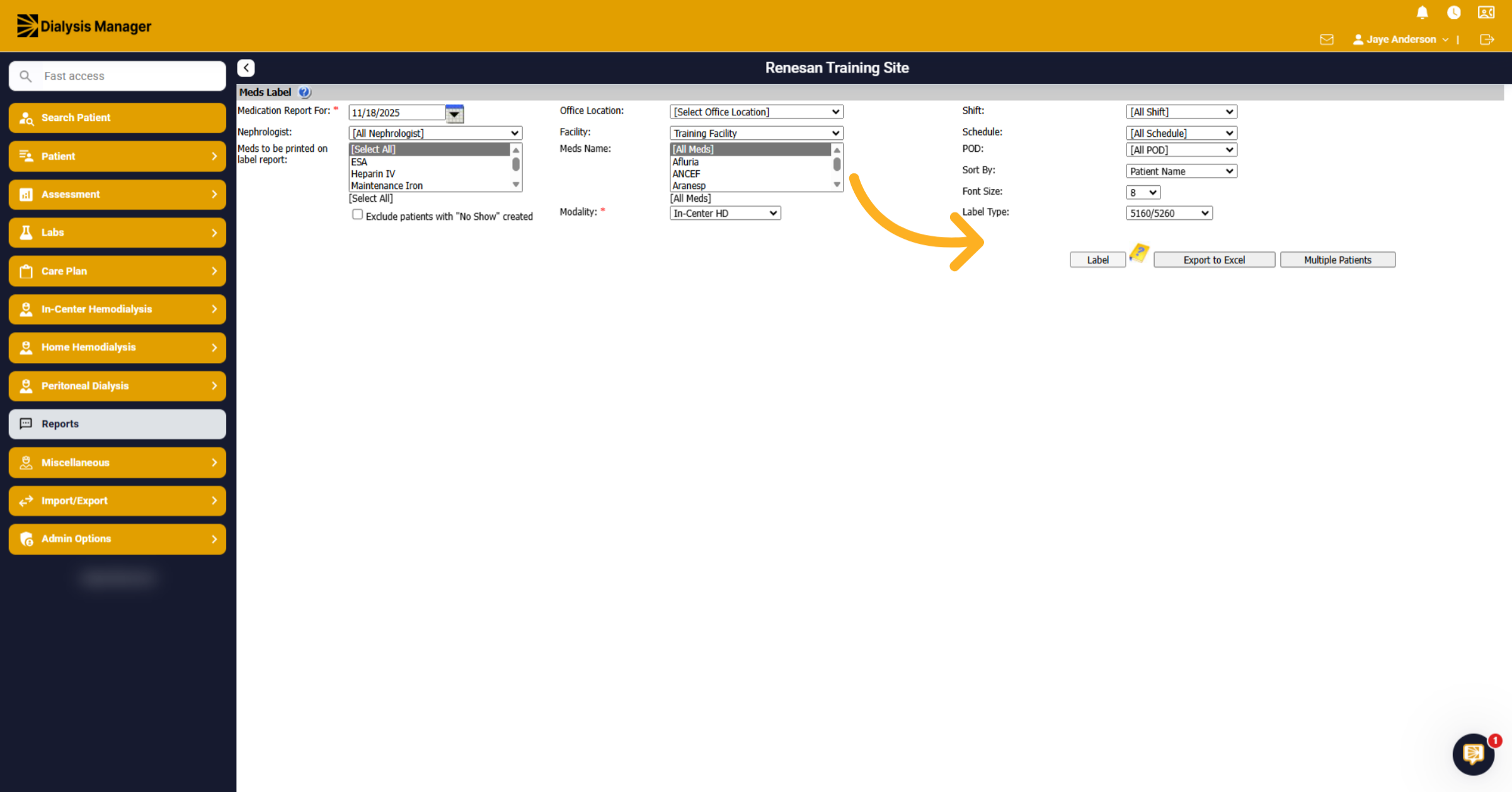
After entering your filter criteria, Click Label to access label report. You can even export reports to excel.
68. Open Users Section
Under our Admin Options you can manage administrative settings such as add and editing user accounts and Managing the Master drop down lists.
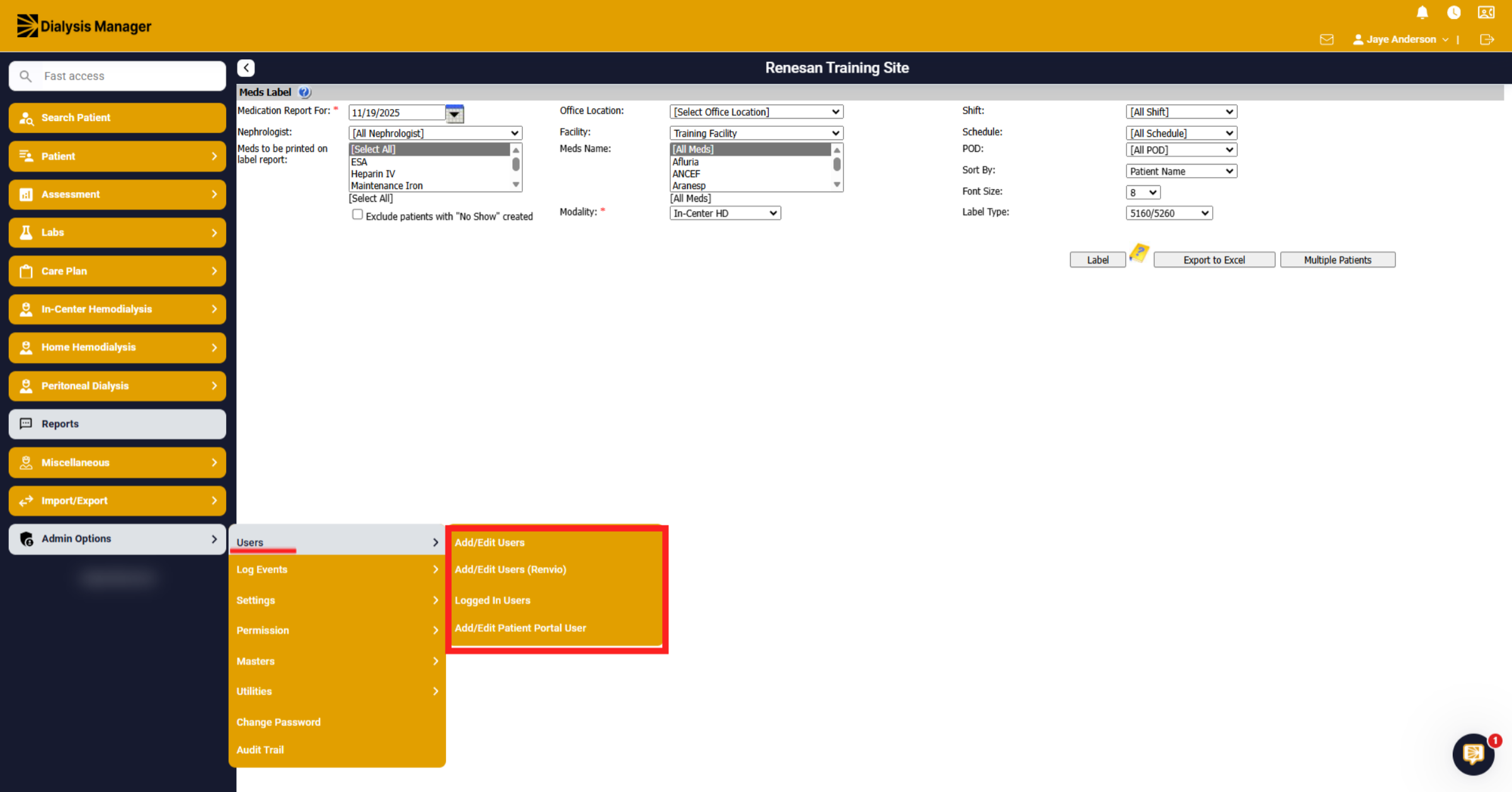
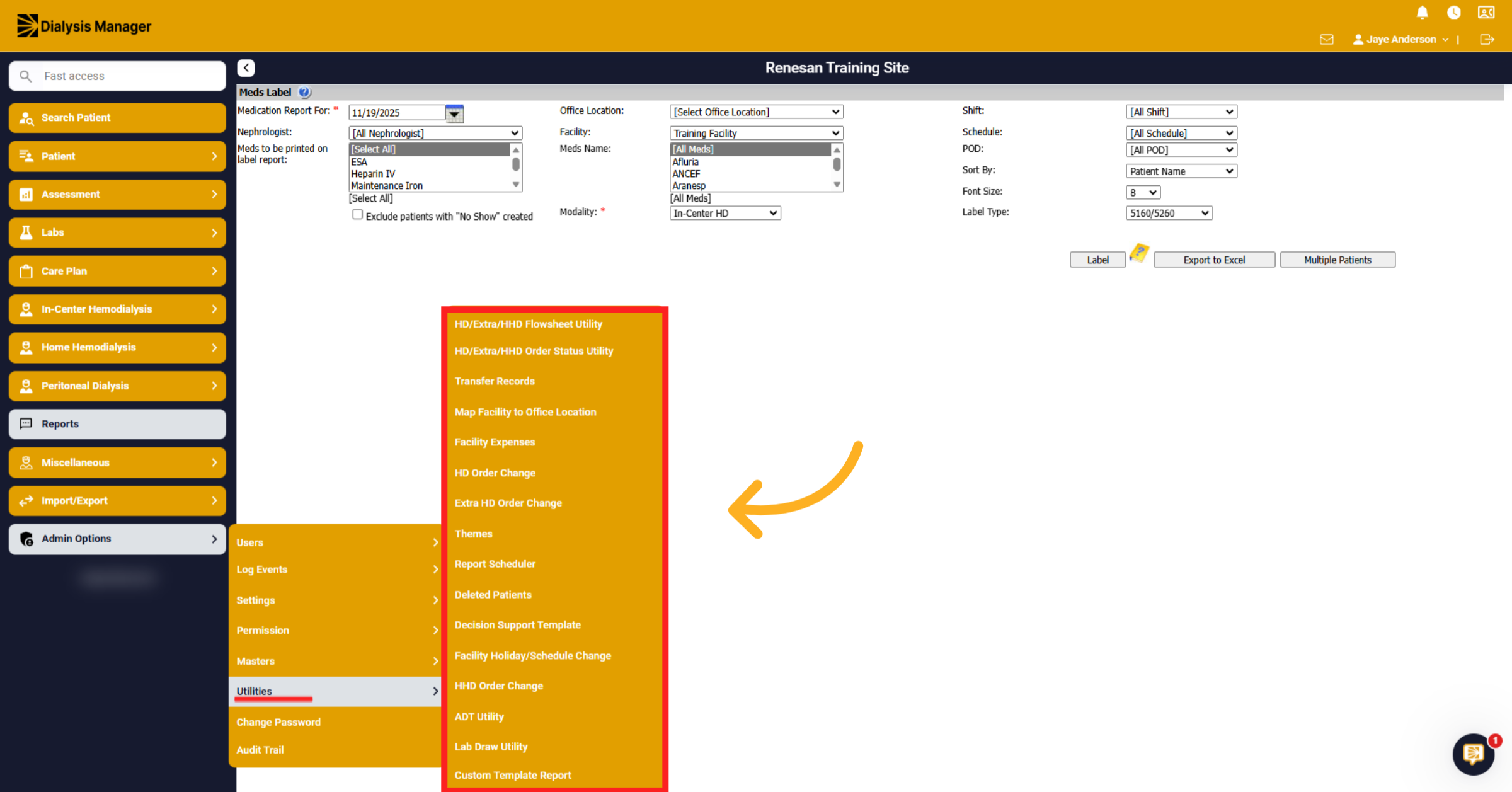
69. Access Utilities Section
Clicking Utilities will provide access to menus such as managing and deleting patient flowsheets and updating past order information.
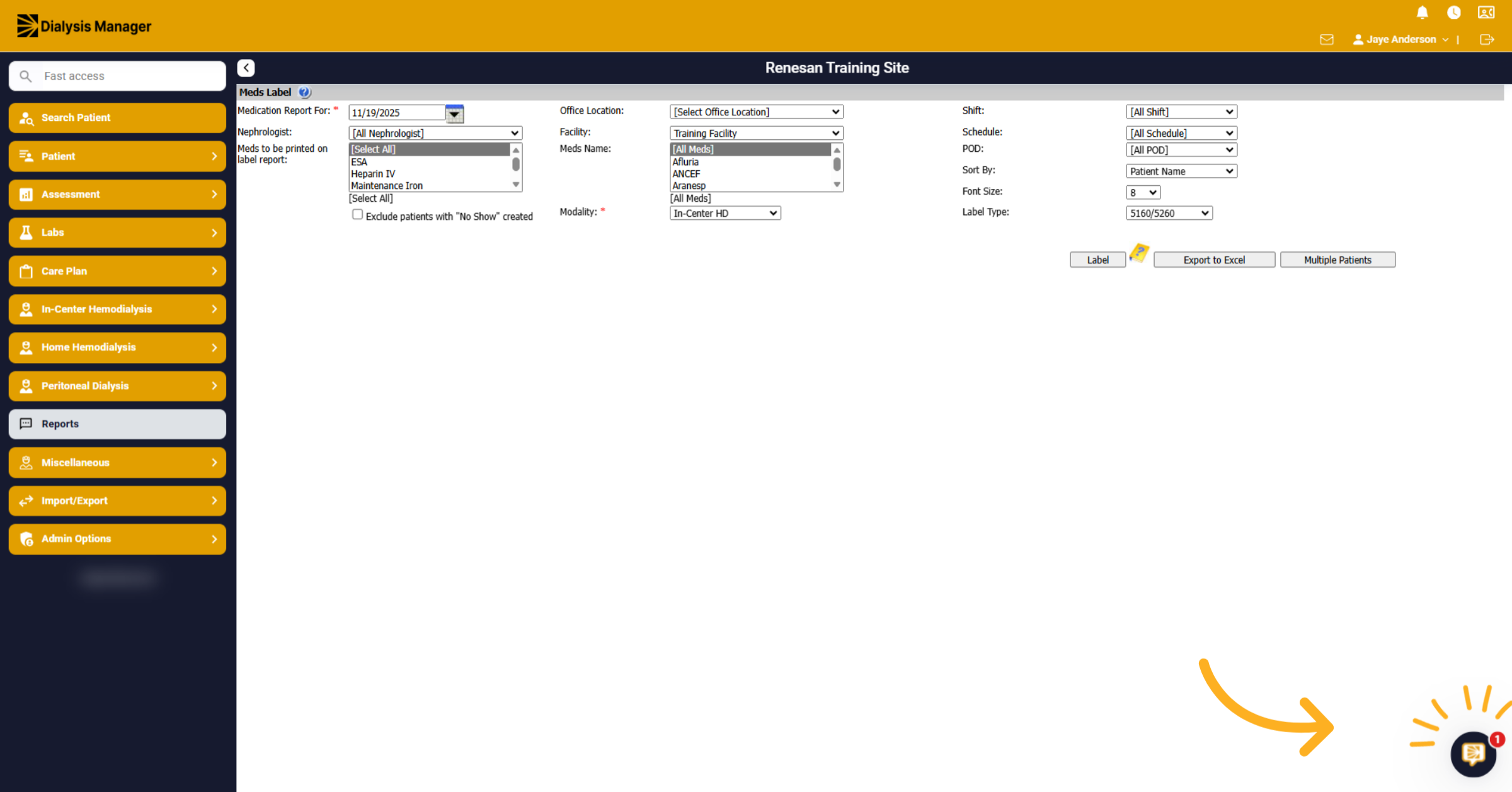
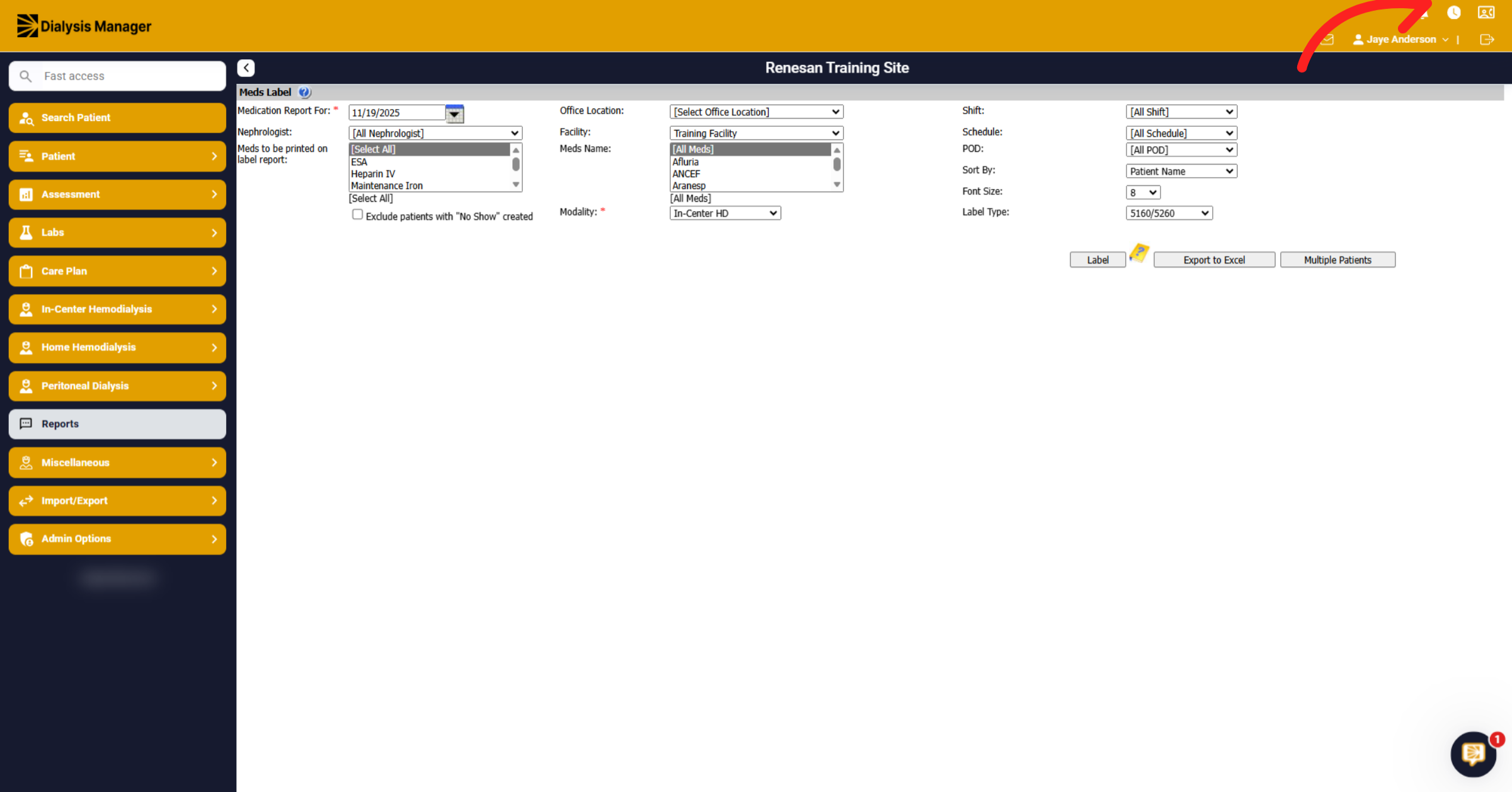
70. Click Chat Bot Area
Click the specified area to open our help chat bot.
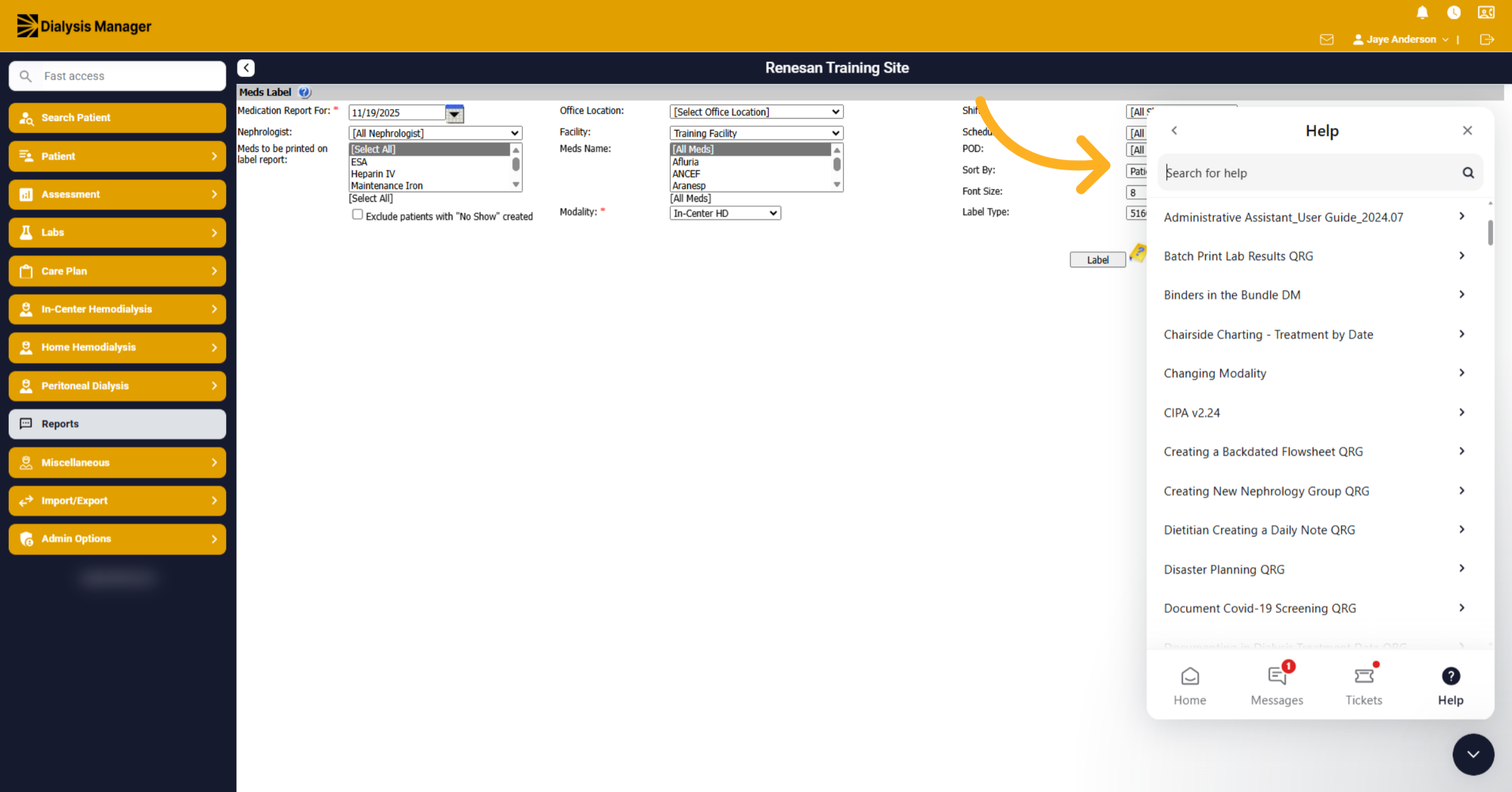
71. Open Help Section
You can ask a question or search for specific help.
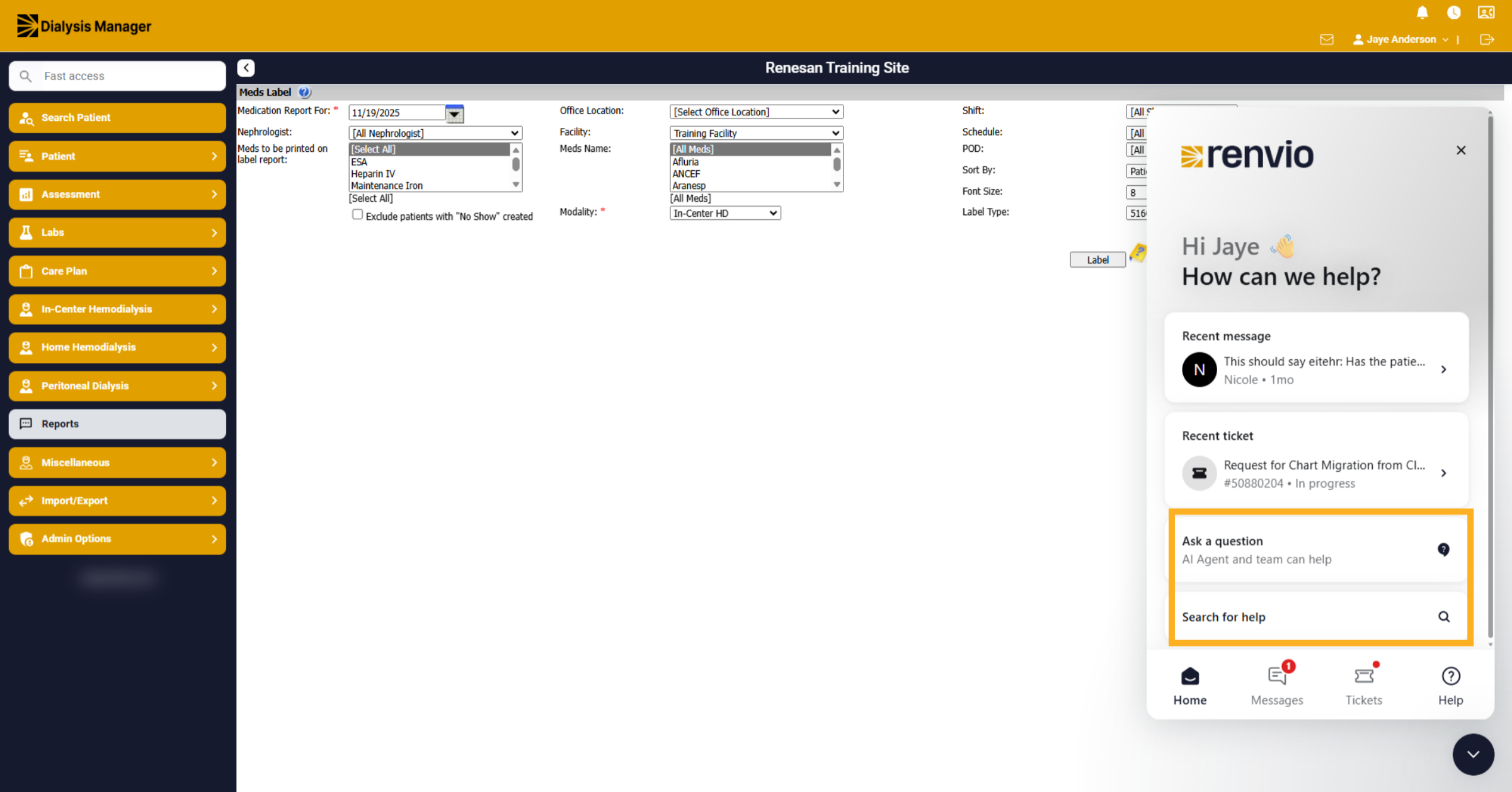
72. Search for Help Topics
Click Search for help to find assistance on related topics.
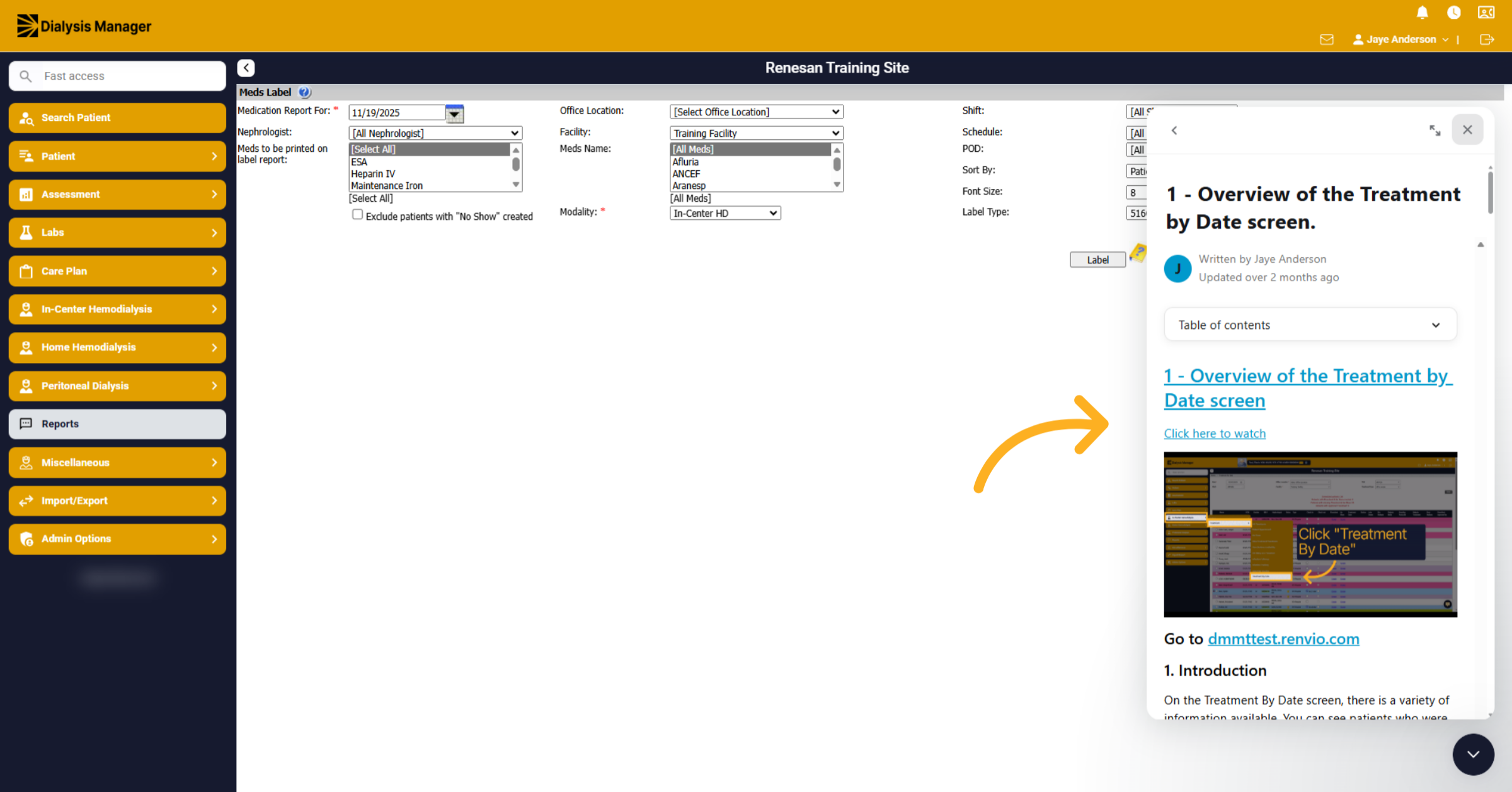
73. Click Watch video
After searching you can click to watch a video or read through the information.
74. Click Contact us Area
Click the specified area to view our "contact us" information.
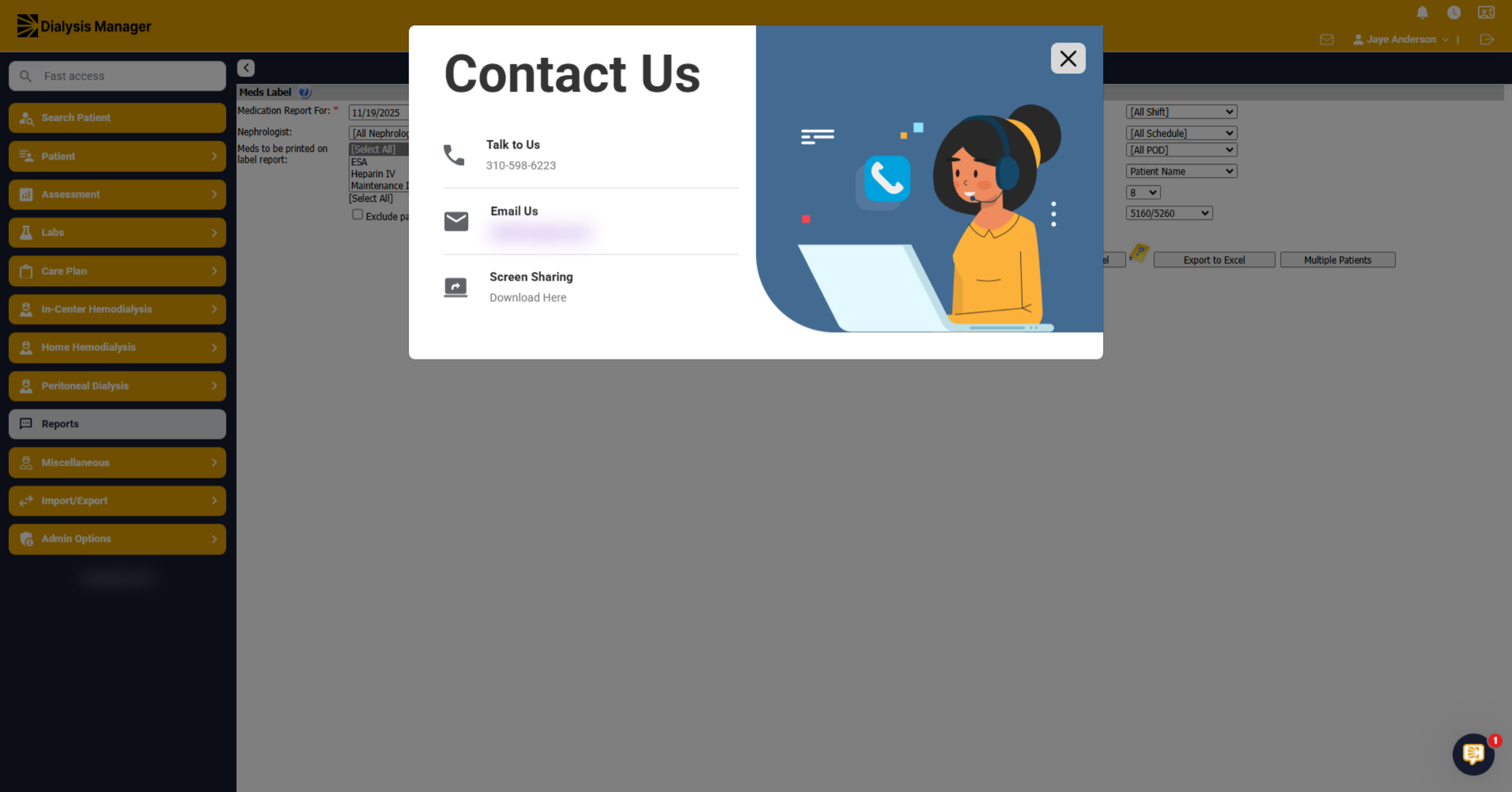
75. Contact Us info
A new pop up will appear with the applicable phone and email address.
76. Log out
Clicking this icon will log out of the application.