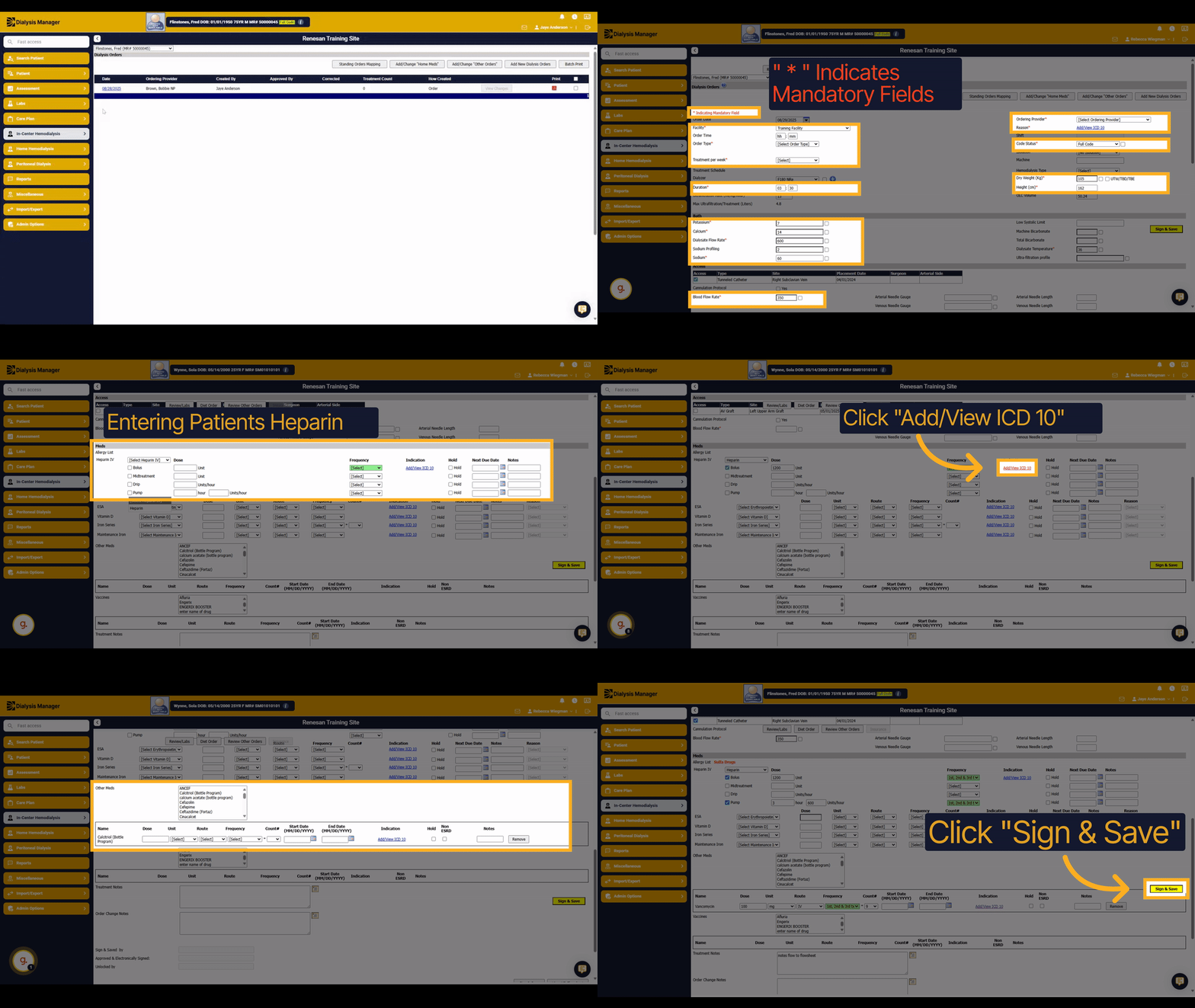
Orders and Medication Entry.
Please add a description
2. Introduction
In this video we will walk you through the In-Center Hemodialysis Order menu. Entering a dialysis order, an extra treatment order, and home medications
3. In-Center Hemodialysis - Orders
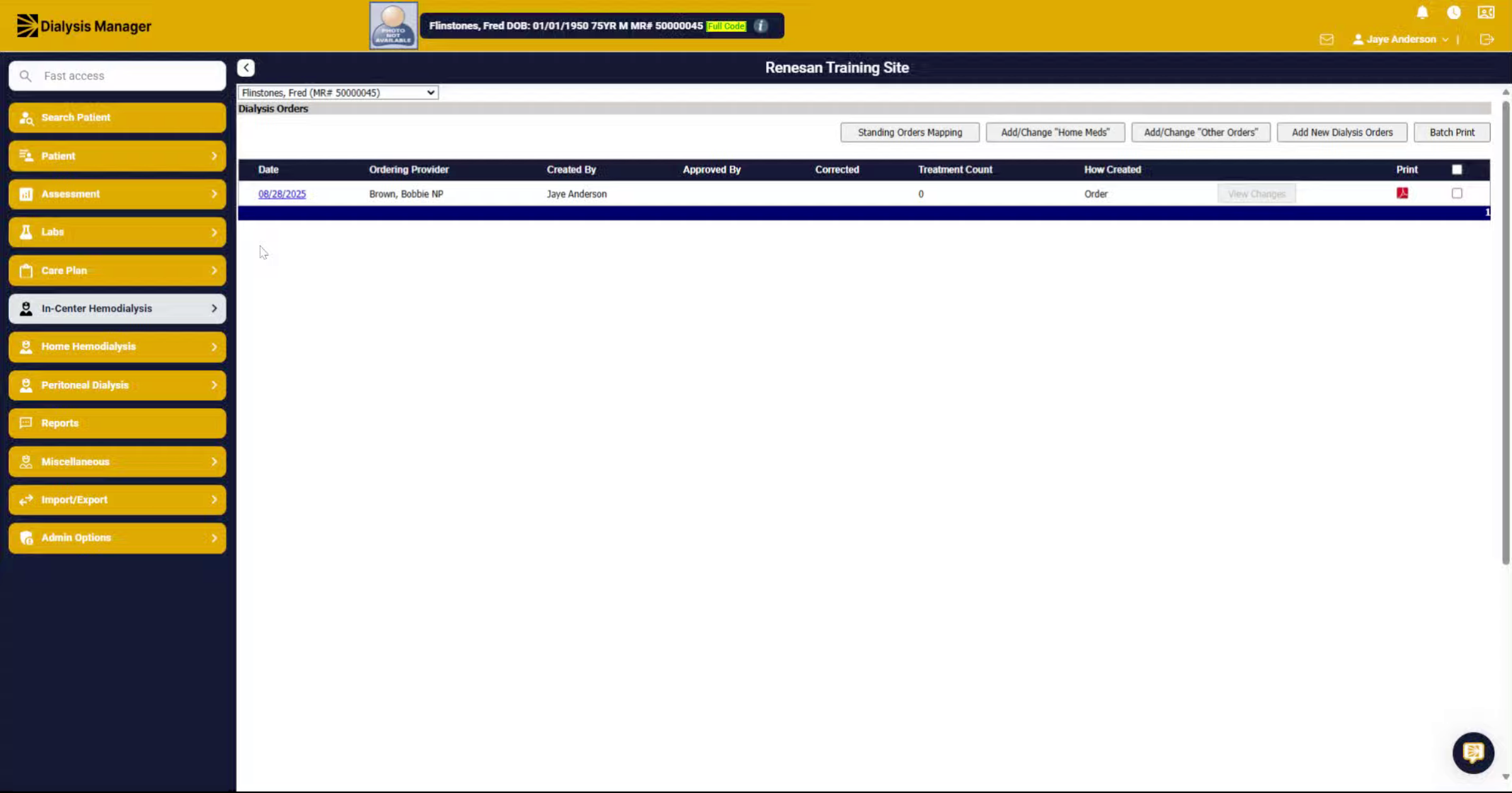
Inside the In-Center Hemodialysis menu, order, select Dialysis Orders.
4. Add New Dialysis Orders
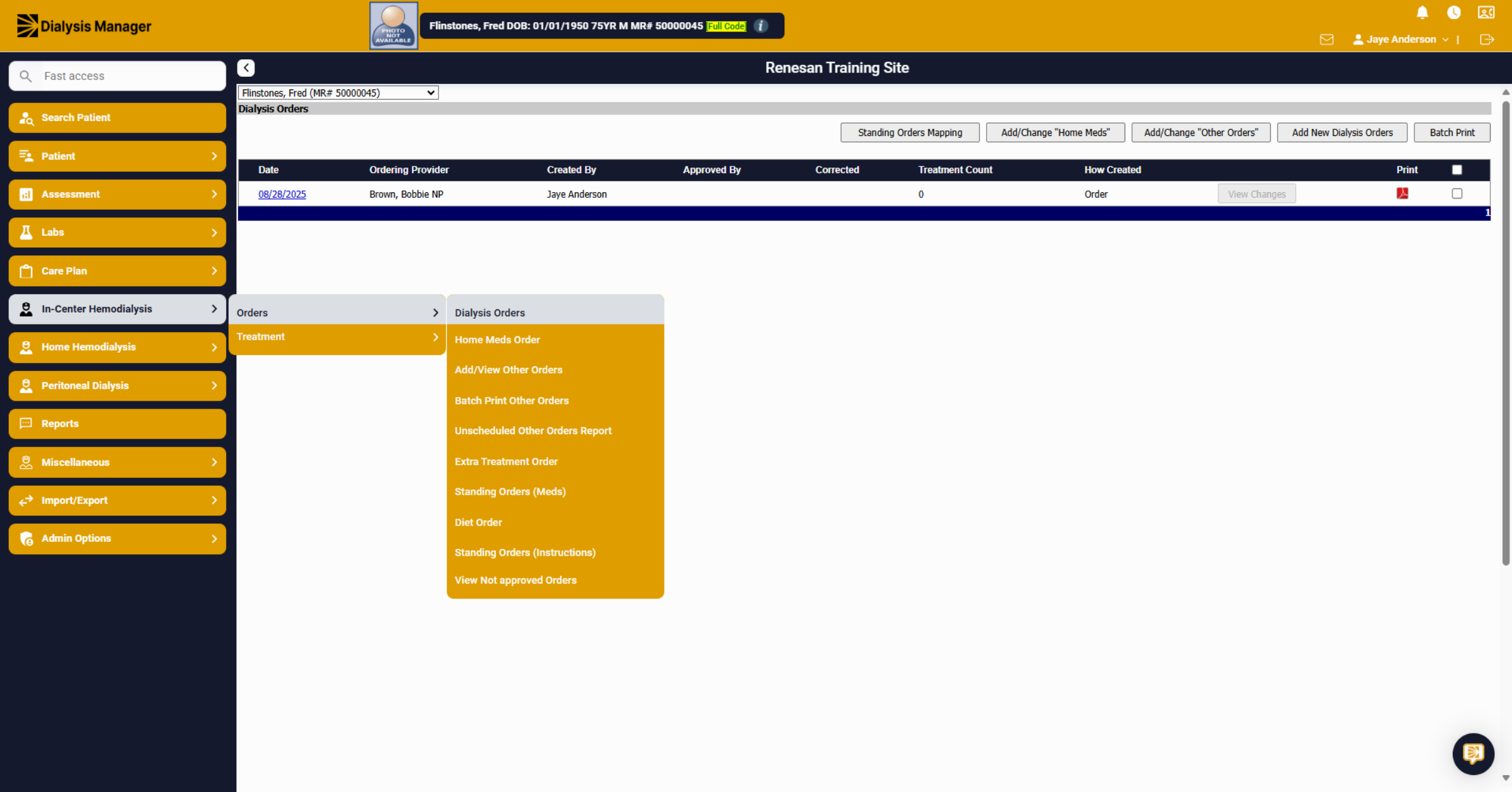
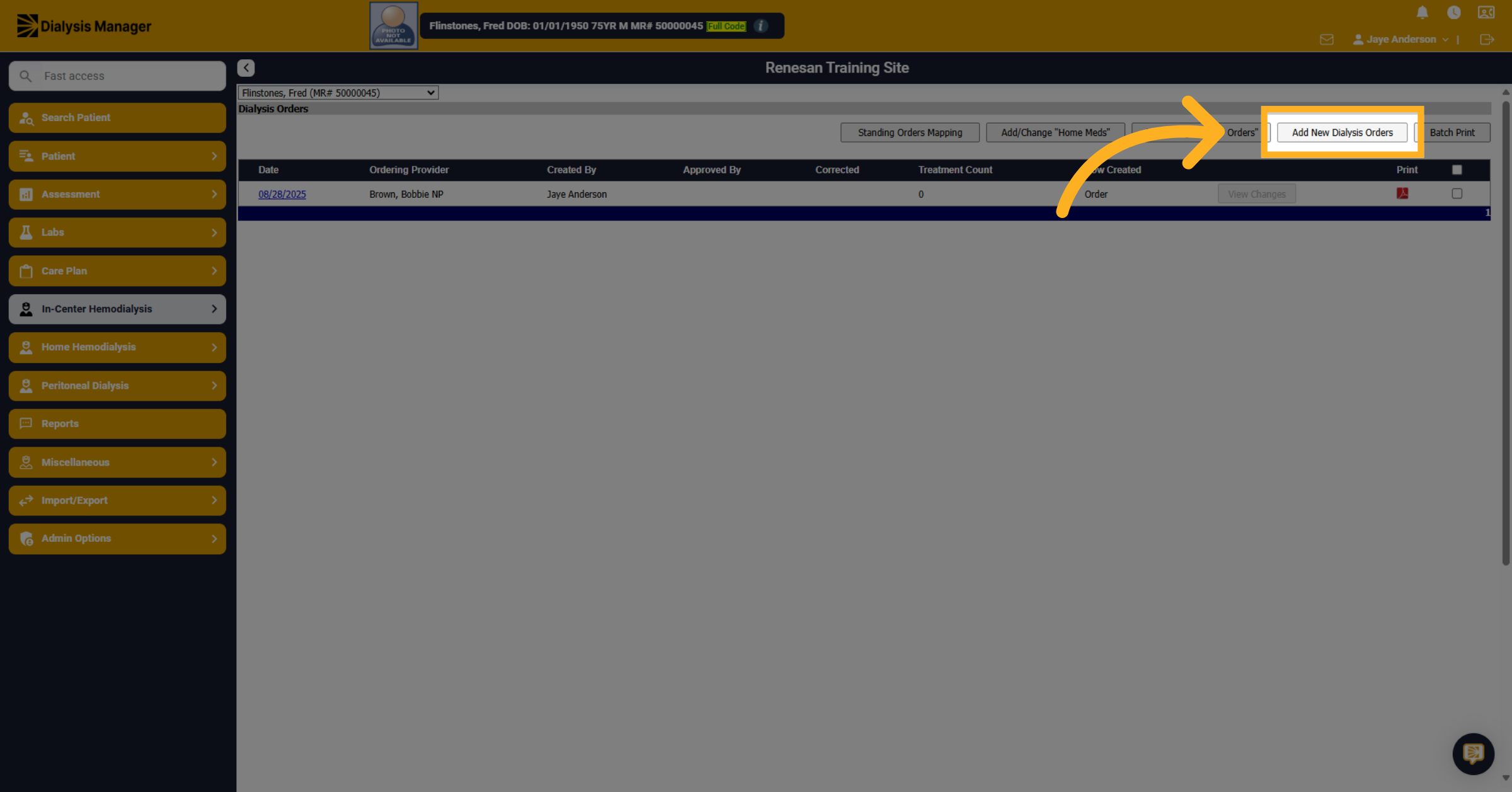
Inside the Dialysis Order, if the patient has orders entered, they will be visible here. If they are a new patient or a new order needs to be created select Add New Dialysis Order.
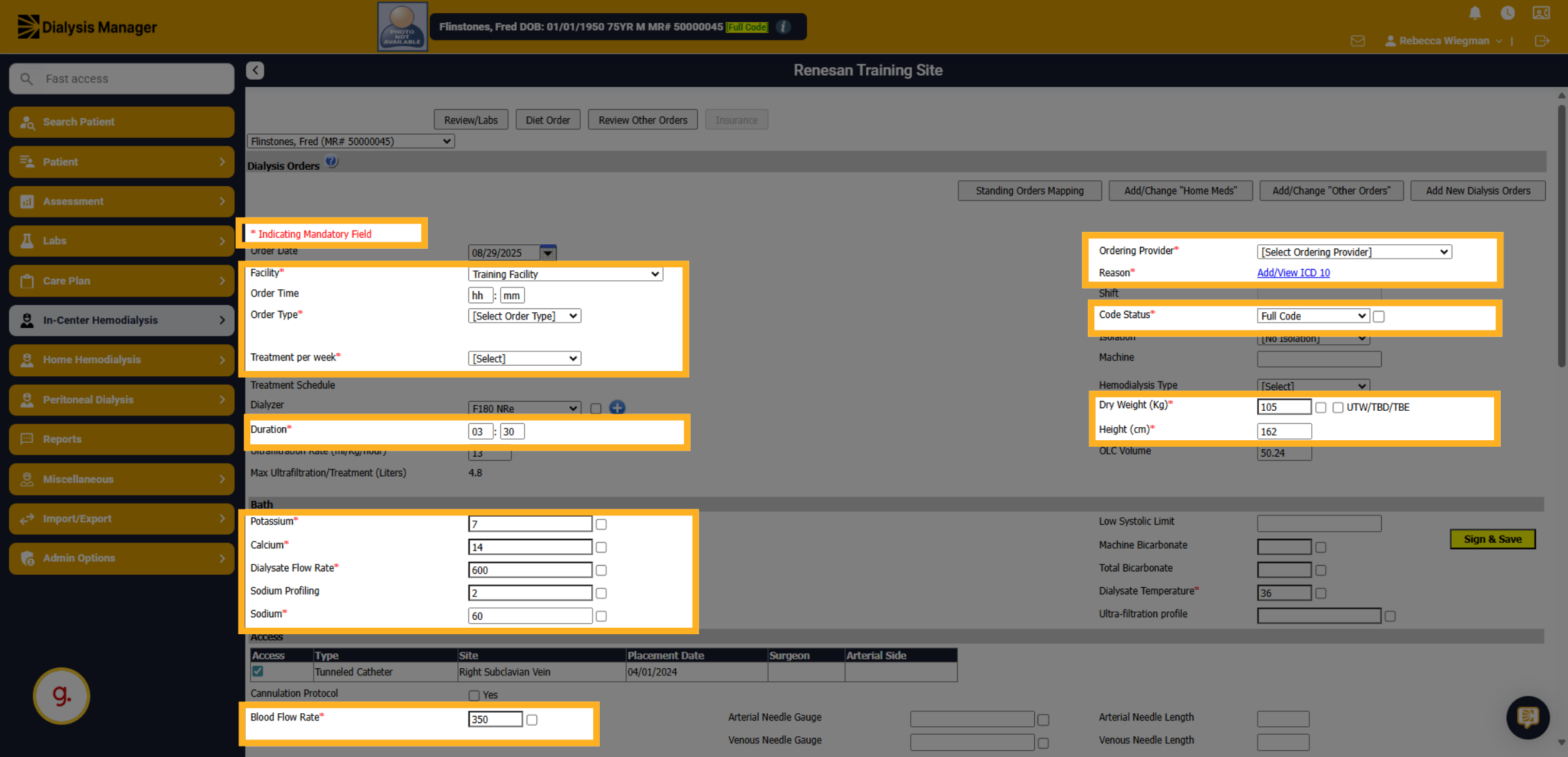
5. Mandatory Fields
All forms within Dialysis Manager have required fields. Required fields are shown with a RED Asterisk. These fields must be selected before saving. If a required field is missed, you'll receive a pop-up upon Sign & Save.
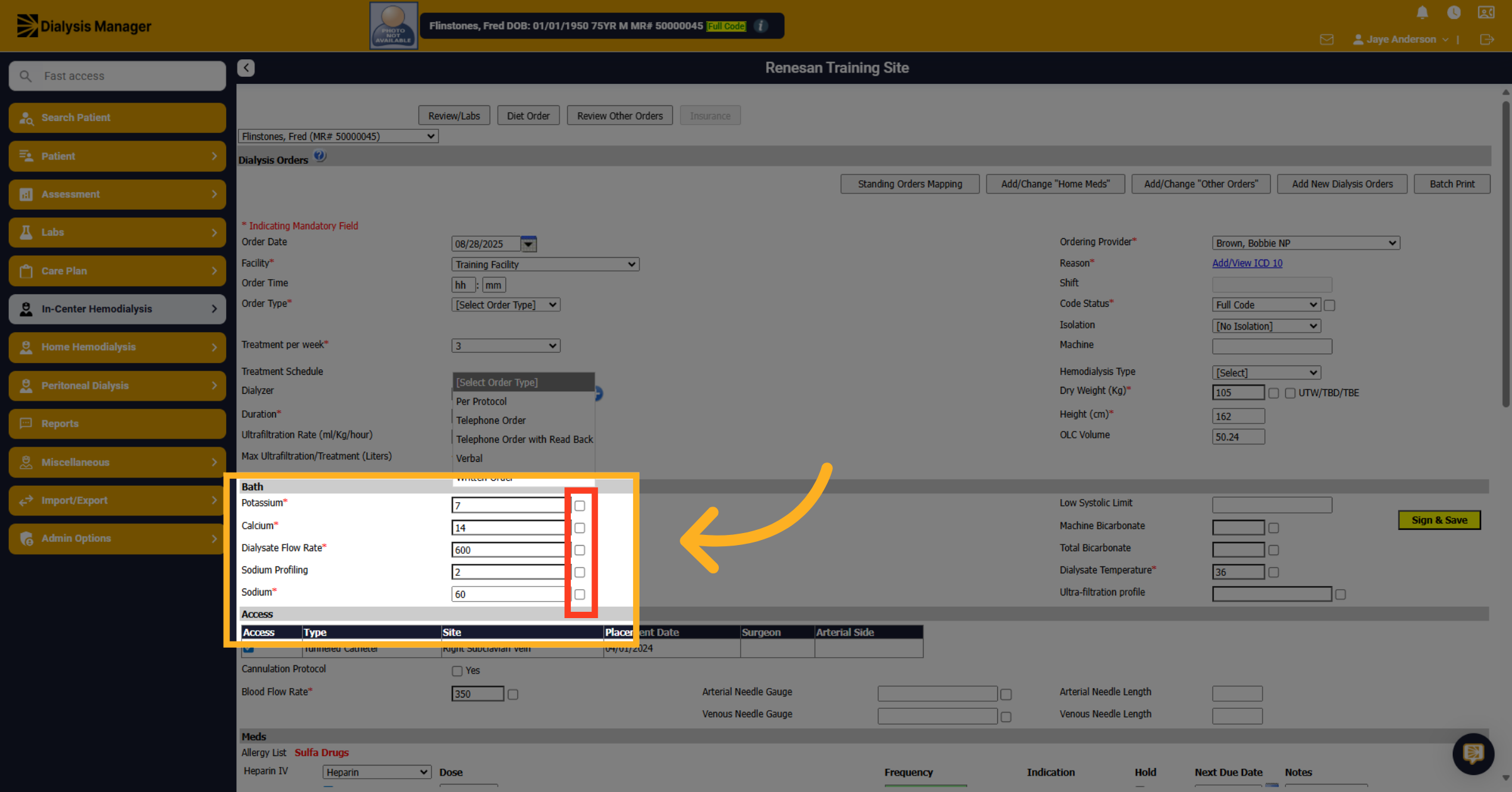
6. Not a standard dialysis setting
Check the box next to a bath item to highlight that this is not a "standard dialysis setting".
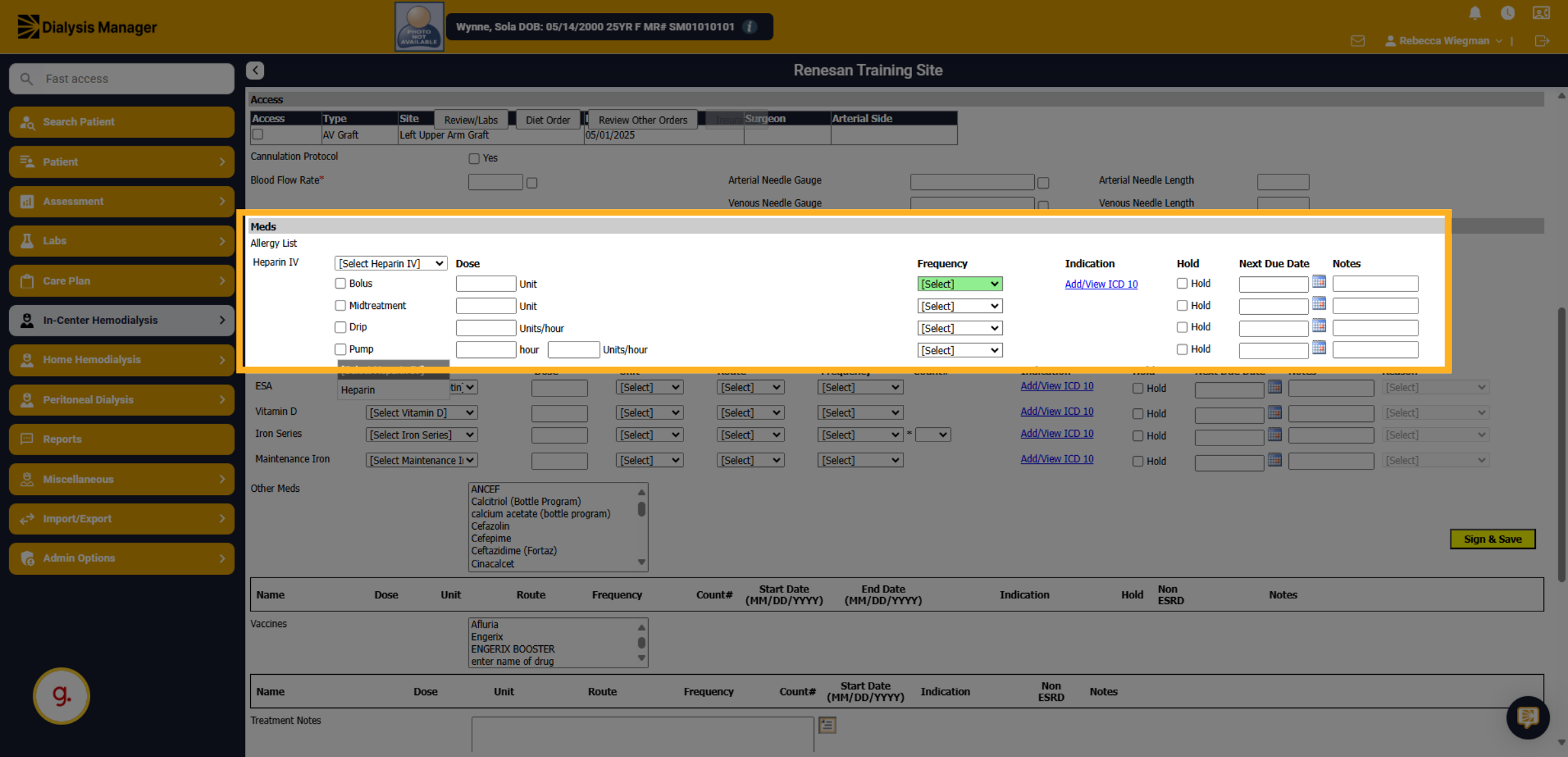
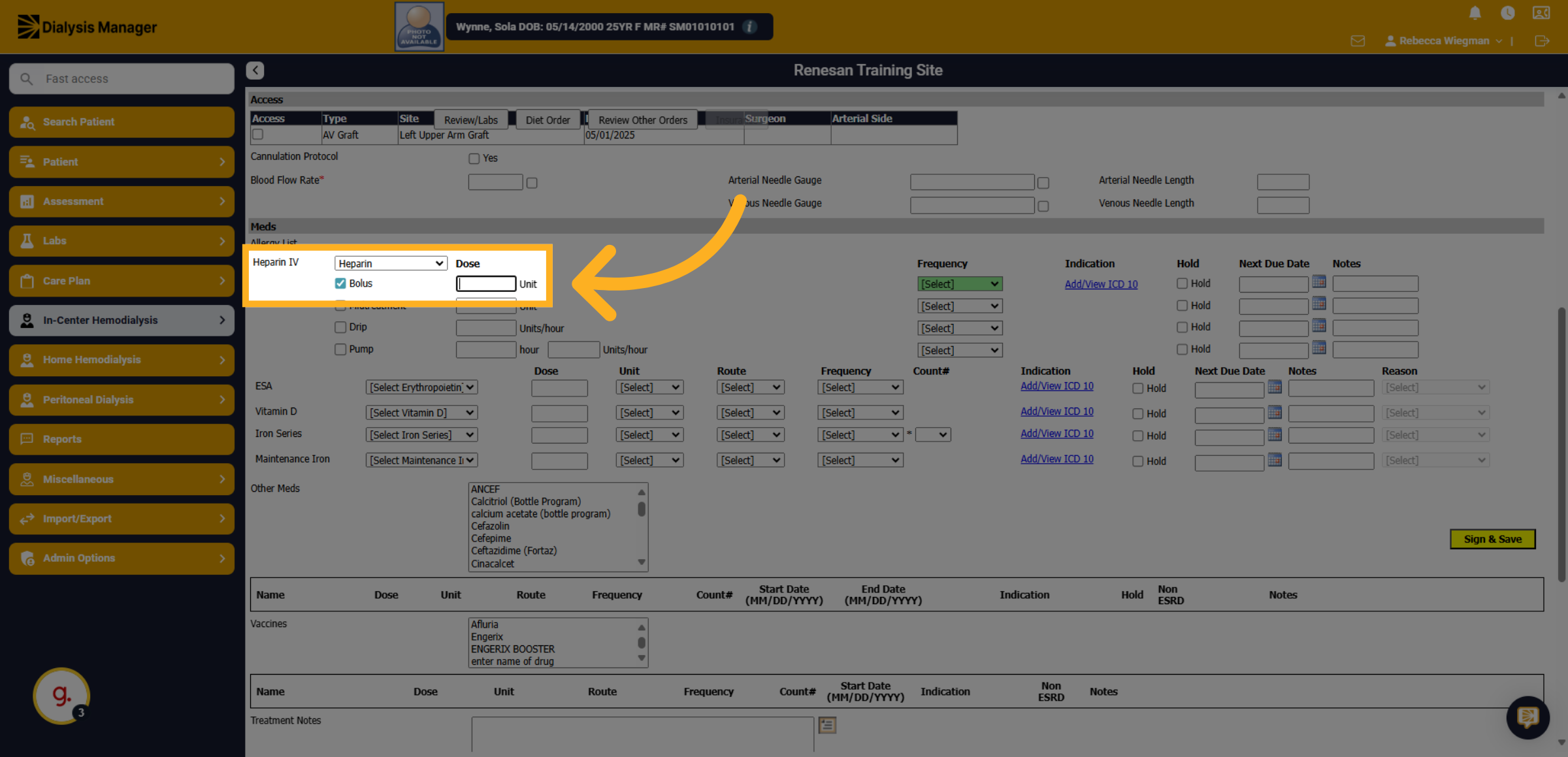
7. Heparin
Click the Heparin intravenous option to select the Heparin type.
8. Click "Bolus"
Select the appropriate options.
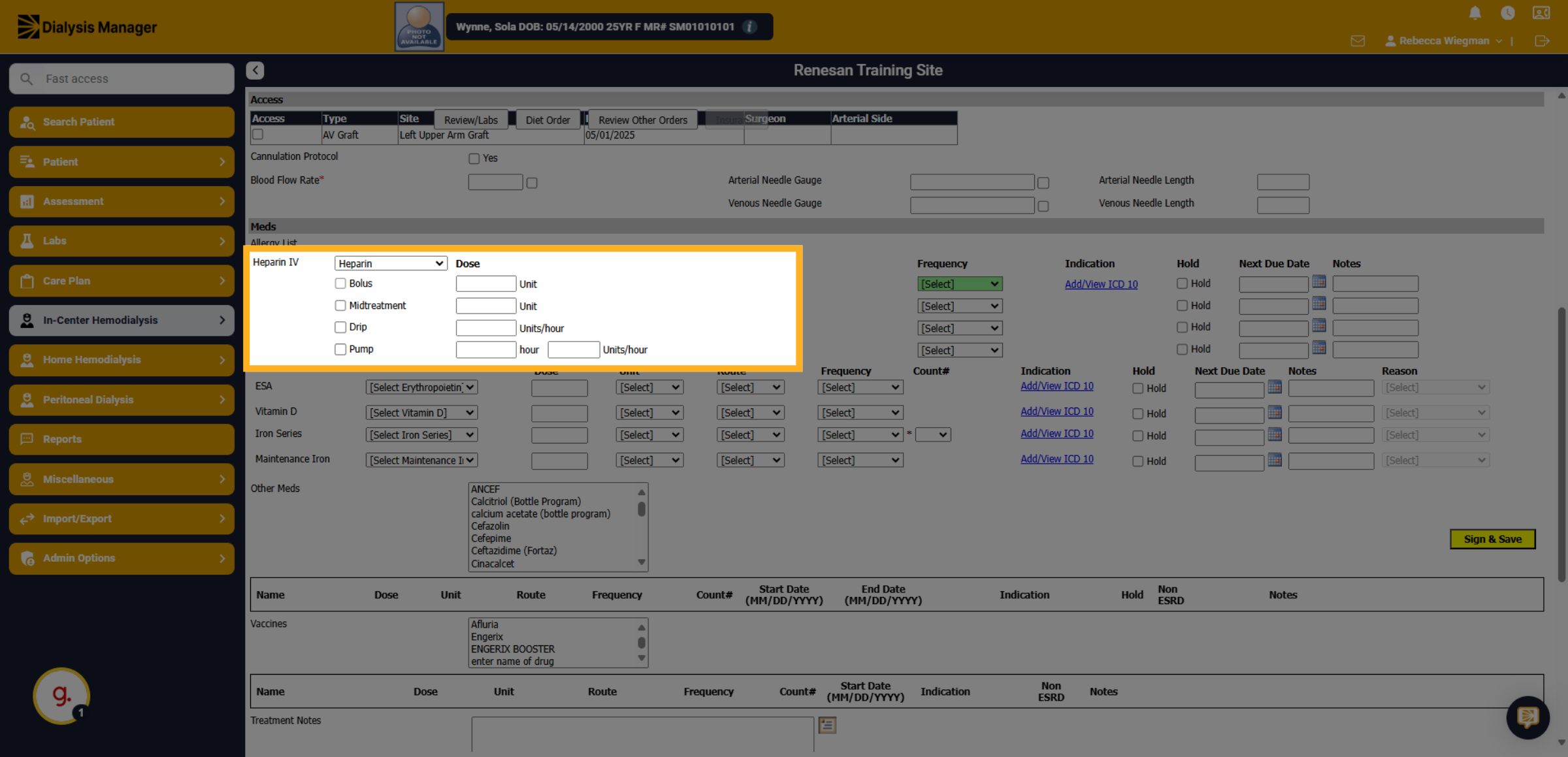
9. Dose Unit
Enter the dose unit.
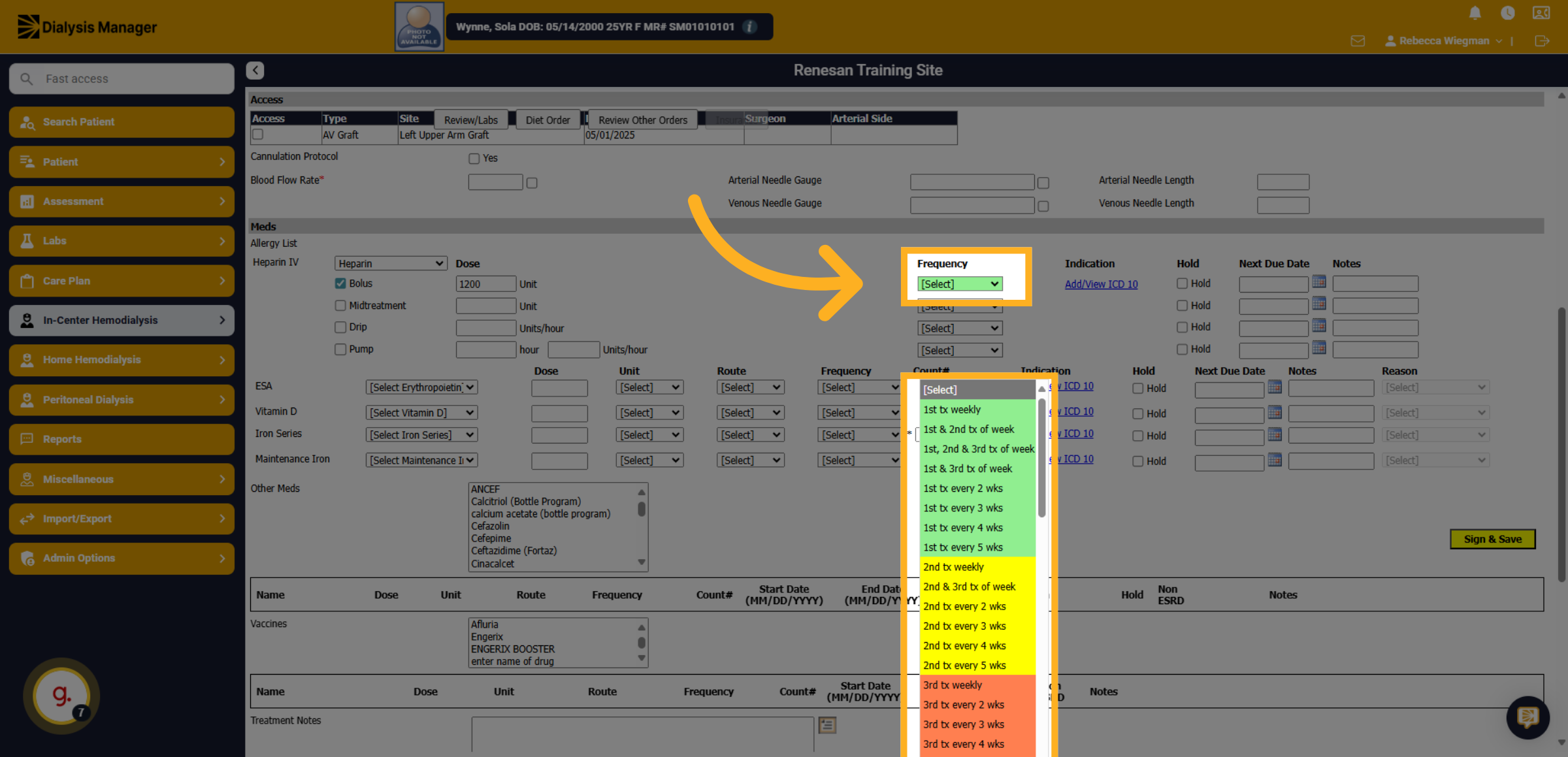
10. Frequency
Click the dropdown menu to view frequency options. Noting the color-coded smart frequencies.
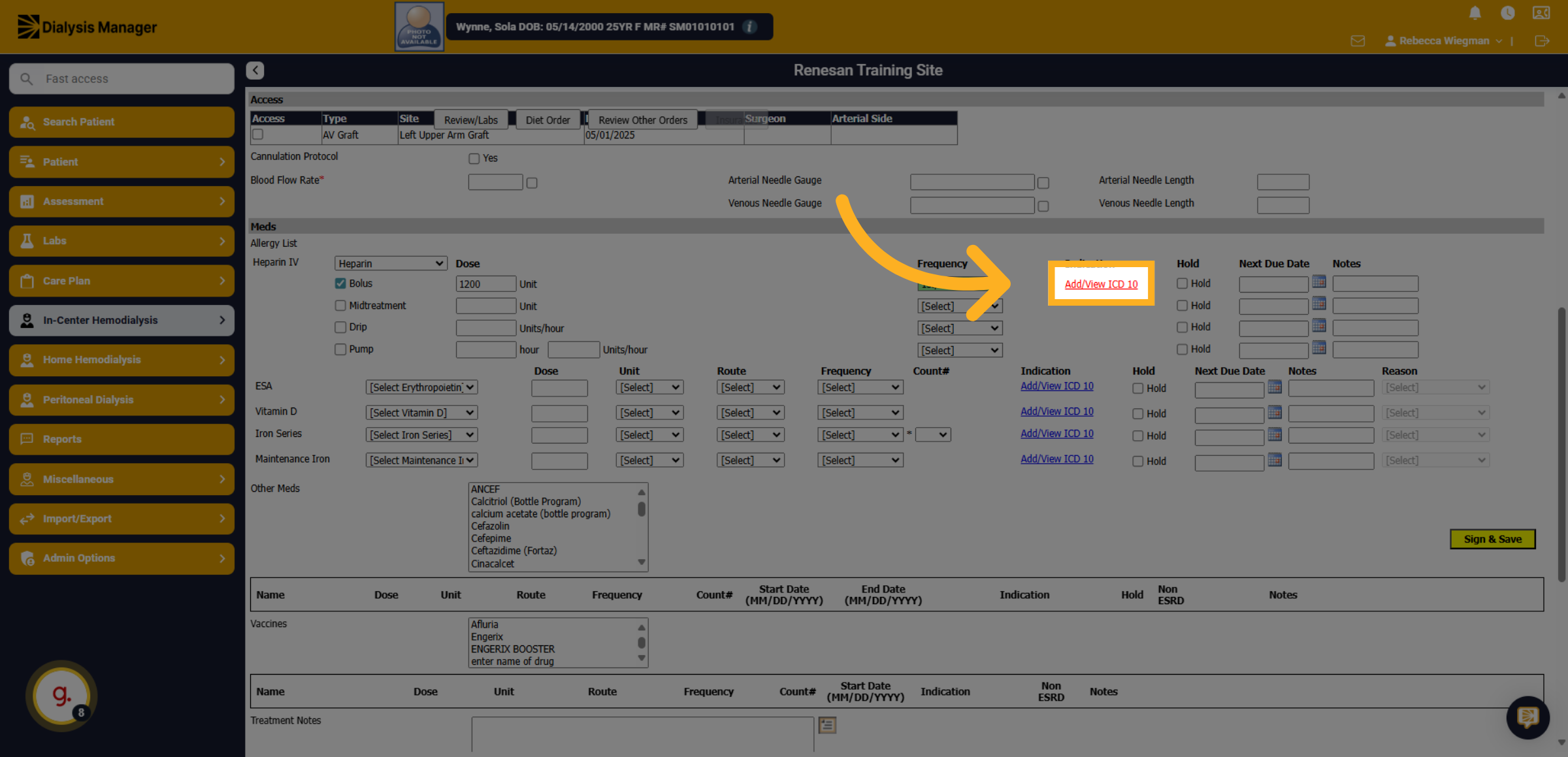
11. Click "Add/View ICD 10"
Click the ICD-10 codes input area to enter diagnosis codes relevant to the order.
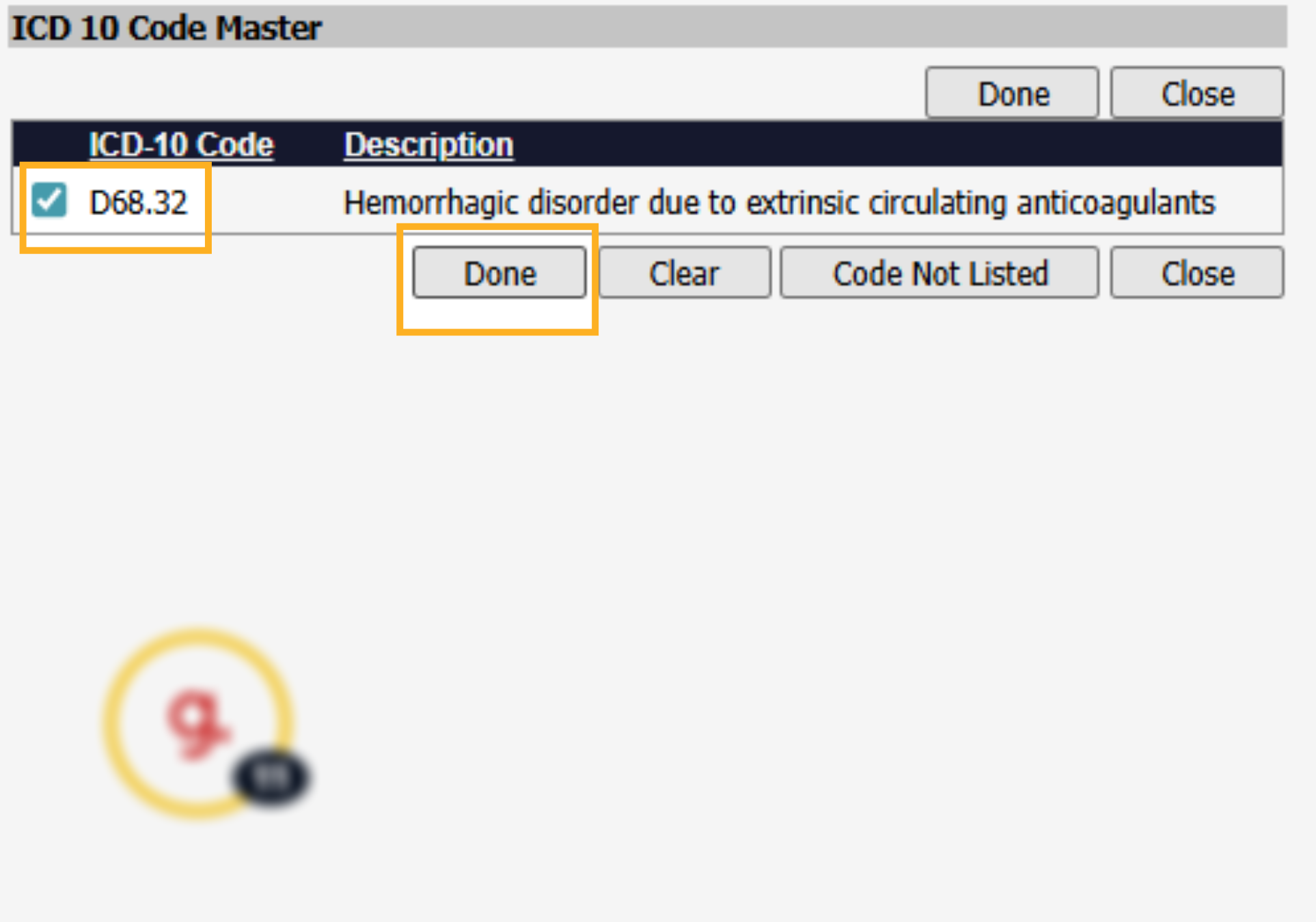
12. Select ICD-10 and click Done
Select the appropriate ICD-10 code and click Done.
13. Additional Meds
Click on any additional medications to add it to the order if needed.
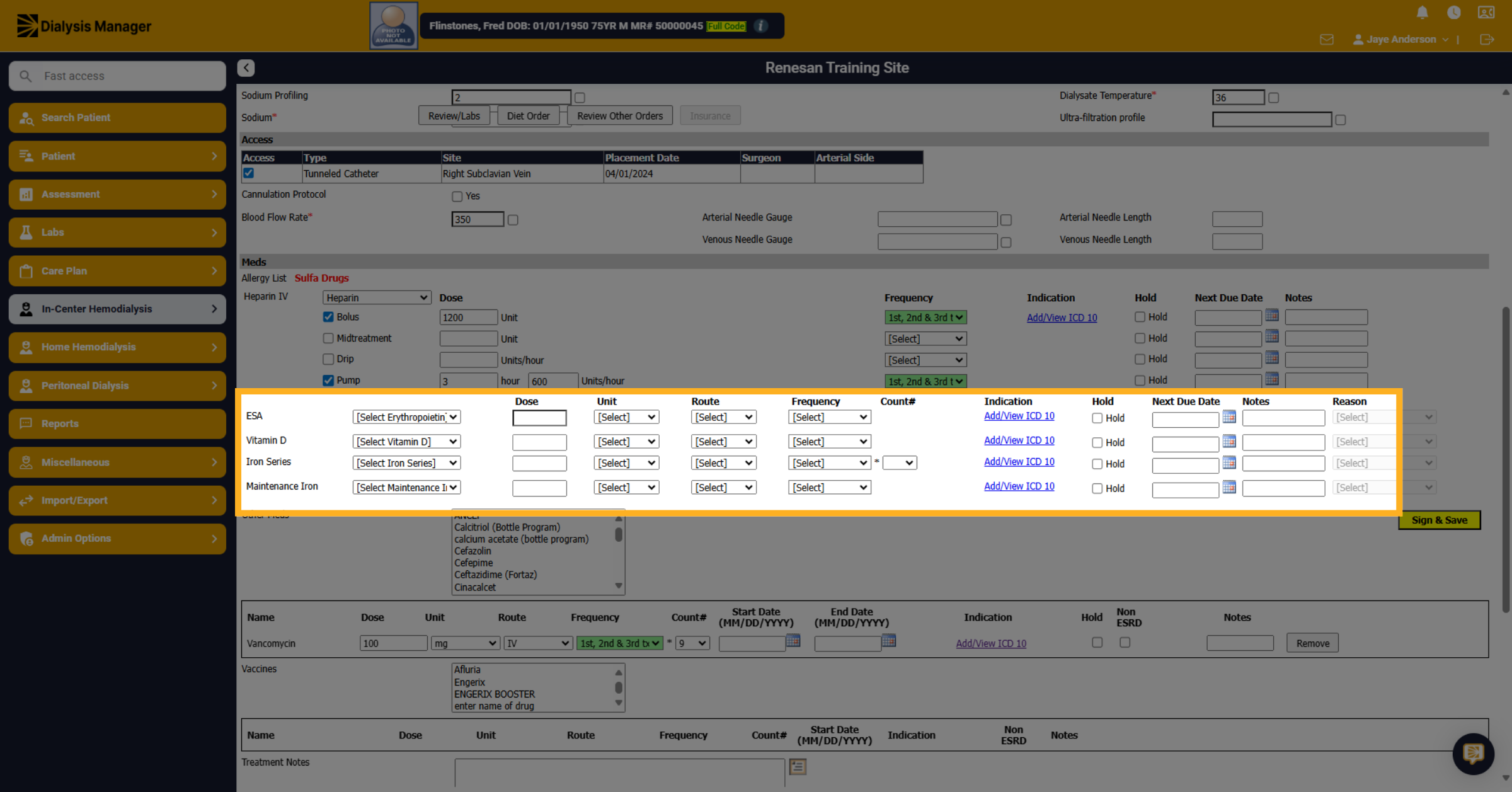
14. Selecting other meds
When selecting other meds,
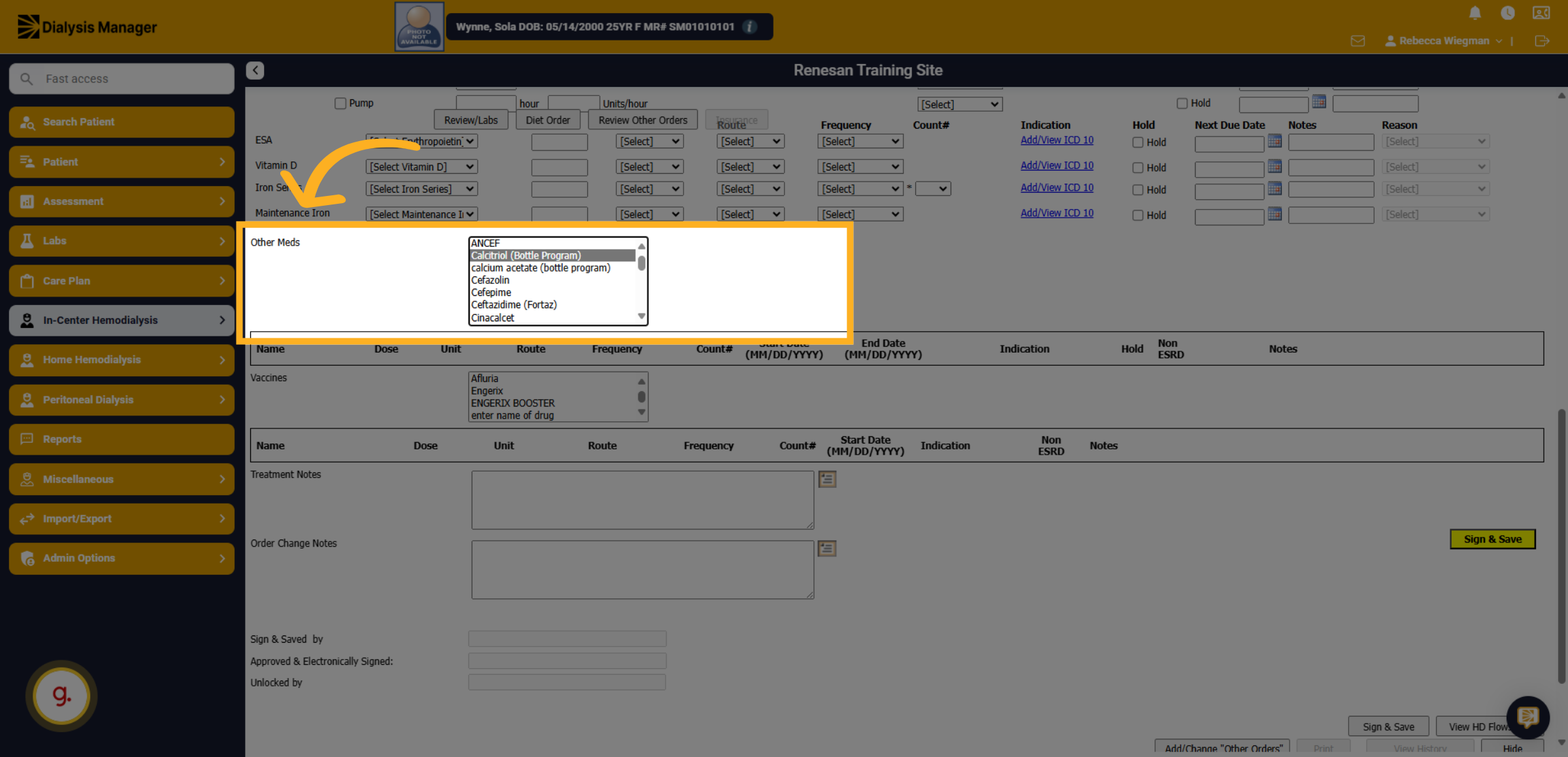
15. Drops down
It drops down to enter the dose, units, route, frequency, etc.
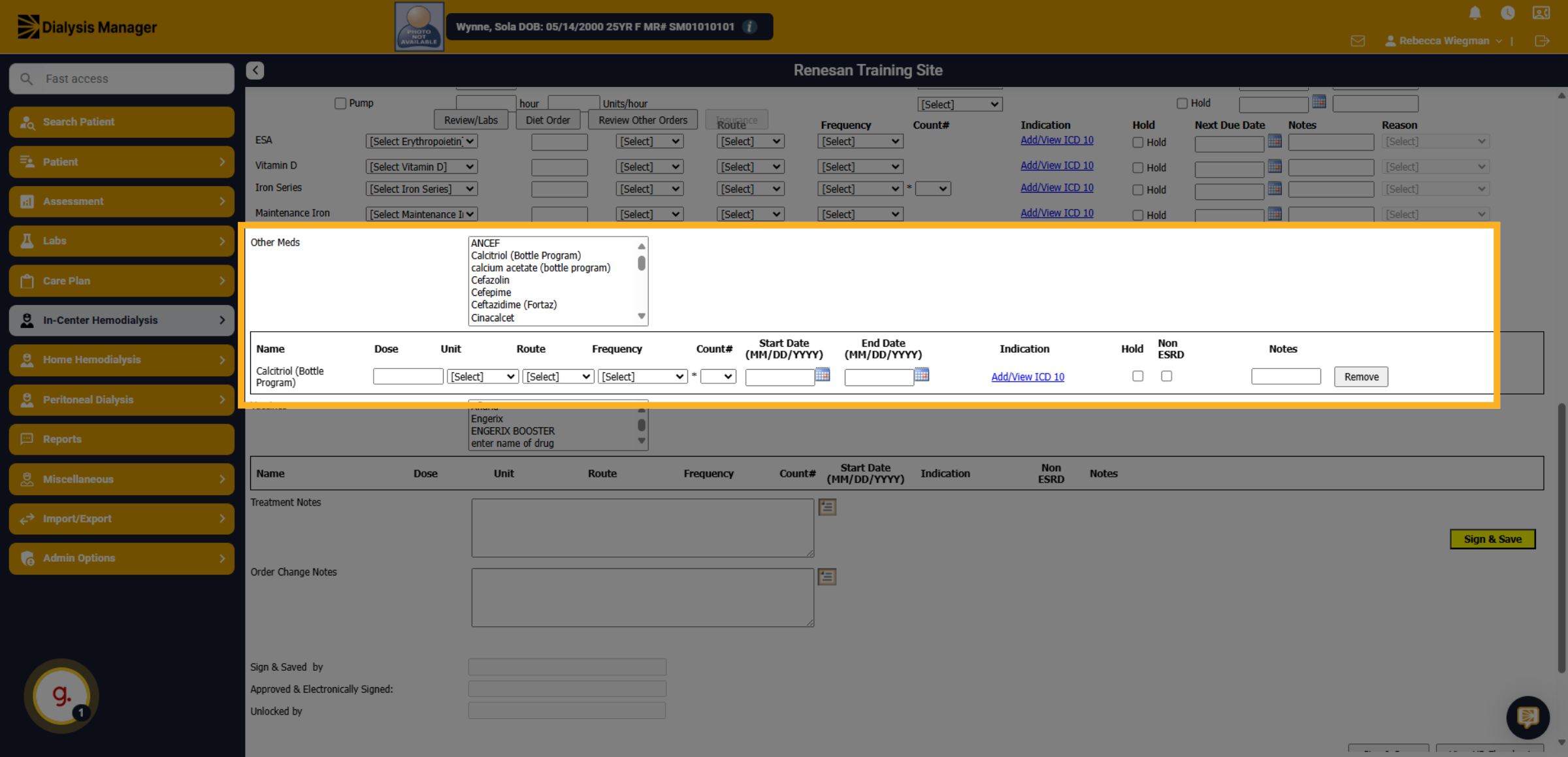
16. Vaccines
This will also happen for vaccines.
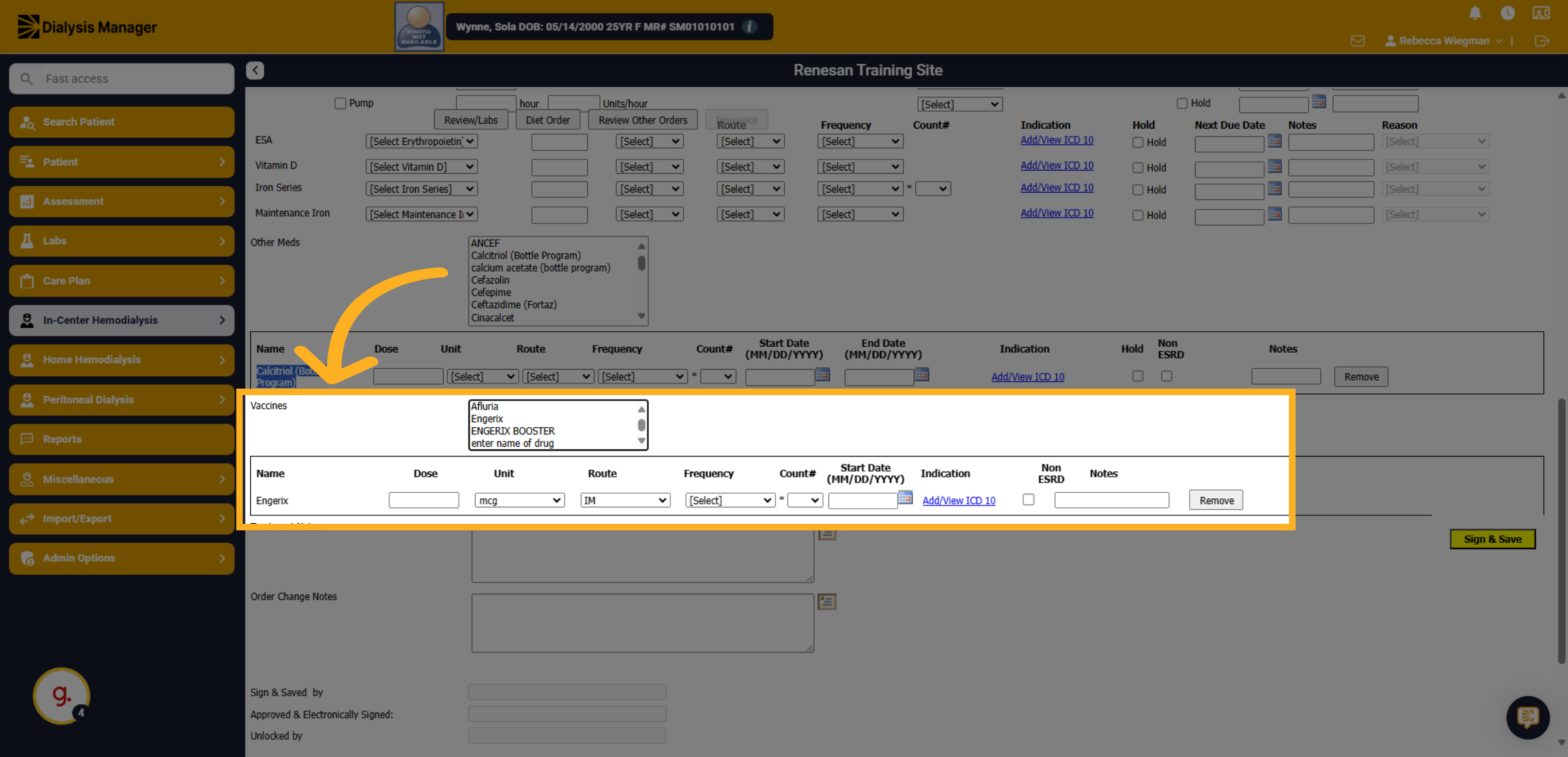
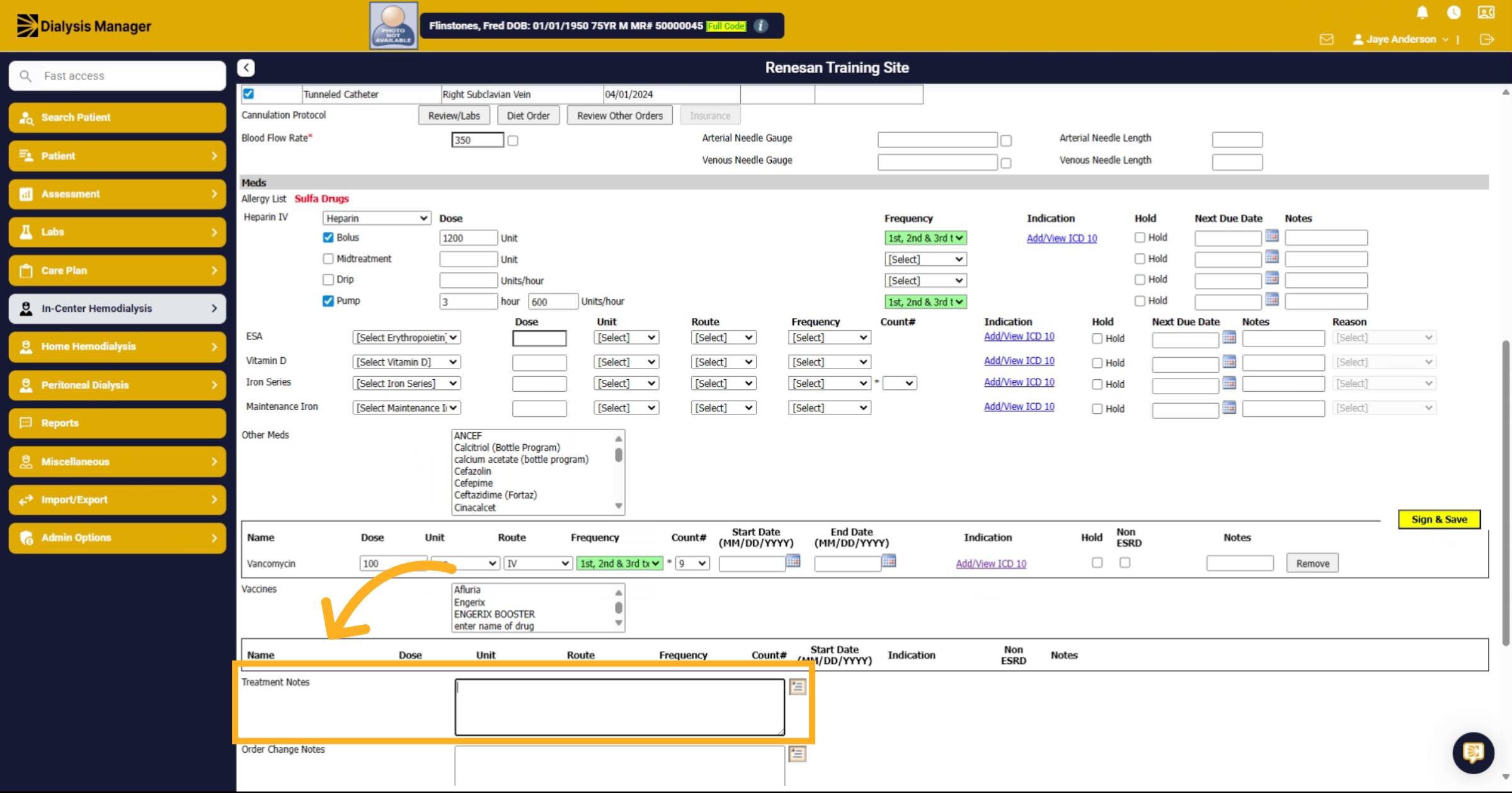
17. Fill "notes flow to flowsheet"
Fill in the notes section with treatment notes, which will flow over to the treatment flowsheet for documentation.
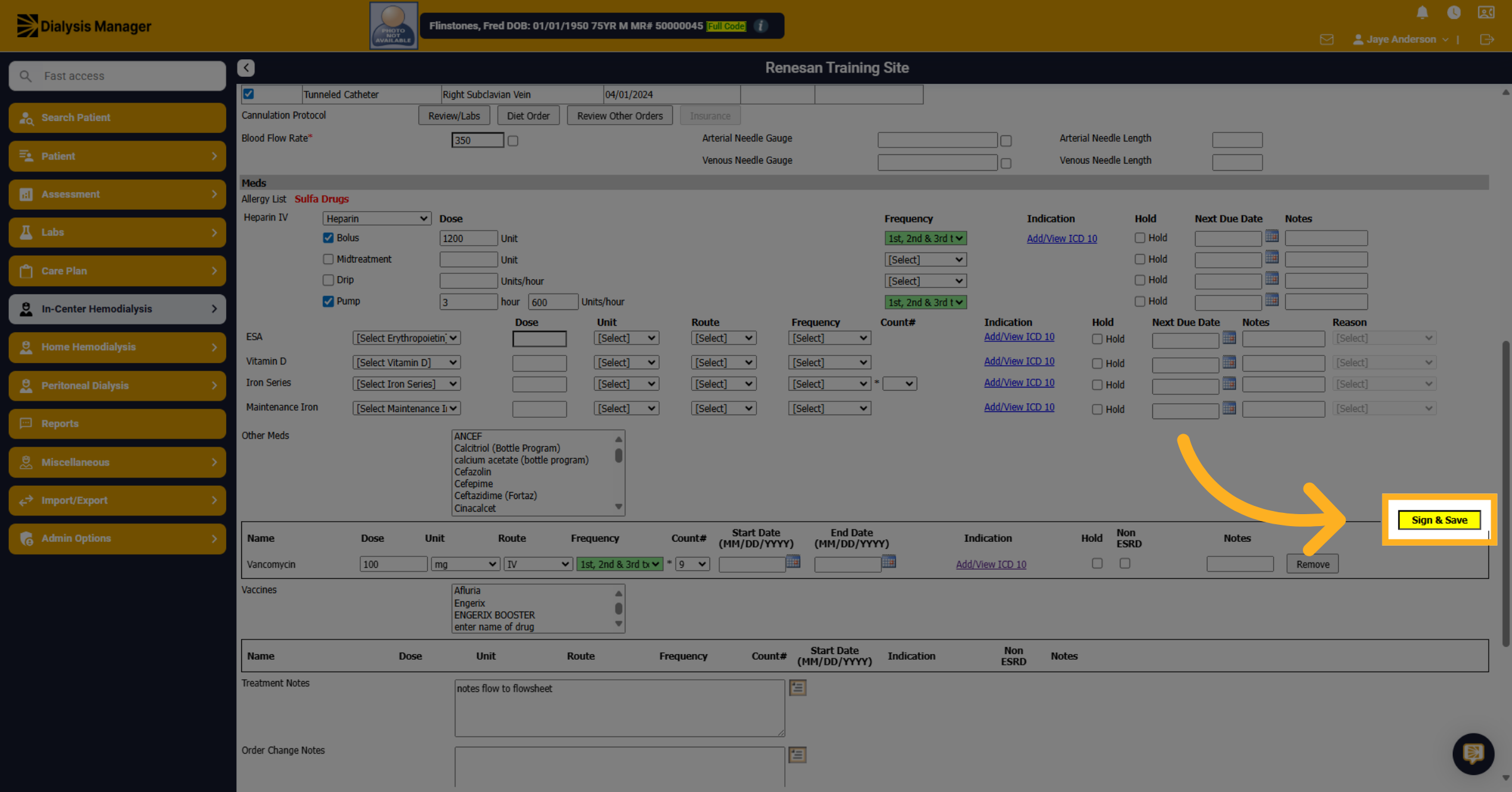
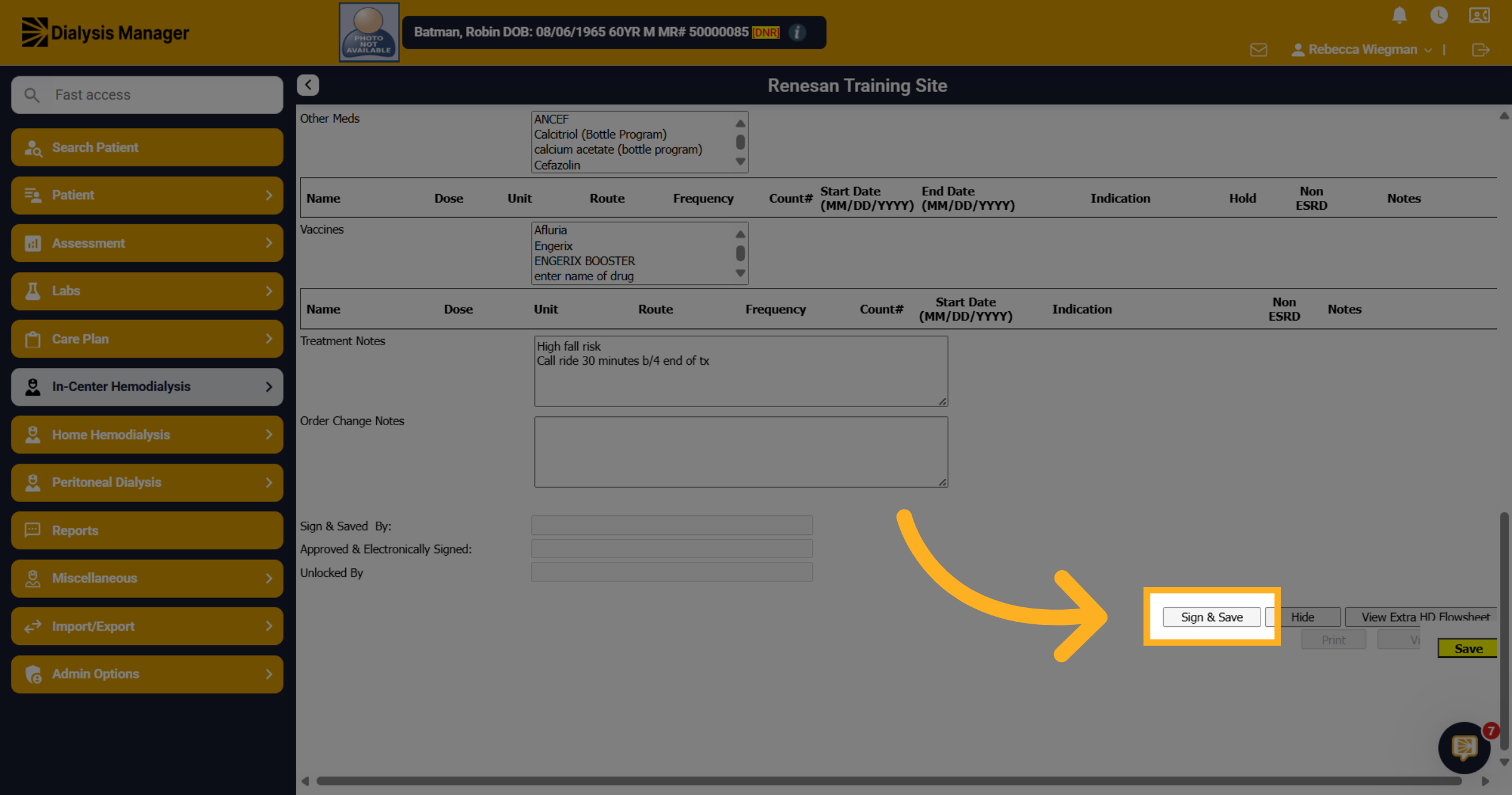
18. Click "Sign & Save"
Click Sign & Save to finalize and save the dialysis order after completing all required fields.
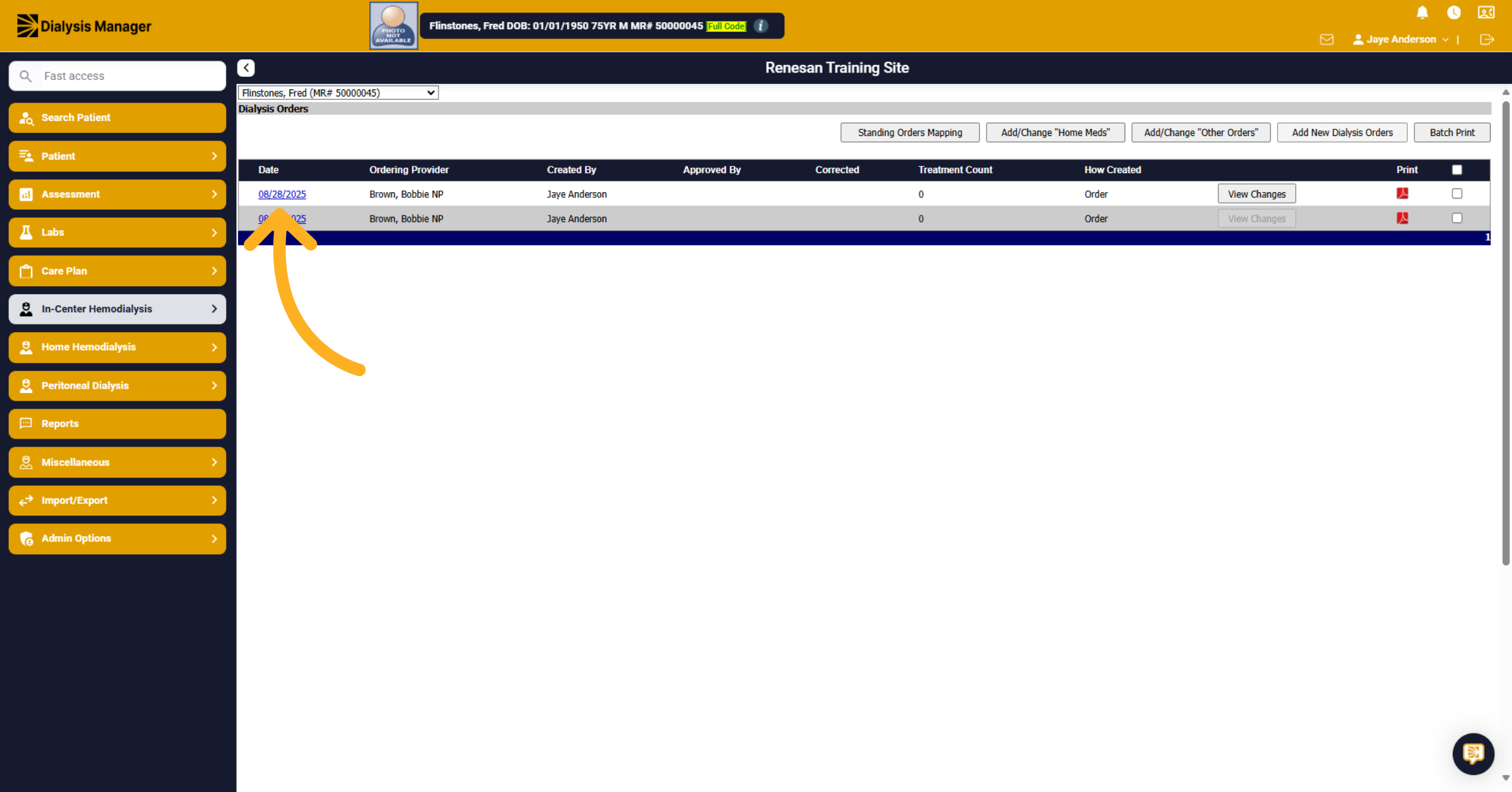
19. Editing an Order
If you need to make an edit to the original order you would select the blue date hyperlink. Please note that this change would need to happen prior to the flowsheet being open for the day the patient is treating or the newly updated order will not show.
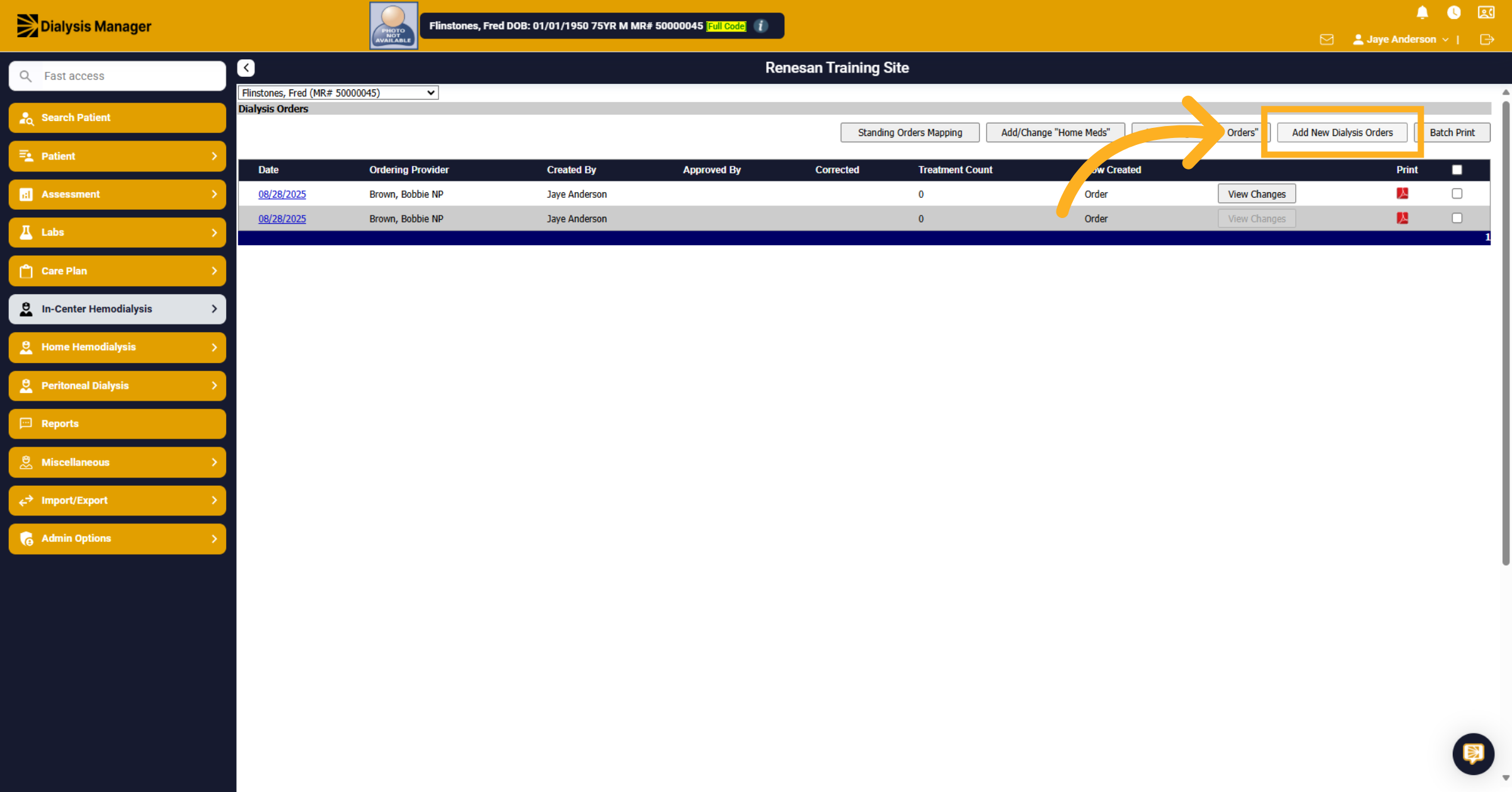
20. Click "Add New Dialysis Orders"
Click Add New Dialysis Orders to update the current order entry. Clicking the hyperlink or date will edit the previous dialysis order entry.
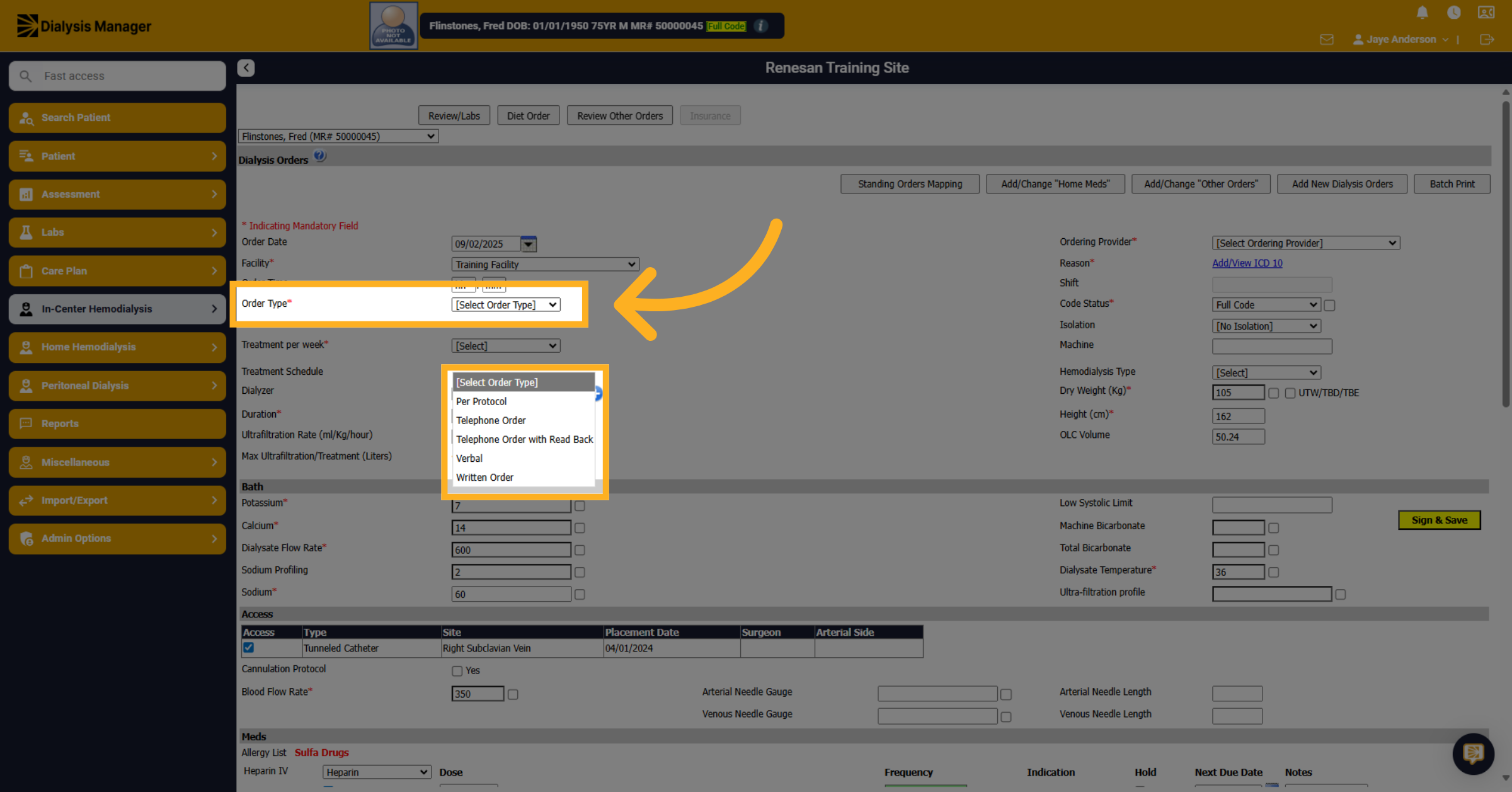
21. Order Type
Click the Order Type dropdown to view available order types. Select the appropriate order type from the list, such as Per Protocol or Telephone Order.
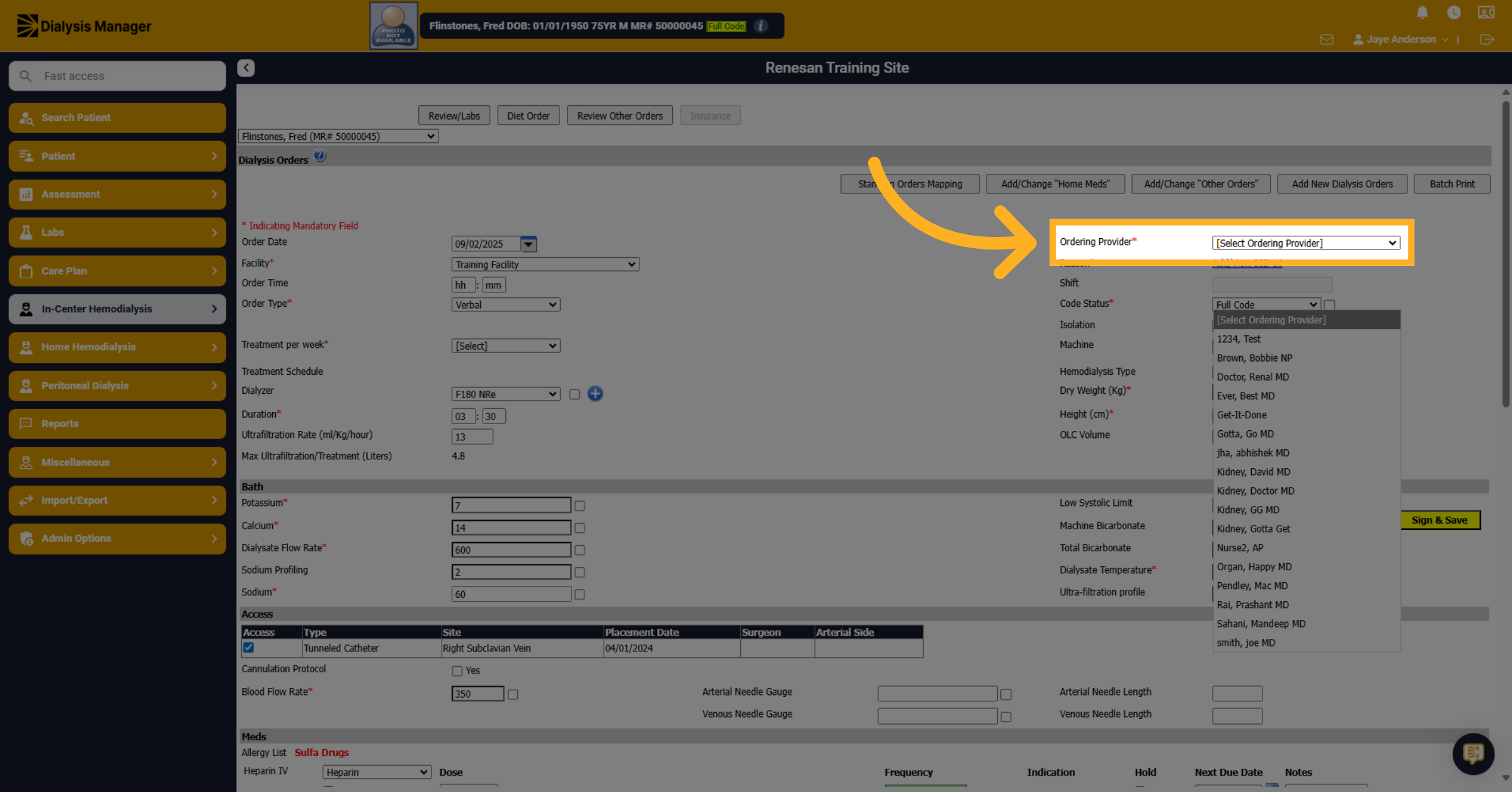
22. Ordering Provider
Click the Ordering Provider dropdown to choose the provider responsible for the order. Select the ordering provider from the list of available providers.
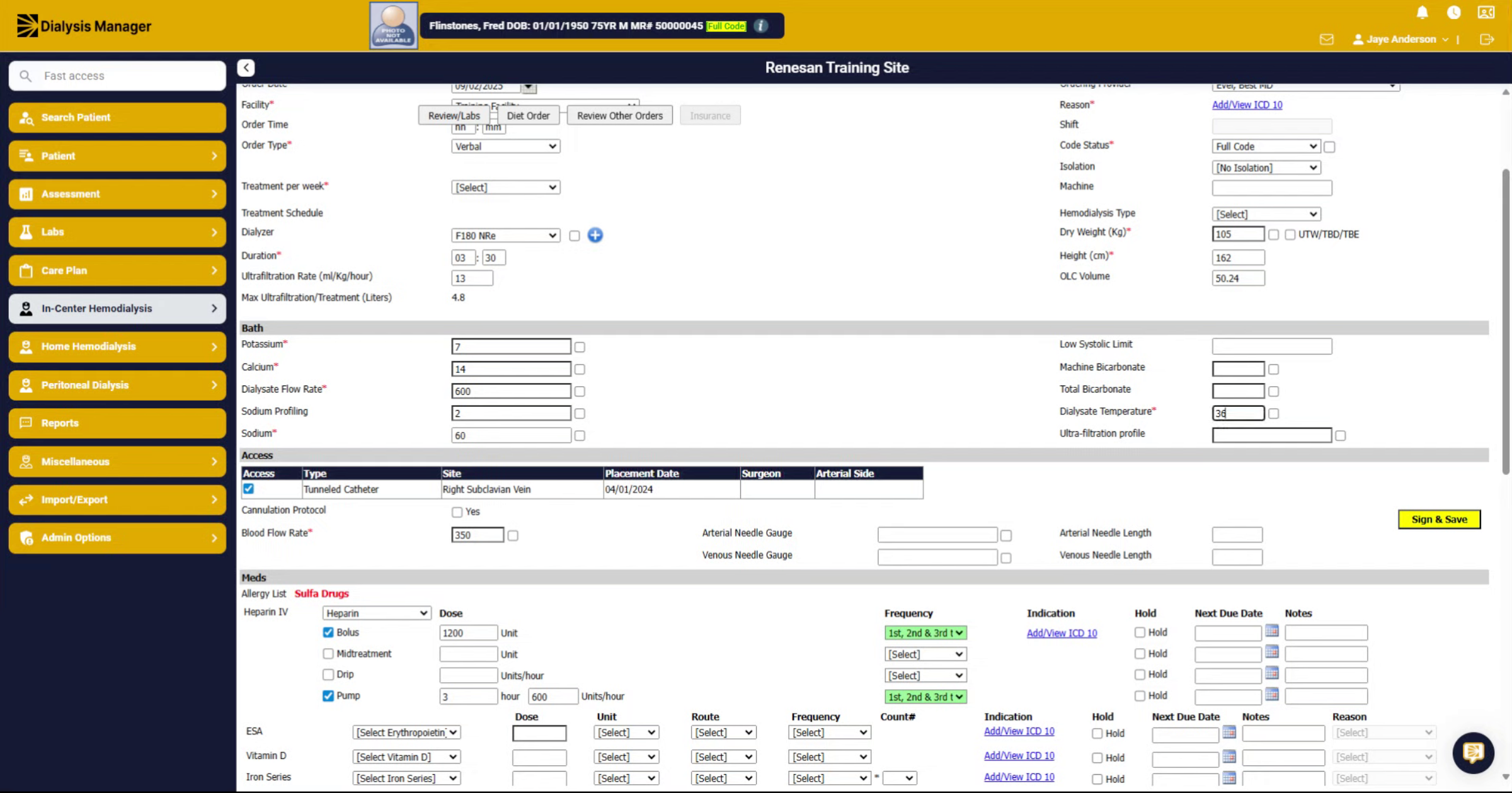
23. Fill "32"
Fill in the new value as needed to update the order details.
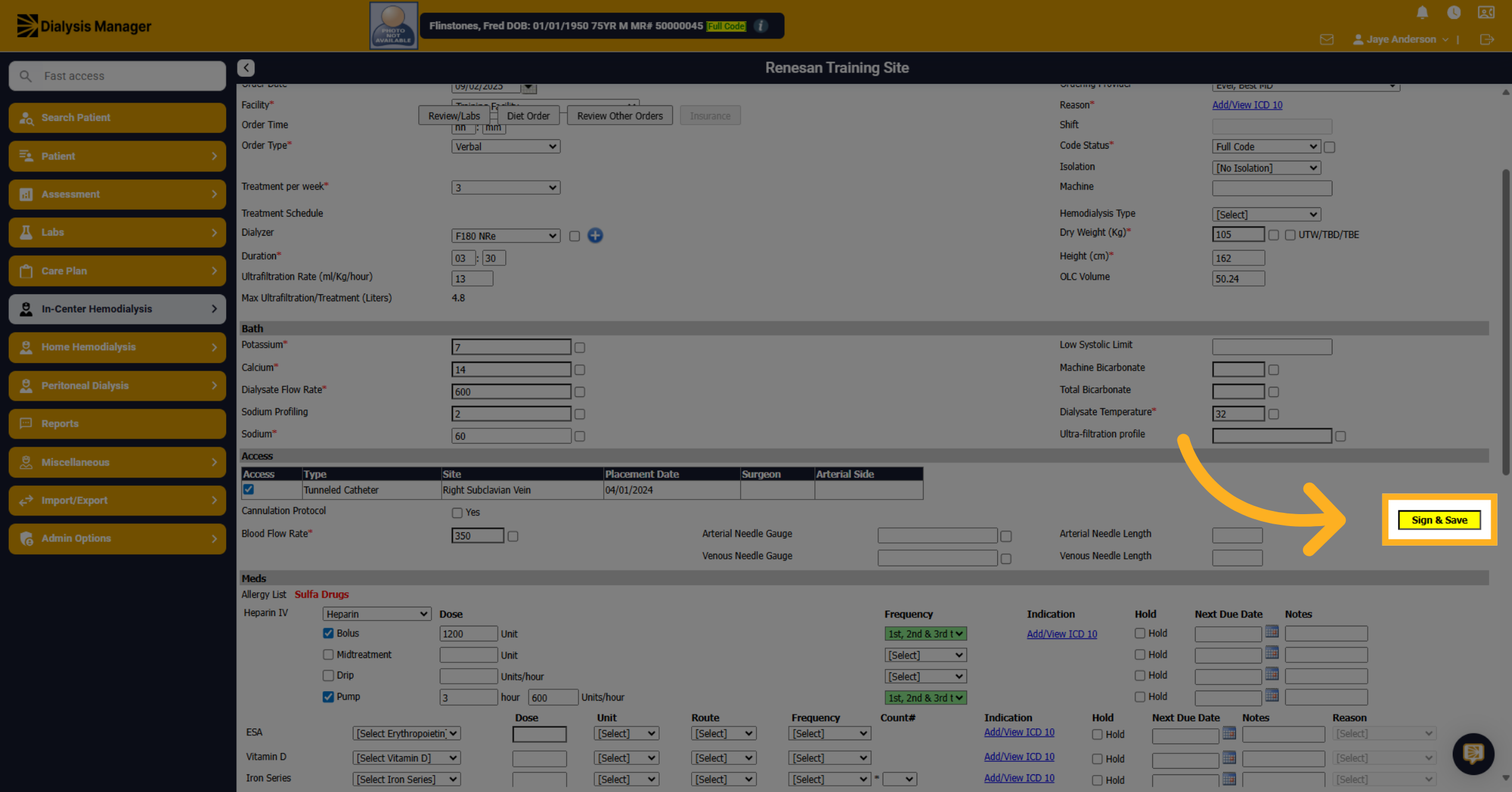
24. Click "Sign & Save"
Click Sign & Save to finalize and save all changes to the dialysis order.
25. Edit order through Flowsheet
Now let's walk through changing an In-Center Hemodialysis order within the Dialysis Manager flowsheet.
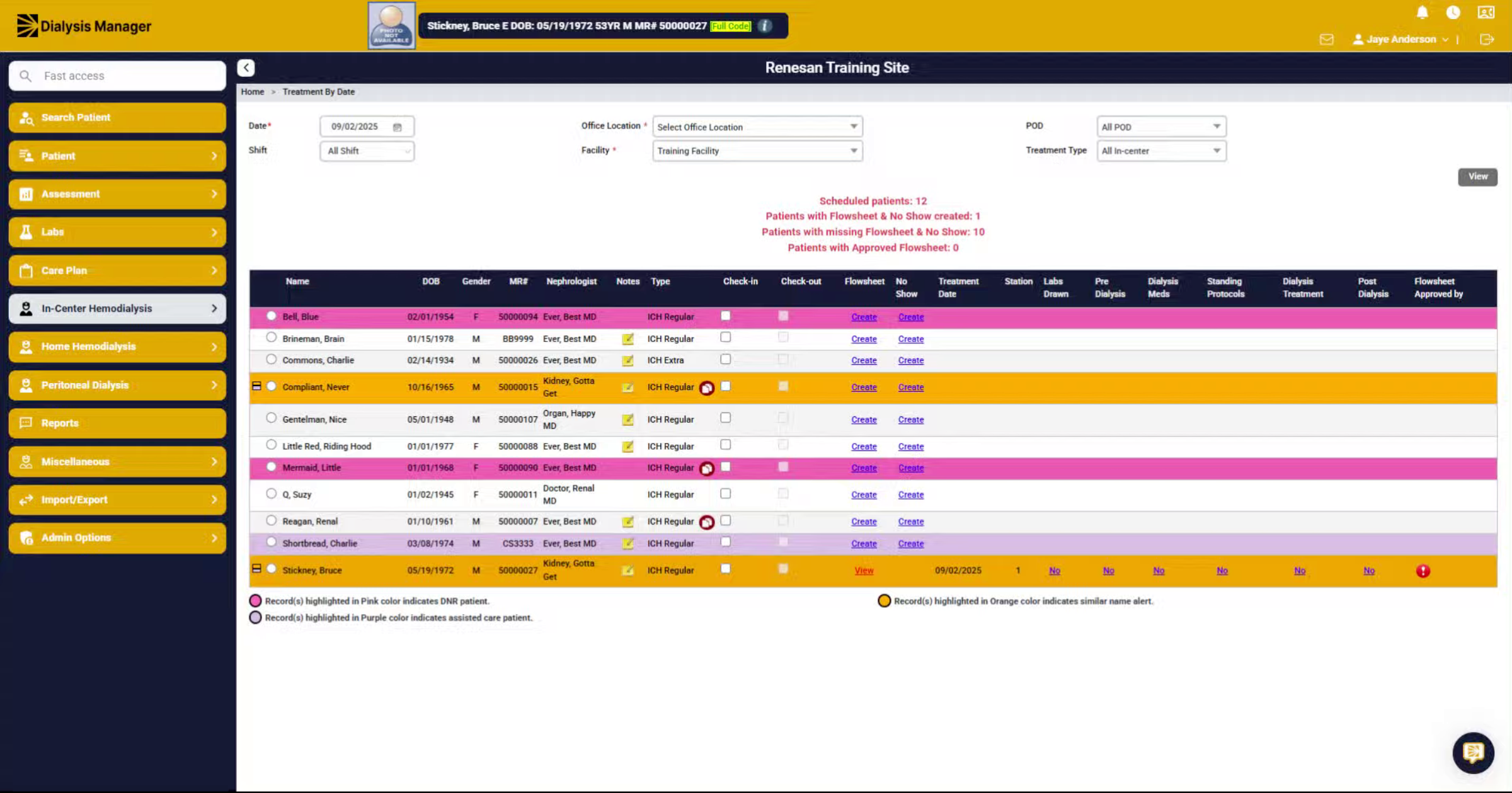
26. Click "Treatment By Date"
Navigate to the In-Center Hemodialysis menu and select Treatment then go to Treatment by Date.
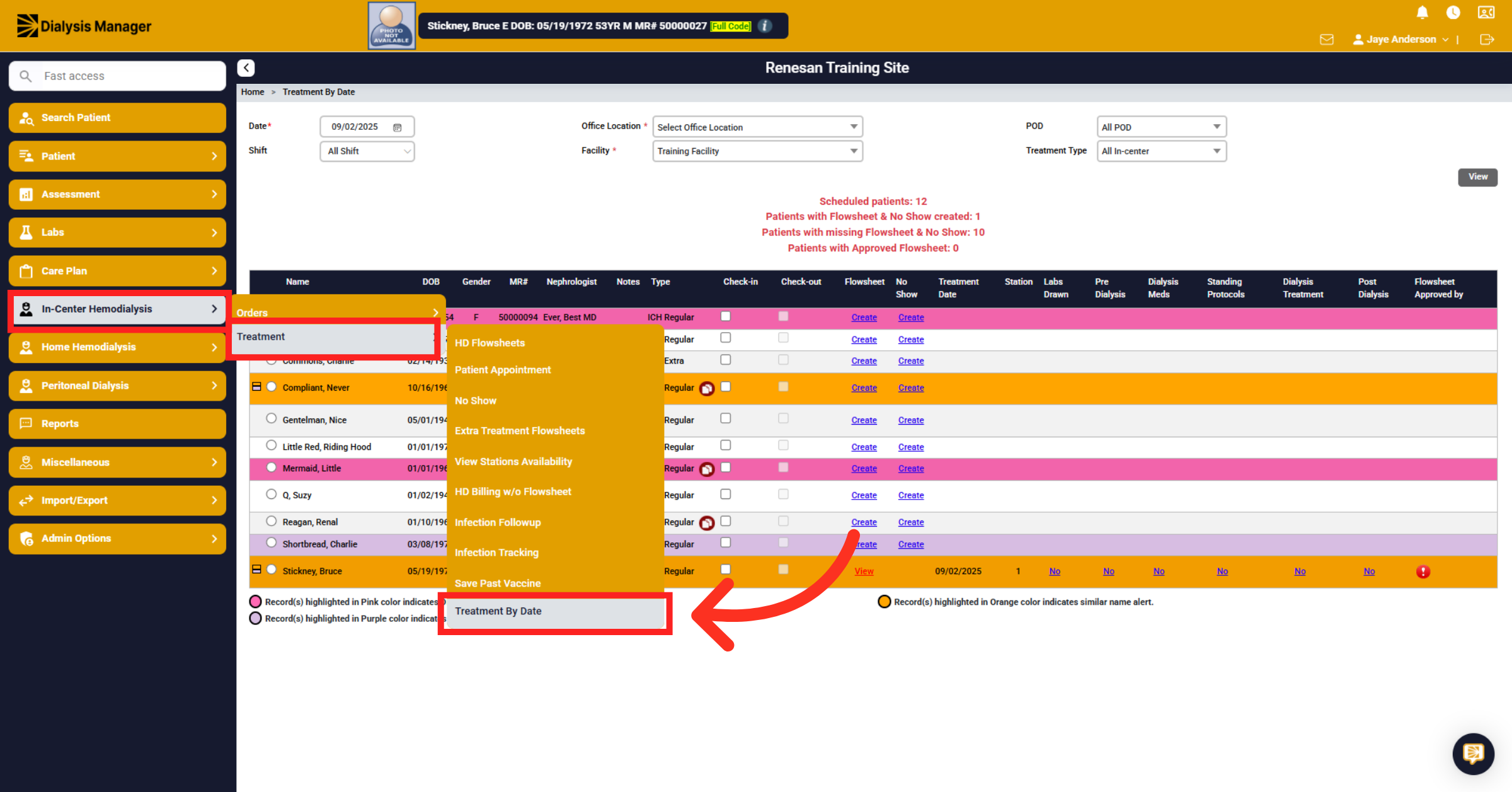
27. Click "View"
Find your patient and click View to Open the flowsheet!
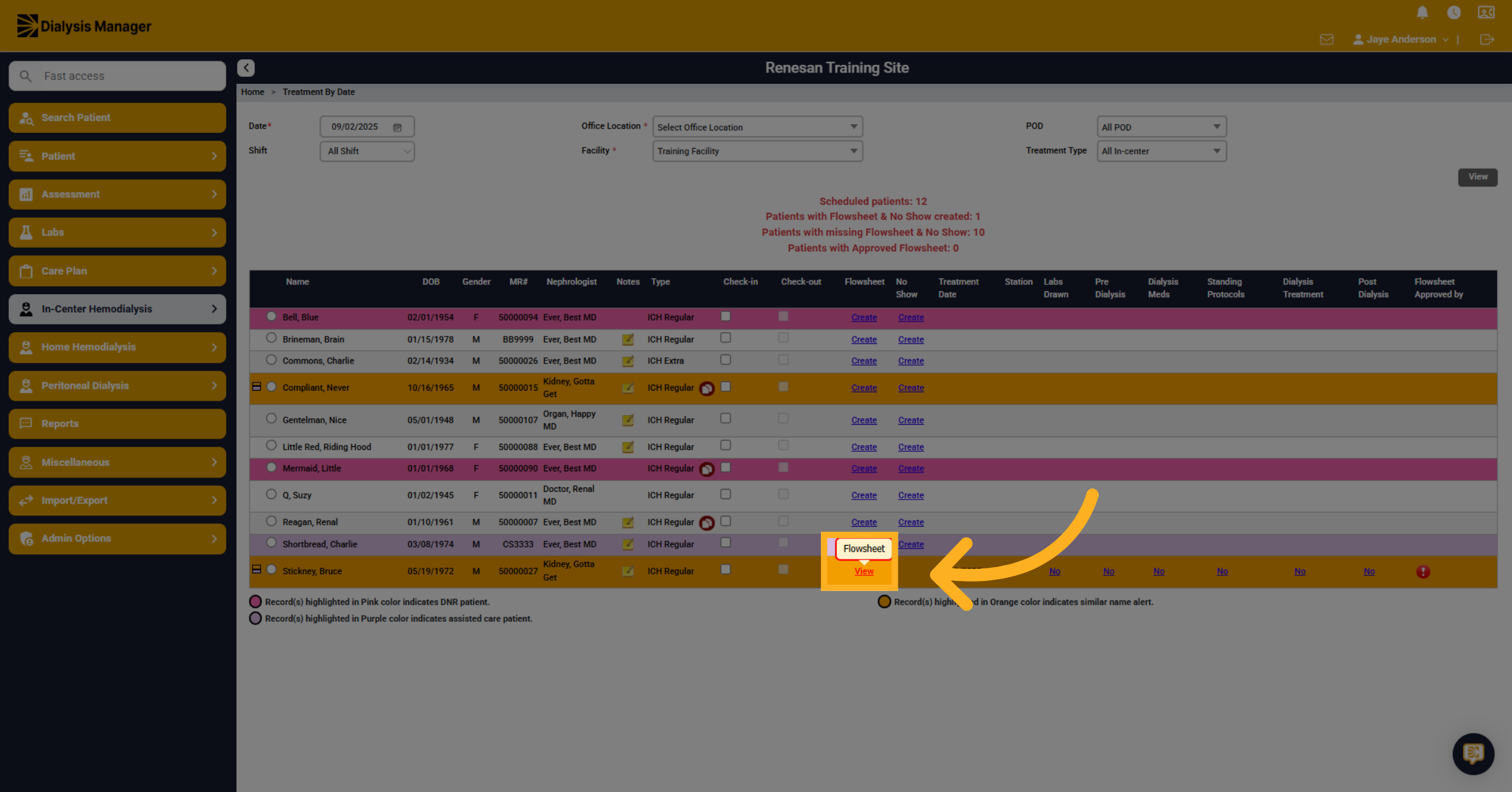
28. Add/Change Dialysis Prescription
Click "Add/Change Dialysis Prescription" to Initiate the process to add or modify the dialysis prescription for the treatment.
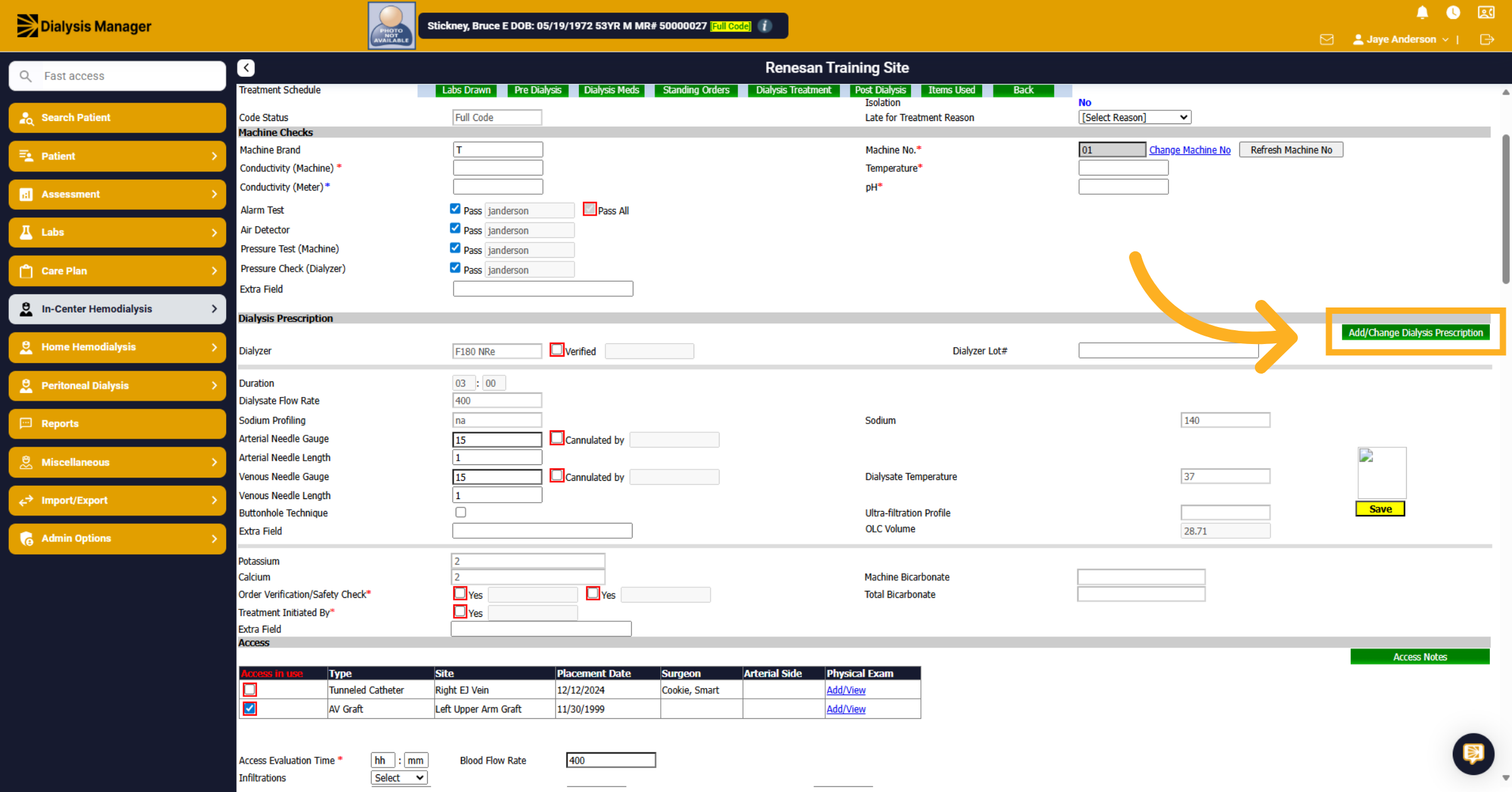
29. Update Order
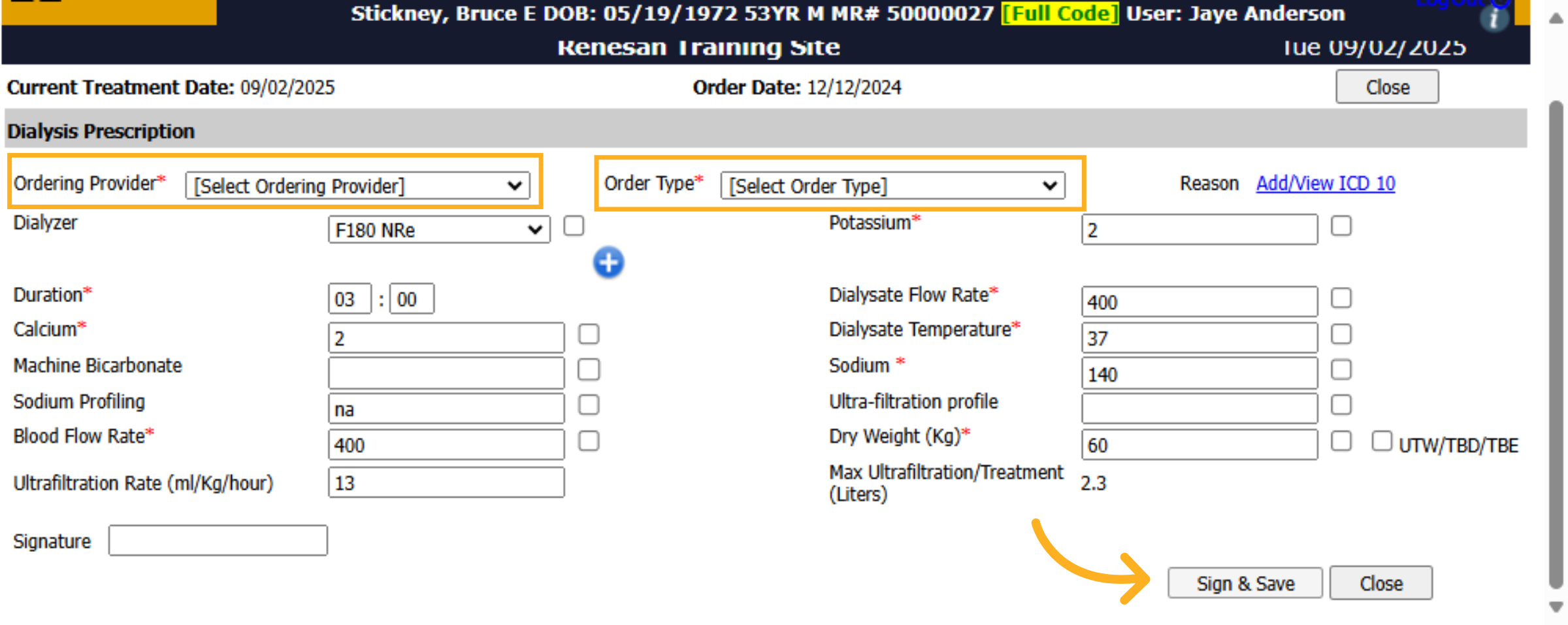
You'll be able to make different changes to the duration, Dialysate Flow Rate or Temp, etc. Which have auto populated from the current order. You will need to select the Ordering Provider and the Order Type before clicking Sign and Save.
30. Extra Treatment Order
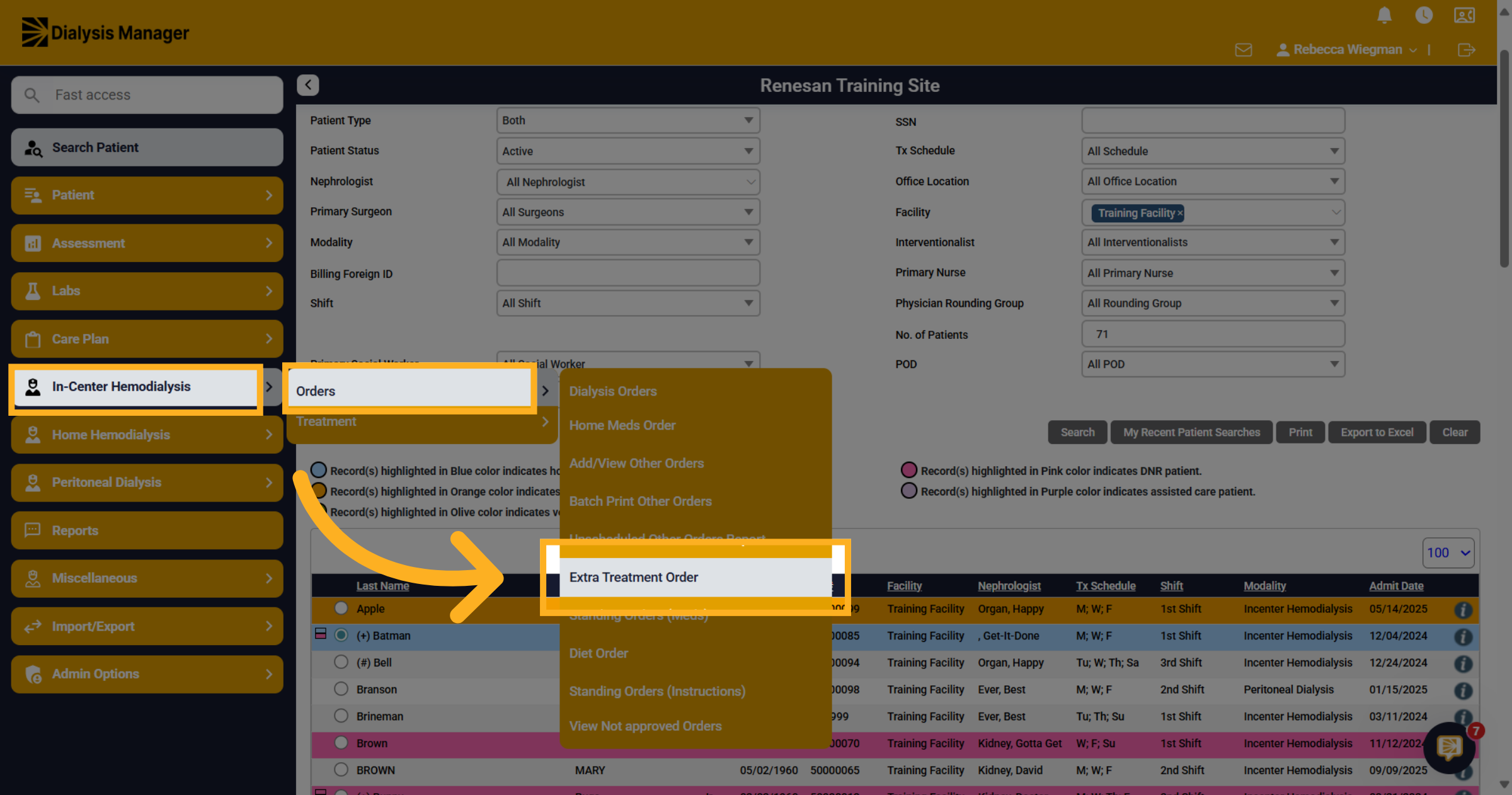
If you're looking to add a one-time extra treatment order, go to In-Center Hemodialysis Menu, Orders and Extra Treatment Order to begin entering your patient's extra treatment order.
31. Previous Extra Orders
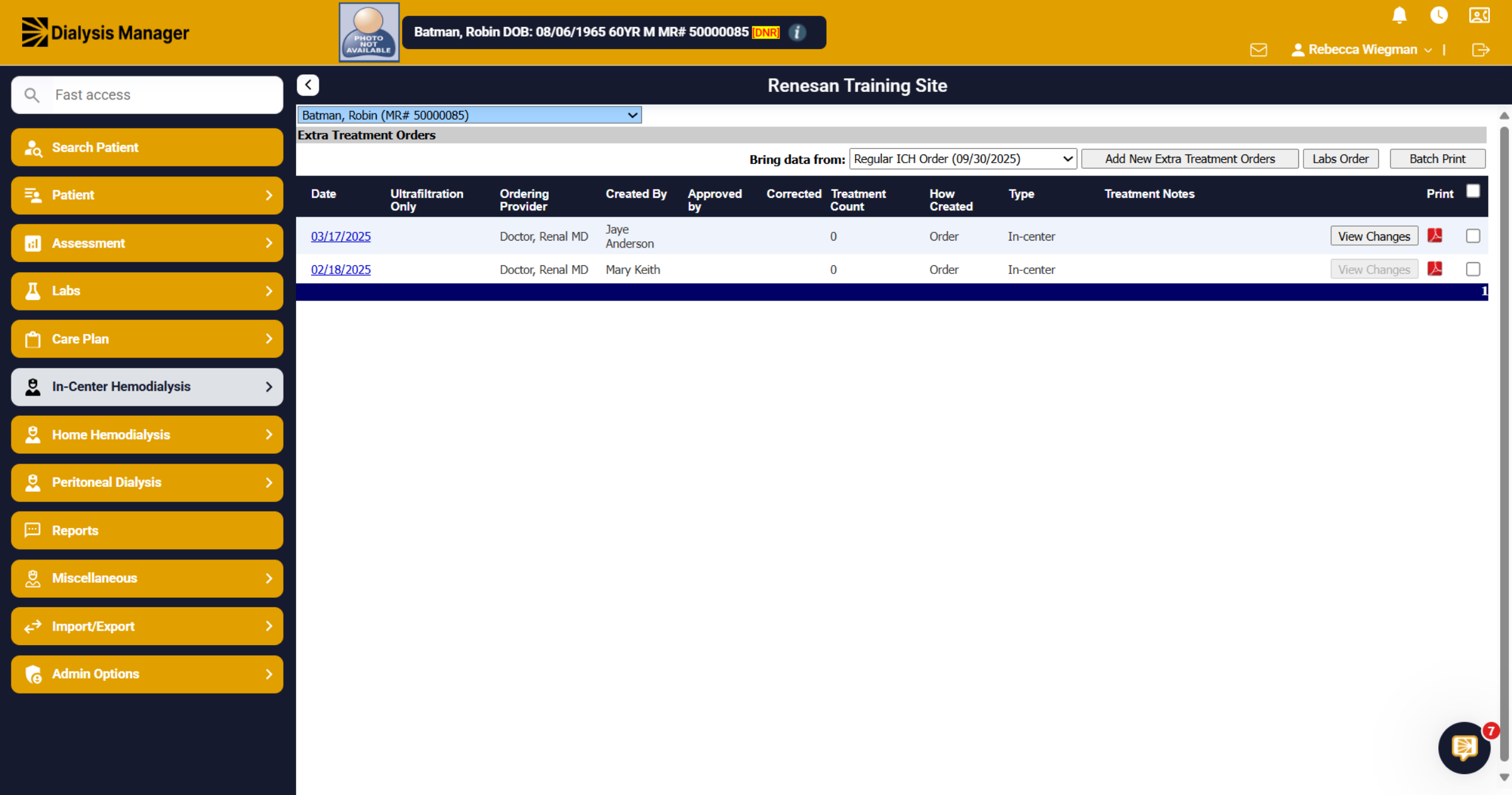
When opening the Extra Treatment Orders, it will show all previous Extra Treatment Orders if the patient has had one created. It shows the Date, Ordering Provider and Treatment Count. Do Not use any previous orders listed as they are treatment date specific.
32. Click "Add New Extra Treatment Orders"
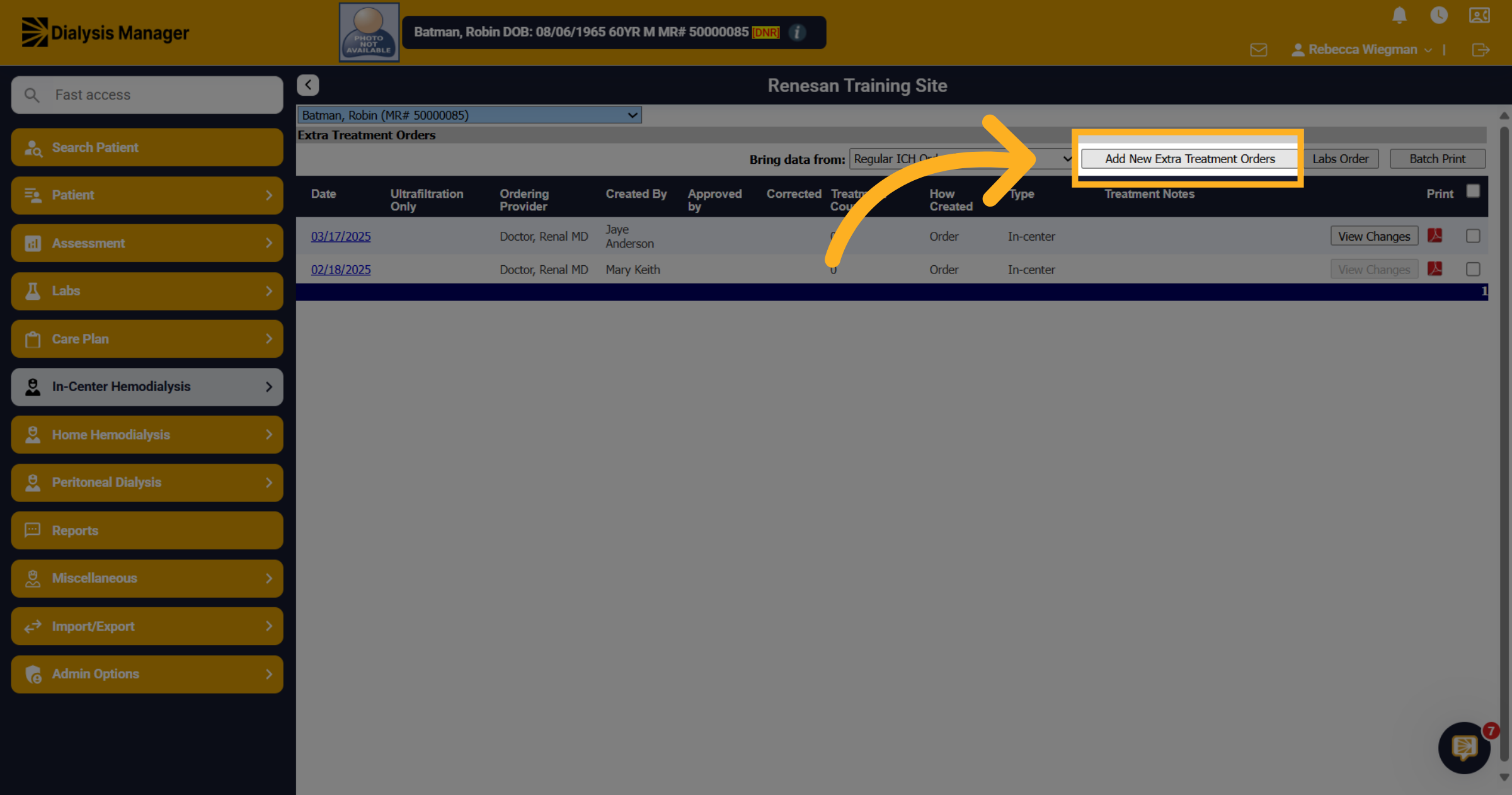
Select "Add New Extra Treatment Orders" to start creating a new order.
33. Extra Treatment Order
Using the "Bring data from" option will ensure the Extra Treatment Order will be replicated from the patients Regular In-Center Treatment Order. That is except for the Treatment Medications. Only the Heparin Orders will transfer to the One-time Extra Treatment Order.
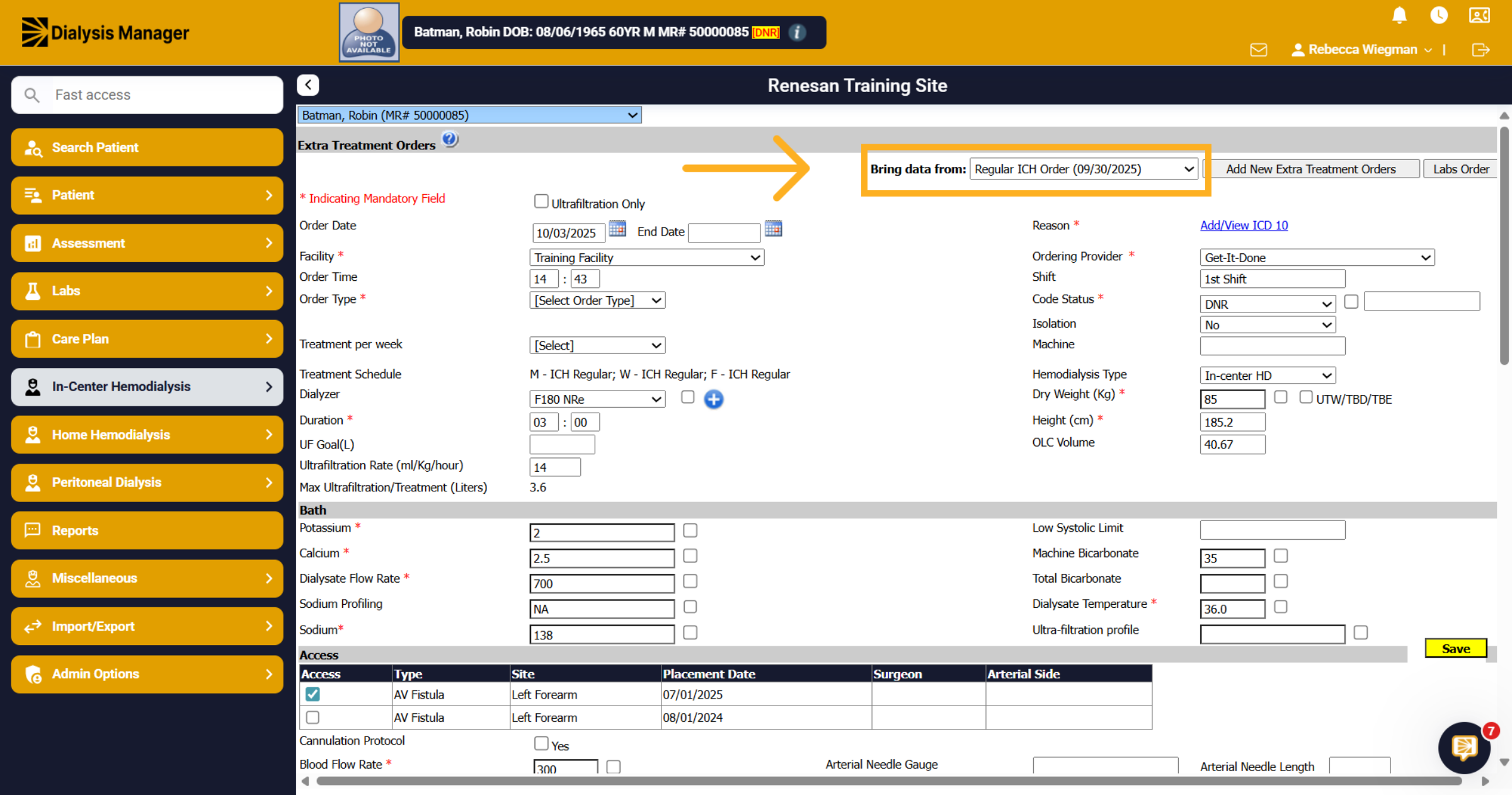
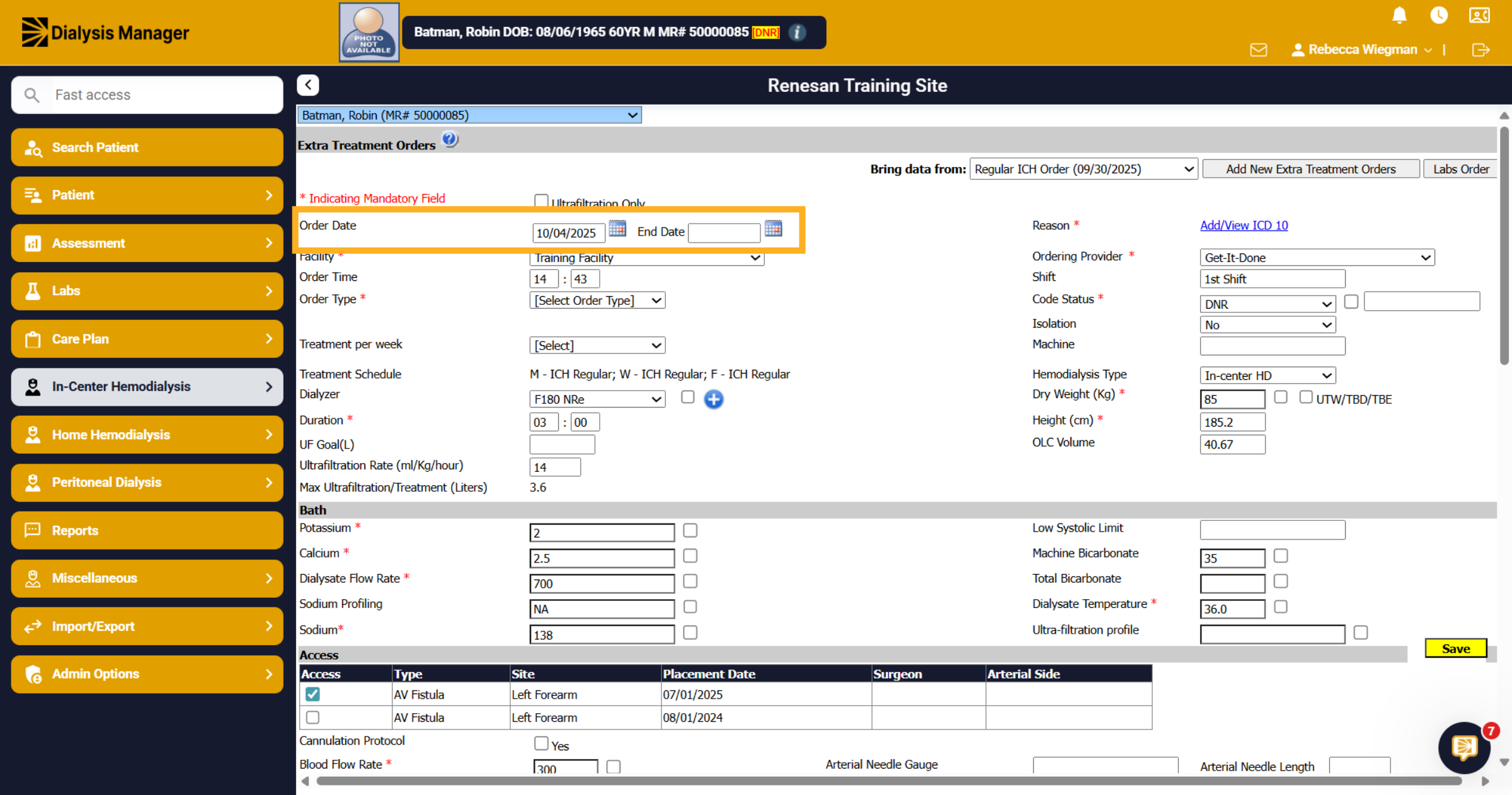
34. Enter Order Dates
In the Order date field enter the date the patient will be present for the Extra Treatment. For the end date field enter the same date so the Extra Treatment order will end, expiring at midnight.
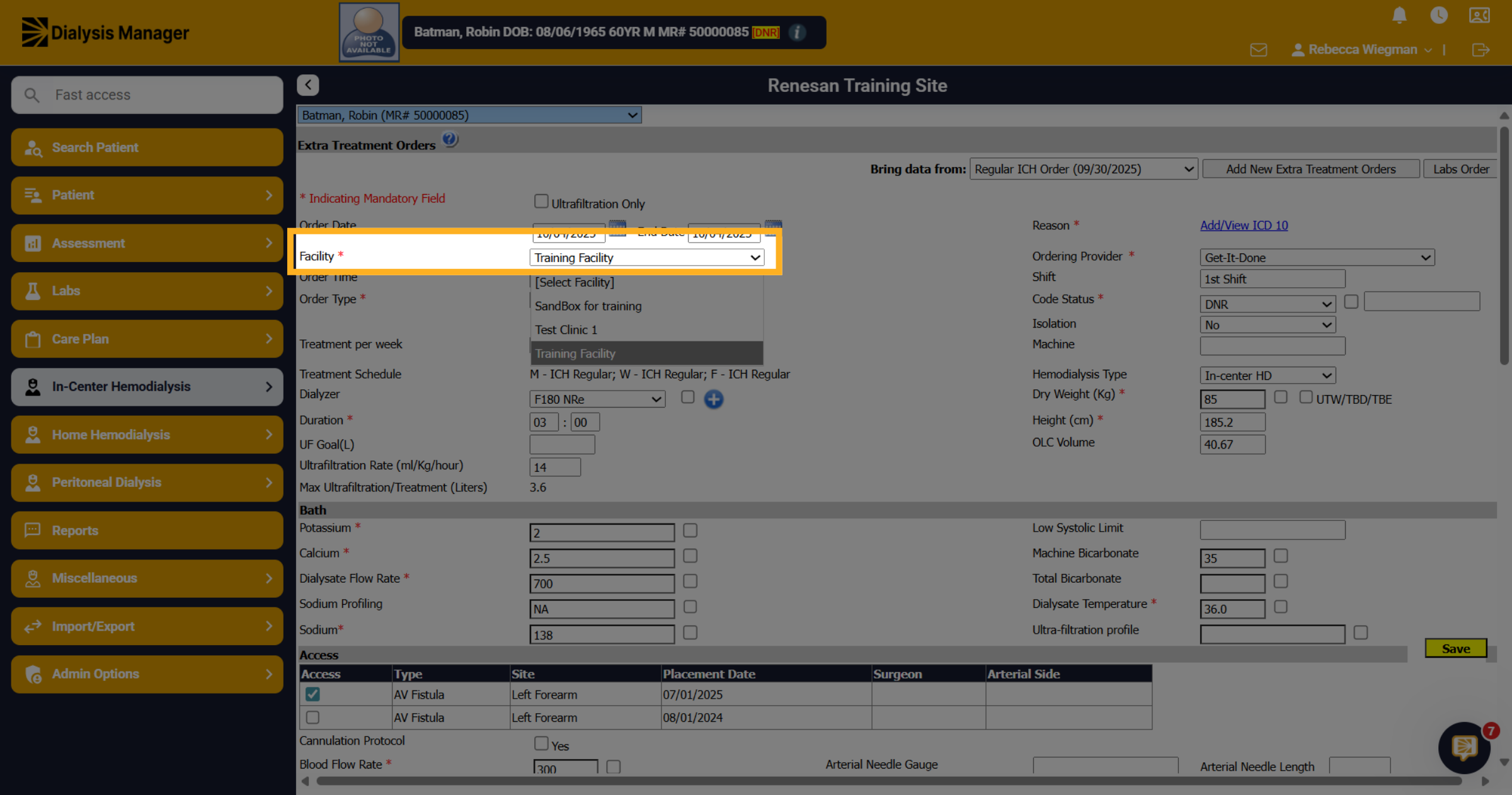
35. Select Facility
Choose the facility where the patient will be receiving the extra treatment.
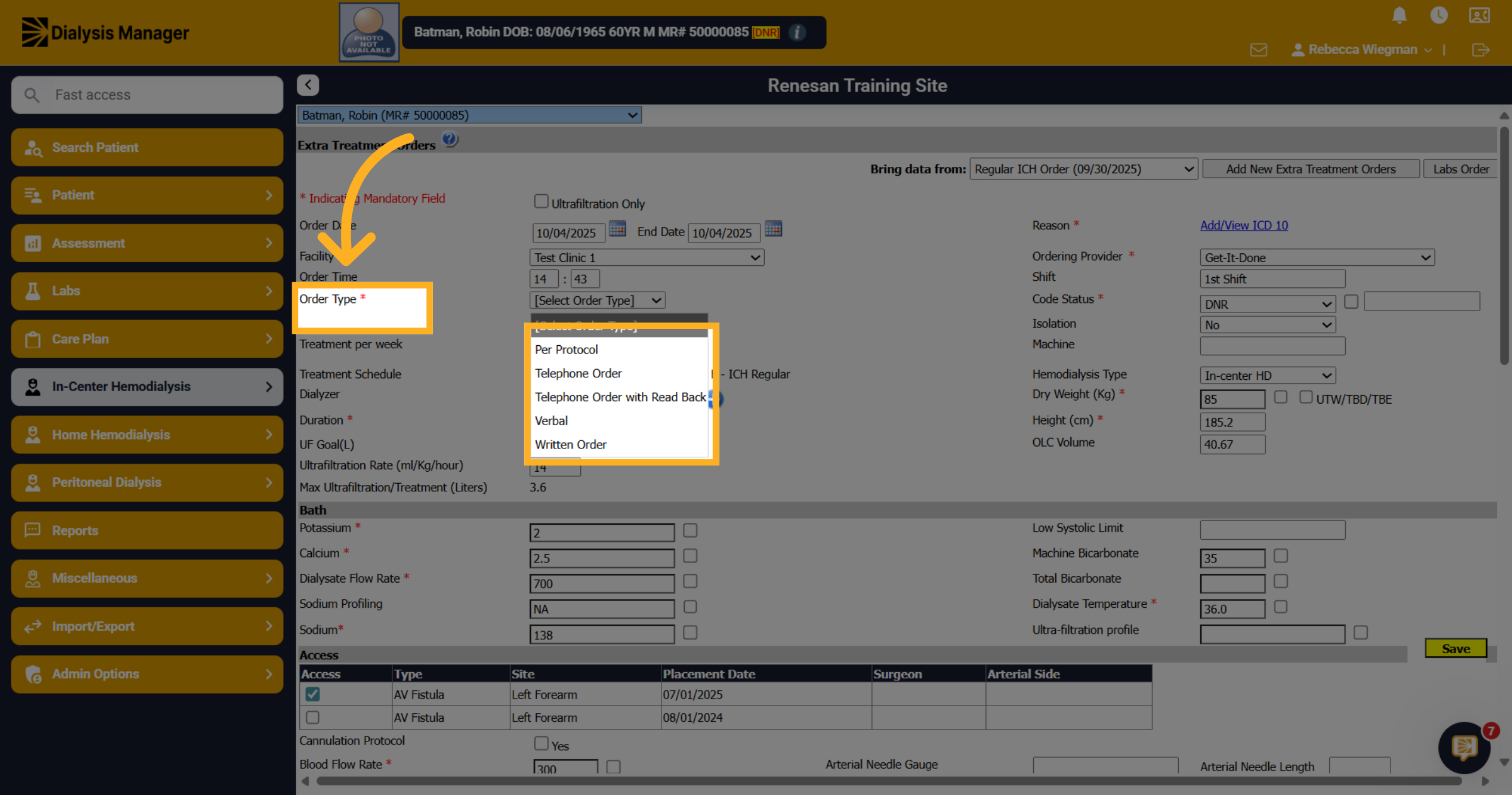
36. Select an Ordering Type
Select the order type from options such as Per Protocol, Telephone Order, Telephone Order with Read Back, Verbal, or Written Order.
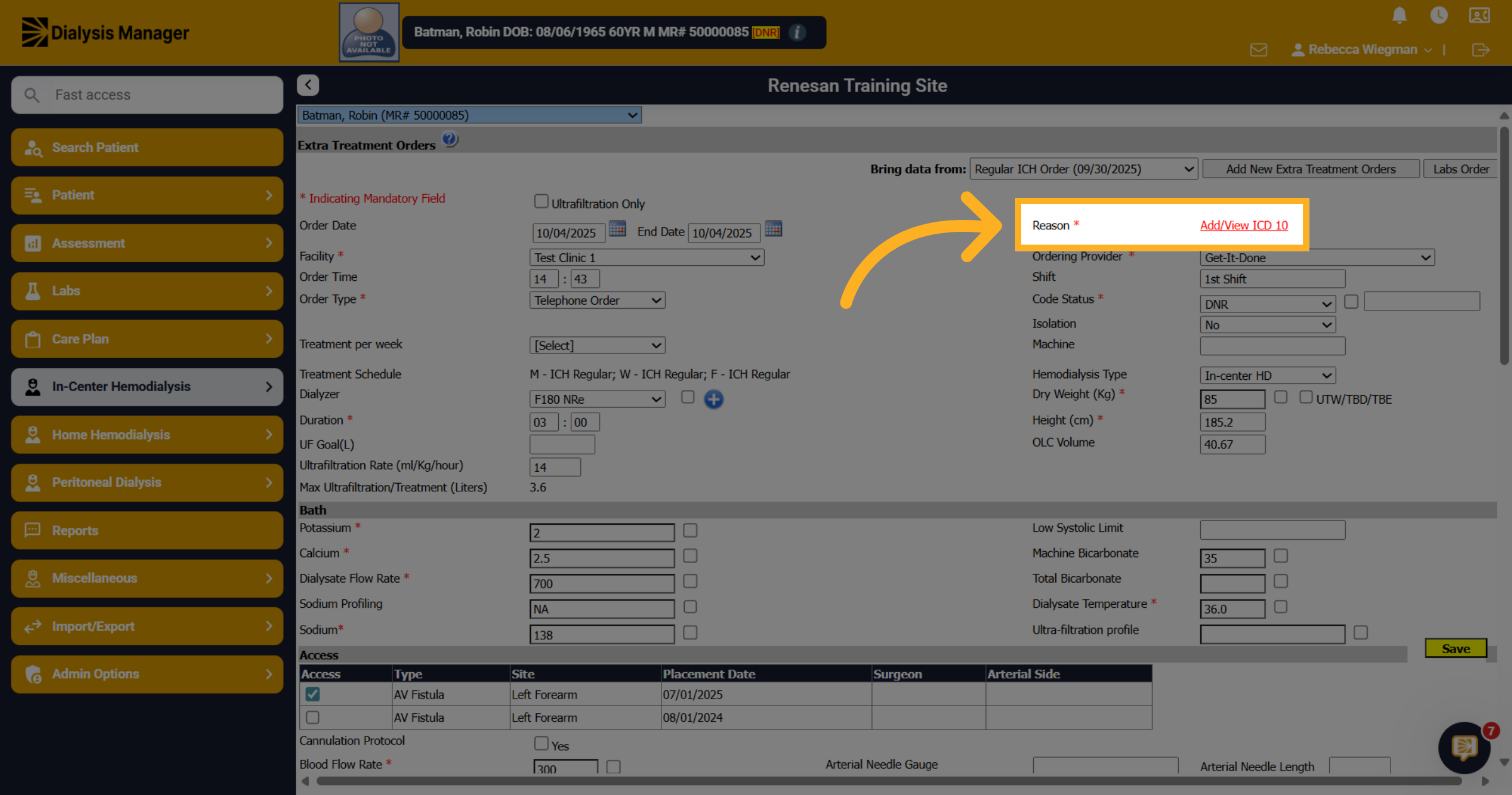
37. Click "Add/View ICD 10"
Click "Add/View ICD 10" to include or review diagnosis codes related to the treatment.
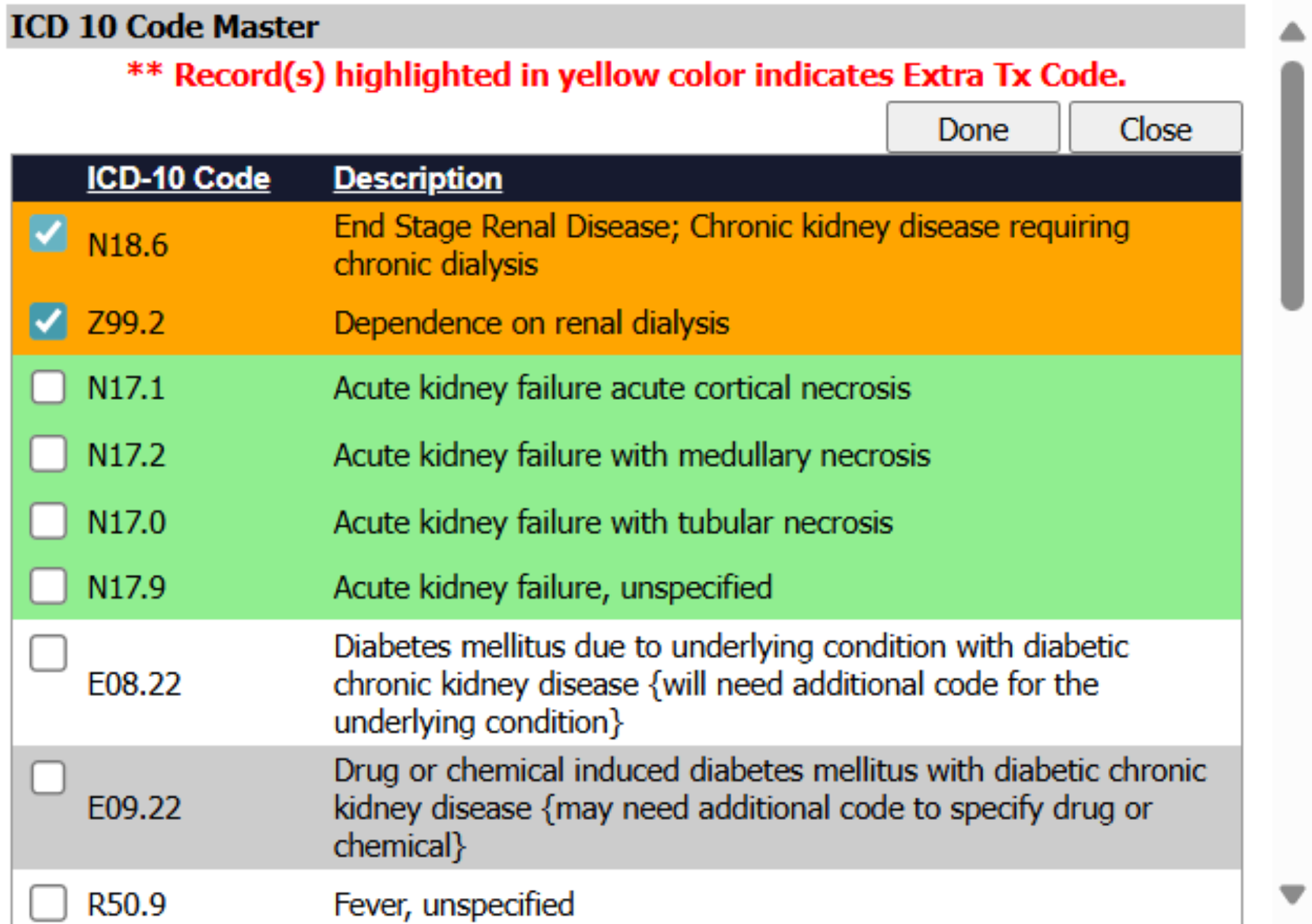
38. ICD 10 Masters
Inside the ICD 10 Code screen you'll want to uncheck the orange End Stage Renal Disease codes and or the green Acute codes.
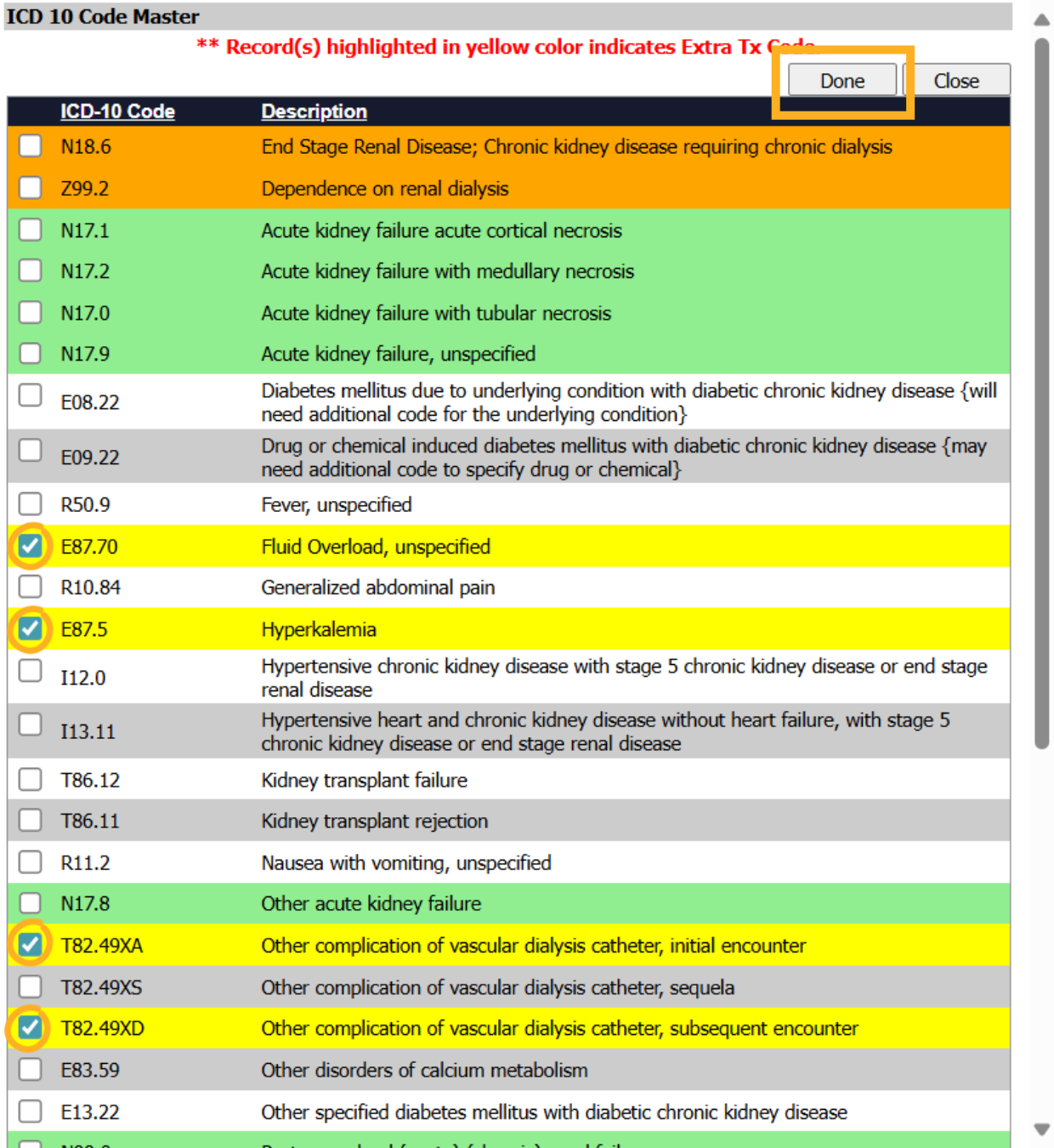
39. Select Extra Treatment ICD 10 codes
Select the appropriate supporting ICD 10 code listed in yellow which indicates the reason for the patients Extra Treatment. Click done to go back to the Extra Treatment Order.
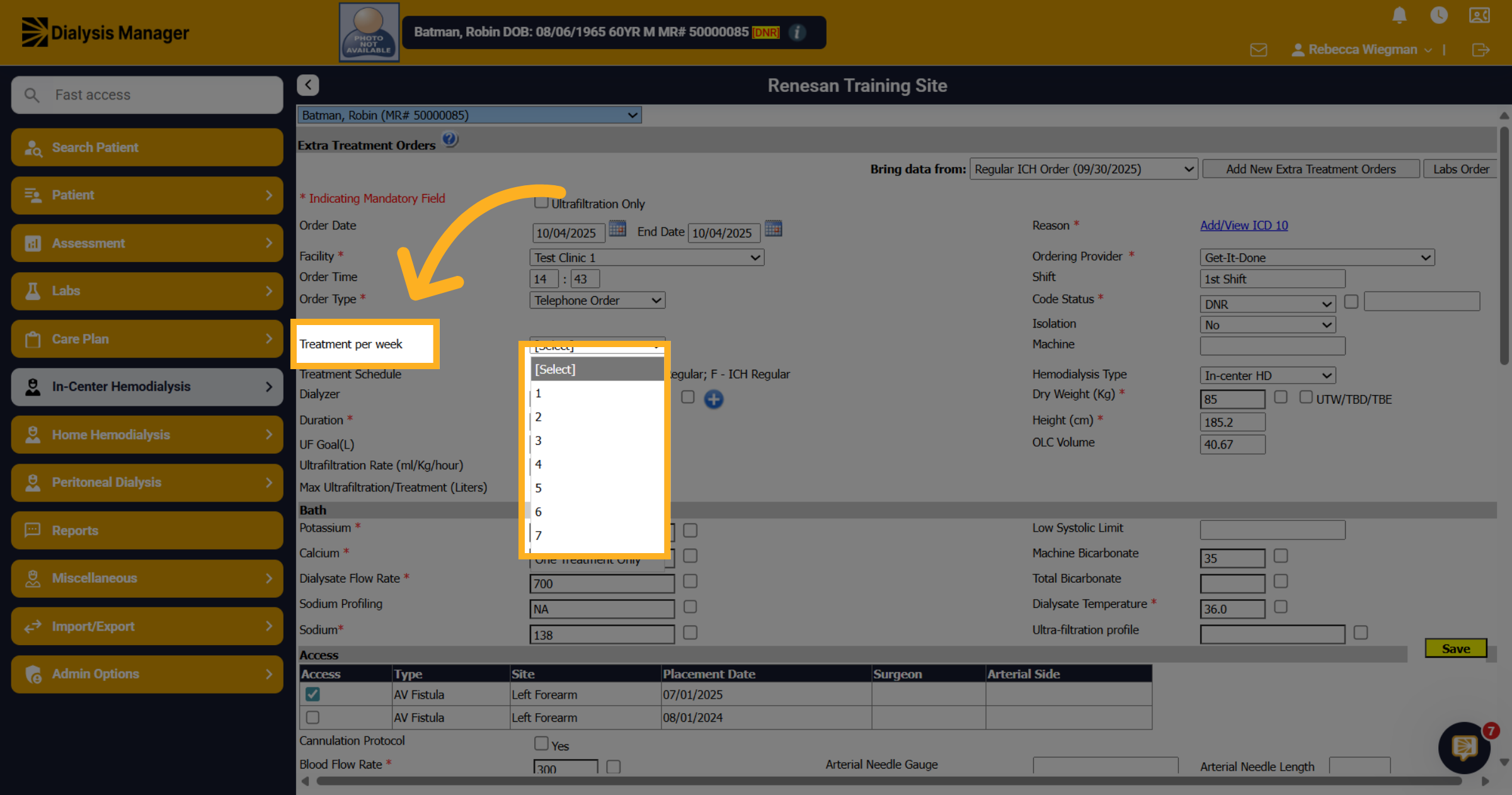
40. Treatment per week
Select 1 from the Treatment per week dropdown to support that only 1 additional (Extra) Treatment is occurring.
41. Click "Sign & Save"
Once reviewing all other information and verifying medications "Click "Sign & Save" to finalize and save the extra treatment order.
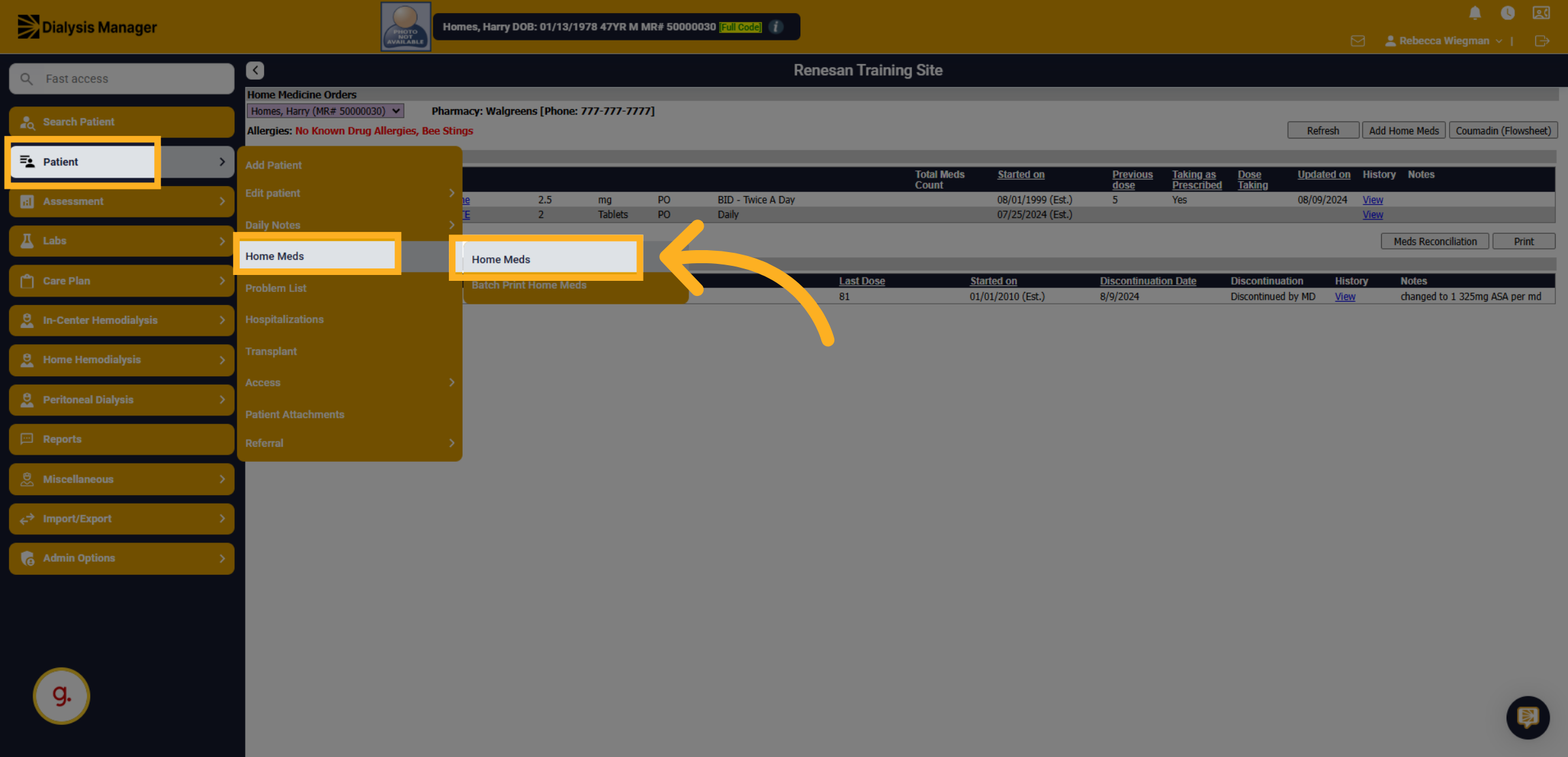
42. Home Meds
To add a Home Medication for a patient, navigate to the Home Medications section to begin adding a new medication.
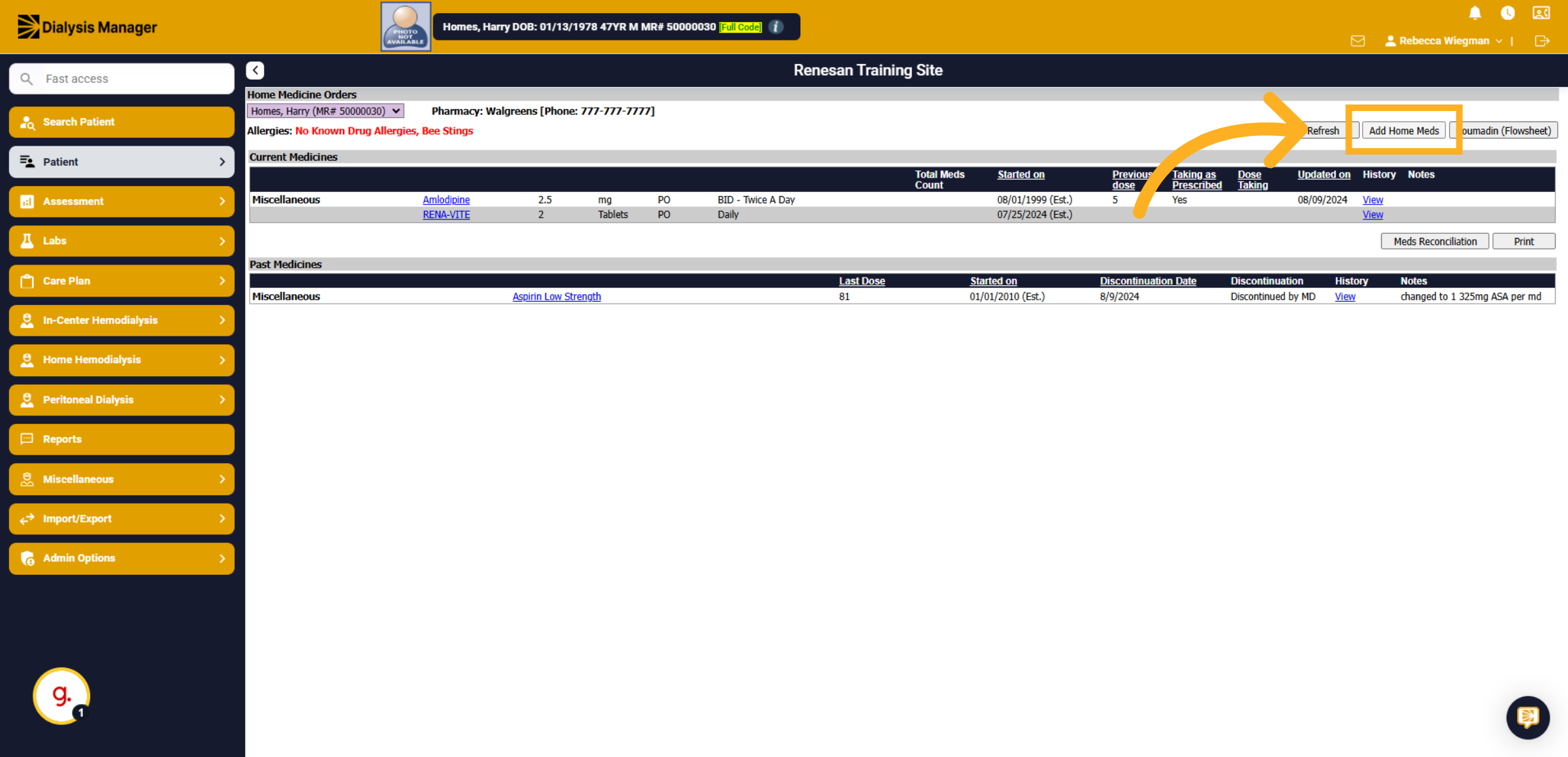
43. Add Home Meds
Here you will see a list of the patients current and past medicines. Select the option to Add Home Meds.
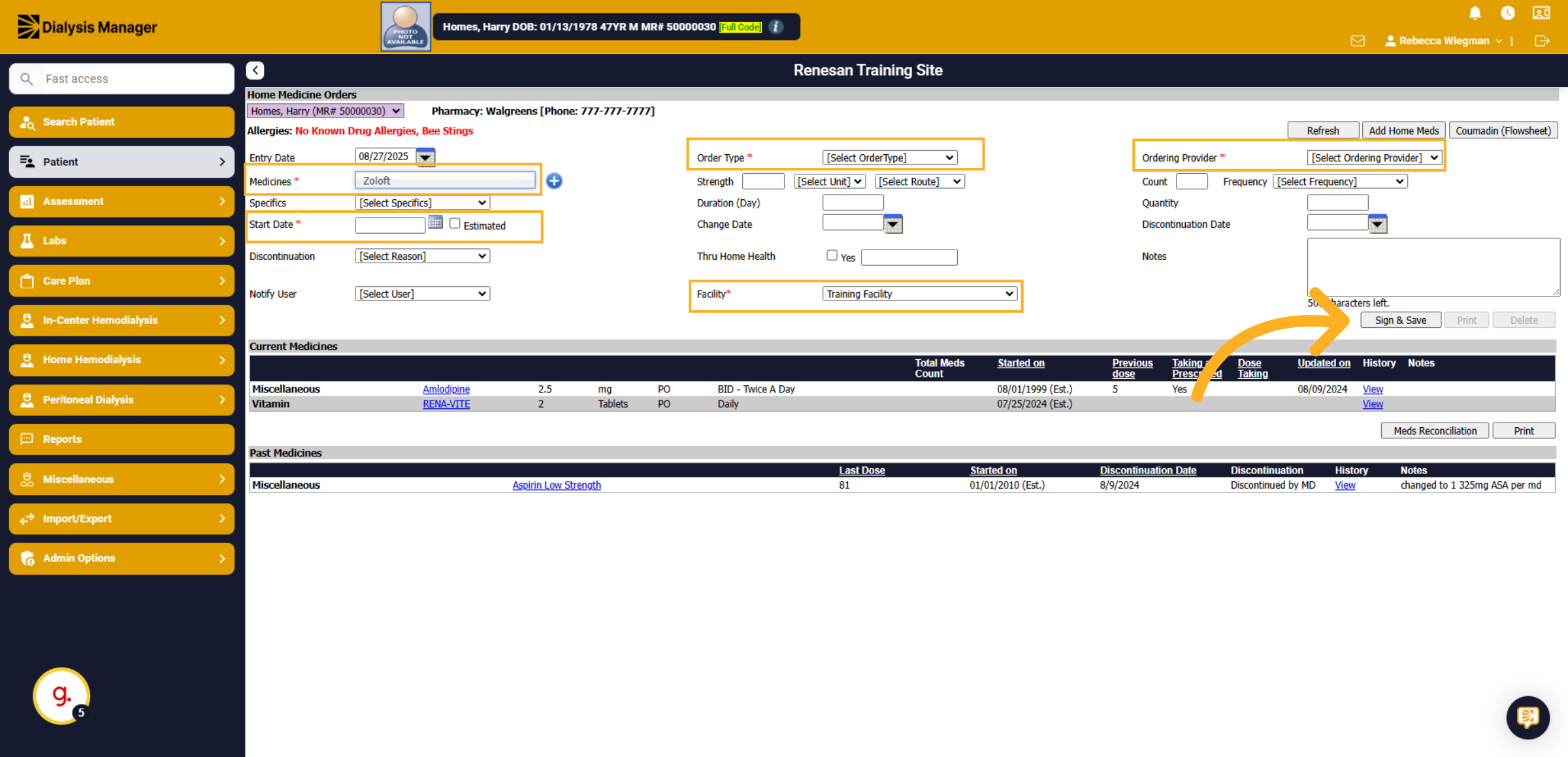
44. Start Date
The Entry Date will default to today. In the Medicines dropdown, select the specific medication. Enter the Start Date for the medication, order type, and ordering provider, along with the facility, all of which are mandatory fields. Provide any additional information before clicking Sign and Save.
45. Click "Ignore"
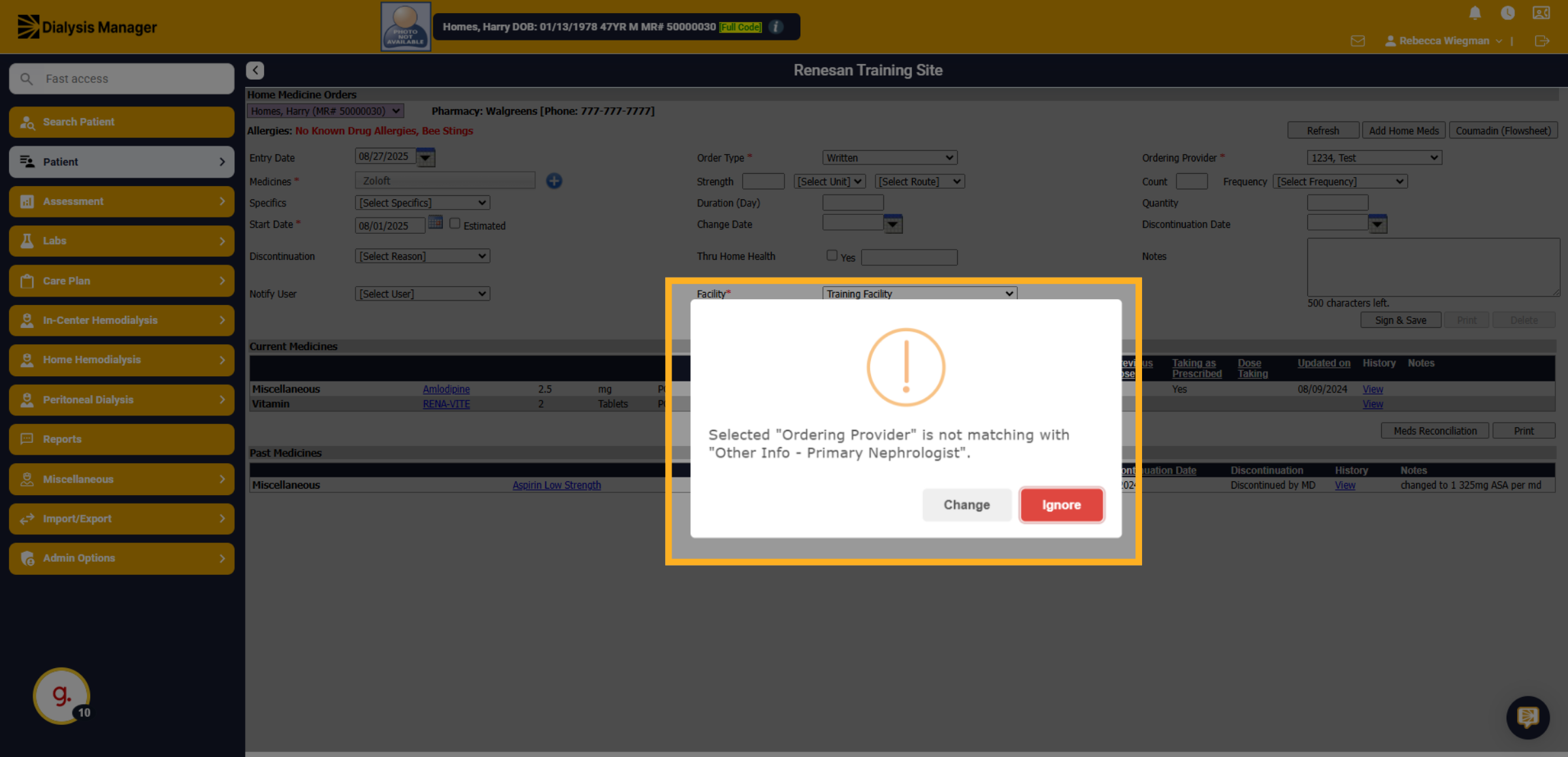
If you receive this "Error" when selecting the ordering provider it is telling you that the provider selected is not the patients primary Nephrologist. Click Ignore if you use rounding groups or assigning to another physician.
46. Discontinuing a Home Med
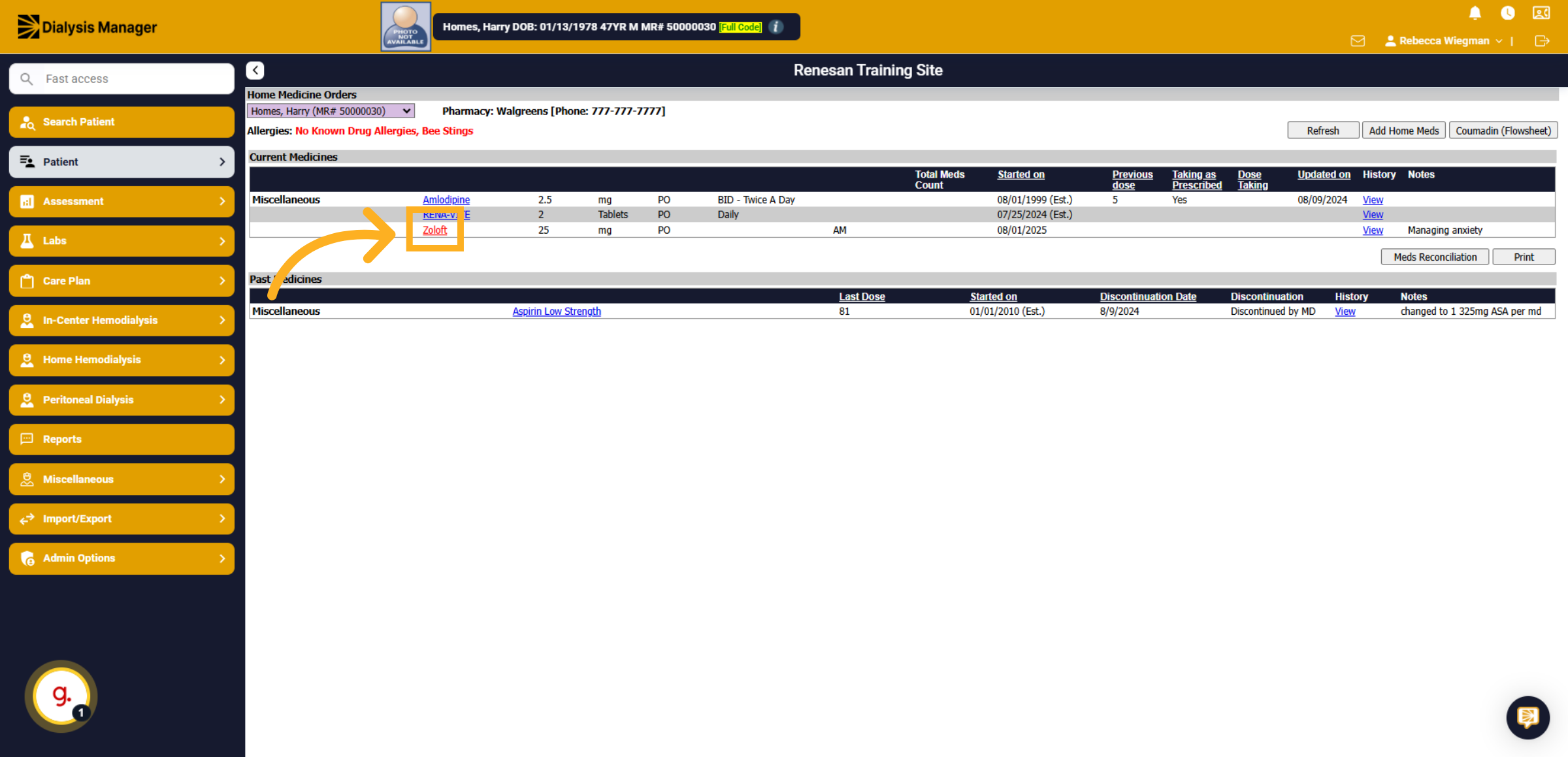
If you need to discontinue or end a Home Medication. Select the Medication name inside the Home Meds tab.
47. Click Discontinuation Reason
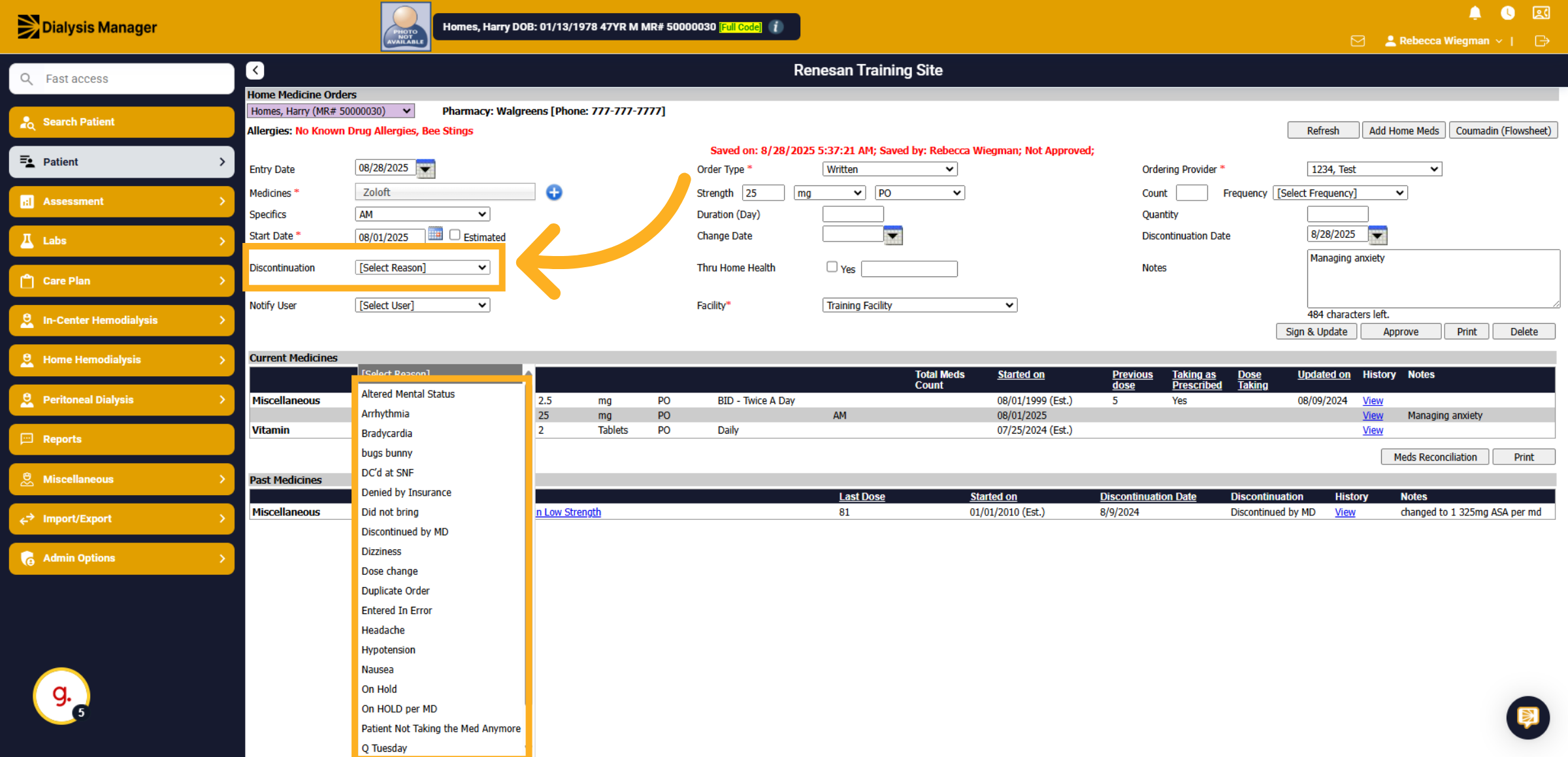
Click on the reason dropdown menu to choose why the medication is being discontinued.
48. Date and Notes
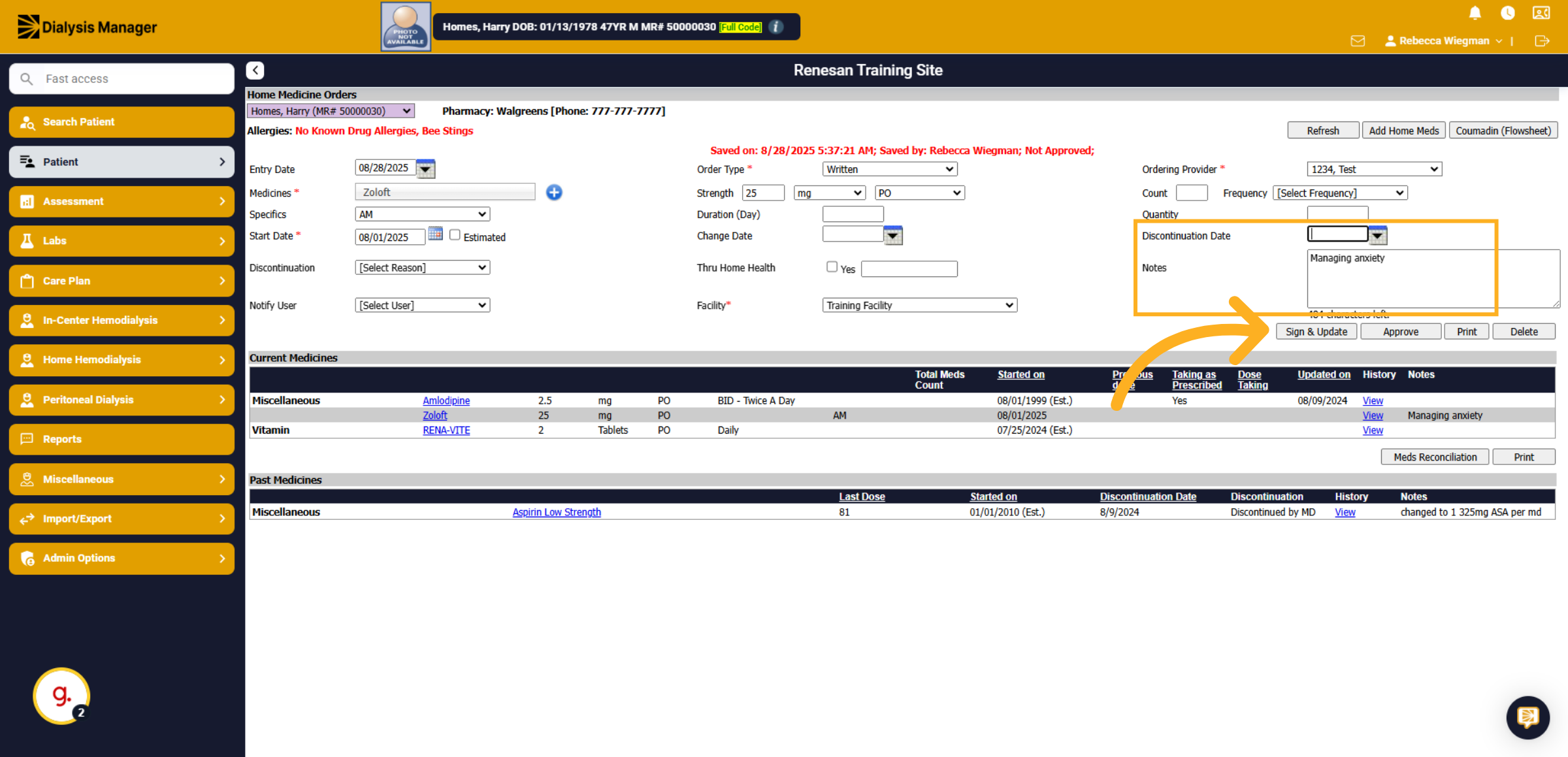
Enter the discontinuation date along with any notes you may have before clicking Sign and Save.
Please add a description