One-Time Extra Treatment Order
1. Introduction
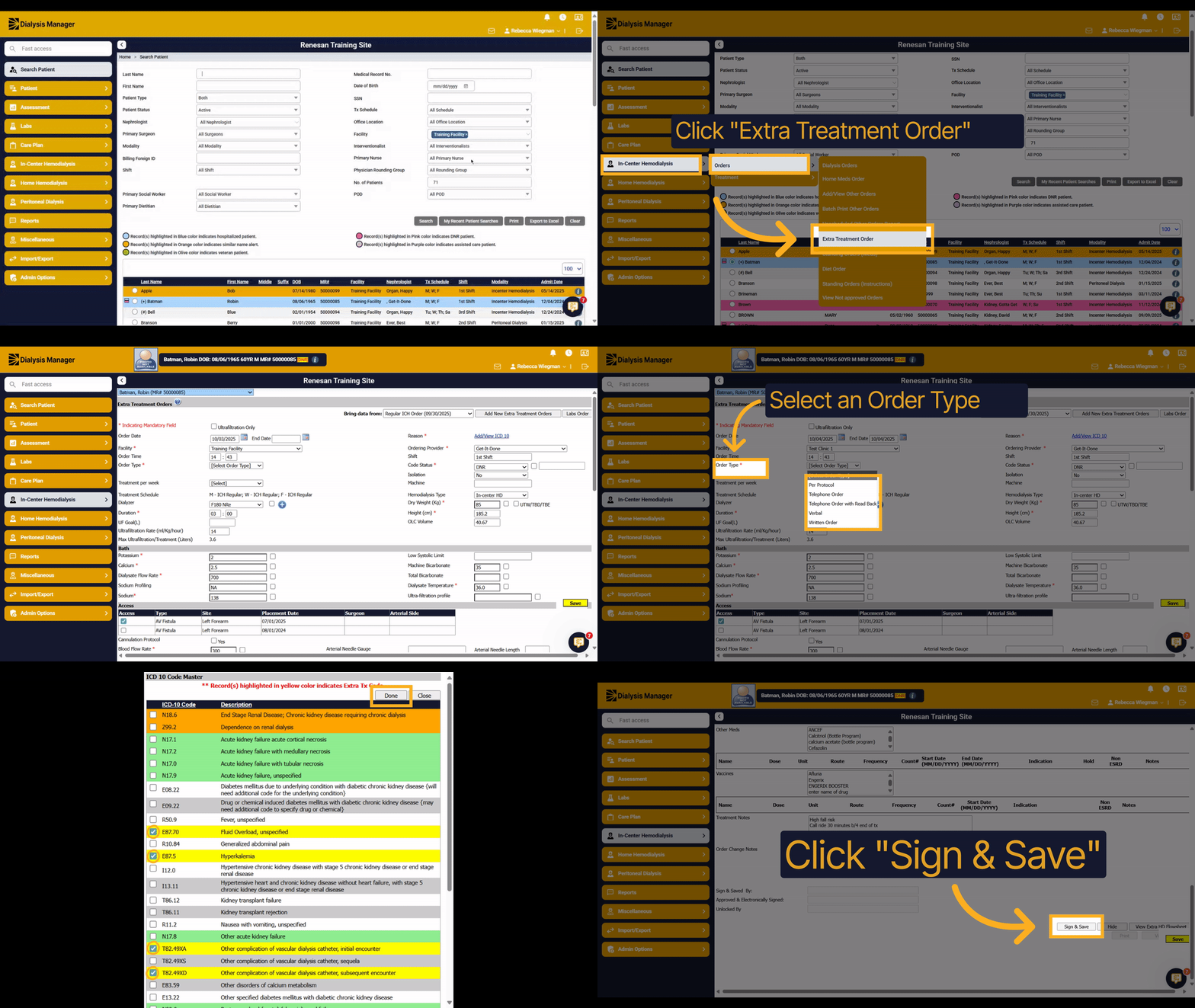
This tutorial guides you through adding a one-time extra treatment order.
2. Select your Patient
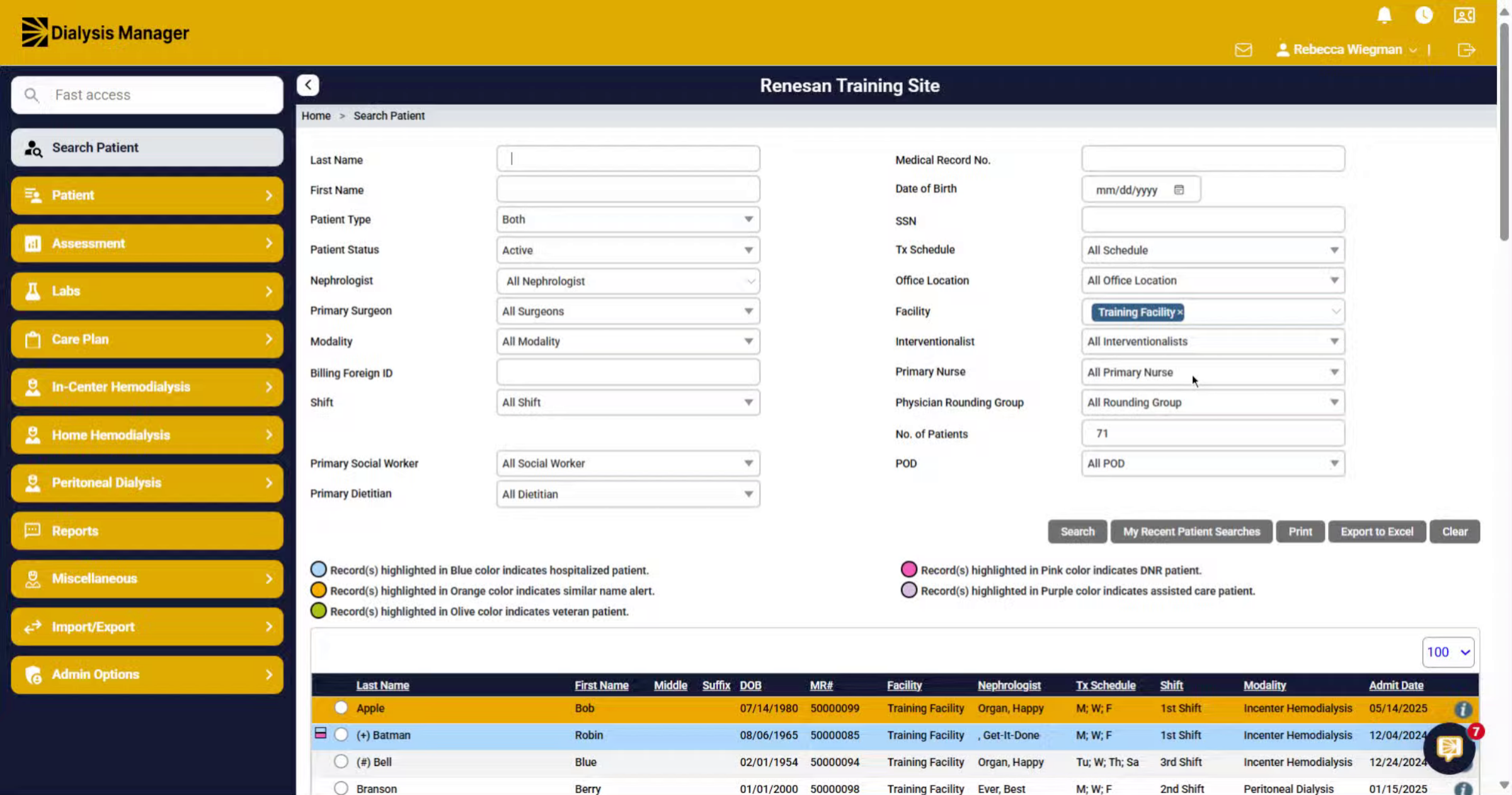
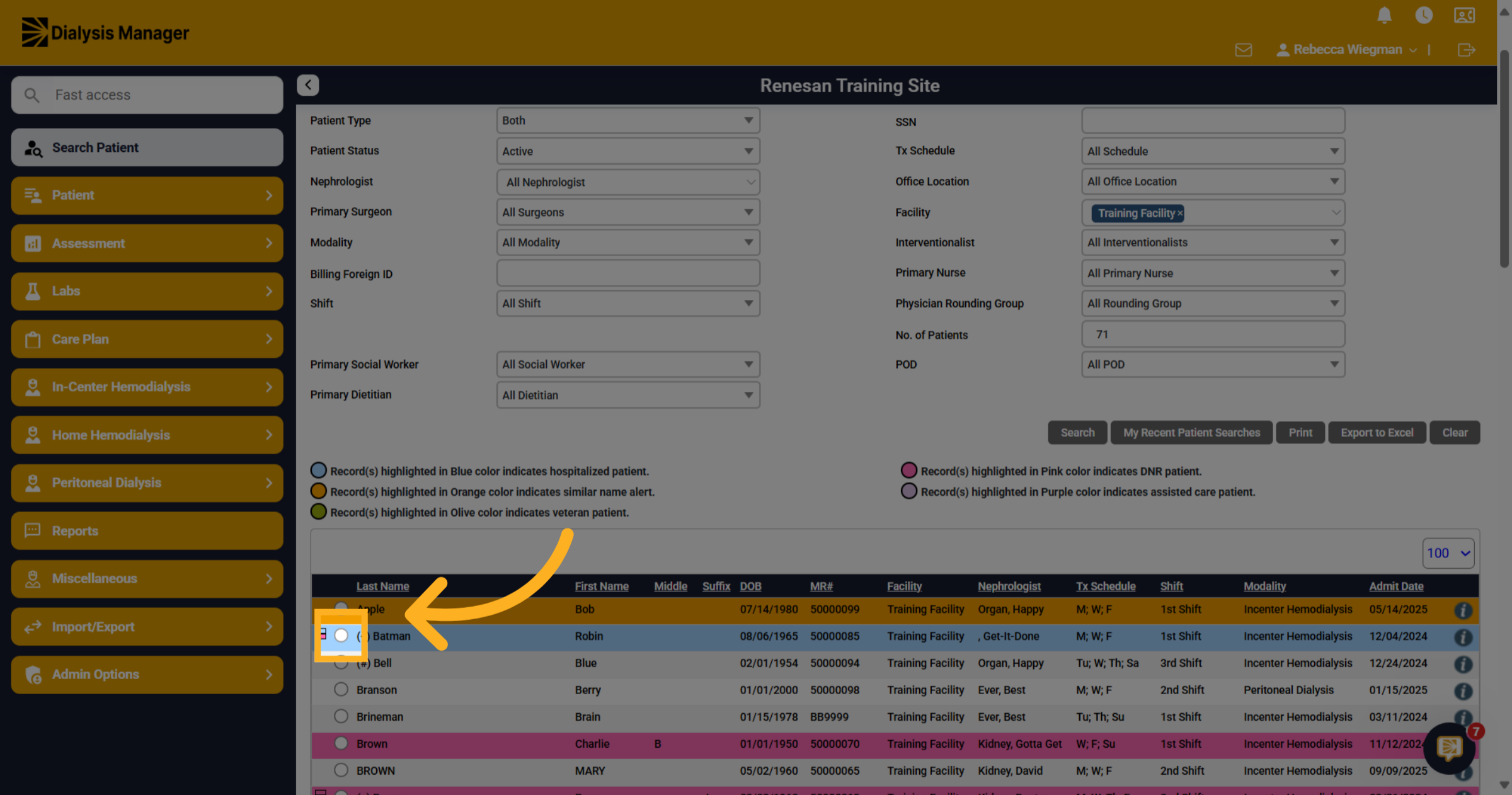
Search for your patient and select the radio button to the left of their name.
3. Click "Extra Treatment Order"
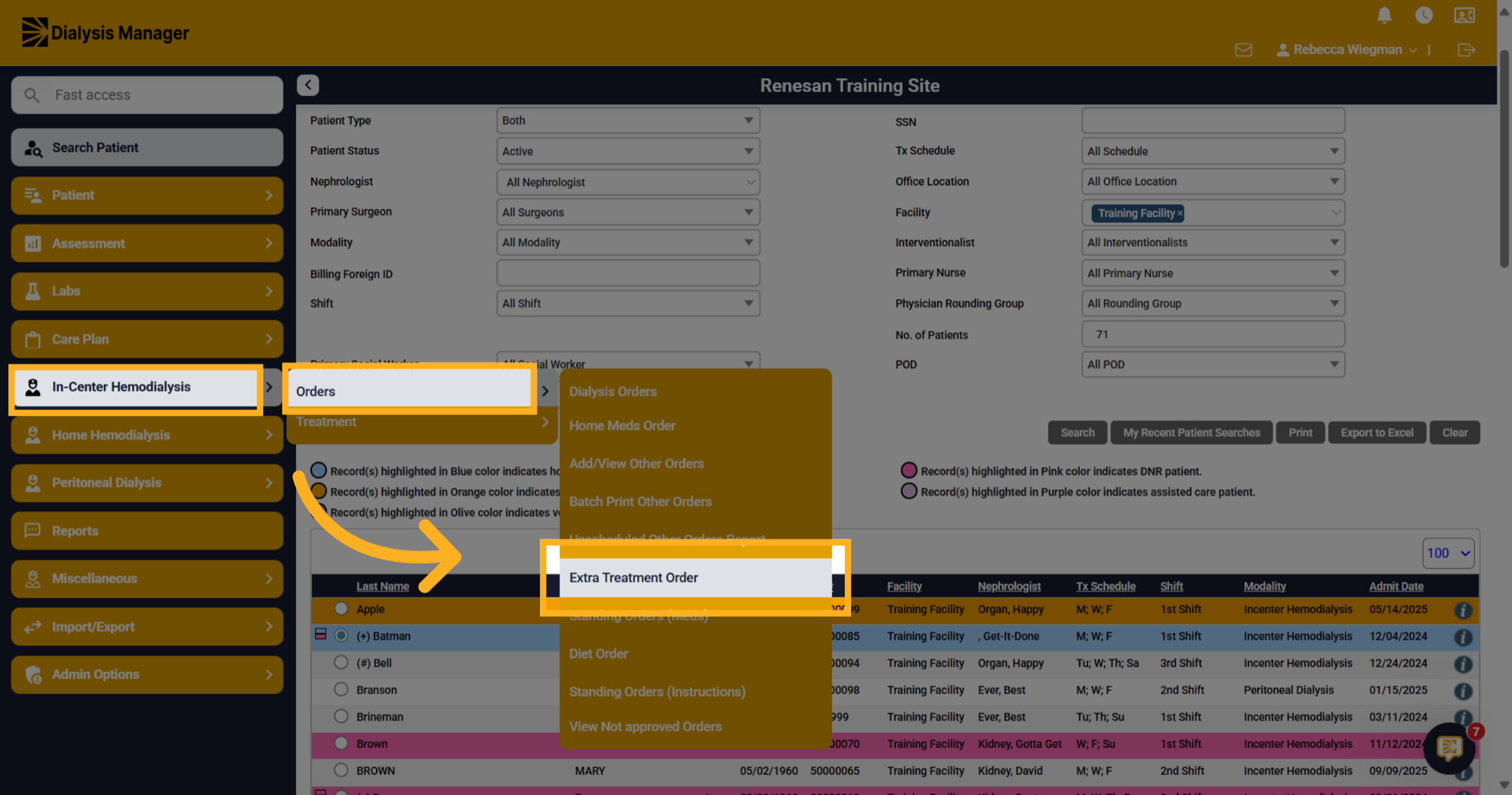
Access the In-Center Hemodialysis Menu, Orders and Extra Treatment Order to begin entering your patient's extra treatment order.
4. Previous Extra Orders
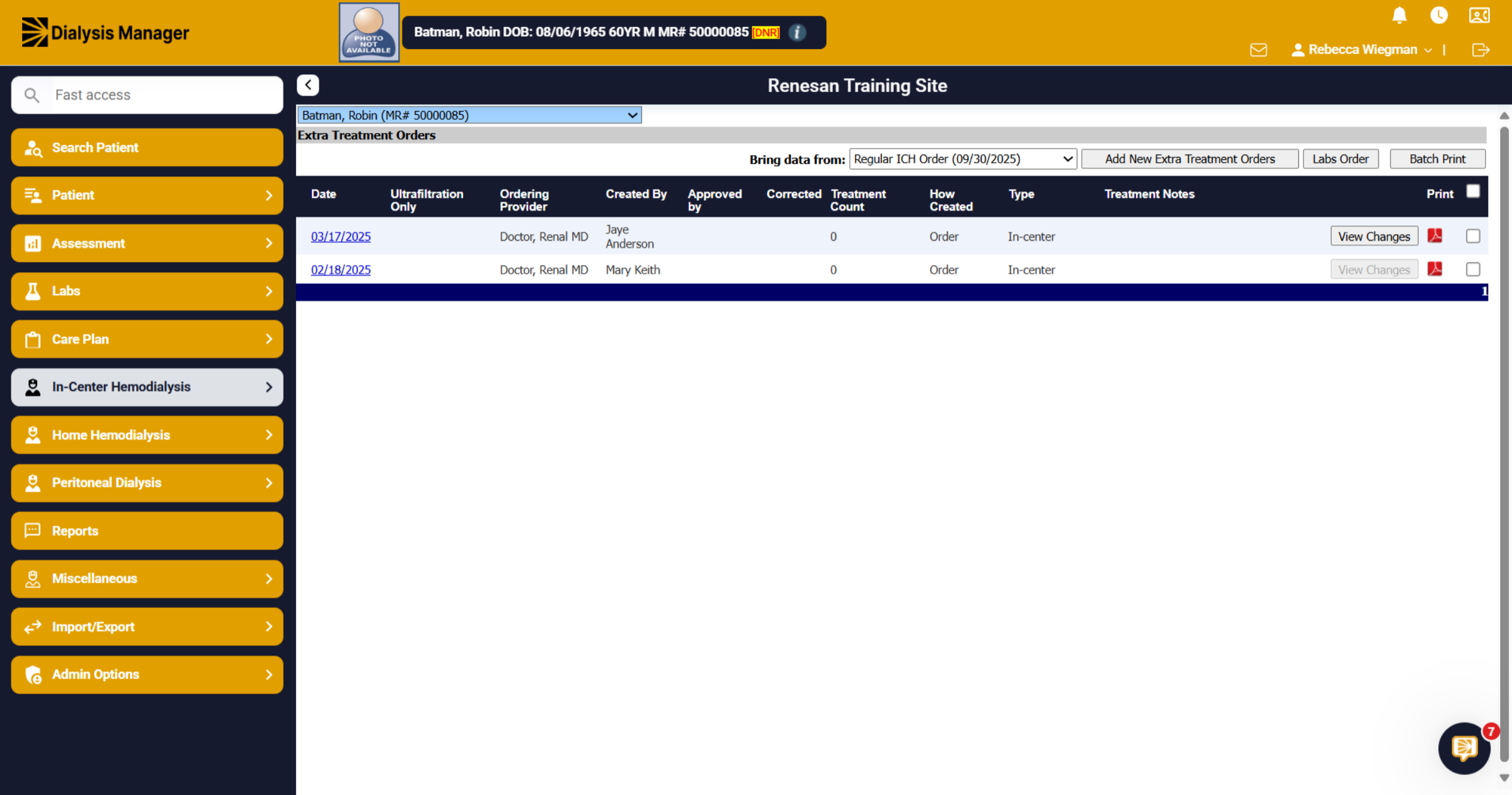
When opening the Extra Treatment Orders, it will show all previous Extra Treatment Orders if the patient has had one created. It shows the Date, Ordering Provider and Treatment Count. Do Not use any previous orders listed as they are treatment date specific.
5. Click "Add New Extra Treatment Orders"
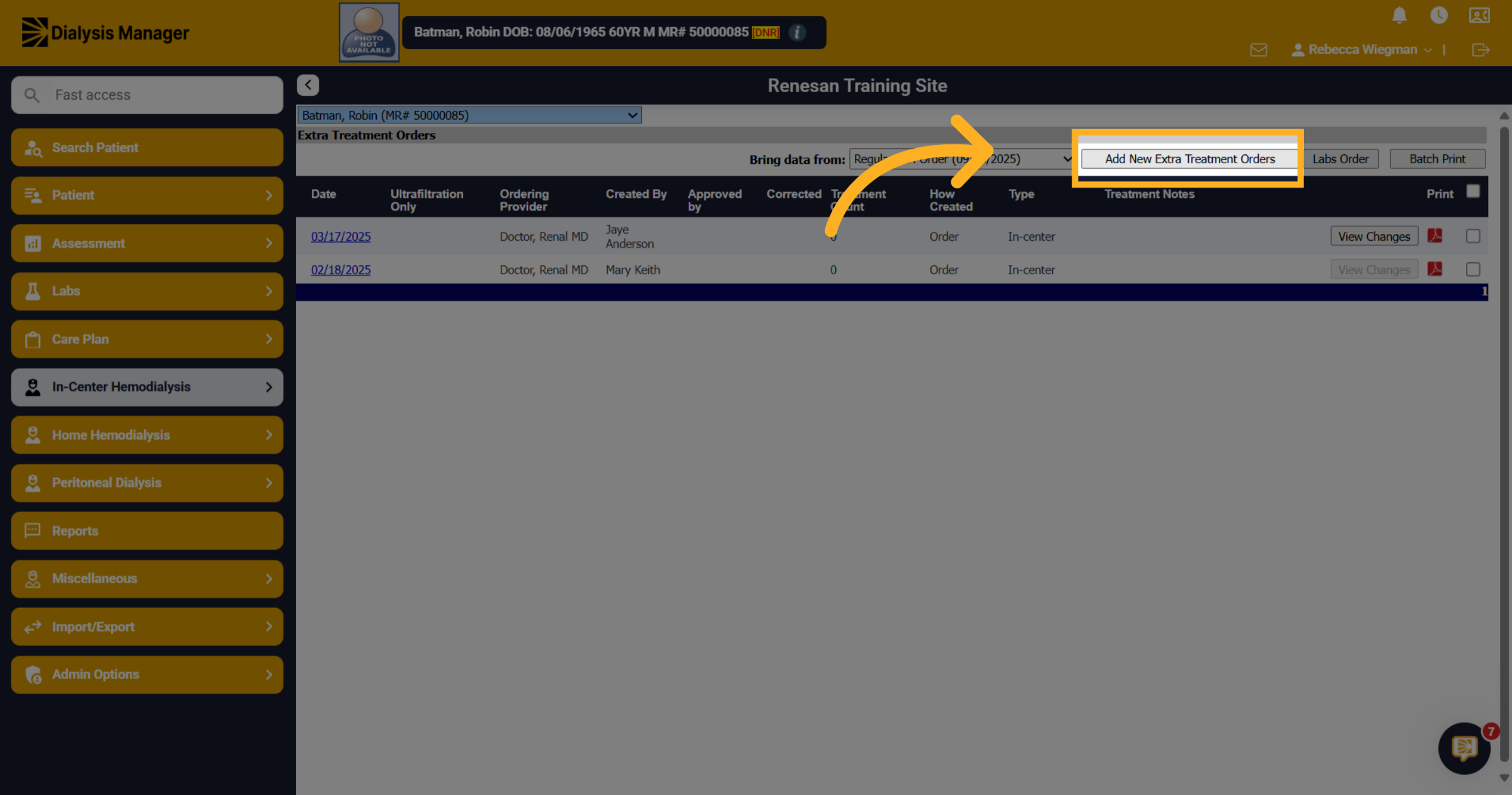
Select "Add New Extra Treatment Orders" to start creating a new order.
6. Extra Treatment Order
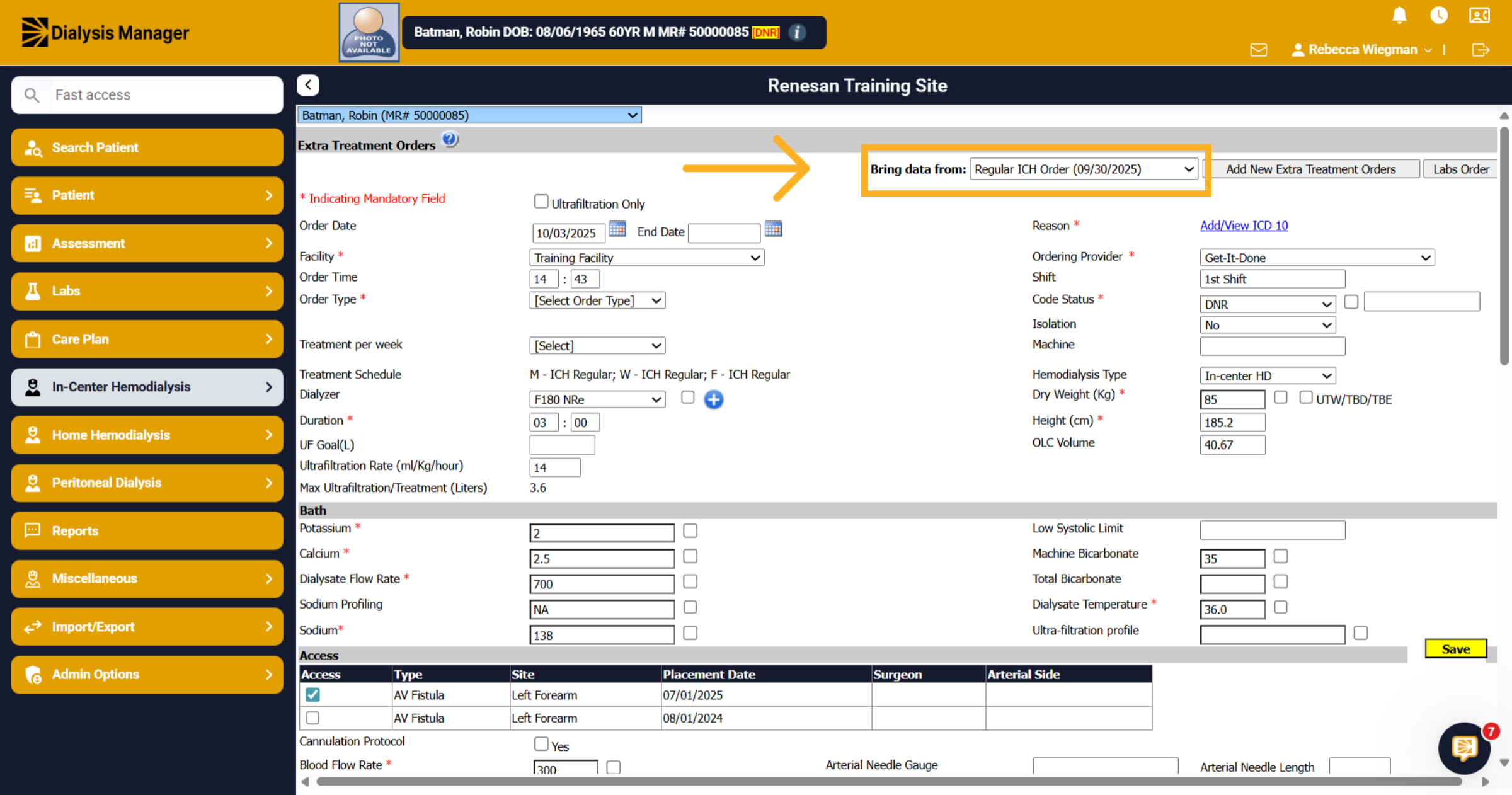
Using the "Bring data from" option will ensure the Extra Treatment Order will be replicated from the patients Regular In-Center Treatment Order. That is except for the Treatment Medications. Only the Heparin Orders will transfer to the One-time Extra Treatment Order.
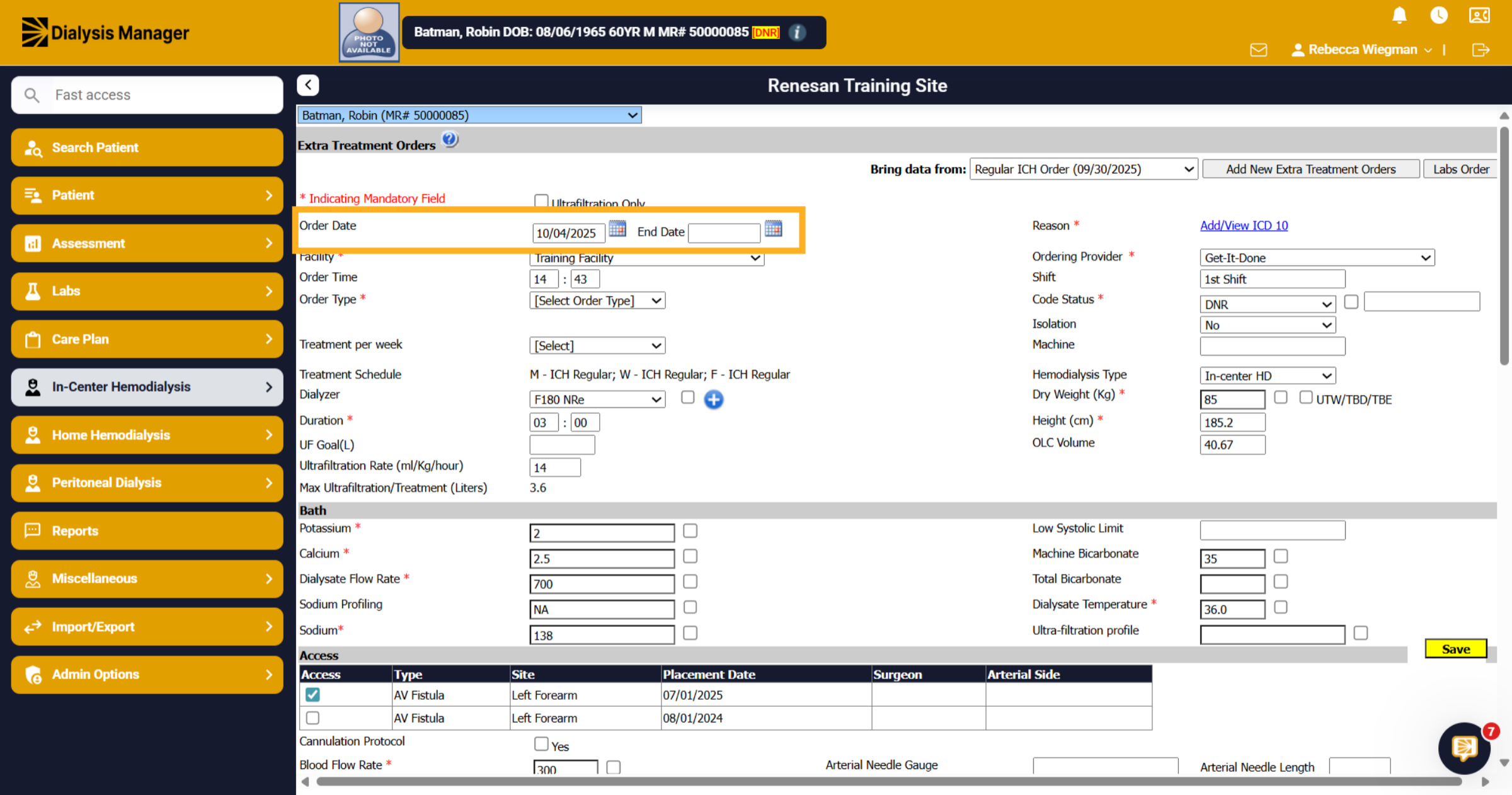
7. Enter Order Dates
In the first date field enter the date the patient will be present for the Extra Treatment. for the end date field enter the same date so the Extra Treatment order will end, expiring at midnight.
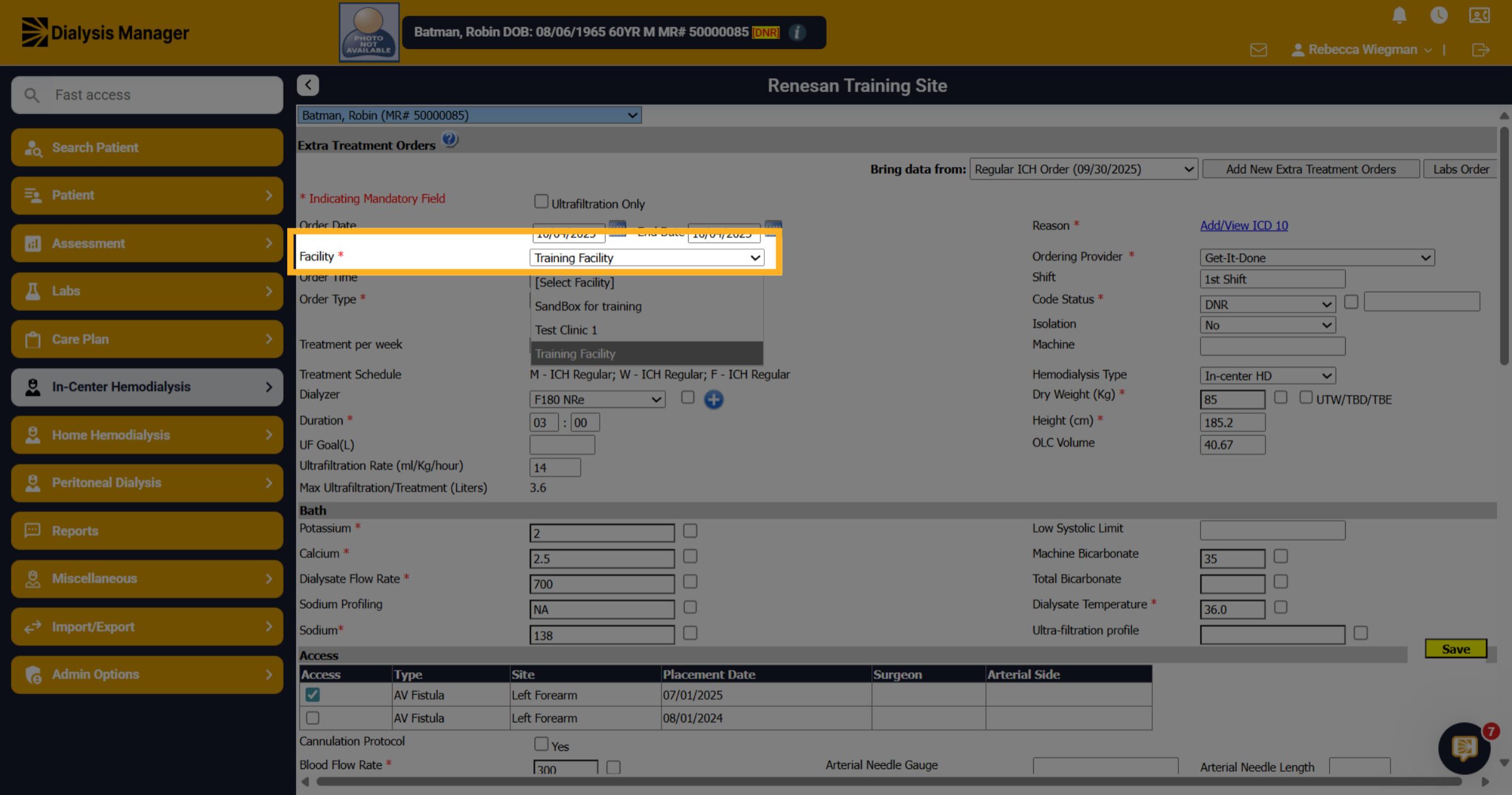
8. Select Facility
Choose the facility where the patient will be receiving the extra treatment.
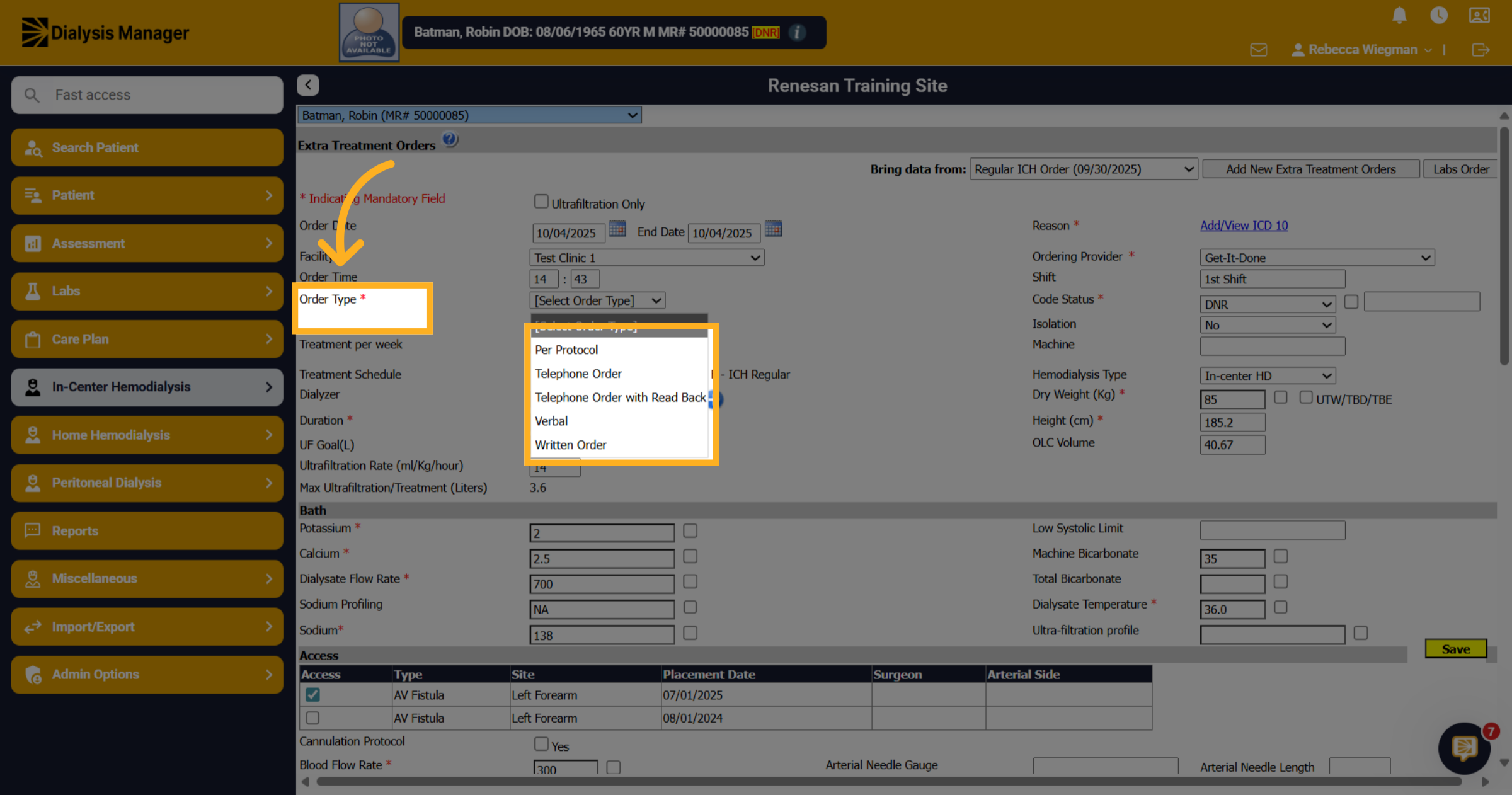
9. Select an Ordering Type
Select the order type from options such as Per Protocol, Telephone Order, Telephone Order with Read Back, Verbal, or Written Order.
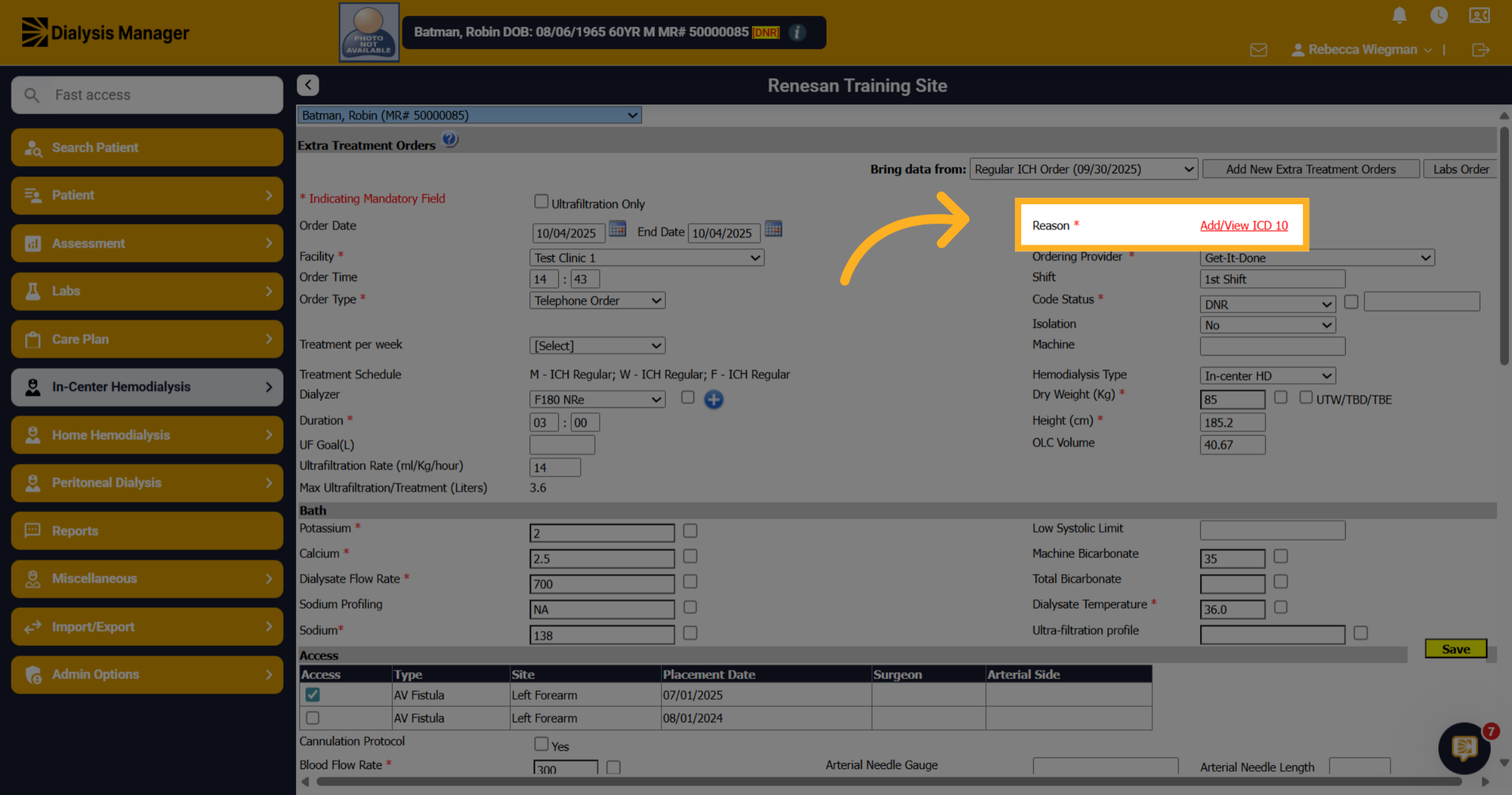
10. Click "Add/View ICD 10"
Click "Add/View ICD 10" to include or review diagnosis codes related to the treatment.
11. ICD 10 Masters
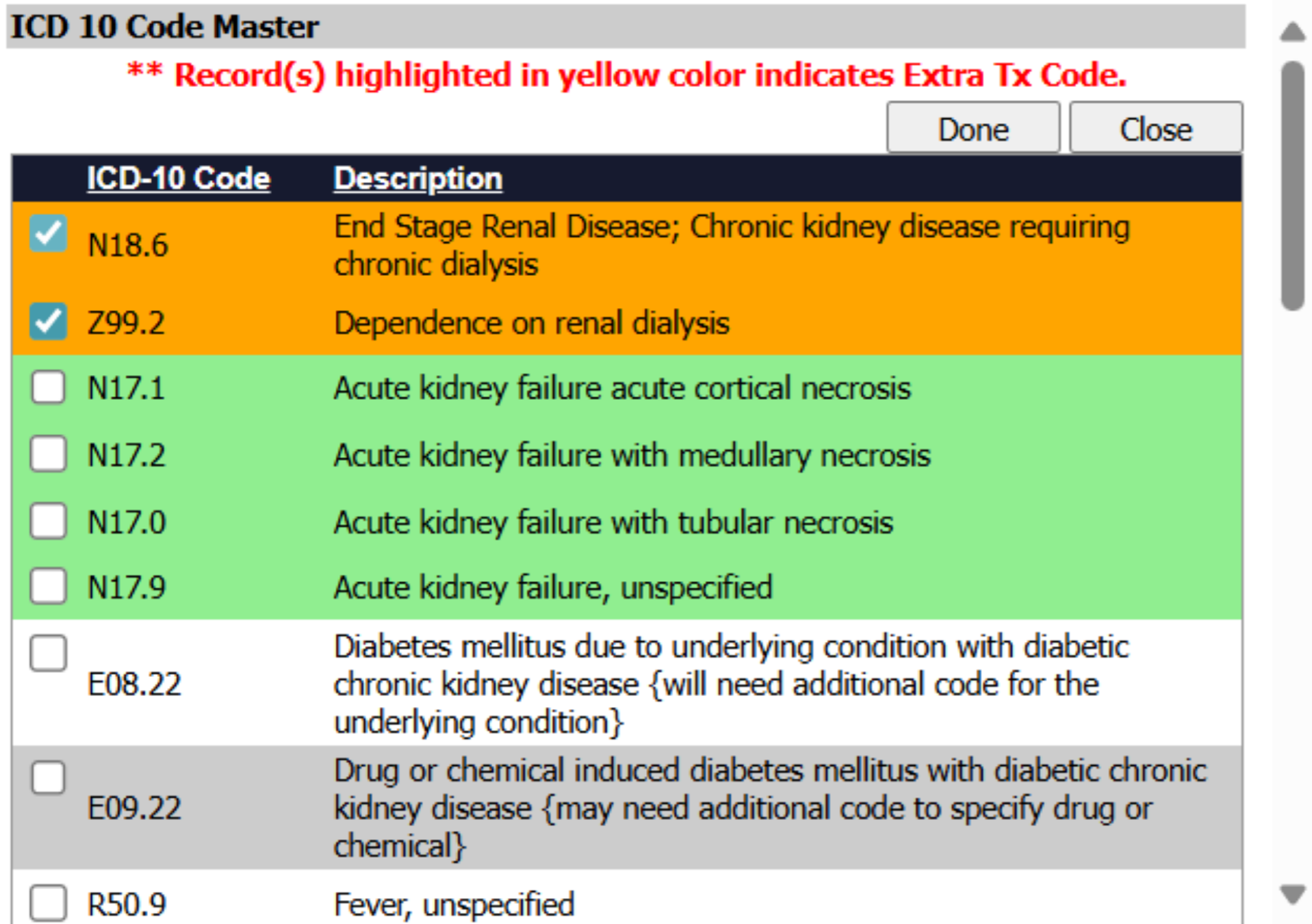
Inside the ICD 10 Code screen you'll want to uncheck the orange End Stage Renal Disease codes and or the green Acute codes.
12. Select Extra Treatment ICD 10 codes
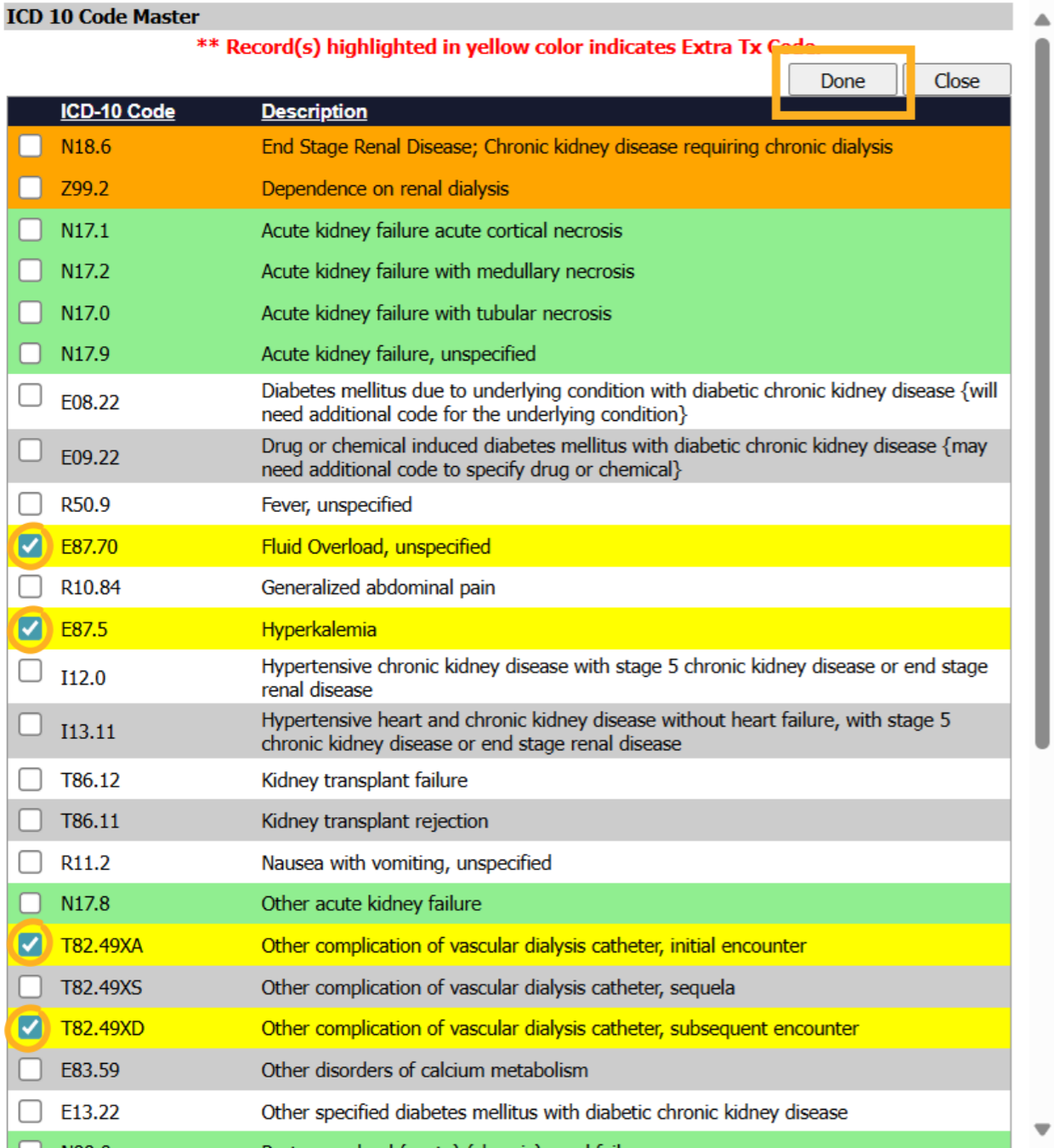
Select the appropriate supporting ICD 10 code listed in yellow which indicates the reason for the patients Extra Treatment. Click done to go back to the Extra Treatment Order.
13. Treatment per week
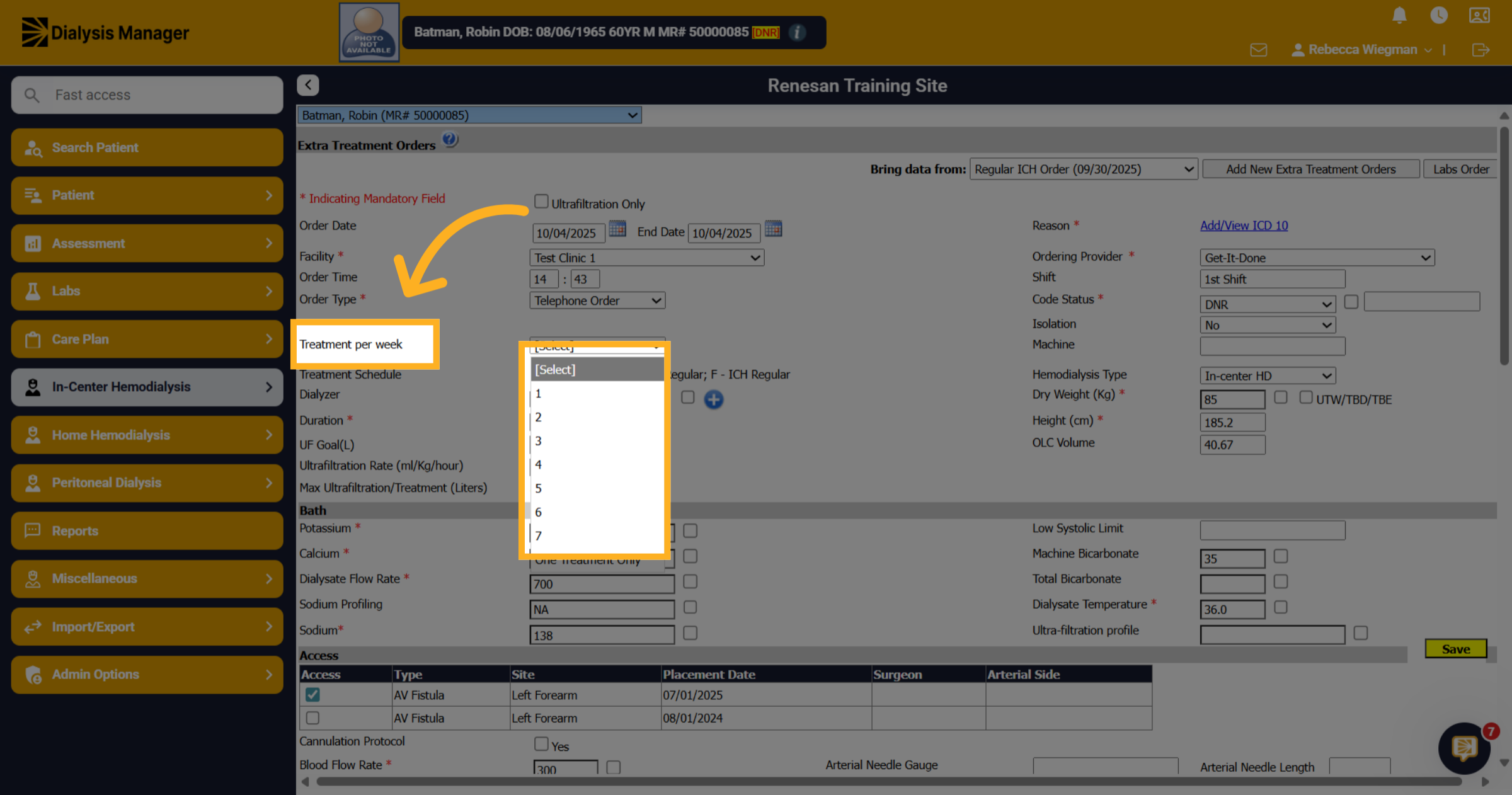
Select 1 from the Treatment per week dropdown to support that only 1 additional (Extra) Treatment is occurring.
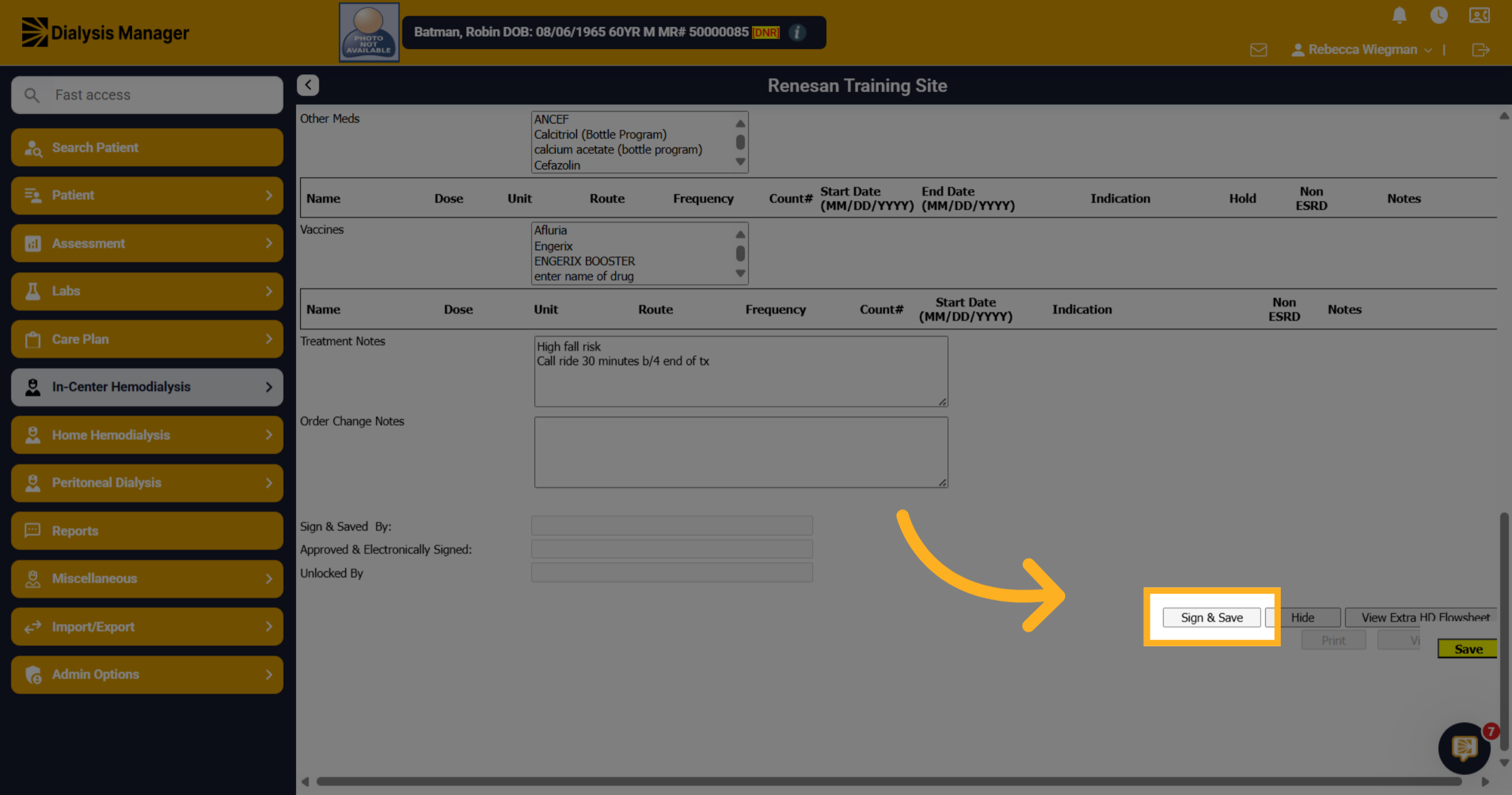
14. Click "Sign & Save"
Once reviewing all other information and verifying medications "Click "Sign & Save" to finalize and save the extra treatment order.