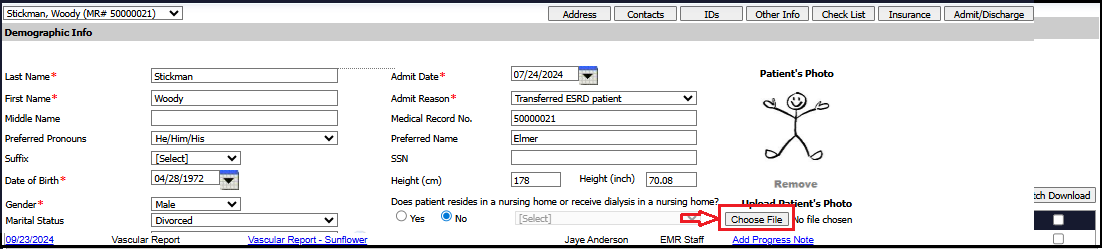
1. Search the patient and navigate to Edit Patient screen.
2. Click on Choose File
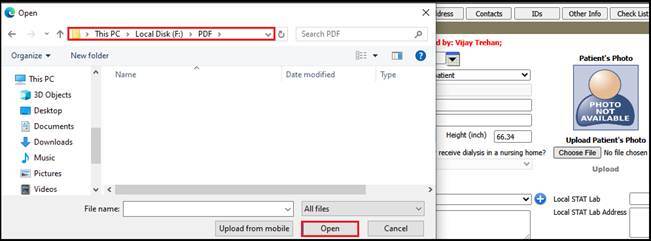
3. Select Photo from the location and path.
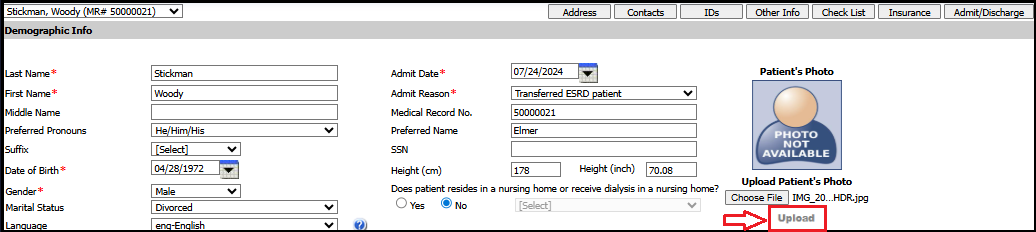
1. Click on Upload to view photo on designated space.
Note* -
Only JPG/JPEG files/photos are allowed to upload.

Patient Communication App:
The Patient Communication app replaces the previous Renvio Picture Upload app, offering a streamlined solution for Dialysis units.
App helps uploading Photo/Attachments in EMR.
How to download and install the Patient Communication app:
Download the Patient Communication app from the following sources:
Google Play Store (for Android)
Apple App Store (for iOS)
Install the app and follow the on-screen instructions to set it up with your Renvio account.
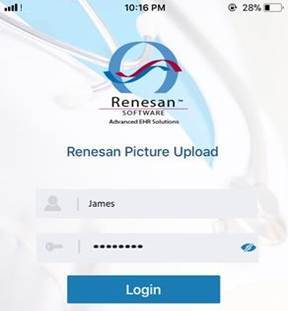
Login Screen
User can login to this app by putting the same credentials as Web application.
 |
Search patient screen works exactly the same as Web application. You will be able to select patients from the grid or can do a patient search by Name or MR#.
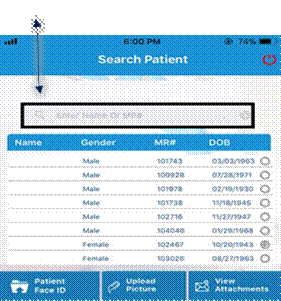 |
Note: - The uploaded picture will also be reflects under web application.
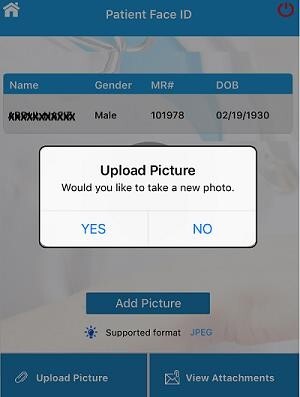
Before user tries to upload a picture, the app will reconfirm by showing a message
 |
Upload Patient Photos
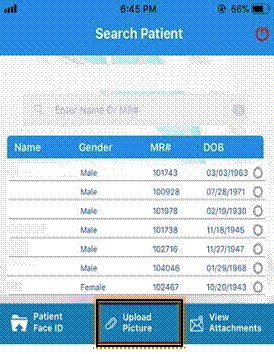
The Patient Communication app allows you to upload patient photos directly into the patient records with ease.
 |
User can upload the picture by Taking new picture by selecting the Date and Category (E.g. - Wound Picture).
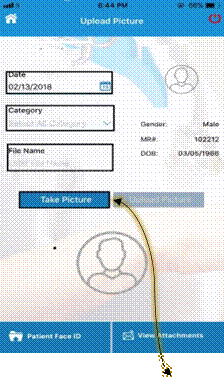 |
Once all necessary information is provided, use the app to either capture a photo using the device's camera or upload an existing one from the device's Photo Library.
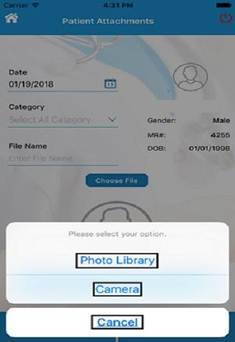 |
Patient Attachments
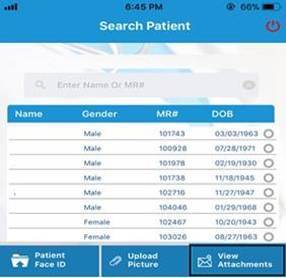 |
You can view all the uploaded attachments for patient through this screen.