Document Infection Tracking Records in Renvio
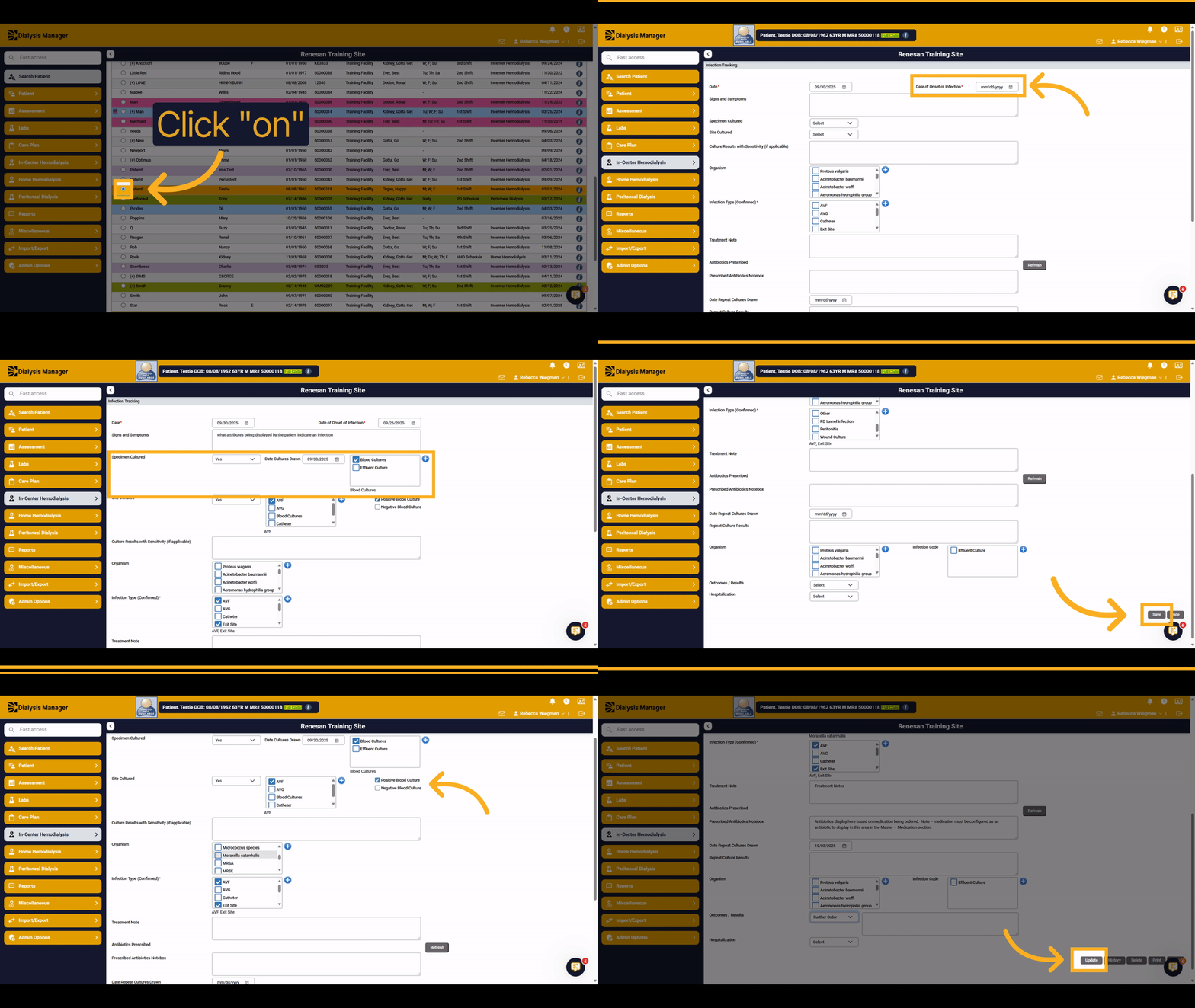
1. Infection Tracking
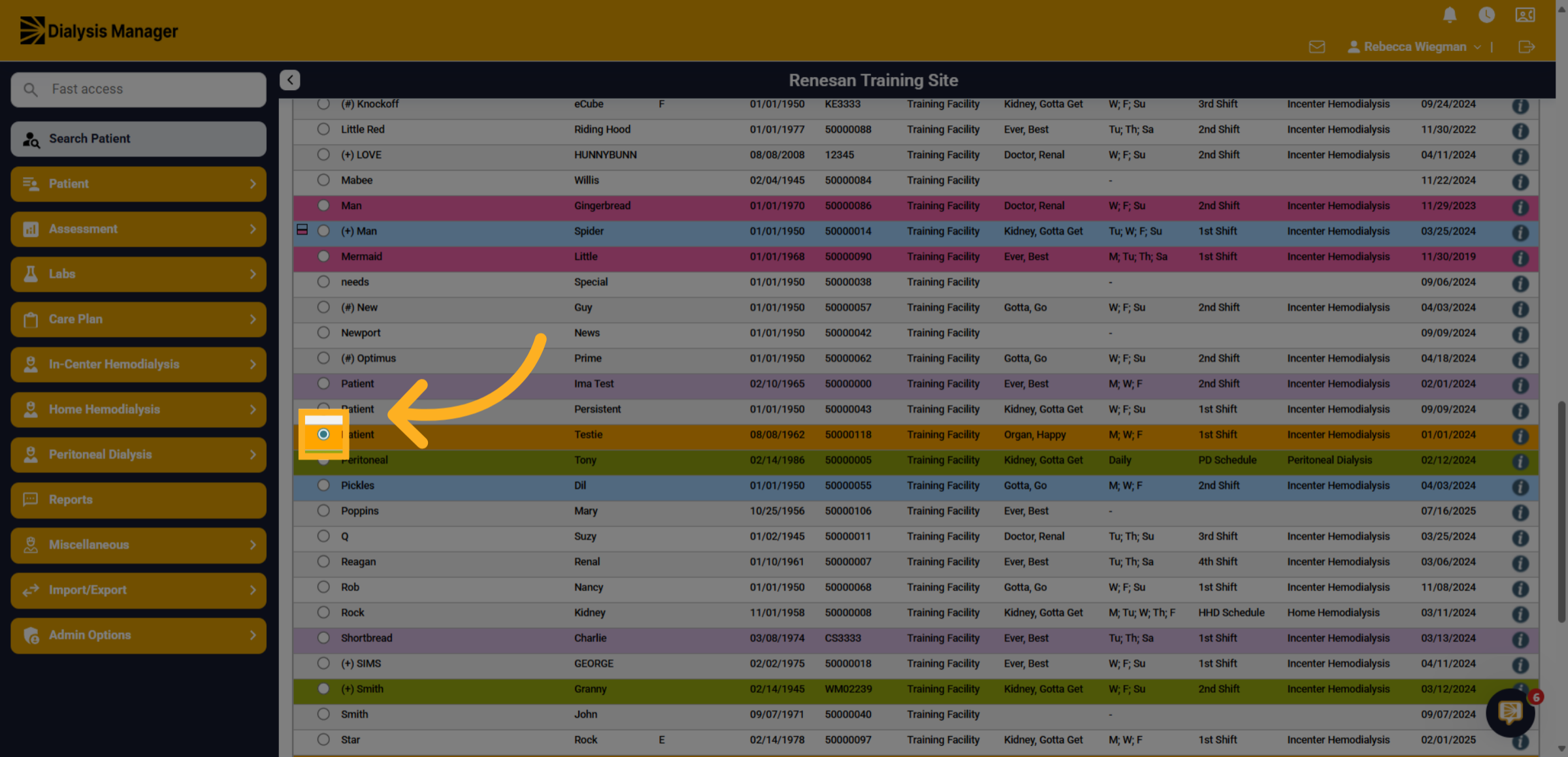
We are going to walk through documenting an infection on a patient. First you'll need to select your patient from the search patient screen by selecting the radio button to the left of the patients name.
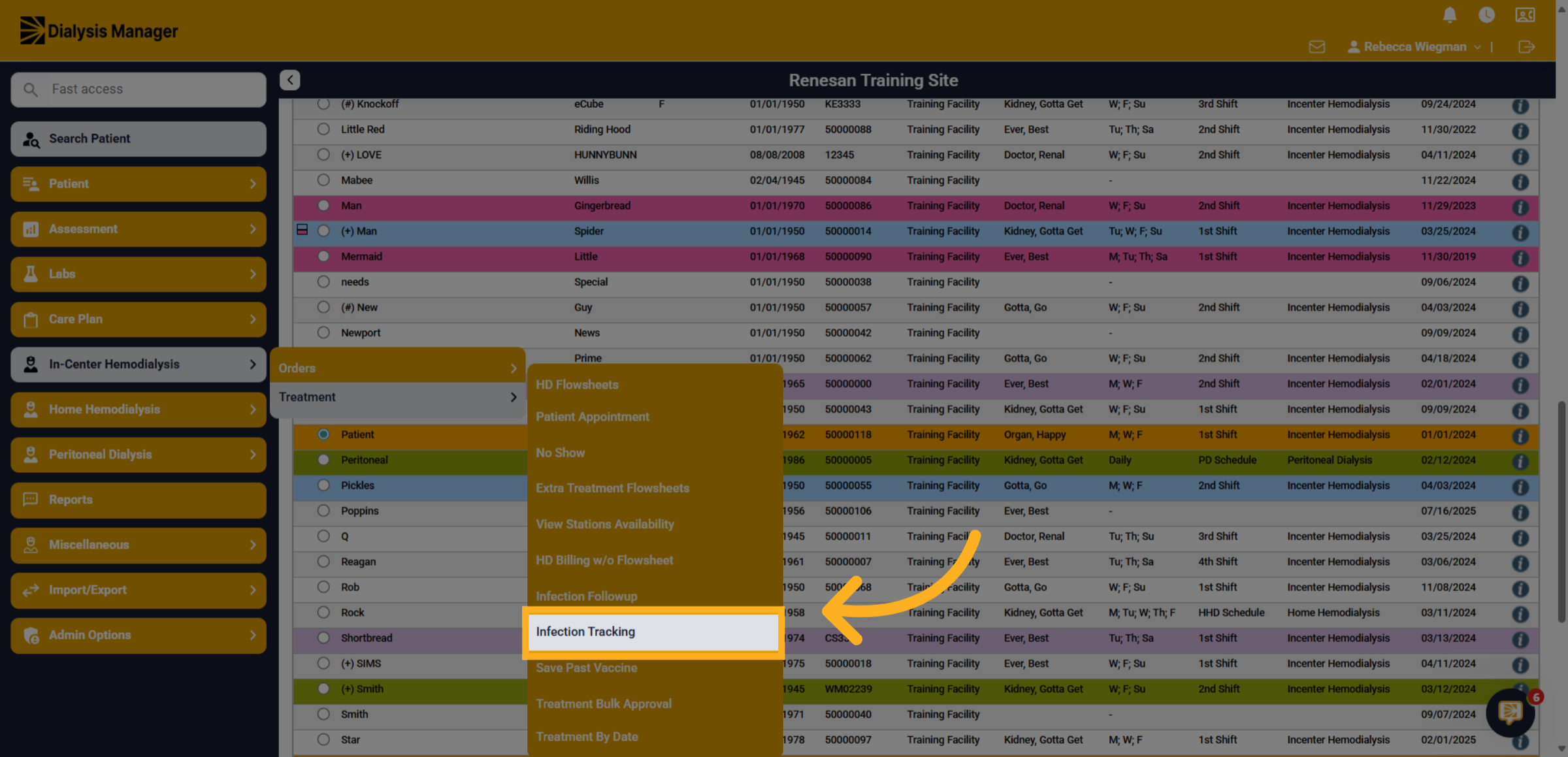
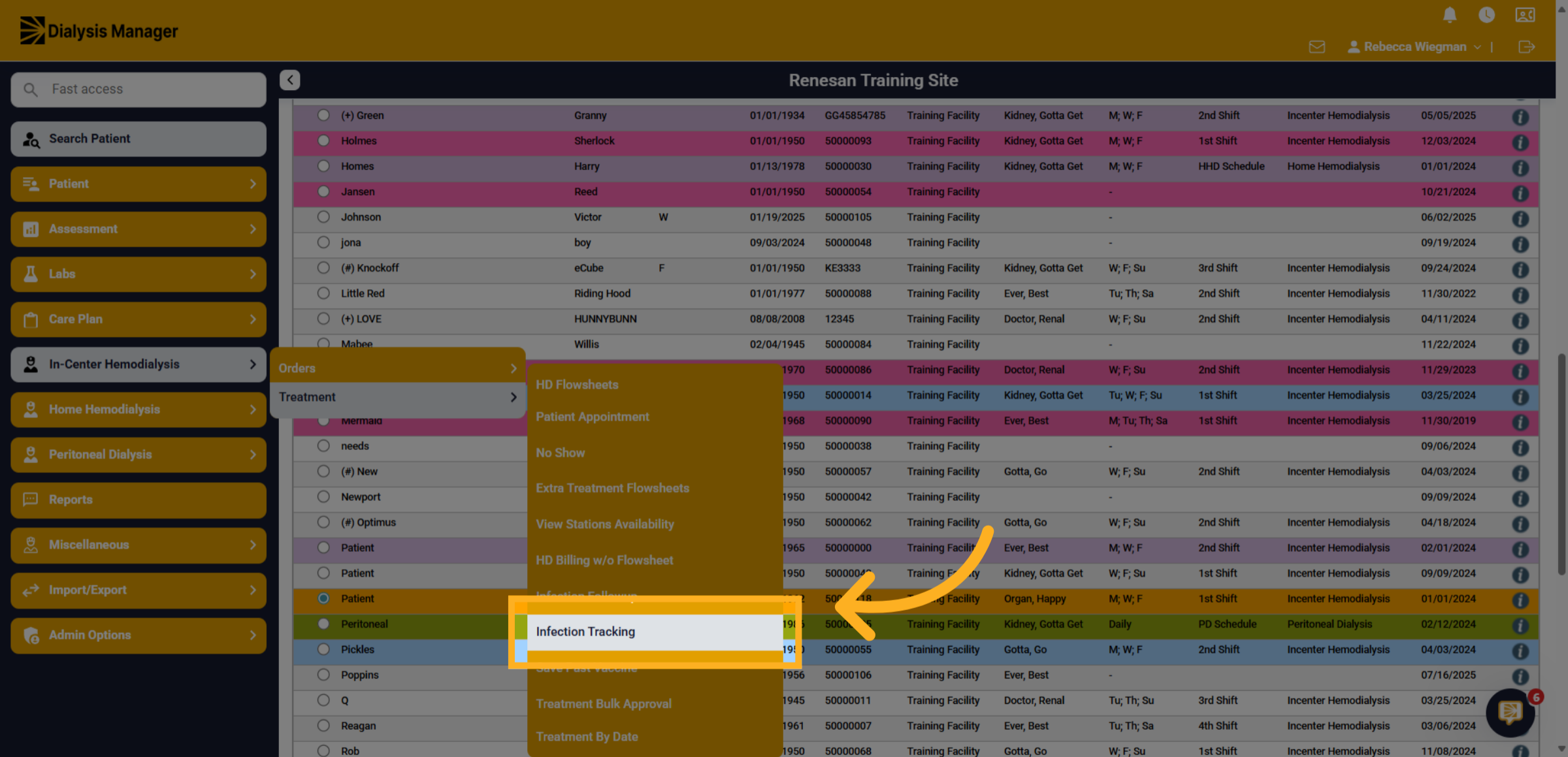
2. Click "Infection Tracking"
Navigate to the modality menu based on the patients current modality. For this video we will be going to In-Center Hemodialysis, Treatment and Infection Tracking.
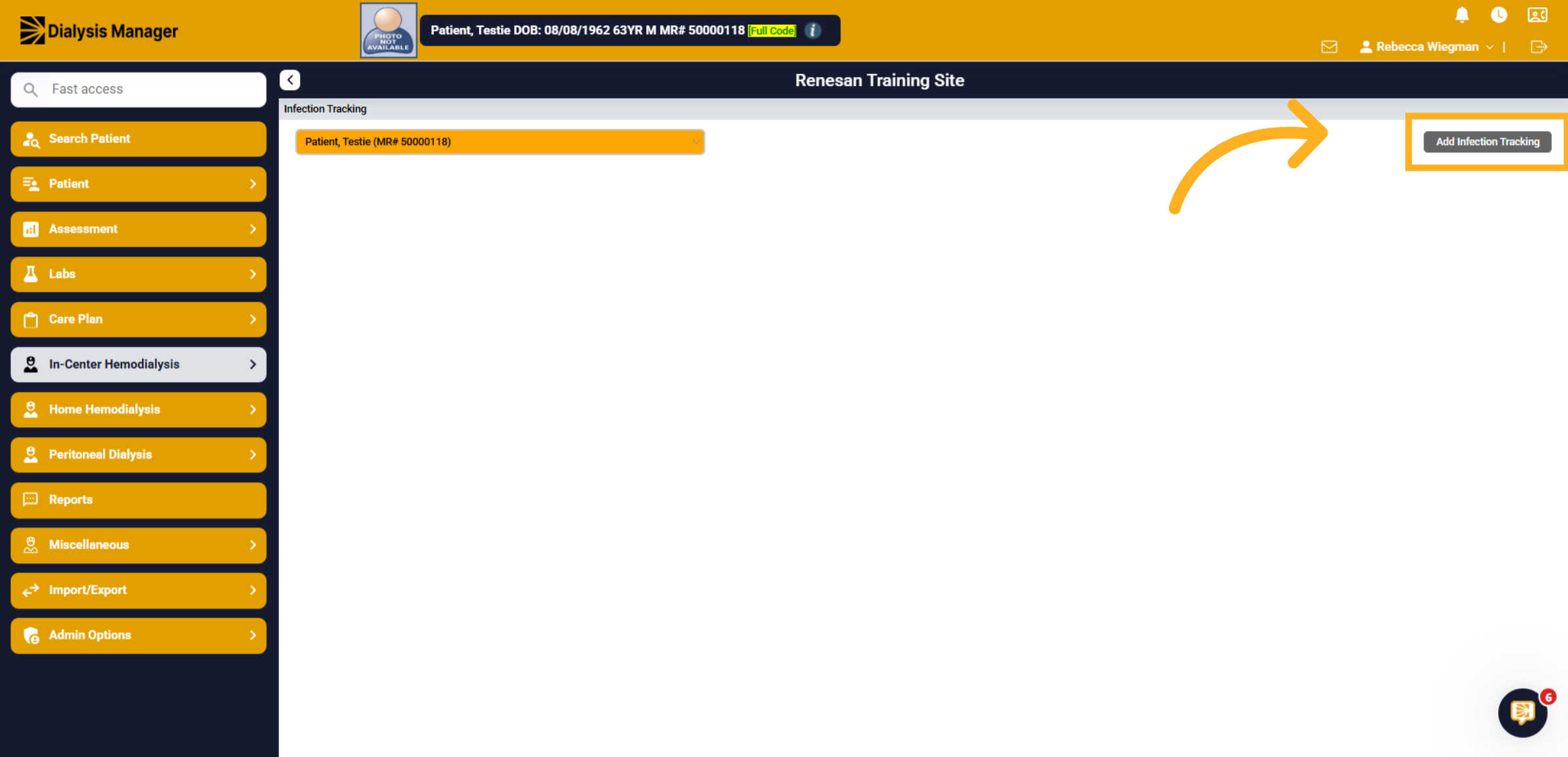
3. Click "Add Infection Tracking"
From here you'll see all prior infections that have been documented on the patient. Select "Add Infection Tracking" to start a new infection entry.
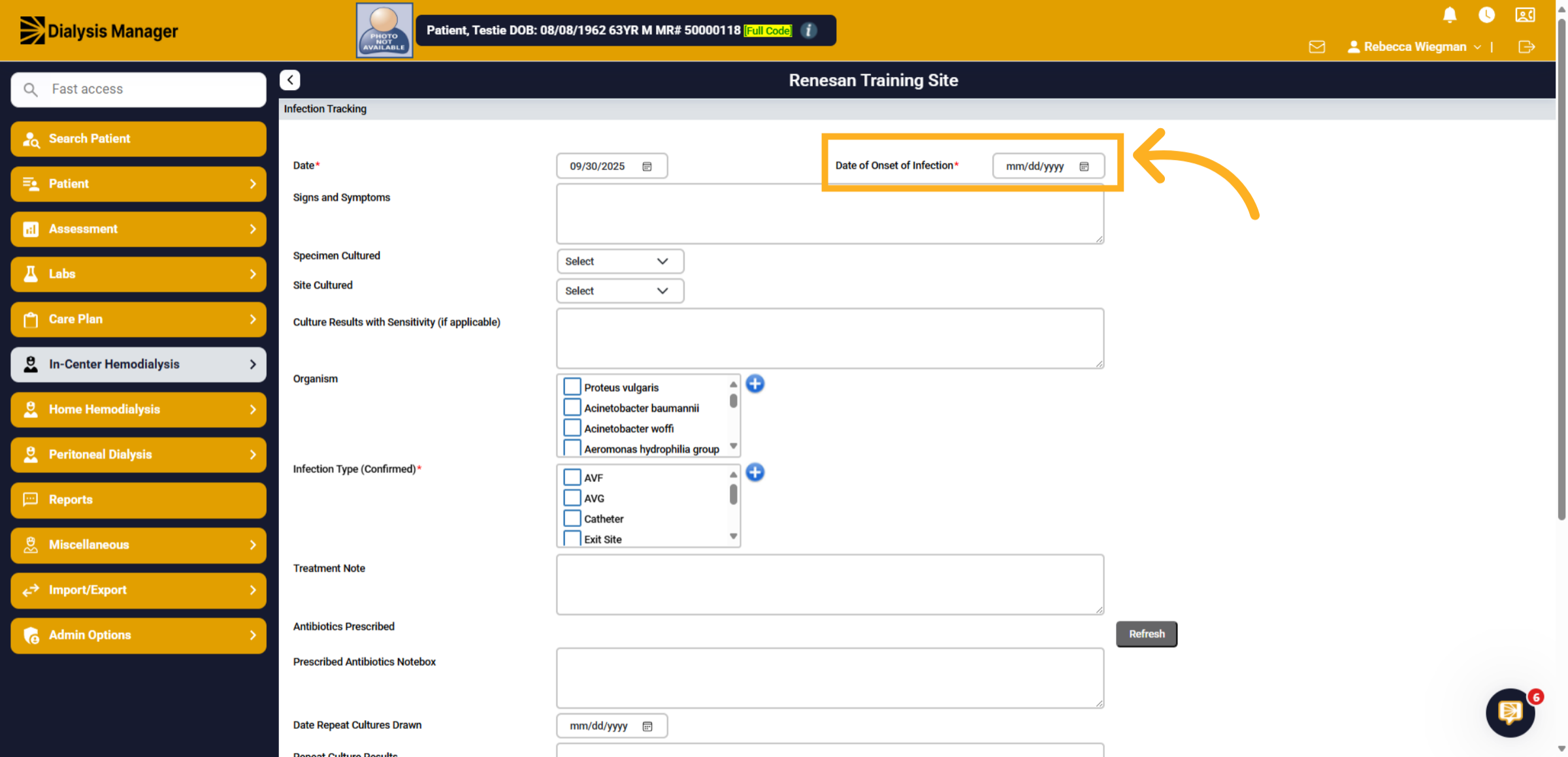
4. Initial Suspected Information
Start by entering the initial suspected infection information. The date will auto populate but you'll enter the date of onset infection. When did you notice the symptoms or when was it reported to you?
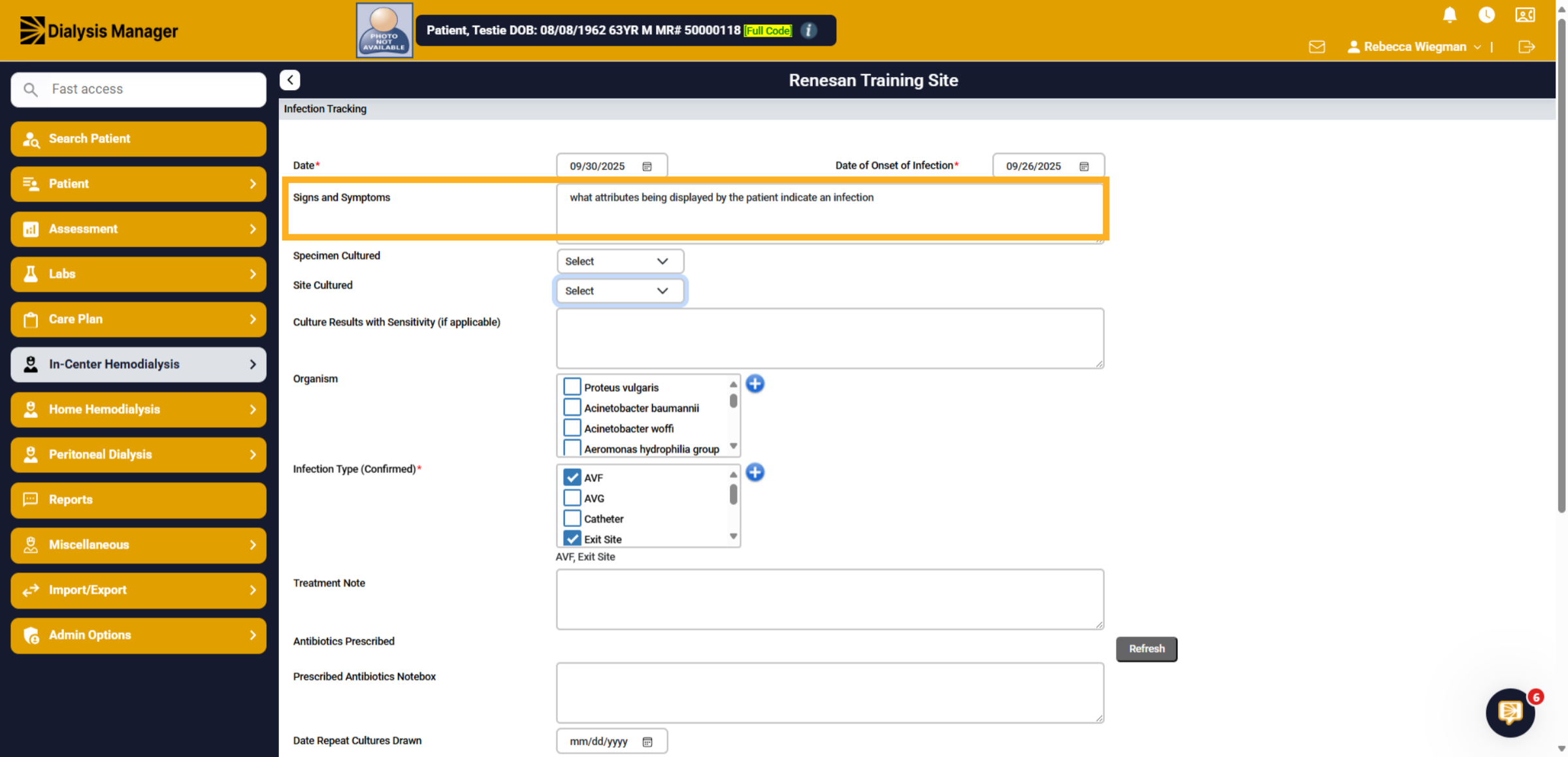
5. Signs and Symptoms
Enter signs and symptoms, what attributes being displayed by the patient indicating an infection.
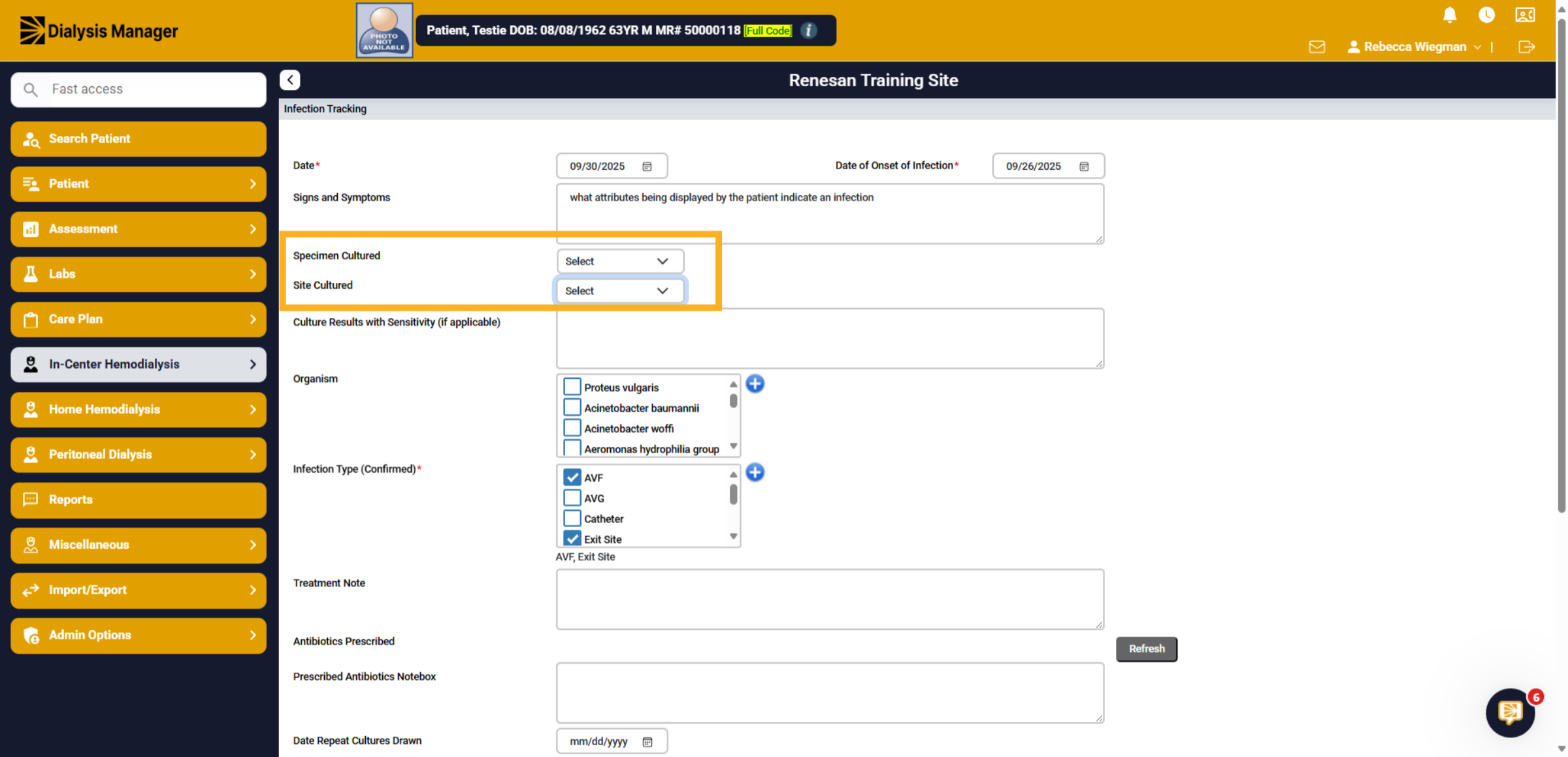
6. Specimen Cultured and/or Site Cultured
For the specimen cultured and site cultured, what action did you take? Blood or site cultures or both, you'll be able to select yes or no.
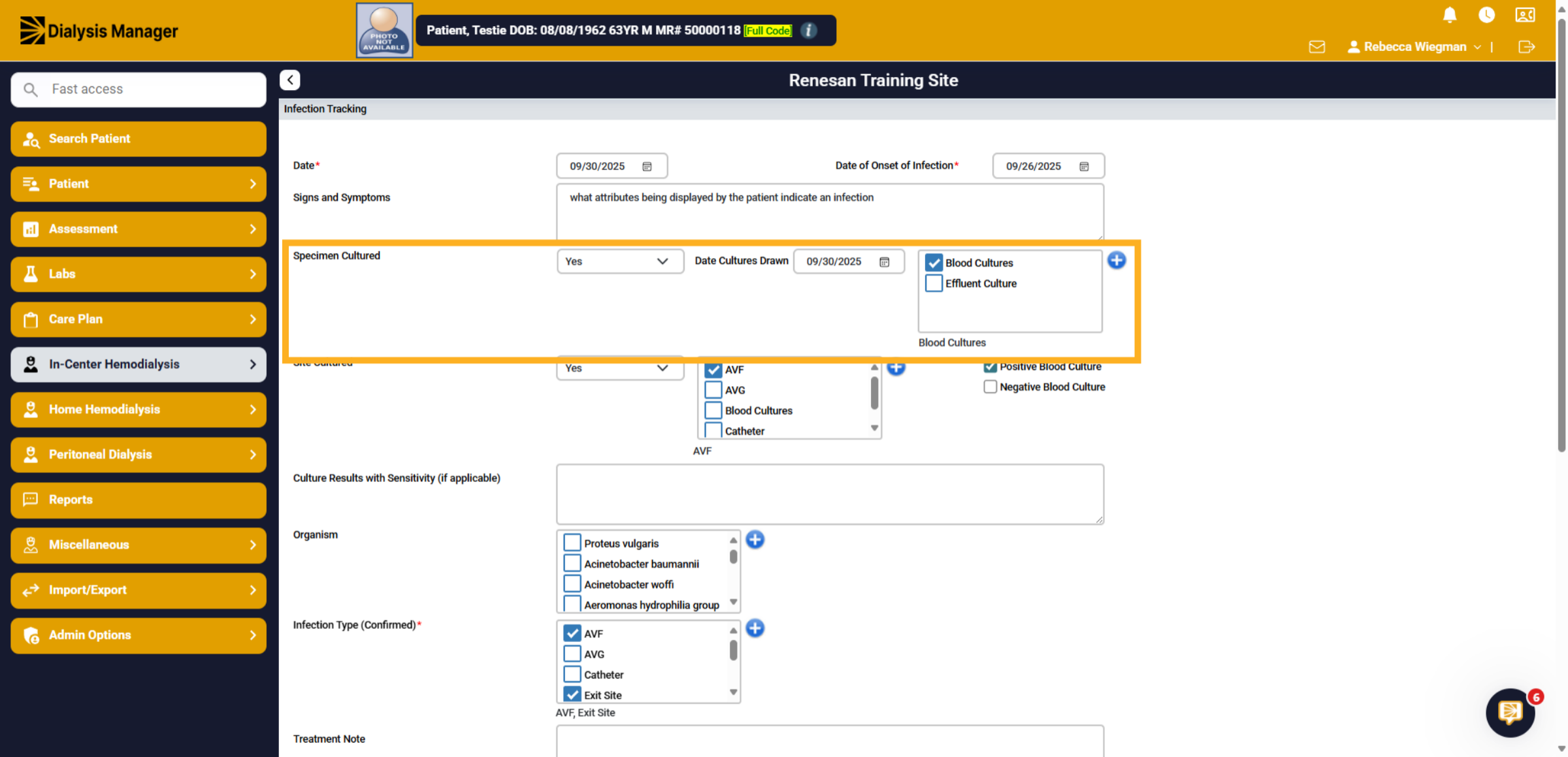
7. Specimen Cultured
If you select "Yes" under Specimen Cultured you'll be able to enter the cultures drawn and if it was Blood Cultures or Effluent Cultures.
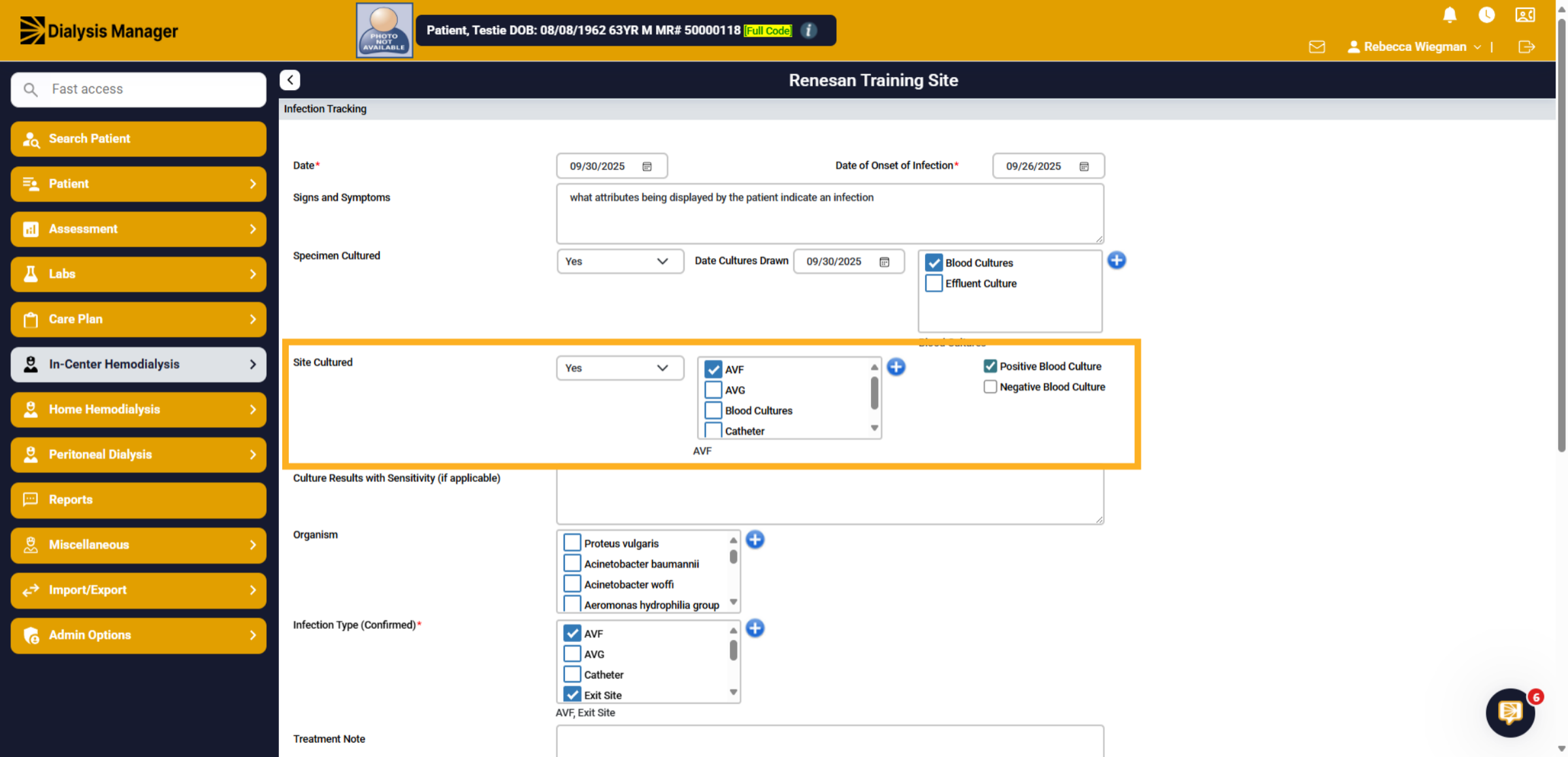
8. Site Cultured
If you select "Yes" under Site Cultured, you'll be able to enter the location and if you know if the blood culture was positive or negative.
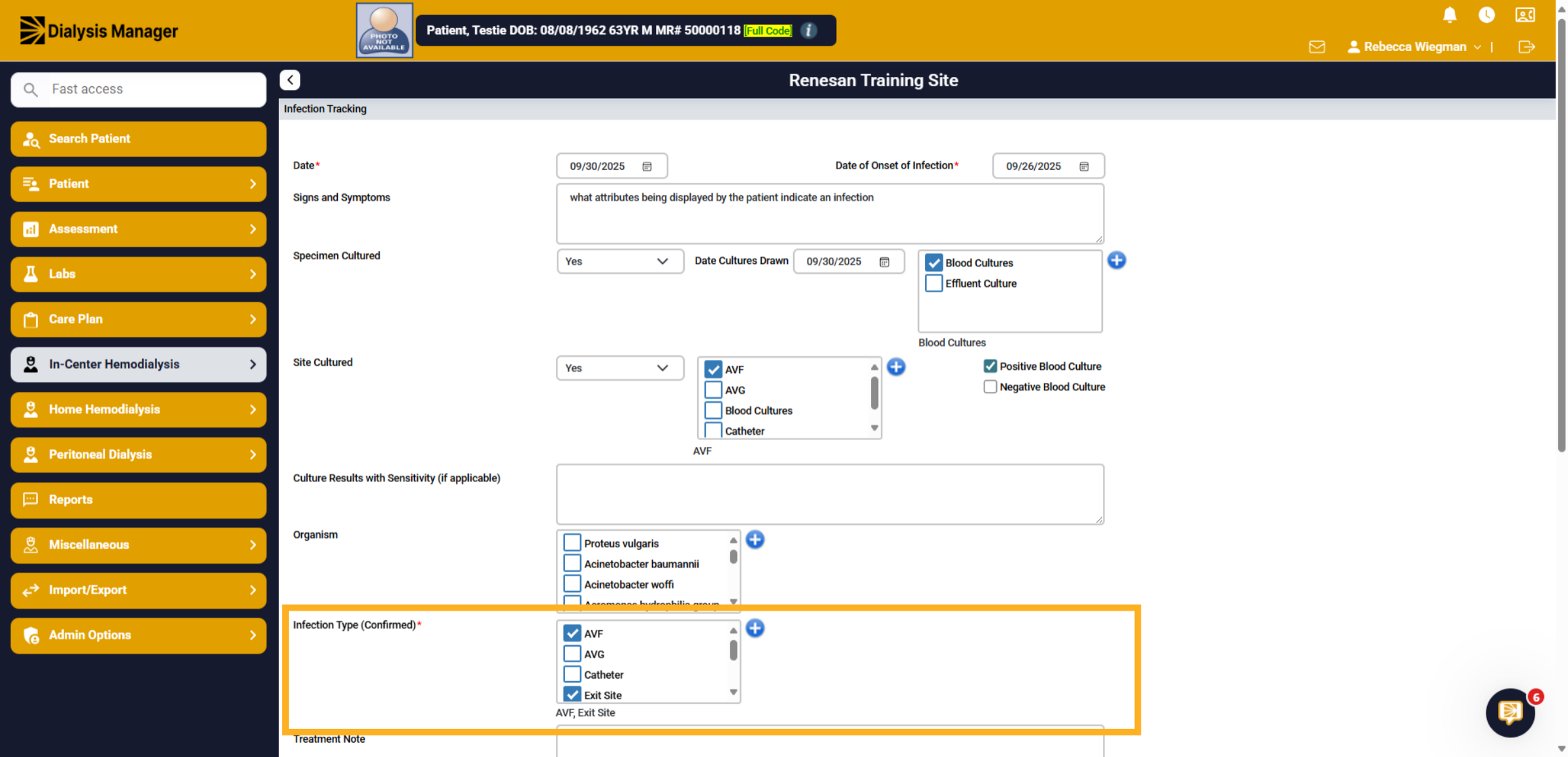
9. Infection Type
You will need to select an Infection Type before saving the form.
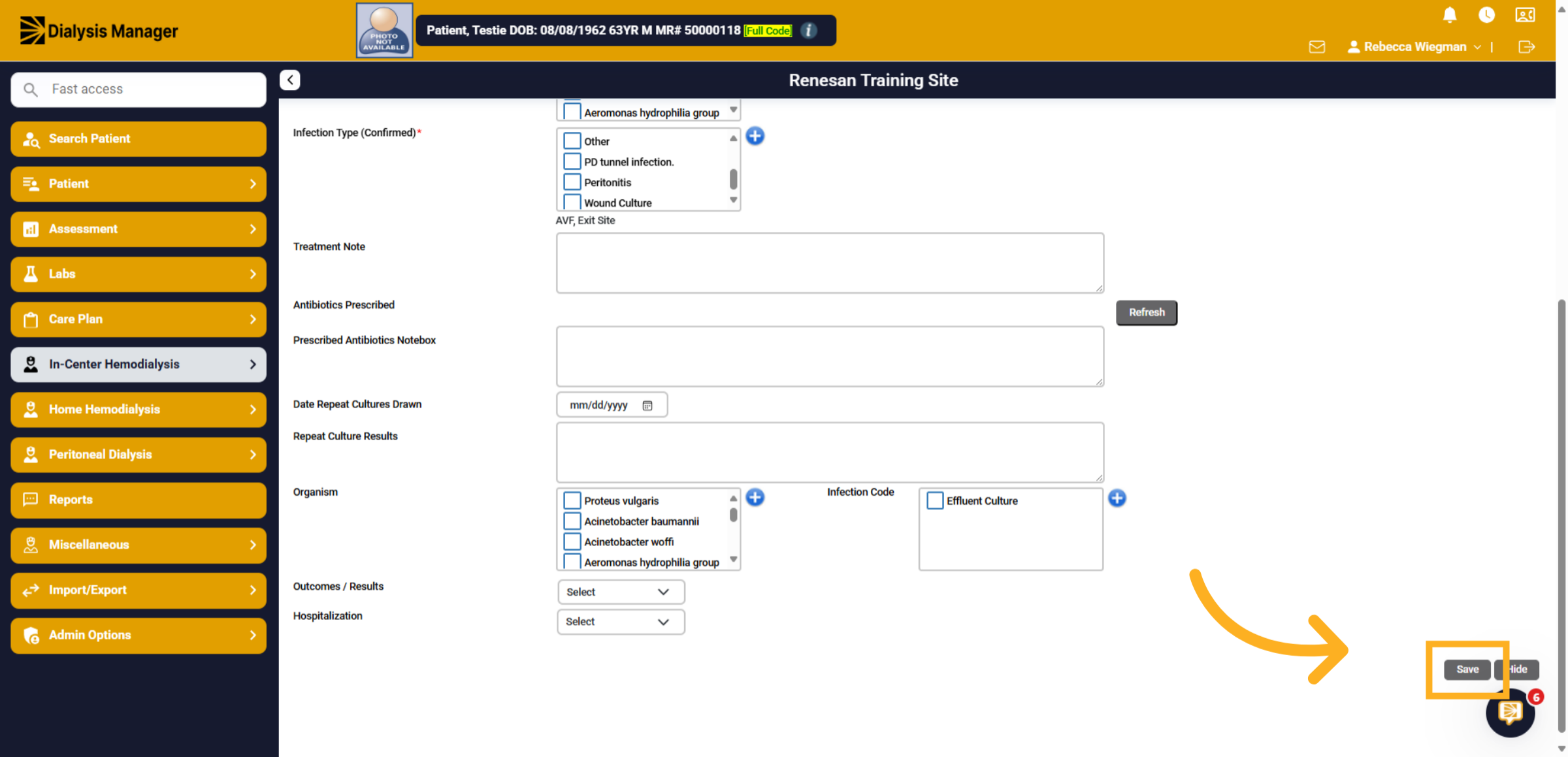
10. Click "Save"
Click Save to store the infection tracking information entered so far.
11. Cultures Returned
Return to the Infection Tracking section once the cultures have been returned to update the information.
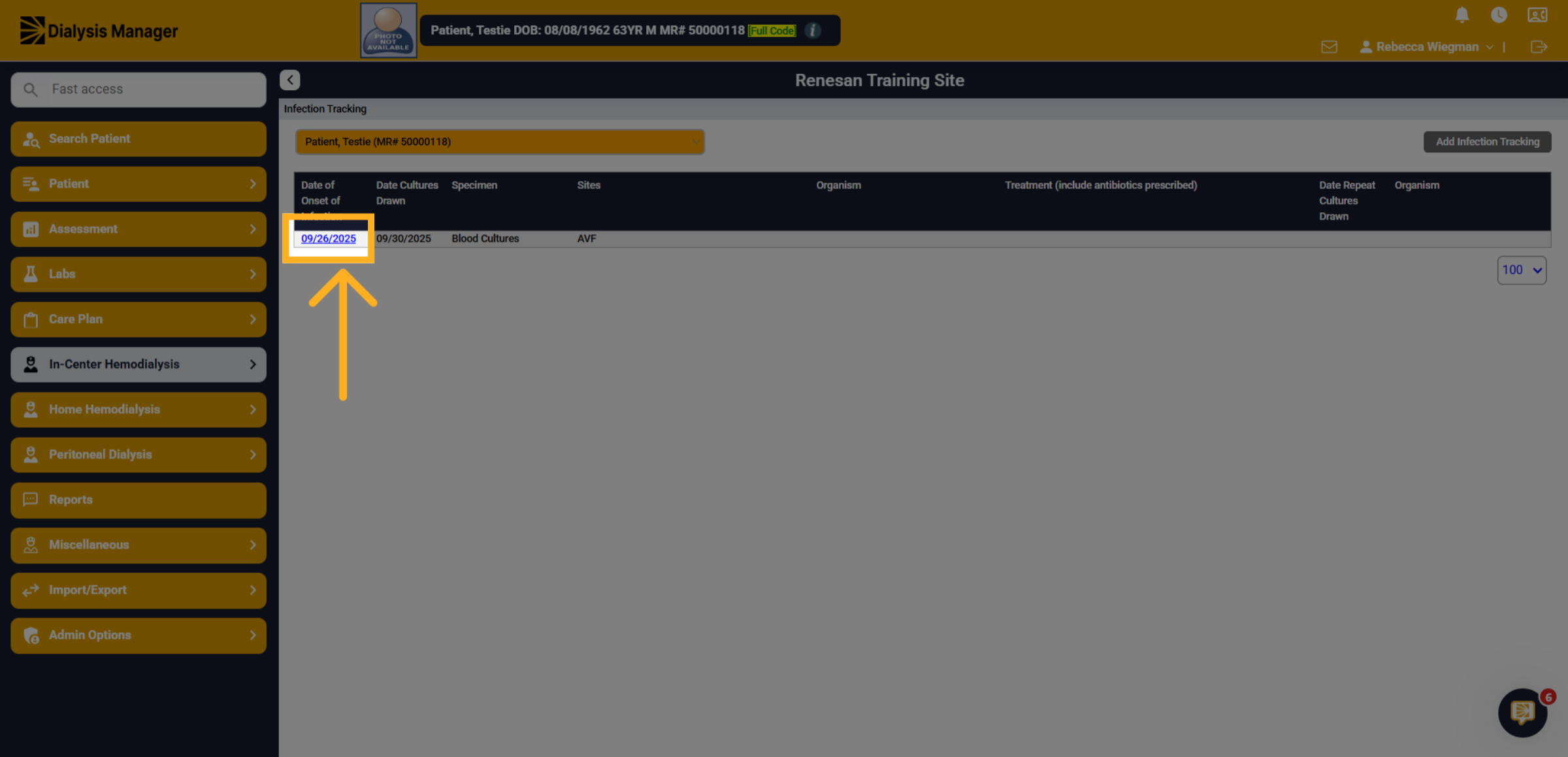
12. Select date of infection
Click on the most recent date, which should correspond with the blood/site culture date on lab results.
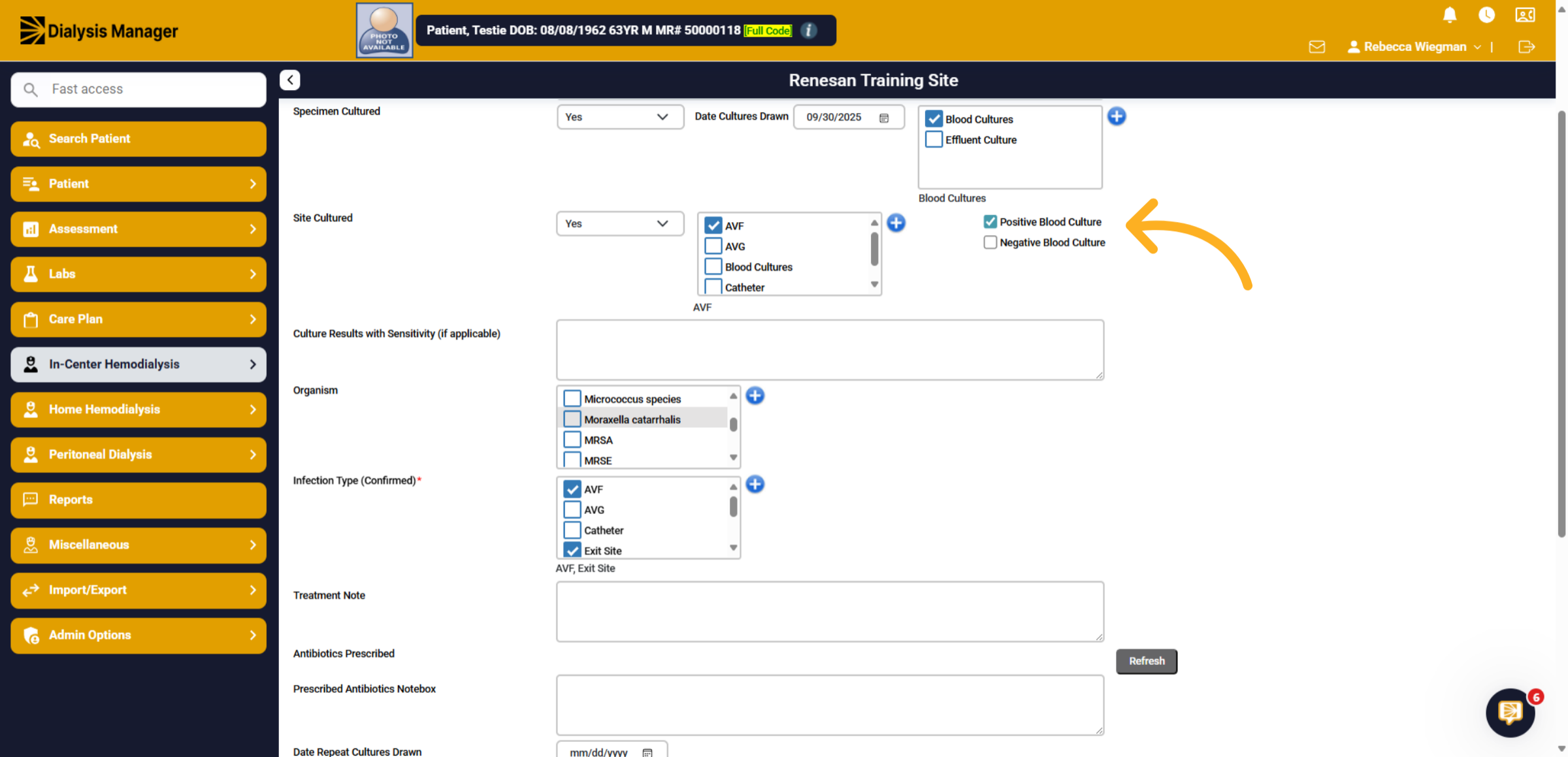
13. Positive or Negative Cultures
You can select if the cultures were positive or negative.
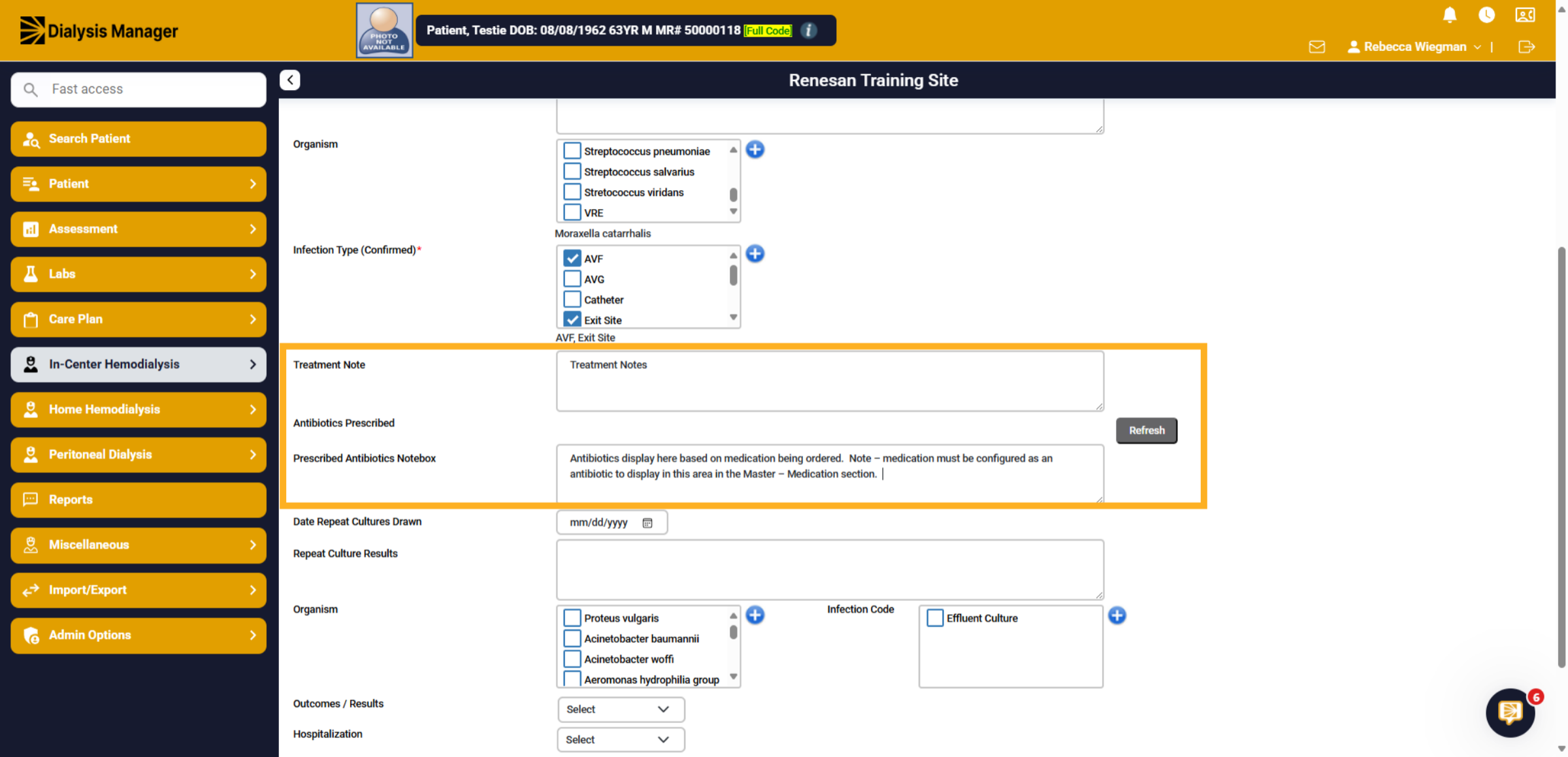
14. Note
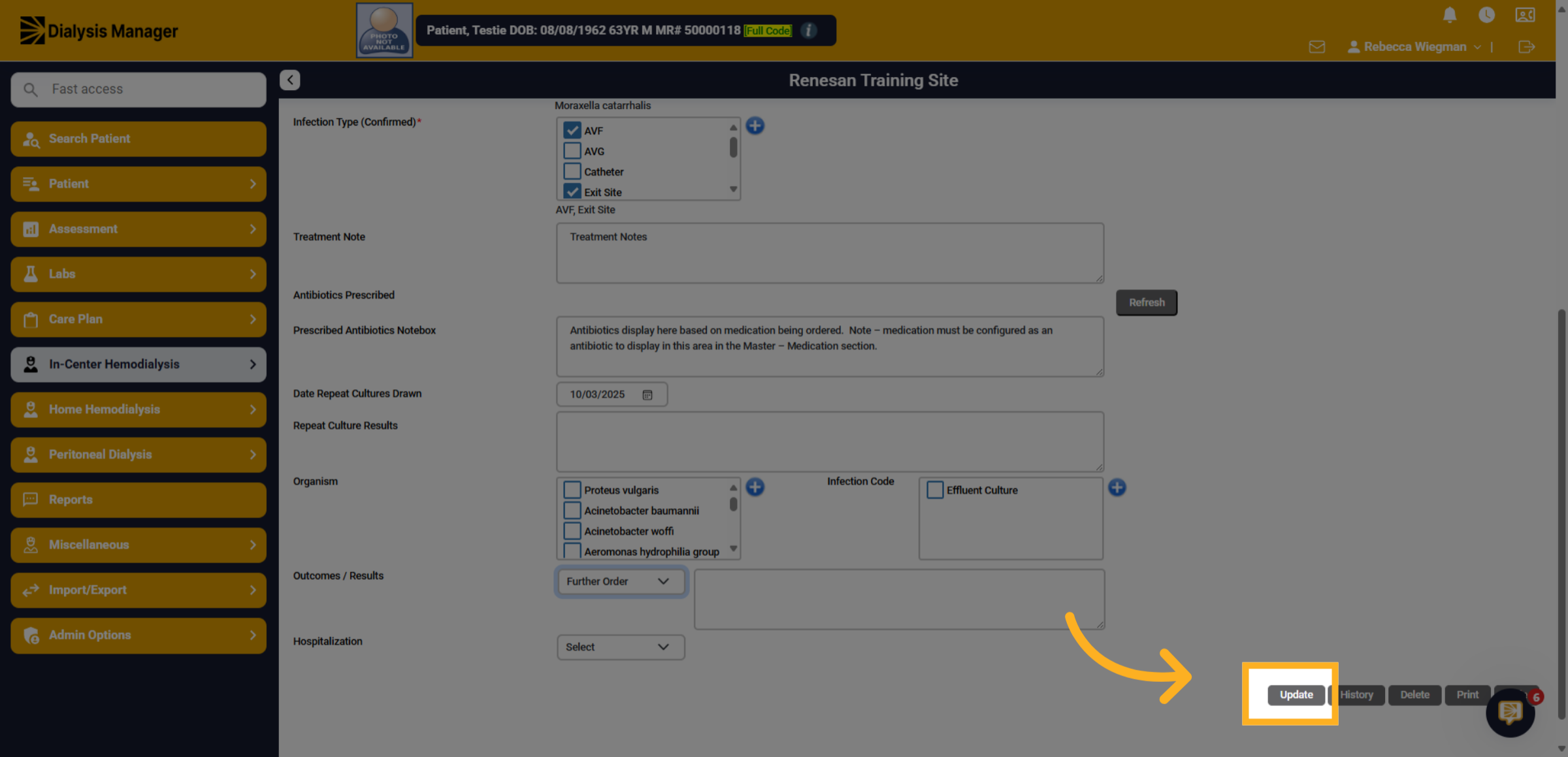
Enter any treatment notes or prescribed antibiotics. Antibiotics display here based on medication being ordered. Medication must be configured as an antibiotic to display in this are in the Master, Medication Section.
15. Other Information
Enter a date of a repeat culture draw, organism, outcome/results and if this infection resulted in a hospitalization.
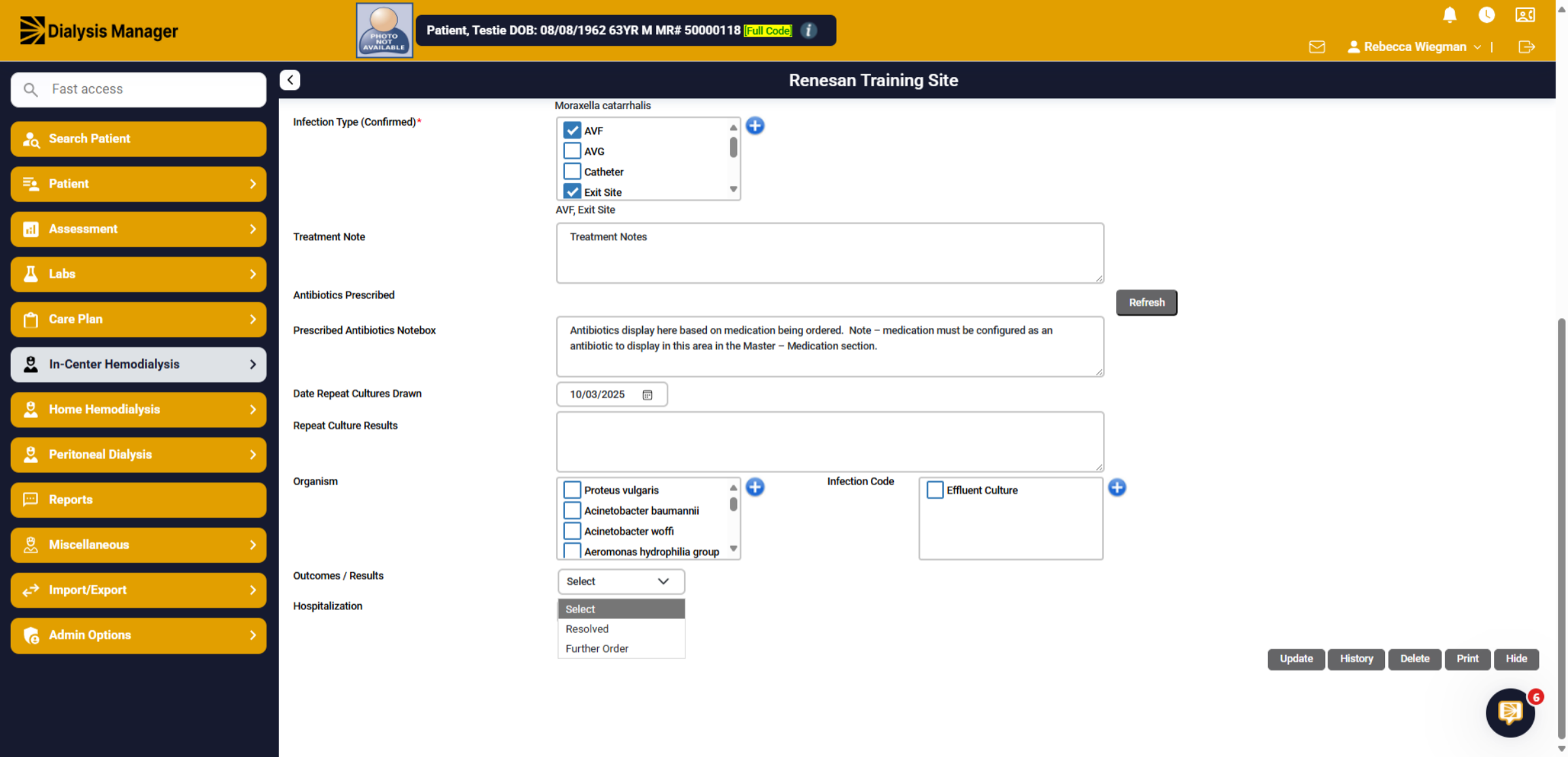
16. Update
Click update to save your changes. Please note that information recorded here will appear on the Infection Tracking Report.