How to Configure PassKey
Warning: Please exercise discretion when operating cameras within the facility, particularly in areas where patients and protected health information (PHI) may be present.
1. Log into emr.renvio.com.
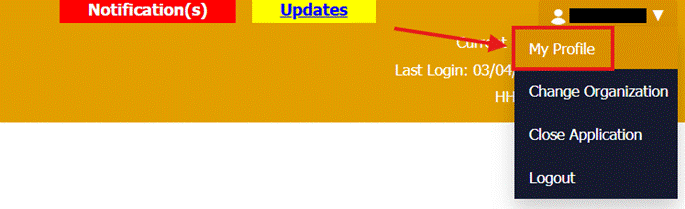
2. Click your username in the top right corner.
3. Click My Profile.
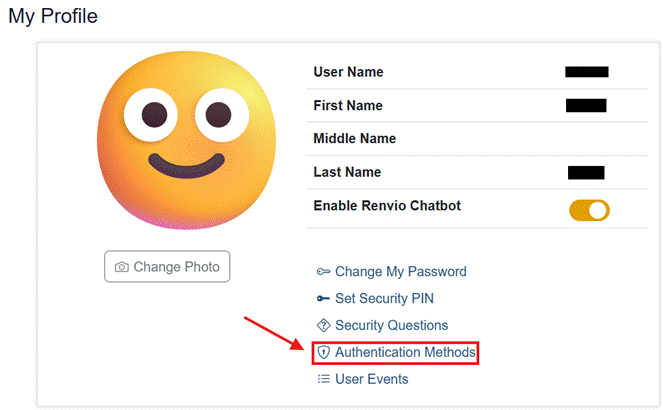
4. Click Authentication Methods.
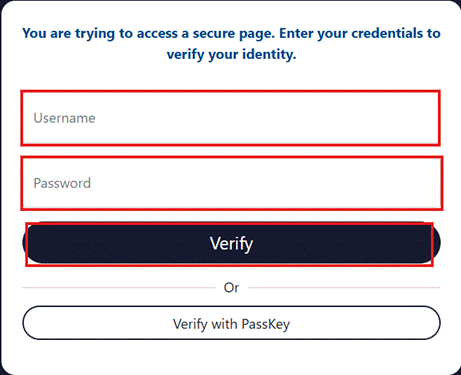
5. On the new tab, enter your username and password.
6. Click Verify.
7. Click Add.
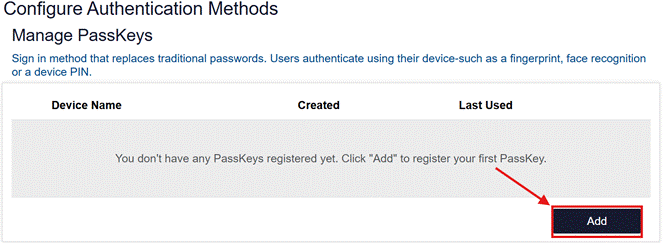
8. Enter a Device Name.
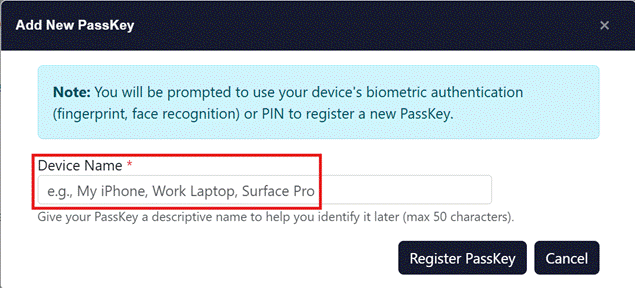
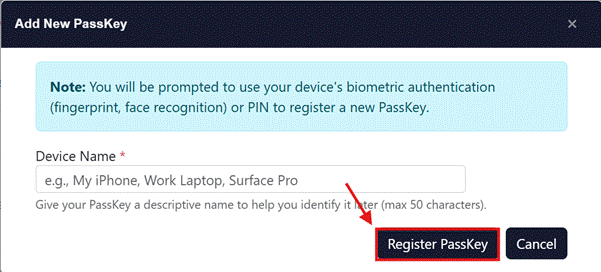
9. Click Register PassKey.
10. On the popup, click Use another device.
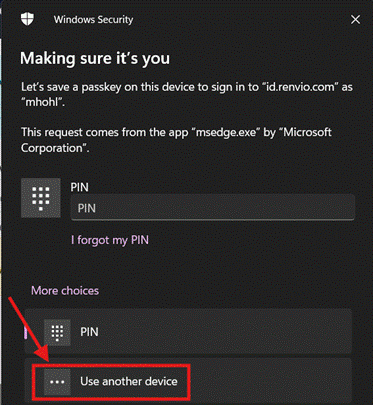
11. Select iPhone, iPad, or Android device.

12. Click Next.
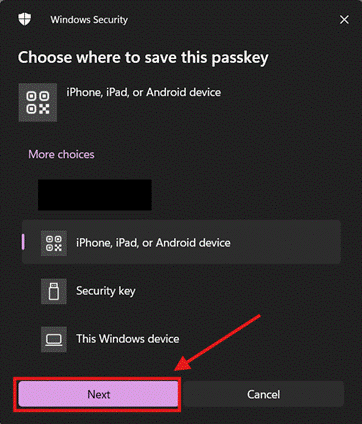
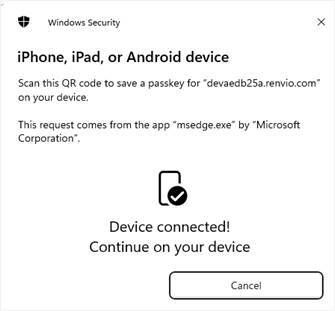
13. Scan the QR code with a camera of a smartphone to create a connection between the device and the computer.
14. Click on Create a PassKey.
15. On the smartphone, click Add PassKey.

16. The smartphone will request a verification of identity in the form of a PIN, fingerprint, or facial recognition.
Note: if you have not set up a PIN, fingerprint, or facial recognition, your phone will make you set this up in your settings.
17. A confirmation message will be displayed on the computer once the PassKey connection is successful.
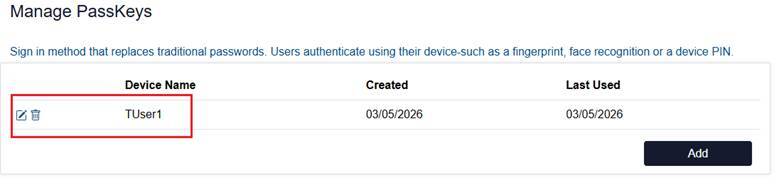
18. The new PassKey will display in the grid under Manage PassKeys.
How to Log In using PassKey:
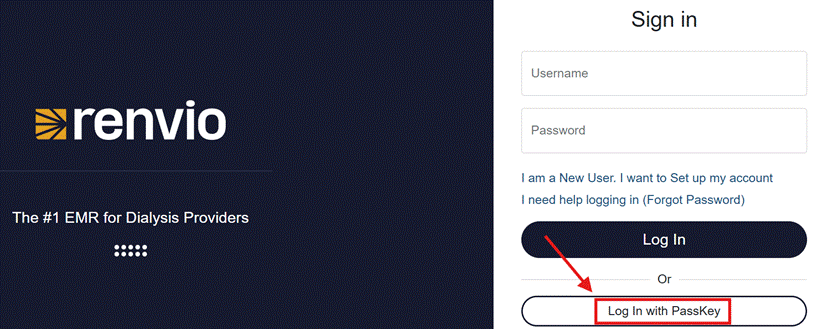
1. On the login page, click Log In with PassKey.
2. On the popup, click iPhone, iPad, or Android device.
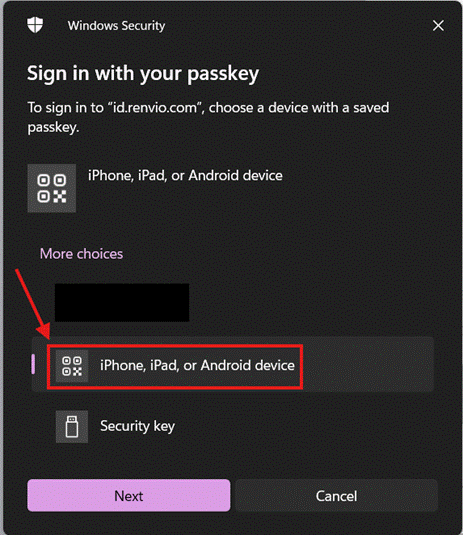
3. Click Next.
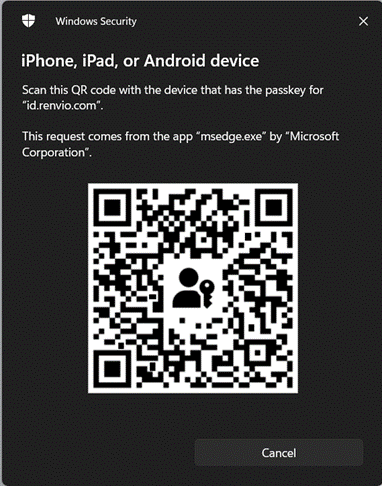
4. Using the camera on the smartphone, scan the QR code that appears on the computer.
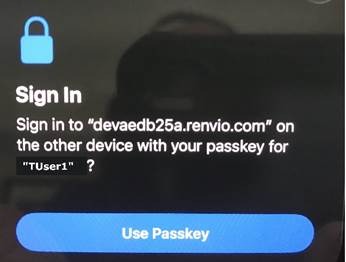
5. On the smartphone, click Use PassKey.
6. On the smartphone, verify your identity by using a PIN, fingerprint, or facial recognition, based on what has been previously set up on your phone.
7. A confirmation message will appear on the smartphone.
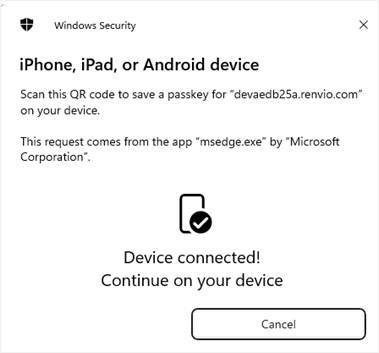
8. On the computer, the home page of Global Login will appear.
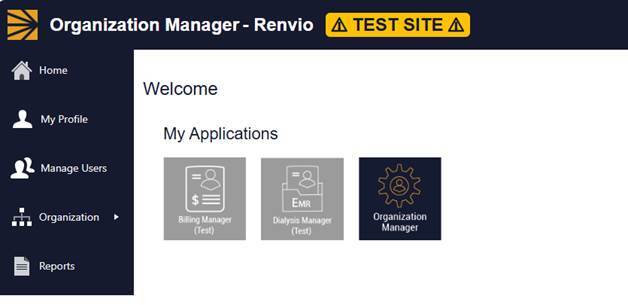
9. From here, click the application icon to access it.
How to bypass Samsung Pass to setup PassKey:
1. Issue: Unable to use a password for Samsung Pass.
2. Resolution: Click Save another way
3. Select another option that contains your passwords and potentially other passkeys.

4. After selecting another option, enter a PIN, fingerprint, or face recognition based on what has been previously set up.

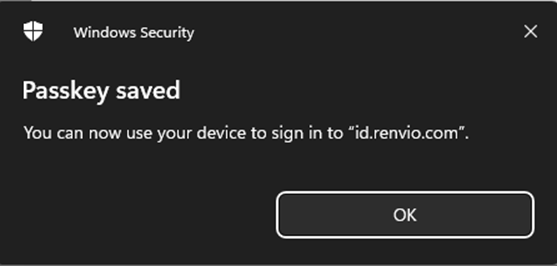
5. The computer will display a message once the passkey has been successfully set up.
How to Set up PassKey with an iPhone:
1. After scanning the QR code, choose where to save the passkey.
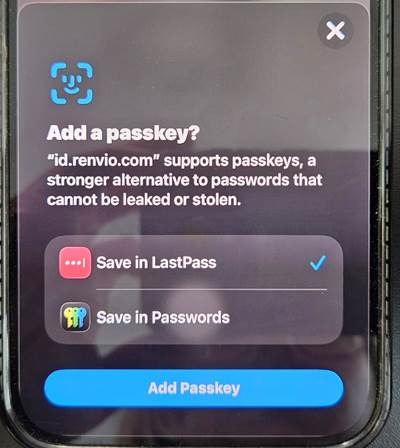
2. Click Add PassKey.
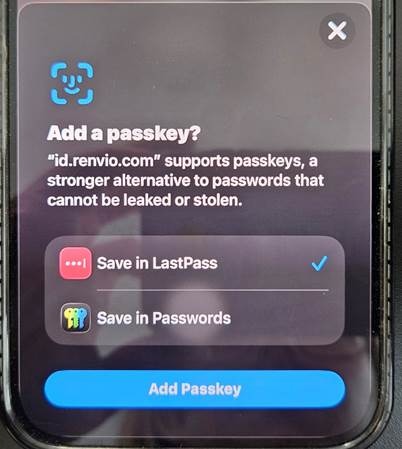
3. The cellphone will then use facial recognition, fingerprint, or a PIN to verify your identity.
4. The computer will display a message once the passkey has been successfully set up.

How to Edit PassKey Names:
1. Log into emr.renvio.com.
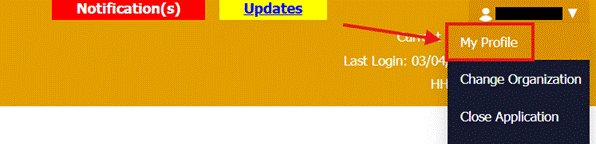
2. Click your username in the top right corner.
3. Click My Profile.
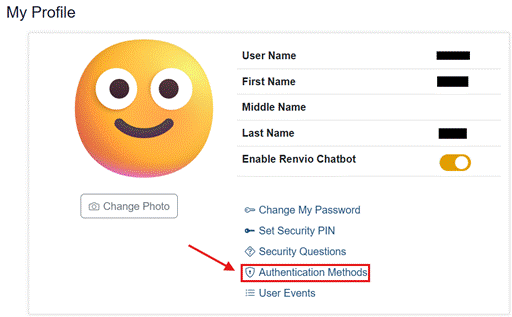
4. Click Authentication Methods.
5. On the new tab, enter your username and password.
6. Click Verify.
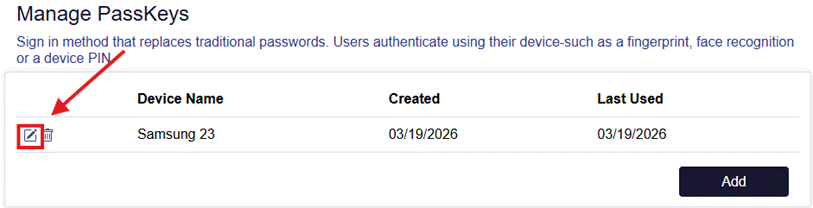
7. Click the edit

icon next to the Device Name.
8. Enter a new device name.
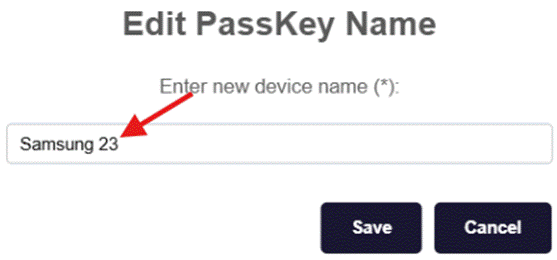
9. Click Save.
1. Log into emr.renvio.com.
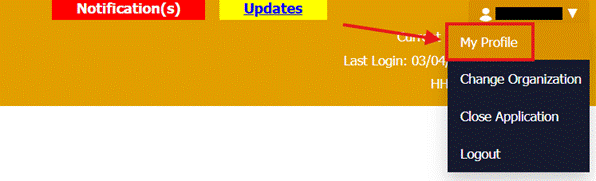
2. Click your username in the top right corner.
3. Click My Profile.
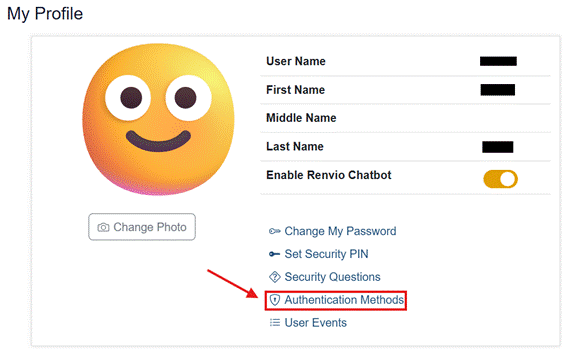
4. Click Authentication Methods.
5. On the new tab, enter your username and password.
6. Click Verify.
7. Click the delete

icon next to the Device Name.
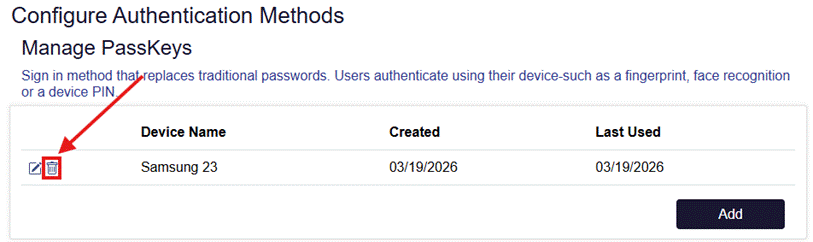
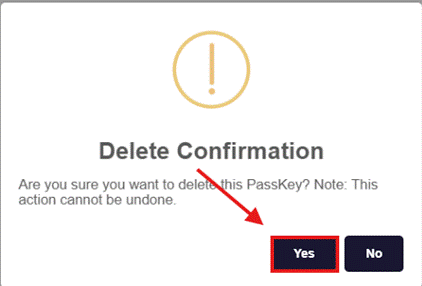
8. Click Yes on the popup.