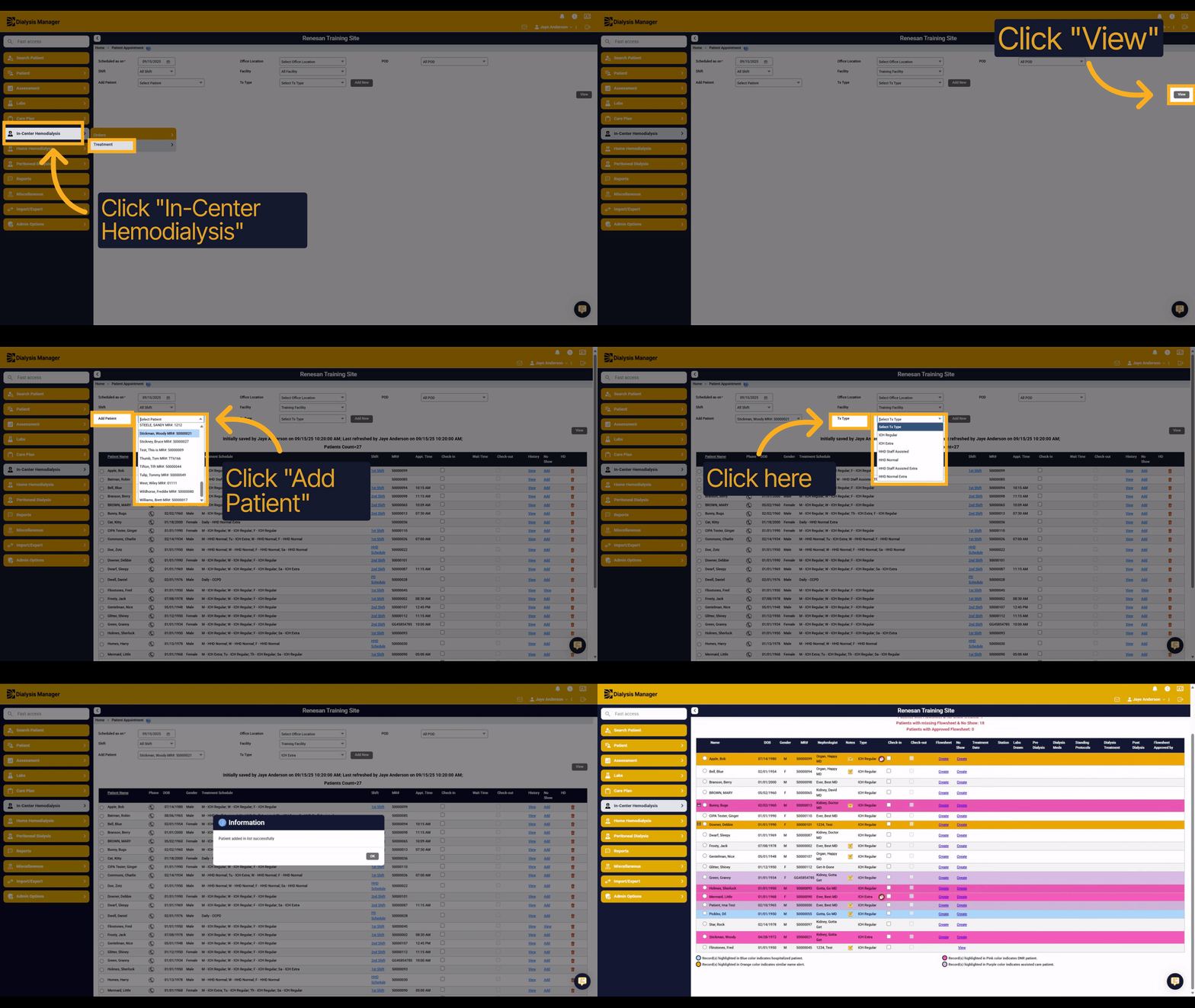
How to add a patient to the appointment
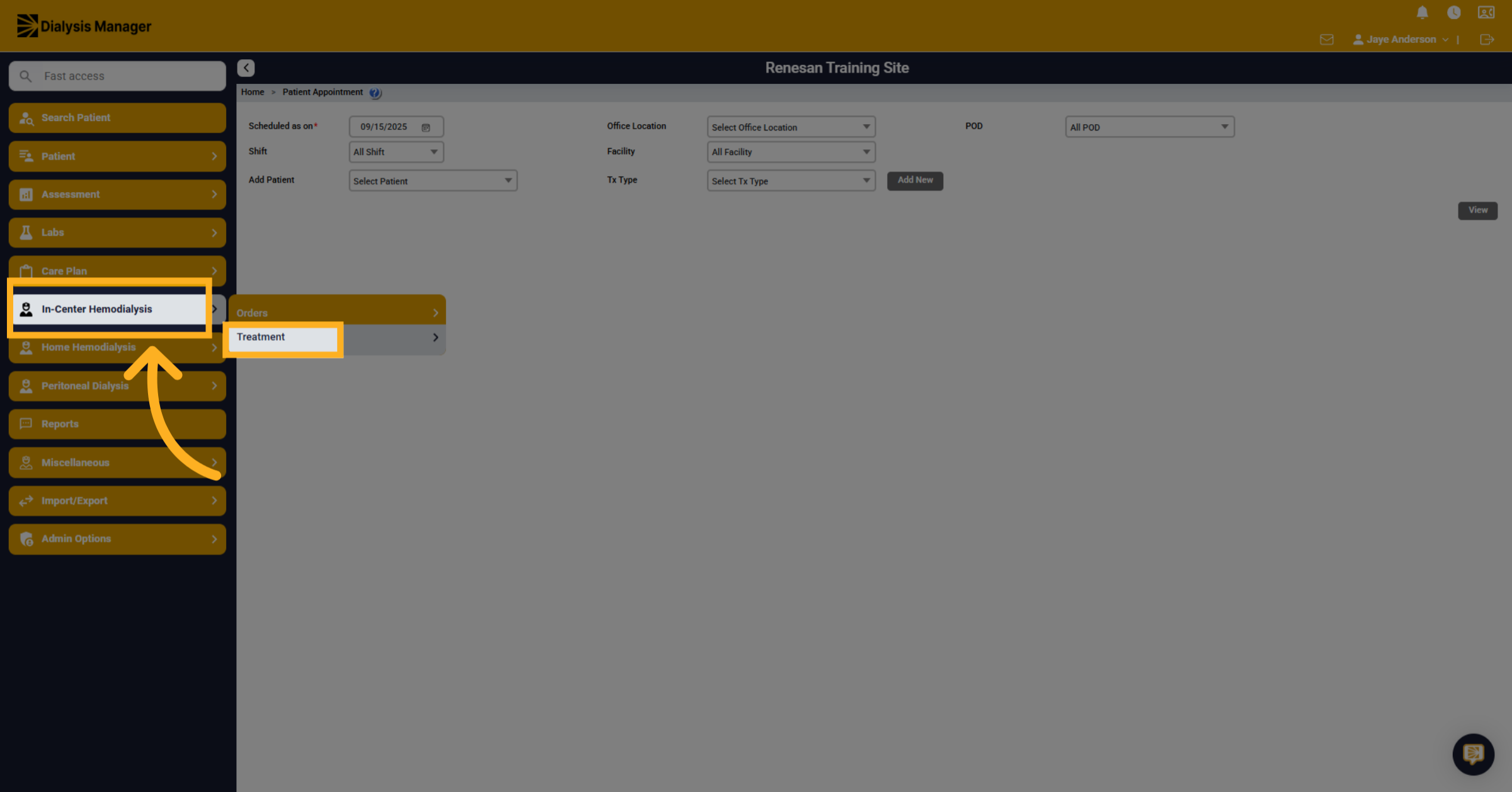
1. Select In-Center Hemodialysis
Click "In Center Hemodialysis" then Click "Treatment" and Click "Patient Appointment" to view and manage patient scheduling details.
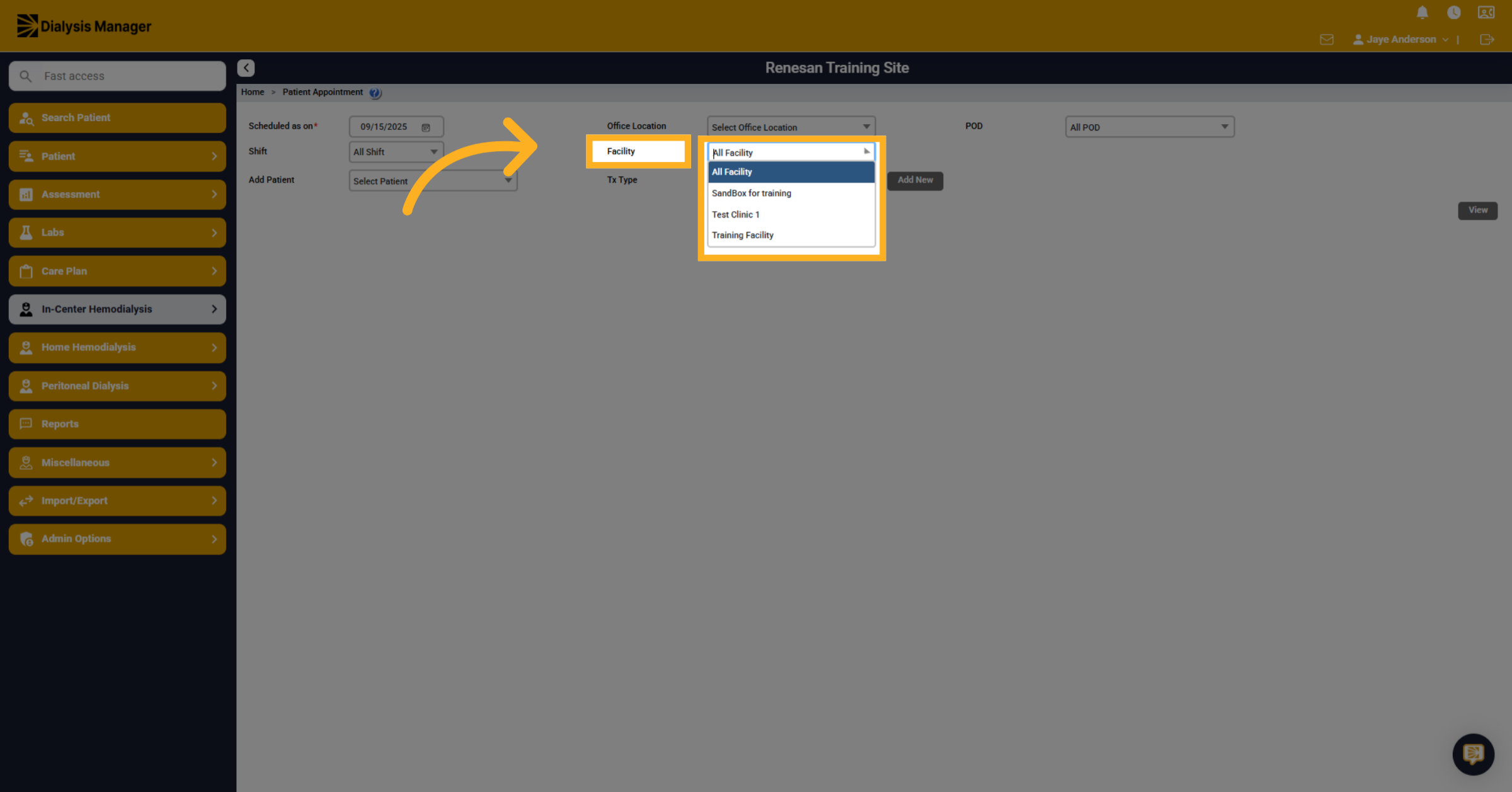
2. Initiate Scheduling Action
Click here to specify the patient's current facility.
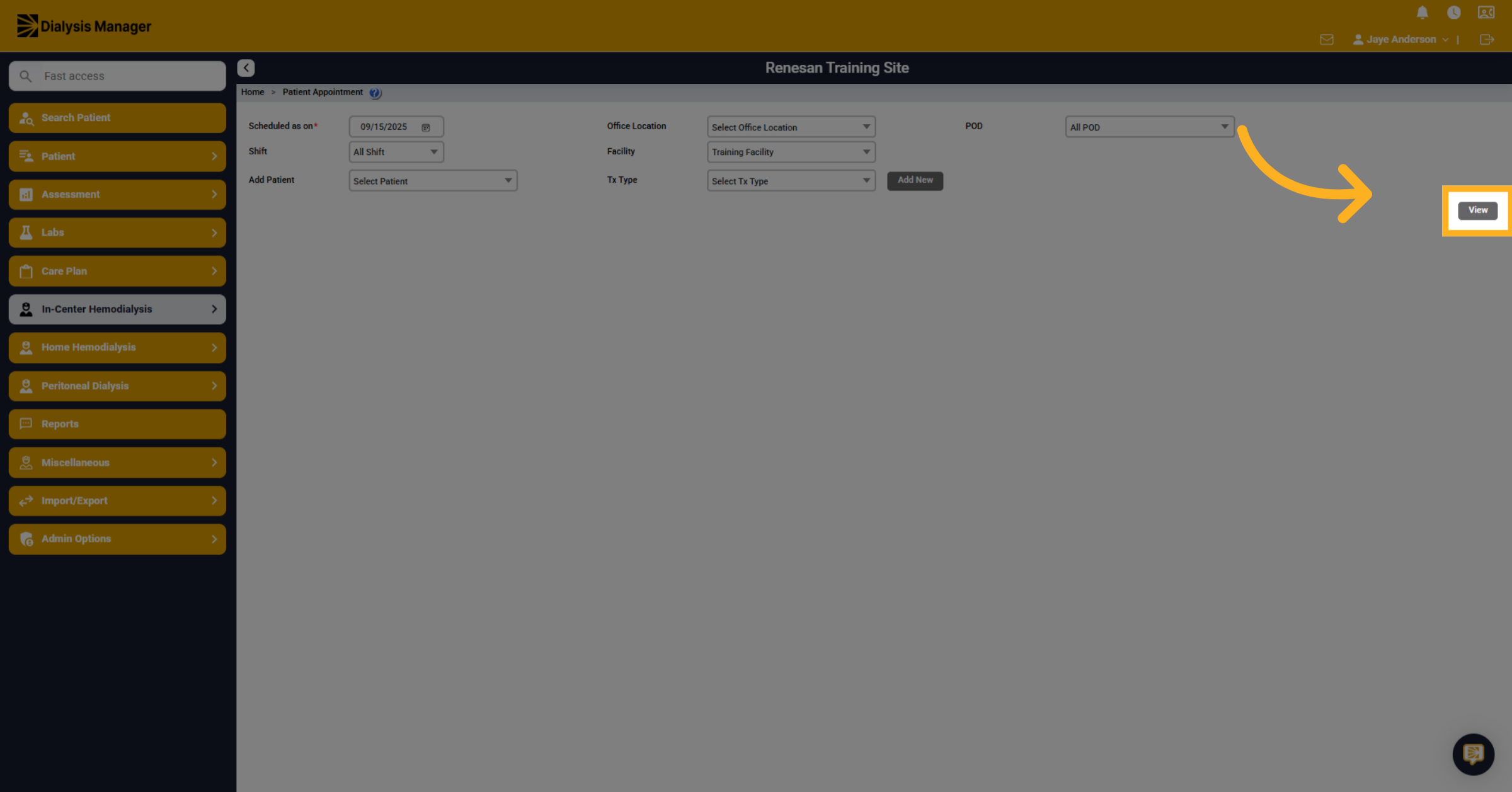
3. View Appointment Details
Click "View" to display the current appointments and patient schedule.
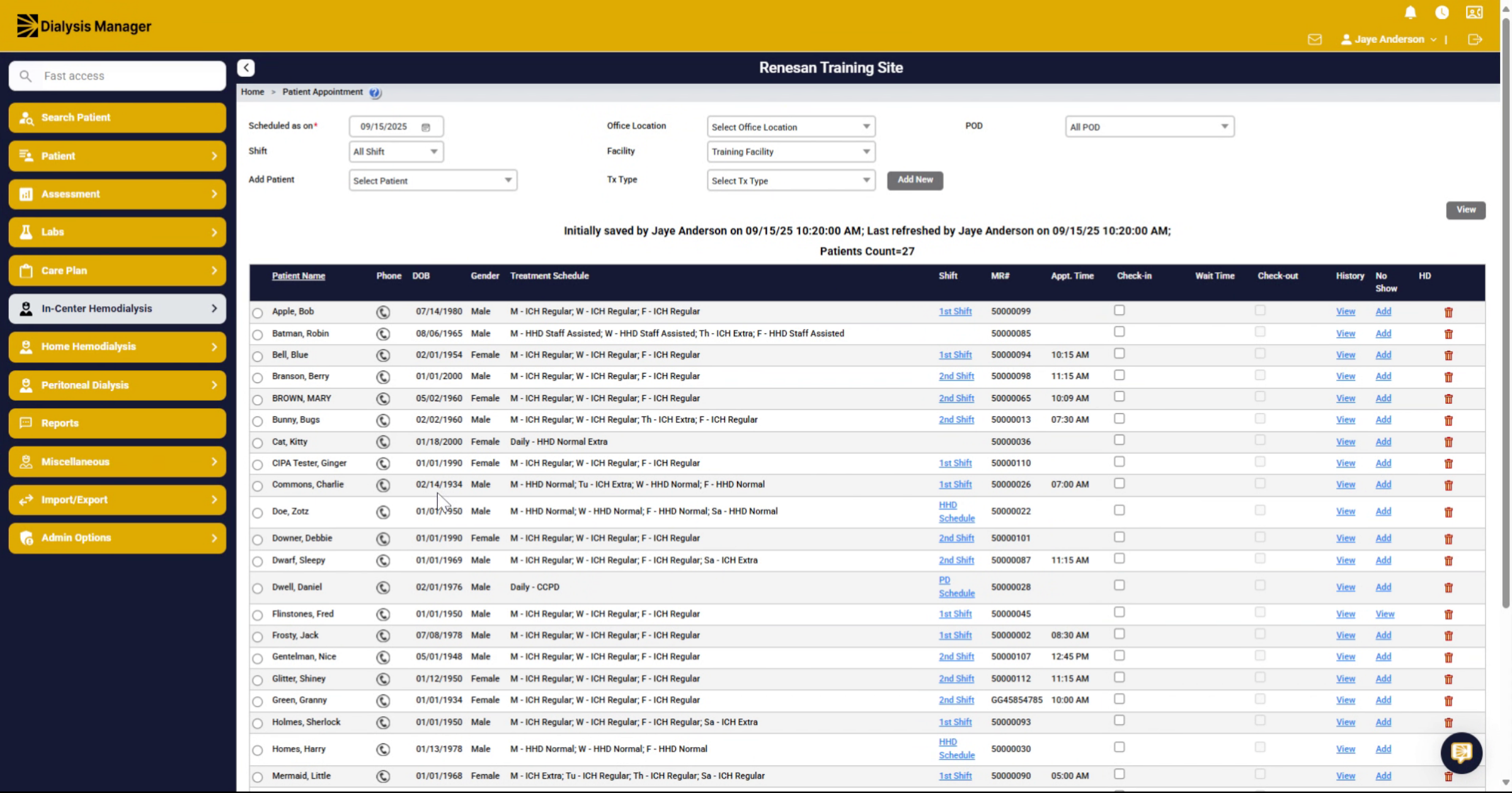
4. Select Patient from List
Once you click view, Ensure the patient is not listed for the scheduled on date you are looking to add patient.
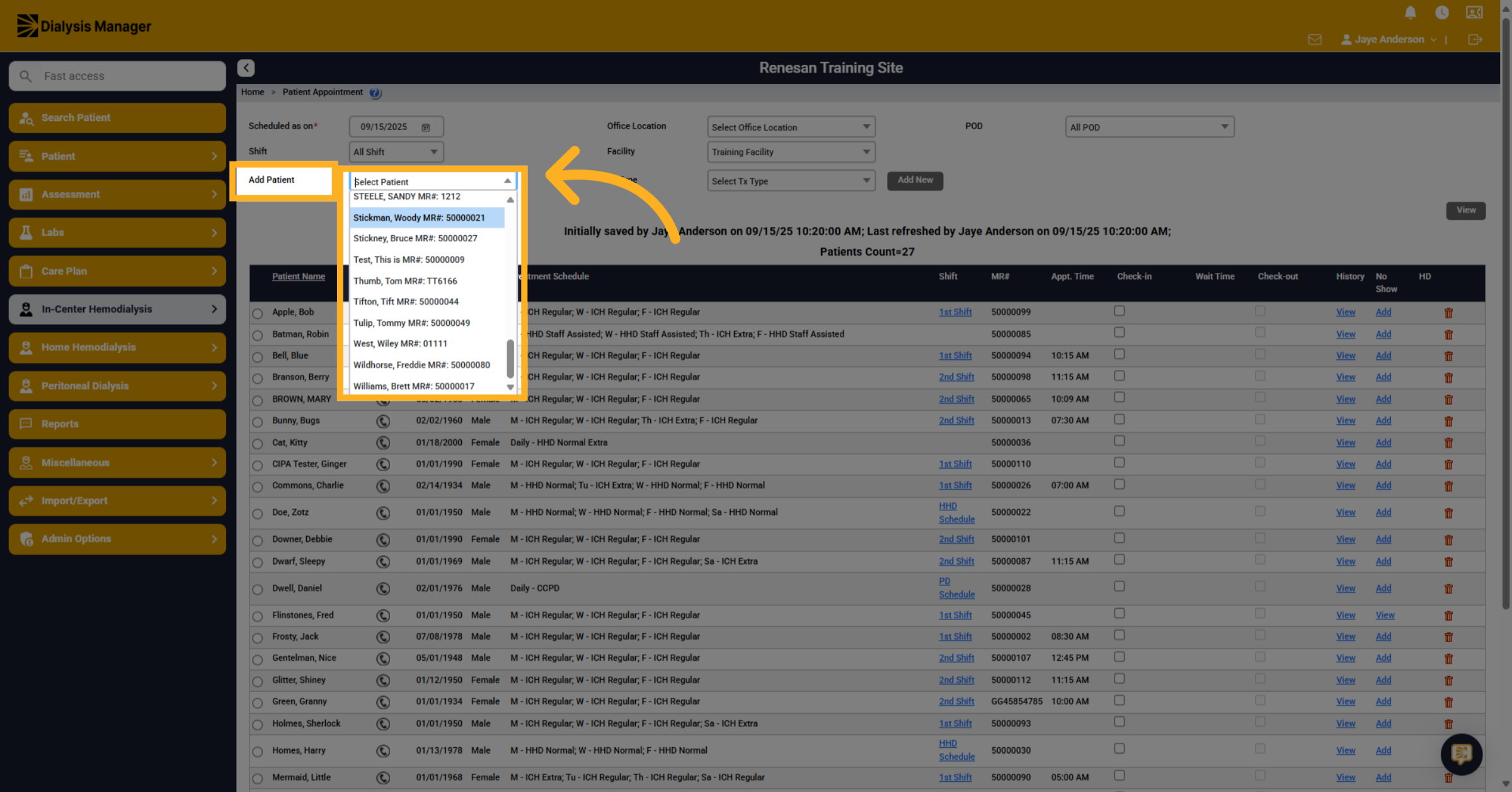
5. Select Patient Record
"Choose your patient from the drop-down list." Selecting the patient's record for scheduling.
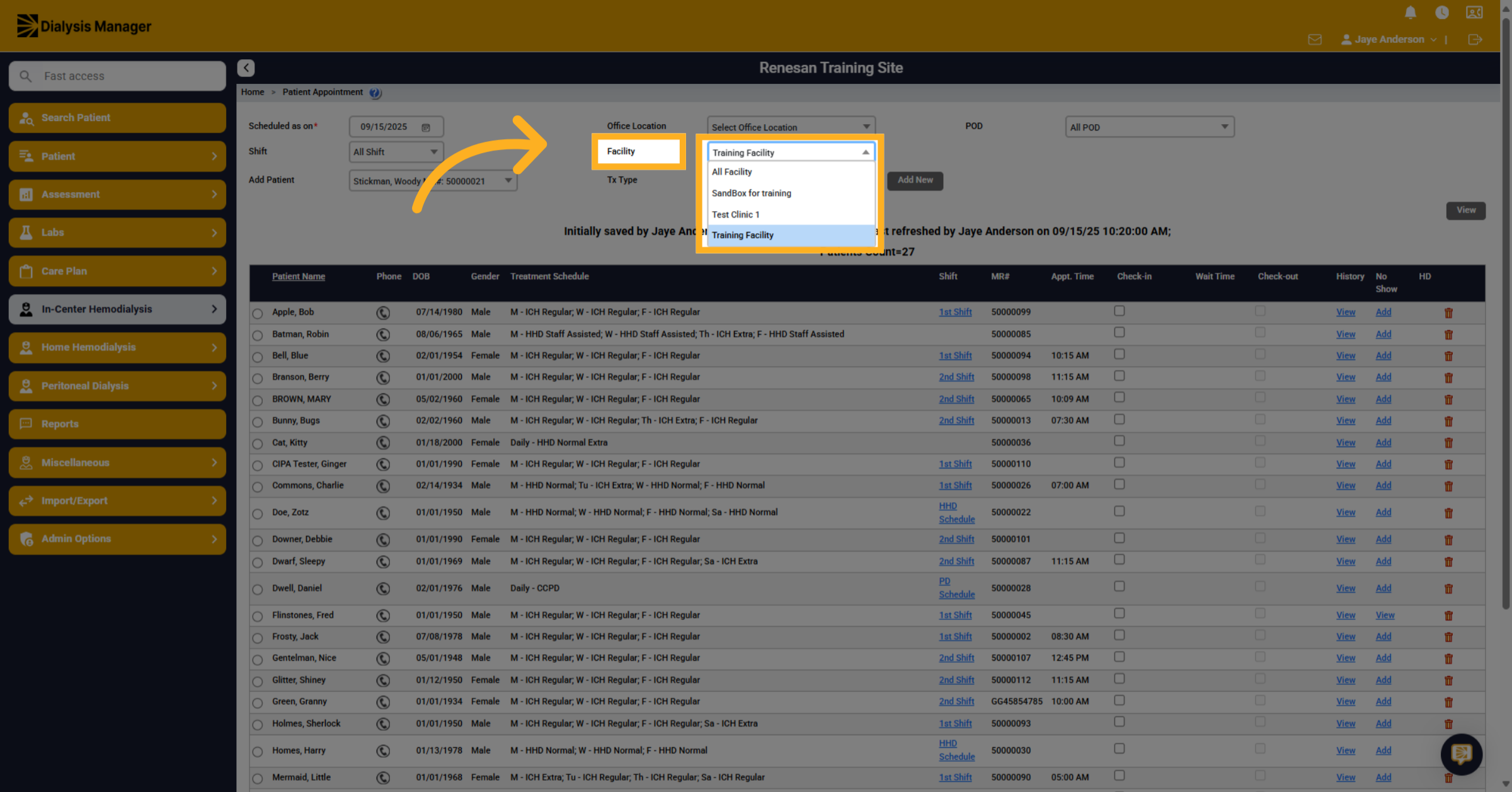
6. Confirm Training Facility
Click "Facility" to confirm the treatment location for the appointment.
7. Proceed with Scheduling
Click Treatment Type to select the type of treatment to schedule for the patient.
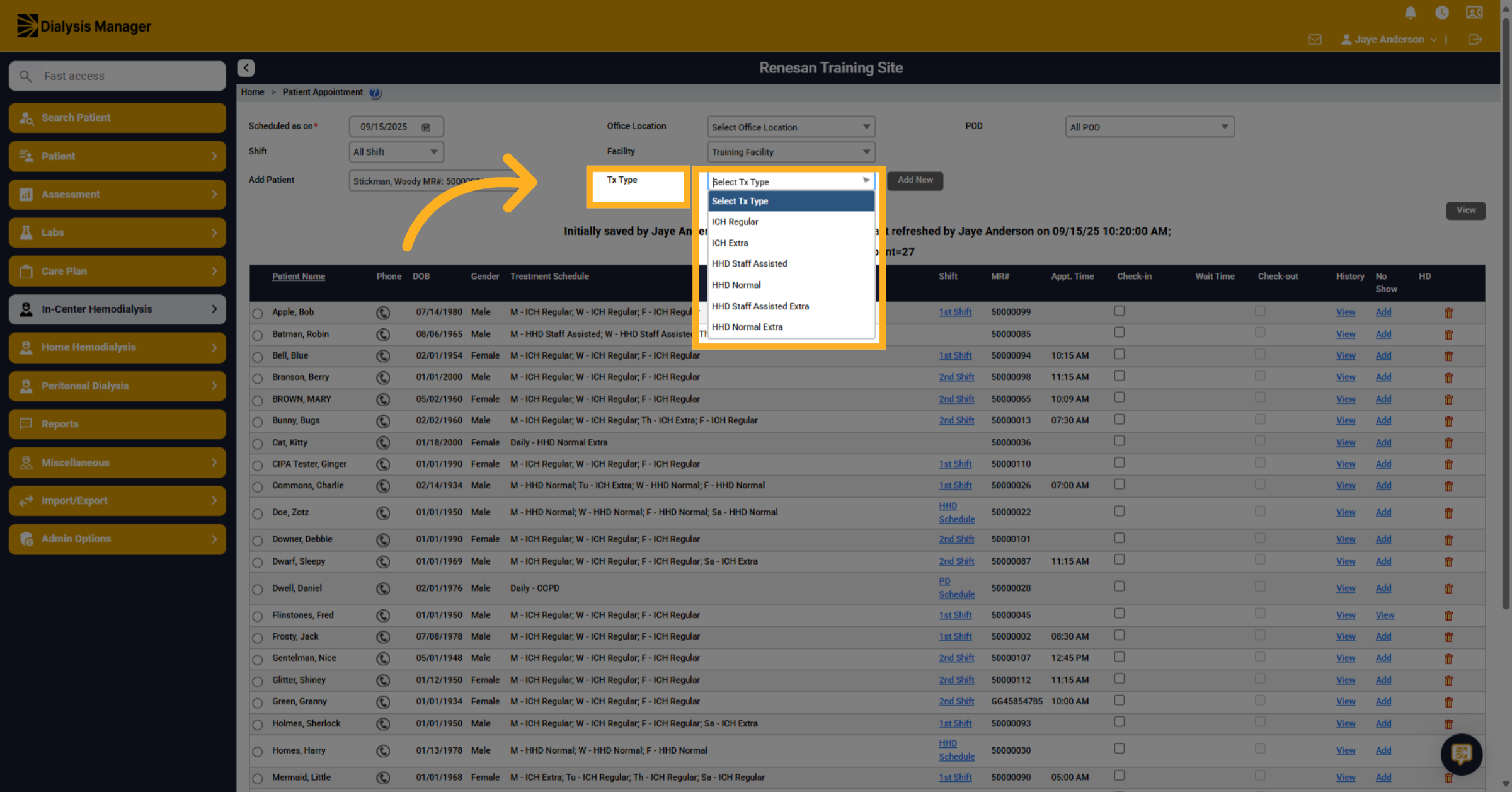
8. Specify Treatment and Add
What type of treatment are we adding to the schedule? For example, I C H Regular or I C H Extra. and click add new.
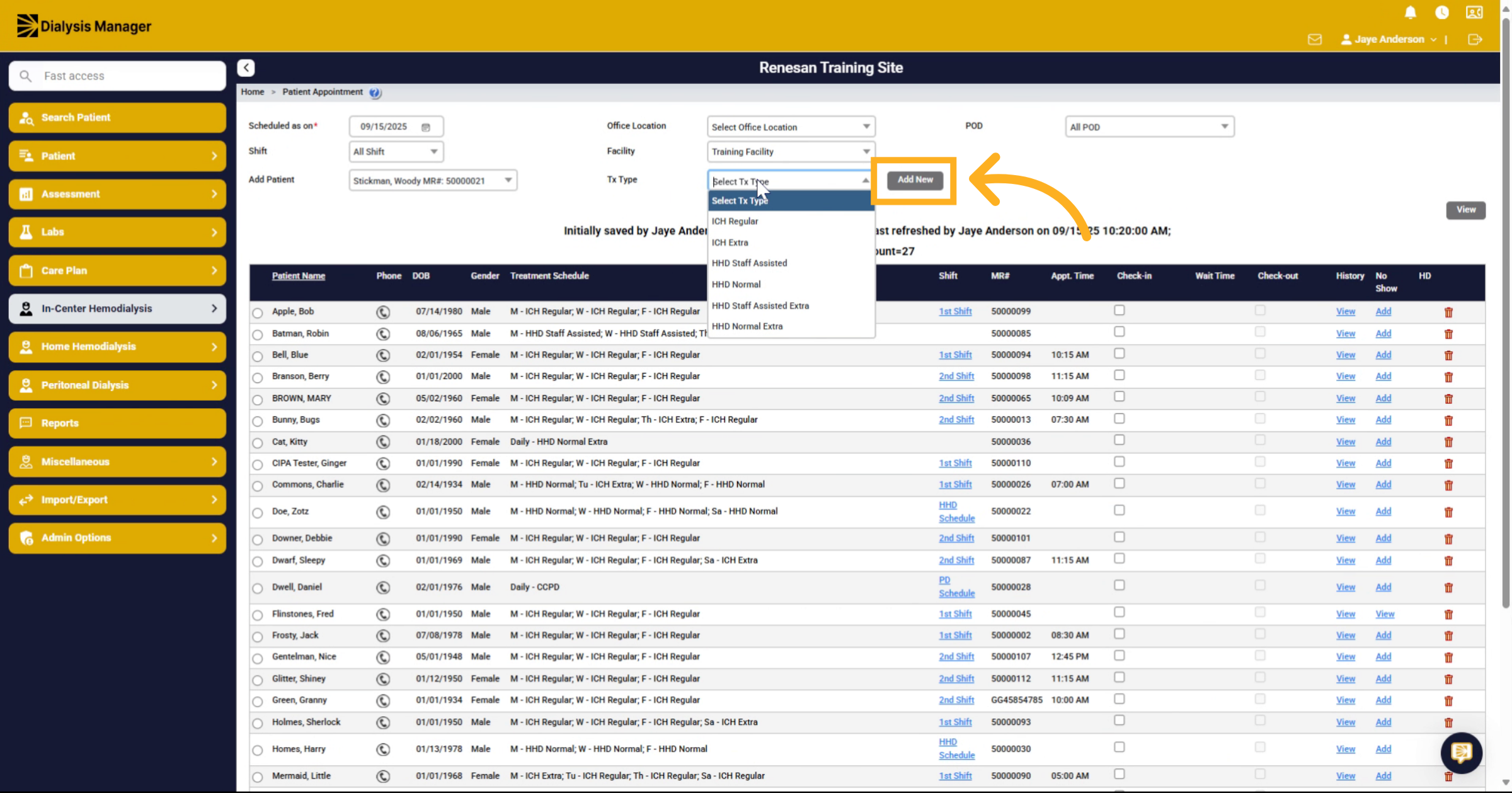
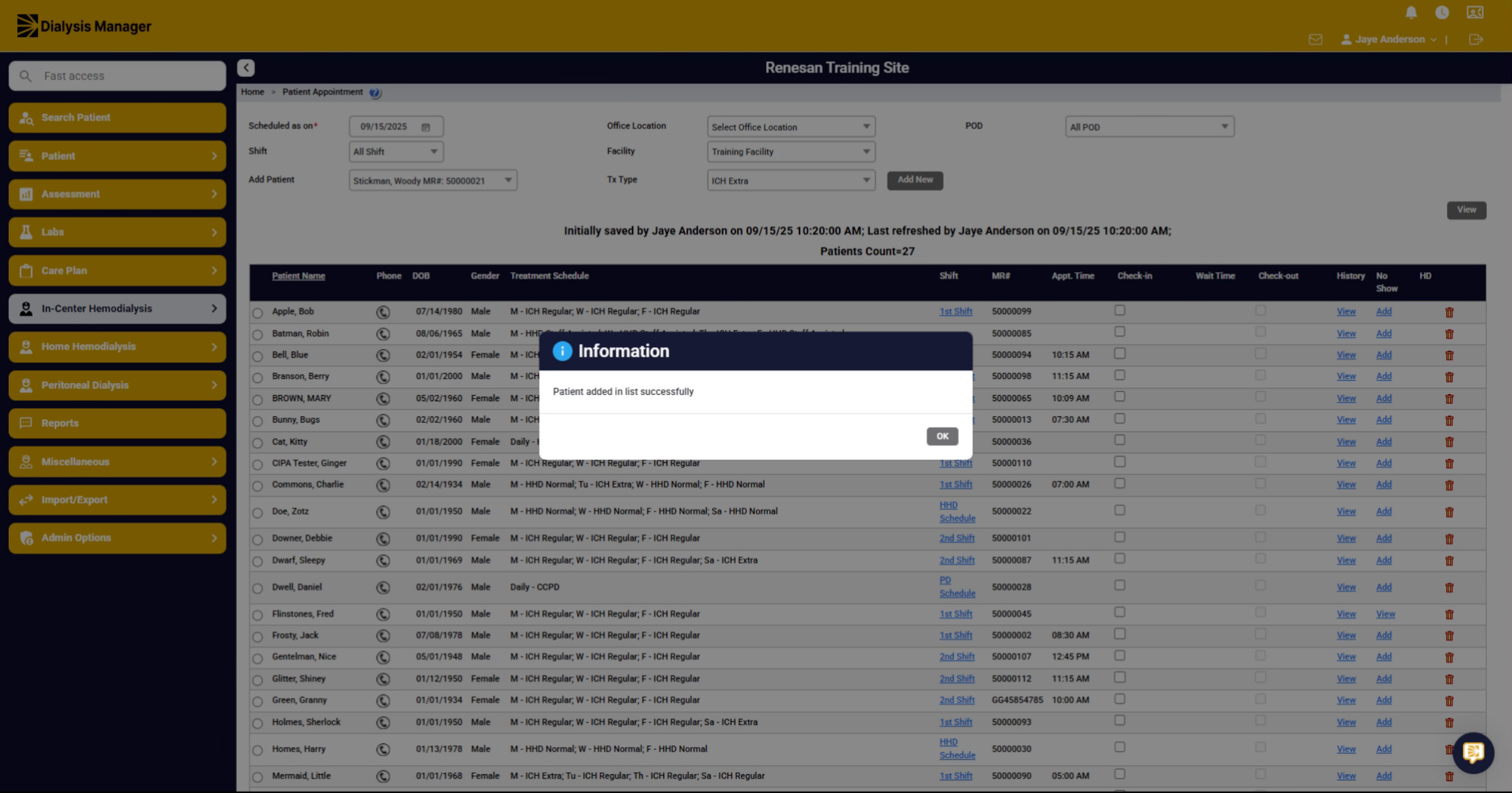
9. Confirm Patient Addition
You will receive a message that The patient's been added to your list successfully.
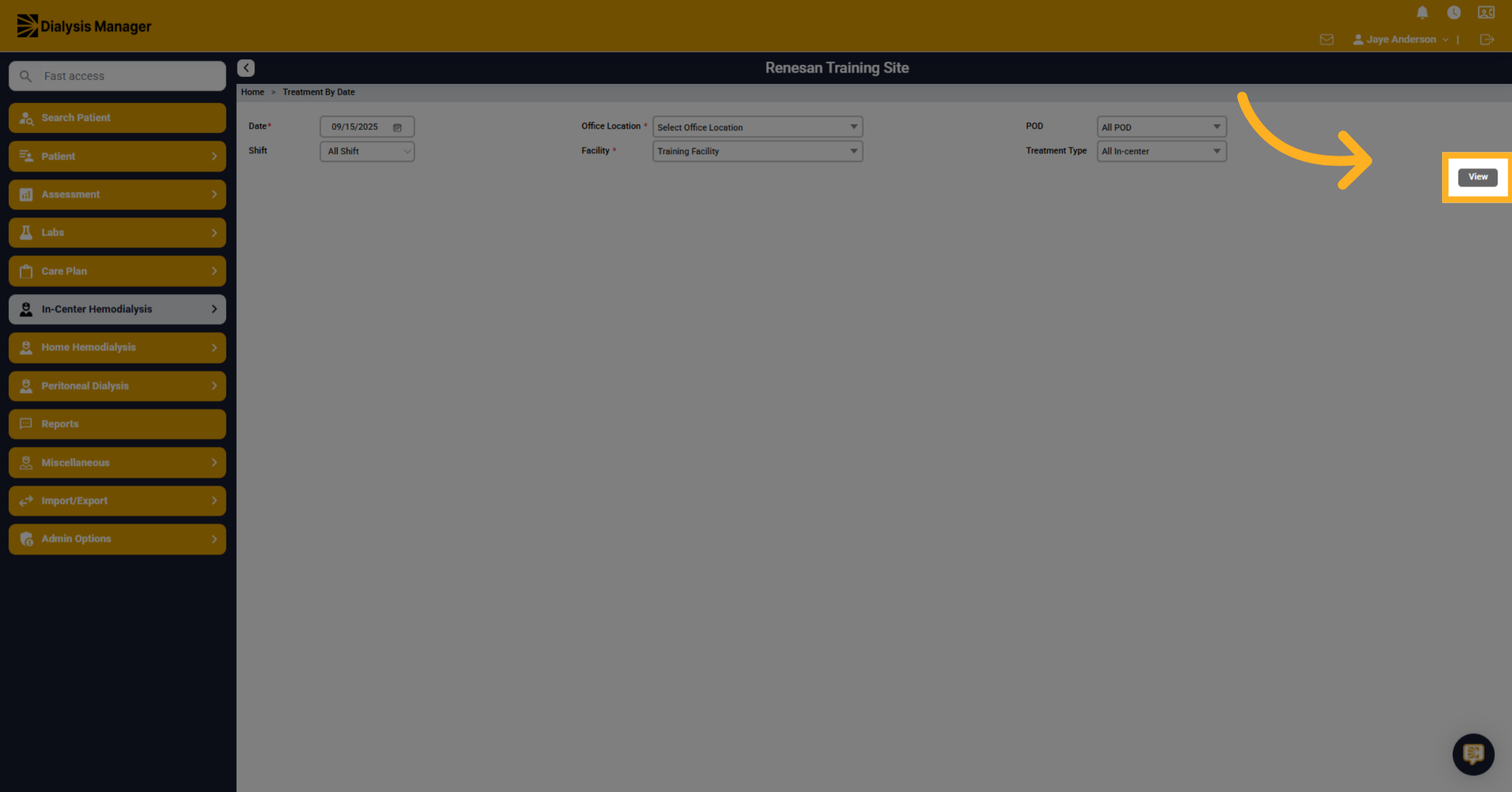
10. Click the View Button
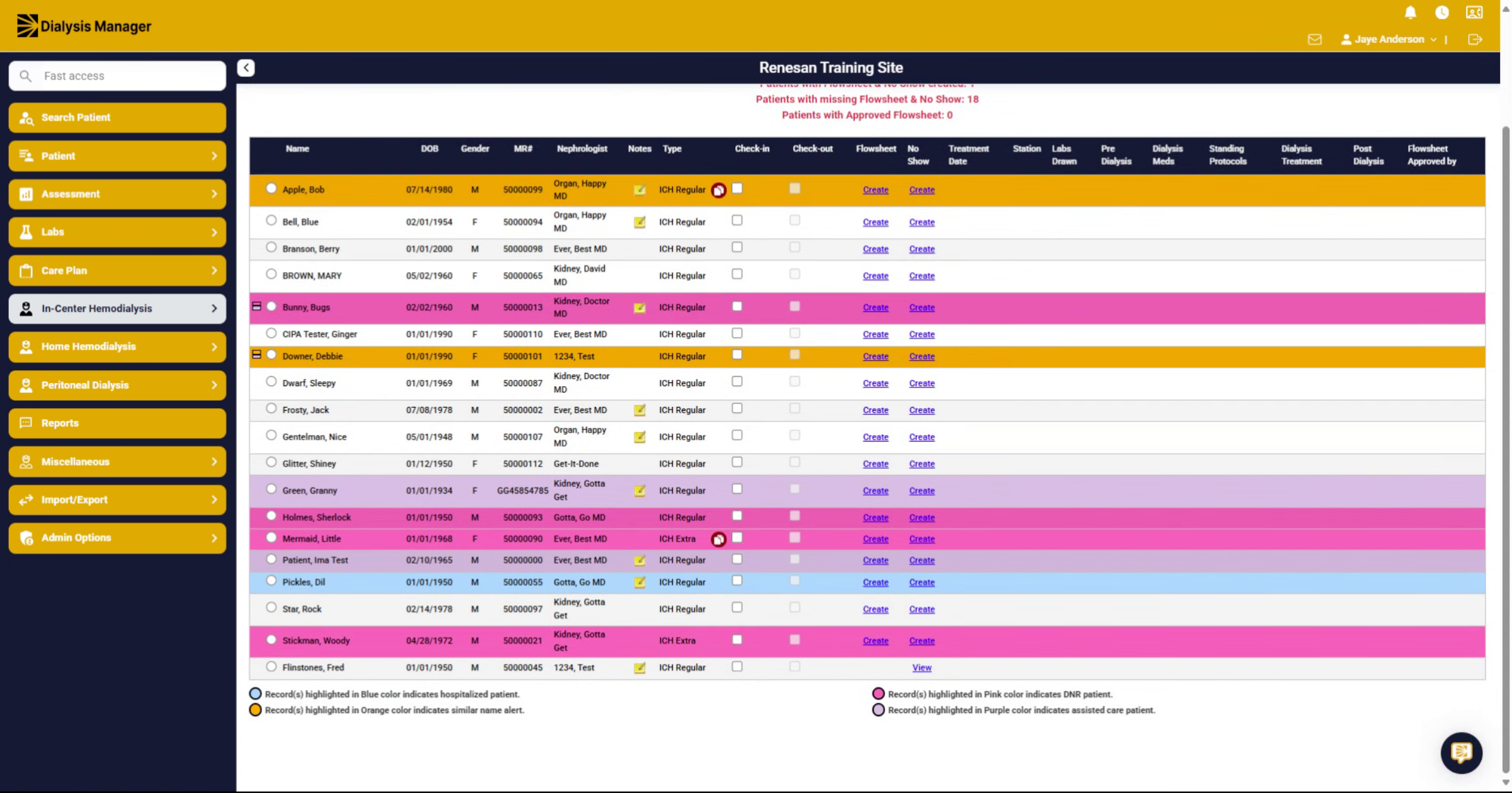
Now, if we look back at our Treatment by date screen. Click "View" to access detailed information for the selected treatment date.
11. Locate Patient Listing
And now we'll see the patient listed for the date.