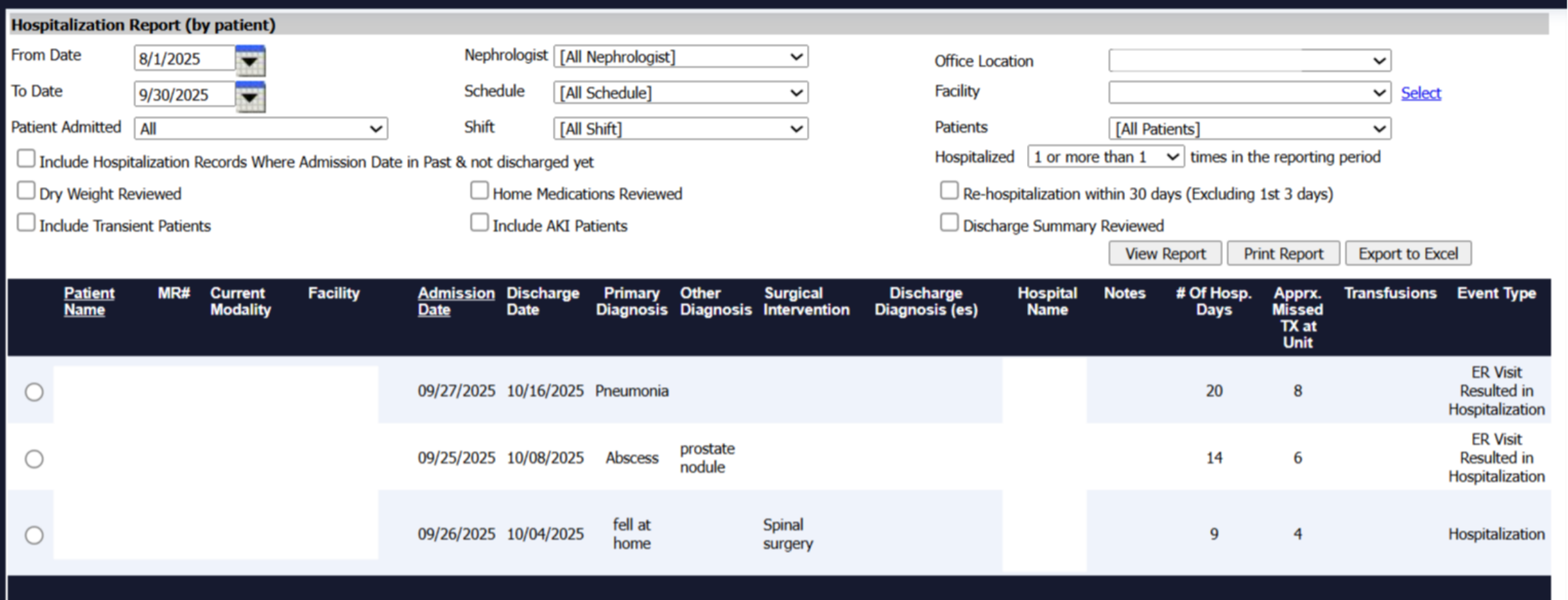
Hospitalization Report.
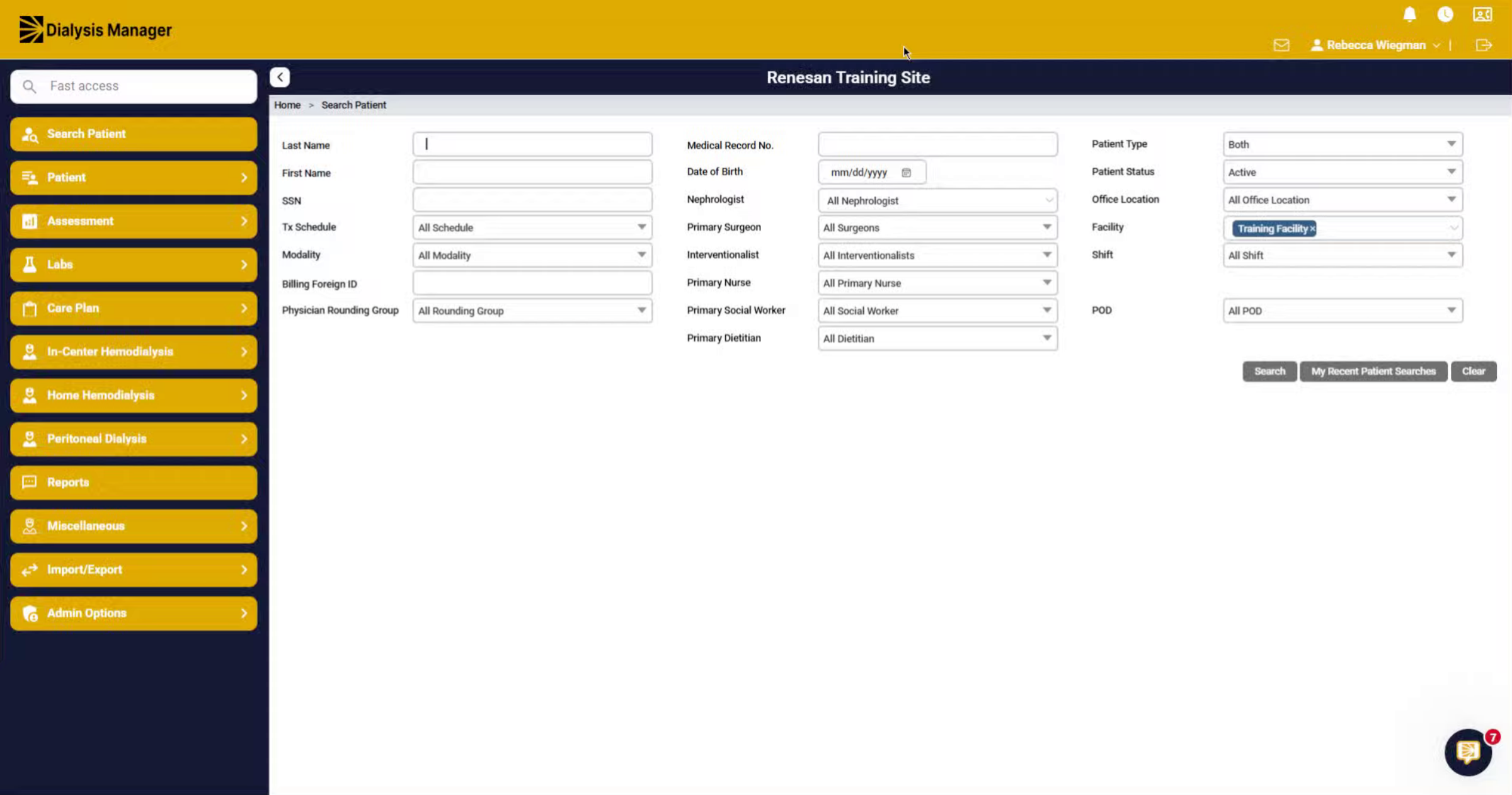
1. Introduction
This tutorial explains how to generate a hospitalization report.
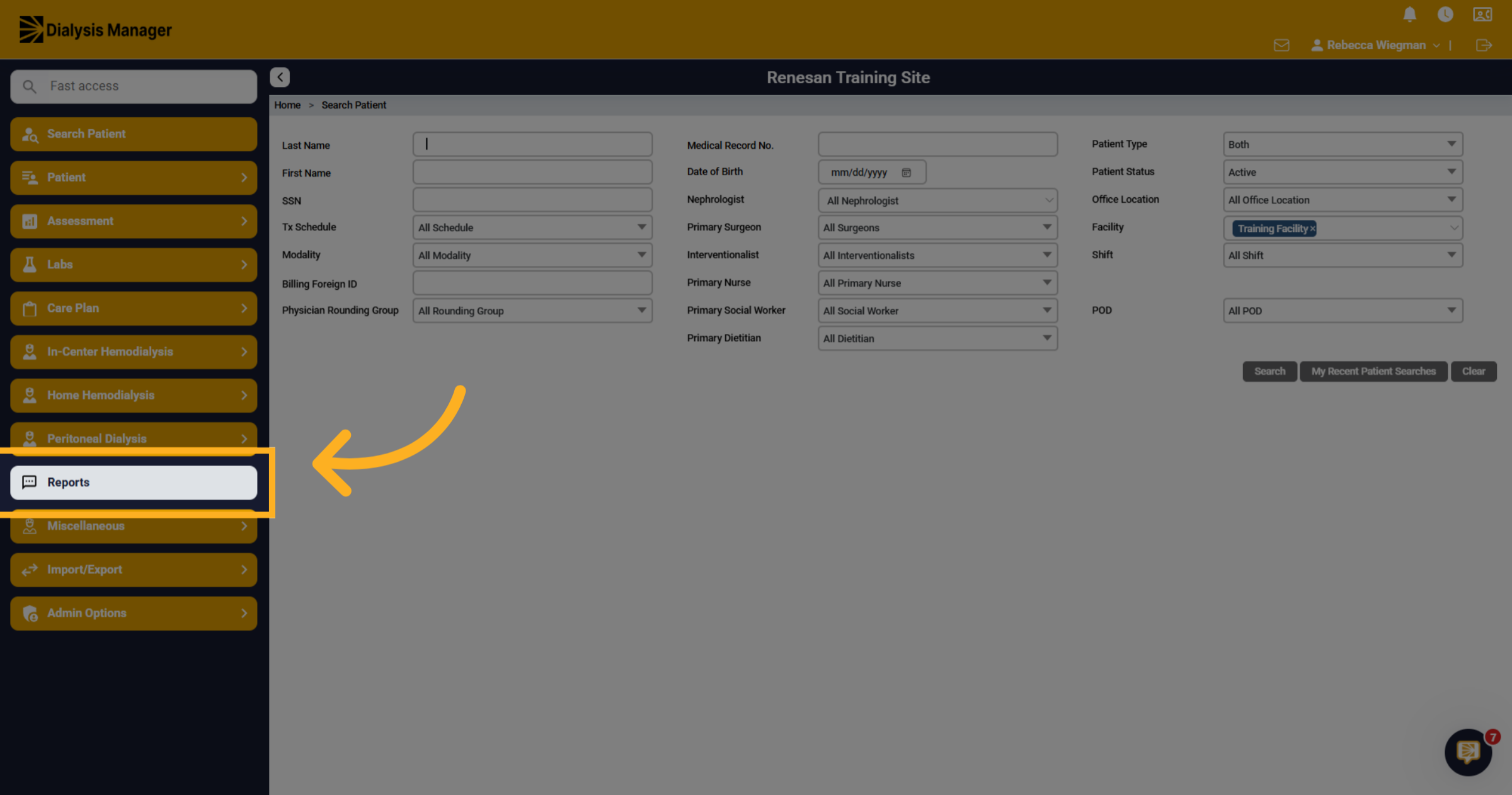
2. Navigate to Reports Section
Click the Reports menu to access available report options.
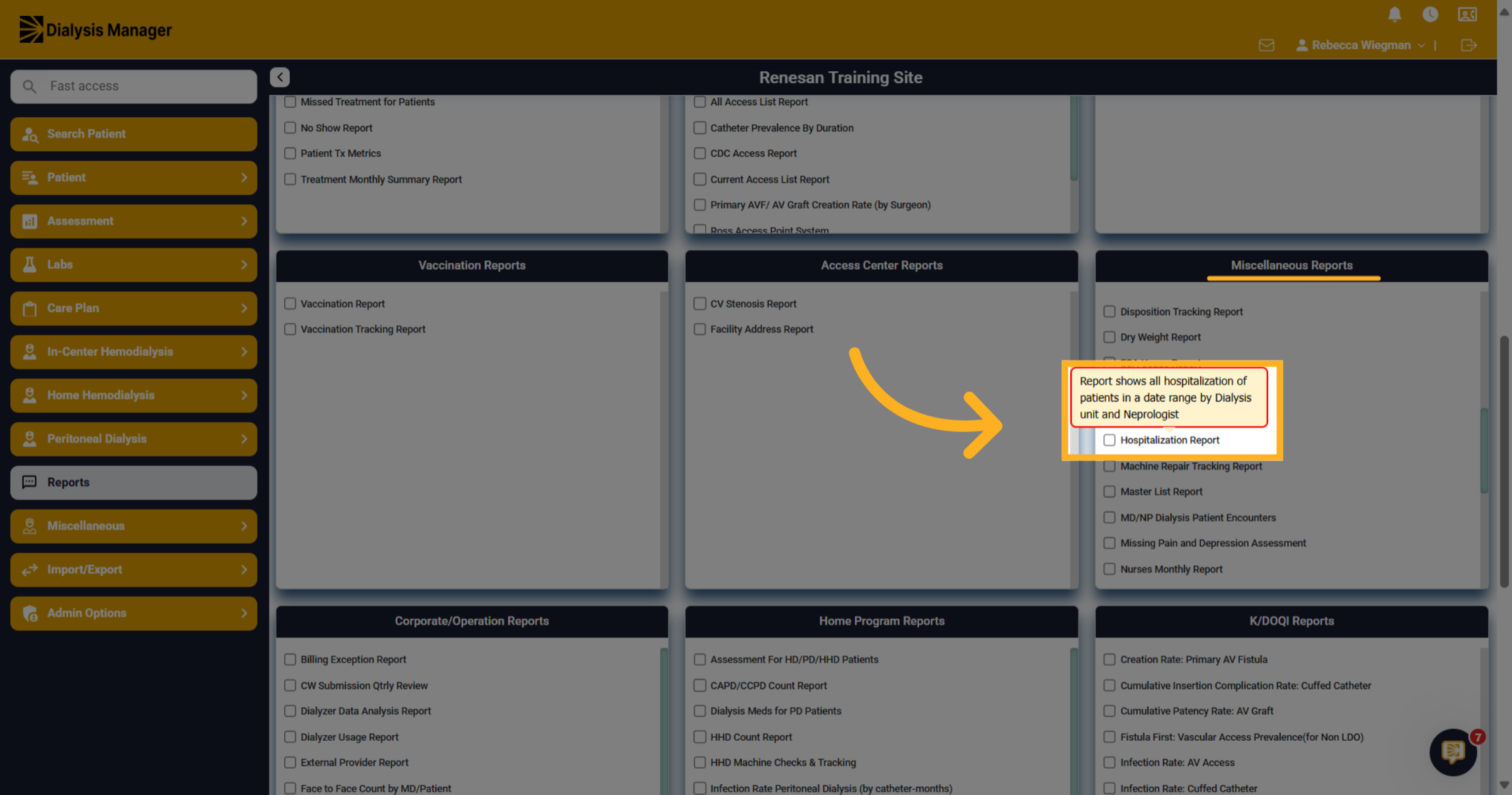
3. Hospitalization Report
Under Miscellaneous Reports click on Hospitalization Report. Remember hovering over the report will display a description of the report.
4. Filtering
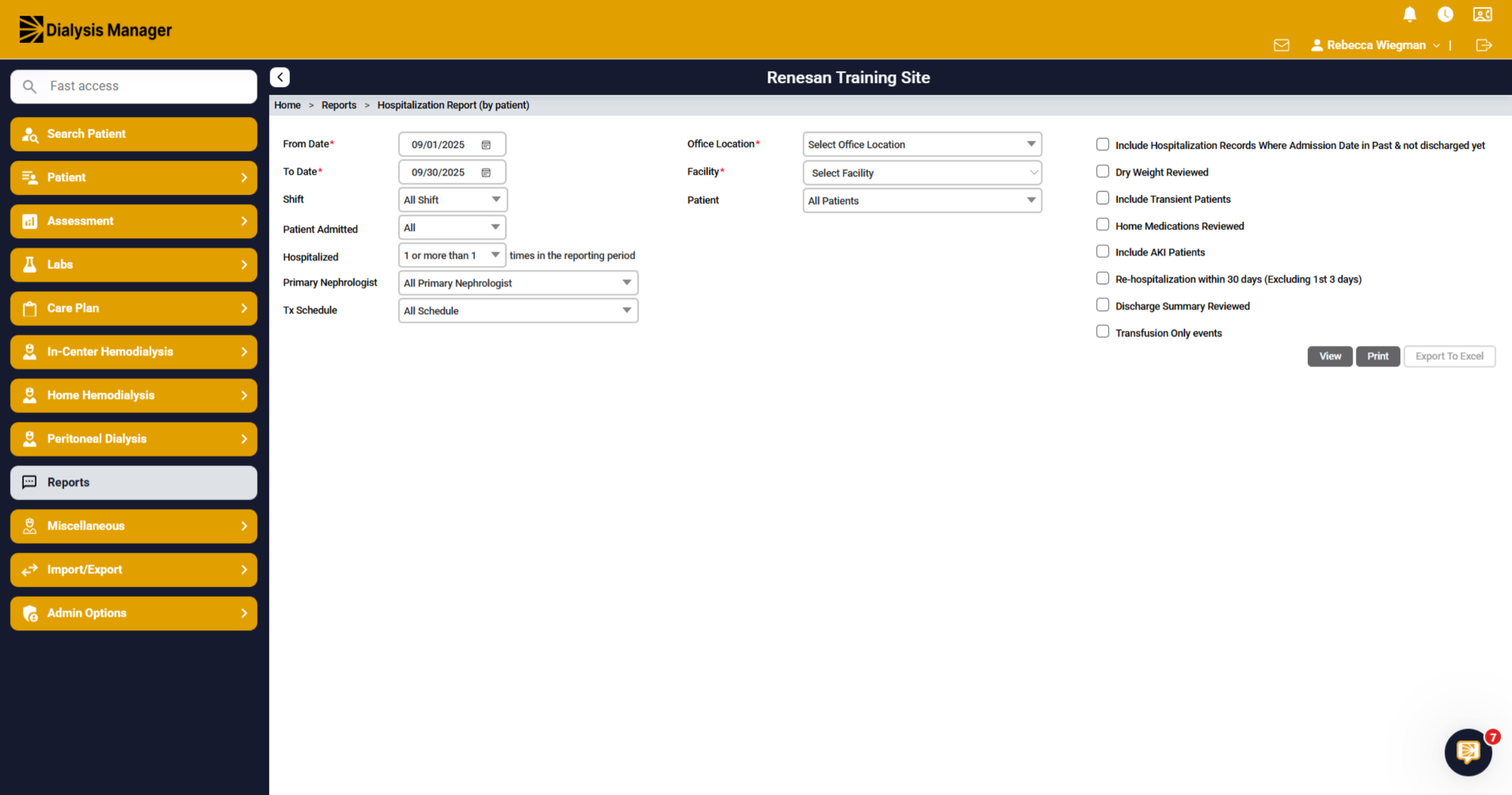
You'll have different filter options that you're able to choose from. Please note that a date range and facility is required prior to running the report.
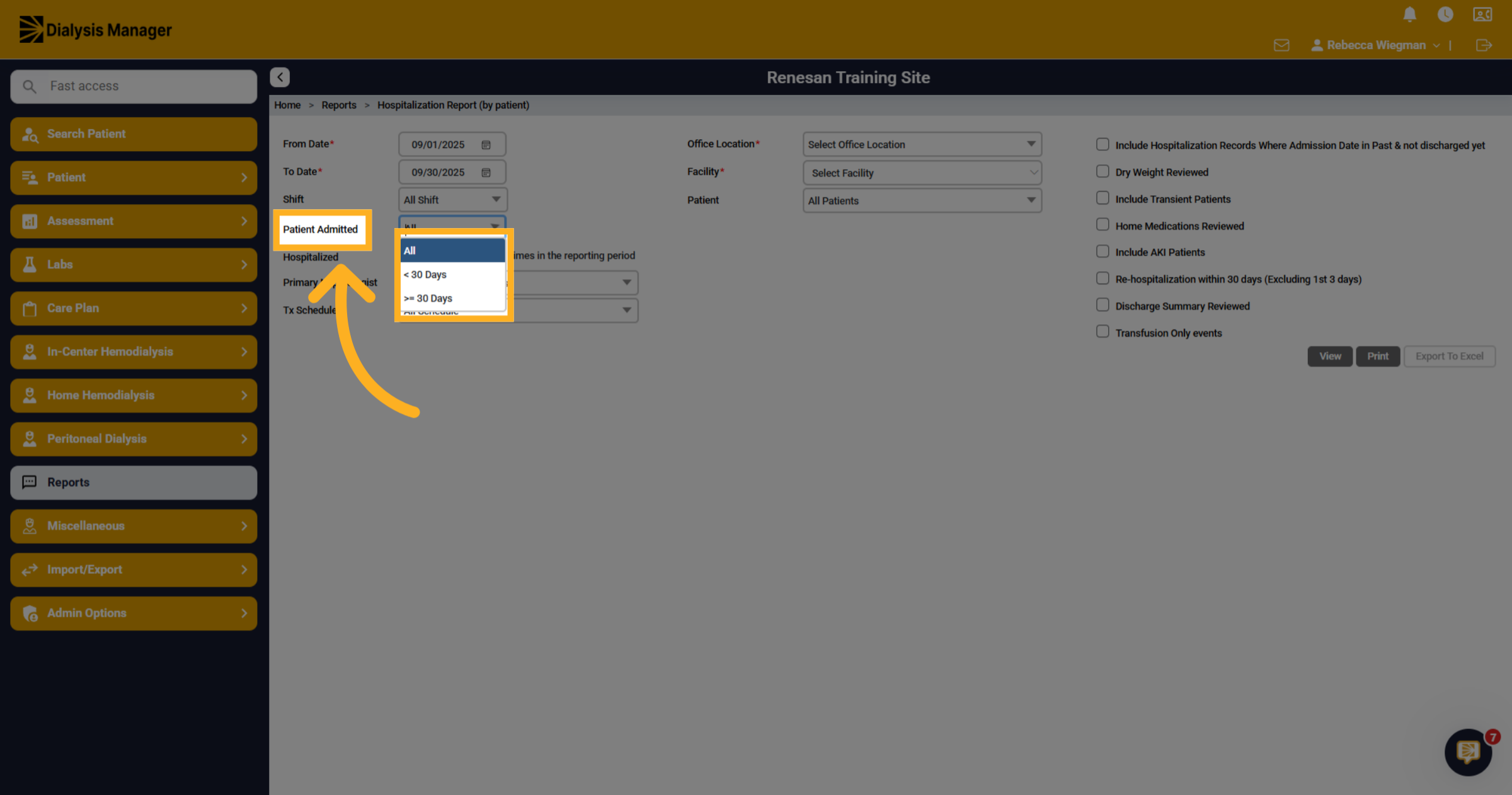
5. Patient Admitted
You can search all patients or patients admitted greater or less than 30 days.
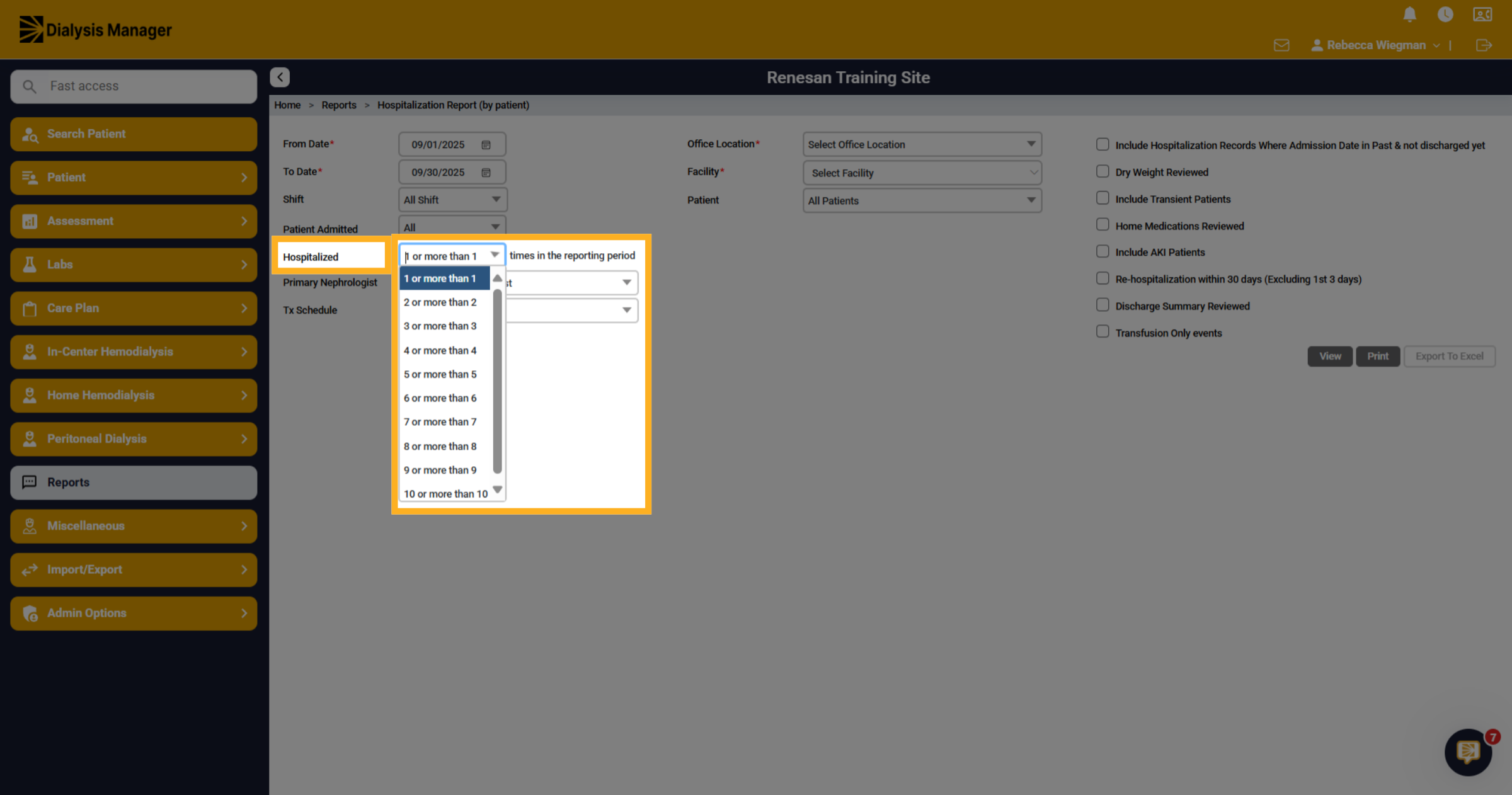
6. Hospitalization within the reporting period
You can filter how many hospitalizations a patient had within the reporting period.
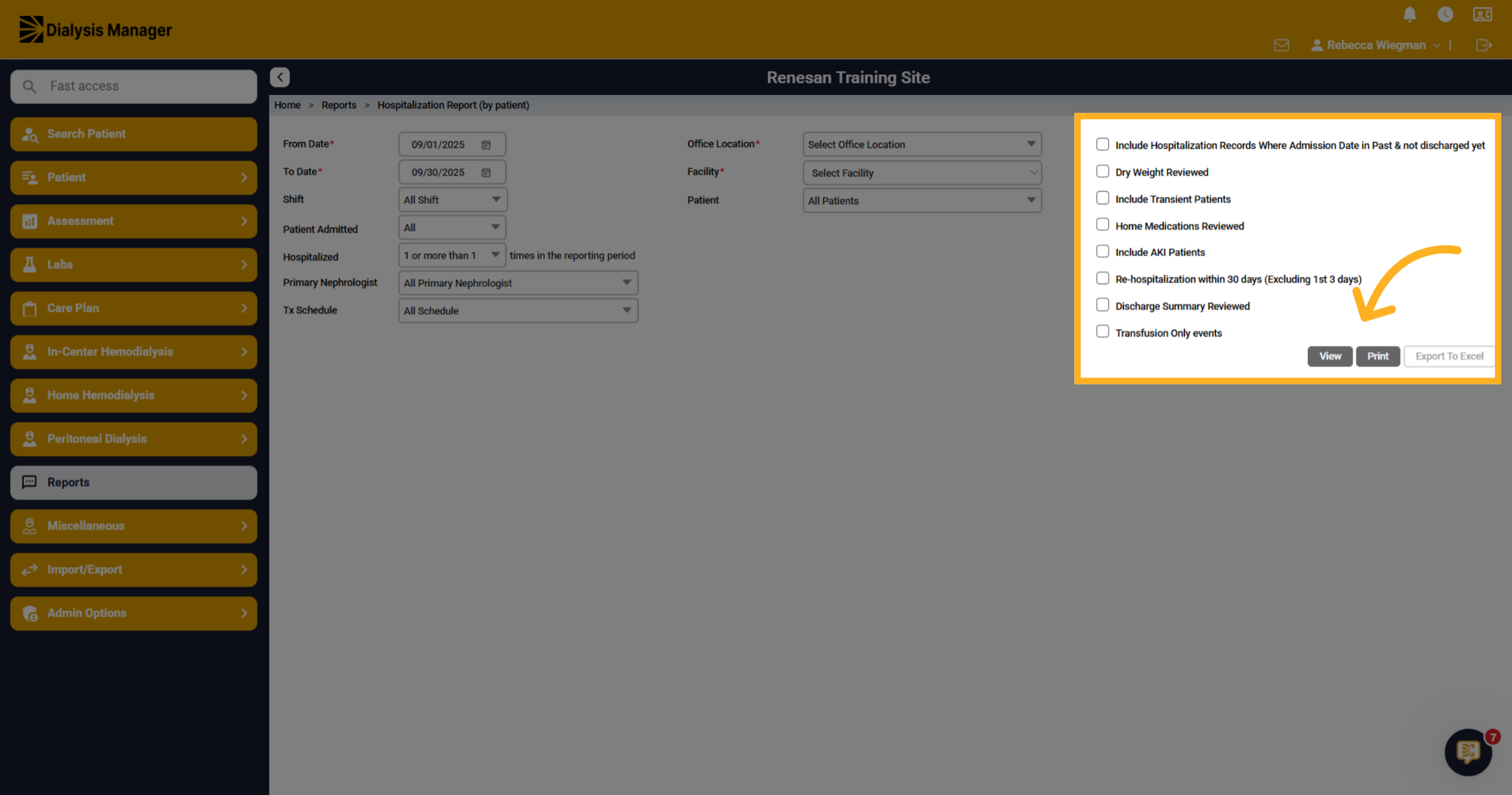
7. Additional filters
You'll also have the option to filter the report to include hospitalization where admission dates are in past & not discharged yet, Re-hospitalization within 30 days, discharge summaries reviewed, etc. Click View
8. Patients
Upon clicking "View" your Patients will appear displaying the admission date and discharge date along with other information generated by the filters selected. It is good practice to review the Hospitalization Report monthly to assure all are completed and approved and locked.