Home Screen Icons, My Profile, Preferences and ChatBot.
2. Introduction
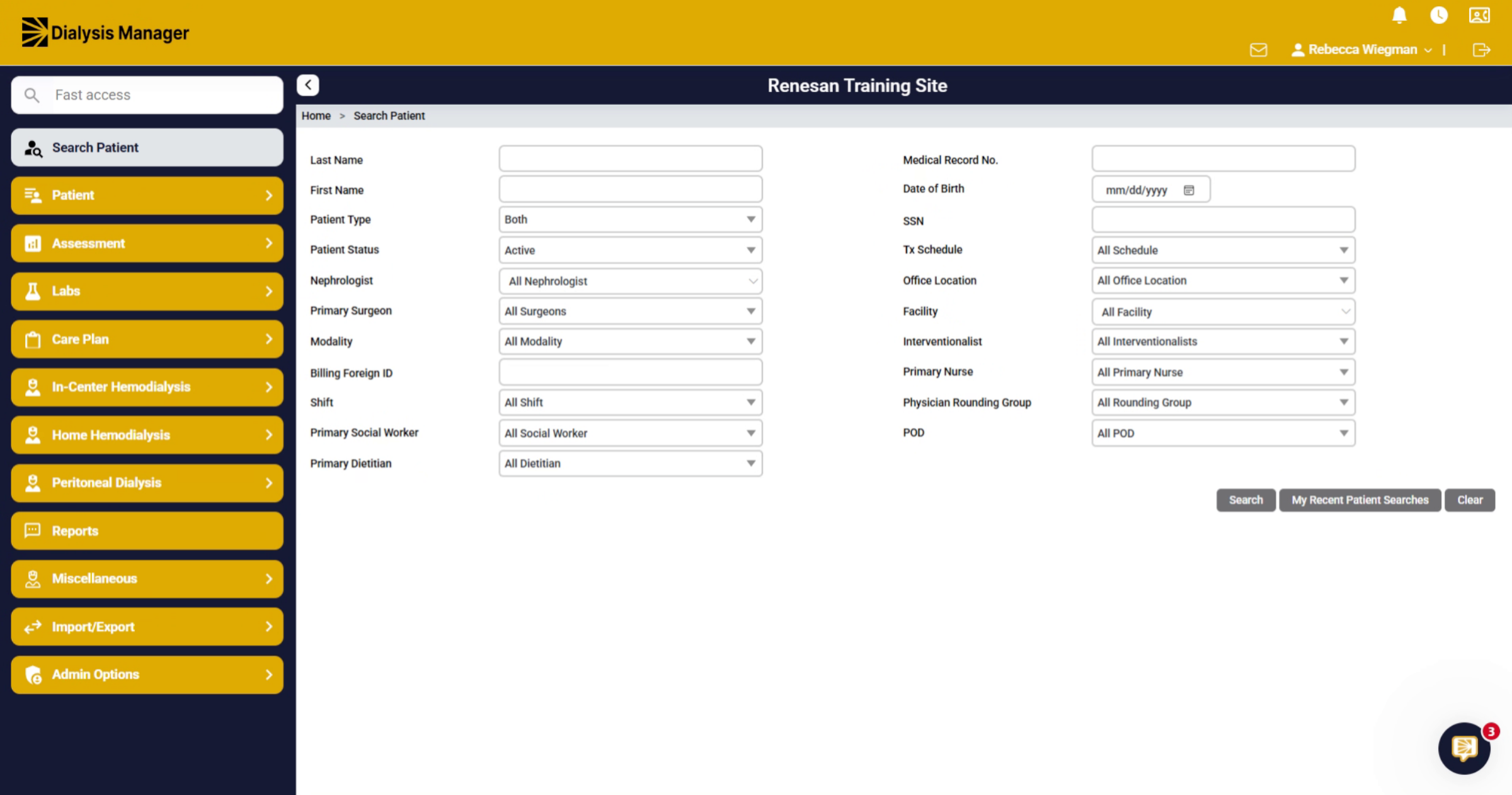
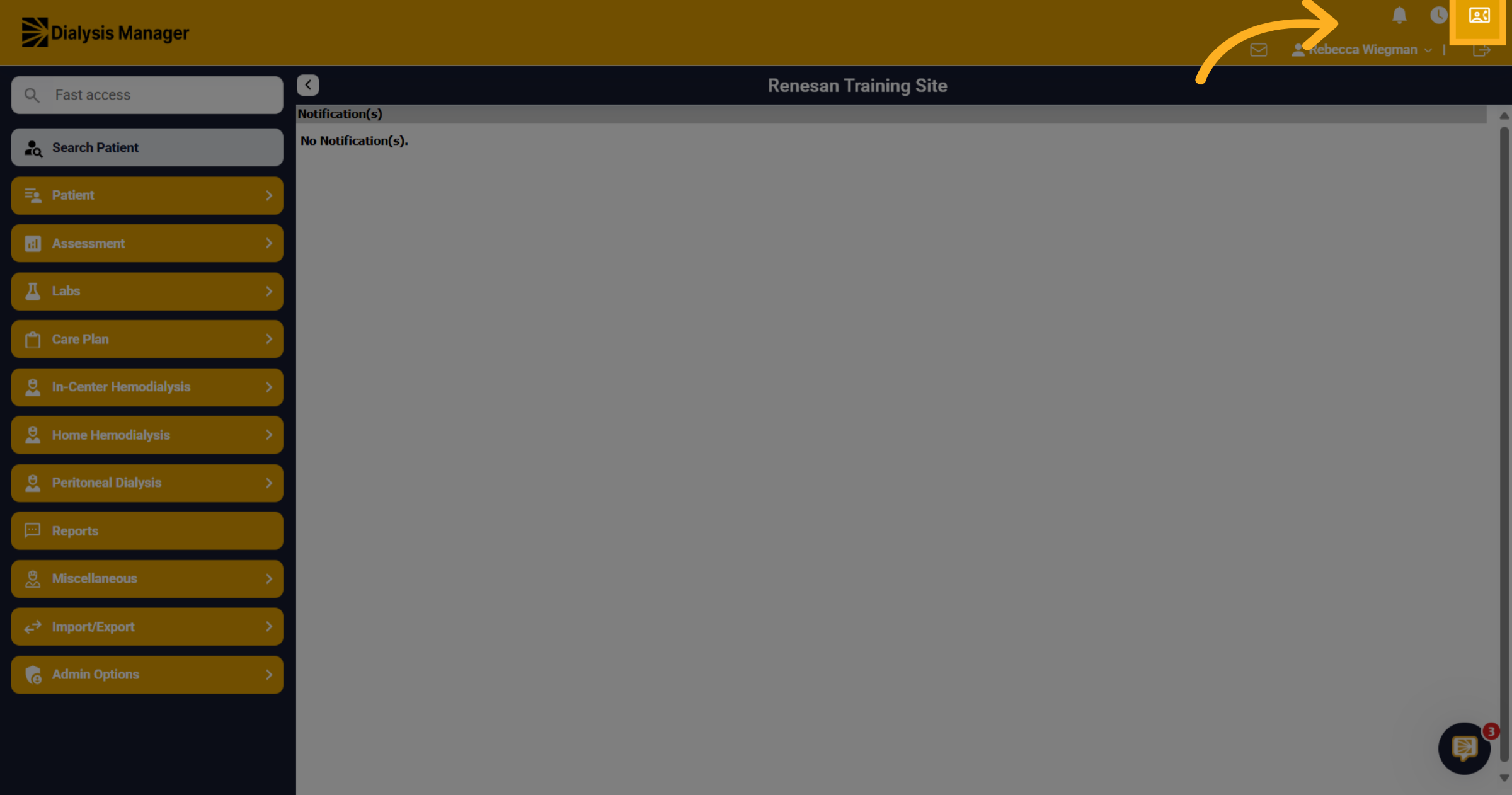
In this guide, we are going to walk you through the homepage. On the top right-hand side of the page, you are going to see those icons.
3. Notification/Bell Icon
The "Bell" icon will be where notifications will be visible. Notifications are defined based on user level or role within your organization. An example of notification would be a dietary order or physician order change. Something that may have changed with your patient. Users who have notifications are primarily nursing staff, physicians, dietitians and social workers. Again, those are configured in your user roles and defined by your organizations administration.
4. Updates/Clock Icon
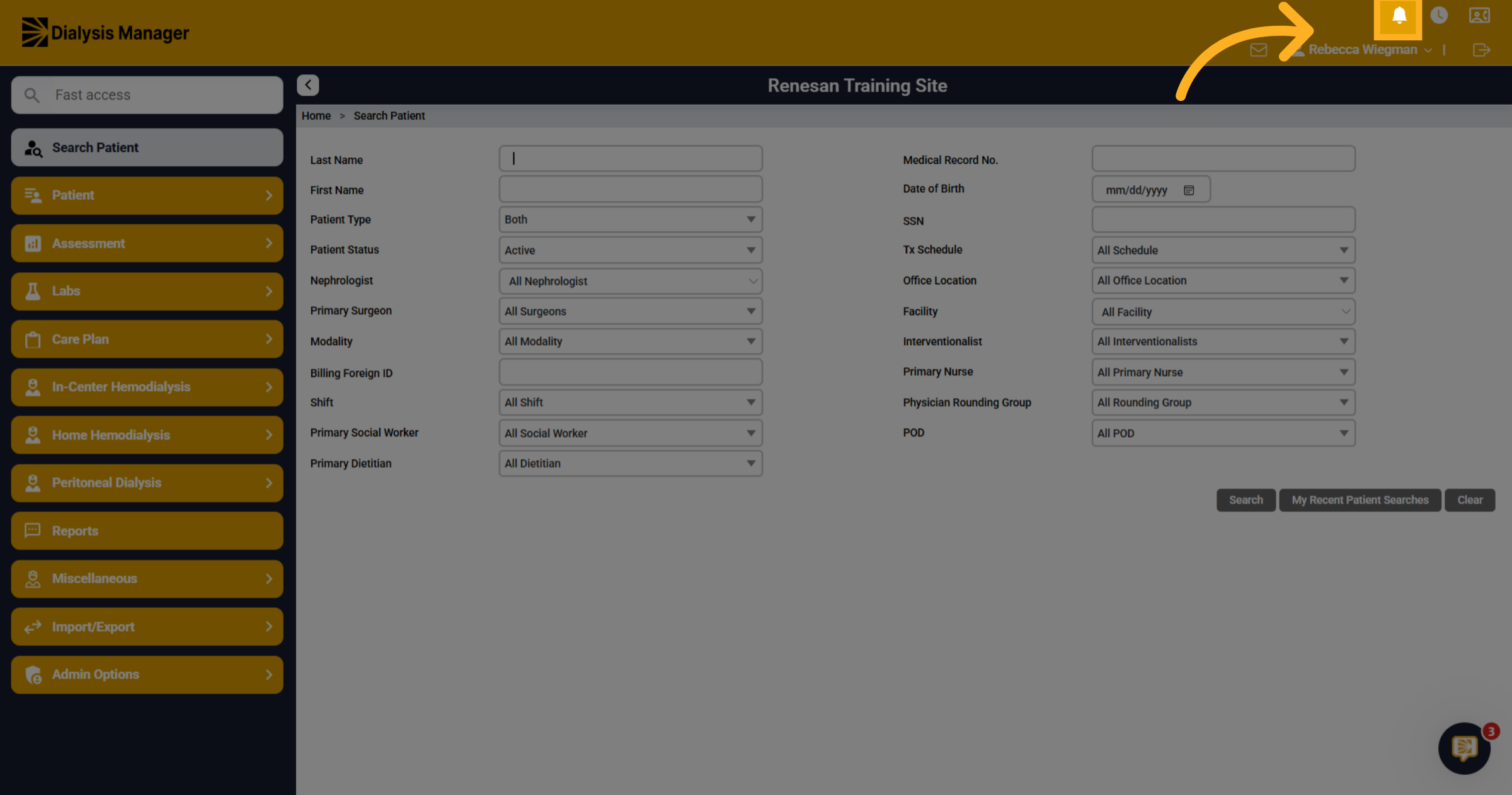
Click the clock icon to view database updates. The clock icon will show you our database updates, what you may know as release documents.
5. Contact Us
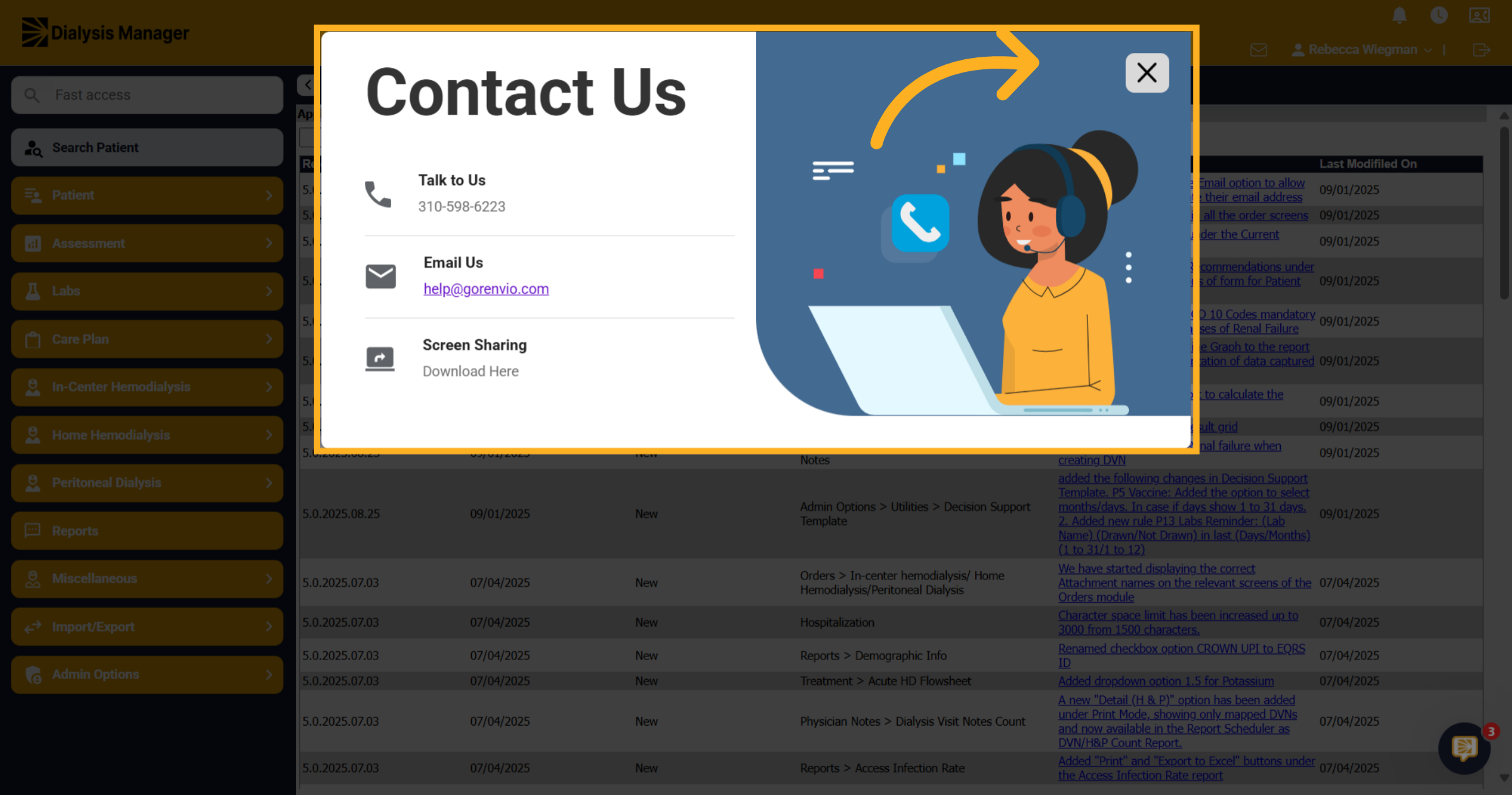
When clicking on the person with a phone icon, it'll bring up information to get in touch with us!
6. Contact us screen
You'll see the contact number for the support line, an email address to be able to send screen shots or to send non urgent questions you may have.
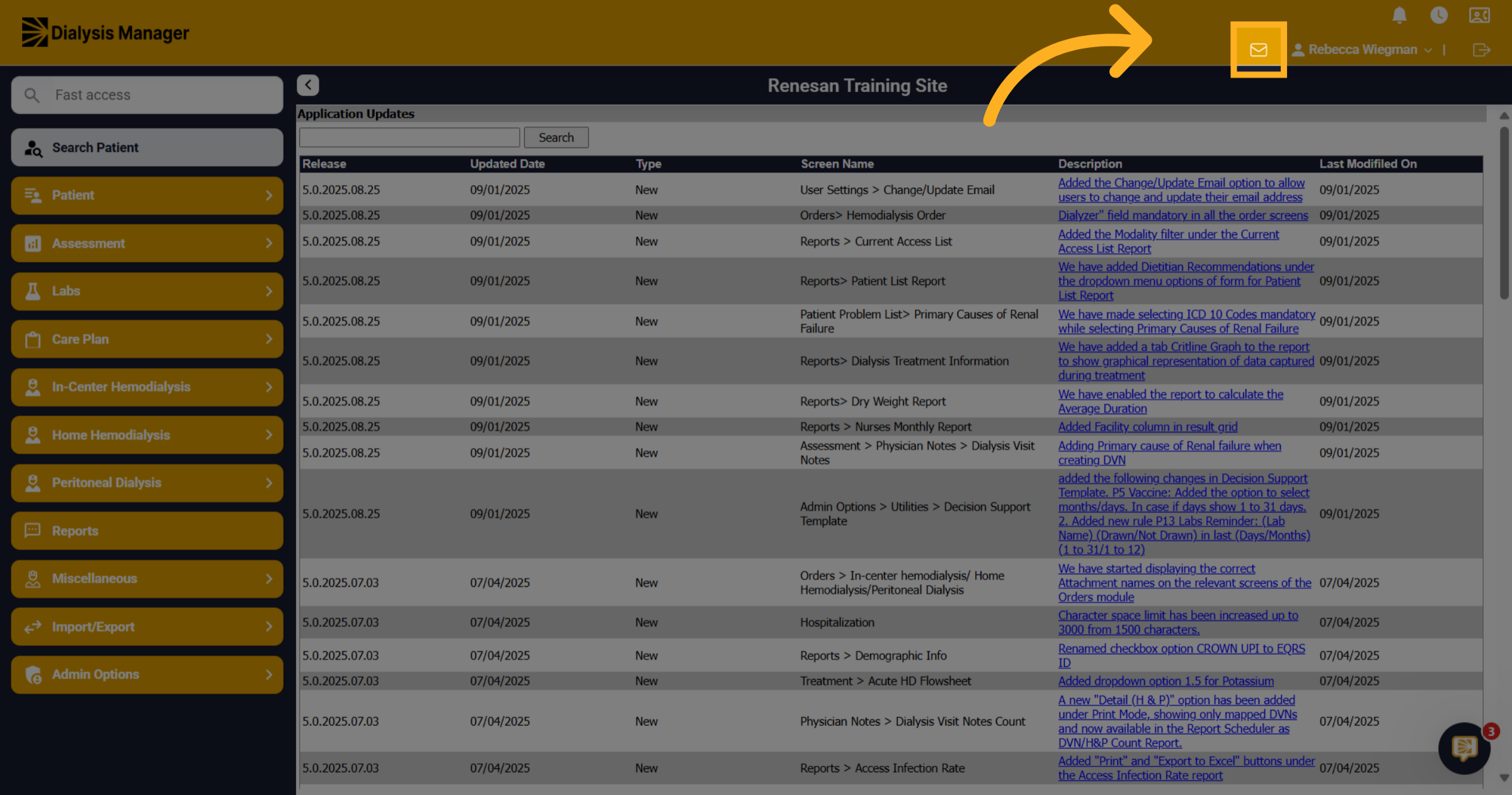
7. Mailbox
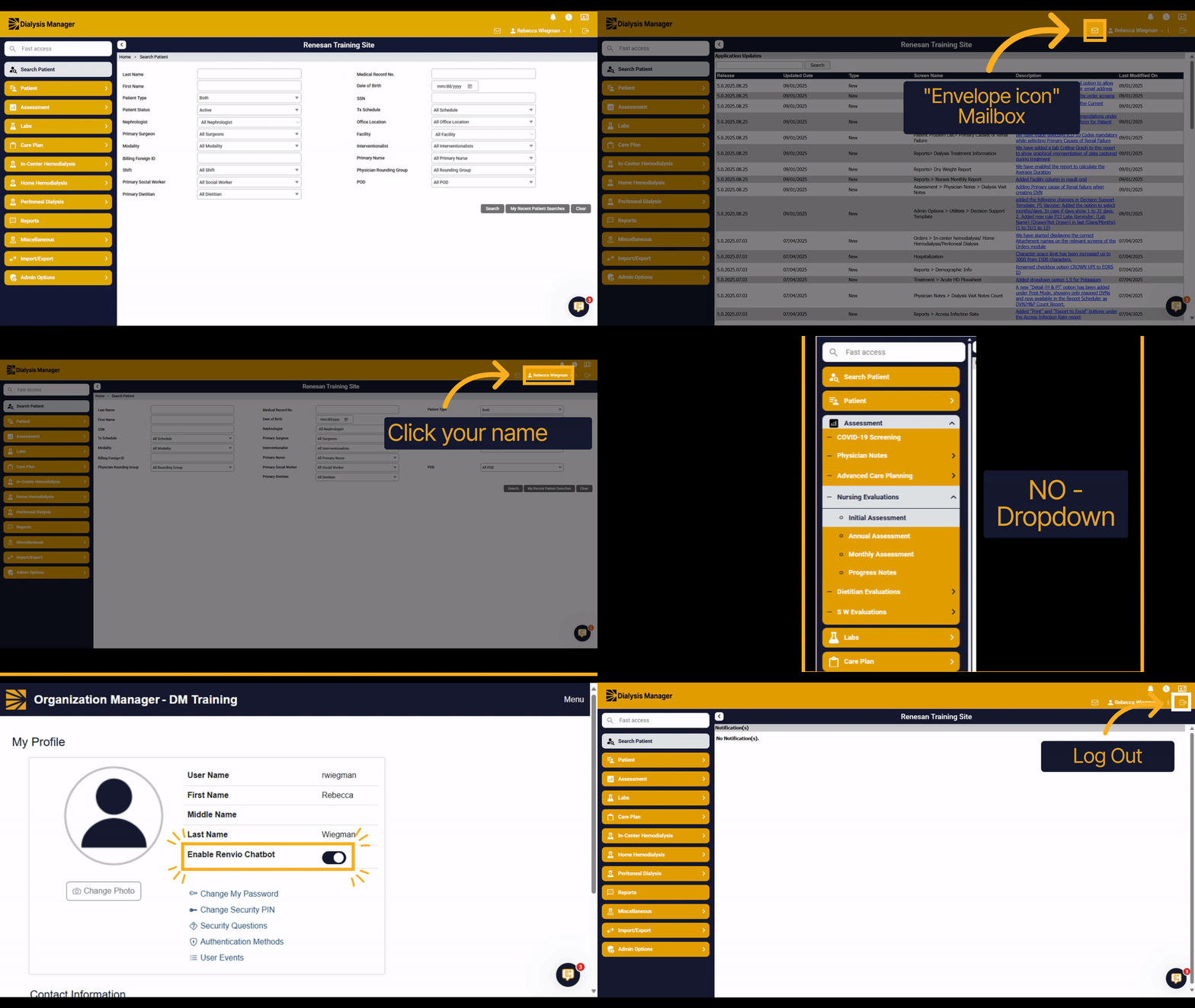
When clicking into the mailbox icon, it is set up very much like other email programs. Please note that this internal only is specific within Dialysis Manager. This is not associated with your personal or your facility email.
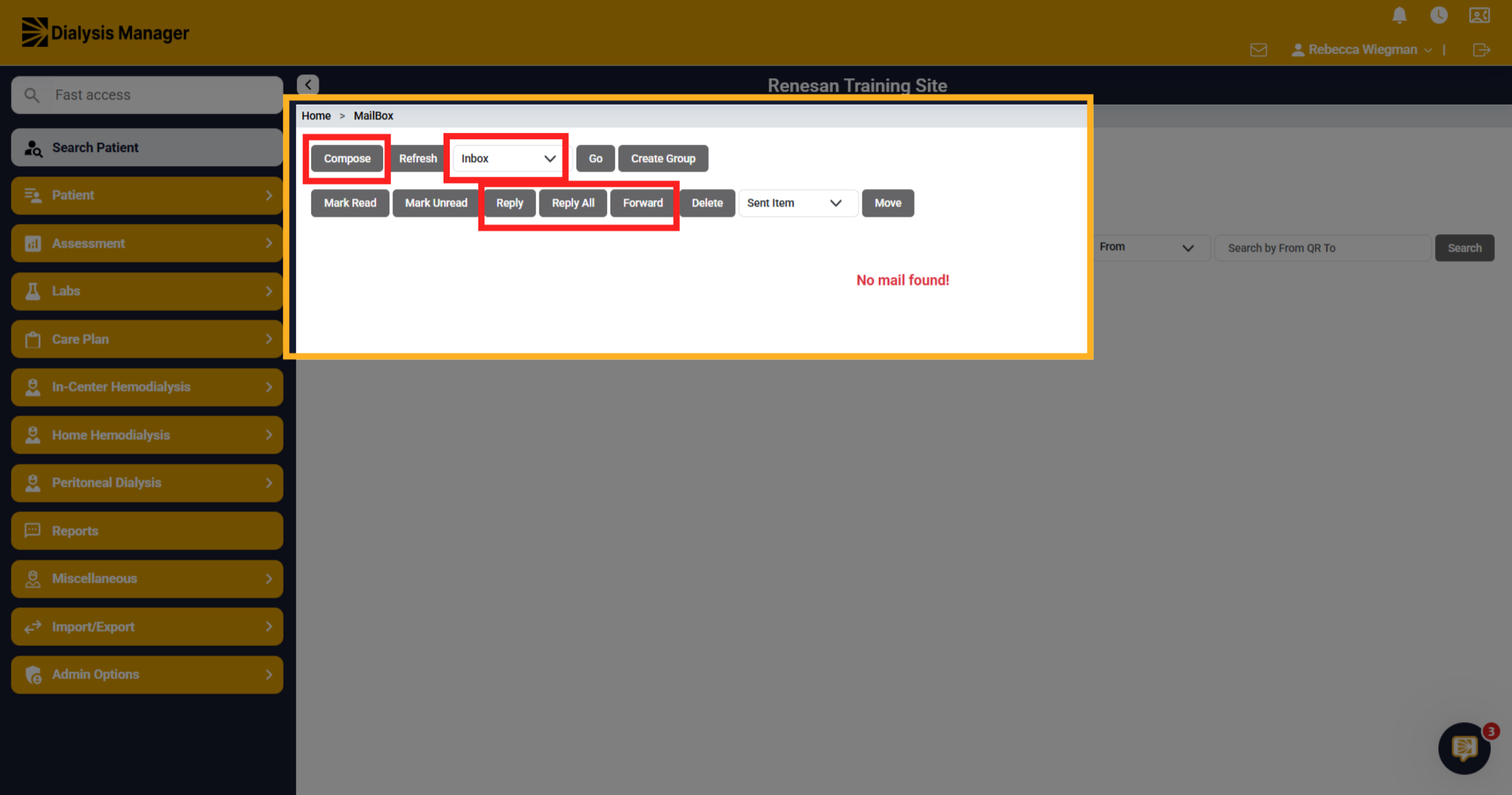
8. Inside Mailbox
You'll be able to view your inbox or sent messages. Reply or forward those specific emails and compose new emails.
9. Compose Mail
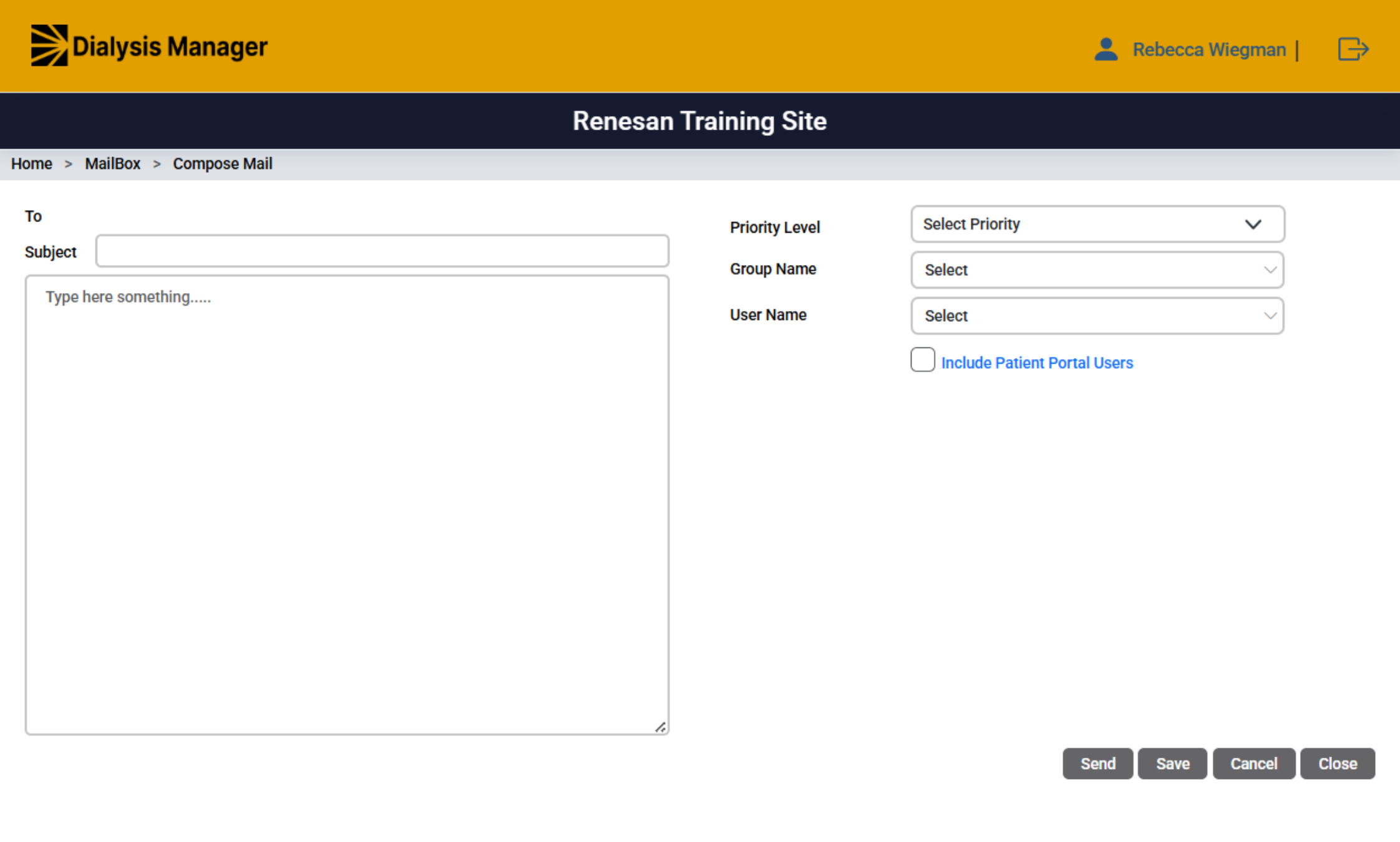
Inside the compose form it is set up just like an email. You can type in the subject and enter your text inside the body of the message. You can document notes from your patient encounter or your patient visit and email internally inside the organization.
10. Send to
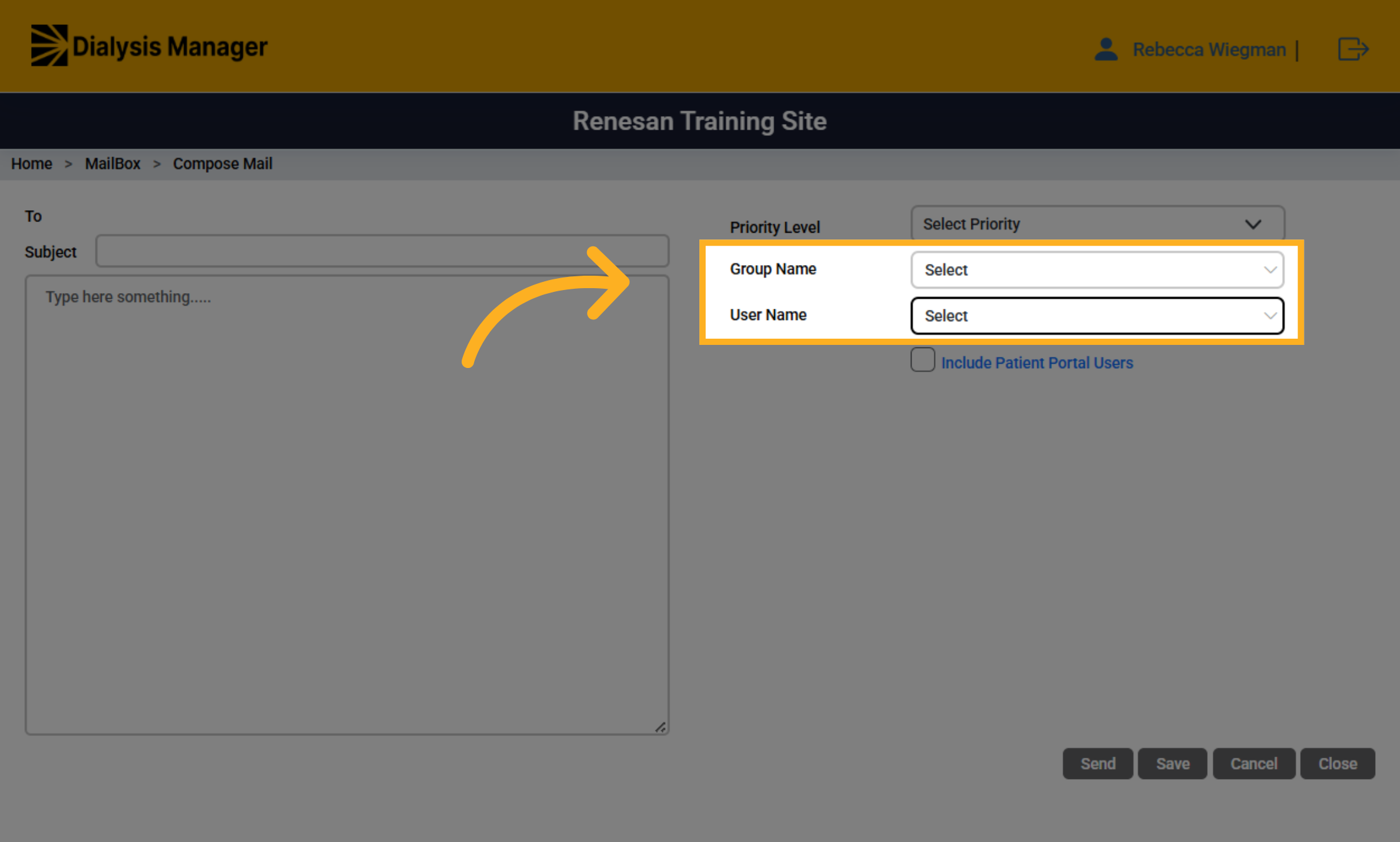
Select User Name or Group Name to select whom the message is being sent to. Please Note that your able to select multiple members to send the message to.
11. Priority Level
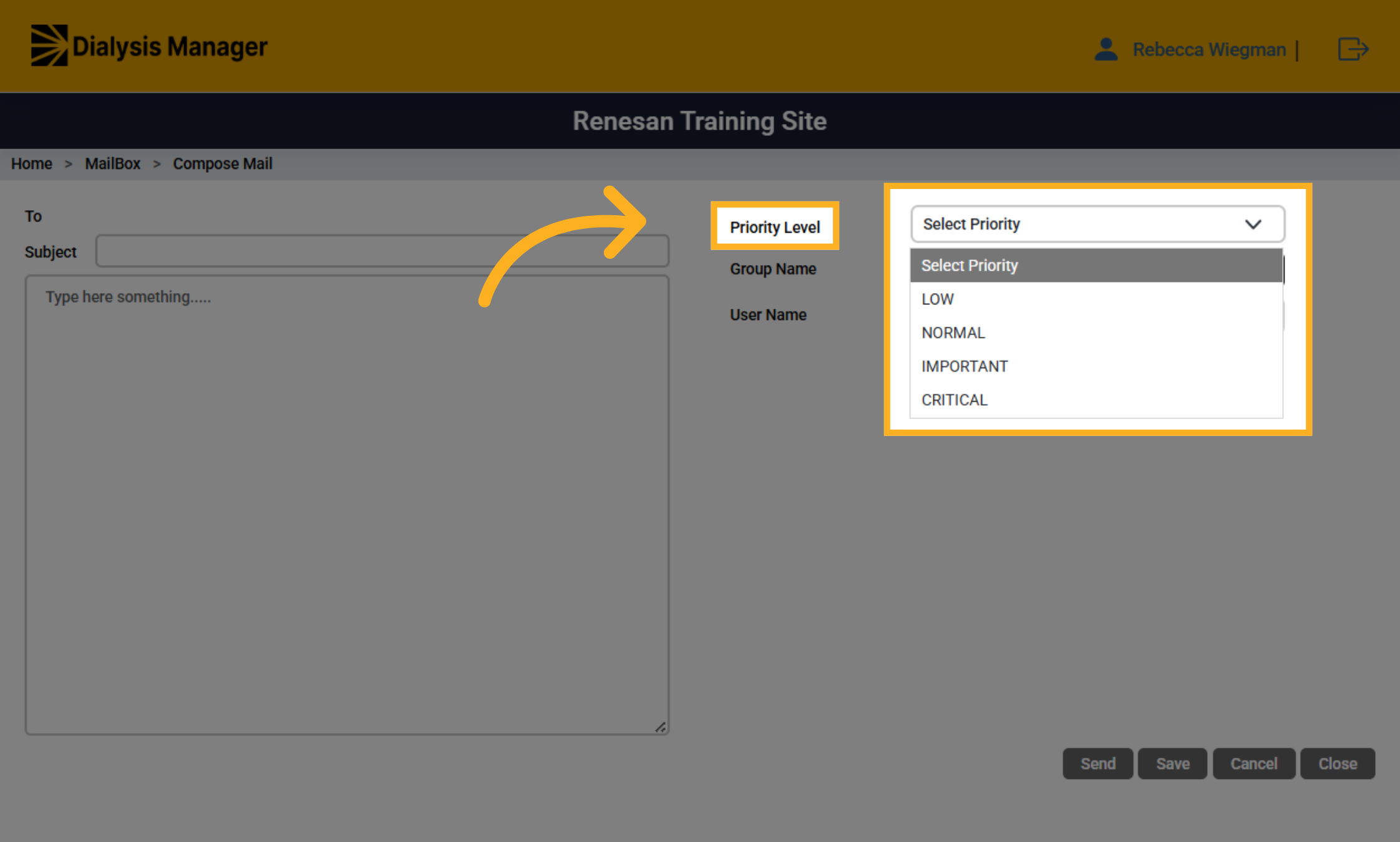
Your also able to select a Priority level if applicable.
12. Click send
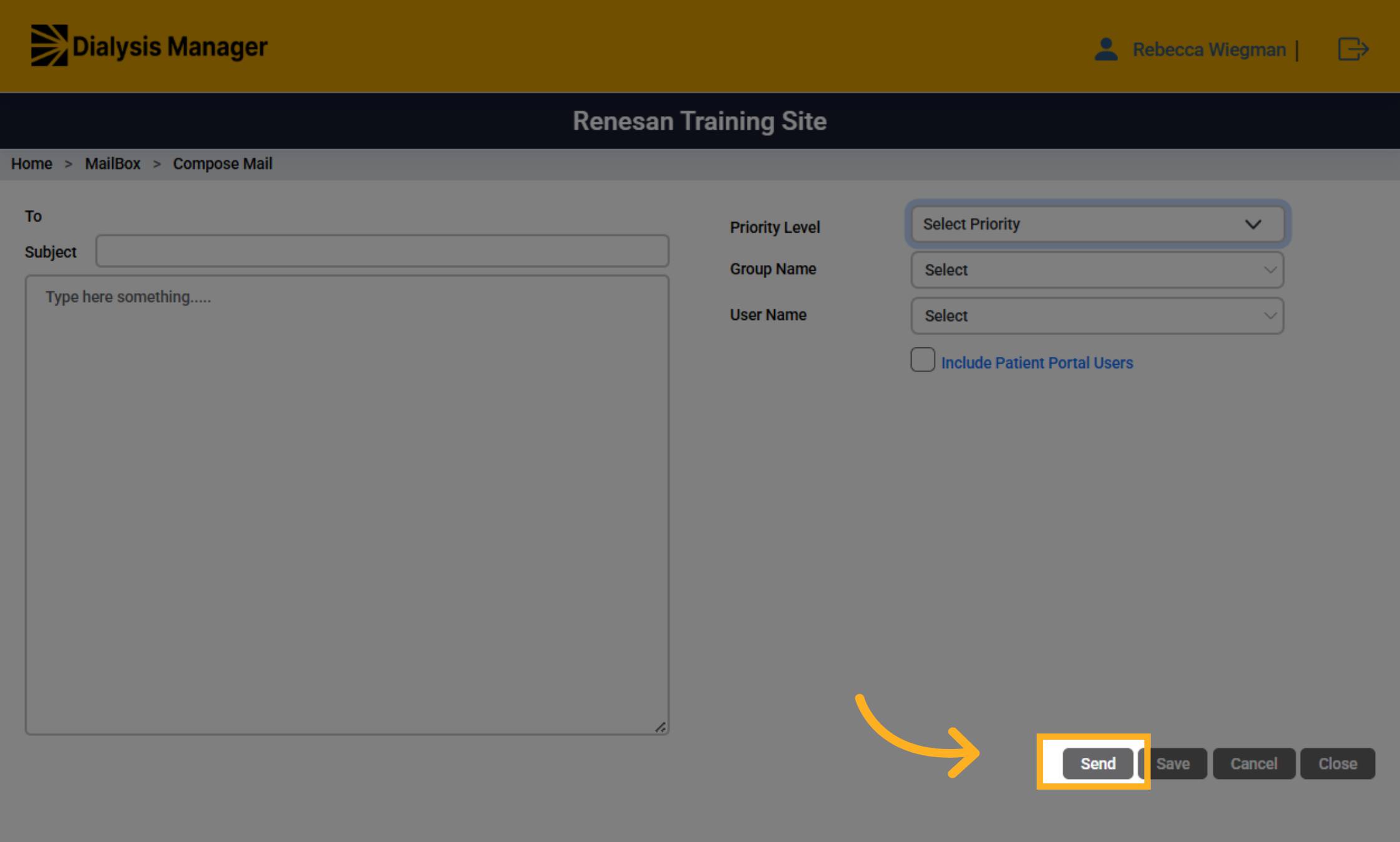
When finished click send and it'll bring you back to the main mailbox screen!
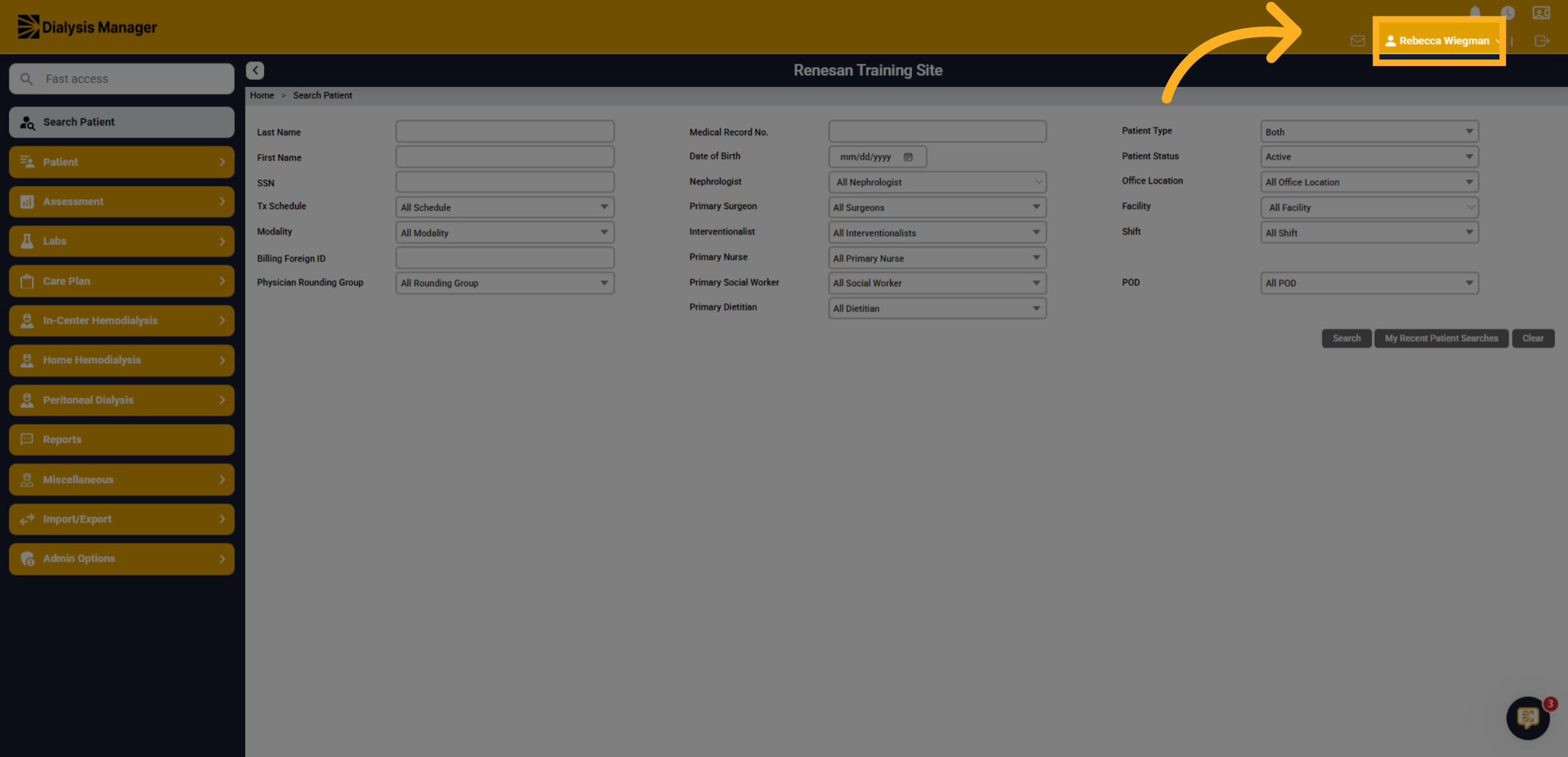
13. Click your name
Click "Your name" to open your user menu and access profile options.
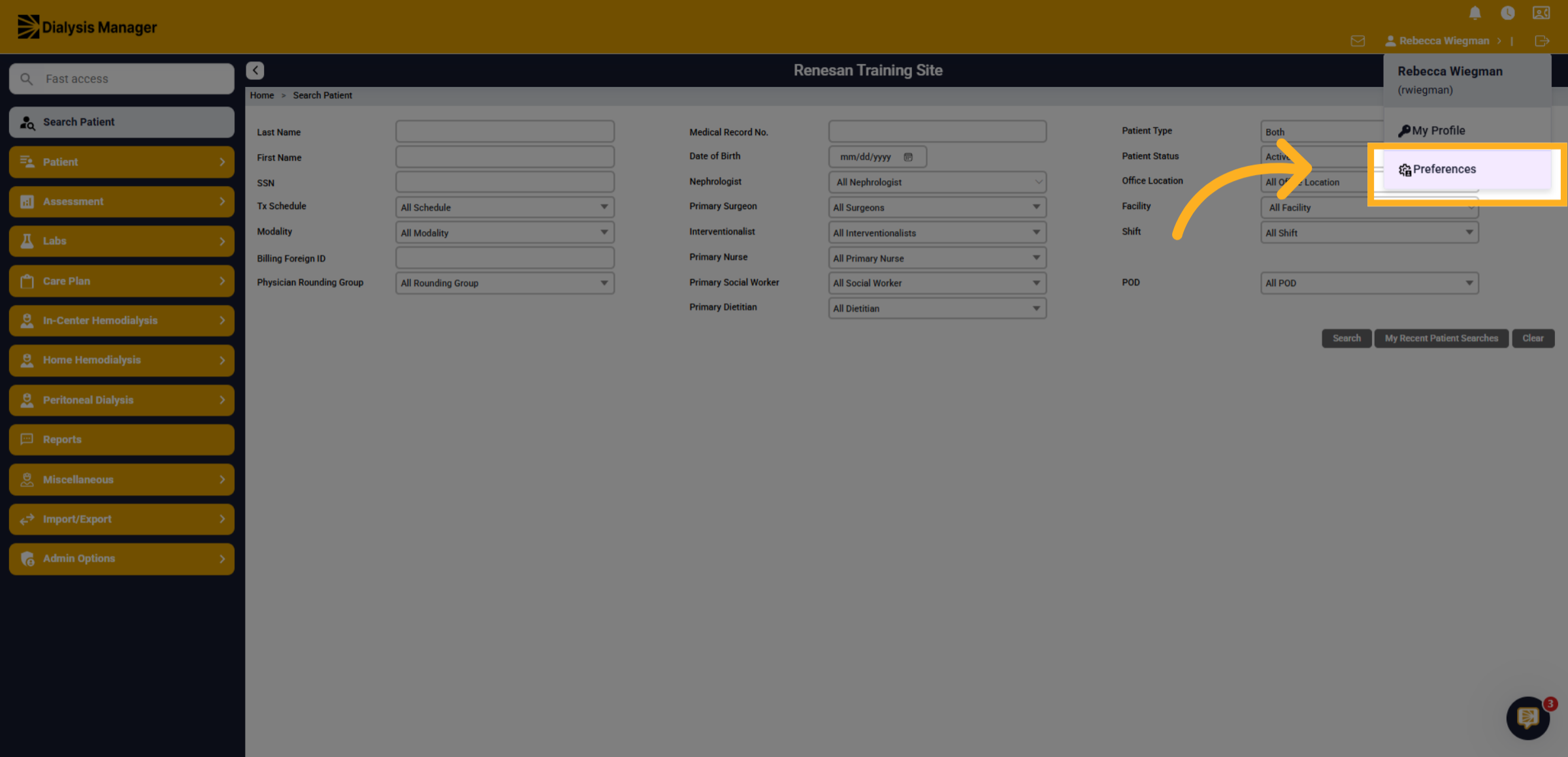
14. Click "Preferences"
Click "Preferences" to open your personal settings.
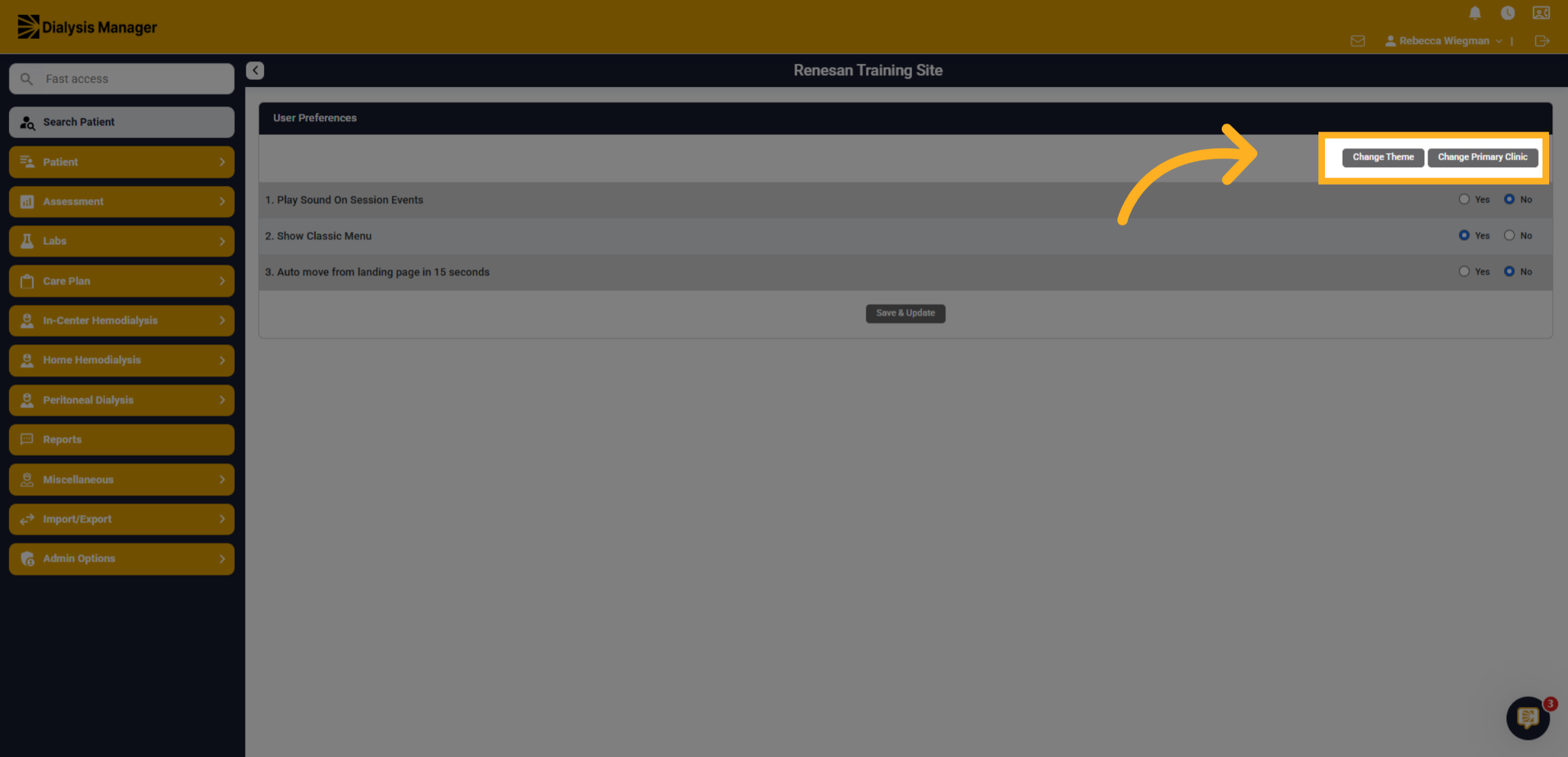
15. Click "Change Theme"
You'll be able to select "change theme" to update the color of your dialysis manager or select "change primary clinic" if your organization has multiple facilities and you would like to select one as your primary!
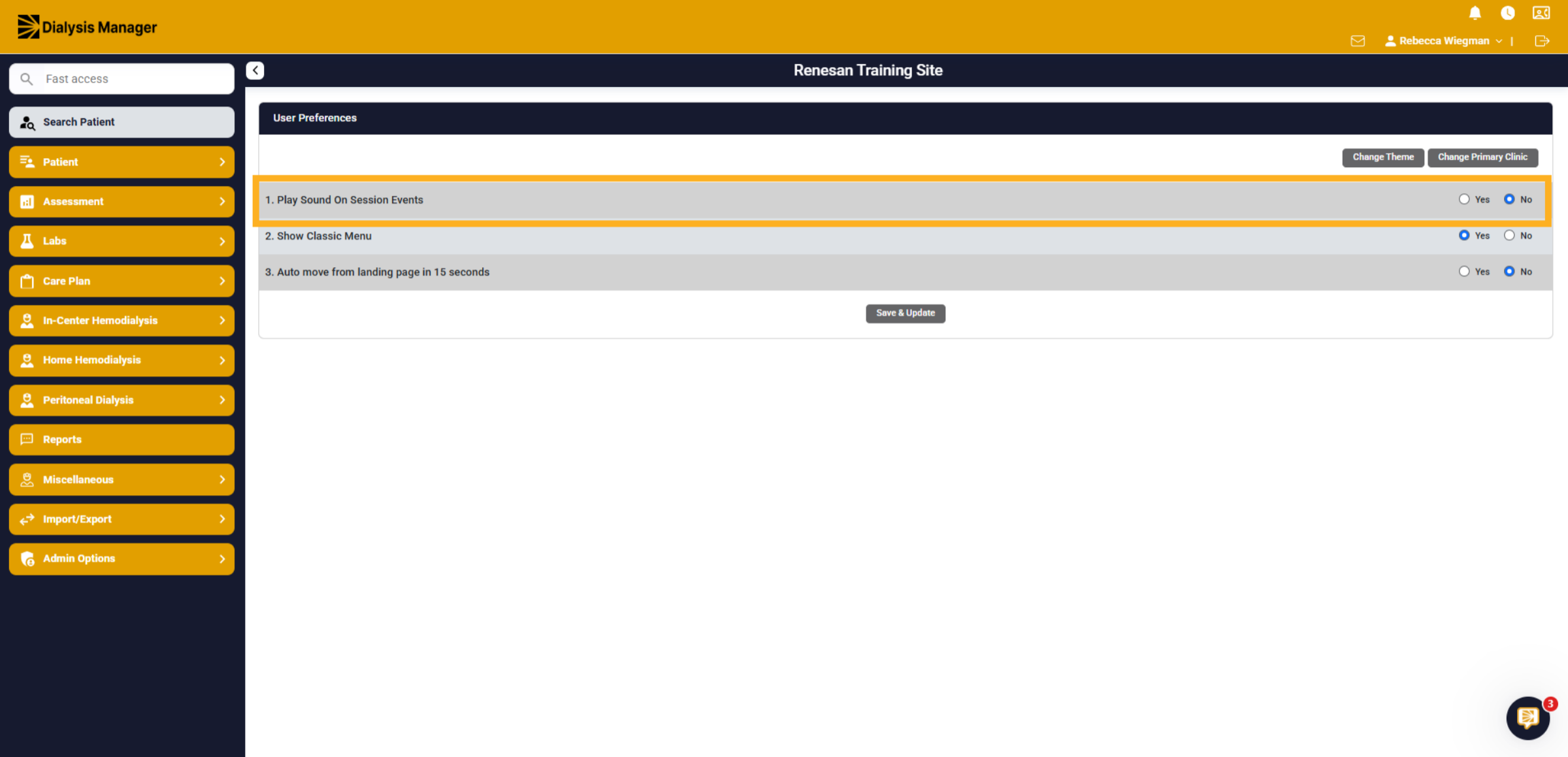
16. 1. Play Sound on Session Events
The sound on session is a voice that will alert you that your session is close to expiring. Select yes to turn on or select no to turn the voice alert off.
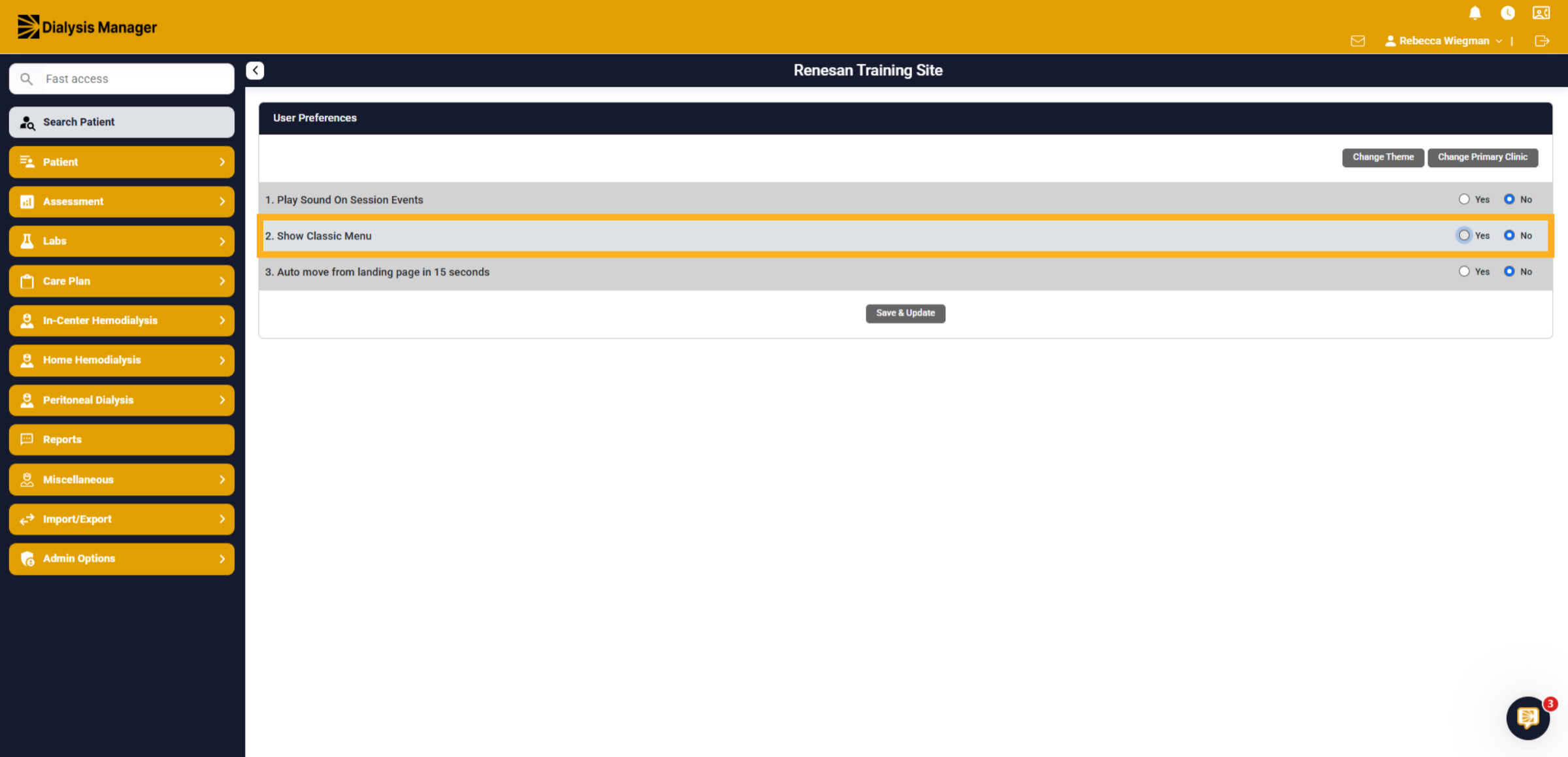
17. 2. Show Classic Menu
The Classic Menu is how your menu bar will display. Select Yes for the classic menu where the menu will fly out. Select No for the menu to drop down.
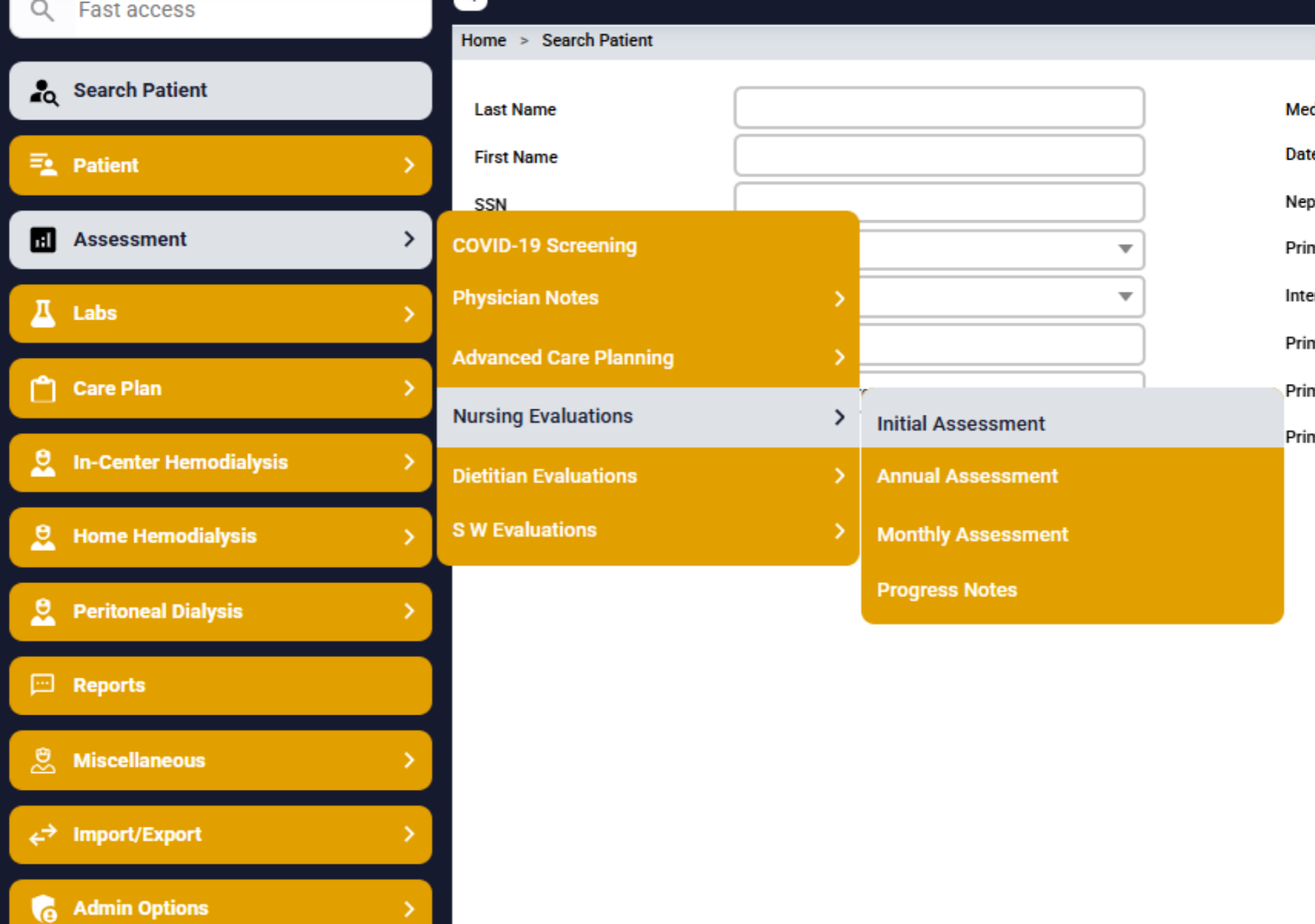
18. YES - Classic view of flyouts
This is the Classic view where the menu will flyout. Select Yes for this option.
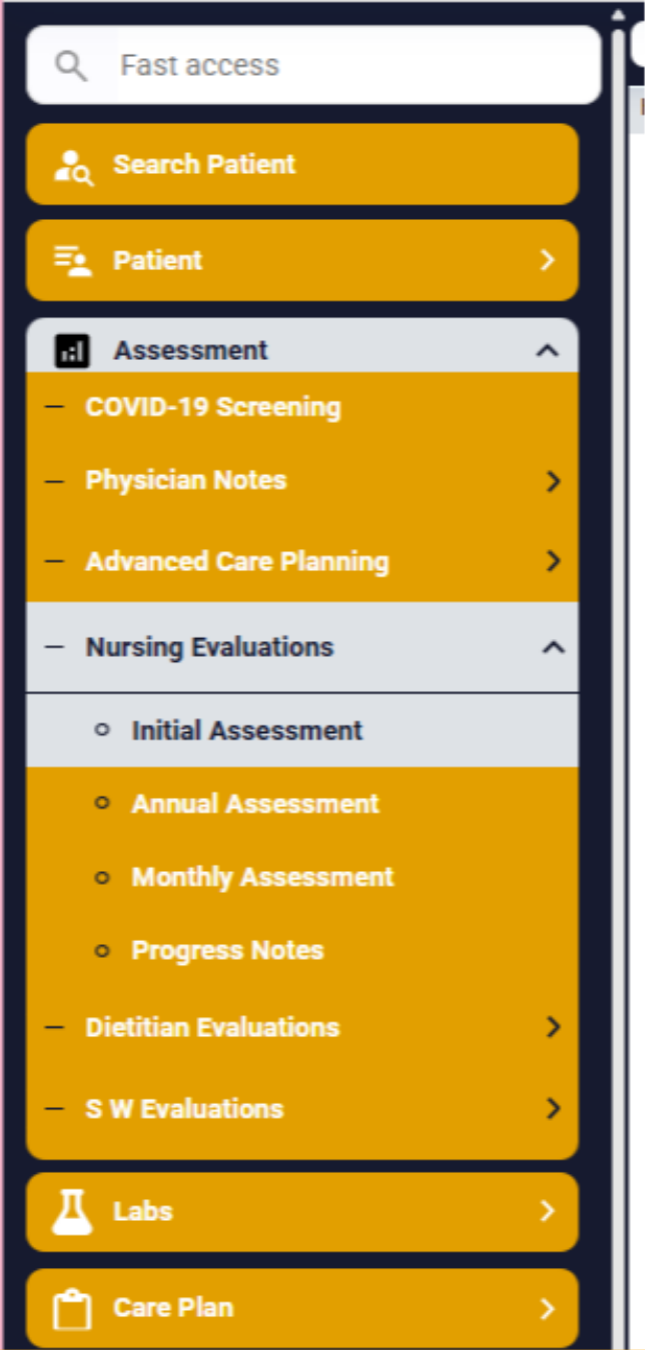
19. NO - Dropdown
Or Select No where your menu will dropdown.
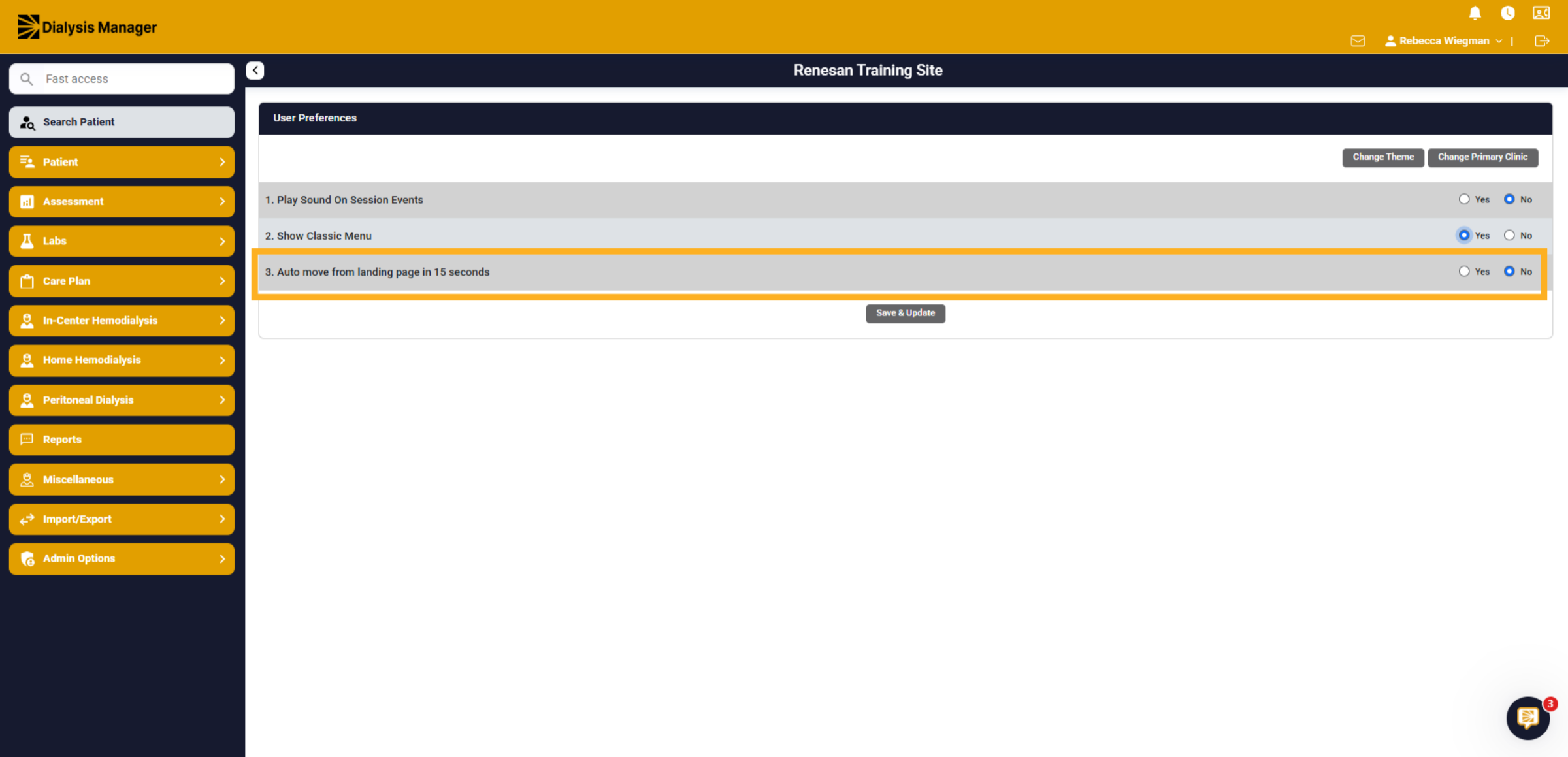
20. 3. Auto move from landing page in 15 seconds
When you log into the system, there's a landing page where you can, as an organization provide announcements. This setting allows you to automatically bypass that screen. Currently you need to hit continue, selecting yes will bypass that screen in 15 seconds.
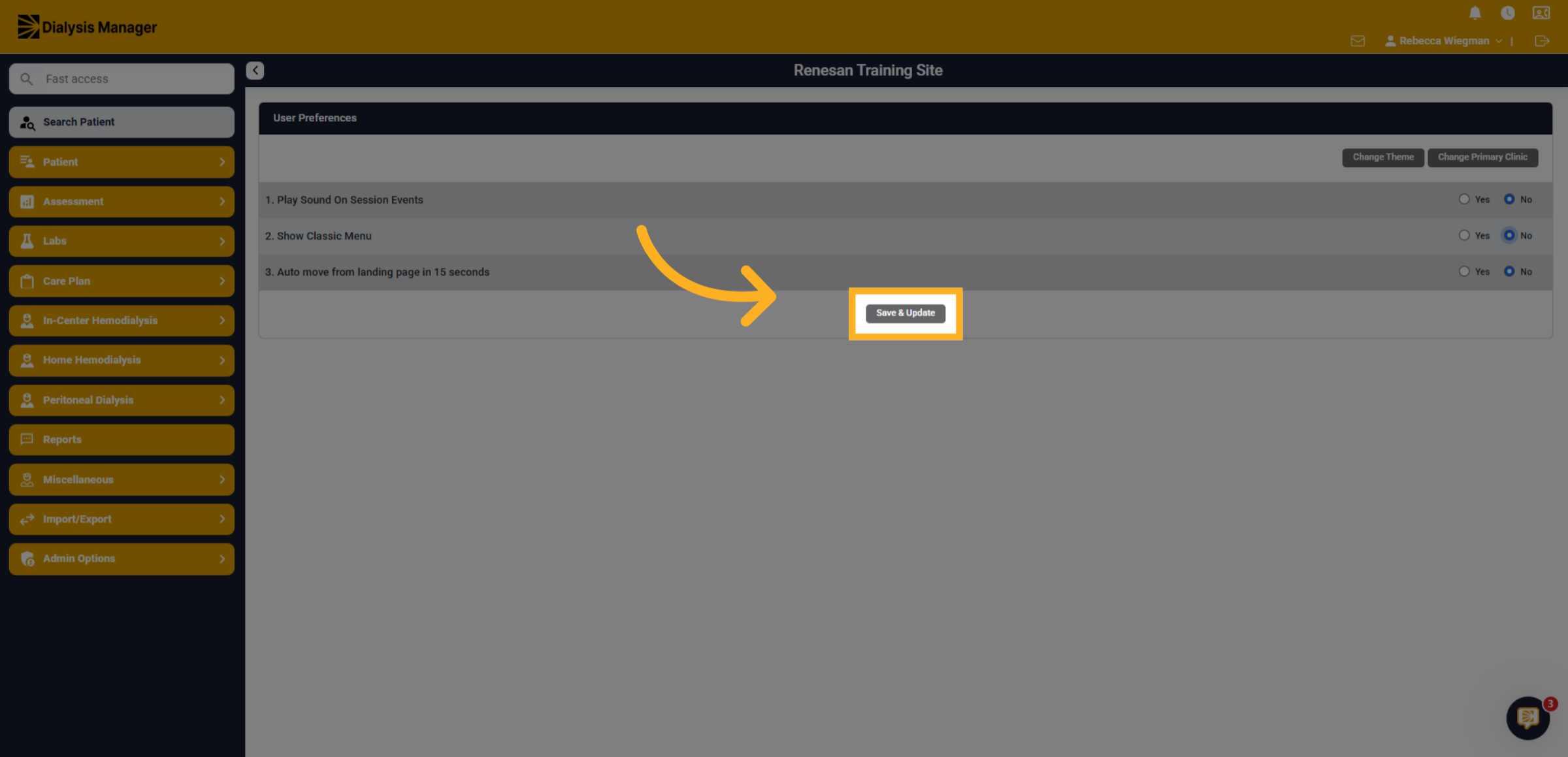
21. Click "Save & Update"
Click "Save & Update" to save all your preference changes.
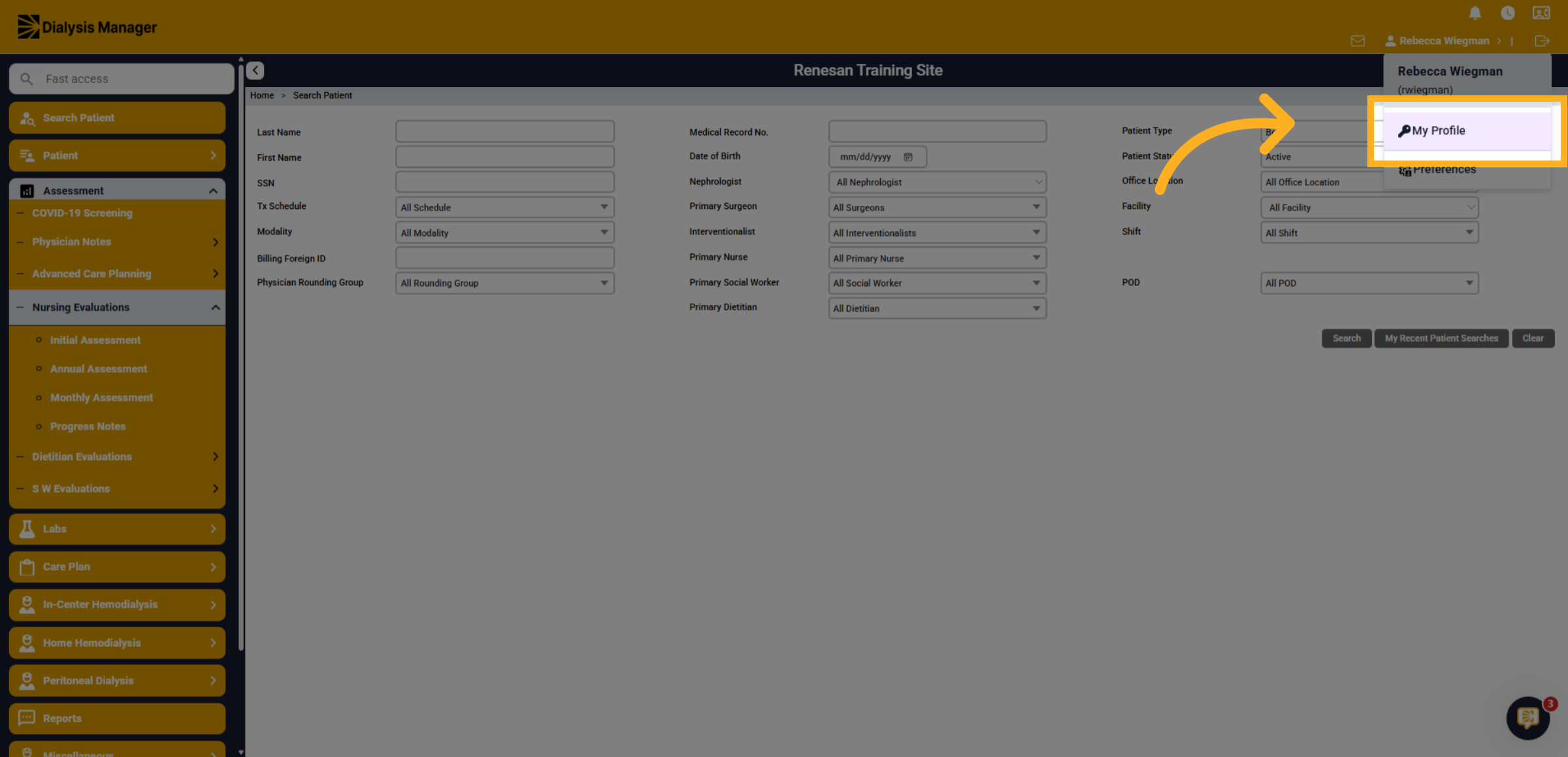
22. Click "My Profile"
When selecting My Profile, you'll be able to view and edit your personal information and account details.
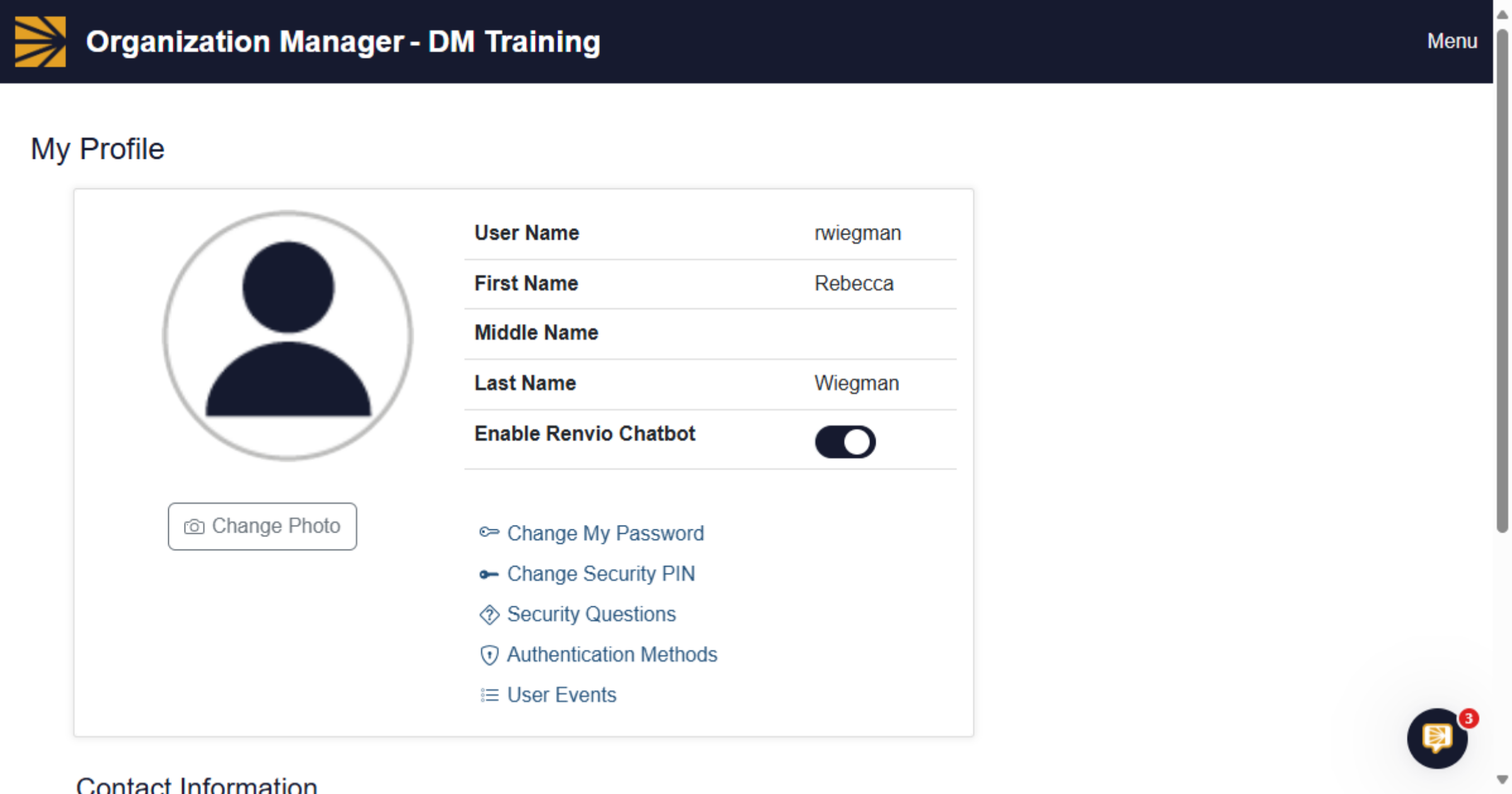
23. Switch to "My Profile"
You'll see your username and options to Change your Password, set or Change security PIN, add or update Security Questions and see the authentication methods set by your facility.
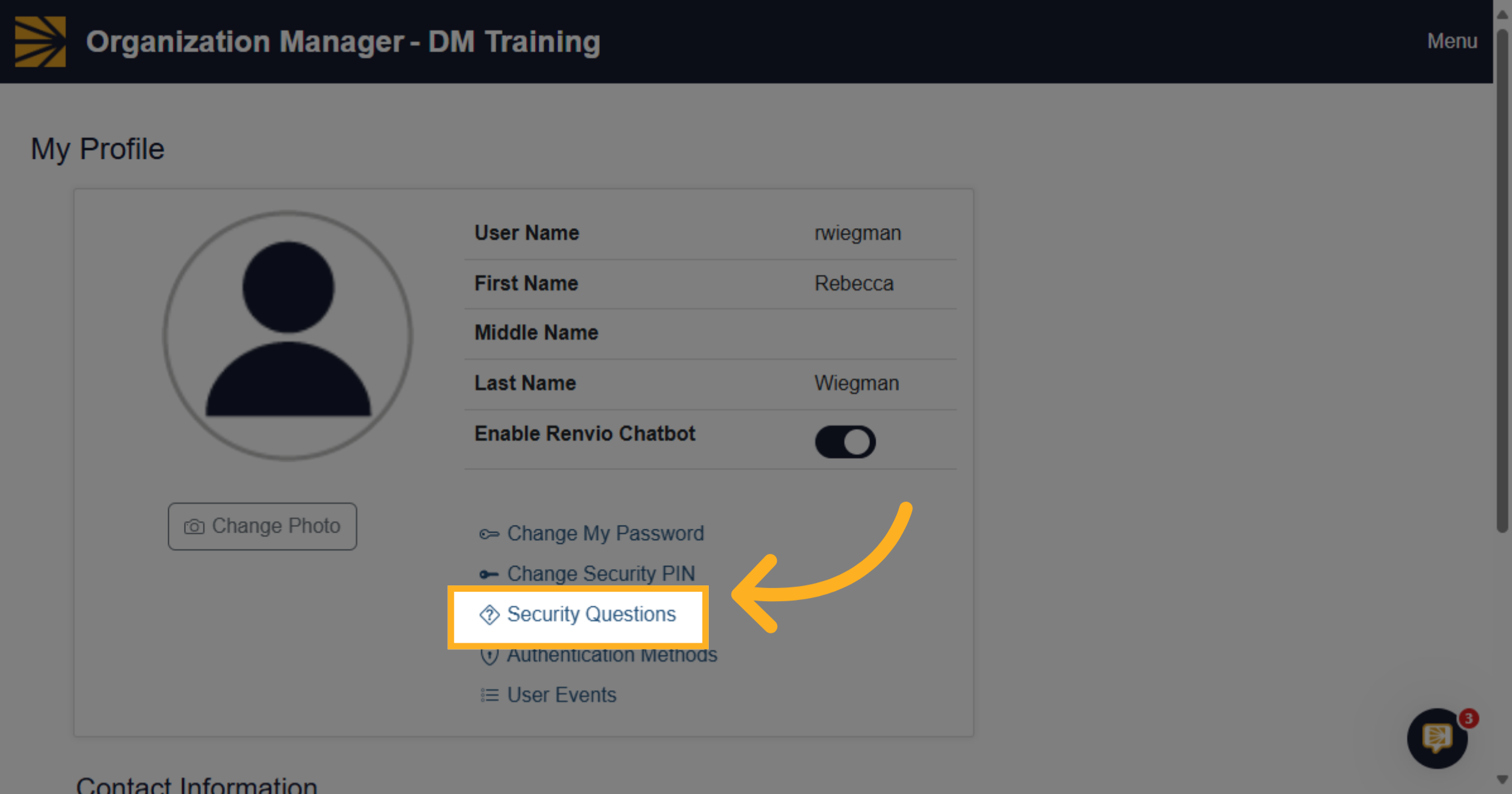
24. Security Questions
Please Note: if you are having issues logging into Dialysis Manager and call the support desk. They will use security questions to validate. If you don't remember your answers, we need to reach out to an administrator prior to assisting further.
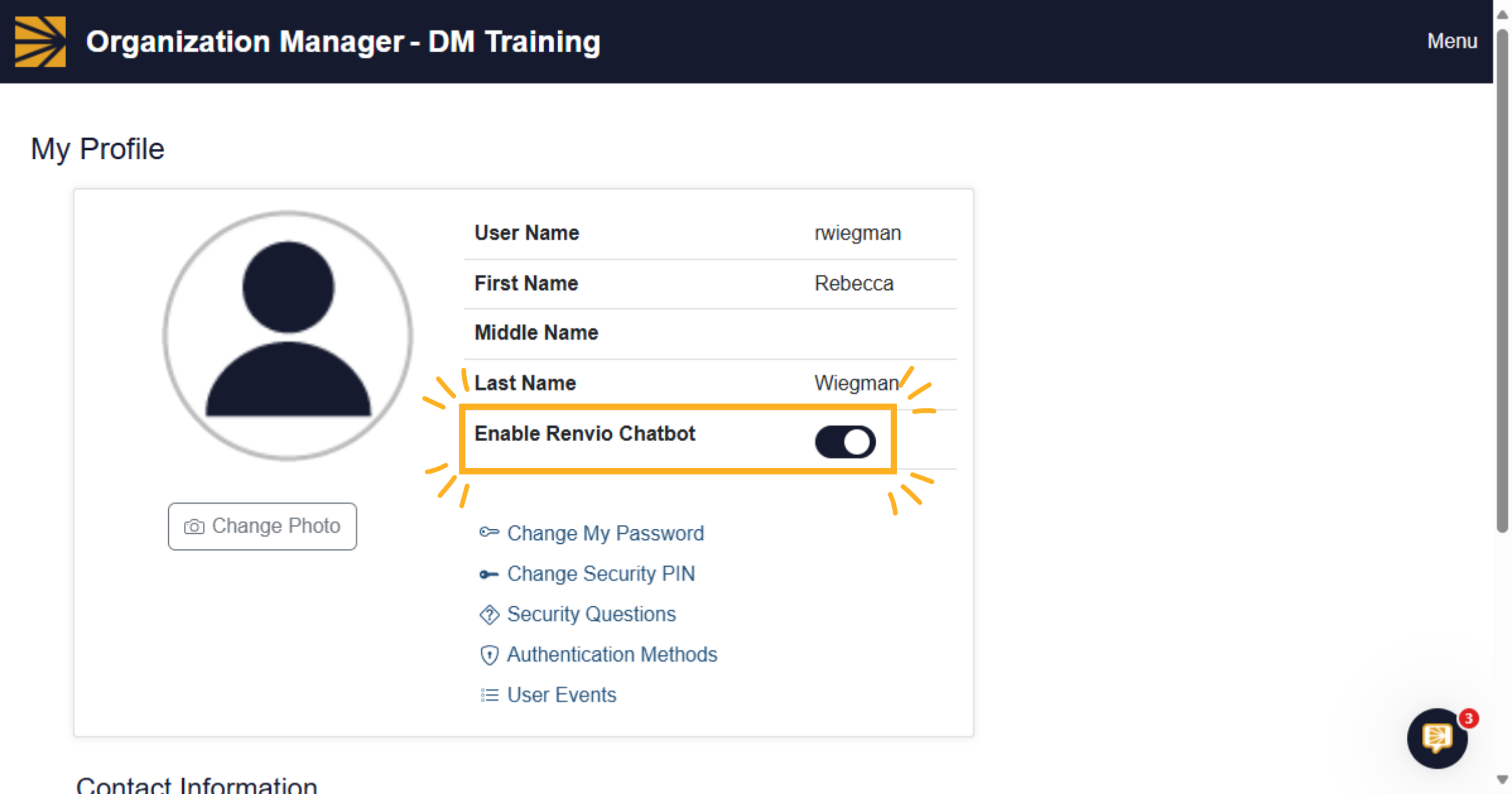
25. Enable Renvio Chatbot
This is our Chatbot! Your able to enable this functionality to be able to ask questions or search for QRGs.
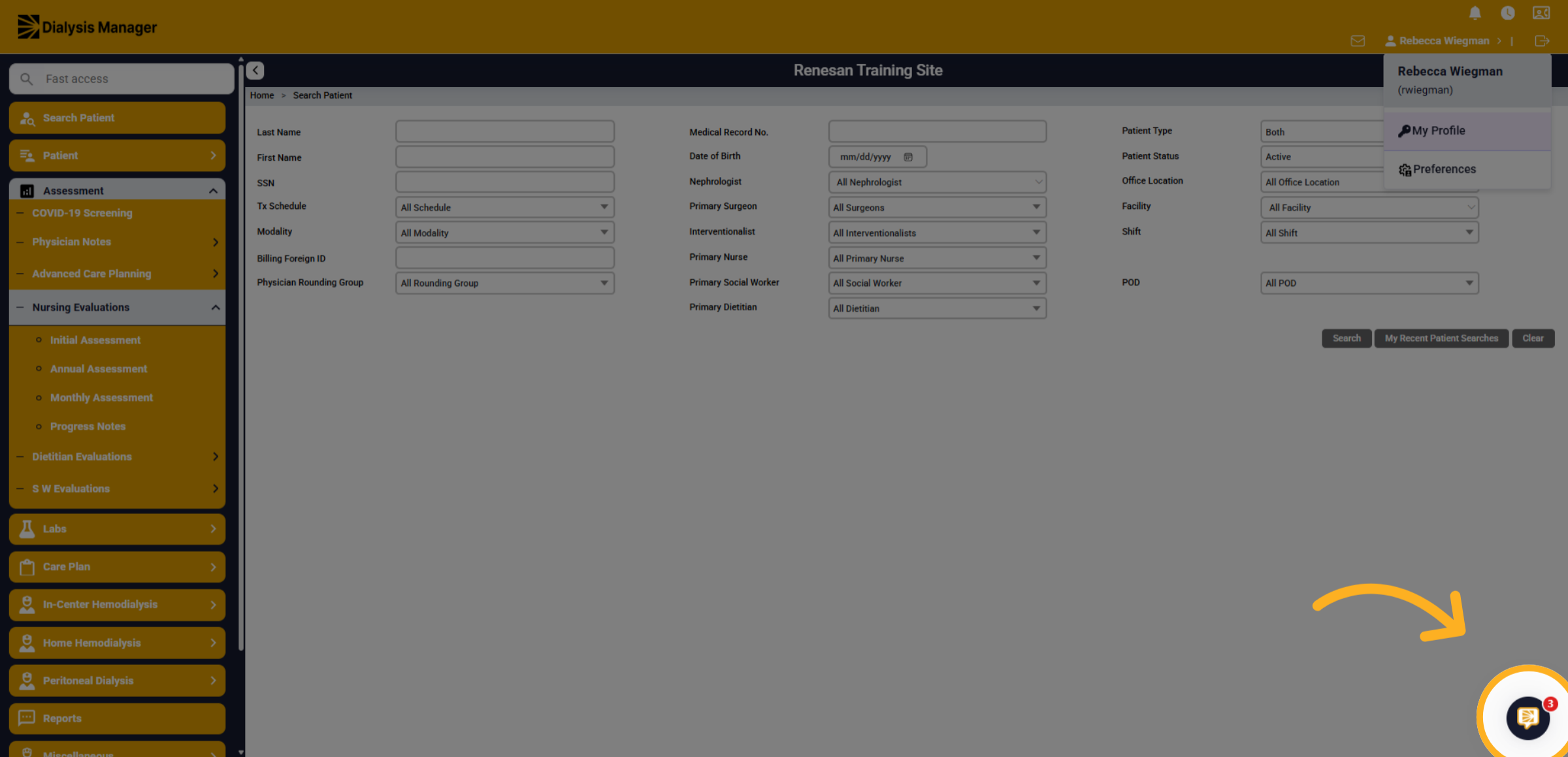
26. Chatbot icon
The Chatbot icon will follow you into different forms of Dialysis Manager.
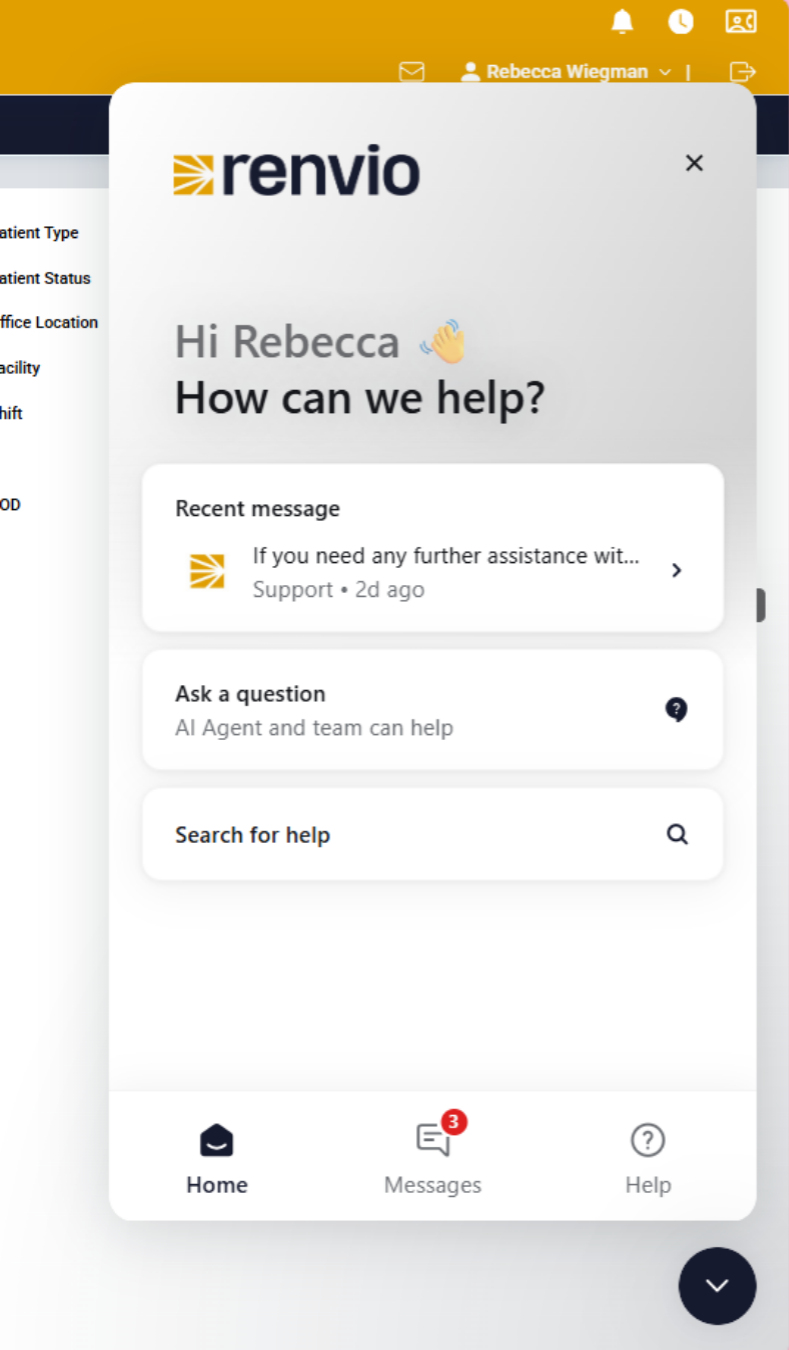
27. Ask a Question
You'll be able to select "Ask a question" and / or Search for Help.
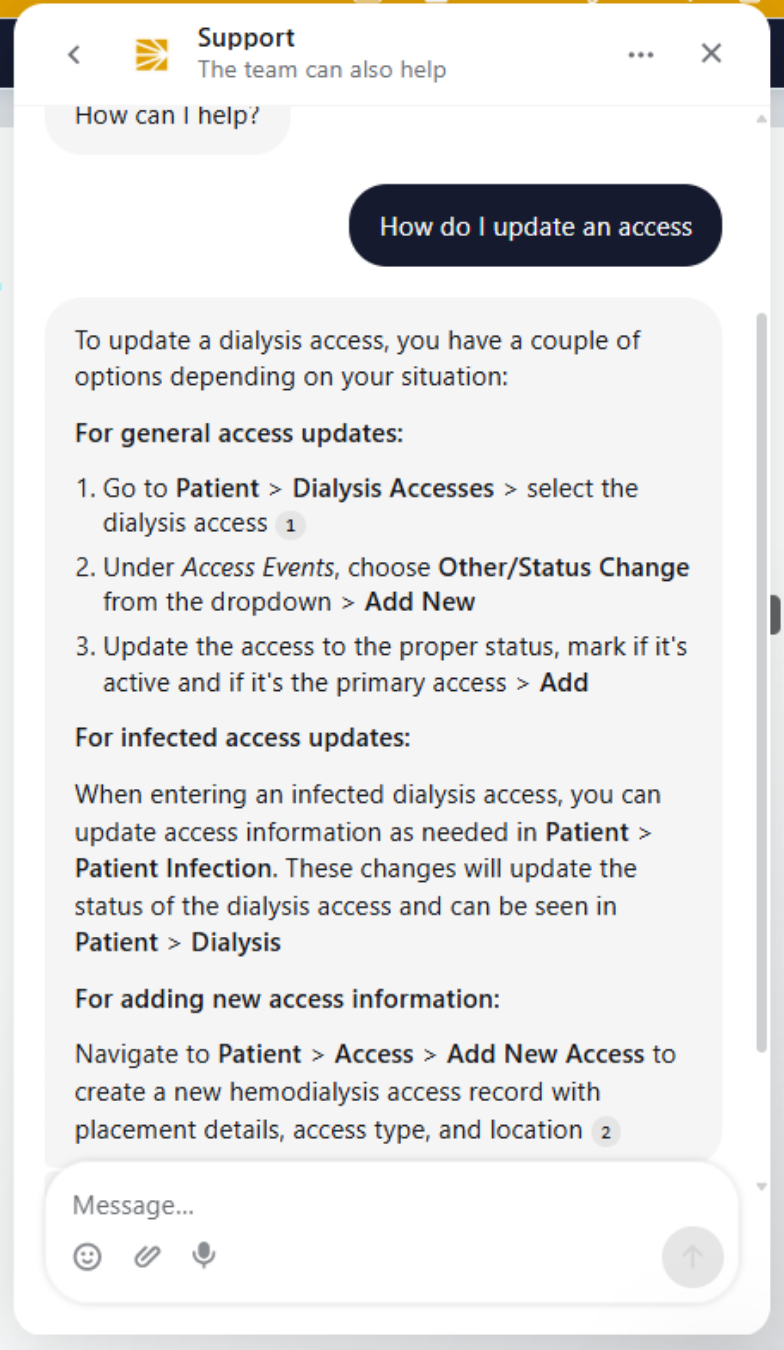
28. Asking a question
When entering your question such as "How do I update an Access" it'll inform you the steps to take!
29. Search for help
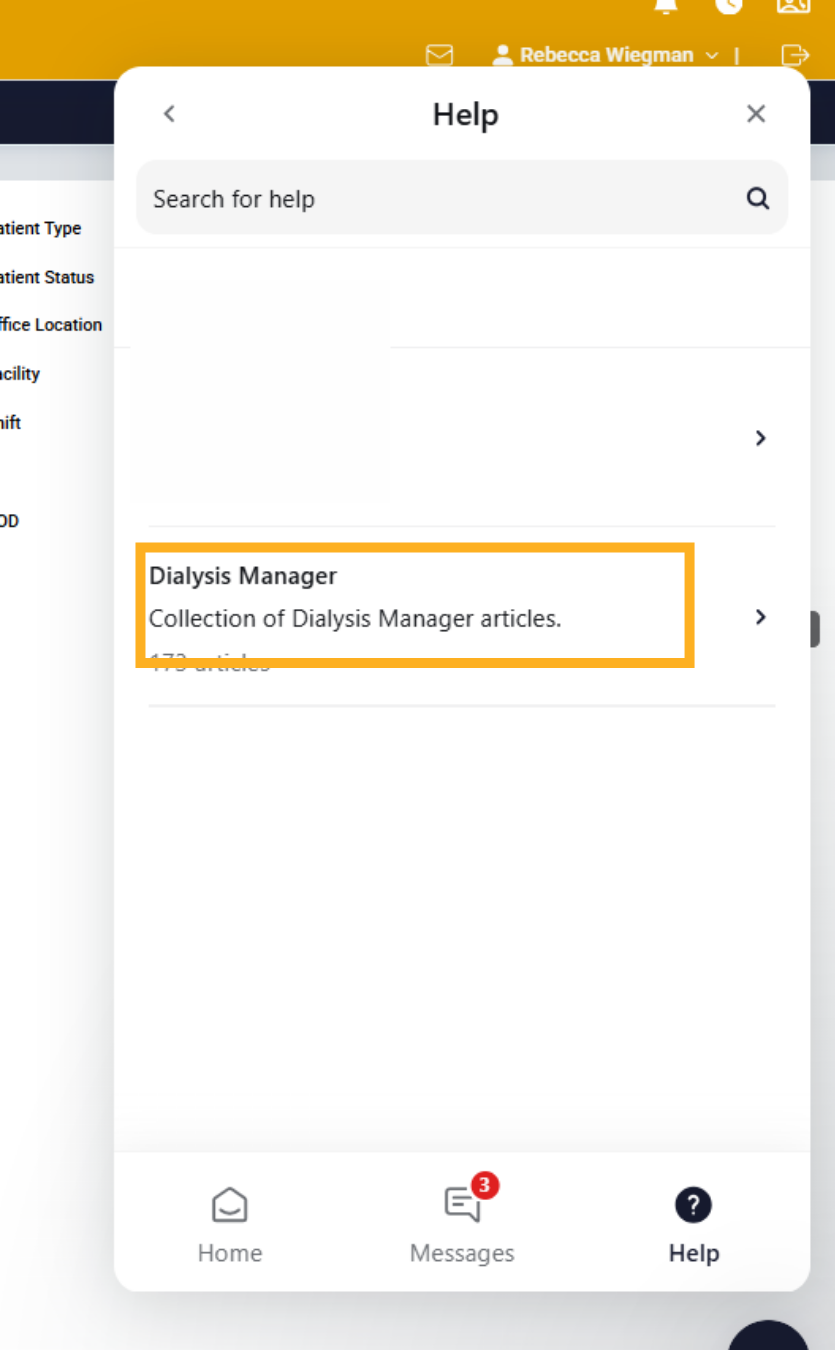
When selecting Search for help, you'll be able to select Dialysis Manager and open a list of QRGs and training videos!
30. Log Out
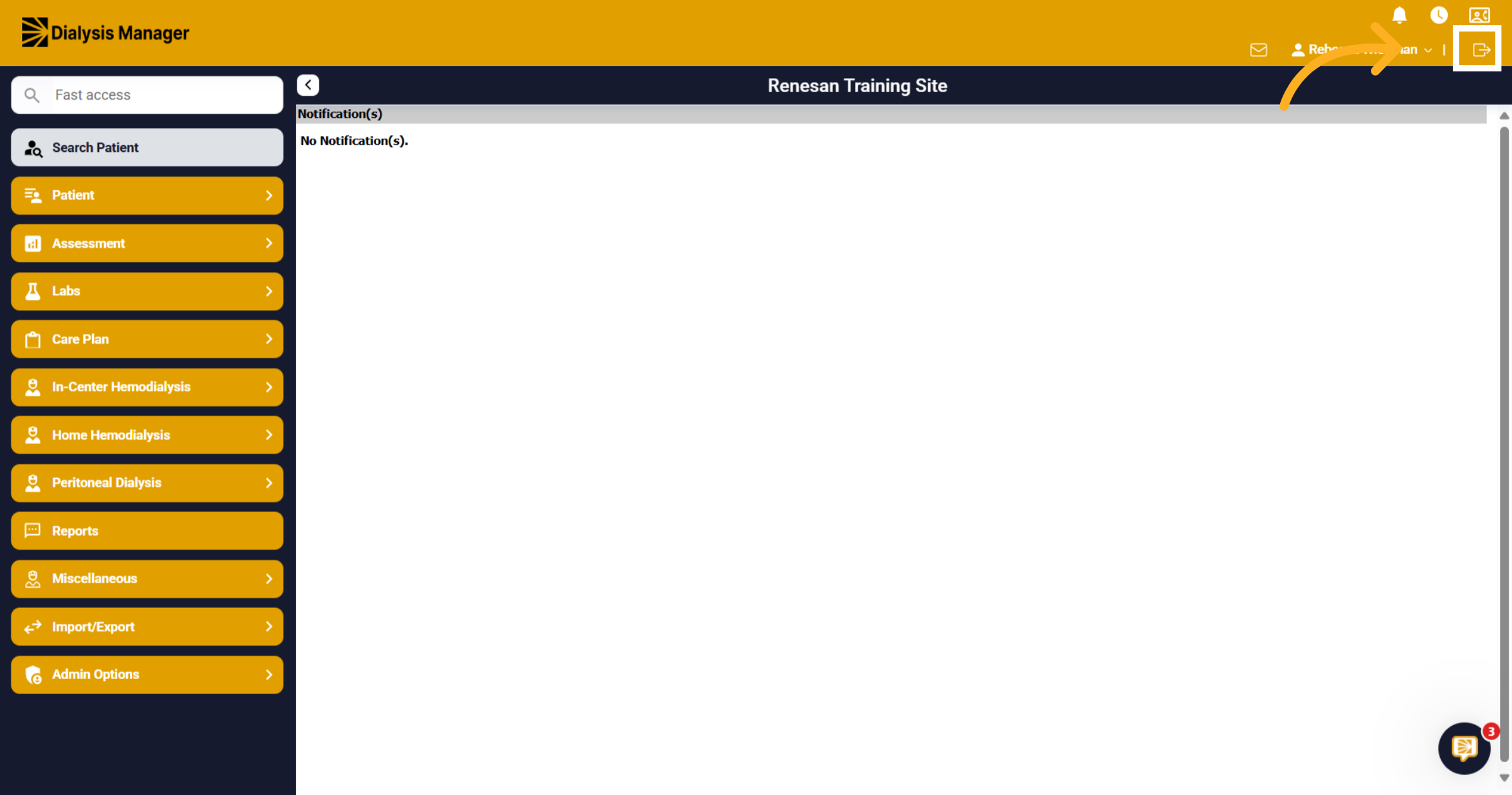
This is the log out icon which is located at the top right corner of your Dialysis Manager Screen! This icon will log you out of the system.
Please add a description