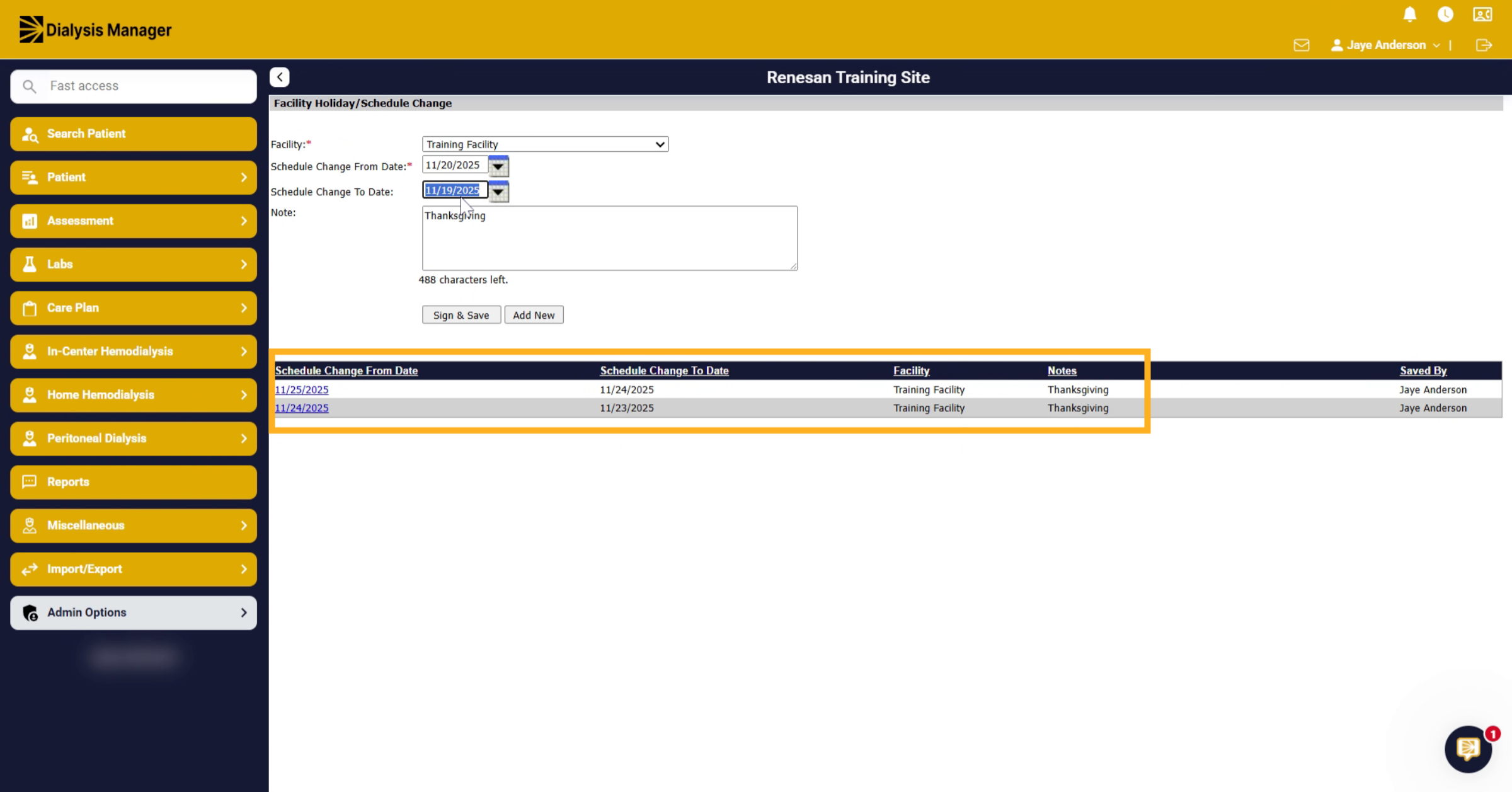
Reschedule Facility Holidays and Schedule Changes in Dialysis Manager.
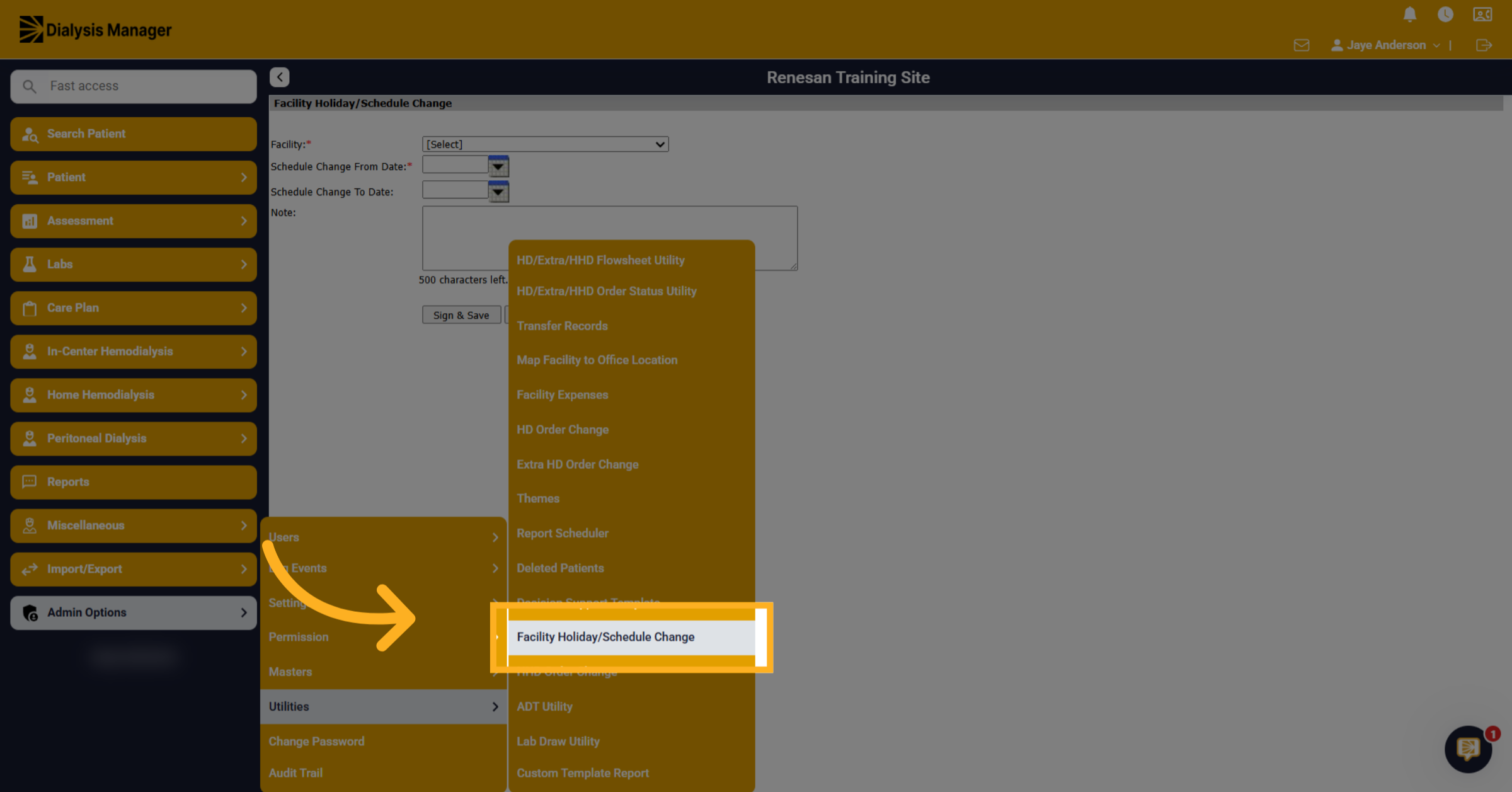
1. Select Facility Holiday/Schedule Change
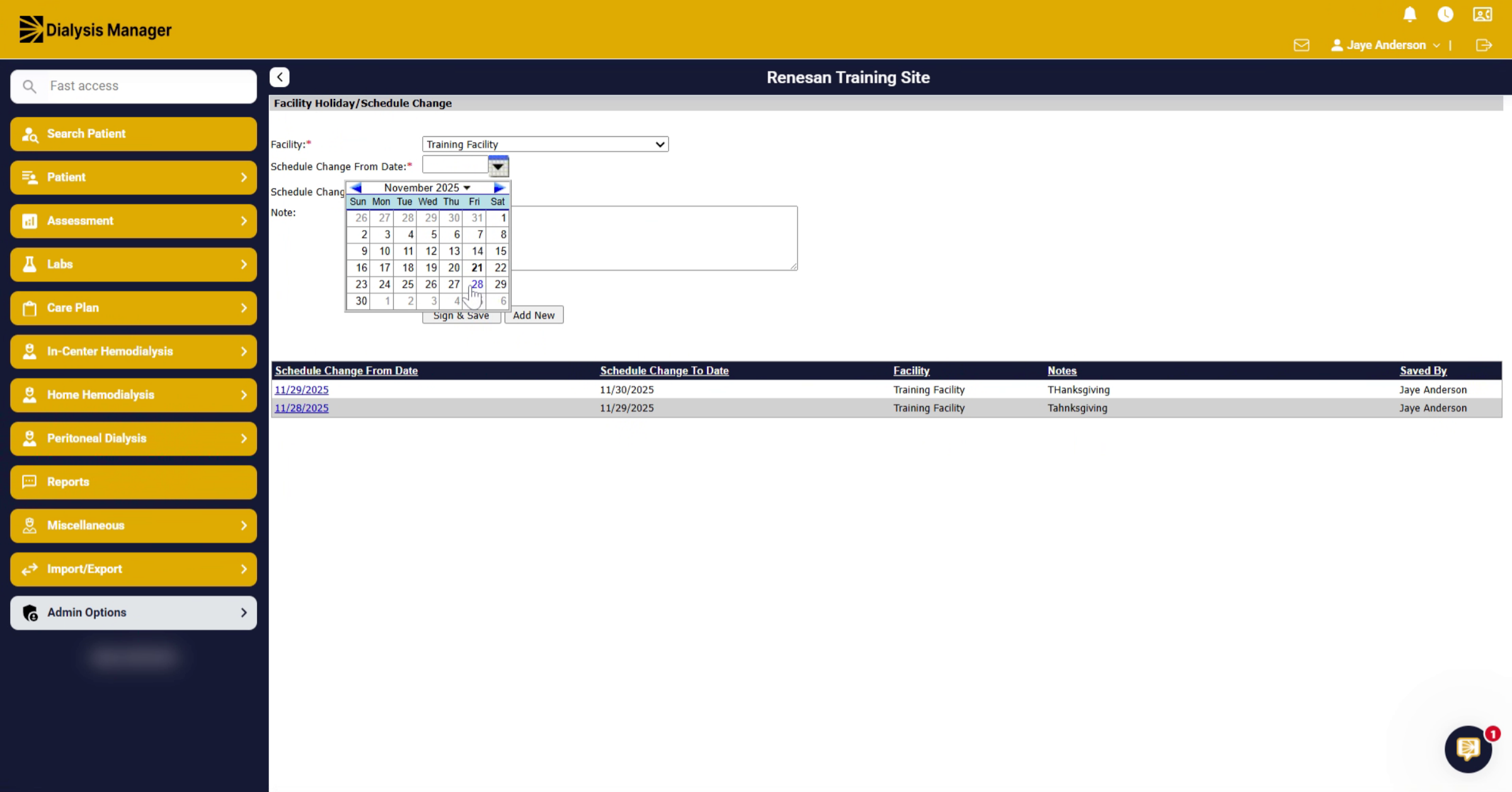
Click the Admin Options menu to access administrative settings and tools. Click Utilities, then Facility Holiday/Schedule Change to begin modifying facility schedules.
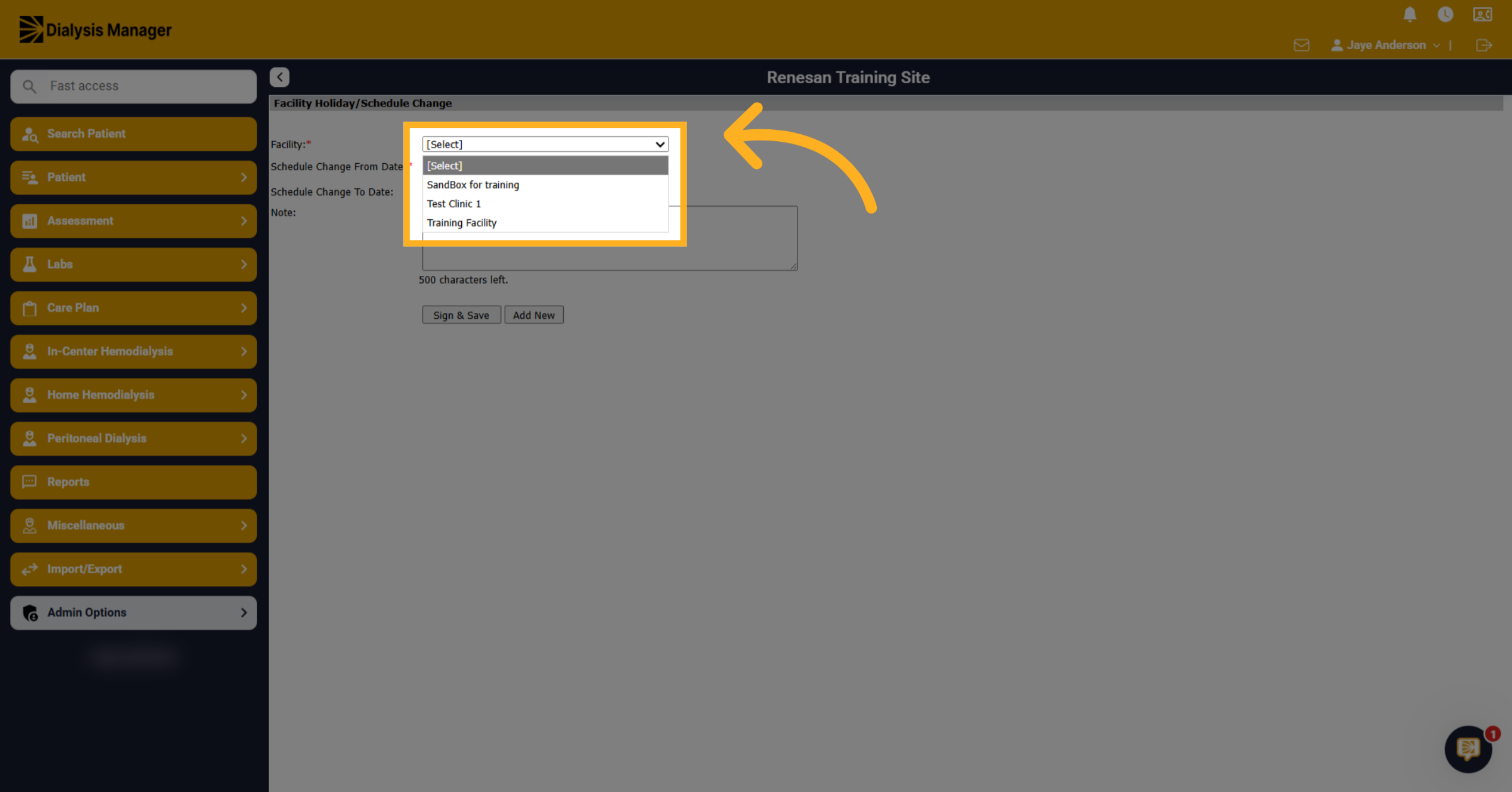
2. Choose Facility From List
Select the facility you want to reschedule from the available options.
3. Prioritize Changing Dates From Farthest Out
You want to make sure you change the dates for the reschedule from the farthest date out first.
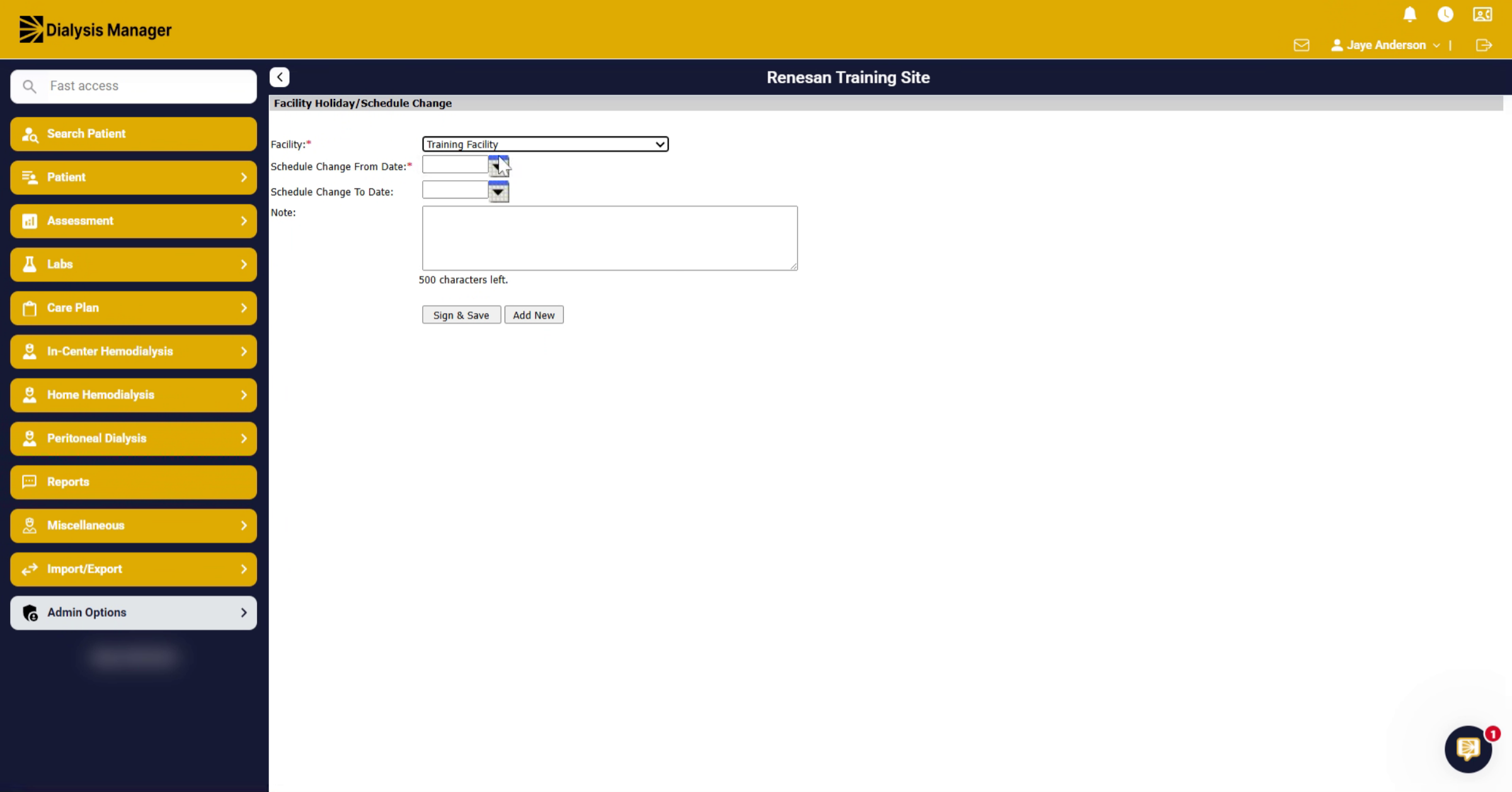
4. Start Rescheduling With Monday
For example, if you're moving days prior to or before the holiday you will want to start with Monday.
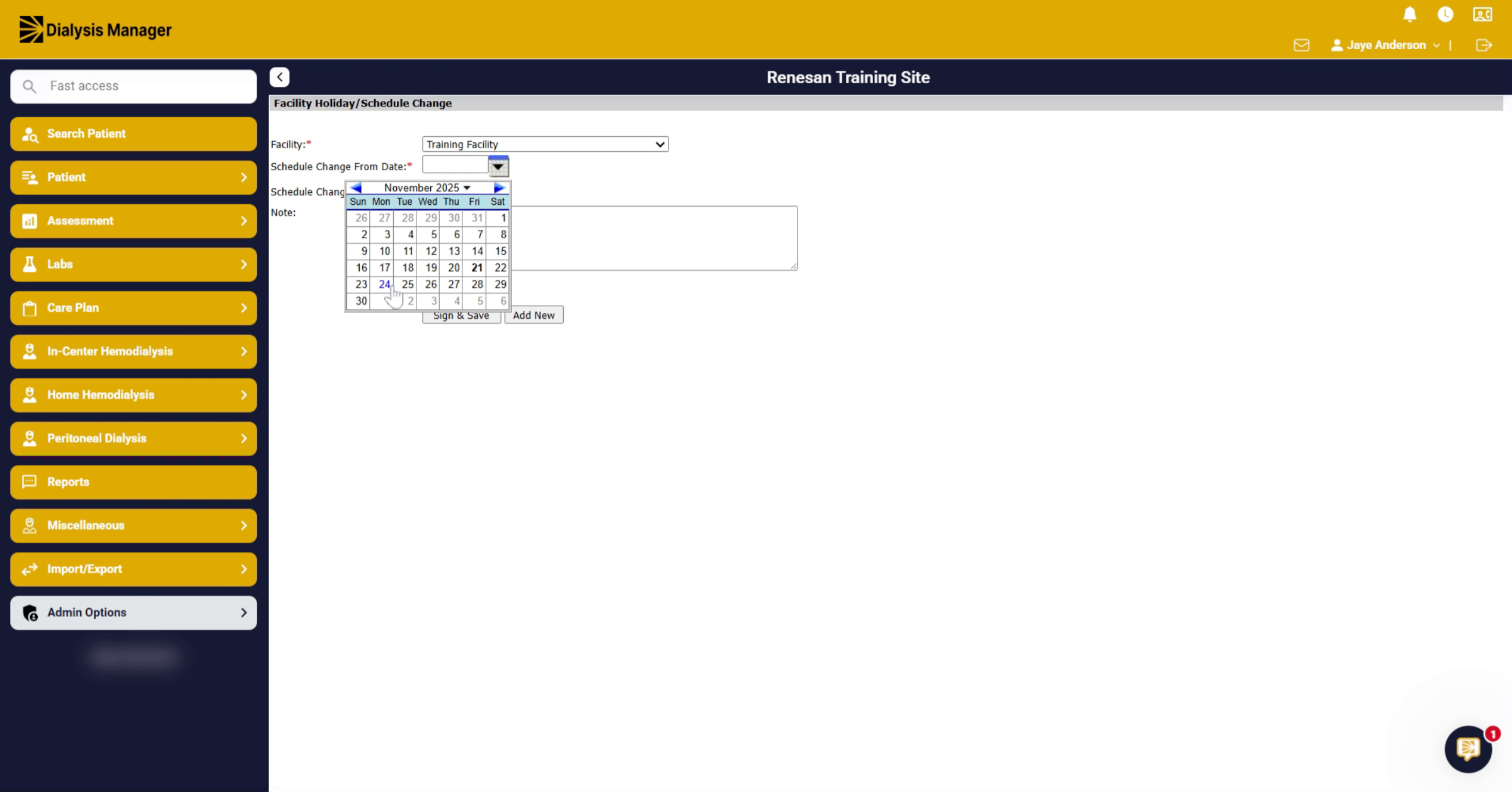
5. Move Date To Sunday
And move it to Sunday.
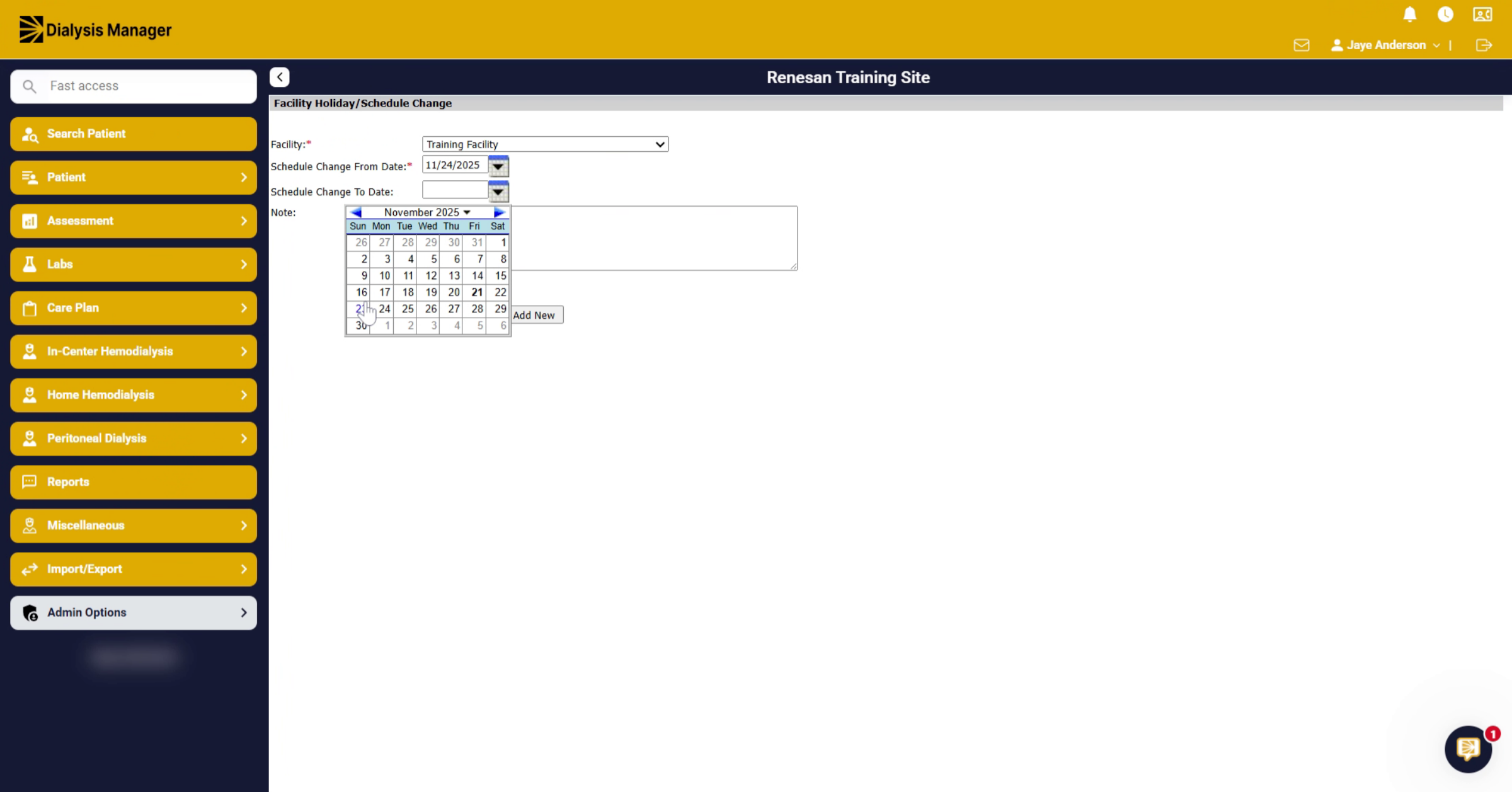
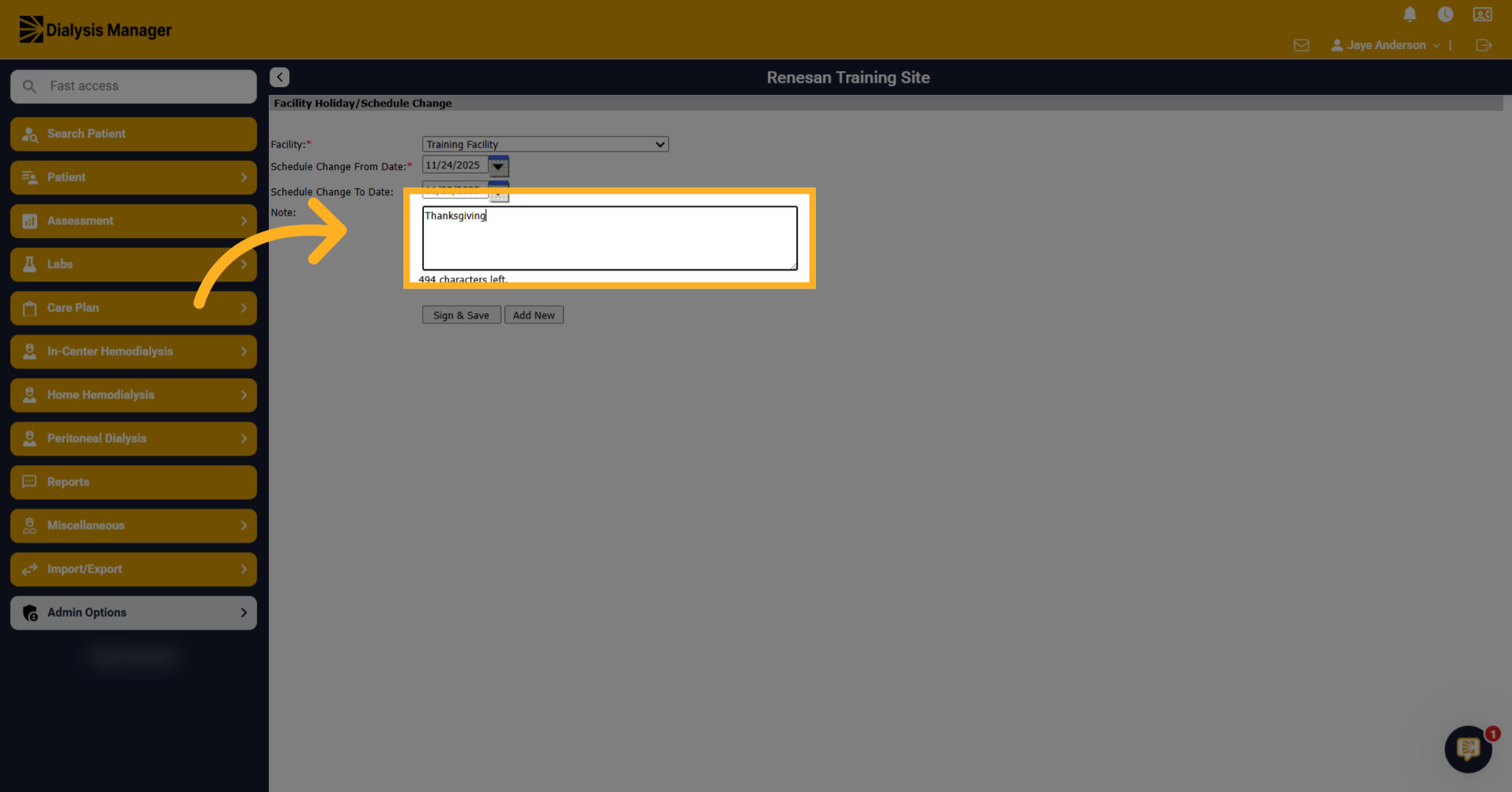
6. Navigate To Rescheduling Area
Click here to access the area where you can enter notes about the reschedule.
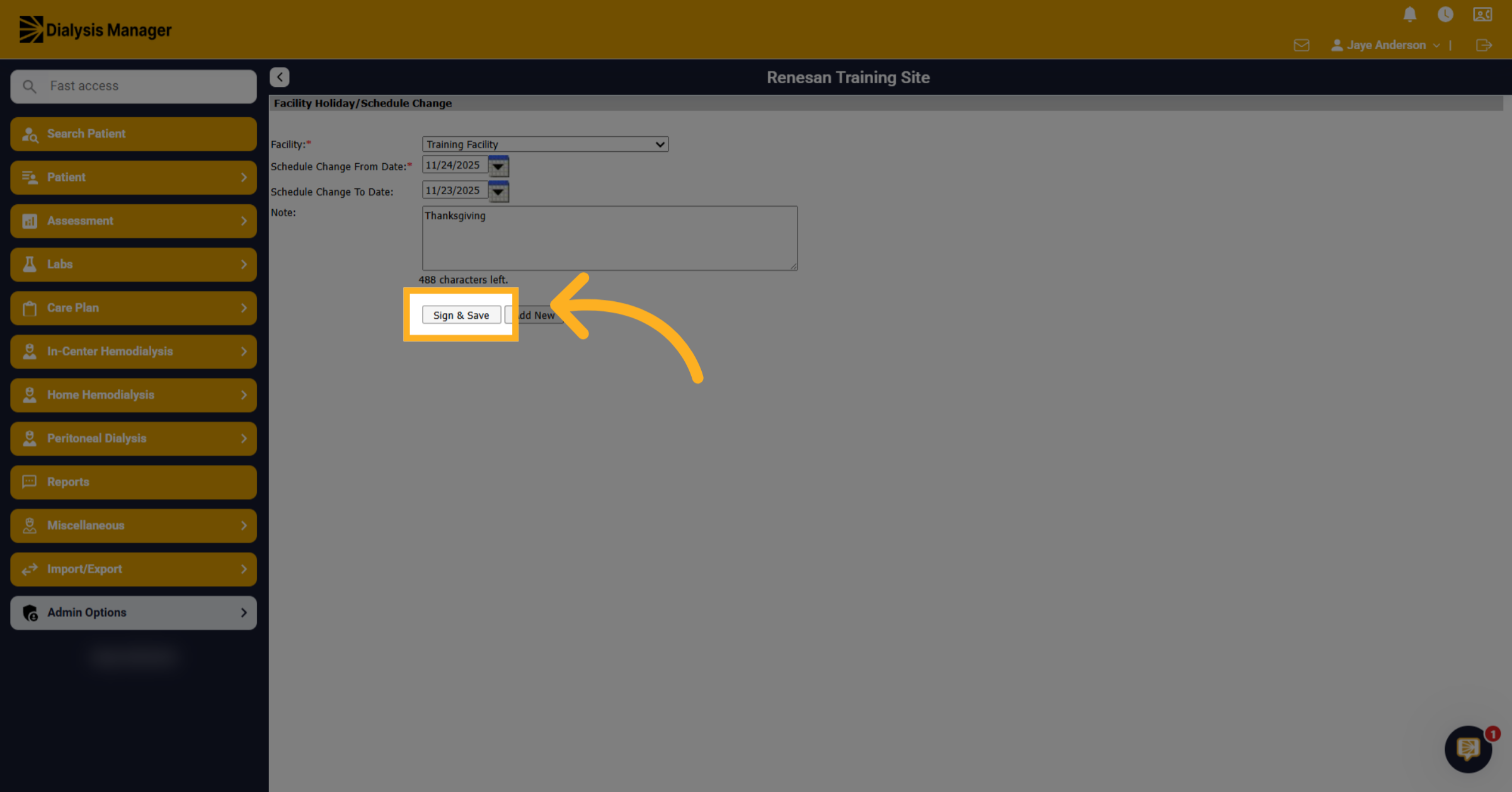
7. Save Changes
Click Sign & Save to apply and save your schedule changes.
8. Add New Schedule Change
Click Add New to create a new schedule or holiday change entry.
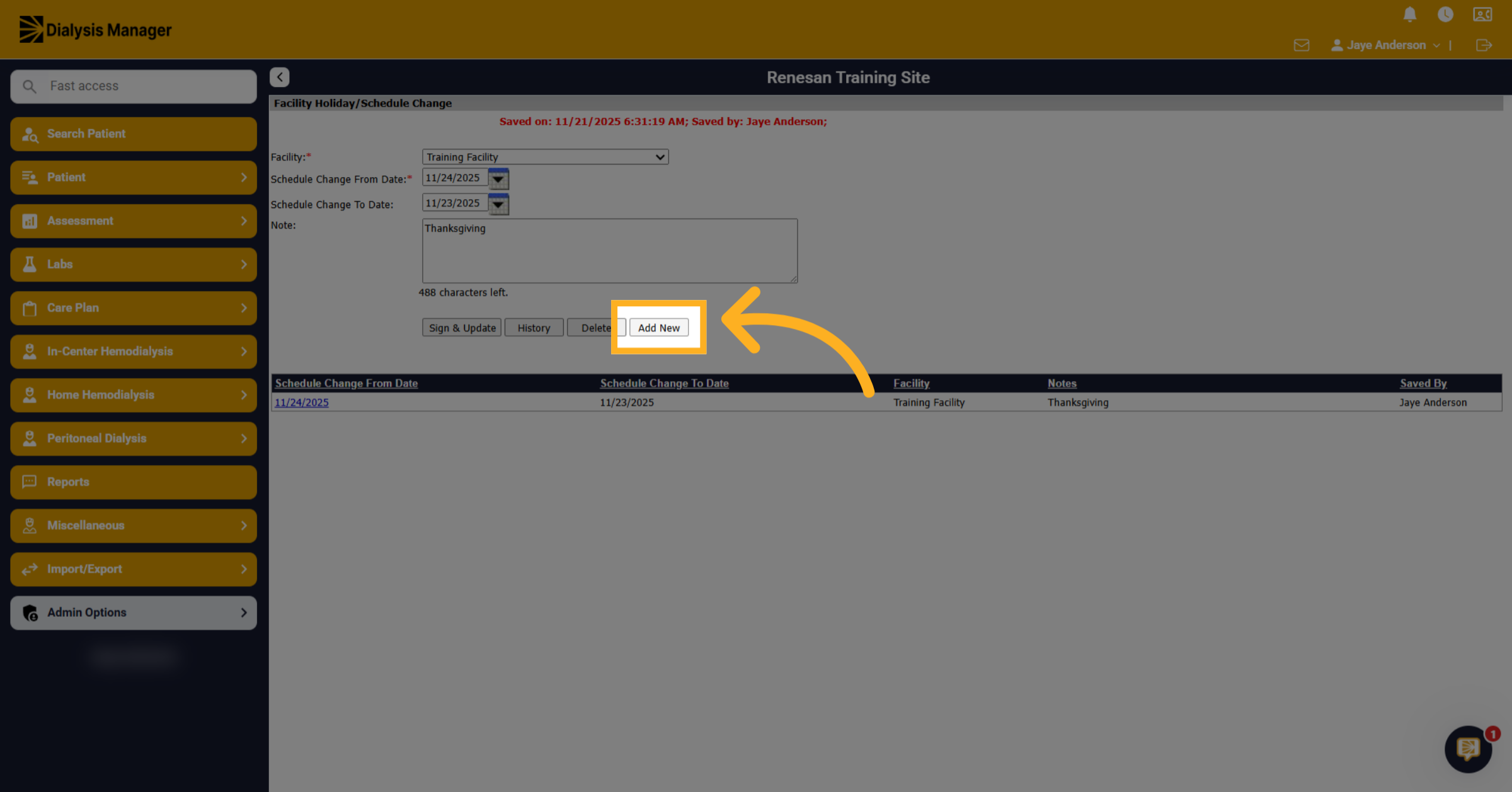
9. Move Tuesday's Schedule
Select the facility for which you want to add a new schedule change. Then move Tuesday to Monday. Enter any notes. Click Sign & Save
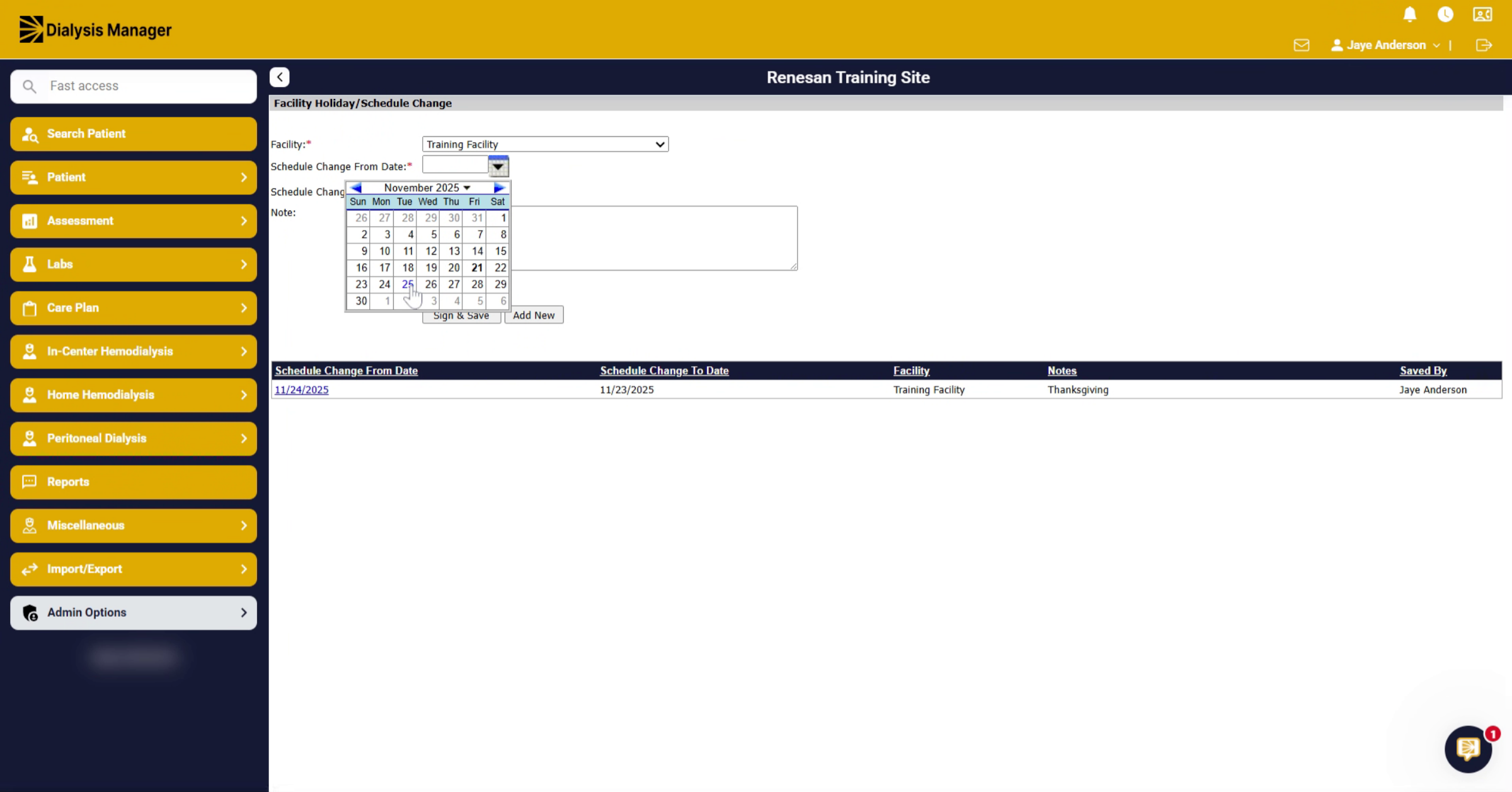
10. Move Wednesday To Tuesday
Repeat steps by Clicking Add New to add another schedule change. Select the facility. Now move Wednesday to Tuesday. Enter your notes and click Sign & Save. Continue until you have moved all applicable days.
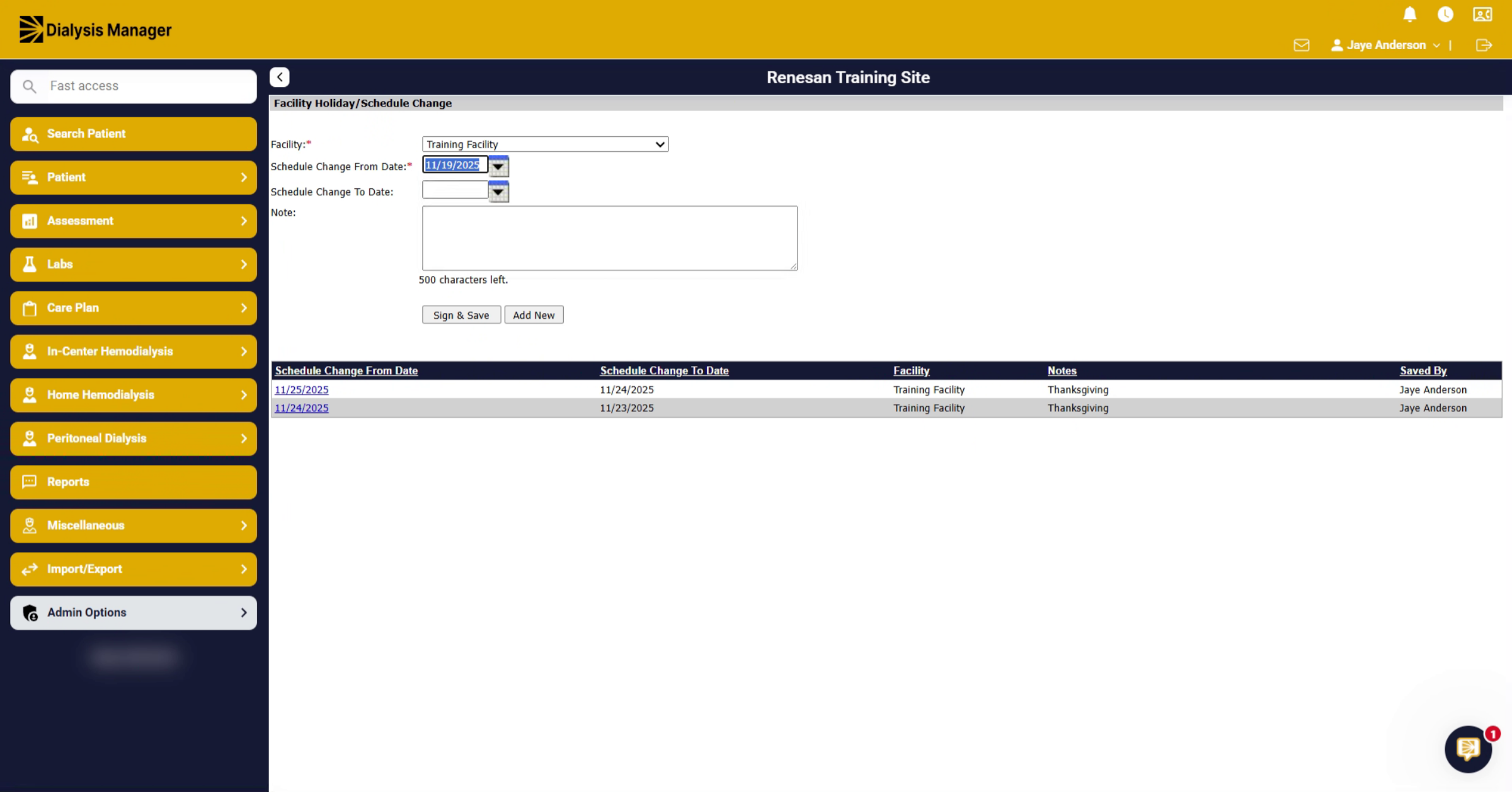
11. Complete Rescheduling Process
Review and ensure all schedule changes are saved and reflect the updated facility calendar.
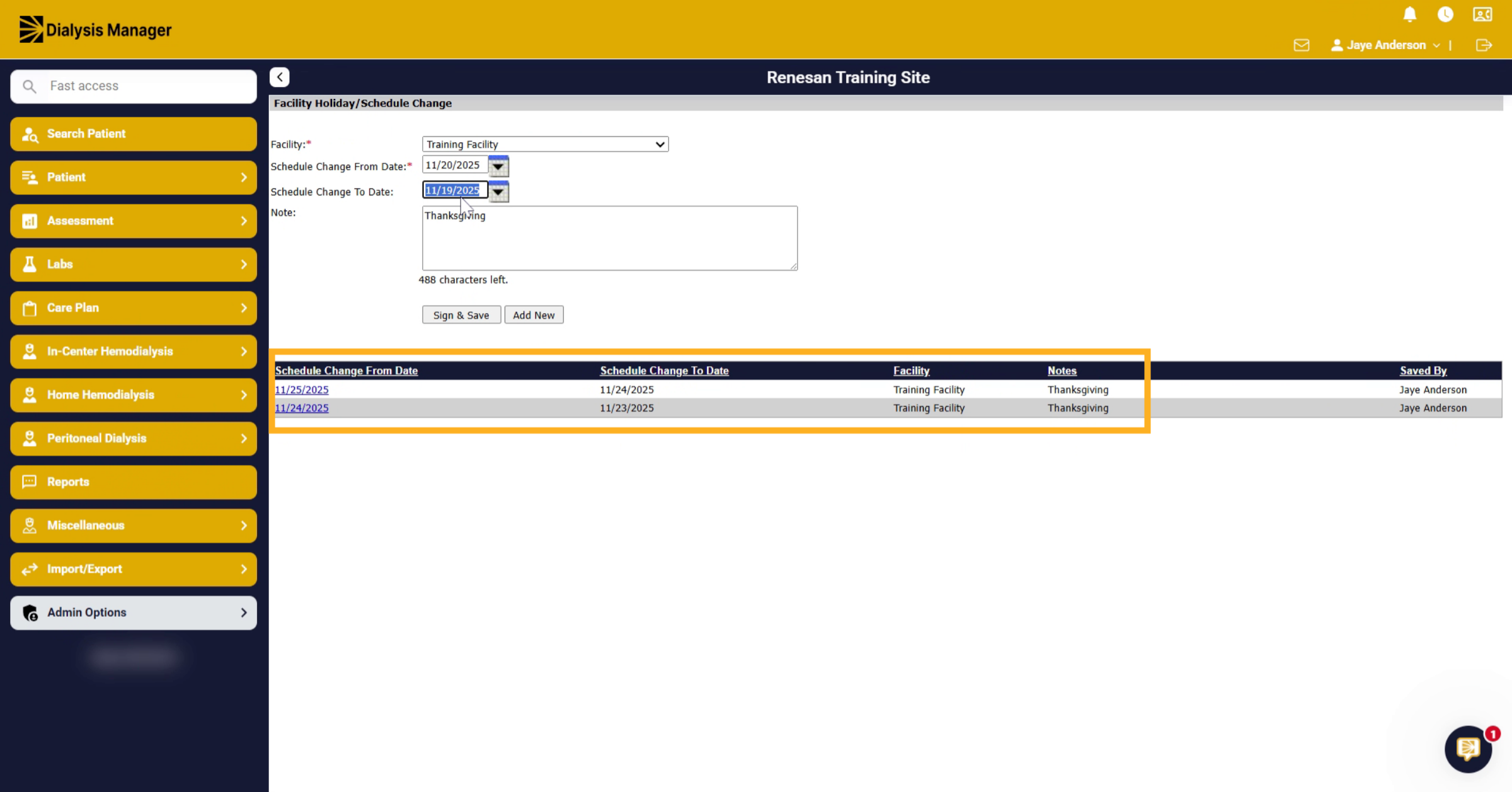
12. Move Schedule To Next Day
Now, if you want to move your schedule forward. Again, you'll start with the farthest date out. In this example, you'll take Saturday. And move it to the Sunday.
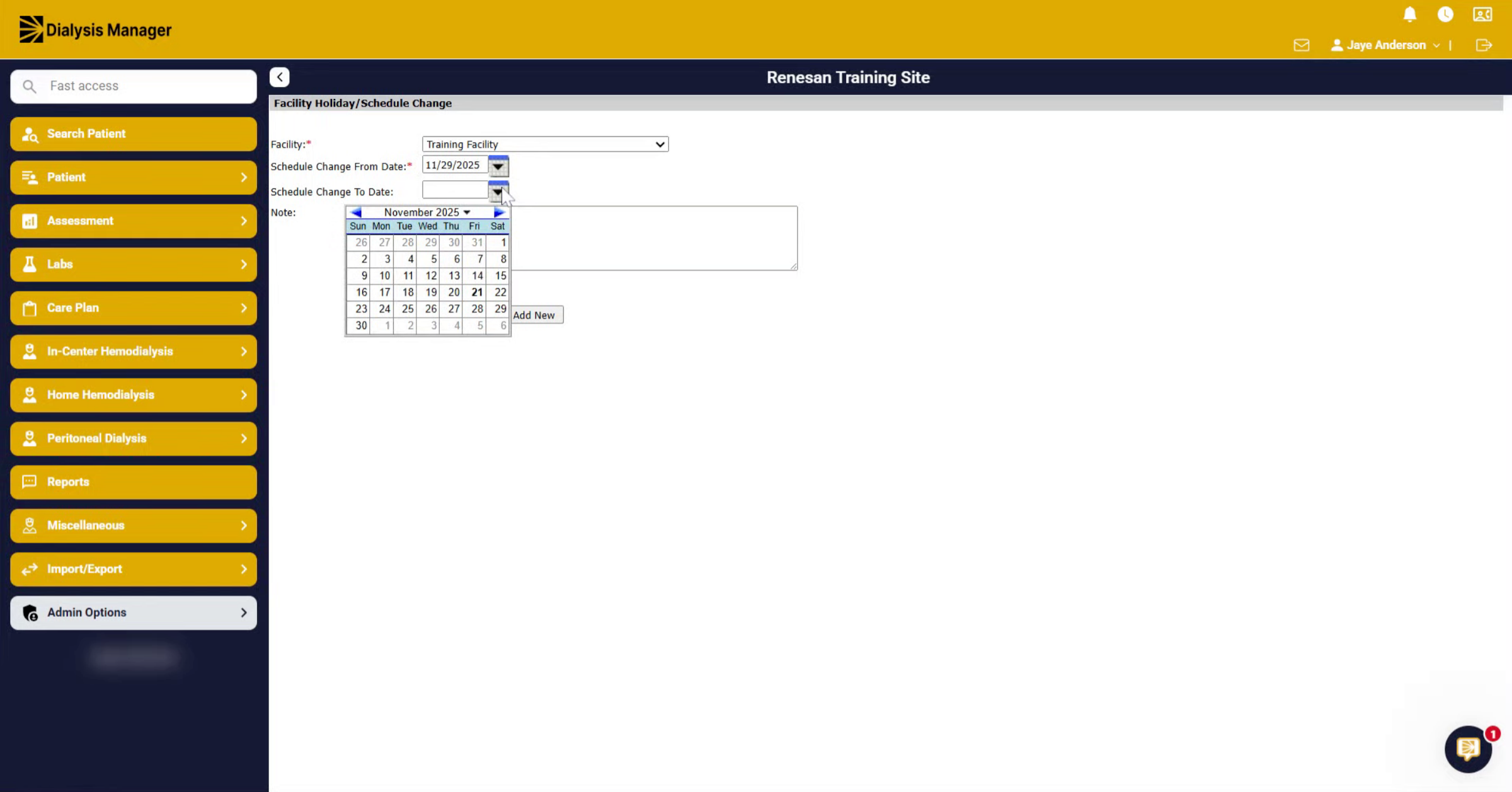
13. Confirm Date Change
Enter any related notes.
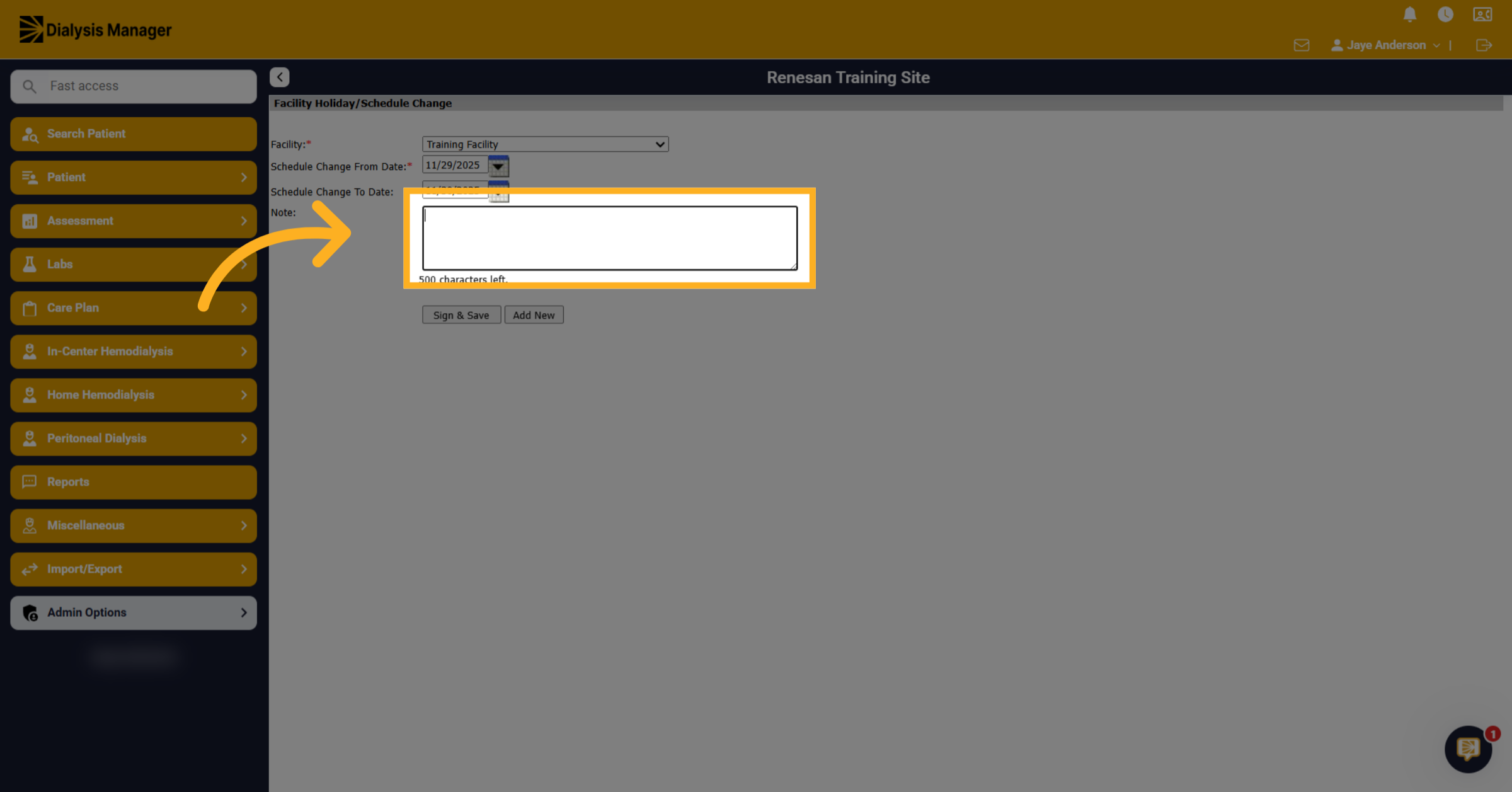
14. Save Schedule Changes
Click "Sign & Save" to save your changes and update the schedule accordingly.
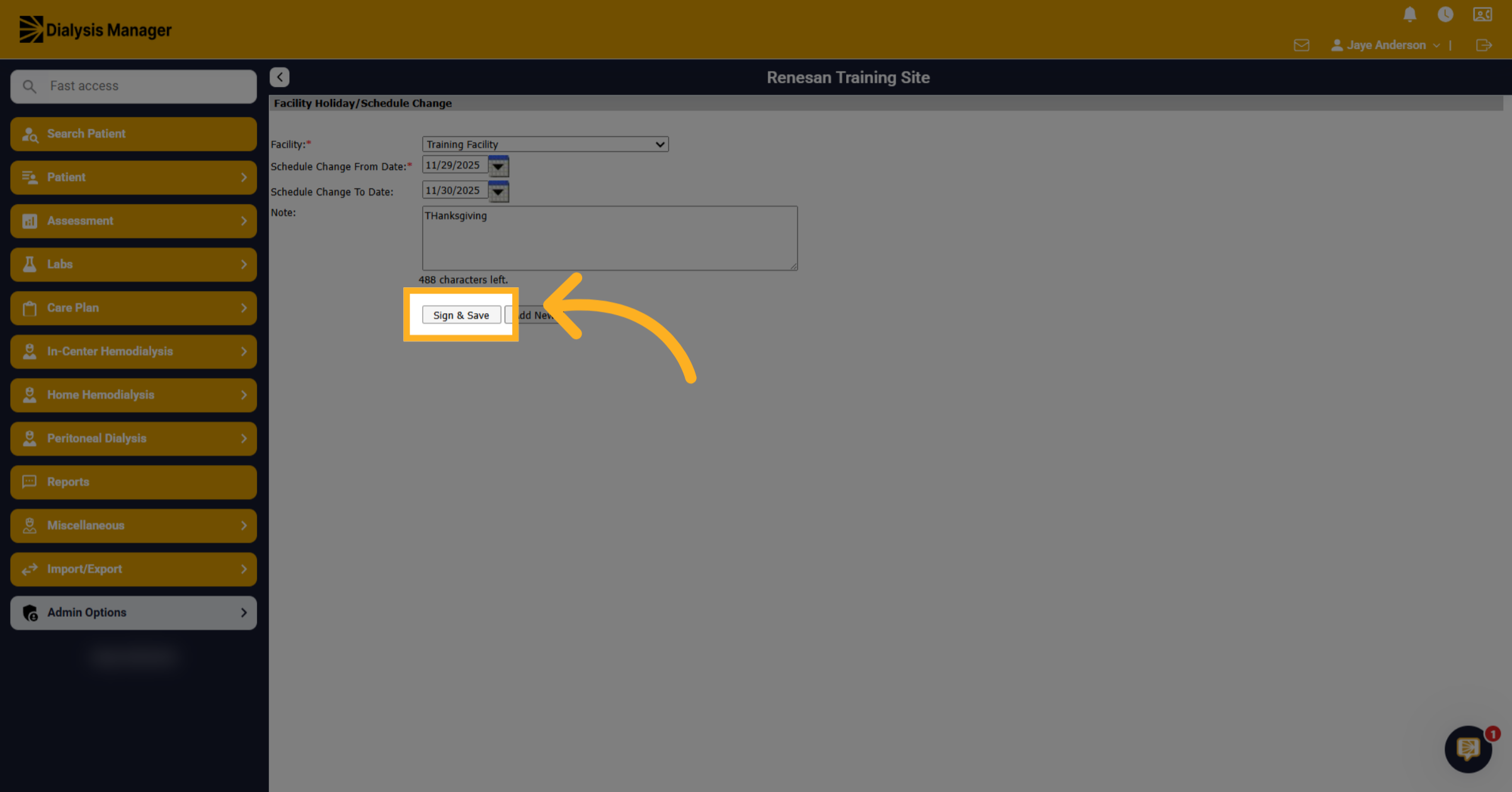
15. Move Previous Day Forward
Click "Add New" to create a new schedule entry. Enter the Facility. Now you'll take the Friday and move it to Saturday. Enter any pertaining notes and click Sign & Save.
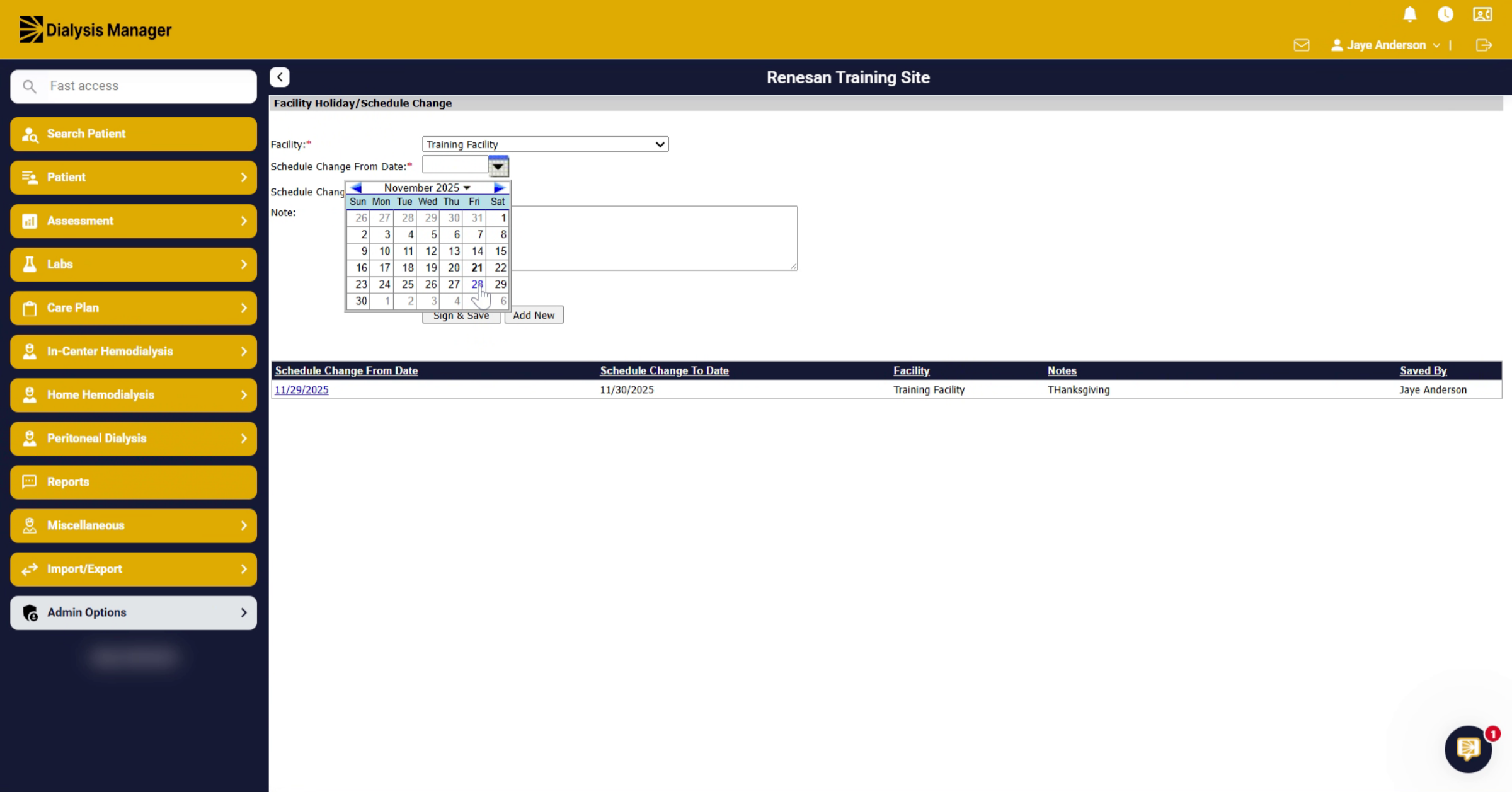
16. Move Earlier Day Forward
Finally, you'll take Thursday and move it to the Friday. Click "Sign & Save" to finalize and save all schedule changes made.
17. Complete Rescheduling Process
Review and ensure all schedule changes are saved and reflect the updated facility calendar.