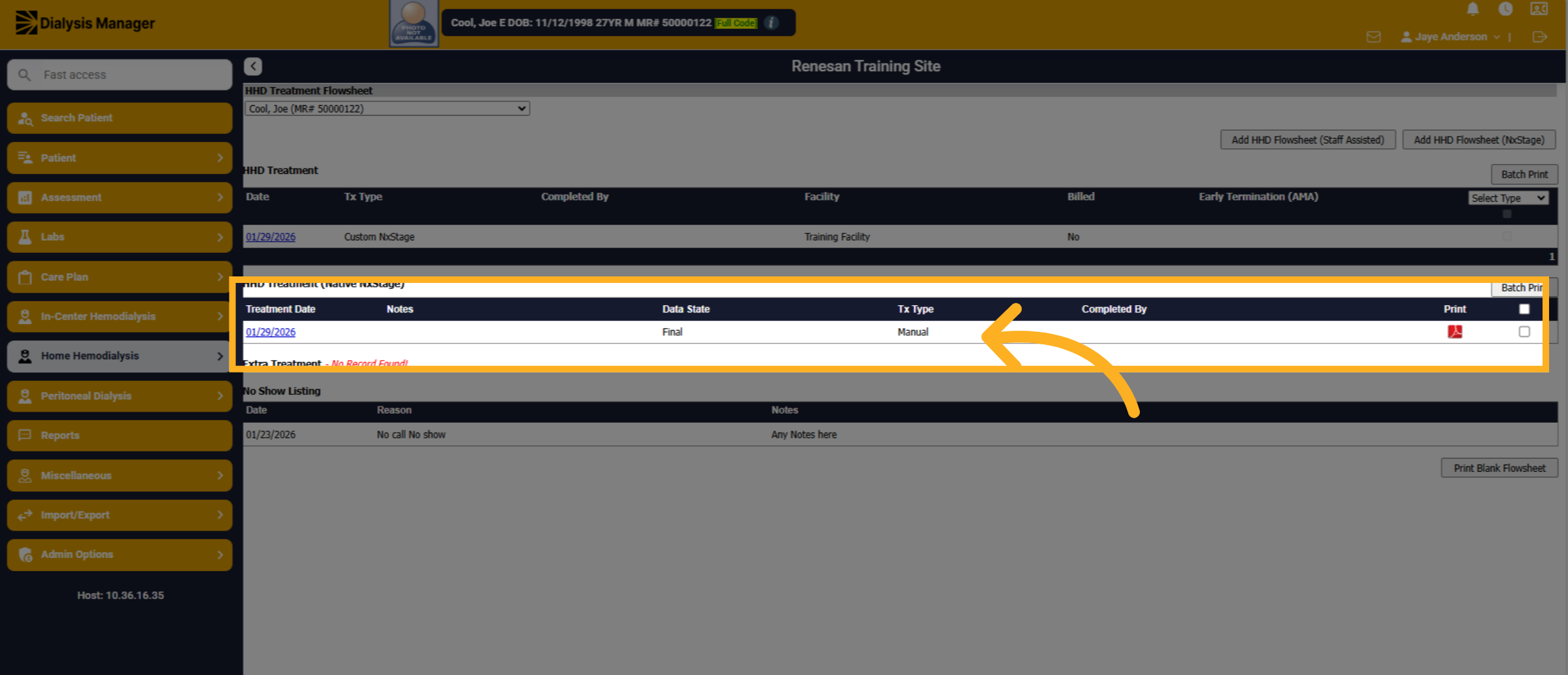
HHD Treatment Flowsheets in Dialysis Manager.
1. Introduction
This guides you through adding HHD flowsheets for NxStage and Staff Assisted. You will see how to add flowsheets and save your entries effectively.
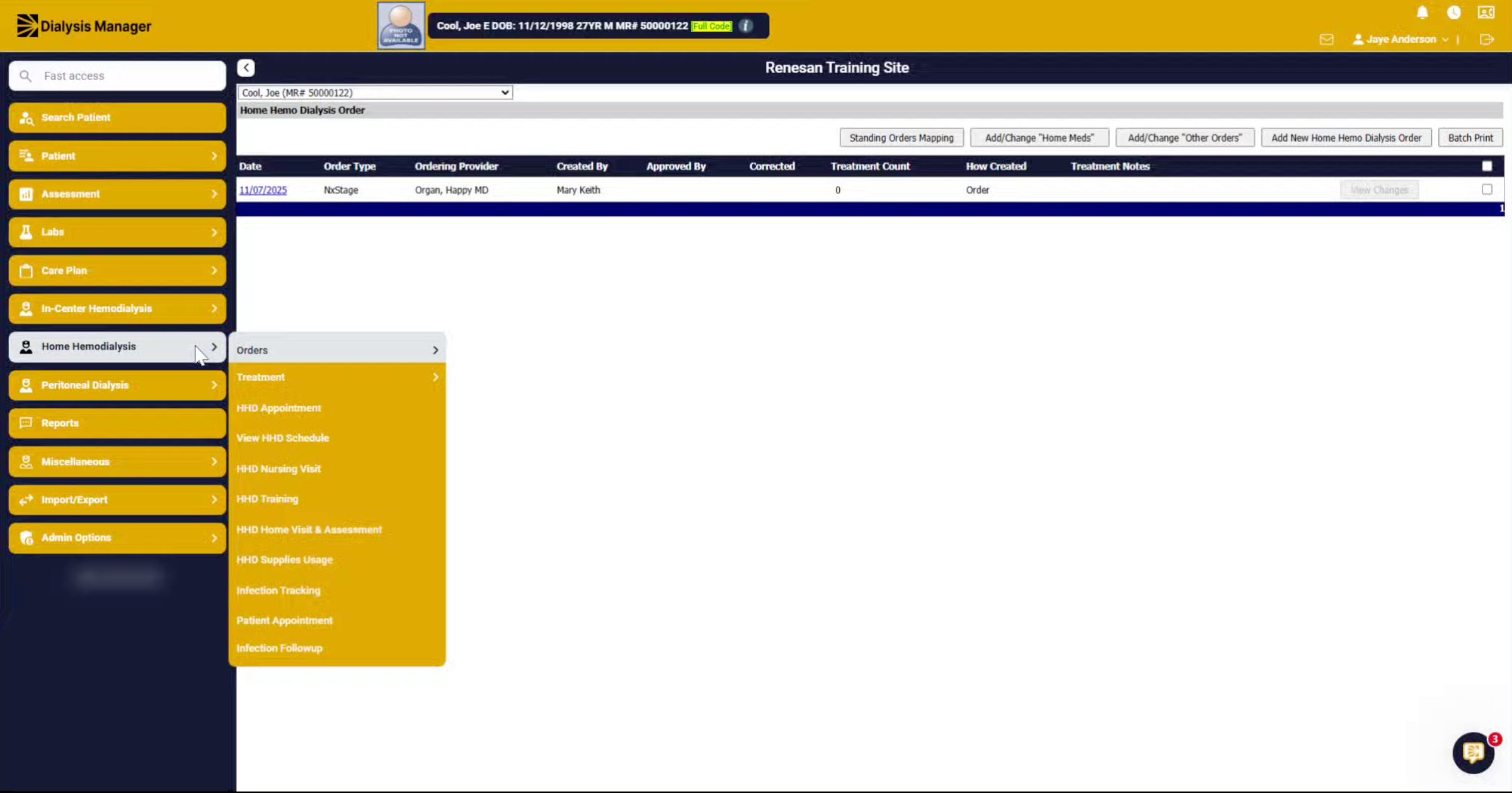
2. Select HHD Treatment Option
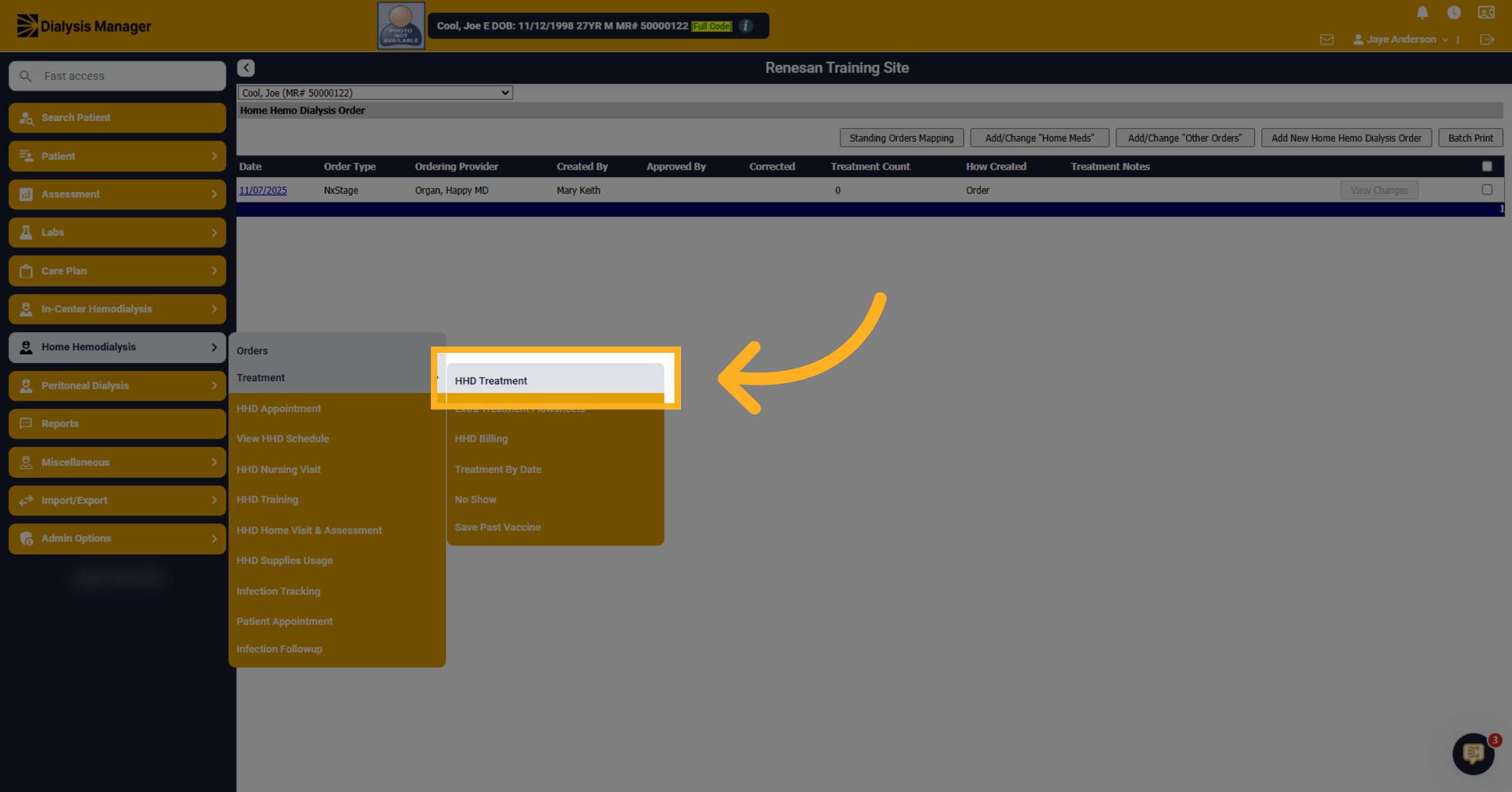
Go to Home Hemodialysis, Treatment, "HHD Treatment" to access the home hemodialysis treatment screen within the application.
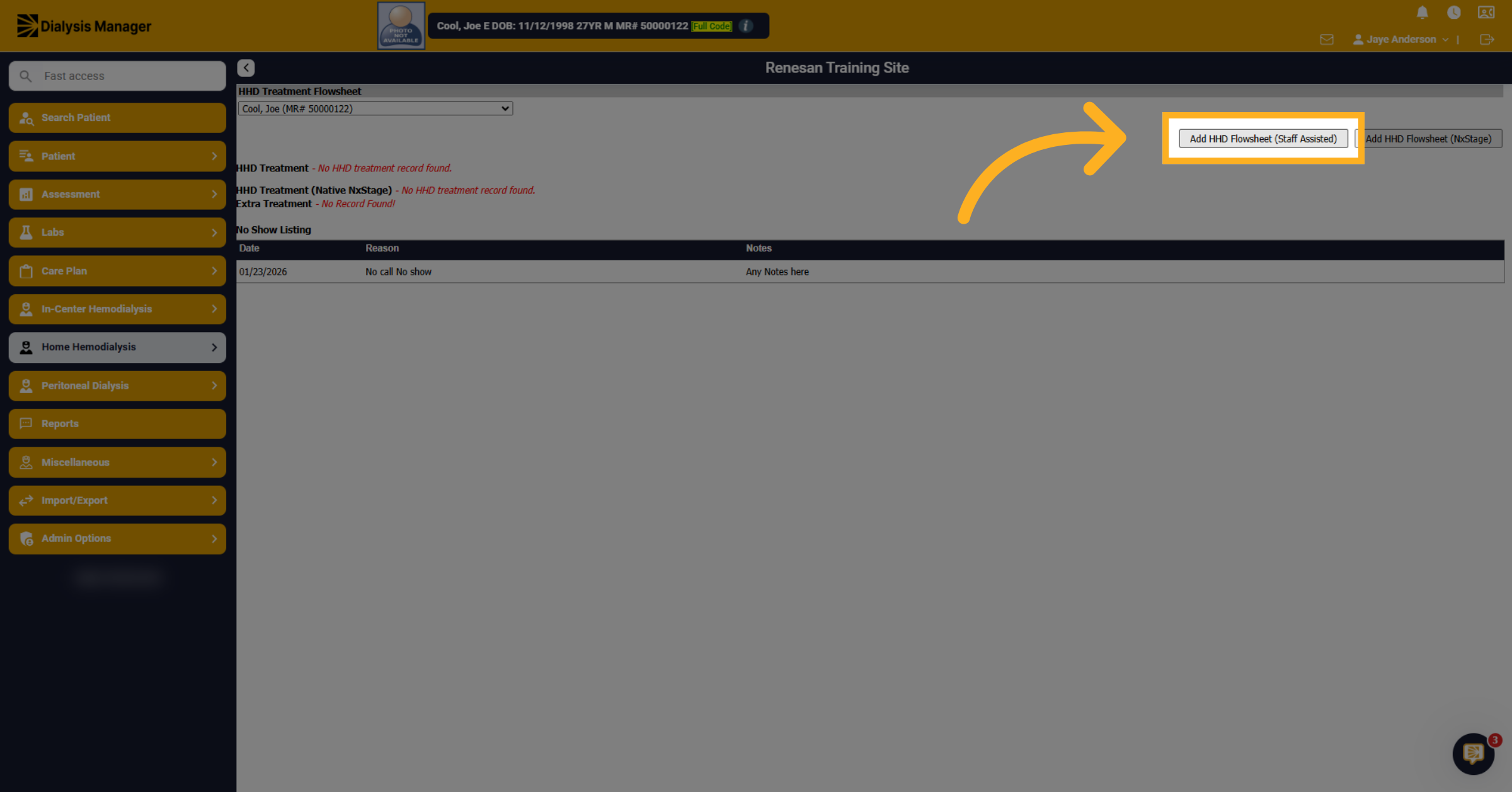
3. Add Staff Assisted HHD Flowsheet
Depending on whether you are performing a staff-assisted flow sheet or an HHD flow sheet will depend on what you choose here. For Staff Assisted let's choose "Add HHD Flowsheet (Staff Assisted)".
4. Access Pre Dialysis Tab
Notice the tabs along the top and the flowsheet itself are very similar to the In-Center Hemodialysis.
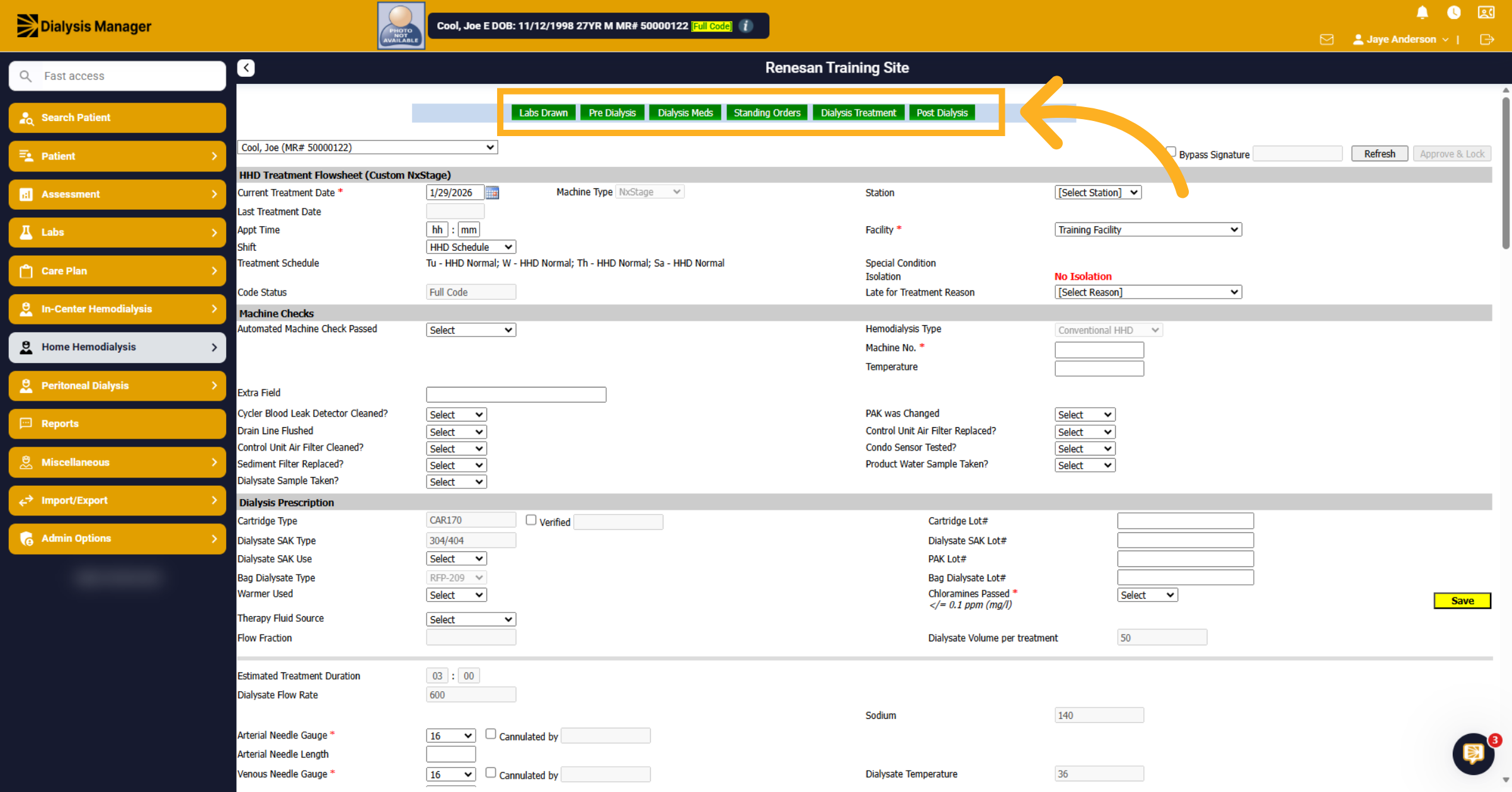
5. Access Pre Dialysis Tab
Click on Pre Dialysis tab to open the form
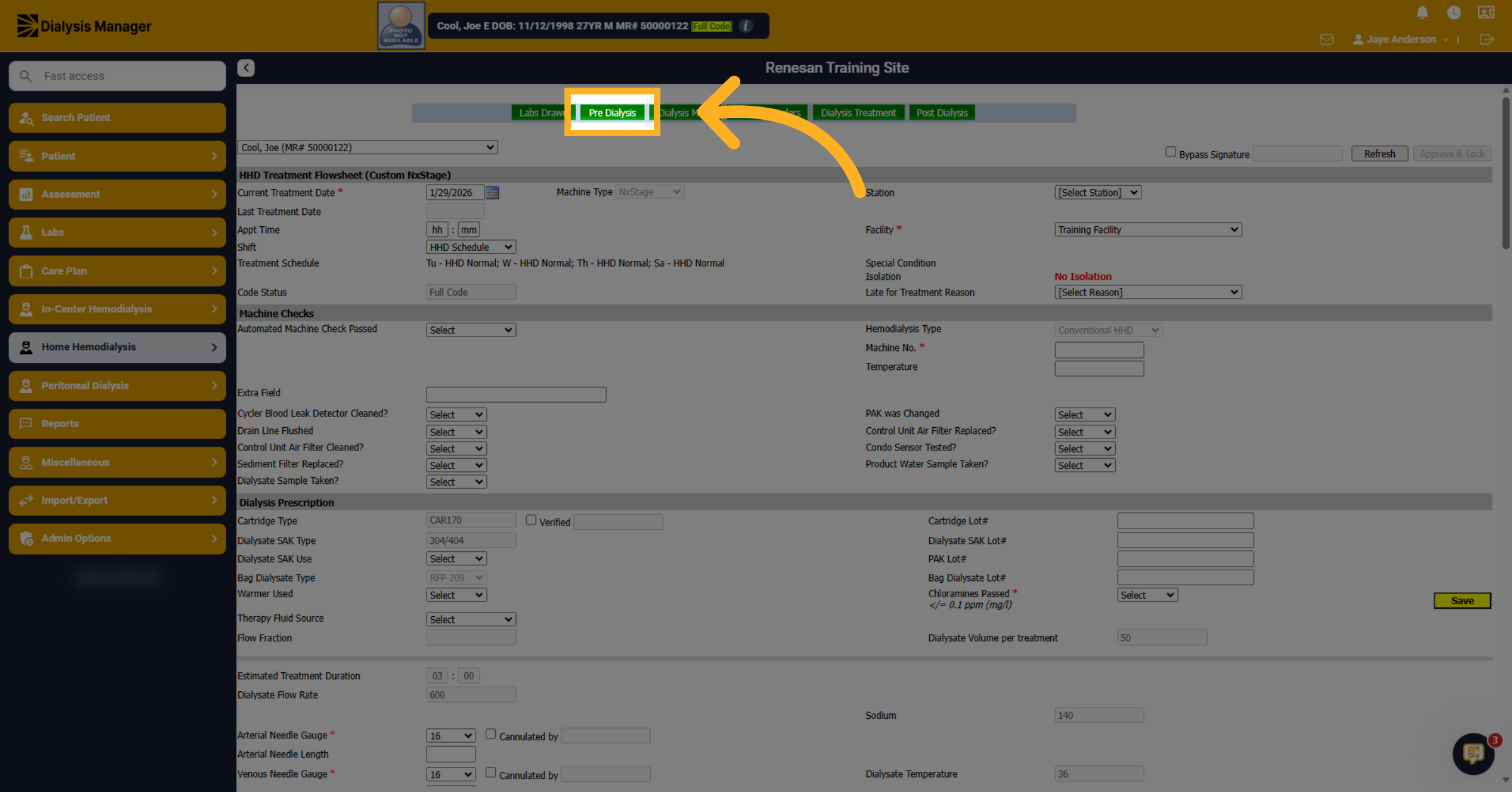
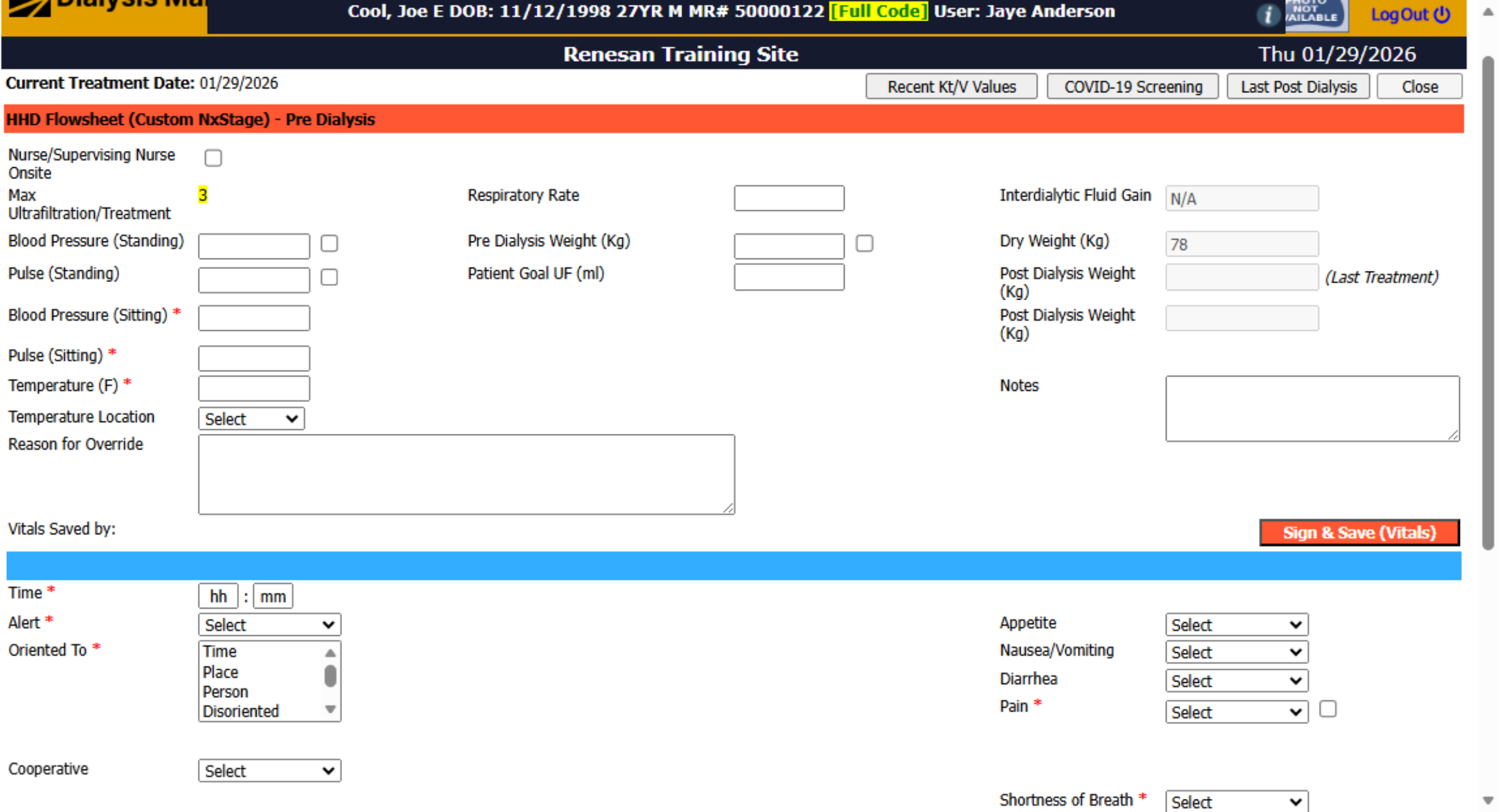
6. Red Blue Sections
This also has a similar flow with the red section typically being documented by the technicians and the nurses under the blue.
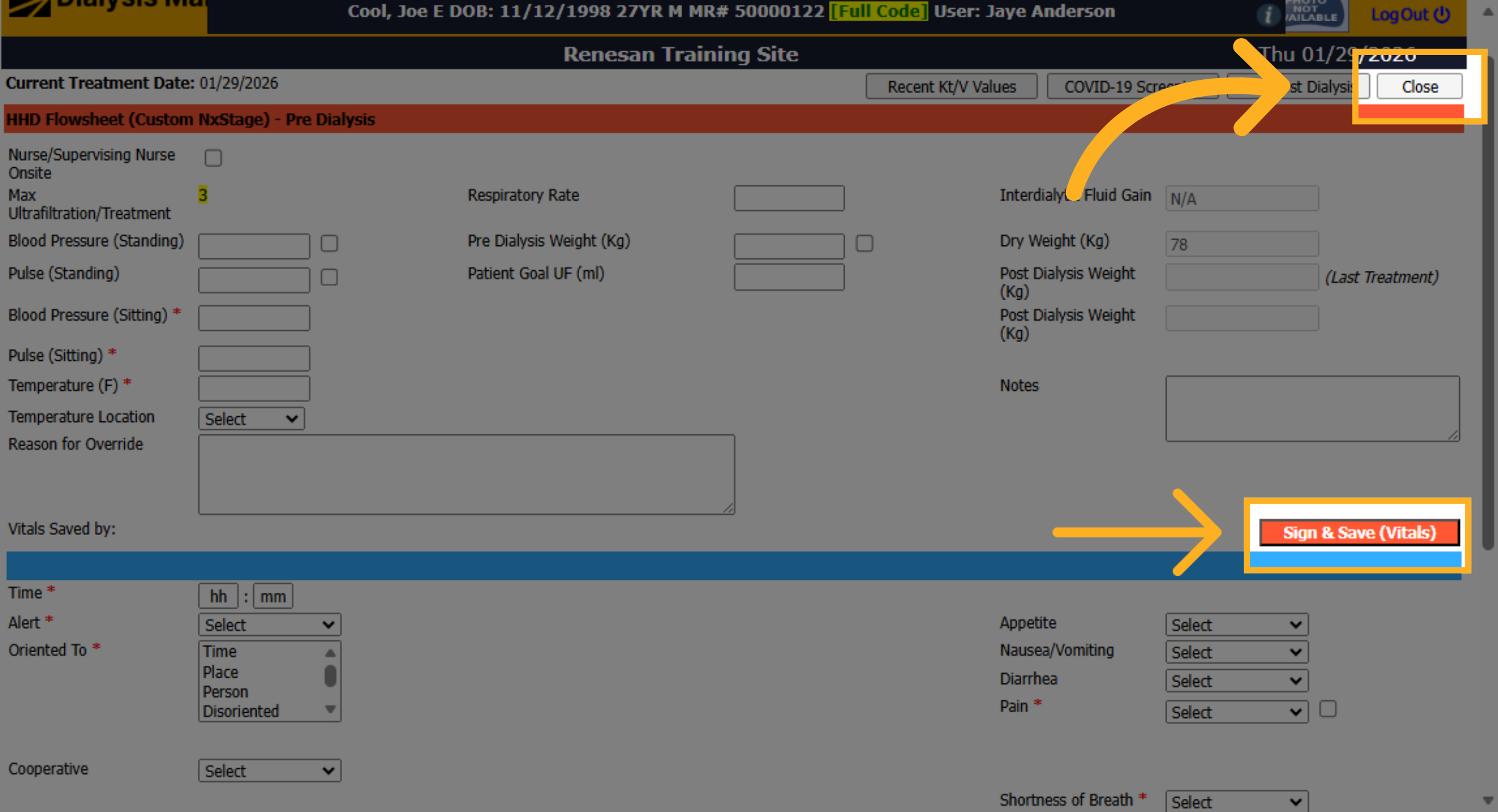
7. Close Pre Dialysis Flowsheet
Click Sign & Save then "Close" to exit the Pre Dialysis flowsheet after reviewingor entering necessary information.
8. Save Current Flowsheet
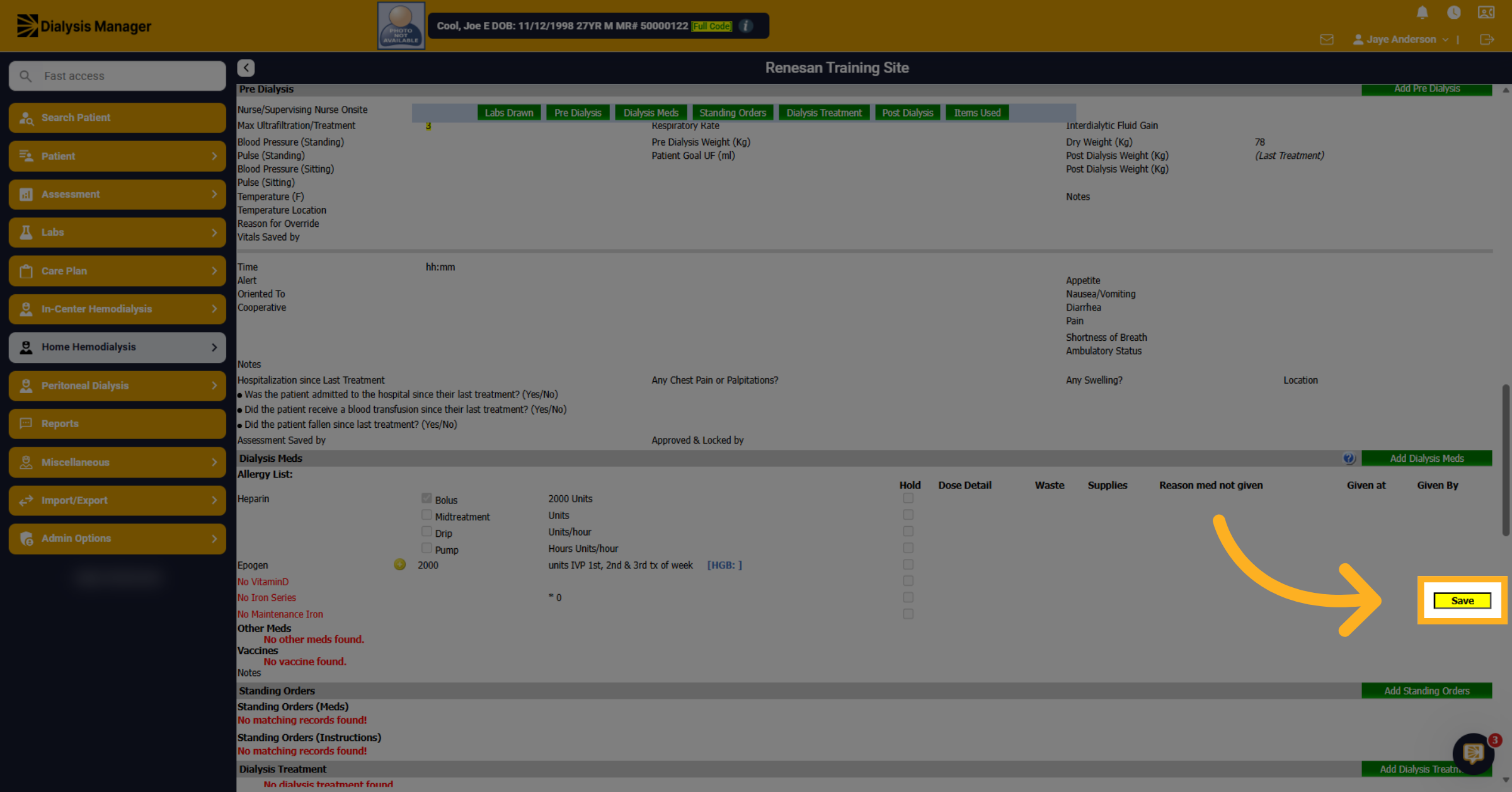
Remember to save as you go through the different areas by clicking "Save" to ensure your data is recorded.
9. Reopen NxStage Flowsheet
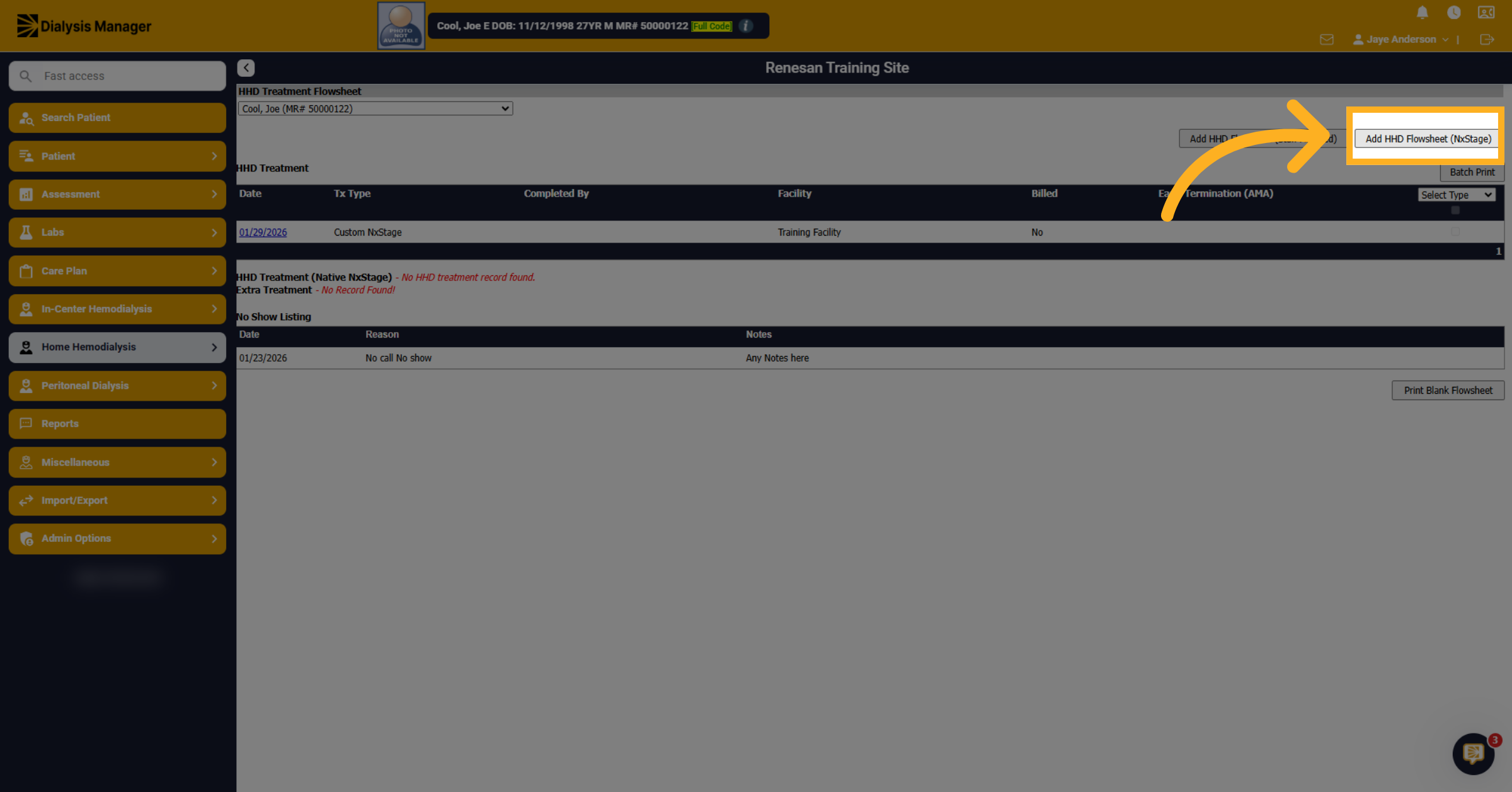
Click "Add HHD Flowsheet (NxStage)" to open this flowsheet
10. Select Maintenance Tab
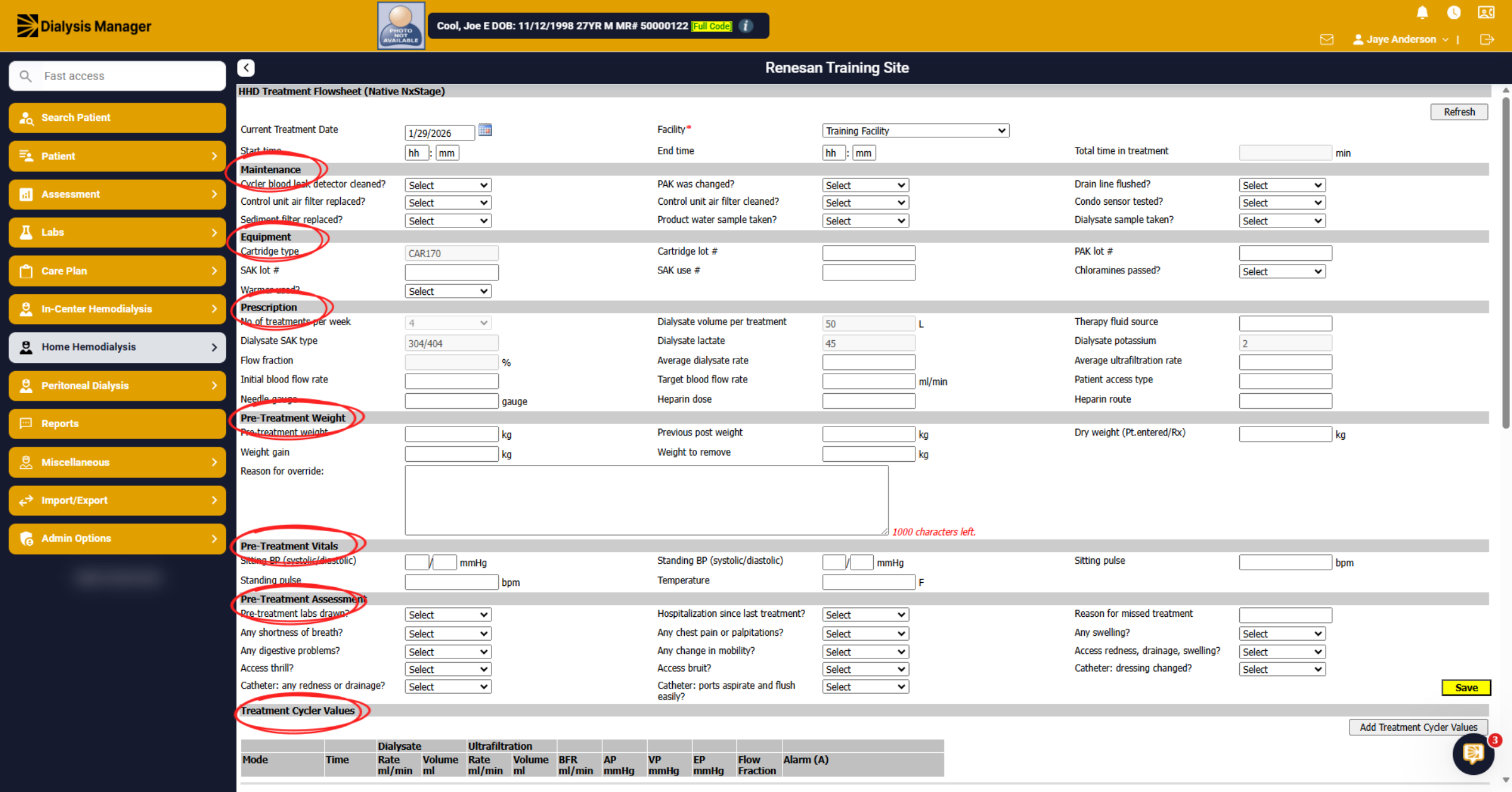
Notice this flowsheet does not have tabs along the top but it is broken down in different sections.
11. Sign and Save Flowsheet
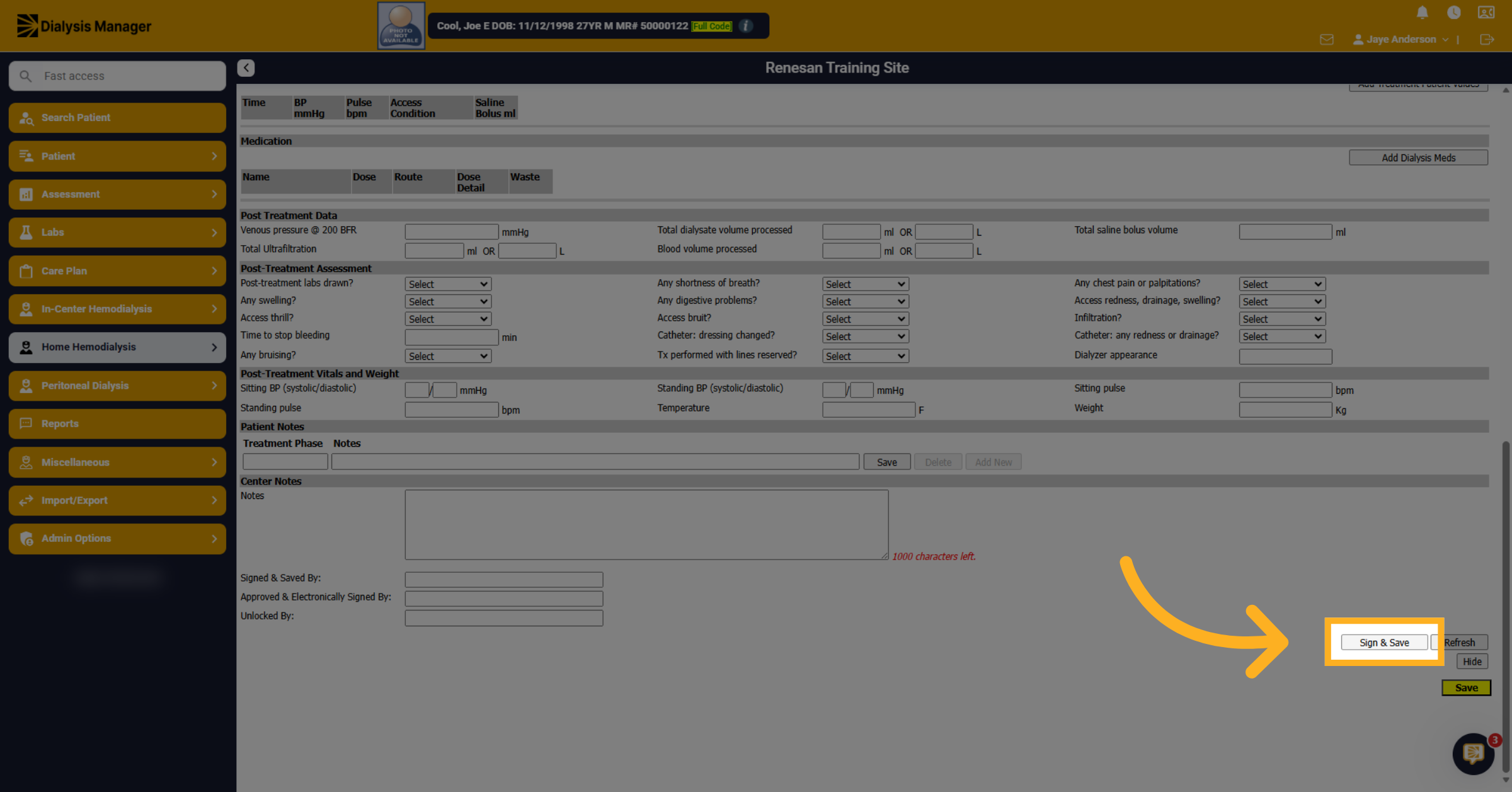
Click "Sign & Save" to finalize and securely save the HHD treatment flowsheet. After signing and saving you will be able to approve and lock
12. Nx2Me Interface
If you have the Next to Me Interface the data can automatically cross and the nurse will need to review and approve & lock the flowsheet. The Treatment type will display as Manual if it was a manual entry or Automatic if it is from the interface.