Forgot Password
1. Introduction
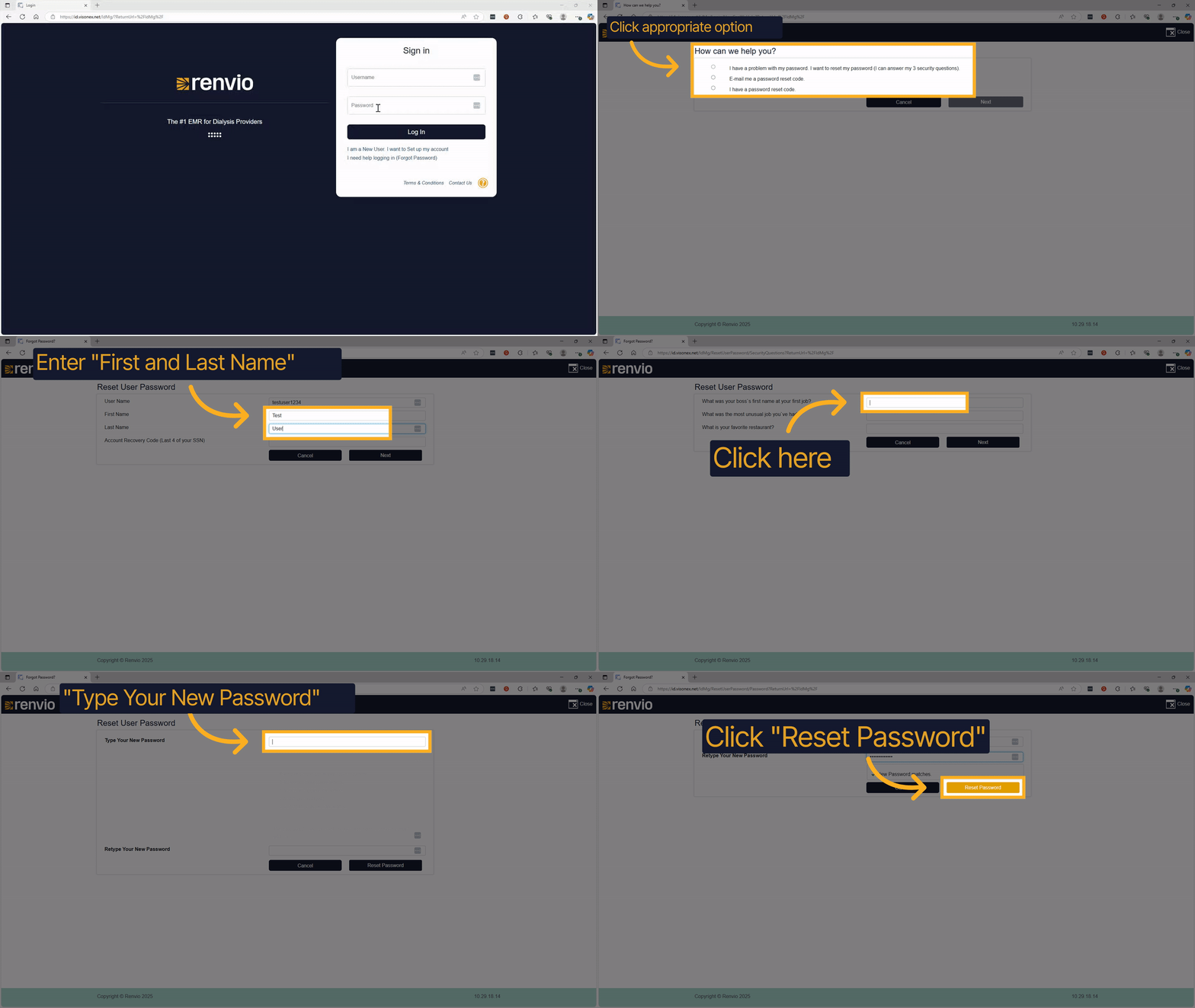
This guide helps you recover your account password using the 'Forgot Password' feature. Follow these clear steps to verify your identity and reset your password securely.
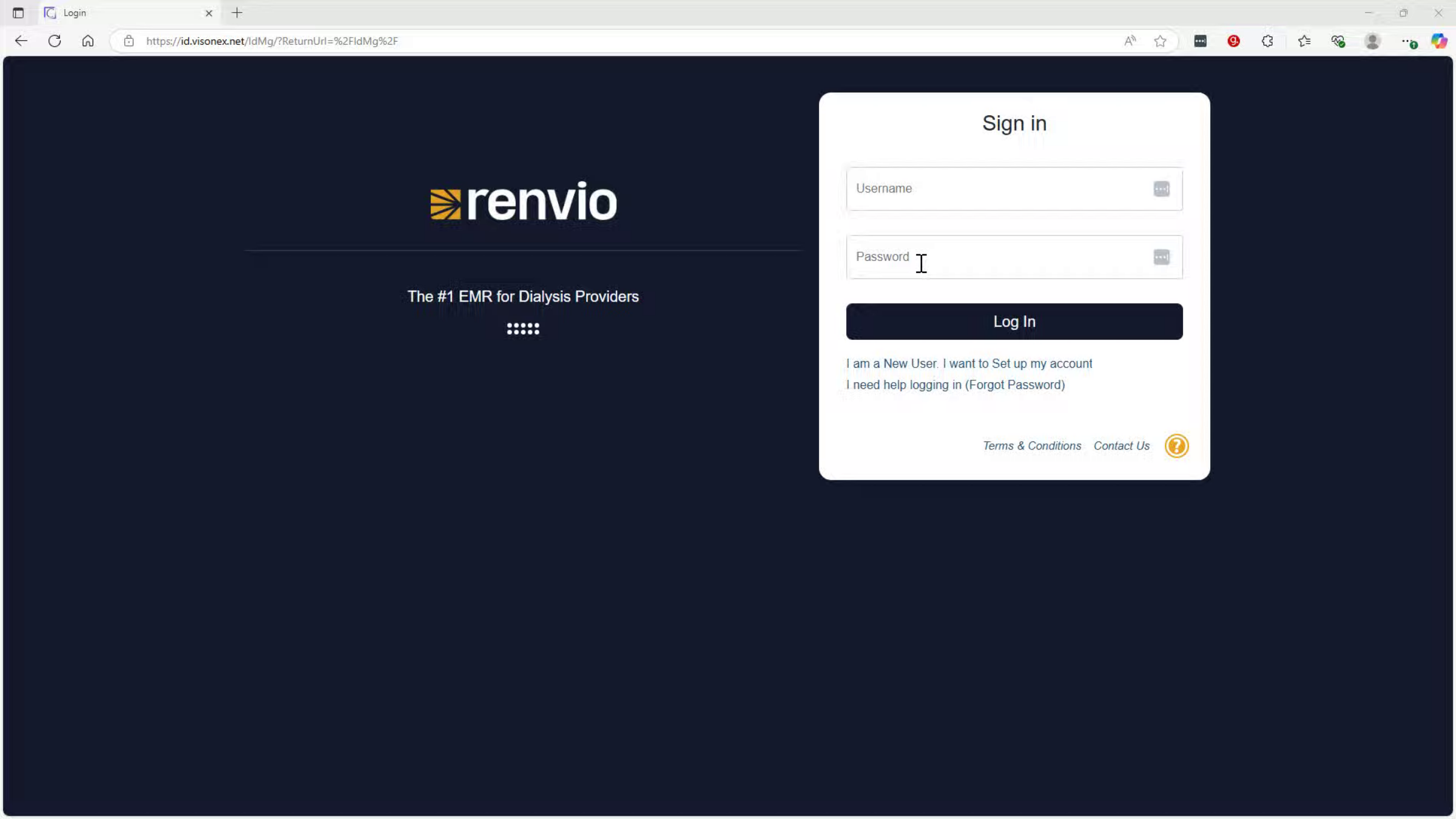
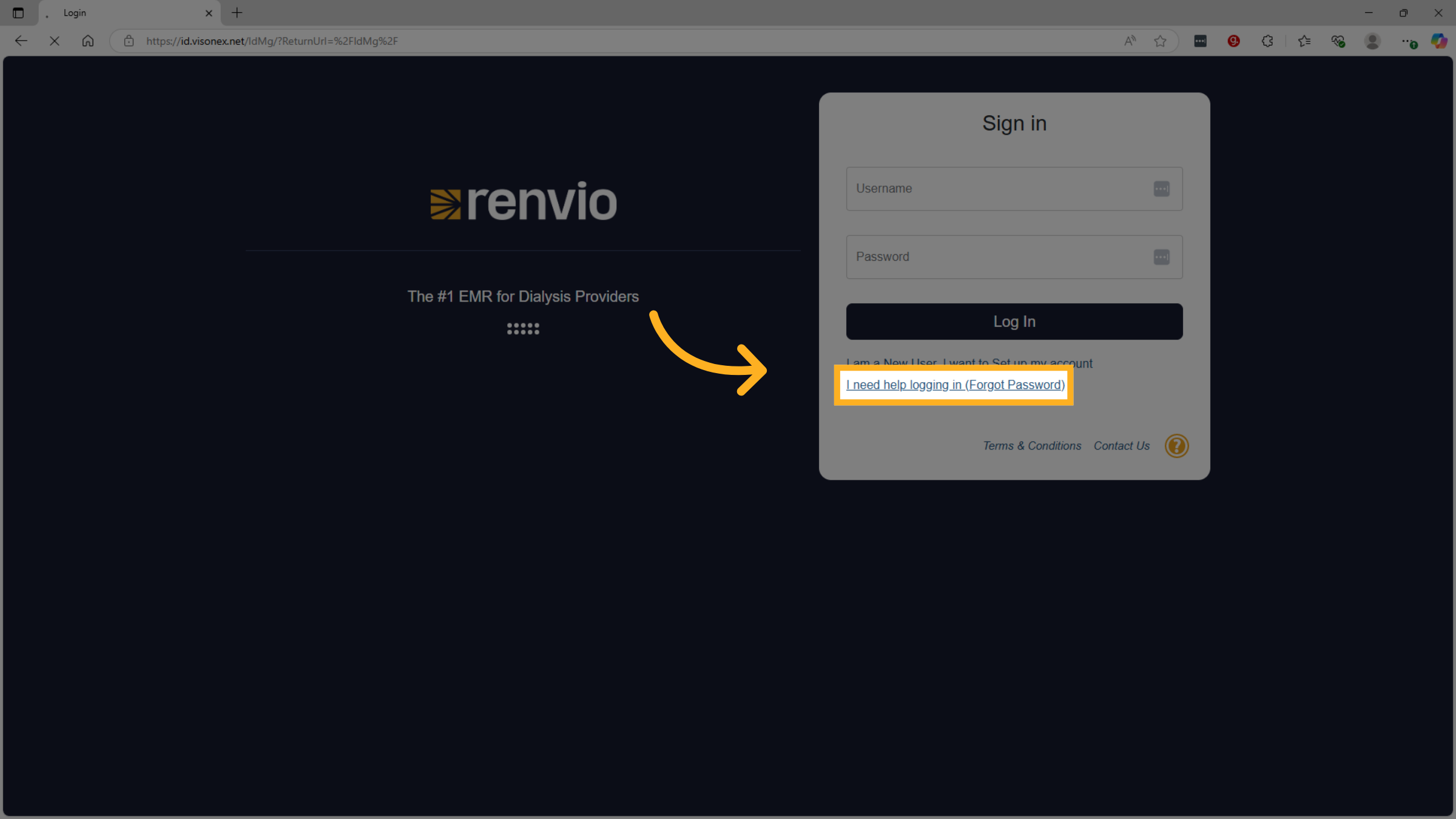
2. Click "I need help logging in (Forgot Password)"
Begin by selecting the option for help with logging in, specifically the 'Forgot Password' link to start the recovery process.
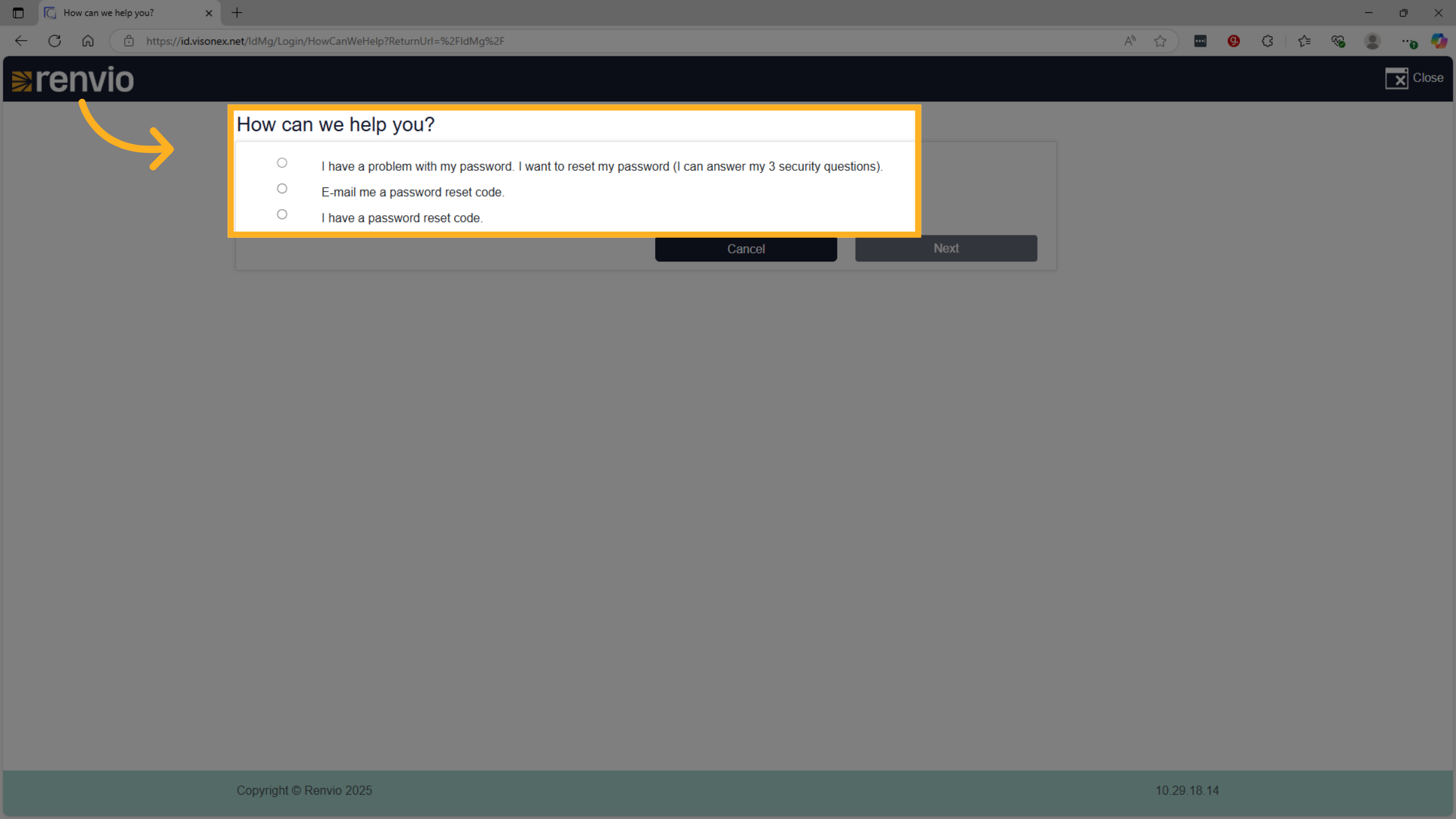
3. Click option
Select I have a problem with my password to proceed to the next step.
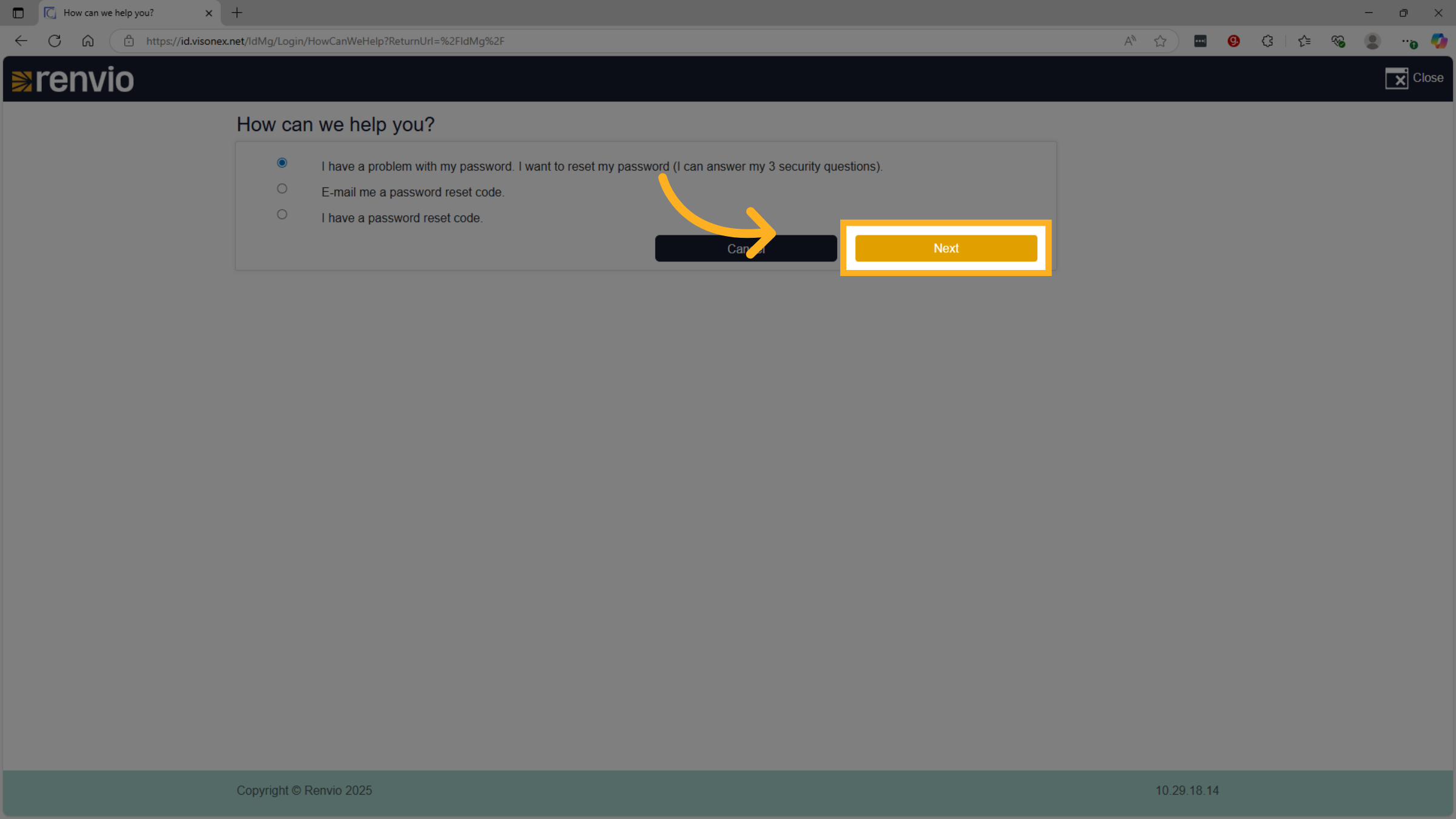
4. Click "Next"
Click the 'Next' button to continue to the password recovery form.
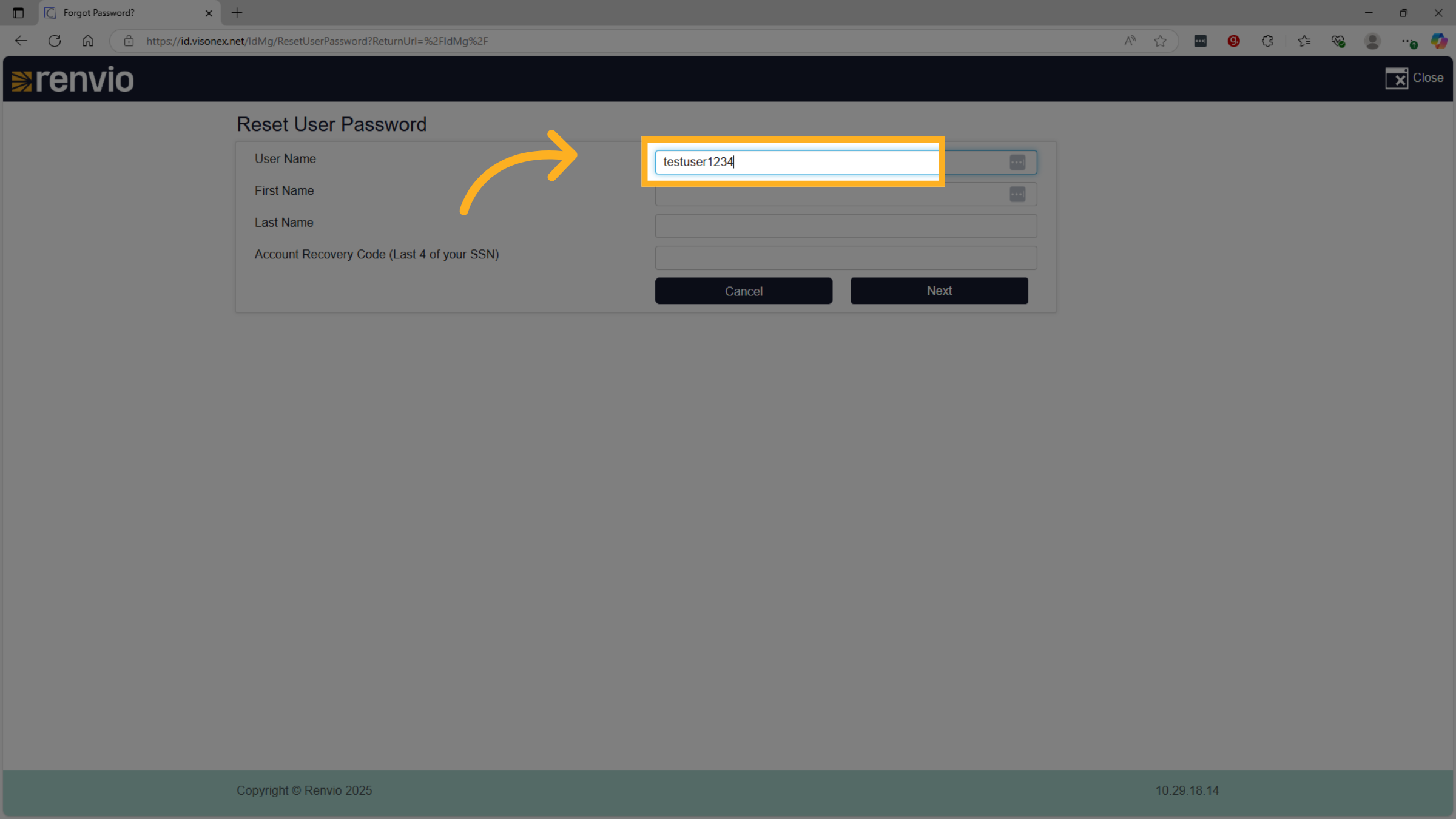
5. Fill "testuser1234"
Enter your username associated with the account to verify your identity.
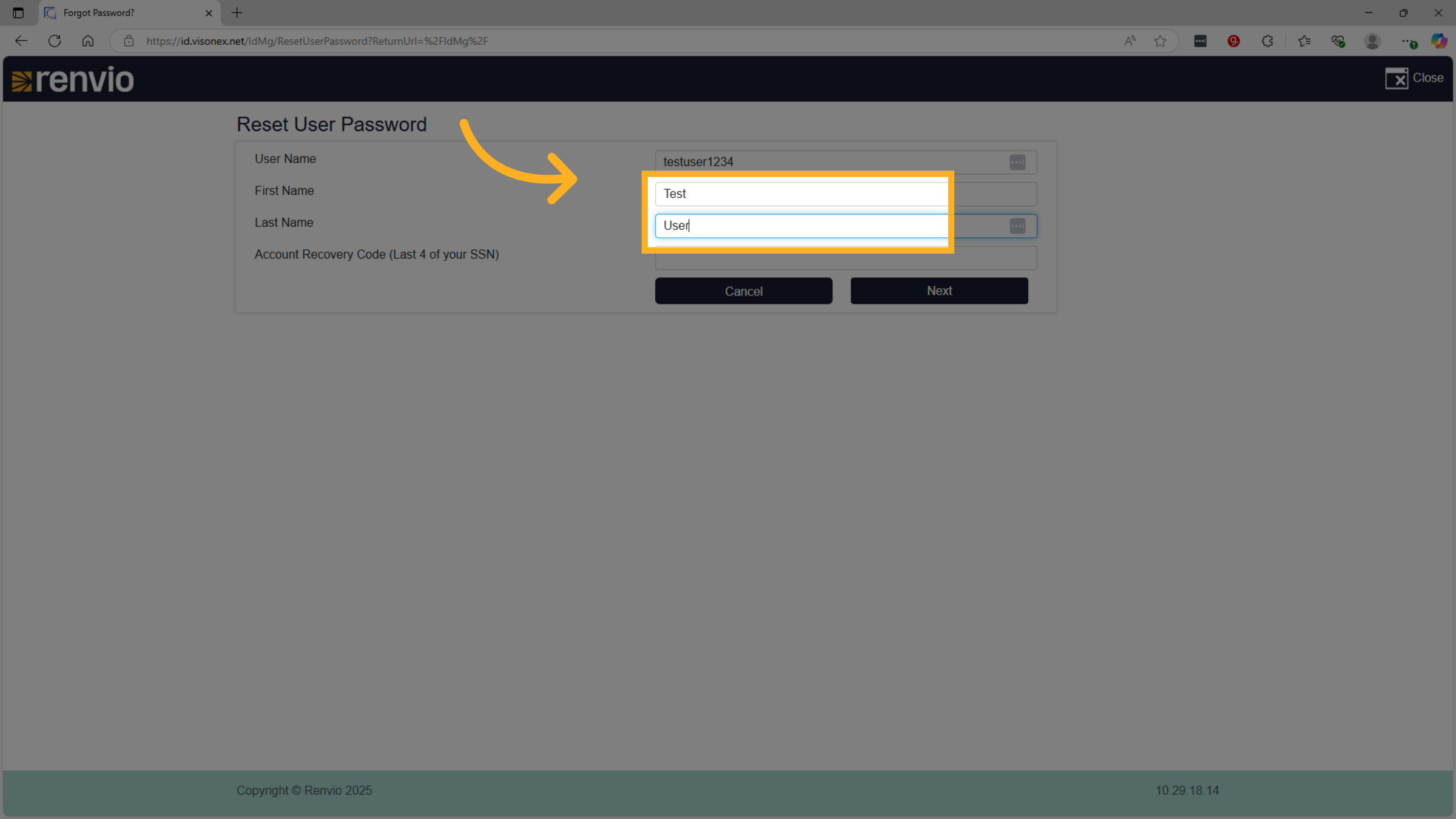
6. Fill "User"
Type your first and last name exactly as it appears on your account for accurate verification.
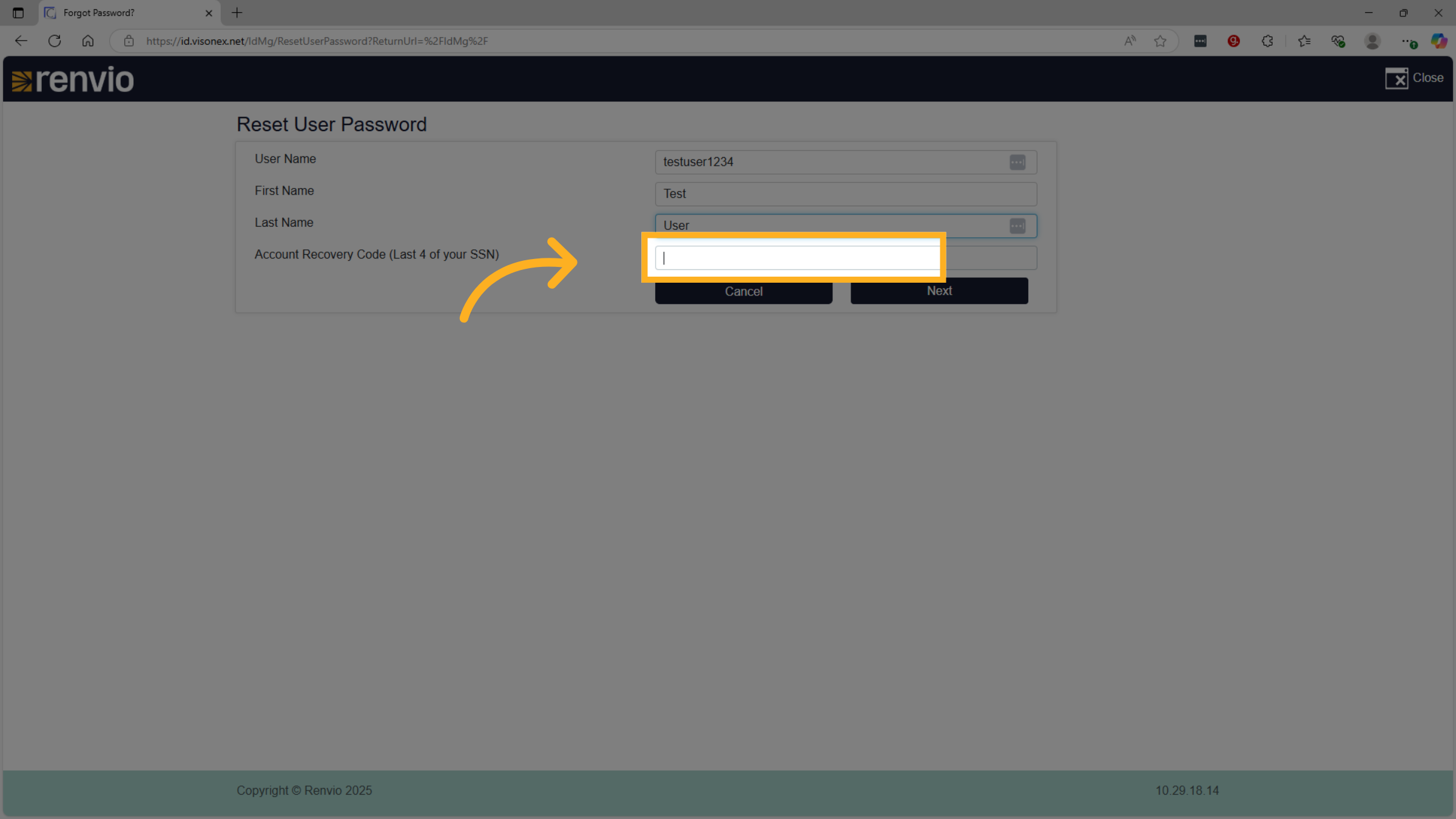
7. Click "Account Recovery Code (Last 4 of your SSN)"
Locate and click the field for 'Account Recovery Code,' which is typically the last four digits of your Social Security Number.
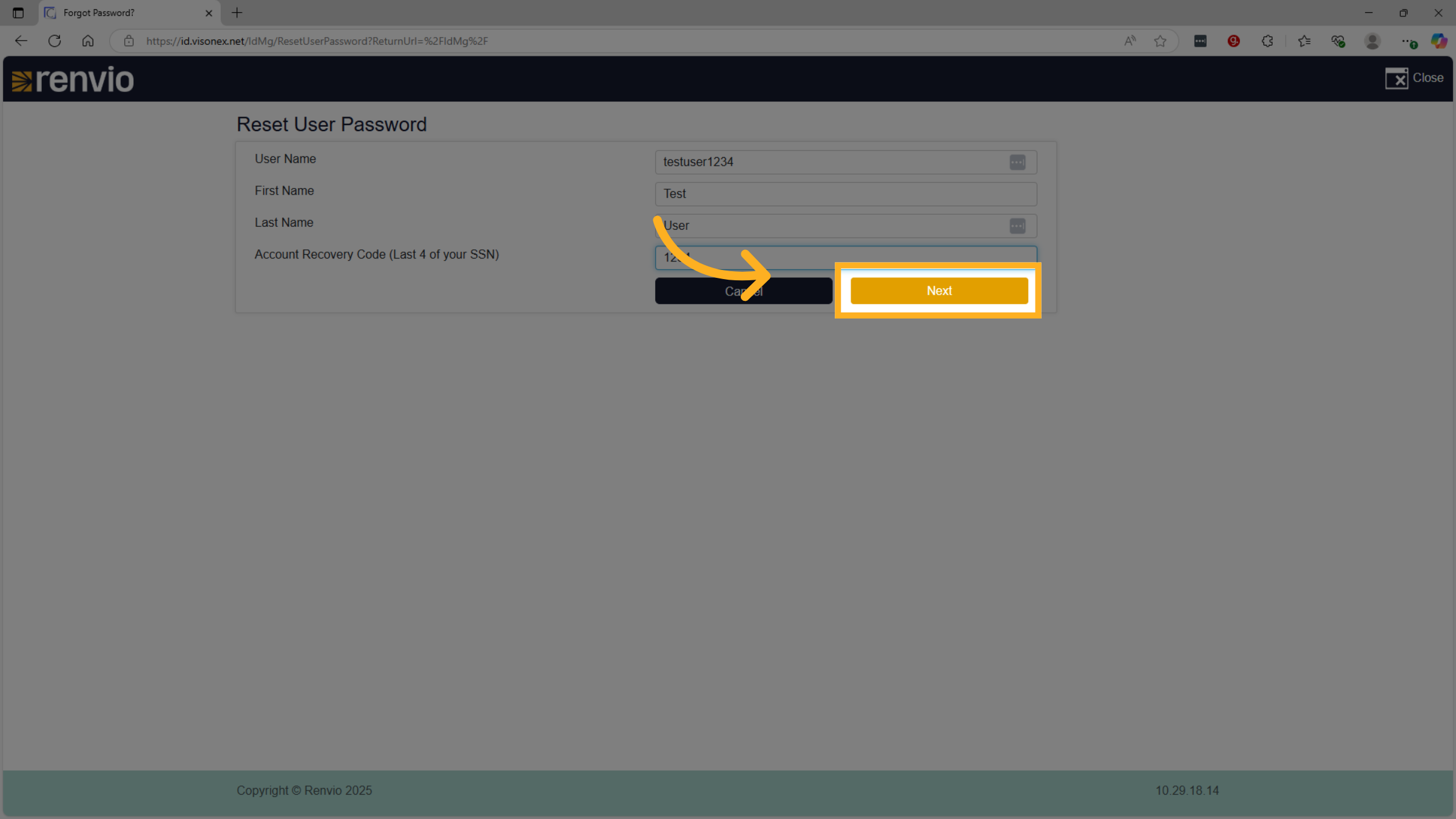
8. Click "Next"
Press the 'Next' button to submit your verification details and move forward.
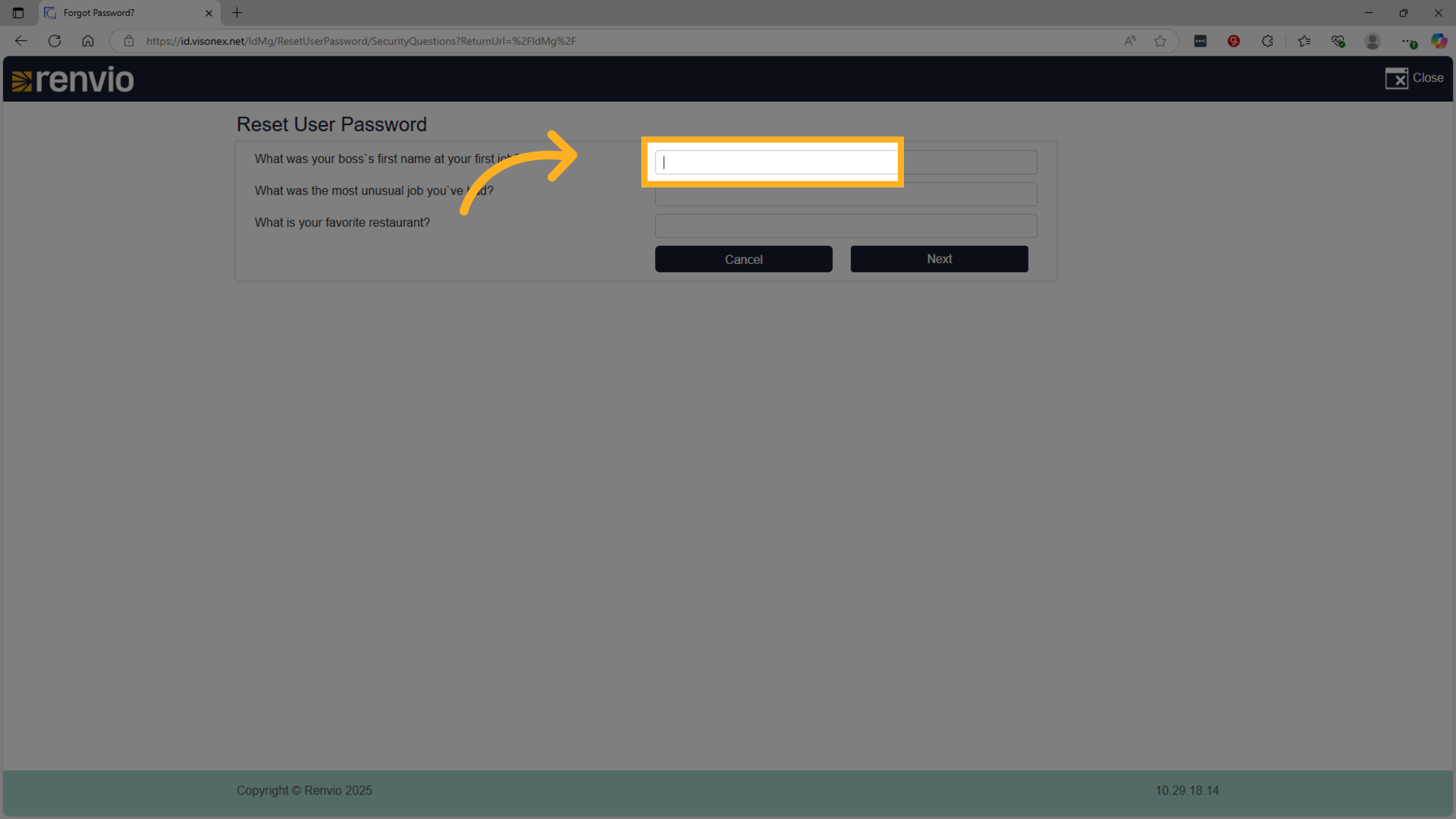
9. Click here
Click the designated area to answer security questions or provide additional verification information.
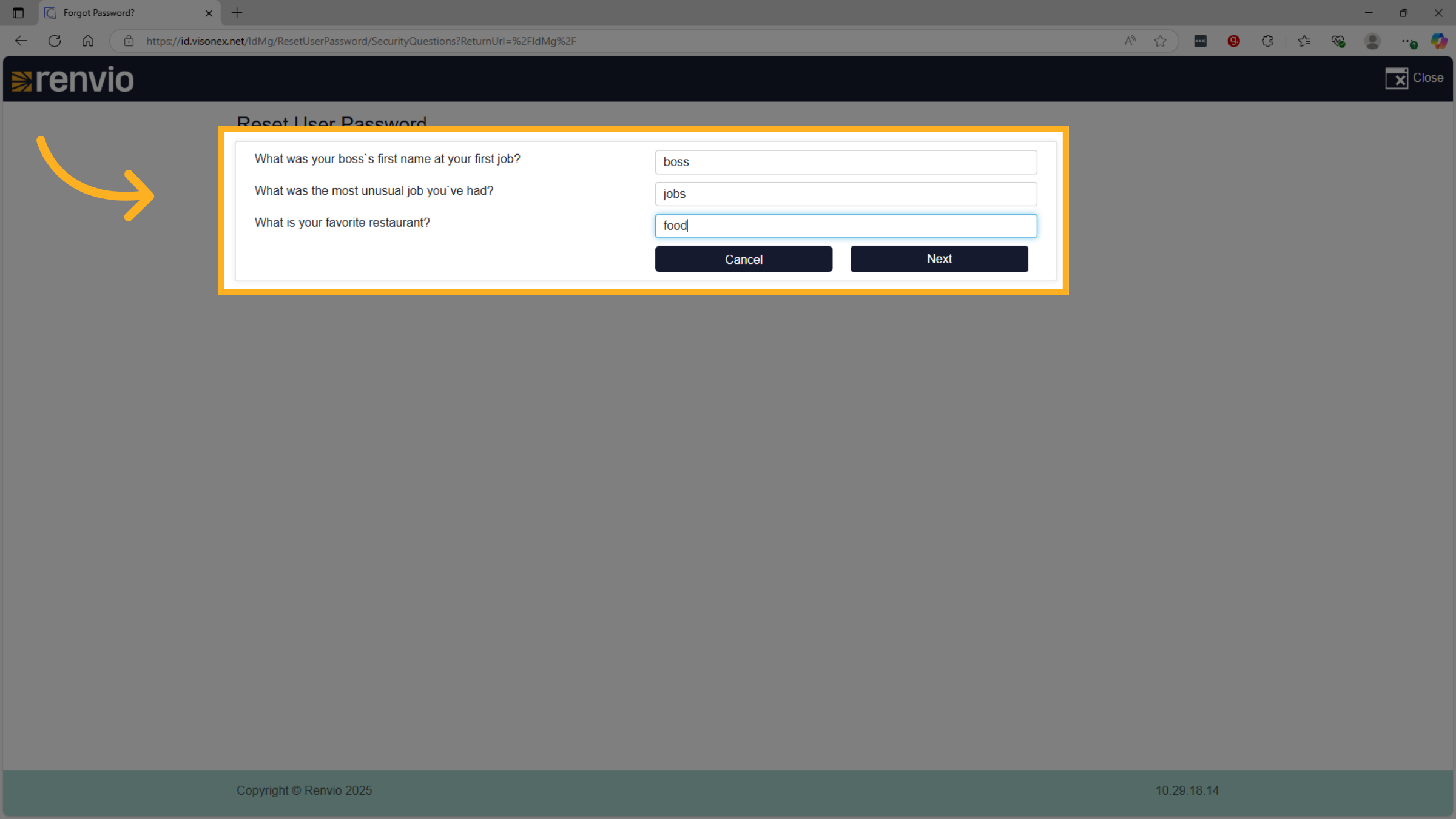
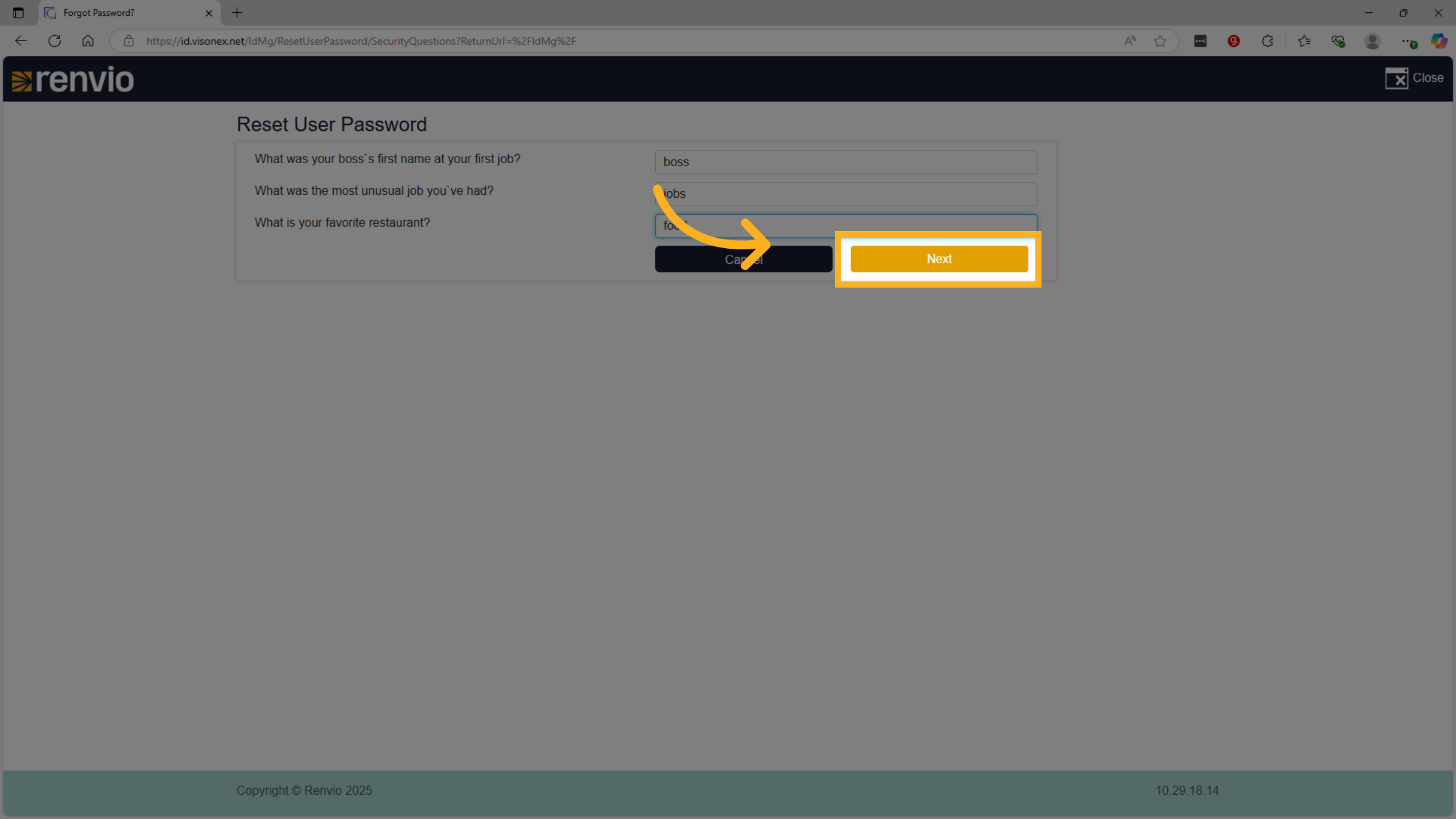
10. Fill "food"
Provide the answer to your second and third security question to complete the verification process.
11. Click "Next"
Click 'Next' to proceed to the password reset stage after successful verification.
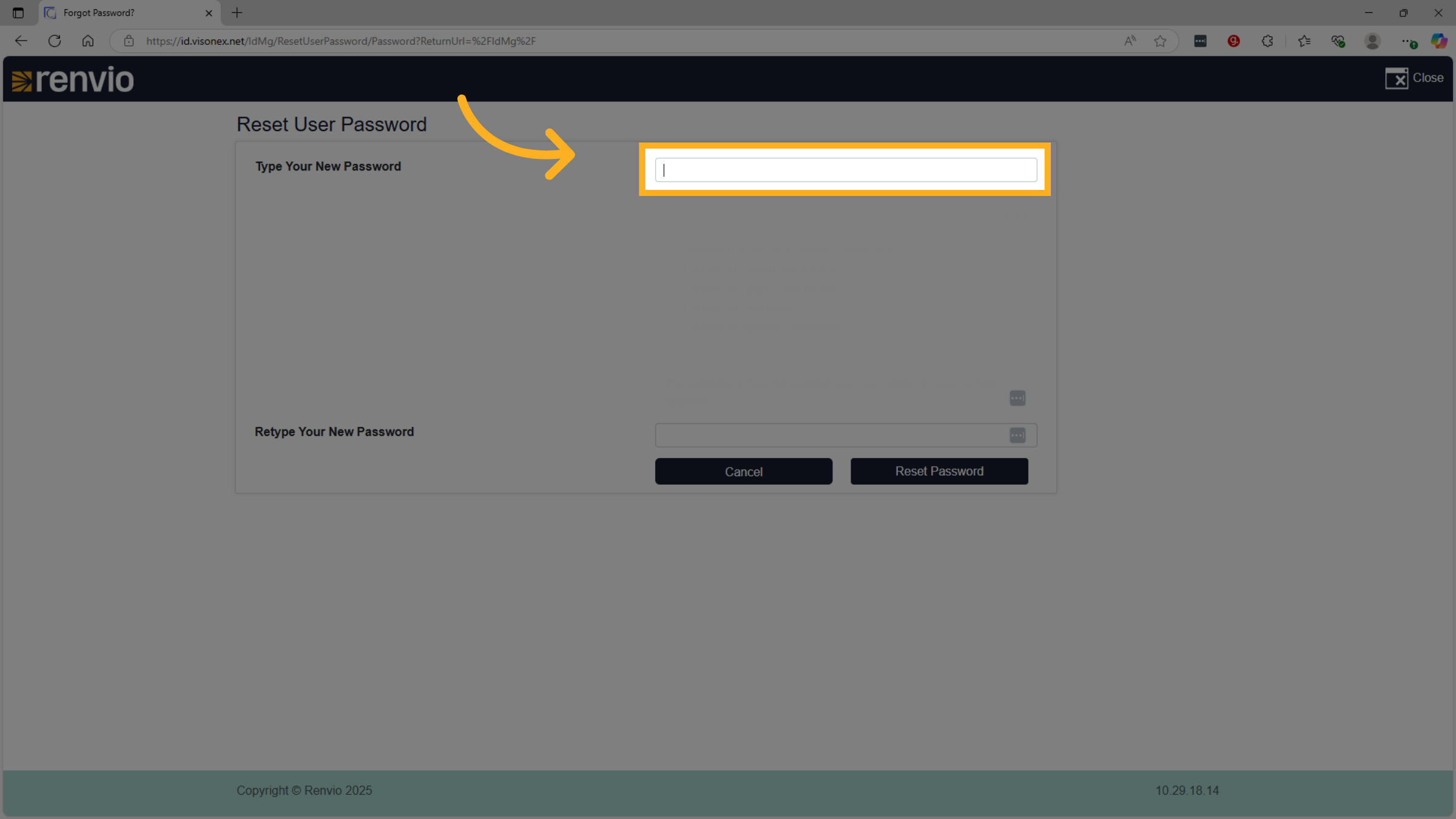
12. Click "Type Your New Password"
Click the field labeled 'Type Your New Password' to create a new secure password.
13. Fill "•••••••••••••"
Enter a strong, new password that meets the security requirements to protect your account.
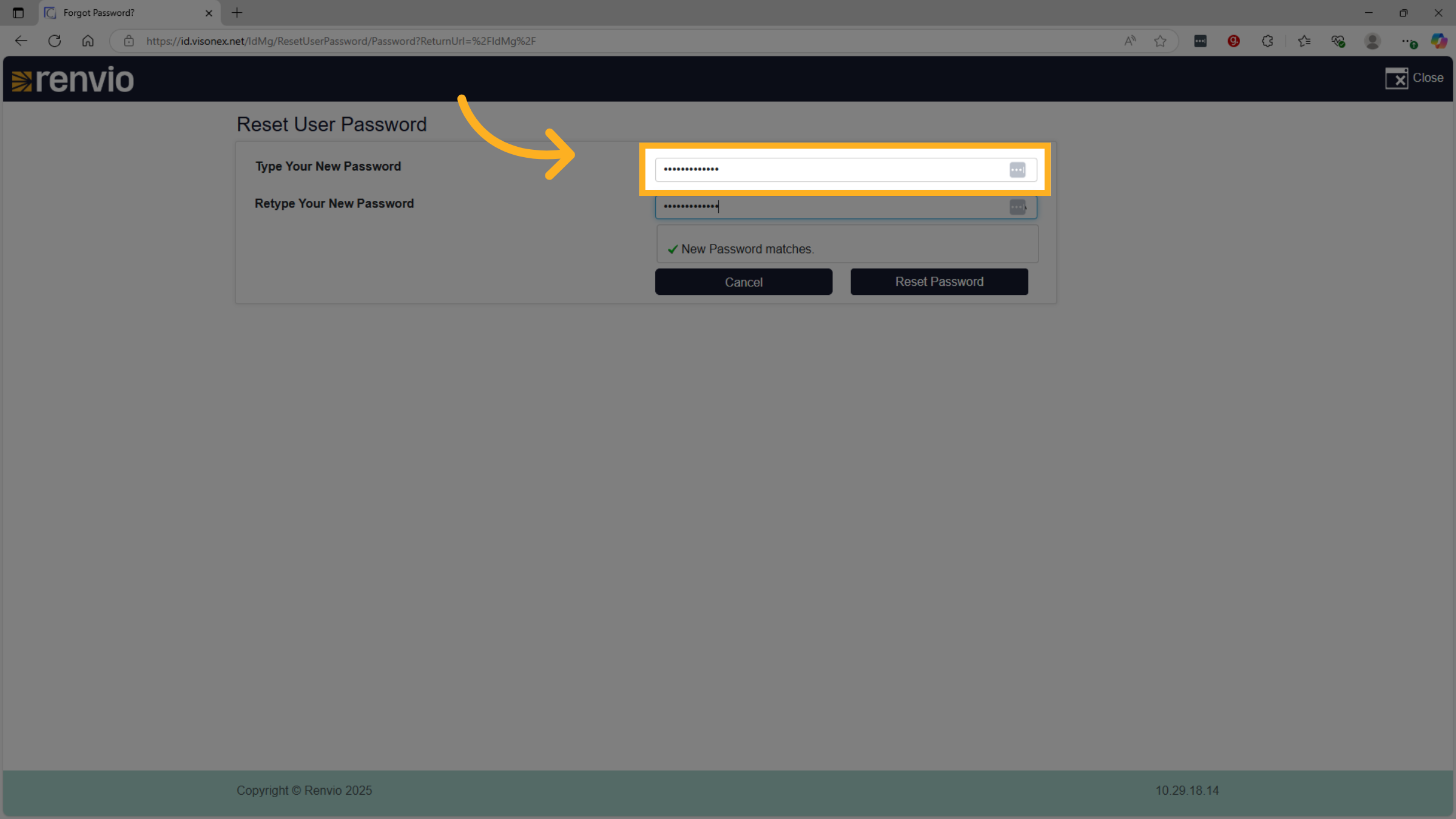
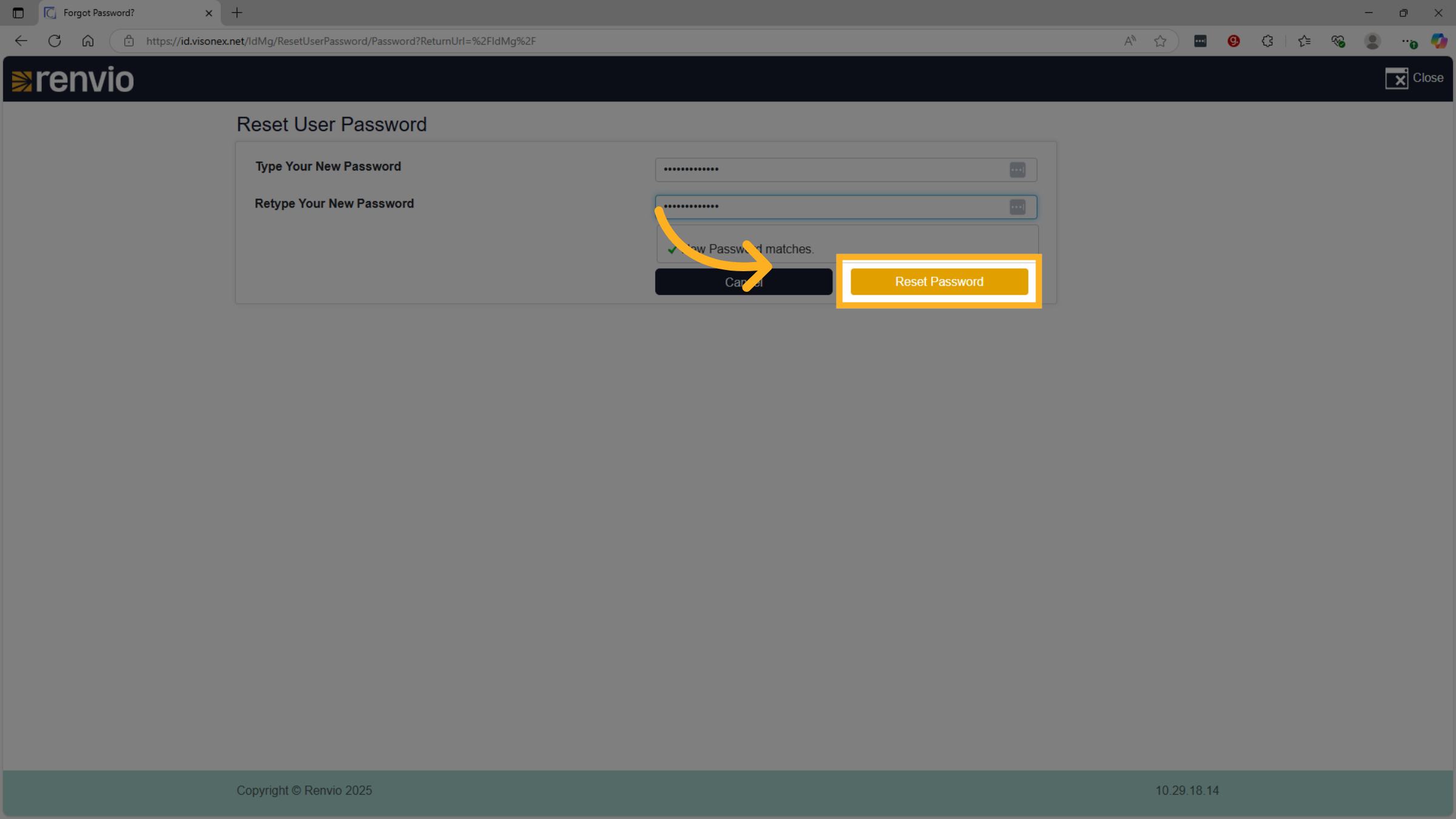
14. Click "Reset Password"
Finalize the process by clicking the 'Reset Password' button to update your credentials and regain access.